Introduction to Java Programming - internals
Contents Computer Programming Overview Your First Java Program Java Technology Overview Eclipse IDE
Contents The Structure of Java Programs Keywords and Identifiers Data Types Integral, Textual, Floating-Point Enumerations Variables, Declarations, Assignments, Operators
Contents Expressions and Statements Logical Statements Loop Statements Console Input and Output Arrays and Array Manipulation Using the Java API Documentation
What is Computer Programming?
Define: Computer Programming Computer Programming: creating a sequence of instructions to enable the computer to do something Definition by Google
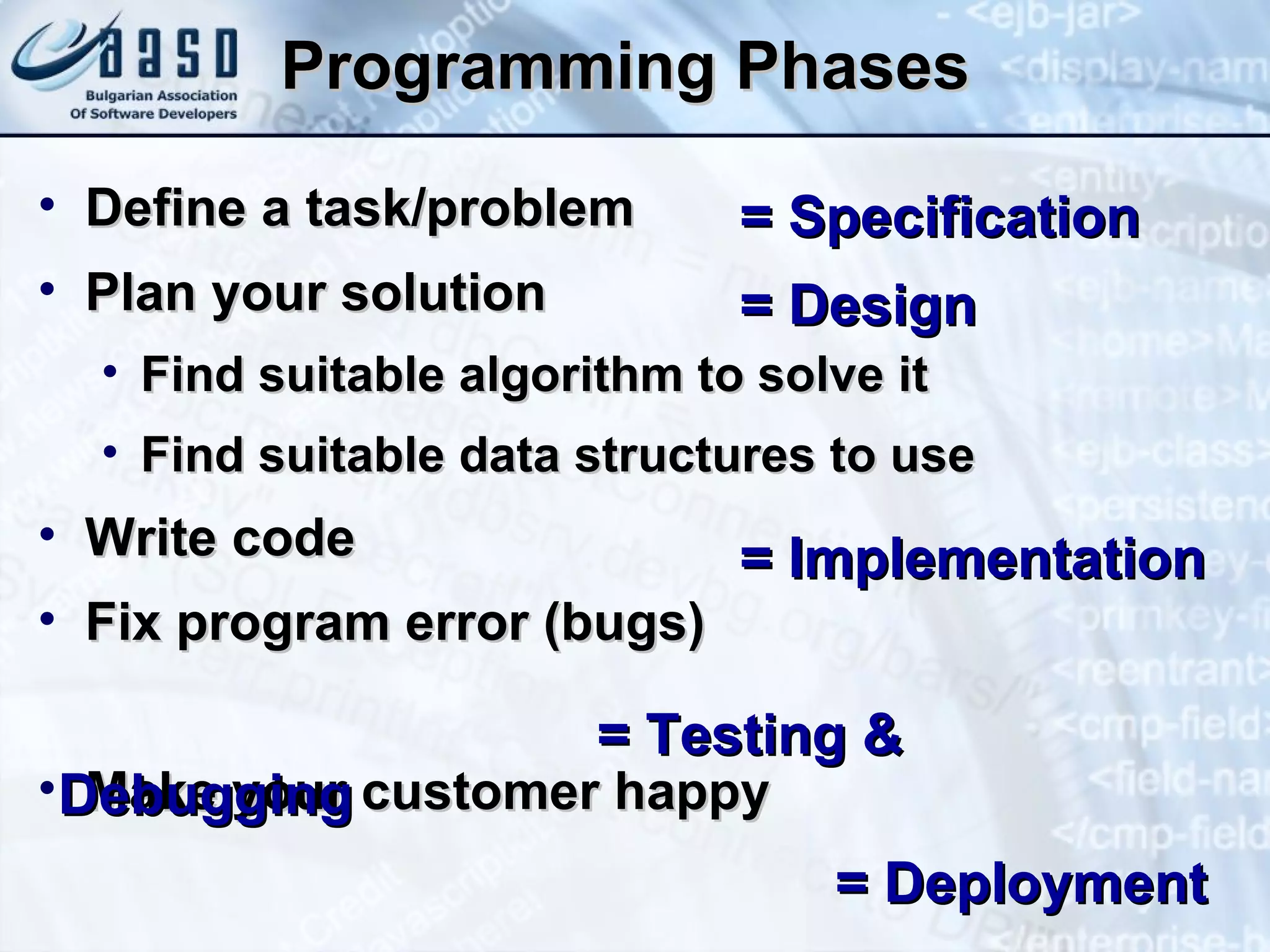
Programming Phases Define a task/problem Plan your solution Find suitable algorithm to solve it Find suitable data structures to use Write code Fix program error (bugs) Make your customer happy   = Specification   = Design   = Implementation   = Testing & Debugging   = Deployment
Your First Java Program
First Look at Java Code Sample Java Source code: public class HelloJava { public static void main(String args[]) { System.out.println("Hello, Java"); } }
Java Code – How It Works? public class HelloJava { public static void main(String args[]){ System.out.println("Hello, Java"); } } Define a class called " HelloJava " Define the  main()  method – the program entry point Print a text on the console calling the method " println() " of the system's standard output
Java Is Case Sensitive! public class HelloJava { public static void Main(String args[]){ system.out.PrintLn("Hello, Java"); } } The keyword  class  should be lowercase The class  System  should be in  " Pascal Case " The method  println()  should be in  " camel   Case " The correct method name is  main()
Java Code Should Be Well Formatted public class HelloJava { public static void main(String args[])   { System.out.println("Hello, Java"); } } The  {  symbol should be on the same line. The block after the  {  symbol should be indented by a TAB Class names should start with a CAPITAL letter The  {  symbol should be on the same line. The  }  symbol should be under the beginning of the line with corresponding  {
Example of Bad Formatting public  class HelloJava  {public static  void  main(String args[]){ System.out.println ("Hello, Java"); System.out.println("Hello, Java");} } Such formatting makes the code unreadable
File Names Match Class Names! In Java all public classes should be in a file name matching their name For example the class  HelloJava  should be in the file  HelloJava.java public class HelloJava { public static void main(String args[]){ System.out.println("Hello, Java"); } } HelloJava.java
Your First Java Program Live Demo
Welcome to Java Technology
Why Java? Meets the emerging software development challenges of its time Platform independence Run on wide variety of hardware Desktop, server-side, embedded Easier to develop, administer, maintain Object-oriented approach Built-in security Network mobility (mobile code)
History of Java Project “Oak” began in mid 80’s at Sun Microsystems by James Gosling  Java 1.0 – released Jan 1996 Java 1.1 – released Feb 1997 Reflection, inner classes Serialization, AWT, JavaBeans Java 1.2 – released Dec 1998 Also known as "Java 2 Platform" Significant improvement Swing GUI, performance and security improvements
History of Java Java 2 splits -> J2SE, J2EE, J2ME – 1999 J2SE 1.3 – released May 2000 CORBA, RMI, Sound API, many enhancements J2SE 1.4 – released Feb 2002 Assertions, non-blocking I/O, XML parser J2SE 1.5 (5.0) – released Sep 2004 Lots of new language features Generics, enhanced for loop, variable arguments list, auto boxing/unboxing, ... Java SE 6.0 – December 2006 Better performance, scripting support, new APIs
What is the Java Technology? Java technology is: A programming language A development environment An application environment A deployment environment It is similar in syntax to C++ and C# Used for developing applets and applications (standalone, server-side, Web services, mobile, embedded, ...)
Java Platform Architecture
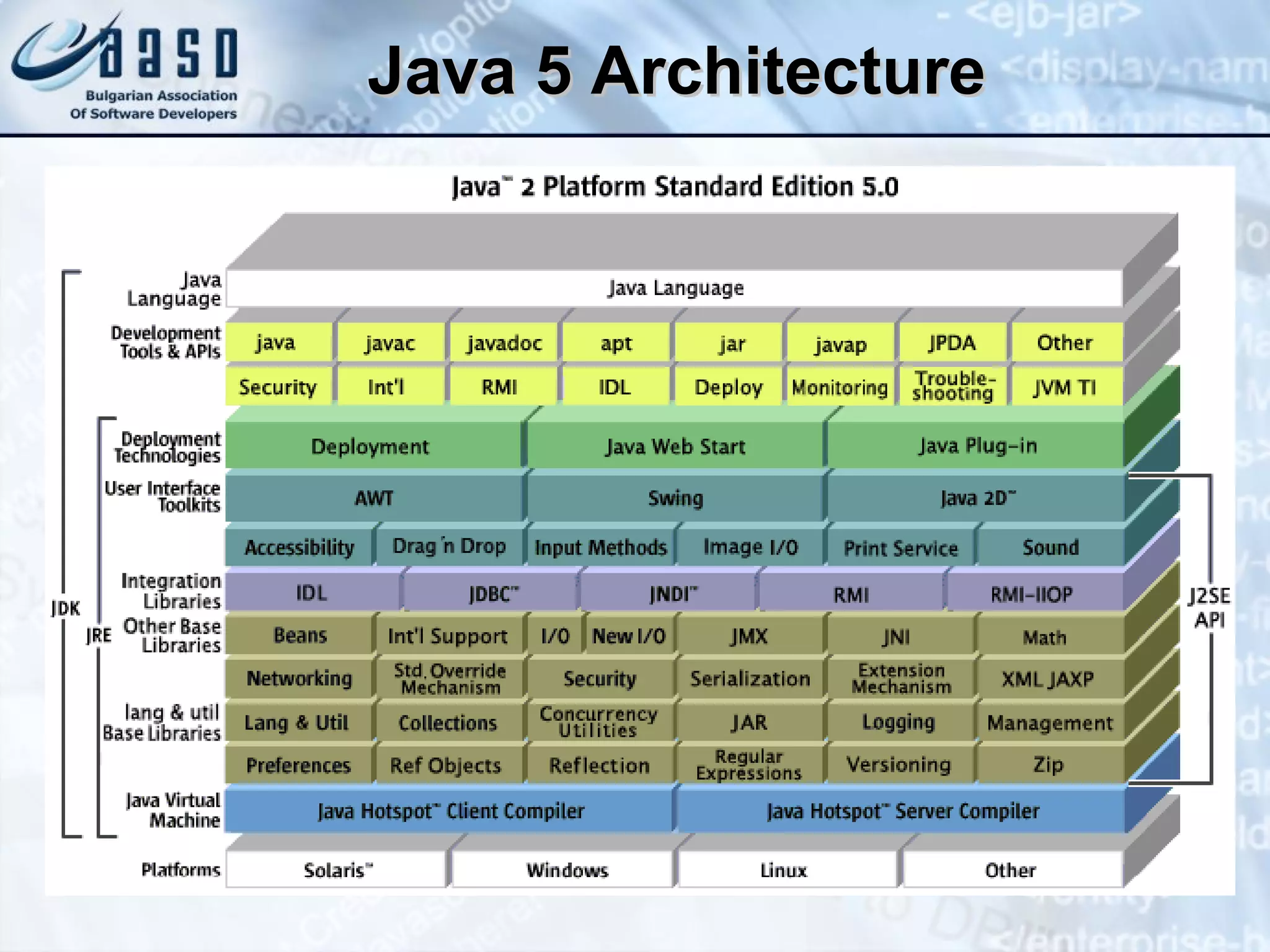
The Java Platform Architecture Consists of four distinct, but interrelated technologies The Java virtual machine (JVM) Class loaders and class files The Java programming language The Java API Writing Java programs is related to all of these technologies
Java, JVM and OS
Java 5 Architecture
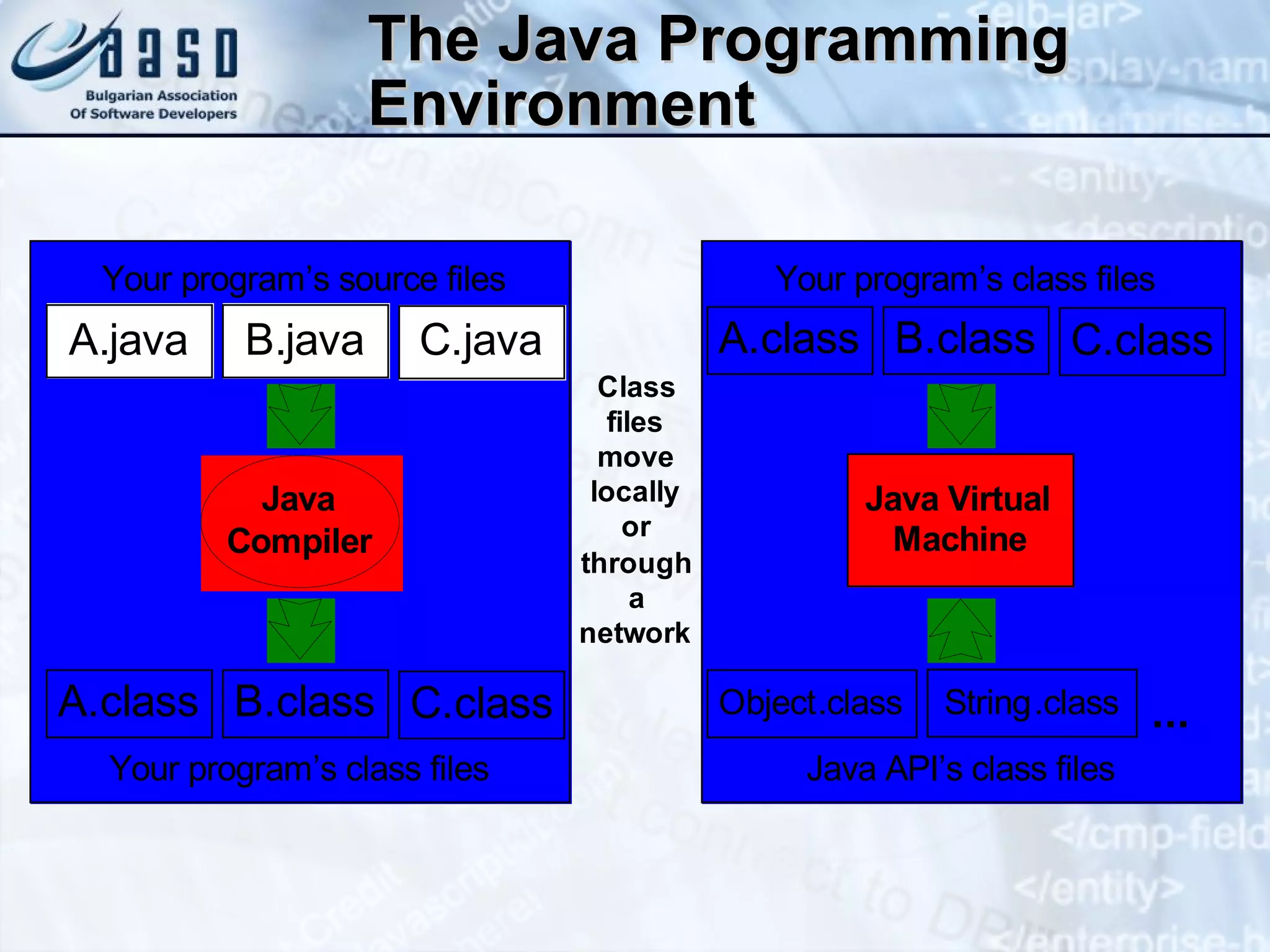
Java Compilation and Execution public class HelloJava { public static void main(String args[])   { System.out.println( "Hello, Java"); } } HelloJava.java Compilation 0010011101011101110101110101011101110101101101101110101011010101010101010101010101101110100011010000001011010111101101110101001110100110101010101101011111101010111010100101011101010100101001111101101010101110101010001010101001011000101010011101010100110101110110111110101 HelloJava.class Execution
The Java Programming Environment
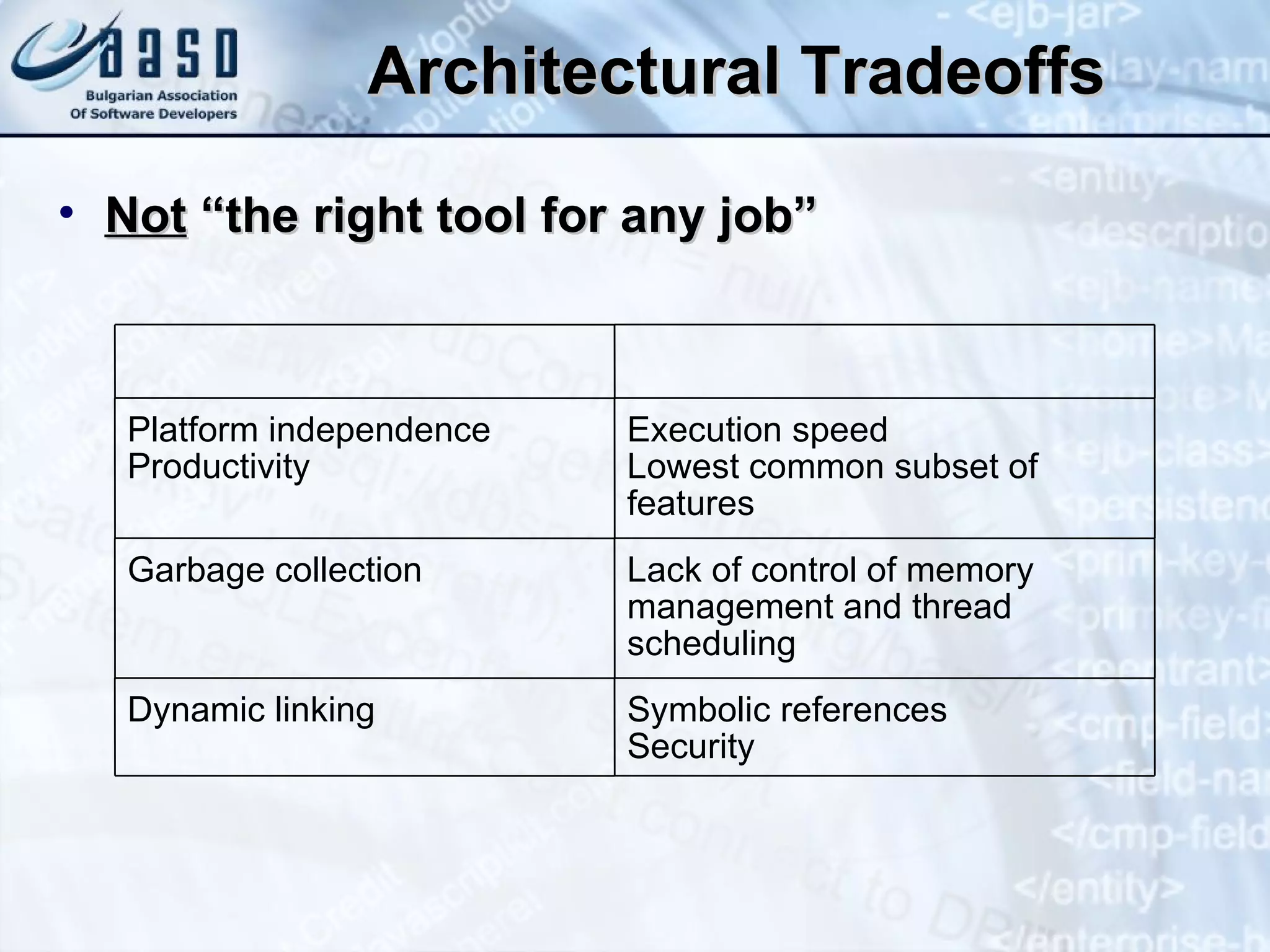
Architectural Tradeoffs Not  “the right tool for any job” Platform independence Productivity Execution speed Lowest common subset of features Garbage collection Lack of control of memory management and thread scheduling Dynamic linking Symbolic references Security
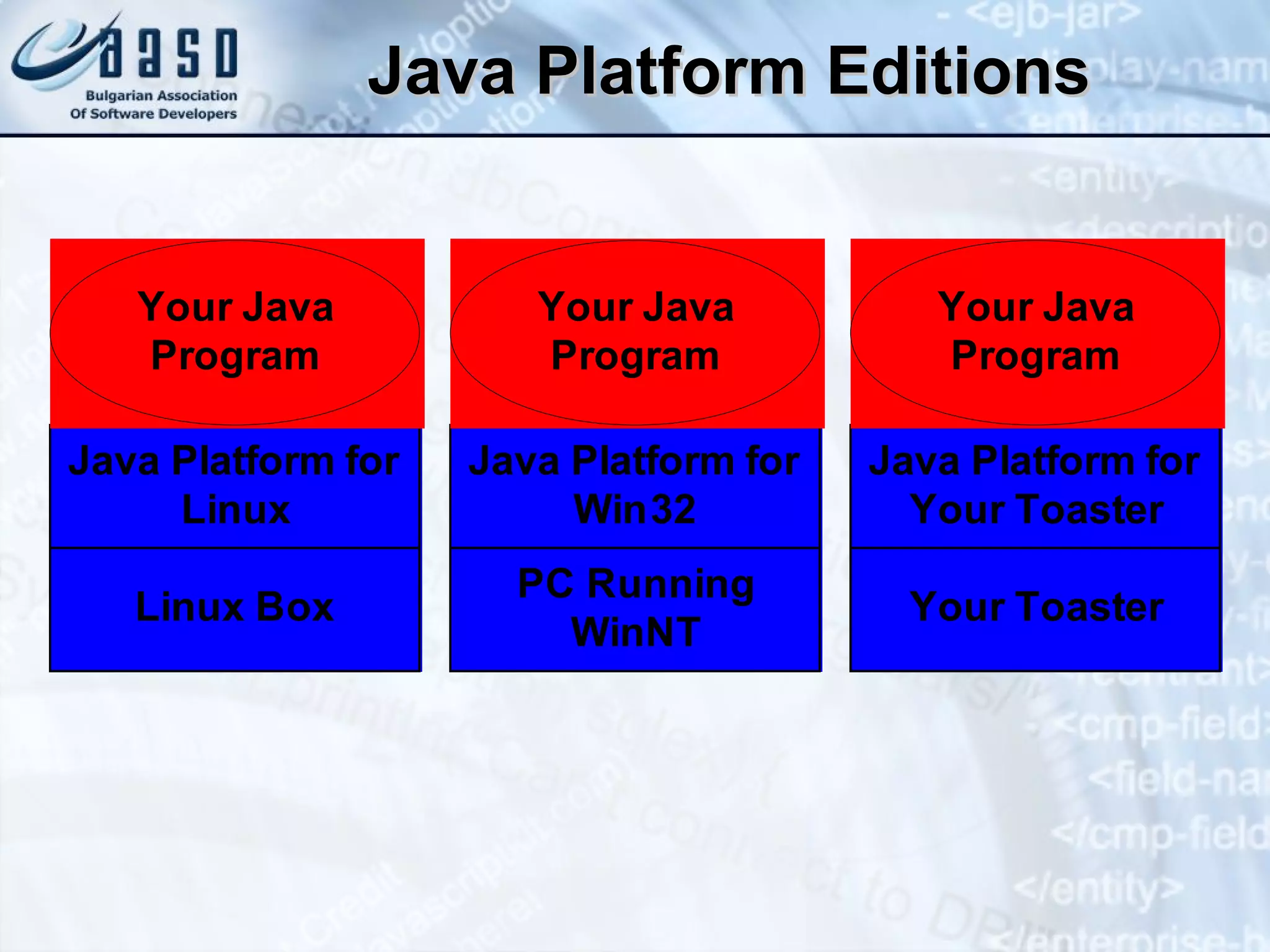
Java Platform Editions
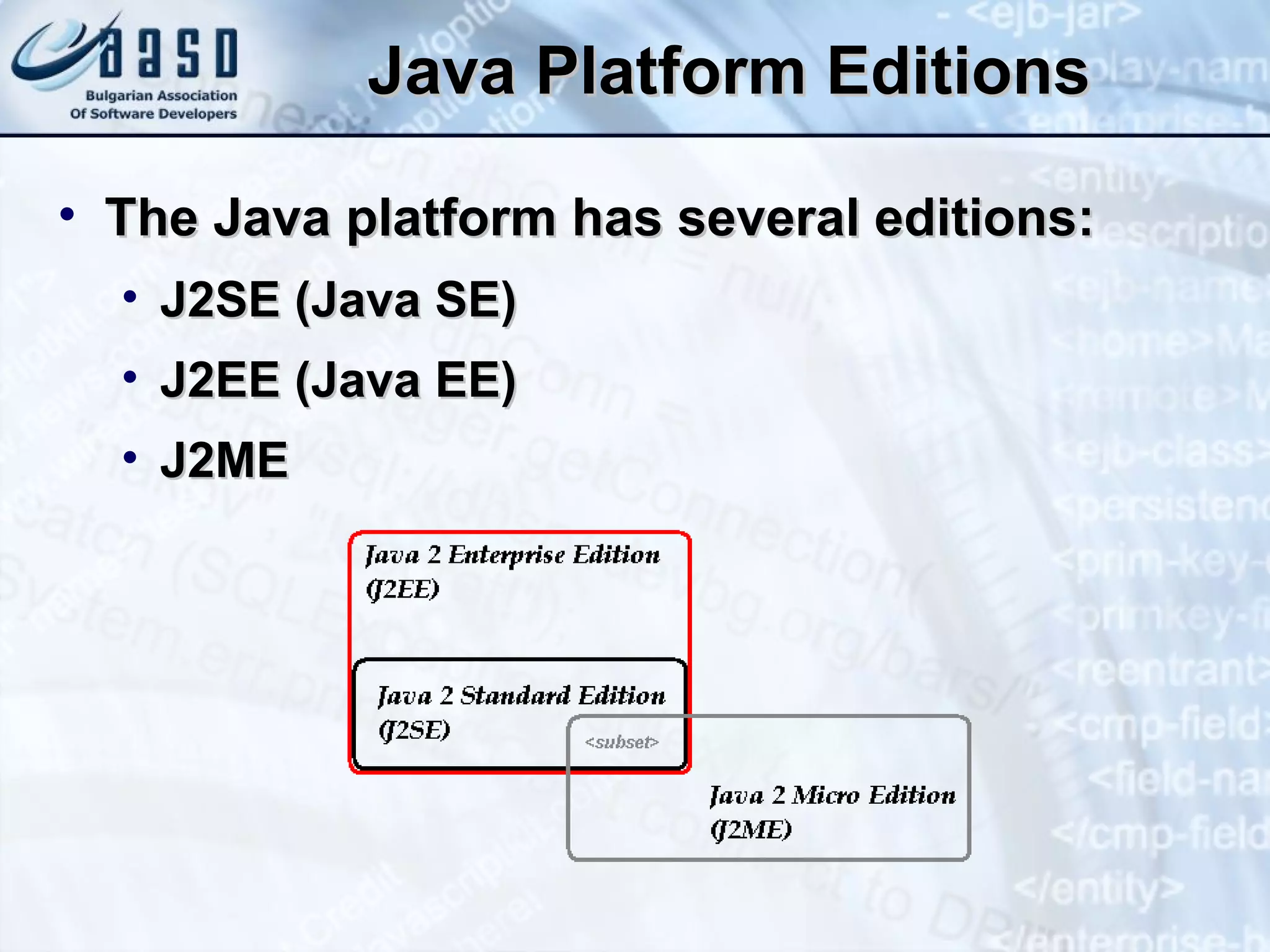
Java Platform Editions The Java platform has several editions: J2SE (Java SE) J2EE (Java EE) J2ME
J2SE, J2EE, J2ME Java 2 Standard Edition (J2SE, Java SE) Used to write standalone Java Applications and Applets Java 2 Enterprise Edition (J2EE, Java EE) A set of API’s and server specifications built on top of J2SE Used for building Enterprise, Web applications and Web services Java 2 Micro Edition (J2ME) A pared down version of J2SE and API’s for wireless and embedded devices
Java Virtual Machine (JVM)
The Java Virtual Machine Main features Load class files Execute bytecodes they contain Loose features specification Use any technique to execute bytecode Software/hardware implementation Can be implemented on a wide variety of computers and devices
The Java Virtual Machine JVM provides definitions for the: Instruction set (virtual CPU) Register set Class file format Stack Garbage-collected heap Memory area
Garbage Collection Allocated memory that is no longer needed is automatically deallocated The Java programming language provides a system level thread to track memory allocation Garbage collection: Checks for and frees memory no longer needed Is done automatically Can vary dramatically across JVM implementations
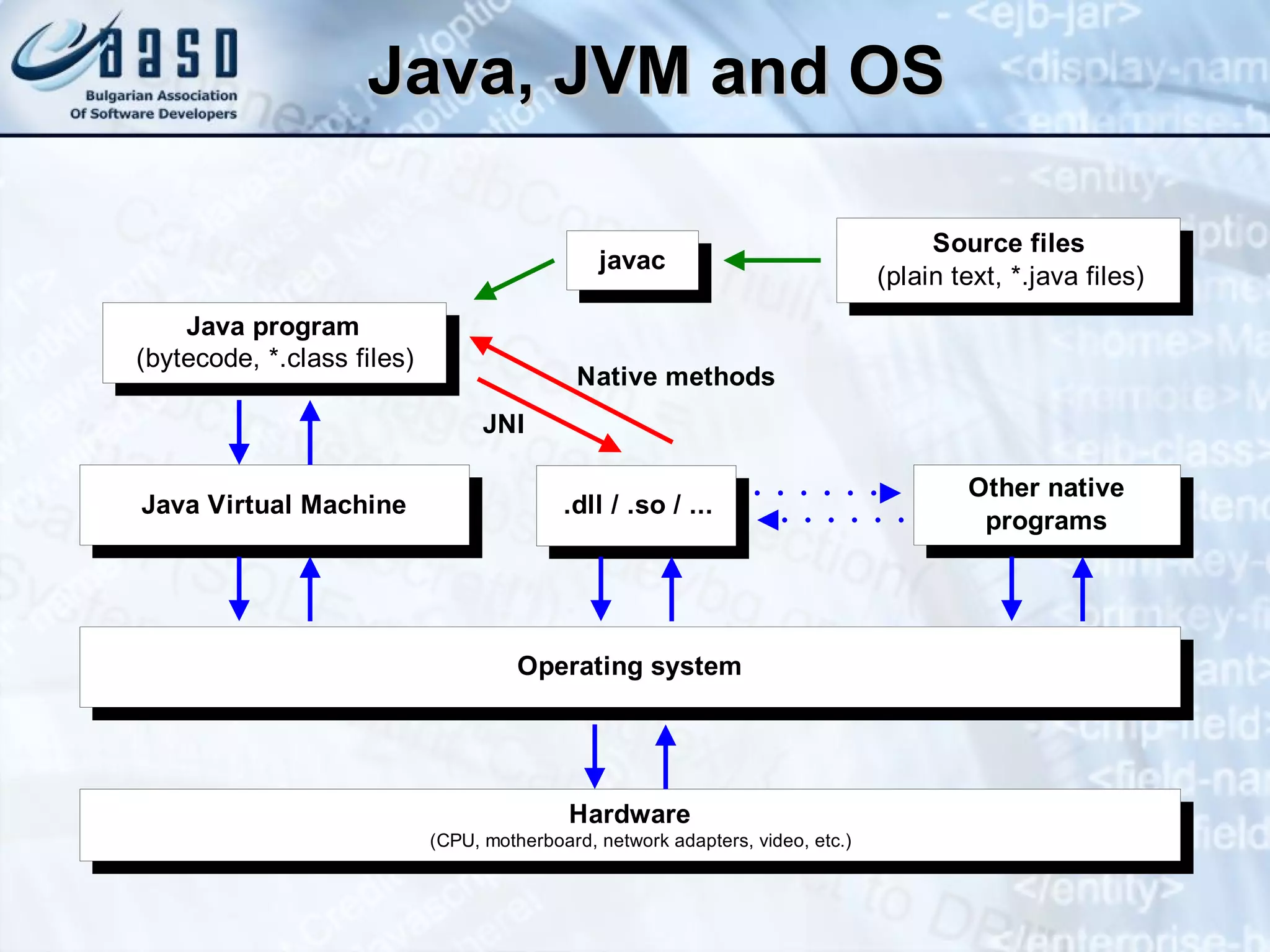
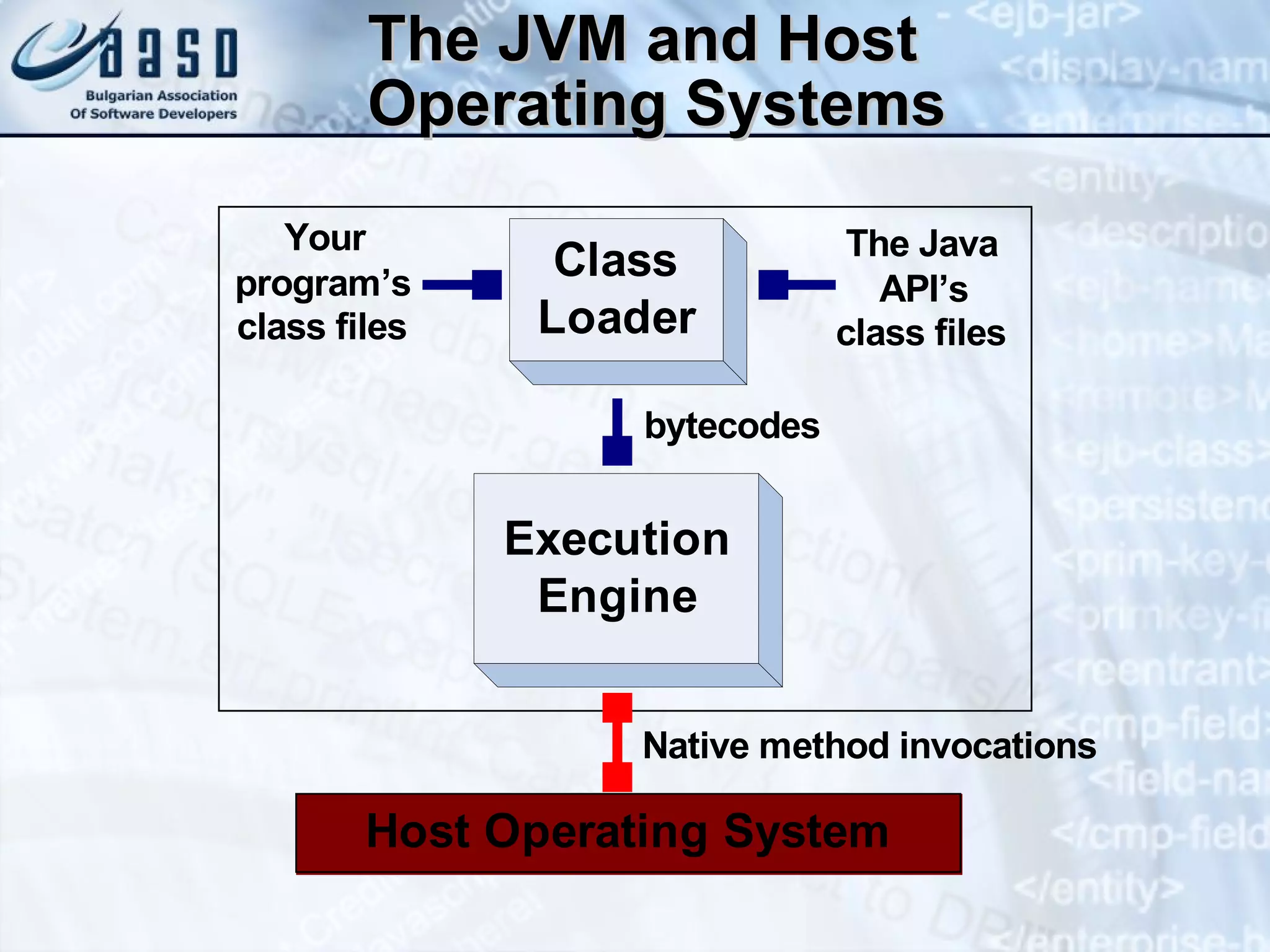
The JVM and Host Operating Systems Java methods Written in Java, compiled to bytecodes Stored in class files ( .class ) Native methods Written in other languages (C, C++, …) Compiled to native machine code Dynamic libraries Java Native Interface (JNI)
The JVM and Host Operating Systems
Classes and Class Loaders
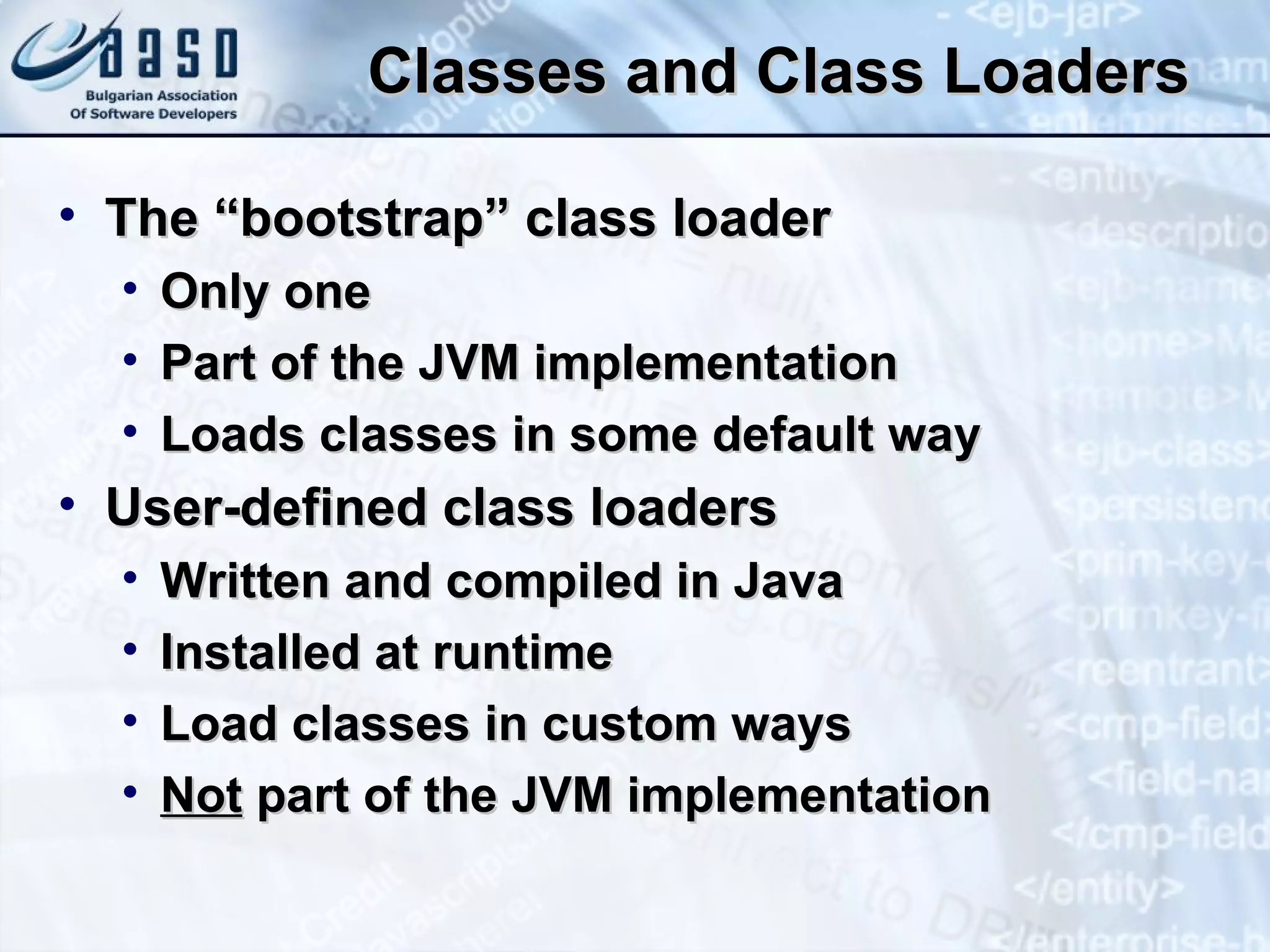
Classes and Class Loaders The “bootstrap” class loader Only one Part of the JVM implementation Loads classes in some default way User-defined class loaders Written and compiled in Java Installed at runtime Load classes in custom ways Not  part of the JVM implementation
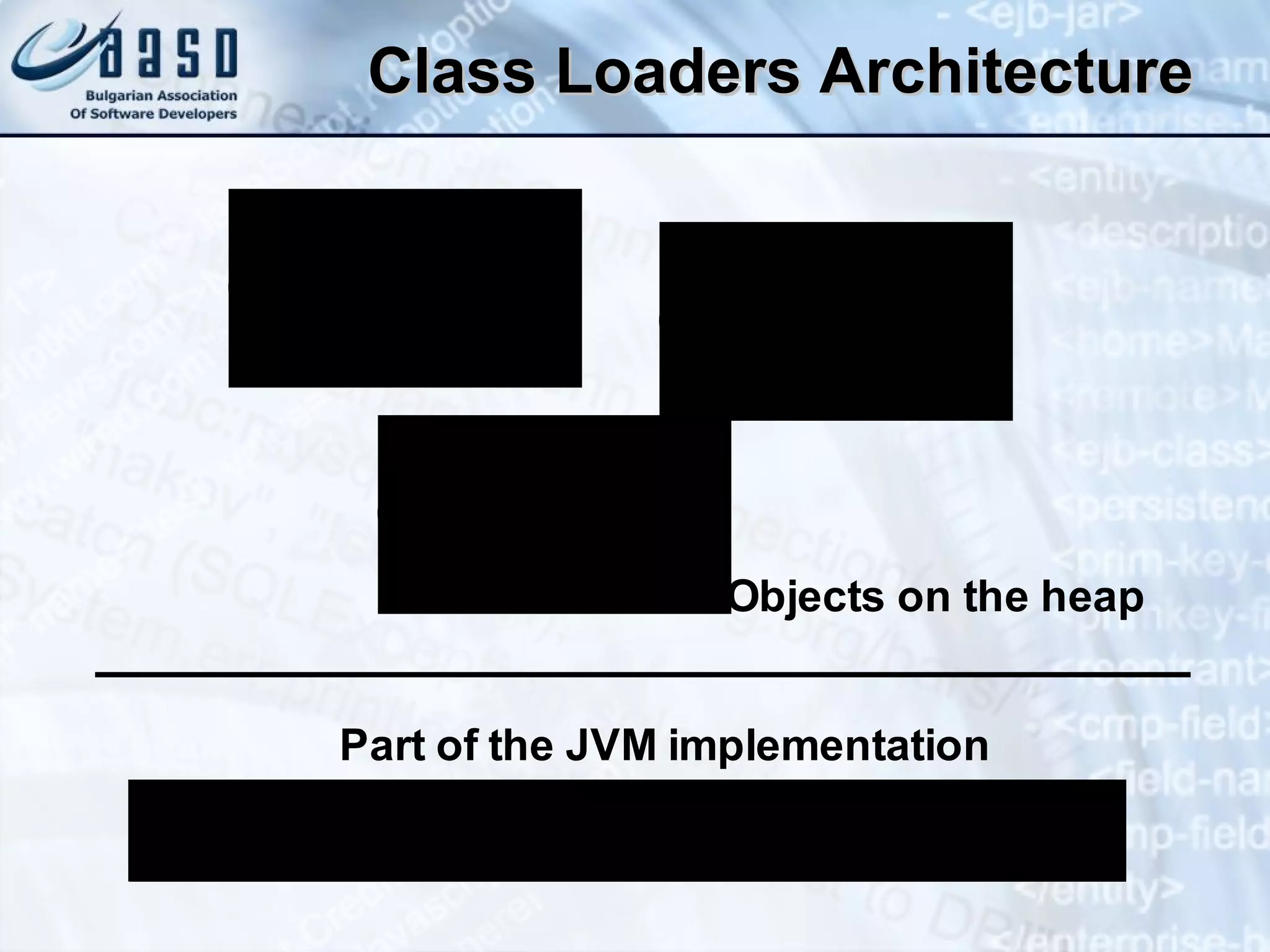
Class Loaders Architecture
Class Loaders Load classes over networks, from DB, … Keep track of loaded classes Class namespaces Access between class namespaces Advantages Security Mobility Extensibility
Java Class Files Java   classes, translated to “bytecodes” Stored with  .class  file extension Platform independent binary format Consistent byte order of integers Designed to be compact Network mobility Can be downloaded as needed Dynamic linking
Classpath The CLASSPATH environment variable Third-party and user-defined classes Can be overridden using the “-classpath” Java command-line argument Classpath entries can be Directories Archive files (.jar and .zip) Classes are loaded in the order of appearance
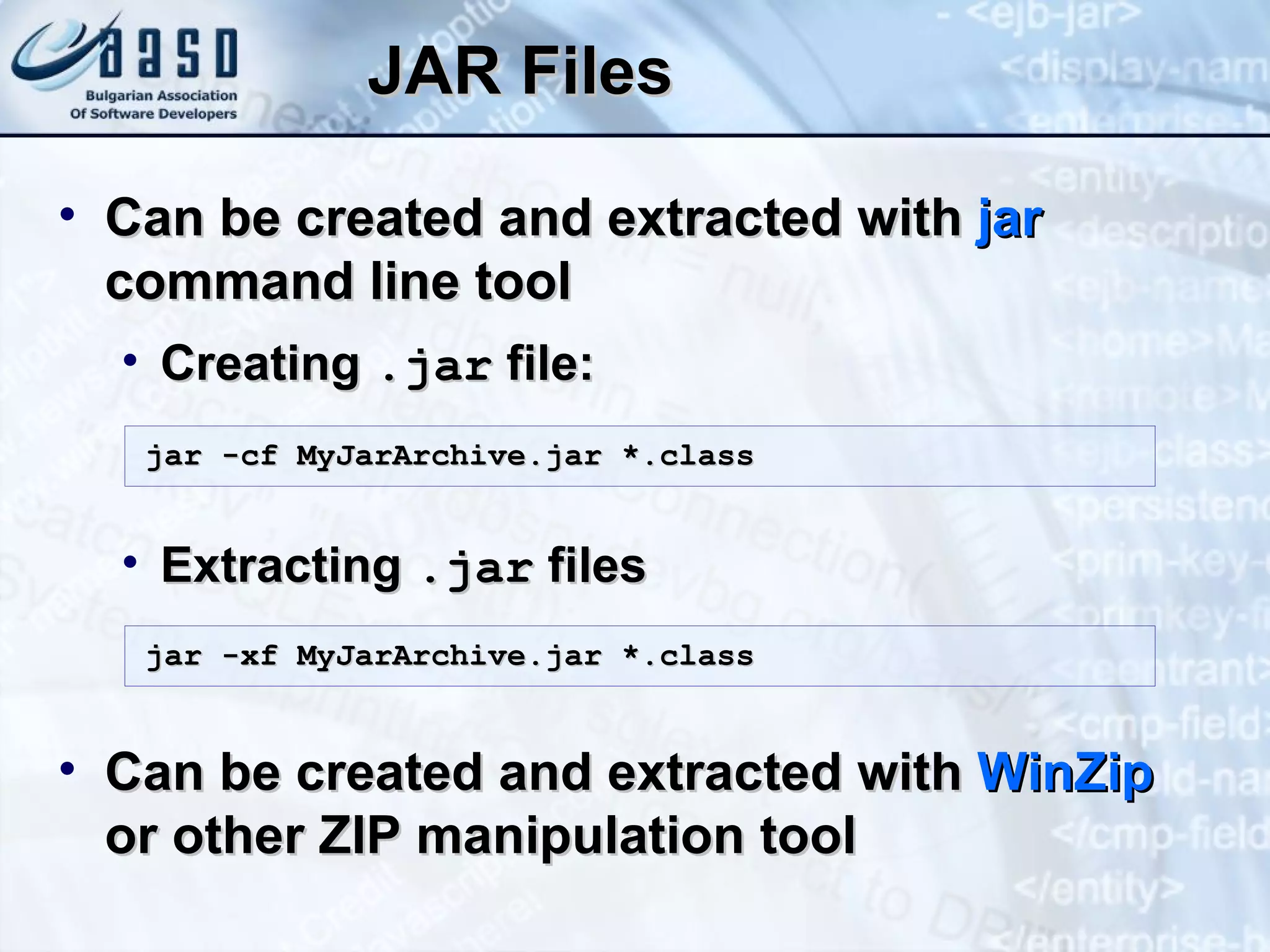
JAR Files Java programs are compiled to  .class  files (Java bytecode + class metadata) Class files are packed in JAR archives JAR files (short for  J ava  AR chive) are Standard ZIP files Can use compression or not Used to distribute a set of compiled Java classes, associated metadata and resources
JAR Files Can be created and extracted with  jar  command line tool Creating  .jar  file: Extracting  .jar  files Can be created and extracted with  WinZip  or other ZIP manipulation tool jar -cf MyJarArchive.jar *.class jar -xf MyJarArchive.jar *.class
Eclipse Compiling,  R unning and  D ebugging  Java P rograms
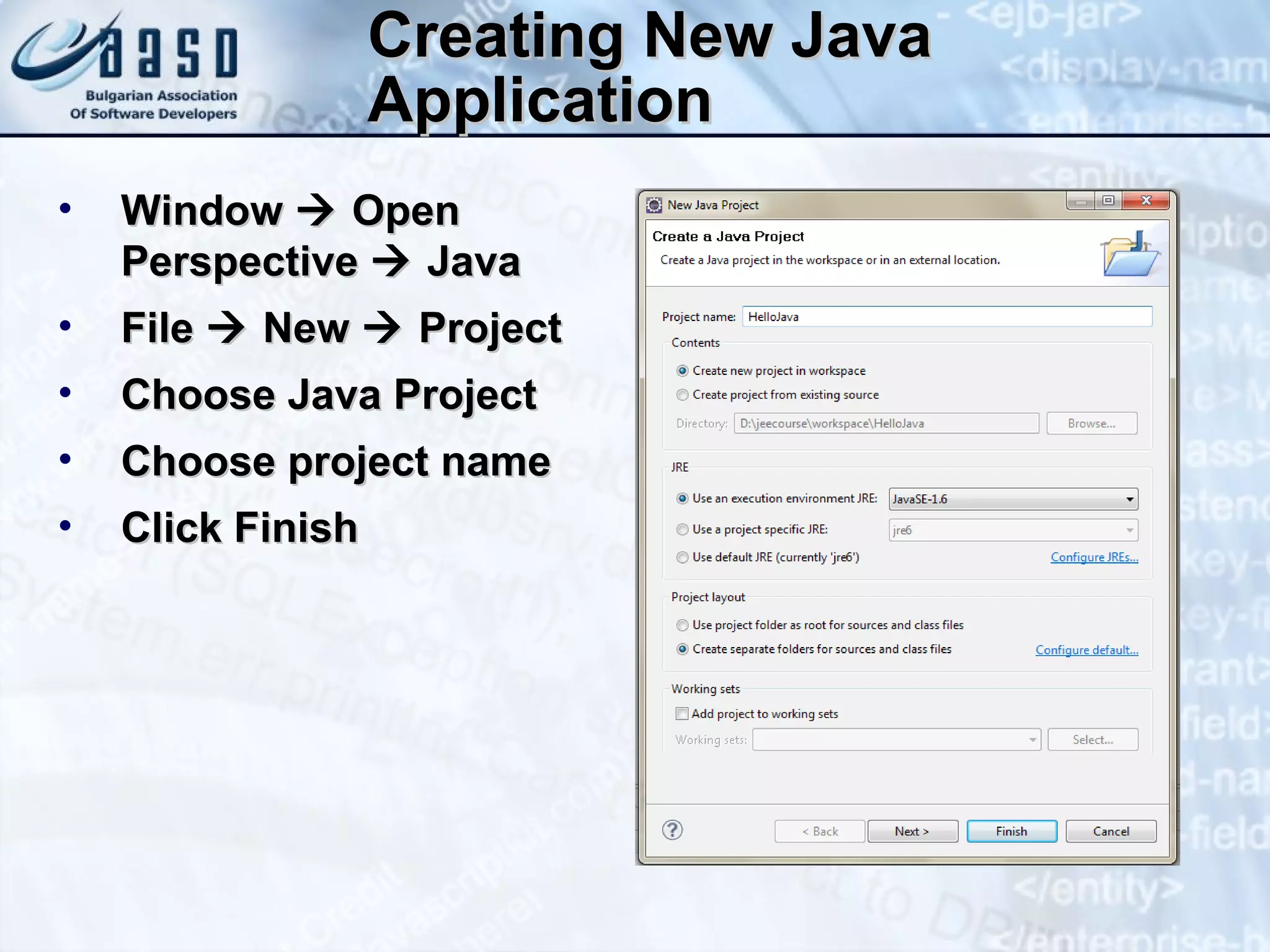
Creating New Java Application Window    Open Perspective    Java File    New    Project Choose Java Project Choose project name Click Finish
Creating New Java Application (2) File    New    Class Choose the project you just made Choose class name Enable “public static void main (String args[])” check box Click Finish
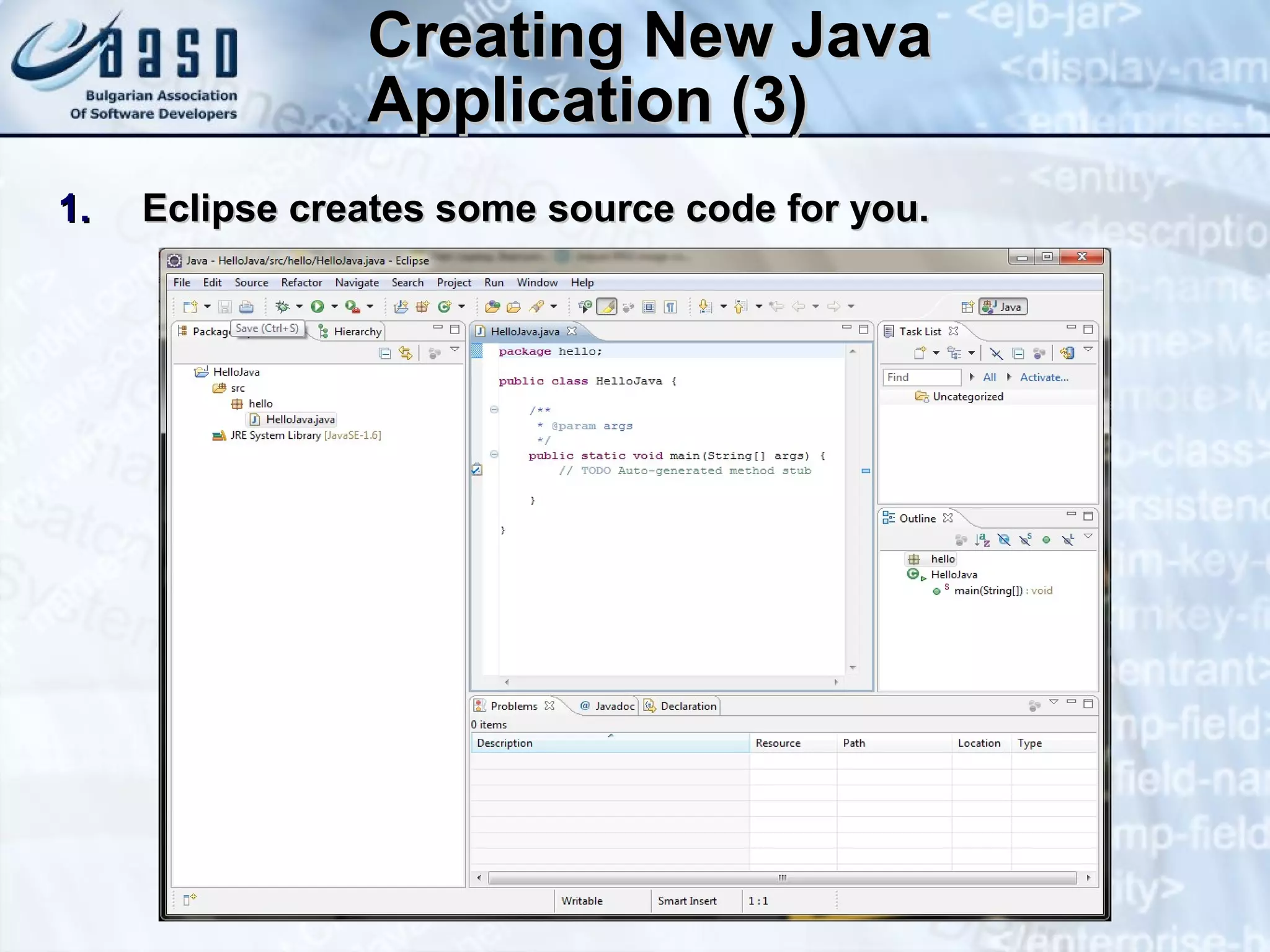
Eclipse creates some source code for you. Creating New Java Application (3)
Compiling Source Code Compilation process includes: Syntactic checks Type safety checks Translation of the source code to Java bytecode In Eclipse compilation is made automatically As you type, the program is checked for errors and is compiled Saving the file (Ctrl+S) forces compilation
Running Programs Running process includes: Compiling (if project not compiled) Starting the application You can run application by: Using  Run As->Java Application  popup menu * NOTE: Not all types of projects are able to be run!
Debugging The Code Debugging process includes: Spotting an error Finding the code that causes the error Fixing the code Testing to see if the error is gone and no errors are introduced This process is iterative and continuous
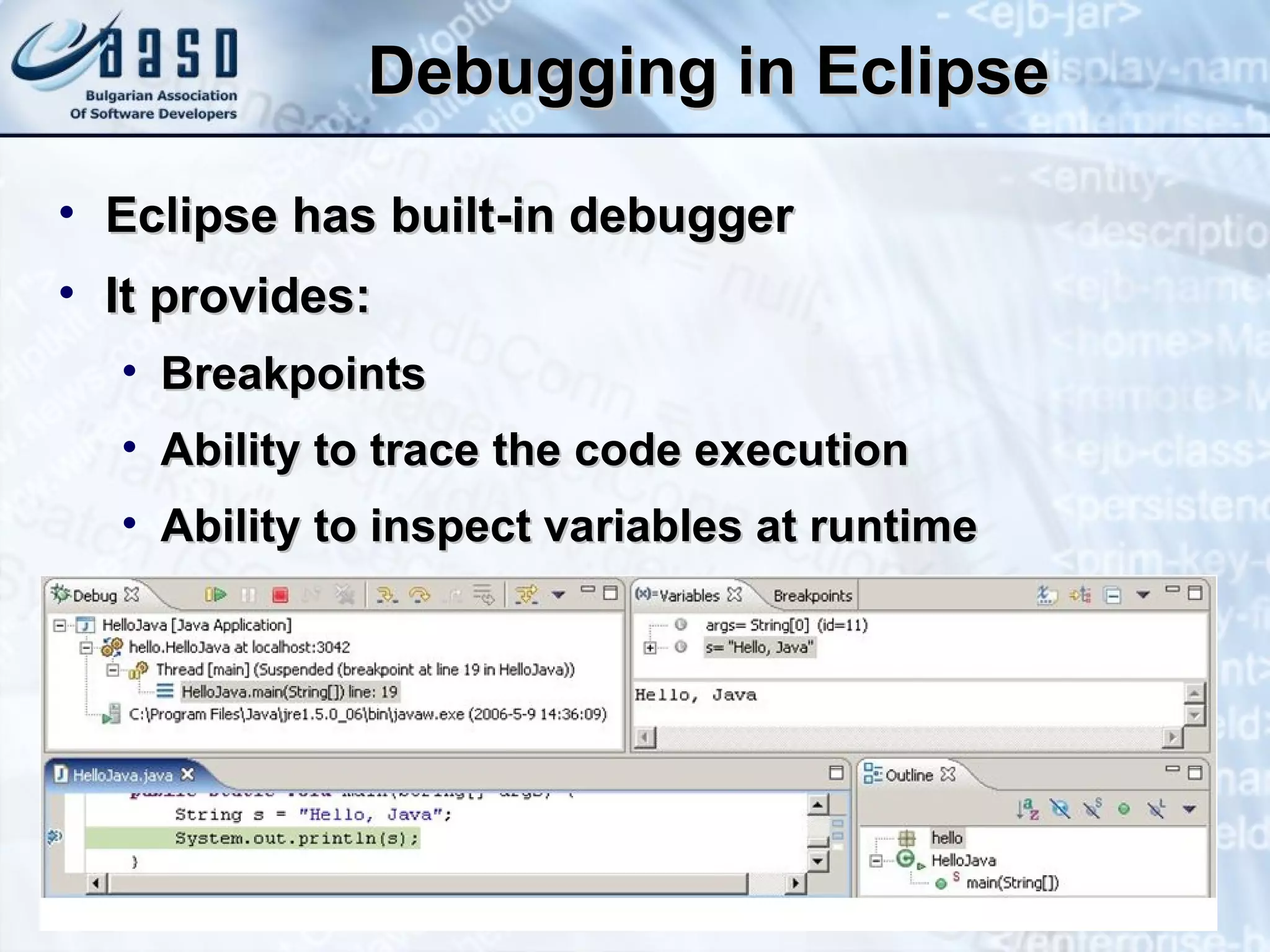
Debugging in Eclipse Eclipse has built-in debugger It provides: Breakpoints Ability to trace the code execution Ability to inspect variables at runtime
Eclipse Compiling,  R unning and  D ebugging  Java P rograms  Live Demo

Java platform

  • 1.
    Introduction to JavaProgramming - internals
  • 2.
    Contents Computer ProgrammingOverview Your First Java Program Java Technology Overview Eclipse IDE
  • 3.
    Contents The Structureof Java Programs Keywords and Identifiers Data Types Integral, Textual, Floating-Point Enumerations Variables, Declarations, Assignments, Operators
  • 4.
    Contents Expressions andStatements Logical Statements Loop Statements Console Input and Output Arrays and Array Manipulation Using the Java API Documentation
  • 5.
    What is ComputerProgramming?
  • 6.
    Define: Computer ProgrammingComputer Programming: creating a sequence of instructions to enable the computer to do something Definition by Google
  • 7.
    Programming Phases Definea task/problem Plan your solution Find suitable algorithm to solve it Find suitable data structures to use Write code Fix program error (bugs) Make your customer happy = Specification = Design = Implementation = Testing & Debugging = Deployment
  • 8.
  • 9.
    First Look atJava Code Sample Java Source code: public class HelloJava { public static void main(String args[]) { System.out.println("Hello, Java"); } }
  • 10.
    Java Code –How It Works? public class HelloJava { public static void main(String args[]){ System.out.println("Hello, Java"); } } Define a class called " HelloJava " Define the main() method – the program entry point Print a text on the console calling the method " println() " of the system's standard output
  • 11.
    Java Is CaseSensitive! public class HelloJava { public static void Main(String args[]){ system.out.PrintLn("Hello, Java"); } } The keyword class should be lowercase The class System should be in " Pascal Case " The method println() should be in " camel Case " The correct method name is main()
  • 12.
    Java Code ShouldBe Well Formatted public class HelloJava { public static void main(String args[]) { System.out.println("Hello, Java"); } } The { symbol should be on the same line. The block after the { symbol should be indented by a TAB Class names should start with a CAPITAL letter The { symbol should be on the same line. The } symbol should be under the beginning of the line with corresponding {
  • 13.
    Example of BadFormatting public class HelloJava {public static void main(String args[]){ System.out.println ("Hello, Java"); System.out.println("Hello, Java");} } Such formatting makes the code unreadable
  • 14.
    File Names MatchClass Names! In Java all public classes should be in a file name matching their name For example the class HelloJava should be in the file HelloJava.java public class HelloJava { public static void main(String args[]){ System.out.println("Hello, Java"); } } HelloJava.java
  • 15.
    Your First JavaProgram Live Demo
  • 16.
    Welcome to JavaTechnology
  • 17.
    Why Java? Meetsthe emerging software development challenges of its time Platform independence Run on wide variety of hardware Desktop, server-side, embedded Easier to develop, administer, maintain Object-oriented approach Built-in security Network mobility (mobile code)
  • 18.
    History of JavaProject “Oak” began in mid 80’s at Sun Microsystems by James Gosling Java 1.0 – released Jan 1996 Java 1.1 – released Feb 1997 Reflection, inner classes Serialization, AWT, JavaBeans Java 1.2 – released Dec 1998 Also known as "Java 2 Platform" Significant improvement Swing GUI, performance and security improvements
  • 19.
    History of JavaJava 2 splits -> J2SE, J2EE, J2ME – 1999 J2SE 1.3 – released May 2000 CORBA, RMI, Sound API, many enhancements J2SE 1.4 – released Feb 2002 Assertions, non-blocking I/O, XML parser J2SE 1.5 (5.0) – released Sep 2004 Lots of new language features Generics, enhanced for loop, variable arguments list, auto boxing/unboxing, ... Java SE 6.0 – December 2006 Better performance, scripting support, new APIs
  • 20.
    What is theJava Technology? Java technology is: A programming language A development environment An application environment A deployment environment It is similar in syntax to C++ and C# Used for developing applets and applications (standalone, server-side, Web services, mobile, embedded, ...)
  • 21.
  • 22.
    The Java PlatformArchitecture Consists of four distinct, but interrelated technologies The Java virtual machine (JVM) Class loaders and class files The Java programming language The Java API Writing Java programs is related to all of these technologies
  • 23.
  • 24.
  • 25.
    Java Compilation andExecution public class HelloJava { public static void main(String args[]) { System.out.println( "Hello, Java"); } } HelloJava.java Compilation 0010011101011101110101110101011101110101101101101110101011010101010101010101010101101110100011010000001011010111101101110101001110100110101010101101011111101010111010100101011101010100101001111101101010101110101010001010101001011000101010011101010100110101110110111110101 HelloJava.class Execution
  • 26.
  • 27.
    Architectural Tradeoffs Not “the right tool for any job” Platform independence Productivity Execution speed Lowest common subset of features Garbage collection Lack of control of memory management and thread scheduling Dynamic linking Symbolic references Security
  • 28.
  • 29.
    Java Platform EditionsThe Java platform has several editions: J2SE (Java SE) J2EE (Java EE) J2ME
  • 30.
    J2SE, J2EE, J2MEJava 2 Standard Edition (J2SE, Java SE) Used to write standalone Java Applications and Applets Java 2 Enterprise Edition (J2EE, Java EE) A set of API’s and server specifications built on top of J2SE Used for building Enterprise, Web applications and Web services Java 2 Micro Edition (J2ME) A pared down version of J2SE and API’s for wireless and embedded devices
  • 31.
  • 32.
    The Java VirtualMachine Main features Load class files Execute bytecodes they contain Loose features specification Use any technique to execute bytecode Software/hardware implementation Can be implemented on a wide variety of computers and devices
  • 33.
    The Java VirtualMachine JVM provides definitions for the: Instruction set (virtual CPU) Register set Class file format Stack Garbage-collected heap Memory area
  • 34.
    Garbage Collection Allocatedmemory that is no longer needed is automatically deallocated The Java programming language provides a system level thread to track memory allocation Garbage collection: Checks for and frees memory no longer needed Is done automatically Can vary dramatically across JVM implementations
  • 35.
    The JVM andHost Operating Systems Java methods Written in Java, compiled to bytecodes Stored in class files ( .class ) Native methods Written in other languages (C, C++, …) Compiled to native machine code Dynamic libraries Java Native Interface (JNI)
  • 36.
    The JVM andHost Operating Systems
  • 37.
  • 38.
    Classes and ClassLoaders The “bootstrap” class loader Only one Part of the JVM implementation Loads classes in some default way User-defined class loaders Written and compiled in Java Installed at runtime Load classes in custom ways Not part of the JVM implementation
  • 39.
  • 40.
    Class Loaders Loadclasses over networks, from DB, … Keep track of loaded classes Class namespaces Access between class namespaces Advantages Security Mobility Extensibility
  • 41.
    Java Class FilesJava classes, translated to “bytecodes” Stored with .class file extension Platform independent binary format Consistent byte order of integers Designed to be compact Network mobility Can be downloaded as needed Dynamic linking
  • 42.
    Classpath The CLASSPATHenvironment variable Third-party and user-defined classes Can be overridden using the “-classpath” Java command-line argument Classpath entries can be Directories Archive files (.jar and .zip) Classes are loaded in the order of appearance
  • 43.
    JAR Files Javaprograms are compiled to .class files (Java bytecode + class metadata) Class files are packed in JAR archives JAR files (short for J ava AR chive) are Standard ZIP files Can use compression or not Used to distribute a set of compiled Java classes, associated metadata and resources
  • 44.
    JAR Files Canbe created and extracted with jar command line tool Creating .jar file: Extracting .jar files Can be created and extracted with WinZip or other ZIP manipulation tool jar -cf MyJarArchive.jar *.class jar -xf MyJarArchive.jar *.class
  • 45.
    Eclipse Compiling, R unning and D ebugging Java P rograms
  • 46.
    Creating New JavaApplication Window  Open Perspective  Java File  New  Project Choose Java Project Choose project name Click Finish
  • 47.
    Creating New JavaApplication (2) File  New  Class Choose the project you just made Choose class name Enable “public static void main (String args[])” check box Click Finish
  • 48.
    Eclipse creates somesource code for you. Creating New Java Application (3)
  • 49.
    Compiling Source CodeCompilation process includes: Syntactic checks Type safety checks Translation of the source code to Java bytecode In Eclipse compilation is made automatically As you type, the program is checked for errors and is compiled Saving the file (Ctrl+S) forces compilation
  • 50.
    Running Programs Runningprocess includes: Compiling (if project not compiled) Starting the application You can run application by: Using Run As->Java Application popup menu * NOTE: Not all types of projects are able to be run!
  • 51.
    Debugging The CodeDebugging process includes: Spotting an error Finding the code that causes the error Fixing the code Testing to see if the error is gone and no errors are introduced This process is iterative and continuous
  • 52.
    Debugging in EclipseEclipse has built-in debugger It provides: Breakpoints Ability to trace the code execution Ability to inspect variables at runtime
  • 53.
    Eclipse Compiling, R unning and D ebugging Java P rograms Live Demo