COLOUR BLINDNESS
AND USER INTERFACE
How do we
design for a
person who
cannot see
colours
properly?
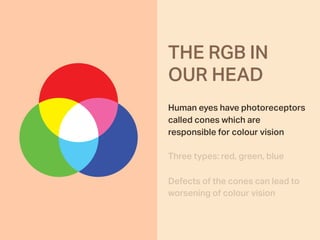
Human eyes have photoreceptors
called cones which are
responsible for colour vision
Three types: red, green, blue
Defects of the cones can lead to
worsening of colour vision
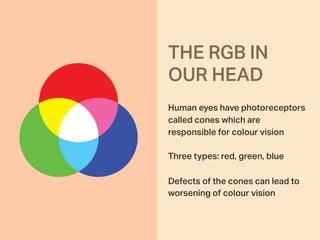
THE RGB IN 

OUR HEAD
THE RGB IN 

OUR HEAD
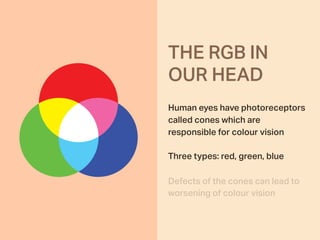
Human eyes have photoreceptors
called cones which are
responsible for colour vision
Three types: red, green, blue
Defects of the cones can lead to
worsening of colour vision
THE RGB IN 

OUR HEAD
Human eyes have photoreceptors
called cones which are
responsible for colour vision
Three types: red, green, blue
Defects of the cones can lead to
worsening of colour vision
BEING
COLOUR
BLIND
Deficiency in the way a person
sees colour
8% of all men and 0.5% of all
women suffer from colour
blindness
BEING
COLOUR
BLIND
Deficiency in the way a person
sees colour
8% of all men and 0.5% of all
women suffer from colour
blindness
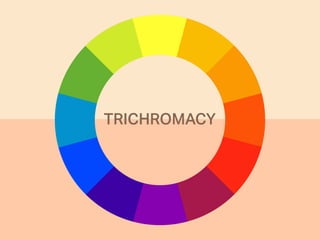
TRICHROMACY
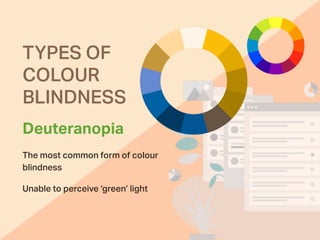
TYPES OF
COLOUR
BLINDNESS
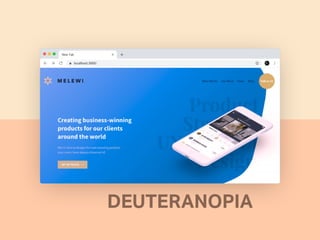
Deuteranopia
Unable to perceive ‘green’ light
The most common form of colour
blindness
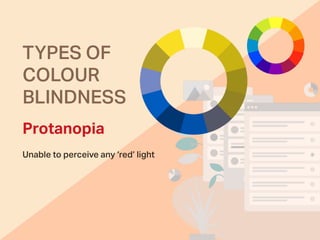
TYPES OF
COLOUR
BLINDNESS
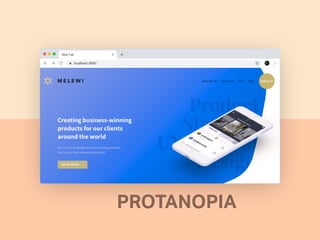
Protanopia
Unable to perceive any ‘red’ light
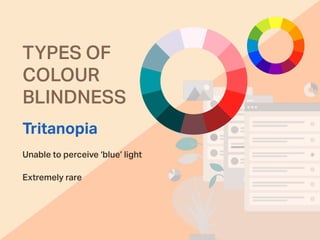
TYPES OF
COLOUR
BLINDNESS
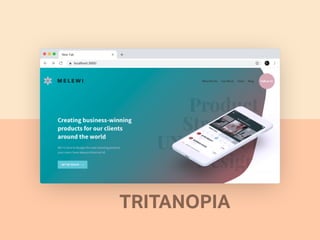
Tritanopia
Unable to perceive ‘blue’ light
Extremely rare
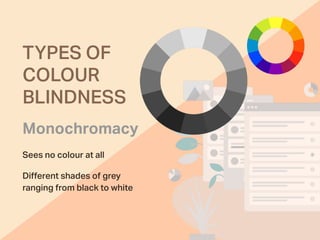
TYPES OF
COLOUR
BLINDNESS
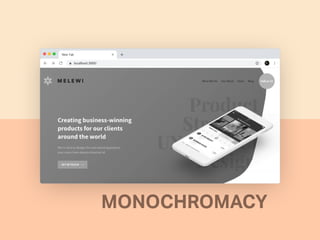
Monochromacy
Sees no colour at all
Different shades of grey
ranging from black to white
DEUTERANOPIA
PROTANOPIA
TRITANOPIA
MONOCHROMACY
COLOUR
BLINDNESS
IN THE
DIGITAL WORLD
Ways we can improve
colour accessibility for
colour blind users
Colour
Combinations
and Contrast
To recognise objects, colour blind
people rely on the luminance contrast
There are colour combinations we need
to avoid because they tend to have low
contrast ratios or it’s hard to
differentiate them
Colour
Combinations
and Contrast
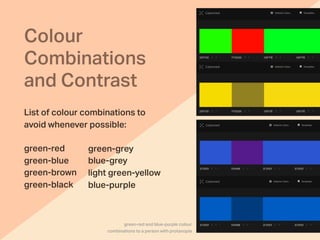
List of colour combinations to
avoid whenever possible:
green-red
green-blue
green-brown
green-black
green-grey
blue-grey
light green-yellow
blue-purple
green-red and blue-purple colour
combinations to a person with protanopia
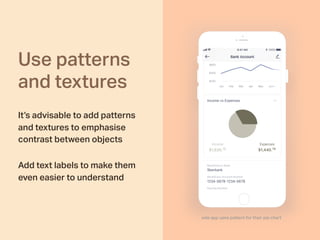
Use patterns
and textures
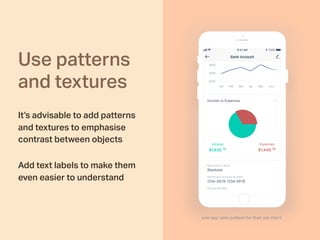
It’s advisable to add patterns
and textures to emphasise
contrast between objects
Add text labels to make them
even easier to understand
vola app uses pattern for their pie chart
Use patterns
and textures
It’s advisable to add patterns
and textures to emphasise
contrast between objects
Add text labels to make them
even easier to understand
vola app uses pattern for their pie chart
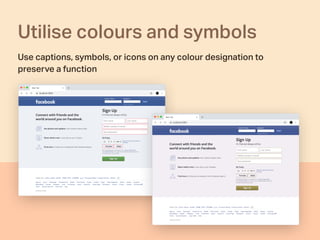
Utilise colours and symbols
Use captions, symbols, or icons on any colour designation to
preserve a function
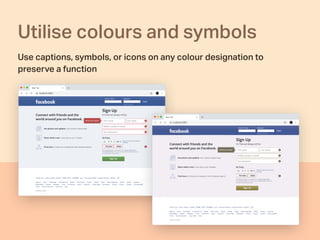
Utilise colours and symbols
Use captions, symbols, or icons on any colour designation to
preserve a function
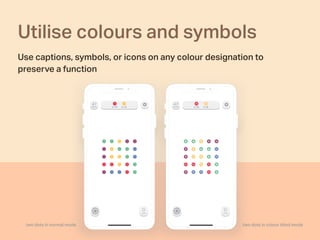
Utilise colours and symbols
Use captions, symbols, or icons on any colour designation to
preserve a function
two dots in colour blind modetwo dots in normal mode
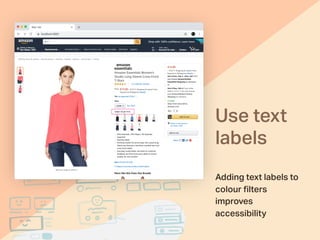
Use text
labels
Adding text labels to
colour filters
improves
accessibility 
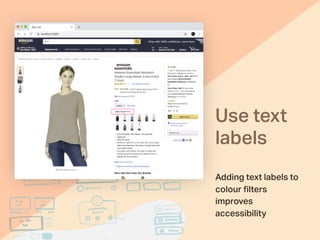
Use text
labels
Adding text labels to
colour filters
improves
accessibility 
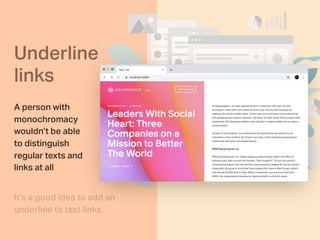
Underline
links
A person with
monochromacy
wouldn’t be able
to distinguish
regular texts and
links at all
It’s a good idea to add an
underline to text links
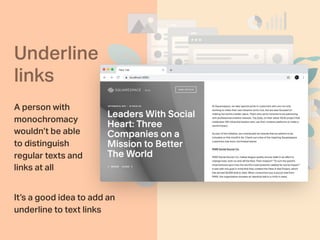
Underline
links
A person with
monochromacy
wouldn’t be able
to distinguish
regular texts and
links at all
It’s a good idea to add an
underline to text links
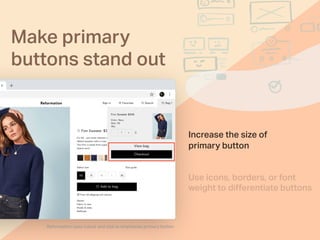
Increase the size of
primary button
Reformation uses colour and size to emphasise primary button
Use icons, borders, or font
weight to differentiate buttons
Make primary
buttons stand out
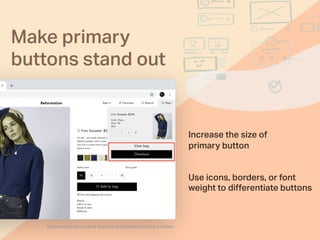
Reformation uses colour and size to emphasise primary button
Increase the size of
primary button
Use icons, borders, or font
weight to differentiate buttons
Make primary
buttons stand out
Make primary
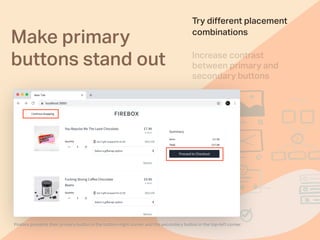
buttons stand out Increase contrast
between primary and
secondary buttons
Try different placement
combinations
Firebox presents their primary button in the bottom-right corner and the secondary button in the top-left corner
Make primary
buttons stand out
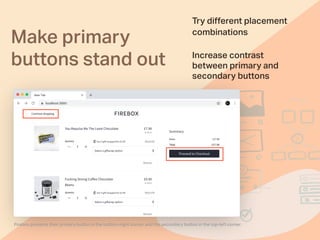
Try different placement
combinations
Firebox presents their primary button in the bottom-right corner and the secondary button in the top-left corner
Increase contrast
between primary and
secondary buttons
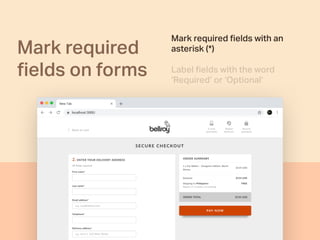
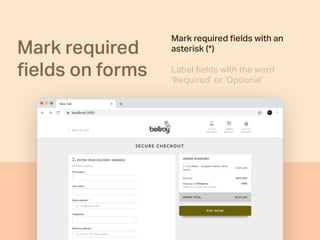
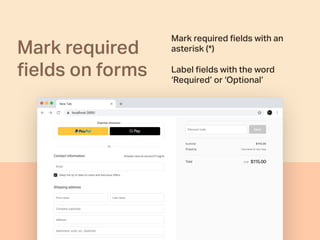
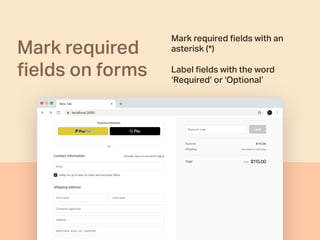
Mark required
fields on forms
Mark required fields with an
asterisk (*)
Label fields with the word
‘Required’ or ‘Optional’
Mark required
fields on forms
Mark required fields with an
asterisk (*)
Label fields with the word
‘Required’ or ‘Optional’
Mark required
fields on forms
Mark required fields with an
asterisk (*)
Label fields with the word
‘Required’ or ‘Optional’
Mark required
fields on forms
Mark required fields with an
asterisk (*)
Label fields with the word
‘Required’ or ‘Optional’
To summarise
Be aware of colour
combinations and contrasts
Use patterns and textures
Utilise colours and symbols
Use text labels
Underline links
Make primary buttons stand out
Mark required fields on forms
To summarise
Be aware of colour
combinations and contrasts
Use patterns and textures
Utilise colours and symbols
Use text labels
Underline links
Make primary buttons stand out
Mark required fields on forms
To summarise
Be aware of colour
combinations and contrasts
Use patterns and textures
Utilise colours and symbols
Use text labels
Underline links
Make primary buttons stand out
Mark required fields on forms
To summarise
Be aware of colour
combinations and contrasts
Use patterns and textures
Utilise colours and symbols
Use text labels
Underline links
Make primary buttons stand out
Mark required fields on forms
To summarise
Be aware of colour
combinations and contrasts
Use patterns and textures
Utilise colours and symbols
Use text labels
Underline links
Make primary buttons stand out
Mark required fields on forms
To summarise
Be aware of colour
combinations and contrasts
Use patterns and textures
Utilise colours and symbols
Use text labels
Underline links
Make primary buttons stand out
Mark required fields on forms
To summarise
Be aware of colour
combinations and contrasts
Use patterns and textures
Utilise colours and symbols
Use text labels
Underline links
Make primary buttons stand out
Mark required fields on forms
Color Blind Awareness
Helpful links
How to design (in Sketch,
Photoshop and Web) for colour
blind users
Color blindness: how to design
an accessible user interface
Designing UI with Color Blind
Users in Mind
THANK YOU!

Designing for the colorblind

  • 1.
  • 2.
    How do we designfor a person who cannot see colours properly?
  • 3.
    Human eyes havephotoreceptors called cones which are responsible for colour vision Three types: red, green, blue Defects of the cones can lead to worsening of colour vision THE RGB IN 
 OUR HEAD
  • 4.
    THE RGB IN
 OUR HEAD Human eyes have photoreceptors called cones which are responsible for colour vision Three types: red, green, blue Defects of the cones can lead to worsening of colour vision
  • 5.
    THE RGB IN
 OUR HEAD Human eyes have photoreceptors called cones which are responsible for colour vision Three types: red, green, blue Defects of the cones can lead to worsening of colour vision
  • 6.
    BEING COLOUR BLIND Deficiency in theway a person sees colour 8% of all men and 0.5% of all women suffer from colour blindness
  • 7.
    BEING COLOUR BLIND Deficiency in theway a person sees colour 8% of all men and 0.5% of all women suffer from colour blindness
  • 8.
  • 9.
    TYPES OF COLOUR BLINDNESS Deuteranopia Unable toperceive ‘green’ light The most common form of colour blindness
  • 10.
  • 11.
    TYPES OF COLOUR BLINDNESS Tritanopia Unable toperceive ‘blue’ light Extremely rare
  • 12.
    TYPES OF COLOUR BLINDNESS Monochromacy Sees nocolour at all Different shades of grey ranging from black to white
  • 14.
  • 15.
  • 16.
  • 17.
  • 18.
    COLOUR BLINDNESS IN THE DIGITAL WORLD Wayswe can improve colour accessibility for colour blind users
  • 19.
    Colour Combinations and Contrast To recogniseobjects, colour blind people rely on the luminance contrast There are colour combinations we need to avoid because they tend to have low contrast ratios or it’s hard to differentiate them
  • 20.
    Colour Combinations and Contrast List ofcolour combinations to avoid whenever possible: green-red green-blue green-brown green-black green-grey blue-grey light green-yellow blue-purple green-red and blue-purple colour combinations to a person with protanopia
  • 21.
    Use patterns and textures It’sadvisable to add patterns and textures to emphasise contrast between objects Add text labels to make them even easier to understand vola app uses pattern for their pie chart
  • 22.
    Use patterns and textures It’sadvisable to add patterns and textures to emphasise contrast between objects Add text labels to make them even easier to understand vola app uses pattern for their pie chart
  • 23.
    Utilise colours andsymbols Use captions, symbols, or icons on any colour designation to preserve a function
  • 24.
    Utilise colours andsymbols Use captions, symbols, or icons on any colour designation to preserve a function
  • 25.
    Utilise colours andsymbols Use captions, symbols, or icons on any colour designation to preserve a function two dots in colour blind modetwo dots in normal mode
  • 26.
    Use text labels Adding textlabels to colour filters improves accessibility 
  • 27.
    Use text labels Adding textlabels to colour filters improves accessibility 
  • 28.
    Underline links A person with monochromacy wouldn’tbe able to distinguish regular texts and links at all It’s a good idea to add an underline to text links
  • 29.
    Underline links A person with monochromacy wouldn’tbe able to distinguish regular texts and links at all It’s a good idea to add an underline to text links
  • 30.
    Increase the sizeof primary button Reformation uses colour and size to emphasise primary button Use icons, borders, or font weight to differentiate buttons Make primary buttons stand out
  • 31.
    Reformation uses colourand size to emphasise primary button Increase the size of primary button Use icons, borders, or font weight to differentiate buttons Make primary buttons stand out
  • 32.
    Make primary buttons standout Increase contrast between primary and secondary buttons Try different placement combinations Firebox presents their primary button in the bottom-right corner and the secondary button in the top-left corner
  • 33.
    Make primary buttons standout Try different placement combinations Firebox presents their primary button in the bottom-right corner and the secondary button in the top-left corner Increase contrast between primary and secondary buttons
  • 34.
    Mark required fields onforms Mark required fields with an asterisk (*) Label fields with the word ‘Required’ or ‘Optional’
  • 35.
    Mark required fields onforms Mark required fields with an asterisk (*) Label fields with the word ‘Required’ or ‘Optional’
  • 36.
    Mark required fields onforms Mark required fields with an asterisk (*) Label fields with the word ‘Required’ or ‘Optional’
  • 37.
    Mark required fields onforms Mark required fields with an asterisk (*) Label fields with the word ‘Required’ or ‘Optional’
  • 38.
    To summarise Be awareof colour combinations and contrasts Use patterns and textures Utilise colours and symbols Use text labels Underline links Make primary buttons stand out Mark required fields on forms
  • 39.
    To summarise Be awareof colour combinations and contrasts Use patterns and textures Utilise colours and symbols Use text labels Underline links Make primary buttons stand out Mark required fields on forms
  • 40.
    To summarise Be awareof colour combinations and contrasts Use patterns and textures Utilise colours and symbols Use text labels Underline links Make primary buttons stand out Mark required fields on forms
  • 41.
    To summarise Be awareof colour combinations and contrasts Use patterns and textures Utilise colours and symbols Use text labels Underline links Make primary buttons stand out Mark required fields on forms
  • 42.
    To summarise Be awareof colour combinations and contrasts Use patterns and textures Utilise colours and symbols Use text labels Underline links Make primary buttons stand out Mark required fields on forms
  • 43.
    To summarise Be awareof colour combinations and contrasts Use patterns and textures Utilise colours and symbols Use text labels Underline links Make primary buttons stand out Mark required fields on forms
  • 44.
    To summarise Be awareof colour combinations and contrasts Use patterns and textures Utilise colours and symbols Use text labels Underline links Make primary buttons stand out Mark required fields on forms
  • 45.
    Color Blind Awareness Helpfullinks How to design (in Sketch, Photoshop and Web) for colour blind users Color blindness: how to design an accessible user interface Designing UI with Color Blind Users in Mind
  • 46.