Arcade Game
Design with
Sploder!
SIDE-SCROLLING
ACTION
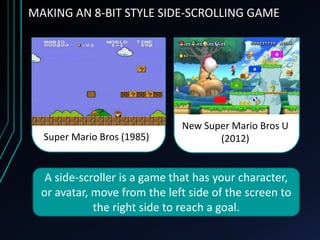
MAKING AN 8-BIT STYLE SIDE-SCROLLING GAME
Super Mario Bros (1985)
New Super Mario Bros U
(2012)
A side-scroller is a game that has your character,
or avatar, move from the left side of the screen to
the right side to reach a goal.
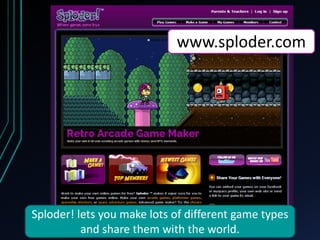
www.sploder.com
Sploder! lets you make lots of different game types
and share them with the world.
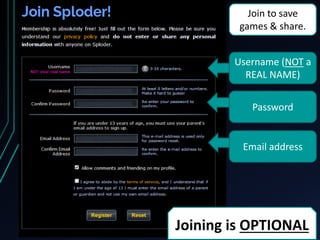
Joining Sploder!
Username (NOT a
REAL NAME)
Password
Email address
Joining is OPTIONAL
Join to save
games & share.
2. Click on
[Retro ARCADE]
1. Click on
[Make a Game]
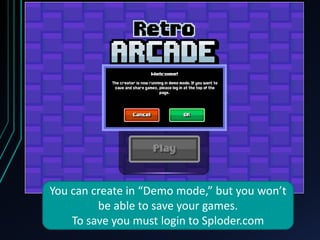
You can create in “Demo mode,” but you won’t
be able to save your games.
To save you must login to Sploder.com
Click [Create] to get started.
You can create new games, save different games,
edit games you’ve made, and share games from
the Creator Menu.
Each game is made up of different levels. You
create each level you want for your game in the
editor and then play.
Click [+] to add
a level to edit
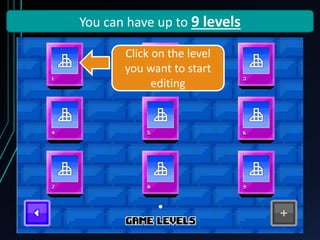
You can have up to 9 levels
Click on the level
you want to start
editing
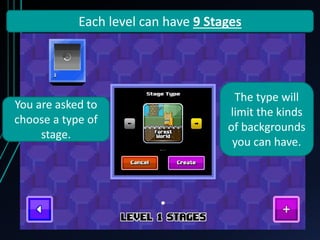
Each level can have 9 Stages
Click on the level
you want to start
editing
You are asked to
choose a type of
stage.
The type will
limit the kinds
of backgrounds
you can have.
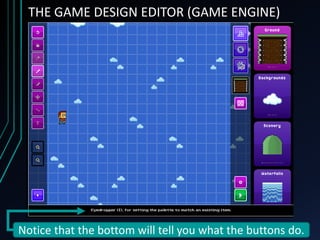
THE GAME DESIGN EDITOR (GAME ENGINE)
Notice that the bottom will tell you what the buttons do.
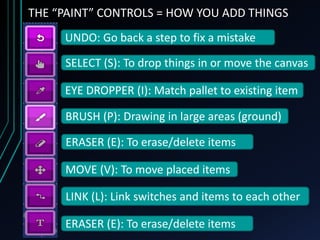
THE “PAINT” CONTROLS = HOW YOU ADD THINGS
UNDO: Go back a step to fix a mistake
SELECT (S): To drop things in or move the canvas
EYE DROPPER (I): Match pallet to existing item
BRUSH (P): Drawing in large areas (ground)
ERASER (E): To erase/delete items
MOVE (V): To move placed items
LINK (L): Link switches and items to each other
ERASER (E): To erase/delete items
BACKGROUND AND SCENERY
Ground: What your character
walks and jumps on.
You cant touch backgrounds,
scenery, and waterfalls. They are
just there to be pretty.
Use the [Paint
Brush] to add
Backgrounds
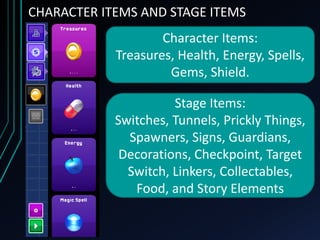
CHARACTER ITEMS AND STAGE ITEMS
Character Items:
Treasures, Health, Energy, Spells,
Gems, Shield.
Stage Items:
Switches, Tunnels, Prickly Things,
Spawners, Signs, Guardians,
Decorations, Checkpoint, Target
Switch, Linkers, Collectables,
Food, and Story Elements
BAD GUYS, ENEMIES, AND BOSSES
Each bad guy has a different
power and movement.
The Boss is really
though.
EXTRA OPTIONS
There are extra options for
testing power-ups, changing
the music, and changing the
background’s color.
Power-up
Testing
Set music for
the stage
Color
Change
Background
MAKING YOUR FIRST STAGE
Start by putting down the ground.
Add some Scenery. Each item takes up a set space.
Add some gold coins for our hero.
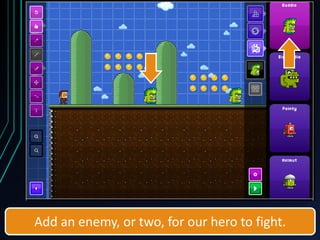
Add an enemy, or two, for our hero to fight.
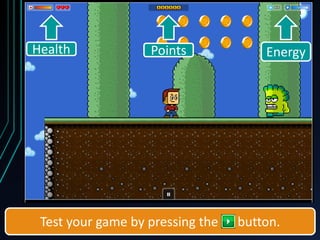
Test your game by pressing the button.
Health Points Energy
MORE ADVANCED DESIGNS
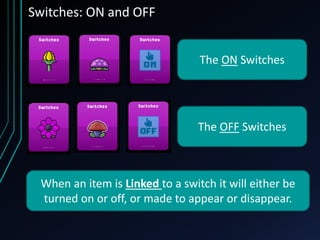
Switches: ON and OFF
The ON Switches
The OFF Switches
When an item is Linked to a switch it will either be
turned on or off, or made to appear or disappear.
ADDING STAGE EFFECTS: TEXT AND ITEM SWITCHES
1. Add a switch 2. Add a link
3. Add effect
item
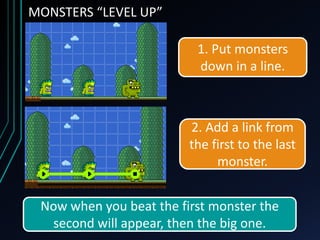
MONSTERS “LEVEL UP”
1. Put monsters
down in a line.
2. Add a link from
the first to the last
monster.
Now when you beat the first monster the
second will appear, then the big one.
Invisible Platforms Appear
1. Place some [ON]
Switches
2. Put platform blocks
UNDER the [ON]
Switches
Invisible Platforms Appear
3. Add a links DOWN
from the switches to
the blocks.
Now when your hero
jumps the blocks will
suddenly appear.
HIDING AN OBSTACLE
1. Place an OFF
switch item (not the
invisible block)
2. Link the switch
with the lava (or
other danger).
When you press the
switch the lava will
disappear.
Note: the lava will
appear again after
a little bit of time.
SETTING UP A BARRIER: YOU SHALL NOT PASS
1. Add a Barrier
block to the stage.
SETTING UP A BARRIER: YOU SHALL NOT PASS
2. Link the last
enemy (the big guy)
to the Barrier.
You won’t be able to
pass the barrier until
to beat the last big
monster.
LINKING MORE THAN TWO ITEMS
1. Place a switch
(and coins)
2. For every coin add
a Link Connect + 1 in
the center
LINKING MORE THAN TWO ITEMS
3. Link the switch with
the CENTER connector
4. Connect EACH
connector to a coin.
LINKING MORE THAN TWO ITEMS
When you step on the switch all of the coins
should appear at the same time.
LINKING MORE THAN TWO ITEMS
You can use the [Link Connect] and the
[AND] block to make it so several
switches need to be pressed for the
action to happen.
PLAYING YOUR GAME
TO PLAY YOUR GAME:
1. Click the back arrow until you
see the start screen.
2. Click the [Play] button to
play all the levels and stages
you’ve made.
3. Click [Start]
BEFORE PLAYING YOUR GAME:
You can choose what
your hero character looks
like in your game.
BEATING A STAGE
You’ll go to the next stage when
you reach the end of the screen.
You’ll earn points based
on the items and enemies.
FAIR USE NOTICE: This presentation contains copyrighted material the use of which has not always
been specifically authorized by the copyright owner, including but not limited to logos and product
images. Such material is made available in an effort to educate the public through illustrative
examples and to properly identify content.
The use of this presentation for educational purposes is held to constitute a 'fair use' of any such
copyrighted material as provided for in section 107 of the US Copyright Law. In accordance with
Title 17 U.S.C. Section 107, the material on this presentation is distributed without profit to those
who have expressed a prior interest in receiving the included information for research and
educational purposes.
If you wish to use copyrighted material from this presentation for purposes of your own that go
beyond 'fair use', you must obtain permission from the copyright owner.
CC BY-NC-SA 4.0
Licensed under a
Creative Commons Attribution-
NonCommercial-ShareAlike 4.0
International License
Originally created by Rino A. Landa,
May 24, 2014.

Arcade Game Design with Sploder - Library Program

  • 1.
  • 2.
    MAKING AN 8-BITSTYLE SIDE-SCROLLING GAME Super Mario Bros (1985) New Super Mario Bros U (2012) A side-scroller is a game that has your character, or avatar, move from the left side of the screen to the right side to reach a goal.
  • 3.
    www.sploder.com Sploder! lets youmake lots of different game types and share them with the world.
  • 4.
    Joining Sploder! Username (NOTa REAL NAME) Password Email address Joining is OPTIONAL Join to save games & share.
  • 5.
    2. Click on [RetroARCADE] 1. Click on [Make a Game]
  • 6.
    You can createin “Demo mode,” but you won’t be able to save your games. To save you must login to Sploder.com
  • 7.
    Click [Create] toget started.
  • 8.
    You can createnew games, save different games, edit games you’ve made, and share games from the Creator Menu.
  • 9.
    Each game ismade up of different levels. You create each level you want for your game in the editor and then play. Click [+] to add a level to edit
  • 10.
    You can haveup to 9 levels Click on the level you want to start editing
  • 11.
    Each level canhave 9 Stages Click on the level you want to start editing You are asked to choose a type of stage. The type will limit the kinds of backgrounds you can have.
  • 12.
    THE GAME DESIGNEDITOR (GAME ENGINE) Notice that the bottom will tell you what the buttons do.
  • 13.
    THE “PAINT” CONTROLS= HOW YOU ADD THINGS UNDO: Go back a step to fix a mistake SELECT (S): To drop things in or move the canvas EYE DROPPER (I): Match pallet to existing item BRUSH (P): Drawing in large areas (ground) ERASER (E): To erase/delete items MOVE (V): To move placed items LINK (L): Link switches and items to each other ERASER (E): To erase/delete items
  • 14.
    BACKGROUND AND SCENERY Ground:What your character walks and jumps on. You cant touch backgrounds, scenery, and waterfalls. They are just there to be pretty. Use the [Paint Brush] to add Backgrounds
  • 15.
    CHARACTER ITEMS ANDSTAGE ITEMS Character Items: Treasures, Health, Energy, Spells, Gems, Shield. Stage Items: Switches, Tunnels, Prickly Things, Spawners, Signs, Guardians, Decorations, Checkpoint, Target Switch, Linkers, Collectables, Food, and Story Elements
  • 16.
    BAD GUYS, ENEMIES,AND BOSSES Each bad guy has a different power and movement. The Boss is really though.
  • 17.
    EXTRA OPTIONS There areextra options for testing power-ups, changing the music, and changing the background’s color. Power-up Testing Set music for the stage Color Change Background
  • 18.
  • 19.
    Start by puttingdown the ground.
  • 20.
    Add some Scenery.Each item takes up a set space.
  • 21.
    Add some goldcoins for our hero.
  • 22.
    Add an enemy,or two, for our hero to fight.
  • 23.
    Test your gameby pressing the button. Health Points Energy
  • 24.
  • 25.
    Switches: ON andOFF The ON Switches The OFF Switches When an item is Linked to a switch it will either be turned on or off, or made to appear or disappear.
  • 26.
    ADDING STAGE EFFECTS:TEXT AND ITEM SWITCHES 1. Add a switch 2. Add a link 3. Add effect item
  • 27.
    MONSTERS “LEVEL UP” 1.Put monsters down in a line. 2. Add a link from the first to the last monster. Now when you beat the first monster the second will appear, then the big one.
  • 28.
    Invisible Platforms Appear 1.Place some [ON] Switches 2. Put platform blocks UNDER the [ON] Switches
  • 29.
    Invisible Platforms Appear 3.Add a links DOWN from the switches to the blocks. Now when your hero jumps the blocks will suddenly appear.
  • 30.
    HIDING AN OBSTACLE 1.Place an OFF switch item (not the invisible block) 2. Link the switch with the lava (or other danger). When you press the switch the lava will disappear. Note: the lava will appear again after a little bit of time.
  • 31.
    SETTING UP ABARRIER: YOU SHALL NOT PASS 1. Add a Barrier block to the stage.
  • 32.
    SETTING UP ABARRIER: YOU SHALL NOT PASS 2. Link the last enemy (the big guy) to the Barrier. You won’t be able to pass the barrier until to beat the last big monster.
  • 33.
    LINKING MORE THANTWO ITEMS 1. Place a switch (and coins) 2. For every coin add a Link Connect + 1 in the center
  • 34.
    LINKING MORE THANTWO ITEMS 3. Link the switch with the CENTER connector 4. Connect EACH connector to a coin.
  • 35.
    LINKING MORE THANTWO ITEMS When you step on the switch all of the coins should appear at the same time.
  • 36.
    LINKING MORE THANTWO ITEMS You can use the [Link Connect] and the [AND] block to make it so several switches need to be pressed for the action to happen.
  • 37.
  • 38.
    TO PLAY YOURGAME: 1. Click the back arrow until you see the start screen. 2. Click the [Play] button to play all the levels and stages you’ve made. 3. Click [Start]
  • 39.
    BEFORE PLAYING YOURGAME: You can choose what your hero character looks like in your game.
  • 40.
    BEATING A STAGE You’llgo to the next stage when you reach the end of the screen. You’ll earn points based on the items and enemies.
  • 41.
    FAIR USE NOTICE:This presentation contains copyrighted material the use of which has not always been specifically authorized by the copyright owner, including but not limited to logos and product images. Such material is made available in an effort to educate the public through illustrative examples and to properly identify content. The use of this presentation for educational purposes is held to constitute a 'fair use' of any such copyrighted material as provided for in section 107 of the US Copyright Law. In accordance with Title 17 U.S.C. Section 107, the material on this presentation is distributed without profit to those who have expressed a prior interest in receiving the included information for research and educational purposes. If you wish to use copyrighted material from this presentation for purposes of your own that go beyond 'fair use', you must obtain permission from the copyright owner. CC BY-NC-SA 4.0 Licensed under a Creative Commons Attribution- NonCommercial-ShareAlike 4.0 International License Originally created by Rino A. Landa, May 24, 2014.