CONFIDENTIAL
Skill License Expiration Management
Calem Enterprise Training
Austin, Texas
Spring, 2017
CalemEAM
2© 2016 CalemEAM Inc.
Use Cases
Skill license expiration management is required in some maintenance
organizations. Here are sample use cases:
• Use Case 1: Forklift driver licenses expire every three years or so.
Drivers must be trained and have valid licenses.
• Use Case 2: A shipping company have employees on visa. The visa
expiration must be managed for renewal.
CalemEAM
3© 2017 CalemEAM Inc.
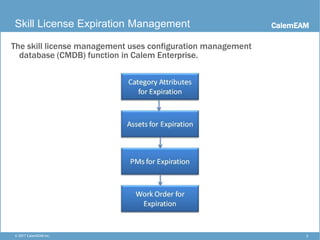
Skill License Expiration Management
The skill license management uses configuration management
database (CMDB) function in Calem Enterprise.
CalemEAM
4© 2017 CalemEAM Inc.
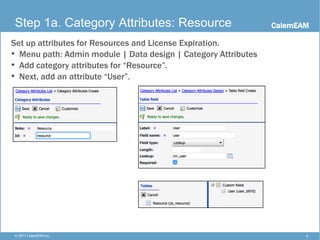
Step 1a. Category Attributes: Resource
Set up attributes for Resources and License Expiration.
• Menu path: Admin module | Data design | Category Attributes
• Add category attributes for “Resource”.
• Next, add an attribute “User”.
CalemEAM
5© 2017 CalemEAM Inc.
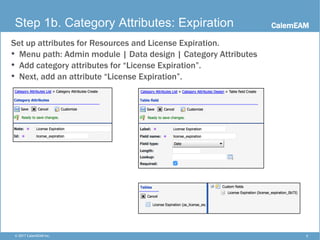
Step 1b. Category Attributes: Expiration
Set up attributes for Resources and License Expiration.
• Menu path: Admin module | Data design | Category Attributes
• Add category attributes for “License Expiration”.
• Next, add an attribute “License Expiration”.
CalemEAM
6© 2017 CalemEAM Inc.
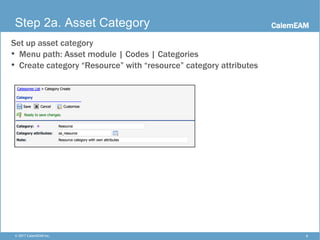
Step 2a. Asset Category
Set up asset category
• Menu path: Asset module | Codes | Categories
• Create category “Resource” with “resource” category attributes
CalemEAM
7© 2017 CalemEAM Inc.
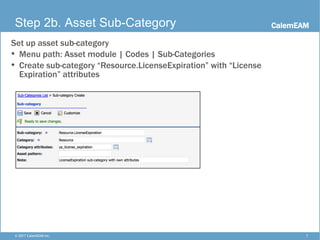
Step 2b. Asset Sub-Category
Set up asset sub-category
• Menu path: Asset module | Codes | Sub-Categories
• Create sub-category “Resource.LicenseExpiration” with “License
Expiration” attributes
CalemEAM
8© 2017 CalemEAM Inc.
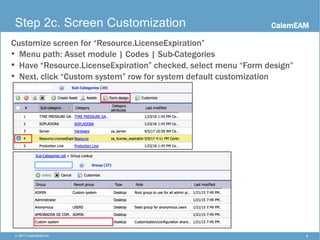
Step 2c. Screen Customization
Customize screen for “Resource.LicenseExpiration”
• Menu path: Asset module | Codes | Sub-Categories
• Have “Resource.LicenseExpiration” checked, select menu “Form design”
• Next, click “Custom system” row for system default customization
CalemEAM
9© 2017 CalemEAM Inc.
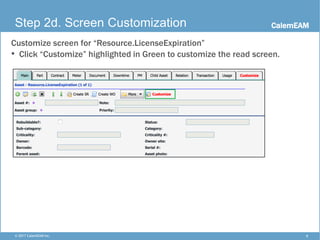
Step 2d. Screen Customization
Customize screen for “Resource.LicenseExpiration”
• Click “Customize” highlighted in Green to customize the read screen.
CalemEAM
10© 2017 CalemEAM Inc.
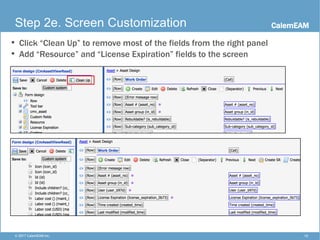
Step 2e. Screen Customization
• Click “Clean Up” to remove most of the fields from the right panel
• Add “Resource” and “License Expiration” fields to the screen
CalemEAM
11© 2017 CalemEAM Inc.
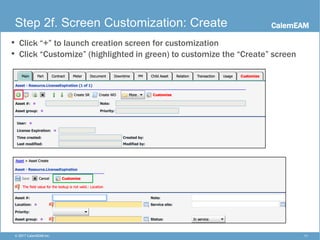
Step 2f. Screen Customization: Create
• Click “+” to launch creation screen for customization
• Click “Customize” (highlighted in green) to customize the “Create” screen
CalemEAM
12© 2017 CalemEAM Inc.
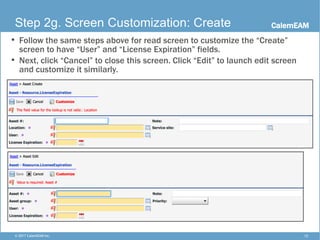
Step 2g. Screen Customization: Create
• Follow the same steps above for read screen to customize the “Create”
screen to have “User” and “License Expiration” fields.
• Next, click “Cancel” to close this screen. Click “Edit” to launch edit screen
and customize it similarly.
CalemEAM
13© 2017 CalemEAM Inc.
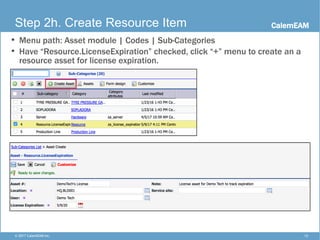
Step 2h. Create Resource Item
• Menu path: Asset module | Codes | Sub-Categories
• Have “Resource.LicenseExpiration” checked, click “+” menu to create an a
resource asset for license expiration.
CalemEAM
14© 2017 CalemEAM Inc.
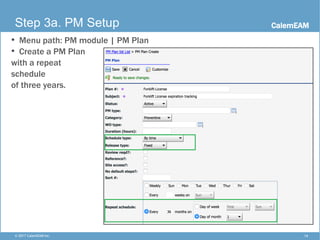
Step 3a. PM Setup
• Menu path: PM module | PM Plan
• Create a PM Plan
with a repeat
schedule
of three years.
CalemEAM
15© 2017 CalemEAM Inc.
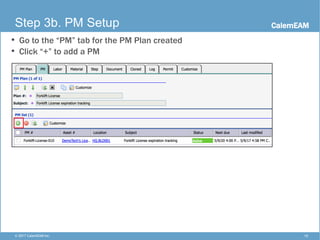
Step 3b. PM Setup
• Go to the “PM” tab for the PM Plan created
• Click “+” to add a PM
CalemEAM
16© 2017 CalemEAM Inc.
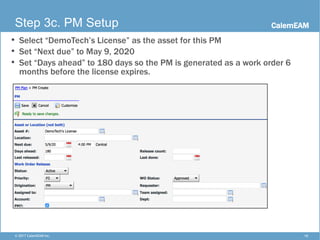
Step 3c. PM Setup
• Select “DemoTech’s License” as the asset for this PM
• Set “Next due” to May 9, 2020
• Set “Days ahead” to 180 days so the PM is generated as a work order 6
months before the license expires.
CalemEAM
17© 2017 CalemEAM Inc.
Step 4. Work Order
• A work order is generated 6 months before DemoTech’s forklift license
expires. It gives plenty of time to arrange DemoTech to get the license
renewed.
• To streamline the work order processing, assign someone at the PM to the
work order so you can have an owner when the PM is generated as a work
order.
CalemEAM
18© 2017 CalemEAM Inc.
Test Drive
• You can view the “Resource.LicenseExpieration” asset at
https://demo.calemeam.com
• Category attributes creation is not available in the demo site for
“DemoTech” login.
• Calem Enterprise customers may test drive the category attributes
creation at your Calem services with an admin profile.
CalemEAM
19© 2017 CalemEAM Inc.
Thank You!
Thank You for Attending
the CalemEAM Training!
Visit Us at www.calemeam.com

CalemEAM Skill License Expiration Management

  • 1.
    CONFIDENTIAL Skill License ExpirationManagement Calem Enterprise Training Austin, Texas Spring, 2017
  • 2.
    CalemEAM 2© 2016 CalemEAMInc. Use Cases Skill license expiration management is required in some maintenance organizations. Here are sample use cases: • Use Case 1: Forklift driver licenses expire every three years or so. Drivers must be trained and have valid licenses. • Use Case 2: A shipping company have employees on visa. The visa expiration must be managed for renewal.
  • 3.
    CalemEAM 3© 2017 CalemEAMInc. Skill License Expiration Management The skill license management uses configuration management database (CMDB) function in Calem Enterprise.
  • 4.
    CalemEAM 4© 2017 CalemEAMInc. Step 1a. Category Attributes: Resource Set up attributes for Resources and License Expiration. • Menu path: Admin module | Data design | Category Attributes • Add category attributes for “Resource”. • Next, add an attribute “User”.
  • 5.
    CalemEAM 5© 2017 CalemEAMInc. Step 1b. Category Attributes: Expiration Set up attributes for Resources and License Expiration. • Menu path: Admin module | Data design | Category Attributes • Add category attributes for “License Expiration”. • Next, add an attribute “License Expiration”.
  • 6.
    CalemEAM 6© 2017 CalemEAMInc. Step 2a. Asset Category Set up asset category • Menu path: Asset module | Codes | Categories • Create category “Resource” with “resource” category attributes
  • 7.
    CalemEAM 7© 2017 CalemEAMInc. Step 2b. Asset Sub-Category Set up asset sub-category • Menu path: Asset module | Codes | Sub-Categories • Create sub-category “Resource.LicenseExpiration” with “License Expiration” attributes
  • 8.
    CalemEAM 8© 2017 CalemEAMInc. Step 2c. Screen Customization Customize screen for “Resource.LicenseExpiration” • Menu path: Asset module | Codes | Sub-Categories • Have “Resource.LicenseExpiration” checked, select menu “Form design” • Next, click “Custom system” row for system default customization
  • 9.
    CalemEAM 9© 2017 CalemEAMInc. Step 2d. Screen Customization Customize screen for “Resource.LicenseExpiration” • Click “Customize” highlighted in Green to customize the read screen.
  • 10.
    CalemEAM 10© 2017 CalemEAMInc. Step 2e. Screen Customization • Click “Clean Up” to remove most of the fields from the right panel • Add “Resource” and “License Expiration” fields to the screen
  • 11.
    CalemEAM 11© 2017 CalemEAMInc. Step 2f. Screen Customization: Create • Click “+” to launch creation screen for customization • Click “Customize” (highlighted in green) to customize the “Create” screen
  • 12.
    CalemEAM 12© 2017 CalemEAMInc. Step 2g. Screen Customization: Create • Follow the same steps above for read screen to customize the “Create” screen to have “User” and “License Expiration” fields. • Next, click “Cancel” to close this screen. Click “Edit” to launch edit screen and customize it similarly.
  • 13.
    CalemEAM 13© 2017 CalemEAMInc. Step 2h. Create Resource Item • Menu path: Asset module | Codes | Sub-Categories • Have “Resource.LicenseExpiration” checked, click “+” menu to create an a resource asset for license expiration.
  • 14.
    CalemEAM 14© 2017 CalemEAMInc. Step 3a. PM Setup • Menu path: PM module | PM Plan • Create a PM Plan with a repeat schedule of three years.
  • 15.
    CalemEAM 15© 2017 CalemEAMInc. Step 3b. PM Setup • Go to the “PM” tab for the PM Plan created • Click “+” to add a PM
  • 16.
    CalemEAM 16© 2017 CalemEAMInc. Step 3c. PM Setup • Select “DemoTech’s License” as the asset for this PM • Set “Next due” to May 9, 2020 • Set “Days ahead” to 180 days so the PM is generated as a work order 6 months before the license expires.
  • 17.
    CalemEAM 17© 2017 CalemEAMInc. Step 4. Work Order • A work order is generated 6 months before DemoTech’s forklift license expires. It gives plenty of time to arrange DemoTech to get the license renewed. • To streamline the work order processing, assign someone at the PM to the work order so you can have an owner when the PM is generated as a work order.
  • 18.
    CalemEAM 18© 2017 CalemEAMInc. Test Drive • You can view the “Resource.LicenseExpieration” asset at https://demo.calemeam.com • Category attributes creation is not available in the demo site for “DemoTech” login. • Calem Enterprise customers may test drive the category attributes creation at your Calem services with an admin profile.
  • 19.
    CalemEAM 19© 2017 CalemEAMInc. Thank You! Thank You for Attending the CalemEAM Training! Visit Us at www.calemeam.com