Year-End Procedures in
Sage 100 (MAS 90/200)
Sage 100 User Group — Dec. 2015
Agenda
• Greeting and Introductions
• Lunch
• Year End Processing
• Tips and Tricks
• Q&A
• Adjournment
Currently Supported Versions
• Sage supported versions for 2015 year
end: 2016, 2015 PU 3, 2014 PU 7 and
2013 PU 9 (2015 year end IRD and 2016
Q-1 TTU will last for version 2013)
• TTU 2016 Q-1(Tax Table Update) and 2015
year end IRD will be available for
download on 12/18/15
• The eFiling and Reporting (Aatrix) year
end update will be released by automatic
update on 12/18/2015
Currently Supported Versions
• The applicable Product Update, 2015
IRD and Aatrix year end update must
be installed before processing W2,
ACA or 1099 forms for 2015
ACA Compliance
In order to process ACA forms for tax filing year
2015, you must install the applicable product
update or install Sage 100 2016. All of the following
product updates are available as of 11/16/2015.
• 2015 PU 3
• 2014 PU 7
• 2013 PU 9
• 4.50 PU 8
Year End Processing Resources
• Sage 100 Year End Center on Sage
City
• Interactive year end Payroll & AP
checklist
• Hot Topics
• Year End forum
• Common Year End knowledgebase
articles
Year End Processing Resources
• Sage 100 Year End Center on Sage
City (cont’d)
• Year end videos
• ACA videos
Year End Processing
• Create an archive company
• Review Module Setup Options
• Exercise Your Data
Year End Processing
• Processing Period End and Year End in a
module that is integrated with other
modules can impact posting and reporting
• As a general rule, work from the bottom of
the menu to the top (i.e. P/O, S/O, I/M,
A/P, A/R, J/C, G/L)
Year End Processing
• Interim Release Download (IRD)
– W-2’s, 941’s, and Tax Table Updates
– 1099 Updates
– AP and Payroll as needed to support State and
Federal e-Filing
• Only available for supported versions and
for customers current on maintenance
Year End Procedures
Please Note:
It is possible to re-open periods in modules
which have been converted to the new
framework but it is not advised.
If you need to re-open periods, please ask
for our help…and make a backup!
Year End Processing
Modules in the old framework (see versions below)
can only have one current and future period
defined. Period End must be performed timely or
you risk inaccurate summary data at the module
level.
– P/O & I/M – v4.30 and prior
– A/P – v4.10 and prior
– S/O & A/R – v4.05 and prior
– J/C – all versions
New Framework Modules are not as sensitive to
period/year end processes
Year End Processing
Inventory Management
• Inventory Valuation Report is time sensitive
• Posting transactions in a future period affect this
report and can make it difficult to tie out to the
G/L at year end.
• Best practice - post all current year transactions
(I/M, S/O, P/O, W/O, B/M) print and tie out to
the G/L before posting any future year
transactions
Year End Processing
Payroll
• Based on a calendar year – no future periods
• Cannot post with a check date in a future period
until current quarter is closed
• Full Period End Processing will reset the QTD and
YTD employee fields to zero
• Create an archive company after last 2014 Payroll
Year End Processing
• Resets employee benefit limits according
to Payroll Options setup
• Resets Pension Plan, Cafeteria Plan
Deduction, Allocated Tips, Fringe Benefits,
Non-qualified Plan and Dependent Care
Benefits fields to zero.
Year End Processing
• Sets all quarterly/ yearly reports to zero
• Removes check history and perpetual
history depending upon your system
settings
• Purges terminated employees
• Purges standard deductions that have
goals met
eFiling
• Certified Forms
– 941, W2, 1099, DE6, NYS 45, forms for all 50 states
– 250 Approved Payroll Form Sets (400+ forms)
– No More Aligning Forms
• Seamless Integration
– Forms auto populated with payroll data
– Fully Integrated with current payroll software
• Easy to Use
– Quick activation, virtually no support needed
– On-Screen Editing of the Actual Report
– Click and Forget eFiling Option
eFiling
• Users are alerted each quarter to update the
forms - (20% change quarterly)
• All reports are automatically updated with a
single click
• Updates all forms via built-in web
communication
• One time eFiling enrollment required
• Access enrollment form from within Sage
application
• Can Print all forms to plain paper
Year End Considerations
• Archive Payroll in new company code
• Reinstall 2014 Q4 tax tables prior to printing
W2’s from archive company
• Don’t wait until the last minute to process
your W2’s and 1099’s
• My 1099’s aren’t correct – why?
• What happened to my budget?
General Ledger Budgets
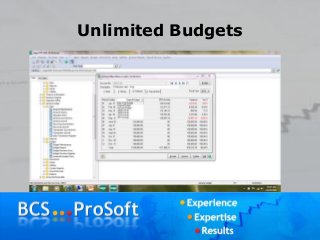
• Most clients maintain budgets but do not
load them into the system
• Budgets can be maintained for each
account/period and used in various
standard reports as well as third party
reporting tools
Unlimited Budgets
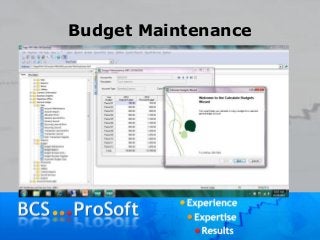
Budget Maintenance
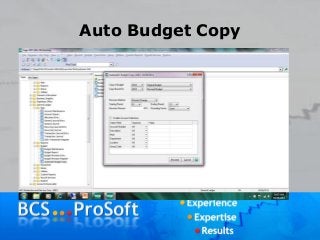
Auto Budget Copy
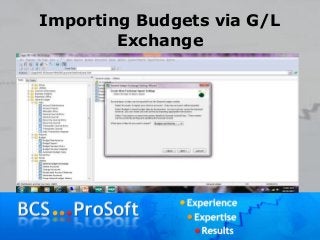
Importing Budgets via G/L
Exchange
Tips and Tricks
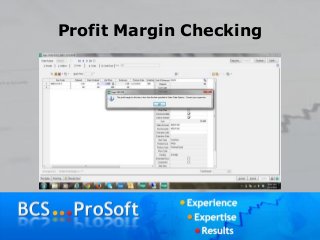
Profit Margin Checking
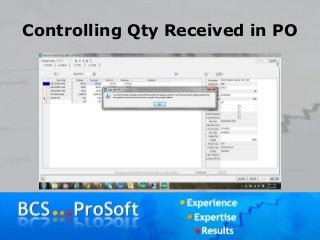
Controlling Qty Received in PO
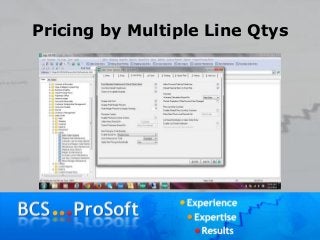
Pricing by Multiple Line Qtys
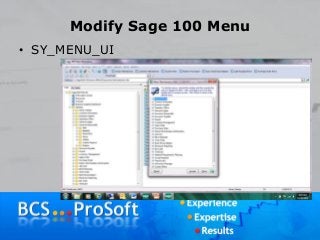
Modify Sage 100 Menu
• SY_MENU_UI
Do you need a
Sage 100 Consultant?
Request a free consultation from
an expert at BCS ProSoft
REQUEST COMPLIMENTARY ASSESSMENT
http://www.bcsprosoft.com/slideshare

Sage 100 Year-End Procedures

  • 1.
    Year-End Procedures in Sage100 (MAS 90/200) Sage 100 User Group — Dec. 2015
  • 2.
    Agenda • Greeting andIntroductions • Lunch • Year End Processing • Tips and Tricks • Q&A • Adjournment
  • 3.
    Currently Supported Versions •Sage supported versions for 2015 year end: 2016, 2015 PU 3, 2014 PU 7 and 2013 PU 9 (2015 year end IRD and 2016 Q-1 TTU will last for version 2013) • TTU 2016 Q-1(Tax Table Update) and 2015 year end IRD will be available for download on 12/18/15 • The eFiling and Reporting (Aatrix) year end update will be released by automatic update on 12/18/2015
  • 4.
    Currently Supported Versions •The applicable Product Update, 2015 IRD and Aatrix year end update must be installed before processing W2, ACA or 1099 forms for 2015
  • 5.
    ACA Compliance In orderto process ACA forms for tax filing year 2015, you must install the applicable product update or install Sage 100 2016. All of the following product updates are available as of 11/16/2015. • 2015 PU 3 • 2014 PU 7 • 2013 PU 9 • 4.50 PU 8
  • 6.
    Year End ProcessingResources • Sage 100 Year End Center on Sage City • Interactive year end Payroll & AP checklist • Hot Topics • Year End forum • Common Year End knowledgebase articles
  • 7.
    Year End ProcessingResources • Sage 100 Year End Center on Sage City (cont’d) • Year end videos • ACA videos
  • 8.
    Year End Processing •Create an archive company • Review Module Setup Options • Exercise Your Data
  • 9.
    Year End Processing •Processing Period End and Year End in a module that is integrated with other modules can impact posting and reporting • As a general rule, work from the bottom of the menu to the top (i.e. P/O, S/O, I/M, A/P, A/R, J/C, G/L)
  • 10.
    Year End Processing •Interim Release Download (IRD) – W-2’s, 941’s, and Tax Table Updates – 1099 Updates – AP and Payroll as needed to support State and Federal e-Filing • Only available for supported versions and for customers current on maintenance
  • 11.
    Year End Procedures PleaseNote: It is possible to re-open periods in modules which have been converted to the new framework but it is not advised. If you need to re-open periods, please ask for our help…and make a backup!
  • 12.
    Year End Processing Modulesin the old framework (see versions below) can only have one current and future period defined. Period End must be performed timely or you risk inaccurate summary data at the module level. – P/O & I/M – v4.30 and prior – A/P – v4.10 and prior – S/O & A/R – v4.05 and prior – J/C – all versions New Framework Modules are not as sensitive to period/year end processes
  • 13.
    Year End Processing InventoryManagement • Inventory Valuation Report is time sensitive • Posting transactions in a future period affect this report and can make it difficult to tie out to the G/L at year end. • Best practice - post all current year transactions (I/M, S/O, P/O, W/O, B/M) print and tie out to the G/L before posting any future year transactions
  • 14.
    Year End Processing Payroll •Based on a calendar year – no future periods • Cannot post with a check date in a future period until current quarter is closed • Full Period End Processing will reset the QTD and YTD employee fields to zero • Create an archive company after last 2014 Payroll
  • 15.
    Year End Processing •Resets employee benefit limits according to Payroll Options setup • Resets Pension Plan, Cafeteria Plan Deduction, Allocated Tips, Fringe Benefits, Non-qualified Plan and Dependent Care Benefits fields to zero.
  • 16.
    Year End Processing •Sets all quarterly/ yearly reports to zero • Removes check history and perpetual history depending upon your system settings • Purges terminated employees • Purges standard deductions that have goals met
  • 17.
    eFiling • Certified Forms –941, W2, 1099, DE6, NYS 45, forms for all 50 states – 250 Approved Payroll Form Sets (400+ forms) – No More Aligning Forms • Seamless Integration – Forms auto populated with payroll data – Fully Integrated with current payroll software • Easy to Use – Quick activation, virtually no support needed – On-Screen Editing of the Actual Report – Click and Forget eFiling Option
  • 18.
    eFiling • Users arealerted each quarter to update the forms - (20% change quarterly) • All reports are automatically updated with a single click • Updates all forms via built-in web communication • One time eFiling enrollment required • Access enrollment form from within Sage application • Can Print all forms to plain paper
  • 19.
    Year End Considerations •Archive Payroll in new company code • Reinstall 2014 Q4 tax tables prior to printing W2’s from archive company • Don’t wait until the last minute to process your W2’s and 1099’s • My 1099’s aren’t correct – why? • What happened to my budget?
  • 20.
    General Ledger Budgets •Most clients maintain budgets but do not load them into the system • Budgets can be maintained for each account/period and used in various standard reports as well as third party reporting tools
  • 21.
  • 22.
  • 23.
  • 24.
  • 25.
  • 26.
  • 27.
  • 28.
  • 29.
    Modify Sage 100Menu • SY_MENU_UI
  • 30.
    Do you needa Sage 100 Consultant? Request a free consultation from an expert at BCS ProSoft REQUEST COMPLIMENTARY ASSESSMENT http://www.bcsprosoft.com/slideshare

Editor's Notes

  • #4 Hot Fixes and online support will also expire for version 4.50 as of 12/31/14. Phone and web case support will end for version 4.50 as of 09/30/15.
  • #15 Presenters: Please illustrate how to copy Payroll data to archive company
  • #19 Presenters: Please illustrate in demo system how to access enrollment form Notes on forms for 2014 Tax year: W2/W3 Employee W2 (Copy B, C and 2-Copy 2s) = Blank 4 part perforated with Employee notice on back (Sage Forms part # LW2BLANK4 or LW2BK4DWS) Federal W2 (Copy A) (prints 2 employees per sheet) = Print to Plain Paper (The Federal W2-SSA copy cannot be printed on perforated paper) Federal W3 = Print to Plain Paper (The Federal W3-SSA copy cannot be printed on perforated paper) State - Copy 1 (prints 4 employees per sheet) = system will prompt you to print to Blank 4 part perforated but please contact individual State agency for specific W2 printing/perforation requirements Employer W2 (Copy D) (prints 4 employees per sheet) =  Print to Plain Paper or Blank 4 part perforated 1099/1096 Recipient 1099 (Federal, 2-Copy 2's and Copy B) = Blank 4 part perforated form (Sage Forms part # L99BLANK4 or L99BK4DWS) Note: The recipient notice is not printed on the backs of these blank forms, you will need to print the recipient instructions to plain paper from within 1099 eFiling viewer screen. Federal 1099 (Copy A) = Copy A must be printed on official preprinted federal forms RED ink. Please contact Sage Forms for specific part # applicable to the type of 1099 forms you will be printing (MISC,INT or DIV) Federal 1096 Form = 1096 Form must be printed on official preprinted federal forms RED ink. Please contact Sage Forms for specific part # applicable to the type of 1099 forms you will be printing (MISC,INT or DIV) Payer 1099 (Copy C) (prints 4 recipients per sheet) = Print to Plain Paper or Blank 4 part perforated State 1099 (prints 4 recipients per sheet) = system will prompt you to print to Blank 4 part perforated but please contact individual State agency for specific 1099 printing/perforation requirements. Some states do not require 1099s to be filed.  State 1096 = Print to plain paper but please contact individual State agency for specific 1096 printing/perforation requirements. Some states do not require 1096 form. 
  • #22 Presenters: Please show budgeting functions illustrated in live demo system. You can maintain and report on multiple budgets in MAS. This is controlled in G/L Setup, where budgets are initially defined.
  • #23 Budget Maintenance allows you to manipulate budget information by entering actual numbers or using a wizard to calculate budget information. Presenter should review the functions available on the right hand side of Budget Maintenance screen (Change Budget, Calculate Wizard, etc). Note this function is for maintaining a single account’s budget at a time.
  • #24 Create a budget for a range of accounts by using the automatic budget feature which will allow for calculation of budget numbers based upon actuals or other budget information from the current year or previous years. Once the base calculation is determined, a revision percentage can be used to increase or decrease the base amount for all accounts or a range of accounts.
  • #25 Budgets can be imported from a spreadsheet or other standard format file using the G/L Exchange feature.
  • #27 The set up options in Sales Order allow you to set a warning notice if profit margins are below a designated percentage during Sales Order Entry and Invoice Data Entry to activate the Profit Margin Checking feature. This feature calculates a profit percentage based on the price entered for the line and the last cost of the item, regardless of the inventory valuation method. The percentage is recalculated whenever the price for the current line is changed. If the calculated percentage is lower than the percentage entered in this field, a warning message appears. Discount rates by line are included in the calculation. Note Profit margin warning is not performed on credit memos, or the defaulted price from the item.
  • #28 In Purchase Order Options, the Line entry tab provides the option to control whether the system allows the quantity received/invoiced to exceed the quantity ordered. Select this check box to allow the quantity received to exceed the quantity ordered during Receipt of Goods Entry or the quantity invoiced during Receipt of Invoice Entry. Clear this check box if you do not want to allow the quantity received or invoiced to exceed the quantity ordered. When the box is unchecked, the system will display a message advising the user that the quantity must be less than or equal to the quantity ordered.
  • #29 ***Presenters: you can enter 3 sales order lines using the first three items that show up on the inventory list to illustrate this feature. Use a quantity of 5 on each line. After completing the third line, click the “Item Price” button at the bottom of the screen and the sales order will recalculate the line item price based upon the larger discount*** In the version 4.5 release, Sage enhanced the pricing abilities of Sales Order. In addition to pricing by the quantity on a single line, we now have the capacity to price on total quantities for multiple lines within a category or for the invoice as a whole. While there are several settings and options to be considered, we will go through a simple example today of a price discount based upon the total quantity of three sales order lines in the same Product Line. This is controlled in the Sales Order Options on the Line entry tab. We have enabled Item Pricing by total qty based upon Product Line. When we enter a sales order, we will select three items, each at a quantity of 5. The price code attached to each of these items allows for quantity discounts breaks at 5, 10 and 15. Now that we have enabled total qty pricing the sales order will consider the total quantity of 15 and apply the higher discount. You can also group items for discounts in other ways, such as product categories established in Inventory Management options, or you can discount the order/invoice based upon the total of all lines.
  • #30 To change your menus (hide, re-order, rename) in Sage MAS 90 or MAS 200 version 4.x use the hidden SY_MENU_UI utility. This works for any menu – including those pesky Custom Report menus that have a nasty tendency of dropping your reports in a random order. It does have some limitations. You can not use this utility to add/delete a program from the Menu You may only move items within their existing menu. For example, you can not move Customer Listing from the Reports Menu to the Main Menu.