User Experience Design Track
V A N E S S A T U R K E
USER TESTING YOUR DRUPAL
ADMINISTRATION PROCESS
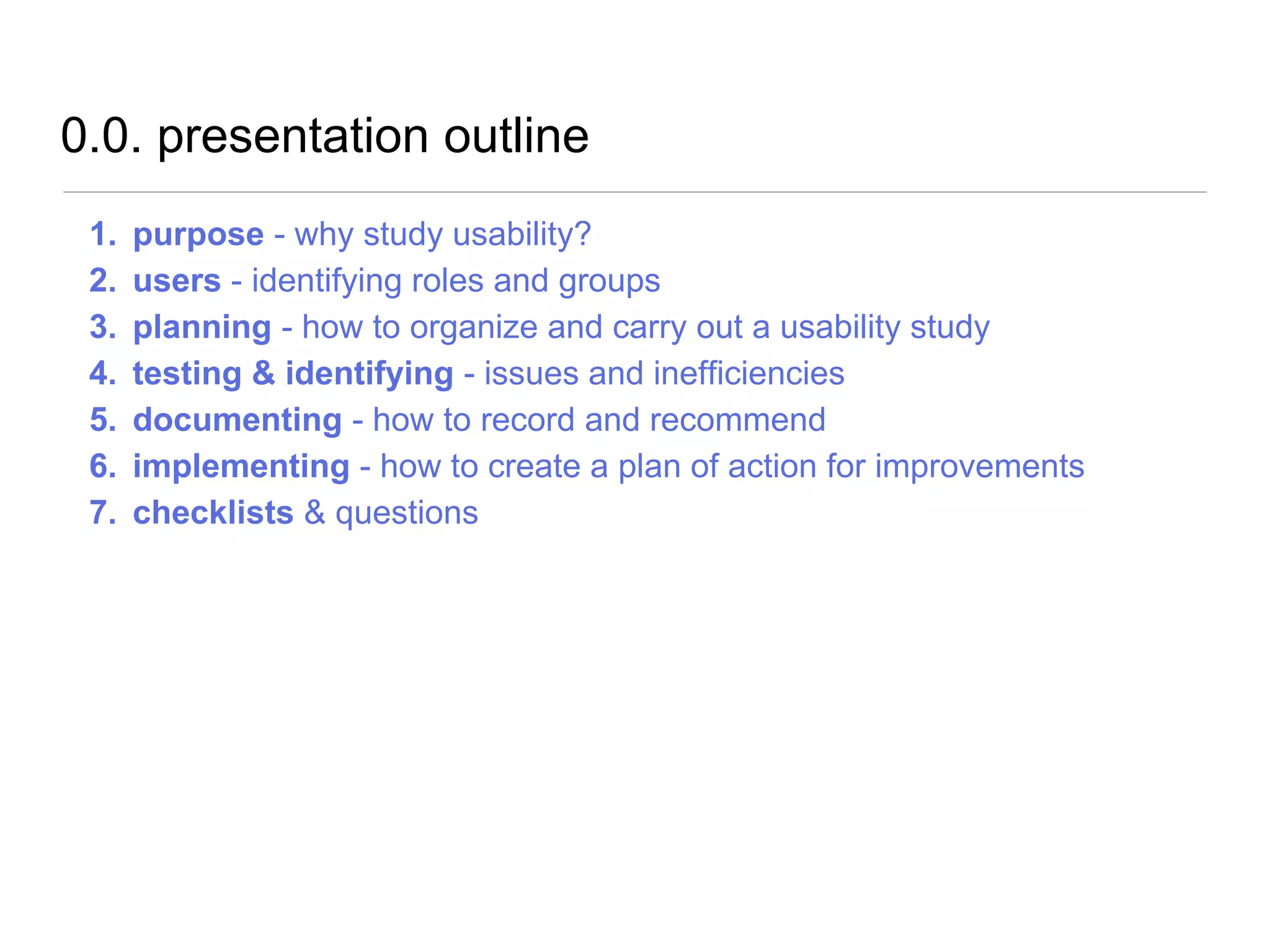
0.0. presentation outline
1. purpose - why study usability?
2. users - identifying roles and groups
3. planning - how to organize and carry out a usability study
4. testing & identifying - issues and inefficiencies
5. documenting - how to record and recommend
6. implementing - how to create a plan of action for improvements
7. checklists & questions
1.0. purpose - why study usability?
Assess users ability to use the site features efficiently and carry out
mission critical site tasks without encountering significant obstacles.
Obstacles = Time = MONEY
purpose - website type
★ Brand Presence/Brochure
★ Marketing Campaign
★ Content Source or Resource Library
★ Task-Based Application
★ E-Commerce
★ E-Learning Platform
★ Social Network/Community
★ Web Portal
★ Intranet
purpose - organizational focus
★ Products
★ Brand
★ Programs
★ Courses
★ Services
★ Resources
★ Educational
★ People (brand)
★ People (community)
★ Portal
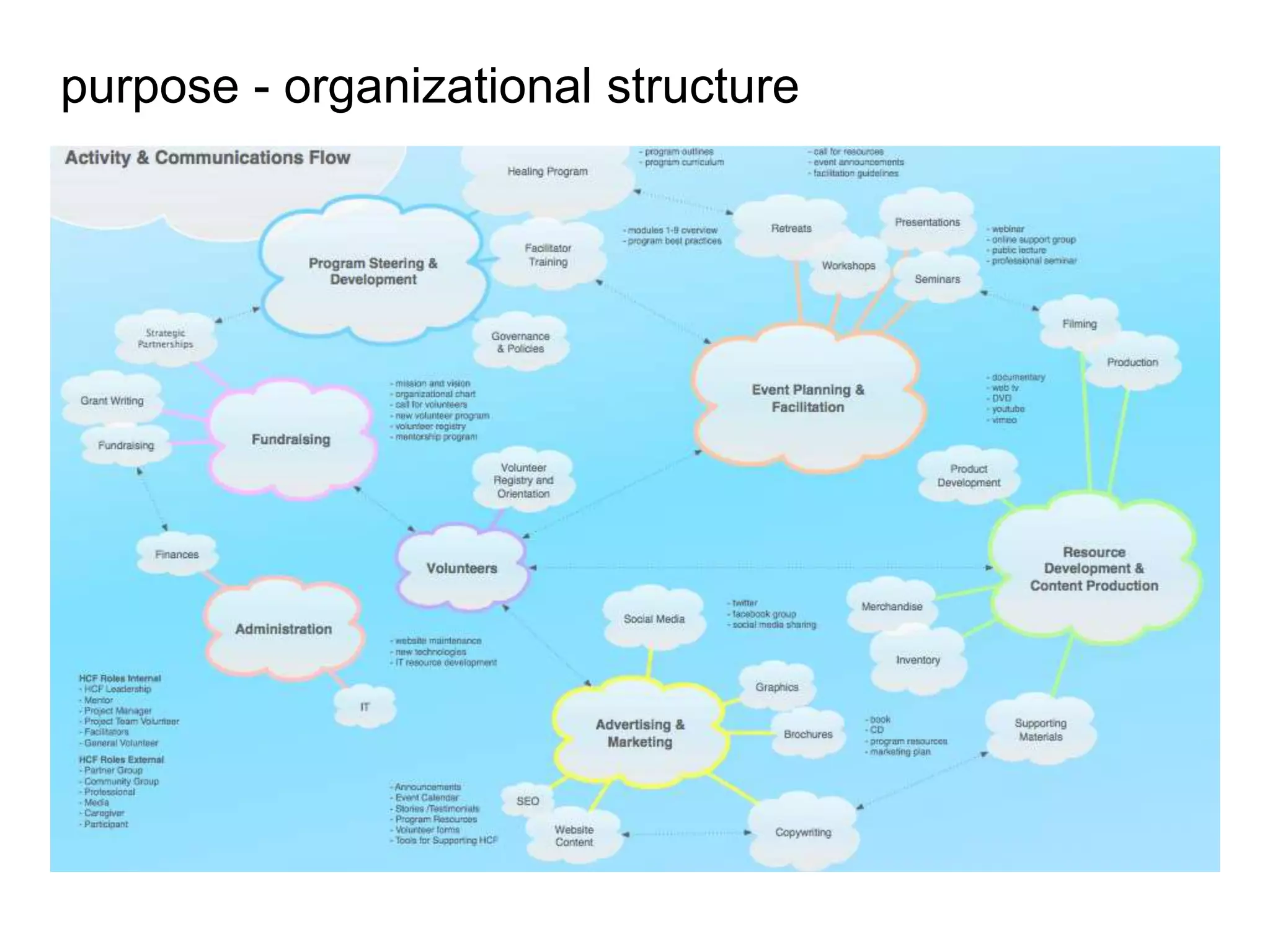
purpose - organizational structure
purpose - organizational site admin style
★ Single Administrator / Webmaster
★ Senior Editor / Junior Content Creators
★ Sectional Content Managers (department, store, content type)
★ Complex Access Restrictions (by taxonomy, field-level, etc)
★ Workflow Restricted Access Rules
★ Crowdsourcing and public submission moderation
users - roles and permissions
1.Policy & Decision Makers - access all/none depending on organization
2.Subject Matter Experts - where are they in the content creation workflow?
3.Content Moderators - voice, tone, grammar, facts, formatting
4.Content Creators - how much control do they have over content?
5.Content Custodians - freshen, cleanup: redundant, outdated
6.Content Consumers - contributions: commenting, flagging, favoriting?
users - potential study stakeholders / contributors
★ Marketing / Sales
★ Copywriter / Content Editor
★ eCommerce Store Admin and Order Fulfillment Staff
★ Faculty / Educational Consultants
★ Board Members / Executive
★ Project Managers / IT Team
★ Department Staff
★ Customer Service / Help Desk
★ In House Designer
★ Outside Vendors
★ Volunteers, Vendors, Suppliers
users - common stumbling blocks
★ Conflicting vocabularies
★ Inexperience with CMS model
★ Steep learning curve
★ Organizational shift
★ Unfinished site / content
★ Subjective ideas
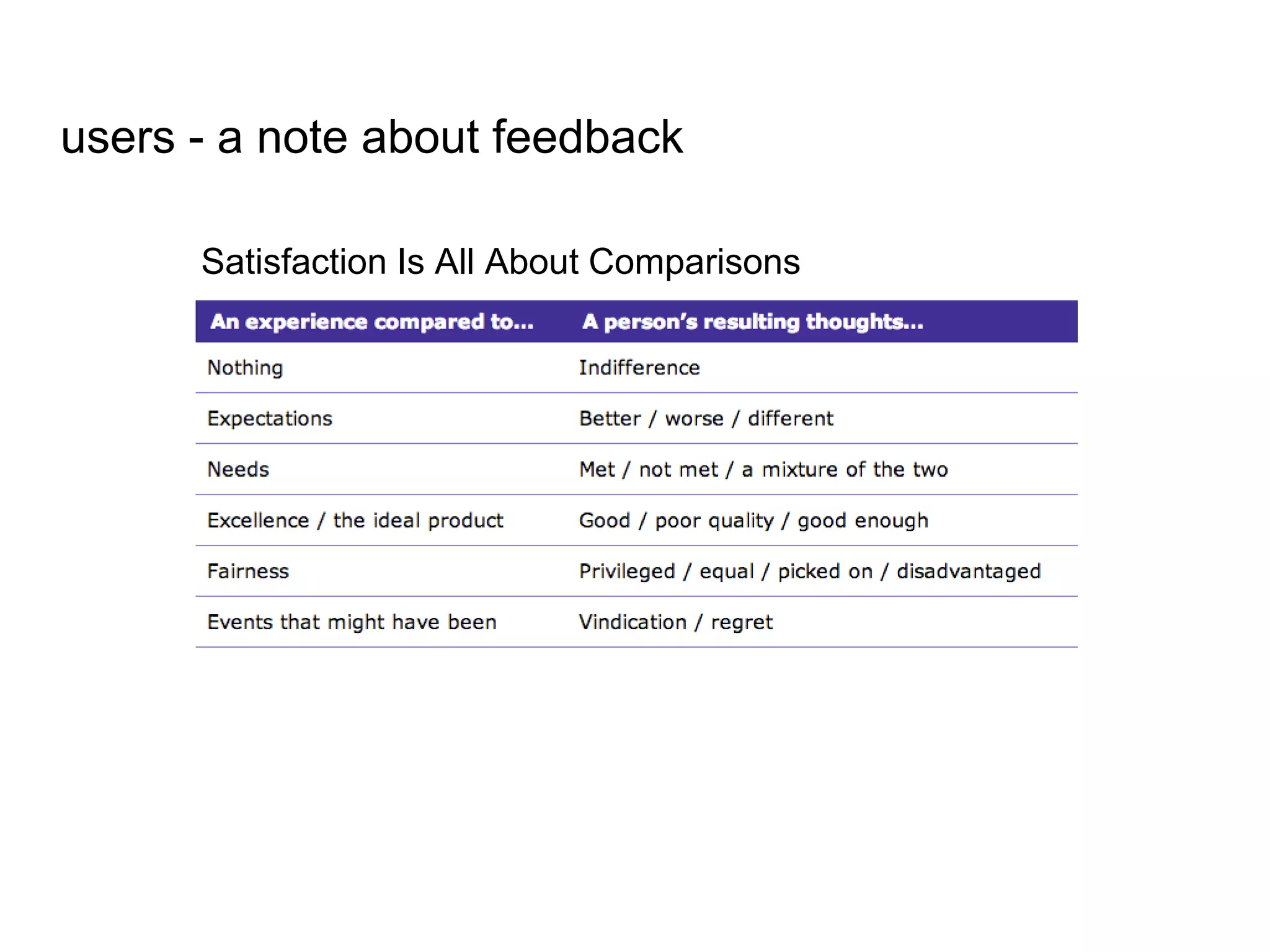
Satisfaction Is All About Comparisons
users - a note about feedback
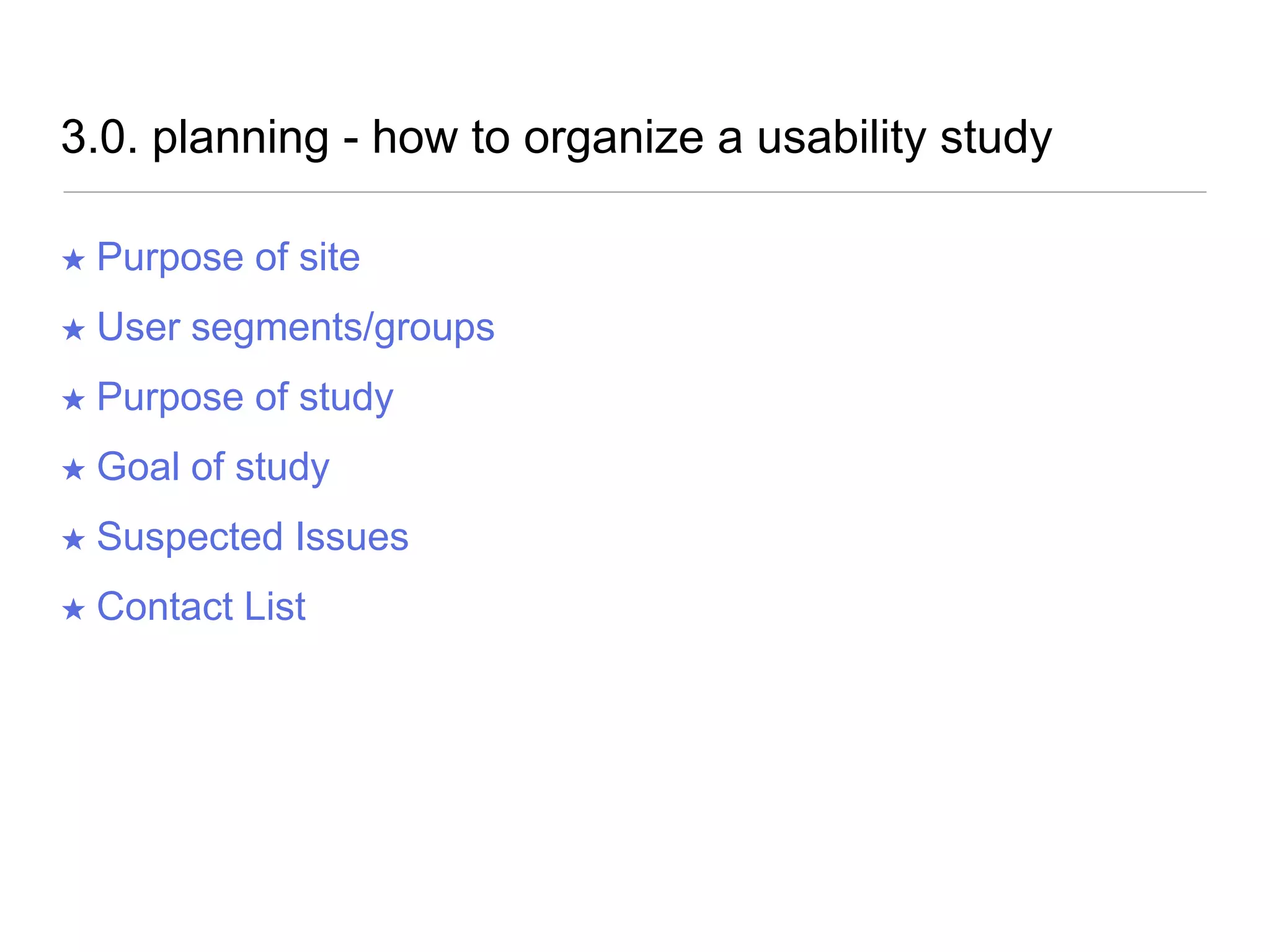
3.0. planning - how to organize a usability study
★ Purpose of site
★ User segments/groups
★ Purpose of study
★ Goal of study
★ Suspected Issues
★ Contact List
http://insidetech.monster.com/training/articles/7760-how-to-create-a-rich-internet-application-screen-design
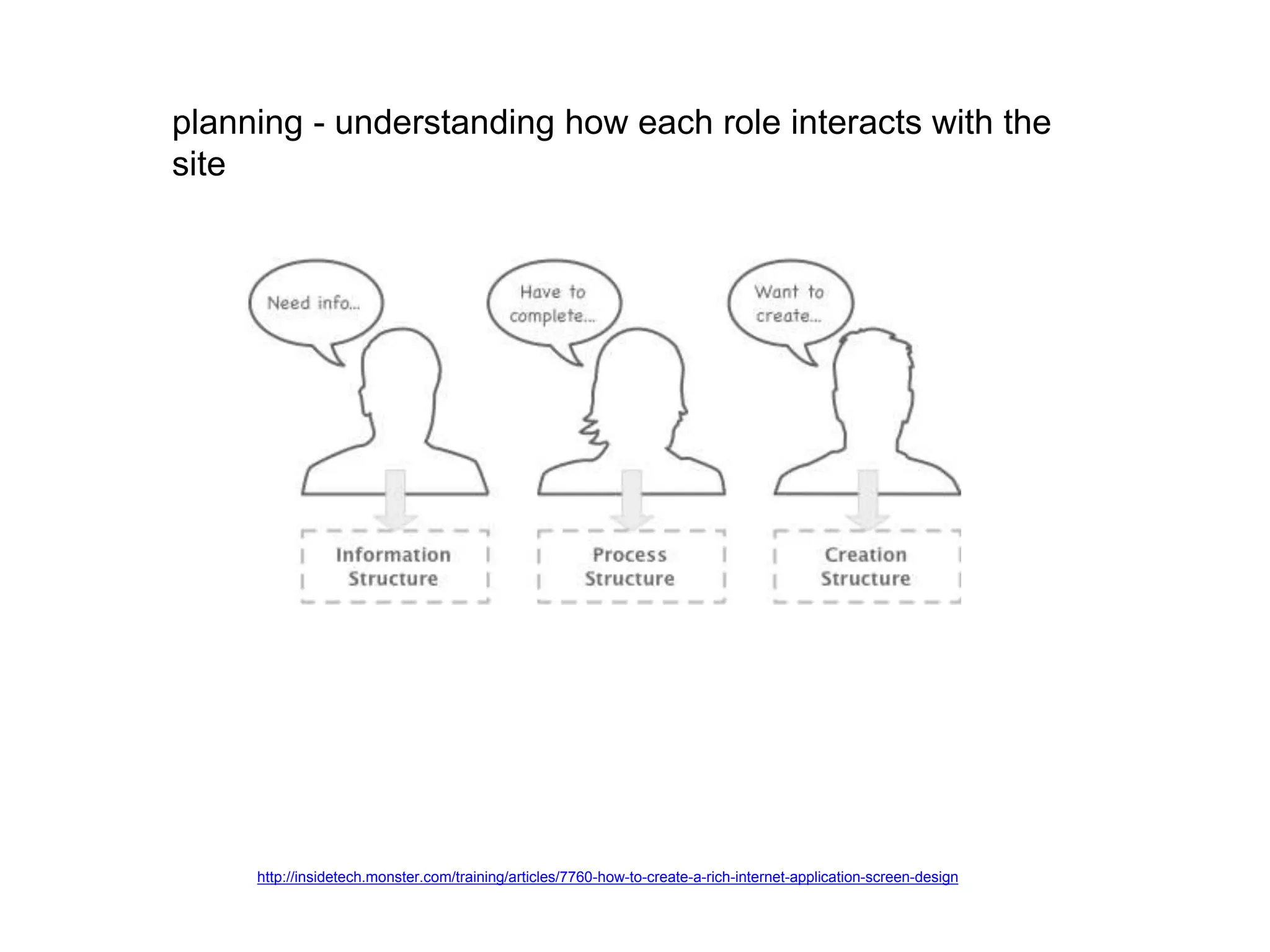
planning - understanding how each role interacts with the
site
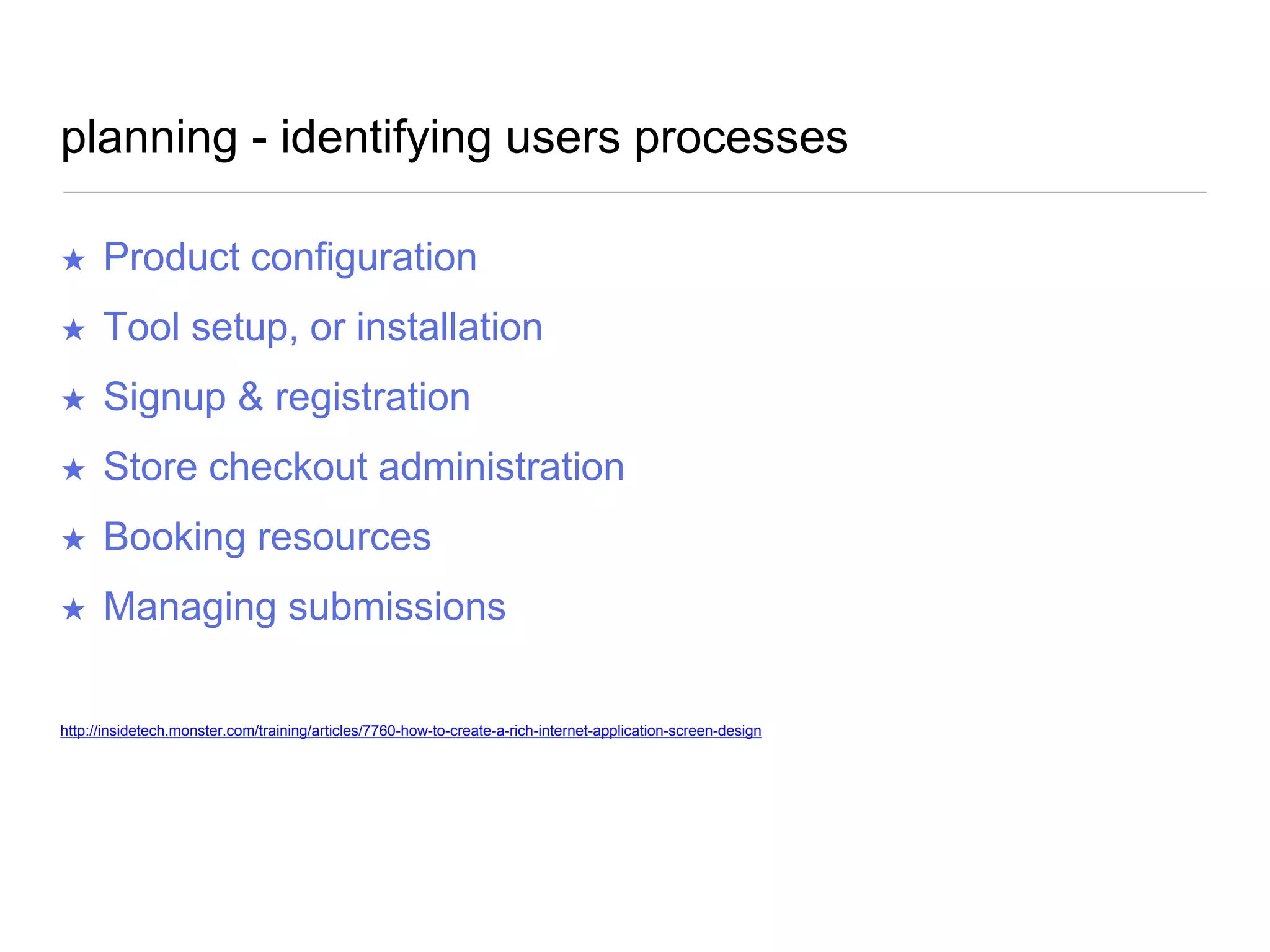
planning - identifying users processes
★ Product configuration
★ Tool setup, or installation
★ Signup & registration
★ Store checkout administration
★ Booking resources
★ Managing submissions
http://insidetech.monster.com/training/articles/7760-how-to-create-a-rich-internet-application-screen-design
planning - identify how users create or modifying content
★ Curating, tagging, categorizing
★ Revising / editing content
★ Formatting / styling
★ Connecting related content
★ Submitting content for moderation
★ Publishing / archiving
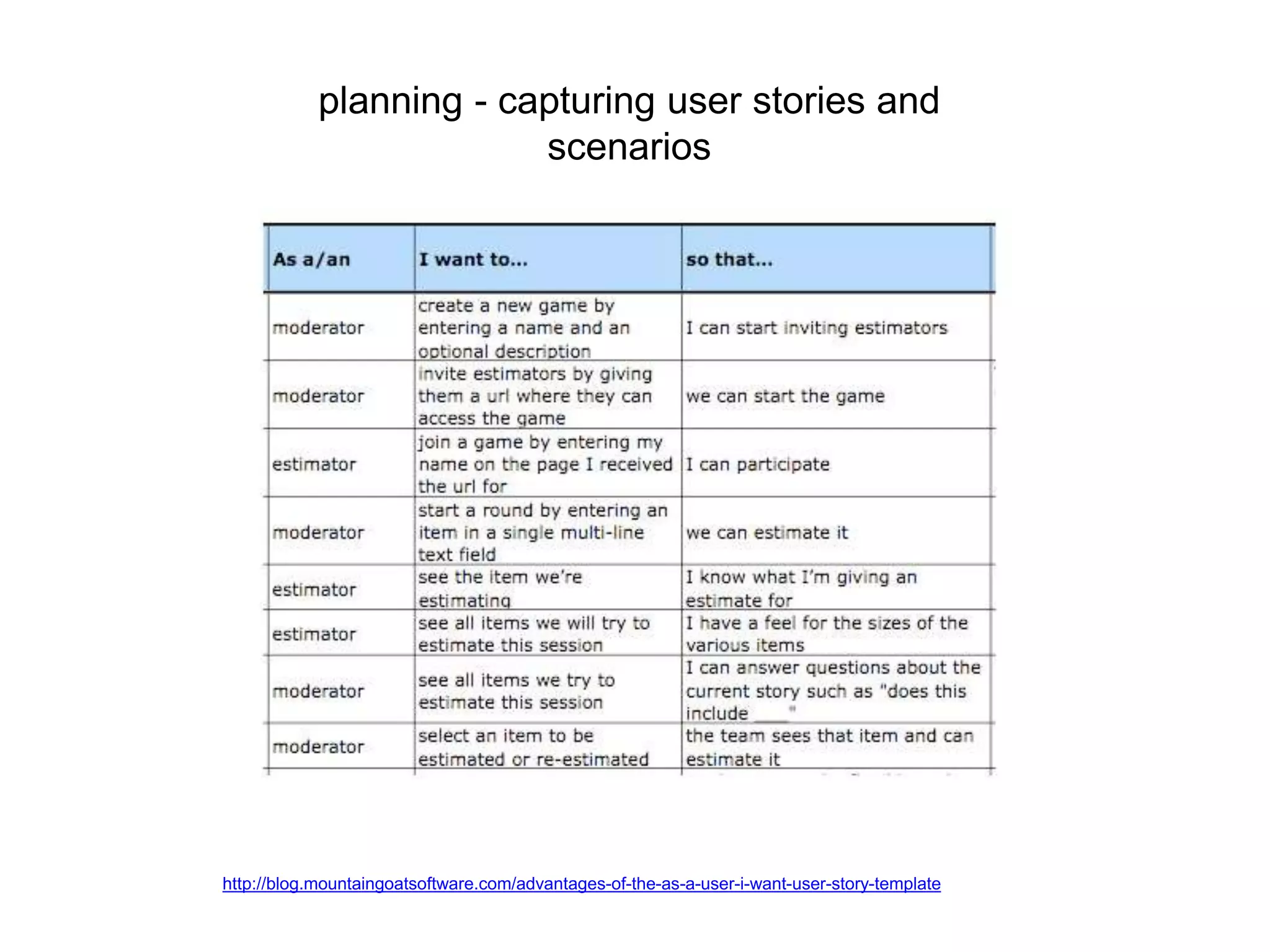
planning - capturing user stories and
scenarios
http://blog.mountaingoatsoftware.com/advantages-of-the-as-a-user-i-want-user-story-template
as a [type of user] I want to [goal]
so that I can [reason].
planning - the 7 ‘C’s of content management
1.Conception - who decides when content is needed?
2.Creation - who writes, adds and formats content? What kind of media
attachments are included?
3.Categorization - how is it organized?
4.Confirmed - publishing workflow - does content need an approval
process?
5.Changes - is there revision-tracking? how does it work? what content will
need to be removed or archived?
6.Community - is there social sharing?
7.Consumption - anything special about how the content is consumed
(access control, notifications, special analytics or tracking, feeds,
subscriptions, etc.)
planning - identifying content workflow inefficiencies
1.7 Cs
2.Types of Content
3.Factual Updates
4.Notifications
5.Vetting
6.Batch Add
7.Clone
8.Image Sourcing / Editing
9.Multimedia
10.Content Reuse
11.Context and Connections
12.Editorial Categorization vs.Public Categorization
13.Content Refresh
14.Naming Conventions
15.Authoring
4.0. testing - carrying out a usability study
★ Remote (screen capture) or in person (on location, at cafe)
★ Introduce yourself and explain your role
★ Ask the participant to explain their role in their own words
★ Ask about their general experience with the site/tool
★ Ask to be walked though their daily activities
★ Ask them to complete their test tasks
★ Allow time for questions and feedback
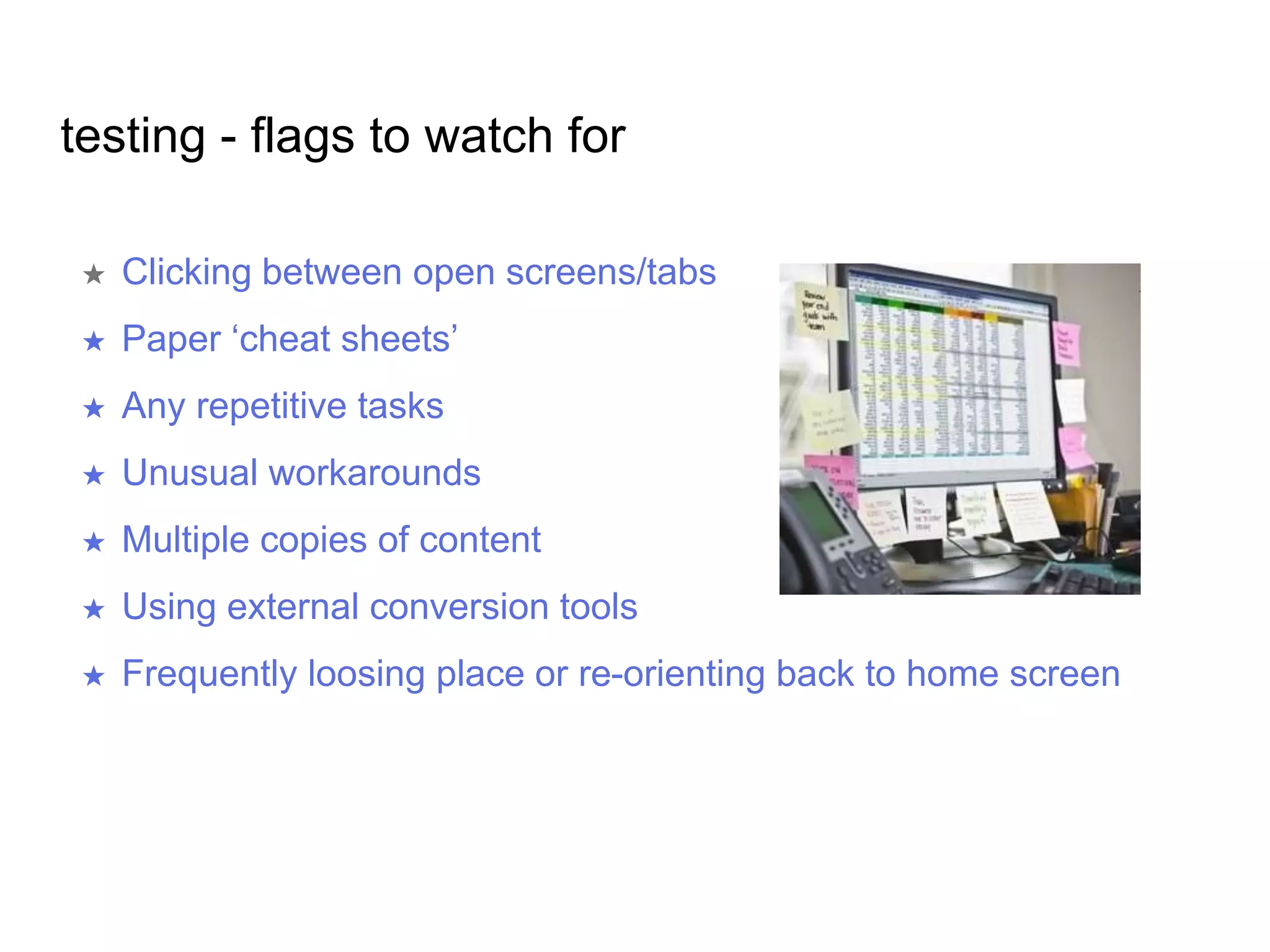
testing - flags to watch for
★ Clicking between open screens/tabs
★ Paper ‘cheat sheets’
★ Any repetitive tasks
★ Unusual workarounds
★ Multiple copies of content
★ Using external conversion tools
★ Frequently loosing place or re-orienting back to home screen
testing - review information architecture components
1. Organization systems - How we categorize information
2. Labelling systems - How we represent information
3. Navigation systems - How we move through information
4. Searching systems - How we search information
Peter Morville, Louis Rosenfeld. Information Architecture for the World Wide Web O'Reilly, 2006
testing - resource search: discovering pathways
Example search: “vegan chocolate cake”
★ By ingredient: “chocolate”
★ By dietary consideration: “vegan”
★ By category: “desserts”
★ By keyword: “vegan cakes”
testing - resource search: varied titles by user
★ Human Resources Manager, “HR Form V3051”
★ Team Manager, “Leave Application”
★ Staff Member, “going on vacation” or “holiday request”
http://www.zefamedia.com/websites/card-sorting-doesnt-cut-the-custard/
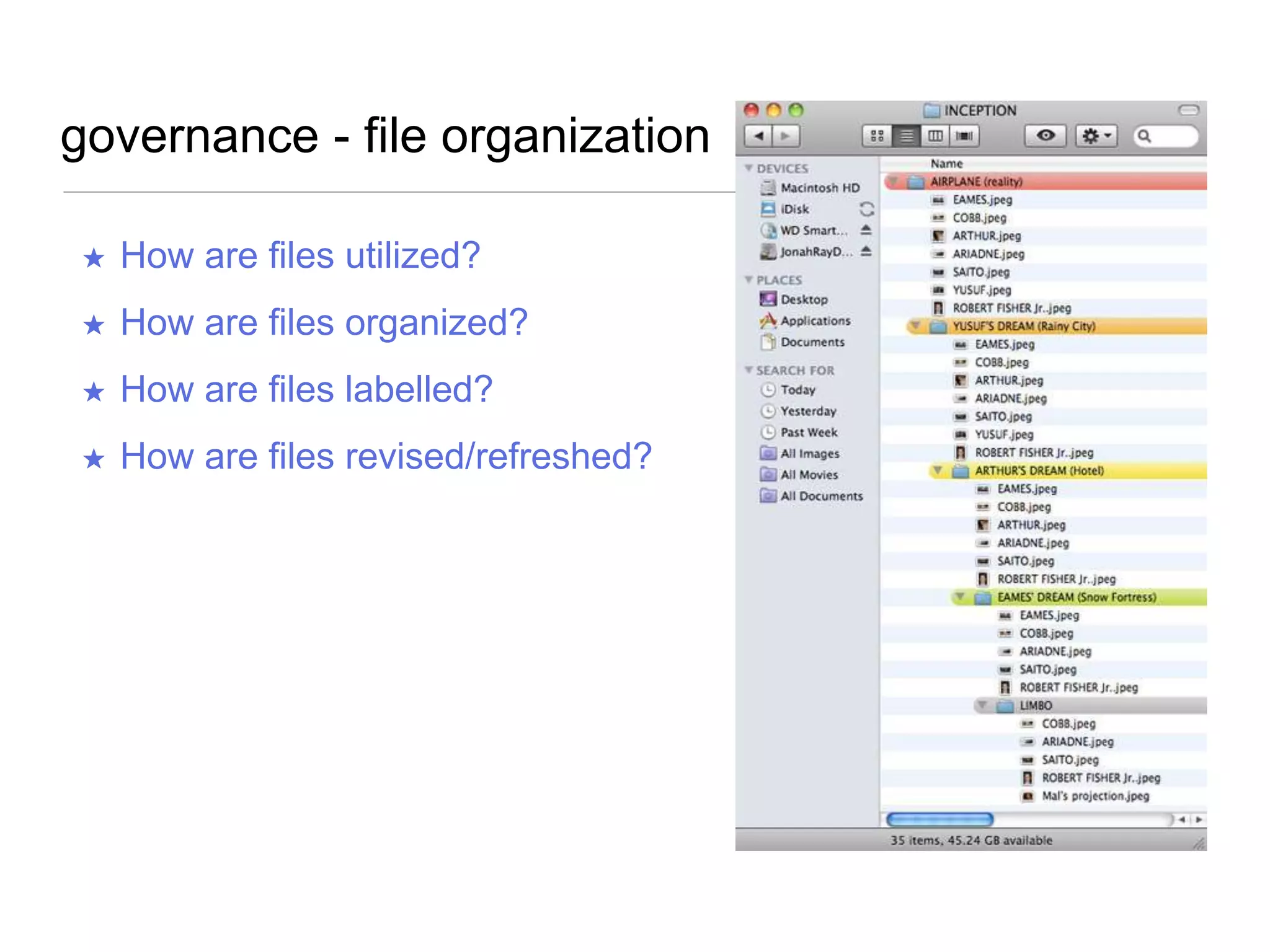
governance - file organization
★ How are files utilized?
★ How are files organized?
★ How are files labelled?
★ How are files revised/refreshed?
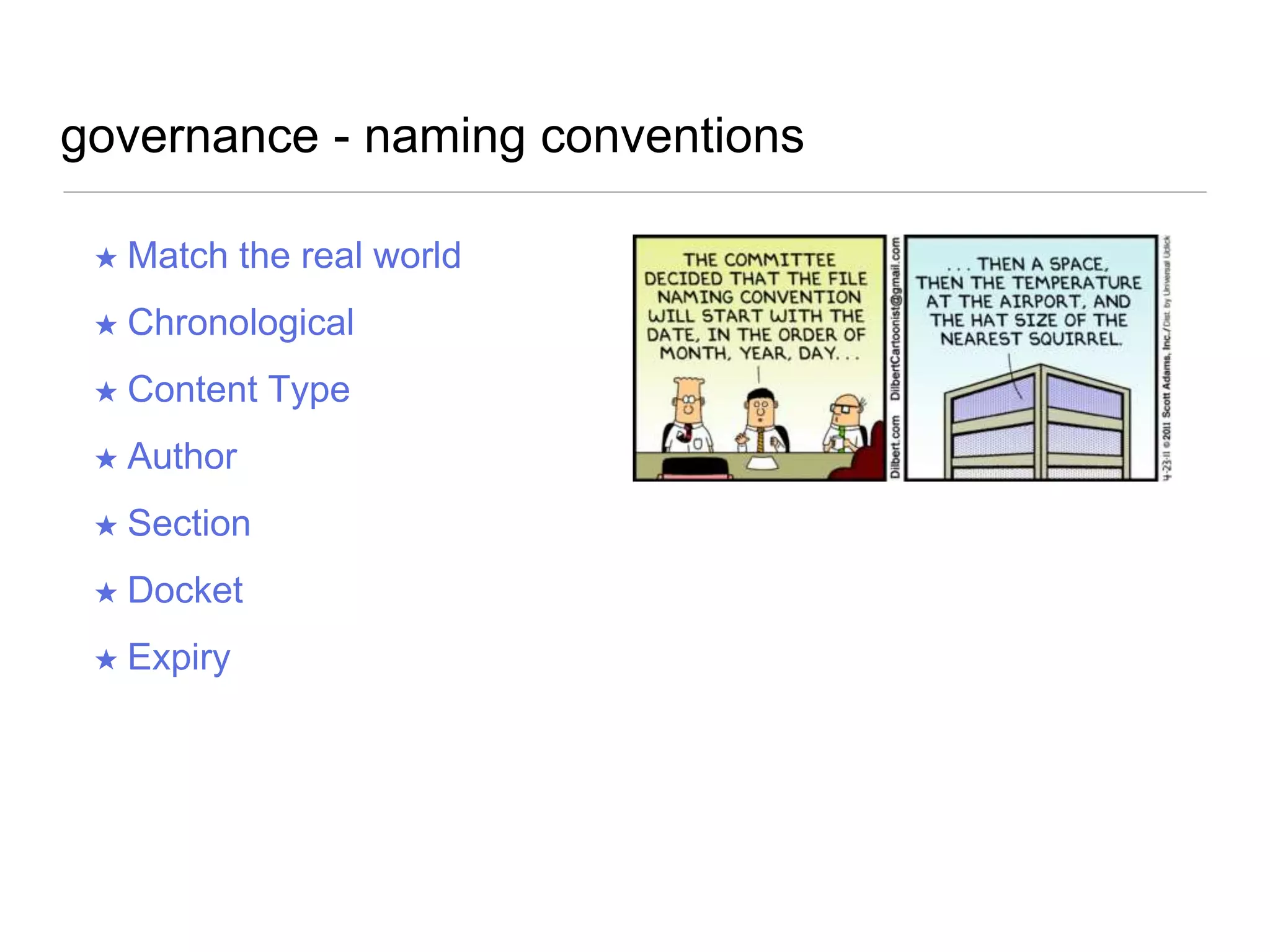
governance - naming conventions
★ Match the real world
★ Chronological
★ Content Type
★ Author
★ Section
★ Docket
★ Expiry
example of inconsistent site-wide labels for “locations”
★ Branch
★ Store
★ Location
★ Bureaux
★ Airport location
★ Airport branch
★ Retail location
★ City Location
★ Boutique storefront location
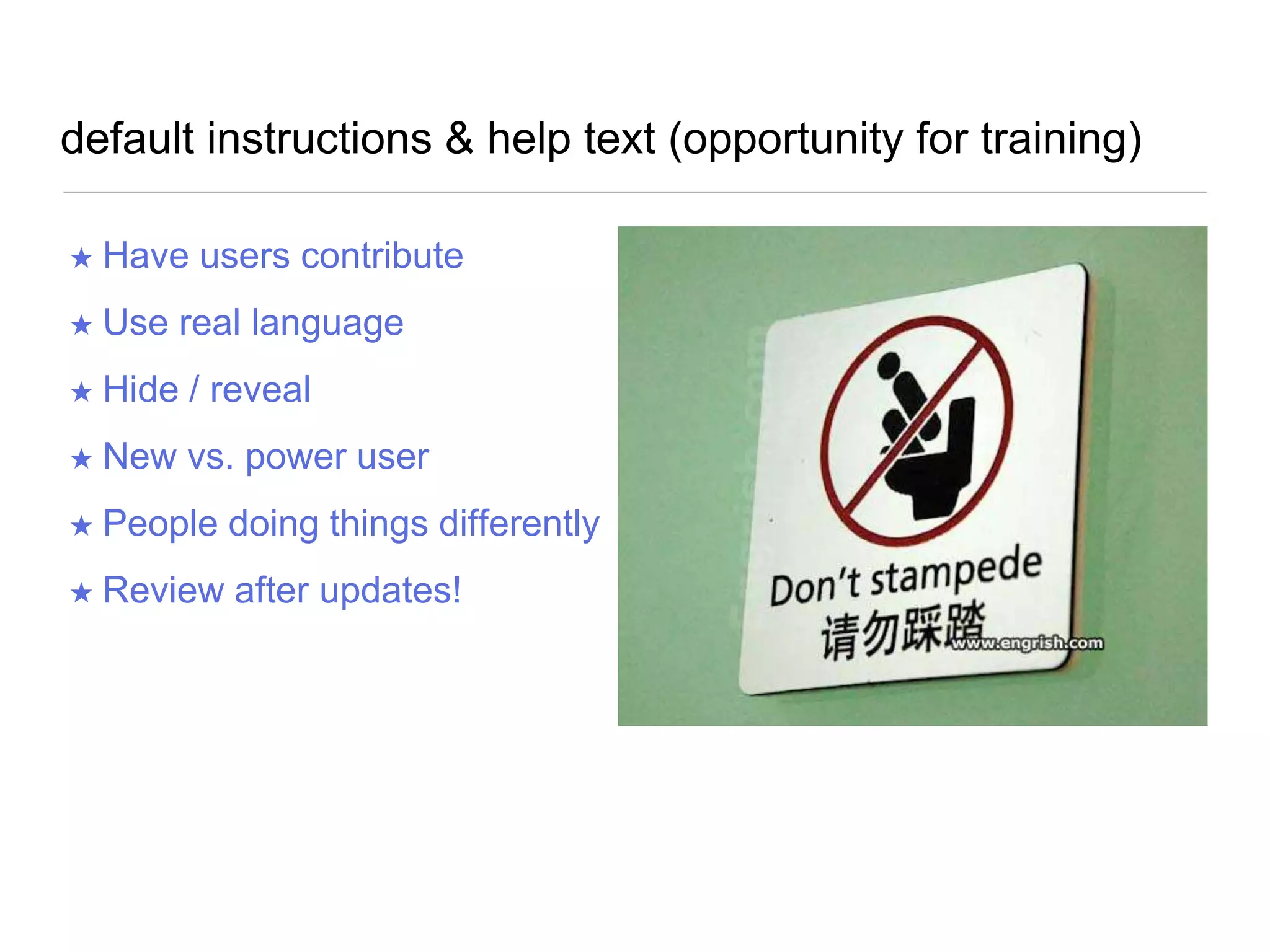
default instructions & help text (opportunity for training)
★ Have users contribute
★ Use real language
★ Hide / reveal
★ New vs. power user
★ People doing things differently
★ Review after updates!
5.0. documenting & reporting
1. Review notes and recordings
2. Group information into categories (users, features, tasks)
3. Use a heuristic checklist or other best practice guide to
identify/label/group issues
4. Be sure to include supporting materials (eg. screenshots
and transcripts)
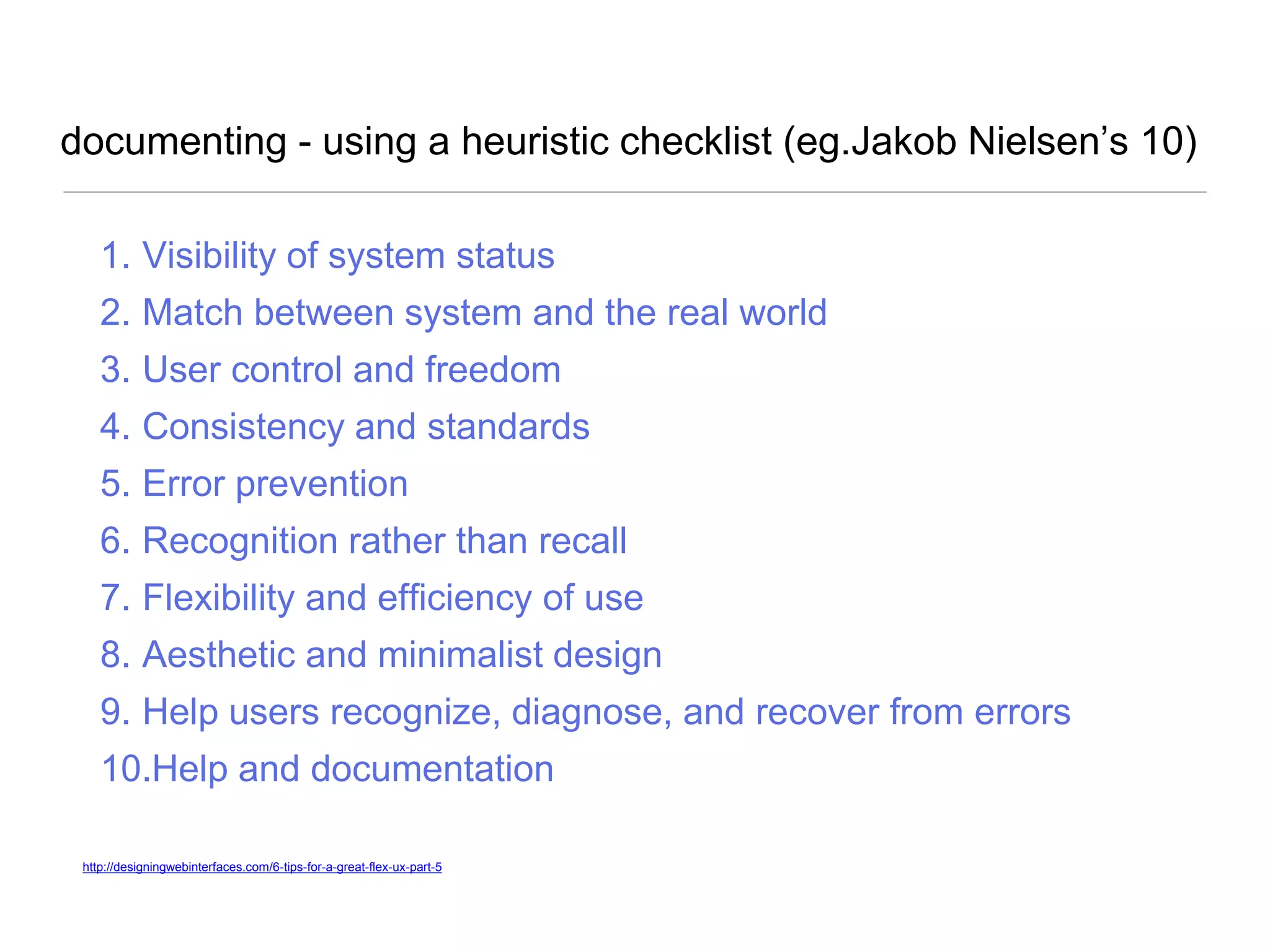
documenting - using a heuristic checklist (eg.Jakob Nielsen’s 10)
1. Visibility of system status
2. Match between system and the real world
3. User control and freedom
4. Consistency and standards
5. Error prevention
6. Recognition rather than recall
7. Flexibility and efficiency of use
8. Aesthetic and minimalist design
9. Help users recognize, diagnose, and recover from errors
10.Help and documentation
http://designingwebinterfaces.com/6-tips-for-a-great-flex-ux-part-5
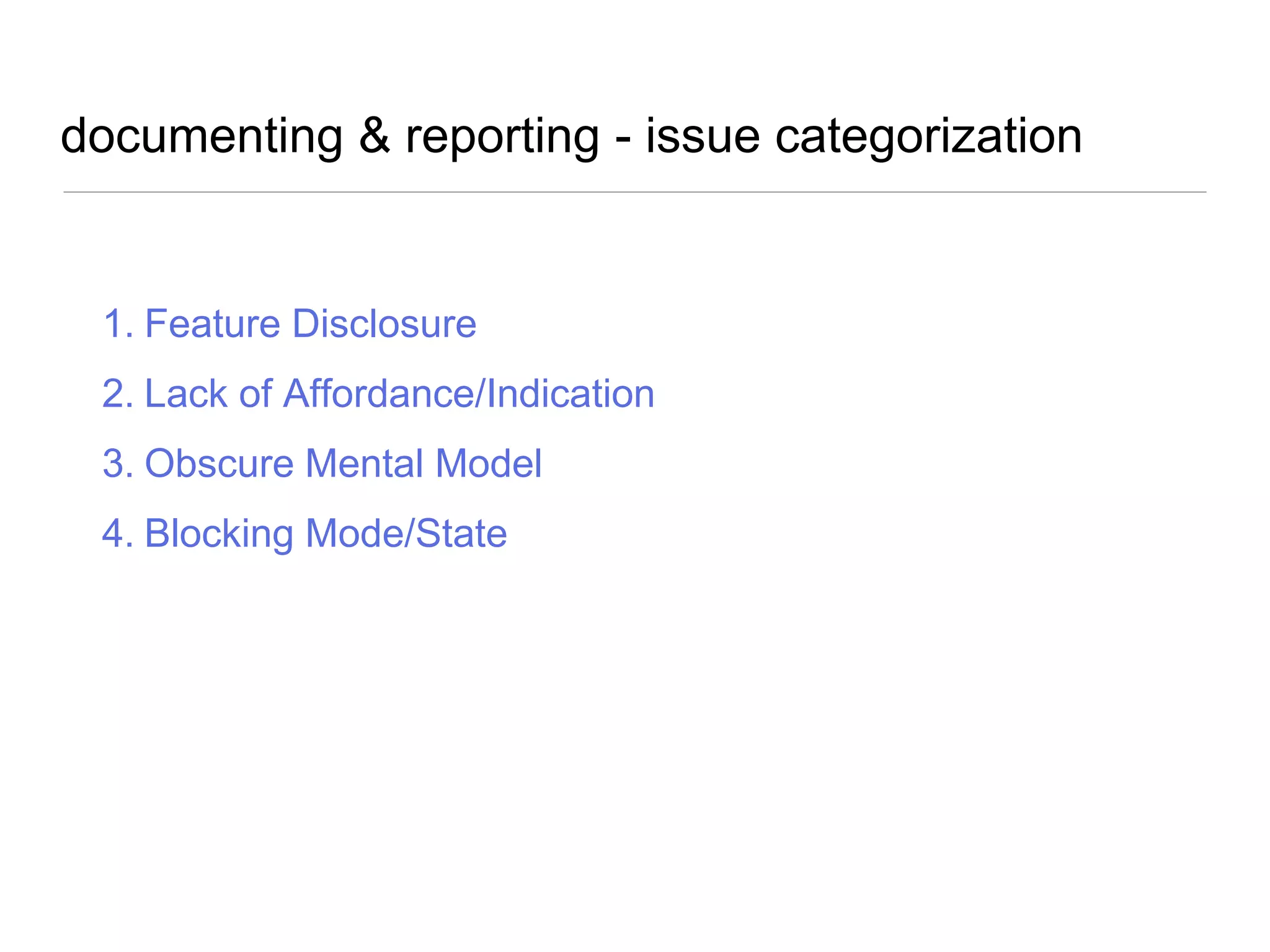
documenting & reporting - issue categorization
1. Feature Disclosure
2. Lack of Affordance/Indication
3. Obscure Mental Model
4. Blocking Mode/State
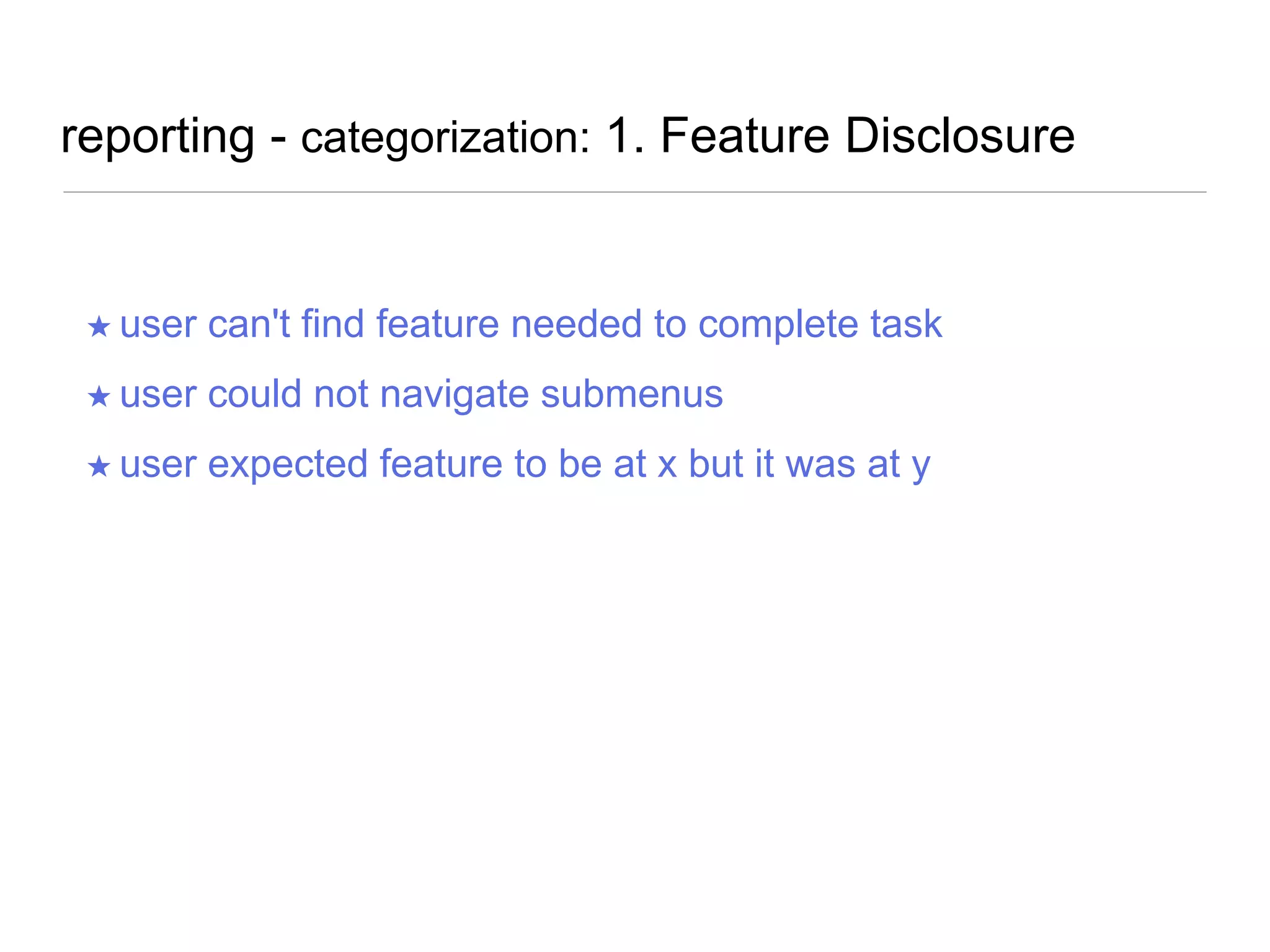
reporting - categorization: 1. Feature Disclosure
★ user can't find feature needed to complete task
★ user could not navigate submenus
★ user expected feature to be at x but it was at y
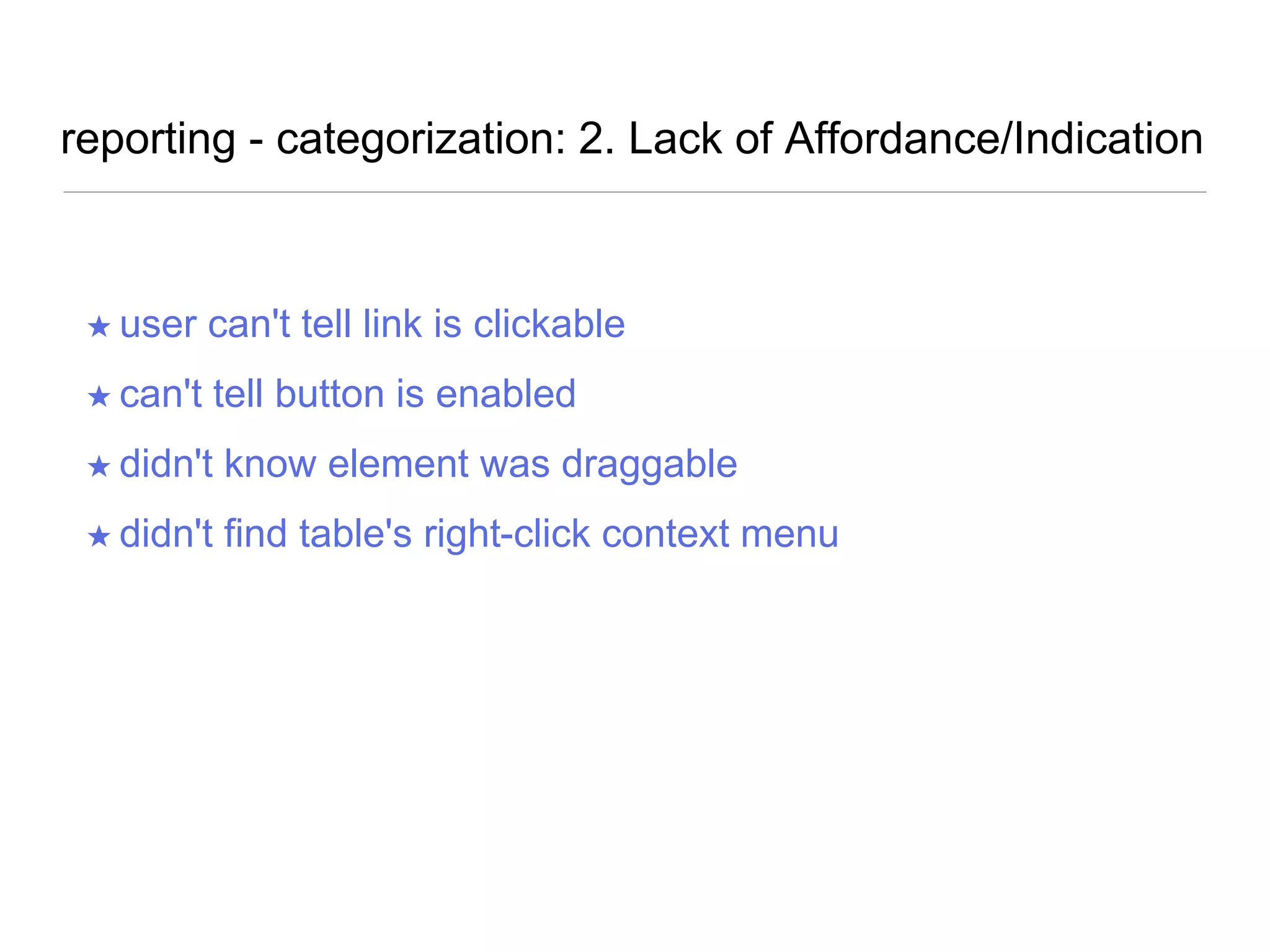
reporting - categorization: 2. Lack of Affordance/Indication
★ user can't tell link is clickable
★ can't tell button is enabled
★ didn't know element was draggable
★ didn't find table's right-click context menu
reporting - categorization: 3. Obscure Mental Model
★ user makes incorrect assumptions about the program's
behavior or architecture
★ the functional model doesn't match user's assumptions or
goals
★ the help instructions misled user about how program
functions
reporting - categorization: 4. Blocking Mode/State
★ user could not access feature x in mode y
★ user could not figure out why link/button/feature was disabled
★ user thought it was okay to do z, but program prevented this
(could also be obscure mental model)
6.0. planning for development meeting
1. Mapped user stories to features
2. Define issues by ‘what’ not ‘how’ until discussed with a dev
3. Group issues by type, user, site section, and or content creation
process (multiple labels ok)
4. Give alternate suggestions if possible
6.0. development planning
1. Identifying needs
2. Understanding identified needs
3. Isolating alternatives (prioritize by LOE and business value)
4. Choosing solutions
5. Refining solutions
7.0. usability study checklists
1. Planning Checklist
2. Study Checklist
3. Report Checklist
4. Development Checklist
planning checklist
1. Purpose of site
2. User segmentation
3. Purpose of study
4. Goal of study
5. Suspected Issues
6. Contact List
planning checklist - (example)
1. Purpose of site - content source for educators interested in resources for teaching about
ecological issues
2. Admin users - org director, subject matter experts, content curators, writers, multimedia
creator/editors, social media manger, community contributor (guest blogger)
3. Purpose of study - find ways to streamline the content creation/publication workflow
4. Goal of study - identify tools and process required to allow more users to create (but not
publish) content directly on the site, make content curation process faster and easier, so that
content can be published in a more timely manner and kept fresh with minimum of effort
5. Suspected Issue 1 - content creators are emailing in their submissions because of various
content creation obstacles and site governance policies
6. Suspected Issue 2 - granular access restrictions not allowing people to help each other out
with tasks in an efficient manner
7. Suspected Issue 3 - Content categorization is flat, contains redundancies and limited
8. Contact List - People to interview to help identify testing scenarios and survey questions
study checklist
1. Updated Contact List - Complete list of people to interview, roles and
responsibilities, contact info, test schedules and tools
2. Consent forms, NDA (if required)
3. Planning Spreadsheet - Testing scenarios, survey questions,
4. Tools - Screen-capturing tool, survey tool, Skype, etc
5. Document - Notes for observations, issues and inefficiencies
6. Analysis Tools - Heuristic checklists, best practice guidelines, ux
research and articles
report checklist
1. Goals Summary
2. Issue Summary
3. Recommendations Summary (content, tool, process, priority)
4. Issues organized by type, user, site section, and or content creation
process
5. Annotated screenshots, video clips and quotes
6. Recommendations by type, user, site section, and or content creation
process
7. Next steps and action items
8. Note additional studies or re-test date
development planning checklist
1. Issues mapped to user stories (including value of need)
2. Issues defined by ‘what’ not ‘how’
3. Issues grouped by type, user, site section, and or content creation
process
4. Issues prioritized by need
5. Estimated items prioritized by level of effort with alternate suggestions
Questions?
WHAT DID YOU THINK?
E V A L U A T E T H I S S E S S I O N :
A U S T I N 2 0 1 4 . D R U P A L . O R G / S C H E D U L E
Thank you!
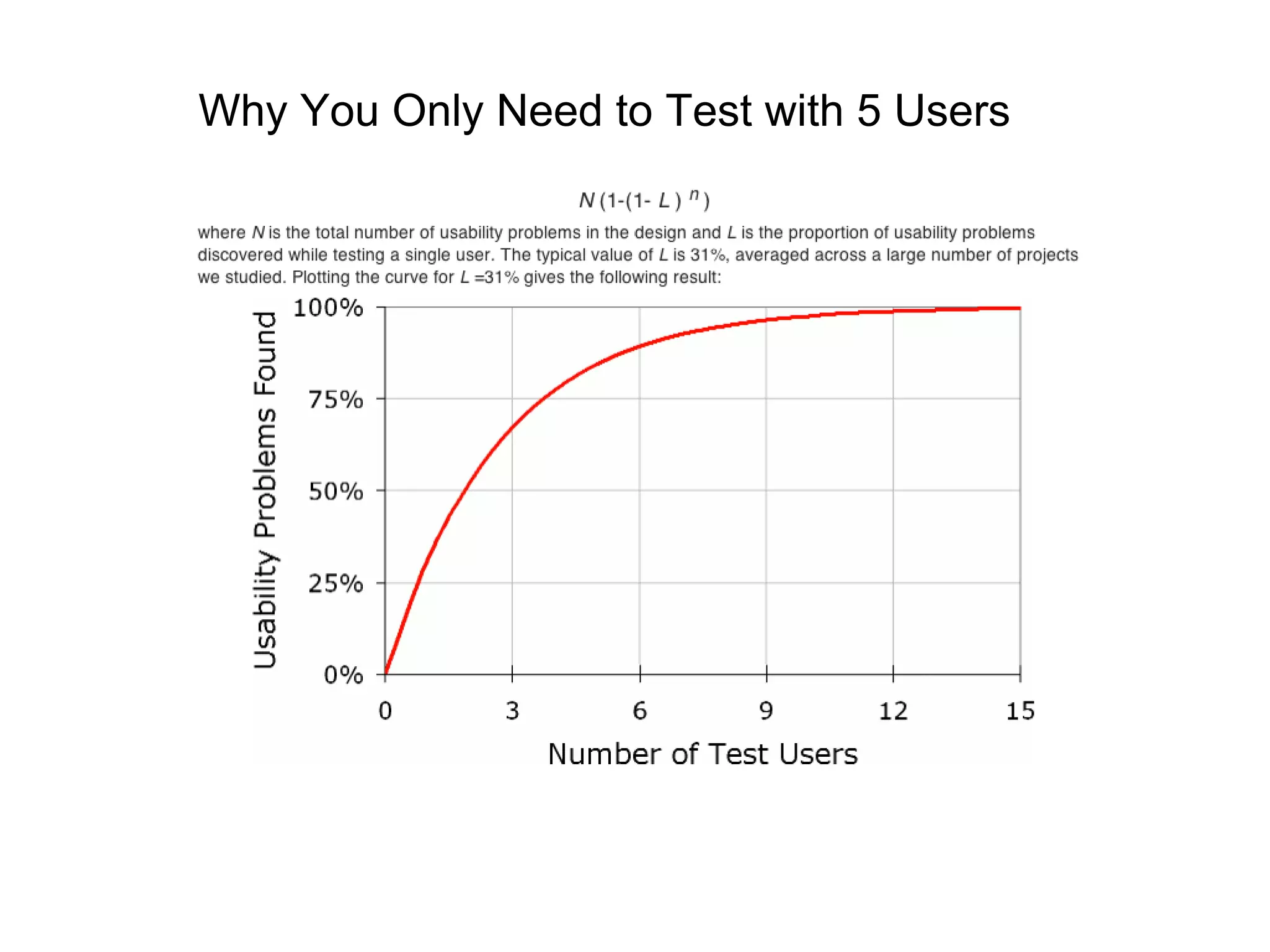
Why You Only Need to Test with 5 Users
User Testing your Drupal Administration Process

User Testing your Drupal Administration Process

  • 1.
    User Experience DesignTrack V A N E S S A T U R K E USER TESTING YOUR DRUPAL ADMINISTRATION PROCESS
  • 2.
    0.0. presentation outline 1.purpose - why study usability? 2. users - identifying roles and groups 3. planning - how to organize and carry out a usability study 4. testing & identifying - issues and inefficiencies 5. documenting - how to record and recommend 6. implementing - how to create a plan of action for improvements 7. checklists & questions
  • 3.
    1.0. purpose -why study usability? Assess users ability to use the site features efficiently and carry out mission critical site tasks without encountering significant obstacles. Obstacles = Time = MONEY
  • 4.
    purpose - websitetype ★ Brand Presence/Brochure ★ Marketing Campaign ★ Content Source or Resource Library ★ Task-Based Application ★ E-Commerce ★ E-Learning Platform ★ Social Network/Community ★ Web Portal ★ Intranet
  • 5.
    purpose - organizationalfocus ★ Products ★ Brand ★ Programs ★ Courses ★ Services ★ Resources ★ Educational ★ People (brand) ★ People (community) ★ Portal
  • 6.
  • 7.
    purpose - organizationalsite admin style ★ Single Administrator / Webmaster ★ Senior Editor / Junior Content Creators ★ Sectional Content Managers (department, store, content type) ★ Complex Access Restrictions (by taxonomy, field-level, etc) ★ Workflow Restricted Access Rules ★ Crowdsourcing and public submission moderation
  • 8.
    users - rolesand permissions 1.Policy & Decision Makers - access all/none depending on organization 2.Subject Matter Experts - where are they in the content creation workflow? 3.Content Moderators - voice, tone, grammar, facts, formatting 4.Content Creators - how much control do they have over content? 5.Content Custodians - freshen, cleanup: redundant, outdated 6.Content Consumers - contributions: commenting, flagging, favoriting?
  • 9.
    users - potentialstudy stakeholders / contributors ★ Marketing / Sales ★ Copywriter / Content Editor ★ eCommerce Store Admin and Order Fulfillment Staff ★ Faculty / Educational Consultants ★ Board Members / Executive ★ Project Managers / IT Team ★ Department Staff ★ Customer Service / Help Desk ★ In House Designer ★ Outside Vendors ★ Volunteers, Vendors, Suppliers
  • 10.
    users - commonstumbling blocks ★ Conflicting vocabularies ★ Inexperience with CMS model ★ Steep learning curve ★ Organizational shift ★ Unfinished site / content ★ Subjective ideas
  • 11.
    Satisfaction Is AllAbout Comparisons users - a note about feedback
  • 12.
    3.0. planning -how to organize a usability study ★ Purpose of site ★ User segments/groups ★ Purpose of study ★ Goal of study ★ Suspected Issues ★ Contact List
  • 13.
  • 14.
    planning - identifyingusers processes ★ Product configuration ★ Tool setup, or installation ★ Signup & registration ★ Store checkout administration ★ Booking resources ★ Managing submissions http://insidetech.monster.com/training/articles/7760-how-to-create-a-rich-internet-application-screen-design
  • 15.
    planning - identifyhow users create or modifying content ★ Curating, tagging, categorizing ★ Revising / editing content ★ Formatting / styling ★ Connecting related content ★ Submitting content for moderation ★ Publishing / archiving
  • 16.
    planning - capturinguser stories and scenarios http://blog.mountaingoatsoftware.com/advantages-of-the-as-a-user-i-want-user-story-template
  • 17.
    as a [typeof user] I want to [goal] so that I can [reason].
  • 18.
    planning - the7 ‘C’s of content management 1.Conception - who decides when content is needed? 2.Creation - who writes, adds and formats content? What kind of media attachments are included? 3.Categorization - how is it organized? 4.Confirmed - publishing workflow - does content need an approval process? 5.Changes - is there revision-tracking? how does it work? what content will need to be removed or archived? 6.Community - is there social sharing? 7.Consumption - anything special about how the content is consumed (access control, notifications, special analytics or tracking, feeds, subscriptions, etc.)
  • 19.
    planning - identifyingcontent workflow inefficiencies 1.7 Cs 2.Types of Content 3.Factual Updates 4.Notifications 5.Vetting 6.Batch Add 7.Clone 8.Image Sourcing / Editing 9.Multimedia 10.Content Reuse 11.Context and Connections 12.Editorial Categorization vs.Public Categorization 13.Content Refresh 14.Naming Conventions 15.Authoring
  • 20.
    4.0. testing -carrying out a usability study ★ Remote (screen capture) or in person (on location, at cafe) ★ Introduce yourself and explain your role ★ Ask the participant to explain their role in their own words ★ Ask about their general experience with the site/tool ★ Ask to be walked though their daily activities ★ Ask them to complete their test tasks ★ Allow time for questions and feedback
  • 21.
    testing - flagsto watch for ★ Clicking between open screens/tabs ★ Paper ‘cheat sheets’ ★ Any repetitive tasks ★ Unusual workarounds ★ Multiple copies of content ★ Using external conversion tools ★ Frequently loosing place or re-orienting back to home screen
  • 22.
    testing - reviewinformation architecture components 1. Organization systems - How we categorize information 2. Labelling systems - How we represent information 3. Navigation systems - How we move through information 4. Searching systems - How we search information Peter Morville, Louis Rosenfeld. Information Architecture for the World Wide Web O'Reilly, 2006
  • 23.
    testing - resourcesearch: discovering pathways Example search: “vegan chocolate cake” ★ By ingredient: “chocolate” ★ By dietary consideration: “vegan” ★ By category: “desserts” ★ By keyword: “vegan cakes”
  • 24.
    testing - resourcesearch: varied titles by user ★ Human Resources Manager, “HR Form V3051” ★ Team Manager, “Leave Application” ★ Staff Member, “going on vacation” or “holiday request” http://www.zefamedia.com/websites/card-sorting-doesnt-cut-the-custard/
  • 25.
    governance - fileorganization ★ How are files utilized? ★ How are files organized? ★ How are files labelled? ★ How are files revised/refreshed?
  • 26.
    governance - namingconventions ★ Match the real world ★ Chronological ★ Content Type ★ Author ★ Section ★ Docket ★ Expiry
  • 27.
    example of inconsistentsite-wide labels for “locations” ★ Branch ★ Store ★ Location ★ Bureaux ★ Airport location ★ Airport branch ★ Retail location ★ City Location ★ Boutique storefront location
  • 28.
    default instructions &help text (opportunity for training) ★ Have users contribute ★ Use real language ★ Hide / reveal ★ New vs. power user ★ People doing things differently ★ Review after updates!
  • 29.
    5.0. documenting &reporting 1. Review notes and recordings 2. Group information into categories (users, features, tasks) 3. Use a heuristic checklist or other best practice guide to identify/label/group issues 4. Be sure to include supporting materials (eg. screenshots and transcripts)
  • 30.
    documenting - usinga heuristic checklist (eg.Jakob Nielsen’s 10) 1. Visibility of system status 2. Match between system and the real world 3. User control and freedom 4. Consistency and standards 5. Error prevention 6. Recognition rather than recall 7. Flexibility and efficiency of use 8. Aesthetic and minimalist design 9. Help users recognize, diagnose, and recover from errors 10.Help and documentation http://designingwebinterfaces.com/6-tips-for-a-great-flex-ux-part-5
  • 31.
    documenting & reporting- issue categorization 1. Feature Disclosure 2. Lack of Affordance/Indication 3. Obscure Mental Model 4. Blocking Mode/State
  • 32.
    reporting - categorization:1. Feature Disclosure ★ user can't find feature needed to complete task ★ user could not navigate submenus ★ user expected feature to be at x but it was at y
  • 33.
    reporting - categorization:2. Lack of Affordance/Indication ★ user can't tell link is clickable ★ can't tell button is enabled ★ didn't know element was draggable ★ didn't find table's right-click context menu
  • 34.
    reporting - categorization:3. Obscure Mental Model ★ user makes incorrect assumptions about the program's behavior or architecture ★ the functional model doesn't match user's assumptions or goals ★ the help instructions misled user about how program functions
  • 35.
    reporting - categorization:4. Blocking Mode/State ★ user could not access feature x in mode y ★ user could not figure out why link/button/feature was disabled ★ user thought it was okay to do z, but program prevented this (could also be obscure mental model)
  • 36.
    6.0. planning fordevelopment meeting 1. Mapped user stories to features 2. Define issues by ‘what’ not ‘how’ until discussed with a dev 3. Group issues by type, user, site section, and or content creation process (multiple labels ok) 4. Give alternate suggestions if possible
  • 37.
    6.0. development planning 1.Identifying needs 2. Understanding identified needs 3. Isolating alternatives (prioritize by LOE and business value) 4. Choosing solutions 5. Refining solutions
  • 38.
    7.0. usability studychecklists 1. Planning Checklist 2. Study Checklist 3. Report Checklist 4. Development Checklist
  • 39.
    planning checklist 1. Purposeof site 2. User segmentation 3. Purpose of study 4. Goal of study 5. Suspected Issues 6. Contact List
  • 40.
    planning checklist -(example) 1. Purpose of site - content source for educators interested in resources for teaching about ecological issues 2. Admin users - org director, subject matter experts, content curators, writers, multimedia creator/editors, social media manger, community contributor (guest blogger) 3. Purpose of study - find ways to streamline the content creation/publication workflow 4. Goal of study - identify tools and process required to allow more users to create (but not publish) content directly on the site, make content curation process faster and easier, so that content can be published in a more timely manner and kept fresh with minimum of effort 5. Suspected Issue 1 - content creators are emailing in their submissions because of various content creation obstacles and site governance policies 6. Suspected Issue 2 - granular access restrictions not allowing people to help each other out with tasks in an efficient manner 7. Suspected Issue 3 - Content categorization is flat, contains redundancies and limited 8. Contact List - People to interview to help identify testing scenarios and survey questions
  • 41.
    study checklist 1. UpdatedContact List - Complete list of people to interview, roles and responsibilities, contact info, test schedules and tools 2. Consent forms, NDA (if required) 3. Planning Spreadsheet - Testing scenarios, survey questions, 4. Tools - Screen-capturing tool, survey tool, Skype, etc 5. Document - Notes for observations, issues and inefficiencies 6. Analysis Tools - Heuristic checklists, best practice guidelines, ux research and articles
  • 42.
    report checklist 1. GoalsSummary 2. Issue Summary 3. Recommendations Summary (content, tool, process, priority) 4. Issues organized by type, user, site section, and or content creation process 5. Annotated screenshots, video clips and quotes 6. Recommendations by type, user, site section, and or content creation process 7. Next steps and action items 8. Note additional studies or re-test date
  • 43.
    development planning checklist 1.Issues mapped to user stories (including value of need) 2. Issues defined by ‘what’ not ‘how’ 3. Issues grouped by type, user, site section, and or content creation process 4. Issues prioritized by need 5. Estimated items prioritized by level of effort with alternate suggestions
  • 44.
  • 45.
    WHAT DID YOUTHINK? E V A L U A T E T H I S S E S S I O N : A U S T I N 2 0 1 4 . D R U P A L . O R G / S C H E D U L E Thank you!
  • 46.
    Why You OnlyNeed to Test with 5 Users