Scalar
Sign up: http://scalar.usc.edu/scalar/sign-up/
Or
Sign in: http://scalar.usc.edu/works/
Examples of Possibilities on Index Page
(sign in page)
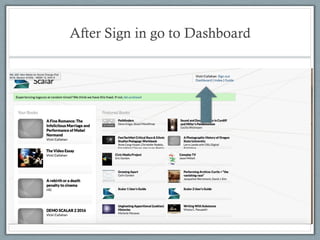
After Sign in go to Dashboard
Project work on one shared site:
“Reimagining LA: Design Fiction for Los Angeles 2066”
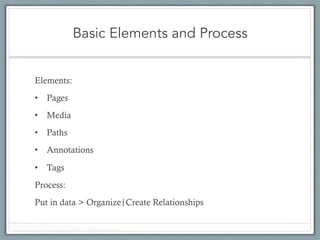
Basic Elements and Process
Elements:
•  Pages
•  Media
•  Paths
•  Annotations
•  Tags
Process:
Put in data > Organize|Create Relationships
Book Properties
Sharing|Users Tabs
Sharing
•  Default is private, but you
can make public or make
viewable via link (but not put
in the index)
Collaboration (Book Users Tab)
•  You can have multiple
authors
•  Comments are possible and
share or not, moderate or
note
Basic Principles:
“Anything is Anything”
•  Mantra #1 Everything is a page (a media object is a
page, tag is a page)
•  Mantra #2 Anything can be linked to anything else.
1.  This makes it different from most publications (print
or web) in that a multimedia can be an annotation,
the annotation can be a page in its own right, or
could be a tag!
2.  Great possibilities for linear and non-linear writing
Add work: Dashboard >
Pages tab>Create Page
Or Toolbar on Book page: Scroll over for
assorted tasks (edit, add page, dashboard)
Import Media
from partner archives, web, desktop
Or Import Media from Book Page
Horizontal Links/Partner Archives/
Context
•  Media is hosted elsewhere (video especially)
•  You can upload 2mb or less (e.g. images, but can
upload larger images to flickr, google drive, dropbox
and use the url to upload).
•  Practically, this means you don’t have to pay for huge
server space, and your video will play!
•  Your media is not ripped from context
•  Partner archives: Internet Archives, Shoah Foundation,
Critical Commons, etc.
Editing
Scroll Over Toolbar at
Top: Insert Media (Ref and
Inline), Word Insert
At Bottom, Format
and Save
Finding Media/Pages:
Dashboard or Left Drop Down Menu
Annotating Images:
Media> Paper Clip> +>
Draw Box>Title>Save
Annotating Video:
Media>Paper Clip> +
> Set Start and End>Title>Save
To Make a Scalar Path
Page >Edit>Relationships> Save
Table of Contents: Can add from
anywhere, drag and drop order>save
Layout Options at bottom of page
when editing
Front Page
•  Default blank page as front page (named index)
•  You can make any page a front page by going to
dashboard>pages> edit the default index page
(rename the url or delete)
•  Edit url of page you want as front page> name:
index> save
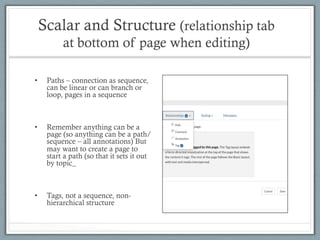
Scalar and Structure (relationship tab
at bottom of page when editing)
•  Paths – connection as sequence,
can be linear or can branch or
loop, pages in a sequence
•  Remember anything can be a
page (so anything can be a path/
sequence – all annotations) But
may want to create a page to
start a path (so that it sets it out
by topic_
•  Tags, not a sequence, non-
hierarchical structure
Paths – Page that has sequence
Parent Page with Path
To Make a Scalar Path
Page >Edit>Relationships> Save
End of Path, can direct
anywhere
Book Structure (Page can be
on multiple paths)
Back to main page or
beginning
Nesting, dive down and return
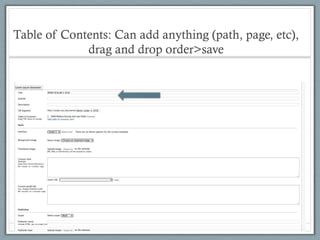
Table of Contents: Can add anything (path, page, etc),
drag and drop order>save
Front Page Table of Contents
Tags – non hierarchical
Create Page and Tag elements
Or can visualize tags:
Layout>Tag
Layout Options at bottom of page
when editing
Front Page
•  Default blank page as front page (named index)
•  You can make any page a front page by going to
dashboard>pages> edit the default index page
(rename the url or delete)
•  Edit url of page you want as front page> name:
index> save

Scalar quick guide