Steps to log an Appeal
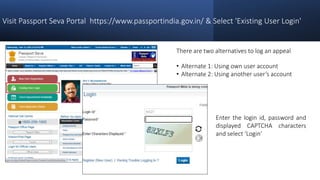
Visit Passport Seva Portal https://www.passportindia.gov.in/ & Select 'Existing User Login'
There are two alternatives to log an appeal
• Alternate 1: Using own user account
• Alternate 2: Using another user’s account
Enter the login id, password and
displayed CAPTCHA characters
and select ‘Login’
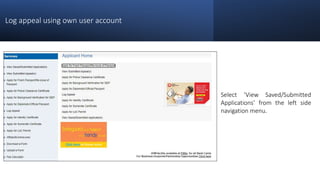
Log appeal using own user account
Select ‘View Saved/Submitted
Applications’ from the left side
navigation menu.
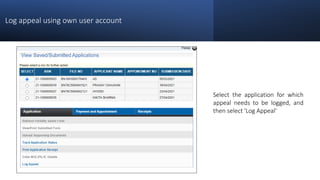
Log appeal using own user account
Select the application for which
appeal needs to be logged, and
then select 'Log Appeal'
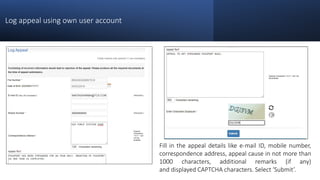
Log appeal using own user account
Fill in the appeal details like e-mail ID, mobile number,
correspondence address, appeal cause in not more than
1000 characters, additional remarks (if any)
and displayed CAPTCHA characters. Select ‘Submit’.
Log appeal using own user account
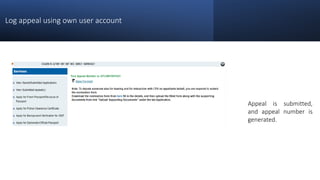
Appeal is submitted,
and appeal number is
generated.
Log appeal using another user’s account
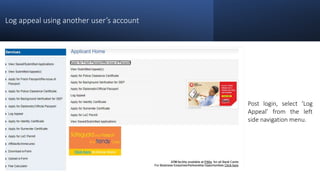
Post login, select ‘Log
Appeal’ from the left
side navigation menu.
Log appeal using another user’s account
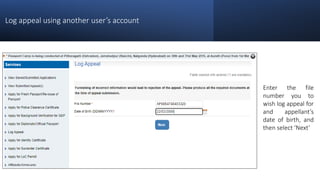
Enter the file
number you to
wish log appeal for
and appellant’s
date of birth, and
then select ‘Next’
Log appeal using another user’s account
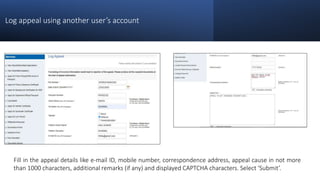
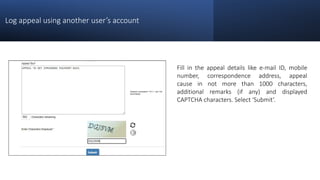
Fill in the appeal details like e-mail ID, mobile number, correspondence address, appeal cause in not more
than 1000 characters, additional remarks (if any) and displayed CAPTCHA characters. Select ‘Submit’.
Log appeal using another user’s account
Fill in the appeal details like e-mail ID, mobile
number, correspondence address, appeal
cause in not more than 1000 characters,
additional remarks (if any) and displayed
CAPTCHA characters. Select ‘Submit’.
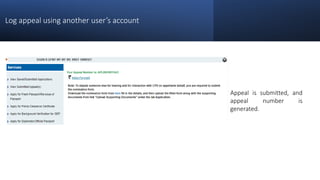
Log appeal using another user’s account
Appeal is submitted, and
appeal number is
generated.
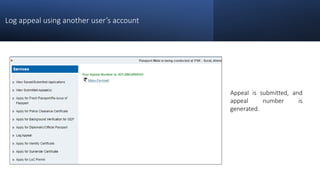
Log appeal using another user’s account
Appeal is submitted, and
appeal number is
generated.
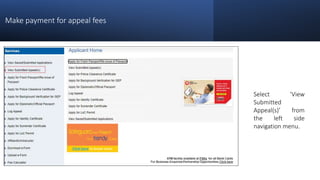
Make payment for appeal fees
Select ‘View
Submitted
Appeal(s)’ from
the left side
navigation menu.
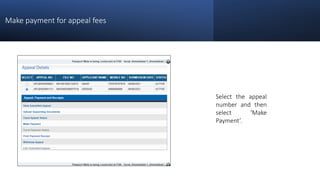
Make payment for appeal fees
Select the appeal
number and then
select ‘Make
Payment’.
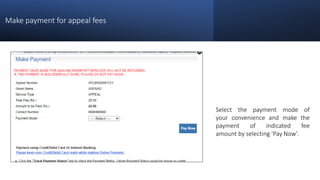
Make payment for appeal fees
Select the payment mode of
your convenience and make the
payment of indicated fee
amount by selecting ‘Pay Now’.
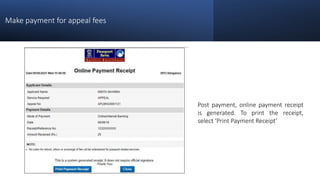
Make payment for appeal fees
Post payment, online payment receipt
is generated. To print the receipt,
select ‘Print Payment Receipt’
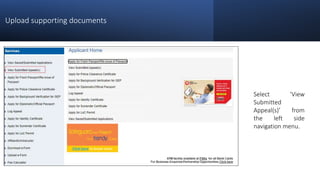
Upload supporting documents
Select ‘View
Submitted
Appeal(s)’ from
the left side
navigation menu.
Upload supporting documents
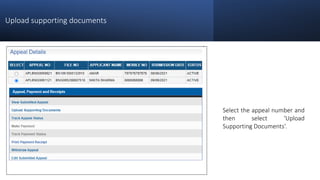
Select the appeal number and
then select ‘Upload
Supporting Documents’.
Upload supporting documents
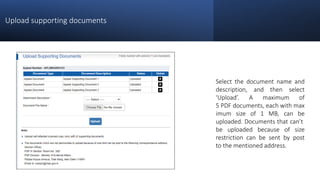
Select the document name and
description, and then select
‘Upload’. A maximum of
5 PDF documents, each with max
imum size of 1 MB, can be
uploaded. Documents that can’t
be uploaded because of size
restriction can be sent by post
to the mentioned address.
Upload supporting documents
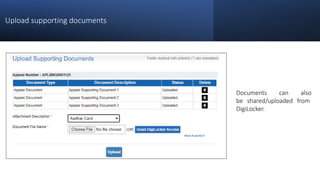
Documents can also
be shared/uploaded from
DigiLocker.
View Submitted Appeal
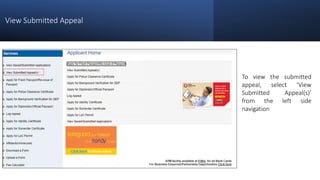
To view the submitted
appeal, select ‘View
Submitted Appeal(s)’
from the left side
navigation
View Submitted Appeal
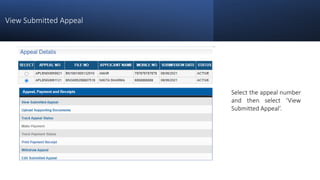
Select the appeal number
and then select ‘View
Submitted Appeal’.
View Submitted Appeal
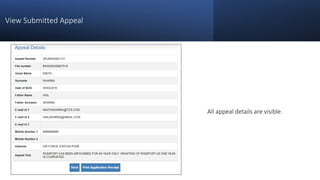
All appeal details are visible.
Track Appeal Status
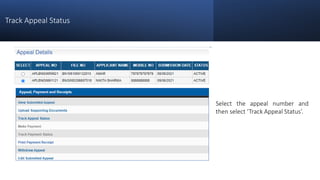
Select the appeal number and
then select ‘Track Appeal Status’.
Track Appeal Status
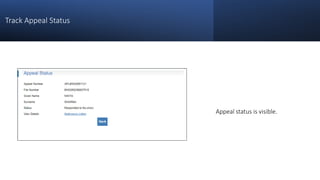
Appeal status is visible.
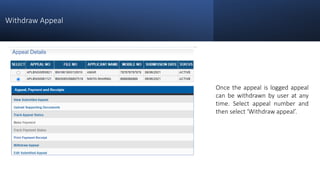
Withdraw Appeal
Once the appeal is logged appeal
can be withdrawn by user at any
time. Select appeal number and
then select ‘Withdraw appeal’.
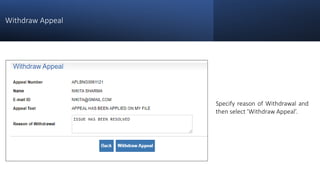
Withdraw Appeal
Specify reason of Withdrawal and
then select ’Withdraw Appeal’.
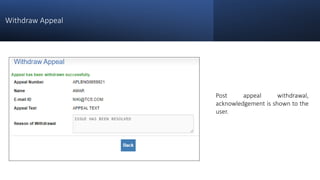
Withdraw Appeal
Post appeal withdrawal,
acknowledgement is shown to the
user.
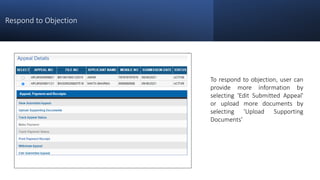
Respond to Objection
To respond to objection, user can
provide more information by
selecting 'Edit Submitted Appeal'
or upload more documents by
selecting 'Upload Supporting
Documents'
Respond to Objection
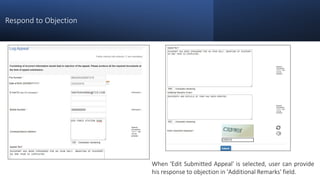
When 'Edit Submitted Appeal' is selected, user can provide
his response to objection in 'Additional Remarks' field.
Respond to Objection
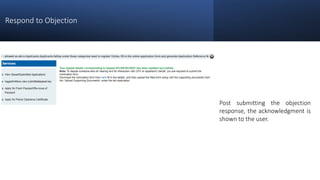
Post submitting the objection
response, the acknowledgment is
shown to the user.
Respond to Objection
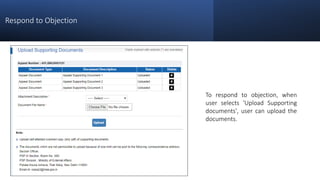
To respond to objection, when
user selects 'Upload Supporting
documents', user can upload the
documents.
Respond to No-show
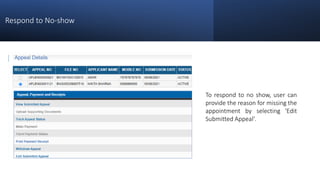
To respond to no show, user can
provide the reason for missing the
appointment by selecting 'Edit
Submitted Appeal'.
Respond to No-show
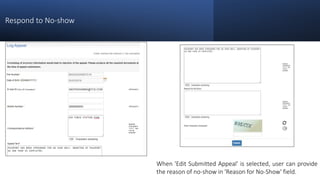
When 'Edit Submitted Appeal' is selected, user can provide
the reason of no-show in 'Reason for No-Show' field.
Respond to No-show
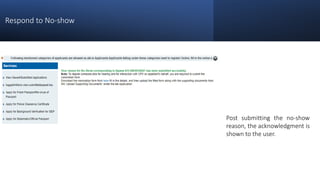
Post submitting the no-show
reason, the acknowledgment is
shown to the user.
Thank You
In case of additional information or clarification, please contact our national call centre at toll free number 1800-258-1800

Appeal online user_guide_v1.0

  • 1.
    Steps to logan Appeal
  • 2.
    Visit Passport SevaPortal https://www.passportindia.gov.in/ & Select 'Existing User Login' There are two alternatives to log an appeal • Alternate 1: Using own user account • Alternate 2: Using another user’s account Enter the login id, password and displayed CAPTCHA characters and select ‘Login’
  • 3.
    Log appeal usingown user account Select ‘View Saved/Submitted Applications’ from the left side navigation menu.
  • 4.
    Log appeal usingown user account Select the application for which appeal needs to be logged, and then select 'Log Appeal'
  • 5.
    Log appeal usingown user account Fill in the appeal details like e-mail ID, mobile number, correspondence address, appeal cause in not more than 1000 characters, additional remarks (if any) and displayed CAPTCHA characters. Select ‘Submit’.
  • 6.
    Log appeal usingown user account Appeal is submitted, and appeal number is generated.
  • 7.
    Log appeal usinganother user’s account Post login, select ‘Log Appeal’ from the left side navigation menu.
  • 8.
    Log appeal usinganother user’s account Enter the file number you to wish log appeal for and appellant’s date of birth, and then select ‘Next’
  • 9.
    Log appeal usinganother user’s account Fill in the appeal details like e-mail ID, mobile number, correspondence address, appeal cause in not more than 1000 characters, additional remarks (if any) and displayed CAPTCHA characters. Select ‘Submit’.
  • 10.
    Log appeal usinganother user’s account Fill in the appeal details like e-mail ID, mobile number, correspondence address, appeal cause in not more than 1000 characters, additional remarks (if any) and displayed CAPTCHA characters. Select ‘Submit’.
  • 11.
    Log appeal usinganother user’s account Appeal is submitted, and appeal number is generated.
  • 12.
    Log appeal usinganother user’s account Appeal is submitted, and appeal number is generated.
  • 13.
    Make payment forappeal fees Select ‘View Submitted Appeal(s)’ from the left side navigation menu.
  • 14.
    Make payment forappeal fees Select the appeal number and then select ‘Make Payment’.
  • 15.
    Make payment forappeal fees Select the payment mode of your convenience and make the payment of indicated fee amount by selecting ‘Pay Now’.
  • 16.
    Make payment forappeal fees Post payment, online payment receipt is generated. To print the receipt, select ‘Print Payment Receipt’
  • 17.
    Upload supporting documents Select‘View Submitted Appeal(s)’ from the left side navigation menu.
  • 18.
    Upload supporting documents Selectthe appeal number and then select ‘Upload Supporting Documents’.
  • 19.
    Upload supporting documents Selectthe document name and description, and then select ‘Upload’. A maximum of 5 PDF documents, each with max imum size of 1 MB, can be uploaded. Documents that can’t be uploaded because of size restriction can be sent by post to the mentioned address.
  • 20.
    Upload supporting documents Documentscan also be shared/uploaded from DigiLocker.
  • 21.
    View Submitted Appeal Toview the submitted appeal, select ‘View Submitted Appeal(s)’ from the left side navigation
  • 22.
    View Submitted Appeal Selectthe appeal number and then select ‘View Submitted Appeal’.
  • 23.
    View Submitted Appeal Allappeal details are visible.
  • 24.
    Track Appeal Status Selectthe appeal number and then select ‘Track Appeal Status’.
  • 25.
    Track Appeal Status Appealstatus is visible.
  • 26.
    Withdraw Appeal Once theappeal is logged appeal can be withdrawn by user at any time. Select appeal number and then select ‘Withdraw appeal’.
  • 27.
    Withdraw Appeal Specify reasonof Withdrawal and then select ’Withdraw Appeal’.
  • 28.
    Withdraw Appeal Post appealwithdrawal, acknowledgement is shown to the user.
  • 29.
    Respond to Objection Torespond to objection, user can provide more information by selecting 'Edit Submitted Appeal' or upload more documents by selecting 'Upload Supporting Documents'
  • 30.
    Respond to Objection When'Edit Submitted Appeal' is selected, user can provide his response to objection in 'Additional Remarks' field.
  • 31.
    Respond to Objection Postsubmitting the objection response, the acknowledgment is shown to the user.
  • 32.
    Respond to Objection Torespond to objection, when user selects 'Upload Supporting documents', user can upload the documents.
  • 33.
    Respond to No-show Torespond to no show, user can provide the reason for missing the appointment by selecting 'Edit Submitted Appeal'.
  • 34.
    Respond to No-show When'Edit Submitted Appeal' is selected, user can provide the reason of no-show in 'Reason for No-Show' field.
  • 35.
    Respond to No-show Postsubmitting the no-show reason, the acknowledgment is shown to the user.
  • 36.
    Thank You In caseof additional information or clarification, please contact our national call centre at toll free number 1800-258-1800