ZOOM
COMPUTER TUTORIAL
Joining a Meeting
For students that don’t have a ZOOM account
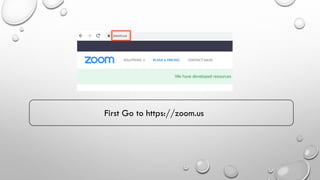
First Go to https://zoom.us
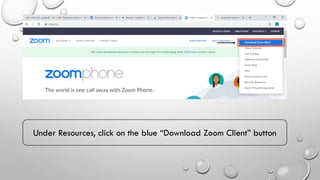
Under Resources, click on the blue “Download Zoom Client” button
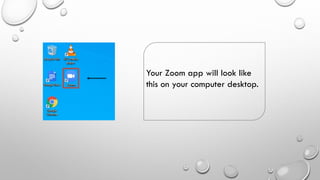
Your Zoom app will look like
this on your computer desktop.
From your Teacher
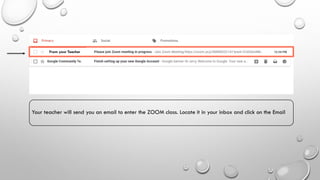
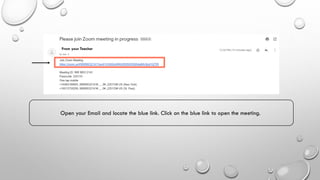
Your teacher will send you an email to enter the ZOOM class. Locate it in your inbox and click on the Email
From your Teacher
Open your Email and locate the blue link. Click on the blue link to open the meeting.
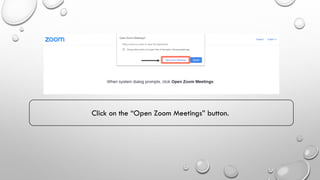
Click on the “Open Zoom Meetings” button.
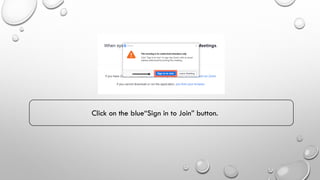
Click on the blue“Sign in to Join” button.
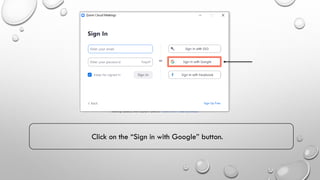
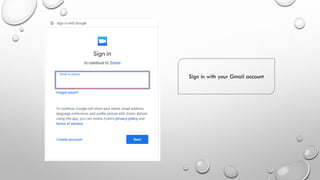
Click on the “Sign in with Google” button.
Sign in with your Gmail account
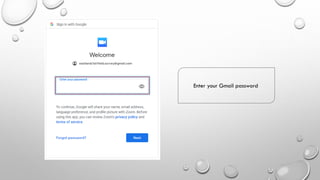
Enter your Gmail password
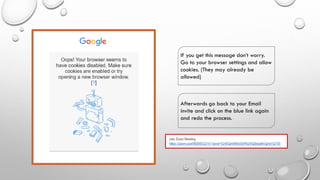
If you get this message don’t worry.
Go to your browser settings and allow
cookies. (They may already be
allowed)
Afterwards go back to your Email
invite and click on the blue link again
and redo the process.
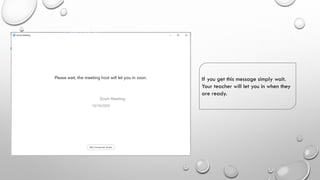
If you get this message simply wait.
Your teacher will let you in when they
are ready.
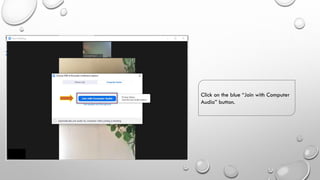
Click on the blue “Join with Computer
Audio” button.
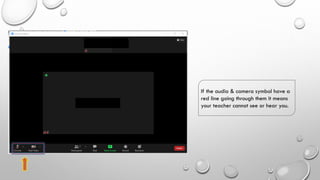
If the audio & camera symbol have a
red line going through them it means
your teacher cannot see or hear you.
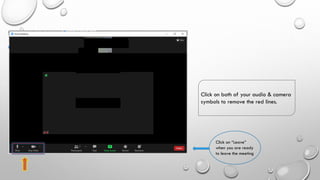
Click on both of your audio & camera
symbols to remove the red lines.
Click on “Leave”
when you are ready
to leave the meeting

Zoom Computer tutorial (Email invite)

  • 1.
    ZOOM COMPUTER TUTORIAL Joining aMeeting For students that don’t have a ZOOM account
  • 2.
    First Go tohttps://zoom.us
  • 3.
    Under Resources, clickon the blue “Download Zoom Client” button
  • 4.
    Your Zoom appwill look like this on your computer desktop.
  • 5.
    From your Teacher Yourteacher will send you an email to enter the ZOOM class. Locate it in your inbox and click on the Email
  • 6.
    From your Teacher Openyour Email and locate the blue link. Click on the blue link to open the meeting.
  • 7.
    Click on the“Open Zoom Meetings” button.
  • 8.
    Click on theblue“Sign in to Join” button.
  • 9.
    Click on the“Sign in with Google” button.
  • 10.
    Sign in withyour Gmail account
  • 11.
  • 12.
    If you getthis message don’t worry. Go to your browser settings and allow cookies. (They may already be allowed) Afterwards go back to your Email invite and click on the blue link again and redo the process.
  • 13.
    If you getthis message simply wait. Your teacher will let you in when they are ready.
  • 14.
    Click on theblue “Join with Computer Audio” button.
  • 15.
    If the audio& camera symbol have a red line going through them it means your teacher cannot see or hear you.
  • 16.
    Click on bothof your audio & camera symbols to remove the red lines. Click on “Leave” when you are ready to leave the meeting