How to put up your  YouthSays BroadCast Badge on your self hosted Wordpress Blog
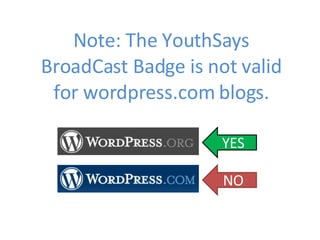
Note: The YouthSays BroadCast Badge is not valid for wordpress.com blogs. YES NO
Ready?
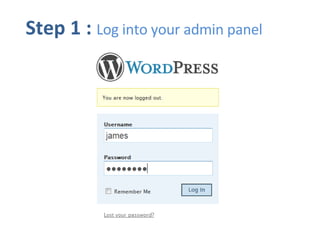
Step 1 :   Log into your admin panel
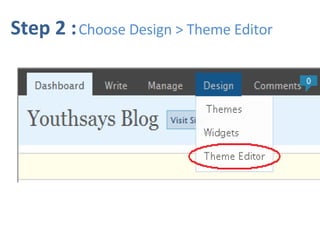
Step 2 :   Choose Design > Theme Editor
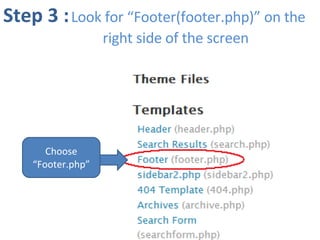
Step 3 :   Look for “Footer(footer.php)” on the     right side of the screen Choose “Footer.php”
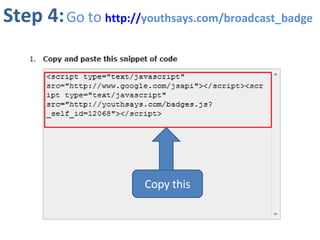
Step 4:   Go to  http:// youthsays.com/broadcast_badge   and copy the code from there. Copy this
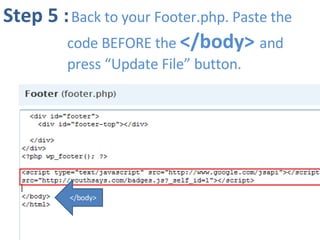
Step 5 :   Back to your Footer.php. Paste the  code BEFORE the  </body>  and  press “Update File” button. </body>
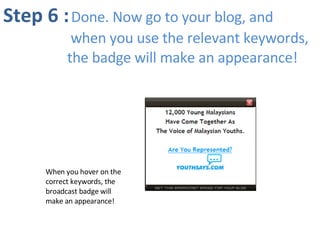
Step 6 :   Done. Now go to your blog, and   when you use the relevant keywords,  the badge will make an appearance! When you hover on the correct keywords, the broadcast badge will make an appearance!
Need Help? Call us immediately! 03-80233352 or email support@youthsays.com
BECAUSE YOUR OPINION MATTERS

youthsayswordpress

  • 1.
    How to putup your YouthSays BroadCast Badge on your self hosted Wordpress Blog
  • 2.
    Note: The YouthSaysBroadCast Badge is not valid for wordpress.com blogs. YES NO
  • 3.
  • 4.
    Step 1 : Log into your admin panel
  • 5.
    Step 2 : Choose Design > Theme Editor
  • 6.
    Step 3 : Look for “Footer(footer.php)” on the right side of the screen Choose “Footer.php”
  • 7.
    Step 4: Go to http:// youthsays.com/broadcast_badge and copy the code from there. Copy this
  • 8.
    Step 5 : Back to your Footer.php. Paste the code BEFORE the </body> and press “Update File” button. </body>
  • 9.
    Step 6 : Done. Now go to your blog, and when you use the relevant keywords, the badge will make an appearance! When you hover on the correct keywords, the broadcast badge will make an appearance!
  • 10.
    Need Help? Callus immediately! 03-80233352 or email support@youthsays.com
  • 11.