Wireless Communication
Interface With Arduino Uno
Wireless Communication
• To communicate with Arduino from a distance, without wires, and without the
overhead of a full TCP/IP network connection.
• Simple wireless modules for applications where low cost is the primary requirement.
• A number of different Xbee modules are available.
• The most popular are the Xbee 802.15.4 (also known as Xbee Series 1) and Xbee ZB
Series 2. 4
• Sending Messages Using Low-Cost Wireless Modules
• To transmit data between two Arduino boards using simple, Low-Cost Wireless
Modules
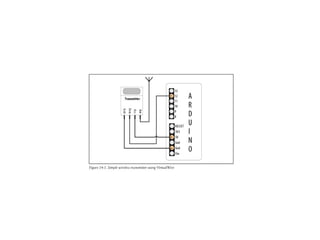
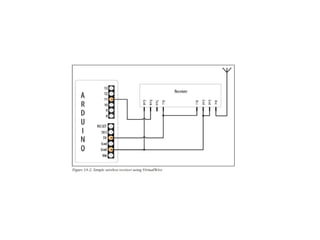
•Sending Messages Using Low-Cost Wireless Modules Problem You want to transmit data
between two Arduino boards using simple, low-cost wireless modules. Solution This
recipe uses simple transmit and receive modules such as the SparkFun WRL-08946 and
WRL-08770. Wire the transmitter as shown in Figure 14-1 and the receiver as in Figure
14-2.
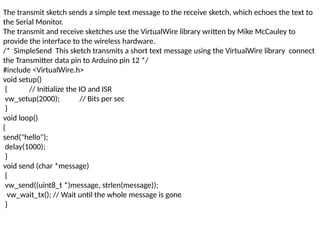
The transmit sketch sends a simple text message to the receive sketch, which echoes the text to
the Serial Monitor.
The transmit and receive sketches use the VirtualWire library written by Mike McCauley to
provide the interface to the wireless hardware.
/* SimpleSend This sketch transmits a short text message using the VirtualWire library connect
the Transmitter data pin to Arduino pin 12 */
#include <VirtualWire.h>
void setup()
{ // Initialize the IO and ISR
vw_setup(2000); // Bits per sec
}
void loop()
{
send("hello");
delay(1000);
}
void send (char *message)
{
vw_send((uint8_t *)message, strlen(message));
vw_wait_tx(); // Wait until the whole message is gone
}
The receive sketch also uses the VirtualWire library: /* SimpleReceive This
sketch displays text strings received using VirtualWire Connect the Receiver
data pin to Arduino pin 11 */
#include <VirtualWire.h>
byte message[VW_MAX_MESSAGE_LEN]; // a buffer to hold the incoming
messages byte msgLength = VW_MAX_MESSAGE_LEN; // the size of the
message
void setup()
{
Serial.begin(9600); // serial monitor baud rate
Serial.println("Ready"); // Initialize the IO and ISR
vw_setup(2000); // Bits per sec
vw_rx_start(); // Start the receiver
}
void loop()
{
if (vw_get_message(message, &msgLength)) // Non-blocking
{
Serial.print("Got: ");
for (int i = 0; i < msgLength; i++)
{
Serial.write(message[i]);
}
Serial.println();
} }
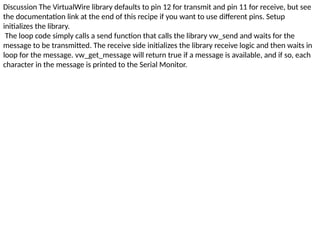
Discussion The VirtualWire library defaults to pin 12 for transmit and pin 11 for receive, but see
the documentation link at the end of this recipe if you want to use different pins. Setup
initializes the library.
The loop code simply calls a send function that calls the library vw_send and waits for the
message to be transmitted. The receive side initializes the library receive logic and then waits in
loop for the message. vw_get_message will return true if a message is available, and if so, each
character in the message is printed to the Serial Monitor.

Wireless_Communication.......................

  • 1.
  • 2.
    Wireless Communication • Tocommunicate with Arduino from a distance, without wires, and without the overhead of a full TCP/IP network connection. • Simple wireless modules for applications where low cost is the primary requirement. • A number of different Xbee modules are available. • The most popular are the Xbee 802.15.4 (also known as Xbee Series 1) and Xbee ZB Series 2. 4 • Sending Messages Using Low-Cost Wireless Modules • To transmit data between two Arduino boards using simple, Low-Cost Wireless Modules •Sending Messages Using Low-Cost Wireless Modules Problem You want to transmit data between two Arduino boards using simple, low-cost wireless modules. Solution This recipe uses simple transmit and receive modules such as the SparkFun WRL-08946 and WRL-08770. Wire the transmitter as shown in Figure 14-1 and the receiver as in Figure 14-2.
  • 5.
    The transmit sketchsends a simple text message to the receive sketch, which echoes the text to the Serial Monitor. The transmit and receive sketches use the VirtualWire library written by Mike McCauley to provide the interface to the wireless hardware. /* SimpleSend This sketch transmits a short text message using the VirtualWire library connect the Transmitter data pin to Arduino pin 12 */ #include <VirtualWire.h> void setup() { // Initialize the IO and ISR vw_setup(2000); // Bits per sec } void loop() { send("hello"); delay(1000); } void send (char *message) { vw_send((uint8_t *)message, strlen(message)); vw_wait_tx(); // Wait until the whole message is gone }
  • 6.
    The receive sketchalso uses the VirtualWire library: /* SimpleReceive This sketch displays text strings received using VirtualWire Connect the Receiver data pin to Arduino pin 11 */ #include <VirtualWire.h> byte message[VW_MAX_MESSAGE_LEN]; // a buffer to hold the incoming messages byte msgLength = VW_MAX_MESSAGE_LEN; // the size of the message void setup() { Serial.begin(9600); // serial monitor baud rate Serial.println("Ready"); // Initialize the IO and ISR vw_setup(2000); // Bits per sec vw_rx_start(); // Start the receiver } void loop() { if (vw_get_message(message, &msgLength)) // Non-blocking { Serial.print("Got: "); for (int i = 0; i < msgLength; i++) { Serial.write(message[i]); } Serial.println(); } }
  • 7.
    Discussion The VirtualWirelibrary defaults to pin 12 for transmit and pin 11 for receive, but see the documentation link at the end of this recipe if you want to use different pins. Setup initializes the library. The loop code simply calls a send function that calls the library vw_send and waits for the message to be transmitted. The receive side initializes the library receive logic and then waits in loop for the message. vw_get_message will return true if a message is available, and if so, each character in the message is printed to the Serial Monitor.