More Related Content

PDF
Docker国内外本番環境サービス事例のご紹介 
PPTX

PPTX

PDF

PDF

PDF
コンテナを止めるな! PacemakerによるコンテナHAクラスタリングとKubernetesとの違いとは 
PDF
Hybrid Public Key Encryption (HPKE) 
PDF
Docker基礎+docker0.9, 0.10概要 What's hot

PDF
コンテナセキュリティにおける権限制御(OCHaCafe5 #3 Kubernetes のセキュリティ 発表資料) 
PDF
Docker + Checkpoint/Restore 
PDF
Dockerを活用したリクルートグループ開発基盤の構築 
PPTX
BuildKitによる高速でセキュアなイメージビルド 
PDF

PPTX
仮想化技術として注目されているDocker入門 - PASONATECH ADVANTAGE SEMINAR 
PPTX

PPTX

PPTX
GitLabを16万8千光年ワープさせた話 GITLAB BIG UPGRADE PROJECT 
PDF

PPTX
サーバ脆弱性スキャナ Vuls を OpenStack 環境で使ってみた 
PDF
Docker on RHEL & Project Atomic 入門 - #Dockerjp 4 
PPTX

PDF
インフラエンジニアのためのRancherを使ったDocker運用入門 
PDF
Dockerの基本と応用~快適コンテナライフを実現するArukas~ 
PPTX
今さら聞けない人のためのDocker超入門 – OpenStack最新情報セミナー 2015年4月 
PPTX

PDF

PDF
Docker と ECS と WebSocket で最強のマルチプレイ・ゲームサーバを構築 
PDF
Similar to Windows の Docker 上で PGX を動かしてみた

PDF

PDF

PPTX

PPTX

PDF
今だからこそ知りたい Docker Compose/Swarm 入門 
PDF
アプリ屋もDockerをドカドカ使おう ~ Docker入門 
PDF
GMO プライベート DMP 開発で 取り組んできた DevOps と今後の展望 
PDF
Docker for Windows & Web Apps for Containers 実践活用技法 ![[C31] OSS-DB Exam Silver 技術解説セミナー by Ryota Watabe](https://cdn.slidesharecdn.com/ss_thumbnails/c31-140624234426-phpapp02-thumbnail.jpg?width=640&height=640&fit=bounds)
PDF
[C31] OSS-DB Exam Silver 技術解説セミナー by Ryota Watabe 
PPTX

PDF
Introduce that Best practices for writing Dockerfiles 
PPTX
はじめてのDockerパーフェクトガイド(2017年版) 
PDF
Oracle code one 2018 報告会概要 
PDF

PDF

PDF
Docker入門 - 基礎編 いまから始めるDocker管理 
PDF
Docker入門: コンテナ型仮想化技術の仕組みと使い方 
PDF
【dots. IT勉強会】開発環境のDocker化 
PDF
Docker入門-基礎編 いまから始めるDocker管理【2nd Edition】 
PDF
【18-E-3】クラウド・ネイティブ時代の2016年だから始める Docker 基礎講座 Windows の Docker 上で PGX を動かしてみた
- 1.
ULS
Copyright © 2011-2018UL Systems, Inc. All rights reserved.
Proprietary & Confidential
WindowsのDocker上でPGXを動かしてみた
PGX ユーザー勉強会 #9
2018/8/2
- 2.
ULS
Copyright © 2011-2018UL Systems, Inc. All rights reserved.
Proprietary & Confidential 1
自己紹介
森本 ひかり
ウルシステムズ株式会社
主に業務アプリケーションの開発をしています。
PGX歴: 4ヶ月
Docker歴: 1ヶ月
- 3.
ULS
Copyright © 2011-2018UL Systems, Inc. All rights reserved.
Proprietary & Confidential 2
Why Docker?
経緯
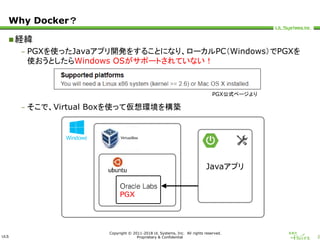
– PGXを使ったJavaアプリ開発をすることになり、ローカルPC(Windows)でPGXを
使おうとしたらWindows OSがサポートされていない!
– そこで、Virtual Boxを使って仮想環境を構築
PGX公式ページより
Javaアプリ
- 4.
ULS
Copyright © 2011-2018UL Systems, Inc. All rights reserved.
Proprietary & Confidential 3
Why Docker?
経緯
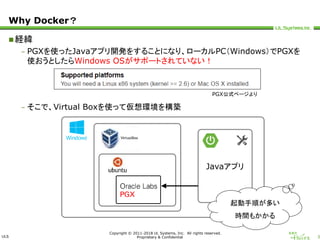
– PGXを使ったJavaアプリ開発をすることになり、ローカルPC(Windows)でPGXを
使おうとしたらWindows OSがサポートされていない!
– そこで、Virtual Boxを使って仮想環境を構築
PGX公式ページより
Javaアプリ
起動手順が多い
時間もかかる
- 5.
ULS
Copyright © 2011-2018UL Systems, Inc. All rights reserved.
Proprietary & Confidential 4
Why Docker?
Dockerを使えば起動が速い&簡単になるのでは?
- 6.
ULS
Copyright © 2011-2018UL Systems, Inc. All rights reserved.
Proprietary & Confidential 5
Why Docker?
Dockerを使えば起動が速い&簡単になるのでは?
PGX用のDockerイメージがDocker Hubになかったので
自分で作成してみました
- 7.
ULS
Copyright © 2011-2018UL Systems, Inc. All rights reserved.
Proprietary & Confidential 6
PGX用Dockerイメージの作成
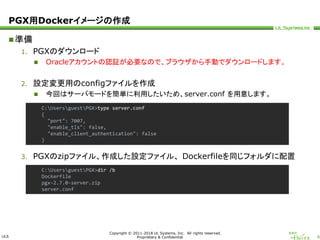
準備
1. PGXのダウンロード
Oracleアカウントの認証が必要なので、ブラウザから手動でダウンロードします。
2. 設定変更用のconfigファイルを作成
今回はサーバモードを簡単に利用したいため、server.conf を用意します。
3. PGXのzipファイル、作成した設定ファイル、 Dockerfileを同じフォルダに配置
C:UsersguestPGX>type server.conf
{
"port": 7007,
"enable_tls": false,
"enable_client_authentication": false
}
C:UsersguestPGX>dir /b
Dockerfile
pgx-2.7.0-server.zip
server.conf
- 8.
ULS
Copyright © 2011-2018UL Systems, Inc. All rights reserved.
Proprietary & Confidential 7
PGX用Dockerイメージの作成
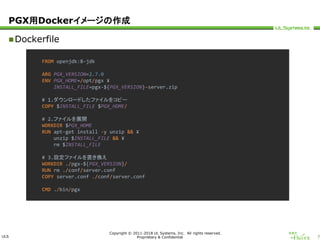
Dockerfile
FROM openjdk:8-jdk
ARG PGX_VERSION=2.7.0
ENV PGX_HOME=/opt/pgx ¥
INSTALL_FILE=pgx-${PGX_VERSION}-server.zip
# 1.ダウンロードしたファイルをコピー
COPY $INSTALL_FILE $PGX_HOME/
# 2.ファイルを展開
WORKDIR $PGX_HOME
RUN apt-get install -y unzip && ¥
unzip $INSTALL_FILE && ¥
rm $INSTALL_FILE
# 3.設定ファイルを置き換え
WORKDIR ./pgx-${PGX_VERSION}/
RUN rm ./conf/server.conf
COPY server.conf ./conf/server.conf
CMD ./bin/pgx
- 9.
ULS
Copyright © 2011-2018UL Systems, Inc. All rights reserved.
Proprietary & Confidential 8
PGX用Dockerイメージの作成
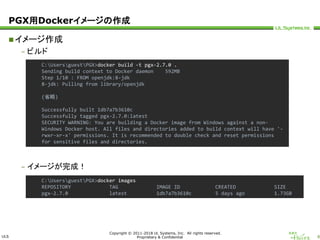
イメージ作成
– ビルド
– イメージが完成!
C:UsersguestPGX>docker build -t pgx-2.7.0 .
Sending build context to Docker daemon 592MB
Step 1/10 : FROM openjdk:8-jdk
8-jdk: Pulling from library/openjdk
(省略)
Successfully built 1db7a7b3610c
Successfully tagged pgx-2.7.0:latest
SECURITY WARNING: You are building a Docker image from Windows against a non-
Windows Docker host. All files and directories added to build context will have '-
rwxr-xr-x' permissions. It is recommended to double check and reset permissions
for sensitive files and directories.
C:UsersguestPGX>docker images
REPOSITORY TAG IMAGE ID CREATED SIZE
pgx-2.7.0 latest 1db7a7b3610c 5 days ago 1.73GB
- 10.
ULS
Copyright © 2011-2018UL Systems, Inc. All rights reserved.
Proprietary & Confidential 9
使ってみる
PGX Shellを起動
C:UsersguestPGX>docker run -it --rm pgx-2.7.0 ./bin/pgx
tput: unknown terminfo capability 'setafsd'
[WARNING] neither HADOOP_HOME nor HADOOP_CONF_DIR is set. If loading/storing
from/to HDFS, Hadoop default configuration values will be used.
PGX Shell 2.7.0
type :help for available commands
Jul 30, 2018 10:00:58 AM java.util.prefs.FileSystemPreferences$1 run
INFO: Created user preferences directory.
10:01:02,293 INFO Ctrl$1 - >>> PGX engine running.
10:01:02,293 INFO Ctrl$1 - >>> PGX engine running.
variables instance, session and analyst ready to use
pgx>
コマンドプロンプトから1コマンドでPGXを起動!
起動時間はわずか5秒!
- 11.
ULS
Copyright © 2011-2018UL Systems, Inc. All rights reserved.
Proprietary & Confidential 10
使ってみる
サーバモードを利用
– サーバ側の起動
– クライアント側の起動
C:UsersguestPGX>docker run -d -p 7007:7007 pgx-2.7.0 ./bin/start-server
bc597b913c101df8141afec4d8e9f6d144a72a46e8e979ee135a4422543c9112
C:UsersguestPGX>docker run -it --rm pgx-2.7.0 ./bin/pgx -b
http://host.docker.internal:7007
tput: unknown terminfo capability 'setafsd'
[WARNING] neither HADOOP_HOME nor HADOOP_CONF_DIR is set. If loading/storing
from/to HDFS, Hadoop default configuration values will be used.
PGX Shell 2.7.0
type :help for available commands
Jul 30, 2018 10:12:49 AM java.util.prefs.FileSystemPreferences$1 run
INFO: Created user preferences directory.
variables instance, session and analyst ready to use
pgx>
- 12.
ULS
Copyright © 2011-2018UL Systems, Inc. All rights reserved.
Proprietary & Confidential 11
使ってみる
ファイルからグラフをロード
– グラフデータの準備
– フォルダをマウントして起動
C:UsersguestPGX>docker run -it --rm -v
C:UsersguestPGXstorage:/pgx/workspace pgx-2.7.0
tput: unknown terminfo capability 'setafsd'
[WARNING] neither HADOOP_HOME nor HADOOP_CONF_DIR is set. If loading/storing
from/to HDFS, Hadoop default configuration values will be used.
PGX Shell 2.7.0
type :help for available commands
Aug 01, 2018 3:05:26 PM java.util.prefs.FileSystemPreferences$1 run
INFO: Created user preferences directory.
15:05:30,174 INFO Ctrl$1 - >>> PGX engine running.
15:05:30,174 INFO Ctrl$1 - >>> PGX engine running.
variables instance, session and analyst ready to use
pgx> G = session.readGraphWithProperties("../workspace/hero-network/hero-
network.csv.json")
==> PgxGraph[name=hero-network,N=7,E=9,created=1532947574778]
C:UsersguestPGX>dir /b .storagehero-network
hero-network.csv
hero-network.csv.json
- 13.
ULS
Copyright © 2011-2018UL Systems, Inc. All rights reserved.
Proprietary & Confidential 12
まとめ
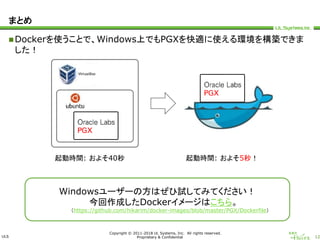
Dockerを使うことで、Windows上でもPGXを快適に使える環境を構築できま
した!
Windowsユーザーの方はぜひ試してみてください!
今回作成したDockerイメージはこちら。
(https://github.com/hikarim/docker-images/blob/master/PGX/Dockerfile)
起動時間: およそ40秒 起動時間: およそ5秒!
![ULS
Copyright © 2011-2018 UL Systems, Inc. All rights reserved.
Proprietary & Confidential 9
使ってみる
PGX Shellを起動
C:UsersguestPGX>docker run -it --rm pgx-2.7.0 ./bin/pgx
tput: unknown terminfo capability 'setafsd'
[WARNING] neither HADOOP_HOME nor HADOOP_CONF_DIR is set. If loading/storing
from/to HDFS, Hadoop default configuration values will be used.
PGX Shell 2.7.0
type :help for available commands
Jul 30, 2018 10:00:58 AM java.util.prefs.FileSystemPreferences$1 run
INFO: Created user preferences directory.
10:01:02,293 INFO Ctrl$1 - >>> PGX engine running.
10:01:02,293 INFO Ctrl$1 - >>> PGX engine running.
variables instance, session and analyst ready to use
pgx>
コマンドプロンプトから1コマンドでPGXを起動!
起動時間はわずか5秒!](https://image.slidesharecdn.com/pgxondocker-180806053241/85/Windows-Docker-PGX-10-320.jpg)
![ULS
Copyright © 2011-2018 UL Systems, Inc. All rights reserved.
Proprietary & Confidential 10
使ってみる
サーバモードを利用
– サーバ側の起動
– クライアント側の起動
C:UsersguestPGX>docker run -d -p 7007:7007 pgx-2.7.0 ./bin/start-server
bc597b913c101df8141afec4d8e9f6d144a72a46e8e979ee135a4422543c9112
C:UsersguestPGX>docker run -it --rm pgx-2.7.0 ./bin/pgx -b
http://host.docker.internal:7007
tput: unknown terminfo capability 'setafsd'
[WARNING] neither HADOOP_HOME nor HADOOP_CONF_DIR is set. If loading/storing
from/to HDFS, Hadoop default configuration values will be used.
PGX Shell 2.7.0
type :help for available commands
Jul 30, 2018 10:12:49 AM java.util.prefs.FileSystemPreferences$1 run
INFO: Created user preferences directory.
variables instance, session and analyst ready to use
pgx>](https://image.slidesharecdn.com/pgxondocker-180806053241/85/Windows-Docker-PGX-11-320.jpg)
![ULS
Copyright © 2011-2018 UL Systems, Inc. All rights reserved.
Proprietary & Confidential 11
使ってみる
ファイルからグラフをロード
– グラフデータの準備
– フォルダをマウントして起動
C:UsersguestPGX>docker run -it --rm -v
C:UsersguestPGXstorage:/pgx/workspace pgx-2.7.0
tput: unknown terminfo capability 'setafsd'
[WARNING] neither HADOOP_HOME nor HADOOP_CONF_DIR is set. If loading/storing
from/to HDFS, Hadoop default configuration values will be used.
PGX Shell 2.7.0
type :help for available commands
Aug 01, 2018 3:05:26 PM java.util.prefs.FileSystemPreferences$1 run
INFO: Created user preferences directory.
15:05:30,174 INFO Ctrl$1 - >>> PGX engine running.
15:05:30,174 INFO Ctrl$1 - >>> PGX engine running.
variables instance, session and analyst ready to use
pgx> G = session.readGraphWithProperties("../workspace/hero-network/hero-
network.csv.json")
==> PgxGraph[name=hero-network,N=7,E=9,created=1532947574778]
C:UsersguestPGX>dir /b .storagehero-network
hero-network.csv
hero-network.csv.json](https://image.slidesharecdn.com/pgxondocker-180806053241/85/Windows-Docker-PGX-12-320.jpg)