Watson Assistant Annotating
Entities
Last Update: July 20, 2019
Created By Jane Fung (jcyfung@ca.ibm.com)
About This Tutorial
Learn how to annotate and create contextual entities
• Contextual entities are all about adding a machine-learning model to
your current entity model. Entities can take into context both the
values of what you define within the entity and where they are in the
sentence. Then, when you test your Watson Assistant model, you can
return never-before-seen values.
• Imagine you're defining a product list. You don't need to define every
value now. Instead, you can provide examples of the products and
where they are in the sentence. At run time, you'll return more values
than what you thought were inside the product.
• This demo shows how the new annotation feature works in Watson
Assistant.
Open your Existing Assistant Instance
• If you do not already have an assistant instance, you can refer to
Appendix A to create a new one.
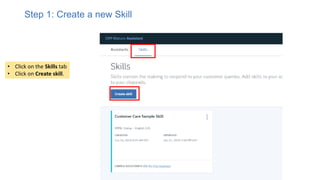
• Click on the Skills tab
• Click on Create skill.
Step 1: Create a new Skill
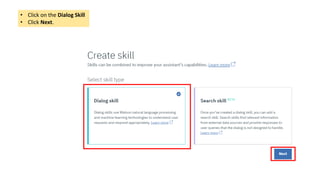
• Click on the Dialog Skill
• Click Next.
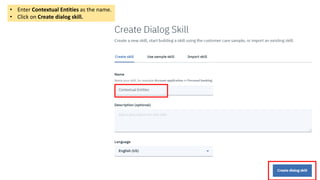
• Enter Contextual Entities as the name.
• Click on Create dialog skill.
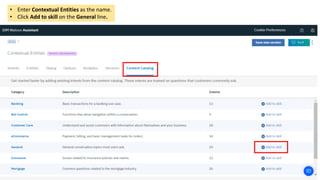
• Enter Contextual Entities as the name.
• Click Add to skill on the General line.
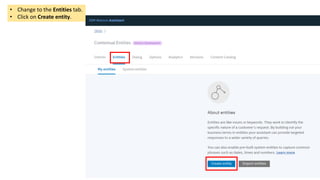
• Change to the Entities tab.
• Click on Create entity.
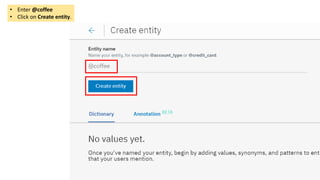
• Enter @coffee
• Click on Create entity.
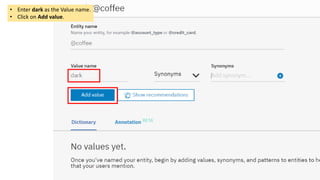
• Enter dark as the Value name.
• Click on Add value.
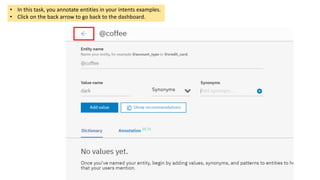
• In this task, you annotate entities in your intents examples.
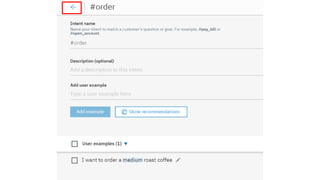
• Click on the back arrow to go back to the dashboard.
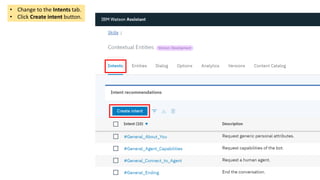
• Change to the Intents tab.
• Click Create intent button.
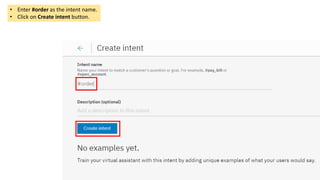
• Enter #order as the intent name.
• Click on Create intent button.
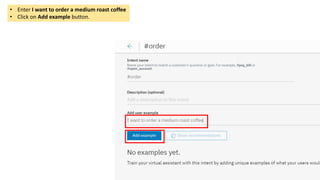
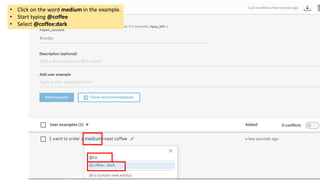
• Enter I want to order a medium roast coffee
• Click on Add example button.
• Click on the word medium in the example.
• Start typing @coffee
• Select @coffee:dark
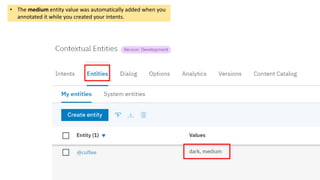
• The medium entity value was automatically added when you
annotated it while you created your intents.
Add more Intents to train the model
• In this task, you
add at least 10
examples of
intents that your
users might type
and annotate
them to train
your model.
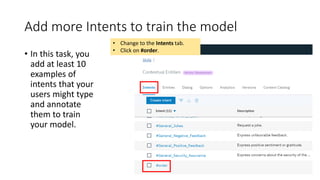
• Change to the Intents tab.
• Click on #order.
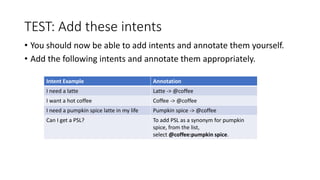
TEST: Add these intents
• You should now be able to add intents and annotate them yourself.
• Add the following intents and annotate them appropriately.
Intent Example Annotation
I need a latte Latte -> @coffee
I want a hot coffee Coffee -> @coffee
I need a pumpkin spice latte in my life Pumpkin spice -> @coffee
Can I get a PSL? To add PSL as a synonym for pumpkin
spice, from the list,
select @coffee:pumpkin spice.
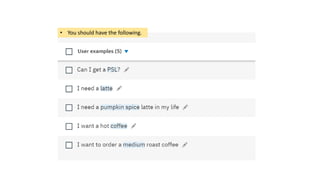
• You should have the following.
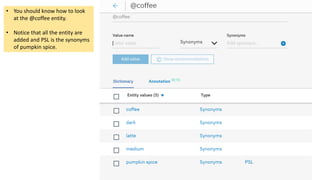
• You should know how to look
at the @coffee entity.
• Notice that all the entity are
added and PSL is the synonyms
of pumpkin spice.
End of Tutorial
• This tutorial is based on the following
• https://www.ibm.com/cloud/garage/demo/try-watson-assistant-
contextual-entities?task=4
Create a New Assistant
(ONLY if you don’t already have one)
Appendix A
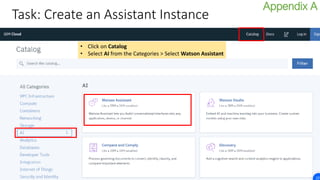
Task: Create an Assistant Instance
• Click on Catalog
• Select AI from the Categories > Select Watson Assistant
Appendix A
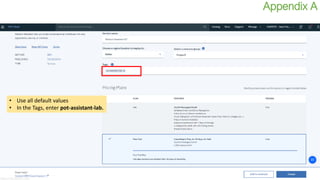
• Use all default values
• In the Tags, enter pot-assistant-lab.
Appendix A
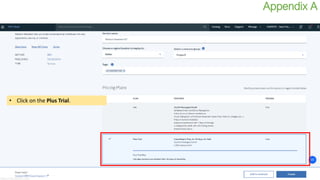
• Click on the Plus Trial.
Appendix A
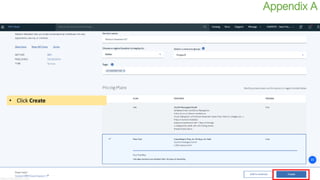
• Click Create
Appendix A
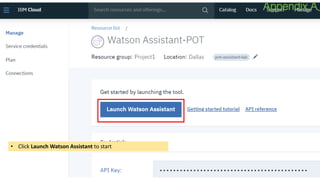
• Click Launch Watson Assistant to start
Appendix A
End of Appendix A
• Back to Lab

Watson assistant annotating entities tutorial

  • 1.
    Watson Assistant Annotating Entities LastUpdate: July 20, 2019 Created By Jane Fung (jcyfung@ca.ibm.com)
  • 2.
    About This Tutorial Learnhow to annotate and create contextual entities • Contextual entities are all about adding a machine-learning model to your current entity model. Entities can take into context both the values of what you define within the entity and where they are in the sentence. Then, when you test your Watson Assistant model, you can return never-before-seen values.
  • 3.
    • Imagine you'redefining a product list. You don't need to define every value now. Instead, you can provide examples of the products and where they are in the sentence. At run time, you'll return more values than what you thought were inside the product. • This demo shows how the new annotation feature works in Watson Assistant.
  • 4.
    Open your ExistingAssistant Instance • If you do not already have an assistant instance, you can refer to Appendix A to create a new one.
  • 5.
    • Click onthe Skills tab • Click on Create skill. Step 1: Create a new Skill
  • 6.
    • Click onthe Dialog Skill • Click Next.
  • 7.
    • Enter ContextualEntities as the name. • Click on Create dialog skill.
  • 8.
    • Enter ContextualEntities as the name. • Click Add to skill on the General line.
  • 9.
    • Change tothe Entities tab. • Click on Create entity.
  • 10.
    • Enter @coffee •Click on Create entity.
  • 11.
    • Enter darkas the Value name. • Click on Add value.
  • 12.
    • In thistask, you annotate entities in your intents examples. • Click on the back arrow to go back to the dashboard.
  • 13.
    • Change tothe Intents tab. • Click Create intent button.
  • 14.
    • Enter #orderas the intent name. • Click on Create intent button.
  • 15.
    • Enter Iwant to order a medium roast coffee • Click on Add example button.
  • 16.
    • Click onthe word medium in the example. • Start typing @coffee • Select @coffee:dark
  • 18.
    • The mediumentity value was automatically added when you annotated it while you created your intents.
  • 19.
    Add more Intentsto train the model • In this task, you add at least 10 examples of intents that your users might type and annotate them to train your model. • Change to the Intents tab. • Click on #order.
  • 20.
    TEST: Add theseintents • You should now be able to add intents and annotate them yourself. • Add the following intents and annotate them appropriately. Intent Example Annotation I need a latte Latte -> @coffee I want a hot coffee Coffee -> @coffee I need a pumpkin spice latte in my life Pumpkin spice -> @coffee Can I get a PSL? To add PSL as a synonym for pumpkin spice, from the list, select @coffee:pumpkin spice.
  • 21.
    • You shouldhave the following.
  • 22.
    • You shouldknow how to look at the @coffee entity. • Notice that all the entity are added and PSL is the synonyms of pumpkin spice.
  • 23.
    End of Tutorial •This tutorial is based on the following • https://www.ibm.com/cloud/garage/demo/try-watson-assistant- contextual-entities?task=4
  • 24.
    Create a NewAssistant (ONLY if you don’t already have one) Appendix A
  • 25.
    Task: Create anAssistant Instance • Click on Catalog • Select AI from the Categories > Select Watson Assistant Appendix A
  • 26.
    • Use alldefault values • In the Tags, enter pot-assistant-lab. Appendix A
  • 27.
    • Click onthe Plus Trial. Appendix A
  • 28.
  • 29.
    • Click LaunchWatson Assistant to start Appendix A
  • 30.
    End of AppendixA • Back to Lab