A P A I N - F R E E G U I D E
Using Zinio on Your Computer
Getting Started
You will need:
 A Waukegan Public
Library card
 A computer with internet
access OR a public PC
Zinio
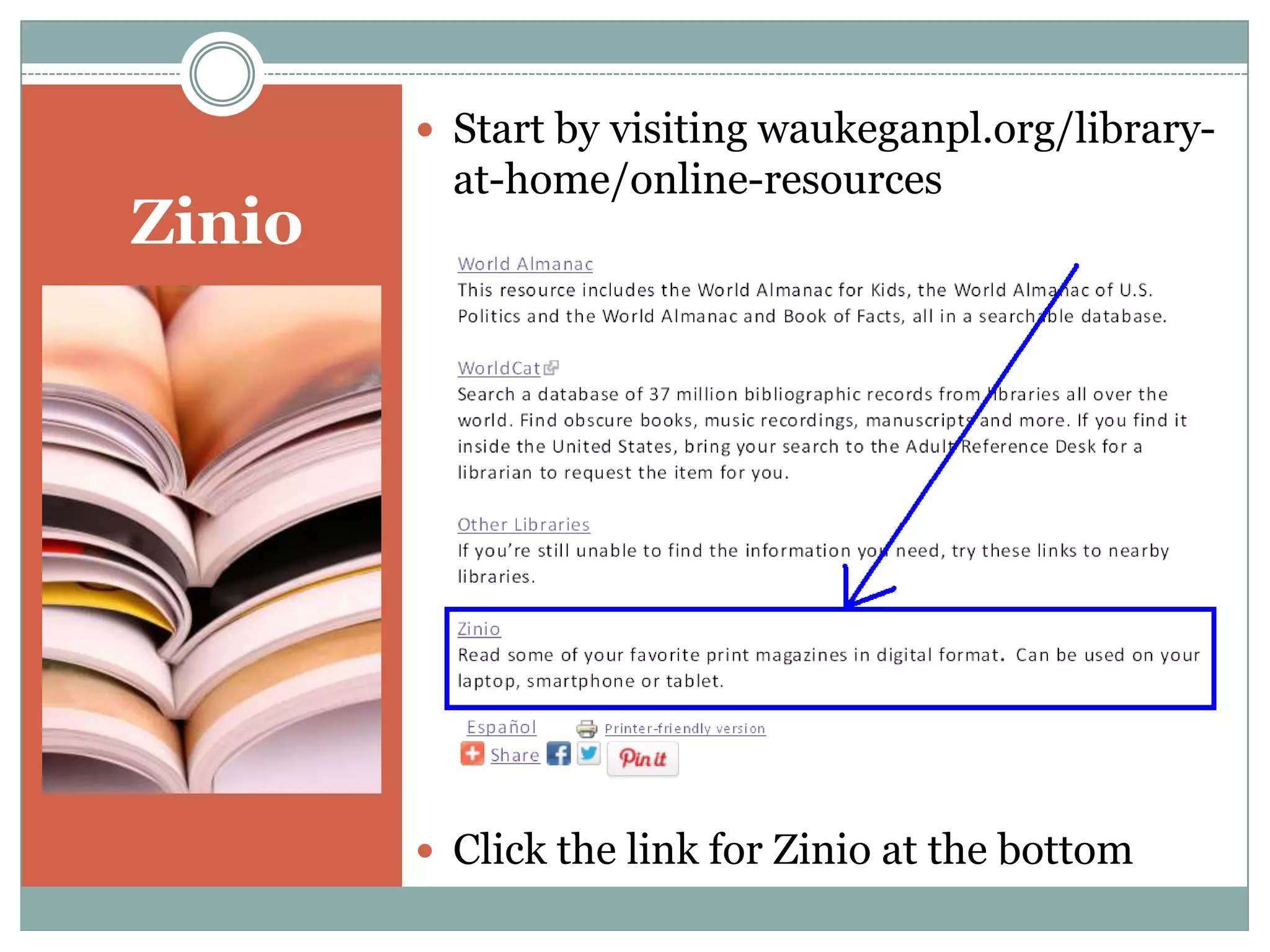
 Start by visiting waukeganpl.org/library-
at-home/online-resources
 Click the link for Zinio at the bottom.
Zinio
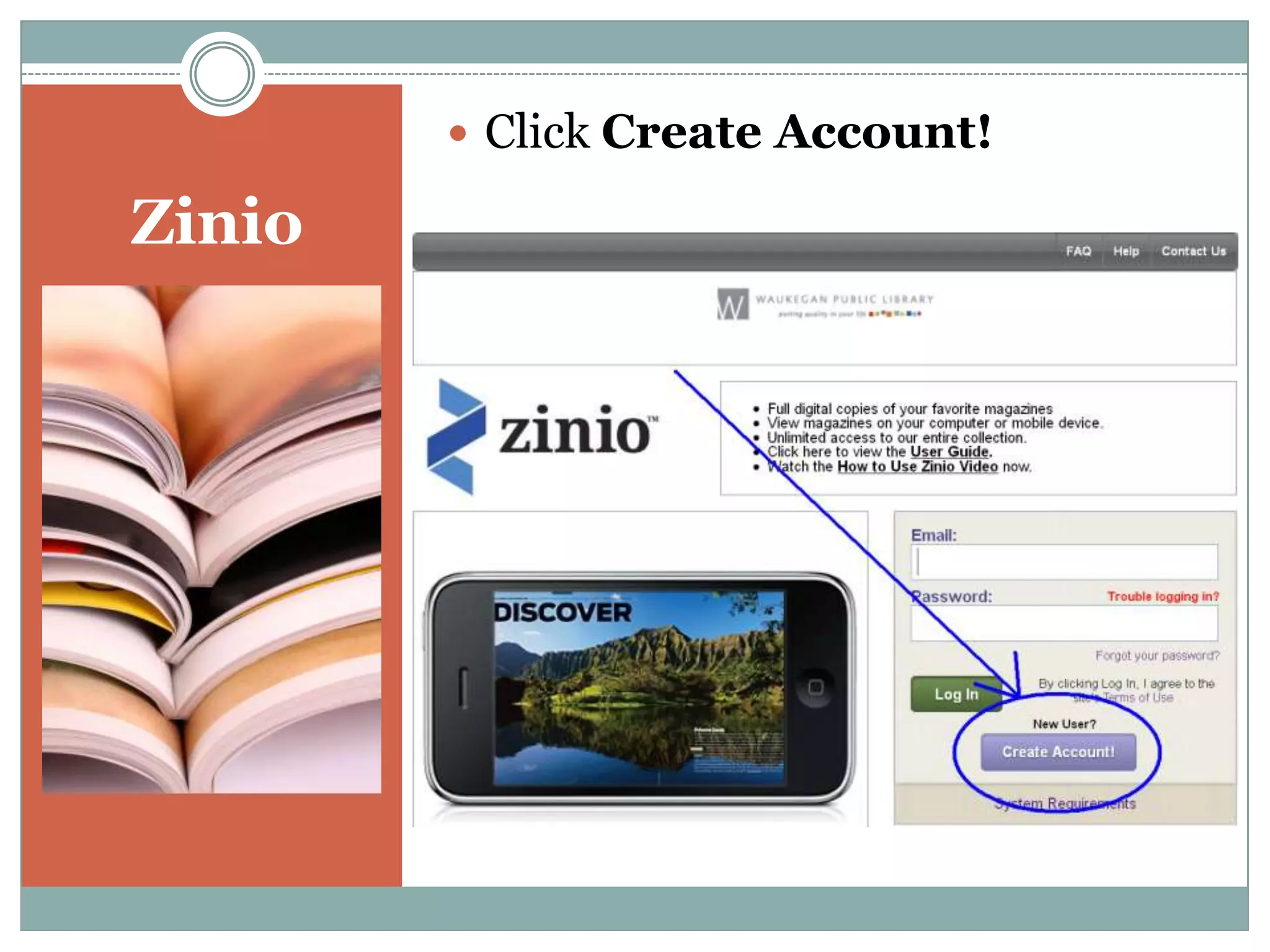
 Click Create New Account.
Zinio
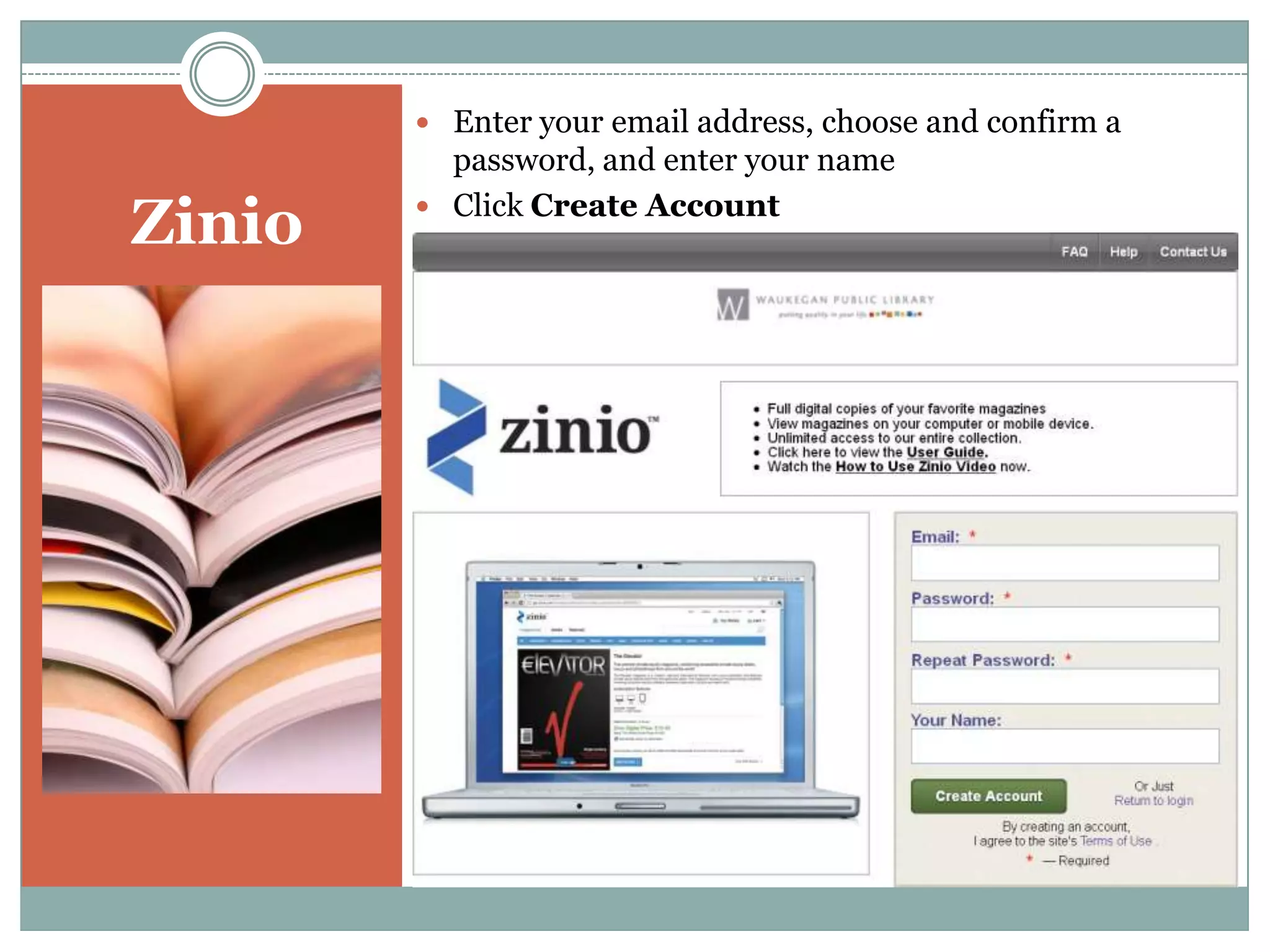
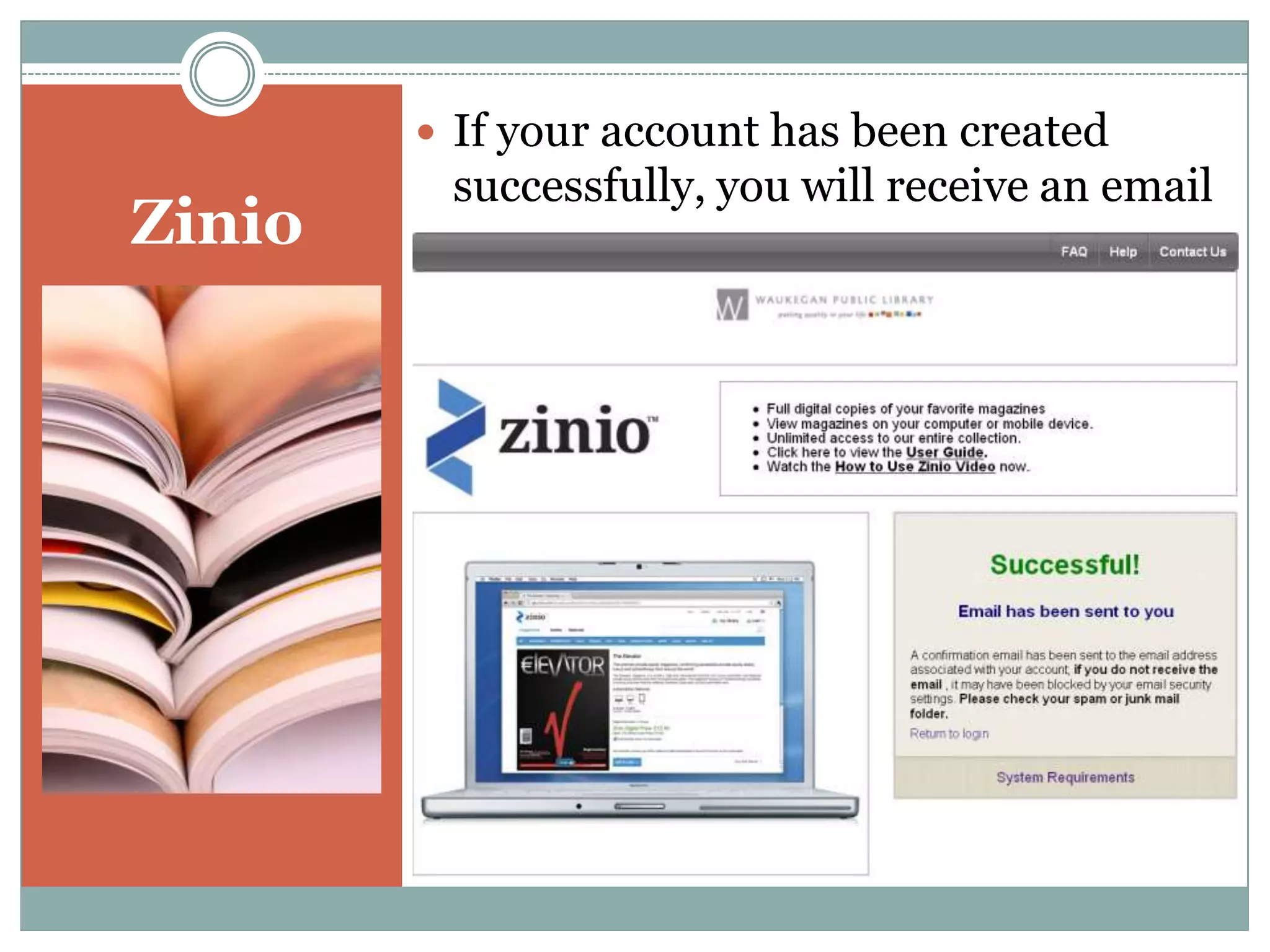
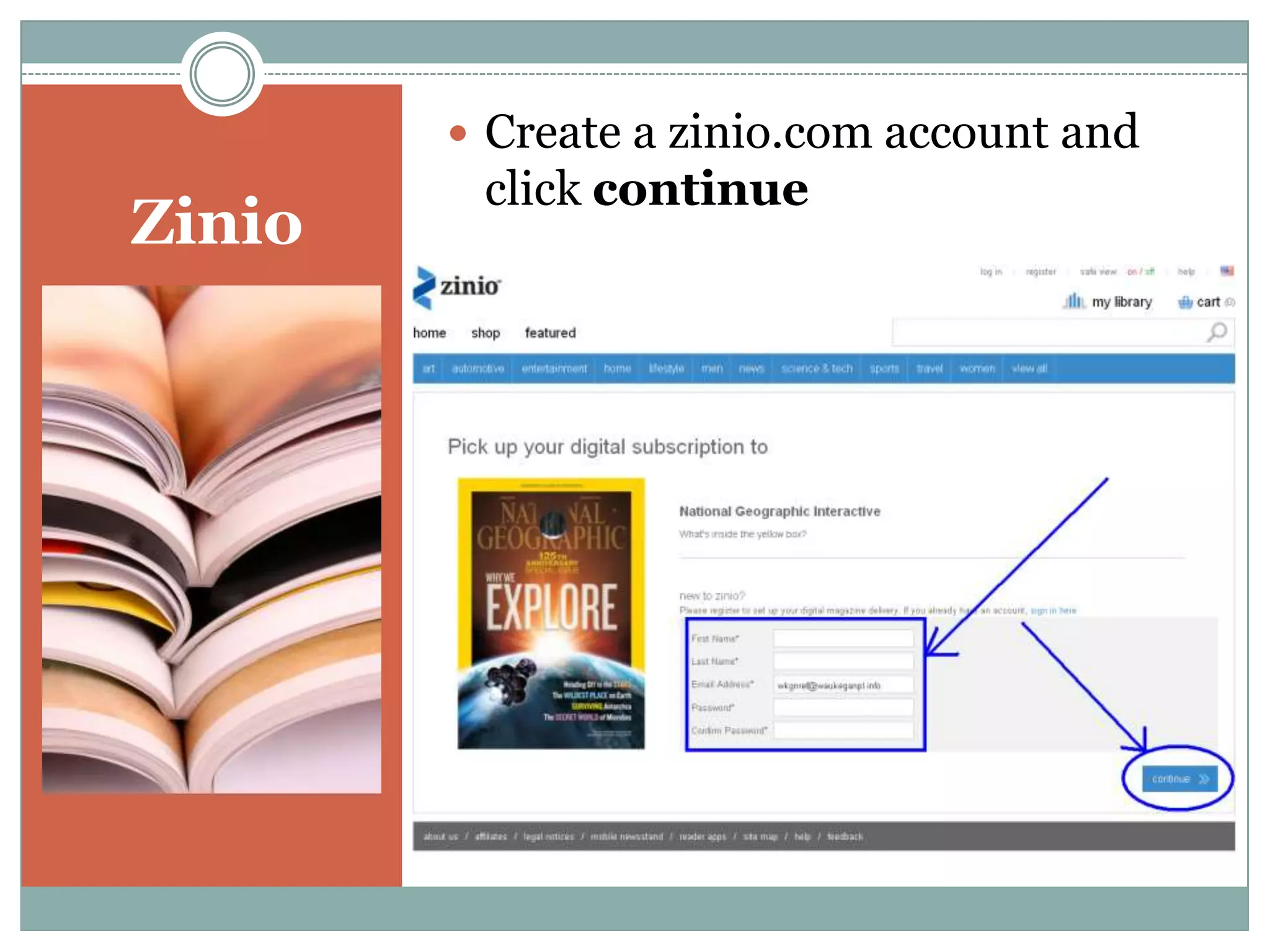
 Enter your name and email address, then
create a password. Click Create Account.
Zinio
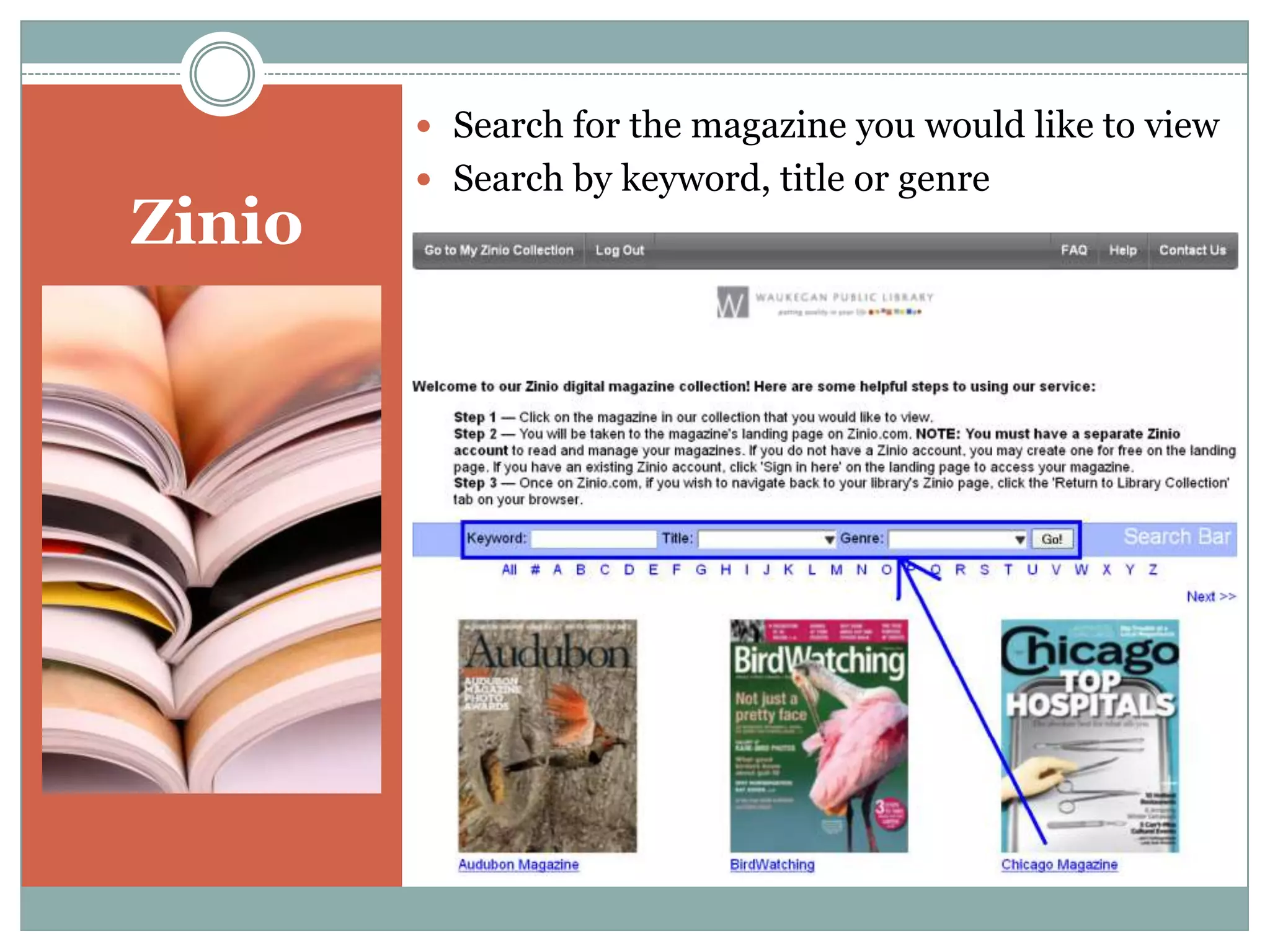
 Click on the magazine you would like to view,
or search by keyword, title, or genre.
Zinio
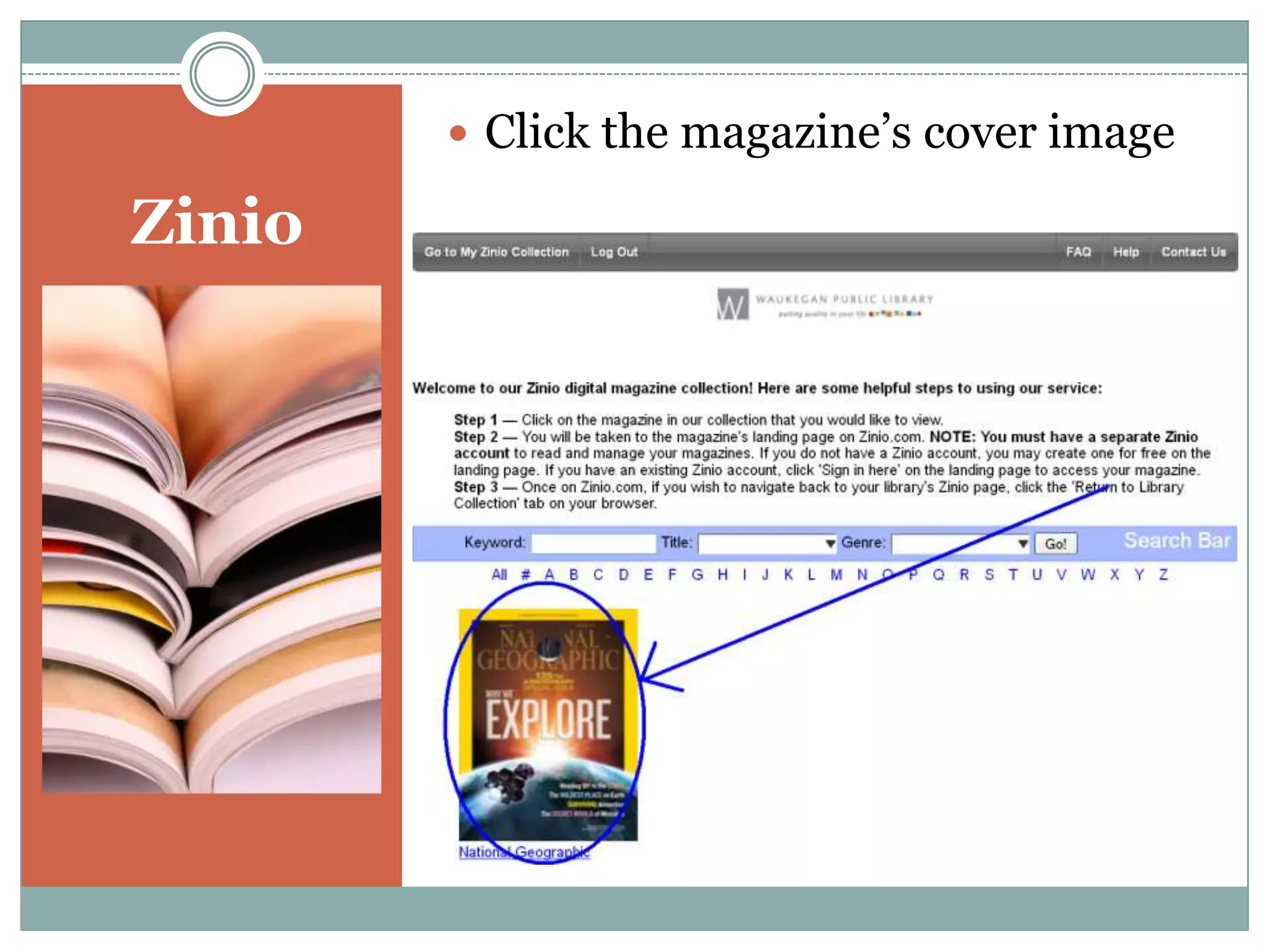
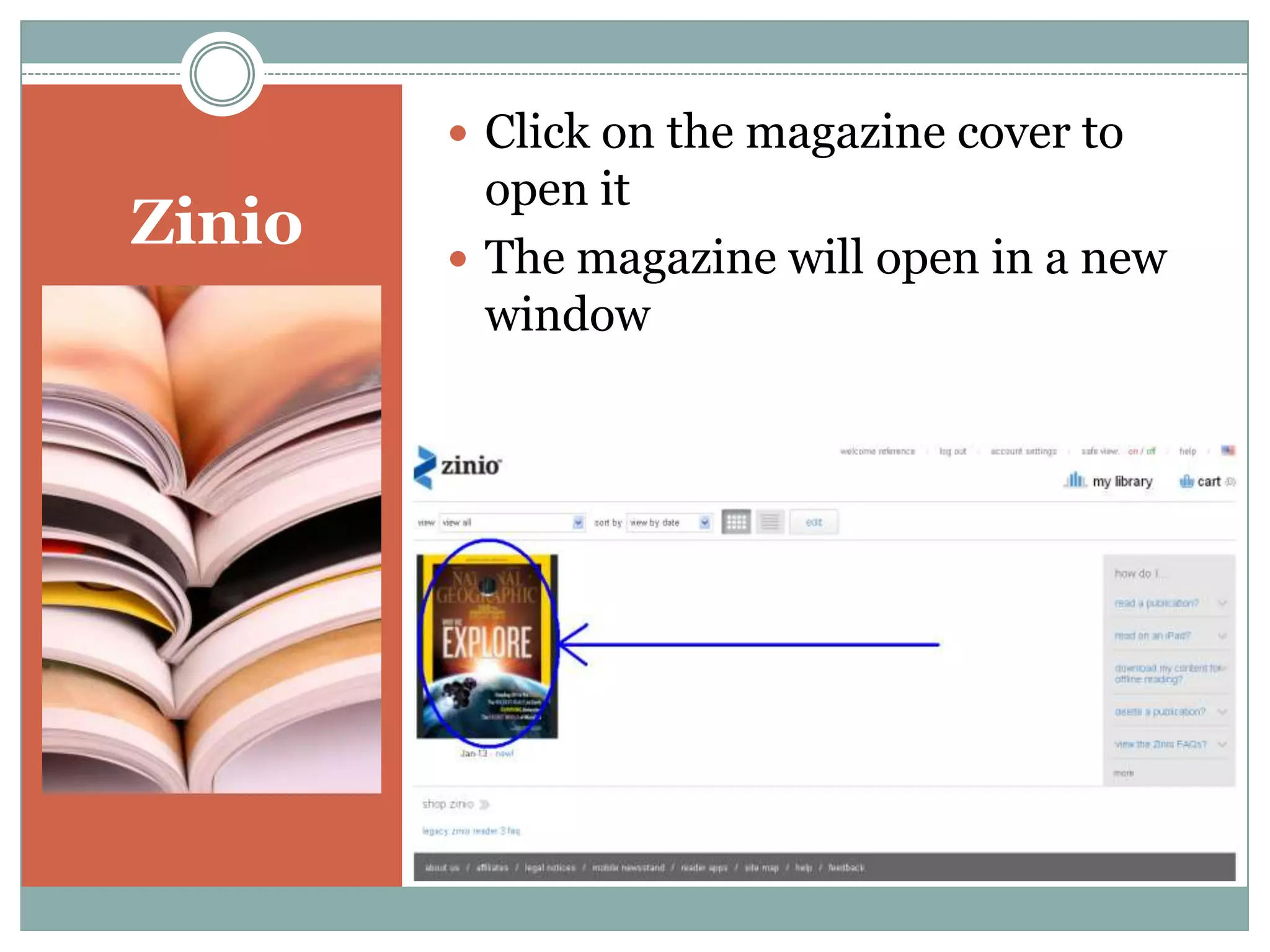
 Click the magazine’s cover image
and click Checkout.
Zinio
 You can choose to Keep
Browsing or Start Reading
your magazine immediately.
Zinio
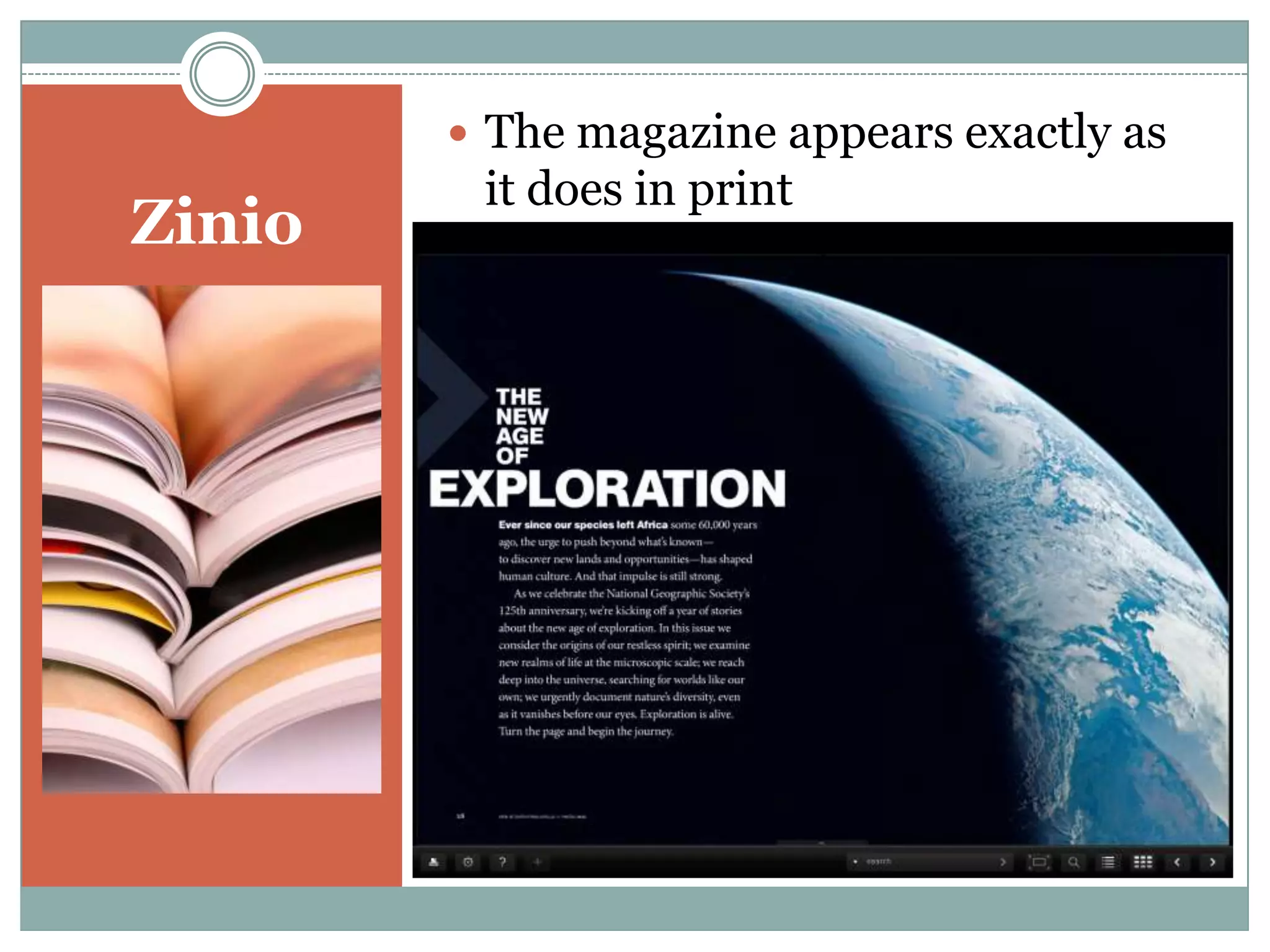
 The magazine appears exactly as it does
in print. Use the arrow keys on the sides
of the screen to flip through the pages.
Zinio
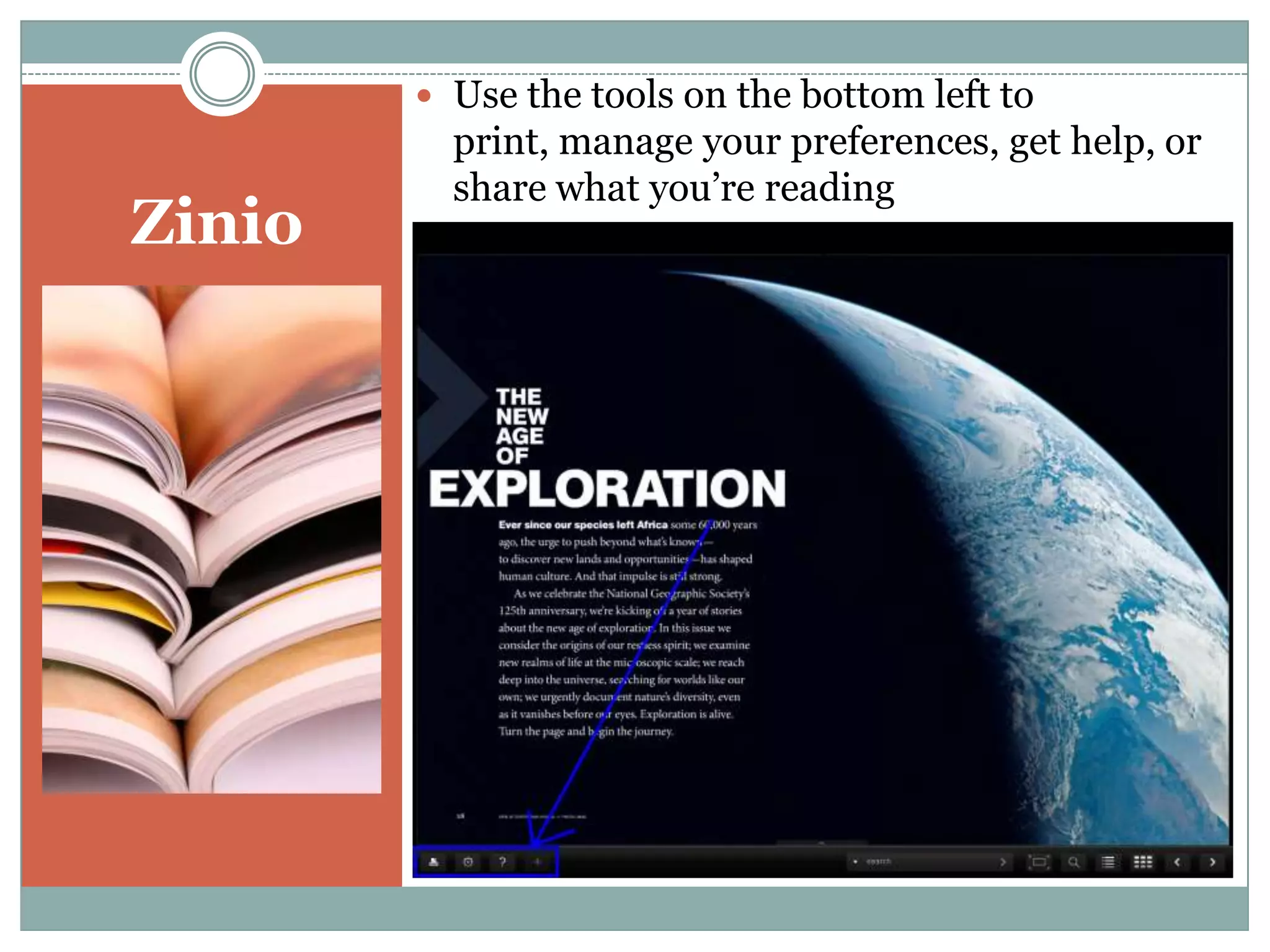
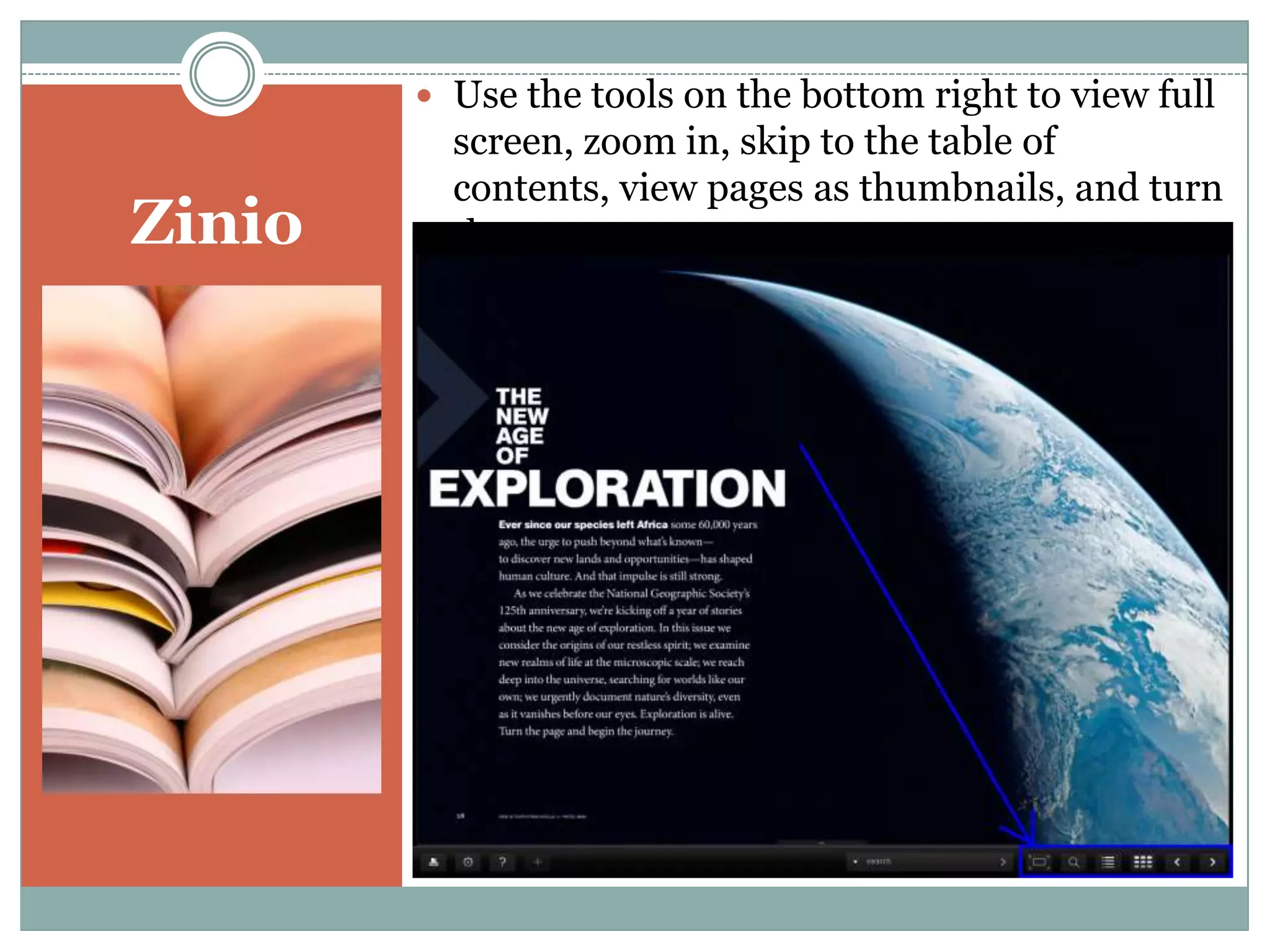
 Use the tools on the left side to:
 View each page as a thumbnail
 Turn on full-screen viewing
 Zoom in or out on the current page.
 Print the current page.
Zinio
 To delete a magazine, navigate to My
Collection on the Zinio website.
Zinio
 Click on the trash can to remove
the item from your collection.
Zinio
 When you’re ready to check out another
magazine, click Browse Magazine
Collection to return to the library’s
subscriptions.
General Information
 Subscribe to as many magazines as you like from
Zinio – if the library holds a subscription for it, you
can read it for free!
 Magazines from Zinio do not expire, and they do not
accrue overdue fines.
 Only patrons with Waukegan Public Library cards
can subscribe to magazines from Zinio.
 Do you want a magazine to which the library does
not currently subscribe? Suggest it to a librarian in
person, online or by phone.
Enjoy your magazine!
If you have any questions, please contact us for a one-
on-one class on using Zinio.
Reference Services
Waukegan Public Library
wkgnref@waukeganpl.info
847-623-2041 ext 238

Using Zinio On Your Computer

  • 1.
    A P AI N - F R E E G U I D E Using Zinio on Your Computer
  • 2.
    Getting Started You willneed:  A Waukegan Public Library card  A computer with internet access OR a public PC
  • 3.
    Zinio  Start byvisiting waukeganpl.org/library- at-home/online-resources  Click the link for Zinio at the bottom.
  • 4.
  • 5.
    Zinio  Enter yourname and email address, then create a password. Click Create Account.
  • 6.
    Zinio  Click onthe magazine you would like to view, or search by keyword, title, or genre.
  • 7.
    Zinio  Click themagazine’s cover image and click Checkout.
  • 8.
    Zinio  You canchoose to Keep Browsing or Start Reading your magazine immediately.
  • 9.
    Zinio  The magazineappears exactly as it does in print. Use the arrow keys on the sides of the screen to flip through the pages.
  • 10.
    Zinio  Use thetools on the left side to:  View each page as a thumbnail  Turn on full-screen viewing  Zoom in or out on the current page.  Print the current page.
  • 11.
    Zinio  To deletea magazine, navigate to My Collection on the Zinio website.
  • 12.
    Zinio  Click onthe trash can to remove the item from your collection.
  • 13.
    Zinio  When you’reready to check out another magazine, click Browse Magazine Collection to return to the library’s subscriptions.
  • 14.
    General Information  Subscribeto as many magazines as you like from Zinio – if the library holds a subscription for it, you can read it for free!  Magazines from Zinio do not expire, and they do not accrue overdue fines.  Only patrons with Waukegan Public Library cards can subscribe to magazines from Zinio.  Do you want a magazine to which the library does not currently subscribe? Suggest it to a librarian in person, online or by phone.
  • 15.
    Enjoy your magazine! Ifyou have any questions, please contact us for a one- on-one class on using Zinio. Reference Services Waukegan Public Library wkgnref@waukeganpl.info 847-623-2041 ext 238