Chandra Prakash
Assistant Professor
How to Use Packet Tracer
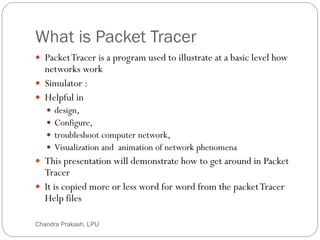
What is Packet Tracer
2
 PacketTracer is a program used to illustrate at a basic level how
networks work
 Simulator :
 Helpful in
 design,
 Configure,
 troubleshoot computer network,
 Visualization and animation of network phenomena
 This presentation will demonstrate how to get around in Packet
Tracer
 It is copied more or less word for word from the packetTracer
Help files
Chandra Prakash, LPU
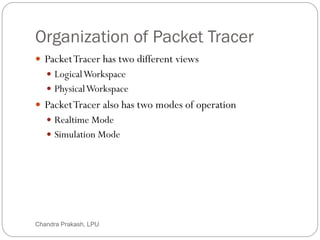
Organization of Packet Tracer
3
 PacketTracer has two different views
 LogicalWorkspace
 PhysicalWorkspace
 PacketTracer also has two modes of operation
 Realtime Mode
 Simulation Mode
Chandra Prakash, LPU
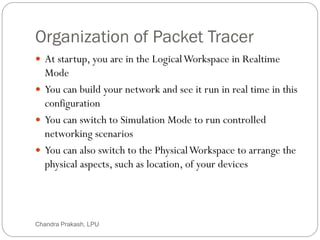
Organization of Packet Tracer
4
 At startup, you are in the LogicalWorkspace in Realtime
Mode
 You can build your network and see it run in real time in this
configuration
 You can switch to Simulation Mode to run controlled
networking scenarios
 You can also switch to the PhysicalWorkspace to arrange the
physical aspects, such as location, of your devices
Chandra Prakash, LPU
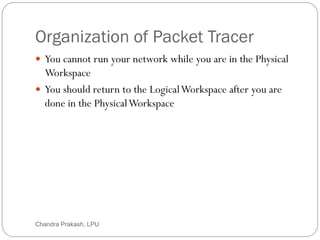
Organization of Packet Tracer
5
 You cannot run your network while you are in the Physical
Workspace
 You should return to the LogicalWorkspace after you are
done in the PhysicalWorkspace
Chandra Prakash, LPU
Interface
6 Chandra Prakash, LPU
Interface
7
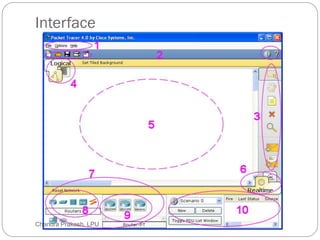
 The areas show on the screenshot are
Chandra Prakash, LPU
Menu Bar - 1
8
 This bar provides the File, Options, and Help menus
 You will find basic commands such as Open, Save, Print, and
Preferences in these menus
 You will also be able to access theActivityWizard from the
File menu
Chandra Prakash, LPU
Main Tool Bar - 2
9
 This bar provides shortcut icons to the File menu commands,
including theActivityWizard
 On the right, you will also find the Network Information
button, which you can use to enter a description for the
current network or any text you wish to include
Chandra Prakash, LPU
Common Tools Bar - 3
10
 This bar provides access to these commonly used workspace
tools
 Select
 Move Layout
 Place Note
 Delete
 Inspect
 Add Simple PDU
 Add Complex PDU
Chandra Prakash, LPU
Workspace Type Bar - 4
11
 You can toggle between the PhysicalWorkspace and the
LogicalWorkspace with the tabs on this bar
Chandra Prakash, LPU
Workspace - 5
12
 This area is where you will create your network, watch
simulations, and view many kinds of information and
statistics
Chandra Prakash, LPU
Realtime or Simulation Bar - 6
13
 You can toggle between Realtime Mode and Simulation
Mode with the tabs on this bar
Chandra Prakash, LPU
Network Component Box - 7
14
 This box is where you choose devices and connections to put
onto the workspace
 It contains the Device-Type Selection Box and the Device-
Specific Selection Box
Chandra Prakash, LPU
Device Type Selection Box - 8
15
 This box contains the type of devices and connections
available in PacketTracer 5.3.0
 The Device-Specific Selection Box will change depending on
which type of devices you clicked
Chandra Prakash, LPU
Device Selection Box - 9
16
 This box is where you choose specifically which devices you
want to put in your network and which connections to make
Chandra Prakash, LPU
Created Packet Window -10
17
 This window manages the packets you put in the network
during simulation scenarios
Chandra Prakash, LPU
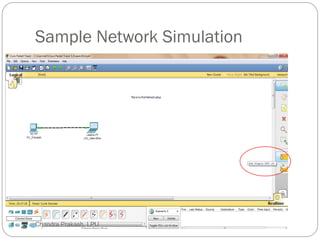
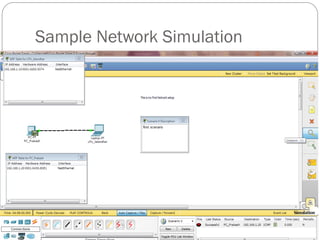
Sample Network Simulation
18
 Let’s create a sample network to see how PacketTracer
simulates a network
Chandra Prakash, LPU
Sample Network Simulation
19
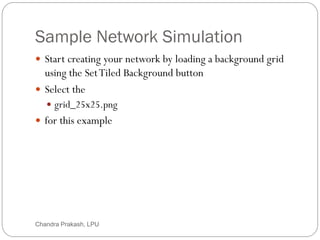
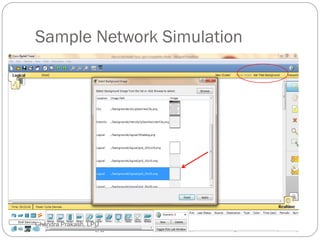
 Start creating your network by loading a background grid
using the SetTiled Background button
 Select the
 grid_25x25.png
 for this example
Chandra Prakash, LPU
Sample Network Simulation
20 Chandra Prakash, LPU
Sample Network Simulation
21
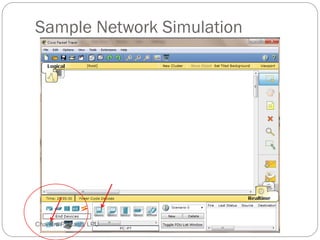
 Select the Generic PC under End Devices and drag it as the
first PC onto the workspace
Chandra Prakash, LPU
Sample Network Simulation
22 Chandra Prakash, LPU
Sample Network Simulation
23
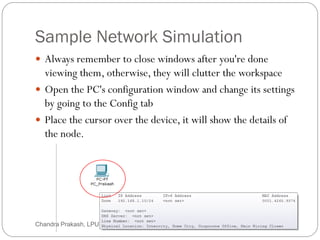
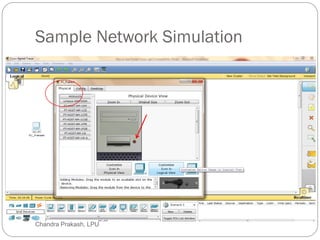
 Always remember to close windows after you're done
viewing them, otherwise, they will clutter the workspace
 Open the PC's configuration window and change its settings
by going to the Config tab
 Place the cursor over the device, it will show the details of
the node.
Chandra Prakash, LPU
Sample Network Simulation
24 Chandra Prakash, LPU
Sample Network Simulation
25
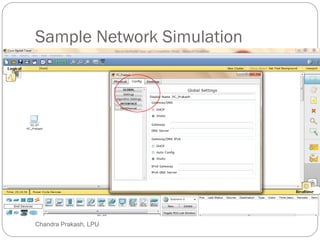
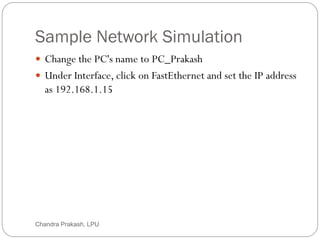
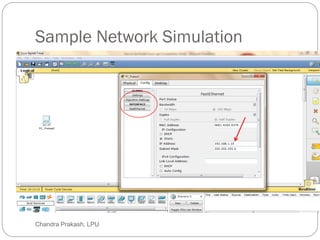
 Change the PC's name to PC_Prakash
 Under Interface, click on FastEthernet and set the IP address
as 192.168.1.15
Chandra Prakash, LPU
Sample Network Simulation
26 Chandra Prakash, LPU
Sample Network Simulation
27
 It will assume other settings for you
 Make sure that the Port Status is on
 Note for future reference that you could modify other
Ethernet interface settings, such as bandwidth, duplex, MAC
address, and subnet mask in this window
Chandra Prakash, LPU
Sample Network Simulation
28 Chandra Prakash, LPU
Sample Network Simulation
29
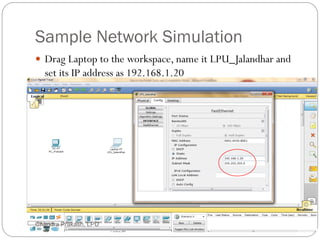
 Drag Laptop to the workspace, name it LPU_Jalandhar and
set its IP address as 192.168.1.20
Chandra Prakash, LPU
Sample Network Simulation
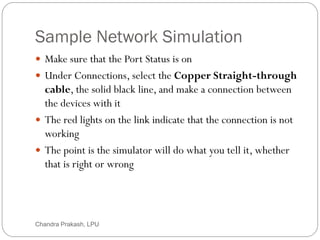
30
 Make sure that the Port Status is on
 Under Connections, select the Copper Straight-through
cable, the solid black line, and make a connection between
the devices with it
 The red lights on the link indicate that the connection is not
working
 The point is the simulator will do what you tell it, whether
that is right or wrong
Chandra Prakash, LPU
Sample Network Simulation
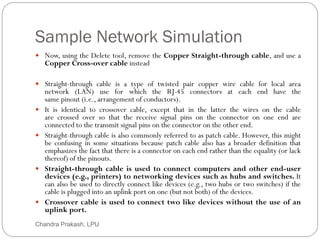
31
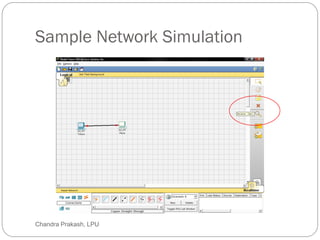
 Now, using the Delete tool, remove the Copper Straight-through cable, and use a
Copper Cross-over cable instead
 Straight-through cable is a type of twisted pair copper wire cable for local area
network (LAN) use for which the RJ-45 connectors at each end have the
same pinout (i.e., arrangement of conductors).
 It is identical to crossover cable, except that in the latter the wires on the cable
are crossed over so that the receive signal pins on the connector on one end are
connected to the transmit signal pins on the connector on the other end.
 Straight-through cable is also commonly referred to as patch cable. However, this might
be confusing in some situations because patch cable also has a broader definition that
emphasizes the fact that there is a connector on each end rather than the equality (or lack
thereof) of the pinouts.
 Straight-through cable is used to connect computers and other end-user
devices (e.g., printers) to networking devices such as hubs and switches. It
can also be used to directly connect like devices (e.g., two hubs or two switches) if the
cable is plugged into an uplink port on one (but not both) of the devices.
 Crossover cable is used to connect two like devices without the use of an
uplink port.
Chandra Prakash, LPU
Sample Network Simulation
32 Chandra Prakash, LPU
Sample Network Simulation
33
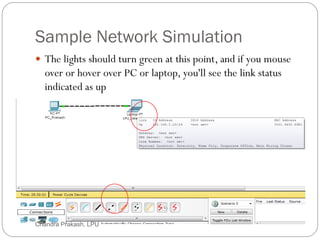
 The lights should turn green at this point, and if you mouse
over or hover over PC or laptop, you'll see the link status
indicated as up
Chandra Prakash, LPU
Sample Network Simulation
34
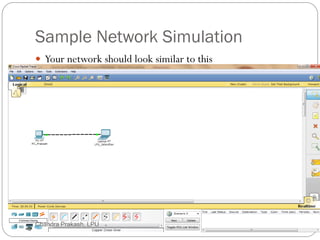
 Your network should look similar to this
Chandra Prakash, LPU
Sample Network Simulation
35
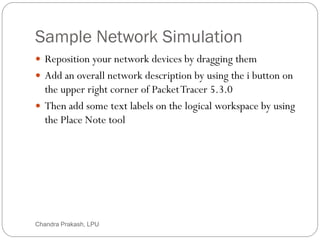
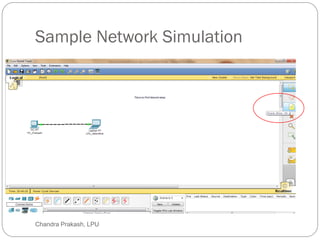
 Reposition your network devices by dragging them
 Add an overall network description by using the i button on
the upper right corner of PacketTracer 5.3.0
 Then add some text labels on the logical workspace by using
the Place Note tool
Chandra Prakash, LPU
Sample Network Simulation
36 Chandra Prakash, LPU
Sample Network Simulation
37
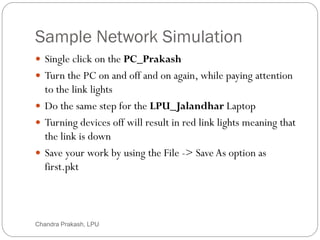
 Single click on the PC_Prakash
 Turn the PC on and off and on again, while paying attention
to the link lights
 Do the same step for the LPU_Jalandhar Laptop
 Turning devices off will result in red link lights meaning that
the link is down
 Save your work by using the File -> Save As option as
first.pkt
Chandra Prakash, LPU
Sample Network Simulation
38
 Start with your original saved file open
 Notice you are in Realtime Mode
 Use theAdd Simple PDU tool to send a simple 1-time ping
message called an echo request, to the Laptop, which
responds with an echo reply because you have properly
configured their IP address settings
Chandra Prakash, LPU
Sample Network Simulation
39 Chandra Prakash, LPU
Sample Network Simulation
40
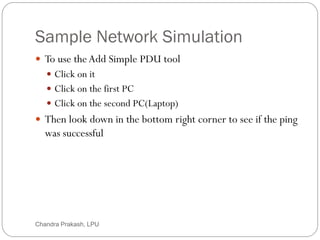
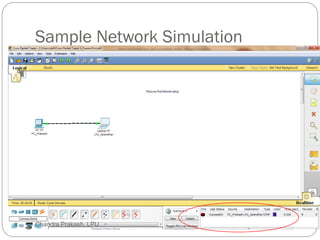
 To use theAdd Simple PDU tool
 Click on it
 Click on the first PC
 Click on the second PC(Laptop)
 Then look down in the bottom right corner to see if the ping
was successful
Chandra Prakash, LPU
Sample Network Simulation
41 Chandra Prakash, LPU
Sample Network Simulation
42
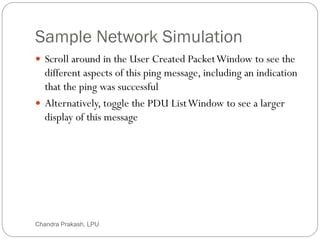
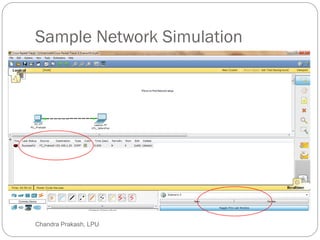
 Scroll around in the User Created PacketWindow to see the
different aspects of this ping message, including an indication
that the ping was successful
 Alternatively, toggle the PDU ListWindow to see a larger
display of this message
Chandra Prakash, LPU
Sample Network Simulation
43 Chandra Prakash, LPU
Sample Network Simulation
44
 You can save one or more of these messages as a scenario
 When you start, you are in Scenario 0
 Label this first scenario with an i note
 Different scenarios allow you to use the same topology for
experiments with different groupings of user created packets
 Click on New to create a new scenario
Chandra Prakash, LPU
Sample Network Simulation
45
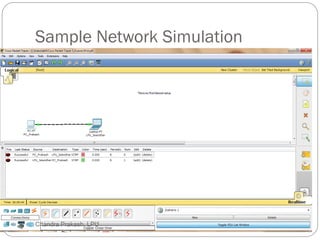
 New scenarios will always initially be blank
 Add two packets by using the Simple PDU tool, perhaps a
PDU from PC_Prakash to LPU_Jalandhar and a different
PDU from LPU_Jalandhar to PC_Prakash
 Then add a little i note describing the scenario, to complete
Scenario 1
 An example is shown next
Chandra Prakash, LPU
Sample Network Simulation
46 Chandra Prakash, LPU
Sample Network Simulation
47
 Go back and forth between Scenario 0 and 1
 Several different scenarios can be saved for a single network
 Now delete Scenario 1 using the Delete button
 You are back at Scenario 0
Chandra Prakash, LPU
Sample Network Simulation
48
 If you want to remove the PDU, you could scroll across in
the User Created PacketWindow and click on delete on the
last column
 Do so
 Delete the whole scenario
Chandra Prakash, LPU
Sample Network Simulation
49
 Start with your original saved file open
 In Realtime Mode, send a simple PDU from PC_Prakash to
LPU_Jalandhar
 Delete the PDU by using the method learned in the previous
section
 Switch to Simulation Mode
Chandra Prakash, LPU
Sample Network Simulation
50
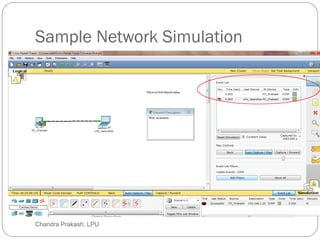
 In this mode, time freezes, therefore you can watch your network run at
a slower pace, observing the paths that packets take and inspecting them
in detail packet tracing
 Under the Event List Filters, click on All/None to uncheck all fields,
and then click on ICMP to only view ICMP packets in the animation
 The Internet Control Message Protocol (ICMP) is one of the
core protocols of the Internet Protocol Suite. It is chiefly used by
the operating systems of networked computers to send error
messages indicating, for example, that a requested service is not
available or that a host or router could not be reached. ICMP can also be
used to relay query messages. It is assigned protocol number 1.

Chandra Prakash, LPU
Sample Network Simulation
51
 Add a simple PDU from PC_Prakash to LPU_jalandhar
 The eye icon at the left of the Event List indicates that this
packet is currently displayed as an envelope
 Click on Capture/Forward button once
 This acts like a network sniffing program, capturing the next
event that occurs on the network
Chandra Prakash, LPU
Sample Network Simulation
52
 Note that after clicking on Capture/Forward, the packet in
the workspace moves from one device to another - this is the
ICMP echo request message from PC_Prakash to
LPU_Jalandhar
 Another event is also added in the Event List this reflects the
change that happened in the workspace
Chandra Prakash, LPU
Sample Network Simulation
53
 The first time through an animation, the meaning of the
Capture/Forward is Capture; after resetting the simulation,
the meaning would be Forward
 Adjust the speed of the animation by dragging the Play Speed
slider to the right
 Click on Capture/Forward button a second time
Chandra Prakash, LPU
Sample Network Simulation
54
 This captures the next network event - this is the echo reply
from LPU_jalandhar to PC_Prakash, shown as successful
with a green check mark on the envelope, and the animation
plays faster this time
 Dragging the speed slider to the opposite direction - to the
left - would have slowed the animation
 Click on Capture/Forward button again
Chandra Prakash, LPU
Sample Network Simulation
55
 At this point, LPU_jalandhar has already sent an echo reply
to PC_Prakash therefore, there are no more ICMP events
left to capture
 A No More Events window will appear notifying you of this,
as shown in the screenshot below
 Click OK
Chandra Prakash, LPU
Sample Network Simulation
56 Chandra Prakash, LPU
Sample Network Simulation
57
 Continuing from the last activity, click on Reset Simulation
 This clears the entries in the Event List except for the
original packet
 Click on the packet envelope on the workspace to bring up
the PDU Information window like the one shown in the
screenshot below
Chandra Prakash, LPU
Sample Network Simulation
58
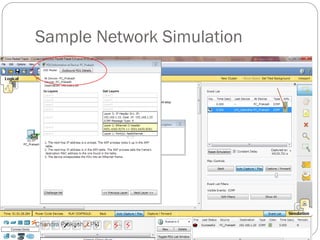
 This window contains the OSI model tab which shows how
the packet is processed at each layer of the OSI model by the
current device
 Close this window, and note that this packet is indicated in
the Event List by the eye icon
 The whole row in the Event List is also highlighted
Chandra Prakash, LPU
Sample Network Simulation
59
 For this row, clicking on the color square in the Info column
is equivalent to clicking directly on the packet envelope
Chandra Prakash, LPU
Sample Network Simulation
60 Chandra Prakash, LPU
Sample Network Simulation
61
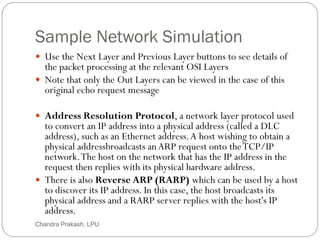
 Use the Next Layer and Previous Layer buttons to see details of
the packet processing at the relevant OSI Layers
 Note that only the Out Layers can be viewed in the case of this
original echo request message
 Address Resolution Protocol, a network layer protocol used
to convert an IP address into a physical address (called a DLC
address), such as an Ethernet address.A host wishing to obtain a
physical addressbroadcasts anARP request onto theTCP/IP
network.The host on the network that has the IP address in the
request then replies with its physical hardware address.
 There is also Reverse ARP (RARP) which can be used by a host
to discover its IP address. In this case, the host broadcasts its
physical address and a RARP server replies with the host's IP
address.
Chandra Prakash, LPU
Sample Network Simulation
62
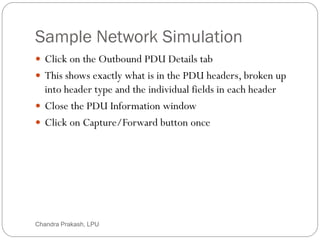
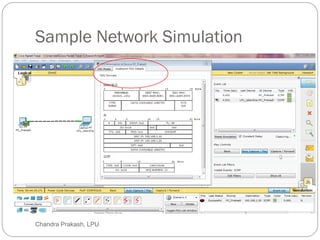
 Click on the Outbound PDU Details tab
 This shows exactly what is in the PDU headers, broken up
into header type and the individual fields in each header
 Close the PDU Information window
 Click on Capture/Forward button once
Chandra Prakash, LPU
Sample Network Simulation
63 Chandra Prakash, LPU
Sample Network Simulation
64
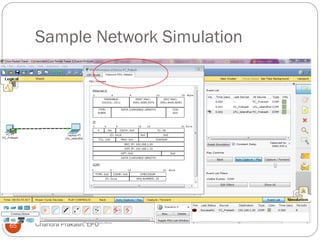
 Click again on the packet in the workspace to open the PDU
Information window
 Notice that this time, information regarding the In Layers
and Out Layers can both be viewed
 Click on the Inbound PDU Details tab
Chandra Prakash, LPU
Sample Network Simulation
Chandra Prakash, LPU
65
Sample Network Simulation
66
 In this case this shows the details of the inbound echo request
packet from PC_Prakash to LPU_Jalandhar
 Click on the Outbound PDU Details tab, which shows
similar information, but in this case for the echo reply packet
from Paris toTokyo
Chandra Prakash, LPU
Sample Network Simulation
67
 Click on Reset Simulation again
 This time click onAuto Capture/Play
 The echo request and echo reply will be automatically
captured, and the No More Events message will occur
automatically
Chandra Prakash, LPU
Sample Network Simulation
68
 Click on the Back Button twice to rewind the animation one
step at a time
 Now click on the Capture/Forward button twice to forward
the packet through the animation
 Also note the change in which packet is highlighted in the
Event List
Chandra Prakash, LPU
Sample Network Simulation
69
 Remember that at any time, you can either click on the
packet envelope directly, or click on the Info column in the
Event List, to open up the PDU Information window
 Click on the Back Button twice to rewind the animation
 This time click Auto Capture/Play and the packet animation
will automatically occur
Chandra Prakash, LPU
Sample Network Simulation
70
 Start by closing the existing workspace and reopening your
original saved file
 Open theARPTables for both PCs by clicking on each PC
using the Inspect tool
 TheARP tables always appear on the same spot
 Reposition one of them to make them both visible
Chandra Prakash, LPU
Sample Network Simulation
71
 You can also resize the tables for better viewing
 In Realtime Mode, send a simple PDU from PC_Prakash to
LPU_Jalanahar
 Notice that theARP tables are filled in automatically as
shown here
Chandra Prakash, LPU
Sample Network Simulation
72 Chandra Prakash, LPU
Sample Network Simulation
73
 Delete the PDU using the method learned in the previous
sections
 Notice that the entries in the ARP tables are not cleared
 This is so because theARP entries for both devices have
already been learned
 Deleting the user created PDUs does not reset what already
occurred in the network
Chandra Prakash, LPU
Sample Network Simulation
74
 Click Reset Network
 Notice that theARP tables are cleared
 The Reset Network button power cycles devices by turning
them off and then on
 By doing so, they lose temporary information like the tables
they learned
 Go to Simulation Mode
Chandra Prakash, LPU
Sample Network Simulation
75
 In the Event List Filters, make sure that ICMP andARP are
checked so that you can view ICMP andARP packets in the
animation
 Create a new simple PDU from PC_Prakash to
LPU_Jalandhar
 Notice that since you reset the network earlier, the ARP
tables are empty
Chandra Prakash, LPU
Sample Network Simulation
76
 ARP request packets need to be issued before the ICMP ping
packets, so that the devices in the network can learn about
each other
 Click onAuto Capture/Play to watch the animation
 Click on Reset Simulation
Chandra Prakash, LPU
Sample Network Simulation
77
 Notice that even though the Event List is cleared - except for
the user created PDU, theARP tables still remain full
 Click on Capture/Play
 This time, since theARP tables are full, there are no new
ARP packets issued
 Click on Reset Network
 Doing so will empty the tables
Chandra Prakash, LPU
Sample Network Simulation
78
 Notice that a newARP request packet appears automatically
on the Event List
 Single-clicking on the Delete button removes the entire
scenario including all the PDUs associated with it
 Double-clicking on (delete) in the far right column in the
PDU List window deletes individual PDUs
Chandra Prakash, LPU
Sample Network Simulation
79
 The Reset Simulation button clears all entries in the Event
List, except for User Created PDUs, and allows you to
restart the animation
 This, however, does not reset the device tables
 The Reset Network button allows you to power-cycle all of
the devices in your network
Chandra Prakash, LPU
Sample Network Simulation
80
 It turns all devices off and then turns them back on so the
tables that the devices built are lost along with configurations
and other information not automatically saved
 Saving your work periodically prevents you from losing
configurations and changes in the network that you want to
keep
Chandra Prakash, LPU

tutorial_packet-tracer.pdf dowlad free thanks

  • 1.
  • 2.
    What is PacketTracer 2  PacketTracer is a program used to illustrate at a basic level how networks work  Simulator :  Helpful in  design,  Configure,  troubleshoot computer network,  Visualization and animation of network phenomena  This presentation will demonstrate how to get around in Packet Tracer  It is copied more or less word for word from the packetTracer Help files Chandra Prakash, LPU
  • 3.
    Organization of PacketTracer 3  PacketTracer has two different views  LogicalWorkspace  PhysicalWorkspace  PacketTracer also has two modes of operation  Realtime Mode  Simulation Mode Chandra Prakash, LPU
  • 4.
    Organization of PacketTracer 4  At startup, you are in the LogicalWorkspace in Realtime Mode  You can build your network and see it run in real time in this configuration  You can switch to Simulation Mode to run controlled networking scenarios  You can also switch to the PhysicalWorkspace to arrange the physical aspects, such as location, of your devices Chandra Prakash, LPU
  • 5.
    Organization of PacketTracer 5  You cannot run your network while you are in the Physical Workspace  You should return to the LogicalWorkspace after you are done in the PhysicalWorkspace Chandra Prakash, LPU
  • 6.
  • 7.
    Interface 7  The areasshow on the screenshot are Chandra Prakash, LPU
  • 8.
    Menu Bar -1 8  This bar provides the File, Options, and Help menus  You will find basic commands such as Open, Save, Print, and Preferences in these menus  You will also be able to access theActivityWizard from the File menu Chandra Prakash, LPU
  • 9.
    Main Tool Bar- 2 9  This bar provides shortcut icons to the File menu commands, including theActivityWizard  On the right, you will also find the Network Information button, which you can use to enter a description for the current network or any text you wish to include Chandra Prakash, LPU
  • 10.
    Common Tools Bar- 3 10  This bar provides access to these commonly used workspace tools  Select  Move Layout  Place Note  Delete  Inspect  Add Simple PDU  Add Complex PDU Chandra Prakash, LPU
  • 11.
    Workspace Type Bar- 4 11  You can toggle between the PhysicalWorkspace and the LogicalWorkspace with the tabs on this bar Chandra Prakash, LPU
  • 12.
    Workspace - 5 12 This area is where you will create your network, watch simulations, and view many kinds of information and statistics Chandra Prakash, LPU
  • 13.
    Realtime or SimulationBar - 6 13  You can toggle between Realtime Mode and Simulation Mode with the tabs on this bar Chandra Prakash, LPU
  • 14.
    Network Component Box- 7 14  This box is where you choose devices and connections to put onto the workspace  It contains the Device-Type Selection Box and the Device- Specific Selection Box Chandra Prakash, LPU
  • 15.
    Device Type SelectionBox - 8 15  This box contains the type of devices and connections available in PacketTracer 5.3.0  The Device-Specific Selection Box will change depending on which type of devices you clicked Chandra Prakash, LPU
  • 16.
    Device Selection Box- 9 16  This box is where you choose specifically which devices you want to put in your network and which connections to make Chandra Prakash, LPU
  • 17.
    Created Packet Window-10 17  This window manages the packets you put in the network during simulation scenarios Chandra Prakash, LPU
  • 18.
    Sample Network Simulation 18 Let’s create a sample network to see how PacketTracer simulates a network Chandra Prakash, LPU
  • 19.
    Sample Network Simulation 19 Start creating your network by loading a background grid using the SetTiled Background button  Select the  grid_25x25.png  for this example Chandra Prakash, LPU
  • 20.
    Sample Network Simulation 20Chandra Prakash, LPU
  • 21.
    Sample Network Simulation 21 Select the Generic PC under End Devices and drag it as the first PC onto the workspace Chandra Prakash, LPU
  • 22.
    Sample Network Simulation 22Chandra Prakash, LPU
  • 23.
    Sample Network Simulation 23 Always remember to close windows after you're done viewing them, otherwise, they will clutter the workspace  Open the PC's configuration window and change its settings by going to the Config tab  Place the cursor over the device, it will show the details of the node. Chandra Prakash, LPU
  • 24.
    Sample Network Simulation 24Chandra Prakash, LPU
  • 25.
    Sample Network Simulation 25 Change the PC's name to PC_Prakash  Under Interface, click on FastEthernet and set the IP address as 192.168.1.15 Chandra Prakash, LPU
  • 26.
    Sample Network Simulation 26Chandra Prakash, LPU
  • 27.
    Sample Network Simulation 27 It will assume other settings for you  Make sure that the Port Status is on  Note for future reference that you could modify other Ethernet interface settings, such as bandwidth, duplex, MAC address, and subnet mask in this window Chandra Prakash, LPU
  • 28.
    Sample Network Simulation 28Chandra Prakash, LPU
  • 29.
    Sample Network Simulation 29 Drag Laptop to the workspace, name it LPU_Jalandhar and set its IP address as 192.168.1.20 Chandra Prakash, LPU
  • 30.
    Sample Network Simulation 30 Make sure that the Port Status is on  Under Connections, select the Copper Straight-through cable, the solid black line, and make a connection between the devices with it  The red lights on the link indicate that the connection is not working  The point is the simulator will do what you tell it, whether that is right or wrong Chandra Prakash, LPU
  • 31.
    Sample Network Simulation 31 Now, using the Delete tool, remove the Copper Straight-through cable, and use a Copper Cross-over cable instead  Straight-through cable is a type of twisted pair copper wire cable for local area network (LAN) use for which the RJ-45 connectors at each end have the same pinout (i.e., arrangement of conductors).  It is identical to crossover cable, except that in the latter the wires on the cable are crossed over so that the receive signal pins on the connector on one end are connected to the transmit signal pins on the connector on the other end.  Straight-through cable is also commonly referred to as patch cable. However, this might be confusing in some situations because patch cable also has a broader definition that emphasizes the fact that there is a connector on each end rather than the equality (or lack thereof) of the pinouts.  Straight-through cable is used to connect computers and other end-user devices (e.g., printers) to networking devices such as hubs and switches. It can also be used to directly connect like devices (e.g., two hubs or two switches) if the cable is plugged into an uplink port on one (but not both) of the devices.  Crossover cable is used to connect two like devices without the use of an uplink port. Chandra Prakash, LPU
  • 32.
    Sample Network Simulation 32Chandra Prakash, LPU
  • 33.
    Sample Network Simulation 33 The lights should turn green at this point, and if you mouse over or hover over PC or laptop, you'll see the link status indicated as up Chandra Prakash, LPU
  • 34.
    Sample Network Simulation 34 Your network should look similar to this Chandra Prakash, LPU
  • 35.
    Sample Network Simulation 35 Reposition your network devices by dragging them  Add an overall network description by using the i button on the upper right corner of PacketTracer 5.3.0  Then add some text labels on the logical workspace by using the Place Note tool Chandra Prakash, LPU
  • 36.
    Sample Network Simulation 36Chandra Prakash, LPU
  • 37.
    Sample Network Simulation 37 Single click on the PC_Prakash  Turn the PC on and off and on again, while paying attention to the link lights  Do the same step for the LPU_Jalandhar Laptop  Turning devices off will result in red link lights meaning that the link is down  Save your work by using the File -> Save As option as first.pkt Chandra Prakash, LPU
  • 38.
    Sample Network Simulation 38 Start with your original saved file open  Notice you are in Realtime Mode  Use theAdd Simple PDU tool to send a simple 1-time ping message called an echo request, to the Laptop, which responds with an echo reply because you have properly configured their IP address settings Chandra Prakash, LPU
  • 39.
    Sample Network Simulation 39Chandra Prakash, LPU
  • 40.
    Sample Network Simulation 40 To use theAdd Simple PDU tool  Click on it  Click on the first PC  Click on the second PC(Laptop)  Then look down in the bottom right corner to see if the ping was successful Chandra Prakash, LPU
  • 41.
    Sample Network Simulation 41Chandra Prakash, LPU
  • 42.
    Sample Network Simulation 42 Scroll around in the User Created PacketWindow to see the different aspects of this ping message, including an indication that the ping was successful  Alternatively, toggle the PDU ListWindow to see a larger display of this message Chandra Prakash, LPU
  • 43.
    Sample Network Simulation 43Chandra Prakash, LPU
  • 44.
    Sample Network Simulation 44 You can save one or more of these messages as a scenario  When you start, you are in Scenario 0  Label this first scenario with an i note  Different scenarios allow you to use the same topology for experiments with different groupings of user created packets  Click on New to create a new scenario Chandra Prakash, LPU
  • 45.
    Sample Network Simulation 45 New scenarios will always initially be blank  Add two packets by using the Simple PDU tool, perhaps a PDU from PC_Prakash to LPU_Jalandhar and a different PDU from LPU_Jalandhar to PC_Prakash  Then add a little i note describing the scenario, to complete Scenario 1  An example is shown next Chandra Prakash, LPU
  • 46.
    Sample Network Simulation 46Chandra Prakash, LPU
  • 47.
    Sample Network Simulation 47 Go back and forth between Scenario 0 and 1  Several different scenarios can be saved for a single network  Now delete Scenario 1 using the Delete button  You are back at Scenario 0 Chandra Prakash, LPU
  • 48.
    Sample Network Simulation 48 If you want to remove the PDU, you could scroll across in the User Created PacketWindow and click on delete on the last column  Do so  Delete the whole scenario Chandra Prakash, LPU
  • 49.
    Sample Network Simulation 49 Start with your original saved file open  In Realtime Mode, send a simple PDU from PC_Prakash to LPU_Jalandhar  Delete the PDU by using the method learned in the previous section  Switch to Simulation Mode Chandra Prakash, LPU
  • 50.
    Sample Network Simulation 50 In this mode, time freezes, therefore you can watch your network run at a slower pace, observing the paths that packets take and inspecting them in detail packet tracing  Under the Event List Filters, click on All/None to uncheck all fields, and then click on ICMP to only view ICMP packets in the animation  The Internet Control Message Protocol (ICMP) is one of the core protocols of the Internet Protocol Suite. It is chiefly used by the operating systems of networked computers to send error messages indicating, for example, that a requested service is not available or that a host or router could not be reached. ICMP can also be used to relay query messages. It is assigned protocol number 1.  Chandra Prakash, LPU
  • 51.
    Sample Network Simulation 51 Add a simple PDU from PC_Prakash to LPU_jalandhar  The eye icon at the left of the Event List indicates that this packet is currently displayed as an envelope  Click on Capture/Forward button once  This acts like a network sniffing program, capturing the next event that occurs on the network Chandra Prakash, LPU
  • 52.
    Sample Network Simulation 52 Note that after clicking on Capture/Forward, the packet in the workspace moves from one device to another - this is the ICMP echo request message from PC_Prakash to LPU_Jalandhar  Another event is also added in the Event List this reflects the change that happened in the workspace Chandra Prakash, LPU
  • 53.
    Sample Network Simulation 53 The first time through an animation, the meaning of the Capture/Forward is Capture; after resetting the simulation, the meaning would be Forward  Adjust the speed of the animation by dragging the Play Speed slider to the right  Click on Capture/Forward button a second time Chandra Prakash, LPU
  • 54.
    Sample Network Simulation 54 This captures the next network event - this is the echo reply from LPU_jalandhar to PC_Prakash, shown as successful with a green check mark on the envelope, and the animation plays faster this time  Dragging the speed slider to the opposite direction - to the left - would have slowed the animation  Click on Capture/Forward button again Chandra Prakash, LPU
  • 55.
    Sample Network Simulation 55 At this point, LPU_jalandhar has already sent an echo reply to PC_Prakash therefore, there are no more ICMP events left to capture  A No More Events window will appear notifying you of this, as shown in the screenshot below  Click OK Chandra Prakash, LPU
  • 56.
    Sample Network Simulation 56Chandra Prakash, LPU
  • 57.
    Sample Network Simulation 57 Continuing from the last activity, click on Reset Simulation  This clears the entries in the Event List except for the original packet  Click on the packet envelope on the workspace to bring up the PDU Information window like the one shown in the screenshot below Chandra Prakash, LPU
  • 58.
    Sample Network Simulation 58 This window contains the OSI model tab which shows how the packet is processed at each layer of the OSI model by the current device  Close this window, and note that this packet is indicated in the Event List by the eye icon  The whole row in the Event List is also highlighted Chandra Prakash, LPU
  • 59.
    Sample Network Simulation 59 For this row, clicking on the color square in the Info column is equivalent to clicking directly on the packet envelope Chandra Prakash, LPU
  • 60.
    Sample Network Simulation 60Chandra Prakash, LPU
  • 61.
    Sample Network Simulation 61 Use the Next Layer and Previous Layer buttons to see details of the packet processing at the relevant OSI Layers  Note that only the Out Layers can be viewed in the case of this original echo request message  Address Resolution Protocol, a network layer protocol used to convert an IP address into a physical address (called a DLC address), such as an Ethernet address.A host wishing to obtain a physical addressbroadcasts anARP request onto theTCP/IP network.The host on the network that has the IP address in the request then replies with its physical hardware address.  There is also Reverse ARP (RARP) which can be used by a host to discover its IP address. In this case, the host broadcasts its physical address and a RARP server replies with the host's IP address. Chandra Prakash, LPU
  • 62.
    Sample Network Simulation 62 Click on the Outbound PDU Details tab  This shows exactly what is in the PDU headers, broken up into header type and the individual fields in each header  Close the PDU Information window  Click on Capture/Forward button once Chandra Prakash, LPU
  • 63.
    Sample Network Simulation 63Chandra Prakash, LPU
  • 64.
    Sample Network Simulation 64 Click again on the packet in the workspace to open the PDU Information window  Notice that this time, information regarding the In Layers and Out Layers can both be viewed  Click on the Inbound PDU Details tab Chandra Prakash, LPU
  • 65.
  • 66.
    Sample Network Simulation 66 In this case this shows the details of the inbound echo request packet from PC_Prakash to LPU_Jalandhar  Click on the Outbound PDU Details tab, which shows similar information, but in this case for the echo reply packet from Paris toTokyo Chandra Prakash, LPU
  • 67.
    Sample Network Simulation 67 Click on Reset Simulation again  This time click onAuto Capture/Play  The echo request and echo reply will be automatically captured, and the No More Events message will occur automatically Chandra Prakash, LPU
  • 68.
    Sample Network Simulation 68 Click on the Back Button twice to rewind the animation one step at a time  Now click on the Capture/Forward button twice to forward the packet through the animation  Also note the change in which packet is highlighted in the Event List Chandra Prakash, LPU
  • 69.
    Sample Network Simulation 69 Remember that at any time, you can either click on the packet envelope directly, or click on the Info column in the Event List, to open up the PDU Information window  Click on the Back Button twice to rewind the animation  This time click Auto Capture/Play and the packet animation will automatically occur Chandra Prakash, LPU
  • 70.
    Sample Network Simulation 70 Start by closing the existing workspace and reopening your original saved file  Open theARPTables for both PCs by clicking on each PC using the Inspect tool  TheARP tables always appear on the same spot  Reposition one of them to make them both visible Chandra Prakash, LPU
  • 71.
    Sample Network Simulation 71 You can also resize the tables for better viewing  In Realtime Mode, send a simple PDU from PC_Prakash to LPU_Jalanahar  Notice that theARP tables are filled in automatically as shown here Chandra Prakash, LPU
  • 72.
    Sample Network Simulation 72Chandra Prakash, LPU
  • 73.
    Sample Network Simulation 73 Delete the PDU using the method learned in the previous sections  Notice that the entries in the ARP tables are not cleared  This is so because theARP entries for both devices have already been learned  Deleting the user created PDUs does not reset what already occurred in the network Chandra Prakash, LPU
  • 74.
    Sample Network Simulation 74 Click Reset Network  Notice that theARP tables are cleared  The Reset Network button power cycles devices by turning them off and then on  By doing so, they lose temporary information like the tables they learned  Go to Simulation Mode Chandra Prakash, LPU
  • 75.
    Sample Network Simulation 75 In the Event List Filters, make sure that ICMP andARP are checked so that you can view ICMP andARP packets in the animation  Create a new simple PDU from PC_Prakash to LPU_Jalandhar  Notice that since you reset the network earlier, the ARP tables are empty Chandra Prakash, LPU
  • 76.
    Sample Network Simulation 76 ARP request packets need to be issued before the ICMP ping packets, so that the devices in the network can learn about each other  Click onAuto Capture/Play to watch the animation  Click on Reset Simulation Chandra Prakash, LPU
  • 77.
    Sample Network Simulation 77 Notice that even though the Event List is cleared - except for the user created PDU, theARP tables still remain full  Click on Capture/Play  This time, since theARP tables are full, there are no new ARP packets issued  Click on Reset Network  Doing so will empty the tables Chandra Prakash, LPU
  • 78.
    Sample Network Simulation 78 Notice that a newARP request packet appears automatically on the Event List  Single-clicking on the Delete button removes the entire scenario including all the PDUs associated with it  Double-clicking on (delete) in the far right column in the PDU List window deletes individual PDUs Chandra Prakash, LPU
  • 79.
    Sample Network Simulation 79 The Reset Simulation button clears all entries in the Event List, except for User Created PDUs, and allows you to restart the animation  This, however, does not reset the device tables  The Reset Network button allows you to power-cycle all of the devices in your network Chandra Prakash, LPU
  • 80.
    Sample Network Simulation 80 It turns all devices off and then turns them back on so the tables that the devices built are lost along with configurations and other information not automatically saved  Saving your work periodically prevents you from losing configurations and changes in the network that you want to keep Chandra Prakash, LPU