

© heartiequeen.wordpress.com | Your Stellar Virtual Professional Partner 1
You have a ton of options for password manager,
but when it comes to your security, you want the
best possible tool for the job.
© heartiequeen.wordpress.com | Your Stellar Virtual Professional Partner 2
What is LastPass?
© heartiequeen.wordpress.com | Your Stellar Virtual Professional Partner 3
It’s an Online Password
Manager and
© heartiequeen.wordpress.com | Your Stellar Virtual Professional Partner 4
Form Filler that makes web
browsing
© heartiequeen.wordpress.com | Your Stellar Virtual Professional Partner 5
Easier and Secure
© heartiequeen.wordpress.com | Your Stellar Virtual Professional Partner 6
Helps you
Simplify your life
Secure your data
Manage your team
© heartiequeen.wordpress.com | Your Stellar Virtual Professional Partner 7
Let’s take a ui k un th ough its
feature set:
© heartiequeen.wordpress.com | Your Stellar Virtual Professional Partner 8
Browser Extensions and a Dedicated
Mac App
 With browser extensions, you can use LastPass
with just about any browser without then need
for an extra app on your computer
 Once set up, your login and password
information are saved securely on LastPass’s
server and access them from any computer on
which you have extensions installed
The Mac app adds a few more features to the
extensions, including faster search and a better
way to browse your passwords outside your
browser.
© heartiequeen.wordpress.com | Your Stellar Virtual Professional Partner 9
Mobile apps
 You can take your LastPass passwords with you
using your phone or tablet
 The apps are free, but requires a LastPass
Premium account ($12/year)
 It’s available on Android and iOS but you can
also get it on Windows Phone and Blackberry
© heartiequeen.wordpress.com | Your Stellar Virtual Professional Partner 10
Password Audits
 LastPass can scan your vault to check for weak
passwords and help you create more secure ones
 It’ll also show you a nice score on the screen so
you can quickly see how strong the bulk of your
passwords are
© heartiequeen.wordpress.com | Your Stellar Virtual Professional Partner 11
Automatic Password Changes
 When a site gets hacked, it’s generally advisable
to change your password to that service
 LastPass keeps a database of hacks around the
web and will alert you when you have an account
that’s been compromised. From there, you can
change your password with just a click
© heartiequeen.wordpress.com | Your Stellar Virtual Professional Partner 12
Two Factor Authentication
LastPass supports a two-factor authentication
through services like Google Authenticator, Grid,
YubiKey, and more
© heartiequeen.wordpress.com | Your Stellar Virtual Professional Partner 13
© heartiequeen.wordpress.com | Your Stellar Virtual Professional Partner 14
LastPass works best on compatible
browsers and platforms
© heartiequeen.wordpress.com | Your Stellar Virtual Professional Partner 15
Open www.lastpass.com in
your web browser
© heartiequeen.wordpress.com | Your Stellar Virtual Professional Partner 16
In this tutorial we will use
Google Chrome
© heartiequeen.wordpress.com | Your Stellar Virtual Professional Partner 17
He e’s LastPass homepage
© heartiequeen.wordpress.com | Your Stellar Virtual Professional Partner 18
Scroll down
© heartiequeen.wordpress.com | Your Stellar Virtual Professional Partner 19
Click on Get LastPass Free
© heartiequeen.wordpress.com | Your Stellar Virtual Professional Partner 20
You will be redirected to
LastPass download page
© heartiequeen.wordpress.com | Your Stellar Virtual Professional Partner 21
Click on the tab below for you
platform
© heartiequeen.wordpress.com | Your Stellar Virtual Professional Partner 22
In this tutorial, we will use
LastPass for Windows
© heartiequeen.wordpress.com | Your Stellar Virtual Professional Partner 23
Click on Download
© heartiequeen.wordpress.com | Your Stellar Virtual Professional Partner 24
Downloading status shows at the
bottom
© heartiequeen.wordpress.com | Your Stellar Virtual Professional Partner 25
Click on the down arrow and select
Open
© heartiequeen.wordpress.com | Your Stellar Virtual Professional Partner 26
Click Run
© heartiequeen.wordpress.com | Your Stellar Virtual Professional Partner 27
Select your Language
© heartiequeen.wordpress.com | Your Stellar Virtual Professional Partner 28
Click on Install LastPass
© heartiequeen.wordpress.com | Your Stellar Virtual Professional Partner 29
You will be prompted to Save Your
Work if you are currently using your
browser
© heartiequeen.wordpress.com | Your Stellar Virtual Professional Partner 30
Click on Close Programs
© heartiequeen.wordpress.com | Your Stellar Virtual Professional Partner 31
You will be prompted to Create a New
Account or Log In to Existing Account
© heartiequeen.wordpress.com | Your Stellar Virtual Professional Partner 32
Let’s li k on Create a New Account
© heartiequeen.wordpress.com | Your Stellar Virtual Professional Partner 33
Enter your Email as your username
© heartiequeen.wordpress.com | Your Stellar Virtual Professional Partner 34
Enter your Master Password
© heartiequeen.wordpress.com | Your Stellar Virtual Professional Partner 35
Confirm your Master Password
© heartiequeen.wordpress.com | Your Stellar Virtual Professional Partner 36
Make sure you never forget
your Master Password!
© heartiequeen.wordpress.com | Your Stellar Virtual Professional Partner 37
Enter your Master Password Reminder
© heartiequeen.wordpress.com | Your Stellar Virtual Professional Partner 38
Click on I agree to Terms of Service
and Privacy Statement
© heartiequeen.wordpress.com | Your Stellar Virtual Professional Partner 39
Then, click Create Account
© heartiequeen.wordpress.com | Your Stellar Virtual Professional Partner 40
Secure Your Passwords
© heartiequeen.wordpress.com | Your Stellar Virtual Professional Partner 41
Click on Import
© heartiequeen.wordpress.com | Your Stellar Virtual Professional Partner 42
A new tab will open
© heartiequeen.wordpress.com | Your Stellar Virtual Professional Partner 43
Click on Install LastPass to complete
installation
© heartiequeen.wordpress.com | Your Stellar Virtual Professional Partner 44
Click the Add button to install the
LastPass extension
© heartiequeen.wordpress.com | Your Stellar Virtual Professional Partner 45
Downloading extension
© heartiequeen.wordpress.com | Your Stellar Virtual Professional Partner 46
Once LastPass is
installed
© heartiequeen.wordpress.com | Your Stellar Virtual Professional Partner 47
A new icon is added on your browser
© heartiequeen.wordpress.com | Your Stellar Virtual Professional Partner 48
Importing Password
© heartiequeen.wordpress.com | Your Stellar Virtual Professional Partner 49
Once you have
installed LastPass
© heartiequeen.wordpress.com | Your Stellar Virtual Professional Partner 50
You can now import
your stored login data
© heartiequeen.wordpress.com | Your Stellar Virtual Professional Partner 51
From your password
manager
© heartiequeen.wordpress.com | Your Stellar Virtual Professional Partner 52
© heartiequeen.wordpress.com | Your Stellar Virtual Professional Partner
How?
53
He e’s how…
© heartiequeen.wordpress.com | Your Stellar Virtual Professional Partner 54
Click the Icon
© heartiequeen.wordpress.com | Your Stellar Virtual Professional Partner 55
Enter your Email
© heartiequeen.wordpress.com | Your Stellar Virtual Professional Partner 56
Type your master password
© heartiequeen.wordpress.com | Your Stellar Virtual Professional Partner 57
Click Log In
© heartiequeen.wordpress.com | Your Stellar Virtual Professional Partner 58
Once you login the icon turns red
© heartiequeen.wordpress.com | Your Stellar Virtual Professional Partner 59
Click the Icon again
© heartiequeen.wordpress.com | Your Stellar Virtual Professional Partner 60
Click Tools submenu
© heartiequeen.wordpress.com | Your Stellar Virtual Professional Partner 61
Click Import From
© heartiequeen.wordpress.com | Your Stellar Virtual Professional Partner 62
You will then be
presented with a
submenu for
© heartiequeen.wordpress.com | Your Stellar Virtual Professional Partner 63
Password Manager
format supported
© heartiequeen.wordpress.com | Your Stellar Virtual Professional Partner 64
© heartiequeen.wordpress.com | Your Stellar Virtual Professional Partner 65
Let’s t y to ADD a site
© heartiequeen.wordpress.com | Your Stellar Virtual Professional Partner 66
Adding new site to
your LastPass Account
© heartiequeen.wordpress.com | Your Stellar Virtual Professional Partner 67
To automatically save a
site
© heartiequeen.wordpress.com | Your Stellar Virtual Professional Partner 68
Click the icon again
© heartiequeen.wordpress.com | Your Stellar Virtual Professional Partner 69
Click Sites
© heartiequeen.wordpress.com | Your Stellar Virtual Professional Partner 70
Click Add Site
© heartiequeen.wordpress.com | Your Stellar Virtual Professional Partner 71
Fill this up
© heartiequeen.wordpress.com | Your Stellar Virtual Professional Partner 72
Click Save when done
© heartiequeen.wordpress.com | Your Stellar Virtual Professional Partner 73
To manually save a site
© heartiequeen.wordpress.com | Your Stellar Virtual Professional Partner 74
Use the Save All
Entered Data option
from the toolbar
© heartiequeen.wordpress.com | Your Stellar Virtual Professional Partner 75
Click the icon again
© heartiequeen.wordpress.com | Your Stellar Virtual Professional Partner 76
Click the Tools submenu
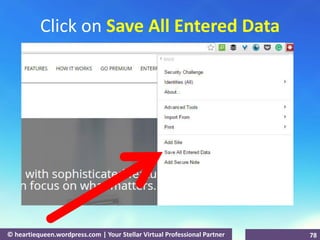
© heartiequeen.wordpress.com | Your Stellar Virtual Professional Partner 77
Click on Save All Entered Data
© heartiequeen.wordpress.com | Your Stellar Virtual Professional Partner 78
Fill this up
© heartiequeen.wordpress.com | Your Stellar Virtual Professional Partner 79
Click Save when done
© heartiequeen.wordpress.com | Your Stellar Virtual Professional Partner 80
Manual method can be
used if
© heartiequeen.wordpress.com | Your Stellar Virtual Professional Partner 81
LastPass did not
automatically detect
the login site
© heartiequeen.wordpress.com | Your Stellar Virtual Professional Partner 82
Generating a Password
© heartiequeen.wordpress.com | Your Stellar Virtual Professional Partner 83
LastPass gives you
tools to generate
© heartiequeen.wordpress.com | Your Stellar Virtual Professional Partner 84
Secure, Non-guessable
passwords.
© heartiequeen.wordpress.com | Your Stellar Virtual Professional Partner 85
It’s the safest we
experience.
© heartiequeen.wordpress.com | Your Stellar Virtual Professional Partner 86
You can also use
LastPass to replace old
passwords with
© heartiequeen.wordpress.com | Your Stellar Virtual Professional Partner 87
You can also use
LastPass to replace old
passwords with
© heartiequeen.wordpress.com | Your Stellar Virtual Professional Partner 88
Unique randomly
generated ones.
© heartiequeen.wordpress.com | Your Stellar Virtual Professional Partner 89
When LastPass detects
that a site gets hacked,
© heartiequeen.wordpress.com | Your Stellar Virtual Professional Partner 90
It advises you to
change your password
to that service
© heartiequeen.wordpress.com | Your Stellar Virtual Professional Partner 91
Generate long, strong passwords
© heartiequeen.wordpress.com | Your Stellar Virtual Professional Partner 92
The LastPass password
generator appears
when you’ e eating
an account
© heartiequeen.wordpress.com | Your Stellar Virtual Professional Partner 93
or updating an existing
one, so you have a
unique passwords
© heartiequeen.wordpress.com | Your Stellar Virtual Professional Partner 94
that follow best
security practices.
© heartiequeen.wordpress.com | Your Stellar Virtual Professional Partner 95
It advises you to
change your password
to that service
© heartiequeen.wordpress.com | Your Stellar Virtual Professional Partner 96
Click the icon
© heartiequeen.wordpress.com | Your Stellar Virtual Professional Partner 97
Click on Generate Secure Password
© heartiequeen.wordpress.com | Your Stellar Virtual Professional Partner 98
This unique password appears
© heartiequeen.wordpress.com | Your Stellar Virtual Professional Partner 99
You can customize your
generated password
© heartiequeen.wordpress.com | Your Stellar Virtual Professional Partner 100
Click on Show Advanced Options
© heartiequeen.wordpress.com | Your Stellar Virtual Professional Partner 101
You can select Allow All Character
Types
© heartiequeen.wordpress.com | Your Stellar Virtual Professional Partner 102
Or select Make Pronounceable
© heartiequeen.wordpress.com | Your Stellar Virtual Professional Partner 103
Tick the box to Avoid Ambiguous
Characters
© heartiequeen.wordpress.com | Your Stellar Virtual Professional Partner 104
Then click on Use Password
© heartiequeen.wordpress.com | Your Stellar Virtual Professional Partner 105
You can now view the
saved password in your
vault
© heartiequeen.wordpress.com | Your Stellar Virtual Professional Partner 106
Click the icon and noti e that the e’s a
notification
© heartiequeen.wordpress.com | Your Stellar Virtual Professional Partner 107
Then, click on Show Matching Sites
© heartiequeen.wordpress.com | Your Stellar Virtual Professional Partner 108
Password Generated for LastPass
© heartiequeen.wordpress.com | Your Stellar Virtual Professional Partner 109
© heartiequeen.wordpress.com | Your Stellar Virtual Professional Partner 110
© heartiequeen.wordpress.com | Your Stellar Virtual Professional Partner 111

Tutorial in LastPass

  • 1.
    © heartiequeen.wordpress.com |Your Stellar Virtual Professional Partner 1
  • 2.
    You have aton of options for password manager, but when it comes to your security, you want the best possible tool for the job. © heartiequeen.wordpress.com | Your Stellar Virtual Professional Partner 2
  • 3.
    What is LastPass? ©heartiequeen.wordpress.com | Your Stellar Virtual Professional Partner 3
  • 4.
    It’s an OnlinePassword Manager and © heartiequeen.wordpress.com | Your Stellar Virtual Professional Partner 4
  • 5.
    Form Filler thatmakes web browsing © heartiequeen.wordpress.com | Your Stellar Virtual Professional Partner 5
  • 6.
    Easier and Secure ©heartiequeen.wordpress.com | Your Stellar Virtual Professional Partner 6
  • 7.
    Helps you Simplify yourlife Secure your data Manage your team © heartiequeen.wordpress.com | Your Stellar Virtual Professional Partner 7
  • 8.
    Let’s take aui k un th ough its feature set: © heartiequeen.wordpress.com | Your Stellar Virtual Professional Partner 8
  • 9.
    Browser Extensions anda Dedicated Mac App  With browser extensions, you can use LastPass with just about any browser without then need for an extra app on your computer  Once set up, your login and password information are saved securely on LastPass’s server and access them from any computer on which you have extensions installed The Mac app adds a few more features to the extensions, including faster search and a better way to browse your passwords outside your browser. © heartiequeen.wordpress.com | Your Stellar Virtual Professional Partner 9
  • 10.
    Mobile apps  Youcan take your LastPass passwords with you using your phone or tablet  The apps are free, but requires a LastPass Premium account ($12/year)  It’s available on Android and iOS but you can also get it on Windows Phone and Blackberry © heartiequeen.wordpress.com | Your Stellar Virtual Professional Partner 10
  • 11.
    Password Audits  LastPasscan scan your vault to check for weak passwords and help you create more secure ones  It’ll also show you a nice score on the screen so you can quickly see how strong the bulk of your passwords are © heartiequeen.wordpress.com | Your Stellar Virtual Professional Partner 11
  • 12.
    Automatic Password Changes When a site gets hacked, it’s generally advisable to change your password to that service  LastPass keeps a database of hacks around the web and will alert you when you have an account that’s been compromised. From there, you can change your password with just a click © heartiequeen.wordpress.com | Your Stellar Virtual Professional Partner 12
  • 13.
    Two Factor Authentication LastPasssupports a two-factor authentication through services like Google Authenticator, Grid, YubiKey, and more © heartiequeen.wordpress.com | Your Stellar Virtual Professional Partner 13
  • 14.
    © heartiequeen.wordpress.com |Your Stellar Virtual Professional Partner 14
  • 15.
    LastPass works beston compatible browsers and platforms © heartiequeen.wordpress.com | Your Stellar Virtual Professional Partner 15
  • 16.
    Open www.lastpass.com in yourweb browser © heartiequeen.wordpress.com | Your Stellar Virtual Professional Partner 16
  • 17.
    In this tutorialwe will use Google Chrome © heartiequeen.wordpress.com | Your Stellar Virtual Professional Partner 17
  • 18.
    He e’s LastPasshomepage © heartiequeen.wordpress.com | Your Stellar Virtual Professional Partner 18
  • 19.
    Scroll down © heartiequeen.wordpress.com| Your Stellar Virtual Professional Partner 19
  • 20.
    Click on GetLastPass Free © heartiequeen.wordpress.com | Your Stellar Virtual Professional Partner 20
  • 21.
    You will beredirected to LastPass download page © heartiequeen.wordpress.com | Your Stellar Virtual Professional Partner 21
  • 22.
    Click on thetab below for you platform © heartiequeen.wordpress.com | Your Stellar Virtual Professional Partner 22
  • 23.
    In this tutorial,we will use LastPass for Windows © heartiequeen.wordpress.com | Your Stellar Virtual Professional Partner 23
  • 24.
    Click on Download ©heartiequeen.wordpress.com | Your Stellar Virtual Professional Partner 24
  • 25.
    Downloading status showsat the bottom © heartiequeen.wordpress.com | Your Stellar Virtual Professional Partner 25
  • 26.
    Click on thedown arrow and select Open © heartiequeen.wordpress.com | Your Stellar Virtual Professional Partner 26
  • 27.
    Click Run © heartiequeen.wordpress.com| Your Stellar Virtual Professional Partner 27
  • 28.
    Select your Language ©heartiequeen.wordpress.com | Your Stellar Virtual Professional Partner 28
  • 29.
    Click on InstallLastPass © heartiequeen.wordpress.com | Your Stellar Virtual Professional Partner 29
  • 30.
    You will beprompted to Save Your Work if you are currently using your browser © heartiequeen.wordpress.com | Your Stellar Virtual Professional Partner 30
  • 31.
    Click on ClosePrograms © heartiequeen.wordpress.com | Your Stellar Virtual Professional Partner 31
  • 32.
    You will beprompted to Create a New Account or Log In to Existing Account © heartiequeen.wordpress.com | Your Stellar Virtual Professional Partner 32
  • 33.
    Let’s li kon Create a New Account © heartiequeen.wordpress.com | Your Stellar Virtual Professional Partner 33
  • 34.
    Enter your Emailas your username © heartiequeen.wordpress.com | Your Stellar Virtual Professional Partner 34
  • 35.
    Enter your MasterPassword © heartiequeen.wordpress.com | Your Stellar Virtual Professional Partner 35
  • 36.
    Confirm your MasterPassword © heartiequeen.wordpress.com | Your Stellar Virtual Professional Partner 36
  • 37.
    Make sure younever forget your Master Password! © heartiequeen.wordpress.com | Your Stellar Virtual Professional Partner 37
  • 38.
    Enter your MasterPassword Reminder © heartiequeen.wordpress.com | Your Stellar Virtual Professional Partner 38
  • 39.
    Click on Iagree to Terms of Service and Privacy Statement © heartiequeen.wordpress.com | Your Stellar Virtual Professional Partner 39
  • 40.
    Then, click CreateAccount © heartiequeen.wordpress.com | Your Stellar Virtual Professional Partner 40
  • 41.
    Secure Your Passwords ©heartiequeen.wordpress.com | Your Stellar Virtual Professional Partner 41
  • 42.
    Click on Import ©heartiequeen.wordpress.com | Your Stellar Virtual Professional Partner 42
  • 43.
    A new tabwill open © heartiequeen.wordpress.com | Your Stellar Virtual Professional Partner 43
  • 44.
    Click on InstallLastPass to complete installation © heartiequeen.wordpress.com | Your Stellar Virtual Professional Partner 44
  • 45.
    Click the Addbutton to install the LastPass extension © heartiequeen.wordpress.com | Your Stellar Virtual Professional Partner 45
  • 46.
    Downloading extension © heartiequeen.wordpress.com| Your Stellar Virtual Professional Partner 46
  • 47.
    Once LastPass is installed ©heartiequeen.wordpress.com | Your Stellar Virtual Professional Partner 47
  • 48.
    A new iconis added on your browser © heartiequeen.wordpress.com | Your Stellar Virtual Professional Partner 48
  • 49.
    Importing Password © heartiequeen.wordpress.com| Your Stellar Virtual Professional Partner 49
  • 50.
    Once you have installedLastPass © heartiequeen.wordpress.com | Your Stellar Virtual Professional Partner 50
  • 51.
    You can nowimport your stored login data © heartiequeen.wordpress.com | Your Stellar Virtual Professional Partner 51
  • 52.
    From your password manager ©heartiequeen.wordpress.com | Your Stellar Virtual Professional Partner 52
  • 53.
    © heartiequeen.wordpress.com |Your Stellar Virtual Professional Partner How? 53
  • 54.
    He e’s how… ©heartiequeen.wordpress.com | Your Stellar Virtual Professional Partner 54
  • 55.
    Click the Icon ©heartiequeen.wordpress.com | Your Stellar Virtual Professional Partner 55
  • 56.
    Enter your Email ©heartiequeen.wordpress.com | Your Stellar Virtual Professional Partner 56
  • 57.
    Type your masterpassword © heartiequeen.wordpress.com | Your Stellar Virtual Professional Partner 57
  • 58.
    Click Log In ©heartiequeen.wordpress.com | Your Stellar Virtual Professional Partner 58
  • 59.
    Once you loginthe icon turns red © heartiequeen.wordpress.com | Your Stellar Virtual Professional Partner 59
  • 60.
    Click the Iconagain © heartiequeen.wordpress.com | Your Stellar Virtual Professional Partner 60
  • 61.
    Click Tools submenu ©heartiequeen.wordpress.com | Your Stellar Virtual Professional Partner 61
  • 62.
    Click Import From ©heartiequeen.wordpress.com | Your Stellar Virtual Professional Partner 62
  • 63.
    You will thenbe presented with a submenu for © heartiequeen.wordpress.com | Your Stellar Virtual Professional Partner 63
  • 64.
    Password Manager format supported ©heartiequeen.wordpress.com | Your Stellar Virtual Professional Partner 64
  • 65.
    © heartiequeen.wordpress.com |Your Stellar Virtual Professional Partner 65
  • 66.
    Let’s t yto ADD a site © heartiequeen.wordpress.com | Your Stellar Virtual Professional Partner 66
  • 67.
    Adding new siteto your LastPass Account © heartiequeen.wordpress.com | Your Stellar Virtual Professional Partner 67
  • 68.
    To automatically savea site © heartiequeen.wordpress.com | Your Stellar Virtual Professional Partner 68
  • 69.
    Click the iconagain © heartiequeen.wordpress.com | Your Stellar Virtual Professional Partner 69
  • 70.
    Click Sites © heartiequeen.wordpress.com| Your Stellar Virtual Professional Partner 70
  • 71.
    Click Add Site ©heartiequeen.wordpress.com | Your Stellar Virtual Professional Partner 71
  • 72.
    Fill this up ©heartiequeen.wordpress.com | Your Stellar Virtual Professional Partner 72
  • 73.
    Click Save whendone © heartiequeen.wordpress.com | Your Stellar Virtual Professional Partner 73
  • 74.
    To manually savea site © heartiequeen.wordpress.com | Your Stellar Virtual Professional Partner 74
  • 75.
    Use the SaveAll Entered Data option from the toolbar © heartiequeen.wordpress.com | Your Stellar Virtual Professional Partner 75
  • 76.
    Click the iconagain © heartiequeen.wordpress.com | Your Stellar Virtual Professional Partner 76
  • 77.
    Click the Toolssubmenu © heartiequeen.wordpress.com | Your Stellar Virtual Professional Partner 77
  • 78.
    Click on SaveAll Entered Data © heartiequeen.wordpress.com | Your Stellar Virtual Professional Partner 78
  • 79.
    Fill this up ©heartiequeen.wordpress.com | Your Stellar Virtual Professional Partner 79
  • 80.
    Click Save whendone © heartiequeen.wordpress.com | Your Stellar Virtual Professional Partner 80
  • 81.
    Manual method canbe used if © heartiequeen.wordpress.com | Your Stellar Virtual Professional Partner 81
  • 82.
    LastPass did not automaticallydetect the login site © heartiequeen.wordpress.com | Your Stellar Virtual Professional Partner 82
  • 83.
    Generating a Password ©heartiequeen.wordpress.com | Your Stellar Virtual Professional Partner 83
  • 84.
    LastPass gives you toolsto generate © heartiequeen.wordpress.com | Your Stellar Virtual Professional Partner 84
  • 85.
    Secure, Non-guessable passwords. © heartiequeen.wordpress.com| Your Stellar Virtual Professional Partner 85
  • 86.
    It’s the safestwe experience. © heartiequeen.wordpress.com | Your Stellar Virtual Professional Partner 86
  • 87.
    You can alsouse LastPass to replace old passwords with © heartiequeen.wordpress.com | Your Stellar Virtual Professional Partner 87
  • 88.
    You can alsouse LastPass to replace old passwords with © heartiequeen.wordpress.com | Your Stellar Virtual Professional Partner 88
  • 89.
    Unique randomly generated ones. ©heartiequeen.wordpress.com | Your Stellar Virtual Professional Partner 89
  • 90.
    When LastPass detects thata site gets hacked, © heartiequeen.wordpress.com | Your Stellar Virtual Professional Partner 90
  • 91.
    It advises youto change your password to that service © heartiequeen.wordpress.com | Your Stellar Virtual Professional Partner 91
  • 92.
    Generate long, strongpasswords © heartiequeen.wordpress.com | Your Stellar Virtual Professional Partner 92
  • 93.
    The LastPass password generatorappears when you’ e eating an account © heartiequeen.wordpress.com | Your Stellar Virtual Professional Partner 93
  • 94.
    or updating anexisting one, so you have a unique passwords © heartiequeen.wordpress.com | Your Stellar Virtual Professional Partner 94
  • 95.
    that follow best securitypractices. © heartiequeen.wordpress.com | Your Stellar Virtual Professional Partner 95
  • 96.
    It advises youto change your password to that service © heartiequeen.wordpress.com | Your Stellar Virtual Professional Partner 96
  • 97.
    Click the icon ©heartiequeen.wordpress.com | Your Stellar Virtual Professional Partner 97
  • 98.
    Click on GenerateSecure Password © heartiequeen.wordpress.com | Your Stellar Virtual Professional Partner 98
  • 99.
    This unique passwordappears © heartiequeen.wordpress.com | Your Stellar Virtual Professional Partner 99
  • 100.
    You can customizeyour generated password © heartiequeen.wordpress.com | Your Stellar Virtual Professional Partner 100
  • 101.
    Click on ShowAdvanced Options © heartiequeen.wordpress.com | Your Stellar Virtual Professional Partner 101
  • 102.
    You can selectAllow All Character Types © heartiequeen.wordpress.com | Your Stellar Virtual Professional Partner 102
  • 103.
    Or select MakePronounceable © heartiequeen.wordpress.com | Your Stellar Virtual Professional Partner 103
  • 104.
    Tick the boxto Avoid Ambiguous Characters © heartiequeen.wordpress.com | Your Stellar Virtual Professional Partner 104
  • 105.
    Then click onUse Password © heartiequeen.wordpress.com | Your Stellar Virtual Professional Partner 105
  • 106.
    You can nowview the saved password in your vault © heartiequeen.wordpress.com | Your Stellar Virtual Professional Partner 106
  • 107.
    Click the iconand noti e that the e’s a notification © heartiequeen.wordpress.com | Your Stellar Virtual Professional Partner 107
  • 108.
    Then, click onShow Matching Sites © heartiequeen.wordpress.com | Your Stellar Virtual Professional Partner 108
  • 109.
    Password Generated forLastPass © heartiequeen.wordpress.com | Your Stellar Virtual Professional Partner 109
  • 110.
    © heartiequeen.wordpress.com |Your Stellar Virtual Professional Partner 110
  • 111.
    © heartiequeen.wordpress.com |Your Stellar Virtual Professional Partner 111