Shelby v5.11
Entering a Baby Blessing
This is a tutorial. For complete step-by-step instructions see the
United States Recorder Handbook on the World Church website at
http://www.cofchrist.org/recorders/stepbystep.asp
Left click once with the mouse to advance slides.
To view the slide show, click on the “slide show icon” on your
system tray (bottom of the screen).
1. Before you begin to enter a baby blessing,
• first check to see if the child has already been
entered as a friend or miscellaneous name.
• If not, you are ready to enter them into Shelby.
• If the child is already in Shelby and attached to at
least one parent, you will use that existing record
to enter the blessing.
• If they are not already in Shelby, see “Entering
Friend or a Non-member Parent”.
2. If either of the parents are a member, pull up
the Head of House parent name.
• If both parents are non-members, at least one parent
will need to be added to Shelby as a “friend” so that
the child can be attached to them. The parent must be
added before the child.
• Search for the Head of
House parent name in the
Name Filter.
• Highlight the name
by clicking on it
once.
• Go to the toolbar and
click the “new” tab
(the first item on the
toolbar and looks like
a white sheet of
paper).
• You will get a
message that says,
“Is this new person
to be added to the
family of…” Click
“Yes.”
• Enter the child’s
name in the
spaces at the top
of the screen (do
not add title).
• Make sure the
dot beside
“individual” is
filled in (not
organization).
• Click once on
“Individual
Information” on
the left side of the
screen. This screen
should read:
Module: Friend
Record Status: Active
Relationship: Active
How Received: Baby Blessing
Date Received: Date the blessing took place
• Click once on
“Addresses” on the
left side of the screen.
• Double click on the
space beside
“Home/Main
Address.” Enter
address.
• Click once on
“Phones” on the left
side of the screen,
• Double click on the
space beside
“Main/Home.” Enter
the phone number. If
there are other phone
numbers (cell,
business, etc.) add
those to the respective
fields.
• Click once on
“Demographics” on the
left side of the screen.
Add child’s birth date,
gender, and marital
status. Change
salutation, if needed.
For example, if the
person’s name is
William, but they go by
Bill, you would enter
“William” as the First
Name and “Bill” as the
salutation.
• Click once on “Primary Family” on
the left side of the screen. Make
sure the child is listed as “Child”.
(If only one parent is
listed, the system will
automatically put each
added entry in as a
spouse. Make sure
you change this to
child as needed.) If
child has a different
last name, check the
box “Spouse or child
with different last
name."
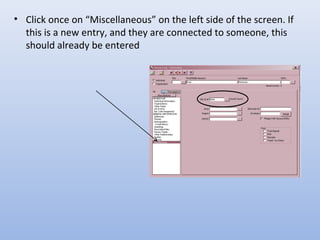
• Click once on “Miscellaneous” on the left side of the screen. If
this is a new entry, and they are connected to someone, this
should already be entered
• If the congregation
number is not there,
click on the button
with three dots
beside “Site ID#.”
A new box
will come up.
• Type in part or the
entire congregation
name and press enter.
Then choose the correct
congregation from the
list and click “ok.”
• Click once on “Life
Events” on the left
side of the screen.
• Click the “Add
New” button at the
bottom right of the
screen. This will
bring up the data
entry screen to
enter life events.
• At the top is a small
box that will say
“Description” and will
have “Baby Blessing”
already filled in.
• Add the blessing
information:
Effective Date: Date of Blessing
Officiant: Enter the full name (first/middle/last). Note:
make sure the officiant holds the proper Priesthood office.
If an officiant from outside of your area has participated,
you can call Membership Records to verify the Priesthood
office held by that person. (Do not check “Use GlobaFILE”.
When that is checked, the Officiant field is blank on the report
that goes to Membership to generate the certificate.)
Location: City, State/Province
where the blessing took
place. Use the two digit
state/province abbreviation.
For example: Independence,
MO or Chatham, ON
Congregation Enrolled: Enter
the official name of the
congregation.
In the “notes” section at the bottom, enter the
information in the following format:
Birthplace: City, two digit state/province
abbreviation
Father: Full name
Mother: Full name (Maiden Name)
Click “ok” to exit
and save
At the top left of the
screen, click the “save
and close” button,
which looks like a white
sheet of paper with a
green check mark

Tutorial - Baby Blessing

  • 1.
    Shelby v5.11 Entering aBaby Blessing This is a tutorial. For complete step-by-step instructions see the United States Recorder Handbook on the World Church website at http://www.cofchrist.org/recorders/stepbystep.asp Left click once with the mouse to advance slides. To view the slide show, click on the “slide show icon” on your system tray (bottom of the screen).
  • 2.
    1. Before youbegin to enter a baby blessing, • first check to see if the child has already been entered as a friend or miscellaneous name. • If not, you are ready to enter them into Shelby. • If the child is already in Shelby and attached to at least one parent, you will use that existing record to enter the blessing. • If they are not already in Shelby, see “Entering Friend or a Non-member Parent”.
  • 3.
    2. If eitherof the parents are a member, pull up the Head of House parent name. • If both parents are non-members, at least one parent will need to be added to Shelby as a “friend” so that the child can be attached to them. The parent must be added before the child.
  • 4.
    • Search forthe Head of House parent name in the Name Filter. • Highlight the name by clicking on it once.
  • 5.
    • Go tothe toolbar and click the “new” tab (the first item on the toolbar and looks like a white sheet of paper). • You will get a message that says, “Is this new person to be added to the family of…” Click “Yes.”
  • 6.
    • Enter thechild’s name in the spaces at the top of the screen (do not add title). • Make sure the dot beside “individual” is filled in (not organization).
  • 7.
    • Click onceon “Individual Information” on the left side of the screen. This screen should read: Module: Friend Record Status: Active Relationship: Active How Received: Baby Blessing Date Received: Date the blessing took place
  • 8.
    • Click onceon “Addresses” on the left side of the screen. • Double click on the space beside “Home/Main Address.” Enter address.
  • 9.
    • Click onceon “Phones” on the left side of the screen, • Double click on the space beside “Main/Home.” Enter the phone number. If there are other phone numbers (cell, business, etc.) add those to the respective fields.
  • 10.
    • Click onceon “Demographics” on the left side of the screen. Add child’s birth date, gender, and marital status. Change salutation, if needed. For example, if the person’s name is William, but they go by Bill, you would enter “William” as the First Name and “Bill” as the salutation.
  • 11.
    • Click onceon “Primary Family” on the left side of the screen. Make sure the child is listed as “Child”. (If only one parent is listed, the system will automatically put each added entry in as a spouse. Make sure you change this to child as needed.) If child has a different last name, check the box “Spouse or child with different last name."
  • 12.
    • Click onceon “Miscellaneous” on the left side of the screen. If this is a new entry, and they are connected to someone, this should already be entered
  • 13.
    • If thecongregation number is not there, click on the button with three dots beside “Site ID#.” A new box will come up.
  • 14.
    • Type inpart or the entire congregation name and press enter. Then choose the correct congregation from the list and click “ok.”
  • 15.
    • Click onceon “Life Events” on the left side of the screen. • Click the “Add New” button at the bottom right of the screen. This will bring up the data entry screen to enter life events.
  • 16.
    • At thetop is a small box that will say “Description” and will have “Baby Blessing” already filled in. • Add the blessing information: Effective Date: Date of Blessing Officiant: Enter the full name (first/middle/last). Note: make sure the officiant holds the proper Priesthood office. If an officiant from outside of your area has participated, you can call Membership Records to verify the Priesthood office held by that person. (Do not check “Use GlobaFILE”. When that is checked, the Officiant field is blank on the report that goes to Membership to generate the certificate.)
  • 17.
    Location: City, State/Province wherethe blessing took place. Use the two digit state/province abbreviation. For example: Independence, MO or Chatham, ON Congregation Enrolled: Enter the official name of the congregation. In the “notes” section at the bottom, enter the information in the following format: Birthplace: City, two digit state/province abbreviation Father: Full name Mother: Full name (Maiden Name)
  • 18.
    Click “ok” toexit and save At the top left of the screen, click the “save and close” button, which looks like a white sheet of paper with a green check mark