Shelby v5.16.2
Adding Priesthood Category
This is a tutorial. For complete step-by-step instructions see the
United States Recorder Handbook on the World Church website at
http://www.cofchrist.org/common/cms/resources/Documents/Recorder-
Manual-Step-by-step-instructions-2017.pdf
To view the slide show, click on the arrows at the bottom of the screen.
June, 2017
To record a Priesthood Leave
Go to the person’s record in Membership,  Click on “Life Events”  Click on “Add New” in
the lower left of the screen.
On the “Life Event” screen, choose
“Priesthood Leave”
Add the begin date, congregation enrolled and
type (Priesthood Office).
In the notes add “Per instruction of
(Pastor’s Name), Pastor”
Click OK
* Note: Do not put an “ending date” on the original ordination Life Event.
June, 2017
When the priesthood member is ready to resume functioning in their
office, open the Life Event of “Priesthood Leave” and enter an ending
date.
Click OK
June, 2017
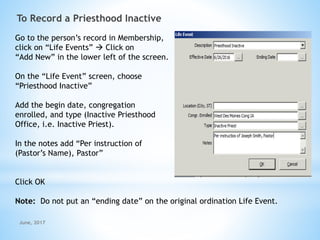
To Record a Priesthood Inactive
Go to the person’s record in Membership,
click on “Life Events”  Click on
“Add New” in the lower left of the screen.
On the “Life Event” screen, choose
“Priesthood Inactive”
Add the begin date, congregation
enrolled, and type (Inactive Priesthood
Office, i.e. Inactive Priest).
In the notes add “Per instruction of
(Pastor’s Name), Pastor”
Click OK
Note: Do not put an “ending date” on the original ordination Life Event.
June, 2017
Go to “Individual Information” and verify that the Priesthood Office has
changed to “Inactive (Priesthood office)”. If it has not, you will need to
enter it manually.
Individual
Information
To change it manually, simply
type in “Inactive Priest” or
whatever office is applicable.
June, 2017
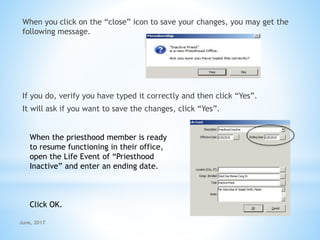
When you click on the “close” icon to save your changes, you may get the
following message.
If you do, verify you have typed it correctly and then click “Yes”.
It will ask if you want to save the changes, click “Yes”.
When the priesthood member is ready
to resume functioning in their office,
open the Life Event of “Priesthood
Inactive” and enter an ending date.
Click OK.
June, 2017
Go to “Individual Information” and
manually change the “Priesthood Office”
to the appropriate office.
Individual
Information
Click the “close” icon
and save.
June, 2017
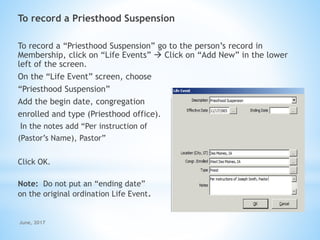
To record a Priesthood Suspension
To record a “Priesthood Suspension” go to the person’s record in
Membership, click on “Life Events”  Click on “Add New” in the lower
left of the screen.
On the “Life Event” screen, choose
“Priesthood Suspension”
Add the begin date, congregation
enrolled and type (Priesthood office).
In the notes add “Per instruction of
(Pastor’s Name), Pastor”
Click OK.
Note: Do not put an “ending date”
on the original ordination Life Event.
June, 2017
When the priesthood member is ready to resume functioning in their office,
open the Life Event of “Priesthood Suspension” and enter an ending date.
Click OK.
June, 2017

Shelby Tutorial - Adding Priesthood Category

  • 1.
    Shelby v5.16.2 Adding PriesthoodCategory This is a tutorial. For complete step-by-step instructions see the United States Recorder Handbook on the World Church website at http://www.cofchrist.org/common/cms/resources/Documents/Recorder- Manual-Step-by-step-instructions-2017.pdf To view the slide show, click on the arrows at the bottom of the screen. June, 2017
  • 2.
    To record aPriesthood Leave Go to the person’s record in Membership,  Click on “Life Events”  Click on “Add New” in the lower left of the screen. On the “Life Event” screen, choose “Priesthood Leave” Add the begin date, congregation enrolled and type (Priesthood Office). In the notes add “Per instruction of (Pastor’s Name), Pastor” Click OK * Note: Do not put an “ending date” on the original ordination Life Event. June, 2017
  • 3.
    When the priesthoodmember is ready to resume functioning in their office, open the Life Event of “Priesthood Leave” and enter an ending date. Click OK June, 2017
  • 4.
    To Record aPriesthood Inactive Go to the person’s record in Membership, click on “Life Events”  Click on “Add New” in the lower left of the screen. On the “Life Event” screen, choose “Priesthood Inactive” Add the begin date, congregation enrolled, and type (Inactive Priesthood Office, i.e. Inactive Priest). In the notes add “Per instruction of (Pastor’s Name), Pastor” Click OK Note: Do not put an “ending date” on the original ordination Life Event. June, 2017
  • 5.
    Go to “IndividualInformation” and verify that the Priesthood Office has changed to “Inactive (Priesthood office)”. If it has not, you will need to enter it manually. Individual Information To change it manually, simply type in “Inactive Priest” or whatever office is applicable. June, 2017
  • 6.
    When you clickon the “close” icon to save your changes, you may get the following message. If you do, verify you have typed it correctly and then click “Yes”. It will ask if you want to save the changes, click “Yes”. When the priesthood member is ready to resume functioning in their office, open the Life Event of “Priesthood Inactive” and enter an ending date. Click OK. June, 2017
  • 7.
    Go to “IndividualInformation” and manually change the “Priesthood Office” to the appropriate office. Individual Information Click the “close” icon and save. June, 2017
  • 8.
    To record aPriesthood Suspension To record a “Priesthood Suspension” go to the person’s record in Membership, click on “Life Events”  Click on “Add New” in the lower left of the screen. On the “Life Event” screen, choose “Priesthood Suspension” Add the begin date, congregation enrolled and type (Priesthood office). In the notes add “Per instruction of (Pastor’s Name), Pastor” Click OK. Note: Do not put an “ending date” on the original ordination Life Event. June, 2017
  • 9.
    When the priesthoodmember is ready to resume functioning in their office, open the Life Event of “Priesthood Suspension” and enter an ending date. Click OK. June, 2017