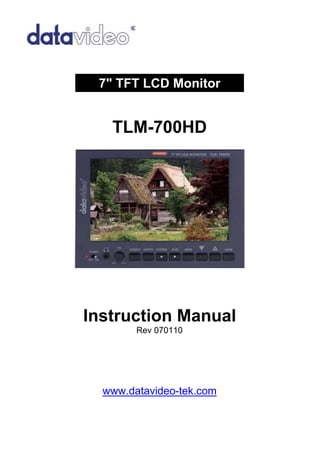
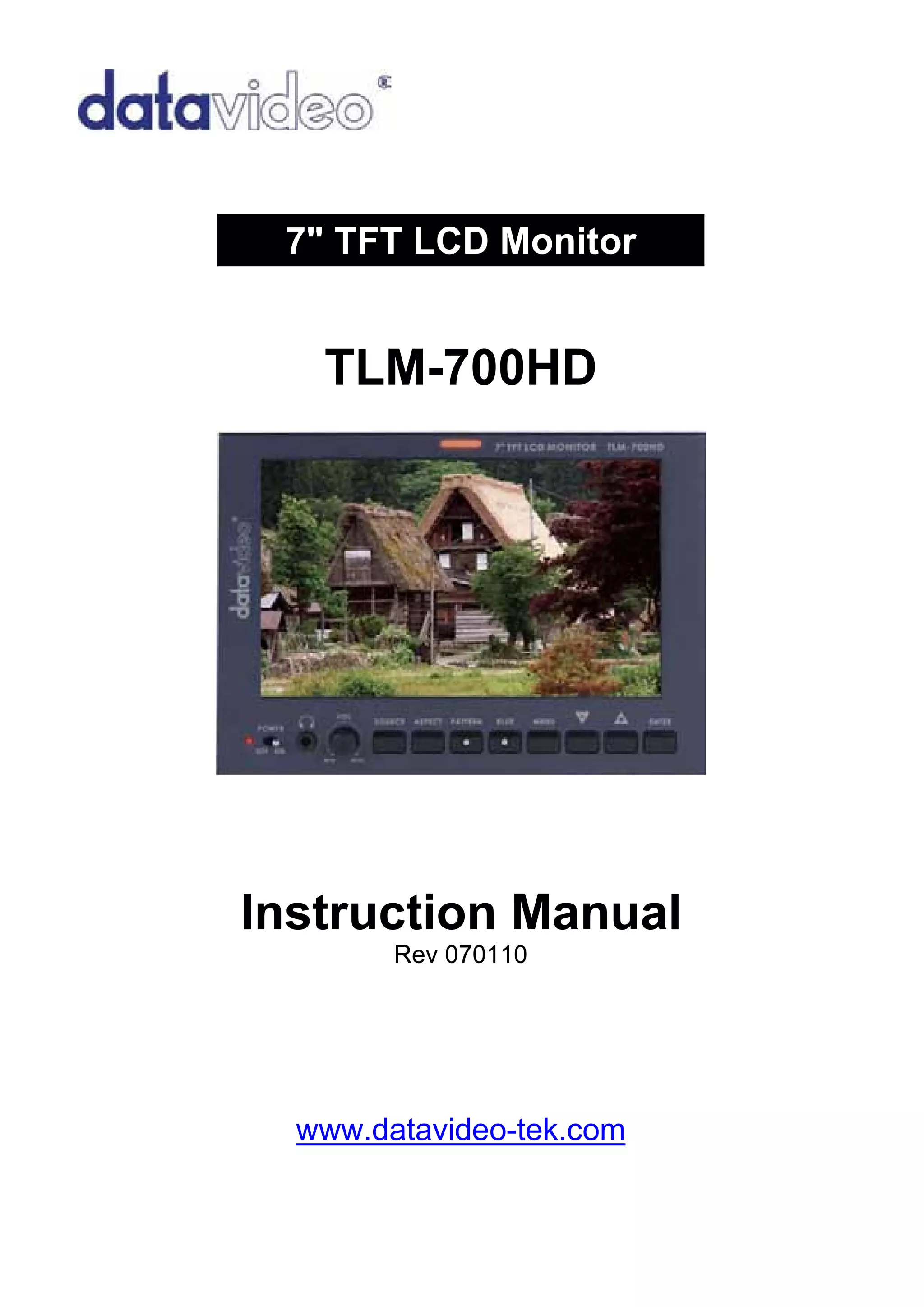
7" TFT LCD Monitor


   TLM-700HD


Instruction Manual
        Rev 070110


  www.datavideo-tek.com
Table of Contents

Warnings and Precautions ................................................ 3
Warranty ............................................................................ 5
   Standard Warranty ......................................................... 5
   Two Year Warranty ........................................................ 5
Disposal ............................................................................. 6
Packing List ....................................................................... 6
Introduction ........................................................................ 6
Features ............................................................................. 7
Supported Formats ............................................................ 7
Connections & Controls ..................................................... 8
   Front Panel..................................................................... 8
   Rear Panel ................................................................... 10
Menu Options .................................................................. 11
   1. Picture ...................................................................... 11
   2. Audio ........................................................................ 11
   3. Func. ........................................................................ 11
   4. Setup ........................................................................ 12
   5. Advance ................................................................... 13
Calibrating Datavideo Monitors ....................................... 13
Specifications ................................................................... 14
Service & Support ............................................................ 15


                                           2
Warnings and Precautions
1.   Read all of these warnings and save them for later reference.
2.   Follow all warnings and instructions marked on this unit.
3.   Unplug this unit from the wall outlet before cleaning. Do not use
     liquid or aerosol cleaners. Use a damp cloth for cleaning.
4.   Do not use this unit in or near water.
5.   Do not place this unit on an unstable cart, stand, or table. The unit
     may fall, causing serious damage.
6.   Slots and openings on the cabinet top, back, and bottom are
     provided for ventilation. To ensure safe and reliable operation of this
     unit, and to protect it from overheating, do not block or cover these
     openings. Do not place this unit on a bed, sofa, rug, or similar
     surface, as the ventilation openings on the bottom of the cabinet will
     be blocked. This unit should never be placed near or over a heat
     register or radiator. This unit should not be placed in a built-in
     installation unless proper ventilation is provided.
7.   This product should only be operated from the type of power source
     indicated on the marking label of the AC adapter. If you are not sure
     of the type of power available, consult your Datavideo dealer or your
     local power company.
8.   Do not allow anything to rest on the power cord. Do not locate this
     unit where the power cord will be walked on, rolled over, or
     otherwise stressed.
9.   If an extension cord must be used with this unit, make sure that the
     total of the ampere ratings on the products plugged into the
     extension cord do not exceed the extension cord’s rating.
10. Make sure that the total amperes of all the units that are plugged
     into a single wall outlet do not exceed 15 amperes.
                                       3
11. Never push objects of any kind into this unit through the cabinet
     ventilation slots, as they may touch dangerous voltage points or
     short out parts that could result in risk of fire or electric shock. Never
     spill liquid of any kind onto or into this unit.
12. Except as specifically explained elsewhere in this manual, do not
     attempt to service this product yourself. Opening or removing covers
     that are marked “Do Not Remove” may expose you to dangerous
     voltage points or other risks, and will void your warranty. Refer all
     service issues to qualified service personnel.
13. Unplug this product from the wall outlet and refer to qualified service
     personnel under the following conditions:
     a.   When the power cord is damaged or frayed;
     b.   When liquid has spilled into the unit;
     c.   When the product has been exposed to rain or water;
     d.   When the product does not operate normally under normal
          operating conditions. Adjust only those controls that are
          covered by the operating instructions in this manual; improper
          adjustment of other controls may result in damage to the unit
          and may often require extensive work by a qualified technician
          to restore the unit to normal operation;
     e.   When the product has been dropped or the cabinet has been
          damaged;
     f.   When the product exhibits a distinct change in performance,
          indicating a need for service.


                                        4
Warranty
Standard Warranty
     Datavideo equipment is guaranteed against any manufacturing
         defects for one year from the date of purchase.
     The original purchase invoice or other documentary evidence
         should be supplied at the time of any request for repair under
         warranty.
     Damage caused by accident, misuse, unauthorized repairs,
         sand, grit or water is not covered by this warranty.
     All mail or transportation costs including insurance are at the
         expense of the owner.
     All other claims of any nature are not covered.
     Cables & batteries are not covered under warranty.
     Warranty only valid within the country or region of purchase.
     Your statutory rights are not affected.
 
Two Year Warranty
   All Datavideo products purchased after 01-Oct.-2008 qualify for a
       free one year extension to the standard Warranty, providing the
       product is registered with Datavideo within 30 days of purchase.
       For information on how to register please visit
       www.datavideo-tek.com or contact your local Datavideo office
       or authorized Distributors


      Certain parts with limited lifetime expectancy such as LCD Panels,
       DVD Drives, Hard Drives are only covered for the first 10,000
       hours, or 1 year (whichever comes first).
      Any second year warranty claims must be made to your local
       Datavideo office or one of its authorized Distributors before the
       extended warranty expires.


                                    5
Disposal
                     For EU Customers only - WEEE Marking
                     This symbol on the product indicates that it should
                     not be treated as household waste. It must be
                     handed over to the applicable take-back scheme for
                     the recycling of waste electrical and electronic
                     equipment. For more detailed information about the
                     recycling of this product, please contact your local
                     Datavideo office.

Packing List
          Items     Description                              Q’ty
            1       TLM-700HD                                  1
            2       Sunshield                                  1
            3       Switching Adaptor DC 12V/1.5A              1
            4       Instruction Manual                         1

Introduction
The Datavideo TLM-700HD is a 7 Inch monitor designed for HD users
who work outdoors in the field or in a studio. The TLM-700HD can be
powered from a standard V-Mount battery connection or mains power.
This enables you to power the monitor using an existing camera battery
from a range of manufacturers. Its case design is both rugged and easy
to carry with a variety of features and connections that make it perfect for
set up tests and field or studio monitoring.


                                      6
Features
           7" 16:9 Wide Screen Panel
           Resolution: 800 x 480 dots
           View Angle (V)+60/-40°, (H)+60/-60°
           HD/SD-SDI, YUV, HD-YUV, HDMI & CV Input
           Internal colour bar
           Blue only function
           Audio indicator for SDI, HDMI
           Safe Area indicator
           VITC time code display
           Dual colour tally light indicator
           Brightness, Contrast, Colour, Tint Adjustable
           Audio Level indicators
           NTSC / PAL Auto Switching
           4:3 / 15:9 / 16:9 switchable


Supported Formats
    • HDMI YUV                           • HDMI RGB
    - 720 x 576i x 50 Hz                 - 720 x 576i x 50 Hz
    - 720 x 480i x 60 Hz                 - 720 x 480i x 60 Hz
    - 1280 x 720p x 50 Hz                - 1280 x 720p x 50 Hz
    - 1280 x 720p x 60 Hz                - 1280 x 720p x 60 Hz
    - 1920 x 1080i x 50 Hz               - 1920 x 1080i x 50 Hz
    - 1920 x 1080i x 60 Hz               - 1920 x 1080i x 60 Hz

    • SDI                                • YUV
    - 720 x 576i / 50 Hz                 - 720 x 576i x 50 Hz
    - 720 x 480i / 60 Hz                 - 720 x 480i x 60 Hz
    - 1280 x 720p / 60 Hz                - 1280 x 720p x 50 Hz
    - 1280 x 720p / 50 Hz                - 1280 x 720p x 60 Hz
    - 1920 x 1080i / 50 Hz               - 1920 x 1080i x 50 Hz
    - 1920 x 1080i / 60 Hz               - 1920 x 1080i x 60 Hz

    • CV
    - 720 x 576i (PAL)
    - 720 x 480i (NTSC)


                                     7
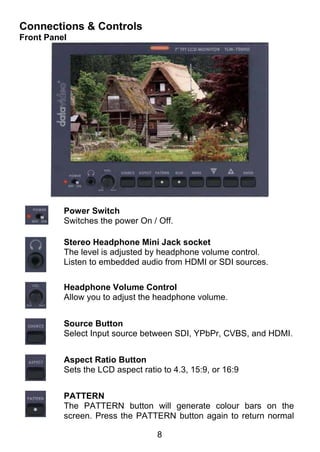
Connections & Controls
Front Panel


          Power Switch
          Switches the power On / Off.

          Stereo Headphone Mini Jack socket
          The level is adjusted by headphone volume control.
          Listen to embedded audio from HDMI or SDI sources.

          Headphone Volume Control
          Allow you to adjust the headphone volume.


          Source Button
          Select Input source between SDI, YPbPr, CVBS, and HDMI.


          Aspect Ratio Button
          Sets the LCD aspect ratio to 4.3, 15:9, or 16:9


          PATTERN
          The PATTERN button will generate colour bars on the
          screen. Press the PATTERN button again to return normal

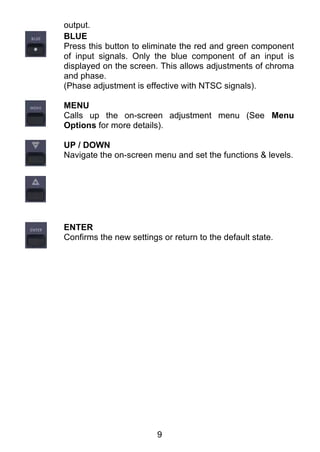
                                   8
output.
BLUE
Press this button to eliminate the red and green component
of input signals. Only the blue component of an input is
displayed on the screen. This allows adjustments of chroma
and phase.
(Phase adjustment is effective with NTSC signals).

MENU
Calls up the on-screen adjustment menu (See Menu
Options for more details).

UP / DOWN
Navigate the on-screen menu and set the functions & levels.


ENTER
Confirms the new settings or return to the default state.


                         9
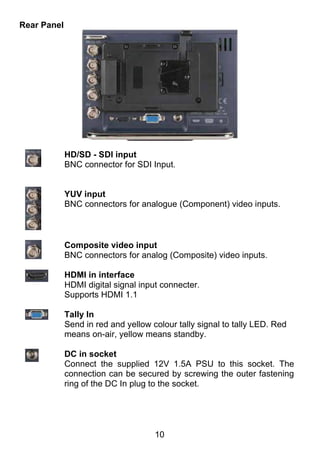
Rear Panel


             HD/SD - SDI input
             BNC connector for SDI Input.


             YUV input
             BNC connectors for analogue (Component) video inputs.


             Composite video input
             BNC connectors for analog (Composite) video inputs.

             HDMI in interface
             HDMI digital signal input connecter.
             Supports HDMI 1.1

             Tally In
             Send in red and yellow colour tally signal to tally LED. Red
             means on-air, yellow means standby.

             DC in socket
             Connect the supplied 12V 1.5A PSU to this socket. The
             connection can be secured by screwing the outer fastening
             ring of the DC In plug to the socket.


                                     10
Menu Options
1. Picture
  - Press the MENU button once to display the Picture setting menu.
  - Press the ENTER button to highlight the Brightness setting.
  - Press the UP or DOWN button to highlight the setting that needs to be adjusted.
  - Press ENTER button to select the Brightness setting.
  - Press the UP or DOWN button to adjust the Brightness value between 0 and
     100.
  - Press ENTER button again to save and return to the Picture setting menu; now
     highlight another Picture setting to be adjusted. To select a different setting
     (Contrast, Saturation, Tint) use the UP / DOWN buttons. Follow the same
     procedure to set the other values.
  - Keep pressing the MENU button to cycle through the main menu options.
  - Press the SOURCE button to exit the menu mode.

2. Audio
  - Press the MENU button twice to display the Audio setting menu.
  - Press the ENTER button to highlight the Indicator setting.
  - Press the ENTER button again to toggle the on screen audio indicator ON/OFF.
  - Keep pressing the MENU button to cycle through the main menu options.
  - Press the SOURCE button to exit the menu mode.

3. Func.
  - Press the MENU button three times to display the Func. setting menu.
  - Press the ENTER button to highlight the Center Mark setting.
  - Press the ENTER button to toggle the on screen Center Mark ON/OFF.

  - Press the UP or DOWN button to highlight the Safety Zone setting.
  - Keep pressing the ENTER button to cycle through the values 80%, 90% or OFF.

  - Press the UP or DOWN button to exit the Safety Zone setting. To select a
     different setting (4:3 Screen, Cinema Zone) use the UP or DOWN buttons.
     Follow the same procedure to set the next setting.
  - Keep pressing the MENU button to cycle through the main menu options.
  - Press the SOURCE button to exit the menu mode.


                                          11
4. Setup
  - Press the MENU button four times to display the Setup setting menu.
  - Press the ENTER button to highlight the OSD Timer setting.
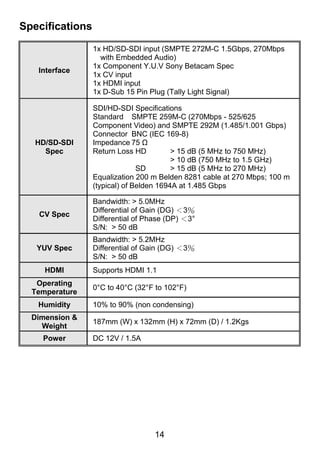
     NB: OSD Timer sets how long the setting menus will stay on screen.
  - Press the ENTER button again to display the OSD Timer setting position.
  - Press the UP or DOWN button to set the OSD value between 5 to 60 SEC.
  - Press ENTER button to save the OSD value.

  - Press the UP or DOWN button to highlight the OSD Blending setting.
     NB: OSD Blending sets how transparent the setting menus will be on screen.
  - Press the ENTER button to display the OSD Blending setting position.
  - Press the UP or DOWN button to select the OSD blending value (from 0~7).
     NB: OSD Blending value 0 = Min transparency 7 = Max transparency
  - Press the ENTER button to save the OSD blending value.

  - Press the UP or DOWN button to highlight the Time Code setting.
  - Press the ENTER button to toggle the on screen Time Code display ON/OFF.

  - Press the UP or DOWN button to highlight the TC Position setting.
     NB: TC Position is used to set where on the monitor Time Code will be shown.
  - Press the ENTER button to cycle through the possible Time Code Positions on
     the monitor (Left/Up, Middle/Down, Right/Down, Right/Up)

  - Press the UP or DOWN button to highlight the TC HD Line setting.
  - Press ENTER button to cycle through the possible HD time code lines (8~20).

  - Press the UP or DOWN button to highlight the TC SD Line setting.
  - Press ENTER button to cycle through the possible SD time code lines (10~21).

  - Press the UP or DOWN button to highlight the TC Font Size setting.
  - Press ENTER button to cycle through the possible time code font sizes on the
     screen (Large or Small).

  - Keep pressing the MENU button to cycle through the main menu options.
  - Press the SOURCE button to exit the menu mode.


                                      12
5. Advance
  - Press the MENU button five times to display the Advance setting menu.
  - Press the ENTER button to highlight the LCD L/R Scan setting.
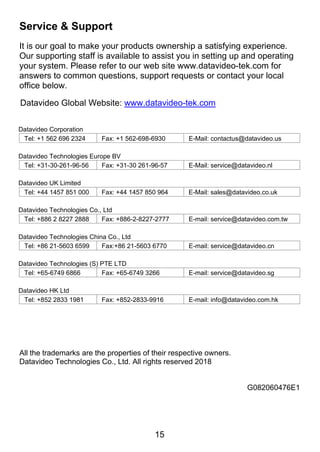
     NB: The LCD L/R Scan will reverse the image displayed horizontally.
  - Press the ENTER button, the screen image will be reversed (Left to Right).
  - Press the ENTER button again, the screen image will return to normal view.

  - Press UP / DOWN button to highlight the LCD U/D Scan setting.
     NB: The LCD U/D Scan will reverse the image displayed vertically.
  - Press the ENTER button, the screen image will be reversed (Top to Bottom).
  - Press the ENTER button again, the screen image will return to normal view.

  - Press UP / DOWN button to highlight the Reset option.
     NB: This option will return the monitor to the factory default settings.
  - Press the ENTER button to re-start the monitor with the factory default settings.

  - Press UP / DOWN button to highlight the Version setting.
  - Press the ENTER button, the firmware version will be displayed on screen.
  - Keep pressing the MENU button to cycle through the main menu options.
  - Press the SOURCE button to exit the menu mode.


Calibrating Datavideo Monitors
Perhaps the most important way to make sure that your video really looks
as good as it can on other monitors is to monitor the video during
production with a properly calibrated monitor.


For guidance on how to calibrate a Datavideo Monitor using SMPTE
colour bars please visit our website for technical information and useful
information.


                                         13
Specifications

                 1x HD/SD-SDI input (SMPTE 272M-C 1.5Gbps, 270Mbps
                   with Embedded Audio)
                 1x Component Y.U.V Sony Betacam Spec
   Interface
                 1x CV input
                 1x HDMI input
                 1x D-Sub 15 Pin Plug (Tally Light Signal)

                 SDI/HD-SDI Specifications
                 Standard SMPTE 259M-C (270Mbps - 525/625
                 Component Video) and SMPTE 292M (1.485/1.001 Gbps)
                 Connector BNC (IEC 169-8)
   HD/SD-SDI     Impedance 75 Ω
     Spec        Return Loss HD          > 15 dB (5 MHz to 750 MHz)
                                         > 10 dB (750 MHz to 1.5 GHz)
                               SD        > 15 dB (5 MHz to 270 MHz)
                 Equalization 200 m Belden 8281 cable at 270 Mbps; 100 m
                 (typical) of Belden 1694A at 1.485 Gbps

                 Bandwidth: > 5.0MHz
                 Differential of Gain (DG) <3%
   CV Spec
                 Differential of Phase (DP) <3°
                 S/N: > 50 dB
                 Bandwidth: > 5.2MHz
   YUV Spec      Differential of Gain (DG) <3%
                 S/N: > 50 dB
     HDMI        Supports HDMI 1.1
   Operating
                 0°C to 40°C (32°F to 102°F)
  Temperature
   Humidity      10% to 90% (non condensing)
  Dimension &
                 187mm (W) x 132mm (H) x 72mm (D) / 1.2Kgs
    Weight
    Power        DC 12V / 1.5A


                                   14
Service & Support
It is our goal to make your products ownership a satisfying experience.
Our supporting staff is available to assist you in setting up and operating
your system. Please refer to our web site www.datavideo-tek.com for
answers to common questions, support requests or contact your local
office below.

Datavideo Global Website: www.datavideo-tek.com


Datavideo Corporation
 Tel: +1 562 696 2324     Fax: +1 562-698-6930      E-Mail: contactus@datavideo.us

Datavideo Technologies Europe BV
 Tel: +31-30-261-96-56     Fax: +31-30 261-96-57    E-Mail: service@datavideo.nl

Datavideo UK Limited
 Tel: +44 1457 851 000    Fax: +44 1457 850 964     E-Mail: sales@datavideo.co.uk

Datavideo Technologies Co., Ltd
 Tel: +886 2 8227 2888     Fax: +886-2-8227-2777    E-mail: service@datavideo.com.tw

Datavideo Technologies China Co., Ltd
 Tel: +86 21-5603 6599     Fax:+86 21-5603 6770     E-mail: service@datavideo.cn

Datavideo Technologies (S) PTE LTD
 Tel: +65-6749 6866        Fax: +65-6749 3266       E-mail: service@datavideo.sg

Datavideo HK Ltd
 Tel: +852 2833 1981      Fax: +852-2833-9916       E-mail: info@datavideo.com.hk


All the trademarks are the properties of their respective owners.
Datavideo Technologies Co., Ltd. All rights reserved 2018


                                                                       G082060476E1


                                           15

Datavideo TLM-700HD

  • 1.
    7" TFT LCDMonitor TLM-700HD Instruction Manual Rev 070110 www.datavideo-tek.com
  • 2.
    Table of Contents Warningsand Precautions ................................................ 3 Warranty ............................................................................ 5 Standard Warranty ......................................................... 5 Two Year Warranty ........................................................ 5 Disposal ............................................................................. 6 Packing List ....................................................................... 6 Introduction ........................................................................ 6 Features ............................................................................. 7 Supported Formats ............................................................ 7 Connections & Controls ..................................................... 8 Front Panel..................................................................... 8 Rear Panel ................................................................... 10 Menu Options .................................................................. 11 1. Picture ...................................................................... 11 2. Audio ........................................................................ 11 3. Func. ........................................................................ 11 4. Setup ........................................................................ 12 5. Advance ................................................................... 13 Calibrating Datavideo Monitors ....................................... 13 Specifications ................................................................... 14 Service & Support ............................................................ 15 2
  • 3.
    Warnings and Precautions 1. Read all of these warnings and save them for later reference. 2. Follow all warnings and instructions marked on this unit. 3. Unplug this unit from the wall outlet before cleaning. Do not use liquid or aerosol cleaners. Use a damp cloth for cleaning. 4. Do not use this unit in or near water. 5. Do not place this unit on an unstable cart, stand, or table. The unit may fall, causing serious damage. 6. Slots and openings on the cabinet top, back, and bottom are provided for ventilation. To ensure safe and reliable operation of this unit, and to protect it from overheating, do not block or cover these openings. Do not place this unit on a bed, sofa, rug, or similar surface, as the ventilation openings on the bottom of the cabinet will be blocked. This unit should never be placed near or over a heat register or radiator. This unit should not be placed in a built-in installation unless proper ventilation is provided. 7. This product should only be operated from the type of power source indicated on the marking label of the AC adapter. If you are not sure of the type of power available, consult your Datavideo dealer or your local power company. 8. Do not allow anything to rest on the power cord. Do not locate this unit where the power cord will be walked on, rolled over, or otherwise stressed. 9. If an extension cord must be used with this unit, make sure that the total of the ampere ratings on the products plugged into the extension cord do not exceed the extension cord’s rating. 10. Make sure that the total amperes of all the units that are plugged into a single wall outlet do not exceed 15 amperes. 3
  • 4.
    11. Never pushobjects of any kind into this unit through the cabinet ventilation slots, as they may touch dangerous voltage points or short out parts that could result in risk of fire or electric shock. Never spill liquid of any kind onto or into this unit. 12. Except as specifically explained elsewhere in this manual, do not attempt to service this product yourself. Opening or removing covers that are marked “Do Not Remove” may expose you to dangerous voltage points or other risks, and will void your warranty. Refer all service issues to qualified service personnel. 13. Unplug this product from the wall outlet and refer to qualified service personnel under the following conditions: a. When the power cord is damaged or frayed; b. When liquid has spilled into the unit; c. When the product has been exposed to rain or water; d. When the product does not operate normally under normal operating conditions. Adjust only those controls that are covered by the operating instructions in this manual; improper adjustment of other controls may result in damage to the unit and may often require extensive work by a qualified technician to restore the unit to normal operation; e. When the product has been dropped or the cabinet has been damaged; f. When the product exhibits a distinct change in performance, indicating a need for service. 4
  • 5.
    Warranty Standard Warranty  Datavideo equipment is guaranteed against any manufacturing defects for one year from the date of purchase.  The original purchase invoice or other documentary evidence should be supplied at the time of any request for repair under warranty.  Damage caused by accident, misuse, unauthorized repairs, sand, grit or water is not covered by this warranty.  All mail or transportation costs including insurance are at the expense of the owner.  All other claims of any nature are not covered.  Cables & batteries are not covered under warranty.  Warranty only valid within the country or region of purchase.  Your statutory rights are not affected.   Two Year Warranty  All Datavideo products purchased after 01-Oct.-2008 qualify for a free one year extension to the standard Warranty, providing the product is registered with Datavideo within 30 days of purchase. For information on how to register please visit www.datavideo-tek.com or contact your local Datavideo office or authorized Distributors  Certain parts with limited lifetime expectancy such as LCD Panels, DVD Drives, Hard Drives are only covered for the first 10,000 hours, or 1 year (whichever comes first).  Any second year warranty claims must be made to your local Datavideo office or one of its authorized Distributors before the extended warranty expires. 5
  • 6.
    Disposal For EU Customers only - WEEE Marking This symbol on the product indicates that it should not be treated as household waste. It must be handed over to the applicable take-back scheme for the recycling of waste electrical and electronic equipment. For more detailed information about the recycling of this product, please contact your local Datavideo office. Packing List Items Description Q’ty 1 TLM-700HD 1 2 Sunshield 1 3 Switching Adaptor DC 12V/1.5A 1 4 Instruction Manual 1 Introduction The Datavideo TLM-700HD is a 7 Inch monitor designed for HD users who work outdoors in the field or in a studio. The TLM-700HD can be powered from a standard V-Mount battery connection or mains power. This enables you to power the monitor using an existing camera battery from a range of manufacturers. Its case design is both rugged and easy to carry with a variety of features and connections that make it perfect for set up tests and field or studio monitoring. 6
  • 7.
    Features  7" 16:9 Wide Screen Panel  Resolution: 800 x 480 dots  View Angle (V)+60/-40°, (H)+60/-60°  HD/SD-SDI, YUV, HD-YUV, HDMI & CV Input  Internal colour bar  Blue only function  Audio indicator for SDI, HDMI  Safe Area indicator  VITC time code display  Dual colour tally light indicator  Brightness, Contrast, Colour, Tint Adjustable  Audio Level indicators  NTSC / PAL Auto Switching  4:3 / 15:9 / 16:9 switchable Supported Formats • HDMI YUV • HDMI RGB - 720 x 576i x 50 Hz - 720 x 576i x 50 Hz - 720 x 480i x 60 Hz - 720 x 480i x 60 Hz - 1280 x 720p x 50 Hz - 1280 x 720p x 50 Hz - 1280 x 720p x 60 Hz - 1280 x 720p x 60 Hz - 1920 x 1080i x 50 Hz - 1920 x 1080i x 50 Hz - 1920 x 1080i x 60 Hz - 1920 x 1080i x 60 Hz • SDI • YUV - 720 x 576i / 50 Hz - 720 x 576i x 50 Hz - 720 x 480i / 60 Hz - 720 x 480i x 60 Hz - 1280 x 720p / 60 Hz - 1280 x 720p x 50 Hz - 1280 x 720p / 50 Hz - 1280 x 720p x 60 Hz - 1920 x 1080i / 50 Hz - 1920 x 1080i x 50 Hz - 1920 x 1080i / 60 Hz - 1920 x 1080i x 60 Hz • CV - 720 x 576i (PAL) - 720 x 480i (NTSC) 7
  • 8.
    Connections & Controls FrontPanel Power Switch Switches the power On / Off. Stereo Headphone Mini Jack socket The level is adjusted by headphone volume control. Listen to embedded audio from HDMI or SDI sources. Headphone Volume Control Allow you to adjust the headphone volume. Source Button Select Input source between SDI, YPbPr, CVBS, and HDMI. Aspect Ratio Button Sets the LCD aspect ratio to 4.3, 15:9, or 16:9 PATTERN The PATTERN button will generate colour bars on the screen. Press the PATTERN button again to return normal 8
  • 9.
    output. BLUE Press this buttonto eliminate the red and green component of input signals. Only the blue component of an input is displayed on the screen. This allows adjustments of chroma and phase. (Phase adjustment is effective with NTSC signals). MENU Calls up the on-screen adjustment menu (See Menu Options for more details). UP / DOWN Navigate the on-screen menu and set the functions & levels. ENTER Confirms the new settings or return to the default state. 9
  • 10.
    Rear Panel HD/SD - SDI input BNC connector for SDI Input. YUV input BNC connectors for analogue (Component) video inputs. Composite video input BNC connectors for analog (Composite) video inputs. HDMI in interface HDMI digital signal input connecter. Supports HDMI 1.1 Tally In Send in red and yellow colour tally signal to tally LED. Red means on-air, yellow means standby. DC in socket Connect the supplied 12V 1.5A PSU to this socket. The connection can be secured by screwing the outer fastening ring of the DC In plug to the socket. 10
  • 11.
    Menu Options 1. Picture - Press the MENU button once to display the Picture setting menu. - Press the ENTER button to highlight the Brightness setting. - Press the UP or DOWN button to highlight the setting that needs to be adjusted. - Press ENTER button to select the Brightness setting. - Press the UP or DOWN button to adjust the Brightness value between 0 and 100. - Press ENTER button again to save and return to the Picture setting menu; now highlight another Picture setting to be adjusted. To select a different setting (Contrast, Saturation, Tint) use the UP / DOWN buttons. Follow the same procedure to set the other values. - Keep pressing the MENU button to cycle through the main menu options. - Press the SOURCE button to exit the menu mode. 2. Audio - Press the MENU button twice to display the Audio setting menu. - Press the ENTER button to highlight the Indicator setting. - Press the ENTER button again to toggle the on screen audio indicator ON/OFF. - Keep pressing the MENU button to cycle through the main menu options. - Press the SOURCE button to exit the menu mode. 3. Func. - Press the MENU button three times to display the Func. setting menu. - Press the ENTER button to highlight the Center Mark setting. - Press the ENTER button to toggle the on screen Center Mark ON/OFF. - Press the UP or DOWN button to highlight the Safety Zone setting. - Keep pressing the ENTER button to cycle through the values 80%, 90% or OFF. - Press the UP or DOWN button to exit the Safety Zone setting. To select a different setting (4:3 Screen, Cinema Zone) use the UP or DOWN buttons. Follow the same procedure to set the next setting. - Keep pressing the MENU button to cycle through the main menu options. - Press the SOURCE button to exit the menu mode. 11
  • 12.
    4. Setup - Press the MENU button four times to display the Setup setting menu. - Press the ENTER button to highlight the OSD Timer setting. NB: OSD Timer sets how long the setting menus will stay on screen. - Press the ENTER button again to display the OSD Timer setting position. - Press the UP or DOWN button to set the OSD value between 5 to 60 SEC. - Press ENTER button to save the OSD value. - Press the UP or DOWN button to highlight the OSD Blending setting. NB: OSD Blending sets how transparent the setting menus will be on screen. - Press the ENTER button to display the OSD Blending setting position. - Press the UP or DOWN button to select the OSD blending value (from 0~7). NB: OSD Blending value 0 = Min transparency 7 = Max transparency - Press the ENTER button to save the OSD blending value. - Press the UP or DOWN button to highlight the Time Code setting. - Press the ENTER button to toggle the on screen Time Code display ON/OFF. - Press the UP or DOWN button to highlight the TC Position setting. NB: TC Position is used to set where on the monitor Time Code will be shown. - Press the ENTER button to cycle through the possible Time Code Positions on the monitor (Left/Up, Middle/Down, Right/Down, Right/Up) - Press the UP or DOWN button to highlight the TC HD Line setting. - Press ENTER button to cycle through the possible HD time code lines (8~20). - Press the UP or DOWN button to highlight the TC SD Line setting. - Press ENTER button to cycle through the possible SD time code lines (10~21). - Press the UP or DOWN button to highlight the TC Font Size setting. - Press ENTER button to cycle through the possible time code font sizes on the screen (Large or Small). - Keep pressing the MENU button to cycle through the main menu options. - Press the SOURCE button to exit the menu mode. 12
  • 13.
    5. Advance - Press the MENU button five times to display the Advance setting menu. - Press the ENTER button to highlight the LCD L/R Scan setting. NB: The LCD L/R Scan will reverse the image displayed horizontally. - Press the ENTER button, the screen image will be reversed (Left to Right). - Press the ENTER button again, the screen image will return to normal view. - Press UP / DOWN button to highlight the LCD U/D Scan setting. NB: The LCD U/D Scan will reverse the image displayed vertically. - Press the ENTER button, the screen image will be reversed (Top to Bottom). - Press the ENTER button again, the screen image will return to normal view. - Press UP / DOWN button to highlight the Reset option. NB: This option will return the monitor to the factory default settings. - Press the ENTER button to re-start the monitor with the factory default settings. - Press UP / DOWN button to highlight the Version setting. - Press the ENTER button, the firmware version will be displayed on screen. - Keep pressing the MENU button to cycle through the main menu options. - Press the SOURCE button to exit the menu mode. Calibrating Datavideo Monitors Perhaps the most important way to make sure that your video really looks as good as it can on other monitors is to monitor the video during production with a properly calibrated monitor. For guidance on how to calibrate a Datavideo Monitor using SMPTE colour bars please visit our website for technical information and useful information. 13
  • 14.
    Specifications 1x HD/SD-SDI input (SMPTE 272M-C 1.5Gbps, 270Mbps with Embedded Audio) 1x Component Y.U.V Sony Betacam Spec Interface 1x CV input 1x HDMI input 1x D-Sub 15 Pin Plug (Tally Light Signal) SDI/HD-SDI Specifications Standard SMPTE 259M-C (270Mbps - 525/625 Component Video) and SMPTE 292M (1.485/1.001 Gbps) Connector BNC (IEC 169-8) HD/SD-SDI Impedance 75 Ω Spec Return Loss HD > 15 dB (5 MHz to 750 MHz) > 10 dB (750 MHz to 1.5 GHz) SD > 15 dB (5 MHz to 270 MHz) Equalization 200 m Belden 8281 cable at 270 Mbps; 100 m (typical) of Belden 1694A at 1.485 Gbps Bandwidth: > 5.0MHz Differential of Gain (DG) <3% CV Spec Differential of Phase (DP) <3° S/N: > 50 dB Bandwidth: > 5.2MHz YUV Spec Differential of Gain (DG) <3% S/N: > 50 dB HDMI Supports HDMI 1.1 Operating 0°C to 40°C (32°F to 102°F) Temperature Humidity 10% to 90% (non condensing) Dimension & 187mm (W) x 132mm (H) x 72mm (D) / 1.2Kgs Weight Power DC 12V / 1.5A 14
  • 15.
    Service & Support Itis our goal to make your products ownership a satisfying experience. Our supporting staff is available to assist you in setting up and operating your system. Please refer to our web site www.datavideo-tek.com for answers to common questions, support requests or contact your local office below. Datavideo Global Website: www.datavideo-tek.com Datavideo Corporation Tel: +1 562 696 2324 Fax: +1 562-698-6930 E-Mail: contactus@datavideo.us Datavideo Technologies Europe BV Tel: +31-30-261-96-56 Fax: +31-30 261-96-57 E-Mail: service@datavideo.nl Datavideo UK Limited Tel: +44 1457 851 000 Fax: +44 1457 850 964 E-Mail: sales@datavideo.co.uk Datavideo Technologies Co., Ltd Tel: +886 2 8227 2888 Fax: +886-2-8227-2777 E-mail: service@datavideo.com.tw Datavideo Technologies China Co., Ltd Tel: +86 21-5603 6599 Fax:+86 21-5603 6770 E-mail: service@datavideo.cn Datavideo Technologies (S) PTE LTD Tel: +65-6749 6866 Fax: +65-6749 3266 E-mail: service@datavideo.sg Datavideo HK Ltd Tel: +852 2833 1981 Fax: +852-2833-9916 E-mail: info@datavideo.com.hk All the trademarks are the properties of their respective owners. Datavideo Technologies Co., Ltd. All rights reserved 2018 G082060476E1 15