450 Lincoln Street
Suite 101
Denver, CO 80203
719.359.9692
www.aspenware.com
Building Fast Multi-Touch
Enabled Web Sites
Ben Hoelting
@benhnet
Ben
Hoelting
In truth, he’s just a big kid. He loves designing systems
that solve real world problems. There is nothing more
satisfying than seeing something you helped develop
being used by the end users. Ben is also involved in the
technology community and runs the South Colorado .NET
user group. He also enjoys speaking at tech groups and
events around the country. Ben Hoelting
@benhnet
b.hoelting@aspenware.com
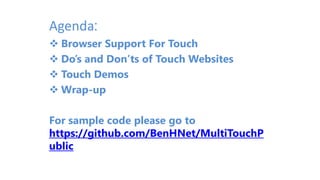
Agenda:
 Browser Support For Touch
 Do’s and Don’ts of Touch Websites
 Touch Demos
 Wrap-up
For sample code please go to
https://github.com/BenHNet/MultiTouchP
ublic
Touch Support In
Today’s Browsers
Hardware Accelerated
Fast
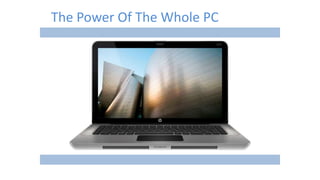
The Power Of The Whole PC
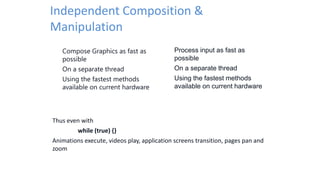
Independent Composition &
Manipulation
 Process input as fast as
possible
 On a separate thread
 Using the fastest methods
available on current hardware
 Compose Graphics as fast as
possible
 On a separate thread
 Using the fastest methods
available on current hardware
Thus even with
while (true) {}
Animations execute, videos play, application screens transition, pages pan and
zoom
 http://ie.microsoft.com/testdrive/
 http://blog.monitis.com/index.php/2011/05/15/30-tips-to-improve-
javascript-performance/
 http://www.asp.net/mvc/tutorials/mvc-4/bundling-and-minification
We have the technology!
The Six Million Dollar Web
Better… Stronger… Faster…
Browsers and computers are getting better and faster. However, if developers get to
know how modern browsers work we can make our applications even faster.
Touch Support
Deliver a fast and fluid touch-first experience along with smooth animations
on a wide range of form factors including those built on ARM and SOC
architectures
– Position and Zoom manipulation
– The “right” positioning of fixed elements
– Soft Keyboard Integration (impact on panning, edit, etc)
– Events (is a click a click?)
– Developer queues for panning and zooming for performance
– Zoom and Pan content in a sub-scroller
– Innovations such as back/forward navigation
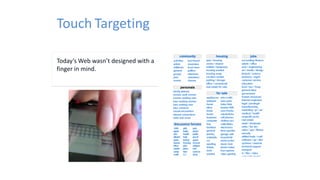
Today’s Web wasn’t designed with a
finger in mind.
Touch Targeting
Dos and Don’ts of
Touch Websites
Quick Steps to a Touch-Friendly
Site
For 2 decades, the Web has
been built with mouse and
keyboard in mind.
Here’s a checklist to ensure your
site is accessible to users of any
input device.
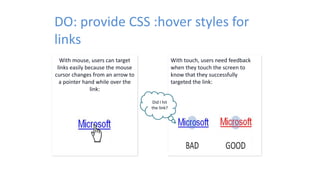
With mouse, users can target
links easily because the mouse
cursor changes from an arrow to
a pointer hand while over the
link:
DO: provide CSS :hover styles for
links
With touch, users need feedback
when they touch the screen to
know that they successfully
targeted the link:
Did I hit
the link?
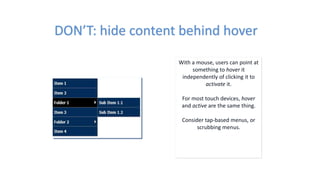
DON’T: hide content behind hover
With a mouse, users can point at
something to hover it
independently of clicking it to
activate it.
For most touch devices, hover
and active are the same thing.
Consider tap-based menus, or
scrubbing menus.
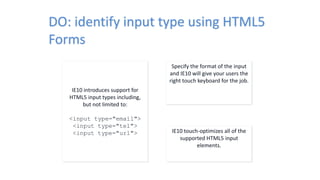
DO: identify input type using HTML5
Forms
IE10 introduces support for
HTML5 input types including,
but not limited to:
<input type="email">
<input type="tel">
<input type="url">
Specify the format of the input
and IE10 will give your users the
right touch keyboard for the job.
IE10 touch-optimizes all of the
supported HTML5 input
elements.
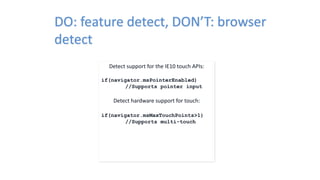
DO: feature detect, DON’T: browser
detect
Detect support for the IE10 touch APIs:
if(navigator.msPointerEnabled)
//Supports pointer input
Detect hardware support for touch:
if(navigator.msMaxTouchPoints>1)
//Supports multi-touch
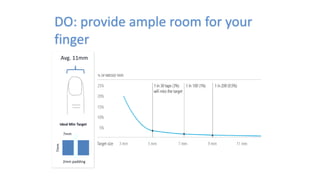
DO: provide ample room for your
finger
Avg. 11mm
7mm
7mm
2mm padding
Ideal Min Target
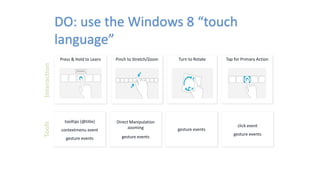
DO: use the Windows 8 “touch
language”
Press & Hold to Learn Tap for Primary ActionPinch to Stretch/Zoom Turn to Rotate
tooltips (@title)
contextmenu event
gesture events
Direct Manipulation
zooming
gesture events
gesture events
click event
gesture events
InteractionTools
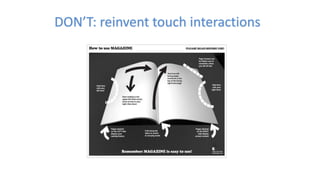
DON’T: reinvent touch interactions
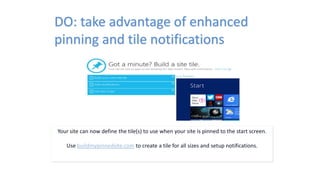
DO: take advantage of enhanced
pinning and tile notifications
Your site can now define the tile(s) to use when your site is pinned to the start screen.
Use buildmypinnedsite.com to create a tile for all sizes and setup notifications.
Good Touch
Sites Demo
 http://windows.microsoft.com/en-us/internet-explorer/browser-
ie#touchweb=touchvidtab1
 http://www.msn.com
Working with Touch
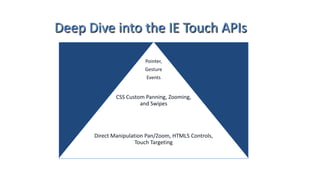
Deep Dive into the IE Touch APIs
Pointer,
Gesture
Events
CSS Custom Panning, Zooming,
and Swipes
Direct Manipulation Pan/Zoom, HTML5 Controls,
Touch Targeting
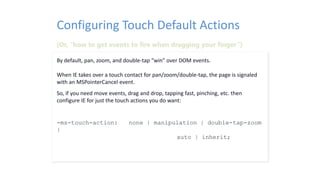
By default, pan, zoom, and double-tap “win” over DOM events.
When IE takes over a touch contact for pan/zoom/double-tap, the page is signaled
with an MSPointerCancel event.
So, if you need move events, drag and drop, tapping fast, pinching, etc. then
configure IE for just the touch actions you do want:
-ms-touch-action: none | manipulation | double-tap-zoom

|
auto | inherit;
Configuring Touch Default Actions
(Or, “how to get events to fire when dragging your finger”)
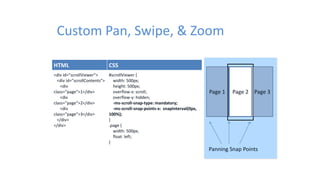
Custom Pan, Swipe, & Zoom
HTML CSS
<div id="scrollViewer">
<div id="scrollContents">
<div
class="page“>1</div>
<div
class="page“>2</div>
<div
class="page“>3</div>
</div>
</div>
#scrollViewer {
width: 500px;
height: 500px;
overflow-x: scroll;
overflow-y: hidden;
-ms-scroll-snap-type: mandatory;
-ms-scroll-snap-points-x: snapInterval(0px,
100%);
}
.page {
width: 500px;
float: left;
}
Page 2Page 1 Page 3
Panning Snap Points
Touch CSS Demos
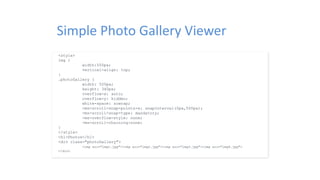
Simple Photo Gallery Viewer
<style>
img {
width:500px;
vertical-align: top;
}
.photoGallery {
width: 500px;
height: 340px;
overflow-x: auto;
overflow-y: hidden;
white-space: nowrap;
-ms-scroll-snap-points-x: snapInterval(0px,500px);
-ms-scroll-snap-type: mandatory;
-ms-overflow-style: none;
-ms-scroll-chaining:none;
}
</style>
<h1>Photos</h1>
<div class="photoGallery">
<img src="img1.jpg"><img src="img2.jpg"><img src="img3.jpg"><img src="img4.jpg">
</div>
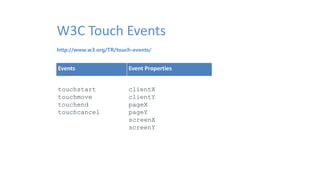
http://www.w3.org/TR/touch-events/
W3C Touch Events
Events Event Properties
touchstart
touchmove
touchend
touchcancel
clientX
clientY
pageX
pageY
screenX
screenY
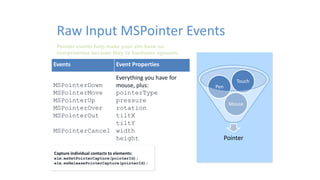
Pointer events help make your site have no
compromises because they’re hardware agnostic.
Raw Input MSPointer Events
Pointer
Mouse
Pen
Touch
Events Event Properties
MSPointerDown
MSPointerMove
MSPointerUp
MSPointerOver
MSPointerOut
MSPointerCancel
Everything you have for
mouse, plus:
pointerType
pressure
rotation
tiltX
tiltY
width
height
Capture individual contacts to elements:
elm.msSetPointerCapture(pointerId);
elm.msReleasePointerCapture(pointerId);
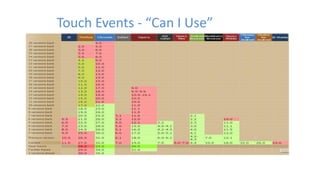
Touch Events - “Can I Use”
Touch Event Demos
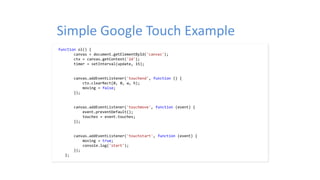
Simple Google Touch Example
function ol() {
canvas = document.getElementById('canvas');
ctx = canvas.getContext('2d');
timer = setInterval(update, 15);
canvas.addEventListener('touchend', function () {
ctx.clearRect(0, 0, w, h);
moving = false;
});
canvas.addEventListener('touchmove', function (event) {
event.preventDefault();
touches = event.touches;
});
canvas.addEventListener('touchstart', function (event) {
moving = true;
console.log('start');
});
};
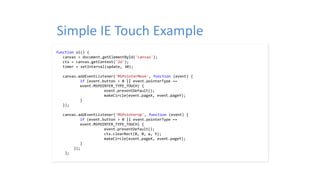
Simple IE Touch Example
function ol() {
canvas = document.getElementById('canvas');
ctx = canvas.getContext('2d');
timer = setInterval(update, 30);
canvas.addEventListener('MSPointerMove', function (event) {
if (event.button > 0 || event.pointerType ==
event.MSPOINTER_TYPE_TOUCH) {
event.preventDefault();
makeCircle(event.pageX, event.pageY);
}
});
canvas.addEventListener('MSPointerUp', function (event) {
if (event.button > 0 || event.pointerType ==
event.MSPOINTER_TYPE_TOUCH) {
event.preventDefault();
ctx.clearRect(0, 0, w, h);
makeCircle(event.pageX, event.pageY);
}
});
};
Touch Event Libraries
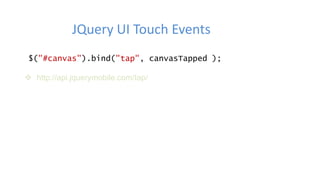
JQuery UI Touch Events
$("#canvas").bind("tap", canvasTapped );
 http://api.jquerymobile.com/tap/
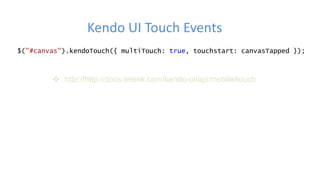
Kendo UI Touch Events
$("#canvas").kendoTouch({ multiTouch: true, touchstart: canvasTapped });
 http://http://docs.telerik.com/kendo-ui/api/mobile/touch
Touch Library Demos
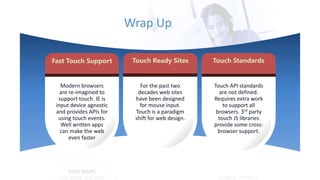
Wrap Up
Fast Touch Support Touch Ready Sites
Modern browsers
are re-imagined to
support touch. IE is
input device agnostic
and provides APIs for
using touch events.
Well written apps
can make the web
even faster
Touch Standards
For the past two
decades web sites
have been designed
for mouse input.
Touch is a paradigm
shift for web design.
Touch API standards
are not defined.
Requires extra work
to support all
browsers. 3rd party
touch JS libraries
provide some cross-
browser support.
Resources:
 http://http://windows.microsoft.com/en-us/internet-explorer/browser-
ie#touchweb=touchvidtab1
 http://ie.microsoft.com/testdrive/
 http://blog.monitis.com/index.php/2011/05/15/30-tips-to-improve-
javascript-performance/
 http://blogs.msdn.com/b/ie/
 http://www.asp.net/mvc/tutorials/mvc-4/bundling-and-minification
 http://www.webplatform.org/
 http://channel9.msdn.com/Events/Build/2013/3-071
 http://http://docs.telerik.com/kendo-ui/api/mobile/touch
 http://www.designyourway.net/blog/resources/jquery-plugins-that-handle-
touch-events-43-items/
450 Lincoln Street
Suite 101
Denver, CO 80203
719.359.9692
www.aspenware.com
Building Fast Multi-Touch
Enabled Web Sites
Ben Hoelting
@benhnet

Tips for building fast multi touch enabled web sites

  • 1.
    450 Lincoln Street Suite101 Denver, CO 80203 719.359.9692 www.aspenware.com Building Fast Multi-Touch Enabled Web Sites Ben Hoelting @benhnet
  • 2.
    Ben Hoelting In truth, he’sjust a big kid. He loves designing systems that solve real world problems. There is nothing more satisfying than seeing something you helped develop being used by the end users. Ben is also involved in the technology community and runs the South Colorado .NET user group. He also enjoys speaking at tech groups and events around the country. Ben Hoelting @benhnet b.hoelting@aspenware.com
  • 3.
    Agenda:  Browser SupportFor Touch  Do’s and Don’ts of Touch Websites  Touch Demos  Wrap-up For sample code please go to https://github.com/BenHNet/MultiTouchP ublic
  • 4.
  • 5.
  • 6.
    The Power OfThe Whole PC
  • 7.
    Independent Composition & Manipulation Process input as fast as possible  On a separate thread  Using the fastest methods available on current hardware  Compose Graphics as fast as possible  On a separate thread  Using the fastest methods available on current hardware Thus even with while (true) {} Animations execute, videos play, application screens transition, pages pan and zoom
  • 8.
     http://ie.microsoft.com/testdrive/  http://blog.monitis.com/index.php/2011/05/15/30-tips-to-improve- javascript-performance/ http://www.asp.net/mvc/tutorials/mvc-4/bundling-and-minification We have the technology! The Six Million Dollar Web Better… Stronger… Faster… Browsers and computers are getting better and faster. However, if developers get to know how modern browsers work we can make our applications even faster.
  • 9.
    Touch Support Deliver afast and fluid touch-first experience along with smooth animations on a wide range of form factors including those built on ARM and SOC architectures – Position and Zoom manipulation – The “right” positioning of fixed elements – Soft Keyboard Integration (impact on panning, edit, etc) – Events (is a click a click?) – Developer queues for panning and zooming for performance – Zoom and Pan content in a sub-scroller – Innovations such as back/forward navigation
  • 10.
    Today’s Web wasn’tdesigned with a finger in mind. Touch Targeting
  • 11.
    Dos and Don’tsof Touch Websites
  • 12.
    Quick Steps toa Touch-Friendly Site For 2 decades, the Web has been built with mouse and keyboard in mind. Here’s a checklist to ensure your site is accessible to users of any input device.
  • 13.
    With mouse, userscan target links easily because the mouse cursor changes from an arrow to a pointer hand while over the link: DO: provide CSS :hover styles for links With touch, users need feedback when they touch the screen to know that they successfully targeted the link: Did I hit the link?
  • 14.
    DON’T: hide contentbehind hover With a mouse, users can point at something to hover it independently of clicking it to activate it. For most touch devices, hover and active are the same thing. Consider tap-based menus, or scrubbing menus.
  • 15.
    DO: identify inputtype using HTML5 Forms IE10 introduces support for HTML5 input types including, but not limited to: <input type="email"> <input type="tel"> <input type="url"> Specify the format of the input and IE10 will give your users the right touch keyboard for the job. IE10 touch-optimizes all of the supported HTML5 input elements.
  • 16.
    DO: feature detect,DON’T: browser detect Detect support for the IE10 touch APIs: if(navigator.msPointerEnabled) //Supports pointer input Detect hardware support for touch: if(navigator.msMaxTouchPoints>1) //Supports multi-touch
  • 17.
    DO: provide ampleroom for your finger Avg. 11mm 7mm 7mm 2mm padding Ideal Min Target
  • 18.
    DO: use theWindows 8 “touch language” Press & Hold to Learn Tap for Primary ActionPinch to Stretch/Zoom Turn to Rotate tooltips (@title) contextmenu event gesture events Direct Manipulation zooming gesture events gesture events click event gesture events InteractionTools
  • 19.
  • 20.
    DO: take advantageof enhanced pinning and tile notifications Your site can now define the tile(s) to use when your site is pinned to the start screen. Use buildmypinnedsite.com to create a tile for all sizes and setup notifications.
  • 21.
    Good Touch Sites Demo http://windows.microsoft.com/en-us/internet-explorer/browser- ie#touchweb=touchvidtab1  http://www.msn.com
  • 22.
  • 23.
    Deep Dive intothe IE Touch APIs Pointer, Gesture Events CSS Custom Panning, Zooming, and Swipes Direct Manipulation Pan/Zoom, HTML5 Controls, Touch Targeting
  • 24.
    By default, pan,zoom, and double-tap “win” over DOM events. When IE takes over a touch contact for pan/zoom/double-tap, the page is signaled with an MSPointerCancel event. So, if you need move events, drag and drop, tapping fast, pinching, etc. then configure IE for just the touch actions you do want: -ms-touch-action: none | manipulation | double-tap-zoom | auto | inherit; Configuring Touch Default Actions (Or, “how to get events to fire when dragging your finger”)
  • 25.
    Custom Pan, Swipe,& Zoom HTML CSS <div id="scrollViewer"> <div id="scrollContents"> <div class="page“>1</div> <div class="page“>2</div> <div class="page“>3</div> </div> </div> #scrollViewer { width: 500px; height: 500px; overflow-x: scroll; overflow-y: hidden; -ms-scroll-snap-type: mandatory; -ms-scroll-snap-points-x: snapInterval(0px, 100%); } .page { width: 500px; float: left; } Page 2Page 1 Page 3 Panning Snap Points
  • 26.
  • 27.
    Simple Photo GalleryViewer <style> img { width:500px; vertical-align: top; } .photoGallery { width: 500px; height: 340px; overflow-x: auto; overflow-y: hidden; white-space: nowrap; -ms-scroll-snap-points-x: snapInterval(0px,500px); -ms-scroll-snap-type: mandatory; -ms-overflow-style: none; -ms-scroll-chaining:none; } </style> <h1>Photos</h1> <div class="photoGallery"> <img src="img1.jpg"><img src="img2.jpg"><img src="img3.jpg"><img src="img4.jpg"> </div>
  • 28.
    http://www.w3.org/TR/touch-events/ W3C Touch Events EventsEvent Properties touchstart touchmove touchend touchcancel clientX clientY pageX pageY screenX screenY
  • 29.
    Pointer events helpmake your site have no compromises because they’re hardware agnostic. Raw Input MSPointer Events Pointer Mouse Pen Touch Events Event Properties MSPointerDown MSPointerMove MSPointerUp MSPointerOver MSPointerOut MSPointerCancel Everything you have for mouse, plus: pointerType pressure rotation tiltX tiltY width height Capture individual contacts to elements: elm.msSetPointerCapture(pointerId); elm.msReleasePointerCapture(pointerId);
  • 30.
    Touch Events -“Can I Use”
  • 31.
  • 32.
    Simple Google TouchExample function ol() { canvas = document.getElementById('canvas'); ctx = canvas.getContext('2d'); timer = setInterval(update, 15); canvas.addEventListener('touchend', function () { ctx.clearRect(0, 0, w, h); moving = false; }); canvas.addEventListener('touchmove', function (event) { event.preventDefault(); touches = event.touches; }); canvas.addEventListener('touchstart', function (event) { moving = true; console.log('start'); }); };
  • 33.
    Simple IE TouchExample function ol() { canvas = document.getElementById('canvas'); ctx = canvas.getContext('2d'); timer = setInterval(update, 30); canvas.addEventListener('MSPointerMove', function (event) { if (event.button > 0 || event.pointerType == event.MSPOINTER_TYPE_TOUCH) { event.preventDefault(); makeCircle(event.pageX, event.pageY); } }); canvas.addEventListener('MSPointerUp', function (event) { if (event.button > 0 || event.pointerType == event.MSPOINTER_TYPE_TOUCH) { event.preventDefault(); ctx.clearRect(0, 0, w, h); makeCircle(event.pageX, event.pageY); } }); };
  • 34.
  • 35.
    JQuery UI TouchEvents $("#canvas").bind("tap", canvasTapped );  http://api.jquerymobile.com/tap/
  • 36.
    Kendo UI TouchEvents $("#canvas").kendoTouch({ multiTouch: true, touchstart: canvasTapped });  http://http://docs.telerik.com/kendo-ui/api/mobile/touch
  • 37.
  • 38.
    Wrap Up Fast TouchSupport Touch Ready Sites Modern browsers are re-imagined to support touch. IE is input device agnostic and provides APIs for using touch events. Well written apps can make the web even faster Touch Standards For the past two decades web sites have been designed for mouse input. Touch is a paradigm shift for web design. Touch API standards are not defined. Requires extra work to support all browsers. 3rd party touch JS libraries provide some cross- browser support.
  • 39.
    Resources:  http://http://windows.microsoft.com/en-us/internet-explorer/browser- ie#touchweb=touchvidtab1  http://ie.microsoft.com/testdrive/ http://blog.monitis.com/index.php/2011/05/15/30-tips-to-improve- javascript-performance/  http://blogs.msdn.com/b/ie/  http://www.asp.net/mvc/tutorials/mvc-4/bundling-and-minification  http://www.webplatform.org/  http://channel9.msdn.com/Events/Build/2013/3-071  http://http://docs.telerik.com/kendo-ui/api/mobile/touch  http://www.designyourway.net/blog/resources/jquery-plugins-that-handle- touch-events-43-items/
  • 40.
    450 Lincoln Street Suite101 Denver, CO 80203 719.359.9692 www.aspenware.com Building Fast Multi-Touch Enabled Web Sites Ben Hoelting @benhnet

Editor's Notes

  • #8 This is the simplest and real explanation of the modern independent composition that was designed for Windows8. The model is different enough in that the composition engine doesn’t do any rendering whatsoever, and only copies and moves bitmaps around. That means that IE is responsible for handing of opaque or transparent bitmaps of various layers of pages that can be simple (1 layer) or super complex (layers generated by intersecting graphics, sub-scrollers, videos with controls, etc).
  • #10 It is the 3rd input deviceTalk to functional considerations and decisions, and how they sometimes collide with user expectations as wellas even standards. (e.g. button light up, link navigation, double-tap)Innovations : zoom in subscroller, back/forward gestures
  • #11 Finger’s contact geometry is used to redirect the coordinate of your touch to the actionable element your finger overlaps.
  • #15 DEMO: http://www.bing.com/ homepage hot spots
  • #16 DEMO: http://ie.microsoft.com/testdrive/Browser/TouchFirstControls/Default.htmlTouch First Controls
  • #17 Discussion: ways to adapt your site for touch usersA hardware agnostic site (e.g., a “no-compromises” UX)Only give the touchified site for users where touch is possible (but please, give us your full featured site b/c we can handle it)Change the site depending on the input being used (e.g. Bing homepage)Don’t use UA string or other browser sniffing.Metro style != touch users, touch hardware detection doesUsers with touch hardware may still use a mouse.
  • #18 For more info: http://bit.ly/win8touchguidanceTouch targeting goes a long way to help users confidently tap common elements like links, button elements, and input boxes. However, the best thing you can do to accommodate the size of a finger is to provide larger hit targets.
  • #25 Demo: fixing a site that depends on mouse movement (e.g. Cuttherope.ie, HTML5 Angry Birds)
  • #26 LIVE CODING: A simple photo gallery
  • #28 LIVE CODING: A simple photo gallery
  • #33 LIVE CODING: A simple photo gallery
  • #34 LIVE CODING: A simple photo gallery
  • #36 LIVE CODING: A simple photo gallery
  • #37 LIVE CODING: A simple photo gallery