Application Security
  Threats
             George Coutsoumbidis
             Computer Policy Security Settings
9/8/2011     of Threats and Countermeasures
Application Security Threats 2011
                           Threats and Countermeasures
Computer Policy Setting Information
A description is provided for each setting, along with information about the applications to which it
applies, the vulnerability the setting addresses, how the vulnerability is addressed, and any other
considerations. A table is also included for each setting that shows the setting's location in Group
Policy, the ADM file that contains the setting, the recommended configuration for EC and SSLF
environments, and any associated Common Configuration Enumeration (CCE) identifiers.


Bind to object
Applies to: 2007 Office system
This setting determines whether Microsoft® Internet Explorer® performs its typical safety checks
on Microsoft ActiveX® controls when opening URLs that are passed to it by a 2007 Office
application.


Vulnerability
Internet Explorer performs a number of safety checks before initializing an ActiveX control. It will
not initialize a control if the kill bit for the control is set in the registry, or if the security settings
for the zone in which the control is located do not allow it to be initialized.
This functionality can be controlled separately for instances of Internet Explorer spawned by 2007
Office applications (for example, if a user clicks a link in an Office document or selects a menu
option that loads a Web page). A security risk could occur if potentially dangerous controls are
allowed to load.


Countermeasure
If this setting is Enabled, you can select check boxes for one or more 2007 Office applications
that display in a list. Internet Explorer will apply the typical security checks to any ActiveX objects
embedded in Web pages that are opened by the selected applications.

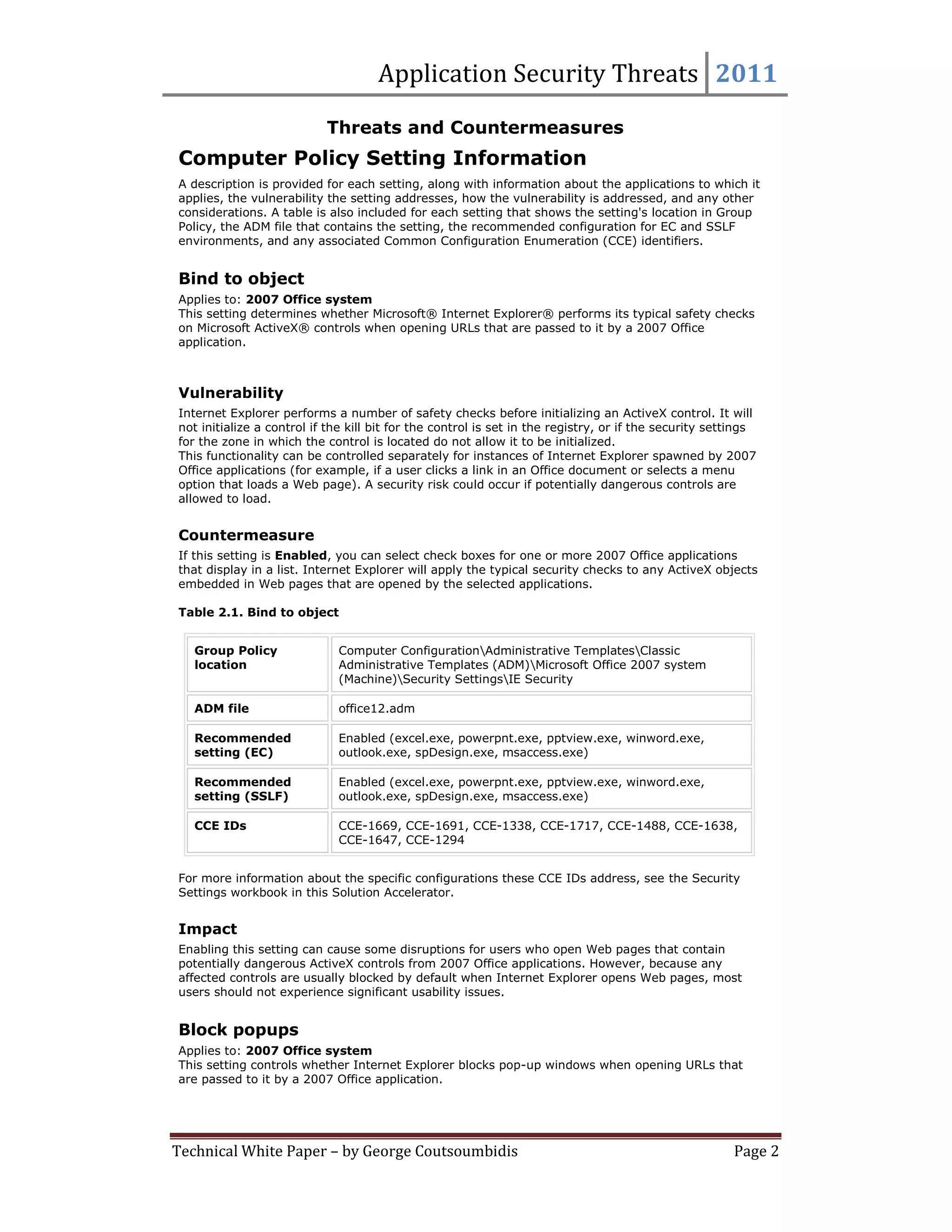
Table 2.1. Bind to object


   Group Policy              Computer ConfigurationAdministrative TemplatesClassic
   location                  Administrative Templates (ADM)Microsoft Office 2007 system
                             (Machine)Security SettingsIE Security

   ADM file                  office12.adm

   Recommended               Enabled (excel.exe, powerpnt.exe, pptview.exe, winword.exe,
   setting (EC)              outlook.exe, spDesign.exe, msaccess.exe)

   Recommended               Enabled (excel.exe, powerpnt.exe, pptview.exe, winword.exe,
   setting (SSLF)            outlook.exe, spDesign.exe, msaccess.exe)

   CCE IDs                   CCE-1669, CCE-1691, CCE-1338, CCE-1717, CCE-1488, CCE-1638,
                             CCE-1647, CCE-1294


For more information about the specific configurations these CCE IDs address, see the Security
Settings workbook in this Solution Accelerator.


Impact
Enabling this setting can cause some disruptions for users who open Web pages that contain
potentially dangerous ActiveX controls from 2007 Office applications. However, because any
affected controls are usually blocked by default when Internet Explorer opens Web pages, most
users should not experience significant usability issues.


Block popups
Applies to: 2007 Office system
This setting controls whether Internet Explorer blocks pop-up windows when opening URLs that
are passed to it by a 2007 Office application.


Technical White Paper – by George Coutsoumbidis                                                        Page 2
Application Security Threats 2011

Vulnerability
The Pop-up Blocker feature in Internet Explorer can be used to block most unwanted pop-up and
pop-under windows from appearing. This functionality can be controlled separately for instances of
Internet Explorer spawned by 2007 Office applications (for example, if a user clicks a link in an
Office document or selects a menu option that loads a Web page). If the Pop-up Blocker is
disabled, disruptive and potentially dangerous pop-up windows could load and present a security
risk.


Countermeasure
If this setting is Enabled, you can select check boxes for one or more 2007 Office applications
that display in a list. Internet Explorer will apply its pop-up blocker functionality to any Web pages
that are opened by the selected applications.

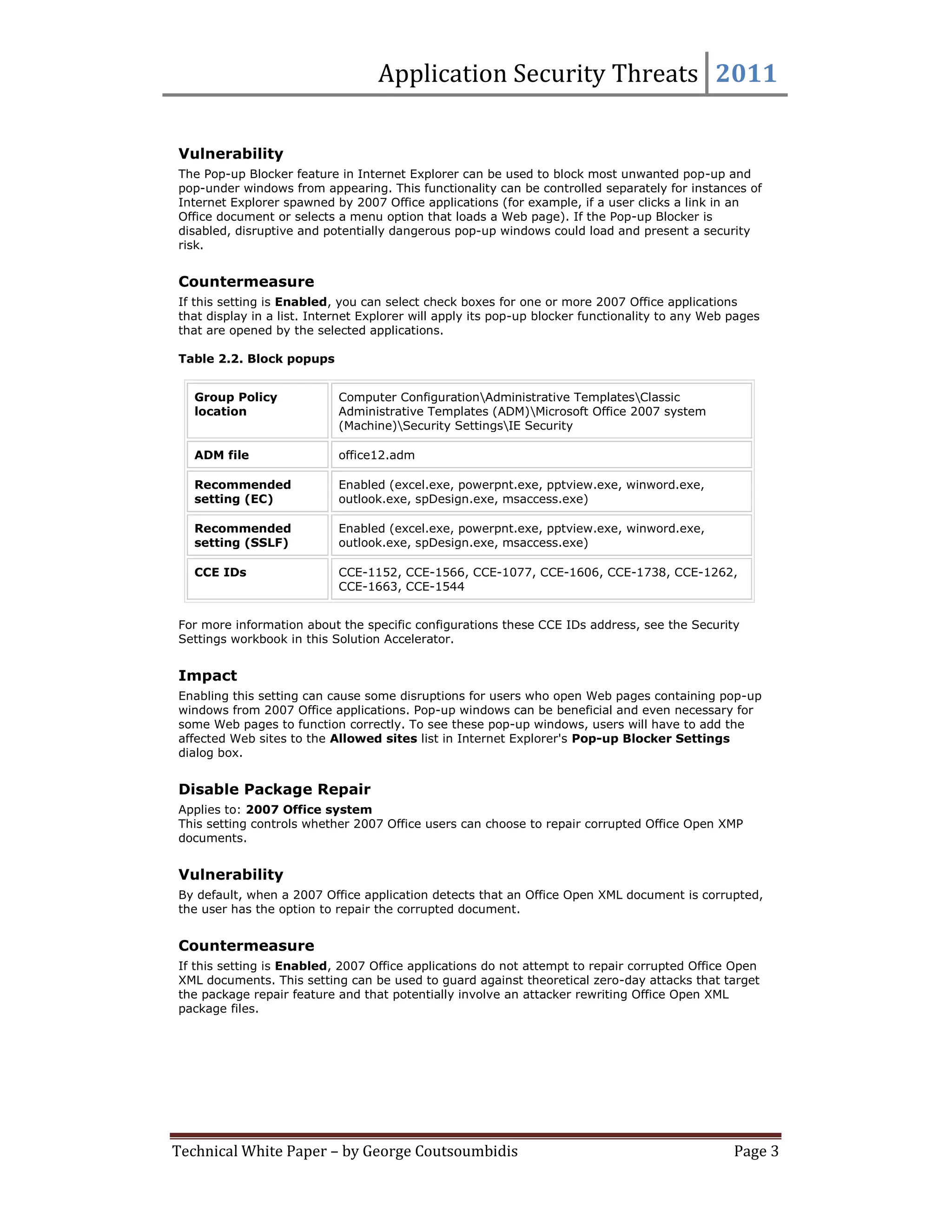
Table 2.2. Block popups


   Group Policy             Computer ConfigurationAdministrative TemplatesClassic
   location                 Administrative Templates (ADM)Microsoft Office 2007 system
                            (Machine)Security SettingsIE Security

   ADM file                 office12.adm

   Recommended              Enabled (excel.exe, powerpnt.exe, pptview.exe, winword.exe,
   setting (EC)             outlook.exe, spDesign.exe, msaccess.exe)

   Recommended              Enabled (excel.exe, powerpnt.exe, pptview.exe, winword.exe,
   setting (SSLF)           outlook.exe, spDesign.exe, msaccess.exe)

   CCE IDs                  CCE-1152, CCE-1566, CCE-1077, CCE-1606, CCE-1738, CCE-1262,
                            CCE-1663, CCE-1544


For more information about the specific configurations these CCE IDs address, see the Security
Settings workbook in this Solution Accelerator.


Impact
Enabling this setting can cause some disruptions for users who open Web pages containing pop-up
windows from 2007 Office applications. Pop-up windows can be beneficial and even necessary for
some Web pages to function correctly. To see these pop-up windows, users will have to add the
affected Web sites to the Allowed sites list in Internet Explorer's Pop-up Blocker Settings
dialog box.


Disable Package Repair
Applies to: 2007 Office system
This setting controls whether 2007 Office users can choose to repair corrupted Office Open XMP
documents.


Vulnerability
By default, when a 2007 Office application detects that an Office Open XML document is corrupted,
the user has the option to repair the corrupted document.


Countermeasure
If this setting is Enabled, 2007 Office applications do not attempt to repair corrupted Office Open
XML documents. This setting can be used to guard against theoretical zero-day attacks that target
the package repair feature and that potentially involve an attacker rewriting Office Open XML
package files.


Technical White Paper – by George Coutsoumbidis                                                  Page 3
Application Security Threats 2011

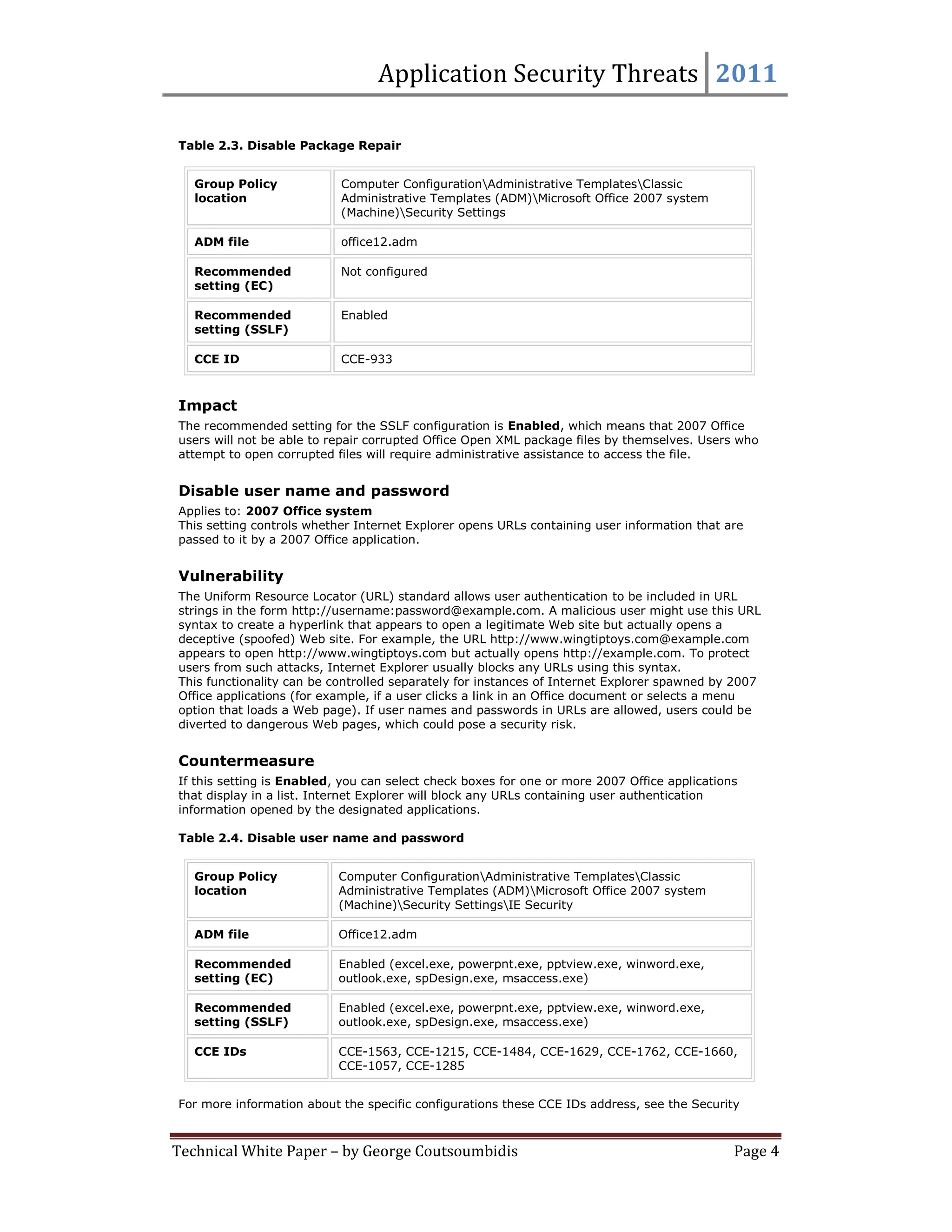
Table 2.3. Disable Package Repair


   Group Policy            Computer ConfigurationAdministrative TemplatesClassic
   location                Administrative Templates (ADM)Microsoft Office 2007 system
                           (Machine)Security Settings

   ADM file                office12.adm

   Recommended             Not configured
   setting (EC)

   Recommended             Enabled
   setting (SSLF)

   CCE ID                  CCE-933


Impact
The recommended setting for the SSLF configuration is Enabled, which means that 2007 Office
users will not be able to repair corrupted Office Open XML package files by themselves. Users who
attempt to open corrupted files will require administrative assistance to access the file.


Disable user name and password
Applies to: 2007 Office system
This setting controls whether Internet Explorer opens URLs containing user information that are
passed to it by a 2007 Office application.


Vulnerability
The Uniform Resource Locator (URL) standard allows user authentication to be included in URL
strings in the form http://username:password@example.com. A malicious user might use this URL
syntax to create a hyperlink that appears to open a legitimate Web site but actually opens a
deceptive (spoofed) Web site. For example, the URL http://www.wingtiptoys.com@example.com
appears to open http://www.wingtiptoys.com but actually opens http://example.com. To protect
users from such attacks, Internet Explorer usually blocks any URLs using this syntax.
This functionality can be controlled separately for instances of Internet Explorer spawned by 2007
Office applications (for example, if a user clicks a link in an Office document or selects a menu
option that loads a Web page). If user names and passwords in URLs are allowed, users could be
diverted to dangerous Web pages, which could pose a security risk.


Countermeasure
If this setting is Enabled, you can select check boxes for one or more 2007 Office applications
that display in a list. Internet Explorer will block any URLs containing user authentication
information opened by the designated applications.

Table 2.4. Disable user name and password


   Group Policy            Computer ConfigurationAdministrative TemplatesClassic
   location                Administrative Templates (ADM)Microsoft Office 2007 system
                           (Machine)Security SettingsIE Security

   ADM file                Office12.adm

   Recommended             Enabled (excel.exe, powerpnt.exe, pptview.exe, winword.exe,
   setting (EC)            outlook.exe, spDesign.exe, msaccess.exe)

   Recommended             Enabled (excel.exe, powerpnt.exe, pptview.exe, winword.exe,
   setting (SSLF)          outlook.exe, spDesign.exe, msaccess.exe)

   CCE IDs                 CCE-1563, CCE-1215, CCE-1484, CCE-1629, CCE-1762, CCE-1660,
                           CCE-1057, CCE-1285


For more information about the specific configurations these CCE IDs address, see the Security


Technical White Paper – by George Coutsoumbidis                                               Page 4
Application Security Threats 2011

Settings workbook in this Solution Accelerator.


Impact
Enabling this setting can cause some disruptions for users who open URLs containing user
authentication information from 2007 Office applications. Because such URLs are blocked by
default when Internet Explorer opens Web pages through conventional means, however, most
users should not experience significant usability issues.


Disable VBA for Office applications
Applies to: 2007 Office system
This setting controls whether 2007 Office applications other than Microsoft Office Access™ 2007
can use Microsoft Visual Basic® for Applications (VBA).


Vulnerability
By default, most Office applications, including Microsoft Office Excel® 2007, Outlook® 2007,
PowerPoint® 2007, and Word 2007, can execute Visual Basic for Applications (VBA) code that
customizes and automates application operation. VBA could also be used by inexperienced or
malicious developers to create dangerous code that can harm users' computers or compromise the
confidentiality, integrity, or availability of data.


Countermeasure
If this setting is Enabled, the 2007 versions of Excel, Outlook, PowerPoint, Publisher, SharePoint®
Designer, and Word cannot execute any VBA code. Enabling this setting does not install or remove
any VBA–related code or files from users' computers.

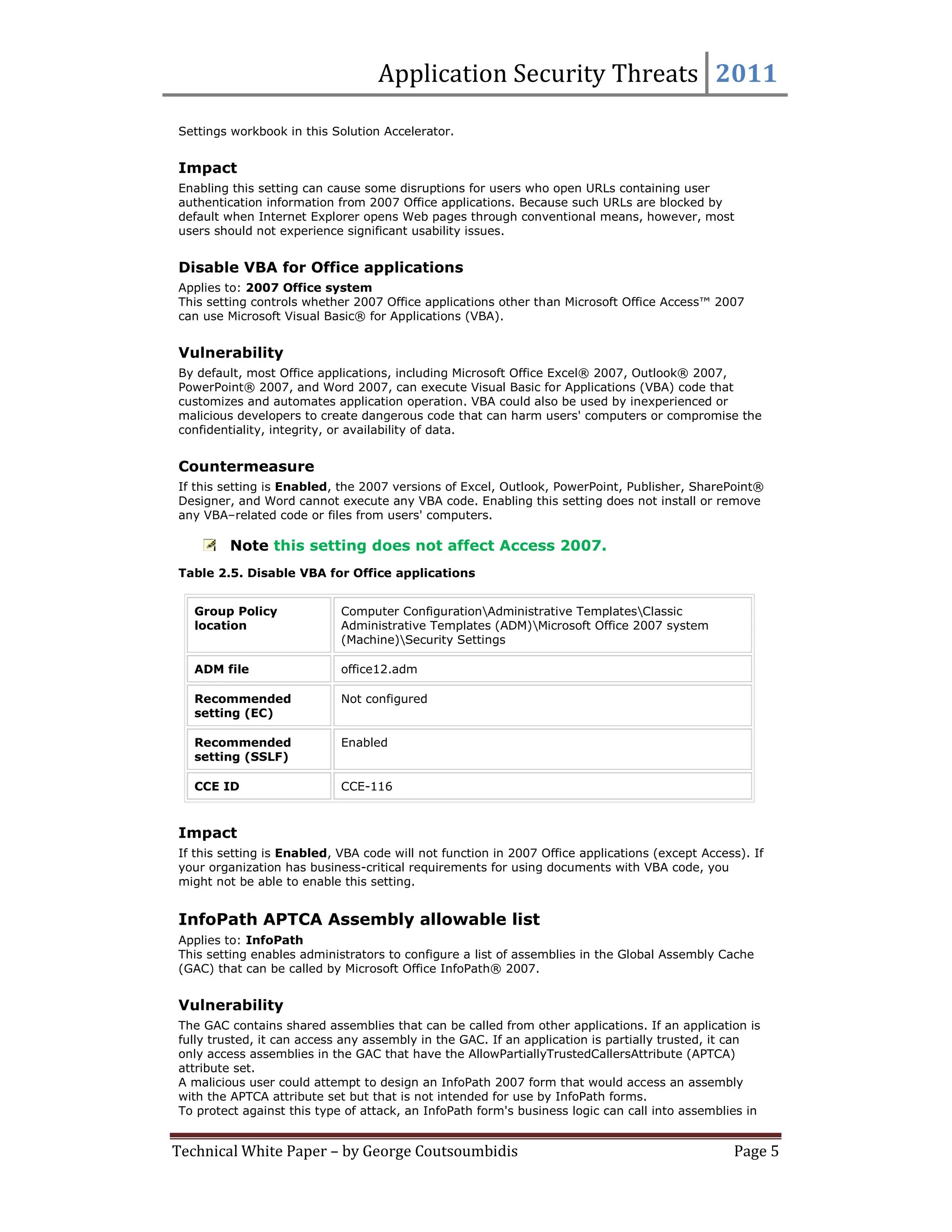
        Note this setting does not affect Access 2007.
Table 2.5. Disable VBA for Office applications


   Group Policy             Computer ConfigurationAdministrative TemplatesClassic
   location                 Administrative Templates (ADM)Microsoft Office 2007 system
                            (Machine)Security Settings

   ADM file                 office12.adm

   Recommended              Not configured
   setting (EC)

   Recommended              Enabled
   setting (SSLF)

   CCE ID                   CCE-116


Impact
If this setting is Enabled, VBA code will not function in 2007 Office applications (except Access). If
your organization has business-critical requirements for using documents with VBA code, you
might not be able to enable this setting.


InfoPath APTCA Assembly allowable list
Applies to: InfoPath
This setting enables administrators to configure a list of assemblies in the Global Assembly Cache
(GAC) that can be called by Microsoft Office InfoPath® 2007.


Vulnerability
The GAC contains shared assemblies that can be called from other applications. If an application is
fully trusted, it can access any assembly in the GAC. If an application is partially trusted, it can
only access assemblies in the GAC that have the AllowPartiallyTrustedCallersAttribute (APTCA)
attribute set.
A malicious user could attempt to design an InfoPath 2007 form that would access an assembly
with the APTCA attribute set but that is not intended for use by InfoPath forms.
To protect against this type of attack, an InfoPath form's business logic can call into assemblies in


Technical White Paper – by George Coutsoumbidis                                                 Page 5
Application Security Threats 2011

the Global Assembly Cache (GAC) only if two conditions are met:


   The assembly has the Allow Partially Trust Callers Attribute (APTCA) set.

   The assembly is listed in the APTCA Assembly allowable list. By default, this list is empty.


      Note The default functionality can be changed by disabling the "InfoPath APTCA
    Assembly Allowable List Enforcement" Group Policy setting, which is the next
    setting described in this guide. However, Microsoft strongly recommends that you
    ensure that allowable list enforcement is enabled.


Countermeasure
If this setting is Enabled, administrators can add entries to the APTCA assembly allowable list. To
add a new assembly to the allowable list, add a new String Value entry that corresponds to the
APTCA key. The Value Name field should be the public key token for the assembly and the Value
Data field should be 1 for InfoPath 2007 to allow loading the assembly. If the Value Data field is
not 1, the assembly will fail to load.

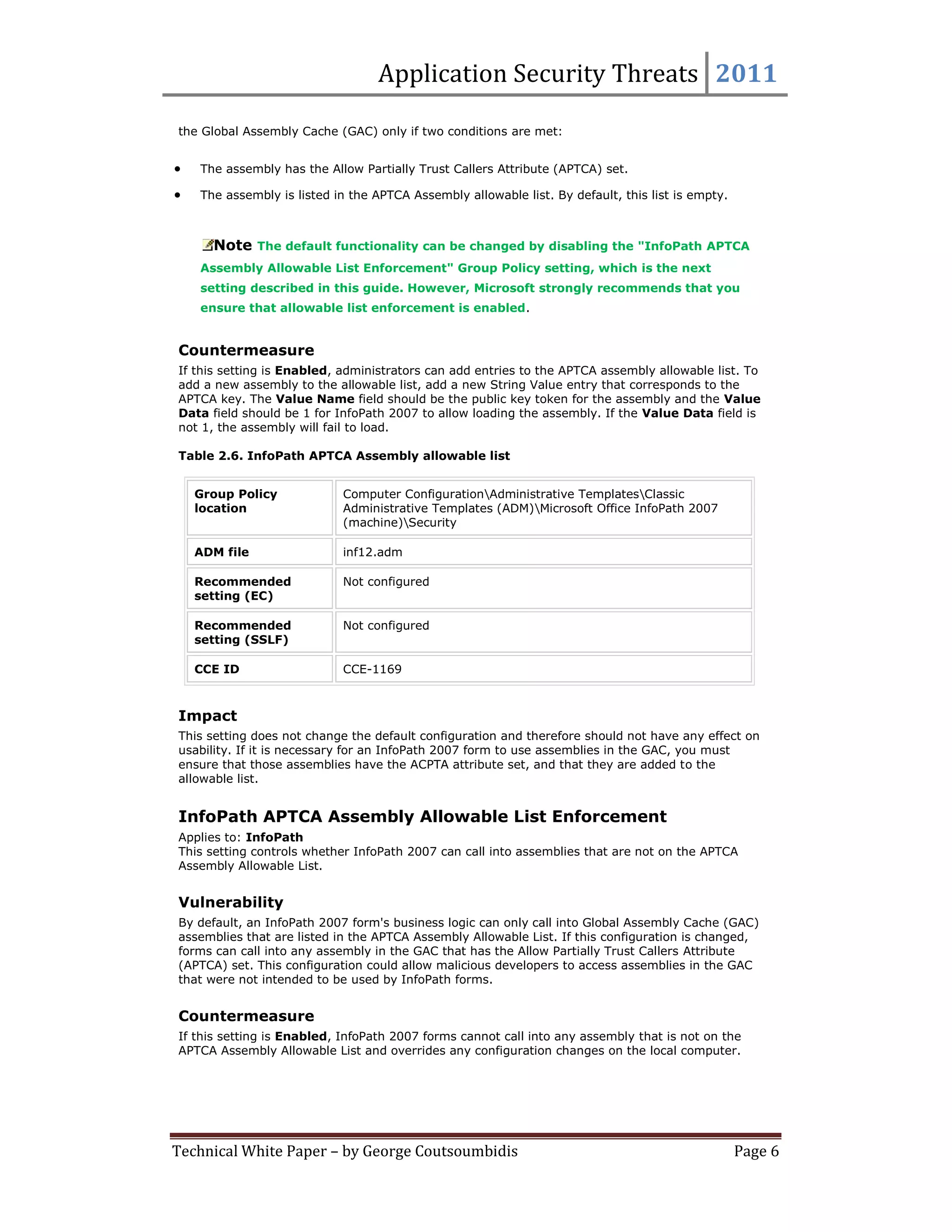
Table 2.6. InfoPath APTCA Assembly allowable list


    Group Policy            Computer ConfigurationAdministrative TemplatesClassic
    location                Administrative Templates (ADM)Microsoft Office InfoPath 2007
                            (machine)Security

    ADM file                inf12.adm

    Recommended             Not configured
    setting (EC)

    Recommended             Not configured
    setting (SSLF)

    CCE ID                  CCE-1169


Impact
This setting does not change the default configuration and therefore should not have any effect on
usability. If it is necessary for an InfoPath 2007 form to use assemblies in the GAC, you must
ensure that those assemblies have the ACPTA attribute set, and that they are added to the
allowable list.


InfoPath APTCA Assembly Allowable List Enforcement
Applies to: InfoPath
This setting controls whether InfoPath 2007 can call into assemblies that are not on the APTCA
Assembly Allowable List.


Vulnerability
By default, an InfoPath 2007 form's business logic can only call into Global Assembly Cache (GAC)
assemblies that are listed in the APTCA Assembly Allowable List. If this configuration is changed,
forms can call into any assembly in the GAC that has the Allow Partially Trust Callers Attribute
(APTCA) set. This configuration could allow malicious developers to access assemblies in the GAC
that were not intended to be used by InfoPath forms.


Countermeasure
If this setting is Enabled, InfoPath 2007 forms cannot call into any assembly that is not on the
APTCA Assembly Allowable List and overrides any configuration changes on the local computer.


Technical White Paper – by George Coutsoumbidis                                                    Page 6
Application Security Threats 2011

Table 2.7. InfoPath APTCA Assembly Allowable List Enforcement


   Group Policy             Computer ConfigurationAdministrative TemplatesClassic
   location                 Administrative Templates (ADM)Microsoft Office InfoPath 2007
                            (machine)Security

   ADM file                 inf12.adm

   Recommended              Enabled
   setting (EC)

   Recommended              Enabled
   setting (SSLF)

   CCE ID                   CCE-1739


Impact
This setting enforces the default configuration and therefore should not have any effect on
usability. If it is necessary for an InfoPath 2007 form to use assemblies in the GAC, you must
ensure that those assemblies have the ACPTA attribute set, and that they are listed in the
allowable list.


Navigate URL
Applies to: 2007 Office system
This setting controls whether Internet Explorer attempts to load malformed URLs that are passed
to it from 2007 Office applications.


Vulnerability
To protect users from attacks, Internet Explorer usually does not attempt to load malformed URLs.
This functionality can be controlled separately for instances of Internet Explorer spawned by 2007
Office applications (for example, if a user clicks a link in an Office document or selects a menu
option that loads a Web page). If Internet Explorer attempts to load a malformed URL, a security
risk could occur in some cases.


Countermeasure
If this setting is Enabled, you can select check boxes for one or more 2007 Office applications
that display in a list. Internet Explorer will block any malformed URLs that are passed to it by the
selected applications.

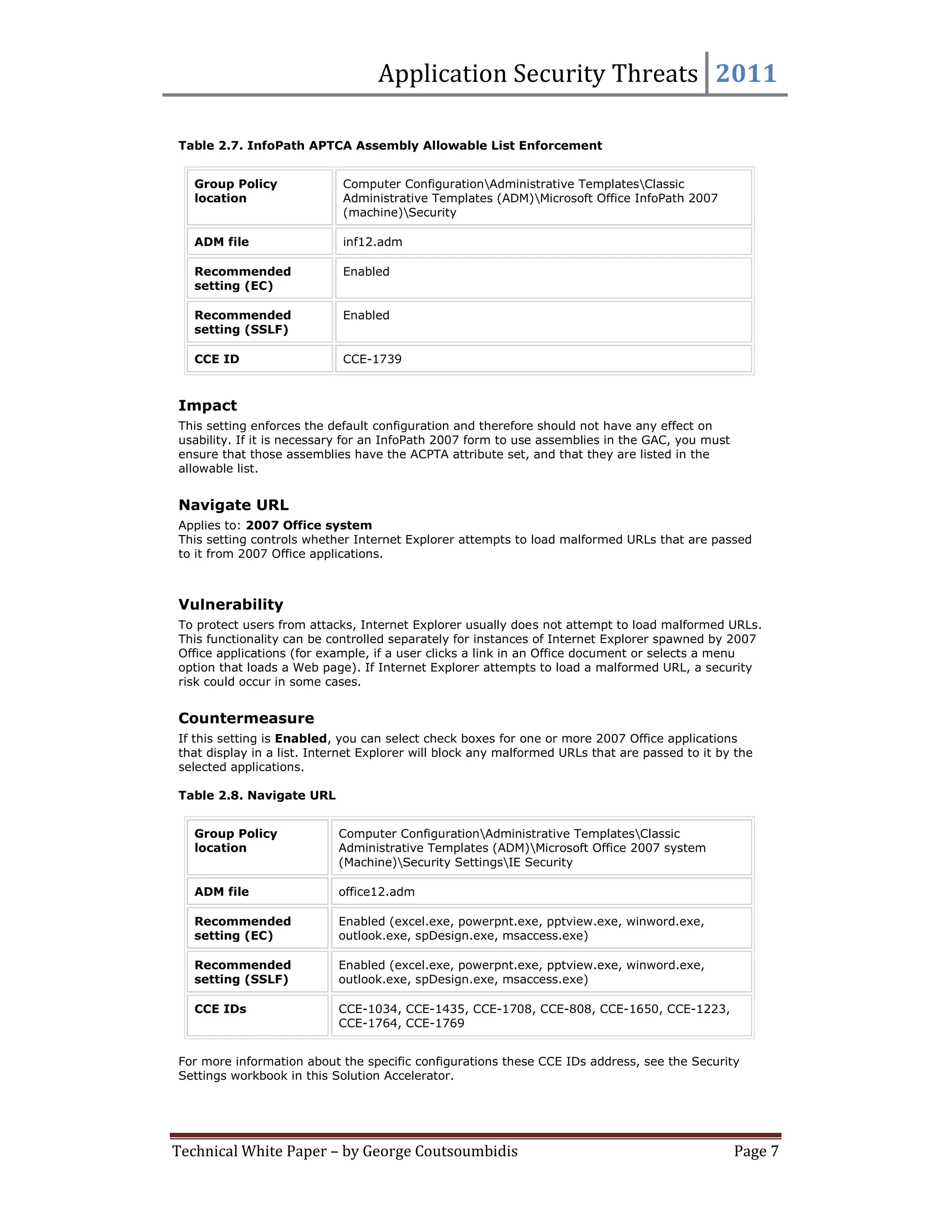
Table 2.8. Navigate URL


   Group Policy            Computer ConfigurationAdministrative TemplatesClassic
   location                Administrative Templates (ADM)Microsoft Office 2007 system
                           (Machine)Security SettingsIE Security

   ADM file                office12.adm

   Recommended             Enabled (excel.exe, powerpnt.exe, pptview.exe, winword.exe,
   setting (EC)            outlook.exe, spDesign.exe, msaccess.exe)

   Recommended             Enabled (excel.exe, powerpnt.exe, pptview.exe, winword.exe,
   setting (SSLF)          outlook.exe, spDesign.exe, msaccess.exe)

   CCE IDs                 CCE-1034, CCE-1435, CCE-1708, CCE-808, CCE-1650, CCE-1223,
                           CCE-1764, CCE-1769


For more information about the specific configurations these CCE IDs address, see the Security
Settings workbook in this Solution Accelerator.


Technical White Paper – by George Coutsoumbidis                                                  Page 7
Application Security Threats 2011

Impact
Enabling this setting does not block any legitimate URLs, and is therefore unlikely to cause
usability issues for any 2007 Office users.


Saved from URL
Applies to: 2007 Office system
This setting controls whether Internet Explorer evaluates URLs passed to it by 2007 Office
applications for Mark of the Web (MOTW) comments.


Vulnerability
Typically, when Internet Explorer loads a Web page from a UNC share that contains a Mark of the
Web (MOTW) comment that indicates the page was saved from a site on the Internet, Internet
Explorer runs the page in the Internet security zone instead of the less restrictive Local Intranet
security zone. This functionality can be controlled separately for instances of Internet Explorer
spawned by 2007 Office applications (for example, if a user clicks a link in an Office document or
selects a menu option that loads a Web page). If Internet Explorer does not evaluate the page for
a MOTW, potentially dangerous code could be allowed to run.


Countermeasure
If this setting is Enabled, you can select check boxes for one or more 2007 Office applications
that display in a list. Internet Explorer will evaluate any URLs that are passed to it by the selected
applications for MOTW comments.

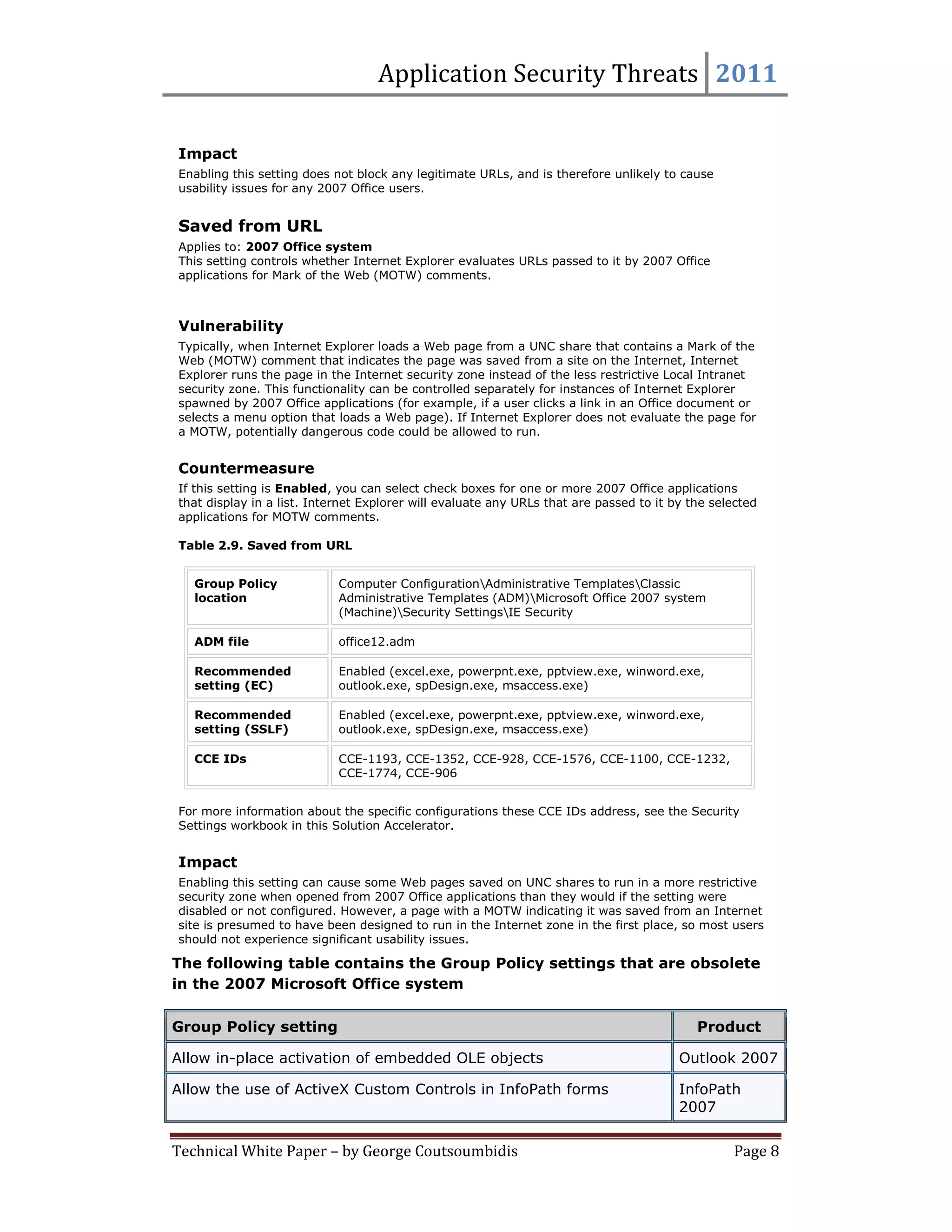
Table 2.9. Saved from URL


   Group Policy             Computer ConfigurationAdministrative TemplatesClassic
   location                 Administrative Templates (ADM)Microsoft Office 2007 system
                            (Machine)Security SettingsIE Security

   ADM file                 office12.adm

   Recommended              Enabled (excel.exe, powerpnt.exe, pptview.exe, winword.exe,
   setting (EC)             outlook.exe, spDesign.exe, msaccess.exe)

   Recommended              Enabled (excel.exe, powerpnt.exe, pptview.exe, winword.exe,
   setting (SSLF)           outlook.exe, spDesign.exe, msaccess.exe)

   CCE IDs                  CCE-1193, CCE-1352, CCE-928, CCE-1576, CCE-1100, CCE-1232,
                            CCE-1774, CCE-906


For more information about the specific configurations these CCE IDs address, see the Security
Settings workbook in this Solution Accelerator.


Impact
Enabling this setting can cause some Web pages saved on UNC shares to run in a more restrictive
security zone when opened from 2007 Office applications than they would if the setting were
disabled or not configured. However, a page with a MOTW indicating it was saved from an Internet
site is presumed to have been designed to run in the Internet zone in the first place, so most users
should not experience significant usability issues.

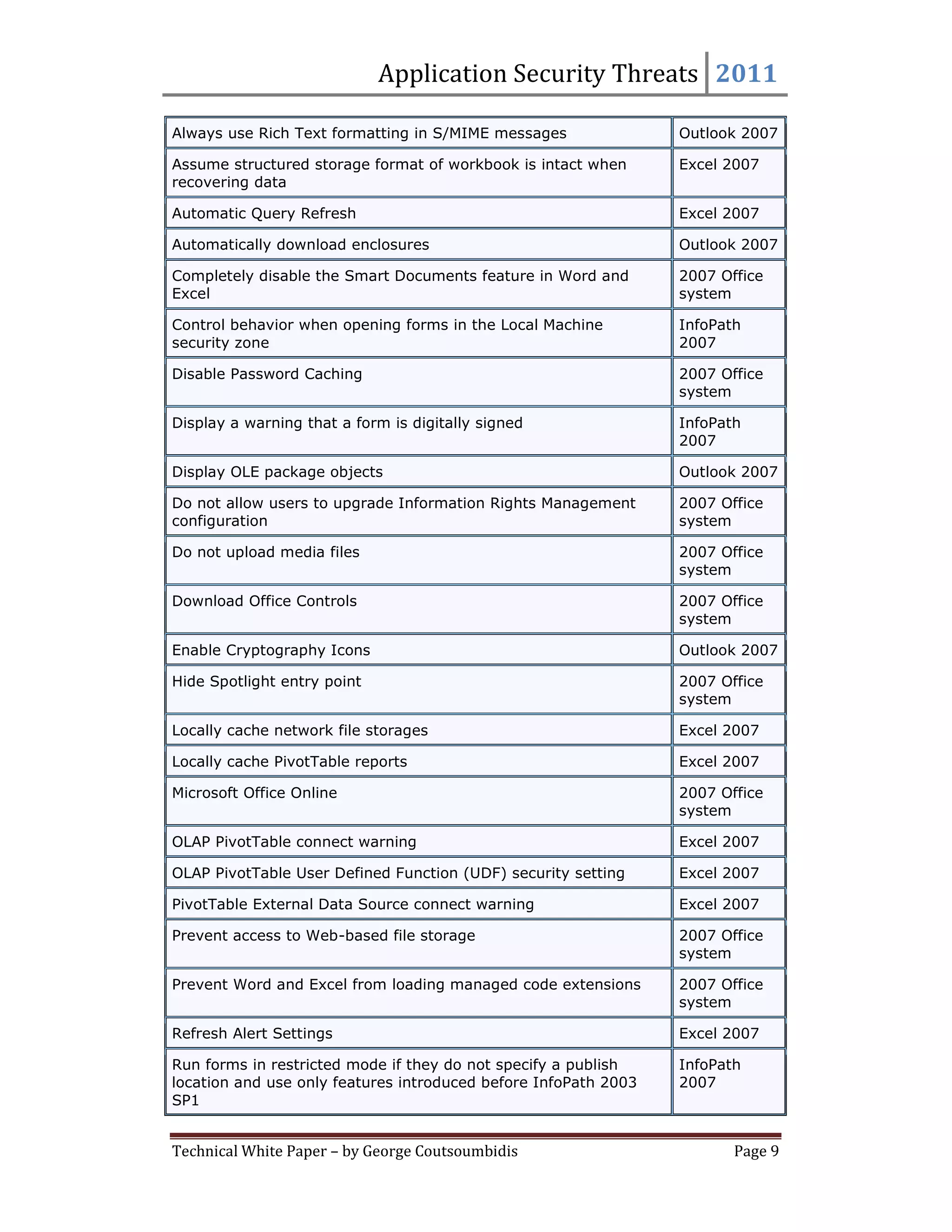
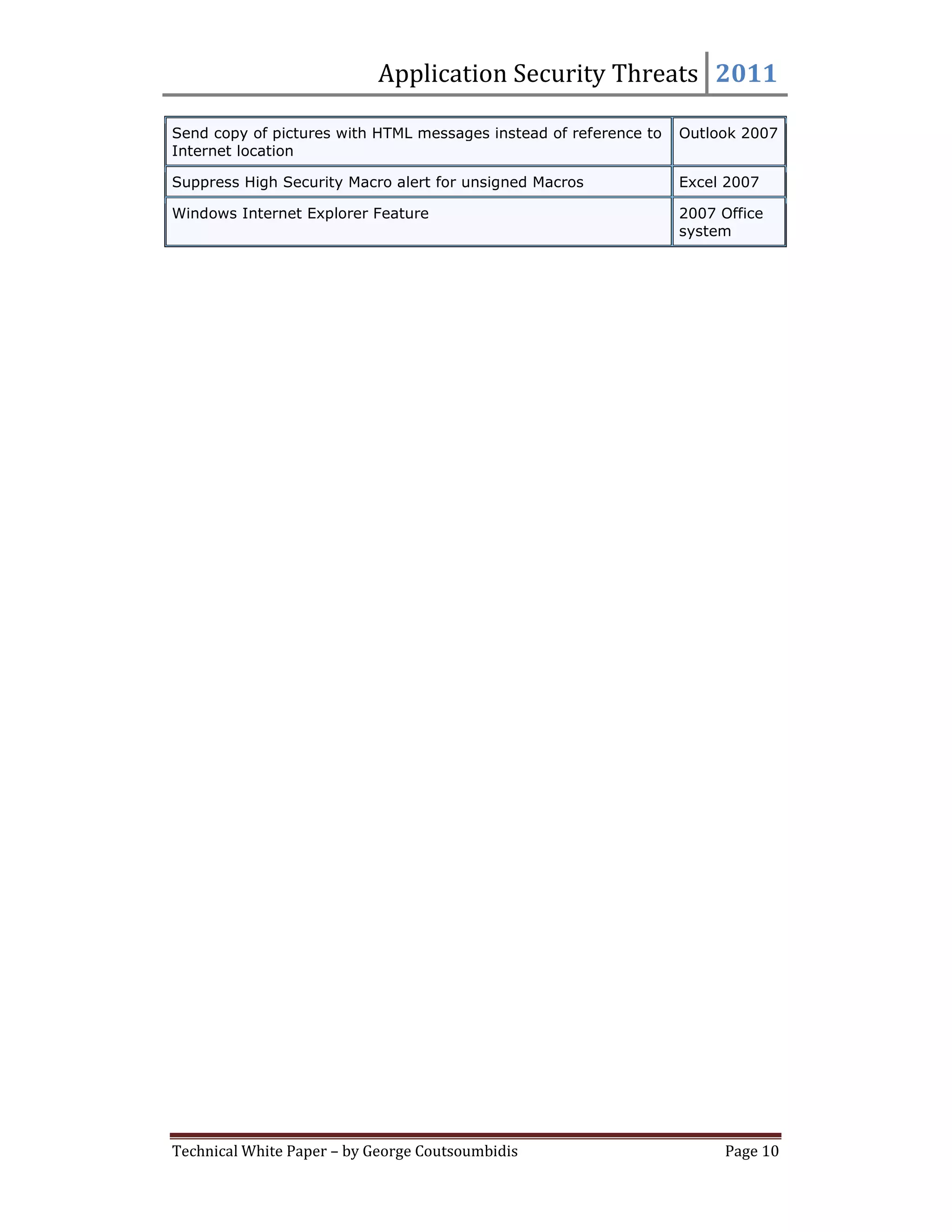
The following table contains the Group Policy settings that are obsolete
in the 2007 Microsoft Office system

Group Policy setting                                                                       Product

Allow in-place activation of embedded OLE objects                                       Outlook 2007

Allow the use of ActiveX Custom Controls in InfoPath forms                              InfoPath
                                                                                        2007


Technical White Paper – by George Coutsoumbidis                                                  Page 8
Application Security Threats 2011

Always use Rich Text formatting in S/MIME messages               Outlook 2007

Assume structured storage format of workbook is intact when      Excel 2007
recovering data

Automatic Query Refresh                                          Excel 2007

Automatically download enclosures                                Outlook 2007

Completely disable the Smart Documents feature in Word and       2007 Office
Excel                                                            system

Control behavior when opening forms in the Local Machine         InfoPath
security zone                                                    2007

Disable Password Caching                                         2007 Office
                                                                 system

Display a warning that a form is digitally signed                InfoPath
                                                                 2007

Display OLE package objects                                      Outlook 2007

Do not allow users to upgrade Information Rights Management      2007 Office
configuration                                                    system

Do not upload media files                                        2007 Office
                                                                 system

Download Office Controls                                         2007 Office
                                                                 system

Enable Cryptography Icons                                        Outlook 2007

Hide Spotlight entry point                                       2007 Office
                                                                 system

Locally cache network file storages                              Excel 2007

Locally cache PivotTable reports                                 Excel 2007

Microsoft Office Online                                          2007 Office
                                                                 system

OLAP PivotTable connect warning                                  Excel 2007

OLAP PivotTable User Defined Function (UDF) security setting     Excel 2007

PivotTable External Data Source connect warning                  Excel 2007

Prevent access to Web-based file storage                         2007 Office
                                                                 system

Prevent Word and Excel from loading managed code extensions      2007 Office
                                                                 system

Refresh Alert Settings                                           Excel 2007

Run forms in restricted mode if they do not specify a publish    InfoPath
location and use only features introduced before InfoPath 2003   2007
SP1


Technical White Paper – by George Coutsoumbidis                         Page 9
Application Security Threats 2011

Send copy of pictures with HTML messages instead of reference to   Outlook 2007
Internet location

Suppress High Security Macro alert for unsigned Macros             Excel 2007

Windows Internet Explorer Feature                                  2007 Office
                                                                   system


Technical White Paper – by George Coutsoumbidis                          Page 10

Threats and Countermeasures

  • 1.
    Application Security Threats George Coutsoumbidis Computer Policy Security Settings 9/8/2011 of Threats and Countermeasures
  • 2.
    Application Security Threats2011 Threats and Countermeasures Computer Policy Setting Information A description is provided for each setting, along with information about the applications to which it applies, the vulnerability the setting addresses, how the vulnerability is addressed, and any other considerations. A table is also included for each setting that shows the setting's location in Group Policy, the ADM file that contains the setting, the recommended configuration for EC and SSLF environments, and any associated Common Configuration Enumeration (CCE) identifiers. Bind to object Applies to: 2007 Office system This setting determines whether Microsoft® Internet Explorer® performs its typical safety checks on Microsoft ActiveX® controls when opening URLs that are passed to it by a 2007 Office application. Vulnerability Internet Explorer performs a number of safety checks before initializing an ActiveX control. It will not initialize a control if the kill bit for the control is set in the registry, or if the security settings for the zone in which the control is located do not allow it to be initialized. This functionality can be controlled separately for instances of Internet Explorer spawned by 2007 Office applications (for example, if a user clicks a link in an Office document or selects a menu option that loads a Web page). A security risk could occur if potentially dangerous controls are allowed to load. Countermeasure If this setting is Enabled, you can select check boxes for one or more 2007 Office applications that display in a list. Internet Explorer will apply the typical security checks to any ActiveX objects embedded in Web pages that are opened by the selected applications. Table 2.1. Bind to object Group Policy Computer ConfigurationAdministrative TemplatesClassic location Administrative Templates (ADM)Microsoft Office 2007 system (Machine)Security SettingsIE Security ADM file office12.adm Recommended Enabled (excel.exe, powerpnt.exe, pptview.exe, winword.exe, setting (EC) outlook.exe, spDesign.exe, msaccess.exe) Recommended Enabled (excel.exe, powerpnt.exe, pptview.exe, winword.exe, setting (SSLF) outlook.exe, spDesign.exe, msaccess.exe) CCE IDs CCE-1669, CCE-1691, CCE-1338, CCE-1717, CCE-1488, CCE-1638, CCE-1647, CCE-1294 For more information about the specific configurations these CCE IDs address, see the Security Settings workbook in this Solution Accelerator. Impact Enabling this setting can cause some disruptions for users who open Web pages that contain potentially dangerous ActiveX controls from 2007 Office applications. However, because any affected controls are usually blocked by default when Internet Explorer opens Web pages, most users should not experience significant usability issues. Block popups Applies to: 2007 Office system This setting controls whether Internet Explorer blocks pop-up windows when opening URLs that are passed to it by a 2007 Office application. Technical White Paper – by George Coutsoumbidis Page 2
  • 3.
    Application Security Threats2011 Vulnerability The Pop-up Blocker feature in Internet Explorer can be used to block most unwanted pop-up and pop-under windows from appearing. This functionality can be controlled separately for instances of Internet Explorer spawned by 2007 Office applications (for example, if a user clicks a link in an Office document or selects a menu option that loads a Web page). If the Pop-up Blocker is disabled, disruptive and potentially dangerous pop-up windows could load and present a security risk. Countermeasure If this setting is Enabled, you can select check boxes for one or more 2007 Office applications that display in a list. Internet Explorer will apply its pop-up blocker functionality to any Web pages that are opened by the selected applications. Table 2.2. Block popups Group Policy Computer ConfigurationAdministrative TemplatesClassic location Administrative Templates (ADM)Microsoft Office 2007 system (Machine)Security SettingsIE Security ADM file office12.adm Recommended Enabled (excel.exe, powerpnt.exe, pptview.exe, winword.exe, setting (EC) outlook.exe, spDesign.exe, msaccess.exe) Recommended Enabled (excel.exe, powerpnt.exe, pptview.exe, winword.exe, setting (SSLF) outlook.exe, spDesign.exe, msaccess.exe) CCE IDs CCE-1152, CCE-1566, CCE-1077, CCE-1606, CCE-1738, CCE-1262, CCE-1663, CCE-1544 For more information about the specific configurations these CCE IDs address, see the Security Settings workbook in this Solution Accelerator. Impact Enabling this setting can cause some disruptions for users who open Web pages containing pop-up windows from 2007 Office applications. Pop-up windows can be beneficial and even necessary for some Web pages to function correctly. To see these pop-up windows, users will have to add the affected Web sites to the Allowed sites list in Internet Explorer's Pop-up Blocker Settings dialog box. Disable Package Repair Applies to: 2007 Office system This setting controls whether 2007 Office users can choose to repair corrupted Office Open XMP documents. Vulnerability By default, when a 2007 Office application detects that an Office Open XML document is corrupted, the user has the option to repair the corrupted document. Countermeasure If this setting is Enabled, 2007 Office applications do not attempt to repair corrupted Office Open XML documents. This setting can be used to guard against theoretical zero-day attacks that target the package repair feature and that potentially involve an attacker rewriting Office Open XML package files. Technical White Paper – by George Coutsoumbidis Page 3
  • 4.
    Application Security Threats2011 Table 2.3. Disable Package Repair Group Policy Computer ConfigurationAdministrative TemplatesClassic location Administrative Templates (ADM)Microsoft Office 2007 system (Machine)Security Settings ADM file office12.adm Recommended Not configured setting (EC) Recommended Enabled setting (SSLF) CCE ID CCE-933 Impact The recommended setting for the SSLF configuration is Enabled, which means that 2007 Office users will not be able to repair corrupted Office Open XML package files by themselves. Users who attempt to open corrupted files will require administrative assistance to access the file. Disable user name and password Applies to: 2007 Office system This setting controls whether Internet Explorer opens URLs containing user information that are passed to it by a 2007 Office application. Vulnerability The Uniform Resource Locator (URL) standard allows user authentication to be included in URL strings in the form http://username:password@example.com. A malicious user might use this URL syntax to create a hyperlink that appears to open a legitimate Web site but actually opens a deceptive (spoofed) Web site. For example, the URL http://www.wingtiptoys.com@example.com appears to open http://www.wingtiptoys.com but actually opens http://example.com. To protect users from such attacks, Internet Explorer usually blocks any URLs using this syntax. This functionality can be controlled separately for instances of Internet Explorer spawned by 2007 Office applications (for example, if a user clicks a link in an Office document or selects a menu option that loads a Web page). If user names and passwords in URLs are allowed, users could be diverted to dangerous Web pages, which could pose a security risk. Countermeasure If this setting is Enabled, you can select check boxes for one or more 2007 Office applications that display in a list. Internet Explorer will block any URLs containing user authentication information opened by the designated applications. Table 2.4. Disable user name and password Group Policy Computer ConfigurationAdministrative TemplatesClassic location Administrative Templates (ADM)Microsoft Office 2007 system (Machine)Security SettingsIE Security ADM file Office12.adm Recommended Enabled (excel.exe, powerpnt.exe, pptview.exe, winword.exe, setting (EC) outlook.exe, spDesign.exe, msaccess.exe) Recommended Enabled (excel.exe, powerpnt.exe, pptview.exe, winword.exe, setting (SSLF) outlook.exe, spDesign.exe, msaccess.exe) CCE IDs CCE-1563, CCE-1215, CCE-1484, CCE-1629, CCE-1762, CCE-1660, CCE-1057, CCE-1285 For more information about the specific configurations these CCE IDs address, see the Security Technical White Paper – by George Coutsoumbidis Page 4
  • 5.
    Application Security Threats2011 Settings workbook in this Solution Accelerator. Impact Enabling this setting can cause some disruptions for users who open URLs containing user authentication information from 2007 Office applications. Because such URLs are blocked by default when Internet Explorer opens Web pages through conventional means, however, most users should not experience significant usability issues. Disable VBA for Office applications Applies to: 2007 Office system This setting controls whether 2007 Office applications other than Microsoft Office Access™ 2007 can use Microsoft Visual Basic® for Applications (VBA). Vulnerability By default, most Office applications, including Microsoft Office Excel® 2007, Outlook® 2007, PowerPoint® 2007, and Word 2007, can execute Visual Basic for Applications (VBA) code that customizes and automates application operation. VBA could also be used by inexperienced or malicious developers to create dangerous code that can harm users' computers or compromise the confidentiality, integrity, or availability of data. Countermeasure If this setting is Enabled, the 2007 versions of Excel, Outlook, PowerPoint, Publisher, SharePoint® Designer, and Word cannot execute any VBA code. Enabling this setting does not install or remove any VBA–related code or files from users' computers. Note this setting does not affect Access 2007. Table 2.5. Disable VBA for Office applications Group Policy Computer ConfigurationAdministrative TemplatesClassic location Administrative Templates (ADM)Microsoft Office 2007 system (Machine)Security Settings ADM file office12.adm Recommended Not configured setting (EC) Recommended Enabled setting (SSLF) CCE ID CCE-116 Impact If this setting is Enabled, VBA code will not function in 2007 Office applications (except Access). If your organization has business-critical requirements for using documents with VBA code, you might not be able to enable this setting. InfoPath APTCA Assembly allowable list Applies to: InfoPath This setting enables administrators to configure a list of assemblies in the Global Assembly Cache (GAC) that can be called by Microsoft Office InfoPath® 2007. Vulnerability The GAC contains shared assemblies that can be called from other applications. If an application is fully trusted, it can access any assembly in the GAC. If an application is partially trusted, it can only access assemblies in the GAC that have the AllowPartiallyTrustedCallersAttribute (APTCA) attribute set. A malicious user could attempt to design an InfoPath 2007 form that would access an assembly with the APTCA attribute set but that is not intended for use by InfoPath forms. To protect against this type of attack, an InfoPath form's business logic can call into assemblies in Technical White Paper – by George Coutsoumbidis Page 5
  • 6.
    Application Security Threats2011 the Global Assembly Cache (GAC) only if two conditions are met:  The assembly has the Allow Partially Trust Callers Attribute (APTCA) set.  The assembly is listed in the APTCA Assembly allowable list. By default, this list is empty. Note The default functionality can be changed by disabling the "InfoPath APTCA Assembly Allowable List Enforcement" Group Policy setting, which is the next setting described in this guide. However, Microsoft strongly recommends that you ensure that allowable list enforcement is enabled. Countermeasure If this setting is Enabled, administrators can add entries to the APTCA assembly allowable list. To add a new assembly to the allowable list, add a new String Value entry that corresponds to the APTCA key. The Value Name field should be the public key token for the assembly and the Value Data field should be 1 for InfoPath 2007 to allow loading the assembly. If the Value Data field is not 1, the assembly will fail to load. Table 2.6. InfoPath APTCA Assembly allowable list Group Policy Computer ConfigurationAdministrative TemplatesClassic location Administrative Templates (ADM)Microsoft Office InfoPath 2007 (machine)Security ADM file inf12.adm Recommended Not configured setting (EC) Recommended Not configured setting (SSLF) CCE ID CCE-1169 Impact This setting does not change the default configuration and therefore should not have any effect on usability. If it is necessary for an InfoPath 2007 form to use assemblies in the GAC, you must ensure that those assemblies have the ACPTA attribute set, and that they are added to the allowable list. InfoPath APTCA Assembly Allowable List Enforcement Applies to: InfoPath This setting controls whether InfoPath 2007 can call into assemblies that are not on the APTCA Assembly Allowable List. Vulnerability By default, an InfoPath 2007 form's business logic can only call into Global Assembly Cache (GAC) assemblies that are listed in the APTCA Assembly Allowable List. If this configuration is changed, forms can call into any assembly in the GAC that has the Allow Partially Trust Callers Attribute (APTCA) set. This configuration could allow malicious developers to access assemblies in the GAC that were not intended to be used by InfoPath forms. Countermeasure If this setting is Enabled, InfoPath 2007 forms cannot call into any assembly that is not on the APTCA Assembly Allowable List and overrides any configuration changes on the local computer. Technical White Paper – by George Coutsoumbidis Page 6
  • 7.
    Application Security Threats2011 Table 2.7. InfoPath APTCA Assembly Allowable List Enforcement Group Policy Computer ConfigurationAdministrative TemplatesClassic location Administrative Templates (ADM)Microsoft Office InfoPath 2007 (machine)Security ADM file inf12.adm Recommended Enabled setting (EC) Recommended Enabled setting (SSLF) CCE ID CCE-1739 Impact This setting enforces the default configuration and therefore should not have any effect on usability. If it is necessary for an InfoPath 2007 form to use assemblies in the GAC, you must ensure that those assemblies have the ACPTA attribute set, and that they are listed in the allowable list. Navigate URL Applies to: 2007 Office system This setting controls whether Internet Explorer attempts to load malformed URLs that are passed to it from 2007 Office applications. Vulnerability To protect users from attacks, Internet Explorer usually does not attempt to load malformed URLs. This functionality can be controlled separately for instances of Internet Explorer spawned by 2007 Office applications (for example, if a user clicks a link in an Office document or selects a menu option that loads a Web page). If Internet Explorer attempts to load a malformed URL, a security risk could occur in some cases. Countermeasure If this setting is Enabled, you can select check boxes for one or more 2007 Office applications that display in a list. Internet Explorer will block any malformed URLs that are passed to it by the selected applications. Table 2.8. Navigate URL Group Policy Computer ConfigurationAdministrative TemplatesClassic location Administrative Templates (ADM)Microsoft Office 2007 system (Machine)Security SettingsIE Security ADM file office12.adm Recommended Enabled (excel.exe, powerpnt.exe, pptview.exe, winword.exe, setting (EC) outlook.exe, spDesign.exe, msaccess.exe) Recommended Enabled (excel.exe, powerpnt.exe, pptview.exe, winword.exe, setting (SSLF) outlook.exe, spDesign.exe, msaccess.exe) CCE IDs CCE-1034, CCE-1435, CCE-1708, CCE-808, CCE-1650, CCE-1223, CCE-1764, CCE-1769 For more information about the specific configurations these CCE IDs address, see the Security Settings workbook in this Solution Accelerator. Technical White Paper – by George Coutsoumbidis Page 7
  • 8.
    Application Security Threats2011 Impact Enabling this setting does not block any legitimate URLs, and is therefore unlikely to cause usability issues for any 2007 Office users. Saved from URL Applies to: 2007 Office system This setting controls whether Internet Explorer evaluates URLs passed to it by 2007 Office applications for Mark of the Web (MOTW) comments. Vulnerability Typically, when Internet Explorer loads a Web page from a UNC share that contains a Mark of the Web (MOTW) comment that indicates the page was saved from a site on the Internet, Internet Explorer runs the page in the Internet security zone instead of the less restrictive Local Intranet security zone. This functionality can be controlled separately for instances of Internet Explorer spawned by 2007 Office applications (for example, if a user clicks a link in an Office document or selects a menu option that loads a Web page). If Internet Explorer does not evaluate the page for a MOTW, potentially dangerous code could be allowed to run. Countermeasure If this setting is Enabled, you can select check boxes for one or more 2007 Office applications that display in a list. Internet Explorer will evaluate any URLs that are passed to it by the selected applications for MOTW comments. Table 2.9. Saved from URL Group Policy Computer ConfigurationAdministrative TemplatesClassic location Administrative Templates (ADM)Microsoft Office 2007 system (Machine)Security SettingsIE Security ADM file office12.adm Recommended Enabled (excel.exe, powerpnt.exe, pptview.exe, winword.exe, setting (EC) outlook.exe, spDesign.exe, msaccess.exe) Recommended Enabled (excel.exe, powerpnt.exe, pptview.exe, winword.exe, setting (SSLF) outlook.exe, spDesign.exe, msaccess.exe) CCE IDs CCE-1193, CCE-1352, CCE-928, CCE-1576, CCE-1100, CCE-1232, CCE-1774, CCE-906 For more information about the specific configurations these CCE IDs address, see the Security Settings workbook in this Solution Accelerator. Impact Enabling this setting can cause some Web pages saved on UNC shares to run in a more restrictive security zone when opened from 2007 Office applications than they would if the setting were disabled or not configured. However, a page with a MOTW indicating it was saved from an Internet site is presumed to have been designed to run in the Internet zone in the first place, so most users should not experience significant usability issues. The following table contains the Group Policy settings that are obsolete in the 2007 Microsoft Office system Group Policy setting Product Allow in-place activation of embedded OLE objects Outlook 2007 Allow the use of ActiveX Custom Controls in InfoPath forms InfoPath 2007 Technical White Paper – by George Coutsoumbidis Page 8
  • 9.
    Application Security Threats2011 Always use Rich Text formatting in S/MIME messages Outlook 2007 Assume structured storage format of workbook is intact when Excel 2007 recovering data Automatic Query Refresh Excel 2007 Automatically download enclosures Outlook 2007 Completely disable the Smart Documents feature in Word and 2007 Office Excel system Control behavior when opening forms in the Local Machine InfoPath security zone 2007 Disable Password Caching 2007 Office system Display a warning that a form is digitally signed InfoPath 2007 Display OLE package objects Outlook 2007 Do not allow users to upgrade Information Rights Management 2007 Office configuration system Do not upload media files 2007 Office system Download Office Controls 2007 Office system Enable Cryptography Icons Outlook 2007 Hide Spotlight entry point 2007 Office system Locally cache network file storages Excel 2007 Locally cache PivotTable reports Excel 2007 Microsoft Office Online 2007 Office system OLAP PivotTable connect warning Excel 2007 OLAP PivotTable User Defined Function (UDF) security setting Excel 2007 PivotTable External Data Source connect warning Excel 2007 Prevent access to Web-based file storage 2007 Office system Prevent Word and Excel from loading managed code extensions 2007 Office system Refresh Alert Settings Excel 2007 Run forms in restricted mode if they do not specify a publish InfoPath location and use only features introduced before InfoPath 2003 2007 SP1 Technical White Paper – by George Coutsoumbidis Page 9
  • 10.
    Application Security Threats2011 Send copy of pictures with HTML messages instead of reference to Outlook 2007 Internet location Suppress High Security Macro alert for unsigned Macros Excel 2007 Windows Internet Explorer Feature 2007 Office system Technical White Paper – by George Coutsoumbidis Page 10