Ring Documentation, Release 1.8
17.5 Creating and running your first Desktop/Mobile Game
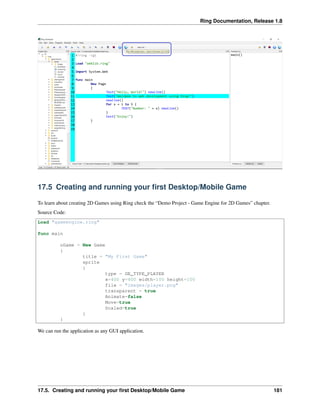
To learn about creating 2D Games using Ring check the “Demo Project - Game Engine for 2D Games” chapter.
Source Code:
Load "gameengine.ring"
func main
oGame = New Game
{
title = "My First Game"
sprite
{
type = GE_TYPE_PLAYER
x=400 y=400 width=100 height=100
file = "images/player.png"
transparent = true
Animate=false
Move=true
Scaled=true
}
}
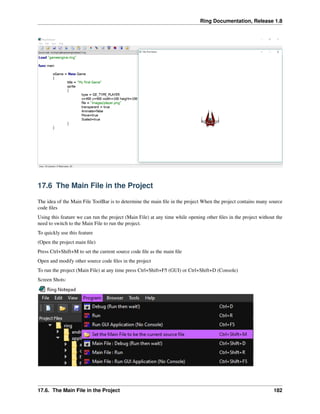
We can run the application as any GUI application.
17.5. Creating and running your first Desktop/Mobile Game 181
Ring Documentation, Release 1.8
17.6 The Main File in the Project
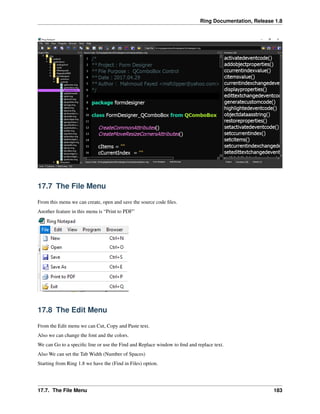
The idea of the Main File ToolBar is to determine the main file in the project When the project contains many source
code files
Using this feature we can run the project (Main File) at any time while opening other files in the project without the
need to switch to the Main File to run the project.
To quickly use this feature
(Open the project main file)
Press Ctrl+Shift+M to set the current source code file as the main file
Open and modify other source code files in the project
To run the project (Main File) at any time press Ctrl+Shift+F5 (GUI) or Ctrl+Shift+D (Console)
Screen Shots:
17.6. The Main File in the Project 182
Ring Documentation, Release 1.8
17.7 The File Menu
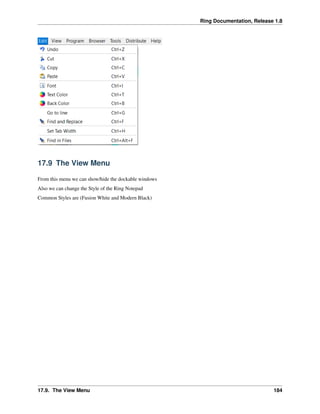
From this menu we can create, open and save the source code files.
Another feature in this menu is “Print to PDF”
17.8 The Edit Menu
From the Edit menu we can Cut, Copy and Paste text.
Also we can change the font and the colors.
We can Go to a specific line or use the Find and Replace window to find and replace text.
Also We can set the Tab Width (Number of Spaces)
Starting from Ring 1.8 we have the (Find in Files) option.
17.7. The File Menu 183
Ring Documentation, Release 1.8
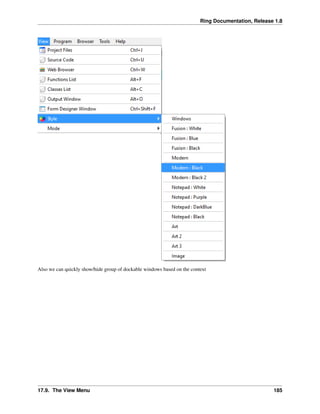
17.9 The View Menu
From this menu we can show/hide the dockable windows
Also we can change the Style of the Ring Notepad
Common Styles are (Fusion White and Modern Black)
17.9. The View Menu 184
Ring Documentation, Release 1.8
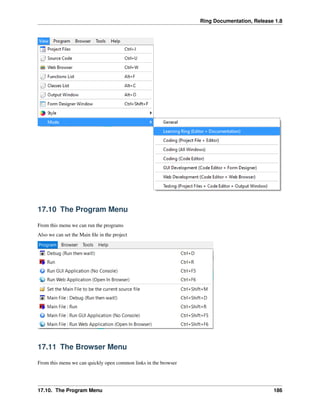
Also we can quickly show/hide group of dockable windows based on the context
17.9. The View Menu 185
Ring Documentation, Release 1.8
17.10 The Program Menu
From this menu we can run the programs
Also we can set the Main file in the project
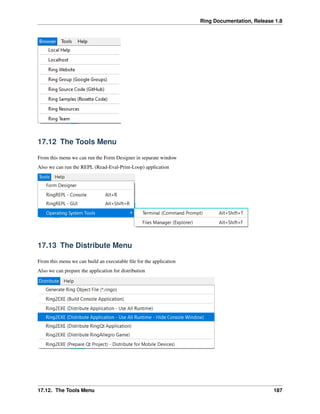
17.11 The Browser Menu
From this menu we can quickly open common links in the browser
17.10. The Program Menu 186
Ring Documentation, Release 1.8
17.12 The Tools Menu
From this menu we can run the Form Designer in separate window
Also we can run the REPL (Read-Eval-Print-Loop) application
17.13 The Distribute Menu
From this menu we can build an executable file for the application
Also we can prepare the application for distribution
17.12. The Tools Menu 187
Ring Documentation, Release 1.8
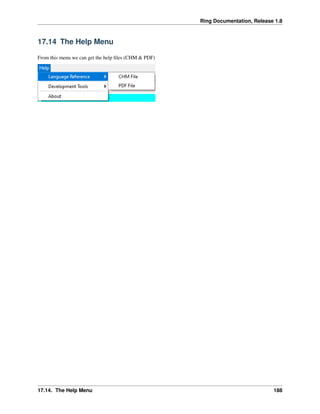
17.14 The Help Menu
From this menu we can get the help files (CHM & PDF)
17.14. The Help Menu 188
CHAPTER
EIGHTEEN
USING OTHER CODE EDITORS
In the Ring/Editor folder you will find extensions for the next editors
• Notepad++
• Geany
• Atom
• Sublime Text 2
• Visual Studio IDE
• Emacs
18.1 Using Notepad++
Folder : ring/editor/notepad_plus_plus
• Open Notepad++
• Open the “Language” menu
• Select “Define your language...”
• Click “Import...”
• select Ring.xml
• Select “OK” on the “Import successful” dialog and close the “User Defined Language” dialog/panel
• You may need to restart notepad++
189
Ring Documentation, Release 1.8
18.2 Using Geany
Folder : ring/editor/geany
• Run Geany editor
• Click on “Tools -> configuration files -> filetypes_extensions.conf” menu
• Add this line “Ring=*.ring;” without quotes after [Extensions]
• In unbuntu copy file “filetypes.Ring.conf” to folder “/home/USERNAME/filetypes.Ring.conf”
• You can run your files by pressing F5 button
18.2. Using Geany 190

The Ring programming language version 1.8 book - Part 22 of 202

  • 1.
    Ring Documentation, Release1.8 17.5 Creating and running your first Desktop/Mobile Game To learn about creating 2D Games using Ring check the “Demo Project - Game Engine for 2D Games” chapter. Source Code: Load "gameengine.ring" func main oGame = New Game { title = "My First Game" sprite { type = GE_TYPE_PLAYER x=400 y=400 width=100 height=100 file = "images/player.png" transparent = true Animate=false Move=true Scaled=true } } We can run the application as any GUI application. 17.5. Creating and running your first Desktop/Mobile Game 181
  • 2.
    Ring Documentation, Release1.8 17.6 The Main File in the Project The idea of the Main File ToolBar is to determine the main file in the project When the project contains many source code files Using this feature we can run the project (Main File) at any time while opening other files in the project without the need to switch to the Main File to run the project. To quickly use this feature (Open the project main file) Press Ctrl+Shift+M to set the current source code file as the main file Open and modify other source code files in the project To run the project (Main File) at any time press Ctrl+Shift+F5 (GUI) or Ctrl+Shift+D (Console) Screen Shots: 17.6. The Main File in the Project 182
  • 3.
    Ring Documentation, Release1.8 17.7 The File Menu From this menu we can create, open and save the source code files. Another feature in this menu is “Print to PDF” 17.8 The Edit Menu From the Edit menu we can Cut, Copy and Paste text. Also we can change the font and the colors. We can Go to a specific line or use the Find and Replace window to find and replace text. Also We can set the Tab Width (Number of Spaces) Starting from Ring 1.8 we have the (Find in Files) option. 17.7. The File Menu 183
  • 4.
    Ring Documentation, Release1.8 17.9 The View Menu From this menu we can show/hide the dockable windows Also we can change the Style of the Ring Notepad Common Styles are (Fusion White and Modern Black) 17.9. The View Menu 184
  • 5.
    Ring Documentation, Release1.8 Also we can quickly show/hide group of dockable windows based on the context 17.9. The View Menu 185
  • 6.
    Ring Documentation, Release1.8 17.10 The Program Menu From this menu we can run the programs Also we can set the Main file in the project 17.11 The Browser Menu From this menu we can quickly open common links in the browser 17.10. The Program Menu 186
  • 7.
    Ring Documentation, Release1.8 17.12 The Tools Menu From this menu we can run the Form Designer in separate window Also we can run the REPL (Read-Eval-Print-Loop) application 17.13 The Distribute Menu From this menu we can build an executable file for the application Also we can prepare the application for distribution 17.12. The Tools Menu 187
  • 8.
    Ring Documentation, Release1.8 17.14 The Help Menu From this menu we can get the help files (CHM & PDF) 17.14. The Help Menu 188
  • 9.
    CHAPTER EIGHTEEN USING OTHER CODEEDITORS In the Ring/Editor folder you will find extensions for the next editors • Notepad++ • Geany • Atom • Sublime Text 2 • Visual Studio IDE • Emacs 18.1 Using Notepad++ Folder : ring/editor/notepad_plus_plus • Open Notepad++ • Open the “Language” menu • Select “Define your language...” • Click “Import...” • select Ring.xml • Select “OK” on the “Import successful” dialog and close the “User Defined Language” dialog/panel • You may need to restart notepad++ 189
  • 10.
    Ring Documentation, Release1.8 18.2 Using Geany Folder : ring/editor/geany • Run Geany editor • Click on “Tools -> configuration files -> filetypes_extensions.conf” menu • Add this line “Ring=*.ring;” without quotes after [Extensions] • In unbuntu copy file “filetypes.Ring.conf” to folder “/home/USERNAME/filetypes.Ring.conf” • You can run your files by pressing F5 button 18.2. Using Geany 190