1
Tetris
Leong
2
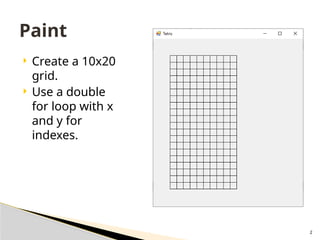
 Create a 10x20
grid.
 Use a double
for loop with x
and y for
indexes.
Paint
3
 Declare a piecex and a piecey variable to hold
the location of the active piece.
 The x variable will have values between 0 and
9.
 The y variable will have values between 0 and
19.
 Give the initial values of 8 and 7.
 In paint draw the piece using a filled rectangle
right before the grid.
Position of block
4
 Add a timer that runs every 500 milliseconds.
 Inside the timer tick, add 1 to piecey (so it falls
down). I block every half second.
 Add refresh after in the timer(so we get to see
it fall down).
Timer
5
 The piece falls off the screen. We need to set it
into the grid so it stops at the bottom.
 We also need data underlying the grid for this.
 Create a multidimensional array of integers
that is 10x20.
Dim data (9, 19) as Integer
Data
6
 Change three of the locations in the grid to be
1.
Data(1, 7) = 1
Data(4, 15) = 1
Data(9, 5) = 1
Data
7
 In paint inside the double for loop that draws
the grid, use an if statement to check the data
grid to see if there is a 1. If there is a 1, draw a
filled red rectangle. Draw this rectangle
BEFORE the black grid.
Paint Update
8
 In the timer add code to check to see if the
current piece is at the bottom of the grid.
 If it is, change the data array at the piece
location to 1.
 Then reset the piecex and piecey to the top at
5,0.
Timer Code
9
 We need a helper function that will allow us to
determine if the space under a piece location is
full or Empty.
Public Function isEmpty (x as Integer, y as Integer)
End Function
 If y if greater than 19 or less than 0 return false
 If x is greater than 9 or less than 0 return false.
 If the data array at index (x, y) is zero return true.
 Else return false.
isEmpty(x as Integer, y as Integer)
10
 Revamp the timer code to use the new isEmpty
function.
 Call isEmpty in an if statement using the spot
one below the current piece location.
◦ If it returns true,
 add 1 to piecey
◦ Else
 change the data array to a 1 at location piecex, piecey
 Reset piecex and piecey to the top.
Timer Code
11
 This is an incredibly powerful function.
 Anytime we want to move the piece we will call
this to make sure that the grid location is
empty.
 When we move to 4 block pieces we will also
use this to check the entire block is able to
move.
isEmpty(x as Integer, y as Integer)
12
 We need to be able to move the piece to the
left and right.
 We can add a keydown event handler (like
paint) and check to see if the arrow keys are
clicked.
Moving the piece
13
 Create a keydown function.
 Inside check to see if the left or right arrow key
is clicked.
 If it was, change piecex by adding (right) or
subtracting (left) 1.
 Make sure to refresh at the end of the function
so the piece is redrawn.
Keydown
14
 Unfortunately if you move the piece too far to
the left or right you break the program.
 The problem is you go outside the data array.
 We need to use IsEmpty to make sure we can
move left or right before we actually move left
or right.
 This should all be in Keydown
Keydown continued
15
 In Keydown after you know the left arrow key
was clicked, call isEmpty to make sure there is
space for the piece.
 Do the same things for the right arrow key.
 You should be able to move the piece around
but never go outside of the grid.
Key Down - Update
16
 The spacebar in tetris drops a piece to the bottom
of the board.
 In Keydown add an if statement to see if the down
arrow key (or spacebar) has been pressed.
 If it has been pressed call isEmpty in a while loop to
check the location underneath the current piece.
 Inside the loop add 1 to piecey.
 This moves the piece down as far as it will go
 Outside the loop, set the data array at piecex and
piecey and reset the piece locations to the top of the
board.
Spacebar
17
 In Tetris, when a row is filled it clears off the
screen.
 We need to test for a Empty row anytime we set
a piece of data in the data array.
 Create a new function called clearRow.
Public Sub clearRows ()
End Sub
 In this we will test each row one at a time to
see if it’s Empty.
Clearing a row.
18
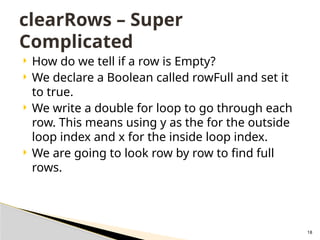
 How do we tell if a row is Empty?
 We declare a Boolean called rowFull and set it
to true.
 We write a double for loop to go through each
row. This means using y as the for the outside
loop index and x for the inside loop index.
 We are going to look row by row to find full
rows.
clearRows – Super
Complicated
19
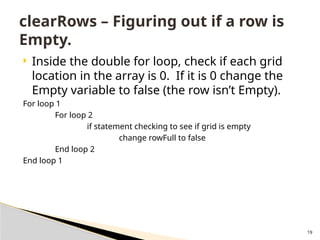
 Inside the double for loop, check if each grid
location in the array is 0. If it is 0 change the
Empty variable to false (the row isn’t Empty).
For loop 1
For loop 2
if statement checking to see if grid is empty
change rowFull to false
End loop 2
End loop 1
clearRows – Figuring out if a row is
Empty.
20
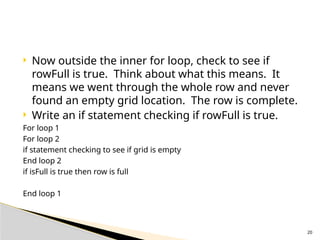
 Now outside the inner for loop, check to see if
rowFull is true. Think about what this means. It
means we went through the whole row and never
found an empty grid location. The row is complete.
 Write an if statement checking if rowFull is true.
For loop 1
For loop 2
if statement checking to see if grid is empty
End loop 2
if isFull is true then row is full
End loop 1
21
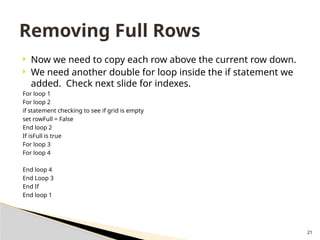
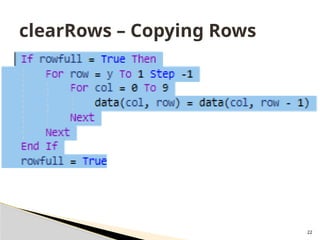
 Now we need to copy each row above the current row down.
 We need another double for loop inside the if statement we
added. Check next slide for indexes.
For loop 1
For loop 2
if statement checking to see if grid is empty
set rowFull = False
End loop 2
If isFull is true
For loop 3
For loop 4
End loop 4
End Loop 3
End If
End loop 1
Removing Full Rows
22
clearRows – Copying Rows
23
 We call clearRows any time a piece gets set into
the data array.
 This happens in the timer and when the
spacebar is pressed.
 Add the code to call clearRows.
Calling clearRows
24
 You have coded 1-block tetris…
Congrats!
25
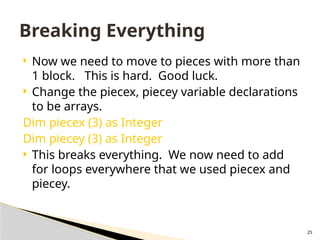
 Now we need to move to pieces with more than
1 block. This is hard. Good luck.
 Change the piecex, piecey variable declarations
to be arrays.
Dim piecex (3) as Integer
Dim piecey (3) as Integer
 This breaks everything. We now need to add
for loops everywhere that we used piecex and
piecey.
Breaking Everything
26
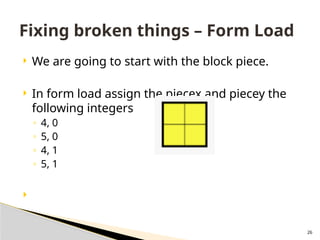
 We are going to start with the block piece.
 In form load assign the piecex and piecey the
following integers
◦ 4, 0
◦ 5, 0
◦ 4, 1
◦ 5, 1

Fixing broken things – Form Load
27
 Change the drawing of the piece in paint to use
a for loop that runs from 0 to 3.
 Inside the draw code make sure you add the
array indexes.
Fixing broken things – Paint
28
 To move the piece down in the timer we need a new
helper function. Create a new function called
canMovePieceDown.
Function canMoveDown ()
End Function
 We need to check all 4 of the blocks in one giant if
statement to see if they can move down. For each block
in the piece array we are going to call isEmpty on the
piece below it.
 If all 4 blocks are able to move down, return true. Else
return false.
Fixing broken things – Timer Tick
29
 We call canMoveDown in the timer. It doesn’t
need any arguments.
 If it returns true, use a for loop to move all the
blocks in the piece down 1.
 Else set all for blocks that make the piece into
the grid (use a loop).
 Then reset the block to top of form.
Fixing broken things – Timer Tick
30
 We need more helper functions. We need
these three.
Function canMoveDown ()
Function canMoveLeft ()
Function canMoveRight ()
Fixing broken things - KeyDown
31
 In canMoveDown we just have one big if
statement that calls canmovedown 4 times.
One for each block in the piece. If they all
return true, then return true.
 We call this instead of calling isEmpty in the
timer and in the keyDown when the space bar
is pressed.
canMoveDown
32
 Try and code canMoveLeft and canMoveRight
on your own.
Other Helped Functions
33
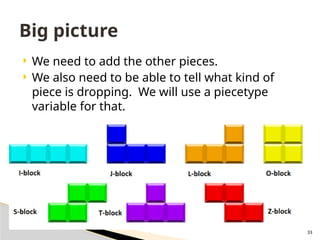
 We need to add the other pieces.
 We also need to be able to tell what kind of
piece is dropping. We will use a piecetype
variable for that.
Big picture
34
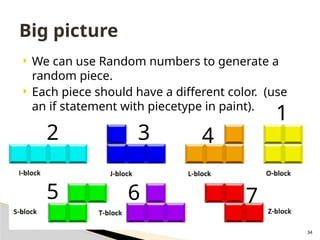
 We can use Random numbers to generate a
random piece.
 Each piece should have a different color. (use
an if statement with piecetype in paint).
Big picture
1
2 3 4
5 6 7
35
 Create a newpiece function that creates a new
piece at the top of the grid.
 It should generate a random number between
1 and 2 and if it’s 1 use a block and if it’s a 2,
make the piece the long straight one.
 Call newPiece anytime you set the current piece
into the grid and need a new one.
Add the I block
36
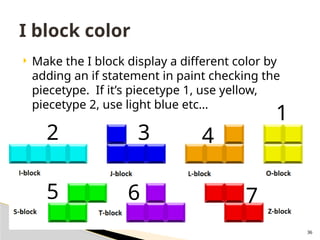
 Make the I block display a different color by
adding an if statement in paint checking the
piecetype. If it’s piecetype 1, use yellow,
piecetype 2, use light blue etc…
I block color
1
2 3 4
5 6 7
37
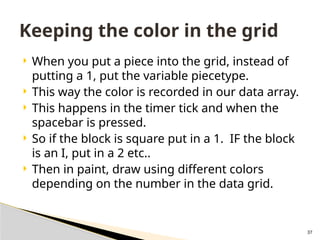
 When you put a piece into the grid, instead of
putting a 1, put the variable piecetype.
 This way the color is recorded in our data array.
 This happens in the timer tick and when the
spacebar is pressed.
 So if the block is square put in a 1. IF the block
is an I, put in a 2 etc..
 Then in paint, draw using different colors
depending on the number in the data grid.
Keeping the color in the grid
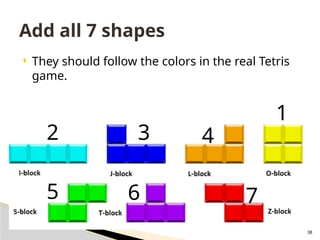
38
 They should follow the colors in the real Tetris
game.
Add all 7 shapes
1
2 3 4
5 6 7
39
 We need to adjust canMoveDown, canMoveLeft
and canMoveRight because now the numbers
in the array can be 1-7, not just one.
 Fix them.
Helper Functions
40
 Check to make sure when a new piece spawns
that the grid is not filled at that location.
 IF the grid is already Empty at that location the
game is over.
 Stop the timer.
 Display a game over MessageBox.
Ending the game
41
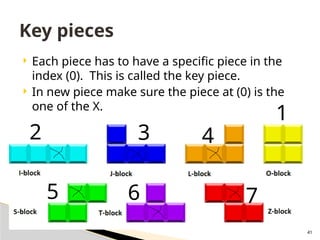
 Each piece has to have a specific piece in the
index (0). This is called the key piece.
 In new piece make sure the piece at (0) is the
one of the X.
Key pieces
1
2 3 4
5 6 7
42
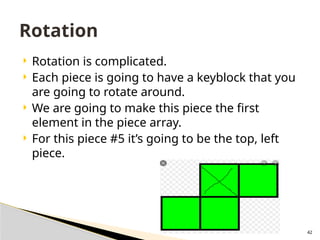
 Rotation is complicated.
 Each piece is going to have a keyblock that you
are going to rotate around.
 We are going to make this piece the first
element in the piece array.
 For this piece #5 it’s going to be the top, left
piece.
Rotation
43
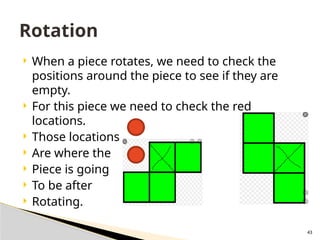
 When a piece rotates, we need to check the
positions around the piece to see if they are
empty.
 For this piece we need to check the red
locations.
 Those locations
 Are where the
 Piece is going
 To be after
 Rotating.
Rotation
44
 In rotate call the helper function in an if
statement.
 If the space is empty change the piecex and
piecey array to the rotated shape.
 Add a call to rotate when the user hits the up
arrow key.
Rotate Continued
45
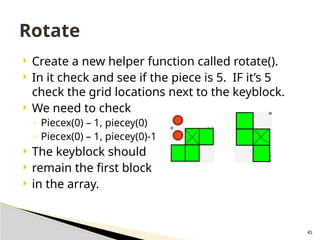
 Create a new helper function called rotate().
 In it check and see if the piece is 5. IF it’s 5
check the grid locations next to the keyblock.
 We need to check
◦ Piecex(0) – 1, piecey(0)
◦ Piecex(0) – 1, piecey(0)-1
 The keyblock should
 remain the first block
 in the array.
Rotate
46
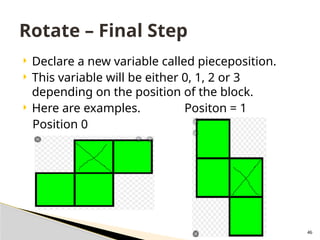
 Declare a new variable called pieceposition.
 This variable will be either 0, 1, 2 or 3
depending on the position of the block.
 Here are examples. Positon = 1
Position 0
Rotate – Final Step
47
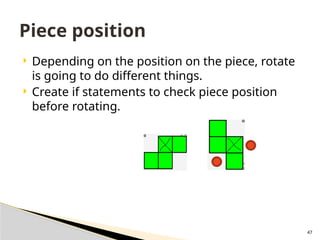
 Depending on the position on the piece, rotate
is going to do different things.
 Create if statements to check piece position
before rotating.
Piece position
48
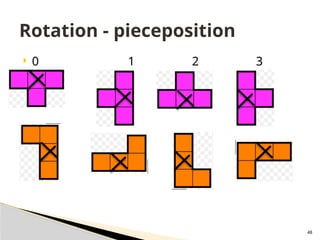
 0 1 2 3
Rotation - pieceposition
49
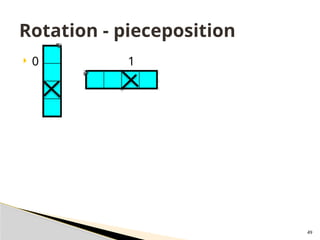
 0 1
Rotation - pieceposition
50
 Tetris gradually gets faster.
 Every ten levels decrease the timer interval so
the pieces drop faster.
 Display the current level somewhere on the
form.
Levels
51
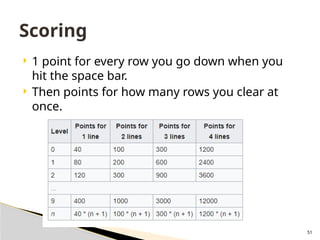
 1 point for every row you go down when you
hit the space bar.
 Then points for how many rows you clear at
once.
Scoring
52
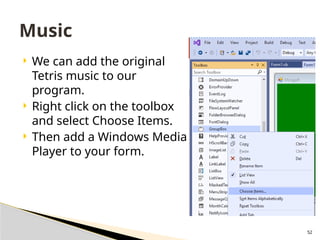
 We can add the original
Tetris music to our
program.
 Right click on the toolbox
and select Choose Items.
 Then add a Windows Media
Player to your form.
Music
53
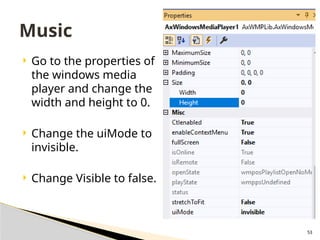
 Go to the properties of
the windows media
player and change the
width and height to 0.
 Change the uiMode to
invisible.
 Change Visible to false.
Music
54
 In form load add the following code.
AxWindowsMediaPlayer1.URL = "C:Users
kleongsourcereposMiniGolf 2020MiniGolf
2020binDebugTetris.mp3“
 Make sure the Tetris.mp3 is in the correct
directory and the path is correct. Test it out.
Music

Tetris game rules and program algorythm.

  • 1.
  • 2.
    2  Create a10x20 grid.  Use a double for loop with x and y for indexes. Paint
  • 3.
    3  Declare apiecex and a piecey variable to hold the location of the active piece.  The x variable will have values between 0 and 9.  The y variable will have values between 0 and 19.  Give the initial values of 8 and 7.  In paint draw the piece using a filled rectangle right before the grid. Position of block
  • 4.
    4  Add atimer that runs every 500 milliseconds.  Inside the timer tick, add 1 to piecey (so it falls down). I block every half second.  Add refresh after in the timer(so we get to see it fall down). Timer
  • 5.
    5  The piecefalls off the screen. We need to set it into the grid so it stops at the bottom.  We also need data underlying the grid for this.  Create a multidimensional array of integers that is 10x20. Dim data (9, 19) as Integer Data
  • 6.
    6  Change threeof the locations in the grid to be 1. Data(1, 7) = 1 Data(4, 15) = 1 Data(9, 5) = 1 Data
  • 7.
    7  In paintinside the double for loop that draws the grid, use an if statement to check the data grid to see if there is a 1. If there is a 1, draw a filled red rectangle. Draw this rectangle BEFORE the black grid. Paint Update
  • 8.
    8  In thetimer add code to check to see if the current piece is at the bottom of the grid.  If it is, change the data array at the piece location to 1.  Then reset the piecex and piecey to the top at 5,0. Timer Code
  • 9.
    9  We needa helper function that will allow us to determine if the space under a piece location is full or Empty. Public Function isEmpty (x as Integer, y as Integer) End Function  If y if greater than 19 or less than 0 return false  If x is greater than 9 or less than 0 return false.  If the data array at index (x, y) is zero return true.  Else return false. isEmpty(x as Integer, y as Integer)
  • 10.
    10  Revamp thetimer code to use the new isEmpty function.  Call isEmpty in an if statement using the spot one below the current piece location. ◦ If it returns true,  add 1 to piecey ◦ Else  change the data array to a 1 at location piecex, piecey  Reset piecex and piecey to the top. Timer Code
  • 11.
    11  This isan incredibly powerful function.  Anytime we want to move the piece we will call this to make sure that the grid location is empty.  When we move to 4 block pieces we will also use this to check the entire block is able to move. isEmpty(x as Integer, y as Integer)
  • 12.
    12  We needto be able to move the piece to the left and right.  We can add a keydown event handler (like paint) and check to see if the arrow keys are clicked. Moving the piece
  • 13.
    13  Create akeydown function.  Inside check to see if the left or right arrow key is clicked.  If it was, change piecex by adding (right) or subtracting (left) 1.  Make sure to refresh at the end of the function so the piece is redrawn. Keydown
  • 14.
    14  Unfortunately ifyou move the piece too far to the left or right you break the program.  The problem is you go outside the data array.  We need to use IsEmpty to make sure we can move left or right before we actually move left or right.  This should all be in Keydown Keydown continued
  • 15.
    15  In Keydownafter you know the left arrow key was clicked, call isEmpty to make sure there is space for the piece.  Do the same things for the right arrow key.  You should be able to move the piece around but never go outside of the grid. Key Down - Update
  • 16.
    16  The spacebarin tetris drops a piece to the bottom of the board.  In Keydown add an if statement to see if the down arrow key (or spacebar) has been pressed.  If it has been pressed call isEmpty in a while loop to check the location underneath the current piece.  Inside the loop add 1 to piecey.  This moves the piece down as far as it will go  Outside the loop, set the data array at piecex and piecey and reset the piece locations to the top of the board. Spacebar
  • 17.
    17  In Tetris,when a row is filled it clears off the screen.  We need to test for a Empty row anytime we set a piece of data in the data array.  Create a new function called clearRow. Public Sub clearRows () End Sub  In this we will test each row one at a time to see if it’s Empty. Clearing a row.
  • 18.
    18  How dowe tell if a row is Empty?  We declare a Boolean called rowFull and set it to true.  We write a double for loop to go through each row. This means using y as the for the outside loop index and x for the inside loop index.  We are going to look row by row to find full rows. clearRows – Super Complicated
  • 19.
    19  Inside thedouble for loop, check if each grid location in the array is 0. If it is 0 change the Empty variable to false (the row isn’t Empty). For loop 1 For loop 2 if statement checking to see if grid is empty change rowFull to false End loop 2 End loop 1 clearRows – Figuring out if a row is Empty.
  • 20.
    20  Now outsidethe inner for loop, check to see if rowFull is true. Think about what this means. It means we went through the whole row and never found an empty grid location. The row is complete.  Write an if statement checking if rowFull is true. For loop 1 For loop 2 if statement checking to see if grid is empty End loop 2 if isFull is true then row is full End loop 1
  • 21.
    21  Now weneed to copy each row above the current row down.  We need another double for loop inside the if statement we added. Check next slide for indexes. For loop 1 For loop 2 if statement checking to see if grid is empty set rowFull = False End loop 2 If isFull is true For loop 3 For loop 4 End loop 4 End Loop 3 End If End loop 1 Removing Full Rows
  • 22.
  • 23.
    23  We callclearRows any time a piece gets set into the data array.  This happens in the timer and when the spacebar is pressed.  Add the code to call clearRows. Calling clearRows
  • 24.
    24  You havecoded 1-block tetris… Congrats!
  • 25.
    25  Now weneed to move to pieces with more than 1 block. This is hard. Good luck.  Change the piecex, piecey variable declarations to be arrays. Dim piecex (3) as Integer Dim piecey (3) as Integer  This breaks everything. We now need to add for loops everywhere that we used piecex and piecey. Breaking Everything
  • 26.
    26  We aregoing to start with the block piece.  In form load assign the piecex and piecey the following integers ◦ 4, 0 ◦ 5, 0 ◦ 4, 1 ◦ 5, 1  Fixing broken things – Form Load
  • 27.
    27  Change thedrawing of the piece in paint to use a for loop that runs from 0 to 3.  Inside the draw code make sure you add the array indexes. Fixing broken things – Paint
  • 28.
    28  To movethe piece down in the timer we need a new helper function. Create a new function called canMovePieceDown. Function canMoveDown () End Function  We need to check all 4 of the blocks in one giant if statement to see if they can move down. For each block in the piece array we are going to call isEmpty on the piece below it.  If all 4 blocks are able to move down, return true. Else return false. Fixing broken things – Timer Tick
  • 29.
    29  We callcanMoveDown in the timer. It doesn’t need any arguments.  If it returns true, use a for loop to move all the blocks in the piece down 1.  Else set all for blocks that make the piece into the grid (use a loop).  Then reset the block to top of form. Fixing broken things – Timer Tick
  • 30.
    30  We needmore helper functions. We need these three. Function canMoveDown () Function canMoveLeft () Function canMoveRight () Fixing broken things - KeyDown
  • 31.
    31  In canMoveDownwe just have one big if statement that calls canmovedown 4 times. One for each block in the piece. If they all return true, then return true.  We call this instead of calling isEmpty in the timer and in the keyDown when the space bar is pressed. canMoveDown
  • 32.
    32  Try andcode canMoveLeft and canMoveRight on your own. Other Helped Functions
  • 33.
    33  We needto add the other pieces.  We also need to be able to tell what kind of piece is dropping. We will use a piecetype variable for that. Big picture
  • 34.
    34  We canuse Random numbers to generate a random piece.  Each piece should have a different color. (use an if statement with piecetype in paint). Big picture 1 2 3 4 5 6 7
  • 35.
    35  Create anewpiece function that creates a new piece at the top of the grid.  It should generate a random number between 1 and 2 and if it’s 1 use a block and if it’s a 2, make the piece the long straight one.  Call newPiece anytime you set the current piece into the grid and need a new one. Add the I block
  • 36.
    36  Make theI block display a different color by adding an if statement in paint checking the piecetype. If it’s piecetype 1, use yellow, piecetype 2, use light blue etc… I block color 1 2 3 4 5 6 7
  • 37.
    37  When youput a piece into the grid, instead of putting a 1, put the variable piecetype.  This way the color is recorded in our data array.  This happens in the timer tick and when the spacebar is pressed.  So if the block is square put in a 1. IF the block is an I, put in a 2 etc..  Then in paint, draw using different colors depending on the number in the data grid. Keeping the color in the grid
  • 38.
    38  They shouldfollow the colors in the real Tetris game. Add all 7 shapes 1 2 3 4 5 6 7
  • 39.
    39  We needto adjust canMoveDown, canMoveLeft and canMoveRight because now the numbers in the array can be 1-7, not just one.  Fix them. Helper Functions
  • 40.
    40  Check tomake sure when a new piece spawns that the grid is not filled at that location.  IF the grid is already Empty at that location the game is over.  Stop the timer.  Display a game over MessageBox. Ending the game
  • 41.
    41  Each piecehas to have a specific piece in the index (0). This is called the key piece.  In new piece make sure the piece at (0) is the one of the X. Key pieces 1 2 3 4 5 6 7
  • 42.
    42  Rotation iscomplicated.  Each piece is going to have a keyblock that you are going to rotate around.  We are going to make this piece the first element in the piece array.  For this piece #5 it’s going to be the top, left piece. Rotation
  • 43.
    43  When apiece rotates, we need to check the positions around the piece to see if they are empty.  For this piece we need to check the red locations.  Those locations  Are where the  Piece is going  To be after  Rotating. Rotation
  • 44.
    44  In rotatecall the helper function in an if statement.  If the space is empty change the piecex and piecey array to the rotated shape.  Add a call to rotate when the user hits the up arrow key. Rotate Continued
  • 45.
    45  Create anew helper function called rotate().  In it check and see if the piece is 5. IF it’s 5 check the grid locations next to the keyblock.  We need to check ◦ Piecex(0) – 1, piecey(0) ◦ Piecex(0) – 1, piecey(0)-1  The keyblock should  remain the first block  in the array. Rotate
  • 46.
    46  Declare anew variable called pieceposition.  This variable will be either 0, 1, 2 or 3 depending on the position of the block.  Here are examples. Positon = 1 Position 0 Rotate – Final Step
  • 47.
    47  Depending onthe position on the piece, rotate is going to do different things.  Create if statements to check piece position before rotating. Piece position
  • 48.
    48  0 12 3 Rotation - pieceposition
  • 49.
    49  0 1 Rotation- pieceposition
  • 50.
    50  Tetris graduallygets faster.  Every ten levels decrease the timer interval so the pieces drop faster.  Display the current level somewhere on the form. Levels
  • 51.
    51  1 pointfor every row you go down when you hit the space bar.  Then points for how many rows you clear at once. Scoring
  • 52.
    52  We canadd the original Tetris music to our program.  Right click on the toolbox and select Choose Items.  Then add a Windows Media Player to your form. Music
  • 53.
    53  Go tothe properties of the windows media player and change the width and height to 0.  Change the uiMode to invisible.  Change Visible to false. Music
  • 54.
    54  In formload add the following code. AxWindowsMediaPlayer1.URL = "C:Users kleongsourcereposMiniGolf 2020MiniGolf 2020binDebugTetris.mp3“  Make sure the Tetris.mp3 is in the correct directory and the path is correct. Test it out. Music