Introduction to HTML
Learning Outcomes
● What is HTML
● Commonly used HTML tags
What is HTML?
What is HTML?
● HTML stands for Hypertext Markup Language
● Used to create the structure and content of a website
HTML is not a programming language. It is a markup language.
● A programming language contains instructions for how a computer can carry out
logical operations.
● A markup language defines a set of rule for formatting and arranging the elements in a
document
● Thus, HTML does not have the concept of variables, conditionals, loops, arrays, etc.
HTML Consists of Tags
HTML defines elements in a webpage using tags.
Tags are used to:
● Define the user interface elements (button, links, textboxes)
● Define text or media (paragraph text, video, audio, images)
● Define the structure of the page (header, main, section, footer)
Example of a Tag
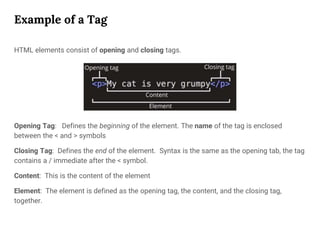
HTML elements consist of opening and closing tags.
Opening Tag: Defines the beginning of the element. The name of the tag is enclosed
between the < and > symbols
Closing Tag: Defines the end of the element. Syntax is the same as the opening tab, the tag
contains a / immediate after the < symbol.
Content: This is the content of the element
Element: The element is defined as the opening tag, the content, and the closing tag,
together.
Example of a Tag
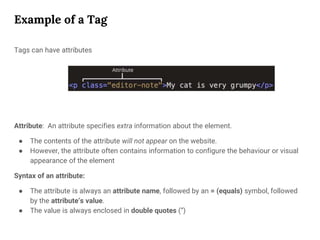
Tags can have attributes
Attribute: An attribute specifies extra information about the element.
● The contents of the attribute will not appear on the website.
● However, the attribute often contains information to configure the behaviour or visual
appearance of the element
Syntax of an attribute:
● The attribute is always an attribute name, followed by an = (equals) symbol, followed
by the attribute’s value.
● The value is always enclosed in double quotes (“)
Some Tags Do Not Have an Explicit Closing Tag
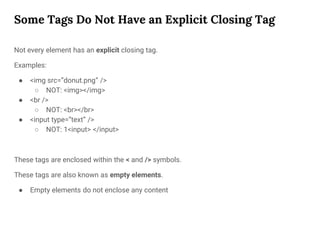
Not every element has an explicit closing tag.
Examples:
● <img src=”donut.png” />
○ NOT: <img></img>
● <br />
○ NOT: <br></br>
● <input type=”text” />
○ NOT: 1<input> </input>
These tags are enclosed within the < and /> symbols.
These tags are also known as empty elements.
● Empty elements do not enclose any content
Creating an HTML page
1/ Create a file with the extension .html
2/ Open the file in a notepad editor or a IDE.
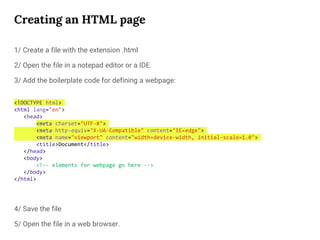
3/ Add the boilerplate code for defining a webpage:
<!DOCTYPE html>
<html lang="en">
<head>
<meta charset="UTF-8">
<meta http-equiv="X-UA-Compatible" content="IE=edge">
<meta name="viewport" content="width=device-width, initial-scale=1.0">
<title>Document</title>
</head>
<body>
<!-- elements for webpage go here -->
</body>
</html>
4/ Save the file
5/ Open the file in a web browser.
Structure of a Webpage
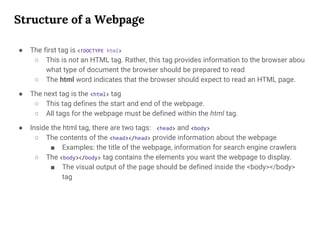
● The first tag is <!DOCTYPE html>
○ This is not an HTML tag. Rather, this tag provides information to the browser abou
what type of document the browser should be prepared to read
○ The html word indicates that the browser should expect to read an HTML page.
● The next tag is the <html> tag
○ This tag defines the start and end of the webpage.
○ All tags for the webpage must be defined within the html tag.
● Inside the html tag, there are two tags: <head> and <body>
○ The contents of the <head></head> provide information about the webpage
■ Examples: the title of the webpage, information for search engine crawlers
○ The <body></body> tag contains the elements you want the webpage to display.
■ The visual output of the page should be defined inside the <body></body>
tag
Commonly Used Tags - Displaying Text
Tags for displaying text:
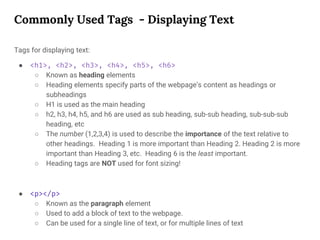
● <h1>, <h2>, <h3>, <h4>, <h5>, <h6>
○ Known as heading elements
○ Heading elements specify parts of the webpage’s content as headings or
subheadings
○ H1 is used as the main heading
○ h2, h3, h4, h5, and h6 are used as sub heading, sub-sub heading, sub-sub-sub
heading, etc
○ The number (1,2,3,4) is used to describe the importance of the text relative to
other headings. Heading 1 is more important than Heading 2. Heading 2 is more
important than Heading 3, etc. Heading 6 is the least important.
○ Heading tags are NOT used for font sizing!
● <p></p>
○ Known as the paragraph element
○ Used to add a block of text to the webpage.
○ Can be used for a single line of text, or for multiple lines of text
Commonly Used Tags - Displaying Text
Tags for displaying text:
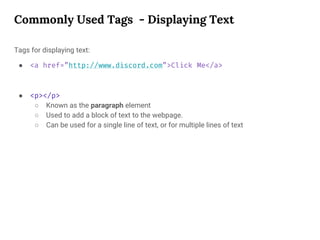
● <a href=”http://www.discord.com”>Click Me</a>
● <p></p>
○ Known as the paragraph element
○ Used to add a block of text to the webpage.
○ Can be used for a single line of text, or for multiple lines of text
Commonly Used Tags - Displaying Media
Tags for displaying media:
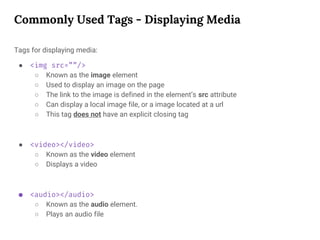
● <img src=””/>
○ Known as the image element
○ Used to display an image on the page
○ The link to the image is defined in the element’s src attribute
○ Can display a local image file, or a image located at a url
○ This tag does not have an explicit closing tag
● <video></video>
○ Known as the video element
○ Displays a video
● <audio></audio>
○ Known as the audio element.
○ Plays an audio file
Commonly Used Tags - Displaying Lists
Tags for displaying lists:
● <ol></ol>
○ Known as the ordered list element
○ Represents an ordered (numbered) list.
○ Items in the list are numbered 1, 2, 3 …
● <ul></ul>
○ Known as the unordered list element
○ Represents an unordered (bulleted) list.
● <li></li>
○ Known as the list item element
○ Represents a single item in the list
Commonly Used Tags - Displaying Table
Tags for displaying tabular data (tables)
● <table></table>
○ Known as as the table element.
○ Defines the start and end of the table.
● <tr></tr>
○ Known as the table row element.
○ Defines the start/end of a single row in the table
● <th></th>
○ Known as the table heading element
○ Defines a heading row
○ A heading row is used to define the column headings in the table.
○ [OPTIONAL] The usage of the th tag is optional. Not every table will have column
headings.
○ <th> is a more specific form of the <tr> tag
● <td></td>
○ Defines a single cell in the table
Commonly Used Tags - Displaying Forms
Tags for creating form elements
● <label></label>
○ Used as a label for the form elements
○ Typically, every form element has a corresponding label
● <input type=”text”>
○ Creates a input box
○ Use the placeholder attribute to add a hint
○ See here for types of input boxes (email, phone number, etc)
● <button></button>
○ Adds a button
● <input type=”checkbox”>
○ Adds a checkbox element
● <input type=”radio”>
○ Adds a radio button
○ Use the name attribute to create a radio group
● <select></select>
○ Create a drop down list
○ Define the drop down list’s items with <option> tags
Container Elements
Some elements act as containers for other content or elements. Container elements are
used to:
● organize the webpage’s content into logical sections
● group a related set of elements together, for the purpose of layout & styling
Container elements are considered to be either 1) semantic or 2) non-semantic.
● Semantic container:
○ An container whose name describes the purpose or meaning of its contents
● Non-semantic container:
○ A container that does not convey meaning/purpose about its contents
Semantic Container Tags
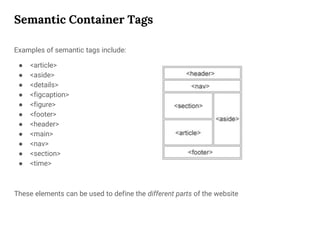
Examples of semantic tags include:
● <article>
● <aside>
● <details>
● <figcaption>
● <figure>
● <footer>
● <header>
● <main>
● <nav>
● <section>
● <time>
These elements can be used to define the different parts of the website
Semantic Container Tags
Commonly used semantic container tags include:
● <article></article>
○ Used for blog entries, newspaper or magazine articles, forum post
● <figure></figure>
○ A figure or diagram
● <footer></footer>
○ The content at the bottom of a webpage, such as copyright and company
information
● <header></header>
○ The content at the top of the webpage, such as a menu bar or company logo
● <main></main>
○ The main section of the webpage
● <nav></nav>
○ Used to contain any elements related to in-page navigation
● <section></section>
○ A section of the webpage
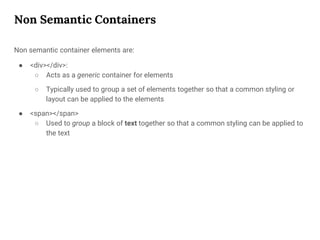
Non Semantic Containers
Non semantic container elements are:
● <div></div>:
○ Acts as a generic container for elements
○ Typically used to group a set of elements together so that a common styling or
layout can be applied to the elements
● <span></span>
○ Used to group a block of text together so that a common styling can be applied to
the text
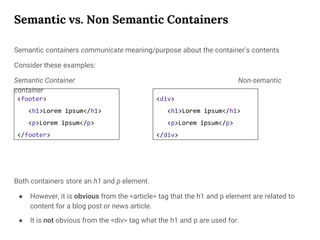
Semantic vs. Non Semantic Containers
Semantic containers communicate meaning/purpose about the container’s contents
Consider these examples:
Semantic Container Non-semantic
container
Both containers store an h1 and p element.
● However, it is obvious from the <article> tag that the h1 and p element are related to
content for a blog post or news article.
● It is not obvious from the <div> tag what the h1 and p are used for.
<footer>
<h1>Lorem ipsum</h1>
<p>Lorem ipsum</p>
</footer>
<div>
<h1>Lorem ipsum</h1>
<p>Lorem ipsum</p>
</div>

T430-01-Introduction to HTML.pptx

  • 1.
  • 2.
    Learning Outcomes ● Whatis HTML ● Commonly used HTML tags
  • 3.
    What is HTML? Whatis HTML? ● HTML stands for Hypertext Markup Language ● Used to create the structure and content of a website HTML is not a programming language. It is a markup language. ● A programming language contains instructions for how a computer can carry out logical operations. ● A markup language defines a set of rule for formatting and arranging the elements in a document ● Thus, HTML does not have the concept of variables, conditionals, loops, arrays, etc.
  • 4.
    HTML Consists ofTags HTML defines elements in a webpage using tags. Tags are used to: ● Define the user interface elements (button, links, textboxes) ● Define text or media (paragraph text, video, audio, images) ● Define the structure of the page (header, main, section, footer)
  • 5.
    Example of aTag HTML elements consist of opening and closing tags. Opening Tag: Defines the beginning of the element. The name of the tag is enclosed between the < and > symbols Closing Tag: Defines the end of the element. Syntax is the same as the opening tab, the tag contains a / immediate after the < symbol. Content: This is the content of the element Element: The element is defined as the opening tag, the content, and the closing tag, together.
  • 6.
    Example of aTag Tags can have attributes Attribute: An attribute specifies extra information about the element. ● The contents of the attribute will not appear on the website. ● However, the attribute often contains information to configure the behaviour or visual appearance of the element Syntax of an attribute: ● The attribute is always an attribute name, followed by an = (equals) symbol, followed by the attribute’s value. ● The value is always enclosed in double quotes (“)
  • 7.
    Some Tags DoNot Have an Explicit Closing Tag Not every element has an explicit closing tag. Examples: ● <img src=”donut.png” /> ○ NOT: <img></img> ● <br /> ○ NOT: <br></br> ● <input type=”text” /> ○ NOT: 1<input> </input> These tags are enclosed within the < and /> symbols. These tags are also known as empty elements. ● Empty elements do not enclose any content
  • 8.
    Creating an HTMLpage 1/ Create a file with the extension .html 2/ Open the file in a notepad editor or a IDE. 3/ Add the boilerplate code for defining a webpage: <!DOCTYPE html> <html lang="en"> <head> <meta charset="UTF-8"> <meta http-equiv="X-UA-Compatible" content="IE=edge"> <meta name="viewport" content="width=device-width, initial-scale=1.0"> <title>Document</title> </head> <body> <!-- elements for webpage go here --> </body> </html> 4/ Save the file 5/ Open the file in a web browser.
  • 9.
    Structure of aWebpage ● The first tag is <!DOCTYPE html> ○ This is not an HTML tag. Rather, this tag provides information to the browser abou what type of document the browser should be prepared to read ○ The html word indicates that the browser should expect to read an HTML page. ● The next tag is the <html> tag ○ This tag defines the start and end of the webpage. ○ All tags for the webpage must be defined within the html tag. ● Inside the html tag, there are two tags: <head> and <body> ○ The contents of the <head></head> provide information about the webpage ■ Examples: the title of the webpage, information for search engine crawlers ○ The <body></body> tag contains the elements you want the webpage to display. ■ The visual output of the page should be defined inside the <body></body> tag
  • 10.
    Commonly Used Tags- Displaying Text Tags for displaying text: ● <h1>, <h2>, <h3>, <h4>, <h5>, <h6> ○ Known as heading elements ○ Heading elements specify parts of the webpage’s content as headings or subheadings ○ H1 is used as the main heading ○ h2, h3, h4, h5, and h6 are used as sub heading, sub-sub heading, sub-sub-sub heading, etc ○ The number (1,2,3,4) is used to describe the importance of the text relative to other headings. Heading 1 is more important than Heading 2. Heading 2 is more important than Heading 3, etc. Heading 6 is the least important. ○ Heading tags are NOT used for font sizing! ● <p></p> ○ Known as the paragraph element ○ Used to add a block of text to the webpage. ○ Can be used for a single line of text, or for multiple lines of text
  • 11.
    Commonly Used Tags- Displaying Text Tags for displaying text: ● <a href=”http://www.discord.com”>Click Me</a> ● <p></p> ○ Known as the paragraph element ○ Used to add a block of text to the webpage. ○ Can be used for a single line of text, or for multiple lines of text
  • 12.
    Commonly Used Tags- Displaying Media Tags for displaying media: ● <img src=””/> ○ Known as the image element ○ Used to display an image on the page ○ The link to the image is defined in the element’s src attribute ○ Can display a local image file, or a image located at a url ○ This tag does not have an explicit closing tag ● <video></video> ○ Known as the video element ○ Displays a video ● <audio></audio> ○ Known as the audio element. ○ Plays an audio file
  • 13.
    Commonly Used Tags- Displaying Lists Tags for displaying lists: ● <ol></ol> ○ Known as the ordered list element ○ Represents an ordered (numbered) list. ○ Items in the list are numbered 1, 2, 3 … ● <ul></ul> ○ Known as the unordered list element ○ Represents an unordered (bulleted) list. ● <li></li> ○ Known as the list item element ○ Represents a single item in the list
  • 14.
    Commonly Used Tags- Displaying Table Tags for displaying tabular data (tables) ● <table></table> ○ Known as as the table element. ○ Defines the start and end of the table. ● <tr></tr> ○ Known as the table row element. ○ Defines the start/end of a single row in the table ● <th></th> ○ Known as the table heading element ○ Defines a heading row ○ A heading row is used to define the column headings in the table. ○ [OPTIONAL] The usage of the th tag is optional. Not every table will have column headings. ○ <th> is a more specific form of the <tr> tag ● <td></td> ○ Defines a single cell in the table
  • 15.
    Commonly Used Tags- Displaying Forms Tags for creating form elements ● <label></label> ○ Used as a label for the form elements ○ Typically, every form element has a corresponding label ● <input type=”text”> ○ Creates a input box ○ Use the placeholder attribute to add a hint ○ See here for types of input boxes (email, phone number, etc) ● <button></button> ○ Adds a button ● <input type=”checkbox”> ○ Adds a checkbox element ● <input type=”radio”> ○ Adds a radio button ○ Use the name attribute to create a radio group ● <select></select> ○ Create a drop down list ○ Define the drop down list’s items with <option> tags
  • 16.
    Container Elements Some elementsact as containers for other content or elements. Container elements are used to: ● organize the webpage’s content into logical sections ● group a related set of elements together, for the purpose of layout & styling Container elements are considered to be either 1) semantic or 2) non-semantic. ● Semantic container: ○ An container whose name describes the purpose or meaning of its contents ● Non-semantic container: ○ A container that does not convey meaning/purpose about its contents
  • 17.
    Semantic Container Tags Examplesof semantic tags include: ● <article> ● <aside> ● <details> ● <figcaption> ● <figure> ● <footer> ● <header> ● <main> ● <nav> ● <section> ● <time> These elements can be used to define the different parts of the website
  • 18.
    Semantic Container Tags Commonlyused semantic container tags include: ● <article></article> ○ Used for blog entries, newspaper or magazine articles, forum post ● <figure></figure> ○ A figure or diagram ● <footer></footer> ○ The content at the bottom of a webpage, such as copyright and company information ● <header></header> ○ The content at the top of the webpage, such as a menu bar or company logo ● <main></main> ○ The main section of the webpage ● <nav></nav> ○ Used to contain any elements related to in-page navigation ● <section></section> ○ A section of the webpage
  • 19.
    Non Semantic Containers Nonsemantic container elements are: ● <div></div>: ○ Acts as a generic container for elements ○ Typically used to group a set of elements together so that a common styling or layout can be applied to the elements ● <span></span> ○ Used to group a block of text together so that a common styling can be applied to the text
  • 20.
    Semantic vs. NonSemantic Containers Semantic containers communicate meaning/purpose about the container’s contents Consider these examples: Semantic Container Non-semantic container Both containers store an h1 and p element. ● However, it is obvious from the <article> tag that the h1 and p element are related to content for a blog post or news article. ● It is not obvious from the <div> tag what the h1 and p are used for. <footer> <h1>Lorem ipsum</h1> <p>Lorem ipsum</p> </footer> <div> <h1>Lorem ipsum</h1> <p>Lorem ipsum</p> </div>

Editor's Notes

  • #6 Attribution: https://developer.mozilla.org/en-US/docs/Learn/Getting_started_with_the_web/HTML_basics
  • #7 Attribution: https://developer.mozilla.org/en-US/docs/Learn/Getting_started_with_the_web/HTML_basics
  • #8 Attribution: https://developer.mozilla.org/en-US/docs/Learn/Getting_started_with_the_web/HTML_basics#empty_elements
  • #10 Reference: https://www.w3schools.com/tags/tag_head.asp#:~:text=The%20element%20is%20a,scripts%2C%20and%20other%20meta%20information.
  • #18 Reference: https://www.w3schools.com/html/html5_semantic_elements.asp
  • #19 https://developer.mozilla.org/en-US/docs/Web/HTML/Element/article