ICT
Parts of a Computer
Activity 1. Write the down functions
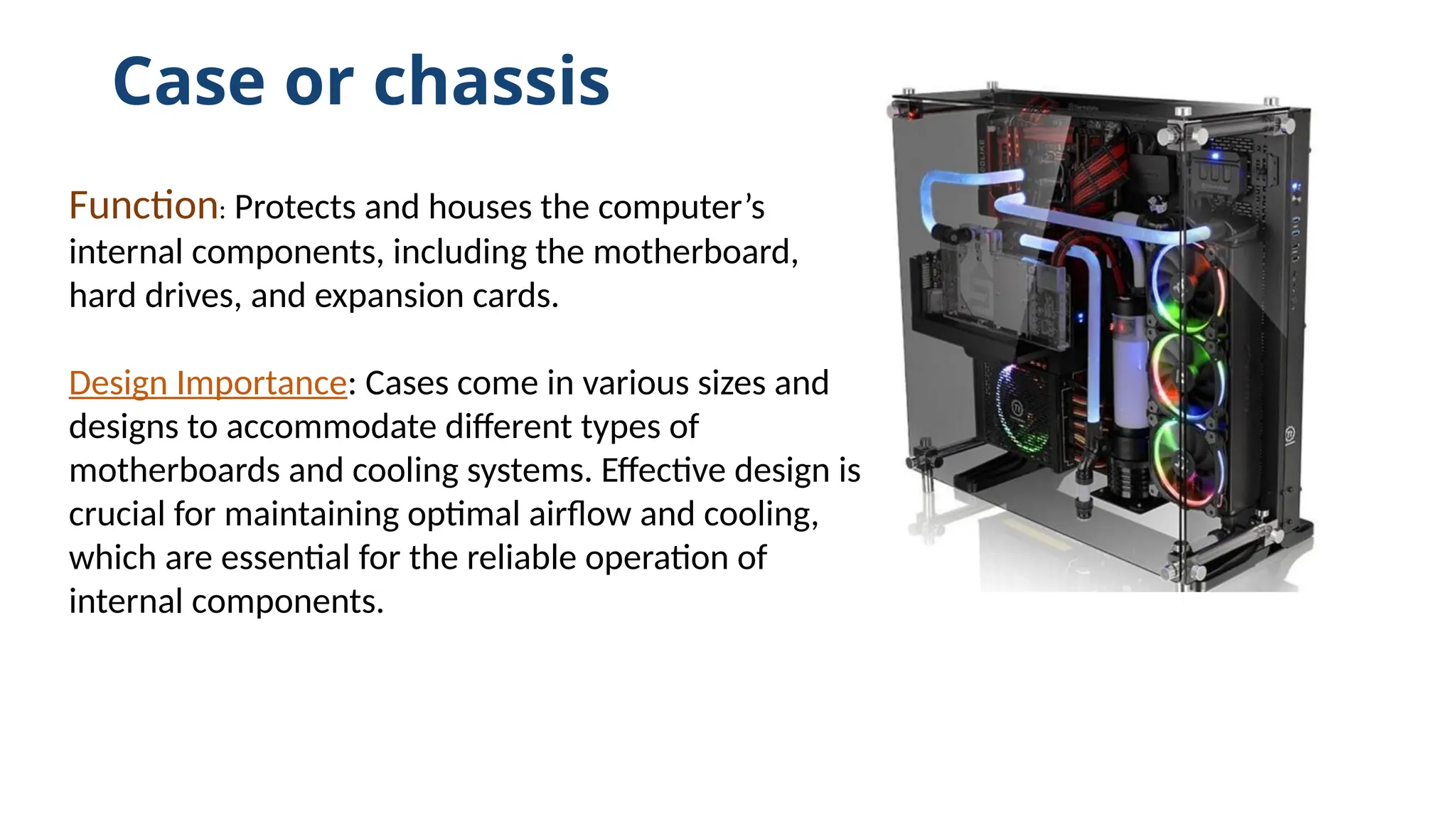
Case or chassis
Function: Protects and houses the computer’s
internal components, including the motherboard,
hard drives, and expansion cards.
Design Importance: Cases come in various sizes and
designs to accommodate different types of
motherboards and cooling systems. Effective design is
crucial for maintaining optimal airflow and cooling,
which are essential for the reliable operation of
internal components.
Physical Size and Compatibility
• Mid Tower: Typically stands
around 18 inches (45 cm) in
height. Supports ATX or smaller
motherboards, making it a
versatile choice for most users.
• Full Tower: Often measures 22
inches (55 cm) or taller. Capable of
housing larger ATX, E-ATX, and
even larger motherboards,
providing ample space for
extensive setups.
3. Small Form Factor (Mini-ITX Case)
• smallest computer case size
• Home Theater PC-small form factor case, makes them a great fit for
most TV shelves and closets.
• A Mini-ITX case also makes a lot of sense for basic users with limited
space. Whether you're working in a small office or living in a cramped
apartment.
• light enough( semi portable) to be carried around. A typical small
form factor PC weighs around 4 to 7 kg (when fully loaded), making it
an appealing choice for people who need to move often
4. Full Tower (EATX Case)
Full Tower
Most mid towers can't hold anything larger than a standard ATX
motherboard
The server motherboards can get quite massive to accommodate a
extra RAM slots
Overclocking - Pushing the limits of your computer requires a lot of
cooling, and proper cooling equipment can take up a lot of space. 230
mm case fans, dual tower heat sinks, triple radiators. What's more,
larger computer case size = higher air volume = better ventilation and
heat dissipation.
Hardcore Gaming - For some, playing the latest games with relative
smoothness isn't enough - They demand 4K resolution gaming...with
ultra settings...on a triple monitor setup.
Motherboard
.
• Function: The main circuit board that connects all components,
allowing them to communicate with each other. It provides the
foundation for the CPU, RAM, and other peripherals to function
harmoniously.
Connectivity and Expansion: Features slots for RAM, CPU, GPUs,
and other expansion cards. The quality and layout of a
motherboard determine the system’s stability and expansion
capabilities
Central Processing Unit (CPU)
• Function: Acts as the brain of the computer, processing
instructions and controlling the operations of other
components.
• Complexity and Performance: Modern CPUs are complex
microprocessors that perform millions of calculations per
second. The number of cores and clock speed are critical
determinants of how efficiently a computer can perform
multiple tasks simultaneously.
Random Access Memory (RAM
• Function: Serves as the computer’s short-term memory,
temporarily storing data that the CPU needs quick access to
while performing tasks.
• Impact on Performance: More RAM allows a computer to
handle more applications simultaneously and improves
overall system responsiveness. Speed and capacity impact
how effectively applications run.
Graphics Card or Graphics Processing Unit (GPU)
• Function: Manages and enhances video and graphics performance,
which is especially important in gaming, video editing, and other
graphics-intensive applications.
• Types: Differentiates between integrated GPUs, which are suitable for
basic tasks, and dedicated GPUs, which provide additional processing
power for advanced visual computing
6. Storage Devices: Hard Disk Drives (HDD) and Solid-State Drives (SSD)
• Function: Permanently store software, documents, and other files.
HDDs use mechanical platters and a moving read/write head to access
data, while SSDs use non-volatile flash memory.
• Comparison: SSDs are faster and more durable because they contain
no moving parts, thus offering quicker boot times and data access
rates, which significantly enhance computing speeds.
Power Supply Unit (PSU)
• Function: Converts the AC power from the wall outlet into the DC
power that the computer components require.
• Considerations: Selecting a PSU with appropriate wattage is crucial for
system stability and to prevent hardware damage. Efficiency ratings
indicate how effectively the PSU uses the power from the outlet.
Supporting Components and Their Roles Cooling Systems
• Function: Essential for preventing overheating, which can reduce the
efficiency and lifespan of components.
• Systems: Includes fans and liquid cooling solutions. Proper cooling is
vital for maintaining performance, especially in high-load
environments like gaming or graphic design.
Expansion Cards
• Function: Used to add new capabilities or enhance existing ones, such
as better sound handling, additional video output, or improved
network speeds.
• Examples: Common types include sound cards, network cards, and
newer USB cards which provide additional ports.
The monitor
• works with a video card, located inside the computer case, to display
images and text on the screen. Most monitors have control buttons
that allow you to change your monitor's display settings, and some
monitors also have built-in speakers.
• Newer monitors usually have LCD (liquid crystal display) or LED (light-
emitting diode) displays. These can be made very thin, and they are
often called flat-panel displays. Older monitors use CRT (cathode ray
tube) displays. CRT monitors are much larger and heavier, and they
take up more desk space.
Keyboard
• The keyboard is one of the main ways to communicate with a
computer.
mouse
• is another important tool for communicating with computers.
Commonly known as a pointing device, it lets you point to objects on
the screen, click on them, and move them.
• There are two main mouse types: optical and mechanical.
optical mouse uses an electronic eye to detect movement and is easier
to clean.
mechanical mouse uses a rolling ball to detect movement and requires
regular cleaning to work properly.
Mouse alternatives
• There are other devices that can do the same thing as a mouse. Many
people find them easier to use, and they also require less desk space than
a traditional mouse. The most common mouse alternatives are below.
• Trackball: A trackball has a ball that can rotate freely. Instead of moving
the device like a mouse, you can roll the ball with your thumb to move the
pointer.
• Touchpad: A touchpad—also called a trackpad—is a touch-sensitive pad
that lets you control the pointer by making a drawing motion with your
finger. Touchpads are common on laptop computers.
Track Ball Touch Pad
Modern Mouse
SRI engineer Bill English built the first Engelbart mouse
prototype, which used knife-edge wheels and had space
for only one button.
RKS 100-86 mouse ("Rollkugel")
• The Telefunken Rollkugel may
have been the first rolling-ball
mouse.
• Production-run three-button
mouse, serial number 001
• By 1968, SRI had provided Doug
Engelbart with commercially
produced three-button mice to
use in his famous “Mother of all
Demos.
• Doug Engelbart recalled, “No
one can remember. It just looked
like a mouse with a tail, and we
all called it that.” The wire “tail”
originally came out under the
user's wrist.
A web camera—or webcam
• is a type of input device that can record videos and take pictures. It
can also transmit video over the Internet in real time, which allows for
video chat or video conferencing with someone else. Many webcams
also include a microphone for this reason
Lesson 2
• Classification of a Computer
Supercomputer- fastest computer currently Available
Supercomputers are the largest and most powerful computers in the
world. These computers leverage a memory block along with multiple
central processing units grouped into ‘compute nodes’ – sometimes
tens of thousands of nodes (Justin Hotard)
-high level of performance compared to a general-purpose computer.
Performance of a supercomputer is measured in floating-point
operations per second (FLOPS) instead of million instructions per
second (MIPS
Lesson 2
• Trends
T.L.EICT subject for Grade 9 and 10.pptx

T.L.EICT subject for Grade 9 and 10.pptx

  • 1.
  • 2.
    Activity 1. Writethe down functions
  • 3.
    Case or chassis Function:Protects and houses the computer’s internal components, including the motherboard, hard drives, and expansion cards. Design Importance: Cases come in various sizes and designs to accommodate different types of motherboards and cooling systems. Effective design is crucial for maintaining optimal airflow and cooling, which are essential for the reliable operation of internal components.
  • 4.
    Physical Size andCompatibility • Mid Tower: Typically stands around 18 inches (45 cm) in height. Supports ATX or smaller motherboards, making it a versatile choice for most users. • Full Tower: Often measures 22 inches (55 cm) or taller. Capable of housing larger ATX, E-ATX, and even larger motherboards, providing ample space for extensive setups.
  • 5.
    3. Small FormFactor (Mini-ITX Case) • smallest computer case size • Home Theater PC-small form factor case, makes them a great fit for most TV shelves and closets. • A Mini-ITX case also makes a lot of sense for basic users with limited space. Whether you're working in a small office or living in a cramped apartment. • light enough( semi portable) to be carried around. A typical small form factor PC weighs around 4 to 7 kg (when fully loaded), making it an appealing choice for people who need to move often
  • 6.
    4. Full Tower(EATX Case) Full Tower Most mid towers can't hold anything larger than a standard ATX motherboard The server motherboards can get quite massive to accommodate a extra RAM slots Overclocking - Pushing the limits of your computer requires a lot of cooling, and proper cooling equipment can take up a lot of space. 230 mm case fans, dual tower heat sinks, triple radiators. What's more, larger computer case size = higher air volume = better ventilation and heat dissipation. Hardcore Gaming - For some, playing the latest games with relative smoothness isn't enough - They demand 4K resolution gaming...with ultra settings...on a triple monitor setup.
  • 7.
    Motherboard . • Function: Themain circuit board that connects all components, allowing them to communicate with each other. It provides the foundation for the CPU, RAM, and other peripherals to function harmoniously. Connectivity and Expansion: Features slots for RAM, CPU, GPUs, and other expansion cards. The quality and layout of a motherboard determine the system’s stability and expansion capabilities
  • 8.
    Central Processing Unit(CPU) • Function: Acts as the brain of the computer, processing instructions and controlling the operations of other components. • Complexity and Performance: Modern CPUs are complex microprocessors that perform millions of calculations per second. The number of cores and clock speed are critical determinants of how efficiently a computer can perform multiple tasks simultaneously.
  • 9.
    Random Access Memory(RAM • Function: Serves as the computer’s short-term memory, temporarily storing data that the CPU needs quick access to while performing tasks. • Impact on Performance: More RAM allows a computer to handle more applications simultaneously and improves overall system responsiveness. Speed and capacity impact how effectively applications run.
  • 10.
    Graphics Card orGraphics Processing Unit (GPU) • Function: Manages and enhances video and graphics performance, which is especially important in gaming, video editing, and other graphics-intensive applications. • Types: Differentiates between integrated GPUs, which are suitable for basic tasks, and dedicated GPUs, which provide additional processing power for advanced visual computing
  • 11.
    6. Storage Devices:Hard Disk Drives (HDD) and Solid-State Drives (SSD) • Function: Permanently store software, documents, and other files. HDDs use mechanical platters and a moving read/write head to access data, while SSDs use non-volatile flash memory. • Comparison: SSDs are faster and more durable because they contain no moving parts, thus offering quicker boot times and data access rates, which significantly enhance computing speeds.
  • 12.
    Power Supply Unit(PSU) • Function: Converts the AC power from the wall outlet into the DC power that the computer components require. • Considerations: Selecting a PSU with appropriate wattage is crucial for system stability and to prevent hardware damage. Efficiency ratings indicate how effectively the PSU uses the power from the outlet.
  • 13.
    Supporting Components andTheir Roles Cooling Systems • Function: Essential for preventing overheating, which can reduce the efficiency and lifespan of components. • Systems: Includes fans and liquid cooling solutions. Proper cooling is vital for maintaining performance, especially in high-load environments like gaming or graphic design.
  • 14.
    Expansion Cards • Function:Used to add new capabilities or enhance existing ones, such as better sound handling, additional video output, or improved network speeds. • Examples: Common types include sound cards, network cards, and newer USB cards which provide additional ports.
  • 15.
    The monitor • workswith a video card, located inside the computer case, to display images and text on the screen. Most monitors have control buttons that allow you to change your monitor's display settings, and some monitors also have built-in speakers. • Newer monitors usually have LCD (liquid crystal display) or LED (light- emitting diode) displays. These can be made very thin, and they are often called flat-panel displays. Older monitors use CRT (cathode ray tube) displays. CRT monitors are much larger and heavier, and they take up more desk space.
  • 17.
    Keyboard • The keyboardis one of the main ways to communicate with a computer.
  • 18.
    mouse • is anotherimportant tool for communicating with computers. Commonly known as a pointing device, it lets you point to objects on the screen, click on them, and move them. • There are two main mouse types: optical and mechanical. optical mouse uses an electronic eye to detect movement and is easier to clean. mechanical mouse uses a rolling ball to detect movement and requires regular cleaning to work properly.
  • 19.
    Mouse alternatives • Thereare other devices that can do the same thing as a mouse. Many people find them easier to use, and they also require less desk space than a traditional mouse. The most common mouse alternatives are below. • Trackball: A trackball has a ball that can rotate freely. Instead of moving the device like a mouse, you can roll the ball with your thumb to move the pointer. • Touchpad: A touchpad—also called a trackpad—is a touch-sensitive pad that lets you control the pointer by making a drawing motion with your finger. Touchpads are common on laptop computers.
  • 20.
  • 21.
  • 22.
    SRI engineer BillEnglish built the first Engelbart mouse prototype, which used knife-edge wheels and had space for only one button.
  • 23.
    RKS 100-86 mouse("Rollkugel") • The Telefunken Rollkugel may have been the first rolling-ball mouse.
  • 24.
    • Production-run three-button mouse,serial number 001 • By 1968, SRI had provided Doug Engelbart with commercially produced three-button mice to use in his famous “Mother of all Demos.
  • 25.
    • Doug Engelbartrecalled, “No one can remember. It just looked like a mouse with a tail, and we all called it that.” The wire “tail” originally came out under the user's wrist.
  • 26.
    A web camera—orwebcam • is a type of input device that can record videos and take pictures. It can also transmit video over the Internet in real time, which allows for video chat or video conferencing with someone else. Many webcams also include a microphone for this reason
  • 27.
    Lesson 2 • Classificationof a Computer Supercomputer- fastest computer currently Available Supercomputers are the largest and most powerful computers in the world. These computers leverage a memory block along with multiple central processing units grouped into ‘compute nodes’ – sometimes tens of thousands of nodes (Justin Hotard) -high level of performance compared to a general-purpose computer. Performance of a supercomputer is measured in floating-point operations per second (FLOPS) instead of million instructions per second (MIPS
  • 28.

Editor's Notes

  • #6 In summary, full tower cases offer wide/ more space for effective cooling solutions that are critical for high-performance computing. With the ability to accommodate larger components, improve airflow management, and provide the thermal efficiency required for demanding tasks, they are ideal for users who require optimal cooling capabilities in their builds. Hardcore games are those that require players to invest a lot of time to learn and as a result, have the highest engagement among game genres.
  • #7 Random Access Memory-type of a computer memory that used to store data temporarily. While the computer is on. But loses its data when the computer is off. Unlike the hard drives or SSDs ( solid State Drive) which are a permanent storage device. CPU- Central Processing units Graphic Processing Unit-designed to accelerate graphics creation and manipulation of images for display
  • #9 RAM, or Random Access Memory, is a crucial component in a computer's architecture. It allows for the short-term storage and quick access of data that the CPU needs while running applications. There are several types of RAM used in different kinds of applications: **DRAM (Dynamic Random Access Memory)**: This is the most common type of RAM used in personal computers and servers. It requires constant refreshing to maintain data and is relatively slower than some other types of RAM. 2. **SRAM (Static Random Access Memory)**: SRAM is faster than DRAM and does not require refreshing, making it used in cache memory for the CPU. However, it is more expensive and requires more space per bit than DRAM. DDR SDRAM (Double Data Rate Synchronous Dynamic RAM)**: This is a type of DRAM that improves performance by transferring data on both the rising and falling edges of the clock cycle. Versions include DDR, DDR2, DDR3, DDR4, and DDR5, with newer versions offering faster speeds, increased bandwidth, and lower power consumption. SDRAM (Synchronous Dynamic RAM)**: This type of RAM synchronizes with the system bus, leading to better performance. DDR SDRAM is a type of SDRAM. VRAM (Video RAM)**: Specifically used for graphics processing, VRAM is optimized for storing images and videos. It is often found in video cards and graphics processing units (GPUs). ECC RAM (Error-Correcting Code RAM)**: This type of RAM includes error correction capabilities and is generally used in servers and workstations where data integrity is critical. LPDDR (Low Power DDR)**: Designed for mobile devices, this RAM consumes less power compared to traditional DDR RAM, making it ideal for laptops, smartphones, and tablets. NVRAM (Non-Volatile RAM)**: This type retains data even when the power is turned off. Examples include Flash memory and certain kinds of MRAM (Magneto resistive RAM). MRAM (Magneto resistive Random Access Memory)**: This is an emerging type of non-volatile RAM that uses magnetic states to store data and offers the potential for high speed and durability. Each of these types of RAM serves different applications based on speed, cost, power consumption, and data retention requirements. When designing or choosing a computer system, the appropriate type and amount of RAM will vary based on the specific usage requirements, such as gaming, graphic design, scientific computing, or everyday tasks. RAM allows your computer to perform most of its everyday tasks, such as loading applications, browsing the internet, editing a spreadsheet, or experiencing the latest game. Memory also allows you to switch quickly among these tasks while also remembering where you are in each task
  • #16 1. Light Source LEDs serve as the light source, offering better efficiency and control over the brightness. 2. Energy Efficiency LED displays are known for their superior energy efficiency, compared to LCDs. LED backlighting consumes less power. 3. Picture Quality When it comes to image quality, LED displays often outperform LCDs. LED screens offer higher brightness levels, deeper contrast ratios and more vibrant colors. 4. Thinness One significant advantage of LED displays is their thinness. LED monitors and LED televisions can achieve sleek and slim designs, due to the compact nature of the LED backlighting technology. In contrast, LCD monitors and TVs may be thicker, which requires additional space. 5. Local Dimming LED displays often incorporate local dimming technology to enhance the contrast and black levels. This feature can dynamically adjust the brightness of specific areas of the screen, resulting in deeper blacks and a better overall picture quality. 6. Viewing Angle While modern LCD panels have improved viewing angles (compared to earlier models), they may still exhibit color distortion or reduced brightness when you view them from extreme angles, which can make for a frustrating viewing experience. On the other hand, LED backlighting technology provides more uniform illumination across the entire screen in LED monitors and TVs. This helps to maintain consistent image quality across a wider viewing angle, such as when you're viewing the screen from an off-center position. 7. Cost While LED displays tend to offer better performance, they also tend to come with a higher price tag compared to traditional LCDs. The advanced technology and materials in LED backlighting contribute to the higher price tag. 8. Longevity LED TVs last longer with a lifespan of around 100,000 hours. On the other hand, LCD TVs have a lifespan of about half that, or 50,000 hours. This can make an LED display a worthwhile investment if you're looking for an option that will last you as long as possible.
  • #22 Software Reliability Engineer: In this context, the role involves ensuring that software applications are reliable and work as intended. This includes testing, debugging, and creating systems that monitor software performance and reliability. Doug Engelbart reportedly conceived the mouse during a conference lecture in 1961. His first design, in 1963, used rolling wheels inspired by mechanical area-measuring devices called planimeters invented in the 1800s. Engineers at Germany’s Telefunken also invented a mouse in the mid-1960s. First described in 1968, their version used a rolling ball—essentially a small, upside-down trackball—which became the standard for decades.
  • #27 : Imagine if you had not one laptop, but 50,000 laptops all connected together, running one piece of software that needed all of those 50,000 laptops to run together at the same time. Supercomputers contain tens of thousands of processors and can perform billions and trillions of calculations or computations per second. Some supercomputers can perform up to a hundred quadrillion FLOPS. Since information moves quickly between processors in a supercomputer (compared to distributed computing systems) they are ideal for real-time applications. Supercomputers are used for data-intensive and computation-heavy scientific and engineering purposes such as quantum mechanics, weather forecasting, oil and gas exploration, molecular modeling, physical simulations, aerodynamics, nuclear fusion research and cryptoanalysis. Early operating systems were custom made for each supercomputer to increase its speed. In recent years, supercomputer architecture has moved away from proprietary, in-house operating systems to Linux. Although most supercomputers use a Linux-based operating system, each manufacturer optimizes its own Linux derivative for peak hardware performance. In 2017, half of the world’s top 50 supercomputers used SUSE Enterprise Linux Server.