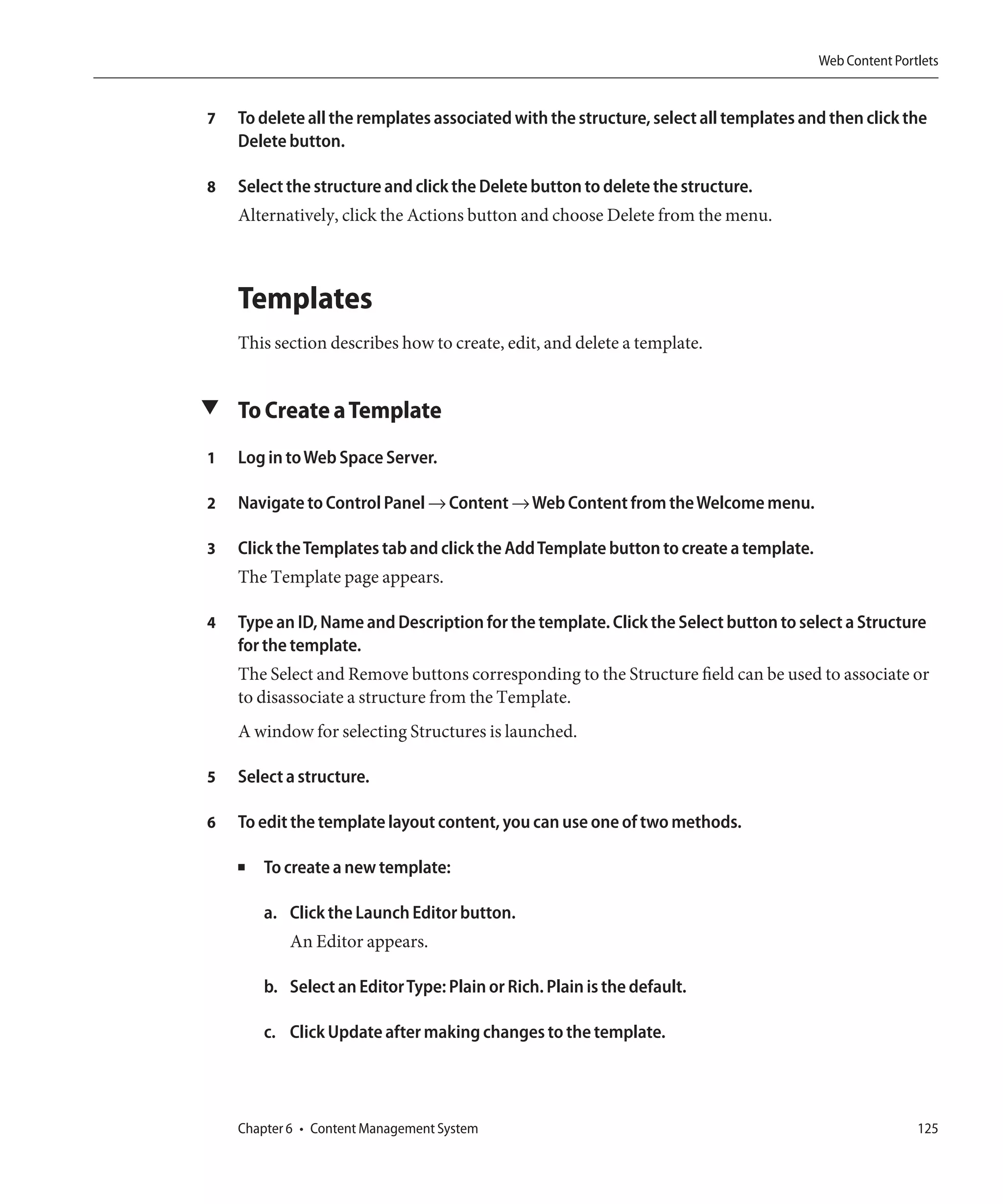
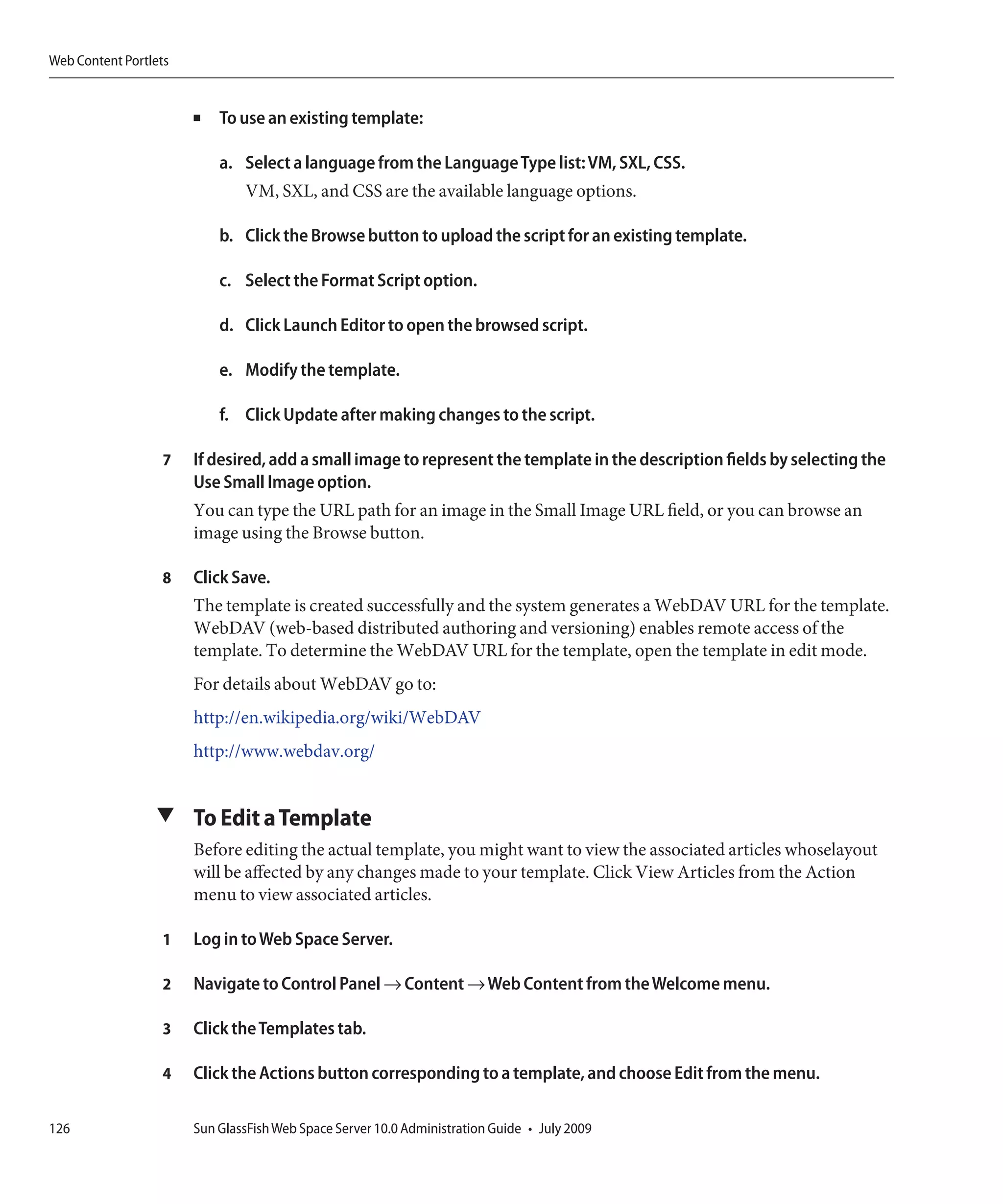
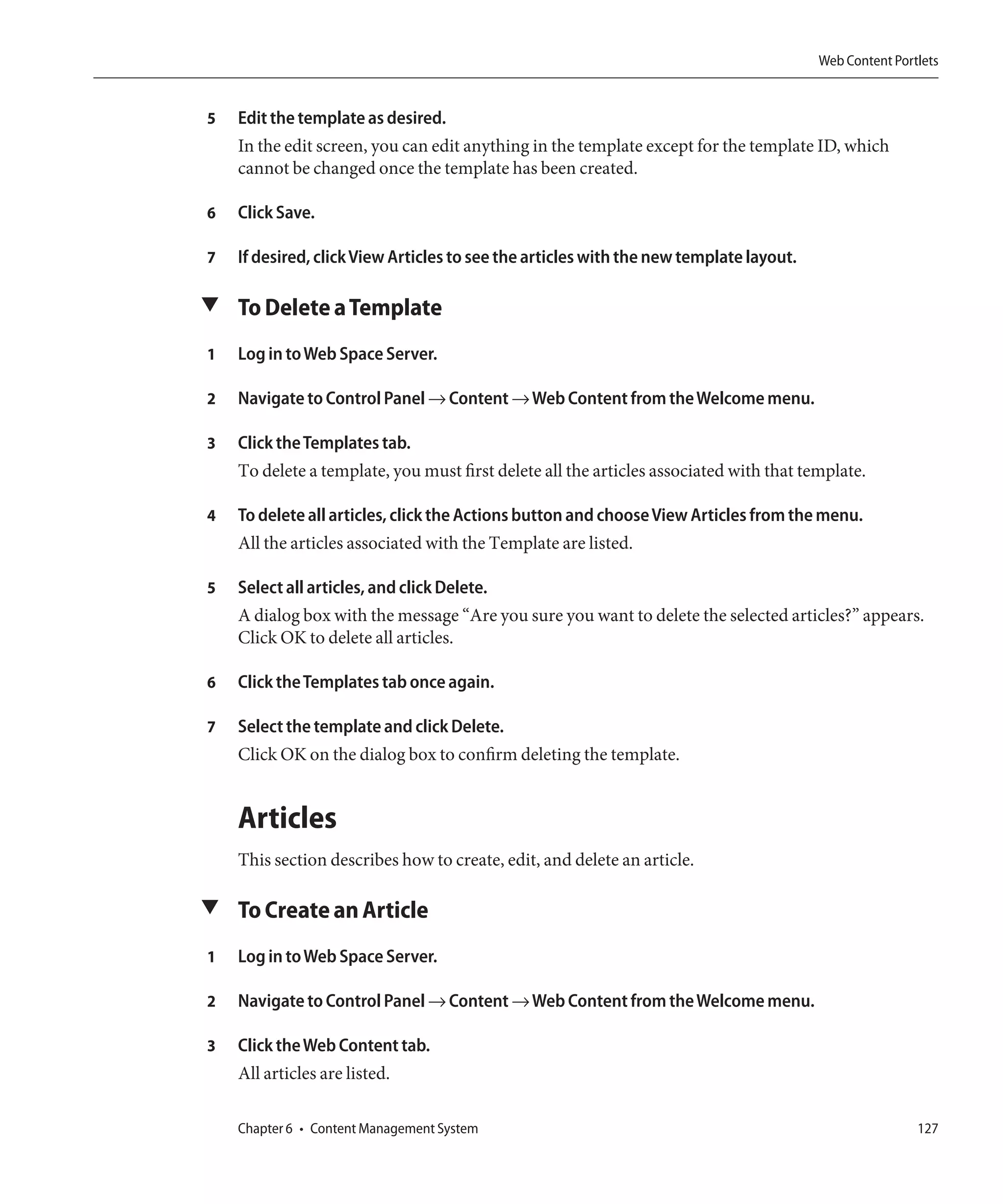
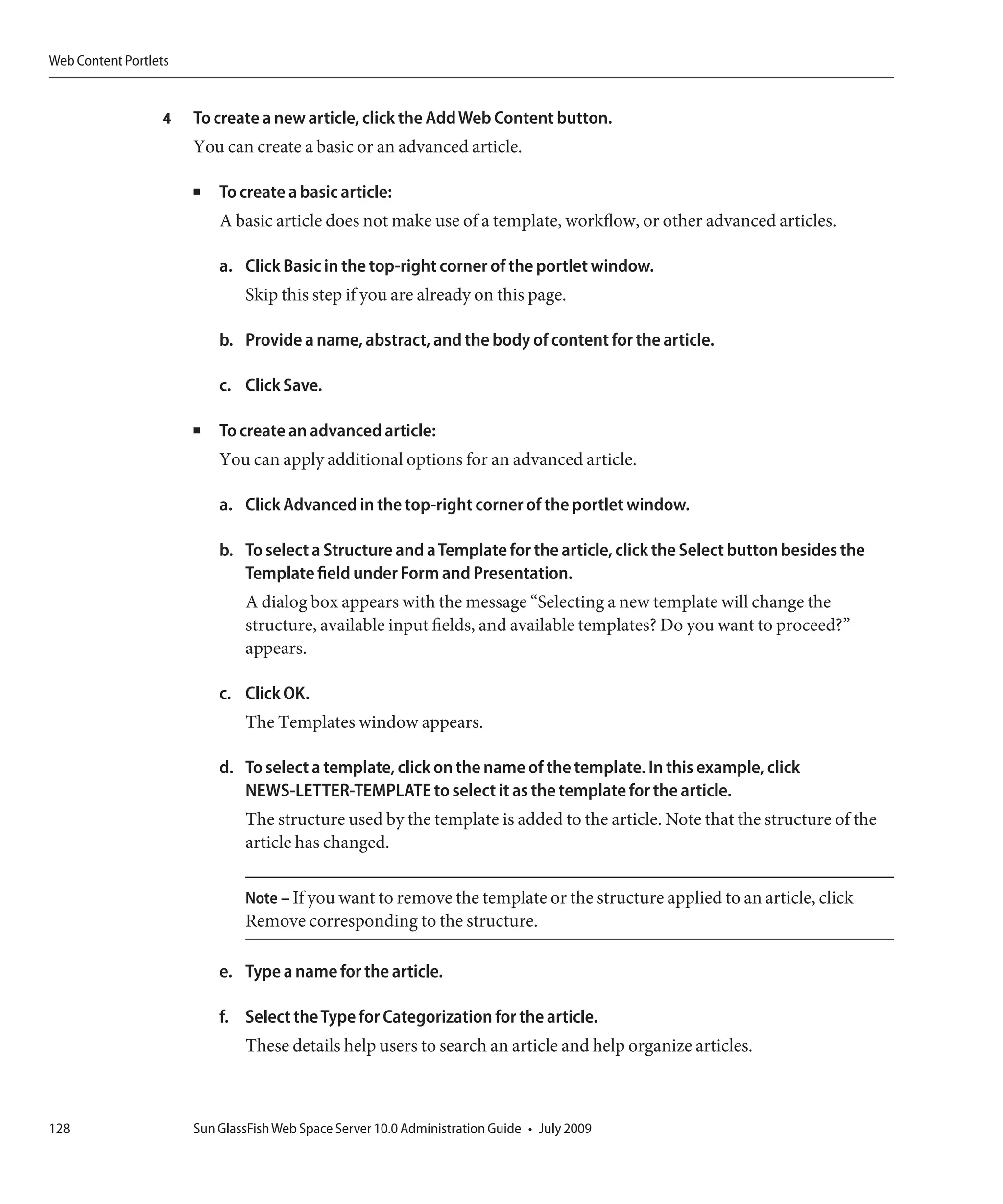
Sun GlassFish Web Space Server
10.0 Administration Guide


Sun Microsystems, Inc.
4150 Network Circle
Santa Clara, CA 95054
U.S.A.


Part No: 820–7054
July 2009
Copyright 2009 Sun Microsystems, Inc.        4150 Network Circle, Santa Clara, CA 95054 U.S.A.       All rights reserved.

Sun Microsystems, Inc. has intellectual property rights relating to technology embodied in the product that is described in this document. In particular, and without
limitation, these intellectual property rights may include one or more U.S. patents or pending patent applications in the U.S. and in other countries.
U.S. Government Rights – Commercial software. Government users are subject to the Sun Microsystems, Inc. standard license agreement and applicable provisions
of the FAR and its supplements.
This distribution may include materials developed by third parties.
Parts of the product may be derived from Berkeley BSD systems, licensed from the University of California. UNIX is a registered trademark in the U.S. and other
countries, exclusively licensed through X/Open Company, Ltd.
Sun, Sun Microsystems, the Sun logo, the Solaris logo, the Java Coffee Cup logo, docs.sun.com, Java, and Solaris are trademarks or registered trademarks of Sun
Microsystems, Inc. or its subsidiaries in the U.S. and other countries. All SPARC trademarks are used under license and are trademarks or registered trademarks of
SPARC International, Inc. in the U.S. and other countries. Products bearing SPARC trademarks are based upon an architecture developed by Sun Microsystems, Inc.
The OPEN LOOK and SunTM Graphical User Interface was developed by Sun Microsystems, Inc. for its users and licensees. Sun acknowledges the pioneering efforts
of Xerox in researching and developing the concept of visual or graphical user interfaces for the computer industry. Sun holds a non-exclusive license from Xerox to
the Xerox Graphical User Interface, which license also covers Sun's licensees who implement OPEN LOOK GUIs and otherwise comply with Sun's written license
agreements.
Products covered by and information contained in this publication are controlled by U.S. Export Control laws and may be subject to the export or import laws in
other countries. Nuclear, missile, chemical or biological weapons or nuclear maritime end uses or end users, whether direct or indirect, are strictly prohibited. Export
or reexport to countries subject to U.S. embargo or to entities identified on U.S. export exclusion lists, including, but not limited to, the denied persons and specially
designated nationals lists is strictly prohibited.
DOCUMENTATION IS PROVIDED “AS IS” AND ALL EXPRESS OR IMPLIED CONDITIONS, REPRESENTATIONS AND WARRANTIES, INCLUDING ANY
IMPLIED WARRANTY OF MERCHANTABILITY, FITNESS FOR A PARTICULAR PURPOSE OR NON-INFRINGEMENT, ARE DISCLAIMED, EXCEPT TO
THE EXTENT THAT SUCH DISCLAIMERS ARE HELD TO BE LEGALLY INVALID.


Copyright 2009 Sun Microsystems, Inc.        4150 Network Circle, Santa Clara, CA 95054 U.S.A.       Tous droits réservés.
Sun Microsystems, Inc. détient les droits de propriété intellectuelle relatifs à la technologie incorporée dans le produit qui est décrit dans ce document. En particulier,
et ce sans limitation, ces droits de propriété intellectuelle peuvent inclure un ou plusieurs brevets américains ou des applications de brevet en attente aux Etats-Unis
et dans d'autres pays.
Cette distribution peut comprendre des composants développés par des tierces personnes.
Certaines composants de ce produit peuvent être dérivées du logiciel Berkeley BSD, licenciés par l'Université de Californie. UNIX est une marque déposée aux
Etats-Unis et dans d'autres pays; elle est licenciée exclusivement par X/Open Company, Ltd.
Sun, Sun Microsystems, le logo Sun, le logo Solaris, le logo Java Coffee Cup, docs.sun.com, Java et Solaris sont des marques de fabrique ou des marques déposées de
Sun Microsystems, Inc., ou ses filiales, aux Etats-Unis et dans d'autres pays. Toutes les marques SPARC sont utilisées sous licence et sont des marques de fabrique ou
des marques déposées de SPARC International, Inc. aux Etats-Unis et dans d'autres pays. Les produits portant les marques SPARC sont basés sur une architecture
développée par Sun Microsystems, Inc.
L'interface d'utilisation graphique OPEN LOOK et Sun a été développée par Sun Microsystems, Inc. pour ses utilisateurs et licenciés. Sun reconnaît les efforts de
pionniers de Xerox pour la recherche et le développement du concept des interfaces d'utilisation visuelle ou graphique pour l'industrie de l'informatique. Sun détient
une licence non exclusive de Xerox sur l'interface d'utilisation graphique Xerox, cette licence couvrant également les licenciés de Sun qui mettent en place l'interface
d'utilisation graphique OPEN LOOK et qui, en outre, se conforment aux licences écrites de Sun.
Les produits qui font l'objet de cette publication et les informations qu'il contient sont régis par la legislation américaine en matière de contrôle des exportations et
peuvent être soumis au droit d'autres pays dans le domaine des exportations et importations. Les utilisations finales, ou utilisateurs finaux, pour des armes nucléaires,
des missiles, des armes chimiques ou biologiques ou pour le nucléaire maritime, directement ou indirectement, sont strictement interdites. Les exportations ou
réexportations vers des pays sous embargo des Etats-Unis, ou vers des entités figurant sur les listes d'exclusion d'exportation américaines, y compris, mais de manière
non exclusive, la liste de personnes qui font objet d'un ordre de ne pas participer, d'une façon directe ou indirecte, aux exportations des produits ou des services qui
sont régis par la legislation américaine en matière de contrôle des exportations et la liste de ressortissants spécifiquement designés, sont rigoureusement interdites.
LA DOCUMENTATION EST FOURNIE "EN L'ETAT" ET TOUTES AUTRES CONDITIONS, DECLARATIONS ET GARANTIES EXPRESSES OU TACITES
SONT FORMELLEMENT EXCLUES, DANS LA MESURE AUTORISEE PAR LA LOI APPLICABLE, Y COMPRIS NOTAMMENT TOUTE GARANTIE
IMPLICITE RELATIVE A LA QUALITE MARCHANDE, A L'APTITUDE A UNE UTILISATION PARTICULIERE OU A L'ABSENCE DE CONTREFACON.


     091009@23031
Contents


    Preface ...................................................................................................................................................15


1   Administration Overview ...................................................................................................................21
    About Sun GlassFish Web Space Server ........................................................................................... 21
    Sun GlassFish Web Space Server Features ........................................................................................ 22
    Web Space Server Terminology ......................................................................................................... 23
    Using the Evaluation Bundle .............................................................................................................. 24
    Creating an User Account on Web Space Server ............................................................................. 25
      ▼ To Log in to Web Space Server Using an OpenID ................................................................... 25
    Defining Password Policies for Users ................................................................................................ 26
      ▼ To Define a Password Policy ....................................................................................................... 26
    Welcome Menu for the Admin User ................................................................................................. 26
      ▼ To use the Welcome Menu ......................................................................................................... 27
           Control Panel ................................................................................................................................ 27
           My Account .................................................................................................................................. 28
           Add Application ........................................................................................................................... 29
           Layout Template .......................................................................................................................... 29
           Manage Pages ............................................................................................................................... 29
           Toggle Edit Controls ................................................................................................................... 29
           My Places ....................................................................................................................................... 29
    Setting up a Development Environment for Web Space Server .................................................... 30
           Developing With Apache Ant .................................................................................................... 30


2   Web Space Server Installation Instructions .................................................................................... 33
    Installing the Database, Application Server, and Web Space Server ............................................. 34
           Before You Begin ......................................................................................................................... 34
      ▼ To Install and Configure MySQL ............................................................................................... 34

                                                                                                                                                               3
Contents


                 ▼ To Install the GlassFish JAR Based Installer ............................................................................. 35
                 ▼ To Install Web Space Server ....................................................................................................... 36
                 ▼ To Connect to a Database Other Than HSQL .......................................................................... 38
                   UTF-8 Support for Oracle 10g or Later ..................................................................................... 39
               Installing Updates from the Update Tool ......................................................................................... 40
                 ▼ To Download the Updates Using Update Tool ........................................................................ 40
                 ▼ To Download the Updates Using the CLI-Based pkg Tool ..................................................... 43
                 ▼ To Use updatetool in a Proxy That Requires Authentication ............................................... 44
               Installing Samples ................................................................................................................................ 44
                 ▼ To Install Samples ........................................................................................................................ 45
               Configuring Web Space Server for Other Databases ...................................................................... 46
                   Configuring Web Space Server for Microsoft SQL .................................................................. 46
               Updating WAR or Property Files ...................................................................................................... 49
                 ▼ To Update the portal-ext.properties File and a WAR File .............................................. 49
               Installing Web Space Server on Sun GlassFish Enterprise Server 2.1 ........................................... 50
                 ▼ To Install Web Space Server on Sun GlassFish Enterprise Server 2.1 .................................... 50


           3   Customizing Sun GlassFish Web Space Server ............................................................................... 53
               Branding and Site Identity .................................................................................................................. 53
                ▼ To Change the Banner Logo ....................................................................................................... 53
                ▼ To Change the Address Bar and Browser Tab Icons ................................................................ 54
               Friendly URLs ...................................................................................................................................... 54
                 ▼ To Change the Friendly URL of a Page ...................................................................................... 54
               Site Layout and Navigation ................................................................................................................ 55
                 ▼ To Change the Site Layout .......................................................................................................... 56
                    Changing the Page Theme .......................................................................................................... 56
               Using Bundled Web Space Server Portlets ....................................................................................... 57
                ▼ To Add Bundled Web Space Server Portlets ............................................................................. 57
               Look and Feel and Configuration of Portlets ................................................................................... 57
                   Changing the Name of a Portlet ................................................................................................. 57
                   Customizing the Look and Feel and Configuration of a Portlet ............................................. 58
               Localization Support ........................................................................................................................... 60
                     Setting the User-Preferred Language in Web Space Server .................................................... 61
                     Adding a New Language Support .............................................................................................. 61
                     Removing Localization Support for Unwanted Languages .................................................... 64

4              Sun GlassFish Web Space Server 10.0 Administration Guide • July 2009
Contents


          Enabling the Guest Users to Select a Browser Language ......................................................... 65
          Precedence Hierarchy for Language.properties Files .......................................................... 66
          Changing the Existing Language Entries .................................................................................. 67
          Customizing Portlet Names While Localizing ......................................................................... 67


4   Use Cases for Sun GlassFish Web Space Server .............................................................................. 69
    Use Case for Enterprise Social Networking ...................................................................................... 70
      ▼ To Add a Friend ............................................................................................................................ 70
    Using the Expense Report Portlet ...................................................................................................... 70
      ▼ To Submit an Expense Report .................................................................................................... 71
      ▼ To Approve an Expense Report .................................................................................................. 75
    Working With Communities and Organizations ........................................................................... 78
          Adding Public and Private Pages to Communities and Organizations ................................. 78
          Enabling Crawling of Page URLs by Search Engines ............................................................... 79
    Virtual Hosting of Portal Pages .......................................................................................................... 80
      ▼ To Virtual Host a Page on a Community .................................................................................. 80
    Using the Mail Portlet ......................................................................................................................... 82
      ▼ To Install the Mail Portlet ............................................................................................................ 82
      ▼ To Configure Email Accounts .................................................................................................... 82
    Exporting and Importing of Portal Data .......................................................................................... 83
      ▼ To Export and Import Data of a Portlet .................................................................................... 83
      ▼ To Export and Import Data from a Community or Organization ......................................... 83
    Enabling Sharing of a Portlet .............................................................................................................. 85
      ▼ To Share a Portlet With Other Web sites .................................................................................. 85
      ▼ To Share a Portlet With Facebook .............................................................................................. 88
      ▼ To Allow Sharing of a Portlet With Friends .............................................................................. 88
    Using Document Library Plugins on OpenOffice ........................................................................... 89
      ▼ To Store a Document to CMS ..................................................................................................... 89
    Using the Widget Consumer Portlet ................................................................................................. 90
      ▼ To Configure the Widget Consumer Portlet ............................................................................ 91
    Workflow Portlet ................................................................................................................................. 92
          Creating a Workflow ................................................................................................................... 92
          Configuring Workflow for MySQL ........................................................................................... 98
    Tagging in Web Space Server ............................................................................................................. 99

                                                                                                                                                       5
Contents


           5   Roles and Permissions ......................................................................................................................101
               Administering Roles and Permissions ............................................................................................ 101
                   Using the Control Panel to Administer Roles and Permissions ........................................... 101
               Definition and Classification of Portal Resources ......................................................................... 102
               User Groups ....................................................................................................................................... 103
                ▼ To Create a User Group ............................................................................................................ 104
                ▼ To Assign Users to User Groups .............................................................................................. 104
               Communities ..................................................................................................................................... 104
                ▼ To add a Community ................................................................................................................. 105
                ▼ To Assign Users to a Community ............................................................................................ 105
               Organizations .................................................................................................................................... 106
                ▼ To Create an Organization ....................................................................................................... 106
                ▼ To Create a Suborganization .................................................................................................... 107
                ▼ To Create Users under an Organization ................................................................................. 107
               Users and User Roles ......................................................................................................................... 108
                   Regular Roles .............................................................................................................................. 108
                   Organization Roles .................................................................................................................... 108
                   Community Roles ...................................................................................................................... 109
                ▼ To Define User Roles ................................................................................................................. 109
               Plugins ................................................................................................................................................ 109
                 ▼ To Access Plugins ....................................................................................................................... 110
                 ▼ To Change Plugin Permissions ................................................................................................ 110


           6   Content Management System .........................................................................................................111
               Portlet Overview ................................................................................................................................ 111
                   Document Management Portlets ............................................................................................. 112
                  Image Management Portlets ..................................................................................................... 112
                  Web Content Management Portlets ........................................................................................ 113
                  Other Content Management portlets ...................................................................................... 113
               Document Library Portlet ................................................................................................................ 113
                 ▼ To Add Folders and Documents .............................................................................................. 114
                 ▼ To Create a Reference to a Document ..................................................................................... 115
               Document Library Data Migration ................................................................................................. 115
                ▼ To Start Document Library Data Migration ........................................................................... 117
               Document Library Display Portlet .................................................................................................. 118

6              Sun GlassFish Web Space Server 10.0 Administration Guide • July 2009
Contents


    Image Gallery Portlet ........................................................................................................................ 119
     ▼ To add an Image to the Image Gallery ..................................................................................... 119
     ▼ To create Reference to an Image in the Image Gallery .......................................................... 120
     ▼ To View an Image Slide Show ................................................................................................... 120
    Web Content Portlets ........................................................................................................................ 121
       Overview of Web Content Portlets .......................................................................................... 121
       Structures .................................................................................................................................... 122
       Templates .................................................................................................................................... 125
       Articles ........................................................................................................................................ 127
    Web Content Display Portlet ........................................................................................................... 130
     ▼ To Select an Article for Display ................................................................................................ 130
    Web Content List Portlet .................................................................................................................. 131
     ▼ To Configure the Web Content List Portlet ............................................................................ 131
    Web Content Search Portlet ............................................................................................................. 132
     ▼ To Customize the Search Behavior .......................................................................................... 132
        Configuring Search for a Web Content Display Portlet ........................................................ 133
    Asset Publisher Portlet ...................................................................................................................... 134
     ▼ To add the Asset Publisher Portlet to a Page ........................................................................... 134
        Configuring the Asset Publisher Portlet .................................................................................. 134
     ▼ To add a Blogs Entry .................................................................................................................. 136
      ▼ To add a Bookmarks Entry ....................................................................................................... 137
      ▼ To Delete a Bookmarks Entry ................................................................................................... 138
      ▼ To add a Document Library Document .................................................................................. 138
      ▼ To Delete a Document Library Document ............................................................................. 139
      ▼ To add an Image Gallery Image ................................................................................................ 139
     ▼ To Delete an Image Gallery Image ........................................................................................... 140
     ▼ To add Web Content ................................................................................................................. 141
    Other Content Portlets ..................................................................................................................... 141
    Tags and Categories .......................................................................................................................... 142
     ▼ To Add a Tag Set ........................................................................................................................ 142
     ▼ To Add a Tag Entry .................................................................................................................... 142
    XSL Content Portlet .......................................................................................................................... 143


7   Web Services for Remote Portlets .................................................................................................. 145
    About WSRP ...................................................................................................................................... 145

                                                                                                                                                          7
Contents


               WSRP for Sun GlassFish Web Space Server ................................................................................... 146
                 Accessing WSRP on Sun GlassFish Web Space Server .......................................................... 146
                 WSRP Administration .............................................................................................................. 146


           8   Advanced Web Space Server Configuration ................................................................................. 155
               Deploying Applications to Web Space Server ................................................................................ 155
                   Deploying Applications Using process.xml ............................................................................ 156
               Promoting a Portal to Production Environment ........................................................................... 157
                   Moving From Development to Production ............................................................................ 157
                   Deploying Content From Staging to Production ................................................................... 158
                   Activating Staging, Activating Workflow, and Publishing Pages to Live ............................ 159
               Clustering of Web Space Server ....................................................................................................... 161
                   Jackrabbit Sharing ...................................................................................................................... 161
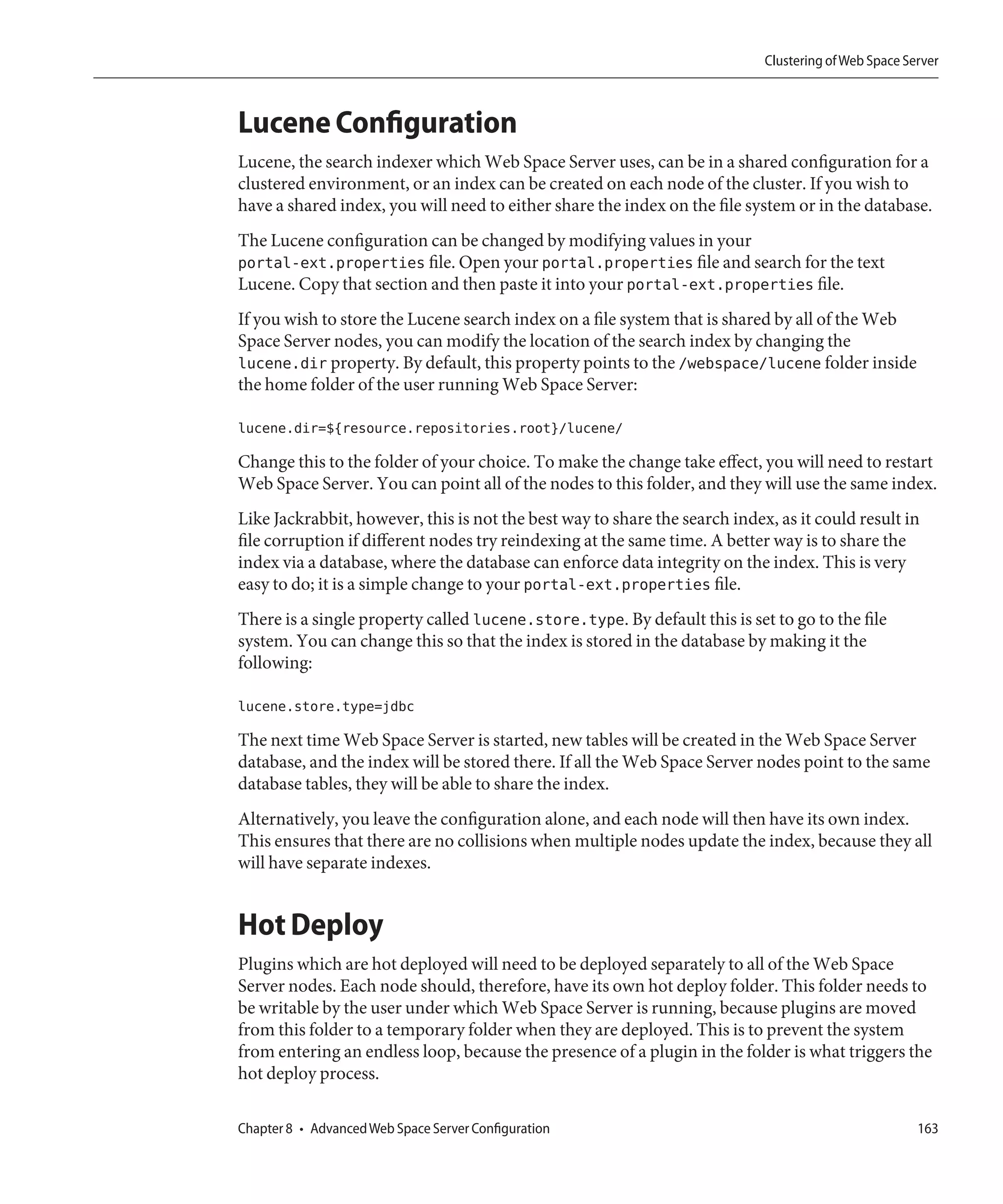
                   Lucene Configuration ................................................................................................................ 163
                   Hot Deploy .................................................................................................................................. 163
               Configuring Jackrabbit With MySQL ............................................................................................. 164
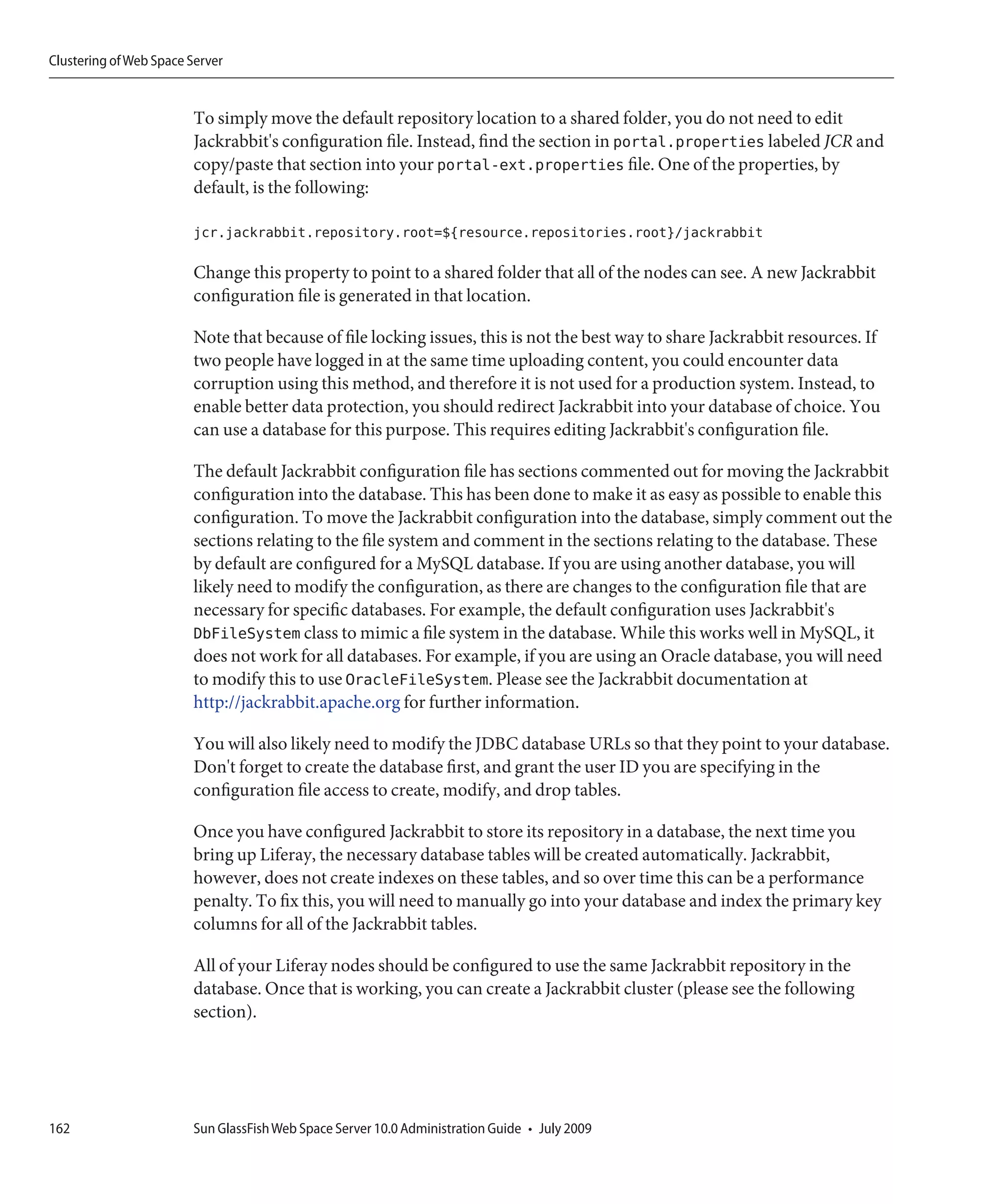
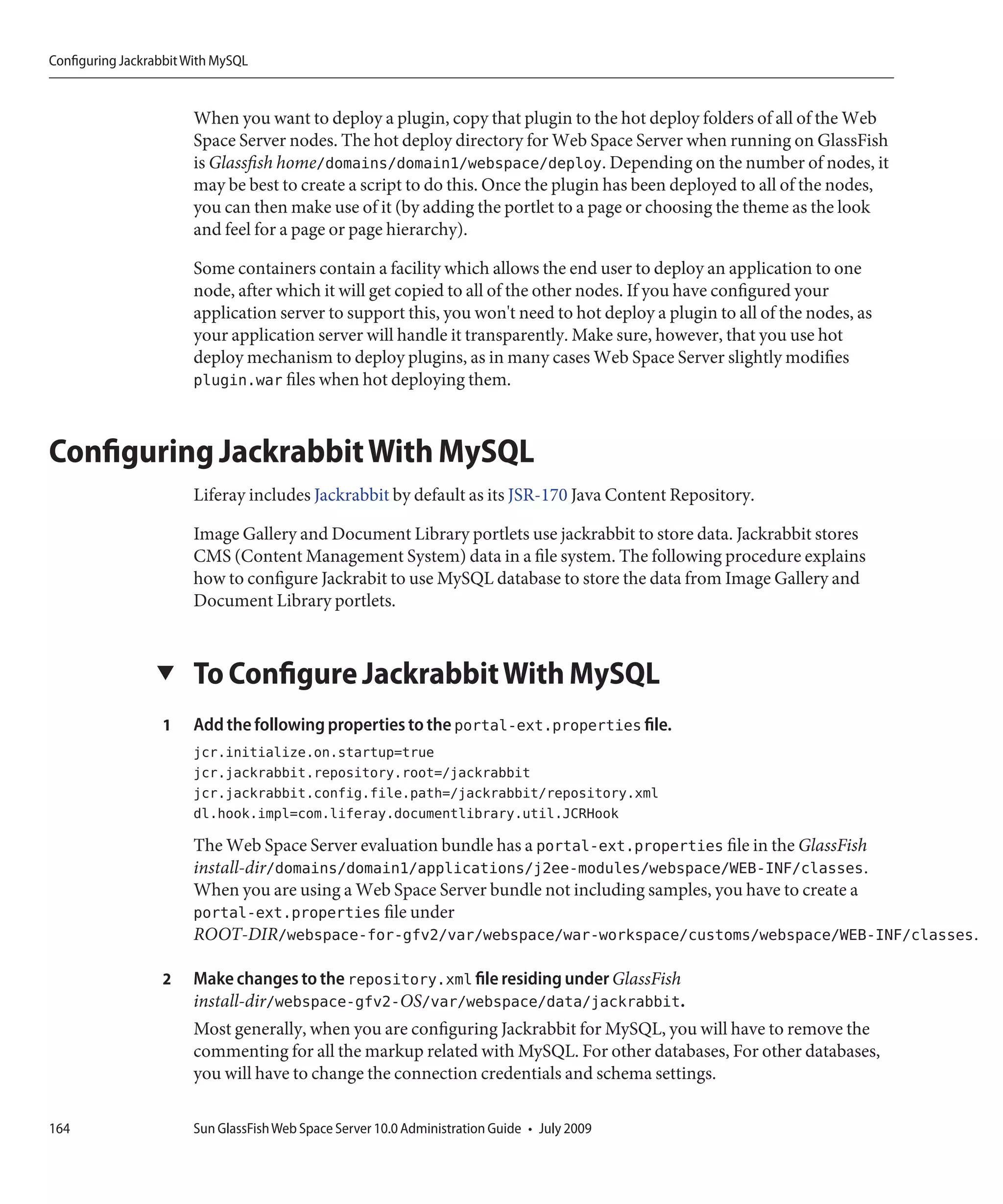
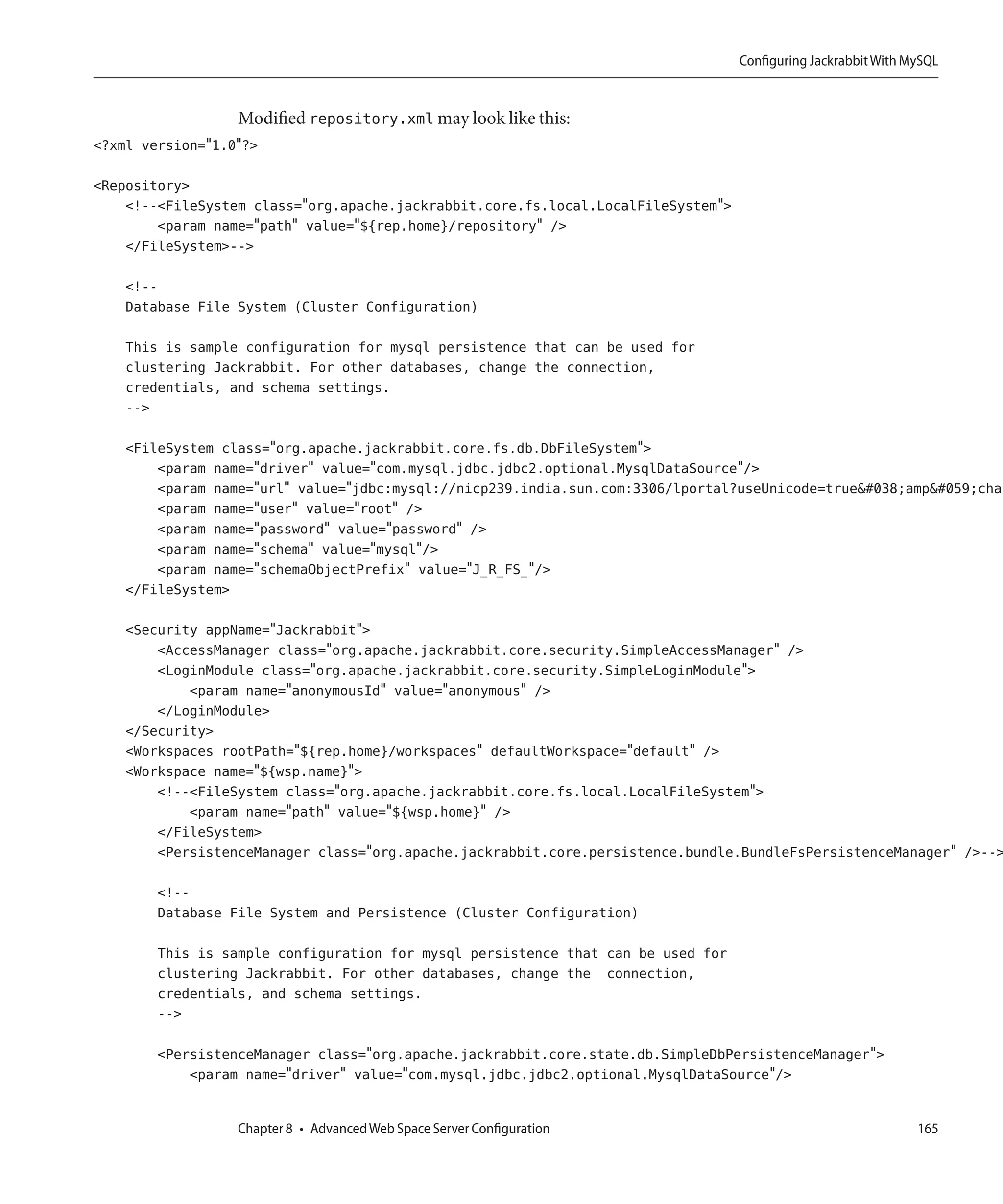
                 ▼ To Configure Jackrabbit With MySQL .................................................................................... 164
               Installing Plugins ............................................................................................................................... 167
               Creating a Custom Plugin Repository ............................................................................................ 168
                   Using the Software Catalog Portlet .......................................................................................... 168


           9   Configuring Portal Properties .........................................................................................................175
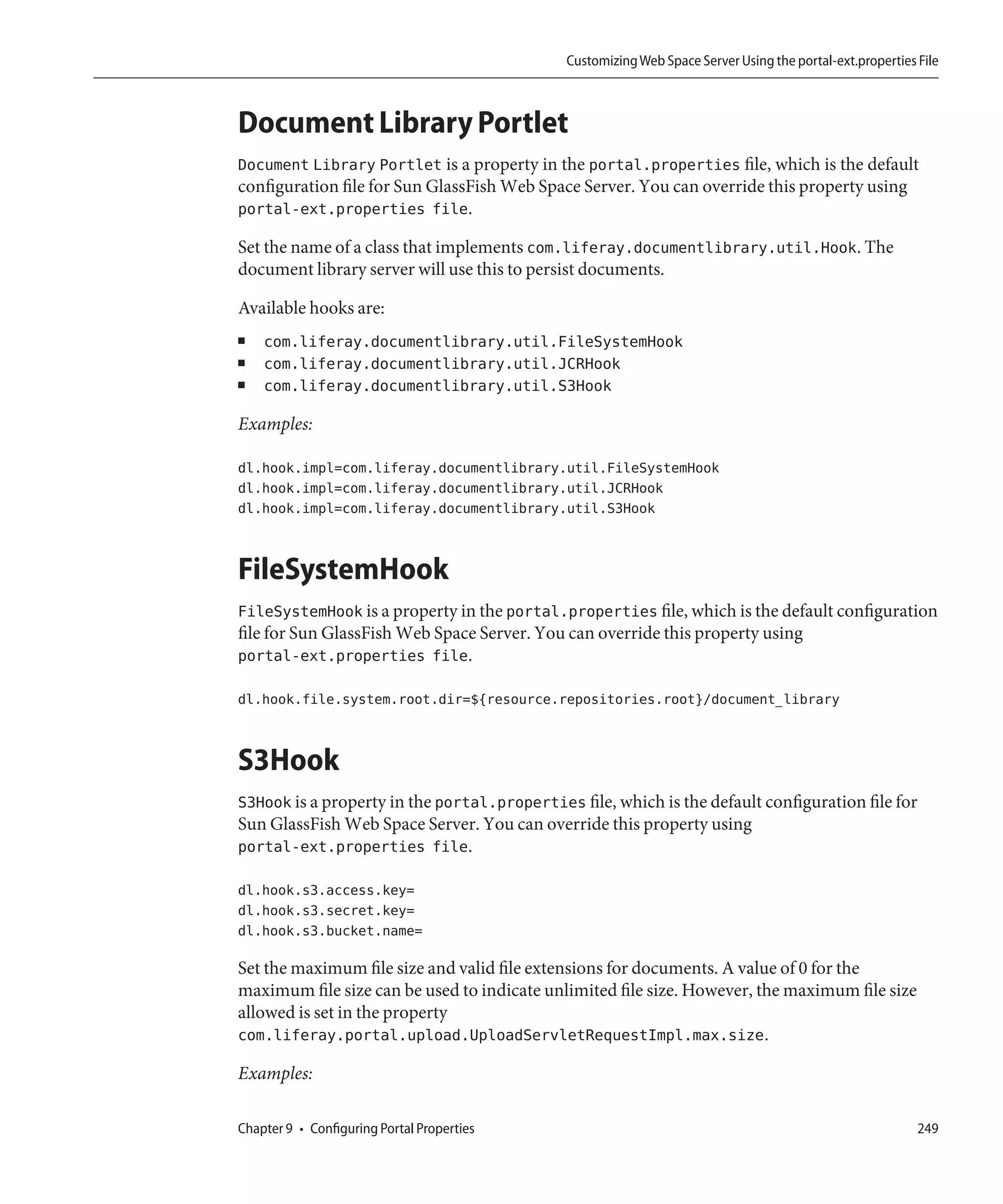
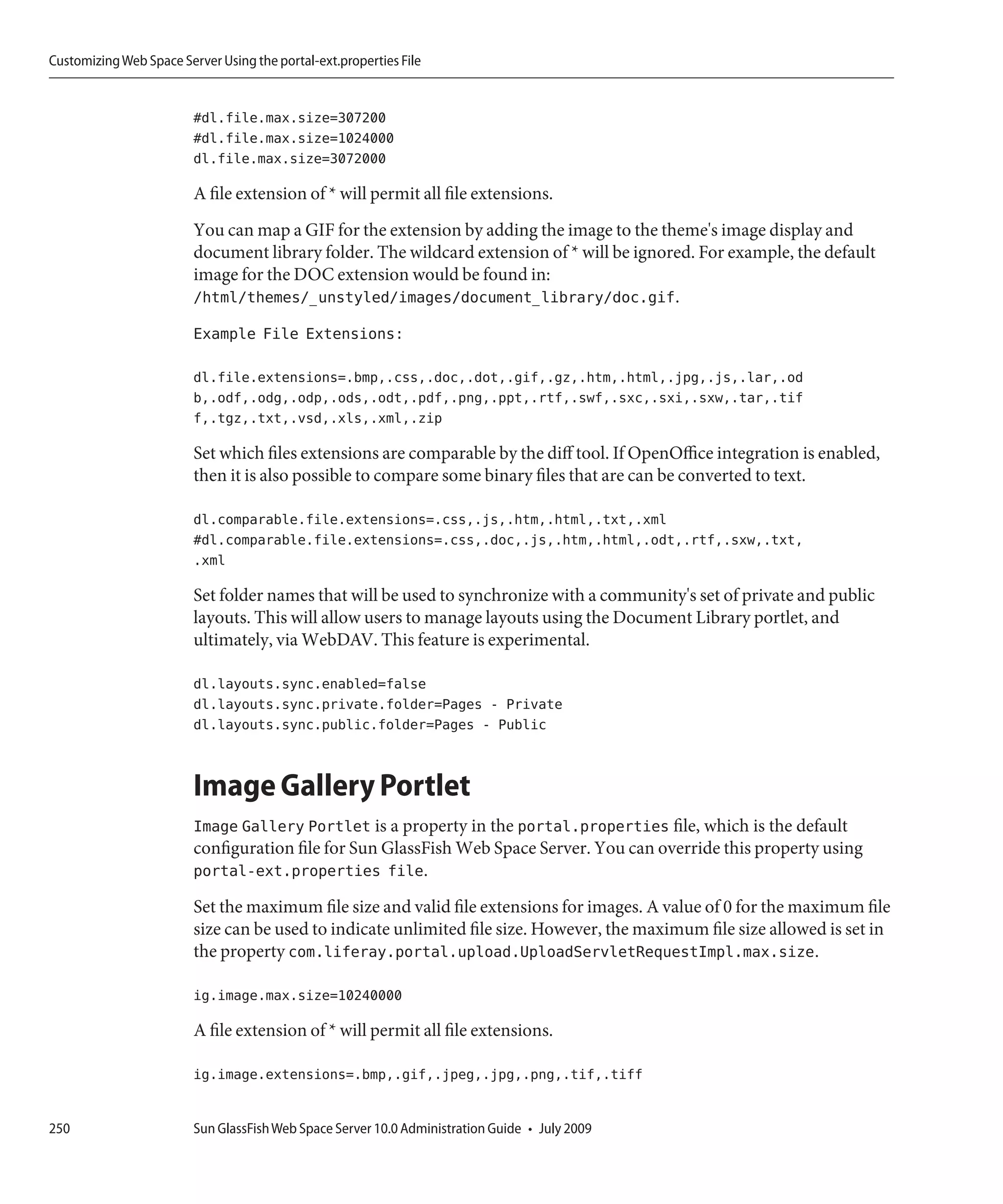
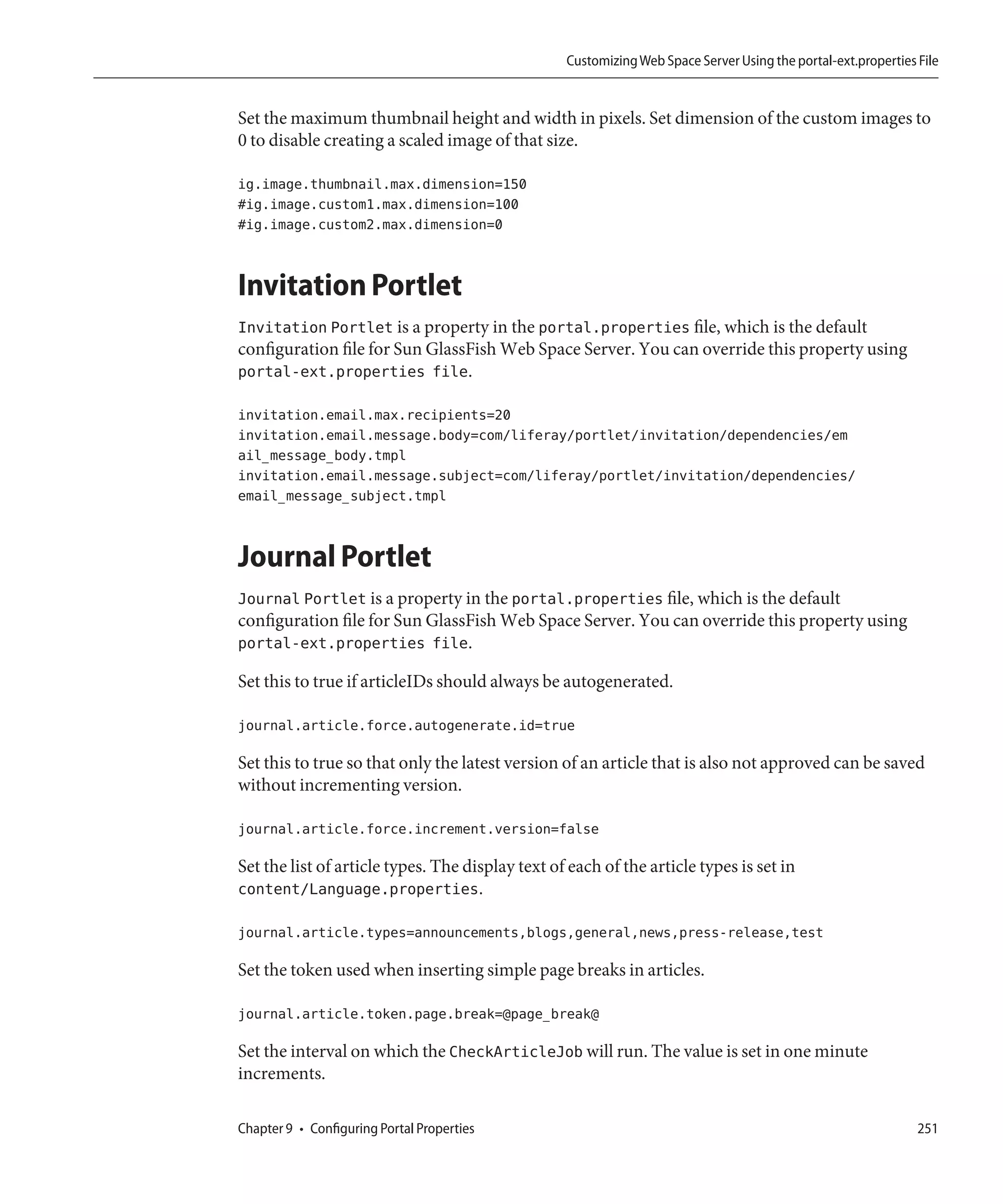
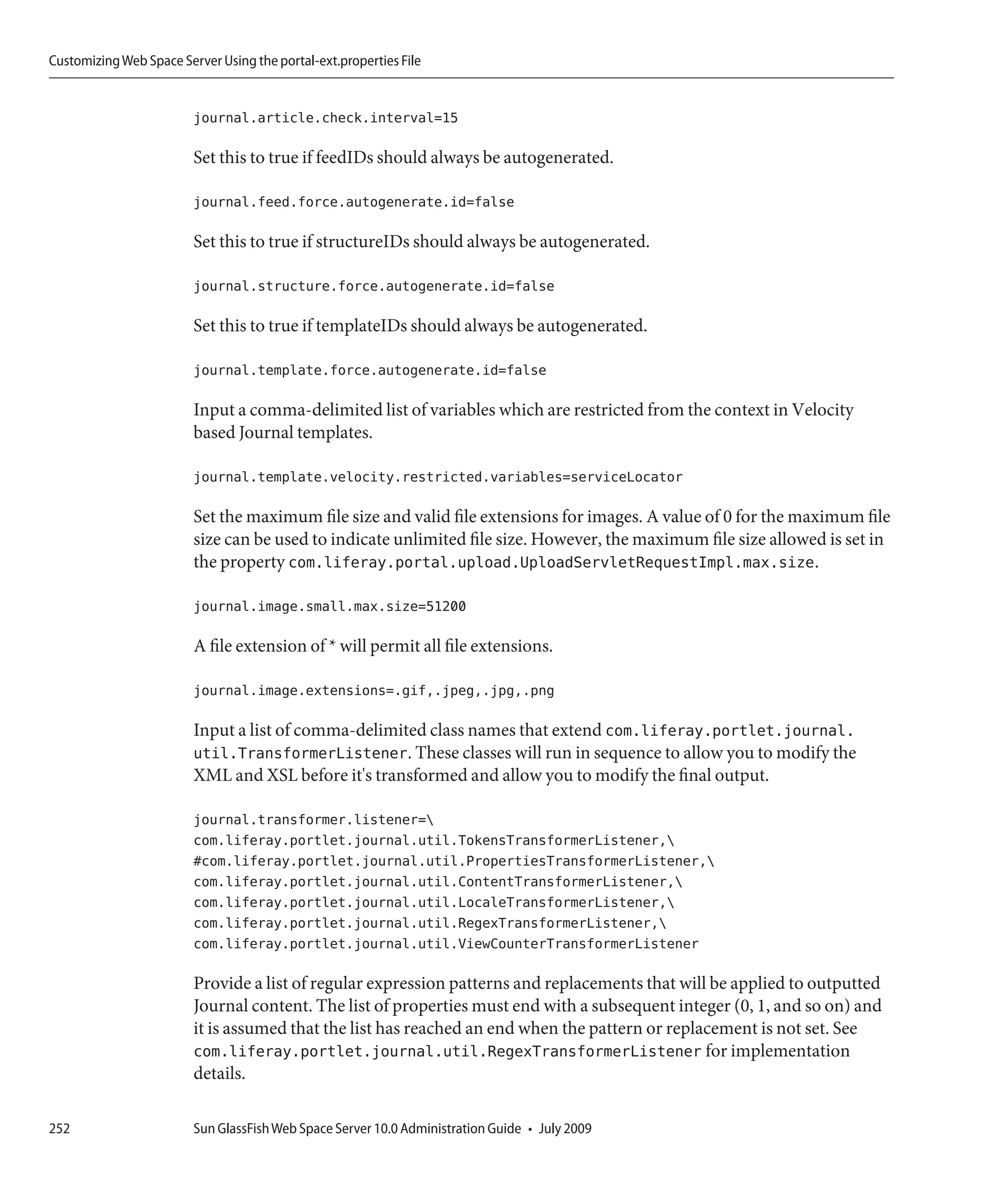
               Customizing Web Space Server Using the portal-ext.properties File ......................................... 175
                  Properties Override ................................................................................................................... 176
                  Portal Context ............................................................................................................................ 176
                  Resource Repositories Root ...................................................................................................... 177
                  Schema ........................................................................................................................................ 177
                  Upgrade ....................................................................................................................................... 177
                  Verify ........................................................................................................................................... 178
                  Auto Deploy ................................................................................................................................ 178
                  Hot Deploy .................................................................................................................................. 181
                  Hot Undeploy ............................................................................................................................. 181
                  Plugin .......................................................................................................................................... 182
                  Portlet .......................................................................................................................................... 182
                  Theme .......................................................................................................................................... 183

8              Sun GlassFish Web Space Server 10.0 Administration Guide • July 2009
Contents


Resource Actions ........................................................................................................................ 183
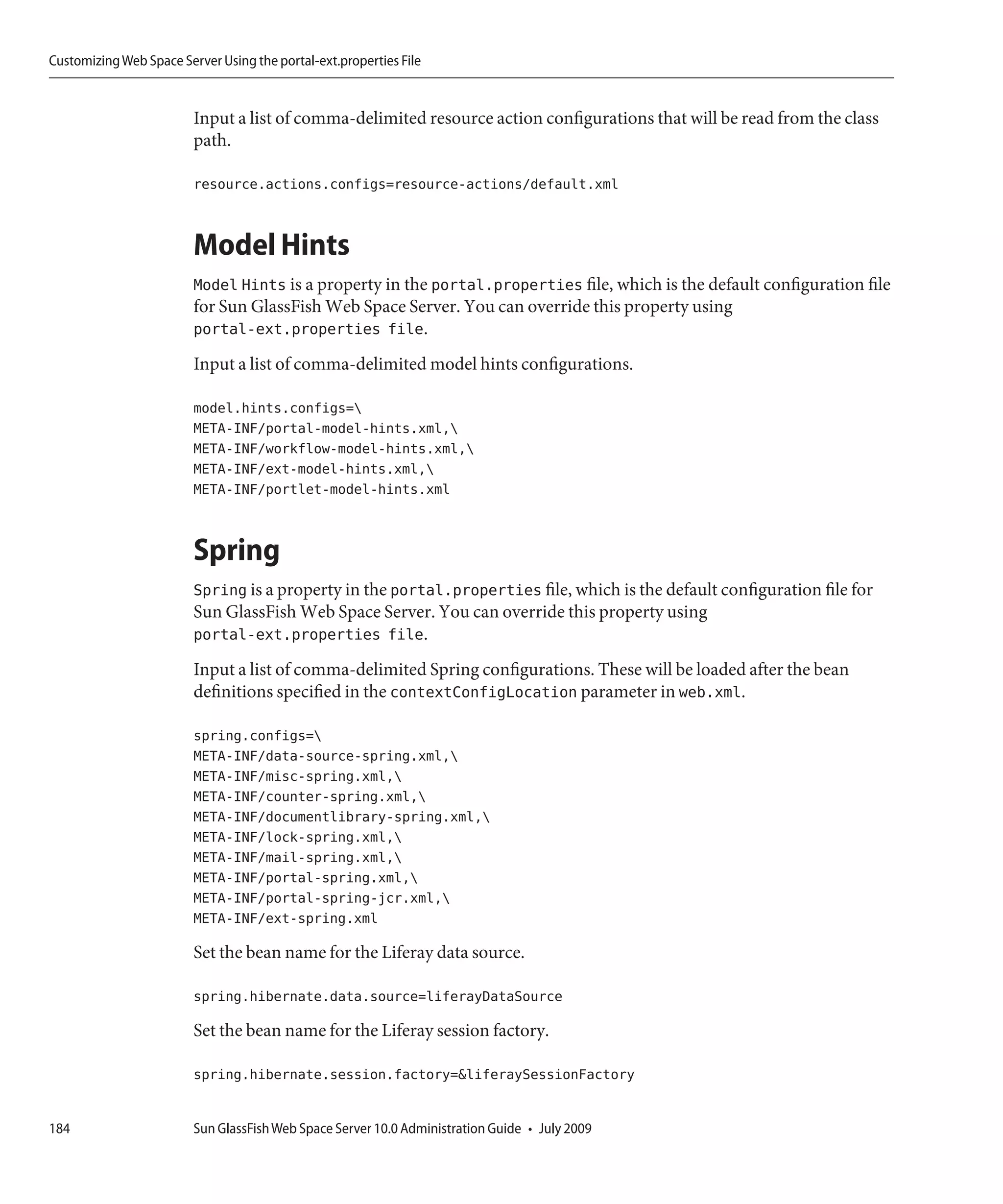
Model Hints ................................................................................................................................ 184
Spring .......................................................................................................................................... 184
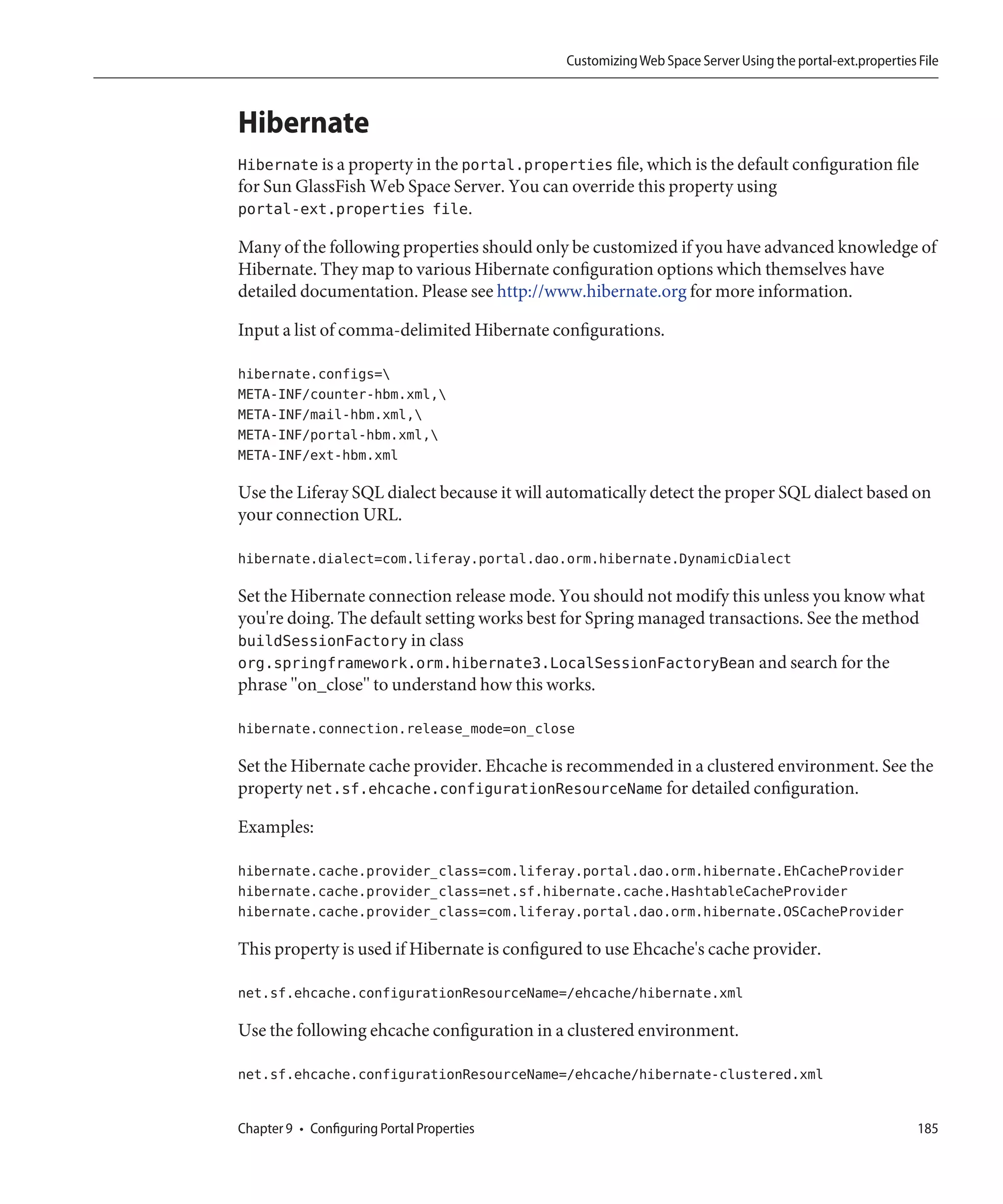
Hibernate .................................................................................................................................... 185
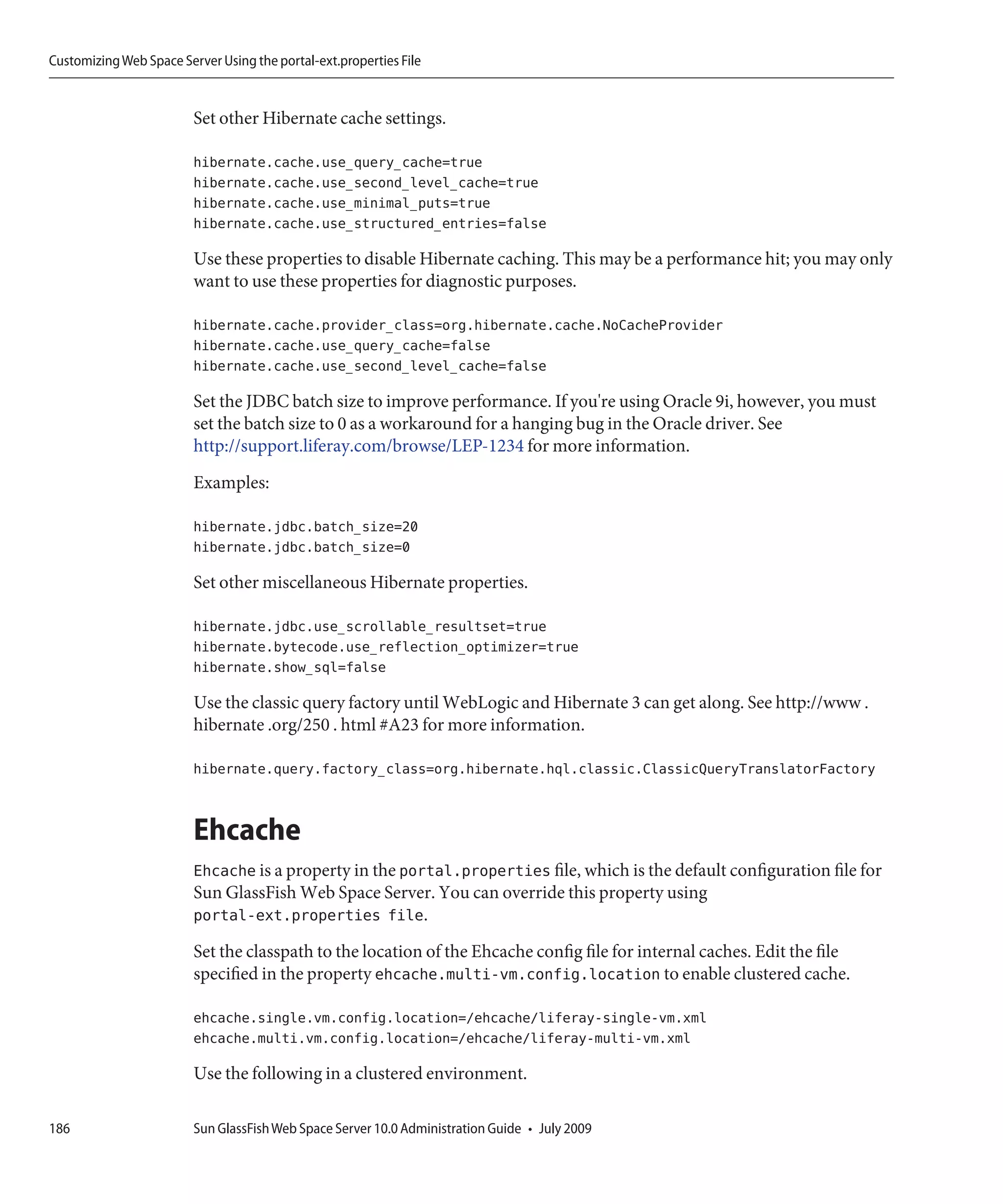
Ehcache ....................................................................................................................................... 186
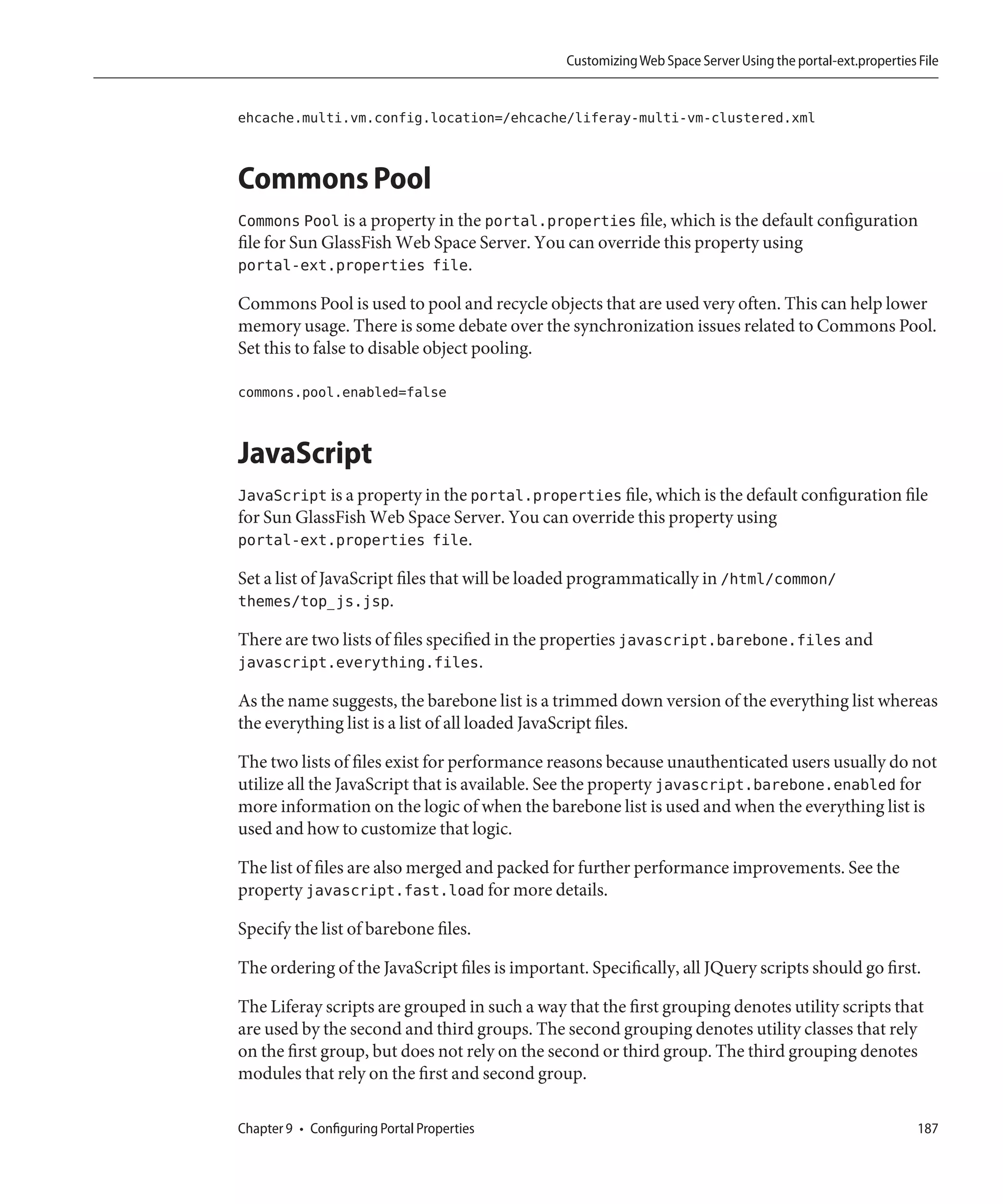
Commons Pool ........................................................................................................................... 187
JavaScript .................................................................................................................................... 187
SQL Data ..................................................................................................................................... 191
Company ..................................................................................................................................... 191
Users ............................................................................................................................................ 192
Groups and Roles ....................................................................................................................... 193
Organizations ............................................................................................................................. 195
Languages and Time Zones ...................................................................................................... 196
Look and Feel .............................................................................................................................. 197
Request ........................................................................................................................................ 198
Session ......................................................................................................................................... 198
JASS .............................................................................................................................................. 200
LDAP ........................................................................................................................................... 201
CAS .............................................................................................................................................. 204
NTLM .......................................................................................................................................... 204
OpenID ....................................................................................................................................... 205
OpenSSO ..................................................................................................................................... 205
Authentication Pipeline ............................................................................................................ 206
Auto Login .................................................................................................................................. 209
SSO With MAC .......................................................................................................................... 210
Passwords .................................................................................................................................... 210
Permissions ................................................................................................................................. 212
Captcha ....................................................................................................................................... 213
Startup Events ............................................................................................................................. 214
Shutdown Events ........................................................................................................................ 214
Portal Events ............................................................................................................................... 215
Login Event ................................................................................................................................. 215
Logout Event ............................................................................................................................... 216
Default Landing Page ................................................................................................................ 216
Default Logout Page .................................................................................................................. 216
Default Guest Public Layout ..................................................................................................... 217

                                                                                                                                                     9
Contents


                Default User Private Layouts .................................................................................................... 218
                Default User Public Layouts ..................................................................................................... 219
                Default Admin ............................................................................................................................ 220
                Layouts ........................................................................................................................................ 221
                Default Settings Layout ............................................................................................................. 222
                Portlet URL ................................................................................................................................. 226
                Preferences .................................................................................................................................. 227
                Struts ............................................................................................................................................ 227
                Images .......................................................................................................................................... 227
                Editors ......................................................................................................................................... 228
                Fields ............................................................................................................................................ 228
                MIME Types ............................................................................................................................... 229
                Amazon Licence Keys ................................................................................................................ 229
                Instant Messenger ...................................................................................................................... 229
                Lucene Search ............................................................................................................................. 230
                SourceForge ................................................................................................................................ 232
                Value Object ............................................................................................................................... 233
                Last Modified .............................................................................................................................. 234
                XSS ............................................................................................................................................... 234
                Communication Link ................................................................................................................ 235
                Content Delivery Network ........................................................................................................ 235
                Counter ....................................................................................................................................... 235
                Lock ............................................................................................................................................. 236
                JBI ................................................................................................................................................. 236
                JCR ............................................................................................................................................... 236
                OpenOffice .................................................................................................................................. 237
                POP .............................................................................................................................................. 237
                Quartz .......................................................................................................................................... 238
                Scheduler ..................................................................................................................................... 238
                Social Bookmarks ....................................................................................................................... 238
                Velocity Engine .......................................................................................................................... 239
                Virtual Hosts ............................................................................................................................... 240
                HTTP ........................................................................................................................................... 241
                Servlet Filters .............................................................................................................................. 241
                Upload Servlet Request ............................................................................................................. 242
                Web Server .................................................................................................................................. 243

10         Sun GlassFish Web Space Server 10.0 Administration Guide • July 2009
Contents


WebDAV ..................................................................................................................................... 243
Main Servlet ................................................................................................................................ 244
Axis Servlet ................................................................................................................................. 244
JSON Tunnel Servlet .................................................................................................................. 245
Liferay Tunnel Servlet ............................................................................................................... 245
Spring Remoting Servlet ........................................................................................................... 245
WebDAV Servlet ........................................................................................................................ 245
Admin Portlet ............................................................................................................................. 246
Announcements Portlet ............................................................................................................ 246
Blogs Portlet ................................................................................................................................ 247
Calendar Portlet ......................................................................................................................... 247
Communities Portlet ................................................................................................................. 248
Document Library Portlet ......................................................................................................... 249
FileSystemHook ......................................................................................................................... 249
S3Hook ........................................................................................................................................ 249
Image Gallery Portlet ................................................................................................................. 250
Invitation Portlet ........................................................................................................................ 251
Journal Portlet ............................................................................................................................ 251
Journal Articles Portlet .............................................................................................................. 254
Mail Portlet ................................................................................................................................. 254
CyrusHook .................................................................................................................................. 254
FuseMailHook ............................................................................................................................ 255
SendmailHook ............................................................................................................................ 255
ShellHook .................................................................................................................................... 256
Message Boards Portlet ............................................................................................................. 256
My Places Portlet ........................................................................................................................ 257
Navigation Portlet ...................................................................................................................... 258
Nested Portlets Portlet ............................................................................................................... 258
Portlet CSS Portlet ...................................................................................................................... 258
Shopping Portlet ........................................................................................................................ 259
Software Catalog Portlet ............................................................................................................ 260
Tags Compiler Portlet ............................................................................................................... 260
Tags Portlet ................................................................................................................................. 260
Tasks Portlet ............................................................................................................................... 261
Translator Portlet ....................................................................................................................... 261
Web Form Portlet ....................................................................................................................... 261

                                                                                                                                               11
Contents


                       Wiki Portlet ................................................................................................................................. 261


           10   System Maintenance .........................................................................................................................265
                Web Space Server Monitoring using Google Analytics ................................................................ 265
                Backing Up a Web Space Server Installation .................................................................................. 266
                    Source Code ................................................................................................................................ 267
                    Web Space Server's File System ................................................................................................ 267
                    Database ...................................................................................................................................... 267
                Monitoring and Logging .................................................................................................................. 268
                    Monitoring in Sun GlassFish Web Space Server .................................................................... 268
                    Logging in Sun GlassFish Web Space Server .......................................................................... 269


           11   Performance Tuning ..........................................................................................................................273
                Database ............................................................................................................................................. 273
                Application Server ............................................................................................................................. 275
                    Thread Pools ............................................................................................................................... 275
                    MySQL Database Connections ................................................................................................ 275
                Clustering ........................................................................................................................................... 275
                Memory .............................................................................................................................................. 275
                Properties File Changes .................................................................................................................... 276
                Servlet Filters ...................................................................................................................................... 277
                Portlets ................................................................................................................................................ 277
                Java Environment .............................................................................................................................. 278
                Portal Extensions ............................................................................................................................... 278


           12   Troubleshooting ............................................................................................................................... 279
                Troubleshooting for Installation Issues .......................................................................................... 279
                 ▼ To Reset the JAVA_HOME Variable to the User Directory ....................................................... 280
                 ▼ To Set the JAVA_HOME Environment Variable to the User Directory on Non Solaris
                    Operating Systems ..................................................................................................................... 280
                Troubleshooting for Issues Related With Accessing the HTTP Instance ................................... 280
                Troubleshooting for Issues Related With User Activities ............................................................. 280
                 ▼ To Create a Private Page ............................................................................................................ 280
                Troubleshooting for Issues Related With Installing Plugins ........................................................ 281
                Troubleshooting for the Issues in Choosing the Logo Size .......................................................... 282

12              Sun GlassFish Web Space Server 10.0 Administration Guide • July 2009
Contents


Common Questions .......................................................................................................................... 282


Index ................................................................................................................................................... 285


                                                                                                                                                         13
14
Preface


         Sun GlassFish Web Space Server launched as part of Sun's GlassFish Portfolio is a
         next-generation Web 2.0 application aggregation and presentation platform.


Who Uses Sun GlassFish Web Space Server?
         Sun GlassFish Web Space Server offers features for general users, system administrators, and
         application and portal developers.
         ■   For General Users, Web Space Server makes it easy to communicate, collaborate, and
             customize the applications shared by your organization. Social networking components,
             like blogs, wikis, bookmarks, and messaging can be presented side-by-side with proprietary
             and third-party business and productivity applications. Different user communities can
             have their own portals, layouts, and customizations, and Web Space Server can be scaled
             down or up to suit organizations from the very small up to the enterprise level.
         ■   For System Administrators, Web Space Server makes it easy to manage users, groups,
             communities, permissions, and highly specific levels of security. A browser-based GUI
             makes managing portals, portlets, plugins, and applications as simple as dragging and
             dropping. Web Space Server runs on top of the enterprise-class, open source GlassFish
             Application Server, which means that Web Space Server can be optimized according to your
             needs for performance, reliability, security, load balancing, and clustering, among other
             server characteristics.
         ■   For Application and Portal Developers, Web Space Server makes it easy to develop
             portlets, portals, plugins, services, content management, workflows, and themes using your
             own tools, including NetBeansTM, Eclipse, and Dreamweaver. Web Space Server is based on
             the open source OpenPortal and Liferay 5.2 code bases, which means what you develop in
             Web Space Server will be standards-based, portable, and maintainable. You can combine
             familiar Ajax, Jmaki, Ruby, PHP, and Java technologies and techniques with Web Space
             Server's powerful presentation capabilities to deliver the kind of rich, dynamic, interactive
             user experience previously available only in complex custom-built Web applications.


                                                                                                         15
Preface


Before You Read This Book
          Readers should be familiar with the following products and concepts:
          ■   Sun Java System Directory Server
          ■   Sun Java System Access Manager
          ■   Your web container
              ■   Sun GlassFish Enterprise Server v2/v3
              ■   Oracle WebLogic Server 11g
          ■   Your operating system
          ■   Basic UNIX administrative procedures
          ■   LDAP (lightweight directory access protocol)
          ■   Web Services for Remote Portlets (WSRP)


How This Book Is Organized
          This book contains the following chapters:
          1. Chapter 1, “Administration Overview,” discusses some general administration topics which
             are helpful for an administrator to begin with.
          2. Chapter 2, “Web Space Server Installation Instructions,” contains the installation
             instructions for Web Space Server and the database and the application server that you want
             to configure with it.
          3. Chapter 3, “Customizing Sun GlassFish Web Space Server,” discusses the topics on changing
             the look and feel of the product as desired by the customer.
          4. Chapter 4, “Use Cases for Sun GlassFish Web Space Server,” discusses some of the use cases
             for working with some of the commonly available portlets shipped as part of the core and
             the samples for Sun GlassFish Web Space Server.
          5. Chapter 5, “Roles and Permissions,” has the details of how you can define roles and
             permissions on various portal resources such as, users, communities, and organizations.
          6. Chapter 6, “Content Management System,” discusses the administration tasks related with
             content management.
          7. Chapter 6, “Content Management System,” discusses the administration tasks related with
             content management.
          8. Chapter 8, “Advanced Web Space Server Configuration,” discusses the topics on advanced
             customization to match the unique needs of a customer.
          9. Chapter 9, “Configuring Portal Properties,” discusses how you can override properties in the
             portal.properties file.

16        Sun GlassFish Web Space Server 10.0 Administration Guide • July 2009
Preface


         10. Chapter 10, “System Maintenance,” discusses the different aspects of monitoring and
             backup.
         11. Chapter 11, “Performance Tuning,” discusses the topics related with improving the
             performance of the system.
         12. Chapter 12, “Troubleshooting,” discusses the troubleshooting information for some of the
             issue that you may face when you are working with Sun GlassFish Web Space Server.


Related Sun GlassFish Web Space Server Documentation
         The Sun GlassFish Web Space Server documentation set is available on the Sun GlassFish Web
         Space Server Core and Samples Documentation Collection and the Sun GlassFish Web Space
         Server Add-Ons Documentation Collection.

         Additional documentation is also available on the Liferay wiki, Liferay Community
         Documentation, and OpenPortal Documentation sites.

         Related blog, forum, and website links:
         ■   http://blogs.sun.com/main/tags/webspace
             This blog link lists all the blog postings with the tag “webspace”.
         ■   http://blogs.sun.com/portal/
             This is a blog link named Portal Post and is exclusively meant for posting on portal products
             from SunTM Microsystems.
         ■   http://forums.sun.com/category.jspa?categoryID=111
             This is the common discussion forum for all portal products from Sun Microsystems.
         ■   https://webspace.dev.java.net/
             This is the community website for Sun GlassFish Web Space Server.
         ■   https://ruon.dev.java.net/
             This is the developer community site for ruon-web.
         ■   https://saw.dev.java.net/
             This is the developer community site for saw-web.


                                                                                                         17
Preface


Related Third-Party Web Site References
          Third-party URLs are referenced in this document and provide additional, related information.


          Note – Sun is not responsible for the availability of third-party web sites mentioned in this
          document. Sun does not endorse and is not responsible or liable for any content, advertising,
          products, or other materials that are available on or through such sites or resources. Sun will not
          be responsible or liable for any actual or alleged damage or loss caused or alleged to be caused by
          or in connection with use of or reliance on any such content, goods, or services that are available
          on or through such sites or resources.


Documentation, Support, and Training
          The Sun web site provides information about the following additional resources:
          ■   Documentation (http://www.sun.com/documentation/)
          ■   Support (http://www.sun.com/support/)
          ■   Training (http://www.sun.com/training/)


Sun Welcomes Your Comments
          Sun is interested in improving its documentation and welcomes your comments and
          suggestions. To share your comments, go to http://docs.sun.com and click Feedback.


Typographic Conventions
          The following table describes the typographic conventions that are used in this book.

          TABLE P–1   Typographic Conventions

          Typeface                 Meaning                                          Example

          AaBbCc123                The names of commands, files, and directories,   Edit your .login file.
                                   and onscreen computer output
                                                                                    Use ls -a to list all files.
                                                                                    machine_name% you have mail.

          AaBbCc123                What you type, contrasted with onscreen          machine_name% su
                                   computer output
                                                                                    Password:


18        Sun GlassFish Web Space Server 10.0 Administration Guide • July 2009
Preface


         TABLE P–1   Typographic Conventions         (Continued)
         Typeface                Meaning                                          Example

         aabbcc123               Placeholder: replace with a real name or value   The command to remove a file is rm
                                                                                  filename.

         AaBbCc123               Book titles, new terms, and terms to be          Read Chapter 6 in the User's Guide.
                                 emphasized
                                                                                  A cache is a copy that is stored
                                                                                  locally.
                                                                                  Do not save the file.
                                                                                  Note: Some emphasized items
                                                                                  appear bold online.


Shell Prompts in Command Examples
         The following table shows the default UNIX® system prompt and superuser prompt for the C
         shell, Bourne shell, and Korn shell.

         TABLE P–2   Shell Prompts

         Shell                                                    Prompt

         C shell                                                  machine_name%

         C shell for superuser                                    machine_name#

         Bourne shell and Korn shell                              $

         Bourne shell and Korn shell for superuser                #


                                                                                                                         19
20
1
         C H A P T E R     1


         Administration Overview


         This chapter provides a basic understanding of Sun GlassFish Web Space Server(Web Space
         Server).
         ■   “About Sun GlassFish Web Space Server” on page 21
         ■   “Sun GlassFish Web Space Server Features” on page 22
         ■   “Web Space Server Terminology” on page 23
         ■   “Using the Evaluation Bundle” on page 24
         ■   “Creating an User Account on Web Space Server” on page 25
         ■   “Defining Password Policies for Users” on page 26
         ■   “Welcome Menu for the Admin User” on page 26
         ■   “Setting up a Development Environment for Web Space Server” on page 30


About Sun GlassFish Web Space Server
         Sun GlassFish Web Space Server launched as part of Sun's GlassFish Portfolio is a
         next-generation Web 2.0 application aggregation and presentation platform. It is a suite of
         integrated software products that enables businesses large and small to pull together
         applications and content from a variety of Web-based and internal sources and present them as
         a unified, customizable portal on Web browsers, kiosks, and mobile devices. Web Space Server
         makes it easier for users to find and use the tools and information they need.

         Sun GlassFish Web Space Server is a collaborative effort between Sun Microsystem's Portal
         Server team, the Liferay Community, and the OpenPortal community. Web Space Server
         integrates technologies from these three products to enable enterprise-class portals that are easy
         to use for end users, system administrators, and developers alike.


                                                                                                         21
Sun GlassFish Web Space Server Features


                        Sun GlassFish Web Space Server enables:
                        ■    Social Networking for the Enterprise
                             Find people with the answers across organizations, silos, and hierarchies, and boost
                             productivity in distributed teams.
                        ■    Enterprise Widgets for Collaboration Work
                             Bundled Productivity Widget Suites to get work done (CMS, Workflow), and Information
                             Widget Suite for Effective Collaboration (blogs, wikis).
                        ■    Internet Widgets on the Enterprise Extranet
                             Build stickiness into your intranet with Google Gadgets, YouTube, and Facebook widgets.


Sun GlassFish Web Space Server Features
                        Sun GlassFish Web Space Server provides a new class of portal functionality by which users can
                        define their own Web spaces. With built-in content and document management, human
                        workflow development tools, enterprise identity integration, and social networking features,
                        system administrators and application developers can now deploy a platform that allows for
                        rapid rollout of next generation Web capabilities for their users.

                        Key Web Space Server features include:
                        ■    Identity-based content delivery
                        ■    User-managed Web spaces, including user self-Web publishing and user access controls
                        ■    Rapid and simple Web site design tools make it possible to quickly set up Web sites for
                             content, collaboration, and interactivity, with out of the box templates
                        ■    Built-in collaboration, with bundled wiki, blog, task management, calendaring, document
                             sharing, polls, IM, and email applications
                        ■    Document and Web content management system with workflow, staging, and publication
                             tools
                        ■    Syndicate portlets and widgets with REST
                        ■    Develop widgets using the JSR 286 portlet standard as well as scripting standards such as
                             Ruby, PHP, and JMaki
                        ■    Add-Ons features available for paid Sun GlassFish Web Space Server users. See, Sun
                             GlassFish Web Space Server 10.0 Add-On Collection.


22                      Sun GlassFish Web Space Server 10.0 Administration Guide • July 2009
Widget


Web Space Server Terminology
                   The following are some common terms relevant to Web Space Server.

Community          A collection of users sharing common interests or goals. Community members typically share a common
                   set of portlets and pages. For example, a community might have a wiki that is not available to users outside
                   the community. Multiple user groups can coexist within a given community.
Friendly URL       The modifiable part of the URL for the private page of an user account.
Guest              A user who does not have an account on a given Web Space Server site. Typically, guest users have limited
                   ability to view or modify content on a Web Space Server site.

Instanceable       If you can add many instances of a portlet to your page, the portlet is called an instanceable portlet.
Portlet
Layout Template    A scheme that defines the general layout of portlets and widgets on a portal page. As with themes, layout
                   templates can be applied by site administrators and registered users.
Non-instanceable   If you can add just one instance of a portlet to your page, the portlet is called a it is a non-instanceable
Portlet            portlet.

Organization       A hierarchical collection of users, user groups, and communities. Multiple communities can coexist
                   within a given organization.
Portlet            Portlets are pluggable user interface software components that are managed and displayed in a web portal.
                   Typically, a portal page is displays as a collection of non-overlapping portlet windows, where each portlet
                   window displays a portlet. Web Space Server portlets confirm to JSR286 standards.

Public Page and    Every individual user account in a Web Space Server site contains public pages and private pages. Pages
Private Page       that can be accessed by a guest user are public pages. Pages that can only be accessed by logging in to a user
                   account are private pages.

Theme              The “look and feel” settings that are applied to a portal page. Themes can be applied sitewide by a Web
                   Space Server site administrator or on a page-by-page basis by registered users.
User               A person who is registered on a Web Space Server site.

User Group         A grouping of users. Members of a user group typically share common sets of access permissions.
User Role          Permissions and access rights defined for a given user; typically maps to rights within groups,
                   communities, and organizations.
Widget             Widgets are similar to portlets except that unlike portlets, widgets are created using a programming
                   language other than the Java , such as PHP or Ruby.


                   Chapter 1 • Administration Overview                                                                            23
Using the Evaluation Bundle


Using the Evaluation Bundle
                        Sun GlassFish Web Space Server is part of the GlassFish Portfolio. You can use the Web Space
                        Server evaluation bundle for a quick evaluation of the product.

                        You can download Sun GlassFish Web Space Server from the following sites:

                        https://webspace.dev.java.net/

                        http://www.sun.com/software/products/webspace/get.jsp

                        Evaluation bundles use the naming pattern Webspace version-gfv2–OS.zip. To install the
                        evaluation bundle, you just need JDK 1.5 or above installed on your machine. When you install
                        the evaluation bundle; GlassFish v2, the HSQL database, and samples are installed along with it.

                        You can use the evaluation bundle, which has the HSQL database embedded with it, for quick
                        evaluation. It is a good method to have it up and running fast for reviewing or developing, it has
                        several drawbacks:
                        ■     Only one user can access the database at a time. The data is stored on a file on disk and
                              HSQL locks it when doing changes.
                        ■     The data is stored inside the application server and might be lost on redeployment.
                        ■     This configuration does not scale well and will have performance problems when multiple
                              users access the system.

                        The Sun GlassFish Web Space Server10.0 Getting Started Guide provides detailed instructions
                        about how to get the evaluation bundle up and running.

                        For a production environment, install the core bundle of Web Space Server. It can be installed
                        on an existing instance of GlassFish v2, and can be configured to use MySQL (preferred) or
                        Oracle 10g (or later) databases. You can update the installation with samples and other add-ons.

                        The core bundle naming pattern is Webspace version-for-gfv2.zip

                        The Add-on bundle naming pattern isWebspace version-addon-addon-name.zip

                        The evaluation bundle is not recommended for a production environment. Samples which are
                        bundled with the evaluation bundle are not tested and certified by Sun. Also, the updatetool
                        utility is not available for the evaluation bundle.


24                      Sun GlassFish Web Space Server 10.0 Administration Guide • July 2009
Creating an User Account on Web Space Server


Creating an User Account on Web Space Server
           Any user who can accesses the HTTP instance of Web Space Server can create a user account.
           You can sign in by selecting Sign In from the Welcome menu. If you are an existing user, sign in
           by using your user name and password. To create a new account click on the Create Account
           link and follow the instructions to create an account. When you add an user account, the user is
           added to the list of Users in the Enterprise Admin Portlet. The admin user can monitor all the
           user accounts.

           Also, you can log in to Web Space Server by using an OpenID. You can get an OpenID from any
           of the popular OpenID providers such as claimID, myOpenID, VeriSign's Personal Identity
           Provider, myID.net, and myVidoop. For more information, see http://openid.net/.

           When you create an OpenID with a OpenID provider such as myOpenID, a message is sent to
           the email address that you provide. Your OpenID will be authenticated when you respond to
           the message. You can use the OpenID to log in to any of the web sites that support OpenIDs.


       ▼   To Log in to Web Space Server Using an OpenID
       1   Access the HTTP instance for Web Space Server using http://<machine-name>:8080.

       2   Choose Sign In from the Welcome menu.

       3   Click on the OpenID link.

       4   Type the OpenID URL and click Sign In.

       5   Select the Skip This Step Next Time I Sign In to http://machine-name:8080 option, and click
           Continue.
           This accesses to the OpenID site.

       6   Authenticate your OpenID and click Save.

           Note – For the OpenIDs provided by Yahoo and many other OpenID providers, you need to
           register the OpenID by selecting My Account → Identification → OpenID.


           Chapter 1 • Administration Overview                                                                  25
Defining Password Policies for Users


Defining Password Policies for Users
                         The admin user can define password policies for Users and Organizations. You can change the
                         default password policy or create a new password policy. You can apply different password
                         policies to different sets of users and organizations.


                   ▼     To Define a Password Policy
                    1    Log in to Web Space Server as the admin user.

                    2    Choose Control Panel → Portal → Password Policies from the Welcome menu.

                    3    Click the Add button to add a new password policy.

                    4    Type the name and description for the password policy.
                         You can enable the desired options for the password policy. To display information about an
                         option, place the cursor on the help button next to the option. You can enable:
                         ■    Changeable option to enable users to change the password
                         ■    Password Syntax Checking
                         ■    Password History
                         ■    Password Expiration
                         ■    Lockout

                    5    Click Save.

                    6    To assign users or organizations to the password policy, click the Actions button corresponding
                         to the password policy and select Assign Members from the menu.


Welcome Menu for the Admin User
                         Welcome menu for the admin user provides a convenient user interface for various
                         administration tasks. You can access the Welcome menu from any public or private page.


26                       Sun GlassFish Web Space Server 10.0 Administration Guide • July 2009
Welcome Menu for the Admin User


▼   To use the Welcome Menu
1   Log in to Web Space Server as the Admin User.

2   Navigate to the Welcome menu, and click on the menu item that you need to access.
    Home, Control Panel, My Account, Sign Out, Add Application, Layout Template, Manage
    Pages, Toggle Edit Controls, and My Places are the items which can be accessed from the
    Welcome menu for the admin user.
    To apply control settings:
      “Control Panel” on page 27
    To apply account settings:
      “My Account” on page 28
    To add portlets and widgets to your page:
      “Add Application” on page 29
    To change the layout template:
      “Layout Template” on page 29
    To specify a friendly URL to your public and private pages:
      “Manage Pages” on page 29
    To toggle edit controls of the portlets on your page:
      “Toggle Edit Controls” on page 29
    To navigate to public and private pages associated with your account:
      “My Places” on page 29


    Control Panel
    You can use the Control Panel to configure the User, Content, Portal, and Server settings.
    Select Control Panel from the Welcome menu. You can use the tools available on the left menu
    to perform various administrative tasks.

    The tools available to the admin user provide the privileges to perform content management,
    portal resource administration, server administration, portal administration, WSRP
    administration, and general administration tasks.


    Chapter 1 • Administration Overview                                                            27
Welcome Menu for the Admin User


FIGURE 1–1   Tools available on the Control Panel

                       You can select a tool from the left menu to apply settings to it. For example, click 'Server
                       Administration' under 'Server'.

                       You can perform a number of server maintenance activities from this page.

                       Similarly, you can apply different kind of settings by using the Control Panel. Click the “Back to
                       Community” link in the top right corner of the page to return to the main page.


                       My Account
                       To access the My Account page, click the My Account tool from the left menu in the Control
                       Panel or select “My Account” from the Welcome menu.

                       From this page, you can view the user information, can apply identification settings, and can
                       apply some miscellaneous settings such as, language and display settings.


28                     Sun GlassFish Web Space Server 10.0 Administration Guide • July 2009
Welcome Menu for the Admin User


Add Application
You can add a portlet or a widget to your page by choosing Add Application from the Welcome
menu.


Layout Template
Choose Layout Template from the Welcome Menu. The Layout window appears. The 2
Column (30/70) is the default layout. You can select the radio button for the Layout of your
choice and click Save to apply the layout for your account.


Manage Pages
You can use Manage Pages from the Welcome Menu to specify a Friendly URL and apply other
settings to a Public Page or a Private Page associated with your account.

For more details on Friendly URLs, refer Friendly URLs.


Toggle Edit Controls
You can use the Welcome menu to toggle edit controls for portlets. Portlets generally have edit
control options such as close, maximize, minimize, look and feel, and configuration. You can
toggle edit controls on or off by using the Toggle Edit Controls option.


My Places
You can select My Places from the Welcome menu to navigate to all the public and private
pages of the communities associated with your account. When you click My Places, the page
you are on is highlighted in the menu appearing.


Note – A public pageis a page which can be viewed by the Guest user i.e., the public page is
accessible without the need to log in. Private pages can be viewed only after you log in.


Chapter 1 • Administration Overview                                                                29
Setting up a Development Environment for Web Space Server


Setting up a Development Environment for Web Space Server
                       If you are beginning a Web Space Server-based project, you will probably need to get your
                       developers up and running before your production systems are ready. In order for a developer
                       to do his or her work, an instance of Web Space Server needs to be running on his or her
                       machines. Additionally, to prevent file-locking issues, a developer's version of Web Space
                       Server should not use the embedded database, so a separate database will need to be installed.
                       Web Space Server uses many open source tools for development which means there are no
                       expensive tools to purchase. Also, developers can choose the tools they are most comfortable
                       with to write code on Web Space Server platform.
                       Some tools are required in order to develop with Web Space Server:
                       ■    Apache Ant 1.7.0 or later.
                       ■    A Java Development Kit.
                       ■    A Web Space Server-supported database. (MySQL is recommended for a developer
                            machine.)
                       ■    The IDE or development environment of your choice.
                       If you are customizing Web Space Server through the extension environment, you might need a
                       subversion client, or you can also download the Web Space Server source from the web site. See
                       the Web Space Server Developer's Guide for further details.


                       Developing With Apache Ant
                       Apache Ant is a build tool that is used extensively by both the Web Space Server source and the
                       extension environment. You can download the latest version of Ant from
                       http://ant.apache.org. After downloading, uncompress the archive into a folder. You then
                       need to set the ANT_HOME environment variable to add binaries to your PATH.

                 ▼ To Set the ANT_HOME Variable on Windows

                  1    Choose Start → Control Panel, and double-click the System icon.

                  2    Click the Advanced tab, and then click the Environment Variables button.

                  3    Under System Variables, select New to create the ANT_HOME environment variable.

                  4    Set the variable name to ANT_HOME and the variable value to
                       apache-install-dirapache-ant-version and click OK.
                       For example, the installation directory might be C:Javaapache-ant-1.7.0.

                  5    Select New again to create the ANT_OPTS environment variable.

30                     Sun GlassFish Web Space Server 10.0 Administration Guide • July 2009
Setting up a Development Environment for Web Space Server


 6   Set the variable name to ANT_OPTS and the variable value to -Xms256M -Xmx512M and click OK.

 7   Select the PATH environment variable and select Edit.

 8   Add %ANT_HOME%bin to the end or beginning of the PATH.

 9   Click OK and then click OK again.

10   To test the setting, type ant at a command prompt and press Return.

     ■   If a Build not found error message appears, you have correctly installed Ant.

     ■   If you do not see an error message, check the environment variable settings and make sure
         they are pointing to the correct directory locations.

▼ To Set the ANT_HOME Variable on a Linux or Macintosh System

 1   In your home folder, open the .bash_profile file in the root directory.

 2   Add the following lines to the file, substituting the directory where you installed Ant:
     ANT_HOME=/apache-install-dir/apache-ant-version
     ANT_OPTS="-Xms256M -Xmx512M"
     PATH=$PATH:$HOME/bin:$ANT_HOME/bin
     export ANT_HOME ANT_OPTS PATH

 3   To test the setting, type ant at a command prompt and press Return.

     ■   If a Build not found error message appears, you have correctly installed Ant.

     ■   If you do not see an error message, check the environment variable settings and make sure
         they are pointing to the correct directory locations.


     Chapter 1 • Administration Overview                                                                     31
32
2
C H A P T E R      2


Web Space Server Installation Instructions


To install Web Space Server, download the single component installer (production bundle) for
Sun GlassFish Web Space Server. The single component installer for Web Space Server is the
version that is not bundled with Sun GlassFish Web Space Server and samples. The filename of
the downloaded bundle for single component installer looks similar to
webspace-10-fcs-for-gfv2.zip. You can configure it to a database installed on your disk.
MySQL and Oracle 10g are the databases supported by Web Space Server. If your organization
doesn't have a standard for local development databases, you can use MySQL.

Sun GlassFish Web Space Server 10.0 runs on GlassFish. Web Space Server is best suited to
work on GlassFish v2, but it can also be installed on other versions of Sun GlassFish Web Space
Server, and also on other application servers. It is a part of the GlassFish Portfolio. Support for
Oracle WebLogic Server is added from Web Space Server 10.0 Update 6 release.

Unlike the evaluation bundle, which includes theGlassFish software and HSQL, the production
bundle of Web Space Server can be installed only on an existing installation of an application
server such as GlassFish.

The following sections provide instructions for using the production bundle for Web Space
Server:
■   “Installing the Database, Application Server, and Web Space Server” on page 34
■   “Installing Updates from the Update Tool” on page 40
■   “Installing Samples” on page 44
■   “Configuring Web Space Server for Other Databases” on page 46
■   “Updating WAR or Property Files” on page 49
■   “Installing Web Space Server on Sun GlassFish Enterprise Server 2.1” on page 50


                                                                                                  33
Installing the Database, Application Server, and Web Space Server


Installing the Database, Application Server, and Web Space
Server
                         Perform the following procedure to configure Web Space Server on a Solaris system with UTF-8
                         support. For instructions about how to install MySQL on various other operating systems, see
                         http://dev.mysql.com/doc/refman/5.1/en/installing.html.


                         Before You Begin
                         This section explains some basic requirements and concepts you should review before
                         proceeding with Sun GlassFish Web Space Server 10.0 software installation.

                         System Requirements
                         See “Software and Hardware Requirements” in Sun GlassFish Web Space Server 10.0 Installation
                         Guide for system requirements.

                         Installation Directories
                         Throughout these installation instructions, the root Web Space Server installation directory is
                         referred to as <webspace_dir>.

                         When you unzip a core Web Space Server bundle (which looks similar to
                         webspace-<version>-for-glassfish.zip), you get webspace-for-glassfish directory. You
                         can install and configure Web Space Server from this directory. This directory is denoted by
                         <webspace_dir>.

                         Platform-Specific Path Separators
                         The instructions and examples in this document use UNIX-style forward slash (/) path
                         separators in file and command names. If Web Space Server and Sun GlassFish Enterprise
                         Server are installed on a Windows system, be sure to use backslashes () instead of forward
                         slashes; for example:
                         ■    UNIX systems or Linux systems — glassfish/bin/asadmin
                         ■    Windows systems — glassfishbinasadmin


                   ▼     To Install and Configure MySQL
                    1    Install MySQL by typing the following commands as superuser.
                         # groupadd mysql
                         # useradd -g mysql mysql
                         # cd /usr/local


34                       Sun GlassFish Web Space Server 10.0 Administration Guide • July 2009
Installing the Database, Application Server, and Web Space Server


    #   gunzip install-dir/mysql-version-os.tar.gz | tar xvf -
    #   ln -s install-dir/mysql-version-os mysql
    #   cd mysql
    #   chown -R mysql .
    #   chgrp -R mysql .
    #   scripts/mysql_install_db --user=mysql
    #   chown -R root .
    #   chown -R mysql data
    #   bin/mysqld_safe --user=mysql & *

2   Log in to the MySQL installation by going to the MySQL installation directory and typing the
    following command:
    mysql -u root

3   Create the UTF-8 database by typing the following commands:
    mysql>   create database lportal default character set utf8
    mysql>   use lportal;
    mysql>   create user lportal;
    mysql>   grant all privileges on *.* to ’lportal’@’localhost’ identified by ’lportal’;
    mysql>   set password for ’lportal’@’localhost’ = password(’lportal’);

4   Enable UTF-8 support for MySQL.
    See, “To Connect to a Database Other Than HSQL” on page 38


▼   To Install the GlassFish JAR Based Installer
    Installing and starting GlassFish is a prerequisite for installing Web Space Server. The following
    procedure explains how to install the JAR based installer for GlassFish. The JAR based installer
    can be downloaded freely from the GlassFish server web site. You can use GlassFish V2 version
    and also the JAR based installer for GlassFish in case of desktop deployments of Web Space
    Server, which is used for development and testing of Web Space Server.

    You can use the enterprise version of Web Space Server when you deploy Web Space Server in
    production environment. See, “Installing Web Space Server on Sun GlassFish Enterprise Server
    2.1” on page 50.

1   Download the GlassFish v2 distribution at
    https://glassfish.dev.java.net/downloads/v2.1-b60e.html

2   Set the environment variable JAVA_HOME to point to the directory in which JDK 1.6 is
    installed.

3   Run the following command:
    #java -Xmx256m -jar filename.jar

    Chapter 2 • Web Space Server Installation Instructions                                                                 35
Installing the Database, Application Server, and Web Space Server


                    4    Set ANT_HOME to point to the installation of Ant 1.7 or above.

                         Note – Ant 1.6.5 is the default Ant version for GlassFish. Make sure that ANT_HOME is not
                         pointing to GlassFish Ant.

                    5    Navigate to the GlassFish directory:
                         cd glassfish

                    6    Run the following command:
                         ant -f setup.xml

                    7    Start GlassFish.
                         cd bin
                         <downloaded-dir>/glassfish/bin>/asadmin start-domain


                   ▼     To Install Web Space Server
                    1    Download the stand-alone version of Web Space Server.

                    2    Extract the Web Space Server bundle.
                         unzip webspace-for-gfv2.zip

                    3    Navigate to the Application folder.
                         cd webspace-for-gfv2/webspace/application

                    4    Run ant -f install-gfv2.xml.
ant -f install-gfv2.xml
Buildfile: install-gfv2.xml

check-ant:

check-last-install:

set-last-install:

show-user-warning:
   [input] JAVA_HOME must be set to JDK 1.5 or greater and java must be availab
le in the execution path. GlassFish must be running. [RETURN to continue or CONT
ROL-C to stop]


36                       Sun GlassFish Web Space Server 10.0 Administration Guide • July 2009
Installing the Database, Application Server, and Web Space Server


set-glassfish-properties:
   [input] Enter GlassFish Directory [optglassfish]
<install-dir>glassfish
   [input] Enter GlassFish Domain (include full path to domain) [<install-dir>glassfishdomainsdomain1]

   [input] Enter GlassFish Target [server]

   [input] Enter GlassFish Administrator [admin]

   [input] Enter GlassFish Administrator Password File (include full path to fi
le) [full-pathgfpass.txt]

   [input] Enter GlassFish Administration Port [4848]

   [input] Can installer deploy wars? [true]


set-database-properties:
   [input] Use builtin HSQL or mySQL database [HSQL]
mysql

set-hsql-properties:

set-mssql-properties:

set-mysql-properties:
   [input] Enter Database User Name [root]

   [input] Enter Database User Password File (include full path to file) [full-pathdbpass.txt]
//Place GlassFish admin password in a clear text file, and specify full path to it

   [input] Enter Database Host [localhost]

   [input] Enter Database Port [3306]

   [input] Enter Database Name [lportal]

                  You need to set the application server and database properties in the process of running
                  install-gfv2.xml. You have to specify path for a password file (a text file containing the
                  password) for GlassFish. If MySQL is installed on your machine, stop GlassFish and choose
                  MySQL instead of the HSQL database, and make changes to the portal-ext.properties file as
                  described in the “To Connect to a Database Other Than HSQL” on page 38 section. Provide a
                  password file, and restart GlassFish. Provide properties such as hostname, port number, and
                  database name. Make sure that Ant version is 1.7 or greater and JDK is 1.6 or greater. GlassFish
                  need to be running if you are installing on HSQL.


                  Chapter 2 • Web Space Server Installation Instructions                                                                 37
Installing the Database, Application Server, and Web Space Server


                   ▼     To Connect to a Database Other Than HSQL
                         You need to make changes to the JDBC property in portal-ext.properties only when you are
                         installing Web Space Server on GlassFish Enterprise Edition. It is not necessary to make these
                         changes, when you are installing Web Space Server on the GlassFish JAR based installer.

                    1    Create a temporary folder. In this example, the folder is named test.
                         mkdir /tmp/test

                    2    Copy the portal-impl.jar file to the tmp folder.
                         The portal-impl.jar file contains resource bundles for Web Space Server.
                         cd GlassFish-install-dir/domains/domain1/application/j2ee-modules
                         cp webspace/WEB-INF/lib/portal-impl.jar /tmp/test

                    3    Change to the tmp directory.
                         cd /tmp/test

                    4    Extract the portal-impl.jar file.
                         jar -xvf portal-impl.jar
                         The portal.properties file will be placed in the tmp directory.

                    5    Open the portal.properties file and copy the JDBC property.

                    6    Create a text file named portal-ext.properties, and paste the JDBCproperty into it.
                         The Hypersonic (HSQL) and MySQL part of the JDBC property looks as below:
                         #
                               # Hypersonic
                               #
                               jdbc.default.driverClassName=org.hsqldb.jdbcDriver
                               jdbc.default.url=jdbc:hsqldb:lportal
                               jdbc.default.username=sa
                               jdbc.default.password=

                             #
                             # MySQL
                             #
                             #jdbc.default.driverClassName=com.mysql.jdbc.Driver
                             #jdbc.default.url=jdbc:mysql://localhost/lportal?useUnicode=true&characterEncoding=
                         UTF-8&useFastDateParsing=false
                             #jdbc.default.username=
                             #jdbc.default.password=

                    7    Comment Hypersonic (HSQL) and uncomment MySQL.

38                       Sun GlassFish Web Space Server 10.0 Administration Guide • July 2009
Installing the Database, Application Server, and Web Space Server


     Note – Properties in the portal properties file are commented using the hash (#) symbol. A
     property can be commented by placing a hash symbol in front of it.

 8   Save the portal-ext.properties file.

 9   Create a directory structure webspace/WEB-INF/classes/ under
     ZIP_ROOT/webspace-for-gfv2/var/webspace/war-workspace/customs, and copy
     portal-ext.properties file to it.

10   Change directory to ZIP_ROOT/webspace-for-gfv2/var/webspace/war-workspace.
     cd ZIP_ROOT/webspace-for-gfv2/var/webspace/war-workspace

11   Run ant -f synchronize.xml.

12   Restart the GlassFish server.
     The server will redeploy websynergy.war and update portal-ext.properties under
     applications/j2ee-modules/webspace/WEB-INF/classes.


     UTF-8 Support for Oracle 10g or Later
     When you configure Web Space Server for Oracle, the lportal database needs to be created
     with UTF-8 support.

     CREATE DATABASE lportal
        CHARACTER SET [AL32UTF8|UTF8]
        NATIONAL CHARACTER SET AL16UTF16

     CHARACTER SET Clause

     Type the character set, the database uses to store data. The supported character sets and default
     value of this parameter depends on your operating system.

     Restriction on the CHARACTER SET

     Note – Do not specify the AL16UTF16 character set as the database character set.


     Specify the national character set used to store data in columns specifically defined as NCHAR,
     NCLOB, or NVARCHAR2. Values allowed are AL16UTF16 and UTF8. The default value is AL16UTF16.

     Also, refer to the Oracle Database Globalization Support Guide for information on Unicode
     data-type support. You can access this document at

     Chapter 2 • Web Space Server Installation Instructions                                                                 39
Installing Updates from the Update Tool


                         http://download.oracle.com/docs/cd/B12037_01/server.101/b10749/toc.htm


Installing Updates from the Update Tool
                         Web Space Server updates and add-ons can be downloaded using the Sun GlassFish Update
                         Tool.


                         Caution – If the user is behind a proxy, and is upgrading from a early version of Web Space
                         Server ( a version of Web Space Server which is earlier to Web Space Server 10.0 Update 5), the
                         user need to use a workaround. For the instructions for using this workaround, see “To Use
                         updatetool in a Proxy That Requires Authentication” on page 44.

                         First release of the product (Web Space Server 10.0) was bundled with Update Center 2.0 which
                         was not supporting authenticated proxy setup. Sun GlassFish Web Space Server 10.0 Update 5
                         and later versions of Web Space Server are bundled with Update Center 2.2, with supports
                         proxy authentication, and hence the workaround is not required.


                         Note – The version of Update Tool included with some versions of GlassFish Enterprise Server is
                         not compatible with the Web Space Server Add-On package repositories. You must use the
                         version of Update Tool that comes with Web Space Server 10.0 software.


                         Update Tool also includes a command-line (CLI) Image Packaging System (IPS) utility, called
                         pkg, which provides the same core functionality as its GUI-based counterpart. This IPS tool is
                         started with the webspace_dir/bin/pkg command. See the Update Center wiki for complete
                         information about Update Tool and the pkg command.


                  ▼      To Download the Updates Using Update Tool
                   1     Start Update Tool by changing to the webspace-dir/bin directory and typing updatetool.

                         ■   If the Update Tool main window appears, proceed to Step 2.

                         ■   If a prompt appears asking whether to allow the installation of Update Tool to proceed:

                             a. Type y to proceed.
                                  The installer downloads and installs Update Tool and then exits. This process takes
                                  approximately 10 - 15 minutes.

40                       Sun GlassFish Web Space Server 10.0 Administration Guide • July 2009
Installing Updates from the Update Tool


                           b. Type the updatetool command again to start Update Tool.
                               The Update Tool main window appears.

                  2   Expand Web Space under the Application Images pane, and click Available Updates.


FIGURE 2–1   Update Tool

                  3   Click the Edit Properties button.
                      The Image Properties window is displayed.

                  4   Select the option support.sun.com repository, and choose Preferred.
                      The Repository Properties window appears.


                      Chapter 2 • Web Space Server Installation Instructions                                            41
Installing Updates from the Update Tool


                   5     Provide the appropriate repository URL provided by Sun support, and click OK.
                         The support.sun.com repository is highlighted.


FIGURE 2–2   Selecting the support.sun.com repository

                   6     Click OK again to enable the support.sun.com repository.
                         The Update Tool main window is displayed.

                   7     Expand Web Space under the Application Images pane, and select Available Add-ons.

                   8     Select the Web Space for GlassFish V2 component, and click install.

                   9     Restart the GlassFish server.
                         cd <glassfish_dir>/bin
                         ./asadmin stop-domain
                         ./asadmin start-domain

                  10     Change to the webspace_dir/webspace/application directory.


42                       Sun GlassFish Web Space Server 10.0 Administration Guide • July 2009
Installing Updates from the Update Tool


11   Run the ant install-gfv2.xml script to regenerate and redeploy the Web Space Server WAR
     files.
     ant -f install-gfv2.xml

12   Restart the GlassFish server.
     cd <glassfish_dir>/bin
     ./asadmin start-domain


▼    To Download the Updates Using the CLI-Based pkg
     Tool
 1   Start Update Tool by changing to the webspace-dir/bin directory and typing updatetool.

     ■   If the Update Tool main window appears, proceed to Step 2.

     ■   If a prompt appears asking whether to allow the installation of Update Tool to proceed:

         a. Type y to proceed.
              The installer downloads and installs Update Tool and then exits. This process takes
              approximately 10 - 15 minutes.

         b. Type the updatetool command again to start Update Tool.
              The Update Tool main window appears.

 2   Change to the webspace_dir/pkg/bin directory.

 3   Type the following command to download updates:
     pkg set-authority -P --enable -O http://pkg.sun.com/webspace/10/ repository-name
     Ask your SunSolve service representative for the correct repository name to use.

 4   Type the following commands to install the Update components.
     pkg image-update

 5   Restart the GlassFish server.
     cd <glassfish_dir>/bin
     ./asadmin stop-domain
     ./asadmin start-domain

 6   Change to the webspace_dir/webspace/application directory.

     Chapter 2 • Web Space Server Installation Instructions                                                 43
Installing Samples


                     7   Run the ant install-gfv2.xml script to regenerate and redeploy the Web Space Server WAR
                         files.
                         ant -f install-gfv2.xml

                     8   Restart the GlassFish server.
                         cd <glassfish_dir>/bin
                         ./asadmin start-domain


                     ▼   To Use updatetool in a Proxy That Requires
                         Authentication
                         This is a workaround to install Web Space Server from behind a proxy, when you are updating
                         from a early version of Web Space Server. Sun GlassFish Web Space Server 10.0 Update 5 and
                         later versions of Web Space Server are bundled with Update Center 2.2 which supports proxy
                         authentication, and this workaround is not required.

                     1   Download Update Center 2.2 suitable for your platform from Update Center Wiki.

                     2   Unzip the Update Center 2.2 to a temporary directory (i.e. /tmp/uc2.2)

                     3   Copy the files pkg-bootstrap.jar and pkg-client.jar from
                         /tmp/uc2.2/pkg-toolkit-sunos-i386/pkg/lib to
                         <webspace_dir>/webspace-for-gfv2/pkg/lib.

                     4   Navigate to <webspace_dir>/webspace-for-gfv2/bin, and run updatetool.
                         You are prompted to type the proxy info and proxy port.

                     5   Type the proxy info and proxy port information.
                         The latest version of the updatetool and pkg files is downloaded.

                     6   Run updatetool again to download Web Space Server packages.


Installing Samples
                         This section provides the instructions to install samples, which is a bundle of sample
                         communities, users, and some portlets which are not yet officially supported by Sun. Customers
                         can use samples, depending upon their need and interest.


44                       Sun GlassFish Web Space Server 10.0 Administration Guide • July 2009
Installing Samples


             ▼    To Install Samples
              1   Download the zip file for add-ons and copy it to the Web Space Server installation directory.
                  cp webspace-10-fcs-addon-samples.zip webspace-for-gfv2/
                  cd webspace-for-gfv2/

              2   Extract the zipped folder for samples.
                  unzip webspace-10-fcs-addon-samples.zip

              3   Change to the /webspace/samples directory.
                  cd /webspace/samples

              4   Install the samples.

                  ■   To install a single sample (for example, socialspace.psar), type
                      ant -f install-gfv2.xml
Buildfile: install-gfv2.xml

show-user-warning:
   [input] Ant must be 1.7 or greater. JAVA_HOME must be set to JDK 1.5 or greater.
[RETURN to continue or CONTROL-C to stop]


set-glassfish-properties:
   [input] Enter GlassFish Directory [/opt/webspace-gfv2-sunos/glassfish2]
/<install-dir>/glassfish
   [input] Enter GlassFish Domain (include full path to domain) [/<install-dir>/glassfish/domains/domain1]


set-psar-properties:
   [input] Enter psar file (include full path) [samples/sample.psar]
/<install-dir>/webspace-for-gfv2/webspace/samples/samples/socialspace.psar

                  ■   To install all samples, type
                      ant -f install-all-gfv2.xml
Buildfile: install-all-gfv2.xml

show-user-warning:
   [input] Ant must be 1.7 or greater. JAVA_HOME must be set to JDK 1.5 or greater.
[RETURN to continue or CONTROL-C to stop]


set-glassfish-properties:
   [input] Enter GlassFish Directory [/opt/webspace-gfv2-sunos/glassfish2]


                  Chapter 2 • Web Space Server Installation Instructions                                            45
Configuring Web Space Server for Other Databases


/<install-dir>/glassfish
   [input] Enter GlassFish Domain (include full path to domain) [/<install-dir>/glassfish/domains/domain1]


install:
    [echo] Stopping GlassFish...
    [echo] Execute /477/glassfish/bin/asadmin stop-domain if install hangs.

                   5    Restart theGlassFish server.


Configuring Web Space Server for Other Databases
                        MySQL 5.x (or later versions) or Oracle 10g (or later versions) are officially supported for a
                        production environment. MySQL is the default database for the production environment but
                        you can install and configure Web Space Server for other databases as well.


                        Configuring Web Space Server for Microsoft SQL
                        You must have the following software installed:
                        ■   .NetFramework 3.0 and above
                        ■   Windows Installer 4.5 and above
                        ■   Windows Power Shell

                  ▼ To Install SQL Server Express 2008 With Management Tools

                   1    Download SQL Server 2008 Express with Tools/SQL Server 2008 Express Advanced Series.

                   2    Run the SQLEXPRADV_x86_ENU.exe file.

                   3    Click the System Configuration Checker in the SQL Server Installation Center to see if all the
                        prerequisites are installed.

                   4    Choose Installation.

                        ■   If you are doing a fresh installation, select the New SQL Server standalone installation.

                        ■   If you are upgrading an existing installation, select the Add Features to an Existing
                            Installation option.

                   5    Type the product key and click Next.
                        The product key setting page appears.

46                      Sun GlassFish Web Space Server 10.0 Administration Guide • July 2009
Configuring Web Space Server for Other Databases


 6   Accept the licence terms and click Next.
     The licence terms page appears.

 7   Click Install in the Set Up Support Files screen. Click Next on completing the setup.

 8   In the Features Selection screen that appears, select the Database Engine Services and
     ManagementTools-Basic features.

 9   Type MSSQLSERVER in the Named instance and Instance ID boxes for Instance configuration.
     Click Next.
     See http://msdn.microsoft.com/en-us/library/ms165614.aspxfor more information
     about configuration.

10   Make the following changes in the Server Configuration page

     a. Use NT AUTHORITYSYSTEM as the account name for SQL Server Database engine.

     b. Change the SQL Server browser startup to Automatic.
     Other settings remain the same.

11   Do the following changes in the Database Engine Configuration screen:

     a. Select Mixed Node so that the built in admin user sa can be user for authorization in addition
        to Windows authorization.

     b. Provide a password for the account sa.

     c. Click Next and wait till the installation is complete.


▼ To Start Microsoft SQL Server

 1   Run MSSQL Server Configuration Manager.

 2   Navigate to SQL Server Network Configuration → Protocols for SQL SERVER. Enable TCP/IP and
     Named Pipes. SQL server uses port 1433 by default.

 3   Right-click SQL Server Services and choose SQL Server from the pop-up menu. Click Start.

 4   Verify that Microsoft SQL is running.
     You can verify this on the Solaris platform by running the netstat -an | grep 1433 command
     in a terminal window.

     Chapter 2 • Web Space Server Installation Instructions                                                   47
Configuring Web Space Server for Other Databases


                  ▼ To Connect to Microsoft SQL Using the Management Studio tool

                   1    Run SQL Server Management Studio.

                   2    Navigate to File → Connect Object Explorer.

                   3    Apply the following settings:
                        ■   Server Type: Database Engine
                        ■   Server Name: Name of the computer
                        ■   Authentication : SQL Server Authentication.
                            In order to use SQL Server authentication, you need to select the Mixed Mode (Windows
                            authentication + SQL Server authentication) option while installing Microsoft SQL.
                            ■    Login : sa
                            ■    Password : MSSQL administrator password assigned during installation

                   4    Click Connect.

                   5    Select New Query in the Management Studio tool.

                   6    Type create database lportal and click Execute.
                        The message “Query executed successfully” is displayed on successful creation of the database
                        named lportal.


                  ▼ To Configure Web Space Server to Use Microsoft SQL

                   1    Add the following text to theportal-ext.properties file in
                        theRoot-Dir/webspace-for-gfv2/var/webspace/war-workspace/customs/webspace/WEB-INF/classes
                        directory.
                        # SQL Server
                            #
                            jdbc.default.driverClassName=net.sourceforge.jtds.jdbc.Driver
                            jdbc.default.url=jdbc:jtds:sqlserver://localhost:1433/lportal
                            jdbc.default.username=sa
                            jdbc.default.password=<admin password set for MsSQL>

                   2    Download the jTDS JDBC driver from http://jtds.sourceforge.net/.

                   3    Copy the JAR file to the GlassFish-install-dir/domains/domain1/lib directory.

                   4    Restart the GlassFish server.

48                      Sun GlassFish Web Space Server 10.0 Administration Guide • July 2009
Updating WAR or Property Files


Updating WAR or Property Files
           The process for updating a deployed WARor property file in Sun GlassFish Web Space Server is
           complex.

           The following procedure describes how to update the portal-ext.properties file. Similarly,
           you can update a deployed WAR file.


       ▼   To Update the portal-ext.properties File and a WAR
           File
       1   Install the Web Space Server core zip file.

       2   Create the directory structure webspace/WEB-INF/classes under
           install-dir/webspace-for-gfv2/var/webspace/war-workspace/customs.

       3   Create a dummy portal-ext.properties file with the following entry in it:
           dummy.property=true

       4   Change to the install-dir/webspace-for-gfv2/var/webspace/war-workspace directory.

       5   Run ant -f synchronize.xml.

       6   Restart the GlassFish server.
           The server will redeploy webspace.war and update portal-ext.properties in the directory
           GlassFish
           install-dir/domains/domain1/application/j2ee-modules/webspace/WEB-INF/classes.

       7   Now add the OpenSSO add-on. Make sure to update the AMConfig.properties and
           portal-ext.properties files.

       8   Restart the GlassFish server.

       9   The portal-ext.properties file now contains the property dummy.property=true and OpenSSO
           related properties.
           You can use the same process for any other WAR file.


           Chapter 2 • Web Space Server Installation Instructions                                            49
Installing Web Space Server on Sun GlassFish Enterprise Server 2.1


Installing Web Space Server on Sun GlassFish Enterprise
Server 2.1
                         Upgrade versions of Web Space Server can only be installed on GlassFish Enterprise Server 2.1
                         because only the enterprise version can be upgraded to GlassFish 2.1 patch 01. GlassFish 2.1 can
                         be patched to GlassFish 2.1 patch 01 only if GlassFish 2.1 is an Enterprise Edition server (EE
                         version) and not the open source version which uses a JAR based installer.

                         You can find the instructions to install Web Space Server on a cluster of Sun GlassFish
                         Enterprise Server in the Web Space Server Deployment Guide.


                   ▼     To Install Web Space Server on Sun GlassFish
                         Enterprise Server 2.1
                    1    Install Sun GlassFish Enterprise Server 2.1 on your machine.

                    2    Install Web Space Server 10.0.

                         a. Download webspace-for-gfv2.zip and unzip it.

                         b. Stop the Sun GlassFish Enterprise Server 2.1.

                         c. Add the following code to the server.policy file in the glassfish/domains/domain1
                            folder.
grant codeBase "file:${com.sun.aas.instanceRoot}/lib/-" {
   permission java.security.AllPermission;
};

// permissions for Webspace
grant codeBase "file:${com.sun.aas.instanceRoot}/applications/j2ee-modules/webspace/-" {
   permission java.security.AllPermission;
};

grant codeBase "file:${com.sun.aas.instanceRoot}/applications/j2ee-modules/saw-web/-" {
  permission java.security.AllPermission;
}; // Basic set of required permissions granted to all remaining code
grant {
...............
...............
permission java.lang.reflect.ReflectPermission "suppressAccessChecks";
};

grant codeBase "file:${com.sun.aas.instanceRoot}/applications/j2ee-modules/ruon-web/-" {


50                       Sun GlassFish Web Space Server 10.0 Administration Guide • July 2009
Installing Web Space Server on Sun GlassFish Enterprise Server 2.1


permission java.security.AllPermission;
};

grant codeBase "file:${com.sun.aas.instanceRoot}/applications/j2ee-modules/wsrp-portlet/-" {
permission java.security.AllPermission;
};


                      Note – You need to grant permissions for any web-app that tries to create database tables. For
                      example, you will have to add the permission blocks for CommunityMapper and opensso-web
                      also, in the same way as you added permission blocks for webspace and saw-web.

              3   Update the portal-ext.properties file with
                  auto.deploy.glassfish-tomcat.jee.dm.id=deployer:Sun:AppServer::localhost:4848:https
                  The portal-ext.properties file is located in
                  ws_install_dir/var/webspace/war-workspace/customs/webspace/war-workspace/customs/webspace

              4   Change to the ws_install_dir/webspace/application directory and run ant -f
                  install.xml.


                  Chapter 2 • Web Space Server Installation Instructions                                                                  51
52
3
            C H A P T E R      3


            Customizing Sun GlassFish Web Space Server


            This chapter describes some simple customization tasks, most of which can be done from the
            user interface of Web Space Server. For more serious changes to the product configuration, you
            need to make changes to the portal-ext.properties file. A simple example for making
            changes to the portal-ext.properties file, see “Localization Support” on page 60. For details
            of properties in the portal-ext.properties file, see “Customizing Web Space Server Using
            the portal-ext.properties File” on page 175. The following sections describes how to customize
            Web Space Server
            ■    Branding and Site Identity
            ■    Friendly URLs
            ■    Site Layout and Navigation
            ■    Using Bundled Web Space Server Portlets
            ■   “Look and Feel and Configuration of Portlets” on page 57
            ■   “Localization Support” on page 60


Branding and Site Identity
            You can use Web Space Server on your web site to customize the branding to establish your site
            identity.


       ▼    To Change the Banner Logo
        1   Log in to Sun GlassFish Web Space Server as the admin user.

        2   Choose Control Panel → Portal → Settings from the Welcome menu.

        3   Click the Change link.
            You are prompted to browse and select a new banner logo.

                                                                                                        53
Friendly URLs


                4   Select the file to use for the logo.


                ▼   To Change the Address Bar and Browser Tab Icons
                1   Navigate to the directory that contains the Web Space Server installation.

                2   Change to the var/webspace/war-workspacedirectory.
                    cd ZIP_ROOT/webspace-for-gfv2/var/webspace/war-workspace.

                3   Change to the customs/webspace/html/themes/classic/images directory, and place
                    liferay.ico image in the folder.

                    Note – The default icon for the address bar and browser tabs is named liferay.ico. You can
                    override the icon with an image with the same name.

                4   After any customization you need to run ant -f synchronize.xml at the root of the customs
                    folder.

                    a. Change to the ZIP_ROOT/webspace-for-gfv2/var/webspace/war-workspace directory.
                       cd ZIP_ROOT/webspace-for-gfv2/var/webspace/war-workspace

                    b. Run ant -f synchronize.xml
                        This will prompt for the war to synchronize, choose the default (which is webspace).

                5   Restart the GlassFish server.

                6   Clear the browser cache and reload the page.


Friendly URLs
                    Friendly URL is the part of the URL for a page on Web Space Server that can be customized as
                    desired.


                ▼   To Change the Friendly URL of a Page
                1   Log in to Sun GlassFish Web Space Server as the admin user.

                2   Choose Manage Pages from the Welcome menu.


54                  Sun GlassFish Web Space Server 10.0 Administration Guide • July 2009
Site Layout and Navigation


FIGURE 3–1   Manage Pages Page

                      The Friendly URL for the Welcome page in the Guest community is
                      http://machine-name:8080/web/guest/home. You can directly access the PeopleSpace page
                      by typing this URL. http://machine-name:8080/web/guest/home.

                  3   Change the value of the Friendly URL to the value you like.
                      For example, you can change it from home to my_home.

                  4   Click Save.
                      A message saying that the page is not found appears. For the changed URL to take effect, log out
                      of Web Space Server and then log in again.
                      The changed URL for the PeopleSpace page is
                      http://machine-name:8080/web/guest/my_home.


Site Layout and Navigation
                      Layout Templates enables you to choose how your portlets are arranged on a page. They make
                      up the body of your page, the large area where you drag and drop your portlets to create your
                      pages. Web Space Server comes with several built-in layout templates. However, if you have a


                      Chapter 3 • Customizing Sun GlassFish Web Space Server                                            55
Site Layout and Navigation


                        complex page layout (especially for your home page), you might want to create a custom layout
                        template of your own. See the development document in Liferay Documentation for the
                        procedure to create a custom Layout Template.


                  ▼     To Change the Site Layout
                   1    Log in to Sun GlassFish Web Space Server as the admin user.

                   2    Choose Layout Template from the Welcome menu.
                        The Layout page appears.

                   3    Select the layout you want to use and click Save.


                        Changing the Page Theme
                        Themes are hot deployable plugins that can completely transform the look and feel of the
                        portal. Most organizations have their own look and feel standards for all the web sites and web
                        applications in their infrastructure. Web Space Server enables site designers to create and install
                        a theme plugin that can transform the portal to whatever look and feel is needed. See the
                        development document in Liferay Documentation for the procedure to create a custom theme.


                  ▼ To Change the Page Theme

                   1    Log in to Sun GlassFish Web Space Server.
                        Any user can change themes, but only the admin user has access to all available themes, and has
                        the privilege to install more themes.

                   2    Choose Manage Pages from the Welcome menu.

                   3    Click the Look and Feel tab.
                        The current theme for the page and its associated color schemes, and all the available themes,
                        are displayed.

                   4    To change the theme, choose a theme from Available Themes.
                        The theme is applied to your page.

                   5    Click Save.


56                      Sun GlassFish Web Space Server 10.0 Administration Guide • July 2009
Look and Feel and Configuration of Portlets


Using Bundled Web Space Server Portlets
            A wide array of portlets is bundled with Web Space Server as part of its core and samples.


       ▼    To Add Bundled Web Space Server Portlets
        1   Log in to Sun GlassFish Web Space Server.

        2   Choose Add Applications from the Welcome menu.

        3   Locate the desired portlet.
            You can search for a portlet by providing a search string for it or by expanding the portlet folder
            and clicking Add next to a selected portlet. For example, to add some social networking portlets
            to your page, expand the Social folder. You can add Activities and Requests portlets to your
            page by clicking the Add button corresponding to the portlet.

        4   Add the required portlet to your page by clicking the Add button next to the portlet.


Look and Feel and Configuration of Portlets
            You can customize the display name and look and feel of a portlet.


            Changing the Name of a Portlet
            You can change the display name of a portlet.


       ▼ To Change the Name of a Portlet Located on a Private Page

        1   Log in to Sun GlassFish Web Space Server.

        2   Click the menu bar of a portlet.
            For example, click the menu bar of the Languages portlet.


            Chapter 3 • Customizing Sun GlassFish Web Space Server                                                   57
Look and Feel and Configuration of Portlets


FIGURE 3–2   Changing the Display Name of a Portlet

                    3    Edit the name of the portlet, and click outside the name box for the change to take effect.
                         In this example, change the name of the portlet to Locales.


FIGURE 3–3   Changed Display Name

                   ▼ To Change the Name of a Portlet Located on a Public Page

                    1    Log in to Sun GlassFish Web Space Server as any user.

                    2    Navigate to a public page of the user by choosing My Places on the Welcome menu.

                    3    Edit the portlet name.

                         a. Click the menu bar of a portlet

                         b. Edit its name.

                         c. Leave the menu bar


                         Customizing the Look and Feel and Configuration of a
                         Portlet
                         You can customize the look and feel and configuration of a portlet. The menu bar of a portlet
                         displays its name and the menu controls associated with it. All portlets have Look and Feel and
                         Configuration menu controls, and some portlets have an additional menu control.

58                       Sun GlassFish Web Space Server 10.0 Administration Guide • July 2009
Look and Feel and Configuration of Portlets


                       Note – In order to access the menu controls of a portlet, Toggle Edit Controls must be set on.
                       You can set Toggle Edit Controls from the Welcome menu.


FIGURE 3–4   Look and Feel and Configuration Menu Controls of a Portlet

                       Look and Feel Menu Control of a Portlet
                       Clicking the Look and Feel menu control button displays a window that provides options to
                       customize the look and feel of the portlet.


FIGURE 3–5   Customizing the Look and Feel

                       This section describes the options in the Look and Feel window tabs.


                       Portlet Configuration Tab
                       The Use Custom Title option enables you to change the title of the Portlet. The Show Borders
                       option enables or disables the display of borders.

                       Chapter 3 • Customizing Sun GlassFish Web Space Server                                                  59
Localization Support


                       Text Styles Tab
                       Using this tab, you can change the default settings for text such as font, size, color, alignment,
                       bold, and italic.


                       Background Styles Tab
                       Using this tab, you can change the default background color for the portlet.


                       Border Styles Tab
                       Using this tab, you can change the border styles for the portlet. You can change the default
                       settings for the border width, border style, and border color. You can set different width, style,
                       and colors for different borders by disabling the Same for All option.


                       Margin and Padding Tab
                       Using this tab, you can change the default margin and padding settings. Be careful when
                       changing the default margin and padding settings.


                       Advanced Styling Tab
                       Using this tab, you can define CSS rules for the portlet and all similar portlets.


                       WAP Styling tab
                       Using this tab, you can define the styling for mobile handsets.


                       Configuration Menu Control of a Portlet
                       Clicking the Customization button displays a window through which you can configure
                       permissions for the portlet, can export or import the portlet data, and can enable sharing on the
                       portlet or widget.

                       For a detailed example of using the Configuration button to enable sharing of portlets, see
                       “Enabling Sharing of a Portlet” on page 85


Localization Support
                       Web Space Server is localized out-of-box in 22 languages. Sun provides localization support for
                       Japanese (ja) and Simplified Chinese (zh_CN) but support for others is community driven.

60                     Sun GlassFish Web Space Server 10.0 Administration Guide • July 2009
Localization Support


    The following sections describe how to perform localization:
    ■   “Setting the User-Preferred Language in Web Space Server” on page 61
    ■   “Adding a New Language Support” on page 61
    ■   “Removing Localization Support for Unwanted Languages” on page 64
    ■   “Enabling the Guest Users to Select a Browser Language” on page 65
    ■   “Precedence Hierarchy for Language.properties Files” on page 66
    ■   “Changing the Existing Language Entries” on page 67
    ■   “To Customize the Name of a Portlet While Localizing the User Interface” on page 68


    Setting the User-Preferred Language in Web Space
    Server
    Users can use Web Space Server in any of the supported languages.

▼ To Set a User-Preferred Language

1   Log in to Web Space Server.

2   Choose My Account from the Welcome menu.
    The Control Panel is displayed.

3   Choose Display Settings under Miscellaneous in the menu on the right.

4   Select a language from the Language drop-down list.

5   Click Save.
    The user interface changes to the language selected.

    Note – You can use the same page to change the time zone and the greeting message.


    Adding a New Language Support
    You can add localization support for a language that is not supported by Web Space Server by
    default. This section describes how you can add localization support for a new language.

▼ To Add New Language Support
    This task describes how to create a portal-ext.properties file, and make changes to it to
    support localization.

    Chapter 3 • Customizing Sun GlassFish Web Space Server                                          61
Localization Support


                   1   Create a temporary folder. In this example, name the folder as test.
                       mkdir /tmp/test

                   2   Copy portal-impl.jar to the tmp folder.
                       The portal-impl.jar file contains resource bundles for Web Space Server. This JAR file is
                       located in the GlassFish
                       install-dir/domains/domain1/application/j2ee-modules/webspace/WEB-INF/lib/
                       directory.
                       cd GlassFish-install-dir/domains/domain1/application/j2ee-modules
                       cp webspace/WEB-INF/lib/portal-impl.jar /tmp/test

                   3   Change to the tmp directory.
                       cd /tmp/test

                   4   Extract the portal-impl.jar file.
                       jar -xvf portal-impl.jar
                       The portal.properties file will be placed in the current directory.

                   5   Open portal.properties and copy the locales property from the Languages and Time
                       Zones section.

                   6   If a portal-ext.properties file does not already exist, create a text file with that name.
                       The default location of portal-ext.properties is GlassFish
                       home/applications/j2ee-modules/webspace/WEB-INF/classes/portal-ext.properties.

                   7   Paste the locales property into the portal-ext.properties file.

                   8   Add the new locale at the end of the locales property in the format
                       LanguageCode_CountryCode.
                       See the following links to find language and country codes:
                       ■   http://ftp.ics.uci.edu/pub/ietf/http/related/iso639.txt for language codes.
                       ■   http://userpage.chemie.fu-berlin.de/diverse/doc/ISO_3166.html for country
                           codes.
                       For example, if you are adding support for Hindi, you need to add hi_IN at the end of locales
                       property as follows:

                       locales=ar_SA,ca_AD,ca_ES,zh_CN,zh_TW,cs_CZ,nl_NL,en_US,fi_FI,fr_FR,de_DE,el_GR,hu_HU,
                       it_IT,ja_JP,ko_KR,nb_NO,fa_IR,pt_BR,ru_RU,es_ES,sv_SE,tr_TR,vi_VN,hi_IN

                   9   Save the portal-ext.properties file.

62                     Sun GlassFish Web Space Server 10.0 Administration Guide • July 2009
Localization Support


10   Navigate to the content folder and open the Language.properties file.

     Note – A folder named content was created when you extracted the portal-impl.jar file.

11   Translate all the strings you want to localize from temp/test/content/Language.properties
     to the new language.

12   Rename the translated Language.properties file to
     Language-ext_LanguageCode.properties.native.

13   Run the following command on the directories that contains the
     Language-ext_LanguageCode.properties.native file:
     native2ascii -encoding UTF-8 Language-ext_LanguageCode.properties.native
     Language-ext_LanguageCode.properties

14   Create a directory structure webspace/WEB-INF/classes/ under
     ZIP_ROOT/webspace-for-gfv2/var/webspace/war-workspace/customs, and copy
     portal-ext.properties file to it.

15   Create a directory structure webspace/WEB-INF/classes/content under
     ZIP_ROOT/webspace-for-gfv2/var/webspace/war-workspace/customs, and copy
     Language-ext_LanguageCode.properties.native file to it.

16   Change to the ZIP_ROOT/webspace-for-gfv2/var/webspace/war-workspace directory.
     cd ZIP_ROOT/webspace-for-gfv2/var/webspace/war-workspace

17   Run ant -f synchronize.xml.

18   Restart theGlassFish server.

▼ To Verify the Localization of the Interface

 1   Log in to Web Space Server as the admin user.

 2   Choose My Account from the Welcome menu.
     The Control Panel is displayed.

 3   Choose Display Settings under Miscellaneous.
     The new language setting is reflected in the Language drop-down menu.

 4   Select the language for the user and click Save.
     The user interface is changed to the new language.

     Chapter 3 • Customizing Sun GlassFish Web Space Server                                       63
Localization Support


                       Removing Localization Support for Unwanted
                       Languages
                       Generally, users don't require localization support for all languages that are supported by Web
                       Space Server. This section describes how you can remove localization support for the languages
                       that are not required.

                  ▼ To Remove Localization Support for Unwanted Languages

                   1   Create a temporary folder. In this example, name the folder as test.
                       mkdir /tmp/test

                   2   Copy portal-impl.jar to the tmp folder.
                       portal-impl.jar contains language resource bundles for Web Space Server. This JAR file is
                       located in the GlassFish
                       install-dir/domains/domain1/application/j2ee-modules/webspace/WEB-INF/lib/
                       directory.
                       cd GlassFish-install-dir/domains/domain1/application/j2ee-modules
                       cp webspace/WEB-INF/lib/portal-impl.jar /tmp/test

                   3   Change to the tmp directory.
                       cd /tmp/test

                   4   Extract the portal-impl.jar file.
                       jar -xvf portal-impl.jar

                   5   Open portal.properties and copy the locales property from the Languages and Time
                       Zones section.

                   6   If portal-ext.properties does exist in Web Space Server then paste the locales property
                       into it. Otherwise, create a text file (using any text editor) and name it as
                       portal-ext.properties, and paste the locales property into it.
                       Default location of portal-ext.properties is GlassFish
                       home/applications/j2ee-modules/webspace/WEB-INF/classes/portal-ext.properties.

                   7   Edit the locales property to include only the languages that are needed.
                       For example, if you want to support only English, German and Spanish, remove all the
                       unwanted locales so that the locales value looks as follows:
                       locales=en_US,de_DE,es_ES

                   8   Save the portal-ext.properties file.

64                     Sun GlassFish Web Space Server 10.0 Administration Guide • July 2009
Localization Support


 9   Create a directory structure webspace/WEB-INF/classes/ under
     ZIP_ROOT/webspace-for-gfv2/var/webspace/war-workspace/customs, and copy the
     portal-ext.properties file to it.

10   Change to the ZIP_ROOT/webspace-for-gfv2/var/webspace/war-workspace directory.
     cd ZIP_ROOT/webspace-for-gfv2/var/webspace/war-workspace

11   Run ant -f synchronize.xml.

12   Restart the GlassFish server.
     The server will redeploy websynergy.war and update portal-ext.properties under
     applications/j2ee-modules/webspace/WEB-INF/classes.


     Enabling the Guest Users to Select a Browser
     Language
     Guest users can select their preferred browser language.

▼ To Enable Guest Users to Select a Browser Language

 1   Create a temporary folder, named test.
     mkdir /tmp/test

 2   Copy portal-impl.jar to the tmp folder.
     portal-impl.jar contains language resource bundles for Web Space Server. This JAR file is
     located in the GlassFish
     install-dir/domains/domain1/application/j2ee-modules/webspace/WEB-INF/lib/
     directory.
     cd GlassFish-install-dir/domains/domain1/application/j2ee-modules
     cp webspace/WEB-INF/lib/portal-impl.jar /tmp/test

 3   Change to the tmpdirectory.
     cd /tmp/test

 4   Extract the portal-impl.jar file.
     jar -xvf portal-impl.jar
     The portal.properties file will be placed in the current directory.

 5   Open portal.properties and copy the locale.default.request property from the
     Languages and Time Zones section.

     Chapter 3 • Customizing Sun GlassFish Web Space Server                                        65
Localization Support


                   6   If portal-ext.properties does exist in Web Space Server then paste the
                       locale.default.request property into it. Otherwise, create a text file (using any text editor)
                       and name it as portal-ext.properties, and paste the locale.default.request property
                       into it.
                       Default location of portal-ext.properties is GlassFish
                       home/applications/j2ee-modules/webspace/WEB-INF/classes/portal-ext.properties.

                   7   Set the property to locale.default.request=true.

                   8   Save the portal-ext.properties file.

                   9   Create a directory structure webspace/WEB-INF/classes/ under
                       ZIP_ROOT/webspace-for-gfv2/var/webspace/war-workspace/customs, and copy the
                       portal-ext.properties file to it.

                  10   Change to the ZIP_ROOT/webspace-for-gfv2/var/webspace/war-workspacedirectory.
                       cd ZIP_ROOT/webspace-for-gfv2/var/webspace/war-workspace

                  11   Run ant -f synchronize.xml.

                  12   Restart the GlassFish server.
                       It will redeploy websynergy.war and update portal-ext.properties under
                       applications/j2ee-modules/webspace/WEB-INF/classes. Clear browser cookies before
                       accessing Web Space Server interface to allow the changes to take effect.


                       Precedence Hierarchy for Language.properties Files
                       Language and display information is defined in the Language.properties, as well as various
                       other Language_LanguageCode.properties files for foreign languages. When you extract the
                       portal-impl.jar file, these files are placed in the content folder. Language.properties is the
                       primary and default language definition file, but definitions in that file may be overridden by
                       language-specific definitions. For example, the file Language_en.properties contains the
                       English versions of most of the definitions, the file Language_fr.properties contains the
                       French version, and so on.

                       Language files can further have locale-specific definitions. The Language_en_US.properties
                       file contains English phrase variations further defined for the United States. Other languages
                       can also have locale-specific definitions.


66                     Sun GlassFish Web Space Server 10.0 Administration Guide • July 2009
Localization Support


Rules of Precedence
The hierarchy of precedence for different Language.properties files is:
1. Language-ext.properties takes precedence over Language.properties.
2. Language-specific versions take precedence over the non language-specific versions. For
   example, Language_en.properties takes precedence over Language.properties.
3. Location-specific versions take precedence over the non location-specific versions. For
   example, Language_en_US.properties takes precedence over Language_en.properties.

For the Language.properties file for English, Language-ext_en_US.properties has the
highest precedence and the Language.properties file has the least precedence. The hierarchy
is:
1.   Language-ext_en_US.properties
2.   Language_en_US.properties
3.   Language-ext_en.properties
4.   Language_en.properties
5.   Language-ext.properties
6.   Language.properties


Changing the Existing Language Entries
You can easily change existing English and foreign languages entries in Web Space Server.
Consider the example of changing the name of a portlet from Message Boards to Forums. To do
this when English is the default language, you would create the Language-ext_en.properties
to override the Language_en.properties file. In Language-ext_en.properties, duplicate the
content in the Language_en.properties file, and replace the entry
javax.portlet.title.19=Message Boards with javax.portlet.title.19=Forums. The
portlet Message Boards is renamed to Forums.

You can also add new language entries for customization or for new portlets. For example, you
can create an entry similar to javax.portlet.title.EXT_1=Reports to add the name of a new
portlet named Reports.


Customizing Portlet Names While Localizing
You can customize the name of a ported for any language by using the Look and Feel button on
the portlet. Consider the example of localizing Web Space Server to French. In this case, the
name of the Admin portlet translates as Administration du portail. You might prefer to
have a customized name for the Admin portlet when Web Space Server is localized to French.

Chapter 3 • Customizing Sun GlassFish Web Space Server                                         67
Localization Support


                  ▼ To Customize the Name of a Portlet While Localizing the User Interface

                   1   Log in to the Web Space Server as the admin user.

                   2   Click the Look and Feel button on a portlet.
                       In this example, click the Look and Feel button on the Admin portlet.

                   3   Select the Use Custom Title option.

                   4   Select a language from the language list.
                       In this example, select French.

                   5   Type a title for the portlet in the selected language in the Portlet Title box.
                       In this example, type the name Administration.

                   6   Click Save.

                       Note – For the changes to take effect, you may have to save twice: once with the Use Custom Title
                       option deselected and again with selected. Some times the portlet name in the default language
                       too may have changed. You need to verify this.

                   7   Choose My Account from the Welcome menu.

                   8   Choose Display Settings under Miscellaneous.

                   9   Select a language from the Language list that is the same as the language selected previously.
                       For example, select French.

                  10   Click Save and navigate back to the community page.
                       You can see the changed name of the portlet in the localized version. In this example, the name
                       of the Admin portlet localized to French is changed from Administration du portail to
                       Administration.


68                     Sun GlassFish Web Space Server 10.0 Administration Guide • July 2009
4
C H A P T E R       4


Use Cases for Sun GlassFish Web Space Server


The following are some of the use cases for working with portlets that are generally available as
part of the core and the samples for Sun GlassFish Web Space Server.
■   “Use Case for Enterprise Social Networking” on page 70 - Introduces some of the portlets
     which are helpful for Enterprise Social Networking.
■   “Using the Expense Report Portlet” on page 70 - Introduces the Expense Report portlet that
     enables expenses reclaim using Sun GlassFish Web Space Server.
■   “Working With Communities and Organizations” on page 78 - Introduces some of the
     important tasks that an administrator can perform on Communities and Organizations:
     ■   “Adding Public and Private Pages to Communities and Organizations” on page 78
     ■   “Enabling Crawling of Page URLs by Search Engines” on page 79
■   “Virtual Hosting of Portal Pages” on page 80 - Explains the procedure for virtual hosting of
     portal pages.
■   “Using the Mail Portlet” on page 82 - Explains how you can configure your mail client on
     Web Space Server using the Mail portlet.
■   “Exporting and Importing of Portal Data” on page 83 - Explains how to export and import
     data that is on a portlet, a Community, or an Organization.
■   “Enabling Sharing of a Portlet” on page 85 - Explains how you can share portlets with an
     external web sites and Facebook.
■   “Using Document Library Plugins on OpenOffice” on page 89 - Explains how you can use
     Document Library plugins on OpenOffice to interface with Content Management feature of
     Web Space Server.
■   “Using the Widget Consumer Portlet” on page 90 - Explains how you can use the Widget
     Consumer Portlet to display the information from external widgets.
■   “Workflow Portlet” on page 92 - Explains how an admin user can define a workflow that can
     be used by other users.
■   “Tagging in Web Space Server” on page 99 - Explains how you can use the tagging system.

                                                                                                   69
Use Case for Enterprise Social Networking


Use Case for Enterprise Social Networking
                         Sun GlassFish Web Space Server supports Enterprise Social Networking. This section
                         introduces some of the portlets that are helpful for Enterprise Social Networking. These portlets
                         are bundled as part of samples.

                         You can view the list of your friends and their profiles on the Friends widget.


                  ▼      To Add a Friend
                         This procedure uses the Search and Invite Friends widget and the Requests widget to add a
                         friend to the Friends widget.

                    1    Log in to Web Space Server.
                         Select Social Networking Sample Users from the Sample Users portlet and click the Admin User
                         link.

                    2    Add the Search and Invite Friends and Requests widgets to a private page.

                    3    Click the Search Users button in the Search and Invite Friends widget.

                    4    Select a user and click the Add as Friend link corresponding to the user.
                         In this example, click the Add as Friend link corresponding to the user Chris Editor.

                    5    Log out and log in again as the user you selected as friend.
                         In this example, select Social Networking Sample Users from Sample Users portlet and click the
                         Chris Editor link.

                    6    Click the Confirm link in the Requests portlet.
                         The admin user and Chris Editor are now friends and can chat with each other. The Online
                         Friends and Settings options in the menu bar on the right-bottom of the page are helpful in
                         chatting and in displaying the online status of friends.


Using the Expense Report Portlet
                         The Expense Report widget models the expense reports process that is typical in any large
                         organization. An Expense Report is a report comprising details of the expenses (such as
                         business travel, relocation, broadband bills claim) incurred by an employee that can be
                         reclaimed from the organization.

70                       Sun GlassFish Web Space Server 10.0 Administration Guide • July 2009
Using the Expense Report Portlet


    An Expense Report created by employees can be approved by their superior. Users available to
    the system are mapped to either the Employee role or the Manager role. Consider the following
    example:

    Paul Tester (Employee) submits an Expense Report for a business trip. Mary Manager
    (Manager) verifies and approves the Expense Report.

    The following is the process involved:
    1. Paul Tester submits an Expense Report. Paul performs the following steps to submit his
       report:
        a. Paul selects the expense category, and types an expense amount and description and
           saves the report. The system assigns a unique expense ID to the report.
        b. Paul reviews the report summary.
        c. Paul submits the saved report for approval by his manager.
    2. Mary Manager verifies the details of the Expense Report. She can either approve or reject the
       report.

    The following procedures explain how to submit and approve an expense report:
    ■   “To Submit an Expense Report” on page 71
    ■   “To Approve an Expense Report” on page 75


▼   To Submit an Expense Report
    To access the Expense Report portlet, you need to select the Edit Preferences button from the
    menu controls and enable the JavaCAPS Workflow engine. The Workflow engine service needs
    to be available in order to use the Expense Report portlet.

1   Log in to Web Space Server as Paul Tester.

2   Click the Add a New Expense Report link.

3   Type a description for the Expense Report.
    Type the values for Item Description, Amount, and Date fields. Click Add Item to add a new
    row.


    Chapter 4 • Use Cases for Sun GlassFish Web Space Server                                           71
Using the Expense Report Portlet


FIGURE 4–1   To Submit an Expense Report

                   4    Click Save Report.

                   5    Click the Go back to Report Summary link to view the report summary.
                        The summary page displays the Report No., Description, Submission Date, Amount, and the
                        Status.


72                      Sun GlassFish Web Space Server 10.0 Administration Guide • July 2009
Using the Expense Report Portlet


FIGURE 4–2   To Submit an Expense Report

                  6   Click the number under Report No.
                      The report is enabled for submission.


                      Chapter 4 • Use Cases for Sun GlassFish Web Space Server                                73
Using the Expense Report Portlet


FIGURE 4–3   To Submit an Expense Report

                   7    Click Submit Report.
                        The report is submitted for approval. The Status of the report changes to Pending.


74                      Sun GlassFish Web Space Server 10.0 Administration Guide • July 2009
Using the Expense Report Portlet


FIGURE 4–4   To Submit an Expense Report

                 ▼    To Approve an Expense Report
                  1   Log in to Web Space Server as Mary Manager.
                      The report submitted by Paul is displayed under the List/History of Expense Reports Raised by
                      Reportees section in the Expense Report portlet.


                      Chapter 4 • Use Cases for Sun GlassFish Web Space Server                                          75
Using the Expense Report Portlet


FIGURE 4–5   To Approve an Expense Report

                   2    Click the report ID.
                        Details of the submitter are displayed. Also, the Approve Report and Reject Report buttons
                        become active.


76                      Sun GlassFish Web Space Server 10.0 Administration Guide • July 2009
Using the Expense Report Portlet


FIGURE 4–6   To Approve an Expense Report

                  3   Click the Approve Report button to approve the report.


                      Chapter 4 • Use Cases for Sun GlassFish Web Space Server                                77
Working With Communities and Organizations


Working With Communities and Organizations
                       The following topics describe some of the tasks that you can perform on Communities and
                       Organizations in Web Space Server.
                       ■   “Adding Public and Private Pages to Communities and Organizations” on page 78
                       ■   “Enabling Crawling of Page URLs by Search Engines” on page 79


                       Adding Public and Private Pages to Communities and
                       Organizations
                       The following procedure explains how you can add a public page and a private page to an
                       Organization. You can add public page and private pages to a Community by following the
                       similar procedure.

                       For the procedure to create an Organization, see “To Create an Organization” on page 106.


                 ▼ To Add a Public Page and a Private Page to an Organization

                  1    Log in to Web Space Server as the admin user.

                  2    Navigate to Control Panel → Portal → Organizations from the Welcome menu.
                       All existing Organizations are listed.

                  3    To add a page, click the Actions button corresponding to an Organization and choose Manage
                       Pages from the menu.
                       For example, you can add pages to an Organization called Test Organization.

                  4    To add a public page, click the Public Pages tab and type a name and type for the page.
                       For example, you can create a public page named Public with the type portlet.

                  5    Click the Add Page button.
                       The page is added to the Organization.


78                     Sun GlassFish Web Space Server 10.0 Administration Guide • July 2009
Working With Communities and Organizations


FIGURE 4–7   Adding a Public Page

                  6    To add a private page, click the Private Pages tab and type a name and type for the page.
                       For example, you can create a private page named Private with the type portlet.

                  7    Click the Add Page button.
                       The page is added to the Organization.

                  8    To change the display order for pages, click the Display Order tab.


                       Enabling Crawling of Page URLs by Search Engines
                       You can enable crawling of a page URL by a search engine for the pages on Communities and
                       Organizations.


                       Chapter 4 • Use Cases for Sun GlassFish Web Space Server                                             79
Virtual Hosting of Portal Pages


                   ▼ To Enable Crawling of Page URLs by Search Engines
                          This procedure describes how to enable the crawling of a page URL on the CMS Community.
                          You can enable crawling for the pages on any other Community or Organization.

                    1     Log in to Sun GlassFish Web Space Server as the admin user.

                    2     Choose Add Application from the Welcome menu, and add the My Communities portlet to your
                          page.

                    3     Click the Communities I Own tab on the My Communities portlet.

                    4     Click the Actions button corresponding to the CMS community and choose Manage Pages from
                          the menu.

                    5     Navigate to Settings → Sitemap.

                    6     Click the desired server engine link.
                          Clicking the Google or Yahoo link, adds your sitemap to the sitemaps to crawl on that search
                          engine

                    7     Click the preview link to view the XML file that is sent to the webmaster at the selected search
                          engine.


Virtual Hosting of Portal Pages
                          Web Space Server supports virtual hosting of Communities and Organizations. Public and
                          Private pages in a Community or an Organization have a unique common friendly URL. You
                          have to provide separate host names for public and private pages for virtual hosting of public
                          and private pages on separate machines.


                   ▼      To Virtual Host a Page on a Community
                    1     Log in to Sun GlassFish Web Space Server as the admin user.

                    2     Navigate to Control Panel → Portal → Communities from the Welcome menu.
                          All existing Communities are listed.

                    3     Click the Actions button corresponding to a selected Community and choose Manage Pages
                          from the menu.
                          In this example, click the actions button corresponding to the Guest community.

80                        Sun GlassFish Web Space Server 10.0 Administration Guide • July 2009
Virtual Hosting of Portal Pages


                  4    Click the Settings tab.

                  5    Click the Virtual Host tab.

                  6    Specify a Friendly URL.
                       In this example, guest is the default friendly URL. You can change it to something else, say
                       friendly-guest.


FIGURE 4–8   Virtual Hosting Using the Friendly URL

                  7    Click Save.

                  8    To view the public page, click the Public Pages tab.

                  9    Click the View Pages button.
                       The public page for the Community opens in a separate browser with its virtual hosting URL.
                       Similarly, you can view the virtually hosted private pages of the Community.


                       Chapter 4 • Use Cases for Sun GlassFish Web Space Server                                             81
Using the Mail Portlet


Using the Mail Portlet
                         Use the Mail portlet to configure your email account on Sun GlassFish Web Space Server.


                   ▼     To Install the Mail Portlet
                    1    Choose Control Panel → Server → Plugin Installations.

                    2    Click Install More Portlets under Portlet Plugins tab.

                    3    Type mail as the search keyword and click Search Plugins.

                    4    Select the portlet link, and click Install to install the portlet.


                   ▼     To Configure Email Accounts
                         This procedure describes how to configure an email account and also illustrates the steps to add
                         an IMAP Gmail account..

                    1    Log in to Web Space Server as the admin user.

                    2    Choose Add Applications from the Welcome menu and add the Mail portlet to your page.

                    3    Click the Configure Email Accounts link.
                         You are prompted to add mail accounts.
                         In order to add a Gmail account, you must first enable IMAP for the account.

                         a. Sign in to Gmail.

                         b. Click Settings at the top of any Gmail page.

                         c. Click the Forwarding and POP/IMAP category.

                         d. Select the Enable IMAP option.

                         e. Click Save Changes.

                    4    Click Add a Gmail Account.

                    5    Type your Gmail user name and password and click Save.
                         Your email account is added.

82                       Sun GlassFish Web Space Server 10.0 Administration Guide • July 2009
Exporting and Importing of Portal Data


        6   Click the Check Your Email link.
            You can read the mails and folders in your Gmail account and can compose new messages.


Exporting and Importing of Portal Data
            You can back up a portlet, Community, or Organization by exporting their data to the disk.
            When you upgrade the Web Space Server installation on your machine, or when you reinstall
            Web Space Server due to some other reason, you can import the data back to your portlet.


       ▼    To Export and Import Data of a Portlet
            This procedure uses an example of exporting a Calendar portlet event.

        1   Log in to Sun GlassFish Web Space Server as the admin user.

        2   Click Add Application from the Welcome menu and add a portlet to your page.
            In this example, add the Calendar portlet.

        3   Click the Add Event button.
            In this example, add a weekly event called Project Meeting. You can modify permissions for the
            guest user by clicking the Permissions link.

        4   Click Save.

        5   Click the Export/Import button from the menu controls for the portlet.

        6   Click Export and save the file to the disk.
            A .lar file is exported to your disk. The file includes the event description.

        7   To import the event information, import the file to the Calendar portlet of a Web Space Server
            installation.


       ▼    To Export and Import Data from a Community or
            Organization
            You can export the data residing on a Community or an Organization. When you import the
            data to a Community or Organization on another Web Space Server installation, all pages
            related to the Community or Organization are imported.

        1   Log in to Sun GlassFish Web Space Server as the admin user.

            Chapter 4 • Use Cases for Sun GlassFish Web Space Server                                                83
Exporting and Importing of Portal Data


                   2     Navigate to a page on a Community or an Organization.

                   3     Choose Manage Pages from the Welcome menu.

                   4     Click the Export/Import tab.


FIGURE 4–9   Exporting a Page

                         The .lar file that gets exported uses the naming convention
                         Community/Organization-name-unique-#id..lar
                         The default export includes all the options that are initially selected. At the minimum, all pages
                         and all portlets are exported. The options are:
                         ■   Pages - All private and public pages associated with the Community or the Organization.
                         ■   Portlets - All portlets on Community or Organization pages.
                         ■   Setup - The current setup information of the portlets.


84                       Sun GlassFish Web Space Server 10.0 Administration Guide • July 2009
Enabling Sharing of a Portlet


            ■   Archived Setup - Archived setup information of the portlets.
            ■   User preferences - User preferences such as Look and Feel and language attributes applied
                to portlets.
            ■   Data - The data reside inside portlets. The default Range for Data is All. You can specify a
                Date Range for Data. When a Date Range is specified, only the data pertaining to the date
                range is exported.
            ■   Permissions, Theme, and Categories options - You can export Permissions, Theme, and
                Categories associated with pages and portlets. For more information, click the help button.


            Note – When you import, you need to select the same options that were selected while exporting.


        5   Click Export.


Enabling Sharing of a Portlet
            You can enable sharing of a portlet on any web site, on Facebook, and by Friends.
            ■   “To Share a Portlet With Other Web sites” on page 85
            ■   “To Share a Portlet With Facebook” on page 88
            ■   “To Allow Sharing of a Portlet With Friends” on page 88


       ▼    To Share a Portlet With Other Web sites
            Consider the example of sharing the Calendar portlet on a web site created by you. This
            procedure assumes that you have already added Calendar portlet to your page.

        1   Log in to Sun GlassFish Web Space Server.

        2   Click the Configuration button among the edit controls for the portlet.
            In this example, click the Configuration button among the edit controls for the Calendar
            portlet.

        3   Click the Sharing tab.


            Chapter 4 • Use Cases for Sun GlassFish Web Space Server                                              85
Enabling Sharing of a Portlet


FIGURE 4–10   The Code for Sharing the Portlet on Any Web site

                    4     Select and copy the code for sharing the portlet on any web site.

                    5     Select the Allow Users to add Calendar to Any Web site option.

                    6     Click Save.

                    7     Open the source code of any web site and copy the sharing code into it, then save changes to
                          add the portlet to the web site.
                          For example:

                          a. Open the Mozilla Classic browser

                          b. Choose Edit Page from the File menu.

                          c. Click HTML Source.

                          d. Paste the copied code into the page.


86                        Sun GlassFish Web Space Server 10.0 Administration Guide • July 2009
Enabling Sharing of a Portlet


FIGURE 4–11   Adding the Sharing Code to the Source code of a Web site

                       e. Click Save.

                       f. In the dialog box that appears, type a title and click OK.

                       g. Save the page on your desktop.
                           In this example, you can name the page as Calendar Sharing.

                       h. Open the page in a web browser.
                           Note that the Calendar portlet is added to the page.


                       Chapter 4 • Use Cases for Sun GlassFish Web Space Server                                    87
Enabling Sharing of a Portlet


FIGURE 4–12   The Portlet Added to the Web site

                   ▼      To Share a Portlet With Facebook
                          This procedure assumes that you have already added the Calendar portlet to your page.

                    1     Log in to Sun GlassFish Web Space Server.

                    2     Click the Configuration button among the edit controls for the portlet.
                          In this example, click the Configuration button among the edit controls for the Calendar
                          portlet.

                    3     Click the Sharing tab.

                    4     Click Facebook under Sharing.

                    5     Click Get the API Key and Canvas Page URL from Facebook link and follow the instructions to get
                          the API key and canvas page URL from Facebook.

                    6     Type the API key and the canvas page URL and click Save.

                    7     Access the portlet on Facebook by using the canvas page URL.


                   ▼      To Allow Sharing of a Portlet With Friends
                          The Friends portlet lists the Web Space Server users who are registered as your friends. You can
                          authorize your friends to access a portlet that is on your page.

                    1     Log in to Sun GlassFish Web Space Server.

88                        Sun GlassFish Web Space Server 10.0 Administration Guide • July 2009
Using Document Library Plugins on OpenOffice


       2   Click the Configuration button among the edit controls for a portlet.

       3   Click the Sharing tab.

       4   Click Friends under Sharing.

       5   Select the Allow Users to Share portlet With Friends option and click Save.


Using Document Library Plugins on OpenOffice
           Document Library Plugins are helpful to establish an interface with Web Space Server from
           OpenOffice. Document Library Plugins are shipped along with the standard product. When
           you install the plugins on OpenOffice, you will be able to interface with the CMS feature of Web
           Space Server. This feature enables you to use OpenOffice to edit the documents you have in the
           Document Library. Also, you can add documents to the Document Library.


           Note – You can download OpenOffice freely from http://www.openoffice.org/.


       ▼   To Store a Document to CMS
       1   Open OpenOffice – Writer.

       2   Choose Tools → Extension Manager.

       3   Click the Add button and navigate to ShareSpaceDocumentLibraryPlugin.oxt.


           Chapter 4 • Use Cases for Sun GlassFish Web Space Server                                              89
Using the Widget Consumer Portlet


FIGURE 4–13   Installing the Document Library Plugins

                        The Document Library plugins are added to your page. The Load Document from CMS and
                        Store Document to CMS buttons are added to the toolbar.

                  4     Type some content that you want to store on the CMS.

                  5     Click the Store Document to CMS button to upload the document to CMS.


Using the Widget Consumer Portlet
                        You can embed a web widget by copying a JavaScriptTM or flash code snippet and pasting it in
                        the text box after clicking the Configuration button on the Widget Consumer portlet. On saving
                        the changes to the configuration, you will be able to view the web widget from the portlet.

                        Widget Consumer portlet is an instanceable portlet. You can add any number of instances of
                        the portlet to your page with each portlet instance embedding a separate widget. For example,
                        YouTube links provide a code snippet named Embed at the right top corner. You can copy and
                        paste this code to the Widget Consumer portlet to view the YouTube link.


90                      Sun GlassFish Web Space Server 10.0 Administration Guide • July 2009
Using the Widget Consumer Portlet


                 ▼    To Configure the Widget Consumer Portlet
                      This procedure describes how to copy the code snippet for a web widget from the web site
                      cricinfo.com and use it on the Widget Consumer portlet.

                  1   Log in to Sun GlassFish Web Space Server as the admin user.

                  2   Choose Add Application from the Welcome menu and add the Widget Consumer portlet to your
                      page.

                  3   Copy the code snippet to embed a web widget.
                      In this example, copy the code snippet to embed a web widget from the site cricinfo.com.


FIGURE 4–14   Copying the Code Snippet to Embed a Widget

                  4   Click the Configuration button on the portlet.

                  5   Paste the widget code into the text box.


                      Chapter 4 • Use Cases for Sun GlassFish Web Space Server                                         91
Workflow Portlet


                   6   Click Save.
                       You can view the widget from the Widget Consumer portlet.


Workflow Portlet
                       Admin users can define a workflow and upload the workflow definition file through the
                       Workflow Portlet UI. They can also initiate a workflow instance. To create a workflow, you
                       need a workflow definition file that contains workflow definition.

                       The following topics explains how to create and configure a workflow:
                       ■    “Creating a Workflow” on page 92
                       ■    “Configuring Workflow for MySQL” on page 98


                       Creating a Workflow
                       To create a workflow, you need to create a workflow definition file in XML format that
                       conforms to the jBPM Process Definition Language (JPDL) standard.

                       For example, say that you are creating a workflow for a leave application and approval process.

                       The following is the scenario involved:
                       1. The admin user creates a workflow definition called LeaveApproval.
                       2. The admin user creates a workflow instance (Workflow State 1).
                       3. The test user uses the workflow instance to apply for leave (Workflow State 2).
                       4. The manager receives the holiday request. The manager can approve or reject the request, or
                          can send the request for reconsideration (Workflow State 2).
                       5. The test user can verify to see whether the process has ended.

                       The following procedures provide the detailed process steps:
                       1.   “To Add a Workflow Definition” on page 92
                       2.   “To Create a Workflow Instance” on page 95
                       3.   “Workflow Process Steps: To Request an Holiday” on page 96
                       4.   “Workflow Process Steps: To Evaluate Holiday Request” on page 97
                       5.   “Workflow Process Steps: To Ascertain the Request Status” on page 97

                   ▼ To Add a Workflow Definition

                   1   Log in to Web Space Server as the admin user.

                   2   Create a new page by clicking Add Page.

92                     Sun GlassFish Web Space Server 10.0 Administration Guide • July 2009
Workflow Portlet


3   Type a name for the page and click Save.
    For example, name it Workflow.

4   Click the tab for the page.
    The page opens.

5   Choose Add Applications from the Welcome menu, and add the Workflow portlet to the page.

6   Click the Add Definition button.

7   Add the workflow definition in XML format and click the Save New Version button.
    You can copy and paste a workflow definition. In this example, LeaveApproval version 1.0 is the
    name of the workflow definition.


    Chapter 4 • Use Cases for Sun GlassFish Web Space Server                                        93
Workflow Portlet


FIGURE 4–15   Adding a Workflow Definition
94                    Sun GlassFish Web Space Server 10.0 Administration Guide • July 2009
Workflow Portlet


                       A workflow is created with a version number associated with it.

                  8    Log out and log in back in to Web Space Server for the changes to take effect.


                 ▼ To Create a Workflow Instance

                  1    Log in to Web Space Server as the admin user.

                  2    Choose Add Applications from the Welcome menu, and add the Workflow portlet to the page.

                  3    Click Search Definitions on the Workflow portlet to view all workflow definitions.


FIGURE 4–16   Creating a Workflow Instance

                  4    Click the Add Instances button next to a workflow definition.
                       In this example, you can create an instance for version 1.0 of the LeaveApproval workflow
                       definition.
                       An instance is created for the Workflow Definition. Provide values for the fields such as the
                       Definition Name, Definition Version, Start Date (Range), and End Date (Range), and click
                       Search to search for the instance. To hide the instances that have already ended, select the Hide
                       the instances that have already ended checkbox.
                       You can create any number of instances for a version of Workflow Definition.


                       Chapter 4 • Use Cases for Sun GlassFish Web Space Server                                          95
Workflow Portlet


FIGURE 4–17   Adding Workflow Instances

                   5   Click the Manage button for the instance.

                   6   Click Save to save the task.
                       The task will be assigned to a requester.

                       Note – If the admin user clicks the Signal button next to an Instance, the instance is promoted to
                       the next state of workflow. The requester is not allowed to use an instance which is promoted to
                       the next state of the workflow.

                       Accessing a Workflow Instance
                       Accessing a workflow instance follows the series of steps necessary to complete the workflow
                       cycle for the instance.

                   ▼ Workflow Process Steps: To Request an Holiday

                   1   Log in to Web Space Server as Paul, the test user.

                   2   Click the Tasks tab on the Workflow portlet.
                       You can use the Task Name, Definition Name, Current Date, Start Date, and End Date fields to
                       search for a task. To hide the instances that have already ended, select the Hide the instances
                       that have already ended checkbox.

                   3   Click a Task for an Instance which have not ended.
                       In this example, click the Holiday Request task for an Instance. Select a start date and an end
                       date.

96                     Sun GlassFish Web Space Server 10.0 Administration Guide • July 2009
Workflow Portlet


FIGURE 4–18   Workflow Process Steps: To Request an Holiday

                  4    Click Save.


                 ▼ Workflow Process Steps: To Evaluate Holiday Request

                  1    Log in to Sun GlassFish Web Space Server as Mary Manager.

                  2    Click the Tasks tab on the Workflow portlet.

                  3    Click a Task for an Instance which have not ended.
                       In this example, click the Evaluate Holiday Request task for an Instance.
                       The manager can place comments against the request. The manager can exercise Approve,
                       Reject, and Send Back for Review options.
                       The Instance ends on clicking the Approve or Reject button.


                 ▼ Workflow Process Steps: To Ascertain the Request Status

                  1    Log in to Sun GlassFish Web Space Server as Paul, the test user.

                  2    Click the Tasks tab on the Workflow portlet.
                       The End Date field next to the task name has the date and time of approval on it.

                       Chapter 4 • Use Cases for Sun GlassFish Web Space Server                                         97
Workflow Portlet


                       Configuring Workflow for MySQL
                       You need to make some configuration changes, if you have installed Sun GlassFish Web Space
                       Server on MySQL database. If you are installing the Web Space Server evaluation bundle, no
                       changes are required, as the workflow is configured for HSQL by default.

                   ▼ To Configure Workflow for MySQL

                   1   Copy the saw-impl-jbpm.jar file from <Web Space Server install
                       dir>glassfish2domainsdomain1applicationsj2ee-modulessaw-webWEB-INFlib.

                   2   Paste the saw-impl-jbpm.jar file to a temp folder.

                   3   Extract the saw-impl-jbpm.jar file.
                       unjar saw-impl-jbpm.jar

                   4   Remove the commenting for the following section in the hibernate-cfg.xml file and change
                       the appropriate values to point to the MySQL database.
<!-- JDBC connection properties (begin) -->
    <property name="hibernate.connection.driver_class">com.mysql.jdbc.Driver</property>
    <property name="hibernate.connection.url">jdbc:mysql://localhost:3306/lportal</property>
    <property name="hibernate.connection.username">lportal</property>
    <property name="hibernate.connection.password">lportal</property>
    <!-- JDBC connection properties (end) -->

                   5   jar the saw-impl-jbpm.jar file again.

                   6   Create a directory structure sources/saw-web-5.2.0.1/WEB-INF/lib/ under
                       <root-dir>/webspace-for-gfv2/var/webspace/war-workspace, and paste the
                       saw-impl-jbpm.jar file into it.

                   7   Change directory to <root-dir>/webspace-for-gfv2/var/webspace/war-workspace.
                       cd <root-dir>/webspace-for-gfv2/var/webspace/war-workspace

                   8   Run ant -f synchronize.xml for saw-web-5.2.0.1.

                   9   Restart GlassFish server.


98                     Sun GlassFish Web Space Server 10.0 Administration Guide • July 2009
Tagging in Web Space Server


Tagging in Web Space Server
         The tagging system in Web Space Server helps to group blogs, wikis, and articles. Admin user
         can create tag sets and tags, and can define permissions to use tags by using the Tags and
         Categories portlet. Tags follows a kind of taxonomy and classification, as the admin user can
         define tag sets and tags within them. Users will have the freedom to create their own tags or to
         use the existing tags.

         The basic process of using the tagging system is:
         ■   The admin user creates tags and tag sets, and defines permissions for usage.
         ■   The user applies tags for his blogs, wikis, or articles. The users can select the tags that they
             want to apply, or can define their own tags.
         ■   Any content that is tagged is grouped or aggregated.


         Chapter 4 • Use Cases for Sun GlassFish Web Space Server                                               99
100
5
         C H A P T E R


         Roles and Permissions
                              5


         The admin user administers roles and permissions for the resources that needs to be managed
         to build a site. This chapter covers the following topics:
         ■    Administering Roles and Permissions
         ■   “Definition and Classification of Portal Resources” on page 102
         ■    User Groups
         ■    Communities
         ■    Organizations
         ■    Users and User Roles
         ■    Plugins


Administering Roles and Permissions
         Use the Control Panel to set roles and permissions for users, user groups, communities, and
         organizations.


         Using the Control Panel to Administer Roles and
         Permissions
         The Control Panel provides an interface for creating and maintaining the following:
         ■    Users
         ■    Organizations
         ■    User Groups
         ■    Roles

         Additionally, you can configure many server settings, including:
         ■    Information about the site
         ■    Authentication options, including Single Sign-On and LDAP integration

                                                                                                       101
Definition and Classification of Portal Resources


                          ■    Default user associations
                          ■    Reserved screen names
                          ■    Mail host names
                          ■    Email notifications

                          Use the Control Panel to create the portal structure, implement security, and administer users.

                   ▼ To use the Control Panel to Administer Roles and Permissions

                    1     Log in to Sun GlassFish Web Space Server as the admin user.

                    2     Choose Control Panel from the Welcome menu.
                          The Control Panel page appears.

                    3     To view and make changes to an item, choose an item from the left menu.
                          For example, click Users under Portal. From this page, you can set roles and permissions for
                          users. Similarly, you can set roles and permissions for Organizations, Communities, and User
                          Groups.


Definition and Classification of Portal Resources
                          Web Space Server organizes portals and user resources as follows:
                          1. Portals are accessed by Users.
                          2. Users can be collected into User Groups.
                          3. Users can belong to Organizations.
                          4. Organizations can be grouped into hierarchies.
                          5. Users, Groups, and Organizations can belong to Communities that have a common interest.

                          The simplest way to think about this is that you have users and various ways those users can be
                          grouped together. Some of these groupings follow an administratively organized hierarchy, and
                          other groupings might be done by the users themselves, such as different users from multiple
                          organizations that have a common interest in dogs, starting a community called Dog Lovers.
                          Other groupings can be done administratively through user groups or roles for other functions
                          that might apply throughout the portal, such as a Message Board Administrators group made
                          up of users from multiple communities and organizations who can administer any message
                          board in the portal.

                          This way of organizing portal concepts is shown in the following figure.


102                       Sun GlassFish Web Space Server 10.0 Administration Guide • July 2009
User Groups


             Pages                     Organizations           Organization Roles


                                   Roles
                                                                      Users


                                 User Groups


             Pages                      Communities             Community Roles


FIGURE 5–1   Sun GlassFish Web Space Server Portal Resources

                       In the figure, each arrow may be read as “can be a member of”. This means that Organizations
                       can be members of Communities, Communities can be members of Roles, Users can be
                       members of anything, and so on. This flexibility provides a powerful mechanism for portal
                       administrators to configure portal resources and security.


User Groups
                       User groups are arbitrary groupings of users. These groups are created by portal administrators
                       to group users who do not have an obvious organizational or community-based attribute or
                       aspect that brings them together. Groups can have permissions, much like roles. You could
                       therefore use a user froup to grant permissions to any arbitrary list of users.

                       For example, You could create a user group called “People Who Have Access to My Stuff” and
                       grant permission to that user group to access a particular Document Library folder . This list of
                       users could be members of separate Organizations, Communities, or Roleswhom you want to
                       also have access to this Document Library folder. The folder could be some personal,
                       community, or organization page that is accessible to them in the portal.


                       Chapter 5 • Roles and Permissions                                                              103
Communities


              ▼   To Create a User Group
              1   Log in to Web Space Server as the admin user.

              2   Navigate to Control Panel → Portal → User Groups from the Welcome menu.

              3   Click Add.

              4   Specify a name and a description for the user group and click Save.


              ▼   To Assign Users to User Groups
              1   Log in to Web Space Server as the admin user.

              2   Navigate to Control Panel → Portal → User Groups from the Welcome menu.

              3   Click the Actions button corresponding to a user group and choose Assign Members from the
                  menu.
                  The assign members page enables you to make assignments to the user group.

              4   Click the Available tab to view the list of all available members.

              5   Select the users you want to add to the user group and click Update Associations.

              6   Click the Current tab to verify updated associations to the user group.


Communities
                  Communities are collections of users who have a common interest. Web Space Server's default
                  pages are in the Guest community, because everyone, whether they are anonymous or members
                  of the portal, has common interest in the default public pages of your site.

                  The three types of Communities:
                  ■   Open
                  ■   Restricted
                  ■   Private

                  An Open Community (the default) allows portal users to join and leave the Community
                  whenever they want to, provided they have access to a Communities portlet. A Restricted

104               Sun GlassFish Web Space Server 10.0 Administration Guide • July 2009
Communities


    Community requires that users be added to the Community by a community administrator.
    Users may use the Communities portlet to request membership. A Private community does not
    allow users to join and to leave the community.


▼   To add a Community
    You can add communities by navigating to Control Panel → Portal → Communities or by
    using the My Communities portlet.

1   Log in to Web Space Server as the admin user.

2   Navigate to Control Panel → Portal → Communities from the Welcome menu.

3   Click Add.

4   Specify the name and a description for the community.

5   Specify the type and active attributes for the community.
    A community can be Open, Restricted, or Private, with Open being the default type. By default,
    the community is Active.

6   Click Save.


▼   To Assign Users to a Community
    You can assign members to communities by navigating to Control Panel → Portal →
    Communities or by using the My Communities portlet.

1   Log in to Web Space Server as the admin user.

2   Click Add Applications from the Welcome menu.

3   Expand the Community folder.

4   Click Add next to the My Communities portlet.

5   Click Available Communities to list all available communities.

6   Click the Actions button for the community, and choose Assign Members from the menu.
    All the current Users, Organizations, and User Groups are listed in their respective tabs.

7   Click the Available tab under Users tab to list all available users.

    Chapter 5 • Roles and Permissions                                                            105
Organizations


                 8   Select each of the users whom you want to assign as members.

                 9   Click the Update Associations button to assign selected users as members.

                10   Click the Current tab to view the current members, which include the members you just
                     assigned to the community.


Organizations
                     Organizations are hierarchical collections of Users. They are one of the two types of portal
                     resources that can have pages. A special type of Organization called Location defines where
                     users are specifically located.

                     The two kinds of Organizations are:
                     ■   Regular - Can have suborganizations
                     ■   Location - Is not allowed to have suborganizations.

                     Let us consider the example of creating an organization called Admin Organization and a
                     Suborganization called Admin Location. This section explains the method of defining an
                     organization and creating users under organization.


                ▼    To Create an Organization
                 1   Log in to Web Space Server as the admin user.

                 2   Navigate to Control Panel → Portal → Organizations from the Welcome menu.
                     All the existing organizations are listed.

                 3   Click Add.

                 4   Provide a name and type for the organization.
                     For an organization of type Location, also specify the Country and Region.

                 5   Click Save.
                     You can specify other attributes such as, address, phone number, email ID, and web site.


106                  Sun GlassFish Web Space Server 10.0 Administration Guide • July 2009
Organizations


▼   To Create a Suborganization
1   Log in to Web Space Server as the admin user.

2   Navigate to Control Panel → Portal → Organizations from the Welcome menu.
    All the existing organizations are listed.

3   Click Add.

4   Provide a name and type for the organization.
    For an organization of type Location, also specify the Country and Region.

5   Click Select to select a parent organization.
    The window that appears lists all the Organizations of type Regular.

    Note – You cannot create a Location Organization without assigning a parent Organization to it.

6   Select an organization to as the parent organization.
    The Organization being created becomes the suborganization of the parent Organization.

7   Click Save.

    Note – An alternative method for selecting a parent organization for an organization is by
    clicking the Actions button corresponding to an organization and choosing Add Regular
    Organization or Add Location from the menu. To select a Regular Organization as the parent
    organization, choose Add Regular Organization from the menu. If you want to select an
    organization of type Location as the parent organization, choose Add Location from the menu.


▼   To Create Users under an Organization
    Users can have “member of” association with an organization.

1   Log in to Web Space Server as the admin user.

2   Navigate to Control Panel → Portal → Organizations from the Welcome menu.
    All the existing organizations are listed.

3   Click Actions button corresponding to an organization.

4   Choose Add User from the menu.

    Chapter 5 • Roles and Permissions                                                            107
Users and User Roles


                   5   Type the name and other details for the user.
                       By default, the user is assigned to the same organization. To change the organization for the
                       user, or to assign the user to more organizations, click the Organizations link under User
                       Information.

                       ■   Click Select to select another organization for the user.

                       ■   Click Remove corresponding to an organization to remove user from the organization.

                   6   Click Save.
                       The user is created.

                   7   Update the User Information, Identification, and other details of the organization.

                   8   Click Save.


Users and User Roles
                       The three kinds of User Roles are:
                       ■   Regular
                       ■   Organization
                       ■   Community

                       To view user roles, navigate to Control Panel → Portal → Users from the Welcome menu, click
                       the link for any user, and choose Roles under User Information.


                       Regular Roles
                       Guest, User, Power User, Owner, and Administrator are the different Regular roles. All the user
                       with login access to Web Space Server are assigned the User role. This role differentiates
                       between a Guest and a person who has a user ID in the portal. By default, all users are also
                       assigned the Power User role. This role by default gives users their own personal pages (both
                       public and private) where they can place portlets.


                       Organization Roles
                       You can assign Organization Administrator, Organization Member, and Organization Owner
                       roles to users who are members of a organization.

108                    Sun GlassFish Web Space Server 10.0 Administration Guide • July 2009
Plugins


              Community Roles
              You can assign Community Administrator, Community Member, Community Owner,
              Content Designer, Content Editor, and Content Publisher roles to users who are members of a
              community.


          ▼   To Define User Roles
          1   Log in to Web Space Server as the admin user.

          2   Navigate to Control Panel → Portal → Users from the Welcome menu.

          3   Select a user from the list.
              Use the Regular Role, Community Roles, and Organization Roles tabs to assign Regular,
              Community, and Organization roles to the users.

          4   Choose Roles under User Information.
              You can assign Regular roles for all users in addition to the default Regular roles. To be eligible
              for Organization or Community roles, the user need to be a member of a Web Space Server
              Organization or Community. You can also remove the roles assigned to a user here.

          5   Choose Select under Regular Roles, Organization Roles, or Community Roles to assign more
              Regular, Organization, or Community roles respectively.

          6   To remove an assigned role select Remove corresponding to the role.

          7   Click Save.


Plugins
              Plugins help in extending the functionality of an application. You can activate or deactivate
              plugins. You can also extend or restrict the accessibility of a plugin to different users by adding
              or removing roles to the plugin.

              The admin user may access plugins and set permissions to allow or to restrict other users to
              access those plugins. For example, the Admin portlet has the Administrator role associated with
              it. This tole means that a user registered as an administrator can access the portlet.


              Chapter 5 • Roles and Permissions                                                                109
Plugins


          ▼   To Access Plugins
          1   Log in to Web Space Server as the admin user.

          2   Navigate to Control Panel → Portal → Plugins Configuration from the Welcome menu.
              Five tabs list different portlet categories: Portlet Plugins, Theme Plugins, Layout Template
              Plugins, Hook Plugins, and Web Plugins.


          ▼   To Change Plugin Permissions
          1   Log in to Web Space Server as the admin user.

          2   Navigate to Control Panel → Portal → Plugins Configuration from the Welcome menu.
              Five tabs list portlets of four different categories: Portlet Plugins, Theme Plugins, Layout
              Template Plugins, Hook Plugins, and Web Plugins.

          3   Click the link for any portlet.
              For example, click the Activities portlet.

          4   To change the user access permissions for the portlet, or remove roles.
              For example, If the portlet has Power User role, all the users who have this role can access the
              portlet.

          5   Activate or deactivate the portlet with the Active option.

          6   Click Save.


110           Sun GlassFish Web Space Server 10.0 Administration Guide • July 2009
6
         C H A P T E R     6


         Content Management System


         The Content Management System (CMS) feature enables you to create, edit, and publish
         documents and articles online. You can maintain online repositories for storing, controlling,
         versioning, and publishing of information.

         Sun GlassFish Web Space Server provides out-of-the-box content management (CMS)
         functionality in two major areas: document management and publishing web content. This
         chapter covers the following topics.
         ■   “Portlet Overview” on page 111
         ■   “Document Library Portlet” on page 113
         ■   “Document Library Data Migration” on page 115
         ■   “Document Library Display Portlet” on page 118
         ■   “Image Gallery Portlet” on page 119
         ■   “Web Content Portlets” on page 121
         ■   “Web Content Display Portlet” on page 130
         ■   “Web Content List Portlet” on page 131
         ■   “Web Content Search Portlet” on page 132
         ■   “Asset Publisher Portlet” on page 134
         ■   “Other Content Portlets” on page 141
         ■   “Tags and Categories” on page 142
         ■   “XSL Content Portlet” on page 143


Portlet Overview
         Document management is provided through Web Space Server's Document Library and Image
         Gallery portlets. These portlets provide intuitive management of documents, PDF files, text
         files, and images.

         Publishing in Web Space Server is accomplished through the Web Content portlet. It features a
         clean separation between content (data entry) and presentation (layout design), which enables
         the content to conform to a consistent "look and feel." Additionally, the Web Content portlet

                                                                                                         111
Portlet Overview


                   provides a content versioning and approval paradigm (workflow). This system allows for users
                   involved in publishing to fall naturally into three different roles:
                   1. Writers create, edit, and enter content comprised of text and images.
                   2. Designers create layouts that display content.
                   3. Editors edit and approve final output and release it for publication to the portal.

                   All of the static content is managed and published by the Web Content portlet. We can
                   authorize other members of the Web Space Server community to write documentation, but we
                   retain final editorial authority and security. This capability enables a mixture of portlets and
                   Journal articles to coexist, enabling the designer to be more creative with what is displayed.
                   Designers can integrate static content using the Web Content Display portlet with a number of
                   other function-rich portlets such as Navigation and Breadcrumb.


                   Document Management Portlets
                   Document management in Web Space Server is provided through the Document Library,
                   Document Library Data Migration, and Document Library Display portlets.

                   The Document Library portlet provides a centralized repository for all documents. Using
                   Document Library, you can organize documents into folders and sub-folders. It is analogous
                   with the file system on your hard-disk. It also enables locking, tagging, and versioning of
                   documents. You can convert the documents in the Document Library to other file formats.
                   Document Library can be configured to store the documents either in a JSR-170 based
                   repository (Jackrabbit), Amazon S3 account, or the file system on your server. Each uploaded
                   document in the Document Library is assigned a unique URL though which it can be accessed
                   from anywhere on the portal. You can set permissions at the folder level and the document level
                   as well. For more information, see “Document Library Portlet” on page 113.

                   The Document Library Data Migration portlet enables you to migrate Document Library data
                   from File System to JCR and conversely. For information, see “Document Library Data
                   Migration” on page 115

                   The Document Library Display portlet allows only viewing of the available folders and uploaded
                   documents. It does not allow the users to add, edit or delete folders and documents. For more
                   information, see “Document Library Display Portlet” on page 118.


                   Image Management Portlets
                   Image management in Web Space Server is provided through the Image Gallery portlet. The
                   Image Gallery provides a centralized repository for images that are used throughout the portal
                   and assigns a unique URL to each image. Images can be organized into different folders and
                   sub-folders. The Image Gallery also provides a slide show feature to view the images in a folder.
                   For more information, see “Image Gallery Portlet” on page 119.

112                Sun GlassFish Web Space Server 10.0 Administration Guide • July 2009
Document Library Portlet


         Web Content Management Portlets
         Generally, most of the content on a web site is static. The Web Content Management feature
         enables you to create the web content on the fly and publish it to a portal. Web Content
         Management consists of the following portlets:
         ■   The Web Content portlet forms the main interface for the web publishing system in Web
             Space Server. The portlet enables users to create, edit, and publish content. Using the
             portlet, you can create structures and templates through which you can apply the desired
             layout for an article in one click. It also has built in workflow, versioning, search, and
             meta-data features. For more information, see “Web Content Portlets” on page 121.
         ■   The Web Content Display portlet displays one content at a time on a page, manually
             selected from the list of all available contents. Web Content Display portlets are responsible
             for displaying most of the content on the web sites based on Web Space Server. You can use
             the drag-and-drop feature of Web Space Server for arranging the content displayed on a
             page. For more information, “Web Content Display Portlet” on page 130.
         ■   The Web Content List Portlet displays a list of contents that satisfy a set of conditions
             configured through the portlet preferences such as content type and community. The list
             will automatically update when new articles are added to the CMS. For more information,
             see “Web Content List Portlet” on page 131
         ■   Web Content Search portlet allows users to search for web content. You can configure the
             Web Content Search portlet to search the content within a Web Content Display by using
             its portlet-ID. For more information, see “Web Content Search Portlet” on page 132.
             Web Content Search portlet is powered by Apache Lucene search engine.


         Other Content Management portlets
         Other content management portlets are described in the following sections:
         ■   “Asset Publisher Portlet” on page 134
         ■   “Other Content Portlets” on page 141
         ■   “Tags and Categories” on page 142
         ■   “XSL Content Portlet” on page 143


Document Library Portlet
         The Document Library provides a centralized repository for various document types to be
         stored and assigns a unique URL to each of them. A company's intranet running Sun GlassFish
         Web Space Server portal can be used to post internal documentation such as reimbursement
         forms and charitable donations policies for access by its employees. Alternatively, because each
         document has its own URL, the Asset Publisher portlet on your company's public web site
         could for example, list the PDF files of quarterly newsletters and their download links.

         Chapter 6 • Content Management System                                                             113
Document Library Portlet


                           The Document Library supports multiple repositories that can be set with different access roles.
                           The documents in the repository are version-controlled, allowing users to retrieve any
                           particular revision that has been stored on the system.


                           Note – There are two alternate ways for accessing the Document Library. You can add the
                           Document Library portlet to your page, or you can navigate to Control Panel → Content →
                           Document Library from the Welcome menu.
                           ■   “To Add Folders and Documents” on page 114
                           ■   “To Create a Reference to a Document” on page 115


                  ▼        To Add Folders and Documents
                   1       To add the Document Library portlet to you page

                           a. Log in to Web Space Server.

                           b. Choose Add Applications from the Welcome menu.

                           c. Expand the Content Management folder.

                           d. Click Add next to the Document Library Portlet.
                               The Document Library Portlet is added to your page.
                               The user interface of the portlet contains Folders, My Documents, and Recent Documents
                               tabs. You can search documents using the Search File Entries button in the Folders tab. The
                               Add Folder button in the Folders tab allows you to add folders. My Documents and Recent
                               Document tabs list all the documents and the most recently accessed documents
                               respectively.

                   2       To add a new folder, click the Add Folder button.

                   3       Type a name and description for the folder. The permissions for the folder determine what users
                           can do.
                           A folder is created.

                   4       Click Save.

                   5       To add a document to that folder, click on the folder name.

                   6       Click Add Document.

114                        Sun GlassFish Web Space Server 10.0 Administration Guide • July 2009
Document Library Data Migration


        7   You can either add more folders to further divide your documents into more specific categories
            or you can add a document to the current folder.

        8   Browse and upload a document.
            Documents can be uploaded using the classic uploader or the multiple uploader. The multiple
            uploader enables you to upload multiple documents at a time whereas the classic uploader
            enables you to upload only one document at a time. The default size limit for documents is
            3000K bytes. To change the upload size limit, override the dl.file.max.size property in the
            portal-ext.properties file.

        9   Type a title and description for the document.

       10   Click Save when finished.
            The document is added to the Document Library.


       ▼    To Create a Reference to a Document
        1   Log in to Web Space Server.

        2   Click Add Applications from the Welcome menu.

        3   Expand the Content Management folder.

        4   Click Add next to the Document Library Portlet.
            The Document Library Portlet is added to your page.

        5   Select a document in the Document Library.

        6   Click the Actions button corresponding to the document. Select Edit and copy the URL.
            You can use the URL as a reference to the document and paste the URL in the URL field of a
            browser to access the document.


Document Library Data Migration
            Document Library Data Migration is a new feature added with Sun GlassFish Web Space Server
            10.0 Update 5. You get this feature by default, as you install Web Space Server 10.0 Update 5
            from the Update Tool. For the instructions to install updates from the Update Tool, see
            “Installing Updates from the Update Tool” on page 40.

            By default, Web Space Server stores Document Library data in File System, which is not a
            standard repository. Generally, Java Content Repository (JCR) is preferred in a production

            Chapter 6 • Content Management System                                                           115
Document Library Data Migration


                       environment. Web Space Server 10.0 Update 5 offers the Document Library Data Migration,
                       which makes it possible to migrate Document Library data from File System to JCR and
                       conversely.

                       You can access the Document Library Data Migration feature from the Control Panel.


FIGURE 6–1   The Document Library Data Migration Feature


116                    Sun GlassFish Web Space Server 10.0 Administration Guide • July 2009
Document Library Data Migration


                 ▼     To Start Document Library Data Migration
                       After installing Web Space Server 10.0 Update 5 perform the following instructions.

                  1    Navigate to Control Panel from the Welcome menu.

                  2    Select Document Library Data Migration under Server.
                       You can migrate data from File System to JCR or from JCR to File System. If you select File
                       System under Migrating From then Java Content Repository (JCR) under Migrating To is
                       selected automatically and the same is true with the order reversed. Since by default the
                       Document Library data is stored in File System, the data needs to be migrated from File System
                       to JCR.

                  3    After selecting File System under Migrating From (this is the default selection), click Start.
                       If there are no documents in the Document Library, it displays an error message. Make sure that
                       you have uploaded some documents to Document Library, before clicking Start to start data
                       migration.
                       The screen shows the list of Communities and Organizations, where each of them contain at
                       least one folder in its Document Library. The list is organized by the Portal Instances
                       configured, and displays the Company Id of each of the Portal instances. There is a progress bar
                       associated with each Community or Organization that indicates the progress of data migration,
                       after clicking the Continue button.


FIGURE 6–2   Starting Document Library Data migration

                  4    Click Continue for starting data migration.
                       You can click Cancel to cancel the data migration operation.


                       Chapter 6 • Content Management System                                                               117
Document Library Display Portlet


FIGURE 6–3   Migrating Document Library Data

                        After the data migration is complete, a message is displayed. You can see from which
                        Community or Organization the data is migrated, and the number of folders and files migrated.

                   5    Click Start New Migration to start a new data migration.


Document Library Display Portlet
                        The Document Library Display Portlet provides the display functionality for Document
                        Library. You can navigate to the folders and document in the Document Library by accessing
                        the Document Library Display Portlet.

                        You can add Document Library Display Portlet to your page by selecting it from the Content
                        Management portlets in the Add Applications window.


118                     Sun GlassFish Web Space Server 10.0 Administration Guide • July 2009
Image Gallery Portlet


FIGURE 6–4   Document Library Display Portlet

Image Gallery Portlet
                       Like the Document Library, the Image Gallery provides a centralized repository for images used
                       throughout the Sun GlassFish Web Space ServerPortal. It assigns a unique URL to each image.


                 ▼     To add an Image to the Image Gallery
                  1    Log in to Web Space Server.

                  2    Navigate to Control Panel → Content → Image Gallery from the Welcome menu.

                  3    Click the Add Folder button.

                  4    Type a name and description and click Save.
                       The folder is added to the portlet.

                  5    Click the folder name.
                       You can add a subfolder or an image within the folder. In our example we are adding an image
                       for the folder we have already created.

                  6    Click the Add Image button.


                       Chapter 6 • Content Management System                                                          119
Image Gallery Portlet


                    7   Browse and upload a document.
                        You can upload images using the classic uploader or the multiple uploader. The multiple
                        uploader enables you to upload multiple images at a time whereas the classic uploader allows
                        only one image at a time. The default maximum image size is 3000 Kbytes. To change the
                        upload size limit, modify the ig.image.max.size property in the portal-ext.properties file.

                    8   Type a title and description for the image.


                  ▼     To create Reference to an Image in the Image Gallery
                    1   Log in to Web Space Server.

                    2   Navigate to Control Panel → Content → Image Gallery from the Welcome menu.

                    3   Navigate to a folder with images.

                    4   Select an image.

                    5   Click Edit, and copy the URL.
                        You can use the URL as a reference to the image.

                    6   Paste the URL in the URL field of a browser to access the image.


                  ▼     To View an Image Slide Show
                    1   Log in to Web Space Server.

                    2   Navigate to Control Panel → Content → Image Gallery from the Welcome menu.

                    3   Click a folder containing images.

                    4   Click the View Slide Show button to display a slide show of the images contained in the folder.
                        A new window appears. In the new window, images are displayed in a sequence, one after the
                        other. The slide show window has buttons that enable you to play and pause the slide show, and
                        to view next and previous image for an image. You can set a time interval for displaying images,
                        by using the Speed list. You can set a time interval between 1 to 10 seconds, with 3 seconds being
                        the default time interval for the slide show.


120                     Sun GlassFish Web Space Server 10.0 Administration Guide • July 2009
Web Content Portlets


Web Content Portlets
         The Web Content application consists of Web Content, Web Content Display, Web Content
         List, and Web Content Search portlets.
         ■   Web Content - An administration portlet that enable you to create, update, search, and
             manage content.
         ■   Web Content Display - Displays one content piece at a time, manually selected from the list
             of available content pieces.
         ■   Web Content List - Displays set of content piecess that satisfy a set of conditions configured
             through the portlet preferences, such as content type and community.
         ■   Web Content Search - Enables search for web content.

         The Web Content portlet is used to create all CMS content. The Web Content Display and Web
         Content List portlets are used to display those contents. This portlet enables writers to easily
         edit content displayed on web pages without having to sort through complex code.


         Overview of Web Content Portlets
         Structures, templates, and articles are the backbone of the Web Content portlet functionality.
         ■   Structures define the type and number of content pieces, for example, text, text area,
             images, selection lists, and so on.
         ■   Templates determine how content pieces will be arranged or laid out.
         ■   Articles are where each content piece is populated with actual text and images.

         The point of a structure is to unify journal articles with the same numbers and types of items.
         For example, a Management Bio section of a web site might have ten biographies, each
         requiring an image for the executive headshot, a text for the headline, and a text area for the
         main biography. A structure could be created with one image, one text, and one text area, each
         named accordingly. This structure enables writers to create the individual biographies and
         other texts without needing to re-create the page structure for each biography.

         Designers can create several templates for one structure to allow for a variety of presentations or
         give writers discretion in deciding the best layout.

         All specific text and images are entered when a user adds or edits an article. The user chooses
         the layout based on the templates affiliated with a structure. Because multiple templates can be
         associated to a structure, the user can select the most suitable template.


         Chapter 6 • Content Management System                                                             121
Web Content Portlets


                       Structures
                       A structure can be used by any number of templates and articles within the community in
                       which the structure is defined. When you create a structure, you have to define an XML schema
                       for it.


                  ▼ To create a Structure

                   1   Log in to Web Space Server.

                   2   Navigate to Control Panel → Content → Web Content from the Welcome menu.

                   3   To create a structure, click the Structures tab in the Web Content portlet, and then click on the
                       Add Structure button.
                       The structure creation page is displayed.


FIGURE 6–5   Creating a Structure


122                    Sun GlassFish Web Space Server 10.0 Administration Guide • July 2009
Web Content Portlets


4   Type an ID, or select the Autogenerate ID option for the system to generate an ID.
    Choosing your own ID means that the structure will be easier to identify when associating it
    with templates and articles. The convention is to separate words in the ID with a hyphen,
    NEWS-LETTER-STRUCTURE. The structure ID cannot be changed once your structure has
    been saved, so be sure you provide the ID exactly how you want it to appear.

5   Type a name and a description for the structure.

6   Design your XML Schema Definition.

    a. Click Add Row button to add the XML scheme from the user interface.

    b. In the new field, type a name and a content type for the field image, text, Boolean flag, and
       so on.

       Tip – If you are comfortable with XML or HTML you can edit the XSL directly by clicking
       Launch Editor. One simple approach is to add a few elements using the GUI. Then edit the
       XML directly by copying the syntax for the already added elements.

       Empty spaces are not allowed within a field name. Rows can be moved up or down by
       clicking on Arrow buttons. You can use the Plus button to add multiple levels of rows nested
       inside one another. A field can be repeatable or non-repeatable. Selecting the Repeatable
       option makes a field repeatable. If a field is repeatable, you can repeat the field in an article
       using the structure. You will be able to add the field as many times as it is desired, by clicking
       a plus sign.

7   Click Save.
    The Structure is created and the system generates a WebDAV URL for the structure. WebDAV
    (Web-based distributed authoring and versioning) enables remote access of the structure. To
    determine the WebDAV URL for the structure, open the structure in edit mode after creating it.
    For details about WebDAV, go to:
    http://en.wikipedia.org/wiki/WebDAV
    http://www.webdav.org/.

▼ To Edit a Structure

1   Log in to Web Space Server.

2   Navigate to Control Panel → Content → Web Content from the Welcome menu.

3   Click the Structures tab.

    Chapter 6 • Content Management System                                                              123
Web Content Portlets


                  4    Click the Actions button corresponding to a structure, and choose Edit from the menu.
                       The Structure opens in Edit mode.
                       You can edit anything in the structure except for the structure ID, which can not be changed
                       once the structure has been created.

                  5    Backup the current XML file by clicking the Download button so you can easily revert to your old
                       structure if necessary.

                  6    Edit the structure.
                       Editing the name and description will not affect other features of the Web Content portlet, but
                       adding, deleting, and modifying fields will affect the templates and articles that are associated
                       with the structure.
                       If you add fields, the articles associated will have extra fields for additional content. If you delete
                       fields, associated content in associated articles will be deleted.

                  7    Click Save to save changes.


                 ▼ To Delete a Structure

                  1    Log in to Web Space Server.

                  2    Navigate to Control Panel → Content → Web Content from the Welcome menu.

                  3    Click the Structures tab.
                       To delete a structure, you must first delete all the articles and disassociate or delete all the
                       templates associated with that structure.

                  4    To delete all articles,

                       a. Click the Actions button and choose View Articles from the menu.
                           All the articles associated with the Structure are listed.

                       b. Select all articles, and click on the Delete button.

                  5    Click the Structure tab again.

                  6    Click the Actions button corresponding to a Structure, and select View Templates from the
                       menu.
                       All the templates associated with the structure are listed.


124                    Sun GlassFish Web Space Server 10.0 Administration Guide • July 2009
Web Content Portlets


7   To delete all the remplates associated with the structure, select all templates and then click the
    Delete button.

8   Select the structure and click the Delete button to delete the structure.
    Alternatively, click the Actions button and choose Delete from the menu.


    Templates
    This section describes how to create, edit, and delete a template.


▼ To Create a Template

1   Log in to Web Space Server.

2   Navigate to Control Panel → Content → Web Content from the Welcome menu.

3   Click the Templates tab and click the Add Template button to create a template.
    The Template page appears.

4   Type an ID, Name and Description for the template. Click the Select button to select a Structure
    for the template.
    The Select and Remove buttons corresponding to the Structure field can be used to associate or
    to disassociate a structure from the Template.
    A window for selecting Structures is launched.

5   Select a structure.

6   To edit the template layout content, you can use one of two methods.

    ■   To create a new template:

        a. Click the Launch Editor button.
           An Editor appears.

        b. Select an Editor Type: Plain or Rich. Plain is the default.

        c. Click Update after making changes to the template.


    Chapter 6 • Content Management System                                                             125
Web Content Portlets


                       ■   To use an existing template:

                           a. Select a language from the Language Type list: VM, SXL, CSS.
                               VM, SXL, and CSS are the available language options.

                           b. Click the Browse button to upload the script for an existing template.

                           c. Select the Format Script option.

                           d. Click Launch Editor to open the browsed script.

                           e. Modify the template.

                           f. Click Update after making changes to the script.

                  7    If desired, add a small image to represent the template in the description fields by selecting the
                       Use Small Image option.
                       You can type the URL path for an image in the Small Image URL field, or you can browse an
                       image using the Browse button.

                  8    Click Save.
                       The template is created successfully and the system generates a WebDAV URL for the template.
                       WebDAV (web-based distributed authoring and versioning) enables remote access of the
                       template. To determine the WebDAV URL for the template, open the template in edit mode.
                       For details about WebDAV go to:
                       http://en.wikipedia.org/wiki/WebDAV
                       http://www.webdav.org/


                 ▼ To Edit a Template
                       Before editing the actual template, you might want to view the associated articles whoselayout
                       will be affected by any changes made to your template. Click View Articles from the Action
                       menu to view associated articles.

                  1    Log in to Web Space Server.

                  2    Navigate to Control Panel → Content → Web Content from the Welcome menu.

                  3    Click the Templates tab.

                  4    Click the Actions button corresponding to a template, and choose Edit from the menu.

126                    Sun GlassFish Web Space Server 10.0 Administration Guide • July 2009
Web Content Portlets


5   Edit the template as desired.
    In the edit screen, you can edit anything in the template except for the template ID, which
    cannot be changed once the template has been created.

6   Click Save.

7   If desired, click View Articles to see the articles with the new template layout.

▼ To Delete a Template

1   Log in to Web Space Server.

2   Navigate to Control Panel → Content → Web Content from the Welcome menu.

3   Click the Templates tab.
    To delete a template, you must first delete all the articles associated with that template.

4   To delete all articles, click the Actions button and choose View Articles from the menu.
    All the articles associated with the Template are listed.

5   Select all articles, and click Delete.
    A dialog box with the message “Are you sure you want to delete the selected articles?” appears.
    Click OK to delete all articles.

6   Click the Templates tab once again.

7   Select the template and click Delete.
    Click OK on the dialog box to confirm deleting the template.


    Articles
    This section describes how to create, edit, and delete an article.

▼ To Create an Article

1   Log in to Web Space Server.

2   Navigate to Control Panel → Content → Web Content from the Welcome menu.

3   Click the Web Content tab.
    All articles are listed.

    Chapter 6 • Content Management System                                                               127
Web Content Portlets


                  4    To create a new article, click the Add Web Content button.
                       You can create a basic or an advanced article.

                       ■   To create a basic article:
                           A basic article does not make use of a template, workflow, or other advanced articles.

                           a. Click Basic in the top-right corner of the portlet window.
                               Skip this step if you are already on this page.

                           b. Provide a name, abstract, and the body of content for the article.

                           c. Click Save.

                       ■   To create an advanced article:
                           You can apply additional options for an advanced article.

                           a. Click Advanced in the top-right corner of the portlet window.

                           b. To select a Structure and a Template for the article, click the Select button besides the
                              Template field under Form and Presentation.
                               A dialog box appears with the message “Selecting a new template will change the
                               structure, available input fields, and available templates? Do you want to proceed?”
                               appears.

                           c. Click OK.
                               The Templates window appears.

                           d. To select a template, click on the name of the template. In this example, click
                              NEWS-LETTER-TEMPLATE to select it as the template for the article.
                               The structure used by the template is added to the article. Note that the structure of the
                               article has changed.

                               Note – If you want to remove the template or the structure applied to an article, click
                               Remove corresponding to the structure.

                           e. Type a name for the article.

                           f. Select the Type for Categorization for the article.
                               These details help users to search an article and help organize articles.


128                    Sun GlassFish Web Space Server 10.0 Administration Guide • July 2009
Web Content Portlets


        g. Set the Schedule details.
            Set values for Display Date, Expiration Date, and Review Date fields. The default setting
            does not set an expiration date and review date.

        h. Click Save to create the article.


▼ To Edit an Article

1   Log in to Web Space Server.

2   Navigate to Control Panel → Content → Web Content from the Welcome menu.

3   Click the Web Content tab.
    All articles are listed.

4   Click on the Actions button for an article and select Edit from the menu.
    The article appears in edit mode. You can edit anything in the article except for the article ID,
    which can not be changed once the article has been created.
    You can choose to increment the version every time you edit the article to help all users see how
    often the article has been changed. If you feel that the changes you are making are very minor,
    you can choose not to increment it.
    Note that if you set the expiration date to a date earlier to the current date, you will no longer be
    able to select that article for use in the Web Content Display portlet.

5   Make the desired changes and click Save.


▼ To Delete an Article

1   Log in to Web Space Server.

2   Navigate to Control Panel → Content → Web Content from the Welcome menu.

3   Click the Web Content tab.
    All articles are listed.

4   Click the Actions button for an article and choose Delete from the menu.
    Alternatively, select the article ID and click the Delete button.


    Chapter 6 • Content Management System                                                               129
Web Content Display Portlet


Web Content Display Portlet
                        You can create, configure, and display articles using the Web Content Display portlet. You can
                        have more than one instance of this portlet on a page. The portlet displays all approved articles.

                        The portlet embeds Edit Web Content, Select Web Content, and Add Web Content icons.
                        ■     Edit Web Content — Provides the interface to edit the article displayed using the portlet.
                              The Edit Web Content icon is displayed only when an article is selected for display.
                        ■     Select Web Content — Provides the interface to select an article for display.
                              You can enable a number of settings on the articles that are displayed, printing, comments,
                              and comment ratings.
                        ■     Add Web Content — Provides the interface to create a new article for display.
                              When you add web content using the Web Content Display portlet, you need to click Save
                              and Approve for the web content (article) to be displayed by the Web Content Display
                              portlet. If you just click Save or Save and Continue, you see a message on the portlet which
                              reads, <Content-ID> is expired, is not approved, does not have any content, or no longer
                              exists. For the web content to display, you need to edit the article by selecting it from the
                              Web Content portlet, and do Save and Approve for the article.

                        Web Content Display portlet displays an article, when the article is approved.


                  ▼     To Select an Article for Display
                   1    Log in to Sun GlassFish Web Space Server as the admin User.

                   2    Choose Add Applications from the Welcome menu.

                   3    Add the Web Content Display portlet to your page.

                   4    Click the Select Article icon which is the same as the Configuration button.

                   5    Click Search Articles button.
                        All available articles are displayed.

                   6    Select an article for display.

                   7    Determine the Setup configuration.
                        The Setup tab provides the following options:
                        ■     Show Available Locales - Displays all the locales that are available for the article.
                        ■     Convert To - Supports converting the article to different document formats.

130                     Sun GlassFish Web Space Server 10.0 Administration Guide • July 2009
Web Content List Portlet


            ■   Enable Print - Enables printing of the article.
            ■   Enable Ratings - Enables rating of the article.
            ■   Enable Comments - Enables adding comments for the article.
            ■   Enable Comment Ratings - Enables rating the comments received for the article.

        8   Determine display support for mobile devices:

            a. Open the Supported Clients tab.

            b. Enable or disable the Mobile Devices option.
                The default is enabled. Disable the option, if you do not provide display support for mobile
                devices.

            c. Click Save.

        9   Click the Return to Full Screen link.


Web Content List Portlet
            Admin users can configure the Web Content List portlet to display the articles associated with a
            community and content type. You can have more than one instance of this portlet on a page.


       ▼    To Configure the Web Content List Portlet
        1   Log in to Sun GlassFish Web Space Server as the admin User.

        2   Click Add Applications from the Welcome menu.

        3   Add the Web Content List portlet to your page.

        4   Choose the Configuration option from the menu controls for the portlet.

        5   Click the Current tab under the Setup tab.

        6   Select values for Community, Article Type, and other attributes.
            If you are using Web Space Server samples, you can select My Community and General for
            Community and Article Type respectively.


            Chapter 6 • Content Management System                                                             131
Web Content Search Portlet


                        Note – My Community is the default Community if you are using Web Space Server samples.

                   7    Click Save.

                   8    Click the Return to Full Page link.
                        The portlet lists the articles available on My Community.


Web Content Search Portlet
                        Use the Web Content Search portlet to search for a word or phrase within the content of an
                        article. You can define the search behavior by making changes to the search configuration.


                  ▼     To Customize the Search Behavior
                   1    Log in to Sun GlassFish Web Space Server as the admin User.

                   2    Click Add Applications from the Welcome menu.

                   3    Add the Web Content Search portlet to your page.

                   4    Click the Configuration button from the menu controls.

                   5    Define the search behavior.

                        ■    Article Type - Select the article type which need to be included in the search. The default
                             search includes all types of articles. When you select an article type, the search includes only
                             the articles of that type.

                        ■    Only show results for articles listed in a Web Content Display portlet - By default, search
                             includes all the articles that are listed in any of the instances of the Web Content Display
                             portlet.

                        ■    Target Portlet ID - Type the instance ID of the Web Content Display portlet to conduct the
                             search only inside that particular instance of the portlet. Disable the“Only show results for
                             articles listed in a Web Content Display portlet”option before you specify the target portlet
                             instance ID.

                   6    Click Save.

132                     Sun GlassFish Web Space Server 10.0 Administration Guide • July 2009
Web Content Search Portlet


                       Configuring Search for a Web Content Display Portlet
                       Web Content Display portlet is an instanceable portlet meaning that you can have a number of
                       Web Content Display portlets displaying the content from a number of articles on your page.
                       To improve the search efficiency you can configure the Web Content Search portlet so that it
                       crawls the content of only the selected instance of the Web Content Display portlet.


                 ▼ To Configure Search for a Web Content Display Portlet

                  1    Log in to Sun GlassFish Web Space Server as the admin User.

                  2    Choose Add Applications from the Welcome menu.

                  3    Add the Web Content Search portlet to your page.

                  4    Choose the Configuration option from the menu controls.

                  5    If you are pasting a new target portlet ID or overwriting an existing target portlet ID, disable the
                       “Only show results for web content listed in a Web Content Display portlet.”option and must be
                       enabled again after pasting the target portlet ID.

                  6    Navigate to a web content display portlet's configuration screen and copy the portlet ID.

                  7    Paste the portlet ID of the web content display portlet as the target portlet ID.


FIGURE 6–6   Copying the Portlet ID from a Web Content Display portlet

                  8    Select the“Only show results for web content listed in a Web Content Display portlet.”option.

                  9    Click Save.

                       Chapter 6 • Content Management System                                                               133
Asset Publisher Portlet


Asset Publisher Portlet
                          Use the Asset Publisher portlet to add, create, edit, and delete content assets such as blogs,
                          bookmarks, documents, images, and web content. The main function of the Asset Publisher
                          portlet is to display the content assets, depending on the settings applied for a portlet instance.


FIGURE 6–7   Asset Publisher Portlet

                          Asset Publisher can be used to create/publish the following:
                          ■   Blogs Entry
                          ■   Bookmarks Entry
                          ■   Document Library Document
                          ■   Image Gallery Image
                          ■   Web Content


                   ▼      To add the Asset Publisher Portlet to a Page
                    1     Log in to Web Space Server.

                    2     Choose Add Applications and expand the Content Management folder.

                    3     Add the Asset Publisher portlet to your page.
                          The Asset Publisher portlet is added to your page.


                          Configuring the Asset Publisher Portlet
                          To configure the asset selection criteria of the Asset Publisher portlet, click the Configuration
                          button from the portlet menu bar. The Configuration screen appears.


134                       Sun GlassFish Web Space Server 10.0 Administration Guide • July 2009
Asset Publisher Portlet


FIGURE 6–8   Configuring the Asset Publisher Portlet

                       You can set different asset selection criteria for different instances of the Asset Publisher portlet,
                       so that you display only the selected asset type on each instance of the portlet. For example, if
                       you select Blogs Entry from the Asset Type list and click Save, that particular instance of the
                       Asset Publisher portlet displays only the blog entries, and allows you to add only blogs.

                       Asset selection criteria can be Dynamic or Manual, with “Dynamic” being the default value.
                       When you select Manual, you have to select existing entries for an asset type, or create new
                       entries for a selected asset type. You can add new content assets only for the type selected in
                       Asset Type.

                       You can apply various display settings by clicking the Display Settings tab.


                       Chapter 6 • Content Management System                                                                 135
Asset Publisher Portlet


FIGURE 6–9   Display Settings

                          For example, you can apply some metadata for the assets on display by moving some items such
                          as Author and Create Date from the Available list to the Current list. The items on the Current
                          list will be used as metadata for displayed items.


                   ▼      To add a Blogs Entry
                    1     Log in to Web Space Server.

                    2     Choose Add Applications and expand the Content Management folder.

                    3     Add the Asset Publisher portlet to your page.
                          The Asset Publisher portlet is added to your page.


136                       Sun GlassFish Web Space Server 10.0 Administration Guide • July 2009
Asset Publisher Portlet


4   Select Blogs Entry from the list on the Asset Publisher portlet.
    The Blogs Entry page has many advanced options. You can apply styles and formatting on your
    blog entry. You can add Tags and Suggestions to your blog.

    a. To add the blog to of social bookmarking sites such as BlinkList, Digg, and Furl, click the
       Entries link on the top right corner of the page. Click the Add this to link on the page that
       appears.

    b. Click Edit to continue working on the blog entry.

5   Complete your blog entry and click Publish.
    You are displayed on the Asset Publisher portlet.

6   To view the blog entry, click on the blog title or click Read More.

7   To edit the blog entry, click the Edit button.


▼   To add a Bookmarks Entry
1   Log in to Web Space Server.

2   Choose Add Applications and expand the Content Management folder.

3   Add the Asset Publisher portlet to your page.
    The Asset Publisher portlet is added to your page.

4   Select Bookmarks Entry from the list on the Asset Publisher portlet.

5   Type the Name, URL, and Description for a bookmark.

6   Indicate a folder in which to store the bookmarks,
    ■   To select a folder from the available folders click Select.
    ■   To create a new folder:

    a. Click the Add Folder button.

    b. Type a name and a description for the folder and click Save.
       If you want to create a subfolder for the folder, click on the link for the folder and click the
       Add Folder button again.

7   Click the Choose button corresponding to a folder to choose the folder.

    Chapter 6 • Content Management System                                                                 137
Asset Publisher Portlet


                    8     Click Save.
                          The bookmark is added to the selected folder, and the saved bookmark appears on the Asset
                          Publisher portlet.

                    9     Click the Go link to view the bookmarked page.


                   ▼      To Delete a Bookmarks Entry
                    1     Log in to Web Space Server.

                    2     Choose Add Applications and expand the Content Management folder.

                    3     Add the Asset Publisher portlet to your page.
                          The Asset Publisher portlet is added to your page. You can see the bookmarks already on the
                          page.

                    4     Click the Edit Bookmark button.

                    5     Select the folder containing the bookmark.

                    6     Delete the folder.
                          All the bookmarks contained in the folder are deleted.


                   ▼      To add a Document Library Document
                    1     Log in to Web Space Server.

                    2     Choose Add Applications and expand the Content Management folder.

                    3     Add the Asset Publisher portlet to your page.
                          The Asset Publisher portlet is added to your page.

                    4     Select Document Library Document from the list on the Asset Publisher portlet.

                    5     Click the Browse button to browse a document.

                    6     Type a name and description for the document.

                    7     Indicate a folder in which to store the document library document,
                          ■   To select a folder from the available folders click Select.

138                       Sun GlassFish Web Space Server 10.0 Administration Guide • July 2009
Asset Publisher Portlet


     ■   To create a new folder:

     a. Click the Add Folder button.

     b. Type a name and a description for the folder and click Save.
         If you want to create a subfolder for the folder, click on the link for the folder and click the
         Add Folder button again.

 8   Click the Choose button corresponding to a folder to choose the folder.

 9   Click Save.
     The document is added to the selected folder, and the saved document appears on the Asset
     Publisher portlet.

10   Click the Download link to download the document.


▼    To Delete a Document Library Document
 1   Log in to Web Space Server.

 2   Choose Add Applications and expand the Content Management folder.

 3   Add the Asset Publisher portlet to your page.
     The Asset Publisher portlet is added to your page. You can see the documents published on the
     page.

 4   Click the Edit Document button.

 5   Select the folder containing the document.

 6   Delete the folder.
     All the documents contained in the folder are deleted.


▼    To add an Image Gallery Image
 1   Log in to Web Space Server.

 2   Choose Add Applications and expand the Content Management folder.

     Chapter 6 • Content Management System                                                                  139
Asset Publisher Portlet


                    3     Add the Asset Publisher portlet to your page.
                          The Asset Publisher portlet is added to your page.

                    4     Select Image Gallery Image from the list on the Asset Publisher portlet.

                    5     Click the Browse button to browse an image.

                    6     Type a name and description for the image.

                    7     Indicate a folder in which to store the image gallery image,
                          ■   To select a folder from the available folders click Select.
                          ■   To create a new folder:

                          a. Click the Add Folder button.

                          b. Type a name and a description for the folder and click Save.
                              If you want to create a subfolder for the folder, click on the link for the folder and click the
                              Add Folder button again.

                    8     Click the Choose button corresponding to a folder to choose the folder.

                    9     Click Save.
                          The image is added to the selected folder, and the saved image appears on the Asset Publisher
                          portlet.

                   10     Click the View link to see the image.


                   ▼      To Delete an Image Gallery Image
                    1     Log in to Web Space Server.

                    2     Choose Add Applications and expand the Content Management folder.

                    3     Add the Asset Publisher portlet to your page.
                          The Asset Publisher portlet is added to your page. You can see the images published on the
                          page.

                    4     Click the Edit Image button.

                    5     Select the folder containing the document.

140                       Sun GlassFish Web Space Server 10.0 Administration Guide • July 2009
Other Content Portlets


        6   Delete the folder.
            All the images contained in the folder are deleted.


       ▼    To add Web Content
        1   Log in to Web Space Server.

        2   Choose Add Applications and expand the Content Management folder.

        3   Add the Asset Publisher portlet to your page.

        4   Select Web Content from the list on the Asset Publisher portlet.
            Write an article using the options available on the screen. You can set an Expiration Date and
            Review Date for the journal article.

        5   Click Save and Approve.
            The Web Content article is displayed on the Asset Publisher portlet.

        6   Click the Read More link to read the article.

            Note – Make sure that you click Save and Approve after creating the article. If the article is not
            approved, you get an error message appears saying “The requested resource is not found” when
            you click the Read More link for the article.

        7   Click the edit button to make changes to the article.
            The default version number of the Web Content is set to 1.0. You can select the Increment
            Version on Save option to increment the version number of the article each time you update the
            article. You can use the Expire button to make the article expire immediately. You can use the
            Delete button to delete the article.


Other Content Portlets
            Other portlets provide content management features.
            ■   Breadcrumb Portlet - Displays the path for the page that you are on.
            ■   Categories Navigation Portlet - Provides category-based navigation.
            ■   Navigation Portlet - Displays the navigation structure. You can customize the navigation
                structure using the Configuration menu control.
            ■   Nested Portlets Portlet - To drag and nest portlets using the Nested Portlets Portlet.

            Chapter 6 • Content Management System                                                                141
Tags and Categories


                          ■   Recent Documents Portlet - Displays the most recently accessed documents.
                          ■   Site Map Portlet - Provides the site mapping of your page.


Tags and Categories
                          You can create tag sets and tag entries, and categories and category entries for using them on
                          wikis, blogs, and articles within a Community.

                          Tags improve the searchability of wikis, blogs, and articles.

                          Procedures to create tag sets and tag entries are discussed below. You can create Vocabulary and
                          Categories by following the similar procedure. To create Vocabulary and Categories, choose
                          Control Panel → Content → Tags and Categories, and select Categories. The rest of the
                          procedure is similar to that of creating tag sets and tag entries.


                  ▼       To Add a Tag Set
                      1   Log in to Web Space Server as the admin user.

                      2   Navigate to Control Panel → Content → Tags and Categories from the Welcome menu.

                      3   Click Tag Sets.

                      4   Click Add Tag Set button.

                      5   Type a name for the tag set.

                      6   Click Save.
                          You can add Vocabulary by following the similar procedure.


                  ▼       To Add a Tag Entry
                          After creating a tag set, you can create tag entries under it.

                      1   Log in to Web Space Server as the admin user.

                      2   Navigate to Control Panel → Content → Tags and Categories from the Welcome menu.

                      3   Click Tag Sets.

                      4   Click the Add Tag button.

142                       Sun GlassFish Web Space Server 10.0 Administration Guide • July 2009
XSL Content Portlet


        5   Type a name for the tag.

        6   Select a tag set for the tag from the To Vocabulary list.

        7   Click Save.
            To complete creating the tag, you are required to add a property for the tag entry. properties
            form key value pairs. If deemed necessary, you can add more than one pair of properties for a
            tag entry. You can also add and delete properties.

        8   Add a property for the tag.

        9   Click Save.
            You can add Categories by following the similar procedure.


XSL Content Portlet
            You can configure the XSL Content Portlet to display the content of an XML file using an XSL
            stylesheet. You can import an XSL-Content<content-ID>.portlet.lar file and configure the
            XSL Content Portlet to display the content in the file. Use the Export/Import and Configuration
            buttons in the menu controls for the portlet to import the lar file and to configure it for display.
            You can also make a backup for the lar file.


            Chapter 6 • Content Management System                                                              143
144
7
        C H A P T E R     7


        Web Services for Remote Portlets


        The implementation of the WSRP 2.0 standard inSun GlassFish Web Space Server includes
        both the WSRP consumer and the WSRP producer. The WSRP producer implementation
        supports publishing JSR286 portlets for use by a remote WSRP consumer. The JSR286 portlets
        are deployed locally on a portal server. These portlets can be published by an instance of the
        WSRP producer.


About WSRP
        WSRP 2.0 is an OASIS standard that simplifies integration of remote applications and content
        into portals. The WSRP standard defines presentation-oriented, interactive web services with a
        common, well-defined interface and protocol for processing user interactions and for providing
        presentation fragments suited for mediation and aggregation by portals, as well as conventions
        for publishing, finding, and binding such services.

        Because the WSRP interfaces are common and well-defined, all web services that implement the
        WSRP standard plug in to all WSRP compliant portals. A single, service-independent adapter
        on the portal side is sufficient to integrate any WSRP service. As a result, WSRP is the means for
        content and application providers to provide their services to organizations running portals
        with no programming effort required.

        See the WSRP 2.0 standard for more information:

        http://www.oasis-open.org/committees/tc_home.php?wg_abbrev=wsrp


                                                                                                       145
WSRP for Sun GlassFish Web Space Server


WSRP for Sun GlassFish Web Space Server
                        The following topics describe WSRP and WSRP administration:
                        ■   “Accessing WSRP on Sun GlassFish Web Space Server” on page 146
                        ■   “WSRP Administration” on page 146


                        Accessing WSRP on Sun GlassFish Web Space Server
                        The WSRP Producer and the WSRP Consumer hold the WSRP functionality.


                  ▼ To Access WSRP on Web Space Server

                   1    Log in to Web Space Server as the admin user.

                   2    Navigate to Control Panel from the Welcome menu.
                        You can find the WSRP Consumer and WSRP Producer under Server control options on the
                        left pane.


                        WSRP Administration
                        The WSRP Producer Admin and WSRP Consumer Admin portlets provide WSRP
                        Administration functionality. Generally, in any real life scenario, WSRP Producer and WSRP
                        Consumer are on different machines, with WSRP Consumer running on a remote machine. To
                        keep it simple, you can use the WSRP Producer and the WSRP Consumer from a single Web
                        Space Server installation. The following topics cover different functions of WSRP
                        administration.
                        ■   “Creating a WSRP Producer” on page 146
                        ■   “Creating a WSRP Consumer” on page 149
                        ■   “Creating WSRP Producers and Consumers Without Registration” on page 150
                        ■   “Installing Remote/WSRP Portlets” on page 153


                        Creating a WSRP Producer
                        You use the WSRP producer to create and manage WSRP Producers.


                        What Is a WSRP Producer?
                        A WSRP producer offers locally deployed portlets for remote deployment. A remotely deployed
                        WSRP consumer can connect to the producer, and can use the portlets offered by the producer.

146                     Sun GlassFish Web Space Server 10.0 Administration Guide • July 2009
WSRP for Sun GlassFish Web Space Server


    A portal can host multiple producers. The consumer can import remote portlets offered by a
    producer. You can create one or more producers. A producer can optionally require
    registration. If a producer supports registration, then consumers must register to work with the
    producer.


    Inband and Outband Registration
    Registration is used to build a technical or business relationship between the consumer and the
    producer. While creating a producer, you can define any one of the following registration
    mechanisms: Inband registration or Outband registration.

    If the producer requires registration and enabled for Inband registration, the consumer can
    provide the details through WSRP interface and register with the producer. The consumer also
    has an option to provide the registration handle obtained through Outband communication.

    If the producer requires registration and is enabled for Outband registration, the consumer
    should obtain the registration handle through Outband communication and provide the
    registration handle during registration. Outband registration happens with manual
    intervention such as phone calls, email, and so on. For a producer that supports Outband
    registration, the producer gets the details about the consumer through Outband
    communication, and it creates a registration handle for the consumer. The registration handle
    is communicated to the consumer through Outband communication.


    Producers Without Registration
    For a producer that does not require registration, the consumer is not required to type any
    information or get any information through Outband communication. In this case, the
    consumer cannot customize or edit the portlets offered by the producer. The producer that does
    not support registration provides read-only portals to the consumers.


▼ To Create and Enable a WSRP Producer

1   Log in to Web Space Server as the admin user.

2   Navigate to Control Panel → Server → WSRP Producer from the Welcome menu.

3   Click the Add Producer button.

4   Type a name for the Producer.
    For example, you can create a Producer called NewProducer. This screen also provides option
    to export a version of WSRP service (choose both 1.0 and 2.0) for exporting both version 1.0
    and version 2.0 service.

    Chapter 7 • Web Services for Remote Portlets                                                       147
WSRP for Sun GlassFish Web Space Server


                        Note – The name of the producer or a consumer must not contain empty spaces or any special
                        characters.


FIGURE 7–1   Creating a New WSRP Producer

                   5    Click Save.
                        The Producer is created, but is disabled by default.

                   6    To enable the WSRP Producer:

                        a. Click the link for a selected producer.
                            In this example, click the NewProducer link. The producer is displayed.

                        b. Move some portlets from the Unpublished list to the Published list.

                        c. Click Save.
                            The producer is saved.

                        d. Click the Disabled link.
                            The producer is displayed again.


148                     Sun GlassFish Web Space Server 10.0 Administration Guide • July 2009
WSRP for Sun GlassFish Web Space Server


                      e. Select Enabled from the Status list and click Save.
                         The producer is enabled.

                      Note – By default, the newly created WSRP producer exports both WSRP version 1.0 and WSRP
                      version 2.0 services in the exported WSDL. On checking the WSDL URL, you should see both
                      version 1.0 and version 2.0 services.


                      Creating a WSRP Consumer
                      To communicate with the portlets offered by the producer, a consumer needs to add a
                      configured producer.

                 ▼ To Create a WSRP Consumer
                      To create a consumer, a producer WSDL URL is required. You can copy the WSDL URL from
                      the NewProducer created in the above step.

                  1   Log in to Web Space Server as the admin user.

                  2   Navigate to Control Panel → Server → WSRP Consumer from the Welcome menu.

                  3   Click the Connect to Producer button.

                  4   Provide the WSRP Producer WSDL URL and click Next.


FIGURE 7–2   Providing the WSRP Producer URL for Creating a WSRP Consumer.

                      The next screen prompts you to choose the WSRP version.

                      Chapter 7 • Web Services for Remote Portlets                                                     149
WSRP for Sun GlassFish Web Space Server


                   5    Choose Version 2.0 and click Next.
                        The next screen prompts you to select a registration type.

                   6    Select Inband and Outband.
                        For more information about these registration types, see “Inband and Outband Registration”
                        on page 147

                   7    (Optional) Specify a Name and Lifetime for the consumer.


FIGURE 7–3   Version, Registration Type, Lifetime and Other Details for the WSRP Consumer

                        In case of Outband registration, you have to specify a registration handle. Select Inband
                        registration and click Save. The consumer is created.

                        Creating WSRP Producers and Consumers Without Registration
                        The consumer is not required to type any details while adding a configured producer, if the
                        producer does not require registration.

150                     Sun GlassFish Web Space Server 10.0 Administration Guide • July 2009
WSRP for Sun GlassFish Web Space Server


                 ▼ To Create a Producer Without Registration

                  1    Log in to Web Space Server as the admin user.

                  2    Navigate to Control Panel → Server → WSRP Producer from the Welcome menu.

                  3    Click the Add Producer button.
                       Specify a name for the producer. Select Not Required for Registration.


FIGURE 7–4   Creating a Producer Without Registration

                  4    Click Save.
                       The producer is created, but is disabled by default. Enable the Producer.

                  5    To enable the WSRP Producer:

                       a. Click the link for a selected producer.
                           In this example, click the NewProducer link. The producer is displayed.

                       b. Move some portlets from the Unpublished list to the Published list.

                       c. Click Save.
                           The producer is saved.

                       Chapter 7 • Web Services for Remote Portlets                                                        151
WSRP for Sun GlassFish Web Space Server


                        d. Click the Disabled link.
                            The producer is displayed again.

                        e. Select Enabled from the Status list and click Save.
                            The producer is enabled.

                        Note – By default, the newly created WSRP producer exports both WSRP version 1.0 and WSRP
                        version 2.0 services in the exported WSDL. On checking the WSDL URL, you should see both
                        version 1.0 and version 2.0 services.


                  ▼ To Create a Consumer Without Registration

                   1    Log in to Web Space Server as the admin user.

                   2    Navigate to Control Panel → Server → WSRP Consumer from the Welcome menu.

                   3    Click the Connect to Producer button.

                   4    Provide the WSDL URL of a producer without registration and click Next.

                   5    The next screen prompts you to choose the WSRP version.

                   6    Select Version 2.0 and click Next.

                   7    Type a name for the Consumer and click Save.


152                     Sun GlassFish Web Space Server 10.0 Administration Guide • July 2009
WSRP for Sun GlassFish Web Space Server


FIGURE 7–5   Creating a Consumer Without Registration

                      Installing Remote/WSRP Portlets
                      This section describes the process to install Remote/WSRP portlets on Sun GlassFish Web
                      Space Server.

                 ▼ To Install a Remote/WSRP Portlet

                  1   Log in to Web Space Server as the admin user.

                  2   Navigate to Control Panel → Server → WSRP Consumer from the Welcome menu.

                  3   Click the Actions button corresponding to a consumer and choose Install Portlets from the
                      menu.
                      The Available Portlets list displays all the portlets available with the producer.

                  4   Select a portlet from the list, and type a name for the portlet.

                      Note – Make sure to specify a name for the portlet. If no name is displayed for the portlet,
                      identifying it will be difficult.

                  5   Click Save.

                  6   Click the Portlet tab to view the portlet.


                      Chapter 7 • Web Services for Remote Portlets                                                          153
154
8
          C H A P T E R     8


          Advanced Web Space Server Configuration


          There are also some lower level settings that you may want to further customize. They include
          changing certain out-of-box defaults, security configuration, and adding features to Web Space
          Server through plugin management. The following sections are explained in this chapter:
          ■   “Deploying Applications to Web Space Server” on page 155
          ■   “Promoting a Portal to Production Environment” on page 157
          ■   “Clustering of Web Space Server” on page 161
          ■   “Configuring Jackrabbit With MySQL” on page 164
          ■   “Installing Plugins” on page 167
          ■   “Creating a Custom Plugin Repository” on page 168


Deploying Applications to Web Space Server
          Sun GlassFish Web Space Server server provides an extensible platform where custom
          applications which includes portlets, web plugins, hook plugins and theme plugins can be
          developed (using Netbeans Portal Pack) and deployed to augment the functionality of Web
          Space Server. The artifacts can be copied into the Hot Deploy directory of Web Space Server.
          The Hot Deploy listener injects the necessary libraries into the WAR file and deploys them to the
          GlassFish Enterprise Server by taking advantage of JSR-88 feature or the auto deploy directory
          feature GlassFish Enterprise Server.

          In many production deployments it is possible that the auto deploy is disabled for security
          reasons or the server is deployed to the GlassFish cluster where the applications should always
          be deployed to the DAS (Domain Administration Server). In these two cases, copying the WAR
          files to the Hot Deploy directory for deploying the applications is not possible. To address this
          scenario of deployment Web Space Server provides a command line tool process.xml that
          which generate a "massaged" WAR (with all required injections that are otherwise performed by
          the Hot Deploy listener) that can be manually deployed to the server using asadmin tool.

                                                                                                         155
Deploying Applications to Web Space Server


                        Deploying Applications Using process.xml
                        Consider the example of deploying a custom portlet solr-web-5.2.0.1.war to Web Space
                        Server using process.xml.

                  ▼ To Deploy Applications Using process.xml

                   1    Copy the custom portlet (solr-web-5.2.0.1.war) into the unprocessed directory located
                        inside the root directory for Web Space Server (the directory to which Web Space Server is
                        unzipped).
                        cp solr-web-5.2.0.1 /Webspace_install_root/var/webspace/war-workspace/unprocessed

                   2    Navigate to Webspace_install_root/var/webspace/war-workspace folder.
                        cd /Webspace_install_root/var/webspace/war-workspace

                   3    Run ant -f process.xml.
                        Provide the required inputs where necessary. The below screen illustrates the process.
$ cp solr-web-5.2.0.1 /Webspace_install_dir/var/webspace/war-workspace/unprocessed
$ cd /Webspace_install_dir/var/webspace/war-workspace
$ ant -f process.xml
Buildfile: process.xml

check-ant:

show-user-warning:
    [input] JAVA_HOME must be set to JDK 1.5 or greater and java must be available for execution. Webcontainer must be


set-war-properties:
    [input] Enter war file (include full path) [/Webspace_install_dir/var/webspace/war-workspace/my.war]
/Webspace_install_dir/var/webspace/war-workspace/unprocessed/solr-web-5.2.0.1.war
    [input] Is war a portlet, web, theme, hook or layouttemplate? [portlet]
web
    [input] Enter deployed war name [solr-web-5.2.0.1]


process:
     [java]     Loading jar:file:/Webspace_install_dir/var/webspace/war-workspace/sources/webspace/WEB-INF/lib/portal-impl.jar
     [java]     Loading jar:file:/Webspace_install_dir/var/webspace/war-workspace/sources/webspace/WEB-INF/lib/portal-impl.jar
     [java]     Loading jar:file:/Webspace_install_dir/var/webspace/war-workspace/sources/webspace/WEB-INF/lib/enterprise.jar!
     [java]     Loading jar:file:/Webspace_install_dir/var/webspace/war-workspace/sources/webspace/WEB-INF/lib/enterprise.jar!
     [java]     Loading jar:file:/Webspace_install_dir/var/webspace/war-workspace/sources/webspace/WEB-INF/lib/portal-impl.jar
     [java]     2009-04-28 23:39:02,177 [main] INFO com.liferay.portal.util.PortalImpl - Portal lib directory /opt/wsynerg
     [java]       Expanding: /Webspace_install_dir/webspace/war-workspace/unprocessed/solr-web-5.2.0.1.war into /var/tmp/20090
     [java]       Copying 1 file to /var/tmp/20090428233902276/WEB-INF/classes


156                     Sun GlassFish Web Space Server 10.0 Administration Guide • July 2009
Promoting a Portal to Production Environment


    [java] Copying 1 file to /var/tmp/20090428233902276/WEB-INF/classes
    [java] Building war: /var/tmp/20090428233903352
    [java] 2009-04-28 23:39:03,944 [main] INFO com.liferay.portal.kernel.util.ServerDetector - Detected server t
    [java] Deleting directory /var/tmp/20090428233902276
    [echo]
    [echo] Processed war is in /Webspace_install_dir/var/webspace/war-workspace/finals.

BUILD SUCCESSFUL
Total time: 33 seconds


Promoting a Portal to Production Environment
                  You can create a custom portal using Sun GlassFish Web Space Server. The following are the
                  two scenarios for migrating to the production environment:
                  ■   Moving from development to production
                      The development team working on customization of Web Space Server want to go live with
                      the product after deploying it to the production server.
                  ■   Deploying content from staging to production
                      After the production server is successfully commissioned, further enhancements to the
                      content of the production system can be realized using Staging and Workflow.


                  Moving From Development to Production
                  During the development phase a team of developers would collaborate and work on
                  customization of Web Space Server. Customization might include creating or modifying
                  portlets, hooks, themes, layouts and pages. Out of all these artifacts, the pages are stored in the
                  database while others can be deployed in WAR file format. For the first time production
                  cut-over, the database from the development environment can be exported and imported into
                  the production environment.

                  The following is the process involved:
                  1. Generate the WAR files for custom portlets, themes, layouts and hooks and deploy them to the
                     production Web Space Server. These WAR files need to be placed in the hot deploy area.
                  2. Export the database from the development environment.
                  3. Import the database that has been exported in the previous step into the production
                     environment.


                  Chapter 8 • Advanced Web Space Server Configuration                                                    157
Promoting a Portal to Production Environment


                        Deploying Content From Staging to Production
                        In this scenario, the content can be developed in the staging environment and can be published
                        to the production server. The WebSpace server provides a “Staging” feature for Community
                        and Organization pages to address this requirement.

                        Essentially, the community and organization "staging" feature provides an option to deploy
                        pages to the same server. Meaning, an administrator can review the page changes before
                        publishing them and the publishing can be scheduled. In addition, a workflow can be attached
                        to the process so the changes can be approved by an authority.

                        In the "Manage Pages" there is an option for "Publish to Remote" which would actually deploy
                        the pages to a remote server. This can be the process for promoting the content that is
                        developed in the "staging/development" environment to the production system.

                        Staging
                        You can “Stage” pages on the production server before they are published to live. This can also
                        include the "approval process" of different levels of authority.

                        Here is how it works:

                  ▼ To Do Staging Without Workflow

                   1    Log in to Web Space Server as admin user.

                   2    Administrator or the owner of a community or an organization can enable Activate Staging via
                        Manage Pages from the Control Panel.

                   3    Once staging is enabled, a user with appropriate privileges can add/modify pages and the
                        content to pages and publish them when they are finalized. During the development of the
                        pages while in the staging, live pages are not affected, and no changes are visible on live pages.

                  ▼ To Do Staging With Workflow

                   1    Log in to Web Space Server as admin user.

                   2    Administrator or the owner of a community or organization can enable Activate Staging and
                        Activate Workflow via Manage Pages from the Control Panel.

                   3    Choose the number of stages for the Workflow. Default is 3.

                   4    Specify the roles for each stage of approval process. Administrator can create the roles with
                        scope and permissions on the My Community portlet. For Content Creator Community Role
                        assign the Manage Pages role from the Define Permissions option.

158                     Sun GlassFish Web Space Server 10.0 Administration Guide • July 2009
Promoting a Portal to Production Environment


5   A Content Creator can create pages and submit the proposal. Once the pages are approved
    through the approval chain, the final approver can publish the page to live system.


    Publishing to a Remote Server
    Remote publishing allows publishing pages from a staging server (a staging server where the
    pages are approved and published locally) to production server. When using the remote
    publishing, the user who is publishing remotely must have a user account on both servers with
    the same email address and password.

    The production server (where the pages are published to) must be configured to accept
    connections from the staging server.

    For example, the following entry in portal-ext.properties would allow the remote
    publishing from IP address 192.18.123.38.

    tunnel.servlet.hosts.allowed=127.0.0.1,SERVER_IP,192.18.123.38

    If you have deployed the OpenSSO add-on, web.xml for the tunnel-web application should be
    configured in such a way that "Liferay Servlet Filter" and "Secure Liferay Servlet Filter" are using
    the default filter which is com.liferay.portal.servlet.filters.secure.SecureFilter
    instead of the filter that ships with the add-on which is
    com.sun.portal.servlet.filters.soo.accessmanager.BasicAuthFilter.


    Offline Promotion of Content to Production
    The remote publishing feature is very useful when staging and production environments are
    "connected". In case, they are not connected, meaning the network firewall prevents any
    connections from staging to production due to the company's security policy then the remote
    publishing will not be an option. In this event, the pages can be promoted to the production
    "offline".

    After the pages and its content are finalized, an administrator can "export" the pages from
    staging environment which will generate a lar file. The same can be copied over to the
    production server and imported into its corresponding community/organization. The "Manage
    Pages" option for a community/organization contains a tab for "Export/Import" which allows
    an administrator to export or import the page including its content, permissions and the like.


    Activating Staging, Activating Workflow, and
    Publishing Pages to Live
    This section discusses the procedure for activating staging and workflow for Communities and
    Organizations, and publishing their pages to live.

    Chapter 8 • Advanced Web Space Server Configuration                                                   159
Promoting a Portal to Production Environment


                        Admin user can activate staging for Communities and Organizations. When you activate
                        staging for Communities or Organizations, you can preview their pages and make changes to
                        them before publishing them to live production environment.

                        For the procedure to create a new Community, see To add a Community. The following
                        procedure explains how you can stage Communities. You can stage Organizations by following
                        the similar procedure.

                  ▼ To Stage a Community and to Publish a Page to Live

                   1    Log in to Sun GlassFish Web Space Server as admin user.

                   2    Choose Add Application from the Welcome menu, and add My Communities portlet to your
                        page.

                   3    Click the Communities I Own tab on the My Communities portlet.

                   4    To stage a Community, click the Actions button corresponding to a Community and choose
                        Manage Pages from the menu.
                        In this example, choose the 'cms' Community.

                   5    Click the Settings tab, and enable the Activate Staging option.
                        The community is staged to the production environment.

                   6    Choose My Places from the Welcome menu and navigate to a page on the community.
                        A live page for 'cms' is displayed.

                   7    To view the staged page, choose Staging → View Staged Page from the Welcome menu.

                   8    To publish the page to live, choose Staging → Publish to Live from the Welcome menu.

                   9    To view the live page, choose Staging → View Live Page from the Welcome menu.
                        The Publish To Live window appears.

                 10     Select the pages you want to publish and click Publish.
                        A dialog box with the message “Are you sure you want to publish these pages?” appears.

                 11     Click OK to publish the selected pages.


160                     Sun GlassFish Web Space Server 10.0 Administration Guide • July 2009
Clustering of Web Space Server


Clustering of Web Space Server
          Once you have Web Space Server installed in more than one node on your application server,
          there are several optimizations that need to be made. At a minimum, Web Space Server should
          be configured in the following way for a clustered environment:


          Note – The default HSQL database can't be used in a clustered environment. You can configure
          MySQL or any other compatible database to use in a clustered environment.

          A cluster setup need to use the enterprise version of GlassFish 2.1 patch 2 or later.
          ■   All nodes should be pointing to the same Web Space Server database.
          ■   Jackrabbit, the JSR-170 content repository, should be on a shared file system (not
              recommended) or in a database that is shared by all nodes.
          ■   Similarly, Lucene, the full text search indexer, should be:
              ■   On a shared file system available to all the nodes (not really recommended, though), or
              ■   In a database that is shared by all the nodes, or
              ■   On separate file systems for all of the nodes, or
              ■   Disabled, and a separate pluggable enterprise search server configured.
          ■   If you have not configured your application server to use farms for deployment, the hot
              deploy folder should be a separate folder for all the nodes, and plugins will have to be
              deployed to all of the nodes individually. This can be done via a script.

          Many of these configuration changes can be made by adding or modifying properties in your
          portal-ext.properties file. Remember that this file overrides the defaults that are in the
          portal.properties file. The original version of this file can be found in the Liferay source code
          or can be extracted from the portal-impl.jar file in your Liferay installation. It is a best
          practice to copy the relevant section that you want to modify from portal.properties into
          your portal-ext.properties file, and then modify the values there.
          ■   “Jackrabbit Sharing” on page 161
          ■   “Lucene Configuration” on page 163
          ■   “Hot Deploy” on page 163


          Jackrabbit Sharing
          Web Space Server uses Jackrabbit from Apache as its JSR-170 compliant document repository.
          By default, Jackrabbit is configured to store the documents on the local file system upon which
          Liferay is installed, in the Glassfish home/domains/domain1/webspace/jackrabbit folder.
          Inside this folder is Jackrabbit's configuration file, called repository.xml.

          Chapter 8 • Advanced Web Space Server Configuration                                                  161
Clustering of Web Space Server


                        To simply move the default repository location to a shared folder, you do not need to edit
                        Jackrabbit's configuration file. Instead, find the section in portal.properties labeled JCR and
                        copy/paste that section into your portal-ext.properties file. One of the properties, by
                        default, is the following:

                        jcr.jackrabbit.repository.root=${resource.repositories.root}/jackrabbit

                        Change this property to point to a shared folder that all of the nodes can see. A new Jackrabbit
                        configuration file is generated in that location.

                        Note that because of file locking issues, this is not the best way to share Jackrabbit resources. If
                        two people have logged in at the same time uploading content, you could encounter data
                        corruption using this method, and therefore it is not used for a production system. Instead, to
                        enable better data protection, you should redirect Jackrabbit into your database of choice. You
                        can use a database for this purpose. This requires editing Jackrabbit's configuration file.

                        The default Jackrabbit configuration file has sections commented out for moving the Jackrabbit
                        configuration into the database. This has been done to make it as easy as possible to enable this
                        configuration. To move the Jackrabbit configuration into the database, simply comment out the
                        sections relating to the file system and comment in the sections relating to the database. These
                        by default are configured for a MySQL database. If you are using another database, you will
                        likely need to modify the configuration, as there are changes to the configuration file that are
                        necessary for specific databases. For example, the default configuration uses Jackrabbit's
                        DbFileSystem class to mimic a file system in the database. While this works well in MySQL, it
                        does not work for all databases. For example, if you are using an Oracle database, you will need
                        to modify this to use OracleFileSystem. Please see the Jackrabbit documentation at
                        http://jackrabbit.apache.org for further information.

                        You will also likely need to modify the JDBC database URLs so that they point to your database.
                        Don't forget to create the database first, and grant the user ID you are specifying in the
                        configuration file access to create, modify, and drop tables.

                        Once you have configured Jackrabbit to store its repository in a database, the next time you
                        bring up Liferay, the necessary database tables will be created automatically. Jackrabbit,
                        however, does not create indexes on these tables, and so over time this can be a performance
                        penalty. To fix this, you will need to manually go into your database and index the primary key
                        columns for all of the Jackrabbit tables.

                        All of your Liferay nodes should be configured to use the same Jackrabbit repository in the
                        database. Once that is working, you can create a Jackrabbit cluster (please see the following
                        section).


162                     Sun GlassFish Web Space Server 10.0 Administration Guide • July 2009
Clustering of Web Space Server


Lucene Configuration
Lucene, the search indexer which Web Space Server uses, can be in a shared configuration for a
clustered environment, or an index can be created on each node of the cluster. If you wish to
have a shared index, you will need to either share the index on the file system or in the database.
The Lucene configuration can be changed by modifying values in your
portal-ext.properties file. Open your portal.properties file and search for the text
Lucene. Copy that section and then paste it into your portal-ext.properties file.
If you wish to store the Lucene search index on a file system that is shared by all of the Web
Space Server nodes, you can modify the location of the search index by changing the
lucene.dir property. By default, this property points to the /webspace/lucene folder inside
the home folder of the user running Web Space Server:

lucene.dir=${resource.repositories.root}/lucene/

Change this to the folder of your choice. To make the change take effect, you will need to restart
Web Space Server. You can point all of the nodes to this folder, and they will use the same index.
Like Jackrabbit, however, this is not the best way to share the search index, as it could result in
file corruption if different nodes try reindexing at the same time. A better way is to share the
index via a database, where the database can enforce data integrity on the index. This is very
easy to do; it is a simple change to your portal-ext.properties file.
There is a single property called lucene.store.type. By default this is set to go to the file
system. You can change this so that the index is stored in the database by making it the
following:

lucene.store.type=jdbc

The next time Web Space Server is started, new tables will be created in the Web Space Server
database, and the index will be stored there. If all the Web Space Server nodes point to the same
database tables, they will be able to share the index.
Alternatively, you leave the configuration alone, and each node will then have its own index.
This ensures that there are no collisions when multiple nodes update the index, because they all
will have separate indexes.


Hot Deploy
Plugins which are hot deployed will need to be deployed separately to all of the Web Space
Server nodes. Each node should, therefore, have its own hot deploy folder. This folder needs to
be writable by the user under which Web Space Server is running, because plugins are moved
from this folder to a temporary folder when they are deployed. This is to prevent the system
from entering an endless loop, because the presence of a plugin in the folder is what triggers the
hot deploy process.

Chapter 8 • Advanced Web Space Server Configuration                                                   163
Configuring Jackrabbit With MySQL


                       When you want to deploy a plugin, copy that plugin to the hot deploy folders of all of the Web
                       Space Server nodes. The hot deploy directory for Web Space Server when running on GlassFish
                       is Glassfish home/domains/domain1/webspace/deploy. Depending on the number of nodes, it
                       may be best to create a script to do this. Once the plugin has been deployed to all of the nodes,
                       you can then make use of it (by adding the portlet to a page or choosing the theme as the look
                       and feel for a page or page hierarchy).

                       Some containers contain a facility which allows the end user to deploy an application to one
                       node, after which it will get copied to all of the other nodes. If you have configured your
                       application server to support this, you won't need to hot deploy a plugin to all of the nodes, as
                       your application server will handle it transparently. Make sure, however, that you use hot
                       deploy mechanism to deploy plugins, as in many cases Web Space Server slightly modifies
                       plugin.war files when hot deploying them.


Configuring Jackrabbit With MySQL
                       Liferay includes Jackrabbit by default as its JSR-170 Java Content Repository.

                       Image Gallery and Document Library portlets use jackrabbit to store data. Jackrabbit stores
                       CMS (Content Management System) data in a file system. The following procedure explains
                       how to configure Jackrabit to use MySQL database to store the data from Image Gallery and
                       Document Library portlets.


                 ▼     To Configure Jackrabbit With MySQL
                  1    Add the following properties to the portal-ext.properties file.
                       jcr.initialize.on.startup=true
                       jcr.jackrabbit.repository.root=/jackrabbit
                       jcr.jackrabbit.config.file.path=/jackrabbit/repository.xml
                       dl.hook.impl=com.liferay.documentlibrary.util.JCRHook
                       The Web Space Server evaluation bundle has a portal-ext.properties file in the GlassFish
                       install-dir/domains/domain1/applications/j2ee-modules/webspace/WEB-INF/classes.
                       When you are using a Web Space Server bundle not including samples, you have to create a
                       portal-ext.properties file under
                       ROOT-DIR/webspace-for-gfv2/var/webspace/war-workspace/customs/webspace/WEB-INF/classes.

                  2    Make changes to the repository.xml file residing under GlassFish
                       install-dir/webspace-gfv2-OS/var/webspace/data/jackrabbit.
                       Most generally, when you are configuring Jackrabbit for MySQL, you will have to remove the
                       commenting for all the markup related with MySQL. For other databases, For other databases,
                       you will have to change the connection credentials and schema settings.

164                    Sun GlassFish Web Space Server 10.0 Administration Guide • July 2009
Configuring Jackrabbit With MySQL


                  Modified repository.xml may look like this:
<?xml version="1.0"?>

<Repository>
    <!--<FileSystem class="org.apache.jackrabbit.core.fs.local.LocalFileSystem">
        <param name="path" value="${rep.home}/repository" />
    </FileSystem>-->

    <!--
    Database File System (Cluster Configuration)

    This is sample configuration for mysql persistence that can be used for
    clustering Jackrabbit. For other databases, change the connection,
    credentials, and schema settings.
    -->

    <FileSystem class="org.apache.jackrabbit.core.fs.db.DbFileSystem">
        <param name="driver" value="com.mysql.jdbc.jdbc2.optional.MysqlDataSource"/>
        <param name="url" value="jdbc:mysql://nicp239.india.sun.com:3306/lportal?useUnicode=true&#038;amp&#059;char
        <param name="user" value="root" />
        <param name="password" value="password" />
        <param name="schema" value="mysql"/>
        <param name="schemaObjectPrefix" value="J_R_FS_"/>
    </FileSystem>

    <Security appName="Jackrabbit">
        <AccessManager class="org.apache.jackrabbit.core.security.SimpleAccessManager" />
        <LoginModule class="org.apache.jackrabbit.core.security.SimpleLoginModule">
            <param name="anonymousId" value="anonymous" />
        </LoginModule>
    </Security>
    <Workspaces rootPath="${rep.home}/workspaces" defaultWorkspace="default" />
    <Workspace name="${wsp.name}">
        <!--<FileSystem class="org.apache.jackrabbit.core.fs.local.LocalFileSystem">
            <param name="path" value="${wsp.home}" />
        </FileSystem>
        <PersistenceManager class="org.apache.jackrabbit.core.persistence.bundle.BundleFsPersistenceManager" />-->

        <!--
        Database File System and Persistence (Cluster Configuration)

        This is sample configuration for mysql persistence that can be used for
        clustering Jackrabbit. For other databases, change the connection,
        credentials, and schema settings.
        -->

        <PersistenceManager class="org.apache.jackrabbit.core.state.db.SimpleDbPersistenceManager">
            <param name="driver" value="com.mysql.jdbc.jdbc2.optional.MysqlDataSource"/>


                  Chapter 8 • Advanced Web Space Server Configuration                                           165
Configuring Jackrabbit With MySQL


                      <param name="url" value="jdbc:mysql://nicp239.india.sun.com:3306/lportal?useUnicode=true&#038;amp&#0
              <param name="user" value="root" />
              <param name="password" value="password" />
              <param name="schema" value="mysql" />
              <param name="schemaObjectPrefix" value="J_PM_${wsp.name}_" />
              <param name="externalBLOBs" value="false" />
          </PersistenceManager>
          <FileSystem class="org.apache.jackrabbit.core.fs.db.DbFileSystem">
              <param name="driver" value="com.mysql.jdbc.jdbc2.optional.MysqlDataSource"/>
                      <param name="url" value="jdbc:mysql://nicp239.india.sun.com:3306/lportal?useUnicode=true&#038;amp&#0
              <param name="user" value="root" />
              <param name="password" value="password" />
              <param name="schema" value="mysql"/>
              <param name="schemaObjectPrefix" value="J_FS_${wsp.name}_"/>
          </FileSystem>
      </Workspace>
      <Versioning rootPath="${rep.home}/version">
          <!--<FileSystem class="org.apache.jackrabbit.core.fs.local.LocalFileSystem">
              <param name="path" value="${rep.home}/version" />
          </FileSystem>
          <PersistenceManager class="org.apache.jackrabbit.core.persistence.bundle.BundleFsPersistenceManager" />-->

          <!--
          Database File System and Persistence (Cluster Configuration)

          This is sample configuration for mysql persistence that can be used for
          clustering Jackrabbit. For other databases, change the connection,
          credentials, and schema settings.
          -->

          <FileSystem class="org.apache.jackrabbit.core.fs.db.DbFileSystem">
              <param name="driver" value="com.mysql.jdbc.jdbc2.optional.MysqlDataSource"/>
                          <param name="url" value="jdbc:mysql://nicp239.india.sun.com:3306/lportal?useUnicode=true&#038;am
              <param name="user" value="root" />
              <param name="password" value="password" />
              <param name="schema" value="mysql"/>
              <param name="schemaObjectPrefix" value="J_V_FS_"/>
          </FileSystem>
          <PersistenceManager class="org.apache.jackrabbit.core.state.db.SimpleDbPersistenceManager">
              <param name="driver" value="com.mysql.jdbc.jdbc2.optional.MysqlDataSource"/>
                          <param name="url" value="jdbc:mysql://nicp239.india.sun.com:3306/lportal?useUnicode=true&#038;am
              <param name="user" value="root" />
              <param name="password" value="password" />
              <param name="schema" value="mysql" />
              <param name="schemaObjectPrefix" value="J_V_PM_" />
              <param name="externalBLOBs" value="false" />
          </PersistenceManager>
      </Versioning>


166                    Sun GlassFish Web Space Server 10.0 Administration Guide • July 2009
Installing Plugins


    <!--
    Cluster Configuration

    This is sample configuration for mysql persistence that can be used for
    clustering Jackrabbit. For other databases, change the connection,
    credentials, and schema settings.
    -->

    <!--<Cluster id="node_1" syncDelay="5">
        <Journal class="org.apache.jackrabbit.core.journal.DatabaseJournal">
            <param name="revision" value="${rep.home}/revision"/>
            <param name="driver" value="com.mysql.jdbc.Driver"/>
            <param name="url" value="jdbc:mysql://localhost/jcr"/>
            <param name="user" value=""/>
            <param name="password" value=""/>
            <param name="schema" value="mysql"/>
            <param name="schemaObjectPrefix" value="J_C_"/>
        </Journal>
    </Cluster>-->
</Repository>

              3   Deploy webspace.war.
                  To deploy webspace.war, place it under GlassFish install-dir/domains/domain1/autodeploy
                  and restart GlassFish.

              4   Add some documents through the Document Library portlet. If you see the lportal database,
                  the Document Library data is stored in the following tables:
                  ■   J_V_PM_BINVAL
                  ■   J_V_PM_NODE
                  ■   J_V_PM_PROP
                  ■   J_V_PM_REFS


Installing Plugins
                  Web Space Server comes with two portlets which can handle plugin installation: the Plugin
                  Installer and the Update Manager. The Update Manager helps to determine if you are running
                  the most recent version of a plugin.

                  You can add the Update Manager portlet to your page by clicking Add Application from the
                  welcome dock. The Update Manager displays which plugins are already installed on the system,
                  what their version numbers are, and whether an update is available.

                  To install a plugin from the Update Manager, click the Install More Plugins button. It invokes
                  the Plugin Installer portlet, and by default you are on the Portlet Plugins tab. You can install or
                  uninstall the portlets available in the repository. If your server is firewalled, you may not see any

                  Chapter 8 • Advanced Web Space Server Configuration                                                  167
Creating a Custom Plugin Repository


                        plugins in the repository, and you need to install plugins manually. To install plugins manually,
                        clickthe Upload File tab. You can browse the WAR file for a layout template, portlet, or a theme
                        that you want to install. You can specify the deployment context in a text box for easy
                        identification of the portlet. Click the Install button to install the portlet.
                        If you do not wish to use the Update Manager or Plugin Installer to deploy plugins, you can also
                        deploy them at the operating system level. The first time Web Space Server starts, it creates a hot
                        deploy folder which is by default created inside the home folder of the user who launched Web
                        Space Server. For example, say that on a Linux system, the user lportal was created in order to
                        run Web Space Server. The first time Web Space Server is launched, it will create a folder
                        structure in /home/lportal/webspace to house various configuration and administrative data.
                        One of the folders it creates is called deploy. If you copy a portlet or theme plugin into this
                        folder, Liferay will deploy it and make it available for use just as though you'd installed it via the
                        Update Manager or Plugin Installer. In fact, this is what the Update Manager and Plugin
                        Installer portlets are doing behind the scenes.
                        You can change the defaults for this directory structure so that it is stored anywhere you like by
                        modifying the appropriate properties in your portal-ext.properties file.


Creating a Custom Plugin Repository
                        As your enterprise builds its own library of portlets for internal use, you can create your own
                        plugin repository to make it easy to install and upgrade portlets. This will allow different
                        departments running different instances of Web Space Server to share portlets and install them
                        as needed. If you are a software development house, you may wish to create a plugin repository
                        for your own products. Web Space Server makes it easy for you to create your own plugin
                        repository and make it available to others.
                        You can create your plugin repository using the Software Catalog portlet. This method allows
                        users to upload their plugins to an HTTP server to which they have access. They can then
                        register their plugins with the repository by adding a link to it via the portlet's graphical user
                        interface. Web Space Server will then generate the XML necessary to connect the repository to a
                        Plugin Installer portlet running another instance of Web Space Server. This XML file can then
                        be placed on an HTTP server, and the URL to it can be added to the Plugin Installer, making the
                        portlets in this repository available to the server running Web Space Server.


                        Using the Software Catalog Portlet
                        The Software Catalog portlet is not an instanceable portlet, which means that each community
                        can have only one instance of the portlet. If you add the portlet to another page in the
                        community, it will hold the same data as the portlet that was first added. Different communities,
                        however, can have different software repositories, so you can host several software repositories
                        on the same instance of Web Space Server if you wish they just have to be in different
                        communities.

168                     Sun GlassFish Web Space Server 10.0 Administration Guide • July 2009
Creating a Custom Plugin Repository


The Software Catalog portlet has several tabs. The first tab is labeled Products. The default view
of the portlet, when populated with software, displays what plugins are available for install or
download. This can be seen in the version on Web Space Server's home page.

The first step in adding a plugin to your software repository is to add a license for your product.
A license communicates to users the terms upon which you are allowing them to download and
use your software. Click the Licenses tab and then click the Add License button that appears.
You will then see a form which allows you to type the title of your license, a URL pointing to the
actual license document, and check boxes denoting whether the license is open source, active,
or recommended.

When you have finished filling out the form, click the Save button. Your license will be saved.
Once you have at least one license in the system, you can begin adding software products to
your software catalog. Your next step will be to create the product record in the software catalog
portlet. This will register the product in the software catalog and allow you to start adding
versions of your software for users to download and/or install directly from their instances of
Web Space Server. You will first need to put the .war file containing your software on a web
server that is accessible without authentication to the users who will be installing your software.
If you are creating a software catalog for an internal Intranet, you would place the file on a web
server that is available to anyone inside your organization's firewall.

To create the product record in the Software Catalog portlet, click the Products tab, and then
click the Add Product button. Fill out the form with information about your product.


Chapter 8 • Advanced Web Space Server Configuration                                                  169
Creating a Custom Plugin Repository


FIGURE 8–1   Adding a Product to the Software Catalog (partial)

                        Name: The name of your software product.

                        Type: Select whether this is a portlet or a theme plugin.

                        Licenses: Select the license(s) under which you are releasing this software.


170                     Sun GlassFish Web Space Server 10.0 Administration Guide • July 2009
Creating a Custom Plugin Repository


Author: Type the name of the author of the software.

Page URL: If the software has a home page, type its url here.

Tags: Type any tags you would like added to this software.

Short Description: Type a short description. This will be displayed in the summary table of
your software catalog.

Long Description: Type a longer description. This will be displayed on the details page for this
software product.

Permissions: Click the Configure link to set permissions for this software product.

Group ID: Type a group ID. A group ID is a name space which usually identifies the company
or organization that made the software. For example, use old-computers.

Artifact ID: Type an Artifact ID. The artifact ID is a unique name within the name space for
your product. For example, use my-summary-portlet.

Screenshot: Click the Add Screenshot button to add a screenshot of your product for users to
view.

When you have finished filling out the form, click the Save button. You will be brought back to
the product summary page, and you will see that your product has been added to the repository.

Notice that in the version column, N/A is being displayed. This is because there are not yet any
released versions of your product. To make your product downloadable, you need to create a
version of your product and point it to the file you uploaded to your HTTP server earlier.

Before you do that, however, you need to add a Framework Version to your software catalog. A
Framework version denotes what version of Web Space Server your plugin is designed for and
works on. You cannot add a version of your product without linking it to a version of the
framework for which it is designed.

Why is this so important? Because as Web Space Server gains more and more features, you may
wish to take advantage of those features in future versions of your product, while still keeping
older versions of your product available for those who are using older versions of Web Space
Server.

So click the Framework Versions tab and then click the Add Framework Version button. Give
the framework a name, a URL, and leave the Active check box checked.

Now go back to the Products tab and click your product. You will notice that a message is
displayed stating that the product does not have any released versions. Click the Add Product
Version button.

Chapter 8 • Advanced Web Space Server Configuration                                                 171
Creating a Custom Plugin Repository


                        Note – It is a must to specify a group ID and artifact ID before you specify a product version. You
                        can specify the group ID and artifact ID for the product from the Product Version page by
                        clicking on the It is a must to specify a group ID and artifact ID before you specify a product
                        version link, which appears in the Product Version page if a group ID and artifact ID are not
                        specified for the product.


FIGURE 8–2   Adding a Product Version to the Software Catalog

                        Version Name: Type the version of your product.

                        Change Log: Type some comments regarding what changed between this version and any
                        previous versions.

                        Supported Framework Versions: Select the framework version for which your software
                        product is intended.

                        Download Page URL: If your product has a descriptive web page, type its URL here.

                        Direct Download URL (Recommended) : Type a direct download link to your software
                        product here. The Plugin Installer portlet will follow this link in order to download your
                        software product.

172                     Sun GlassFish Web Space Server 10.0 Administration Guide • July 2009
Creating a Custom Plugin Repository


Include Artifact in Repository: To enable others to use the Plugin Installer portlet to connect
to your repository and download your plugin, select Yes here.

When you are finished filling out the form, click the Save button. Your product version will be
saved, and your product will now be available in the software repository.


Chapter 8 • Advanced Web Space Server Configuration                                                173
174
9
         C H A P T E R      9


         Configuring Portal Properties


         You can configure Web Space Server using a combination of settings which are stored in the
         database (configured by the use of the various administration portlets) and settings which are
         stored in properties (text) files. You can modify these files to change the portal's behavior in
         certain ways. There are a large number of configuration options that can be set, and so this
         section will have a wide-ranging set of topics. You can first go over the main configuration file,
         which is stored in <root-dir>/webspace-for-gfv2/var/webspace/war-workspace/customs,
         and is called portal-ext.properties.


Customizing Web Space Server Using the
portal-ext.properties File
         Web Space Server's properties files differ from the configuration files of most other products in
         that changing the default configuration file is discouraged. In fact, the file that contains all of the
         defaults is stored inside a .jar file, making it more difficult to customize. Why is it set up this
         way? Because Web Space Server uses the concept of overriding the defaults in a separate file,
         rather than going in and customizing the default configuration file. You can just put the settings
         you want to customize in your own configuration file, and then the configuration file for your
         portal is uncluttered and contains only the settings you need. This makes it far easier to
         determine whether a particular setting has been customized, and it makes the settings more
         portable across different instances of Web Space Server.

         The default configuration file is called portal.properties, and it resides inside the
         portal-impl.jar file. This file is readily accessible inside the <GlassFish
         home>/domains/domain1/application/j2ee-modules/webspace/WEB-INF/lib folder in
         Web Space Server. You can see all the files in the portal-impl.jar file by unjaring a copy of the
         file to an external directory. What follows is a brief description of the properties which can go
         into the portal-ext.properties file, thus overriding the corresponding properties in the
         portal.properties file. These are presented in a logical order, not an alphabetical one, as
         many properties relate to other properties in the system.

                                                                                                             175
Customizing Web Space Server Using the portal-ext.properties File


                         Create the portal-ext.properties file by placing the properties that you want to override and
                         place it in the
                         <root-dir>/webspace-for-gfv2/var/webspace/war-workspace/customs/webspace/WEB-INF/classes
                         folder to override that option in portal.properties.


                         Note – If you are using the evaluation bundle, Web Space Server's installed location is "Glassfish
                         Dir"/domains/domain1/application/j2ee-modules/webspace/.


                         Properties Override
                         Properties Override is a property in the portal.properties file, which is the default
                         configuration file for Sun GlassFish Web Space Server. You can override this property using
                         portal-ext.properties file.
                         This property specifies where to get the overridden properties. By default, it is
                         portal-ext.properties. Updates should not be made on the original file
                         (portal.properties) but on the overridden version of this file. Furthermore, each portal
                         instance can have its own overridden property file following the convention
                         portal-companyid.properties.
                         For example, one read order may be: portal.properties, then portal-ext.properties, and
                         then portal-test.properties.
                         Examples:
                         include-and-override=portal-ext.properties
                         include-and-override=portal-${easyconf:companyId}.properties
                         include-and-override=portal-test.properties
                         You can add additional property files that overwrite the default values by using the
                         external-properties system property.
                         A common example is to keep legacy property values when upgrading to newer versions of Web
                         Space Server.

                         java ... -Dexternal-properties=portal-legacy-4.4.properties
                         include-and-override=${external-properties}


                         Portal Context
                         Portal Context is a property in the portal.properties file, which is the default configuration
                         file for Sun GlassFish Web Space Server. You can override this property using
                         portal-ext.properties file.

176                      Sun GlassFish Web Space Server 10.0 Administration Guide • July 2009
Customizing Web Space Server Using the portal-ext.properties File


This specifies the path of the portal servlet context.

Set this property if you deploy the portal to another path besides root.

Examples:

portal.ctx=/
portal.ctx=/portal


Resource Repositories Root
Resource Repositories Root is a property in the portal.properties file, which is the default
configuration file for Sun GlassFish Web Space Server. You can override this property using
portal-ext.properties file.

Specifies the default root path for various repository and resource paths. Under this path several
directories are created for the hot deploy feature, JCR, and so on.

Examples:

resource.repositories.root=<root-dir>/webspace-for-gfv2/var/webspace/war-workspace


Schema
Schema is a property in the portal.properties file, which is the default configuration file for
Sun GlassFish Web Space Server. You can override this property using
portal-ext.properties file.

Set this to true to automatically create tables and populate with default data if the database is
empty.

schema.run.enabled=true

Set this to true to populate with the minimal amount of data. Set this to false to populate with a
larger amount of sample data.

schema.run.minimal=true


Upgrade
Upgrade is a property in the portal.properties file, which is the default configuration file for
Sun GlassFish Web Space Server. You can override this property using
portal-ext.properties file.

Chapter 9 • Configuring Portal Properties                                                                    177
Customizing Web Space Server Using the portal-ext.properties File


                         Input a list of comma-delimited class names that implement
                         com.liferay.portal.upgrade.UpgradeProcess. These classes runs on startup to upgrade
                         older data to match with the latest version.

                         upgrade.processes=
                         com.liferay.portal.upgrade.UpgradeProcess_4_3_0,
                         com.liferay.portal.upgrade.UpgradeProcess_4_3_1,
                         com.liferay.portal.upgrade.UpgradeProcess_4_3_2,
                         com.liferay.portal.upgrade.UpgradeProcess_4_3_3,
                         com.liferay.portal.upgrade.UpgradeProcess_4_3_4,
                         com.liferay.portal.upgrade.UpgradeProcess_4_3_5,
                         com.liferay.portal.upgrade.UpgradeProcess_4_4_0,
                         com.liferay.portal.upgrade.UpgradeProcess_5_0_0,
                         com.liferay.portal.upgrade.UpgradeProcess_5_1_0


                         Verify
                         Verify is a property in the portal.properties file, which is the default configuration file for
                         Sun GlassFish Web Space Server. You can override this property using
                         portal-ext.properties file.

                         Input a list of comma-delimited class names that implement
                         com.liferay.portal.integrity.VerifyProcess. These classes runs on startup to verify and
                         fix any integrity problems found in the database.

                         verify.processes=com.liferay.portal.verify.VerifyProcessSuite

                         Specify the frequency for verifying the integrity of the database.

                         Constants in VerifyProcess:

                         public static final int ALWAYS = -1;

                         public static final int NEVER = 0;

                         public static final int ONCE = 1;

                         verify.frequency=1


                         Auto Deploy
                         Auto Deploy is a property in the portal.properties file, which is the default configuration file
                         for Sun GlassFish Web Space Server. You can override this property using
                         portal-ext.properties file.

178                      Sun GlassFish Web Space Server 10.0 Administration Guide • July 2009
Customizing Web Space Server Using the portal-ext.properties File


Input a list of comma-delimited class names that implement
com.liferay.portal.kernel.deploy.auto.AutoDeployListener. These classes are used to
process the auto deployment of WARs.

auto.deploy.listeners=
com.liferay.portal.deploy.auto.LayoutTemplateAutoDeployListener,
com.liferay.portal.deploy.auto.PortletAutoDeployListener,
com.liferay.portal.deploy.auto.ThemeAutoDeployListener,
com.liferay.portal.deploy.auto.WebAutoDeployListener,
com.liferay.portal.deploy.auto.exploded.tomcat.LayoutTemplateExplodedTomcatListener,
com.liferay.portal.deploy.auto.exploded.tomcat.PortletExplodedTomcatListener,
com.liferay.portal.deploy.auto.exploded.tomcat.ThemeExplodedTomcatListener

Set the following to true to enable auto deploy of layout templates, portlets, and themes.

auto.deploy.enabled=true

Set the directory to scan for layout templates, portlets, and themes to auto deploy.

auto.deploy.deploy.dir=${resource.repositories.root}/deploy

Set the directory where auto deployed WARs are copied to. The application server or servlet
container must know to listen on that directory.

Different containers have different hot deploy paths. For example, Tomcat listens on
${catalina.base}/webapps whereas JBoss listens on ${jboss.server.home.dir}/deploy.
Set a blank directory to automatically use the application server specific directory.

Examples:

auto.deploy.dest.dir=
auto.deploy.default.dest.dir=../webapps
auto.deploy.geronimo.dest.dir=${org.apache.geronimo.base.dir}/deploy
auto.deploy.geronimo-jetty.dest.dir=${org.apache.geronimo.base.dir}/deploy
auto.deploy.geronimo-tomcat.dest.dir=${org.apache.geronimo.base.dir}/deploy
auto.deploy.glassfish.dest.dir=${com.sun.aas.instanceRoot}/autodeploy
auto.deploy.glassfish-tomcat.dest.dir=${com.sun.aas.instanceRoot}/autodeploy
auto.deploy.jboss-jetty.dest.dir=${jboss.server.home.dir}/deploy
auto.deploy.jboss-tomcat.dest.dir=${jboss.server.home.dir}/deploy
auto.deploy.jetty.dest.dir=${jetty.home}/webapps
auto.deploy.jonas-jetty.dest.dir=${jonas.base}/webapps/autoload
auto.deploy.jonas-tomcat.dest.dir=${jonas.base}/webapps/autoload
auto.deploy.tomcat.dest.dir=${catalina.base}/webapps
auto.deploy.weblogic.dest.dir=${env.DOMAIN_HOME}/autodeploy

Set the interval in milliseconds on how often to scan the directory for changes.

auto.deploy.interval=10000


Chapter 9 • Configuring Portal Properties                                                                  179
Customizing Web Space Server Using the portal-ext.properties File


                         Set the number of attempts to deploy a file before blacklisting it.

                         auto.deploy.blacklist.threshold=10

                         Set the following to true if deployed WARs are unpacked. Set this to false if your application
                         server has concurrency issues with deploying large WARs.

                         auto.deploy.unpack.war=true

                         Set the following to true if you want the deployer to rename portlet.xml to portlet-
                         custom.xml. This is only needed when deploying the portal on WebSphere 6.1.x with a version
                         before 6.1.0.7 because WebSphere's portlet container tries to process a portlet at the same time
                         that Web Space Server is trying to process a portlet.

                         Note that according to IBM, on versions after 6.1.0.9, you need to add a context parameter to
                         the web.xml descriptor in your portlet application called
                         com.ibm.websphere.portletcontainer.PortletDeploymentEnabled and set it to false. This
                         parameter causes WebSphere's built-in portlet container to ignore your portlet application
                         when it is deployed, enabling Web Space Server to pick it up.

                         auto.deploy.custom.portlet.xml=false

                         Set this to 1 if you are using JBoss' PrefixDeploymentSorter. This appends a 1 in front of your
                         WAR name. For example, if you are deploying a portlet called testportlet.war, it will deploy
                         it to 1test-portlet.war. JBoss now knows to load this portlet after the other WARs have
                         loaded; however, it will remove the 1 from the context path.

                         Modify /server/default/conf/jboss-service.xml.

                         See org.jboss.deployment.scanner.PrefixDeploymentSorter.

                         auto.deploy.jboss.prefix=1

                         Set the path to Tomcat's configuration directory. This property is used to auto deploy exploded
                         WARs. Tomcat context XML files found in the auto deploy directory are copied to Tomcat's
                         configuration directory. The context XML file must have a docBase attribute that points to a
                         valid WAR directory.

                         auto.deploy.tomcat.conf.dir=../conf/Catalina/localhost

                         Set the path to Tomcat's global class loader. This property is only used by Tomcat in a
                         standalone environment.

                         auto.deploy.tomcat.lib.dir=../common/lib/ext

                         Set the URLs of Libraries that might be needed to download during the auto deploy process.

180                      Sun GlassFish Web Space Server 10.0 Administration Guide • July 2009
Customizing Web Space Server Using the portal-ext.properties File


library.download.url.quercus.jar=http://lportal.svn.sourceforge.net/viewvc/*
checkout*/lportal/portal/trunk/lib/development/quercus.jar
library.download.url.resin-util.jar=http://lportal.
svn.sourceforge.net/viewvc/*checkout*/lportal/portal/trunk/lib/development/
resin-util.jar
library.download.url.script-10.jar=http://lportal.svn.sourceforge.net/viewvc
/*checkout*/lportal/portal/trunk/lib/development/script-10.jar


Hot Deploy
Hot Deploy is a property in the portal.properties file, which is the default configuration file
for Sun GlassFish Web Space Server. You can override this property using
portal-ext.properties file.
Input a list of comma-delimited class names that implement
com.liferay.portal.kernel.deploy.hot.HotDeployListener. These classes are used to
process the deployment and undeployment of WARs at runtime.


Note – PluginPackageHotDeployListener must always be first.


hot.deploy.listeners=
com.liferay.portal.deploy.hot.PluginPackageHotDeployListener,
com.liferay.portal.deploy.hot.HookHotDeployListener,
com.liferay.portal.deploy.hot.LayoutTemplateHotDeployListener,
com.liferay.portal.deploy.hot.PortletHotDeployListener,
com.liferay.portal.deploy.hot.ThemeHotDeployListener,
com.liferay.portal.deploy.hot.ThemeLoaderHotDeployListener


Hot Undeploy
Hot Undeploy is a property in the portal.properties file, which is the default configuration
file for Sun GlassFish Web Space Server. You can override this property using
portal-ext.properties file.
Set the following to true to enable undeploying plugins.

hot.undeploy.enabled=true

Set the undeploy interval to the number of milliseconds the system should wait for the undeploy
process to finish.

hot.undeploy.interval=0

Set the following to true to undeploy a plugin before deploying a new version. This property is
only used if the property hot.undeploy.enabled is set to true.

Chapter 9 • Configuring Portal Properties                                                                 181
Customizing Web Space Server Using the portal-ext.properties File


                         hot.undeploy.on.redeploy=false


                         Plugin
                         Plugin is a property in the portal.properties file, which is the default configuration file for
                         Sun GlassFish Web Space Server. You can override this property using
                         portal-ext.properties file.

                         Input a list of comma-delimited supported plugin types.

                         plugin.types=portlet,theme,layout-template,web

                         Input a list of Liferay plugin repositories separated by n characters.

                         plugin.repositories.trusted=http://plugins.liferay.com/official
                         plugin.repositories.untrusted=http://plugins.liferay.com/community

                         Set this property to false to avoid receiving on screen notifications when there is a new version
                         of an installed plugin.

                         plugin.notifications.enabled=true

                         Input a list of plugin packages IDs separated by n characters. Administrators won't be notified
                         when a new version of these plugins are available. The IDs are of the form groupID/artifactID.
                         You can also end the ID with an asterisk to match any ID that start with the previous character.

                         plugin.notifications.packages.ignored=liferay/sample-jsp-portlet


                         Portlet
                         Portlet is a property in the portal.properties file, which is the default configuration file for
                         Sun GlassFish Web Space Server. You can override this property using
                         portal-ext.properties file.

                         Set this property for the portlet container implementation to use. The default implementation is
                         the internal implementation and provides for the best backwards compatibility. The Sun
                         implementation provides more features and will be the recommended implementation in the
                         future.

                         portlet.container.impl=internal
                         #portlet.container.impl=sun

                         Set this property to define the default virtual path for all hot deployed portlets. See
                         liferay-portlet-app_4_3_0.dtd and the virtual-path element for more information.

182                      Sun GlassFish Web Space Server 10.0 Administration Guide • July 2009
Customizing Web Space Server Using the portal-ext.properties File


portlet.virtual.path=


Theme
Theme is a property in the portal.properties file, which is the default configuration file for
Sun GlassFish Web Space Server. You can override this property using
portal-ext.properties file.

Set this property to true to load the theme's merged CSS files for faster loading for production.

Set this property to false for easier debugging for development. You can also disable fast loading
by setting the URL parameter css_fast_load to 0.

theme.css.fast.load=true

Set the theme's shorcut icon.

theme.shortcut.icon=liferay.ico

Set this property to set the default virtual path for all hot deployed themes. See
liferay-look-and-feel_4_3_0.dtd and the virtual-path element for more information.

theme.virtual.path=

Set this with an absolute path to specify where imported theme files from a LAR will be stored.
This path will override the file-storage path specified in liferay-themeloader. xml.

theme.loader.storage.path=

Themes can be imported via LAR files. Set this to true if imported themes should use a new
theme ID on every import. This will ensure that a copy of the old theme is preserved in the
theme loader storage path. However, this also means that a lot of themes that are no longer used
remain in the file system. It is recommended that you set this to false.

theme.loader.new.theme.id.on.import=false

Set this to true to decorate portlets by default.

theme.portlet.decorate.default=true


Resource Actions
Resource Actions is a property in the portal.properties file, which is the default
configuration file for Sun GlassFish Web Space Server. You can override this property using
portal-ext.properties file.

Chapter 9 • Configuring Portal Properties                                                                    183
Customizing Web Space Server Using the portal-ext.properties File


                         Input a list of comma-delimited resource action configurations that will be read from the class
                         path.

                         resource.actions.configs=resource-actions/default.xml


                         Model Hints
                         Model Hints is a property in the portal.properties file, which is the default configuration file
                         for Sun GlassFish Web Space Server. You can override this property using
                         portal-ext.properties file.
                         Input a list of comma-delimited model hints configurations.

                         model.hints.configs=
                         META-INF/portal-model-hints.xml,
                         META-INF/workflow-model-hints.xml,
                         META-INF/ext-model-hints.xml,
                         META-INF/portlet-model-hints.xml


                         Spring
                         Spring is a property in the portal.properties file, which is the default configuration file for
                         Sun GlassFish Web Space Server. You can override this property using
                         portal-ext.properties file.
                         Input a list of comma-delimited Spring configurations. These will be loaded after the bean
                         definitions specified in the contextConfigLocation parameter in web.xml.

                         spring.configs=
                         META-INF/data-source-spring.xml,
                         META-INF/misc-spring.xml,
                         META-INF/counter-spring.xml,
                         META-INF/documentlibrary-spring.xml,
                         META-INF/lock-spring.xml,
                         META-INF/mail-spring.xml,
                         META-INF/portal-spring.xml,
                         META-INF/portal-spring-jcr.xml,
                         META-INF/ext-spring.xml

                         Set the bean name for the Liferay data source.

                         spring.hibernate.data.source=liferayDataSource

                         Set the bean name for the Liferay session factory.

                         spring.hibernate.session.factory=&liferaySessionFactory


184                      Sun GlassFish Web Space Server 10.0 Administration Guide • July 2009
Customizing Web Space Server Using the portal-ext.properties File


Hibernate
Hibernate is a property in the portal.properties file, which is the default configuration file
for Sun GlassFish Web Space Server. You can override this property using
portal-ext.properties file.

Many of the following properties should only be customized if you have advanced knowledge of
Hibernate. They map to various Hibernate configuration options which themselves have
detailed documentation. Please see http://www.hibernate.org for more information.

Input a list of comma-delimited Hibernate configurations.

hibernate.configs=
META-INF/counter-hbm.xml,
META-INF/mail-hbm.xml,
META-INF/portal-hbm.xml,
META-INF/ext-hbm.xml

Use the Liferay SQL dialect because it will automatically detect the proper SQL dialect based on
your connection URL.

hibernate.dialect=com.liferay.portal.dao.orm.hibernate.DynamicDialect

Set the Hibernate connection release mode. You should not modify this unless you know what
you're doing. The default setting works best for Spring managed transactions. See the method
buildSessionFactory in class
org.springframework.orm.hibernate3.LocalSessionFactoryBean and search for the
phrase "on_close" to understand how this works.

hibernate.connection.release_mode=on_close

Set the Hibernate cache provider. Ehcache is recommended in a clustered environment. See the
property net.sf.ehcache.configurationResourceName for detailed configuration.

Examples:

hibernate.cache.provider_class=com.liferay.portal.dao.orm.hibernate.EhCacheProvider
hibernate.cache.provider_class=net.sf.hibernate.cache.HashtableCacheProvider
hibernate.cache.provider_class=com.liferay.portal.dao.orm.hibernate.OSCacheProvider

This property is used if Hibernate is configured to use Ehcache's cache provider.

net.sf.ehcache.configurationResourceName=/ehcache/hibernate.xml

Use the following ehcache configuration in a clustered environment.

net.sf.ehcache.configurationResourceName=/ehcache/hibernate-clustered.xml


Chapter 9 • Configuring Portal Properties                                                                 185
Customizing Web Space Server Using the portal-ext.properties File


                         Set other Hibernate cache settings.

                         hibernate.cache.use_query_cache=true
                         hibernate.cache.use_second_level_cache=true
                         hibernate.cache.use_minimal_puts=true
                         hibernate.cache.use_structured_entries=false

                         Use these properties to disable Hibernate caching. This may be a performance hit; you may only
                         want to use these properties for diagnostic purposes.

                         hibernate.cache.provider_class=org.hibernate.cache.NoCacheProvider
                         hibernate.cache.use_query_cache=false
                         hibernate.cache.use_second_level_cache=false

                         Set the JDBC batch size to improve performance. If you're using Oracle 9i, however, you must
                         set the batch size to 0 as a workaround for a hanging bug in the Oracle driver. See
                         http://support.liferay.com/browse/LEP-1234 for more information.
                         Examples:

                         hibernate.jdbc.batch_size=20
                         hibernate.jdbc.batch_size=0

                         Set other miscellaneous Hibernate properties.

                         hibernate.jdbc.use_scrollable_resultset=true
                         hibernate.bytecode.use_reflection_optimizer=true
                         hibernate.show_sql=false

                         Use the classic query factory until WebLogic and Hibernate 3 can get along. See http://www .
                         hibernate .org/250 . html #A23 for more information.

                         hibernate.query.factory_class=org.hibernate.hql.classic.ClassicQueryTranslatorFactory


                         Ehcache
                         Ehcache is a property in the portal.properties file, which is the default configuration file for
                         Sun GlassFish Web Space Server. You can override this property using
                         portal-ext.properties file.
                         Set the classpath to the location of the Ehcache config file for internal caches. Edit the file
                         specified in the property ehcache.multi-vm.config.location to enable clustered cache.

                         ehcache.single.vm.config.location=/ehcache/liferay-single-vm.xml
                         ehcache.multi.vm.config.location=/ehcache/liferay-multi-vm.xml

                         Use the following in a clustered environment.

186                      Sun GlassFish Web Space Server 10.0 Administration Guide • July 2009
Customizing Web Space Server Using the portal-ext.properties File


ehcache.multi.vm.config.location=/ehcache/liferay-multi-vm-clustered.xml


Commons Pool
Commons Pool is a property in the portal.properties file, which is the default configuration
file for Sun GlassFish Web Space Server. You can override this property using
portal-ext.properties file.

Commons Pool is used to pool and recycle objects that are used very often. This can help lower
memory usage. There is some debate over the synchronization issues related to Commons Pool.
Set this to false to disable object pooling.

commons.pool.enabled=false


JavaScript
JavaScript is a property in the portal.properties file, which is the default configuration file
for Sun GlassFish Web Space Server. You can override this property using
portal-ext.properties file.

Set a list of JavaScript files that will be loaded programmatically in /html/common/
themes/top_js.jsp.

There are two lists of files specified in the properties javascript.barebone.files and
javascript.everything.files.

As the name suggests, the barebone list is a trimmed down version of the everything list whereas
the everything list is a list of all loaded JavaScript files.

The two lists of files exist for performance reasons because unauthenticated users usually do not
utilize all the JavaScript that is available. See the property javascript.barebone.enabled for
more information on the logic of when the barebone list is used and when the everything list is
used and how to customize that logic.

The list of files are also merged and packed for further performance improvements. See the
property javascript.fast.load for more details.

Specify the list of barebone files.

The ordering of the JavaScript files is important. Specifically, all JQuery scripts should go first.

The Liferay scripts are grouped in such a way that the first grouping denotes utility scripts that
are used by the second and third groups. The second grouping denotes utility classes that rely
on the first group, but does not rely on the second or third group. The third grouping denotes
modules that rely on the first and second group.

Chapter 9 • Configuring Portal Properties                                                                    187
Customizing Web Space Server Using the portal-ext.properties File


                         javascript.barebone.files=
                         
                         #
                         # JQuery scripts
                         #
                         
                         jquery/jquery.js,
                         jquery/cookie.js,
                         jquery/hover_intent.js,
                         jquery/j2browse.js,
                         jquery/livequery.js,
                         jquery/ui.core.js,
                         jquery/ui.datepicker.js,
                         jquery/ui.dialog.js,
                         
                         #
                         # Miscellaneous scripts
                         #
                         
                         misc/class.js,
                         misc/swfobject.js,
                         
                         #
                         # Liferay base utility scripts
                         #
                         
                         liferay/liferay.js,
                         liferay/browser.js,
                         liferay/util.js,
                         
                         #
                         # Liferay utility scripts
                         #
                         
                         liferay/events.js,
                         liferay/popup.js,
                         liferay/portal.js,
                         liferay/portlet.js,
                         
                         #
                         # Liferay modules
                         #
                         
                         liferay/dock.js,
                         liferay/menu.js
                         #
                         # Specify the list of everything files.
                         #


188                      Sun GlassFish Web Space Server 10.0 Administration Guide • July 2009
Customizing Web Space Server Using the portal-ext.properties File


javascript.everything.files=

#
# JQuery scripts
#

jquery/jquery.js,
jquery/cookie.js,
jquery/form.js,
jquery/hover_intent.js,
jquery/j2browse.js,
jquery/jeditable.js,
jquery/json.js,
jquery/livequery.js,
jquery/media.js,
jquery/ui.core.js,
jquery/ui.accordion.js,
jquery/ui.dialog.js,
jquery/ui.draggable.js,
jquery/ui.droppable.js,
jquery/ui.resizable.js,
jquery/ui.selectable.js,
jquery/ui.slider.js,
jquery/ui.sortable.js,
jquery/ui.tabs.js,
jquery/effects.core.js,
jquery/effects.blind.js,
jquery/effects.bounce.js,
jquery/effects.clip.js,
jquery/effects.drop.js,
jquery/effects.explode.js,
jquery/effects.fold.js,
jquery/effects.highlight.js,
jquery/effects.pulsate.js,
jquery/effects.scale.js,
jquery/effects.shake.js,
jquery/effects.slide.js,
jquery/effects.transfer.js,
jquery/ui.color_picker.js,
jquery/ui.autocomplete.js,

#
# Miscellaneous scripts
#

misc/class.js,
misc/swfobject.js,


Chapter 9 • Configuring Portal Properties                                                                189
Customizing Web Space Server Using the portal-ext.properties File


                         Advanced Liferay Configuration
                         #
                         # Liferay base utility scripts
                         #
                         
                         liferay/liferay.js,
                         liferay/browser.js,
                         liferay/util.js,
                         liferay/language.js,
                         liferay/layout.js,
                         
                         #
                         # Liferay utility scripts
                         #
                         
                         liferay/events.js,
                         liferay/popup.js,
                         liferay/portal.js,
                         liferay/portlet.js,
                         
                         #
                         # Liferay modules
                         #
                         
                         liferay/auto_fields.js,
                         liferay/color_picker.js,
                         liferay/dock.js,
                         liferay/dynamic_select.js,
                         liferay/layout_configuration.js,
                         liferay/layout_exporter.js,
                         liferay/menu.js,
                         liferay/notice.js,
                         liferay/navigation.js,
                         liferay/session.js,
                         liferay/tags_selector.js,
                         liferay/upload.js

                         Set this property to false to always load JavaScript files listed in the property
                         javascript.everything.files. Set this to true to sometimes load
                         javascript.barebone.files and sometimes load javascript.everything.files.
                         The default logic is coded in com.liferay.portal.events.ServicePreAction in such a way
                         that unauthenticated users get the barebone list of JavaScript files whereas authenticated users
                         get the everything list of JavaScript files.

                         javascript.barebone.enabled=true

                         Set this property to true to load the packed version of files listed in the properties
                         javascript.barebone.files or javascript.everything.files.

190                      Sun GlassFish Web Space Server 10.0 Administration Guide • July 2009
Customizing Web Space Server Using the portal-ext.properties File


Set this property to false for easier debugging for development. You can also disable fast loading
by setting the URL parameter js_fast_load to 0.

javascript.fast.load=true

Set the following to true to enable the display of JavaScript logging.

javascript.log.enabled=false


SQL Data
SQL Data is a property in the portal.properties file, which is the default configuration file for
Sun GlassFish Web Space Server. You can override this property using
portal-ext.properties file.
Set the default SQL IDs for common objects.

sql.data.com.liferay.portal.model.Country.country.id=19
sql.data.com.liferay.portal.model.Region.region.id=5
sql.data.com.liferay.portal.model.ListType.account.address=10000
sql.data.com.liferay.portal.model.ListType.account.email.address=10004
sql.data.com.liferay.portal.model.ListType.contact.email.address=11003
sql.data.com.liferay.portal.model.ListType.organization.status=12017


Company
Company is a property in the portal.properties file, which is the default configuration file for
Sun GlassFish Web Space Server. You can override this property using
portal-ext.properties file.
This sets the default web ID. Omni admin users must belong to the company with this web ID.

company.default.web.id=liferay.com

The portal can authenticate users based on their email address, screen name, or user ID.

company.security.auth.type=emailAddress
company.security.auth.type=screenName
company.security.auth.type=userId

Set this to true to ensure users log in with https.

company.security.auth.requires.https=false

Set the following to true to allow users to select the remember me feature to automatically log in
to the portal.

Chapter 9 • Configuring Portal Properties                                                                    191
Customizing Web Space Server Using the portal-ext.properties File


                         company.security.auto.login=true

                         Set the following to the maximum age (in number of seconds) of the browser cookie that
                         enables the remember me feature. A value of 31536000 signifies a lifespan of one year. A value
                         of -1 signifies a lifespan of a browser session.
                         Rather than setting this to 0, set the property company.security.auto.login to false to disable
                         the remember me feature.

                         company.security.auto.login.max.age=31536000

                         Set the following to true to allow users to ask the portal to send them their password.

                         company.security.send.password=true

                         Set the following to true to allow strangers to create accounts and register themselves on the
                         portal.

                         company.security.strangers=true

                         Set the following to true if strangers can create accounts with email addresses that match the
                         company mail suffix. This property is not used unless company.security.strangers is also set
                         to true.

                         company.security.strangers.with.mx=true

                         Set the following to true if strangers who create accounts need to be verified via email.

                         company.security.strangers.verify=false

                         Set the following to true to allow community administrators to use their own logo instead of the
                         enterprise logo.

                         company.security.community.logo=true


                         Users
                         Users is a property in the portal.properties file, which is the default configuration file for
                         Sun GlassFish Web Space Server. You can override this property using
                         portal-ext.properties file.
                         Set the following to false if users cannot be deleted.

                         users.delete=true

                         Set the following to true to always autogenerate user screen names even if the user gives a
                         specific user screen name.

192                      Sun GlassFish Web Space Server 10.0 Administration Guide • July 2009
Customizing Web Space Server Using the portal-ext.properties File


users.screen.name.always.autogenerate=false

Input a class name that extends com.liferay.portal.security.auth.ScreenNameGenerator.
This class will be called to generate user screen names.

users.screen.name.generator=com.liferay.portal.security.auth.ScreenNameGenerator

Input a class name that extends com.liferay.portal.security.auth.ScreenNameValidator.
This class will be called to validate user IDs.
Examples:

users.screen.name.validator=com.liferay.portal.security.auth.ScreenNameValidator
users.screen.name.validator=com.liferay.portal.security.auth.LiberalScreenNameValidator

Set the maximum file size for user portraits. A value of 0 for the maximum file size can be used
to indicate unlimited file size. However, the maximum file size allowed is set in property
com.liferay.portal.upload.UploadServletRequestImpl.max.size found in
system.properties.

users.image.max.size=307200


Groups and Roles
Groups and Roles is a property in the portal.properties file, which is the default
configuration file for Sun GlassFish Web Space Server. You can override this property using
portal-ext.properties file.
Input a list of comma-delimited system group names that will exist in addition to the standard
system groups. When the server starts, the portal checks to ensure all system groups exist. Any
missing system group will be created by the portal.

system.groups=

Input a list of comma-delimited system role names that will exist in addition to the standard
system roles. When the server starts, the portal checks to ensure all system roles exist. Any
missing system role will be created by the portal.
The standard system roles are: Administrator, Guest, Power User, and User. These roles cannot
be removed or renamed.

system.roles=

Set the description of the Administrator system role.

system.role.Administrator.description=Administrators are super users who can
do anything.


Chapter 9 • Configuring Portal Properties                                                                  193
Customizing Web Space Server Using the portal-ext.properties File


                         Set the description of the Guest system role.

                         system.role.Guest.description=Unauthenticated users always have this role.

                         Set the description of the Power User system role.

                         system.role.Power.User.description=Power Users have their own public and
                         private pages.

                         Set the description of the User system role.

                         system.role.User.description=Authenticated users should be assigned this
                         role.

                         Input a list of comma-delimited system community role names that will exist in addition to the
                         standard system community roles. When the server starts, the portal checks to ensure all system
                         community roles exist. Any missing system community role will be created by the portal.

                         The standard system community roles are: Community Administrator, Community Member,
                         and Community Owner. These roles cannot be removed or renamed.

                         system.community.roles=

                         Set the description of the Community Administrator system community role.

                         system.community.role.Community.Administrator.description=Community Administrators
                         are super users of their community but cannot make other users into
                         Community Administrators.

                         Set the description of the Community Member system community role.

                         system.community.role.Community.Member.description=All users who belong to a
                         community have this role within that community.

                         Set the description of the Community Owner system community role.

                         system.community.role.Community.Owner.description=Community Owners are super
                         users of their community and can assign community roles to users.

                         Input a list of comma-delimited system organization role names that will exist in addition to the
                         standard system organization roles. When the server starts, the portal checks to ensure all
                         system organization roles exist. Any missing system organization role will be created by the
                         portal.

                         The standard system organization roles are: Organization Administrator, Organization
                         Member, and Organization Owner. These roles cannot be removed or renamed.

                         system.organization.roles=


194                      Sun GlassFish Web Space Server 10.0 Administration Guide • July 2009
Customizing Web Space Server Using the portal-ext.properties File


Set the description of the Organization Administrator system organization role.

system.organization.role.Organization.Administrator.description=Organization
Administrators are super users of their organization but cannot make other
users into Organization Administrators.

Set the description of the Organization Member system organization role.

system.organization.role.Organization.Member.description=All users who belong
to a organization have this role within that organization.

Set the description of the Organization Owner system organization role.

system.organization.role.Organization.Owner.description=Organization Owners
are super users of their organization and can assign organization roles to
users.

Omni admin users can administer the portal's core functionality: gc, shutdown, and so on.
Omni admin users must belong to the default company.

Multiple portal instances might be deployed on one application server, and not all of the
administrators should have access to this core functionality. Input the IDs of users who are
omniadmin users.

Leave this field blank if users who belong to the right company and have the Administrator role
are allowed to administer the portal's core functionality.

omniadmin.users=

Set the following to true if all users are required to agree to the terms of use.

terms.of.use.required=true


Organizations
Organizations is a property in the portal.properties file, which is the default configuration
file for Sun GlassFish Web Space Server. You can override this property using
portal-ext.properties file.

Set the following to true if organizations must have an associated country.

organizations.country.required=true


Chapter 9 • Configuring Portal Properties                                                                    195
Customizing Web Space Server Using the portal-ext.properties File


                         Languages and Time Zones
                         Languages and Time Zones is a property in the portal.properties file, which is the default
                         configuration file for Sun GlassFish Web Space Server. You can override this property using
                         portal-ext.properties file.

                         Specify the available locales. Messages corresponding to a specific language are specified in
                         properties files with file names matching that of content/Language_*.properties. These
                         values can also be overridden in properties files with file names matching that of
                         content/Language-ext_*.properties. Use a comma to separate each entry.

                         All locales must use UTF-8 encoding.

                         See the following links to specify language and country codes:

                         http://ftp.ics.uci.edu/pub/ietf/http/related/iso639.txt

                         http://userpage.chemie.fu-berlin.de/diverse/doc/ISO_3166.html

                         locales=ar_SA,ca_AD,ca_ES,zh_CN,zh_TW,cs_CZ,nl_NL,en_US,fi_FI,fr_FR,de_DE,el
                         _GR,hu_HU,it_IT,ja_JP,ko_KR,fa_IR,pt_BR,ru_RU,es_ES,sv_SE,tr_TR,vi_VN

                         Set the following to true if unauthenticated users get their preferred language from the
                         Accept-Language header. Set the following to false if unauthenticated users get their preferred
                         language from their company.

                         locale.default.request=false

                         Specify the available time zones. The specified IDs must match those from the class
                         java.util.TimeZone.

                         time.zones=
                         Pacific/Midway,
                         Pacific/Honolulu,
                         America/Anchorage,
                         America/Los_Angeles,
                         America/Denver,
                         America/Chicago,
                         America/New_York,
                         America/Puerto_Rico,
                         America/St_Johns,
                         America/Sao_Paulo,
                         America/Noronha,
                         Atlantic/Azores,
                         UTC,
                         Europe/Lisbon,
                         Europe/Paris,
                         Europe/Istanbul,


196                      Sun GlassFish Web Space Server 10.0 Administration Guide • July 2009
Customizing Web Space Server Using the portal-ext.properties File


Asia/Jerusalem,
Asia/Baghdad,
Asia/Tehran,
Asia/Dubai,
Asia/Kabul,
Asia/Karachi,
Asia/Calcutta,
Asia/Katmandu,
Asia/Dhaka,
Asia/Rangoon,
Asia/Saigon,
Asia/Shanghai,
Asia/Tokyo,
Asia/Seoul,
Australia/Darwin,
Australia/Sydney,
Pacific/Guadalcanal,
Pacific/Auckland,
Pacific/Enderbury,
Pacific/Kiritimati


Look and Feel
Look and Feel is a property in the portal.properties file, which is the default configuration
file for Sun GlassFish Web Space Server. You can override this property using
portal-ext.properties file.
Set the following to false if the system does not allow users to modify the look and feel.

look.and.feel.modifiable=true

Set the default layout template ID.

default.layout.template.id=2_columns_ii

Set the default theme ID for regular themes.

default.regular.theme.id=classic

Set the default color scheme ID for regular themes.

default.regular.color.scheme.id=01

Set the default theme ID for wap themes.

default.wap.theme.id=mobile

Set the default color scheme ID for wap themes.

Chapter 9 • Configuring Portal Properties                                                                   197
Customizing Web Space Server Using the portal-ext.properties File


                         default.wap.color.scheme.id=01

                         Set the following to true if you want a change in the theme selection of the public or private
                         group to automatically be applied to the other (that is, if public and private group themes
                         should always be the same).

                         theme.sync.on.group=false


                         Request
                         Request is a property in the portal.properties file, which is the default configuration file for
                         Sun GlassFish Web Space Server. You can override this property using
                         portal-ext.properties file.

                         Portlets that have been configured to use private request attributes in liferayportlet.xml
                         may still want to share some request attributes. This property allows you to configure which
                         request attributes will be shared.

                         Set a comma-delimited list of attribute names that will be shared when the attribute name starts
                         with one of the specified attribute names. For example, if you set the value to hello_, world_,
                         then all attribute names that start with hello_ or world_ will be shared.

                         request.shared.attributes=LIFERAY_SHARED_


                         Session
                         Session is a property in the portal.properties file, which is the default configuration file for
                         Sun GlassFish Web Space Server. You can override this property using
                         portal-ext.properties file.

                         Specify the number of minutes before a session expires. This value is always overridden by the
                         value set in web.xml.

                         session.timeout=30

                         Specify the number of minutes before a warning is sent to the user informing the user of the
                         session expiration. Specify 0 to disable any warnings.

                         session.timeout.warning=1

                         Set the auto-extend mode to true to avoid having to ask the user whether to extend the session
                         or not. Instead it will be automatically extended. The purpose of this mode is to keep the session
                         open as long as the user browser is open and with a portal page loaded. It is recommended to use
                         this setting along with a smaller session.timeout, such as 5 minutes for better performance.

198                      Sun GlassFish Web Space Server 10.0 Administration Guide • July 2009
Customizing Web Space Server Using the portal-ext.properties File


session.timeout.auto.extend=false

Set this to true if the user is redirected to the default page when the session expires.

session.timeout.redirect.on.expire=false

Portlets that have been configured to use private session attributes in liferay-portlet.xml
may still want to share some session attributes. This property allows you to configure which
session attributes will be shared. Set a comma-delimited list of attribute names that will be
shared when the attribute name starts with one of the specified attribute names. For example, if
you set the value to hello_, world_, then all attribute names that start with hello_ or world_ will
be shared.
Note that this property is used to specify the sharing of session attributes from the portal to the
portlet. This is not used to specify session sharing between portlet WARs or from the portlet to
the portal.

session.shared.attributes=org.apache.struts.action.LOCALE,COMPANY_,USER_,LIF
ERAY_SHARED_

Set this to false to disable all persistent cookies. Features like automatically logging in will not
work.

session.enable.persistent.cookies=true

The login process sets several cookies if persistent cookies are enabled. Set this property to set
the domain of those cookies.

session.cookie.domain=

Set the following to true to invalidate the session when a user logs into the portal. This helps
prevents phishing. Set this to false if you need the guest user and the authenticated user to have
the same session.

session.enable.phishing.protection=true

Set the following to true to test whether users have cookie support before allowing them to sign
in. This test will always fail if tck.url is set to true because that property disables session cookies.

session.test.cookie.support=true

Set the following to true to disable sessions. Doing this will use cookies to remember the user
across requests. This is useful if you want to scale very large sites where the user may be sent to a
different server for each request. The drawback to this approach is that you must not rely on the
API for sessions provided by the servlet and portlet specs.
This feature is only available for Tomcat and requires that you set Tomcat's Manager class to
com.liferay.support.tomcat.session.SessionLessManagerBase.

Chapter 9 • Configuring Portal Properties                                                                     199
Customizing Web Space Server Using the portal-ext.properties File


                         session.disabled=false

                         Input a list of comma-delimited class names that extend
                         com.liferay.portal.struts.SessionAction. These classes will run at the specified event.

                         #
                         # Servlet session create event
                         #
                         servlet.session.create.events=com.liferay.portal.events.SessionCreateAction
                         #
                         # Servlet session destroy event
                         #
                         servlet.session.destroy.events=com.liferay.portal.events.SessionDestroy-
                         Action

                         Set the following to true to track user clicks in memory for the duration of a user's session.
                         Setting this to true allows you to view all live sessions in the Admin portlet.

                         session.tracker.memory.enabled=true

                         Set the following to true to track user clicks in the database after a user's session is invalidated.
                         Setting this to true allows you to generate usage reports from the database. Use this cautiously
                         because this will store a lot of usage data.

                         session.tracker.persistence.enabled=false

                         Set the following to true to convert the tracked paths to friendly URLs.

                         session.tracker.friendly.paths.enabled=false

                         Provide a list of comma-delimited paths that should not be tracked.

                         session.tracker.ignore.paths=
                         /portal/css_cached,
                         /portal/javascript_cached,
                         /portal/render_portlet,
                         
                         /document_library/get_file


                         JASS
                         JASS is a property in the portal.properties file, which is the default configuration file for Sun
                         GlassFish Web Space Server. You can override this property using portal-ext.properties
                         file.

                         Set the following to false to disable JAAS security checks. Disabling JAAS speeds up login. JAAS
                         must be disabled if administrators are to be able to impersonate other users.

200                      Sun GlassFish Web Space Server 10.0 Administration Guide • July 2009
Customizing Web Space Server Using the portal-ext.properties File


portal.jaas.enable=false

By default, com.liferay.portal.security.jaas.PortalLoginModule loads the correct JAAS
login module based on what application server or servlet container the portal is deployed on.
Set a JAAS implementation class to override this behavior.

portal.jaas.impl=

The JAAS process may pass in an encrypted password and the authentication will only succeed
if there is an exact match. Set this property to false to relax that behavior so the user can input an
unencrypted password.

portal.jaas.strict.password=false

Set the following to true to enable administrators to impersonate other users. JAAS must also be
disabled for this feature to work.

portal.impersonation.enable=true


LDAP
LDAP is a property in the portal.properties file, which is the default configuration file for Sun
GlassFish Web Space Server. You can override this property using portal-ext.properties
file.

Set the values used to connect to a LDAP store.

ldap.factory.initial=com.sun.jndi.ldap.LdapCtxFactory
ldap.base.provider.url=ldap://localhost:10389
ldap.base.dn=dc=example,dc=com
ldap.security.principal=uid=admin,ou=system
ldap.security.credentials=secret
ldap.referral=follow

Settings for com.liferay.portal.security.auth.LDAPAuth can be configured from the
Admin portlet. It provides out of the box support for Apache Directory Server, Microsoft Active
Directory Server, Novell eDirectory, and OpenLDAP. The default settings are for Apache
Directory Server.

The LDAPAuth class must be specified in the property auth.pipeline.pre to be executed.

Encryption is implemented by com.liferay.util.Encryptor.provider.class in system.
properties.

ldap.auth.enabled=false
ldap.auth.required=false


Chapter 9 • Configuring Portal Properties                                                                   201
Customizing Web Space Server Using the portal-ext.properties File


                         Set either bind or password-compare for the LDAP authentication method. Bind is preferred by
                         most vendors so that you don't have to worry about encryption strategies.

                         ldap.auth.method=bind
                         ldap.auth.method=password-compare

                         Set the password encryption to used to compare passwords if the property ldap.auth.method is
                         set to password-compare.

                         ldap.auth.password.encryption.algorithm=
                         ldap.auth.password.encryption.algorithm.types=MD5,SHA

                         Active Directory stores information about the user account as a series of bit fields in the
                         UserAccountControl attribute.

                         If you want to prevent disabled accounts from logging into the portal you need to use a search
                         filter similar to the following:

                         (&(objectclass=person)(userprincipalname=@email_address@)(!(UserAccountControl:
                         1.2.840.113556.1.4.803:=2)))

                         See the following links:

                         http://support.microsoft.com/kb/305144/

                         http://support.microsoft.com/?kbid=269181

                         ldap.auth.search.filter=(mail=@email_address@)

                         You can write your own class that extends
                         com.liferay.portal.security.ldap.AttributesTransformer to transform the LDAP
                         attributes before a user or group is imported to the LDAP store.

                         ldap.attrs.transformer.impl=com.liferay.portal.security.ldap.Attributes-
                         Transformer

                         You can write your own class that extends com.liferay.portal.security.ldap.LDAPUser to
                         customize the behavior for exporting portal users to the LDAP store.

                         ldap.user.impl=com.liferay.portal.security.ldap.LDAPUser

                         When a user is exported to LDAP and the user does not exist, the user will be created with the
                         following default object classes.

                         ldap.user.default.object.classes=top,person,inetOrgPerson,organizationalPerson

                         When importing and exporting users, the portal will use this mapping to connect LDAP user
                         attributes and portal user variables.

202                      Sun GlassFish Web Space Server 10.0 Administration Guide • July 2009
Customizing Web Space Server Using the portal-ext.properties File


ldap.user.mappings=screenName=cnnpassword=userPasswordnemailAddress=mailn
firstName=givenNamenlastName=snnjobTitle=titlengroup=groupMembership

When importing groups, the portal will use this mapping to connect LDAP group attributes
and portal user group variables.

ldap.group.mappings=groupName=cnndescription=descriptionnuser=uniqueMember

Settings for importing users and groups from LDAP to the portal.

ldap.import.enabled=false
ldap.import.on.startup=false
ldap.import.interval=10
ldap.import.user.search.filter=(objectClass=inetOrgPerson)
ldap.import.group.search.filter=(objectClass=groupOfUniqueNames)

Set either user or group for import method. If set to user, portal will import all users and the
groups associated with those users. If set to group, the portal import all groups and the users
associated those groups.

This value should be set based on how your LDAP server stores group membership
information.

ldap.import.method=user
ldap.import.method=group

Settings for exporting users from the portal to LDAP. This allows users to modify their first
name, last name, and so on in the portal and have that change get pushed to the LDAP server.
This will only be active if the property ldap.auth.enabled is also set to true. New users and
groups will be created at the specified DN.

ldap.export.enabled=true
ldap.users.dn=ou=users,dc=example,dc=com
ldap.groups.dn=ou=groups,dc=example,dc=com

Set this to true to use the LDAP's password policy instead of the portal password policy.

ldap.password.policy.enabled=false

Set these values to be a portion of the error message returned by the appropriate directory server
to allow the portal to recognize messages from the LDAP server. The default values will work for
Fedora DS.

ldap.error.password.age=age
ldap.error.password.expired=expired
ldap.error.password.history=history
ldap.error.password.not.changeable=not allowed to change
ldap.error.password.syntax=syntax


Chapter 9 • Configuring Portal Properties                                                                   203
Customizing Web Space Server Using the portal-ext.properties File


                         ldap.error.password.trivial=trivial
                         ldap.error.user.lockout=retry limit


                         CAS
                         CAS is a property in the portal.properties file, which is the default configuration file for Sun
                         GlassFish Web Space Server. You can override this property using portal-ext.properties
                         file.

                         Set this to true to enable CAS single sign on. NTLM will work only if LDAP authentication is
                         also enabled and the authentication is made by screen name. If set to true, then the property
                         auto.login.hooks must contain a reference to the class
                         com.liferay.portal.security.auth.CASAutoLogin and the filter
                         com.liferay.portal.servlet.filters.sso.cas.CASFilter must be referenced in web.xml.

                         cas.auth.enabled=false

                         A user may be authenticated from CAS and not yet exist in the portal. Set this to true to
                         automatically import users from LDAP if they do not exist in the portal.

                         cas.import.from.ldap=false

                         Set the default values for the required CAS URLs. Set either cas.server.name or
                         cas.service.url. Setting cas.server.name allows deep linking. See LEP-4423.

                         cas.login.url=https://localhost:8443/cas-web/login
                         cas.logout.url=https://localhost:8443/cas-web/logout
                         cas.server.name=localhost:8080
                         cas.service.url=
                         #cas.service.url=http://localhost:8080/c/portal/login
                         cas.service.url=http://localhost:8080/c/portal/login
                         cas.validate.url=https://localhost:8443/cas-web/proxyValidate


                         NTLM
                         NTLM is a property in the portal.properties file, which is the default configuration file for Sun
                         GlassFish Web Space Server. You can override this property using portal-ext.properties
                         file.

                         Set this to true to enable NTLM single sign on. NTLM will work only if LDAP authentication is
                         also enabled and the authentication is made by screen name. If set to true, then the property
                         "auto.login.hooks" must contain a reference to the class
                         com.liferay.portal.security.auth.NtlmAutoLogin and the filter
                         com.liferay.portal.servlet.filters.sso.ntlm.NtlmFilter must be referenced in
                         web.xml.

204                      Sun GlassFish Web Space Server 10.0 Administration Guide • July 2009
Customizing Web Space Server Using the portal-ext.properties File


ntlm.auth.enabled=false
ntlm.auth.domain.controller=127.0.0.1
ntlm.auth.domain=EXAMPLE


OpenID
OpenID is a property in the portal.properties file, which is the default configuration file for
Sun GlassFish Web Space Server. You can override this property using
portal-ext.properties file.
Set this to true to enable OpenID authentication. If set to true, then the property
auto.login.hooks must contain a reference to the class
com.liferay.portal.security.auth.OpenIdAutoLogin.

open.id.auth.enabled=true


OpenSSO
OpenSSO is a property in the portal.properties file, which is the default configuration file for
Sun GlassFish Web Space Server. You can override this property using
portal-ext.properties file.
These properties controls Liferay's integration with OpenSSO.
Set this to true to enable OpenSSO authentication.

open.sso.auth.enabled=false

Set the log in URL and log out URL. The first URL is the link to your OpenSSO server (which
can be the same server as the one running Liferay); the second URL is the link to your Liferay
Portal.

open.sso.login.url=http://openssohost.example.com:8080/opensso/UI/Login?
goto=http://portalhost.example.com:8080/c/portal/login
open.sso.logout.url=http://openssohost.example.com:8080/opensso/UI/Logout?
goto=http://portalhost.example.com:8080/web/guest/home

Set the URL to the OpenSSO service.

open.sso.service.url=http://openssohost.example.com:8080/opensso

Set the HTTP attribute name for the user's screen name.

open.sso.screen.name.attr=uid

Set the HTTP attribute name for the user's email address.

Chapter 9 • Configuring Portal Properties                                                                  205
Customizing Web Space Server Using the portal-ext.properties File


                         open.sso.email.address.attr=mail

                         Set the HTTP attribute name for the user's Common Name.

                         open.sso.first.name.attr=cn

                         Set the HTTP attribute name for the user's Surname.

                         open.sso.last.name.attr=sn


                         Authentication Pipeline
                         Authentication Pipeline is a property in the portal.properties file, which is the default
                         configuration file for Sun GlassFish Web Space Server. You can override this property using
                         portal-ext.properties file.

                         Input a list of comma-delimited class names that implement
                         com.liferay.portal.security.auth.Authenticator. These classes will run before or after
                         the portal authentication begins.

                         The Authenticator class defines the constant values that should be used as return codes from the
                         classes implementing the interface. If# authentication is successful, return SUCCESS; if the user
                         exists but the passwords do not match, return FAILURE; and if the user does not exist on the
                         system, return DNE.

                         Constants in Authenticator:

                         public static final int SUCCESS = 1;
                         public static final int FAILURE = -1;
                         public static final int DNE = 0;

                         In case you have several classes in the authentication pipeline, all of them have to return
                         SUCCESS if you want the user to be able to login. If one of the authenticators returns FAILURE
                         or DNE, the login fails.

                         Under certain circumstances, you might want to keep the information in the portal database in
                         sync with an external database or an LDAP server. This can easily be achieved by implementing
                         a class via LDAPAuth that updates the information stored in the portal user database whenever
                         a user signs in.

                         Each portal instance can be configured at run time to either authenticate based on user IDs or
                         email addresses. See the Admin portlet for more information.

                         Available authenticators are:

                         com.liferay.portal.security.auth.LDAPAuth


206                      Sun GlassFish Web Space Server 10.0 Administration Guide • July 2009
Customizing Web Space Server Using the portal-ext.properties File


See the LDAP properties to configure the behavior of the LDAPAuth class.

auth.pipeline.pre=com.liferay.portal.security.auth.LDAPAuth
auth.pipeline.post=

Set this to true to enable password checking by the internal portal authentication. If set to false,
you're essentially delegating password checking is delegated to the authenticators configured in
auth.pipeline.pre and auth.pipeline.post settings.

auth.pipeline.enable.liferay.check=true

Input a list of comma-delimited class names that implement
com.liferay.portal.security.auth.AuthFailure. These classes will run when a user has a
failed login or when a user has reached the maximum number of failed logins.

auth.failure=com.liferay.portal.security.auth.LoginFailure
auth.max.failures=com.liferay.portal.security.auth.LoginMaxFailures
auth.max.failures.limit=5

Set the following to true if users are forwarded to the last visited path upon successful login. If
set to false, users will be forwarded to their default layout page.

auth.forward.by.last.path=true

The login page reads a redirect by a parameter named redirect. If this property is set to true,
then users will be redirected to the given redirect path upon successful login. If the user does not
have permission to view that page, then the rule set by the property
auth.forward.by.last.path will apply.
You can set the redirect manually from another application, by appending the redirect
parameter in a url that looks like this:
/c/portal/login?redirect=%2Fgroup%2Femployees%2Fcalendar. This url will redirect the
user to the path /group/employees/calendar upon successful login.

auth.forward.by.redirect=true

Provide a list of comma-delimited paths that can be considered part of the last visited path.

auth.forward.last.paths=/document_library/get_file

Type a URL that will be used to login portal users whenever needed. By default, the portal's
login page is used.

#auth.login.url=/web/guest/home

Type a friendly URL of a page that will be used to login portal users whenever the user is
navigating a community and authentication is needed. By default, the portal's login page or the
URL set in the property auth.login.url is used.

Chapter 9 • Configuring Portal Properties                                                                   207
Customizing Web Space Server Using the portal-ext.properties File


                         auth.login.community.url=/login

                         Type the name of the login portlet used in a page identified by the URL of the previous property
                         (if one has been set). This will allow the portlet to have access to the redirect parameter and thus
                         forward the users to the page where they were trying to access when necessary. You should leave
                         the default value unless you have your own custom login portlet.

                         auth.login.portlet.name=58

                         Provide a list of comma-delimited paths that do not require authentication.

                         auth.public.paths=
                         /blogs/find_entry,
                         /blogs/rss,
                         /blogs/trackback,
                         
                         /bookmarks/open_entry,
                         
                         /document_library/get_file,
                         
                         /journal/get_article,
                         /journal/get_articles,
                         /journal/get_latest_article_content,
                         /journal/get_structure,
                         /journal/get_template,
                         /journal/view_article_content,
                         /journal_articles/view_article_content,
                         
                         /layout_management/sitemap,
                         
                         /message_boards/find_category,
                         /message_boards/find_message,
                         /message_boards/find_thread,
                         /message_boards/get_message_attachment,
                         /message_boards/rss,
                         
                         /my_places/view,
                         
                         /polls/view_chart,
                         
                         /portal/expire_session,
                         /portal/extend_session,
                         /portal/extend_session_confirm,
                         /portal/json_service,
                         /portal/logout,
                         /portal/open_id_request,
                         /portal/open_id_response,
                         /portal/session_click,


208                      Sun GlassFish Web Space Server 10.0 Administration Guide • July 2009
Customizing Web Space Server Using the portal-ext.properties File


/portal/session_tree_js_click,
/portal/status,

/search/open_search,
/search/open_search_description.xml,

/shopping/notify,

/tags/rss,

/wiki/get_page_attachment,
/wiki/rss


Auto Login
Auto Login is a property in the portal.properties file, which is the default configuration file
for Sun GlassFish Web Space Server. You can override this property using
portal-ext.properties file.

Input a list of comma-delimited class names that implement
com.liferay.portal.security.auth.AutoLogin. These classes will run in consecutive order
for all unauthenticated users until one of them return a valid user ID and password
combination. If no valid combination is returned, then the request continues to process
normally. If a valid combination is returned, then the portal will automatically login that user
with the returned user ID and password combination.

For example, com.liferay.portal.security.auth.RememberMeAutoLogin reads from a cookie to
automatically log in a user who had previously logged in while selecting the Remember Me box.

This interface allows deployers to easily configure the portal to work with other SSO servers. See
com.liferay.portal.security.auth.CASAutoLogin for an example of how to configure the
portal with Yale's SSO server.

auto.login.hooks=com.liferay.portal.security.auth.CASAutoLogin,com.liferay.-
portal.security.auth.NtlmAutoLogin,com.liferay.portal.security.
auth.OpenIdAutoLogin,com.liferay.portal.security.auth.OpenSSOAutoLogin,co
m.liferay.portal.security.auth.RememberMeAutoLogin

Set the hosts that will be ignored for auto login.

auto.login.ignore.hosts=

Set the paths that will be ignored for auto login.

auto.login.ignore.paths=


Chapter 9 • Configuring Portal Properties                                                                   209
Customizing Web Space Server Using the portal-ext.properties File


                         SSO With MAC
                         SSO With MAC (Message Authentication Code) is a property in the portal.properties file,
                         which is the default configuration file for Sun GlassFish Web Space Server. You can override
                         this property using portal-ext.properties file.

                         To use SSO with MAC, post to an URL like:

                         http://localhost:8080/c/portal/login?cmd=already-registered&login=<userId|emailAddress>&
                         password=<MAC>

                         Pass the MAC in the password field. Make sure the MAC gets URL encoded because it might
                         contain characters not allowed in a URL.

                         SSO with MAC also requires that you set the following property in system.properties:

                         com.liferay.util.servlet.SessionParameters=false

                         See the following links:

                         http://support.liferay.com/browse/LEP-1288

                         http://en.wikipedia.org/wiki/Message_authentication_code

                         Set the following to true to enable SSO with MAC.

                         auth.mac.allow=false

                         Set the algorithm to use for MAC encryption.

                         auth.mac.algorithm=MD5

                         Set the shared key used to generate the MAC.

                         auth.mac.shared.key=


                         Passwords
                         Passwords is a property in the portal.properties file, which is the default configuration file
                         for Sun GlassFish Web Space Server. You can override this property using
                         portal-ext.properties file.

                         Set the following encryption algorithm to encrypt passwords. The default algorithm is SHA
                         (SHA-1). If set to NONE, passwords are stored in the database as plain text. The SHA-512
                         algorithm is currently unsupported.

                         Examples:

210                      Sun GlassFish Web Space Server 10.0 Administration Guide • July 2009
Customizing Web Space Server Using the portal-ext.properties File


passwords.encryption.algorithm=CRYPT
passwords.encryption.algorithm=MD2
passwords.encryption.algorithm=MD5
passwords.encryption.algorithm=NONE
passwords.encryption.algorithm=SHA
passwords.encryption.algorithm=SHA-256
passwords.encryption.algorithm=SHA-384
passwords.encryption.algorithm=SSHA

Digested passwords are encoded via base64 or hex encoding. The default is base64.

passwords.digest.encoding=base64
#passwords.digest.encoding=hex

Input a class name that extends com.liferay.portal.security.pwd.BasicToolkit. This
class will be called to generate and validate passwords.
Examples:

passwords.toolkit=com.liferay.portal.security.pwd.PasswordPolicyToolkit
passwords.toolkit=com.liferay.portal.security.pwd.RegExpToolkit

If you choose to use com.liferay.portal.security.pwd.PasswordPolicyToolkit as your
password toolkit, you can choose either static or dynamic password generation. Static is set
through the property passwords.passwordpolicytoolkit.static and dynamic uses the class
com.liferay.util.PwdGenerator to generate the password. If you are using LDAP password
syntax checking, you will also have to use the static generator so that you can guarantee that
passwords obey its rules.
Examples:

passwords.passwordpolicytoolkit.generator=static
passwords.passwordpolicytoolkit.generator=dynamic
passwords.passwordpolicytoolkit.static=iheartliferay

If you choose to use com.liferay.portal.security.pwd.RegExpToolkit as your password
toolkit, set the regular expression pattern that will be used to generate and validate passwords.
Note that  is replaced with  to work in Java.
The second pattern ensures that passwords must have at least 8 valid characters consisting of
digits or letters.
Examples:

passwords.regexptoolkit.pattern=(?=.{4})(?:[a-zA-Z0-9]*)
passwords.regexptoolkit.pattern=(?=.{8})(?:[a-zA-Z0-9]*)

Set the length and key for generating passwords.

Chapter 9 • Configuring Portal Properties                                                                   211
Customizing Web Space Server Using the portal-ext.properties File


                         Examples:

                         passwords.regexptoolkit.charset=0123456789
                         passwords.regexptoolkit.charset=0123456789ABCDEFGHIJKLMNOPQRSTUVWXYZabcde-
                         fghijklmnopqrstuvwxyz

                         Examples:

                         passwords.regexptoolkit.length=4
                         passwords.regexptoolkit.length=8

                         Set the name of the default password policy.

                         passwords.default.policy.name=Default Password Policy


                         Permissions
                         Permissions is a property in the portal.properties file, which is the default configuration file
                         for Sun GlassFish Web Space Server. You can override this property using
                         portal-ext.properties file.

                         Set the default permission checker class used by
                         com.liferay.portal.security.permission.PermissionCheckerFactory to check
                         permissions for actions on objects. This class can be overridden with a custom class that extends
                         com.liferay.portal.security.permission.PermissionCheckerImpl.

                         permissions.checker=com.liferay.portal.security.permission.PermissionCheckerImpl

                         Set the algorithm used to check permissions for a user. This is useful so that you can optimize
                         the search for different databases. See
                         com.liferay.portal.service.impl.PermissionLocalServiceImpl. The default is method
                         two.

                         The first algorithm uses several if statements to query the database for these five things in order.
                         If it finds any one of them, it returns true:
                         ■   Is the user connected to one of the permissions via group or organization roles?
                         ■   Is the user associated with groups or organizations that are directly connected to one of the
                             permissions?
                         ■   Is the user connected to one of the permissions via user roles?
                         ■   Is the user connected to one of the permissions via user group roles?
                         ■   Is the user directly connected to one of the permissions?

                         permissions.user.check.algorithm=1


212                      Sun GlassFish Web Space Server 10.0 Administration Guide • July 2009
Customizing Web Space Server Using the portal-ext.properties File


                  The second algorithm (the default) does a database join and checks the permissions in one step,
                  by calling countByGroupsRoles, countByGroupsPermissions, countByUsersRoles,
                  countByUserGroupRole, and countByUsersPermissions in one method.

                  permissions.user.check.algorithm=2

                  The third algorithm checks the permissions by checking for three things. It combines the role
                  check into one step. If it finds any of the following items, it returns true:
                  ■   Is the user associated with groups or organizations that are directly connected to one of the
                      permissions?
                  ■   Is the user associated with a role that is directly connected to one of the permissions?
                  ■   Is the user directly connected to one of the permissions?

                  permissions.user.check.algorithm=3

                  The fourth algorithm does a database join and checks the permissions that algorithm three
                  checks in one step, by calling countByGroupsPermissions, countByRolesPermissions, and
                  countByUsersPermissions in one method.

                  permissions.user.check.algorithm=4

                  Set the default permissions list filter class. This class must implement
                  com.liferay.portal.kernel.security.permission.PermissionsListFilter. This is used
                  if you want to filter the list of permissions before it is actually persisted. For example, if you want
                  to make sure that all users who create objects never have the UPDATE action, then you can filter
                  that list and remove any permissions that have the UPDATE action before it is persisted.

permissions.list.filter=com.liferay.portal.security.permission.PermissionsListFilterImpl


                  Captcha
                  Captcha is a property in the portal.properties file, which is the default configuration file for
                  Sun GlassFish Web Space Server. You can override this property using
                  portal-ext.properties file.

                  Set the maximum number of captcha checks per portlet session. Set this value to zero to always
                  check. Set this value to a number less than zero to never check. Unauthenticated users will
                  always be checked on every request if captcha checks is enabled.

                  captcha.max.challenges=1

                  Set whether or not to use captcha checks for the following actions.

                  Chapter 9 • Configuring Portal Properties                                                                    213
Customizing Web Space Server Using the portal-ext.properties File


                         captcha.check.portal.create_account=true
                         captcha.check.portal.send_password=true
                         captcha.check.portlet.message_boards.edit_category=false
                         captcha.check.portlet.message_boards.edit_message=false


                         Startup Events
                         Startup Events is a property in the portal.properties file, which is the default configuration
                         file for Sun GlassFish Web Space Server. You can override this property using
                         portal-ext.properties file.

                         Input a list of comma-delimited class names that extend
                         com.liferay.portal.struts.SimpleAction. These classes will run at the specified event.

                         The following is a global startup event that runs once when the portal initializes.

                         global.startup.events=com.liferay.portal.events.GlobalStartupAction

                         The following is an application startup event that runs once for every web site instance of the
                         portal that initializes.

                         application.startup.events=com.liferay.portal.events.AppStartupAction
                         #application.startup.events=com.liferay.portal.events.AppStartupAction,com.l
                         iferay.portal.events.SampleAppStartupAction


                         Shutdown Events
                         Shutdown Events is a property in the portal.properties file, which is the default
                         configuration file for Sun GlassFish Web Space Server. You can override this property using
                         portal-ext.properties file.

                         Input a list of comma-delimited class names that extend
                         com.liferay.portal.struts.SimpleAction. These classes will run at the specified event.

                         Global shutdown event that runs once when the portal shuts down.

                         global.shutdown.events=com.liferay.portal.events.GlobalShutdownAction

                         Application shutdown event that runs once for every web site instance of the portal that shuts
                         down.

                         application.shutdown.events=com.liferay.portal.events.AppShutdownAction

                         Programmatically kill the Java process on shutdown. This is a workaround for a bug in Tomcat
                         and Linux where the process hangs on forever.

214                      Sun GlassFish Web Space Server 10.0 Administration Guide • July 2009
Customizing Web Space Server Using the portal-ext.properties File


See http://support.liferay.com/browse/LEP-2048 for more information.

shutdown.programmatically.exit=false


Portal Events
Portal Events is a property in the portal.properties file, which is the default configuration
file for Sun GlassFish Web Space Server. You can override this property using
portal-ext.properties file.

Input a list of comma-delimited class names that extend
com.liferay.portal.struts.Action. These classes will run before or after the specified event.

Servlet service event: The pre-service events have an associated error page and will forward to
that page if an exception is thrown during execution of the events. The pre-service events
process before Struts processes the request.

Examples:

servlet.service.events.pre=com.liferay.portal.events.ServicePreAction
servlet.service.events.pre=com.liferay.portal.events.LogMemoryUsageAction,co
m.liferay.portal.events.LogThreadCountAction,com.liferay.portal.events.ServicePreAction
servlet.service.events.pre=com.liferay.portal.events.LogSessionIdAction,com.
liferay.portal.events.ServicePreAction
servlet.service.events.pre=com.liferay.portal.events.ServicePreAction,com.li
feray.portal.events.RandomLayoutAction
servlet.service.events.pre=com.liferay.portal.events.ServicePreAction,com.li
feray.portal.events.RandomLookAndFeelAction

Use the following to define the error page.

servlet.service.events.pre.error.page=/common/error.jsp

The post-service events process after Struts processes the request.

servlet.service.events.post=com.liferay.portal.events.ServicePostAction


Login Event
Login Event is a property in the portal.properties file, which is the default configuration file
for Sun GlassFish Web Space Server. You can override this property using
portal-ext.properties file.

Define events that can occur pre-login and post-login.

Chapter 9 • Configuring Portal Properties                                                                  215
Customizing Web Space Server Using the portal-ext.properties File


                         login.events.pre=com.liferay.portal.events.LoginPreAction
                         login.events.post=com.liferay.portal.events.LoginPostAction,com.liferay.portal.
                         events.DefaultLandingPageAction


                         Logout Event
                         Logout Event is a property in the portal.properties file, which is the default configuration
                         file for Sun GlassFish Web Space Server. You can override this property using
                         portal-ext.properties file.

                         Similarly, events can be defined for the log out event.

                         logout.events.pre=com.liferay.portal.events.LogoutPreAction

                         Example post events:

                         logout.events.post=com.liferay.portal.events.LogoutPostAction
                         logout.events.post=com.liferay.portal.events.LogoutPostAction,com.liferay.-
                         portal.events.GarbageCollectorAction


                         Default Landing Page
                         Default Landing Page is a property in the portal.properties file, which is the default
                         configuration file for Sun GlassFish Web Space Server. You can override this property using
                         portal-ext.properties file.

                         Set the default landing page path for logged in users relative to the server path. This is the page
                         users are automatically redirected to after logging in. For example, if you want the default
                         landing page to be http://localhost:8080/web/guest/login, set this to /web/guest/login.
                         To activate this feature, set auth.forward.by.last.path to true. To customize the behavior,
                         see com.liferay.portal.events.DefaultLandingPageAction in the login.events.post
                         property above.

                         #default.landing.page.path=/web/guest/login


                         Default Logout Page
                         Default Logout Page is a property in the portal.properties file, which is the default
                         configuration file for Sun GlassFish Web Space Server. You can override this property using
                         portal-ext.properties file.

                         Set the default logout page path for users relative to the server path. This is the page users are
                         automatically redirected to after logging out. For example, if you want the default logout page to

216                      Sun GlassFish Web Space Server 10.0 Administration Guide • July 2009
Customizing Web Space Server Using the portal-ext.properties File


be http://localhost:8080/web/guest/logout, set this to /web/guest/logout. To activate
this feature, set auth.forward.by.last.path to true. To customize the behavior, see
com.liferay.portal.events.DefaultLogoutPageAction in the logout.events.post
property above.

#default.logout.page.path=/web/guest/logout


Default Guest Public Layout
Default Guest Public Layout is a property in the portal.properties file, which is the
default configuration file for Sun GlassFish Web Space Server. You can override this property
using portal-ext.properties file.

The Guest group must have at least one public page. The settings for the initial public page are
specified in the following properties.

If you need to add more than one page, set the property default.guest.public.layout.lar to
specify a LAR file instead.

For even more complex behavior, override the addDefaultGuestPublicLayouts method in
com.liferay.portal.service.impl.GroupLocalServiceImpl.

Set the name of the public layout.

default.guest.public.layout.name=Welcome

Set the layout template ID of the public layout.

default.guest.public.layout.template.id=2_columns_ii

Set the portlet IDs for the columns specified in the layout template.

default.guest.public.layout.column-1=58
default.guest.public.layout.column-2=47
default.guest.public.layout.column-3=
default.guest.public.layout.column-4=

Set the friendly url of the public layout.

default.guest.public.layout.friendly.url=/home

Set the regular theme ID for the public layout.

#default.guest.public.layout.regular.theme.id=classic

Set the regular color scheme ID for the public layout.

Chapter 9 • Configuring Portal Properties                                                                  217
Customizing Web Space Server Using the portal-ext.properties File


                         #default.guest.public.layout.regular.color.scheme.id=01

                         Set the wap theme ID for the public layout.

                         #default.guest.public.layout.wap.theme.id=mobile

                         Set the wap color scheme for the public layout.

                         #default.guest.public.layout.wap.color.scheme.id=01

                         Specify a LAR file that can be used to create the guest public layouts. If this property is set, the
                         previous layout properties will be ignored.

                         #default.guest.public.layouts.lar=${resource.repositories.root}/deploy/default_
                         guest_public.lar


                         Default User Private Layouts
                         Degault User Private Layouts is a property in the portal.properties file, which is the
                         default configuration file for Sun GlassFish Web Space Server. You can override this property
                         using portal-ext.properties file.

                         If the properties layout.user.private.layouts.enabled and
                         layout.user.private.layouts.auto.create are both set to true, then users will have private
                         layouts and they will be automatically created. The following settings are used for the creation
                         of for the initial private pages.

                         If you need to add more than one page, set the property default.user.private.layout.lar to
                         specify a LAR file instead.

                         For even more complex behavior, override the addDefaultUserPrivateLayouts method in
                         com.liferay.portal.events.ServicePreAction.

                         Set the name of the private layout.

                         default.user.private.layout.name=Welcome

                         Set the layout template ID of the private layout.

                         default.user.private.layout.template.id=2_columns_ii

                         Set the portlet IDs for the columns specified in the layout template.

                         default.user.private.layout.column-1=71_INSTANCE_OY0d,82,23,61
                         default.user.private.layout.column-2=11,29,8,19
                         default.user.private.layout.column-3=
                         default.user.private.layout.column-4=


218                      Sun GlassFish Web Space Server 10.0 Administration Guide • July 2009
Customizing Web Space Server Using the portal-ext.properties File


Set the friendly url of the private layout.

default.user.private.layout.friendly.url=/home

Set the regular theme ID for the private layout.

#default.user.private.layout.regular.theme.id=classic

Set the regular color scheme ID for the private layout.

#default.user.private.layout.regular.color.scheme.id=01

Set the wap theme ID for the private layout.

#default.user.private.layout.wap.theme.id=mobile

Set the wap color scheme for the private layout.

#default.user.private.layout.wap.color.scheme.id=01

Specify a LAR file that can be used to create the user private layouts. If this property is set, the
previous layout properties will be ignored.

#default.user.private.layouts.lar=${resource.repositories.root}/deploy/default_
user_private.lar


Default User Public Layouts
Default User Public Layouts is a property in the portal.properties file, which is the
default configuration file for Sun GlassFish Web Space Server. You can override this property
using portal-ext.properties file.

If the properties layout.user.public.layouts.enabled and
layout.user.public.layouts.auto.create are both set to true, then users will have public
layouts and they will be automatically created. The following settings are used for the creation
of the initial public pages.

If you need to add more than one page, set the property default.user.public.layout.lar to
specify a LAR file instead.

For even more complex behavior, override the addDefaultUserPublicLayouts method in
com.liferay.portal.events.ServicePreAction.

Set the name of the public layout.

default.user.public.layout.name=Welcome


Chapter 9 • Configuring Portal Properties                                                                    219
Customizing Web Space Server Using the portal-ext.properties File


                         Set the layout template ID of the public layout.

                         default.user.public.layout.template.id=2_columns_ii

                         Set the portlet IDs for the columns specified in the layout template.

                         default.user.public.layout.column-1=82,23
                         default.user.public.layout.column-2=8,19
                         default.user.public.layout.column-3=
                         default.user.public.layout.column-4=

                         Set the friendly url of the public layout.

                         default.user.public.layout.friendly.url=/home

                         Set the regular theme ID for the public layout.

                         #default.user.public.layout.regular.theme.id=classic

                         Set the regular color scheme ID for the public layout.

                         #default.user.public.layout.regular.color.scheme.id=01

                         Set the wap theme ID for the public layout.

                         #default.user.public.layout.wap.theme.id=mobile

                         Set the wap color scheme for the public layout.

                         #default.user.public.layout.wap.color.scheme.id=01

                         Specify a LAR file that can be used to create the user public layouts. If this property is set, the
                         previous layout properties will be ignored.

                         #default.user.public.layouts.lar=${resource.repositories.root}/deploy/default_
                         user_public.lar


                         Default Admin
                         Default Admin is a property in the portal.properties file, which is the default configuration
                         file for Sun GlassFish Web Space Server. You can override this property using
                         portal-ext.properties file.

                         Set the default admin password.

                         default.admin.password=test


220                      Sun GlassFish Web Space Server 10.0 Administration Guide • July 2009
Customizing Web Space Server Using the portal-ext.properties File


Set the default admin screen name prefix.

default.admin.screen.name=test

Set the default admin email address prefix.

default.admin.email.address.prefix=test

Set the default admin first name.

default.admin.first.name=Test

Set the default admin middle name.

default.admin.middle.name=

Set the default admin last name.

default.admin.last.name=Test


Layouts
Layouts is a property in the portal.properties file, which is the default configuration file for
Sun GlassFish Web Space Server. You can override this property using
portal-ext.properties file.
Set the list of layout types. The display text of each of the layout types is set in
Content/Language.properties and prefixed with layout.types. You can create new layout types
and specify custom settings for each layout type. End users input dynamic values as designed in
the edit page. End users see the layout as designed in the view page. The generated URL can
reference properties set in the edit page. Parentable layouts can contain child layouts. You can
also specify a comma-delimited list of configuration actions that will be called for your layout
when it is updated or deleted.

layout.types=portlet,panel,embedded,article,url,link_to_layout

Set whether or not private layouts are enabled. Set whether or not private layouts are
modifiable. Set whether or not private layouts should be auto created if a user has no private
layouts. If private layouts are not enabled, the other two properties are assumed to be false.

layout.user.private.layouts.enabled=true
layout.user.private.layouts.modifiable=true
layout.user.private.layouts.auto.create=true

Set whether or not public layouts are enabled. Set whether or not public layouts are modifiable.
Set whether or not public layouts should be auto created if a user has no public layouts. If public
layouts are not enabled, the other two properties are assumed to be false.

Chapter 9 • Configuring Portal Properties                                                                  221
Customizing Web Space Server Using the portal-ext.properties File


                         layout.user.public.layouts.enabled=true
                         layout.user.public.layouts.modifiable=true
                         layout.user.public.layouts.auto.create=true


                         Default Settings Layout
                         Default Settings Layout is a property in the portal.properties file, which is the default
                         configuration file for Sun GlassFish Web Space Server. You can override this property using
                         portal-ext.properties file.

                         layout.edit.page=/portal/layout/edit/portlet.jsp
                         layout.view.page=/portal/layout/view/portlet.jsp
                         layout.url=${liferay:mainPath}/portal/layout?p_l_id=${liferay:plid}
                         layout.url.friendliable=true
                         layout.parentable=true
                         layout.sitemapable=true
                         layout.configuration.action.update=
                         layout.configuration.action.delete=

                         Settings for portlet layouts are inherited from the default settings.

                         layout.edit.page[portlet]=/portal/layout/edit/portlet.jsp
                         layout.view.page[portlet]=/portal/layout/view/portlet.jsp
                         layout.url[portlet]=${liferay:mainPath}/portal/layout?p_l_id=${liferay:plid}
                         layout.url.friendliable[portlet]=true
                         layout.parentable[portlet]=true
                         layout.configuration.action.update[portlet]=
                         layout.configuration.action.delete[portlet]=

                         Settings for panel layouts.

                         layout.edit.page[panel]=/portal/layout/edit/panel.jsp
                         layout.view.page[panel]=/portal/layout/view/panel.jsp
                         layout.url[panel]=${liferay:mainPath}/portal/layout?p_l_id=${liferay:plid}
                         layout.url.friendliable[panel]=true
                         layout.parentable[panel]=true

                         Settings for embedded layouts.

                         layout.edit.page[embedded]=/portal/layout/edit/embedded.jsp
                         layout.view.page[embedded]=/portal/layout/view/embedded.jsp
                         layout.url[embedded]=${liferay:mainPath}/portal/layout?p_l_id=${liferay:
                         plid}
                         layout.url.friendliable[embedded]=true
                         layout.parentable[embedded]=false
                         layout.sitemapable[embedded]=true
                         layout.configuration.action.update[embedded]=
                         layout.configuration.action.delete[embedded]=


222                      Sun GlassFish Web Space Server 10.0 Administration Guide • July 2009
Customizing Web Space Server Using the portal-ext.properties File


Settings for article layouts.

layout.edit.page[article]=/portal/layout/edit/article.jsp
layout.view.page[article]=/portal/layout/view/article.jsp
layout.url.friendliable[article]=true
layout.url[article]=${liferay:mainPath}/portal/layout?p_l_id=${liferay:plid}
layout.parentable[article]=false
layout.sitemapable[article]=true
layout.configuration.action.update[article]=com.liferay.portal.model.Layout-
TypeArticleConfigurationUpdateAction
layout.configuration.action.delete[article]=com.liferay.portal.model.Layout-
TypeArticleConfigurationDeleteAction

Settings for URL layouts.

layout.edit.page[url]=/portal/layout/edit/url.jsp
layout.view.page[url]=
layout.url[url]=${url}
layout.url.friendliable[url]=true
layout.parentable[url]=false
layout.sitemapable[url]=false
layout.configuration.action.update[url]=
layout.configuration.action.delete[url]=

Settings for page layouts.

layout.edit.page[link_to_layout]=/portal/layout/edit/link_to_layout.jsp
layout.view.page[link_to_layout]=
layout.url[link_to_layout]=${liferay:mainPath}/portal/layout?p_l_id=${link-
ToPlid}
layout.url.friendliable[link_to_layout]=true
layout.parentable[link_to_layout]=true
layout.sitemapable[link_to_layout]=false
layout.configuration.action.update[link_to_layout]=
layout.configuration.action.delete[link_to_layout]=

Specify static portlets that cannot be moved and will always appear on every layout. Static
portlets will take precedence over portlets that may have been dynamically configured for the
layout.

For example, if you want the Hello World portlet to always appear at the start of the iteration of
the first column for user layouts, set the property layout.static.portlets.
start.column-1[user] to 47. If you want the Hello World portlet to always appear at the end
of the second column for user layouts, set the property
layout.static.portlets.end.column-2[user] to 47. You can input a list of
comma-delimited portletIDs to specify more than one portlet. If the portlet is instanceable, add
the suffix _INSTANCE_abcd to the portletID, where abcd is any random alphanumeric string.

Chapter 9 • Configuring Portal Properties                                                                  223
Customizing Web Space Server Using the portal-ext.properties File


                         The static portlets are fetched based on the properties controlled by custom filters using
                         EasyConf. By default, the available filters are user, community, and organization.

                         layout.static.portlets.start.column-1[user]=3,6
                         layout.static.portlets.end.column-1[user]=14
                         layout.static.portlets.start.column-2[user]=71_INSTANCE_abcd,7
                         layout.static.portlets.end.column-2[user]=34,70
                         layout.static.portlets.start.column-3[user]=
                         layout.static.portlets.end.column-3[user]=

                         It is also possible to set static portlets based on the layout's friendly URL.

                         layout.static.portlets.start.column-1[user][/home]=3,6
                         layout.static.portlets.end.column-2[community][/home]=14

                         Set the static layouts for community layouts.

                         layout.static.portlets.start.column-1[community]=
                         layout.static.portlets.end.column-1[community]=
                         layout.static.portlets.start.column-2[community]=
                         layout.static.portlets.end.column-2[community]=
                         layout.static.portlets.start.column-3[community]=
                         layout.static.portlets.end.column-3[community]=

                         Set the static layouts for organization layouts.

                         layout.static.portlets.start.column-1[organization]=
                         layout.static.portlets.end.column-1[organization]=
                         layout.static.portlets.start.column-2[organization]=
                         layout.static.portlets.end.column-2[organization]=
                         layout.static.portlets.start.column-3[organization]=
                         layout.static.portlets.end.column-3[organization]=

                         Set the private group, private user, and public servlet mapping for
                         com.liferay.portal.servlet.FriendlyURLServlet. This value must match the servlet
                         mapping set in web.xml.
                         For example, if the private group pages are mapped to /group and the group's friendly URL is set
                         to /guest and the layout's friendly URL is set to /company/community, then the friendly URL for
                         the page will be http://www.liferay.com/group/guest/company/community. Private group
                         pages map to a community's private pages and are only available to authenticated users with the
                         proper permissions.
                         For example, if the public pages are mapped to /web and the group or user's friendly URL is set
                         to /guest and the layout's friendly URL is set to /company/community, then the friendly URL for
                         the page will be http://www.liferay.com/web/guest/company/ community. Public pages are
                         available to unauthenticated users.
                         The friendly URLs for users, groups, and layouts can be set during runtime.

224                      Sun GlassFish Web Space Server 10.0 Administration Guide • July 2009
Customizing Web Space Server Using the portal-ext.properties File


layout.friendly.url.private.group.servlet.mapping=/group
layout.friendly.url.private.user.servlet.mapping=/user
layout.friendly.url.public.servlet.mapping=/web

Redirect to this resource if the user requested a friendly URL that does not exist. Leave it blank
to display nothing.


Note – For backward compatibility, this overrides the property layout.show.http.status for the
404 status code.


layout.friendly.url.page.not.found=/html/portal/404.html

Set the reserved keywords that cannot be used in a friendly URL.

layout.friendly.url.keywords=c,group,web,image,wsrp,page,public,private,rss,
tags

Set the following to true if layouts should remember (across requests) that a window state was
set to maximized.

layout.remember.request.window.state.maximized=false

Set the following to true if guest users should see the maximize window icon.

layout.guest.show.max.icon=false

Set the following to true if guest users should see the minimize window icon.

layout.guest.show.min.icon=false

Set the following to true if users are shown that they do not have access to a portlet. The portlet
init parameter show-portlet-access-denied will override this setting.

layout.show.portlet.access.denied=true

Set the following to true if users are shown that a portlet is inactive. The portlet init parameter
show-portlet-inactive will override this setting.

layout.show.portlet.inactive=true

Set the following to true if the portal should show HTTP status codes like 404 if the requested
page is not found.

layout.show.http.status=true

Set the default layout templateID used when creating layouts.

Chapter 9 • Configuring Portal Properties                                                                   225
Customizing Web Space Server Using the portal-ext.properties File


                         layout.default.template.id=2_columns_ii

                         Set the following to false to disable parallel rendering. You can also disable it on a per request
                         basis by setting the attribute key com.liferay.portal.util.WebKeys.PORTLET_
                         PARALLEL_RENDER to the Boolean.FALSE in a pre service event or by setting the URL parameter
                         p_p_parallel to 0.

                         layout.parallel.render.enable=true

                         Set the name of a class that implements com.liferay.portal.util.LayoutClone. This class is
                         used to remember maximized and minimized states on shared pages. The default
                         implementation persists the state in the browser session.

                         layout.clone.impl=com.liferay.portal.util.SessionLayoutClone

                         Set the following to true to cache the content of layout templates. This is recommended because
                         it improves performance for production servers. Setting it to false is useful during development
                         if you need to make a lot of changes.

                         layout.template.cache.enabled=true

                         Set the default value for the p_l_reset parameter. If set to true, then render parameters are
                         cleared when different pages are hit. This is not the behavior promoted by the portlet
                         specification, but is the one that most end users seem to prefer.

                         layout.default.p_l_reset=true


                         Portlet URL
                         Portlet URL is a property in the portal.properties file, which is the default configuration file
                         for Sun GlassFish Web Space Server. You can override this property using
                         portal-ext.properties file.

                         Set the following to true if calling setParameter on a portlet URL appends the parameter value
                         versus replacing it. There is some disagreement in the interpretation of the JSR 168 spec among
                         portlet developers over this specific behavior. Liferay Portal successfully passes the portlet TCK
                         tests whether this value is set to true or false.

                         See http://support.liferay.com/browse/LEP-426 for more information.

                         portlet.url.append.parameters=false

                         Set the following to true to allow portlet URLs to generate with an anchor tag.

                         portlet.url.anchor.enable=false


226                      Sun GlassFish Web Space Server 10.0 Administration Guide • July 2009
Customizing Web Space Server Using the portal-ext.properties File


JSR 286 specifies that portlet URLs are escaped by default. Set this to false to provide for better
backwards compatibility.
If this is set to true, but a specific portlet application requires that its portlet URLs not be
escaped by default, then modify portlet.xml and set the container run-time option
javax.portlet.escapeXml to false.

portlet.url.escape.xml=false


Preferences
Preferences is a property in the portal.properties file, which is the default configuration file
for Sun GlassFish Web Space Server. You can override this property using
portal-ext.properties file.
Set the following to true to validate portlet preferences on startup.

preference.validate.on.startup=false


Struts
Struts is a property in the portal.properties file, which is the default configuration file for
Sun GlassFish Web Space Server. You can override this property using
portal-ext.properties file.
Input the custom Struts request processor that will be used by Struts based portlets. The custom
class must extend com.liferay.portal.struts.PortletRequestProcessor and have the
same constructor.

struts.portlet.request.processor=com.liferay.portal.struts.PortletRequest-
Processor


Images
Images is a property in the portal.properties file, which is the default configuration file for
Sun GlassFish Web Space Server. You can override this property using
portal-ext.properties file.
Set the location of the default spacer image that is used for missing images. This image must be
found in the class path.

image.default.spacer=com/liferay/portal/dependencies/spacer.gif

Set the location of the default company logo image that is used for missing company logo
images. This image must be found in the class path.

Chapter 9 • Configuring Portal Properties                                                                     227
Customizing Web Space Server Using the portal-ext.properties File


                         image.default.company.logo=com/liferay/portal/dependencies/company_logo.png

                         Set the locations of the default user portrait images that are used for missing user portrait
                         images. This image must be found in the class path.

                         image.default.user.female.portrait=com/liferay/portal/dependencies/user_female_
                         portrait.gif
                         image.default.user.male.portrait=com/liferay/portal/dependencies/user_male_p
                         ortrait.gif


                         Editors
                         Editors is a property in the portal.properties file, which is the default configuration file for
                         Sun GlassFish Web Space Server. You can override this property using
                         portal-ext.properties file.

                         You can configure individual JSP pages to use a specific implementation of the available
                         WYSIWYG editors: liferay, fckeditor, simple, tinymce, or tinymcesimple.

                         editor.wysiwyg.default=fckeditor
                         editor.wysiwyg.portal-web.docroot.html.portlet.blogs.edit_entry.jsp=fckeditor
                         editor.wysiwyg.portal-web.docroot.html.portlet.calendar.edit_configuration.
                         jsp=fckeditor
                         editor.wysiwyg.portal-web.docroot.html.portlet.enterprise_admin.
                         view.jsp=fckeditor
                         editor.wysiwyg.portal-web.docroot.html.portlet.invitation.edit_configuration.
                         jsp=fckeditor
                         editor.wysiwyg.portal-web.docroot.html.portlet.journal.edit_article_content.
                         jsp=fckeditor
                         editor.wysiwyg.portal-web.docroot.html.portlet.journal.
                         edit_article_content_xsd_el.jsp=fckeditor
                         editor.wysiwyg.portal-web.docroot.html.portlet.journal.edit_configuration.
                         jsp=fckeditor
                         editor.wysiwyg.portal-web.docroot.html.portlet.mail.edit.jsp=fckeditor
                         editor.wysiwyg.portal-web.docroot.html.portlet.mail.edit_message.jsp=fckeditor
                         editor.wysiwyg.portal-web.docroot.html.portlet.message_boards.edit_configuration.
                         jsp=fckeditor
                         editor.wysiwyg.portal-web.docroot.html.portlet.shopping.edit_configuration.
                         jsp=fckeditor
                         editor.wysiwyg.portal-web.docroot.html.portlet.wiki.edit_html.jsp=fckeditor


                         Fields
                         Fields is a property in the portal.properties file, which is the default configuration file for
                         Sun GlassFish Web Space Server. You can override this property using
                         portal-ext.properties file.

228                      Sun GlassFish Web Space Server 10.0 Administration Guide • July 2009
Customizing Web Space Server Using the portal-ext.properties File


Set the following fields to false so users cannot see them. Some company policies require gender
and birthday information to always be hidden.

field.enable.com.liferay.portal.model.Contact.male=true
field.enable.com.liferay.portal.model.Contact.birthday=true
field.enable.com.liferay.portal.model.Organization.status=false


MIME Types
MIME Types is a property in the portal.properties file, which is the default configuration file
for Sun GlassFish Web Space Server. You can override this property using
portal-ext.properties file.

Input a list of comma-delimited mime types that are not available by default from
javax.activation.MimetypesFileTypeMap.

mime.types=
application/pdf pdf,
application/vnd.ms-excel xls,
application/vnd.ms-powerpoint ppt,
application/msword doc


Amazon Licence Keys
Amazon Licence Keys is a property in the portal.properties file, which is the default
configuration file for Sun GlassFish Web Space Server. You can override this property using
portal-ext.properties file.

Provide a list of valid Amazon license keys. Configure additional keys by incrementing the last
number. The keys are used following a Round-Robin algorithm. This is made available only for
personal use. Please see the Amazon license at http://www.amazon.com for more information.

amazon.license.0=
amazon.license.1=
amazon.license.2=
amazon.license.3=


Instant Messenger
Instant Messenger is a property in the portal.properties file, which is the default
configuration file for Sun GlassFish Web Space Server. You can override this property using
portal-ext.properties file.

Set the AIM login and password which the system will use to communicate with users.

Chapter 9 • Configuring Portal Properties                                                                 229
Customizing Web Space Server Using the portal-ext.properties File


                         aim.login=
                         aim.password=

                         Due to a bug in JOscarLib 0.3b1, you must set the full path to the ICQ jar.
                         See the following posts:
                         http://sourceforge.net/forum/message.php?msg_id=1972697
                         http://sourceforge.net/forum/message.php?msg_id=1990487

                         icq.jar=C:/Java/orion-2.0.7/lib/icq.jar

                         Set the ICQ login and password which the system will use to communicate with users.

                         icq.login=
                         icq.password=

                         Set the MSN login and password which the system will use to communicate with users.

                         msn.login=
                         msn.password=

                         Set the YM login and password which the system will use to communicate with users.

                         ym.login=
                         ym.password=


                         Lucene Search
                         Lucene Search is a property in the portal.properties file, which is the default configuration
                         file for Sun GlassFish Web Space Server. You can override this property using
                         portal-ext.properties file.
                         Set the following to true if you want to avoid any writes to the index. This is useful in some
                         clustering environments where there is a shared index and only one node of the cluster updates
                         it.

                         index.read.only=false

                         Set the following to true if you want to index your entire library of files on startup.

                         index.on.startup=false

                         Set the following to true if you want the indexing on startup to be executed on a separate thread
                         to speed up execution.

                         index.with.thread=true


230                      Sun GlassFish Web Space Server 10.0 Administration Guide • July 2009
Customizing Web Space Server Using the portal-ext.properties File


Designate whether Lucene stores indexes in a database via JDBC, file system, or in RAM.

Examples:

lucene.store.type=jdbc
lucene.store.type=file
lucene.store.type=ram

Lucene's storage of indexes via JDBC has a bug where temp files are not removed. This can eat
up disk space over time. Set the following property to true to automatically clean up the
temporary files once a day. See LEP-2180.

lucene.store.jdbc.auto.clean.up=true

Set the JDBC dialect that Lucene uses to store indexes in the database. This is only referenced if
Lucene stores indexes in the database. Liferay will attempt to load the proper dialect based on
the URL of the JDBC connection. For example, the property
lucene.store.jdbc.dialect.mysql is read for the JDBC connection URL
jdbc:mysql://localhost/lportal.

lucene.store.jdbc.dialect.db2=org.apache.lucene.store.jdbc.dialect.DB2Dialect
lucene.store.jdbc.dialect.derby=org.apache.lucene.store.jdbc.dialect.Derby-
Dialect
lucene.store.jdbc.dialect.hsqldb=org.apache.lucene.store.jdbc.dialect.HSQLDialect
lucene.store.jdbc.dialect.jtds=org.apache.lucene.store.jdbc.dialect.
SQLServerDialect
lucene.store.jdbc.dialect.microsoft=org.apache.lucene.store.jdbc.dialect.
SQLServerDialect
lucene.store.jdbc.dialect.mysql=org.apache.lucene.store.jdbc.dialect.MySQLDialect
#lucene.store.jdbc.dialect.mysql=org.apache.lucene.store.jdbc.dialect.
MySQLInnoDBDialect
#lucene.store.jdbc.dialect.mysql=org.apache.lucene.store.jdbc.dialect.
MySQLMyISAMDialect
lucene.store.jdbc.dialect.oracle=org.apache.lucene.store.jdbc.dialect.OracleDialect
lucene.store.jdbc.dialect.postgresql=org.apache.lucene.store.jdbc.dialect.-
PostgreSQLDialect

Set the directory where Lucene indexes are stored. This is only referenced if Lucene stores
indexes in the file system.

lucene.dir=${resource.repositories.root}/lucene/

Input a class name that extends com.liferay.portal.search.lucene.LuceneFileExtractor.
This class is called by Lucene to extract text from complex files so that they can be properly
indexed.

lucene.file.extractor=com.liferay.portal.search.lucene.LuceneFileExtractor


Chapter 9 • Configuring Portal Properties                                                                  231
Customizing Web Space Server Using the portal-ext.properties File


                         The file extractor can sometimes return text that is not valid for Lucene. This property expects a
                         regular expression. Any character that does not match the regular expression will be replaced
                         with a blank space. Set an empty regular expression to disable this feature.

                         Examples:

                         lucene.file.extractor.regexp.strip=
                         lucene.file.extractor.regexp.strip=[dw]

                         Set the default analyzer used for indexing and retrieval.

                         Examples:

                         lucene.analyzer=org.apache.lucene.analysis.br.BrazilianAnalyzer
                         lucene.analyzer=org.apache.lucene.analysis.cn.ChineseAnalyzer
                         lucene.analyzer=org.apache.lucene.analysis.cjk.CJKAnalyzer
                         lucene.analyzer=org.apache.lucene.analysis.cz.CzechAnalyzer
                         lucene.analyzer=org.apache.lucene.analysis.nl.DutchAnalyzer
                         lucene.analyzer=org.apache.lucene.analysis.fr.FrenchAnalyzer
                         lucene.analyzer=org.apache.lucene.analysis.de.GermanAnalyzer
                         lucene.analyzer=org.apache.lucene.analysis.KeywordAnalyzer
                         lucene.analyzer=org.apache.lucene.index.memory.PatternAnalyzer
                         lucene.analyzer=org.apache.lucene.analysis.PerFieldAnalyzerWrapper
                         lucene.analyzer=org.apache.lucene.analysis.ru.RussianAnalyzer
                         lucene.analyzer=org.apache.lucene.analysis.SimpleAnalyzer
                         lucene.analyzer=org.apache.lucene.analysis.snowball.SnowballAnalyzer
                         lucene.analyzer=org.apache.lucene.analysis.standard.StandardAnalyzer
                         lucene.analyzer=org.apache.lucene.analysis.StopAnalyzer
                         lucene.analyzer=org.apache.lucene.analysis.WhitespaceAnalyzer

                         Set Lucene's merge factor. Higher numbers mean indexing goes faster but uses more memory.
                         The default value from Lucene is 10. This should never be set to a number lower than 2.

                         lucene.merge.factor=10

                         Set how often to run Lucene's optimize method. Optimization speeds up searching but slows
                         down writing. Set this property to 0 to always optimize. Set this property to an integer greater
                         than 0 to optimize every X writes.

                         lucene.optimize.interval=1


                         SourceForge
                         SourceForge is a property in the portal.properties file, which is the default configuration file
                         for Sun GlassFish Web Space Server. You can override this property using
                         portal-ext.properties file.

232                      Sun GlassFish Web Space Server 10.0 Administration Guide • July 2009
Customizing Web Space Server Using the portal-ext.properties File


source.forge.mirrors=
http://downloads.sourceforge.net, # Redirect
http://internap.dl.sourceforge.net, # San Jose, CA
http://superb-east.dl.sourceforge.net, # McLean, Virginia
http://superb-west.dl.sourceforge.net, # Seattle, Washington
http://easynews.dl.sourceforge.net, # Phoenix, AZ
http://kent.dl.sourceforge.net, # Kent, UK
http://ufpr.dl.sourceforge.net, # Curitiba, Brazil
http://belnet.dl.sourceforge.net, # Brussels, Belgium
http://switch.dl.sourceforge.net, # Lausanne, Switzerland
http://mesh.dl.sourceforge.net, # Duesseldorf, Germany
http://ovh.dl.sourceforge.net, # Paris, France
http://dfn.dl.sourceforge.net, # Berlin, Germany
http://heanet.dl.sourceforge.net, # Dublin, Ireland
http://garr.dl.sourceforge.net, # Bologna, Italy
http://surfnet.dl.sourceforge.net # Amsterdam, The Netherlands
http://jaist.dl.sourceforge.net, # Ishikawa, Japan
http://nchc.dl.sourceforge.net, # Tainan, Taiwan
http://optusnet.dl.sourceforge.net # Sydney, Australia


Value Object
Value Object is a property in the portal.properties file, which is the default configuration
file for Sun GlassFish Web Space Server. You can override this property using
portal-ext.properties file.

You can add a listener for a specific class by setting the property value.object.listener with
a list of comma-delimited class names that implement
com.liferay.portal.model.ModelListener. These classes are pooled and reused and must be
thread safe.

value.object.listener.com.liferay.portal.model.Contact=com.liferay.portal.-
model.ContactListener
value.object.listener.com.liferay.portal.model.Layout=com.liferay.portal.-
model.LayoutListener
value.object.listener.com.liferay.portal.model.LayoutSet=com.liferay.portal.
model.LayoutSetListener
value.object.listener.com.liferay.portal.model.PortletPreferences=com.liferay.
portal.model.PortletPreferencesListener
value.object.listener.com.liferay.portal.model.User=com.liferay.portal.model.
UserListener
value.object.listener.com.liferay.portlet.journal.model.JournalArticle=com.l
iferay.portlet.journal.model.JournalArticleListener
value.object.listener.com.liferay.portlet.journal.model.JournalTemplate=com.
liferay.portlet.journal.model.JournalTemplateListener

Value objects are cached by default. You can disable caching for all objects or per object.

Chapter 9 • Configuring Portal Properties                                                                  233
Customizing Web Space Server Using the portal-ext.properties File


                         For mapping tables, the key is the mapping table itself.

                         value.object.finder.cache.enabled=true
                         value.object.finder.cache.enabled.com.liferay.portal.model.Layout=true
                         value.object.finder.cache.enabled.com.liferay.portal.model.User=true
                         value.object.finder.cache.enabled.Users_Roles=true


                         Last Modified
                         Last Modified is a property in the portal.properties file, which is the default configuration
                         file for Sun GlassFish Web Space Server. You can override this property using
                         portal-ext.properties file.

                         Set the following to true to check last modified date on server side CSS and JavaScript.

                         last.modified.check=true

                         Provide a list of comma-delimited paths that will only be executed when newer than the last
                         modified date. These paths must extend
                         com.liferay.portal.lastmodified.LastModifiedAction.

                         last.modified.paths=
                         /portal/css_cached,
                         /portal/javascript_cached


                         XSS
                         XSS (Cross Site Scripting) is a property in the portal.properties file, which is the default
                         configuration file for Sun GlassFish Web Space Server. You can override this property using
                         portal-ext.properties file.

                         Set the following to false to ensure that all persisted data is stripped of XSS hacks.

                         xss.allow=false

                         You can override the xss.allow setting for a specific class by setting the property xss.allow plus
                         the class name.

                         xss.allow.com.liferay.portal.model.Portlet=true
                         xss.allow.com.liferay.portal.model.PortletPreferences=true

                         You can override the xss.allow setting for a specific field in a class by setting the property
                         xss.allow plus the class and field name.

234                      Sun GlassFish Web Space Server 10.0 Administration Guide • July 2009
Customizing Web Space Server Using the portal-ext.properties File


xss.allow.com.liferay.portlet.journal.model.JournalArticle.content=true
xss.allow.com.liferay.portlet.journal.model.JournalStructure.xsd=true
xss.allow.com.liferay.portlet.journal.model.JournalTemplate.xsl=true


Communication Link
Communication Link is a property in the portal.properties file, which is the default
configuration file for Sun GlassFish Web Space Server. You can override this property using
portal-ext.properties file.

Set the JGroups properties used by the portal to communicate with other instances of the portal.
This is only needed if the portal is running in a clustered environment. The JGroups settings
provide a mechanism for the portal to broadcast messages to the other instances of the portal.
The specified multi-cast address should be unique for internal portal messaging only. You will
still need to set the Hibernate and Ehcache settings for database clustering.

comm.link.properties=UDP(bind_addr=127.0.0.1;mcast_addr=231.12.21.102;mcast_
port=45566;ip_ttl=32;mcast_send_buf_size=150000;mcast_recv_buf_size=80000):P
ING(timeout=2000;num_initial_members=3):MERGE2(min_interval=5000;max_interval=
10000):FD_SOCK:VERIFY_SUSPECT(timeout=1500):pbcast.NAKACK(gc_lag=50;retransmit_
timeout=300,600,1200,2400,4800;max_xmit_size=8192):UNICAST(timeout=
300,600,1200,2400):pbcast.STABLE(desired_avg_gossip=20000):FRAG(frag_size=80
96;down_thread=false;up_thread=false):pbcast.GMS(join_timeout=5000;join_retr
y_timeout=2000;shun=false;print_local_addr=true)


Content Delivery Network
Content Delivery Network is a property in the portal.properties file, which is the default
configuration file for Sun GlassFish Web Space Server. You can override this property using
portal-ext.properties file.

Set the hostname that will be used to serve static content via a CDN. This property can be
overridden dynamically at runtime by setting the HTTP parameter cdn_host.

cdn.host=


Counter
Counter is a property in the portal.properties file, which is the default configuration file for
Sun GlassFish Web Space Server. You can override this property using
portal-ext.properties file.

Set the number of increments between database updates to the Counter table. Set this value to a
higher number for better performance.

Chapter 9 • Configuring Portal Properties                                                                 235
Customizing Web Space Server Using the portal-ext.properties File


                         counter.increment=100


                         Lock
                         Lock is a property in the portal.properties file, which is the default configuration file for Sun
                         GlassFish Web Space Server. You can override this property using portal-ext.properties
                         file.

                         Set the lock expiration time for each class.

                         Example: 1 Day

                         lock.expiration.time.com.liferay.portlet.documentlibrary.model.DLFileEntry=8
                         6400000

                         Example: 20 Minutes

                         lock.expiration.time.com.liferay.portlet.wiki.model.WikiPage=1200000


                         JBI
                         JBI is a property in the portal.properties file, which is the default configuration file for Sun
                         GlassFish Web Space Server. You can override this property using portal-ext.properties
                         file.

                         Connect to either Mule or ServiceMix as your ESB.

                         Examples:

                         jbi.workflow.url=http://localhost:8080/mule-web/workflow
                         jbi.workflow.url=http://localhost:8080/servicemix-web/workflow


                         JCR
                         JCR is a property in the portal.properties file, which is the default configuration file for Sun
                         GlassFish Web Space Server. You can override this property using portal-ext.properties
                         file.

                         Liferay includes Jackrabbit (http://jackrabbit.apache.org) by default as its JSR-170 Java Content
                         Repository.

                         jcr.initialize.on.startup=false
                         jcr.workspace.name=liferay
                         jcr.node.documentlibrary=documentlibrary


236                      Sun GlassFish Web Space Server 10.0 Administration Guide • July 2009
Customizing Web Space Server Using the portal-ext.properties File


jcr.jackrabbit.repository.root=${resource.repositories.root}/jackrabbit
jcr.jackrabbit.config.file.path=${jcr.jackrabbit.repository.root}/repository.
xml
jcr.jackrabbit.repository.home=${jcr.jackrabbit.repository.root}/home
jcr.jackrabbit.credentials.username=none
jcr.jackrabbit.credentials.password=none


OpenOffice
OpenOffice is a property in the portal.properties file, which is the default configuration file
for Sun GlassFish Web Space Server. You can override this property using
portal-ext.properties file.

Enabling OpenOffice integration allows the Document Library portlet to provide document
conversion functionality. To start OpenOffice as a service, run the command:

soffice -headless -accept="socket,host=127.0.0.1,port=8100;urp;" -nofirststartwizard

This is tested with OpenOffice 2.3.x.

openoffice.server.enabled=false
openoffice.server.host=127.0.0.1
openoffice.server.port=8100


POP
POP is a property in the portal.properties file, which is the default configuration file for Sun
GlassFish Web Space Server. You can override this property using portal-ext.properties
file.

Set this to true to enable polling of email notifications from a POP server. The user credentials
are the same used for SMTP authentication and is specified in the mail/MailSession
configuration for each application server.

pop.server.notifications.enabled=false

Set the interval on which the POPNotificationsJob will run. The value is set in one minute
increments.

pop.server.notifications.interval=1
pop.server.subdomain=events


Chapter 9 • Configuring Portal Properties                                                                  237
Customizing Web Space Server Using the portal-ext.properties File


                         Quartz
                         Quartz is a property in the portal.properties file, which is the default configuration file for
                         Sun GlassFish Web Space Server. You can override this property using
                         portal-ext.properties file.

                         These properties define the connection to the built-in Quartz job scheduling engine.

                         org.quartz.dataSource.ds.connectionProvider.class=com.liferay.portal.scheduler.
                         quartz.QuartzConnectionProviderImpl
                         org.quartz.jobStore.class=org.quartz.impl.jdbcjobstore.JobStoreTX
                         org.quartz.jobStore.dataSource=ds
                         org.quartz.jobStore.driverDelegateClass=com.liferay.portal.scheduler.
                         quartz.DynamicDriverDelegate
                         org.quartz.jobStore.isClustered=false
                         org.quartz.jobStore.misfireThreshold=60000
                         org.quartz.jobStore.tablePrefix=QUARTZ_
                         org.quartz.jobStore.useProperties=true
                         org.quartz.scheduler.instanceId=AUTO
                         org.quartz.threadPool.class=org.quartz.simpl.SimpleThreadPool
                         org.quartz.threadPool.threadCount=5
                         org.quartz.threadPool.threadPriority=5


                         Scheduler
                         Scheduler is a property in the portal.properties file, which is the default configuration file
                         for Sun GlassFish Web Space Server. You can override this property using
                         portal-ext.properties file.

                         Set this to false to disable all scheduler classes defined in liferay-portlet.xml and in the
                         property scheduler.classes.

                         scheduler.enabled=true

                         Input a list of comma-delimited class names that implement
                         com.liferay.portal.kernel.job.Scheduler. These classes allow jobs to be scheduled on
                         startup. These classes are not associated to any one portlet.

                         scheduler.classes=


                         Social Bookmarks
                         Social Bookmarks is a property in the portal.properties file, which is the default
                         configuration file for Sun GlassFish Web Space Server. You can override this property using
                         portal-ext.properties file.

238                      Sun GlassFish Web Space Server 10.0 Administration Guide • July 2009
Customizing Web Space Server Using the portal-ext.properties File


                  The Blogs portlet allows for the posting of entries to various popular social bookmarking sites.
                  The example ones are the defaults; to configure more, just add the site in the following format.

                  social.bookmark.types=blinklist,delicious,digg,furl,newsvine,reddit,technorati
                  social.bookmark.post.url[blinklist]=http://blinklist.com/index.php?
                  Action=Blink/addblink.php&url=${liferay:social-bookmark:url}&Title=${liferay:
                  social-bookmark:title}
                  social.bookmark.post.url[delicious]=http://del.icio.us/post?url=${liferay:
                  social-bookmark:url}&title=${liferay:social-bookmark:title}
                  social.bookmark.post.url[digg]=http://digg.com/submit?phase=2&url=${liferay:
                  social-bookmark:url}
                  social.bookmark.post.url[furl]=http://furl.net/storeIt.jsp?u=${liferay:social-
                  bookmark:url}&t=${liferay:social-bookmark:title}
                  social.bookmark.post.url[newsvine]=http://www.newsvine.com/_tools/seed&save?
                  u=${liferay:social-bookmark:url}&h=${liferay:social-bookmark:title}
                  social.bookmark.post.url[reddit]=http://reddit.com/submit?url=${liferay:social-
                  bookmark:url}&title=${liferay:social-bookmark:title}
                  social.bookmark.post.url[technorati]=http://technorati.com/cosmos/search.htm
                  l?url=${liferay:social-bookmark:url}


                  Velocity Engine
                  Velocity Engine is a property in the portal.properties file, which is the default
                  configuration file for Sun GlassFish Web Space Server. You can override this property using
                  portal-ext.properties file.
                  Input a list of comma-delimited class names that extend
                  com.liferay.util.velocity.VelocityResourceListener. These classes will run in sequence
                  to allow you to find the applicable ResourceLoader to load a Velocity template.

velocity.engine.resource.listeners=com.liferay.portal.velocity.ServletVelocityResourceListener,
com.liferay.portal.velocity.JournalTemplateVelocityResourceListener,
com.liferay.portal.velocity.ThemeLoaderVelocityResourceListener,
com.liferay.portal.velocity.ClassLoaderVelocityResourceListener

                  Set the Velocity resource managers. You can extend the Velocity's default resource managers
                  for better scalability.
                  Note that the modification check interval is not respected because the resource loader
                  implementation does not know the last modified date of a resource. This means you will need to
                  turn off caching if you want to be able to modify VM templates in themes and see the changes
                  right away.

                  velocity.engine.resource.manager=com.liferay.portal.velocity.LiferayResourceManager
                  velocity.engine.resource.manager.cache=com.liferay.portal.velocity.LiferayResourceCache
                  velocity.engine.resource.manager.cache.enabled=true
                  #velocity.engine.resource.manager.modification.check.interval=0


                  Chapter 9 • Configuring Portal Properties                                                                 239
Customizing Web Space Server Using the portal-ext.properties File


                         Input a list of comma-delimited macros that will be loaded. These files must exist in the class
                         path.

                         velocity.engine.velocimacro.library=VM_global_library.vm,VM_liferay.vm

                         Set the Velocity logging configuration.

                         velocity.engine.logger=org.apache.velocity.runtime.log.SimpleLog4JLogSystem
                         velocity.engine.logger.category=org.apache.velocity


                         Virtual Hosts
                         Virtual Hosts is a property in the portal.properties file, which is the default configuration
                         file for Sun GlassFish Web Space Server. You can override this property using
                         portal-ext.properties file.

                         Set the hosts that will be ignored for virtual hosts.

                         virtual.hosts.ignore.hosts=
                         127.0.0.1,
                         localhost

                         Set the paths that will be ignored for virtual hosts.

                         virtual.hosts.ignore.paths=
                         /c,
                         
                         /c/portal/change_password,
                         /c/portal/css_cached,
                         /c/portal/extend_session,
                         /c/portal/extend_session_confirm,
                         /c/portal/javascript_cached,
                         /c/portal/json_service,
                         /c/portal/layout,
                         /c/portal/login,
                         /c/portal/logout,
                         /c/portal/render_portlet,
                         /c/portal/reverse_ajax,
                         /c/portal/session_tree_js_click,
                         /c/portal/status,
                         /c/portal/update_layout,
                         /c/portal/update_terms_of_use,
                         /c/portal/upload_progress_poller,
                         
                         /c/layout_configuration/templates,
                         /c/layout_management/update_page


240                      Sun GlassFish Web Space Server 10.0 Administration Guide • July 2009
Customizing Web Space Server Using the portal-ext.properties File


HTTP
HTTP is a property in the portal.properties file, which is the default configuration file for Sun
GlassFish Web Space Server. You can override this property using portal-ext.properties
file.
See system.properties for more HTTP settings.
Set the maximum number of connections.

#com.liferay.portal.util.HttpImpl.max.connections.per.host=2
#com.liferay.portal.util.HttpImpl.max.total.connections=20

Set the proxy authentication type.

#com.liferay.portal.util.HttpImpl.proxy.auth.type=username-password
#com.liferay.portal.util.HttpImpl.proxy.auth.type=ntlm

Set user name and password used for HTTP proxy authentication.

#com.liferay.portal.util.HttpImpl.proxy.username=
#com.liferay.portal.util.HttpImpl.proxy.password=

Set additional properties for NTLM authentication.

#com.liferay.portal.util.HttpImpl.proxy.ntlm.domain=
#com.liferay.portal.util.HttpImpl.proxy.ntlm.host=

Set the connection timeout when fetching HTTP content.

com.liferay.portal.util.HttpImpl.timeout=10000


Servlet Filters
Servlet Filters is a property in the portal.properties file, which is the default
configuration file for Sun GlassFish Web Space Server. You can override this property using
portal-ext.properties file.
If the user can unzip compressed HTTP content, the compression filter will zip up the HTTP
content before sending it to the user. This will speed up page rendering for users that are on dial
up.

com.liferay.portal.servlet.filters.compression.CompressionFilter=true

This double click filter will prevent double clicks at the server side. Prevention of double clicks is
already in place on the client side. However, some sites require a more robust solution. This is
turned off by default since most sites will not need it.

Chapter 9 • Configuring Portal Properties                                                                   241
Customizing Web Space Server Using the portal-ext.properties File


                         com.liferay.portal.servlet.filters.doubleclick.DoubleClickFilter=false

                         The header filter is used to set request headers.

                         com.liferay.portal.servlet.filters.header.HeaderFilter=true

                         The strip filter will remove blank lines from the outputted content. This will speed up page
                         rendering for users that are on dial up.

                         com.liferay.portal.servlet.filters.strip.StripFilter=true

                         The layout cache filter will cache pages to speed up page rendering for guest users. See
                         ehcache.xml to modify the cache expiration time to live.

                         com.liferay.portal.servlet.filters.layoutcache.LayoutCacheFilter=true

                         The sessionID filter ensure that only one session is created between http and https sessions. This
                         is useful if you want users to login via https but have them view the rest of the site via http. This
                         is disabled by default. Do not enable this unless you thoroughly understand how cookies, http,
                         and https work.

                         com.liferay.portal.servlet.filters.sessionid.SessionIdFilter=false

                         The Velocity filter will process */css/main.css as a Velocity template.

                         com.liferay.portal.servlet.filters.velocity.VelocityFilter=false

                         The virtual host filter maps hosts to public and private pages. For example, if the public virtual
                         host is www.helloworld.com and the friendly URL is /helloworld, then
                         http://www.helloworld.com is mapped to http://localhost:8080/web/helloworld.

                         com.liferay.portal.servlet.filters.virtualhost.VirtualHostFilter=true


                         Upload Servlet Request
                         Upload Servlet Request is a property in the portal.properties file, which is the default
                         configuration file for Sun GlassFish Web Space Server. You can override this property using
                         portal-ext.properties file.

                         Set the maximum file size. Default is 1024 * 1024 * 100.

                         com.liferay.portal.upload.UploadServletRequestImpl.max.size=104857600

                         Set the temp directory for uploaded files.

                         #com.liferay.portal.upload.UploadServletRequestImpl.temp.dir=C:/Temp


242                      Sun GlassFish Web Space Server 10.0 Administration Guide • July 2009
Customizing Web Space Server Using the portal-ext.properties File


Set the threshold size to prevent extraneous serialization of uploaded data.

com.liferay.portal.upload.LiferayFileItem.threshold.size=262144

Set the threshold size to prevent out of memory exceptions caused by caching excessively large
uploaded data. Default is 1024 * 1024 * 10.

com.liferay.portal.upload.LiferayInputStream.threshold.size=10485760


Web Server
Web Server is a property in the portal.properties file, which is the default configuration file
for Sun GlassFish Web Space Server. You can override this property using
portal-ext.properties file.

Set the HTTP and HTTPs ports when running the portal in a J2EE server that is sitting behind
another web server like Apache. Set the values to -1 if the portal is not running behind another
web server like Apache.

web.server.http.port=-1
web.server.https.port=-1

Set the hostname that will be used when the portlet generates URLs. Leaving this blank will
mean the host is derived from the servlet container.

web.server.host=

Set the preferred protocol.

web.server.protocol=https

Set this to true to display the server name at the bottom of every page. This is useful when
testing clustering configurations so that you can know which node you are accessing.

web.server.display.node=false


WebDAV
WebDAV is a property in the portal.properties file, which is the default configuration file for
Sun GlassFish Web Space Server. You can override this property using
portal-ext.properties file.

Set the following to true to enable programmatic configuration to let the Web- DAV be
configured for litmus testing. This should never be set to true unless you are running the litmus
tests.

Chapter 9 • Configuring Portal Properties                                                                  243
Customizing Web Space Server Using the portal-ext.properties File


                         webdav.litmus=false

                         Set a list of files for the WebDAV servlet to ignore processing.

                         webdav.ignore=.DS_Store,.metadata_index_homes_only,.metadata_never_index,.Sp
                         otlight-V100,.TemporaryItems,.Trashes

                         Set the tokens for supported WebDAV storage paths.

                         webdav.storage.tokens=document_library,image_gallery,journal

                         Set the class names for supported WebDAV storage classes.

                         webdav.storage.class[document_library]=com.liferay.portlet.documentlibrary.
                         webdav.DLWebDAVStorageImpl
                         webdav.storage.class[image_gallery]=com.liferay.portlet.imagegallery.webdav.
                         IGWebDAVStorageImpl
                         webdav.storage.class[journal]=com.liferay.portlet.journal.webdav.JournalWeb-
                         DAVStorageImpl


                         Main Servlet
                         Main Servlet is a property in the portal.properties file, which is the default configuration
                         file for Sun GlassFish Web Space Server. You can override this property using
                         portal-ext.properties file.
                         Servlets can be protected by com.liferay.portal.servlet.filters.secure.SecureFilter.
                         Input a list of comma-delimited IPs that can access this servlet. Input a blank list to allow any IP
                         to access this servlet. SERVER_IP will be replaced with the IP of the host server.

                         main.servlet.hosts.allowed=

                         Set the following to true if this servlet can only be accessed via https.

                         main.servlet.https.required=false


                         Axis Servlet
                         Axis Servlet is a property in the portal.properties file, which is the default configuration
                         file for Sun GlassFish Web Space Server. You can override this property using
                         portal-ext.properties file.
                         See Main Servlet on how to protect this servlet.

                         axis.servlet.hosts.allowed=127.0.0.1,SERVER_IP
                         axis.servlet.https.required=false


244                      Sun GlassFish Web Space Server 10.0 Administration Guide • July 2009
Customizing Web Space Server Using the portal-ext.properties File


JSON Tunnel Servlet
JSON Tunnel Servlet is a property in the portal.properties file, which is the default
configuration file for Sun GlassFish Web Space Server. You can override this property using
portal-ext.properties file.

See Main Servlet on how to protect this servlet.

json.servlet.hosts.allowed=
json.servlet.https.required=false


Liferay Tunnel Servlet
Liferay Tunnel Servlet is a property in the portal.properties file, which is the default
configuration file for Sun GlassFish Web Space Server. You can override this property using
portal-ext.properties file.

See Main Servlet on how to protect this servlet.

tunnel.servlet.hosts.allowed=127.0.0.1,SERVER_IP
tunnel.servlet.https.required=false


Spring Remoting Servlet
Spring Remoting Servlet is a property in the portal.properties file, which is the default
configuration file for Sun GlassFish Web Space Server. You can override this property using
portal-ext.properties file.

See Main Servlet on how to protect this servlet.

spring.remoting.servlet.hosts.allowed=127.0.0.1,SERVER_IP
spring.remoting.servlet.https.required=false


WebDAV Servlet
WebDAV Servlet is a property in the portal.properties file, which is the default configuration
file for Sun GlassFish Web Space Server. You can override this property using
portal-ext.properties file.

See Main Servlet on how to protect this servlet.

webdav.servlet.hosts.allowed=
webdav.servlet.https.required=false


Chapter 9 • Configuring Portal Properties                                                                  245
Customizing Web Space Server Using the portal-ext.properties File


                         Admin Portlet
                         Admin Portlet is a property in the portal.properties file, which is the default configuration
                         file for Sun GlassFish Web Space Server. You can override this property using
                         portal-ext.properties file.
                         You can set some administrative defaults by using these properties. The first time you bring up
                         your portal, these values will then already be set in the Admin portlet. All values should be
                         separated by n characters.
                         Set up default group names.

                         admin.default.group.names=

                         Set up default role names.

                         admin.default.role.names=Power UsernUser

                         Set up default user group names.

                         admin.default.user.group.names=

                         The rest of these properties map to their values in the Admin portlet.

                         admin.mail.host.names=
                         admin.reserved.screen.names=
                         admin.reserved.email.addresses=
                         admin.email.from.name=Joe Bloggs
                         admin.email.from.address=test@liferay.com
                         admin.email.user.added.enabled=true
                         admin.email.user.added.subject=com/liferay/portlet/admin/dependencies/email_
                         user_added_subject.tmpl
                         admin.email.user.added.body=com/liferay/portlet/admin/dependencies/email_use
                         r_added_body.tmpl
                         admin.email.password.sent.enabled=true
                         admin.email.password.sent.subject=com/liferay/portlet/admin/dependencies/ema
                         il_password_sent_subject.tmpl
                         admin.email.password.sent.body=com/liferay/portlet/admin/dependencies/email_
                         password_sent_body.tmpl


                         Announcements Portlet
                         Announcements Portlet is a property in the portal.properties file, which is the default
                         configuration file for Sun GlassFish Web Space Server. You can override this property using
                         portal-ext.properties file.
                         Configure email notification settings.

246                      Sun GlassFish Web Space Server 10.0 Administration Guide • July 2009
Customizing Web Space Server Using the portal-ext.properties File


announcements.email.from.name=Joe Bloggs
announcements.email.from.address=test@liferay.com
announcements.email.to.name=
announcements.email.to.address=noreply@liferay.com
announcements.email.subject=com/liferay/portlet/announcements/dependencies/e
mail_subject.tmpl
announcements.email.body=com/liferay/portlet/announcements/dependencies/emai
l_body.tmpl

Set the list of announcement types. The display text of each of the announcement types is set in
content/Language.properties.

announcements.entry.types=general,news,test

Set the interval on which the CheckEntryJob will run. The value is set in one minute increments.

announcements.entry.check.interval=15


Blogs Portlet
Blogs Portlet is a property in the portal.properties file, which is the default configuration
file for Sun GlassFish Web Space Server. You can override this property using
portal-ext.properties file.

The following properties affect the Blogs portlet.

blogs.email.comments.added.enabled=true
blogs.email.comments.added.subject=com/liferay/portlet/blogs/dependencies/em
ail_comments_added_subject.tmpl
blogs.email.comments.added.body=com/liferay/portlet/blogs/dependencies/email
_comments_added_body.tmpl
blogs.page.abstract.length=400
blogs.rss.abstract.length=200
blogs.trackback.excerpt.length=50

Set the interval on which the TrackbackVerifierJob will run. The value is set in one minute
increments.

blogs.trackback.verifier.job.interval=5


Calendar Portlet
Calendar Portlet is a property in the portal.properties file, which is the default
configuration file for Sun GlassFish Web Space Server. You can override this property using
portal-ext.properties file.

Chapter 9 • Configuring Portal Properties                                                                  247
Customizing Web Space Server Using the portal-ext.properties File


                         Set the list of event types. The display text of each of the event types is set in
                         content/Language.properties.

                         calendar.event.types=anniversary,appointment,bill-payment,birthday,breakfast,
                         call,chat,class,club-event,concert,dinner,event,graduation,happyhour,
                         holiday,interview,lunch,meeting,movie,net-event,other,party,performance,
                         press-release,reunion,sports-event,training,travel,tvshow,
                         vacation,wedding

                         Set the interval on which the CheckEventJob will run. The value is set in one minute
                         increments.

                         calendar.event.check.interval=15

                         Configure email notification settings.

                         calendar.email.from.name=Joe Bloggs
                         calendar.email.from.address=test@liferay.com
                         calendar.email.event.reminder.enabled=true
                         calendar.email.event.reminder.subject=com/liferay/portlet/calendar/dependencies/
                         email_event_reminder_subject.tmpl
                         calendar.email.event.reminder.body=com/liferay/portlet/calendar/dependencies/
                         email_event_reminder_body.tmpl


                         Communities Portlet
                         Communities Portlet is a property in the portal.properties file, which is the default
                         configuration file for Sun GlassFish Web Space Server. You can override this property using
                         portal-ext.properties file.

                         Configure email notification settings.

                         communities.email.from.name=Joe Bloggs
                         communities.email.from.address=test@liferay.com
                         communities.email.membership.reply.subject=com/liferay/portlet/communities/d
                         ependencies/email_membership_reply_subject.tmpl
                         communities.email.membership.reply.body=com/liferay/portlet/communities/dependencies/
                         email_membership_reply_body.tmpl
                         communities.email.membership.request.subject=com/liferay/portlet/communities
                         /dependencies/email_membership_request_subject.tmpl
                         communities.email.membership.request.body=com/liferay/portlet/communities/de
                         pendencies/email_membership_request_body.tmpl


248                      Sun GlassFish Web Space Server 10.0 Administration Guide • July 2009
Customizing Web Space Server Using the portal-ext.properties File


Document Library Portlet
Document Library Portlet is a property in the portal.properties file, which is the default
configuration file for Sun GlassFish Web Space Server. You can override this property using
portal-ext.properties file.

Set the name of a class that implements com.liferay.documentlibrary.util.Hook. The
document library server will use this to persist documents.

Available hooks are:
■   com.liferay.documentlibrary.util.FileSystemHook
■   com.liferay.documentlibrary.util.JCRHook
■   com.liferay.documentlibrary.util.S3Hook

Examples:

dl.hook.impl=com.liferay.documentlibrary.util.FileSystemHook
dl.hook.impl=com.liferay.documentlibrary.util.JCRHook
dl.hook.impl=com.liferay.documentlibrary.util.S3Hook


FileSystemHook
FileSystemHook is a property in the portal.properties file, which is the default configuration
file for Sun GlassFish Web Space Server. You can override this property using
portal-ext.properties file.

dl.hook.file.system.root.dir=${resource.repositories.root}/document_library


S3Hook
S3Hook is a property in the portal.properties file, which is the default configuration file for
Sun GlassFish Web Space Server. You can override this property using
portal-ext.properties file.

dl.hook.s3.access.key=
dl.hook.s3.secret.key=
dl.hook.s3.bucket.name=

Set the maximum file size and valid file extensions for documents. A value of 0 for the
maximum file size can be used to indicate unlimited file size. However, the maximum file size
allowed is set in the property
com.liferay.portal.upload.UploadServletRequestImpl.max.size.

Examples:

Chapter 9 • Configuring Portal Properties                                                                 249
Customizing Web Space Server Using the portal-ext.properties File


                         #dl.file.max.size=307200
                         #dl.file.max.size=1024000
                         dl.file.max.size=3072000

                         A file extension of * will permit all file extensions.
                         You can map a GIF for the extension by adding the image to the theme's image display and
                         document library folder. The wildcard extension of * will be ignored. For example, the default
                         image for the DOC extension would be found in:
                         /html/themes/_unstyled/images/document_library/doc.gif.
                         Example File Extensions:

                         dl.file.extensions=.bmp,.css,.doc,.dot,.gif,.gz,.htm,.html,.jpg,.js,.lar,.od
                         b,.odf,.odg,.odp,.ods,.odt,.pdf,.png,.ppt,.rtf,.swf,.sxc,.sxi,.sxw,.tar,.tif
                         f,.tgz,.txt,.vsd,.xls,.xml,.zip

                         Set which files extensions are comparable by the diff tool. If OpenOffice integration is enabled,
                         then it is also possible to compare some binary files that are can be converted to text.

                         dl.comparable.file.extensions=.css,.js,.htm,.html,.txt,.xml
                         #dl.comparable.file.extensions=.css,.doc,.js,.htm,.html,.odt,.rtf,.sxw,.txt,
                         .xml

                         Set folder names that will be used to synchronize with a community's set of private and public
                         layouts. This will allow users to manage layouts using the Document Library portlet, and
                         ultimately, via WebDAV. This feature is experimental.

                         dl.layouts.sync.enabled=false
                         dl.layouts.sync.private.folder=Pages - Private
                         dl.layouts.sync.public.folder=Pages - Public


                         Image Gallery Portlet
                         Image Gallery Portlet is a property in the portal.properties file, which is the default
                         configuration file for Sun GlassFish Web Space Server. You can override this property using
                         portal-ext.properties file.
                         Set the maximum file size and valid file extensions for images. A value of 0 for the maximum file
                         size can be used to indicate unlimited file size. However, the maximum file size allowed is set in
                         the property com.liferay.portal.upload.UploadServletRequestImpl.max.size.

                         ig.image.max.size=10240000

                         A file extension of * will permit all file extensions.

                         ig.image.extensions=.bmp,.gif,.jpeg,.jpg,.png,.tif,.tiff


250                      Sun GlassFish Web Space Server 10.0 Administration Guide • July 2009
Customizing Web Space Server Using the portal-ext.properties File


Set the maximum thumbnail height and width in pixels. Set dimension of the custom images to
0 to disable creating a scaled image of that size.

ig.image.thumbnail.max.dimension=150
#ig.image.custom1.max.dimension=100
#ig.image.custom2.max.dimension=0


Invitation Portlet
Invitation Portlet is a property in the portal.properties file, which is the default
configuration file for Sun GlassFish Web Space Server. You can override this property using
portal-ext.properties file.

invitation.email.max.recipients=20
invitation.email.message.body=com/liferay/portlet/invitation/dependencies/em
ail_message_body.tmpl
invitation.email.message.subject=com/liferay/portlet/invitation/dependencies/
email_message_subject.tmpl


Journal Portlet
Journal Portlet is a property in the portal.properties file, which is the default
configuration file for Sun GlassFish Web Space Server. You can override this property using
portal-ext.properties file.

Set this to true if articleIDs should always be autogenerated.

journal.article.force.autogenerate.id=true

Set this to true so that only the latest version of an article that is also not approved can be saved
without incrementing version.

journal.article.force.increment.version=false

Set the list of article types. The display text of each of the article types is set in
content/Language.properties.

journal.article.types=announcements,blogs,general,news,press-release,test

Set the token used when inserting simple page breaks in articles.

journal.article.token.page.break=@page_break@

Set the interval on which the CheckArticleJob will run. The value is set in one minute
increments.

Chapter 9 • Configuring Portal Properties                                                                      251
Customizing Web Space Server Using the portal-ext.properties File


                         journal.article.check.interval=15

                         Set this to true if feedIDs should always be autogenerated.

                         journal.feed.force.autogenerate.id=false

                         Set this to true if structureIDs should always be autogenerated.

                         journal.structure.force.autogenerate.id=false

                         Set this to true if templateIDs should always be autogenerated.

                         journal.template.force.autogenerate.id=false

                         Input a comma-delimited list of variables which are restricted from the context in Velocity
                         based Journal templates.

                         journal.template.velocity.restricted.variables=serviceLocator

                         Set the maximum file size and valid file extensions for images. A value of 0 for the maximum file
                         size can be used to indicate unlimited file size. However, the maximum file size allowed is set in
                         the property com.liferay.portal.upload.UploadServletRequestImpl.max.size.

                         journal.image.small.max.size=51200

                         A file extension of * will permit all file extensions.

                         journal.image.extensions=.gif,.jpeg,.jpg,.png

                         Input a list of comma-delimited class names that extend com.liferay.portlet.journal.
                         util.TransformerListener. These classes will run in sequence to allow you to modify the
                         XML and XSL before it's transformed and allow you to modify the final output.

                         journal.transformer.listener=
                         com.liferay.portlet.journal.util.TokensTransformerListener,
                         #com.liferay.portlet.journal.util.PropertiesTransformerListener,
                         com.liferay.portlet.journal.util.ContentTransformerListener,
                         com.liferay.portlet.journal.util.LocaleTransformerListener,
                         com.liferay.portlet.journal.util.RegexTransformerListener,
                         com.liferay.portlet.journal.util.ViewCounterTransformerListener

                         Provide a list of regular expression patterns and replacements that will be applied to outputted
                         Journal content. The list of properties must end with a subsequent integer (0, 1, and so on) and
                         it is assumed that the list has reached an end when the pattern or replacement is not set. See
                         com.liferay.portlet.journal.util.RegexTransformerListener for implementation
                         details.

252                      Sun GlassFish Web Space Server 10.0 Administration Guide • July 2009
Customizing Web Space Server Using the portal-ext.properties File


                  #journal.transformer.regex.pattern.0=beta.sample.com
                  #journal.transformer.regex.replacement.0=production.sample.com
                  #journal.transformer.regex.pattern.1=staging.sample.com
                  #journal.transformer.regex.replacement.1=production.sample.com

                  Set whether to synchronize content searches when server starts.

                  journal.sync.content.search.on.startup=false

                  Configure mail notification settings.

                  journal.email.from.name=Joe Bloggs
                  journal.email.from.address=test@liferay.com
                  journal.email.article.approval.denied.enabled=false
                  journal.email.article.approval.denied.subject=com/liferay/portlet/journal/de
                  pendencies/email_article_approval_denied_subject.tmpl
                  journal.email.article.approval.denied.body=com/liferay/portlet/journal/dependencies/
                  email_article_approval_denied_body.tmpl
                  journal.email.article.approval.granted.enabled=false
                  journal.email.article.approval.granted.subject=com/liferay/portlet/journal/d
                  ependencies/email_article_approval_granted_subject.tmpl
                  journal.email.article.approval.granted.body=com/liferay/portlet/journal/dependencies/
                  email_article_approval_granted_body.tmpl
                  journal.email.article.approval.requested.enabled=false
                  journal.email.article.approval.requested.subject=com/liferay/portlet/journal
                  /dependencies/email_article_approval_requested_subject.tmpl
                  journal.email.article.approval.requested.body=com/liferay/portlet/journal/de
                  pendencies/email_article_approval_requested_body.tmpl
                  journal.email.article.review.enabled=false
                  journal.email.article.review.subject=com/liferay/portlet/journal/dependencies/
                  email_article_review_subject.tmpl
                  journal.email.article.review.body=com/liferay/portlet/journal/dependencies/e
                  mail_article_review_body.tmpl

                  Specify the strategy used when Journal content is imported using the LAR system.

journal.lar.creation.strategy=com.liferay.portlet.journal.lar.JournalCreationStrategyImpl

                  Specify the path to the template used for providing error messages on Journal templates.

                  journal.error.template.velocity=com/liferay/portlet/journal/dependencies/error.
                  vm
                  journal.error.template.xsl=com/liferay/portlet/journal/dependencies/error.
                  xsl


                  Chapter 9 • Configuring Portal Properties                                                                 253
Customizing Web Space Server Using the portal-ext.properties File


                         Journal Articles Portlet
                         Journal Articles Portlet is a property in the portal.properties file, which is the default
                         configuration file for Sun GlassFish Web Space Server. You can override this property using
                         portal-ext.properties file.
                         Set the available values for the number of articles to display per page.

                         journal.articles.page.delta.values=5,10,25,50,100


                         Mail Portlet
                         Mail Portlet is a property in the portal.properties file, which is the default configuration
                         file for Sun GlassFish Web Space Server. You can override this property using
                         portal-ext.properties file.
                         Set the following to false if administrator should not be allowed to change the mail domain via
                         the Admin portlet.

                         mail.mx.update=true

                         Set the name of a class that implements com.liferay.mail.util.Hook. The mail server will use
                         this class to ensure that the mail and portal servers are synchronized on user information. The
                         portal will not know how to add, update, or delete users from the mail server except through
                         this hook.
                         Available hooks are:
                         ■   com.liferay.mail.util.CyrusHook
                         ■   com.liferay.mail.util.DummyHook
                         ■   com.liferay.mail.util.FuseMailHook
                         ■   com.liferay.mail.util.SendmailHook
                         ■   com.liferay.mail.util.ShellHook
                         Example:

                         mail.hook.impl=com.liferay.mail.util.DummyHook


                         CyrusHook
                         CyrusHook is a property in the portal.properties file, which is the default configuration file
                         for Sun GlassFish Web Space Server. You can override this property using
                         portal-ext.properties file.
                         Set the commands for adding, updating, and deleting a user where %1% is the userID. Replace
                         the password with the password for the cyrus user.

254                      Sun GlassFish Web Space Server 10.0 Administration Guide • July 2009
Customizing Web Space Server Using the portal-ext.properties File


Add Examples:

mail.hook.cyrus.add.user=cyrusadmin password create %1%
mail.hook.cyrus.add.user=cyrus_adduser password %1%

Delete Examples:

mail.hook.cyrus.delete.user=cyrusadmin password delete %1%
mail.hook.cyrus.delete.user=cyrus_userdel password %1%

Other properties:

mail.hook.cyrus.home=/home/cyrus


FuseMailHook
FuseMailHook is a property in the portal.properties file, which is the default configuration
file for Sun GlassFish Web Space Server. You can override this property using
portal-ext.properties file.

See http://www.fusemail.com/support/api.html for more information. You must also update
the mail.account.finder property.

mail.hook.fusemail.url=https://www.fusemail.com/api/request.html
mail.hook.fusemail.username=
mail.hook.fusemail.password=
mail.hook.fusemail.account.type=group_subaccount
mail.hook.fusemail.group.parent=


SendmailHook
SendmailHook is a property in the portal.properties file, which is the default configuration
file for Sun GlassFish Web Space Server. You can override this property using
portal-ext.properties file.

Set the commands for adding, updating, and deleting a user where %1% is the userID and %2%
is the password. Set the home and virtual user table information.

mail.hook.sendmail.add.user=adduser %1% -s /bin/false
mail.hook.sendmail.change.password=autopasswd %1% %2%
mail.hook.sendmail.delete.user=userdel -r %1%
mail.hook.sendmail.home=/home
mail.hook.sendmail.virtusertable=/etc/mail/virtusertable
mail.hook.sendmail.virtusertable.refresh=bash -c "makemap hash
/etc/mail/virtusertable < /etc/mail/virtusertable"


Chapter 9 • Configuring Portal Properties                                                                255
Customizing Web Space Server Using the portal-ext.properties File


                         ShellHook
                         ShellHook is a property in the portal.properties file, which is the default configuration file
                         for Sun GlassFish Web Space Server. You can override this property using
                         portal-ext.properties file.

                         Set the location of the shell script that will interface with any mail server.

                         mail.hook.shell.script=/usr/sbin/mailadmin.ksh

                         Set to true to enable SMTP debugging.

                         mail.smtp.debug=false

                         Input a list of comma-delimited email addresses that will receive a BCC of every email sent
                         through the mail server.

                         mail.audit.trail=


                         Message Boards Portlet
                         Message Boards Portlet is a property in the portal.properties file, which is the default
                         configuration file for Sun GlassFish Web Space Server. You can override this property using
                         portal-ext.properties file.

                         Configure mail notification settings.

                         message.boards.email.from.name=Joe Bloggs
                         message.boards.email.from.address=test@liferay.com
                         message.boards.email.html.format=true
                         message.boards.email.message.added.enabled=true
                         message.boards.email.message.added.subject.prefix=com/liferay/portlet/messageboards/
                         dependencies/email_message_added_subject_prefix.tmpl
                         message.boards.email.message.added.body=com/liferay/portlet/messageboards/de
                         pendencies/email_message_added_body.tmpl
                         message.boards.email.message.added.signature=com/liferay/portlet/messageboards/
                         dependencies/email_message_added_signature.tmpl
                         message.boards.email.message.updated.enabled=true
                         message.boards.email.message.updated.subject.prefix=com/liferay/portlet/messageboards/
                         dependencies/email_message_updated_subject_prefix.tmpl
                         message.boards.email.message.updated.body=com/liferay/portlet/messageboards/
                         dependencies/email_message_updated_body.tmpl
                         message.boards.email.message.updated.signature=com/liferay/portlet/messageboards/
                         dependencies/email_message_updated_signature.tmpl

                         Set this to true to allow anonymous posting.

256                      Sun GlassFish Web Space Server 10.0 Administration Guide • July 2009
Customizing Web Space Server Using the portal-ext.properties File


message.boards.anonymous.posting.enabled=true

Type the time in minutes on how often this job is run. If a user's ban is set to expire at 12:05 PM
and the job runs at 2 PM, the expire will occur during the 2 PM run.

message.boards.expire.ban.job.interval=120

Type the time in days to automatically expire bans on users. Set to 0 to disable auto expire.
Examples:

message.boards.expire.ban.interval=10
message.boards.expire.ban.interval=0

Type the rss feed abstract length. This value limits what goes in the RSS feed from the beginning
of the message board post. The default is the first 200 characters.

message.boards.rss.abstract.length=200


My Places Portlet
My Places Portlet is a property in the portal.properties file, which is the default
configuration file for Sun GlassFish Web Space Server. You can override this property using
portal-ext.properties file.
Set this to true to show user public sites with no layouts.

my.places.show.user.public.sites.with.no.layouts=true

Set this to true to show user private sites with no layouts.

my.places.show.user.private.sites.with.no.layouts=true

Set this to true to show organization public sites with no layouts.

my.places.show.organization.public.sites.with.no.layouts=true

Set this to true to show organization private sites with no layouts.

my.places.show.organization.private.sites.with.no.layouts=true

Set this to true to show community public sites with no layouts.

my.places.show.community.public.sites.with.no.layouts=true

Set this to true to show community private sites with no layouts.

my.places.show.community.private.sites.with.no.layouts=true


Chapter 9 • Configuring Portal Properties                                                                   257
Customizing Web Space Server Using the portal-ext.properties File


                         Navigation Portlet
                         Navigation Portlet is a property in the portal.properties file, which is the default
                         configuration file for Sun GlassFish Web Space Server. You can override this property using
                         portal-ext.properties file.

                         Specify the options that will be provided to the user in the edit configuration mode of the
                         portlet.

                         navigation.display.style.options=1,2,3,4,5,6

                         Define each mode with four comma-delimited strings that represent the form: header- Type,
                         rootLayoutType, rootLayoutLevel, and includedLayouts.

                         navigation.display.style[1]=breadcrumb,relative,0,auto
                         navigation.display.style[2]=root-layout,absolute,2,auto
                         navigation.display.style[3]=root-layout,absolute,1,auto
                         navigation.display.style[4]=none,absolute,1,auto
                         navigation.display.style[5]=none,absolute,1,all
                         navigation.display.style[6]=none,absolute,0,auto


                         Nested Portlets Portlet
                         Nested Portlets Portlet is a property in the portal.properties file, which is the default
                         configuration file for Sun GlassFish Web Space Server. You can override this property using
                         portal-ext.properties file.

                         nested.portlets.layout.template.default=2_columns_i

                         Add a comma separated list of layout templateIDs that should not be allowed in the Nested
                         Portlets Portlet.

                         nested.portlets.layout.template.unsupported=freeform,1_column


                         Portlet CSS Portlet
                         Portlet CSS Portlet is a property in the portal.properties file, which is the default
                         configuration file for Sun GlassFish Web Space Server. You can override this property using
                         portal-ext.properties file.

                         Set this to true to enable the ability to modify portlet CSS at runtime via the Look and Feel icon.
                         Disabling it can speed up performance.

                         portlet.css.enabled=true


258                      Sun GlassFish Web Space Server 10.0 Administration Guide • July 2009
Customizing Web Space Server Using the portal-ext.properties File


Shopping Portlet
Shopping Portlet is a property in the portal.properties file, which is the default
configuration file for Sun GlassFish Web Space Server. You can override this property using
portal-ext.properties file.

Set the following to true if cart quantities must be a multiple of the item's minimum quantity.

shopping.cart.min.qty.multiple=true

Set the following to true to forward to the cart page when adding an item from the category
page. The item must not have dynamic fields. All items with dynamic fields will forward to the
item's details page regardless of the following setting.

shopping.category.forward.to.cart=false

Set the following to true to show special items when browsing a category.

shopping.category.show.special.items=false

Set the following to true to show availability when viewing an item.

shopping.item.show.availability=true

Set the maximum file size and valid file extensions for images. A value of 0 for the maximum file
size can be used to indicate unlimited file size. However, the maximum file size allowed is set in
the property com.liferay.portal.upload.UploadServletRequestImpl.max.size.

shopping.image.small.max.size=51200
shopping.image.medium.max.size=153600
shopping.image.large.max.size=307200

A file extension of * will permit all file extensions.

shopping.image.extensions=.gif,.jpeg,.jpg,.png

Configure email notification settings.

shopping.email.from.name=Joe Bloggs
shopping.email.from.address=test@liferay.com
shopping.email.order.confirmation.enabled=true
shopping.email.order.confirmation.subject=com/liferay/portlet/shopping/dependencies/
email_order_confirmation_subject.tmpl
shopping.email.order.confirmation.body=com/liferay/portlet/shopping/dependencies/
email_order_confirmation_body.tmpl
shopping.email.order.shipping.enabled=true
shopping.email.order.shipping.subject=com/liferay/portlet/shopping/dependencies/


Chapter 9 • Configuring Portal Properties                                                                     259
Customizing Web Space Server Using the portal-ext.properties File


                         email_order_shipping_subject.tmpl
                         shopping.email.order.shipping.body=com/liferay/portlet/shopping/dependencies/
                         email_order_shipping_body.tmpl


                         Software Catalog Portlet
                         Software Catalog Portlet is a property in the portal.properties file, which is the default
                         configuration file for Sun GlassFish Web Space Server. You can override this property using
                         portal-ext.properties file.

                         Set the maximum file size and max file dimensions for thumbnnails. A value of 0 for the
                         maximum file size can be used to indicate unlimited file size. However, the maximum file size
                         allowed is set in the property
                         com.liferay.portal.upload.UploadServletRequestImpl.max.size.

                         sc.image.max.size=307200
                         sc.image.thumbnail.max.height=200
                         sc.image.thumbnail.max.width=160


                         Tags Compiler Portlet
                         Tags Compiler Portlet is a property in the portal.properties file, which is the default
                         configuration file for Sun GlassFish Web Space Server. You can override this property using
                         portal-ext.properties file.

                         Set this to true to enable the ability to compile tags from the URL. Disabling it can speed up
                         performance.

                         tags.compiler.enabled=true


                         Tags Portlet
                         Tags Portlet is a property in the portal.properties file, which is the default configuration
                         file for Sun GlassFish Web Space Server. You can override this property using
                         portal-ext.properties file.

                         Input a class name that implements com.liferay.portlet.tags.util.TagsAssetValidator.
                         This class will be called to validate assets. The DefaultTagsAssetValidator class is just an
                         empty class that doesn't actually do any validation.

                         The MinimalTagsAssetValidator requires all assets to have at least one tag entry.

                         Examples:

260                      Sun GlassFish Web Space Server 10.0 Administration Guide • July 2009
Customizing Web Space Server Using the portal-ext.properties File


tags.asset.validator=com.liferay.portlet.tags.util.DefaultTagsAssetValidator
#tags.asset.validator=com.liferay.portlet.tags.util.MinimalTagsAssetValidator


Tasks Portlet
Tasks Portlet is a property in the portal.properties file, which is the default configuration
file for Sun GlassFish Web Space Server. You can override this property using
portal-ext.properties file.

Specify the default number of approval stages.

tasks.default.stages=2

Specify the default role name for each stage of approval ordered from lowest level of approval to
highest. These Roles must have the APPROVE_PROPOSAL permission.

tasks.default.role.names=Community Administrator,Community Owner


Translator Portlet
Translator Portlet is a property in the portal.properties file, which is the default
configuration file for Sun GlassFish Web Space Server. You can override this property using
portal-ext.properties file.

Set the default languages to translate a given text.

translator.default.languages=en_es


Web Form Portlet
Web Form Portlet is a property in the portal.properties file, which is the default
configuration file for Sun GlassFish Web Space Server. You can override this property using
portal-ext.properties file.

Set the maximum number of dynamic fields to process.

web.form.portlet.max.fields=50


Wiki Portlet
Wiki Portlet is a property in the portal.properties file, which is the default configuration
file for Sun GlassFish Web Space Server. You can override this property using
portal-ext.properties file.

Chapter 9 • Configuring Portal Properties                                                                   261
Customizing Web Space Server Using the portal-ext.properties File


                         Set the URL of a page that contains more information about the classic syntax of the wiki. It will
                         be shown to the user when editing a page.

                         wiki.classic.syntax.help.url=http://wiki.liferay.com/index.php/Wiki_Portlet

                         Set the name of the default page for a wiki node. The name for the default page must be a valid
                         wiki word. A wiki word follows the format of having an upper case letter followed by a series of
                         lower case letters followed by another upper case letter and another series of lower case letters.
                         See http://www.use mod.com/cgi-bin/wiki.pl?WhatIsaWiki for more information on wiki
                         naming conventions.

                         wiki.front.page.name=FrontPage

                         Set the name of the default node that will be automatically created when the Wiki portlet is first
                         used in a community.

                         wiki.initial.node.name=Main

                         Set the following property to specify the requirements for the names of wiki pages. By default
                         only a few characters are forbidden. Uncomment the following regular expression to allow only
                         CamelCase titles.

                         wiki.page.titles.regexp=([^/[]%&?@]+)
                         #wiki.page.titles.regexp=(((p{Lu}p{Ll}+)_?)+)

                         Set the following property to specify the characters that will be automatically removed from the
                         titles when importing wiki pages. This regexp should remove any characters that are forbidden
                         in the regexp specified in wiki.page.titles.regexp.

                         wiki.page.titles.remove.regexp=([/[]%&?@]+)

                         Set the list of supported wiki formats and the default wiki format.

                         wiki.formats=creole,html
                         wiki.formats.default=creole

                         Configure settings for each of the wiki formats.

                         wiki.formats.engine[classic_wiki]=com.liferay.portlet.wiki.engines.friki.
                         FrikiEngine
                         wiki.formats.configuration.main[classic_wiki]=wiki.transform
                         wiki.formats.configuration.interwiki[classic_wiki]=intermap.txt
                         wiki.formats.edit.page[classic_wiki]=/html/portlet/wiki/edit/wiki.jsp
                         wiki.formats.help.page[classic_wiki]=/html/portlet/wiki/help/classic_wiki.
                         jsp
                         wiki.formats.help.url[classic_wiki]=http://wiki.liferay.com/index.php/Wiki_P
                         ortlet


262                      Sun GlassFish Web Space Server 10.0 Administration Guide • July 2009
Customizing Web Space Server Using the portal-ext.properties File


wiki.formats.engine[creole]=com.liferay.portlet.wiki.engines.jspwiki.JSPWikiEngine
wiki.formats.configuration.main[creole]=jspwiki.properties
wiki.formats.edit.page[creole]=/html/portlet/wiki/edit/wiki.jsp
wiki.formats.help.page[creole]=/html/portlet/wiki/help/creole.jsp
wiki.formats.help.url[creole]=http://www.wikicreole.org/wiki/Creole1.0

wiki.formats.engine[html]=com.liferay.portlet.wiki.engines.HtmlEngine
wiki.formats.edit.page[html]=/html/portlet/wiki/edit/html.jsp
wiki.formats.engine[plain_text]=com.liferay.portlet.wiki.engines.TextEngine
wiki.formats.edit.page[plain_text]=/html/portlet/wiki/edit/plain_text.jsp

Set the list of supported wiki importers.

wiki.importers=MediaWiki

Configure settings for each of the wiki importers.

wiki.importers.page[MediaWiki]=/html/portlet/wiki/import/mediawiki.jsp
wiki.importers.class[MediaWiki]=com.liferay.portlet.wiki.importers.mediawiki.
MediaWikiImporter

Configure email notification settings.

wiki.email.from.name=Joe Bloggs
wiki.email.from.address=test@liferay.com
wiki.email.page.added.enabled=true
wiki.email.page.added.subject.prefix=com/liferay/portlet/wiki/dependencies/e
mail_page_added_subject_prefix.tmpl
wiki.email.page.added.body=com/liferay/portlet/wiki/dependencies/email_page_
added_body.tmpl
wiki.email.page.added.signature=com/liferay/portlet/wiki/dependencies/email_
page_added_signature.tmpl
wiki.email.page.updated.enabled=true
wiki.email.page.updated.subject.prefix=com/liferay/portlet/wiki/dependencies/
email_page_updated_subject_prefix.tmpl
wiki.email.page.updated.body=com/liferay/portlet/wiki/dependencies/email_pag
e_updated_body.tmpl
wiki.email.page.updated.signature=com/liferay/portlet/wiki/dependencies/emai
l_page_updated_signature.tmpl
wiki.rss.abstract.length=200


Chapter 9 • Configuring Portal Properties                                                                 263
264
10
          C H A P T E R


          System Maintenance
                             1 0


          Maintaining a running implementation of Web Space Server Portal is not much different from
          maintaining the application server environment upon which it is running. There are, however,
          several factors which administrators should be aware of when they are responsible for a running
          instance of Web Space Server. This chapter covers these issues, outlining for system
          administrators some specifics about keeping a running Web Space Server instance stable and
          secure.

          Following are the sections explained in this chapter:
          ■   “Web Space Server Monitoring using Google Analytics” on page 265
          ■   “Backing Up a Web Space Server Installation” on page 266
          ■   “Monitoring and Logging” on page 268

          The discussion on back up will cover what parts of Web Space Server should be backed up.
          Specific backup software or procedures are not covered because generally, most organizations
          have standards for doing backups of their systems, and Web Space Server as a Java EE
          application fits well into these standards.


Web Space Server Monitoring using Google Analytics
          Web Space Server includes built-in support for Google Analytics, allowing administrators to
          make use of Google's tool set for analyzing site traffic data. When you sign up for Google
          Analytics, a snippet of code is provided which needs to be added to your web pages in order to
          allow Google's system to register the page hit. It can be a tedious process to add this code to
          every page on a site, especially if it is a large site and there is a lot of user-generated content.

          This problem can be solved in Liferay by putting Google's code into a custom theme written
          especially for the site on which the portal is running. Doing this, however, requires that a theme
          developer make specific changes to the theme, and it prevents users from using the many freely
          available themes that are available for Web Space Server 'out of the box'.

                                                                                                             265
Backing Up a Web Space Server Installation


                         Because of this, support for Google Analytics has been built into Web Space Server, and can be
                         turned on through a simple user interface. This allows Web Space Server Administrators to
                         make use of Google Analytics on a community by community basis and turn it on and off when
                         needed.

                         To enable Google Analytics support, go to the Manage Pages screen for the community for
                         which you want to enable support. You can do this through the Communities portlet or by
                         choosing the Manage Pages from the Welcome menuwhile you are on a page in the community.
                         Select Monitoring under Settings.


FIGURE 10–1   Monitoring Using Google Analytics

                         To enable Google Analytics support, go to the Manage Pages screen for the community for
                         which you want to enable support. You can do this through the Communities portlet or by
                         clicking the Manage Pages link in the Dock while you are on a page in the community.


Backing Up a Web Space Server Installation
                         Once you have an installation of Web Space Server Portal running, you will want to have proper
                         backup procedures in place in case of a catastrophic failure of some kind. Web Space Server is
                         not very different from any other application that may be running in your application server,
                         but there are some specific components that need to be backed up in addition to your regular
                         backup procedures for your application server.

266                      Sun GlassFish Web Space Server 10.0 Administration Guide • July 2009
Backing Up a Web Space Server Installation


Source Code
If you have extended Web Space Server or have written portlet or theme plugins, they should be
stored in a source code repository such as Subversion, CVS, or Git. This repository should be
backed up on a regular basis to preserve your ongoing work.

If you are extending Web Space Server with the Extension Environment, you will want to make
sure that you also store the version of the Web Space Server source on which your extension
environment is based. This allows your developers convenient access to all of the tools they
need to build your extension and deploy it to a server.


Web Space Server's File System
Web Space Server's configuration file, portal-ext.properties, gets stored in the
WEB-INF/classes folder in the location to which your application server deployed Web Space
Server. At a minimum, this file should be backed up, but it is generally best to back up your
whole application server.

Web Space Server also stores configuration files, search indexes, cache information, and the
default Jackrabbit document repository in a folder called webspace in the domain directory of
the application server. You need to backup this folder.


Database
Web Space Server's database is the central repository for all of the Portal's information and is
the most important component which needs to be backed up. You can do this by either backing
up the database live (if your database allows this) or by exporting the database and then backing
up the exported file. For example, MySQL ships with a mysqldump utility which allows you to
export the entire database and data into a large SQL file. This file can then be backed up. In case
of a database failure, it can be used to recreate the state of the database at the time the dump was
created.

You can use the Oracle dump feature for backup and restore of Oracle database. See,
http://www.orafaq.com/wiki/Import_Export_FAQ.

If you are using Web Space Server's Document Library extensively, it is likely that you have
configured Jackrabbit to store documents in a database rather than the file system. In this case,
the Jackrabbit database should be backed up also.


Chapter 10 • System Maintenance                                                                         267
Monitoring and Logging


Monitoring and Logging
                         The admin user need to access Control Panel → Server → Server Administration for
                         monitoring and logging in Sun GlassFish Web Space Server.


                         Monitoring in Sun GlassFish Web Space Server
                         Sign in to Web Space Server as admin user, and navigate to Control Panel → Server → Server
                         Administration from the Welcome menu.


FIGURE 10–2   Monitoring of Resources

                         You can execute a resource maintenance action by selecting the Execute button next to any
                         option in the following list of actions. You can execute the following actions:

Run the garbage      Garbage collection frees memory occupied by unused objects. Click the Execute buttonnext to the Run the
collector to free up garbage collector to free up memory option. It increases the 'Free Memory' considerably.
memory


268                      Sun GlassFish Web Space Server 10.0 Administration Guide • July 2009
Generate thread dump


Clear content        The Virtual Machine identifies the web page responses that are the same for each request and to remember
cached by this VM    (cache) the content. In some cases it can be useful to clear this cache to free the memory.

Clear content        Executing this action clears the cluster cache.
cached across the
cluster
Clear the database   Executing this action clears the database cache.
cache
Reindex all search   Executing this action removes all old search entries.
indexes

Generate thread      When the application server freezes or hangs or becomes sluggish for no apparent reason, it is
dump                 recommended to generate a thread dump. Executing this action generates a thread dump.


                     Logging in Sun GlassFish Web Space Server
                     Web Space Server uses Log4j extensively to implement logging for nearly every class in the
                     portal. If you need to debug something specific while a system is running, you can use the
                     Admin portlet to set logging levels by class dynamically.

                     Sign in to Web Space Server as admin user, and navigate to Control Panel → Server → Server
                     Administration from the Welcome menu. Sign in as admin user to access the Admin portlet. To
                     view the log levels, select the Log Levels tab.

                     You will then see a paginated list of logging categories. You can select a logging level for a
                     category from the list. If the logging level is set to ERROR, an error message is displayed if an
                     error occurs in the class. Similarly, if the logging level is set to WARN, an error message is
                     displayed if a warning occurs in the class. OFF, FATAL, ERROR, WARN, INFO, DEBUG, and
                     ALL are the different logging levels.

                     Each category is filtered by its place in the class hierarchy. For example, if you wanted to see
                     logging for a specific class that is registered in the Admin portlet, you would browse to that
                     specific class and change its log level to something that is more descriptive, such as DEBUG.
                     Once you click the Save button at the bottom of the list, you will start seeing DEBUG messages
                     from that class in your application server's log file.

                     If you are not sure which class you want to see log messages for, you can find a place higher up
                     in the hierarchy and select the package name instead of an individual class name. If you do this,
                     messages for every class lower in the hierarchy will be displayed in your application server's log
                     file.

                     Be careful when you do this. If you set the log level to DEBUG somewhere near the top of the
                     hierarchy (such as com.liferay, for example), you may wind up with a lot of messages in your
                     log file. This could make it difficult to find the one you were looking for, and causes the server to
                     do more work writing messages to its log file.

                     Chapter 10 • System Maintenance                                                                        269
Generate thread dump


FIGURE 10–3   Changing the Logging Level

                       If you are working in the extension environment or have created a plugin and want to set the log
                       level for one of your own classes, you can register that class (so long as it uses Log4J to do its
                       logging) with the Admin portlet so that you can control the log levels more easily.

                       You will first need to implement Log4J logging in your class, with a statement such as the
                       following (taken from Liferay's JCRHook class):

                       private static Log _log = LogFactory.getLog(JCRHook.class);

                       You would then use this _log variable to create log messages in your code for the various
                       logging levels:

                       _log.error("Reindexing " + node.getName(), e1);

                       To enable your logging messages to appear in your server's log file via the Admin portlet, click
                       the Add Category tab on the same Log Levels page.

270                    Sun GlassFish Web Space Server 10.0 Administration Guide • July 2009
Generate thread dump


FIGURE 10–4   Adding a Logging Category

                      You will see that you can add a logging category to the Admin portlet. Simply put in the fully
                      qualified name of your class or of the package that contains the classes whose log messages you
                      want to view, choose a log level, and then click the Save button. You will now start to see log
                      messages from your own class or classes in the server's log file.


                      Chapter 10 • System Maintenance                                                               271
272
11
           C H A P T E R


           Performance Tuning
                             1 1


           You can address any of currently faced or anticipated performance issues by doing performance
           tuning for the following:
           ■   “Database” on page 273
           ■   “Application Server” on page 275
           ■   “Thread Pools” on page 275
           ■   “MySQL Database Connections” on page 275
           ■   “Clustering” on page 275
           ■   “Memory” on page 275
           ■   “Properties File Changes” on page 276
           ■   “Servlet Filters” on page 277
           ■   “Portlets” on page 277
           ■   “Java Environment” on page 278
           ■   “Portal Extensions” on page 278


Database
           If you are using the MySQL database, you need to configure the my.cnf file. The following are
           some of the important variables in the my.cnf file.
           ■   query_cache_size
               In a situation where the database has to repeatedly run the same queries on the same data
               set, returning the same results each time, MySQL can cache the result set, avoiding the
               overhead of running through the data over and over and is extremely helpful on busy
               servers.
           ■   key_buffer_size


                                                                                                           273
Database


               The value of key_buffer_size is the size of the buffer used with indexes. The larger the
               buffer, the faster the SQL command finishes and a result is returned. The rule-of-thumb is to
               set the key_buffer_size to at least a quarter, but no more than half, of the total amount of
               memory on the server. Ideally, it will be large enough to contain all the indexes (the total size
               of all .MYI files on the server).
               A simple way to check the actual performance of the buffer is to examine four additional
               variables: key_read_requests, key_reads, key_write_requests, and key_writes.
               ■   If you divide the value of key_read by the value of key_reads_requests, the result
                   should be less than 0.01. Also, if you divide the value of key_write by the value of
                   key_writes_requests, the result should be less than 1.
           ■   table_cache
               The default is 64. Each time MySQL accesses a table, it places it in the cache. If the system
               accesses many tables, it is faster to have these in the cache. MySQL, being multi-threaded,
               may be running many queries on a table at a time, and each of these opens a table. Examine
               the value of open_tables at peak times. If you find that it stays at the same value as your
               table_cache value, and then the number of opened_tables starts increasing rapidly, you
               should increase the table_cache if you have enough memory.
           ■   sort_buffer
               The sort_buffer is very useful for speeding up myisamchk operations (which is why it is set
               much higher for that purpose in the default configuration files), but it can also be useful
               everyday when performing large numbers of sorts.
           ■   read_rnd_buffer_size
               The read_rnd_buffer_size is used after a sort, when reading rows in sorted order. If you
               use many queries with ORDER BY, upping this can improve performance. Remember that,
               unlike key_buffer_size and table_cache, this buffer is allocated for each thread. This
               variable was renamed from record_rnd_buffer in MySQL 4.0.3. It defaults to the same size
               as the read_buffer_size. A rule-of-thumb is to allocate 1KB, for each 1MB of memory on
               the server, for example 1MB on a machine with 1GB memory.
           ■   thread_cache
               If you have a busy server getting a lot of quick connections, set your thread cache high
               enough that the Threads_created value in SHOW STATUS stops increasing. This should
               take some of the load off of the CPU.
           ■   tmp_table_size
               "Created_tmp_disk_tables" are the number of implicit temporary tables on disk created
               while executing statements and "created_tmp_tables" are memory-based. Obviously it is
               bad if you have to go to disk instead of memory all the time.


274        Sun GlassFish Web Space Server 10.0 Administration Guide • July 2009
Memory


Application Server
             Tuning the Application Server is most important to see 'real' performance improvement.

             For tuning GlassFish see, Sun GlassFish Enterprise Server 2.1 Performance Tuning Guide.


             Thread Pools
             For the details of thread pooling in GlassFish, see the chapter on Thread Pooling in Sun
             GlassFish Enterprise Server 2.1 Administration Guide.


             MySQL Database Connections
             For tuning MySQL database connections, you can refer MySQL Documentation.


Clustering
             Clustering is needed for scalability, increased availability, and load balancing.

             If you are using Sun GlassFish Enterprise Server as the application server, you can refer to the
             following links for the information on clustering:
             ■   http://developers.sun.com/appserver/reference/techart/glassfishcluster/
             ■   https://glassfish.dev.java.net/javaee5/build/GlassFish_LB_Cluster.html
             ■   http://wiki.glassfish.java.net/Wiki.jsp?page=GlassFishV2Architecture
             ■   http://docs.sun.com/app/docs/prod/gf.entsvr.v3pre?l=en[amp ]a=view


Memory
             Memory is one of the first things to look at when you want to optimize performance. If you have
             any disk swapping, that will have a serious impact on performance. Make sure that your server
             has an optimal amount of memory and that your JVM is tuned to use it.

             There are three JVM command switches that control the amount of memory it uses.

             Java heap size:

             -Xms

             VM heap size:

             -Xmx

             Chapter 11 • Performance Tuning                                                                    275
Properties File Changes


                          PermGen space:
                          -XX:MaxPermSize
                          These three settings control the amount of memory available to the JVM initially, the maximum
                          amount of memory into which the JVM can grow, and the separate area of the heap called
                          Permanent Generation space.
                          For example, the default settings can be:
                          -Xms128m -Xmx1024m -XX:MaxPermSize=128m
                          This is perfectly reasonable for a moderately sized machine or a developer machine. These
                          settings allow the JVM to initially take 128MB of RAM, grow up to 1024MB of RAM, and have a
                          PermGen space of 128MB. If, however, you have Web Space Server on a server with 4GB of
                          RAM and you are having performance problems, the first thing you might want to look at is
                          increasing the memory available to the JVM. You will be able to tell if memory is a problem by
                          running a profiler (such as Jprobe or YourKit) on the server. If you see Garbage Collection
                          (GC) running frequently, you will definitely want to increase the amount of memory available
                          to the JVM.
                          Issues with PermGen space can also affect performance. PermGen space contains long-lived
                          classes, anonymous classes and interned Strings. Hibernate, in particular-which Web Space
                          Server uses extensively has been known to make use of PermGen space. If you increase the
                          amount of memory available to the JVM, you may want to increase the amount of PermGen
                          space accordingly.


Properties File Changes
                          There are also some changes you can make to your portal-ext.properties file once you are in
                          a production environment.
                          Set the following to false to disable checking the last modified date on server side CSS and
                          JavaScript:
                          last.modified.check=false
                          Set this property to true to load the theme's merged CSS files for faster loading for production.
                          By default, it is set to false for easier debugging for development. You can also disable fast
                          loading by setting the URL parameter css_fast_load to 0.
                          theme.css.fast.load=true
                          Set this property to true to load the combined JavaScript files from the property javascript.files
                          into one compacted file for faster loading for production. By default, it is set to false for easier
                          debugging for development. You can also disable fast loading by setting the URL parameter
                          js_fast_load to 0.

276                       Sun GlassFish Web Space Server 10.0 Administration Guide • July 2009
Portlets


           javascript.fast.load=true

           Also, set the following parameters:

           portlet.css.enabled=false

           velocity.engine.resource.manager.cache.enabled=true

           com.liferay.portal.servlet.filters.layoutcache.LayoutCacheFilter=true


Servlet Filters
           Web Space Server comes by default with a number of servlet filters enabled and running. It is
           likely that for your installation, you don't need them all. Two filters that you can disable without
           any impact are the Compression Filter and the Strip Filter. These filters are responsible for
           shrinking the size of the response (to save bandwidth). The Strip Filter removes whitespace
           from the response object, and the Compression Filter compresses it. This obviously requires
           some processing, and so disabling these two filters can enhance performance.

           To disable a servlet filter, simply comment it out of your web.xml file.

           If there is a feature supported by a servlet filter that you know you are not using, you can
           comment it out as well to achieve some performance gains. For example, if you are not using
           CAS for single sign-on, comment out the CAS Filter. If you are not using NTLM for single
           sign-ons, comment out the Ntlm Filter. If you are not using the Virtual Hosting for
           Communities feature, comment out the Virtual Host Filter. The fewer servlet filters you are
           running, the less processing power is needed for each request.


Portlets
           Web Space Server comes pre-bundled with many portlets which contain a lot of functionality,
           but not every web site that is running on Web Space Server needs to use them all. In
           portlet.xml and liferay-portlet.xml, comment out the ones you are not using. While
           having a loan calculator, analog clock, or game of hangman available for your users to add to
           pages is nice, those portlets may be taking up resources that are needed by custom portlets you
           have written for your site. If you are having performance problems, commenting out some of
           the unused portlets may give you the performance boost you need.


           Chapter 11 • Performance Tuning                                                                  277
Java Environment


Java Environment
                   The following are the links for articles and white papers on tuning Java Runtime Environment.
                   ■   http://java.sun.com/performance/reference/whitepapers/tuning.html
                   ■   http://www.javaperformancetuning.com/


Portal Extensions
                   Some changes to the portal-ext.properties file can boost the performance of Sun GlassFish
                   Web Space Server.


278                Sun GlassFish Web Space Server 10.0 Administration Guide • July 2009
12
          C H A P T E R


          Troubleshooting
                             1 2


          This chapter contains troubleshooting information for some of the following issues that you
          may face when you are working with Web Space Server.
          ■   “Troubleshooting for Installation Issues ” on page 279
          ■   “Troubleshooting for Issues Related With Accessing the HTTP Instance” on page 280
          ■   “Troubleshooting for Issues Related With User Activities” on page 280
          ■   “Troubleshooting for Issues Related With Installing Plugins” on page 281
          ■   “Troubleshooting for the Issues in Choosing the Logo Size” on page 282
          ■   “Common Questions” on page 282


Troubleshooting for Installation Issues
          If you are deploying Web Space Server on an existing installation of GlassFish, you need to
          determine the install location of GlassFish. If GlassFish is installed at the root directory, you can
          deploy Web Space Server either at the root directory or at the user directory. If GlassFish is
          installed at your user directory, you must install Web Space Server at the same user directory.
          If the JDK, GlassFish, and Web Space Serversoftware are all installed,Web Space Server is at the
          top layer, GlassFish is in the middle layer, and JDK is in the bottom layer. When you are using
          the GlassFish Web Space Server bundle, you need to determine the install location of JDK. If
          JDK is at the root directory, you can install the bundle either at the root directory or at your user
          directory. If JDK is installed at the user directory, you need to install the bundle at the same
          directory.


          Note – It is a good practice to have your GlassFish installation dedicated only for running Web
          Space Server.

          Suppose you have JDK 1.5 installed in the root directory and you have installed JDK 1.6 in your
          user directory. Because Web Space Server often works better on a more recent JDK version, you
          might want to override the installation at the root directory.

                                                                                                            279
Troubleshooting for Issues Related With Accessing the HTTP Instance


                  ▼      To Reset the JAVA_HOME Variable to the User Directory
                   1     Type the following commands in a terminal window:
                         export JAVA_HOME JDK-install-dir
                         export PATH=$JAVA_HOME/bin:$PATH

                   2     To verify the change, type the following command:
                         echo $JAVA_HOME
                         The new directory should be listed.


                  ▼      To Set the JAVA_HOME Environment Variable to the User
                         Directory on Non Solaris Operating Systems
                   1     Open the GlassFish-install-dir/config/asenv.conf/asenv.bat file.

                   2     Set the AS_JAVA variable to the JDK 1.6 user installation.

                   3     Reinstall the Web Space Server bundle and start the domain.


Troubleshooting for Issues Related With Accessing the HTTP
Instance
                         You can access the HTTP instance for the Web Space Server installation on your machine at
                         http://localhost:8080/. In case you are installing Web Space Server on a remote machine,
                         you access the HTTP instance at http://<machine-name>:8080/.


Troubleshooting for Issues Related With User Activities
                         Users may face some issues when they are working with Web Space Server. Workaround for
                         those issues are discussed in this section.


                  ▼      To Create a Private Page
                         If your user account has only public pages and you want to add a private page to it, perform the
                         following procedure.

                   1     Choose Control Panel from the Welcome menu.

280                      Sun GlassFish Web Space Server 10.0 Administration Guide • July 2009
Troubleshooting for Issues Related With Installing Plugins


        2   Click My Pages under My Account.

        3   Click the Private Pages tab.

        4   Type a name for the page and click the Add Page button.


Troubleshooting for Issues Related With Installing Plugins
            The property called auto.deploy.dest.dir is essential for installing plugins. If you are failing
            to install plugins, the reason can be that the property is not defined properly. GlassFish defines
            the hot deploy folder as a folder called autodeploy inside of the domain folder in which your
            server is running. By default, this is in <Glassfish Home>/domains/domain1/autodeploy. JBoss
            defines the hot deploy folder as a root folder inside of the particular server configuration you are
            using. By default, this is in <JBoss Home>/server/default/deploy. WebLogic defines this
            folder inside of the domain directory. By default, this is in <Bea
            Home>/user_projects/domains/<domain name>/ autodeploy.

            You need to first determine where the hot deploy folder is for the container you are running.
            Consult your product documentation for this. Once you have this value, there are two places in
            which you can set it: the portal-ext.properties file and in the Plugin Installer portlet.

            To change this setting in the portal-ext.properties file, browse to
            <ROOT>/webspace-for-gfv2/var/webspace/war-workspace/customs/webspace/WEB-INF/classes
            folder. Here you will find the portal-ext.properties file. Open this file in a text editor and
            look for the property auto.deploy.dest.dir. If it does not appear in the file, you can add it.
            After this, navigate to <ROOT>/webspace-for-gfv2/var/webspace/war-workspace, and run
            ant -f synchronize.xml. The safest way to set this property is to define the property using an
            absolute path from the root of your file system to your application server's hot deploy folder.
            For example, if you are using GlassFish, and you have the server installed in /java/glassfish,
            your auto.deploy.dest.dir property would look like the following:

            auto.deploy.dest.dir=/java/glassfish/domains/domain1/autodeploy

            Remember, if you are on a Windows system, use forward slashes instead of back slashes, like so:

            auto.deploy.dest.dir=C:/java/glassfish/domains/domain1/autodeploy

            Save the file and then restart your container. Now plugins should install correctly.


            Chapter 12 • Troubleshooting                                                                                281
Troubleshooting for the Issues in Choosing the Logo Size


Troubleshooting for the Issues in Choosing the Logo Size
                         You can change the logo for the Community from Control Panel → Portal → Settings. You
                         need to be cautious about the size of the logo image. A logo of big size, for example, a logo with
                         the size 600*600 pixels can adversely affect the functioning of the portal.

                         Try to use a logo with minimal size.


Common Questions
                         The following are some commonly asked questions about Web Space Server software.

                         Question: What databases does Web Space Server support?
                         Answer: HSQL, MySQL, Microsoft SQL, and Oracle 10g.

                         Question: What is the recommended JDK version to use with Web Space Server?
                         Answer: JDK 1.6.0_07 or later. Also make sure that Ant 1.7.0 is installed on the machine on
                         which you are installing Web Space Server.

                         Question: What size image should I use for my site logo?
                         Answer: Your site logo should not be larger than 50 x 50 pixels.

                         Question: What is the recommended amount of memory (RAM) to use with Web Space Server?
                         Answer: The machine on which a Web Space Server server is running should have a minimum of
                         2GB RAM. Client machines connecting to a Web Space Server site should have a minimum of
                         1GB RAM.

                         Question: Which are the most recommended web browsers for Web Space Server?
                         Answer: Sun GlassFish Web Space Server is best suited for running on Firefox 2.x and Firefox 3.x
                         (on all platforms), any of the recent versions of Internet Explorer (on Windows) and Safari (on
                         MacOS), and all other popular web browsers.

                         Question: On what port does Web Space Server run?
                         Answer: By default, Web Space Server runs on port 8080. The port can be changed later, but the
                         Web Space Server installation program runs on port 8080, so this port must be free before you
                         start the installation process. If you are upgrading from a previous Web Space Server
                         installation, be sure to stop any running GlassFish domains before proceeding.

                         Question: How to create a custom portlet bundle?
                         Answer: You can use Add Application to add portlets and widgets to a page. You can add portlets
                         and widgets to the public pages and private pages of Communities and Organizations and

282                      Sun GlassFish Web Space Server 10.0 Administration Guide • July 2009
Common Questions


propagate those Communities and organizations to production environment. the portlets and
widgets thus bundled with a Community or an Organization can be considered as custom
portlet bundles.

Question: How the Delegated Administration feature works in Sun GlassFish Web Space Server?
Answer: Admin users can delegate portlets to other users by adding portlets to their public page.
The admin users can add portlets by selecting Add Application from the Welcome menu. All
users can access a portlet which is on the public page of the admin user.

Question: How you can chat and make calls using the Web Space Server?
Answer: You can chat and make calls using Sun GlassFish Web Space Server. Chat feature is
readily integrated with the product. You can make calls using Web Space Server by installing
the CALL-WEB add-on. See, Sun GlassFish Web Space Server 10.0 CALL-WEB Add-On Guide.


Chapter 12 • Troubleshooting                                                                   283
284
Index


A                                                       advanced configuration (Continued)
address bar and browser tab icons, changing, 54            promoting a portal to production
administration overview, 21-31                                environment, 157-160
   about Sun GlassFish Web Space Server, 21-22                activating staging, activating workflow, and
   creating an user account, 25                                   publishing pages to live, 159-160
      login using OpenID, 25                                  deploying content from staging to
   defining password policies, 26                                 production, 158-159
   development environment, 30-31                             moving from development to production, 157
      Apache Ant, 30-31                                 advanced styling tab, 60
   Sun GlassFish Web Space Server features, 22          application server, performance tuning, 275
                                                        Asset Publisher portlet, 134-141
   using the evaluation bundle, 24
                                                           add, 134
   Web Space Server terminology, 23
                                                              blog entry, 136-137
   welcome menu, 26-29
                                                              bookmarks entry, 137-138
      Add Application, 29
                                                              Document Library document, 138-139
      Control Panel, 27-28
                                                              Image Gallery image, 139-140
      Layout Template, 29                                     Web Content, 141
      Manage Pages, 29                                     blog entry
      My Account, 28                                          add, 136-137
      My Places, 29                                        bookmarks entry
      Toggle Edit Controls, 29                                add, 137-138
advanced configuration, 155-173                               delete, 138
   clustering, 161-164                                     configure, 134-136
   custom plugin repository, 168-173                       delete
      software catalog portlet, 168-173                       bookmarks entry, 138
   deploying applications, 155-157                            Document Library document, 139
      process.xml, 156-157                                    Image Gallery image, 140-141
   deploying content from staging to production            Document Library document
      offline promotion of content to production, 159         add, 138-139
      publishing to a remote server, 159                      delete, 139
   installing plugins, 167-168                             Image Gallery image
   Jackrabbit with MySQL, 164-167                             add, 139-140


                                                                                                             285
Index


Asset Publisher portlet, Image Gallery image                        content management system, Web Content portlets
(Continued)                                                         (Continued)
      delete, 140-141                                                     Web Content List portlet, 131-132
  Web Content                                                             Web Content Search portlet, 132-133
      add, 141                                                         XSL Content portlet, 143
                                                                    custom plugin repository, using software catalog
                                                                       portlet, 168-173
                                                                    customizing Sun GlassFish Web Space Server, 53-68
B                                                                      changing banner logo, 53-54
background styles tab, 60                                              changing friendly URL, 54-55
backing up                                                             changing site layout, 56
   database, 267                                                       changing the name of a portlet
   installation, 266-267                                                  private page, 57-58
   source code, 267                                                       public page, 58
banner logo, customizing, 53-54                                        configuration button, 60
border styles tab, 60                                                  localization, 60-68
bundled Web Space Serverportlets, using, 57                               adding a new language support, 61-63
                                                                          changing existing language entries, 67
                                                                          customizing while localizing, 67-68
                                                                          enabling guest users to select a browser
C                                                                             language, 65-66
clustering, 161-164                                                       precedence hierarchy for
   hot deploy, 163-164                                                        Language.propertiesfiles, 66-67
   Jackrabbit sharing, 161-162                                            removing localization support for unwanted
   Lucene configuration, 163                                                  languages, 64-65
   performance tuning, 275                                                setting user preferred language, 61
communities and organizations, 78-80                                   look and feel and configuration
   adding public and private pages, 78-79                                 portlets, 57-60
   enabling crawling by search engines, 79-80                          look and feel button
connecting to MS SQL, 48                                                  advanced styling tab, 60
content management system, 111-143                                        WAP styling tab, 60
   Asset Publisher portlet, 134-141                                    using bundled Web Space Server portlets, 57
   Document Library Data Migration, 115-118                         customizingSun GlassFish Web Space Server
   Document Library Display portlet, 118                               changing address bar and browser tab icons, 54
   Document Library portlet, 113-115                                   changing page theme, 56
   Image Gallery portlet, 119-120
   other content portlets, 141-142
   portlet overview, 111-113
   Tags and Categories, 142-143                                     D
      add Categories, 142-143                                       database, performance tuning, 273-274
      add Tag Entry, 142-143                                        deploying applications, process.xml, 156-157
      add Tag Sets, 142                                             deploying content from staging to production
      add Vocabulary, 142                                              offline promotion of content to production, 159
   Web Content portlets, 121-129                                       publishing to a remote server, 159
      Web Content Display portlet, 130-131                          Document Library Data Migration, 115-118

286                Sun GlassFish Web Space Server 10.0 Administration Guide • July 2009
Index


Document Library Data Migration (Continued)     I
  document library data migration               Image Gallery portlet, 119-120
     start, 117-118                                add
  start                                                image, 119-120
     document library data migration, 117-118      create
Document Library Display portlet, 118                  reference to an image, 120
document library plugins, OpenOffice, 89-90        image
Document Library portlet, 113-115                      add, 119-120
  add                                              image slide show
     folders and documents, 114-115                    view, 120
  create reference                                 reference to an image
     document, 115                                     create, 120
  document                                         view
     create reference, 115                             image slide show, 120
  folders and documents                         installation, troubleshooting, 279-280
     add, 114-115                               installation instructions, 33-51
                                                   configuring
                                                       Microsoft SQL, 46-48
                                                   connect to a database other than HSQL, 38-39
E                                               Installation Instructions
enterprise social networking, use case, 70         GlassFish
expense report portlet, 70-77                          installing, 35-36
   approving an expense report, 75-77              installing
   submitting expense report, 71-74                    MySQL, 34-35
export/import, portal data, 83-85               installation instructions
                                                   installing
                                                       Web Space Server, 36-37
                                                   installing Add-Ons, 44-46
F                                                  installing the application server, 34-40
friendly URL, customizing, 54-55                   installing the database, 34-40
friends portlet, 70                                installing Web Space Server, 34-40
    adding a friend, 70                            installing Web Space Server on GlassFish EE, 50-51
                                                   Microsoft SQL
                                                       configuring to use MS SQL, 48
                                                       connecting to MS SQL using management
G                                                         studio, 48
GlassFish, installing, 35-36                           installing SQL Server Express 2008, 46-47
                                                       starting MS SQL Server, 47
                                                   Update Tool, 40-44
                                                       CLI-Based pkg Tool, 43-44
H
                                                       GUI-Based Update Tool, 40-43
hot deploy, clustering, 163-164
                                                   updating WAR/property files, 49
HTTP instance, troubleshooting, 280
                                                   using Update Tool in a proxy, 44

                                                                                                   287
Index


installation instructions (Continued)                               Microsoft SQL
   UTF-8 support                                                      configuring, 46-48
       Oracle 10g, 39-40                                              configuring to use MS SQL, 48
                                                                      connecting to MS SQL using management
                                                                         studio, 48
                                                                      install SQL Server Express 2008, 46-47
J                                                                     starting MS SQL Server, 47
Jackrabbit sharing, clustering, 161-162                             monitoring and logging, 268-271
Jackrabbit with MySQL, configuring, 164-167                         MySQL, installing, 34-35
Java environment, performance tuning, 278
                                                                    MySQL database connections, performance
                                                                      tuning, 275

L
localization, 60-68
                                                                    O
   adding a new language support, 61-63
                                                                    OpenOffice, document library plugins, 89-90
   changing existing language entries, 67
                                                                    Oracle 10g, UTF-8 support, 39-40
   customizing while localizing, 67-68
                                                                    overview
   enabling guest users to select a browser
                                                                       Articles, 127-129
       language, 65-66
   precedence hierarchy for                                               create, 127-129
       Language.propertiesfiles, 66-67                                    delete, 129
   removing localization support for unwanted                             edit, 129
       languages, 64-65                                                create
   setting user preferred language, 61                                    Articles, 127-129
look and feel and configuration, customizing, 58-60                       Structures, 122-123
look and feel and configuration of portlets,                              Templates, 125-126
   changing, 57-60                                                     delete
look and feel menu control                                                Articles, 129
   background styles tab, 60                                              Structures, 124-125
   border styles tab, 60                                                  Templates, 127
   margin and padding tab, 60                                          edit
   portlet configuration tab, 59                                          Articles, 129
   text styles tab, 60                                                    Structures, 123-124
Lucene configuration, clustering, 163                                     Templates, 126-127
                                                                       Structures, 122-125
                                                                          create, 122-123
                                                                          delete, 124-125
M                                                                         edit, 123-124
mail portlet, 82-83                                                    Templates, 125-127
  configuring email accounts, 82-83                                       create, 125-126
margin and padding tab, 60                                                delete, 127
memory, performance tuning, 275-276                                       edit, 126-127
menu control of a portlet, configuring, 60

288                Sun GlassFish Web Space Server 10.0 Administration Guide • July 2009
Index


P                                            portal properties (Continued)
page theme, customizing, 56                    default user public layouts, 219-220
performance tuning, 273-278                    document library portlet, 249
   application server, 275                     editors, 228
   clustering, 275                             ehcache, 186-187
   database, 273-274                           fields, 228-229
   Java environment, 278                       FileSystemHook, 249
   memory, 275-276                             FuseMailHook, 255
   MySQL database connections, 275             groups and roles, 193-195
   portal extensions, 278                      hibernate, 185-186
   portlets, 277                               hot deploy, 181
   properties file changes, 276-277            hot undeploy, 181-182
   servlet filters, 277                        HTTP, 241
   thread pools, 275                           image gallery portlet, 250-251
plugin repository, creating custom plugin      images, 227-228
   repository, 168-173                         instant messenger, 229-230
plugins, installing, 167-168                   invitation portlet, 251
portal data, export/import, 83-85              JASS, 200-201
portal extensions, performance tuning, 278     JavaScript, 187-191
portal properties, 175-263                     JBI, 236
   admin portlet, 246                          JCR, 236-237
   amazon licence keys, 229                    journal articles portlet, 254
   announcements portlet, 246-247              journal portlet, 251-253
   authentication pipeline, 206-209            JSON tunnel servlet, 245
   auto deploy, 178-181                        languages and time zones, 196-197
   auto login, 209                             last modified, 234
   axis servlet, 244                           layouts, 221-222
   blogs portlet, 247                          LDAP, 201-204
   calendar portlet, 247-248                   liferay tunnel servlet, 245
   captcha, 213-214                            lock, 236
   CAS, 204                                    login event, 215-216
   commons pool, 187                           logout event, 216
   communication link, 235                     look and feel, 197-198
   communities portlet, 248                    lucene search, 230-232
   company, 191-192                            mail portlet, 254
   content delivery network, 235               main servlet, 244
   counter, 235-236                            message boards portlet, 256-257
   CyrusHook, 254-255                          MIME types, 229
   default admin, 220-221                      model hints, 184
   default guest public layout, 217-218        my places portlet, 257
   default landing page, 216                   navigation portlet, 258
   default logout page, 216-217                nested portlets portlet, 258
   default settings layout, 222-226            NTLM, 204-205
   default user private layouts, 218-219       OpenID, 205

                                                                                       289
Index


portal properties (Continued)                                      portal properties (Continued)
  OpenOffice, 237                                                    upload servlet request, 242-243
  OpenSSO, 205-206                                                   users, 192-193
  organizations, 195                                                 value object, 233-234
  passwords, 210-212                                                 velocity engine, 239-240
  permissions, 212-213                                               verify, 178
  plugin, 182                                                        virtual hosts, 240
  POP, 237                                                           web form portlet, 261
  portal context, 176-177                                            web server, 243
  portal events, 215                                                 WebDAV, 243-244
  portal-ext.properties, 175-263                                     WebDAV servlet, 245
  portlet, 182-183                                                   wiki portlet, 261-263
  portlet CSS portlet, 258                                           XSS, 234-235
  portlet URL, 226-227                                             portal resources
  preferences, 227                                                   add
  properties override, 176                                               Communities, 105
  quartz, 238                                                        assigning users
  request, 198                                                           Communities, 105-106
  resource actions, 183-184                                          Communities, 104-106
  resource repositories root, 177                                        add, 105
  S3Hook, 249-250                                                        assigning users, 105-106
  scheduler, 238                                                     create
  schema, 177                                                            Organizations, 106
  SendmailHook, 255                                                      Suborganizations, 107
  servlet filters, 241-242                                               User Groups, 104
  session, 198-200                                                   create users for
  ShellHook, 256                                                         Organizations, 107-108
  shopping portlet, 259-260                                          define
  shutdown events, 214-215                                               user roles, 109
  social bookmarks, 238-239                                          Organizations
  software catalog portlet, 260                                          create, 106
  SourceForge, 232-233                                                   create users for, 107-108
  spring, 184                                                        Suborganizations
  spring remoting servlet, 245                                           create, 107
  SQL data, 191                                                      User Groups, 103-104
  SSO with MAC, 210                                                      create, 104
  startup events, 214                                                user roles
  struts, 227                                                            Community roles, 109
  tags compiler portlet, 260                                             define, 109
  tags portlet, 260-261                                                  Organization roles, 108
  tasks portlet, 261                                                     Regular roles, 108
  theme, 183                                                         users and user roles, 108-109
  translator portlet, 261                                          portlet
  upgrade, 177-178                                                   sharing, 85-89

290               Sun GlassFish Web Space Server 10.0 Administration Guide • July 2009
Index


portlet, sharing (Continued)                          sharing
      with Facebook, 88                                   portlet, 85-89
      with friends, 88-89                                    with Facebook, 88
      with other web sites, 85-87                            with friends, 88-89
portlet configuration tab, 59                                with other web sites, 85-87
portlet overview, 111-113                             site layout, changing, 56
   document management portlets, 112                  store a document to CMS, 89-90
   image management portlets, 112                     Sun GlassFish Web Space Server, use cases, 69-99
   other content management portlets, 113             system maintenance, 265-271
   Web Content management portlets, 113                   database
portlets, performance tuning, 277                            backup, 267
private page, changing the name of a portlet, 57-58       Google analytics
promoting a portal to production environment                 monitoring, 265-266
   activating staging, activating workflow, and           installation
      publishing pages to live, 159-160                      backup, 266-267
   deploying content from staging to                      monitoring
      production, 158-159                                    using Google analytics, 265-266
   moving from development to production, 157             monitoring and logging, 268-271
properties file changes, performance file                 source code
   changes, 276-277                                          bckup, 267
public page, changing the name of a portlet, 58


                                                      T
R                                                     tagging, 99
roles and permissions, 101-110                        text styles tab, 60
   access                                             thread pools, performance tuning, 275
       plugins, 110                                   troubleshooting, 279-283
   change permissions                                    choosing the logo size, 282
       plugins, 110                                      common questions, 282-283
   plugins, 109-110                                      HTTP instance, 280
       access, 110                                       installation, 279-280
       change permissions, 110                           installing plugins
   portal resources, 102-103                                 issues, 281
       Communities, 104-106                              user activities, 280-281
       Organizations, 106-108
       User Groups, 103-104
       users and user roles, 108-109
   using the Control Panel, 101-102                   U
                                                      use cases
                                                         Sun GlassFish Web Space Server, 69-99
                                                         tagging, 99
S                                                     user activities, creating a private page, 280-281
servlet filters, performing tuning, 277               UTF-8 support, Oracle 10g, 39-40

                                                                                                           291
Index


V                                                                  WSRP (Continued)
virtual hosting                                                     creating a consumer without registration, 152
   communities, 80                                                  creating a producer without registration, 151-152
   organizations, 80                                                for Sun GlassFish Web Space Server, 146-153
                                                                    installing
                                                                       remote/WSRP portlets, 153
                                                                    remote/WSRP portlets
W                                                                      installing, 153
WAP styling tab, 60                                                 WSRP Producers and Consumers without
Web Content Display portlet, 130-131                                   registration
  article                                                              creating, 150-152
      display, 130-131                                             WSRP Consumer, creating, 149-150
  display                                                          WSRP producer, creating and enabling, 147-149
      article, 130-131
Web Content List portlet, 131-132
  configure, 131-132
Web Content portlets, 121-129
  overview, 121
      Articles, 127-129
      Structures, 122-125
      Templates, 125-127
  Web Content Display portlet, 130-131
  Web Content List portlet, 131-132
  Web Content Search portlet, 132-133
Web Content Search portlet, 132-133
  configuring search for a Web Content Display
      portlet, 133
  customize search behavior, 132
web services for remote portlets, 145-153
Web Space Server, installing, 36-37
widget consumer portlet, 90-92
workflow portlet, 92-98
  configuring workflow for MySQL, 98
  creating a workflow
      accessing a workflow instance, 96-97
      adding a workflow definition, 92-95
      creating a workflow instance, 95-96
  creating workflow, 92-97
WSRP, 145-153
  administration, 146-153
      WSRP Consumer, 149-150
      WSRP producer, 146-149
  creating
      WSRP Producers and Consumers without
         registration, 150-152

292               Sun GlassFish Web Space Server 10.0 Administration Guide • July 2009
Sun GlassFish Web Space Server 100 Administration Guide

  • 1.
    Sun GlassFish WebSpace Server 10.0 Administration Guide Sun Microsystems, Inc. 4150 Network Circle Santa Clara, CA 95054 U.S.A. Part No: 820–7054 July 2009
  • 2.
    Copyright 2009 SunMicrosystems, Inc. 4150 Network Circle, Santa Clara, CA 95054 U.S.A. All rights reserved. Sun Microsystems, Inc. has intellectual property rights relating to technology embodied in the product that is described in this document. In particular, and without limitation, these intellectual property rights may include one or more U.S. patents or pending patent applications in the U.S. and in other countries. U.S. Government Rights – Commercial software. Government users are subject to the Sun Microsystems, Inc. standard license agreement and applicable provisions of the FAR and its supplements. This distribution may include materials developed by third parties. Parts of the product may be derived from Berkeley BSD systems, licensed from the University of California. UNIX is a registered trademark in the U.S. and other countries, exclusively licensed through X/Open Company, Ltd. Sun, Sun Microsystems, the Sun logo, the Solaris logo, the Java Coffee Cup logo, docs.sun.com, Java, and Solaris are trademarks or registered trademarks of Sun Microsystems, Inc. or its subsidiaries in the U.S. and other countries. All SPARC trademarks are used under license and are trademarks or registered trademarks of SPARC International, Inc. in the U.S. and other countries. Products bearing SPARC trademarks are based upon an architecture developed by Sun Microsystems, Inc. The OPEN LOOK and SunTM Graphical User Interface was developed by Sun Microsystems, Inc. for its users and licensees. Sun acknowledges the pioneering efforts of Xerox in researching and developing the concept of visual or graphical user interfaces for the computer industry. Sun holds a non-exclusive license from Xerox to the Xerox Graphical User Interface, which license also covers Sun's licensees who implement OPEN LOOK GUIs and otherwise comply with Sun's written license agreements. Products covered by and information contained in this publication are controlled by U.S. Export Control laws and may be subject to the export or import laws in other countries. Nuclear, missile, chemical or biological weapons or nuclear maritime end uses or end users, whether direct or indirect, are strictly prohibited. Export or reexport to countries subject to U.S. embargo or to entities identified on U.S. export exclusion lists, including, but not limited to, the denied persons and specially designated nationals lists is strictly prohibited. DOCUMENTATION IS PROVIDED “AS IS” AND ALL EXPRESS OR IMPLIED CONDITIONS, REPRESENTATIONS AND WARRANTIES, INCLUDING ANY IMPLIED WARRANTY OF MERCHANTABILITY, FITNESS FOR A PARTICULAR PURPOSE OR NON-INFRINGEMENT, ARE DISCLAIMED, EXCEPT TO THE EXTENT THAT SUCH DISCLAIMERS ARE HELD TO BE LEGALLY INVALID. Copyright 2009 Sun Microsystems, Inc. 4150 Network Circle, Santa Clara, CA 95054 U.S.A. Tous droits réservés. Sun Microsystems, Inc. détient les droits de propriété intellectuelle relatifs à la technologie incorporée dans le produit qui est décrit dans ce document. En particulier, et ce sans limitation, ces droits de propriété intellectuelle peuvent inclure un ou plusieurs brevets américains ou des applications de brevet en attente aux Etats-Unis et dans d'autres pays. Cette distribution peut comprendre des composants développés par des tierces personnes. Certaines composants de ce produit peuvent être dérivées du logiciel Berkeley BSD, licenciés par l'Université de Californie. UNIX est une marque déposée aux Etats-Unis et dans d'autres pays; elle est licenciée exclusivement par X/Open Company, Ltd. Sun, Sun Microsystems, le logo Sun, le logo Solaris, le logo Java Coffee Cup, docs.sun.com, Java et Solaris sont des marques de fabrique ou des marques déposées de Sun Microsystems, Inc., ou ses filiales, aux Etats-Unis et dans d'autres pays. Toutes les marques SPARC sont utilisées sous licence et sont des marques de fabrique ou des marques déposées de SPARC International, Inc. aux Etats-Unis et dans d'autres pays. Les produits portant les marques SPARC sont basés sur une architecture développée par Sun Microsystems, Inc. L'interface d'utilisation graphique OPEN LOOK et Sun a été développée par Sun Microsystems, Inc. pour ses utilisateurs et licenciés. Sun reconnaît les efforts de pionniers de Xerox pour la recherche et le développement du concept des interfaces d'utilisation visuelle ou graphique pour l'industrie de l'informatique. Sun détient une licence non exclusive de Xerox sur l'interface d'utilisation graphique Xerox, cette licence couvrant également les licenciés de Sun qui mettent en place l'interface d'utilisation graphique OPEN LOOK et qui, en outre, se conforment aux licences écrites de Sun. Les produits qui font l'objet de cette publication et les informations qu'il contient sont régis par la legislation américaine en matière de contrôle des exportations et peuvent être soumis au droit d'autres pays dans le domaine des exportations et importations. Les utilisations finales, ou utilisateurs finaux, pour des armes nucléaires, des missiles, des armes chimiques ou biologiques ou pour le nucléaire maritime, directement ou indirectement, sont strictement interdites. Les exportations ou réexportations vers des pays sous embargo des Etats-Unis, ou vers des entités figurant sur les listes d'exclusion d'exportation américaines, y compris, mais de manière non exclusive, la liste de personnes qui font objet d'un ordre de ne pas participer, d'une façon directe ou indirecte, aux exportations des produits ou des services qui sont régis par la legislation américaine en matière de contrôle des exportations et la liste de ressortissants spécifiquement designés, sont rigoureusement interdites. LA DOCUMENTATION EST FOURNIE "EN L'ETAT" ET TOUTES AUTRES CONDITIONS, DECLARATIONS ET GARANTIES EXPRESSES OU TACITES SONT FORMELLEMENT EXCLUES, DANS LA MESURE AUTORISEE PAR LA LOI APPLICABLE, Y COMPRIS NOTAMMENT TOUTE GARANTIE IMPLICITE RELATIVE A LA QUALITE MARCHANDE, A L'APTITUDE A UNE UTILISATION PARTICULIERE OU A L'ABSENCE DE CONTREFACON. 091009@23031
  • 3.
    Contents Preface ...................................................................................................................................................15 1 Administration Overview ...................................................................................................................21 About Sun GlassFish Web Space Server ........................................................................................... 21 Sun GlassFish Web Space Server Features ........................................................................................ 22 Web Space Server Terminology ......................................................................................................... 23 Using the Evaluation Bundle .............................................................................................................. 24 Creating an User Account on Web Space Server ............................................................................. 25 ▼ To Log in to Web Space Server Using an OpenID ................................................................... 25 Defining Password Policies for Users ................................................................................................ 26 ▼ To Define a Password Policy ....................................................................................................... 26 Welcome Menu for the Admin User ................................................................................................. 26 ▼ To use the Welcome Menu ......................................................................................................... 27 Control Panel ................................................................................................................................ 27 My Account .................................................................................................................................. 28 Add Application ........................................................................................................................... 29 Layout Template .......................................................................................................................... 29 Manage Pages ............................................................................................................................... 29 Toggle Edit Controls ................................................................................................................... 29 My Places ....................................................................................................................................... 29 Setting up a Development Environment for Web Space Server .................................................... 30 Developing With Apache Ant .................................................................................................... 30 2 Web Space Server Installation Instructions .................................................................................... 33 Installing the Database, Application Server, and Web Space Server ............................................. 34 Before You Begin ......................................................................................................................... 34 ▼ To Install and Configure MySQL ............................................................................................... 34 3
  • 4.
    Contents ▼ To Install the GlassFish JAR Based Installer ............................................................................. 35 ▼ To Install Web Space Server ....................................................................................................... 36 ▼ To Connect to a Database Other Than HSQL .......................................................................... 38 UTF-8 Support for Oracle 10g or Later ..................................................................................... 39 Installing Updates from the Update Tool ......................................................................................... 40 ▼ To Download the Updates Using Update Tool ........................................................................ 40 ▼ To Download the Updates Using the CLI-Based pkg Tool ..................................................... 43 ▼ To Use updatetool in a Proxy That Requires Authentication ............................................... 44 Installing Samples ................................................................................................................................ 44 ▼ To Install Samples ........................................................................................................................ 45 Configuring Web Space Server for Other Databases ...................................................................... 46 Configuring Web Space Server for Microsoft SQL .................................................................. 46 Updating WAR or Property Files ...................................................................................................... 49 ▼ To Update the portal-ext.properties File and a WAR File .............................................. 49 Installing Web Space Server on Sun GlassFish Enterprise Server 2.1 ........................................... 50 ▼ To Install Web Space Server on Sun GlassFish Enterprise Server 2.1 .................................... 50 3 Customizing Sun GlassFish Web Space Server ............................................................................... 53 Branding and Site Identity .................................................................................................................. 53 ▼ To Change the Banner Logo ....................................................................................................... 53 ▼ To Change the Address Bar and Browser Tab Icons ................................................................ 54 Friendly URLs ...................................................................................................................................... 54 ▼ To Change the Friendly URL of a Page ...................................................................................... 54 Site Layout and Navigation ................................................................................................................ 55 ▼ To Change the Site Layout .......................................................................................................... 56 Changing the Page Theme .......................................................................................................... 56 Using Bundled Web Space Server Portlets ....................................................................................... 57 ▼ To Add Bundled Web Space Server Portlets ............................................................................. 57 Look and Feel and Configuration of Portlets ................................................................................... 57 Changing the Name of a Portlet ................................................................................................. 57 Customizing the Look and Feel and Configuration of a Portlet ............................................. 58 Localization Support ........................................................................................................................... 60 Setting the User-Preferred Language in Web Space Server .................................................... 61 Adding a New Language Support .............................................................................................. 61 Removing Localization Support for Unwanted Languages .................................................... 64 4 Sun GlassFish Web Space Server 10.0 Administration Guide • July 2009
  • 5.
    Contents Enabling the Guest Users to Select a Browser Language ......................................................... 65 Precedence Hierarchy for Language.properties Files .......................................................... 66 Changing the Existing Language Entries .................................................................................. 67 Customizing Portlet Names While Localizing ......................................................................... 67 4 Use Cases for Sun GlassFish Web Space Server .............................................................................. 69 Use Case for Enterprise Social Networking ...................................................................................... 70 ▼ To Add a Friend ............................................................................................................................ 70 Using the Expense Report Portlet ...................................................................................................... 70 ▼ To Submit an Expense Report .................................................................................................... 71 ▼ To Approve an Expense Report .................................................................................................. 75 Working With Communities and Organizations ........................................................................... 78 Adding Public and Private Pages to Communities and Organizations ................................. 78 Enabling Crawling of Page URLs by Search Engines ............................................................... 79 Virtual Hosting of Portal Pages .......................................................................................................... 80 ▼ To Virtual Host a Page on a Community .................................................................................. 80 Using the Mail Portlet ......................................................................................................................... 82 ▼ To Install the Mail Portlet ............................................................................................................ 82 ▼ To Configure Email Accounts .................................................................................................... 82 Exporting and Importing of Portal Data .......................................................................................... 83 ▼ To Export and Import Data of a Portlet .................................................................................... 83 ▼ To Export and Import Data from a Community or Organization ......................................... 83 Enabling Sharing of a Portlet .............................................................................................................. 85 ▼ To Share a Portlet With Other Web sites .................................................................................. 85 ▼ To Share a Portlet With Facebook .............................................................................................. 88 ▼ To Allow Sharing of a Portlet With Friends .............................................................................. 88 Using Document Library Plugins on OpenOffice ........................................................................... 89 ▼ To Store a Document to CMS ..................................................................................................... 89 Using the Widget Consumer Portlet ................................................................................................. 90 ▼ To Configure the Widget Consumer Portlet ............................................................................ 91 Workflow Portlet ................................................................................................................................. 92 Creating a Workflow ................................................................................................................... 92 Configuring Workflow for MySQL ........................................................................................... 98 Tagging in Web Space Server ............................................................................................................. 99 5
  • 6.
    Contents 5 Roles and Permissions ......................................................................................................................101 Administering Roles and Permissions ............................................................................................ 101 Using the Control Panel to Administer Roles and Permissions ........................................... 101 Definition and Classification of Portal Resources ......................................................................... 102 User Groups ....................................................................................................................................... 103 ▼ To Create a User Group ............................................................................................................ 104 ▼ To Assign Users to User Groups .............................................................................................. 104 Communities ..................................................................................................................................... 104 ▼ To add a Community ................................................................................................................. 105 ▼ To Assign Users to a Community ............................................................................................ 105 Organizations .................................................................................................................................... 106 ▼ To Create an Organization ....................................................................................................... 106 ▼ To Create a Suborganization .................................................................................................... 107 ▼ To Create Users under an Organization ................................................................................. 107 Users and User Roles ......................................................................................................................... 108 Regular Roles .............................................................................................................................. 108 Organization Roles .................................................................................................................... 108 Community Roles ...................................................................................................................... 109 ▼ To Define User Roles ................................................................................................................. 109 Plugins ................................................................................................................................................ 109 ▼ To Access Plugins ....................................................................................................................... 110 ▼ To Change Plugin Permissions ................................................................................................ 110 6 Content Management System .........................................................................................................111 Portlet Overview ................................................................................................................................ 111 Document Management Portlets ............................................................................................. 112 Image Management Portlets ..................................................................................................... 112 Web Content Management Portlets ........................................................................................ 113 Other Content Management portlets ...................................................................................... 113 Document Library Portlet ................................................................................................................ 113 ▼ To Add Folders and Documents .............................................................................................. 114 ▼ To Create a Reference to a Document ..................................................................................... 115 Document Library Data Migration ................................................................................................. 115 ▼ To Start Document Library Data Migration ........................................................................... 117 Document Library Display Portlet .................................................................................................. 118 6 Sun GlassFish Web Space Server 10.0 Administration Guide • July 2009
  • 7.
    Contents Image Gallery Portlet ........................................................................................................................ 119 ▼ To add an Image to the Image Gallery ..................................................................................... 119 ▼ To create Reference to an Image in the Image Gallery .......................................................... 120 ▼ To View an Image Slide Show ................................................................................................... 120 Web Content Portlets ........................................................................................................................ 121 Overview of Web Content Portlets .......................................................................................... 121 Structures .................................................................................................................................... 122 Templates .................................................................................................................................... 125 Articles ........................................................................................................................................ 127 Web Content Display Portlet ........................................................................................................... 130 ▼ To Select an Article for Display ................................................................................................ 130 Web Content List Portlet .................................................................................................................. 131 ▼ To Configure the Web Content List Portlet ............................................................................ 131 Web Content Search Portlet ............................................................................................................. 132 ▼ To Customize the Search Behavior .......................................................................................... 132 Configuring Search for a Web Content Display Portlet ........................................................ 133 Asset Publisher Portlet ...................................................................................................................... 134 ▼ To add the Asset Publisher Portlet to a Page ........................................................................... 134 Configuring the Asset Publisher Portlet .................................................................................. 134 ▼ To add a Blogs Entry .................................................................................................................. 136 ▼ To add a Bookmarks Entry ....................................................................................................... 137 ▼ To Delete a Bookmarks Entry ................................................................................................... 138 ▼ To add a Document Library Document .................................................................................. 138 ▼ To Delete a Document Library Document ............................................................................. 139 ▼ To add an Image Gallery Image ................................................................................................ 139 ▼ To Delete an Image Gallery Image ........................................................................................... 140 ▼ To add Web Content ................................................................................................................. 141 Other Content Portlets ..................................................................................................................... 141 Tags and Categories .......................................................................................................................... 142 ▼ To Add a Tag Set ........................................................................................................................ 142 ▼ To Add a Tag Entry .................................................................................................................... 142 XSL Content Portlet .......................................................................................................................... 143 7 Web Services for Remote Portlets .................................................................................................. 145 About WSRP ...................................................................................................................................... 145 7
  • 8.
    Contents WSRP for Sun GlassFish Web Space Server ................................................................................... 146 Accessing WSRP on Sun GlassFish Web Space Server .......................................................... 146 WSRP Administration .............................................................................................................. 146 8 Advanced Web Space Server Configuration ................................................................................. 155 Deploying Applications to Web Space Server ................................................................................ 155 Deploying Applications Using process.xml ............................................................................ 156 Promoting a Portal to Production Environment ........................................................................... 157 Moving From Development to Production ............................................................................ 157 Deploying Content From Staging to Production ................................................................... 158 Activating Staging, Activating Workflow, and Publishing Pages to Live ............................ 159 Clustering of Web Space Server ....................................................................................................... 161 Jackrabbit Sharing ...................................................................................................................... 161 Lucene Configuration ................................................................................................................ 163 Hot Deploy .................................................................................................................................. 163 Configuring Jackrabbit With MySQL ............................................................................................. 164 ▼ To Configure Jackrabbit With MySQL .................................................................................... 164 Installing Plugins ............................................................................................................................... 167 Creating a Custom Plugin Repository ............................................................................................ 168 Using the Software Catalog Portlet .......................................................................................... 168 9 Configuring Portal Properties .........................................................................................................175 Customizing Web Space Server Using the portal-ext.properties File ......................................... 175 Properties Override ................................................................................................................... 176 Portal Context ............................................................................................................................ 176 Resource Repositories Root ...................................................................................................... 177 Schema ........................................................................................................................................ 177 Upgrade ....................................................................................................................................... 177 Verify ........................................................................................................................................... 178 Auto Deploy ................................................................................................................................ 178 Hot Deploy .................................................................................................................................. 181 Hot Undeploy ............................................................................................................................. 181 Plugin .......................................................................................................................................... 182 Portlet .......................................................................................................................................... 182 Theme .......................................................................................................................................... 183 8 Sun GlassFish Web Space Server 10.0 Administration Guide • July 2009
  • 9.
    Contents Resource Actions ........................................................................................................................183 Model Hints ................................................................................................................................ 184 Spring .......................................................................................................................................... 184 Hibernate .................................................................................................................................... 185 Ehcache ....................................................................................................................................... 186 Commons Pool ........................................................................................................................... 187 JavaScript .................................................................................................................................... 187 SQL Data ..................................................................................................................................... 191 Company ..................................................................................................................................... 191 Users ............................................................................................................................................ 192 Groups and Roles ....................................................................................................................... 193 Organizations ............................................................................................................................. 195 Languages and Time Zones ...................................................................................................... 196 Look and Feel .............................................................................................................................. 197 Request ........................................................................................................................................ 198 Session ......................................................................................................................................... 198 JASS .............................................................................................................................................. 200 LDAP ........................................................................................................................................... 201 CAS .............................................................................................................................................. 204 NTLM .......................................................................................................................................... 204 OpenID ....................................................................................................................................... 205 OpenSSO ..................................................................................................................................... 205 Authentication Pipeline ............................................................................................................ 206 Auto Login .................................................................................................................................. 209 SSO With MAC .......................................................................................................................... 210 Passwords .................................................................................................................................... 210 Permissions ................................................................................................................................. 212 Captcha ....................................................................................................................................... 213 Startup Events ............................................................................................................................. 214 Shutdown Events ........................................................................................................................ 214 Portal Events ............................................................................................................................... 215 Login Event ................................................................................................................................. 215 Logout Event ............................................................................................................................... 216 Default Landing Page ................................................................................................................ 216 Default Logout Page .................................................................................................................. 216 Default Guest Public Layout ..................................................................................................... 217 9
  • 10.
    Contents Default User Private Layouts .................................................................................................... 218 Default User Public Layouts ..................................................................................................... 219 Default Admin ............................................................................................................................ 220 Layouts ........................................................................................................................................ 221 Default Settings Layout ............................................................................................................. 222 Portlet URL ................................................................................................................................. 226 Preferences .................................................................................................................................. 227 Struts ............................................................................................................................................ 227 Images .......................................................................................................................................... 227 Editors ......................................................................................................................................... 228 Fields ............................................................................................................................................ 228 MIME Types ............................................................................................................................... 229 Amazon Licence Keys ................................................................................................................ 229 Instant Messenger ...................................................................................................................... 229 Lucene Search ............................................................................................................................. 230 SourceForge ................................................................................................................................ 232 Value Object ............................................................................................................................... 233 Last Modified .............................................................................................................................. 234 XSS ............................................................................................................................................... 234 Communication Link ................................................................................................................ 235 Content Delivery Network ........................................................................................................ 235 Counter ....................................................................................................................................... 235 Lock ............................................................................................................................................. 236 JBI ................................................................................................................................................. 236 JCR ............................................................................................................................................... 236 OpenOffice .................................................................................................................................. 237 POP .............................................................................................................................................. 237 Quartz .......................................................................................................................................... 238 Scheduler ..................................................................................................................................... 238 Social Bookmarks ....................................................................................................................... 238 Velocity Engine .......................................................................................................................... 239 Virtual Hosts ............................................................................................................................... 240 HTTP ........................................................................................................................................... 241 Servlet Filters .............................................................................................................................. 241 Upload Servlet Request ............................................................................................................. 242 Web Server .................................................................................................................................. 243 10 Sun GlassFish Web Space Server 10.0 Administration Guide • July 2009
  • 11.
    Contents WebDAV ..................................................................................................................................... 243 MainServlet ................................................................................................................................ 244 Axis Servlet ................................................................................................................................. 244 JSON Tunnel Servlet .................................................................................................................. 245 Liferay Tunnel Servlet ............................................................................................................... 245 Spring Remoting Servlet ........................................................................................................... 245 WebDAV Servlet ........................................................................................................................ 245 Admin Portlet ............................................................................................................................. 246 Announcements Portlet ............................................................................................................ 246 Blogs Portlet ................................................................................................................................ 247 Calendar Portlet ......................................................................................................................... 247 Communities Portlet ................................................................................................................. 248 Document Library Portlet ......................................................................................................... 249 FileSystemHook ......................................................................................................................... 249 S3Hook ........................................................................................................................................ 249 Image Gallery Portlet ................................................................................................................. 250 Invitation Portlet ........................................................................................................................ 251 Journal Portlet ............................................................................................................................ 251 Journal Articles Portlet .............................................................................................................. 254 Mail Portlet ................................................................................................................................. 254 CyrusHook .................................................................................................................................. 254 FuseMailHook ............................................................................................................................ 255 SendmailHook ............................................................................................................................ 255 ShellHook .................................................................................................................................... 256 Message Boards Portlet ............................................................................................................. 256 My Places Portlet ........................................................................................................................ 257 Navigation Portlet ...................................................................................................................... 258 Nested Portlets Portlet ............................................................................................................... 258 Portlet CSS Portlet ...................................................................................................................... 258 Shopping Portlet ........................................................................................................................ 259 Software Catalog Portlet ............................................................................................................ 260 Tags Compiler Portlet ............................................................................................................... 260 Tags Portlet ................................................................................................................................. 260 Tasks Portlet ............................................................................................................................... 261 Translator Portlet ....................................................................................................................... 261 Web Form Portlet ....................................................................................................................... 261 11
  • 12.
    Contents Wiki Portlet ................................................................................................................................. 261 10 System Maintenance .........................................................................................................................265 Web Space Server Monitoring using Google Analytics ................................................................ 265 Backing Up a Web Space Server Installation .................................................................................. 266 Source Code ................................................................................................................................ 267 Web Space Server's File System ................................................................................................ 267 Database ...................................................................................................................................... 267 Monitoring and Logging .................................................................................................................. 268 Monitoring in Sun GlassFish Web Space Server .................................................................... 268 Logging in Sun GlassFish Web Space Server .......................................................................... 269 11 Performance Tuning ..........................................................................................................................273 Database ............................................................................................................................................. 273 Application Server ............................................................................................................................. 275 Thread Pools ............................................................................................................................... 275 MySQL Database Connections ................................................................................................ 275 Clustering ........................................................................................................................................... 275 Memory .............................................................................................................................................. 275 Properties File Changes .................................................................................................................... 276 Servlet Filters ...................................................................................................................................... 277 Portlets ................................................................................................................................................ 277 Java Environment .............................................................................................................................. 278 Portal Extensions ............................................................................................................................... 278 12 Troubleshooting ............................................................................................................................... 279 Troubleshooting for Installation Issues .......................................................................................... 279 ▼ To Reset the JAVA_HOME Variable to the User Directory ....................................................... 280 ▼ To Set the JAVA_HOME Environment Variable to the User Directory on Non Solaris Operating Systems ..................................................................................................................... 280 Troubleshooting for Issues Related With Accessing the HTTP Instance ................................... 280 Troubleshooting for Issues Related With User Activities ............................................................. 280 ▼ To Create a Private Page ............................................................................................................ 280 Troubleshooting for Issues Related With Installing Plugins ........................................................ 281 Troubleshooting for the Issues in Choosing the Logo Size .......................................................... 282 12 Sun GlassFish Web Space Server 10.0 Administration Guide • July 2009
  • 13.
    Contents Common Questions ..........................................................................................................................282 Index ................................................................................................................................................... 285 13
  • 14.
  • 15.
    Preface Sun GlassFish Web Space Server launched as part of Sun's GlassFish Portfolio is a next-generation Web 2.0 application aggregation and presentation platform. Who Uses Sun GlassFish Web Space Server? Sun GlassFish Web Space Server offers features for general users, system administrators, and application and portal developers. ■ For General Users, Web Space Server makes it easy to communicate, collaborate, and customize the applications shared by your organization. Social networking components, like blogs, wikis, bookmarks, and messaging can be presented side-by-side with proprietary and third-party business and productivity applications. Different user communities can have their own portals, layouts, and customizations, and Web Space Server can be scaled down or up to suit organizations from the very small up to the enterprise level. ■ For System Administrators, Web Space Server makes it easy to manage users, groups, communities, permissions, and highly specific levels of security. A browser-based GUI makes managing portals, portlets, plugins, and applications as simple as dragging and dropping. Web Space Server runs on top of the enterprise-class, open source GlassFish Application Server, which means that Web Space Server can be optimized according to your needs for performance, reliability, security, load balancing, and clustering, among other server characteristics. ■ For Application and Portal Developers, Web Space Server makes it easy to develop portlets, portals, plugins, services, content management, workflows, and themes using your own tools, including NetBeansTM, Eclipse, and Dreamweaver. Web Space Server is based on the open source OpenPortal and Liferay 5.2 code bases, which means what you develop in Web Space Server will be standards-based, portable, and maintainable. You can combine familiar Ajax, Jmaki, Ruby, PHP, and Java technologies and techniques with Web Space Server's powerful presentation capabilities to deliver the kind of rich, dynamic, interactive user experience previously available only in complex custom-built Web applications. 15
  • 16.
    Preface Before You ReadThis Book Readers should be familiar with the following products and concepts: ■ Sun Java System Directory Server ■ Sun Java System Access Manager ■ Your web container ■ Sun GlassFish Enterprise Server v2/v3 ■ Oracle WebLogic Server 11g ■ Your operating system ■ Basic UNIX administrative procedures ■ LDAP (lightweight directory access protocol) ■ Web Services for Remote Portlets (WSRP) How This Book Is Organized This book contains the following chapters: 1. Chapter 1, “Administration Overview,” discusses some general administration topics which are helpful for an administrator to begin with. 2. Chapter 2, “Web Space Server Installation Instructions,” contains the installation instructions for Web Space Server and the database and the application server that you want to configure with it. 3. Chapter 3, “Customizing Sun GlassFish Web Space Server,” discusses the topics on changing the look and feel of the product as desired by the customer. 4. Chapter 4, “Use Cases for Sun GlassFish Web Space Server,” discusses some of the use cases for working with some of the commonly available portlets shipped as part of the core and the samples for Sun GlassFish Web Space Server. 5. Chapter 5, “Roles and Permissions,” has the details of how you can define roles and permissions on various portal resources such as, users, communities, and organizations. 6. Chapter 6, “Content Management System,” discusses the administration tasks related with content management. 7. Chapter 6, “Content Management System,” discusses the administration tasks related with content management. 8. Chapter 8, “Advanced Web Space Server Configuration,” discusses the topics on advanced customization to match the unique needs of a customer. 9. Chapter 9, “Configuring Portal Properties,” discusses how you can override properties in the portal.properties file. 16 Sun GlassFish Web Space Server 10.0 Administration Guide • July 2009
  • 17.
    Preface 10. Chapter 10, “System Maintenance,” discusses the different aspects of monitoring and backup. 11. Chapter 11, “Performance Tuning,” discusses the topics related with improving the performance of the system. 12. Chapter 12, “Troubleshooting,” discusses the troubleshooting information for some of the issue that you may face when you are working with Sun GlassFish Web Space Server. Related Sun GlassFish Web Space Server Documentation The Sun GlassFish Web Space Server documentation set is available on the Sun GlassFish Web Space Server Core and Samples Documentation Collection and the Sun GlassFish Web Space Server Add-Ons Documentation Collection. Additional documentation is also available on the Liferay wiki, Liferay Community Documentation, and OpenPortal Documentation sites. Related blog, forum, and website links: ■ http://blogs.sun.com/main/tags/webspace This blog link lists all the blog postings with the tag “webspace”. ■ http://blogs.sun.com/portal/ This is a blog link named Portal Post and is exclusively meant for posting on portal products from SunTM Microsystems. ■ http://forums.sun.com/category.jspa?categoryID=111 This is the common discussion forum for all portal products from Sun Microsystems. ■ https://webspace.dev.java.net/ This is the community website for Sun GlassFish Web Space Server. ■ https://ruon.dev.java.net/ This is the developer community site for ruon-web. ■ https://saw.dev.java.net/ This is the developer community site for saw-web. 17
  • 18.
    Preface Related Third-Party WebSite References Third-party URLs are referenced in this document and provide additional, related information. Note – Sun is not responsible for the availability of third-party web sites mentioned in this document. Sun does not endorse and is not responsible or liable for any content, advertising, products, or other materials that are available on or through such sites or resources. Sun will not be responsible or liable for any actual or alleged damage or loss caused or alleged to be caused by or in connection with use of or reliance on any such content, goods, or services that are available on or through such sites or resources. Documentation, Support, and Training The Sun web site provides information about the following additional resources: ■ Documentation (http://www.sun.com/documentation/) ■ Support (http://www.sun.com/support/) ■ Training (http://www.sun.com/training/) Sun Welcomes Your Comments Sun is interested in improving its documentation and welcomes your comments and suggestions. To share your comments, go to http://docs.sun.com and click Feedback. Typographic Conventions The following table describes the typographic conventions that are used in this book. TABLE P–1 Typographic Conventions Typeface Meaning Example AaBbCc123 The names of commands, files, and directories, Edit your .login file. and onscreen computer output Use ls -a to list all files. machine_name% you have mail. AaBbCc123 What you type, contrasted with onscreen machine_name% su computer output Password: 18 Sun GlassFish Web Space Server 10.0 Administration Guide • July 2009
  • 19.
    Preface TABLE P–1 Typographic Conventions (Continued) Typeface Meaning Example aabbcc123 Placeholder: replace with a real name or value The command to remove a file is rm filename. AaBbCc123 Book titles, new terms, and terms to be Read Chapter 6 in the User's Guide. emphasized A cache is a copy that is stored locally. Do not save the file. Note: Some emphasized items appear bold online. Shell Prompts in Command Examples The following table shows the default UNIX® system prompt and superuser prompt for the C shell, Bourne shell, and Korn shell. TABLE P–2 Shell Prompts Shell Prompt C shell machine_name% C shell for superuser machine_name# Bourne shell and Korn shell $ Bourne shell and Korn shell for superuser # 19
  • 20.
  • 21.
    1 C H A P T E R 1 Administration Overview This chapter provides a basic understanding of Sun GlassFish Web Space Server(Web Space Server). ■ “About Sun GlassFish Web Space Server” on page 21 ■ “Sun GlassFish Web Space Server Features” on page 22 ■ “Web Space Server Terminology” on page 23 ■ “Using the Evaluation Bundle” on page 24 ■ “Creating an User Account on Web Space Server” on page 25 ■ “Defining Password Policies for Users” on page 26 ■ “Welcome Menu for the Admin User” on page 26 ■ “Setting up a Development Environment for Web Space Server” on page 30 About Sun GlassFish Web Space Server Sun GlassFish Web Space Server launched as part of Sun's GlassFish Portfolio is a next-generation Web 2.0 application aggregation and presentation platform. It is a suite of integrated software products that enables businesses large and small to pull together applications and content from a variety of Web-based and internal sources and present them as a unified, customizable portal on Web browsers, kiosks, and mobile devices. Web Space Server makes it easier for users to find and use the tools and information they need. Sun GlassFish Web Space Server is a collaborative effort between Sun Microsystem's Portal Server team, the Liferay Community, and the OpenPortal community. Web Space Server integrates technologies from these three products to enable enterprise-class portals that are easy to use for end users, system administrators, and developers alike. 21
  • 22.
    Sun GlassFish WebSpace Server Features Sun GlassFish Web Space Server enables: ■ Social Networking for the Enterprise Find people with the answers across organizations, silos, and hierarchies, and boost productivity in distributed teams. ■ Enterprise Widgets for Collaboration Work Bundled Productivity Widget Suites to get work done (CMS, Workflow), and Information Widget Suite for Effective Collaboration (blogs, wikis). ■ Internet Widgets on the Enterprise Extranet Build stickiness into your intranet with Google Gadgets, YouTube, and Facebook widgets. Sun GlassFish Web Space Server Features Sun GlassFish Web Space Server provides a new class of portal functionality by which users can define their own Web spaces. With built-in content and document management, human workflow development tools, enterprise identity integration, and social networking features, system administrators and application developers can now deploy a platform that allows for rapid rollout of next generation Web capabilities for their users. Key Web Space Server features include: ■ Identity-based content delivery ■ User-managed Web spaces, including user self-Web publishing and user access controls ■ Rapid and simple Web site design tools make it possible to quickly set up Web sites for content, collaboration, and interactivity, with out of the box templates ■ Built-in collaboration, with bundled wiki, blog, task management, calendaring, document sharing, polls, IM, and email applications ■ Document and Web content management system with workflow, staging, and publication tools ■ Syndicate portlets and widgets with REST ■ Develop widgets using the JSR 286 portlet standard as well as scripting standards such as Ruby, PHP, and JMaki ■ Add-Ons features available for paid Sun GlassFish Web Space Server users. See, Sun GlassFish Web Space Server 10.0 Add-On Collection. 22 Sun GlassFish Web Space Server 10.0 Administration Guide • July 2009
  • 23.
    Widget Web Space ServerTerminology The following are some common terms relevant to Web Space Server. Community A collection of users sharing common interests or goals. Community members typically share a common set of portlets and pages. For example, a community might have a wiki that is not available to users outside the community. Multiple user groups can coexist within a given community. Friendly URL The modifiable part of the URL for the private page of an user account. Guest A user who does not have an account on a given Web Space Server site. Typically, guest users have limited ability to view or modify content on a Web Space Server site. Instanceable If you can add many instances of a portlet to your page, the portlet is called an instanceable portlet. Portlet Layout Template A scheme that defines the general layout of portlets and widgets on a portal page. As with themes, layout templates can be applied by site administrators and registered users. Non-instanceable If you can add just one instance of a portlet to your page, the portlet is called a it is a non-instanceable Portlet portlet. Organization A hierarchical collection of users, user groups, and communities. Multiple communities can coexist within a given organization. Portlet Portlets are pluggable user interface software components that are managed and displayed in a web portal. Typically, a portal page is displays as a collection of non-overlapping portlet windows, where each portlet window displays a portlet. Web Space Server portlets confirm to JSR286 standards. Public Page and Every individual user account in a Web Space Server site contains public pages and private pages. Pages Private Page that can be accessed by a guest user are public pages. Pages that can only be accessed by logging in to a user account are private pages. Theme The “look and feel” settings that are applied to a portal page. Themes can be applied sitewide by a Web Space Server site administrator or on a page-by-page basis by registered users. User A person who is registered on a Web Space Server site. User Group A grouping of users. Members of a user group typically share common sets of access permissions. User Role Permissions and access rights defined for a given user; typically maps to rights within groups, communities, and organizations. Widget Widgets are similar to portlets except that unlike portlets, widgets are created using a programming language other than the Java , such as PHP or Ruby. Chapter 1 • Administration Overview 23
  • 24.
    Using the EvaluationBundle Using the Evaluation Bundle Sun GlassFish Web Space Server is part of the GlassFish Portfolio. You can use the Web Space Server evaluation bundle for a quick evaluation of the product. You can download Sun GlassFish Web Space Server from the following sites: https://webspace.dev.java.net/ http://www.sun.com/software/products/webspace/get.jsp Evaluation bundles use the naming pattern Webspace version-gfv2–OS.zip. To install the evaluation bundle, you just need JDK 1.5 or above installed on your machine. When you install the evaluation bundle; GlassFish v2, the HSQL database, and samples are installed along with it. You can use the evaluation bundle, which has the HSQL database embedded with it, for quick evaluation. It is a good method to have it up and running fast for reviewing or developing, it has several drawbacks: ■ Only one user can access the database at a time. The data is stored on a file on disk and HSQL locks it when doing changes. ■ The data is stored inside the application server and might be lost on redeployment. ■ This configuration does not scale well and will have performance problems when multiple users access the system. The Sun GlassFish Web Space Server10.0 Getting Started Guide provides detailed instructions about how to get the evaluation bundle up and running. For a production environment, install the core bundle of Web Space Server. It can be installed on an existing instance of GlassFish v2, and can be configured to use MySQL (preferred) or Oracle 10g (or later) databases. You can update the installation with samples and other add-ons. The core bundle naming pattern is Webspace version-for-gfv2.zip The Add-on bundle naming pattern isWebspace version-addon-addon-name.zip The evaluation bundle is not recommended for a production environment. Samples which are bundled with the evaluation bundle are not tested and certified by Sun. Also, the updatetool utility is not available for the evaluation bundle. 24 Sun GlassFish Web Space Server 10.0 Administration Guide • July 2009
  • 25.
    Creating an UserAccount on Web Space Server Creating an User Account on Web Space Server Any user who can accesses the HTTP instance of Web Space Server can create a user account. You can sign in by selecting Sign In from the Welcome menu. If you are an existing user, sign in by using your user name and password. To create a new account click on the Create Account link and follow the instructions to create an account. When you add an user account, the user is added to the list of Users in the Enterprise Admin Portlet. The admin user can monitor all the user accounts. Also, you can log in to Web Space Server by using an OpenID. You can get an OpenID from any of the popular OpenID providers such as claimID, myOpenID, VeriSign's Personal Identity Provider, myID.net, and myVidoop. For more information, see http://openid.net/. When you create an OpenID with a OpenID provider such as myOpenID, a message is sent to the email address that you provide. Your OpenID will be authenticated when you respond to the message. You can use the OpenID to log in to any of the web sites that support OpenIDs. ▼ To Log in to Web Space Server Using an OpenID 1 Access the HTTP instance for Web Space Server using http://<machine-name>:8080. 2 Choose Sign In from the Welcome menu. 3 Click on the OpenID link. 4 Type the OpenID URL and click Sign In. 5 Select the Skip This Step Next Time I Sign In to http://machine-name:8080 option, and click Continue. This accesses to the OpenID site. 6 Authenticate your OpenID and click Save. Note – For the OpenIDs provided by Yahoo and many other OpenID providers, you need to register the OpenID by selecting My Account → Identification → OpenID. Chapter 1 • Administration Overview 25
  • 26.
    Defining Password Policiesfor Users Defining Password Policies for Users The admin user can define password policies for Users and Organizations. You can change the default password policy or create a new password policy. You can apply different password policies to different sets of users and organizations. ▼ To Define a Password Policy 1 Log in to Web Space Server as the admin user. 2 Choose Control Panel → Portal → Password Policies from the Welcome menu. 3 Click the Add button to add a new password policy. 4 Type the name and description for the password policy. You can enable the desired options for the password policy. To display information about an option, place the cursor on the help button next to the option. You can enable: ■ Changeable option to enable users to change the password ■ Password Syntax Checking ■ Password History ■ Password Expiration ■ Lockout 5 Click Save. 6 To assign users or organizations to the password policy, click the Actions button corresponding to the password policy and select Assign Members from the menu. Welcome Menu for the Admin User Welcome menu for the admin user provides a convenient user interface for various administration tasks. You can access the Welcome menu from any public or private page. 26 Sun GlassFish Web Space Server 10.0 Administration Guide • July 2009
  • 27.
    Welcome Menu forthe Admin User ▼ To use the Welcome Menu 1 Log in to Web Space Server as the Admin User. 2 Navigate to the Welcome menu, and click on the menu item that you need to access. Home, Control Panel, My Account, Sign Out, Add Application, Layout Template, Manage Pages, Toggle Edit Controls, and My Places are the items which can be accessed from the Welcome menu for the admin user. To apply control settings: “Control Panel” on page 27 To apply account settings: “My Account” on page 28 To add portlets and widgets to your page: “Add Application” on page 29 To change the layout template: “Layout Template” on page 29 To specify a friendly URL to your public and private pages: “Manage Pages” on page 29 To toggle edit controls of the portlets on your page: “Toggle Edit Controls” on page 29 To navigate to public and private pages associated with your account: “My Places” on page 29 Control Panel You can use the Control Panel to configure the User, Content, Portal, and Server settings. Select Control Panel from the Welcome menu. You can use the tools available on the left menu to perform various administrative tasks. The tools available to the admin user provide the privileges to perform content management, portal resource administration, server administration, portal administration, WSRP administration, and general administration tasks. Chapter 1 • Administration Overview 27
  • 28.
    Welcome Menu forthe Admin User FIGURE 1–1 Tools available on the Control Panel You can select a tool from the left menu to apply settings to it. For example, click 'Server Administration' under 'Server'. You can perform a number of server maintenance activities from this page. Similarly, you can apply different kind of settings by using the Control Panel. Click the “Back to Community” link in the top right corner of the page to return to the main page. My Account To access the My Account page, click the My Account tool from the left menu in the Control Panel or select “My Account” from the Welcome menu. From this page, you can view the user information, can apply identification settings, and can apply some miscellaneous settings such as, language and display settings. 28 Sun GlassFish Web Space Server 10.0 Administration Guide • July 2009
  • 29.
    Welcome Menu forthe Admin User Add Application You can add a portlet or a widget to your page by choosing Add Application from the Welcome menu. Layout Template Choose Layout Template from the Welcome Menu. The Layout window appears. The 2 Column (30/70) is the default layout. You can select the radio button for the Layout of your choice and click Save to apply the layout for your account. Manage Pages You can use Manage Pages from the Welcome Menu to specify a Friendly URL and apply other settings to a Public Page or a Private Page associated with your account. For more details on Friendly URLs, refer Friendly URLs. Toggle Edit Controls You can use the Welcome menu to toggle edit controls for portlets. Portlets generally have edit control options such as close, maximize, minimize, look and feel, and configuration. You can toggle edit controls on or off by using the Toggle Edit Controls option. My Places You can select My Places from the Welcome menu to navigate to all the public and private pages of the communities associated with your account. When you click My Places, the page you are on is highlighted in the menu appearing. Note – A public pageis a page which can be viewed by the Guest user i.e., the public page is accessible without the need to log in. Private pages can be viewed only after you log in. Chapter 1 • Administration Overview 29
  • 30.
    Setting up aDevelopment Environment for Web Space Server Setting up a Development Environment for Web Space Server If you are beginning a Web Space Server-based project, you will probably need to get your developers up and running before your production systems are ready. In order for a developer to do his or her work, an instance of Web Space Server needs to be running on his or her machines. Additionally, to prevent file-locking issues, a developer's version of Web Space Server should not use the embedded database, so a separate database will need to be installed. Web Space Server uses many open source tools for development which means there are no expensive tools to purchase. Also, developers can choose the tools they are most comfortable with to write code on Web Space Server platform. Some tools are required in order to develop with Web Space Server: ■ Apache Ant 1.7.0 or later. ■ A Java Development Kit. ■ A Web Space Server-supported database. (MySQL is recommended for a developer machine.) ■ The IDE or development environment of your choice. If you are customizing Web Space Server through the extension environment, you might need a subversion client, or you can also download the Web Space Server source from the web site. See the Web Space Server Developer's Guide for further details. Developing With Apache Ant Apache Ant is a build tool that is used extensively by both the Web Space Server source and the extension environment. You can download the latest version of Ant from http://ant.apache.org. After downloading, uncompress the archive into a folder. You then need to set the ANT_HOME environment variable to add binaries to your PATH. ▼ To Set the ANT_HOME Variable on Windows 1 Choose Start → Control Panel, and double-click the System icon. 2 Click the Advanced tab, and then click the Environment Variables button. 3 Under System Variables, select New to create the ANT_HOME environment variable. 4 Set the variable name to ANT_HOME and the variable value to apache-install-dirapache-ant-version and click OK. For example, the installation directory might be C:Javaapache-ant-1.7.0. 5 Select New again to create the ANT_OPTS environment variable. 30 Sun GlassFish Web Space Server 10.0 Administration Guide • July 2009

  • 31.
    Setting up aDevelopment Environment for Web Space Server 6 Set the variable name to ANT_OPTS and the variable value to -Xms256M -Xmx512M and click OK. 7 Select the PATH environment variable and select Edit. 8 Add %ANT_HOME%bin to the end or beginning of the PATH. 9 Click OK and then click OK again. 10 To test the setting, type ant at a command prompt and press Return. ■ If a Build not found error message appears, you have correctly installed Ant. ■ If you do not see an error message, check the environment variable settings and make sure they are pointing to the correct directory locations. ▼ To Set the ANT_HOME Variable on a Linux or Macintosh System 1 In your home folder, open the .bash_profile file in the root directory. 2 Add the following lines to the file, substituting the directory where you installed Ant: ANT_HOME=/apache-install-dir/apache-ant-version ANT_OPTS="-Xms256M -Xmx512M" PATH=$PATH:$HOME/bin:$ANT_HOME/bin export ANT_HOME ANT_OPTS PATH 3 To test the setting, type ant at a command prompt and press Return. ■ If a Build not found error message appears, you have correctly installed Ant. ■ If you do not see an error message, check the environment variable settings and make sure they are pointing to the correct directory locations. Chapter 1 • Administration Overview 31
  • 32.
  • 33.
    2 C H AP T E R 2 Web Space Server Installation Instructions To install Web Space Server, download the single component installer (production bundle) for Sun GlassFish Web Space Server. The single component installer for Web Space Server is the version that is not bundled with Sun GlassFish Web Space Server and samples. The filename of the downloaded bundle for single component installer looks similar to webspace-10-fcs-for-gfv2.zip. You can configure it to a database installed on your disk. MySQL and Oracle 10g are the databases supported by Web Space Server. If your organization doesn't have a standard for local development databases, you can use MySQL. Sun GlassFish Web Space Server 10.0 runs on GlassFish. Web Space Server is best suited to work on GlassFish v2, but it can also be installed on other versions of Sun GlassFish Web Space Server, and also on other application servers. It is a part of the GlassFish Portfolio. Support for Oracle WebLogic Server is added from Web Space Server 10.0 Update 6 release. Unlike the evaluation bundle, which includes theGlassFish software and HSQL, the production bundle of Web Space Server can be installed only on an existing installation of an application server such as GlassFish. The following sections provide instructions for using the production bundle for Web Space Server: ■ “Installing the Database, Application Server, and Web Space Server” on page 34 ■ “Installing Updates from the Update Tool” on page 40 ■ “Installing Samples” on page 44 ■ “Configuring Web Space Server for Other Databases” on page 46 ■ “Updating WAR or Property Files” on page 49 ■ “Installing Web Space Server on Sun GlassFish Enterprise Server 2.1” on page 50 33
  • 34.
    Installing the Database,Application Server, and Web Space Server Installing the Database, Application Server, and Web Space Server Perform the following procedure to configure Web Space Server on a Solaris system with UTF-8 support. For instructions about how to install MySQL on various other operating systems, see http://dev.mysql.com/doc/refman/5.1/en/installing.html. Before You Begin This section explains some basic requirements and concepts you should review before proceeding with Sun GlassFish Web Space Server 10.0 software installation. System Requirements See “Software and Hardware Requirements” in Sun GlassFish Web Space Server 10.0 Installation Guide for system requirements. Installation Directories Throughout these installation instructions, the root Web Space Server installation directory is referred to as <webspace_dir>. When you unzip a core Web Space Server bundle (which looks similar to webspace-<version>-for-glassfish.zip), you get webspace-for-glassfish directory. You can install and configure Web Space Server from this directory. This directory is denoted by <webspace_dir>. Platform-Specific Path Separators The instructions and examples in this document use UNIX-style forward slash (/) path separators in file and command names. If Web Space Server and Sun GlassFish Enterprise Server are installed on a Windows system, be sure to use backslashes () instead of forward slashes; for example: ■ UNIX systems or Linux systems — glassfish/bin/asadmin ■ Windows systems — glassfishbinasadmin ▼ To Install and Configure MySQL 1 Install MySQL by typing the following commands as superuser. # groupadd mysql # useradd -g mysql mysql # cd /usr/local 34 Sun GlassFish Web Space Server 10.0 Administration Guide • July 2009

  • 35.
    Installing the Database,Application Server, and Web Space Server # gunzip install-dir/mysql-version-os.tar.gz | tar xvf - # ln -s install-dir/mysql-version-os mysql # cd mysql # chown -R mysql . # chgrp -R mysql . # scripts/mysql_install_db --user=mysql # chown -R root . # chown -R mysql data # bin/mysqld_safe --user=mysql & * 2 Log in to the MySQL installation by going to the MySQL installation directory and typing the following command: mysql -u root 3 Create the UTF-8 database by typing the following commands: mysql> create database lportal default character set utf8 mysql> use lportal; mysql> create user lportal; mysql> grant all privileges on *.* to ’lportal’@’localhost’ identified by ’lportal’; mysql> set password for ’lportal’@’localhost’ = password(’lportal’); 4 Enable UTF-8 support for MySQL. See, “To Connect to a Database Other Than HSQL” on page 38 ▼ To Install the GlassFish JAR Based Installer Installing and starting GlassFish is a prerequisite for installing Web Space Server. The following procedure explains how to install the JAR based installer for GlassFish. The JAR based installer can be downloaded freely from the GlassFish server web site. You can use GlassFish V2 version and also the JAR based installer for GlassFish in case of desktop deployments of Web Space Server, which is used for development and testing of Web Space Server. You can use the enterprise version of Web Space Server when you deploy Web Space Server in production environment. See, “Installing Web Space Server on Sun GlassFish Enterprise Server 2.1” on page 50. 1 Download the GlassFish v2 distribution at https://glassfish.dev.java.net/downloads/v2.1-b60e.html 2 Set the environment variable JAVA_HOME to point to the directory in which JDK 1.6 is installed. 3 Run the following command: #java -Xmx256m -jar filename.jar Chapter 2 • Web Space Server Installation Instructions 35
  • 36.
    Installing the Database,Application Server, and Web Space Server 4 Set ANT_HOME to point to the installation of Ant 1.7 or above. Note – Ant 1.6.5 is the default Ant version for GlassFish. Make sure that ANT_HOME is not pointing to GlassFish Ant. 5 Navigate to the GlassFish directory: cd glassfish 6 Run the following command: ant -f setup.xml 7 Start GlassFish. cd bin <downloaded-dir>/glassfish/bin>/asadmin start-domain ▼ To Install Web Space Server 1 Download the stand-alone version of Web Space Server. 2 Extract the Web Space Server bundle. unzip webspace-for-gfv2.zip 3 Navigate to the Application folder. cd webspace-for-gfv2/webspace/application 4 Run ant -f install-gfv2.xml. ant -f install-gfv2.xml Buildfile: install-gfv2.xml check-ant: check-last-install: set-last-install: show-user-warning: [input] JAVA_HOME must be set to JDK 1.5 or greater and java must be availab le in the execution path. GlassFish must be running. [RETURN to continue or CONT ROL-C to stop] 36 Sun GlassFish Web Space Server 10.0 Administration Guide • July 2009
  • 37.
    Installing the Database,Application Server, and Web Space Server set-glassfish-properties: [input] Enter GlassFish Directory [optglassfish] <install-dir>glassfish [input] Enter GlassFish Domain (include full path to domain) [<install-dir>glassfishdomainsdomain1] [input] Enter GlassFish Target [server] [input] Enter GlassFish Administrator [admin] [input] Enter GlassFish Administrator Password File (include full path to fi le) [full-pathgfpass.txt] [input] Enter GlassFish Administration Port [4848] [input] Can installer deploy wars? [true] set-database-properties: [input] Use builtin HSQL or mySQL database [HSQL] mysql set-hsql-properties: set-mssql-properties: set-mysql-properties: [input] Enter Database User Name [root] [input] Enter Database User Password File (include full path to file) [full-pathdbpass.txt] //Place GlassFish admin password in a clear text file, and specify full path to it [input] Enter Database Host [localhost] [input] Enter Database Port [3306] [input] Enter Database Name [lportal] You need to set the application server and database properties in the process of running install-gfv2.xml. You have to specify path for a password file (a text file containing the password) for GlassFish. If MySQL is installed on your machine, stop GlassFish and choose MySQL instead of the HSQL database, and make changes to the portal-ext.properties file as described in the “To Connect to a Database Other Than HSQL” on page 38 section. Provide a password file, and restart GlassFish. Provide properties such as hostname, port number, and database name. Make sure that Ant version is 1.7 or greater and JDK is 1.6 or greater. GlassFish need to be running if you are installing on HSQL. Chapter 2 • Web Space Server Installation Instructions 37
  • 38.
    Installing the Database,Application Server, and Web Space Server ▼ To Connect to a Database Other Than HSQL You need to make changes to the JDBC property in portal-ext.properties only when you are installing Web Space Server on GlassFish Enterprise Edition. It is not necessary to make these changes, when you are installing Web Space Server on the GlassFish JAR based installer. 1 Create a temporary folder. In this example, the folder is named test. mkdir /tmp/test 2 Copy the portal-impl.jar file to the tmp folder. The portal-impl.jar file contains resource bundles for Web Space Server. cd GlassFish-install-dir/domains/domain1/application/j2ee-modules cp webspace/WEB-INF/lib/portal-impl.jar /tmp/test 3 Change to the tmp directory. cd /tmp/test 4 Extract the portal-impl.jar file. jar -xvf portal-impl.jar The portal.properties file will be placed in the tmp directory. 5 Open the portal.properties file and copy the JDBC property. 6 Create a text file named portal-ext.properties, and paste the JDBCproperty into it. The Hypersonic (HSQL) and MySQL part of the JDBC property looks as below: # # Hypersonic # jdbc.default.driverClassName=org.hsqldb.jdbcDriver jdbc.default.url=jdbc:hsqldb:lportal jdbc.default.username=sa jdbc.default.password= # # MySQL # #jdbc.default.driverClassName=com.mysql.jdbc.Driver #jdbc.default.url=jdbc:mysql://localhost/lportal?useUnicode=true&characterEncoding= UTF-8&useFastDateParsing=false #jdbc.default.username= #jdbc.default.password= 7 Comment Hypersonic (HSQL) and uncomment MySQL. 38 Sun GlassFish Web Space Server 10.0 Administration Guide • July 2009
  • 39.
    Installing the Database,Application Server, and Web Space Server Note – Properties in the portal properties file are commented using the hash (#) symbol. A property can be commented by placing a hash symbol in front of it. 8 Save the portal-ext.properties file. 9 Create a directory structure webspace/WEB-INF/classes/ under ZIP_ROOT/webspace-for-gfv2/var/webspace/war-workspace/customs, and copy portal-ext.properties file to it. 10 Change directory to ZIP_ROOT/webspace-for-gfv2/var/webspace/war-workspace. cd ZIP_ROOT/webspace-for-gfv2/var/webspace/war-workspace 11 Run ant -f synchronize.xml. 12 Restart the GlassFish server. The server will redeploy websynergy.war and update portal-ext.properties under applications/j2ee-modules/webspace/WEB-INF/classes. UTF-8 Support for Oracle 10g or Later When you configure Web Space Server for Oracle, the lportal database needs to be created with UTF-8 support. CREATE DATABASE lportal CHARACTER SET [AL32UTF8|UTF8] NATIONAL CHARACTER SET AL16UTF16 CHARACTER SET Clause Type the character set, the database uses to store data. The supported character sets and default value of this parameter depends on your operating system. Restriction on the CHARACTER SET Note – Do not specify the AL16UTF16 character set as the database character set. Specify the national character set used to store data in columns specifically defined as NCHAR, NCLOB, or NVARCHAR2. Values allowed are AL16UTF16 and UTF8. The default value is AL16UTF16. Also, refer to the Oracle Database Globalization Support Guide for information on Unicode data-type support. You can access this document at Chapter 2 • Web Space Server Installation Instructions 39
  • 40.
    Installing Updates fromthe Update Tool http://download.oracle.com/docs/cd/B12037_01/server.101/b10749/toc.htm Installing Updates from the Update Tool Web Space Server updates and add-ons can be downloaded using the Sun GlassFish Update Tool. Caution – If the user is behind a proxy, and is upgrading from a early version of Web Space Server ( a version of Web Space Server which is earlier to Web Space Server 10.0 Update 5), the user need to use a workaround. For the instructions for using this workaround, see “To Use updatetool in a Proxy That Requires Authentication” on page 44. First release of the product (Web Space Server 10.0) was bundled with Update Center 2.0 which was not supporting authenticated proxy setup. Sun GlassFish Web Space Server 10.0 Update 5 and later versions of Web Space Server are bundled with Update Center 2.2, with supports proxy authentication, and hence the workaround is not required. Note – The version of Update Tool included with some versions of GlassFish Enterprise Server is not compatible with the Web Space Server Add-On package repositories. You must use the version of Update Tool that comes with Web Space Server 10.0 software. Update Tool also includes a command-line (CLI) Image Packaging System (IPS) utility, called pkg, which provides the same core functionality as its GUI-based counterpart. This IPS tool is started with the webspace_dir/bin/pkg command. See the Update Center wiki for complete information about Update Tool and the pkg command. ▼ To Download the Updates Using Update Tool 1 Start Update Tool by changing to the webspace-dir/bin directory and typing updatetool. ■ If the Update Tool main window appears, proceed to Step 2. ■ If a prompt appears asking whether to allow the installation of Update Tool to proceed: a. Type y to proceed. The installer downloads and installs Update Tool and then exits. This process takes approximately 10 - 15 minutes. 40 Sun GlassFish Web Space Server 10.0 Administration Guide • July 2009
  • 41.
    Installing Updates fromthe Update Tool b. Type the updatetool command again to start Update Tool. The Update Tool main window appears. 2 Expand Web Space under the Application Images pane, and click Available Updates. FIGURE 2–1 Update Tool 3 Click the Edit Properties button. The Image Properties window is displayed. 4 Select the option support.sun.com repository, and choose Preferred. The Repository Properties window appears. Chapter 2 • Web Space Server Installation Instructions 41
  • 42.
    Installing Updates fromthe Update Tool 5 Provide the appropriate repository URL provided by Sun support, and click OK. The support.sun.com repository is highlighted. FIGURE 2–2 Selecting the support.sun.com repository 6 Click OK again to enable the support.sun.com repository. The Update Tool main window is displayed. 7 Expand Web Space under the Application Images pane, and select Available Add-ons. 8 Select the Web Space for GlassFish V2 component, and click install. 9 Restart the GlassFish server. cd <glassfish_dir>/bin ./asadmin stop-domain ./asadmin start-domain 10 Change to the webspace_dir/webspace/application directory. 42 Sun GlassFish Web Space Server 10.0 Administration Guide • July 2009
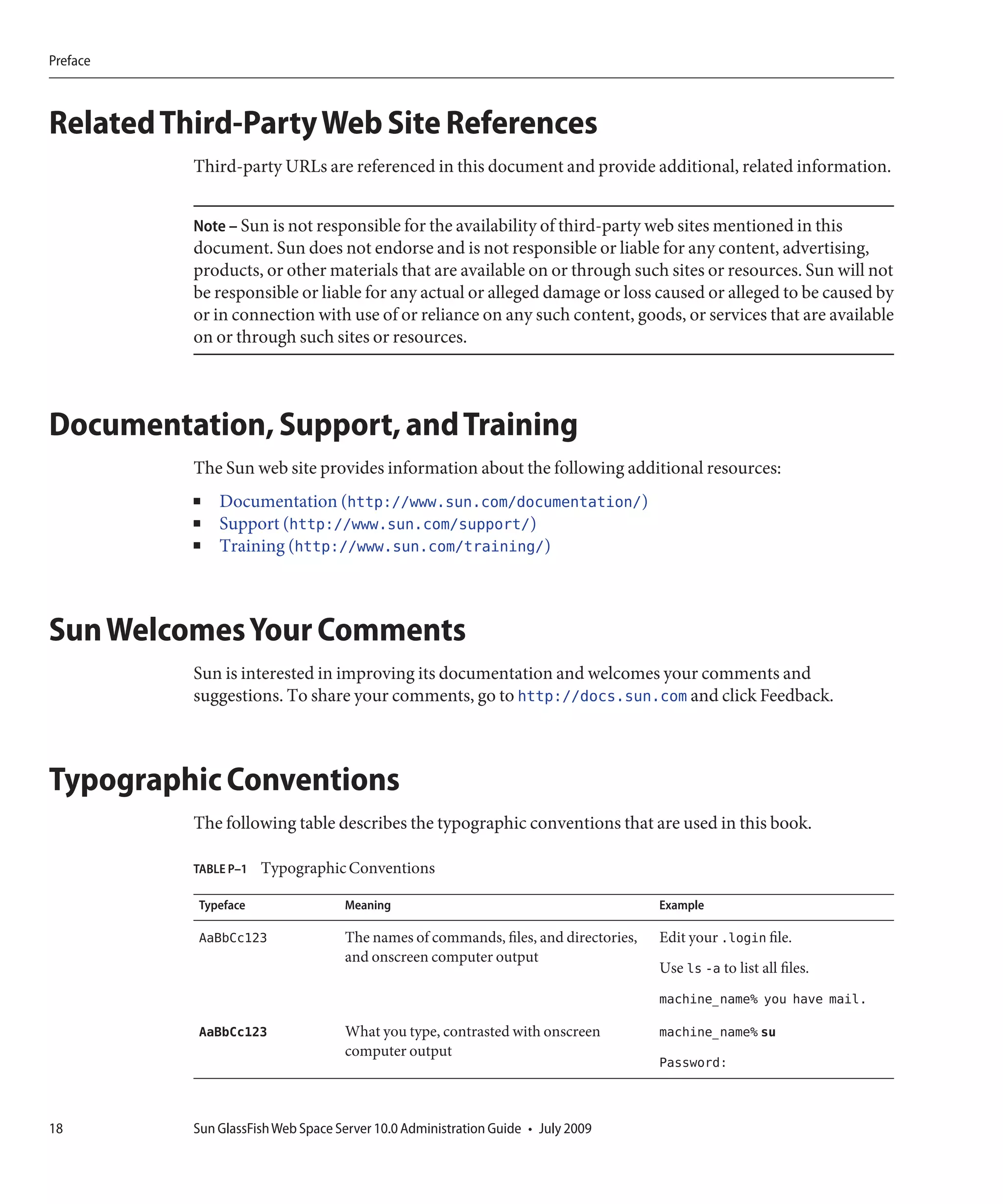
  • 43.
    Installing Updates fromthe Update Tool 11 Run the ant install-gfv2.xml script to regenerate and redeploy the Web Space Server WAR files. ant -f install-gfv2.xml 12 Restart the GlassFish server. cd <glassfish_dir>/bin ./asadmin start-domain ▼ To Download the Updates Using the CLI-Based pkg Tool 1 Start Update Tool by changing to the webspace-dir/bin directory and typing updatetool. ■ If the Update Tool main window appears, proceed to Step 2. ■ If a prompt appears asking whether to allow the installation of Update Tool to proceed: a. Type y to proceed. The installer downloads and installs Update Tool and then exits. This process takes approximately 10 - 15 minutes. b. Type the updatetool command again to start Update Tool. The Update Tool main window appears. 2 Change to the webspace_dir/pkg/bin directory. 3 Type the following command to download updates: pkg set-authority -P --enable -O http://pkg.sun.com/webspace/10/ repository-name Ask your SunSolve service representative for the correct repository name to use. 4 Type the following commands to install the Update components. pkg image-update 5 Restart the GlassFish server. cd <glassfish_dir>/bin ./asadmin stop-domain ./asadmin start-domain 6 Change to the webspace_dir/webspace/application directory. Chapter 2 • Web Space Server Installation Instructions 43
  • 44.
    Installing Samples 7 Run the ant install-gfv2.xml script to regenerate and redeploy the Web Space Server WAR files. ant -f install-gfv2.xml 8 Restart the GlassFish server. cd <glassfish_dir>/bin ./asadmin start-domain ▼ To Use updatetool in a Proxy That Requires Authentication This is a workaround to install Web Space Server from behind a proxy, when you are updating from a early version of Web Space Server. Sun GlassFish Web Space Server 10.0 Update 5 and later versions of Web Space Server are bundled with Update Center 2.2 which supports proxy authentication, and this workaround is not required. 1 Download Update Center 2.2 suitable for your platform from Update Center Wiki. 2 Unzip the Update Center 2.2 to a temporary directory (i.e. /tmp/uc2.2) 3 Copy the files pkg-bootstrap.jar and pkg-client.jar from /tmp/uc2.2/pkg-toolkit-sunos-i386/pkg/lib to <webspace_dir>/webspace-for-gfv2/pkg/lib. 4 Navigate to <webspace_dir>/webspace-for-gfv2/bin, and run updatetool. You are prompted to type the proxy info and proxy port. 5 Type the proxy info and proxy port information. The latest version of the updatetool and pkg files is downloaded. 6 Run updatetool again to download Web Space Server packages. Installing Samples This section provides the instructions to install samples, which is a bundle of sample communities, users, and some portlets which are not yet officially supported by Sun. Customers can use samples, depending upon their need and interest. 44 Sun GlassFish Web Space Server 10.0 Administration Guide • July 2009
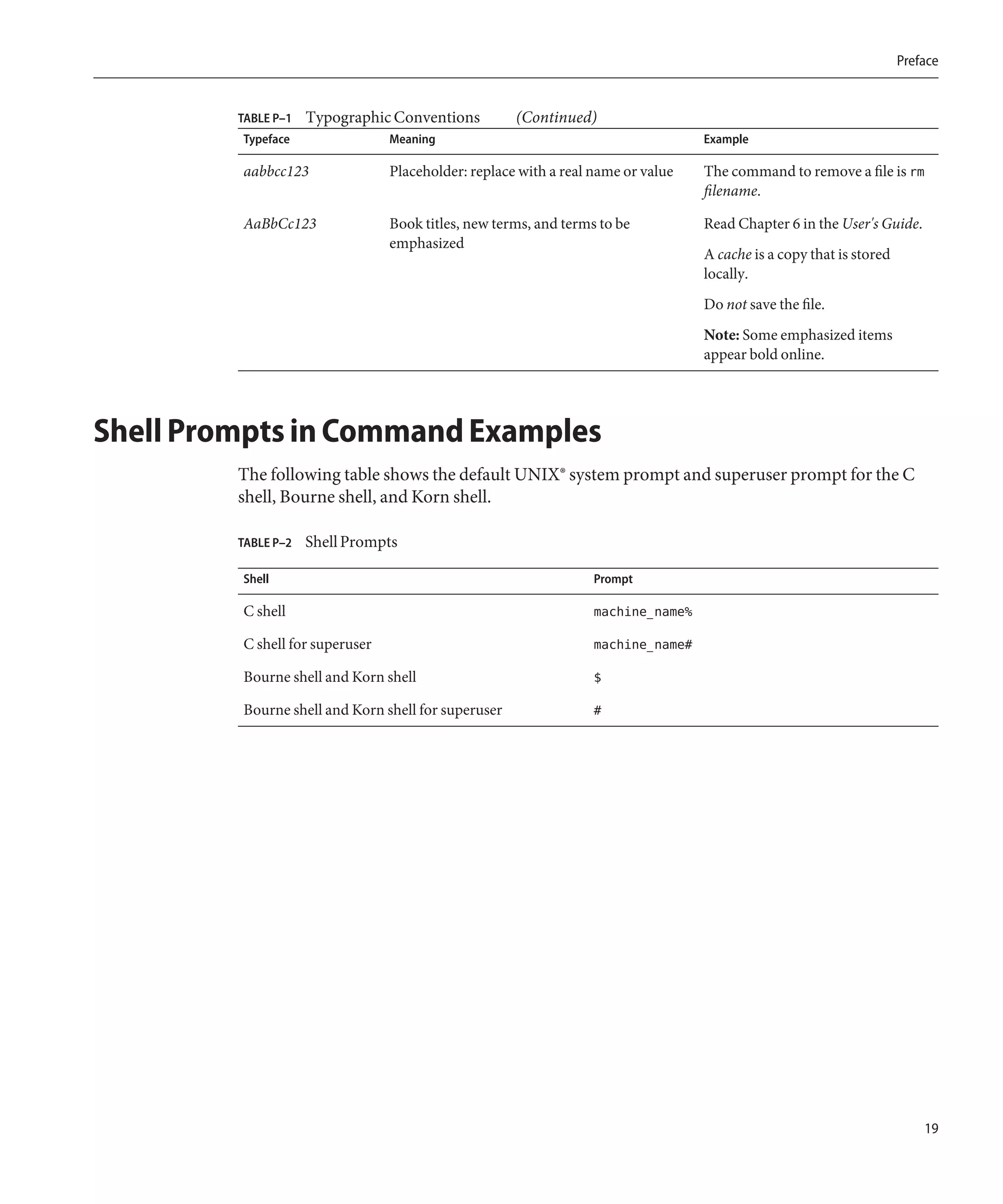
  • 45.
    Installing Samples ▼ To Install Samples 1 Download the zip file for add-ons and copy it to the Web Space Server installation directory. cp webspace-10-fcs-addon-samples.zip webspace-for-gfv2/ cd webspace-for-gfv2/ 2 Extract the zipped folder for samples. unzip webspace-10-fcs-addon-samples.zip 3 Change to the /webspace/samples directory. cd /webspace/samples 4 Install the samples. ■ To install a single sample (for example, socialspace.psar), type ant -f install-gfv2.xml Buildfile: install-gfv2.xml show-user-warning: [input] Ant must be 1.7 or greater. JAVA_HOME must be set to JDK 1.5 or greater. [RETURN to continue or CONTROL-C to stop] set-glassfish-properties: [input] Enter GlassFish Directory [/opt/webspace-gfv2-sunos/glassfish2] /<install-dir>/glassfish [input] Enter GlassFish Domain (include full path to domain) [/<install-dir>/glassfish/domains/domain1] set-psar-properties: [input] Enter psar file (include full path) [samples/sample.psar] /<install-dir>/webspace-for-gfv2/webspace/samples/samples/socialspace.psar ■ To install all samples, type ant -f install-all-gfv2.xml Buildfile: install-all-gfv2.xml show-user-warning: [input] Ant must be 1.7 or greater. JAVA_HOME must be set to JDK 1.5 or greater. [RETURN to continue or CONTROL-C to stop] set-glassfish-properties: [input] Enter GlassFish Directory [/opt/webspace-gfv2-sunos/glassfish2] Chapter 2 • Web Space Server Installation Instructions 45
  • 46.
    Configuring Web SpaceServer for Other Databases /<install-dir>/glassfish [input] Enter GlassFish Domain (include full path to domain) [/<install-dir>/glassfish/domains/domain1] install: [echo] Stopping GlassFish... [echo] Execute /477/glassfish/bin/asadmin stop-domain if install hangs. 5 Restart theGlassFish server. Configuring Web Space Server for Other Databases MySQL 5.x (or later versions) or Oracle 10g (or later versions) are officially supported for a production environment. MySQL is the default database for the production environment but you can install and configure Web Space Server for other databases as well. Configuring Web Space Server for Microsoft SQL You must have the following software installed: ■ .NetFramework 3.0 and above ■ Windows Installer 4.5 and above ■ Windows Power Shell ▼ To Install SQL Server Express 2008 With Management Tools 1 Download SQL Server 2008 Express with Tools/SQL Server 2008 Express Advanced Series. 2 Run the SQLEXPRADV_x86_ENU.exe file. 3 Click the System Configuration Checker in the SQL Server Installation Center to see if all the prerequisites are installed. 4 Choose Installation. ■ If you are doing a fresh installation, select the New SQL Server standalone installation. ■ If you are upgrading an existing installation, select the Add Features to an Existing Installation option. 5 Type the product key and click Next. The product key setting page appears. 46 Sun GlassFish Web Space Server 10.0 Administration Guide • July 2009

  • 47.
    Configuring Web SpaceServer for Other Databases 6 Accept the licence terms and click Next. The licence terms page appears. 7 Click Install in the Set Up Support Files screen. Click Next on completing the setup. 8 In the Features Selection screen that appears, select the Database Engine Services and ManagementTools-Basic features. 9 Type MSSQLSERVER in the Named instance and Instance ID boxes for Instance configuration. Click Next. See http://msdn.microsoft.com/en-us/library/ms165614.aspxfor more information about configuration. 10 Make the following changes in the Server Configuration page a. Use NT AUTHORITYSYSTEM as the account name for SQL Server Database engine. b. Change the SQL Server browser startup to Automatic. Other settings remain the same. 11 Do the following changes in the Database Engine Configuration screen: a. Select Mixed Node so that the built in admin user sa can be user for authorization in addition to Windows authorization. b. Provide a password for the account sa. c. Click Next and wait till the installation is complete. ▼ To Start Microsoft SQL Server 1 Run MSSQL Server Configuration Manager. 2 Navigate to SQL Server Network Configuration → Protocols for SQL SERVER. Enable TCP/IP and Named Pipes. SQL server uses port 1433 by default. 3 Right-click SQL Server Services and choose SQL Server from the pop-up menu. Click Start. 4 Verify that Microsoft SQL is running. You can verify this on the Solaris platform by running the netstat -an | grep 1433 command in a terminal window. Chapter 2 • Web Space Server Installation Instructions 47
  • 48.
    Configuring Web SpaceServer for Other Databases ▼ To Connect to Microsoft SQL Using the Management Studio tool 1 Run SQL Server Management Studio. 2 Navigate to File → Connect Object Explorer. 3 Apply the following settings: ■ Server Type: Database Engine ■ Server Name: Name of the computer ■ Authentication : SQL Server Authentication. In order to use SQL Server authentication, you need to select the Mixed Mode (Windows authentication + SQL Server authentication) option while installing Microsoft SQL. ■ Login : sa ■ Password : MSSQL administrator password assigned during installation 4 Click Connect. 5 Select New Query in the Management Studio tool. 6 Type create database lportal and click Execute. The message “Query executed successfully” is displayed on successful creation of the database named lportal. ▼ To Configure Web Space Server to Use Microsoft SQL 1 Add the following text to theportal-ext.properties file in theRoot-Dir/webspace-for-gfv2/var/webspace/war-workspace/customs/webspace/WEB-INF/classes directory. # SQL Server # jdbc.default.driverClassName=net.sourceforge.jtds.jdbc.Driver jdbc.default.url=jdbc:jtds:sqlserver://localhost:1433/lportal jdbc.default.username=sa jdbc.default.password=<admin password set for MsSQL> 2 Download the jTDS JDBC driver from http://jtds.sourceforge.net/. 3 Copy the JAR file to the GlassFish-install-dir/domains/domain1/lib directory. 4 Restart the GlassFish server. 48 Sun GlassFish Web Space Server 10.0 Administration Guide • July 2009
  • 49.
    Updating WAR orProperty Files Updating WAR or Property Files The process for updating a deployed WARor property file in Sun GlassFish Web Space Server is complex. The following procedure describes how to update the portal-ext.properties file. Similarly, you can update a deployed WAR file. ▼ To Update the portal-ext.properties File and a WAR File 1 Install the Web Space Server core zip file. 2 Create the directory structure webspace/WEB-INF/classes under install-dir/webspace-for-gfv2/var/webspace/war-workspace/customs. 3 Create a dummy portal-ext.properties file with the following entry in it: dummy.property=true 4 Change to the install-dir/webspace-for-gfv2/var/webspace/war-workspace directory. 5 Run ant -f synchronize.xml. 6 Restart the GlassFish server. The server will redeploy webspace.war and update portal-ext.properties in the directory GlassFish install-dir/domains/domain1/application/j2ee-modules/webspace/WEB-INF/classes. 7 Now add the OpenSSO add-on. Make sure to update the AMConfig.properties and portal-ext.properties files. 8 Restart the GlassFish server. 9 The portal-ext.properties file now contains the property dummy.property=true and OpenSSO related properties. You can use the same process for any other WAR file. Chapter 2 • Web Space Server Installation Instructions 49
  • 50.
    Installing Web SpaceServer on Sun GlassFish Enterprise Server 2.1 Installing Web Space Server on Sun GlassFish Enterprise Server 2.1 Upgrade versions of Web Space Server can only be installed on GlassFish Enterprise Server 2.1 because only the enterprise version can be upgraded to GlassFish 2.1 patch 01. GlassFish 2.1 can be patched to GlassFish 2.1 patch 01 only if GlassFish 2.1 is an Enterprise Edition server (EE version) and not the open source version which uses a JAR based installer. You can find the instructions to install Web Space Server on a cluster of Sun GlassFish Enterprise Server in the Web Space Server Deployment Guide. ▼ To Install Web Space Server on Sun GlassFish Enterprise Server 2.1 1 Install Sun GlassFish Enterprise Server 2.1 on your machine. 2 Install Web Space Server 10.0. a. Download webspace-for-gfv2.zip and unzip it. b. Stop the Sun GlassFish Enterprise Server 2.1. c. Add the following code to the server.policy file in the glassfish/domains/domain1 folder. grant codeBase "file:${com.sun.aas.instanceRoot}/lib/-" { permission java.security.AllPermission; }; // permissions for Webspace grant codeBase "file:${com.sun.aas.instanceRoot}/applications/j2ee-modules/webspace/-" { permission java.security.AllPermission; }; grant codeBase "file:${com.sun.aas.instanceRoot}/applications/j2ee-modules/saw-web/-" { permission java.security.AllPermission; }; // Basic set of required permissions granted to all remaining code grant { ............... ............... permission java.lang.reflect.ReflectPermission "suppressAccessChecks"; }; grant codeBase "file:${com.sun.aas.instanceRoot}/applications/j2ee-modules/ruon-web/-" { 50 Sun GlassFish Web Space Server 10.0 Administration Guide • July 2009
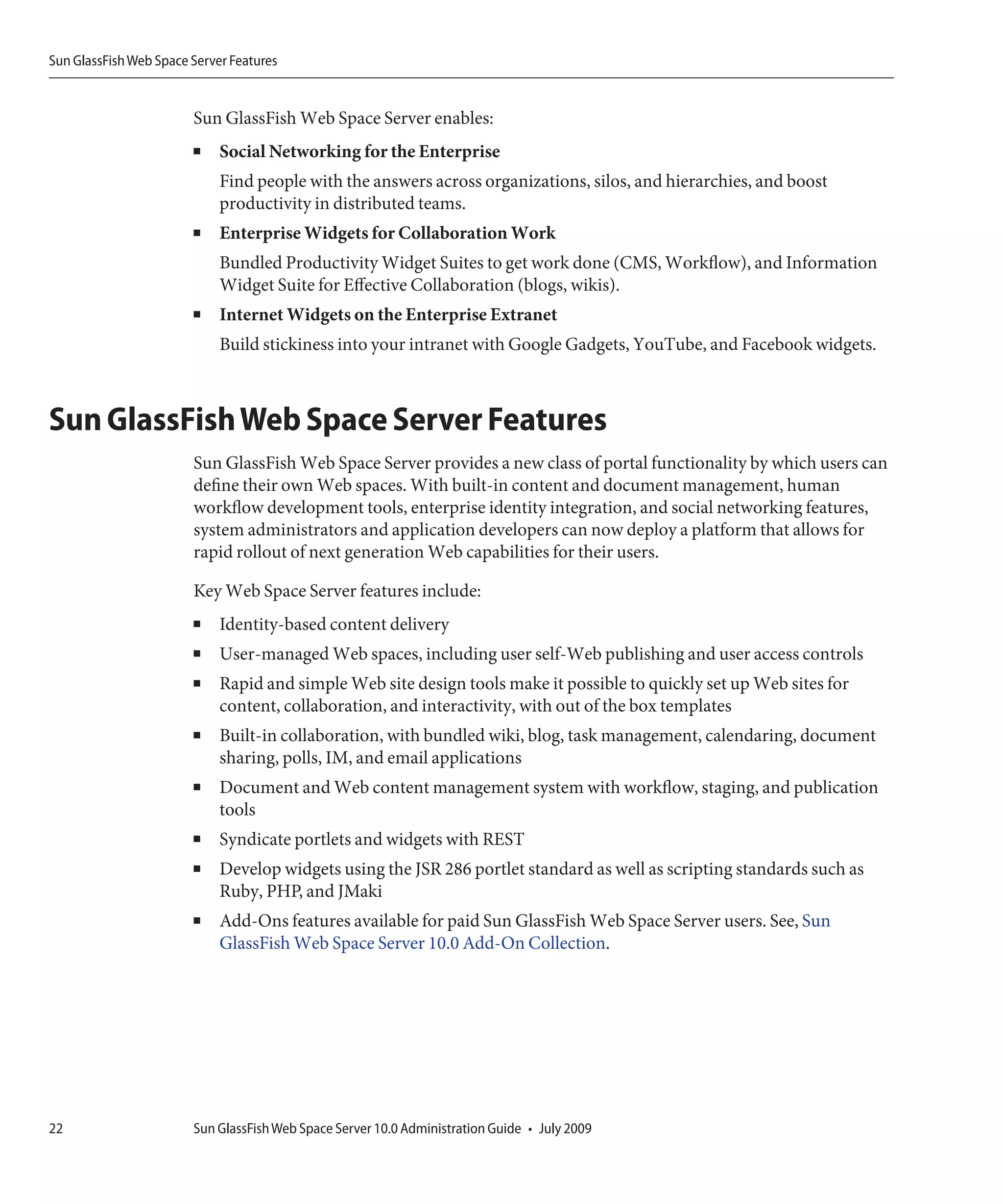
  • 51.
    Installing Web SpaceServer on Sun GlassFish Enterprise Server 2.1 permission java.security.AllPermission; }; grant codeBase "file:${com.sun.aas.instanceRoot}/applications/j2ee-modules/wsrp-portlet/-" { permission java.security.AllPermission; }; Note – You need to grant permissions for any web-app that tries to create database tables. For example, you will have to add the permission blocks for CommunityMapper and opensso-web also, in the same way as you added permission blocks for webspace and saw-web. 3 Update the portal-ext.properties file with auto.deploy.glassfish-tomcat.jee.dm.id=deployer:Sun:AppServer::localhost:4848:https The portal-ext.properties file is located in ws_install_dir/var/webspace/war-workspace/customs/webspace/war-workspace/customs/webspace 4 Change to the ws_install_dir/webspace/application directory and run ant -f install.xml. Chapter 2 • Web Space Server Installation Instructions 51
  • 52.
  • 53.
    3 C H A P T E R 3 Customizing Sun GlassFish Web Space Server This chapter describes some simple customization tasks, most of which can be done from the user interface of Web Space Server. For more serious changes to the product configuration, you need to make changes to the portal-ext.properties file. A simple example for making changes to the portal-ext.properties file, see “Localization Support” on page 60. For details of properties in the portal-ext.properties file, see “Customizing Web Space Server Using the portal-ext.properties File” on page 175. The following sections describes how to customize Web Space Server ■ Branding and Site Identity ■ Friendly URLs ■ Site Layout and Navigation ■ Using Bundled Web Space Server Portlets ■ “Look and Feel and Configuration of Portlets” on page 57 ■ “Localization Support” on page 60 Branding and Site Identity You can use Web Space Server on your web site to customize the branding to establish your site identity. ▼ To Change the Banner Logo 1 Log in to Sun GlassFish Web Space Server as the admin user. 2 Choose Control Panel → Portal → Settings from the Welcome menu. 3 Click the Change link. You are prompted to browse and select a new banner logo. 53
  • 54.
    Friendly URLs 4 Select the file to use for the logo. ▼ To Change the Address Bar and Browser Tab Icons 1 Navigate to the directory that contains the Web Space Server installation. 2 Change to the var/webspace/war-workspacedirectory. cd ZIP_ROOT/webspace-for-gfv2/var/webspace/war-workspace. 3 Change to the customs/webspace/html/themes/classic/images directory, and place liferay.ico image in the folder. Note – The default icon for the address bar and browser tabs is named liferay.ico. You can override the icon with an image with the same name. 4 After any customization you need to run ant -f synchronize.xml at the root of the customs folder. a. Change to the ZIP_ROOT/webspace-for-gfv2/var/webspace/war-workspace directory. cd ZIP_ROOT/webspace-for-gfv2/var/webspace/war-workspace b. Run ant -f synchronize.xml This will prompt for the war to synchronize, choose the default (which is webspace). 5 Restart the GlassFish server. 6 Clear the browser cache and reload the page. Friendly URLs Friendly URL is the part of the URL for a page on Web Space Server that can be customized as desired. ▼ To Change the Friendly URL of a Page 1 Log in to Sun GlassFish Web Space Server as the admin user. 2 Choose Manage Pages from the Welcome menu. 54 Sun GlassFish Web Space Server 10.0 Administration Guide • July 2009
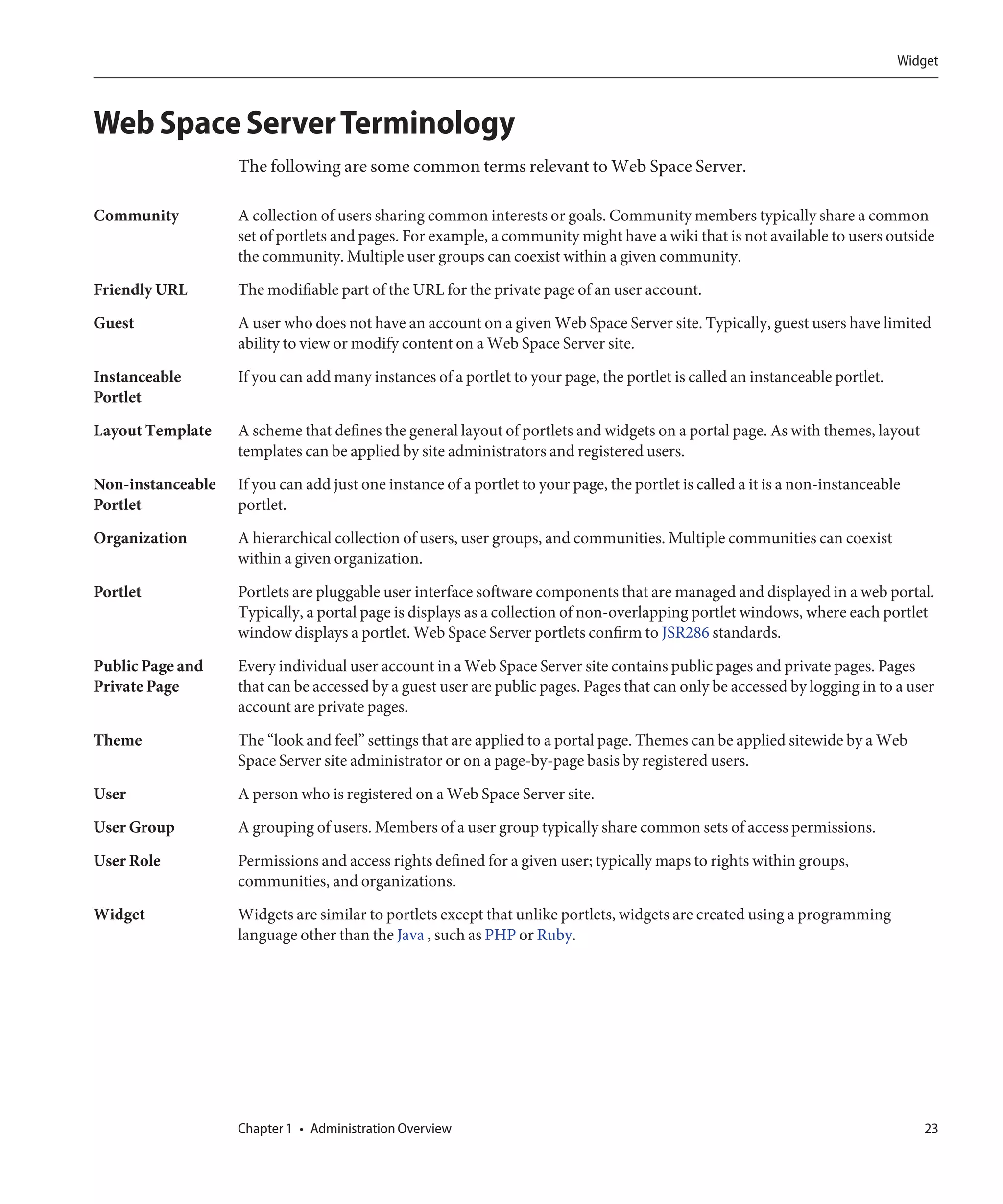
  • 55.
    Site Layout andNavigation FIGURE 3–1 Manage Pages Page The Friendly URL for the Welcome page in the Guest community is http://machine-name:8080/web/guest/home. You can directly access the PeopleSpace page by typing this URL. http://machine-name:8080/web/guest/home. 3 Change the value of the Friendly URL to the value you like. For example, you can change it from home to my_home. 4 Click Save. A message saying that the page is not found appears. For the changed URL to take effect, log out of Web Space Server and then log in again. The changed URL for the PeopleSpace page is http://machine-name:8080/web/guest/my_home. Site Layout and Navigation Layout Templates enables you to choose how your portlets are arranged on a page. They make up the body of your page, the large area where you drag and drop your portlets to create your pages. Web Space Server comes with several built-in layout templates. However, if you have a Chapter 3 • Customizing Sun GlassFish Web Space Server 55
  • 56.
    Site Layout andNavigation complex page layout (especially for your home page), you might want to create a custom layout template of your own. See the development document in Liferay Documentation for the procedure to create a custom Layout Template. ▼ To Change the Site Layout 1 Log in to Sun GlassFish Web Space Server as the admin user. 2 Choose Layout Template from the Welcome menu. The Layout page appears. 3 Select the layout you want to use and click Save. Changing the Page Theme Themes are hot deployable plugins that can completely transform the look and feel of the portal. Most organizations have their own look and feel standards for all the web sites and web applications in their infrastructure. Web Space Server enables site designers to create and install a theme plugin that can transform the portal to whatever look and feel is needed. See the development document in Liferay Documentation for the procedure to create a custom theme. ▼ To Change the Page Theme 1 Log in to Sun GlassFish Web Space Server. Any user can change themes, but only the admin user has access to all available themes, and has the privilege to install more themes. 2 Choose Manage Pages from the Welcome menu. 3 Click the Look and Feel tab. The current theme for the page and its associated color schemes, and all the available themes, are displayed. 4 To change the theme, choose a theme from Available Themes. The theme is applied to your page. 5 Click Save. 56 Sun GlassFish Web Space Server 10.0 Administration Guide • July 2009
  • 57.
    Look and Feeland Configuration of Portlets Using Bundled Web Space Server Portlets A wide array of portlets is bundled with Web Space Server as part of its core and samples. ▼ To Add Bundled Web Space Server Portlets 1 Log in to Sun GlassFish Web Space Server. 2 Choose Add Applications from the Welcome menu. 3 Locate the desired portlet. You can search for a portlet by providing a search string for it or by expanding the portlet folder and clicking Add next to a selected portlet. For example, to add some social networking portlets to your page, expand the Social folder. You can add Activities and Requests portlets to your page by clicking the Add button corresponding to the portlet. 4 Add the required portlet to your page by clicking the Add button next to the portlet. Look and Feel and Configuration of Portlets You can customize the display name and look and feel of a portlet. Changing the Name of a Portlet You can change the display name of a portlet. ▼ To Change the Name of a Portlet Located on a Private Page 1 Log in to Sun GlassFish Web Space Server. 2 Click the menu bar of a portlet. For example, click the menu bar of the Languages portlet. Chapter 3 • Customizing Sun GlassFish Web Space Server 57
  • 58.
    Look and Feeland Configuration of Portlets FIGURE 3–2 Changing the Display Name of a Portlet 3 Edit the name of the portlet, and click outside the name box for the change to take effect. In this example, change the name of the portlet to Locales. FIGURE 3–3 Changed Display Name ▼ To Change the Name of a Portlet Located on a Public Page 1 Log in to Sun GlassFish Web Space Server as any user. 2 Navigate to a public page of the user by choosing My Places on the Welcome menu. 3 Edit the portlet name. a. Click the menu bar of a portlet b. Edit its name. c. Leave the menu bar Customizing the Look and Feel and Configuration of a Portlet You can customize the look and feel and configuration of a portlet. The menu bar of a portlet displays its name and the menu controls associated with it. All portlets have Look and Feel and Configuration menu controls, and some portlets have an additional menu control. 58 Sun GlassFish Web Space Server 10.0 Administration Guide • July 2009
  • 59.
    Look and Feeland Configuration of Portlets Note – In order to access the menu controls of a portlet, Toggle Edit Controls must be set on. You can set Toggle Edit Controls from the Welcome menu. FIGURE 3–4 Look and Feel and Configuration Menu Controls of a Portlet Look and Feel Menu Control of a Portlet Clicking the Look and Feel menu control button displays a window that provides options to customize the look and feel of the portlet. FIGURE 3–5 Customizing the Look and Feel This section describes the options in the Look and Feel window tabs. Portlet Configuration Tab The Use Custom Title option enables you to change the title of the Portlet. The Show Borders option enables or disables the display of borders. Chapter 3 • Customizing Sun GlassFish Web Space Server 59
  • 60.
    Localization Support Text Styles Tab Using this tab, you can change the default settings for text such as font, size, color, alignment, bold, and italic. Background Styles Tab Using this tab, you can change the default background color for the portlet. Border Styles Tab Using this tab, you can change the border styles for the portlet. You can change the default settings for the border width, border style, and border color. You can set different width, style, and colors for different borders by disabling the Same for All option. Margin and Padding Tab Using this tab, you can change the default margin and padding settings. Be careful when changing the default margin and padding settings. Advanced Styling Tab Using this tab, you can define CSS rules for the portlet and all similar portlets. WAP Styling tab Using this tab, you can define the styling for mobile handsets. Configuration Menu Control of a Portlet Clicking the Customization button displays a window through which you can configure permissions for the portlet, can export or import the portlet data, and can enable sharing on the portlet or widget. For a detailed example of using the Configuration button to enable sharing of portlets, see “Enabling Sharing of a Portlet” on page 85 Localization Support Web Space Server is localized out-of-box in 22 languages. Sun provides localization support for Japanese (ja) and Simplified Chinese (zh_CN) but support for others is community driven. 60 Sun GlassFish Web Space Server 10.0 Administration Guide • July 2009
  • 61.
    Localization Support The following sections describe how to perform localization: ■ “Setting the User-Preferred Language in Web Space Server” on page 61 ■ “Adding a New Language Support” on page 61 ■ “Removing Localization Support for Unwanted Languages” on page 64 ■ “Enabling the Guest Users to Select a Browser Language” on page 65 ■ “Precedence Hierarchy for Language.properties Files” on page 66 ■ “Changing the Existing Language Entries” on page 67 ■ “To Customize the Name of a Portlet While Localizing the User Interface” on page 68 Setting the User-Preferred Language in Web Space Server Users can use Web Space Server in any of the supported languages. ▼ To Set a User-Preferred Language 1 Log in to Web Space Server. 2 Choose My Account from the Welcome menu. The Control Panel is displayed. 3 Choose Display Settings under Miscellaneous in the menu on the right. 4 Select a language from the Language drop-down list. 5 Click Save. The user interface changes to the language selected. Note – You can use the same page to change the time zone and the greeting message. Adding a New Language Support You can add localization support for a language that is not supported by Web Space Server by default. This section describes how you can add localization support for a new language. ▼ To Add New Language Support This task describes how to create a portal-ext.properties file, and make changes to it to support localization. Chapter 3 • Customizing Sun GlassFish Web Space Server 61
  • 62.
    Localization Support 1 Create a temporary folder. In this example, name the folder as test. mkdir /tmp/test 2 Copy portal-impl.jar to the tmp folder. The portal-impl.jar file contains resource bundles for Web Space Server. This JAR file is located in the GlassFish install-dir/domains/domain1/application/j2ee-modules/webspace/WEB-INF/lib/ directory. cd GlassFish-install-dir/domains/domain1/application/j2ee-modules cp webspace/WEB-INF/lib/portal-impl.jar /tmp/test 3 Change to the tmp directory. cd /tmp/test 4 Extract the portal-impl.jar file. jar -xvf portal-impl.jar The portal.properties file will be placed in the current directory. 5 Open portal.properties and copy the locales property from the Languages and Time Zones section. 6 If a portal-ext.properties file does not already exist, create a text file with that name. The default location of portal-ext.properties is GlassFish home/applications/j2ee-modules/webspace/WEB-INF/classes/portal-ext.properties. 7 Paste the locales property into the portal-ext.properties file. 8 Add the new locale at the end of the locales property in the format LanguageCode_CountryCode. See the following links to find language and country codes: ■ http://ftp.ics.uci.edu/pub/ietf/http/related/iso639.txt for language codes. ■ http://userpage.chemie.fu-berlin.de/diverse/doc/ISO_3166.html for country codes. For example, if you are adding support for Hindi, you need to add hi_IN at the end of locales property as follows: locales=ar_SA,ca_AD,ca_ES,zh_CN,zh_TW,cs_CZ,nl_NL,en_US,fi_FI,fr_FR,de_DE,el_GR,hu_HU, it_IT,ja_JP,ko_KR,nb_NO,fa_IR,pt_BR,ru_RU,es_ES,sv_SE,tr_TR,vi_VN,hi_IN 9 Save the portal-ext.properties file. 62 Sun GlassFish Web Space Server 10.0 Administration Guide • July 2009
  • 63.
    Localization Support 10 Navigate to the content folder and open the Language.properties file. Note – A folder named content was created when you extracted the portal-impl.jar file. 11 Translate all the strings you want to localize from temp/test/content/Language.properties to the new language. 12 Rename the translated Language.properties file to Language-ext_LanguageCode.properties.native. 13 Run the following command on the directories that contains the Language-ext_LanguageCode.properties.native file: native2ascii -encoding UTF-8 Language-ext_LanguageCode.properties.native Language-ext_LanguageCode.properties 14 Create a directory structure webspace/WEB-INF/classes/ under ZIP_ROOT/webspace-for-gfv2/var/webspace/war-workspace/customs, and copy portal-ext.properties file to it. 15 Create a directory structure webspace/WEB-INF/classes/content under ZIP_ROOT/webspace-for-gfv2/var/webspace/war-workspace/customs, and copy Language-ext_LanguageCode.properties.native file to it. 16 Change to the ZIP_ROOT/webspace-for-gfv2/var/webspace/war-workspace directory. cd ZIP_ROOT/webspace-for-gfv2/var/webspace/war-workspace 17 Run ant -f synchronize.xml. 18 Restart theGlassFish server. ▼ To Verify the Localization of the Interface 1 Log in to Web Space Server as the admin user. 2 Choose My Account from the Welcome menu. The Control Panel is displayed. 3 Choose Display Settings under Miscellaneous. The new language setting is reflected in the Language drop-down menu. 4 Select the language for the user and click Save. The user interface is changed to the new language. Chapter 3 • Customizing Sun GlassFish Web Space Server 63
  • 64.
    Localization Support Removing Localization Support for Unwanted Languages Generally, users don't require localization support for all languages that are supported by Web Space Server. This section describes how you can remove localization support for the languages that are not required. ▼ To Remove Localization Support for Unwanted Languages 1 Create a temporary folder. In this example, name the folder as test. mkdir /tmp/test 2 Copy portal-impl.jar to the tmp folder. portal-impl.jar contains language resource bundles for Web Space Server. This JAR file is located in the GlassFish install-dir/domains/domain1/application/j2ee-modules/webspace/WEB-INF/lib/ directory. cd GlassFish-install-dir/domains/domain1/application/j2ee-modules cp webspace/WEB-INF/lib/portal-impl.jar /tmp/test 3 Change to the tmp directory. cd /tmp/test 4 Extract the portal-impl.jar file. jar -xvf portal-impl.jar 5 Open portal.properties and copy the locales property from the Languages and Time Zones section. 6 If portal-ext.properties does exist in Web Space Server then paste the locales property into it. Otherwise, create a text file (using any text editor) and name it as portal-ext.properties, and paste the locales property into it. Default location of portal-ext.properties is GlassFish home/applications/j2ee-modules/webspace/WEB-INF/classes/portal-ext.properties. 7 Edit the locales property to include only the languages that are needed. For example, if you want to support only English, German and Spanish, remove all the unwanted locales so that the locales value looks as follows: locales=en_US,de_DE,es_ES 8 Save the portal-ext.properties file. 64 Sun GlassFish Web Space Server 10.0 Administration Guide • July 2009
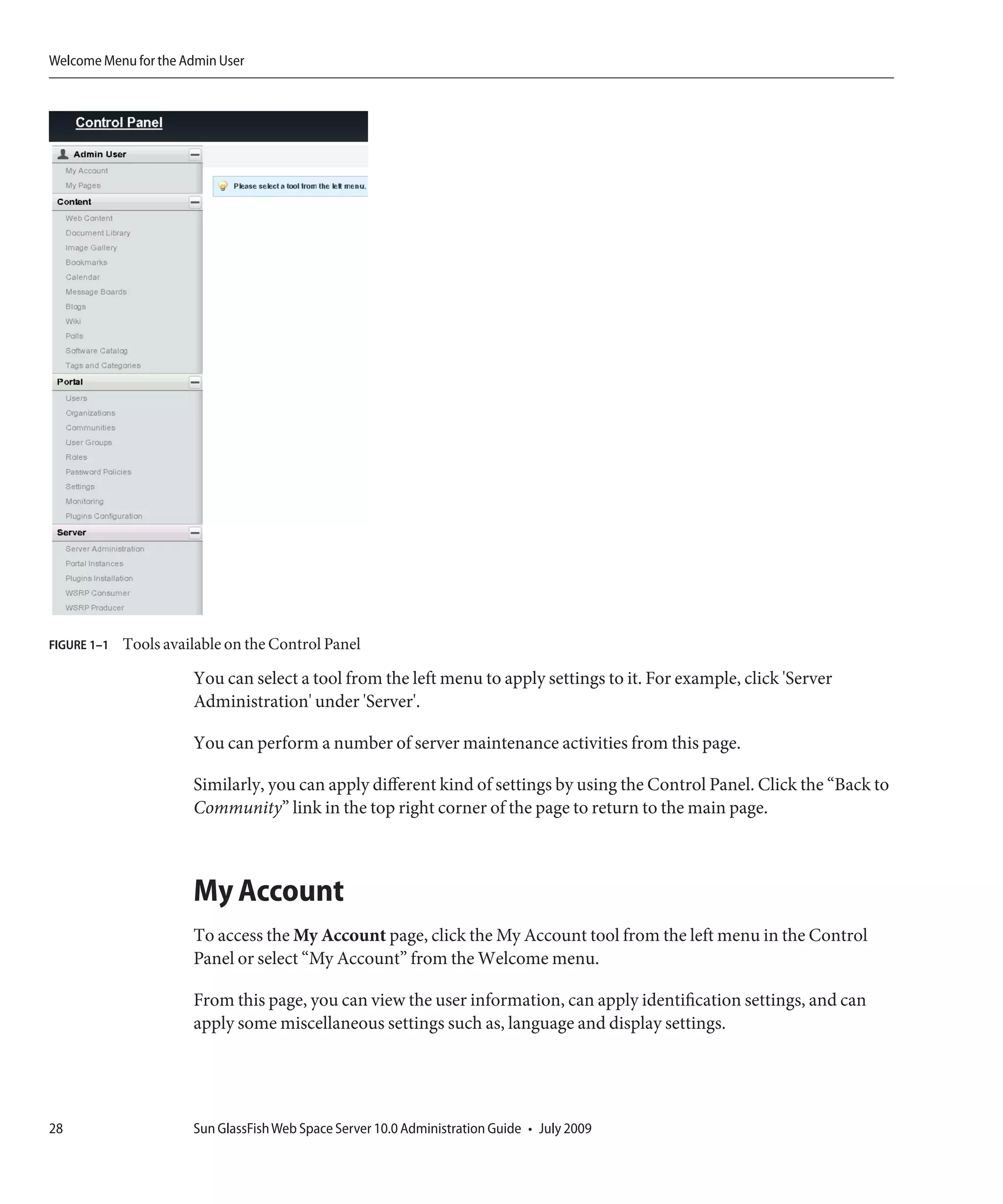
  • 65.
    Localization Support 9 Create a directory structure webspace/WEB-INF/classes/ under ZIP_ROOT/webspace-for-gfv2/var/webspace/war-workspace/customs, and copy the portal-ext.properties file to it. 10 Change to the ZIP_ROOT/webspace-for-gfv2/var/webspace/war-workspace directory. cd ZIP_ROOT/webspace-for-gfv2/var/webspace/war-workspace 11 Run ant -f synchronize.xml. 12 Restart the GlassFish server. The server will redeploy websynergy.war and update portal-ext.properties under applications/j2ee-modules/webspace/WEB-INF/classes. Enabling the Guest Users to Select a Browser Language Guest users can select their preferred browser language. ▼ To Enable Guest Users to Select a Browser Language 1 Create a temporary folder, named test. mkdir /tmp/test 2 Copy portal-impl.jar to the tmp folder. portal-impl.jar contains language resource bundles for Web Space Server. This JAR file is located in the GlassFish install-dir/domains/domain1/application/j2ee-modules/webspace/WEB-INF/lib/ directory. cd GlassFish-install-dir/domains/domain1/application/j2ee-modules cp webspace/WEB-INF/lib/portal-impl.jar /tmp/test 3 Change to the tmpdirectory. cd /tmp/test 4 Extract the portal-impl.jar file. jar -xvf portal-impl.jar The portal.properties file will be placed in the current directory. 5 Open portal.properties and copy the locale.default.request property from the Languages and Time Zones section. Chapter 3 • Customizing Sun GlassFish Web Space Server 65
  • 66.
    Localization Support 6 If portal-ext.properties does exist in Web Space Server then paste the locale.default.request property into it. Otherwise, create a text file (using any text editor) and name it as portal-ext.properties, and paste the locale.default.request property into it. Default location of portal-ext.properties is GlassFish home/applications/j2ee-modules/webspace/WEB-INF/classes/portal-ext.properties. 7 Set the property to locale.default.request=true. 8 Save the portal-ext.properties file. 9 Create a directory structure webspace/WEB-INF/classes/ under ZIP_ROOT/webspace-for-gfv2/var/webspace/war-workspace/customs, and copy the portal-ext.properties file to it. 10 Change to the ZIP_ROOT/webspace-for-gfv2/var/webspace/war-workspacedirectory. cd ZIP_ROOT/webspace-for-gfv2/var/webspace/war-workspace 11 Run ant -f synchronize.xml. 12 Restart the GlassFish server. It will redeploy websynergy.war and update portal-ext.properties under applications/j2ee-modules/webspace/WEB-INF/classes. Clear browser cookies before accessing Web Space Server interface to allow the changes to take effect. Precedence Hierarchy for Language.properties Files Language and display information is defined in the Language.properties, as well as various other Language_LanguageCode.properties files for foreign languages. When you extract the portal-impl.jar file, these files are placed in the content folder. Language.properties is the primary and default language definition file, but definitions in that file may be overridden by language-specific definitions. For example, the file Language_en.properties contains the English versions of most of the definitions, the file Language_fr.properties contains the French version, and so on. Language files can further have locale-specific definitions. The Language_en_US.properties file contains English phrase variations further defined for the United States. Other languages can also have locale-specific definitions. 66 Sun GlassFish Web Space Server 10.0 Administration Guide • July 2009
  • 67.
    Localization Support Rules ofPrecedence The hierarchy of precedence for different Language.properties files is: 1. Language-ext.properties takes precedence over Language.properties. 2. Language-specific versions take precedence over the non language-specific versions. For example, Language_en.properties takes precedence over Language.properties. 3. Location-specific versions take precedence over the non location-specific versions. For example, Language_en_US.properties takes precedence over Language_en.properties. For the Language.properties file for English, Language-ext_en_US.properties has the highest precedence and the Language.properties file has the least precedence. The hierarchy is: 1. Language-ext_en_US.properties 2. Language_en_US.properties 3. Language-ext_en.properties 4. Language_en.properties 5. Language-ext.properties 6. Language.properties Changing the Existing Language Entries You can easily change existing English and foreign languages entries in Web Space Server. Consider the example of changing the name of a portlet from Message Boards to Forums. To do this when English is the default language, you would create the Language-ext_en.properties to override the Language_en.properties file. In Language-ext_en.properties, duplicate the content in the Language_en.properties file, and replace the entry javax.portlet.title.19=Message Boards with javax.portlet.title.19=Forums. The portlet Message Boards is renamed to Forums. You can also add new language entries for customization or for new portlets. For example, you can create an entry similar to javax.portlet.title.EXT_1=Reports to add the name of a new portlet named Reports. Customizing Portlet Names While Localizing You can customize the name of a ported for any language by using the Look and Feel button on the portlet. Consider the example of localizing Web Space Server to French. In this case, the name of the Admin portlet translates as Administration du portail. You might prefer to have a customized name for the Admin portlet when Web Space Server is localized to French. Chapter 3 • Customizing Sun GlassFish Web Space Server 67
  • 68.
    Localization Support ▼ To Customize the Name of a Portlet While Localizing the User Interface 1 Log in to the Web Space Server as the admin user. 2 Click the Look and Feel button on a portlet. In this example, click the Look and Feel button on the Admin portlet. 3 Select the Use Custom Title option. 4 Select a language from the language list. In this example, select French. 5 Type a title for the portlet in the selected language in the Portlet Title box. In this example, type the name Administration. 6 Click Save. Note – For the changes to take effect, you may have to save twice: once with the Use Custom Title option deselected and again with selected. Some times the portlet name in the default language too may have changed. You need to verify this. 7 Choose My Account from the Welcome menu. 8 Choose Display Settings under Miscellaneous. 9 Select a language from the Language list that is the same as the language selected previously. For example, select French. 10 Click Save and navigate back to the community page. You can see the changed name of the portlet in the localized version. In this example, the name of the Admin portlet localized to French is changed from Administration du portail to Administration. 68 Sun GlassFish Web Space Server 10.0 Administration Guide • July 2009
  • 69.
    4 C H AP T E R 4 Use Cases for Sun GlassFish Web Space Server The following are some of the use cases for working with portlets that are generally available as part of the core and the samples for Sun GlassFish Web Space Server. ■ “Use Case for Enterprise Social Networking” on page 70 - Introduces some of the portlets which are helpful for Enterprise Social Networking. ■ “Using the Expense Report Portlet” on page 70 - Introduces the Expense Report portlet that enables expenses reclaim using Sun GlassFish Web Space Server. ■ “Working With Communities and Organizations” on page 78 - Introduces some of the important tasks that an administrator can perform on Communities and Organizations: ■ “Adding Public and Private Pages to Communities and Organizations” on page 78 ■ “Enabling Crawling of Page URLs by Search Engines” on page 79 ■ “Virtual Hosting of Portal Pages” on page 80 - Explains the procedure for virtual hosting of portal pages. ■ “Using the Mail Portlet” on page 82 - Explains how you can configure your mail client on Web Space Server using the Mail portlet. ■ “Exporting and Importing of Portal Data” on page 83 - Explains how to export and import data that is on a portlet, a Community, or an Organization. ■ “Enabling Sharing of a Portlet” on page 85 - Explains how you can share portlets with an external web sites and Facebook. ■ “Using Document Library Plugins on OpenOffice” on page 89 - Explains how you can use Document Library plugins on OpenOffice to interface with Content Management feature of Web Space Server. ■ “Using the Widget Consumer Portlet” on page 90 - Explains how you can use the Widget Consumer Portlet to display the information from external widgets. ■ “Workflow Portlet” on page 92 - Explains how an admin user can define a workflow that can be used by other users. ■ “Tagging in Web Space Server” on page 99 - Explains how you can use the tagging system. 69
  • 70.
    Use Case forEnterprise Social Networking Use Case for Enterprise Social Networking Sun GlassFish Web Space Server supports Enterprise Social Networking. This section introduces some of the portlets that are helpful for Enterprise Social Networking. These portlets are bundled as part of samples. You can view the list of your friends and their profiles on the Friends widget. ▼ To Add a Friend This procedure uses the Search and Invite Friends widget and the Requests widget to add a friend to the Friends widget. 1 Log in to Web Space Server. Select Social Networking Sample Users from the Sample Users portlet and click the Admin User link. 2 Add the Search and Invite Friends and Requests widgets to a private page. 3 Click the Search Users button in the Search and Invite Friends widget. 4 Select a user and click the Add as Friend link corresponding to the user. In this example, click the Add as Friend link corresponding to the user Chris Editor. 5 Log out and log in again as the user you selected as friend. In this example, select Social Networking Sample Users from Sample Users portlet and click the Chris Editor link. 6 Click the Confirm link in the Requests portlet. The admin user and Chris Editor are now friends and can chat with each other. The Online Friends and Settings options in the menu bar on the right-bottom of the page are helpful in chatting and in displaying the online status of friends. Using the Expense Report Portlet The Expense Report widget models the expense reports process that is typical in any large organization. An Expense Report is a report comprising details of the expenses (such as business travel, relocation, broadband bills claim) incurred by an employee that can be reclaimed from the organization. 70 Sun GlassFish Web Space Server 10.0 Administration Guide • July 2009
  • 71.
    Using the ExpenseReport Portlet An Expense Report created by employees can be approved by their superior. Users available to the system are mapped to either the Employee role or the Manager role. Consider the following example: Paul Tester (Employee) submits an Expense Report for a business trip. Mary Manager (Manager) verifies and approves the Expense Report. The following is the process involved: 1. Paul Tester submits an Expense Report. Paul performs the following steps to submit his report: a. Paul selects the expense category, and types an expense amount and description and saves the report. The system assigns a unique expense ID to the report. b. Paul reviews the report summary. c. Paul submits the saved report for approval by his manager. 2. Mary Manager verifies the details of the Expense Report. She can either approve or reject the report. The following procedures explain how to submit and approve an expense report: ■ “To Submit an Expense Report” on page 71 ■ “To Approve an Expense Report” on page 75 ▼ To Submit an Expense Report To access the Expense Report portlet, you need to select the Edit Preferences button from the menu controls and enable the JavaCAPS Workflow engine. The Workflow engine service needs to be available in order to use the Expense Report portlet. 1 Log in to Web Space Server as Paul Tester. 2 Click the Add a New Expense Report link. 3 Type a description for the Expense Report. Type the values for Item Description, Amount, and Date fields. Click Add Item to add a new row. Chapter 4 • Use Cases for Sun GlassFish Web Space Server 71
  • 72.
    Using the ExpenseReport Portlet FIGURE 4–1 To Submit an Expense Report 4 Click Save Report. 5 Click the Go back to Report Summary link to view the report summary. The summary page displays the Report No., Description, Submission Date, Amount, and the Status. 72 Sun GlassFish Web Space Server 10.0 Administration Guide • July 2009
  • 73.
    Using the ExpenseReport Portlet FIGURE 4–2 To Submit an Expense Report 6 Click the number under Report No. The report is enabled for submission. Chapter 4 • Use Cases for Sun GlassFish Web Space Server 73
  • 74.
    Using the ExpenseReport Portlet FIGURE 4–3 To Submit an Expense Report 7 Click Submit Report. The report is submitted for approval. The Status of the report changes to Pending. 74 Sun GlassFish Web Space Server 10.0 Administration Guide • July 2009
  • 75.
    Using the ExpenseReport Portlet FIGURE 4–4 To Submit an Expense Report ▼ To Approve an Expense Report 1 Log in to Web Space Server as Mary Manager. The report submitted by Paul is displayed under the List/History of Expense Reports Raised by Reportees section in the Expense Report portlet. Chapter 4 • Use Cases for Sun GlassFish Web Space Server 75
  • 76.
    Using the ExpenseReport Portlet FIGURE 4–5 To Approve an Expense Report 2 Click the report ID. Details of the submitter are displayed. Also, the Approve Report and Reject Report buttons become active. 76 Sun GlassFish Web Space Server 10.0 Administration Guide • July 2009
  • 77.
    Using the ExpenseReport Portlet FIGURE 4–6 To Approve an Expense Report 3 Click the Approve Report button to approve the report. Chapter 4 • Use Cases for Sun GlassFish Web Space Server 77
  • 78.
    Working With Communitiesand Organizations Working With Communities and Organizations The following topics describe some of the tasks that you can perform on Communities and Organizations in Web Space Server. ■ “Adding Public and Private Pages to Communities and Organizations” on page 78 ■ “Enabling Crawling of Page URLs by Search Engines” on page 79 Adding Public and Private Pages to Communities and Organizations The following procedure explains how you can add a public page and a private page to an Organization. You can add public page and private pages to a Community by following the similar procedure. For the procedure to create an Organization, see “To Create an Organization” on page 106. ▼ To Add a Public Page and a Private Page to an Organization 1 Log in to Web Space Server as the admin user. 2 Navigate to Control Panel → Portal → Organizations from the Welcome menu. All existing Organizations are listed. 3 To add a page, click the Actions button corresponding to an Organization and choose Manage Pages from the menu. For example, you can add pages to an Organization called Test Organization. 4 To add a public page, click the Public Pages tab and type a name and type for the page. For example, you can create a public page named Public with the type portlet. 5 Click the Add Page button. The page is added to the Organization. 78 Sun GlassFish Web Space Server 10.0 Administration Guide • July 2009
  • 79.
    Working With Communitiesand Organizations FIGURE 4–7 Adding a Public Page 6 To add a private page, click the Private Pages tab and type a name and type for the page. For example, you can create a private page named Private with the type portlet. 7 Click the Add Page button. The page is added to the Organization. 8 To change the display order for pages, click the Display Order tab. Enabling Crawling of Page URLs by Search Engines You can enable crawling of a page URL by a search engine for the pages on Communities and Organizations. Chapter 4 • Use Cases for Sun GlassFish Web Space Server 79
  • 80.
    Virtual Hosting ofPortal Pages ▼ To Enable Crawling of Page URLs by Search Engines This procedure describes how to enable the crawling of a page URL on the CMS Community. You can enable crawling for the pages on any other Community or Organization. 1 Log in to Sun GlassFish Web Space Server as the admin user. 2 Choose Add Application from the Welcome menu, and add the My Communities portlet to your page. 3 Click the Communities I Own tab on the My Communities portlet. 4 Click the Actions button corresponding to the CMS community and choose Manage Pages from the menu. 5 Navigate to Settings → Sitemap. 6 Click the desired server engine link. Clicking the Google or Yahoo link, adds your sitemap to the sitemaps to crawl on that search engine 7 Click the preview link to view the XML file that is sent to the webmaster at the selected search engine. Virtual Hosting of Portal Pages Web Space Server supports virtual hosting of Communities and Organizations. Public and Private pages in a Community or an Organization have a unique common friendly URL. You have to provide separate host names for public and private pages for virtual hosting of public and private pages on separate machines. ▼ To Virtual Host a Page on a Community 1 Log in to Sun GlassFish Web Space Server as the admin user. 2 Navigate to Control Panel → Portal → Communities from the Welcome menu. All existing Communities are listed. 3 Click the Actions button corresponding to a selected Community and choose Manage Pages from the menu. In this example, click the actions button corresponding to the Guest community. 80 Sun GlassFish Web Space Server 10.0 Administration Guide • July 2009
  • 81.
    Virtual Hosting ofPortal Pages 4 Click the Settings tab. 5 Click the Virtual Host tab. 6 Specify a Friendly URL. In this example, guest is the default friendly URL. You can change it to something else, say friendly-guest. FIGURE 4–8 Virtual Hosting Using the Friendly URL 7 Click Save. 8 To view the public page, click the Public Pages tab. 9 Click the View Pages button. The public page for the Community opens in a separate browser with its virtual hosting URL. Similarly, you can view the virtually hosted private pages of the Community. Chapter 4 • Use Cases for Sun GlassFish Web Space Server 81
  • 82.
    Using the MailPortlet Using the Mail Portlet Use the Mail portlet to configure your email account on Sun GlassFish Web Space Server. ▼ To Install the Mail Portlet 1 Choose Control Panel → Server → Plugin Installations. 2 Click Install More Portlets under Portlet Plugins tab. 3 Type mail as the search keyword and click Search Plugins. 4 Select the portlet link, and click Install to install the portlet. ▼ To Configure Email Accounts This procedure describes how to configure an email account and also illustrates the steps to add an IMAP Gmail account.. 1 Log in to Web Space Server as the admin user. 2 Choose Add Applications from the Welcome menu and add the Mail portlet to your page. 3 Click the Configure Email Accounts link. You are prompted to add mail accounts. In order to add a Gmail account, you must first enable IMAP for the account. a. Sign in to Gmail. b. Click Settings at the top of any Gmail page. c. Click the Forwarding and POP/IMAP category. d. Select the Enable IMAP option. e. Click Save Changes. 4 Click Add a Gmail Account. 5 Type your Gmail user name and password and click Save. Your email account is added. 82 Sun GlassFish Web Space Server 10.0 Administration Guide • July 2009
  • 83.
    Exporting and Importingof Portal Data 6 Click the Check Your Email link. You can read the mails and folders in your Gmail account and can compose new messages. Exporting and Importing of Portal Data You can back up a portlet, Community, or Organization by exporting their data to the disk. When you upgrade the Web Space Server installation on your machine, or when you reinstall Web Space Server due to some other reason, you can import the data back to your portlet. ▼ To Export and Import Data of a Portlet This procedure uses an example of exporting a Calendar portlet event. 1 Log in to Sun GlassFish Web Space Server as the admin user. 2 Click Add Application from the Welcome menu and add a portlet to your page. In this example, add the Calendar portlet. 3 Click the Add Event button. In this example, add a weekly event called Project Meeting. You can modify permissions for the guest user by clicking the Permissions link. 4 Click Save. 5 Click the Export/Import button from the menu controls for the portlet. 6 Click Export and save the file to the disk. A .lar file is exported to your disk. The file includes the event description. 7 To import the event information, import the file to the Calendar portlet of a Web Space Server installation. ▼ To Export and Import Data from a Community or Organization You can export the data residing on a Community or an Organization. When you import the data to a Community or Organization on another Web Space Server installation, all pages related to the Community or Organization are imported. 1 Log in to Sun GlassFish Web Space Server as the admin user. Chapter 4 • Use Cases for Sun GlassFish Web Space Server 83
  • 84.
    Exporting and Importingof Portal Data 2 Navigate to a page on a Community or an Organization. 3 Choose Manage Pages from the Welcome menu. 4 Click the Export/Import tab. FIGURE 4–9 Exporting a Page The .lar file that gets exported uses the naming convention Community/Organization-name-unique-#id..lar The default export includes all the options that are initially selected. At the minimum, all pages and all portlets are exported. The options are: ■ Pages - All private and public pages associated with the Community or the Organization. ■ Portlets - All portlets on Community or Organization pages. ■ Setup - The current setup information of the portlets. 84 Sun GlassFish Web Space Server 10.0 Administration Guide • July 2009
  • 85.
    Enabling Sharing ofa Portlet ■ Archived Setup - Archived setup information of the portlets. ■ User preferences - User preferences such as Look and Feel and language attributes applied to portlets. ■ Data - The data reside inside portlets. The default Range for Data is All. You can specify a Date Range for Data. When a Date Range is specified, only the data pertaining to the date range is exported. ■ Permissions, Theme, and Categories options - You can export Permissions, Theme, and Categories associated with pages and portlets. For more information, click the help button. Note – When you import, you need to select the same options that were selected while exporting. 5 Click Export. Enabling Sharing of a Portlet You can enable sharing of a portlet on any web site, on Facebook, and by Friends. ■ “To Share a Portlet With Other Web sites” on page 85 ■ “To Share a Portlet With Facebook” on page 88 ■ “To Allow Sharing of a Portlet With Friends” on page 88 ▼ To Share a Portlet With Other Web sites Consider the example of sharing the Calendar portlet on a web site created by you. This procedure assumes that you have already added Calendar portlet to your page. 1 Log in to Sun GlassFish Web Space Server. 2 Click the Configuration button among the edit controls for the portlet. In this example, click the Configuration button among the edit controls for the Calendar portlet. 3 Click the Sharing tab. Chapter 4 • Use Cases for Sun GlassFish Web Space Server 85
  • 86.
    Enabling Sharing ofa Portlet FIGURE 4–10 The Code for Sharing the Portlet on Any Web site 4 Select and copy the code for sharing the portlet on any web site. 5 Select the Allow Users to add Calendar to Any Web site option. 6 Click Save. 7 Open the source code of any web site and copy the sharing code into it, then save changes to add the portlet to the web site. For example: a. Open the Mozilla Classic browser b. Choose Edit Page from the File menu. c. Click HTML Source. d. Paste the copied code into the page. 86 Sun GlassFish Web Space Server 10.0 Administration Guide • July 2009
  • 87.
    Enabling Sharing ofa Portlet FIGURE 4–11 Adding the Sharing Code to the Source code of a Web site e. Click Save. f. In the dialog box that appears, type a title and click OK. g. Save the page on your desktop. In this example, you can name the page as Calendar Sharing. h. Open the page in a web browser. Note that the Calendar portlet is added to the page. Chapter 4 • Use Cases for Sun GlassFish Web Space Server 87
  • 88.
    Enabling Sharing ofa Portlet FIGURE 4–12 The Portlet Added to the Web site ▼ To Share a Portlet With Facebook This procedure assumes that you have already added the Calendar portlet to your page. 1 Log in to Sun GlassFish Web Space Server. 2 Click the Configuration button among the edit controls for the portlet. In this example, click the Configuration button among the edit controls for the Calendar portlet. 3 Click the Sharing tab. 4 Click Facebook under Sharing. 5 Click Get the API Key and Canvas Page URL from Facebook link and follow the instructions to get the API key and canvas page URL from Facebook. 6 Type the API key and the canvas page URL and click Save. 7 Access the portlet on Facebook by using the canvas page URL. ▼ To Allow Sharing of a Portlet With Friends The Friends portlet lists the Web Space Server users who are registered as your friends. You can authorize your friends to access a portlet that is on your page. 1 Log in to Sun GlassFish Web Space Server. 88 Sun GlassFish Web Space Server 10.0 Administration Guide • July 2009
  • 89.
    Using Document LibraryPlugins on OpenOffice 2 Click the Configuration button among the edit controls for a portlet. 3 Click the Sharing tab. 4 Click Friends under Sharing. 5 Select the Allow Users to Share portlet With Friends option and click Save. Using Document Library Plugins on OpenOffice Document Library Plugins are helpful to establish an interface with Web Space Server from OpenOffice. Document Library Plugins are shipped along with the standard product. When you install the plugins on OpenOffice, you will be able to interface with the CMS feature of Web Space Server. This feature enables you to use OpenOffice to edit the documents you have in the Document Library. Also, you can add documents to the Document Library. Note – You can download OpenOffice freely from http://www.openoffice.org/. ▼ To Store a Document to CMS 1 Open OpenOffice – Writer. 2 Choose Tools → Extension Manager. 3 Click the Add button and navigate to ShareSpaceDocumentLibraryPlugin.oxt. Chapter 4 • Use Cases for Sun GlassFish Web Space Server 89
  • 90.
    Using the WidgetConsumer Portlet FIGURE 4–13 Installing the Document Library Plugins The Document Library plugins are added to your page. The Load Document from CMS and Store Document to CMS buttons are added to the toolbar. 4 Type some content that you want to store on the CMS. 5 Click the Store Document to CMS button to upload the document to CMS. Using the Widget Consumer Portlet You can embed a web widget by copying a JavaScriptTM or flash code snippet and pasting it in the text box after clicking the Configuration button on the Widget Consumer portlet. On saving the changes to the configuration, you will be able to view the web widget from the portlet. Widget Consumer portlet is an instanceable portlet. You can add any number of instances of the portlet to your page with each portlet instance embedding a separate widget. For example, YouTube links provide a code snippet named Embed at the right top corner. You can copy and paste this code to the Widget Consumer portlet to view the YouTube link. 90 Sun GlassFish Web Space Server 10.0 Administration Guide • July 2009
  • 91.
    Using the WidgetConsumer Portlet ▼ To Configure the Widget Consumer Portlet This procedure describes how to copy the code snippet for a web widget from the web site cricinfo.com and use it on the Widget Consumer portlet. 1 Log in to Sun GlassFish Web Space Server as the admin user. 2 Choose Add Application from the Welcome menu and add the Widget Consumer portlet to your page. 3 Copy the code snippet to embed a web widget. In this example, copy the code snippet to embed a web widget from the site cricinfo.com. FIGURE 4–14 Copying the Code Snippet to Embed a Widget 4 Click the Configuration button on the portlet. 5 Paste the widget code into the text box. Chapter 4 • Use Cases for Sun GlassFish Web Space Server 91
  • 92.
    Workflow Portlet 6 Click Save. You can view the widget from the Widget Consumer portlet. Workflow Portlet Admin users can define a workflow and upload the workflow definition file through the Workflow Portlet UI. They can also initiate a workflow instance. To create a workflow, you need a workflow definition file that contains workflow definition. The following topics explains how to create and configure a workflow: ■ “Creating a Workflow” on page 92 ■ “Configuring Workflow for MySQL” on page 98 Creating a Workflow To create a workflow, you need to create a workflow definition file in XML format that conforms to the jBPM Process Definition Language (JPDL) standard. For example, say that you are creating a workflow for a leave application and approval process. The following is the scenario involved: 1. The admin user creates a workflow definition called LeaveApproval. 2. The admin user creates a workflow instance (Workflow State 1). 3. The test user uses the workflow instance to apply for leave (Workflow State 2). 4. The manager receives the holiday request. The manager can approve or reject the request, or can send the request for reconsideration (Workflow State 2). 5. The test user can verify to see whether the process has ended. The following procedures provide the detailed process steps: 1. “To Add a Workflow Definition” on page 92 2. “To Create a Workflow Instance” on page 95 3. “Workflow Process Steps: To Request an Holiday” on page 96 4. “Workflow Process Steps: To Evaluate Holiday Request” on page 97 5. “Workflow Process Steps: To Ascertain the Request Status” on page 97 ▼ To Add a Workflow Definition 1 Log in to Web Space Server as the admin user. 2 Create a new page by clicking Add Page. 92 Sun GlassFish Web Space Server 10.0 Administration Guide • July 2009
  • 93.
    Workflow Portlet 3 Type a name for the page and click Save. For example, name it Workflow. 4 Click the tab for the page. The page opens. 5 Choose Add Applications from the Welcome menu, and add the Workflow portlet to the page. 6 Click the Add Definition button. 7 Add the workflow definition in XML format and click the Save New Version button. You can copy and paste a workflow definition. In this example, LeaveApproval version 1.0 is the name of the workflow definition. Chapter 4 • Use Cases for Sun GlassFish Web Space Server 93
  • 94.
    Workflow Portlet FIGURE 4–15 Adding a Workflow Definition 94 Sun GlassFish Web Space Server 10.0 Administration Guide • July 2009
  • 95.
    Workflow Portlet A workflow is created with a version number associated with it. 8 Log out and log in back in to Web Space Server for the changes to take effect. ▼ To Create a Workflow Instance 1 Log in to Web Space Server as the admin user. 2 Choose Add Applications from the Welcome menu, and add the Workflow portlet to the page. 3 Click Search Definitions on the Workflow portlet to view all workflow definitions. FIGURE 4–16 Creating a Workflow Instance 4 Click the Add Instances button next to a workflow definition. In this example, you can create an instance for version 1.0 of the LeaveApproval workflow definition. An instance is created for the Workflow Definition. Provide values for the fields such as the Definition Name, Definition Version, Start Date (Range), and End Date (Range), and click Search to search for the instance. To hide the instances that have already ended, select the Hide the instances that have already ended checkbox. You can create any number of instances for a version of Workflow Definition. Chapter 4 • Use Cases for Sun GlassFish Web Space Server 95
  • 96.
    Workflow Portlet FIGURE 4–17 Adding Workflow Instances 5 Click the Manage button for the instance. 6 Click Save to save the task. The task will be assigned to a requester. Note – If the admin user clicks the Signal button next to an Instance, the instance is promoted to the next state of workflow. The requester is not allowed to use an instance which is promoted to the next state of the workflow. Accessing a Workflow Instance Accessing a workflow instance follows the series of steps necessary to complete the workflow cycle for the instance. ▼ Workflow Process Steps: To Request an Holiday 1 Log in to Web Space Server as Paul, the test user. 2 Click the Tasks tab on the Workflow portlet. You can use the Task Name, Definition Name, Current Date, Start Date, and End Date fields to search for a task. To hide the instances that have already ended, select the Hide the instances that have already ended checkbox. 3 Click a Task for an Instance which have not ended. In this example, click the Holiday Request task for an Instance. Select a start date and an end date. 96 Sun GlassFish Web Space Server 10.0 Administration Guide • July 2009
  • 97.
    Workflow Portlet FIGURE 4–18 Workflow Process Steps: To Request an Holiday 4 Click Save. ▼ Workflow Process Steps: To Evaluate Holiday Request 1 Log in to Sun GlassFish Web Space Server as Mary Manager. 2 Click the Tasks tab on the Workflow portlet. 3 Click a Task for an Instance which have not ended. In this example, click the Evaluate Holiday Request task for an Instance. The manager can place comments against the request. The manager can exercise Approve, Reject, and Send Back for Review options. The Instance ends on clicking the Approve or Reject button. ▼ Workflow Process Steps: To Ascertain the Request Status 1 Log in to Sun GlassFish Web Space Server as Paul, the test user. 2 Click the Tasks tab on the Workflow portlet. The End Date field next to the task name has the date and time of approval on it. Chapter 4 • Use Cases for Sun GlassFish Web Space Server 97
  • 98.
    Workflow Portlet Configuring Workflow for MySQL You need to make some configuration changes, if you have installed Sun GlassFish Web Space Server on MySQL database. If you are installing the Web Space Server evaluation bundle, no changes are required, as the workflow is configured for HSQL by default. ▼ To Configure Workflow for MySQL 1 Copy the saw-impl-jbpm.jar file from <Web Space Server install dir>glassfish2domainsdomain1applicationsj2ee-modulessaw-webWEB-INFlib. 2 Paste the saw-impl-jbpm.jar file to a temp folder. 3 Extract the saw-impl-jbpm.jar file. unjar saw-impl-jbpm.jar 4 Remove the commenting for the following section in the hibernate-cfg.xml file and change the appropriate values to point to the MySQL database. <!-- JDBC connection properties (begin) --> <property name="hibernate.connection.driver_class">com.mysql.jdbc.Driver</property> <property name="hibernate.connection.url">jdbc:mysql://localhost:3306/lportal</property> <property name="hibernate.connection.username">lportal</property> <property name="hibernate.connection.password">lportal</property> <!-- JDBC connection properties (end) --> 5 jar the saw-impl-jbpm.jar file again. 6 Create a directory structure sources/saw-web-5.2.0.1/WEB-INF/lib/ under <root-dir>/webspace-for-gfv2/var/webspace/war-workspace, and paste the saw-impl-jbpm.jar file into it. 7 Change directory to <root-dir>/webspace-for-gfv2/var/webspace/war-workspace. cd <root-dir>/webspace-for-gfv2/var/webspace/war-workspace 8 Run ant -f synchronize.xml for saw-web-5.2.0.1. 9 Restart GlassFish server. 98 Sun GlassFish Web Space Server 10.0 Administration Guide • July 2009
  • 99.
    Tagging in WebSpace Server Tagging in Web Space Server The tagging system in Web Space Server helps to group blogs, wikis, and articles. Admin user can create tag sets and tags, and can define permissions to use tags by using the Tags and Categories portlet. Tags follows a kind of taxonomy and classification, as the admin user can define tag sets and tags within them. Users will have the freedom to create their own tags or to use the existing tags. The basic process of using the tagging system is: ■ The admin user creates tags and tag sets, and defines permissions for usage. ■ The user applies tags for his blogs, wikis, or articles. The users can select the tags that they want to apply, or can define their own tags. ■ Any content that is tagged is grouped or aggregated. Chapter 4 • Use Cases for Sun GlassFish Web Space Server 99
  • 100.
  • 101.
    5 C H A P T E R Roles and Permissions 5 The admin user administers roles and permissions for the resources that needs to be managed to build a site. This chapter covers the following topics: ■ Administering Roles and Permissions ■ “Definition and Classification of Portal Resources” on page 102 ■ User Groups ■ Communities ■ Organizations ■ Users and User Roles ■ Plugins Administering Roles and Permissions Use the Control Panel to set roles and permissions for users, user groups, communities, and organizations. Using the Control Panel to Administer Roles and Permissions The Control Panel provides an interface for creating and maintaining the following: ■ Users ■ Organizations ■ User Groups ■ Roles Additionally, you can configure many server settings, including: ■ Information about the site ■ Authentication options, including Single Sign-On and LDAP integration 101
  • 102.
    Definition and Classificationof Portal Resources ■ Default user associations ■ Reserved screen names ■ Mail host names ■ Email notifications Use the Control Panel to create the portal structure, implement security, and administer users. ▼ To use the Control Panel to Administer Roles and Permissions 1 Log in to Sun GlassFish Web Space Server as the admin user. 2 Choose Control Panel from the Welcome menu. The Control Panel page appears. 3 To view and make changes to an item, choose an item from the left menu. For example, click Users under Portal. From this page, you can set roles and permissions for users. Similarly, you can set roles and permissions for Organizations, Communities, and User Groups. Definition and Classification of Portal Resources Web Space Server organizes portals and user resources as follows: 1. Portals are accessed by Users. 2. Users can be collected into User Groups. 3. Users can belong to Organizations. 4. Organizations can be grouped into hierarchies. 5. Users, Groups, and Organizations can belong to Communities that have a common interest. The simplest way to think about this is that you have users and various ways those users can be grouped together. Some of these groupings follow an administratively organized hierarchy, and other groupings might be done by the users themselves, such as different users from multiple organizations that have a common interest in dogs, starting a community called Dog Lovers. Other groupings can be done administratively through user groups or roles for other functions that might apply throughout the portal, such as a Message Board Administrators group made up of users from multiple communities and organizations who can administer any message board in the portal. This way of organizing portal concepts is shown in the following figure. 102 Sun GlassFish Web Space Server 10.0 Administration Guide • July 2009
  • 103.
    User Groups Pages Organizations Organization Roles Roles Users User Groups Pages Communities Community Roles FIGURE 5–1 Sun GlassFish Web Space Server Portal Resources In the figure, each arrow may be read as “can be a member of”. This means that Organizations can be members of Communities, Communities can be members of Roles, Users can be members of anything, and so on. This flexibility provides a powerful mechanism for portal administrators to configure portal resources and security. User Groups User groups are arbitrary groupings of users. These groups are created by portal administrators to group users who do not have an obvious organizational or community-based attribute or aspect that brings them together. Groups can have permissions, much like roles. You could therefore use a user froup to grant permissions to any arbitrary list of users. For example, You could create a user group called “People Who Have Access to My Stuff” and grant permission to that user group to access a particular Document Library folder . This list of users could be members of separate Organizations, Communities, or Roleswhom you want to also have access to this Document Library folder. The folder could be some personal, community, or organization page that is accessible to them in the portal. Chapter 5 • Roles and Permissions 103
  • 104.
    Communities ▼ To Create a User Group 1 Log in to Web Space Server as the admin user. 2 Navigate to Control Panel → Portal → User Groups from the Welcome menu. 3 Click Add. 4 Specify a name and a description for the user group and click Save. ▼ To Assign Users to User Groups 1 Log in to Web Space Server as the admin user. 2 Navigate to Control Panel → Portal → User Groups from the Welcome menu. 3 Click the Actions button corresponding to a user group and choose Assign Members from the menu. The assign members page enables you to make assignments to the user group. 4 Click the Available tab to view the list of all available members. 5 Select the users you want to add to the user group and click Update Associations. 6 Click the Current tab to verify updated associations to the user group. Communities Communities are collections of users who have a common interest. Web Space Server's default pages are in the Guest community, because everyone, whether they are anonymous or members of the portal, has common interest in the default public pages of your site. The three types of Communities: ■ Open ■ Restricted ■ Private An Open Community (the default) allows portal users to join and leave the Community whenever they want to, provided they have access to a Communities portlet. A Restricted 104 Sun GlassFish Web Space Server 10.0 Administration Guide • July 2009
  • 105.
    Communities Community requires that users be added to the Community by a community administrator. Users may use the Communities portlet to request membership. A Private community does not allow users to join and to leave the community. ▼ To add a Community You can add communities by navigating to Control Panel → Portal → Communities or by using the My Communities portlet. 1 Log in to Web Space Server as the admin user. 2 Navigate to Control Panel → Portal → Communities from the Welcome menu. 3 Click Add. 4 Specify the name and a description for the community. 5 Specify the type and active attributes for the community. A community can be Open, Restricted, or Private, with Open being the default type. By default, the community is Active. 6 Click Save. ▼ To Assign Users to a Community You can assign members to communities by navigating to Control Panel → Portal → Communities or by using the My Communities portlet. 1 Log in to Web Space Server as the admin user. 2 Click Add Applications from the Welcome menu. 3 Expand the Community folder. 4 Click Add next to the My Communities portlet. 5 Click Available Communities to list all available communities. 6 Click the Actions button for the community, and choose Assign Members from the menu. All the current Users, Organizations, and User Groups are listed in their respective tabs. 7 Click the Available tab under Users tab to list all available users. Chapter 5 • Roles and Permissions 105
  • 106.
    Organizations 8 Select each of the users whom you want to assign as members. 9 Click the Update Associations button to assign selected users as members. 10 Click the Current tab to view the current members, which include the members you just assigned to the community. Organizations Organizations are hierarchical collections of Users. They are one of the two types of portal resources that can have pages. A special type of Organization called Location defines where users are specifically located. The two kinds of Organizations are: ■ Regular - Can have suborganizations ■ Location - Is not allowed to have suborganizations. Let us consider the example of creating an organization called Admin Organization and a Suborganization called Admin Location. This section explains the method of defining an organization and creating users under organization. ▼ To Create an Organization 1 Log in to Web Space Server as the admin user. 2 Navigate to Control Panel → Portal → Organizations from the Welcome menu. All the existing organizations are listed. 3 Click Add. 4 Provide a name and type for the organization. For an organization of type Location, also specify the Country and Region. 5 Click Save. You can specify other attributes such as, address, phone number, email ID, and web site. 106 Sun GlassFish Web Space Server 10.0 Administration Guide • July 2009

  • 107.
    Organizations ▼ To Create a Suborganization 1 Log in to Web Space Server as the admin user. 2 Navigate to Control Panel → Portal → Organizations from the Welcome menu. All the existing organizations are listed. 3 Click Add. 4 Provide a name and type for the organization. For an organization of type Location, also specify the Country and Region. 5 Click Select to select a parent organization. The window that appears lists all the Organizations of type Regular. Note – You cannot create a Location Organization without assigning a parent Organization to it. 6 Select an organization to as the parent organization. The Organization being created becomes the suborganization of the parent Organization. 7 Click Save. Note – An alternative method for selecting a parent organization for an organization is by clicking the Actions button corresponding to an organization and choosing Add Regular Organization or Add Location from the menu. To select a Regular Organization as the parent organization, choose Add Regular Organization from the menu. If you want to select an organization of type Location as the parent organization, choose Add Location from the menu. ▼ To Create Users under an Organization Users can have “member of” association with an organization. 1 Log in to Web Space Server as the admin user. 2 Navigate to Control Panel → Portal → Organizations from the Welcome menu. All the existing organizations are listed. 3 Click Actions button corresponding to an organization. 4 Choose Add User from the menu. Chapter 5 • Roles and Permissions 107
  • 108.
    Users and UserRoles 5 Type the name and other details for the user. By default, the user is assigned to the same organization. To change the organization for the user, or to assign the user to more organizations, click the Organizations link under User Information. ■ Click Select to select another organization for the user. ■ Click Remove corresponding to an organization to remove user from the organization. 6 Click Save. The user is created. 7 Update the User Information, Identification, and other details of the organization. 8 Click Save. Users and User Roles The three kinds of User Roles are: ■ Regular ■ Organization ■ Community To view user roles, navigate to Control Panel → Portal → Users from the Welcome menu, click the link for any user, and choose Roles under User Information. Regular Roles Guest, User, Power User, Owner, and Administrator are the different Regular roles. All the user with login access to Web Space Server are assigned the User role. This role differentiates between a Guest and a person who has a user ID in the portal. By default, all users are also assigned the Power User role. This role by default gives users their own personal pages (both public and private) where they can place portlets. Organization Roles You can assign Organization Administrator, Organization Member, and Organization Owner roles to users who are members of a organization. 108 Sun GlassFish Web Space Server 10.0 Administration Guide • July 2009
  • 109.
    Plugins Community Roles You can assign Community Administrator, Community Member, Community Owner, Content Designer, Content Editor, and Content Publisher roles to users who are members of a community. ▼ To Define User Roles 1 Log in to Web Space Server as the admin user. 2 Navigate to Control Panel → Portal → Users from the Welcome menu. 3 Select a user from the list. Use the Regular Role, Community Roles, and Organization Roles tabs to assign Regular, Community, and Organization roles to the users. 4 Choose Roles under User Information. You can assign Regular roles for all users in addition to the default Regular roles. To be eligible for Organization or Community roles, the user need to be a member of a Web Space Server Organization or Community. You can also remove the roles assigned to a user here. 5 Choose Select under Regular Roles, Organization Roles, or Community Roles to assign more Regular, Organization, or Community roles respectively. 6 To remove an assigned role select Remove corresponding to the role. 7 Click Save. Plugins Plugins help in extending the functionality of an application. You can activate or deactivate plugins. You can also extend or restrict the accessibility of a plugin to different users by adding or removing roles to the plugin. The admin user may access plugins and set permissions to allow or to restrict other users to access those plugins. For example, the Admin portlet has the Administrator role associated with it. This tole means that a user registered as an administrator can access the portlet. Chapter 5 • Roles and Permissions 109
  • 110.
    Plugins ▼ To Access Plugins 1 Log in to Web Space Server as the admin user. 2 Navigate to Control Panel → Portal → Plugins Configuration from the Welcome menu. Five tabs list different portlet categories: Portlet Plugins, Theme Plugins, Layout Template Plugins, Hook Plugins, and Web Plugins. ▼ To Change Plugin Permissions 1 Log in to Web Space Server as the admin user. 2 Navigate to Control Panel → Portal → Plugins Configuration from the Welcome menu. Five tabs list portlets of four different categories: Portlet Plugins, Theme Plugins, Layout Template Plugins, Hook Plugins, and Web Plugins. 3 Click the link for any portlet. For example, click the Activities portlet. 4 To change the user access permissions for the portlet, or remove roles. For example, If the portlet has Power User role, all the users who have this role can access the portlet. 5 Activate or deactivate the portlet with the Active option. 6 Click Save. 110 Sun GlassFish Web Space Server 10.0 Administration Guide • July 2009
  • 111.
    6 C H A P T E R 6 Content Management System The Content Management System (CMS) feature enables you to create, edit, and publish documents and articles online. You can maintain online repositories for storing, controlling, versioning, and publishing of information. Sun GlassFish Web Space Server provides out-of-the-box content management (CMS) functionality in two major areas: document management and publishing web content. This chapter covers the following topics. ■ “Portlet Overview” on page 111 ■ “Document Library Portlet” on page 113 ■ “Document Library Data Migration” on page 115 ■ “Document Library Display Portlet” on page 118 ■ “Image Gallery Portlet” on page 119 ■ “Web Content Portlets” on page 121 ■ “Web Content Display Portlet” on page 130 ■ “Web Content List Portlet” on page 131 ■ “Web Content Search Portlet” on page 132 ■ “Asset Publisher Portlet” on page 134 ■ “Other Content Portlets” on page 141 ■ “Tags and Categories” on page 142 ■ “XSL Content Portlet” on page 143 Portlet Overview Document management is provided through Web Space Server's Document Library and Image Gallery portlets. These portlets provide intuitive management of documents, PDF files, text files, and images. Publishing in Web Space Server is accomplished through the Web Content portlet. It features a clean separation between content (data entry) and presentation (layout design), which enables the content to conform to a consistent "look and feel." Additionally, the Web Content portlet 111
  • 112.
    Portlet Overview provides a content versioning and approval paradigm (workflow). This system allows for users involved in publishing to fall naturally into three different roles: 1. Writers create, edit, and enter content comprised of text and images. 2. Designers create layouts that display content. 3. Editors edit and approve final output and release it for publication to the portal. All of the static content is managed and published by the Web Content portlet. We can authorize other members of the Web Space Server community to write documentation, but we retain final editorial authority and security. This capability enables a mixture of portlets and Journal articles to coexist, enabling the designer to be more creative with what is displayed. Designers can integrate static content using the Web Content Display portlet with a number of other function-rich portlets such as Navigation and Breadcrumb. Document Management Portlets Document management in Web Space Server is provided through the Document Library, Document Library Data Migration, and Document Library Display portlets. The Document Library portlet provides a centralized repository for all documents. Using Document Library, you can organize documents into folders and sub-folders. It is analogous with the file system on your hard-disk. It also enables locking, tagging, and versioning of documents. You can convert the documents in the Document Library to other file formats. Document Library can be configured to store the documents either in a JSR-170 based repository (Jackrabbit), Amazon S3 account, or the file system on your server. Each uploaded document in the Document Library is assigned a unique URL though which it can be accessed from anywhere on the portal. You can set permissions at the folder level and the document level as well. For more information, see “Document Library Portlet” on page 113. The Document Library Data Migration portlet enables you to migrate Document Library data from File System to JCR and conversely. For information, see “Document Library Data Migration” on page 115 The Document Library Display portlet allows only viewing of the available folders and uploaded documents. It does not allow the users to add, edit or delete folders and documents. For more information, see “Document Library Display Portlet” on page 118. Image Management Portlets Image management in Web Space Server is provided through the Image Gallery portlet. The Image Gallery provides a centralized repository for images that are used throughout the portal and assigns a unique URL to each image. Images can be organized into different folders and sub-folders. The Image Gallery also provides a slide show feature to view the images in a folder. For more information, see “Image Gallery Portlet” on page 119. 112 Sun GlassFish Web Space Server 10.0 Administration Guide • July 2009
  • 113.
    Document Library Portlet Web Content Management Portlets Generally, most of the content on a web site is static. The Web Content Management feature enables you to create the web content on the fly and publish it to a portal. Web Content Management consists of the following portlets: ■ The Web Content portlet forms the main interface for the web publishing system in Web Space Server. The portlet enables users to create, edit, and publish content. Using the portlet, you can create structures and templates through which you can apply the desired layout for an article in one click. It also has built in workflow, versioning, search, and meta-data features. For more information, see “Web Content Portlets” on page 121. ■ The Web Content Display portlet displays one content at a time on a page, manually selected from the list of all available contents. Web Content Display portlets are responsible for displaying most of the content on the web sites based on Web Space Server. You can use the drag-and-drop feature of Web Space Server for arranging the content displayed on a page. For more information, “Web Content Display Portlet” on page 130. ■ The Web Content List Portlet displays a list of contents that satisfy a set of conditions configured through the portlet preferences such as content type and community. The list will automatically update when new articles are added to the CMS. For more information, see “Web Content List Portlet” on page 131 ■ Web Content Search portlet allows users to search for web content. You can configure the Web Content Search portlet to search the content within a Web Content Display by using its portlet-ID. For more information, see “Web Content Search Portlet” on page 132. Web Content Search portlet is powered by Apache Lucene search engine. Other Content Management portlets Other content management portlets are described in the following sections: ■ “Asset Publisher Portlet” on page 134 ■ “Other Content Portlets” on page 141 ■ “Tags and Categories” on page 142 ■ “XSL Content Portlet” on page 143 Document Library Portlet The Document Library provides a centralized repository for various document types to be stored and assigns a unique URL to each of them. A company's intranet running Sun GlassFish Web Space Server portal can be used to post internal documentation such as reimbursement forms and charitable donations policies for access by its employees. Alternatively, because each document has its own URL, the Asset Publisher portlet on your company's public web site could for example, list the PDF files of quarterly newsletters and their download links. Chapter 6 • Content Management System 113
  • 114.
    Document Library Portlet The Document Library supports multiple repositories that can be set with different access roles. The documents in the repository are version-controlled, allowing users to retrieve any particular revision that has been stored on the system. Note – There are two alternate ways for accessing the Document Library. You can add the Document Library portlet to your page, or you can navigate to Control Panel → Content → Document Library from the Welcome menu. ■ “To Add Folders and Documents” on page 114 ■ “To Create a Reference to a Document” on page 115 ▼ To Add Folders and Documents 1 To add the Document Library portlet to you page a. Log in to Web Space Server. b. Choose Add Applications from the Welcome menu. c. Expand the Content Management folder. d. Click Add next to the Document Library Portlet. The Document Library Portlet is added to your page. The user interface of the portlet contains Folders, My Documents, and Recent Documents tabs. You can search documents using the Search File Entries button in the Folders tab. The Add Folder button in the Folders tab allows you to add folders. My Documents and Recent Document tabs list all the documents and the most recently accessed documents respectively. 2 To add a new folder, click the Add Folder button. 3 Type a name and description for the folder. The permissions for the folder determine what users can do. A folder is created. 4 Click Save. 5 To add a document to that folder, click on the folder name. 6 Click Add Document. 114 Sun GlassFish Web Space Server 10.0 Administration Guide • July 2009
  • 115.
    Document Library DataMigration 7 You can either add more folders to further divide your documents into more specific categories or you can add a document to the current folder. 8 Browse and upload a document. Documents can be uploaded using the classic uploader or the multiple uploader. The multiple uploader enables you to upload multiple documents at a time whereas the classic uploader enables you to upload only one document at a time. The default size limit for documents is 3000K bytes. To change the upload size limit, override the dl.file.max.size property in the portal-ext.properties file. 9 Type a title and description for the document. 10 Click Save when finished. The document is added to the Document Library. ▼ To Create a Reference to a Document 1 Log in to Web Space Server. 2 Click Add Applications from the Welcome menu. 3 Expand the Content Management folder. 4 Click Add next to the Document Library Portlet. The Document Library Portlet is added to your page. 5 Select a document in the Document Library. 6 Click the Actions button corresponding to the document. Select Edit and copy the URL. You can use the URL as a reference to the document and paste the URL in the URL field of a browser to access the document. Document Library Data Migration Document Library Data Migration is a new feature added with Sun GlassFish Web Space Server 10.0 Update 5. You get this feature by default, as you install Web Space Server 10.0 Update 5 from the Update Tool. For the instructions to install updates from the Update Tool, see “Installing Updates from the Update Tool” on page 40. By default, Web Space Server stores Document Library data in File System, which is not a standard repository. Generally, Java Content Repository (JCR) is preferred in a production Chapter 6 • Content Management System 115
  • 116.
    Document Library DataMigration environment. Web Space Server 10.0 Update 5 offers the Document Library Data Migration, which makes it possible to migrate Document Library data from File System to JCR and conversely. You can access the Document Library Data Migration feature from the Control Panel. FIGURE 6–1 The Document Library Data Migration Feature 116 Sun GlassFish Web Space Server 10.0 Administration Guide • July 2009
  • 117.
    Document Library DataMigration ▼ To Start Document Library Data Migration After installing Web Space Server 10.0 Update 5 perform the following instructions. 1 Navigate to Control Panel from the Welcome menu. 2 Select Document Library Data Migration under Server. You can migrate data from File System to JCR or from JCR to File System. If you select File System under Migrating From then Java Content Repository (JCR) under Migrating To is selected automatically and the same is true with the order reversed. Since by default the Document Library data is stored in File System, the data needs to be migrated from File System to JCR. 3 After selecting File System under Migrating From (this is the default selection), click Start. If there are no documents in the Document Library, it displays an error message. Make sure that you have uploaded some documents to Document Library, before clicking Start to start data migration. The screen shows the list of Communities and Organizations, where each of them contain at least one folder in its Document Library. The list is organized by the Portal Instances configured, and displays the Company Id of each of the Portal instances. There is a progress bar associated with each Community or Organization that indicates the progress of data migration, after clicking the Continue button. FIGURE 6–2 Starting Document Library Data migration 4 Click Continue for starting data migration. You can click Cancel to cancel the data migration operation. Chapter 6 • Content Management System 117
  • 118.
    Document Library DisplayPortlet FIGURE 6–3 Migrating Document Library Data After the data migration is complete, a message is displayed. You can see from which Community or Organization the data is migrated, and the number of folders and files migrated. 5 Click Start New Migration to start a new data migration. Document Library Display Portlet The Document Library Display Portlet provides the display functionality for Document Library. You can navigate to the folders and document in the Document Library by accessing the Document Library Display Portlet. You can add Document Library Display Portlet to your page by selecting it from the Content Management portlets in the Add Applications window. 118 Sun GlassFish Web Space Server 10.0 Administration Guide • July 2009
  • 119.
    Image Gallery Portlet FIGURE6–4 Document Library Display Portlet Image Gallery Portlet Like the Document Library, the Image Gallery provides a centralized repository for images used throughout the Sun GlassFish Web Space ServerPortal. It assigns a unique URL to each image. ▼ To add an Image to the Image Gallery 1 Log in to Web Space Server. 2 Navigate to Control Panel → Content → Image Gallery from the Welcome menu. 3 Click the Add Folder button. 4 Type a name and description and click Save. The folder is added to the portlet. 5 Click the folder name. You can add a subfolder or an image within the folder. In our example we are adding an image for the folder we have already created. 6 Click the Add Image button. Chapter 6 • Content Management System 119
  • 120.
    Image Gallery Portlet 7 Browse and upload a document. You can upload images using the classic uploader or the multiple uploader. The multiple uploader enables you to upload multiple images at a time whereas the classic uploader allows only one image at a time. The default maximum image size is 3000 Kbytes. To change the upload size limit, modify the ig.image.max.size property in the portal-ext.properties file. 8 Type a title and description for the image. ▼ To create Reference to an Image in the Image Gallery 1 Log in to Web Space Server. 2 Navigate to Control Panel → Content → Image Gallery from the Welcome menu. 3 Navigate to a folder with images. 4 Select an image. 5 Click Edit, and copy the URL. You can use the URL as a reference to the image. 6 Paste the URL in the URL field of a browser to access the image. ▼ To View an Image Slide Show 1 Log in to Web Space Server. 2 Navigate to Control Panel → Content → Image Gallery from the Welcome menu. 3 Click a folder containing images. 4 Click the View Slide Show button to display a slide show of the images contained in the folder. A new window appears. In the new window, images are displayed in a sequence, one after the other. The slide show window has buttons that enable you to play and pause the slide show, and to view next and previous image for an image. You can set a time interval for displaying images, by using the Speed list. You can set a time interval between 1 to 10 seconds, with 3 seconds being the default time interval for the slide show. 120 Sun GlassFish Web Space Server 10.0 Administration Guide • July 2009
  • 121.
    Web Content Portlets WebContent Portlets The Web Content application consists of Web Content, Web Content Display, Web Content List, and Web Content Search portlets. ■ Web Content - An administration portlet that enable you to create, update, search, and manage content. ■ Web Content Display - Displays one content piece at a time, manually selected from the list of available content pieces. ■ Web Content List - Displays set of content piecess that satisfy a set of conditions configured through the portlet preferences, such as content type and community. ■ Web Content Search - Enables search for web content. The Web Content portlet is used to create all CMS content. The Web Content Display and Web Content List portlets are used to display those contents. This portlet enables writers to easily edit content displayed on web pages without having to sort through complex code. Overview of Web Content Portlets Structures, templates, and articles are the backbone of the Web Content portlet functionality. ■ Structures define the type and number of content pieces, for example, text, text area, images, selection lists, and so on. ■ Templates determine how content pieces will be arranged or laid out. ■ Articles are where each content piece is populated with actual text and images. The point of a structure is to unify journal articles with the same numbers and types of items. For example, a Management Bio section of a web site might have ten biographies, each requiring an image for the executive headshot, a text for the headline, and a text area for the main biography. A structure could be created with one image, one text, and one text area, each named accordingly. This structure enables writers to create the individual biographies and other texts without needing to re-create the page structure for each biography. Designers can create several templates for one structure to allow for a variety of presentations or give writers discretion in deciding the best layout. All specific text and images are entered when a user adds or edits an article. The user chooses the layout based on the templates affiliated with a structure. Because multiple templates can be associated to a structure, the user can select the most suitable template. Chapter 6 • Content Management System 121
  • 122.
    Web Content Portlets Structures A structure can be used by any number of templates and articles within the community in which the structure is defined. When you create a structure, you have to define an XML schema for it. ▼ To create a Structure 1 Log in to Web Space Server. 2 Navigate to Control Panel → Content → Web Content from the Welcome menu. 3 To create a structure, click the Structures tab in the Web Content portlet, and then click on the Add Structure button. The structure creation page is displayed. FIGURE 6–5 Creating a Structure 122 Sun GlassFish Web Space Server 10.0 Administration Guide • July 2009
  • 123.
    Web Content Portlets 4 Type an ID, or select the Autogenerate ID option for the system to generate an ID. Choosing your own ID means that the structure will be easier to identify when associating it with templates and articles. The convention is to separate words in the ID with a hyphen, NEWS-LETTER-STRUCTURE. The structure ID cannot be changed once your structure has been saved, so be sure you provide the ID exactly how you want it to appear. 5 Type a name and a description for the structure. 6 Design your XML Schema Definition. a. Click Add Row button to add the XML scheme from the user interface. b. In the new field, type a name and a content type for the field image, text, Boolean flag, and so on. Tip – If you are comfortable with XML or HTML you can edit the XSL directly by clicking Launch Editor. One simple approach is to add a few elements using the GUI. Then edit the XML directly by copying the syntax for the already added elements. Empty spaces are not allowed within a field name. Rows can be moved up or down by clicking on Arrow buttons. You can use the Plus button to add multiple levels of rows nested inside one another. A field can be repeatable or non-repeatable. Selecting the Repeatable option makes a field repeatable. If a field is repeatable, you can repeat the field in an article using the structure. You will be able to add the field as many times as it is desired, by clicking a plus sign. 7 Click Save. The Structure is created and the system generates a WebDAV URL for the structure. WebDAV (Web-based distributed authoring and versioning) enables remote access of the structure. To determine the WebDAV URL for the structure, open the structure in edit mode after creating it. For details about WebDAV, go to: http://en.wikipedia.org/wiki/WebDAV http://www.webdav.org/. ▼ To Edit a Structure 1 Log in to Web Space Server. 2 Navigate to Control Panel → Content → Web Content from the Welcome menu. 3 Click the Structures tab. Chapter 6 • Content Management System 123
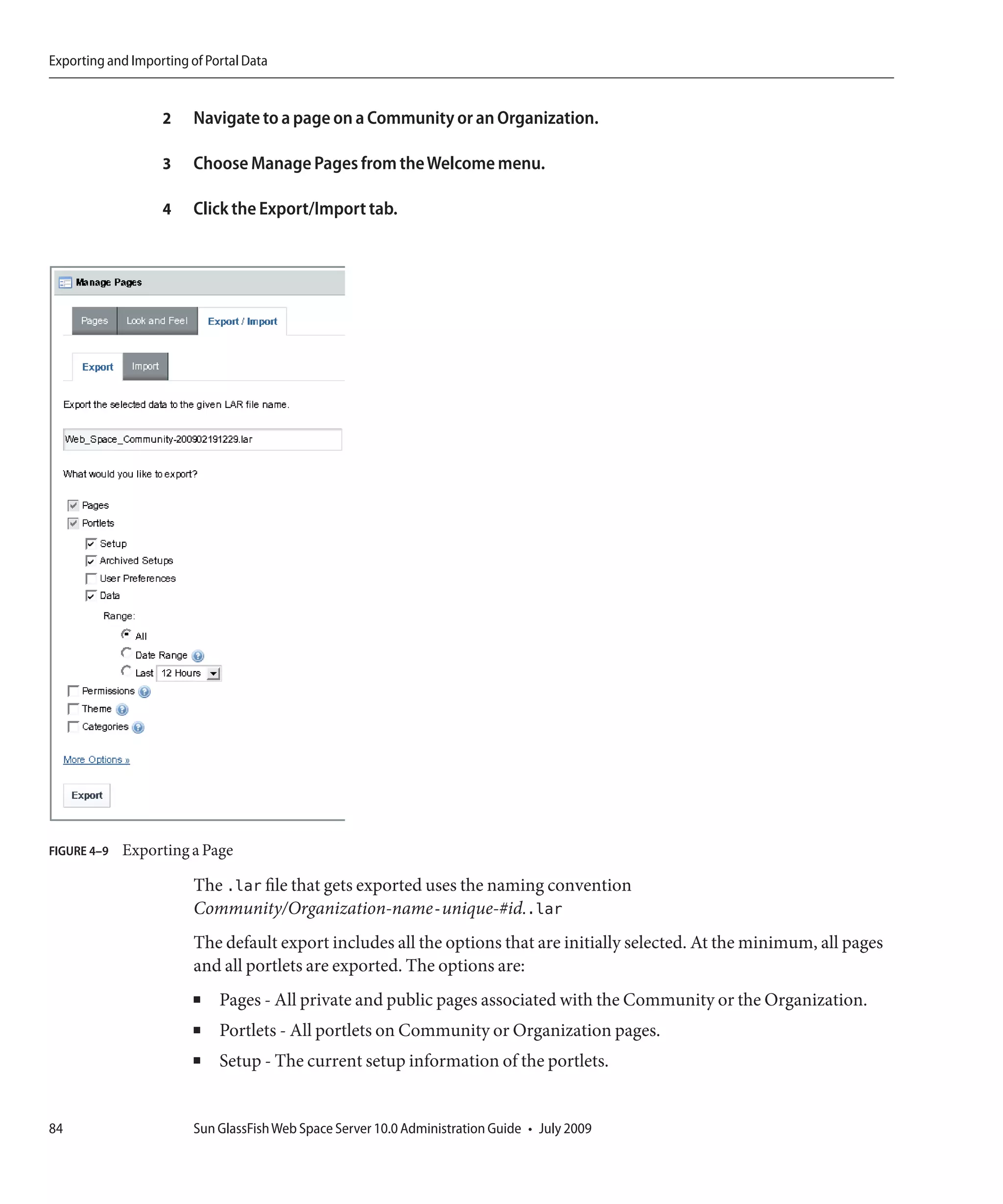
  • 124.
    Web Content Portlets 4 Click the Actions button corresponding to a structure, and choose Edit from the menu. The Structure opens in Edit mode. You can edit anything in the structure except for the structure ID, which can not be changed once the structure has been created. 5 Backup the current XML file by clicking the Download button so you can easily revert to your old structure if necessary. 6 Edit the structure. Editing the name and description will not affect other features of the Web Content portlet, but adding, deleting, and modifying fields will affect the templates and articles that are associated with the structure. If you add fields, the articles associated will have extra fields for additional content. If you delete fields, associated content in associated articles will be deleted. 7 Click Save to save changes. ▼ To Delete a Structure 1 Log in to Web Space Server. 2 Navigate to Control Panel → Content → Web Content from the Welcome menu. 3 Click the Structures tab. To delete a structure, you must first delete all the articles and disassociate or delete all the templates associated with that structure. 4 To delete all articles, a. Click the Actions button and choose View Articles from the menu. All the articles associated with the Structure are listed. b. Select all articles, and click on the Delete button. 5 Click the Structure tab again. 6 Click the Actions button corresponding to a Structure, and select View Templates from the menu. All the templates associated with the structure are listed. 124 Sun GlassFish Web Space Server 10.0 Administration Guide • July 2009
  • 125.
    Web Content Portlets 7 To delete all the remplates associated with the structure, select all templates and then click the Delete button. 8 Select the structure and click the Delete button to delete the structure. Alternatively, click the Actions button and choose Delete from the menu. Templates This section describes how to create, edit, and delete a template. ▼ To Create a Template 1 Log in to Web Space Server. 2 Navigate to Control Panel → Content → Web Content from the Welcome menu. 3 Click the Templates tab and click the Add Template button to create a template. The Template page appears. 4 Type an ID, Name and Description for the template. Click the Select button to select a Structure for the template. The Select and Remove buttons corresponding to the Structure field can be used to associate or to disassociate a structure from the Template. A window for selecting Structures is launched. 5 Select a structure. 6 To edit the template layout content, you can use one of two methods. ■ To create a new template: a. Click the Launch Editor button. An Editor appears. b. Select an Editor Type: Plain or Rich. Plain is the default. c. Click Update after making changes to the template. Chapter 6 • Content Management System 125
  • 126.
    Web Content Portlets ■ To use an existing template: a. Select a language from the Language Type list: VM, SXL, CSS. VM, SXL, and CSS are the available language options. b. Click the Browse button to upload the script for an existing template. c. Select the Format Script option. d. Click Launch Editor to open the browsed script. e. Modify the template. f. Click Update after making changes to the script. 7 If desired, add a small image to represent the template in the description fields by selecting the Use Small Image option. You can type the URL path for an image in the Small Image URL field, or you can browse an image using the Browse button. 8 Click Save. The template is created successfully and the system generates a WebDAV URL for the template. WebDAV (web-based distributed authoring and versioning) enables remote access of the template. To determine the WebDAV URL for the template, open the template in edit mode. For details about WebDAV go to: http://en.wikipedia.org/wiki/WebDAV http://www.webdav.org/ ▼ To Edit a Template Before editing the actual template, you might want to view the associated articles whoselayout will be affected by any changes made to your template. Click View Articles from the Action menu to view associated articles. 1 Log in to Web Space Server. 2 Navigate to Control Panel → Content → Web Content from the Welcome menu. 3 Click the Templates tab. 4 Click the Actions button corresponding to a template, and choose Edit from the menu. 126 Sun GlassFish Web Space Server 10.0 Administration Guide • July 2009
  • 127.
    Web Content Portlets 5 Edit the template as desired. In the edit screen, you can edit anything in the template except for the template ID, which cannot be changed once the template has been created. 6 Click Save. 7 If desired, click View Articles to see the articles with the new template layout. ▼ To Delete a Template 1 Log in to Web Space Server. 2 Navigate to Control Panel → Content → Web Content from the Welcome menu. 3 Click the Templates tab. To delete a template, you must first delete all the articles associated with that template. 4 To delete all articles, click the Actions button and choose View Articles from the menu. All the articles associated with the Template are listed. 5 Select all articles, and click Delete. A dialog box with the message “Are you sure you want to delete the selected articles?” appears. Click OK to delete all articles. 6 Click the Templates tab once again. 7 Select the template and click Delete. Click OK on the dialog box to confirm deleting the template. Articles This section describes how to create, edit, and delete an article. ▼ To Create an Article 1 Log in to Web Space Server. 2 Navigate to Control Panel → Content → Web Content from the Welcome menu. 3 Click the Web Content tab. All articles are listed. Chapter 6 • Content Management System 127
  • 128.
    Web Content Portlets 4 To create a new article, click the Add Web Content button. You can create a basic or an advanced article. ■ To create a basic article: A basic article does not make use of a template, workflow, or other advanced articles. a. Click Basic in the top-right corner of the portlet window. Skip this step if you are already on this page. b. Provide a name, abstract, and the body of content for the article. c. Click Save. ■ To create an advanced article: You can apply additional options for an advanced article. a. Click Advanced in the top-right corner of the portlet window. b. To select a Structure and a Template for the article, click the Select button besides the Template field under Form and Presentation. A dialog box appears with the message “Selecting a new template will change the structure, available input fields, and available templates? Do you want to proceed?” appears. c. Click OK. The Templates window appears. d. To select a template, click on the name of the template. In this example, click NEWS-LETTER-TEMPLATE to select it as the template for the article. The structure used by the template is added to the article. Note that the structure of the article has changed. Note – If you want to remove the template or the structure applied to an article, click Remove corresponding to the structure. e. Type a name for the article. f. Select the Type for Categorization for the article. These details help users to search an article and help organize articles. 128 Sun GlassFish Web Space Server 10.0 Administration Guide • July 2009
  • 129.
    Web Content Portlets g. Set the Schedule details. Set values for Display Date, Expiration Date, and Review Date fields. The default setting does not set an expiration date and review date. h. Click Save to create the article. ▼ To Edit an Article 1 Log in to Web Space Server. 2 Navigate to Control Panel → Content → Web Content from the Welcome menu. 3 Click the Web Content tab. All articles are listed. 4 Click on the Actions button for an article and select Edit from the menu. The article appears in edit mode. You can edit anything in the article except for the article ID, which can not be changed once the article has been created. You can choose to increment the version every time you edit the article to help all users see how often the article has been changed. If you feel that the changes you are making are very minor, you can choose not to increment it. Note that if you set the expiration date to a date earlier to the current date, you will no longer be able to select that article for use in the Web Content Display portlet. 5 Make the desired changes and click Save. ▼ To Delete an Article 1 Log in to Web Space Server. 2 Navigate to Control Panel → Content → Web Content from the Welcome menu. 3 Click the Web Content tab. All articles are listed. 4 Click the Actions button for an article and choose Delete from the menu. Alternatively, select the article ID and click the Delete button. Chapter 6 • Content Management System 129
  • 130.
    Web Content DisplayPortlet Web Content Display Portlet You can create, configure, and display articles using the Web Content Display portlet. You can have more than one instance of this portlet on a page. The portlet displays all approved articles. The portlet embeds Edit Web Content, Select Web Content, and Add Web Content icons. ■ Edit Web Content — Provides the interface to edit the article displayed using the portlet. The Edit Web Content icon is displayed only when an article is selected for display. ■ Select Web Content — Provides the interface to select an article for display. You can enable a number of settings on the articles that are displayed, printing, comments, and comment ratings. ■ Add Web Content — Provides the interface to create a new article for display. When you add web content using the Web Content Display portlet, you need to click Save and Approve for the web content (article) to be displayed by the Web Content Display portlet. If you just click Save or Save and Continue, you see a message on the portlet which reads, <Content-ID> is expired, is not approved, does not have any content, or no longer exists. For the web content to display, you need to edit the article by selecting it from the Web Content portlet, and do Save and Approve for the article. Web Content Display portlet displays an article, when the article is approved. ▼ To Select an Article for Display 1 Log in to Sun GlassFish Web Space Server as the admin User. 2 Choose Add Applications from the Welcome menu. 3 Add the Web Content Display portlet to your page. 4 Click the Select Article icon which is the same as the Configuration button. 5 Click Search Articles button. All available articles are displayed. 6 Select an article for display. 7 Determine the Setup configuration. The Setup tab provides the following options: ■ Show Available Locales - Displays all the locales that are available for the article. ■ Convert To - Supports converting the article to different document formats. 130 Sun GlassFish Web Space Server 10.0 Administration Guide • July 2009
  • 131.
    Web Content ListPortlet ■ Enable Print - Enables printing of the article. ■ Enable Ratings - Enables rating of the article. ■ Enable Comments - Enables adding comments for the article. ■ Enable Comment Ratings - Enables rating the comments received for the article. 8 Determine display support for mobile devices: a. Open the Supported Clients tab. b. Enable or disable the Mobile Devices option. The default is enabled. Disable the option, if you do not provide display support for mobile devices. c. Click Save. 9 Click the Return to Full Screen link. Web Content List Portlet Admin users can configure the Web Content List portlet to display the articles associated with a community and content type. You can have more than one instance of this portlet on a page. ▼ To Configure the Web Content List Portlet 1 Log in to Sun GlassFish Web Space Server as the admin User. 2 Click Add Applications from the Welcome menu. 3 Add the Web Content List portlet to your page. 4 Choose the Configuration option from the menu controls for the portlet. 5 Click the Current tab under the Setup tab. 6 Select values for Community, Article Type, and other attributes. If you are using Web Space Server samples, you can select My Community and General for Community and Article Type respectively. Chapter 6 • Content Management System 131
  • 132.
    Web Content SearchPortlet Note – My Community is the default Community if you are using Web Space Server samples. 7 Click Save. 8 Click the Return to Full Page link. The portlet lists the articles available on My Community. Web Content Search Portlet Use the Web Content Search portlet to search for a word or phrase within the content of an article. You can define the search behavior by making changes to the search configuration. ▼ To Customize the Search Behavior 1 Log in to Sun GlassFish Web Space Server as the admin User. 2 Click Add Applications from the Welcome menu. 3 Add the Web Content Search portlet to your page. 4 Click the Configuration button from the menu controls. 5 Define the search behavior. ■ Article Type - Select the article type which need to be included in the search. The default search includes all types of articles. When you select an article type, the search includes only the articles of that type. ■ Only show results for articles listed in a Web Content Display portlet - By default, search includes all the articles that are listed in any of the instances of the Web Content Display portlet. ■ Target Portlet ID - Type the instance ID of the Web Content Display portlet to conduct the search only inside that particular instance of the portlet. Disable the“Only show results for articles listed in a Web Content Display portlet”option before you specify the target portlet instance ID. 6 Click Save. 132 Sun GlassFish Web Space Server 10.0 Administration Guide • July 2009
  • 133.
    Web Content SearchPortlet Configuring Search for a Web Content Display Portlet Web Content Display portlet is an instanceable portlet meaning that you can have a number of Web Content Display portlets displaying the content from a number of articles on your page. To improve the search efficiency you can configure the Web Content Search portlet so that it crawls the content of only the selected instance of the Web Content Display portlet. ▼ To Configure Search for a Web Content Display Portlet 1 Log in to Sun GlassFish Web Space Server as the admin User. 2 Choose Add Applications from the Welcome menu. 3 Add the Web Content Search portlet to your page. 4 Choose the Configuration option from the menu controls. 5 If you are pasting a new target portlet ID or overwriting an existing target portlet ID, disable the “Only show results for web content listed in a Web Content Display portlet.”option and must be enabled again after pasting the target portlet ID. 6 Navigate to a web content display portlet's configuration screen and copy the portlet ID. 7 Paste the portlet ID of the web content display portlet as the target portlet ID. FIGURE 6–6 Copying the Portlet ID from a Web Content Display portlet 8 Select the“Only show results for web content listed in a Web Content Display portlet.”option. 9 Click Save. Chapter 6 • Content Management System 133
  • 134.
    Asset Publisher Portlet AssetPublisher Portlet Use the Asset Publisher portlet to add, create, edit, and delete content assets such as blogs, bookmarks, documents, images, and web content. The main function of the Asset Publisher portlet is to display the content assets, depending on the settings applied for a portlet instance. FIGURE 6–7 Asset Publisher Portlet Asset Publisher can be used to create/publish the following: ■ Blogs Entry ■ Bookmarks Entry ■ Document Library Document ■ Image Gallery Image ■ Web Content ▼ To add the Asset Publisher Portlet to a Page 1 Log in to Web Space Server. 2 Choose Add Applications and expand the Content Management folder. 3 Add the Asset Publisher portlet to your page. The Asset Publisher portlet is added to your page. Configuring the Asset Publisher Portlet To configure the asset selection criteria of the Asset Publisher portlet, click the Configuration button from the portlet menu bar. The Configuration screen appears. 134 Sun GlassFish Web Space Server 10.0 Administration Guide • July 2009
  • 135.
    Asset Publisher Portlet FIGURE6–8 Configuring the Asset Publisher Portlet You can set different asset selection criteria for different instances of the Asset Publisher portlet, so that you display only the selected asset type on each instance of the portlet. For example, if you select Blogs Entry from the Asset Type list and click Save, that particular instance of the Asset Publisher portlet displays only the blog entries, and allows you to add only blogs. Asset selection criteria can be Dynamic or Manual, with “Dynamic” being the default value. When you select Manual, you have to select existing entries for an asset type, or create new entries for a selected asset type. You can add new content assets only for the type selected in Asset Type. You can apply various display settings by clicking the Display Settings tab. Chapter 6 • Content Management System 135
  • 136.
    Asset Publisher Portlet FIGURE6–9 Display Settings For example, you can apply some metadata for the assets on display by moving some items such as Author and Create Date from the Available list to the Current list. The items on the Current list will be used as metadata for displayed items. ▼ To add a Blogs Entry 1 Log in to Web Space Server. 2 Choose Add Applications and expand the Content Management folder. 3 Add the Asset Publisher portlet to your page. The Asset Publisher portlet is added to your page. 136 Sun GlassFish Web Space Server 10.0 Administration Guide • July 2009
  • 137.
    Asset Publisher Portlet 4 Select Blogs Entry from the list on the Asset Publisher portlet. The Blogs Entry page has many advanced options. You can apply styles and formatting on your blog entry. You can add Tags and Suggestions to your blog. a. To add the blog to of social bookmarking sites such as BlinkList, Digg, and Furl, click the Entries link on the top right corner of the page. Click the Add this to link on the page that appears. b. Click Edit to continue working on the blog entry. 5 Complete your blog entry and click Publish. You are displayed on the Asset Publisher portlet. 6 To view the blog entry, click on the blog title or click Read More. 7 To edit the blog entry, click the Edit button. ▼ To add a Bookmarks Entry 1 Log in to Web Space Server. 2 Choose Add Applications and expand the Content Management folder. 3 Add the Asset Publisher portlet to your page. The Asset Publisher portlet is added to your page. 4 Select Bookmarks Entry from the list on the Asset Publisher portlet. 5 Type the Name, URL, and Description for a bookmark. 6 Indicate a folder in which to store the bookmarks, ■ To select a folder from the available folders click Select. ■ To create a new folder: a. Click the Add Folder button. b. Type a name and a description for the folder and click Save. If you want to create a subfolder for the folder, click on the link for the folder and click the Add Folder button again. 7 Click the Choose button corresponding to a folder to choose the folder. Chapter 6 • Content Management System 137
  • 138.
    Asset Publisher Portlet 8 Click Save. The bookmark is added to the selected folder, and the saved bookmark appears on the Asset Publisher portlet. 9 Click the Go link to view the bookmarked page. ▼ To Delete a Bookmarks Entry 1 Log in to Web Space Server. 2 Choose Add Applications and expand the Content Management folder. 3 Add the Asset Publisher portlet to your page. The Asset Publisher portlet is added to your page. You can see the bookmarks already on the page. 4 Click the Edit Bookmark button. 5 Select the folder containing the bookmark. 6 Delete the folder. All the bookmarks contained in the folder are deleted. ▼ To add a Document Library Document 1 Log in to Web Space Server. 2 Choose Add Applications and expand the Content Management folder. 3 Add the Asset Publisher portlet to your page. The Asset Publisher portlet is added to your page. 4 Select Document Library Document from the list on the Asset Publisher portlet. 5 Click the Browse button to browse a document. 6 Type a name and description for the document. 7 Indicate a folder in which to store the document library document, ■ To select a folder from the available folders click Select. 138 Sun GlassFish Web Space Server 10.0 Administration Guide • July 2009
  • 139.
    Asset Publisher Portlet ■ To create a new folder: a. Click the Add Folder button. b. Type a name and a description for the folder and click Save. If you want to create a subfolder for the folder, click on the link for the folder and click the Add Folder button again. 8 Click the Choose button corresponding to a folder to choose the folder. 9 Click Save. The document is added to the selected folder, and the saved document appears on the Asset Publisher portlet. 10 Click the Download link to download the document. ▼ To Delete a Document Library Document 1 Log in to Web Space Server. 2 Choose Add Applications and expand the Content Management folder. 3 Add the Asset Publisher portlet to your page. The Asset Publisher portlet is added to your page. You can see the documents published on the page. 4 Click the Edit Document button. 5 Select the folder containing the document. 6 Delete the folder. All the documents contained in the folder are deleted. ▼ To add an Image Gallery Image 1 Log in to Web Space Server. 2 Choose Add Applications and expand the Content Management folder. Chapter 6 • Content Management System 139
  • 140.
    Asset Publisher Portlet 3 Add the Asset Publisher portlet to your page. The Asset Publisher portlet is added to your page. 4 Select Image Gallery Image from the list on the Asset Publisher portlet. 5 Click the Browse button to browse an image. 6 Type a name and description for the image. 7 Indicate a folder in which to store the image gallery image, ■ To select a folder from the available folders click Select. ■ To create a new folder: a. Click the Add Folder button. b. Type a name and a description for the folder and click Save. If you want to create a subfolder for the folder, click on the link for the folder and click the Add Folder button again. 8 Click the Choose button corresponding to a folder to choose the folder. 9 Click Save. The image is added to the selected folder, and the saved image appears on the Asset Publisher portlet. 10 Click the View link to see the image. ▼ To Delete an Image Gallery Image 1 Log in to Web Space Server. 2 Choose Add Applications and expand the Content Management folder. 3 Add the Asset Publisher portlet to your page. The Asset Publisher portlet is added to your page. You can see the images published on the page. 4 Click the Edit Image button. 5 Select the folder containing the document. 140 Sun GlassFish Web Space Server 10.0 Administration Guide • July 2009
  • 141.
    Other Content Portlets 6 Delete the folder. All the images contained in the folder are deleted. ▼ To add Web Content 1 Log in to Web Space Server. 2 Choose Add Applications and expand the Content Management folder. 3 Add the Asset Publisher portlet to your page. 4 Select Web Content from the list on the Asset Publisher portlet. Write an article using the options available on the screen. You can set an Expiration Date and Review Date for the journal article. 5 Click Save and Approve. The Web Content article is displayed on the Asset Publisher portlet. 6 Click the Read More link to read the article. Note – Make sure that you click Save and Approve after creating the article. If the article is not approved, you get an error message appears saying “The requested resource is not found” when you click the Read More link for the article. 7 Click the edit button to make changes to the article. The default version number of the Web Content is set to 1.0. You can select the Increment Version on Save option to increment the version number of the article each time you update the article. You can use the Expire button to make the article expire immediately. You can use the Delete button to delete the article. Other Content Portlets Other portlets provide content management features. ■ Breadcrumb Portlet - Displays the path for the page that you are on. ■ Categories Navigation Portlet - Provides category-based navigation. ■ Navigation Portlet - Displays the navigation structure. You can customize the navigation structure using the Configuration menu control. ■ Nested Portlets Portlet - To drag and nest portlets using the Nested Portlets Portlet. Chapter 6 • Content Management System 141
  • 142.
    Tags and Categories ■ Recent Documents Portlet - Displays the most recently accessed documents. ■ Site Map Portlet - Provides the site mapping of your page. Tags and Categories You can create tag sets and tag entries, and categories and category entries for using them on wikis, blogs, and articles within a Community. Tags improve the searchability of wikis, blogs, and articles. Procedures to create tag sets and tag entries are discussed below. You can create Vocabulary and Categories by following the similar procedure. To create Vocabulary and Categories, choose Control Panel → Content → Tags and Categories, and select Categories. The rest of the procedure is similar to that of creating tag sets and tag entries. ▼ To Add a Tag Set 1 Log in to Web Space Server as the admin user. 2 Navigate to Control Panel → Content → Tags and Categories from the Welcome menu. 3 Click Tag Sets. 4 Click Add Tag Set button. 5 Type a name for the tag set. 6 Click Save. You can add Vocabulary by following the similar procedure. ▼ To Add a Tag Entry After creating a tag set, you can create tag entries under it. 1 Log in to Web Space Server as the admin user. 2 Navigate to Control Panel → Content → Tags and Categories from the Welcome menu. 3 Click Tag Sets. 4 Click the Add Tag button. 142 Sun GlassFish Web Space Server 10.0 Administration Guide • July 2009
  • 143.
    XSL Content Portlet 5 Type a name for the tag. 6 Select a tag set for the tag from the To Vocabulary list. 7 Click Save. To complete creating the tag, you are required to add a property for the tag entry. properties form key value pairs. If deemed necessary, you can add more than one pair of properties for a tag entry. You can also add and delete properties. 8 Add a property for the tag. 9 Click Save. You can add Categories by following the similar procedure. XSL Content Portlet You can configure the XSL Content Portlet to display the content of an XML file using an XSL stylesheet. You can import an XSL-Content<content-ID>.portlet.lar file and configure the XSL Content Portlet to display the content in the file. Use the Export/Import and Configuration buttons in the menu controls for the portlet to import the lar file and to configure it for display. You can also make a backup for the lar file. Chapter 6 • Content Management System 143
  • 144.
  • 145.
    7 C H A P T E R 7 Web Services for Remote Portlets The implementation of the WSRP 2.0 standard inSun GlassFish Web Space Server includes both the WSRP consumer and the WSRP producer. The WSRP producer implementation supports publishing JSR286 portlets for use by a remote WSRP consumer. The JSR286 portlets are deployed locally on a portal server. These portlets can be published by an instance of the WSRP producer. About WSRP WSRP 2.0 is an OASIS standard that simplifies integration of remote applications and content into portals. The WSRP standard defines presentation-oriented, interactive web services with a common, well-defined interface and protocol for processing user interactions and for providing presentation fragments suited for mediation and aggregation by portals, as well as conventions for publishing, finding, and binding such services. Because the WSRP interfaces are common and well-defined, all web services that implement the WSRP standard plug in to all WSRP compliant portals. A single, service-independent adapter on the portal side is sufficient to integrate any WSRP service. As a result, WSRP is the means for content and application providers to provide their services to organizations running portals with no programming effort required. See the WSRP 2.0 standard for more information: http://www.oasis-open.org/committees/tc_home.php?wg_abbrev=wsrp 145
  • 146.
    WSRP for SunGlassFish Web Space Server WSRP for Sun GlassFish Web Space Server The following topics describe WSRP and WSRP administration: ■ “Accessing WSRP on Sun GlassFish Web Space Server” on page 146 ■ “WSRP Administration” on page 146 Accessing WSRP on Sun GlassFish Web Space Server The WSRP Producer and the WSRP Consumer hold the WSRP functionality. ▼ To Access WSRP on Web Space Server 1 Log in to Web Space Server as the admin user. 2 Navigate to Control Panel from the Welcome menu. You can find the WSRP Consumer and WSRP Producer under Server control options on the left pane. WSRP Administration The WSRP Producer Admin and WSRP Consumer Admin portlets provide WSRP Administration functionality. Generally, in any real life scenario, WSRP Producer and WSRP Consumer are on different machines, with WSRP Consumer running on a remote machine. To keep it simple, you can use the WSRP Producer and the WSRP Consumer from a single Web Space Server installation. The following topics cover different functions of WSRP administration. ■ “Creating a WSRP Producer” on page 146 ■ “Creating a WSRP Consumer” on page 149 ■ “Creating WSRP Producers and Consumers Without Registration” on page 150 ■ “Installing Remote/WSRP Portlets” on page 153 Creating a WSRP Producer You use the WSRP producer to create and manage WSRP Producers. What Is a WSRP Producer? A WSRP producer offers locally deployed portlets for remote deployment. A remotely deployed WSRP consumer can connect to the producer, and can use the portlets offered by the producer. 146 Sun GlassFish Web Space Server 10.0 Administration Guide • July 2009
  • 147.
    WSRP for SunGlassFish Web Space Server A portal can host multiple producers. The consumer can import remote portlets offered by a producer. You can create one or more producers. A producer can optionally require registration. If a producer supports registration, then consumers must register to work with the producer. Inband and Outband Registration Registration is used to build a technical or business relationship between the consumer and the producer. While creating a producer, you can define any one of the following registration mechanisms: Inband registration or Outband registration. If the producer requires registration and enabled for Inband registration, the consumer can provide the details through WSRP interface and register with the producer. The consumer also has an option to provide the registration handle obtained through Outband communication. If the producer requires registration and is enabled for Outband registration, the consumer should obtain the registration handle through Outband communication and provide the registration handle during registration. Outband registration happens with manual intervention such as phone calls, email, and so on. For a producer that supports Outband registration, the producer gets the details about the consumer through Outband communication, and it creates a registration handle for the consumer. The registration handle is communicated to the consumer through Outband communication. Producers Without Registration For a producer that does not require registration, the consumer is not required to type any information or get any information through Outband communication. In this case, the consumer cannot customize or edit the portlets offered by the producer. The producer that does not support registration provides read-only portals to the consumers. ▼ To Create and Enable a WSRP Producer 1 Log in to Web Space Server as the admin user. 2 Navigate to Control Panel → Server → WSRP Producer from the Welcome menu. 3 Click the Add Producer button. 4 Type a name for the Producer. For example, you can create a Producer called NewProducer. This screen also provides option to export a version of WSRP service (choose both 1.0 and 2.0) for exporting both version 1.0 and version 2.0 service. Chapter 7 • Web Services for Remote Portlets 147
  • 148.
    WSRP for SunGlassFish Web Space Server Note – The name of the producer or a consumer must not contain empty spaces or any special characters. FIGURE 7–1 Creating a New WSRP Producer 5 Click Save. The Producer is created, but is disabled by default. 6 To enable the WSRP Producer: a. Click the link for a selected producer. In this example, click the NewProducer link. The producer is displayed. b. Move some portlets from the Unpublished list to the Published list. c. Click Save. The producer is saved. d. Click the Disabled link. The producer is displayed again. 148 Sun GlassFish Web Space Server 10.0 Administration Guide • July 2009
  • 149.
    WSRP for SunGlassFish Web Space Server e. Select Enabled from the Status list and click Save. The producer is enabled. Note – By default, the newly created WSRP producer exports both WSRP version 1.0 and WSRP version 2.0 services in the exported WSDL. On checking the WSDL URL, you should see both version 1.0 and version 2.0 services. Creating a WSRP Consumer To communicate with the portlets offered by the producer, a consumer needs to add a configured producer. ▼ To Create a WSRP Consumer To create a consumer, a producer WSDL URL is required. You can copy the WSDL URL from the NewProducer created in the above step. 1 Log in to Web Space Server as the admin user. 2 Navigate to Control Panel → Server → WSRP Consumer from the Welcome menu. 3 Click the Connect to Producer button. 4 Provide the WSRP Producer WSDL URL and click Next. FIGURE 7–2 Providing the WSRP Producer URL for Creating a WSRP Consumer. The next screen prompts you to choose the WSRP version. Chapter 7 • Web Services for Remote Portlets 149
  • 150.
    WSRP for SunGlassFish Web Space Server 5 Choose Version 2.0 and click Next. The next screen prompts you to select a registration type. 6 Select Inband and Outband. For more information about these registration types, see “Inband and Outband Registration” on page 147 7 (Optional) Specify a Name and Lifetime for the consumer. FIGURE 7–3 Version, Registration Type, Lifetime and Other Details for the WSRP Consumer In case of Outband registration, you have to specify a registration handle. Select Inband registration and click Save. The consumer is created. Creating WSRP Producers and Consumers Without Registration The consumer is not required to type any details while adding a configured producer, if the producer does not require registration. 150 Sun GlassFish Web Space Server 10.0 Administration Guide • July 2009
  • 151.
    WSRP for SunGlassFish Web Space Server ▼ To Create a Producer Without Registration 1 Log in to Web Space Server as the admin user. 2 Navigate to Control Panel → Server → WSRP Producer from the Welcome menu. 3 Click the Add Producer button. Specify a name for the producer. Select Not Required for Registration. FIGURE 7–4 Creating a Producer Without Registration 4 Click Save. The producer is created, but is disabled by default. Enable the Producer. 5 To enable the WSRP Producer: a. Click the link for a selected producer. In this example, click the NewProducer link. The producer is displayed. b. Move some portlets from the Unpublished list to the Published list. c. Click Save. The producer is saved. Chapter 7 • Web Services for Remote Portlets 151
  • 152.
    WSRP for SunGlassFish Web Space Server d. Click the Disabled link. The producer is displayed again. e. Select Enabled from the Status list and click Save. The producer is enabled. Note – By default, the newly created WSRP producer exports both WSRP version 1.0 and WSRP version 2.0 services in the exported WSDL. On checking the WSDL URL, you should see both version 1.0 and version 2.0 services. ▼ To Create a Consumer Without Registration 1 Log in to Web Space Server as the admin user. 2 Navigate to Control Panel → Server → WSRP Consumer from the Welcome menu. 3 Click the Connect to Producer button. 4 Provide the WSDL URL of a producer without registration and click Next. 5 The next screen prompts you to choose the WSRP version. 6 Select Version 2.0 and click Next. 7 Type a name for the Consumer and click Save. 152 Sun GlassFish Web Space Server 10.0 Administration Guide • July 2009
  • 153.
    WSRP for SunGlassFish Web Space Server FIGURE 7–5 Creating a Consumer Without Registration Installing Remote/WSRP Portlets This section describes the process to install Remote/WSRP portlets on Sun GlassFish Web Space Server. ▼ To Install a Remote/WSRP Portlet 1 Log in to Web Space Server as the admin user. 2 Navigate to Control Panel → Server → WSRP Consumer from the Welcome menu. 3 Click the Actions button corresponding to a consumer and choose Install Portlets from the menu. The Available Portlets list displays all the portlets available with the producer. 4 Select a portlet from the list, and type a name for the portlet. Note – Make sure to specify a name for the portlet. If no name is displayed for the portlet, identifying it will be difficult. 5 Click Save. 6 Click the Portlet tab to view the portlet. Chapter 7 • Web Services for Remote Portlets 153
  • 154.
  • 155.
    8 C H A P T E R 8 Advanced Web Space Server Configuration There are also some lower level settings that you may want to further customize. They include changing certain out-of-box defaults, security configuration, and adding features to Web Space Server through plugin management. The following sections are explained in this chapter: ■ “Deploying Applications to Web Space Server” on page 155 ■ “Promoting a Portal to Production Environment” on page 157 ■ “Clustering of Web Space Server” on page 161 ■ “Configuring Jackrabbit With MySQL” on page 164 ■ “Installing Plugins” on page 167 ■ “Creating a Custom Plugin Repository” on page 168 Deploying Applications to Web Space Server Sun GlassFish Web Space Server server provides an extensible platform where custom applications which includes portlets, web plugins, hook plugins and theme plugins can be developed (using Netbeans Portal Pack) and deployed to augment the functionality of Web Space Server. The artifacts can be copied into the Hot Deploy directory of Web Space Server. The Hot Deploy listener injects the necessary libraries into the WAR file and deploys them to the GlassFish Enterprise Server by taking advantage of JSR-88 feature or the auto deploy directory feature GlassFish Enterprise Server. In many production deployments it is possible that the auto deploy is disabled for security reasons or the server is deployed to the GlassFish cluster where the applications should always be deployed to the DAS (Domain Administration Server). In these two cases, copying the WAR files to the Hot Deploy directory for deploying the applications is not possible. To address this scenario of deployment Web Space Server provides a command line tool process.xml that which generate a "massaged" WAR (with all required injections that are otherwise performed by the Hot Deploy listener) that can be manually deployed to the server using asadmin tool. 155
  • 156.
    Deploying Applications toWeb Space Server Deploying Applications Using process.xml Consider the example of deploying a custom portlet solr-web-5.2.0.1.war to Web Space Server using process.xml. ▼ To Deploy Applications Using process.xml 1 Copy the custom portlet (solr-web-5.2.0.1.war) into the unprocessed directory located inside the root directory for Web Space Server (the directory to which Web Space Server is unzipped). cp solr-web-5.2.0.1 /Webspace_install_root/var/webspace/war-workspace/unprocessed 2 Navigate to Webspace_install_root/var/webspace/war-workspace folder. cd /Webspace_install_root/var/webspace/war-workspace 3 Run ant -f process.xml. Provide the required inputs where necessary. The below screen illustrates the process. $ cp solr-web-5.2.0.1 /Webspace_install_dir/var/webspace/war-workspace/unprocessed $ cd /Webspace_install_dir/var/webspace/war-workspace $ ant -f process.xml Buildfile: process.xml check-ant: show-user-warning: [input] JAVA_HOME must be set to JDK 1.5 or greater and java must be available for execution. Webcontainer must be set-war-properties: [input] Enter war file (include full path) [/Webspace_install_dir/var/webspace/war-workspace/my.war] /Webspace_install_dir/var/webspace/war-workspace/unprocessed/solr-web-5.2.0.1.war [input] Is war a portlet, web, theme, hook or layouttemplate? [portlet] web [input] Enter deployed war name [solr-web-5.2.0.1] process: [java] Loading jar:file:/Webspace_install_dir/var/webspace/war-workspace/sources/webspace/WEB-INF/lib/portal-impl.jar [java] Loading jar:file:/Webspace_install_dir/var/webspace/war-workspace/sources/webspace/WEB-INF/lib/portal-impl.jar [java] Loading jar:file:/Webspace_install_dir/var/webspace/war-workspace/sources/webspace/WEB-INF/lib/enterprise.jar! [java] Loading jar:file:/Webspace_install_dir/var/webspace/war-workspace/sources/webspace/WEB-INF/lib/enterprise.jar! [java] Loading jar:file:/Webspace_install_dir/var/webspace/war-workspace/sources/webspace/WEB-INF/lib/portal-impl.jar [java] 2009-04-28 23:39:02,177 [main] INFO com.liferay.portal.util.PortalImpl - Portal lib directory /opt/wsynerg [java] Expanding: /Webspace_install_dir/webspace/war-workspace/unprocessed/solr-web-5.2.0.1.war into /var/tmp/20090 [java] Copying 1 file to /var/tmp/20090428233902276/WEB-INF/classes 156 Sun GlassFish Web Space Server 10.0 Administration Guide • July 2009
  • 157.
    Promoting a Portalto Production Environment [java] Copying 1 file to /var/tmp/20090428233902276/WEB-INF/classes [java] Building war: /var/tmp/20090428233903352 [java] 2009-04-28 23:39:03,944 [main] INFO com.liferay.portal.kernel.util.ServerDetector - Detected server t [java] Deleting directory /var/tmp/20090428233902276 [echo] [echo] Processed war is in /Webspace_install_dir/var/webspace/war-workspace/finals. BUILD SUCCESSFUL Total time: 33 seconds Promoting a Portal to Production Environment You can create a custom portal using Sun GlassFish Web Space Server. The following are the two scenarios for migrating to the production environment: ■ Moving from development to production The development team working on customization of Web Space Server want to go live with the product after deploying it to the production server. ■ Deploying content from staging to production After the production server is successfully commissioned, further enhancements to the content of the production system can be realized using Staging and Workflow. Moving From Development to Production During the development phase a team of developers would collaborate and work on customization of Web Space Server. Customization might include creating or modifying portlets, hooks, themes, layouts and pages. Out of all these artifacts, the pages are stored in the database while others can be deployed in WAR file format. For the first time production cut-over, the database from the development environment can be exported and imported into the production environment. The following is the process involved: 1. Generate the WAR files for custom portlets, themes, layouts and hooks and deploy them to the production Web Space Server. These WAR files need to be placed in the hot deploy area. 2. Export the database from the development environment. 3. Import the database that has been exported in the previous step into the production environment. Chapter 8 • Advanced Web Space Server Configuration 157
  • 158.
    Promoting a Portalto Production Environment Deploying Content From Staging to Production In this scenario, the content can be developed in the staging environment and can be published to the production server. The WebSpace server provides a “Staging” feature for Community and Organization pages to address this requirement. Essentially, the community and organization "staging" feature provides an option to deploy pages to the same server. Meaning, an administrator can review the page changes before publishing them and the publishing can be scheduled. In addition, a workflow can be attached to the process so the changes can be approved by an authority. In the "Manage Pages" there is an option for "Publish to Remote" which would actually deploy the pages to a remote server. This can be the process for promoting the content that is developed in the "staging/development" environment to the production system. Staging You can “Stage” pages on the production server before they are published to live. This can also include the "approval process" of different levels of authority. Here is how it works: ▼ To Do Staging Without Workflow 1 Log in to Web Space Server as admin user. 2 Administrator or the owner of a community or an organization can enable Activate Staging via Manage Pages from the Control Panel. 3 Once staging is enabled, a user with appropriate privileges can add/modify pages and the content to pages and publish them when they are finalized. During the development of the pages while in the staging, live pages are not affected, and no changes are visible on live pages. ▼ To Do Staging With Workflow 1 Log in to Web Space Server as admin user. 2 Administrator or the owner of a community or organization can enable Activate Staging and Activate Workflow via Manage Pages from the Control Panel. 3 Choose the number of stages for the Workflow. Default is 3. 4 Specify the roles for each stage of approval process. Administrator can create the roles with scope and permissions on the My Community portlet. For Content Creator Community Role assign the Manage Pages role from the Define Permissions option. 158 Sun GlassFish Web Space Server 10.0 Administration Guide • July 2009
  • 159.
    Promoting a Portalto Production Environment 5 A Content Creator can create pages and submit the proposal. Once the pages are approved through the approval chain, the final approver can publish the page to live system. Publishing to a Remote Server Remote publishing allows publishing pages from a staging server (a staging server where the pages are approved and published locally) to production server. When using the remote publishing, the user who is publishing remotely must have a user account on both servers with the same email address and password. The production server (where the pages are published to) must be configured to accept connections from the staging server. For example, the following entry in portal-ext.properties would allow the remote publishing from IP address 192.18.123.38. tunnel.servlet.hosts.allowed=127.0.0.1,SERVER_IP,192.18.123.38 If you have deployed the OpenSSO add-on, web.xml for the tunnel-web application should be configured in such a way that "Liferay Servlet Filter" and "Secure Liferay Servlet Filter" are using the default filter which is com.liferay.portal.servlet.filters.secure.SecureFilter instead of the filter that ships with the add-on which is com.sun.portal.servlet.filters.soo.accessmanager.BasicAuthFilter. Offline Promotion of Content to Production The remote publishing feature is very useful when staging and production environments are "connected". In case, they are not connected, meaning the network firewall prevents any connections from staging to production due to the company's security policy then the remote publishing will not be an option. In this event, the pages can be promoted to the production "offline". After the pages and its content are finalized, an administrator can "export" the pages from staging environment which will generate a lar file. The same can be copied over to the production server and imported into its corresponding community/organization. The "Manage Pages" option for a community/organization contains a tab for "Export/Import" which allows an administrator to export or import the page including its content, permissions and the like. Activating Staging, Activating Workflow, and Publishing Pages to Live This section discusses the procedure for activating staging and workflow for Communities and Organizations, and publishing their pages to live. Chapter 8 • Advanced Web Space Server Configuration 159
  • 160.
    Promoting a Portalto Production Environment Admin user can activate staging for Communities and Organizations. When you activate staging for Communities or Organizations, you can preview their pages and make changes to them before publishing them to live production environment. For the procedure to create a new Community, see To add a Community. The following procedure explains how you can stage Communities. You can stage Organizations by following the similar procedure. ▼ To Stage a Community and to Publish a Page to Live 1 Log in to Sun GlassFish Web Space Server as admin user. 2 Choose Add Application from the Welcome menu, and add My Communities portlet to your page. 3 Click the Communities I Own tab on the My Communities portlet. 4 To stage a Community, click the Actions button corresponding to a Community and choose Manage Pages from the menu. In this example, choose the 'cms' Community. 5 Click the Settings tab, and enable the Activate Staging option. The community is staged to the production environment. 6 Choose My Places from the Welcome menu and navigate to a page on the community. A live page for 'cms' is displayed. 7 To view the staged page, choose Staging → View Staged Page from the Welcome menu. 8 To publish the page to live, choose Staging → Publish to Live from the Welcome menu. 9 To view the live page, choose Staging → View Live Page from the Welcome menu. The Publish To Live window appears. 10 Select the pages you want to publish and click Publish. A dialog box with the message “Are you sure you want to publish these pages?” appears. 11 Click OK to publish the selected pages. 160 Sun GlassFish Web Space Server 10.0 Administration Guide • July 2009
  • 161.
    Clustering of WebSpace Server Clustering of Web Space Server Once you have Web Space Server installed in more than one node on your application server, there are several optimizations that need to be made. At a minimum, Web Space Server should be configured in the following way for a clustered environment: Note – The default HSQL database can't be used in a clustered environment. You can configure MySQL or any other compatible database to use in a clustered environment. A cluster setup need to use the enterprise version of GlassFish 2.1 patch 2 or later. ■ All nodes should be pointing to the same Web Space Server database. ■ Jackrabbit, the JSR-170 content repository, should be on a shared file system (not recommended) or in a database that is shared by all nodes. ■ Similarly, Lucene, the full text search indexer, should be: ■ On a shared file system available to all the nodes (not really recommended, though), or ■ In a database that is shared by all the nodes, or ■ On separate file systems for all of the nodes, or ■ Disabled, and a separate pluggable enterprise search server configured. ■ If you have not configured your application server to use farms for deployment, the hot deploy folder should be a separate folder for all the nodes, and plugins will have to be deployed to all of the nodes individually. This can be done via a script. Many of these configuration changes can be made by adding or modifying properties in your portal-ext.properties file. Remember that this file overrides the defaults that are in the portal.properties file. The original version of this file can be found in the Liferay source code or can be extracted from the portal-impl.jar file in your Liferay installation. It is a best practice to copy the relevant section that you want to modify from portal.properties into your portal-ext.properties file, and then modify the values there. ■ “Jackrabbit Sharing” on page 161 ■ “Lucene Configuration” on page 163 ■ “Hot Deploy” on page 163 Jackrabbit Sharing Web Space Server uses Jackrabbit from Apache as its JSR-170 compliant document repository. By default, Jackrabbit is configured to store the documents on the local file system upon which Liferay is installed, in the Glassfish home/domains/domain1/webspace/jackrabbit folder. Inside this folder is Jackrabbit's configuration file, called repository.xml. Chapter 8 • Advanced Web Space Server Configuration 161
  • 162.
    Clustering of WebSpace Server To simply move the default repository location to a shared folder, you do not need to edit Jackrabbit's configuration file. Instead, find the section in portal.properties labeled JCR and copy/paste that section into your portal-ext.properties file. One of the properties, by default, is the following: jcr.jackrabbit.repository.root=${resource.repositories.root}/jackrabbit Change this property to point to a shared folder that all of the nodes can see. A new Jackrabbit configuration file is generated in that location. Note that because of file locking issues, this is not the best way to share Jackrabbit resources. If two people have logged in at the same time uploading content, you could encounter data corruption using this method, and therefore it is not used for a production system. Instead, to enable better data protection, you should redirect Jackrabbit into your database of choice. You can use a database for this purpose. This requires editing Jackrabbit's configuration file. The default Jackrabbit configuration file has sections commented out for moving the Jackrabbit configuration into the database. This has been done to make it as easy as possible to enable this configuration. To move the Jackrabbit configuration into the database, simply comment out the sections relating to the file system and comment in the sections relating to the database. These by default are configured for a MySQL database. If you are using another database, you will likely need to modify the configuration, as there are changes to the configuration file that are necessary for specific databases. For example, the default configuration uses Jackrabbit's DbFileSystem class to mimic a file system in the database. While this works well in MySQL, it does not work for all databases. For example, if you are using an Oracle database, you will need to modify this to use OracleFileSystem. Please see the Jackrabbit documentation at http://jackrabbit.apache.org for further information. You will also likely need to modify the JDBC database URLs so that they point to your database. Don't forget to create the database first, and grant the user ID you are specifying in the configuration file access to create, modify, and drop tables. Once you have configured Jackrabbit to store its repository in a database, the next time you bring up Liferay, the necessary database tables will be created automatically. Jackrabbit, however, does not create indexes on these tables, and so over time this can be a performance penalty. To fix this, you will need to manually go into your database and index the primary key columns for all of the Jackrabbit tables. All of your Liferay nodes should be configured to use the same Jackrabbit repository in the database. Once that is working, you can create a Jackrabbit cluster (please see the following section). 162 Sun GlassFish Web Space Server 10.0 Administration Guide • July 2009
  • 163.
    Clustering of WebSpace Server Lucene Configuration Lucene, the search indexer which Web Space Server uses, can be in a shared configuration for a clustered environment, or an index can be created on each node of the cluster. If you wish to have a shared index, you will need to either share the index on the file system or in the database. The Lucene configuration can be changed by modifying values in your portal-ext.properties file. Open your portal.properties file and search for the text Lucene. Copy that section and then paste it into your portal-ext.properties file. If you wish to store the Lucene search index on a file system that is shared by all of the Web Space Server nodes, you can modify the location of the search index by changing the lucene.dir property. By default, this property points to the /webspace/lucene folder inside the home folder of the user running Web Space Server: lucene.dir=${resource.repositories.root}/lucene/ Change this to the folder of your choice. To make the change take effect, you will need to restart Web Space Server. You can point all of the nodes to this folder, and they will use the same index. Like Jackrabbit, however, this is not the best way to share the search index, as it could result in file corruption if different nodes try reindexing at the same time. A better way is to share the index via a database, where the database can enforce data integrity on the index. This is very easy to do; it is a simple change to your portal-ext.properties file. There is a single property called lucene.store.type. By default this is set to go to the file system. You can change this so that the index is stored in the database by making it the following: lucene.store.type=jdbc The next time Web Space Server is started, new tables will be created in the Web Space Server database, and the index will be stored there. If all the Web Space Server nodes point to the same database tables, they will be able to share the index. Alternatively, you leave the configuration alone, and each node will then have its own index. This ensures that there are no collisions when multiple nodes update the index, because they all will have separate indexes. Hot Deploy Plugins which are hot deployed will need to be deployed separately to all of the Web Space Server nodes. Each node should, therefore, have its own hot deploy folder. This folder needs to be writable by the user under which Web Space Server is running, because plugins are moved from this folder to a temporary folder when they are deployed. This is to prevent the system from entering an endless loop, because the presence of a plugin in the folder is what triggers the hot deploy process. Chapter 8 • Advanced Web Space Server Configuration 163
  • 164.
    Configuring Jackrabbit WithMySQL When you want to deploy a plugin, copy that plugin to the hot deploy folders of all of the Web Space Server nodes. The hot deploy directory for Web Space Server when running on GlassFish is Glassfish home/domains/domain1/webspace/deploy. Depending on the number of nodes, it may be best to create a script to do this. Once the plugin has been deployed to all of the nodes, you can then make use of it (by adding the portlet to a page or choosing the theme as the look and feel for a page or page hierarchy). Some containers contain a facility which allows the end user to deploy an application to one node, after which it will get copied to all of the other nodes. If you have configured your application server to support this, you won't need to hot deploy a plugin to all of the nodes, as your application server will handle it transparently. Make sure, however, that you use hot deploy mechanism to deploy plugins, as in many cases Web Space Server slightly modifies plugin.war files when hot deploying them. Configuring Jackrabbit With MySQL Liferay includes Jackrabbit by default as its JSR-170 Java Content Repository. Image Gallery and Document Library portlets use jackrabbit to store data. Jackrabbit stores CMS (Content Management System) data in a file system. The following procedure explains how to configure Jackrabit to use MySQL database to store the data from Image Gallery and Document Library portlets. ▼ To Configure Jackrabbit With MySQL 1 Add the following properties to the portal-ext.properties file. jcr.initialize.on.startup=true jcr.jackrabbit.repository.root=/jackrabbit jcr.jackrabbit.config.file.path=/jackrabbit/repository.xml dl.hook.impl=com.liferay.documentlibrary.util.JCRHook The Web Space Server evaluation bundle has a portal-ext.properties file in the GlassFish install-dir/domains/domain1/applications/j2ee-modules/webspace/WEB-INF/classes. When you are using a Web Space Server bundle not including samples, you have to create a portal-ext.properties file under ROOT-DIR/webspace-for-gfv2/var/webspace/war-workspace/customs/webspace/WEB-INF/classes. 2 Make changes to the repository.xml file residing under GlassFish install-dir/webspace-gfv2-OS/var/webspace/data/jackrabbit. Most generally, when you are configuring Jackrabbit for MySQL, you will have to remove the commenting for all the markup related with MySQL. For other databases, For other databases, you will have to change the connection credentials and schema settings. 164 Sun GlassFish Web Space Server 10.0 Administration Guide • July 2009
  • 165.
    Configuring Jackrabbit WithMySQL Modified repository.xml may look like this: <?xml version="1.0"?> <Repository> <!--<FileSystem class="org.apache.jackrabbit.core.fs.local.LocalFileSystem"> <param name="path" value="${rep.home}/repository" /> </FileSystem>--> <!-- Database File System (Cluster Configuration) This is sample configuration for mysql persistence that can be used for clustering Jackrabbit. For other databases, change the connection, credentials, and schema settings. --> <FileSystem class="org.apache.jackrabbit.core.fs.db.DbFileSystem"> <param name="driver" value="com.mysql.jdbc.jdbc2.optional.MysqlDataSource"/> <param name="url" value="jdbc:mysql://nicp239.india.sun.com:3306/lportal?useUnicode=true&#038;amp&#059;char <param name="user" value="root" /> <param name="password" value="password" /> <param name="schema" value="mysql"/> <param name="schemaObjectPrefix" value="J_R_FS_"/> </FileSystem> <Security appName="Jackrabbit"> <AccessManager class="org.apache.jackrabbit.core.security.SimpleAccessManager" /> <LoginModule class="org.apache.jackrabbit.core.security.SimpleLoginModule"> <param name="anonymousId" value="anonymous" /> </LoginModule> </Security> <Workspaces rootPath="${rep.home}/workspaces" defaultWorkspace="default" /> <Workspace name="${wsp.name}"> <!--<FileSystem class="org.apache.jackrabbit.core.fs.local.LocalFileSystem"> <param name="path" value="${wsp.home}" /> </FileSystem> <PersistenceManager class="org.apache.jackrabbit.core.persistence.bundle.BundleFsPersistenceManager" />--> <!-- Database File System and Persistence (Cluster Configuration) This is sample configuration for mysql persistence that can be used for clustering Jackrabbit. For other databases, change the connection, credentials, and schema settings. --> <PersistenceManager class="org.apache.jackrabbit.core.state.db.SimpleDbPersistenceManager"> <param name="driver" value="com.mysql.jdbc.jdbc2.optional.MysqlDataSource"/> Chapter 8 • Advanced Web Space Server Configuration 165
  • 166.
    Configuring Jackrabbit WithMySQL <param name="url" value="jdbc:mysql://nicp239.india.sun.com:3306/lportal?useUnicode=true&#038;amp&#0 <param name="user" value="root" /> <param name="password" value="password" /> <param name="schema" value="mysql" /> <param name="schemaObjectPrefix" value="J_PM_${wsp.name}_" /> <param name="externalBLOBs" value="false" /> </PersistenceManager> <FileSystem class="org.apache.jackrabbit.core.fs.db.DbFileSystem"> <param name="driver" value="com.mysql.jdbc.jdbc2.optional.MysqlDataSource"/> <param name="url" value="jdbc:mysql://nicp239.india.sun.com:3306/lportal?useUnicode=true&#038;amp&#0 <param name="user" value="root" /> <param name="password" value="password" /> <param name="schema" value="mysql"/> <param name="schemaObjectPrefix" value="J_FS_${wsp.name}_"/> </FileSystem> </Workspace> <Versioning rootPath="${rep.home}/version"> <!--<FileSystem class="org.apache.jackrabbit.core.fs.local.LocalFileSystem"> <param name="path" value="${rep.home}/version" /> </FileSystem> <PersistenceManager class="org.apache.jackrabbit.core.persistence.bundle.BundleFsPersistenceManager" />--> <!-- Database File System and Persistence (Cluster Configuration) This is sample configuration for mysql persistence that can be used for clustering Jackrabbit. For other databases, change the connection, credentials, and schema settings. --> <FileSystem class="org.apache.jackrabbit.core.fs.db.DbFileSystem"> <param name="driver" value="com.mysql.jdbc.jdbc2.optional.MysqlDataSource"/> <param name="url" value="jdbc:mysql://nicp239.india.sun.com:3306/lportal?useUnicode=true&#038;am <param name="user" value="root" /> <param name="password" value="password" /> <param name="schema" value="mysql"/> <param name="schemaObjectPrefix" value="J_V_FS_"/> </FileSystem> <PersistenceManager class="org.apache.jackrabbit.core.state.db.SimpleDbPersistenceManager"> <param name="driver" value="com.mysql.jdbc.jdbc2.optional.MysqlDataSource"/> <param name="url" value="jdbc:mysql://nicp239.india.sun.com:3306/lportal?useUnicode=true&#038;am <param name="user" value="root" /> <param name="password" value="password" /> <param name="schema" value="mysql" /> <param name="schemaObjectPrefix" value="J_V_PM_" /> <param name="externalBLOBs" value="false" /> </PersistenceManager> </Versioning> 166 Sun GlassFish Web Space Server 10.0 Administration Guide • July 2009
  • 167.
    Installing Plugins <!-- Cluster Configuration This is sample configuration for mysql persistence that can be used for clustering Jackrabbit. For other databases, change the connection, credentials, and schema settings. --> <!--<Cluster id="node_1" syncDelay="5"> <Journal class="org.apache.jackrabbit.core.journal.DatabaseJournal"> <param name="revision" value="${rep.home}/revision"/> <param name="driver" value="com.mysql.jdbc.Driver"/> <param name="url" value="jdbc:mysql://localhost/jcr"/> <param name="user" value=""/> <param name="password" value=""/> <param name="schema" value="mysql"/> <param name="schemaObjectPrefix" value="J_C_"/> </Journal> </Cluster>--> </Repository> 3 Deploy webspace.war. To deploy webspace.war, place it under GlassFish install-dir/domains/domain1/autodeploy and restart GlassFish. 4 Add some documents through the Document Library portlet. If you see the lportal database, the Document Library data is stored in the following tables: ■ J_V_PM_BINVAL ■ J_V_PM_NODE ■ J_V_PM_PROP ■ J_V_PM_REFS Installing Plugins Web Space Server comes with two portlets which can handle plugin installation: the Plugin Installer and the Update Manager. The Update Manager helps to determine if you are running the most recent version of a plugin. You can add the Update Manager portlet to your page by clicking Add Application from the welcome dock. The Update Manager displays which plugins are already installed on the system, what their version numbers are, and whether an update is available. To install a plugin from the Update Manager, click the Install More Plugins button. It invokes the Plugin Installer portlet, and by default you are on the Portlet Plugins tab. You can install or uninstall the portlets available in the repository. If your server is firewalled, you may not see any Chapter 8 • Advanced Web Space Server Configuration 167
  • 168.
    Creating a CustomPlugin Repository plugins in the repository, and you need to install plugins manually. To install plugins manually, clickthe Upload File tab. You can browse the WAR file for a layout template, portlet, or a theme that you want to install. You can specify the deployment context in a text box for easy identification of the portlet. Click the Install button to install the portlet. If you do not wish to use the Update Manager or Plugin Installer to deploy plugins, you can also deploy them at the operating system level. The first time Web Space Server starts, it creates a hot deploy folder which is by default created inside the home folder of the user who launched Web Space Server. For example, say that on a Linux system, the user lportal was created in order to run Web Space Server. The first time Web Space Server is launched, it will create a folder structure in /home/lportal/webspace to house various configuration and administrative data. One of the folders it creates is called deploy. If you copy a portlet or theme plugin into this folder, Liferay will deploy it and make it available for use just as though you'd installed it via the Update Manager or Plugin Installer. In fact, this is what the Update Manager and Plugin Installer portlets are doing behind the scenes. You can change the defaults for this directory structure so that it is stored anywhere you like by modifying the appropriate properties in your portal-ext.properties file. Creating a Custom Plugin Repository As your enterprise builds its own library of portlets for internal use, you can create your own plugin repository to make it easy to install and upgrade portlets. This will allow different departments running different instances of Web Space Server to share portlets and install them as needed. If you are a software development house, you may wish to create a plugin repository for your own products. Web Space Server makes it easy for you to create your own plugin repository and make it available to others. You can create your plugin repository using the Software Catalog portlet. This method allows users to upload their plugins to an HTTP server to which they have access. They can then register their plugins with the repository by adding a link to it via the portlet's graphical user interface. Web Space Server will then generate the XML necessary to connect the repository to a Plugin Installer portlet running another instance of Web Space Server. This XML file can then be placed on an HTTP server, and the URL to it can be added to the Plugin Installer, making the portlets in this repository available to the server running Web Space Server. Using the Software Catalog Portlet The Software Catalog portlet is not an instanceable portlet, which means that each community can have only one instance of the portlet. If you add the portlet to another page in the community, it will hold the same data as the portlet that was first added. Different communities, however, can have different software repositories, so you can host several software repositories on the same instance of Web Space Server if you wish they just have to be in different communities. 168 Sun GlassFish Web Space Server 10.0 Administration Guide • July 2009
  • 169.
    Creating a CustomPlugin Repository The Software Catalog portlet has several tabs. The first tab is labeled Products. The default view of the portlet, when populated with software, displays what plugins are available for install or download. This can be seen in the version on Web Space Server's home page. The first step in adding a plugin to your software repository is to add a license for your product. A license communicates to users the terms upon which you are allowing them to download and use your software. Click the Licenses tab and then click the Add License button that appears. You will then see a form which allows you to type the title of your license, a URL pointing to the actual license document, and check boxes denoting whether the license is open source, active, or recommended. When you have finished filling out the form, click the Save button. Your license will be saved. Once you have at least one license in the system, you can begin adding software products to your software catalog. Your next step will be to create the product record in the software catalog portlet. This will register the product in the software catalog and allow you to start adding versions of your software for users to download and/or install directly from their instances of Web Space Server. You will first need to put the .war file containing your software on a web server that is accessible without authentication to the users who will be installing your software. If you are creating a software catalog for an internal Intranet, you would place the file on a web server that is available to anyone inside your organization's firewall. To create the product record in the Software Catalog portlet, click the Products tab, and then click the Add Product button. Fill out the form with information about your product. Chapter 8 • Advanced Web Space Server Configuration 169
  • 170.
    Creating a CustomPlugin Repository FIGURE 8–1 Adding a Product to the Software Catalog (partial) Name: The name of your software product. Type: Select whether this is a portlet or a theme plugin. Licenses: Select the license(s) under which you are releasing this software. 170 Sun GlassFish Web Space Server 10.0 Administration Guide • July 2009
  • 171.
    Creating a CustomPlugin Repository Author: Type the name of the author of the software. Page URL: If the software has a home page, type its url here. Tags: Type any tags you would like added to this software. Short Description: Type a short description. This will be displayed in the summary table of your software catalog. Long Description: Type a longer description. This will be displayed on the details page for this software product. Permissions: Click the Configure link to set permissions for this software product. Group ID: Type a group ID. A group ID is a name space which usually identifies the company or organization that made the software. For example, use old-computers. Artifact ID: Type an Artifact ID. The artifact ID is a unique name within the name space for your product. For example, use my-summary-portlet. Screenshot: Click the Add Screenshot button to add a screenshot of your product for users to view. When you have finished filling out the form, click the Save button. You will be brought back to the product summary page, and you will see that your product has been added to the repository. Notice that in the version column, N/A is being displayed. This is because there are not yet any released versions of your product. To make your product downloadable, you need to create a version of your product and point it to the file you uploaded to your HTTP server earlier. Before you do that, however, you need to add a Framework Version to your software catalog. A Framework version denotes what version of Web Space Server your plugin is designed for and works on. You cannot add a version of your product without linking it to a version of the framework for which it is designed. Why is this so important? Because as Web Space Server gains more and more features, you may wish to take advantage of those features in future versions of your product, while still keeping older versions of your product available for those who are using older versions of Web Space Server. So click the Framework Versions tab and then click the Add Framework Version button. Give the framework a name, a URL, and leave the Active check box checked. Now go back to the Products tab and click your product. You will notice that a message is displayed stating that the product does not have any released versions. Click the Add Product Version button. Chapter 8 • Advanced Web Space Server Configuration 171
  • 172.
    Creating a CustomPlugin Repository Note – It is a must to specify a group ID and artifact ID before you specify a product version. You can specify the group ID and artifact ID for the product from the Product Version page by clicking on the It is a must to specify a group ID and artifact ID before you specify a product version link, which appears in the Product Version page if a group ID and artifact ID are not specified for the product. FIGURE 8–2 Adding a Product Version to the Software Catalog Version Name: Type the version of your product. Change Log: Type some comments regarding what changed between this version and any previous versions. Supported Framework Versions: Select the framework version for which your software product is intended. Download Page URL: If your product has a descriptive web page, type its URL here. Direct Download URL (Recommended) : Type a direct download link to your software product here. The Plugin Installer portlet will follow this link in order to download your software product. 172 Sun GlassFish Web Space Server 10.0 Administration Guide • July 2009
  • 173.
    Creating a CustomPlugin Repository Include Artifact in Repository: To enable others to use the Plugin Installer portlet to connect to your repository and download your plugin, select Yes here. When you are finished filling out the form, click the Save button. Your product version will be saved, and your product will now be available in the software repository. Chapter 8 • Advanced Web Space Server Configuration 173
  • 174.
  • 175.
    9 C H A P T E R 9 Configuring Portal Properties You can configure Web Space Server using a combination of settings which are stored in the database (configured by the use of the various administration portlets) and settings which are stored in properties (text) files. You can modify these files to change the portal's behavior in certain ways. There are a large number of configuration options that can be set, and so this section will have a wide-ranging set of topics. You can first go over the main configuration file, which is stored in <root-dir>/webspace-for-gfv2/var/webspace/war-workspace/customs, and is called portal-ext.properties. Customizing Web Space Server Using the portal-ext.properties File Web Space Server's properties files differ from the configuration files of most other products in that changing the default configuration file is discouraged. In fact, the file that contains all of the defaults is stored inside a .jar file, making it more difficult to customize. Why is it set up this way? Because Web Space Server uses the concept of overriding the defaults in a separate file, rather than going in and customizing the default configuration file. You can just put the settings you want to customize in your own configuration file, and then the configuration file for your portal is uncluttered and contains only the settings you need. This makes it far easier to determine whether a particular setting has been customized, and it makes the settings more portable across different instances of Web Space Server. The default configuration file is called portal.properties, and it resides inside the portal-impl.jar file. This file is readily accessible inside the <GlassFish home>/domains/domain1/application/j2ee-modules/webspace/WEB-INF/lib folder in Web Space Server. You can see all the files in the portal-impl.jar file by unjaring a copy of the file to an external directory. What follows is a brief description of the properties which can go into the portal-ext.properties file, thus overriding the corresponding properties in the portal.properties file. These are presented in a logical order, not an alphabetical one, as many properties relate to other properties in the system. 175
  • 176.
    Customizing Web SpaceServer Using the portal-ext.properties File Create the portal-ext.properties file by placing the properties that you want to override and place it in the <root-dir>/webspace-for-gfv2/var/webspace/war-workspace/customs/webspace/WEB-INF/classes folder to override that option in portal.properties. Note – If you are using the evaluation bundle, Web Space Server's installed location is "Glassfish Dir"/domains/domain1/application/j2ee-modules/webspace/. Properties Override Properties Override is a property in the portal.properties file, which is the default configuration file for Sun GlassFish Web Space Server. You can override this property using portal-ext.properties file. This property specifies where to get the overridden properties. By default, it is portal-ext.properties. Updates should not be made on the original file (portal.properties) but on the overridden version of this file. Furthermore, each portal instance can have its own overridden property file following the convention portal-companyid.properties. For example, one read order may be: portal.properties, then portal-ext.properties, and then portal-test.properties. Examples: include-and-override=portal-ext.properties include-and-override=portal-${easyconf:companyId}.properties include-and-override=portal-test.properties You can add additional property files that overwrite the default values by using the external-properties system property. A common example is to keep legacy property values when upgrading to newer versions of Web Space Server. java ... -Dexternal-properties=portal-legacy-4.4.properties include-and-override=${external-properties} Portal Context Portal Context is a property in the portal.properties file, which is the default configuration file for Sun GlassFish Web Space Server. You can override this property using portal-ext.properties file. 176 Sun GlassFish Web Space Server 10.0 Administration Guide • July 2009
  • 177.
    Customizing Web SpaceServer Using the portal-ext.properties File This specifies the path of the portal servlet context. Set this property if you deploy the portal to another path besides root. Examples: portal.ctx=/ portal.ctx=/portal Resource Repositories Root Resource Repositories Root is a property in the portal.properties file, which is the default configuration file for Sun GlassFish Web Space Server. You can override this property using portal-ext.properties file. Specifies the default root path for various repository and resource paths. Under this path several directories are created for the hot deploy feature, JCR, and so on. Examples: resource.repositories.root=<root-dir>/webspace-for-gfv2/var/webspace/war-workspace Schema Schema is a property in the portal.properties file, which is the default configuration file for Sun GlassFish Web Space Server. You can override this property using portal-ext.properties file. Set this to true to automatically create tables and populate with default data if the database is empty. schema.run.enabled=true Set this to true to populate with the minimal amount of data. Set this to false to populate with a larger amount of sample data. schema.run.minimal=true Upgrade Upgrade is a property in the portal.properties file, which is the default configuration file for Sun GlassFish Web Space Server. You can override this property using portal-ext.properties file. Chapter 9 • Configuring Portal Properties 177
  • 178.
    Customizing Web SpaceServer Using the portal-ext.properties File Input a list of comma-delimited class names that implement com.liferay.portal.upgrade.UpgradeProcess. These classes runs on startup to upgrade older data to match with the latest version. upgrade.processes= com.liferay.portal.upgrade.UpgradeProcess_4_3_0, com.liferay.portal.upgrade.UpgradeProcess_4_3_1, com.liferay.portal.upgrade.UpgradeProcess_4_3_2, com.liferay.portal.upgrade.UpgradeProcess_4_3_3, com.liferay.portal.upgrade.UpgradeProcess_4_3_4, com.liferay.portal.upgrade.UpgradeProcess_4_3_5, com.liferay.portal.upgrade.UpgradeProcess_4_4_0, com.liferay.portal.upgrade.UpgradeProcess_5_0_0, com.liferay.portal.upgrade.UpgradeProcess_5_1_0 Verify Verify is a property in the portal.properties file, which is the default configuration file for Sun GlassFish Web Space Server. You can override this property using portal-ext.properties file. Input a list of comma-delimited class names that implement com.liferay.portal.integrity.VerifyProcess. These classes runs on startup to verify and fix any integrity problems found in the database. verify.processes=com.liferay.portal.verify.VerifyProcessSuite Specify the frequency for verifying the integrity of the database. Constants in VerifyProcess: public static final int ALWAYS = -1; public static final int NEVER = 0; public static final int ONCE = 1; verify.frequency=1 Auto Deploy Auto Deploy is a property in the portal.properties file, which is the default configuration file for Sun GlassFish Web Space Server. You can override this property using portal-ext.properties file. 178 Sun GlassFish Web Space Server 10.0 Administration Guide • July 2009
  • 179.
    Customizing Web SpaceServer Using the portal-ext.properties File Input a list of comma-delimited class names that implement com.liferay.portal.kernel.deploy.auto.AutoDeployListener. These classes are used to process the auto deployment of WARs. auto.deploy.listeners= com.liferay.portal.deploy.auto.LayoutTemplateAutoDeployListener, com.liferay.portal.deploy.auto.PortletAutoDeployListener, com.liferay.portal.deploy.auto.ThemeAutoDeployListener, com.liferay.portal.deploy.auto.WebAutoDeployListener, com.liferay.portal.deploy.auto.exploded.tomcat.LayoutTemplateExplodedTomcatListener, com.liferay.portal.deploy.auto.exploded.tomcat.PortletExplodedTomcatListener, com.liferay.portal.deploy.auto.exploded.tomcat.ThemeExplodedTomcatListener Set the following to true to enable auto deploy of layout templates, portlets, and themes. auto.deploy.enabled=true Set the directory to scan for layout templates, portlets, and themes to auto deploy. auto.deploy.deploy.dir=${resource.repositories.root}/deploy Set the directory where auto deployed WARs are copied to. The application server or servlet container must know to listen on that directory. Different containers have different hot deploy paths. For example, Tomcat listens on ${catalina.base}/webapps whereas JBoss listens on ${jboss.server.home.dir}/deploy. Set a blank directory to automatically use the application server specific directory. Examples: auto.deploy.dest.dir= auto.deploy.default.dest.dir=../webapps auto.deploy.geronimo.dest.dir=${org.apache.geronimo.base.dir}/deploy auto.deploy.geronimo-jetty.dest.dir=${org.apache.geronimo.base.dir}/deploy auto.deploy.geronimo-tomcat.dest.dir=${org.apache.geronimo.base.dir}/deploy auto.deploy.glassfish.dest.dir=${com.sun.aas.instanceRoot}/autodeploy auto.deploy.glassfish-tomcat.dest.dir=${com.sun.aas.instanceRoot}/autodeploy auto.deploy.jboss-jetty.dest.dir=${jboss.server.home.dir}/deploy auto.deploy.jboss-tomcat.dest.dir=${jboss.server.home.dir}/deploy auto.deploy.jetty.dest.dir=${jetty.home}/webapps auto.deploy.jonas-jetty.dest.dir=${jonas.base}/webapps/autoload auto.deploy.jonas-tomcat.dest.dir=${jonas.base}/webapps/autoload auto.deploy.tomcat.dest.dir=${catalina.base}/webapps auto.deploy.weblogic.dest.dir=${env.DOMAIN_HOME}/autodeploy Set the interval in milliseconds on how often to scan the directory for changes. auto.deploy.interval=10000 Chapter 9 • Configuring Portal Properties 179
  • 180.
    Customizing Web SpaceServer Using the portal-ext.properties File Set the number of attempts to deploy a file before blacklisting it. auto.deploy.blacklist.threshold=10 Set the following to true if deployed WARs are unpacked. Set this to false if your application server has concurrency issues with deploying large WARs. auto.deploy.unpack.war=true Set the following to true if you want the deployer to rename portlet.xml to portlet- custom.xml. This is only needed when deploying the portal on WebSphere 6.1.x with a version before 6.1.0.7 because WebSphere's portlet container tries to process a portlet at the same time that Web Space Server is trying to process a portlet. Note that according to IBM, on versions after 6.1.0.9, you need to add a context parameter to the web.xml descriptor in your portlet application called com.ibm.websphere.portletcontainer.PortletDeploymentEnabled and set it to false. This parameter causes WebSphere's built-in portlet container to ignore your portlet application when it is deployed, enabling Web Space Server to pick it up. auto.deploy.custom.portlet.xml=false Set this to 1 if you are using JBoss' PrefixDeploymentSorter. This appends a 1 in front of your WAR name. For example, if you are deploying a portlet called testportlet.war, it will deploy it to 1test-portlet.war. JBoss now knows to load this portlet after the other WARs have loaded; however, it will remove the 1 from the context path. Modify /server/default/conf/jboss-service.xml. See org.jboss.deployment.scanner.PrefixDeploymentSorter. auto.deploy.jboss.prefix=1 Set the path to Tomcat's configuration directory. This property is used to auto deploy exploded WARs. Tomcat context XML files found in the auto deploy directory are copied to Tomcat's configuration directory. The context XML file must have a docBase attribute that points to a valid WAR directory. auto.deploy.tomcat.conf.dir=../conf/Catalina/localhost Set the path to Tomcat's global class loader. This property is only used by Tomcat in a standalone environment. auto.deploy.tomcat.lib.dir=../common/lib/ext Set the URLs of Libraries that might be needed to download during the auto deploy process. 180 Sun GlassFish Web Space Server 10.0 Administration Guide • July 2009
  • 181.
    Customizing Web SpaceServer Using the portal-ext.properties File library.download.url.quercus.jar=http://lportal.svn.sourceforge.net/viewvc/* checkout*/lportal/portal/trunk/lib/development/quercus.jar library.download.url.resin-util.jar=http://lportal. svn.sourceforge.net/viewvc/*checkout*/lportal/portal/trunk/lib/development/ resin-util.jar library.download.url.script-10.jar=http://lportal.svn.sourceforge.net/viewvc /*checkout*/lportal/portal/trunk/lib/development/script-10.jar Hot Deploy Hot Deploy is a property in the portal.properties file, which is the default configuration file for Sun GlassFish Web Space Server. You can override this property using portal-ext.properties file. Input a list of comma-delimited class names that implement com.liferay.portal.kernel.deploy.hot.HotDeployListener. These classes are used to process the deployment and undeployment of WARs at runtime. Note – PluginPackageHotDeployListener must always be first. hot.deploy.listeners= com.liferay.portal.deploy.hot.PluginPackageHotDeployListener, com.liferay.portal.deploy.hot.HookHotDeployListener, com.liferay.portal.deploy.hot.LayoutTemplateHotDeployListener, com.liferay.portal.deploy.hot.PortletHotDeployListener, com.liferay.portal.deploy.hot.ThemeHotDeployListener, com.liferay.portal.deploy.hot.ThemeLoaderHotDeployListener Hot Undeploy Hot Undeploy is a property in the portal.properties file, which is the default configuration file for Sun GlassFish Web Space Server. You can override this property using portal-ext.properties file. Set the following to true to enable undeploying plugins. hot.undeploy.enabled=true Set the undeploy interval to the number of milliseconds the system should wait for the undeploy process to finish. hot.undeploy.interval=0 Set the following to true to undeploy a plugin before deploying a new version. This property is only used if the property hot.undeploy.enabled is set to true. Chapter 9 • Configuring Portal Properties 181
  • 182.
    Customizing Web SpaceServer Using the portal-ext.properties File hot.undeploy.on.redeploy=false Plugin Plugin is a property in the portal.properties file, which is the default configuration file for Sun GlassFish Web Space Server. You can override this property using portal-ext.properties file. Input a list of comma-delimited supported plugin types. plugin.types=portlet,theme,layout-template,web Input a list of Liferay plugin repositories separated by n characters. plugin.repositories.trusted=http://plugins.liferay.com/official plugin.repositories.untrusted=http://plugins.liferay.com/community Set this property to false to avoid receiving on screen notifications when there is a new version of an installed plugin. plugin.notifications.enabled=true Input a list of plugin packages IDs separated by n characters. Administrators won't be notified when a new version of these plugins are available. The IDs are of the form groupID/artifactID. You can also end the ID with an asterisk to match any ID that start with the previous character. plugin.notifications.packages.ignored=liferay/sample-jsp-portlet Portlet Portlet is a property in the portal.properties file, which is the default configuration file for Sun GlassFish Web Space Server. You can override this property using portal-ext.properties file. Set this property for the portlet container implementation to use. The default implementation is the internal implementation and provides for the best backwards compatibility. The Sun implementation provides more features and will be the recommended implementation in the future. portlet.container.impl=internal #portlet.container.impl=sun Set this property to define the default virtual path for all hot deployed portlets. See liferay-portlet-app_4_3_0.dtd and the virtual-path element for more information. 182 Sun GlassFish Web Space Server 10.0 Administration Guide • July 2009
  • 183.
    Customizing Web SpaceServer Using the portal-ext.properties File portlet.virtual.path= Theme Theme is a property in the portal.properties file, which is the default configuration file for Sun GlassFish Web Space Server. You can override this property using portal-ext.properties file. Set this property to true to load the theme's merged CSS files for faster loading for production. Set this property to false for easier debugging for development. You can also disable fast loading by setting the URL parameter css_fast_load to 0. theme.css.fast.load=true Set the theme's shorcut icon. theme.shortcut.icon=liferay.ico Set this property to set the default virtual path for all hot deployed themes. See liferay-look-and-feel_4_3_0.dtd and the virtual-path element for more information. theme.virtual.path= Set this with an absolute path to specify where imported theme files from a LAR will be stored. This path will override the file-storage path specified in liferay-themeloader. xml. theme.loader.storage.path= Themes can be imported via LAR files. Set this to true if imported themes should use a new theme ID on every import. This will ensure that a copy of the old theme is preserved in the theme loader storage path. However, this also means that a lot of themes that are no longer used remain in the file system. It is recommended that you set this to false. theme.loader.new.theme.id.on.import=false Set this to true to decorate portlets by default. theme.portlet.decorate.default=true Resource Actions Resource Actions is a property in the portal.properties file, which is the default configuration file for Sun GlassFish Web Space Server. You can override this property using portal-ext.properties file. Chapter 9 • Configuring Portal Properties 183
  • 184.
    Customizing Web SpaceServer Using the portal-ext.properties File Input a list of comma-delimited resource action configurations that will be read from the class path. resource.actions.configs=resource-actions/default.xml Model Hints Model Hints is a property in the portal.properties file, which is the default configuration file for Sun GlassFish Web Space Server. You can override this property using portal-ext.properties file. Input a list of comma-delimited model hints configurations. model.hints.configs= META-INF/portal-model-hints.xml, META-INF/workflow-model-hints.xml, META-INF/ext-model-hints.xml, META-INF/portlet-model-hints.xml Spring Spring is a property in the portal.properties file, which is the default configuration file for Sun GlassFish Web Space Server. You can override this property using portal-ext.properties file. Input a list of comma-delimited Spring configurations. These will be loaded after the bean definitions specified in the contextConfigLocation parameter in web.xml. spring.configs= META-INF/data-source-spring.xml, META-INF/misc-spring.xml, META-INF/counter-spring.xml, META-INF/documentlibrary-spring.xml, META-INF/lock-spring.xml, META-INF/mail-spring.xml, META-INF/portal-spring.xml, META-INF/portal-spring-jcr.xml, META-INF/ext-spring.xml Set the bean name for the Liferay data source. spring.hibernate.data.source=liferayDataSource Set the bean name for the Liferay session factory. spring.hibernate.session.factory=&liferaySessionFactory 184 Sun GlassFish Web Space Server 10.0 Administration Guide • July 2009
  • 185.
    Customizing Web SpaceServer Using the portal-ext.properties File Hibernate Hibernate is a property in the portal.properties file, which is the default configuration file for Sun GlassFish Web Space Server. You can override this property using portal-ext.properties file. Many of the following properties should only be customized if you have advanced knowledge of Hibernate. They map to various Hibernate configuration options which themselves have detailed documentation. Please see http://www.hibernate.org for more information. Input a list of comma-delimited Hibernate configurations. hibernate.configs= META-INF/counter-hbm.xml, META-INF/mail-hbm.xml, META-INF/portal-hbm.xml, META-INF/ext-hbm.xml Use the Liferay SQL dialect because it will automatically detect the proper SQL dialect based on your connection URL. hibernate.dialect=com.liferay.portal.dao.orm.hibernate.DynamicDialect Set the Hibernate connection release mode. You should not modify this unless you know what you're doing. The default setting works best for Spring managed transactions. See the method buildSessionFactory in class org.springframework.orm.hibernate3.LocalSessionFactoryBean and search for the phrase "on_close" to understand how this works. hibernate.connection.release_mode=on_close Set the Hibernate cache provider. Ehcache is recommended in a clustered environment. See the property net.sf.ehcache.configurationResourceName for detailed configuration. Examples: hibernate.cache.provider_class=com.liferay.portal.dao.orm.hibernate.EhCacheProvider hibernate.cache.provider_class=net.sf.hibernate.cache.HashtableCacheProvider hibernate.cache.provider_class=com.liferay.portal.dao.orm.hibernate.OSCacheProvider This property is used if Hibernate is configured to use Ehcache's cache provider. net.sf.ehcache.configurationResourceName=/ehcache/hibernate.xml Use the following ehcache configuration in a clustered environment. net.sf.ehcache.configurationResourceName=/ehcache/hibernate-clustered.xml Chapter 9 • Configuring Portal Properties 185
  • 186.
    Customizing Web SpaceServer Using the portal-ext.properties File Set other Hibernate cache settings. hibernate.cache.use_query_cache=true hibernate.cache.use_second_level_cache=true hibernate.cache.use_minimal_puts=true hibernate.cache.use_structured_entries=false Use these properties to disable Hibernate caching. This may be a performance hit; you may only want to use these properties for diagnostic purposes. hibernate.cache.provider_class=org.hibernate.cache.NoCacheProvider hibernate.cache.use_query_cache=false hibernate.cache.use_second_level_cache=false Set the JDBC batch size to improve performance. If you're using Oracle 9i, however, you must set the batch size to 0 as a workaround for a hanging bug in the Oracle driver. See http://support.liferay.com/browse/LEP-1234 for more information. Examples: hibernate.jdbc.batch_size=20 hibernate.jdbc.batch_size=0 Set other miscellaneous Hibernate properties. hibernate.jdbc.use_scrollable_resultset=true hibernate.bytecode.use_reflection_optimizer=true hibernate.show_sql=false Use the classic query factory until WebLogic and Hibernate 3 can get along. See http://www . hibernate .org/250 . html #A23 for more information. hibernate.query.factory_class=org.hibernate.hql.classic.ClassicQueryTranslatorFactory Ehcache Ehcache is a property in the portal.properties file, which is the default configuration file for Sun GlassFish Web Space Server. You can override this property using portal-ext.properties file. Set the classpath to the location of the Ehcache config file for internal caches. Edit the file specified in the property ehcache.multi-vm.config.location to enable clustered cache. ehcache.single.vm.config.location=/ehcache/liferay-single-vm.xml ehcache.multi.vm.config.location=/ehcache/liferay-multi-vm.xml Use the following in a clustered environment. 186 Sun GlassFish Web Space Server 10.0 Administration Guide • July 2009
  • 187.
    Customizing Web SpaceServer Using the portal-ext.properties File ehcache.multi.vm.config.location=/ehcache/liferay-multi-vm-clustered.xml Commons Pool Commons Pool is a property in the portal.properties file, which is the default configuration file for Sun GlassFish Web Space Server. You can override this property using portal-ext.properties file. Commons Pool is used to pool and recycle objects that are used very often. This can help lower memory usage. There is some debate over the synchronization issues related to Commons Pool. Set this to false to disable object pooling. commons.pool.enabled=false JavaScript JavaScript is a property in the portal.properties file, which is the default configuration file for Sun GlassFish Web Space Server. You can override this property using portal-ext.properties file. Set a list of JavaScript files that will be loaded programmatically in /html/common/ themes/top_js.jsp. There are two lists of files specified in the properties javascript.barebone.files and javascript.everything.files. As the name suggests, the barebone list is a trimmed down version of the everything list whereas the everything list is a list of all loaded JavaScript files. The two lists of files exist for performance reasons because unauthenticated users usually do not utilize all the JavaScript that is available. See the property javascript.barebone.enabled for more information on the logic of when the barebone list is used and when the everything list is used and how to customize that logic. The list of files are also merged and packed for further performance improvements. See the property javascript.fast.load for more details. Specify the list of barebone files. The ordering of the JavaScript files is important. Specifically, all JQuery scripts should go first. The Liferay scripts are grouped in such a way that the first grouping denotes utility scripts that are used by the second and third groups. The second grouping denotes utility classes that rely on the first group, but does not rely on the second or third group. The third grouping denotes modules that rely on the first and second group. Chapter 9 • Configuring Portal Properties 187
  • 188.
    Customizing Web SpaceServer Using the portal-ext.properties File javascript.barebone.files= # # JQuery scripts # jquery/jquery.js, jquery/cookie.js, jquery/hover_intent.js, jquery/j2browse.js, jquery/livequery.js, jquery/ui.core.js, jquery/ui.datepicker.js, jquery/ui.dialog.js, # # Miscellaneous scripts # misc/class.js, misc/swfobject.js, # # Liferay base utility scripts # liferay/liferay.js, liferay/browser.js, liferay/util.js, # # Liferay utility scripts # liferay/events.js, liferay/popup.js, liferay/portal.js, liferay/portlet.js, # # Liferay modules # liferay/dock.js, liferay/menu.js # # Specify the list of everything files. # 188 Sun GlassFish Web Space Server 10.0 Administration Guide • July 2009
  • 189.
    Customizing Web SpaceServer Using the portal-ext.properties File javascript.everything.files= # # JQuery scripts # jquery/jquery.js, jquery/cookie.js, jquery/form.js, jquery/hover_intent.js, jquery/j2browse.js, jquery/jeditable.js, jquery/json.js, jquery/livequery.js, jquery/media.js, jquery/ui.core.js, jquery/ui.accordion.js, jquery/ui.dialog.js, jquery/ui.draggable.js, jquery/ui.droppable.js, jquery/ui.resizable.js, jquery/ui.selectable.js, jquery/ui.slider.js, jquery/ui.sortable.js, jquery/ui.tabs.js, jquery/effects.core.js, jquery/effects.blind.js, jquery/effects.bounce.js, jquery/effects.clip.js, jquery/effects.drop.js, jquery/effects.explode.js, jquery/effects.fold.js, jquery/effects.highlight.js, jquery/effects.pulsate.js, jquery/effects.scale.js, jquery/effects.shake.js, jquery/effects.slide.js, jquery/effects.transfer.js, jquery/ui.color_picker.js, jquery/ui.autocomplete.js, # # Miscellaneous scripts # misc/class.js, misc/swfobject.js, Chapter 9 • Configuring Portal Properties 189
  • 190.
    Customizing Web SpaceServer Using the portal-ext.properties File Advanced Liferay Configuration # # Liferay base utility scripts # liferay/liferay.js, liferay/browser.js, liferay/util.js, liferay/language.js, liferay/layout.js, # # Liferay utility scripts # liferay/events.js, liferay/popup.js, liferay/portal.js, liferay/portlet.js, # # Liferay modules # liferay/auto_fields.js, liferay/color_picker.js, liferay/dock.js, liferay/dynamic_select.js, liferay/layout_configuration.js, liferay/layout_exporter.js, liferay/menu.js, liferay/notice.js, liferay/navigation.js, liferay/session.js, liferay/tags_selector.js, liferay/upload.js Set this property to false to always load JavaScript files listed in the property javascript.everything.files. Set this to true to sometimes load javascript.barebone.files and sometimes load javascript.everything.files. The default logic is coded in com.liferay.portal.events.ServicePreAction in such a way that unauthenticated users get the barebone list of JavaScript files whereas authenticated users get the everything list of JavaScript files. javascript.barebone.enabled=true Set this property to true to load the packed version of files listed in the properties javascript.barebone.files or javascript.everything.files. 190 Sun GlassFish Web Space Server 10.0 Administration Guide • July 2009
  • 191.
    Customizing Web SpaceServer Using the portal-ext.properties File Set this property to false for easier debugging for development. You can also disable fast loading by setting the URL parameter js_fast_load to 0. javascript.fast.load=true Set the following to true to enable the display of JavaScript logging. javascript.log.enabled=false SQL Data SQL Data is a property in the portal.properties file, which is the default configuration file for Sun GlassFish Web Space Server. You can override this property using portal-ext.properties file. Set the default SQL IDs for common objects. sql.data.com.liferay.portal.model.Country.country.id=19 sql.data.com.liferay.portal.model.Region.region.id=5 sql.data.com.liferay.portal.model.ListType.account.address=10000 sql.data.com.liferay.portal.model.ListType.account.email.address=10004 sql.data.com.liferay.portal.model.ListType.contact.email.address=11003 sql.data.com.liferay.portal.model.ListType.organization.status=12017 Company Company is a property in the portal.properties file, which is the default configuration file for Sun GlassFish Web Space Server. You can override this property using portal-ext.properties file. This sets the default web ID. Omni admin users must belong to the company with this web ID. company.default.web.id=liferay.com The portal can authenticate users based on their email address, screen name, or user ID. company.security.auth.type=emailAddress company.security.auth.type=screenName company.security.auth.type=userId Set this to true to ensure users log in with https. company.security.auth.requires.https=false Set the following to true to allow users to select the remember me feature to automatically log in to the portal. Chapter 9 • Configuring Portal Properties 191
  • 192.
    Customizing Web SpaceServer Using the portal-ext.properties File company.security.auto.login=true Set the following to the maximum age (in number of seconds) of the browser cookie that enables the remember me feature. A value of 31536000 signifies a lifespan of one year. A value of -1 signifies a lifespan of a browser session. Rather than setting this to 0, set the property company.security.auto.login to false to disable the remember me feature. company.security.auto.login.max.age=31536000 Set the following to true to allow users to ask the portal to send them their password. company.security.send.password=true Set the following to true to allow strangers to create accounts and register themselves on the portal. company.security.strangers=true Set the following to true if strangers can create accounts with email addresses that match the company mail suffix. This property is not used unless company.security.strangers is also set to true. company.security.strangers.with.mx=true Set the following to true if strangers who create accounts need to be verified via email. company.security.strangers.verify=false Set the following to true to allow community administrators to use their own logo instead of the enterprise logo. company.security.community.logo=true Users Users is a property in the portal.properties file, which is the default configuration file for Sun GlassFish Web Space Server. You can override this property using portal-ext.properties file. Set the following to false if users cannot be deleted. users.delete=true Set the following to true to always autogenerate user screen names even if the user gives a specific user screen name. 192 Sun GlassFish Web Space Server 10.0 Administration Guide • July 2009
  • 193.
    Customizing Web SpaceServer Using the portal-ext.properties File users.screen.name.always.autogenerate=false Input a class name that extends com.liferay.portal.security.auth.ScreenNameGenerator. This class will be called to generate user screen names. users.screen.name.generator=com.liferay.portal.security.auth.ScreenNameGenerator Input a class name that extends com.liferay.portal.security.auth.ScreenNameValidator. This class will be called to validate user IDs. Examples: users.screen.name.validator=com.liferay.portal.security.auth.ScreenNameValidator users.screen.name.validator=com.liferay.portal.security.auth.LiberalScreenNameValidator Set the maximum file size for user portraits. A value of 0 for the maximum file size can be used to indicate unlimited file size. However, the maximum file size allowed is set in property com.liferay.portal.upload.UploadServletRequestImpl.max.size found in system.properties. users.image.max.size=307200 Groups and Roles Groups and Roles is a property in the portal.properties file, which is the default configuration file for Sun GlassFish Web Space Server. You can override this property using portal-ext.properties file. Input a list of comma-delimited system group names that will exist in addition to the standard system groups. When the server starts, the portal checks to ensure all system groups exist. Any missing system group will be created by the portal. system.groups= Input a list of comma-delimited system role names that will exist in addition to the standard system roles. When the server starts, the portal checks to ensure all system roles exist. Any missing system role will be created by the portal. The standard system roles are: Administrator, Guest, Power User, and User. These roles cannot be removed or renamed. system.roles= Set the description of the Administrator system role. system.role.Administrator.description=Administrators are super users who can do anything. Chapter 9 • Configuring Portal Properties 193
  • 194.
    Customizing Web SpaceServer Using the portal-ext.properties File Set the description of the Guest system role. system.role.Guest.description=Unauthenticated users always have this role. Set the description of the Power User system role. system.role.Power.User.description=Power Users have their own public and private pages. Set the description of the User system role. system.role.User.description=Authenticated users should be assigned this role. Input a list of comma-delimited system community role names that will exist in addition to the standard system community roles. When the server starts, the portal checks to ensure all system community roles exist. Any missing system community role will be created by the portal. The standard system community roles are: Community Administrator, Community Member, and Community Owner. These roles cannot be removed or renamed. system.community.roles= Set the description of the Community Administrator system community role. system.community.role.Community.Administrator.description=Community Administrators are super users of their community but cannot make other users into Community Administrators. Set the description of the Community Member system community role. system.community.role.Community.Member.description=All users who belong to a community have this role within that community. Set the description of the Community Owner system community role. system.community.role.Community.Owner.description=Community Owners are super users of their community and can assign community roles to users. Input a list of comma-delimited system organization role names that will exist in addition to the standard system organization roles. When the server starts, the portal checks to ensure all system organization roles exist. Any missing system organization role will be created by the portal. The standard system organization roles are: Organization Administrator, Organization Member, and Organization Owner. These roles cannot be removed or renamed. system.organization.roles= 194 Sun GlassFish Web Space Server 10.0 Administration Guide • July 2009
  • 195.
    Customizing Web SpaceServer Using the portal-ext.properties File Set the description of the Organization Administrator system organization role. system.organization.role.Organization.Administrator.description=Organization Administrators are super users of their organization but cannot make other users into Organization Administrators. Set the description of the Organization Member system organization role. system.organization.role.Organization.Member.description=All users who belong to a organization have this role within that organization. Set the description of the Organization Owner system organization role. system.organization.role.Organization.Owner.description=Organization Owners are super users of their organization and can assign organization roles to users. Omni admin users can administer the portal's core functionality: gc, shutdown, and so on. Omni admin users must belong to the default company. Multiple portal instances might be deployed on one application server, and not all of the administrators should have access to this core functionality. Input the IDs of users who are omniadmin users. Leave this field blank if users who belong to the right company and have the Administrator role are allowed to administer the portal's core functionality. omniadmin.users= Set the following to true if all users are required to agree to the terms of use. terms.of.use.required=true Organizations Organizations is a property in the portal.properties file, which is the default configuration file for Sun GlassFish Web Space Server. You can override this property using portal-ext.properties file. Set the following to true if organizations must have an associated country. organizations.country.required=true Chapter 9 • Configuring Portal Properties 195
  • 196.
    Customizing Web SpaceServer Using the portal-ext.properties File Languages and Time Zones Languages and Time Zones is a property in the portal.properties file, which is the default configuration file for Sun GlassFish Web Space Server. You can override this property using portal-ext.properties file. Specify the available locales. Messages corresponding to a specific language are specified in properties files with file names matching that of content/Language_*.properties. These values can also be overridden in properties files with file names matching that of content/Language-ext_*.properties. Use a comma to separate each entry. All locales must use UTF-8 encoding. See the following links to specify language and country codes: http://ftp.ics.uci.edu/pub/ietf/http/related/iso639.txt http://userpage.chemie.fu-berlin.de/diverse/doc/ISO_3166.html locales=ar_SA,ca_AD,ca_ES,zh_CN,zh_TW,cs_CZ,nl_NL,en_US,fi_FI,fr_FR,de_DE,el _GR,hu_HU,it_IT,ja_JP,ko_KR,fa_IR,pt_BR,ru_RU,es_ES,sv_SE,tr_TR,vi_VN Set the following to true if unauthenticated users get their preferred language from the Accept-Language header. Set the following to false if unauthenticated users get their preferred language from their company. locale.default.request=false Specify the available time zones. The specified IDs must match those from the class java.util.TimeZone. time.zones= Pacific/Midway, Pacific/Honolulu, America/Anchorage, America/Los_Angeles, America/Denver, America/Chicago, America/New_York, America/Puerto_Rico, America/St_Johns, America/Sao_Paulo, America/Noronha, Atlantic/Azores, UTC, Europe/Lisbon, Europe/Paris, Europe/Istanbul, 196 Sun GlassFish Web Space Server 10.0 Administration Guide • July 2009
  • 197.
    Customizing Web SpaceServer Using the portal-ext.properties File Asia/Jerusalem, Asia/Baghdad, Asia/Tehran, Asia/Dubai, Asia/Kabul, Asia/Karachi, Asia/Calcutta, Asia/Katmandu, Asia/Dhaka, Asia/Rangoon, Asia/Saigon, Asia/Shanghai, Asia/Tokyo, Asia/Seoul, Australia/Darwin, Australia/Sydney, Pacific/Guadalcanal, Pacific/Auckland, Pacific/Enderbury, Pacific/Kiritimati Look and Feel Look and Feel is a property in the portal.properties file, which is the default configuration file for Sun GlassFish Web Space Server. You can override this property using portal-ext.properties file. Set the following to false if the system does not allow users to modify the look and feel. look.and.feel.modifiable=true Set the default layout template ID. default.layout.template.id=2_columns_ii Set the default theme ID for regular themes. default.regular.theme.id=classic Set the default color scheme ID for regular themes. default.regular.color.scheme.id=01 Set the default theme ID for wap themes. default.wap.theme.id=mobile Set the default color scheme ID for wap themes. Chapter 9 • Configuring Portal Properties 197
  • 198.
    Customizing Web SpaceServer Using the portal-ext.properties File default.wap.color.scheme.id=01 Set the following to true if you want a change in the theme selection of the public or private group to automatically be applied to the other (that is, if public and private group themes should always be the same). theme.sync.on.group=false Request Request is a property in the portal.properties file, which is the default configuration file for Sun GlassFish Web Space Server. You can override this property using portal-ext.properties file. Portlets that have been configured to use private request attributes in liferayportlet.xml may still want to share some request attributes. This property allows you to configure which request attributes will be shared. Set a comma-delimited list of attribute names that will be shared when the attribute name starts with one of the specified attribute names. For example, if you set the value to hello_, world_, then all attribute names that start with hello_ or world_ will be shared. request.shared.attributes=LIFERAY_SHARED_ Session Session is a property in the portal.properties file, which is the default configuration file for Sun GlassFish Web Space Server. You can override this property using portal-ext.properties file. Specify the number of minutes before a session expires. This value is always overridden by the value set in web.xml. session.timeout=30 Specify the number of minutes before a warning is sent to the user informing the user of the session expiration. Specify 0 to disable any warnings. session.timeout.warning=1 Set the auto-extend mode to true to avoid having to ask the user whether to extend the session or not. Instead it will be automatically extended. The purpose of this mode is to keep the session open as long as the user browser is open and with a portal page loaded. It is recommended to use this setting along with a smaller session.timeout, such as 5 minutes for better performance. 198 Sun GlassFish Web Space Server 10.0 Administration Guide • July 2009
  • 199.
    Customizing Web SpaceServer Using the portal-ext.properties File session.timeout.auto.extend=false Set this to true if the user is redirected to the default page when the session expires. session.timeout.redirect.on.expire=false Portlets that have been configured to use private session attributes in liferay-portlet.xml may still want to share some session attributes. This property allows you to configure which session attributes will be shared. Set a comma-delimited list of attribute names that will be shared when the attribute name starts with one of the specified attribute names. For example, if you set the value to hello_, world_, then all attribute names that start with hello_ or world_ will be shared. Note that this property is used to specify the sharing of session attributes from the portal to the portlet. This is not used to specify session sharing between portlet WARs or from the portlet to the portal. session.shared.attributes=org.apache.struts.action.LOCALE,COMPANY_,USER_,LIF ERAY_SHARED_ Set this to false to disable all persistent cookies. Features like automatically logging in will not work. session.enable.persistent.cookies=true The login process sets several cookies if persistent cookies are enabled. Set this property to set the domain of those cookies. session.cookie.domain= Set the following to true to invalidate the session when a user logs into the portal. This helps prevents phishing. Set this to false if you need the guest user and the authenticated user to have the same session. session.enable.phishing.protection=true Set the following to true to test whether users have cookie support before allowing them to sign in. This test will always fail if tck.url is set to true because that property disables session cookies. session.test.cookie.support=true Set the following to true to disable sessions. Doing this will use cookies to remember the user across requests. This is useful if you want to scale very large sites where the user may be sent to a different server for each request. The drawback to this approach is that you must not rely on the API for sessions provided by the servlet and portlet specs. This feature is only available for Tomcat and requires that you set Tomcat's Manager class to com.liferay.support.tomcat.session.SessionLessManagerBase. Chapter 9 • Configuring Portal Properties 199
  • 200.
    Customizing Web SpaceServer Using the portal-ext.properties File session.disabled=false Input a list of comma-delimited class names that extend com.liferay.portal.struts.SessionAction. These classes will run at the specified event. # # Servlet session create event # servlet.session.create.events=com.liferay.portal.events.SessionCreateAction # # Servlet session destroy event # servlet.session.destroy.events=com.liferay.portal.events.SessionDestroy- Action Set the following to true to track user clicks in memory for the duration of a user's session. Setting this to true allows you to view all live sessions in the Admin portlet. session.tracker.memory.enabled=true Set the following to true to track user clicks in the database after a user's session is invalidated. Setting this to true allows you to generate usage reports from the database. Use this cautiously because this will store a lot of usage data. session.tracker.persistence.enabled=false Set the following to true to convert the tracked paths to friendly URLs. session.tracker.friendly.paths.enabled=false Provide a list of comma-delimited paths that should not be tracked. session.tracker.ignore.paths= /portal/css_cached, /portal/javascript_cached, /portal/render_portlet, /document_library/get_file JASS JASS is a property in the portal.properties file, which is the default configuration file for Sun GlassFish Web Space Server. You can override this property using portal-ext.properties file. Set the following to false to disable JAAS security checks. Disabling JAAS speeds up login. JAAS must be disabled if administrators are to be able to impersonate other users. 200 Sun GlassFish Web Space Server 10.0 Administration Guide • July 2009
  • 201.
    Customizing Web SpaceServer Using the portal-ext.properties File portal.jaas.enable=false By default, com.liferay.portal.security.jaas.PortalLoginModule loads the correct JAAS login module based on what application server or servlet container the portal is deployed on. Set a JAAS implementation class to override this behavior. portal.jaas.impl= The JAAS process may pass in an encrypted password and the authentication will only succeed if there is an exact match. Set this property to false to relax that behavior so the user can input an unencrypted password. portal.jaas.strict.password=false Set the following to true to enable administrators to impersonate other users. JAAS must also be disabled for this feature to work. portal.impersonation.enable=true LDAP LDAP is a property in the portal.properties file, which is the default configuration file for Sun GlassFish Web Space Server. You can override this property using portal-ext.properties file. Set the values used to connect to a LDAP store. ldap.factory.initial=com.sun.jndi.ldap.LdapCtxFactory ldap.base.provider.url=ldap://localhost:10389 ldap.base.dn=dc=example,dc=com ldap.security.principal=uid=admin,ou=system ldap.security.credentials=secret ldap.referral=follow Settings for com.liferay.portal.security.auth.LDAPAuth can be configured from the Admin portlet. It provides out of the box support for Apache Directory Server, Microsoft Active Directory Server, Novell eDirectory, and OpenLDAP. The default settings are for Apache Directory Server. The LDAPAuth class must be specified in the property auth.pipeline.pre to be executed. Encryption is implemented by com.liferay.util.Encryptor.provider.class in system. properties. ldap.auth.enabled=false ldap.auth.required=false Chapter 9 • Configuring Portal Properties 201
  • 202.
    Customizing Web SpaceServer Using the portal-ext.properties File Set either bind or password-compare for the LDAP authentication method. Bind is preferred by most vendors so that you don't have to worry about encryption strategies. ldap.auth.method=bind ldap.auth.method=password-compare Set the password encryption to used to compare passwords if the property ldap.auth.method is set to password-compare. ldap.auth.password.encryption.algorithm= ldap.auth.password.encryption.algorithm.types=MD5,SHA Active Directory stores information about the user account as a series of bit fields in the UserAccountControl attribute. If you want to prevent disabled accounts from logging into the portal you need to use a search filter similar to the following: (&(objectclass=person)(userprincipalname=@email_address@)(!(UserAccountControl: 1.2.840.113556.1.4.803:=2))) See the following links: http://support.microsoft.com/kb/305144/ http://support.microsoft.com/?kbid=269181 ldap.auth.search.filter=(mail=@email_address@) You can write your own class that extends com.liferay.portal.security.ldap.AttributesTransformer to transform the LDAP attributes before a user or group is imported to the LDAP store. ldap.attrs.transformer.impl=com.liferay.portal.security.ldap.Attributes- Transformer You can write your own class that extends com.liferay.portal.security.ldap.LDAPUser to customize the behavior for exporting portal users to the LDAP store. ldap.user.impl=com.liferay.portal.security.ldap.LDAPUser When a user is exported to LDAP and the user does not exist, the user will be created with the following default object classes. ldap.user.default.object.classes=top,person,inetOrgPerson,organizationalPerson When importing and exporting users, the portal will use this mapping to connect LDAP user attributes and portal user variables. 202 Sun GlassFish Web Space Server 10.0 Administration Guide • July 2009
  • 203.
    Customizing Web SpaceServer Using the portal-ext.properties File ldap.user.mappings=screenName=cnnpassword=userPasswordnemailAddress=mailn firstName=givenNamenlastName=snnjobTitle=titlengroup=groupMembership When importing groups, the portal will use this mapping to connect LDAP group attributes and portal user group variables. ldap.group.mappings=groupName=cnndescription=descriptionnuser=uniqueMember Settings for importing users and groups from LDAP to the portal. ldap.import.enabled=false ldap.import.on.startup=false ldap.import.interval=10 ldap.import.user.search.filter=(objectClass=inetOrgPerson) ldap.import.group.search.filter=(objectClass=groupOfUniqueNames) Set either user or group for import method. If set to user, portal will import all users and the groups associated with those users. If set to group, the portal import all groups and the users associated those groups. This value should be set based on how your LDAP server stores group membership information. ldap.import.method=user ldap.import.method=group Settings for exporting users from the portal to LDAP. This allows users to modify their first name, last name, and so on in the portal and have that change get pushed to the LDAP server. This will only be active if the property ldap.auth.enabled is also set to true. New users and groups will be created at the specified DN. ldap.export.enabled=true ldap.users.dn=ou=users,dc=example,dc=com ldap.groups.dn=ou=groups,dc=example,dc=com Set this to true to use the LDAP's password policy instead of the portal password policy. ldap.password.policy.enabled=false Set these values to be a portion of the error message returned by the appropriate directory server to allow the portal to recognize messages from the LDAP server. The default values will work for Fedora DS. ldap.error.password.age=age ldap.error.password.expired=expired ldap.error.password.history=history ldap.error.password.not.changeable=not allowed to change ldap.error.password.syntax=syntax Chapter 9 • Configuring Portal Properties 203
  • 204.
    Customizing Web SpaceServer Using the portal-ext.properties File ldap.error.password.trivial=trivial ldap.error.user.lockout=retry limit CAS CAS is a property in the portal.properties file, which is the default configuration file for Sun GlassFish Web Space Server. You can override this property using portal-ext.properties file. Set this to true to enable CAS single sign on. NTLM will work only if LDAP authentication is also enabled and the authentication is made by screen name. If set to true, then the property auto.login.hooks must contain a reference to the class com.liferay.portal.security.auth.CASAutoLogin and the filter com.liferay.portal.servlet.filters.sso.cas.CASFilter must be referenced in web.xml. cas.auth.enabled=false A user may be authenticated from CAS and not yet exist in the portal. Set this to true to automatically import users from LDAP if they do not exist in the portal. cas.import.from.ldap=false Set the default values for the required CAS URLs. Set either cas.server.name or cas.service.url. Setting cas.server.name allows deep linking. See LEP-4423. cas.login.url=https://localhost:8443/cas-web/login cas.logout.url=https://localhost:8443/cas-web/logout cas.server.name=localhost:8080 cas.service.url= #cas.service.url=http://localhost:8080/c/portal/login cas.service.url=http://localhost:8080/c/portal/login cas.validate.url=https://localhost:8443/cas-web/proxyValidate NTLM NTLM is a property in the portal.properties file, which is the default configuration file for Sun GlassFish Web Space Server. You can override this property using portal-ext.properties file. Set this to true to enable NTLM single sign on. NTLM will work only if LDAP authentication is also enabled and the authentication is made by screen name. If set to true, then the property "auto.login.hooks" must contain a reference to the class com.liferay.portal.security.auth.NtlmAutoLogin and the filter com.liferay.portal.servlet.filters.sso.ntlm.NtlmFilter must be referenced in web.xml. 204 Sun GlassFish Web Space Server 10.0 Administration Guide • July 2009
  • 205.
    Customizing Web SpaceServer Using the portal-ext.properties File ntlm.auth.enabled=false ntlm.auth.domain.controller=127.0.0.1 ntlm.auth.domain=EXAMPLE OpenID OpenID is a property in the portal.properties file, which is the default configuration file for Sun GlassFish Web Space Server. You can override this property using portal-ext.properties file. Set this to true to enable OpenID authentication. If set to true, then the property auto.login.hooks must contain a reference to the class com.liferay.portal.security.auth.OpenIdAutoLogin. open.id.auth.enabled=true OpenSSO OpenSSO is a property in the portal.properties file, which is the default configuration file for Sun GlassFish Web Space Server. You can override this property using portal-ext.properties file. These properties controls Liferay's integration with OpenSSO. Set this to true to enable OpenSSO authentication. open.sso.auth.enabled=false Set the log in URL and log out URL. The first URL is the link to your OpenSSO server (which can be the same server as the one running Liferay); the second URL is the link to your Liferay Portal. open.sso.login.url=http://openssohost.example.com:8080/opensso/UI/Login? goto=http://portalhost.example.com:8080/c/portal/login open.sso.logout.url=http://openssohost.example.com:8080/opensso/UI/Logout? goto=http://portalhost.example.com:8080/web/guest/home Set the URL to the OpenSSO service. open.sso.service.url=http://openssohost.example.com:8080/opensso Set the HTTP attribute name for the user's screen name. open.sso.screen.name.attr=uid Set the HTTP attribute name for the user's email address. Chapter 9 • Configuring Portal Properties 205
  • 206.
    Customizing Web SpaceServer Using the portal-ext.properties File open.sso.email.address.attr=mail Set the HTTP attribute name for the user's Common Name. open.sso.first.name.attr=cn Set the HTTP attribute name for the user's Surname. open.sso.last.name.attr=sn Authentication Pipeline Authentication Pipeline is a property in the portal.properties file, which is the default configuration file for Sun GlassFish Web Space Server. You can override this property using portal-ext.properties file. Input a list of comma-delimited class names that implement com.liferay.portal.security.auth.Authenticator. These classes will run before or after the portal authentication begins. The Authenticator class defines the constant values that should be used as return codes from the classes implementing the interface. If# authentication is successful, return SUCCESS; if the user exists but the passwords do not match, return FAILURE; and if the user does not exist on the system, return DNE. Constants in Authenticator: public static final int SUCCESS = 1; public static final int FAILURE = -1; public static final int DNE = 0; In case you have several classes in the authentication pipeline, all of them have to return SUCCESS if you want the user to be able to login. If one of the authenticators returns FAILURE or DNE, the login fails. Under certain circumstances, you might want to keep the information in the portal database in sync with an external database or an LDAP server. This can easily be achieved by implementing a class via LDAPAuth that updates the information stored in the portal user database whenever a user signs in. Each portal instance can be configured at run time to either authenticate based on user IDs or email addresses. See the Admin portlet for more information. Available authenticators are: com.liferay.portal.security.auth.LDAPAuth 206 Sun GlassFish Web Space Server 10.0 Administration Guide • July 2009
  • 207.
    Customizing Web SpaceServer Using the portal-ext.properties File See the LDAP properties to configure the behavior of the LDAPAuth class. auth.pipeline.pre=com.liferay.portal.security.auth.LDAPAuth auth.pipeline.post= Set this to true to enable password checking by the internal portal authentication. If set to false, you're essentially delegating password checking is delegated to the authenticators configured in auth.pipeline.pre and auth.pipeline.post settings. auth.pipeline.enable.liferay.check=true Input a list of comma-delimited class names that implement com.liferay.portal.security.auth.AuthFailure. These classes will run when a user has a failed login or when a user has reached the maximum number of failed logins. auth.failure=com.liferay.portal.security.auth.LoginFailure auth.max.failures=com.liferay.portal.security.auth.LoginMaxFailures auth.max.failures.limit=5 Set the following to true if users are forwarded to the last visited path upon successful login. If set to false, users will be forwarded to their default layout page. auth.forward.by.last.path=true The login page reads a redirect by a parameter named redirect. If this property is set to true, then users will be redirected to the given redirect path upon successful login. If the user does not have permission to view that page, then the rule set by the property auth.forward.by.last.path will apply. You can set the redirect manually from another application, by appending the redirect parameter in a url that looks like this: /c/portal/login?redirect=%2Fgroup%2Femployees%2Fcalendar. This url will redirect the user to the path /group/employees/calendar upon successful login. auth.forward.by.redirect=true Provide a list of comma-delimited paths that can be considered part of the last visited path. auth.forward.last.paths=/document_library/get_file Type a URL that will be used to login portal users whenever needed. By default, the portal's login page is used. #auth.login.url=/web/guest/home Type a friendly URL of a page that will be used to login portal users whenever the user is navigating a community and authentication is needed. By default, the portal's login page or the URL set in the property auth.login.url is used. Chapter 9 • Configuring Portal Properties 207
  • 208.
    Customizing Web SpaceServer Using the portal-ext.properties File auth.login.community.url=/login Type the name of the login portlet used in a page identified by the URL of the previous property (if one has been set). This will allow the portlet to have access to the redirect parameter and thus forward the users to the page where they were trying to access when necessary. You should leave the default value unless you have your own custom login portlet. auth.login.portlet.name=58 Provide a list of comma-delimited paths that do not require authentication. auth.public.paths= /blogs/find_entry, /blogs/rss, /blogs/trackback, /bookmarks/open_entry, /document_library/get_file, /journal/get_article, /journal/get_articles, /journal/get_latest_article_content, /journal/get_structure, /journal/get_template, /journal/view_article_content, /journal_articles/view_article_content, /layout_management/sitemap, /message_boards/find_category, /message_boards/find_message, /message_boards/find_thread, /message_boards/get_message_attachment, /message_boards/rss, /my_places/view, /polls/view_chart, /portal/expire_session, /portal/extend_session, /portal/extend_session_confirm, /portal/json_service, /portal/logout, /portal/open_id_request, /portal/open_id_response, /portal/session_click, 208 Sun GlassFish Web Space Server 10.0 Administration Guide • July 2009
  • 209.
    Customizing Web SpaceServer Using the portal-ext.properties File /portal/session_tree_js_click, /portal/status, /search/open_search, /search/open_search_description.xml, /shopping/notify, /tags/rss, /wiki/get_page_attachment, /wiki/rss Auto Login Auto Login is a property in the portal.properties file, which is the default configuration file for Sun GlassFish Web Space Server. You can override this property using portal-ext.properties file. Input a list of comma-delimited class names that implement com.liferay.portal.security.auth.AutoLogin. These classes will run in consecutive order for all unauthenticated users until one of them return a valid user ID and password combination. If no valid combination is returned, then the request continues to process normally. If a valid combination is returned, then the portal will automatically login that user with the returned user ID and password combination. For example, com.liferay.portal.security.auth.RememberMeAutoLogin reads from a cookie to automatically log in a user who had previously logged in while selecting the Remember Me box. This interface allows deployers to easily configure the portal to work with other SSO servers. See com.liferay.portal.security.auth.CASAutoLogin for an example of how to configure the portal with Yale's SSO server. auto.login.hooks=com.liferay.portal.security.auth.CASAutoLogin,com.liferay.- portal.security.auth.NtlmAutoLogin,com.liferay.portal.security. auth.OpenIdAutoLogin,com.liferay.portal.security.auth.OpenSSOAutoLogin,co m.liferay.portal.security.auth.RememberMeAutoLogin Set the hosts that will be ignored for auto login. auto.login.ignore.hosts= Set the paths that will be ignored for auto login. auto.login.ignore.paths= Chapter 9 • Configuring Portal Properties 209
  • 210.
    Customizing Web SpaceServer Using the portal-ext.properties File SSO With MAC SSO With MAC (Message Authentication Code) is a property in the portal.properties file, which is the default configuration file for Sun GlassFish Web Space Server. You can override this property using portal-ext.properties file. To use SSO with MAC, post to an URL like: http://localhost:8080/c/portal/login?cmd=already-registered&login=<userId|emailAddress>& password=<MAC> Pass the MAC in the password field. Make sure the MAC gets URL encoded because it might contain characters not allowed in a URL. SSO with MAC also requires that you set the following property in system.properties: com.liferay.util.servlet.SessionParameters=false See the following links: http://support.liferay.com/browse/LEP-1288 http://en.wikipedia.org/wiki/Message_authentication_code Set the following to true to enable SSO with MAC. auth.mac.allow=false Set the algorithm to use for MAC encryption. auth.mac.algorithm=MD5 Set the shared key used to generate the MAC. auth.mac.shared.key= Passwords Passwords is a property in the portal.properties file, which is the default configuration file for Sun GlassFish Web Space Server. You can override this property using portal-ext.properties file. Set the following encryption algorithm to encrypt passwords. The default algorithm is SHA (SHA-1). If set to NONE, passwords are stored in the database as plain text. The SHA-512 algorithm is currently unsupported. Examples: 210 Sun GlassFish Web Space Server 10.0 Administration Guide • July 2009
  • 211.
    Customizing Web SpaceServer Using the portal-ext.properties File passwords.encryption.algorithm=CRYPT passwords.encryption.algorithm=MD2 passwords.encryption.algorithm=MD5 passwords.encryption.algorithm=NONE passwords.encryption.algorithm=SHA passwords.encryption.algorithm=SHA-256 passwords.encryption.algorithm=SHA-384 passwords.encryption.algorithm=SSHA Digested passwords are encoded via base64 or hex encoding. The default is base64. passwords.digest.encoding=base64 #passwords.digest.encoding=hex Input a class name that extends com.liferay.portal.security.pwd.BasicToolkit. This class will be called to generate and validate passwords. Examples: passwords.toolkit=com.liferay.portal.security.pwd.PasswordPolicyToolkit passwords.toolkit=com.liferay.portal.security.pwd.RegExpToolkit If you choose to use com.liferay.portal.security.pwd.PasswordPolicyToolkit as your password toolkit, you can choose either static or dynamic password generation. Static is set through the property passwords.passwordpolicytoolkit.static and dynamic uses the class com.liferay.util.PwdGenerator to generate the password. If you are using LDAP password syntax checking, you will also have to use the static generator so that you can guarantee that passwords obey its rules. Examples: passwords.passwordpolicytoolkit.generator=static passwords.passwordpolicytoolkit.generator=dynamic passwords.passwordpolicytoolkit.static=iheartliferay If you choose to use com.liferay.portal.security.pwd.RegExpToolkit as your password toolkit, set the regular expression pattern that will be used to generate and validate passwords. Note that is replaced with to work in Java. The second pattern ensures that passwords must have at least 8 valid characters consisting of digits or letters. Examples: passwords.regexptoolkit.pattern=(?=.{4})(?:[a-zA-Z0-9]*) passwords.regexptoolkit.pattern=(?=.{8})(?:[a-zA-Z0-9]*) Set the length and key for generating passwords. Chapter 9 • Configuring Portal Properties 211
  • 212.
    Customizing Web SpaceServer Using the portal-ext.properties File Examples: passwords.regexptoolkit.charset=0123456789 passwords.regexptoolkit.charset=0123456789ABCDEFGHIJKLMNOPQRSTUVWXYZabcde- fghijklmnopqrstuvwxyz Examples: passwords.regexptoolkit.length=4 passwords.regexptoolkit.length=8 Set the name of the default password policy. passwords.default.policy.name=Default Password Policy Permissions Permissions is a property in the portal.properties file, which is the default configuration file for Sun GlassFish Web Space Server. You can override this property using portal-ext.properties file. Set the default permission checker class used by com.liferay.portal.security.permission.PermissionCheckerFactory to check permissions for actions on objects. This class can be overridden with a custom class that extends com.liferay.portal.security.permission.PermissionCheckerImpl. permissions.checker=com.liferay.portal.security.permission.PermissionCheckerImpl Set the algorithm used to check permissions for a user. This is useful so that you can optimize the search for different databases. See com.liferay.portal.service.impl.PermissionLocalServiceImpl. The default is method two. The first algorithm uses several if statements to query the database for these five things in order. If it finds any one of them, it returns true: ■ Is the user connected to one of the permissions via group or organization roles? ■ Is the user associated with groups or organizations that are directly connected to one of the permissions? ■ Is the user connected to one of the permissions via user roles? ■ Is the user connected to one of the permissions via user group roles? ■ Is the user directly connected to one of the permissions? permissions.user.check.algorithm=1 212 Sun GlassFish Web Space Server 10.0 Administration Guide • July 2009
  • 213.
    Customizing Web SpaceServer Using the portal-ext.properties File The second algorithm (the default) does a database join and checks the permissions in one step, by calling countByGroupsRoles, countByGroupsPermissions, countByUsersRoles, countByUserGroupRole, and countByUsersPermissions in one method. permissions.user.check.algorithm=2 The third algorithm checks the permissions by checking for three things. It combines the role check into one step. If it finds any of the following items, it returns true: ■ Is the user associated with groups or organizations that are directly connected to one of the permissions? ■ Is the user associated with a role that is directly connected to one of the permissions? ■ Is the user directly connected to one of the permissions? permissions.user.check.algorithm=3 The fourth algorithm does a database join and checks the permissions that algorithm three checks in one step, by calling countByGroupsPermissions, countByRolesPermissions, and countByUsersPermissions in one method. permissions.user.check.algorithm=4 Set the default permissions list filter class. This class must implement com.liferay.portal.kernel.security.permission.PermissionsListFilter. This is used if you want to filter the list of permissions before it is actually persisted. For example, if you want to make sure that all users who create objects never have the UPDATE action, then you can filter that list and remove any permissions that have the UPDATE action before it is persisted. permissions.list.filter=com.liferay.portal.security.permission.PermissionsListFilterImpl Captcha Captcha is a property in the portal.properties file, which is the default configuration file for Sun GlassFish Web Space Server. You can override this property using portal-ext.properties file. Set the maximum number of captcha checks per portlet session. Set this value to zero to always check. Set this value to a number less than zero to never check. Unauthenticated users will always be checked on every request if captcha checks is enabled. captcha.max.challenges=1 Set whether or not to use captcha checks for the following actions. Chapter 9 • Configuring Portal Properties 213
  • 214.
    Customizing Web SpaceServer Using the portal-ext.properties File captcha.check.portal.create_account=true captcha.check.portal.send_password=true captcha.check.portlet.message_boards.edit_category=false captcha.check.portlet.message_boards.edit_message=false Startup Events Startup Events is a property in the portal.properties file, which is the default configuration file for Sun GlassFish Web Space Server. You can override this property using portal-ext.properties file. Input a list of comma-delimited class names that extend com.liferay.portal.struts.SimpleAction. These classes will run at the specified event. The following is a global startup event that runs once when the portal initializes. global.startup.events=com.liferay.portal.events.GlobalStartupAction The following is an application startup event that runs once for every web site instance of the portal that initializes. application.startup.events=com.liferay.portal.events.AppStartupAction #application.startup.events=com.liferay.portal.events.AppStartupAction,com.l iferay.portal.events.SampleAppStartupAction Shutdown Events Shutdown Events is a property in the portal.properties file, which is the default configuration file for Sun GlassFish Web Space Server. You can override this property using portal-ext.properties file. Input a list of comma-delimited class names that extend com.liferay.portal.struts.SimpleAction. These classes will run at the specified event. Global shutdown event that runs once when the portal shuts down. global.shutdown.events=com.liferay.portal.events.GlobalShutdownAction Application shutdown event that runs once for every web site instance of the portal that shuts down. application.shutdown.events=com.liferay.portal.events.AppShutdownAction Programmatically kill the Java process on shutdown. This is a workaround for a bug in Tomcat and Linux where the process hangs on forever. 214 Sun GlassFish Web Space Server 10.0 Administration Guide • July 2009
  • 215.
    Customizing Web SpaceServer Using the portal-ext.properties File See http://support.liferay.com/browse/LEP-2048 for more information. shutdown.programmatically.exit=false Portal Events Portal Events is a property in the portal.properties file, which is the default configuration file for Sun GlassFish Web Space Server. You can override this property using portal-ext.properties file. Input a list of comma-delimited class names that extend com.liferay.portal.struts.Action. These classes will run before or after the specified event. Servlet service event: The pre-service events have an associated error page and will forward to that page if an exception is thrown during execution of the events. The pre-service events process before Struts processes the request. Examples: servlet.service.events.pre=com.liferay.portal.events.ServicePreAction servlet.service.events.pre=com.liferay.portal.events.LogMemoryUsageAction,co m.liferay.portal.events.LogThreadCountAction,com.liferay.portal.events.ServicePreAction servlet.service.events.pre=com.liferay.portal.events.LogSessionIdAction,com. liferay.portal.events.ServicePreAction servlet.service.events.pre=com.liferay.portal.events.ServicePreAction,com.li feray.portal.events.RandomLayoutAction servlet.service.events.pre=com.liferay.portal.events.ServicePreAction,com.li feray.portal.events.RandomLookAndFeelAction Use the following to define the error page. servlet.service.events.pre.error.page=/common/error.jsp The post-service events process after Struts processes the request. servlet.service.events.post=com.liferay.portal.events.ServicePostAction Login Event Login Event is a property in the portal.properties file, which is the default configuration file for Sun GlassFish Web Space Server. You can override this property using portal-ext.properties file. Define events that can occur pre-login and post-login. Chapter 9 • Configuring Portal Properties 215
  • 216.
    Customizing Web SpaceServer Using the portal-ext.properties File login.events.pre=com.liferay.portal.events.LoginPreAction login.events.post=com.liferay.portal.events.LoginPostAction,com.liferay.portal. events.DefaultLandingPageAction Logout Event Logout Event is a property in the portal.properties file, which is the default configuration file for Sun GlassFish Web Space Server. You can override this property using portal-ext.properties file. Similarly, events can be defined for the log out event. logout.events.pre=com.liferay.portal.events.LogoutPreAction Example post events: logout.events.post=com.liferay.portal.events.LogoutPostAction logout.events.post=com.liferay.portal.events.LogoutPostAction,com.liferay.- portal.events.GarbageCollectorAction Default Landing Page Default Landing Page is a property in the portal.properties file, which is the default configuration file for Sun GlassFish Web Space Server. You can override this property using portal-ext.properties file. Set the default landing page path for logged in users relative to the server path. This is the page users are automatically redirected to after logging in. For example, if you want the default landing page to be http://localhost:8080/web/guest/login, set this to /web/guest/login. To activate this feature, set auth.forward.by.last.path to true. To customize the behavior, see com.liferay.portal.events.DefaultLandingPageAction in the login.events.post property above. #default.landing.page.path=/web/guest/login Default Logout Page Default Logout Page is a property in the portal.properties file, which is the default configuration file for Sun GlassFish Web Space Server. You can override this property using portal-ext.properties file. Set the default logout page path for users relative to the server path. This is the page users are automatically redirected to after logging out. For example, if you want the default logout page to 216 Sun GlassFish Web Space Server 10.0 Administration Guide • July 2009
  • 217.
    Customizing Web SpaceServer Using the portal-ext.properties File be http://localhost:8080/web/guest/logout, set this to /web/guest/logout. To activate this feature, set auth.forward.by.last.path to true. To customize the behavior, see com.liferay.portal.events.DefaultLogoutPageAction in the logout.events.post property above. #default.logout.page.path=/web/guest/logout Default Guest Public Layout Default Guest Public Layout is a property in the portal.properties file, which is the default configuration file for Sun GlassFish Web Space Server. You can override this property using portal-ext.properties file. The Guest group must have at least one public page. The settings for the initial public page are specified in the following properties. If you need to add more than one page, set the property default.guest.public.layout.lar to specify a LAR file instead. For even more complex behavior, override the addDefaultGuestPublicLayouts method in com.liferay.portal.service.impl.GroupLocalServiceImpl. Set the name of the public layout. default.guest.public.layout.name=Welcome Set the layout template ID of the public layout. default.guest.public.layout.template.id=2_columns_ii Set the portlet IDs for the columns specified in the layout template. default.guest.public.layout.column-1=58 default.guest.public.layout.column-2=47 default.guest.public.layout.column-3= default.guest.public.layout.column-4= Set the friendly url of the public layout. default.guest.public.layout.friendly.url=/home Set the regular theme ID for the public layout. #default.guest.public.layout.regular.theme.id=classic Set the regular color scheme ID for the public layout. Chapter 9 • Configuring Portal Properties 217
  • 218.
    Customizing Web SpaceServer Using the portal-ext.properties File #default.guest.public.layout.regular.color.scheme.id=01 Set the wap theme ID for the public layout. #default.guest.public.layout.wap.theme.id=mobile Set the wap color scheme for the public layout. #default.guest.public.layout.wap.color.scheme.id=01 Specify a LAR file that can be used to create the guest public layouts. If this property is set, the previous layout properties will be ignored. #default.guest.public.layouts.lar=${resource.repositories.root}/deploy/default_ guest_public.lar Default User Private Layouts Degault User Private Layouts is a property in the portal.properties file, which is the default configuration file for Sun GlassFish Web Space Server. You can override this property using portal-ext.properties file. If the properties layout.user.private.layouts.enabled and layout.user.private.layouts.auto.create are both set to true, then users will have private layouts and they will be automatically created. The following settings are used for the creation of for the initial private pages. If you need to add more than one page, set the property default.user.private.layout.lar to specify a LAR file instead. For even more complex behavior, override the addDefaultUserPrivateLayouts method in com.liferay.portal.events.ServicePreAction. Set the name of the private layout. default.user.private.layout.name=Welcome Set the layout template ID of the private layout. default.user.private.layout.template.id=2_columns_ii Set the portlet IDs for the columns specified in the layout template. default.user.private.layout.column-1=71_INSTANCE_OY0d,82,23,61 default.user.private.layout.column-2=11,29,8,19 default.user.private.layout.column-3= default.user.private.layout.column-4= 218 Sun GlassFish Web Space Server 10.0 Administration Guide • July 2009
  • 219.
    Customizing Web SpaceServer Using the portal-ext.properties File Set the friendly url of the private layout. default.user.private.layout.friendly.url=/home Set the regular theme ID for the private layout. #default.user.private.layout.regular.theme.id=classic Set the regular color scheme ID for the private layout. #default.user.private.layout.regular.color.scheme.id=01 Set the wap theme ID for the private layout. #default.user.private.layout.wap.theme.id=mobile Set the wap color scheme for the private layout. #default.user.private.layout.wap.color.scheme.id=01 Specify a LAR file that can be used to create the user private layouts. If this property is set, the previous layout properties will be ignored. #default.user.private.layouts.lar=${resource.repositories.root}/deploy/default_ user_private.lar Default User Public Layouts Default User Public Layouts is a property in the portal.properties file, which is the default configuration file for Sun GlassFish Web Space Server. You can override this property using portal-ext.properties file. If the properties layout.user.public.layouts.enabled and layout.user.public.layouts.auto.create are both set to true, then users will have public layouts and they will be automatically created. The following settings are used for the creation of the initial public pages. If you need to add more than one page, set the property default.user.public.layout.lar to specify a LAR file instead. For even more complex behavior, override the addDefaultUserPublicLayouts method in com.liferay.portal.events.ServicePreAction. Set the name of the public layout. default.user.public.layout.name=Welcome Chapter 9 • Configuring Portal Properties 219
  • 220.
    Customizing Web SpaceServer Using the portal-ext.properties File Set the layout template ID of the public layout. default.user.public.layout.template.id=2_columns_ii Set the portlet IDs for the columns specified in the layout template. default.user.public.layout.column-1=82,23 default.user.public.layout.column-2=8,19 default.user.public.layout.column-3= default.user.public.layout.column-4= Set the friendly url of the public layout. default.user.public.layout.friendly.url=/home Set the regular theme ID for the public layout. #default.user.public.layout.regular.theme.id=classic Set the regular color scheme ID for the public layout. #default.user.public.layout.regular.color.scheme.id=01 Set the wap theme ID for the public layout. #default.user.public.layout.wap.theme.id=mobile Set the wap color scheme for the public layout. #default.user.public.layout.wap.color.scheme.id=01 Specify a LAR file that can be used to create the user public layouts. If this property is set, the previous layout properties will be ignored. #default.user.public.layouts.lar=${resource.repositories.root}/deploy/default_ user_public.lar Default Admin Default Admin is a property in the portal.properties file, which is the default configuration file for Sun GlassFish Web Space Server. You can override this property using portal-ext.properties file. Set the default admin password. default.admin.password=test 220 Sun GlassFish Web Space Server 10.0 Administration Guide • July 2009
  • 221.
    Customizing Web SpaceServer Using the portal-ext.properties File Set the default admin screen name prefix. default.admin.screen.name=test Set the default admin email address prefix. default.admin.email.address.prefix=test Set the default admin first name. default.admin.first.name=Test Set the default admin middle name. default.admin.middle.name= Set the default admin last name. default.admin.last.name=Test Layouts Layouts is a property in the portal.properties file, which is the default configuration file for Sun GlassFish Web Space Server. You can override this property using portal-ext.properties file. Set the list of layout types. The display text of each of the layout types is set in Content/Language.properties and prefixed with layout.types. You can create new layout types and specify custom settings for each layout type. End users input dynamic values as designed in the edit page. End users see the layout as designed in the view page. The generated URL can reference properties set in the edit page. Parentable layouts can contain child layouts. You can also specify a comma-delimited list of configuration actions that will be called for your layout when it is updated or deleted. layout.types=portlet,panel,embedded,article,url,link_to_layout Set whether or not private layouts are enabled. Set whether or not private layouts are modifiable. Set whether or not private layouts should be auto created if a user has no private layouts. If private layouts are not enabled, the other two properties are assumed to be false. layout.user.private.layouts.enabled=true layout.user.private.layouts.modifiable=true layout.user.private.layouts.auto.create=true Set whether or not public layouts are enabled. Set whether or not public layouts are modifiable. Set whether or not public layouts should be auto created if a user has no public layouts. If public layouts are not enabled, the other two properties are assumed to be false. Chapter 9 • Configuring Portal Properties 221
  • 222.
    Customizing Web SpaceServer Using the portal-ext.properties File layout.user.public.layouts.enabled=true layout.user.public.layouts.modifiable=true layout.user.public.layouts.auto.create=true Default Settings Layout Default Settings Layout is a property in the portal.properties file, which is the default configuration file for Sun GlassFish Web Space Server. You can override this property using portal-ext.properties file. layout.edit.page=/portal/layout/edit/portlet.jsp layout.view.page=/portal/layout/view/portlet.jsp layout.url=${liferay:mainPath}/portal/layout?p_l_id=${liferay:plid} layout.url.friendliable=true layout.parentable=true layout.sitemapable=true layout.configuration.action.update= layout.configuration.action.delete= Settings for portlet layouts are inherited from the default settings. layout.edit.page[portlet]=/portal/layout/edit/portlet.jsp layout.view.page[portlet]=/portal/layout/view/portlet.jsp layout.url[portlet]=${liferay:mainPath}/portal/layout?p_l_id=${liferay:plid} layout.url.friendliable[portlet]=true layout.parentable[portlet]=true layout.configuration.action.update[portlet]= layout.configuration.action.delete[portlet]= Settings for panel layouts. layout.edit.page[panel]=/portal/layout/edit/panel.jsp layout.view.page[panel]=/portal/layout/view/panel.jsp layout.url[panel]=${liferay:mainPath}/portal/layout?p_l_id=${liferay:plid} layout.url.friendliable[panel]=true layout.parentable[panel]=true Settings for embedded layouts. layout.edit.page[embedded]=/portal/layout/edit/embedded.jsp layout.view.page[embedded]=/portal/layout/view/embedded.jsp layout.url[embedded]=${liferay:mainPath}/portal/layout?p_l_id=${liferay: plid} layout.url.friendliable[embedded]=true layout.parentable[embedded]=false layout.sitemapable[embedded]=true layout.configuration.action.update[embedded]= layout.configuration.action.delete[embedded]= 222 Sun GlassFish Web Space Server 10.0 Administration Guide • July 2009
  • 223.
    Customizing Web SpaceServer Using the portal-ext.properties File Settings for article layouts. layout.edit.page[article]=/portal/layout/edit/article.jsp layout.view.page[article]=/portal/layout/view/article.jsp layout.url.friendliable[article]=true layout.url[article]=${liferay:mainPath}/portal/layout?p_l_id=${liferay:plid} layout.parentable[article]=false layout.sitemapable[article]=true layout.configuration.action.update[article]=com.liferay.portal.model.Layout- TypeArticleConfigurationUpdateAction layout.configuration.action.delete[article]=com.liferay.portal.model.Layout- TypeArticleConfigurationDeleteAction Settings for URL layouts. layout.edit.page[url]=/portal/layout/edit/url.jsp layout.view.page[url]= layout.url[url]=${url} layout.url.friendliable[url]=true layout.parentable[url]=false layout.sitemapable[url]=false layout.configuration.action.update[url]= layout.configuration.action.delete[url]= Settings for page layouts. layout.edit.page[link_to_layout]=/portal/layout/edit/link_to_layout.jsp layout.view.page[link_to_layout]= layout.url[link_to_layout]=${liferay:mainPath}/portal/layout?p_l_id=${link- ToPlid} layout.url.friendliable[link_to_layout]=true layout.parentable[link_to_layout]=true layout.sitemapable[link_to_layout]=false layout.configuration.action.update[link_to_layout]= layout.configuration.action.delete[link_to_layout]= Specify static portlets that cannot be moved and will always appear on every layout. Static portlets will take precedence over portlets that may have been dynamically configured for the layout. For example, if you want the Hello World portlet to always appear at the start of the iteration of the first column for user layouts, set the property layout.static.portlets. start.column-1[user] to 47. If you want the Hello World portlet to always appear at the end of the second column for user layouts, set the property layout.static.portlets.end.column-2[user] to 47. You can input a list of comma-delimited portletIDs to specify more than one portlet. If the portlet is instanceable, add the suffix _INSTANCE_abcd to the portletID, where abcd is any random alphanumeric string. Chapter 9 • Configuring Portal Properties 223
  • 224.
    Customizing Web SpaceServer Using the portal-ext.properties File The static portlets are fetched based on the properties controlled by custom filters using EasyConf. By default, the available filters are user, community, and organization. layout.static.portlets.start.column-1[user]=3,6 layout.static.portlets.end.column-1[user]=14 layout.static.portlets.start.column-2[user]=71_INSTANCE_abcd,7 layout.static.portlets.end.column-2[user]=34,70 layout.static.portlets.start.column-3[user]= layout.static.portlets.end.column-3[user]= It is also possible to set static portlets based on the layout's friendly URL. layout.static.portlets.start.column-1[user][/home]=3,6 layout.static.portlets.end.column-2[community][/home]=14 Set the static layouts for community layouts. layout.static.portlets.start.column-1[community]= layout.static.portlets.end.column-1[community]= layout.static.portlets.start.column-2[community]= layout.static.portlets.end.column-2[community]= layout.static.portlets.start.column-3[community]= layout.static.portlets.end.column-3[community]= Set the static layouts for organization layouts. layout.static.portlets.start.column-1[organization]= layout.static.portlets.end.column-1[organization]= layout.static.portlets.start.column-2[organization]= layout.static.portlets.end.column-2[organization]= layout.static.portlets.start.column-3[organization]= layout.static.portlets.end.column-3[organization]= Set the private group, private user, and public servlet mapping for com.liferay.portal.servlet.FriendlyURLServlet. This value must match the servlet mapping set in web.xml. For example, if the private group pages are mapped to /group and the group's friendly URL is set to /guest and the layout's friendly URL is set to /company/community, then the friendly URL for the page will be http://www.liferay.com/group/guest/company/community. Private group pages map to a community's private pages and are only available to authenticated users with the proper permissions. For example, if the public pages are mapped to /web and the group or user's friendly URL is set to /guest and the layout's friendly URL is set to /company/community, then the friendly URL for the page will be http://www.liferay.com/web/guest/company/ community. Public pages are available to unauthenticated users. The friendly URLs for users, groups, and layouts can be set during runtime. 224 Sun GlassFish Web Space Server 10.0 Administration Guide • July 2009
  • 225.
    Customizing Web SpaceServer Using the portal-ext.properties File layout.friendly.url.private.group.servlet.mapping=/group layout.friendly.url.private.user.servlet.mapping=/user layout.friendly.url.public.servlet.mapping=/web Redirect to this resource if the user requested a friendly URL that does not exist. Leave it blank to display nothing. Note – For backward compatibility, this overrides the property layout.show.http.status for the 404 status code. layout.friendly.url.page.not.found=/html/portal/404.html Set the reserved keywords that cannot be used in a friendly URL. layout.friendly.url.keywords=c,group,web,image,wsrp,page,public,private,rss, tags Set the following to true if layouts should remember (across requests) that a window state was set to maximized. layout.remember.request.window.state.maximized=false Set the following to true if guest users should see the maximize window icon. layout.guest.show.max.icon=false Set the following to true if guest users should see the minimize window icon. layout.guest.show.min.icon=false Set the following to true if users are shown that they do not have access to a portlet. The portlet init parameter show-portlet-access-denied will override this setting. layout.show.portlet.access.denied=true Set the following to true if users are shown that a portlet is inactive. The portlet init parameter show-portlet-inactive will override this setting. layout.show.portlet.inactive=true Set the following to true if the portal should show HTTP status codes like 404 if the requested page is not found. layout.show.http.status=true Set the default layout templateID used when creating layouts. Chapter 9 • Configuring Portal Properties 225
  • 226.
    Customizing Web SpaceServer Using the portal-ext.properties File layout.default.template.id=2_columns_ii Set the following to false to disable parallel rendering. You can also disable it on a per request basis by setting the attribute key com.liferay.portal.util.WebKeys.PORTLET_ PARALLEL_RENDER to the Boolean.FALSE in a pre service event or by setting the URL parameter p_p_parallel to 0. layout.parallel.render.enable=true Set the name of a class that implements com.liferay.portal.util.LayoutClone. This class is used to remember maximized and minimized states on shared pages. The default implementation persists the state in the browser session. layout.clone.impl=com.liferay.portal.util.SessionLayoutClone Set the following to true to cache the content of layout templates. This is recommended because it improves performance for production servers. Setting it to false is useful during development if you need to make a lot of changes. layout.template.cache.enabled=true Set the default value for the p_l_reset parameter. If set to true, then render parameters are cleared when different pages are hit. This is not the behavior promoted by the portlet specification, but is the one that most end users seem to prefer. layout.default.p_l_reset=true Portlet URL Portlet URL is a property in the portal.properties file, which is the default configuration file for Sun GlassFish Web Space Server. You can override this property using portal-ext.properties file. Set the following to true if calling setParameter on a portlet URL appends the parameter value versus replacing it. There is some disagreement in the interpretation of the JSR 168 spec among portlet developers over this specific behavior. Liferay Portal successfully passes the portlet TCK tests whether this value is set to true or false. See http://support.liferay.com/browse/LEP-426 for more information. portlet.url.append.parameters=false Set the following to true to allow portlet URLs to generate with an anchor tag. portlet.url.anchor.enable=false 226 Sun GlassFish Web Space Server 10.0 Administration Guide • July 2009
  • 227.
    Customizing Web SpaceServer Using the portal-ext.properties File JSR 286 specifies that portlet URLs are escaped by default. Set this to false to provide for better backwards compatibility. If this is set to true, but a specific portlet application requires that its portlet URLs not be escaped by default, then modify portlet.xml and set the container run-time option javax.portlet.escapeXml to false. portlet.url.escape.xml=false Preferences Preferences is a property in the portal.properties file, which is the default configuration file for Sun GlassFish Web Space Server. You can override this property using portal-ext.properties file. Set the following to true to validate portlet preferences on startup. preference.validate.on.startup=false Struts Struts is a property in the portal.properties file, which is the default configuration file for Sun GlassFish Web Space Server. You can override this property using portal-ext.properties file. Input the custom Struts request processor that will be used by Struts based portlets. The custom class must extend com.liferay.portal.struts.PortletRequestProcessor and have the same constructor. struts.portlet.request.processor=com.liferay.portal.struts.PortletRequest- Processor Images Images is a property in the portal.properties file, which is the default configuration file for Sun GlassFish Web Space Server. You can override this property using portal-ext.properties file. Set the location of the default spacer image that is used for missing images. This image must be found in the class path. image.default.spacer=com/liferay/portal/dependencies/spacer.gif Set the location of the default company logo image that is used for missing company logo images. This image must be found in the class path. Chapter 9 • Configuring Portal Properties 227
  • 228.
    Customizing Web SpaceServer Using the portal-ext.properties File image.default.company.logo=com/liferay/portal/dependencies/company_logo.png Set the locations of the default user portrait images that are used for missing user portrait images. This image must be found in the class path. image.default.user.female.portrait=com/liferay/portal/dependencies/user_female_ portrait.gif image.default.user.male.portrait=com/liferay/portal/dependencies/user_male_p ortrait.gif Editors Editors is a property in the portal.properties file, which is the default configuration file for Sun GlassFish Web Space Server. You can override this property using portal-ext.properties file. You can configure individual JSP pages to use a specific implementation of the available WYSIWYG editors: liferay, fckeditor, simple, tinymce, or tinymcesimple. editor.wysiwyg.default=fckeditor editor.wysiwyg.portal-web.docroot.html.portlet.blogs.edit_entry.jsp=fckeditor editor.wysiwyg.portal-web.docroot.html.portlet.calendar.edit_configuration. jsp=fckeditor editor.wysiwyg.portal-web.docroot.html.portlet.enterprise_admin. view.jsp=fckeditor editor.wysiwyg.portal-web.docroot.html.portlet.invitation.edit_configuration. jsp=fckeditor editor.wysiwyg.portal-web.docroot.html.portlet.journal.edit_article_content. jsp=fckeditor editor.wysiwyg.portal-web.docroot.html.portlet.journal. edit_article_content_xsd_el.jsp=fckeditor editor.wysiwyg.portal-web.docroot.html.portlet.journal.edit_configuration. jsp=fckeditor editor.wysiwyg.portal-web.docroot.html.portlet.mail.edit.jsp=fckeditor editor.wysiwyg.portal-web.docroot.html.portlet.mail.edit_message.jsp=fckeditor editor.wysiwyg.portal-web.docroot.html.portlet.message_boards.edit_configuration. jsp=fckeditor editor.wysiwyg.portal-web.docroot.html.portlet.shopping.edit_configuration. jsp=fckeditor editor.wysiwyg.portal-web.docroot.html.portlet.wiki.edit_html.jsp=fckeditor Fields Fields is a property in the portal.properties file, which is the default configuration file for Sun GlassFish Web Space Server. You can override this property using portal-ext.properties file. 228 Sun GlassFish Web Space Server 10.0 Administration Guide • July 2009
  • 229.
    Customizing Web SpaceServer Using the portal-ext.properties File Set the following fields to false so users cannot see them. Some company policies require gender and birthday information to always be hidden. field.enable.com.liferay.portal.model.Contact.male=true field.enable.com.liferay.portal.model.Contact.birthday=true field.enable.com.liferay.portal.model.Organization.status=false MIME Types MIME Types is a property in the portal.properties file, which is the default configuration file for Sun GlassFish Web Space Server. You can override this property using portal-ext.properties file. Input a list of comma-delimited mime types that are not available by default from javax.activation.MimetypesFileTypeMap. mime.types= application/pdf pdf, application/vnd.ms-excel xls, application/vnd.ms-powerpoint ppt, application/msword doc Amazon Licence Keys Amazon Licence Keys is a property in the portal.properties file, which is the default configuration file for Sun GlassFish Web Space Server. You can override this property using portal-ext.properties file. Provide a list of valid Amazon license keys. Configure additional keys by incrementing the last number. The keys are used following a Round-Robin algorithm. This is made available only for personal use. Please see the Amazon license at http://www.amazon.com for more information. amazon.license.0= amazon.license.1= amazon.license.2= amazon.license.3= Instant Messenger Instant Messenger is a property in the portal.properties file, which is the default configuration file for Sun GlassFish Web Space Server. You can override this property using portal-ext.properties file. Set the AIM login and password which the system will use to communicate with users. Chapter 9 • Configuring Portal Properties 229
  • 230.
    Customizing Web SpaceServer Using the portal-ext.properties File aim.login= aim.password= Due to a bug in JOscarLib 0.3b1, you must set the full path to the ICQ jar. See the following posts: http://sourceforge.net/forum/message.php?msg_id=1972697 http://sourceforge.net/forum/message.php?msg_id=1990487 icq.jar=C:/Java/orion-2.0.7/lib/icq.jar Set the ICQ login and password which the system will use to communicate with users. icq.login= icq.password= Set the MSN login and password which the system will use to communicate with users. msn.login= msn.password= Set the YM login and password which the system will use to communicate with users. ym.login= ym.password= Lucene Search Lucene Search is a property in the portal.properties file, which is the default configuration file for Sun GlassFish Web Space Server. You can override this property using portal-ext.properties file. Set the following to true if you want to avoid any writes to the index. This is useful in some clustering environments where there is a shared index and only one node of the cluster updates it. index.read.only=false Set the following to true if you want to index your entire library of files on startup. index.on.startup=false Set the following to true if you want the indexing on startup to be executed on a separate thread to speed up execution. index.with.thread=true 230 Sun GlassFish Web Space Server 10.0 Administration Guide • July 2009
  • 231.
    Customizing Web SpaceServer Using the portal-ext.properties File Designate whether Lucene stores indexes in a database via JDBC, file system, or in RAM. Examples: lucene.store.type=jdbc lucene.store.type=file lucene.store.type=ram Lucene's storage of indexes via JDBC has a bug where temp files are not removed. This can eat up disk space over time. Set the following property to true to automatically clean up the temporary files once a day. See LEP-2180. lucene.store.jdbc.auto.clean.up=true Set the JDBC dialect that Lucene uses to store indexes in the database. This is only referenced if Lucene stores indexes in the database. Liferay will attempt to load the proper dialect based on the URL of the JDBC connection. For example, the property lucene.store.jdbc.dialect.mysql is read for the JDBC connection URL jdbc:mysql://localhost/lportal. lucene.store.jdbc.dialect.db2=org.apache.lucene.store.jdbc.dialect.DB2Dialect lucene.store.jdbc.dialect.derby=org.apache.lucene.store.jdbc.dialect.Derby- Dialect lucene.store.jdbc.dialect.hsqldb=org.apache.lucene.store.jdbc.dialect.HSQLDialect lucene.store.jdbc.dialect.jtds=org.apache.lucene.store.jdbc.dialect. SQLServerDialect lucene.store.jdbc.dialect.microsoft=org.apache.lucene.store.jdbc.dialect. SQLServerDialect lucene.store.jdbc.dialect.mysql=org.apache.lucene.store.jdbc.dialect.MySQLDialect #lucene.store.jdbc.dialect.mysql=org.apache.lucene.store.jdbc.dialect. MySQLInnoDBDialect #lucene.store.jdbc.dialect.mysql=org.apache.lucene.store.jdbc.dialect. MySQLMyISAMDialect lucene.store.jdbc.dialect.oracle=org.apache.lucene.store.jdbc.dialect.OracleDialect lucene.store.jdbc.dialect.postgresql=org.apache.lucene.store.jdbc.dialect.- PostgreSQLDialect Set the directory where Lucene indexes are stored. This is only referenced if Lucene stores indexes in the file system. lucene.dir=${resource.repositories.root}/lucene/ Input a class name that extends com.liferay.portal.search.lucene.LuceneFileExtractor. This class is called by Lucene to extract text from complex files so that they can be properly indexed. lucene.file.extractor=com.liferay.portal.search.lucene.LuceneFileExtractor Chapter 9 • Configuring Portal Properties 231
  • 232.
    Customizing Web SpaceServer Using the portal-ext.properties File The file extractor can sometimes return text that is not valid for Lucene. This property expects a regular expression. Any character that does not match the regular expression will be replaced with a blank space. Set an empty regular expression to disable this feature. Examples: lucene.file.extractor.regexp.strip= lucene.file.extractor.regexp.strip=[dw] Set the default analyzer used for indexing and retrieval. Examples: lucene.analyzer=org.apache.lucene.analysis.br.BrazilianAnalyzer lucene.analyzer=org.apache.lucene.analysis.cn.ChineseAnalyzer lucene.analyzer=org.apache.lucene.analysis.cjk.CJKAnalyzer lucene.analyzer=org.apache.lucene.analysis.cz.CzechAnalyzer lucene.analyzer=org.apache.lucene.analysis.nl.DutchAnalyzer lucene.analyzer=org.apache.lucene.analysis.fr.FrenchAnalyzer lucene.analyzer=org.apache.lucene.analysis.de.GermanAnalyzer lucene.analyzer=org.apache.lucene.analysis.KeywordAnalyzer lucene.analyzer=org.apache.lucene.index.memory.PatternAnalyzer lucene.analyzer=org.apache.lucene.analysis.PerFieldAnalyzerWrapper lucene.analyzer=org.apache.lucene.analysis.ru.RussianAnalyzer lucene.analyzer=org.apache.lucene.analysis.SimpleAnalyzer lucene.analyzer=org.apache.lucene.analysis.snowball.SnowballAnalyzer lucene.analyzer=org.apache.lucene.analysis.standard.StandardAnalyzer lucene.analyzer=org.apache.lucene.analysis.StopAnalyzer lucene.analyzer=org.apache.lucene.analysis.WhitespaceAnalyzer Set Lucene's merge factor. Higher numbers mean indexing goes faster but uses more memory. The default value from Lucene is 10. This should never be set to a number lower than 2. lucene.merge.factor=10 Set how often to run Lucene's optimize method. Optimization speeds up searching but slows down writing. Set this property to 0 to always optimize. Set this property to an integer greater than 0 to optimize every X writes. lucene.optimize.interval=1 SourceForge SourceForge is a property in the portal.properties file, which is the default configuration file for Sun GlassFish Web Space Server. You can override this property using portal-ext.properties file. 232 Sun GlassFish Web Space Server 10.0 Administration Guide • July 2009
  • 233.
    Customizing Web SpaceServer Using the portal-ext.properties File source.forge.mirrors= http://downloads.sourceforge.net, # Redirect http://internap.dl.sourceforge.net, # San Jose, CA http://superb-east.dl.sourceforge.net, # McLean, Virginia http://superb-west.dl.sourceforge.net, # Seattle, Washington http://easynews.dl.sourceforge.net, # Phoenix, AZ http://kent.dl.sourceforge.net, # Kent, UK http://ufpr.dl.sourceforge.net, # Curitiba, Brazil http://belnet.dl.sourceforge.net, # Brussels, Belgium http://switch.dl.sourceforge.net, # Lausanne, Switzerland http://mesh.dl.sourceforge.net, # Duesseldorf, Germany http://ovh.dl.sourceforge.net, # Paris, France http://dfn.dl.sourceforge.net, # Berlin, Germany http://heanet.dl.sourceforge.net, # Dublin, Ireland http://garr.dl.sourceforge.net, # Bologna, Italy http://surfnet.dl.sourceforge.net # Amsterdam, The Netherlands http://jaist.dl.sourceforge.net, # Ishikawa, Japan http://nchc.dl.sourceforge.net, # Tainan, Taiwan http://optusnet.dl.sourceforge.net # Sydney, Australia Value Object Value Object is a property in the portal.properties file, which is the default configuration file for Sun GlassFish Web Space Server. You can override this property using portal-ext.properties file. You can add a listener for a specific class by setting the property value.object.listener with a list of comma-delimited class names that implement com.liferay.portal.model.ModelListener. These classes are pooled and reused and must be thread safe. value.object.listener.com.liferay.portal.model.Contact=com.liferay.portal.- model.ContactListener value.object.listener.com.liferay.portal.model.Layout=com.liferay.portal.- model.LayoutListener value.object.listener.com.liferay.portal.model.LayoutSet=com.liferay.portal. model.LayoutSetListener value.object.listener.com.liferay.portal.model.PortletPreferences=com.liferay. portal.model.PortletPreferencesListener value.object.listener.com.liferay.portal.model.User=com.liferay.portal.model. UserListener value.object.listener.com.liferay.portlet.journal.model.JournalArticle=com.l iferay.portlet.journal.model.JournalArticleListener value.object.listener.com.liferay.portlet.journal.model.JournalTemplate=com. liferay.portlet.journal.model.JournalTemplateListener Value objects are cached by default. You can disable caching for all objects or per object. Chapter 9 • Configuring Portal Properties 233
  • 234.
    Customizing Web SpaceServer Using the portal-ext.properties File For mapping tables, the key is the mapping table itself. value.object.finder.cache.enabled=true value.object.finder.cache.enabled.com.liferay.portal.model.Layout=true value.object.finder.cache.enabled.com.liferay.portal.model.User=true value.object.finder.cache.enabled.Users_Roles=true Last Modified Last Modified is a property in the portal.properties file, which is the default configuration file for Sun GlassFish Web Space Server. You can override this property using portal-ext.properties file. Set the following to true to check last modified date on server side CSS and JavaScript. last.modified.check=true Provide a list of comma-delimited paths that will only be executed when newer than the last modified date. These paths must extend com.liferay.portal.lastmodified.LastModifiedAction. last.modified.paths= /portal/css_cached, /portal/javascript_cached XSS XSS (Cross Site Scripting) is a property in the portal.properties file, which is the default configuration file for Sun GlassFish Web Space Server. You can override this property using portal-ext.properties file. Set the following to false to ensure that all persisted data is stripped of XSS hacks. xss.allow=false You can override the xss.allow setting for a specific class by setting the property xss.allow plus the class name. xss.allow.com.liferay.portal.model.Portlet=true xss.allow.com.liferay.portal.model.PortletPreferences=true You can override the xss.allow setting for a specific field in a class by setting the property xss.allow plus the class and field name. 234 Sun GlassFish Web Space Server 10.0 Administration Guide • July 2009

  • 235.
    Customizing Web SpaceServer Using the portal-ext.properties File xss.allow.com.liferay.portlet.journal.model.JournalArticle.content=true xss.allow.com.liferay.portlet.journal.model.JournalStructure.xsd=true xss.allow.com.liferay.portlet.journal.model.JournalTemplate.xsl=true Communication Link Communication Link is a property in the portal.properties file, which is the default configuration file for Sun GlassFish Web Space Server. You can override this property using portal-ext.properties file. Set the JGroups properties used by the portal to communicate with other instances of the portal. This is only needed if the portal is running in a clustered environment. The JGroups settings provide a mechanism for the portal to broadcast messages to the other instances of the portal. The specified multi-cast address should be unique for internal portal messaging only. You will still need to set the Hibernate and Ehcache settings for database clustering. comm.link.properties=UDP(bind_addr=127.0.0.1;mcast_addr=231.12.21.102;mcast_ port=45566;ip_ttl=32;mcast_send_buf_size=150000;mcast_recv_buf_size=80000):P ING(timeout=2000;num_initial_members=3):MERGE2(min_interval=5000;max_interval= 10000):FD_SOCK:VERIFY_SUSPECT(timeout=1500):pbcast.NAKACK(gc_lag=50;retransmit_ timeout=300,600,1200,2400,4800;max_xmit_size=8192):UNICAST(timeout= 300,600,1200,2400):pbcast.STABLE(desired_avg_gossip=20000):FRAG(frag_size=80 96;down_thread=false;up_thread=false):pbcast.GMS(join_timeout=5000;join_retr y_timeout=2000;shun=false;print_local_addr=true) Content Delivery Network Content Delivery Network is a property in the portal.properties file, which is the default configuration file for Sun GlassFish Web Space Server. You can override this property using portal-ext.properties file. Set the hostname that will be used to serve static content via a CDN. This property can be overridden dynamically at runtime by setting the HTTP parameter cdn_host. cdn.host= Counter Counter is a property in the portal.properties file, which is the default configuration file for Sun GlassFish Web Space Server. You can override this property using portal-ext.properties file. Set the number of increments between database updates to the Counter table. Set this value to a higher number for better performance. Chapter 9 • Configuring Portal Properties 235
  • 236.
    Customizing Web SpaceServer Using the portal-ext.properties File counter.increment=100 Lock Lock is a property in the portal.properties file, which is the default configuration file for Sun GlassFish Web Space Server. You can override this property using portal-ext.properties file. Set the lock expiration time for each class. Example: 1 Day lock.expiration.time.com.liferay.portlet.documentlibrary.model.DLFileEntry=8 6400000 Example: 20 Minutes lock.expiration.time.com.liferay.portlet.wiki.model.WikiPage=1200000 JBI JBI is a property in the portal.properties file, which is the default configuration file for Sun GlassFish Web Space Server. You can override this property using portal-ext.properties file. Connect to either Mule or ServiceMix as your ESB. Examples: jbi.workflow.url=http://localhost:8080/mule-web/workflow jbi.workflow.url=http://localhost:8080/servicemix-web/workflow JCR JCR is a property in the portal.properties file, which is the default configuration file for Sun GlassFish Web Space Server. You can override this property using portal-ext.properties file. Liferay includes Jackrabbit (http://jackrabbit.apache.org) by default as its JSR-170 Java Content Repository. jcr.initialize.on.startup=false jcr.workspace.name=liferay jcr.node.documentlibrary=documentlibrary 236 Sun GlassFish Web Space Server 10.0 Administration Guide • July 2009
  • 237.
    Customizing Web SpaceServer Using the portal-ext.properties File jcr.jackrabbit.repository.root=${resource.repositories.root}/jackrabbit jcr.jackrabbit.config.file.path=${jcr.jackrabbit.repository.root}/repository. xml jcr.jackrabbit.repository.home=${jcr.jackrabbit.repository.root}/home jcr.jackrabbit.credentials.username=none jcr.jackrabbit.credentials.password=none OpenOffice OpenOffice is a property in the portal.properties file, which is the default configuration file for Sun GlassFish Web Space Server. You can override this property using portal-ext.properties file. Enabling OpenOffice integration allows the Document Library portlet to provide document conversion functionality. To start OpenOffice as a service, run the command: soffice -headless -accept="socket,host=127.0.0.1,port=8100;urp;" -nofirststartwizard This is tested with OpenOffice 2.3.x. openoffice.server.enabled=false openoffice.server.host=127.0.0.1 openoffice.server.port=8100 POP POP is a property in the portal.properties file, which is the default configuration file for Sun GlassFish Web Space Server. You can override this property using portal-ext.properties file. Set this to true to enable polling of email notifications from a POP server. The user credentials are the same used for SMTP authentication and is specified in the mail/MailSession configuration for each application server. pop.server.notifications.enabled=false Set the interval on which the POPNotificationsJob will run. The value is set in one minute increments. pop.server.notifications.interval=1 pop.server.subdomain=events Chapter 9 • Configuring Portal Properties 237
  • 238.
    Customizing Web SpaceServer Using the portal-ext.properties File Quartz Quartz is a property in the portal.properties file, which is the default configuration file for Sun GlassFish Web Space Server. You can override this property using portal-ext.properties file. These properties define the connection to the built-in Quartz job scheduling engine. org.quartz.dataSource.ds.connectionProvider.class=com.liferay.portal.scheduler. quartz.QuartzConnectionProviderImpl org.quartz.jobStore.class=org.quartz.impl.jdbcjobstore.JobStoreTX org.quartz.jobStore.dataSource=ds org.quartz.jobStore.driverDelegateClass=com.liferay.portal.scheduler. quartz.DynamicDriverDelegate org.quartz.jobStore.isClustered=false org.quartz.jobStore.misfireThreshold=60000 org.quartz.jobStore.tablePrefix=QUARTZ_ org.quartz.jobStore.useProperties=true org.quartz.scheduler.instanceId=AUTO org.quartz.threadPool.class=org.quartz.simpl.SimpleThreadPool org.quartz.threadPool.threadCount=5 org.quartz.threadPool.threadPriority=5 Scheduler Scheduler is a property in the portal.properties file, which is the default configuration file for Sun GlassFish Web Space Server. You can override this property using portal-ext.properties file. Set this to false to disable all scheduler classes defined in liferay-portlet.xml and in the property scheduler.classes. scheduler.enabled=true Input a list of comma-delimited class names that implement com.liferay.portal.kernel.job.Scheduler. These classes allow jobs to be scheduled on startup. These classes are not associated to any one portlet. scheduler.classes= Social Bookmarks Social Bookmarks is a property in the portal.properties file, which is the default configuration file for Sun GlassFish Web Space Server. You can override this property using portal-ext.properties file. 238 Sun GlassFish Web Space Server 10.0 Administration Guide • July 2009
  • 239.
    Customizing Web SpaceServer Using the portal-ext.properties File The Blogs portlet allows for the posting of entries to various popular social bookmarking sites. The example ones are the defaults; to configure more, just add the site in the following format. social.bookmark.types=blinklist,delicious,digg,furl,newsvine,reddit,technorati social.bookmark.post.url[blinklist]=http://blinklist.com/index.php? Action=Blink/addblink.php&url=${liferay:social-bookmark:url}&Title=${liferay: social-bookmark:title} social.bookmark.post.url[delicious]=http://del.icio.us/post?url=${liferay: social-bookmark:url}&title=${liferay:social-bookmark:title} social.bookmark.post.url[digg]=http://digg.com/submit?phase=2&url=${liferay: social-bookmark:url} social.bookmark.post.url[furl]=http://furl.net/storeIt.jsp?u=${liferay:social- bookmark:url}&t=${liferay:social-bookmark:title} social.bookmark.post.url[newsvine]=http://www.newsvine.com/_tools/seed&save? u=${liferay:social-bookmark:url}&h=${liferay:social-bookmark:title} social.bookmark.post.url[reddit]=http://reddit.com/submit?url=${liferay:social- bookmark:url}&title=${liferay:social-bookmark:title} social.bookmark.post.url[technorati]=http://technorati.com/cosmos/search.htm l?url=${liferay:social-bookmark:url} Velocity Engine Velocity Engine is a property in the portal.properties file, which is the default configuration file for Sun GlassFish Web Space Server. You can override this property using portal-ext.properties file. Input a list of comma-delimited class names that extend com.liferay.util.velocity.VelocityResourceListener. These classes will run in sequence to allow you to find the applicable ResourceLoader to load a Velocity template. velocity.engine.resource.listeners=com.liferay.portal.velocity.ServletVelocityResourceListener, com.liferay.portal.velocity.JournalTemplateVelocityResourceListener, com.liferay.portal.velocity.ThemeLoaderVelocityResourceListener, com.liferay.portal.velocity.ClassLoaderVelocityResourceListener Set the Velocity resource managers. You can extend the Velocity's default resource managers for better scalability. Note that the modification check interval is not respected because the resource loader implementation does not know the last modified date of a resource. This means you will need to turn off caching if you want to be able to modify VM templates in themes and see the changes right away. velocity.engine.resource.manager=com.liferay.portal.velocity.LiferayResourceManager velocity.engine.resource.manager.cache=com.liferay.portal.velocity.LiferayResourceCache velocity.engine.resource.manager.cache.enabled=true #velocity.engine.resource.manager.modification.check.interval=0 Chapter 9 • Configuring Portal Properties 239
  • 240.
    Customizing Web SpaceServer Using the portal-ext.properties File Input a list of comma-delimited macros that will be loaded. These files must exist in the class path. velocity.engine.velocimacro.library=VM_global_library.vm,VM_liferay.vm Set the Velocity logging configuration. velocity.engine.logger=org.apache.velocity.runtime.log.SimpleLog4JLogSystem velocity.engine.logger.category=org.apache.velocity Virtual Hosts Virtual Hosts is a property in the portal.properties file, which is the default configuration file for Sun GlassFish Web Space Server. You can override this property using portal-ext.properties file. Set the hosts that will be ignored for virtual hosts. virtual.hosts.ignore.hosts= 127.0.0.1, localhost Set the paths that will be ignored for virtual hosts. virtual.hosts.ignore.paths= /c, /c/portal/change_password, /c/portal/css_cached, /c/portal/extend_session, /c/portal/extend_session_confirm, /c/portal/javascript_cached, /c/portal/json_service, /c/portal/layout, /c/portal/login, /c/portal/logout, /c/portal/render_portlet, /c/portal/reverse_ajax, /c/portal/session_tree_js_click, /c/portal/status, /c/portal/update_layout, /c/portal/update_terms_of_use, /c/portal/upload_progress_poller, /c/layout_configuration/templates, /c/layout_management/update_page 240 Sun GlassFish Web Space Server 10.0 Administration Guide • July 2009
  • 241.
    Customizing Web SpaceServer Using the portal-ext.properties File HTTP HTTP is a property in the portal.properties file, which is the default configuration file for Sun GlassFish Web Space Server. You can override this property using portal-ext.properties file. See system.properties for more HTTP settings. Set the maximum number of connections. #com.liferay.portal.util.HttpImpl.max.connections.per.host=2 #com.liferay.portal.util.HttpImpl.max.total.connections=20 Set the proxy authentication type. #com.liferay.portal.util.HttpImpl.proxy.auth.type=username-password #com.liferay.portal.util.HttpImpl.proxy.auth.type=ntlm Set user name and password used for HTTP proxy authentication. #com.liferay.portal.util.HttpImpl.proxy.username= #com.liferay.portal.util.HttpImpl.proxy.password= Set additional properties for NTLM authentication. #com.liferay.portal.util.HttpImpl.proxy.ntlm.domain= #com.liferay.portal.util.HttpImpl.proxy.ntlm.host= Set the connection timeout when fetching HTTP content. com.liferay.portal.util.HttpImpl.timeout=10000 Servlet Filters Servlet Filters is a property in the portal.properties file, which is the default configuration file for Sun GlassFish Web Space Server. You can override this property using portal-ext.properties file. If the user can unzip compressed HTTP content, the compression filter will zip up the HTTP content before sending it to the user. This will speed up page rendering for users that are on dial up. com.liferay.portal.servlet.filters.compression.CompressionFilter=true This double click filter will prevent double clicks at the server side. Prevention of double clicks is already in place on the client side. However, some sites require a more robust solution. This is turned off by default since most sites will not need it. Chapter 9 • Configuring Portal Properties 241
  • 242.
    Customizing Web SpaceServer Using the portal-ext.properties File com.liferay.portal.servlet.filters.doubleclick.DoubleClickFilter=false The header filter is used to set request headers. com.liferay.portal.servlet.filters.header.HeaderFilter=true The strip filter will remove blank lines from the outputted content. This will speed up page rendering for users that are on dial up. com.liferay.portal.servlet.filters.strip.StripFilter=true The layout cache filter will cache pages to speed up page rendering for guest users. See ehcache.xml to modify the cache expiration time to live. com.liferay.portal.servlet.filters.layoutcache.LayoutCacheFilter=true The sessionID filter ensure that only one session is created between http and https sessions. This is useful if you want users to login via https but have them view the rest of the site via http. This is disabled by default. Do not enable this unless you thoroughly understand how cookies, http, and https work. com.liferay.portal.servlet.filters.sessionid.SessionIdFilter=false The Velocity filter will process */css/main.css as a Velocity template. com.liferay.portal.servlet.filters.velocity.VelocityFilter=false The virtual host filter maps hosts to public and private pages. For example, if the public virtual host is www.helloworld.com and the friendly URL is /helloworld, then http://www.helloworld.com is mapped to http://localhost:8080/web/helloworld. com.liferay.portal.servlet.filters.virtualhost.VirtualHostFilter=true Upload Servlet Request Upload Servlet Request is a property in the portal.properties file, which is the default configuration file for Sun GlassFish Web Space Server. You can override this property using portal-ext.properties file. Set the maximum file size. Default is 1024 * 1024 * 100. com.liferay.portal.upload.UploadServletRequestImpl.max.size=104857600 Set the temp directory for uploaded files. #com.liferay.portal.upload.UploadServletRequestImpl.temp.dir=C:/Temp 242 Sun GlassFish Web Space Server 10.0 Administration Guide • July 2009
  • 243.
    Customizing Web SpaceServer Using the portal-ext.properties File Set the threshold size to prevent extraneous serialization of uploaded data. com.liferay.portal.upload.LiferayFileItem.threshold.size=262144 Set the threshold size to prevent out of memory exceptions caused by caching excessively large uploaded data. Default is 1024 * 1024 * 10. com.liferay.portal.upload.LiferayInputStream.threshold.size=10485760 Web Server Web Server is a property in the portal.properties file, which is the default configuration file for Sun GlassFish Web Space Server. You can override this property using portal-ext.properties file. Set the HTTP and HTTPs ports when running the portal in a J2EE server that is sitting behind another web server like Apache. Set the values to -1 if the portal is not running behind another web server like Apache. web.server.http.port=-1 web.server.https.port=-1 Set the hostname that will be used when the portlet generates URLs. Leaving this blank will mean the host is derived from the servlet container. web.server.host= Set the preferred protocol. web.server.protocol=https Set this to true to display the server name at the bottom of every page. This is useful when testing clustering configurations so that you can know which node you are accessing. web.server.display.node=false WebDAV WebDAV is a property in the portal.properties file, which is the default configuration file for Sun GlassFish Web Space Server. You can override this property using portal-ext.properties file. Set the following to true to enable programmatic configuration to let the Web- DAV be configured for litmus testing. This should never be set to true unless you are running the litmus tests. Chapter 9 • Configuring Portal Properties 243
  • 244.
    Customizing Web SpaceServer Using the portal-ext.properties File webdav.litmus=false Set a list of files for the WebDAV servlet to ignore processing. webdav.ignore=.DS_Store,.metadata_index_homes_only,.metadata_never_index,.Sp otlight-V100,.TemporaryItems,.Trashes Set the tokens for supported WebDAV storage paths. webdav.storage.tokens=document_library,image_gallery,journal Set the class names for supported WebDAV storage classes. webdav.storage.class[document_library]=com.liferay.portlet.documentlibrary. webdav.DLWebDAVStorageImpl webdav.storage.class[image_gallery]=com.liferay.portlet.imagegallery.webdav. IGWebDAVStorageImpl webdav.storage.class[journal]=com.liferay.portlet.journal.webdav.JournalWeb- DAVStorageImpl Main Servlet Main Servlet is a property in the portal.properties file, which is the default configuration file for Sun GlassFish Web Space Server. You can override this property using portal-ext.properties file. Servlets can be protected by com.liferay.portal.servlet.filters.secure.SecureFilter. Input a list of comma-delimited IPs that can access this servlet. Input a blank list to allow any IP to access this servlet. SERVER_IP will be replaced with the IP of the host server. main.servlet.hosts.allowed= Set the following to true if this servlet can only be accessed via https. main.servlet.https.required=false Axis Servlet Axis Servlet is a property in the portal.properties file, which is the default configuration file for Sun GlassFish Web Space Server. You can override this property using portal-ext.properties file. See Main Servlet on how to protect this servlet. axis.servlet.hosts.allowed=127.0.0.1,SERVER_IP axis.servlet.https.required=false 244 Sun GlassFish Web Space Server 10.0 Administration Guide • July 2009
  • 245.
    Customizing Web SpaceServer Using the portal-ext.properties File JSON Tunnel Servlet JSON Tunnel Servlet is a property in the portal.properties file, which is the default configuration file for Sun GlassFish Web Space Server. You can override this property using portal-ext.properties file. See Main Servlet on how to protect this servlet. json.servlet.hosts.allowed= json.servlet.https.required=false Liferay Tunnel Servlet Liferay Tunnel Servlet is a property in the portal.properties file, which is the default configuration file for Sun GlassFish Web Space Server. You can override this property using portal-ext.properties file. See Main Servlet on how to protect this servlet. tunnel.servlet.hosts.allowed=127.0.0.1,SERVER_IP tunnel.servlet.https.required=false Spring Remoting Servlet Spring Remoting Servlet is a property in the portal.properties file, which is the default configuration file for Sun GlassFish Web Space Server. You can override this property using portal-ext.properties file. See Main Servlet on how to protect this servlet. spring.remoting.servlet.hosts.allowed=127.0.0.1,SERVER_IP spring.remoting.servlet.https.required=false WebDAV Servlet WebDAV Servlet is a property in the portal.properties file, which is the default configuration file for Sun GlassFish Web Space Server. You can override this property using portal-ext.properties file. See Main Servlet on how to protect this servlet. webdav.servlet.hosts.allowed= webdav.servlet.https.required=false Chapter 9 • Configuring Portal Properties 245
  • 246.
    Customizing Web SpaceServer Using the portal-ext.properties File Admin Portlet Admin Portlet is a property in the portal.properties file, which is the default configuration file for Sun GlassFish Web Space Server. You can override this property using portal-ext.properties file. You can set some administrative defaults by using these properties. The first time you bring up your portal, these values will then already be set in the Admin portlet. All values should be separated by n characters. Set up default group names. admin.default.group.names= Set up default role names. admin.default.role.names=Power UsernUser Set up default user group names. admin.default.user.group.names= The rest of these properties map to their values in the Admin portlet. admin.mail.host.names= admin.reserved.screen.names= admin.reserved.email.addresses= admin.email.from.name=Joe Bloggs admin.email.from.address=test@liferay.com admin.email.user.added.enabled=true admin.email.user.added.subject=com/liferay/portlet/admin/dependencies/email_ user_added_subject.tmpl admin.email.user.added.body=com/liferay/portlet/admin/dependencies/email_use r_added_body.tmpl admin.email.password.sent.enabled=true admin.email.password.sent.subject=com/liferay/portlet/admin/dependencies/ema il_password_sent_subject.tmpl admin.email.password.sent.body=com/liferay/portlet/admin/dependencies/email_ password_sent_body.tmpl Announcements Portlet Announcements Portlet is a property in the portal.properties file, which is the default configuration file for Sun GlassFish Web Space Server. You can override this property using portal-ext.properties file. Configure email notification settings. 246 Sun GlassFish Web Space Server 10.0 Administration Guide • July 2009
  • 247.
    Customizing Web SpaceServer Using the portal-ext.properties File announcements.email.from.name=Joe Bloggs announcements.email.from.address=test@liferay.com announcements.email.to.name= announcements.email.to.address=noreply@liferay.com announcements.email.subject=com/liferay/portlet/announcements/dependencies/e mail_subject.tmpl announcements.email.body=com/liferay/portlet/announcements/dependencies/emai l_body.tmpl Set the list of announcement types. The display text of each of the announcement types is set in content/Language.properties. announcements.entry.types=general,news,test Set the interval on which the CheckEntryJob will run. The value is set in one minute increments. announcements.entry.check.interval=15 Blogs Portlet Blogs Portlet is a property in the portal.properties file, which is the default configuration file for Sun GlassFish Web Space Server. You can override this property using portal-ext.properties file. The following properties affect the Blogs portlet. blogs.email.comments.added.enabled=true blogs.email.comments.added.subject=com/liferay/portlet/blogs/dependencies/em ail_comments_added_subject.tmpl blogs.email.comments.added.body=com/liferay/portlet/blogs/dependencies/email _comments_added_body.tmpl blogs.page.abstract.length=400 blogs.rss.abstract.length=200 blogs.trackback.excerpt.length=50 Set the interval on which the TrackbackVerifierJob will run. The value is set in one minute increments. blogs.trackback.verifier.job.interval=5 Calendar Portlet Calendar Portlet is a property in the portal.properties file, which is the default configuration file for Sun GlassFish Web Space Server. You can override this property using portal-ext.properties file. Chapter 9 • Configuring Portal Properties 247
  • 248.
    Customizing Web SpaceServer Using the portal-ext.properties File Set the list of event types. The display text of each of the event types is set in content/Language.properties. calendar.event.types=anniversary,appointment,bill-payment,birthday,breakfast, call,chat,class,club-event,concert,dinner,event,graduation,happyhour, holiday,interview,lunch,meeting,movie,net-event,other,party,performance, press-release,reunion,sports-event,training,travel,tvshow, vacation,wedding Set the interval on which the CheckEventJob will run. The value is set in one minute increments. calendar.event.check.interval=15 Configure email notification settings. calendar.email.from.name=Joe Bloggs calendar.email.from.address=test@liferay.com calendar.email.event.reminder.enabled=true calendar.email.event.reminder.subject=com/liferay/portlet/calendar/dependencies/ email_event_reminder_subject.tmpl calendar.email.event.reminder.body=com/liferay/portlet/calendar/dependencies/ email_event_reminder_body.tmpl Communities Portlet Communities Portlet is a property in the portal.properties file, which is the default configuration file for Sun GlassFish Web Space Server. You can override this property using portal-ext.properties file. Configure email notification settings. communities.email.from.name=Joe Bloggs communities.email.from.address=test@liferay.com communities.email.membership.reply.subject=com/liferay/portlet/communities/d ependencies/email_membership_reply_subject.tmpl communities.email.membership.reply.body=com/liferay/portlet/communities/dependencies/ email_membership_reply_body.tmpl communities.email.membership.request.subject=com/liferay/portlet/communities /dependencies/email_membership_request_subject.tmpl communities.email.membership.request.body=com/liferay/portlet/communities/de pendencies/email_membership_request_body.tmpl 248 Sun GlassFish Web Space Server 10.0 Administration Guide • July 2009
  • 249.
    Customizing Web SpaceServer Using the portal-ext.properties File Document Library Portlet Document Library Portlet is a property in the portal.properties file, which is the default configuration file for Sun GlassFish Web Space Server. You can override this property using portal-ext.properties file. Set the name of a class that implements com.liferay.documentlibrary.util.Hook. The document library server will use this to persist documents. Available hooks are: ■ com.liferay.documentlibrary.util.FileSystemHook ■ com.liferay.documentlibrary.util.JCRHook ■ com.liferay.documentlibrary.util.S3Hook Examples: dl.hook.impl=com.liferay.documentlibrary.util.FileSystemHook dl.hook.impl=com.liferay.documentlibrary.util.JCRHook dl.hook.impl=com.liferay.documentlibrary.util.S3Hook FileSystemHook FileSystemHook is a property in the portal.properties file, which is the default configuration file for Sun GlassFish Web Space Server. You can override this property using portal-ext.properties file. dl.hook.file.system.root.dir=${resource.repositories.root}/document_library S3Hook S3Hook is a property in the portal.properties file, which is the default configuration file for Sun GlassFish Web Space Server. You can override this property using portal-ext.properties file. dl.hook.s3.access.key= dl.hook.s3.secret.key= dl.hook.s3.bucket.name= Set the maximum file size and valid file extensions for documents. A value of 0 for the maximum file size can be used to indicate unlimited file size. However, the maximum file size allowed is set in the property com.liferay.portal.upload.UploadServletRequestImpl.max.size. Examples: Chapter 9 • Configuring Portal Properties 249
  • 250.
    Customizing Web SpaceServer Using the portal-ext.properties File #dl.file.max.size=307200 #dl.file.max.size=1024000 dl.file.max.size=3072000 A file extension of * will permit all file extensions. You can map a GIF for the extension by adding the image to the theme's image display and document library folder. The wildcard extension of * will be ignored. For example, the default image for the DOC extension would be found in: /html/themes/_unstyled/images/document_library/doc.gif. Example File Extensions: dl.file.extensions=.bmp,.css,.doc,.dot,.gif,.gz,.htm,.html,.jpg,.js,.lar,.od b,.odf,.odg,.odp,.ods,.odt,.pdf,.png,.ppt,.rtf,.swf,.sxc,.sxi,.sxw,.tar,.tif f,.tgz,.txt,.vsd,.xls,.xml,.zip Set which files extensions are comparable by the diff tool. If OpenOffice integration is enabled, then it is also possible to compare some binary files that are can be converted to text. dl.comparable.file.extensions=.css,.js,.htm,.html,.txt,.xml #dl.comparable.file.extensions=.css,.doc,.js,.htm,.html,.odt,.rtf,.sxw,.txt, .xml Set folder names that will be used to synchronize with a community's set of private and public layouts. This will allow users to manage layouts using the Document Library portlet, and ultimately, via WebDAV. This feature is experimental. dl.layouts.sync.enabled=false dl.layouts.sync.private.folder=Pages - Private dl.layouts.sync.public.folder=Pages - Public Image Gallery Portlet Image Gallery Portlet is a property in the portal.properties file, which is the default configuration file for Sun GlassFish Web Space Server. You can override this property using portal-ext.properties file. Set the maximum file size and valid file extensions for images. A value of 0 for the maximum file size can be used to indicate unlimited file size. However, the maximum file size allowed is set in the property com.liferay.portal.upload.UploadServletRequestImpl.max.size. ig.image.max.size=10240000 A file extension of * will permit all file extensions. ig.image.extensions=.bmp,.gif,.jpeg,.jpg,.png,.tif,.tiff 250 Sun GlassFish Web Space Server 10.0 Administration Guide • July 2009
  • 251.
    Customizing Web SpaceServer Using the portal-ext.properties File Set the maximum thumbnail height and width in pixels. Set dimension of the custom images to 0 to disable creating a scaled image of that size. ig.image.thumbnail.max.dimension=150 #ig.image.custom1.max.dimension=100 #ig.image.custom2.max.dimension=0 Invitation Portlet Invitation Portlet is a property in the portal.properties file, which is the default configuration file for Sun GlassFish Web Space Server. You can override this property using portal-ext.properties file. invitation.email.max.recipients=20 invitation.email.message.body=com/liferay/portlet/invitation/dependencies/em ail_message_body.tmpl invitation.email.message.subject=com/liferay/portlet/invitation/dependencies/ email_message_subject.tmpl Journal Portlet Journal Portlet is a property in the portal.properties file, which is the default configuration file for Sun GlassFish Web Space Server. You can override this property using portal-ext.properties file. Set this to true if articleIDs should always be autogenerated. journal.article.force.autogenerate.id=true Set this to true so that only the latest version of an article that is also not approved can be saved without incrementing version. journal.article.force.increment.version=false Set the list of article types. The display text of each of the article types is set in content/Language.properties. journal.article.types=announcements,blogs,general,news,press-release,test Set the token used when inserting simple page breaks in articles. journal.article.token.page.break=@page_break@ Set the interval on which the CheckArticleJob will run. The value is set in one minute increments. Chapter 9 • Configuring Portal Properties 251
  • 252.
    Customizing Web SpaceServer Using the portal-ext.properties File journal.article.check.interval=15 Set this to true if feedIDs should always be autogenerated. journal.feed.force.autogenerate.id=false Set this to true if structureIDs should always be autogenerated. journal.structure.force.autogenerate.id=false Set this to true if templateIDs should always be autogenerated. journal.template.force.autogenerate.id=false Input a comma-delimited list of variables which are restricted from the context in Velocity based Journal templates. journal.template.velocity.restricted.variables=serviceLocator Set the maximum file size and valid file extensions for images. A value of 0 for the maximum file size can be used to indicate unlimited file size. However, the maximum file size allowed is set in the property com.liferay.portal.upload.UploadServletRequestImpl.max.size. journal.image.small.max.size=51200 A file extension of * will permit all file extensions. journal.image.extensions=.gif,.jpeg,.jpg,.png Input a list of comma-delimited class names that extend com.liferay.portlet.journal. util.TransformerListener. These classes will run in sequence to allow you to modify the XML and XSL before it's transformed and allow you to modify the final output. journal.transformer.listener= com.liferay.portlet.journal.util.TokensTransformerListener, #com.liferay.portlet.journal.util.PropertiesTransformerListener, com.liferay.portlet.journal.util.ContentTransformerListener, com.liferay.portlet.journal.util.LocaleTransformerListener, com.liferay.portlet.journal.util.RegexTransformerListener, com.liferay.portlet.journal.util.ViewCounterTransformerListener Provide a list of regular expression patterns and replacements that will be applied to outputted Journal content. The list of properties must end with a subsequent integer (0, 1, and so on) and it is assumed that the list has reached an end when the pattern or replacement is not set. See com.liferay.portlet.journal.util.RegexTransformerListener for implementation details. 252 Sun GlassFish Web Space Server 10.0 Administration Guide • July 2009
  • 253.
    Customizing Web SpaceServer Using the portal-ext.properties File #journal.transformer.regex.pattern.0=beta.sample.com #journal.transformer.regex.replacement.0=production.sample.com #journal.transformer.regex.pattern.1=staging.sample.com #journal.transformer.regex.replacement.1=production.sample.com Set whether to synchronize content searches when server starts. journal.sync.content.search.on.startup=false Configure mail notification settings. journal.email.from.name=Joe Bloggs journal.email.from.address=test@liferay.com journal.email.article.approval.denied.enabled=false journal.email.article.approval.denied.subject=com/liferay/portlet/journal/de pendencies/email_article_approval_denied_subject.tmpl journal.email.article.approval.denied.body=com/liferay/portlet/journal/dependencies/ email_article_approval_denied_body.tmpl journal.email.article.approval.granted.enabled=false journal.email.article.approval.granted.subject=com/liferay/portlet/journal/d ependencies/email_article_approval_granted_subject.tmpl journal.email.article.approval.granted.body=com/liferay/portlet/journal/dependencies/ email_article_approval_granted_body.tmpl journal.email.article.approval.requested.enabled=false journal.email.article.approval.requested.subject=com/liferay/portlet/journal /dependencies/email_article_approval_requested_subject.tmpl journal.email.article.approval.requested.body=com/liferay/portlet/journal/de pendencies/email_article_approval_requested_body.tmpl journal.email.article.review.enabled=false journal.email.article.review.subject=com/liferay/portlet/journal/dependencies/ email_article_review_subject.tmpl journal.email.article.review.body=com/liferay/portlet/journal/dependencies/e mail_article_review_body.tmpl Specify the strategy used when Journal content is imported using the LAR system. journal.lar.creation.strategy=com.liferay.portlet.journal.lar.JournalCreationStrategyImpl Specify the path to the template used for providing error messages on Journal templates. journal.error.template.velocity=com/liferay/portlet/journal/dependencies/error. vm journal.error.template.xsl=com/liferay/portlet/journal/dependencies/error. xsl Chapter 9 • Configuring Portal Properties 253
  • 254.
    Customizing Web SpaceServer Using the portal-ext.properties File Journal Articles Portlet Journal Articles Portlet is a property in the portal.properties file, which is the default configuration file for Sun GlassFish Web Space Server. You can override this property using portal-ext.properties file. Set the available values for the number of articles to display per page. journal.articles.page.delta.values=5,10,25,50,100 Mail Portlet Mail Portlet is a property in the portal.properties file, which is the default configuration file for Sun GlassFish Web Space Server. You can override this property using portal-ext.properties file. Set the following to false if administrator should not be allowed to change the mail domain via the Admin portlet. mail.mx.update=true Set the name of a class that implements com.liferay.mail.util.Hook. The mail server will use this class to ensure that the mail and portal servers are synchronized on user information. The portal will not know how to add, update, or delete users from the mail server except through this hook. Available hooks are: ■ com.liferay.mail.util.CyrusHook ■ com.liferay.mail.util.DummyHook ■ com.liferay.mail.util.FuseMailHook ■ com.liferay.mail.util.SendmailHook ■ com.liferay.mail.util.ShellHook Example: mail.hook.impl=com.liferay.mail.util.DummyHook CyrusHook CyrusHook is a property in the portal.properties file, which is the default configuration file for Sun GlassFish Web Space Server. You can override this property using portal-ext.properties file. Set the commands for adding, updating, and deleting a user where %1% is the userID. Replace the password with the password for the cyrus user. 254 Sun GlassFish Web Space Server 10.0 Administration Guide • July 2009
  • 255.
    Customizing Web SpaceServer Using the portal-ext.properties File Add Examples: mail.hook.cyrus.add.user=cyrusadmin password create %1% mail.hook.cyrus.add.user=cyrus_adduser password %1% Delete Examples: mail.hook.cyrus.delete.user=cyrusadmin password delete %1% mail.hook.cyrus.delete.user=cyrus_userdel password %1% Other properties: mail.hook.cyrus.home=/home/cyrus FuseMailHook FuseMailHook is a property in the portal.properties file, which is the default configuration file for Sun GlassFish Web Space Server. You can override this property using portal-ext.properties file. See http://www.fusemail.com/support/api.html for more information. You must also update the mail.account.finder property. mail.hook.fusemail.url=https://www.fusemail.com/api/request.html mail.hook.fusemail.username= mail.hook.fusemail.password= mail.hook.fusemail.account.type=group_subaccount mail.hook.fusemail.group.parent= SendmailHook SendmailHook is a property in the portal.properties file, which is the default configuration file for Sun GlassFish Web Space Server. You can override this property using portal-ext.properties file. Set the commands for adding, updating, and deleting a user where %1% is the userID and %2% is the password. Set the home and virtual user table information. mail.hook.sendmail.add.user=adduser %1% -s /bin/false mail.hook.sendmail.change.password=autopasswd %1% %2% mail.hook.sendmail.delete.user=userdel -r %1% mail.hook.sendmail.home=/home mail.hook.sendmail.virtusertable=/etc/mail/virtusertable mail.hook.sendmail.virtusertable.refresh=bash -c "makemap hash /etc/mail/virtusertable < /etc/mail/virtusertable" Chapter 9 • Configuring Portal Properties 255
  • 256.
    Customizing Web SpaceServer Using the portal-ext.properties File ShellHook ShellHook is a property in the portal.properties file, which is the default configuration file for Sun GlassFish Web Space Server. You can override this property using portal-ext.properties file. Set the location of the shell script that will interface with any mail server. mail.hook.shell.script=/usr/sbin/mailadmin.ksh Set to true to enable SMTP debugging. mail.smtp.debug=false Input a list of comma-delimited email addresses that will receive a BCC of every email sent through the mail server. mail.audit.trail= Message Boards Portlet Message Boards Portlet is a property in the portal.properties file, which is the default configuration file for Sun GlassFish Web Space Server. You can override this property using portal-ext.properties file. Configure mail notification settings. message.boards.email.from.name=Joe Bloggs message.boards.email.from.address=test@liferay.com message.boards.email.html.format=true message.boards.email.message.added.enabled=true message.boards.email.message.added.subject.prefix=com/liferay/portlet/messageboards/ dependencies/email_message_added_subject_prefix.tmpl message.boards.email.message.added.body=com/liferay/portlet/messageboards/de pendencies/email_message_added_body.tmpl message.boards.email.message.added.signature=com/liferay/portlet/messageboards/ dependencies/email_message_added_signature.tmpl message.boards.email.message.updated.enabled=true message.boards.email.message.updated.subject.prefix=com/liferay/portlet/messageboards/ dependencies/email_message_updated_subject_prefix.tmpl message.boards.email.message.updated.body=com/liferay/portlet/messageboards/ dependencies/email_message_updated_body.tmpl message.boards.email.message.updated.signature=com/liferay/portlet/messageboards/ dependencies/email_message_updated_signature.tmpl Set this to true to allow anonymous posting. 256 Sun GlassFish Web Space Server 10.0 Administration Guide • July 2009
  • 257.
    Customizing Web SpaceServer Using the portal-ext.properties File message.boards.anonymous.posting.enabled=true Type the time in minutes on how often this job is run. If a user's ban is set to expire at 12:05 PM and the job runs at 2 PM, the expire will occur during the 2 PM run. message.boards.expire.ban.job.interval=120 Type the time in days to automatically expire bans on users. Set to 0 to disable auto expire. Examples: message.boards.expire.ban.interval=10 message.boards.expire.ban.interval=0 Type the rss feed abstract length. This value limits what goes in the RSS feed from the beginning of the message board post. The default is the first 200 characters. message.boards.rss.abstract.length=200 My Places Portlet My Places Portlet is a property in the portal.properties file, which is the default configuration file for Sun GlassFish Web Space Server. You can override this property using portal-ext.properties file. Set this to true to show user public sites with no layouts. my.places.show.user.public.sites.with.no.layouts=true Set this to true to show user private sites with no layouts. my.places.show.user.private.sites.with.no.layouts=true Set this to true to show organization public sites with no layouts. my.places.show.organization.public.sites.with.no.layouts=true Set this to true to show organization private sites with no layouts. my.places.show.organization.private.sites.with.no.layouts=true Set this to true to show community public sites with no layouts. my.places.show.community.public.sites.with.no.layouts=true Set this to true to show community private sites with no layouts. my.places.show.community.private.sites.with.no.layouts=true Chapter 9 • Configuring Portal Properties 257
  • 258.
    Customizing Web SpaceServer Using the portal-ext.properties File Navigation Portlet Navigation Portlet is a property in the portal.properties file, which is the default configuration file for Sun GlassFish Web Space Server. You can override this property using portal-ext.properties file. Specify the options that will be provided to the user in the edit configuration mode of the portlet. navigation.display.style.options=1,2,3,4,5,6 Define each mode with four comma-delimited strings that represent the form: header- Type, rootLayoutType, rootLayoutLevel, and includedLayouts. navigation.display.style[1]=breadcrumb,relative,0,auto navigation.display.style[2]=root-layout,absolute,2,auto navigation.display.style[3]=root-layout,absolute,1,auto navigation.display.style[4]=none,absolute,1,auto navigation.display.style[5]=none,absolute,1,all navigation.display.style[6]=none,absolute,0,auto Nested Portlets Portlet Nested Portlets Portlet is a property in the portal.properties file, which is the default configuration file for Sun GlassFish Web Space Server. You can override this property using portal-ext.properties file. nested.portlets.layout.template.default=2_columns_i Add a comma separated list of layout templateIDs that should not be allowed in the Nested Portlets Portlet. nested.portlets.layout.template.unsupported=freeform,1_column Portlet CSS Portlet Portlet CSS Portlet is a property in the portal.properties file, which is the default configuration file for Sun GlassFish Web Space Server. You can override this property using portal-ext.properties file. Set this to true to enable the ability to modify portlet CSS at runtime via the Look and Feel icon. Disabling it can speed up performance. portlet.css.enabled=true 258 Sun GlassFish Web Space Server 10.0 Administration Guide • July 2009
  • 259.
    Customizing Web SpaceServer Using the portal-ext.properties File Shopping Portlet Shopping Portlet is a property in the portal.properties file, which is the default configuration file for Sun GlassFish Web Space Server. You can override this property using portal-ext.properties file. Set the following to true if cart quantities must be a multiple of the item's minimum quantity. shopping.cart.min.qty.multiple=true Set the following to true to forward to the cart page when adding an item from the category page. The item must not have dynamic fields. All items with dynamic fields will forward to the item's details page regardless of the following setting. shopping.category.forward.to.cart=false Set the following to true to show special items when browsing a category. shopping.category.show.special.items=false Set the following to true to show availability when viewing an item. shopping.item.show.availability=true Set the maximum file size and valid file extensions for images. A value of 0 for the maximum file size can be used to indicate unlimited file size. However, the maximum file size allowed is set in the property com.liferay.portal.upload.UploadServletRequestImpl.max.size. shopping.image.small.max.size=51200 shopping.image.medium.max.size=153600 shopping.image.large.max.size=307200 A file extension of * will permit all file extensions. shopping.image.extensions=.gif,.jpeg,.jpg,.png Configure email notification settings. shopping.email.from.name=Joe Bloggs shopping.email.from.address=test@liferay.com shopping.email.order.confirmation.enabled=true shopping.email.order.confirmation.subject=com/liferay/portlet/shopping/dependencies/ email_order_confirmation_subject.tmpl shopping.email.order.confirmation.body=com/liferay/portlet/shopping/dependencies/ email_order_confirmation_body.tmpl shopping.email.order.shipping.enabled=true shopping.email.order.shipping.subject=com/liferay/portlet/shopping/dependencies/ Chapter 9 • Configuring Portal Properties 259
  • 260.
    Customizing Web SpaceServer Using the portal-ext.properties File email_order_shipping_subject.tmpl shopping.email.order.shipping.body=com/liferay/portlet/shopping/dependencies/ email_order_shipping_body.tmpl Software Catalog Portlet Software Catalog Portlet is a property in the portal.properties file, which is the default configuration file for Sun GlassFish Web Space Server. You can override this property using portal-ext.properties file. Set the maximum file size and max file dimensions for thumbnnails. A value of 0 for the maximum file size can be used to indicate unlimited file size. However, the maximum file size allowed is set in the property com.liferay.portal.upload.UploadServletRequestImpl.max.size. sc.image.max.size=307200 sc.image.thumbnail.max.height=200 sc.image.thumbnail.max.width=160 Tags Compiler Portlet Tags Compiler Portlet is a property in the portal.properties file, which is the default configuration file for Sun GlassFish Web Space Server. You can override this property using portal-ext.properties file. Set this to true to enable the ability to compile tags from the URL. Disabling it can speed up performance. tags.compiler.enabled=true Tags Portlet Tags Portlet is a property in the portal.properties file, which is the default configuration file for Sun GlassFish Web Space Server. You can override this property using portal-ext.properties file. Input a class name that implements com.liferay.portlet.tags.util.TagsAssetValidator. This class will be called to validate assets. The DefaultTagsAssetValidator class is just an empty class that doesn't actually do any validation. The MinimalTagsAssetValidator requires all assets to have at least one tag entry. Examples: 260 Sun GlassFish Web Space Server 10.0 Administration Guide • July 2009
  • 261.
    Customizing Web SpaceServer Using the portal-ext.properties File tags.asset.validator=com.liferay.portlet.tags.util.DefaultTagsAssetValidator #tags.asset.validator=com.liferay.portlet.tags.util.MinimalTagsAssetValidator Tasks Portlet Tasks Portlet is a property in the portal.properties file, which is the default configuration file for Sun GlassFish Web Space Server. You can override this property using portal-ext.properties file. Specify the default number of approval stages. tasks.default.stages=2 Specify the default role name for each stage of approval ordered from lowest level of approval to highest. These Roles must have the APPROVE_PROPOSAL permission. tasks.default.role.names=Community Administrator,Community Owner Translator Portlet Translator Portlet is a property in the portal.properties file, which is the default configuration file for Sun GlassFish Web Space Server. You can override this property using portal-ext.properties file. Set the default languages to translate a given text. translator.default.languages=en_es Web Form Portlet Web Form Portlet is a property in the portal.properties file, which is the default configuration file for Sun GlassFish Web Space Server. You can override this property using portal-ext.properties file. Set the maximum number of dynamic fields to process. web.form.portlet.max.fields=50 Wiki Portlet Wiki Portlet is a property in the portal.properties file, which is the default configuration file for Sun GlassFish Web Space Server. You can override this property using portal-ext.properties file. Chapter 9 • Configuring Portal Properties 261
  • 262.
    Customizing Web SpaceServer Using the portal-ext.properties File Set the URL of a page that contains more information about the classic syntax of the wiki. It will be shown to the user when editing a page. wiki.classic.syntax.help.url=http://wiki.liferay.com/index.php/Wiki_Portlet Set the name of the default page for a wiki node. The name for the default page must be a valid wiki word. A wiki word follows the format of having an upper case letter followed by a series of lower case letters followed by another upper case letter and another series of lower case letters. See http://www.use mod.com/cgi-bin/wiki.pl?WhatIsaWiki for more information on wiki naming conventions. wiki.front.page.name=FrontPage Set the name of the default node that will be automatically created when the Wiki portlet is first used in a community. wiki.initial.node.name=Main Set the following property to specify the requirements for the names of wiki pages. By default only a few characters are forbidden. Uncomment the following regular expression to allow only CamelCase titles. wiki.page.titles.regexp=([^/[]%&?@]+) #wiki.page.titles.regexp=(((p{Lu}p{Ll}+)_?)+) Set the following property to specify the characters that will be automatically removed from the titles when importing wiki pages. This regexp should remove any characters that are forbidden in the regexp specified in wiki.page.titles.regexp. wiki.page.titles.remove.regexp=([/[]%&?@]+) Set the list of supported wiki formats and the default wiki format. wiki.formats=creole,html wiki.formats.default=creole Configure settings for each of the wiki formats. wiki.formats.engine[classic_wiki]=com.liferay.portlet.wiki.engines.friki. FrikiEngine wiki.formats.configuration.main[classic_wiki]=wiki.transform wiki.formats.configuration.interwiki[classic_wiki]=intermap.txt wiki.formats.edit.page[classic_wiki]=/html/portlet/wiki/edit/wiki.jsp wiki.formats.help.page[classic_wiki]=/html/portlet/wiki/help/classic_wiki. jsp wiki.formats.help.url[classic_wiki]=http://wiki.liferay.com/index.php/Wiki_P ortlet 262 Sun GlassFish Web Space Server 10.0 Administration Guide • July 2009
  • 263.
    Customizing Web SpaceServer Using the portal-ext.properties File wiki.formats.engine[creole]=com.liferay.portlet.wiki.engines.jspwiki.JSPWikiEngine wiki.formats.configuration.main[creole]=jspwiki.properties wiki.formats.edit.page[creole]=/html/portlet/wiki/edit/wiki.jsp wiki.formats.help.page[creole]=/html/portlet/wiki/help/creole.jsp wiki.formats.help.url[creole]=http://www.wikicreole.org/wiki/Creole1.0 wiki.formats.engine[html]=com.liferay.portlet.wiki.engines.HtmlEngine wiki.formats.edit.page[html]=/html/portlet/wiki/edit/html.jsp wiki.formats.engine[plain_text]=com.liferay.portlet.wiki.engines.TextEngine wiki.formats.edit.page[plain_text]=/html/portlet/wiki/edit/plain_text.jsp Set the list of supported wiki importers. wiki.importers=MediaWiki Configure settings for each of the wiki importers. wiki.importers.page[MediaWiki]=/html/portlet/wiki/import/mediawiki.jsp wiki.importers.class[MediaWiki]=com.liferay.portlet.wiki.importers.mediawiki. MediaWikiImporter Configure email notification settings. wiki.email.from.name=Joe Bloggs wiki.email.from.address=test@liferay.com wiki.email.page.added.enabled=true wiki.email.page.added.subject.prefix=com/liferay/portlet/wiki/dependencies/e mail_page_added_subject_prefix.tmpl wiki.email.page.added.body=com/liferay/portlet/wiki/dependencies/email_page_ added_body.tmpl wiki.email.page.added.signature=com/liferay/portlet/wiki/dependencies/email_ page_added_signature.tmpl wiki.email.page.updated.enabled=true wiki.email.page.updated.subject.prefix=com/liferay/portlet/wiki/dependencies/ email_page_updated_subject_prefix.tmpl wiki.email.page.updated.body=com/liferay/portlet/wiki/dependencies/email_pag e_updated_body.tmpl wiki.email.page.updated.signature=com/liferay/portlet/wiki/dependencies/emai l_page_updated_signature.tmpl wiki.rss.abstract.length=200 Chapter 9 • Configuring Portal Properties 263
  • 264.
  • 265.
    10 C H A P T E R System Maintenance 1 0 Maintaining a running implementation of Web Space Server Portal is not much different from maintaining the application server environment upon which it is running. There are, however, several factors which administrators should be aware of when they are responsible for a running instance of Web Space Server. This chapter covers these issues, outlining for system administrators some specifics about keeping a running Web Space Server instance stable and secure. Following are the sections explained in this chapter: ■ “Web Space Server Monitoring using Google Analytics” on page 265 ■ “Backing Up a Web Space Server Installation” on page 266 ■ “Monitoring and Logging” on page 268 The discussion on back up will cover what parts of Web Space Server should be backed up. Specific backup software or procedures are not covered because generally, most organizations have standards for doing backups of their systems, and Web Space Server as a Java EE application fits well into these standards. Web Space Server Monitoring using Google Analytics Web Space Server includes built-in support for Google Analytics, allowing administrators to make use of Google's tool set for analyzing site traffic data. When you sign up for Google Analytics, a snippet of code is provided which needs to be added to your web pages in order to allow Google's system to register the page hit. It can be a tedious process to add this code to every page on a site, especially if it is a large site and there is a lot of user-generated content. This problem can be solved in Liferay by putting Google's code into a custom theme written especially for the site on which the portal is running. Doing this, however, requires that a theme developer make specific changes to the theme, and it prevents users from using the many freely available themes that are available for Web Space Server 'out of the box'. 265
  • 266.
    Backing Up aWeb Space Server Installation Because of this, support for Google Analytics has been built into Web Space Server, and can be turned on through a simple user interface. This allows Web Space Server Administrators to make use of Google Analytics on a community by community basis and turn it on and off when needed. To enable Google Analytics support, go to the Manage Pages screen for the community for which you want to enable support. You can do this through the Communities portlet or by choosing the Manage Pages from the Welcome menuwhile you are on a page in the community. Select Monitoring under Settings. FIGURE 10–1 Monitoring Using Google Analytics To enable Google Analytics support, go to the Manage Pages screen for the community for which you want to enable support. You can do this through the Communities portlet or by clicking the Manage Pages link in the Dock while you are on a page in the community. Backing Up a Web Space Server Installation Once you have an installation of Web Space Server Portal running, you will want to have proper backup procedures in place in case of a catastrophic failure of some kind. Web Space Server is not very different from any other application that may be running in your application server, but there are some specific components that need to be backed up in addition to your regular backup procedures for your application server. 266 Sun GlassFish Web Space Server 10.0 Administration Guide • July 2009
  • 267.
    Backing Up aWeb Space Server Installation Source Code If you have extended Web Space Server or have written portlet or theme plugins, they should be stored in a source code repository such as Subversion, CVS, or Git. This repository should be backed up on a regular basis to preserve your ongoing work. If you are extending Web Space Server with the Extension Environment, you will want to make sure that you also store the version of the Web Space Server source on which your extension environment is based. This allows your developers convenient access to all of the tools they need to build your extension and deploy it to a server. Web Space Server's File System Web Space Server's configuration file, portal-ext.properties, gets stored in the WEB-INF/classes folder in the location to which your application server deployed Web Space Server. At a minimum, this file should be backed up, but it is generally best to back up your whole application server. Web Space Server also stores configuration files, search indexes, cache information, and the default Jackrabbit document repository in a folder called webspace in the domain directory of the application server. You need to backup this folder. Database Web Space Server's database is the central repository for all of the Portal's information and is the most important component which needs to be backed up. You can do this by either backing up the database live (if your database allows this) or by exporting the database and then backing up the exported file. For example, MySQL ships with a mysqldump utility which allows you to export the entire database and data into a large SQL file. This file can then be backed up. In case of a database failure, it can be used to recreate the state of the database at the time the dump was created. You can use the Oracle dump feature for backup and restore of Oracle database. See, http://www.orafaq.com/wiki/Import_Export_FAQ. If you are using Web Space Server's Document Library extensively, it is likely that you have configured Jackrabbit to store documents in a database rather than the file system. In this case, the Jackrabbit database should be backed up also. Chapter 10 • System Maintenance 267
  • 268.
    Monitoring and Logging Monitoringand Logging The admin user need to access Control Panel → Server → Server Administration for monitoring and logging in Sun GlassFish Web Space Server. Monitoring in Sun GlassFish Web Space Server Sign in to Web Space Server as admin user, and navigate to Control Panel → Server → Server Administration from the Welcome menu. FIGURE 10–2 Monitoring of Resources You can execute a resource maintenance action by selecting the Execute button next to any option in the following list of actions. You can execute the following actions: Run the garbage Garbage collection frees memory occupied by unused objects. Click the Execute buttonnext to the Run the collector to free up garbage collector to free up memory option. It increases the 'Free Memory' considerably. memory 268 Sun GlassFish Web Space Server 10.0 Administration Guide • July 2009
  • 269.
    Generate thread dump Clearcontent The Virtual Machine identifies the web page responses that are the same for each request and to remember cached by this VM (cache) the content. In some cases it can be useful to clear this cache to free the memory. Clear content Executing this action clears the cluster cache. cached across the cluster Clear the database Executing this action clears the database cache. cache Reindex all search Executing this action removes all old search entries. indexes Generate thread When the application server freezes or hangs or becomes sluggish for no apparent reason, it is dump recommended to generate a thread dump. Executing this action generates a thread dump. Logging in Sun GlassFish Web Space Server Web Space Server uses Log4j extensively to implement logging for nearly every class in the portal. If you need to debug something specific while a system is running, you can use the Admin portlet to set logging levels by class dynamically. Sign in to Web Space Server as admin user, and navigate to Control Panel → Server → Server Administration from the Welcome menu. Sign in as admin user to access the Admin portlet. To view the log levels, select the Log Levels tab. You will then see a paginated list of logging categories. You can select a logging level for a category from the list. If the logging level is set to ERROR, an error message is displayed if an error occurs in the class. Similarly, if the logging level is set to WARN, an error message is displayed if a warning occurs in the class. OFF, FATAL, ERROR, WARN, INFO, DEBUG, and ALL are the different logging levels. Each category is filtered by its place in the class hierarchy. For example, if you wanted to see logging for a specific class that is registered in the Admin portlet, you would browse to that specific class and change its log level to something that is more descriptive, such as DEBUG. Once you click the Save button at the bottom of the list, you will start seeing DEBUG messages from that class in your application server's log file. If you are not sure which class you want to see log messages for, you can find a place higher up in the hierarchy and select the package name instead of an individual class name. If you do this, messages for every class lower in the hierarchy will be displayed in your application server's log file. Be careful when you do this. If you set the log level to DEBUG somewhere near the top of the hierarchy (such as com.liferay, for example), you may wind up with a lot of messages in your log file. This could make it difficult to find the one you were looking for, and causes the server to do more work writing messages to its log file. Chapter 10 • System Maintenance 269
  • 270.
    Generate thread dump FIGURE10–3 Changing the Logging Level If you are working in the extension environment or have created a plugin and want to set the log level for one of your own classes, you can register that class (so long as it uses Log4J to do its logging) with the Admin portlet so that you can control the log levels more easily. You will first need to implement Log4J logging in your class, with a statement such as the following (taken from Liferay's JCRHook class): private static Log _log = LogFactory.getLog(JCRHook.class); You would then use this _log variable to create log messages in your code for the various logging levels: _log.error("Reindexing " + node.getName(), e1); To enable your logging messages to appear in your server's log file via the Admin portlet, click the Add Category tab on the same Log Levels page. 270 Sun GlassFish Web Space Server 10.0 Administration Guide • July 2009
  • 271.
    Generate thread dump FIGURE10–4 Adding a Logging Category You will see that you can add a logging category to the Admin portlet. Simply put in the fully qualified name of your class or of the package that contains the classes whose log messages you want to view, choose a log level, and then click the Save button. You will now start to see log messages from your own class or classes in the server's log file. Chapter 10 • System Maintenance 271
  • 272.
  • 273.
    11 C H A P T E R Performance Tuning 1 1 You can address any of currently faced or anticipated performance issues by doing performance tuning for the following: ■ “Database” on page 273 ■ “Application Server” on page 275 ■ “Thread Pools” on page 275 ■ “MySQL Database Connections” on page 275 ■ “Clustering” on page 275 ■ “Memory” on page 275 ■ “Properties File Changes” on page 276 ■ “Servlet Filters” on page 277 ■ “Portlets” on page 277 ■ “Java Environment” on page 278 ■ “Portal Extensions” on page 278 Database If you are using the MySQL database, you need to configure the my.cnf file. The following are some of the important variables in the my.cnf file. ■ query_cache_size In a situation where the database has to repeatedly run the same queries on the same data set, returning the same results each time, MySQL can cache the result set, avoiding the overhead of running through the data over and over and is extremely helpful on busy servers. ■ key_buffer_size 273
  • 274.
    Database The value of key_buffer_size is the size of the buffer used with indexes. The larger the buffer, the faster the SQL command finishes and a result is returned. The rule-of-thumb is to set the key_buffer_size to at least a quarter, but no more than half, of the total amount of memory on the server. Ideally, it will be large enough to contain all the indexes (the total size of all .MYI files on the server). A simple way to check the actual performance of the buffer is to examine four additional variables: key_read_requests, key_reads, key_write_requests, and key_writes. ■ If you divide the value of key_read by the value of key_reads_requests, the result should be less than 0.01. Also, if you divide the value of key_write by the value of key_writes_requests, the result should be less than 1. ■ table_cache The default is 64. Each time MySQL accesses a table, it places it in the cache. If the system accesses many tables, it is faster to have these in the cache. MySQL, being multi-threaded, may be running many queries on a table at a time, and each of these opens a table. Examine the value of open_tables at peak times. If you find that it stays at the same value as your table_cache value, and then the number of opened_tables starts increasing rapidly, you should increase the table_cache if you have enough memory. ■ sort_buffer The sort_buffer is very useful for speeding up myisamchk operations (which is why it is set much higher for that purpose in the default configuration files), but it can also be useful everyday when performing large numbers of sorts. ■ read_rnd_buffer_size The read_rnd_buffer_size is used after a sort, when reading rows in sorted order. If you use many queries with ORDER BY, upping this can improve performance. Remember that, unlike key_buffer_size and table_cache, this buffer is allocated for each thread. This variable was renamed from record_rnd_buffer in MySQL 4.0.3. It defaults to the same size as the read_buffer_size. A rule-of-thumb is to allocate 1KB, for each 1MB of memory on the server, for example 1MB on a machine with 1GB memory. ■ thread_cache If you have a busy server getting a lot of quick connections, set your thread cache high enough that the Threads_created value in SHOW STATUS stops increasing. This should take some of the load off of the CPU. ■ tmp_table_size "Created_tmp_disk_tables" are the number of implicit temporary tables on disk created while executing statements and "created_tmp_tables" are memory-based. Obviously it is bad if you have to go to disk instead of memory all the time. 274 Sun GlassFish Web Space Server 10.0 Administration Guide • July 2009
  • 275.
    Memory Application Server Tuning the Application Server is most important to see 'real' performance improvement. For tuning GlassFish see, Sun GlassFish Enterprise Server 2.1 Performance Tuning Guide. Thread Pools For the details of thread pooling in GlassFish, see the chapter on Thread Pooling in Sun GlassFish Enterprise Server 2.1 Administration Guide. MySQL Database Connections For tuning MySQL database connections, you can refer MySQL Documentation. Clustering Clustering is needed for scalability, increased availability, and load balancing. If you are using Sun GlassFish Enterprise Server as the application server, you can refer to the following links for the information on clustering: ■ http://developers.sun.com/appserver/reference/techart/glassfishcluster/ ■ https://glassfish.dev.java.net/javaee5/build/GlassFish_LB_Cluster.html ■ http://wiki.glassfish.java.net/Wiki.jsp?page=GlassFishV2Architecture ■ http://docs.sun.com/app/docs/prod/gf.entsvr.v3pre?l=en[amp ]a=view Memory Memory is one of the first things to look at when you want to optimize performance. If you have any disk swapping, that will have a serious impact on performance. Make sure that your server has an optimal amount of memory and that your JVM is tuned to use it. There are three JVM command switches that control the amount of memory it uses. Java heap size: -Xms VM heap size: -Xmx Chapter 11 • Performance Tuning 275
  • 276.
    Properties File Changes PermGen space: -XX:MaxPermSize These three settings control the amount of memory available to the JVM initially, the maximum amount of memory into which the JVM can grow, and the separate area of the heap called Permanent Generation space. For example, the default settings can be: -Xms128m -Xmx1024m -XX:MaxPermSize=128m This is perfectly reasonable for a moderately sized machine or a developer machine. These settings allow the JVM to initially take 128MB of RAM, grow up to 1024MB of RAM, and have a PermGen space of 128MB. If, however, you have Web Space Server on a server with 4GB of RAM and you are having performance problems, the first thing you might want to look at is increasing the memory available to the JVM. You will be able to tell if memory is a problem by running a profiler (such as Jprobe or YourKit) on the server. If you see Garbage Collection (GC) running frequently, you will definitely want to increase the amount of memory available to the JVM. Issues with PermGen space can also affect performance. PermGen space contains long-lived classes, anonymous classes and interned Strings. Hibernate, in particular-which Web Space Server uses extensively has been known to make use of PermGen space. If you increase the amount of memory available to the JVM, you may want to increase the amount of PermGen space accordingly. Properties File Changes There are also some changes you can make to your portal-ext.properties file once you are in a production environment. Set the following to false to disable checking the last modified date on server side CSS and JavaScript: last.modified.check=false Set this property to true to load the theme's merged CSS files for faster loading for production. By default, it is set to false for easier debugging for development. You can also disable fast loading by setting the URL parameter css_fast_load to 0. theme.css.fast.load=true Set this property to true to load the combined JavaScript files from the property javascript.files into one compacted file for faster loading for production. By default, it is set to false for easier debugging for development. You can also disable fast loading by setting the URL parameter js_fast_load to 0. 276 Sun GlassFish Web Space Server 10.0 Administration Guide • July 2009
  • 277.
    Portlets javascript.fast.load=true Also, set the following parameters: portlet.css.enabled=false velocity.engine.resource.manager.cache.enabled=true com.liferay.portal.servlet.filters.layoutcache.LayoutCacheFilter=true Servlet Filters Web Space Server comes by default with a number of servlet filters enabled and running. It is likely that for your installation, you don't need them all. Two filters that you can disable without any impact are the Compression Filter and the Strip Filter. These filters are responsible for shrinking the size of the response (to save bandwidth). The Strip Filter removes whitespace from the response object, and the Compression Filter compresses it. This obviously requires some processing, and so disabling these two filters can enhance performance. To disable a servlet filter, simply comment it out of your web.xml file. If there is a feature supported by a servlet filter that you know you are not using, you can comment it out as well to achieve some performance gains. For example, if you are not using CAS for single sign-on, comment out the CAS Filter. If you are not using NTLM for single sign-ons, comment out the Ntlm Filter. If you are not using the Virtual Hosting for Communities feature, comment out the Virtual Host Filter. The fewer servlet filters you are running, the less processing power is needed for each request. Portlets Web Space Server comes pre-bundled with many portlets which contain a lot of functionality, but not every web site that is running on Web Space Server needs to use them all. In portlet.xml and liferay-portlet.xml, comment out the ones you are not using. While having a loan calculator, analog clock, or game of hangman available for your users to add to pages is nice, those portlets may be taking up resources that are needed by custom portlets you have written for your site. If you are having performance problems, commenting out some of the unused portlets may give you the performance boost you need. Chapter 11 • Performance Tuning 277
  • 278.
    Java Environment Java Environment The following are the links for articles and white papers on tuning Java Runtime Environment. ■ http://java.sun.com/performance/reference/whitepapers/tuning.html ■ http://www.javaperformancetuning.com/ Portal Extensions Some changes to the portal-ext.properties file can boost the performance of Sun GlassFish Web Space Server. 278 Sun GlassFish Web Space Server 10.0 Administration Guide • July 2009
  • 279.
    12 C H A P T E R Troubleshooting 1 2 This chapter contains troubleshooting information for some of the following issues that you may face when you are working with Web Space Server. ■ “Troubleshooting for Installation Issues ” on page 279 ■ “Troubleshooting for Issues Related With Accessing the HTTP Instance” on page 280 ■ “Troubleshooting for Issues Related With User Activities” on page 280 ■ “Troubleshooting for Issues Related With Installing Plugins” on page 281 ■ “Troubleshooting for the Issues in Choosing the Logo Size” on page 282 ■ “Common Questions” on page 282 Troubleshooting for Installation Issues If you are deploying Web Space Server on an existing installation of GlassFish, you need to determine the install location of GlassFish. If GlassFish is installed at the root directory, you can deploy Web Space Server either at the root directory or at the user directory. If GlassFish is installed at your user directory, you must install Web Space Server at the same user directory. If the JDK, GlassFish, and Web Space Serversoftware are all installed,Web Space Server is at the top layer, GlassFish is in the middle layer, and JDK is in the bottom layer. When you are using the GlassFish Web Space Server bundle, you need to determine the install location of JDK. If JDK is at the root directory, you can install the bundle either at the root directory or at your user directory. If JDK is installed at the user directory, you need to install the bundle at the same directory. Note – It is a good practice to have your GlassFish installation dedicated only for running Web Space Server. Suppose you have JDK 1.5 installed in the root directory and you have installed JDK 1.6 in your user directory. Because Web Space Server often works better on a more recent JDK version, you might want to override the installation at the root directory. 279
  • 280.
    Troubleshooting for IssuesRelated With Accessing the HTTP Instance ▼ To Reset the JAVA_HOME Variable to the User Directory 1 Type the following commands in a terminal window: export JAVA_HOME JDK-install-dir export PATH=$JAVA_HOME/bin:$PATH 2 To verify the change, type the following command: echo $JAVA_HOME The new directory should be listed. ▼ To Set the JAVA_HOME Environment Variable to the User Directory on Non Solaris Operating Systems 1 Open the GlassFish-install-dir/config/asenv.conf/asenv.bat file. 2 Set the AS_JAVA variable to the JDK 1.6 user installation. 3 Reinstall the Web Space Server bundle and start the domain. Troubleshooting for Issues Related With Accessing the HTTP Instance You can access the HTTP instance for the Web Space Server installation on your machine at http://localhost:8080/. In case you are installing Web Space Server on a remote machine, you access the HTTP instance at http://<machine-name>:8080/. Troubleshooting for Issues Related With User Activities Users may face some issues when they are working with Web Space Server. Workaround for those issues are discussed in this section. ▼ To Create a Private Page If your user account has only public pages and you want to add a private page to it, perform the following procedure. 1 Choose Control Panel from the Welcome menu. 280 Sun GlassFish Web Space Server 10.0 Administration Guide • July 2009
  • 281.
    Troubleshooting for IssuesRelated With Installing Plugins 2 Click My Pages under My Account. 3 Click the Private Pages tab. 4 Type a name for the page and click the Add Page button. Troubleshooting for Issues Related With Installing Plugins The property called auto.deploy.dest.dir is essential for installing plugins. If you are failing to install plugins, the reason can be that the property is not defined properly. GlassFish defines the hot deploy folder as a folder called autodeploy inside of the domain folder in which your server is running. By default, this is in <Glassfish Home>/domains/domain1/autodeploy. JBoss defines the hot deploy folder as a root folder inside of the particular server configuration you are using. By default, this is in <JBoss Home>/server/default/deploy. WebLogic defines this folder inside of the domain directory. By default, this is in <Bea Home>/user_projects/domains/<domain name>/ autodeploy. You need to first determine where the hot deploy folder is for the container you are running. Consult your product documentation for this. Once you have this value, there are two places in which you can set it: the portal-ext.properties file and in the Plugin Installer portlet. To change this setting in the portal-ext.properties file, browse to <ROOT>/webspace-for-gfv2/var/webspace/war-workspace/customs/webspace/WEB-INF/classes folder. Here you will find the portal-ext.properties file. Open this file in a text editor and look for the property auto.deploy.dest.dir. If it does not appear in the file, you can add it. After this, navigate to <ROOT>/webspace-for-gfv2/var/webspace/war-workspace, and run ant -f synchronize.xml. The safest way to set this property is to define the property using an absolute path from the root of your file system to your application server's hot deploy folder. For example, if you are using GlassFish, and you have the server installed in /java/glassfish, your auto.deploy.dest.dir property would look like the following: auto.deploy.dest.dir=/java/glassfish/domains/domain1/autodeploy Remember, if you are on a Windows system, use forward slashes instead of back slashes, like so: auto.deploy.dest.dir=C:/java/glassfish/domains/domain1/autodeploy Save the file and then restart your container. Now plugins should install correctly. Chapter 12 • Troubleshooting 281
  • 282.
    Troubleshooting for theIssues in Choosing the Logo Size Troubleshooting for the Issues in Choosing the Logo Size You can change the logo for the Community from Control Panel → Portal → Settings. You need to be cautious about the size of the logo image. A logo of big size, for example, a logo with the size 600*600 pixels can adversely affect the functioning of the portal. Try to use a logo with minimal size. Common Questions The following are some commonly asked questions about Web Space Server software. Question: What databases does Web Space Server support? Answer: HSQL, MySQL, Microsoft SQL, and Oracle 10g. Question: What is the recommended JDK version to use with Web Space Server? Answer: JDK 1.6.0_07 or later. Also make sure that Ant 1.7.0 is installed on the machine on which you are installing Web Space Server. Question: What size image should I use for my site logo? Answer: Your site logo should not be larger than 50 x 50 pixels. Question: What is the recommended amount of memory (RAM) to use with Web Space Server? Answer: The machine on which a Web Space Server server is running should have a minimum of 2GB RAM. Client machines connecting to a Web Space Server site should have a minimum of 1GB RAM. Question: Which are the most recommended web browsers for Web Space Server? Answer: Sun GlassFish Web Space Server is best suited for running on Firefox 2.x and Firefox 3.x (on all platforms), any of the recent versions of Internet Explorer (on Windows) and Safari (on MacOS), and all other popular web browsers. Question: On what port does Web Space Server run? Answer: By default, Web Space Server runs on port 8080. The port can be changed later, but the Web Space Server installation program runs on port 8080, so this port must be free before you start the installation process. If you are upgrading from a previous Web Space Server installation, be sure to stop any running GlassFish domains before proceeding. Question: How to create a custom portlet bundle? Answer: You can use Add Application to add portlets and widgets to a page. You can add portlets and widgets to the public pages and private pages of Communities and Organizations and 282 Sun GlassFish Web Space Server 10.0 Administration Guide • July 2009
  • 283.
    Common Questions propagate thoseCommunities and organizations to production environment. the portlets and widgets thus bundled with a Community or an Organization can be considered as custom portlet bundles. Question: How the Delegated Administration feature works in Sun GlassFish Web Space Server? Answer: Admin users can delegate portlets to other users by adding portlets to their public page. The admin users can add portlets by selecting Add Application from the Welcome menu. All users can access a portlet which is on the public page of the admin user. Question: How you can chat and make calls using the Web Space Server? Answer: You can chat and make calls using Sun GlassFish Web Space Server. Chat feature is readily integrated with the product. You can make calls using Web Space Server by installing the CALL-WEB add-on. See, Sun GlassFish Web Space Server 10.0 CALL-WEB Add-On Guide. Chapter 12 • Troubleshooting 283
  • 284.
  • 285.
    Index A advanced configuration (Continued) address bar and browser tab icons, changing, 54 promoting a portal to production administration overview, 21-31 environment, 157-160 about Sun GlassFish Web Space Server, 21-22 activating staging, activating workflow, and creating an user account, 25 publishing pages to live, 159-160 login using OpenID, 25 deploying content from staging to defining password policies, 26 production, 158-159 development environment, 30-31 moving from development to production, 157 Apache Ant, 30-31 advanced styling tab, 60 Sun GlassFish Web Space Server features, 22 application server, performance tuning, 275 Asset Publisher portlet, 134-141 using the evaluation bundle, 24 add, 134 Web Space Server terminology, 23 blog entry, 136-137 welcome menu, 26-29 bookmarks entry, 137-138 Add Application, 29 Document Library document, 138-139 Control Panel, 27-28 Image Gallery image, 139-140 Layout Template, 29 Web Content, 141 Manage Pages, 29 blog entry My Account, 28 add, 136-137 My Places, 29 bookmarks entry Toggle Edit Controls, 29 add, 137-138 advanced configuration, 155-173 delete, 138 clustering, 161-164 configure, 134-136 custom plugin repository, 168-173 delete software catalog portlet, 168-173 bookmarks entry, 138 deploying applications, 155-157 Document Library document, 139 process.xml, 156-157 Image Gallery image, 140-141 deploying content from staging to production Document Library document offline promotion of content to production, 159 add, 138-139 publishing to a remote server, 159 delete, 139 installing plugins, 167-168 Image Gallery image Jackrabbit with MySQL, 164-167 add, 139-140 285
  • 286.
    Index Asset Publisher portlet,Image Gallery image content management system, Web Content portlets (Continued) (Continued) delete, 140-141 Web Content List portlet, 131-132 Web Content Web Content Search portlet, 132-133 add, 141 XSL Content portlet, 143 custom plugin repository, using software catalog portlet, 168-173 customizing Sun GlassFish Web Space Server, 53-68 B changing banner logo, 53-54 background styles tab, 60 changing friendly URL, 54-55 backing up changing site layout, 56 database, 267 changing the name of a portlet installation, 266-267 private page, 57-58 source code, 267 public page, 58 banner logo, customizing, 53-54 configuration button, 60 border styles tab, 60 localization, 60-68 bundled Web Space Serverportlets, using, 57 adding a new language support, 61-63 changing existing language entries, 67 customizing while localizing, 67-68 enabling guest users to select a browser C language, 65-66 clustering, 161-164 precedence hierarchy for hot deploy, 163-164 Language.propertiesfiles, 66-67 Jackrabbit sharing, 161-162 removing localization support for unwanted Lucene configuration, 163 languages, 64-65 performance tuning, 275 setting user preferred language, 61 communities and organizations, 78-80 look and feel and configuration adding public and private pages, 78-79 portlets, 57-60 enabling crawling by search engines, 79-80 look and feel button connecting to MS SQL, 48 advanced styling tab, 60 content management system, 111-143 WAP styling tab, 60 Asset Publisher portlet, 134-141 using bundled Web Space Server portlets, 57 Document Library Data Migration, 115-118 customizingSun GlassFish Web Space Server Document Library Display portlet, 118 changing address bar and browser tab icons, 54 Document Library portlet, 113-115 changing page theme, 56 Image Gallery portlet, 119-120 other content portlets, 141-142 portlet overview, 111-113 Tags and Categories, 142-143 D add Categories, 142-143 database, performance tuning, 273-274 add Tag Entry, 142-143 deploying applications, process.xml, 156-157 add Tag Sets, 142 deploying content from staging to production add Vocabulary, 142 offline promotion of content to production, 159 Web Content portlets, 121-129 publishing to a remote server, 159 Web Content Display portlet, 130-131 Document Library Data Migration, 115-118 286 Sun GlassFish Web Space Server 10.0 Administration Guide • July 2009
  • 287.
    Index Document Library DataMigration (Continued) I document library data migration Image Gallery portlet, 119-120 start, 117-118 add start image, 119-120 document library data migration, 117-118 create Document Library Display portlet, 118 reference to an image, 120 document library plugins, OpenOffice, 89-90 image Document Library portlet, 113-115 add, 119-120 add image slide show folders and documents, 114-115 view, 120 create reference reference to an image document, 115 create, 120 document view create reference, 115 image slide show, 120 folders and documents installation, troubleshooting, 279-280 add, 114-115 installation instructions, 33-51 configuring Microsoft SQL, 46-48 connect to a database other than HSQL, 38-39 E Installation Instructions enterprise social networking, use case, 70 GlassFish expense report portlet, 70-77 installing, 35-36 approving an expense report, 75-77 installing submitting expense report, 71-74 MySQL, 34-35 export/import, portal data, 83-85 installation instructions installing Web Space Server, 36-37 installing Add-Ons, 44-46 F installing the application server, 34-40 friendly URL, customizing, 54-55 installing the database, 34-40 friends portlet, 70 installing Web Space Server, 34-40 adding a friend, 70 installing Web Space Server on GlassFish EE, 50-51 Microsoft SQL configuring to use MS SQL, 48 connecting to MS SQL using management G studio, 48 GlassFish, installing, 35-36 installing SQL Server Express 2008, 46-47 starting MS SQL Server, 47 Update Tool, 40-44 CLI-Based pkg Tool, 43-44 H GUI-Based Update Tool, 40-43 hot deploy, clustering, 163-164 updating WAR/property files, 49 HTTP instance, troubleshooting, 280 using Update Tool in a proxy, 44 287
  • 288.
    Index installation instructions (Continued) Microsoft SQL UTF-8 support configuring, 46-48 Oracle 10g, 39-40 configuring to use MS SQL, 48 connecting to MS SQL using management studio, 48 install SQL Server Express 2008, 46-47 J starting MS SQL Server, 47 Jackrabbit sharing, clustering, 161-162 monitoring and logging, 268-271 Jackrabbit with MySQL, configuring, 164-167 MySQL, installing, 34-35 Java environment, performance tuning, 278 MySQL database connections, performance tuning, 275 L localization, 60-68 O adding a new language support, 61-63 OpenOffice, document library plugins, 89-90 changing existing language entries, 67 Oracle 10g, UTF-8 support, 39-40 customizing while localizing, 67-68 overview enabling guest users to select a browser Articles, 127-129 language, 65-66 precedence hierarchy for create, 127-129 Language.propertiesfiles, 66-67 delete, 129 removing localization support for unwanted edit, 129 languages, 64-65 create setting user preferred language, 61 Articles, 127-129 look and feel and configuration, customizing, 58-60 Structures, 122-123 look and feel and configuration of portlets, Templates, 125-126 changing, 57-60 delete look and feel menu control Articles, 129 background styles tab, 60 Structures, 124-125 border styles tab, 60 Templates, 127 margin and padding tab, 60 edit portlet configuration tab, 59 Articles, 129 text styles tab, 60 Structures, 123-124 Lucene configuration, clustering, 163 Templates, 126-127 Structures, 122-125 create, 122-123 delete, 124-125 M edit, 123-124 mail portlet, 82-83 Templates, 125-127 configuring email accounts, 82-83 create, 125-126 margin and padding tab, 60 delete, 127 memory, performance tuning, 275-276 edit, 126-127 menu control of a portlet, configuring, 60 288 Sun GlassFish Web Space Server 10.0 Administration Guide • July 2009
  • 289.
    Index P portal properties (Continued) page theme, customizing, 56 default user public layouts, 219-220 performance tuning, 273-278 document library portlet, 249 application server, 275 editors, 228 clustering, 275 ehcache, 186-187 database, 273-274 fields, 228-229 Java environment, 278 FileSystemHook, 249 memory, 275-276 FuseMailHook, 255 MySQL database connections, 275 groups and roles, 193-195 portal extensions, 278 hibernate, 185-186 portlets, 277 hot deploy, 181 properties file changes, 276-277 hot undeploy, 181-182 servlet filters, 277 HTTP, 241 thread pools, 275 image gallery portlet, 250-251 plugin repository, creating custom plugin images, 227-228 repository, 168-173 instant messenger, 229-230 plugins, installing, 167-168 invitation portlet, 251 portal data, export/import, 83-85 JASS, 200-201 portal extensions, performance tuning, 278 JavaScript, 187-191 portal properties, 175-263 JBI, 236 admin portlet, 246 JCR, 236-237 amazon licence keys, 229 journal articles portlet, 254 announcements portlet, 246-247 journal portlet, 251-253 authentication pipeline, 206-209 JSON tunnel servlet, 245 auto deploy, 178-181 languages and time zones, 196-197 auto login, 209 last modified, 234 axis servlet, 244 layouts, 221-222 blogs portlet, 247 LDAP, 201-204 calendar portlet, 247-248 liferay tunnel servlet, 245 captcha, 213-214 lock, 236 CAS, 204 login event, 215-216 commons pool, 187 logout event, 216 communication link, 235 look and feel, 197-198 communities portlet, 248 lucene search, 230-232 company, 191-192 mail portlet, 254 content delivery network, 235 main servlet, 244 counter, 235-236 message boards portlet, 256-257 CyrusHook, 254-255 MIME types, 229 default admin, 220-221 model hints, 184 default guest public layout, 217-218 my places portlet, 257 default landing page, 216 navigation portlet, 258 default logout page, 216-217 nested portlets portlet, 258 default settings layout, 222-226 NTLM, 204-205 default user private layouts, 218-219 OpenID, 205 289
  • 290.
    Index portal properties (Continued) portal properties (Continued) OpenOffice, 237 upload servlet request, 242-243 OpenSSO, 205-206 users, 192-193 organizations, 195 value object, 233-234 passwords, 210-212 velocity engine, 239-240 permissions, 212-213 verify, 178 plugin, 182 virtual hosts, 240 POP, 237 web form portlet, 261 portal context, 176-177 web server, 243 portal events, 215 WebDAV, 243-244 portal-ext.properties, 175-263 WebDAV servlet, 245 portlet, 182-183 wiki portlet, 261-263 portlet CSS portlet, 258 XSS, 234-235 portlet URL, 226-227 portal resources preferences, 227 add properties override, 176 Communities, 105 quartz, 238 assigning users request, 198 Communities, 105-106 resource actions, 183-184 Communities, 104-106 resource repositories root, 177 add, 105 S3Hook, 249-250 assigning users, 105-106 scheduler, 238 create schema, 177 Organizations, 106 SendmailHook, 255 Suborganizations, 107 servlet filters, 241-242 User Groups, 104 session, 198-200 create users for ShellHook, 256 Organizations, 107-108 shopping portlet, 259-260 define shutdown events, 214-215 user roles, 109 social bookmarks, 238-239 Organizations software catalog portlet, 260 create, 106 SourceForge, 232-233 create users for, 107-108 spring, 184 Suborganizations spring remoting servlet, 245 create, 107 SQL data, 191 User Groups, 103-104 SSO with MAC, 210 create, 104 startup events, 214 user roles struts, 227 Community roles, 109 tags compiler portlet, 260 define, 109 tags portlet, 260-261 Organization roles, 108 tasks portlet, 261 Regular roles, 108 theme, 183 users and user roles, 108-109 translator portlet, 261 portlet upgrade, 177-178 sharing, 85-89 290 Sun GlassFish Web Space Server 10.0 Administration Guide • July 2009
  • 291.
    Index portlet, sharing (Continued) sharing with Facebook, 88 portlet, 85-89 with friends, 88-89 with Facebook, 88 with other web sites, 85-87 with friends, 88-89 portlet configuration tab, 59 with other web sites, 85-87 portlet overview, 111-113 site layout, changing, 56 document management portlets, 112 store a document to CMS, 89-90 image management portlets, 112 Sun GlassFish Web Space Server, use cases, 69-99 other content management portlets, 113 system maintenance, 265-271 Web Content management portlets, 113 database portlets, performance tuning, 277 backup, 267 private page, changing the name of a portlet, 57-58 Google analytics promoting a portal to production environment monitoring, 265-266 activating staging, activating workflow, and installation publishing pages to live, 159-160 backup, 266-267 deploying content from staging to monitoring production, 158-159 using Google analytics, 265-266 moving from development to production, 157 monitoring and logging, 268-271 properties file changes, performance file source code changes, 276-277 bckup, 267 public page, changing the name of a portlet, 58 T R tagging, 99 roles and permissions, 101-110 text styles tab, 60 access thread pools, performance tuning, 275 plugins, 110 troubleshooting, 279-283 change permissions choosing the logo size, 282 plugins, 110 common questions, 282-283 plugins, 109-110 HTTP instance, 280 access, 110 installation, 279-280 change permissions, 110 installing plugins portal resources, 102-103 issues, 281 Communities, 104-106 user activities, 280-281 Organizations, 106-108 User Groups, 103-104 users and user roles, 108-109 using the Control Panel, 101-102 U use cases Sun GlassFish Web Space Server, 69-99 tagging, 99 S user activities, creating a private page, 280-281 servlet filters, performing tuning, 277 UTF-8 support, Oracle 10g, 39-40 291
  • 292.
    Index V WSRP (Continued) virtual hosting creating a consumer without registration, 152 communities, 80 creating a producer without registration, 151-152 organizations, 80 for Sun GlassFish Web Space Server, 146-153 installing remote/WSRP portlets, 153 remote/WSRP portlets W installing, 153 WAP styling tab, 60 WSRP Producers and Consumers without Web Content Display portlet, 130-131 registration article creating, 150-152 display, 130-131 WSRP Consumer, creating, 149-150 display WSRP producer, creating and enabling, 147-149 article, 130-131 Web Content List portlet, 131-132 configure, 131-132 Web Content portlets, 121-129 overview, 121 Articles, 127-129 Structures, 122-125 Templates, 125-127 Web Content Display portlet, 130-131 Web Content List portlet, 131-132 Web Content Search portlet, 132-133 Web Content Search portlet, 132-133 configuring search for a Web Content Display portlet, 133 customize search behavior, 132 web services for remote portlets, 145-153 Web Space Server, installing, 36-37 widget consumer portlet, 90-92 workflow portlet, 92-98 configuring workflow for MySQL, 98 creating a workflow accessing a workflow instance, 96-97 adding a workflow definition, 92-95 creating a workflow instance, 95-96 creating workflow, 92-97 WSRP, 145-153 administration, 146-153 WSRP Consumer, 149-150 WSRP producer, 146-149 creating WSRP Producers and Consumers without registration, 150-152 292 Sun GlassFish Web Space Server 10.0 Administration Guide • July 2009