

Styling Sitecore’s
         Web Forms for Marketers

                             A step-by-step guide


© COPYRIGHT   2012 OSHYN INCORPORATED               1
Styling Sitecore’s Web Forms for Marketers
The Sitecore’s Web Forms for Marketers module is
designed to create simple forms in a user-friendly
manner. It provides users with web analytics and
reporting capabilities. It also records and reports user
information provided in forms, in both failure and
success scenarios.


Here, I’ll show you how to create a simple Contact
Web Form as well as how to create and assign styles
to it using Sitecore's Web Forms for Marketers.


   © COPYRIGHT   2012 OSHYN INCORPORATED                   2
Create a Contact Us form
The Web Forms for Marketers module defines forms
using items that are stored in the appropriate folders
under /sitecore/system/Modules/Web Forms for
Marketers.


Each form is based on the /sitecore/templates/Web
Forms for Marketers/Form template and can contain
any number of sections or fields


   © COPYRIGHT   2012 OSHYN INCORPORATED                 3
Create a Contact Us form
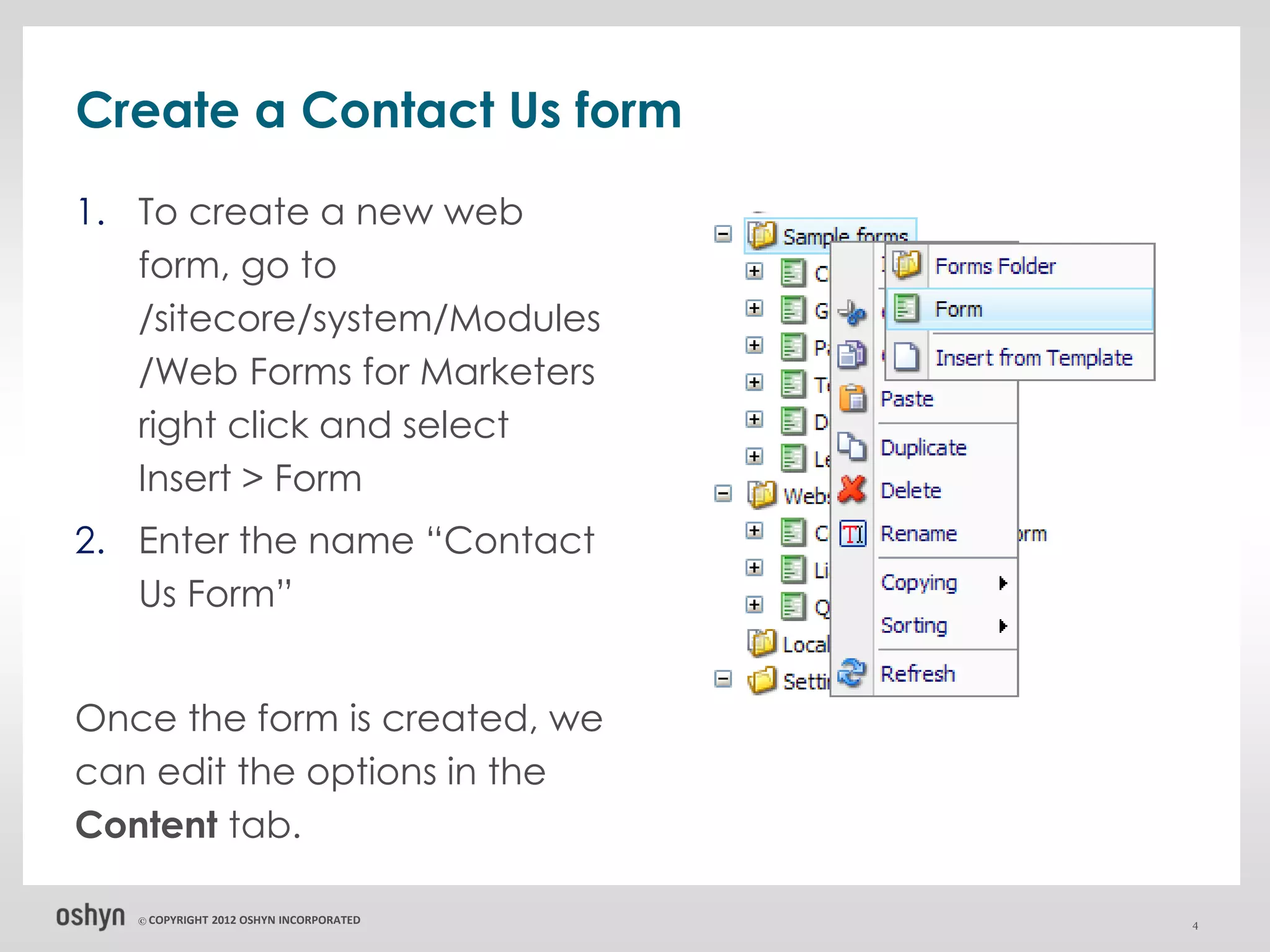
1. To create a new web
   form, go to
   /sitecore/system/Modules
   /Web Forms for Marketers
   right click and select
   Insert > Form
2. Enter the name “Contact
   Us Form”


Once the form is created, we
can edit the options in the
Content tab.

   © COPYRIGHT   2012 OSHYN INCORPORATED   4
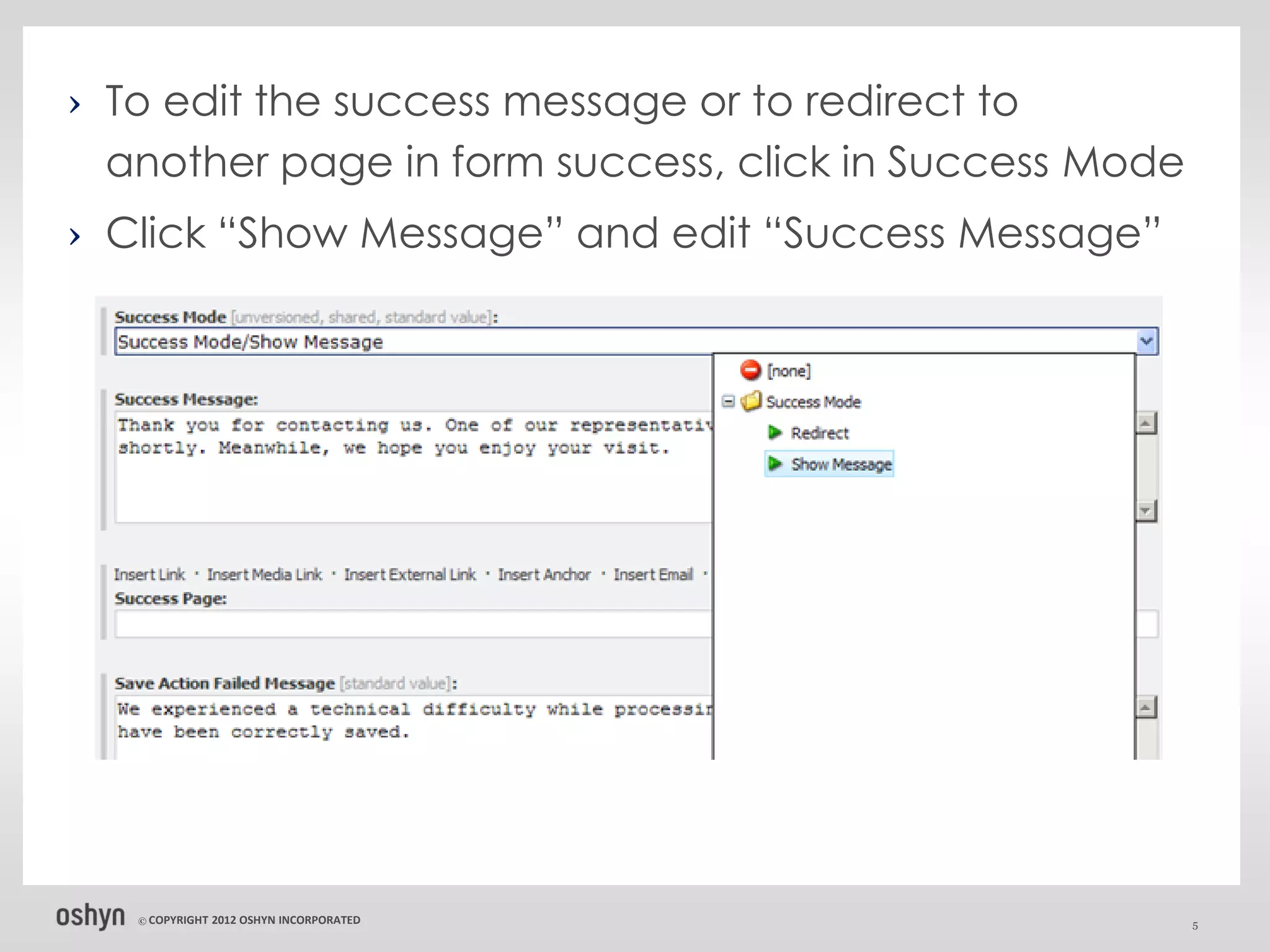
› To edit the success message or to redirect to
  another page in form success, click in Success Mode
› Click “Show Message” and edit “Success Message”


   © COPYRIGHT   2012 OSHYN INCORPORATED                5
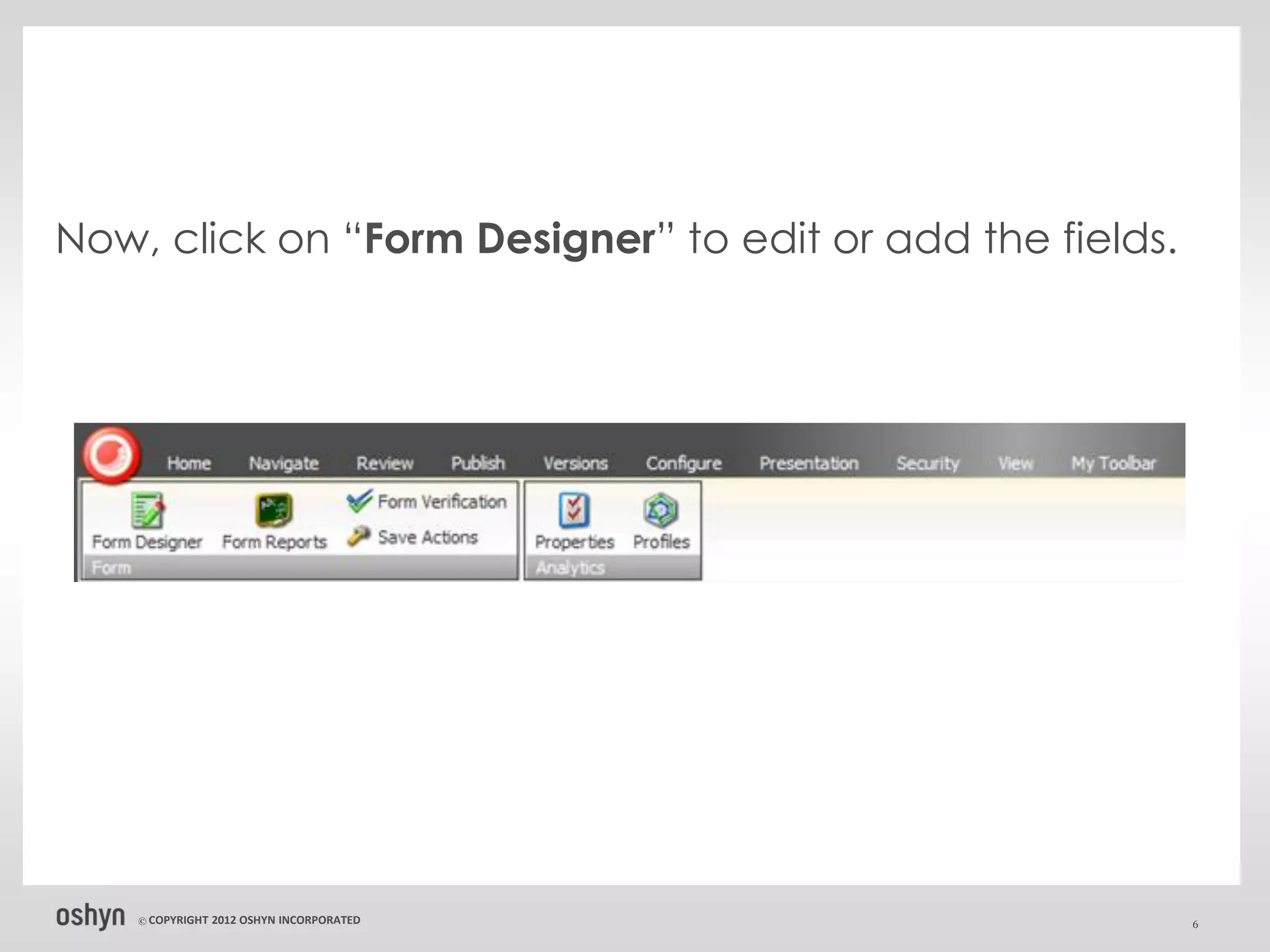
Now, click on “Form Designer” to edit or add the fields.


    © COPYRIGHT   2012 OSHYN INCORPORATED                  6
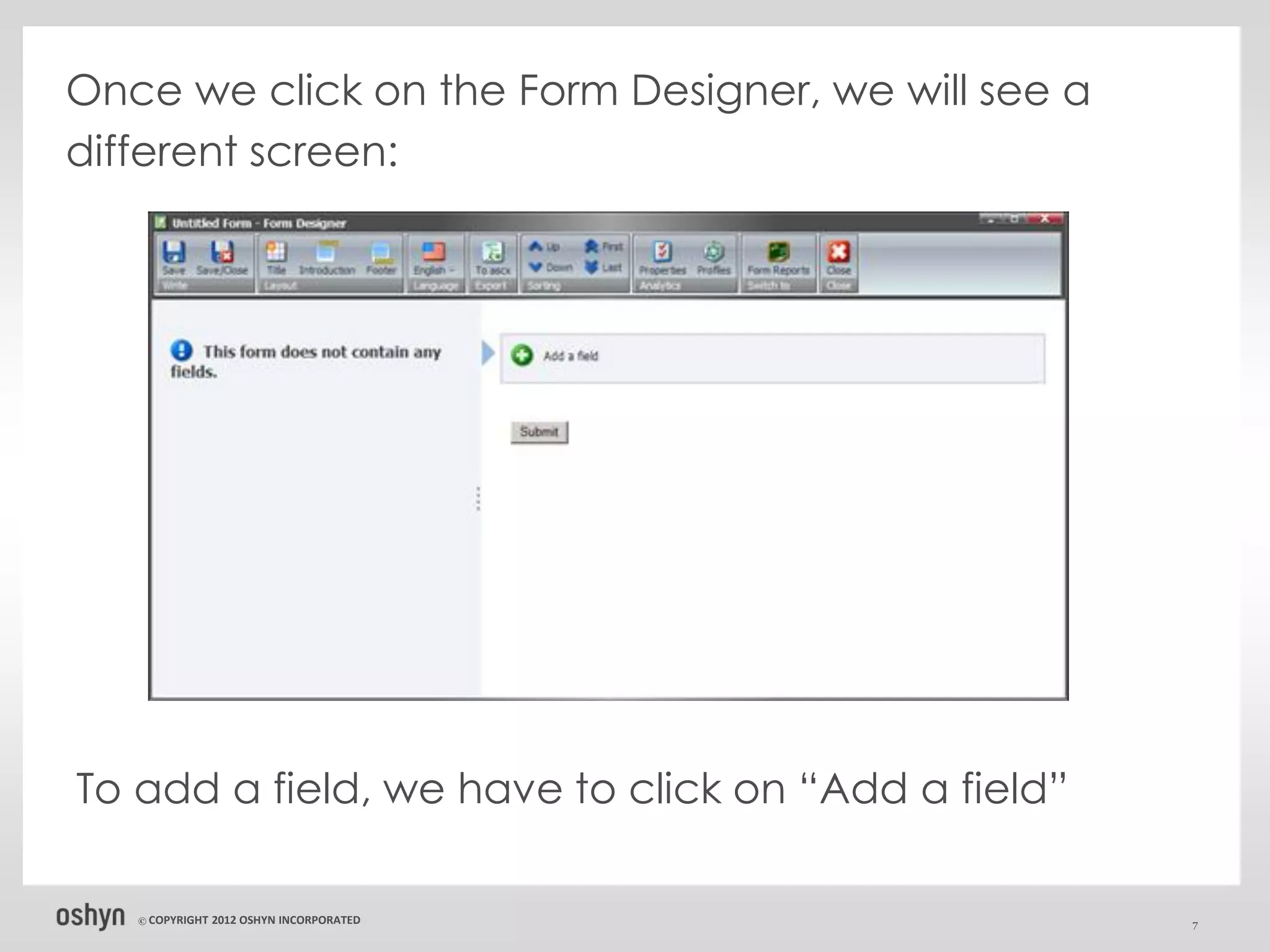
Once we click on the Form Designer, we will see a
different screen:


To add a field, we have to click on “Add a field”

   © COPYRIGHT   2012 OSHYN INCORPORATED            7
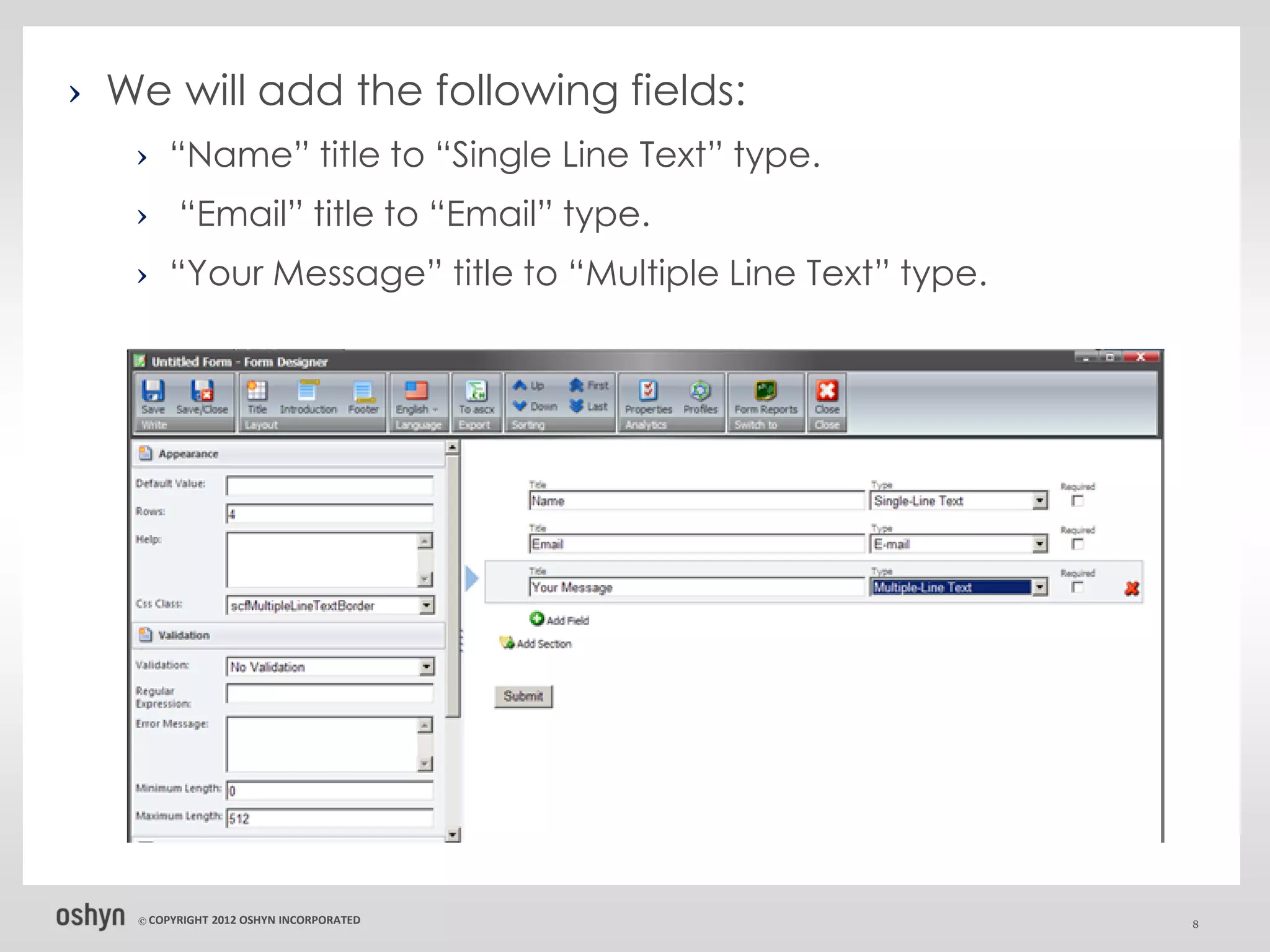
› We will add the following fields:
   › “Name” title to “Single Line Text” type.
   › “Email” title to “Email” type.
   › “Your Message” title to “Multiple Line Text” type.


   © COPYRIGHT   2012 OSHYN INCORPORATED                  8
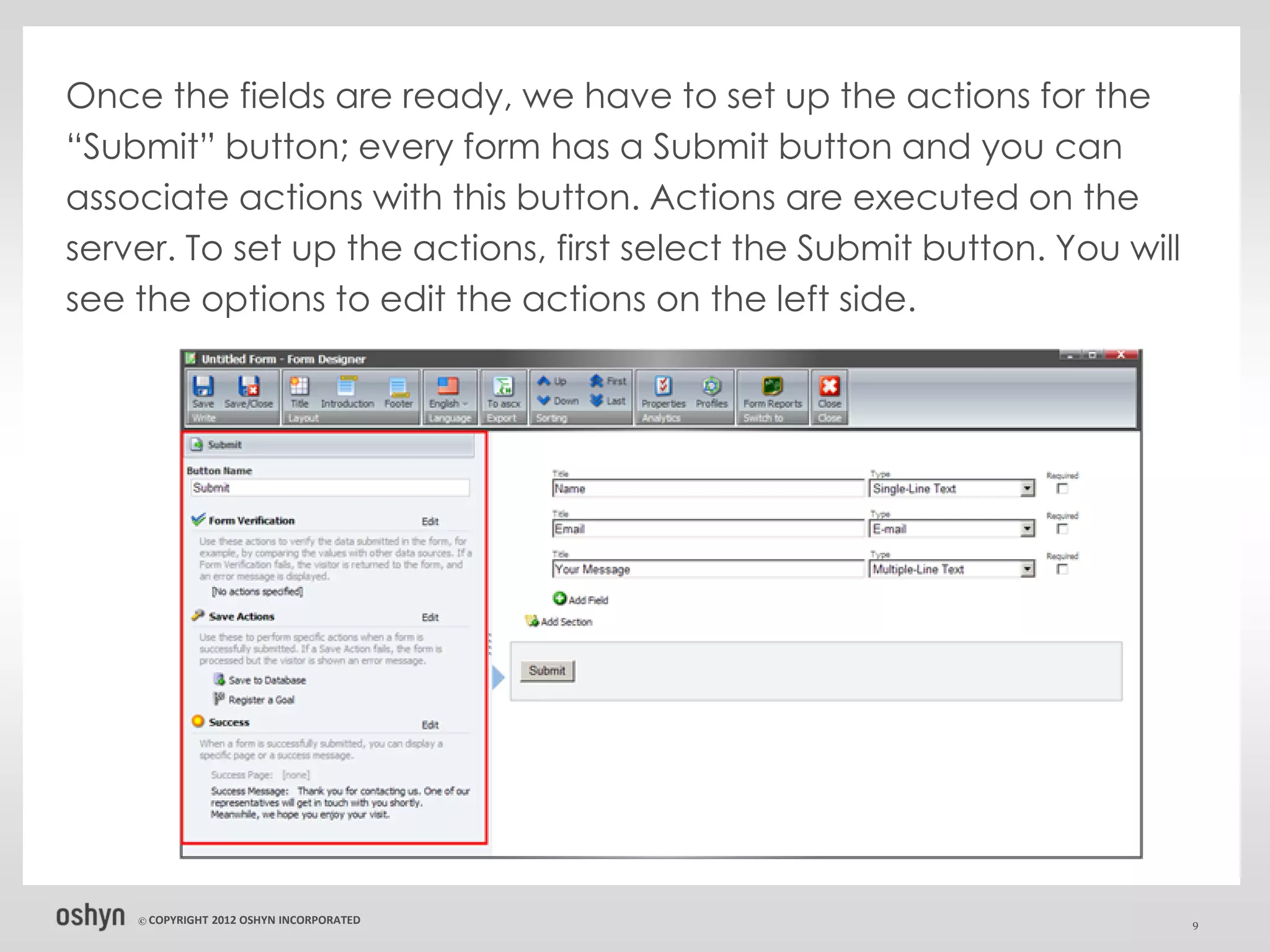
Once the fields are ready, we have to set up the actions for the
“Submit” button; every form has a Submit button and you can
associate actions with this button. Actions are executed on the
server. To set up the actions, first select the Submit button. You will
see the options to edit the actions on the left side.


    © COPYRIGHT   2012 OSHYN INCORPORATED                                 9
How to style the fields


In the Form Designer, you can use CSS Class property
that is available for all fields.


   © COPYRIGHT   2012 OSHYN INCORPORATED               10
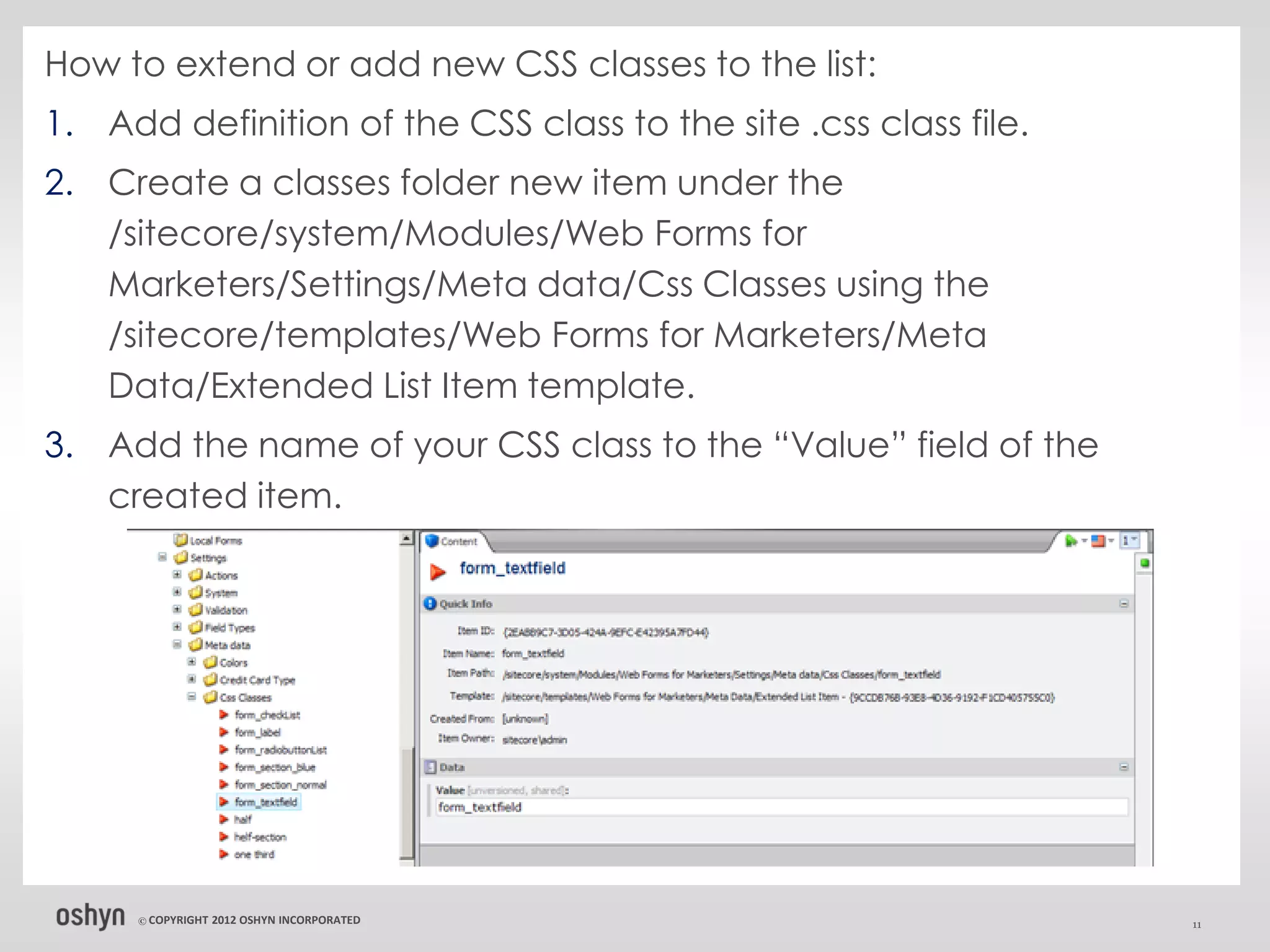
How to extend or add new CSS classes to the list:
1. Add definition of the CSS class to the site .css class file.
2. Create a classes folder new item under the
   /sitecore/system/Modules/Web Forms for
   Marketers/Settings/Meta data/Css Classes using the
   /sitecore/templates/Web Forms for Marketers/Meta
   Data/Extended List Item template.
3. Add the name of your CSS class to the “Value” field of the
   created item.


     © COPYRIGHT   2012 OSHYN INCORPORATED                        11
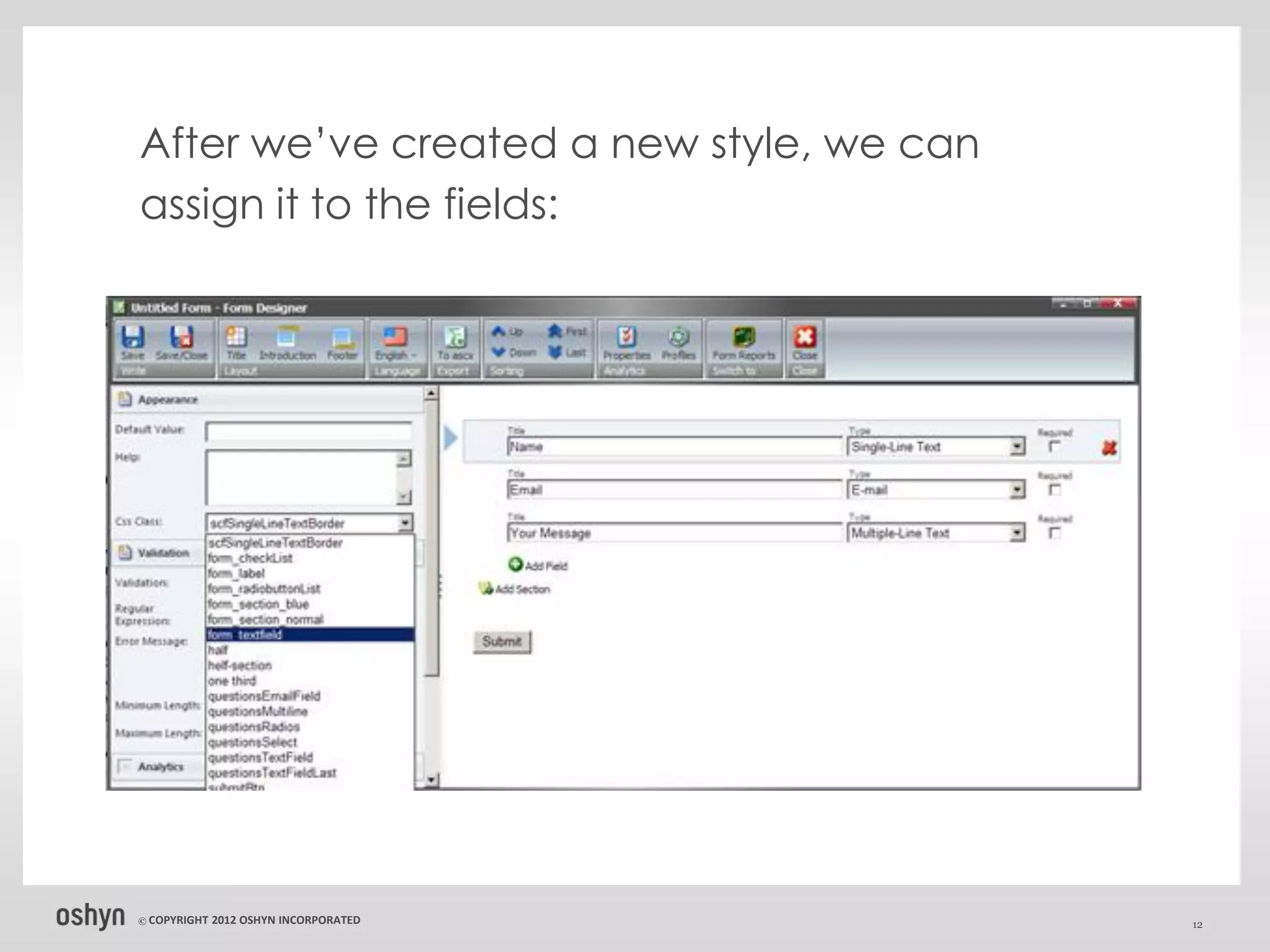
After we’ve created a new style, we can
assign it to the fields:


© COPYRIGHT   2012 OSHYN INCORPORATED     12
Key Points
› The Web Form for Marketers module is a great
  module, easy to use to create web forms with a
  variety of settings
› The markup that the module generates is complex
  and difficult for a front-end developer to configure
  starting from a prototype, I recommend configuring
  the web form prior to the start of the project and
  then begin from that markup to change styles in
  order to accomplish a specific design.


   © COPYRIGHT   2012 OSHYN INCORPORATED                 13
Learn more about
                            Oshyn’s Sitecore work at:
                            www.oshyn.com/sitecore


© COPYRIGHT   2012 OSHYN INCORPORATED                   14

Styling Sitecore's Web Forms for Marketers

  • 1.
    Styling Sitecore’s Web Forms for Marketers A step-by-step guide © COPYRIGHT 2012 OSHYN INCORPORATED 1
  • 2.
    Styling Sitecore’s WebForms for Marketers The Sitecore’s Web Forms for Marketers module is designed to create simple forms in a user-friendly manner. It provides users with web analytics and reporting capabilities. It also records and reports user information provided in forms, in both failure and success scenarios. Here, I’ll show you how to create a simple Contact Web Form as well as how to create and assign styles to it using Sitecore's Web Forms for Marketers. © COPYRIGHT 2012 OSHYN INCORPORATED 2
  • 3.
    Create a ContactUs form The Web Forms for Marketers module defines forms using items that are stored in the appropriate folders under /sitecore/system/Modules/Web Forms for Marketers. Each form is based on the /sitecore/templates/Web Forms for Marketers/Form template and can contain any number of sections or fields © COPYRIGHT 2012 OSHYN INCORPORATED 3
  • 4.
    Create a ContactUs form 1. To create a new web form, go to /sitecore/system/Modules /Web Forms for Marketers right click and select Insert > Form 2. Enter the name “Contact Us Form” Once the form is created, we can edit the options in the Content tab. © COPYRIGHT 2012 OSHYN INCORPORATED 4
  • 5.
    › To editthe success message or to redirect to another page in form success, click in Success Mode › Click “Show Message” and edit “Success Message” © COPYRIGHT 2012 OSHYN INCORPORATED 5
  • 6.
    Now, click on“Form Designer” to edit or add the fields. © COPYRIGHT 2012 OSHYN INCORPORATED 6
  • 7.
    Once we clickon the Form Designer, we will see a different screen: To add a field, we have to click on “Add a field” © COPYRIGHT 2012 OSHYN INCORPORATED 7
  • 8.
    › We willadd the following fields: › “Name” title to “Single Line Text” type. › “Email” title to “Email” type. › “Your Message” title to “Multiple Line Text” type. © COPYRIGHT 2012 OSHYN INCORPORATED 8
  • 9.
    Once the fieldsare ready, we have to set up the actions for the “Submit” button; every form has a Submit button and you can associate actions with this button. Actions are executed on the server. To set up the actions, first select the Submit button. You will see the options to edit the actions on the left side. © COPYRIGHT 2012 OSHYN INCORPORATED 9
  • 10.
    How to stylethe fields In the Form Designer, you can use CSS Class property that is available for all fields. © COPYRIGHT 2012 OSHYN INCORPORATED 10
  • 11.
    How to extendor add new CSS classes to the list: 1. Add definition of the CSS class to the site .css class file. 2. Create a classes folder new item under the /sitecore/system/Modules/Web Forms for Marketers/Settings/Meta data/Css Classes using the /sitecore/templates/Web Forms for Marketers/Meta Data/Extended List Item template. 3. Add the name of your CSS class to the “Value” field of the created item. © COPYRIGHT 2012 OSHYN INCORPORATED 11
  • 12.
    After we’ve createda new style, we can assign it to the fields: © COPYRIGHT 2012 OSHYN INCORPORATED 12
  • 13.
    Key Points › TheWeb Form for Marketers module is a great module, easy to use to create web forms with a variety of settings › The markup that the module generates is complex and difficult for a front-end developer to configure starting from a prototype, I recommend configuring the web form prior to the start of the project and then begin from that markup to change styles in order to accomplish a specific design. © COPYRIGHT 2012 OSHYN INCORPORATED 13
  • 14.
    Learn more about Oshyn’s Sitecore work at: www.oshyn.com/sitecore © COPYRIGHT 2012 OSHYN INCORPORATED 14