Data Visualization GEri - SpagoBI
Davide Zerbetto, Nunzia Marotta
Engineering
Data Visualization GE Manager, Data Visualization GE Course Creator - FIWARE
davide.zerbetto@eng.it ,nunzia.marotta@eng.it
Birt Report Designer
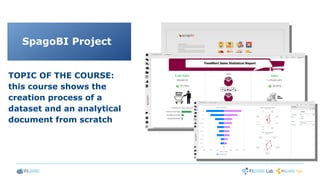
TOPIC OF THE COURSE:
this course shows the
creation process of a
dataset and an analytical
document from scratch
SpagoBI Project
Prerequisite: having a working SpagoBI Server installation
Installation instructions are available here:
http://spagobi.readthedocs.org/en/latest/admin/README/index.html
We will refer to the SpagoBI Server base folder as SPAGOBI_SERVER_HOME.
In this course we will focus on:
➢
configuring a new datasource connection;
➢
creating a new dataset;
➢
creating a new chart;
Step 1. Set datasource connection.
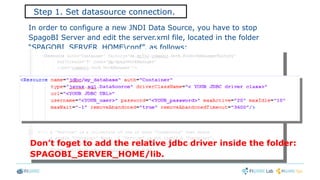
In order to configure a new JNDI Data Source, you have to stop
SpagoBI Server and edit the server.xml file, located in the folder
“SPAGOBI_SERVER_HOMEconf”, as follows:
Don’t foget to add the relative jdbc driver inside the folder:
SPAGOBI_SERVER_HOME/lib.
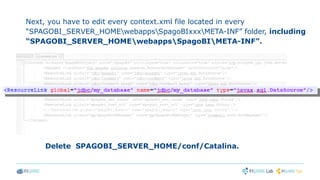
Next, you have to edit every context.xml file located in every
“SPAGOBI_SERVER_HOMEwebappsSpagoBIxxxMETA-INF” folder, including
“SPAGOBI_SERVER_HOMEwebappsSpagoBIMETA-INF”.
Delete SPAGOBI_SERVER_HOME/conf/Catalina.
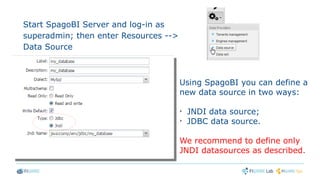
Start SpagoBI Server and log-in as
superadmin; then enter Resources -->
Data Source
Using SpagoBI you can define a
new data source in two ways:
➢
JNDI data source;
➢
JDBC data source.
We recommend to define only
JNDI datasources as described.
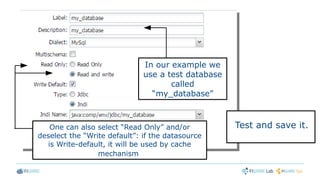
Test and save it.One can also select “Read Only” and/or
deselect the “Write default”: if the datasource
is Write-default, it will be used by cache
mechanism
In our example we
use a test database
called
“my_database”
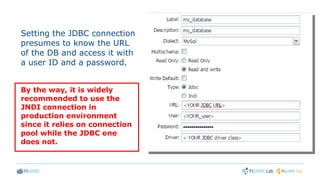
Setting the JDBC connection
presumes to know the URL
of the DB and access it with
a user ID and a password.
By the way, it is widely
recommended to use the
JNDI connection in
production environment
since it relies on connection
pool while the JDBC one
does not.
A dataset is a generic data provider. When defining an analytical
document, users specify the dataset(s) to be considered for data
retrieval, therefore they can completely forget about the data
source: is this sense, the dataset can be considered a layer that
levels all data sources and hides the underlying complexity.
Step 2. Create a new dataset.
There are several types of SpagoBI datasets, listed below:
➢ SQL query (most common)
➢ File
➢ Java Class
➢ Web Service
➢ Script
➢ QbE query
➢ REST service
➢ NGSI query
➢ CKAN resource
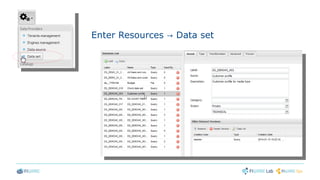
Enter Resources Data set→
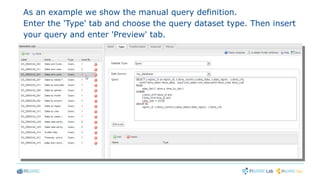
As an example we show the manual query definition.
Enter the 'Type' tab and choose the query dataset type. Then insert
your query and enter 'Preview' tab.
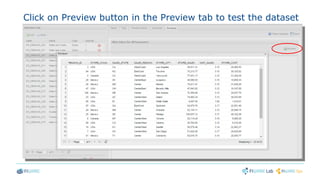
Click on Preview button in the Preview tab to test the dataset
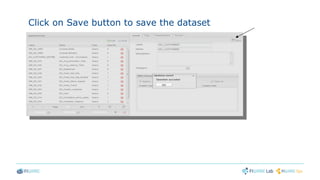
Click on Save button to save the dataset
Some definitions before moving to the next steps:
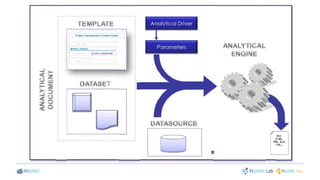
Analytical document: object that defines an analysis that should satisfy the
users analytical needs.
These kind of documents can be created by technical users (editing a template
or using the SpagoBI Studio package) or by final users (using the ad-hoc
reporting tool). In this course we will focus on those documents developed by
technical users.
Template: file containing the Analytical Document specifications.
Developed using external tools such as SpagoBI Studio
Versions: many template versions can be stored for a single Analytical
Document.
A new version is registered for every deploy from the SpagoBI Studio and every
time you manually upload a template from the administrator GUI on the
SpagoBI Server
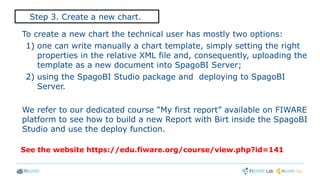
To create a new chart the technical user has mostly two options:
1) one can write manually a chart template, simply setting the right
properties in the relative XML file and, consequently, uploading the
template as a new document into SpagoBI Server;
2) using the SpagoBI Studio package and deploying to SpagoBI
Server.
We refer to our dedicated course “My first report” available on FIWARE
platform to see how to build a new Report with Birt inside the SpagoBI
Studio and use the deploy function.
See the website https://edu.fiware.org/course/view.php?id=141
Step 3. Create a new chart.
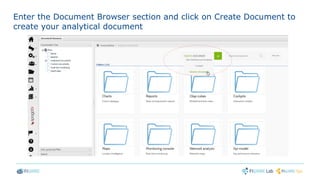
Enter the Document Browser section and click on Create Document to
create your analytical document
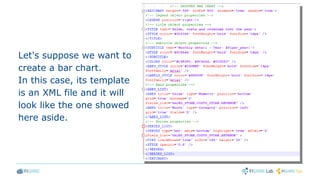
Let's suppose we want to
create a bar chart.
In this case, its template
is an XML file and it will
look like the one showed
here aside.
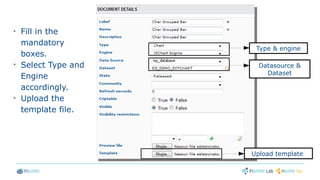
➢
Fill in the
mandatory
boxes.
➢
Select Type and
Engine
accordingly.
➢
Upload the
template file.
Type & engine
Datasource &
Dataset
Upload template
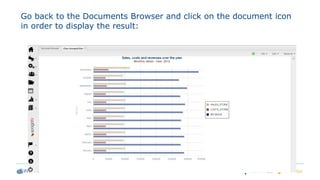
Go back to the Documents Browser and click on the document icon
in order to display the result:
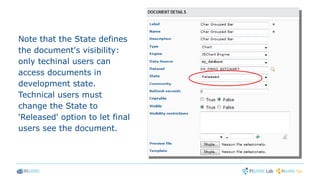
Note that the State defines
the document's visibility:
only techinal users can
access documents in
development state.
Technical users must
change the State to
'Released' option to let final
users see the document.
Thanks!Thanks!

Starting with SpagoBI Slide Support

  • 1.
    Data Visualization GEri- SpagoBI Davide Zerbetto, Nunzia Marotta Engineering Data Visualization GE Manager, Data Visualization GE Course Creator - FIWARE davide.zerbetto@eng.it ,nunzia.marotta@eng.it
  • 2.
    Birt Report Designer TOPICOF THE COURSE: this course shows the creation process of a dataset and an analytical document from scratch SpagoBI Project
  • 3.
    Prerequisite: having aworking SpagoBI Server installation Installation instructions are available here: http://spagobi.readthedocs.org/en/latest/admin/README/index.html We will refer to the SpagoBI Server base folder as SPAGOBI_SERVER_HOME. In this course we will focus on: ➢ configuring a new datasource connection; ➢ creating a new dataset; ➢ creating a new chart;
  • 4.
    Step 1. Setdatasource connection. In order to configure a new JNDI Data Source, you have to stop SpagoBI Server and edit the server.xml file, located in the folder “SPAGOBI_SERVER_HOMEconf”, as follows: Don’t foget to add the relative jdbc driver inside the folder: SPAGOBI_SERVER_HOME/lib.
  • 5.
    Next, you haveto edit every context.xml file located in every “SPAGOBI_SERVER_HOMEwebappsSpagoBIxxxMETA-INF” folder, including “SPAGOBI_SERVER_HOMEwebappsSpagoBIMETA-INF”. Delete SPAGOBI_SERVER_HOME/conf/Catalina.
  • 6.
    Start SpagoBI Serverand log-in as superadmin; then enter Resources --> Data Source Using SpagoBI you can define a new data source in two ways: ➢ JNDI data source; ➢ JDBC data source. We recommend to define only JNDI datasources as described.
  • 7.
    Test and saveit.One can also select “Read Only” and/or deselect the “Write default”: if the datasource is Write-default, it will be used by cache mechanism In our example we use a test database called “my_database”
  • 8.
    Setting the JDBCconnection presumes to know the URL of the DB and access it with a user ID and a password. By the way, it is widely recommended to use the JNDI connection in production environment since it relies on connection pool while the JDBC one does not.
  • 9.
    A dataset isa generic data provider. When defining an analytical document, users specify the dataset(s) to be considered for data retrieval, therefore they can completely forget about the data source: is this sense, the dataset can be considered a layer that levels all data sources and hides the underlying complexity. Step 2. Create a new dataset.
  • 10.
    There are severaltypes of SpagoBI datasets, listed below: ➢ SQL query (most common) ➢ File ➢ Java Class ➢ Web Service ➢ Script ➢ QbE query ➢ REST service ➢ NGSI query ➢ CKAN resource
  • 11.
  • 12.
    As an examplewe show the manual query definition. Enter the 'Type' tab and choose the query dataset type. Then insert your query and enter 'Preview' tab.
  • 13.
    Click on Previewbutton in the Preview tab to test the dataset
  • 14.
    Click on Savebutton to save the dataset
  • 15.
    Some definitions beforemoving to the next steps: Analytical document: object that defines an analysis that should satisfy the users analytical needs. These kind of documents can be created by technical users (editing a template or using the SpagoBI Studio package) or by final users (using the ad-hoc reporting tool). In this course we will focus on those documents developed by technical users. Template: file containing the Analytical Document specifications. Developed using external tools such as SpagoBI Studio Versions: many template versions can be stored for a single Analytical Document. A new version is registered for every deploy from the SpagoBI Studio and every time you manually upload a template from the administrator GUI on the SpagoBI Server
  • 17.
    To create anew chart the technical user has mostly two options: 1) one can write manually a chart template, simply setting the right properties in the relative XML file and, consequently, uploading the template as a new document into SpagoBI Server; 2) using the SpagoBI Studio package and deploying to SpagoBI Server. We refer to our dedicated course “My first report” available on FIWARE platform to see how to build a new Report with Birt inside the SpagoBI Studio and use the deploy function. See the website https://edu.fiware.org/course/view.php?id=141 Step 3. Create a new chart.
  • 18.
    Enter the DocumentBrowser section and click on Create Document to create your analytical document
  • 19.
    Let's suppose wewant to create a bar chart. In this case, its template is an XML file and it will look like the one showed here aside.
  • 20.
    ➢ Fill in the mandatory boxes. ➢ SelectType and Engine accordingly. ➢ Upload the template file. Type & engine Datasource & Dataset Upload template
  • 21.
    Go back tothe Documents Browser and click on the document icon in order to display the result:
  • 22.
    Note that theState defines the document's visibility: only techinal users can access documents in development state. Technical users must change the State to 'Released' option to let final users see the document.
  • 23.