Introduction to SQL Server
Database Administration
Tribal Data Workshop
April 10 – 11, 2018
CRITFC
Portland, Oregon
Agenda
• Exactly what is a DBMS?
• Security Management
• Introducing SQL Server Manager System (SSMS)
• Administrative Tasks
o Adding a new user
o Changing a password
o Re-enabling a locked out account
o Granting/Denying Access to a DB
o Granting/Denying Access to a Table
o Creating a New Database
o Deleting a Database
o Creating a Table
o Quick Tutorial on Data Types
o Deleting a Table
o Setting the Primary Key
o Backing Up the Database
o Restoring a Full Backup
o Database Indexes Tutorial
o Data Encryption
Buckle Your
Seatbelt
We have a lot to cover in a relatively short
timeframe
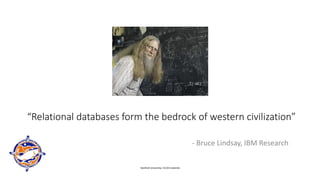
“Relational databases form the bedrock of western civilization”
- Bruce Lindsay, IBM Research
Stanford University: CS145 materials
A Little Vocabulary
Schema:
an underlying organizational pattern or structure;
conceptual framework
• In a database, a schema is a description of a
particular collection of data, using the given data
model
• For SQL Server, the data model is the relational
model
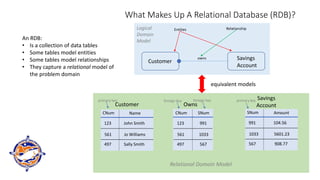
What Makes Up A Relational Database (RDB)?
An RDB:
• Is a collection of data tables
• Some tables model entities
• Some tables model relationships
• They capture a relational model of
the problem domain
Customer
Savings
Account
owns
Entities Relationship
Logical
Domain
Model
CNum SNum
123 991
561 1033
497 567
SNum Amount
991 104.56
1033 5601.23
567 908.77
CNum Name
123 John Smith
561 Jo Williams
497 Sally Smith
Customer Owns
Savings
Account
Relational Domain Model
primary key
primary key foreign key foreign key
equivalent models
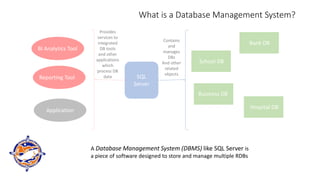
What is a Database Management System?
A Database Management System (DBMS) like SQL Server is
a piece of software designed to store and manage multiple RDBs
SQL
Server
Bank DB
School DB
Business DB
Hospital DB
Contains
and
manages
DBs
And other
related
objects
BI Analytics Tool
Reporting Tool
Application
Provides
services to
integrated
DB tools
and other
applications
which
process DB
data
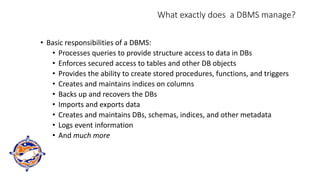
What exactly does a DBMS manage?
• Basic responsibilities of a DBMS:
• Processes queries to provide structure access to data in DBs
• Enforces secured access to tables and other DB objects
• Provides the ability to create stored procedures, functions, and triggers
• Creates and maintains indices on columns
• Backs up and recovers the DBs
• Imports and exports data
• Creates and maintains DBs, schemas, indices, and other metadata
• Logs event information
• And much more
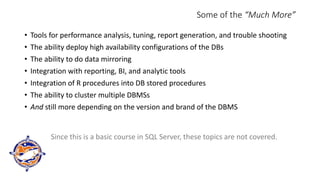
Some of the “Much More”
• Tools for performance analysis, tuning, report generation, and trouble shooting
• The ability deploy high availability configurations of the DBs
• The ability to do data mirroring
• Integration with reporting, BI, and analytic tools
• Integration of R procedures into DB stored procedures
• The ability to cluster multiple DBMSs
• And still more depending on the version and brand of the DBMS
Since this is a basic course in SQL Server, these topics are not covered.
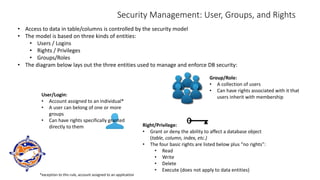
Security Management: User, Groups, and Rights
• Access to data in table/columns is controlled by the security model
• The model is based on three kinds of entities:
• Users / Logins
• Rights / Privileges
• Groups/Roles
• The diagram below lays out the three entities used to manage and enforce DB security:
Group/Role:
• A collection of users
• Can have rights associated with it that
users inherit with membership
User/Login:
• Account assigned to an individual*
• A user can belong of one or more
groups
• Can have rights specifically granted
directly to them Right/Privilege:
• Grant or deny the ability to affect a database object
(table, column, index, etc.)
• The four basic rights are listed below plus “no rights”:
• Read
• Write
• Delete
• Execute (does not apply to data entities)
*exception to this rule, account assigned to an application
The SA
• There is a single user account “SA” (system administrator)
which is all powerful in the DBMS
• The SA:
• effectively “owns” the DBMS
• has all rights to control all entities in DBMS
• and is therefore a very dangerous account (more later)
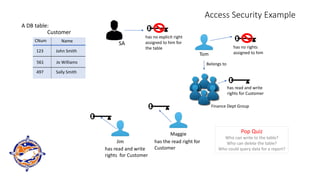
Access Security Example
CNum Name
123 John Smith
561 Jo Williams
497 Sally Smith
Customer
A DB table:
Jim
Maggie
Tom
Belongs to
has no rights
assigned to him
Finance Dept Group
has read and write
rights for Customer
has read and write
rights for Customer
has the read right for
Customer
has no explicit right
assigned to him for
the table
SA
Pop Quiz
Who can write to the table?
Who can delete the table?
Who could query data for a report?
• Some Best Practices for Security
• Beware the SA account!
• This account can overwrite or delete anything in the DBMS – this includes metadata
the DBMS must have to function correctly
• We’re all human and can make mistakes, mistakes by the SA can destroy the DBMS
• So, DON’T log into the SA account unless you must be in it to get a task done
• And, once you finish the task(s), log out immediately!
• Grant users as few rights as possible -- this is preventative medicine to avoid mistakes
• Groups are a good way to assign rights
• Groups often map well to organization units (i.e., departments, project teams)
• People in the same group often need exactly or mostly the same rights
• If a group needs to have its rights adjusted you only have to adjust the group not all
the users individually – great time saver
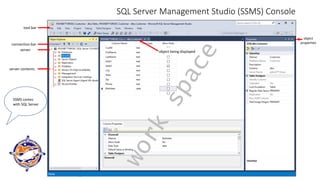
SQL Server Management Studio (SSMS) Console
tool bar
connection bar
server
server contents
object
properties
object being displayed
SSMS comes
with SQL Server
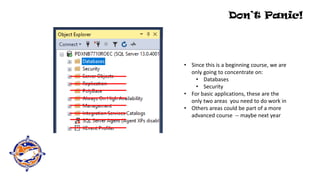
Don’t Panic!
• Since this is a beginning course, we are
only going to concentrate on:
• Databases
• Security
• For basic applications, these are the
only two areas you need to do work in
• Others areas could be part of a more
advanced course -- maybe next year
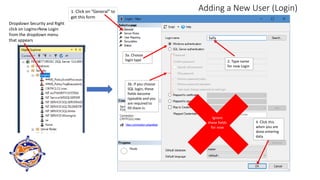
Adding a New User (Login)
Dropdown Security and Right
click on Logins>New Login
from the dropdown menu
that appears
Sally
1. Click on “General” to
get this form
2. Type name
for new Login
3a. Choose
login type
3b. If you choose
SQL login, these
fields become
typeable and you
are required to
fill them in
Ignore
these
fields
4. Click this
when you are
done entering
data
Ignore
these fields
for now
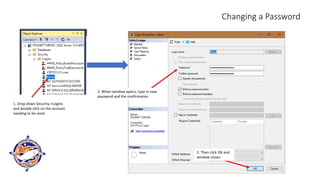
Changing a Password
1. Drop down Security->Logins
and double click on the account
needing to be reset
2. When window opens, type in new
password and the confirmation
3. Then click OK and
window closes
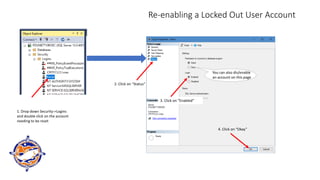
Re-enabling a Locked Out User Account
1. Drop down Security->Logins
and double click on the account
needing to be reset
2. Click on “Status”
3. Click on “Enabled”
4. Click on “Okay”
You can also dis/enable
an account on this page
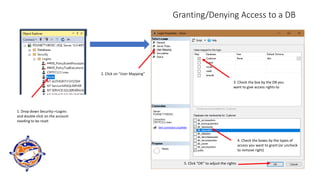
Granting/Denying Access to a DB
1. Drop down Security->Logins
and double click on the account
needing to be reset
2. Click on “User Mapping”
3. Check the box by the DB you
want to give access rights to
4. Check the boxes by the types of
access you want to grant (or uncheck
to remove right)
5. Click “OK” to adjust the rights
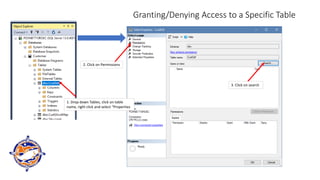
Granting/Denying Access to a Specific Table
1. Drop down Tables, click on table
name, right click and select “Properties
2. Click on Permissions
3. Click on search
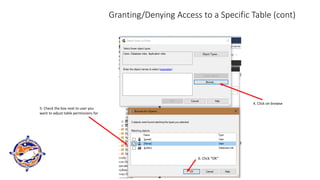
Granting/Denying Access to a Specific Table (cont)
4. Click on browse
5. Check the box next to user you
want to adjust table permissions for
6. Click “OK”
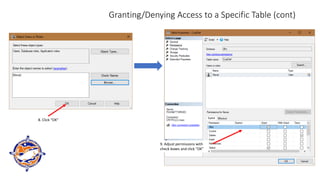
Granting/Denying Access to a Specific Table (cont)
8. Click “OK”
9. Adjust permissions with
check boxes and click “OK”
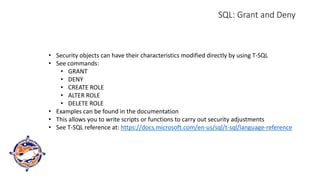
SQL: Grant and Deny
• Security objects can have their characteristics modified directly by using T-SQL
• See commands:
• GRANT
• DENY
• CREATE ROLE
• ALTER ROLE
• DELETE ROLE
• Examples can be found in the documentation
• This allows you to write scripts or functions to carry out security adjustments
• See T-SQL reference at: https://docs.microsoft.com/en-us/sql/t-sql/language-reference
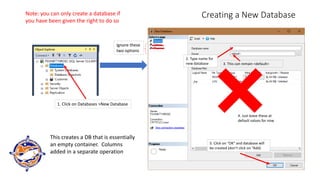
Creating a New Database
1. Click on Databases >New Database
Ignore these
two options
2. Type name for
new database 3. This can remain <default>
4. Just leave these at
default values for now
5. Click on “OK” and database will
be created (don’t click on “Add)
This creates a DB that is essentially
an empty container. Columns
added in a separate operation
Note: you can only create a database if
you have been given the right to do so
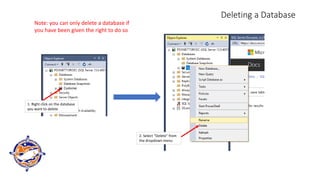
Deleting a Database
1. Right click on the database
you want to delete
2. Select “Delete” from
the dropdown menu
Note: you can only delete a database if
you have been given the right to do so
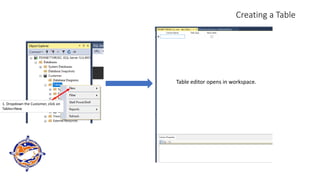
Creating a Table
1. Dropdown the Customer, click on
Tables>New
Table editor opens in workspace.
Creating a Table (cont)
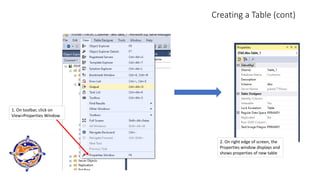
1. On toolbar, click on
View>Properties Window
2. On right edge of screen, the
Properties window displays and
shows properties of new table
Creating a Table (cont)
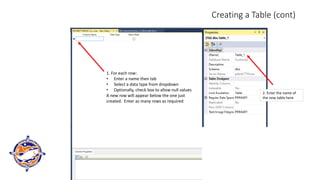
1. For each row:
• Enter a name then tab
• Select a data type from dropdown
• Optionally, check box to allow null values
A new row will appear below the one just
created. Enter as many rows as required
2. Enter the name of
the new table here
Creating a Table (cont)
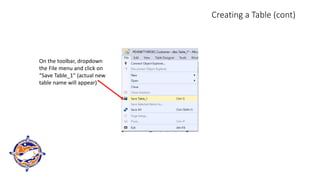
On the toolbar, dropdown
the File menu and click on
“Save Table_1” (actual new
table name will appear)
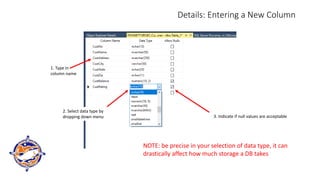
Details: Entering a New Column
1. Type in
column name
2. Select data type by
dropping down menu 3. Indicate if null values are acceptable
NOTE: be precise in your selection of data type, it can
drastically affect how much storage a DB takes
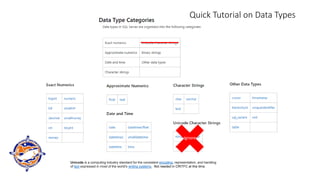
Quick Tutorial on Data Types
Ignore
Unicode is a computing industry standard for the consistent encoding, representation, and handling
of text expressed in most of the world's writing systems. Not needed in CRITFC at this time.
Quick Tutorial on Data Types (cont)
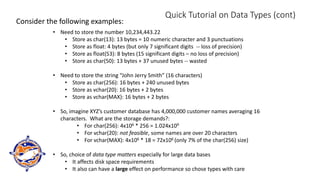
Consider the following examples:
• Need to store the number 10,234,443.22
• Store as char(13): 13 bytes = 10 numeric character and 3 punctuations
• Store as float: 4 bytes (but only 7 significant digits -- loss of precision)
• Store as float(53): 8 bytes (15 significant digits – no loss of precision)
• Store as char(50): 13 bytes + 37 unused bytes -- wasted
• Need to store the string “John Jerry Smith” (16 characters)
• Store as char(256): 16 bytes + 240 unused bytes
• Store as vchar(20): 16 bytes + 2 bytes
• Store as vchar(MAX): 16 bytes + 2 bytes
• So, imagine XYZ’s customer database has 4,000,000 customer names averaging 16
characters. What are the storage demands?:
• For char(256): 4x106 * 256 = 1.024x10⁹
• For vchar(20): not feasible, some names are over 20 characters
• For vchar(MAX): 4x106 * 18 = 72x106 (only 7% of the char(256) size)
• So, choice of data type matters especially for large data bases
• It affects disk space requirements
• It also can have a large effect on performance so chose types with care
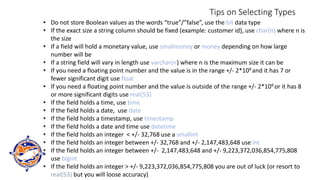
Tips on Selecting Types
• Do not store Boolean values as the words “true”/”false”, use the bit data type
• If the exact size a string column should be fixed (example: customer id), use char(n) where n is
the size
• If a field will hold a monetary value, use smallmoney or money depending on how large
number will be
• If a string field will vary in length use varchar(n) where n is the maximum size it can be
• If you need a floating point number and the value is in the range +/- 2*109 and it has 7 or
fewer significant digit use float
• If you need a floating point number and the value is outside of the range +/- 2*109 or it has 8
or more significant digits use real(53)
• If the field holds a time, use time
• If the field holds a date, use date
• If the field holds a timestamp, use timestamp
• If the field holds a date and time use datetime
• If the field holds an integer < +/- 32,768 use a smallint
• If the field holds an integer between +/- 32,768 and +/- 2,147,483,648 use int
• If the field holds an integer between +/- 2,147,483,648 and +/- 9,223,372,036,854,775,808
use bigint
• If the field holds an integer > +/- 9,223,372,036,854,775,808 you are out of luck (or resort to
real(53) but you will loose accuracy)
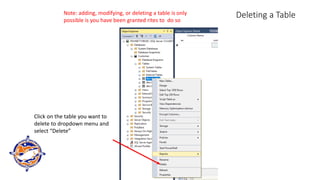
Deleting a Table
Click on the table you want to
delete to dropdown menu and
select “Delete”
Note: adding, modifying, or deleting a table is only
possible is you have been granted rites to do so
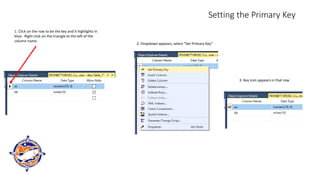
Setting the Primary Key
1. Click on the row to be the key and it highlights in
blue. Right click on the triangle to the left of the
column name.
2. Dropdown appears, select “Set Primary Key”
3. Key icon appears in that row
Backing Up the DBMS
• Backups are a very critical activity in the administration of a DBMS
• If some corruption were to occur in the DBMS (and this sometimes happens), restoring the
DBMS from a backup is the only remedy
• Backups should be scheduled to run automatically daily
• At least weekly, a complete backup should be stored at a secure remote site
• It is critical that backup media be tested regularly by doing a “practice” restore
• Backup media degrades over time
• Problems with the devices used to create the backup can result in corrupt backup media
• It is now possible to backup directly into the cloud
• Avoids using media like tape, backup is from local disk to cloud disk
• In AWS, all data is automatically backed up – so this is a good secure remote backup
strategy
• CRITFC is going run a POC of this possibility this year and share out the approach and
findings
Backup Strategies
• Backups are usually run in the dead of the night when they do not negatively
affect machine performance for users
• The most straightforward strategy is to backup the entire DBMS each night
• Unfortunately, this is not always possible
• A very large DBMS might take too many hours to complete overnight
• Some corporations have world wide operations so there is no “dead” time
• A common strategy is to use incremental backups
Backup Strategies (cont)
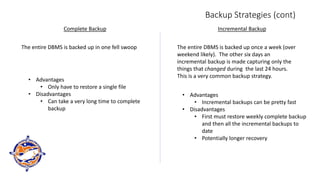
Complete Backup Incremental Backup
The entire DBMS is backed up in one fell swoop
• Advantages
• Only have to restore a single file
• Disadvantages
• Can take a very long time to complete
backup
The entire DBMS is backed up once a week (over
weekend likely). The other six days an
incremental backup is made capturing only the
things that changed during the last 24 hours.
This is a very common backup strategy.
• Advantages
• Incremental backups can be pretty fast
• Disadvantages
• First must restore weekly complete backup
and then all the incremental backups to
date
• Potentially longer recovery
Proviso
Backup and restore is actually a deeply technical subject and we just
cannot do it justice in the time available, so:
• We are going to present the most straightforward cases of a full
backup and recovery
• The next workshop on advanced SQL will delve a little deeper into
the subject
• If people still want more, we can always dive deep in the next
workshop
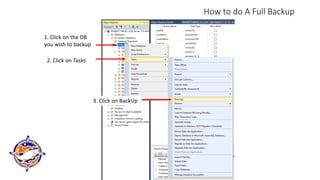
How to do A Full Backup
1. Click on the DB
you wish to backup
2. Click on Tasks
3. Click on BackUp
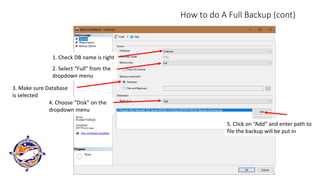
How to do A Full Backup (cont)
1. Check DB name is right
2. Select “Full” from the
dropdown menu
3. Make sure Database
is selected
4. Choose “Disk” on the
dropdown menu
5. Click on “Add” and enter path to
file the backup will be put in
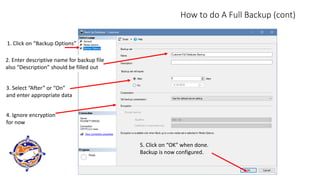
How to do A Full Backup (cont)
1. Click on “Backup Options”
2. Enter descriptive name for backup file
also “Description” should be filled out
3. Select “After” or “On”
and enter appropriate data
4. Ignore encryption
for now
5. Click on “OK” when done.
Backup is now configured.
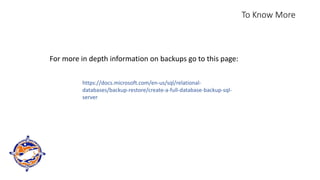
To Know More
https://docs.microsoft.com/en-us/sql/relational-
databases/backup-restore/create-a-full-database-backup-sql-
server
For more in depth information on backups go to this page:
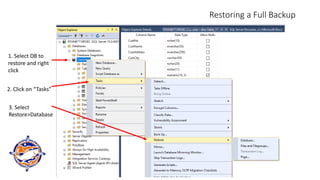
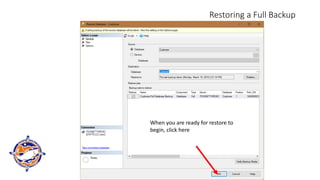
Restoring a Full Backup
1. Select DB to
restore and right
click
2. Click on “Tasks”
3. Select
Restore>Database
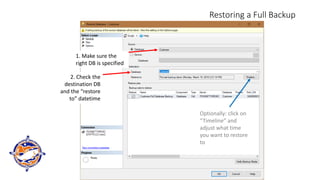
Restoring a Full Backup
1. Make sure the
right DB is specified
2. Check the
destination DB
and the “restore
to” datetime
Optionally: click on
“Timeline” and
adjust what time
you want to restore
to
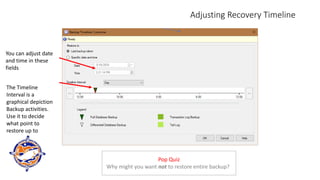
Adjusting Recovery Timeline
You can adjust date
and time in these
fields
The Timeline
Interval is a
graphical depiction
Backup activities.
Use it to decide
what point to
restore up to
Pop Quiz
Why might you want not to restore entire backup?
Restoring a Full Backup
When you are ready for restore to
begin, click here
To Know More
Go to:
https://docs.microsoft.com/en-us/sql/relational-databases/backup-
restore/restore-a-database-backup-using-ssms
One More Thing
Backup and recovery can be completely controlled by writing SQL scripts
What is a database index?
A database index is a data structure that improves the
speed of data retrieval operations on a database table at
the cost of additional writes and storage space to maintain
the index data structure
How Indexes Work
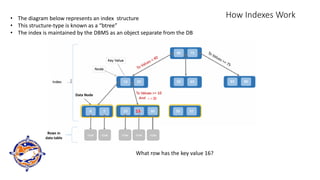
• The diagram below represents an index structure
• This structure-type is known as a “btree”
• The index is maintained by the DBMS as an object separate from the DB
row row row row
What row has the key value 16?
Data Node
16
Rows in
data table
< = 30
row
Indexing
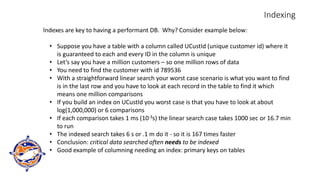
Indexes are key to having a performant DB. Why? Consider example below:
• Suppose you have a table with a column called UCustId (unique customer id) where it
is guaranteed to each and every ID in the column is unique
• Let’s say you have a million customers – so one million rows of data
• You need to find the customer with id 789536
• With a straightforward linear search your worst case scenario is what you want to find
is in the last row and you have to look at each record in the table to find it which
means one million comparisons
• If you build an index on UCustId you worst case is that you have to look at about
log(1,000,000) or 6 comparisons
• If each comparison takes 1 ms (10-3s) the linear search case takes 1000 sec or 16.7 min
to run
• The indexed search takes 6 s or .1 m do it - so it is 167 times faster
• Conclusion: critical data searched often needs to be indexed
• Good example of columning needing an index: primary keys on tables
The Costs Associated with Indexing
• Indexing is not for free
• It can take quite a while to build an index and table may unavailable during at
least part of the time it is being built
• Each time a row is added or removed (and sometimes just modified) the
index has to be updated as well as the table and it can be costly
• Indexes require regular maintenance, i.e., running a defragmentation utility
on them or even rebuilding them with different constraints
• Even with indexes, very large tables may have performance problems and
other actions may need to be taken to reach DB performance goals
• Indexes sometimes go corrupt and have to be rebuilt – which can adversely
affect production while this happens
• When indexes go corrupt, it sometimes can be very hard to diagnose this as
the root cause
• When queries include some kind of string pattern matching, indexes
sometimes cannot be used and the query defaults to linear search
A Few Indexing Guidelines
• Small databases probably don’t need indexes
• Small tables in a DB of any size don’t need indexes
• Example: a table that holds the 25 car colors available for the Chevy F10 pickup
• Primary keys in large tables (> 100,000) definitely need indexes (primary keys are
normally unique)
• Foreign keys that are used frequently in WHERE clauses or other clauses will
benefit from an index
• Columns other the primary or foreign keys in very large tables that are commonly
referenced in WHERE or other clauses can benefit from indexes
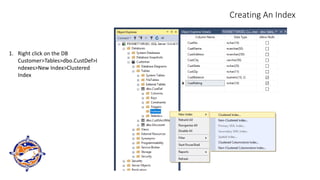
Creating An Index
1. Right click on the DB
Customer>Tables>dbo.CustDef>I
ndexes>New Index>Clustered
Index
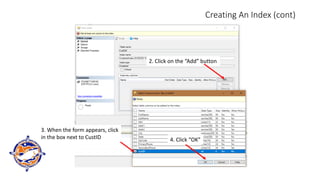
Creating An Index (cont)
2. Click on the “Add” button
4. Click “OK”
3. When the form appears, click
in the box next to CustID
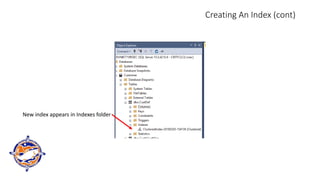
Creating An Index (cont)
New index appears in Indexes folder
Data Encryption
• Beyond users, rites, and passwords another form of data protection is encryption
• SQL Server can encrypt at two levels:
• You can encrypt individual columns in a table
• You can encrypt an entire database (requires SQL Server 2017 Enterprise Edition)
• Is the encryption easy to crack?
Breaking a symmetric 256-bit key by brute force requires
2128 times more computational power than a 128-bit key.
Fifty supercomputers that could check a billion billion (1018)
AES keys per second (if such a device could ever be made)
would, in theory, require about 3×1051 years to exhaust the
256-bit key space. Wikipedia
NOTE: the age of the universe is estimated to be about 13.7 billion (13.7 * 109) years…
• Encryption is complex subject and we do not have the time to get deep
into this today. It could be the subject of a separate seminar later.
That’s all folks!

sql server and ssms basics server administration.pdf

  • 1.
    Introduction to SQLServer Database Administration Tribal Data Workshop April 10 – 11, 2018 CRITFC Portland, Oregon
  • 2.
    Agenda • Exactly whatis a DBMS? • Security Management • Introducing SQL Server Manager System (SSMS) • Administrative Tasks o Adding a new user o Changing a password o Re-enabling a locked out account o Granting/Denying Access to a DB o Granting/Denying Access to a Table o Creating a New Database o Deleting a Database o Creating a Table o Quick Tutorial on Data Types o Deleting a Table o Setting the Primary Key o Backing Up the Database o Restoring a Full Backup o Database Indexes Tutorial o Data Encryption
  • 3.
    Buckle Your Seatbelt We havea lot to cover in a relatively short timeframe
  • 4.
    “Relational databases formthe bedrock of western civilization” - Bruce Lindsay, IBM Research Stanford University: CS145 materials
  • 5.
    A Little Vocabulary Schema: anunderlying organizational pattern or structure; conceptual framework • In a database, a schema is a description of a particular collection of data, using the given data model • For SQL Server, the data model is the relational model
  • 6.
    What Makes UpA Relational Database (RDB)? An RDB: • Is a collection of data tables • Some tables model entities • Some tables model relationships • They capture a relational model of the problem domain Customer Savings Account owns Entities Relationship Logical Domain Model CNum SNum 123 991 561 1033 497 567 SNum Amount 991 104.56 1033 5601.23 567 908.77 CNum Name 123 John Smith 561 Jo Williams 497 Sally Smith Customer Owns Savings Account Relational Domain Model primary key primary key foreign key foreign key equivalent models
  • 7.
    What is aDatabase Management System? A Database Management System (DBMS) like SQL Server is a piece of software designed to store and manage multiple RDBs SQL Server Bank DB School DB Business DB Hospital DB Contains and manages DBs And other related objects BI Analytics Tool Reporting Tool Application Provides services to integrated DB tools and other applications which process DB data
  • 8.
    What exactly doesa DBMS manage? • Basic responsibilities of a DBMS: • Processes queries to provide structure access to data in DBs • Enforces secured access to tables and other DB objects • Provides the ability to create stored procedures, functions, and triggers • Creates and maintains indices on columns • Backs up and recovers the DBs • Imports and exports data • Creates and maintains DBs, schemas, indices, and other metadata • Logs event information • And much more
  • 9.
    Some of the“Much More” • Tools for performance analysis, tuning, report generation, and trouble shooting • The ability deploy high availability configurations of the DBs • The ability to do data mirroring • Integration with reporting, BI, and analytic tools • Integration of R procedures into DB stored procedures • The ability to cluster multiple DBMSs • And still more depending on the version and brand of the DBMS Since this is a basic course in SQL Server, these topics are not covered.
  • 10.
    Security Management: User,Groups, and Rights • Access to data in table/columns is controlled by the security model • The model is based on three kinds of entities: • Users / Logins • Rights / Privileges • Groups/Roles • The diagram below lays out the three entities used to manage and enforce DB security: Group/Role: • A collection of users • Can have rights associated with it that users inherit with membership User/Login: • Account assigned to an individual* • A user can belong of one or more groups • Can have rights specifically granted directly to them Right/Privilege: • Grant or deny the ability to affect a database object (table, column, index, etc.) • The four basic rights are listed below plus “no rights”: • Read • Write • Delete • Execute (does not apply to data entities) *exception to this rule, account assigned to an application
  • 11.
    The SA • Thereis a single user account “SA” (system administrator) which is all powerful in the DBMS • The SA: • effectively “owns” the DBMS • has all rights to control all entities in DBMS • and is therefore a very dangerous account (more later)
  • 12.
    Access Security Example CNumName 123 John Smith 561 Jo Williams 497 Sally Smith Customer A DB table: Jim Maggie Tom Belongs to has no rights assigned to him Finance Dept Group has read and write rights for Customer has read and write rights for Customer has the read right for Customer has no explicit right assigned to him for the table SA Pop Quiz Who can write to the table? Who can delete the table? Who could query data for a report?
  • 13.
    • Some BestPractices for Security • Beware the SA account! • This account can overwrite or delete anything in the DBMS – this includes metadata the DBMS must have to function correctly • We’re all human and can make mistakes, mistakes by the SA can destroy the DBMS • So, DON’T log into the SA account unless you must be in it to get a task done • And, once you finish the task(s), log out immediately! • Grant users as few rights as possible -- this is preventative medicine to avoid mistakes • Groups are a good way to assign rights • Groups often map well to organization units (i.e., departments, project teams) • People in the same group often need exactly or mostly the same rights • If a group needs to have its rights adjusted you only have to adjust the group not all the users individually – great time saver
  • 14.
    SQL Server ManagementStudio (SSMS) Console tool bar connection bar server server contents object properties object being displayed SSMS comes with SQL Server
  • 15.
    Don’t Panic! • Sincethis is a beginning course, we are only going to concentrate on: • Databases • Security • For basic applications, these are the only two areas you need to do work in • Others areas could be part of a more advanced course -- maybe next year
  • 16.
    Adding a NewUser (Login) Dropdown Security and Right click on Logins>New Login from the dropdown menu that appears Sally 1. Click on “General” to get this form 2. Type name for new Login 3a. Choose login type 3b. If you choose SQL login, these fields become typeable and you are required to fill them in Ignore these fields 4. Click this when you are done entering data Ignore these fields for now
  • 17.
    Changing a Password 1.Drop down Security->Logins and double click on the account needing to be reset 2. When window opens, type in new password and the confirmation 3. Then click OK and window closes
  • 18.
    Re-enabling a LockedOut User Account 1. Drop down Security->Logins and double click on the account needing to be reset 2. Click on “Status” 3. Click on “Enabled” 4. Click on “Okay” You can also dis/enable an account on this page
  • 19.
    Granting/Denying Access toa DB 1. Drop down Security->Logins and double click on the account needing to be reset 2. Click on “User Mapping” 3. Check the box by the DB you want to give access rights to 4. Check the boxes by the types of access you want to grant (or uncheck to remove right) 5. Click “OK” to adjust the rights
  • 20.
    Granting/Denying Access toa Specific Table 1. Drop down Tables, click on table name, right click and select “Properties 2. Click on Permissions 3. Click on search
  • 21.
    Granting/Denying Access toa Specific Table (cont) 4. Click on browse 5. Check the box next to user you want to adjust table permissions for 6. Click “OK”
  • 22.
    Granting/Denying Access toa Specific Table (cont) 8. Click “OK” 9. Adjust permissions with check boxes and click “OK”
  • 23.
    SQL: Grant andDeny • Security objects can have their characteristics modified directly by using T-SQL • See commands: • GRANT • DENY • CREATE ROLE • ALTER ROLE • DELETE ROLE • Examples can be found in the documentation • This allows you to write scripts or functions to carry out security adjustments • See T-SQL reference at: https://docs.microsoft.com/en-us/sql/t-sql/language-reference
  • 24.
    Creating a NewDatabase 1. Click on Databases >New Database Ignore these two options 2. Type name for new database 3. This can remain <default> 4. Just leave these at default values for now 5. Click on “OK” and database will be created (don’t click on “Add) This creates a DB that is essentially an empty container. Columns added in a separate operation Note: you can only create a database if you have been given the right to do so
  • 25.
    Deleting a Database 1.Right click on the database you want to delete 2. Select “Delete” from the dropdown menu Note: you can only delete a database if you have been given the right to do so
  • 26.
    Creating a Table 1.Dropdown the Customer, click on Tables>New Table editor opens in workspace.
  • 27.
    Creating a Table(cont) 1. On toolbar, click on View>Properties Window 2. On right edge of screen, the Properties window displays and shows properties of new table
  • 28.
    Creating a Table(cont) 1. For each row: • Enter a name then tab • Select a data type from dropdown • Optionally, check box to allow null values A new row will appear below the one just created. Enter as many rows as required 2. Enter the name of the new table here
  • 29.
    Creating a Table(cont) On the toolbar, dropdown the File menu and click on “Save Table_1” (actual new table name will appear)
  • 30.
    Details: Entering aNew Column 1. Type in column name 2. Select data type by dropping down menu 3. Indicate if null values are acceptable NOTE: be precise in your selection of data type, it can drastically affect how much storage a DB takes
  • 31.
    Quick Tutorial onData Types Ignore Unicode is a computing industry standard for the consistent encoding, representation, and handling of text expressed in most of the world's writing systems. Not needed in CRITFC at this time.
  • 32.
    Quick Tutorial onData Types (cont) Consider the following examples: • Need to store the number 10,234,443.22 • Store as char(13): 13 bytes = 10 numeric character and 3 punctuations • Store as float: 4 bytes (but only 7 significant digits -- loss of precision) • Store as float(53): 8 bytes (15 significant digits – no loss of precision) • Store as char(50): 13 bytes + 37 unused bytes -- wasted • Need to store the string “John Jerry Smith” (16 characters) • Store as char(256): 16 bytes + 240 unused bytes • Store as vchar(20): 16 bytes + 2 bytes • Store as vchar(MAX): 16 bytes + 2 bytes • So, imagine XYZ’s customer database has 4,000,000 customer names averaging 16 characters. What are the storage demands?: • For char(256): 4x106 * 256 = 1.024x10⁹ • For vchar(20): not feasible, some names are over 20 characters • For vchar(MAX): 4x106 * 18 = 72x106 (only 7% of the char(256) size) • So, choice of data type matters especially for large data bases • It affects disk space requirements • It also can have a large effect on performance so chose types with care
  • 33.
    Tips on SelectingTypes • Do not store Boolean values as the words “true”/”false”, use the bit data type • If the exact size a string column should be fixed (example: customer id), use char(n) where n is the size • If a field will hold a monetary value, use smallmoney or money depending on how large number will be • If a string field will vary in length use varchar(n) where n is the maximum size it can be • If you need a floating point number and the value is in the range +/- 2*109 and it has 7 or fewer significant digit use float • If you need a floating point number and the value is outside of the range +/- 2*109 or it has 8 or more significant digits use real(53) • If the field holds a time, use time • If the field holds a date, use date • If the field holds a timestamp, use timestamp • If the field holds a date and time use datetime • If the field holds an integer < +/- 32,768 use a smallint • If the field holds an integer between +/- 32,768 and +/- 2,147,483,648 use int • If the field holds an integer between +/- 2,147,483,648 and +/- 9,223,372,036,854,775,808 use bigint • If the field holds an integer > +/- 9,223,372,036,854,775,808 you are out of luck (or resort to real(53) but you will loose accuracy)
  • 34.
    Deleting a Table Clickon the table you want to delete to dropdown menu and select “Delete” Note: adding, modifying, or deleting a table is only possible is you have been granted rites to do so
  • 35.
    Setting the PrimaryKey 1. Click on the row to be the key and it highlights in blue. Right click on the triangle to the left of the column name. 2. Dropdown appears, select “Set Primary Key” 3. Key icon appears in that row
  • 36.
    Backing Up theDBMS • Backups are a very critical activity in the administration of a DBMS • If some corruption were to occur in the DBMS (and this sometimes happens), restoring the DBMS from a backup is the only remedy • Backups should be scheduled to run automatically daily • At least weekly, a complete backup should be stored at a secure remote site • It is critical that backup media be tested regularly by doing a “practice” restore • Backup media degrades over time • Problems with the devices used to create the backup can result in corrupt backup media • It is now possible to backup directly into the cloud • Avoids using media like tape, backup is from local disk to cloud disk • In AWS, all data is automatically backed up – so this is a good secure remote backup strategy • CRITFC is going run a POC of this possibility this year and share out the approach and findings
  • 37.
    Backup Strategies • Backupsare usually run in the dead of the night when they do not negatively affect machine performance for users • The most straightforward strategy is to backup the entire DBMS each night • Unfortunately, this is not always possible • A very large DBMS might take too many hours to complete overnight • Some corporations have world wide operations so there is no “dead” time • A common strategy is to use incremental backups
  • 38.
    Backup Strategies (cont) CompleteBackup Incremental Backup The entire DBMS is backed up in one fell swoop • Advantages • Only have to restore a single file • Disadvantages • Can take a very long time to complete backup The entire DBMS is backed up once a week (over weekend likely). The other six days an incremental backup is made capturing only the things that changed during the last 24 hours. This is a very common backup strategy. • Advantages • Incremental backups can be pretty fast • Disadvantages • First must restore weekly complete backup and then all the incremental backups to date • Potentially longer recovery
  • 39.
    Proviso Backup and restoreis actually a deeply technical subject and we just cannot do it justice in the time available, so: • We are going to present the most straightforward cases of a full backup and recovery • The next workshop on advanced SQL will delve a little deeper into the subject • If people still want more, we can always dive deep in the next workshop
  • 40.
    How to doA Full Backup 1. Click on the DB you wish to backup 2. Click on Tasks 3. Click on BackUp
  • 41.
    How to doA Full Backup (cont) 1. Check DB name is right 2. Select “Full” from the dropdown menu 3. Make sure Database is selected 4. Choose “Disk” on the dropdown menu 5. Click on “Add” and enter path to file the backup will be put in
  • 42.
    How to doA Full Backup (cont) 1. Click on “Backup Options” 2. Enter descriptive name for backup file also “Description” should be filled out 3. Select “After” or “On” and enter appropriate data 4. Ignore encryption for now 5. Click on “OK” when done. Backup is now configured.
  • 43.
  • 44.
    Restoring a FullBackup 1. Select DB to restore and right click 2. Click on “Tasks” 3. Select Restore>Database
  • 45.
    Restoring a FullBackup 1. Make sure the right DB is specified 2. Check the destination DB and the “restore to” datetime Optionally: click on “Timeline” and adjust what time you want to restore to
  • 46.
    Adjusting Recovery Timeline Youcan adjust date and time in these fields The Timeline Interval is a graphical depiction Backup activities. Use it to decide what point to restore up to Pop Quiz Why might you want not to restore entire backup?
  • 47.
    Restoring a FullBackup When you are ready for restore to begin, click here
  • 48.
    To Know More Goto: https://docs.microsoft.com/en-us/sql/relational-databases/backup- restore/restore-a-database-backup-using-ssms
  • 49.
    One More Thing Backupand recovery can be completely controlled by writing SQL scripts
  • 50.
    What is adatabase index? A database index is a data structure that improves the speed of data retrieval operations on a database table at the cost of additional writes and storage space to maintain the index data structure
  • 51.
    How Indexes Work •The diagram below represents an index structure • This structure-type is known as a “btree” • The index is maintained by the DBMS as an object separate from the DB row row row row What row has the key value 16? Data Node 16 Rows in data table < = 30 row
  • 52.
    Indexing Indexes are keyto having a performant DB. Why? Consider example below: • Suppose you have a table with a column called UCustId (unique customer id) where it is guaranteed to each and every ID in the column is unique • Let’s say you have a million customers – so one million rows of data • You need to find the customer with id 789536 • With a straightforward linear search your worst case scenario is what you want to find is in the last row and you have to look at each record in the table to find it which means one million comparisons • If you build an index on UCustId you worst case is that you have to look at about log(1,000,000) or 6 comparisons • If each comparison takes 1 ms (10-3s) the linear search case takes 1000 sec or 16.7 min to run • The indexed search takes 6 s or .1 m do it - so it is 167 times faster • Conclusion: critical data searched often needs to be indexed • Good example of columning needing an index: primary keys on tables
  • 53.
    The Costs Associatedwith Indexing • Indexing is not for free • It can take quite a while to build an index and table may unavailable during at least part of the time it is being built • Each time a row is added or removed (and sometimes just modified) the index has to be updated as well as the table and it can be costly • Indexes require regular maintenance, i.e., running a defragmentation utility on them or even rebuilding them with different constraints • Even with indexes, very large tables may have performance problems and other actions may need to be taken to reach DB performance goals • Indexes sometimes go corrupt and have to be rebuilt – which can adversely affect production while this happens • When indexes go corrupt, it sometimes can be very hard to diagnose this as the root cause • When queries include some kind of string pattern matching, indexes sometimes cannot be used and the query defaults to linear search
  • 54.
    A Few IndexingGuidelines • Small databases probably don’t need indexes • Small tables in a DB of any size don’t need indexes • Example: a table that holds the 25 car colors available for the Chevy F10 pickup • Primary keys in large tables (> 100,000) definitely need indexes (primary keys are normally unique) • Foreign keys that are used frequently in WHERE clauses or other clauses will benefit from an index • Columns other the primary or foreign keys in very large tables that are commonly referenced in WHERE or other clauses can benefit from indexes
  • 55.
    Creating An Index 1.Right click on the DB Customer>Tables>dbo.CustDef>I ndexes>New Index>Clustered Index
  • 56.
    Creating An Index(cont) 2. Click on the “Add” button 4. Click “OK” 3. When the form appears, click in the box next to CustID
  • 57.
    Creating An Index(cont) New index appears in Indexes folder
  • 58.
    Data Encryption • Beyondusers, rites, and passwords another form of data protection is encryption • SQL Server can encrypt at two levels: • You can encrypt individual columns in a table • You can encrypt an entire database (requires SQL Server 2017 Enterprise Edition) • Is the encryption easy to crack? Breaking a symmetric 256-bit key by brute force requires 2128 times more computational power than a 128-bit key. Fifty supercomputers that could check a billion billion (1018) AES keys per second (if such a device could ever be made) would, in theory, require about 3×1051 years to exhaust the 256-bit key space. Wikipedia NOTE: the age of the universe is estimated to be about 13.7 billion (13.7 * 109) years… • Encryption is complex subject and we do not have the time to get deep into this today. It could be the subject of a separate seminar later.
  • 59.