SpotSkimTM
Inspect. Inventory. Document.
2
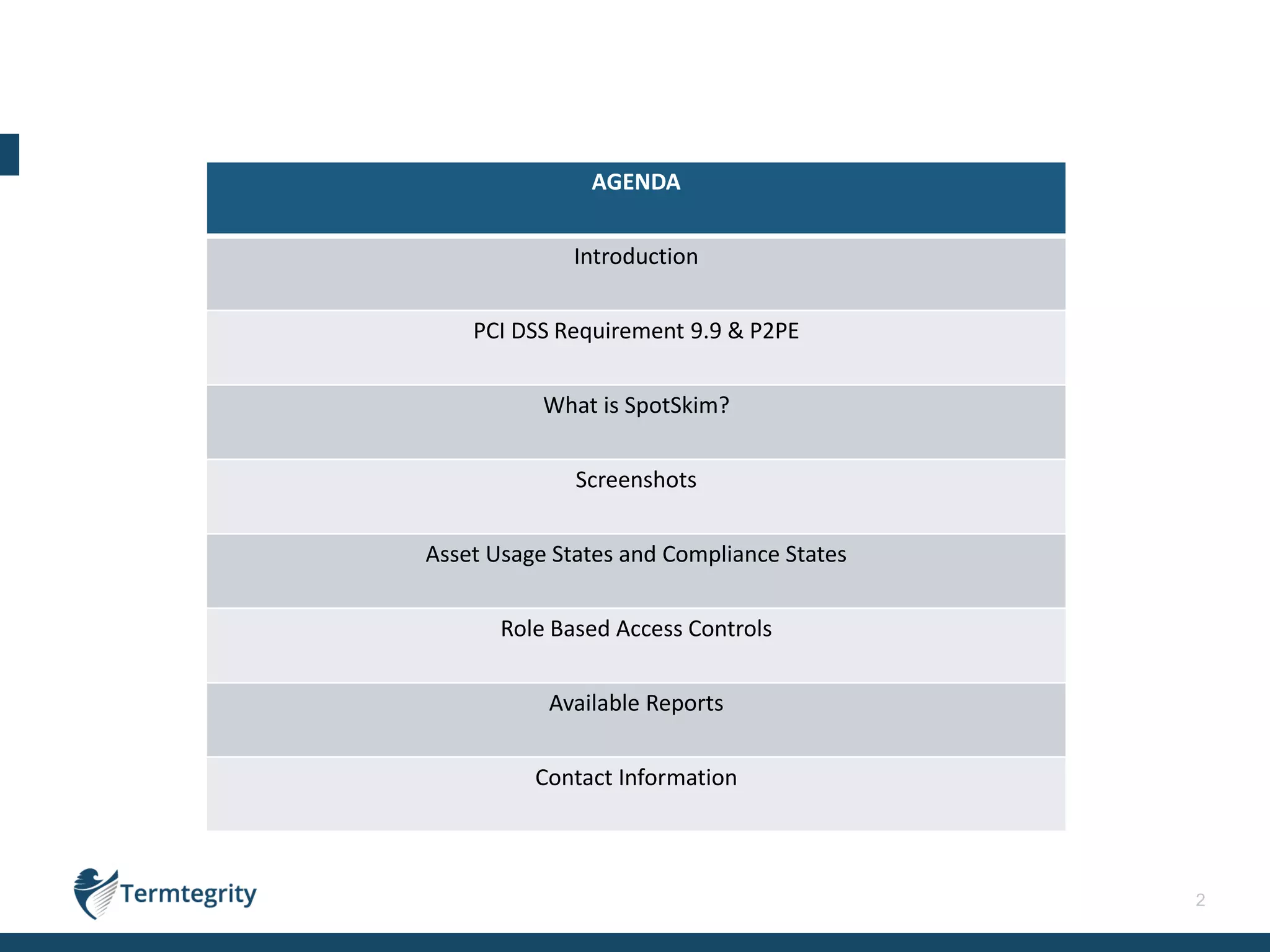
AGENDA
Introduction
PCI DSS Requirement 9.9 & P2PE
What is SpotSkim?
Screenshots
Asset Usage States and Compliance States
Role Based Access Controls
Available Reports
Contact Information
3
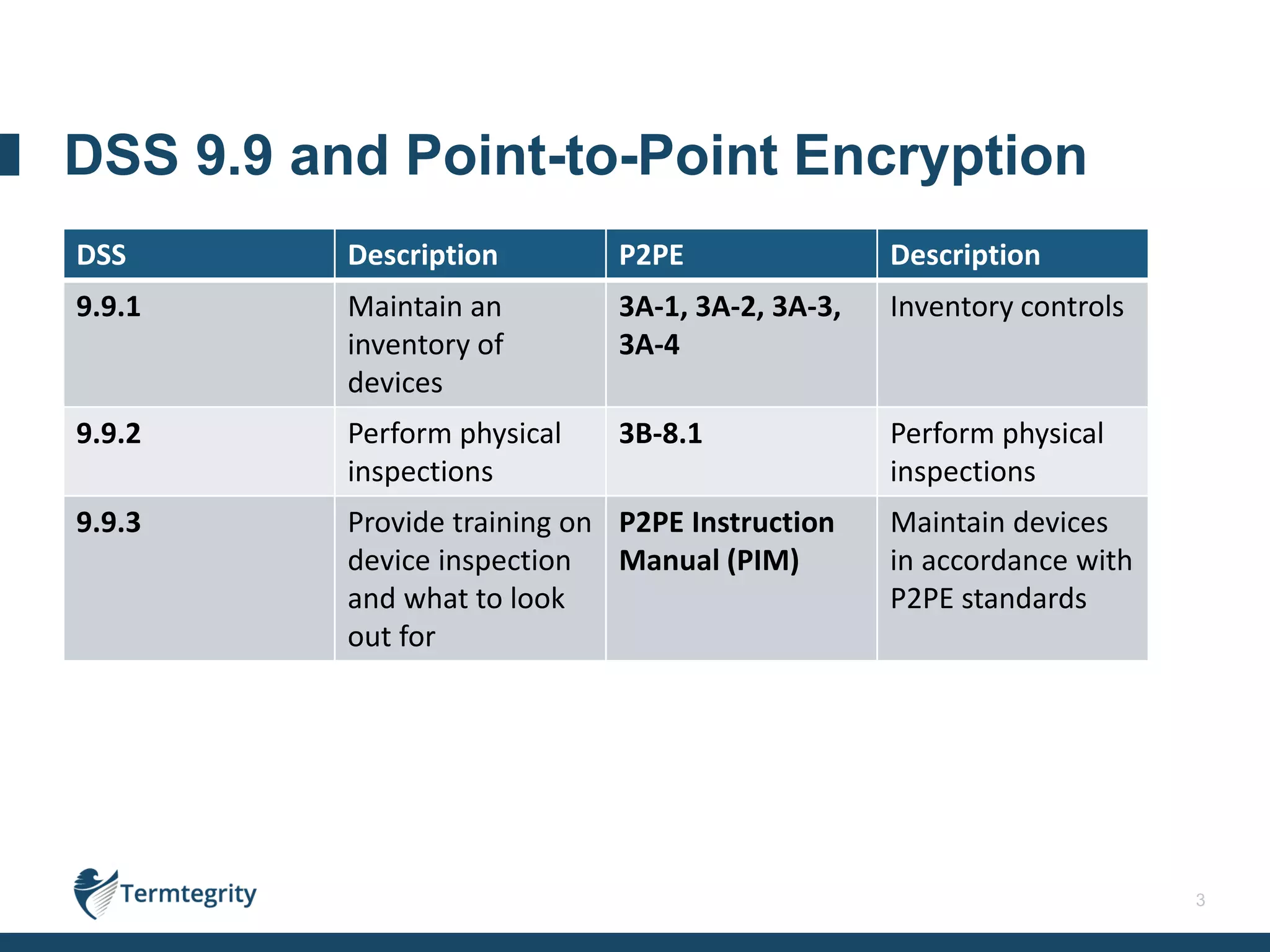
DSS Description P2PE Description
9.9.1 Maintain an
inventory of
devices
3A-1, 3A-2, 3A-3,
3A-4
Inventory controls
9.9.2 Perform physical
inspections
3B-8.1 Perform physical
inspections
9.9.3 Provide training on
device inspection
and what to look
out for
P2PE Instruction
Manual (PIM)
Maintain devices
in accordance with
P2PE standards
DSS 9.9 and Point-to-Point Encryption
4
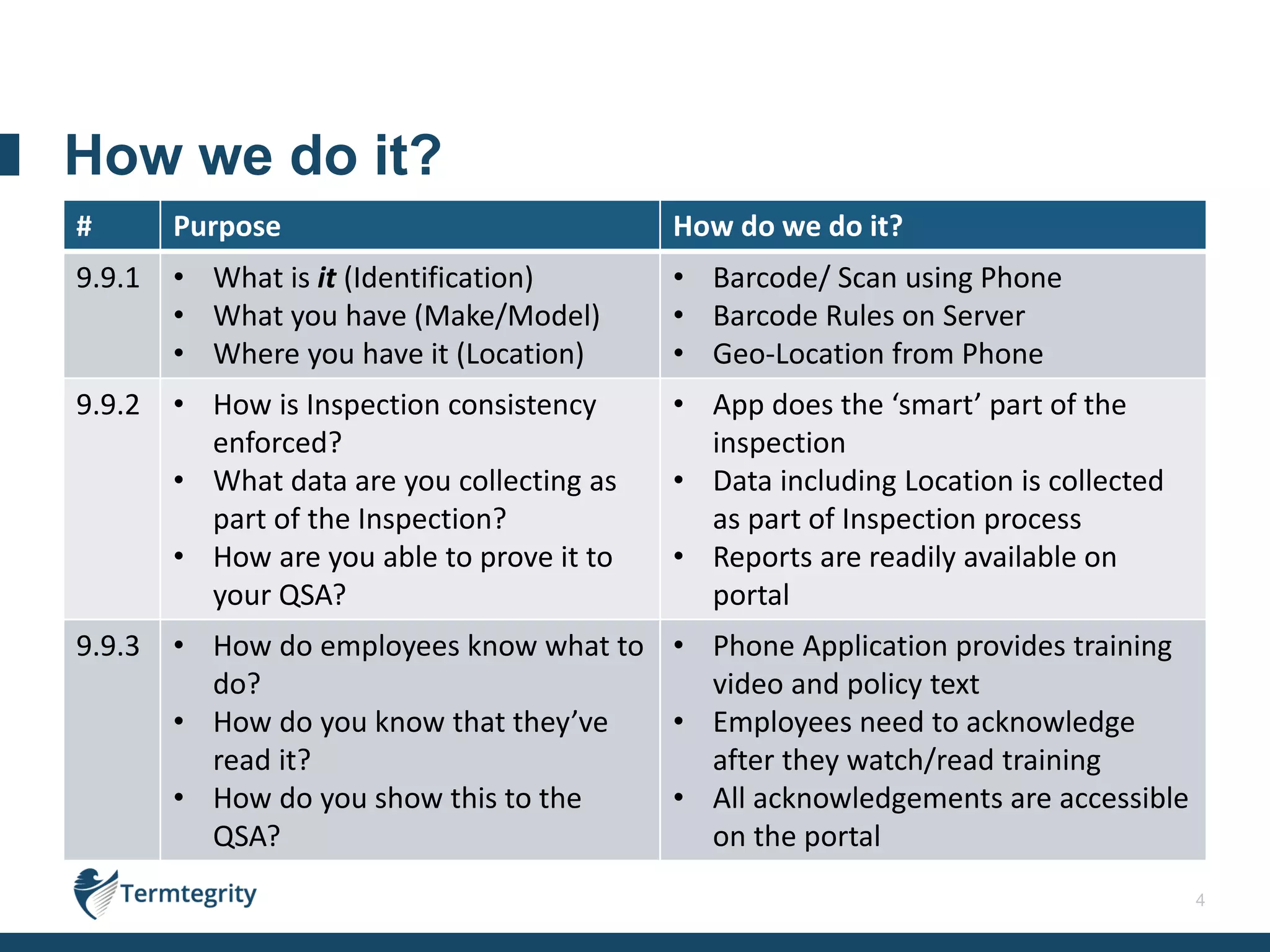
# Purpose How do we do it?
9.9.1 • What is it (Identification)
• What you have (Make/Model)
• Where you have it (Location)
• Barcode/ Scan using Phone
• Barcode Rules on Server
• Geo-Location from Phone
9.9.2 • How is Inspection consistency
enforced?
• What data are you collecting as
part of the Inspection?
• How are you able to prove it to
your QSA?
• App does the ‘smart’ part of the
inspection
• Data including Location is collected
as part of Inspection process
• Reports are readily available on
portal
9.9.3 • How do employees know what to
do?
• How do you know that they’ve
read it?
• How do you show this to the
QSA?
• Phone Application provides training
video and policy text
• Employees need to acknowledge
after they watch/read training
• All acknowledgements are accessible
on the portal
How we do it?
5
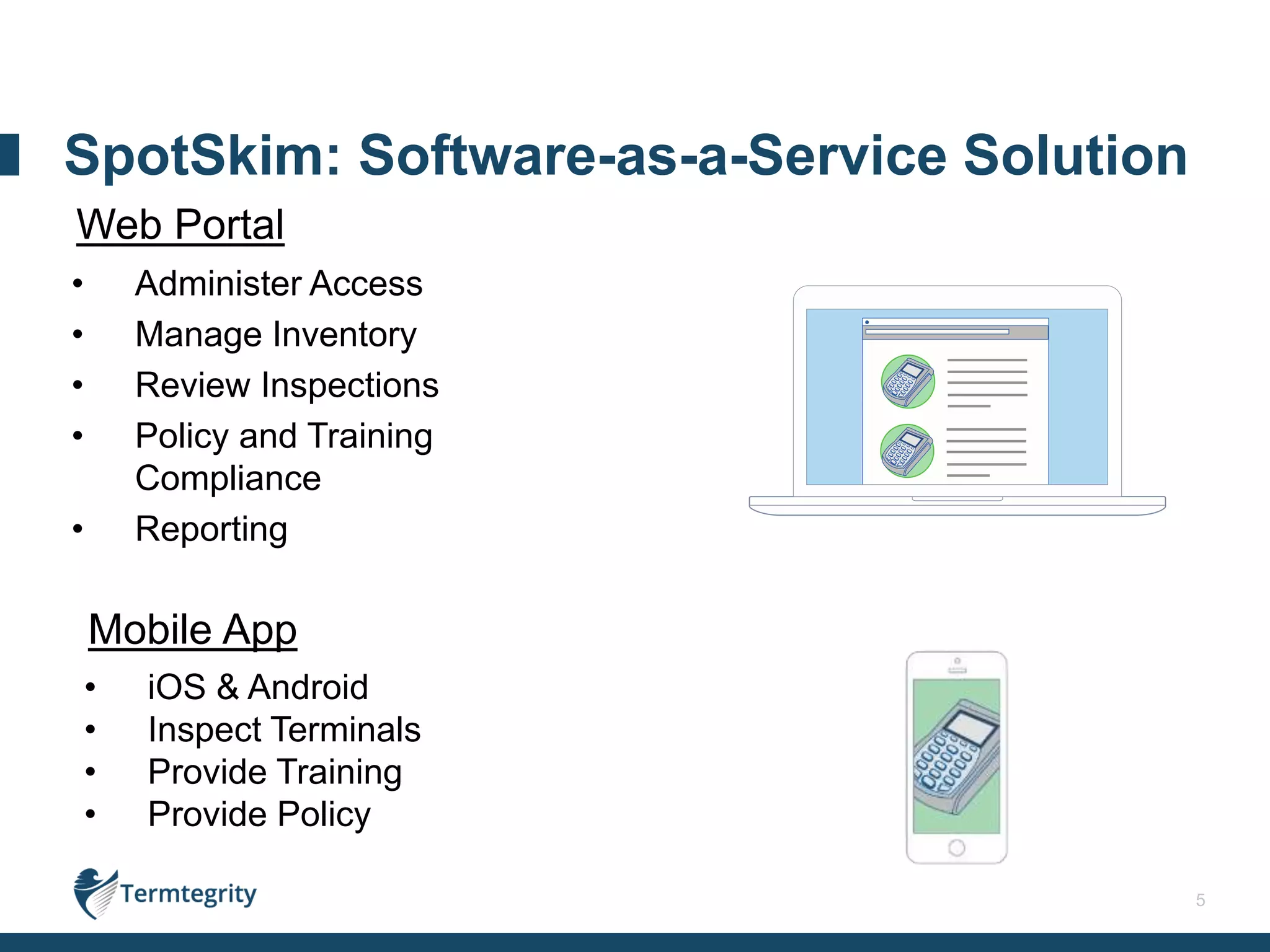
• Administer Access
• Manage Inventory
• Review Inspections
• Policy and Training
Compliance
• Reporting
Mobile App
• iOS & Android
• Inspect Terminals
• Provide Training
• Provide Policy
Web Portal
SpotSkim: Software-as-a-Service Solution
6
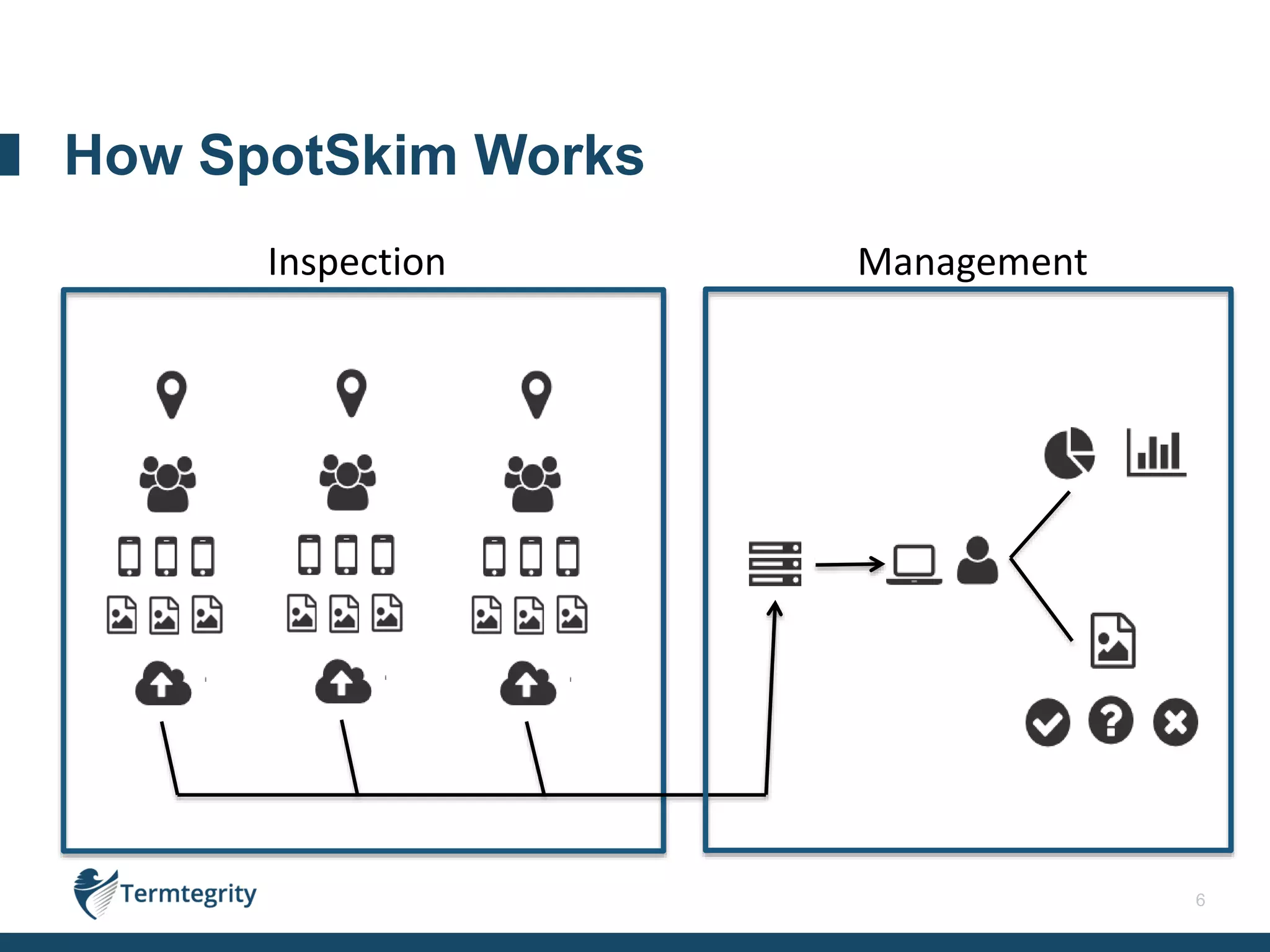
How SpotSkim Works
Inspection Management
7
Screenshots from the mobile app
Performing an Inspection
8
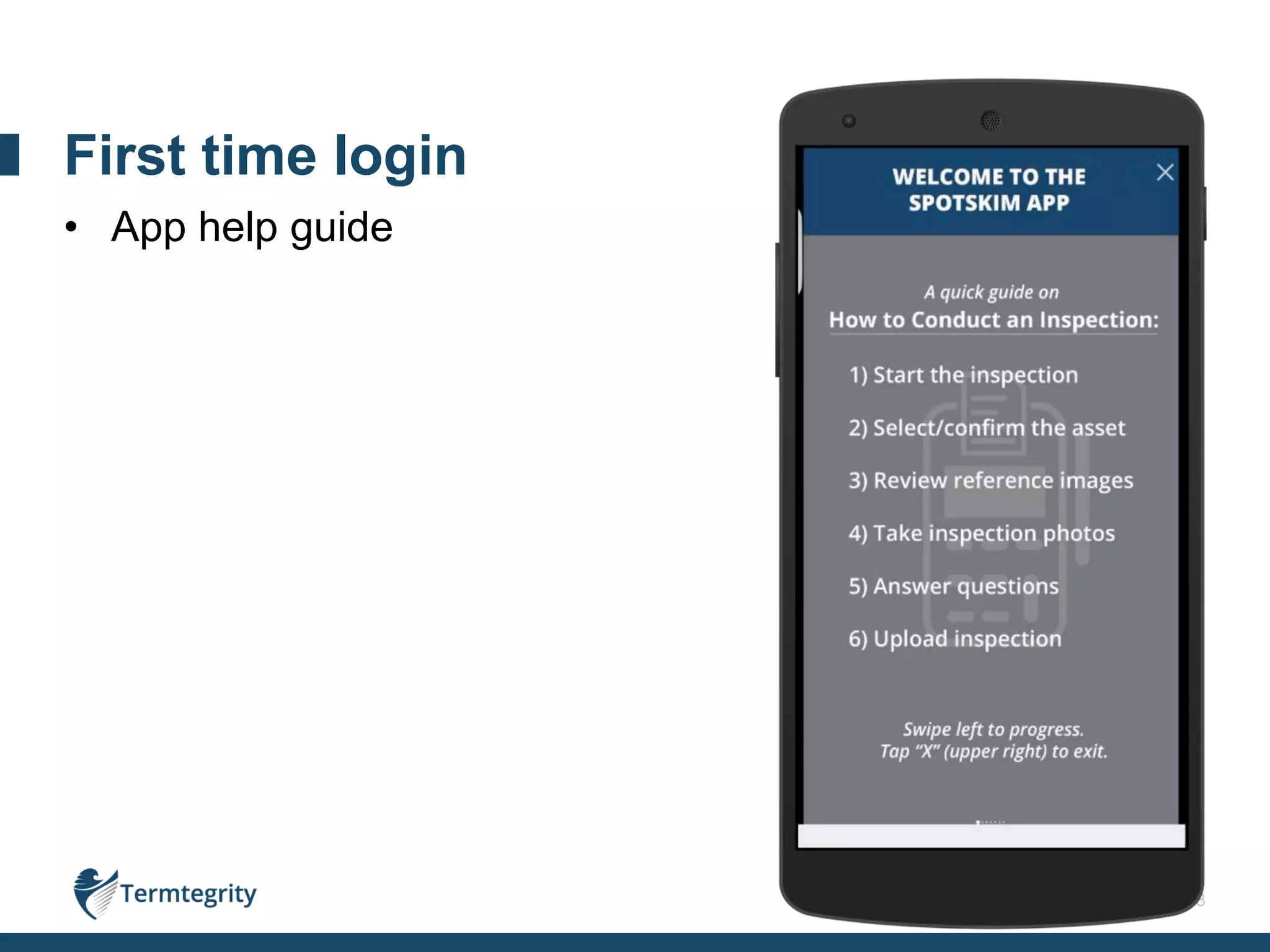
• App help guide
First time login
9
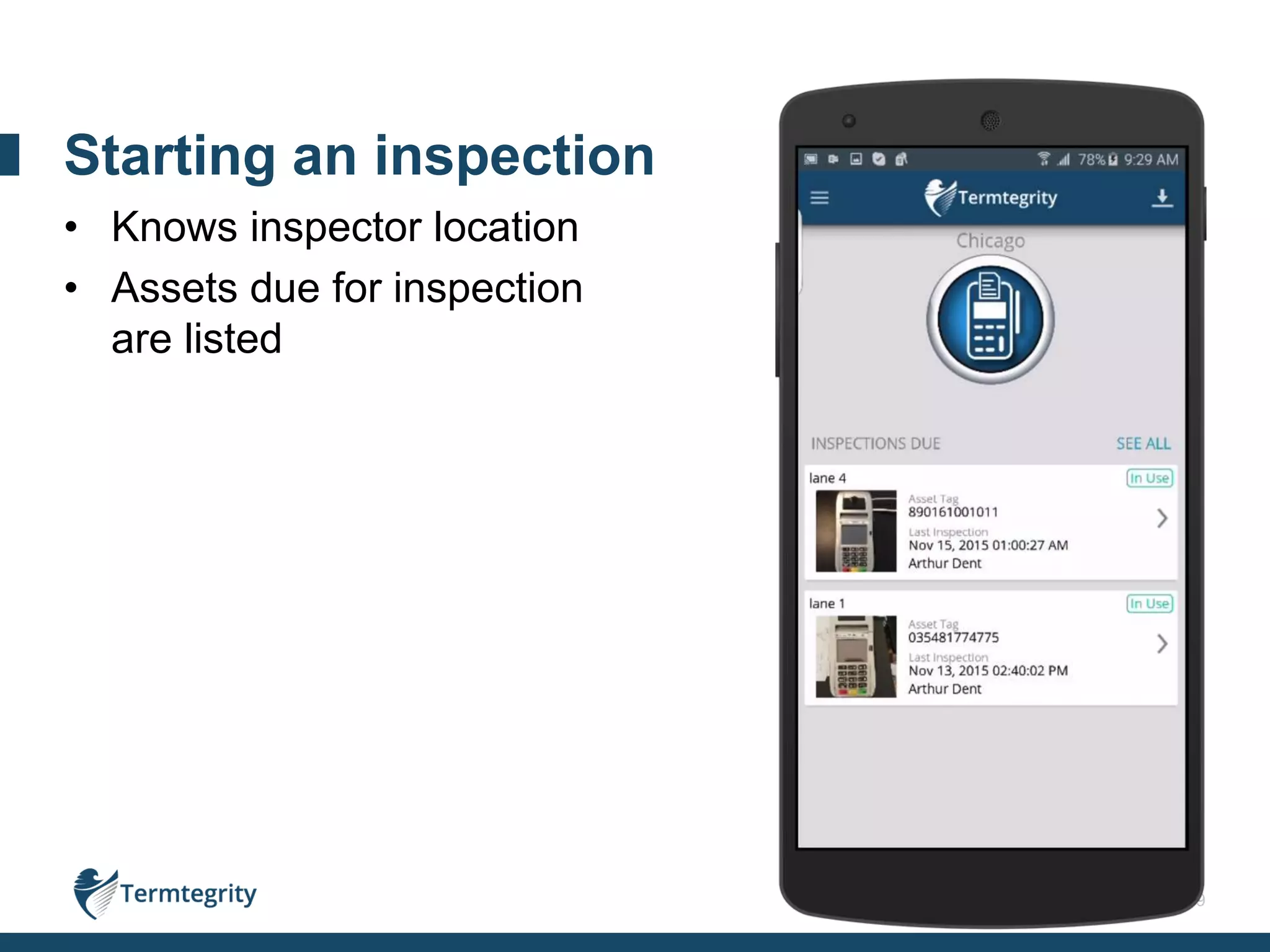
• Knows inspector location
• Assets due for inspection
are listed
Starting an inspection
10
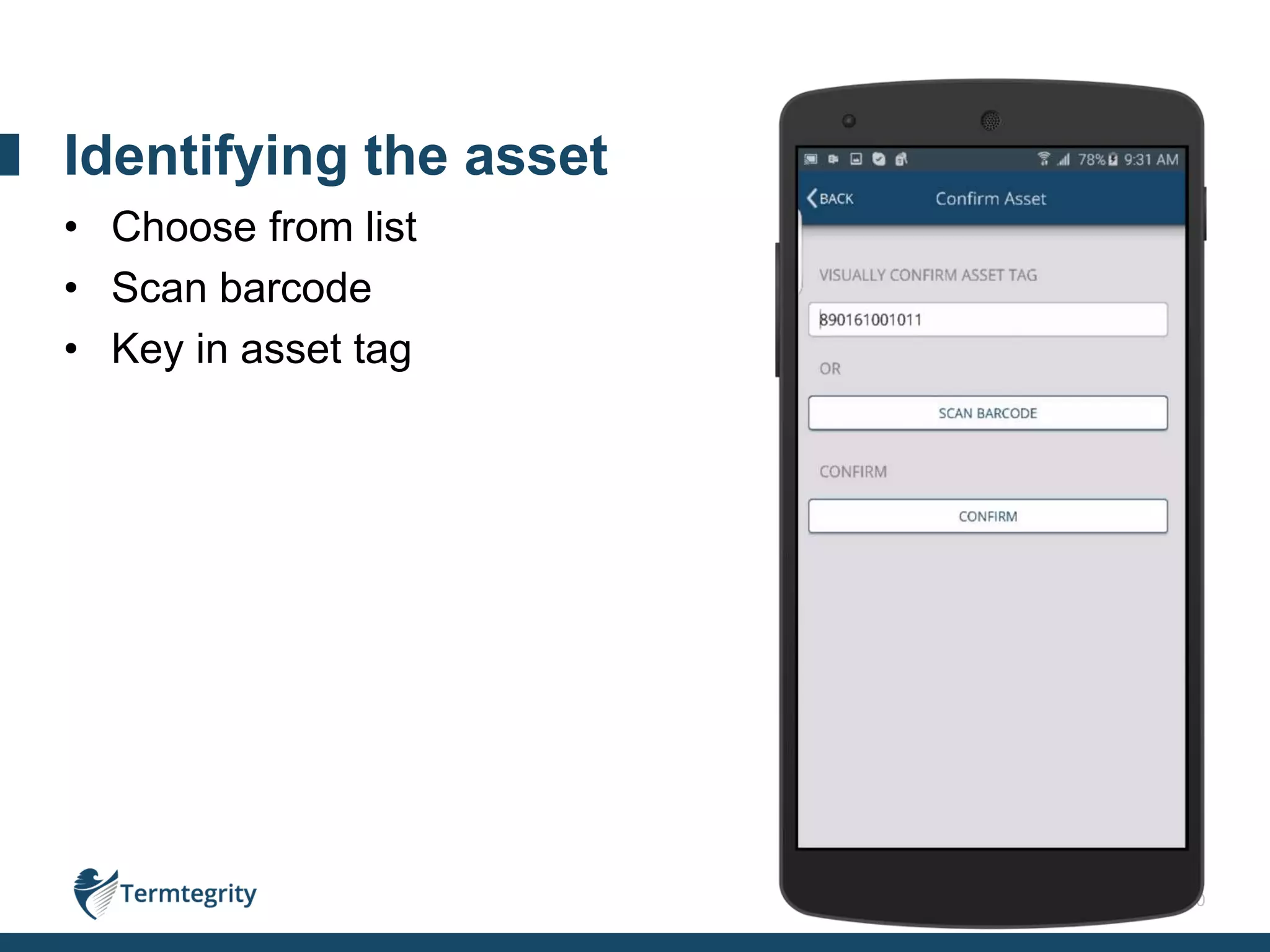
• Choose from list
• Scan barcode
• Key in asset tag
Identifying the asset
11
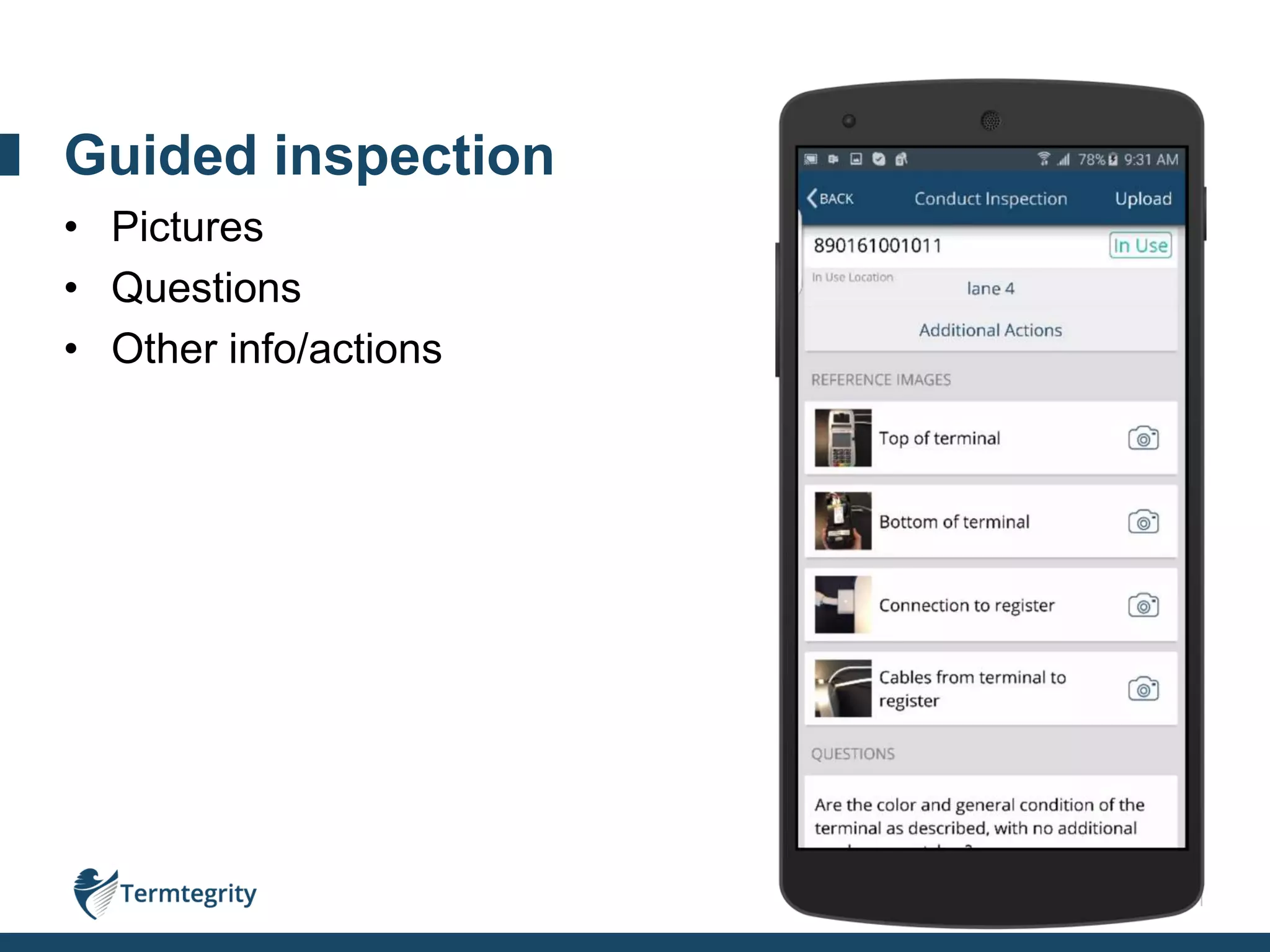
• Pictures
• Questions
• Other info/actions
Guided inspection
12
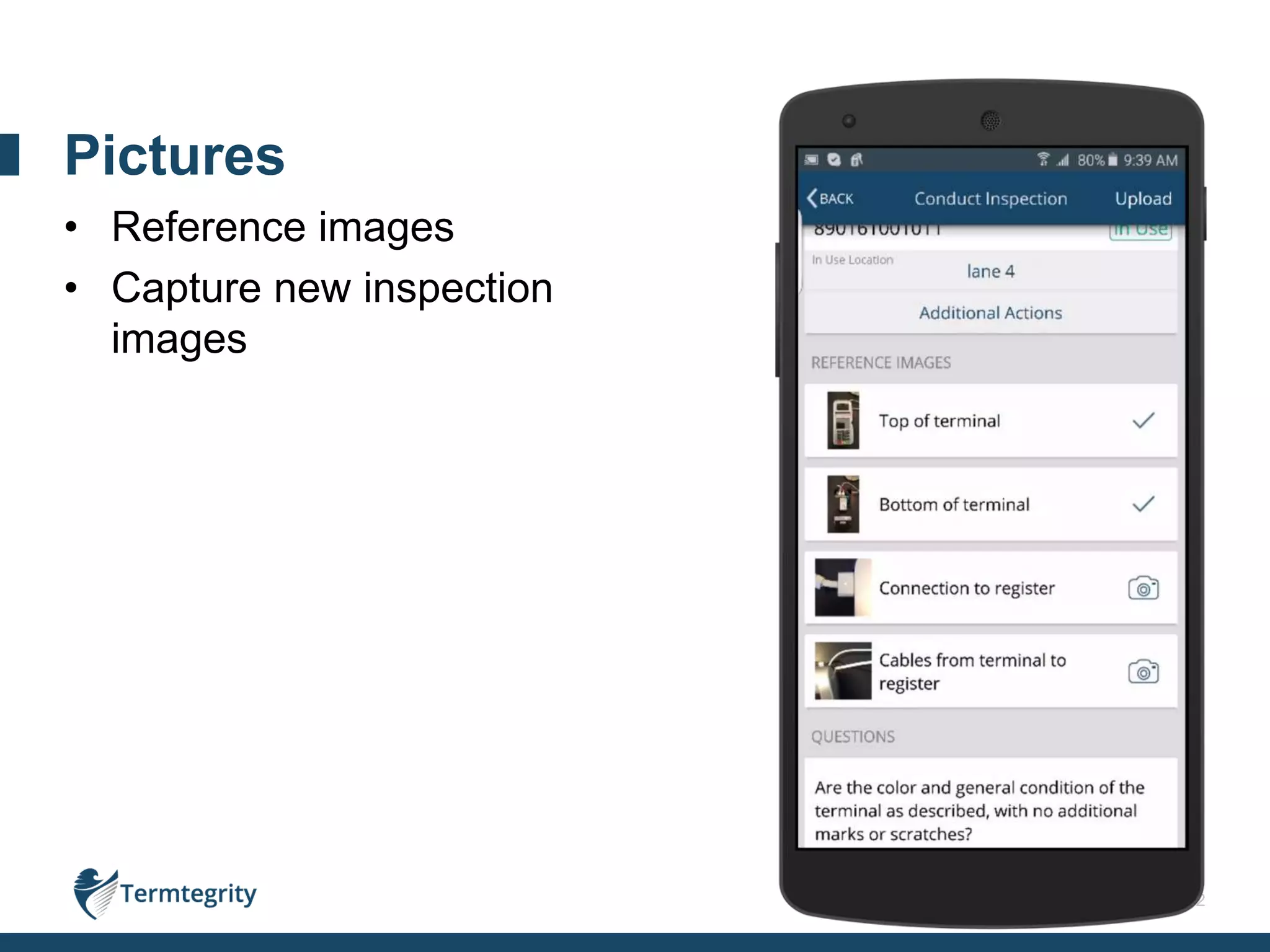
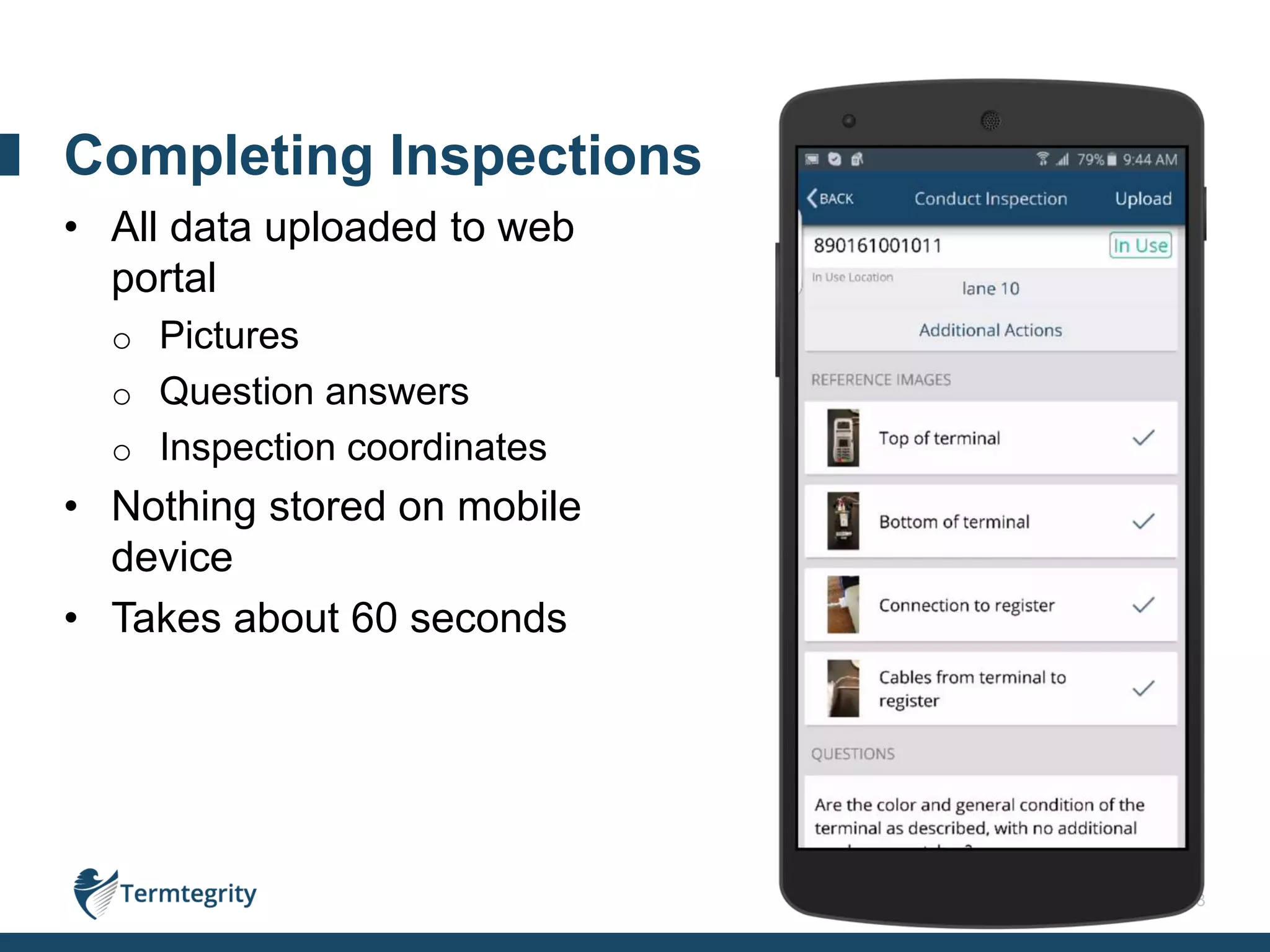
• Reference images
• Capture new inspection
images
Pictures
13
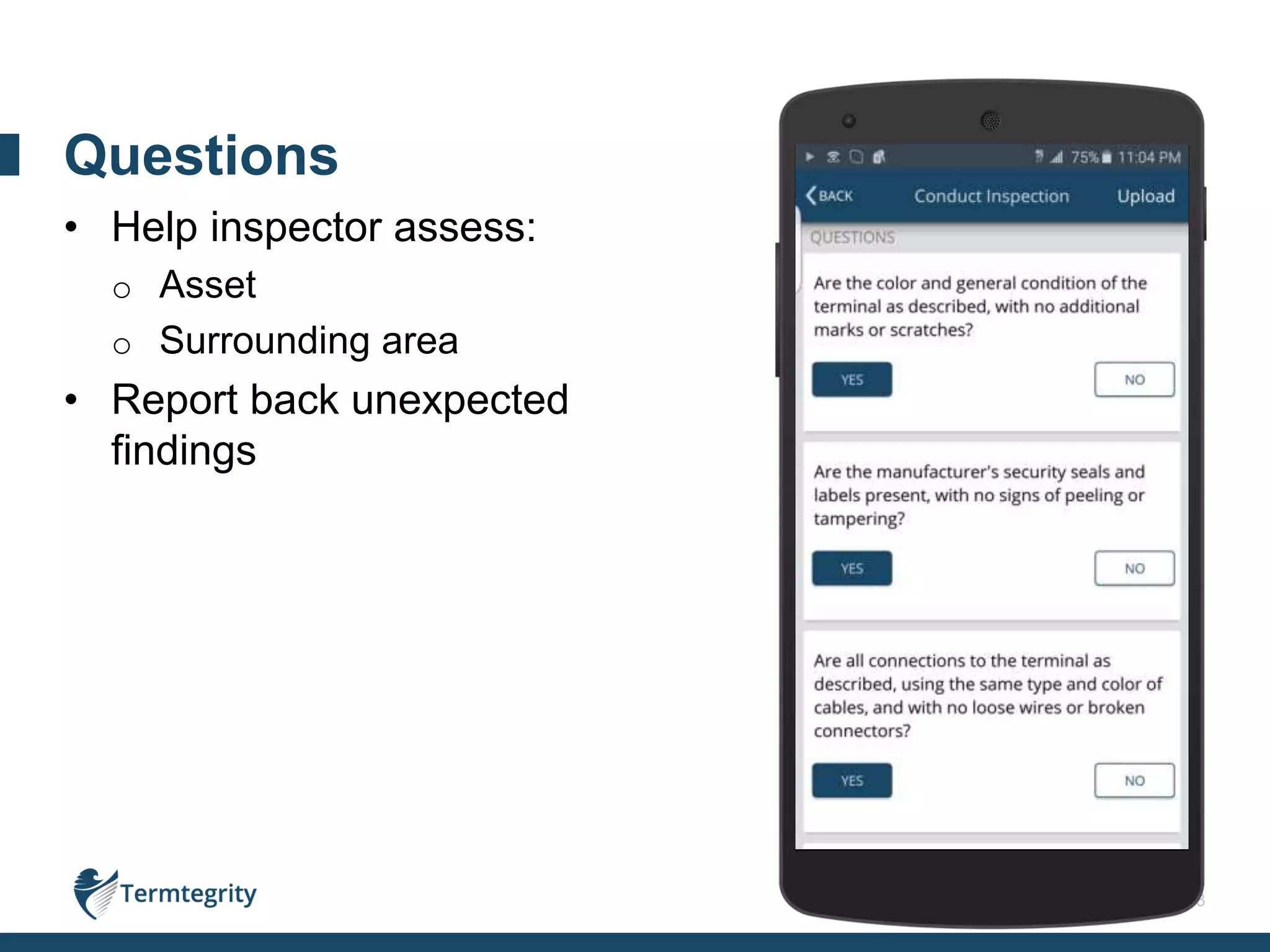
• Help inspector assess:
o Asset
o Surrounding area
• Report back unexpected
findings
Questions
14
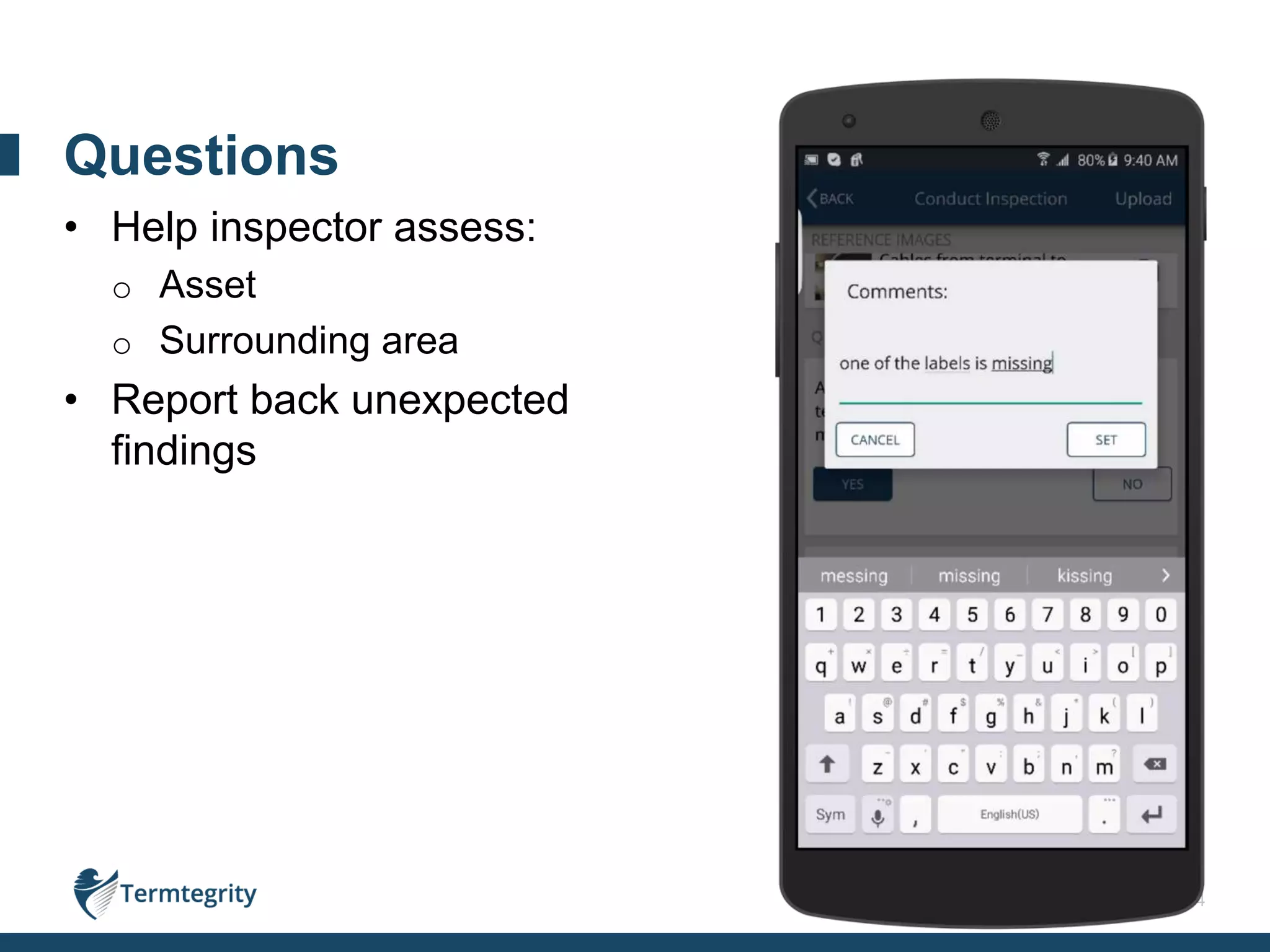
• Help inspector assess:
o Asset
o Surrounding area
• Report back unexpected
findings
Questions
15
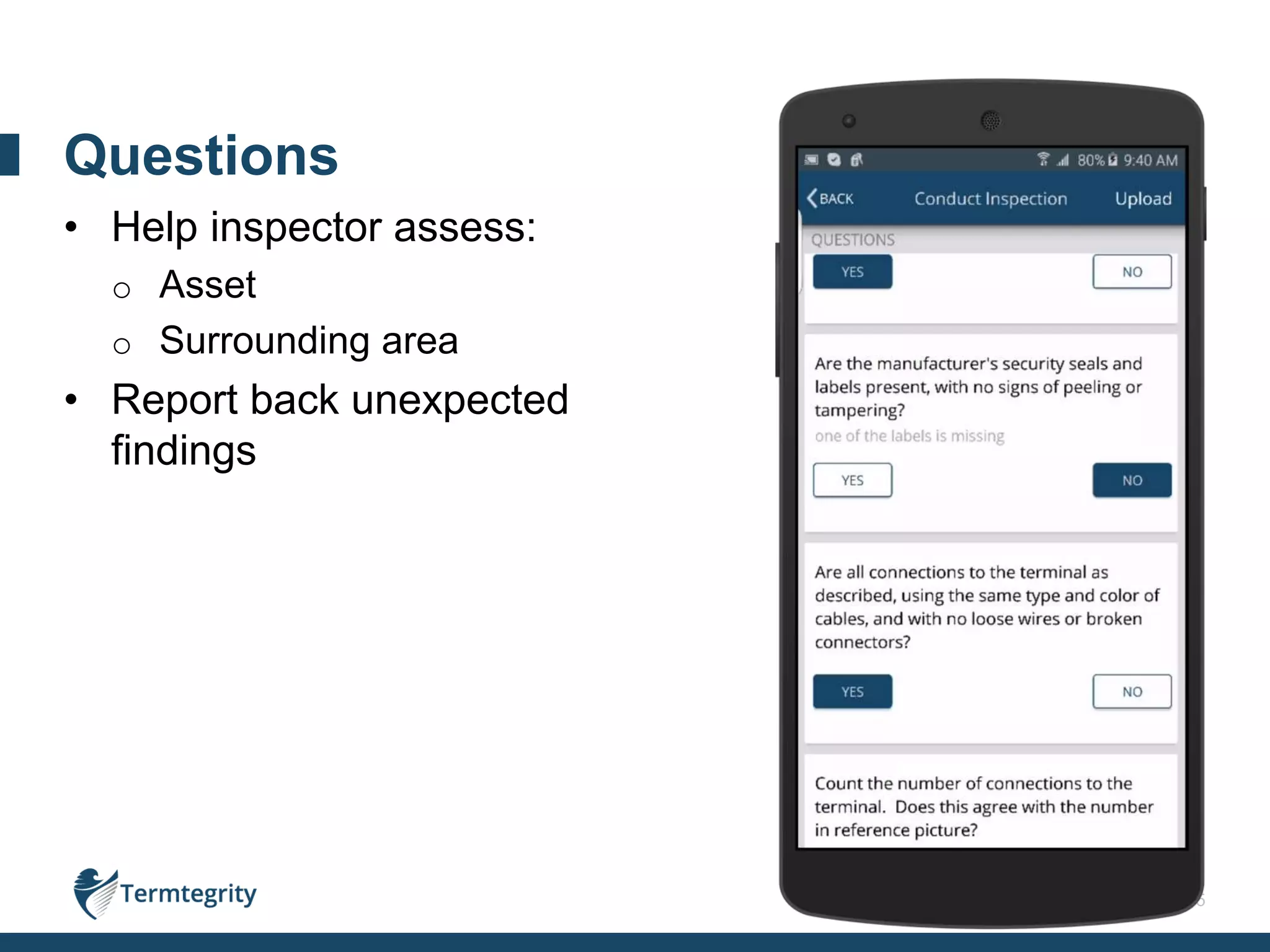
• Help inspector assess:
o Asset
o Surrounding area
• Report back unexpected
findings
Questions
16
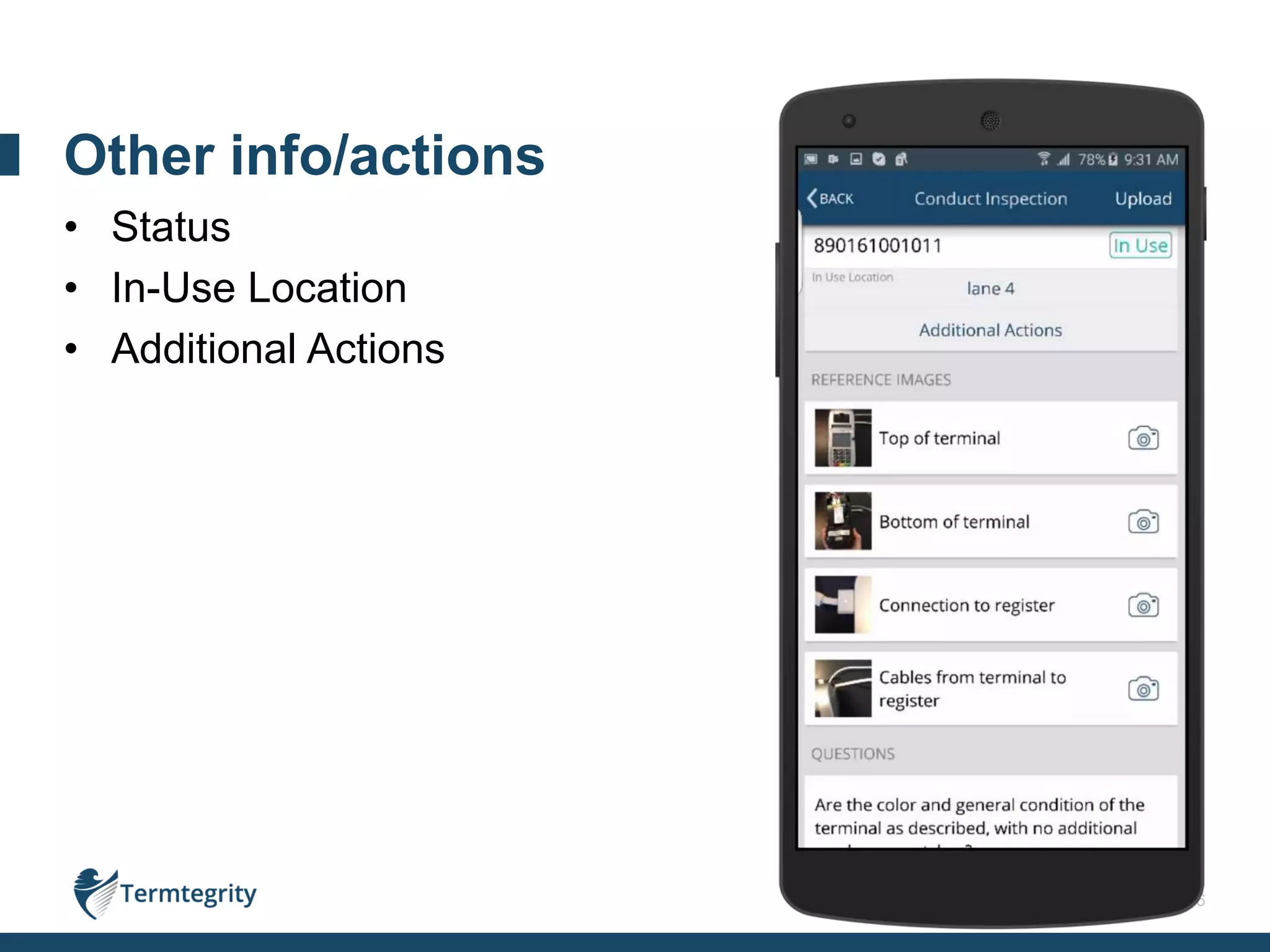
• Status
• In-Use Location
• Additional Actions
Other info/actions
17
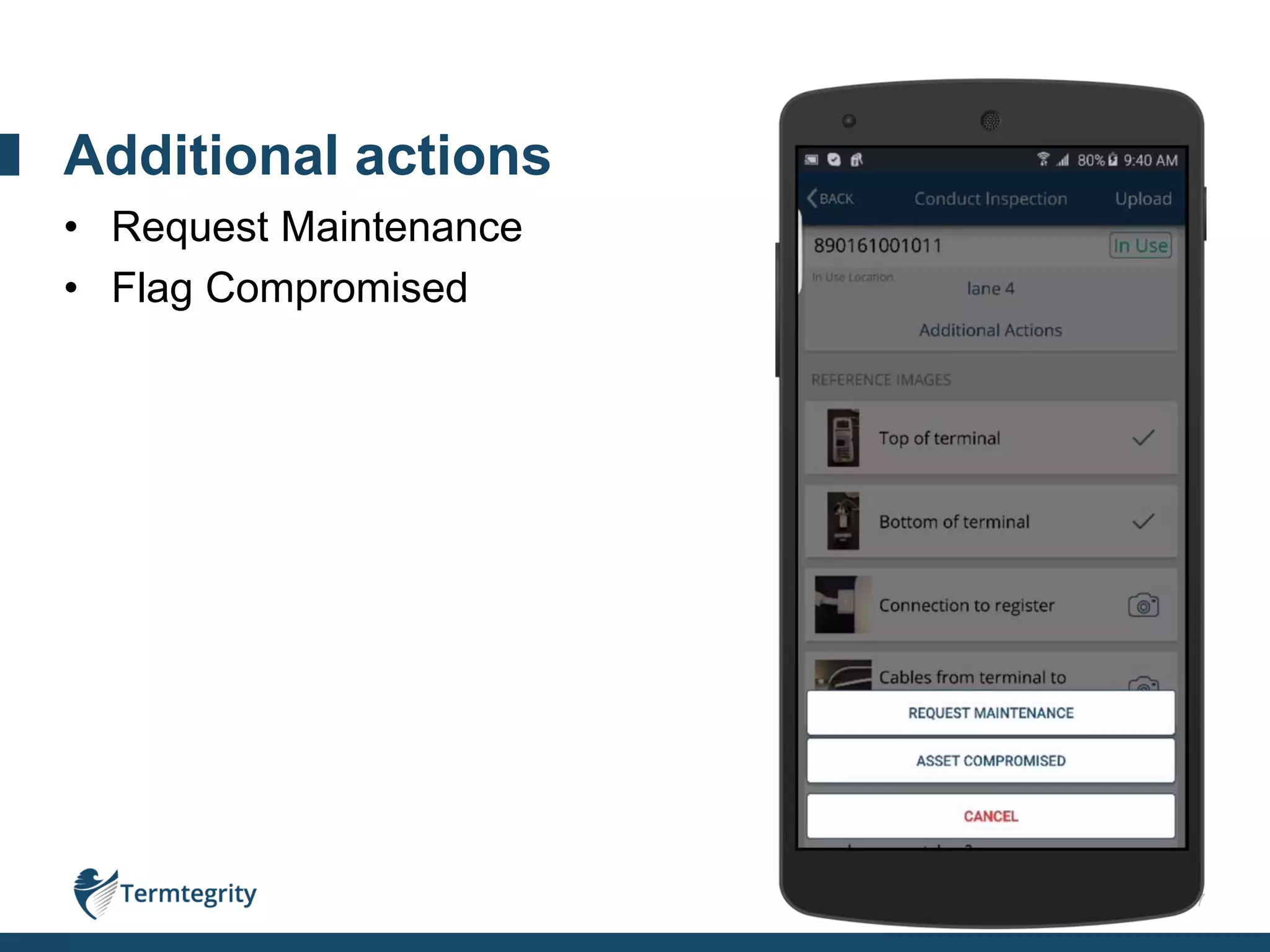
• Request Maintenance
• Flag Compromised
Additional actions
18
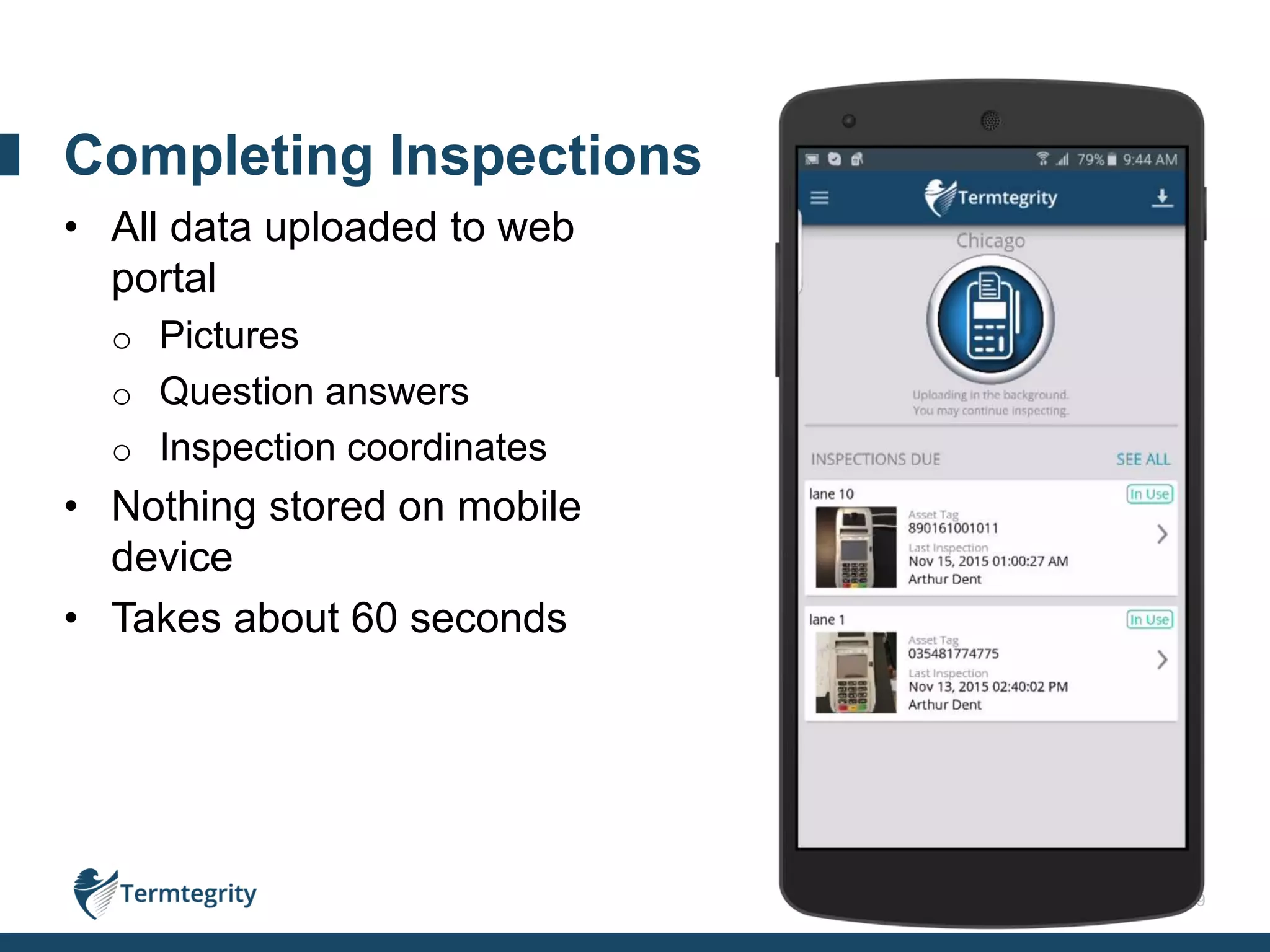
• All data uploaded to web
portal
o Pictures
o Question answers
o Inspection coordinates
• Nothing stored on mobile
device
• Takes about 60 seconds
Completing Inspections
19
• All data uploaded to web
portal
o Pictures
o Question answers
o Inspection coordinates
• Nothing stored on mobile
device
• Takes about 60 seconds
Completing Inspections
20
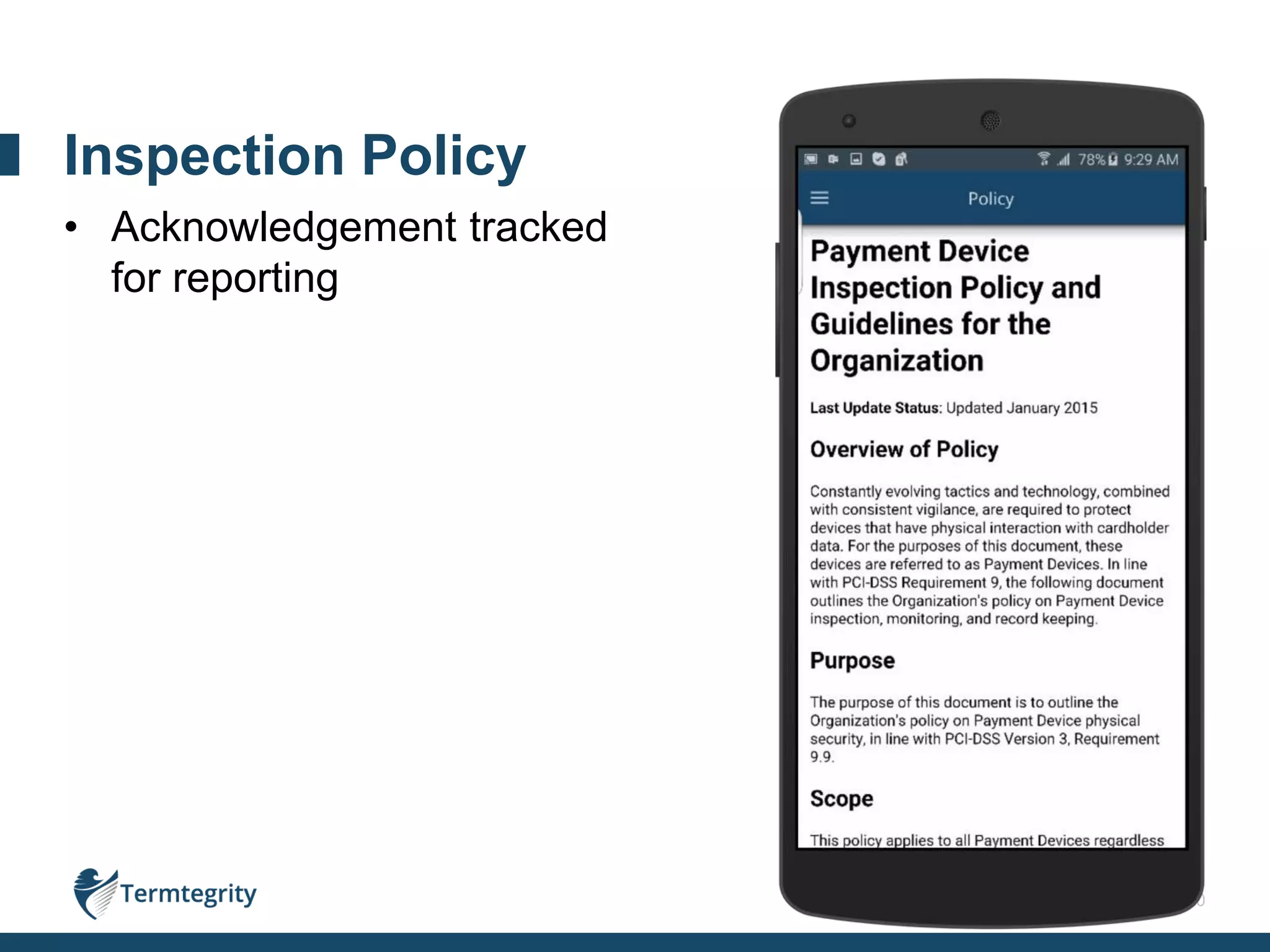
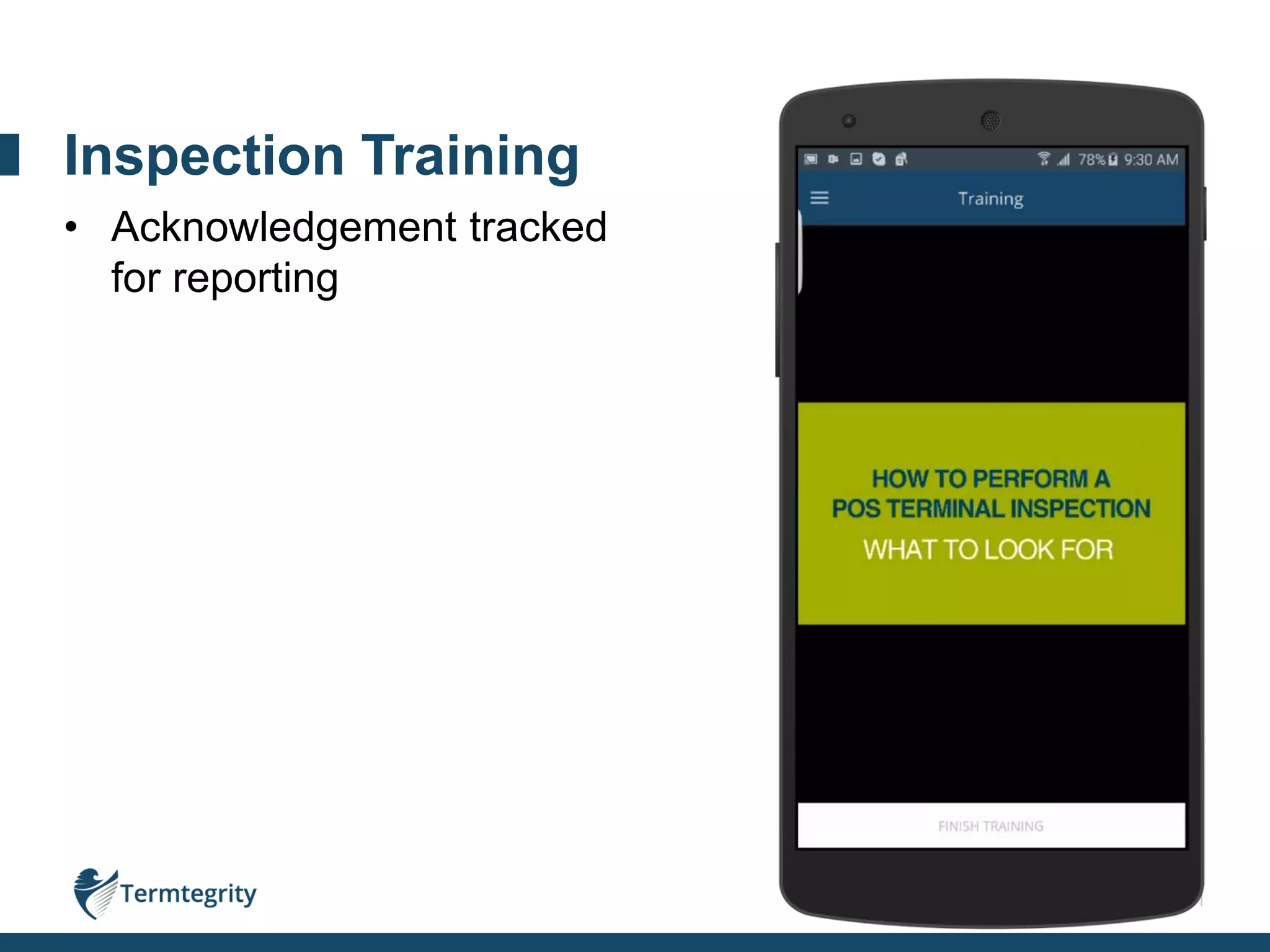
• Acknowledgement tracked
for reporting
Inspection Policy
21
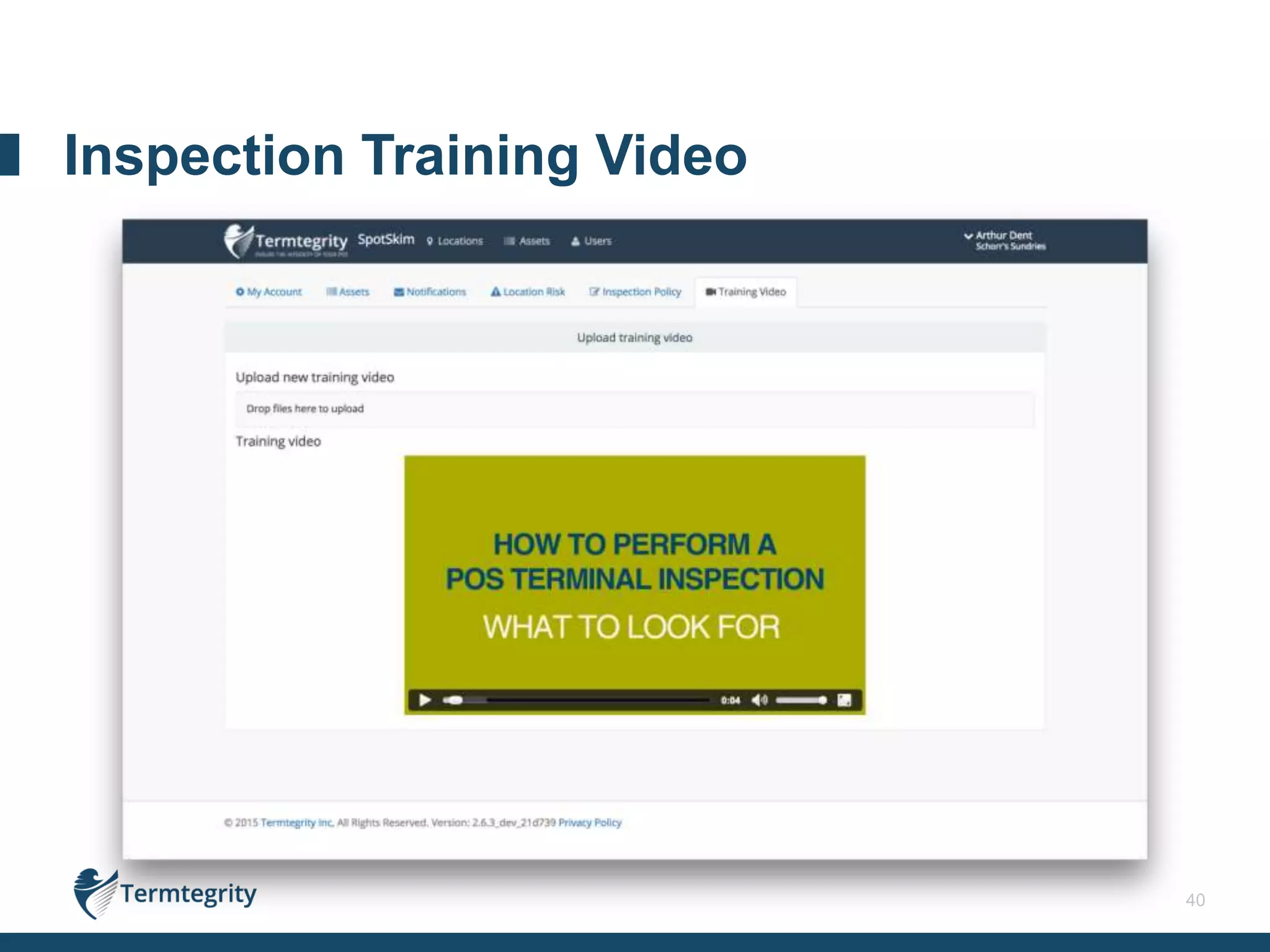
• Acknowledgement tracked
for reporting
Inspection Training
22
Screenshots from the web portal
Management
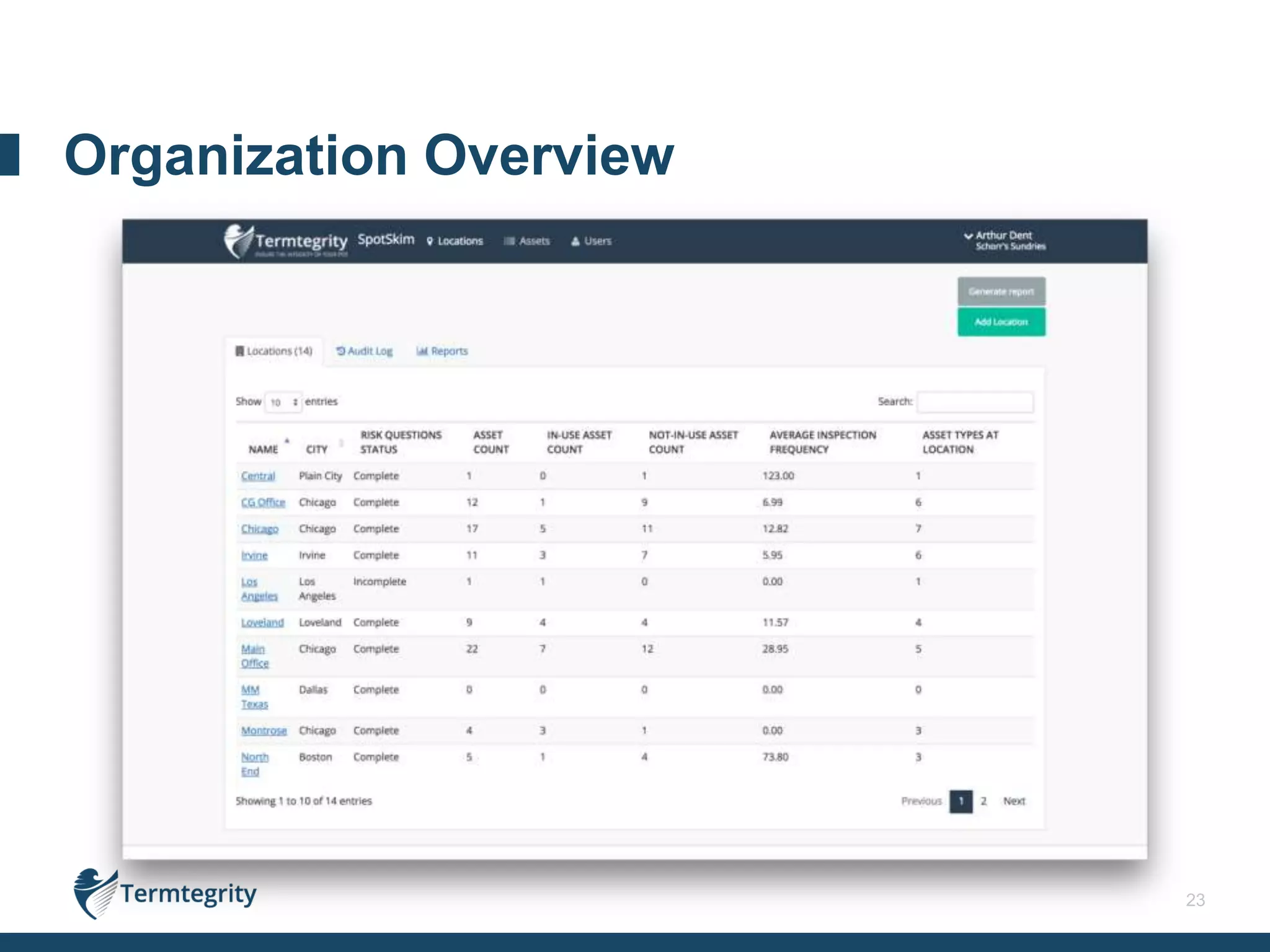
23
Organization Overview
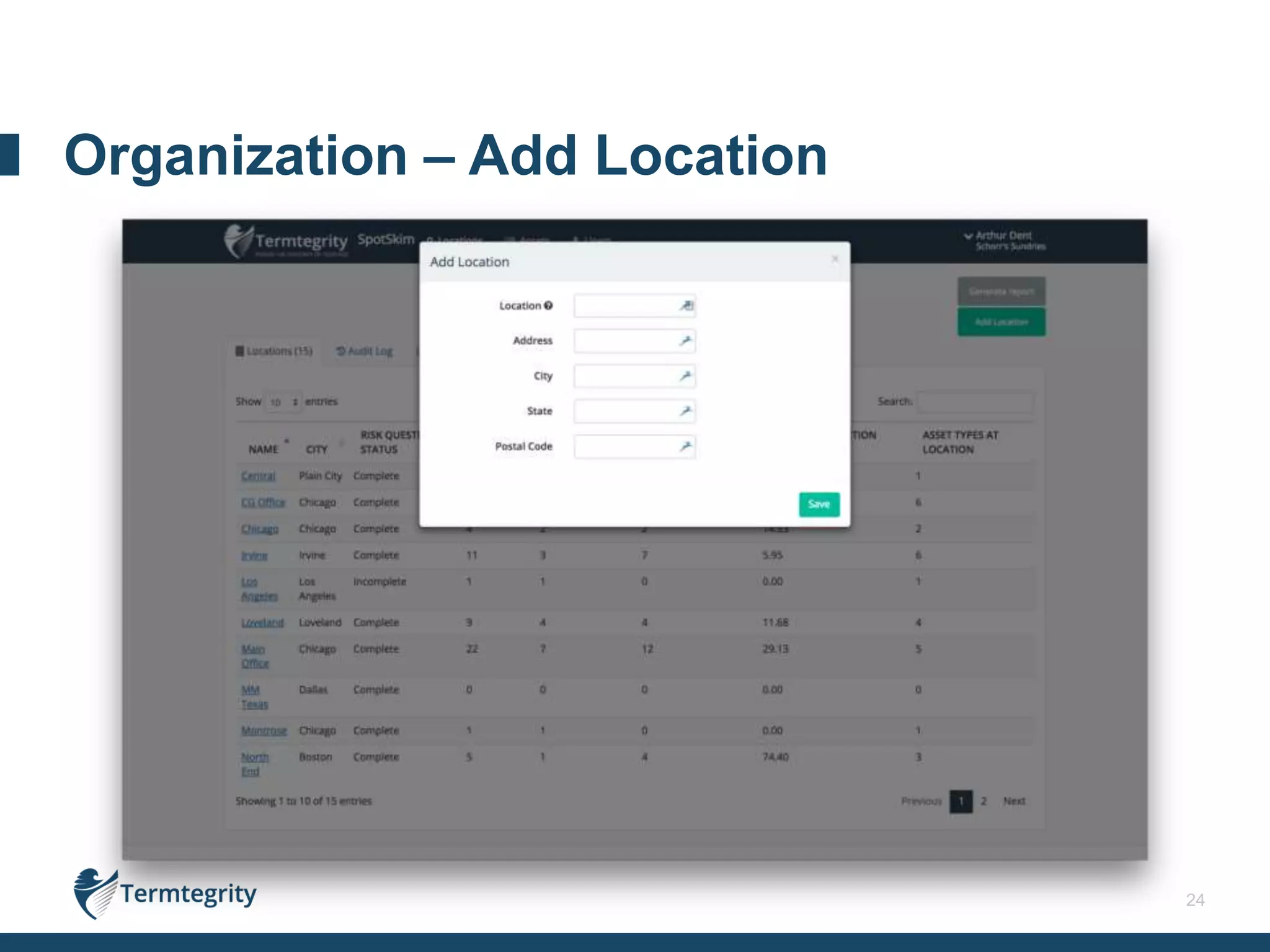
24
Organization – Add Location
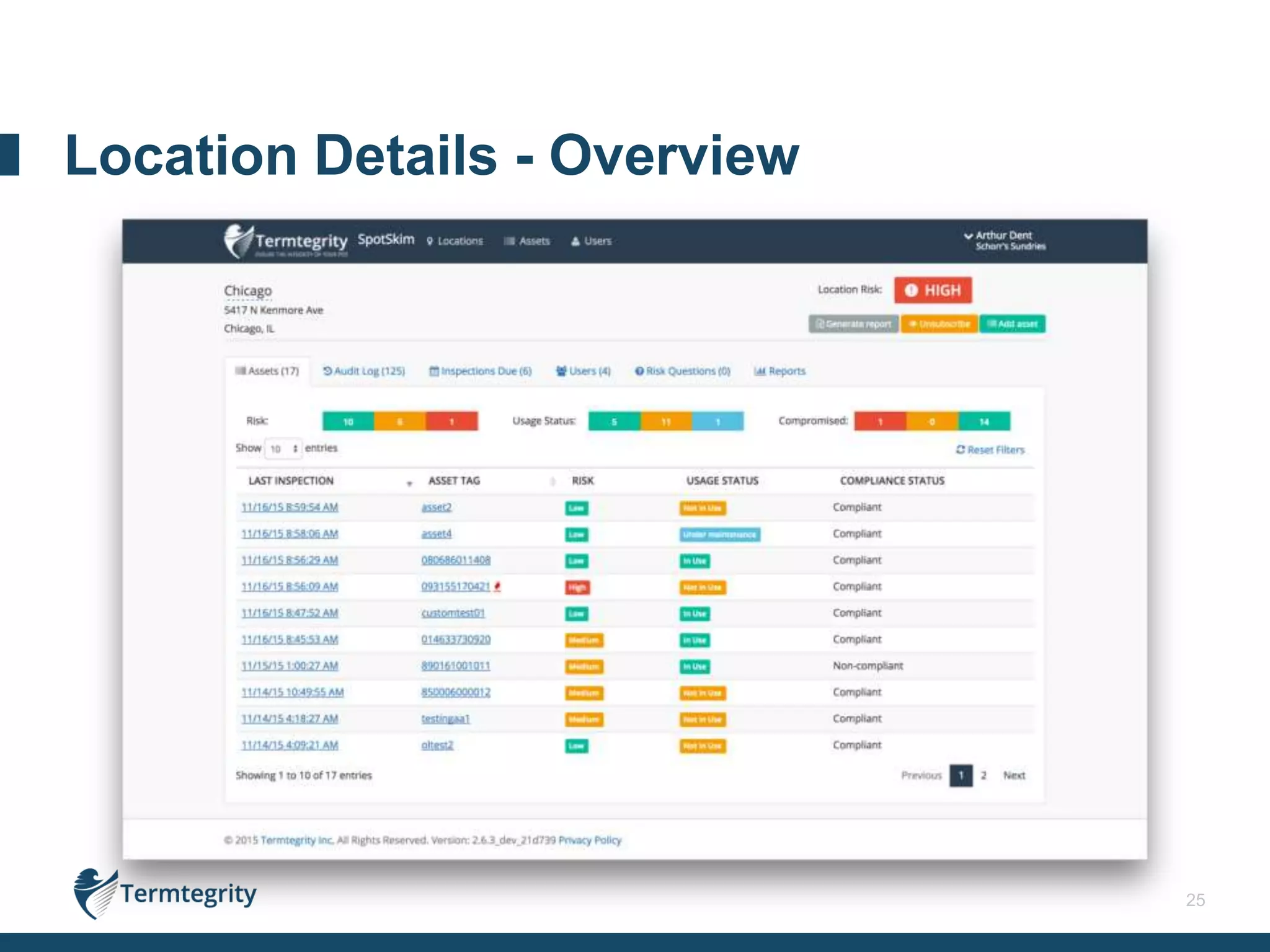
25
Location Details - Overview
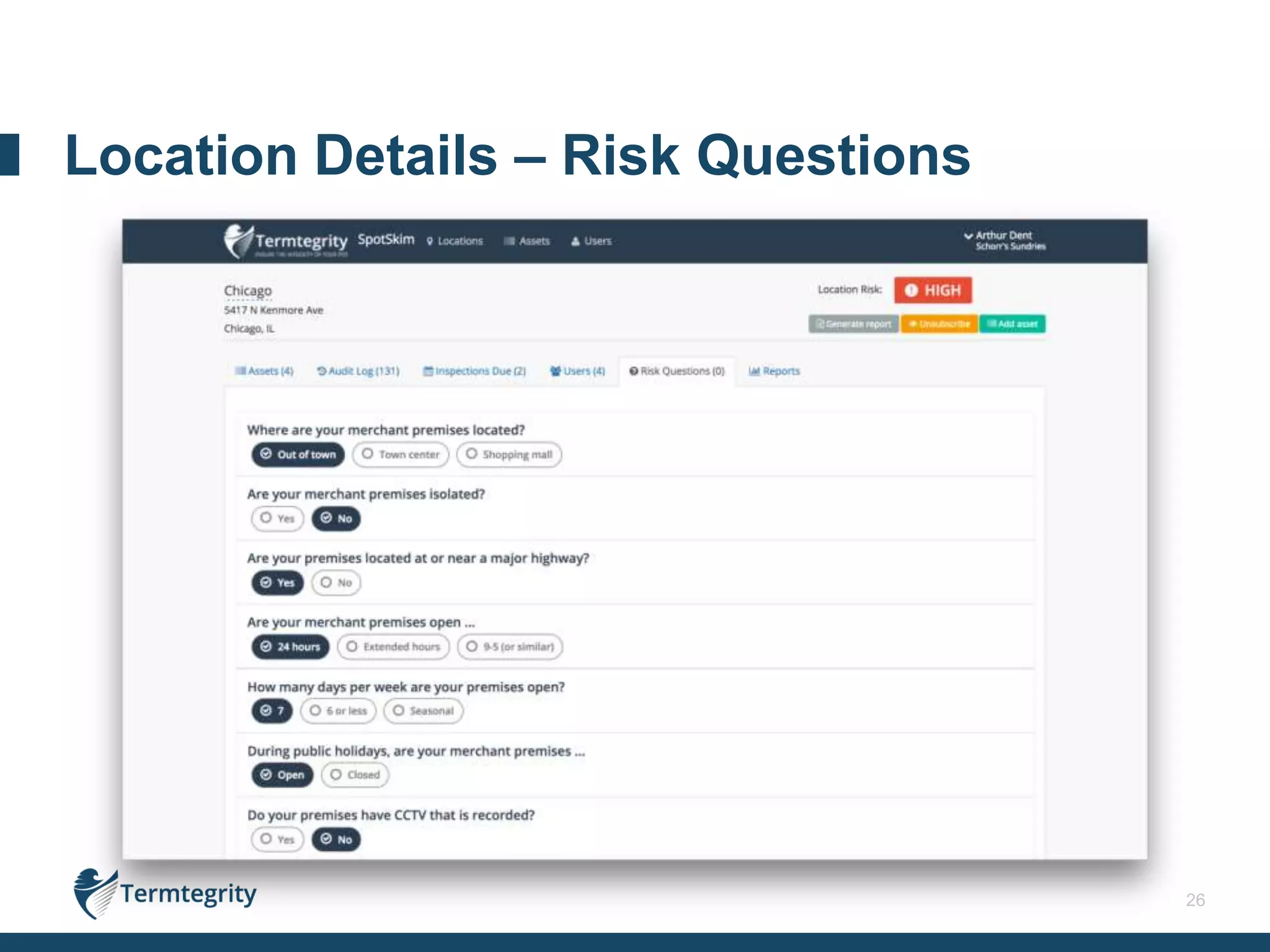
26
Location Details – Risk Questions
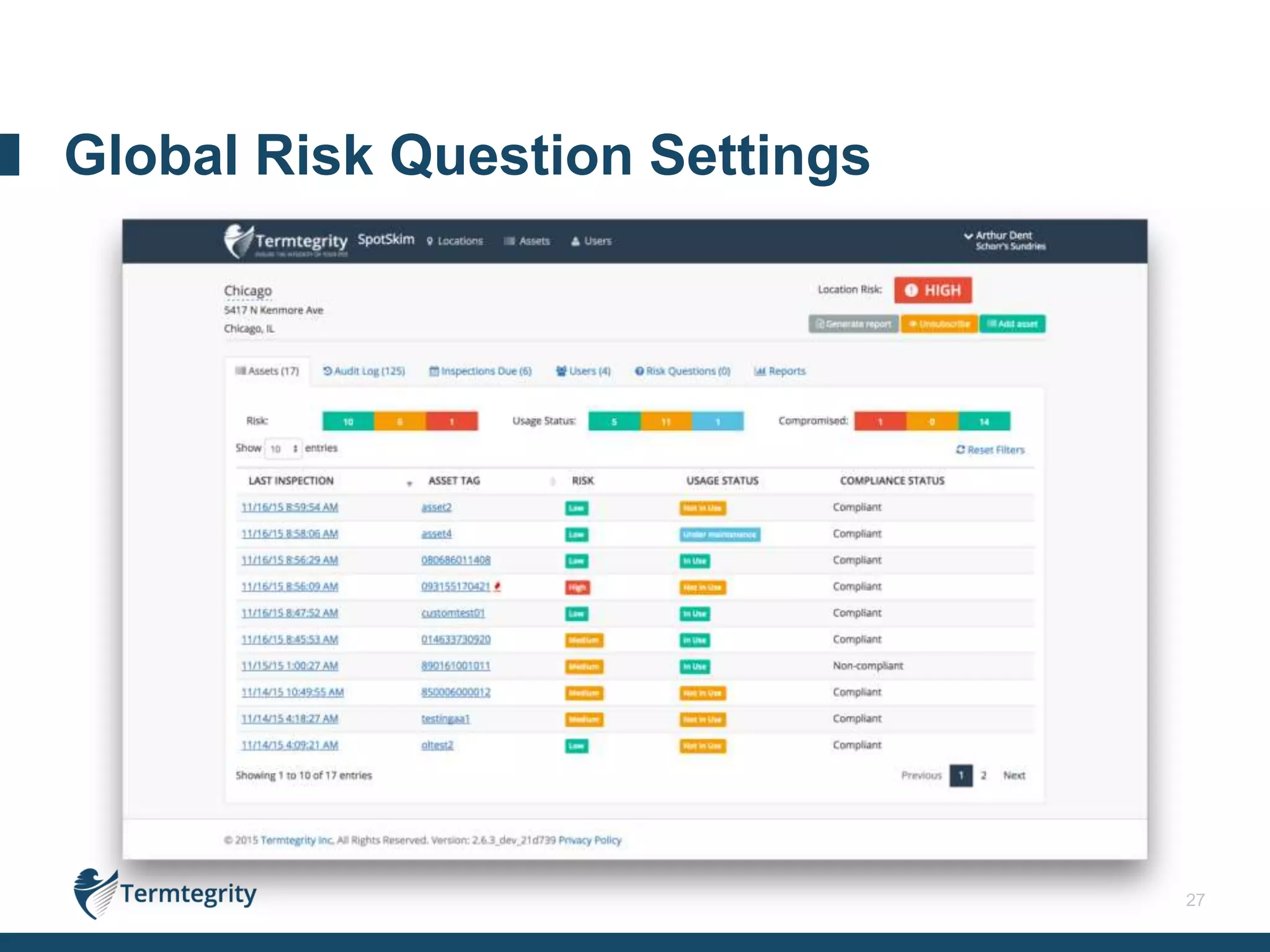
27
Global Risk Question Settings
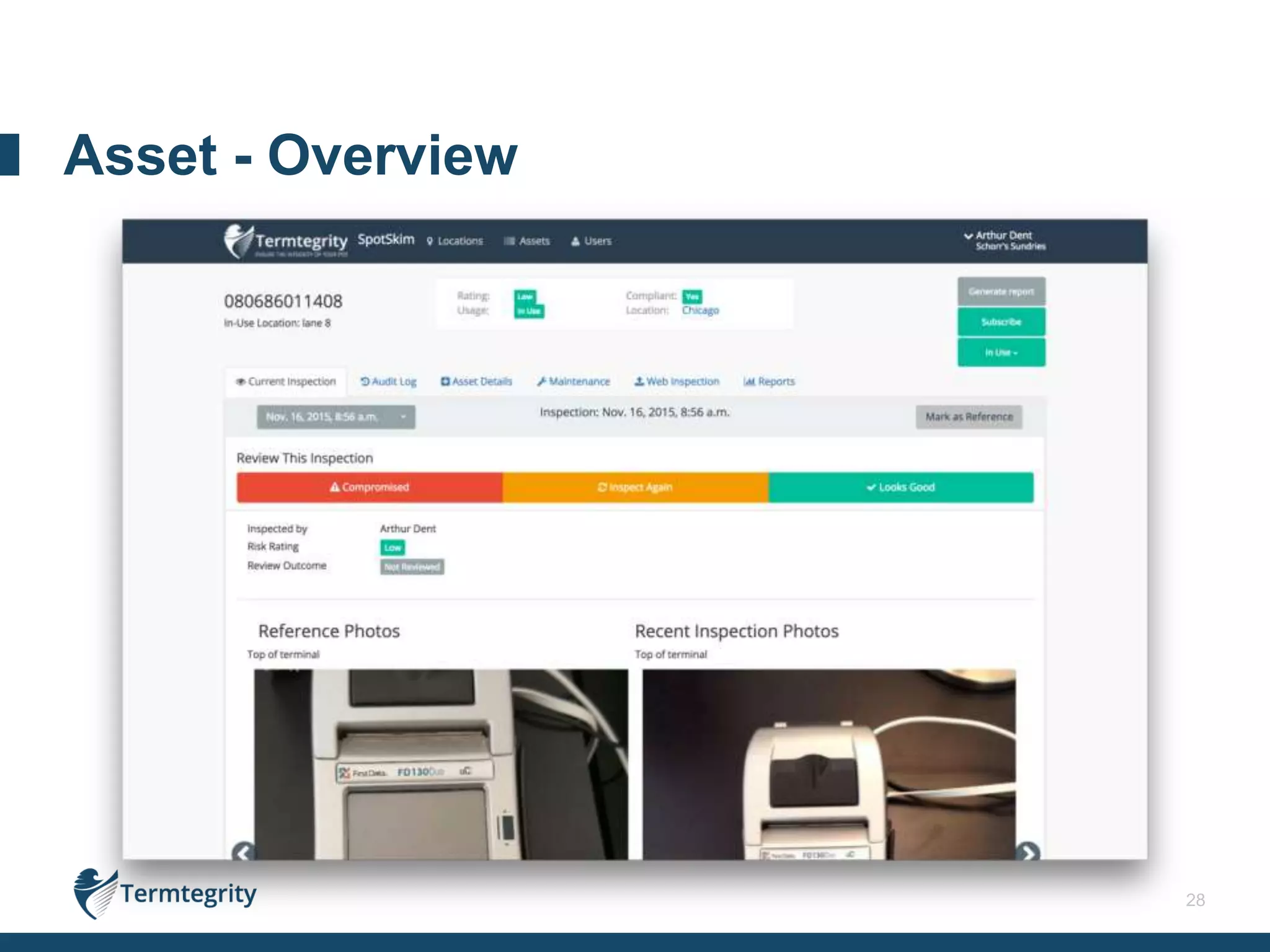
28
Asset - Overview
29
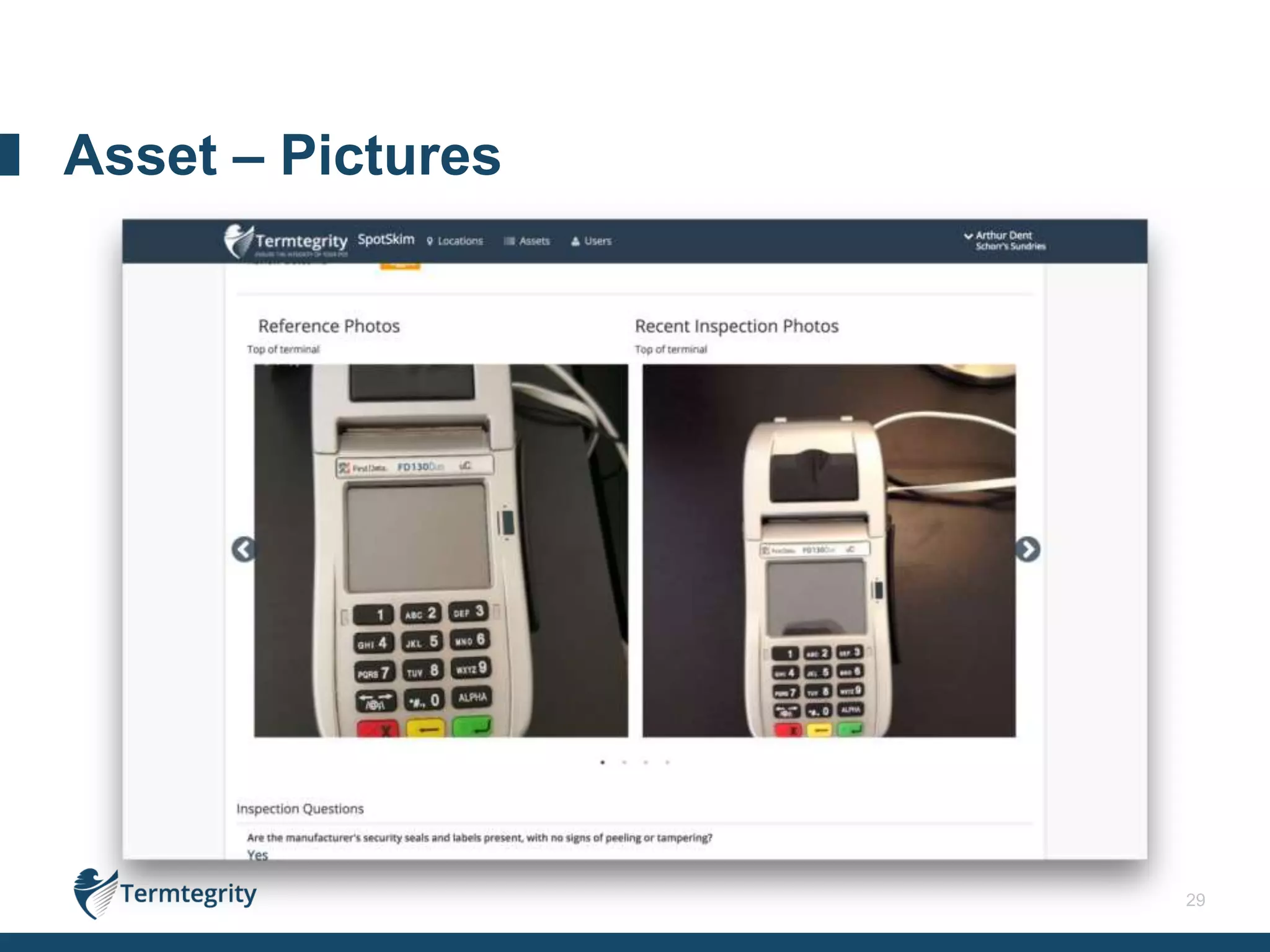
Asset – Pictures
30
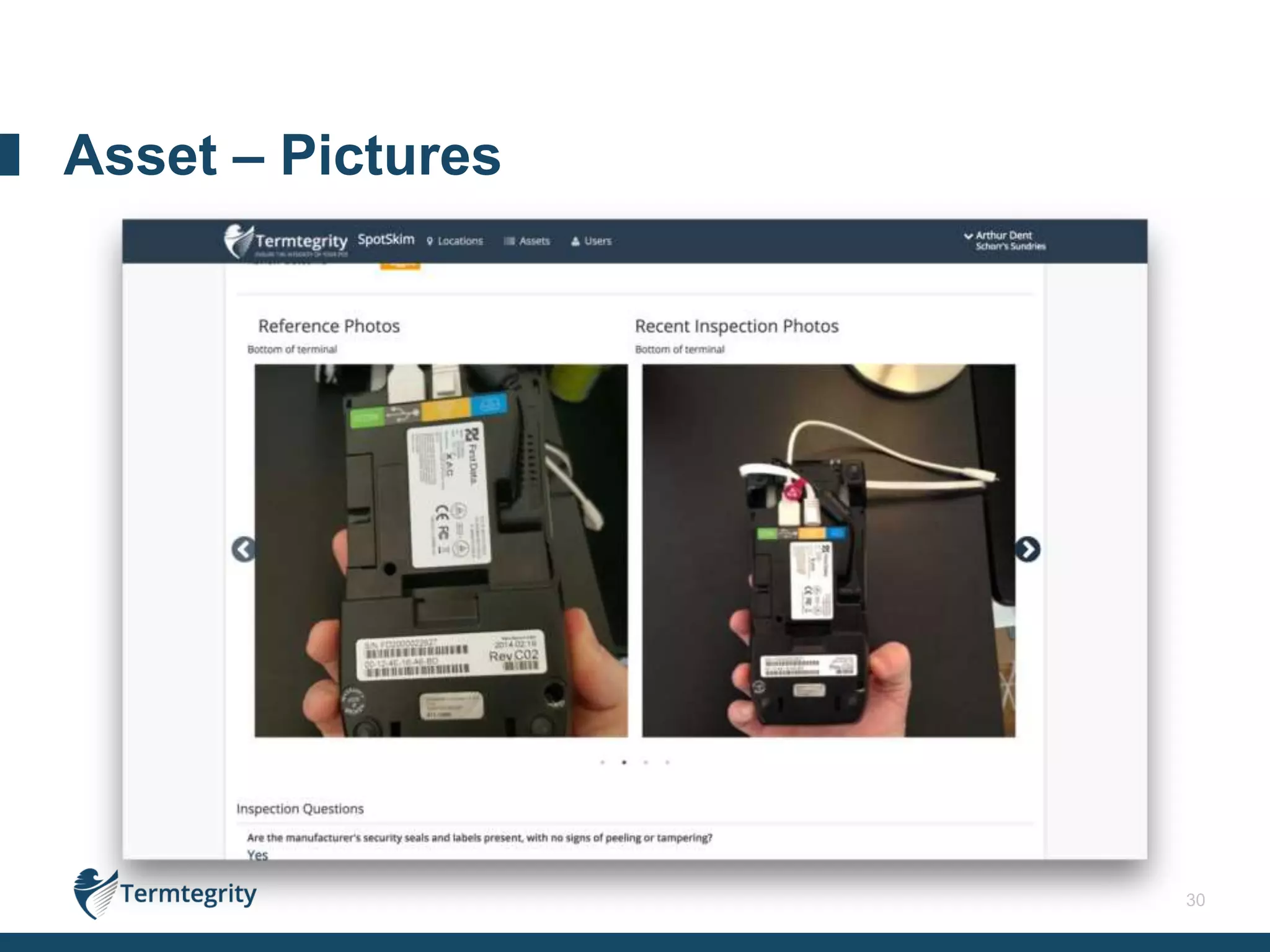
Asset – Pictures
31
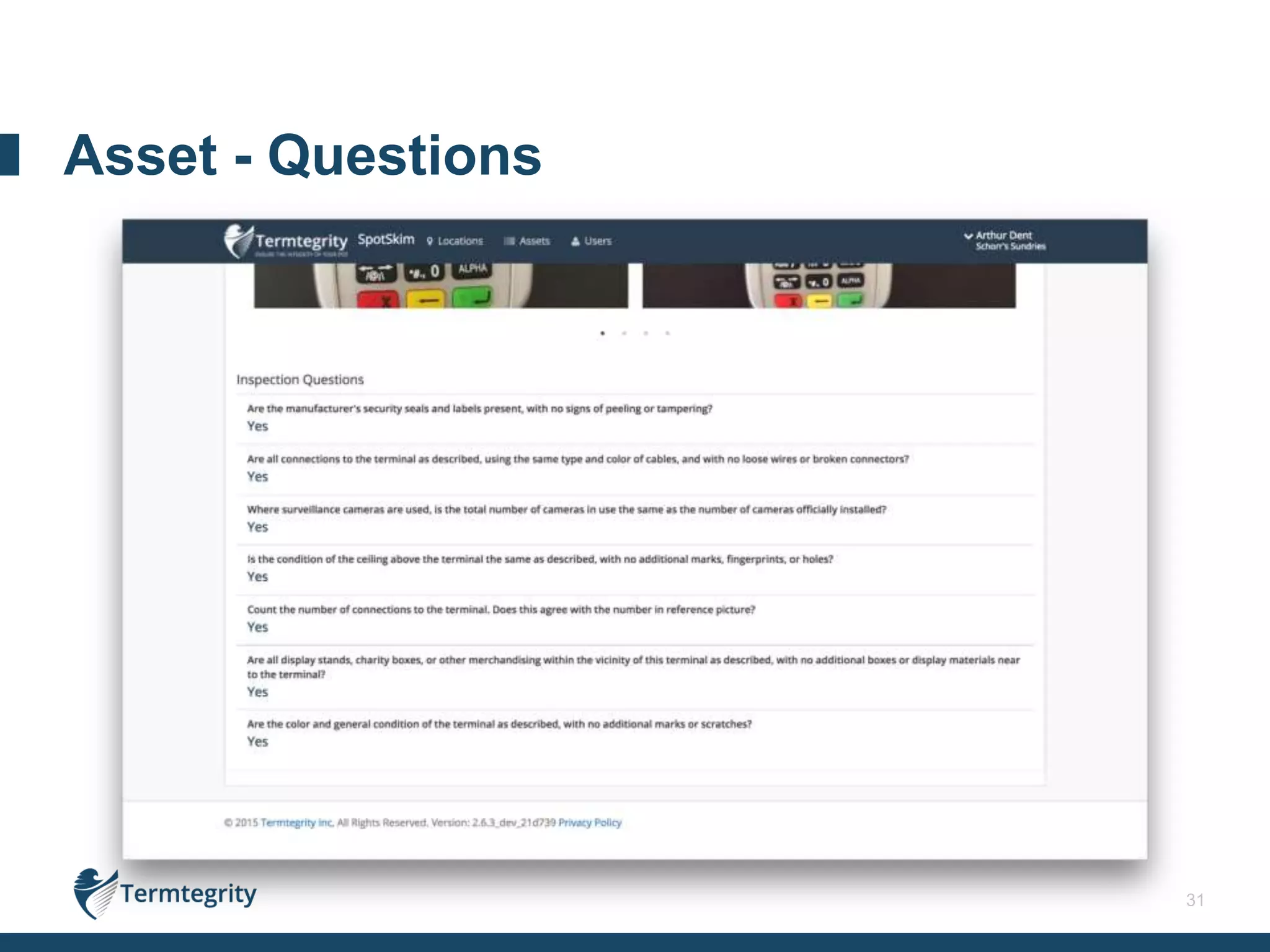
Asset - Questions
32
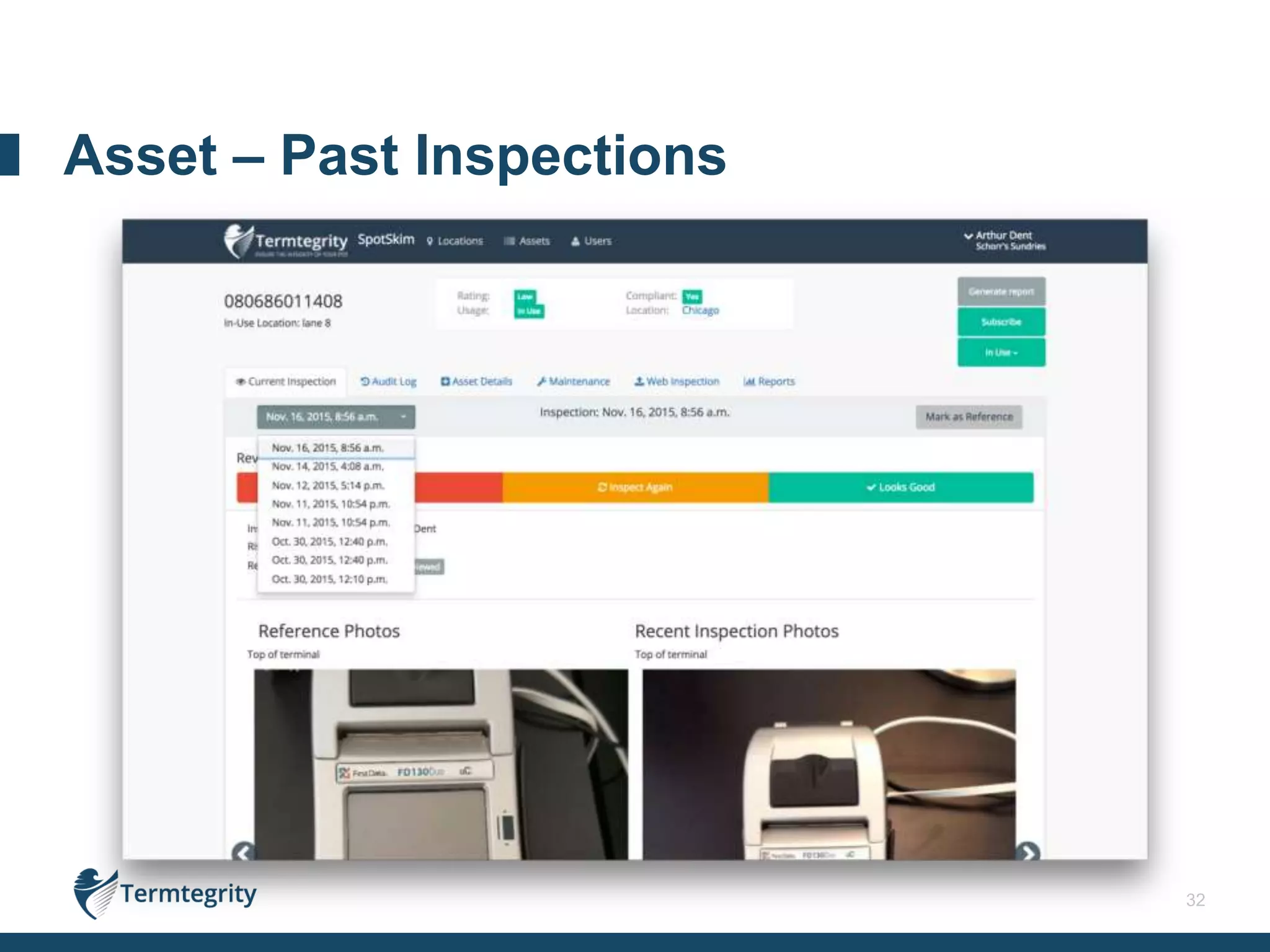
Asset – Past Inspections
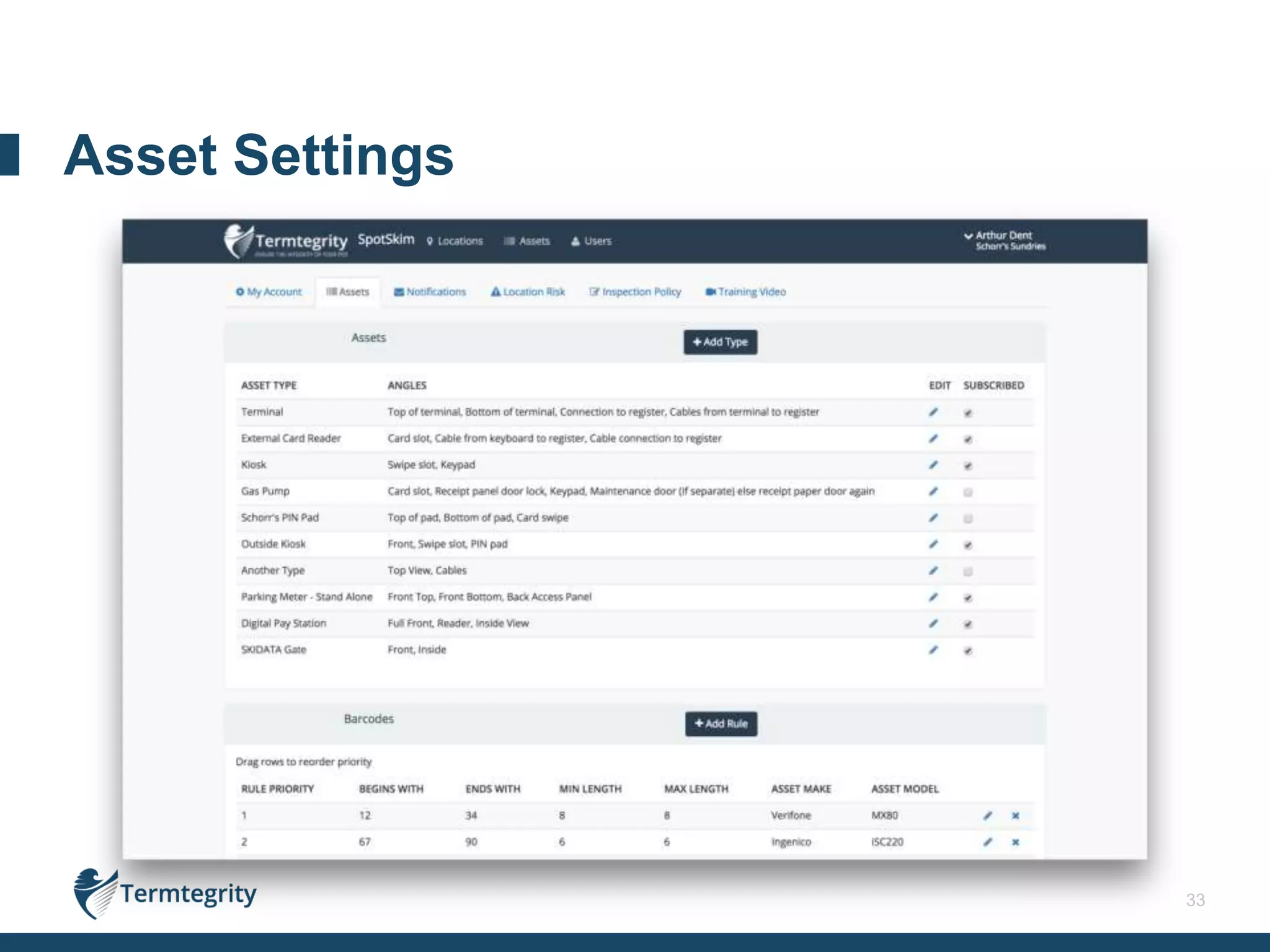
33
Asset Settings
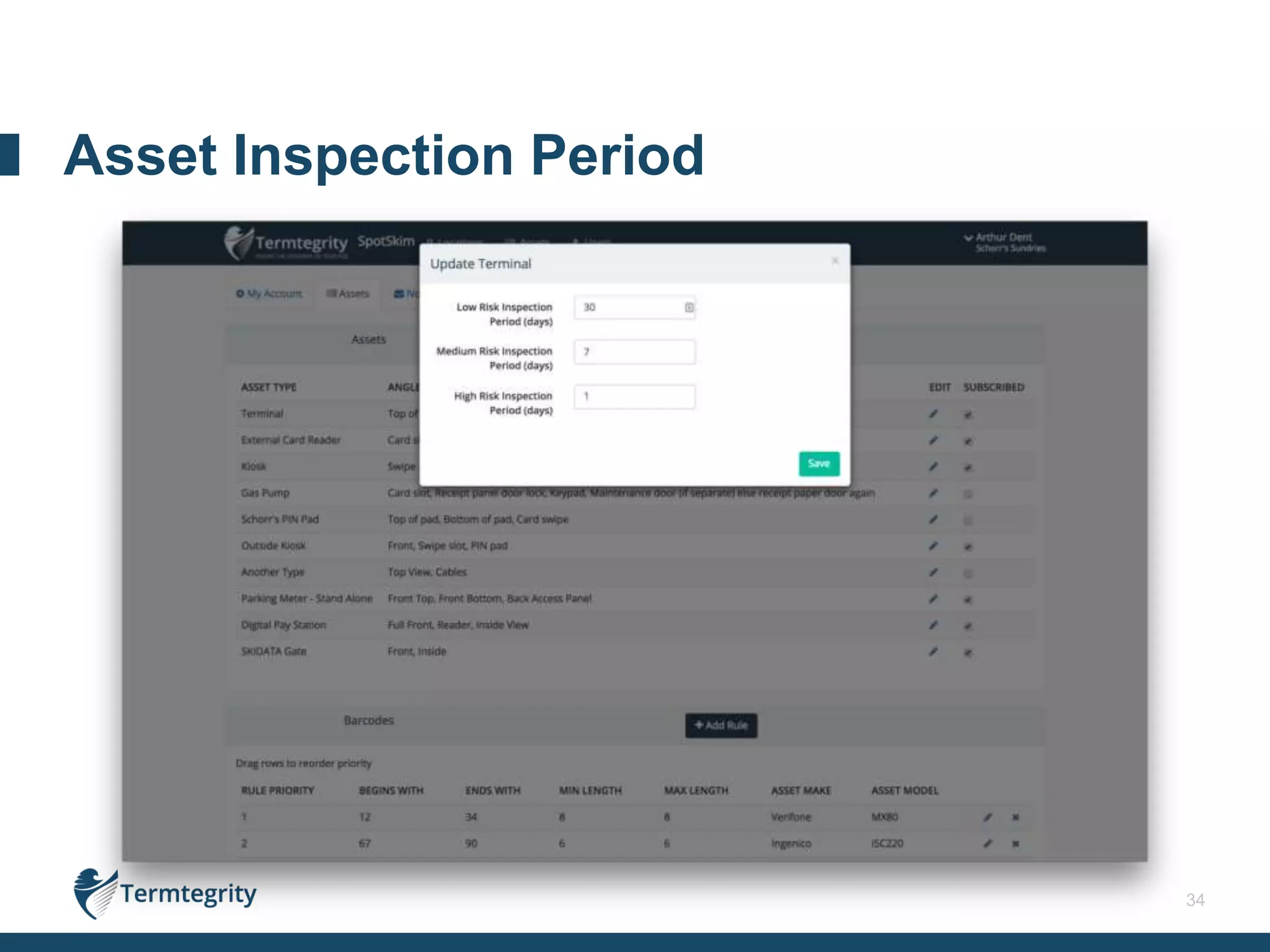
34
Asset Inspection Period
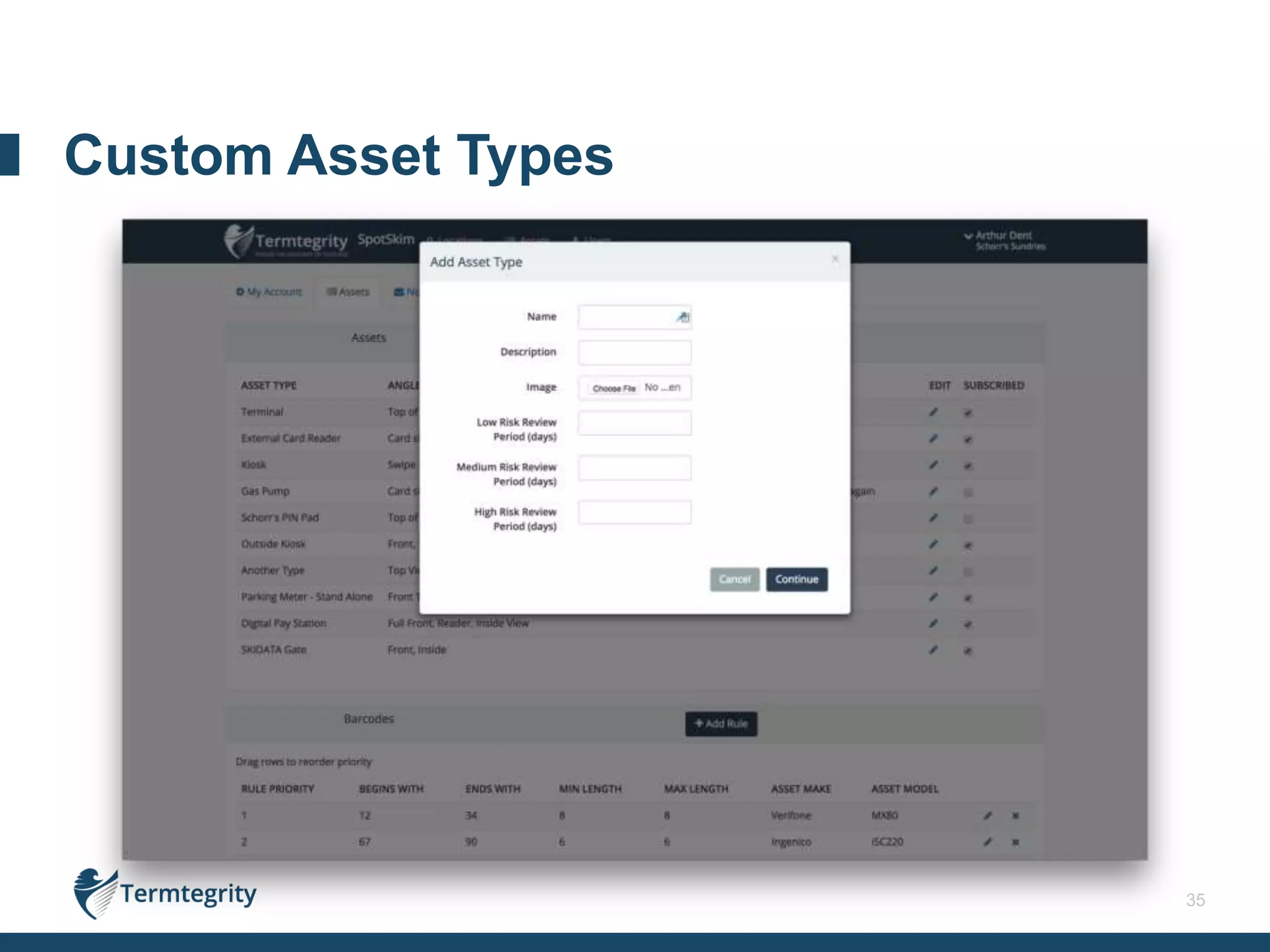
35
Custom Asset Types
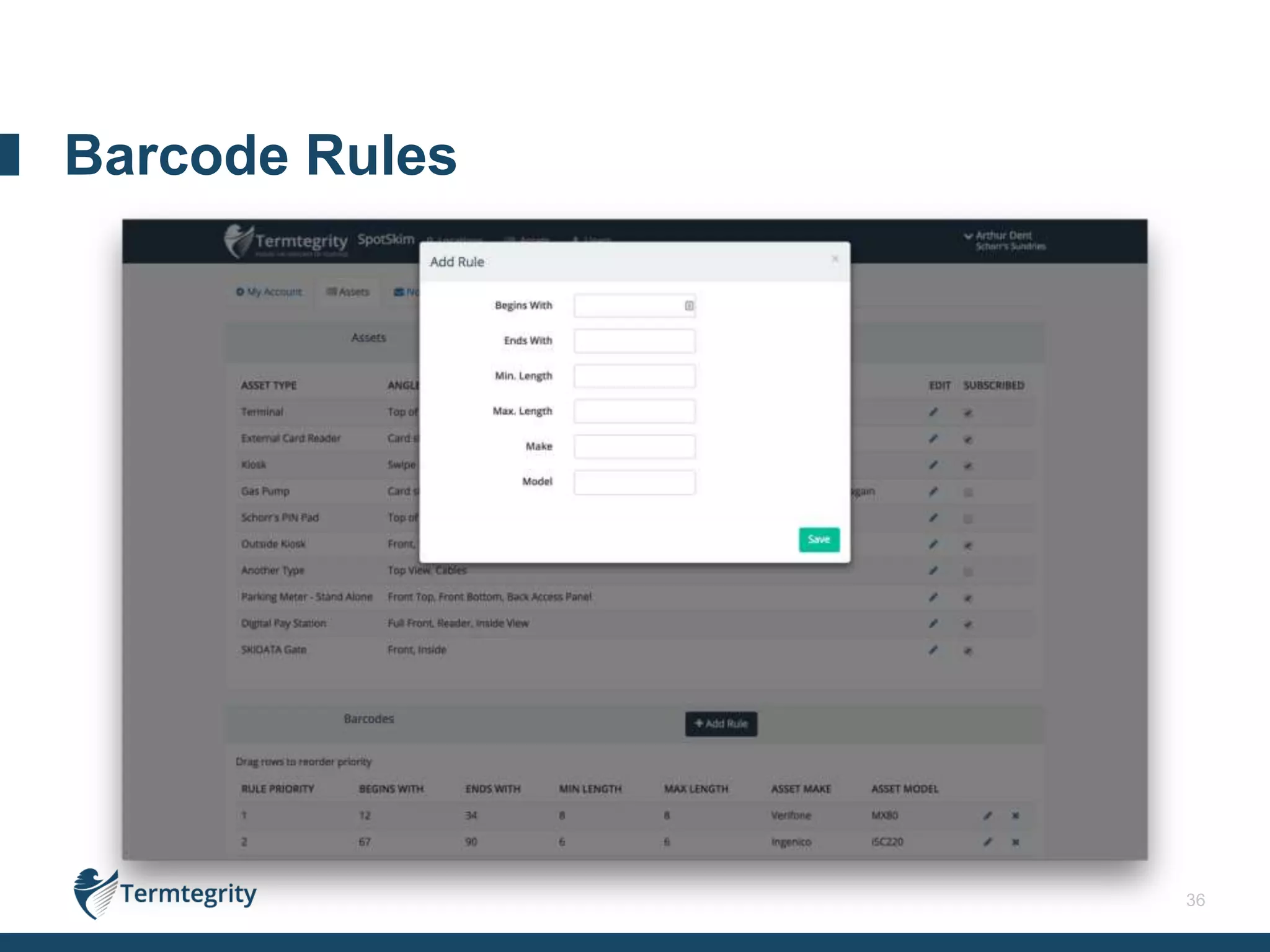
36
Barcode Rules
37
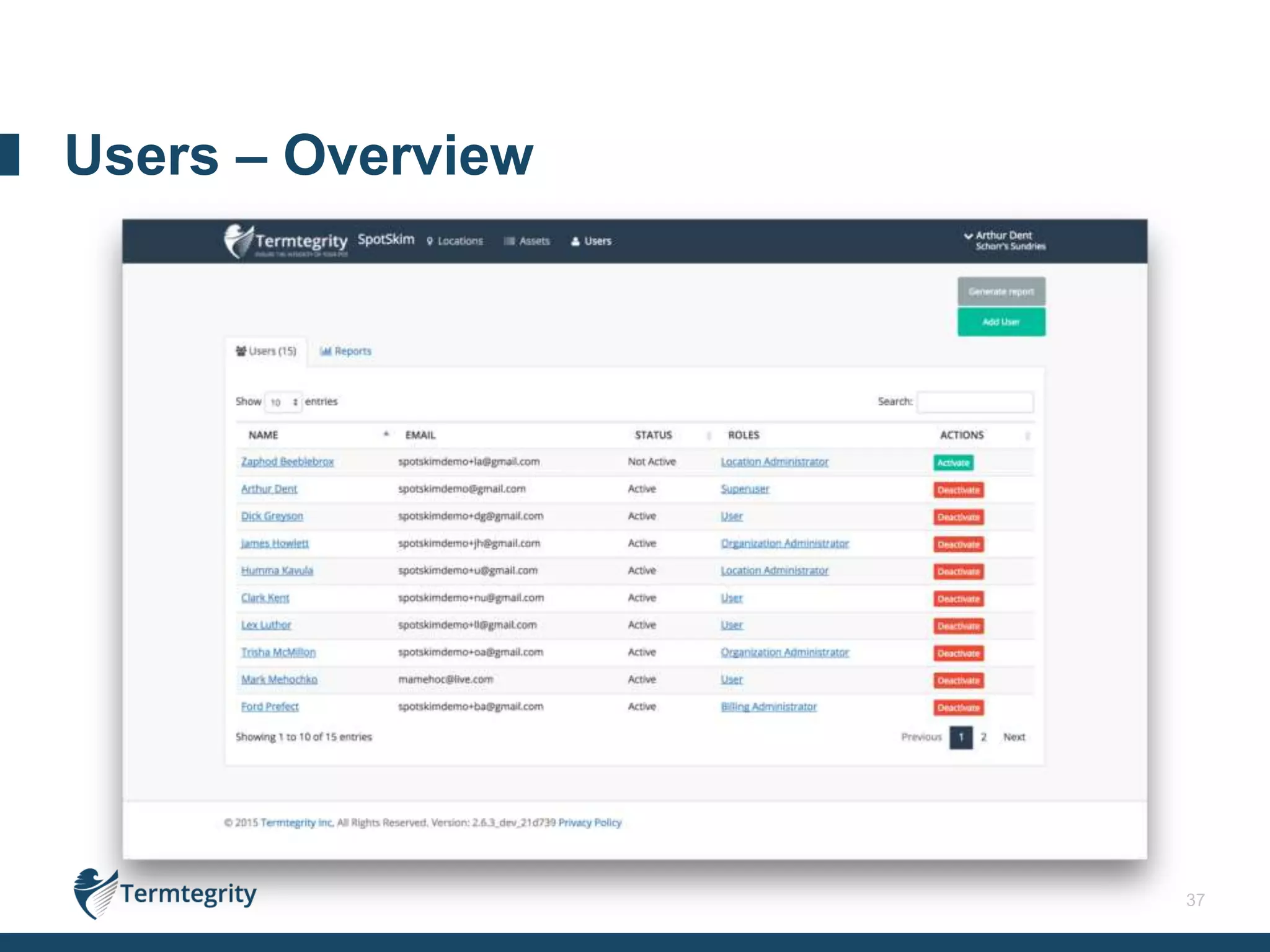
Users – Overview
38
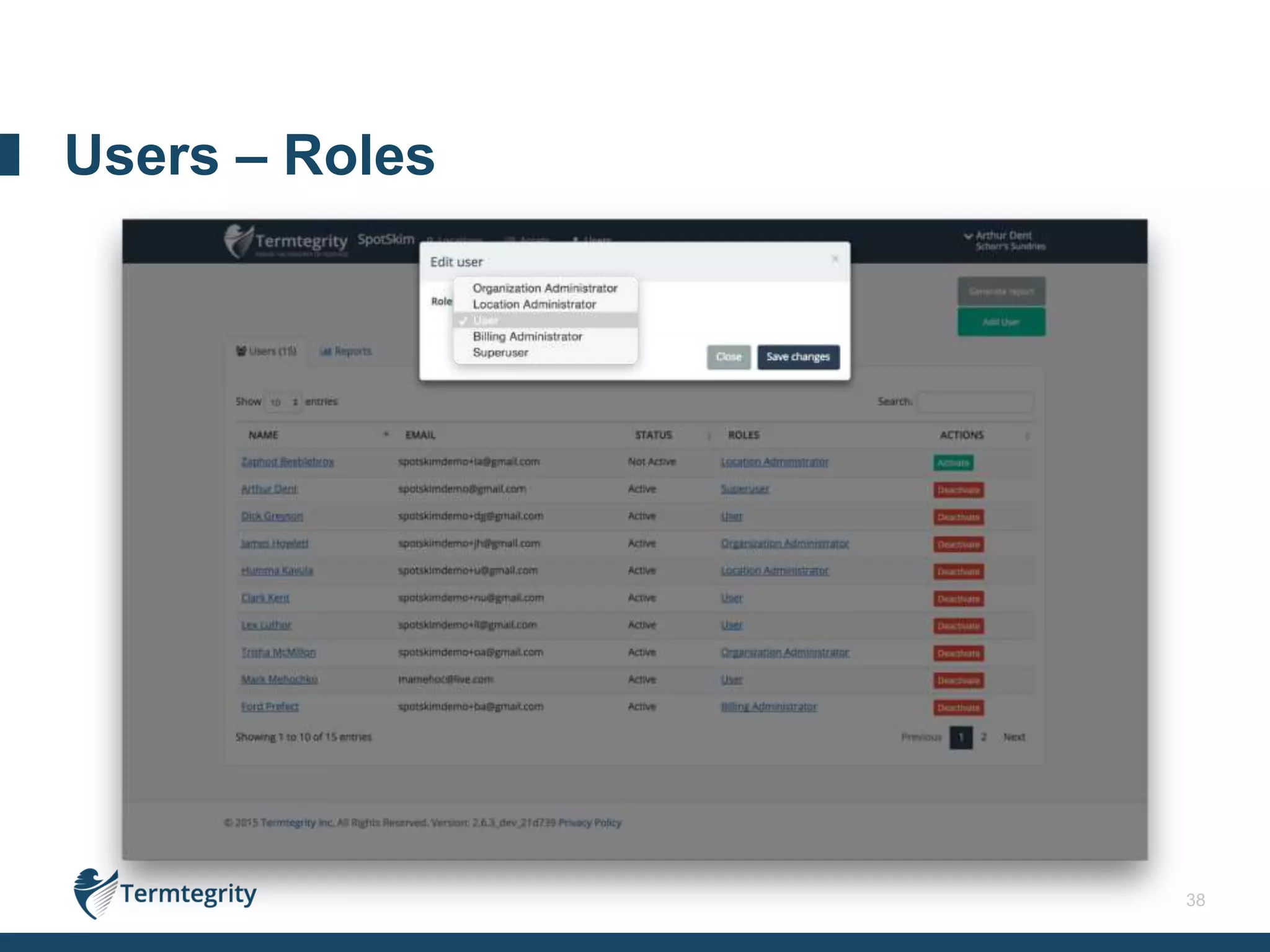
Users – Roles
39
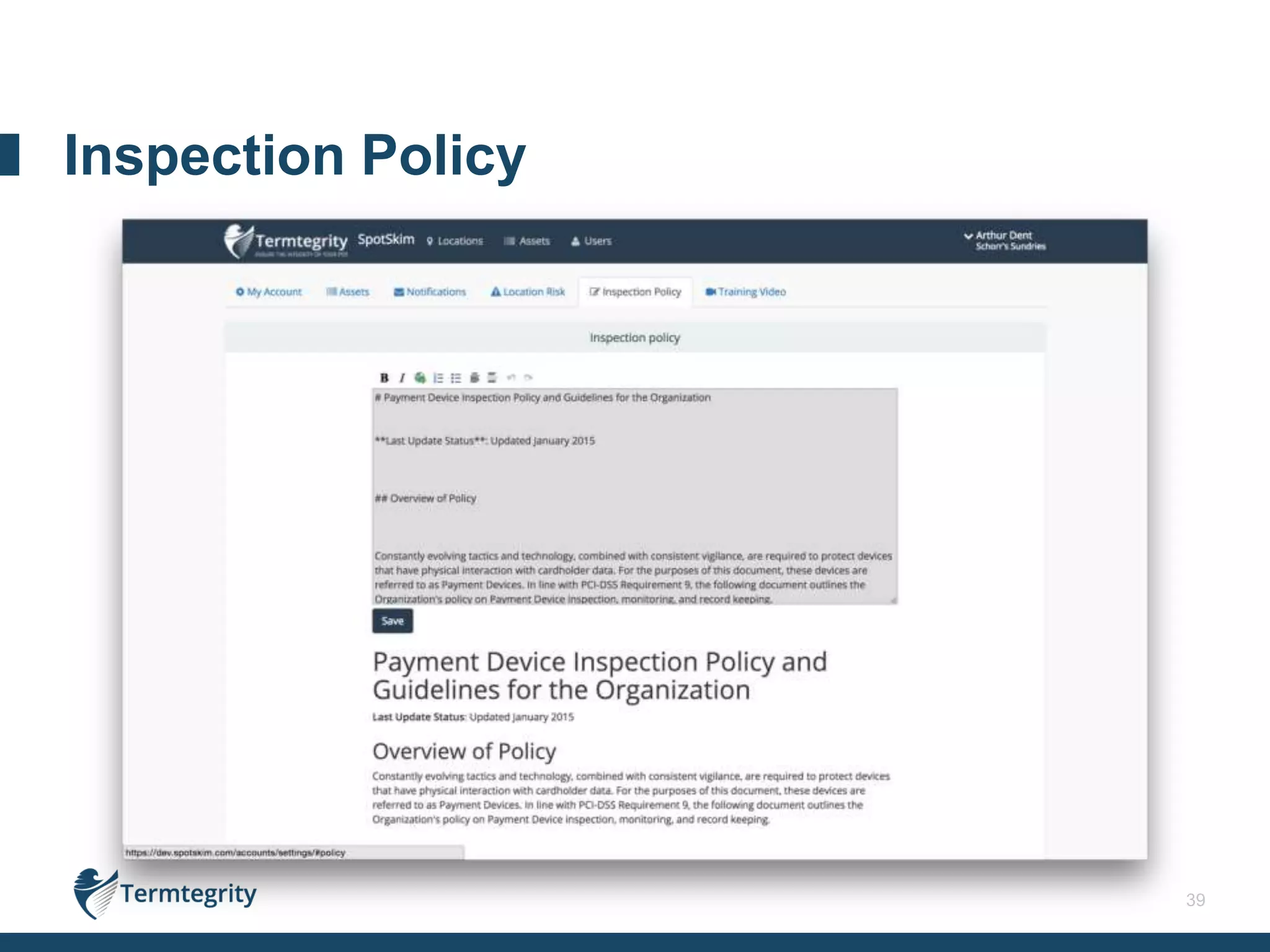
Inspection Policy
40
Inspection Training Video
41
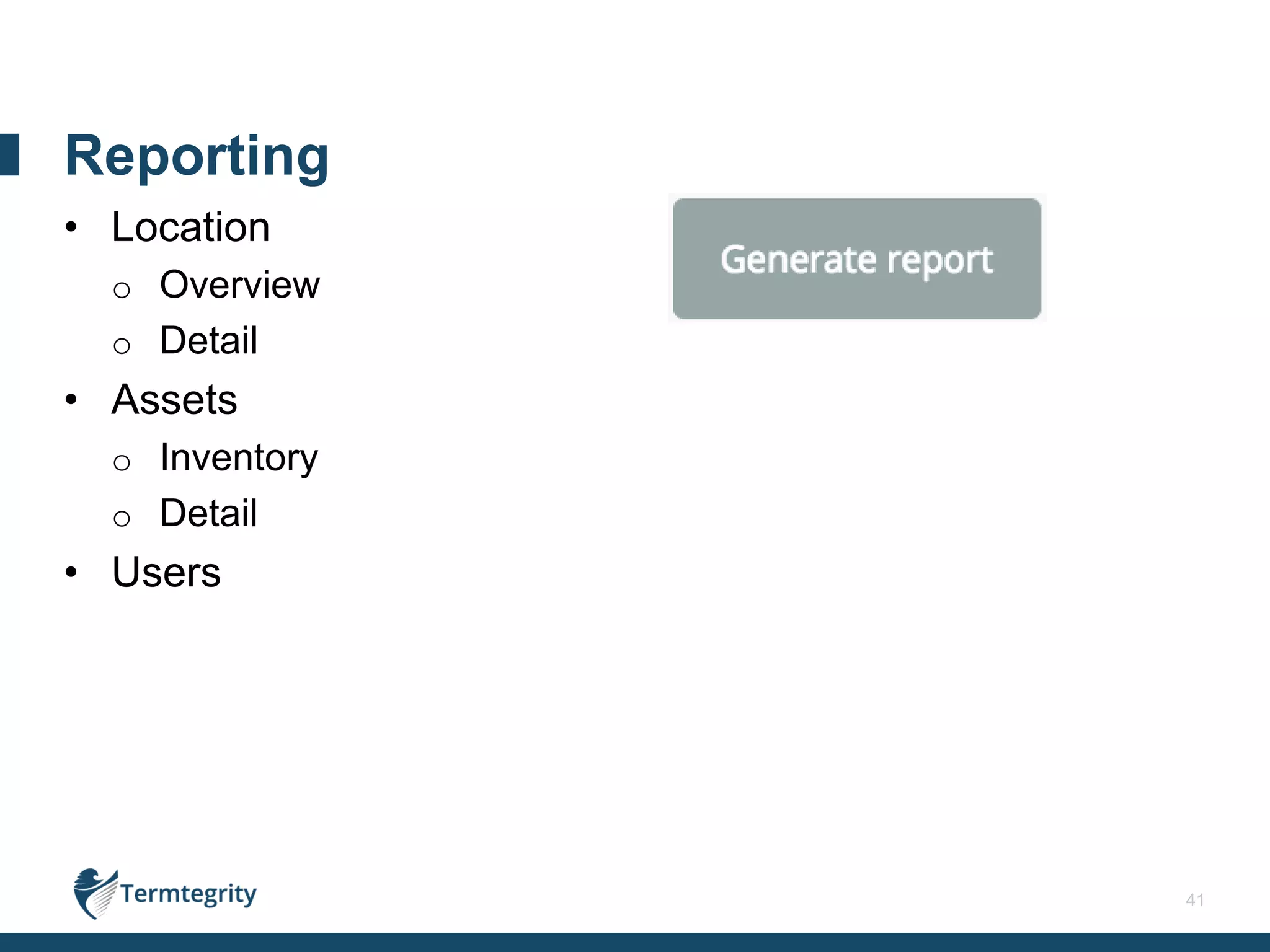
• Location
o Overview
o Detail
• Assets
o Inventory
o Detail
• Users
Reporting
42
Asset Usage States and Compliance States
APPENDIX A
43
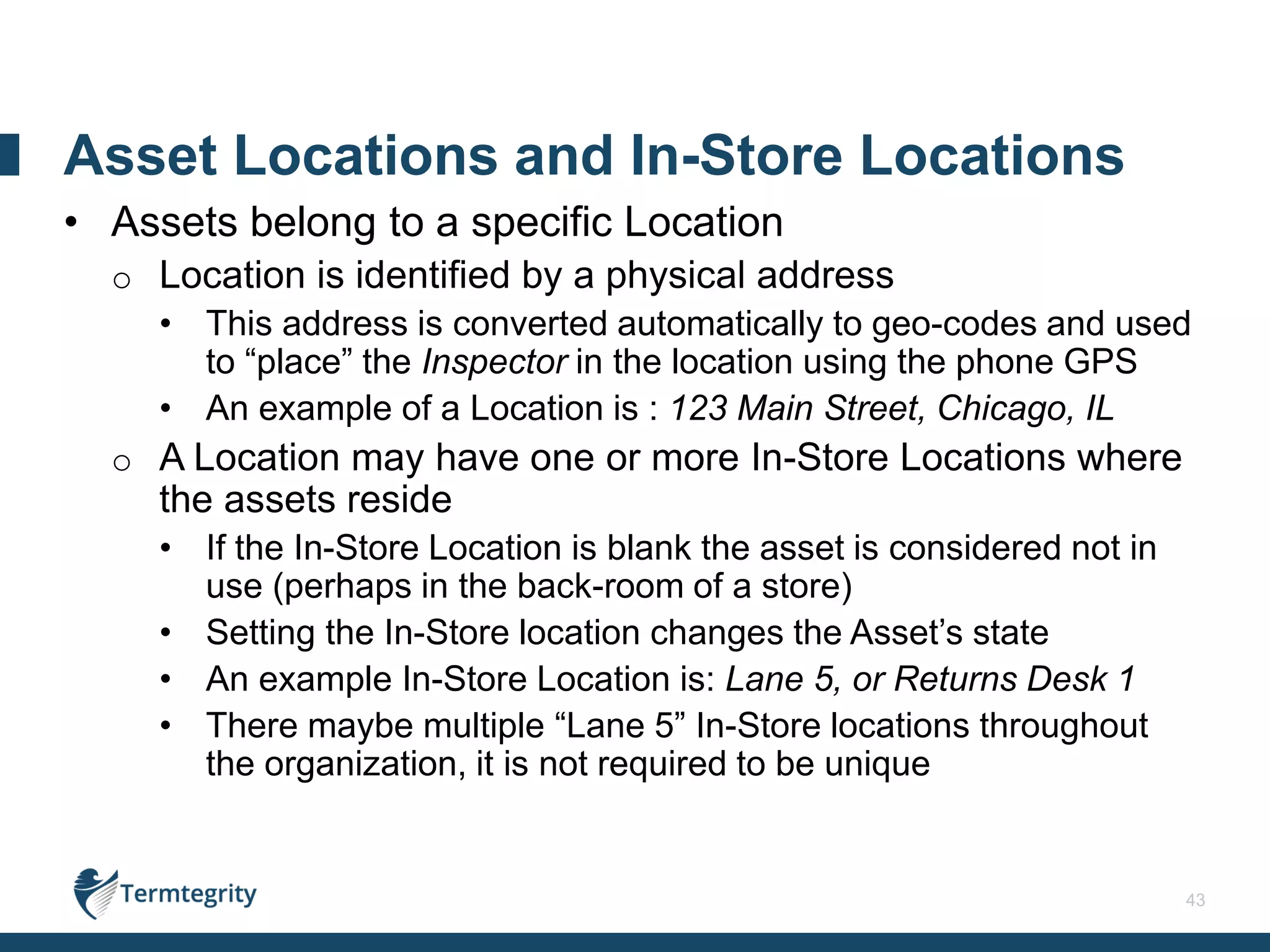
• Assets belong to a specific Location
o Location is identified by a physical address
• This address is converted automatically to geo-codes and used
to “place” the Inspector in the location using the phone GPS
• An example of a Location is : 123 Main Street, Chicago, IL
o A Location may have one or more In-Store Locations where
the assets reside
• If the In-Store Location is blank the asset is considered not in
use (perhaps in the back-room of a store)
• Setting the In-Store location changes the Asset’s state
• An example In-Store Location is: Lane 5, or Returns Desk 1
• There maybe multiple “Lane 5” In-Store locations throughout
the organization, it is not required to be unique
Asset Locations and In-Store Locations
44
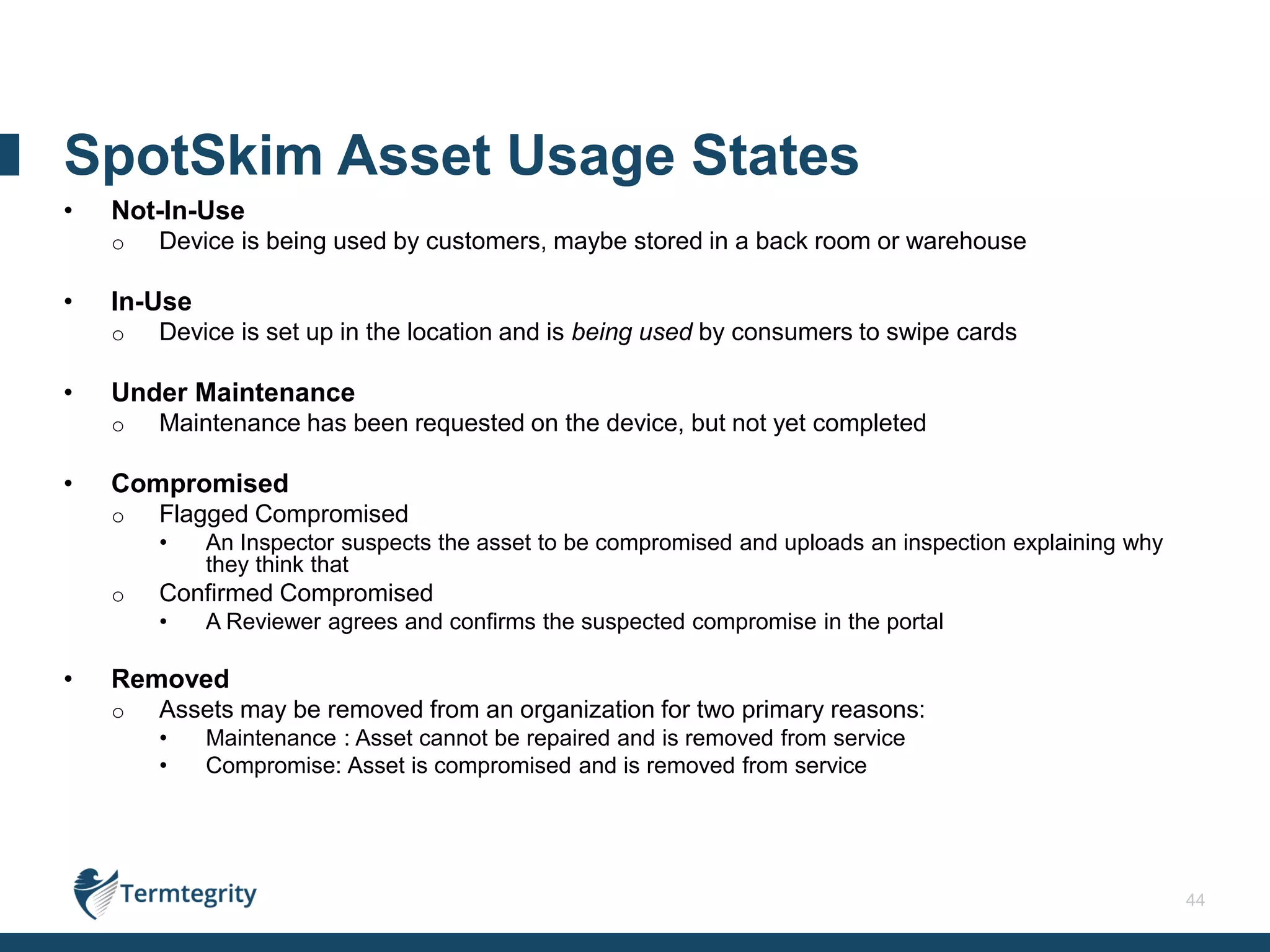
• Not-In-Use
o Device is being used by customers, maybe stored in a back room or warehouse
• In-Use
o Device is set up in the location and is being used by consumers to swipe cards
• Under Maintenance
o Maintenance has been requested on the device, but not yet completed
• Compromised
o Flagged Compromised
• An Inspector suspects the asset to be compromised and uploads an inspection explaining why
they think that
o Confirmed Compromised
• A Reviewer agrees and confirms the suspected compromise in the portal
• Removed
o Assets may be removed from an organization for two primary reasons:
• Maintenance : Asset cannot be repaired and is removed from service
• Compromise: Asset is compromised and is removed from service
SpotSkim Asset Usage States
45
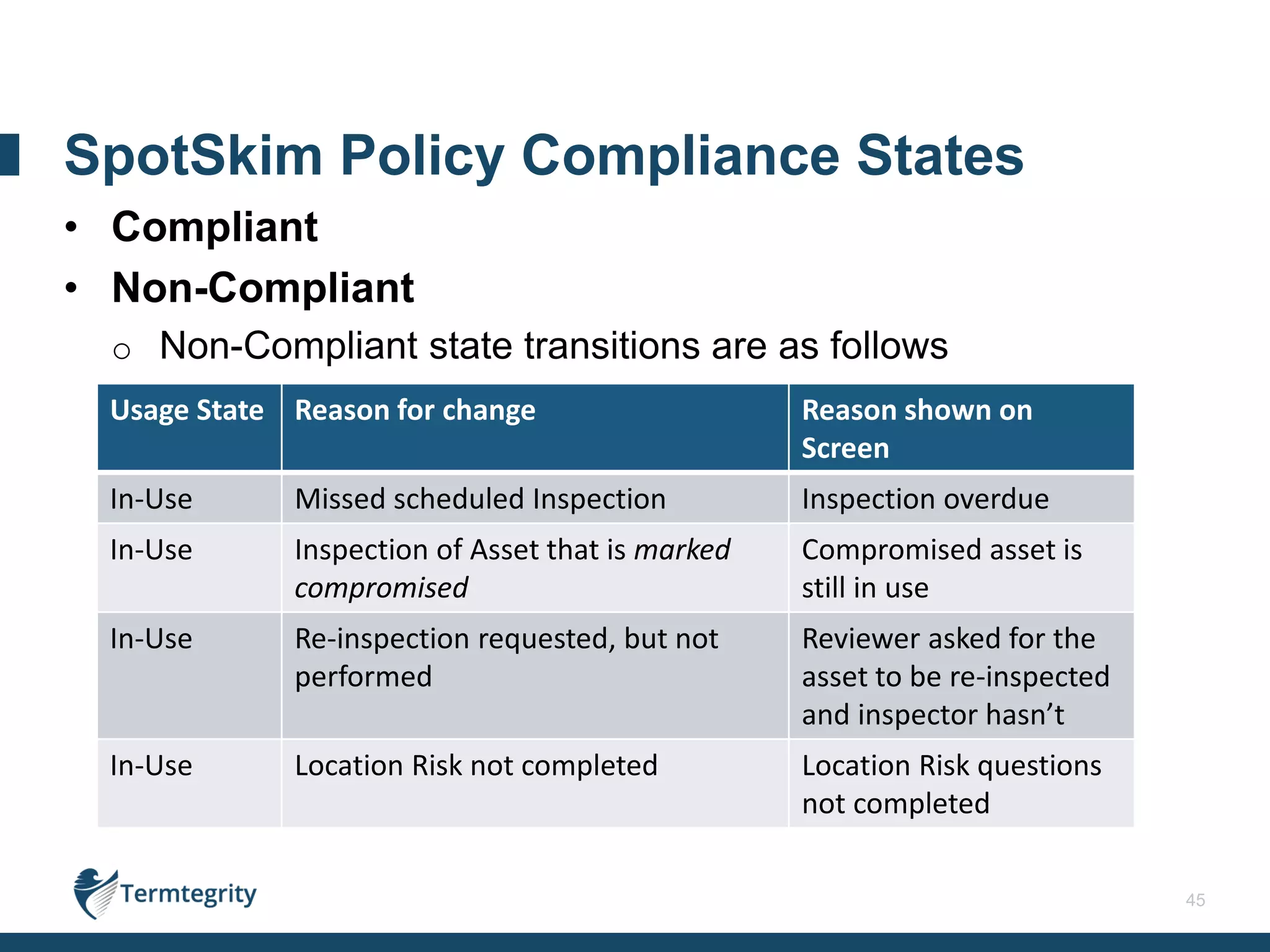
• Compliant
• Non-Compliant
o Non-Compliant state transitions are as follows
SpotSkim Policy Compliance States
Usage State Reason for change Reason shown on
Screen
In-Use Missed scheduled Inspection Inspection overdue
In-Use Inspection of Asset that is marked
compromised
Compromised asset is
still in use
In-Use Re-inspection requested, but not
performed
Reviewer asked for the
asset to be re-inspected
and inspector hasn’t
In-Use Location Risk not completed Location Risk questions
not completed
46
Role Based Access Controls
APPENDIX B
47
Superuser
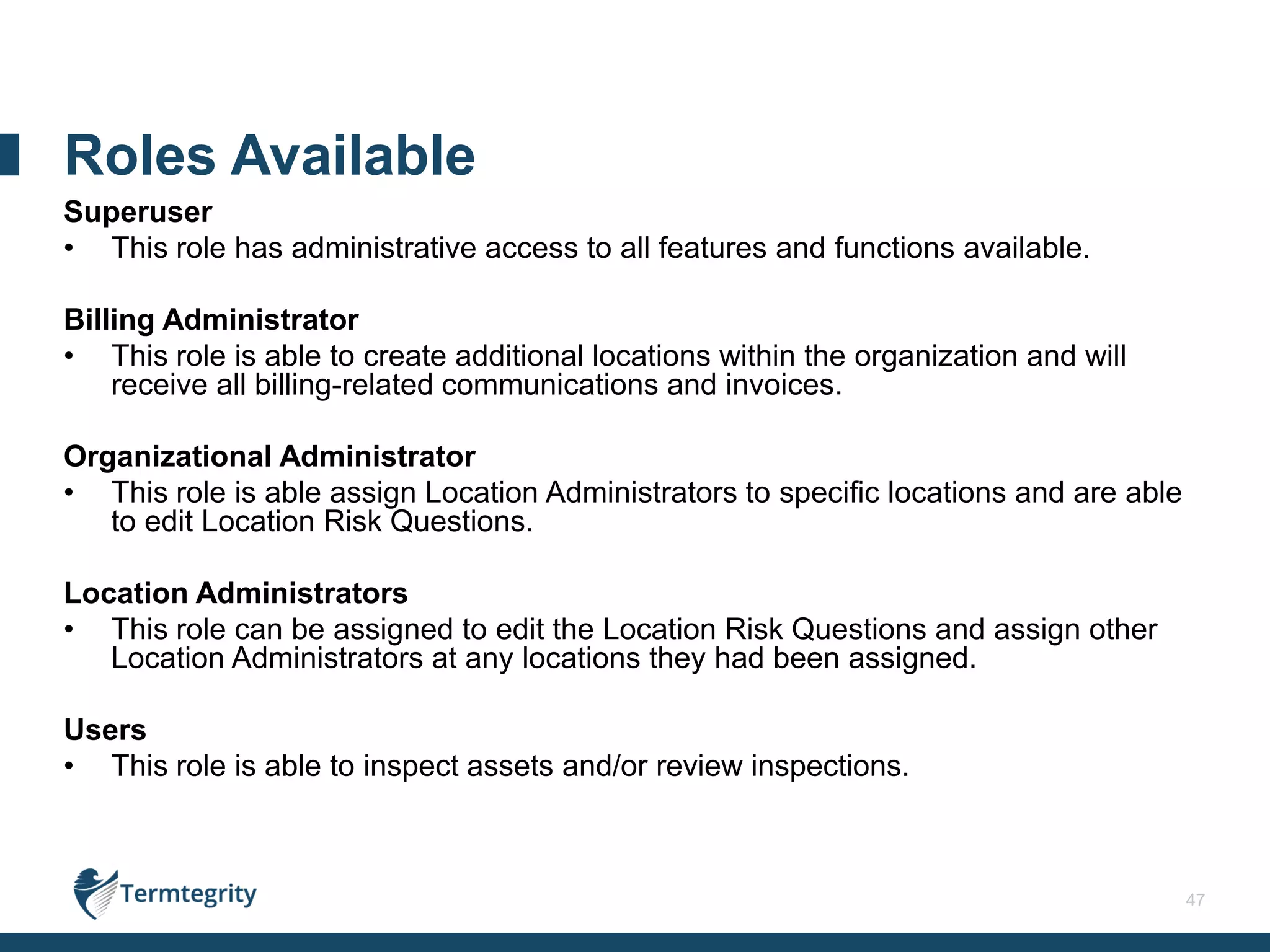
• This role has administrative access to all features and functions available.
Billing Administrator
• This role is able to create additional locations within the organization and will
receive all billing-related communications and invoices.
Organizational Administrator
• This role is able assign Location Administrators to specific locations and are able
to edit Location Risk Questions.
Location Administrators
• This role can be assigned to edit the Location Risk Questions and assign other
Location Administrators at any locations they had been assigned.
Users
• This role is able to inspect assets and/or review inspections.
Roles Available
48
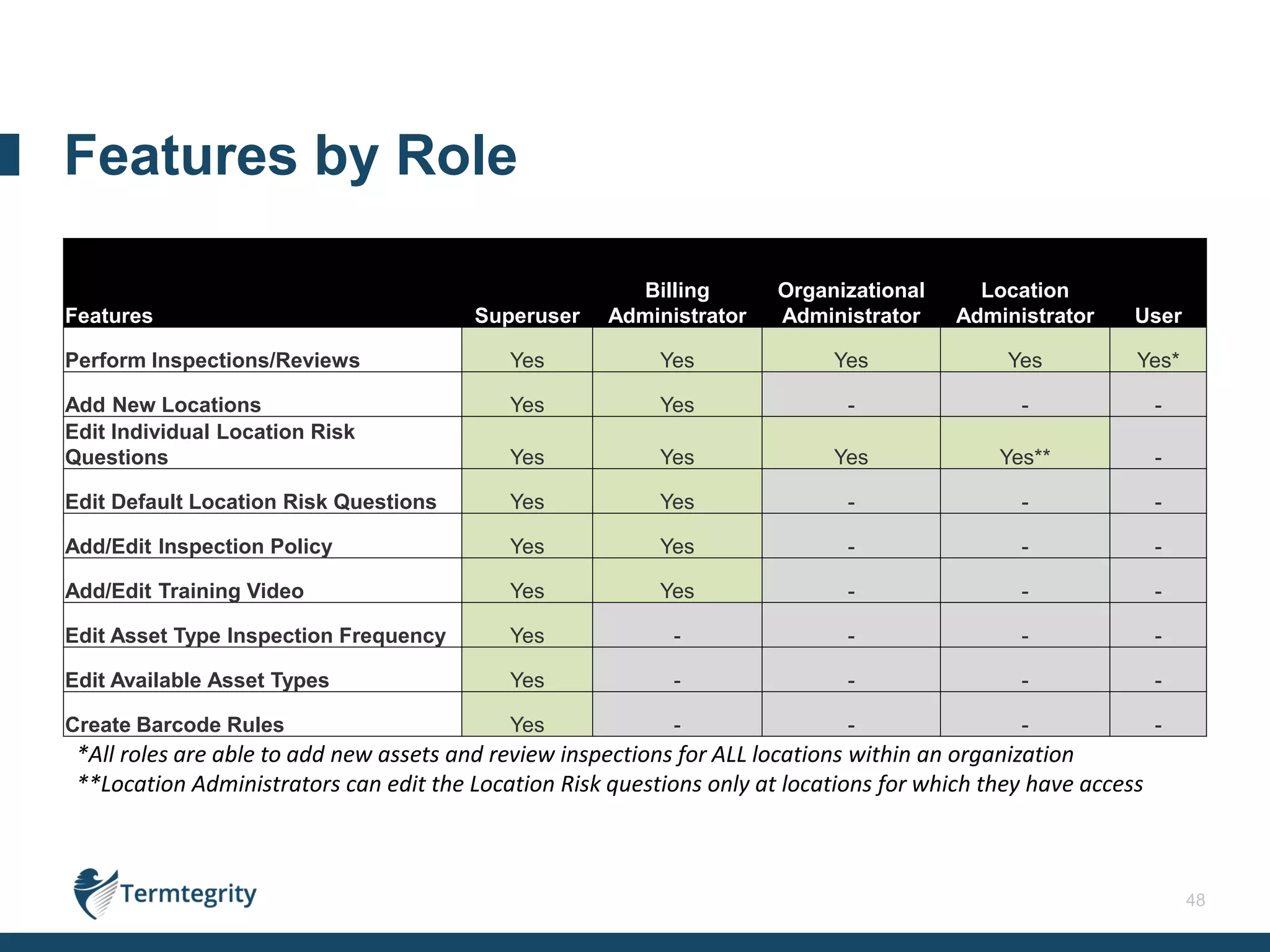
Features by Role
*All roles are able to add new assets and review inspections for ALL locations within an organization
**Location Administrators can edit the Location Risk questions only at locations for which they have access
Features Superuser
Billing
Administrator
Organizational
Administrator
Location
Administrator User
Perform Inspections/Reviews Yes Yes Yes Yes Yes*
Add New Locations Yes Yes - - -
Edit Individual Location Risk
Questions Yes Yes Yes Yes** -
Edit Default Location Risk Questions Yes Yes - - -
Add/Edit Inspection Policy Yes Yes - - -
Add/Edit Training Video Yes Yes - - -
Edit Asset Type Inspection Frequency Yes - - - -
Edit Available Asset Types Yes - - - -
Create Barcode Rules Yes - - - -
49
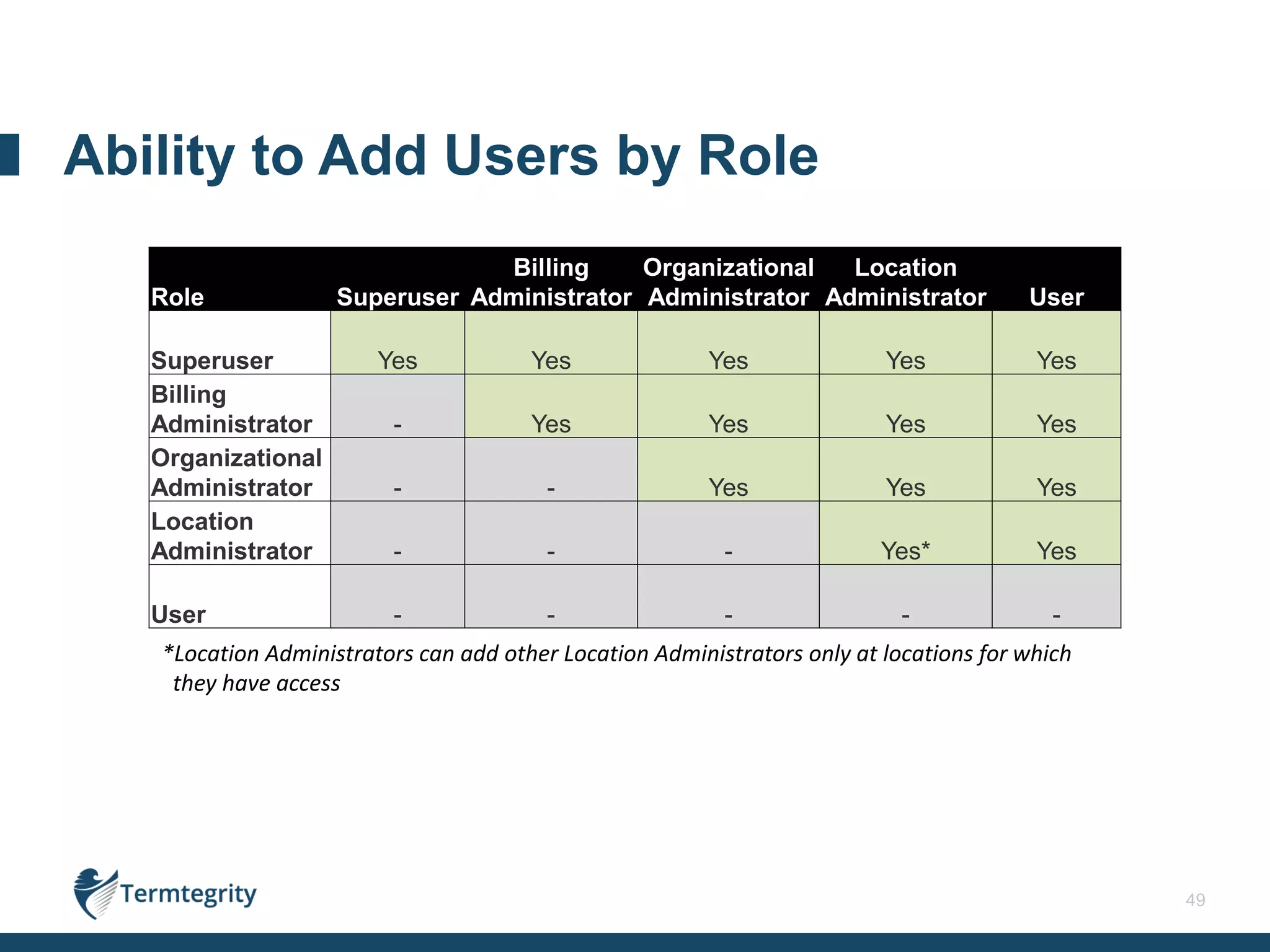
Ability to Add Users by Role
Role Superuser
Billing
Administrator
Organizational
Administrator
Location
Administrator User
Superuser Yes Yes Yes Yes Yes
Billing
Administrator - Yes Yes Yes Yes
Organizational
Administrator - - Yes Yes Yes
Location
Administrator - - - Yes* Yes
User - - - - -
*Location Administrators can add other Location Administrators only at locations for which
they have access
50
Available Reports
APPENDIX C
51
Single-click reporting to provide QSAs exactly the information
required to assess requirement 9.9 compliance.
The reports available in SpotSkim are:
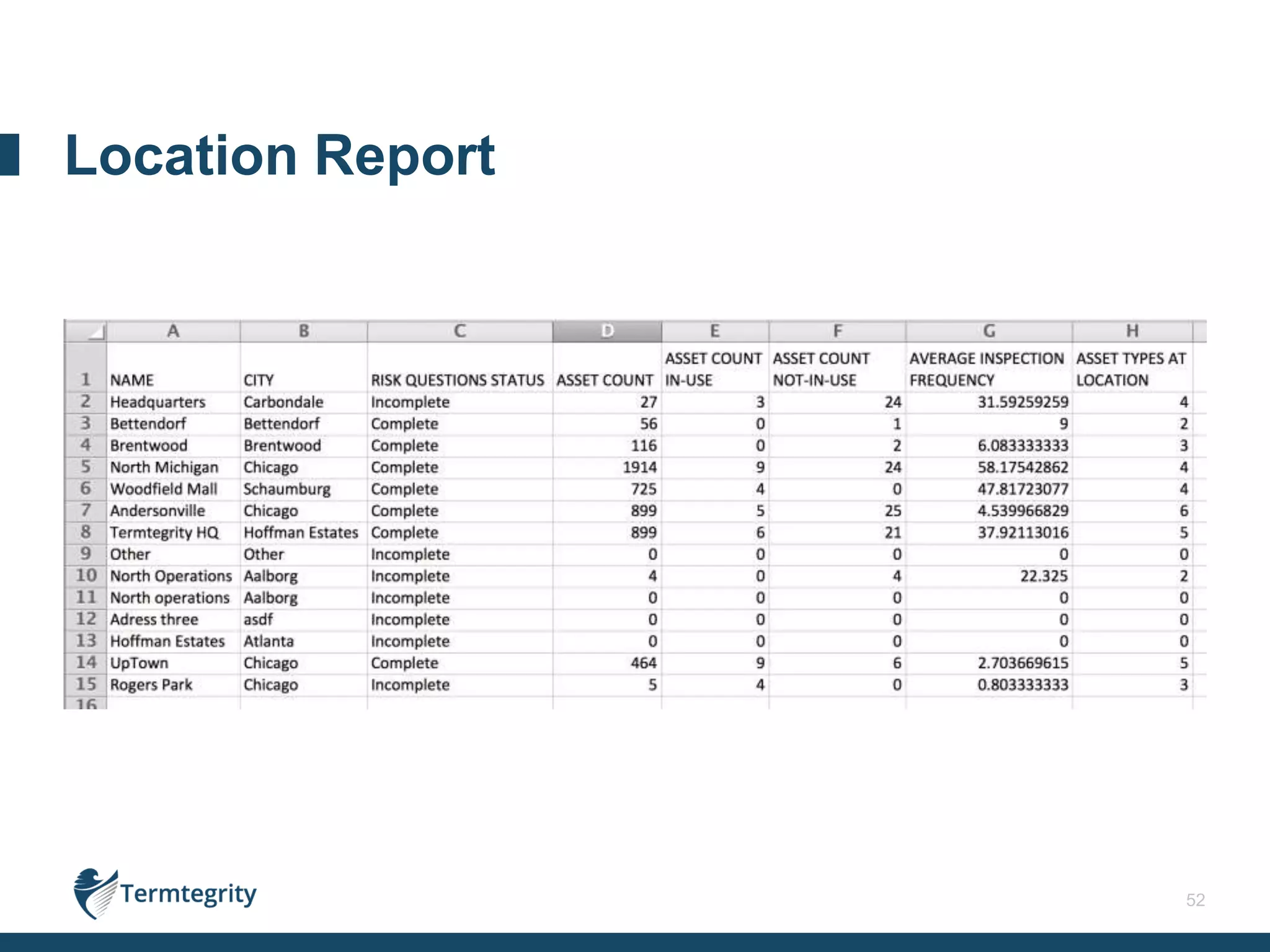
• Location
o All locations in organization and associated data
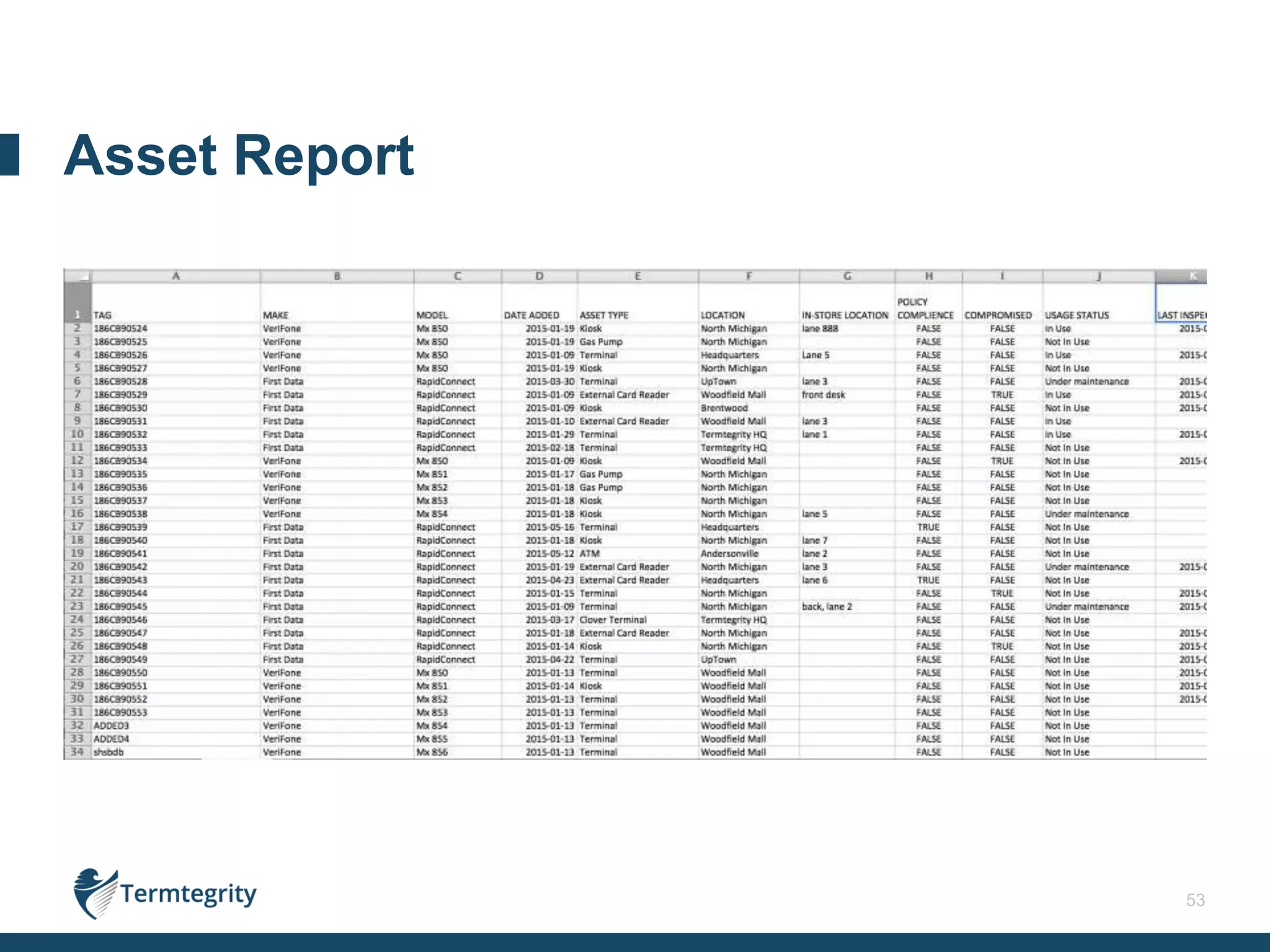
• Asset
o Inventory of assets and associated data
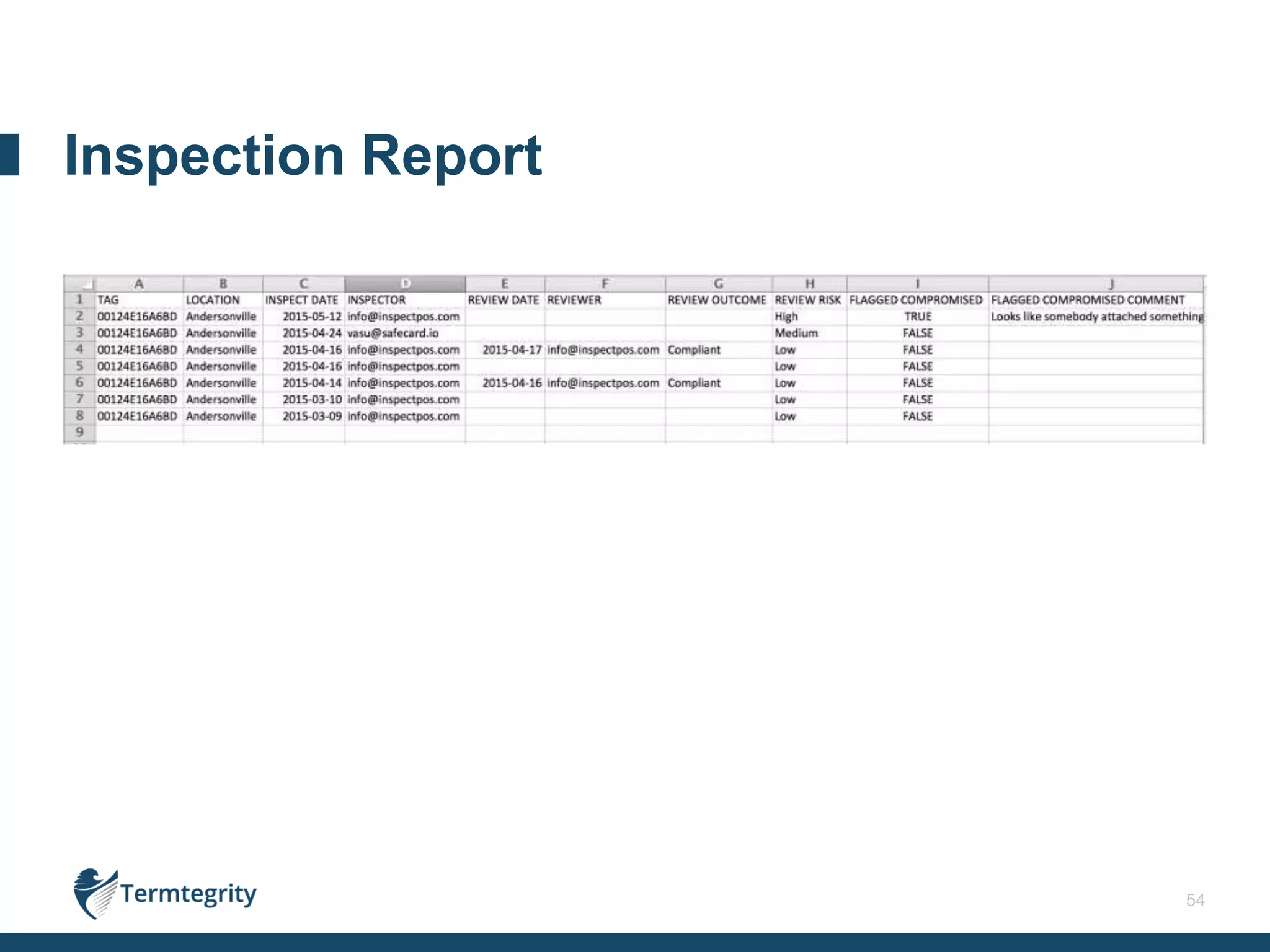
• Inspection
o Inspections performed on a particular asset and associated data
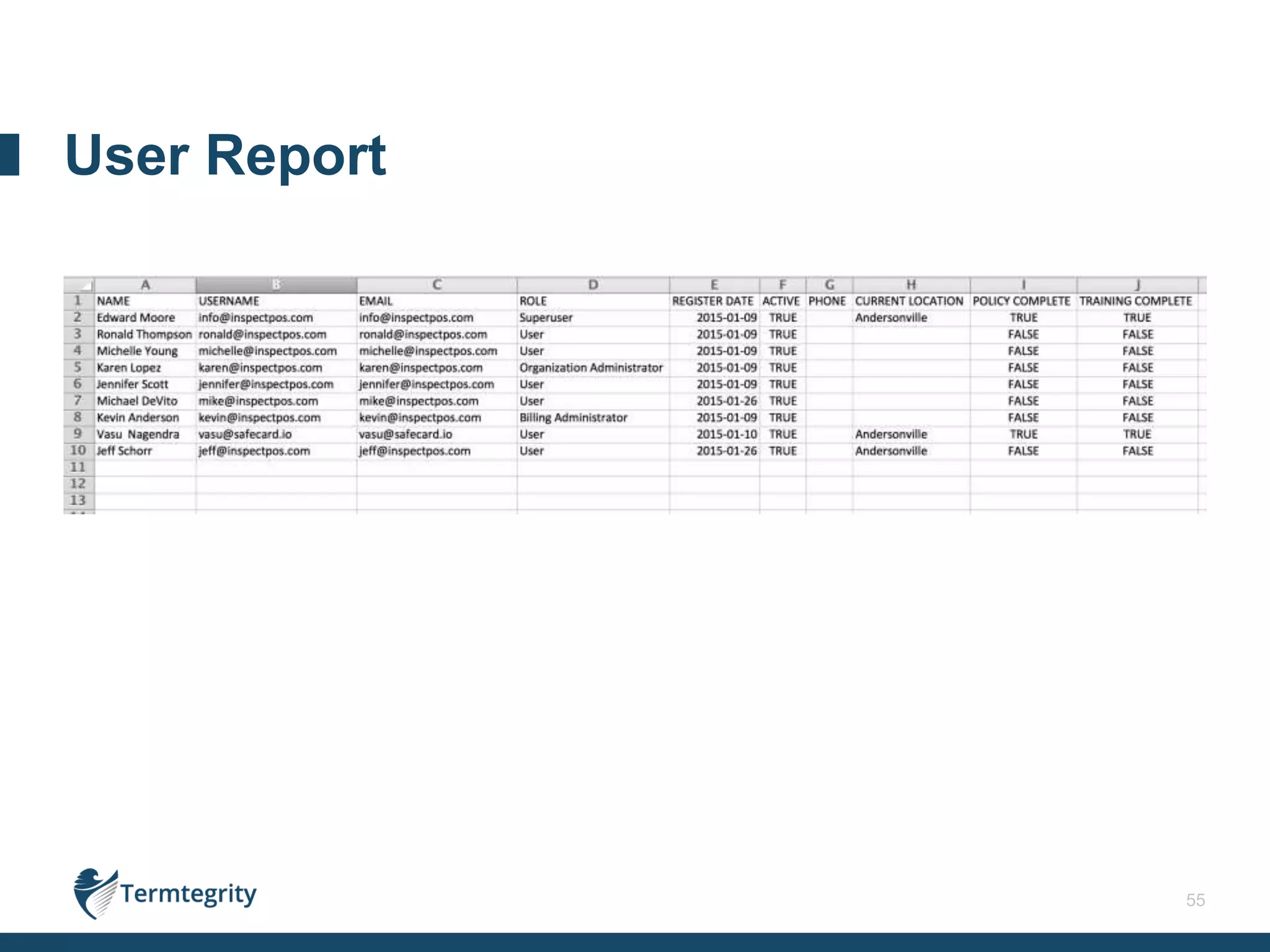
• User
o All users in the organization and associated data
Available Reports
52
Location Report
53
Asset Report
54
Inspection Report
55
User Report
THANK YOU!
VASU NAGENDRA
CEO, Founder
vasu@termtegrity.com
312-502-0006
JEFF SCHORR
Head of Marketing
jeff@termtegrity.com
614-595-6835

SpotSkim_Overview_and_Screenshots(final)

  • 1.
  • 2.
    2 AGENDA Introduction PCI DSS Requirement9.9 & P2PE What is SpotSkim? Screenshots Asset Usage States and Compliance States Role Based Access Controls Available Reports Contact Information
  • 3.
    3 DSS Description P2PEDescription 9.9.1 Maintain an inventory of devices 3A-1, 3A-2, 3A-3, 3A-4 Inventory controls 9.9.2 Perform physical inspections 3B-8.1 Perform physical inspections 9.9.3 Provide training on device inspection and what to look out for P2PE Instruction Manual (PIM) Maintain devices in accordance with P2PE standards DSS 9.9 and Point-to-Point Encryption
  • 4.
    4 # Purpose Howdo we do it? 9.9.1 • What is it (Identification) • What you have (Make/Model) • Where you have it (Location) • Barcode/ Scan using Phone • Barcode Rules on Server • Geo-Location from Phone 9.9.2 • How is Inspection consistency enforced? • What data are you collecting as part of the Inspection? • How are you able to prove it to your QSA? • App does the ‘smart’ part of the inspection • Data including Location is collected as part of Inspection process • Reports are readily available on portal 9.9.3 • How do employees know what to do? • How do you know that they’ve read it? • How do you show this to the QSA? • Phone Application provides training video and policy text • Employees need to acknowledge after they watch/read training • All acknowledgements are accessible on the portal How we do it?
  • 5.
    5 • Administer Access •Manage Inventory • Review Inspections • Policy and Training Compliance • Reporting Mobile App • iOS & Android • Inspect Terminals • Provide Training • Provide Policy Web Portal SpotSkim: Software-as-a-Service Solution
  • 6.
  • 7.
    7 Screenshots from themobile app Performing an Inspection
  • 8.
    8 • App helpguide First time login
  • 9.
    9 • Knows inspectorlocation • Assets due for inspection are listed Starting an inspection
  • 10.
    10 • Choose fromlist • Scan barcode • Key in asset tag Identifying the asset
  • 11.
    11 • Pictures • Questions •Other info/actions Guided inspection
  • 12.
    12 • Reference images •Capture new inspection images Pictures
  • 13.
    13 • Help inspectorassess: o Asset o Surrounding area • Report back unexpected findings Questions
  • 14.
    14 • Help inspectorassess: o Asset o Surrounding area • Report back unexpected findings Questions
  • 15.
    15 • Help inspectorassess: o Asset o Surrounding area • Report back unexpected findings Questions
  • 16.
    16 • Status • In-UseLocation • Additional Actions Other info/actions
  • 17.
    17 • Request Maintenance •Flag Compromised Additional actions
  • 18.
    18 • All datauploaded to web portal o Pictures o Question answers o Inspection coordinates • Nothing stored on mobile device • Takes about 60 seconds Completing Inspections
  • 19.
    19 • All datauploaded to web portal o Pictures o Question answers o Inspection coordinates • Nothing stored on mobile device • Takes about 60 seconds Completing Inspections
  • 20.
    20 • Acknowledgement tracked forreporting Inspection Policy
  • 21.
    21 • Acknowledgement tracked forreporting Inspection Training
  • 22.
    22 Screenshots from theweb portal Management
  • 23.
  • 24.
  • 25.
  • 26.
  • 27.
  • 28.
  • 29.
  • 30.
  • 31.
  • 32.
    32 Asset – PastInspections
  • 33.
  • 34.
  • 35.
  • 36.
  • 37.
  • 38.
  • 39.
  • 40.
  • 41.
    41 • Location o Overview oDetail • Assets o Inventory o Detail • Users Reporting
  • 42.
    42 Asset Usage Statesand Compliance States APPENDIX A
  • 43.
    43 • Assets belongto a specific Location o Location is identified by a physical address • This address is converted automatically to geo-codes and used to “place” the Inspector in the location using the phone GPS • An example of a Location is : 123 Main Street, Chicago, IL o A Location may have one or more In-Store Locations where the assets reside • If the In-Store Location is blank the asset is considered not in use (perhaps in the back-room of a store) • Setting the In-Store location changes the Asset’s state • An example In-Store Location is: Lane 5, or Returns Desk 1 • There maybe multiple “Lane 5” In-Store locations throughout the organization, it is not required to be unique Asset Locations and In-Store Locations
  • 44.
    44 • Not-In-Use o Deviceis being used by customers, maybe stored in a back room or warehouse • In-Use o Device is set up in the location and is being used by consumers to swipe cards • Under Maintenance o Maintenance has been requested on the device, but not yet completed • Compromised o Flagged Compromised • An Inspector suspects the asset to be compromised and uploads an inspection explaining why they think that o Confirmed Compromised • A Reviewer agrees and confirms the suspected compromise in the portal • Removed o Assets may be removed from an organization for two primary reasons: • Maintenance : Asset cannot be repaired and is removed from service • Compromise: Asset is compromised and is removed from service SpotSkim Asset Usage States
  • 45.
    45 • Compliant • Non-Compliant oNon-Compliant state transitions are as follows SpotSkim Policy Compliance States Usage State Reason for change Reason shown on Screen In-Use Missed scheduled Inspection Inspection overdue In-Use Inspection of Asset that is marked compromised Compromised asset is still in use In-Use Re-inspection requested, but not performed Reviewer asked for the asset to be re-inspected and inspector hasn’t In-Use Location Risk not completed Location Risk questions not completed
  • 46.
    46 Role Based AccessControls APPENDIX B
  • 47.
    47 Superuser • This rolehas administrative access to all features and functions available. Billing Administrator • This role is able to create additional locations within the organization and will receive all billing-related communications and invoices. Organizational Administrator • This role is able assign Location Administrators to specific locations and are able to edit Location Risk Questions. Location Administrators • This role can be assigned to edit the Location Risk Questions and assign other Location Administrators at any locations they had been assigned. Users • This role is able to inspect assets and/or review inspections. Roles Available
  • 48.
    48 Features by Role *Allroles are able to add new assets and review inspections for ALL locations within an organization **Location Administrators can edit the Location Risk questions only at locations for which they have access Features Superuser Billing Administrator Organizational Administrator Location Administrator User Perform Inspections/Reviews Yes Yes Yes Yes Yes* Add New Locations Yes Yes - - - Edit Individual Location Risk Questions Yes Yes Yes Yes** - Edit Default Location Risk Questions Yes Yes - - - Add/Edit Inspection Policy Yes Yes - - - Add/Edit Training Video Yes Yes - - - Edit Asset Type Inspection Frequency Yes - - - - Edit Available Asset Types Yes - - - - Create Barcode Rules Yes - - - -
  • 49.
    49 Ability to AddUsers by Role Role Superuser Billing Administrator Organizational Administrator Location Administrator User Superuser Yes Yes Yes Yes Yes Billing Administrator - Yes Yes Yes Yes Organizational Administrator - - Yes Yes Yes Location Administrator - - - Yes* Yes User - - - - - *Location Administrators can add other Location Administrators only at locations for which they have access
  • 50.
  • 51.
    51 Single-click reporting toprovide QSAs exactly the information required to assess requirement 9.9 compliance. The reports available in SpotSkim are: • Location o All locations in organization and associated data • Asset o Inventory of assets and associated data • Inspection o Inspections performed on a particular asset and associated data • User o All users in the organization and associated data Available Reports
  • 52.
  • 53.
  • 54.
  • 55.
  • 56.
    THANK YOU! VASU NAGENDRA CEO,Founder vasu@termtegrity.com 312-502-0006 JEFF SCHORR Head of Marketing jeff@termtegrity.com 614-595-6835