4-183-856-15(1)
NEX-3/NEX-5
Interchangeable
Lens Digital Camera
Instruction Manual
Preparing the camera
Mastering the basic
operation
Using the recording
functions
Using the playback
functions
Checking the functions
available
Importing images to the
computer
Others
E-mount
©2010 Sony Corporation Printed in Thailand
NEX-3/NEX-5
Printed using VOC (Volatile Organic
Compound)-free vegetable oil based ink.
Additional information on this product and
answers to frequently asked questions can be
found at our Customer Support Website.
GB
2
NEX-3/NEX-5
4-183-856-14(1)
F:CX75000_Paper_Revision3GB41838561414183856141NEX5U201GB-
NEX5U2020REG.fm
master: Left
Owner’s Record
The model and serial numbers are located on the bottom. Record the serial number in the
space provided below. Refer to these numbers whenever you call upon your Sony dealer
regarding this product.
Model No. NEX-3/NEX-5
Serial No. ______________________________
To reduce fire or shock hazard, do not expose the unit to rain or
moisture.
IMPORTANT SAFETY INSTRUCTIONS
-SAVE THESE INSTRUCTIONS
DANGER
-TO REDUCE THE RISK OF FIRE OR
ELECTRIC SHOCK, CAREFULLY FOLLOW
THESE INSTRUCTIONS
If the shape of the plug does not fit the power outlet, use an attachment plug adaptor of the
proper configuration for the power outlet.
[ Battery pack
If the battery pack is mishandled, the battery pack can burst, cause a fire or even chemical
burns. Observe the following cautions.
• Do not disassemble.
• Do not crush and do not expose the battery pack to any shock or force such as
hammering, dropping or stepping on it.
• Do not short circuit and do not allow metal objects to come into contact with the battery
terminals.
• Do not expose to high temperature above 60°C (140°F) such as in direct sunlight or in a
car parked in the sun.
• Do not incinerate or dispose of in fire.
• Do not handle damaged or leaking lithium ion batteries.
English
WARNING
CAUTION
GB
3
NEX-3/NEX-5
4-183-856-14(1)
F:CX75000_Paper_Revision3GB41838561414183856141NEX5U201GB-
NEX5U2020REG.fm
master: Right
• Be sure to charge the battery pack using a genuine Sony battery charger or a device that
can charge the battery pack.
• Keep the battery pack out of the reach of small children.
• Keep the battery pack dry.
• Replace only with the same or equivalent type recommended by Sony.
• Dispose of used battery packs promptly as described in the instructions.
[ Battery charger
Even if the CHARGE lamp is not lit, the battery charger is not disconnected from the AC
power source (mains) as long as it is connected to the wall outlet (wall socket). If some
trouble occurs while using the battery charger, immediately shut off the power by
disconnecting the plug from the wall outlet (wall socket).
When a power cord (mains lead) is supplied, the power cord (mains lead) can be used with
this unit only, and should not be used with any other unit.
[ RECYCLING LITHIUM-ION BATTERIES
Lithium-Ion batteries are recyclable.
You can help preserve our environment by returning your used
rechargeable batteries to the collection and recycling location nearest
you.
For more information regarding recycling of rechargeable batteries,
call toll free
1-800-822-8837, or visit http://www.rbrc.org/
Caution: Do not handle damaged or leaking Lithium-Ion batteries.
[ Battery pack
This device complies with Part 15 of the FCC Rules. Operation is subject to the following
two conditions:
(1) This device may not cause harmful interference, and (2) this device must accept any
interference received, including interference that may cause undesired operation.
This Class B digital apparatus complies with Canadian ICES-003.
For Customers in the U.S.A. and Canada
GB
4
NEX-3/NEX-5
4-183-856-14(1)
F:CX75000_Paper_Revision3GB41838561414183856141NEX5U201GB-
NEX5U2020REG.fm
master: Left
UL is an internationally recognized safety organization.
The UL Mark on the product means it has been UL Listed.
If you have any questions about this product, you may call:
Sony Customer Information Center
1-800-222-SONY (7669)
The number below is for the FCC related matters only.
[ Regulatory Information
[ CAUTION
You are cautioned that any changes or modifications not expressly approved in this manual
could void your authority to operate this equipment.
For Customers in the U.S.A.
Declaration of Conformity
Trade Name: SONY
Model No.: NEX-3
Responsible Party: Sony Electronics Inc.
Address: 16530 Via Esprillo,
San Diego, CA 92127 U.S.A.
Telephone No.: 858-942-2230
This device complies with Part15 of the FCC Rules. Operation is subject to the
following two conditions: (1) This device may not cause harmful interference, and (2)
this device must accept any interference received, including interference that may cause
undesired operation.
Declaration of Conformity
Trade Name: SONY
Model No.: NEX-5
Responsible Party: Sony Electronics Inc.
Address: 16530 Via Esprillo,
San Diego, CA 92127 U.S.A.
Telephone No.: 858-942-2230
This device complies with Part15 of the FCC Rules. Operation is subject to the
following two conditions: (1) This device may not cause harmful interference, and (2)
this device must accept any interference received, including interference that may cause
undesired operation.
GB
5
NEX-3/NEX-5
4-183-856-14(1)
F:CX75000_Paper_Revision3GB41838561414183856141NEX5U201GB-
NEX5U2020REG.fm
master: Right
[ Note:
This equipment has been tested and found to comply with the limits for a Class B digital
device, pursuant to Part 15 of the FCC Rules.
These limits are designed to provide reasonable protection against harmful interference in
a residential installation. This equipment generates, uses, and can radiate radio frequency
energy and, if not installed and used in accordance with the instructions, may cause
harmful interference to radio communications. However, there is no guarantee that
interference will not occur in a particular installation. If this equipment does cause harmful
interference to radio or television reception, which can be determined by turning the
equipment off and on, the user is encouraged to try to correct the interference by one or
more of the following measures:
– Reorient or relocate the receiving antenna.
– Increase the separation between the equipment and receiver.
– Connect the equipment into an outlet on a circuit different from that to which the
receiver is connected.
– Consult the dealer or an experienced radio/TV technician for help.
The supplied interface cable must be used with the equipment in order to comply with the
limits for a digital device pursuant to Subpart B of Part 15 of FCC Rules.
[ Notice for the customers in the countries applying EU Directives
The manufacturer of this product is Sony Corporation, 1-7-1 Konan Minato-ku Tokyo,
108-0075 Japan. The Authorized Representative for EMC and product safety is Sony
Deutschland GmbH, Hedelfinger Strasse 61, 70327 Stuttgart, Germany. For any service or
guarantee matters please refer to the addresses given in separate service or guarantee
documents.
This product has been tested and found compliant with the limits set out in the EMC
Directive for using connection cables shorter than 3 meters (9.8 feet).
[ Attention
The electromagnetic fields at the specific frequencies may influence the picture and sound
of this unit.
[ Notice
If static electricity or electromagnetism causes data transfer to discontinue midway (fail),
restart the application or disconnect and connect the communication cable (USB, etc.)
again.
For Customers in Europe
GB
6
NEX-3/NEX-5
4-183-856-14(1)
F:CX75000_Paper_Revision3GB41838561414183856141NEX5U201GB-
NEX5U2020REG.fm
master: Left
[ Disposal of Old Electrical & Electronic Equipment (Applicable in
the European Union and other European countries with separate
collection systems)
This symbol on the product or on its packaging indicates that this product
shall not be treated as household waste. Instead it shall be handed over to
the applicable collection point for the recycling of electrical and electronic
equipment. By ensuring this product is disposed of correctly, you will help
prevent potential negative consequences for the environment and human
health, which could otherwise be caused by inappropriate waste handling
of this product. The recycling of materials will help to conserve natural
resources. For more detailed information about recycling of this product,
please contact your local Civic Office, your household waste disposal service or the shop
where you purchased the product.
[ Disposal of waste batteries (applicable in the European Union
and other European countries with separate collection systems)
This symbol on the battery or on the packaging indicates that the battery
provided with this product shall not be treated as household waste.
On certain batteries this symbol might be used in combination with a
chemical symbol. The chemical symbols for mercury (Hg) or lead (Pb) are
added if the battery contains more than 0.0005% mercury or 0.004% lead.
By ensuring these batteries are disposed of correctly, you will help prevent
potentially negative consequences for the environment and human health which could
otherwise be caused by inappropriate waste handling of the battery. The recycling of the
materials will help to conserve natural resources.
In case of products that for safety, performance or data integrity reasons require a
permanent connection with an incorporated battery, this battery should be replaced by
qualified service staff only. To ensure that the battery will be treated properly, hand over
the product at end-of-life to the applicable collection point for the recycling of electrical
and electronic equipment.
For all other batteries, please view the section on how to remove the battery from the
product safely.
Hand the battery over to the applicable collection point for the recycling of waste batteries.
For more detailed information about recycling of this product or battery, please contact
your local Civic Office, your household waste disposal service or the shop where you
purchased the product.
A moulded plug complying with BS 1363 is fitted to this equipment for your safety and
convenience.
Should the fuse in the plug supplied need to be replaced, a fuse of the same rating as the
supplied one and approved by ASTA or BSI to BS 1362, (i.e., marked with an or
mark) must be used.
If the plug supplied with this equipment has a detachable fuse cover, be sure to attach the
fuse cover after you change the fuse. Never use the plug without the fuse cover. If you
should lose the fuse cover, please contact your nearest Sony service station.
Notice for customers in the United Kingdom
NEX-3/NEX-5
4-183-856-14(1)
F:CX75000_Paper_Revision3GB41838561414183856141NEX5U201GB-
NEX5U2010COVTOC.fm
master: Right
GB
7
Table of contents
Preparing the camera
Checking the accessories supplied .................................10
Identifying parts ................................................................12
Preparing the battery pack ...............................................16
Attaching/removing the lens .............................................19
Inserting a memory card (sold separately) .......................21
Attaching the flash ............................................................23
Turning on the camera and setting up the date ...............25
Mastering the basic operation
Shooting still images .........................................................27
Recording movies .............................................................28
Playing back images ........................................................29
Deleting images ................................................................30
Using the control wheel and soft keys ..............................32
Using the guide function of the camera ...........................34
Using the recording functions
Defocusing the background easily (Background Defocus
Control) ............................................................................. 35
Selecting the flash mode .................................................. 36
Adjusting the brightness of still images (Exposure
compensation) .................................................................. 37
Using the self-timer........................................................... 37
Shooting still images continuously.................................... 38
Changing the screen display (DISP) ................................ 38
Shooting with various drive mode..................................... 39
Selecting the image size................................................... 44
Focusing on the face (Face Detection) ............................ 46
Using the playback functions
Enlarging the playback image (Enlarge Image)............... 47
Displaying the image list................................................... 48
Viewing images on a TV ................................................... 49
NEX-3/NEX-5
4-183-856-14(1)
F:CX75000_Paper_Revision3GB41838561414183856141NEX5U201GB-
NEX5U2010COVTOC.fm
master: Left
GB
8
Checking the functions available
Menu list ........................................................................... 50
Functions available for each shooting mode ................... 56
Flash modes available...................................................... 57
Importing images to the computer
Installing the software....................................................... 58
What you can do with the supplied software ................... 60
Creating a movie disc (NEX-5)......................................... 61
Others
Checking the number of recordable images ................... 63
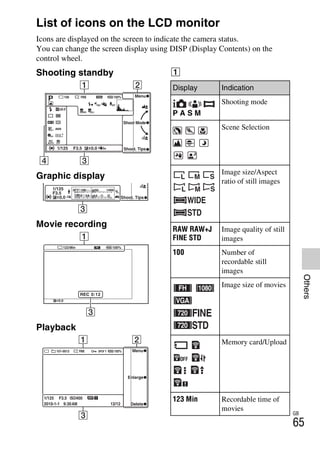
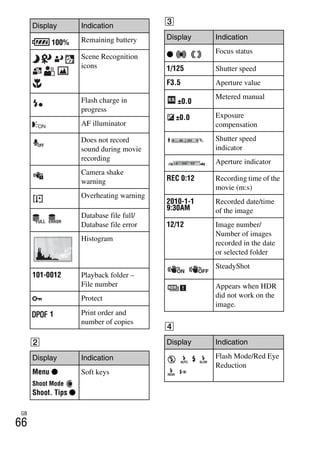
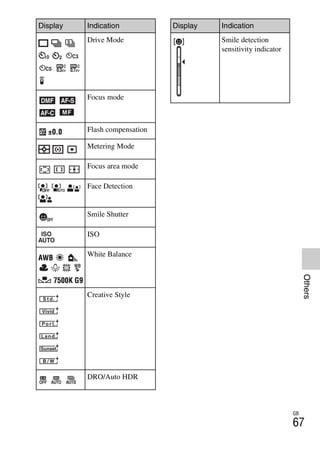
List of icons on the LCD monitor ...................................... 65
Learning more about the camera (α Handbook) ............. 68
Troubleshooting................................................................ 69
Precautions....................................................................... 73
Specifications................................................................... 76
Index................................................................................. 81
This instruction manual is for models NEX-3 and NEX-5. The NEX-5 is used for
illustrations in this manual, unless otherwise specified.
The differences between each model are as follows:
* To check whether the camera is 1080 60i-compatible or 1080 50i-compatible,
check for the following marks on the bottom of the camera.
1080 60i-compatible camera: 60i
1080 50i-compatible camera: 50i
Model Movie file format Remote control
NEX-5 AVCHD*/MPEG-4 Available
NEX-3 MPEG-4 Not available
NEX-3/NEX-5
4-183-856-14(1)
F:CX75000_Paper_Revision3GB41838561414183856141NEX5U201GB-
NEX5U2010COVTOC.fm
master: Right
GB
9
This manual covers several models supplied with different lenses.
The model name varies depending on the supplied lens. The available model varies
depending on the countries/regions.
Model name Lens
NEX-5A/3A E16 mm
NEX-5D/3D E18 – 55 mm and E16 mm
NEX-5H E18 – 200 mm
NEX-5K/3K E18 – 55 mm
NEX-3/NEX-5
4-183-856-14(1)
F:CX75000_Paper_Revision3GB41838561414183856141NEX5U201GB-
NEX5U2030PRE.fm
master: Left_2 column
GB
10
Preparingthecamera
Preparing the camera
Checking the accessories supplied
First check the model name of your camera (page 9). The accessories supplied
differ depending on the model.
The number in parentheses indicates the number of pieces.
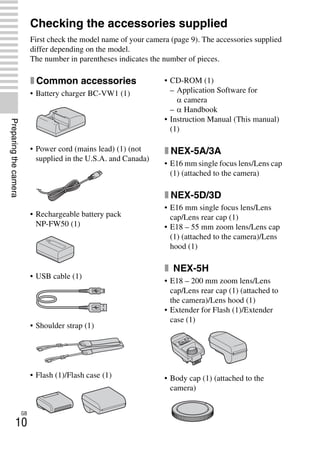
x Common accessories
• Battery charger BC-VW1 (1)
• Power cord (mains lead) (1) (not
supplied in the U.S.A. and Canada)
• Rechargeable battery pack
NP-FW50 (1)
• USB cable (1)
• Shoulder strap (1)
• Flash (1)/Flash case (1)
• CD-ROM (1)
– Application Software for
α camera
– α Handbook
• Instruction Manual (This manual)
(1)
x NEX-5A/3A
• E16 mm single focus lens/Lens cap
(1) (attached to the camera)
x NEX-5D/3D
• E16 mm single focus lens/Lens
cap/Lens rear cap (1)
• E18 – 55 mm zoom lens/Lens cap
(1) (attached to the camera)/Lens
hood (1)
x NEX-5H
• E18 – 200 mm zoom lens/Lens
cap/Lens rear cap (1) (attached to
the camera)/Lens hood (1)
• Extender for Flash (1)/Extender
case (1)
• Body cap (1) (attached to the
camera)
NEX-3/NEX-5
4-183-856-14(1)
F:CX75000_Paper_Revision3GB41838561414183856141NEX5U201GB-
NEX5U2030PRE.fm
master: Right_2 column
GB
11
Preparingthecamera
x NEX-5K/3K
• E18 – 55 mm zoom lens/Lens cap
(1) (attached to the camera)/Lens
hood (1)
• It is recommended that you use Sony
lenses/accessories designed to suit
the characteristics of this camera.
Using the products of other
manufacturers may cause the camera
not to operate to its capability, or
result in accidents and malfunctions
of the camera.
Note
NEX-3/NEX-5
4-183-856-14(1)
F:CX75000_Paper_Revision3GB41838561414183856141NEX5U201GB-
NEX5U2030PRE.fm
master: Left_2 column
GB
12
Preparingthecamera
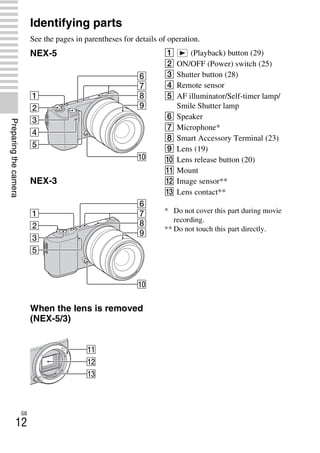
Identifying parts
See the pages in parentheses for details of operation.
NEX-5
NEX-3
When the lens is removed
(NEX-5/3)
A (Playback) button (29)
B ON/OFF (Power) switch (25)
C Shutter button (28)
D Remote sensor
E AF illuminator/Self-timer lamp/
Smile Shutter lamp
F Speaker
G Microphone*
H Smart Accessory Terminal (23)
I Lens (19)
J Lens release button (20)
K Mount
L Image sensor**
M Lens contact**
* Do not cover this part during movie
recording.
** Do not touch this part directly.
NEX-3/NEX-5
4-183-856-14(1)
F:CX75000_Paper_Revision3GB41838561414183856141NEX5U201GB-
NEX5U2030PRE.fm
master: Right_2 column
GB
13
Preparingthecamera
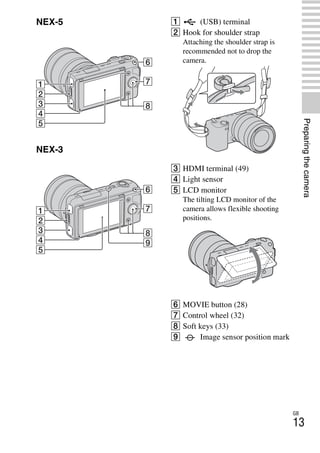
NEX-5
NEX-3
A (USB) terminal
B Hook for shoulder strap
Attaching the shoulder strap is
recommended not to drop the
camera.
C HDMI terminal (49)
D Light sensor
E LCD monitor
The tilting LCD monitor of the
camera allows flexible shooting
positions.
F MOVIE button (28)
G Control wheel (32)
H Soft keys (33)
I Image sensor position mark
NEX-3/NEX-5
4-183-856-14(1)
F:CX75000_Paper_Revision3GB41838561414183856141NEX5U201GB-
NEX5U2030PRE.fm
master: Left_2 column
GB
14
Preparingthecamera
NEX-5
NEX-3
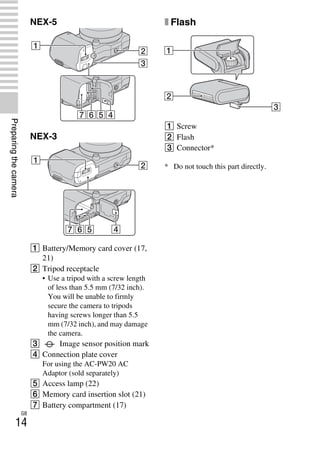
A Battery/Memory card cover (17,
21)
B Tripod receptacle
• Use a tripod with a screw length
of less than 5.5 mm (7/32 inch).
You will be unable to firmly
secure the camera to tripods
having screws longer than 5.5
mm (7/32 inch), and may damage
the camera.
C Image sensor position mark
D Connection plate cover
For using the AC-PW20 AC
Adaptor (sold separately)
E Access lamp (22)
F Memory card insertion slot (21)
G Battery compartment (17)
x Flash
A Screw
B Flash
C Connector*
* Do not touch this part directly.
NEX-3/NEX-5
4-183-856-14(1)
F:CX75000_Paper_Revision3GB41838561414183856141NEX5U201GB-
NEX5U2030PRE.fm
master: Right_2 column
GB
15
Preparingthecamera
x Lens
On the E18 – 200 mm lens, refer to
the instruction manual of the E18 –
200 mm lens (supplied).
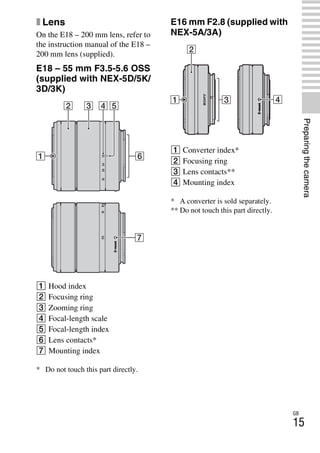
E18 – 55 mm F3.5-5.6 OSS
(supplied with NEX-5D/5K/
3D/3K)
A Hood index
B Focusing ring
C Zooming ring
D Focal-length scale
E Focal-length index
F Lens contacts*
G Mounting index
* Do not touch this part directly.
E16 mm F2.8 (supplied with
NEX-5A/3A)
A Converter index*
B Focusing ring
C Lens contacts**
D Mounting index
* A converter is sold separately.
** Do not touch this part directly.
NEX-3/NEX-5
4-183-856-14(1)
F:CX75000_Paper_Revision3GB41838561414183856141NEX5U201GB-
NEX5U2030PRE.fm
master: Left
GB
16
Preparingthecamera
Preparing the battery pack
When using the camera for the first time, be sure to charge the NP-FW50
“InfoLITHIUM” battery pack (supplied).
x Charging the battery pack
The “InfoLITHIUM” battery pack can be charged even when it has not been
fully depleted. It can also be used when it has not been fully charged.
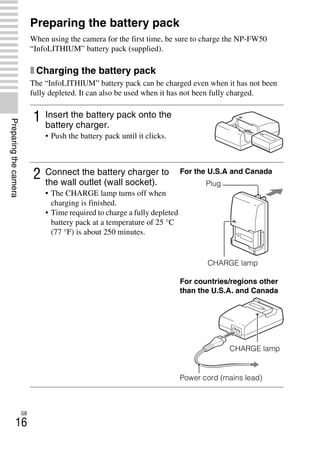
1 Insert the battery pack onto the
battery charger.
• Push the battery pack until it clicks.
2 Connect the battery charger to
the wall outlet (wall socket).
• The CHARGE lamp turns off when
charging is finished.
• Time required to charge a fully depleted
battery pack at a temperature of 25 °C
(77 °F) is about 250 minutes.
For the U.S.A and Canada
CHARGE lamp
For countries/regions other
than the U.S.A. and Canada
Power cord (mains lead)
Plug
CHARGE lamp
NEX-3/NEX-5
4-183-856-14(1)
F:CX75000_Paper_Revision3GB41838561414183856141NEX5U201GB-
NEX5U2030PRE.fm
master: Right
GB
17
Preparingthecamera
• The charging time differs depending on the remaining capacity of the battery pack
or charging conditions.
• We recommend charging the battery pack in an ambient temperature of between
10 °C to 30 °C (50 °F to 86 °F). You may not be able to efficiently charge the
battery pack outside of this temperature range.
• Connect the battery charger to the nearest wall outlet (wall socket).
• Do not try to charge the battery pack again right after it has been charged, or when
it has not been used after being charged. Doing so will affect the performance of
the battery pack.
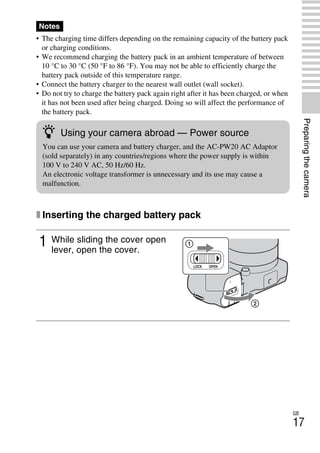
x Inserting the charged battery pack
Notes
1 While sliding the cover open
lever, open the cover.
z Using your camera abroad — Power source
You can use your camera and battery charger, and the AC-PW20 AC Adaptor
(sold separately) in any countries/regions where the power supply is within
100 V to 240 V AC, 50 Hz/60 Hz.
An electronic voltage transformer is unnecessary and its use may cause a
malfunction.
NEX-3/NEX-5
4-183-856-14(1)
F:CX75000_Paper_Revision3GB41838561414183856141NEX5U201GB-
NEX5U2030PRE.fm
master: Left
GB
18
Preparingthecamera
x Checking the remaining battery level
Check the level with the following indicators and percent figures displayed on
the LCD monitor.
• The displayed level may not be correct under certain circumstances.
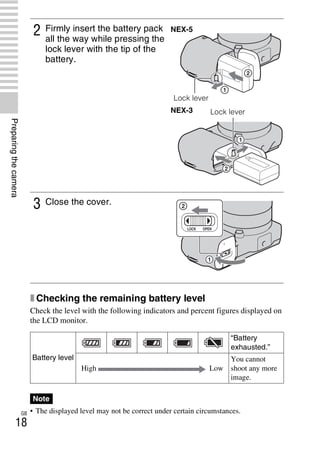
2 Firmly insert the battery pack
all the way while pressing the
lock lever with the tip of the
battery.
3 Close the cover.
Battery level
“Battery
exhausted.”
High Low
You cannot
shoot any more
image.
Note
NEX-5
Lock lever
NEX-3 Lock lever
NEX-3/NEX-5
4-183-856-14(1)
F:CX75000_Paper_Revision3GB41838561414183856141NEX5U201GB-
NEX5U2030PRE.fm
master: Right
GB
19
Preparingthecamera
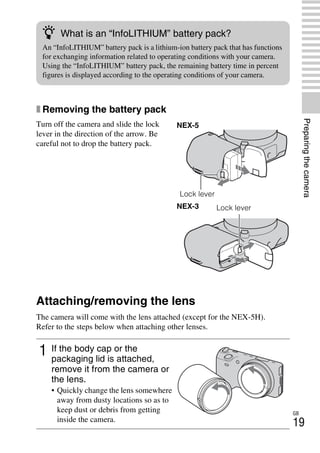
x Removing the battery pack
Attaching/removing the lens
The camera will come with the lens attached (except for the NEX-5H).
Refer to the steps below when attaching other lenses.
Turn off the camera and slide the lock
lever in the direction of the arrow. Be
careful not to drop the battery pack.
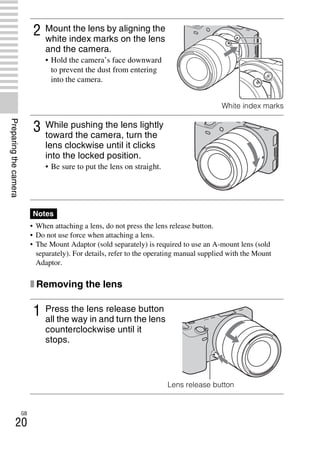
1 If the body cap or the
packaging lid is attached,
remove it from the camera or
the lens.
• Quickly change the lens somewhere
away from dusty locations so as to
keep dust or debris from getting
inside the camera.
z What is an “InfoLITHIUM” battery pack?
An “InfoLITHIUM” battery pack is a lithium-ion battery pack that has functions
for exchanging information related to operating conditions with your camera.
Using the “InfoLITHIUM” battery pack, the remaining battery time in percent
figures is displayed according to the operating conditions of your camera.
NEX-5
Lock lever
NEX-3 Lock lever
NEX-3/NEX-5
4-183-856-14(1)
F:CX75000_Paper_Revision3GB41838561414183856141NEX5U201GB-
NEX5U2030PRE.fm
master: Left
GB
20
Preparingthecamera
• When attaching a lens, do not press the lens release button.
• Do not use force when attaching a lens.
• The Mount Adaptor (sold separately) is required to use an A-mount lens (sold
separately). For details, refer to the operating manual supplied with the Mount
Adaptor.
x Removing the lens
2 Mount the lens by aligning the
white index marks on the lens
and the camera.
• Hold the camera’s face downward
to prevent the dust from entering
into the camera.
White index marks
3 While pushing the lens lightly
toward the camera, turn the
lens clockwise until it clicks
into the locked position.
• Be sure to put the lens on straight.
Notes
1 Press the lens release button
all the way in and turn the lens
counterclockwise until it
stops.
Lens release button
NEX-3/NEX-5
4-183-856-14(1)
F:CX75000_Paper_Revision3GB41838561414183856141NEX5U201GB-
NEX5U2030PRE.fm
master: Right
GB
21
Preparingthecamera
• When changing the lens, if dust or debris gets inside the camera and adheres to the
surface of the image sensor (the part that acts as the film), it may appear on the
image, depending on the shooting environment. The camera vibrates slightly when
it is turned off, due to the anti-dust function, to prevent dust from adhering to the
image sensor. However, attach or remove the lens quickly somewhere away from
dusty locations.
• Do not leave the camera with the lens removed.
• When you want to use body caps or lens rear caps, please purchase ALC-B1EM
(body cap) or ALC-R1EM (lens rear cap) (sold separately).
Inserting a memory card (sold separately)
Notes
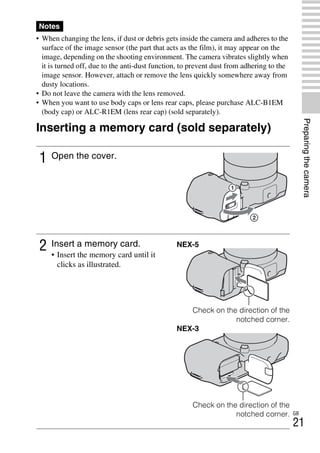
1 Open the cover.
2 Insert a memory card.
• Insert the memory card until it
clicks as illustrated.
NEX-5
Check on the direction of the
notched corner.
NEX-3
Check on the direction of the
notched corner.
NEX-3/NEX-5
4-183-856-14(1)
F:CX75000_Paper_Revision3GB41838561414183856141NEX5U201GB-
NEX5U2030PRE.fm
master: Left
GB
22
Preparingthecamera
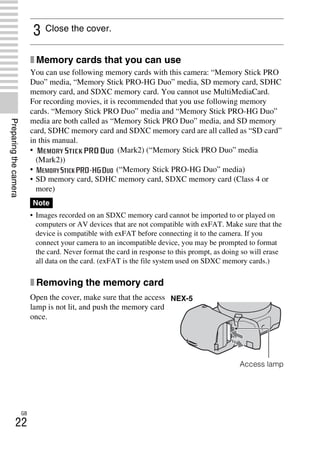
x Memory cards that you can use
You can use following memory cards with this camera: “Memory Stick PRO
Duo” media, “Memory Stick PRO-HG Duo” media, SD memory card, SDHC
memory card, and SDXC memory card. You cannot use MultiMediaCard.
For recording movies, it is recommended that you use following memory
cards. “Memory Stick PRO Duo” media and “Memory Stick PRO-HG Duo”
media are both called as “Memory Stick PRO Duo” media, and SD memory
card, SDHC memory card and SDXC memory card are all called as “SD card”
in this manual.
• (Mark2) (“Memory Stick PRO Duo” media
(Mark2))
• (“Memory Stick PRO-HG Duo” media)
• SD memory card, SDHC memory card, SDXC memory card (Class 4 or
more)
• Images recorded on an SDXC memory card cannot be imported to or played on
computers or AV devices that are not compatible with exFAT. Make sure that the
device is compatible with exFAT before connecting it to the camera. If you
connect your camera to an incompatible device, you may be prompted to format
the card. Never format the card in response to this prompt, as doing so will erase
all data on the card. (exFAT is the file system used on SDXC memory cards.)
x Removing the memory card
3 Close the cover.
Note
Open the cover, make sure that the access
lamp is not lit, and push the memory card
once.
NEX-5
Access lamp
NEX-3/NEX-5
4-183-856-14(1)
F:CX75000_Paper_Revision3GB41838561414183856141NEX5U201GB-
NEX5U2030PRE.fm
master: Right
GB
23
Preparingthecamera
• When the access lamp is lit, do not remove the memory card or the battery pack, or
turn off the power. The data may be corrupted.
Attaching the flash
When you want to use a flash during shooting, attach the flash device
(supplied).
The flash is enabled when it is raised, and disabled when lowered.
Note
1 Attach the flash to the Smart
Accessory Terminal of the
camera.
• When using the E18 – 200 mm lens,
you must attach the extender
(page 24).
2 Fasten the screw to secure the flash.
3 To fire the flash, raise the
flash first.
• Lower the flash when you do not
intend to use it.
NEX-3
Access lamp
NEX-3/NEX-5
4-183-856-14(1)
F:CX75000_Paper_Revision3GB41838561414183856141NEX5U201GB-
NEX5U2030PRE.fm
master: Left
GB
24
Preparingthecamera
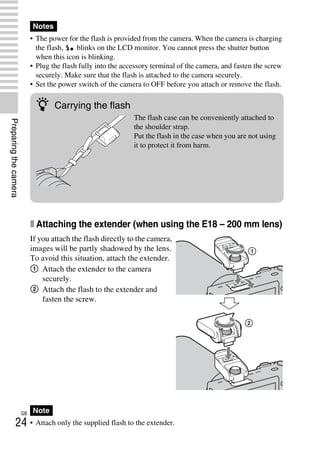
• The power for the flash is provided from the camera. When the camera is charging
the flash, blinks on the LCD monitor. You cannot press the shutter button
when this icon is blinking.
• Plug the flash fully into the accessory terminal of the camera, and fasten the screw
securely. Make sure that the flash is attached to the camera securely.
• Set the power switch of the camera to OFF before you attach or remove the flash.
x Attaching the extender (when using the E18 – 200 mm lens)
• Attach only the supplied flash to the extender.
Notes
If you attach the flash directly to the camera,
images will be partly shadowed by the lens.
To avoid this situation, attach the extender.
1 Attach the extender to the camera
securely.
2 Attach the flash to the extender and
fasten the screw.
Note
z Carrying the flash
The flash case can be conveniently attached to
the shoulder strap.
Put the flash in the case when you are not using
it to protect it from harm.
NEX-3/NEX-5
4-183-856-14(1)
F:CX75000_Paper_Revision3GB41838561414183856141NEX5U201GB-
NEX5U2030PRE.fm
master: Right
GB
25
Preparingthecamera
Turning on the camera and setting up the
date
When you turn on the camera for the first time, the screen to set date and time
appears.
1 Set the power switch to ON to
turn on the camera.
The screen to set date and time
appears.
• To turn off the camera, set the
power switch to OFF.
2 Press the center of the control
wheel to confirm [OK].
3 Select your area by pressing
the right or left of the control
wheel and press the center.
4 Press the left or right of the
control wheel to select each
item, and press the top or
bottom, or turn it to select the
numeric value.
Daylight Svg.: Turns on or off the
daytime saving time setting.
Date Format: Selects the format to
display date.
• Midnight is indicated as 12:00 AM,
and noon as 12:00 PM.
NEX-3/NEX-5
4-183-856-14(1)
F:CX75000_Paper_Revision3GB41838561414183856141NEX5U201GB-
NEX5U2030PRE.fm
master: Left
GB
26
Preparingthecamera
• You cannot superimpose the date on images on this camera. Using “PMB” stored
on the CD-ROM (supplied), you can save or print images with date. Refer to
“PMB Help” for more details (page 60).
x Resetting the date and time/Checking the current
clock setting
Press [Menu], then select [Setup] t [Date/Time Setup] (page 32, 54).
x Maintaining the date and time setting
This camera has an internal rechargeable battery for maintaining the date and
time and other settings regardless of whether the power is on or off, or the
battery is installed or not. For details, see page 74.
5 Repeat step 4 to set other items, then press the center of
the control wheel.
Note
NEX-3/NEX-5
4-183-856-14(1)
F:CX75000_Paper_Revision3GB41838561414183856141NEX5U201GB-
NEX5U2040BAS.fm
master: Right
GB
27
Masteringthebasicoperation
Mastering the basic operation
Shooting still images
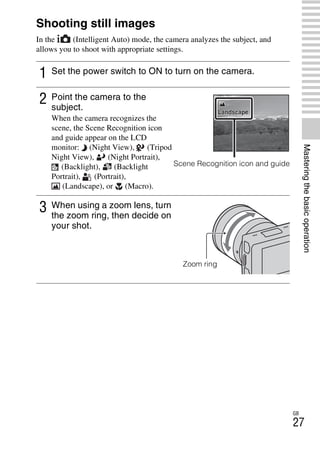
In the (Intelligent Auto) mode, the camera analyzes the subject, and
allows you to shoot with appropriate settings.
1 Set the power switch to ON to turn on the camera.
2 Point the camera to the
subject.
When the camera recognizes the
scene, the Scene Recognition icon
and guide appear on the LCD
monitor: (Night View), (Tripod
Night View), (Night Portrait),
(Backlight), (Backlight
Portrait), (Portrait),
(Landscape), or (Macro).
Scene Recognition icon and guide
3 When using a zoom lens, turn
the zoom ring, then decide on
your shot.
Zoom ring
NEX-3/NEX-5
4-183-856-14(1)
F:CX75000_Paper_Revision3GB41838561414183856141NEX5U201GB-
NEX5U2040BAS.fm
master: Left
GB
28
Masteringthebasicoperation
Recording movies
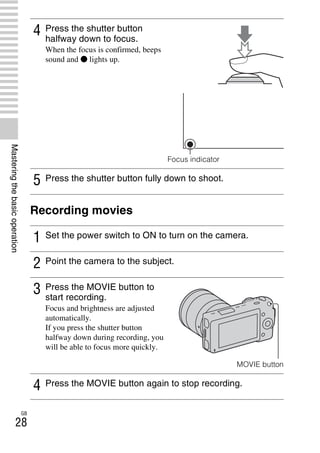
4 Press the shutter button
halfway down to focus.
When the focus is confirmed, beeps
sound and z lights up.
Focus indicator
5 Press the shutter button fully down to shoot.
1 Set the power switch to ON to turn on the camera.
2 Point the camera to the subject.
3 Press the MOVIE button to
start recording.
Focus and brightness are adjusted
automatically.
If you press the shutter button
halfway down during recording, you
will be able to focus more quickly.
MOVIE button
4 Press the MOVIE button again to stop recording.
NEX-3/NEX-5
4-183-856-14(1)
F:CX75000_Paper_Revision3GB41838561414183856141NEX5U201GB-
NEX5U2040BAS.fm
master: Right
GB
29
Masteringthebasicoperation
• The sound of the camera and the lens in operation might be recorded while
recording a movie. You can disable the sound recording by selecting [Menu] t
[Setup] t [Movie Audio Rec] t [Off] (page 32, 54).
• The angle of view of movies is narrower than that of still images. After you press
the MOVIE button, the camera shows the actual range to be recorded by
displaying an empty frame on the screen.
Playing back images
x Selecting the image
Turn the control wheel.
x Playing back movies
Notes
1 Press the (playback)
button.
The last recorded image is displayed
on the LCD monitor.
A still image is displayed in the
default setting.
(playback) button
1 Press (Image Index) on
the control wheel in playback
mode.
Six images are displayed.
NEX-3/NEX-5
4-183-856-14(1)
F:CX75000_Paper_Revision3GB41838561414183856141NEX5U201GB-
NEX5U2040BAS.fm
master: Left
GB
30
Masteringthebasicoperation
Deleting images
You can delete the image that is currently displayed.
2 Press the left side of the
control wheel repeatedly to
select (movie), and press
the center.
To return to still image playback,
select (still image) (page 48).
3 Turn the control wheel to select the desired movie, and
press the center.
During movie playback Control wheel operation
To pause/resume Press the center.
To fast-forward Press the right, or turn it right.
To fast-rewind Press the left, or turn it left.
To slow-forward (NEX-5 only) Turn it right during pause.
To slow-reverse (NEX-5 only) Turn it left during pause.
To adjust sound volume Press the bottom t top/bottom.
1 Display the desired image,
and press [Delete].
[Delete]
NEX-3/NEX-5
4-183-856-14(1)
F:CX75000_Paper_Revision3GB41838561414183856141NEX5U201GB-
NEX5U2040BAS.fm
master: Right
GB
31
Masteringthebasicoperation
2 Press the center of the control
wheel to confirm [OK].
Press [Cancel] to quit the operation.
[OK]
[Cancel]
z To delete several images
Select [Menu] t [Playback] t [Delete] to select and delete specific images at
the same time.
NEX-3/NEX-5
4-183-856-14(1)
F:CX75000_Paper_Revision3GB41838561414183856141NEX5U201GB-
NEX5U2040BAS.fm
master: Left
GB
32
Masteringthebasicoperation
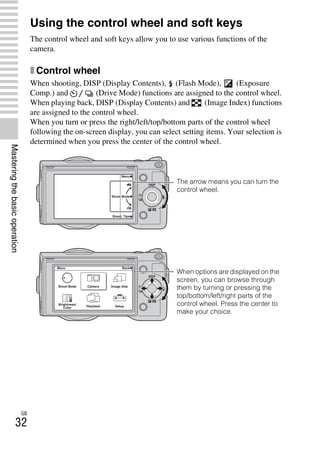
Using the control wheel and soft keys
The control wheel and soft keys allow you to use various functions of the
camera.
x Control wheel
When shooting, DISP (Display Contents), (Flash Mode), (Exposure
Comp.) and (Drive Mode) functions are assigned to the control wheel.
When playing back, DISP (Display Contents) and (Image Index) functions
are assigned to the control wheel.
When you turn or press the right/left/top/bottom parts of the control wheel
following the on-screen display, you can select setting items. Your selection is
determined when you press the center of the control wheel.
The arrow means you can turn the
control wheel.
When options are displayed on the
screen, you can browse through
them by turning or pressing the
top/bottom/left/right parts of the
control wheel. Press the center to
make your choice.
NEX-3/NEX-5
4-183-856-14(1)
F:CX75000_Paper_Revision3GB41838561414183856141NEX5U201GB-
NEX5U2040BAS.fm
master: Right
GB
33
Masteringthebasicoperation
x Soft keys
The soft keys have different roles, depending on the context.
The assigned role (function) of each soft key is shown on the screen.
To use the function shown at the upper right corner of the screen, press soft
key A. To use the function shown at the lower right corner of the screen, press
soft key B. To use the function shown at the center, press the center of the
control wheel (soft key C).
In this handbook, the soft keys are indicated by the icon or the function shown
on the screen.
In this case, soft key A
works as the [Menu] button,
and soft key B as the
[Shoot. Tips] button. Soft
key C works as the [Shoot
Mode] button.
A
B
C
NEX-3/NEX-5
4-183-856-14(1)
F:CX75000_Paper_Revision3GB41838561414183856141NEX5U201GB-
NEX5U2040BAS.fm
master: Left
GB
34
Masteringthebasicoperation
Using the guide function of the camera
The camera provides various “Help Guides” which explain the functions, and
“Shooting Tips” which introduce tips for better shooting. Use these guides to
make better use of the camera.
x Help Guides
The camera displays the Help Guide to explain the selected function, when
you change the setting, etc.
You can hide the Help Guides by selecting [Menu] t [Setup] t [Help Guide
Display] t [Off].
x Shooting tips
The camera displays the shooting tips in accordance with the shooting mode
selected.
1 When [Shoot. Tips] is displayed at the right bottom corner of the screen,
press the button at the right bottom (page 33).
A shooting tip in accordance with the current subject appears
automatically.
2 Press the left or right of the control wheel and search for the desired
shooting tip.
• Turn the control wheel to scroll the text up and down.
[Shoot. Tips]
z To access all shooting tips
You can search through all shooting tips from the menu.
1[Menu] t [Camera] t [Shooting Tip List].
2Search for the desired shooting tips.
NEX-3/NEX-5
4-183-856-14(1)
F:CX75000_Paper_Revision3GB41838561414183856141NEX5U201GB-
NEX5U2050REC.fm
master: Right
GB
35
Usingtherecordingfunctions
Using the recording functions
Defocusing the background easily
(Background Defocus Control)
In the [Intelligent Auto] mode, you can defocus the background easily to make
the subject stand out.
• The defocusing effect may not be noticeable, depending on the distance from the
subject or the lens used.
1 Press [Menu], then select
[Shoot Mode] t
(Intelligent Auto).
[Menu]
2 Press the center of the control
wheel.
The Background Defocus screen
appears.
Control wheel
3 Defocus the background by
turning the control wheel.
: Turn up to focus
: Turn down to defocus
Press [Back] to restore the original
status.
Note
z For a better result of Background Defocus
• Move closer to the subject.
• Lengthen the distance between the subject and the background.
NEX-3/NEX-5
4-183-856-14(1)
F:CX75000_Paper_Revision3GB41838561414183856141NEX5U201GB-
NEX5U2050REC.fm
master: Left
GB
36
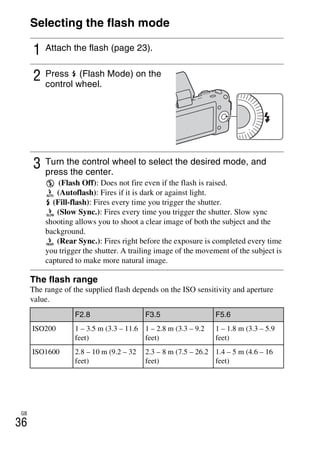
Selecting the flash mode
The flash range
The range of the supplied flash depends on the ISO sensitivity and aperture
value.
1 Attach the flash (page 23).
2 Press (Flash Mode) on the
control wheel.
3 Turn the control wheel to select the desired mode, and
press the center.
(Flash Off): Does not fire even if the flash is raised.
(Autoflash): Fires if it is dark or against light.
(Fill-flash): Fires every time you trigger the shutter.
(Slow Sync.): Fires every time you trigger the shutter. Slow sync
shooting allows you to shoot a clear image of both the subject and the
background.
(Rear Sync.): Fires right before the exposure is completed every time
you trigger the shutter. A trailing image of the movement of the subject is
captured to make more natural image.
F2.8 F3.5 F5.6
ISO200 1 – 3.5 m (3.3 – 11.6
feet)
1 – 2.8 m (3.3 – 9.2
feet)
1 – 1.8 m (3.3 – 5.9
feet)
ISO1600 2.8 – 10 m (9.2 – 32
feet)
2.3 – 8 m (7.5 – 26.2
feet)
1.4 – 5 m (4.6 – 16
feet)
NEX-3/NEX-5
4-183-856-14(1)
F:CX75000_Paper_Revision3GB41838561414183856141NEX5U201GB-
NEX5U2050REC.fm
master: Right
GB
37
Usingtherecordingfunctions
Adjusting the brightness of still images
(Exposure compensation)
You can adjust the exposure in 1/3 EV steps in a range of –2.0 EV to +2.0 EV.
Using the self-timer
1 Press (Exposure Comp.)
on the control wheel.
2 Turn the control wheel to select the desired value, and
press the center.
When the image is too bright, set [Exposure Comp.] toward –.
When the image is too dark, set [Exposure Comp.] toward +.
1 Press (Drive Mode) on
the control wheel.
2 Turn the control wheel to select (Self-timer).
3 Press [Option], then turn the control wheel to select the
desired mode and press the center.
(Self-timer: 10 Sec): Sets the 10-second delay self-timer. Use this
when you want to include yourself in the picture.
To cancel the timer, press again.
When you press the shutter button, the self-timer lamp flashes and beeps
until the shutter operates.
(Self-timer: 2 Sec): Sets the 2-second delay self-timer. You can
prevent blur caused by camera shake that occurs when the shutter button
is pressed.
NEX-3/NEX-5
4-183-856-14(1)
F:CX75000_Paper_Revision3GB41838561414183856141NEX5U201GB-
NEX5U2050REC.fm
master: Left
GB
38
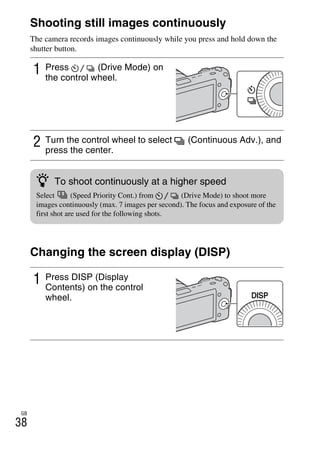
Shooting still images continuously
The camera records images continuously while you press and hold down the
shutter button.
Changing the screen display (DISP)
1 Press (Drive Mode) on
the control wheel.
2 Turn the control wheel to select (Continuous Adv.), and
press the center.
1 Press DISP (Display
Contents) on the control
wheel.
z To shoot continuously at a higher speed
Select (Speed Priority Cont.) from (Drive Mode) to shoot more
images continuously (max. 7 images per second). The focus and exposure of the
first shot are used for the following shots.
NEX-3/NEX-5
4-183-856-14(1)
F:CX75000_Paper_Revision3GB41838561414183856141NEX5U201GB-
NEX5U2050REC.fm
master: Right
GB
39
Usingtherecordingfunctions
Shooting with various drive mode
2 Press DISP repeatedly to select the desired mode.
During shooting
Disp. Basic Info: Shows basic shooting information. Graphically shows
the shutter speed and aperture value, except for when [Shoot Mode] is set
to [Intelligent Auto] or [Sweep Panorama].
Display Info.: Shows recording information.
No Disp. Info.: Does not show recording information.
During playback
Display Info.: Shows recording information.
Histogram: Displays the luminance distribution graphically, in addition
to recording information.
No Disp. Info.: Does not show recording information.
1 Press [Menu].
[Menu]
2 Use the control wheel to select [Shoot Mode] t desired
mode, and press the center.
(Intelligent Auto): The camera evaluates the subject and makes the
proper settings.
SCN (Scene Selection): Shoots with preset settings according to the
subject or condition.
(Anti Motion Blur): Reduces the camera shake when shooting a
slightly dark indoor scene or a telephoto.
(Sweep Panorama): Shoots with panoramic size.
M (Manual Exposure): Adjusts the aperture and shutter speed.
S (Shutter Priority): Adjusts the shutter speed to express the movement
of the subject.
A (Aperture Priority): Adjusts the range in focus, or defocuses the
background.
P (Program Auto): Automatic shooting that allows you to customize
settings, except for the exposure (aperture and shutter speed).
NEX-3/NEX-5
4-183-856-14(1)
F:CX75000_Paper_Revision3GB41838561414183856141NEX5U201GB-
NEX5U2050REC.fm
master: Left
GB
40
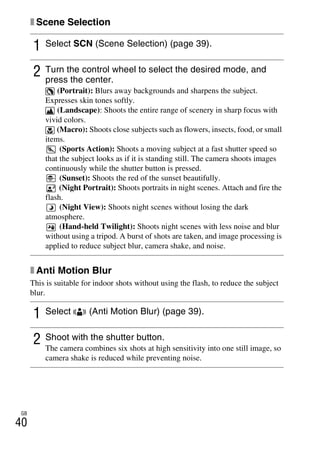
x Scene Selection
x Anti Motion Blur
This is suitable for indoor shots without using the flash, to reduce the subject
blur.
1 Select SCN (Scene Selection) (page 39).
2 Turn the control wheel to select the desired mode, and
press the center.
(Portrait): Blurs away backgrounds and sharpens the subject.
Expresses skin tones softly.
(Landscape): Shoots the entire range of scenery in sharp focus with
vivid colors.
(Macro): Shoots close subjects such as flowers, insects, food, or small
items.
(Sports Action): Shoots a moving subject at a fast shutter speed so
that the subject looks as if it is standing still. The camera shoots images
continuously while the shutter button is pressed.
(Sunset): Shoots the red of the sunset beautifully.
(Night Portrait): Shoots portraits in night scenes. Attach and fire the
flash.
(Night View): Shoots night scenes without losing the dark
atmosphere.
(Hand-held Twilight): Shoots night scenes with less noise and blur
without using a tripod. A burst of shots are taken, and image processing is
applied to reduce subject blur, camera shake, and noise.
1 Select (Anti Motion Blur) (page 39).
2 Shoot with the shutter button.
The camera combines six shots at high sensitivity into one still image, so
camera shake is reduced while preventing noise.
NEX-3/NEX-5
4-183-856-14(1)
F:CX75000_Paper_Revision3GB41838561414183856141NEX5U201GB-
NEX5U2050REC.fm
master: Right
GB
41
Usingtherecordingfunctions
x Sweep Panorama
While you pan the camera, the camera shoots several images and composes
them into one panoramic image.
• The camera continues shooting during [Sweep Panorama] recording, and the
shutter keeps clicking until the end of the shooting.
1 Select (Sweep Panorama) (page 39).
2 Point the camera at the edge
of the subject, then press the
shutter button fully down.
This part will not be taken.
3 Pan the camera to the end,
following the guidance on the
LCD monitor.
Guidance bar
Note
NEX-3/NEX-5
4-183-856-14(1)
F:CX75000_Paper_Revision3GB41838561414183856141NEX5U201GB-
NEX5U2050REC.fm
master: Left
GB
42
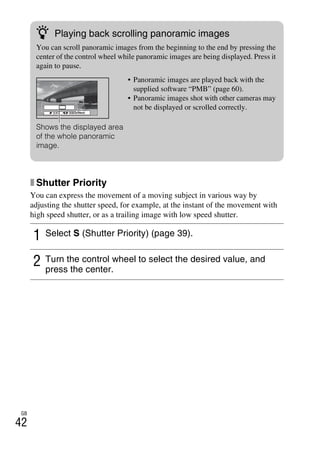
x Shutter Priority
You can express the movement of a moving subject in various way by
adjusting the shutter speed, for example, at the instant of the movement with
high speed shutter, or as a trailing image with low speed shutter.
1 Select S (Shutter Priority) (page 39).
2 Turn the control wheel to select the desired value, and
press the center.
z Playing back scrolling panoramic images
You can scroll panoramic images from the beginning to the end by pressing the
center of the control wheel while panoramic images are being displayed. Press it
again to pause.
Shows the displayed area
of the whole panoramic
image.
• Panoramic images are played back with the
supplied software “PMB” (page 60).
• Panoramic images shot with other cameras may
not be displayed or scrolled correctly.
NEX-3/NEX-5
4-183-856-14(1)
F:CX75000_Paper_Revision3GB41838561414183856141NEX5U201GB-
NEX5U2050REC.fm
master: Right
GB
43
Usingtherecordingfunctions
x Aperture Priority
You can adjust the range in focus, or defocuses the background.
1 Select A (Aperture Priority) (page 39).
2 Turn the control wheel to select the desired value, and
press the center.
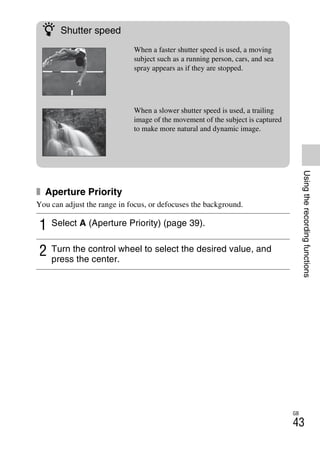
z Shutter speed
When a faster shutter speed is used, a moving
subject such as a running person, cars, and sea
spray appears as if they are stopped.
When a slower shutter speed is used, a trailing
image of the movement of the subject is captured
to make more natural and dynamic image.
NEX-3/NEX-5
4-183-856-14(1)
F:CX75000_Paper_Revision3GB41838561414183856141NEX5U201GB-
NEX5U2050REC.fm
master: Left
GB
44
Selecting the image size
The image size determines the size of the image file that is recorded when you
take an image.
The larger the image size, the more detail will be reproduced when the image
is printed on large format paper. The smaller the image size, the more images
can be recorded.
In the case of movies, the larger the image size, the higher the image quality.
Still
1 Press [Menu].
[Menu]
2 Use the control wheel to select [Image Size] t [Image
Size], and press the center.
3 Turn the control wheel to select the desired mode, and
press the center.
When [Aspect Ratio] is 3:2 Usage guidelines
(L: 14M) 4592 × 3056 pixels For prints up to A3+ size
(M: 7.4M) 3344 × 2224 pixels For prints up to A4 size
(S: 3.5M) 2288 × 1520 pixels For prints L/2L size
When [Aspect Ratio] is 16:9 Usage guidelines
(L: 12M) 4592 × 2576 pixels For viewing on a high-definition TV
(M: 6.3M) 3344 × 1872 pixels
(S: 2.9M) 2288 × 1280 pixels
NEX-3/NEX-5
4-183-856-14(1)
F:CX75000_Paper_Revision3GB41838561414183856141NEX5U201GB-
NEX5U2050REC.fm
master: Right
GB
45
Usingtherecordingfunctions
Panorama
The image size varies depending on the shooting direction (page 51).
Movie
NEX-5
NEX-3
• When you print still images recorded with 16:9 aspect ratio, and panoramic
images, both edges may be cut off.
(Standard) Shoots images using standard size.
Vertical: 2160 × 3872
Horizontal: 8192 × 1856
(Wide) Shoots images using wide size.
Vertical: 2160 × 5536
Horizontal: 12416 × 1856
[AVCHD] mode Average
bit-rate
Usage guidelines
1920 × 1080 17 Mbps Records with the highest image quality
for viewing on a high-definition TV.
[MP4] mode Average
bit-rate
Usage guidelines
1440 × 1080 12 Mbps Records with high image quality for
viewing on a high-definition TV.
VGA (640 × 480) 3 Mbps Records in the suitable size for WEB
uploads.
Image size Average
bit-rate
Usage guidelines
1280 × 720
(Fine)
9 Mbps Records with high image quality for
viewing on a high-definition TV.
1280 × 720
(Standard)
6 Mbps
VGA (640 × 480) 3 Mbps Records in the suitable size for WEB
uploads.
Note
NEX-3/NEX-5
4-183-856-14(1)
F:CX75000_Paper_Revision3GB41838561414183856141NEX5U201GB-
NEX5U2050REC.fm
master: Left
GB
46
Focusing on the face (Face Detection)
The camera detects the faces of your subjects and adjusts the focus on the face.
You can select the priority face to be focused on.
1 Press [Menu].
[Menu]
2 Use the control wheel to select [Camera] t [Face
Detection], and press the center.
3 Turn the control wheel to select the desired mode, and
press the center.
(Off): Does not use Face Detection function.
(Auto): Selects the face the camera is to automatically focus on.
(Child Priority): Detects and shoots with priority on child’s face.
(Adult Priority): Detects and shoots with priority on adult’s face.
z Capturing a smiling face (Smile Shutter)
If you use the Smile Shutter function, the camera
detects a smile and releases the shutter
automatically.
Select [Menu] t [Camera] t [Smile Shutter]
t [On], then point the camera at the subject and
wait for him/her to smile.
You can also shoot by pressing the shutter button
yourself.
NEX-3/NEX-5
4-183-856-14(1)
F:CX75000_Paper_Revision3GB41838561414183856141NEX5U201GB-
NEX5U2060PLY.fm
master: Right
GB
47
Usingtheplaybackfunctions
Using the playback functions
Enlarging the playback image (Enlarge
Image)
1 Press the (Playback)
button to enter the playback
mode.
(Playback) button
2 Display the image you want to
enlarge, then press [Enlarge]
(the center of the control
wheel).
Control wheel
3 Turn the control wheel to adjust the scaling.
4 Press the top/bottom/right/left of the control wheel to select
the portion you want to enlarge.
• To cancel the operation, press [Exit].
NEX-3/NEX-5
4-183-856-14(1)
F:CX75000_Paper_Revision3GB41838561414183856141NEX5U201GB-
NEX5U2060PLY.fm
master: Left
GB
48
Displaying the image list
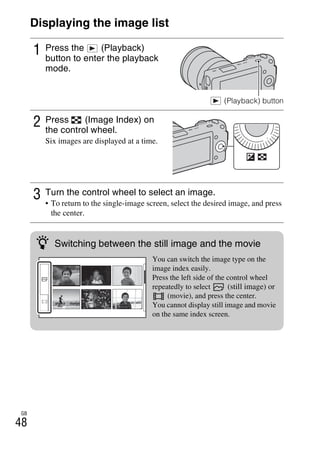
1 Press the (Playback)
button to enter the playback
mode.
(Playback) button
2 Press (Image Index) on
the control wheel.
Six images are displayed at a time.
3 Turn the control wheel to select an image.
• To return to the single-image screen, select the desired image, and press
the center.
z Switching between the still image and the movie
You can switch the image type on the
image index easily.
Press the left side of the control wheel
repeatedly to select (still image) or
(movie), and press the center.
You cannot display still image and movie
on the same index screen.
NEX-3/NEX-5
4-183-856-14(1)
F:CX75000_Paper_Revision3GB41838561414183856141NEX5U201GB-
NEX5U2060PLY.fm
master: Right
GB
49
Usingtheplaybackfunctions
Viewing images on a TV
To view images recorded on the camera on a TV, an HDMI cable (sold
separately) and an HD TV equipped with an HDMI connector are required.
• Use an HDMI mini connector on one end (for the camera), and a plug suitable for
connecting your TV on the other end.
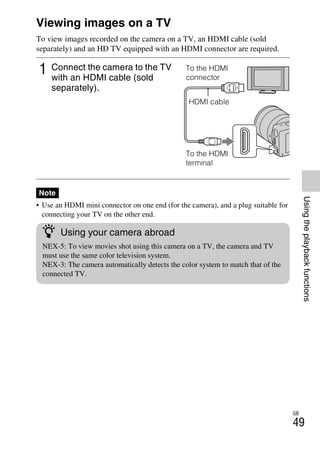
1 Connect the camera to the TV
with an HDMI cable (sold
separately).
Note
To the HDMI
connector
HDMI cable
To the HDMI
terminal
z Using your camera abroad
NEX-5: To view movies shot using this camera on a TV, the camera and TV
must use the same color television system.
NEX-3: The camera automatically detects the color system to match that of the
connected TV.
NEX-3/NEX-5
4-183-856-14(1)
F:CX75000_Paper_Revision3GB41838561414183856141NEX5U201GB-
NEX5U2070CHK.fm
master: Left
GB
50
Checking the functions available
Menu list
When you press [Menu], six menu items; [Shoot Mode], [Camera], [Image
Size], [Brightness/Color], [Playback], and [Setup], appear on the screen.
You can set various functions in each item. Items that cannot be set in the
context are displayed in gray.
x Shoot Mode
Allows you to select a shooting mode, such as exposure mode, panoramic,
Scene Selection.
Intelligent Auto The camera evaluates the subject and makes the
proper settings.
Scene Selection Shoots with preset settings according to the subject or
condition.
(Portrait/Landscape/Macro/Sports Action/Sunset/
Night Portrait/Night View/Hand-held Twilight)
Anti Motion Blur Reduces the camera shake when shooting a slightly
dark indoor scene or a telephoto.
Sweep Panorama Shoots with panoramic size.
Manual Exposure Adjusts the aperture and shutter speed.
Shutter Priority Adjusts the shutter speed to express the movement of
the subject.
Aperture Priority Adjusts the range in focus, or defocuses the
background.
Program Auto Automatic shooting that allows you to customize
settings, except for the exposure (shutter speed and
aperture).
NEX-3/NEX-5
4-183-856-14(1)
F:CX75000_Paper_Revision3GB41838561414183856141NEX5U201GB-
NEX5U2070CHK.fm
master: Right
GB
51
Checkingthefunctionsavailable
x Camera
Allows you to set shooting functions, such as continuous shooting, self-timer,
and flash.
* NEX-5 only
Drive Mode Selects the drive mode, such as continuous shooting,
self-timer, or bracket shooting.
(Single-shot Adv./Continuous Adv./Speed Priority
Cont./Self-timer/Self-timer(Cont.)/ Bracket: Cont./
Remote Cdr.*)
Flash Mode Selects the method used to fire the flash.
(Flash Off/Autoflash/Fill-flash/Slow Sync./Rear
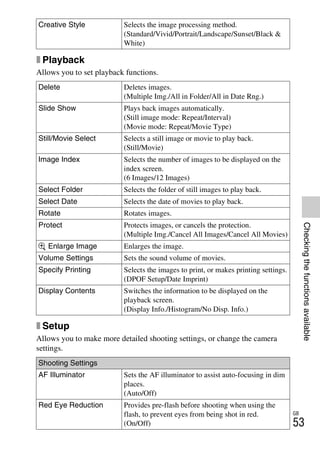
Sync.)
AF/MF Select Selects auto focusing or manual focusing.
(Autofocus/DMF/Manualfocus)
Autofocus Area Selects the area to be focused on.
(Multi/Center/Flexible Spot)
Autofocus Mode Selects the autofocus method.
(Single-shot AF/Continuous AF)
Precision Dig. Zoom Sets the digital zoom when a single focus lens is used.
Face Detection Detects people’s faces automatically, and adjusts
focus and exposure to suit the faces.
(Off/Auto/Child Priority/Adult Priority)
Smile Shutter Each time the camera detects a smile, the camera
releases the shutter automatically.
(On/Off)
Smile Detection Sets the sensitivity of the Smile Shutter function for
detecting smiles.
(Big Smile/Normal Smile/Slight Smile)
Panorama Direction Selects the direction to pan the camera when shooting
panoramic images.
(Right/Left/Up/Down)
Shooting Tip List Allows you to access all shooting tips.
Display Contents Switches the information to be displayed on the
shooting screen.
(Disp. Basic Info/Display Info./No Disp. Info.)
NEX-3/NEX-5
4-183-856-14(1)
F:CX75000_Paper_Revision3GB41838561414183856141NEX5U201GB-
NEX5U2070CHK.fm
master: Left
GB
52
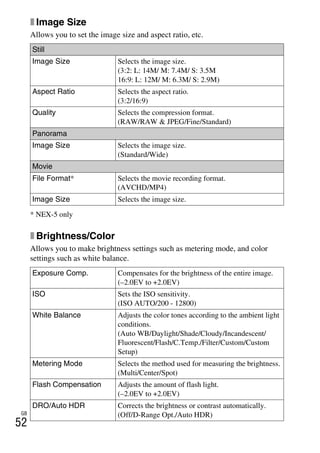
x Image Size
Allows you to set the image size and aspect ratio, etc.
* NEX-5 only
x Brightness/Color
Allows you to make brightness settings such as metering mode, and color
settings such as white balance.
Still
Image Size Selects the image size.
(3:2: L: 14M/ M: 7.4M/ S: 3.5M
16:9: L: 12M/ M: 6.3M/ S: 2.9M)
Aspect Ratio Selects the aspect ratio.
(3:2/16:9)
Quality Selects the compression format.
(RAW/RAW & JPEG/Fine/Standard)
Panorama
Image Size Selects the image size.
(Standard/Wide)
Movie
File Format* Selects the movie recording format.
(AVCHD/MP4)
Image Size Selects the image size.
Exposure Comp. Compensates for the brightness of the entire image.
(–2.0EV to +2.0EV)
ISO Sets the ISO sensitivity.
(ISO AUTO/200 - 12800)
White Balance Adjusts the color tones according to the ambient light
conditions.
(Auto WB/Daylight/Shade/Cloudy/Incandescent/
Fluorescent/Flash/C.Temp./Filter/Custom/Custom
Setup)
Metering Mode Selects the method used for measuring the brightness.
(Multi/Center/Spot)
Flash Compensation Adjusts the amount of flash light.
(–2.0EV to +2.0EV)
DRO/Auto HDR Corrects the brightness or contrast automatically.
(Off/D-Range Opt./Auto HDR)
NEX-3/NEX-5
4-183-856-14(1)
F:CX75000_Paper_Revision3GB41838561414183856141NEX5U201GB-
NEX5U2070CHK.fm
master: Right
GB
53
Checkingthefunctionsavailable
x Playback
Allows you to set playback functions.
x Setup
Allows you to make more detailed shooting settings, or change the camera
settings.
Creative Style Selects the image processing method.
(Standard/Vivid/Portrait/Landscape/Sunset/Black &
White)
Delete Deletes images.
(Multiple Img./All in Folder/All in Date Rng.)
Slide Show Plays back images automatically.
(Still image mode: Repeat/Interval)
(Movie mode: Repeat/Movie Type)
Still/Movie Select Selects a still image or movie to play back.
(Still/Movie)
Image Index Selects the number of images to be displayed on the
index screen.
(6 Images/12 Images)
Select Folder Selects the folder of still images to play back.
Select Date Selects the date of movies to play back.
Rotate Rotates images.
Protect Protects images, or cancels the protection.
(Multiple Img./Cancel All Images/Cancel All Movies)
Enlarge Image Enlarges the image.
Volume Settings Sets the sound volume of movies.
Specify Printing Selects the images to print, or makes printing settings.
(DPOF Setup/Date Imprint)
Display Contents Switches the information to be displayed on the
playback screen.
(Display Info./Histogram/No Disp. Info.)
Shooting Settings
AF Illuminator Sets the AF illuminator to assist auto-focusing in dim
places.
(Auto/Off)
Red Eye Reduction Provides pre-flash before shooting when using the
flash, to prevent eyes from being shot in red.
(On/Off)
NEX-3/NEX-5
4-183-856-14(1)
F:CX75000_Paper_Revision3GB41838561414183856141NEX5U201GB-
NEX5U2070CHK.fm
master: Left
GB
54
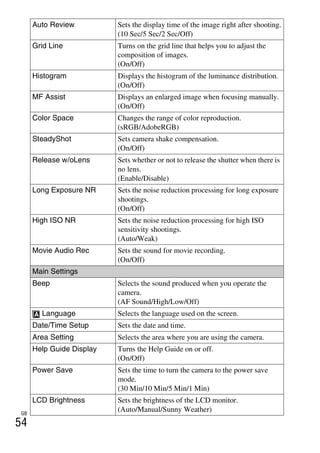
Auto Review Sets the display time of the image right after shooting.
(10 Sec/5 Sec/2 Sec/Off)
Grid Line Turns on the grid line that helps you to adjust the
composition of images.
(On/Off)
Histogram Displays the histogram of the luminance distribution.
(On/Off)
MF Assist Displays an enlarged image when focusing manually.
(On/Off)
Color Space Changes the range of color reproduction.
(sRGB/AdobeRGB)
SteadyShot Sets camera shake compensation.
(On/Off)
Release w/oLens Sets whether or not to release the shutter when there is
no lens.
(Enable/Disable)
Long Exposure NR Sets the noise reduction processing for long exposure
shootings.
(On/Off)
High ISO NR Sets the noise reduction processing for high ISO
sensitivity shootings.
(Auto/Weak)
Movie Audio Rec Sets the sound for movie recording.
(On/Off)
Main Settings
Beep Selects the sound produced when you operate the
camera.
(AF Sound/High/Low/Off)
Language Selects the language used on the screen.
Date/Time Setup Sets the date and time.
Area Setting Selects the area where you are using the camera.
Help Guide Display Turns the Help Guide on or off.
(On/Off)
Power Save Sets the time to turn the camera to the power save
mode.
(30 Min/10 Min/5 Min/1 Min)
LCD Brightness Sets the brightness of the LCD monitor.
(Auto/Manual/Sunny Weather)
NEX-3/NEX-5
4-183-856-14(1)
F:CX75000_Paper_Revision3GB41838561414183856141NEX5U201GB-
NEX5U2070CHK.fm
master: Right
GB
55
Checkingthefunctionsavailable
* Appears when an Eye-Fi card (sold separately) is inserted in the camera. Do not
use an Eye-Fi card inserted in the camera on an airplane. If there is an Eye-Fi
card inserted in the camera, set [Upload Settings] to [Off].
Display Color Selects the color of the LCD monitor.
(Black/White/Blue/Pink)
Wide Image Selects a method to display wide images.
(Full Screen/Normal)
Playback Display Selects the method used to play back portrait images.
(Auto Rotate/Manual Rotate)
CTRL FOR HDMI Sets whether or not to operate the camera with an
HDMI-compliant TV’s Remote Control.
(On/Off)
USB Connection Selects the method used for a USB connection.
(Mass Storage/PTP)
Cleaning Mode Allows you to clean the image sensor.
Version Displays the version of the camera and the lens.
Demo Mode Sets whether or not to display the demonstration with
movies.
(On/Off)
Reset Default Resets the camera to the factory-settings.
Memory Card Tool
Format Formats the memory card.
File Number Selects the method used for assigning file numbers to
images.
(Series/Reset)
Folder Name Selects the folder name format.
(Standard Form/Date Form)
Select Shoot. Folder Selects the recording folder.
New Folder Creates a new folder.
Recover Image DB Repairs the image database file of movies when
inconsistencies are found.
Display Card Space Displays the remaining recording time of movies and
the recordable number of still images on the memory
card.
Eye-Fi Setup*
Upload Settings Sets the upload function of the camera when an
Eye-Fi card is used.
(On/Off)
NEX-3/NEX-5
4-183-856-14(1)
F:CX75000_Paper_Revision3GB41838561414183856141NEX5U201GB-
NEX5U2070CHK.fm
master: Left
GB
56
Eye-Fi cards can be used only in the countries/regions where they were
purchased. Use Eye-Fi cards in accordance with the law of the countries/regions
where you purchased the card.
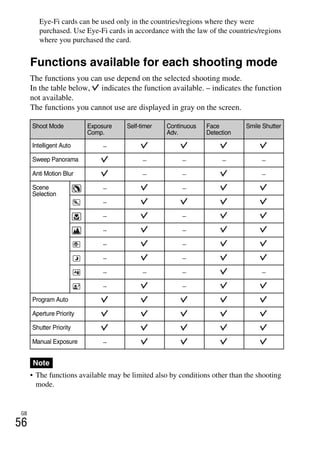
Functions available for each shooting mode
The functions you can use depend on the selected shooting mode.
In the table below, indicates the function available. – indicates the function
not available.
The functions you cannot use are displayed in gray on the screen.
• The functions available may be limited also by conditions other than the shooting
mode.
Shoot Mode Exposure
Comp.
Self-timer Continuous
Adv.
Face
Detection
Smile Shutter
Intelligent Auto –
Sweep Panorama – – – –
Anti Motion Blur – – –
Scene
Selection
– –
–
– –
– –
– –
– –
– – – –
– –
Program Auto
Aperture Priority
Shutter Priority
Manual Exposure –
Note
NEX-3/NEX-5
4-183-856-14(1)
F:CX75000_Paper_Revision3GB41838561414183856141NEX5U201GB-
NEX5U2070CHK.fm
master: Right
GB
57
Checkingthefunctionsavailable
Flash modes available
The flash modes you can select depend on the shooting mode and functions
selected.
In the table below, indicates the function available. – indicates the function
not available.
The flash modes you cannot select are displayed in gray on the screen.
• The flash modes may be limited also by conditions other than the shooting mode.
• Even if you select a workable flash mode, the flash does not fire unless it is raised.
• [Autoflash] can be selected when [Shoot Mode] is set to [Intelligent Auto] or
certain [Scene Selection] modes only.
Shoot Mode Off Autoflash Fill-flash Slow Sync. Rear Sync.
Intelligent Auto – – –
Sweep Panorama – – – –
Anti Motion Blur – – – –
Scene
Selection
– –
– – –
– –
– – –
– – –
– – – –
– – – –
– – – –
Program Auto – –
Aperture Priority – –
Shutter Priority – –
Manual Exposure – –
Notes
NEX-3/NEX-5
4-183-856-14(1)
F:CX75000_Paper_Revision3GB41838561414183856141NEX5U201GB-
NEX5U2080SOF.fm
master: Left
GB
58
Importing images to the computer
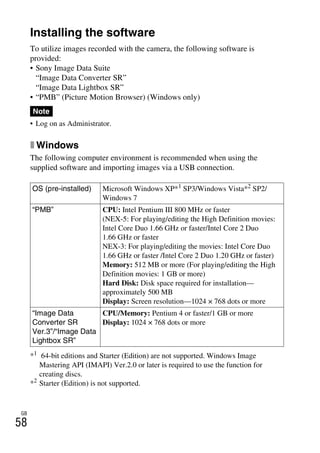
Installing the software
To utilize images recorded with the camera, the following software is
provided:
• Sony Image Data Suite
“Image Data Converter SR”
“Image Data Lightbox SR”
• “PMB” (Picture Motion Browser) (Windows only)
• Log on as Administrator.
x Windows
The following computer environment is recommended when using the
supplied software and importing images via a USB connection.
*1 64-bit editions and Starter (Edition) are not supported. Windows Image
Mastering API (IMAPI) Ver.2.0 or later is required to use the function for
creating discs.
*2
Starter (Edition) is not supported.
Note
OS (pre-installed) Microsoft Windows XP*1
SP3/Windows Vista*2
SP2/
Windows 7
“PMB” CPU: Intel Pentium III 800 MHz or faster
(NEX-5: For playing/editing the High Definition movies:
Intel Core Duo 1.66 GHz or faster/Intel Core 2 Duo
1.66 GHz or faster
NEX-3: For playing/editing the movies: Intel Core Duo
1.66 GHz or faster /Intel Core 2 Duo 1.20 GHz or faster)
Memory: 512 MB or more (For playing/editing the High
Definition movies: 1 GB or more)
Hard Disk: Disk space required for installation—
approximately 500 MB
Display: Screen resolution—1024 × 768 dots or more
“Image Data
Converter SR
Ver.3”/“Image Data
Lightbox SR”
CPU/Memory: Pentium 4 or faster/1 GB or more
Display: 1024 × 768 dots or more
NEX-3/NEX-5
4-183-856-14(1)
F:CX75000_Paper_Revision3GB41838561414183856141NEX5U201GB-
NEX5U2080SOF.fm
master: Right
GB
59
Importingimagestothecomputer
• If “PMB” has already been installed on the computer, and the version number of
the previously installed “PMB” is lower than that of the “PMB” on the CD-ROM
(supplied), install “PMB” also from the CD-ROM (supplied).
x Macintosh
The following computer environment is recommended when using the
supplied software and importing images via a USB connection.
1 Turn on your computer, and
insert the CD-ROM (supplied)
into the CD-ROM drive.
The installation menu screen appears.
2 Click [Install].
• Make sure that both “Sony Image Data Suite” and “PMB” are checked
and follow the instructions on the screen.
• Connect the camera to the computer during the procedure following the
instructions on the screen.
• When the restarting confirmation message appears, restart the computer
following the instructions on the screen.
• DirectX may be installed depending on the system environment of your
computer.
3 Remove the CD-ROM after the installation is complete.
The software is installed and shortcut icons appear on the desktop.
Note
OS (pre-installed) USB Connection: Mac OS X (v10.3 to v10.6)
“Image Data Converter SR Ver.3”/“Image Data
Lightbox SR”: Mac OS X v10.4/Mac OS X v10.5/
Mac OS X v10.6 (Snow Leopard)
“Image Data
Converter SR
Ver.3”/“Image Data
Lightbox SR”
CPU: Power PC G4/G5 series (1.0 GHz or faster is
recommended)/Intel Core Solo/Core Duo/Core 2 Duo or
faster
Memory: 1 GB or more is recommended.
Display: 1024 × 768 dots or more
GB
60
What you can do with the supplied software
x “PMB”
With “PMB” you can do the following, etc.:
• Import images shot with the camera and display them on the computer.
• Organize images on the computer on a calendar by shooting date to view
them.
• Print or save still images with the date.
For details on “PMB,” refer to “PMB Help”.
To start Help, click (PMB Help) displayed on the desktop after
installation. Or, from the start menu, click [Start] t [All Programs] t
[PMB] t [PMB Help].
The support information for the “PMB” (English only):
http://www.sony.co.jp/pmb-se/
• “PMB” is not compatible with Macintosh computers.
x “Image Data Converter SR”/“Image Data Lightbox
SR”
With “Image Data Converter SR,” you can edit images recorded in RAW
format with various corrections, such as tone curve, and sharpness.
With “Image Data Lightbox SR,” you can display and compare RAW/JPEG
images recorded with this camera.
1 Turn on your Macintosh computer, and insert the CD-ROM
(supplied) into the CD-ROM drive.
2 Double-click the CD-ROM icon.
3 Copy the [IDS_INST.pkg] file in the [MAC] folder to the
hard disk icon.
4 Double-click the [IDS_INST.pkg] file in the copy-to folder.
• Follow the instructions on the screen to complete the installation.
Note
NEX-3/NEX-5
4-183-856-14(1)
F:CX75000_Paper_Revision3GB41838561414183856141NEX5U201GB-
NEX5U2080SOF.fm
master: Right
GB
61
Importingimagestothecomputer
For details on “Image Data Converter SR” and “Image Data Lightbox SR,”
refer to Help.
To start Help, click [Start] t [All Programs] t [Sony Image Data Suite] t
[Help] t [Image Data Converter SR Ver.3] or [Image Data Lightbox SR].
The support information for the “Sony Image Data Suite” (English only):
http://www.sony.co.jp/ids-se/
Creating a movie disc (NEX-5)
You can create a disc from AVCHD format movies recorded on the camera.
Select the method that best suits your disc player. Use “PMB” to import
AVCHD format movies to a computer. See “PMB Help” for details on
creating a disc using “PMB.”
• If you use a Sony DVDirect (DVD Writer), you can transfer data by inserting a
memory card into the memory card slot of the DVD writer, or connecting your
camera to the DVD writer with a USB cable.
• When you use Sony DVDirect (DVD writer), make sure that the version of DVD
writer’s firmware is the latest.
For details, refer to the following URL:
http://sony.storagesupport.com/
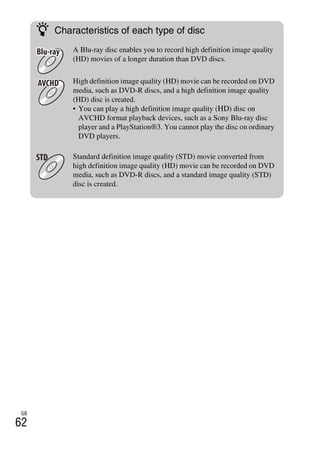
Player Method Disc type
Blu-ray disc playback
devices
(Blu-ray disc player,
PlayStation®3, etc.)
Create a Blu-ray disc of movies and
photos imported to a computer using
“PMB.”
AVCHD format playback
devices
(Sony Blu-ray disc player,
PlayStation®3, etc.)
Create an AVCHD format disc of
movies and photos imported to a
computer using “PMB.”
Creating an AVCHD format disc with
a DVD writer/recorder other than
DVDirect Express.
Ordinary DVD playback
devices
(DVD player, DVD
playable computer, etc.)
Create a standard definition image
quality (STD) disc of movies and
photos imported to a computer using
“PMB.”
Notes
NEX-3/NEX-5
4-183-856-14(1)
F:CX75000_Paper_Revision3GB41838561414183856141NEX5U201GB-
NEX5U2080SOF.fm
master: Left
GB
62
z Characteristics of each type of disc
A Blu-ray disc enables you to record high definition image quality
(HD) movies of a longer duration than DVD discs.
High definition image quality (HD) movie can be recorded on DVD
media, such as DVD-R discs, and a high definition image quality
(HD) disc is created.
• You can play a high definition image quality (HD) disc on
AVCHD format playback devices, such as a Sony Blu-ray disc
player and a PlayStation®3. You cannot play the disc on ordinary
DVD players.
Standard definition image quality (STD) movie converted from
high definition image quality (HD) movie can be recorded on DVD
media, such as DVD-R discs, and a standard image quality (STD)
disc is created.
NEX-3/NEX-5
4-183-856-14(1)
F:CX75000_Paper_Revision3GB41838561414183856141NEX5U201GB-
NEX5U2090OTH.fm
master: Right
GB
63
Others
Others
Checking the number of recordable images
• When “0” (the number of recordable images) flashes in yellow, the memory card
is full. Replace the memory card with another one, or delete images in the current
memory card (page 30).
• When “NO CARD” (the number of recordable images) flashes in yellow, it means
no memory card has been inserted. Insert a memory card.
x Number of still images and time of movies that can be
recorded on a memory card
Still images
The table shows the approximate number of still images that can be recorded
on a memory card formatted with this camera. The values are defined using
Sony standard memory cards for testing. The values may vary depending on
the shooting conditions.
Image size: L 14M
Aspect ratio: 3:2*
(Units: images)
* When [Aspect Ratio] is set to [16:9], you can record more images than the
numbers shown in the table above (except for [RAW]).
Once you insert a memory card into the
camera and set the power switch to ON,
the number of images that can be
recorded (should you continue to shoot
using the current settings) is displayed
on the LCD monitor.
Notes
Capacity
Quality
2GB 4GB 8GB 16GB 32GB
Standard 433 875 1778 3626 7172
Fine 305 618 1258 2569 5083
RAW & JPEG 84 176 362 745 1478
RAW 122 251 514 1054 2089
NEX-3/NEX-5
4-183-856-14(1)
F:CX75000_Paper_Revision3GB41838561414183856141NEX5U201GB-
NEX5U2090OTH.fm
master: Left
GB
64
Movies
The table below shows the approximate recording times available. These are
the total times for all movie files. Continuous recording is possible for
approximately 29 minutes per recording. For MP4, the maximum size of a
movie file is about 2 GB.
(Units: hour:minute:second)
* NEX-5
** NEX-3
x Number of still images that can be recorded using a
battery pack
The approximate number of images that can be recorded is 330 images when
you use the camera with the battery pack (supplied) at full capacity.
Note that the actual numbers may be less depending on the conditions of use.
• The number is calculated with a battery pack at full capacity and in the following
situation:
– At an ambient temperature of 25°C (77°F).
– [Quality] is set to [Fine].
– [Autofocus Mode] is set to [Single-shot AF].
– Shooting once every 30 seconds.
– The flash strobes once every two times.
– The power turns on and off once every ten times.
– Using the battery pack that is charged for an hour after the CHARGE lamp goes
out.
– Using Sony “Memory Stick PRO Duo” media (sold separately).
• The measurement method is based on the CIPA standard.
(CIPA: Camera & Imaging Products Association)
Capacity
File format
(Image size)
2GB 4GB 8GB 16GB 32GB
AVCHD (1920×1080)* 0:14:00 0:28:30 0:58:10 1:58:50 3:55:20
MP4 (1440×1080)* 0:20:40 0:41:40 1:24:40 2:52:30 5:41:00
MP4 (1280×720 (Fine))** 0:27:00 0:54:30 1:50:30 3:45:10 7:25:10
NEX-3/NEX-5
4-183-856-14(1)
F:CX75000_Paper_Revision3GB41838561414183856141NEX5U201GB-
NEX5U2090OTH.fm
master: Right_2 column
GB
65
Others
List of icons on the LCD monitor
Icons are displayed on the screen to indicate the camera status.
You can change the screen display using DISP (Display Contents) on the
control wheel.
Shooting standby
Graphic display
Movie recording
Playback
A
Display Indication
P A S M
Shooting mode
Scene Selection
Image size/Aspect
ratio of still images
RAW RAW+J
FINE STD
Image quality of still
images
100 Number of
recordable still
images
Image size of movies
Memory card/Upload
123 Min Recordable time of
movies
NEX-3/NEX-5
4-183-856-14(1)
F:CX75000_Paper_Revision3GB41838561414183856141NEX5U201GB-
NEX5U2090OTH.fm
master: Left_2 column
GB
66
B
C
D
100% Remaining battery
Scene Recognition
icons
Flash charge in
progress
AF illuminator
Does not record
sound during movie
recording
Camera shake
warning
Overheating warning
Database file full/
Database file error
Histogram
101-0012 Playback folder –
File number
Protect
1 Print order and
number of copies
Display Indication
Menu z
Shoot Mode
Shoot. Tips z
Soft keys
Display Indication
Display Indication
z Focus status
1/125 Shutter speed
F3.5 Aperture value
±0.0
Metered manual
±0.0 Exposure
compensation
Shutter speed
indicator
Aperture indicator
REC 0:12 Recording time of the
movie (m:s)
2010-1-1
9:30AM
Recorded date/time
of the image
12/12 Image number/
Number of images
recorded in the date
or selected folder
SteadyShot
Appears when HDR
did not work on the
image.
Display Indication
Flash Mode/Red Eye
Reduction
NEX-3/NEX-5
4-183-856-14(1)
F:CX75000_Paper_Revision3GB41838561414183856141NEX5U201GB-
NEX5U2090OTH.fm
master: Right_2 column
GB
67
Others
Drive Mode
Focus mode
±0.0 Flash compensation
Metering Mode
Focus area mode
Face Detection
Smile Shutter
ISO
AWB
7500K G9
White Balance
Creative Style
DRO/Auto HDR
Display Indication
Smile detection
sensitivity indicator
Display Indication
NEX-3/NEX-5
4-183-856-14(1)
F:CX75000_Paper_Revision3GB41838561414183856141NEX5U201GB-
NEX5U2090OTH.fm
master: Left
GB
68
Learning more about the camera
(α Handbook)
“α Handbook,” which explains how to use the camera in detail, is included on
the CD-ROM (supplied). Refer to it for in-depth instructions on the many
functions of the camera.
x For Windows users
x For Macintosh users
1 Turn on your computer, and insert the CD-ROM (supplied)
into the CD-ROM drive.
2 Click [Handbook].
3 Click [Install].
4 Start “α Handbook” from the shortcut on the desktop.
1 Turn on your computer, and insert the CD-ROM (supplied)
into the CD-ROM drive.
2 Select the [Handbook] folder and copy “Handbook.pdf”
stored in the [GB] folder to your computer.
3 After copying is complete, double-click “Handbook.pdf.”
NEX-3/NEX-5
4-183-856-14(1)
F:CX75000_Paper_Revision3GB41838561414183856141NEX5U201GB-
NEX5U2090OTH.fm
master: Right
GB
69
Others
Troubleshooting
If you experience trouble with the camera, try the following solutions.
The battery pack cannot be installed.
• When you insert the battery pack, use the tip of the battery pack to push the
lock lever (page 17).
• You can use an NP-FW50 battery pack only. Make sure that the battery is
NP-FW50.
The remaining battery indicator is incorrect, or sufficient
remaining battery indicator is displayed but the power runs out
too quickly.
• This phenomenon occurs when you use the camera in an extremely hot or
cold location.
• The battery pack is discharged. Install a charged battery pack (page 16).
• The battery pack is dead. Replace it with a new one.
Cannot turn on the camera.
• Install the battery pack correctly (page 17).
• The battery pack is discharged. Install a charged battery pack (page 16).
• The battery pack is dead. Replace it with a new one.
The power turns off suddenly.
• When the camera or battery pack is too warm, the camera displays a warning
message and turns off automatically to protect the camera.
1 Check the items on pages 69 to 72. Also refer to
“α Handbook” (PDF).
2 Remove the battery pack, wait for about one minute, re-
insert the battery pack, then turn on the power.
3 Reset the settings (page 55).
4 Consult your Sony dealer or local authorized Sony service
facility.
Battery pack and power
NEX-3/NEX-5
4-183-856-14(1)
F:CX75000_Paper_Revision3GB41838561414183856141NEX5U201GB-
NEX5U2090OTH.fm
master: Left
GB
70
• If you do not operate the camera for given period of time, the camera turns to
power saving mode. To cancel the power save, operate the camera, such as
pressing the shutter button halfway down.
The CHARGE lamp flashes when charging the battery pack.
• You can use an NP-FW50 battery pack only. Make sure that the battery is
NP-FW50.
• If you charge a battery pack that has not been used for a long time, the
CHARGE lamp may flash.
• The CHARGE lamp flashes in two ways, fast (about 0.15-second intervals)
and slow (about 1.5-second intervals). If it is flashing fast, remove the battery
pack and reattach the same battery pack securely. If the CHARGE lamp
flashes fast again, it suggests that there is something wrong with the battery
pack. Slow flashing indicates that charging is suspended because the ambient
temperature is outside the suitable range for charging the battery pack.
Charging will resume and the CHARGE lamp will be lit when the ambient
temperature returns to within the suitable temperature. Charge the battery
pack under the suitable temperatures between 10 °C and 30 °C (50 °F and
86 °F).
Nothing is displayed on the LCD monitor when the power is
turned on.
• If you do not operate the camera for given period of time, the camera turns to
power saving mode. To cancel the power save, operate the camera, such as
pressing the shutter button halfway down.
The shutter does not release.
• You are using a memory card with a write-protect switch, and the switch is
set to the LOCK position. Set the switch to the recording position.
• Check the free capacity of the memory card.
• You cannot record images while charging the flash.
• The lens is not attached properly. Attach the lens properly (page 19).
Recording takes a long time.
• The noise reduction function is turned on. This is not a malfunction.
• You are shooting in RAW mode. Since the RAW data file is large, the RAW
mode shooting may take time.
• The Auto HDR is processing an image.
The image is out of focus.
• The subject is too close. Check the minimum focal distance of the lens.
Shooting images
NEX-3/NEX-5
4-183-856-14(1)
F:CX75000_Paper_Revision3GB41838561414183856141NEX5U201GB-
NEX5U2090OTH.fm
master: Right
GB
71
Others
• You are shooting in manual focus mode. Set [AF/MF Select] to [Autofocus].
• Ambient light is insufficient.
• The subject may require special focusing. Use the [Flexible Spot] or manual
focus function.
The flash does not work.
• Raise the flash (page 23).
• The flash is not attached correctly. Reattach the flash (page 23).
• You cannot use a flash with the following shooting mode:
– [Bracket: Cont.]
– [Sweep Panorama]
– [Night View] and [Hand-held Twilight] in [Scene Selection]
– [Anti Motion Blur]
– Movie recording
Fuzzy white circular spots appear on images shot using the flash.
• Particles (dust, pollen, etc.) in the air reflected the flash light and appeared on
the image. This is not a malfunction.
The flash takes too long to recharge.
• The flash has been fired in succession in a short period. When the flash has
been fired in succession, the recharging process may take longer than usual
to avoid overheating of the flash.
The image taken with the flash is too dark.
• If the subject is beyond the flash range (the distance that the flash can reach),
the pictures will be dark because the flash light does not reach the subject. If
the ISO is changed, the flash range also changes with it.
The date and time are recorded incorrectly.
• Set the correct date and time (page 25).
• The area selected with [Area Setting] is different from the actual area. Set
the actual area by selecting [Menu] t [Setup] t [Area Setting].
The aperture value and/or shutter speed flashes when you press
the shutter button halfway down.
• Since the subject is too bright or too dark, it is beyond the available range of
the camera. Adjust the setting again.
NEX-3/NEX-5
4-183-856-14(1)
F:CX75000_Paper_Revision3GB41838561414183856141NEX5U201GB-
NEX5U2090OTH.fm
master: Left
GB
72
The image is whitish (Flare).
Blurring of light appears on the image (Ghosting).
• The picture was taken under a strong light source, and excessive light has
entered the lens. When using the zoom lens, attach a lens hood.
The corners of the picture are too dark.
• If any filter or hood is used, take it off and try shooting again. Depending on
the thickness of the filter and improper attachment of the hood, the filter or
the hood may partially appear on the image. The optical properties of some
lenses may cause the periphery of the image to appear too dark (insufficient
light).
The eyes of the subject come out red.
• Activate the Red Eye Reduction function.
• Get close to the subject, and shoot the subject within the flash range
(page 36) using the flash.
Dots appear and remain on the LCD monitor.
• This is not a malfunction. These dots are not recorded (page 73).
The image is blurred.
• The picture was taken in a dark location without the flash, resulting in
camera shake. The use of a tripod or the flash is recommended (page 23).
[Hand-held Twilight] in [Scene Selection] (page 40) and [Anti Motion Blur]
(page 40) are also effective in reducing blur.
The exposure value is flashing on the LCD monitor.
• The subject is too bright or too dark for the metering range of the camera.
Images cannot be played back.
• The folder/file name has been changed on your computer.
• When an image file has been processed by a computer or when the image file
was recorded using a model other than that of your camera, playback on your
camera is not guaranteed.
• The camera is in USB mode. Delete the USB connection.
Viewing images
NEX-3/NEX-5
4-183-856-14(1)
F:CX75000_Paper_Revision3GB41838561414183856141NEX5U201GB-
NEX5U2090OTH.fm
master: Right_2 column
GB
73
Others
Precautions
Notes on the LCD monitor
and lens
• The LCD monitor is manufactured
using extremely high-precision
technology so over 99.99 % of the
pixels are operational for effective
use. However, there may be some
tiny black points and/or bright
points (white, red, blue or green in
color) that constantly appear on the
LCD monitor. These points are
normal in the manufacturing
process and do not affect the
images in any way.
• Do not hold the camera by taking
hold of the LCD monitor.
• Do not expose the camera to direct
sunlight. If sunlight is focused on a
nearby object, it may cause a fire.
When you must place the camera
under direct sunlight, attach the
lens cap.
• A magnet is attached to the back of
the LCD monitor. Do not put
objects that are affected by
magnetic fields, such as a floppy
disk or a credit card, between the
LCD monitor and the camera
body.
• Images may trail across on the
LCD monitor in a cold location.
This is not a malfunction. When
turning on the camera in a cold
location, the LCD monitor may
become temporarily dark.
• Do not press against the LCD
monitor. The monitor may be
discolored and that may cause a
malfunction.
Do not use/store the
camera in the following
places
• In an extremely hot, dry or humid
place
In places such as in a car parked in
the sun, the camera body may
become deformed and this may
cause a malfunction.
• Storing under direct sunlight or
near a heater
The camera body may become
discolored or deformed, and this
may cause a malfunction.
• In a location subject to rocking
vibration
• Near strong magnetic place
• In sandy or dusty places
Be careful not to let sand or dust
get into the camera. This may
cause the camera to malfunction,
Black, white,
red, blue and
green points
Magnet
NEX-3/NEX-5
4-183-856-14(1)
F:CX75000_Paper_Revision3GB41838561414183856141NEX5U201GB-
NEX5U2090OTH.fm
master: Left_2 column
GB
74
and in some cases this malfunction
cannot be repaired.
On storing
Be sure to attach the lens cap when
not using the camera.
On operating temperatures
Your camera is designed for use
under the temperatures between 0°C
and 40°C (32°F and 104°F).
Shooting in extremely cold or hot
places that exceed this range is not
recommended.
On moisture condensation
If the camera is brought directly
from a cold to a warm location,
moisture may condense inside or
outside the camera. This moisture
condensation may cause a
malfunction of the camera.
How to prevent moisture
condensation
When bringing the camera from a
cold place to a warm place, seal the
camera in a plastic bag and allow it
to adapt to conditions at the new
location over about an hour.
If moisture condensation occurs
Turn off the camera and wait about
an hour for the moisture to
evaporate. Note that if you attempt
to shoot with moisture remaining
inside the lens, you will be unable to
record clear images.
On the internal
rechargeable battery
This camera has an internal
rechargeable battery for maintaining
the date and time and other settings
regardless of whether the power is
on or off, or the battery is installed
or not. This rechargeable battery is
continually charged as long as you
are using the camera. However, if
you use the camera for only short
periods, it discharges gradually, and
if you do not use the camera at all for
about three months it becomes
completely discharged. In this case,
be sure to charge this rechargeable
battery before using the camera.
However, even if this rechargeable
battery is not charged, you can still
use the camera as long as you do not
record the date and time. If the
camera resets the settings to the
defaults each time you charge the
battery, the internal rechargeable
battery may be dead. Consult your
Sony dealer or local authorized Sony
service facility.
Charging method of the internal
rechargeable battery
Insert a charged battery pack into the
camera, or connect the camera to a
wall outlet (wall socket) using the
AC Adaptor (sold separately), and
leave the camera for 24 hours or
more with the power off.
On memory cards
Do not attach a label, etc. on a
memory card or a card adaptor. This
may cause a malfunction.
Notes on recording/
playback
• When you use a memory card with
this camera for the first time, it is
recommended to format the card
using the camera for stable
performance of the memory card
before shooting. Note that
NEX-3/NEX-5
4-183-856-14(1)
F:CX75000_Paper_Revision3GB41838561414183856141NEX5U201GB-
NEX5U2090OTH.fm
master: Right_2 column
GB
75
Others
formatting permanently erases all
data on the memory card, and is
unrecoverable. Save precious data
on a computer, etc.
• If you repeatedly record/delete
images, fragmentation of data may
occur on the memory card. Movies
may not be able to be saved or
recorded. In such a case, save your
images to a computer or other
storage location, then format the
memory card.
• The recorded contents cannot be
compensated for even if recording
or playback is not possible due to a
malfunction of the camera or
memory card, etc.
• To avoid the potential risk of data
loss, always copy (back up) data to
other medium.
• Before you record one-time events,
make a trial recording to make sure
that the camera is working
correctly.
• This camera is neither dust-proof,
nor splash-proof, nor water-proof.
• Do not aim the camera at the sun
or other bright light. It may cause
the malfunction of the camera.
• Do not look at the sun or a strong
light through a removed lens. This
may cause irrecoverable damage to
your eyes. Or it may cause a
malfunction of the lens.
• Do not use the camera near a
location that generates strong radio
waves or emits radiation. The
camera may not be able to record
or play back properly.
• Using the camera in sandy or dusty
locations may cause malfunctions.
• If moisture condensation occurs,
remove it before using the camera
(page 74).
• Do not shake or strike the camera.
In addition to malfunctions and an
inability to record images, this may
render the memory card unusable,
or cause image data breakdown,
damage or loss.
• Clean the flash surface before use.
The heat of flash emission may
cause dirt on the flash surface to
become discolored or to stick to
the flash surface, resulting in
insufficient light emission.
• Keep the camera, supplied
accessories, etc., out of the reach
of children. A memory card, etc.,
may be swallowed. If such
problem occurs, consult a doctor
immediately.
Notes when playing movies on
other devices (NEX-5)
• This camera uses MPEG-4 AVC/
H.264 High Profile for AVCHD
format recording. Movies recorded
in AVCHD format with this
camera cannot be played by the
following devices.
– Other devices compatible with
AVCHD format that does not
support High Profile
– Devices incompatible with the
AVCHD format
• This camera also uses MPEG-4
AVC/H.264 Main Profile for MP4
format recording. For this reason,
movies recorded in MP4 format
with this camera cannot be played
on devices other than those that
support MPEG-4 AVC/H.264.
NEX-3/NEX-5
4-183-856-14(1)
F:CX75000_Paper_Revision3GB41838561414183856141NEX5U201GB-
NEX5U2090OTH.fm
master: Left_2 column
GB
76
• Discs recorded with HD (high
definition) image quality can be
played back only on AVCHD
format-compatible devices.
DVD-based players or recorders
cannot play back HD image quality
discs, as they are incompatible
with the AVCHD format. Also,
DVD-based players or recorders
may fail to eject HD image quality
discs.
Warning on copyright
Television programs, films,
videotapes, and other materials may
be copyrighted. Unauthorized
recording of such materials may be
contrary to the provisions of the
copyright laws.
The pictures used in this
manual
The photographs used as examples
of pictures in this manual are
reproduced images, and are not
actual images shot using this
camera.
On the data specifications
described in this manual
The data on performance and
specifications is defined under the
following conditions, except as
described in this manual: at an
ordinary ambient temperature of
25ºC (77°F), and using a battery
pack that is charged for an hour after
the CHARGE lamp goes out.
Specifications
Camera
[System]
Camera type: Interchangeable lens
digital camera
Lens: E-mount lens
[Image sensor]
Image sensor: 23.4 × 15.6 mm (APS-C
format) CMOS image sensor
Total pixel number of image sensor:
Approx. 14 600 000 pixels
Effective pixel number of camera:
Approx. 14 200 000 pixels
[Anti-dust]
System: Charge protection coating on
Low-Pass Filter and
electromagnetic vibration
mechanism
[Auto focus system]
System: Contrast detection system
Sensitivity range: 0 EV to 20 EV (at
ISO 100 equivalent, with F2.8 lens)
[Exposure control]
Metering method: 49-segment
metering by the image sensor
Metering range: 0 EV to 20 EV (at ISO
100 equivalent, with F2.8 lens)
ISO sensitivity (Recommended
exposure index): Auto, ISO 200 to
12800
Exposure compensation: ±2.0 EV (1/3
EV step)
[Shutter]
Type: Electronically-controlled,
vertical-traverse, focal-plane type
Speed range: 1/4000 second to 30
seconds, BULB, (1/3 EV step)
Flash sync speed: 1/160 second
NEX-3/NEX-5
4-183-856-14(1)
F:CX75000_Paper_Revision3GB41838561414183856141NEX5U201GB-
NEX5U2090OTH.fm
master: Right_2 column
GB
77
Others
[Recording media]
“Memory Stick PRO Duo” media,
SD card
[LCD monitor]
LCD panel: 7.5 cm (3.0 type) TFT
drive
Total number of dots: 921 600 (640 × 3
(RGB) × 480) dots
[Input/output terminals]
USB: miniB
HDMI: HDMI type C minijack
[Power]
Used battery pack: Rechargeable
battery pack NP-FW50
[Others]
Exif Print: Compatible
PRINT Image Matching III:
Compatible
Dimensions:
NEX-5:
Approx. 110.8 × 58.8 × 38.2 mm
(4 3/8 × 2 3/8 × 1 9/16 inches)
(W/H/D, excluding protrusions)
NEX-3:
Approx. 117.2 × 62.6 × 33.4 mm
(4 5/8 × 2 1/2 × 1 3/8 inches)
(W/H/D, excluding protrusions)
Mass:
NEX-5:
Approx. 287 g (10.1 oz)
(including battery and “Memory
Stick PRO Duo” media)
Approx. 229 g (8.1 oz)
(camera only)
NEX-3:
Approx. 297 g (10.5 oz)
(including battery and “Memory
Stick PRO Duo” media)
Approx. 239 g (8.4 oz)
(camera only)
Operating temperature: 0°C to 40°C
(32°F to 104°F)
File format:
Still image: JPEG (DCF Ver. 2.0,
Exif Ver. 2.3, MPF Baseline)
compliant, DPOF compatible
NEX-5:
Movie (AVCHD format):
AVCHD Ver. 1.0 compliant
Video: MPEG-4 AVC/H.264
Audio: Dolby Digital 2ch,
equipped with Dolby Digital
Stereo Creator
• Manufactured under license
from Dolby Laboratories.
Movie (MP4 format):
Video: MPEG-4 AVC/H.264
Audio: MPEG-4 AAC-LC 2ch
NEX-3:
Movie: MPEG-4 Visual
USB communication: Hi-Speed USB
(USB 2.0 compliant)
Flash
Flash guide number: GN 7 (in meters at
ISO 100)
Recycling time: Approx. 4 seconds
Flash coverage: Covering 16 mm lens
(focal length that the lens indicates)
Flash compensation: ±2.0 EV (1/3 EV
step)
Dimensions:
Approx. 35.9 × 23.8 × 42.7 mm
(1 7/16 × 15/16 × 1 11/16 inches)
(W/H/D, excluding protrusions)
Mass: Approx. 20.4 g (0.8 oz)
NEX-3/NEX-5
4-183-856-14(1)
F:CX75000_Paper_Revision3GB41838561414183856141NEX5U201GB-
NEX5U2090OTH.fm
master: Left
GB
78
Lens
On the E18 – 200 mm lens, refer to the instruction manual of the E18 – 200
mm lens (supplied).
*1
The values for equivalent 35 mm-format focal length and angle of view are based
on digital cameras equipped with an APS-C sized image sensor.
*2 Minimum focus is the shortest distance from the image sensor to the subject.
*3 Shutter speed (differs with shooting conditions)
*4
The optical shake compensation function is not available.
Lens
E16 mm single focus
lens
E18 – 55 mm zoom lens
Camera NEX-5A/5D/3A/3D NEX-5D/5K/3D/3K
Equivalent
35 mm-format focal
length*1 (mm)
24 27 - 82.5
Lens groups-elements 5-5 9-11
Angle of view*1 83° 76° - 29°
Minimum focus*2
(m (feet))
0.24 (0.79) 0.25 (0.82)
Maximum magnification
(×)
0.078 0.3
Minimum f-stop f/22 f/22 - f/32
Filter diameter (mm) 49 49
Dimensions (max.
diameter × height)
(mm (in.))
62.0 × 22.5
(2 1/2 × 29/32)
62.0 × 60.0
(2 1/2 × 2 3/8)
Mass (g (oz.)) 67 (2 3/8) 194 (6 7/8)
Compensation effect*3
– *4
Approx. 4 steps
NEX-3/NEX-5
4-183-856-14(1)
F:CX75000_Paper_Revision3GB41838561414183856141NEX5U201GB-
NEX5U2090OTH.fm
master: Right_2 column
GB
79
Others
BC-VW1 Battery charger
Input rating: 100 V – 240 V AC,
50 Hz/60 Hz, 4.2 W
Output rating: 8.4 V DC, 0.28 A
Operating temperature range: 0°C to
40°C (32° to 104°F)
Storage temperature range: –20°C to
+60°C (–4°F to +140°F)
Maximum dimensions: Approx. 63 ×
95 × 32 mm (2 1/2 × 3 3/4 × 1 5/16
inches) (W/H/D)
Mass: Approx. 85 g (3 oz)
Rechargeable battery pack
NP-FW50
Used battery: Lithium-ion battery
Maximum voltage: DC 8.4 V
Nominal voltage: DC 7.2 V
Maximum charge voltage: DC 8.4 V
Maximum charge current: 1.02 A
Capacity: Typical 7.7 Wh (1 080 mAh)
Minimum 7.3 Wh (1 020 mAh)
Maximum dimensions:
Approx. 31.8 × 18.5 × 45 mm
(1 5/16 × 3/4 × 1 13/16 inches)
(W/H/D)
Mass: Approx. 57 g (2.1 oz)
Design and specifications are subject
to change without notice.
On focal length
The picture angle of this camera is
narrower than that of a 35 mm-format
film camera. You can find the
approximate equivalent of the focal
length of a 35 mm-format film camera,
and shoot with the same picture angle,
by increasing the focal length of your
lens by half.
For example, by using a 50 mm lens,
you can get the approximate equivalent
of a 75 mm lens of a 35 mm-format
film camera.
On image data
compatibility
• This camera conforms with DCF
(Design rule for Camera File system)
universal standard established by
JEITA (Japan Electronics and
Information Technology Industries
Association).
• Playback of images recorded with
your camera on other equipment and
playback of images recorded or
edited with other equipment on your
camera are not guaranteed.
Trademarks
• is a trademark of Sony
Corporation.
• “Memory Stick,” , “Memory
Stick PRO,” ,
“Memory Stick Duo,”
, “Memory
Stick PRO Duo,”
, “Memory
Stick PRO-HG Duo,”
, “Memory
Stick Micro,” “MagicGate,” and
are trademarks of
Sony Corporation.
• “InfoLITHIUM” is a trademark of
Sony Corporation.
• “PhotoTV HD” is a trademark of
Sony Corporation.
• “Blu-ray Disc” and the logo are
trademarks.
• “AVCHD” and “AVCHD” logotype
are trademarks of Panasonic
Corporation and Sony Corporation.
• Dolby and the double-D symbol are
trademarks of Dolby Laboratories.
• Microsoft, Windows, and Windows
Vista are either registered trademarks
or trademarks of Microsoft
Corporation in the United States and/
or other countries.
NEX-3/NEX-5
4-183-856-14(1)
F:CX75000_Paper_Revision3GB41838561414183856141NEX5U201GB-
NEX5U2090OTH.fm
master: Left_2 column
GB
80
• HDMI, the HDMI logo and High-
Definition Multimedia Interface are
trademarks or registered trademarks
of HDMI Licensing LLC.
• Macintosh and Mac OS are
trademarks or registered trademarks
of Apple Inc.
• PowerPC is a registered trademark of
IBM Corporation in the United
States.
• Intel, Intel Core, and Pentium are
trademarks or registered trademarks
of Intel Corporation.
• SDXC logo and SDHC logo are
trademarks of SD-3C, LLC.
• Eye-Fi is a trademark of Eye-Fi Inc.
• MultiMediaCard is a trademark of
MultiMediaCard Association.
• “PlayStation” is a registered
trademark of Sony Computer
Entertainment Inc.
• Adobe is a registered trademark or a
trademark of Adobe Systems
Incorporated in the United States and/
or other countries.
• In addition, system and product
names used in this manual are, in
general, trademarks or registered
trademarks of their respective
developers or manufacturers.
However, the ™ or ® marks are not
used in all cases in this manual.
NEX-3/NEX-5
4-183-856-14(1)
F:CX75000_Paper_Revision3GB41838561414183856141NEX5U201GB-
NEX5U2010COVIX.fm
master: Right_2 column
GB
81
Others
Index
A
AF Illuminator ............................. 53
AF/MF Select............................... 51
Anti Motion Blur ......................... 40
Aperture Priority.......................... 43
Area Setting ................................. 54
Aspect Ratio................................. 52
Auto Review ................................ 54
Autofocus Area............................ 51
Autofocus Mode .......................... 51
B
Background Defocus Control ...... 35
Battery pack................................. 16
Beep ............................................. 54
C
Charging the battery pack............ 16
Cleaning Mode............................. 55
Color Space.................................. 54
Continuous Adv........................... 38
Control wheel............................... 32
Creative Style............................... 53
CTRL FOR HDMI....................... 55
D
Date/Time Setup .......................... 54
Delete........................................... 30
Demo Mode ................................. 55
Disc creation ................................ 61
Display Card Space...................... 55
Display Color............................... 55
Display Contents.................... 38, 51
Drive Mode.................................. 51
DRO/Auto HDR .......................... 52
E
Enlarge......................................... 47
Enlarge Image.............................. 47
Exposure compensation............... 37
Extender for Flash....................... 24
Eye-Fi Setup................................ 55
F
Face Detection............................. 46
File Format.................................. 52
File Number ................................ 55
Fill-flash ...................................... 36
Flash............................................ 23
Flash Compensation.................... 52
Flash Mode.................................. 36
Folder Name................................ 55
Format ......................................... 55
G
Grid Line ..................................... 54
H
Handbook.................................... 68
Hand-held Twilight..................... 40
Help Guide Display..................... 54
Help Guides................................. 34
High ISO NR............................... 54
Histogram.................................... 54
I
Icons............................................ 65
Image Data Converter SR ........... 60
Image Data Lightbox SR............. 60
Image Index................................. 48
Image Size................................... 44
Install........................................... 58
Intelligent Auto ..................... 35, 39
ISO .............................................. 52
L
Landscape.................................... 40
Language..................................... 54
LCD Brightness........................... 54
Lens............................................. 19
NEX-3/NEX-5
4-183-856-14(1)
F:CX75000_Paper_Revision3GB41838561414183856141NEX5U201GB-
NEX5U2010COVIX.fm
master: Left_2 column
GB
82
Long Exposure NR ...................... 54
M
Macintosh .................................... 59
Macro........................................... 40
Manual Exposure ......................... 39
Memory card................................ 21
Menu............................................ 50
Metering Mode ............................ 52
MF Assist..................................... 54
Moisture condensation................. 74
Movie........................................... 28
Movie Audio Rec......................... 54
N
New Folder .................................. 55
Night Portrait ............................... 40
Night View................................... 40
P
Panorama ..................................... 41
Panorama Direction ..................... 51
Playback....................................... 29
Playback Display ......................... 55
Playback on TV ........................... 49
Playback zoom............................. 47
PMB............................................. 60
Portrait ......................................... 40
Power Save .................................. 54
Precision Dig. Zoom.................... 51
Program Auto............................... 39
Protect.......................................... 53
Q
Quality ......................................... 52
R
Recover Image DB ...................... 55
Red Eye Reduction ...................... 53
Release w/oLens .......................... 54
Reset Default ............................... 55
Rotate........................................... 53
S
Scene Selection ........................... 40
Scroll playback............................ 42
Select Date .................................. 53
Select Folder................................ 53
Select Shoot. Folder .................... 55
Self-timer..................................... 37
Setting the clock.......................... 25
Setup............................................ 53
Shoot Mode ................................. 39
Shooting still images................... 27
Shooting Tip List......................... 51
Shooting tips................................ 34
Shutter Priority............................ 42
Slide Show .................................. 53
Smile Detection........................... 51
Smile Shutter............................... 46
Soft keys...................................... 33
Software ...................................... 58
Specifications .............................. 76
Specify Printing........................... 53
Speed Priority Cont..................... 38
Sports Action............................... 40
SteadyShot................................... 54
Still/Movie Select........................ 53
Sunset.......................................... 40
Sweep Panorama ......................... 41
U
Upload Settings ........................... 55
USB Connection.......................... 55
V
Version ........................................ 55
Volume Settings.......................... 53
W
White Balance ............................. 52
Wide Image ................................. 55
Windows ..................................... 58

Sony nex5manual

  • 1.
    4-183-856-15(1) NEX-3/NEX-5 Interchangeable Lens Digital Camera InstructionManual Preparing the camera Mastering the basic operation Using the recording functions Using the playback functions Checking the functions available Importing images to the computer Others E-mount ©2010 Sony Corporation Printed in Thailand NEX-3/NEX-5 Printed using VOC (Volatile Organic Compound)-free vegetable oil based ink. Additional information on this product and answers to frequently asked questions can be found at our Customer Support Website.
  • 2.
    GB 2 NEX-3/NEX-5 4-183-856-14(1) F:CX75000_Paper_Revision3GB41838561414183856141NEX5U201GB- NEX5U2020REG.fm master: Left Owner’s Record Themodel and serial numbers are located on the bottom. Record the serial number in the space provided below. Refer to these numbers whenever you call upon your Sony dealer regarding this product. Model No. NEX-3/NEX-5 Serial No. ______________________________ To reduce fire or shock hazard, do not expose the unit to rain or moisture. IMPORTANT SAFETY INSTRUCTIONS -SAVE THESE INSTRUCTIONS DANGER -TO REDUCE THE RISK OF FIRE OR ELECTRIC SHOCK, CAREFULLY FOLLOW THESE INSTRUCTIONS If the shape of the plug does not fit the power outlet, use an attachment plug adaptor of the proper configuration for the power outlet. [ Battery pack If the battery pack is mishandled, the battery pack can burst, cause a fire or even chemical burns. Observe the following cautions. • Do not disassemble. • Do not crush and do not expose the battery pack to any shock or force such as hammering, dropping or stepping on it. • Do not short circuit and do not allow metal objects to come into contact with the battery terminals. • Do not expose to high temperature above 60°C (140°F) such as in direct sunlight or in a car parked in the sun. • Do not incinerate or dispose of in fire. • Do not handle damaged or leaking lithium ion batteries. English WARNING CAUTION
  • 3.
    GB 3 NEX-3/NEX-5 4-183-856-14(1) F:CX75000_Paper_Revision3GB41838561414183856141NEX5U201GB- NEX5U2020REG.fm master: Right • Besure to charge the battery pack using a genuine Sony battery charger or a device that can charge the battery pack. • Keep the battery pack out of the reach of small children. • Keep the battery pack dry. • Replace only with the same or equivalent type recommended by Sony. • Dispose of used battery packs promptly as described in the instructions. [ Battery charger Even if the CHARGE lamp is not lit, the battery charger is not disconnected from the AC power source (mains) as long as it is connected to the wall outlet (wall socket). If some trouble occurs while using the battery charger, immediately shut off the power by disconnecting the plug from the wall outlet (wall socket). When a power cord (mains lead) is supplied, the power cord (mains lead) can be used with this unit only, and should not be used with any other unit. [ RECYCLING LITHIUM-ION BATTERIES Lithium-Ion batteries are recyclable. You can help preserve our environment by returning your used rechargeable batteries to the collection and recycling location nearest you. For more information regarding recycling of rechargeable batteries, call toll free 1-800-822-8837, or visit http://www.rbrc.org/ Caution: Do not handle damaged or leaking Lithium-Ion batteries. [ Battery pack This device complies with Part 15 of the FCC Rules. Operation is subject to the following two conditions: (1) This device may not cause harmful interference, and (2) this device must accept any interference received, including interference that may cause undesired operation. This Class B digital apparatus complies with Canadian ICES-003. For Customers in the U.S.A. and Canada
  • 4.
    GB 4 NEX-3/NEX-5 4-183-856-14(1) F:CX75000_Paper_Revision3GB41838561414183856141NEX5U201GB- NEX5U2020REG.fm master: Left UL isan internationally recognized safety organization. The UL Mark on the product means it has been UL Listed. If you have any questions about this product, you may call: Sony Customer Information Center 1-800-222-SONY (7669) The number below is for the FCC related matters only. [ Regulatory Information [ CAUTION You are cautioned that any changes or modifications not expressly approved in this manual could void your authority to operate this equipment. For Customers in the U.S.A. Declaration of Conformity Trade Name: SONY Model No.: NEX-3 Responsible Party: Sony Electronics Inc. Address: 16530 Via Esprillo, San Diego, CA 92127 U.S.A. Telephone No.: 858-942-2230 This device complies with Part15 of the FCC Rules. Operation is subject to the following two conditions: (1) This device may not cause harmful interference, and (2) this device must accept any interference received, including interference that may cause undesired operation. Declaration of Conformity Trade Name: SONY Model No.: NEX-5 Responsible Party: Sony Electronics Inc. Address: 16530 Via Esprillo, San Diego, CA 92127 U.S.A. Telephone No.: 858-942-2230 This device complies with Part15 of the FCC Rules. Operation is subject to the following two conditions: (1) This device may not cause harmful interference, and (2) this device must accept any interference received, including interference that may cause undesired operation.
  • 5.
    GB 5 NEX-3/NEX-5 4-183-856-14(1) F:CX75000_Paper_Revision3GB41838561414183856141NEX5U201GB- NEX5U2020REG.fm master: Right [ Note: Thisequipment has been tested and found to comply with the limits for a Class B digital device, pursuant to Part 15 of the FCC Rules. These limits are designed to provide reasonable protection against harmful interference in a residential installation. This equipment generates, uses, and can radiate radio frequency energy and, if not installed and used in accordance with the instructions, may cause harmful interference to radio communications. However, there is no guarantee that interference will not occur in a particular installation. If this equipment does cause harmful interference to radio or television reception, which can be determined by turning the equipment off and on, the user is encouraged to try to correct the interference by one or more of the following measures: – Reorient or relocate the receiving antenna. – Increase the separation between the equipment and receiver. – Connect the equipment into an outlet on a circuit different from that to which the receiver is connected. – Consult the dealer or an experienced radio/TV technician for help. The supplied interface cable must be used with the equipment in order to comply with the limits for a digital device pursuant to Subpart B of Part 15 of FCC Rules. [ Notice for the customers in the countries applying EU Directives The manufacturer of this product is Sony Corporation, 1-7-1 Konan Minato-ku Tokyo, 108-0075 Japan. The Authorized Representative for EMC and product safety is Sony Deutschland GmbH, Hedelfinger Strasse 61, 70327 Stuttgart, Germany. For any service or guarantee matters please refer to the addresses given in separate service or guarantee documents. This product has been tested and found compliant with the limits set out in the EMC Directive for using connection cables shorter than 3 meters (9.8 feet). [ Attention The electromagnetic fields at the specific frequencies may influence the picture and sound of this unit. [ Notice If static electricity or electromagnetism causes data transfer to discontinue midway (fail), restart the application or disconnect and connect the communication cable (USB, etc.) again. For Customers in Europe
  • 6.
    GB 6 NEX-3/NEX-5 4-183-856-14(1) F:CX75000_Paper_Revision3GB41838561414183856141NEX5U201GB- NEX5U2020REG.fm master: Left [ Disposalof Old Electrical & Electronic Equipment (Applicable in the European Union and other European countries with separate collection systems) This symbol on the product or on its packaging indicates that this product shall not be treated as household waste. Instead it shall be handed over to the applicable collection point for the recycling of electrical and electronic equipment. By ensuring this product is disposed of correctly, you will help prevent potential negative consequences for the environment and human health, which could otherwise be caused by inappropriate waste handling of this product. The recycling of materials will help to conserve natural resources. For more detailed information about recycling of this product, please contact your local Civic Office, your household waste disposal service or the shop where you purchased the product. [ Disposal of waste batteries (applicable in the European Union and other European countries with separate collection systems) This symbol on the battery or on the packaging indicates that the battery provided with this product shall not be treated as household waste. On certain batteries this symbol might be used in combination with a chemical symbol. The chemical symbols for mercury (Hg) or lead (Pb) are added if the battery contains more than 0.0005% mercury or 0.004% lead. By ensuring these batteries are disposed of correctly, you will help prevent potentially negative consequences for the environment and human health which could otherwise be caused by inappropriate waste handling of the battery. The recycling of the materials will help to conserve natural resources. In case of products that for safety, performance or data integrity reasons require a permanent connection with an incorporated battery, this battery should be replaced by qualified service staff only. To ensure that the battery will be treated properly, hand over the product at end-of-life to the applicable collection point for the recycling of electrical and electronic equipment. For all other batteries, please view the section on how to remove the battery from the product safely. Hand the battery over to the applicable collection point for the recycling of waste batteries. For more detailed information about recycling of this product or battery, please contact your local Civic Office, your household waste disposal service or the shop where you purchased the product. A moulded plug complying with BS 1363 is fitted to this equipment for your safety and convenience. Should the fuse in the plug supplied need to be replaced, a fuse of the same rating as the supplied one and approved by ASTA or BSI to BS 1362, (i.e., marked with an or mark) must be used. If the plug supplied with this equipment has a detachable fuse cover, be sure to attach the fuse cover after you change the fuse. Never use the plug without the fuse cover. If you should lose the fuse cover, please contact your nearest Sony service station. Notice for customers in the United Kingdom
  • 7.
    NEX-3/NEX-5 4-183-856-14(1) F:CX75000_Paper_Revision3GB41838561414183856141NEX5U201GB- NEX5U2010COVTOC.fm master: Right GB 7 Table ofcontents Preparing the camera Checking the accessories supplied .................................10 Identifying parts ................................................................12 Preparing the battery pack ...............................................16 Attaching/removing the lens .............................................19 Inserting a memory card (sold separately) .......................21 Attaching the flash ............................................................23 Turning on the camera and setting up the date ...............25 Mastering the basic operation Shooting still images .........................................................27 Recording movies .............................................................28 Playing back images ........................................................29 Deleting images ................................................................30 Using the control wheel and soft keys ..............................32 Using the guide function of the camera ...........................34 Using the recording functions Defocusing the background easily (Background Defocus Control) ............................................................................. 35 Selecting the flash mode .................................................. 36 Adjusting the brightness of still images (Exposure compensation) .................................................................. 37 Using the self-timer........................................................... 37 Shooting still images continuously.................................... 38 Changing the screen display (DISP) ................................ 38 Shooting with various drive mode..................................... 39 Selecting the image size................................................... 44 Focusing on the face (Face Detection) ............................ 46 Using the playback functions Enlarging the playback image (Enlarge Image)............... 47 Displaying the image list................................................... 48 Viewing images on a TV ................................................... 49
  • 8.
    NEX-3/NEX-5 4-183-856-14(1) F:CX75000_Paper_Revision3GB41838561414183856141NEX5U201GB- NEX5U2010COVTOC.fm master: Left GB 8 Checking thefunctions available Menu list ........................................................................... 50 Functions available for each shooting mode ................... 56 Flash modes available...................................................... 57 Importing images to the computer Installing the software....................................................... 58 What you can do with the supplied software ................... 60 Creating a movie disc (NEX-5)......................................... 61 Others Checking the number of recordable images ................... 63 List of icons on the LCD monitor ...................................... 65 Learning more about the camera (α Handbook) ............. 68 Troubleshooting................................................................ 69 Precautions....................................................................... 73 Specifications................................................................... 76 Index................................................................................. 81 This instruction manual is for models NEX-3 and NEX-5. The NEX-5 is used for illustrations in this manual, unless otherwise specified. The differences between each model are as follows: * To check whether the camera is 1080 60i-compatible or 1080 50i-compatible, check for the following marks on the bottom of the camera. 1080 60i-compatible camera: 60i 1080 50i-compatible camera: 50i Model Movie file format Remote control NEX-5 AVCHD*/MPEG-4 Available NEX-3 MPEG-4 Not available
  • 9.
    NEX-3/NEX-5 4-183-856-14(1) F:CX75000_Paper_Revision3GB41838561414183856141NEX5U201GB- NEX5U2010COVTOC.fm master: Right GB 9 This manualcovers several models supplied with different lenses. The model name varies depending on the supplied lens. The available model varies depending on the countries/regions. Model name Lens NEX-5A/3A E16 mm NEX-5D/3D E18 – 55 mm and E16 mm NEX-5H E18 – 200 mm NEX-5K/3K E18 – 55 mm
  • 10.
    NEX-3/NEX-5 4-183-856-14(1) F:CX75000_Paper_Revision3GB41838561414183856141NEX5U201GB- NEX5U2030PRE.fm master: Left_2 column GB 10 Preparingthecamera Preparingthe camera Checking the accessories supplied First check the model name of your camera (page 9). The accessories supplied differ depending on the model. The number in parentheses indicates the number of pieces. x Common accessories • Battery charger BC-VW1 (1) • Power cord (mains lead) (1) (not supplied in the U.S.A. and Canada) • Rechargeable battery pack NP-FW50 (1) • USB cable (1) • Shoulder strap (1) • Flash (1)/Flash case (1) • CD-ROM (1) – Application Software for α camera – α Handbook • Instruction Manual (This manual) (1) x NEX-5A/3A • E16 mm single focus lens/Lens cap (1) (attached to the camera) x NEX-5D/3D • E16 mm single focus lens/Lens cap/Lens rear cap (1) • E18 – 55 mm zoom lens/Lens cap (1) (attached to the camera)/Lens hood (1) x NEX-5H • E18 – 200 mm zoom lens/Lens cap/Lens rear cap (1) (attached to the camera)/Lens hood (1) • Extender for Flash (1)/Extender case (1) • Body cap (1) (attached to the camera)
  • 11.
    NEX-3/NEX-5 4-183-856-14(1) F:CX75000_Paper_Revision3GB41838561414183856141NEX5U201GB- NEX5U2030PRE.fm master: Right_2 column GB 11 Preparingthecamera xNEX-5K/3K • E18 – 55 mm zoom lens/Lens cap (1) (attached to the camera)/Lens hood (1) • It is recommended that you use Sony lenses/accessories designed to suit the characteristics of this camera. Using the products of other manufacturers may cause the camera not to operate to its capability, or result in accidents and malfunctions of the camera. Note
  • 12.
    NEX-3/NEX-5 4-183-856-14(1) F:CX75000_Paper_Revision3GB41838561414183856141NEX5U201GB- NEX5U2030PRE.fm master: Left_2 column GB 12 Preparingthecamera Identifyingparts See the pages in parentheses for details of operation. NEX-5 NEX-3 When the lens is removed (NEX-5/3) A (Playback) button (29) B ON/OFF (Power) switch (25) C Shutter button (28) D Remote sensor E AF illuminator/Self-timer lamp/ Smile Shutter lamp F Speaker G Microphone* H Smart Accessory Terminal (23) I Lens (19) J Lens release button (20) K Mount L Image sensor** M Lens contact** * Do not cover this part during movie recording. ** Do not touch this part directly.
  • 13.
    NEX-3/NEX-5 4-183-856-14(1) F:CX75000_Paper_Revision3GB41838561414183856141NEX5U201GB- NEX5U2030PRE.fm master: Right_2 column GB 13 Preparingthecamera NEX-5 NEX-3 A(USB) terminal B Hook for shoulder strap Attaching the shoulder strap is recommended not to drop the camera. C HDMI terminal (49) D Light sensor E LCD monitor The tilting LCD monitor of the camera allows flexible shooting positions. F MOVIE button (28) G Control wheel (32) H Soft keys (33) I Image sensor position mark
  • 14.
    NEX-3/NEX-5 4-183-856-14(1) F:CX75000_Paper_Revision3GB41838561414183856141NEX5U201GB- NEX5U2030PRE.fm master: Left_2 column GB 14 Preparingthecamera NEX-5 NEX-3 ABattery/Memory card cover (17, 21) B Tripod receptacle • Use a tripod with a screw length of less than 5.5 mm (7/32 inch). You will be unable to firmly secure the camera to tripods having screws longer than 5.5 mm (7/32 inch), and may damage the camera. C Image sensor position mark D Connection plate cover For using the AC-PW20 AC Adaptor (sold separately) E Access lamp (22) F Memory card insertion slot (21) G Battery compartment (17) x Flash A Screw B Flash C Connector* * Do not touch this part directly.
  • 15.
    NEX-3/NEX-5 4-183-856-14(1) F:CX75000_Paper_Revision3GB41838561414183856141NEX5U201GB- NEX5U2030PRE.fm master: Right_2 column GB 15 Preparingthecamera xLens On the E18 – 200 mm lens, refer to the instruction manual of the E18 – 200 mm lens (supplied). E18 – 55 mm F3.5-5.6 OSS (supplied with NEX-5D/5K/ 3D/3K) A Hood index B Focusing ring C Zooming ring D Focal-length scale E Focal-length index F Lens contacts* G Mounting index * Do not touch this part directly. E16 mm F2.8 (supplied with NEX-5A/3A) A Converter index* B Focusing ring C Lens contacts** D Mounting index * A converter is sold separately. ** Do not touch this part directly.
  • 16.
    NEX-3/NEX-5 4-183-856-14(1) F:CX75000_Paper_Revision3GB41838561414183856141NEX5U201GB- NEX5U2030PRE.fm master: Left GB 16 Preparingthecamera Preparing thebattery pack When using the camera for the first time, be sure to charge the NP-FW50 “InfoLITHIUM” battery pack (supplied). x Charging the battery pack The “InfoLITHIUM” battery pack can be charged even when it has not been fully depleted. It can also be used when it has not been fully charged. 1 Insert the battery pack onto the battery charger. • Push the battery pack until it clicks. 2 Connect the battery charger to the wall outlet (wall socket). • The CHARGE lamp turns off when charging is finished. • Time required to charge a fully depleted battery pack at a temperature of 25 °C (77 °F) is about 250 minutes. For the U.S.A and Canada CHARGE lamp For countries/regions other than the U.S.A. and Canada Power cord (mains lead) Plug CHARGE lamp
  • 17.
    NEX-3/NEX-5 4-183-856-14(1) F:CX75000_Paper_Revision3GB41838561414183856141NEX5U201GB- NEX5U2030PRE.fm master: Right GB 17 Preparingthecamera • Thecharging time differs depending on the remaining capacity of the battery pack or charging conditions. • We recommend charging the battery pack in an ambient temperature of between 10 °C to 30 °C (50 °F to 86 °F). You may not be able to efficiently charge the battery pack outside of this temperature range. • Connect the battery charger to the nearest wall outlet (wall socket). • Do not try to charge the battery pack again right after it has been charged, or when it has not been used after being charged. Doing so will affect the performance of the battery pack. x Inserting the charged battery pack Notes 1 While sliding the cover open lever, open the cover. z Using your camera abroad — Power source You can use your camera and battery charger, and the AC-PW20 AC Adaptor (sold separately) in any countries/regions where the power supply is within 100 V to 240 V AC, 50 Hz/60 Hz. An electronic voltage transformer is unnecessary and its use may cause a malfunction.
  • 18.
    NEX-3/NEX-5 4-183-856-14(1) F:CX75000_Paper_Revision3GB41838561414183856141NEX5U201GB- NEX5U2030PRE.fm master: Left GB 18 Preparingthecamera x Checkingthe remaining battery level Check the level with the following indicators and percent figures displayed on the LCD monitor. • The displayed level may not be correct under certain circumstances. 2 Firmly insert the battery pack all the way while pressing the lock lever with the tip of the battery. 3 Close the cover. Battery level “Battery exhausted.” High Low You cannot shoot any more image. Note NEX-5 Lock lever NEX-3 Lock lever
  • 19.
    NEX-3/NEX-5 4-183-856-14(1) F:CX75000_Paper_Revision3GB41838561414183856141NEX5U201GB- NEX5U2030PRE.fm master: Right GB 19 Preparingthecamera x Removingthe battery pack Attaching/removing the lens The camera will come with the lens attached (except for the NEX-5H). Refer to the steps below when attaching other lenses. Turn off the camera and slide the lock lever in the direction of the arrow. Be careful not to drop the battery pack. 1 If the body cap or the packaging lid is attached, remove it from the camera or the lens. • Quickly change the lens somewhere away from dusty locations so as to keep dust or debris from getting inside the camera. z What is an “InfoLITHIUM” battery pack? An “InfoLITHIUM” battery pack is a lithium-ion battery pack that has functions for exchanging information related to operating conditions with your camera. Using the “InfoLITHIUM” battery pack, the remaining battery time in percent figures is displayed according to the operating conditions of your camera. NEX-5 Lock lever NEX-3 Lock lever
  • 20.
    NEX-3/NEX-5 4-183-856-14(1) F:CX75000_Paper_Revision3GB41838561414183856141NEX5U201GB- NEX5U2030PRE.fm master: Left GB 20 Preparingthecamera • Whenattaching a lens, do not press the lens release button. • Do not use force when attaching a lens. • The Mount Adaptor (sold separately) is required to use an A-mount lens (sold separately). For details, refer to the operating manual supplied with the Mount Adaptor. x Removing the lens 2 Mount the lens by aligning the white index marks on the lens and the camera. • Hold the camera’s face downward to prevent the dust from entering into the camera. White index marks 3 While pushing the lens lightly toward the camera, turn the lens clockwise until it clicks into the locked position. • Be sure to put the lens on straight. Notes 1 Press the lens release button all the way in and turn the lens counterclockwise until it stops. Lens release button
  • 21.
    NEX-3/NEX-5 4-183-856-14(1) F:CX75000_Paper_Revision3GB41838561414183856141NEX5U201GB- NEX5U2030PRE.fm master: Right GB 21 Preparingthecamera • Whenchanging the lens, if dust or debris gets inside the camera and adheres to the surface of the image sensor (the part that acts as the film), it may appear on the image, depending on the shooting environment. The camera vibrates slightly when it is turned off, due to the anti-dust function, to prevent dust from adhering to the image sensor. However, attach or remove the lens quickly somewhere away from dusty locations. • Do not leave the camera with the lens removed. • When you want to use body caps or lens rear caps, please purchase ALC-B1EM (body cap) or ALC-R1EM (lens rear cap) (sold separately). Inserting a memory card (sold separately) Notes 1 Open the cover. 2 Insert a memory card. • Insert the memory card until it clicks as illustrated. NEX-5 Check on the direction of the notched corner. NEX-3 Check on the direction of the notched corner.
  • 22.
    NEX-3/NEX-5 4-183-856-14(1) F:CX75000_Paper_Revision3GB41838561414183856141NEX5U201GB- NEX5U2030PRE.fm master: Left GB 22 Preparingthecamera x Memorycards that you can use You can use following memory cards with this camera: “Memory Stick PRO Duo” media, “Memory Stick PRO-HG Duo” media, SD memory card, SDHC memory card, and SDXC memory card. You cannot use MultiMediaCard. For recording movies, it is recommended that you use following memory cards. “Memory Stick PRO Duo” media and “Memory Stick PRO-HG Duo” media are both called as “Memory Stick PRO Duo” media, and SD memory card, SDHC memory card and SDXC memory card are all called as “SD card” in this manual. • (Mark2) (“Memory Stick PRO Duo” media (Mark2)) • (“Memory Stick PRO-HG Duo” media) • SD memory card, SDHC memory card, SDXC memory card (Class 4 or more) • Images recorded on an SDXC memory card cannot be imported to or played on computers or AV devices that are not compatible with exFAT. Make sure that the device is compatible with exFAT before connecting it to the camera. If you connect your camera to an incompatible device, you may be prompted to format the card. Never format the card in response to this prompt, as doing so will erase all data on the card. (exFAT is the file system used on SDXC memory cards.) x Removing the memory card 3 Close the cover. Note Open the cover, make sure that the access lamp is not lit, and push the memory card once. NEX-5 Access lamp
  • 23.
    NEX-3/NEX-5 4-183-856-14(1) F:CX75000_Paper_Revision3GB41838561414183856141NEX5U201GB- NEX5U2030PRE.fm master: Right GB 23 Preparingthecamera • Whenthe access lamp is lit, do not remove the memory card or the battery pack, or turn off the power. The data may be corrupted. Attaching the flash When you want to use a flash during shooting, attach the flash device (supplied). The flash is enabled when it is raised, and disabled when lowered. Note 1 Attach the flash to the Smart Accessory Terminal of the camera. • When using the E18 – 200 mm lens, you must attach the extender (page 24). 2 Fasten the screw to secure the flash. 3 To fire the flash, raise the flash first. • Lower the flash when you do not intend to use it. NEX-3 Access lamp
  • 24.
    NEX-3/NEX-5 4-183-856-14(1) F:CX75000_Paper_Revision3GB41838561414183856141NEX5U201GB- NEX5U2030PRE.fm master: Left GB 24 Preparingthecamera • Thepower for the flash is provided from the camera. When the camera is charging the flash, blinks on the LCD monitor. You cannot press the shutter button when this icon is blinking. • Plug the flash fully into the accessory terminal of the camera, and fasten the screw securely. Make sure that the flash is attached to the camera securely. • Set the power switch of the camera to OFF before you attach or remove the flash. x Attaching the extender (when using the E18 – 200 mm lens) • Attach only the supplied flash to the extender. Notes If you attach the flash directly to the camera, images will be partly shadowed by the lens. To avoid this situation, attach the extender. 1 Attach the extender to the camera securely. 2 Attach the flash to the extender and fasten the screw. Note z Carrying the flash The flash case can be conveniently attached to the shoulder strap. Put the flash in the case when you are not using it to protect it from harm.
  • 25.
    NEX-3/NEX-5 4-183-856-14(1) F:CX75000_Paper_Revision3GB41838561414183856141NEX5U201GB- NEX5U2030PRE.fm master: Right GB 25 Preparingthecamera Turning onthe camera and setting up the date When you turn on the camera for the first time, the screen to set date and time appears. 1 Set the power switch to ON to turn on the camera. The screen to set date and time appears. • To turn off the camera, set the power switch to OFF. 2 Press the center of the control wheel to confirm [OK]. 3 Select your area by pressing the right or left of the control wheel and press the center. 4 Press the left or right of the control wheel to select each item, and press the top or bottom, or turn it to select the numeric value. Daylight Svg.: Turns on or off the daytime saving time setting. Date Format: Selects the format to display date. • Midnight is indicated as 12:00 AM, and noon as 12:00 PM.
  • 26.
    NEX-3/NEX-5 4-183-856-14(1) F:CX75000_Paper_Revision3GB41838561414183856141NEX5U201GB- NEX5U2030PRE.fm master: Left GB 26 Preparingthecamera • Youcannot superimpose the date on images on this camera. Using “PMB” stored on the CD-ROM (supplied), you can save or print images with date. Refer to “PMB Help” for more details (page 60). x Resetting the date and time/Checking the current clock setting Press [Menu], then select [Setup] t [Date/Time Setup] (page 32, 54). x Maintaining the date and time setting This camera has an internal rechargeable battery for maintaining the date and time and other settings regardless of whether the power is on or off, or the battery is installed or not. For details, see page 74. 5 Repeat step 4 to set other items, then press the center of the control wheel. Note
  • 27.
    NEX-3/NEX-5 4-183-856-14(1) F:CX75000_Paper_Revision3GB41838561414183856141NEX5U201GB- NEX5U2040BAS.fm master: Right GB 27 Masteringthebasicoperation Mastering thebasic operation Shooting still images In the (Intelligent Auto) mode, the camera analyzes the subject, and allows you to shoot with appropriate settings. 1 Set the power switch to ON to turn on the camera. 2 Point the camera to the subject. When the camera recognizes the scene, the Scene Recognition icon and guide appear on the LCD monitor: (Night View), (Tripod Night View), (Night Portrait), (Backlight), (Backlight Portrait), (Portrait), (Landscape), or (Macro). Scene Recognition icon and guide 3 When using a zoom lens, turn the zoom ring, then decide on your shot. Zoom ring
  • 28.
    NEX-3/NEX-5 4-183-856-14(1) F:CX75000_Paper_Revision3GB41838561414183856141NEX5U201GB- NEX5U2040BAS.fm master: Left GB 28 Masteringthebasicoperation Recording movies 4Press the shutter button halfway down to focus. When the focus is confirmed, beeps sound and z lights up. Focus indicator 5 Press the shutter button fully down to shoot. 1 Set the power switch to ON to turn on the camera. 2 Point the camera to the subject. 3 Press the MOVIE button to start recording. Focus and brightness are adjusted automatically. If you press the shutter button halfway down during recording, you will be able to focus more quickly. MOVIE button 4 Press the MOVIE button again to stop recording.
  • 29.
    NEX-3/NEX-5 4-183-856-14(1) F:CX75000_Paper_Revision3GB41838561414183856141NEX5U201GB- NEX5U2040BAS.fm master: Right GB 29 Masteringthebasicoperation • Thesound of the camera and the lens in operation might be recorded while recording a movie. You can disable the sound recording by selecting [Menu] t [Setup] t [Movie Audio Rec] t [Off] (page 32, 54). • The angle of view of movies is narrower than that of still images. After you press the MOVIE button, the camera shows the actual range to be recorded by displaying an empty frame on the screen. Playing back images x Selecting the image Turn the control wheel. x Playing back movies Notes 1 Press the (playback) button. The last recorded image is displayed on the LCD monitor. A still image is displayed in the default setting. (playback) button 1 Press (Image Index) on the control wheel in playback mode. Six images are displayed.
  • 30.
    NEX-3/NEX-5 4-183-856-14(1) F:CX75000_Paper_Revision3GB41838561414183856141NEX5U201GB- NEX5U2040BAS.fm master: Left GB 30 Masteringthebasicoperation Deleting images Youcan delete the image that is currently displayed. 2 Press the left side of the control wheel repeatedly to select (movie), and press the center. To return to still image playback, select (still image) (page 48). 3 Turn the control wheel to select the desired movie, and press the center. During movie playback Control wheel operation To pause/resume Press the center. To fast-forward Press the right, or turn it right. To fast-rewind Press the left, or turn it left. To slow-forward (NEX-5 only) Turn it right during pause. To slow-reverse (NEX-5 only) Turn it left during pause. To adjust sound volume Press the bottom t top/bottom. 1 Display the desired image, and press [Delete]. [Delete]
  • 31.
    NEX-3/NEX-5 4-183-856-14(1) F:CX75000_Paper_Revision3GB41838561414183856141NEX5U201GB- NEX5U2040BAS.fm master: Right GB 31 Masteringthebasicoperation 2 Pressthe center of the control wheel to confirm [OK]. Press [Cancel] to quit the operation. [OK] [Cancel] z To delete several images Select [Menu] t [Playback] t [Delete] to select and delete specific images at the same time.
  • 32.
    NEX-3/NEX-5 4-183-856-14(1) F:CX75000_Paper_Revision3GB41838561414183856141NEX5U201GB- NEX5U2040BAS.fm master: Left GB 32 Masteringthebasicoperation Using thecontrol wheel and soft keys The control wheel and soft keys allow you to use various functions of the camera. x Control wheel When shooting, DISP (Display Contents), (Flash Mode), (Exposure Comp.) and (Drive Mode) functions are assigned to the control wheel. When playing back, DISP (Display Contents) and (Image Index) functions are assigned to the control wheel. When you turn or press the right/left/top/bottom parts of the control wheel following the on-screen display, you can select setting items. Your selection is determined when you press the center of the control wheel. The arrow means you can turn the control wheel. When options are displayed on the screen, you can browse through them by turning or pressing the top/bottom/left/right parts of the control wheel. Press the center to make your choice.
  • 33.
    NEX-3/NEX-5 4-183-856-14(1) F:CX75000_Paper_Revision3GB41838561414183856141NEX5U201GB- NEX5U2040BAS.fm master: Right GB 33 Masteringthebasicoperation x Softkeys The soft keys have different roles, depending on the context. The assigned role (function) of each soft key is shown on the screen. To use the function shown at the upper right corner of the screen, press soft key A. To use the function shown at the lower right corner of the screen, press soft key B. To use the function shown at the center, press the center of the control wheel (soft key C). In this handbook, the soft keys are indicated by the icon or the function shown on the screen. In this case, soft key A works as the [Menu] button, and soft key B as the [Shoot. Tips] button. Soft key C works as the [Shoot Mode] button. A B C
  • 34.
    NEX-3/NEX-5 4-183-856-14(1) F:CX75000_Paper_Revision3GB41838561414183856141NEX5U201GB- NEX5U2040BAS.fm master: Left GB 34 Masteringthebasicoperation Using theguide function of the camera The camera provides various “Help Guides” which explain the functions, and “Shooting Tips” which introduce tips for better shooting. Use these guides to make better use of the camera. x Help Guides The camera displays the Help Guide to explain the selected function, when you change the setting, etc. You can hide the Help Guides by selecting [Menu] t [Setup] t [Help Guide Display] t [Off]. x Shooting tips The camera displays the shooting tips in accordance with the shooting mode selected. 1 When [Shoot. Tips] is displayed at the right bottom corner of the screen, press the button at the right bottom (page 33). A shooting tip in accordance with the current subject appears automatically. 2 Press the left or right of the control wheel and search for the desired shooting tip. • Turn the control wheel to scroll the text up and down. [Shoot. Tips] z To access all shooting tips You can search through all shooting tips from the menu. 1[Menu] t [Camera] t [Shooting Tip List]. 2Search for the desired shooting tips.
  • 35.
    NEX-3/NEX-5 4-183-856-14(1) F:CX75000_Paper_Revision3GB41838561414183856141NEX5U201GB- NEX5U2050REC.fm master: Right GB 35 Usingtherecordingfunctions Using therecording functions Defocusing the background easily (Background Defocus Control) In the [Intelligent Auto] mode, you can defocus the background easily to make the subject stand out. • The defocusing effect may not be noticeable, depending on the distance from the subject or the lens used. 1 Press [Menu], then select [Shoot Mode] t (Intelligent Auto). [Menu] 2 Press the center of the control wheel. The Background Defocus screen appears. Control wheel 3 Defocus the background by turning the control wheel. : Turn up to focus : Turn down to defocus Press [Back] to restore the original status. Note z For a better result of Background Defocus • Move closer to the subject. • Lengthen the distance between the subject and the background.
  • 36.
    NEX-3/NEX-5 4-183-856-14(1) F:CX75000_Paper_Revision3GB41838561414183856141NEX5U201GB- NEX5U2050REC.fm master: Left GB 36 Selecting theflash mode The flash range The range of the supplied flash depends on the ISO sensitivity and aperture value. 1 Attach the flash (page 23). 2 Press (Flash Mode) on the control wheel. 3 Turn the control wheel to select the desired mode, and press the center. (Flash Off): Does not fire even if the flash is raised. (Autoflash): Fires if it is dark or against light. (Fill-flash): Fires every time you trigger the shutter. (Slow Sync.): Fires every time you trigger the shutter. Slow sync shooting allows you to shoot a clear image of both the subject and the background. (Rear Sync.): Fires right before the exposure is completed every time you trigger the shutter. A trailing image of the movement of the subject is captured to make more natural image. F2.8 F3.5 F5.6 ISO200 1 – 3.5 m (3.3 – 11.6 feet) 1 – 2.8 m (3.3 – 9.2 feet) 1 – 1.8 m (3.3 – 5.9 feet) ISO1600 2.8 – 10 m (9.2 – 32 feet) 2.3 – 8 m (7.5 – 26.2 feet) 1.4 – 5 m (4.6 – 16 feet)
  • 37.
    NEX-3/NEX-5 4-183-856-14(1) F:CX75000_Paper_Revision3GB41838561414183856141NEX5U201GB- NEX5U2050REC.fm master: Right GB 37 Usingtherecordingfunctions Adjusting thebrightness of still images (Exposure compensation) You can adjust the exposure in 1/3 EV steps in a range of –2.0 EV to +2.0 EV. Using the self-timer 1 Press (Exposure Comp.) on the control wheel. 2 Turn the control wheel to select the desired value, and press the center. When the image is too bright, set [Exposure Comp.] toward –. When the image is too dark, set [Exposure Comp.] toward +. 1 Press (Drive Mode) on the control wheel. 2 Turn the control wheel to select (Self-timer). 3 Press [Option], then turn the control wheel to select the desired mode and press the center. (Self-timer: 10 Sec): Sets the 10-second delay self-timer. Use this when you want to include yourself in the picture. To cancel the timer, press again. When you press the shutter button, the self-timer lamp flashes and beeps until the shutter operates. (Self-timer: 2 Sec): Sets the 2-second delay self-timer. You can prevent blur caused by camera shake that occurs when the shutter button is pressed.
  • 38.
    NEX-3/NEX-5 4-183-856-14(1) F:CX75000_Paper_Revision3GB41838561414183856141NEX5U201GB- NEX5U2050REC.fm master: Left GB 38 Shooting stillimages continuously The camera records images continuously while you press and hold down the shutter button. Changing the screen display (DISP) 1 Press (Drive Mode) on the control wheel. 2 Turn the control wheel to select (Continuous Adv.), and press the center. 1 Press DISP (Display Contents) on the control wheel. z To shoot continuously at a higher speed Select (Speed Priority Cont.) from (Drive Mode) to shoot more images continuously (max. 7 images per second). The focus and exposure of the first shot are used for the following shots.
  • 39.
    NEX-3/NEX-5 4-183-856-14(1) F:CX75000_Paper_Revision3GB41838561414183856141NEX5U201GB- NEX5U2050REC.fm master: Right GB 39 Usingtherecordingfunctions Shooting withvarious drive mode 2 Press DISP repeatedly to select the desired mode. During shooting Disp. Basic Info: Shows basic shooting information. Graphically shows the shutter speed and aperture value, except for when [Shoot Mode] is set to [Intelligent Auto] or [Sweep Panorama]. Display Info.: Shows recording information. No Disp. Info.: Does not show recording information. During playback Display Info.: Shows recording information. Histogram: Displays the luminance distribution graphically, in addition to recording information. No Disp. Info.: Does not show recording information. 1 Press [Menu]. [Menu] 2 Use the control wheel to select [Shoot Mode] t desired mode, and press the center. (Intelligent Auto): The camera evaluates the subject and makes the proper settings. SCN (Scene Selection): Shoots with preset settings according to the subject or condition. (Anti Motion Blur): Reduces the camera shake when shooting a slightly dark indoor scene or a telephoto. (Sweep Panorama): Shoots with panoramic size. M (Manual Exposure): Adjusts the aperture and shutter speed. S (Shutter Priority): Adjusts the shutter speed to express the movement of the subject. A (Aperture Priority): Adjusts the range in focus, or defocuses the background. P (Program Auto): Automatic shooting that allows you to customize settings, except for the exposure (aperture and shutter speed).
  • 40.
    NEX-3/NEX-5 4-183-856-14(1) F:CX75000_Paper_Revision3GB41838561414183856141NEX5U201GB- NEX5U2050REC.fm master: Left GB 40 x SceneSelection x Anti Motion Blur This is suitable for indoor shots without using the flash, to reduce the subject blur. 1 Select SCN (Scene Selection) (page 39). 2 Turn the control wheel to select the desired mode, and press the center. (Portrait): Blurs away backgrounds and sharpens the subject. Expresses skin tones softly. (Landscape): Shoots the entire range of scenery in sharp focus with vivid colors. (Macro): Shoots close subjects such as flowers, insects, food, or small items. (Sports Action): Shoots a moving subject at a fast shutter speed so that the subject looks as if it is standing still. The camera shoots images continuously while the shutter button is pressed. (Sunset): Shoots the red of the sunset beautifully. (Night Portrait): Shoots portraits in night scenes. Attach and fire the flash. (Night View): Shoots night scenes without losing the dark atmosphere. (Hand-held Twilight): Shoots night scenes with less noise and blur without using a tripod. A burst of shots are taken, and image processing is applied to reduce subject blur, camera shake, and noise. 1 Select (Anti Motion Blur) (page 39). 2 Shoot with the shutter button. The camera combines six shots at high sensitivity into one still image, so camera shake is reduced while preventing noise.
  • 41.
    NEX-3/NEX-5 4-183-856-14(1) F:CX75000_Paper_Revision3GB41838561414183856141NEX5U201GB- NEX5U2050REC.fm master: Right GB 41 Usingtherecordingfunctions x SweepPanorama While you pan the camera, the camera shoots several images and composes them into one panoramic image. • The camera continues shooting during [Sweep Panorama] recording, and the shutter keeps clicking until the end of the shooting. 1 Select (Sweep Panorama) (page 39). 2 Point the camera at the edge of the subject, then press the shutter button fully down. This part will not be taken. 3 Pan the camera to the end, following the guidance on the LCD monitor. Guidance bar Note
  • 42.
    NEX-3/NEX-5 4-183-856-14(1) F:CX75000_Paper_Revision3GB41838561414183856141NEX5U201GB- NEX5U2050REC.fm master: Left GB 42 x ShutterPriority You can express the movement of a moving subject in various way by adjusting the shutter speed, for example, at the instant of the movement with high speed shutter, or as a trailing image with low speed shutter. 1 Select S (Shutter Priority) (page 39). 2 Turn the control wheel to select the desired value, and press the center. z Playing back scrolling panoramic images You can scroll panoramic images from the beginning to the end by pressing the center of the control wheel while panoramic images are being displayed. Press it again to pause. Shows the displayed area of the whole panoramic image. • Panoramic images are played back with the supplied software “PMB” (page 60). • Panoramic images shot with other cameras may not be displayed or scrolled correctly.
  • 43.
    NEX-3/NEX-5 4-183-856-14(1) F:CX75000_Paper_Revision3GB41838561414183856141NEX5U201GB- NEX5U2050REC.fm master: Right GB 43 Usingtherecordingfunctions x AperturePriority You can adjust the range in focus, or defocuses the background. 1 Select A (Aperture Priority) (page 39). 2 Turn the control wheel to select the desired value, and press the center. z Shutter speed When a faster shutter speed is used, a moving subject such as a running person, cars, and sea spray appears as if they are stopped. When a slower shutter speed is used, a trailing image of the movement of the subject is captured to make more natural and dynamic image.
  • 44.
    NEX-3/NEX-5 4-183-856-14(1) F:CX75000_Paper_Revision3GB41838561414183856141NEX5U201GB- NEX5U2050REC.fm master: Left GB 44 Selecting theimage size The image size determines the size of the image file that is recorded when you take an image. The larger the image size, the more detail will be reproduced when the image is printed on large format paper. The smaller the image size, the more images can be recorded. In the case of movies, the larger the image size, the higher the image quality. Still 1 Press [Menu]. [Menu] 2 Use the control wheel to select [Image Size] t [Image Size], and press the center. 3 Turn the control wheel to select the desired mode, and press the center. When [Aspect Ratio] is 3:2 Usage guidelines (L: 14M) 4592 × 3056 pixels For prints up to A3+ size (M: 7.4M) 3344 × 2224 pixels For prints up to A4 size (S: 3.5M) 2288 × 1520 pixels For prints L/2L size When [Aspect Ratio] is 16:9 Usage guidelines (L: 12M) 4592 × 2576 pixels For viewing on a high-definition TV (M: 6.3M) 3344 × 1872 pixels (S: 2.9M) 2288 × 1280 pixels
  • 45.
    NEX-3/NEX-5 4-183-856-14(1) F:CX75000_Paper_Revision3GB41838561414183856141NEX5U201GB- NEX5U2050REC.fm master: Right GB 45 Usingtherecordingfunctions Panorama The imagesize varies depending on the shooting direction (page 51). Movie NEX-5 NEX-3 • When you print still images recorded with 16:9 aspect ratio, and panoramic images, both edges may be cut off. (Standard) Shoots images using standard size. Vertical: 2160 × 3872 Horizontal: 8192 × 1856 (Wide) Shoots images using wide size. Vertical: 2160 × 5536 Horizontal: 12416 × 1856 [AVCHD] mode Average bit-rate Usage guidelines 1920 × 1080 17 Mbps Records with the highest image quality for viewing on a high-definition TV. [MP4] mode Average bit-rate Usage guidelines 1440 × 1080 12 Mbps Records with high image quality for viewing on a high-definition TV. VGA (640 × 480) 3 Mbps Records in the suitable size for WEB uploads. Image size Average bit-rate Usage guidelines 1280 × 720 (Fine) 9 Mbps Records with high image quality for viewing on a high-definition TV. 1280 × 720 (Standard) 6 Mbps VGA (640 × 480) 3 Mbps Records in the suitable size for WEB uploads. Note
  • 46.
    NEX-3/NEX-5 4-183-856-14(1) F:CX75000_Paper_Revision3GB41838561414183856141NEX5U201GB- NEX5U2050REC.fm master: Left GB 46 Focusing onthe face (Face Detection) The camera detects the faces of your subjects and adjusts the focus on the face. You can select the priority face to be focused on. 1 Press [Menu]. [Menu] 2 Use the control wheel to select [Camera] t [Face Detection], and press the center. 3 Turn the control wheel to select the desired mode, and press the center. (Off): Does not use Face Detection function. (Auto): Selects the face the camera is to automatically focus on. (Child Priority): Detects and shoots with priority on child’s face. (Adult Priority): Detects and shoots with priority on adult’s face. z Capturing a smiling face (Smile Shutter) If you use the Smile Shutter function, the camera detects a smile and releases the shutter automatically. Select [Menu] t [Camera] t [Smile Shutter] t [On], then point the camera at the subject and wait for him/her to smile. You can also shoot by pressing the shutter button yourself.
  • 47.
    NEX-3/NEX-5 4-183-856-14(1) F:CX75000_Paper_Revision3GB41838561414183856141NEX5U201GB- NEX5U2060PLY.fm master: Right GB 47 Usingtheplaybackfunctions Using theplayback functions Enlarging the playback image (Enlarge Image) 1 Press the (Playback) button to enter the playback mode. (Playback) button 2 Display the image you want to enlarge, then press [Enlarge] (the center of the control wheel). Control wheel 3 Turn the control wheel to adjust the scaling. 4 Press the top/bottom/right/left of the control wheel to select the portion you want to enlarge. • To cancel the operation, press [Exit].
  • 48.
    NEX-3/NEX-5 4-183-856-14(1) F:CX75000_Paper_Revision3GB41838561414183856141NEX5U201GB- NEX5U2060PLY.fm master: Left GB 48 Displaying theimage list 1 Press the (Playback) button to enter the playback mode. (Playback) button 2 Press (Image Index) on the control wheel. Six images are displayed at a time. 3 Turn the control wheel to select an image. • To return to the single-image screen, select the desired image, and press the center. z Switching between the still image and the movie You can switch the image type on the image index easily. Press the left side of the control wheel repeatedly to select (still image) or (movie), and press the center. You cannot display still image and movie on the same index screen.
  • 49.
    NEX-3/NEX-5 4-183-856-14(1) F:CX75000_Paper_Revision3GB41838561414183856141NEX5U201GB- NEX5U2060PLY.fm master: Right GB 49 Usingtheplaybackfunctions Viewing imageson a TV To view images recorded on the camera on a TV, an HDMI cable (sold separately) and an HD TV equipped with an HDMI connector are required. • Use an HDMI mini connector on one end (for the camera), and a plug suitable for connecting your TV on the other end. 1 Connect the camera to the TV with an HDMI cable (sold separately). Note To the HDMI connector HDMI cable To the HDMI terminal z Using your camera abroad NEX-5: To view movies shot using this camera on a TV, the camera and TV must use the same color television system. NEX-3: The camera automatically detects the color system to match that of the connected TV.
  • 50.
    NEX-3/NEX-5 4-183-856-14(1) F:CX75000_Paper_Revision3GB41838561414183856141NEX5U201GB- NEX5U2070CHK.fm master: Left GB 50 Checking thefunctions available Menu list When you press [Menu], six menu items; [Shoot Mode], [Camera], [Image Size], [Brightness/Color], [Playback], and [Setup], appear on the screen. You can set various functions in each item. Items that cannot be set in the context are displayed in gray. x Shoot Mode Allows you to select a shooting mode, such as exposure mode, panoramic, Scene Selection. Intelligent Auto The camera evaluates the subject and makes the proper settings. Scene Selection Shoots with preset settings according to the subject or condition. (Portrait/Landscape/Macro/Sports Action/Sunset/ Night Portrait/Night View/Hand-held Twilight) Anti Motion Blur Reduces the camera shake when shooting a slightly dark indoor scene or a telephoto. Sweep Panorama Shoots with panoramic size. Manual Exposure Adjusts the aperture and shutter speed. Shutter Priority Adjusts the shutter speed to express the movement of the subject. Aperture Priority Adjusts the range in focus, or defocuses the background. Program Auto Automatic shooting that allows you to customize settings, except for the exposure (shutter speed and aperture).
  • 51.
    NEX-3/NEX-5 4-183-856-14(1) F:CX75000_Paper_Revision3GB41838561414183856141NEX5U201GB- NEX5U2070CHK.fm master: Right GB 51 Checkingthefunctionsavailable x Camera Allowsyou to set shooting functions, such as continuous shooting, self-timer, and flash. * NEX-5 only Drive Mode Selects the drive mode, such as continuous shooting, self-timer, or bracket shooting. (Single-shot Adv./Continuous Adv./Speed Priority Cont./Self-timer/Self-timer(Cont.)/ Bracket: Cont./ Remote Cdr.*) Flash Mode Selects the method used to fire the flash. (Flash Off/Autoflash/Fill-flash/Slow Sync./Rear Sync.) AF/MF Select Selects auto focusing or manual focusing. (Autofocus/DMF/Manualfocus) Autofocus Area Selects the area to be focused on. (Multi/Center/Flexible Spot) Autofocus Mode Selects the autofocus method. (Single-shot AF/Continuous AF) Precision Dig. Zoom Sets the digital zoom when a single focus lens is used. Face Detection Detects people’s faces automatically, and adjusts focus and exposure to suit the faces. (Off/Auto/Child Priority/Adult Priority) Smile Shutter Each time the camera detects a smile, the camera releases the shutter automatically. (On/Off) Smile Detection Sets the sensitivity of the Smile Shutter function for detecting smiles. (Big Smile/Normal Smile/Slight Smile) Panorama Direction Selects the direction to pan the camera when shooting panoramic images. (Right/Left/Up/Down) Shooting Tip List Allows you to access all shooting tips. Display Contents Switches the information to be displayed on the shooting screen. (Disp. Basic Info/Display Info./No Disp. Info.)
  • 52.
    NEX-3/NEX-5 4-183-856-14(1) F:CX75000_Paper_Revision3GB41838561414183856141NEX5U201GB- NEX5U2070CHK.fm master: Left GB 52 x ImageSize Allows you to set the image size and aspect ratio, etc. * NEX-5 only x Brightness/Color Allows you to make brightness settings such as metering mode, and color settings such as white balance. Still Image Size Selects the image size. (3:2: L: 14M/ M: 7.4M/ S: 3.5M 16:9: L: 12M/ M: 6.3M/ S: 2.9M) Aspect Ratio Selects the aspect ratio. (3:2/16:9) Quality Selects the compression format. (RAW/RAW & JPEG/Fine/Standard) Panorama Image Size Selects the image size. (Standard/Wide) Movie File Format* Selects the movie recording format. (AVCHD/MP4) Image Size Selects the image size. Exposure Comp. Compensates for the brightness of the entire image. (–2.0EV to +2.0EV) ISO Sets the ISO sensitivity. (ISO AUTO/200 - 12800) White Balance Adjusts the color tones according to the ambient light conditions. (Auto WB/Daylight/Shade/Cloudy/Incandescent/ Fluorescent/Flash/C.Temp./Filter/Custom/Custom Setup) Metering Mode Selects the method used for measuring the brightness. (Multi/Center/Spot) Flash Compensation Adjusts the amount of flash light. (–2.0EV to +2.0EV) DRO/Auto HDR Corrects the brightness or contrast automatically. (Off/D-Range Opt./Auto HDR)
  • 53.
    NEX-3/NEX-5 4-183-856-14(1) F:CX75000_Paper_Revision3GB41838561414183856141NEX5U201GB- NEX5U2070CHK.fm master: Right GB 53 Checkingthefunctionsavailable x Playback Allowsyou to set playback functions. x Setup Allows you to make more detailed shooting settings, or change the camera settings. Creative Style Selects the image processing method. (Standard/Vivid/Portrait/Landscape/Sunset/Black & White) Delete Deletes images. (Multiple Img./All in Folder/All in Date Rng.) Slide Show Plays back images automatically. (Still image mode: Repeat/Interval) (Movie mode: Repeat/Movie Type) Still/Movie Select Selects a still image or movie to play back. (Still/Movie) Image Index Selects the number of images to be displayed on the index screen. (6 Images/12 Images) Select Folder Selects the folder of still images to play back. Select Date Selects the date of movies to play back. Rotate Rotates images. Protect Protects images, or cancels the protection. (Multiple Img./Cancel All Images/Cancel All Movies) Enlarge Image Enlarges the image. Volume Settings Sets the sound volume of movies. Specify Printing Selects the images to print, or makes printing settings. (DPOF Setup/Date Imprint) Display Contents Switches the information to be displayed on the playback screen. (Display Info./Histogram/No Disp. Info.) Shooting Settings AF Illuminator Sets the AF illuminator to assist auto-focusing in dim places. (Auto/Off) Red Eye Reduction Provides pre-flash before shooting when using the flash, to prevent eyes from being shot in red. (On/Off)
  • 54.
    NEX-3/NEX-5 4-183-856-14(1) F:CX75000_Paper_Revision3GB41838561414183856141NEX5U201GB- NEX5U2070CHK.fm master: Left GB 54 Auto ReviewSets the display time of the image right after shooting. (10 Sec/5 Sec/2 Sec/Off) Grid Line Turns on the grid line that helps you to adjust the composition of images. (On/Off) Histogram Displays the histogram of the luminance distribution. (On/Off) MF Assist Displays an enlarged image when focusing manually. (On/Off) Color Space Changes the range of color reproduction. (sRGB/AdobeRGB) SteadyShot Sets camera shake compensation. (On/Off) Release w/oLens Sets whether or not to release the shutter when there is no lens. (Enable/Disable) Long Exposure NR Sets the noise reduction processing for long exposure shootings. (On/Off) High ISO NR Sets the noise reduction processing for high ISO sensitivity shootings. (Auto/Weak) Movie Audio Rec Sets the sound for movie recording. (On/Off) Main Settings Beep Selects the sound produced when you operate the camera. (AF Sound/High/Low/Off) Language Selects the language used on the screen. Date/Time Setup Sets the date and time. Area Setting Selects the area where you are using the camera. Help Guide Display Turns the Help Guide on or off. (On/Off) Power Save Sets the time to turn the camera to the power save mode. (30 Min/10 Min/5 Min/1 Min) LCD Brightness Sets the brightness of the LCD monitor. (Auto/Manual/Sunny Weather)
  • 55.
    NEX-3/NEX-5 4-183-856-14(1) F:CX75000_Paper_Revision3GB41838561414183856141NEX5U201GB- NEX5U2070CHK.fm master: Right GB 55 Checkingthefunctionsavailable * Appearswhen an Eye-Fi card (sold separately) is inserted in the camera. Do not use an Eye-Fi card inserted in the camera on an airplane. If there is an Eye-Fi card inserted in the camera, set [Upload Settings] to [Off]. Display Color Selects the color of the LCD monitor. (Black/White/Blue/Pink) Wide Image Selects a method to display wide images. (Full Screen/Normal) Playback Display Selects the method used to play back portrait images. (Auto Rotate/Manual Rotate) CTRL FOR HDMI Sets whether or not to operate the camera with an HDMI-compliant TV’s Remote Control. (On/Off) USB Connection Selects the method used for a USB connection. (Mass Storage/PTP) Cleaning Mode Allows you to clean the image sensor. Version Displays the version of the camera and the lens. Demo Mode Sets whether or not to display the demonstration with movies. (On/Off) Reset Default Resets the camera to the factory-settings. Memory Card Tool Format Formats the memory card. File Number Selects the method used for assigning file numbers to images. (Series/Reset) Folder Name Selects the folder name format. (Standard Form/Date Form) Select Shoot. Folder Selects the recording folder. New Folder Creates a new folder. Recover Image DB Repairs the image database file of movies when inconsistencies are found. Display Card Space Displays the remaining recording time of movies and the recordable number of still images on the memory card. Eye-Fi Setup* Upload Settings Sets the upload function of the camera when an Eye-Fi card is used. (On/Off)
  • 56.
    NEX-3/NEX-5 4-183-856-14(1) F:CX75000_Paper_Revision3GB41838561414183856141NEX5U201GB- NEX5U2070CHK.fm master: Left GB 56 Eye-Fi cardscan be used only in the countries/regions where they were purchased. Use Eye-Fi cards in accordance with the law of the countries/regions where you purchased the card. Functions available for each shooting mode The functions you can use depend on the selected shooting mode. In the table below, indicates the function available. – indicates the function not available. The functions you cannot use are displayed in gray on the screen. • The functions available may be limited also by conditions other than the shooting mode. Shoot Mode Exposure Comp. Self-timer Continuous Adv. Face Detection Smile Shutter Intelligent Auto – Sweep Panorama – – – – Anti Motion Blur – – – Scene Selection – – – – – – – – – – – – – – – – – Program Auto Aperture Priority Shutter Priority Manual Exposure – Note
  • 57.
    NEX-3/NEX-5 4-183-856-14(1) F:CX75000_Paper_Revision3GB41838561414183856141NEX5U201GB- NEX5U2070CHK.fm master: Right GB 57 Checkingthefunctionsavailable Flash modesavailable The flash modes you can select depend on the shooting mode and functions selected. In the table below, indicates the function available. – indicates the function not available. The flash modes you cannot select are displayed in gray on the screen. • The flash modes may be limited also by conditions other than the shooting mode. • Even if you select a workable flash mode, the flash does not fire unless it is raised. • [Autoflash] can be selected when [Shoot Mode] is set to [Intelligent Auto] or certain [Scene Selection] modes only. Shoot Mode Off Autoflash Fill-flash Slow Sync. Rear Sync. Intelligent Auto – – – Sweep Panorama – – – – Anti Motion Blur – – – – Scene Selection – – – – – – – – – – – – – – – – – – – – – – – – – Program Auto – – Aperture Priority – – Shutter Priority – – Manual Exposure – – Notes
  • 58.
    NEX-3/NEX-5 4-183-856-14(1) F:CX75000_Paper_Revision3GB41838561414183856141NEX5U201GB- NEX5U2080SOF.fm master: Left GB 58 Importing imagesto the computer Installing the software To utilize images recorded with the camera, the following software is provided: • Sony Image Data Suite “Image Data Converter SR” “Image Data Lightbox SR” • “PMB” (Picture Motion Browser) (Windows only) • Log on as Administrator. x Windows The following computer environment is recommended when using the supplied software and importing images via a USB connection. *1 64-bit editions and Starter (Edition) are not supported. Windows Image Mastering API (IMAPI) Ver.2.0 or later is required to use the function for creating discs. *2 Starter (Edition) is not supported. Note OS (pre-installed) Microsoft Windows XP*1 SP3/Windows Vista*2 SP2/ Windows 7 “PMB” CPU: Intel Pentium III 800 MHz or faster (NEX-5: For playing/editing the High Definition movies: Intel Core Duo 1.66 GHz or faster/Intel Core 2 Duo 1.66 GHz or faster NEX-3: For playing/editing the movies: Intel Core Duo 1.66 GHz or faster /Intel Core 2 Duo 1.20 GHz or faster) Memory: 512 MB or more (For playing/editing the High Definition movies: 1 GB or more) Hard Disk: Disk space required for installation— approximately 500 MB Display: Screen resolution—1024 × 768 dots or more “Image Data Converter SR Ver.3”/“Image Data Lightbox SR” CPU/Memory: Pentium 4 or faster/1 GB or more Display: 1024 × 768 dots or more
  • 59.
    NEX-3/NEX-5 4-183-856-14(1) F:CX75000_Paper_Revision3GB41838561414183856141NEX5U201GB- NEX5U2080SOF.fm master: Right GB 59 Importingimagestothecomputer • If“PMB” has already been installed on the computer, and the version number of the previously installed “PMB” is lower than that of the “PMB” on the CD-ROM (supplied), install “PMB” also from the CD-ROM (supplied). x Macintosh The following computer environment is recommended when using the supplied software and importing images via a USB connection. 1 Turn on your computer, and insert the CD-ROM (supplied) into the CD-ROM drive. The installation menu screen appears. 2 Click [Install]. • Make sure that both “Sony Image Data Suite” and “PMB” are checked and follow the instructions on the screen. • Connect the camera to the computer during the procedure following the instructions on the screen. • When the restarting confirmation message appears, restart the computer following the instructions on the screen. • DirectX may be installed depending on the system environment of your computer. 3 Remove the CD-ROM after the installation is complete. The software is installed and shortcut icons appear on the desktop. Note OS (pre-installed) USB Connection: Mac OS X (v10.3 to v10.6) “Image Data Converter SR Ver.3”/“Image Data Lightbox SR”: Mac OS X v10.4/Mac OS X v10.5/ Mac OS X v10.6 (Snow Leopard) “Image Data Converter SR Ver.3”/“Image Data Lightbox SR” CPU: Power PC G4/G5 series (1.0 GHz or faster is recommended)/Intel Core Solo/Core Duo/Core 2 Duo or faster Memory: 1 GB or more is recommended. Display: 1024 × 768 dots or more
  • 60.
    GB 60 What you cando with the supplied software x “PMB” With “PMB” you can do the following, etc.: • Import images shot with the camera and display them on the computer. • Organize images on the computer on a calendar by shooting date to view them. • Print or save still images with the date. For details on “PMB,” refer to “PMB Help”. To start Help, click (PMB Help) displayed on the desktop after installation. Or, from the start menu, click [Start] t [All Programs] t [PMB] t [PMB Help]. The support information for the “PMB” (English only): http://www.sony.co.jp/pmb-se/ • “PMB” is not compatible with Macintosh computers. x “Image Data Converter SR”/“Image Data Lightbox SR” With “Image Data Converter SR,” you can edit images recorded in RAW format with various corrections, such as tone curve, and sharpness. With “Image Data Lightbox SR,” you can display and compare RAW/JPEG images recorded with this camera. 1 Turn on your Macintosh computer, and insert the CD-ROM (supplied) into the CD-ROM drive. 2 Double-click the CD-ROM icon. 3 Copy the [IDS_INST.pkg] file in the [MAC] folder to the hard disk icon. 4 Double-click the [IDS_INST.pkg] file in the copy-to folder. • Follow the instructions on the screen to complete the installation. Note
  • 61.
    NEX-3/NEX-5 4-183-856-14(1) F:CX75000_Paper_Revision3GB41838561414183856141NEX5U201GB- NEX5U2080SOF.fm master: Right GB 61 Importingimagestothecomputer For detailson “Image Data Converter SR” and “Image Data Lightbox SR,” refer to Help. To start Help, click [Start] t [All Programs] t [Sony Image Data Suite] t [Help] t [Image Data Converter SR Ver.3] or [Image Data Lightbox SR]. The support information for the “Sony Image Data Suite” (English only): http://www.sony.co.jp/ids-se/ Creating a movie disc (NEX-5) You can create a disc from AVCHD format movies recorded on the camera. Select the method that best suits your disc player. Use “PMB” to import AVCHD format movies to a computer. See “PMB Help” for details on creating a disc using “PMB.” • If you use a Sony DVDirect (DVD Writer), you can transfer data by inserting a memory card into the memory card slot of the DVD writer, or connecting your camera to the DVD writer with a USB cable. • When you use Sony DVDirect (DVD writer), make sure that the version of DVD writer’s firmware is the latest. For details, refer to the following URL: http://sony.storagesupport.com/ Player Method Disc type Blu-ray disc playback devices (Blu-ray disc player, PlayStation®3, etc.) Create a Blu-ray disc of movies and photos imported to a computer using “PMB.” AVCHD format playback devices (Sony Blu-ray disc player, PlayStation®3, etc.) Create an AVCHD format disc of movies and photos imported to a computer using “PMB.” Creating an AVCHD format disc with a DVD writer/recorder other than DVDirect Express. Ordinary DVD playback devices (DVD player, DVD playable computer, etc.) Create a standard definition image quality (STD) disc of movies and photos imported to a computer using “PMB.” Notes
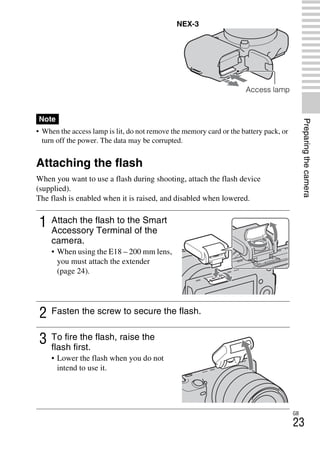
  • 62.
    NEX-3/NEX-5 4-183-856-14(1) F:CX75000_Paper_Revision3GB41838561414183856141NEX5U201GB- NEX5U2080SOF.fm master: Left GB 62 z Characteristicsof each type of disc A Blu-ray disc enables you to record high definition image quality (HD) movies of a longer duration than DVD discs. High definition image quality (HD) movie can be recorded on DVD media, such as DVD-R discs, and a high definition image quality (HD) disc is created. • You can play a high definition image quality (HD) disc on AVCHD format playback devices, such as a Sony Blu-ray disc player and a PlayStation®3. You cannot play the disc on ordinary DVD players. Standard definition image quality (STD) movie converted from high definition image quality (HD) movie can be recorded on DVD media, such as DVD-R discs, and a standard image quality (STD) disc is created.
  • 63.
    NEX-3/NEX-5 4-183-856-14(1) F:CX75000_Paper_Revision3GB41838561414183856141NEX5U201GB- NEX5U2090OTH.fm master: Right GB 63 Others Others Checking thenumber of recordable images • When “0” (the number of recordable images) flashes in yellow, the memory card is full. Replace the memory card with another one, or delete images in the current memory card (page 30). • When “NO CARD” (the number of recordable images) flashes in yellow, it means no memory card has been inserted. Insert a memory card. x Number of still images and time of movies that can be recorded on a memory card Still images The table shows the approximate number of still images that can be recorded on a memory card formatted with this camera. The values are defined using Sony standard memory cards for testing. The values may vary depending on the shooting conditions. Image size: L 14M Aspect ratio: 3:2* (Units: images) * When [Aspect Ratio] is set to [16:9], you can record more images than the numbers shown in the table above (except for [RAW]). Once you insert a memory card into the camera and set the power switch to ON, the number of images that can be recorded (should you continue to shoot using the current settings) is displayed on the LCD monitor. Notes Capacity Quality 2GB 4GB 8GB 16GB 32GB Standard 433 875 1778 3626 7172 Fine 305 618 1258 2569 5083 RAW & JPEG 84 176 362 745 1478 RAW 122 251 514 1054 2089
  • 64.
    NEX-3/NEX-5 4-183-856-14(1) F:CX75000_Paper_Revision3GB41838561414183856141NEX5U201GB- NEX5U2090OTH.fm master: Left GB 64 Movies The tablebelow shows the approximate recording times available. These are the total times for all movie files. Continuous recording is possible for approximately 29 minutes per recording. For MP4, the maximum size of a movie file is about 2 GB. (Units: hour:minute:second) * NEX-5 ** NEX-3 x Number of still images that can be recorded using a battery pack The approximate number of images that can be recorded is 330 images when you use the camera with the battery pack (supplied) at full capacity. Note that the actual numbers may be less depending on the conditions of use. • The number is calculated with a battery pack at full capacity and in the following situation: – At an ambient temperature of 25°C (77°F). – [Quality] is set to [Fine]. – [Autofocus Mode] is set to [Single-shot AF]. – Shooting once every 30 seconds. – The flash strobes once every two times. – The power turns on and off once every ten times. – Using the battery pack that is charged for an hour after the CHARGE lamp goes out. – Using Sony “Memory Stick PRO Duo” media (sold separately). • The measurement method is based on the CIPA standard. (CIPA: Camera & Imaging Products Association) Capacity File format (Image size) 2GB 4GB 8GB 16GB 32GB AVCHD (1920×1080)* 0:14:00 0:28:30 0:58:10 1:58:50 3:55:20 MP4 (1440×1080)* 0:20:40 0:41:40 1:24:40 2:52:30 5:41:00 MP4 (1280×720 (Fine))** 0:27:00 0:54:30 1:50:30 3:45:10 7:25:10
  • 65.
    NEX-3/NEX-5 4-183-856-14(1) F:CX75000_Paper_Revision3GB41838561414183856141NEX5U201GB- NEX5U2090OTH.fm master: Right_2 column GB 65 Others Listof icons on the LCD monitor Icons are displayed on the screen to indicate the camera status. You can change the screen display using DISP (Display Contents) on the control wheel. Shooting standby Graphic display Movie recording Playback A Display Indication P A S M Shooting mode Scene Selection Image size/Aspect ratio of still images RAW RAW+J FINE STD Image quality of still images 100 Number of recordable still images Image size of movies Memory card/Upload 123 Min Recordable time of movies
  • 66.
    NEX-3/NEX-5 4-183-856-14(1) F:CX75000_Paper_Revision3GB41838561414183856141NEX5U201GB- NEX5U2090OTH.fm master: Left_2 column GB 66 B C D 100%Remaining battery Scene Recognition icons Flash charge in progress AF illuminator Does not record sound during movie recording Camera shake warning Overheating warning Database file full/ Database file error Histogram 101-0012 Playback folder – File number Protect 1 Print order and number of copies Display Indication Menu z Shoot Mode Shoot. Tips z Soft keys Display Indication Display Indication z Focus status 1/125 Shutter speed F3.5 Aperture value ±0.0 Metered manual ±0.0 Exposure compensation Shutter speed indicator Aperture indicator REC 0:12 Recording time of the movie (m:s) 2010-1-1 9:30AM Recorded date/time of the image 12/12 Image number/ Number of images recorded in the date or selected folder SteadyShot Appears when HDR did not work on the image. Display Indication Flash Mode/Red Eye Reduction
  • 67.
    NEX-3/NEX-5 4-183-856-14(1) F:CX75000_Paper_Revision3GB41838561414183856141NEX5U201GB- NEX5U2090OTH.fm master: Right_2 column GB 67 Others DriveMode Focus mode ±0.0 Flash compensation Metering Mode Focus area mode Face Detection Smile Shutter ISO AWB 7500K G9 White Balance Creative Style DRO/Auto HDR Display Indication Smile detection sensitivity indicator Display Indication
  • 68.
    NEX-3/NEX-5 4-183-856-14(1) F:CX75000_Paper_Revision3GB41838561414183856141NEX5U201GB- NEX5U2090OTH.fm master: Left GB 68 Learning moreabout the camera (α Handbook) “α Handbook,” which explains how to use the camera in detail, is included on the CD-ROM (supplied). Refer to it for in-depth instructions on the many functions of the camera. x For Windows users x For Macintosh users 1 Turn on your computer, and insert the CD-ROM (supplied) into the CD-ROM drive. 2 Click [Handbook]. 3 Click [Install]. 4 Start “α Handbook” from the shortcut on the desktop. 1 Turn on your computer, and insert the CD-ROM (supplied) into the CD-ROM drive. 2 Select the [Handbook] folder and copy “Handbook.pdf” stored in the [GB] folder to your computer. 3 After copying is complete, double-click “Handbook.pdf.”
  • 69.
    NEX-3/NEX-5 4-183-856-14(1) F:CX75000_Paper_Revision3GB41838561414183856141NEX5U201GB- NEX5U2090OTH.fm master: Right GB 69 Others Troubleshooting If youexperience trouble with the camera, try the following solutions. The battery pack cannot be installed. • When you insert the battery pack, use the tip of the battery pack to push the lock lever (page 17). • You can use an NP-FW50 battery pack only. Make sure that the battery is NP-FW50. The remaining battery indicator is incorrect, or sufficient remaining battery indicator is displayed but the power runs out too quickly. • This phenomenon occurs when you use the camera in an extremely hot or cold location. • The battery pack is discharged. Install a charged battery pack (page 16). • The battery pack is dead. Replace it with a new one. Cannot turn on the camera. • Install the battery pack correctly (page 17). • The battery pack is discharged. Install a charged battery pack (page 16). • The battery pack is dead. Replace it with a new one. The power turns off suddenly. • When the camera or battery pack is too warm, the camera displays a warning message and turns off automatically to protect the camera. 1 Check the items on pages 69 to 72. Also refer to “α Handbook” (PDF). 2 Remove the battery pack, wait for about one minute, re- insert the battery pack, then turn on the power. 3 Reset the settings (page 55). 4 Consult your Sony dealer or local authorized Sony service facility. Battery pack and power
  • 70.
    NEX-3/NEX-5 4-183-856-14(1) F:CX75000_Paper_Revision3GB41838561414183856141NEX5U201GB- NEX5U2090OTH.fm master: Left GB 70 • Ifyou do not operate the camera for given period of time, the camera turns to power saving mode. To cancel the power save, operate the camera, such as pressing the shutter button halfway down. The CHARGE lamp flashes when charging the battery pack. • You can use an NP-FW50 battery pack only. Make sure that the battery is NP-FW50. • If you charge a battery pack that has not been used for a long time, the CHARGE lamp may flash. • The CHARGE lamp flashes in two ways, fast (about 0.15-second intervals) and slow (about 1.5-second intervals). If it is flashing fast, remove the battery pack and reattach the same battery pack securely. If the CHARGE lamp flashes fast again, it suggests that there is something wrong with the battery pack. Slow flashing indicates that charging is suspended because the ambient temperature is outside the suitable range for charging the battery pack. Charging will resume and the CHARGE lamp will be lit when the ambient temperature returns to within the suitable temperature. Charge the battery pack under the suitable temperatures between 10 °C and 30 °C (50 °F and 86 °F). Nothing is displayed on the LCD monitor when the power is turned on. • If you do not operate the camera for given period of time, the camera turns to power saving mode. To cancel the power save, operate the camera, such as pressing the shutter button halfway down. The shutter does not release. • You are using a memory card with a write-protect switch, and the switch is set to the LOCK position. Set the switch to the recording position. • Check the free capacity of the memory card. • You cannot record images while charging the flash. • The lens is not attached properly. Attach the lens properly (page 19). Recording takes a long time. • The noise reduction function is turned on. This is not a malfunction. • You are shooting in RAW mode. Since the RAW data file is large, the RAW mode shooting may take time. • The Auto HDR is processing an image. The image is out of focus. • The subject is too close. Check the minimum focal distance of the lens. Shooting images
  • 71.
    NEX-3/NEX-5 4-183-856-14(1) F:CX75000_Paper_Revision3GB41838561414183856141NEX5U201GB- NEX5U2090OTH.fm master: Right GB 71 Others • Youare shooting in manual focus mode. Set [AF/MF Select] to [Autofocus]. • Ambient light is insufficient. • The subject may require special focusing. Use the [Flexible Spot] or manual focus function. The flash does not work. • Raise the flash (page 23). • The flash is not attached correctly. Reattach the flash (page 23). • You cannot use a flash with the following shooting mode: – [Bracket: Cont.] – [Sweep Panorama] – [Night View] and [Hand-held Twilight] in [Scene Selection] – [Anti Motion Blur] – Movie recording Fuzzy white circular spots appear on images shot using the flash. • Particles (dust, pollen, etc.) in the air reflected the flash light and appeared on the image. This is not a malfunction. The flash takes too long to recharge. • The flash has been fired in succession in a short period. When the flash has been fired in succession, the recharging process may take longer than usual to avoid overheating of the flash. The image taken with the flash is too dark. • If the subject is beyond the flash range (the distance that the flash can reach), the pictures will be dark because the flash light does not reach the subject. If the ISO is changed, the flash range also changes with it. The date and time are recorded incorrectly. • Set the correct date and time (page 25). • The area selected with [Area Setting] is different from the actual area. Set the actual area by selecting [Menu] t [Setup] t [Area Setting]. The aperture value and/or shutter speed flashes when you press the shutter button halfway down. • Since the subject is too bright or too dark, it is beyond the available range of the camera. Adjust the setting again.
  • 72.
    NEX-3/NEX-5 4-183-856-14(1) F:CX75000_Paper_Revision3GB41838561414183856141NEX5U201GB- NEX5U2090OTH.fm master: Left GB 72 The imageis whitish (Flare). Blurring of light appears on the image (Ghosting). • The picture was taken under a strong light source, and excessive light has entered the lens. When using the zoom lens, attach a lens hood. The corners of the picture are too dark. • If any filter or hood is used, take it off and try shooting again. Depending on the thickness of the filter and improper attachment of the hood, the filter or the hood may partially appear on the image. The optical properties of some lenses may cause the periphery of the image to appear too dark (insufficient light). The eyes of the subject come out red. • Activate the Red Eye Reduction function. • Get close to the subject, and shoot the subject within the flash range (page 36) using the flash. Dots appear and remain on the LCD monitor. • This is not a malfunction. These dots are not recorded (page 73). The image is blurred. • The picture was taken in a dark location without the flash, resulting in camera shake. The use of a tripod or the flash is recommended (page 23). [Hand-held Twilight] in [Scene Selection] (page 40) and [Anti Motion Blur] (page 40) are also effective in reducing blur. The exposure value is flashing on the LCD monitor. • The subject is too bright or too dark for the metering range of the camera. Images cannot be played back. • The folder/file name has been changed on your computer. • When an image file has been processed by a computer or when the image file was recorded using a model other than that of your camera, playback on your camera is not guaranteed. • The camera is in USB mode. Delete the USB connection. Viewing images
  • 73.
    NEX-3/NEX-5 4-183-856-14(1) F:CX75000_Paper_Revision3GB41838561414183856141NEX5U201GB- NEX5U2090OTH.fm master: Right_2 column GB 73 Others Precautions Noteson the LCD monitor and lens • The LCD monitor is manufactured using extremely high-precision technology so over 99.99 % of the pixels are operational for effective use. However, there may be some tiny black points and/or bright points (white, red, blue or green in color) that constantly appear on the LCD monitor. These points are normal in the manufacturing process and do not affect the images in any way. • Do not hold the camera by taking hold of the LCD monitor. • Do not expose the camera to direct sunlight. If sunlight is focused on a nearby object, it may cause a fire. When you must place the camera under direct sunlight, attach the lens cap. • A magnet is attached to the back of the LCD monitor. Do not put objects that are affected by magnetic fields, such as a floppy disk or a credit card, between the LCD monitor and the camera body. • Images may trail across on the LCD monitor in a cold location. This is not a malfunction. When turning on the camera in a cold location, the LCD monitor may become temporarily dark. • Do not press against the LCD monitor. The monitor may be discolored and that may cause a malfunction. Do not use/store the camera in the following places • In an extremely hot, dry or humid place In places such as in a car parked in the sun, the camera body may become deformed and this may cause a malfunction. • Storing under direct sunlight or near a heater The camera body may become discolored or deformed, and this may cause a malfunction. • In a location subject to rocking vibration • Near strong magnetic place • In sandy or dusty places Be careful not to let sand or dust get into the camera. This may cause the camera to malfunction, Black, white, red, blue and green points Magnet
  • 74.
    NEX-3/NEX-5 4-183-856-14(1) F:CX75000_Paper_Revision3GB41838561414183856141NEX5U201GB- NEX5U2090OTH.fm master: Left_2 column GB 74 andin some cases this malfunction cannot be repaired. On storing Be sure to attach the lens cap when not using the camera. On operating temperatures Your camera is designed for use under the temperatures between 0°C and 40°C (32°F and 104°F). Shooting in extremely cold or hot places that exceed this range is not recommended. On moisture condensation If the camera is brought directly from a cold to a warm location, moisture may condense inside or outside the camera. This moisture condensation may cause a malfunction of the camera. How to prevent moisture condensation When bringing the camera from a cold place to a warm place, seal the camera in a plastic bag and allow it to adapt to conditions at the new location over about an hour. If moisture condensation occurs Turn off the camera and wait about an hour for the moisture to evaporate. Note that if you attempt to shoot with moisture remaining inside the lens, you will be unable to record clear images. On the internal rechargeable battery This camera has an internal rechargeable battery for maintaining the date and time and other settings regardless of whether the power is on or off, or the battery is installed or not. This rechargeable battery is continually charged as long as you are using the camera. However, if you use the camera for only short periods, it discharges gradually, and if you do not use the camera at all for about three months it becomes completely discharged. In this case, be sure to charge this rechargeable battery before using the camera. However, even if this rechargeable battery is not charged, you can still use the camera as long as you do not record the date and time. If the camera resets the settings to the defaults each time you charge the battery, the internal rechargeable battery may be dead. Consult your Sony dealer or local authorized Sony service facility. Charging method of the internal rechargeable battery Insert a charged battery pack into the camera, or connect the camera to a wall outlet (wall socket) using the AC Adaptor (sold separately), and leave the camera for 24 hours or more with the power off. On memory cards Do not attach a label, etc. on a memory card or a card adaptor. This may cause a malfunction. Notes on recording/ playback • When you use a memory card with this camera for the first time, it is recommended to format the card using the camera for stable performance of the memory card before shooting. Note that
  • 75.
    NEX-3/NEX-5 4-183-856-14(1) F:CX75000_Paper_Revision3GB41838561414183856141NEX5U201GB- NEX5U2090OTH.fm master: Right_2 column GB 75 Others formattingpermanently erases all data on the memory card, and is unrecoverable. Save precious data on a computer, etc. • If you repeatedly record/delete images, fragmentation of data may occur on the memory card. Movies may not be able to be saved or recorded. In such a case, save your images to a computer or other storage location, then format the memory card. • The recorded contents cannot be compensated for even if recording or playback is not possible due to a malfunction of the camera or memory card, etc. • To avoid the potential risk of data loss, always copy (back up) data to other medium. • Before you record one-time events, make a trial recording to make sure that the camera is working correctly. • This camera is neither dust-proof, nor splash-proof, nor water-proof. • Do not aim the camera at the sun or other bright light. It may cause the malfunction of the camera. • Do not look at the sun or a strong light through a removed lens. This may cause irrecoverable damage to your eyes. Or it may cause a malfunction of the lens. • Do not use the camera near a location that generates strong radio waves or emits radiation. The camera may not be able to record or play back properly. • Using the camera in sandy or dusty locations may cause malfunctions. • If moisture condensation occurs, remove it before using the camera (page 74). • Do not shake or strike the camera. In addition to malfunctions and an inability to record images, this may render the memory card unusable, or cause image data breakdown, damage or loss. • Clean the flash surface before use. The heat of flash emission may cause dirt on the flash surface to become discolored or to stick to the flash surface, resulting in insufficient light emission. • Keep the camera, supplied accessories, etc., out of the reach of children. A memory card, etc., may be swallowed. If such problem occurs, consult a doctor immediately. Notes when playing movies on other devices (NEX-5) • This camera uses MPEG-4 AVC/ H.264 High Profile for AVCHD format recording. Movies recorded in AVCHD format with this camera cannot be played by the following devices. – Other devices compatible with AVCHD format that does not support High Profile – Devices incompatible with the AVCHD format • This camera also uses MPEG-4 AVC/H.264 Main Profile for MP4 format recording. For this reason, movies recorded in MP4 format with this camera cannot be played on devices other than those that support MPEG-4 AVC/H.264.
  • 76.
    NEX-3/NEX-5 4-183-856-14(1) F:CX75000_Paper_Revision3GB41838561414183856141NEX5U201GB- NEX5U2090OTH.fm master: Left_2 column GB 76 •Discs recorded with HD (high definition) image quality can be played back only on AVCHD format-compatible devices. DVD-based players or recorders cannot play back HD image quality discs, as they are incompatible with the AVCHD format. Also, DVD-based players or recorders may fail to eject HD image quality discs. Warning on copyright Television programs, films, videotapes, and other materials may be copyrighted. Unauthorized recording of such materials may be contrary to the provisions of the copyright laws. The pictures used in this manual The photographs used as examples of pictures in this manual are reproduced images, and are not actual images shot using this camera. On the data specifications described in this manual The data on performance and specifications is defined under the following conditions, except as described in this manual: at an ordinary ambient temperature of 25ºC (77°F), and using a battery pack that is charged for an hour after the CHARGE lamp goes out. Specifications Camera [System] Camera type: Interchangeable lens digital camera Lens: E-mount lens [Image sensor] Image sensor: 23.4 × 15.6 mm (APS-C format) CMOS image sensor Total pixel number of image sensor: Approx. 14 600 000 pixels Effective pixel number of camera: Approx. 14 200 000 pixels [Anti-dust] System: Charge protection coating on Low-Pass Filter and electromagnetic vibration mechanism [Auto focus system] System: Contrast detection system Sensitivity range: 0 EV to 20 EV (at ISO 100 equivalent, with F2.8 lens) [Exposure control] Metering method: 49-segment metering by the image sensor Metering range: 0 EV to 20 EV (at ISO 100 equivalent, with F2.8 lens) ISO sensitivity (Recommended exposure index): Auto, ISO 200 to 12800 Exposure compensation: ±2.0 EV (1/3 EV step) [Shutter] Type: Electronically-controlled, vertical-traverse, focal-plane type Speed range: 1/4000 second to 30 seconds, BULB, (1/3 EV step) Flash sync speed: 1/160 second
  • 77.
    NEX-3/NEX-5 4-183-856-14(1) F:CX75000_Paper_Revision3GB41838561414183856141NEX5U201GB- NEX5U2090OTH.fm master: Right_2 column GB 77 Others [Recordingmedia] “Memory Stick PRO Duo” media, SD card [LCD monitor] LCD panel: 7.5 cm (3.0 type) TFT drive Total number of dots: 921 600 (640 × 3 (RGB) × 480) dots [Input/output terminals] USB: miniB HDMI: HDMI type C minijack [Power] Used battery pack: Rechargeable battery pack NP-FW50 [Others] Exif Print: Compatible PRINT Image Matching III: Compatible Dimensions: NEX-5: Approx. 110.8 × 58.8 × 38.2 mm (4 3/8 × 2 3/8 × 1 9/16 inches) (W/H/D, excluding protrusions) NEX-3: Approx. 117.2 × 62.6 × 33.4 mm (4 5/8 × 2 1/2 × 1 3/8 inches) (W/H/D, excluding protrusions) Mass: NEX-5: Approx. 287 g (10.1 oz) (including battery and “Memory Stick PRO Duo” media) Approx. 229 g (8.1 oz) (camera only) NEX-3: Approx. 297 g (10.5 oz) (including battery and “Memory Stick PRO Duo” media) Approx. 239 g (8.4 oz) (camera only) Operating temperature: 0°C to 40°C (32°F to 104°F) File format: Still image: JPEG (DCF Ver. 2.0, Exif Ver. 2.3, MPF Baseline) compliant, DPOF compatible NEX-5: Movie (AVCHD format): AVCHD Ver. 1.0 compliant Video: MPEG-4 AVC/H.264 Audio: Dolby Digital 2ch, equipped with Dolby Digital Stereo Creator • Manufactured under license from Dolby Laboratories. Movie (MP4 format): Video: MPEG-4 AVC/H.264 Audio: MPEG-4 AAC-LC 2ch NEX-3: Movie: MPEG-4 Visual USB communication: Hi-Speed USB (USB 2.0 compliant) Flash Flash guide number: GN 7 (in meters at ISO 100) Recycling time: Approx. 4 seconds Flash coverage: Covering 16 mm lens (focal length that the lens indicates) Flash compensation: ±2.0 EV (1/3 EV step) Dimensions: Approx. 35.9 × 23.8 × 42.7 mm (1 7/16 × 15/16 × 1 11/16 inches) (W/H/D, excluding protrusions) Mass: Approx. 20.4 g (0.8 oz)
  • 78.
    NEX-3/NEX-5 4-183-856-14(1) F:CX75000_Paper_Revision3GB41838561414183856141NEX5U201GB- NEX5U2090OTH.fm master: Left GB 78 Lens On theE18 – 200 mm lens, refer to the instruction manual of the E18 – 200 mm lens (supplied). *1 The values for equivalent 35 mm-format focal length and angle of view are based on digital cameras equipped with an APS-C sized image sensor. *2 Minimum focus is the shortest distance from the image sensor to the subject. *3 Shutter speed (differs with shooting conditions) *4 The optical shake compensation function is not available. Lens E16 mm single focus lens E18 – 55 mm zoom lens Camera NEX-5A/5D/3A/3D NEX-5D/5K/3D/3K Equivalent 35 mm-format focal length*1 (mm) 24 27 - 82.5 Lens groups-elements 5-5 9-11 Angle of view*1 83° 76° - 29° Minimum focus*2 (m (feet)) 0.24 (0.79) 0.25 (0.82) Maximum magnification (×) 0.078 0.3 Minimum f-stop f/22 f/22 - f/32 Filter diameter (mm) 49 49 Dimensions (max. diameter × height) (mm (in.)) 62.0 × 22.5 (2 1/2 × 29/32) 62.0 × 60.0 (2 1/2 × 2 3/8) Mass (g (oz.)) 67 (2 3/8) 194 (6 7/8) Compensation effect*3 – *4 Approx. 4 steps
  • 79.
    NEX-3/NEX-5 4-183-856-14(1) F:CX75000_Paper_Revision3GB41838561414183856141NEX5U201GB- NEX5U2090OTH.fm master: Right_2 column GB 79 Others BC-VW1Battery charger Input rating: 100 V – 240 V AC, 50 Hz/60 Hz, 4.2 W Output rating: 8.4 V DC, 0.28 A Operating temperature range: 0°C to 40°C (32° to 104°F) Storage temperature range: –20°C to +60°C (–4°F to +140°F) Maximum dimensions: Approx. 63 × 95 × 32 mm (2 1/2 × 3 3/4 × 1 5/16 inches) (W/H/D) Mass: Approx. 85 g (3 oz) Rechargeable battery pack NP-FW50 Used battery: Lithium-ion battery Maximum voltage: DC 8.4 V Nominal voltage: DC 7.2 V Maximum charge voltage: DC 8.4 V Maximum charge current: 1.02 A Capacity: Typical 7.7 Wh (1 080 mAh) Minimum 7.3 Wh (1 020 mAh) Maximum dimensions: Approx. 31.8 × 18.5 × 45 mm (1 5/16 × 3/4 × 1 13/16 inches) (W/H/D) Mass: Approx. 57 g (2.1 oz) Design and specifications are subject to change without notice. On focal length The picture angle of this camera is narrower than that of a 35 mm-format film camera. You can find the approximate equivalent of the focal length of a 35 mm-format film camera, and shoot with the same picture angle, by increasing the focal length of your lens by half. For example, by using a 50 mm lens, you can get the approximate equivalent of a 75 mm lens of a 35 mm-format film camera. On image data compatibility • This camera conforms with DCF (Design rule for Camera File system) universal standard established by JEITA (Japan Electronics and Information Technology Industries Association). • Playback of images recorded with your camera on other equipment and playback of images recorded or edited with other equipment on your camera are not guaranteed. Trademarks • is a trademark of Sony Corporation. • “Memory Stick,” , “Memory Stick PRO,” , “Memory Stick Duo,” , “Memory Stick PRO Duo,” , “Memory Stick PRO-HG Duo,” , “Memory Stick Micro,” “MagicGate,” and are trademarks of Sony Corporation. • “InfoLITHIUM” is a trademark of Sony Corporation. • “PhotoTV HD” is a trademark of Sony Corporation. • “Blu-ray Disc” and the logo are trademarks. • “AVCHD” and “AVCHD” logotype are trademarks of Panasonic Corporation and Sony Corporation. • Dolby and the double-D symbol are trademarks of Dolby Laboratories. • Microsoft, Windows, and Windows Vista are either registered trademarks or trademarks of Microsoft Corporation in the United States and/ or other countries.
  • 80.
    NEX-3/NEX-5 4-183-856-14(1) F:CX75000_Paper_Revision3GB41838561414183856141NEX5U201GB- NEX5U2090OTH.fm master: Left_2 column GB 80 •HDMI, the HDMI logo and High- Definition Multimedia Interface are trademarks or registered trademarks of HDMI Licensing LLC. • Macintosh and Mac OS are trademarks or registered trademarks of Apple Inc. • PowerPC is a registered trademark of IBM Corporation in the United States. • Intel, Intel Core, and Pentium are trademarks or registered trademarks of Intel Corporation. • SDXC logo and SDHC logo are trademarks of SD-3C, LLC. • Eye-Fi is a trademark of Eye-Fi Inc. • MultiMediaCard is a trademark of MultiMediaCard Association. • “PlayStation” is a registered trademark of Sony Computer Entertainment Inc. • Adobe is a registered trademark or a trademark of Adobe Systems Incorporated in the United States and/ or other countries. • In addition, system and product names used in this manual are, in general, trademarks or registered trademarks of their respective developers or manufacturers. However, the ™ or ® marks are not used in all cases in this manual.
  • 81.
    NEX-3/NEX-5 4-183-856-14(1) F:CX75000_Paper_Revision3GB41838561414183856141NEX5U201GB- NEX5U2010COVIX.fm master: Right_2 column GB 81 Others Index A AFIlluminator ............................. 53 AF/MF Select............................... 51 Anti Motion Blur ......................... 40 Aperture Priority.......................... 43 Area Setting ................................. 54 Aspect Ratio................................. 52 Auto Review ................................ 54 Autofocus Area............................ 51 Autofocus Mode .......................... 51 B Background Defocus Control ...... 35 Battery pack................................. 16 Beep ............................................. 54 C Charging the battery pack............ 16 Cleaning Mode............................. 55 Color Space.................................. 54 Continuous Adv........................... 38 Control wheel............................... 32 Creative Style............................... 53 CTRL FOR HDMI....................... 55 D Date/Time Setup .......................... 54 Delete........................................... 30 Demo Mode ................................. 55 Disc creation ................................ 61 Display Card Space...................... 55 Display Color............................... 55 Display Contents.................... 38, 51 Drive Mode.................................. 51 DRO/Auto HDR .......................... 52 E Enlarge......................................... 47 Enlarge Image.............................. 47 Exposure compensation............... 37 Extender for Flash....................... 24 Eye-Fi Setup................................ 55 F Face Detection............................. 46 File Format.................................. 52 File Number ................................ 55 Fill-flash ...................................... 36 Flash............................................ 23 Flash Compensation.................... 52 Flash Mode.................................. 36 Folder Name................................ 55 Format ......................................... 55 G Grid Line ..................................... 54 H Handbook.................................... 68 Hand-held Twilight..................... 40 Help Guide Display..................... 54 Help Guides................................. 34 High ISO NR............................... 54 Histogram.................................... 54 I Icons............................................ 65 Image Data Converter SR ........... 60 Image Data Lightbox SR............. 60 Image Index................................. 48 Image Size................................... 44 Install........................................... 58 Intelligent Auto ..................... 35, 39 ISO .............................................. 52 L Landscape.................................... 40 Language..................................... 54 LCD Brightness........................... 54 Lens............................................. 19
  • 82.
    NEX-3/NEX-5 4-183-856-14(1) F:CX75000_Paper_Revision3GB41838561414183856141NEX5U201GB- NEX5U2010COVIX.fm master: Left_2 column GB 82 LongExposure NR ...................... 54 M Macintosh .................................... 59 Macro........................................... 40 Manual Exposure ......................... 39 Memory card................................ 21 Menu............................................ 50 Metering Mode ............................ 52 MF Assist..................................... 54 Moisture condensation................. 74 Movie........................................... 28 Movie Audio Rec......................... 54 N New Folder .................................. 55 Night Portrait ............................... 40 Night View................................... 40 P Panorama ..................................... 41 Panorama Direction ..................... 51 Playback....................................... 29 Playback Display ......................... 55 Playback on TV ........................... 49 Playback zoom............................. 47 PMB............................................. 60 Portrait ......................................... 40 Power Save .................................. 54 Precision Dig. Zoom.................... 51 Program Auto............................... 39 Protect.......................................... 53 Q Quality ......................................... 52 R Recover Image DB ...................... 55 Red Eye Reduction ...................... 53 Release w/oLens .......................... 54 Reset Default ............................... 55 Rotate........................................... 53 S Scene Selection ........................... 40 Scroll playback............................ 42 Select Date .................................. 53 Select Folder................................ 53 Select Shoot. Folder .................... 55 Self-timer..................................... 37 Setting the clock.......................... 25 Setup............................................ 53 Shoot Mode ................................. 39 Shooting still images................... 27 Shooting Tip List......................... 51 Shooting tips................................ 34 Shutter Priority............................ 42 Slide Show .................................. 53 Smile Detection........................... 51 Smile Shutter............................... 46 Soft keys...................................... 33 Software ...................................... 58 Specifications .............................. 76 Specify Printing........................... 53 Speed Priority Cont..................... 38 Sports Action............................... 40 SteadyShot................................... 54 Still/Movie Select........................ 53 Sunset.......................................... 40 Sweep Panorama ......................... 41 U Upload Settings ........................... 55 USB Connection.......................... 55 V Version ........................................ 55 Volume Settings.......................... 53 W White Balance ............................. 52 Wide Image ................................. 55 Windows ..................................... 58