Guide and Walkthrough
Getting Started

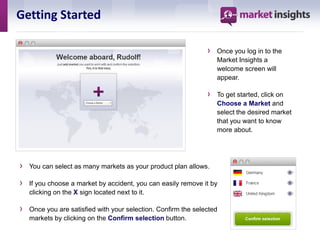
                                                                ›   Once you log in to the
                                                                    Market Insights a
                                                                    welcome screen will
                                                                    appear.

                                                                ›   To get started, click on
                                                                    Choose a Market and
                                                                    select the desired market
                                                                    that you want to know
                                                                    more about.


›   You can select as many markets as your product plan allows.

›   If you choose a market by accident, you can easily remove it by
    clicking on the X sign located next to it.

›   Once you are satisfied with your selection. Confirm the selected
    markets by clicking on the Confirm selection button.
Selected Markets

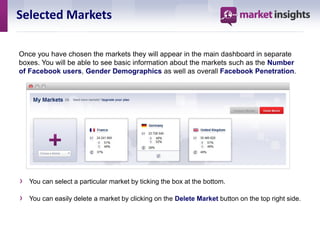
Once you have chosen the markets they will appear in the main dashboard in separate
boxes. You will be able to see basic information about the markets such as the Number
of Facebook users, Gender Demographics as well as overall Facebook Penetration.


›   You can select a particular market by ticking the box at the bottom.

›   You can easily delete a market by clicking on the Delete Market button on the top right side.
Comparing Markets

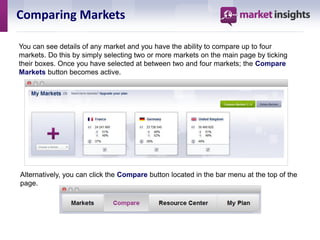
You can see details of any market and you have the ability to compare up to four
markets. Do this by simply selecting two or more markets on the main page by ticking
their boxes. Once you have selected at between two and four markets; the Compare
Markets button becomes active.


Alternatively, you can click the Compare button located in the bar menu at the top of the
page.
Comparing Markets


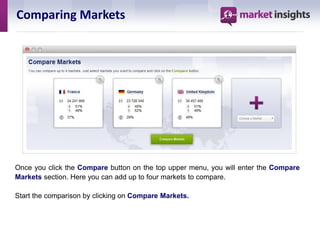
Once you click the Compare button on the top upper menu, you will enter the Compare
Markets section. Here you can add up to four markets to compare.

Start the comparison by clicking on Compare Markets.
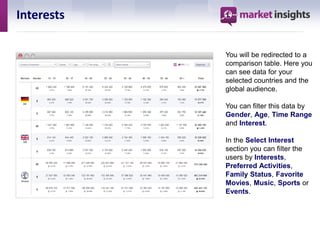
Interests

            You will be redirected to a
            comparison table. Here you
            can see data for your
            selected countries and the
            global audience.

            You can filter this data by
            Gender, Age, Time Range
            and Interest.

            In the Select Interest
            section you can filter the
            users by Interests,
            Preferred Activities,
            Family Status, Favorite
            Movies, Music, Sports or
            Events.
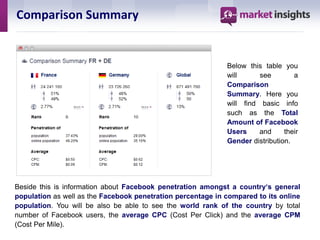
Comparison Summary


                                                             Below this table you
                                                             will      see        a
                                                             Comparison
                                                             Summary. Here you
                                                             will find basic info
                                                             such as the Total
                                                             Amount of Facebook
                                                             Users     and     their
                                                             Gender distribution.


Beside this is information about Facebook penetration amongst a country‘s general
population as well as the Facebook penetration percentage in compared to its online
population. You will be also be able to see the world rank of the country by total
number of Facebook users, the average CPC (Cost Per Click) and the average CPM
(Cost Per Mile).
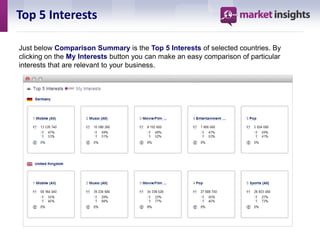
Top 5 Interests

Just below Comparison Summary is the Top 5 Interests of selected countries. By
clicking on the My Interests button you can make an easy comparison of particular
interests that are relevant to your business.
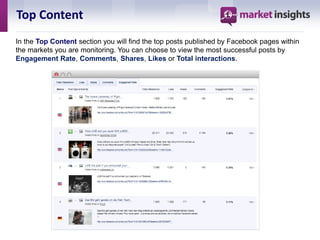
Top Content
In the Top Content section you will find the top posts published by Facebook pages within
the markets you are monitoring. You can choose to view the most successful posts by
Engagement Rate, Comments, Shares, Likes or Total interactions.
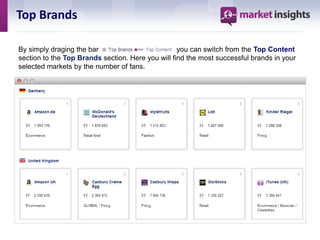
Top Brands

By simply draging the bar                          you can switch from the Top Content
section to the Top Brands section. Here you will find the most successful brands in your
selected markets by the number of fans.
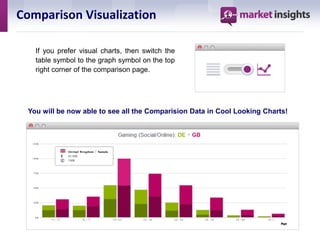
Comparison Visualization

   If you prefer visual charts, then switch the
   table symbol to the graph symbol on the top
   right corner of the comparison page.


 You will be now able to see all the Comparision Data in Cool Looking Charts!
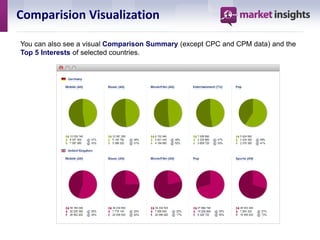
Comparision Visualization

You can also see a visual Comparison Summary (except CPC and CPM data) and the
Top 5 Interests of selected countries.
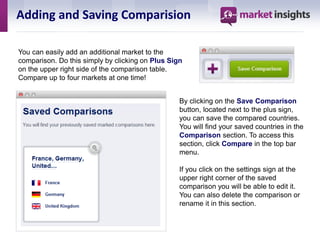
Adding and Saving Comparision

You can easily add an additional market to the
comparison. Do this simply by clicking on Plus Sign
on the upper right side of the comparison table.
Compare up to four markets at one time!


                                                  By clicking on the Save Comparison
                                                  button, located next to the plus sign,
                                                  you can save the compared countries.
                                                  You will find your saved countries in the
                                                  Comparison section. To access this
                                                  section, click Compare in the top bar
                                                  menu.

                                                  If you click on the settings sign at the
                                                  upper right corner of the saved
                                                  comparison you will be able to edit it.
                                                  You can also delete the comparison or
                                                  rename it in this section.
Export

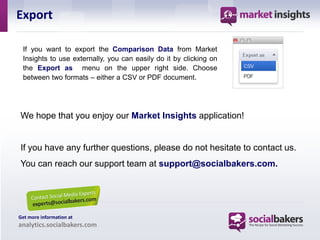
 If you want to export the Comparison Data from Market
 Insights to use externally, you can easily do it by clicking on
 the Export as menu on the upper right side. Choose
 between two formats – either a CSV or PDF document.


We hope that you enjoy our Market Insights application!


If you have any further questions, please do not hesitate to contact us.
You can reach our support team at support@socialbakers.com.


Get more information at
analytics.socialbakers.com

Socialbakers market-guide-final

  • 1.
  • 2.
    Getting Started › Once you log in to the Market Insights a welcome screen will appear. › To get started, click on Choose a Market and select the desired market that you want to know more about. › You can select as many markets as your product plan allows. › If you choose a market by accident, you can easily remove it by clicking on the X sign located next to it. › Once you are satisfied with your selection. Confirm the selected markets by clicking on the Confirm selection button.
  • 3.
    Selected Markets Once youhave chosen the markets they will appear in the main dashboard in separate boxes. You will be able to see basic information about the markets such as the Number of Facebook users, Gender Demographics as well as overall Facebook Penetration. › You can select a particular market by ticking the box at the bottom. › You can easily delete a market by clicking on the Delete Market button on the top right side.
  • 4.
    Comparing Markets You cansee details of any market and you have the ability to compare up to four markets. Do this by simply selecting two or more markets on the main page by ticking their boxes. Once you have selected at between two and four markets; the Compare Markets button becomes active. Alternatively, you can click the Compare button located in the bar menu at the top of the page.
  • 5.
    Comparing Markets Once youclick the Compare button on the top upper menu, you will enter the Compare Markets section. Here you can add up to four markets to compare. Start the comparison by clicking on Compare Markets.
  • 6.
    Interests You will be redirected to a comparison table. Here you can see data for your selected countries and the global audience. You can filter this data by Gender, Age, Time Range and Interest. In the Select Interest section you can filter the users by Interests, Preferred Activities, Family Status, Favorite Movies, Music, Sports or Events.
  • 7.
    Comparison Summary Below this table you will see a Comparison Summary. Here you will find basic info such as the Total Amount of Facebook Users and their Gender distribution. Beside this is information about Facebook penetration amongst a country‘s general population as well as the Facebook penetration percentage in compared to its online population. You will be also be able to see the world rank of the country by total number of Facebook users, the average CPC (Cost Per Click) and the average CPM (Cost Per Mile).
  • 8.
    Top 5 Interests Justbelow Comparison Summary is the Top 5 Interests of selected countries. By clicking on the My Interests button you can make an easy comparison of particular interests that are relevant to your business.
  • 9.
    Top Content In theTop Content section you will find the top posts published by Facebook pages within the markets you are monitoring. You can choose to view the most successful posts by Engagement Rate, Comments, Shares, Likes or Total interactions.
  • 10.
    Top Brands By simplydraging the bar you can switch from the Top Content section to the Top Brands section. Here you will find the most successful brands in your selected markets by the number of fans.
  • 11.
    Comparison Visualization If you prefer visual charts, then switch the table symbol to the graph symbol on the top right corner of the comparison page. You will be now able to see all the Comparision Data in Cool Looking Charts!
  • 12.
    Comparision Visualization You canalso see a visual Comparison Summary (except CPC and CPM data) and the Top 5 Interests of selected countries.
  • 13.
    Adding and SavingComparision You can easily add an additional market to the comparison. Do this simply by clicking on Plus Sign on the upper right side of the comparison table. Compare up to four markets at one time! By clicking on the Save Comparison button, located next to the plus sign, you can save the compared countries. You will find your saved countries in the Comparison section. To access this section, click Compare in the top bar menu. If you click on the settings sign at the upper right corner of the saved comparison you will be able to edit it. You can also delete the comparison or rename it in this section.
  • 14.
    Export If youwant to export the Comparison Data from Market Insights to use externally, you can easily do it by clicking on the Export as menu on the upper right side. Choose between two formats – either a CSV or PDF document. We hope that you enjoy our Market Insights application! If you have any further questions, please do not hesitate to contact us. You can reach our support team at support@socialbakers.com. Get more information at analytics.socialbakers.com