Migrate to SharePoint 2010 – Stress Free!Nick Kellett, CTO
AgendaA Little HistoryCommon Migration PainsSharePoint 2010 Technical ChangesGovernanceMigration OptionsMigration Tools and UtilitiesThe Migration ProcessRecommendations
A Little History2003 to 2007 MigrationOptions: In Place, Gradual, Database MigrationCommon problems: Customizations and unghostedPagesArchitecture changesOOTB migration wasn’t granular enoughThird party tools
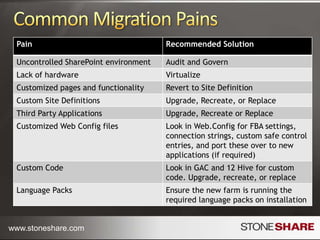
Common Migration Problems
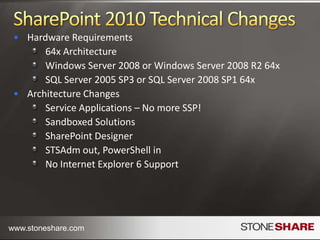
SharePoint Technical ChangesHardware Requirements64x ArchitectureWindows Server 2008 or Windows Server 2008 R2 64xSQL Server 2005 SP3 or SQL Server 2008 SP1 64xArchitecture ChangesService Applications – No more SSP!Sandboxed SolutionsSharePoint DesignerSTSAdm out, PowerShell inNo Internet Explorer 6 Support
Governance
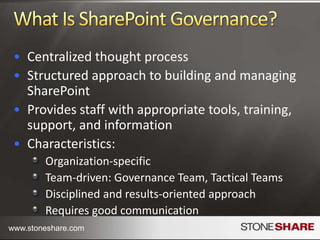
SharePoint GovernanceCentralized thought processStructured approach to building and managing SharePointProvides staff with appropriate tools, training, support, and informationCharacteristics:Organization-specificTeam-driven: Governance Team, Tactical TeamsDisciplined and results-oriented approachRequires good communication
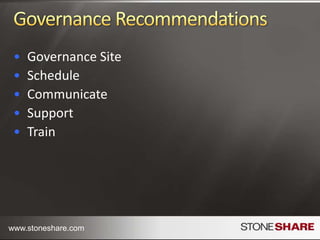
Governance RequirementsGovernance SiteCommunicationsPolicies and ProceduresTrainingSupportTaxonomyProject ScheduleCommunicationSupportTraining
Best PracticesIdeally Governance Predates SharePointBuild a Governance PortalCommunicate Frequently Identify and Support ChampionsEvergreen your process
Migration Options
Migration OptionsTypes of Migration:Content / DataFunctionalityContent Migration OptionsIn PlaceDatabase AttachHybridOption 1 - Read-only DatabasesOption 2 - Parallel Databases
Migration Options – In PlaceUpgrades your existing farm (if 64x)Run Setup for SharePoint Server 2010 on Central Admin serverRun Setup on WFE and Application ServersRun the SharePoint Products and Technologies Configuration Wizard on Central Admin to update config db, services, content dbs. Timer updates all site collectionsRun Configuration Wizard on WFE and Application Servers
Migration Options – Database AttachInstall new 2010 FarmDetach all content databasesTake old farm offlineAttach content databases to new 2010 farmAutomatic upgrade process occurs
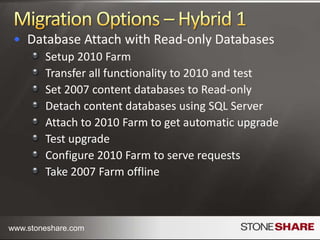
Migration Options – Hybrid 1Database Attach with Read-only DatabasesSetup 2010 FarmTransfer all functionality to 2010 and testSet 2007 content databases to Read-onlyDetach content databases using SQL ServerAttach to 2010 Farm to get automatic upgradeTest upgradeConfigure 2010 Farm to serve requestsTake 2007 Farm offline
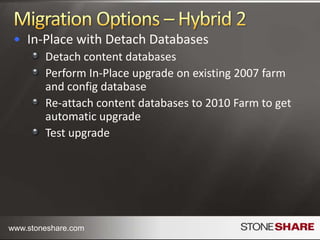
Migration Options – Hybrid 2In-Place with Detach DatabasesDetach content databasesPerform In-Place upgrade on existing 2007 farm and config databaseRe-attach content databases to 2010 Farm to get automatic upgradeTest upgrade
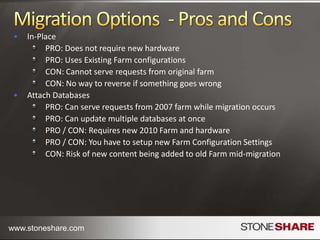
Migration Options – Pros and ConsIn-Place PRO: Does not require new hardwarePRO: Uses Existing Farm configurationsCON: Cannot serve requests from original farmCON: No way to reverse if something goes wrongAttach DatabasesPRO: Can serve requests from 2007 farm while migration occursPRO: Can update multiple databases at oncePRO / CON: Requires new 2010 Farm and hardwarePRO / CON: You have to setup new Farm Configuration SettingsCON: Risk of new content being added to old Farm mid-migration
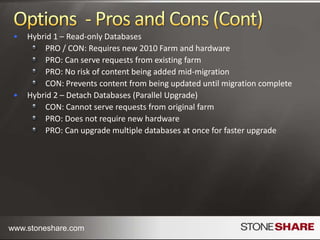
Migration Options – Pros and Cons (cont.)Hybrid 1 – Read-only DatabasesPRO / CON: Requires new 2010 Farm and hardwarePRO: Can serve requests from existing farmPRO: No risk of content being added mid-migrationCON: Prevents content from being updated until migration completeHybrid 2 – Detach Databases (In Place With Database Detach)CON: Cannot serve requests from original farmPRO: Does not require new hardwarePRO: Can upgrade multiple databases at once for faster upgrade
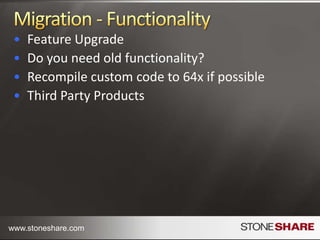
Migration Options – FunctionalityFeature UpgradeDo you need old functionality?Recompile custom code to 64x if possibleThird Party Products
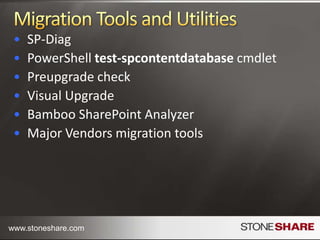
Migration Options – Tools & UtilitiesPreupgrade checkPowerShelltest-spcontentdatabasecmdletVisual UpgradeMajor Vendors migration toolsAdministrator and Vendor Utilities
Migration Process
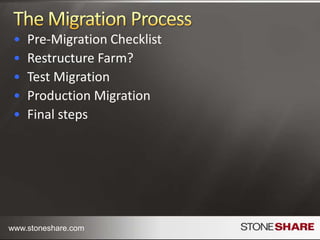
Migration ProcessRestructure Farm?Pre-Migration Checklist1…n Test MigrationsProduction MigrationFinal steps
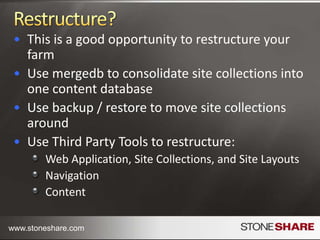
RestructuringThis is a good opportunity to restructure your farmUse mergedb to consolidate site collections into one content databaseUse backup / restore to move site collections aroundUse Third Party Tools to restructure:Web Application, Site Collections, and Site LayoutsNavigationContent
Migrate to 64x
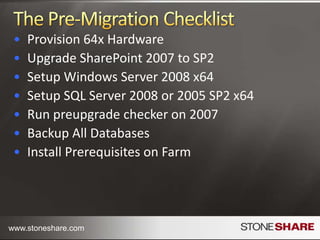
Pre-Migration Checklist(If not already using 64x)Provision 64x HardwareSetup Windows Server 2008 x64Setup SQL Server 2008 or 2005 SP2 x64Migrate SharePoint 2007 32x to 64x Upgrade SharePoint 2007 to SP2Run preupgrade checker on 2007Backup All DatabasesInstall All 2010 Prerequisites
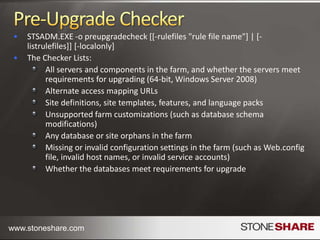
Pre-Upgrade CheckerSTSADM.EXE -o preupgradecheck [[-rulefiles "rule file name"] | [-listrulefiles]] [-localonly]The Checker Lists:All servers and components in the farmWhether the servers and db can be upgradedAlternate access mapping URLsSite definitions, site templates, features, language packsMissing or invalid configuration (such as Web.config file, invalid host names, or invalid service accounts)Unsupported farm customizations (such as database schema modifications)Database or site orphans
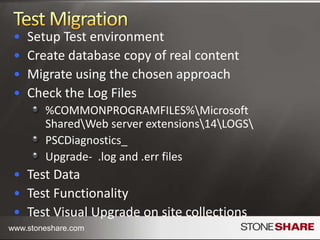
1..n Test MigrationsSetup Test environmentCreate database copy of real contentMigrate using the chosen approachCheck the Log Files%COMMONPROGRAMFILES%\Microsoft Shared\Web server extensions\14\LOGS\PSCDiagnostics_Upgrade-  .log and .err filesTest Data and FunctionalityTest Visual Upgrade on site collectionsIdentify and fix problems
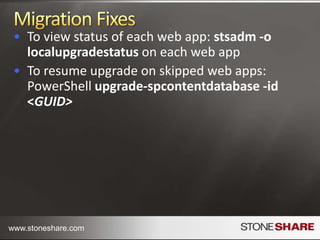
Migration FixesTurn off features or functionality you don’t needDelete orphansstsadm -o databaserepair -url http://<URL_of_WindowsSharePointServices_Site> -databasename <name of database that contains the orphan item> [-deletecorruption]To view status of each web app:stsadm -o localupgradestatuson each web appTo resume upgrade on skipped web apps:PowerShellupgrade-spcontentdatabase -id <GUID>
Migration ProductionSetup production environmentMigrate using the chosen approachTest DataTest FunctionalityUse Visual Upgrade on site collectionsSwitch over requests to new farm (if required)
Migration RecommendationsPlan and Govern EarlyAudit your content and functionalityConsider restructuringVirtualizeBuild SharePoint 2010 Farm for testingTest with copy of real content Deploy all functionality to test farmPreferred Option: Hybrid Migration – Read-only Databases“Best of the worst” options: Hybrid 2 – Parallel Database Detach
Wrapup
Migration ResourcesUpgrade and Migration Resource Center for Microsoft SharePoint Server 2010 (http://technet.microsoft.com/en-us/sharepoint/ee517214.aspx)Jie Li’s Blog: Upgrade Prerequisites Links: (http://blogs.msdn.com/opal/archive/2009/10/25/sharepoint-2010-pre-requisites-download-links.aspx)Migrating an Existing 2007 Farm to 64x: (http://technet.microsoft.com/en-us/library/dd622865.aspx?ppud=4)
Questions?Email: nkellett@stoneshare.comBlog: http://planetmoss.blogspot.comwww.linkedin.com/in/nicholaskellettwww.stoneshare.com

SharePoint 2010 Migration Presentation

  • 1.
    Migrate to SharePoint2010 – Stress Free!Nick Kellett, CTO
  • 2.
    AgendaA Little HistoryCommonMigration PainsSharePoint 2010 Technical ChangesGovernanceMigration OptionsMigration Tools and UtilitiesThe Migration ProcessRecommendations
  • 3.
    A Little History2003to 2007 MigrationOptions: In Place, Gradual, Database MigrationCommon problems: Customizations and unghostedPagesArchitecture changesOOTB migration wasn’t granular enoughThird party tools
  • 4.
  • 5.
    SharePoint Technical ChangesHardwareRequirements64x ArchitectureWindows Server 2008 or Windows Server 2008 R2 64xSQL Server 2005 SP3 or SQL Server 2008 SP1 64xArchitecture ChangesService Applications – No more SSP!Sandboxed SolutionsSharePoint DesignerSTSAdm out, PowerShell inNo Internet Explorer 6 Support
  • 6.
  • 7.
    SharePoint GovernanceCentralized thoughtprocessStructured approach to building and managing SharePointProvides staff with appropriate tools, training, support, and informationCharacteristics:Organization-specificTeam-driven: Governance Team, Tactical TeamsDisciplined and results-oriented approachRequires good communication
  • 8.
    Governance RequirementsGovernance SiteCommunicationsPoliciesand ProceduresTrainingSupportTaxonomyProject ScheduleCommunicationSupportTraining
  • 9.
    Best PracticesIdeally GovernancePredates SharePointBuild a Governance PortalCommunicate Frequently Identify and Support ChampionsEvergreen your process
  • 10.
  • 11.
    Migration OptionsTypes ofMigration:Content / DataFunctionalityContent Migration OptionsIn PlaceDatabase AttachHybridOption 1 - Read-only DatabasesOption 2 - Parallel Databases
  • 12.
    Migration Options –In PlaceUpgrades your existing farm (if 64x)Run Setup for SharePoint Server 2010 on Central Admin serverRun Setup on WFE and Application ServersRun the SharePoint Products and Technologies Configuration Wizard on Central Admin to update config db, services, content dbs. Timer updates all site collectionsRun Configuration Wizard on WFE and Application Servers
  • 13.
    Migration Options –Database AttachInstall new 2010 FarmDetach all content databasesTake old farm offlineAttach content databases to new 2010 farmAutomatic upgrade process occurs
  • 14.
    Migration Options –Hybrid 1Database Attach with Read-only DatabasesSetup 2010 FarmTransfer all functionality to 2010 and testSet 2007 content databases to Read-onlyDetach content databases using SQL ServerAttach to 2010 Farm to get automatic upgradeTest upgradeConfigure 2010 Farm to serve requestsTake 2007 Farm offline
  • 15.
    Migration Options –Hybrid 2In-Place with Detach DatabasesDetach content databasesPerform In-Place upgrade on existing 2007 farm and config databaseRe-attach content databases to 2010 Farm to get automatic upgradeTest upgrade
  • 16.
    Migration Options –Pros and ConsIn-Place PRO: Does not require new hardwarePRO: Uses Existing Farm configurationsCON: Cannot serve requests from original farmCON: No way to reverse if something goes wrongAttach DatabasesPRO: Can serve requests from 2007 farm while migration occursPRO: Can update multiple databases at oncePRO / CON: Requires new 2010 Farm and hardwarePRO / CON: You have to setup new Farm Configuration SettingsCON: Risk of new content being added to old Farm mid-migration
  • 17.
    Migration Options –Pros and Cons (cont.)Hybrid 1 – Read-only DatabasesPRO / CON: Requires new 2010 Farm and hardwarePRO: Can serve requests from existing farmPRO: No risk of content being added mid-migrationCON: Prevents content from being updated until migration completeHybrid 2 – Detach Databases (In Place With Database Detach)CON: Cannot serve requests from original farmPRO: Does not require new hardwarePRO: Can upgrade multiple databases at once for faster upgrade
  • 18.
    Migration Options –FunctionalityFeature UpgradeDo you need old functionality?Recompile custom code to 64x if possibleThird Party Products
  • 19.
    Migration Options –Tools & UtilitiesPreupgrade checkPowerShelltest-spcontentdatabasecmdletVisual UpgradeMajor Vendors migration toolsAdministrator and Vendor Utilities
  • 20.
  • 21.
    Migration ProcessRestructure Farm?Pre-MigrationChecklist1…n Test MigrationsProduction MigrationFinal steps
  • 22.
    RestructuringThis is agood opportunity to restructure your farmUse mergedb to consolidate site collections into one content databaseUse backup / restore to move site collections aroundUse Third Party Tools to restructure:Web Application, Site Collections, and Site LayoutsNavigationContent
  • 23.
  • 24.
    Pre-Migration Checklist(If notalready using 64x)Provision 64x HardwareSetup Windows Server 2008 x64Setup SQL Server 2008 or 2005 SP2 x64Migrate SharePoint 2007 32x to 64x Upgrade SharePoint 2007 to SP2Run preupgrade checker on 2007Backup All DatabasesInstall All 2010 Prerequisites
  • 25.
    Pre-Upgrade CheckerSTSADM.EXE -opreupgradecheck [[-rulefiles "rule file name"] | [-listrulefiles]] [-localonly]The Checker Lists:All servers and components in the farmWhether the servers and db can be upgradedAlternate access mapping URLsSite definitions, site templates, features, language packsMissing or invalid configuration (such as Web.config file, invalid host names, or invalid service accounts)Unsupported farm customizations (such as database schema modifications)Database or site orphans
  • 26.
    1..n Test MigrationsSetupTest environmentCreate database copy of real contentMigrate using the chosen approachCheck the Log Files%COMMONPROGRAMFILES%\Microsoft Shared\Web server extensions\14\LOGS\PSCDiagnostics_Upgrade- .log and .err filesTest Data and FunctionalityTest Visual Upgrade on site collectionsIdentify and fix problems
  • 27.
    1..n Test MigrationsSetupTest environmentCreate database copy of real contentMigrate using the chosen approachCheck the Log Files%COMMONPROGRAMFILES%\Microsoft Shared\Web server extensions\14\LOGS\PSCDiagnostics_Upgrade- .log and .err filesTest Data and FunctionalityTest Visual Upgrade on site collectionsIdentify and fix problems
  • 28.
    Migration FixesTurn offfeatures or functionality you don’t needDelete orphansstsadm -o databaserepair -url http://<URL_of_WindowsSharePointServices_Site> -databasename <name of database that contains the orphan item> [-deletecorruption]To view status of each web app:stsadm -o localupgradestatuson each web appTo resume upgrade on skipped web apps:PowerShellupgrade-spcontentdatabase -id <GUID>
  • 29.
    Migration FixesTurn offfeatures or functionality you don’t needDelete orphansstsadm -o databaserepair -url http://<URL_of_WindowsSharePointServices_Site> -databasename <name of database that contains the orphan item> [-deletecorruption]To view status of each web app:stsadm -o localupgradestatuson each web appTo resume upgrade on skipped web apps:PowerShellupgrade-spcontentdatabase -id <GUID>
  • 30.
    Migration ProductionSetup productionenvironmentMigrate using the chosen approachTest DataTest FunctionalityUse Visual Upgrade on site collectionsSwitch over requests to new farm (if required)
  • 31.
    Migration RecommendationsPlan andGovern EarlyAudit your content and functionalityConsider restructuringVirtualizeBuild SharePoint 2010 Farm for testingTest with copy of real content Deploy all functionality to test farmPreferred Option: Hybrid Migration – Read-only Databases“Best of the worst” options: Hybrid 2 – Parallel Database Detach
  • 32.
  • 33.
    Migration ResourcesUpgrade andMigration Resource Center for Microsoft SharePoint Server 2010 (http://technet.microsoft.com/en-us/sharepoint/ee517214.aspx)Jie Li’s Blog: Upgrade Prerequisites Links: (http://blogs.msdn.com/opal/archive/2009/10/25/sharepoint-2010-pre-requisites-download-links.aspx)Migrating an Existing 2007 Farm to 64x: (http://technet.microsoft.com/en-us/library/dd622865.aspx?ppud=4)
  • 34.

Editor's Notes

  • #18 # After the server administrator performs all pre-upgrade steps, the administrator runs Setup for SharePoint Server 2010 on the server that hosts the SharePoint Central Administration Web site. Because the previous version was installed, an in-place upgrade is automatically selected.# After Setup runs on the server that hosts the Central Administration Web site, the server administrator runs Setup on the remaining front-end Web servers and application servers in the farm.# The server administrator runs the SharePoint Products and Technologies Configuration Wizard on the server that hosts the Central Administration Web site. This server, the configuration database, the services, and the content databases are upgraded sequentially.When the configuration wizard finishes, the Central Administration Web site opens. A timer job schedules the upgrade process to run for each site collection. The upgrade process timer job upgrades each site collection. After all sites are upgraded, the upgrade process ends.# The server administrator runs the SharePoint Products and Technologies Configuration Wizard on all the other servers in the farm.
  • #19 A database attach upgrade enables you to move to new hardware or a new farm. During a database attach upgrade, you detach all the content databases from an existing farm and then attach the databases to a new server farm installation. When you attach the databases to the new server farm, the upgrade process runs and upgrades the data in place.The following steps explain what happens during a database attach upgrade:The server administrator sets up and configures a new SharePoint Server 2010 farm. The administrator transfers all customizations to the new farm and tests the environment.For more information about configuring the new environment, see Prepare the new SharePoint Server 2010 environment for a database attach upgrade.The server administrator detaches the content databases from the old Office SharePoint Server 2007 farm and takes the old farm offline (for example, by changing the load balancer or IIS Web applications to stop service requests, or by turning off all of the components and services on each server computer in the farm).The server administrator attaches the content databases to the new farm and upgrades the content.The server administrator confirms that the upgrade has finished successfully and then configures the new farm to start serving requests at the new URL.
  • #20 This approach gives users continuous read-only access to their data while you are upgrading. The content databases in the original farm are set to read-only, and copies of the databases are upgraded on a new farm. The following steps explain what happens during a database attach upgrade with read-only databases:The server administrator sets up and configures a new SharePoint Server 2010 farm. The administrator transfers all customizations to the new farm and tests the environment.The server administrator changes the content databases to read-only. The administrator then uses SQL Server to back up the content databases on the Office SharePoint Server 2007 farm and restore them to the new farm.The server administrator attaches the new copies of the content databases, and the upgrade process runs and upgrades the content.After the upgrade process runs, the server administrator confirms that the upgrade has finished successfully. The administrator then configures the new farm to start serving requests at the new URL and takes the original farm offline (for example, by changing the load balancer or IIS Web applications to stop service requests, or by turning off all of the components and services on each server computer in the farm).
  • #21 This approach enables you to speed up the upgrade process by detaching and attaching databases to upgrade multiple databases at the same time. It is an in-place upgrade because you are upgrading the original farm; however, you can also use another farm to perform the upgrade and then attach the upgraded databases to your original farm. Note that the original farm cannot serve requests during the upgrade process. As in a standard in-place upgrade, users cannot access their content while the upgrade is in progress.The following steps explain what happens during an in-place upgrade with detached databases:The server administrator takes the original farm offline (for example, by changing the load balancer or IIS Web applications to stop service requests, or by turning off all of the components and services on each server computer in the farm).The server administrator detaches the content databases from the original farm.The server administrator runs an in-place upgrade on the original farm servers, services, and configuration database.The server administrator attaches the content databases to the original farm and upgrades the content.Alternatively, you can use a separate, temporary small farm to perform the upgrade. In this approach, you attach the databases to the original farm after they have been upgraded.The following steps explain what happens during an in-place upgrade with detached databases and a temporary small farm to upgrade the content databases:The server administrator sets up a temporary small farm that is running the new version. Then the administrator takes the original farm offline (for example, by changing the load balancer or IIS Web applications to stop service requests, or by turning off all of the components and services on each server computer in the farm).The server administrator detaches the content databases from the original farm.The server administrator runs an in-place upgrade on the original farm to upgrade the servers, services, and configuration database.The server administrator attaches the content databases to the temporary small farm and upgrades them in parallel.The server administrator reattaches the content databases to the original farm.The server administrator confirms that the upgrade has finished successfully.If Visual Upgrade is being used, the server administrator or site owner previews sites in the Microsoft SharePoint Server 2010 look. When the administrator or site owner is ready, he or she completes the change to the Microsoft SharePoint Server 2010 look.
  • #22 This approach enables you to speed up the upgrade process by detaching and attaching databases to upgrade multiple databases at the same time. It is an in-place upgrade because you are upgrading the original farm; however, you can also use another farm to perform the upgrade and then attach the upgraded databases to your original farm. Note that the original farm cannot serve requests during the upgrade process. As in a standard in-place upgrade, users cannot access their content while the upgrade is in progress.The following steps explain what happens during an in-place upgrade with detached databases:The server administrator takes the original farm offline (for example, by changing the load balancer or IIS Web applications to stop service requests, or by turning off all of the components and services on each server computer in the farm).The server administrator detaches the content databases from the original farm.The server administrator runs an in-place upgrade on the original farm servers, services, and configuration database.The server administrator attaches the content databases to the original farm and upgrades the content.Alternatively, you can use a separate, temporary small farm to perform the upgrade. In this approach, you attach the databases to the original farm after they have been upgraded.The following steps explain what happens during an in-place upgrade with detached databases and a temporary small farm to upgrade the content databases:The server administrator sets up a temporary small farm that is running the new version. Then the administrator takes the original farm offline (for example, by changing the load balancer or IIS Web applications to stop service requests, or by turning off all of the components and services on each server computer in the farm).The server administrator detaches the content databases from the original farm.The server administrator runs an in-place upgrade on the original farm to upgrade the servers, services, and configuration database.The server administrator attaches the content databases to the temporary small farm and upgrades them in parallel.The server administrator reattaches the content databases to the original farm.The server administrator confirms that the upgrade has finished successfully.If Visual Upgrade is being used, the server administrator or site owner previews sites in the Microsoft SharePoint Server 2010 look. When the administrator or site owner is ready, he or she completes the change to the Microsoft SharePoint Server 2010 look.
  • #23 This approach enables you to speed up the upgrade process by detaching and attaching databases to upgrade multiple databases at the same time. It is an in-place upgrade because you are upgrading the original farm; however, you can also use another farm to perform the upgrade and then attach the upgraded databases to your original farm. Note that the original farm cannot serve requests during the upgrade process. As in a standard in-place upgrade, users cannot access their content while the upgrade is in progress.The following steps explain what happens during an in-place upgrade with detached databases:The server administrator takes the original farm offline (for example, by changing the load balancer or IIS Web applications to stop service requests, or by turning off all of the components and services on each server computer in the farm).The server administrator detaches the content databases from the original farm.The server administrator runs an in-place upgrade on the original farm servers, services, and configuration database.The server administrator attaches the content databases to the original farm and upgrades the content.Alternatively, you can use a separate, temporary small farm to perform the upgrade. In this approach, you attach the databases to the original farm after they have been upgraded.The following steps explain what happens during an in-place upgrade with detached databases and a temporary small farm to upgrade the content databases:The server administrator sets up a temporary small farm that is running the new version. Then the administrator takes the original farm offline (for example, by changing the load balancer or IIS Web applications to stop service requests, or by turning off all of the components and services on each server computer in the farm).The server administrator detaches the content databases from the original farm.The server administrator runs an in-place upgrade on the original farm to upgrade the servers, services, and configuration database.The server administrator attaches the content databases to the temporary small farm and upgrades them in parallel.The server administrator reattaches the content databases to the original farm.The server administrator confirms that the upgrade has finished successfully.If Visual Upgrade is being used, the server administrator or site owner previews sites in the Microsoft SharePoint Server 2010 look. When the administrator or site owner is ready, he or she completes the change to the Microsoft SharePoint Server 2010 look.