Shared Element
Transitions
GDG Leeds - February 2017
Mike Scamell
What are Shared Element
Transitions?
Google Play Music
Plaid
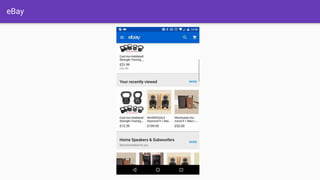
eBay
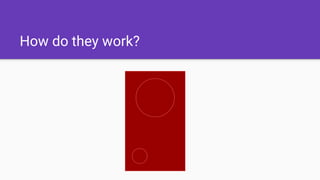
How do they work?
Why should I use them?
Material motion
Focal point
Hint
Distraction
Refined
Easy to implement
Can be used with image loading libs
SHOW ME THE DAMN CODE! 😠
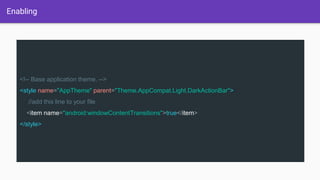
Enabling
<!-- Base application theme. -->
<style name="AppTheme" parent="Theme.AppCompat.Light.DarkActionBar">
//add this line to your file
<item name="android:windowContentTransitions">true</item>
</style>
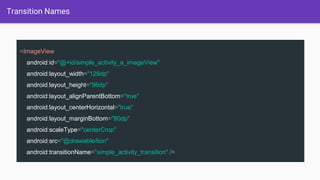
Transition Names
<ImageView
android:id="@+id/simple_activity_a_imageView"
android:layout_width="128dp"
android:layout_height="96dp"
android:layout_alignParentBottom="true"
android:layout_centerHorizontal="true"
android:layout_marginBottom="80dp"
android:scaleType="centerCrop"
android:src="@drawable/lion"
android:transitionName="simple_activity_transition" />
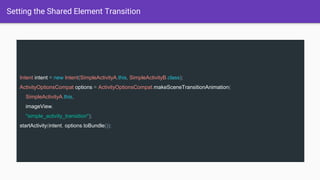
Setting the Shared Element Transition
Intent intent = new Intent(SimpleActivityA.this, SimpleActivityB.class);
ActivityOptionsCompat options = ActivityOptionsCompat.makeSceneTransitionAnimation(
SimpleActivityA.this,
imageView,
"simple_activity_transition");
startActivity(intent, options.toBundle());
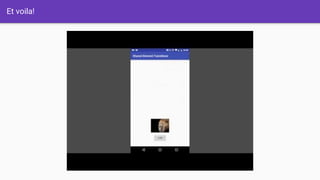
Et voila!
Gotchas?
White flashing
Nav bar, Status bar
Picasso
May need to exclude other views
Large images
Standing on the shoulders of giants
Articles
https://medium.com/@bherbst/fragment-transitions-with-shared-elements-
7c7d71d31cbb#.lry08ybje
http://www.androidauthority.com/using-shared-element-transitions-activities-fragments-
631996/
https://guides.codepath.com/android/Shared-Element-Activity-Transition
https://developer.android.com/training/material/animations.html
Fixes
https://plus.google.com/+AlexLockwood/posts/RPtwZ5nNebb
Thank you
https://github.com/mikescamell/shared-element-transitions
http://mikescamell.com/shared-element-transitions-part-1
@mikescamell

Shared Element Transitions

Editor's Notes

  • #3 A Shared Element Transition is when a view or views of the current screen transition to a new screen in a seamless manner. The screens are typically Activities or Fragments and while any view can be a Shared Element, most typically they are ImageViews, Buttons and TextViews. I had a hard time finding some examples that were not by Google or related. SETs are underutilised and maybe that's intentional by some apps, but I’ve seen a lot of instances where they make sense and haven’t been used. Hopefully I can change that! You may also see them in a future Sky app but that’s as much as I can say. So here’s a few examples.
  • #4 Here we have an SET in Google Play Music. As you can see the album art ImageView transitions from what i can only guess is a RecyclerView with a GridLayout to a large ImageView that is most likely part of an AppBar. I would guess that this is probably an Activity to Activity SET.
  • #5 Here’s another Plaid by Nick Butcher. This app is a treasure trove of animations and transitions and it’s definitely worth checking out the source code on github. In this example we see the Dribbble creators avatar transitioning to the main focus of a detail screen about their work. This is an Activity to Activity SET with a custom slide up transition for the entering activity which is how everything comes up from the bottom.
  • #6 Lastly we have eBay which is similar to Google Play Music. Again it looks like an Activity to Activity but notice how they missed or opted not to return the kettlebell picture back into the list.
  • #7 So how do they work? Let’s take an Activity to Activity as an example. So everything that happens with the shared element is actually happening in the Activity you’re launching into, not the current activity. Say Activity A has an image in it. When you tap the image you launch Activity B. We tap the image and Activity B loads itself transparently on screen. The framework does some calculations, finding out where the image is starting and where it's going to end, taking into consideration how it's being asked to do it (the type of transition). It creates an Animator using the differences which handles moving everything for you. The framework finally tells Activity A to hide it's shared element, runs the animator with Activity B's shared element which animates into it's final position while the rest of Activity B fades in over Activity A.
  • #8 Ok so why should you use SETs in your apps? SETs can be seen as one tool on providing Material motion which is part of the Material Design guidelines. Material motion is a set of guidelines on how things such as views should move within an app.Why did they feel it was necessary to make these guidelines? Motion has a lot of power in apps, it can: Provide a focal point for users when going from screen to screen Hint at what’s going to happen when a user completes a gesture Provide distraction from background processing Make the app refined They are also pretty easy to implement as we’ll see later. There’s not a lot of code needed and even within an existing app you’ll probably have a lot of places where a SET could be used. They can be used with 3rd party image loading libraries such as Picasso and Glide as we’ll see later. This means you can carry on using them and there caching mechanisms while still having the SET features. Finally, i think they look pretty awesome and you get some great reactions when people see them.
  • #9 Ok let’s get to it and i’ll show you an easy way to do them from Activity to Activity. I’m not going to show you the specific layout code for the activities, or lifecycle methods etc. but there’s a link at the end to a repo where you can pull the code and run it yourself.
  • #10 First of all you need to enable windowContentTransitions so that SETs work. SETs are only available on Lollipop on above, so if your app is supporting lower than this then you should be placing this in a styles-v21 folder.
  • #11  There are two ways of defining SETs. In your XML layout using the `transitionName` attribute or programatically by calling `setTransitionName()` on a `View`. We're going to be using the former as it's easier. First we need to set the `transitionName` on BOTH our `ImageView` in our XML layouts. This is so that the framework knows where we want our transitioning `ImageView` to go. I would advise entering the transition name into your strings file for easier reuse. Note also that this transitionName has to be unique on the screen to any others that you may have. Otherwise you’ll just confuse the framework and may get some weird results.
  • #12 Line 1 we're just creating an `Intent` that we're going to use to launch `Activity` B. In the second line were creating a options file with `ActivityOptionsCompat` from the support library. If you're supporting 21+ you can just use `ActivityOptions`. The `makeSceneTransitionAnimation()` creates our animation. We just have to pass it 3 things: The first is simply a `Context`. Secondly we need the `sharedElement`that is transitioning which is of type `View`. Finally the `sharedElementName` which is also the `transitionName` that we set on both our `View`s in our XML layouts. Note the last parameter should not be `null` even though it's possible to pass it in with no lint warnings :S We give it `SimpleActivityA.this` for our context (we're in the `OnClickListener` for the button remember). Next we pass in our `ImageView` that is transitioning. Finally we pass in our `transitionName` we set on the `View`s in our layouts, `"simple_activity_transition"`. In the last line we start our activity and add our `options` alongside it as a `Bundle`. Activity B needs little setup. As long as you have added the `transitionName` to the layout for it as well as set the SAME on the `ImageView` it should now just work :)
  • #14 For a majority of cases you’re going to want to include the status and navigation bar from the SET as it can cause some white flashing which you can see in my example. You can include them by adding every view as an object Pair, then using these Pairs when creating your ActivityOptions. You need to be careful with the Navigation bar, as some devices may not have one but hardware buttons instead. I also noticed flashing when using Picasso, and this was remedied by turning off the default fade animation that it applies to images when calling it’s load method. I found that it was necessary for me to sometimes include other things from the transition such AppBar and Toolbars. This was mostly trial and error but you’ll likely notice what isn’t working when viewing the transition. Sometimes for instance the toolbar would slide out and leave a horrible white space behind. If you’re setting a large image within XML then you may want to think about switching to Picasso or Glide so that you utilise caching and also get a callback when the image is ready to display. You probably don’t want to be using large images in your app anyway but just a warning as your transition may not be as smooth as you’d like.