Title: [2 Ways] Howto Set upVPN on Windows11 Stepby Step?
Keywords: howtosetupvpn on windows11,how to setup a vpn on windows11,windows11 vpn
setup,bestfree vpn touse windows11, windows11vpn setup
Description: Do you need a VPN on Windows 11? Do you know how to set up a VPN on Win11?
This article will give you a step-by-step guide.
URL: https://www.minitool.com/news/set-up-vpn-on-windows-11.html
Summary: This post created by MiniTool mainly teaches you how to build up a VPN for your new
Windows 11 operating system. It offers two methods for you to choose from and both solutions with
screenshots.
Windowschanges fromversion10 toversion11. The thingthat doesn’tchange isthatyou still need
a VPN (virtual private network) service if youwanttovisitwebsitesthatare restrictedbyInternet
access incertaindistrictsorif youdon’twant to be tracked.
How Does VPN Work?
The VPN extendsaprivate networkacrosspublicnetworkslike the Internet.Itallowsahost
computerto sendandreceive dataacross sharedor publicnetworksasif itisan integral part of the
private networkwithall the functionality,security,aswell asmanagementpoliciesof the private
network.
How to Set up VPN on Windows 11?
Most VPN serviceshave theirownappstoautomaticallycreate aVPN foryou.Yet, if youwant to set
it upmanuallybyyourself,youcanfollow the below guide.
Way 1. Windows 11 VPN Setup from Settings
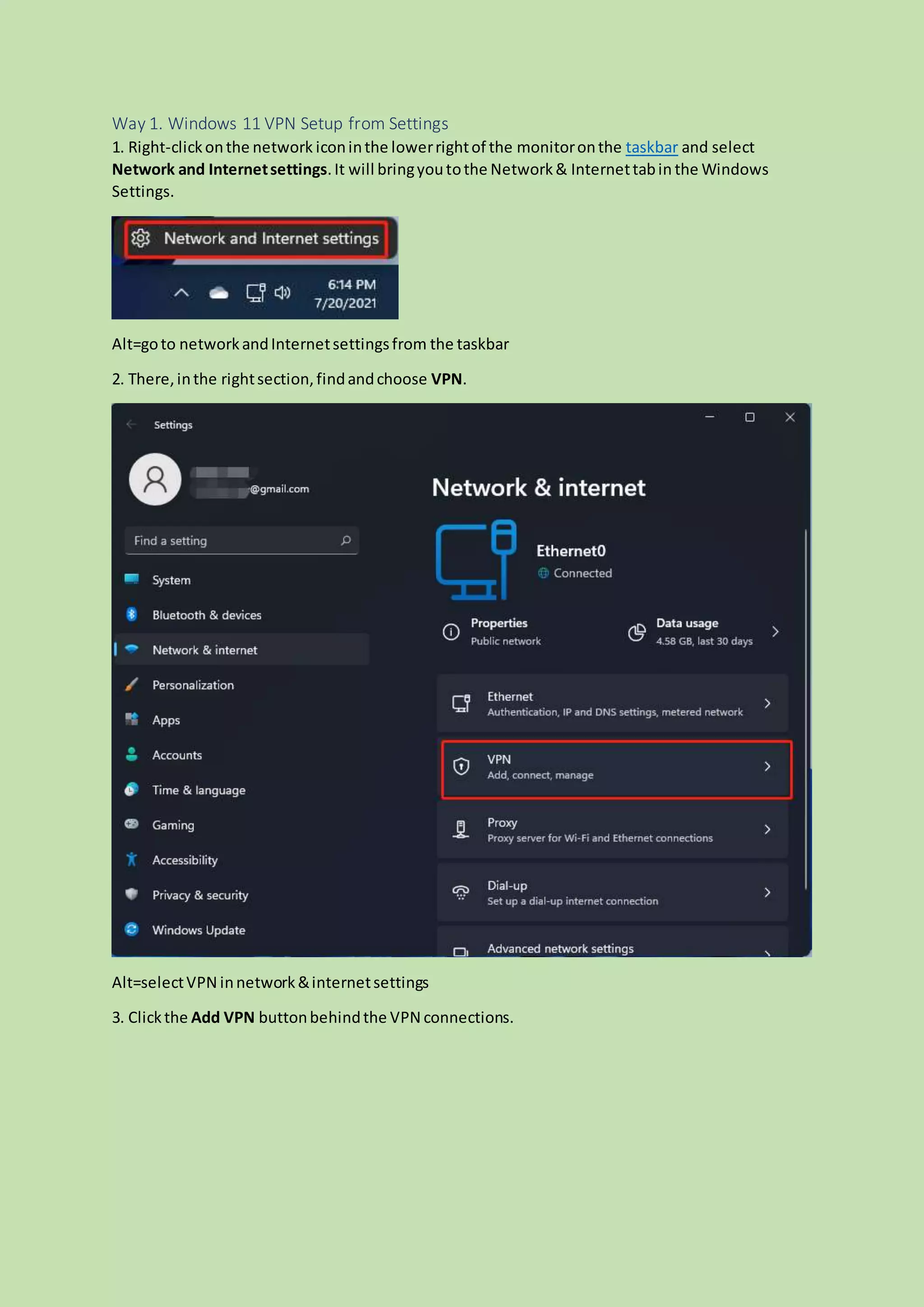
1. Right-clickonthe network iconinthe lowerrightof the monitoronthe taskbar and select
Network and Internetsettings.It will bringyoutothe Network& Internettabin the Windows
Settings.
Alt=goto networkandInternetsettingsfrom the taskbar
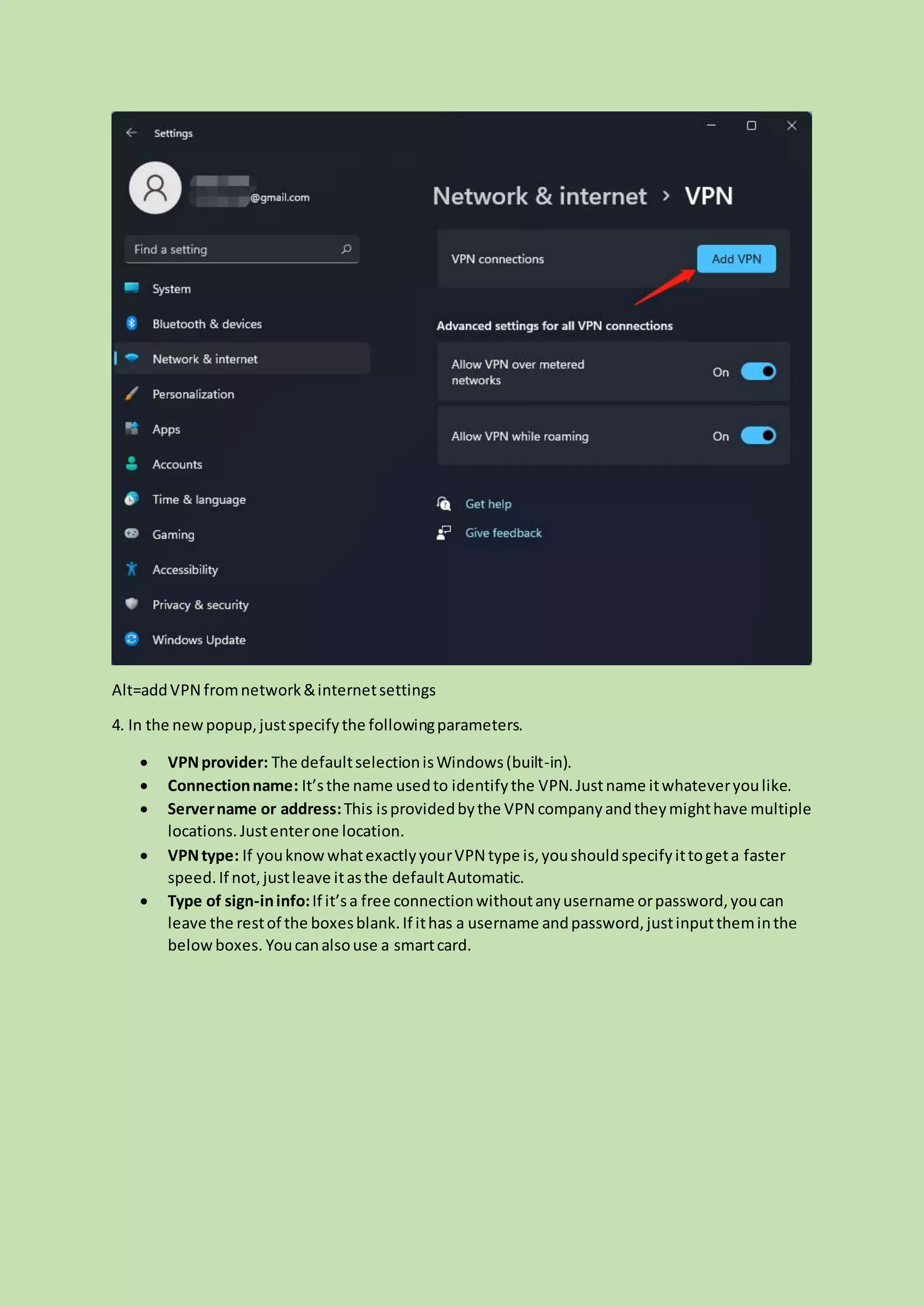
2. There,inthe rightsection,findandchoose VPN.
Alt=selectVPN innetwork&internetsettings
3. Clickthe Add VPN buttonbehindthe VPN connections.
Alt=addVPN fromnetwork&internetsettings
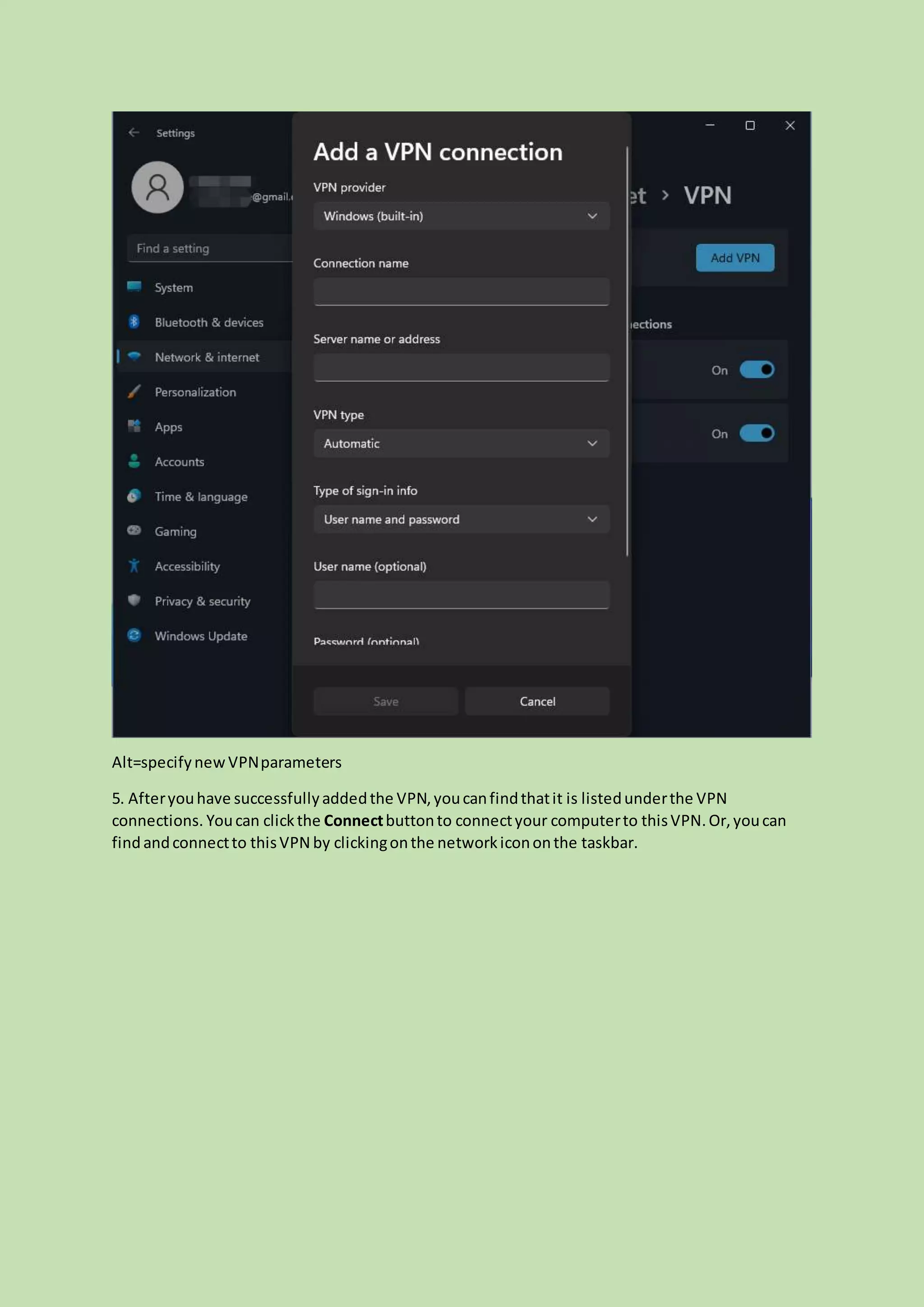
4. In the newpopup,justspecifythe followingparameters.
 VPNprovider: The defaultselectionisWindows(built-in).
 Connectionname: It’sthe name usedto identifythe VPN.Justname itwhateveryoulike.
 Servername or address:This isprovidedbythe VPN companyandtheymighthave multiple
locations.Justenterone location.
 VPNtype: If youknowwhatexactlyyourVPN type is,youshouldspecifyittogeta faster
speed.If not,justleave itasthe defaultAutomatic.
 Type of sign-ininfo:If it’sa free connectionwithoutanyusername orpassword,youcan
leave the restof the boxesblank.If ithas a username andpassword,justinputtheminthe
belowboxes. Youcanalsouse a smartcard.
Alt=specifynew VPNparameters
5. Afteryouhave successfullyaddedthe VPN,youcanfindthatit is listedunderthe VPN
connections. Youcan clickthe Connectbuttonto connectyour computerto thisVPN.Or,youcan
findandconnectto thisVPN by clickingonthe networkicononthe taskbar.
Alt=connecttothe newlycreatedVPN
Also read: Howto Set Up a VPN on Your Windows10 PC [Full Guide]
Way 2. How to Set up a VPN on Windows 11 from Network and Sharing Center
1. Clickon the Start menuinthe centerof the taskbar andselect Settings.
2. In Windows11 Settings, choose Network& internetinthe leftpanel.
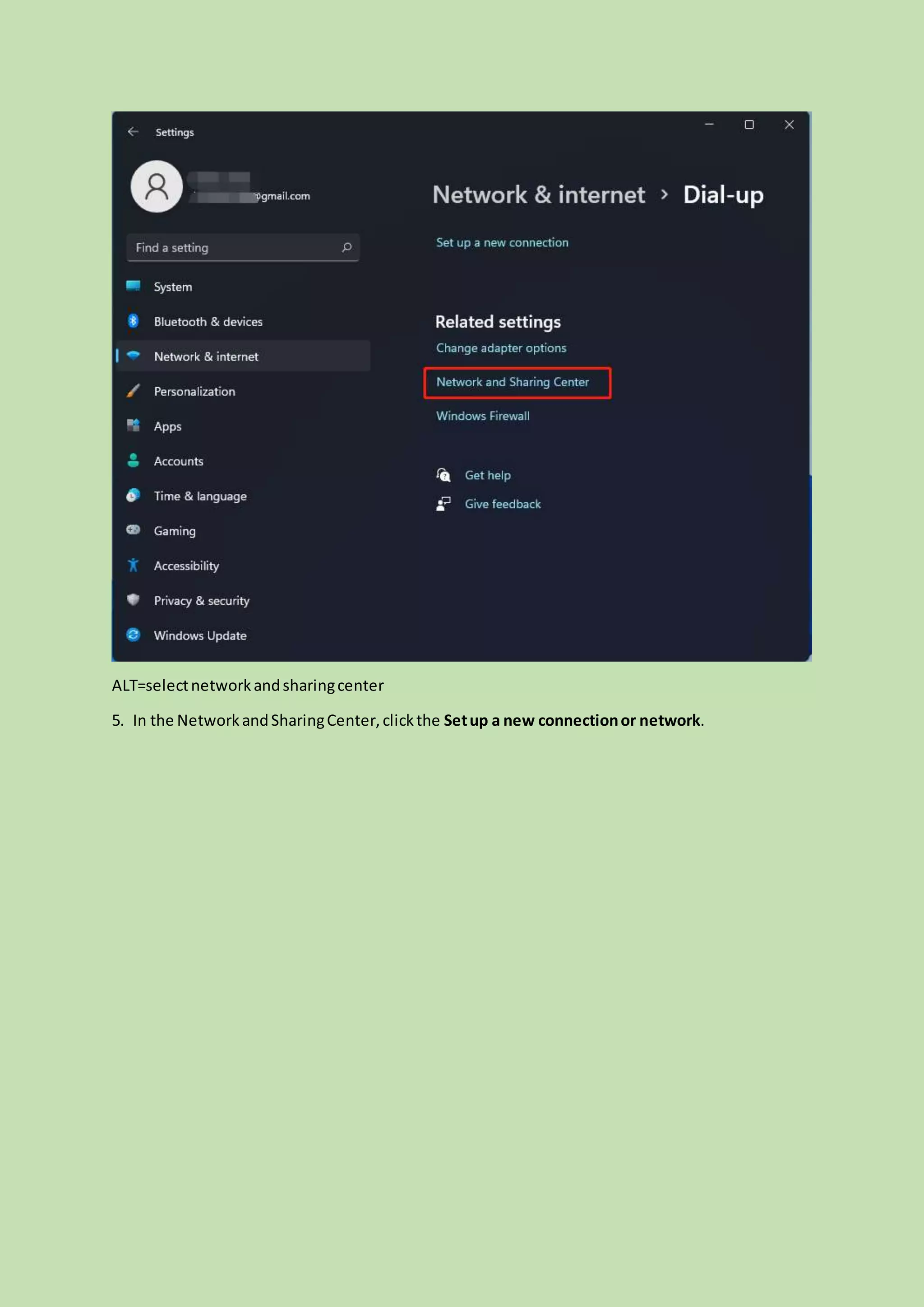
3. Move to the right part,scroll downto findandclick onthe Dial-upoption.
4. On the nextscreen, choose Networkand Sharing Center.
ALT=selectnetworkandsharingcenter
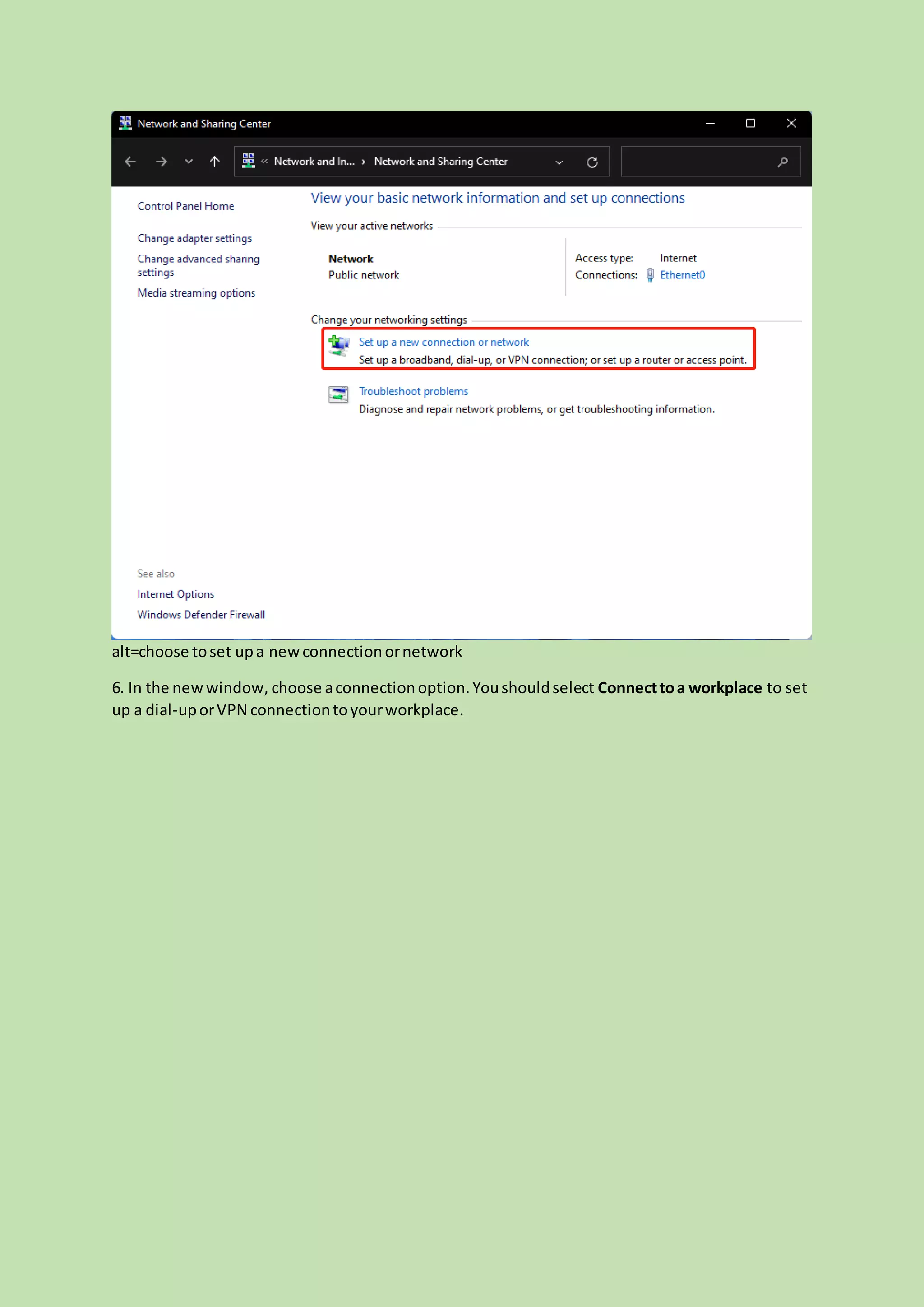
5. In the NetworkandSharingCenter,clickthe Setup a new connectionor network.
alt=choose toset upa newconnectionornetwork
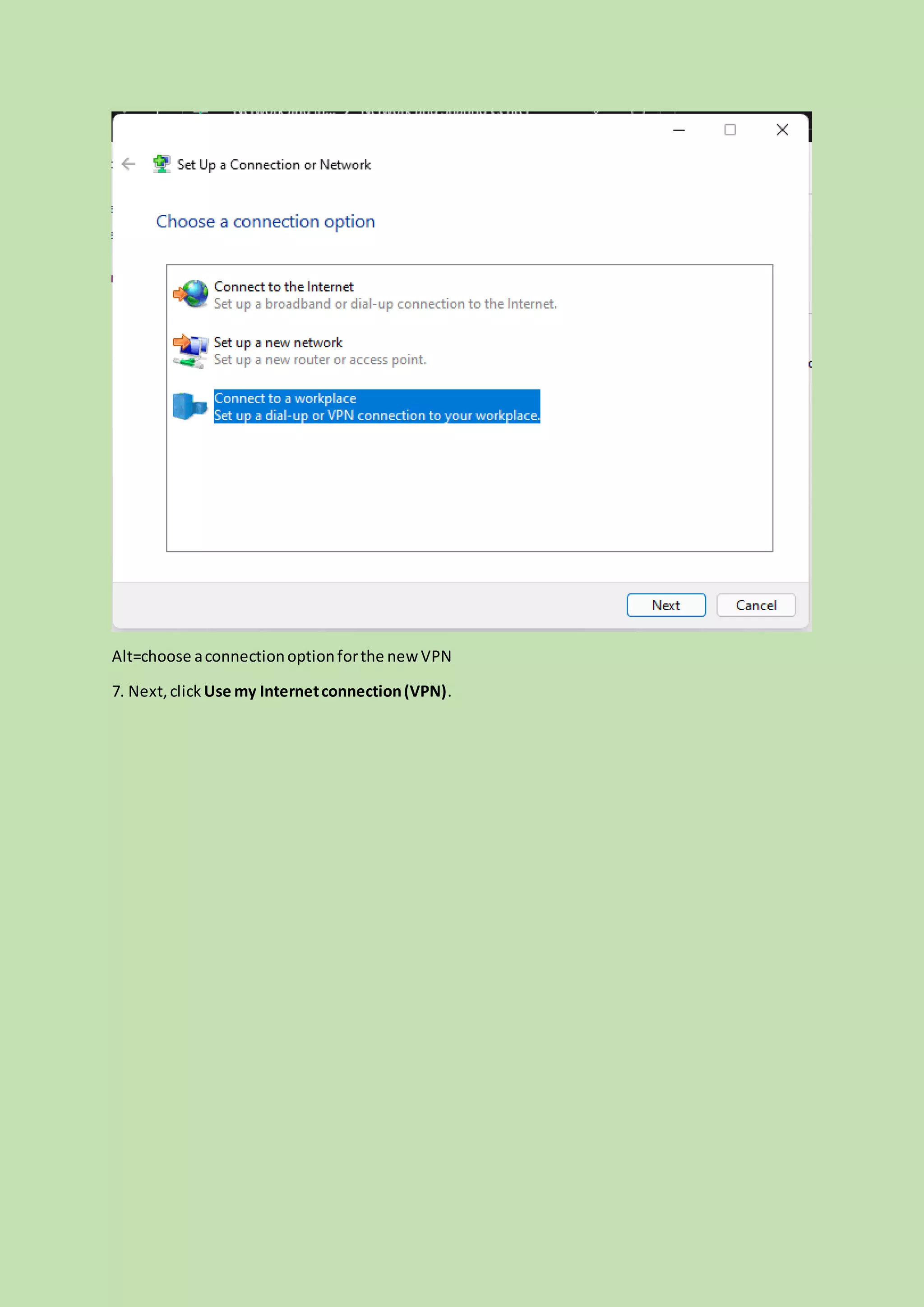
6. In the newwindow, choose aconnectionoption.Youshouldselect Connecttoa workplace to set
up a dial-uporVPN connectiontoyourworkplace.
Alt=choose aconnectionoptionforthe new VPN
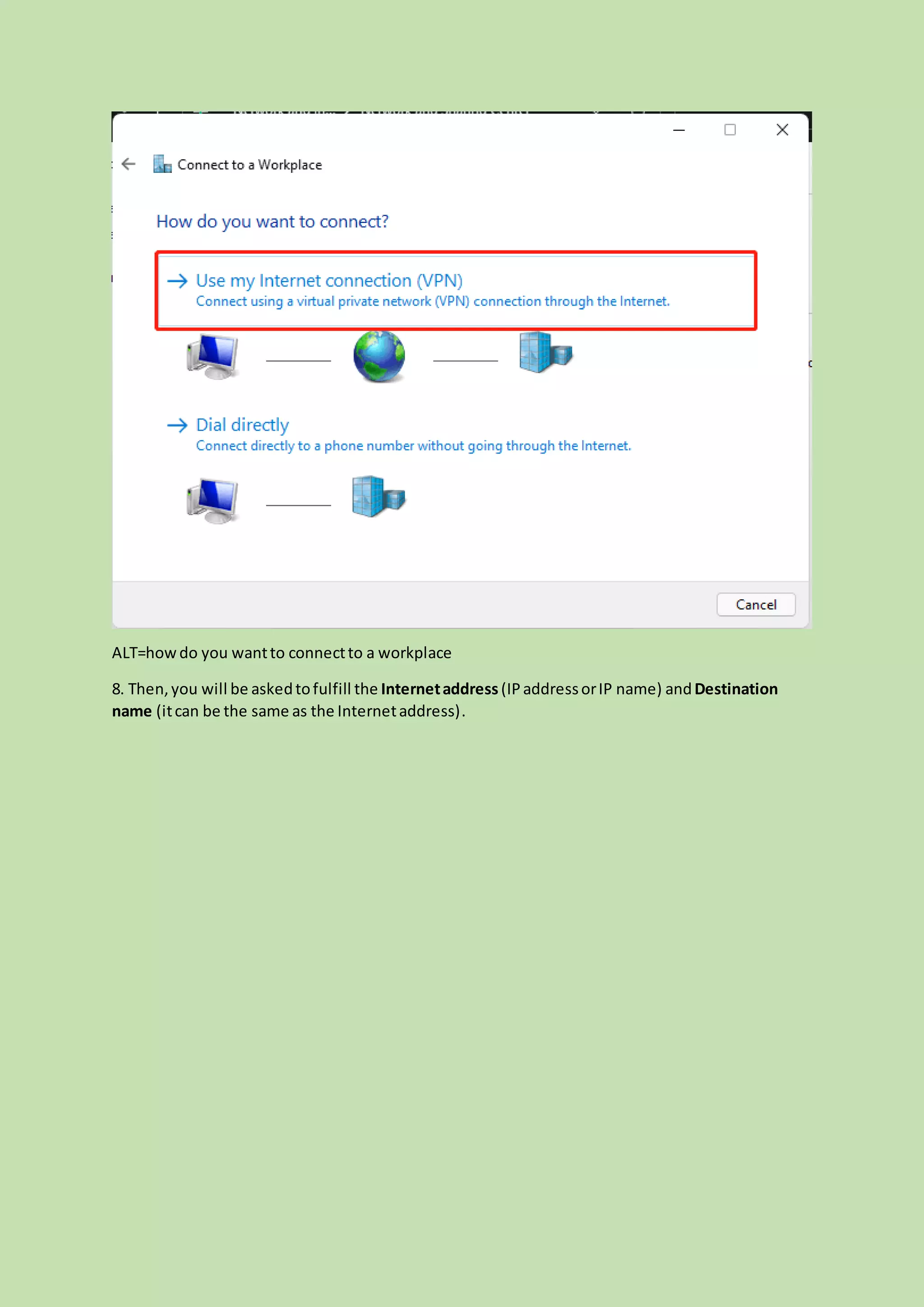
7. Next,click Use my Internetconnection(VPN).
ALT=howdo you wantto connectto a workplace
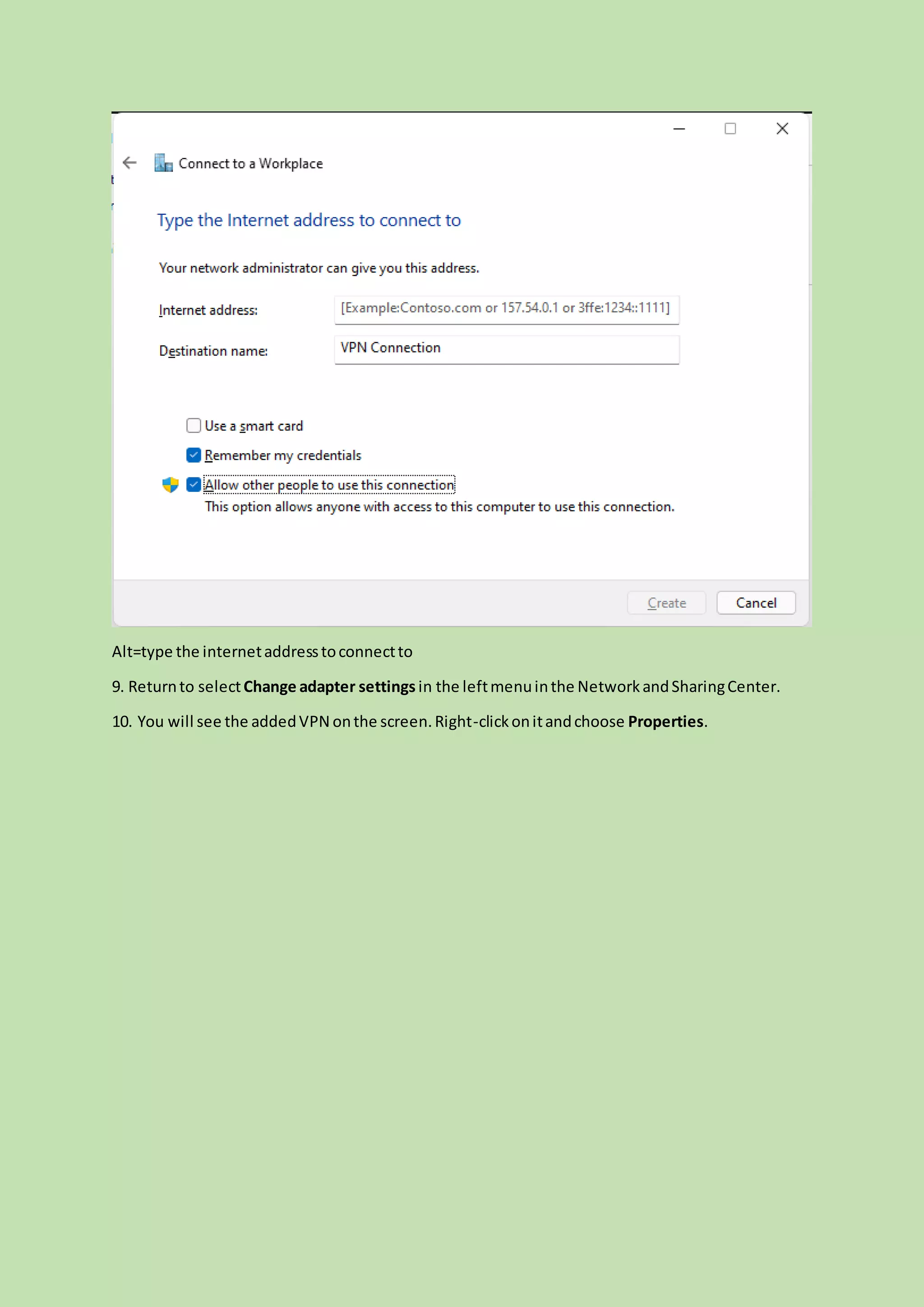
8. Then,you will be askedtofulfill the Internetaddress (IPaddressorIP name) andDestination
name (itcan be the same as the Internetaddress).
Alt=type the internetaddresstoconnectto
9. Returnto selectChange adapter settings in the leftmenuinthe NetworkandSharingCenter.
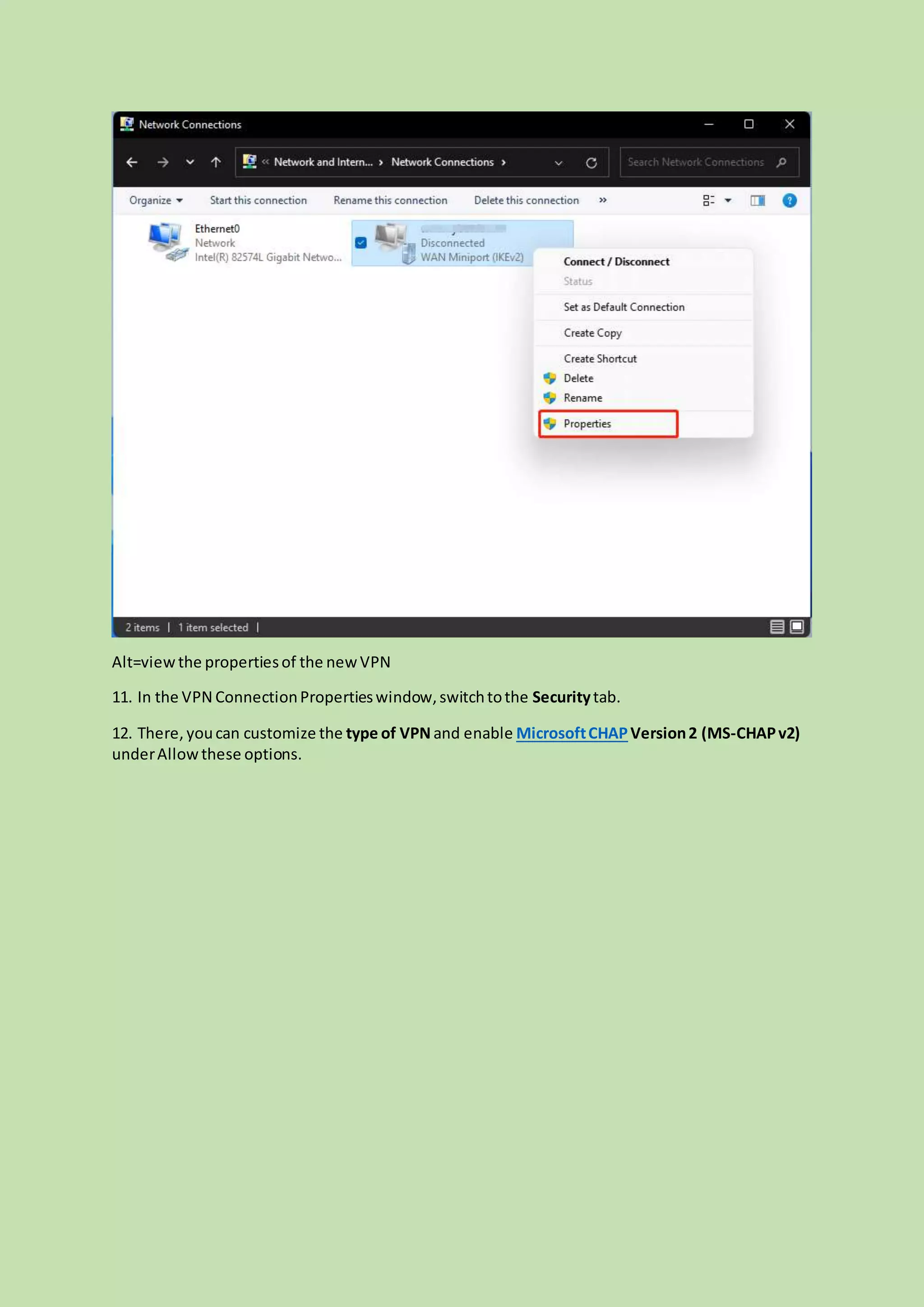
10. You will see the addedVPN onthe screen.Right-clickonitandchoose Properties.
Alt=viewthe propertiesof the newVPN
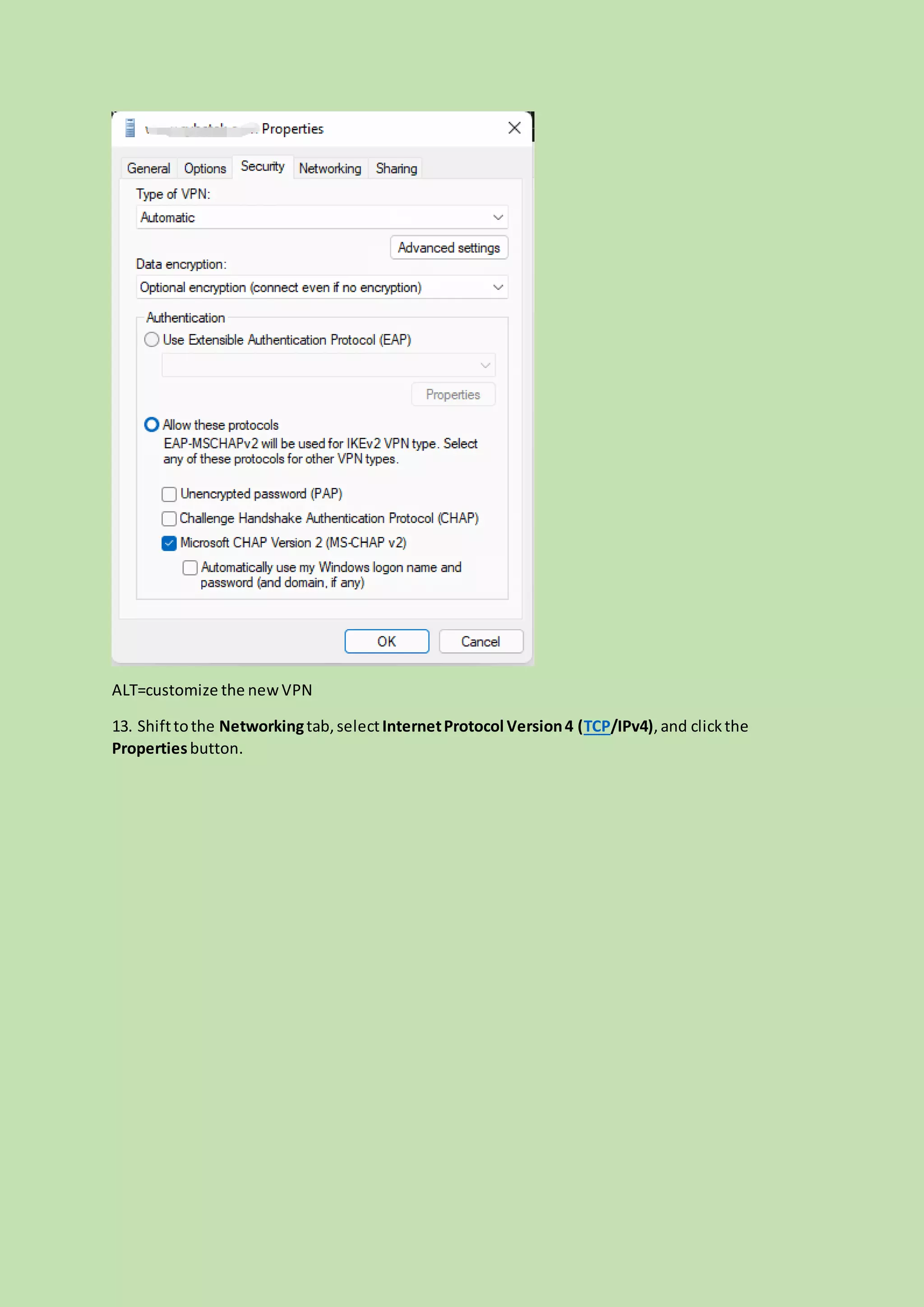
11. In the VPN ConnectionPropertieswindow,switchtothe Securitytab.
12. There, youcan customize the type of VPN and enable MicrosoftCHAPVersion2 (MS-CHAPv2)
underAllowthese options.
ALT=customize the newVPN
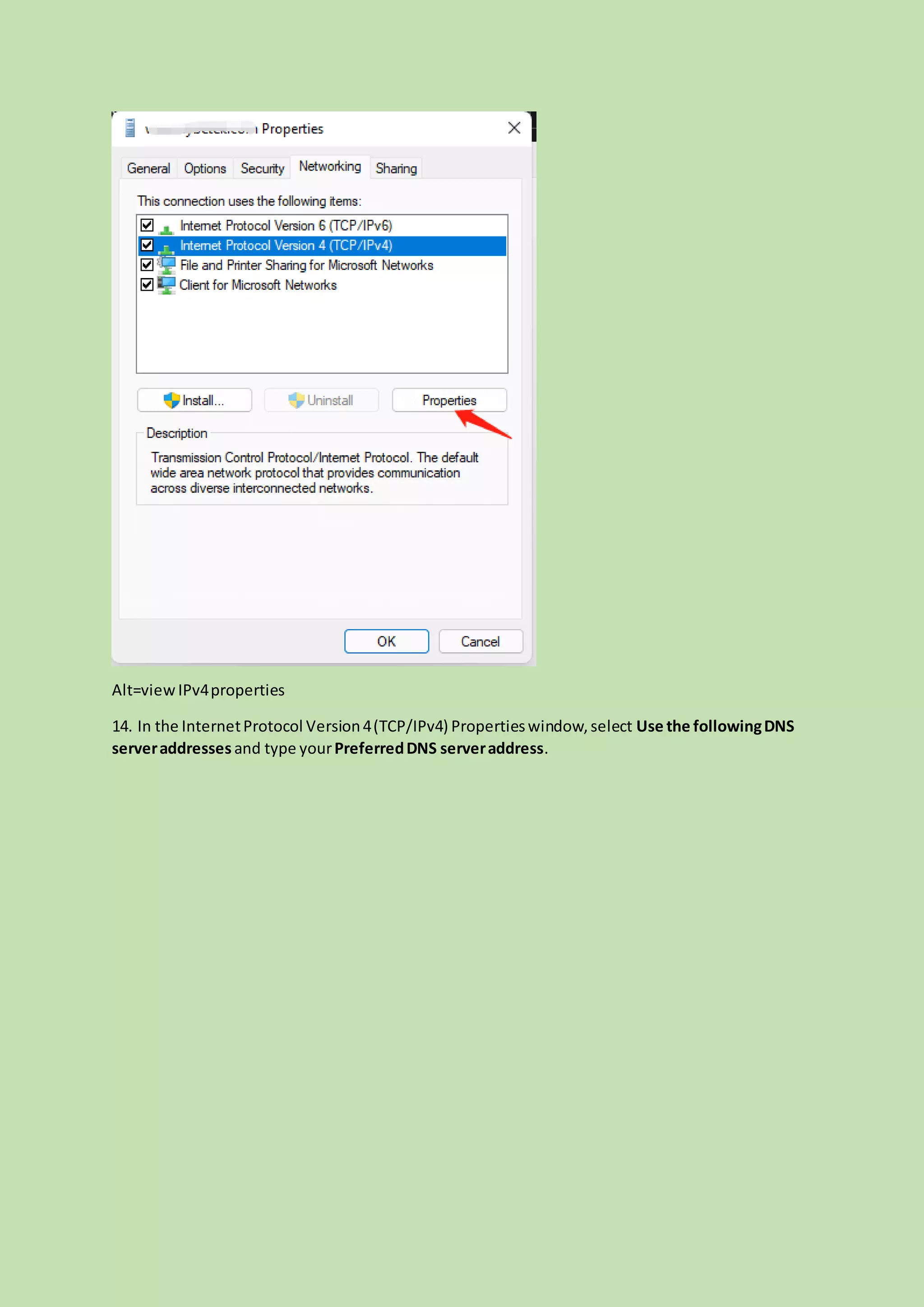
13. Shifttothe Networkingtab,selectInternetProtocol Version4 (TCP/IPv4),and clickthe
Propertiesbutton.
Alt=viewIPv4properties
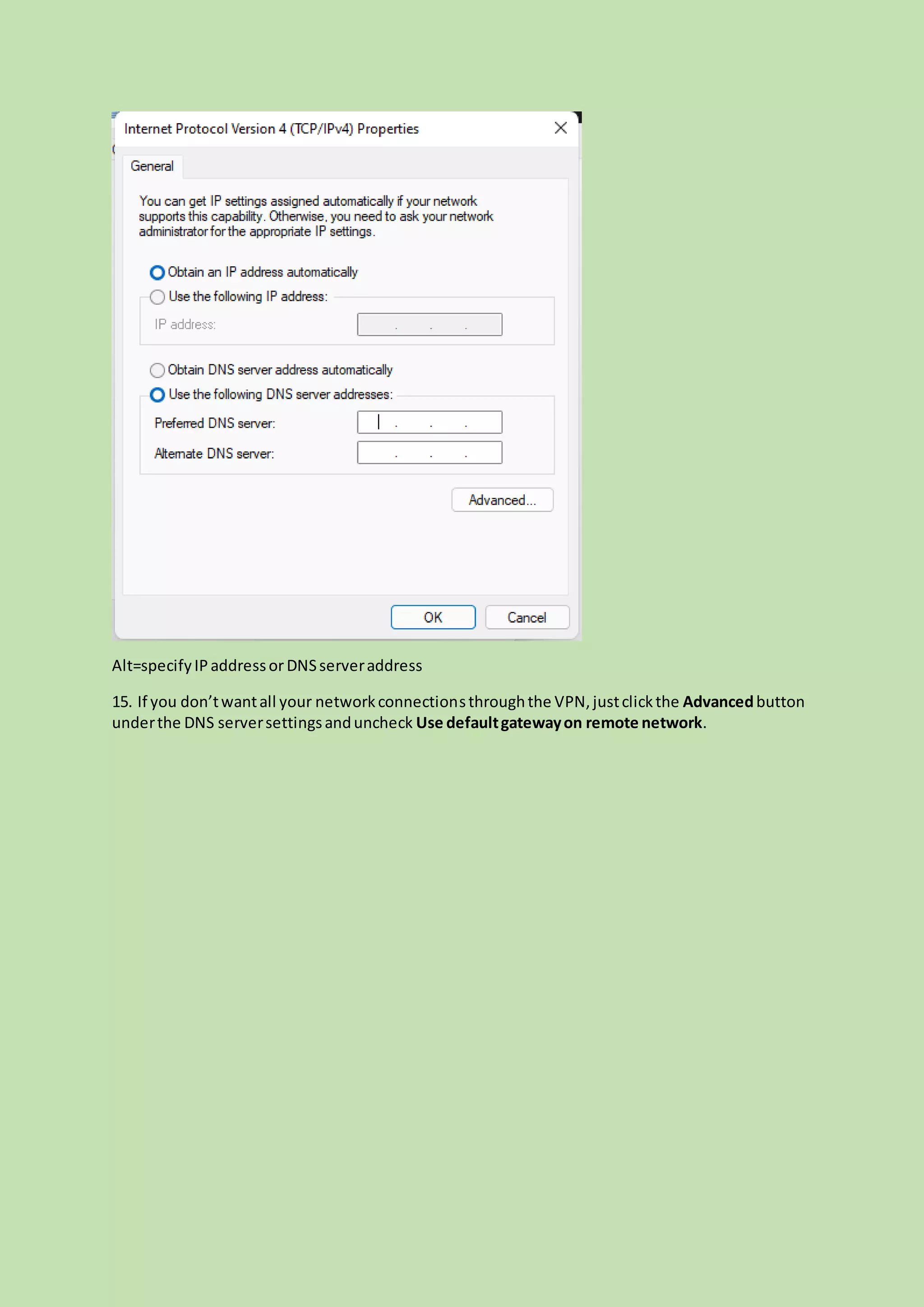
14. In the InternetProtocol Version4(TCP/IPv4) Propertieswindow,select Use the followingDNS
serveraddressesand type yourPreferredDNS serveraddress.
Alt=specifyIPaddressorDNSserveraddress
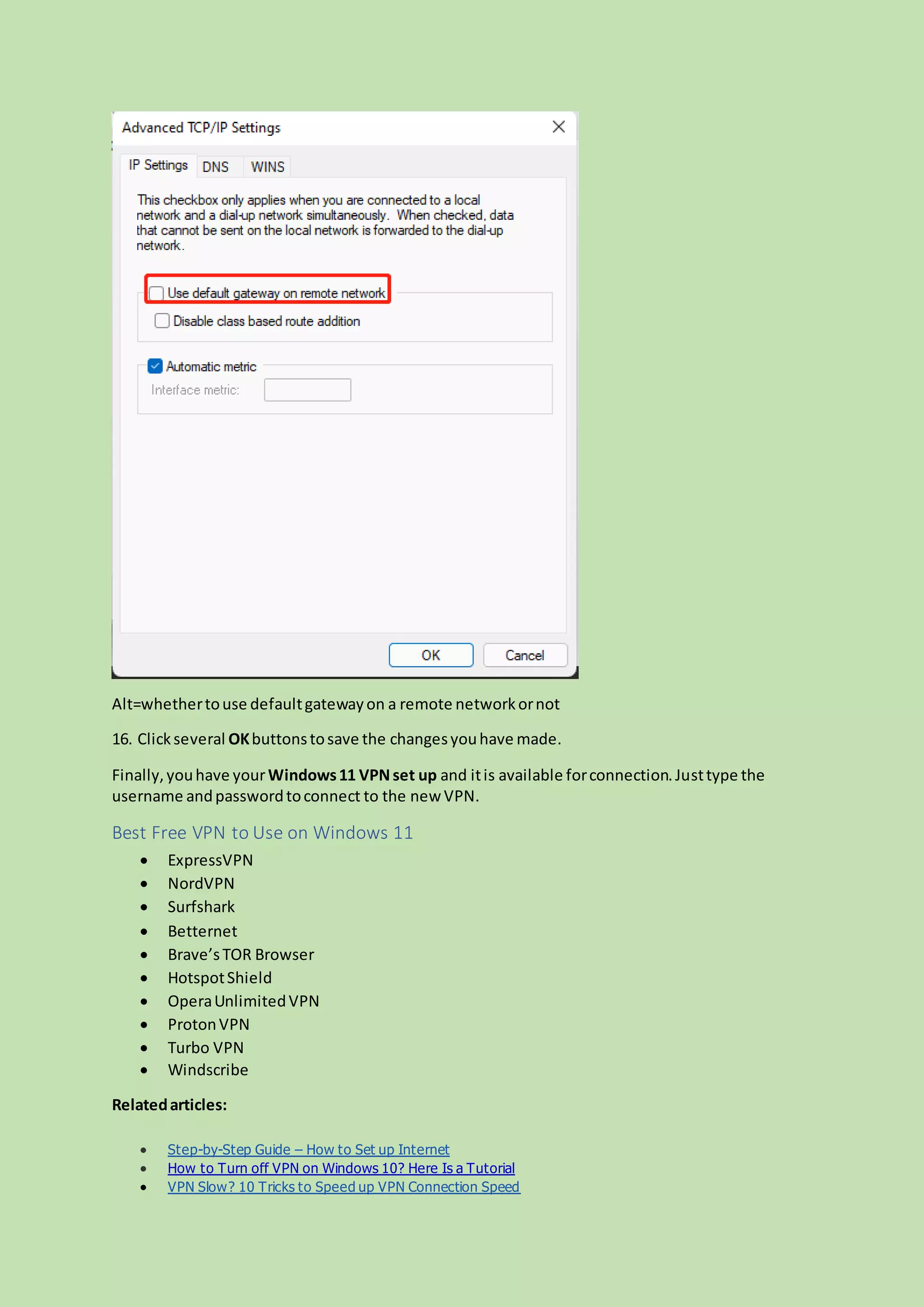
15. If you don’twantall your networkconnectionsthroughthe VPN,justclickthe Advancedbutton
underthe DNS serversettingsanduncheck Use defaultgatewayon remote network.
Alt=whethertouse defaultgatewayon a remote networkornot
16. Clickseveral OKbuttonstosave the changesyouhave made.
Finally,youhave yourWindows11 VPNset up and itis available forconnection.Justtype the
username andpasswordtoconnect to the new VPN.
Best Free VPN to Use on Windows 11
 ExpressVPN
 NordVPN
 Surfshark
 Betternet
 Brave’sTOR Browser
 HotspotShield
 OperaUnlimitedVPN
 ProtonVPN
 Turbo VPN
 Windscribe
Relatedarticles:
 Step-by-Step Guide – How to Set up Internet
 How to Turn off VPN on Windows 10? Here Is a Tutorial
 VPN Slow? 10 Tricks to Speed up VPN Connection Speed

set up vpn on windows 11

  • 1.
    Title: [2 Ways]Howto Set upVPN on Windows11 Stepby Step? Keywords: howtosetupvpn on windows11,how to setup a vpn on windows11,windows11 vpn setup,bestfree vpn touse windows11, windows11vpn setup Description: Do you need a VPN on Windows 11? Do you know how to set up a VPN on Win11? This article will give you a step-by-step guide. URL: https://www.minitool.com/news/set-up-vpn-on-windows-11.html Summary: This post created by MiniTool mainly teaches you how to build up a VPN for your new Windows 11 operating system. It offers two methods for you to choose from and both solutions with screenshots. Windowschanges fromversion10 toversion11. The thingthat doesn’tchange isthatyou still need a VPN (virtual private network) service if youwanttovisitwebsitesthatare restrictedbyInternet access incertaindistrictsorif youdon’twant to be tracked. How Does VPN Work? The VPN extendsaprivate networkacrosspublicnetworkslike the Internet.Itallowsahost computerto sendandreceive dataacross sharedor publicnetworksasif itisan integral part of the private networkwithall the functionality,security,aswell asmanagementpoliciesof the private network. How to Set up VPN on Windows 11? Most VPN serviceshave theirownappstoautomaticallycreate aVPN foryou.Yet, if youwant to set it upmanuallybyyourself,youcanfollow the below guide.
  • 2.
    Way 1. Windows11 VPN Setup from Settings 1. Right-clickonthe network iconinthe lowerrightof the monitoronthe taskbar and select Network and Internetsettings.It will bringyoutothe Network& Internettabin the Windows Settings. Alt=goto networkandInternetsettingsfrom the taskbar 2. There,inthe rightsection,findandchoose VPN. Alt=selectVPN innetwork&internetsettings 3. Clickthe Add VPN buttonbehindthe VPN connections.
  • 3.
    Alt=addVPN fromnetwork&internetsettings 4. Inthe newpopup,justspecifythe followingparameters.  VPNprovider: The defaultselectionisWindows(built-in).  Connectionname: It’sthe name usedto identifythe VPN.Justname itwhateveryoulike.  Servername or address:This isprovidedbythe VPN companyandtheymighthave multiple locations.Justenterone location.  VPNtype: If youknowwhatexactlyyourVPN type is,youshouldspecifyittogeta faster speed.If not,justleave itasthe defaultAutomatic.  Type of sign-ininfo:If it’sa free connectionwithoutanyusername orpassword,youcan leave the restof the boxesblank.If ithas a username andpassword,justinputtheminthe belowboxes. Youcanalsouse a smartcard.
  • 4.
    Alt=specifynew VPNparameters 5. Afteryouhavesuccessfullyaddedthe VPN,youcanfindthatit is listedunderthe VPN connections. Youcan clickthe Connectbuttonto connectyour computerto thisVPN.Or,youcan findandconnectto thisVPN by clickingonthe networkicononthe taskbar.
  • 5.
    Alt=connecttothe newlycreatedVPN Also read:Howto Set Up a VPN on Your Windows10 PC [Full Guide] Way 2. How to Set up a VPN on Windows 11 from Network and Sharing Center 1. Clickon the Start menuinthe centerof the taskbar andselect Settings. 2. In Windows11 Settings, choose Network& internetinthe leftpanel. 3. Move to the right part,scroll downto findandclick onthe Dial-upoption. 4. On the nextscreen, choose Networkand Sharing Center.
  • 6.
    ALT=selectnetworkandsharingcenter 5. In theNetworkandSharingCenter,clickthe Setup a new connectionor network.
  • 7.
    alt=choose toset upanewconnectionornetwork 6. In the newwindow, choose aconnectionoption.Youshouldselect Connecttoa workplace to set up a dial-uporVPN connectiontoyourworkplace.
  • 8.
    Alt=choose aconnectionoptionforthe newVPN 7. Next,click Use my Internetconnection(VPN).
  • 9.
    ALT=howdo you wanttoconnectto a workplace 8. Then,you will be askedtofulfill the Internetaddress (IPaddressorIP name) andDestination name (itcan be the same as the Internetaddress).
  • 10.
    Alt=type the internetaddresstoconnectto 9.Returnto selectChange adapter settings in the leftmenuinthe NetworkandSharingCenter. 10. You will see the addedVPN onthe screen.Right-clickonitandchoose Properties.
  • 11.
    Alt=viewthe propertiesof thenewVPN 11. In the VPN ConnectionPropertieswindow,switchtothe Securitytab. 12. There, youcan customize the type of VPN and enable MicrosoftCHAPVersion2 (MS-CHAPv2) underAllowthese options.
  • 12.
    ALT=customize the newVPN 13.Shifttothe Networkingtab,selectInternetProtocol Version4 (TCP/IPv4),and clickthe Propertiesbutton.
  • 13.
    Alt=viewIPv4properties 14. In theInternetProtocol Version4(TCP/IPv4) Propertieswindow,select Use the followingDNS serveraddressesand type yourPreferredDNS serveraddress.
  • 14.
    Alt=specifyIPaddressorDNSserveraddress 15. If youdon’twantall your networkconnectionsthroughthe VPN,justclickthe Advancedbutton underthe DNS serversettingsanduncheck Use defaultgatewayon remote network.
  • 15.
    Alt=whethertouse defaultgatewayon aremote networkornot 16. Clickseveral OKbuttonstosave the changesyouhave made. Finally,youhave yourWindows11 VPNset up and itis available forconnection.Justtype the username andpasswordtoconnect to the new VPN. Best Free VPN to Use on Windows 11  ExpressVPN  NordVPN  Surfshark  Betternet  Brave’sTOR Browser  HotspotShield  OperaUnlimitedVPN  ProtonVPN  Turbo VPN  Windscribe Relatedarticles:  Step-by-Step Guide – How to Set up Internet  How to Turn off VPN on Windows 10? Here Is a Tutorial  VPN Slow? 10 Tricks to Speed up VPN Connection Speed