Developing SAP Query for Task List Data Extraction
By Shoyeb Ahamad, Wipro Infotech
Purpose: To create an SAP query to extract task list data from system.
Scope: All task lists pertaining to Production and Planning; Routing (N), Master Recipe (2), Rate Routing
(R)
Procedure:
Follow the procedure step by step:
Transaction Code SQVI
Menu path Tools>Utilities>SQVI - QuickViewer
Create new Quick view
Write the appropriate name of query
After you click on create button, system will populate the following window, complete the details with right
information
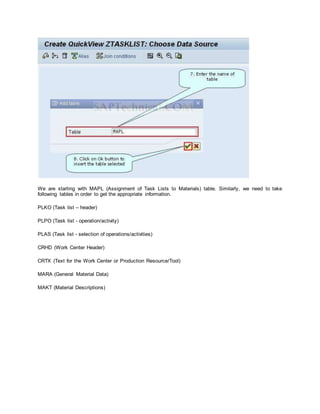
Once you have done with above steps you will get “Choose Data Source” screen. Here in the following
step you need to connect different tables properly in order to get task list data.
We are starting with MAPL (Assignment of Task Lists to Materials) table. Similarly, we need to take
following tables in order to get the appropriate information.
PLKO (Task list – header)
PLPO (Task list - operation/activity)
PLAS (Task list - selection of operations/activities)
CRHD (Work Center Header)
CRTX (Text for the Work Center or Production Resource/Tool)
MARA (General Material Data)
MAKT (Material Descriptions)
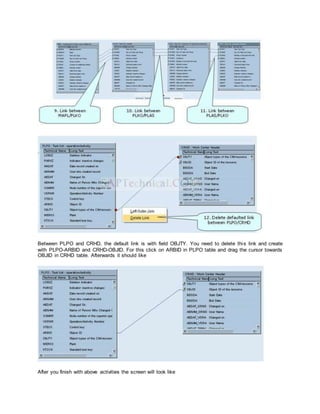
Between PLPO and CRHD, the default link is with field OBJTY. You need to delete this link and create
with PLPO-ARBID and CRHD-OBJID. For this click on ARBID in PLPO table and drag the cursor towards
OBJID in CRHD table. Afterwards it should like
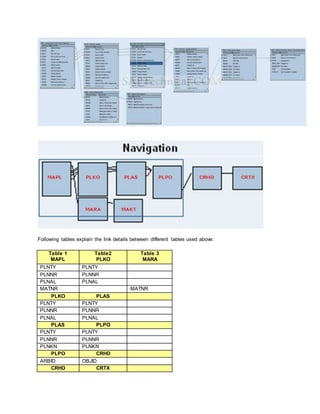
After you finish with above activities the screen will look like
Following tables explain the link details between different tables used above:
Table 1
MAPL
Table2
PLKO
Table 3
MARA
PLNTY PLNTY
PLNNR PLNNR
PLNAL PLNAL
MATNR MATNR
PLKO PLAS
PLNTY PLNTY
PLNNR PLNNR
PLNAL PLNAL
PLAS PLPO
PLNTY PLNTY
PLNNR PLNNR
PLNKN PLNKN
PLPO CRHD
ARBID OBJID
CRHD CRTX
OBJID OBJID
MARA MAKT
MATNR MATNR
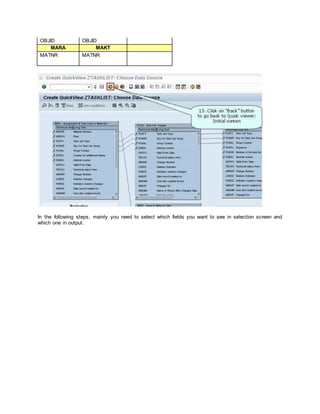
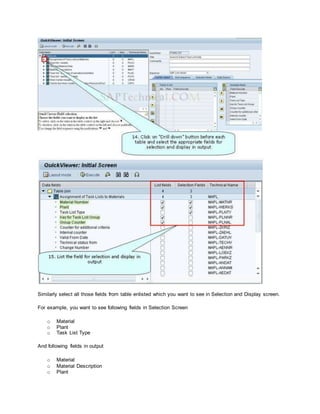
In the following steps, mainly you need to select which fields you want to see in selection screen and
which one in output.
Similarly select all those fields from table enlisted which you want to see in Selection and Display screen.
For example, you want to see following fields in Selection Screen
o Material
o Plant
o Task List Type
And following fields in output
o Material
o Material Description
o Plant
o Group
o Group Counter
o Task List Description
o Usage
o Status
o From Lot Size
o UoM
o To Lot Size
o UoM
o Operation/Activity
o Work center
o Work center description
o Operation short Text
o Operation Base Quantity
o UoM
o Standard value1
o UoM for Std value1
o Standard value2
o UoM for Std value2
o Standard value3
o UoM for Std value3
o Setup Group Key
o Setup Group Category
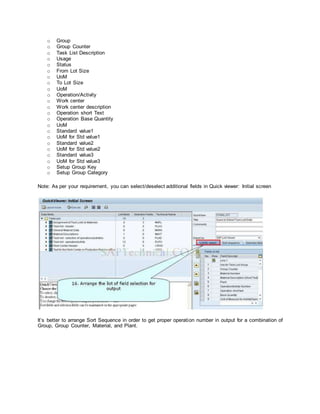
Note: As per your requirement, you can select/deselect additional fields in Quick viewer: Initial screen
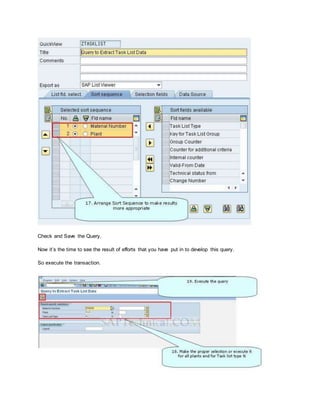
It’s better to arrange Sort Sequence in order to get proper operation number in output for a combination of
Group, Group Counter, Material, and Plant.
Check and Save the Query.
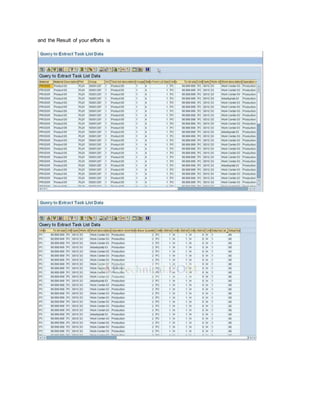
Now it’s the time to see the result of efforts that you have put in to develop this query.
So execute the transaction.
and the Result of your efforts is

Sap query for task list data extraction

  • 1.
    Developing SAP Queryfor Task List Data Extraction By Shoyeb Ahamad, Wipro Infotech Purpose: To create an SAP query to extract task list data from system. Scope: All task lists pertaining to Production and Planning; Routing (N), Master Recipe (2), Rate Routing (R) Procedure: Follow the procedure step by step: Transaction Code SQVI Menu path Tools>Utilities>SQVI - QuickViewer Create new Quick view Write the appropriate name of query After you click on create button, system will populate the following window, complete the details with right information
  • 2.
    Once you havedone with above steps you will get “Choose Data Source” screen. Here in the following step you need to connect different tables properly in order to get task list data.
  • 3.
    We are startingwith MAPL (Assignment of Task Lists to Materials) table. Similarly, we need to take following tables in order to get the appropriate information. PLKO (Task list – header) PLPO (Task list - operation/activity) PLAS (Task list - selection of operations/activities) CRHD (Work Center Header) CRTX (Text for the Work Center or Production Resource/Tool) MARA (General Material Data) MAKT (Material Descriptions)
  • 4.
    Between PLPO andCRHD, the default link is with field OBJTY. You need to delete this link and create with PLPO-ARBID and CRHD-OBJID. For this click on ARBID in PLPO table and drag the cursor towards OBJID in CRHD table. Afterwards it should like After you finish with above activities the screen will look like
  • 5.
    Following tables explainthe link details between different tables used above: Table 1 MAPL Table2 PLKO Table 3 MARA PLNTY PLNTY PLNNR PLNNR PLNAL PLNAL MATNR MATNR PLKO PLAS PLNTY PLNTY PLNNR PLNNR PLNAL PLNAL PLAS PLPO PLNTY PLNTY PLNNR PLNNR PLNKN PLNKN PLPO CRHD ARBID OBJID CRHD CRTX
  • 6.
    OBJID OBJID MARA MAKT MATNRMATNR In the following steps, mainly you need to select which fields you want to see in selection screen and which one in output.
  • 7.
    Similarly select allthose fields from table enlisted which you want to see in Selection and Display screen. For example, you want to see following fields in Selection Screen o Material o Plant o Task List Type And following fields in output o Material o Material Description o Plant
  • 8.
    o Group o GroupCounter o Task List Description o Usage o Status o From Lot Size o UoM o To Lot Size o UoM o Operation/Activity o Work center o Work center description o Operation short Text o Operation Base Quantity o UoM o Standard value1 o UoM for Std value1 o Standard value2 o UoM for Std value2 o Standard value3 o UoM for Std value3 o Setup Group Key o Setup Group Category Note: As per your requirement, you can select/deselect additional fields in Quick viewer: Initial screen It’s better to arrange Sort Sequence in order to get proper operation number in output for a combination of Group, Group Counter, Material, and Plant.
  • 9.
    Check and Savethe Query. Now it’s the time to see the result of efforts that you have put in to develop this query. So execute the transaction.
  • 10.
    and the Resultof your efforts is