
Daniel Herken
dherken@browseemall.com
http://www.browseemall.com
Selenium Tests Using Microsoft Test Manager
MTM & Selenium
Today we will cover
1. What is Microsoft Test Manager?
2. What is Selenium?
3. Requirements & Setup
4. Selenium on Test Agent
5. BrowseEmAll on Test Agent
Introduction
What is Microsoft Test Manager?
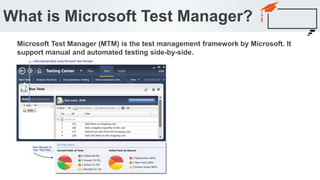
Microsoft Test Manager (MTM) is the test management framework by Microsoft. It
support manual and automated testing side-by-side.
Supported by all major browser vendors:
What is Selenium?
Free and open source browser automation framework.
What is Selenium?
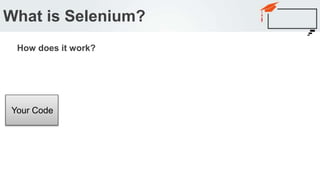
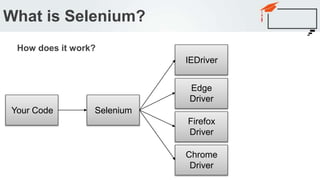
How does it work?
Your Code
What is Selenium?
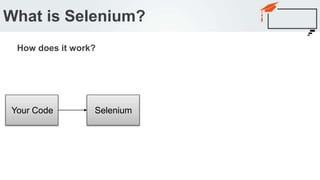
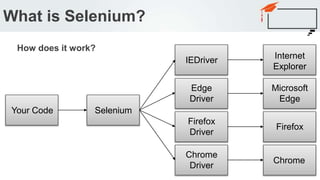
How does it work?
Your Code Selenium
What is Selenium?
How does it work?
Your Code Selenium
IEDriver
Edge
Driver
Firefox
Driver
Chrome
Driver
What is Selenium?
How does it work?
Your Code Selenium
IEDriver
Edge
Driver
Firefox
Driver
Chrome
Driver
Internet
Explorer
Microsoft
Edge
Firefox
Chrome
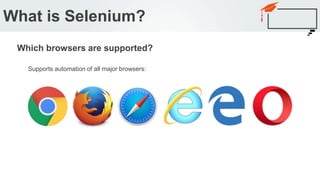
Supports automation of all major browsers:
What is Selenium?
Which browsers are supported?
Selenium language bindings are available for:
• Java
• C#
• Ruby
• Python
• JavaScript
• Perl (third-party)
• PHP (third-party)
What is Selenium?
Which programming languages are supported?
• Team Foundation Server
• Microsoft Test Manager
• Microsoft Test Agent
Requirements & Setup
Requirements:
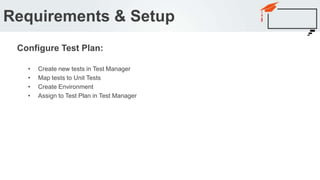
• Create new tests in Test Manager
• Map tests to Unit Tests
• Create Environment
• Assign to Test Plan in Test Manager
Requirements & Setup
Configure Test Plan:
Requirements & Setup
Demo
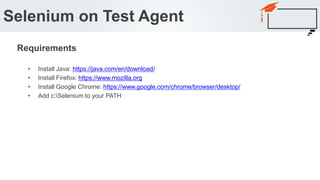
• Install Java: https://java.com/en/download/
• Install Firefox: https://www.mozilla.org
• Install Google Chrome: https://www.google.com/chrome/browser/desktop/
• Add c:Selenium to your PATH
Selenium on Test Agent
Requirements
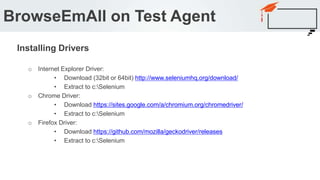
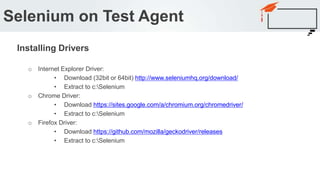
o Internet Explorer Driver:
• Download (32bit or 64bit) http://www.seleniumhq.org/download/
• Extract to c:Selenium
o Chrome Driver:
• Download https://sites.google.com/a/chromium.org/chromedriver/
• Extract to c:Selenium
o Firefox Driver:
• Download https://github.com/mozilla/geckodriver/releases
• Extract to c:Selenium
Selenium on Test Agent
Installing Drivers
Selenium on Test Agent
[TestMethod]
public void GoogleForSelenium()
{
// Launch new instance for Firefox
IWebDriver driver = new FirefoxDriver();
// Navigate to google
driver.Navigate().GoToUrl("http://www.google.com");
// Find the input field for the search query
IWebElement inputField = driver.FindElement(By.Name("q"));
// Add some text to the input field
inputField.SendKeys("Selenium");
// Submit the search
inputField.Submit();
// Google uses JS to render the results page so we need to wait
var wait = new WebDriverWait(driver, TimeSpan.FromSeconds(10));
wait.Until(o => o.Title.StartsWith("Selenium", StringComparison.OrdinalIgnoreCase));
// Use asserts like you would in unit tests
Assert.IsTrue(driver.Title.StartsWith("Selenium", StringComparison.OrdinalIgnoreCase));
// close down the browser
driver.Quit();
}
Selenium on Test Agent
Demo
o Internet Explorer Driver:
• Download (32bit or 64bit) http://www.seleniumhq.org/download/
• Extract to c:Selenium
o Chrome Driver:
• Download https://sites.google.com/a/chromium.org/chromedriver/
• Extract to c:Selenium
o Firefox Driver:
• Download https://github.com/mozilla/geckodriver/releases
• Extract to c:Selenium
BrowseEmAll on Test Agent
Installing Drivers
BrowseEmAll on Test Agent
[TestMethod]
public void GoogleForSeleniumOnGrid()
{
// Launch new instance for Firefox
IWebDriver driver = new RemoteWebDriver(new Uri("http://localhost:4444/wd/hub"), DesiredCapabilities.Firefox());
// Navigate to google
driver.Navigate().GoToUrl("http://www.google.com");
// Find the input field for the search query
IWebElement inputField = driver.FindElement(By.Name("q"));
// Add some text to the input field
inputField.SendKeys("Selenium");
// Submit the search
inputField.Submit();
// Google uses JS to render the results page so we need to wait
var wait = new WebDriverWait(driver, TimeSpan.FromSeconds(10));
wait.Until(o => o.Title.StartsWith("Selenium", StringComparison.OrdinalIgnoreCase));
// Use asserts like you would in unit tests
Assert.IsTrue(driver.Title.StartsWith("Selenium", StringComparison.OrdinalIgnoreCase));
// close down the browser
driver.Quit();
}
BrowseEmAll on Test Agent
Demo
Questions?
Q & A

Run Selenium Tests With Microsoft Test Manager

  • 1.
  • 2.
    Today we willcover 1. What is Microsoft Test Manager? 2. What is Selenium? 3. Requirements & Setup 4. Selenium on Test Agent 5. BrowseEmAll on Test Agent Introduction
  • 3.
    What is MicrosoftTest Manager? Microsoft Test Manager (MTM) is the test management framework by Microsoft. It support manual and automated testing side-by-side.
  • 4.
    Supported by allmajor browser vendors: What is Selenium? Free and open source browser automation framework.
  • 5.
    What is Selenium? Howdoes it work? Your Code
  • 6.
    What is Selenium? Howdoes it work? Your Code Selenium
  • 7.
    What is Selenium? Howdoes it work? Your Code Selenium IEDriver Edge Driver Firefox Driver Chrome Driver
  • 8.
    What is Selenium? Howdoes it work? Your Code Selenium IEDriver Edge Driver Firefox Driver Chrome Driver Internet Explorer Microsoft Edge Firefox Chrome
  • 9.
    Supports automation ofall major browsers: What is Selenium? Which browsers are supported?
  • 10.
    Selenium language bindingsare available for: • Java • C# • Ruby • Python • JavaScript • Perl (third-party) • PHP (third-party) What is Selenium? Which programming languages are supported?
  • 11.
    • Team FoundationServer • Microsoft Test Manager • Microsoft Test Agent Requirements & Setup Requirements:
  • 12.
    • Create newtests in Test Manager • Map tests to Unit Tests • Create Environment • Assign to Test Plan in Test Manager Requirements & Setup Configure Test Plan:
  • 13.
  • 14.
    • Install Java:https://java.com/en/download/ • Install Firefox: https://www.mozilla.org • Install Google Chrome: https://www.google.com/chrome/browser/desktop/ • Add c:Selenium to your PATH Selenium on Test Agent Requirements
  • 15.
    o Internet ExplorerDriver: • Download (32bit or 64bit) http://www.seleniumhq.org/download/ • Extract to c:Selenium o Chrome Driver: • Download https://sites.google.com/a/chromium.org/chromedriver/ • Extract to c:Selenium o Firefox Driver: • Download https://github.com/mozilla/geckodriver/releases • Extract to c:Selenium Selenium on Test Agent Installing Drivers
  • 16.
    Selenium on TestAgent [TestMethod] public void GoogleForSelenium() { // Launch new instance for Firefox IWebDriver driver = new FirefoxDriver(); // Navigate to google driver.Navigate().GoToUrl("http://www.google.com"); // Find the input field for the search query IWebElement inputField = driver.FindElement(By.Name("q")); // Add some text to the input field inputField.SendKeys("Selenium"); // Submit the search inputField.Submit(); // Google uses JS to render the results page so we need to wait var wait = new WebDriverWait(driver, TimeSpan.FromSeconds(10)); wait.Until(o => o.Title.StartsWith("Selenium", StringComparison.OrdinalIgnoreCase)); // Use asserts like you would in unit tests Assert.IsTrue(driver.Title.StartsWith("Selenium", StringComparison.OrdinalIgnoreCase)); // close down the browser driver.Quit(); }
  • 17.
    Selenium on TestAgent Demo
  • 18.
    o Internet ExplorerDriver: • Download (32bit or 64bit) http://www.seleniumhq.org/download/ • Extract to c:Selenium o Chrome Driver: • Download https://sites.google.com/a/chromium.org/chromedriver/ • Extract to c:Selenium o Firefox Driver: • Download https://github.com/mozilla/geckodriver/releases • Extract to c:Selenium BrowseEmAll on Test Agent Installing Drivers
  • 19.
    BrowseEmAll on TestAgent [TestMethod] public void GoogleForSeleniumOnGrid() { // Launch new instance for Firefox IWebDriver driver = new RemoteWebDriver(new Uri("http://localhost:4444/wd/hub"), DesiredCapabilities.Firefox()); // Navigate to google driver.Navigate().GoToUrl("http://www.google.com"); // Find the input field for the search query IWebElement inputField = driver.FindElement(By.Name("q")); // Add some text to the input field inputField.SendKeys("Selenium"); // Submit the search inputField.Submit(); // Google uses JS to render the results page so we need to wait var wait = new WebDriverWait(driver, TimeSpan.FromSeconds(10)); wait.Until(o => o.Title.StartsWith("Selenium", StringComparison.OrdinalIgnoreCase)); // Use asserts like you would in unit tests Assert.IsTrue(driver.Title.StartsWith("Selenium", StringComparison.OrdinalIgnoreCase)); // close down the browser driver.Quit(); }
  • 20.
  • 21.