This template provides the styles, colors, and layout options
to help you create your own Rotary club PowerPoint
presentation.
You don’t have to use all the slides in your presentation. You
can delete the slides you don’t want and duplicate those you
would like more of. You can also change the order of the
slides.
Welcome to
the Rotary club
PowerPoint
template
To insert graphics
(includes graphs, charts, etc.):
• Take a screenshot of a graph or chart you created somewhere else (e.g., Excel) and follow
the instructions below in “To replace photos.”
• Create a graph or chart by going to the Insert tab, then clicking Chart in the Illustrations
section. Choose the type, then put your data in the Excel window that opens. Double click
on the chart to call up the data again later.
To replace photos
(includes maps, graphs, charts, etc.):
• Delete the existing photo, then copy and paste your own photo.
or
• Delete the existing photo, then place your own via the Insert tab.
or
• Right click the existing photo and select Change Picture.
To place your new photo behind text, a logo, etc.:
• Right click on the photo and select Send to Back.
TUTORIAL:
Graphics
&
Photos
Adjusting the dimensions of a photo
• To crop a photo, right click on it and select Crop. Pull in the borders to where you want.
• To enlarge a photo without distorting it, hold down the Shift key as you pull a corner in or out.
Adding new slides
• Formatted slides are available when you click on New Slide in the Slides section of the Insert
tab.
• These slides follow the look and style of this PowerPoint template, but you will only be able to
change the text in these slides.
Colors
• For your convenience, the Rotary colors have been preset in the theme, and Rotary Leadership
Colors and Secondary Colors appear on the pasteboard below every slide.
• To change all the colors quickly, go to the Design tab and choose another color scheme in the
Variants section.
• To change a solid background to another color, right click, select Format Shape, and change the
color in the Fill option. You can also change colors in the Design tab by selecting Format
Background in the Customize section.
• To change colors in a dual background to other colors, right click, select Format Shape, and
change the colors in the Fill option by selecting Gradient fill. You can also change colors in the
Design tab by selecting Format Background in the Customize section.
Fonts
• We recommend using the Arial font because it is very readable both on screen and printed out.
• Other brand options are Arial Narrow, Georgia, Open Sans, and Open Sans Condensed.
TUTORIAL:
Layout,
Colors
&
Fonts
Use the following resources to find images, videos, and brand guidelines. Please keep in
mind that we are people of action — and choose images that show action.
Brand Center
https://brandcenter.rotary.org/en-GB
Brand Center Images
https://brandcenter.rotary.org/en-GB/Images-Video/Images
Brand Center Videos
https://brandcenter.rotary.org/en-GB/Images-Video/Videos
Voice and Visual Identity Guidelines
https://brandcenter.rotary.org/en-
GB/App/AssetDetails/b/www/Asset/Details/118?brand=www&returnUrl=https%3a%2f%2fbrandcenter.rotary.org%2fen-
GB%2fGuidelines&page=1&pageSize=100&showadvancedsearch=False&showkeywordfilters=True&showselectedkeywordfilters
=True&largeLayout=False&b=www&bs=www&k=42&k=17&pg=Public&view=Standard
TUTORIAL:
Images,
Videos
&
Brand
Guidelines
We have created special signature systems that allow you to
identify your club on all your communications materials.
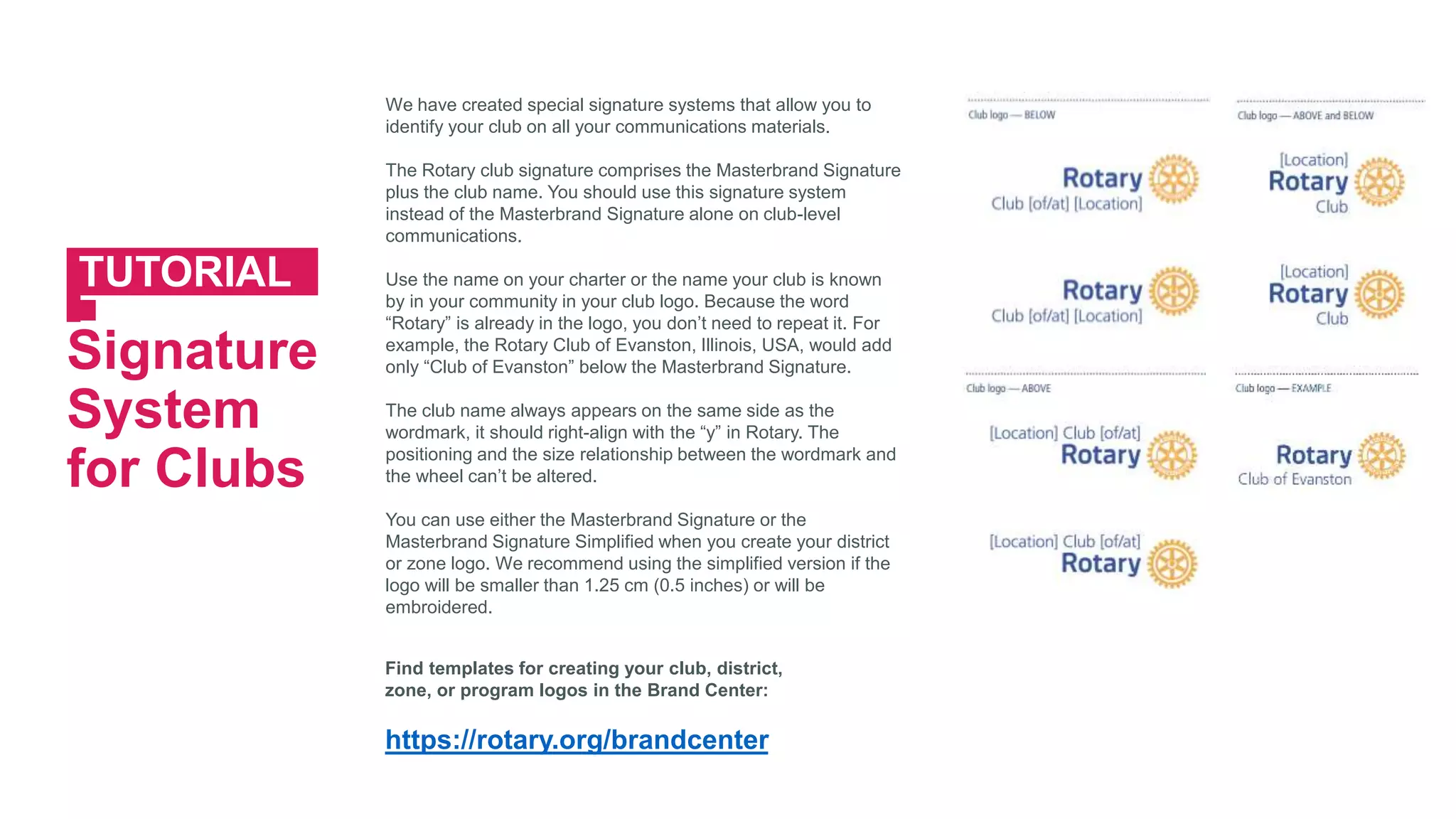
The Rotary club signature comprises the Masterbrand Signature
plus the club name. You should use this signature system
instead of the Masterbrand Signature alone on club-level
communications.
Use the name on your charter or the name your club is known
by in your community in your club logo. Because the word
“Rotary” is already in the logo, you don’t need to repeat it. For
example, the Rotary Club of Evanston, Illinois, USA, would add
only “Club of Evanston” below the Masterbrand Signature.
The club name always appears on the same side as the
wordmark, it should right-align with the “y” in Rotary. The
positioning and the size relationship between the wordmark and
the wheel can’t be altered.
You can use either the Masterbrand Signature or the
Masterbrand Signature Simplified when you create your district
or zone logo. We recommend using the simplified version if the
logo will be smaller than 1.25 cm (0.5 inches) or will be
embroidered.
TUTORIAL:
Signature
System
for Clubs
Find templates for creating your club, district,
zone, or program logos in the Brand Center:
https://rotary.org/brandcenter
Type your Rotary club name here
TITLE OF PRESENTATION
Type your Rotary club name here
TITLE OF PRESENTATION
Type your Rotary club name here
TITLE OF PRESENTATION
Place the Rotary logo with your
club identifier here.
(See slide 5 of this template for
club logo instructions.)
TITLE OF PRESENTATION
Place the Rotary logo with your
club identifier here.
(See slide 5 of this template for
club logo instructions.)
TITLE OF PRESENTATION
Place the Rotary logo with your
club identifier here.
(See slide 5 of this template for
club logo instructions.)
TITLE OF PRESENTATION
Type your Rotary club name here
12
TITLE OF PRESENTATION
Type your Rotary club name here
13
14
MAKE A BOLD
STATEMENT
MAKE A BOLD
STATEMENT
MAKE A BOLD
STATEMENT
Your options:
• Fill this text box with text
• Fill this box with bullet points
• Delete this box and insert a picture
• Delete this box and insert a chart or graph
TITLE
A few lines can go here.
17
18
BASIC BULLET POINTS
• Use brief text
• As bullet points
• To get your
• Information across
19
FOR TEXT/BULLET POINTS
Use this space for longer text. Keep in mind that it’s not as interesting to have long
blocks of text. Try not to use more than the amount of text shown here. Split content
between slides, or…
• Just use
• Bullet points
1. You could also make a list
2. With numbers
PUT SUBHEAD HERE. DELETE IF NONE.
20
• JUST USE
• BULLET POINTS
1. YOU COULD ALSO MAKE A LIST
2. WITH NUMBERS
BULLETS
Subhead
21
22
GRAPHICS
SUBHEAD
A caption can go here.
Replace the map image
with a graphic from the web
or from your documents.
“Quotations are
often included
as inspiration or to
evoke philosophical
thoughts from the
reader.”
John Doe
23
“Quotations are
often included
as inspiration or to
evoke philosophical
thoughts from the
reader.”
John Doe
24
Use this space to explain
the interesting number
that you are showing at
right.
PROMINENT DATA
SUBHEAD
25
75%
Use this space to explain
the interesting number
that you are showing at
right.
PROMINENT DATA
SUBHEAD
26
75%
27
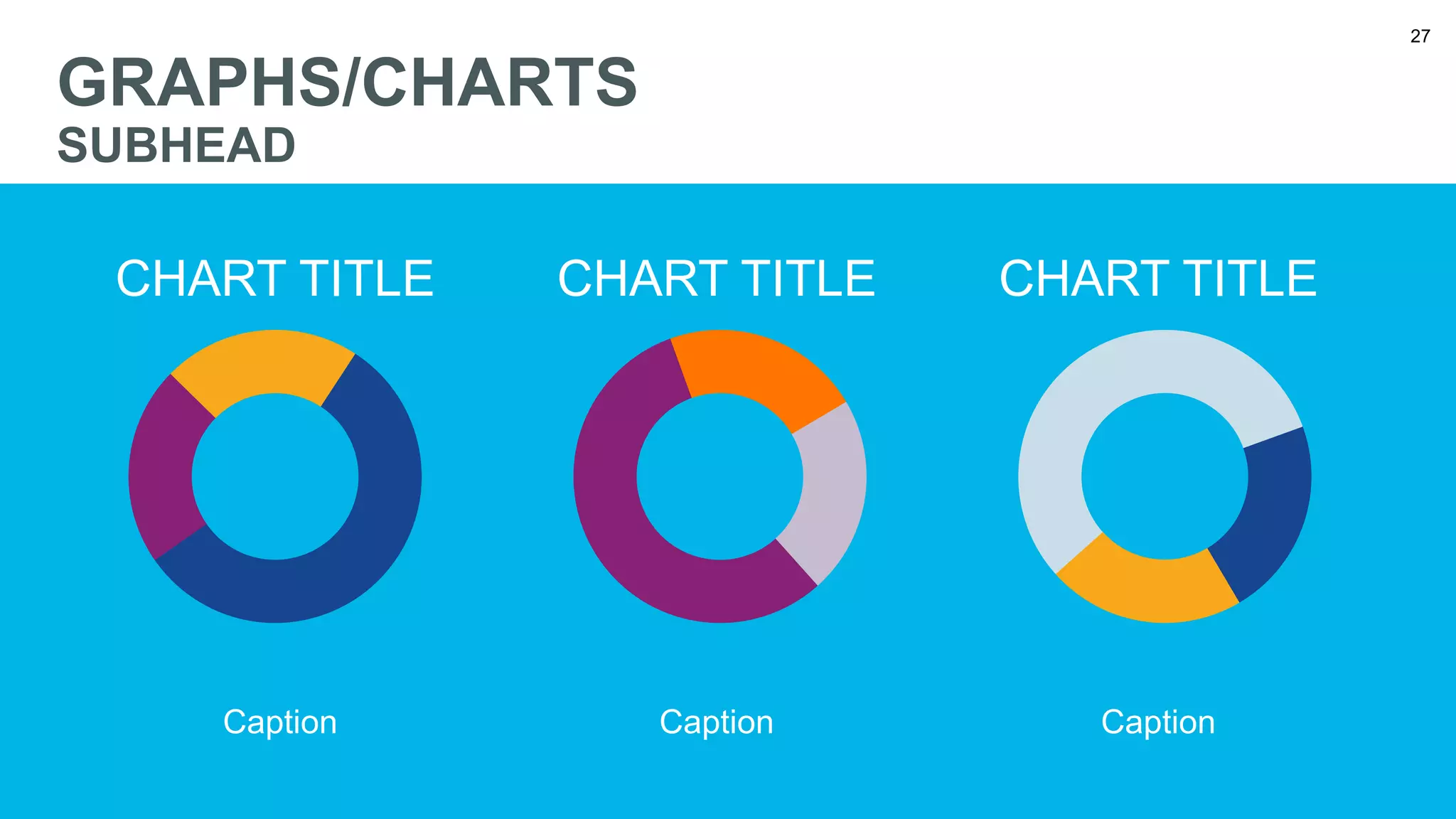
GRAPHS/CHARTS
SUBHEAD
CHART TITLE CHART TITLE CHART TITLE
Caption Caption Caption
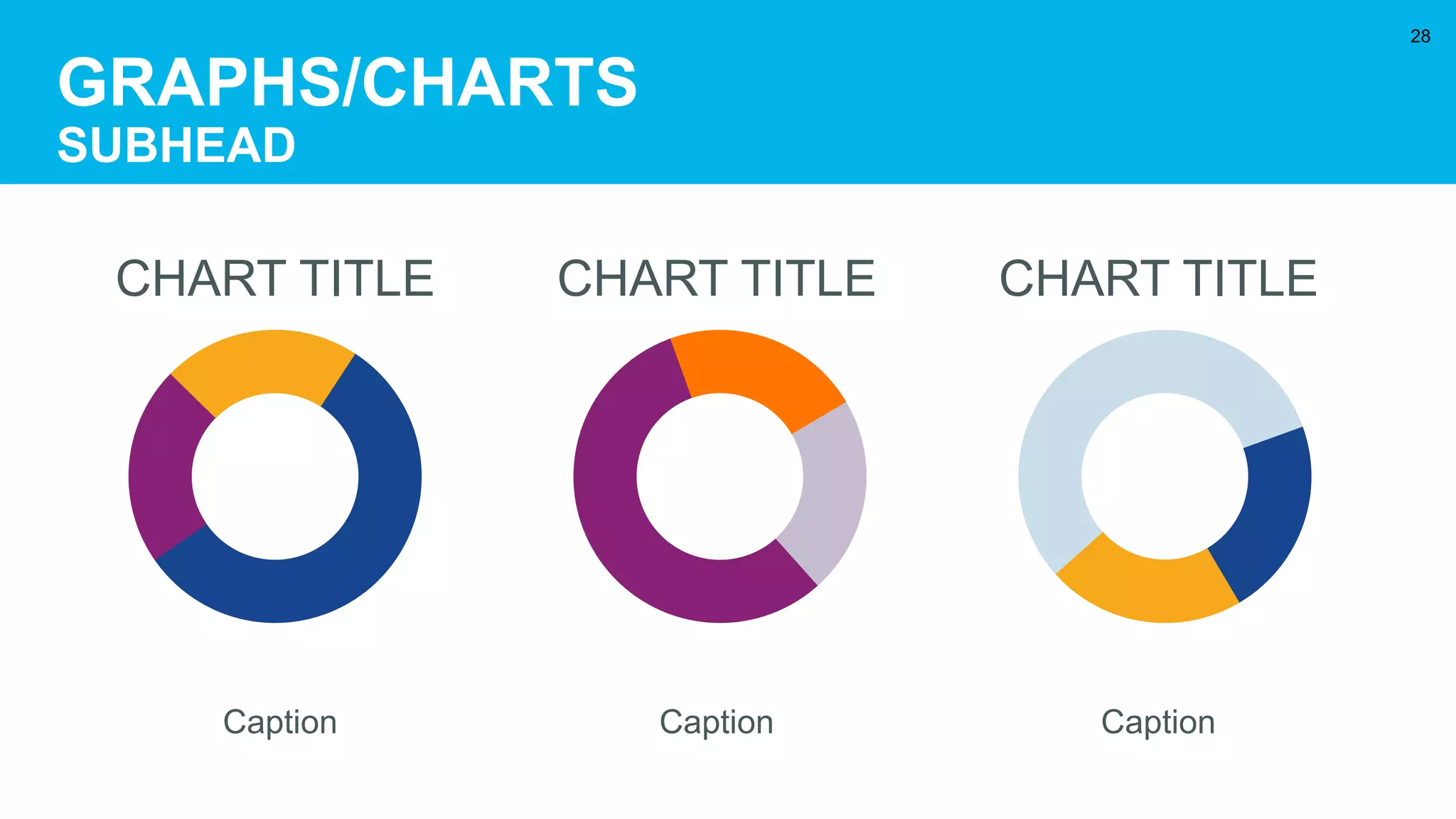
GRAPHS/CHARTS
SUBHEAD
28
CHART TITLE CHART TITLE CHART TITLE
Caption Caption Caption
29
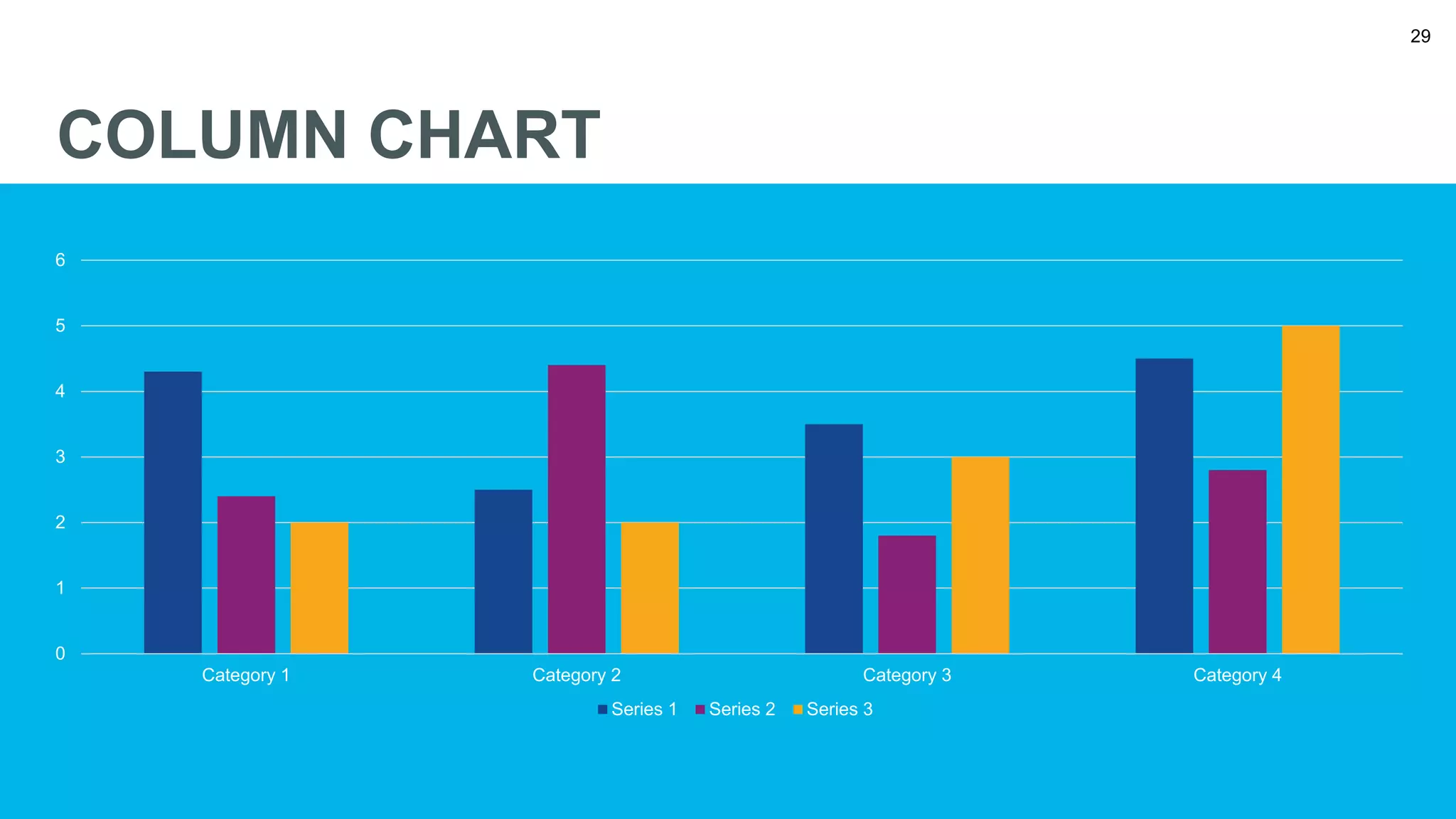
COLUMN CHART
0
1
2
3
4
5
6
Category 1 Category 2 Category 3 Category 4
Series 1 Series 2 Series 3
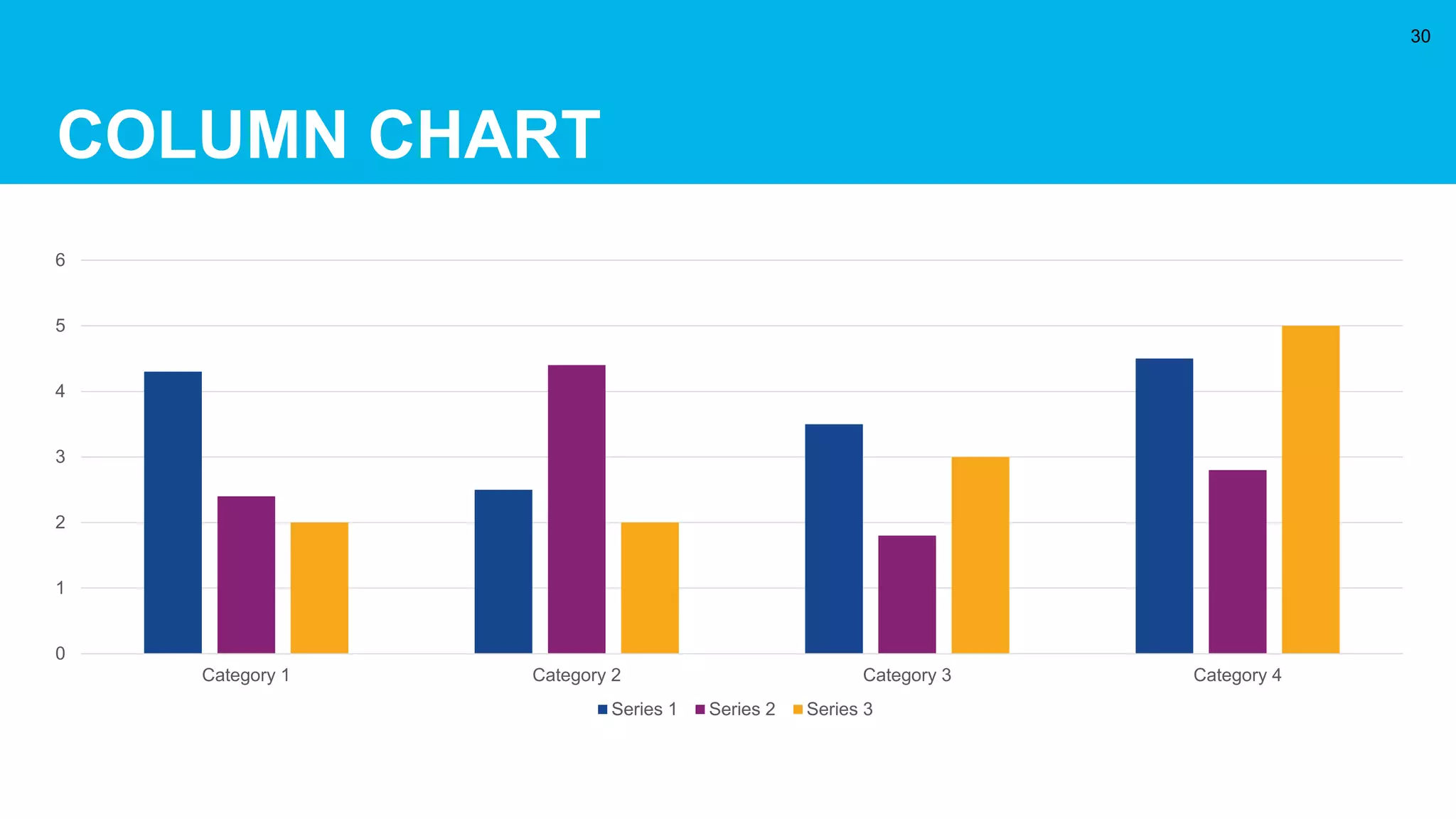
COLUMN CHART
30
0
1
2
3
4
5
6
Category 1 Category 2 Category 3 Category 4
Series 1 Series 2 Series 3
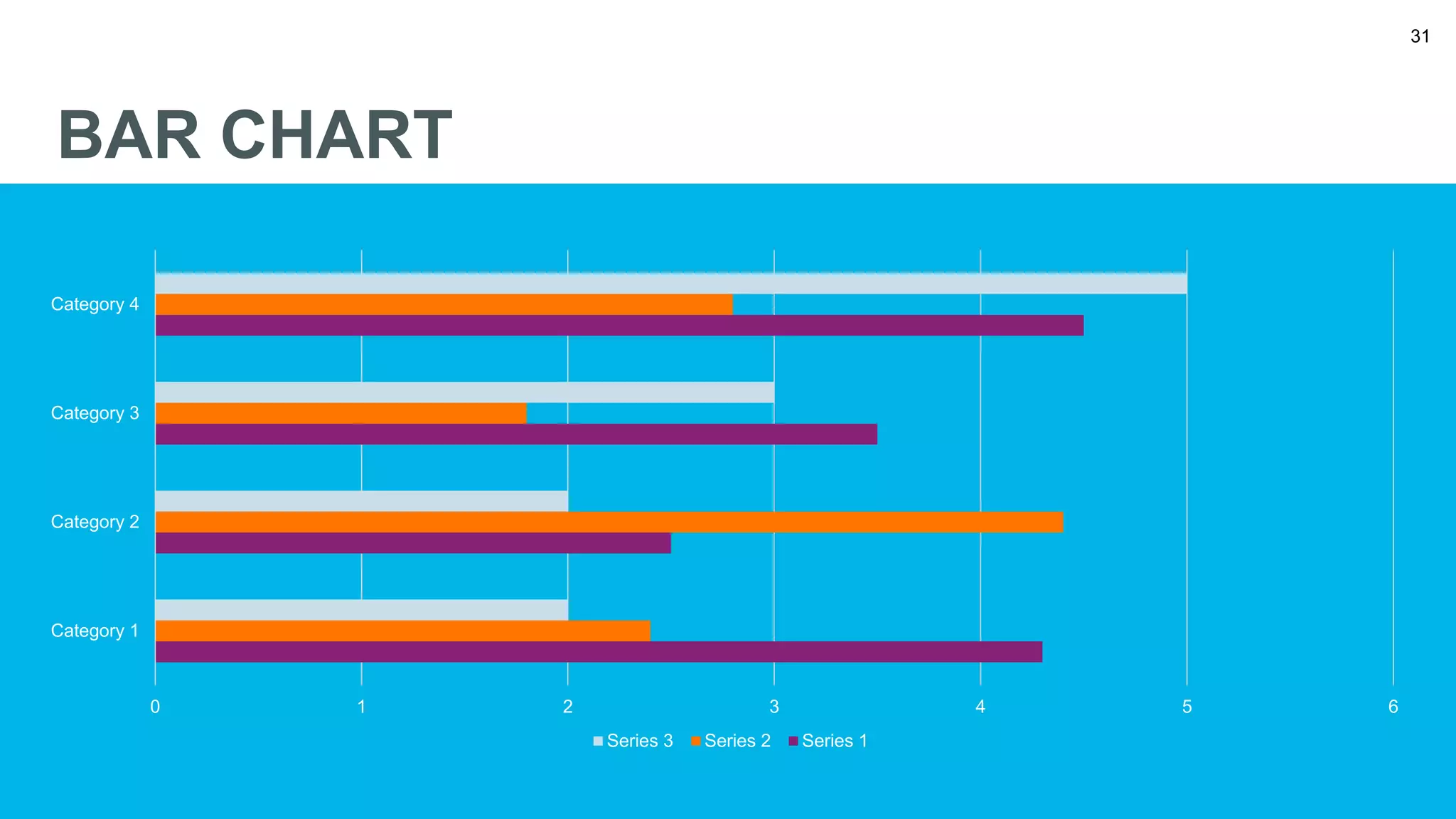
31
BAR CHART
0 1 2 3 4 5 6
Category 1
Category 2
Category 3
Category 4
Series 3 Series 2 Series 1
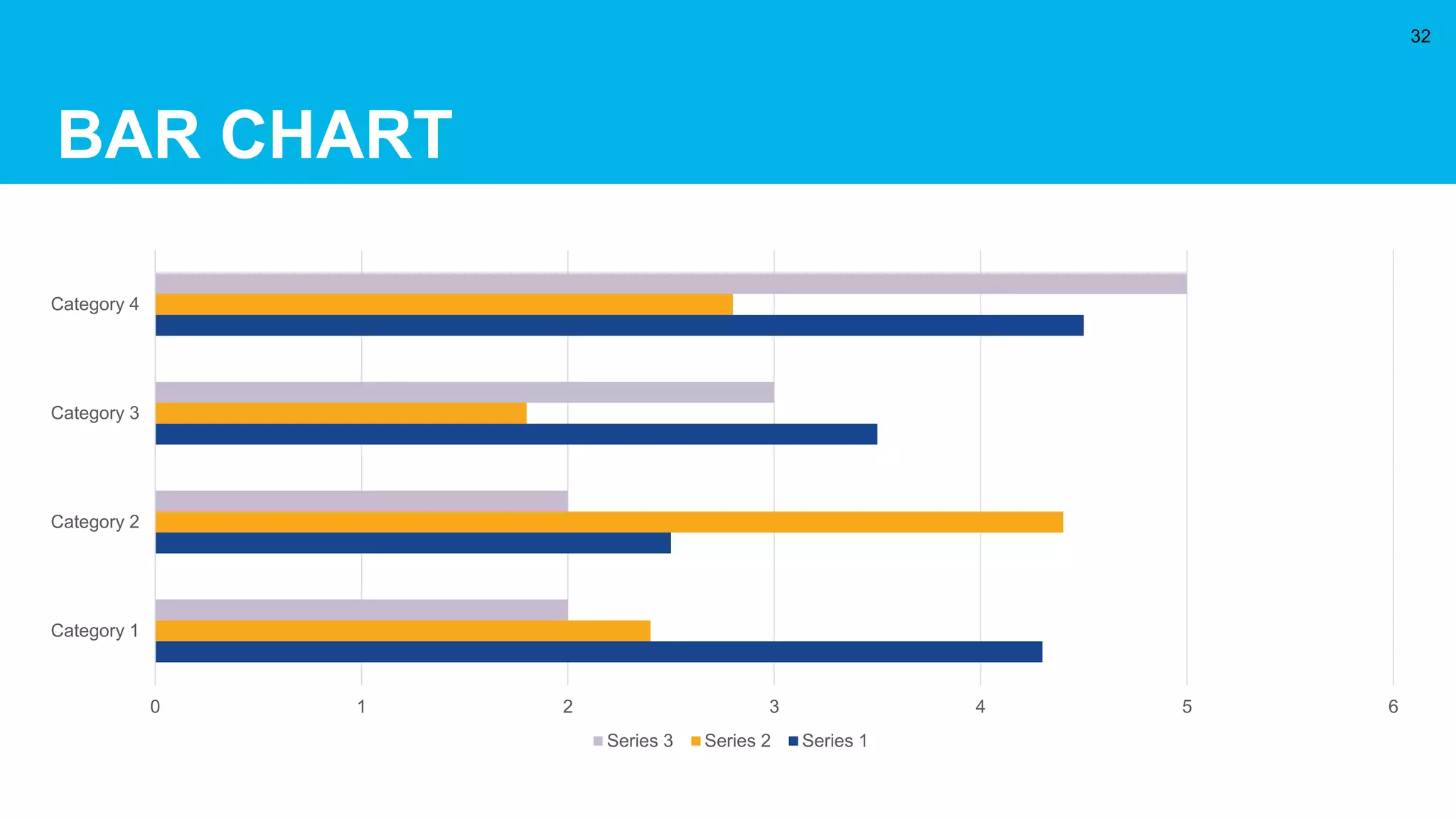
BAR CHART
32
0 1 2 3 4 5 6
Category 1
Category 2
Category 3
Category 4
Series 3 Series 2 Series 1
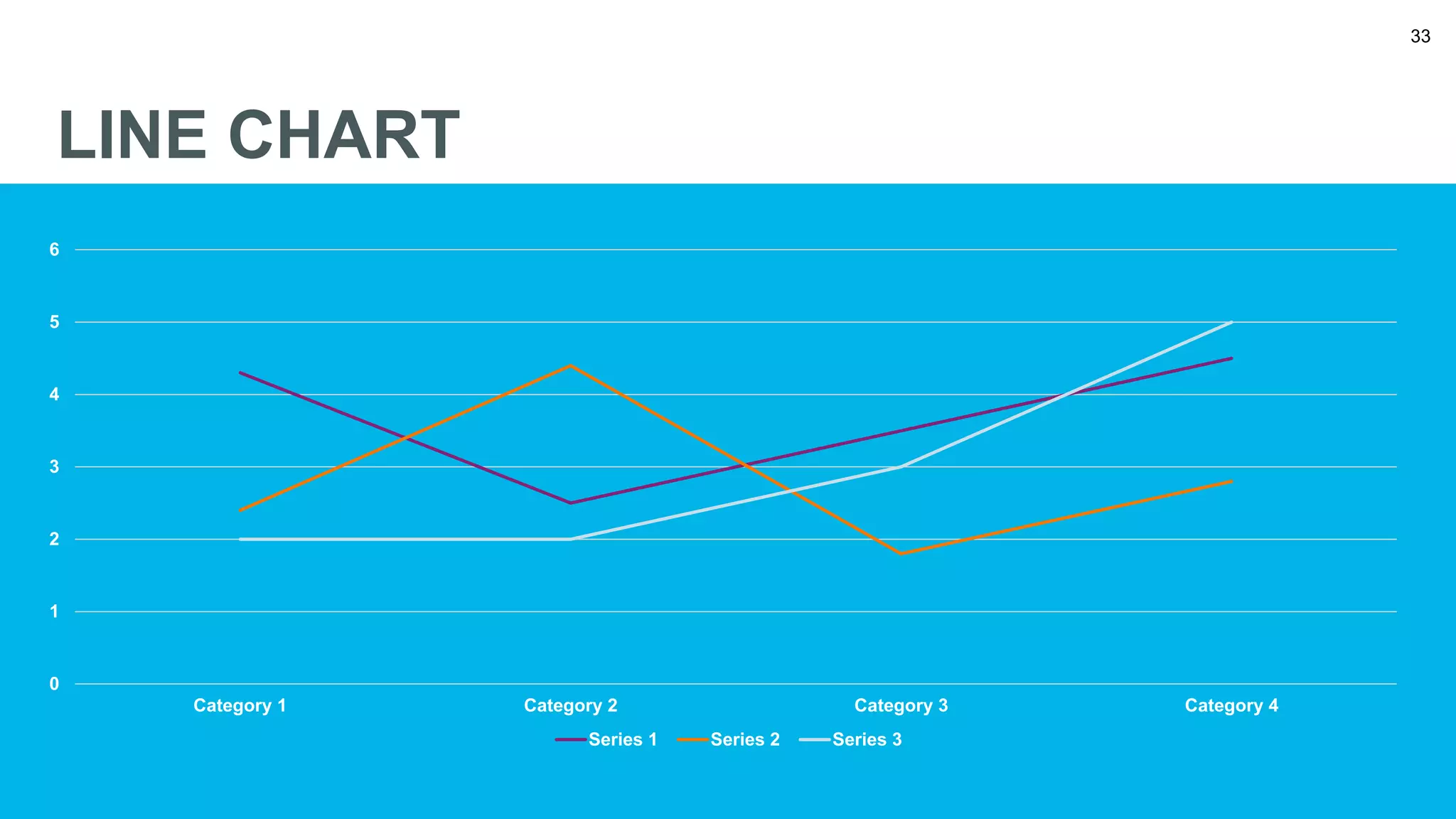
33
LINE CHART
0
1
2
3
4
5
6
Category 1 Category 2 Category 3 Category 4
Series 1 Series 2 Series 3
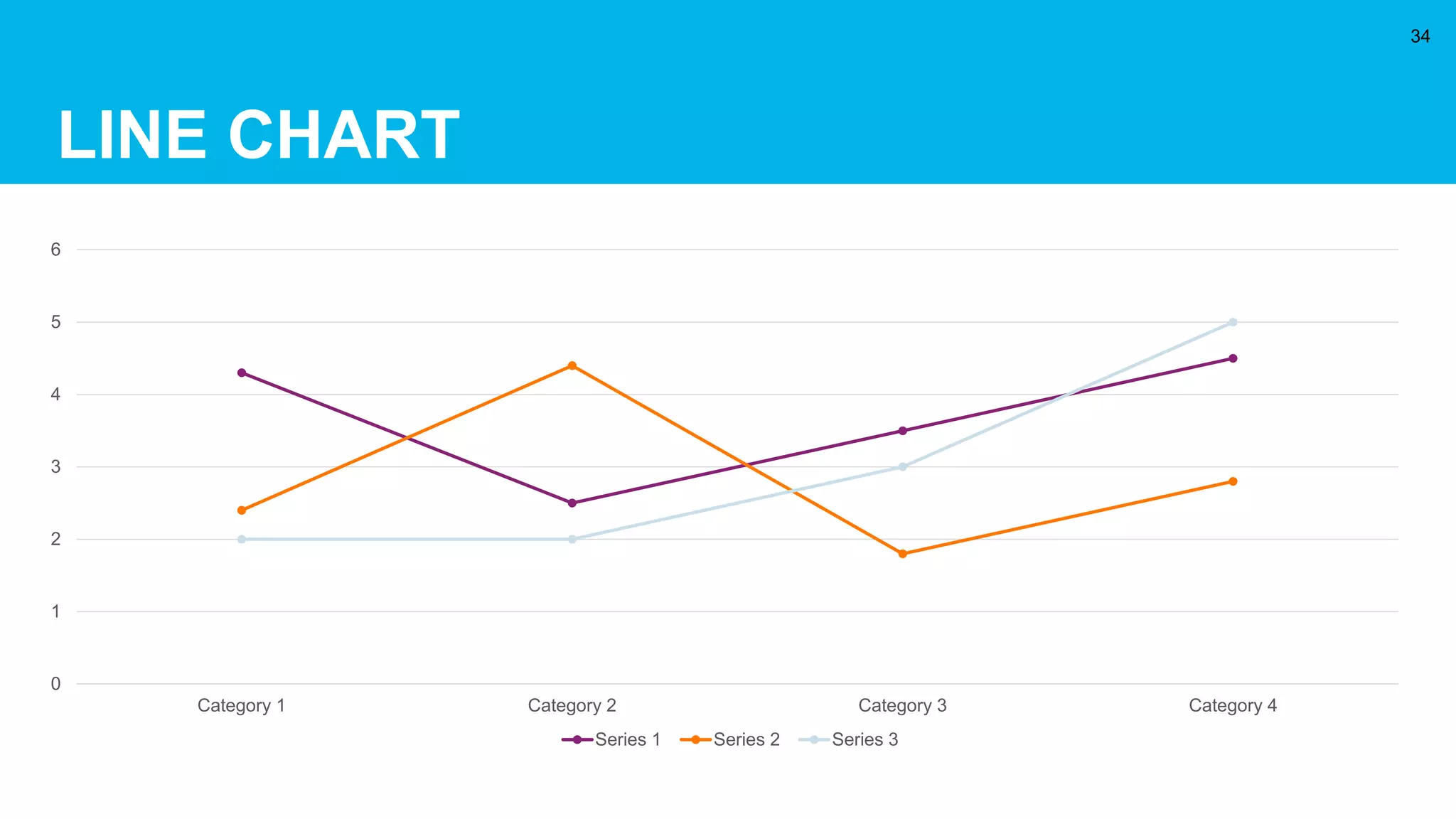
LINE CHART
34
0
1
2
3
4
5
6
Category 1 Category 2 Category 3 Category 4
Series 1 Series 2 Series 3
QUESTIONS
35
QUESTIONS
QUESTIONS
38

rotary-powerpoint-template.PPTX

  • 1.
    This template providesthe styles, colors, and layout options to help you create your own Rotary club PowerPoint presentation. You don’t have to use all the slides in your presentation. You can delete the slides you don’t want and duplicate those you would like more of. You can also change the order of the slides. Welcome to the Rotary club PowerPoint template
  • 2.
    To insert graphics (includesgraphs, charts, etc.): • Take a screenshot of a graph or chart you created somewhere else (e.g., Excel) and follow the instructions below in “To replace photos.” • Create a graph or chart by going to the Insert tab, then clicking Chart in the Illustrations section. Choose the type, then put your data in the Excel window that opens. Double click on the chart to call up the data again later. To replace photos (includes maps, graphs, charts, etc.): • Delete the existing photo, then copy and paste your own photo. or • Delete the existing photo, then place your own via the Insert tab. or • Right click the existing photo and select Change Picture. To place your new photo behind text, a logo, etc.: • Right click on the photo and select Send to Back. TUTORIAL: Graphics & Photos
  • 3.
    Adjusting the dimensionsof a photo • To crop a photo, right click on it and select Crop. Pull in the borders to where you want. • To enlarge a photo without distorting it, hold down the Shift key as you pull a corner in or out. Adding new slides • Formatted slides are available when you click on New Slide in the Slides section of the Insert tab. • These slides follow the look and style of this PowerPoint template, but you will only be able to change the text in these slides. Colors • For your convenience, the Rotary colors have been preset in the theme, and Rotary Leadership Colors and Secondary Colors appear on the pasteboard below every slide. • To change all the colors quickly, go to the Design tab and choose another color scheme in the Variants section. • To change a solid background to another color, right click, select Format Shape, and change the color in the Fill option. You can also change colors in the Design tab by selecting Format Background in the Customize section. • To change colors in a dual background to other colors, right click, select Format Shape, and change the colors in the Fill option by selecting Gradient fill. You can also change colors in the Design tab by selecting Format Background in the Customize section. Fonts • We recommend using the Arial font because it is very readable both on screen and printed out. • Other brand options are Arial Narrow, Georgia, Open Sans, and Open Sans Condensed. TUTORIAL: Layout, Colors & Fonts
  • 4.
    Use the followingresources to find images, videos, and brand guidelines. Please keep in mind that we are people of action — and choose images that show action. Brand Center https://brandcenter.rotary.org/en-GB Brand Center Images https://brandcenter.rotary.org/en-GB/Images-Video/Images Brand Center Videos https://brandcenter.rotary.org/en-GB/Images-Video/Videos Voice and Visual Identity Guidelines https://brandcenter.rotary.org/en- GB/App/AssetDetails/b/www/Asset/Details/118?brand=www&returnUrl=https%3a%2f%2fbrandcenter.rotary.org%2fen- GB%2fGuidelines&page=1&pageSize=100&showadvancedsearch=False&showkeywordfilters=True&showselectedkeywordfilters =True&largeLayout=False&b=www&bs=www&k=42&k=17&pg=Public&view=Standard TUTORIAL: Images, Videos & Brand Guidelines
  • 5.
    We have createdspecial signature systems that allow you to identify your club on all your communications materials. The Rotary club signature comprises the Masterbrand Signature plus the club name. You should use this signature system instead of the Masterbrand Signature alone on club-level communications. Use the name on your charter or the name your club is known by in your community in your club logo. Because the word “Rotary” is already in the logo, you don’t need to repeat it. For example, the Rotary Club of Evanston, Illinois, USA, would add only “Club of Evanston” below the Masterbrand Signature. The club name always appears on the same side as the wordmark, it should right-align with the “y” in Rotary. The positioning and the size relationship between the wordmark and the wheel can’t be altered. You can use either the Masterbrand Signature or the Masterbrand Signature Simplified when you create your district or zone logo. We recommend using the simplified version if the logo will be smaller than 1.25 cm (0.5 inches) or will be embroidered. TUTORIAL: Signature System for Clubs Find templates for creating your club, district, zone, or program logos in the Brand Center: https://rotary.org/brandcenter
  • 6.
    Type your Rotaryclub name here TITLE OF PRESENTATION
  • 7.
    TITLE OF PRESENTATION Typeyour Rotary club name here
  • 8.
    TITLE OF PRESENTATION Typeyour Rotary club name here
  • 9.
    TITLE OF PRESENTATION Placethe Rotary logo with your club identifier here. (See slide 5 of this template for club logo instructions.)
  • 10.
    TITLE OF PRESENTATION Placethe Rotary logo with your club identifier here. (See slide 5 of this template for club logo instructions.)
  • 11.
    TITLE OF PRESENTATION Placethe Rotary logo with your club identifier here. (See slide 5 of this template for club logo instructions.)
  • 12.
    TITLE OF PRESENTATION Typeyour Rotary club name here 12
  • 13.
    TITLE OF PRESENTATION Typeyour Rotary club name here 13
  • 14.
  • 15.
  • 16.
  • 17.
    Your options: • Fillthis text box with text • Fill this box with bullet points • Delete this box and insert a picture • Delete this box and insert a chart or graph TITLE A few lines can go here. 17
  • 18.
  • 19.
    BASIC BULLET POINTS •Use brief text • As bullet points • To get your • Information across 19
  • 20.
    FOR TEXT/BULLET POINTS Usethis space for longer text. Keep in mind that it’s not as interesting to have long blocks of text. Try not to use more than the amount of text shown here. Split content between slides, or… • Just use • Bullet points 1. You could also make a list 2. With numbers PUT SUBHEAD HERE. DELETE IF NONE. 20
  • 21.
    • JUST USE •BULLET POINTS 1. YOU COULD ALSO MAKE A LIST 2. WITH NUMBERS BULLETS Subhead 21
  • 22.
    22 GRAPHICS SUBHEAD A caption cango here. Replace the map image with a graphic from the web or from your documents.

  • 23.
    “Quotations are often included asinspiration or to evoke philosophical thoughts from the reader.” John Doe 23
  • 24.
    “Quotations are often included asinspiration or to evoke philosophical thoughts from the reader.” John Doe 24
  • 25.
    Use this spaceto explain the interesting number that you are showing at right. PROMINENT DATA SUBHEAD 25 75%
  • 26.
    Use this spaceto explain the interesting number that you are showing at right. PROMINENT DATA SUBHEAD 26 75%
  • 27.
    27 GRAPHS/CHARTS SUBHEAD CHART TITLE CHARTTITLE CHART TITLE Caption Caption Caption
  • 28.
    GRAPHS/CHARTS SUBHEAD 28 CHART TITLE CHARTTITLE CHART TITLE Caption Caption Caption
  • 29.
    29 COLUMN CHART 0 1 2 3 4 5 6 Category 1Category 2 Category 3 Category 4 Series 1 Series 2 Series 3
  • 30.
    COLUMN CHART 30 0 1 2 3 4 5 6 Category 1Category 2 Category 3 Category 4 Series 1 Series 2 Series 3
  • 31.
    31 BAR CHART 0 12 3 4 5 6 Category 1 Category 2 Category 3 Category 4 Series 3 Series 2 Series 1
  • 32.
    BAR CHART 32 0 12 3 4 5 6 Category 1 Category 2 Category 3 Category 4 Series 3 Series 2 Series 1
  • 33.
    33 LINE CHART 0 1 2 3 4 5 6 Category 1Category 2 Category 3 Category 4 Series 1 Series 2 Series 3
  • 34.
    LINE CHART 34 0 1 2 3 4 5 6 Category 1Category 2 Category 3 Category 4 Series 1 Series 2 Series 3
  • 35.
  • 36.
  • 37.
  • 38.