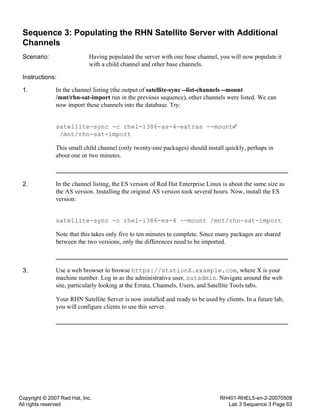
RH401
Red Hat Enterprise Deployment,
Virtualization, and Systems Management
RH401-RHEL5-en-2-20070508
Copyright © 2007 Red Hat, Inc.
All rights reserved
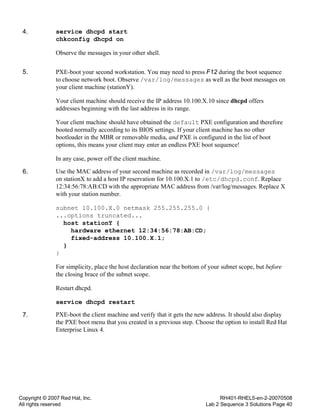
RH401-RHEL5-en-2-20070508
Table of Contents Page i
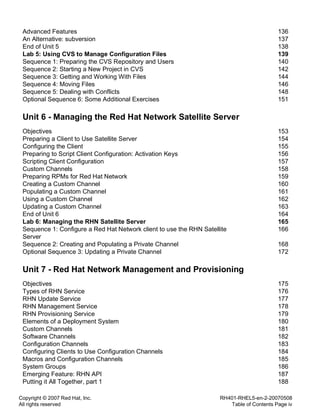
Table of Contents
RH401 - Red Hat Enterprise Deployment,
Virtualization, and Systems Management
Introduction
Copyright ix
Notes on Internationalization x
Welcome xi
Participant Introductions xii
Red Hat Enterprise Linux xiii
Red Hat Enterprise Linux Variants xiv
Red Hat Network xv
Other Red Hat Supported Software xvi
The Fedora Project xvii
Classroom Network xviii
Objectives xix
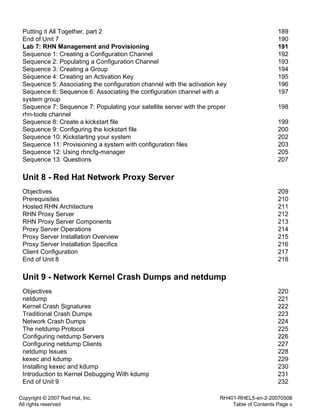
Unit 1 - Essential System Management
Objectives 2
System Management Tasks 3
Standardization 5
Centralization 6
Scalability 7
Provisioning 8
Automation 9
The "One-off" Trap 10
Red Hat Tools for System Management 11
End of Unit 1 12
Unit 2 - Provisioning with DHCP and PXE
Objectives 14
Bare Metal Provisioning 15
Dynamic Host Configuration Protocol 16
Trivial File Transfer Protocol 17
Booting Anaconda over the Network 18
Accessing the Installer 19
PXE Boot 20
pxelinux.0 21
The pxelinux Configuration File 22
Common pxelinux Directives 23
PXE Boot Menu 24
DHCP Server 25
Essential dhcpd.conf Configuration 26
Copyright © 2007 Red Hat, Inc.
All rights reserved
RH401-RHEL5-en-2-20070508
Table of Contents Page ii
Reserved IP Addresses 27
Offering Files via DHCP 28
DHCP Scope and Groups 29
The PXE Class 30
Kickstart and DHCP 31
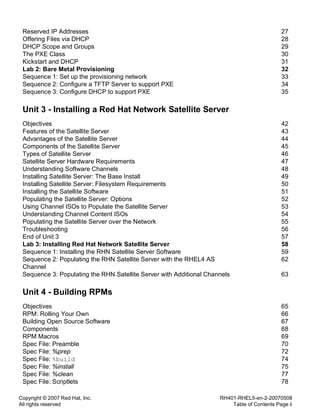
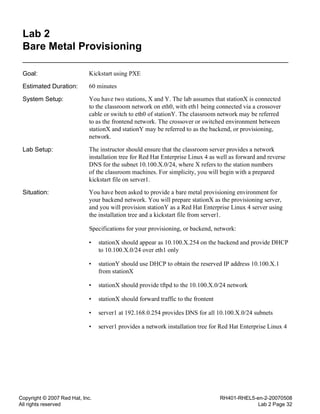
Lab 2: Bare Metal Provisioning 32
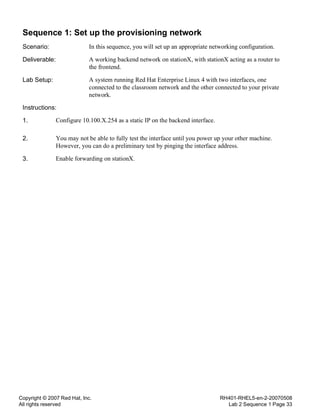
Sequence 1: Set up the provisioning network 33
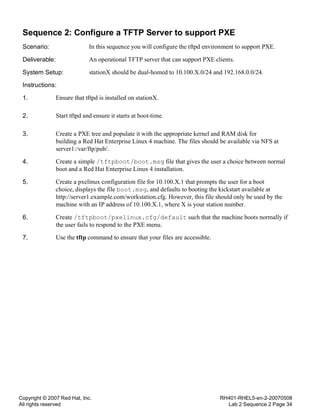
Sequence 2: Configure a TFTP Server to support PXE 34
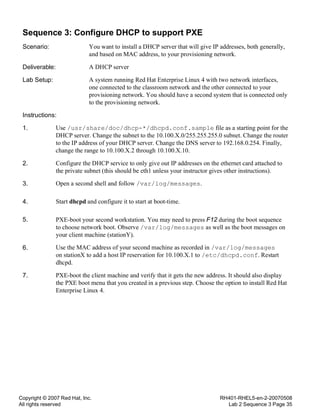
Sequence 3: Configure DHCP to support PXE 35
Unit 3 - Installing a Red Hat Network Satellite Server
Objectives 42
Features of the Satellite Server 43
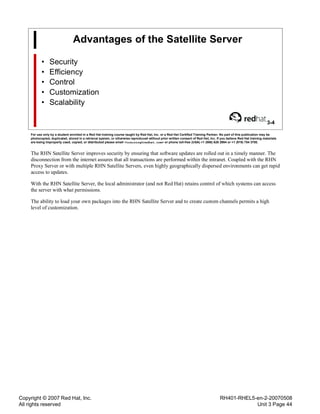
Advantages of the Satellite Server 44
Components of the Satellite Server 45
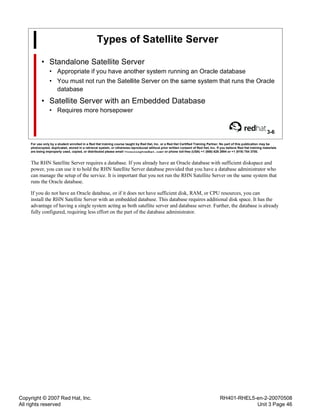
Types of Satellite Server 46
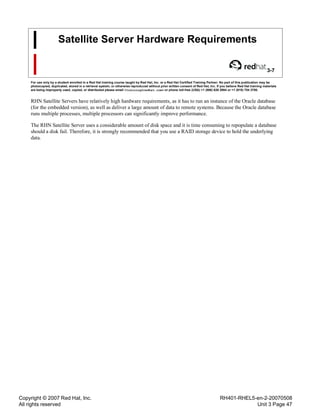
Satellite Server Hardware Requirements 47
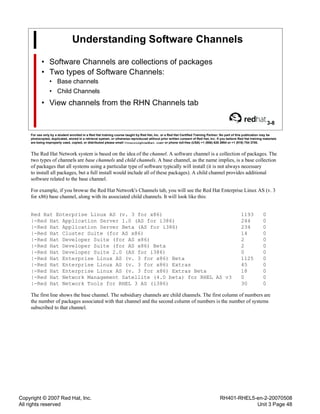
Understanding Software Channels 48
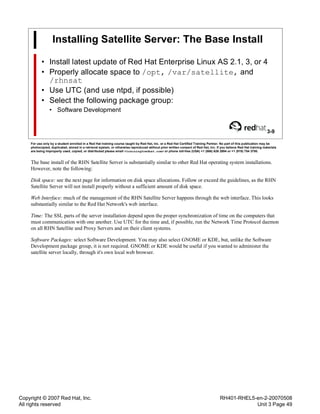
Installing Satellite Server: The Base Install 49
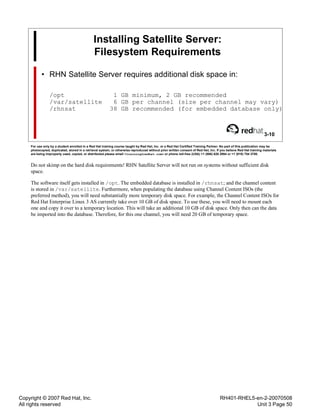
Installing Satellite Server: Filesystem Requirements 50
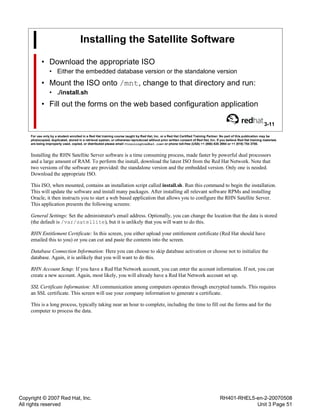
Installing the Satellite Software 51
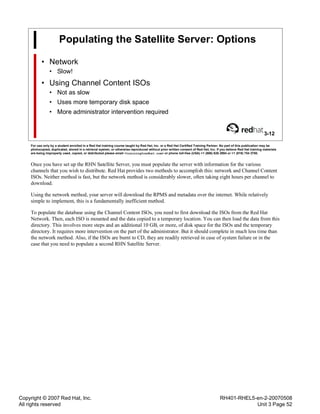
Populating the Satellite Server: Options 52
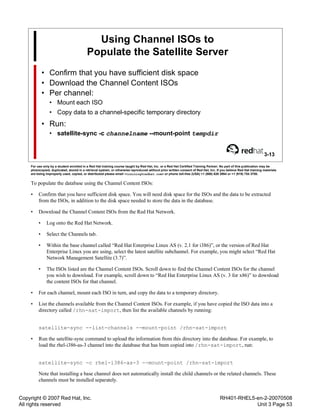
Using Channel ISOs to Populate the Satellite Server 53
Understanding Channel Content ISOs 54
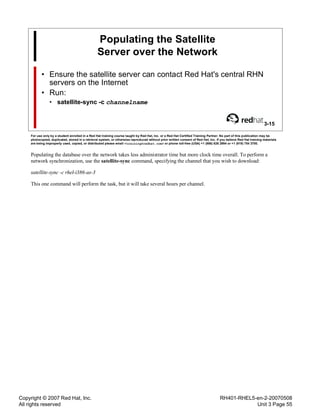
Populating the Satellite Server over the Network 55
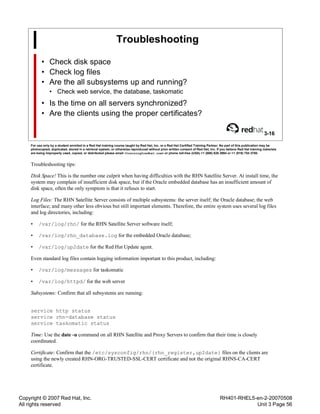
Troubleshooting 56
End of Unit 3 57
Lab 3: Installing Red Hat Network Satellite Server 58
Sequence 1: Installing the RHN Satellite Server Software 59
Sequence 2: Populating the RHN Satellite Server with the RHEL4 AS
Channel
62
Sequence 3: Populating the RHN Satellite Server with Additional Channels 63
Unit 4 - Building RPMs
Objectives 65
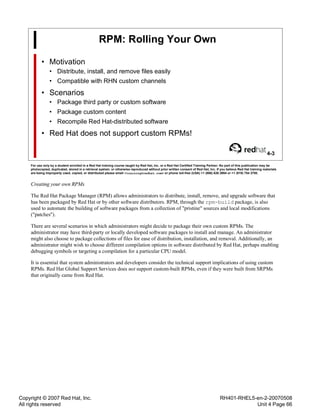
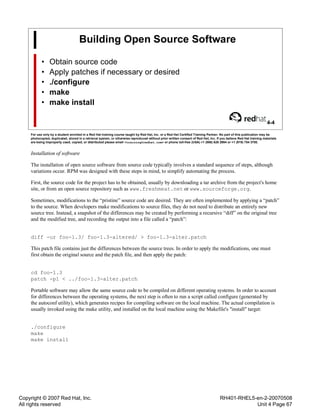
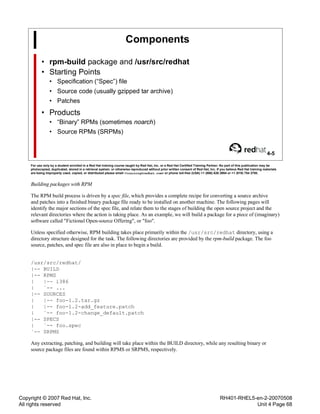
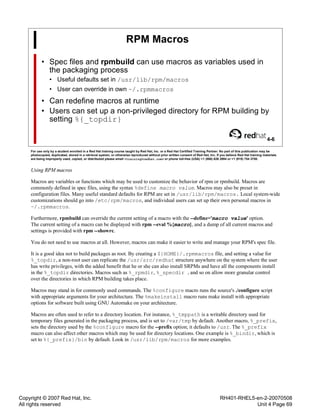
RPM: Rolling Your Own 66
Building Open Source Software 67
Components 68
RPM Macros 69
Spec File: Preamble 70
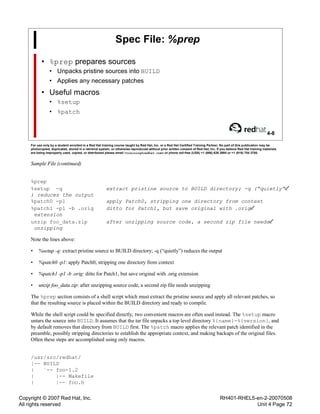
Spec File: %prep 72
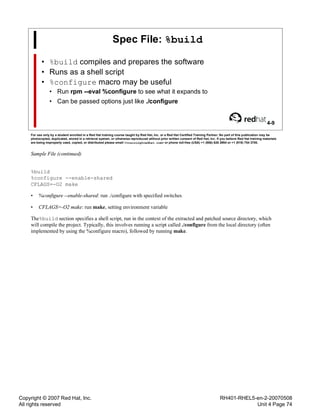
Spec File: %build 74
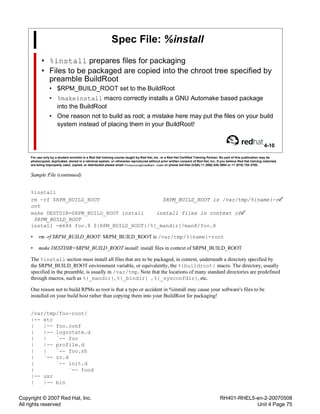
Spec File: %install 75
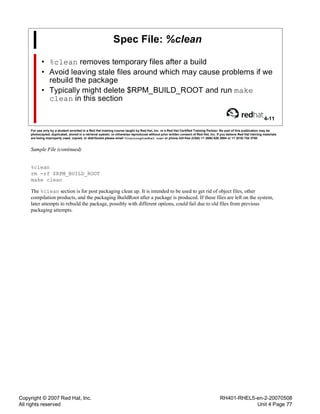
Spec File: %clean 77
Spec File: Scriptlets 78
Copyright © 2007 Red Hat, Inc.
All rights reserved
RH401-RHEL5-en-2-20070508
Table of Contents Page iii
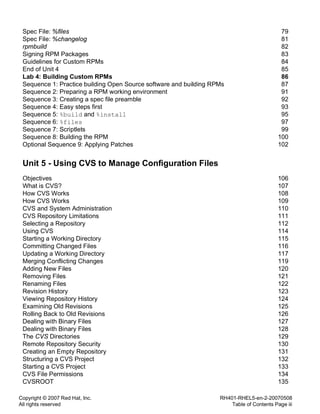
Spec File: %files 79
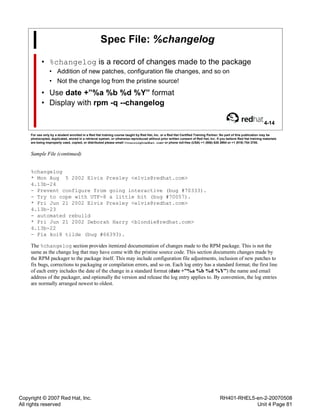
Spec File: %changelog 81
rpmbuild 82
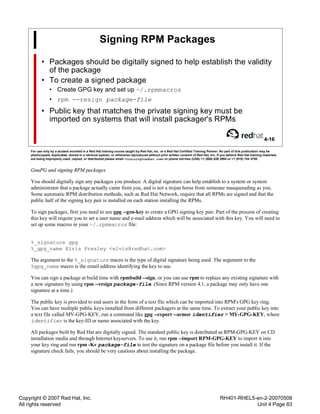
Signing RPM Packages 83
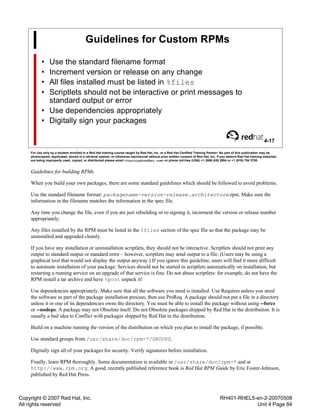
Guidelines for Custom RPMs 84
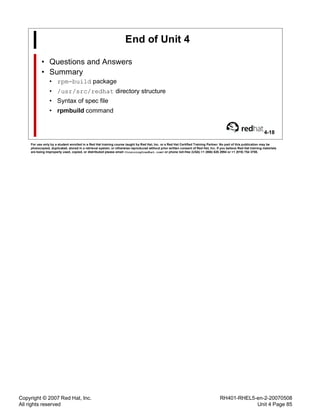
End of Unit 4 85
Lab 4: Building Custom RPMs 86
Sequence 1: Practice building Open Source software and building RPMs 87
Sequence 2: Preparing a RPM working environment 91
Sequence 3: Creating a spec file preamble 92
Sequence 4: Easy steps first 93
Sequence 5: %build and %install 95
Sequence 6: %files 97
Sequence 7: Scriptlets 99
Sequence 8: Building the RPM 100
Optional Sequence 9: Applying Patches 102
Unit 5 - Using CVS to Manage Configuration Files
Objectives 106
What is CVS? 107
How CVS Works 108
How CVS Works 109
CVS and System Administration 110
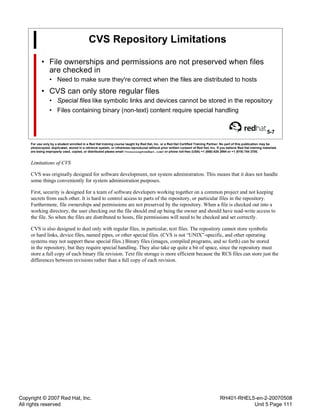
CVS Repository Limitations 111
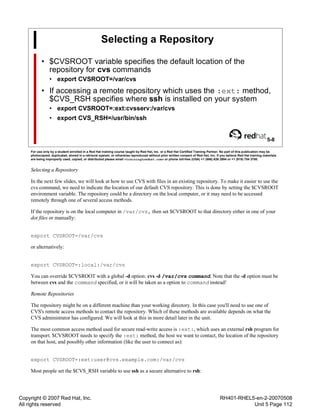
Selecting a Repository 112
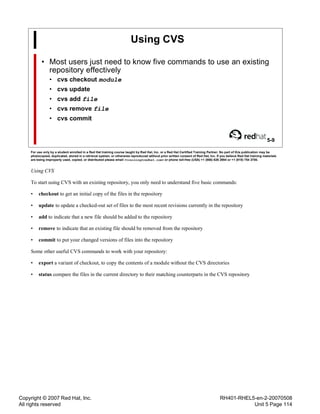
Using CVS 114
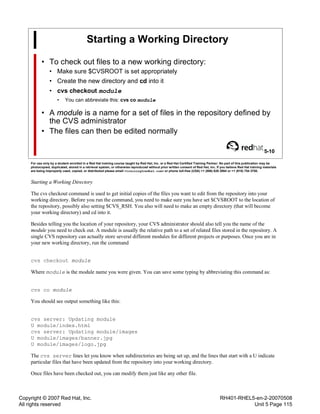
Starting a Working Directory 115
Committing Changed Files 116
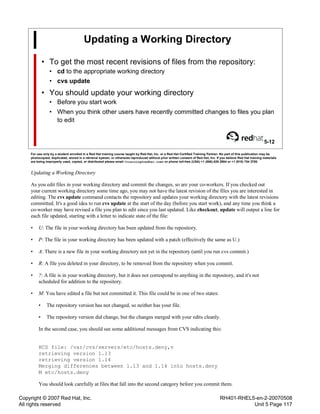
Updating a Working Directory 117
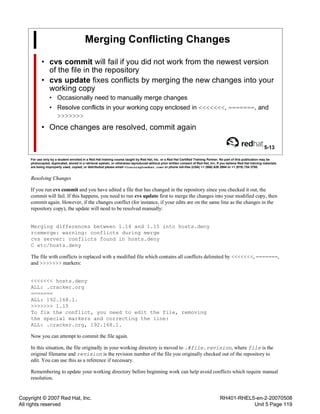
Merging Conflicting Changes 119
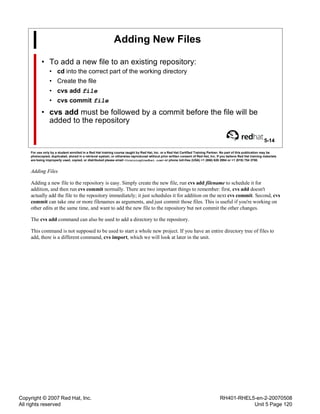
Adding New Files 120
Removing Files 121
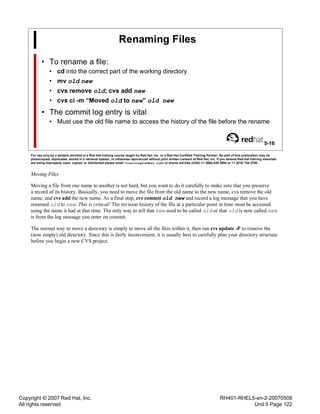
Renaming Files 122
Revision History 123
Viewing Repository History 124
Examining Old Revisions 125
Rolling Back to Old Revisions 126
Dealing with Binary Files 127
Dealing with Binary Files 128
The CVS Directories 129
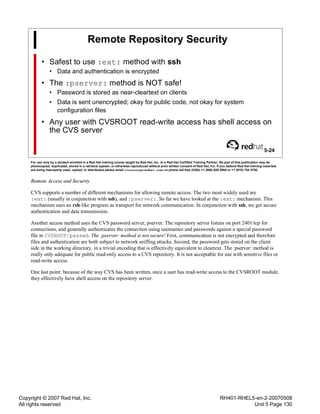
Remote Repository Security 130
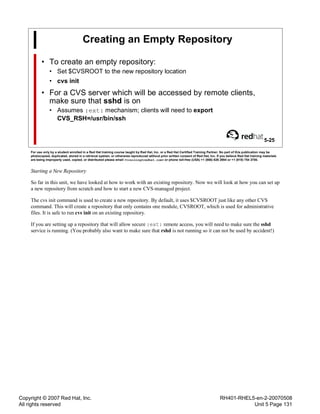
Creating an Empty Repository 131
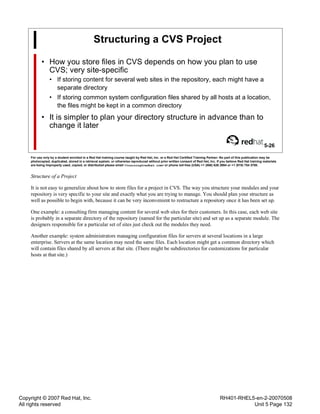
Structuring a CVS Project 132
Starting a CVS Project 133
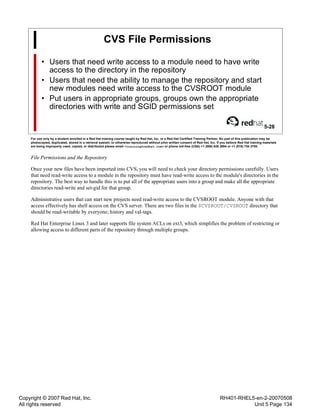
CVS File Permissions 134
CVSROOT 135
Copyright © 2007 Red Hat, Inc.
All rights reserved
RH401-RHEL5-en-2-20070508
Table of Contents Page iv
Advanced Features 136
An Alternative: subversion 137
End of Unit 5 138
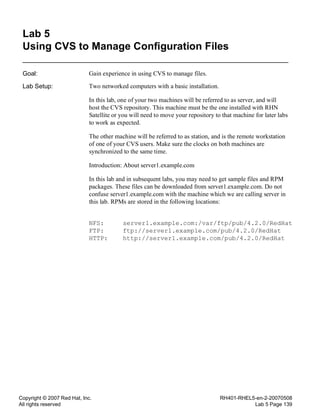
Lab 5: Using CVS to Manage Configuration Files 139
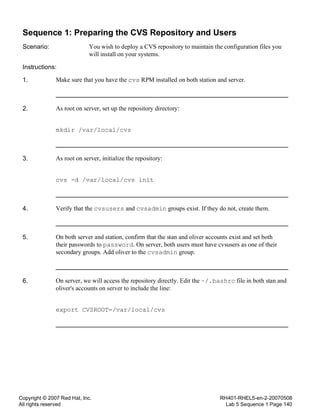
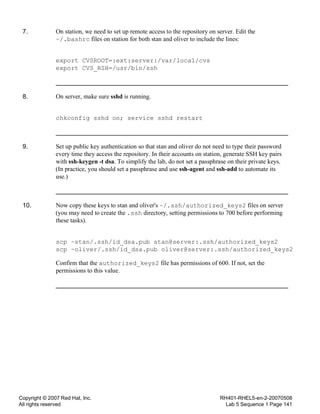
Sequence 1: Preparing the CVS Repository and Users 140
Sequence 2: Starting a New Project in CVS 142
Sequence 3: Getting and Working With Files 144
Sequence 4: Moving Files 146
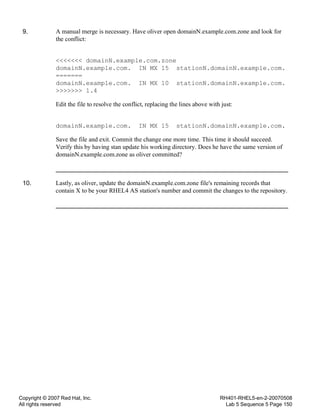
Sequence 5: Dealing with Conflicts 148
Optional Sequence 6: Some Additional Exercises 151
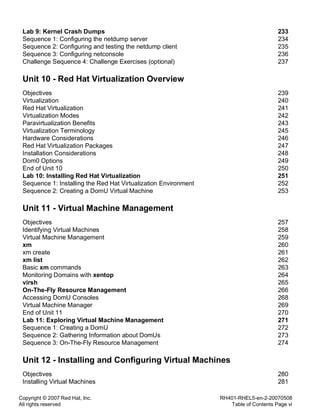
Unit 6 - Managing the Red Hat Network Satellite Server
Objectives 153
Preparing a Client to Use Satellite Server 154
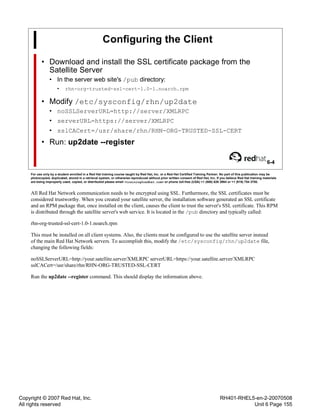
Configuring the Client 155
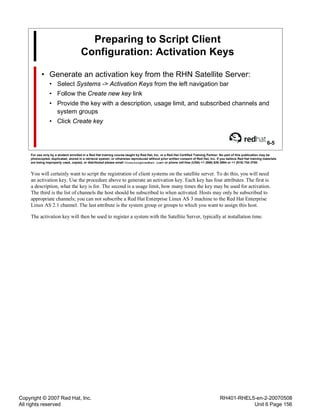
Preparing to Script Client Configuration: Activation Keys 156
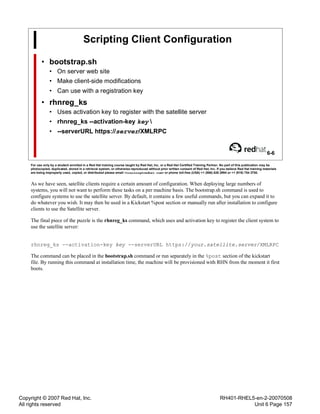
Scripting Client Configuration 157
Custom Channels 158
Preparing RPMs for Red Hat Network 159
Creating a Custom Channel 160
Populating a Custom Channel 161
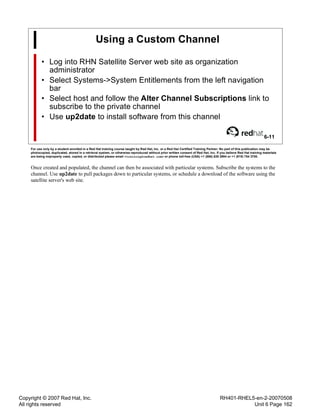
Using a Custom Channel 162
Updating a Custom Channel 163
End of Unit 6 164
Lab 6: Managing the RHN Satellite Server 165
Sequence 1: Configure a Red Hat Network client to use the RHN Satellite
Server
166
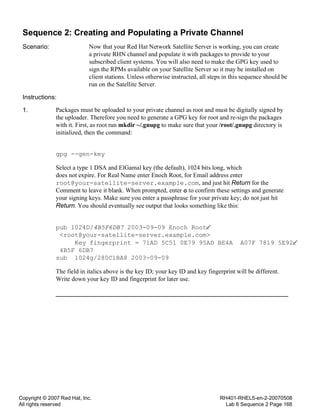
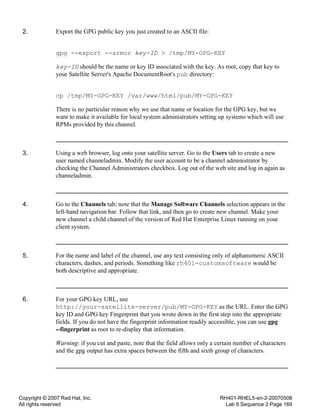
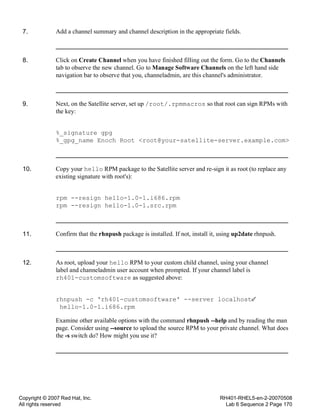
Sequence 2: Creating and Populating a Private Channel 168
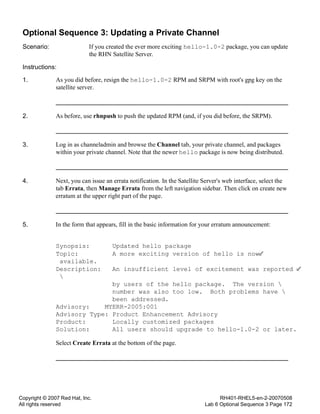
Optional Sequence 3: Updating a Private Channel 172
Unit 7 - Red Hat Network Management and Provisioning
Objectives 175
Types of RHN Service 176
RHN Update Service 177
RHN Management Service 178
RHN Provisioning Service 179
Elements of a Deployment System 180
Custom Channels 181
Software Channels 182
Configuration Channels 183
Configuring Clients to Use Configuration Channels 184
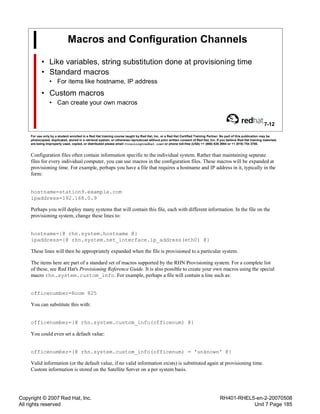
Macros and Configuration Channels 185
System Groups 186
Emerging Feature: RHN API 187
Putting it All Together, part 1 188
Copyright © 2007 Red Hat, Inc.
All rights reserved
RH401-RHEL5-en-2-20070508
Table of Contents Page v
Putting it All Together, part 2 189
End of Unit 7 190
Lab 7: RHN Management and Provisioning 191
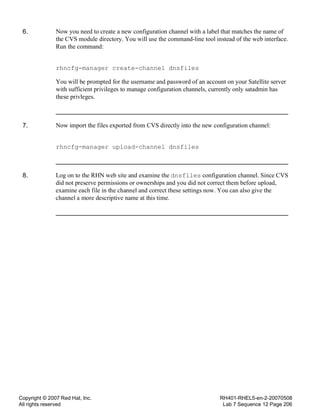
Sequence 1: Creating a Configuration Channel 192
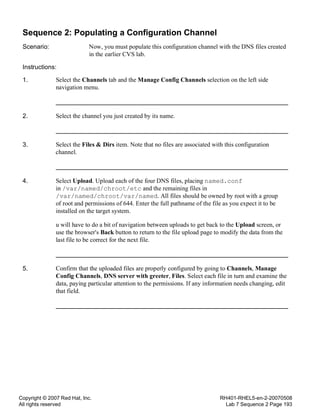
Sequence 2: Populating a Configuration Channel 193
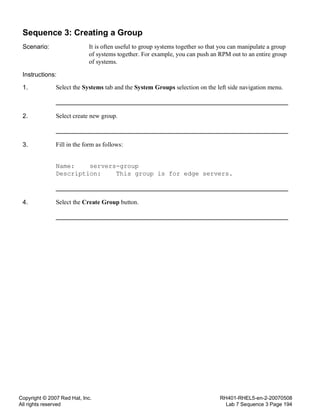
Sequence 3: Creating a Group 194
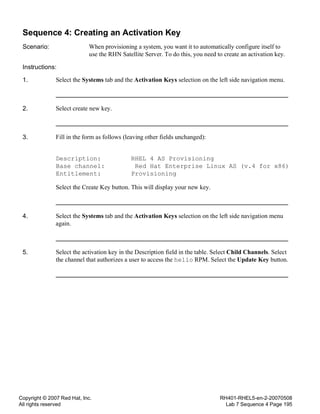
Sequence 4: Creating an Activation Key 195
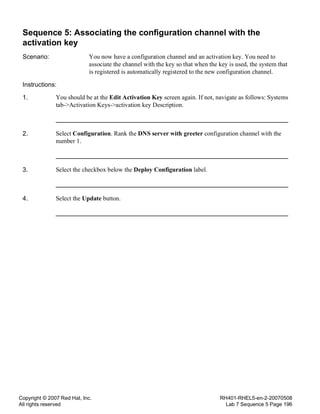
Sequence 5: Associating the configuration channel with the activation key 196
Sequence 6: Sequence 6: Associating the configuration channel with a
system group
197
Sequence 7: Sequence 7: Populating your satellite server with the proper
rhn-tools channel
198
Sequence 8: Create a kickstart file 199
Sequence 9: Configuring the kickstart file 200
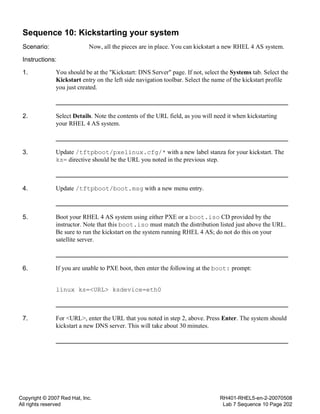
Sequence 10: Kickstarting your system 202
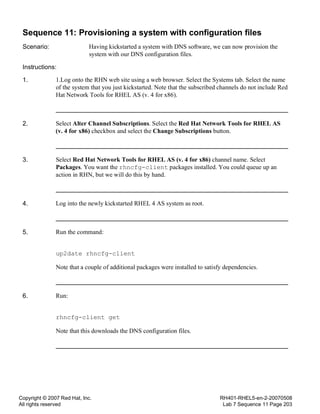
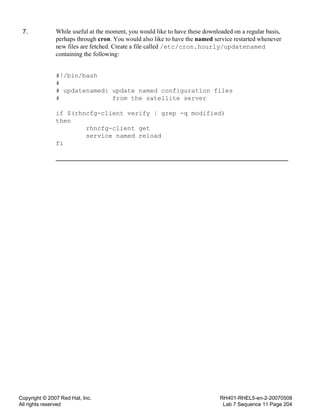
Sequence 11: Provisioning a system with configuration files 203
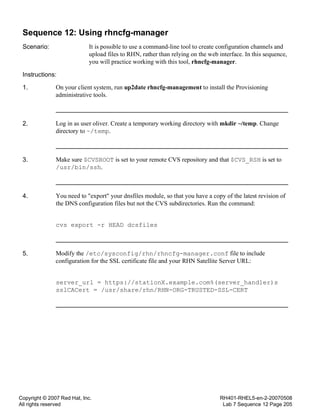
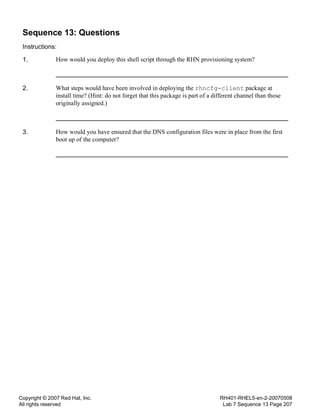
Sequence 12: Using rhncfg-manager 205
Sequence 13: Questions 207
Unit 8 - Red Hat Network Proxy Server
Objectives 209
Prerequisites 210
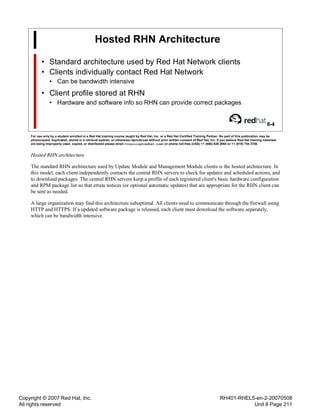
Hosted RHN Architecture 211
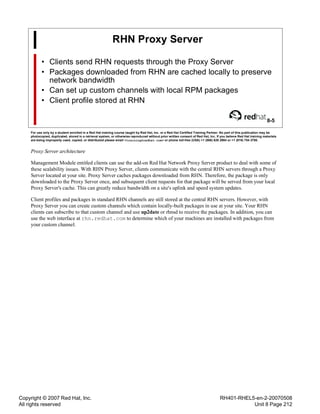
RHN Proxy Server 212
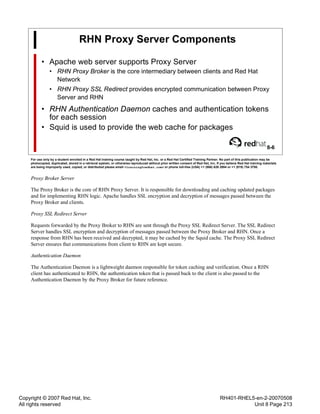
RHN Proxy Server Components 213
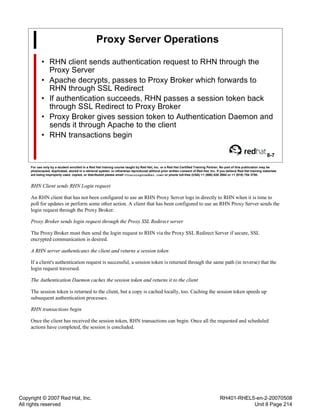
Proxy Server Operations 214
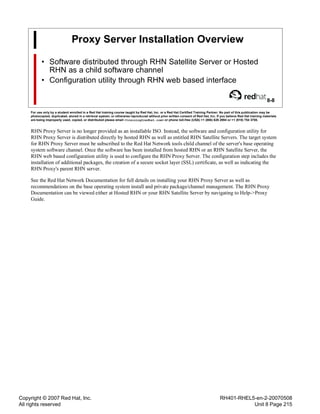
Proxy Server Installation Overview 215
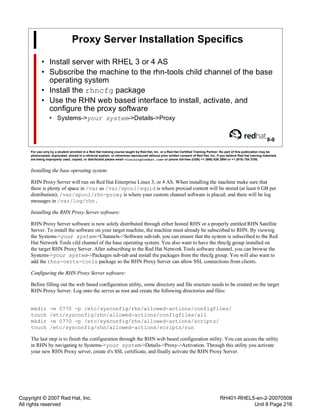
Proxy Server Installation Specifics 216
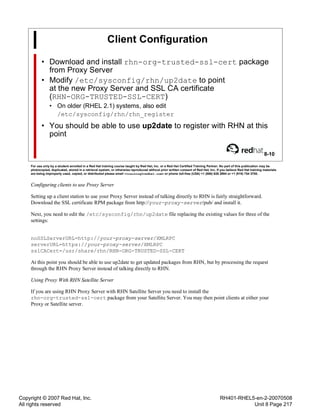
Client Configuration 217
End of Unit 8 218
Unit 9 - Network Kernel Crash Dumps and netdump
Objectives 220
netdump 221
Kernel Crash Signatures 222
Traditional Crash Dumps 223
Network Crash Dumps 224
The netdump Protocol 225
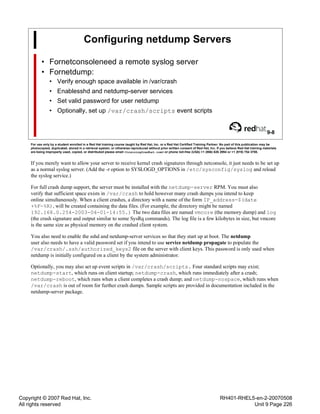
Configuring netdump Servers 226
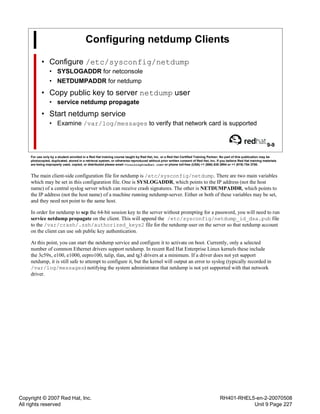
Configuring netdump Clients 227
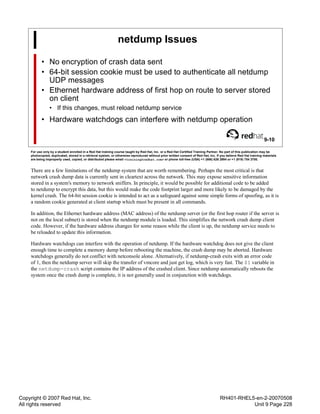
netdump Issues 228
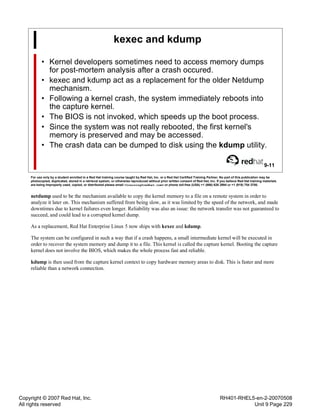
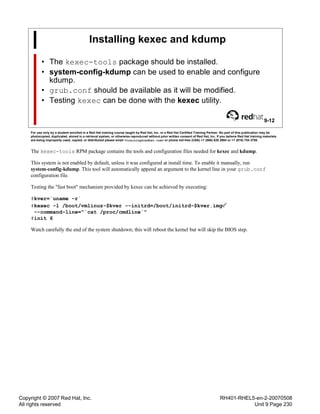
kexec and kdump 229
Installing kexec and kdump 230
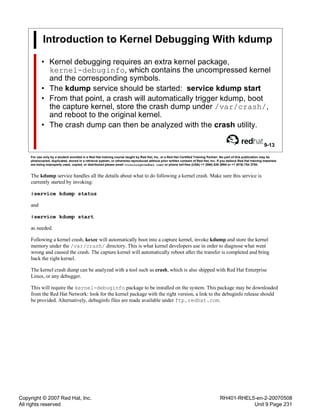
Introduction to Kernel Debugging With kdump 231
End of Unit 9 232
Copyright © 2007 Red Hat, Inc.
All rights reserved
RH401-RHEL5-en-2-20070508
Table of Contents Page vi
Lab 9: Kernel Crash Dumps 233
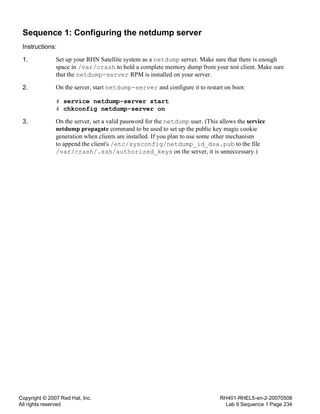
Sequence 1: Configuring the netdump server 234
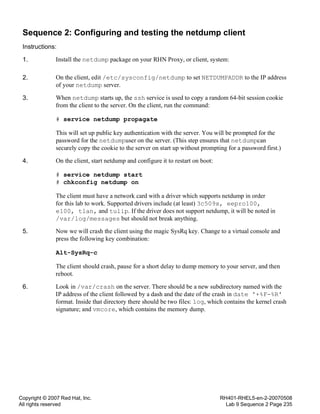
Sequence 2: Configuring and testing the netdump client 235
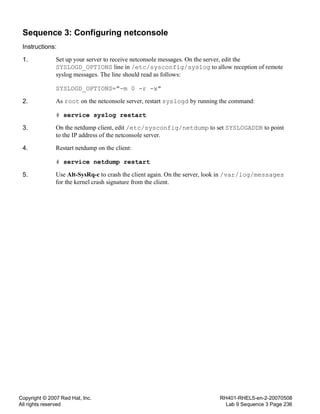
Sequence 3: Configuring netconsole 236
Challenge Sequence 4: Challenge Exercises (optional) 237
Unit 10 - Red Hat Virtualization Overview
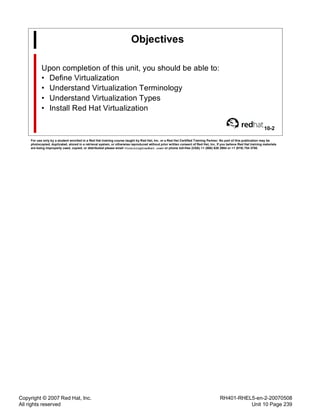
Objectives 239
Virtualization 240
Red Hat Virtualization 241
Virtualization Modes 242
Paravirtualization Benefits 243
Virtualization Terminology 245
Hardware Considerations 246
Red Hat Virtualization Packages 247
Installation Considerations 248
Dom0 Options 249
End of Unit 10 250
Lab 10: Installing Red Hat Virtualization 251
Sequence 1: Installing the Red Hat Virtualization Environment 252
Sequence 2: Creating a DomU Virtual Machine 253
Unit 11 - Virtual Machine Management
Objectives 257
Identifying Virtual Machines 258
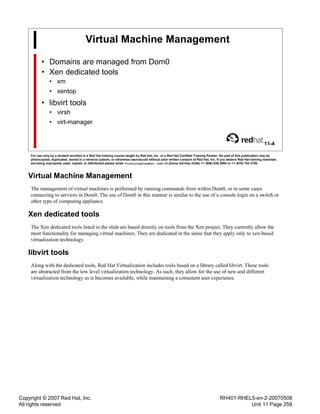
Virtual Machine Management 259
xm 260
xm create 261
xm list 262
Basic xm commands 263
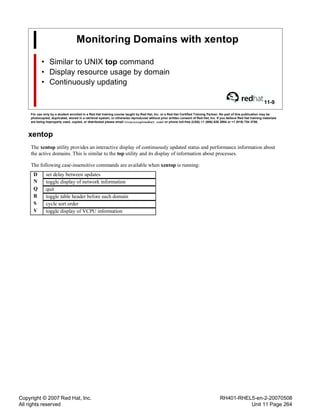
Monitoring Domains with xentop 264
virsh 265
On-The-Fly Resource Management 266
Accessing DomU Consoles 268
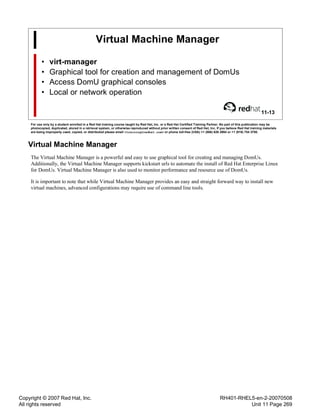
Virtual Machine Manager 269
End of Unit 11 270
Lab 11: Exploring Virtual Machine Management 271
Sequence 1: Creating a DomU 272
Sequence 2: Gathering Information about DomUs 273
Sequence 3: On-The-Fly Resource Management 274
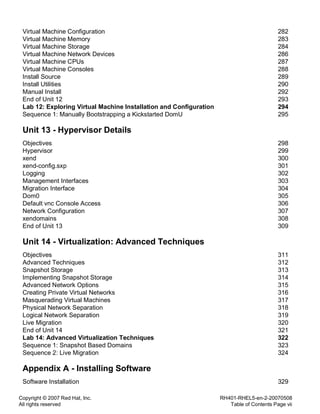
Unit 12 - Installing and Configuring Virtual Machines
Objectives 280
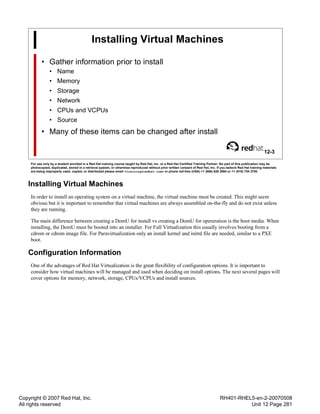
Installing Virtual Machines 281
Copyright © 2007 Red Hat, Inc.
All rights reserved
RH401-RHEL5-en-2-20070508
Table of Contents Page vii
Virtual Machine Configuration 282
Virtual Machine Memory 283
Virtual Machine Storage 284
Virtual Machine Network Devices 286
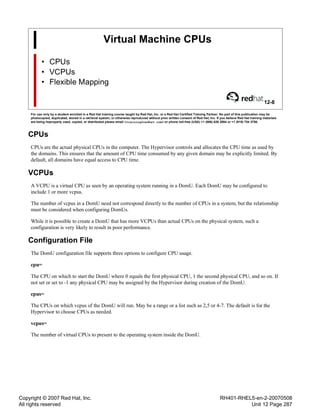
Virtual Machine CPUs 287
Virtual Machine Consoles 288
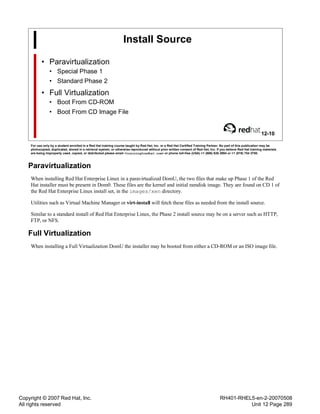
Install Source 289
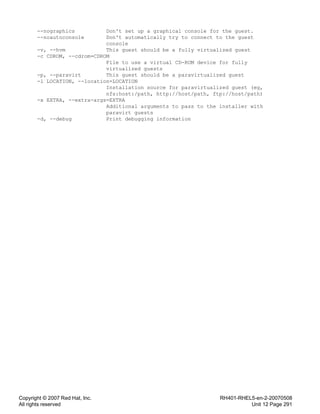
Install Utilities 290
Manual Install 292
End of Unit 12 293
Lab 12: Exploring Virtual Machine Installation and Configuration 294
Sequence 1: Manually Bootstrapping a Kickstarted DomU 295
Unit 13 - Hypervisor Details
Objectives 298
Hypervisor 299
xend 300
xend-config.sxp 301
Logging 302
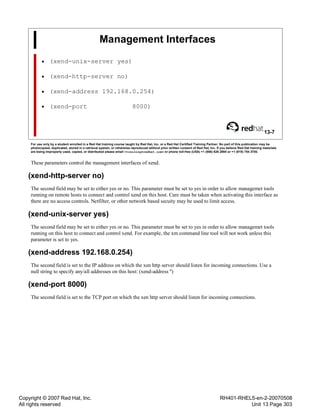
Management Interfaces 303
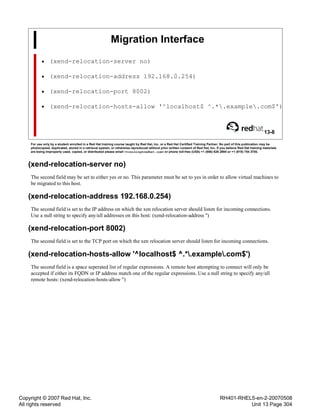
Migration Interface 304
Dom0 305
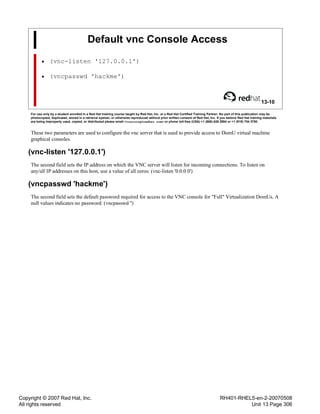
Default vnc Console Access 306
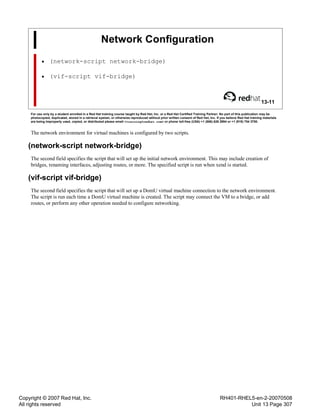
Network Configuration 307
xendomains 308
End of Unit 13 309
Unit 14 - Virtualization: Advanced Techniques
Objectives 311
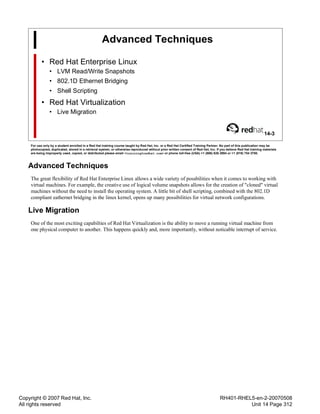
Advanced Techniques 312
Snapshot Storage 313
Implementing Snapshot Storage 314
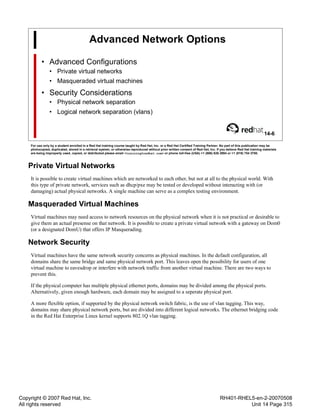
Advanced Network Options 315
Creating Private Virtual Networks 316
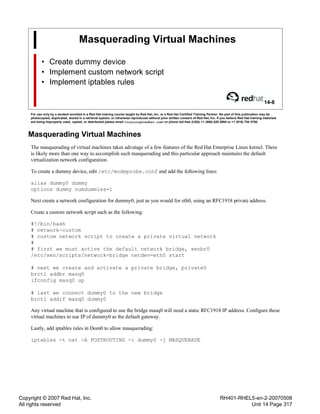
Masquerading Virtual Machines 317
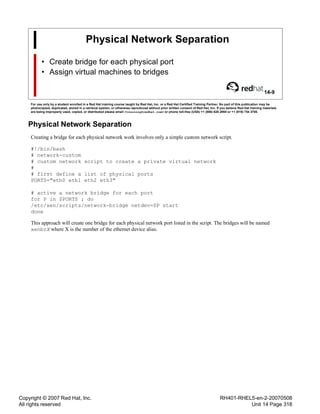
Physical Network Separation 318
Logical Network Separation 319
Live Migration 320
End of Unit 14 321
Lab 14: Advanced Virtualization Techniques 322
Sequence 1: Snapshot Based Domains 323
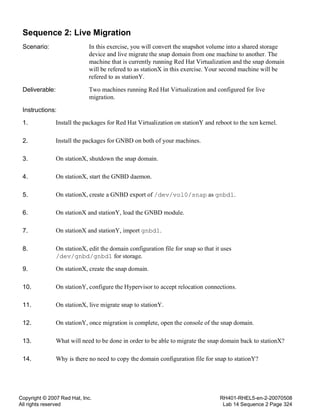
Sequence 2: Live Migration 324
Appendix A - Installing Software
Software Installation 329
Copyright © 2007 Red Hat, Inc.
All rights reserved
RH401-RHEL5-en-2-20070508
Introduction Page viii
Introduction
Introduction
1
For use only by a student enrolled in a Red Hat training course taught by Red Hat, Inc. or a Red Hat Certified Training Partner. No part of this publication may be
photocopied, duplicated, stored in a retrieval system, or otherwise reproduced without prior written consent of Red Hat, Inc. If you believe Red Hat training materials
are being improperly used, copied, or distributed please email <training@redhat.com> or phone toll-free (USA) +1 (866) 626 2994 or +1 (919) 754 3700.
Copyright © 2007 Red Hat, Inc.
All rights reserved
RH401-RHEL5-en-2-20070508
Introduction Page ix
Copyright
• The contents of this course and all its modules and related materials, including handouts
to audience members, are Copyright © 2007 Red Hat, Inc.
• No part of this publication may be stored in a retrieval system, transmitted or reproduced
in any way, including, but not limited to, photocopy, photograph, magnetic, electronic or
other record, without the prior written permission of Red Hat, Inc.
• This instructional program, including all material provided herein, is supplied without any
guarantees from Red Hat, Inc. Red Hat, Inc. assumes no liability for damages or legal
action arising from the use or misuse of contents or details contained herein.
• If you believe Red Hat training materials are being used, copied, or otherwise improperly
distributed please email training@redhat.com or phone toll-free (USA) +1 866 626 2994
or +1 919 754 3700.
2
For use only by a student enrolled in a Red Hat training course taught by Red Hat, Inc. or a Red Hat Certified Training Partner. No part of this publication may be
photocopied, duplicated, stored in a retrieval system, or otherwise reproduced without prior written consent of Red Hat, Inc. If you believe Red Hat training materials
are being improperly used, copied, or distributed please email <training@redhat.com> or phone toll-free (USA) +1 (866) 626 2994 or +1 (919) 754 3700.
Copyright © 2007 Red Hat, Inc.
All rights reserved
RH401-RHEL5-en-2-20070508
Introduction Page x
Notes on Internationalization
• Red Hat Enterprise Linux supports nineteen languages
• Default language can be selected:
• During installation
• With system-config-language
• System->Administration->Language
• Alternate languages can be used on a per-command basis:
$ LANG=en_US.UTF8 date
• Language settings are stored in /etc/sysconfig/i18n
3
For use only by a student enrolled in a Red Hat training course taught by Red Hat, Inc. or a Red Hat Certified Training Partner. No part of this publication may be
photocopied, duplicated, stored in a retrieval system, or otherwise reproduced without prior written consent of Red Hat, Inc. If you believe Red Hat training materials
are being improperly used, copied, or distributed please email <training@redhat.com> or phone toll-free (USA) +1 (866) 626 2994 or +1 (919) 754 3700.
Red Hat Enterprise Linux 5 supports nineteen languages: English, Bengali, Chinese (Simplified), Chinese
(Traditional), French, German, Gujarati, Hindi, Italian, Japanese, Korean, Malayalam, Marathi, Oriya, Portuguese
(Brazilian), Punjabi, Russian, Spanish and Tamil. Support for Assamese, Kannada, Sinhalese and Telugu are provided
as technology previews.
A system's language can be selected during installation, but the default is US English. To use other languages, you
may need to install extra packages to provide the appropriate fonts, translations and so forth. These can be selected
during system installation or with system-config-packages ( Applications->Add/Remove Software).
The currently selected language is set with the LANG shell variable. Programs read this variable to determine what
language to use for output:
[student@stationX ~]$ echo $LANG
ru_RU.UTF8
A system's default language can be changed with system-config-language ( System+Administration->Language),
which affects the /etc/sysconfig/i18n file.
Languages with non-ASCII characters may have problems displaying in some environments. Kanji characters, for
example, may not display as expected on a virtual console. Individual commands can be made to use another language
by setting LANG on the command-line:
[student@stationX ~]$ LANG=en_US.UTF8 date
Thu Feb 22 13:54:34 EST 2007
Subsequent commands will revert to using the system's default language for output.
SCIM (Smart Common Input Method) can be used to input text in various languages under X if the appropriate
language support packages are installed. Type Ctrl-Space to switch input methods.
Copyright © 2007 Red Hat, Inc.
All rights reserved
RH401-RHEL5-en-2-20070508
Introduction Page xi
Welcome
Please let us know if you have any special needs while at our
training facility.
4
For use only by a student enrolled in a Red Hat training course taught by Red Hat, Inc. or a Red Hat Certified Training Partner. No part of this publication may be
photocopied, duplicated, stored in a retrieval system, or otherwise reproduced without prior written consent of Red Hat, Inc. If you believe Red Hat training materials
are being improperly used, copied, or distributed please email <training@redhat.com> or phone toll-free (USA) +1 (866) 626 2994 or +1 (919) 754 3700.
Phone and network availability
Please only make calls during breaks. Your instructor will show you which phone to use. Network access and analog
phone lines may be available; your instructor will provide information about these facilities. Please turn pagers to
silent and cell phones off during class.
Restrooms
Your instructor will notify you of the location of these facilities.
Lunch and breaks
Your instructor will notify you of the areas to which you have access for lunch and for breaks
In case of Emergency
Please let us know if anything comes up that will prevent you from attending.
Access
Each facility has its own opening and closing times. Your instructor will provide you with this information.
Copyright © 2007 Red Hat, Inc.
All rights reserved
RH401-RHEL5-en-2-20070508
Introduction Page xii
Participant Introductions
Please introduce yourself to the rest of the class!
5
For use only by a student enrolled in a Red Hat training course taught by Red Hat, Inc. or a Red Hat Certified Training Partner. No part of this publication may be
photocopied, duplicated, stored in a retrieval system, or otherwise reproduced without prior written consent of Red Hat, Inc. If you believe Red Hat training materials
are being improperly used, copied, or distributed please email <training@redhat.com> or phone toll-free (USA) +1 (866) 626 2994 or +1 (919) 754 3700.
Copyright © 2007 Red Hat, Inc.
All rights reserved
RH401-RHEL5-en-2-20070508
Introduction Page xiii
Red Hat Enterprise Linux
• Enterprise-targeted operating system
• Focused on mature open source technology
• 18-24 month release cycle
• Certified with leading OEM and ISV products
• Purchased with one year Red Hat Network subscription and
support contract
• Support available for seven years after release
• Up to 24x7 coverage plans available
6
For use only by a student enrolled in a Red Hat training course taught by Red Hat, Inc. or a Red Hat Certified Training Partner. No part of this publication may be
photocopied, duplicated, stored in a retrieval system, or otherwise reproduced without prior written consent of Red Hat, Inc. If you believe Red Hat training materials
are being improperly used, copied, or distributed please email <training@redhat.com> or phone toll-free (USA) +1 (866) 626 2994 or +1 (919) 754 3700.
The Red Hat Enterprise Linux product family is designed specifically for organizations planning to use Linux in
production settings. All products in the Red Hat Enterprise Linux family are built on the same software foundation,
and maintain the highest level of ABI/API compatibility across releases and errata. Extensive support services are
available: a one year support contract and Update Module entitlement to Red Hat Network are included with purchase.
Various Service Level Agreements are available that may provide up to 24x7 coverage with guaranteed one hour
response time. Support will be available for up to seven years after a particular release.
Red Hat Enterprise Linux is released on an eighteen to twenty-four month cycle. It is based on code developed by the
open source community and adds performance enhancements, intensive testing, and certification on products produced
by top independent software and hardware vendors such as Dell, IBM, Fujitsu, BEA, and Oracle. Red Hat Enterprise
Linux provides a high degree of standardization through its support for five processor architectures five processor
architectures (Intel x86-compatible, AMD AMD64/Intel 64, Intel Itanium 2, IBM POWER, and IBM mainframe on
System z).
Copyright © 2007 Red Hat, Inc.
All rights reserved
RH401-RHEL5-en-2-20070508
Introduction Page xiv
Red Hat Enterprise Linux Variants
• Two Install Sets available
• Server
• Red Hat Enterprise Linux Server
• Red Hat Enterprise Linux Advanced Platform
• Desktop
• Red Hat Enterprise Linux Desktop
• Workstation Option
• Multi-OS Option
7
For use only by a student enrolled in a Red Hat training course taught by Red Hat, Inc. or a Red Hat Certified Training Partner. No part of this publication may be
photocopied, duplicated, stored in a retrieval system, or otherwise reproduced without prior written consent of Red Hat, Inc. If you believe Red Hat training materials
are being improperly used, copied, or distributed please email <training@redhat.com> or phone toll-free (USA) +1 (866) 626 2994 or +1 (919) 754 3700.
Currently, on the x86-compatible architecture, the product family includes:
Red Hat Enterprise Linux Advanced Platform: the most cost- effective server solution, this product includes
support for the largest x86-compatible servers, unlimited virtualized guest operating systems, storage virtualization,
high-availability application and guest failover clusters, and the highest levels of technical support.
Red Hat Enterprise Linux: the basic server solution, supporting servers with up to two CPU sockets and up to four
virtualized guest operating systems.
Red Hat Enterprise Linux Desktop: a general purpose client solution, offering desktop applications such as the
OpenOffice.org office suite and Evolution mail client. Add-on options provide support for high-end development
workstations and virtualization.
Copyright © 2007 Red Hat, Inc.
All rights reserved
RH401-RHEL5-en-2-20070508
Introduction Page xv
Red Hat Network
• A comprehensive software delivery, system management, and
monitoring framework
• Update Module: Provides software updates
• Included with all Red Hat Enterprise Linux subscriptions
• Management Module: Extended capabilities for large deployments
• Provisioning Module: Bare-metal installation, configuration management, and
multi-state configuration rollback capabilities
• Monitoring Module provides infrastructure health monitoring of networks,
systems, applications, etc.
8
For use only by a student enrolled in a Red Hat training course taught by Red Hat, Inc. or a Red Hat Certified Training Partner. No part of this publication may be
photocopied, duplicated, stored in a retrieval system, or otherwise reproduced without prior written consent of Red Hat, Inc. If you believe Red Hat training materials
are being improperly used, copied, or distributed please email <training@redhat.com> or phone toll-free (USA) +1 (866) 626 2994 or +1 (919) 754 3700.
Red Hat Network is a complete systems management platform. It is a framework of modules for easy software
updates, systems management, and monitoring, built on open standards. There are currently four modules in Red Hat
Network; the Update Module, the Management Module, the Provisioning Module, and the Monitoring Module.
The Update Module is included with all subscriptions to Red Hat Enterprise Linux. It allows for easy software updates
to all your Red Hat Enterprise Linux systems.
The Management Module is an enhanced version of the Update Module, which adds additional features tailored
for large organizations. These enhancements include system grouping and set management, multiple organizational
administrators, and package profile comparison among others. In addition, with RHN Proxy Server or Satellite Server,
local package caching and management capabilities become available.
The Provisioning Module provides mechanisms to provision and manage the configuration of Red Hat Enterprise
Linux systems throughout their entire life cycle. It supports bare metal and existing state provisioning, storage
and editing of kickstart files in RHN, configuration file management and deployment, multi-state rollback and
snapshot-based recovery, and RPM-based application provisioning. If used with RHN Satellite Server, support is
added for PXE bare-metal provisioning, an integrated network tree, and configuration management profiles.
Copyright © 2007 Red Hat, Inc.
All rights reserved
RH401-RHEL5-en-2-20070508
Introduction Page xvi
Other Red Hat Supported Software
• Global Filesystem
• Directory Server
• Certificate Server
• Red Hat Application Stack
• JBoss Middleware Application Suite
9
For use only by a student enrolled in a Red Hat training course taught by Red Hat, Inc. or a Red Hat Certified Training Partner. No part of this publication may be
photocopied, duplicated, stored in a retrieval system, or otherwise reproduced without prior written consent of Red Hat, Inc. If you believe Red Hat training materials
are being improperly used, copied, or distributed please email <training@redhat.com> or phone toll-free (USA) +1 (866) 626 2994 or +1 (919) 754 3700.
Red Hat offers a number of additional open source application products and operating system enhancements which
may be added to the standard Red Hat Enterprise Linux operating system. As with Red Hat Enterprise Linux, Red
Hat provides a range of maintenance and support services for these add-on products. Installation media and software
updates are provided through the same Red Hat Network interface used to manage Red Hat Enterprise Linux systems.
Global Filesystem: an open source cluster file system appropriate for enterprise deployments, allowing servers to share
a common pool of storage.
Directory Server: an LDAP-based server that centralizes directory storage and data distribution, such as user and
group data.
Certificate Server: identity management software, using the Red Hat Directory Server as its back-end LDAP data
repository.
Red Hat Application Stack: the first fully integrated open source stack, supplying everything needed to run standards
based web applications, including Red Hat Enterprise Linux, JBoss Application Server with Tomcat, JBoss Hibernate,
and a choice of open source databases: MySQL or PostgreSQL, and Apache Web Server.
JBoss Middleware Application Suite: a suite of applications that provide a complete middleware solution.
For additional information, see the following web pages:
• Global Filesystem: https://www.redhat.com/solutions/gfs/
• Directory Server: https://www.redhat.com/solutions/directoryserver/
• Red Hat Application Stack: https://www.redhat.com/solutions/rhappstack/
• JBoss Middleware Application Suite: https://www.redhat.com/jboss/
Copyright © 2007 Red Hat, Inc.
All rights reserved
RH401-RHEL5-en-2-20070508
Introduction Page xvii
The Fedora Project
• Red Hat sponsored open source project
• Focused on latest open source technology
• Rapid four to six month release cycle
• Available as free download from the Internet
• An open, community-supported proving ground for technologies
which may be used in upcoming enterprise products
• Red Hat does not provide formal support
10
For use only by a student enrolled in a Red Hat training course taught by Red Hat, Inc. or a Red Hat Certified Training Partner. No part of this publication may be
photocopied, duplicated, stored in a retrieval system, or otherwise reproduced without prior written consent of Red Hat, Inc. If you believe Red Hat training materials
are being improperly used, copied, or distributed please email <training@redhat.com> or phone toll-free (USA) +1 (866) 626 2994 or +1 (919) 754 3700.
The Fedora Project is a community supported open source project sponsored by Red Hat intended to provide a rapidly
evolving, technology-driven Linux Distribution with an open, highly scalable development and distribution model. It
is designed to be an incubator and test bed for new technologies that may be used in later Red Hat enterprise products.
The basic Fedora Core distribution will be available for free download from the Internet.
The Fedora Project will produce releases on a short four to six month release cycle, to bring the latest innovations
of open source technology to the community. This may make it attractive for power users and developers who want
access to cutting-edge technology and can handle the risks of adopting rapidly changing new technology. Red Hat
does not provide formal support for the Fedora Project.
For more information, visit http://www.fedoraproject.org.
Copyright © 2007 Red Hat, Inc.
All rights reserved
RH401-RHEL5-en-2-20070508
Introduction Page xviii
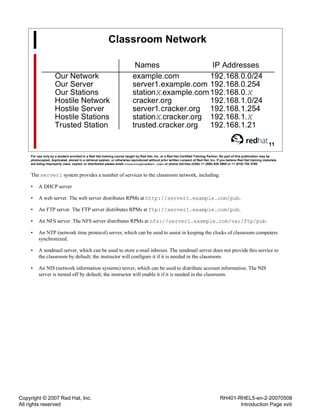
Classroom Network
Names IP Addresses
Our Network example.com 192.168.0.0/24
Our Server server1.example.com 192.168.0.254
Our Stations stationX.example.com192.168.0.X
Hostile Network cracker.org 192.168.1.0/24
Hostile Server server1.cracker.org 192.168.1.254
Hostile Stations stationX.cracker.org 192.168.1.X
Trusted Station trusted.cracker.org 192.168.1.21
11
For use only by a student enrolled in a Red Hat training course taught by Red Hat, Inc. or a Red Hat Certified Training Partner. No part of this publication may be
photocopied, duplicated, stored in a retrieval system, or otherwise reproduced without prior written consent of Red Hat, Inc. If you believe Red Hat training materials
are being improperly used, copied, or distributed please email <training@redhat.com> or phone toll-free (USA) +1 (866) 626 2994 or +1 (919) 754 3700.
The server1 system provides a number of services to the classroom network, including:
• A DHCP server
• A web server. The web server distributes RPMs at http://server1.example.com/pub.
• An FTP server. The FTP server distributes RPMs at ftp://server1.example.com/pub.
• An NFS server. The NFS server distributes RPMs at nfs://server1.example.com/var/ftp/pub.
• An NTP (network time protocol) server, which can be used to assist in keeping the clocks of classroom computers
synchronized.
• A sendmail server, which can be used to store e-mail inboxes. The sendmail server does not provide this service to
the classroom by default; the instructor will configure it if it is needed in the classroom.
• An NIS (network information systems) server, which can be used to distribute account information. The NIS
server is turned off by default; the instructor will enable it if it is needed in the classroom.
Copyright © 2007 Red Hat, Inc.
All rights reserved
RH401-RHEL5-en-2-20070508
Introduction Page xix
Objectives
• Understand large-scale deployment issues
• Deploy DHCP/PXE for bare metal provisioning
• Install and Configure RHN Satellite Server
• Build custom RPM software packages
• Use CVS to manage configuration files
• Understand RHN Proxy Server
• Enable netdump for network kernel crash dumps
• Understand Red Hat Virtualization
• Customize the Red Hat Virtualization environment
• Perform live migrarion of running virtual machines
12
For use only by a student enrolled in a Red Hat training course taught by Red Hat, Inc. or a Red Hat Certified Training Partner. No part of this publication may be
photocopied, duplicated, stored in a retrieval system, or otherwise reproduced without prior written consent of Red Hat, Inc. If you believe Red Hat training materials
are being improperly used, copied, or distributed please email <training@redhat.com> or phone toll-free (USA) +1 (866) 626 2994 or +1 (919) 754 3700.
Copyright © 2007 Red Hat, Inc.
All rights reserved
RH401-RHEL5-en-2-20070508
Introduction Page xx
Copyright © 2007 Red Hat, Inc.
All rights reserved
RH401-RHEL5-en-2-20070508
Unit 1 Page 1
Unit 1
Essential System Management
1-1
For use only by a student enrolled in a Red Hat training course taught by Red Hat, Inc. or a Red Hat Certified Training Partner. No part of this publication may be
photocopied, duplicated, stored in a retrieval system, or otherwise reproduced without prior written consent of Red Hat, Inc. If you believe Red Hat training materials
are being improperly used, copied, or distributed please email <training@redhat.com> or phone toll-free (USA) +1 (866) 626 2994 or +1 (919) 754 3700.
Copyright © 2007 Red Hat, Inc.
All rights reserved
RH401-RHEL5-en-2-20070508
Unit 1 Page 2
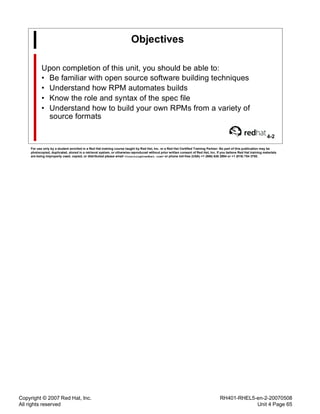
Objectives
Upon completion of this unit, you should be able to:
• Identify System Management Tasks
• Ideas for Best Practices
• Standardization
• Centralization
• Sacalibility
• Provisioning
• Automation
• Avoiding the 'One-Off' trap
• Identify Red Hat System Management Tools
1-2
For use only by a student enrolled in a Red Hat training course taught by Red Hat, Inc. or a Red Hat Certified Training Partner. No part of this publication may be
photocopied, duplicated, stored in a retrieval system, or otherwise reproduced without prior written consent of Red Hat, Inc. If you believe Red Hat training materials
are being improperly used, copied, or distributed please email <training@redhat.com> or phone toll-free (USA) +1 (866) 626 2994 or +1 (919) 754 3700.
Copyright © 2007 Red Hat, Inc.
All rights reserved
RH401-RHEL5-en-2-20070508
Unit 1 Page 3
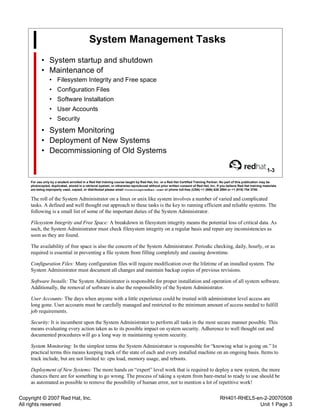
System Management Tasks
• System startup and shutdown
• Maintenance of
• Filesystem Integrity and Free space
• Configuration Files
• Software Installation
• User Accounts
• Security
• System Monitoring
• Deployment of New Systems
• Decommissioning of Old Systems
1-3
For use only by a student enrolled in a Red Hat training course taught by Red Hat, Inc. or a Red Hat Certified Training Partner. No part of this publication may be
photocopied, duplicated, stored in a retrieval system, or otherwise reproduced without prior written consent of Red Hat, Inc. If you believe Red Hat training materials
are being improperly used, copied, or distributed please email <training@redhat.com> or phone toll-free (USA) +1 (866) 626 2994 or +1 (919) 754 3700.
The roll of the System Administrator on a linux or unix like system involves a number of varied and complicated
tasks. A defined and well thought out approach to these tasks is the key to running efficient and reliable systems. The
following is a small list of some of the important duties of the System Administrator.
Filesystem Integrity and Free Space: A breakdown in filesystem integrity means the potential loss of critical data. As
such, the System Administrator must check filesystem integrity on a regular basis and repair any inconsistencies as
soon as they are found.
The availability of free space is also the concern of the System Administrator. Periodic checking, daily, hourly, or as
required is essential in preventing a file system from filling completely and causing downtime.
Configuration Files: Many configuration files will require modification over the lifetime of an installed system. The
System Administrator must document all changes and maintain backup copies of previous revisions.
Software Installs: The System Administrator is responsible for proper installation and operation of all system software.
Additionally, the removal of software is also the responsibility of the System Administrator.
User Accounts: The days when anyone with a little experience could be trusted with administrator level access are
long gone. User accounts must be carefully managed and restricted to the minimum amount of access needed to fulfill
job requirements.
Security: It is incumbent upon the System Administrator to perform all tasks in the most secure manner possible. This
means evaluating every action taken as to its possible impact on system security. Adherence to well thought out and
documented procedures will go a long way in maintaining system security.
System Monitoring: In the simplest terms the System Administrator is responsible for “knowing what is going on.” In
practical terms this means keeping track of the state of each and every installed machine on an ongoing basis. Items to
track include, but are not limited to: cpu load, memory usage, and reboots.
Deployment of New Systems: The more hands on “expert” level work that is required to deploy a new system, the more
chances there are for something to go wrong. The process of taking a system from bare-metal to ready to use should be
as automated as possible to remove the possibility of human error, not to mention a lot of repetitive work!
Copyright © 2007 Red Hat, Inc.
All rights reserved
RH401-RHEL5-en-2-20070508
Unit 1 Page 4
Decommissioning of Old Systems: As old systems age beyond usefulness they must be removed and cleared of data.
At all times it is important to be able to determine the status of any installed system.
Copyright © 2007 Red Hat, Inc.
All rights reserved
RH401-RHEL5-en-2-20070508
Unit 1 Page 5
Standardization
• Develop Procedures
• OS Installation and Upgrades
• Softeware Installation and Upgrades
• Creating Baseline
1-4
For use only by a student enrolled in a Red Hat training course taught by Red Hat, Inc. or a Red Hat Certified Training Partner. No part of this publication may be
photocopied, duplicated, stored in a retrieval system, or otherwise reproduced without prior written consent of Red Hat, Inc. If you believe Red Hat training materials
are being improperly used, copied, or distributed please email <training@redhat.com> or phone toll-free (USA) +1 (866) 626 2994 or +1 (919) 754 3700.
Standardization: Standardization is a very important piece of the puzzle of successful system administration.
Generally standardization is a prerequisite of automation, and automation is the ultimate goal. By performing tasks
with the same, well thought out method each and every time you will reduce the possibility of human error and
increase the amount you know about every installed system.
Procedures: A software installation procedure might be a follows:
1. Install new software on lab machines to determine appropriate configuration
2. Create RPM packges for any 3rd party software that does not natively support
RPM.
3. Test RPM packages on lab machines
4. Deploy tested RPM packages to production
5. Verify proper operation of affected systems
6. Rollback to previous configuration if necessary
Baselines: In System Administration a system baseline describes the state of the machine when it is considered
installed and ready for use. Whatever must be done to take the system from brand new to this state must be
documented and preferably automated.
The baseline must include:
• OS package install list
• Filesystem layout
• 3rd party software
• Configuration files
• Anything else!
Copyright © 2007 Red Hat, Inc.
All rights reserved
RH401-RHEL5-en-2-20070508
Unit 1 Page 6
Centralization
• Centrally Coordinate
• Policies
• Procedures
• Baselines
• Only One Place To “Look”
1-5
For use only by a student enrolled in a Red Hat training course taught by Red Hat, Inc. or a Red Hat Certified Training Partner. No part of this publication may be
photocopied, duplicated, stored in a retrieval system, or otherwise reproduced without prior written consent of Red Hat, Inc. If you believe Red Hat training materials
are being improperly used, copied, or distributed please email <training@redhat.com> or phone toll-free (USA) +1 (866) 626 2994 or +1 (919) 754 3700.
Central Coordination: By centralizing policies, procedures, and baselines into one easily managed system you make
all aspects of system administration more efficient. Having multiple places to search to find answers about your
systems is tedious and should be avoided.
Copyright © 2007 Red Hat, Inc.
All rights reserved
RH401-RHEL5-en-2-20070508
Unit 1 Page 7
Scalability
• Scalability for System Administrators is the ability to increase (or
decrease) the size or capacity of their deployment with minimal
impact to the amount of work required to maintain all systems.
1-6
For use only by a student enrolled in a Red Hat training course taught by Red Hat, Inc. or a Red Hat Certified Training Partner. No part of this publication may be
photocopied, duplicated, stored in a retrieval system, or otherwise reproduced without prior written consent of Red Hat, Inc. If you believe Red Hat training materials
are being improperly used, copied, or distributed please email <training@redhat.com> or phone toll-free (USA) +1 (866) 626 2994 or +1 (919) 754 3700.
Scalability: In defining every project and procedure, scalability must always be an important consideration. A little
extra work up front will pay off in multitudes of saved time and avoided errors.
A Simple Example: OS Installation
If you install each and every one of your systems by hand you will not only spend a lot of time doing it, you will be
very prone to deviation in your install procedure. If instead you install all new machines using kickstart you will be
able to install many more machines at the same time, as well as being sure that it is done correctly each and every
time.
Copyright © 2007 Red Hat, Inc.
All rights reserved
RH401-RHEL5-en-2-20070508
Unit 1 Page 8
Provisioning
• Provisioning describes the actual process of getting everything
in place to make a system ready to use.
• A provisioning system consists of several pieces of
infrastructure, such as:
• DHCP Server
• Kickstart Files
• Network Installation Server
• RHN Satellite Server
• PXE Capable Hardware
1-7
For use only by a student enrolled in a Red Hat training course taught by Red Hat, Inc. or a Red Hat Certified Training Partner. No part of this publication may be
photocopied, duplicated, stored in a retrieval system, or otherwise reproduced without prior written consent of Red Hat, Inc. If you believe Red Hat training materials
are being improperly used, copied, or distributed please email <training@redhat.com> or phone toll-free (USA) +1 (866) 626 2994 or +1 (919) 754 3700.
Provisioning: You may think of provisioning as the action taken to turn a system from bare-metal to installed and
configured to meet the defined baseline. This should be as close to a fully automated process as possible.
Putting The Pieces Together:
DHCP Server: Dispenses IP addresses, PXE images, and a host of other information including the addresses of
network file servers.
Network Installation Server: Stores and shares to the network all the files that make up the OS installation and
possibly in-house or 3rd party software as well.
RHN Satellite Server: Centrally managed server that deploys, maintains, and monitors Red Hat Enterprise Linux
systems.
PXE Capable Hardware: The client side of the PXE protocol. Most systems now include the ability to boot from
network images. Older systems may require upgrading with PXE capable nics.
Kickstart Files: The Kickstart file can be thought of as the complete set of instructions to install a new machine and
bring it to a full state of readiness. This text file includes install settings, options, and scripts.
Copyright © 2007 Red Hat, Inc.
All rights reserved
RH401-RHEL5-en-2-20070508
Unit 1 Page 9
Automation
• Automation is the key to efficient and accurate system
deployment and management.
• Useful Tools:
• Bash, Perl, Ruby, and Sed
• Many More
1-8
For use only by a student enrolled in a Red Hat training course taught by Red Hat, Inc. or a Red Hat Certified Training Partner. No part of this publication may be
photocopied, duplicated, stored in a retrieval system, or otherwise reproduced without prior written consent of Red Hat, Inc. If you believe Red Hat training materials
are being improperly used, copied, or distributed please email <training@redhat.com> or phone toll-free (USA) +1 (866) 626 2994 or +1 (919) 754 3700.
Automation: Instead of repetitive work, automation generally requires more upfront work. Investing time in writing
kickstart files will allow you to install many more systems simultaneously and more quickly than one could ever
install by hand.
Tools: Bash, Perl, and Ruby are all scripting languages that may be used in the %post section of a kickstart file.
Sed is the streaming editor and is useful for making changes to existing files as well as editing the output from other
programs.
In the %post section of a kickstart file, all scripts run in a chrooted environment by default, allowing you to easily use
any interpreter installed on the new system. With the wide variety of tools included in Red Hat Enterprise Linux, there
is virtually no limit to what may be automatically performed for system installation or management.
Copyright © 2007 Red Hat, Inc.
All rights reserved
RH401-RHEL5-en-2-20070508
Unit 1 Page 10
The "One-off" Trap
• Avoid Unique Installations
• Use Package Management For All Software
• Use Configuration File Management
• Document Everything
1-9
For use only by a student enrolled in a Red Hat training course taught by Red Hat, Inc. or a Red Hat Certified Training Partner. No part of this publication may be
photocopied, duplicated, stored in a retrieval system, or otherwise reproduced without prior written consent of Red Hat, Inc. If you believe Red Hat training materials
are being improperly used, copied, or distributed please email <training@redhat.com> or phone toll-free (USA) +1 (866) 626 2994 or +1 (919) 754 3700.
Avoid The "One-off" Trap: One-off systems require special care and extra work to maintain. Generally the longer they
are kept running the worse of a headache they become.
Unique Installations: Every uniquely installed system requires extra work to maintain. Avoid unique installations.
Package Management: Ideally, package management should be pervasive. Every piece of software install outside of
package management will require more work and at the same time be less visible as a potential problem.
Configuration Files: The use of a revisioning system to maintain configuration files, combined with a centralized
system to manage them allows for quick and efficient deployment as well as rollbacks, when needed.
Documentation: Everything should be documented. This includes software versions, baseline definitions,
configuration files, and procedures.
Copyright © 2007 Red Hat, Inc.
All rights reserved
RH401-RHEL5-en-2-20070508
Unit 1 Page 11
Red Hat Tools for System Management
• RHN, Proxy and Satellite Servers
• RPM Package Manager
• Kickstart
• CVS
• DHCP and PXE
• Red Hat Virtualization
1-10
For use only by a student enrolled in a Red Hat training course taught by Red Hat, Inc. or a Red Hat Certified Training Partner. No part of this publication may be
photocopied, duplicated, stored in a retrieval system, or otherwise reproduced without prior written consent of Red Hat, Inc. If you believe Red Hat training materials
are being improperly used, copied, or distributed please email <training@redhat.com> or phone toll-free (USA) +1 (866) 626 2994 or +1 (919) 754 3700.
Red Hat Tools For System Management: The rest of this course is dedicated to the above tools, and more, for the
deployment and management of systems. As the size of a given installation increases so too does the importance of the
proper use of system management tools and techniques.
Copyright © 2007 Red Hat, Inc.
All rights reserved
RH401-RHEL5-en-2-20070508
Unit 1 Page 12
End of Unit 1
• Questions and Answers
• Summary
• System Management Tasks
• Ideas for Best Practices
• Standardization
• Centralization
• Sacalibility
• Provisioning
• Automation
• Avoiding the 'One-Off' trap
• Red Hat System Management Tools
1-11
For use only by a student enrolled in a Red Hat training course taught by Red Hat, Inc. or a Red Hat Certified Training Partner. No part of this publication may be
photocopied, duplicated, stored in a retrieval system, or otherwise reproduced without prior written consent of Red Hat, Inc. If you believe Red Hat training materials
are being improperly used, copied, or distributed please email <training@redhat.com> or phone toll-free (USA) +1 (866) 626 2994 or +1 (919) 754 3700.
Copyright © 2007 Red Hat, Inc.
All rights reserved
RH401-RHEL5-en-2-20070508
Unit 2 Page 13
Unit 2
Provisioning with DHCP and PXE
2-1
For use only by a student enrolled in a Red Hat training course taught by Red Hat, Inc. or a Red Hat Certified Training Partner. No part of this publication may be
photocopied, duplicated, stored in a retrieval system, or otherwise reproduced without prior written consent of Red Hat, Inc. If you believe Red Hat training materials
are being improperly used, copied, or distributed please email <training@redhat.com> or phone toll-free (USA) +1 (866) 626 2994 or +1 (919) 754 3700.
Copyright © 2007 Red Hat, Inc.
All rights reserved
RH401-RHEL5-en-2-20070508
Unit 2 Page 14
Objectives
Upon completion of this unit, you should be able to:
• Understand components of bare metal provisioning
• Set up PXE and TFTP servers
• Implement a bare metal install environment
• Install and configure DHCP
• Configure reserved IP addresses in DHCP
• Understand DHCP scoping
• Use DHCP for the PXE process
2-2
For use only by a student enrolled in a Red Hat training course taught by Red Hat, Inc. or a Red Hat Certified Training Partner. No part of this publication may be
photocopied, duplicated, stored in a retrieval system, or otherwise reproduced without prior written consent of Red Hat, Inc. If you believe Red Hat training materials
are being improperly used, copied, or distributed please email <training@redhat.com> or phone toll-free (USA) +1 (866) 626 2994 or +1 (919) 754 3700.
Copyright © 2007 Red Hat, Inc.
All rights reserved
RH401-RHEL5-en-2-20070508
Unit 2 Page 15
Bare Metal Provisioning
• Goal
• Out-of-box system configuration with minimal human intervention
• Components
• Bootloader - GRUB, isolinux, syslinux, or pxelinux.0
• Unique machine identifier - MAC or IP address
• Usually provided by DHCP
• Network-capable installer - Anaconda
• Network Repositories
• Yum provide RPMs via http, nfs, or ftp
• Subversion can provide configuration files, incl. kickstart
• RHN Satellite can provide both
2-3
For use only by a student enrolled in a Red Hat training course taught by Red Hat, Inc. or a Red Hat Certified Training Partner. No part of this publication may be
photocopied, duplicated, stored in a retrieval system, or otherwise reproduced without prior written consent of Red Hat, Inc. If you believe Red Hat training materials
are being improperly used, copied, or distributed please email <training@redhat.com> or phone toll-free (USA) +1 (866) 626 2994 or +1 (919) 754 3700.
Unbox a new system, cable it, and push a button. From a broad perspective, the goal of bare metal provisioning is to
non-interactively prepare a new computer for use.
RHN Satellite can provide several critical pieces of this infrastructure, serving kickstart files, the installation files, and
configurations. RHN Satellite can help provide cradle-to-grave management for your servers.
Copyright © 2007 Red Hat, Inc.
All rights reserved
RH401-RHEL5-en-2-20070508
Unit 2 Page 16
Dynamic Host Configuration Protocol
• Port 67/UDP server
• Port 68/UDP client
• Client sends a DHCPDISCOVER along with it's previous IP
address
• Server responds with a DHCPOFFER
• May offer the IP address that the client requested if available and authoritative
• May offer additional options, such as filename and IP of next server
• Client sends DHCPREQUEST
• Server sends DHCPACK
• Client uses offered address
2-4
For use only by a student enrolled in a Red Hat training course taught by Red Hat, Inc. or a Red Hat Certified Training Partner. No part of this publication may be
photocopied, duplicated, stored in a retrieval system, or otherwise reproduced without prior written consent of Red Hat, Inc. If you believe Red Hat training materials
are being improperly used, copied, or distributed please email <training@redhat.com> or phone toll-free (USA) +1 (866) 626 2994 or +1 (919) 754 3700.
DHCP allows a server to offer provisioning information to clients in a managed, automated fashion.
DHCP is a superset of BOOTP; dhcpd has been designed to answer requests from BOOTP clients. BOOTP clients will
retain their configuration information indefinitely; there is no notion of a lease in BOOTP.
The DHCP server sends and receives on port 67, and the client uses port 68. Both use UDP.
When the client network is configured for a dynamic IP address, it sends a DHCPDISCOVER packet to the broadcast
destination of 255.255.255.255. This will broadcast to the local physical subnet to find a DHCP server. Routers may
be configured to forward that packet to a DHCP server on a different subnet. The client also sends it's previous IP
address in this packet.
If any DHCP servers are listening on the local subnet (or the router forwarded that request to another subnet), it may
send the client a DHCPOFFER, based on it's configuration. These packets contain the DHCP server's IP address, the
router, the IP address and the subnet that the client should use, and the lease time. The DHCP server may also offer
other information, such as NTP servers, timezones, domains, etc.
The client must send a DHCPREQUEST back to the server, requesting the IP address that the DHCP server offered.
At first glance, this seems redundant. However, there may be multiple DHCP servers on the subnet, or the router may
be forwarding the DHCPOFFER to multiple networks, thus the client must send a DHCPREQUEST that includes the
client IP address, and the DHCP IP address to the broadcast address.
Once the DHCP server gets the DHCPREQUEST, it sends a DHCPACK, acknowledging that the clients has exclusive
rights to the client IP address until the lease time is up.
Copyright © 2007 Red Hat, Inc.
All rights reserved
RH401-RHEL5-en-2-20070508
Unit 2 Page 17
Trivial File Transfer Protocol
• Features
• Trivial get and put commands similar to ftp
• Small feature set and minimal code
• UDP-only; little or no security
• tftp-server package provides tftpd
• Runs from /etc/xinetd/tftp
• chroots to /tftpboot by default
• tftp package provides client
• Useful for testing configuration
tftp my-tftpd-server -c get /pxelinux.cfg/default
2-5
For use only by a student enrolled in a Red Hat training course taught by Red Hat, Inc. or a Red Hat Certified Training Partner. No part of this publication may be
photocopied, duplicated, stored in a retrieval system, or otherwise reproduced without prior written consent of Red Hat, Inc. If you believe Red Hat training materials
are being improperly used, copied, or distributed please email <training@redhat.com> or phone toll-free (USA) +1 (866) 626 2994 or +1 (919) 754 3700.
Memory-constrained clients can use tftp to fetch files as directed by dhcp options.
The limited feature set of tftp enables the client to fit in tiny devices with extreme memory constraints, such as the
boot PROM on a network interface card. Thus tftp is the preferred mechanism for obtaining network boot files for bare
metal provisioning.
The minimal feature set extends to an utter lack of security, so you may need to implement physical security for
your provisioning network. Some organizations simply implement a separate kickstart network for this purpose. The
kickstart network can be physically isolated from other LAN segments to avoid placing insecure protocols on secure
networks. This can also protect sensitive build-time configuration files and in-house software from prying eyes.
tftpd chroots to /tftpboot at startup when using the default Red Hat Enterprise Linux configuration. All files and
subdirectories must be placed within the chroot. For example, suppose a tftp client requests the file /pxelinux.0.
The server will attempt to provide /tftpboot/pxelinux.0 based on the following, typical file tree:
/tftpboot/
|-- boot.msg
|-- pxelinux.0
|-- pxelinux.cfg
| |-- C0A80013
| |-- C0A80014
| `-- default
|-- rhel4u2
| |-- initrd.img
| `-- vmlinuz
`-- rhel5.0
|-- initrd.img
`-- vmlinuz
Copyright © 2007 Red Hat, Inc.
All rights reserved
RH401-RHEL5-en-2-20070508
Unit 2 Page 18
Booting Anaconda over the Network
• Must provide via tftp:
• vmlinuz matching the version to be installed
• initrd-*.img appropriate to hardware and kernel
• Available from /media/cd-number-one/images/pxeboot
• Must provide via http, nfs, or ftp:
• RedHat/base/stage2.img installer
2-6
For use only by a student enrolled in a Red Hat training course taught by Red Hat, Inc. or a Red Hat Certified Training Partner. No part of this publication may be
photocopied, duplicated, stored in a retrieval system, or otherwise reproduced without prior written consent of Red Hat, Inc. If you believe Red Hat training materials
are being improperly used, copied, or distributed please email <training@redhat.com> or phone toll-free (USA) +1 (866) 626 2994 or +1 (919) 754 3700.
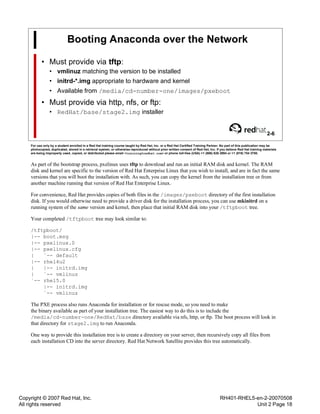
As part of the bootstrap process, pxelinux uses tftp to download and run an initial RAM disk and kernel. The RAM
disk and kernel are specific to the version of Red Hat Enterprise Linux that you wish to install, and are in fact the same
versions that you will boot the installation with. As such, you can copy the kernel from the installation tree or from
another machine running that version of Red Hat Enterprise Linux.
For convenience, Red Hat provides copies of both files in the /images/pxeboot directory of the first installation
disk. If you would otherwise need to provide a driver disk for the installation process, you can use mkinitrd on a
running system of the same version and kernel, then place that initial RAM disk into your /tftpboot tree.
Your completed /tftpboot tree may look similar to:
/tftpboot/
|-- boot.msg
|-- pxelinux.0
|-- pxelinux.cfg
| `-- default
|-- rhel4u2
| |-- initrd.img
| `-- vmlinuz
`-- rhel5.0
|-- initrd.img
`-- vmlinuz
The PXE process also runs Anaconda for installation or for rescue mode, so you need to make
the binary available as part of your installation tree. The easiest way to do this is to include the
/media/cd-number-one/RedHat/base directory available via nfs, http, or ftp. The boot process will look in
that directory for stage2.img to run Anaconda.
One way to provide this installation tree is to create a directory on your server, then recursively copy all files from
each installation CD into the server directory. Red Hat Network Satellite provides this tree automatically.
Copyright © 2007 Red Hat, Inc.
All rights reserved
RH401-RHEL5-en-2-20070508
Unit 2 Page 19
Accessing the Installer
• Graphical Installation
• Default installation type
• Useful Switches: lowres,resolution, skipddc
• VNC based Installation
• Activate with vnc and protect the session with vncpassword=password
• Set network parameters with ip=IP Address and netmask=Network Mask
• Text based Installation
• Started with the text switch
• Menu-based terminal interface
• Serial Installation
• Used automatically when no graphic card is detected
• Enable with: serial=device
2-7
For use only by a student enrolled in a Red Hat training course taught by Red Hat, Inc. or a Red Hat Certified Training Partner. No part of this publication may be
photocopied, duplicated, stored in a retrieval system, or otherwise reproduced without prior written consent of Red Hat, Inc. If you believe Red Hat training materials
are being improperly used, copied, or distributed please email <training@redhat.com> or phone toll-free (USA) +1 (866) 626 2994 or +1 (919) 754 3700.
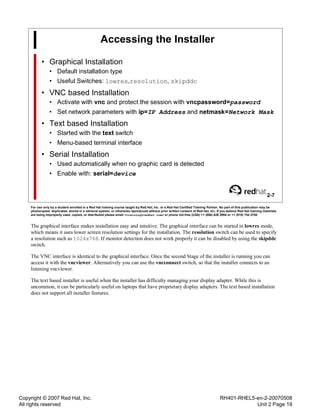
The graphical interface makes installation easy and intuitive. The graphical interface can be started in lowres mode,
which means it uses lower screen resolution settings for the installation. The resolution switch can be used to specify
a resolution such as 1024x768. If monitor detection does not work properly it can be disabled by using the skipddc
switch.
The VNC interface is identical to the graphical interface. Once the second Stage of the installer is running you can
access it with the vncviewer. Alternatively you can use the vncconnect switch, so that the installer connects to an
listening vncviewer.
The text based installer is useful when the installer has difficulty managing your display adapter. While this is
uncommon, it can be particularly useful on laptops that have proprietary display adapters. The text based installation
does not support all installer features.
Copyright © 2007 Red Hat, Inc.
All rights reserved
RH401-RHEL5-en-2-20070508
Unit 2 Page 20
PXE Boot
• PXE is Pre-Boot Execution Environment
• PXE provides a stage 1 bootloader
• NIC and BIOS must both support PXE
• The PXE boot process
• NIC requests DHCP information
• DHCP server provides bootloader name and IP of tftp server
• NIC uses tftp to fetch bootloader into RAM
• BIOS executes bootloader
• Bootloader uses tftp to find and retrieve configuration file
• Bootloader follows directives in file
2-8
For use only by a student enrolled in a Red Hat training course taught by Red Hat, Inc. or a Red Hat Certified Training Partner. No part of this publication may be
photocopied, duplicated, stored in a retrieval system, or otherwise reproduced without prior written consent of Red Hat, Inc. If you believe Red Hat training materials
are being improperly used, copied, or distributed please email <training@redhat.com> or phone toll-free (USA) +1 (866) 626 2994 or +1 (919) 754 3700.
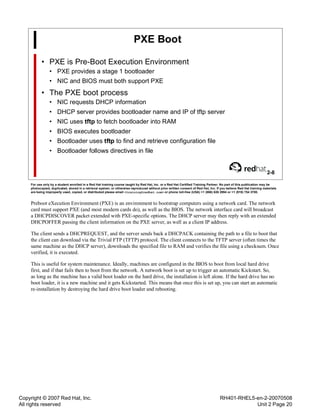
Preboot eXecution Environment (PXE) is an environment to bootstrap computers using a network card. The network
card must support PXE (and most modern cards do), as well as the BIOS. The network interface card will broadcast
a DHCPDISCOVER packet extended with PXE-specific options. The DHCP server may then reply with an extended
DHCPOFFER passing the client information on the PXE server, as well as a client IP address.
The client sends a DHCPREQUEST, and the server sends back a DHCPACK containing the path to a file to boot that
the client can download via the Trivial FTP (TFTP) protocol. The client connects to the TFTP server (often times the
same machine as the DHCP server), downloads the specified file to RAM and verifies the file using a checksum. Once
verified, it is executed.
This is useful for system maintenance. Ideally, machines are configured in the BIOS to boot from local hard drive
first, and if that fails then to boot from the network. A network boot is set up to trigger an automatic Kickstart. So,
as long as the machine has a valid boot loader on the hard drive, the installation is left alone. If the hard drive has no
boot loader, it is a new machine and it gets Kickstarted. This means that once this is set up, you can start an automatic
re-installation by destroying the hard drive boot loader and rebooting.
Copyright © 2007 Red Hat, Inc.
All rights reserved
RH401-RHEL5-en-2-20070508
Unit 2 Page 21
pxelinux.0
• Stage 1 network bootloader
• Provided in the syslinux package
• Independent of the OS to be installed
• Searches tftpd for pxelinux.cfg/filename, where
filename is:
1. MAC address using hex and dashes, prefaced with ARP type code
2. IP address expressed in hex
• Strips one digit at a time from the right-hand side of hex IP until file is found
• Use gethostip to translate decimal IP to hex
3. Last attempt is default
2-9
For use only by a student enrolled in a Red Hat training course taught by Red Hat, Inc. or a Red Hat Certified Training Partner. No part of this publication may be
photocopied, duplicated, stored in a retrieval system, or otherwise reproduced without prior written consent of Red Hat, Inc. If you believe Red Hat training materials
are being improperly used, copied, or distributed please email <training@redhat.com> or phone toll-free (USA) +1 (866) 626 2994 or +1 (919) 754 3700.
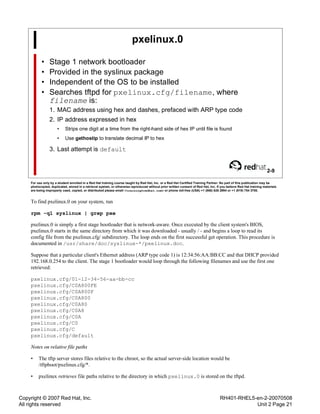
To find pxelinux.0 on your system, run
rpm -ql syslinux | grep pxe
pxelinux.0 is simply a first stage bootloader that is network-aware. Once executed by the client system's BIOS,
pxelinux.0 starts in the same directory from which it was downloaded - usually / - and begins a loop to read its
config file from the pxelinux.cfg/ subdirectory. The loop ends on the first successful get operation. This procedure is
documented in /usr/share/doc/syslinux-*/pxelinux.doc.
Suppose that a particular client's Ethernet address (ARP type code 1) is 12:34:56:AA:BB:CC and that DHCP provided
192.168.0.254 to the client. The stage 1 bootloader would loop through the following filenames and use the first one
retrieved:
pxelinux.cfg/01-12-34-56-aa-bb-cc
pxelinux.cfg/C0A800FE
pxelinux.cfg/C0A800F
pxelinux.cfg/C0A800
pxelinux.cfg/C0A80
pxelinux.cfg/C0A8
pxelinux.cfg/C0A
pxelinux.cfg/C0
pxelinux.cfg/C
pxelinux.cfg/default
Notes on relative file paths
• The tftp server stores files relative to the chroot, so the actual server-side location would be
/tftpboot/pxelinux.cfg/*.
• pxelinux retrieves file paths relative to the directory in which pxelinux.0 is stored on the tftpd.
Copyright © 2007 Red Hat, Inc.
All rights reserved
RH401-RHEL5-en-2-20070508
Unit 2 Page 22
The pxelinux Configuration File
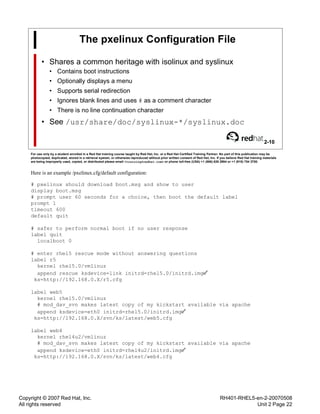
• Shares a common heritage with isolinux and syslinux
• Contains boot instructions
• Optionally displays a menu
• Supports serial redirection
• Ignores blank lines and uses # as a comment character
• There is no line continuation character
• See /usr/share/doc/syslinux-*/syslinux.doc
2-10
For use only by a student enrolled in a Red Hat training course taught by Red Hat, Inc. or a Red Hat Certified Training Partner. No part of this publication may be
photocopied, duplicated, stored in a retrieval system, or otherwise reproduced without prior written consent of Red Hat, Inc. If you believe Red Hat training materials
are being improperly used, copied, or distributed please email <training@redhat.com> or phone toll-free (USA) +1 (866) 626 2994 or +1 (919) 754 3700.
Here is an example /pxelinux.cfg/default configuration:
# pxelinux should download boot.msg and show to user
display boot.msg
# prompt user 60 seconds for a choice, then boot the default label
prompt 1
timeout 600
default quit
# safer to perform normal boot if no user response
label quit
localboot 0
# enter rhel5 rescue mode without answering questions
label r5
kernel rhel5.0/vmlinuz
append rescue ksdevice=link initrd=rhel5.0/initrd.img
ks=http://192.168.0.X/r5.cfg
label web5
kernel rhel5.0/vmlinuz
# mod_dav_svn makes latest copy of my kickstart available via apache
append ksdevice=eth0 initrd=rhel5.0/initrd.img
ks=http://192.168.0.X/svn/ks/latest/web5.cfg
label web4
kernel rhel4u2/vmlinuz
# mod_dav_svn makes latest copy of my kickstart available via apache
append ksdevice=eth0 initrd=rhel4u2/initrd.img
ks=http://192.168.0.X/svn/ks/latest/web4.cfg
Copyright © 2007 Red Hat, Inc.
All rights reserved
RH401-RHEL5-en-2-20070508
Unit 2 Page 23
Common pxelinux Directives
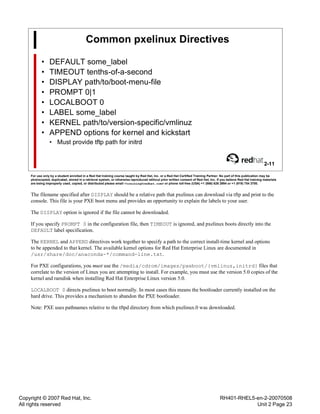
• DEFAULT some_label
• TIMEOUT tenths-of-a-second
• DISPLAY path/to/boot-menu-file
• PROMPT 0|1
• LOCALBOOT 0
• LABEL some_label
• KERNEL path/to/version-specific/vmlinuz
• APPEND options for kernel and kickstart
• Must provide tftp path for initrd
2-11
For use only by a student enrolled in a Red Hat training course taught by Red Hat, Inc. or a Red Hat Certified Training Partner. No part of this publication may be
photocopied, duplicated, stored in a retrieval system, or otherwise reproduced without prior written consent of Red Hat, Inc. If you believe Red Hat training materials
are being improperly used, copied, or distributed please email <training@redhat.com> or phone toll-free (USA) +1 (866) 626 2994 or +1 (919) 754 3700.
The filename specified after DISPLAY should be a relative path that pxelinux can download via tftp and print to the
console. This file is your PXE boot menu and provides an opportunity to explain the labels to your user.
The DISPLAY option is ignored if the file cannot be downloaded.
If you specify PROMPT 0 in the configuration file, then TIMEOUT is ignored, and pxelinux boots directly into the
DEFAULT label specification.
The KERNEL and APPEND directives work together to specify a path to the correct install-time kernel and options
to be appended to that kernel. The available kernel options for Red Hat Enterprise Linux are documented in
/usr/share/doc/anaconda-*/command-line.txt.
For PXE configurations, you must use the /media/cdrom/images/pxeboot/{vmlinuz,initrd} files that
correlate to the version of Linux you are attempting to install. For example, you must use the version 5.0 copies of the
kernel and ramdisk when installing Red Hat Enterprise Linux version 5.0.
LOCALBOOT 0 directs pxelinux to boot normally. In most cases this means the bootloader currently installed on the
hard drive. This provides a mechanism to abandon the PXE bootloader.
Note: PXE uses pathnames relative to the tftpd directory from which pxelinux.0 was downloaded.
Copyright © 2007 Red Hat, Inc.
All rights reserved
RH401-RHEL5-en-2-20070508
Unit 2 Page 24
PXE Boot Menu
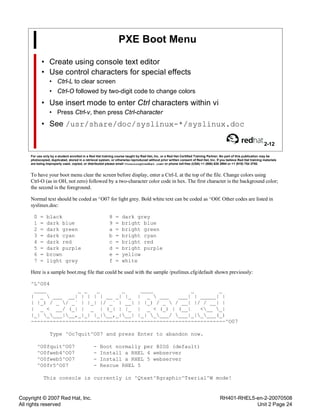
• Create using console text editor
• Use control characters for special effects
• Ctrl-L to clear screen
• Ctrl-O followed by two-digit code to change colors
• Use insert mode to enter Ctrl characters within vi
• Press Ctrl-v, then press Ctrl-character
• See /usr/share/doc/syslinux-*/syslinux.doc
2-12
For use only by a student enrolled in a Red Hat training course taught by Red Hat, Inc. or a Red Hat Certified Training Partner. No part of this publication may be
photocopied, duplicated, stored in a retrieval system, or otherwise reproduced without prior written consent of Red Hat, Inc. If you believe Red Hat training materials
are being improperly used, copied, or distributed please email <training@redhat.com> or phone toll-free (USA) +1 (866) 626 2994 or +1 (919) 754 3700.
To have your boot menu clear the screen before display, enter a Ctrl-L at the top of the file. Change colors using
Ctrl-O (as in OH, not zero) followed by a two-character color code in hex. The first character is the background color;
the second is the foreground.
Normal text should be coded as ^O07 for light grey. Bold white text can be coded as ^O0f. Other codes are listed in
syslinux.doc:
0 = black 8 = dark grey
1 = dark blue 9 = bright blue
2 = dark green a = bright green
3 = dark cyan b = bright cyan
4 = dark red c = bright red
5 = dark purple d = bright purple
6 = brown e = yellow
7 = light grey f = white
Here is a sample boot.msg file that could be used with the sample /pxelinux.cfg/default shown previously:
^L^O04
____ _ _ _ _ ____ _ _
| _  ___ __| | | | | __ _| |_ | _  ___ ___| | _____| |
| |_) / _ / _` | |_| |/ _` | __| | |_) / _  / __| |/ / __| |
| _ < __/ (_| | _ | (_| | |_ | _ < (_) | (__| <__ _|
|_| ____|__,_|_| |_|__,_|__| |_| ____/ ___|_|____(_)
--------------------------------------------------------------^O07
Type ^Oc7quit^O07 and press Enter to abandon now.
^O0fquit^O07 - Boot normally per BIOS (default)
^O0fweb4^O07 - Install a RHEL 4 webserver
^O0fweb5^O07 - Install a RHEL 5 webserver
^O0fr5^O07 - Rescue RHEL 5
This console is currently in ^Qtext^Rgraphic^Tserial^W mode!
Copyright © 2007 Red Hat, Inc.
All rights reserved
RH401-RHEL5-en-2-20070508
Unit 2 Page 25
DHCP Server
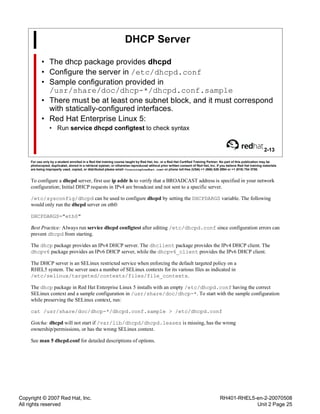
• The dhcp package provides dhcpd
• Configure the server in /etc/dhcpd.conf
• Sample configuration provided in
/usr/share/doc/dhcp-*/dhcpd.conf.sample
• There must be at least one subnet block, and it must correspond
with statically-configured interfaces.
• Red Hat Enterprise Linux 5:
• Run service dhcpd configtest to check syntax
2-13
For use only by a student enrolled in a Red Hat training course taught by Red Hat, Inc. or a Red Hat Certified Training Partner. No part of this publication may be
photocopied, duplicated, stored in a retrieval system, or otherwise reproduced without prior written consent of Red Hat, Inc. If you believe Red Hat training materials
are being improperly used, copied, or distributed please email <training@redhat.com> or phone toll-free (USA) +1 (866) 626 2994 or +1 (919) 754 3700.
To configure a dhcpd server, first use ip addr ls to verify that a BROADCAST address is specified in your network
configuration; Initial DHCP requests in IPv4 are broadcast and not sent to a specific server.
/etc/sysconfig/dhcpd can be used to configure dhcpd by setting the DHCPDARGS variable. The following
would only run the dhcpd server on eth0:
DHCPDARGS="eth0"
Best Practice: Always run service dhcpd configtest after editing /etc/dhcpd.conf since configuration errors can
prevent dhcpd from starting.
The dhcp package provides an IPv4 DHCP server. The dhclient package provides the IPv4 DHCP client. The
dhcpv6 package provides an IPv6 DHCP server, while the dhcpv6_client provides the IPv6 DHCP client.
The DHCP server is an SELinux restricted service when enforcing the default targeted policy on a
RHEL5 system. The server uses a number of SELinux contexts for its various files as indicated in
/etc/selinux/targeted/contexts/files/file_contexts.
The dhcp package in Red Hat Enterprise Linux 5 installs with an empty /etc/dhcpd.conf having the correct
SELinux context and a sample configuration in /usr/share/doc/dhcp-*. To start with the sample configuration
while preserving the SELinux context, run:
cat /usr/share/doc/dhcp-*/dhcpd.conf.sample > /etc/dhcpd.conf
Gotcha: dhcpd will not start if /var/lib/dhcpd/dhcpd.leases is missing, has the wrong
ownership/permissions, or has the wrong SELinux context.
See man 5 dhcpd.conf for detailed descriptions of options.
Copyright © 2007 Red Hat, Inc.
All rights reserved
RH401-RHEL5-en-2-20070508
Unit 2 Page 26
Essential dhcpd.conf Configuration
ddns-update-style none;
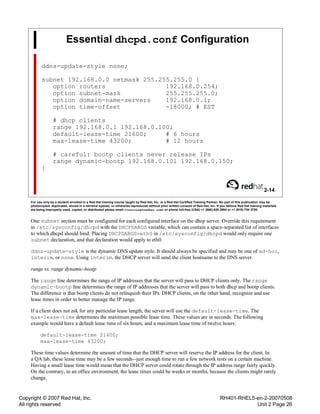
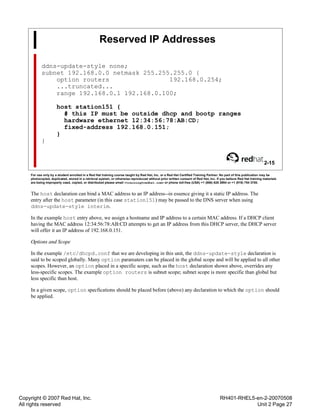
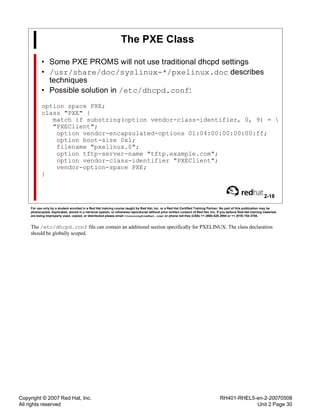
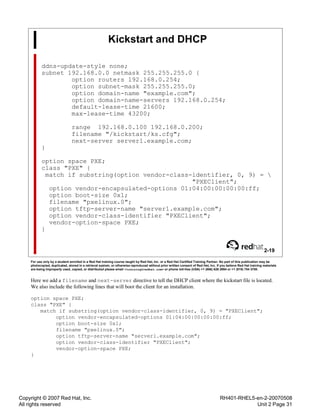
subnet 192.168.0.0 netmask 255.255.255.0 {
option routers 192.168.0.254;
option subnet-mask 255.255.255.0;
option domain-name-servers 192.168.0.1;
option time-offset -18000; # EST
# dhcp clients
range 192.168.0.1 192.168.0.100;
default-lease-time 21600; # 6 hours
max-lease-time 43200; # 12 hours
# careful: bootp clients never release IPs
range dynamic-bootp 192.168.0.101 192.168.0.150;
}
2-14
For use only by a student enrolled in a Red Hat training course taught by Red Hat, Inc. or a Red Hat Certified Training Partner. No part of this publication may be
photocopied, duplicated, stored in a retrieval system, or otherwise reproduced without prior written consent of Red Hat, Inc. If you believe Red Hat training materials
are being improperly used, copied, or distributed please email <training@redhat.com> or phone toll-free (USA) +1 (866) 626 2994 or +1 (919) 754 3700.
One subnet section must be configured for each configured interface on the dhcp server. Override this requirement
in /etc/sysconfig/dhcpd with the DHCPDARGS variable, which can contain a space-separated list of interfaces
to which dhcpd should bind. Placing DHCPDARGS=eth0 in /etc/sysconfig/dhcpd would only require one
subnet declaration, and that declaration would apply to eth0.
ddns-update-style is the dynamic DNS update style. It should always be specified and may be one of ad-hoc,
interim, or none. Using interim, the DHCP server will send the client hostname to the DNS server.
range vs. range dynamic-bootp
The range line determines the range of IP addresses that the server will pass to DHCP clients only. The range
dynamic-bootp line determines the range of IP addresses that the server will pass to both dhcp and bootp clients.
The difference is that bootp clients do not relinquish their IPs. DHCP clients, on the other hand, recognize and use
lease times in order to better manage the IP range.
If a client does not ask for any particular lease length, the server will use the default-lease-time. The
max-lease-time determines the maximum possible lease time. These values are in seconds. The following
example would have a default lease time of six hours, and a maximum lease time of twelve hours:
default-lease-time 21600;
max-lease-time 43200;
These time values determine the amount of time that the DHCP server will reserve the IP address for the client. In
a QA lab, these lease time may be a few seconds--just enough time to run a few network tests on a certain machine.
Having a small lease time would mean that the DHCP server could rotate through the IP address range fairly quickly.
On the contrary, in an office environment, the lease times could be weeks or months, because the clients might rarely
change.
Copyright © 2007 Red Hat, Inc.
All rights reserved
RH401-RHEL5-en-2-20070508
Unit 2 Page 27
Reserved IP Addresses
ddns-update-style none;
subnet 192.168.0.0 netmask 255.255.255.0 {
option routers 192.168.0.254;
...truncated...
range 192.168.0.1 192.168.0.100;
host station151 {
# this IP must be outside dhcp and bootp ranges
hardware ethernet 12:34:56:78:AB:CD;
fixed-address 192.168.0.151;
}
}
2-15
For use only by a student enrolled in a Red Hat training course taught by Red Hat, Inc. or a Red Hat Certified Training Partner. No part of this publication may be
photocopied, duplicated, stored in a retrieval system, or otherwise reproduced without prior written consent of Red Hat, Inc. If you believe Red Hat training materials
are being improperly used, copied, or distributed please email <training@redhat.com> or phone toll-free (USA) +1 (866) 626 2994 or +1 (919) 754 3700.
The host declaration can bind a MAC address to an IP address--in essence giving it a static IP address. The
entry after the host parameter (in this case station151) may be passed to the DNS server when using
ddns-update-style interim.
In the example host entry above, we assign a hostname and IP address to a certain MAC address. If a DHCP client
having the MAC address 12:34:56:78:AB:CD attempts to get an IP address from this DHCP server, the DHCP server
will offer it an IP address of 192.168.0.151.
Options and Scope
In the example /etc/dhcpd.conf that we are developing in this unit, the ddns-update-style declaration is
said to be scoped globally. Many option paramaters can be placed in the global scope and will be applied to all other
scopes. However, an option placed in a specific scope, such as the host declaration shown above, overrides any
less-specific scopes. The example option routers is subnet scope; subnet scope is more specific than global but
less specific than host.
In a given scope, option specfications should be placed before (above) any declaration to which the option should
be applied.
Copyright © 2007 Red Hat, Inc.
All rights reserved
RH401-RHEL5-en-2-20070508
Unit 2 Page 28
Offering Files via DHCP
subnet 192.168.0.0 netmask 255.255.255.0 {
option routers 192.168.0.1;
...truncated...
# specify server and file locations
next-server 192.168.0.254; # could be dns name
filename "pxelinux.0" # always use quotes
host station151 {
# this IP must be outside dhcp and bootp range
hardware ethernet 12:34:56:78:AB:CD;
fixed-address 192.168.0.151;
}
}
2-16
For use only by a student enrolled in a Red Hat training course taught by Red Hat, Inc. or a Red Hat Certified Training Partner. No part of this publication may be
photocopied, duplicated, stored in a retrieval system, or otherwise reproduced without prior written consent of Red Hat, Inc. If you believe Red Hat training materials
are being improperly used, copied, or distributed please email <training@redhat.com> or phone toll-free (USA) +1 (866) 626 2994 or +1 (919) 754 3700.
This example adds two lines to the scope in order to offer it a pxelinux bootloader. If station151 is capable of PXE
booting, it will use tftp to get the file pxelinux.0 from 192.168.0.254. The server could also be expressed with a
DNS hostname.
Copyright © 2007 Red Hat, Inc.
All rights reserved
RH401-RHEL5-en-2-20070508
Unit 2 Page 29
DHCP Scope and Groups
ddns-update-style none;
subnet 192.168.0.0 netmask 255.255.255.0 {
...truncated...
filename "other-file"; # subnet scope
next-server 192.168.0.254;
}
subnet 10.100.1.0 netmask 255.255.255.0 {
next-server 10.100.1.254;
...truncated...
}
group {
# this filename and host are in same scope
filename "pxelinux.0"; # overrides subnet scope
host station151 {
# other options matched to appropriate subnet scope
hardware ethernet 12:34:56:78:AB:CD;
fixed-address 192.168.0.151;
}
}
2-17
For use only by a student enrolled in a Red Hat training course taught by Red Hat, Inc. or a Red Hat Certified Training Partner. No part of this publication may be
photocopied, duplicated, stored in a retrieval system, or otherwise reproduced without prior written consent of Red Hat, Inc. If you believe Red Hat training materials
are being improperly used, copied, or distributed please email <training@redhat.com> or phone toll-free (USA) +1 (866) 626 2994 or +1 (919) 754 3700.
Options and Scope
In the example /etc/dhcpd.conf that we are developing in this unit, the ddns-update-style declaration is
said to be scoped globally. Many option paramaters can be placed in the global scope and will be applied to all other
scopes. However, an option placed in a specific scope, such as the host declaration shown above, overrides any
less-specific scopes. The example option routers is subnet scope; subnet scope is more specific than global but
less specific than host.
In a given scope, option specfications should be placed before (above) any declaration to which the option should
be applied.
The group declaration
The group declaration can be used in the global scope to share declarations that should be uniform across multiple
subnets.
In the example above, station151 will receive filename "pxelinux.0" from the group declaration since group is more
specific than subnet. However, the group does not provide a next-server, so dhcpd will point station151 to the
file server at 192.168.0.254, which matches the subnet of the host IP being offered.
Copyright © 2007 Red Hat, Inc.
All rights reserved
RH401-RHEL5-en-2-20070508
Unit 2 Page 30
The PXE Class
• Some PXE PROMS will not use traditional dhcpd settings
• /usr/share/doc/syslinux-*/pxelinux.doc describes
techniques
• Possible solution in /etc/dhcpd.conf:
option space PXE;
class "PXE" {
match if substring(option vendor-class-identifier, 0, 9) = 
"PXEClient";
option vendor-encapsulated-options 01:04:00:00:00:00:ff;
option boot-size 0x1;
filename "pxelinux.0";
option tftp-server-name "tftp.example.com";
option vendor-class-identifier "PXEClient";
vendor-option-space PXE;
}
2-18
For use only by a student enrolled in a Red Hat training course taught by Red Hat, Inc. or a Red Hat Certified Training Partner. No part of this publication may be
photocopied, duplicated, stored in a retrieval system, or otherwise reproduced without prior written consent of Red Hat, Inc. If you believe Red Hat training materials
are being improperly used, copied, or distributed please email <training@redhat.com> or phone toll-free (USA) +1 (866) 626 2994 or +1 (919) 754 3700.
The /etc/dhcpd.conf file can contain an additional section specifically for PXELINUX. The class declaration
should be globally scoped.
Copyright © 2007 Red Hat, Inc.
All rights reserved
RH401-RHEL5-en-2-20070508
Unit 2 Page 31
Kickstart and DHCP
ddns-update-style none;
subnet 192.168.0.0 netmask 255.255.255.0 {
option routers 192.168.0.254;
option subnet-mask 255.255.255.0;
option domain-name "example.com";
option domain-name-servers 192.168.0.254;
default-lease-time 21600;
max-lease-time 43200;
range 192.168.0.100 192.168.0.200;
filename "/kickstart/ks.cfg";
next-server server1.example.com;
}
option space PXE;
class "PXE" {
match if substring(option vendor-class-identifier, 0, 9) = 
"PXEClient";
option vendor-encapsulated-options 01:04:00:00:00:00:ff;
option boot-size 0x1;
filename "pxelinux.0";
option tftp-server-name "server1.example.com";
option vendor-class-identifier "PXEClient";
vendor-option-space PXE;
}
2-19
For use only by a student enrolled in a Red Hat training course taught by Red Hat, Inc. or a Red Hat Certified Training Partner. No part of this publication may be
photocopied, duplicated, stored in a retrieval system, or otherwise reproduced without prior written consent of Red Hat, Inc. If you believe Red Hat training materials
are being improperly used, copied, or distributed please email <training@redhat.com> or phone toll-free (USA) +1 (866) 626 2994 or +1 (919) 754 3700.
Here we add a filename and next-server directive to tell the DHCP client where the kickstart file is located.
We also include the following lines that will boot the client for an installation.
option space PXE;
class "PXE" {
match if substring(option vendor-class-identifier, 0, 9) = "PXEClient";
option vendor-encapsulated-options 01:04:00:00:00:00:ff;
option boot-size 0x1;
filename "pxelinux.0";
option tftp-server-name "server1.example.com";
option vendor-class-identifier "PXEClient";
vendor-option-space PXE;
}
Copyright © 2007 Red Hat, Inc.
All rights reserved
RH401-RHEL5-en-2-20070508
Lab 2 Page 32
Lab 2
Bare Metal Provisioning
Goal: Kickstart using PXE
Estimated Duration: 60 minutes
System Setup: You have two stations, X and Y. The lab assumes that stationX is connected
to the classroom network on eth0, with eth1 being connected via a crossover
cable or switch to eth0 of stationY. The classroom network may be referred
to as the frontend network. The crossover or switched environment between
stationX and stationY may be referred to as the backend, or provisioning,
network.
Lab Setup: The instructor should ensure that the classroom server provides a network
installation tree for Red Hat Enterprise Linux 4 as well as forward and reverse
DNS for the subnet 10.100.X.0/24, where X refers to the station numbers
of the classroom machines. For simplicity, you will begin with a prepared
kickstart file on server1.
Situation: You have been asked to provide a bare metal provisioning environment for
your backend network. You will prepare stationX as the provisioning server,
and you will provision stationY as a Red Hat Enterprise Linux 4 server using
the installation tree and a kickstart file from server1.
Specifications for your provisioning, or backend, network:
• stationX should appear as 10.100.X.254 on the backend and provide DHCP
to 10.100.X.0/24 over eth1 only
• stationY should use DHCP to obtain the reserved IP address 10.100.X.1
from stationX
• stationX should provide tftpd to the 10.100.X.0/24 network
• stationX should forward traffic to the frontent
• server1 at 192.168.0.254 provides DNS for all 10.100.X.0/24 subnets
• server1 provides a network installation tree for Red Hat Enterprise Linux 4
Copyright © 2007 Red Hat, Inc.
All rights reserved
RH401-RHEL5-en-2-20070508
Lab 2 Sequence 1 Page 33
Sequence 1: Set up the provisioning network
Scenario: In this sequence, you will set up an appropriate networking configuration.
Deliverable: A working backend network on stationX, with stationX acting as a router to
the frontend.
Lab Setup: A system running Red Hat Enterprise Linux 4 with two interfaces, one
connected to the classroom network and the other connected to your private
network.
Instructions:
1. Configure 10.100.X.254 as a static IP on the backend interface.
2. You may not be able to fully test the interface until you power up your other machine.
However, you can do a preliminary test by pinging the interface address.
3. Enable forwarding on stationX.
Copyright © 2007 Red Hat, Inc.
All rights reserved
RH401-RHEL5-en-2-20070508
Lab 2 Sequence 2 Page 34
Sequence 2: Configure a TFTP Server to support PXE
Scenario: In this sequence you will configure the tftpd environment to support PXE.
Deliverable: An operational TFTP server that can support PXE clients.
System Setup: stationX should be dual-homed to 10.100.X.0/24 and 192.168.0.0/24.
Instructions:
1. Ensure that tftpd is installed on stationX.
2. Start tftpd and ensure it starts at boot-time.
3. Create a PXE tree and populate it with the appropriate kernel and RAM disk for
building a Red Hat Enterprise Linux 4 machine. The files should be available via NFS at
server1:/var/ftp/pub/.
4. Create a simple /tftpboot/boot.msg file that gives the user a choice between normal
boot and a Red Hat Enterprise Linux 4 installation.
5. Create a pxelinux configuration file for 10.100.X.1 that prompts the user for a boot
choice, displays the file boot.msg, and defaults to booting the kickstart available at
http://server1.example.com/workstation.cfg. However, this file should only be used by the
machine with an IP address of 10.100.X.1, where X is your station number.
6. Create /tftpboot/pxelinux.cfg/default such that the machine boots normally if
the user fails to respond to the PXE menu.
7. Use the tftp command to ensure that your files are accessible.
Copyright © 2007 Red Hat, Inc.
All rights reserved
RH401-RHEL5-en-2-20070508
Lab 2 Sequence 3 Page 35
Sequence 3: Configure DHCP to support PXE
Scenario: You want to install a DHCP server that will give IP addresses, both generally,
and based on MAC address, to your provisioning network.
Deliverable: A DHCP server
Lab Setup: A system running Red Hat Enterprise Linux 4 with two network interfaces,
one connected to the classroom network and the other connected to your
provisioning network. You should have a second system that is connected only
to the provisioning network.
Instructions:
1. Use /usr/share/doc/dhcp-*/dhcpd.conf.sample file as a starting point for the
DHCP server. Change the subnet to the 10.100.X.0/255.255.255.0 subnet. Change the router
to the IP address of your DHCP server. Change the DNS server to 192.168.0.254. Finally,
change the range to 10.100.X.2 through 10.100.X.10.
2. Configure the DHCP service to only give out IP addresses on the ethernet card attached to
the private subnet (this should be eth1 unless your instructor gives other instructions).
3. Open a second shell and follow /var/log/messages.
4. Start dhcpd and configure it to start at boot-time.
5. PXE-boot your second workstation. You may need to press F12 during the boot sequence
to choose network boot. Observe /var/log/messages as well as the boot messages on
your client machine (stationY).
6. Use the MAC address of your second machine as recorded in /var/log/messages
on stationX to add a host IP reservation for 10.100.X.1 to /etc/dhcpd.conf. Restart
dhcpd.
7. PXE-boot the client machine and verify that it gets the new address. It should also display
the PXE boot menu that you created in a previous step. Choose the option to install Red Hat
Enterprise Linux 4.
Copyright © 2007 Red Hat, Inc.
All rights reserved
RH401-RHEL5-en-2-20070508
Lab 2 Sequence 1 Solutions Page 36
Sequence 1 Solutions
1. Edit /etc/sysconfig/network-scripts/ifcfg-eth1 to configure
10.100.X.254 as a static IP on the backend interface:
DEVICE=eth1
ONBOOT=yes
BOOTPROTO=static
IPADDR=10.100.X.254
NETMASK=255.255.255.0
If your file includes the HWADDR line, leave it in the file.
2. You may not be able to fully test the interface until you power up your other machine.
However, you can do a preliminary test by pinging the interface address.
ifup eth1
ping -c1 -s0 -W1 10.100.X.254
3. Edit /etc/sysctl.conf to enable forwarding at boot-time:
net.ipv4.ip_forward = 1
Reload /etc/sysctl.conf into the kernel:
sysctl -p
Copyright © 2007 Red Hat, Inc.
All rights reserved
RH401-RHEL5-en-2-20070508
Lab 2 Sequence 2 Solutions Page 37
Sequence 2 Solutions
1. Ensure that tftpd is installed on stationX.
rpm -q tftp-server
Install tftp-server from server1. Ask the instructor for help if necessary.
2. Start tftpd and ensure it starts at boot-time.
chkconfig tftp on
tftpd is managed by xinetd, so using chkconfig to enable tftpd also reloads the xineted
configuration.
3. Create a directory and mount the export from server1:
mkdir /mnt/server1
mount server1:/var/ftp/pub/4.2.0 /mnt/server1
Create the PXE tree.
mkdir /tftpboot/{rhel4,pxelinux.cfg}
cp /mnt/server1/images/pxeboot/* /tftpboot/rhel4/
Locate pxelinux.0 on stationX and copy it to the PXE tree. Recall that pxelinux is a
version-independent bootloader.
rpm -ql syslinux | grep pxe
/usr/lib/syslinux/pxelinux.0
/usr/share/doc/syslinux-*/pxelinux.doc
cp /usr/lib/syslinux/pxelinux.0 /tftpboot/
4. Create the file /tftpboot/boot.msg. A simple solution is given here, but feel free to
experiment with control characters to add color to your menu.
RH401 PXE Menu
Choose a boot option from the list below:
quit - abandon PXE and boot normally
4 - install Red Hat Enterprise Linux 4
5. Create a pxelinux configuration file for 10.100.X.1 that prompts the user for a boot
choice, displays the file boot.msg, and defaults to booting the kickstart available at
http://server1.example.com/workstation.cfg. However, this file should only be used by the
machine with an IP address of 10.100.X.1, where X is your station number.
First, determine the correct filename. Use the gethostip command to provide the
hexadecimal representation of the IP. For example, the following command would be used
if you are at station1:
Copyright © 2007 Red Hat, Inc.
All rights reserved
RH401-RHEL5-en-2-20070508
Lab 2 Sequence 2 Solutions Page 38
gethostip 10.100.1.1
10.100.1.1 10.100.1.1 0A640101
Create the file /tftpboot/pxelinux.cfg/0A64NN01, where NN is the hexadecimal
representation of your station number.
default quit
prompt 1
timeout 600
display boot.msg
# safety net
label quit
localboot 0
# install using kickstart from server1
label 4
kernel rhel4/vmlinuz
append initrd=rhel4/initrd.img
ks=http://192.168.0.254/rhel4as.cfg ksdevice=link
6. Create /tftpboot/pxelinux.cfg/default such that the machine boots normally
with no prompt or feedback from the user.
Here is one solution:
default normal
prompt 0
label normal
localboot 0
7. Use the tftp command to ensure that your files are accessible. Remember to replace the NN
in 0A64NN01 with the hex representation of your station number.
cd /tmp
tftp localhost -c get /boot.msg
tftp localhost -c get /pxelinux.cfg/default
tftp localhost -c get /pxelinux.cfg/0A64NN01
cat boot.msg default 0A64NN01
...output omitted...
Copyright © 2007 Red Hat, Inc.
All rights reserved
RH401-RHEL5-en-2-20070508
Lab 2 Sequence 3 Solutions Page 39
Sequence 3 Solutions
1. Use the /usr/share/doc/dhcp-*/dhcpd.conf.sample file as a starting point
for the DHCP server. Change the subnet to the 192.168.2.0/255.255.255.0 subnet. Change
the router to the IP address of your DHCP server. Change the DNS server to 192.168.0.254.
Finally, change the range to 10.100.X.2 through 10.100.X.10.
a. Copy /usr/share/doc/dhcp-*/dhcpd.conf.sample to
/etc/dhcpd.conf. Make changes to that file, so that the file looks something like
the following. The X should match the last octet in your IP address.
ddns-update-style interim;
ignore client-updates;
subnet 10.100.X.0 netmask 255.255.255.0 {
option routers 10.100.X.254;
option subnet-mask 255.255.255.0;
option domain-name-servers 192.168.0.254;
# change to your timezone
option time-offset -18000; # EST
range 10.100.X.2 10.100.X.10
default-lease-time 600; # 10 minutes
max-lease-time 3600; # 1 hour
next-server 10.100.X.254;
filename "pxelinux.0";
}
2. Configure the DHCP service to only give out IP addresses on the ethernet card attached to
the private subnet (this should be eth1 unless your instructor gives other instructions). Start
the dhcpd service and ensure that it starts at boot.
a. Edit /etc/sysconfig/dhcpd to include this line:
DHCPDARGS=eth1
b. chkconfig dhcpd on
c. service dhcpd start
3. Open a second shell and follow /var/log/messages.
tail -f /var/log/messages
Leave this shell open so that you can observe log messages.
Start dhcpd and configure it to start at boot-time.
Copyright © 2007 Red Hat, Inc.
All rights reserved
RH401-RHEL5-en-2-20070508
Lab 2 Sequence 3 Solutions Page 40
4. service dhcpd start
chkconfig dhcpd on
Observe the messages in your other shell.
5. PXE-boot your second workstation. You may need to press F12 during the boot sequence
to choose network boot. Observe /var/log/messages as well as the boot messages on
your client machine (stationY).
Your client machine should receive the IP address 10.100.X.10 since dhcpd offers
addresses beginning with the last address in its range.
Your client machine should have obtained the default PXE configuration and therefore
booted normally according to its BIOS settings. If your client machine has no other
bootloader in the MBR or removable media, and PXE is configured in the list of boot
options, this means your client may enter an endless PXE boot sequence!
In any case, power off the client machine.
6. Use the MAC address of your second machine as recorded in /var/log/messages
on stationX to add a host IP reservation for 10.100.X.1 to /etc/dhcpd.conf. Replace
12:34:56:78:AB:CD with the appropriate MAC address from /var/log/messages. Replace X
with your station number.
subnet 10.100.X.0 netmask 255.255.255.0 {
...options truncated...
host stationY {
hardware ethernet 12:34:56:78:AB:CD;
fixed-address 10.100.X.1;
}
}
For simplicity, place the host declaration near the bottom of your subnet scope, but before
the closing brace of the subnet scope.
Restart dhcpd.
service dhcpd restart
7. PXE-boot the client machine and verify that it gets the new address. It should also display
the PXE boot menu that you created in a previous step. Choose the option to install Red Hat
Enterprise Linux 4.
Copyright © 2007 Red Hat, Inc.
All rights reserved
RH401-RHEL5-en-2-20070508
Unit 3 Page 41
Unit 3
Installing a Red Hat Network Satellite Server
3-1
For use only by a student enrolled in a Red Hat training course taught by Red Hat, Inc. or a Red Hat Certified Training Partner. No part of this publication may be
photocopied, duplicated, stored in a retrieval system, or otherwise reproduced without prior written consent of Red Hat, Inc. If you believe Red Hat training materials
are being improperly used, copied, or distributed please email <training@redhat.com> or phone toll-free (USA) +1 (866) 626 2994 or +1 (919) 754 3700.
Copyright © 2007 Red Hat, Inc.
All rights reserved
RH401-RHEL5-en-2-20070508
Unit 3 Page 42
Objectives
Upon completion of this unit, you should be able to:
• Understand the need for the Red Hat Network Satellite Server in
the enterprise
• Understand the interactions among RHN, the satellite server,
and the proxy server
• Know the minimum and recommended requirements for a
satellite server
• Be able to install a satellite server
3-2
For use only by a student enrolled in a Red Hat training course taught by Red Hat, Inc. or a Red Hat Certified Training Partner. No part of this publication may be
photocopied, duplicated, stored in a retrieval system, or otherwise reproduced without prior written consent of Red Hat, Inc. If you believe Red Hat training materials
are being improperly used, copied, or distributed please email <training@redhat.com> or phone toll-free (USA) +1 (866) 626 2994 or +1 (919) 754 3700.
Copyright © 2007 Red Hat, Inc.
All rights reserved
RH401-RHEL5-en-2-20070508
Unit 3 Page 43
Features of the Satellite Server
• Provides RHN service for networks disconnected from the
internet
• Supports tiered RHN Proxy or Satellite Servers
• Manages local software through custom channels
• Bare metal provisioning and hands free installation make large
and small rollouts simple
3-3
For use only by a student enrolled in a Red Hat training course taught by Red Hat, Inc. or a Red Hat Certified Training Partner. No part of this publication may be
photocopied, duplicated, stored in a retrieval system, or otherwise reproduced without prior written consent of Red Hat, Inc. If you believe Red Hat training materials
are being improperly used, copied, or distributed please email <training@redhat.com> or phone toll-free (USA) +1 (866) 626 2994 or +1 (919) 754 3700.
The original Red Hat Network solution provided users with the ability to get immediate and easy access to the latest
updated software, thus solving the critically important problem of errata concurrency. With the success of this product
came the problem of data access speeds, particularly in enterprises containing a large number of systems: many
systems were synchronizing with the Red Hat Network servers from a single location, often downloading the same
data.
The RHN Satellite Server was created to solve this problem. The RHN Satellite server provides an onsite server that
feeds updates within an enterprise with minimal (or potentially no) access the the Red Hat Network servers over
the internet. This permits updates to happen over LAN speeds, instead of WAN speeds. Furthermore, tiered with a
number of RHN Proxy or additional Satellite Servers, a large enterprise can distribute updates efficiently across a
geographically dispersed intranet.
Other key features of the RHN Satellite Server include the ability to create custom channels so that you can add your
own software into the system and the ability to do bare metal provisioning, installing across a large number of systems
with relative ease.
Copyright © 2007 Red Hat, Inc.
All rights reserved
RH401-RHEL5-en-2-20070508
Unit 3 Page 44
Advantages of the Satellite Server
• Security
• Efficiency
• Control
• Customization
• Scalability
3-4
For use only by a student enrolled in a Red Hat training course taught by Red Hat, Inc. or a Red Hat Certified Training Partner. No part of this publication may be
photocopied, duplicated, stored in a retrieval system, or otherwise reproduced without prior written consent of Red Hat, Inc. If you believe Red Hat training materials
are being improperly used, copied, or distributed please email <training@redhat.com> or phone toll-free (USA) +1 (866) 626 2994 or +1 (919) 754 3700.
The RHN Satellite Server improves security by ensuring that software updates are rolled out in a timely manner. The
disconnection from the internet assures that all transactions are performed within the intranet. Coupled with the RHN
Proxy Server or with multiple RHN Satellite Servers, even highly geographically dispersed environments can get rapid
access to updates.
With the RHN Satellite Server, the local administrator (and not Red Hat) retains control of which systems can access
the server with what permissions.
The ability to load your own packages into the RHN Satellite Server and to create custom channels permits a high
level of customization.
Copyright © 2007 Red Hat, Inc.
All rights reserved
RH401-RHEL5-en-2-20070508
Unit 3 Page 45
Components of the Satellite Server
• RHN Satellite Server
• Database
• Web Interface
• RPM Repository
• Management Tools
3-5
For use only by a student enrolled in a Red Hat training course taught by Red Hat, Inc. or a Red Hat Certified Training Partner. No part of this publication may be
photocopied, duplicated, stored in a retrieval system, or otherwise reproduced without prior written consent of Red Hat, Inc. If you believe Red Hat training materials
are being improperly used, copied, or distributed please email <training@redhat.com> or phone toll-free (USA) +1 (866) 626 2994 or +1 (919) 754 3700.
The RHN Satellite Server is a large and complex subsystem, consisting of:
RHN Satellite Server: the underlying software.
An Oracle Database: the RHN Satellite Server requires a database to manage the data. This database can be an
existing Oracle database or it can be embedded in the RHN Satellite Server software.
Web Interface: much of the management of the RHN Satellite Server happens through the web interface. This looks
substantially similar to the Red Hat Network's web interface.
RPM Repository: the part of the system taking the most disk space, this repository holds the software to be distributed
by the RHN Satellite Server.
Management Tools: a number of command line and web based management tools permitting the setup and
maintenance of the server.
Copyright © 2007 Red Hat, Inc.
All rights reserved
RH401-RHEL5-en-2-20070508
Unit 3 Page 46
Types of Satellite Server
• Standalone Satellite Server
• Appropriate if you have another system running an Oracle database
• You must not run the Satellite Server on the same system that runs the Oracle
database
• Satellite Server with an Embedded Database
• Requires more horsepower
3-6
For use only by a student enrolled in a Red Hat training course taught by Red Hat, Inc. or a Red Hat Certified Training Partner. No part of this publication may be
photocopied, duplicated, stored in a retrieval system, or otherwise reproduced without prior written consent of Red Hat, Inc. If you believe Red Hat training materials
are being improperly used, copied, or distributed please email <training@redhat.com> or phone toll-free (USA) +1 (866) 626 2994 or +1 (919) 754 3700.
The RHN Satellite Server requires a database. If you already have an Oracle database with sufficient diskspace and
power, you can use it to hold the RHN Satellite Server database provided that you have a database administrator who
can manage the setup of the service. It is important that you not run the RHN Satellite Server on the same system that
runs the Oracle database.
If you do not have an Oracle database, or if it does not have sufficient disk, RAM, or CPU resources, you can
install the RHN Satellite Server with an embedded database. This database requires additional disk space. It has the
advantage of having a single system acting as both satellite server and database server. Further, the database is already
fully configured, requiring less effort on the part of the database administrator.
Copyright © 2007 Red Hat, Inc.
All rights reserved
RH401-RHEL5-en-2-20070508
Unit 3 Page 47
Satellite Server Hardware Requirements
3-7
For use only by a student enrolled in a Red Hat training course taught by Red Hat, Inc. or a Red Hat Certified Training Partner. No part of this publication may be
photocopied, duplicated, stored in a retrieval system, or otherwise reproduced without prior written consent of Red Hat, Inc. If you believe Red Hat training materials
are being improperly used, copied, or distributed please email <training@redhat.com> or phone toll-free (USA) +1 (866) 626 2994 or +1 (919) 754 3700.
RHN Satellite Servers have relatively high hardware requirements, as it has to run an instance of the Oracle database
(for the embedded version), as well as deliver a large amount of data to remote systems. Because the Oracle database
runs multiple processes, multiple processors can significantly improve performance.
The RHN Satellite Server uses a considerable amount of disk space and it is time consuming to repopulate a database
should a disk fail. Therefore, it is strongly recommended that you use a RAID storage device to hold the underlying
data.
Copyright © 2007 Red Hat, Inc.
All rights reserved
RH401-RHEL5-en-2-20070508
Unit 3 Page 48
Understanding Software Channels
• Software Channels are collections of packages
• Two types of Software Channels:
• Base channels
• Child Channels
• View channels from the RHN Channels tab
3-8
For use only by a student enrolled in a Red Hat training course taught by Red Hat, Inc. or a Red Hat Certified Training Partner. No part of this publication may be
photocopied, duplicated, stored in a retrieval system, or otherwise reproduced without prior written consent of Red Hat, Inc. If you believe Red Hat training materials
are being improperly used, copied, or distributed please email <training@redhat.com> or phone toll-free (USA) +1 (866) 626 2994 or +1 (919) 754 3700.
The Red Hat Network system is based on the idea of the channel. A software channel is a collection of packages. The
two types of channels are base channels and child channels. A base channel, as the name implies, is a base collection
of packages that all systems using a particular type of software typically will install (it is not always necessary
to install all packages, but a full install would include all of these packages). A child channel provides additional
software related to the base channel.
For example, if you browse the Red Hat Network's Channels tab, you will see the Red Hat Enterprise Linux AS (v. 3
for x86) base channel, along with its associated child channels. It will look like this:
Red Hat Enterprise Linux AS (v. 3 for x86) 1193 0
|-Red Hat Application Server 1.0 (AS for i386) 244 0
|-Red Hat Application Server Beta (AS for i386) 234 0
|-Red Hat Cluster Suite (for AS x86) 14 0
|-Red Hat Developer Suite (for AS x86) 2 0
|-Red Hat Developer Suite (for AS x86) Beta 2 0
|-Red Hat Developer Suite 2.0 (AS for i386) 0 0
|-Red Hat Enterprise Linux AS (v. 3 for x86) Beta 1125 0
|-Red Hat Enterprise Linux AS (v. 3 for x86) Extras 45 0
|-Red Hat Enterprise Linux AS (v. 3 for x86) Extras Beta 18 0
|-Red Hat Network Management Satellite (4.0 beta) for RHEL AS v3 0 0
|-Red Hat Network Tools for RHEL 3 AS (i386) 30 0
The first line shows the base channel. The subsidiary channels are child channels. The first column of numbers are
the number of packages associated with that channel and the second column of numbers is the number of systems
subscribed to that channel.
Copyright © 2007 Red Hat, Inc.
All rights reserved
RH401-RHEL5-en-2-20070508
Unit 3 Page 49
Installing Satellite Server: The Base Install
• Install latest update of Red Hat Enterprise Linux AS 2.1, 3, or 4
• Properly allocate space to /opt, /var/satellite, and
/rhnsat
• Use UTC (and use ntpd, if possible)
• Select the following package group:
• Software Development
3-9
For use only by a student enrolled in a Red Hat training course taught by Red Hat, Inc. or a Red Hat Certified Training Partner. No part of this publication may be
photocopied, duplicated, stored in a retrieval system, or otherwise reproduced without prior written consent of Red Hat, Inc. If you believe Red Hat training materials
are being improperly used, copied, or distributed please email <training@redhat.com> or phone toll-free (USA) +1 (866) 626 2994 or +1 (919) 754 3700.
The base install of the RHN Satellite Server is substantially similar to other Red Hat operating system installations.
However, note the following:
Disk space: see the next page for information on disk space allocations. Follow or exceed the guidelines, as the RHN
Satellite Server will not install properly without a sufficient amount of disk space.
Web Interface: much of the management of the RHN Satellite Server happens through the web interface. This looks
substantially similar to the Red Hat Network's web interface.
Time: The SSL parts of the server installation depend upon the proper synchronization of time on the computers that
must communication with one another. Use UTC for the time and, if possible, run the Network Time Protocol daemon
on all RHN Satellite and Proxy Servers and on their client systems.
Software Packages: select Software Development. You may also select GNOME or KDE, but, unlike the Software
Development package group, it is not required. GNOME or KDE would be useful if you wanted to administer the
satellite server locally, through it's own local web browser.
Copyright © 2007 Red Hat, Inc.
All rights reserved
RH401-RHEL5-en-2-20070508
Unit 3 Page 50
Installing Satellite Server:
Filesystem Requirements
• RHN Satellite Server requires additional disk space in:
/opt 1 GB minimum, 2 GB recommended
/var/satellite 6 GB per channel (size per channel may vary)
/rhnsat 38 GB recommended (for embedded database only)
3-10
For use only by a student enrolled in a Red Hat training course taught by Red Hat, Inc. or a Red Hat Certified Training Partner. No part of this publication may be
photocopied, duplicated, stored in a retrieval system, or otherwise reproduced without prior written consent of Red Hat, Inc. If you believe Red Hat training materials
are being improperly used, copied, or distributed please email <training@redhat.com> or phone toll-free (USA) +1 (866) 626 2994 or +1 (919) 754 3700.
Do not skimp on the hard disk requirements! RHN Satellite Server will not run on systems without sufficient disk
space.
The software itself gets installed in /opt. The embedded database is installed in /rhnsat; and the channel content
is stored in /var/satellite. Furthermore, when populating the database using Channel Content ISOs (the
preferred method), you will need substantially more temporary disk space. For example, the Channel Content ISOs for
Red Hat Enterprise Linux 3 AS currently take over 10 GB of disk space. To use these, you will need to mount each
one and copy it over to a temporary location. This will take an additional 10 GB of disk space. Only then can the data
be imported into the database. Therefore, for this one channel, you will need 20 GB of temporary space.
Copyright © 2007 Red Hat, Inc.
All rights reserved
RH401-RHEL5-en-2-20070508
Unit 3 Page 51
Installing the Satellite Software
• Download the appropriate ISO
• Either the embedded database version or the standalone version
• Mount the ISO onto /mnt, change to that directory and run:
• ./install.sh
• Fill out the forms on the web based configuration application
3-11
For use only by a student enrolled in a Red Hat training course taught by Red Hat, Inc. or a Red Hat Certified Training Partner. No part of this publication may be
photocopied, duplicated, stored in a retrieval system, or otherwise reproduced without prior written consent of Red Hat, Inc. If you believe Red Hat training materials
are being improperly used, copied, or distributed please email <training@redhat.com> or phone toll-free (USA) +1 (866) 626 2994 or +1 (919) 754 3700.
Installing the RHN Satellite Server software is a time consuming process, made faster by powerful dual processors
and a large amount of RAM. To perform the install, download the latest ISO from the Red Hat Network. Note that
two versions of the software are provided: the standalone version and the embedded version. Only one is needed.
Download the appropriate ISO.
This ISO, when mounted, contains an installation script called install.sh. Run this command to begin the installation.
This will update the software and install many packages. After installing all relevant software RPMs and installing
Oracle, it then instructs you to start a web based application that allows you to configure the RHN Satellite Server.
This application presents the following screens:
General Settings: Set the administrator's email address. Optionally, you can change the location that the data is stored
(the default is /var/satellite), but it is unlikely that you will want to do this.
RHN Entitlement Certificate: In this screen, you either upload your entitlement certificate (Red Hat should have
emailed this to you) or you can cut and paste the contents into the screen.
Database Connection Information: Here you can choose to skip database activation or choose not to initialize the
database. Again, it is unlikely that you will want to do this.
RHN Account Setup: If you have a Red Hat Network account, you can enter the account information. If not, you can
create a new account. Again, most likely, you will already have a Red Hat Network account set up.
SSL Certificate Information: All communication among computers operates through encrypted tunnels. This requires
an SSL certificate. This screen will use your company information to generate a certificate.
This is a long process, typically taking near an hour to complete, including the time to fill out the forms and for the
computer to process the data.
Copyright © 2007 Red Hat, Inc.
All rights reserved
RH401-RHEL5-en-2-20070508
Unit 3 Page 52
Populating the Satellite Server: Options
• Network
• Slow!
• Using Channel Content ISOs
• Not as slow
• Uses more temporary disk space
• More administrator intervention required
3-12
For use only by a student enrolled in a Red Hat training course taught by Red Hat, Inc. or a Red Hat Certified Training Partner. No part of this publication may be
photocopied, duplicated, stored in a retrieval system, or otherwise reproduced without prior written consent of Red Hat, Inc. If you believe Red Hat training materials
are being improperly used, copied, or distributed please email <training@redhat.com> or phone toll-free (USA) +1 (866) 626 2994 or +1 (919) 754 3700.
Once you have set up the RHN Satellite Server, you must populate the server with information for the various
channels that you wish to distribute. Red Hat provides two methods to accomplish this: network and Channel Content
ISOs. Neither method is fast, but the network method is considerably slower, often taking eight hours per channel to
download.
Using the network method, your server will download the RPMS and metadata over the internet. While relatively
simple to implement, this is a fundamentally inefficient method.
To populate the database using the Channel Content ISOs, you need to first download the ISOs from the Red Hat
Network. Then, each ISO is mounted and the data copied to a temporary location. You can then load the data from this
directory. This involves more steps and an additional 10 GB, or more, of disk space for the ISOs and the temporary
directory. It requires more intervention on the part of the administrator. But it should complete in much less time than
the network method. Also, if the ISOs are burnt to CD, they are readily retrieved in case of system failure or in the
case that you need to populate a second RHN Satellite Server.
Copyright © 2007 Red Hat, Inc.
All rights reserved
RH401-RHEL5-en-2-20070508
Unit 3 Page 53
Using Channel ISOs to
Populate the Satellite Server
• Confirm that you have sufficient disk space
• Download the Channel Content ISOs
• Per channel:
• Mount each ISO
• Copy data to a channel-specific temporary directory
• Run:
• satellite-sync -c channelname --mount-point tempdir
3-13
For use only by a student enrolled in a Red Hat training course taught by Red Hat, Inc. or a Red Hat Certified Training Partner. No part of this publication may be
photocopied, duplicated, stored in a retrieval system, or otherwise reproduced without prior written consent of Red Hat, Inc. If you believe Red Hat training materials
are being improperly used, copied, or distributed please email <training@redhat.com> or phone toll-free (USA) +1 (866) 626 2994 or +1 (919) 754 3700.
To populate the database using the Channel Content ISOs:
• Confirm that you have sufficient disk space. You will need disk space for the ISOs and the data to be extracted
from the ISOs, in addition to the disk space needed to store the data in the database.
• Download the Channel Content ISOs from the Red Hat Network.
• Log onto the Red Hat Network.
• Select the Channels tab.
• Within the base channel called “Red Hat Enterprise Linux AS (v. 2.1 for i386)”, or the version of Red Hat
Enterprise Linux you are using, select the latest satellite subchannel. For example, you might select “Red Hat
Network Management Satellite (3.7)”.
• The ISOs listed are the Channel Content ISOs. Scroll down to find the Channel Content ISOs for the channel
you wish to download. For example, scroll down to “Red Hat Enterprise Linux AS (v. 3 for x86)” to download
the content ISOs for that channel.
• For each channel, mount each ISO in turn, and copy the data to a temporary directory.
• List the channels available from the Channel Content ISOs. For example, if you have copied the ISO data into a
directory called /rhn-sat-import, then list the available channels by running:
satellite-sync --list-channels --mount-point /rhn-sat-import
• Run the satellite-sync command to upload the information from this directory into the database. For example, to
load the rhel-i386-as-3 channel into the database that has been copied into /rhn-sat-import, run:
satellite-sync -c rhel-i386-as-3 --mount-point /rhn-sat-import
Note that installing a base channel does not automatically install the child channels or the related channels. These
channels must be installed separately.
Copyright © 2007 Red Hat, Inc.
All rights reserved
RH401-RHEL5-en-2-20070508
Unit 3 Page 54
Understanding Channel Content ISOs
• Channel Content ISOs contain the data needed to populate a
satellite server
• Not the same as installation ISOs
• They contain content for the selected channel and may contain
content for other related channels
3-14
For use only by a student enrolled in a Red Hat training course taught by Red Hat, Inc. or a Red Hat Certified Training Partner. No part of this publication may be
photocopied, duplicated, stored in a retrieval system, or otherwise reproduced without prior written consent of Red Hat, Inc. If you believe Red Hat training materials
are being improperly used, copied, or distributed please email <training@redhat.com> or phone toll-free (USA) +1 (866) 626 2994 or +1 (919) 754 3700.
Channel Content ISOs contain the information, including RPMs and metadata, needed to populate a satellite server.
They are not a package-for-package match to a channel however: they are a superset. That is, a particular Channel
Content ISO may contain channel data for that base channel, for its child channels, and even for related, but different,
base channels. For example, a listing of the channels included on the channel content ISOs distributed for the "Red Hat
Enterprise Linux AS (v. 3 for x86)" channel might read as follows (from satellite-sync --list-channels):
Retrieving / parsing channel data
p = previously imported/synced channel
. = channel not yet imported/synced
p rhel-i386-as-3 1625
p rhel-i386-es-3 1643
p rhel-i386-ws-3 1611
p rhel-i386-as-3-cluster 16
. rhel-i386-as-3-devsuite 2
. rhel-i386-as-3-extras 33
. rhn-tools-rhel-3-as-i386 63
. rhel-i386-es-3-cluster 16
. rhel-i386-es-3-devsuite 2
. rhel-i386-es-3-extras 33
. rhn-tools-rhel-3-es-i386 63
. rhel-i386-ws-3-devsuite 2
. rhel-i386-ws-3-extras 33
. rhn-tools-rhel-3-ws-i386 63
In this example, the Channel Content ISOs include the ES and WS base channels, as well as the AS channel, and
several child channels to these base channels. In this sample listing, an administrator installed AS, ES, and WS, as
well as the clustering software for AS. These three base channels share most of their packages; the satellite software
understands this and will only install particular packages once. Therefore, while it may take a considerable amount of
time to install the first AS channel, the ES and WS channels will install quite quickly, as only a few RPMS and much
metadata needs to be added.
Copyright © 2007 Red Hat, Inc.
All rights reserved
RH401-RHEL5-en-2-20070508
Unit 3 Page 55
Populating the Satellite
Server over the Network
• Ensure the satellite server can contact Red Hat's central RHN
servers on the Internet
• Run:
• satellite-sync -c channelname
3-15
For use only by a student enrolled in a Red Hat training course taught by Red Hat, Inc. or a Red Hat Certified Training Partner. No part of this publication may be
photocopied, duplicated, stored in a retrieval system, or otherwise reproduced without prior written consent of Red Hat, Inc. If you believe Red Hat training materials
are being improperly used, copied, or distributed please email <training@redhat.com> or phone toll-free (USA) +1 (866) 626 2994 or +1 (919) 754 3700.
Populating the database over the network takes less administrator time but more clock time overall. To perform a
network synchronization, use the satellite-sync command, specifying the channel that you wish to download:
satellite-sync -c rhel-i386-as-3
This one command will perform the task, but it will take several hours per channel.
Copyright © 2007 Red Hat, Inc.
All rights reserved
RH401-RHEL5-en-2-20070508
Unit 3 Page 56
Troubleshooting
• Check disk space
• Check log files
• Are the all subsystems up and running?
• Check web service, the database, taskomatic
• Is the time on all servers synchronized?
• Are the clients using the proper certificates?
3-16
For use only by a student enrolled in a Red Hat training course taught by Red Hat, Inc. or a Red Hat Certified Training Partner. No part of this publication may be
photocopied, duplicated, stored in a retrieval system, or otherwise reproduced without prior written consent of Red Hat, Inc. If you believe Red Hat training materials
are being improperly used, copied, or distributed please email <training@redhat.com> or phone toll-free (USA) +1 (866) 626 2994 or +1 (919) 754 3700.
Troubleshooting tips:
Disk Space! This is the number one culprit when having difficulties with the RHN Satellite Server. At install time, the
system may complain of insufficient disk space, but if the Oracle embedded database has an insufficient amount of
disk space, often the only symptom is that it refuses to start.
Log Files: The RHN Satellite Server consists of multiple subsystems: the server itself; the Oracle database; the web
interface; and many other less obvious but still important elements. Therefore, the entire system uses several log files
and log directories, including:
• /var/log/rhn/ for the RHN Satellite Server software itself;
• /var/log/rhn_database.log for the embedded Oracle database;
• /var/log/up2date for the Red Hat Update agent.
Even standard log files contain logging information important to this product, including:
• /var/log/messages for taskomatic
• /var/log/httpd/ for the web server
Subsystems: Confirm that all subsystems are running:
service http status
service rhn-database status
service taskomatic status
Time: Use the date -u command on all RHN Satellite and Proxy Servers to confirm that their time is closely
coordinated.
Certificate: Confirm that the /etc/sysconfig/rhn/{rhn_register,up2date} files on the clients are
using the newly created RHN-ORG-TRUSTED-SSL-CERT certificate and not the original RHNS-CA-CERT
certificate.
Copyright © 2007 Red Hat, Inc.
All rights reserved
RH401-RHEL5-en-2-20070508
Unit 3 Page 57
End of Unit 3
• Questions and Answers
• Summary
• Advantages of the RHN Satellite Server
• base channels and child channels
• Satellite server hardware requirements
• satellite-sync
• channel content ISOs
• Troubleshooting a satellite server install and startup
3-17
For use only by a student enrolled in a Red Hat training course taught by Red Hat, Inc. or a Red Hat Certified Training Partner. No part of this publication may be
photocopied, duplicated, stored in a retrieval system, or otherwise reproduced without prior written consent of Red Hat, Inc. If you believe Red Hat training materials
are being improperly used, copied, or distributed please email <training@redhat.com> or phone toll-free (USA) +1 (866) 626 2994 or +1 (919) 754 3700.
Copyright © 2007 Red Hat, Inc.
All rights reserved
RH401-RHEL5-en-2-20070508
Lab 3 Page 58
Lab 3
Installing Red Hat Network Satellite Server
Goal: To gain experience installing a RHN Satellite Server
System Setup: One computer installed with Red Hat Enterprise Linux 4 AS
Copyright © 2007 Red Hat, Inc.
All rights reserved
RH401-RHEL5-en-2-20070508
Lab 3 Sequence 1 Page 59
Sequence 1: Installing the RHN Satellite Server Software
System Setup: Install RHN Satellite Server on the same machine on which is running the
DHCP/PXE service.
Instructions:
1. Create a /var/satellite/software directory. This directory will hold files
downloaded from server1.example.com.
2. Next, download the redhat-test.cert.4.0 satellite certificate and
rhn-satellite-*.iso installation CD image from server1.example.com to the
/var/satellite/software directory you just created. The files are available on
server1.example.com by NFS, FTP, or HTTP:
FTP directory: /pub/satellite
HTTP directory: /pub/satellite
NFS directory: /var/ftp/pub/satellite
3. Use mount -o ro,loop rhn-satellite-*.iso /mnt/cdrom to mount the ISO file on
/mnt/cdrom.
4. Change to the /mnt/cdrom directory and run the ./install.sh shell script. This
program will install the many packages that make up the RHN Satellite Server and their
dependencies.
5. When the installation is complete, the install.sh shell script will close with instructions to
open a local web page, http://stationX.example.com, where X is the computer's
station number. Open your web browser and access the URL provided by the install.sh
program.
6. On the first page, set the Administrator's email address to
root@stationX.example.com, where X is the computer's station number.
Copyright © 2007 Red Hat, Inc.
All rights reserved
RH401-RHEL5-en-2-20070508
Lab 3 Sequence 1 Page 60
7. The next step of the application is to build the Red Hat Network database schema. This step
can take a while, but the page will automatically update to indicate the progress of this step.
8. When the Database schema population is complete, continue the configuration by clicking
the Configuration page link.
9. The page after the Database schema population page offers the ability to set the RHN
Satellite Server to run in disconnected mode. Select the check box Disconnected Satellite so
that your RHN Satellite server will run in disconnected mode. Also select RHN Monitoring
which will be used in a later lab. Leave the remaining settings on this page intact and
continue.
10. In the RHN Entitlement Certificate file field, enter
/var/satellite/software/redhat-test.cert.4.0 (if your instructor
directed you to use a different certificate file, use that filename instead). You could also
copy the contents of a certificate file into the large text window on this page. Validate
Certificate to move forward.
11. Next we will generate the satellite server's Open SSL certificate. The certificate is used
to encrypt all of the https connections to the server. All fields indicated with a red * are
required. The information in most of the fields will be presented to programs that make
https connections. When you have filled in the required fields, Generate Cert to move
further.
12. Generate the default bootstrap scripts by accepting the default settings and selecting the
Generate Bootstrap Scripts to continue with the configuration.
13. At this point, the configuration is complete, click the Done button and then the create the
RHN Satellite Administrator link on the resulting page to move on to an application to
create the first RHN Satellite user account.
Copyright © 2007 Red Hat, Inc.
All rights reserved
RH401-RHEL5-en-2-20070508
Lab 3 Sequence 1 Page 61
14. Create a login account named satadmin with a password of redhat. Complete all the other
required fields, denoted by red *, then select the Create Login button.
15. You are now logged in as the satadmin user account, and you have a configured Red Hat
Network Satellite server.
Copyright © 2007 Red Hat, Inc.
All rights reserved
RH401-RHEL5-en-2-20070508
Lab 3 Sequence 2 Page 62
Sequence 2: Populating the RHN Satellite Server with the RHEL4
AS Channel
Instructions:
1. Mount server1.example.com:/var/ftp/pub/satellite to /mnt. In addition
to the RHN Satellite Server certificate and software, this directory has a subdirectory called
rhn-sat-import. rhn-sat-import holds all of the content from the RHN Content
ISOs for Red Hat Enterprise Linux 4.
2. To populate the database with RPMs and other information for a particular channel, you
must first find out what channels are available. To do this, run the following command:
satellite-sync --list-channels --mount /mnt/rhn-sat-import
Peruse the listing; you should see a channel called rhel-i386-as-4. You will populate
the database with this channel.
3. Once you have determined the channel to be loaded, you can load the data over the
network from Red Hat's Red Hat Network servers (a very slow process) or you can load
the data from Channel Content ISOs, ISO files that can be downloaded from the Red Hat
Network. You then mount each channel ISO for a particular channel and copy the data
into a directory. As this can be a very large amount of data requiring a lot of extra disk
space, this process has already been completed for you. Although only one set of Channel
Content ISOs was downloaded, you have several channels listed: the main channel that you
requested, plus a number of subsidiary and related channels.
4. Import this channel data into the database:
satellite-sync -c rhel-i386-as-4 --mount /mnt/rhn-sat-import
This is a very long process. Depending on your hardware and the channel being imported, it
may take a little as 45 minutes or as long as 4 hours to complete.
Copyright © 2007 Red Hat, Inc.
All rights reserved
RH401-RHEL5-en-2-20070508
Lab 3 Sequence 3 Page 63
Sequence 3: Populating the RHN Satellite Server with Additional
Channels
Scenario: Having populated the server with one base channel, you will now populate it
with a child channel and other base channels.
Instructions:
1. In the channel listing (the output of satellite-sync --list-channels --mount
/mnt/rhn-sat-import run in the previous sequence), other channels were listed. We can
now import these channels into the database. Try:
satellite-sync -c rhel-i386-as-4-extras --mount
/mnt/rhn-sat-import
This small child channel (only twenty-one packages) should install quickly, perhaps in
about one or two minutes.
2. In the channel listing, the ES version of Red Hat Enterprise Linux is about the same size as
the AS version. Installing the original AS version took several hours. Now, install the ES
version:
satellite-sync -c rhel-i386-es-4 --mount /mnt/rhn-sat-import
Note that this takes only five to ten minutes to complete. Since many packages are shared
between the two versions, only the differences need to be imported.
3. Use a web browser to browse https://stationX.example.com, where X is your
machine number. Log in as the administrative user, satadmin. Navigate around the web
site, particularly looking at the Errata, Channels, Users, and Satellite Tools tabs.
Your RHN Satellite Server is now installed and ready to be used by clients. In a future lab,
you will configure clients to use this server.
Copyright © 2007 Red Hat, Inc.
All rights reserved
RH401-RHEL5-en-2-20070508
Unit 4 Page 64
Unit 4
Building RPMs
4-1
For use only by a student enrolled in a Red Hat training course taught by Red Hat, Inc. or a Red Hat Certified Training Partner. No part of this publication may be
photocopied, duplicated, stored in a retrieval system, or otherwise reproduced without prior written consent of Red Hat, Inc. If you believe Red Hat training materials
are being improperly used, copied, or distributed please email <training@redhat.com> or phone toll-free (USA) +1 (866) 626 2994 or +1 (919) 754 3700.
Copyright © 2007 Red Hat, Inc.
All rights reserved
RH401-RHEL5-en-2-20070508
Unit 4 Page 65
Objectives
Upon completion of this unit, you should be able to:
• Be familiar with open source software building techniques
• Understand how RPM automates builds
• Know the role and syntax of the spec file
• Understand how to build your own RPMs from a variety of
source formats
4-2
For use only by a student enrolled in a Red Hat training course taught by Red Hat, Inc. or a Red Hat Certified Training Partner. No part of this publication may be
photocopied, duplicated, stored in a retrieval system, or otherwise reproduced without prior written consent of Red Hat, Inc. If you believe Red Hat training materials
are being improperly used, copied, or distributed please email <training@redhat.com> or phone toll-free (USA) +1 (866) 626 2994 or +1 (919) 754 3700.
Copyright © 2007 Red Hat, Inc.
All rights reserved
RH401-RHEL5-en-2-20070508
Unit 4 Page 66
RPM: Rolling Your Own
• Motivation
• Distribute, install, and remove files easily
• Compatible with RHN custom channels
• Scenarios
• Package third party or custom software
• Package custom content
• Recompile Red Hat-distributed software
• Red Hat does not support custom RPMs!
4-3
For use only by a student enrolled in a Red Hat training course taught by Red Hat, Inc. or a Red Hat Certified Training Partner. No part of this publication may be
photocopied, duplicated, stored in a retrieval system, or otherwise reproduced without prior written consent of Red Hat, Inc. If you believe Red Hat training materials
are being improperly used, copied, or distributed please email <training@redhat.com> or phone toll-free (USA) +1 (866) 626 2994 or +1 (919) 754 3700.
Creating your own RPMs
The Red Hat Package Manager (RPM) allows administrators to distribute, install, remove, and upgrade software that
has been packaged by Red Hat or by other software distributors. RPM, through the rpm-build package, is also
used to automate the building of software packages from a collection of "pristine" sources and local modifications
("patches").
There are several scenarios in which administrators might decide to package their own custom RPMs. The
administrator may have third-party or locally developed software packages to install and manage. An administrator
might also choose to package collections of files for ease of distribution, installation, and removal. Additionally, an
administrator might wish to choose different compilation options in software distributed by Red Hat, perhaps enabling
debugging symbols or targeting a compilation for a particular CPU model.
It is essential that system administrators and developers consider the technical support implications of using custom
RPMs. Red Hat Global Support Services does not support custom-built RPMs, even if they were built from SRPMs
that originally came from Red Hat.
Copyright © 2007 Red Hat, Inc.
All rights reserved
RH401-RHEL5-en-2-20070508
Unit 4 Page 67
Building Open Source Software
• Obtain source code
• Apply patches if necessary or desired
• ./configure
• make
• make install
4-4
For use only by a student enrolled in a Red Hat training course taught by Red Hat, Inc. or a Red Hat Certified Training Partner. No part of this publication may be
photocopied, duplicated, stored in a retrieval system, or otherwise reproduced without prior written consent of Red Hat, Inc. If you believe Red Hat training materials
are being improperly used, copied, or distributed please email <training@redhat.com> or phone toll-free (USA) +1 (866) 626 2994 or +1 (919) 754 3700.
Installation of software
The installation of open source software from source code typically involves a standard sequence of steps, although
variations occur. RPM was designed with these steps in mind, to simplify automating the process.
First, the source code for the project has to be obtained, usually by downloading a tar archive from the project's home
site, or from an open source repository such as www.freshmeat.net or www.sourceforge.org.
Sometimes, modifications to the “pristine” source code are desired. They are often implemented by applying a “patch”
to the source. When developers make modifications to source files, they do not need to distribute an entirely new
source tree. Instead, a snapshot of the differences may be created by performing a recursive “diff” on the original tree
and the modified tree, and recording the output into a file called a “patch”:
diff -ur foo-1.3/ foo-1.3-altered/ > foo-1.3-alter.patch
This patch file contains just the differences between the source trees. In order to apply the modifications, one must
first obtain the original source and the patch file, and then apply the patch:
cd foo-1.3
patch -p1 < ../foo-1.3-alter.patch
Portable software may allow the same source code to be compiled on different operating systems. In order to account
for differences between the operating systems, the next step is often to run a script called configure (generated by
the autoconf utility), which generates recipes for compiling software on the local machine. The actual compilation is
usually invoked using the make utility, and installed on the local machine using the Makefile's "install" target:
./configure
make
make install
Copyright © 2007 Red Hat, Inc.
All rights reserved
RH401-RHEL5-en-2-20070508
Unit 4 Page 68
Components
• rpm-build package and /usr/src/redhat
• Starting Points
• Specification (“Spec”) file
• Source code (usually gzipped tar archive)
• Patches
• Products
• “Binary” RPMs (sometimes noarch)
• Source RPMs (SRPMs)
4-5
For use only by a student enrolled in a Red Hat training course taught by Red Hat, Inc. or a Red Hat Certified Training Partner. No part of this publication may be
photocopied, duplicated, stored in a retrieval system, or otherwise reproduced without prior written consent of Red Hat, Inc. If you believe Red Hat training materials
are being improperly used, copied, or distributed please email <training@redhat.com> or phone toll-free (USA) +1 (866) 626 2994 or +1 (919) 754 3700.
Building packages with RPM
The RPM build process is driven by a spec file, which provides a complete recipe for converting a source archive
and patches into a finished binary package file ready to be installed on another machine. The following pages will
identify the major sections of the spec file, and relate them to the stages of building the open source project and the
relevant directories where the action is taking place. As an example, we will build a package for a piece of (imaginary)
software called "Fictional Open-source Offering", or "foo".
Unless specified otherwise, RPM building takes place primarily within the /usr/src/redhat directory, using a
directory structure designed for the task. The following directories are provided by the rpm-build package. The foo
source, patches, and spec file are also in place to begin a build.
/usr/src/redhat/
|-- BUILD
|-- RPMS
| |-- i386
| `-- ...
|-- SOURCES
| |-- foo-1.2.tar.gz
| |-- foo-1.2-add_feature.patch
| `-- foo-1.2-change_default.patch
|-- SPECS
| `-- foo.spec
`-- SRPMS
Any extracting, patching, and building will take place within the BUILD directory, while any resulting binary or
source package files are found within RPMS or SRPMS, respectively.
Copyright © 2007 Red Hat, Inc.
All rights reserved
RH401-RHEL5-en-2-20070508
Unit 4 Page 69
RPM Macros
• Spec files and rpmbuild can use macros as variables used in
the packaging process
• Useful defaults set in /usr/lib/rpm/macros
• User can override in own ~/.rpmmacros
• Can redefine macros at runtime
• Users can set up a non-privileged directory for RPM building by
setting %{_topdir}
4-6
For use only by a student enrolled in a Red Hat training course taught by Red Hat, Inc. or a Red Hat Certified Training Partner. No part of this publication may be
photocopied, duplicated, stored in a retrieval system, or otherwise reproduced without prior written consent of Red Hat, Inc. If you believe Red Hat training materials
are being improperly used, copied, or distributed please email <training@redhat.com> or phone toll-free (USA) +1 (866) 626 2994 or +1 (919) 754 3700.
Using RPM macros
Macros are variables or functions which may be used to customize the behavior of rpm or rpmbuild. Macros are
commonly defined in spec files, using the syntax %define macro value. Macros may also be preset in
configuration files. Many useful standard defaults for RPM are set in /usr/lib/rpm/macros. Local system-wide
customizations should go into /etc/rpm/macros, and individual users can set up their own personal macros in
~/.rpmmacros.
Furthermore, rpmbuild can override the current setting of a macro with the --define='macro value' option.
The current setting of a macro can be displayed with rpm --eval %{macro}, and a dump of all current macros and
settings is provided with rpm --showrc.
You do not need to use macros at all. However, macros can make it easier to write and manage your RPM's spec file.
It is a good idea not to build packages as root. By creating a ${HOME}/.rpmmacros file, and setting a value for
%_topdir, a non-root user can replicate the /usr/src/redhat structure anywhere on the system where the user
has write privileges, with the added benefit that he or she can also install SRPMs and have all the components install
in the %_topdir directories. Macros such as %_rpmdir, %_specdir , and so on allow more granular control
over the directories in which RPM building takes place.
Macros may stand in for commonly used commands. The %configure macro runs the source's ./configure script
with appropriate arguments for your architecture. The %makeinstall macro runs make install with appropriate
options for software built using GNU Automake on your architecture.
Macros are often used to refer to a directory location. For instance, %_tmppath is a writable directory used for
temporary files generated in the packaging process, and is set to /var/tmp by default. Another macro, %_prefix,
sets the directory used by the %configure macro for the --prefix option; it defaults to /usr. The %_prefix
macro can also affect other macros which may be used for directory locations. One example is %_bindir, which is
set to %{_prefix}/bin by default. Look in /usr/lib/rpm/macros for more examples.
Copyright © 2007 Red Hat, Inc.
All rights reserved
RH401-RHEL5-en-2-20070508
Unit 4 Page 70
Spec File: Preamble
• Versioning: Name, Version, Release
• Supplementary Information
• Group, License, URL, Summary
• Prerequisites
• PreReq, Requires, BuildPreReq
• Provides, Obsoletes, Conflicts
• Inputs: Source[#], Patch[#]
• BuildRoot, BuildArch
4-7
For use only by a student enrolled in a Red Hat training course taught by Red Hat, Inc. or a Red Hat Certified Training Partner. No part of this publication may be
photocopied, duplicated, stored in a retrieval system, or otherwise reproduced without prior written consent of Red Hat, Inc. If you believe Red Hat training materials
are being improperly used, copied, or distributed please email <training@redhat.com> or phone toll-free (USA) +1 (866) 626 2994 or +1 (919) 754 3700.
Preamble for a sample file
%define name foo
%define version 1.2
Name: %{name}
Version: %{version}
Release: 3
License: GPL
Group: Applications/Productivity
URL: http://www.foo.org
Source: ftp://www.foo.org/pub/people/elvis/%{name}-%{version}.tar.gz
Patch0: foo-1.2-change_default.patch
Patch1: foo-1.2-add_feature.patch
PreReq: unzip
Requires: pam
BuildPreReq: gcc >= 2.96
BuildRoot: %{_tmppath}/%{name}-root
Summary: A fictional open source package for the offering.
%description
The foo package provides an example for how RPM is used
to build compiled software from sources and patches. It
serves no real purpose.
Note the lines above:
• Name: package name
• Version: version of pristine source
Copyright © 2007 Red Hat, Inc.
All rights reserved
RH401-RHEL5-en-2-20070508
Unit 4 Page 71
• Release: build revision number
• License: license under which code can be used or modified
• Group: functional grouping of package; see /usr/share/doc/rpm-version/GROUPS
• URL: package source home page
• Source, Patch0, and Patch1: sources and patches in SOURCES directory. The leading URL is informational
only and is stripped. Patches must be applied by %patch directives in the %prep section. Numbers need not be
consecutive.
• PreReq:Prerequisites must be fulfilled before installation
• Requires:Requirements must be fulfilled after installation
• BuildPreReq:Build prerequisites must be fulfilled before building
• BuildRoot:Fake install chroot for preparing files for packaging
• Summary:One line package summary
• %description:Longer package description
Macros
Note that spec files may make extensive use of macros, which may either be defined explicitly (as above), inherited
from rpm configuration (as found in /usr/lib/rpm/macros, and others), or specified on the rpmbuild command
line.
Copyright © 2007 Red Hat, Inc.
All rights reserved
RH401-RHEL5-en-2-20070508
Unit 4 Page 72
Spec File: %prep
• %prep prepares sources
• Unpacks pristine sources into BUILD
• Applies any necessary patches
• Useful macros
• %setup
• %patch
4-8
For use only by a student enrolled in a Red Hat training course taught by Red Hat, Inc. or a Red Hat Certified Training Partner. No part of this publication may be
photocopied, duplicated, stored in a retrieval system, or otherwise reproduced without prior written consent of Red Hat, Inc. If you believe Red Hat training materials
are being improperly used, copied, or distributed please email <training@redhat.com> or phone toll-free (USA) +1 (866) 626 2994 or +1 (919) 754 3700.
Sample File (continued)
%prep
%setup -q extract pristine source to BUILD directory; -q (“quietly”
) reduces the output
%patch0 -p1 apply Patch0, stripping one directory from context
%patch1 -p1 -b .orig ditto for Patch1, but save original with .orig
extension
unzip foo_data.zip after unzipping source code, a second zip file needs
unzipping
Note the lines above:
• %setup -q: extract pristine source to BUILD directory; -q (“quietly”) reduces the output
• %patch0 -p1: apply Patch0, stripping one directory from context
• %patch1 -p1 -b .orig: ditto for Patch1, but save original with .orig extension
• unzip foo_data.zip: after unzipping source code, a second zip file needs unzipping
The %prep section consists of a shell script which must extract the pristine source and apply all relevant patches, so
that the resulting source is placed within the BUILD directory and ready to compile.
While the shell script could be specified directly, two convenient macros are often used instead. The %setup macro
untars the source into BUILD. It assumes that the tar file unpacks a top level directory %{name}-%{version}, and
by default removes that directory from BUILD first. The %patch macro applies the relevant patch identified in the
preamble, possibly stripping directories to establish the appropriate context, and making backups of the original files.
Often these steps are accomplished using only macros.
/usr/src/redhat/
|-- BUILD
| `-- foo-1.2
| |-- Makefile
| |-- foo.h
Copyright © 2007 Red Hat, Inc.
All rights reserved
RH401-RHEL5-en-2-20070508
Unit 4 Page 73
| |-- foo.c
| `-- ...
|-- RPMS
| |-- i386
| `-- ...
|-- SOURCES
| |-- foo-1.2.tar.gz
| |-- foo-1.2-add_feature.patch
| `-- foo-1.2-change_default.patch
|-- SPECS
| `-- foo.spec
`-- SRPMS
Copyright © 2007 Red Hat, Inc.
All rights reserved
RH401-RHEL5-en-2-20070508
Unit 4 Page 74
Spec File: %build
• %build compiles and prepares the software
• Runs as a shell script
• %configure macro may be useful
• Run rpm --eval %configure to see what it expands to
• Can be passed options just like ./configure
4-9
For use only by a student enrolled in a Red Hat training course taught by Red Hat, Inc. or a Red Hat Certified Training Partner. No part of this publication may be
photocopied, duplicated, stored in a retrieval system, or otherwise reproduced without prior written consent of Red Hat, Inc. If you believe Red Hat training materials
are being improperly used, copied, or distributed please email <training@redhat.com> or phone toll-free (USA) +1 (866) 626 2994 or +1 (919) 754 3700.
Sample File (continued)
%build
%configure --enable-shared
CFLAGS=-O2 make
• %configure --enable-shared: run ./configure with specified switches
• CFLAGS=-O2 make: run make, setting environment variable
The%build section specifies a shell script, run in the context of the extracted and patched source directory, which
will compile the project. Typically, this involves running a script called ./configure from the local directory (often
implemented by using the %configure macro), followed by running make.
Copyright © 2007 Red Hat, Inc.
All rights reserved
RH401-RHEL5-en-2-20070508
Unit 4 Page 75
Spec File: %install
• %install prepares files for packaging
• Files to be packaged are copied into the chroot tree specified by
preamble BuildRoot
• $RPM_BUILD_ROOT set to the BuildRoot
• %makeinstall macro correctly installs a GNU Automake based package
into the BuildRoot
• One reason not to build as root; a mistake here may put the files on your build
system instead of placing them in your BuildRoot!
4-10
For use only by a student enrolled in a Red Hat training course taught by Red Hat, Inc. or a Red Hat Certified Training Partner. No part of this publication may be
photocopied, duplicated, stored in a retrieval system, or otherwise reproduced without prior written consent of Red Hat, Inc. If you believe Red Hat training materials
are being improperly used, copied, or distributed please email <training@redhat.com> or phone toll-free (USA) +1 (866) 626 2994 or +1 (919) 754 3700.
Sample File (continued)
%install
rm -rf $RPM_BUILD_ROOT $RPM_BUILD_ROOT is /var/tmp/%{name}-r
oot
make DESTDIR=$RPM_BUILD_ROOT install install files in context of
$RPM_BUILD_ROOT
install -m644 foo.8 ${RPM_BUILD_ROOT}/%{_mandir}/man8/foo.8
• rm -rf $RPM_BUILD_ROOT: $RPM_BUILD_ROOT is /var/tmp/%{name}-root
• make DESTDIR=$RPM_BUILD_ROOT install: install files in context of $RPM_BUILD_ROOT
The %install section must install all files that are to be packaged, in context, underneath a directory specified by
the $RPM_BUILD_ROOT environment variable, or equivalently, the %{buildroot} macro. The directory, usually
specified in the preamble, is usually in /var/tmp. Note that the locations of many standard directories are predefined
through macros, such as %{_mandir}, %{_bindir} , %{_sysconfdir}, etc.
One reason not to build RPMs as root is that a typo or accident in %install may cause your software's files to be
installed on your build host rather than copying them into your BuildRoot for packaging!
/var/tmp/foo-root/
|-- etc
| |-- foo.conf
| |-- logrotate.d
| | `-- foo
| |-- profile.d
| | `-- foo.sh
| `-- rc.d
| `-- init.d
| `-- food
|-- usr
| |-- bin
Copyright © 2007 Red Hat, Inc.
All rights reserved
RH401-RHEL5-en-2-20070508
Unit 4 Page 76
| | `-- foo
| |-- sbin
| | `-- food
...
Copyright © 2007 Red Hat, Inc.
All rights reserved
RH401-RHEL5-en-2-20070508
Unit 4 Page 77
Spec File: %clean
• %clean removes temporary files after a build
• Avoid leaving stale files around which may cause problems if we
rebuild the package
• Typically might delete $RPM_BUILD_ROOT and run make
clean in this section
4-11
For use only by a student enrolled in a Red Hat training course taught by Red Hat, Inc. or a Red Hat Certified Training Partner. No part of this publication may be
photocopied, duplicated, stored in a retrieval system, or otherwise reproduced without prior written consent of Red Hat, Inc. If you believe Red Hat training materials
are being improperly used, copied, or distributed please email <training@redhat.com> or phone toll-free (USA) +1 (866) 626 2994 or +1 (919) 754 3700.
Sample File (continued)
%clean
rm -rf $RPM_BUILD_ROOT
make clean
The %clean section is for post packaging clean up. It is intended to be used to get rid of object files, other
compilation products, and the packaging BuildRoot after a package is produced. If these files are left on the system,
later attempts to rebuild the package, possibly with different options, could fail due to old files from previous
packaging attempts.
Copyright © 2007 Red Hat, Inc.
All rights reserved
RH401-RHEL5-en-2-20070508
Unit 4 Page 78
Spec File: Scriptlets
• %pre, %post
• Scripts run on package installation
• Should not be interactive
• %preun, %postun
• Scripts run on package removal
• rpm -q --scripts package displays scriptlets in package
4-12
For use only by a student enrolled in a Red Hat training course taught by Red Hat, Inc. or a Red Hat Certified Training Partner. No part of this publication may be
photocopied, duplicated, stored in a retrieval system, or otherwise reproduced without prior written consent of Red Hat, Inc. If you believe Red Hat training materials
are being improperly used, copied, or distributed please email <training@redhat.com> or phone toll-free (USA) +1 (866) 626 2994 or +1 (919) 754 3700.
Sample File (continued)
%pre
groupadd -g 201 foo
useradd -g foo -s /bin/false -d /var/foo -M foo
%post
/sbin/ldconfig
chkconfig --add food
%preun
if [ $1 = 0 ]
then
service food stop > /dev/null 2>&1
chkconfig --del food
fi
%postun
if [ $1 = 0 ]
then
userdel foo
groupdel foo
else
/sbin/ldconfig
service food condrestart > /dev/null 2>&1
fi
Scriptlets allow target machines to be dynamically configured when a RPM package is installed or removed. Best
practice dictates that installation or removal of a package should be non-interactive, and scriptlets should be designed
accordingly.
Network services should not be started automatically on installation. When a package is upgraded, if a service is
already running it may be okay to restart it. When a package is uninstalled, a running service should be stopped, but
you must first make sure that the uninstallation is not part of an upgrade. In a scriptlet, the $1 variable contains the
number of versions of the package that are installed. If $1 contains a 1, this is the first installation of the package. If
it contains a 2 or more, the package is probably being upgraded. If it contains a 0 while in the %postun scriptlet, the
package is being removed entirely.
Copyright © 2007 Red Hat, Inc.
All rights reserved
RH401-RHEL5-en-2-20070508
Unit 4 Page 79
Spec File: %files
• %files is an itemized list of files to package
• If a directory, then package owns all files in it
• Include an empty directory by marking %dir
• %defattr(mode,user,group)
• %attr(mode,user,group) filename
• %config marks configuration files
• %doc marks documentation files
4-13
For use only by a student enrolled in a Red Hat training course taught by Red Hat, Inc. or a Red Hat Certified Training Partner. No part of this publication may be
photocopied, duplicated, stored in a retrieval system, or otherwise reproduced without prior written consent of Red Hat, Inc. If you believe Red Hat training materials
are being improperly used, copied, or distributed please email <training@redhat.com> or phone toll-free (USA) +1 (866) 626 2994 or +1 (919) 754 3700.
Sample File (continued)
%files
%defattr(-,root,root)
%config /etc/foo.conf
/usr/sbin/food
/usr/bin/foo
%doc README
%doc /usr/share/man/man8/food.8
/usr/share/foo/
%dir /var/lock/foo/
...
• %defattr(-,root,root): file ownerships and mode are preserved by default
• %config /etc/foo.conf: config files are handled specially when upgrading or removing
• %doc README: doc files with relative path are moved to /usr/share/doc/%{name}-%{version}
• %doc /usr/share/man/man8/food.8: doc files with absolute path are just marked as documentation
• /usr/share/foo/: /usr/share/foo and all files in it are owned by the package
• %dir /var/lock/foo/: /var/lock/foo is an empty directory owned by the package
Every file to be packaged must be itemized in the %files section, although file globbing may be used, and directory
references include all contained files by default (the %dir directive overrides this behavior). The %defattr and
%attr directives are used to assign permissions and ownerships to packaged files. The %files section can also refer
to a file that contains a (dynamically generated) file list by using a -f switch:
%files -f /tmp/dynamic_filelist
The %config directive marks a file as a configuration file. When a configuration file has been modified and an
upgraded RPM is installed which has a different configuration file than the original package had, the modified
configuration file is copied with a filename extension of .rpmorig and the new configuration file overwrites the
Copyright © 2007 Red Hat, Inc.
All rights reserved
RH401-RHEL5-en-2-20070508
Unit 4 Page 80
original. If it was marked %config(noreplace), then the modified configuration file is left alone and the new
configuration file is written with a filename extension of .rpmnew. The directive %config(missingok) is used
for files created in a %post section which need to get removed on uninstallation. Finally, %ghost is used to mark
a virtual file which is not in the package and should not be deleted on removal of the package, but which must have
certain permissions. It is commonly used for log files.
The %doc directive marks a file as documentation. If a relative path to a file in BUILD is given, it is packaged in
/usr/share/doc/%{name}-%{version}. If an absolute path is given, it is simply marked as documentation.
Copyright © 2007 Red Hat, Inc.
All rights reserved
RH401-RHEL5-en-2-20070508
Unit 4 Page 81
Spec File: %changelog
• %changelog is a record of changes made to the package
• Addition of new patches, configuration file changes, and so on
• Not the change log from the pristine source!
• Use date +”%a %b %d %Y” format
• Display with rpm -q --changelog
4-14
For use only by a student enrolled in a Red Hat training course taught by Red Hat, Inc. or a Red Hat Certified Training Partner. No part of this publication may be
photocopied, duplicated, stored in a retrieval system, or otherwise reproduced without prior written consent of Red Hat, Inc. If you believe Red Hat training materials
are being improperly used, copied, or distributed please email <training@redhat.com> or phone toll-free (USA) +1 (866) 626 2994 or +1 (919) 754 3700.
Sample File (continued)
%changelog
* Mon Aug 5 2002 Elvis Presley <elvis@redhat.com>
4.13b-24
- Prevent configure from going interactive (bug #70333).
- Try to cope with UTF-8 a little bit (bug #70057).
* Fri Jun 21 2002 Elvis Presley <elvis@redhat.com>
4.13b-23
- automated rebuild
* Fri Jun 21 2002 Deborah Harry <blondie@redhat.com>
4.13b-22
- Fix koi8 tilde (bug #66393).
The %changelog section provides itemized documentation of changes made to the RPM package. This is not the
same as the change log that may have come with the pristine source code. This section documents changes made by
the RPM packager to the package itself. This may include configuration file adjustments, inclusion of new patches to
fix bugs, corrections to packaging or compilation errors, and so on. Each log entry has a standard format; the first line
of each entry includes the date of the change in a standard format (date +”%a %b %d %Y”) the name and email
address of the packager, and optionally the version and release the log entry applies to. By convention, the log entries
are normally arranged newest to oldest.
Copyright © 2007 Red Hat, Inc.
All rights reserved
RH401-RHEL5-en-2-20070508
Unit 4 Page 82
rpmbuild
• rpmbuild -b [...] specfile
• rpmbuild -t [...] tar_archive
• rpmbuild --rebuild SRPM
• Common Options:
• --buildroot directory
• --clean, --rmsource, --rmspec
• --target platform
• --define macro expr
4-15
For use only by a student enrolled in a Red Hat training course taught by Red Hat, Inc. or a Red Hat Certified Training Partner. No part of this publication may be
photocopied, duplicated, stored in a retrieval system, or otherwise reproduced without prior written consent of Red Hat, Inc. If you believe Red Hat training materials
are being improperly used, copied, or distributed please email <training@redhat.com> or phone toll-free (USA) +1 (866) 626 2994 or +1 (919) 754 3700.
Using rpmbuild
RPM packages are built using the rpmbuild -b? command, where the following switches specify the following
stages:
• -p: up to "prep" phase only
• -c: up to "build" phase only
• -i: up to "install" phase only
• -b: build binary package file
• -s: build source package file
• -a: build both binary and source package files.
Often, a spec file will be bundled within the tar archive for a given distribution. As a convenience, rpmbuild can be
called with the -t command line switch instead of -b. The specified tar archive will be extracted, and rpmbuild will
recurse through the resulting files, using the first file that ends with the .spec extension as the spec file for the build.
The archive does not need to be located in the SOURCES directory.
As another convenience, a source RPM package file can be rebuilt into a binary package file using the --rebuild
command line switch.
Various command line switches can be added, causing rpmbuild to remove intermediary files used during the
building process. Otherwise, they are left on the build host by default. Use these with caution while you are developing
a RPM, particularly the --rmspec option.
By default, rpmbuild will use strip to discard debugging symbols from object files which are produced, to reduce their
size. A second binary package which can be installed to allow gdb to debug these files, %{name}-debuginfo, will
be automatically created by rpmbuild. Alternatively, you may disable the stripping of object files and generation of
debuginfo packages by setting the line %debug_packages %nil in your ~/.rpmmacros file.
Copyright © 2007 Red Hat, Inc.
All rights reserved
RH401-RHEL5-en-2-20070508
Unit 4 Page 83
Signing RPM Packages
• Packages should be digitally signed to help establish the validity
of the package
• To create a signed package
• Create GPG key and set up ~/.rpmmacros
• rpm --resign package-file
• Public key that matches the private signing key must be
imported on systems that will install packager's RPMs
4-16
For use only by a student enrolled in a Red Hat training course taught by Red Hat, Inc. or a Red Hat Certified Training Partner. No part of this publication may be
photocopied, duplicated, stored in a retrieval system, or otherwise reproduced without prior written consent of Red Hat, Inc. If you believe Red Hat training materials
are being improperly used, copied, or distributed please email <training@redhat.com> or phone toll-free (USA) +1 (866) 626 2994 or +1 (919) 754 3700.
GnuPG and signing RPM packages
You should digitally sign any packages you produce. A digital signature can help establish to a system or system
administrator that a package actually came from you, and is not a trojan horse from someone masquerading as you.
Some automatic RPM distribution methods, such as Red Hat Network, require that all RPMs are signed and that the
public half of the signing key pair is installed on each station installing the RPMs.
To sign packages, first you need to use gpg --gen-key to create a GPG signing key pair. Part of the process of creating
this key will require you to set a user name and e-mail address which will be associated with this key. You will need to
set up some macros in your ~/.rpmmacros file:
%_signature gpg
%_gpg_name Elvis Presley <elvis@redhat.com>
The argument to the %_signature macro is the type of digital signature being used. The argument to the
%gpg_name macro is the email address identifying the key to use.
You can sign a package at build time with rpmbuild --sign, or you can use rpm to replace any existing signature with
a new signature by using rpm --resign package-file. (Since RPM version 4.1, a package may only have one
signature at a time.)
The public key is provided to end users in the form of a text file which can be imported into RPM's GPG key ring.
You can have multiple public keys installed from different packagers at the same time. To extract your public key into
a text file called MY-GPG-KEY, run a command like gpg --export --armor identifier > MY-GPG-KEY, where
identifier is the key-ID or name associated with the key.
All packages built by Red Hat are digitally signed. The standard public key is distributed as RPM-GPG-KEY on CD
installation media and through Internet keyservers. To use it, run rpm --import RPM-GPG-KEY to import it into
your key ring and run rpm -Kv package-file to test the signature on a package file before you install it. If the
signature check fails, you should be very cautious about installing the package.
Copyright © 2007 Red Hat, Inc.
All rights reserved
RH401-RHEL5-en-2-20070508
Unit 4 Page 84
Guidelines for Custom RPMs
• Use the standard filename format
• Increment version or release on any change
• All files installed must be listed in %files
• Scriptlets should not be interactive or print messages to
standard output or error
• Use dependencies appropriately
• Digitally sign your packages
4-17
For use only by a student enrolled in a Red Hat training course taught by Red Hat, Inc. or a Red Hat Certified Training Partner. No part of this publication may be
photocopied, duplicated, stored in a retrieval system, or otherwise reproduced without prior written consent of Red Hat, Inc. If you believe Red Hat training materials
are being improperly used, copied, or distributed please email <training@redhat.com> or phone toll-free (USA) +1 (866) 626 2994 or +1 (919) 754 3700.
Guidelines for building RPMs
When you build your own packages, there are some standard guidelines which should be followed to avoid problems.
Use the standard filename format: packagename-version-release.architecture.rpm. Make sure the
information in the filename matches the information in the spec file.
Any time you change the file, even if you are just rebuilding or re-signing it, increment the version or release number
appropriately.
Any files installed by the RPM must be listed in the %files section of the spec file so that the package may be
uninstalled and upgraded cleanly.
If you have any installation or uninstallation scriptlets, they should not be interactive. Scriptlets should not print any
output to standard output or standard error – however, scriptlets may send output to a file. (Users may be using a
graphical tool that would not display the output anyway.) If you ignore this guideline, users will find it more difficult
to automate installation of your package. Services should not be started in scriptlets automatically on installation, but
restarting a running service on an upgrade of that service is fine. Do not abuse scriptlets: for example, do not have the
RPM install a tar archive and have %post unpack it!
Use dependencies appropriately. Make sure that all the software you need is installed. Use Requires unless you need
the software as part of the package installation process; then use PreReq. A package should not put a file in a directory
unless it or one of its dependencies owns the directory. You must be able to install the package without using --force
or --nodeps. A package may not Obsolete itself. Do not Obsolete packages shipped by Red Hat in the distribution. It is
usually a bad idea to Conflict with packages shipped by Red Hat in the distribution.
Build on a machine running the version of the distribution on which you plan to install the package, if possible.
Use standard groups from /usr/share/doc/rpm-*/GROUPS.
Digitally sign all of your packages for security. Verify signatures before installation.
Finally, learn RPM thoroughly. Some documentation is available in /usr/share/doc/rpm-* and at
http://www.rpm.org. A good, recently published reference book is Red Hat RPM Guide by Eric Foster-Johnson,
published by Red Hat Press.
Copyright © 2007 Red Hat, Inc.
All rights reserved
RH401-RHEL5-en-2-20070508
Unit 4 Page 85
End of Unit 4
• Questions and Answers
• Summary
• rpm-build package
• /usr/src/redhat directory structure
• Syntax of spec file
• rpmbuild command
4-18
For use only by a student enrolled in a Red Hat training course taught by Red Hat, Inc. or a Red Hat Certified Training Partner. No part of this publication may be
photocopied, duplicated, stored in a retrieval system, or otherwise reproduced without prior written consent of Red Hat, Inc. If you believe Red Hat training materials
are being improperly used, copied, or distributed please email <training@redhat.com> or phone toll-free (USA) +1 (866) 626 2994 or +1 (919) 754 3700.
Copyright © 2007 Red Hat, Inc.
All rights reserved
RH401-RHEL5-en-2-20070508
Lab 4 Page 86
Lab 4
Building Custom RPMs
Copyright © 2007 Red Hat, Inc.
All rights reserved
RH401-RHEL5-en-2-20070508
Lab 4 Sequence 1 Page 87
Sequence 1: Practice building Open Source software and building
RPMs
Scenario: You have been instructed by your boss that your company must immediately
adopt an open source “soft skills enhancement” application named hello.
Your boss read about it in Manager's Monthly, and has decided it is essential
for your IT infrastructure. Consequently, you first check whether an RPM
is available within the your Red Hat distribution, but find that for whatever
reason, Red Hat does not distribute hello. Undaunted, you decide that you must
seek out the source code and build it yourself.
System Setup: Red Hat Enterprise Linux with Software Development Component installled.
Perform this lab on StationY, the machine not running RHN Satellite Server.
Preliminary Steps
• Create a group called cvsusers, with GID 60000 on both your systems.
• Create two non-privileged accounts for users stan and oliver and set their
passwords to password. Make sure both are secondary members of the
cvsusers group. Create these same users on the other system, again, adding
them to the same group.
Instructions:
1. Login as stan or oliver and download the gzipped tar archive from:
ftp://server1.example.com/pub/materials/hello-1.0.tar.gz
2. Un-tar the archive into the home directory of your non-privileged user account, then cd
hello-1.0.
3. List the contents, and you will find a README. That is probably a good place to start. Once
you have read it, you should know under what terms you may distribute the program, how
to build it, and where it gets installed.
4. The README makes everything sound very simple, but as a system administrator, you
have learned that few things are ever as simple as they seem at first glance. Therefore,
you decide to read the Makefile. The make command, which reads the Makefile, is at the
center of the build process of most open source software and is responsible for running the
commands needed to compile source and install the binaries produced by the process. View
Copyright © 2007 Red Hat, Inc.
All rights reserved
RH401-RHEL5-en-2-20070508
Lab 4 Sequence 1 Page 88
the Makefile using less or your preferred text editor, bearing in mind the following general
information about Makefiles:
• Assignments have an equals sign, i.e., VERSION=1.0. Assignments set a variable
value.
• Targets appear at the left-hand margin, followed by a colon. Targets are arguments that
can be passed to make, and will cause make to execute the commands in the target's
stanza.
• Prerequisites are listed after the colons that follow targets. Prerequisites are things that
a particular target must have before you can build the target. Prerequisites within a
Makefile may be targets somewhere else in the file.
With these points in mind, consider the following questions:
• What variables are set in the Makefile? When might they need to be changed? Why are
they in there in the first place?
• What are the available targets specified within the Makefile?
• What are the prerequisites for the various targets?
5. Having inspected the Makefile and with a better sense of the available targets you decide
to build hello, but you want to make sure that each step of the process works as it should.
Therefore, you begin by building the necessary library file(s):
make libhello
List the directory and see what was produced (try using ls -ltr to see what was newly
created; check the ls man page to see what this does if you cannot infer it). You should now
have several new files, including a new library, libhello.so.1.0, a pair of symbolic
links, and other objects.
6. Next, build the hello binary:
make
This step should also be successful, and you should now have a file named hello in
addition to the others.
Copyright © 2007 Red Hat, Inc.
All rights reserved
RH401-RHEL5-en-2-20070508
Lab 4 Sequence 1 Page 89
7. Delighted at the effortless success you have met with so far, you decide to take the last step
and install hello:
make install
Unless you su'ed to root, this command probably did not work. Use the su - command to
become root, change to the hello-1.0 directory and try again.
8. Now that hello is installed, see if the command works:
hello
It doesn't work!
The failure of the hello command arises in part from the binary's inability to locate the
shared library on which it depends. The error output says as much. These kinds of problems
can be remedied provisionally using LD_LIBRARY_PATH:
LD_LIBRARY_PATH=$LD_LIBRARY_PATH:/usr/local/lib hello
The problem of the library path can be solved easily. /etc/ld.so.conf specifies
directories in addition to /lib and /usr/lib that should be checked for shared
libraries. Add the entry:
/usr/local/lib
to /etc/ld.so.conf, then rerun the make install command. hello should now work.
Obviously, you will need to inform end users of the need to set this environment variable,
and of course they will probably neglect to do so, thus resulting in more calls for support.
You also recall some recent experiences that you and your team had with software you had
built from source and distributed in gzipped tar archives:
• A patched version was built after the original one and was installed on some machines,
but not others, and there was no reliable way to tell which systems had which versions.
• A coworker built yet another version with a different set of features, but she was run
over by a bus before she could tell anyone else what those features were or how they
were built into the binaries.
• The application needed to be removed from several systems, but there was no
convenient mechanism for doing so.
Copyright © 2007 Red Hat, Inc.
All rights reserved
RH401-RHEL5-en-2-20070508
Lab 4 Sequence 1 Page 90
Consider how much easier everything would be if you were to use a RPM package. RPM
provides an answer to all these problems. Using a RPM package would also simplify
distribution of the software, particularly if your organization is using Red Hat Network
Satellite or Proxy Server. With these facts in mind, building this software as a RPM package
would be a sensible approach.
Before you continue, run make uninstall to remove hello, change your
/etc/ld.so.conf back to its original state (no /usr/local/lib entry), and then
execute ldconfig.
Copyright © 2007 Red Hat, Inc.
All rights reserved
RH401-RHEL5-en-2-20070508
Lab 4 Sequence 2 Page 91
Sequence 2: Preparing a RPM working environment
Scenario: RPMs can be built by root within the /usr/src/redhat directory
hierarchy. However, it is a safer practice to build your RPMs as a
non-privileged user. Log in as stan or oliver and create an environment for
building RPMs as follows.
Instructions:
1. Create and edit ${HOME}/.rpmmacros such that it contains the following line:
%_topdir ${HOME}/redhat
where ${HOME} is the actual absolute path to your home directory, not a literal ${HOME}.
2. Create the directory structure for RPM building in ${HOME}/redhat:
mkdir -p ${HOME}/redhat/{SPECS,SOURCES,BUILD,RPMS,SRPMS}
You should now have a working environment. One quick test of your environment is to try
installing a source RPM using your non-privileged user account. If it succeeds, then you
have set your %_topdir correctly.
Copyright © 2007 Red Hat, Inc.
All rights reserved
RH401-RHEL5-en-2-20070508
Lab 4 Sequence 3 Page 92
Sequence 3: Creating a spec file preamble
Instructions:
1. The spec file of an RPM is the recipe for how it is built. The first task in creating a spec
file is to write the preamble. This section will identify certain critical pieces of information
about the package you are building. Create and edit a file named hello.spec within the
SPECS directory of your RPM working environment. Your preamble should define the
following:
Name: name of the package (hello is a good choice)
Version: as identified by the application author (1.0)
Release: your release version of this package (1)
Summary: a terse, one line description of hello
Group: see /usr/share/doc/rpm-4*/GROUPS for a list
(hello fits in Applications/Productivity)
License: license or terms of distribution (Distributable)
Source0: the first source file or archive (hello-1.0.tar.gz)
BuildArch: architecture build targets (try i686)
BuildRoot: the “fake install root” of the test install.
/var/tmp/hello-root or %{_tmppath}/hello-root would
be
typical choices. The $RPM_BUILD_ROOT variable is set
to this.
A preamble would typically include a Requires directive, but you will not need one for
hello.
Copyright © 2007 Red Hat, Inc.
All rights reserved
RH401-RHEL5-en-2-20070508
Lab 4 Sequence 4 Page 93
Sequence 4: Easy steps first
System Setup: With the preamble complete, you are now ready to craft the remaining sections
of the spec file, beginning with the easier elements. Before you continue, make
sure to copy hello-1.0.tar.gz into SOURCES.
Instructions:
1. Create a short %description of what hello provides. %description sections
typically identify what the key applications in a package are and when one might need to
install the package.
2. Create a %prep section that unpacks the sources. $PWD is the SOURCES directory of your
RPM working environment. A typical %prep section can use the %setup macro to unpack
the source; -q says to do it quietly, and -n specifies the name of the directory the source
unpacks into.
%prep
%setup -q -n %{name}-%{version}
3. Create a %clean section. The goal with %clean is slightly different than the make
clean of the Makefile. Here, if we run rpmbuild --clean, we wish to remove whatever
was installed in the BuildRoot as well as any artifacts created during the build process.
Consequently, an appropriate %clean might incorporate the following:
%clean
make clean
rm -rf $RPM_BUILD_ROOT
4. Create a %changelog section and entry. You will probably add more to this section,
but for now an entry indicating that this is the first RPM build of hello should suffice.
Note that rpmbuild is particular about date formats, and will require that the date line of a
%changelog entry similar to the one below:
* Fri Oct 11 2004 Spammy Read <spammy@example.com>
- First RPM build of hello
Copyright © 2007 Red Hat, Inc.
All rights reserved
RH401-RHEL5-en-2-20070508
Lab 4 Sequence 4 Page 94
5. Check whether these sections and your preamble are in order as follows:
rpmbuild -bp --clean hello.spec
This command will test the %prep and %clean sections. Both sections should end with
exit 0:
Executing(%prep): /bin/sh -e /var/tmp/rpm-tmp.34334
+ umask 022
+ cd /home/oliver/rpmbuild/BUILD
[...many lines of output...]
+ exit 0
Executing(--clean): /bin/sh -e /var/tmp/rpm-tmp.56999
+ umask 022
+ cd /home/oliver/rpmbuild/BUILD
+ rm -rf hello-1.0
+ exit 0
Copyright © 2007 Red Hat, Inc.
All rights reserved
RH401-RHEL5-en-2-20070508
Lab 4 Sequence 5 Page 95
Sequence 5: %build and %install
Scenario: Now that you have something that resembles a working spec file, you are
ready to implement the sections that will build the RPM.
Instructions:
1. Create a %build section to compile hello. The build process in the Makefile went
smoothly, so assembling this section should be straightforward. For complex programs, this
is often not the case. While you could handle building the library and binary as separate
steps, as you did previously, you might as well keep things simple and create %build as
follows:
%build
make
2. Create an %install section to install the files you have built into your BuildRoot. Bear
in mind that the %install section does not dictate the contents of the RPM! It simply
installs files into a test directory hierarchy that will be used by the %files section to
construct the actual RPM package.
The %install section will be more complicated than the %build section. In this section,
a choice has to be made. You can either install everything into /usr/local as the
original package did, or you can modify the installation process to install everything into
some other location like /usr. If you install everything into /usr/local, you know that
packages from Red Hat will not conflict with the package. On the other hand, installing into
/usr would mean that you would not have to deal with the library and man page issues you
encountered earlier because your libraries and man page will get installed within the default
LD_LIBRARY_PATH and MANPATH, respectively. The best choice in practice will rely on
a number of factors that you must weigh based on your environment and requirements.
In order to give you some experience in dealing with certain kinds of issues, we will
proceed using /usr/local as the root of the installation. In addition, you will compress
the man page before putting it in the BuildRoot. Create a %install like the following:
%install
mkdir -p $RPM_BUILD_ROOT/usr/local/{bin,lib,share}
mkdir -p $RPM_BUILD_ROOT/usr/local/share/man/man1
install libhello.so.1.0 $RPM_BUILD_ROOT/usr/local/lib
install hello $RPM_BUILD_ROOT/usr/local/bin
gzip -9c hello.1 > hello.1.gz && 
install hello.1.gz $RPM_BUILD_ROOT/usr/local/share/man/man1
Copyright © 2007 Red Hat, Inc.
All rights reserved
RH401-RHEL5-en-2-20070508
Lab 4 Sequence 6 Page 97
Sequence 6: %files
Scenario: The %files section is where you will specify the files that get installed when
your RPM is installed.
Instructions:
1. Determine the files to install.
%files
/usr/local/lib/libhello.so.1.0
/usr/local/bin/hello
/usr/local/share/man/man1/hello.1.gz
2. The entries you have just created are intuitive and make perfect sense, but would also
result in annoyance whenever your RPM is installed. RPM will try to install files using the
ownership of the files when they were created. Because you have created the RPM as an
account other than root, RPM will try to use that account when the package is installed on a
different system. That probably is not what you want, so spell out the default ownership and
permissions more clearly:
%files
%defattr(-,root,root)
/usr/local/lib/libhello.so.1.0
/usr/local/bin/hello
/usr/local/share/man/man1/hello.1.gz
Copyright © 2007 Red Hat, Inc.
All rights reserved
RH401-RHEL5-en-2-20070508
Lab 4 Sequence 6 Page 98
3. Remember the README? If you really read it instead of racing forward with this lab,
you will recall that a condition of distribution is that the README be distributed with the
binaries. Consequently, you should add the README. You should also mark the manual
page and README as documentation:
%files
%defattr(-,root,root)
/usr/local/lib/libhello.so.1.0
/usr/local/bin/hello
%doc /usr/local/share/man/man1/hello.1.gz
%doc README
One side effect of this configuration bears mention: the README file has a relative
path listed, so the %doc directive will have the RPM install the README from
${HOME}/redhat/BUILD as /usr/share/doc/hello-1.0. Since the manual
page has an absolute path listed, %doc merely marks it as a documentation file.
Copyright © 2007 Red Hat, Inc.
All rights reserved
RH401-RHEL5-en-2-20070508
Lab 4 Sequence 7 Page 99
Sequence 7: Scriptlets
Scenario: You are not done yet. Remember the problem you had with the library? It has
not gone away, so you will need to do something to address it, and you have
a number of options. One approach would be to append /usr/local/lib
to the end of /etc/ld.so.conf in your RPM %post section. The
benefit would be that this is simple to implement. One disadvantage is that
uninstalling your package should mean removing that line. What if another
application you subsequently install needs this path? You could break this
other application if you remove the line.
Another approach is to provide files that will append /usr/local/lib
to users' LD_LIBRARY_PATH variable. Recalling that files in
/etc/profile.d get sourced by /etc/profile, you could add
/etc/profile.d/hello.sh and /etc/profile.d/hello.csh
and have them append the LD_LIBRARY_PATH. Weighing the two options
while looking at the clock, you decide to change the /etc/ld.so.conf file
as the quicker approach for handling the libraries.
Instructions:
1. Create a %post section that will add /usr/local/lib to /etc/ld.so.conf and
will then run ldconfig:
%post
echo “/usr/local/lib” >> /etc/ld.so.conf
ldconfig
Copyright © 2007 Red Hat, Inc.
All rights reserved
RH401-RHEL5-en-2-20070508
Lab 4 Sequence 8 Page 100
Sequence 8: Building the RPM
Instructions:
1. Now it is time to see if everything works. Try to build both the binary and source RPMs,
cleaning up after the build is finished, execute:
rpmbuild -ba --clean hello.spec
Did RPMS/i686/hello-1.0-1.i686.rpm get built? Did
SRPMS/hello-1.0-1.src.rpm get built? Use queries on the uninstalled packages to
confirm that all the files and scripts that should be included are present. Do not install the
RPM yet, however.
2. Make a .gnupg directory in the user's home, this directory will hold some files needed to
run gpg. Then create a GPG key, and sign your packages:
mkdir ~/.gnupg
gpg --gen-key
Use the first kind of key. Set key size and expiration to whatever you want. Enter something
reasonable for the Real Name and E-mail Address, and do not enter a Comment. Make sure
you set a passphrase for your GPG key. Add the following macros to your .rpmmacros
file:
%_signature gpg
%_gpg_name Real Name <e-mail@address>
where Real Name is the real name and e-mail@address is the e-mail address you used
when you generated the GPG key. Remember to enclose the e-mail@address in < >.
Now sign your packages:
rpm --resign hello-1.0-1.i686.rpm
rpm --resign hello-1.0-1.src.rpm
Copyright © 2007 Red Hat, Inc.
All rights reserved
RH401-RHEL5-en-2-20070508
Lab 4 Sequence 8 Page 101
3. Export the GPG public key you just created as an ASCII file:
gpg --export --armor key-ID > /tmp/FIRST-GPG-KEY
where key-ID is the user name or eight digit hexadecimal number after the / in the public
part of the new key.
4. As root, import your FIRST-GPG-KEY into RPM:
rpm --import /tmp/FIRST-GPG-KEY
5. Check whether the signature of your packages matches (it should):
rpm --checksig hello-1.0-1.i686.rpm
rpm --checksig hello-1.0-1.src.rpm
6. As root, install the binary RPM and see if it works:
rpm -ivh hello-1.0-1.i686.rpm
hello
Did it work? Try some rpm queries and see if they return the appropriate information. You
will find that the man page still does not appear when you first try to view it. Try logging
into a separate session through a virtual console, the man page should now be available as
the MANPATH variable has been updated in the new console's environment.
Copyright © 2007 Red Hat, Inc.
All rights reserved
RH401-RHEL5-en-2-20070508
Lab 4 Optional Sequence 9 Page 102
Optional Sequence 9: Applying Patches
Scenario: Your hello RPM has been in use for a number of months. Now, however,
you have a new request regarding hello and your RPM. Management has
requested that the message returned by hello be “more exciting.” In fact, a
specific recommendation has been made that these goals can be accomplished
by making the message:
Hello, World!!!!
instead of just:
Hello, World!
You are about to make the necessary edit to libhello.c that will
implement this change when you recollect the contents of the README:
you cannot just change the source code. You must make the original source
code available, plus any changes or patches. Simply editing the code, then
distributing a binary runs counter to the distribution policy of the source code.
Experience had also shown you that undocumented changes to source often
creates mismatches between applications and their documentation, and that
troubleshooting can quickly become a mess. Consequently, you opt for a more
appropriate approach.
Instructions:
1. Install the source RPM you built previously.
2. Run the %prep stage of the build process:
rpmbuild -bp hello.spec
This is not really necessary for hello in its present format, as you have no patches that will
be applied yet. However, sometimes there will be patches, and you will often want these
applied before you begin creating your own. Consequently, you will want to build the
patched source tree.
Copyright © 2007 Red Hat, Inc.
All rights reserved
RH401-RHEL5-en-2-20070508
Lab 4 Optional Sequence 9 Page 103
3. Make the code change that management insists upon:
cd $HOME/redhat/BUILD
cp -a hello-1.0/libhello.c hello-1.0/libhello.c.orig
Modify the message in hello-1.0/libhello.c to include the right number of
exclamation points.
4. From within the $HOME/redhat/BUILD directory, create a patch that captures the
change:
gendiff hello-1.0/ .orig > ../SOURCES/hello-1.0-excitement.patch
Examine this file. It is a diff of your changes.
5. Edit your spec file. Add:
Patch0: hello-1.0-excitement.patch
to the preamble; this will add it to your SRPM, and will make it available for use in your
%prep section (just after the %setup instruction).
Add:
%patch0 -p1
to the %prep section after the ssetup line; this will apply the patch.
Add a %changelog entry documenting the change above the previous one. Increment the
Release to 2.
A complication now rears its head. Recall that you implemented a %post scriptlet that
appended /usr/local/lib to /etc/ld.so.conf. This solved the problem of the
moment, but you now realize that updating the RPM with the script in its present form will
add a second entry to the file, and each subsequent installation or update will add additional
duplicate lines. Consequently, you should modify your %post to make the change when it is
needed, but not when a suitable line already exists in the file.
Modify the echo line in %post:
Copyright © 2007 Red Hat, Inc.
All rights reserved
RH401-RHEL5-en-2-20070508
Lab 4 Optional Sequence 9 Page 104
grep -qs “/usr/local/lib” /etc/ld.so.conf || 
echo “/usr/local/lib” >> /etc/ld.so.conf
You should mention this change in your %changelog, too.
Build the source and binary RPMs as before, then update the version of hello on your
system. Did it build successfully? Is the new feature present? Does the source RPM now
contain the patch?
6. Build new RPM and SRPM packages. This time sign the packages as you create them.
rpmbuild -ba --clean --sign hello.spec
Did they build successfully? Is the new feature present? Does the SRPM contain the patch?
If you have not completed the Unit 1 Lab, this is a good time to continue that work.
Copyright © 2007 Red Hat, Inc.
All rights reserved
RH401-RHEL5-en-2-20070508
Unit 5 Page 105
Unit 5
Using CVS to Manage Configuration Files
5-1
For use only by a student enrolled in a Red Hat training course taught by Red Hat, Inc. or a Red Hat Certified Training Partner. No part of this publication may be
photocopied, duplicated, stored in a retrieval system, or otherwise reproduced without prior written consent of Red Hat, Inc. If you believe Red Hat training materials
are being improperly used, copied, or distributed please email <training@redhat.com> or phone toll-free (USA) +1 (866) 626 2994 or +1 (919) 754 3700.
Copyright © 2007 Red Hat, Inc.
All rights reserved
RH401-RHEL5-en-2-20070508
Unit 5 Page 106
Objectives
Upon completion of this unit, you should be able to:
• Know what CVS is and how it can be useful for a system
administrator
• Become familiar with how to manage files using CVS version
control
• Be able to set up an empty repository
• Be able to start a new project
• Understand security issues involving CVS repository
management
5-2
For use only by a student enrolled in a Red Hat training course taught by Red Hat, Inc. or a Red Hat Certified Training Partner. No part of this publication may be
photocopied, duplicated, stored in a retrieval system, or otherwise reproduced without prior written consent of Red Hat, Inc. If you believe Red Hat training materials
are being improperly used, copied, or distributed please email <training@redhat.com> or phone toll-free (USA) +1 (866) 626 2994 or +1 (919) 754 3700.
Copyright © 2007 Red Hat, Inc.
All rights reserved
RH401-RHEL5-en-2-20070508
Unit 5 Page 107
What is CVS?
• A version control system which stores a complete history of
changes made to files
• Can restore old versions, view diffs between two versions, log information
about changes
• Multiple users can edit a file concurrently
• Logs who made what changes when
• CVS usually resolves conflicts automatically, but sometimes must ask users to
merge changes
5-3
For use only by a student enrolled in a Red Hat training course taught by Red Hat, Inc. or a Red Hat Certified Training Partner. No part of this publication may be
photocopied, duplicated, stored in a retrieval system, or otherwise reproduced without prior written consent of Red Hat, Inc. If you believe Red Hat training materials
are being improperly used, copied, or distributed please email <training@redhat.com> or phone toll-free (USA) +1 (866) 626 2994 or +1 (919) 754 3700.
CVS: the Concurrent Versions System
CVS is a version control system that was originally developed for use in software development. A version control
system allows you to keep a record of all changes made to your files. Using CVS to manage a file allows you to
restore any version of that file that was ever committed to the CVS system, and to view a history of who committed
what changes to the storage system when. You can even compare any two versions of a file stored in CVS.
The “C” in CVS stands for “concurrent”. Historically, most version control systems only allow one user to edit a file
at any time. This is to stop two users from making conflicting changes and corrupting the file. One problem with this
mechanism is that this can slow down work. Coordination is also difficult with this old model, since if a user needs
to edit a checked-out file, then they have to contact the user that has the file checked-out. CVS doesn't work this way.
Instead, CVS assumes that users may want to work on the same file at the same time. Users work on their own copies
of the files under control, and the CVS system helps them resolve conflicts when they commit the changed version to
the storage system.
CVS does not replace communication or good management. It can help you merge changes made by multiple users,
but it isn't going to make sure the changes make sense together – that is your job! CVS does not check for syntax
errors (although it can be configured to run syntax checkers). However, CVS can make coordination of changes and
repair of mistakes much simpler.
Copyright © 2007 Red Hat, Inc.
All rights reserved
RH401-RHEL5-en-2-20070508
Unit 5 Page 108
How CVS Works
• Files are stored in a central Repository
• The Repository may be on a local disk, or may be configured to allow remote
access
• Only the differences between file revisions are stored to save space
• Users check out files into a working directory, edit them, and
commit the changed files back to the Repository
• Each user has their own working directory
5-4
For use only by a student enrolled in a Red Hat training course taught by Red Hat, Inc. or a Red Hat Certified Training Partner. No part of this publication may be
photocopied, duplicated, stored in a retrieval system, or otherwise reproduced without prior written consent of Red Hat, Inc. If you believe Red Hat training materials
are being improperly used, copied, or distributed please email <training@redhat.com> or phone toll-free (USA) +1 (866) 626 2994 or +1 (919) 754 3700.
The Repository
All the files and directories under CVS control are stored in a central repository. This repository is a directory
structure that contains a single history file for each file managed in CVS, and some administrative files. The history
files are stored in RCS format, a standard format used by many version control systems. This format efficiently stores
enough information to recreate any version of the file, and the log messages submitted for each revision, as well as
which user submitted the changes and when.
The repository may be stored in a local directory, or it may be accessed remotely through any of several mechanisms.
Copyright © 2007 Red Hat, Inc.
All rights reserved
RH401-RHEL5-en-2-20070508
Unit 5 Page 109
How CVS Works
5-5
For use only by a student enrolled in a Red Hat training course taught by Red Hat, Inc. or a Red Hat Certified Training Partner. No part of this publication may be
photocopied, duplicated, stored in a retrieval system, or otherwise reproduced without prior written consent of Red Hat, Inc. If you believe Red Hat training materials
are being improperly used, copied, or distributed please email <training@redhat.com> or phone toll-free (USA) +1 (866) 626 2994 or +1 (919) 754 3700.
User “Working Directories”
Users never edit the files in the repository directly. Instead, each user has a personal working directory, typically in
their home directory. When a user wants to edit files stored in the CVS repository, they check out current copies of
those files into their working directory. Copies of those files are put in the working directory, and they can be edited
normally. Then, once the user is finished with the files, they commit the changed files back to the repository, at which
point other users can check them out and edit them further.
If a user has old, outdated copies of files from the repository, they can update them before they start work to get
the latest versions of the files and minimize conflicts when they commit their changed copies. Once a user has files
checked out of CVS, the user typically keeps modifying them in an update edit commit cycle.
Copyright © 2007 Red Hat, Inc.
All rights reserved
RH401-RHEL5-en-2-20070508
Unit 5 Page 110
CVS and System Administration
• CVS can be used to help develop and maintain configuration
files
• Tracks old and intermediate versions
• Logs dates and reasons for change, and who made the change
• Rollback capabilities
5-6
For use only by a student enrolled in a Red Hat training course taught by Red Hat, Inc. or a Red Hat Certified Training Partner. No part of this publication may be
photocopied, duplicated, stored in a retrieval system, or otherwise reproduced without prior written consent of Red Hat, Inc. If you believe Red Hat training materials
are being improperly used, copied, or distributed please email <training@redhat.com> or phone toll-free (USA) +1 (866) 626 2994 or +1 (919) 754 3700.
CVS and System Administration
Concurrent version control of files is clearly potentially useful to a system administration team. CVS allows you
to keep an audit trail, so that you know who changed a file, and when. Commit logs allow you to determine why a
particular change was made, to help improve communication between team members. Version control lets you roll
back to earlier versions of critical configuration or data files easily, if someone makes a mistake.
Copyright © 2007 Red Hat, Inc.
All rights reserved
RH401-RHEL5-en-2-20070508
Unit 5 Page 111
CVS Repository Limitations
• File ownerships and permissions are not preserved when files
are checked in
• Need to make sure they're correct when the files are distributed to hosts
• CVS can only store regular files
• Special files like symbolic links and devices cannot be stored in the repository
• Files containing binary (non-text) content require special handling
5-7
For use only by a student enrolled in a Red Hat training course taught by Red Hat, Inc. or a Red Hat Certified Training Partner. No part of this publication may be
photocopied, duplicated, stored in a retrieval system, or otherwise reproduced without prior written consent of Red Hat, Inc. If you believe Red Hat training materials
are being improperly used, copied, or distributed please email <training@redhat.com> or phone toll-free (USA) +1 (866) 626 2994 or +1 (919) 754 3700.
Limitations of CVS
CVS was originally designed for software development, not system administration. This means that it does not handle
some things conveniently for system administration purposes.
First, security is designed for a team of software developers working together on a common project and not keeping
secrets from each other. It is hard to control access to parts of the repository, or particular files in the repository.
Furthermore, file ownerships and permissions are not preserved by the repository. When a file is checked out into a
working directory, the user checking out the file should end up being the owner and should have read-write access to
the file. So when the files are distributed to hosts, file permissions will need to be checked and set correctly.
CVS is also designed to deal only with regular files, in particular, text files. The repository cannot store symbolic
or hard links, device files, named pipes, or other special files. (CVS is not “UNIX”-specific, and other operating
systems may not support these special files.) Binary files (images, compiled programs, and so forth) can be stored
in the repository, but they require special handling. They also take up quite a bit of space, since the repository must
store a full copy of each binary file revision. Text file storage is more efficient because the RCS files can store just the
differences between revisions rather than a full copy of each revision.
Copyright © 2007 Red Hat, Inc.
All rights reserved
RH401-RHEL5-en-2-20070508
Unit 5 Page 112
Selecting a Repository
• $CVSROOT variable specifies the default location of the
repository for cvs commands
• export CVSROOT=/var/cvs
• If accessing a remote repository which uses the :ext: method,
$CVS_RSH specifies where ssh is installed on your system
• export CVSROOT=:ext:cvsserv:/var/cvs
• export CVS_RSH=/usr/bin/ssh
5-8
For use only by a student enrolled in a Red Hat training course taught by Red Hat, Inc. or a Red Hat Certified Training Partner. No part of this publication may be
photocopied, duplicated, stored in a retrieval system, or otherwise reproduced without prior written consent of Red Hat, Inc. If you believe Red Hat training materials
are being improperly used, copied, or distributed please email <training@redhat.com> or phone toll-free (USA) +1 (866) 626 2994 or +1 (919) 754 3700.
Selecting a Repository
In the next few slides, we will look at how to use CVS with files in an existing repository. To make it easier to use the
cvs command, we need to indicate the location of our default CVS repository. This is done by setting the $CVSROOT
environment variable. The repository could be a directory on the local computer, or it may need to be accessed
remotely through one of several access methods.
If the repository is on the local computer in /var/cvs, then set $CVSROOT to that directory either in one of your
dot files or manually:
export CVSROOT=/var/cvs
or alternatively:
export CVSROOT=:local:/var/cvs
You can override $CVSROOT with a global -d option: cvs -d /var/cvs command. Note that the -d option must be
between cvs and the command specified, or it will be taken as a option to command instead!
Remote Repositories
The repository might be on a different machine than your working directory. In this case you'll need to use one of
CVS's remote access methods to contact the repository. Which of these methods are available depends on what the
CVS administrator has configured. We will look at this in more detail later in the unit.
The most common access method used for secure read-write access is :ext:, which uses an external rsh program for
transport. $CVSROOT needs to specify the :ext: method, the host we want to contact, the location of the repository
on that host, and possibly other information (like the user to connect as):
export CVSROOT=:ext:user@cvs.example.com:/var/cvs
Most people set the $CVS_RSH variable to use ssh as a secure alternative to rsh:
Copyright © 2007 Red Hat, Inc.
All rights reserved
RH401-RHEL5-en-2-20070508
Unit 5 Page 113
export CVS_RSH=/usr/bin/ssh
Another advantage of ssh is that you can set up public key authentication so that you don't need to enter your password
every time you access the CVS repository.
Copyright © 2007 Red Hat, Inc.
All rights reserved
RH401-RHEL5-en-2-20070508
Unit 5 Page 114
Using CVS
• Most users just need to know five commands to use an existing
repository effectively
• cvs checkout module
• cvs update
• cvs add file
• cvs remove file
• cvs commit
5-9
For use only by a student enrolled in a Red Hat training course taught by Red Hat, Inc. or a Red Hat Certified Training Partner. No part of this publication may be
photocopied, duplicated, stored in a retrieval system, or otherwise reproduced without prior written consent of Red Hat, Inc. If you believe Red Hat training materials
are being improperly used, copied, or distributed please email <training@redhat.com> or phone toll-free (USA) +1 (866) 626 2994 or +1 (919) 754 3700.
Using CVS
To start using CVS with an existing repository, you only need to understand five basic commands:
• checkout to get an initial copy of the files in the repository
• update to update a checked-out set of files to the most recent revisions currently in the repository
• add to indicate that a new file should be added to the repository
• remove to indicate that an existing file should be removed from the repository
• commit to put your changed versions of files into the repository
Some other useful CVS commands to work with your repository:
• export a variant of checkout, to copy the contents of a module without the CVS directories
• status compare the files in the current directory to their matching counterparts in the CVS repository
Copyright © 2007 Red Hat, Inc.
All rights reserved
RH401-RHEL5-en-2-20070508
Unit 5 Page 115
Starting a Working Directory
• To check out files to a new working directory:
• Make sure $CVSROOT is set appropriately
• Create the new directory and cd into it
• cvs checkout module
• You can abbreviate this: cvs co module
• A module is a name for a set of files in the repository defined by
the CVS administrator
• The files can then be edited normally
5-10
For use only by a student enrolled in a Red Hat training course taught by Red Hat, Inc. or a Red Hat Certified Training Partner. No part of this publication may be
photocopied, duplicated, stored in a retrieval system, or otherwise reproduced without prior written consent of Red Hat, Inc. If you believe Red Hat training materials
are being improperly used, copied, or distributed please email <training@redhat.com> or phone toll-free (USA) +1 (866) 626 2994 or +1 (919) 754 3700.
Starting a Working Directory
The cvs checkout command is used to get initial copies of the files you want to edit from the repository into your
working directory. Before you run the command, you need to make sure you have set $CVSROOT to the location of
the repository, possibly also setting $CVS_RSH. You also will need to make an empty directory (that will become
your working directory) and cd into it.
Besides telling you the location of your repository, your CVS administrator should also tell you the name of the
module you need to check out. A module is usually the relative path to a set of related files stored in the repository. A
single CVS repository can actually store several different modules for different projects or purposes. Once you are in
your new working directory, run the command
cvs checkout module
Where module is the module name you were given. You can save some typing by abbreviating this command as:
cvs co module
You should see output something like this:
cvs server: Updating module
U module/index.html
cvs server: Updating module/images
U module/images/banner.jpg
U module/images/logo.jpg
The cvs server lines let you know when subdirectories are being set up, and the lines that start with a U indicate
particular files that have been updated from the repository into your working directory.
Once files have been checked out, you can modify them just like any other file.
Copyright © 2007 Red Hat, Inc.
All rights reserved
RH401-RHEL5-en-2-20070508
Unit 5 Page 116
Committing Changed Files
• To commit changed files to the repository:
• cvs commit
• You can abbreviate this: cvs ci
• If you do not specify particular files, all files you changed in the
current directory and its subdirectories will be committed
• A text editor will open for your log message
• Change logs record why something changed
5-11
For use only by a student enrolled in a Red Hat training course taught by Red Hat, Inc. or a Red Hat Certified Training Partner. No part of this publication may be
photocopied, duplicated, stored in a retrieval system, or otherwise reproduced without prior written consent of Red Hat, Inc. If you believe Red Hat training materials
are being improperly used, copied, or distributed please email <training@redhat.com> or phone toll-free (USA) +1 (866) 626 2994 or +1 (919) 754 3700.
Committing Files
After you have finished editing files in your working directory, the new revision needs to be put into the repository.
This is done with the cvs commit command. If you do not specify any other arguments, cvs commit will recursively
check the current directory and all subdirectories for changed files and commit them to the repository.
Before the commit completes, a text editor will open and prompt you for a log message which will be associated with
this revision. Log messages are important! This should be a brief description explaining what you changed and why,
for future reference. Your default text editor will be used if you do not specify one (typically, this is vi), but you can
pick a particular editor for use with CVS log messages by setting the environment variable $CVSEDITOR. If you
have a one-line message, you can avoid the text editor entirely by using the -m option to specify the log message:
cvs commit -m “Restricted access for hosts in cracker.org domain.”
You should see output like the following:
cvs commit: Examining .
cvs commit: Examining etc
Checking in etc/hosts.deny:
/var/cvs/servers/etc/hosts.deny,v <-- hosts.deny
new revision: 1.3; previous revision: 1.2
done
Particular files can be committed, if you have a file that is finished and other files that are not ready to be committed
yet:
cvs commit filename
You can also save some typing by abbreviating cvs commit as cvs ci. You can think of ci as an abbreviation for
commit or for check in (as opposed to checkout).
Copyright © 2007 Red Hat, Inc.
All rights reserved
RH401-RHEL5-en-2-20070508
Unit 5 Page 117
Updating a Working Directory
• To get the most recent revisions of files from the repository:
• cd to the appropriate working directory
• cvs update
• You should update your working directory
• Before you start work
• When you think other users have recently committed changes to files you plan
to edit
5-12
For use only by a student enrolled in a Red Hat training course taught by Red Hat, Inc. or a Red Hat Certified Training Partner. No part of this publication may be
photocopied, duplicated, stored in a retrieval system, or otherwise reproduced without prior written consent of Red Hat, Inc. If you believe Red Hat training materials
are being improperly used, copied, or distributed please email <training@redhat.com> or phone toll-free (USA) +1 (866) 626 2994 or +1 (919) 754 3700.
Updating a Working Directory
As you edit files in your working directory and commit the changes, so are your co-workers. If you checked out
your current working directory some time ago, you may not have the latest revision of the files you are interested in
editing. The cvs update command contacts the repository and updates your working directory with the latest revisions
committed. It's a good idea to run cvs update at the start of the day (before you start work), and any time you think a
co-worker may have revised a file you plan to edit since you last updated. Like checkout, update will output a line for
each file updated, starting with a letter to indicate state of the file:
• U: The file in your working directory has been updated from the repository.
• P: The file in your working directory has been updated with a patch (effectively the same as U.)
• A: There is a new file in your working directory not yet in the repository (until you run cvs commit.)
• R: A file you deleted in your directory, to be removed from the repository when you commit.
• ?: A file is in your working directory, but it does not correspond to anything in the repository, and it's not
scheduled for addition to the repository.
• M: You have edited a file but not committed it. This file could be in one of two states:
• The repository version has not changed, so neither has your file.
• The repository version did change, but the changes merged with your edits cleanly.
In the second case, you should see some additional messages from CVS indicating this:
RCS file: /var/cvs/servers/etc/hosts.deny,v
retrieving version 1.13
retrieving version 1.14
Merging differences between 1.13 and 1.14 into hosts.deny
M etc/hosts.deny
You should look carefully at files that fall into the second category before you commit them.
Copyright © 2007 Red Hat, Inc.
All rights reserved
RH401-RHEL5-en-2-20070508
Unit 5 Page 118
• C: You have edited a file, but the copy in the repository has changed, and the changes conflict.
The changes could not be fixed automatically, so you need to deal with them manually.
Copyright © 2007 Red Hat, Inc.
All rights reserved
RH401-RHEL5-en-2-20070508
Unit 5 Page 119
Merging Conflicting Changes
• cvs commit will fail if you did not work from the newest version
of the file in the repository
• cvs update fixes conflicts by merging the new changes into your
working copy
• Occasionally need to manually merge changes
• Resolve conflicts in your working copy enclosed in <<<<<<<, =======, and
>>>>>>>
• Once changes are resolved, commit again
5-13
For use only by a student enrolled in a Red Hat training course taught by Red Hat, Inc. or a Red Hat Certified Training Partner. No part of this publication may be
photocopied, duplicated, stored in a retrieval system, or otherwise reproduced without prior written consent of Red Hat, Inc. If you believe Red Hat training materials
are being improperly used, copied, or distributed please email <training@redhat.com> or phone toll-free (USA) +1 (866) 626 2994 or +1 (919) 754 3700.
Resolving Changes
If you run cvs commit and you have edited a file that has changed in the repository since you checked it out, the
commit will fail. If this happens, you need to run cvs update first to merge the changes into your modified copy, then
commit again. However, if the changes conflict (for instance, if your edits are on the same line as the changes in the
repository copy), the update will need to be resolved manually:
Merging differences between 1.14 and 1.15 into hosts.deny
rcsmerge: warning: conflicts during merge
cvs server: conflicts found in hosts.deny
C etc/hosts.deny
The file with conflicts is replaced with a modified file which contains all conflicts delimited by <<<<<<<, =======,
and >>>>>>> markers:
<<<<<<< hosts.deny
ALL: .cracker.org
=======
ALL: 192.168.1.
>>>>>>> 1.15
To fix the conflict, you need to edit the file, removing
the special markers and correcting the line:
ALL: .cracker.org, 192.168.1.
Now you can attempt to commit the file again.
In this situation, the file originally in your working directory is moved to .#file.revision, where file is the
original filename and revision is the revision number of the file you originally checked out of the repository to
edit. You can use this as a reference if necessary.
Remembering to update your working directory before beginning work can help avoid conflicts which require manual
resolution.
Copyright © 2007 Red Hat, Inc.
All rights reserved
RH401-RHEL5-en-2-20070508
Unit 5 Page 120
Adding New Files
• To add a new file to an existing repository:
• cd into the correct part of the working directory
• Create the file
• cvs add file
• cvs commit file
• cvs add must be followed by a commit before the file will be
added to the repository
5-14
For use only by a student enrolled in a Red Hat training course taught by Red Hat, Inc. or a Red Hat Certified Training Partner. No part of this publication may be
photocopied, duplicated, stored in a retrieval system, or otherwise reproduced without prior written consent of Red Hat, Inc. If you believe Red Hat training materials
are being improperly used, copied, or distributed please email <training@redhat.com> or phone toll-free (USA) +1 (866) 626 2994 or +1 (919) 754 3700.
Adding Files
Adding a new file to the repository is easy. Simply create the new file, run cvs add filename to schedule it for
addition, and then run cvs commit normally. There are two important things to remember: first, cvs add doesn't
actually add the file to the repository immediately; it just schedules it for addition on the next cvs commit. Second, cvs
commit can take one or more filenames as arguments, and just commit those files. This is useful if you're working on
other edits at the same time, and want to add the new file to the repository but not commit the other changes.
The cvs add command can also be used to add a directory to the repository.
This command is not supposed to be used to start a whole new project. If you have an entire directory tree of files to
add, there is a different command, cvs import, which we will look at later in the unit.
Copyright © 2007 Red Hat, Inc.
All rights reserved
RH401-RHEL5-en-2-20070508
Unit 5 Page 121
Removing Files
• To remove a file:
• cd into the correct part of the working directory
• rm file
• cvs remove file
• cvs commit file
• CVS will record that the file no longer exists, but the repository
still stores the old revisions and the change log of the file
5-15
For use only by a student enrolled in a Red Hat training course taught by Red Hat, Inc. or a Red Hat Certified Training Partner. No part of this publication may be
photocopied, duplicated, stored in a retrieval system, or otherwise reproduced without prior written consent of Red Hat, Inc. If you believe Red Hat training materials
are being improperly used, copied, or distributed please email <training@redhat.com> or phone toll-free (USA) +1 (866) 626 2994 or +1 (919) 754 3700.
Removing Files
Scheduling a file for removal from the repository is very similar to adding a file, except that you want to delete the file
from your working directory and use the command cvs remove filename. However, the file is not entirely removed
from the repository. CVS records that the file currently does not exist, but it still keeps a copy of the RCS file in case
you want to view the historic change log for the file or roll back to a point in time when it existed.
Removing directories is a bit weirder. To remove a directory, you must cvs remove all the files in it from the
repository. If you then run cvs update -P, then empty directories are automatically removed from your working
directory. (If you want to have an empty directory, one trick is to leave a zero-length dot file in it.) Empty directories
are harder to remove because you might need to roll back a file which used to exist in that directory someday, so CVS
needs to keep the directory around in some sense.
Copyright © 2007 Red Hat, Inc.
All rights reserved
RH401-RHEL5-en-2-20070508
Unit 5 Page 122
Renaming Files
• To rename a file:
• cd into the correct part of the working directory
• mv old new
• cvs remove old; cvs add new
• cvs ci -m “Moved old to new” old new
• The commit log entry is vital
• Must use the old file name to access the history of the file before the rename
5-16
For use only by a student enrolled in a Red Hat training course taught by Red Hat, Inc. or a Red Hat Certified Training Partner. No part of this publication may be
photocopied, duplicated, stored in a retrieval system, or otherwise reproduced without prior written consent of Red Hat, Inc. If you believe Red Hat training materials
are being improperly used, copied, or distributed please email <training@redhat.com> or phone toll-free (USA) +1 (866) 626 2994 or +1 (919) 754 3700.
Moving Files
Moving a file from one name to another is not hard, but you want to do it carefully to make sure that you preserve
a record of its history. Basically, you need to move the file from the old name to the new name, cvs remove the old
name, and cvs add the new name. As a final step, cvs commit old new and record a log message that you have
renamed old to new. This is critical! The revision history of the file at a particular point in time must be accessed
using the name it had at that time. The only way to tell that new used to be called old or that old is now called new
is from the log message you enter on commit.
The normal way to move a directory is simply to move all the files within it, then run cvs update -P to remove the
(now empty) old directory. Since this is fairly inconvenient, it is usually best to carefully plan your directory structure
before you begin a new CVS project.
Copyright © 2007 Red Hat, Inc.
All rights reserved
RH401-RHEL5-en-2-20070508
Unit 5 Page 123
Revision History
• Some additional commands are useful for examining old
revisions or revision history
• cvs history
• cvs log
• cvs diff
• The cvs update command is used to roll back to an old revision
of a file
5-17
For use only by a student enrolled in a Red Hat training course taught by Red Hat, Inc. or a Red Hat Certified Training Partner. No part of this publication may be
photocopied, duplicated, stored in a retrieval system, or otherwise reproduced without prior written consent of Red Hat, Inc. If you believe Red Hat training materials
are being improperly used, copied, or distributed please email <training@redhat.com> or phone toll-free (USA) +1 (866) 626 2994 or +1 (919) 754 3700.
Copyright © 2007 Red Hat, Inc.
All rights reserved
RH401-RHEL5-en-2-20070508
Unit 5 Page 124
Viewing Repository History
• The repository keeps a record of events (check outs, commits,
and so on)
• To display check outs by all users:
• cvs history -a
• To display commits by all users:
• cvs history -a -c
• Times are displayed as UTC; add -z zone to specify a local
timezone instead
5-18
For use only by a student enrolled in a Red Hat training course taught by Red Hat, Inc. or a Red Hat Certified Training Partner. No part of this publication may be
photocopied, duplicated, stored in a retrieval system, or otherwise reproduced without prior written consent of Red Hat, Inc. If you believe Red Hat training materials
are being improperly used, copied, or distributed please email <training@redhat.com> or phone toll-free (USA) +1 (866) 626 2994 or +1 (919) 754 3700.
Repository History
The repository usually keeps a record of important events which can be accessed with the cvs history command. By
default it displays all checkouts by the user running the command, but it can report on operations performed by a
particular user or any user, commits, updates, or a number of other advanced operations. Each history line starts with a
single letter code indicating the type of event, followed by the time of the event, the user accessing the repository, and
then information about the exact operation performed. Some common letter codes are:
• O: Checkout
• M: New file revision committed
• A: New file addition committed
• R: File removal committed
To list all history events, use the -e option. To list all events for a particular user, use -u username.
All the times reported by cvs history are in UTC by default. You can use the -z timezone option to specify a different
timezone. It can take offsets from UTC (like -0500), which is the preferred format. Alternatively, you may be able to
use one of the more common “unofficial” time zone abbreviations, like EST or CET:
[paul@miskatonic]$ cvs history -a -c -z -0500
[...]
M 2002-09-06 16:07 -0500 ash 1.17 hosts.deny servers/etc
== <remote>
The sample entry above indicates that revision 1.17 of the file servers/etc/hosts.deny in the repository was
committed by user ash using a remote mechanism at 4:07 PM CDT on September 6, 2002.
Copyright © 2007 Red Hat, Inc.
All rights reserved
RH401-RHEL5-en-2-20070508
Unit 5 Page 125
Examining Old Revisions
• To view log entries for each revision of a file:
• cvs log file
• The -d option can limit output by time period; time zone is UTC unless
specified
• To compare a current file to an old revision:
• cvs diff -r oldrev file
5-19
For use only by a student enrolled in a Red Hat training course taught by Red Hat, Inc. or a Red Hat Certified Training Partner. No part of this publication may be
photocopied, duplicated, stored in a retrieval system, or otherwise reproduced without prior written consent of Red Hat, Inc. If you believe Red Hat training materials
are being improperly used, copied, or distributed please email <training@redhat.com> or phone toll-free (USA) +1 (866) 626 2994 or +1 (919) 754 3700.
History for Individual Files
Rather than being interested in the history of all operations on the repository, you may be interested in specific
changes made to a particular file. There are a couple of commands that are useful for this purpose.
cvs log file will output all the log messages recorded for each revision of file, when and who committed those
revisions, and the “head” (current) revision number of the file in the repository. The -d option can be used to limit
the output by a particular time period. Using the argument < date will display all records from date and earlier, >
date means to display all records from date and later, and date1<date2 means to display all records between
date1 and date2. This can be confusing, since -d assumes times are in the local time zone by default, while the log
output records times in UTC:
[paul@miskatonic]$ cvs log -d '<2002-09-06 16:30' hosts.deny
[...]
---------------------------
revision 1.17
date: 2002/09/06 21:07:22; author: ash; state: Exp;
lines: +1 -0
Prohibited access from necronomicon.com
---------------------------
[...]
It looks like paul's command says he wants all log entries from 16:30 and earlier on the 6th, but the timestamp on the
entry he got is 21:07! What is happening? The log entry time stamp is in UTC, and the time on paul's command line is
assumed to be in the machine's local timezone. In this case, miskatonic is in the CDT (-0500) time zone; 16:30 CDT is
the same as 21:30 UTC.
Another useful command is cvs diff, which can be used to compare an old version in the repository with the copy of
the file in your working directory:
cvs diff -r 1.16 hosts.deny
This command may take many different options to output various diff formats. The command is useful if the
comments in the change log aren't sufficiently clear.
Copyright © 2007 Red Hat, Inc.
All rights reserved
RH401-RHEL5-en-2-20070508
Unit 5 Page 126
Rolling Back to Old Revisions
• To revert your working copy of a file to the revision currently in
the repository:
• rm file
• cvs update file
• To roll back a file to an older revision:
• rm file
• cvs update -j HEAD -j oldrev file
• cvs commit file
5-20
For use only by a student enrolled in a Red Hat training course taught by Red Hat, Inc. or a Red Hat Certified Training Partner. No part of this publication may be
photocopied, duplicated, stored in a retrieval system, or otherwise reproduced without prior written consent of Red Hat, Inc. If you believe Red Hat training materials
are being improperly used, copied, or distributed please email <training@redhat.com> or phone toll-free (USA) +1 (866) 626 2994 or +1 (919) 754 3700.
Rolling Back and Reverting Files
What if you want to undo all edits made on a file after a particular revision? You can do this with the cvs update
command. You might start with deleting your working copy of the file, to make sure you don't accidentally merge
some uncommitted change. Then you can run cvs update -j HEAD -j oldrevision file to roll back the file to
revision oldrevision. The old revision should now be in your working directory; commit the file and you're done.
HEAD is a special revision tag that indicates whatever version number the current file stored in the repository has.
Alternatively, you could also remove the file and execute a cvs update -r oldrevision to update the file with an
older version from the repository.
Sometimes you might be editing your working copy of a file, and mess it up so badly that you just want to revert to the
revision in the repository. Simply rm the file and update it specifically, and you will end up with an unmodified copy
of the current repository version.
Copyright © 2007 Red Hat, Inc.
All rights reserved
RH401-RHEL5-en-2-20070508
Unit 5 Page 127
Dealing with Binary Files
• CVS was designed to deal with text files
• Binary files require special handling
• Protection from keyword substitution and line-ending conversion
• Binary files stored as copies, not diffs
• Requires more repository space
• It often makes more sense to manage binary programs through
RPM
5-21
For use only by a student enrolled in a Red Hat training course taught by Red Hat, Inc. or a Red Hat Certified Training Partner. No part of this publication may be
photocopied, duplicated, stored in a retrieval system, or otherwise reproduced without prior written consent of Red Hat, Inc. If you believe Red Hat training materials
are being improperly used, copied, or distributed please email <training@redhat.com> or phone toll-free (USA) +1 (866) 626 2994 or +1 (919) 754 3700.
Binary Files
CVS was designed for software developers working with source code. It was assumed that binary files would not
be stored in the repository; they would be compiled as needed. However, even in that application it quickly became
apparent that being able to store binary files would be useful. Nevertheless, dealing with binary files in CVS can be
tricky.
CVS tries to merge differences between two versions of a file. This works fine for text files, but not arbitrary binary
file formats. This means that we can not store just the differences between two versions of a binary file; we will have
to store entire copies. This means that binary files take up much more space for each revision than text files do.
Also CVS does things to text files that might corrupt a binary file. By default, CVS always makes sure that text files
in the repository use line-feed as the end-of-line character. If your working directory is on a machine running an
operating system with a different end-of-line character (for instance, carriage return followed by line feed), the file
will be converted appropriately when it is put in the repository. This can be a problem if there happens to be a CR-LF
sequence in a binary file you're committing.
Keyword substitution can be another problem. CVS supports a number of special keywords (of the form
$keyword$) that will be replaced with $keyword: data$ whenever you update a file. If one of these
patterns happens to occur in a binary file, keyword substitution would corrupt the file. One example of a keyword is
$Author: kupferer $, which would be modified to add as data the username of the last user to commit the file.
More information on keywords can be found in the documentation for CVS.
Typically, if you are managing executable programs, it probably makes more sense to create a custom RPM and
distribute that through some more appropriate method (like a custom channel on a Red Hat Network Proxy or Satellite
Server).
Copyright © 2007 Red Hat, Inc.
All rights reserved
RH401-RHEL5-en-2-20070508
Unit 5 Page 128
Dealing with Binary Files
• Two approaches
• Can edit CVSROOT/cvswrappers to define new files with
certain extensions to be binary
• *.jpg -k 'b' -m 'COPY'
• For particular files, can use -kb on addition to the repository
• cvs add -kb file.jpg
5-22
For use only by a student enrolled in a Red Hat training course taught by Red Hat, Inc. or a Red Hat Certified Training Partner. No part of this publication may be
photocopied, duplicated, stored in a retrieval system, or otherwise reproduced without prior written consent of Red Hat, Inc. If you believe Red Hat training materials
are being improperly used, copied, or distributed please email <training@redhat.com> or phone toll-free (USA) +1 (866) 626 2994 or +1 (919) 754 3700.
Binary Files and CVS
Sometimes, it still makes the most sense to store a binary file in CVS. For example, you might want to manage the
content of a website in CVS; then you'd want to store the images in the repository as well. In this situation, there are
two ways you can solve this problem.
Probably the best method is to use the cvswrappers file. This method allows you to define filenames that match
particular patterns as being binary files by default. In order to set this up, you need to start with:
cvs checkout CVSROOT
This will checkout a special module for repository configuration files. Then you need to find the
CVSROOT/cvswrappers file and edit it to define which file extensions are for binary files by default. The basic
format of this file is:
pattern -k 'b' -m 'COPY'
This says that filenames matching the initial pattern are binary files and should be stored as full copies, not diffs. In
practice you might use something like:
*.doc -k 'b' -m 'COPY'
*.gz -k 'b' -m 'COPY'
*.jpg -k 'b' -m 'COPY'
*.mov -k 'b' -m 'COPY'
and so on. Once you're done, you commit the changes normally.
The second method is to use the -kb option whenever you add a binary file to the repository. However, it is easy to
forget to do this, so the first method is usually more convenient.
Copyright © 2007 Red Hat, Inc.
All rights reserved
RH401-RHEL5-en-2-20070508
Unit 5 Page 129
The CVS Directories
• In each subdirectory of your checked-out working directory is a
CVS directory
• It contains important support files for CVS:
• CVS/Entries lists information about files managed by CVS in the directory
• CVS/Root contains the repository location, and overrides $CVSROOT
• These files should not be manually edited
5-23
For use only by a student enrolled in a Red Hat training course taught by Red Hat, Inc. or a Red Hat Certified Training Partner. No part of this publication may be
photocopied, duplicated, stored in a retrieval system, or otherwise reproduced without prior written consent of Red Hat, Inc. If you believe Red Hat training materials
are being improperly used, copied, or distributed please email <training@redhat.com> or phone toll-free (USA) +1 (866) 626 2994 or +1 (919) 754 3700.
The CVS Directory
If you look in each subdirectory of the working directory, you'll find a CVS directory. This directory contains
important support files for CVS, so it can keep track of what you're doing:
• CVS/Entries lists each of the CVS-managed files in the directory and some information about them.
• CVS/Root contains the location of the repository for this directory; this will be used in place of $CVSROOT.
• CVS/Repository lists the location of this particular directory in the repository.
There are other files that may or may not be in this directory as well. No matter what's in here, normally these files
should not be edited by hand! Let CVS manage them automatically.
Copyright © 2007 Red Hat, Inc.
All rights reserved
RH401-RHEL5-en-2-20070508
Unit 5 Page 130
Remote Repository Security
• Safest to use :ext: method with ssh
• Data and authentication is encrypted
• The :pserver: method is NOT safe!
• Password is stored as near-cleartext on clients
• Data is sent unencrypted; okay for public code, not okay for system
configuration files
• Any user with CVSROOT read-write access has shell access on
the CVS server
5-24
For use only by a student enrolled in a Red Hat training course taught by Red Hat, Inc. or a Red Hat Certified Training Partner. No part of this publication may be
photocopied, duplicated, stored in a retrieval system, or otherwise reproduced without prior written consent of Red Hat, Inc. If you believe Red Hat training materials
are being improperly used, copied, or distributed please email <training@redhat.com> or phone toll-free (USA) +1 (866) 626 2994 or +1 (919) 754 3700.
Remote Access and Security
CVS supports a number of different mechanisms for allowing remote access. The two most widely used are
:ext: (usually in conjunction with ssh), and :pserver:. So far we have looked at the :ext: mechanism. This
mechanism uses an rsh-like program as transport for network communication. In conjunction with ssh, we get secure
authentication and data transmission.
Another access method uses the CVS password server, pserver. The repository server listens on port 2401/tcp for
connections, and generally authenticates the connection using usernames and passwords against a special password
file in CVSROOT/passwd. The :pserver: method is not secure! First, communication is not encrypted and therefore
files and authentication are both subject to network sniffing attacks. Second, the password gets stored on the client
side in the working directory, in a trivial encoding that is effectively equivalent to cleartext. The :pserver: method is
really only adequate for public read-only access to a CVS repository. It is not acceptable for use with sensitive files or
read-write access.
One last point: because of the way CVS has been written, once a user has read-write access to the CVSROOT module,
they effectively have shell access on the repository server.
Copyright © 2007 Red Hat, Inc.
All rights reserved
RH401-RHEL5-en-2-20070508
Unit 5 Page 131
Creating an Empty Repository
• To create an empty repository:
• Set $CVSROOT to the new repository location
• cvs init
• For a CVS server which will be accessed by remote clients,
make sure that sshd is on
• Assumes :ext: mechanism; clients will need to export
CVS_RSH=/usr/bin/ssh
5-25
For use only by a student enrolled in a Red Hat training course taught by Red Hat, Inc. or a Red Hat Certified Training Partner. No part of this publication may be
photocopied, duplicated, stored in a retrieval system, or otherwise reproduced without prior written consent of Red Hat, Inc. If you believe Red Hat training materials
are being improperly used, copied, or distributed please email <training@redhat.com> or phone toll-free (USA) +1 (866) 626 2994 or +1 (919) 754 3700.
Starting a New Repository
So far in this unit, we have looked at how to work with an existing repository. Now we will look at how you can set up
a new repository from scratch and how to start a new CVS-managed project.
The cvs init command is used to create a new repository. By default, it uses $CVSROOT just like any other CVS
command. This will create a repository that only contains one module, CVSROOT, which is used for administrative
files. It is safe to run cvs init on an existing repository.
If you are setting up a repository that will allow secure :ext: remote access, you will need to make sure the sshd
service is running. (You probably also want to make sure that rshd is not running so it can not be used by accident!)
Copyright © 2007 Red Hat, Inc.
All rights reserved
RH401-RHEL5-en-2-20070508
Unit 5 Page 132
Structuring a CVS Project
• How you store files in CVS depends on how you plan to use
CVS; very site-specific
• If storing content for several web sites in the repository, each might have a
separate directory
• If storing common system configuration files shared by all hosts at a location,
the files might be kept in a common directory
• It is simpler to plan your directory structure in advance than to
change it later
5-26
For use only by a student enrolled in a Red Hat training course taught by Red Hat, Inc. or a Red Hat Certified Training Partner. No part of this publication may be
photocopied, duplicated, stored in a retrieval system, or otherwise reproduced without prior written consent of Red Hat, Inc. If you believe Red Hat training materials
are being improperly used, copied, or distributed please email <training@redhat.com> or phone toll-free (USA) +1 (866) 626 2994 or +1 (919) 754 3700.
Structure of a Project
It is not easy to generalize about how to store files for a project in CVS. The way you structure your modules and your
repository is very specific to your site and exactly what you are trying to manage. You should plan your structure as
well as possible to begin with, because it can be very inconvenient to restructure a repository once it has been set up.
One example: a consulting firm managing content for several web sites for their customers. In this case, each web site
is probably in a separate directory of the repository (named for the particular site) and set up as a separate module. The
designers responsible for a particular set of sites just check out the modules they need.
Another example: system administrators managing configuration files for servers at several locations in a large
enterprise. Servers at the same location may need the same files. Each location might get a common directory which
will contain files shared by all servers at that site. (There might be subdirectories for customizations for particular
hosts at that site.)
Copyright © 2007 Red Hat, Inc.
All rights reserved
RH401-RHEL5-en-2-20070508
Unit 5 Page 133
Starting a CVS Project
• To put a new project into the repository:
• Create your initial directory structure and content
• cd into the top level of the directory structure
• cvs import directory vendor start
• directory is where these files will go in the repository
• vendor and start are arbitrary version tags used by advanced features
• cvs import will open a text editor for an initial log message
5-27
For use only by a student enrolled in a Red Hat training course taught by Red Hat, Inc. or a Red Hat Certified Training Partner. No part of this publication may be
photocopied, duplicated, stored in a retrieval system, or otherwise reproduced without prior written consent of Red Hat, Inc. If you believe Red Hat training materials
are being improperly used, copied, or distributed please email <training@redhat.com> or phone toll-free (USA) +1 (866) 626 2994 or +1 (919) 754 3700.
Importing Files
Once you have decided on structure and created your initial content, you need to import it into your empty repository.
Change directory into the top level of your new directory tree and type:
cvs import directory vendor start
The directory is where the files will be stored relative to $CVSROOT. The strings vendor and start are
special tags used by advanced features of CVS. Usually, vendor is an arbitrary string indicating the original source
of the files; your organization. The start tag is an arbitrary string, usually something like start or init. (This is a
version tag that can be used instead of the initial version number of a file.)
Unlike cvs add, this command will recursively search through subdirectories. Like cvs commit, the cvs import
command will open the default CVS text editor for an initial log message.
Copyright © 2007 Red Hat, Inc.
All rights reserved
RH401-RHEL5-en-2-20070508
Unit 5 Page 134
CVS File Permissions
• Users that need write access to a module need to have write
access to the directory in the repository
• Users that need the ability to manage the repository and start
new modules need write access to the CVSROOT module
• Put users in appropriate groups, groups own the appropriate
directories with write and SGID permissions set
5-28
For use only by a student enrolled in a Red Hat training course taught by Red Hat, Inc. or a Red Hat Certified Training Partner. No part of this publication may be
photocopied, duplicated, stored in a retrieval system, or otherwise reproduced without prior written consent of Red Hat, Inc. If you believe Red Hat training materials
are being improperly used, copied, or distributed please email <training@redhat.com> or phone toll-free (USA) +1 (866) 626 2994 or +1 (919) 754 3700.
File Permissions and the Repository
Once your new files have been imported into CVS, you will need to check your directory permissions carefully. Users
that need read-write access to a module in the repository must have read-write access to the module's directories in the
repository. The best way to handle this is to put all of the appropriate users into a group and make all the appropriate
directories read-write and set-gid for that group.
Administrative users that can start new projects need read-write access to the CVSROOT module. Anyone with that
access effectively has shell access on the CVS server. There are two files in the $CVSROOT/CVSROOT directory that
should be read-writable by everyone; history and val-tags.
Red Hat Enterprise Linux 3 and later supports file system ACLs on ext3, which simplifies the problem of restricting or
allowing access to different parts of the repository through multiple groups.
Copyright © 2007 Red Hat, Inc.
All rights reserved
RH401-RHEL5-en-2-20070508
Unit 5 Page 135
CVSROOT
• The CVSROOT module always exists
• cvs checkout CVSROOT
• Contains adminstrative files for the repository
• modules: Module definitions
• cvswrappers: Names to store as binary files
• loginfo: Programs run after a commit
• Edit these files carefully!
5-29
For use only by a student enrolled in a Red Hat training course taught by Red Hat, Inc. or a Red Hat Certified Training Partner. No part of this publication may be
photocopied, duplicated, stored in a retrieval system, or otherwise reproduced without prior written consent of Red Hat, Inc. If you believe Red Hat training materials
are being improperly used, copied, or distributed please email <training@redhat.com> or phone toll-free (USA) +1 (866) 626 2994 or +1 (919) 754 3700.
Administrative Files
We have looked briefly at the CVSROOT module, which contains administrative files for the repository. In particular,
we have looked at the cvswrappers file to define files stored as binary files by default. Before you first commit a new
project containing binary files to CVS, you will probably want to set up that file.
The loginfo file controls where log information is sent after cvs commit> Each line has the format:
pattern program
The name of the directory being committed will be matched against the regular expression pattern. The first line
that matches will have its program executed. If no line matches, but there is a line where pattern is DEFAULT,
then that line will have its program executed. The pattern ALL is a special case; every line with the pattern ALL will
be executed, even if there is another match. program should be able to take the log information on standard input.
For example:
^hq/config mail -s %{sVv} alan
will send an e-mail to alan@example.com with the filename, old version, and new version as a subject whenever
someone makes a change to the repository directory tree under hq/config. There are specialized programs for this
purpose; one example is syncmail, available from sourceforge.net.
Another file you might want to set up is modules. That file can be used to set up aliases for files or custom groups of
files that get checked out together. You do not need to set up this file at all; normally you can just check directories out
of the repository directly by specifying their relative path within $CVSROOT.
A number of other useful administrative files exist. Edit these files carefully; a bad typo in one can break the
repository!
Copyright © 2007 Red Hat, Inc.
All rights reserved
RH401-RHEL5-en-2-20070508
Unit 5 Page 136
Advanced Features
• Many other useful CVS features exist
• Symbolic labels called tags can be placed on the state of the repository at a
point in time
• You can split development into separately tracked branches (for production
hosts and experimental hosts) and merge fixes from one branch into the other
5-30
For use only by a student enrolled in a Red Hat training course taught by Red Hat, Inc. or a Red Hat Certified Training Partner. No part of this publication may be
photocopied, duplicated, stored in a retrieval system, or otherwise reproduced without prior written consent of Red Hat, Inc. If you believe Red Hat training materials
are being improperly used, copied, or distributed please email <training@redhat.com> or phone toll-free (USA) +1 (866) 626 2994 or +1 (919) 754 3700.
Copyright © 2007 Red Hat, Inc.
All rights reserved
RH401-RHEL5-en-2-20070508
Unit 5 Page 137
An Alternative: subversion
• Repository based like CVS
• Tracks history of changes to files and directories
• Repository access through a suite of command line utilities
• Can track changes to text as well as binary files
5-31
For use only by a student enrolled in a Red Hat training course taught by Red Hat, Inc. or a Red Hat Certified Training Partner. No part of this publication may be
photocopied, duplicated, stored in a retrieval system, or otherwise reproduced without prior written consent of Red Hat, Inc. If you believe Red Hat training materials
are being improperly used, copied, or distributed please email <training@redhat.com> or phone toll-free (USA) +1 (866) 626 2994 or +1 (919) 754 3700.
Subversion is a versioning utility like CVS, but unlike CVS it tracks both file and directory versions through a
collection of metadata stored in the repository. The metadata in the repository for each file and directory allows
subversion to have files renamed, or moved to a new directory without getting a brand new history associated with
it's new location or name. Subversion also stores the changes made to files differently than CVS. Subversion uses an
algorithm to calculate changes between versions of a file instead of diff, this algorithm can run on text and binary files.
Since subversion can track changes to binary as well as text files, no special handling is required based on type of file,
unlike CVS.
Subversion consists of a suite of command line tools, but the repository is written with an Application Programming
Interface that allows authors to additional programs as front-ends to subversion. The some programs that are
distributed with the subversion package on Red Hat Enterprise Linux 4 are: svn, svnadmin, svnlook, svnserve:
• svn - The subversion command line client command. Arguments to this command, such as checkout, add, list,
cat, commit, cleanup, etc. allow the user to interact with the subversion repository.
• svnadmin - The subversion administration command which, with arguments like dump, create, recover, load,
etc., allows you to perform administrative functions on your repository.
• svnlook - The subversion program to allow you to “peek” into the repository. svnlook is used to view properties of
the repository and its files. The properties shown are determined by the argument used with svnlook.
• svnserv - Is the daemon name of subversion's repository serving program. svnserv has options which allow it to
run as a stand alone daemon or as an xinetd controlled program.
The man pages for each of these tools instructs you to look at the full version of the subversion documentation. The
man page also directs you to an external URL, but the html formatted documentation is also available on the RHEL
4 machine in the /usr/share/doc/subversion-version directory. The document gives full explinations
for the subversion command line utilities, their arguments, and examples of using them as well as a list of third party
programs that provide different user interfaces to the subversion repository.
Copyright © 2007 Red Hat, Inc.
All rights reserved
RH401-RHEL5-en-2-20070508
Unit 5 Page 138
End of Unit 5
• Questions and Answers
• Summary
• Introduction to CVS
• CVS and system administration
• Using CVS to manage files
• Creating a new repository and starting projects
• CVS security issues
5-32
For use only by a student enrolled in a Red Hat training course taught by Red Hat, Inc. or a Red Hat Certified Training Partner. No part of this publication may be
photocopied, duplicated, stored in a retrieval system, or otherwise reproduced without prior written consent of Red Hat, Inc. If you believe Red Hat training materials
are being improperly used, copied, or distributed please email <training@redhat.com> or phone toll-free (USA) +1 (866) 626 2994 or +1 (919) 754 3700.
Copyright © 2007 Red Hat, Inc.
All rights reserved
RH401-RHEL5-en-2-20070508
Lab 5 Page 139
Lab 5
Using CVS to Manage Configuration Files
Goal: Gain experience in using CVS to manage files.
Lab Setup: Two networked computers with a basic installation.
In this lab, one of your two machines will be referred to as server, and will
host the CVS repository. This machine must be the one installed with RHN
Satellite or you will need to move your repository to that machine for later labs
to work as expected.
The other machine will be referred to as station, and is the remote workstation
of one of your CVS users. Make sure the clocks on both machines are
synchronized to the same time.
Introduction: About server1.example.com
In this lab and in subsequent labs, you may need to get sample files and RPM
packages. These files can be downloaded from server1.example.com. Do not
confuse server1.example.com with the machine which we are calling server in
this lab. RPMs are stored in the following locations:
NFS: server1.example.com:/var/ftp/pub/4.2.0/RedHat
FTP: ftp://server1.example.com/pub/4.2.0/RedHat
HTTP: http://server1.example.com/pub/4.2.0/RedHat
Copyright © 2007 Red Hat, Inc.
All rights reserved
RH401-RHEL5-en-2-20070508
Lab 5 Sequence 1 Page 140
Sequence 1: Preparing the CVS Repository and Users
Scenario: You wish to deploy a CVS repository to maintain the configuration files you
will install on your systems.
Instructions:
1. Make sure that you have the cvs RPM installed on both station and server.
2. As root on server, set up the repository directory:
mkdir /var/local/cvs
3. As root on server, initialize the repository:
cvs -d /var/local/cvs init
4. Verify that the cvsusers and cvsadmin groups exist. If they do not, create them.
5. On both server and station, confirm that the stan and oliver accounts exist and set both
their passwords to password. On server, both users must have cvsusers as one of their
secondary groups. Add oliver to the cvsadmin group.
6. On server, we will access the repository directly. Edit the ~/.bashrc file in both stan and
oliver's accounts on server to include the line:
export CVSROOT=/var/local/cvs
Copyright © 2007 Red Hat, Inc.
All rights reserved
RH401-RHEL5-en-2-20070508
Lab 5 Sequence 1 Page 141
7. On station, we need to set up remote access to the repository on server. Edit the
~/.bashrc files on station for both stan and oliver to include the lines:
export CVSROOT=:ext:server:/var/local/cvs
export CVS_RSH=/usr/bin/ssh
8. On server, make sure sshd is running.
chkconfig sshd on; service sshd restart
9. Set up public key authentication so that stan and oliver do not need to type their password
every time they access the repository. In their accounts on station, generate SSH key pairs
with ssh-keygen -t dsa. To simplify the lab, do not set a passphrase on their private keys.
(In practice, you should set a passphrase and use ssh-agent and ssh-add to automate its
use.)
10. Now copy these keys to stan and oliver's ~/.ssh/authorized_keys2 files on server
(you may need to create the .ssh directory, setting permissions to 700 before performing
these tasks).
scp ~stan/.ssh/id_dsa.pub stan@server:.ssh/authorized_keys2
scp ~oliver/.ssh/id_dsa.pub oliver@server:.ssh/authorized_keys2
Confirm that the authorized_keys2 file has permissions of 600. If not, set the
permissions to this value.
Copyright © 2007 Red Hat, Inc.
All rights reserved
RH401-RHEL5-en-2-20070508
Lab 5 Sequence 2 Page 142
Sequence 2: Starting a New Project in CVS
Scenario: In this sequence we will set up a new project in the CVS repository for some
DNS configuration files we plan to use on our new name server.
Instructions:
1. As root on server, run the following commands to set up the module directory in the
repository and make it writable by members of group cvsusers and implement sgid
permission so that all files created within the module directory are group owned and
writable by cvsusers:
cd /var/local/cvs; mkdir dnsfiles
chgrp -R cvsadmin /var/local/cvs
chgrp -R cvsusers /var/local/cvs/dnsfiles
chmod g+ws /var/local/cvs /var/local/cvs/dnsfiles
2. Now we need to get the existing DNS configuration templates into the repository. As oliver
on station:
[oliver]$ mkdir -p ~/source/{etc,var/named}; cd ~/source
Use anonymous FTP to download all the files in /pub/namedfiles from
server1.example.com into ~/source. Then, move the files into appropriate directories:
[oliver]$ mv named.conf etc/
[oliver]$ mv *.zone var/named/
Copyright © 2007 Red Hat, Inc.
All rights reserved
RH401-RHEL5-en-2-20070508
Lab 5 Sequence 2 Page 143
3. Now oliver will import all of these files into CVS (from within
/home/oliver/source):
[oliver]$ cvs import dnsfiles training start
Note that dnsfiles corresponds to the module directory above but training is simply
an arbitrary value we have chosen for the “vendor” argument.
The default text editor should open. Edit the file to contain a log entry, then save and quit:
Original files imported.
CVS:
----------------------------------------------------------------
------
CVS: Enter Log. Lines beginning with `CVS:' are removed
automatically
CVS:
CVS:
----------------------------------------------------------------
------
You should see output like the following:
N dnsfiles/var/named/127.0.0.zone
N dnsfiles/var/named/192.168.0.X.zone
N dnsfiles/var/named/domainX.example.com.zone
N dnsfiles/etc/named.conf
No conflicts created by this import.
4. Now that the files are safely in the repository, get rid of the original downloaded copies so
we do not get confused later on:
[oliver]$ cd; rm -rf ~/source
Copyright © 2007 Red Hat, Inc.
All rights reserved
RH401-RHEL5-en-2-20070508
Lab 5 Sequence 3 Page 144
Sequence 3: Getting and Working With Files
Instructions:
1. On one of the machines, log in as oliver, and create a working directory:
[oliver]$ mkdir ~/cvs-work
2. Change directory into ~/cvs-work and checkout the DNS files from the repository:
[oliver]$ cd ~/cvs-work
[oliver]$ cvs checkout dnsfiles
You should see output like the following:
cvs checkout: Updating dnsfiles
U dnsfiles/var/named/127.0.0.zone
U dnsfiles/var/named/192.168.0.X.zone
U dnsfiles/var/named/domainX.example.com.zone
U dnsfiles/etc/named.conf
Look in ~/cvs-work/dnsfiles for the files you just checked out.
3. Change directory into ~/cvs-work/dnsfiles/etc. Open named.conf in a text
editor like you normally would. Find the comments that read REPLACE X HERE WITH
YOUR STATION NUMBER and change the occurrences of X in the zone declarations to
the last octet of your RHEL4 AS station's IP address.
4. Commit oliver's changes. We will use the -m option to enter the log message:
[oliver]$ cvs commit -m “Replaced X with station's IP.”
Copyright © 2007 Red Hat, Inc.
All rights reserved
RH401-RHEL5-en-2-20070508
Lab 5 Sequence 3 Page 145
5. In another window, log in to one of the machines as stan. Repeat steps 1 and 2 to create
a working directory in stan's home directory, and have stan checkout a copy of dnsfiles.
Examine named.conf. The changes made by oliver should appear in that file.
6. As stan, edit 192.168.0.X.zone to replace every X with the last byte of your RHEL4 AS
station's IP address. Commit stan's changes.
7. As oliver, update your working directory:
[oliver]$ cvs update
You should get an updated revision of 192.168.0.X.zone with stan's changes applied.
Copyright © 2007 Red Hat, Inc.
All rights reserved
RH401-RHEL5-en-2-20070508
Lab 5 Sequence 4 Page 146
Sequence 4: Moving Files
Instructions:
1. As stan, cd to dnsfiles/var/named. Use mv to rename 192.168.0.X.zone so that X is
the last byte of your RHEL4 AS station's IP address (given as N below).
[stan]$ mv 192.168.0.X.zone 192.168.0.N.zone
2. Remove the old filename from CVS.
[stan]$ cvs remove 192.168.0.X.zone
3. Add the new filename to CVS.
[stan]$ cvs add 192.168.0.N.zone
4. Commit your changes. Make sure that you log what filename you are changing from and
what filename you are changing to!
[stan]$ cvs commit -m “Moved 192.168.0.X.zone to
192.168.0.N.zone”
How do moves affect logs?
[ stan ] $ cvs log 192.168.0.N.zone
[ stan ] $ cvs log 192.168.0.X.zone
Note that log entries for the older name end with the move, and that entries for the new file
begin with the move. The log message entered it the only thing associating the one with the
other, so making such a log entry is an important practice.
5. Repeat steps 1 through 4 for the domainX.example.com.zone file.
Copyright © 2007 Red Hat, Inc.
All rights reserved
RH401-RHEL5-en-2-20070508
Lab 5 Sequence 4 Page 147
6. Have the other user update their working copy and see what happens.
[oliver]$ cvs update
Copyright © 2007 Red Hat, Inc.
All rights reserved
RH401-RHEL5-en-2-20070508
Lab 5 Sequence 5 Page 148
Sequence 5: Dealing with Conflicts
Instructions:
1. Have stan open domainN.example.com.zone in a text editor. Change only the Xs on
the SOA line to the last byte of your RHEL4 AS station's IP address:
@ IN SOA stationN.domainN.example.com.
root.stationN.domainN.example.com. (
Save, exit, and commit the changes.
2. Without updating first, have oliver open domainN.example.com.zone in a text editor.
Change only the Xs on the NS record line (the one that starts IN NS) to the last byte of
station's IP address. Save, exit, and have oliver attempt to commit the changes. This should
fail:
[oliver]$ cvs commit
cvs commit: Examining .
cvs commit: Up-to-date check failed for
`domainX.example.com.zone'
cvs [commit aborted]: correct above errors first!
3. Have oliver update his working directory. The updated copy of domainN.example.com.zone
that stan checked into the repository should automatically merge with oliver's changes:
[oliver]$ cvs update
cvs update: Updating .
RCS file:
/var/local/cvs/dnsfiles/var/named/domainN.example.com.zone,v
retrieving revision 1.1
retrieving revision 1.2
Merging differences between 1.1 and 1.2 into
domainN.example.com.zone
M domainN.example.com.zone
4. Finally, have oliver attempt to commit his changes again. This time it should succeed.
Copyright © 2007 Red Hat, Inc.
All rights reserved
RH401-RHEL5-en-2-20070508
Lab 5 Sequence 5 Page 149
5. Have stan update his working directory before we go on to the next set of changes.
6. Now have stan open domainN.example.com.zone again, and change the Mail
Exchanger record to the last byte of your RHEL4 AS station's IP address. Be careful that
you do not change the X in MX. Commit.
7. Have oliver do the same thing, but also change the MX record priority to 15:
domainN.example.com. IN MX 15 stationN.domainN.example.com.
8. Have oliver attempt to commit. This will fail again due to conflicts. Now have oliver update
to try to automatically merge the conflicts like before. This time, the automatic merge will
also fail, since the conflicting changes are on the same line:
[oliver]$ cvs update
cvs update: Updating .
RCS file:
/var/local/cvs/dnsfiles/var/named/domainN.example.com.zone,v
retrieving revision 1.3
retrieving revision 1.4
Merging differences between 1.3 and 1.4 into
domainN.example.com.zone
rcsmerge: warning: conflicts during merge
cvs update: conflicts found in domainN.example.com.zone
C domainN.example.com.zone
Have oliver attempt to commit again anyway, so you can see what that error message looks
like.
Copyright © 2007 Red Hat, Inc.
All rights reserved
RH401-RHEL5-en-2-20070508
Lab 5 Sequence 5 Page 150
9. A manual merge is necessary. Have oliver open domainN.example.com.zone and look for
the conflict:
<<<<<<< domainN.example.com.zone
domainN.example.com. IN MX 15 stationN.domainN.example.com.
=======
domainN.example.com. IN MX 10 stationN.domainN.example.com.
>>>>>>> 1.4
Edit the file to resolve the conflict, replacing the lines above with just:
domainN.example.com. IN MX 15 stationN.domainN.example.com.
Save the file and exit. Commit the change one more time. This time it should succeed.
Verify this by having stan update his working directory. Does he have the same version of
domainN.example.com.zone as oliver committed?
10. Lastly, as oliver, update the domainN.example.com.zone file's remaining records that
contain X to be your RHEL4 AS station's number and commit the changes to the repository.
Copyright © 2007 Red Hat, Inc.
All rights reserved
RH401-RHEL5-en-2-20070508
Lab 5 Optional Sequence 6 Page 151
Optional Sequence 6: Some Additional Exercises
Instructions:
1. Roll back domainN.example.com.zone to stan's last revision, and commit it to the
repository. (For bonus points, then undo the roll back!)
2. Experiment with the cvs history command. Can you find out at what time
domainX.example.com.zone was renamed through this mechanism? Can you get
timestamps which use your local timezone?
3. Examine the log of changes to domainN.example.com.zone with cvs log. Did you remember
to write useful log messages when you were committing changes to that file?
4. Make sure you have write access to the CVSROOT module, and check out those files. See if
you can set up automatic e-mail notification of commits in CVSROOT/loginfo.
Copyright © 2007 Red Hat, Inc.
All rights reserved
RH401-RHEL5-en-2-20070508
Unit 6 Page 152
Unit 6
Managing the Red Hat Network Satellite Server
6-1
For use only by a student enrolled in a Red Hat training course taught by Red Hat, Inc. or a Red Hat Certified Training Partner. No part of this publication may be
photocopied, duplicated, stored in a retrieval system, or otherwise reproduced without prior written consent of Red Hat, Inc. If you believe Red Hat training materials
are being improperly used, copied, or distributed please email <training@redhat.com> or phone toll-free (USA) +1 (866) 626 2994 or +1 (919) 754 3700.
Copyright © 2007 Red Hat, Inc.
All rights reserved
RH401-RHEL5-en-2-20070508
Unit 6 Page 153
Objectives
Upon completion of this unit, you should be able to:
• List the types of users who use an RHN Satellite Server, along
with their privileges
• List the steps needed to configure a client system to use an
RHN Satellite Server
• Learn to create and populate a custom channel
• Learn to update a custom channel
6-2
For use only by a student enrolled in a Red Hat training course taught by Red Hat, Inc. or a Red Hat Certified Training Partner. No part of this publication may be
photocopied, duplicated, stored in a retrieval system, or otherwise reproduced without prior written consent of Red Hat, Inc. If you believe Red Hat training materials
are being improperly used, copied, or distributed please email <training@redhat.com> or phone toll-free (USA) +1 (866) 626 2994 or +1 (919) 754 3700.
Copyright © 2007 Red Hat, Inc.
All rights reserved
RH401-RHEL5-en-2-20070508
Unit 6 Page 154
Preparing a Client to Use Satellite Server
• Ensure that you are using the latest release of RHN related
packages
• rhn_register
• rhn_register-gnome
• up2date
• up2date-gnome
6-3
For use only by a student enrolled in a Red Hat training course taught by Red Hat, Inc. or a Red Hat Certified Training Partner. No part of this publication may be
photocopied, duplicated, stored in a retrieval system, or otherwise reproduced without prior written consent of Red Hat, Inc. If you believe Red Hat training materials
are being improperly used, copied, or distributed please email <training@redhat.com> or phone toll-free (USA) +1 (866) 626 2994 or +1 (919) 754 3700.
Before a client is registered with the Red Hat Network, it is important the the registration and updating software is
brought up to date. In practice, the registration process will perform this function for you, but you may wish to do this
by hand, particularly if you are scripting the install.
To do this, have the latest versions of the following software available on the RHN Satellite Server's web site.
Typically, this is placed under http://satellite/pub, but this is not required. Then, before registration, have
the client systems download and update software. For example, a command similar this this one should be run for each
package:
rpm -Uhv ftp://server/pub/up2date-3.1.23.2-1.i386.rpm
For all clients, you will need the packages up2date and up2date-gnome. For AS 2.1 clients, you will also need
the rhn_register and rhn_register-gnome packages.
Copyright © 2007 Red Hat, Inc.
All rights reserved
RH401-RHEL5-en-2-20070508
Unit 6 Page 155
Configuring the Client
• Download and install the SSL certificate package from the
Satellite Server
• In the server web site's /pub directory:
• rhn-org-trusted-ssl-cert-1.0-1.noarch.rpm
• Modify /etc/sysconfig/rhn/up2date
• noSSLServerURL=http://server/XMLRPC
• serverURL=https://server/XMLRPC
• sslCACert=/usr/share/rhn/RHN-ORG-TRUSTED-SSL-CERT
• Run: up2date --register
6-4
For use only by a student enrolled in a Red Hat training course taught by Red Hat, Inc. or a Red Hat Certified Training Partner. No part of this publication may be
photocopied, duplicated, stored in a retrieval system, or otherwise reproduced without prior written consent of Red Hat, Inc. If you believe Red Hat training materials
are being improperly used, copied, or distributed please email <training@redhat.com> or phone toll-free (USA) +1 (866) 626 2994 or +1 (919) 754 3700.
All Red Hat Network communication needs to be encrypted using SSL. Furthermore, the SSL certificates must be
considered trustworthy. When you created your satellite server, the installation software generated an SSL certificate
and an RPM package that, once installed on the client, causes the client to trust the server's SSL certificate. This RPM
is distributed through the satellite server's web service. It is located in the /pub directory and typically called:
rhn-org-trusted-ssl-cert-1.0-1.noarch.rpm
This must be installed on all client systems. Also, the clients must be configured to use the satellite server instead
of the main Red Hat Network servers. To accomplish this, modify the /etc/sysconfig/rhn/up2date file,
changing the following fields:
noSSLServerURL=http://your.satellite.server/XMLRPC serverURL=https://your.satellite.server/XMLRPC
sslCACert=/usr/share/rhn/RHN-ORG-TRUSTED-SSL-CERT
Run the up2date --register command. This should display the information above.
Copyright © 2007 Red Hat, Inc.
All rights reserved
RH401-RHEL5-en-2-20070508
Unit 6 Page 156
Preparing to Script Client
Configuration: Activation Keys
• Generate an activation key from the RHN Satellite Server:
• Select Systems -> Activation Keys from the left navigation bar
• Follow the Create new key link
• Provide the key with a description, usage limit, and subscribed channels and
system groups
• Click Create key
6-5
For use only by a student enrolled in a Red Hat training course taught by Red Hat, Inc. or a Red Hat Certified Training Partner. No part of this publication may be
photocopied, duplicated, stored in a retrieval system, or otherwise reproduced without prior written consent of Red Hat, Inc. If you believe Red Hat training materials
are being improperly used, copied, or distributed please email <training@redhat.com> or phone toll-free (USA) +1 (866) 626 2994 or +1 (919) 754 3700.
You will certainly want to script the registration of client systems on the satellite server. To do this, you will need
an activation key. Use the procedure above to generate an activation key. Each key has four attributes. The first is
a description, what the key is for. The second is a usage limit, how many times the key may be used for activation.
The third is the list of channels the host should be subscribed to when activated. Hosts may only be subscribed to
appropriate channels; you can not subscribe a Red Hat Enterprise Linux AS 3 machine to the Red Hat Enterprise
Linux AS 2.1 channel. The last attribute is the system group or groups to which you want to assign this host.
The activation key will then be used to register a system with the Satellite Server, typically at installation time.
Copyright © 2007 Red Hat, Inc.
All rights reserved
RH401-RHEL5-en-2-20070508
Unit 6 Page 157
Scripting Client Configuration
• bootstrap.sh
• On server web site
• Make client-side modifications
• Can use with a registration key
• rhnreg_ks
• Uses activation key to register with the satellite server
• rhnreg_ks --activation-key key 
• --serverURL https://server/XMLRPC
6-6
For use only by a student enrolled in a Red Hat training course taught by Red Hat, Inc. or a Red Hat Certified Training Partner. No part of this publication may be
photocopied, duplicated, stored in a retrieval system, or otherwise reproduced without prior written consent of Red Hat, Inc. If you believe Red Hat training materials
are being improperly used, copied, or distributed please email <training@redhat.com> or phone toll-free (USA) +1 (866) 626 2994 or +1 (919) 754 3700.
As we have seen, satellite clients require a certain amount of configuration. When deploying large numbers of
systems, you will not want to perform these tasks on a per machine basis. The bootstrap.sh command is used to
configure systems to use the satellite server. By default, it contains a few useful commands, but you can expand it to
do whatever you wish. It may then be used in a Kickstart %post section or manually run after installation to configure
clients to use the Satellite server.
The final piece of the puzzle is the rhnreg_ks command, which uses and activation key to register the client system to
use the satellite server:
rhnreg_ks --activation-key key --serverURL https://your.satellite.server/XMLRPC
The command can be placed in the bootstrap.sh command or run separately in the %post section of the kickstart
file. By running this command at installation time, the machine will be provisioned with RHN from the moment it first
boots.
Copyright © 2007 Red Hat, Inc.
All rights reserved
RH401-RHEL5-en-2-20070508
Unit 6 Page 158
Custom Channels
• With RHN Satellite Server, you can create your own channels
• Self-administered
• Never shared with Red Hat
• Added security
6-7
For use only by a student enrolled in a Red Hat training course taught by Red Hat, Inc. or a Red Hat Certified Training Partner. No part of this publication may be
photocopied, duplicated, stored in a retrieval system, or otherwise reproduced without prior written consent of Red Hat, Inc. If you believe Red Hat training materials
are being improperly used, copied, or distributed please email <training@redhat.com> or phone toll-free (USA) +1 (866) 626 2994 or +1 (919) 754 3700.
As we have seen, Red Hat sets certain base channels. Other child channels can be associated with these base channels.
Using a satellite server, you can create your own channels, making them child channels to Red Hat's base channels.
These custom channels are entirely self-administered. On one hand, Red Hat does not provide support for them; but
on the other hand, as the channels reside on the satellite server, they are never shared with Red Hat. That is, you have
complete control over the data in the channels, never needing to share your confidential data with anyone outside your
group, including Red Hat.
Copyright © 2007 Red Hat, Inc.
All rights reserved
RH401-RHEL5-en-2-20070508
Unit 6 Page 159
Preparing RPMs for Red Hat Network
• Generate a GPG key for root
• Export the key to an ASCII armored file
• Distribute, typically through the web
• Modify /root/.rpmmacros:
• %_signature gpg
• %_gpg_name root <root@server>
• As root, re-sign packages for upload to the channel
6-8
For use only by a student enrolled in a Red Hat training course taught by Red Hat, Inc. or a Red Hat Certified Training Partner. No part of this publication may be
photocopied, duplicated, stored in a retrieval system, or otherwise reproduced without prior written consent of Red Hat, Inc. If you believe Red Hat training materials
are being improperly used, copied, or distributed please email <training@redhat.com> or phone toll-free (USA) +1 (866) 626 2994 or +1 (919) 754 3700.
To create a custom channel, you must take some preliminary steps:
• Generate a GPG key for the root user on your system. To do this, run:
mkdir ~/.gnupg
gpg --gen-key
• Export this key into an ASCII armored file:
gpg --export --armor key-ID > /tmp/MYORG-GPG-KEY
• Typically, you will distribute this through a web server:
cp /tmp/MYORG-GPG-KEY /var/www/html/pub/
• Modify /root/.rpmmacros so that %_signature is set to gpg and %_gpg_name is set to the name that
you created when you created your GPG key. For example:
%_signature gpg
%_gpg_name root <root@server1.example.com>
• Resign packages that you will submit to your custom channel using this new gpg key.
Copyright © 2007 Red Hat, Inc.
All rights reserved
RH401-RHEL5-en-2-20070508
Unit 6 Page 160
Creating a Custom Channel
• Log into RHN Satellite Server web site as channel or
organization administrator
• Select Channels -> Managing Software Channels from the left
navigation bar
• Follow the Create new channel link
• Fill out the form, with special attention to:
• Parent channel and channel label
• GPG information
6-9
For use only by a student enrolled in a Red Hat training course taught by Red Hat, Inc. or a Red Hat Certified Training Partner. No part of this publication may be
photocopied, duplicated, stored in a retrieval system, or otherwise reproduced without prior written consent of Red Hat, Inc. If you believe Red Hat training materials
are being improperly used, copied, or distributed please email <training@redhat.com> or phone toll-free (USA) +1 (866) 626 2994 or +1 (919) 754 3700.
From the satellite server's web site, you can create a custom channel. Either the channel administrator or the
organization administrator can create this channel.
When creating the channel, ensure that you associate this new channel with the proper base channel. Use a meaningful
channel label and description so that the purpose of the channel is clear: neither overly general so as to be meaningless
nor overly specific so as to limit usefulness.
Copyright © 2007 Red Hat, Inc.
All rights reserved
RH401-RHEL5-en-2-20070508
Unit 6 Page 161
Populating a Custom Channel
• Per package, use the rhnpush command:
• rhnpush -c 'label' --server localhost pkg.rpm
• For source packages, use the --source option
6-10
For use only by a student enrolled in a Red Hat training course taught by Red Hat, Inc. or a Red Hat Certified Training Partner. No part of this publication may be
photocopied, duplicated, stored in a retrieval system, or otherwise reproduced without prior written consent of Red Hat, Inc. If you believe Red Hat training materials
are being improperly used, copied, or distributed please email <training@redhat.com> or phone toll-free (USA) +1 (866) 626 2994 or +1 (919) 754 3700.
For each package that you wish to add to your channel, use the rhnpush command to submit the RPM to the channel.
You may also want to upload the source RPM. Thus, the satellite server can act as a released source code repository.
Note that this is not a replacement for the CVS repository, which holds all unreleased as well as released software.
Copyright © 2007 Red Hat, Inc.
All rights reserved
RH401-RHEL5-en-2-20070508
Unit 6 Page 162
Using a Custom Channel
• Log into RHN Satellite Server web site as organization
administrator
• Select Systems->System Entitlements from the left navigation
bar
• Select host and follow the Alter Channel Subscriptions link to
subscribe to the private channel
• Use up2date to install software from this channel
6-11
For use only by a student enrolled in a Red Hat training course taught by Red Hat, Inc. or a Red Hat Certified Training Partner. No part of this publication may be
photocopied, duplicated, stored in a retrieval system, or otherwise reproduced without prior written consent of Red Hat, Inc. If you believe Red Hat training materials
are being improperly used, copied, or distributed please email <training@redhat.com> or phone toll-free (USA) +1 (866) 626 2994 or +1 (919) 754 3700.
Once created and populated, the channel can then be associated with particular systems. Subscribe the systems to the
channel. Use up2date to pull packages down to particular systems, or schedule a download of the software using the
satellite server's web site.
Copyright © 2007 Red Hat, Inc.
All rights reserved
RH401-RHEL5-en-2-20070508
Unit 6 Page 163
Updating a Custom Channel
• Use rhnpush to push updated package
• Run up2date on the client to download the updated package
• Optionally, publish an erratum announcement
6-12
For use only by a student enrolled in a Red Hat training course taught by Red Hat, Inc. or a Red Hat Certified Training Partner. No part of this publication may be
photocopied, duplicated, stored in a retrieval system, or otherwise reproduced without prior written consent of Red Hat, Inc. If you believe Red Hat training materials
are being improperly used, copied, or distributed please email <training@redhat.com> or phone toll-free (USA) +1 (866) 626 2994 or +1 (919) 754 3700.
As with all RPMs, RPMs pushed up to a custom channel may eventually need to be updated. Create the updated
RPM in the usual way, being sure to increment the version or release. Then, you can use rhnpush to push the new
package up to the satellite server. The satellite server will recognize it as a more recent version of the package and will
automatically distribute this package.
Copyright © 2007 Red Hat, Inc.
All rights reserved
RH401-RHEL5-en-2-20070508
Unit 6 Page 164
End of Unit 6
• Questions and Answers
• Summary
•
6-13
For use only by a student enrolled in a Red Hat training course taught by Red Hat, Inc. or a Red Hat Certified Training Partner. No part of this publication may be
photocopied, duplicated, stored in a retrieval system, or otherwise reproduced without prior written consent of Red Hat, Inc. If you believe Red Hat training materials
are being improperly used, copied, or distributed please email <training@redhat.com> or phone toll-free (USA) +1 (866) 626 2994 or +1 (919) 754 3700.
Copyright © 2007 Red Hat, Inc.
All rights reserved
RH401-RHEL5-en-2-20070508
Lab 6 Page 165
Lab 6
Managing the RHN Satellite Server
Goal: To configure a client system to use your RHN Satellite Server, and to create
and populate a private channel.
System Setup: One system installed with Red Hat Enterprise Linux AS 4 and the RHN
Satellite Server; this system is also the CVS server. A second system installed
with Red Hat Enterprise Linux which will be used as a client of the RHN
Satellite Server. The custom RPM you created in Lab 2.
Copyright © 2007 Red Hat, Inc.
All rights reserved
RH401-RHEL5-en-2-20070508
Lab 6 Sequence 1 Page 166
Sequence 1: Configure a Red Hat Network client to use the RHN
Satellite Server
Instructions:
1. The RHN Satellite Server installer will have created a RPM at the URL
http://HOSTNAME/pub/rhn-org-trusted-ssl-cert-1.0-1.noarch.rpm
that contains the /usr/share/rhn/RHN-ORG-TRUSTED-SSL-CERT file which will
be used to authenticate the satellite server, thus enabling secure communication between
your client and the satellite server. Download and install this RPM on the client system.
2. Edit /etc/sysconfig/rhn/up2date, changing the following three settings:
noSSLServerURL=http://your-satellite-server/XMLRPC
serverURL=https://your-satellite-server/XMLRPC
sslCACert=/usr/share/rhn/RHN-ORG-TRUSTED-SSL-CERT
3. Register your client system with RHN by running the up2date command. While up2date
is running, monitor your RHN Satellite Server's /var/log/httpd/access_log,
perhaps by running a tail -f command in another window.
up2date --configure
4. To register your system, use the existing administrative account created earlier, satadmin,
along with the password you set. Remember to set the profile name, if none is provided,
the client will produce an error message, and ask you for a client profile name. On the
subsequent screens, no changes should be needed.
5. Open a web browser, point it at https://your-satellite-server and then log
in with your administrative account. On the Systems tab, select the System Entitlements
option and verify that your client is entitled to either a Management or Provisioning
entitlement.
Copyright © 2007 Red Hat, Inc.
All rights reserved
RH401-RHEL5-en-2-20070508
Lab 6 Sequence 1 Page 167
6. On your client system, try installing a package that is not currently installed on your system
by running the command up2date somepackage. You can get a list of available errata with
up2date -l, and you may be able to get a list of available but not installed packages with
up2date --show-available.
Copyright © 2007 Red Hat, Inc.
All rights reserved
RH401-RHEL5-en-2-20070508
Lab 6 Sequence 2 Page 168
Sequence 2: Creating and Populating a Private Channel
Scenario: Now that your Red Hat Network Satellite Server is working, you can create
a private RHN channel and populate it with packages to provide to your
subscribed client systems. You will also need to make the GPG key used to
sign the RPMs available on your Satellite Server so it may be installed on
client stations. Unless otherwise instructed, all steps in this sequence should be
run on the Satellite Server.
Instructions:
1. Packages must be uploaded to your private channel as root and must be digitally signed by
the uploader. Therefore you need to generate a GPG key for root and re-sign the packages
with it. First, as root run mkdir ~/.gnupg to make sure that your /root/.gnupg directory is
initialized, then the command:
gpg --gen-key
Select a type 1 DSA and ElGamal key (the default), 1024 bits long, which
does not expire. For Real Name enter Enoch Root, for Email address enter
root@your-satellite-server.example.com, and just hit Return for the
Comment to leave it blank. When prompted, enter o to confirm these settings and generate
your signing keys. Make sure you enter a passphrase for your private key; do not just hit
Return. You should eventually see output that looks something like this:
pub 1024D/4B5F6DB7 2003-09-09 Enoch Root
<root@your-satellite-server.example.com>
Key fingerprint = 71AD 5C51 0E79 95AD BE4A A07F 7819 5E92
4B5F 6DB7
sub 1024g/280C1BA8 2003-09-09
The field in italics above is the key ID; your key ID and key fingerprint will be different.
Write down your key ID and fingerprint for later use.
Copyright © 2007 Red Hat, Inc.
All rights reserved
RH401-RHEL5-en-2-20070508
Lab 6 Sequence 2 Page 169
2. Export the GPG public key you just created to an ASCII file:
gpg --export --armor key-ID > /tmp/MY-GPG-KEY
key-ID should be the name or key ID associated with the key. As root, copy that key to
your Satellite Server's Apache DocumentRoot's pub directory:
cp /tmp/MY-GPG-KEY /var/www/html/pub/MY-GPG-KEY
There is no particular reason why we use that name or location for the GPG key, but we
want to make it available for local system administrators setting up systems which will use
RPMs provided by this channel.
3. Using a web browser, log onto your satellite server. Go to the Users tab to create a new
user named channeladmin. Modify the user account to be a channel administrator by
checking the Channel Administrators checkbox. Log out of the web site and log in again as
channeladmin.
4. Go to the Channels tab; note that the Manage Software Channels selection appears in the
left-hand navigation bar. Follow that link, and then go to create new channel. Make your
new channel a child channel of the version of Red Hat Enterprise Linux running on your
client system.
5. For the name and label of the channel, use any text consisting only of alphanumeric ASCII
characters, dashes, and periods. Something like rh401-customsoftware would be
both descriptive and appropriate.
6. For your GPG key URL, use
http://your-satellite-server/pub/MY-GPG-KEY as the URL. Enter the GPG
key ID and GPG key Fingerprint that you wrote down in the first step into the appropriate
fields. If you do not have the fingerprint information readily accessible, you can use gpg
--fingerprint as root to re-display that information.
Warning: if you cut and paste, note that the field allows only a certain number of characters
and the gpg output has extra spaces between the fifth and sixth group of characters.
Copyright © 2007 Red Hat, Inc.
All rights reserved
RH401-RHEL5-en-2-20070508
Lab 6 Sequence 2 Page 170
7. Add a channel summary and channel description in the appropriate fields.
8. Click on Create Channel when you have finished filling out the form. Go to the Channels
tab to observe the new channel. Go to Manage Software Channels on the left hand side
navigation bar to observe that you, channeladmin, are this channel's administrator.
9. Next, on the Satellite server, set up /root/.rpmmacros so that root can sign RPMs with
the key:
%_signature gpg
%_gpg_name Enoch Root <root@your-satellite-server.example.com>
10. Copy your hello RPM package to the Satellite server and re-sign it as root (to replace any
existing signature with root's):
rpm --resign hello-1.0-1.i686.rpm
rpm --resign hello-1.0-1.src.rpm
11. Confirm that the rhnpush package is installed. If not, install it, using up2date rhnpush.
12. As root, upload your hello RPM to your custom child channel, using your channel
label and channeladmin user account when prompted. If your channel label is
rh401-customsoftware as suggested above:
rhnpush -c 'rh401-customsoftware' --server localhost
hello-1.0-1.i686.rpm
Examine other available options with the command rhnpush --help and by reading the man
page. Consider using --source to upload the source RPM to your private channel. What does
the -s switch do? How might you use it?
Copyright © 2007 Red Hat, Inc.
All rights reserved
RH401-RHEL5-en-2-20070508
Lab 6 Sequence 2 Page 171
13. Now, go to the Channels tab. Follow the channel link for the channel you just populated.
Select Packages. Note that the hello package is now part of this private channel.
14. Subscribe your client to the private channel: log in as the adminstrative user (satadmin, not
channeladmin). Under the Systems tab, select System Entitlements. Click on the name of
your client host. Look for and select Alter Channel Subscriptions on the page that loads
next. Finally, select the checkbox for your private channel and click Change Subscriptions.
15. Using the URL listed by the RHN child channel (which you set in step 4), download the
public key to your client system. Next, add it to your client system's up2date GPG keyring.
rpm --import MY-GPG-KEY
16. Make sure that the hello RPM is not already installed on the client. (You can run rpm -e
hello; up2date -p to make certain the RPM is not installed and the client's RHN software
profile is up to date.)
17. Finally, install the package on the client system by executing up2date hello.
Copyright © 2007 Red Hat, Inc.
All rights reserved
RH401-RHEL5-en-2-20070508
Lab 6 Optional Sequence 3 Page 172
Optional Sequence 3: Updating a Private Channel
Scenario: If you created the ever more exciting hello-1.0-2 package, you can update
the RHN Satellite Server.
Instructions:
1. As you did before, resign the hello-1.0-2 RPM and SRPM with root's gpg key on the
satellite server.
2. As before, use rhnpush to push the updated RPM (and, if you did before, the SRPM).
3. Log in as channeladmin and browse the Channel tab, your private channel, and packages
within your private channel. Note that the newer hello package is now being distributed.
4. Next, you can issue an errata notification. In the Satellite Server's web interface, select the
tab Errata, then Manage Errata from the left navigation sidebar. Then click on create new
erratum at the upper right part of the page.
5. In the form that appears, fill in the basic information for your erratum announcement:
Synopsis: Updated hello package
Topic: A more exciting version of hello is now
available.
Description: An insufficient level of excitement was reported

by users of the hello package. The version 
number was also too low. Both problems have 
been addressed.
Advisory: MYERR-2005:001
Advisory Type: Product Enhancement Advisory
Product: Locally customized packages
Solution: All users should upgrade to hello-1.0-2 or later.
Select Create Errata at the bottom of the page.
Copyright © 2007 Red Hat, Inc.
All rights reserved
RH401-RHEL5-en-2-20070508
Lab 6 Optional Sequence 3 Page 173
6. A draft copy of your erratum should appear. At the top of the draft, select the Packages
item. On the next screen, select Add Packages, then hello-1.0-2.i686. Click the
Add Packages button, then click Confirm. The hello-1.0-2 package has been associated
with this announcement.
7. Verify that everything looks correct. Select Manage Errata, then Unpublished from the
sidebar. Select your erratum from the list. Once you are satisfied with the announcement,
click Publish Errata at the top of the page and click Confirm on the next screen.
8. Select the Your RHN tab. You should see your erratum on this page! You can select the
erratum again to send email notification to the administrators of affected systems. You can
also determine which systems are affected by following the Affected Systems link in the
erratum.
9. On the client system, use the up2date command to update your system. When this
completes, run the hello command and experience the excitement.
Copyright © 2007 Red Hat, Inc.
All rights reserved
RH401-RHEL5-en-2-20070508
Unit 7 Page 174
Unit 7
Red Hat Network Management
and Provisioning
7-1
For use only by a student enrolled in a Red Hat training course taught by Red Hat, Inc. or a Red Hat Certified Training Partner. No part of this publication may be
photocopied, duplicated, stored in a retrieval system, or otherwise reproduced without prior written consent of Red Hat, Inc. If you believe Red Hat training materials
are being improperly used, copied, or distributed please email <training@redhat.com> or phone toll-free (USA) +1 (866) 626 2994 or +1 (919) 754 3700.
Copyright © 2007 Red Hat, Inc.
All rights reserved
RH401-RHEL5-en-2-20070508
Unit 7 Page 175
Objectives
Upon completion of this unit, you should be able to:
• Know the differences among RHN's Update, Management, and
Provisioning services
• Be able to group systems for management purposes
• Understand how to use RHN to kickstart a system
• Understand how to provision a system with additional
configuration files
7-2
For use only by a student enrolled in a Red Hat training course taught by Red Hat, Inc. or a Red Hat Certified Training Partner. No part of this publication may be
photocopied, duplicated, stored in a retrieval system, or otherwise reproduced without prior written consent of Red Hat, Inc. If you believe Red Hat training materials
are being improperly used, copied, or distributed please email <training@redhat.com> or phone toll-free (USA) +1 (866) 626 2994 or +1 (919) 754 3700.
Copyright © 2007 Red Hat, Inc.
All rights reserved
RH401-RHEL5-en-2-20070508
Unit 7 Page 176
Types of RHN Service
• RHN Update service
• RHN Management service
• RHN Provisioning service
7-3
For use only by a student enrolled in a Red Hat training course taught by Red Hat, Inc. or a Red Hat Certified Training Partner. No part of this publication may be
photocopied, duplicated, stored in a retrieval system, or otherwise reproduced without prior written consent of Red Hat, Inc. If you believe Red Hat training materials
are being improperly used, copied, or distributed please email <training@redhat.com> or phone toll-free (USA) +1 (866) 626 2994 or +1 (919) 754 3700.
For Red Hat Network clients, three types of RHN service is available: RHN Update, RHN Management, and RHN
Provisioning services. Each service type provides client systems with a level of RHN service ranging from updating
systems to full deployment and provisioning. A system must be entitled to use a particular type of service. Thus, the
service type is called the entitlement for that system.
Copyright © 2007 Red Hat, Inc.
All rights reserved
RH401-RHEL5-en-2-20070508
Unit 7 Page 177
RHN Update Service
• Register and manage multiple systems
• Email errata notification
• Web management interface
• Auto Update support
• Access to Easy ISOs
7-4
For use only by a student enrolled in a Red Hat training course taught by Red Hat, Inc. or a Red Hat Certified Training Partner. No part of this publication may be
photocopied, duplicated, stored in a retrieval system, or otherwise reproduced without prior written consent of Red Hat, Inc. If you believe Red Hat training materials
are being improperly used, copied, or distributed please email <training@redhat.com> or phone toll-free (USA) +1 (866) 626 2994 or +1 (919) 754 3700.
The basic service available is RHN Update service. This gives entitled systems errata notification and updates for
multiple systems. It automatically resolves dependencies when installing or updating software. You can use it to
auto-update hosts running the rhnsd daemon. You can view the current software status on the Red Hat Network web
site. RHN Update service also allows RHN users to ability to download ISO images of the installation CDs.
These feature are provided as part of the standard Red Hat Enterprise Linux subscription.
Copyright © 2007 Red Hat, Inc.
All rights reserved
RH401-RHEL5-en-2-20070508
Unit 7 Page 178
RHN Management Service
• RHN Update features
• System grouping and the System Set Manager
• Allows you to group systems and to manage them as groups
• Multiple users with differentiated privileges
• System searches and package profile comparison
7-5
For use only by a student enrolled in a Red Hat training course taught by Red Hat, Inc. or a Red Hat Certified Training Partner. No part of this publication may be
photocopied, duplicated, stored in a retrieval system, or otherwise reproduced without prior written consent of Red Hat, Inc. If you believe Red Hat training materials
are being improperly used, copied, or distributed please email <training@redhat.com> or phone toll-free (USA) +1 (866) 626 2994 or +1 (919) 754 3700.
The RHN Management service provides the update services plus tools that permit administrators to manage multiple
systems at once. This group management is based on system groups. Systems are organized into groups; the System
Set Manager then allows the administrator to deploy updates or new software to the computers in those groups.
Multiple administrators can manipulate these systems through the RHN web site. In a satellite server environment,
a single user is declared to be the organization administrator, the RHN equivalent of a superuser, who has complete
control of the RHN environment. Other administrators can be given differential privileges, either with different roles,
such as Channel Administrator, the person who can manipulate channels, or as administrator over certain systems.
Management service also provides the ability to search systems by a variety of characteristics, from packages installed,
to location of the computer. It also provides the ability to compare package listings between two systems.
The result of this grouping ability is to make deployment of software massively scalable. For example, if you have
a large group of servers in a computing farm, you would typically organize them into a single group. Then, you can
deploy a new software package to a large number of systems through the System Set Manager by selecting the system
group and declaring which packages need to be installed on them. In other words, a few mouse clicks will install the
software on a very large number of systems, thus saving massive amounts of administrator time.
Copyright © 2007 Red Hat, Inc.
All rights reserved
RH401-RHEL5-en-2-20070508
Unit 7 Page 179
RHN Provisioning Service
• RHN Update and Management features
• File level configuration
• Ability to push out files as well as packages
• Kickstart file creation and management
• Snapshot rollbacks
• Custom system information
• Ability to identify characteristics of a system
• Searchable by these characteristics
7-6
For use only by a student enrolled in a Red Hat training course taught by Red Hat, Inc. or a Red Hat Certified Training Partner. No part of this publication may be
photocopied, duplicated, stored in a retrieval system, or otherwise reproduced without prior written consent of Red Hat, Inc. If you believe Red Hat training materials
are being improperly used, copied, or distributed please email <training@redhat.com> or phone toll-free (USA) +1 (866) 626 2994 or +1 (919) 754 3700.
The RHN Provisioning service extends management service by allowing file level distribution of configuration
information. That is, it is no longer necessary to package every file; you can distribute files through RHN. The
Provisioning service also allows you to create custom configuration files and to kickstart the files directly from the
satellite server.
The RHN Provisioning service tracks changes made to the system through RHN and so permits rollbacks to earlier
states. Therefore, it acts as a configuration provider and manager for a system or for a collection of systems.
Also, the searchable information available in management service is customizable in provisioning, allowing the
administrator to identify systems in ways unique to the site.
Copyright © 2007 Red Hat, Inc.
All rights reserved
RH401-RHEL5-en-2-20070508
Unit 7 Page 180
Elements of a Deployment System
• Custom software and configuration channels
• Create configurations for types of systems
• System groups
• Groups of systems to which you will apply a common configuration
• Automated installation
• Kickstart files
• Activation keys for RHN
• Red Hat Installation Server
7-7
For use only by a student enrolled in a Red Hat training course taught by Red Hat, Inc. or a Red Hat Certified Training Partner. No part of this publication may be
photocopied, duplicated, stored in a retrieval system, or otherwise reproduced without prior written consent of Red Hat, Inc. If you believe Red Hat training materials
are being improperly used, copied, or distributed please email <training@redhat.com> or phone toll-free (USA) +1 (866) 626 2994 or +1 (919) 754 3700.
The RHN Management and Provisioning services make it possible to create a system deployment mechanism. First,
create custom channels: child channels to Red Hat's base channels that provide custom packages to be deployed. Then
create groups of systems to receive the custom channels.
Automate installation by the use of kickstart files, which can be created through RHN. Activation keys in the %post
section of the kickstart will permit systems to be automatically registered with RHN. And then systems can be
kickstarted off of an installation server or a satellite server, which can act as an installation server.
In this way, the satellite server can manage configuration from a bare metal install through provisioning of
configuration files, and management of those files over time.
Copyright © 2007 Red Hat, Inc.
All rights reserved
RH401-RHEL5-en-2-20070508
Unit 7 Page 181
Custom Channels
• Channel Entitlements
• Red Hat's Software Channels
• Custom Channels
• Software channel provides groups of packages
• Configuration channel provides configuration files
• Channel Administrators
• Can manipulate channels
7-8
For use only by a student enrolled in a Red Hat training course taught by Red Hat, Inc. or a Red Hat Certified Training Partner. No part of this publication may be
photocopied, duplicated, stored in a retrieval system, or otherwise reproduced without prior written consent of Red Hat, Inc. If you believe Red Hat training materials
are being improperly used, copied, or distributed please email <training@redhat.com> or phone toll-free (USA) +1 (866) 626 2994 or +1 (919) 754 3700.
Systems are entitled to use certain channels. Red Hat creates the base channels, such as Red Hat Enterprise Linux AS
(v.3 for X86). You can then associate your own channels with these base channels.
Custom channels come in two types: software channels which distribute RPMs; and configuration channels which
distribute individual files.
Channel administrators can configure the characteristics of a channel.
Copyright © 2007 Red Hat, Inc.
All rights reserved
RH401-RHEL5-en-2-20070508
Unit 7 Page 182
Software Channels
• Standard RHN base channels are managed on a Satellite with
satellite-sync
• Custom software channels may be created through the web
interface
• Packages are then uploaded to channels
• Use rhnpush with Satellite Server
• Use rhn_package_manager if using Proxy Server without a Satellite Server
7-9
For use only by a student enrolled in a Red Hat training course taught by Red Hat, Inc. or a Red Hat Certified Training Partner. No part of this publication may be
photocopied, duplicated, stored in a retrieval system, or otherwise reproduced without prior written consent of Red Hat, Inc. If you believe Red Hat training materials
are being improperly used, copied, or distributed please email <training@redhat.com> or phone toll-free (USA) +1 (866) 626 2994 or +1 (919) 754 3700.
As discussed in preceding units, standard base software channels are added to a Satellite Server through the
satellite-sync command. Both RHN Proxy Server and RHN Satellite Server also support custom channels which can
provide an efficient way to distribute RPMs that are not part of the standard distribution. These channels are initially
defined through the web interface.
Once a custom software channel has been enabled, channel administrators may upload packages to it in order to make
them available to systems entitled to the channel. The rhnpush utility is used to upload packages to Satellite Server.
If Proxy Server is being used without Satellite Server, packages are uploaded with rhn_package_manager instead.
In this case the packages themselves are stored on the Proxy Server, but the headers for the packages are sent to the
central RHN servers. This allows dependencies to be calculated and the packages to be managed through the web
interface. If multiple Proxy Servers are being used with a Satellite Server, rhnpush should always be used instead to
keep the channel consistent.
Copyright © 2007 Red Hat, Inc.
All rights reserved
RH401-RHEL5-en-2-20070508
Unit 7 Page 183
Configuration Channels
• Used for file management
• Can upload files or edit files directly in RHN
• Version tracking and restoration
• Macros
• Types:
• Global: to all systems
• System: for particular systems
7-10
For use only by a student enrolled in a Red Hat training course taught by Red Hat, Inc. or a Red Hat Certified Training Partner. No part of this publication may be
photocopied, duplicated, stored in a retrieval system, or otherwise reproduced without prior written consent of Red Hat, Inc. If you believe Red Hat training materials
are being improperly used, copied, or distributed please email <training@redhat.com> or phone toll-free (USA) +1 (866) 626 2994 or +1 (919) 754 3700.
Red Hat Network Provisioning Service provides the ability to create and manage configuration channels.
Configuration channels are similar to software channels in that both provide files to be loaded on a system. However,
whereas software channels provide RPM packages, configuration channels provide individual files.
The ability to distribute individual files provides a number of advantages. First, it is not necessary to create RPM
packages for every individual configuration file that you wish to maintain. However, more importantly, file versions
can be tracked individually, instead of through a package. File rollback is made possible. Also, files provisioned
through configuration channels can contain macros that can be substituted at provisioning time so that a single file can
be used with a number of systems, even if each system has some custom information in the file.
Configuration channels can be made available to all systems (global configuaration channels) or be available only to
some systems (system configuration channels).
Copyright © 2007 Red Hat, Inc.
All rights reserved
RH401-RHEL5-en-2-20070508
Unit 7 Page 184
Configuring Clients to Use
Configuration Channels
• Create the configfiles directory
• cd /etc/sysconfig/rhn
• mkdir -p allowed-actions/configfiles
• Determine level of access permitted
• deploy, verify, diff, upload, mtime_upload, all
• Create a file with that name in the configfiles directory
• cd allowed-actions/configfiles
• touch all
7-11
For use only by a student enrolled in a Red Hat training course taught by Red Hat, Inc. or a Red Hat Certified Training Partner. No part of this publication may be
photocopied, duplicated, stored in a retrieval system, or otherwise reproduced without prior written consent of Red Hat, Inc. If you believe Red Hat training materials
are being improperly used, copied, or distributed please email <training@redhat.com> or phone toll-free (USA) +1 (866) 626 2994 or +1 (919) 754 3700.
To configure a client to use configuration channels, you first must create the following directory:
/etc/sysconfig/rhn/allowed-actions/configfiles
Within this directory, one or more files should be created that indicate the level of access permitted. Valid values are:
• deploy: install configuration files from the central repository to the system. This always be explicitly set unless it is
implicitly set through the all selection, discussed below.
• verify: identify differences between the configuration file in the central repository and the configuration file
installed on the system.
• diff: display differences between the configuration file in the central repository and the configuration file installed
on the system.
• upload: send files from the system to the central repository.
• mtime_upload: send files modified since a certain date from the system to the central repository.
• all: full privileges.
Once you determine which level of access you wish to permit, create a file with the appropriate tab in the
configfiles directory. For example, to grant full privileges:
touch /etc/sysconfig/rhn/allowed-actions/configfiles/all
Copyright © 2007 Red Hat, Inc.
All rights reserved
RH401-RHEL5-en-2-20070508
Unit 7 Page 185
Macros and Configuration Channels
• Like variables, string substitution done at provisioning time
• Standard macros
• For items like hostname, IP address
• Custom macros
• Can create your own macros
7-12
For use only by a student enrolled in a Red Hat training course taught by Red Hat, Inc. or a Red Hat Certified Training Partner. No part of this publication may be
photocopied, duplicated, stored in a retrieval system, or otherwise reproduced without prior written consent of Red Hat, Inc. If you believe Red Hat training materials
are being improperly used, copied, or distributed please email <training@redhat.com> or phone toll-free (USA) +1 (866) 626 2994 or +1 (919) 754 3700.
Configuration files often contain information specific to the individual system. Rather than maintaining separate
files for every individual computer, you can use macros in the configuration files. These macros will be expanded at
provisioning time. For example, perhaps you have a file that requires a hostname and IP address in it, typically in the
form:
hostname=station9.example.com
ipaddress=192.168.0.9
Perhaps you will deploy many systems that will contain this file, each with different information. In the file on the
provisioning system, change these lines to:
hostname={@ rhn.system.hostname @}
ipaddress={@ rhn.system.net_interface.ip_address(eth0) @}
These lines will then be appropriately expanded when the file is provisioned to a particular system.
The items here are part of a standard set of macros supported by the RHN Provisioning system. For a complete list
of these, see Red Hat's Provisioning Reference Guide. It is also possible to create your own macros using the special
macro rhn.system.custom_info. For example, perhaps a file will contain a line such as:
officenumber=Room 825
You can substitute this with:
officenumber={@ rhn.system.custom_info(officenum) @}
You could even set a default value:
officenumber={@ rhn.system.custom_info(officenum) = 'unknown' @}
Valid information (or the default value, if no valid information exists) is substituted again at provisioning time.
Custom information is stored on the Satellite Server on a per system basis.
Copyright © 2007 Red Hat, Inc.
All rights reserved
RH401-RHEL5-en-2-20070508
Unit 7 Page 186
System Groups
• Lets you create collections of systems for management
• Use the System Set Manager to apply to a group of systems:
• new and updated packages
• individual files
• Users can be given RHN access to systems based on system
groups
7-13
For use only by a student enrolled in a Red Hat training course taught by Red Hat, Inc. or a Red Hat Certified Training Partner. No part of this publication may be
photocopied, duplicated, stored in a retrieval system, or otherwise reproduced without prior written consent of Red Hat, Inc. If you believe Red Hat training materials
are being improperly used, copied, or distributed please email <training@redhat.com> or phone toll-free (USA) +1 (866) 626 2994 or +1 (919) 754 3700.
The most important organizational unit for massive deployment is the system group. RHN can organize systems into
groups, allowing for a variety of configuration changes to the group as a whole, including application of new and
updated packages and individual files.
RHN users can be given access to RHN for systems by group.
Copyright © 2007 Red Hat, Inc.
All rights reserved
RH401-RHEL5-en-2-20070508
Unit 7 Page 187
Emerging Feature: RHN API
• Application Programming Interface into RHN Satellite Server and
hosted RHN
• Provides hooks for an automated method for getting and
changing information about registered systems
• Administrators write their own programs to use the API features
7-14
For use only by a student enrolled in a Red Hat training course taught by Red Hat, Inc. or a Red Hat Certified Training Partner. No part of this publication may be
photocopied, duplicated, stored in a retrieval system, or otherwise reproduced without prior written consent of Red Hat, Inc. If you believe Red Hat training materials
are being improperly used, copied, or distributed please email <training@redhat.com> or phone toll-free (USA) +1 (866) 626 2994 or +1 (919) 754 3700.
In Red Hat Network Satellite Server version 3.7, which is also used by hosted RHN, there is a new API which allows
systems administrators to write programs that interact with Red Hat Network. The API on hosted RHN is more
feature rich than the one provided with RHN Satellite Server as Red Hat is able to make dynamic updates to their
own Satellite Servers. Currently on hosted RHN, the API is written to allow users to change system software channel
subscriptions, change system group membership, view properties of systems such as packages, channels, and groups,
and delete systems. You can also use the API to create and delete user accounts, change user's roles, or get activation
keys. On stand alone Satellite Servers, the API currently allows you to view system and software channel information.
For additional description of the API for hosted RHN, access https://rhn.redhat.com/rpc/api for the
web based information. On your Satellite Server, information about the API is listed in the RHN help documentation
in Appendix B. You can access the API documentation for your Satellite Server by clicking Help->RHN reference
Guide->RHN API access. This documentation also provides a sample perl script which can connect to an RHN
Satellite Server and query the API.
It is important to note that the API feature of RHN, while able to provide automation of many tasks, is experimental
and still being developed. Applications written to use the API may need to be updated as the API changes and is
enhanced.
Copyright © 2007 Red Hat, Inc.
All rights reserved
RH401-RHEL5-en-2-20070508
Unit 7 Page 188
Putting it All Together, part 1
• Create a configuration channel
• Populate the configuration channel with configuration files
• Create a system group
• Create an activation key
7-15
For use only by a student enrolled in a Red Hat training course taught by Red Hat, Inc. or a Red Hat Certified Training Partner. No part of this publication may be
photocopied, duplicated, stored in a retrieval system, or otherwise reproduced without prior written consent of Red Hat, Inc. If you believe Red Hat training materials
are being improperly used, copied, or distributed please email <training@redhat.com> or phone toll-free (USA) +1 (866) 626 2994 or +1 (919) 754 3700.
Copyright © 2007 Red Hat, Inc.
All rights reserved
RH401-RHEL5-en-2-20070508
Unit 7 Page 189
Putting it All Together, part 2
• Associate the configuration channel with the system group
• Associate the configuration channel with the activation key
• Create and configure a kickstart file
• Kickstart the target systems
7-16
For use only by a student enrolled in a Red Hat training course taught by Red Hat, Inc. or a Red Hat Certified Training Partner. No part of this publication may be
photocopied, duplicated, stored in a retrieval system, or otherwise reproduced without prior written consent of Red Hat, Inc. If you believe Red Hat training materials
are being improperly used, copied, or distributed please email <training@redhat.com> or phone toll-free (USA) +1 (866) 626 2994 or +1 (919) 754 3700.
Copyright © 2007 Red Hat, Inc.
All rights reserved
RH401-RHEL5-en-2-20070508
Unit 7 Page 190
End of Unit 7
• Questions and Answers
• Summary
•
7-17
For use only by a student enrolled in a Red Hat training course taught by Red Hat, Inc. or a Red Hat Certified Training Partner. No part of this publication may be
photocopied, duplicated, stored in a retrieval system, or otherwise reproduced without prior written consent of Red Hat, Inc. If you believe Red Hat training materials
are being improperly used, copied, or distributed please email <training@redhat.com> or phone toll-free (USA) +1 (866) 626 2994 or +1 (919) 754 3700.
Copyright © 2007 Red Hat, Inc.
All rights reserved
RH401-RHEL5-en-2-20070508
Lab 7 Page 191
Lab 7
RHN Management and Provisioning
Goal: In this lab, you will provision a computer with the RHEL 4 AS operating
system. This computer will be a DNS server, using the DNS files that you
created in the CVS lab, and it will include the helpful hello RPM created in
the RPM lab.
System Setup: Remove the existing system profile from your RHN Satellite Server.
Copyright © 2007 Red Hat, Inc.
All rights reserved
RH401-RHEL5-en-2-20070508
Lab 7 Sequence 1 Page 192
Sequence 1: Creating a Configuration Channel
Scenario: First, you must create the configuration channel.
Instructions:
1. Log in as stan or oliver on a machine where you have a checked-out CVS working
directory. Start a web browser.
2. From the web browser, log into your satellite server. Select the Channels tab and the
Manage Config Channels selection on the left side navigation menu.
3. At this point, no configuration channels should exist. Select create new config channel.
4. Enter the following information:
Name: DNS Server with Greeter
Label: dns-server-with-greeter
Description: [ Enter some useful description. ]
5. Select the Create Config Channel button.
Copyright © 2007 Red Hat, Inc.
All rights reserved
RH401-RHEL5-en-2-20070508
Lab 7 Sequence 2 Page 193
Sequence 2: Populating a Configuration Channel
Scenario: Now, you must populate this configuration channel with the DNS files created
in the earlier CVS lab.
Instructions:
1. Select the Channels tab and the Manage Config Channels selection on the left side
navigation menu.
2. Select the channel you just created by its name.
3. Select the Files & Dirs item. Note that no files are associated with this configuration
channel.
4. Select Upload. Upload each of the four DNS files, placing named.conf
in /var/named/chroot/etc and the remaining files in
/var/named/chroot/var/named. All files should be owned by root with a group
of root and permissions of 644. Enter the full pathname of the file as you expect it to be
installed on the target system.
u will have to do a bit of navigation between uploads to get back to the Upload screen, or
use the browser's Back button to return to the file upload page to modify the data from the
last file to be correct for the next file.
5. Confirm that the uploaded files are properly configured by going to Channels, Manage
Config Channels, DNS server with greeter, Files. Select each file in turn and examine the
data, paying particular attention to the permissions. If any information needs changing, edit
that field.
Copyright © 2007 Red Hat, Inc.
All rights reserved
RH401-RHEL5-en-2-20070508
Lab 7 Sequence 3 Page 194
Sequence 3: Creating a Group
Scenario: It is often useful to group systems together so that you can manipulate a group
of systems together. For example, you can push an RPM out to an entire group
of systems.
Instructions:
1. Select the Systems tab and the System Groups selection on the left side navigation menu.
2. Select create new group.
3. Fill in the form as follows:
Name: servers-group
Description: This group is for edge servers.
4. Select the Create Group button.
Copyright © 2007 Red Hat, Inc.
All rights reserved
RH401-RHEL5-en-2-20070508
Lab 7 Sequence 4 Page 195
Sequence 4: Creating an Activation Key
Scenario: When provisioning a system, you want it to automatically configure itself to
use the RHN Satellite Server. To do this, you need to create an activation key.
Instructions:
1. Select the Systems tab and the Activation Keys selection on the left side navigation menu.
2. Select create new key.
3. Fill in the form as follows (leaving other fields unchanged):
Description: RHEL 4 AS Provisioning
Base channel: Red Hat Enterprise Linux AS (v.4 for x86)
Entitlement: Provisioning
Select the Create Key button. This will display your new key.
4. Select the Systems tab and the Activation Keys selection on the left side navigation menu
again.
5. Select the activation key in the Description field in the table. Select Child Channels. Select
the channel that authorizes a user to access the hello RPM. Select the Update Key button.
Copyright © 2007 Red Hat, Inc.
All rights reserved
RH401-RHEL5-en-2-20070508
Lab 7 Sequence 5 Page 196
Sequence 5: Associating the configuration channel with the
activation key
Scenario: You now have a configuration channel and an activation key. You need to
associate the channel with the key so that when the key is used, the system that
is registered is automatically registered to the new configuration channel.
Instructions:
1. You should be at the Edit Activation Key screen again. If not, navigate as follows: Systems
tab->Activation Keys->activation key Description.
2. Select Configuration. Rank the DNS server with greeter configuration channel with the
number 1.
3. Select the checkbox below the Deploy Configuration label.
4. Select the Update button.
Copyright © 2007 Red Hat, Inc.
All rights reserved
RH401-RHEL5-en-2-20070508
Lab 7 Sequence 6 Page 197
Sequence 6: Sequence 6: Associating the configuration channel
with a system group
Scenario: You now want to associate the activation key with a group.
Instructions:
1. You should be at the RHEL 4 AS Provisioning screen still. If not, navigate as follows:
Systems tab->Activation Keys->activation key Description.
2. Select Groups. From the selection box, select the group that you created earlier,
servers-group.
3. Select the Update Key button.
4. Navigate around the selections under the RHEL 4 AS Provisioning title to see examine the
characteristics of this key.
Copyright © 2007 Red Hat, Inc.
All rights reserved
RH401-RHEL5-en-2-20070508
Lab 7 Sequence 7 Page 198
Sequence 7: Sequence 7: Populating your satellite server with the
proper rhn-tools channel
Scenario: Clients will access data on the satellite server using the tools that are in the
rhn-tools channel. You must populate your satellite server with this channel so
that clients may download appropriate packages.
Instructions:
1. Log into your satellite server as root.
2. If the Channel Content directory is not mounted, mount it:
mount server1.example.com:/var/ftp/pub/satellite/rhn-sat-import
/mnt/import
3. List available channels from the Channel Content directory:
satellite-sync --list-channels --mount /mnt/import
4. Note that you have a series of channels which names begin >rhn-tools. You will need to
populate your satellite server with the channel called:
rhn-tools-rhel-4-as-i386
To do this, run:
satellite-sync -c rhn-tools-rhel-4-as-i386 --mount /mnt/import
5. This should complete in about two minutes. Your satellite server should now have this
channel available.
Copyright © 2007 Red Hat, Inc.
All rights reserved
RH401-RHEL5-en-2-20070508
Lab 7 Sequence 8 Page 199
Sequence 8: Create a kickstart file
Scenario: Now that we have a kickstart distribution, we can create a kickstart profile.
Instructions:
1. Select the Systems tab. Select the Kickstart entry on the left side navigation toolbar. Select
create new kickstart.
2. Fill in the form as follows:
Name: DNS Server
Label: dns-server
Distribution: Select the most recently updated RHEL 4
distribution appropriate for your system
Active: [ leave this button checked ]
3. Select the Select Kickstart Options button.
4. Make any changes you consider appropriate. Changes to consider are:
Timezone
Hardware Clock uses UTC
Root Password (required)
5. Select the Create Kickstart button.
Copyright © 2007 Red Hat, Inc.
All rights reserved
RH401-RHEL5-en-2-20070508
Lab 7 Sequence 9 Page 200
Sequence 9: Configuring the kickstart file
Scenario: You just created a kickstart profile, but you must make sure that the proper
packages are installed.
Instructions:
1. You should be at the "Kickstart: DNS Server" page. If not, select the Systems tab. Select the
Kickstart entry on the left side navigation toolbar. Select the name of the kickstart profile
you just created.
2. Select Packages.
3. In the Packages field, individually add:
@ Development Tools
@ DNS Name Server
@ GNOME
@ Windows File Server
@ Workstation Common
@ X Window System
r each package select the Add Packages button.
4. Select Post.
5. Add the following to the end of the Post text box:
openvt -sw -- up2date -uf
useradd oliver
echo password | passwd --stdin oliver
Copyright © 2007 Red Hat, Inc.
All rights reserved
RH401-RHEL5-en-2-20070508
Lab 7 Sequence 9 Page 201
6. The command above opens a virtual terminal, runs the up2date command and then reverts
back to the controlling terminal once the up2date command has been completed. This will
automatically update the newly kickstarted system. We will also be using the oliver user in
subsequent exercises, so we will create the account now.
7. In the Activation Keys: box, select the RHEL 4 AS Provisioning activation key you
created. Leave the remaining check boxes as they are by default.
8. Select the Update Post button.
Copyright © 2007 Red Hat, Inc.
All rights reserved
RH401-RHEL5-en-2-20070508
Lab 7 Sequence 10 Page 202
Sequence 10: Kickstarting your system
Scenario: Now, all the pieces are in place. You can kickstart a new RHEL 4 AS system.
Instructions:
1. You should be at the "Kickstart: DNS Server" page. If not, select the Systems tab. Select the
Kickstart entry on the left side navigation toolbar. Select the name of the kickstart profile
you just created.
2. Select Details. Note the contents of the URL field, as you will need it when kickstarting
your RHEL 4 AS system.
3. Update /tftpboot/pxelinux.cfg/* with a new label stanza for your kickstart. The
ks= directive should be the URL you noted in the previous step.
4. Update /tftpboot/boot.msg with a new menu entry.
5. Boot your RHEL 4 AS system using either PXE or a boot.iso CD provided by the
instructor. Note that this boot.iso must match the distribution listed just above the URL.
Be sure to run the kickstart on the system running RHEL 4 AS; do not do this on your
satellite server.
6. If you are unable to PXE boot, then enter the following at the boot: prompt:
linux ks=<URL> ksdevice=eth0
7. For <URL>, enter the URL that you noted in step 2, above. Press Enter. The system should
kickstart a new DNS server. This will take about 30 minutes.
Copyright © 2007 Red Hat, Inc.
All rights reserved
RH401-RHEL5-en-2-20070508
Lab 7 Sequence 11 Page 203
Sequence 11: Provisioning a system with configuration files
Scenario: Having kickstarted a system with DNS software, we can now provision the
system with our DNS configuration files.
Instructions:
1. 1.Log onto the RHN web site using a web browser. Select the Systems tab. Select the name
of the system that you just kickstarted. Note that the subscribed channels do not include Red
Hat Network Tools for RHEL AS (v. 4 for x86).
2. Select Alter Channel Subscriptions. Select the Red Hat Network Tools for RHEL AS
(v. 4 for x86) checkbox and select the Change Subscriptions button.
3. Select Red Hat Network Tools for RHEL AS (v. 4 for x86) channel name. Select
Packages. You want the rhncfg-client packages installed. You could queue up an
action in RHN, but we will do this by hand.
4. Log into the newly kickstarted RHEL 4 AS system as root.
5. Run the command:
up2date rhncfg-client
Note that a couple of additional packages were installed to satisfy dependencies.
6. Run:
rhncfg-client get
Note that this downloads the DNS configuration files.
Copyright © 2007 Red Hat, Inc.
All rights reserved
RH401-RHEL5-en-2-20070508
Lab 7 Sequence 11 Page 204
7. While useful at the moment, you would like to have these downloaded on a regular basis,
perhaps through cron. You would also like to have the named service restarted whenever
new files are fetched. Create a file called /etc/cron.hourly/updatenamed
containing the following:
#!/bin/bash
#
# updatenamed: update named configuration files
# from the satellite server
if $(rhncfg-client verify | grep -q modified)
then
rhncfg-client get
service named reload
fi
Copyright © 2007 Red Hat, Inc.
All rights reserved
RH401-RHEL5-en-2-20070508
Lab 7 Sequence 12 Page 205
Sequence 12: Using rhncfg-manager
Scenario: It is possible to use a command-line tool to create configuration channels and
upload files to RHN, rather than relying on the web interface. In this sequence,
you will practice working with this tool, rhncfg-manager.
Instructions:
1. On your client system, run up2date rhncfg-management to install the Provisioning
administrative tools.
2. Log in as user oliver. Create a temporary working directory with mkdir ~/temp. Change
directory to ~/temp.
3. Make sure $CVSROOT is set to your remote CVS repository and that $CVS_RSH is set to
/usr/bin/ssh.
4. You need to "export" your dnsfiles module, so that you have a copy of the latest revision of
the DNS configuration files but not the CVS subdirectories. Run the command:
cvs export -r HEAD dcsfiles
5. Modify the /etc/sysconfig/rhn/rhncfg-manager.conf file to include
configuration for the SSL certificate file and your RHN Satellite Server URL:
server_url = https://stationX.example.com%(server_handler)s
sslCACert = /usr/share/rhn/RHN-ORG-TRUSTED-SSL-CERT
Copyright © 2007 Red Hat, Inc.
All rights reserved
RH401-RHEL5-en-2-20070508
Lab 7 Sequence 12 Page 206
6. Now you need to create a new configuration channel with a label that matches the name of
the CVS module directory. You will use the command-line tool instead of the web interface.
Run the command:
rhncfg-manager create-channel dnsfiles
You will be prompted for the username and password of an account on your Satellite server
with sufficient privileges to manage configuration channels, currently only satadmin has
these privleges.
7. Now import the files exported from CVS directly into the new configuration channel:
rhncfg-manager upload-channel dnsfiles
8. Log on to the RHN web site and examine the dnsfiles configuration channel. Since CVS
did not preserve permissions or ownerships and you did not correct them before upload,
examine each file in the channel and correct these settings now. You can also give the
channel a more descriptive name at this time.
Copyright © 2007 Red Hat, Inc.
All rights reserved
RH401-RHEL5-en-2-20070508
Lab 7 Sequence 13 Page 207
Sequence 13: Questions
Instructions:
1. How would you deploy this shell script through the RHN provisioning system?
2. What steps would have been involved in deploying the rhncfg-client package at
install time? (Hint: do not forget that this package is part of a different channel than those
originally assigned.)
3. How would you have ensured that the DNS configuration files were in place from the first
boot up of the computer?
Copyright © 2007 Red Hat, Inc.
All rights reserved
RH401-RHEL5-en-2-20070508
Unit 8 Page 208
Unit 8
Red Hat Network Proxy Server
8-1
For use only by a student enrolled in a Red Hat training course taught by Red Hat, Inc. or a Red Hat Certified Training Partner. No part of this publication may be
photocopied, duplicated, stored in a retrieval system, or otherwise reproduced without prior written consent of Red Hat, Inc. If you believe Red Hat training materials
are being improperly used, copied, or distributed please email <training@redhat.com> or phone toll-free (USA) +1 (866) 626 2994 or +1 (919) 754 3700.
Copyright © 2007 Red Hat, Inc.
All rights reserved
RH401-RHEL5-en-2-20070508
Unit 8 Page 209
Objectives
Upon completion of this unit, you should be able to:
• Describe the components and requirements of Red Hat Network
Proxy Server
• Install and configure Red Hat Network Proxy Server
• Configure a client to use a RHN Proxy Server
• Upload and distribute your own packages with custom channels
8-2
For use only by a student enrolled in a Red Hat training course taught by Red Hat, Inc. or a Red Hat Certified Training Partner. No part of this publication may be
photocopied, duplicated, stored in a retrieval system, or otherwise reproduced without prior written consent of Red Hat, Inc. If you believe Red Hat training materials
are being improperly used, copied, or distributed please email <training@redhat.com> or phone toll-free (USA) +1 (866) 626 2994 or +1 (919) 754 3700.
Copyright © 2007 Red Hat, Inc.
All rights reserved
RH401-RHEL5-en-2-20070508
Unit 8 Page 210
Prerequisites
• Background in the following areas is assumed:
• Working with RPM packages
• Registering systems with Red Hat Network and updating them
with up2date
• Apache web server
• Squid web proxy server
8-3
For use only by a student enrolled in a Red Hat training course taught by Red Hat, Inc. or a Red Hat Certified Training Partner. No part of this publication may be
photocopied, duplicated, stored in a retrieval system, or otherwise reproduced without prior written consent of Red Hat, Inc. If you believe Red Hat training materials
are being improperly used, copied, or distributed please email <training@redhat.com> or phone toll-free (USA) +1 (866) 626 2994 or +1 (919) 754 3700.
Copyright © 2007 Red Hat, Inc.
All rights reserved
RH401-RHEL5-en-2-20070508
Unit 8 Page 211
Hosted RHN Architecture
• Standard architecture used by Red Hat Network clients
• Clients individually contact Red Hat Network
• Can be bandwidth intensive
• Client profile stored at RHN
• Hardware and software info so RHN can provide correct packages
8-4
For use only by a student enrolled in a Red Hat training course taught by Red Hat, Inc. or a Red Hat Certified Training Partner. No part of this publication may be
photocopied, duplicated, stored in a retrieval system, or otherwise reproduced without prior written consent of Red Hat, Inc. If you believe Red Hat training materials
are being improperly used, copied, or distributed please email <training@redhat.com> or phone toll-free (USA) +1 (866) 626 2994 or +1 (919) 754 3700.
Hosted RHN architecture
The standard RHN architecture used by Update Module and Management Module clients is the hosted architecture. In
this model, each client independently contacts the central RHN servers to check for updates and scheduled actions, and
to download packages. The central RHN servers keep a profile of each registered client's basic hardware configuration
and RPM package list so that errata notices (or optional automatic updates) that are appropriate for the RHN client can
be sent as needed.
A large organization may find this architecture suboptimal. All clients need to communicate through the firewall using
HTTP and HTTPS. If a updated software package is released, each client must download the software separately,
which can be bandwidth intensive.
Copyright © 2007 Red Hat, Inc.
All rights reserved
RH401-RHEL5-en-2-20070508
Unit 8 Page 212
RHN Proxy Server
• Clients send RHN requests through the Proxy Server
• Packages downloaded from RHN are cached locally to preserve
network bandwidth
• Can set up custom channels with local RPM packages
• Client profile stored at RHN
8-5
For use only by a student enrolled in a Red Hat training course taught by Red Hat, Inc. or a Red Hat Certified Training Partner. No part of this publication may be
photocopied, duplicated, stored in a retrieval system, or otherwise reproduced without prior written consent of Red Hat, Inc. If you believe Red Hat training materials
are being improperly used, copied, or distributed please email <training@redhat.com> or phone toll-free (USA) +1 (866) 626 2994 or +1 (919) 754 3700.
Proxy Server architecture
Management Module entitled clients can use the add-on Red Hat Network Proxy Server product to deal with some of
these scalability issues. With RHN Proxy Server, clients communicate with the central RHN servers through a Proxy
Server located at your site. Proxy Server caches packages downloaded from RHN. Therefore, the package is only
downloaded to the Proxy Server once, and subsequent client requests for that package will be served from your local
Proxy Server's cache. This can greatly reduce bandwidth on a site's uplink and speed system updates.
Client profiles and packages in standard RHN channels are still stored at the central RHN servers. However, with
Proxy Server you can create custom channels which contain locally-built packages in use at your site. Your RHN
clients can subscribe to that custom channel and use up2date or rhnsd to receive the packages. In addition, you can
use the web interface at rhn.redhat.com to determine which of your machines are installed with packages from
your custom channel.
Copyright © 2007 Red Hat, Inc.
All rights reserved
RH401-RHEL5-en-2-20070508
Unit 8 Page 213
RHN Proxy Server Components
• Apache web server supports Proxy Server
• RHN Proxy Broker is the core intermediary between clients and Red Hat
Network
• RHN Proxy SSL Redirect provides encrypted communication between Proxy
Server and RHN
• RHN Authentication Daemon caches and authentication tokens
for each session
• Squid is used to provide the web cache for packages
8-6
For use only by a student enrolled in a Red Hat training course taught by Red Hat, Inc. or a Red Hat Certified Training Partner. No part of this publication may be
photocopied, duplicated, stored in a retrieval system, or otherwise reproduced without prior written consent of Red Hat, Inc. If you believe Red Hat training materials
are being improperly used, copied, or distributed please email <training@redhat.com> or phone toll-free (USA) +1 (866) 626 2994 or +1 (919) 754 3700.
Proxy Broker Server
The Proxy Broker is the core of RHN Proxy Server. It is responsible for downloading and caching updated packages
and for implementing RHN logic. Apache handles SSL encryption and decryption of messages passed between the
Proxy Broker and clients.
Proxy SSL Redirect Server
Requests forwarded by the Proxy Broker to RHN are sent through the Proxy SSL Redirect Server. The SSL Redirect
Server handles SSL encryption and decryption of messages passed between the Proxy Broker and RHN. Once a
response from RHN has been received and decrypted, it may be cached by the Squid cache. The Proxy SSL Redirect
Server ensures that communications from client to RHN are kept secure.
Authentication Daemon
The Authentication Daemon is a lightweight daemon responsible for token caching and verification. Once a RHN
client has authenticated to RHN, the authentication token that is passed back to the client is also passed to the
Authentication Daemon by the Proxy Broker for future reference.
Copyright © 2007 Red Hat, Inc.
All rights reserved
RH401-RHEL5-en-2-20070508
Unit 8 Page 214
Proxy Server Operations
• RHN client sends authentication request to RHN through the
Proxy Server
• Apache decrypts, passes to Proxy Broker which forwards to
RHN through SSL Redirect
• If authentication succeeds, RHN passes a session token back
through SSL Redirect to Proxy Broker
• Proxy Broker gives session token to Authentication Daemon and
sends it through Apache to the client
• RHN transactions begin
8-7
For use only by a student enrolled in a Red Hat training course taught by Red Hat, Inc. or a Red Hat Certified Training Partner. No part of this publication may be
photocopied, duplicated, stored in a retrieval system, or otherwise reproduced without prior written consent of Red Hat, Inc. If you believe Red Hat training materials
are being improperly used, copied, or distributed please email <training@redhat.com> or phone toll-free (USA) +1 (866) 626 2994 or +1 (919) 754 3700.
RHN Client sends RHN Login request
An RHN client that has not been configured to use an RHN Proxy Server logs in directly to RHN when it is time to
poll for updates or perform some other action. A client that has been configured to use an RHN Proxy Server sends the
login request through the Proxy Broker.
Proxy Broker sends login request through the Proxy SSL Redirect server
The Proxy Broker must then send the login request to RHN via the Proxy SSL Redirect Server if secure, SSL
encrypted communication is desired.
A RHN server authenticates the client and returns a session token
If a client's authentication request is successful, a session token is returned through the same path (in reverse) that the
login request traversed.
The Authentication Daemon caches the session token and returns it to the client
The session token is returned to the client, but a copy is cached locally, too. Caching the session token speeds up
subsequent authentication processes.
RHN transactions begin
Once the client has received the session token, RHN transactions can begin. Once all the requested and scheduled
actions have completed, the session is concluded.
Copyright © 2007 Red Hat, Inc.
All rights reserved
RH401-RHEL5-en-2-20070508
Unit 8 Page 215
Proxy Server Installation Overview
• Software distributed through RHN Satellite Server or Hosted
RHN as a child software channel
• Configuration utility through RHN web based interface
8-8
For use only by a student enrolled in a Red Hat training course taught by Red Hat, Inc. or a Red Hat Certified Training Partner. No part of this publication may be
photocopied, duplicated, stored in a retrieval system, or otherwise reproduced without prior written consent of Red Hat, Inc. If you believe Red Hat training materials
are being improperly used, copied, or distributed please email <training@redhat.com> or phone toll-free (USA) +1 (866) 626 2994 or +1 (919) 754 3700.
RHN Proxy Server is no longer provided as an installable ISO. Instead, the software and configuration utility for
RHN Proxy Server is distributed directly by hosted RHN as well as entitled RHN Satellite Servers. The target system
for RHN Proxy Server must be subscribed to the Red Hat Network tools child channel of the server's base operating
system software channel. Once the software has been installed from hosted RHN or an RHN Satellite Server, the
RHN web based configuration utility is used to configure the RHN Proxy Server. The configuration step includes the
installation of additional packages, the creation of a secure socket layer (SSL) certificate, as well as indicating the
RHN Proxy's parent RHN server.
See the Red Hat Network Documentation for full details on installing your RHN Proxy Server as well as
recommendations on the base operating system install and private package/channel management. The RHN Proxy
Documentation can be viewed either at Hosted RHN or your RHN Satellite Server by navigating to Help->Proxy
Guide.
Copyright © 2007 Red Hat, Inc.
All rights reserved
RH401-RHEL5-en-2-20070508
Unit 8 Page 216
Proxy Server Installation Specifics
• Install server with RHEL 3 or 4 AS
• Subscribe the machine to the rhn-tools child channel of the base
operating system
• Install the rhncfg package
• Use the RHN web based interface to install, activate, and
configure the proxy software
• Systems->your system->Details->Proxy
8-9
For use only by a student enrolled in a Red Hat training course taught by Red Hat, Inc. or a Red Hat Certified Training Partner. No part of this publication may be
photocopied, duplicated, stored in a retrieval system, or otherwise reproduced without prior written consent of Red Hat, Inc. If you believe Red Hat training materials
are being improperly used, copied, or distributed please email <training@redhat.com> or phone toll-free (USA) +1 (866) 626 2994 or +1 (919) 754 3700.
Installing the base operating system:
RHN Proxy Server will run on Red Hat Enterprise Linux 3, or 4 AS. When installing the machine make sure that
there is plenty of space in /var as /var/spool/squid is where proxied content will be stored (at least 6 GB per
distribution); /var/spool/rhn-proxy is where your custom channel software is placed; and there will be log
messages in /var/log/rhn.
Installing the RHN Proxy Server software:
RHN Proxy Server software is now solely distributed through either hosted RHN or a properly entitled RHN Satellite
Server. To install the software on your target machine, the machine must already be subscribed to RHN. By viewing
the Systems->your system->Channels->Software sub-tab, you can ensure that the system is subscribed to the Red
Hat Network Tools cild channel of the base operating system. You also want to have the rhncfg group installed on
the target RHN Proxy Server. After subscribing to the Red Hat Network Tools software channel, you can browse the
Systems->your system->Packages sub-tab and install the packages from the rhncfg group. You will also want to
add the rhns-certs-tools package so the RHN Proxy Server can allow SSL connections from clients.
Configuring the RHN Proxy Server software:
Before filling out the web based configuration utility, some directory and file sructure needs to be created on the target
RHN Proxy Server. Log onto the server as root and create the following directories and files:
mkdir -m 0770 -p /etc/sysconfig/rhn/allowed-actions/configfiles/
touch /etc/sysconfig/rhn/allowed-actions/configfiles/all
mkdir -m 0770 -p /etc/sysconfig/rhn/allowed-actions/scripts/
touch /etc/sysconfig/rhn/allowed-actions/scripts/run
The last step is to finish the configuration through the RHN web based configuration utility. You can access the utility
in RHN by navigating to Systems->your system->Details->Proxy->Activation. Through this utility you activate
your new RHN Proxy server, create it's SSL certificate, and finally activate the RHN Proxy Server.
Copyright © 2007 Red Hat, Inc.
All rights reserved
RH401-RHEL5-en-2-20070508
Unit 8 Page 217
Client Configuration
• Download and install rhn-org-trusted-ssl-cert package
from Proxy Server
• Modify /etc/sysconfig/rhn/up2date to point
at the new Proxy Server and SSL CA certificate
(RHN-ORG-TRUSTED-SSL-CERT)
• On older (RHEL 2.1) systems, also edit
/etc/sysconfig/rhn/rhn_register
• You should be able to use up2date to register with RHN at this
point
8-10
For use only by a student enrolled in a Red Hat training course taught by Red Hat, Inc. or a Red Hat Certified Training Partner. No part of this publication may be
photocopied, duplicated, stored in a retrieval system, or otherwise reproduced without prior written consent of Red Hat, Inc. If you believe Red Hat training materials
are being improperly used, copied, or distributed please email <training@redhat.com> or phone toll-free (USA) +1 (866) 626 2994 or +1 (919) 754 3700.
Configuring clients to use Proxy Server
Setting up a client station to use your Proxy Server instead of talking directly to RHN is fairly straightforward.
Download the SSL certificate RPM package from http://your-proxy-server/pub/ and install it.
Next, you need to edit the /etc/sysconfig/rhn/up2date file replacing the existing values for three of the
settings:
noSSLServerURL=http://your-proxy-server/XMLRPC
serverURL=https://your-proxy-server/XMLRPC
sslCACert=/usr/share/rhn/RHN-ORG-TRUSTED-SSL-CERT
At this point you should be able to use up2date to get updated packages from RHN, but by processing the request
through the RHN Proxy Server instead of talking directly to RHN.
Using Proxy With RHN Satellite Server
If you are using RHN Proxy Server with RHN Satellite Server you need to install the
rhn-org-trusted-ssl-cert package from your Satellite Server. You may then point clients at either your
Proxy or Satellite server.
Copyright © 2007 Red Hat, Inc.
All rights reserved
RH401-RHEL5-en-2-20070508
Unit 8 Page 218
End of Unit 8
• Questions and Answers
• Summary
• Components and operation of Proxy Server
• Configuration of Proxy Server
• Custom Channels
8-11
For use only by a student enrolled in a Red Hat training course taught by Red Hat, Inc. or a Red Hat Certified Training Partner. No part of this publication may be
photocopied, duplicated, stored in a retrieval system, or otherwise reproduced without prior written consent of Red Hat, Inc. If you believe Red Hat training materials
are being improperly used, copied, or distributed please email <training@redhat.com> or phone toll-free (USA) +1 (866) 626 2994 or +1 (919) 754 3700.
Copyright © 2007 Red Hat, Inc.
All rights reserved
RH401-RHEL5-en-2-20070508
Unit 9 Page 219
Unit 9
Network Kernel Crash Dumps and netdump
9-1
For use only by a student enrolled in a Red Hat training course taught by Red Hat, Inc. or a Red Hat Certified Training Partner. No part of this publication may be
photocopied, duplicated, stored in a retrieval system, or otherwise reproduced without prior written consent of Red Hat, Inc. If you believe Red Hat training materials
are being improperly used, copied, or distributed please email <training@redhat.com> or phone toll-free (USA) +1 (866) 626 2994 or +1 (919) 754 3700.
Copyright © 2007 Red Hat, Inc.
All rights reserved
RH401-RHEL5-en-2-20070508
Unit 9 Page 220
Objectives
Upon completion of this unit, you should be able to:
• Know about kernel crash signatures and the network kernel
crash dump facility
• Be able to set up a netdumpclient
• Be able to set up a central netdumpserver
• Be able to use kexec and kdump
9-2
For use only by a student enrolled in a Red Hat training course taught by Red Hat, Inc. or a Red Hat Certified Training Partner. No part of this publication may be
photocopied, duplicated, stored in a retrieval system, or otherwise reproduced without prior written consent of Red Hat, Inc. If you believe Red Hat training materials
are being improperly used, copied, or distributed please email <training@redhat.com> or phone toll-free (USA) +1 (866) 626 2994 or +1 (919) 754 3700.
Copyright © 2007 Red Hat, Inc.
All rights reserved
RH401-RHEL5-en-2-20070508
Unit 9 Page 221
netdump
• netconsole allows a kernel crash signature to be sent to a
remote syslog server
• netdump allows a client to send a dump of all of physical
memory to a remote netdump server after a kernel crash
• Both facilities are supported on the client by related kernel code
9-3
For use only by a student enrolled in a Red Hat training course taught by Red Hat, Inc. or a Red Hat Certified Training Partner. No part of this publication may be
photocopied, duplicated, stored in a retrieval system, or otherwise reproduced without prior written consent of Red Hat, Inc. If you believe Red Hat training materials
are being improperly used, copied, or distributed please email <training@redhat.com> or phone toll-free (USA) +1 (866) 626 2994 or +1 (919) 754 3700.
Red Hat Enterprise Linux introduced a new kernel facility called netdump. If a system crashes due to a kernel fault,
netdump allows the system to transmit a crash dump to a central server over the network. This can be completed
successfully even if interrupts are disabled or the normal network stack fails on the crashed system.
The netdump facility consists of two components. The netconsole component allows Linux kernel crash signatures to
be transmitted to a standard syslog server configured to accept messages from remote hosts. The netdump component
communicates with a remote netdump-server process to transfer a Linux kernel crash signature and a dump of
the contents of physical memory to the /var/crash directory on the remote system. Either component can be used
independently of the other, and the syslog server need not be the same host as the netdump-server machine.
On the client side, both components are supported by netdump code which is integrated into common network drivers
included in the kernel.
Copyright © 2007 Red Hat, Inc.
All rights reserved
RH401-RHEL5-en-2-20070508
Unit 9 Page 222
Kernel Crash Signatures
• Linux sends kernel a crash signature to the system console on a
crash
• Contains processor state, stack trace, and a limited instruction trace
• Generally sufficient for debugging on first fault
• However, these messages can be lost as modern hard-copy
consoles are unusual
• A full crash dump of memory state would help debug more
subtle problems
9-4
For use only by a student enrolled in a Red Hat training course taught by Red Hat, Inc. or a Red Hat Certified Training Partner. No part of this publication may be
photocopied, duplicated, stored in a retrieval system, or otherwise reproduced without prior written consent of Red Hat, Inc. If you believe Red Hat training materials
are being improperly used, copied, or distributed please email <training@redhat.com> or phone toll-free (USA) +1 (866) 626 2994 or +1 (919) 754 3700.
If the kernel were to experience a failure and crash, Linux historically has output an abbreviated crash signature to
the system console. This signature includes information on the processor state, a stack trace, and a limited instruction
trace. Kernel developers have found this abbreviated information sufficient in practice to debug most faults in the
kernel, even on first fault. Successful first fault debugging means that the information provided by the crash signature
was sufficient to diagnose and repair the bug without reproducing the problem.
However, one problem with dumping the crash signature to the system console is that modern systems generally no
longer have a printer providing hard-copy output of console messages. So these crash messages can easily be lost or
incorrectly transcribed from the failed system. Even if kernel messages are being sent through normal syslog channels
to a remote server, the system may not be able to send the crash message normally due to the kernel failure.
In addition, some crashes may involve subtle problems which are difficult to debug from an abbreviated crash
signature alone. In these cases, it may be useful to be able to save a crash dump of the memory state when the system
failed for further analysis. In the past, Linux has not had a full crash dump mechanism.
Copyright © 2007 Red Hat, Inc.
All rights reserved
RH401-RHEL5-en-2-20070508
Unit 9 Page 223
Traditional Crash Dumps
• UNIX systems typically crash dump to swap
• OS vendors often had tight control of hardware
• Not ideal for a number of reasons
• Hardware issues on x86
• Many points of failure in dump-to-disk path
• Need to copy data out of swap on recovery
• May corrupt filesystem on dump due to data structures damaged by the crash
9-5
For use only by a student enrolled in a Red Hat training course taught by Red Hat, Inc. or a Red Hat Certified Training Partner. No part of this publication may be
photocopied, duplicated, stored in a retrieval system, or otherwise reproduced without prior written consent of Red Hat, Inc. If you believe Red Hat training materials
are being improperly used, copied, or distributed please email <training@redhat.com> or phone toll-free (USA) +1 (866) 626 2994 or +1 (919) 754 3700.
Many proprietary UNIX systems support memory crash dumps. Traditionally, UNIX systems have dumped the
memory image to swap space, and then provides a facility to analyze it or copy it elsewhere on disk on reboot before
the swap space is reactivated. This approach worked because proprietary vendors typically had control of the hardware
used with their operating system, which typically was constrained to a very small set of device drivers. This made it
relatively easy for the vendors to implement and carefully audit special miniature non-interrupt driven device drivers
used by the crash dump system to run in write-protected memory and dump data to swap space.
For a number of reasons, this is generally not the best approach on a Linux system. The range of disk controller
devices that is in use on Linux systems is very large, and many of these devices are not designed to operate in a
non-interrupt driven mode. Also, the standard x86 BIOS is much more primitive than the firmware on proprietary
UNIX hardware, which means features which might make dumping to swap safer are not available. The problem is
that there are actually two main ways in which a dump-to-disk may fail. One failure mode is that the dump fails to
write any data. The second failure mode is that the dump writes data, but due to kernel corruption induced by the
crash, it writes to the wrong parts of the disk and corrupts filesystems and damages files.
Another issue with dump-to-disk is that the failed system generally ends up copying the data to disk twice. First, it
must dump memory to swap space on the crash. Second, it must copy the data from swap space to a filesystem on
reboot, so that swap may be reactivated but the crash may still be analyzed. This can result in longer down time for the
system.
Dump-to-disk capability has been introduced with Red Hat Enterprise Linux version 4 but at present is only supported
on a limited number of disk controllers.
Copyright © 2007 Red Hat, Inc.
All rights reserved
RH401-RHEL5-en-2-20070508
Unit 9 Page 224
Network Crash Dumps
• Red Hat Enterprise Linux can crash dump to a central server
across the network
• Uses a small UDP implementation available even after a network stack crash
• Easier to modify network drivers than disk drivers, fewer points of failure in the
code path
• Can analyze dump on server, manage dump space centrally, notify admins on
crash
• Crashed machine can quickly be rebooted
9-6
For use only by a student enrolled in a Red Hat training course taught by Red Hat, Inc. or a Red Hat Certified Training Partner. No part of this publication may be
photocopied, duplicated, stored in a retrieval system, or otherwise reproduced without prior written consent of Red Hat, Inc. If you believe Red Hat training materials
are being improperly used, copied, or distributed please email <training@redhat.com> or phone toll-free (USA) +1 (866) 626 2994 or +1 (919) 754 3700.
Red Hat has developed a crash dump mechanism in the kernel, netdump, which dumps to a network server instead of
local swap space. This mechanism is feasible because in general network devices are simpler than disk controllers, are
easy to modify to enable a non-interrupt driven polled mode, and can be made to function even if the entire network
stack crashes. The network crash dump system implements a small subset of the UDP protocol sufficient for its
operation in a highly restricted code path that is unlikely to be disabled in a crash.
The network crash dump has other advantages. Memory dumps can be stored on a central server that doubles as a
crash dump analysis system. Space for storing crash dumps can be consolidated and managed centrally. As soon as the
client completes the crash dump, it is rebooted and may resume normal operation without having to undergo a crash
dump recovery from swap step first. If the crash dump malfunctions, it is unlikely to lead to data corruption on disk.
The crash dump server can also run arbitrary scripts to notify administrators of client system crashes, completed crash
dumps, and other events.
Copyright © 2007 Red Hat, Inc.
All rights reserved
RH401-RHEL5-en-2-20070508
Unit 9 Page 225
The netdump Protocol
• On client startup:
• scp
• Client sends netdump start message to server
• On client crash:
• Client sends netdump crash message to server
• Server gets crash signature and memory dump
• Client sends netdump reboot message and is rebooted
9-7
For use only by a student enrolled in a Red Hat training course taught by Red Hat, Inc. or a Red Hat Certified Training Partner. No part of this publication may be
photocopied, duplicated, stored in a retrieval system, or otherwise reproduced without prior written consent of Red Hat, Inc. If you believe Red Hat training materials
are being improperly used, copied, or distributed please email <training@redhat.com> or phone toll-free (USA) +1 (866) 626 2994 or +1 (919) 754 3700.
The basic procedure used by netdump is simple. The netdump client is activated at boot by a System V startup
script as if it were a network service. A random 64-bit session cookie is generated by the client and securely copied
to the server using scp with public key authentication. All further netdump messages must include this cookie as
authentication in order to be accepted. The client then sends a message to the netdump-server (on port 6666/udp)
indicating that it has started up.
Later, if the client suffers a kernel fault, it sends a message to the server indicating that it has crashed. Generally,
the server then gets the Linux crash signature and a physical memory dump from the client. (The system can be
configured to only get the short crash signature.) Transfers at nearly wire-speed have been observed in testing; a 4 GB
transfer over Fast Ethernet should take about five minutes. When the transfer completes, the client sends a netdump
reboot message to the server and reboots.
Copyright © 2007 Red Hat, Inc.
All rights reserved
RH401-RHEL5-en-2-20070508
Unit 9 Page 226
Configuring netdump Servers
• Fornetconsoleneed a remote syslog server
• Fornetdump:
• Verify enough space available in /var/crash
• Enablesshd and netdump-server services
• Set valid password for user netdump
• Optionally, set up /var/crash/scripts event scripts
9-8
For use only by a student enrolled in a Red Hat training course taught by Red Hat, Inc. or a Red Hat Certified Training Partner. No part of this publication may be
photocopied, duplicated, stored in a retrieval system, or otherwise reproduced without prior written consent of Red Hat, Inc. If you believe Red Hat training materials
are being improperly used, copied, or distributed please email <training@redhat.com> or phone toll-free (USA) +1 (866) 626 2994 or +1 (919) 754 3700.
If you merely want to allow your server to receive kernel crash signatures through netconsole, it just needs to be set up
as a normal syslog server. (Add the -r option to SYSLOGD_OPTIONS in /etc/sysconfig/syslog and reload
the syslog service.)
For full crash dump support, the server must be installed with the netdump-server RPM. You must also
verify that sufficient space exists in /var/crash to hold however many crash dumps you intend to keep
online simultaneously. When a client crashes, a directory with a name of the form IP_address-$(date
+%F-%R), will be created containing the data files. (For example, the directory might be named
192.168.0.254-2003-04-01-14:55.) The two data files are named vmcore (the memory dump) and log
(the crash signature and output similar to some SysRq commands). The log file is a few kilobytes in size, but vmcore
is the same size as physical memory on the crashed client system.
You also need to enable the sshd and netdump-server services so that they start up at boot. The netdump
user also needs to have a valid password set if you intend to use service netdump propagate to populate the
/var/crash/.ssh/authorized_keys2 file on the server with client keys. This password is only used when
netdump is initially configured on a client by the system administrator.
Optionally, you may also set up event scripts in /var/crash/scripts. Four standard scripts may exist;
netdump-start, which runs on client startup; netdump-crash, which runs immediately after a crash;
netdump-reboot, which runs when a client completes a crash dump; and netdump-nospace, which runs when
/var/crash is out of room for further crash dumps. Sample scripts are provided in documentation included in the
netdump-server package.
Copyright © 2007 Red Hat, Inc.
All rights reserved
RH401-RHEL5-en-2-20070508
Unit 9 Page 227
Configuring netdump Clients
• Configure /etc/sysconfig/netdump
• SYSLOGADDR for netconsole
• NETDUMPADDR for netdump
• Copy public key to server netdump user
• service netdump propagate
• Start netdump service
• Examine /var/log/messages to verify that network card is supported
9-9
For use only by a student enrolled in a Red Hat training course taught by Red Hat, Inc. or a Red Hat Certified Training Partner. No part of this publication may be
photocopied, duplicated, stored in a retrieval system, or otherwise reproduced without prior written consent of Red Hat, Inc. If you believe Red Hat training materials
are being improperly used, copied, or distributed please email <training@redhat.com> or phone toll-free (USA) +1 (866) 626 2994 or +1 (919) 754 3700.
The main client-side configuration file for netdump is /etc/sysconfig/netdump. There are two main variables
which may be set in this configuration file. One is SYSLOGADDR, which points to the IP address (not the host
name) of a central syslog server which can receive crash signatures. The other is NETDUMPADDR, which points to
the IP address (not the host name) of a machine running netdump-server. Either or both of these variables may be set,
and they need not point to the same host.
In order for netdump to scp the 64-bit session key to the server without prompting for a password, you will need to run
service netdump propagate on the client. This will append the /etc/sysconfig/netdump_id_dsa.pub file
to the /var/crash/.ssh/authorized_keys2 file for the netdump user on the server so that netdump account
on the client can use ssh public key authentication.
At this point, you can start the netdump service and configure it to activate on boot. Currently, only a selected
number of common Ethernet drivers support netdump. In recent Red Hat Enterprise Linux kernels these include
the 3c59x, e100, e1000, eepro100, tulip, tlan, and tg3 drivers at a minimum. If a driver does not yet support
netdump, it is still safe to attempt to configure it, but the kernel will output an error to syslog (typically recorded in
/var/log/messages) notifying the system administrator that netdump is not yet supported with that network
driver.
Copyright © 2007 Red Hat, Inc.
All rights reserved
RH401-RHEL5-en-2-20070508
Unit 9 Page 228
netdump Issues
• No encryption of crash data sent
• 64-bit session cookie must be used to authenticate all netdump
UDP messages
• Ethernet hardware address of first hop on route to server stored
on client
• If this changes, must reload netdump service
• Hardware watchdogs can interfere with netdump operation
9-10
For use only by a student enrolled in a Red Hat training course taught by Red Hat, Inc. or a Red Hat Certified Training Partner. No part of this publication may be
photocopied, duplicated, stored in a retrieval system, or otherwise reproduced without prior written consent of Red Hat, Inc. If you believe Red Hat training materials
are being improperly used, copied, or distributed please email <training@redhat.com> or phone toll-free (USA) +1 (866) 626 2994 or +1 (919) 754 3700.
There are a few limitations of the netdump system that are worth remembering. Perhaps the most critical is that
network crash dump data is currently sent in cleartext across the network. This may expose sensitive information
stored in a system's memory to network sniffers. In principle, it would be possible for additional code to be added
to netdump to encrypt this data, but this would make the code footprint larger and more likely to be damaged by the
kernel crash. The 64-bit session cookie is intended to act as a safeguard against some simple forms of spoofing, as it is
a random cookie generated at client startup which must be present in all commands.
In addition, the Ethernet hardware address (MAC address) of the netdump server (or the first hop router if the server is
not on the local subnet) is stored when the netdump module is loaded. This simplifies the network crash dump client
code. However, if the hardware address changes for some reason while the client is up, the netdump service needs to
be reloaded to update this information.
Hardware watchdogs can interfere with the operation of netdump. If the hardware watchdog does not give the client
enough time to complete a memory dump before rebooting the machine, the crash dump may be aborted. Hardware
watchdogs generally do not conflict with netconsole alone. Alternatively, if netdump-crash exits with an error code
of 1, then the netdump server will skip the transfer of vmcore and just get log, which is very fast. The $1 variable in
the netdump-crash script contains the IP address of the crashed client. Since netdump automatically reboots the
system once the crash dump is complete, it is not generally used in conjunction with watchdogs.
Copyright © 2007 Red Hat, Inc.
All rights reserved
RH401-RHEL5-en-2-20070508
Unit 9 Page 229
kexec and kdump
• Kernel developers sometimes need to access memory dumps
for post-mortem analysis after a crash occured.
• kexec and kdump act as a replacement for the older Netdump
mechanism.
• Following a kernel crash, the system immediately reboots into
the capture kernel.
• The BIOS is not invoked, which speeds up the boot process.
• Since the system was not really rebooted, the first kernel's
memory is preserved and may be accessed.
• The crash data can be dumped to disk using the kdump utility.
9-11
For use only by a student enrolled in a Red Hat training course taught by Red Hat, Inc. or a Red Hat Certified Training Partner. No part of this publication may be
photocopied, duplicated, stored in a retrieval system, or otherwise reproduced without prior written consent of Red Hat, Inc. If you believe Red Hat training materials
are being improperly used, copied, or distributed please email <training@redhat.com> or phone toll-free (USA) +1 (866) 626 2994 or +1 (919) 754 3700.
netdump used to be the mechanism available to copy the kernel memory to a file on a remote system in order to
analyze it later on. This mechanism suffered from being slow, as it was limited by the speed of the network, and made
downtimes due to kernel failures even longer. Reliability was also an issue: the network transfer was not guaranteed to
succeed, and could lead to a corrupted kernel dump.
As a replacement, Red Hat Enterprise Linux 5 now ships with kexec and kdump.
The system can be configured in such a way that if a crash happens, a small intermediate kernel will be executed in
order to recover the system memory and dump it to a file. This kernel is called the capture kernel. Booting the capture
kernel does not involve the BIOS, which makes the whole process fast and reliable.
kdump is then used from the capture kernel context to copy hardware memory areas to disk. This is faster and more
reliable than a network connection.
Copyright © 2007 Red Hat, Inc.
All rights reserved
RH401-RHEL5-en-2-20070508
Unit 9 Page 230
Installing kexec and kdump
• The kexec-tools package should be installed.
• system-config-kdump can be used to enable and configure
kdump.
• grub.conf should be available as it will be modified.
• Testing kexec can be done with the kexec utility.
9-12
For use only by a student enrolled in a Red Hat training course taught by Red Hat, Inc. or a Red Hat Certified Training Partner. No part of this publication may be
photocopied, duplicated, stored in a retrieval system, or otherwise reproduced without prior written consent of Red Hat, Inc. If you believe Red Hat training materials
are being improperly used, copied, or distributed please email <training@redhat.com> or phone toll-free (USA) +1 (866) 626 2994 or +1 (919) 754 3700.
The kexec-tools RPM package contains the tools and configuration files needed for kexec and kdump.
This system is not enabled by default, unless it was configured at install time. To enable it manually, run
system-config-kdump. This tool will automatically append an argument to the kernel line in your grub.conf
configuration file.
Testing the "fast boot" mechanism provided by kexec can be achieved by executing:
#kver=`uname -r`
#kexec -l /boot/vmlinuz-$kver --initrd=/boot/initrd-$kver.img
--command-line="`cat /proc/cmdline`"
#init 6
Watch carefully the end of the system shutdown; this will reboot the kernel but will skip the BIOS step.
Copyright © 2007 Red Hat, Inc.
All rights reserved
RH401-RHEL5-en-2-20070508
Unit 9 Page 231
Introduction to Kernel Debugging With kdump
• Kernel debugging requires an extra kernel package,
kernel-debuginfo, which contains the uncompressed kernel
and the corresponding symbols.
• The kdump service should be started: service kdump start
• From that point, a crash will automatically trigger kdump, boot
the capture kernel, store the crash dump under /var/crash/,
and reboot to the original kernel.
• The crash dump can then be analyzed with the crash utility.
9-13
For use only by a student enrolled in a Red Hat training course taught by Red Hat, Inc. or a Red Hat Certified Training Partner. No part of this publication may be
photocopied, duplicated, stored in a retrieval system, or otherwise reproduced without prior written consent of Red Hat, Inc. If you believe Red Hat training materials
are being improperly used, copied, or distributed please email <training@redhat.com> or phone toll-free (USA) +1 (866) 626 2994 or +1 (919) 754 3700.
The kdump service handles all the details about what to do following a kernel crash. Make sure this service is
currently started by invoking:
#service kdump status
and
#service kdump start
as needed.
Following a kernel crash, kexec will automatically boot into a capture kernel, invoke kdump and store the kernel
memory under the /var/crash/ directory. This is what kernel developers use in order to diagnose what went
wrong and caused the crash. The capture kernel will automatically reboot after the transfer is completed and bring
back the right kernel.
The kernel crash dump can be analyzed with a tool such as crash, which is also shipped with Red Hat Enterprise
Linux, or any debugger.
This will require the kernel-debuginfo package to be installed on the system. This package may be downloaded
from the Red Hat Network: look for the kernel package with the right version, a link to the debuginfo release should
be provided. Alternatively, debuginfo files are made available under ftp.redhat.com.
Copyright © 2007 Red Hat, Inc.
All rights reserved
RH401-RHEL5-en-2-20070508
Unit 9 Page 232
End of Unit 9
• Questions and Answers
• Summary
• Kernel crash signatures
• Traditional UNIX crash dumps
• netdumpandnetconsole
• kexec and kdump
9-14
For use only by a student enrolled in a Red Hat training course taught by Red Hat, Inc. or a Red Hat Certified Training Partner. No part of this publication may be
photocopied, duplicated, stored in a retrieval system, or otherwise reproduced without prior written consent of Red Hat, Inc. If you believe Red Hat training materials
are being improperly used, copied, or distributed please email <training@redhat.com> or phone toll-free (USA) +1 (866) 626 2994 or +1 (919) 754 3700.
Copyright © 2007 Red Hat, Inc.
All rights reserved
RH401-RHEL5-en-2-20070508
Lab 9 Page 233
Lab 9
Kernel Crash Dumps
Goal: To set up a netdump server which can receive crash dumps and
netconsole messages from a netdump client.
Estimated Duration: 30 minutes
System Setup: Two machines installed with Red Hat Enterprise Linux. The client must have
a network card supported by netdump. The server must have enough disk
space to store a crash dump.
Situation: The purpose of this lab is to configure a netdump client and server.
Copyright © 2007 Red Hat, Inc.
All rights reserved
RH401-RHEL5-en-2-20070508
Lab 9 Sequence 1 Page 234
Sequence 1: Configuring the netdump server
Instructions:
1. Set up your RHN Satellite system as a netdump server. Make sure that there is enough
space in /var/crash to hold a complete memory dump from your test client. Make sure
that the netdump-server RPM is installed on your server.
2. On the server, start netdump-server and configure it to restart on boot:
# service netdump-server start
# chkconfig netdump-server on
3. On the server, set a valid password for the netdump user. (This allows the service
netdump propagate command to be used to set up the public key magic cookie
generation when clients are installed. If you plan to use some other mechanism
to append the client's /etc/sysconfig/netdump_id_dsa.pub to the file
/var/crash/.ssh/authorized_keys on the server, it is unneccessary.)
Copyright © 2007 Red Hat, Inc.
All rights reserved
RH401-RHEL5-en-2-20070508
Lab 9 Sequence 2 Page 235
Sequence 2: Configuring and testing the netdump client
Instructions:
1. Install the netdump package on your RHN Proxy, or client, system:
2. On the client, edit /etc/sysconfig/netdump to set NETDUMPADDR to the IP address
of your netdump server.
3. When netdump starts up, the ssh service is used to copy a random 64-bit session cookie
from the client to the server. On the client, run the command:
# service netdump propagate
This will set up public key authentication with the server. You will be prompted for the
password for the netdumpuser on the server. (This step ensures that netdumpcan
securely copy the cookie to the server on start up without prompting for a password first.)
4. On the client, start netdump and configure it to restart on boot:
# service netdump start
# chkconfig netdump on
The client must have a network card with a driver which supports netdump in order
for this lab to work. Supported drivers include (at least) 3c509x, eepro100,
e100, tlan, and tulip. If the driver does not support netdump, it will be noted in
/var/log/messages but should not break anything.
5. Now we will crash the client using the magic SysRq key. Change to a virtual console and
press the following key combination:
Alt-SysRq-c
The client should crash, pause for a short delay to dump memory to your server, and then
reboot.
6. Look in /var/crash on the server. There should be a new subdirectory named with the
IP address of the client followed by a dash and the date of the crash in date '+%F-%R'
format. Inside that directory there should be two files: log, which contains the kernel crash
signature; and vmcore, which contains the memory dump.
Copyright © 2007 Red Hat, Inc.
All rights reserved
RH401-RHEL5-en-2-20070508
Lab 9 Sequence 3 Page 236
Sequence 3: Configuring netconsole
Instructions:
1. Set up your server to receive netconsole messages. On the server, edit the
SYSLOGD_OPTIONS line in /etc/sysconfig/syslog to allow reception of remote
syslog messages. The line should read as follows:
SYSLOGD_OPTIONS="-m 0 -r -x"
2. As root on the netconsole server, restart syslogd by running the command:
# service syslog restart
3. On the netdump client, edit /etc/sysconfig/netdump to set SYSLOGADDR to point
to the IP address of the netconsole server.
4. Restart netdump on the client:
# service netdump restart
5. Use Alt-SysRq-c to crash the client again. On the server, look in /var/log/messages
for the kernel crash signature from the client.
Copyright © 2007 Red Hat, Inc.
All rights reserved
RH401-RHEL5-en-2-20070508
Lab 9 Challenge Sequence 4 Page 237
Challenge Sequence 4: Challenge Exercises (optional)
Instructions:
1. On the netdump server, experiment with your own event scripts in
/var/crash/scripts. There are four event scripts: netdump-start (triggered
on client startup), netdump-crash (triggered on client crash), netdump-reboot
(triggered after client crash dump completes) and netdump-nospace (triggered if
/var/crash has no more room for a crash dump. Locat at the example scripts provided
by netdump-server in /usr/share/doc.
Copyright © 2007 Red Hat, Inc.
All rights reserved
RH401-RHEL5-en-2-20070508
Unit 10 Page 238
Unit 10
Red Hat Virtualization Overview
10-1
For use only by a student enrolled in a Red Hat training course taught by Red Hat, Inc. or a Red Hat Certified Training Partner. No part of this publication may be
photocopied, duplicated, stored in a retrieval system, or otherwise reproduced without prior written consent of Red Hat, Inc. If you believe Red Hat training materials
are being improperly used, copied, or distributed please email <training@redhat.com> or phone toll-free (USA) +1 (866) 626 2994 or +1 (919) 754 3700.
Copyright © 2007 Red Hat, Inc.
All rights reserved
RH401-RHEL5-en-2-20070508
Unit 10 Page 239
Objectives
Upon completion of this unit, you should be able to:
• Define Virtualization
• Understand Virtualization Terminology
• Understand Virtualization Types
• Install Red Hat Virtualization
10-2
For use only by a student enrolled in a Red Hat training course taught by Red Hat, Inc. or a Red Hat Certified Training Partner. No part of this publication may be
photocopied, duplicated, stored in a retrieval system, or otherwise reproduced without prior written consent of Red Hat, Inc. If you believe Red Hat training materials
are being improperly used, copied, or distributed please email <training@redhat.com> or phone toll-free (USA) +1 (866) 626 2994 or +1 (919) 754 3700.
Copyright © 2007 Red Hat, Inc.
All rights reserved
RH401-RHEL5-en-2-20070508
Unit 10 Page 240
Virtualization
• Dividing the resources of a single computer into multiple
execution environments
10-3
For use only by a student enrolled in a Red Hat training course taught by Red Hat, Inc. or a Red Hat Certified Training Partner. No part of this publication may be
photocopied, duplicated, stored in a retrieval system, or otherwise reproduced without prior written consent of Red Hat, Inc. If you believe Red Hat training materials
are being improperly used, copied, or distributed please email <training@redhat.com> or phone toll-free (USA) +1 (866) 626 2994 or +1 (919) 754 3700.
Virtualization may involve one or more of the following technologies: hardware and software partitioning,
time-sharing, partial or complete machine simulation, emulation, and more.
An operating system installed on a virtual machine may or may not include explicit support for virtualization.
The goal of virtualization on x86 and x86_64 hardware is usually more effective use of resources. Projects may
require a dedicated operating system installation, but not an entire dedicated computer. With virtualization,
simultaneously running multiple operating systems on a single computer reduces hardware costs.
Virtualization has many additional advantages as well. It can greatly simplify provisioning, while adding flexibility
at the same time. Advanced uses of Red Hat Virtualization support features including moving a live running instance
of an operating system from one physical computer to another. Such a live migration typically incurs no more than a
100ms delay.
Copyright © 2007 Red Hat, Inc.
All rights reserved
RH401-RHEL5-en-2-20070508
Unit 10 Page 241
Red Hat Virtualization
• Based on Xen, a platform for virtualization
• Key Concepts
• Hypervisor runs on the bare hardware
• Virtualized operating systems run on Hypervisor
• No “Host” operating system, all run virtualized
• One privileged virtual machine for resource management
10-4
For use only by a student enrolled in a Red Hat training course taught by Red Hat, Inc. or a Red Hat Certified Training Partner. No part of this publication may be
photocopied, duplicated, stored in a retrieval system, or otherwise reproduced without prior written consent of Red Hat, Inc. If you believe Red Hat training materials
are being improperly used, copied, or distributed please email <training@redhat.com> or phone toll-free (USA) +1 (866) 626 2994 or +1 (919) 754 3700.
A Platform For Virtualization
Xen is a virtualization technology designed to efficiently partition a single machine to enable simultaneous execution
of multiple independent operating systems and applications in a stable environment.
No “Host” OS
The Hypervisor is the execution environment. Virtual Machines do not run as processes in a "host" OS. Instead, all
virtual machines run in the environment provided by the Hypervisor.
Resource Management
The first virtual machine has special privileges and is dedicated to the management of the virtualization environment.
This can be thought of as similar to the way that the root user has special privileges to manage resources and other
users in a Red Hat Enterprise Linux system.
Virtual Thinking
Imagine you have gone to your favorite computer store and purchased all the parts to build your dream system.
You assemble everything and install Red Hat Enterprise Linux. Now imaging that you turn off the machine and
disassemble it. Further, except for the hard drive, you return all the parts to the store. Does the computer still exist?
What if you go back to the store a few days later and purchase all of the parts again and rebuild the computer? Does it
exist again? Assuming that you can always get the correct parts and assemble the computer instantly, does it need to
exist when it is not running?
Virtual machines exist only when they are in use. There is no such thing as a virtual machine that is powered off.
There may be a hard drive image file and a configuration file, but there is no virtual machine until it is booted.
Copyright © 2007 Red Hat, Inc.
All rights reserved
RH401-RHEL5-en-2-20070508
Unit 10 Page 242
Virtualization Modes
• Paravirtualization: For operating systems that support
virtualization
• "Full" Virtualization: For operating systems that include no
support for virtualization
10-5
For use only by a student enrolled in a Red Hat training course taught by Red Hat, Inc. or a Red Hat Certified Training Partner. No part of this publication may be
photocopied, duplicated, stored in a retrieval system, or otherwise reproduced without prior written consent of Red Hat, Inc. If you believe Red Hat training materials
are being improperly used, copied, or distributed please email <training@redhat.com> or phone toll-free (USA) +1 (866) 626 2994 or +1 (919) 754 3700.
Paravirtualization
Paravirtualization is the native mode of Red Hat Virtualization. In order to take advantage of this mode, virtualized
operating systems must include support for paravirtualization. A compatible operating system will include support
for the Hypervisor at the kernel level (no changes are typically needed for the rest of the operating system software).
To the kernel, it is as if the Hypervisor is simply a variety of CPU (one that is only slightly different than the physical
CPU on which the Hypervisor is running).
The main advantage of this approach is performance. Virtualized operating systems running in this mode typically
incur no more than a 5% performance impact vs bare hardware. Another important advantage of paravirtualization is
timing. Operating systems are "aware" that they are running in a virtual machine. As such, a virtual system will not
suffer from timing issues even though it does not always have continuous access to the hardware.
"Full" Virtualization:
In this mode, a complete machine simulation is provided in order to run operating systems which do not include
paravirtualization support. The extra operations needed to "trick" the operating system into believing that it is
running on the bare hardware add overhead. As such, the performance impact of full virtualization is far greater than
with paravirtualization. Moreover, operating systems which are not designed to run virtualized expect continuous
interaction with hardware interrupts. A significant amount of CPU time is used to simulate hardware interrupts.
This type of complete machine simulation requires special hardware support.
Copyright © 2007 Red Hat, Inc.
All rights reserved
RH401-RHEL5-en-2-20070508
Unit 10 Page 243
Paravirtualization Benefits
• Fast
• Efficient
• Measurable
• Scalable
• Dynamic
10-6
For use only by a student enrolled in a Red Hat training course taught by Red Hat, Inc. or a Red Hat Certified Training Partner. No part of this publication may be
photocopied, duplicated, stored in a retrieval system, or otherwise reproduced without prior written consent of Red Hat, Inc. If you believe Red Hat training materials
are being improperly used, copied, or distributed please email <training@redhat.com> or phone toll-free (USA) +1 (866) 626 2994 or +1 (919) 754 3700.
Fast
Paravirtualized operating systems support the Hypervisor as if it were a variety of CPU. For simplicity, most of the
features of the underlying hardware architecture are unchanged. Most of the calls a paravirtualized kernel will make
to the Hypervisor are the same calls that would be made directly to the physical CPU. However, where needed, these
calls have been completely rewritten to greatly enhance performance. As such, paravirtualized operating systems run
at speeds very close to that of running directly on the bare hardware.
Efficient
Unlike an operating system running directly on bare hardware, a paravirtualized system need not continuously monitor
all hardware interrupts. Additionally, a paravirtualized system does not have to keep time based on motherboard
oscillators.
Consider a simple at job scheduled on a system which is otherwise idle. On a normal system, the kernel must
constantly monitor the hardware oscillator to keep track of time so that the job can be run at the scheduled time.
An operating that does not support virtualization running in a Full Virtualization DomU will exhibit the same
behavior. The simulating of all of that interrupt activity burns CPU cycles and also prevents the CPU from ever going
into power-save mode.
A paravirtualized system given the same at job will simply ask the Hypervisor to wake it up at the time specified by
the job. The paravirtualized system will then go to sleep and not consume CPU recourses.
Measurable
When operating systems which do not support virtualization are running in virtualized environments it is nearly
impossible to attain useful performance measurements. The problem is that there is no communication between the OS
and the virtualization environment. Consider a system running three DomUs in Full Virtualization mode. If loaded,
each OS will report that it is using 100% of the CPU time. With three loaded DomUs running concurrently, each can
only be using a maximum of 33% of the available CPU time.
Red Hat Virtualization includes several technologies that allow for accurate performance measuring and scaling of
paravirtualized DomUs.
Scalable
An SMP operating system running on bare hardware expects to always have immediate communication between
CPUs. The operating system running in a Full Virtualization DomU will face performance impacts as this immediate
Copyright © 2007 Red Hat, Inc.
All rights reserved
RH401-RHEL5-en-2-20070508
Unit 10 Page 244
communication is no longer always possible. The OS is not aware that it is competing with other DomUs for CPU
cycles. With Paravirtualization, the DomU OS is aware of the Hypervisor and includes several kernel optimizations
that help SMP scalability in a virtualized environment.
Dynamic
Paravirtualized operating systems support dynamic management of resources. For example, the amount of memory
assigned to a running DomU may be resized on the fly.
Copyright © 2007 Red Hat, Inc.
All rights reserved
RH401-RHEL5-en-2-20070508
Unit 10 Page 245
Virtualization Terminology
• Hypervisor
• Domains
• Dom0
• DomU
10-7
For use only by a student enrolled in a Red Hat training course taught by Red Hat, Inc. or a Red Hat Certified Training Partner. No part of this publication may be
photocopied, duplicated, stored in a retrieval system, or otherwise reproduced without prior written consent of Red Hat, Inc. If you believe Red Hat training materials
are being improperly used, copied, or distributed please email <training@redhat.com> or phone toll-free (USA) +1 (866) 626 2994 or +1 (919) 754 3700.
Hypervisor
The Hypervisor is the manager of the virtualization environment. It acts as a traffic cop for all virtualized operating
systems, controlling and providing access to resources such as storage, CPU, and memory. Additionally, the
Hypervisor controls migration, starting, stopping, and pausing of virtualized operating systems.
Domain
Domain is the term for a virtual machine in which a virtualized operating system runs. In Red Hat Virtualization,
a domain does not exist until it is created, usually to start up, or install, a virtualized operating system. When the
virtualized operating system is shut down, the domain is destroyed. It will be recreated next time the virtualized
operating system is to be started. A domain may be thought of as a running instance of a virtual machine.
Domain-0
When the Hypervisor loads, it creates a special management domain called Domain-0 or Dom0. This management
domain has special privileges to manage the hardware devices. Dom0 is also the only domain from which an
administrator may send commands to the Hypervisor.
Domain-U
Any running instance of a virtual machine, other than Dom0, is generically referred to as a Domain-U or DomU.
Virtualized operating systems running in a DomU will see other DomUs as independent "physical" systems on the
network, if allowed by the virtual network configuration.
Copyright © 2007 Red Hat, Inc.
All rights reserved
RH401-RHEL5-en-2-20070508
Unit 10 Page 246
Hardware Considerations
• Minimum Requirements:
• Processor with PAE support
• 256 MiB RAM per domain
• 6 GiB hard drive per domain
• Additional Considerations:
• CPU with VT/SVM for Full Virtualization
• Shared Storage for Live Migration
• Actual Storage needs will vary by application
10-8
For use only by a student enrolled in a Red Hat training course taught by Red Hat, Inc. or a Red Hat Certified Training Partner. No part of this publication may be
photocopied, duplicated, stored in a retrieval system, or otherwise reproduced without prior written consent of Red Hat, Inc. If you believe Red Hat training materials
are being improperly used, copied, or distributed please email <training@redhat.com> or phone toll-free (USA) +1 (866) 626 2994 or +1 (919) 754 3700.
CPU Requirements
Red Hat Virtualization requires CPUs that support PAE (Physical Address Extension) to run. Most Desktop and
Server CPUs have supported this for years. One notable exception are older Pentium-M CPUs.
Additionally, CPUs with either Intel's VT technology or AMD's SVM technology allow operating systems with no
native virtualization support to run in "Full" Virtualization mode.
Storage
While not a minimum requirement to run Red Hat Virtualization, shared storage allows for more flexible configuration
options and management scenarios. For example, Live Migration (the relocating of a running DomU from one
physical host to another) generally requires some form of shared storage.
Copyright © 2007 Red Hat, Inc.
All rights reserved
RH401-RHEL5-en-2-20070508
Unit 10 Page 247
Red Hat Virtualization Packages
• Required
• kernel-xen
• xen
• xen-libs
• Recommended
• virt-manager
• python-virtinst
10-9
For use only by a student enrolled in a Red Hat training course taught by Red Hat, Inc. or a Red Hat Certified Training Partner. No part of this publication may be
photocopied, duplicated, stored in a retrieval system, or otherwise reproduced without prior written consent of Red Hat, Inc. If you believe Red Hat training materials
are being improperly used, copied, or distributed please email <training@redhat.com> or phone toll-free (USA) +1 (866) 626 2994 or +1 (919) 754 3700.
virt-manager
This package provides the Virtual Machine Manager, a desktop application for managing virtual machines. It
presents a summary view of running domains and their live performance and resource utilization statistics. A detailed
view presents graphs showing performance and utilization over time. It supports the creation of new domains, and
configuration and adjustment of a domain's resource allocation and virtual hardware. Finally an embedded VNC client
viewer presents a full graphical console for DomUs.
python-virtinst
This package provides the "Virt Install" tool (virt-install at the command line). It is a command line tool which
provides an easy way to provision operating systems into virtual machines. It also provides the backend used by the
virt-manager application for its virtual machine creation wizard. This tool currently offers the most flexibility and
options for virtual machine creation.
Copyright © 2007 Red Hat, Inc.
All rights reserved
RH401-RHEL5-en-2-20070508
Unit 10 Page 248
Installation Considerations
• Optional Component of Red Hat Enterprise Linux 5 Server
• Initial Install Becomes Domain-0
• Special Utilities
• Performance Concerns
10-10
For use only by a student enrolled in a Red Hat training course taught by Red Hat, Inc. or a Red Hat Certified Training Partner. No part of this publication may be
photocopied, duplicated, stored in a retrieval system, or otherwise reproduced without prior written consent of Red Hat, Inc. If you believe Red Hat training materials
are being improperly used, copied, or distributed please email <training@redhat.com> or phone toll-free (USA) +1 (866) 626 2994 or +1 (919) 754 3700.
Installing Red Hat Virtualization is as easy as installing Red Hat Enterprise Linux 5 Server. However, when you
install a system which is going to run virtualization, it is important to keep in mind that you are actually installing the
operating system that is going to run in Dom0, the management domain.
Dom0 must include the utilities needed to create, manage, and destroy domains. These will be included if you select
Virtualization support as part of your initial operating system install. The kernel package and management software
may also be installed via yum or rpm after the initial operating system installation.
Copyright © 2007 Red Hat, Inc.
All rights reserved
RH401-RHEL5-en-2-20070508
Unit 10 Page 249
Dom0 Options
• Thin Dom0
• Minimal OS and utilities
• Recommended for production servers
• Thick Dom0
• Full OS install
• Suitable for workstations
10-11
For use only by a student enrolled in a Red Hat training course taught by Red Hat, Inc. or a Red Hat Certified Training Partner. No part of this publication may be
photocopied, duplicated, stored in a retrieval system, or otherwise reproduced without prior written consent of Red Hat, Inc. If you believe Red Hat training materials
are being improperly used, copied, or distributed please email <training@redhat.com> or phone toll-free (USA) +1 (866) 626 2994 or +1 (919) 754 3700.
Thin Dom0
For a production server, the operating system in Dom0 should be installed with as minimal a package set as possible.
The goal is always to create as simple, secure, and stable a Dom0 as possible. Dom0 must always be running to
provide management facilities for the virtualization environment. It is therefore not advisable to run anything in Dom0
other than software specifically related to virtualization.
Never run any services, such as http or ftp, in a production Dom0.
Thick Dom0
Often, workstation or laptop users will want to take advantage of virtualization for testing or demo purposes. Such
users may only boot the Hypervisor part of the time. A full operating system install makes sense for this type of use as
it is unlikely that any virtual machines would be mission critical.
Copyright © 2007 Red Hat, Inc.
All rights reserved
RH401-RHEL5-en-2-20070508
Unit 10 Page 250
End of Unit 10
• Questions and Answers
• Summary
• Virtualization Terminology
• Types of Virtualization
• Hardware Considerations
• Installing Red Hat Virtualization
10-12
For use only by a student enrolled in a Red Hat training course taught by Red Hat, Inc. or a Red Hat Certified Training Partner. No part of this publication may be
photocopied, duplicated, stored in a retrieval system, or otherwise reproduced without prior written consent of Red Hat, Inc. If you believe Red Hat training materials
are being improperly used, copied, or distributed please email <training@redhat.com> or phone toll-free (USA) +1 (866) 626 2994 or +1 (919) 754 3700.
Copyright © 2007 Red Hat, Inc.
All rights reserved
RH401-RHEL5-en-2-20070508
Lab 10 Page 251
Lab 10
Installing Red Hat Virtualization
Goal: To install the packages needed for virtualization and the creation of a DomU
virtual machine.
Copyright © 2007 Red Hat, Inc.
All rights reserved
RH401-RHEL5-en-2-20070508
Lab 10 Sequence 1 Page 252
Sequence 1: Installing the Red Hat Virtualization Environment
Deliverable: A Red Hat Enterprise Linux system configured for virtualization and booted
on the Hypervisor.
Instructions:
1. Install the packages needed to set up the virtualization environment: kernel-xen, xen,
and virt-manager.
2. Configure your system to boot the Hypervisor and virtualization enabled kernel by default.
3. Reboot the system to active virtualization.
Copyright © 2007 Red Hat, Inc.
All rights reserved
RH401-RHEL5-en-2-20070508
Lab 10 Sequence 2 Page 253
Sequence 2: Creating a DomU Virtual Machine
Deliverable: A DomU virtual machine running Red Hat Enterprise Linux
Instructions:
1. Using virt-manager create a new virtual machine using the following configuration
information:
• System Name: vm0
• Root Password: redhat
• Install Media URL: ftp://server1/pub
• VM Max Memory: 256 MB
• VCPUS: 1
• Simple File with File Location: /var/lib/xen/images/vm0.img
Copyright © 2007 Red Hat, Inc.
All rights reserved
RH401-RHEL5-en-2-20070508
Lab 10 Sequence 1 Solutions Page 254
Sequence 1 Solutions
1. Using yum, install the packages needed to set up the Xen virtualization environment:
kernel-xen, xen, and virt-manager.
a. yum -y install kernel-xen xen virt-manager
2. Edit the grub.conf file to make the xen kernel boot by default.
a. If the Xen kernel is the first kernel listed in /boot/grub/grub.conf, then edit
that file to set default=0.
3. Reboot to the Hypervisor and virtualization enable kernel. Verify that the kernel name has
"xen" in it using the uname command.
a. [root@stationX]# reboot
Note that several items may fail including kdump and Intel microcode.
b. [root@stationX]# uname -r
2.6.18-8.el5xen
Copyright © 2007 Red Hat, Inc.
All rights reserved
RH401-RHEL5-en-2-20070508
Lab 10 Sequence 2 Solutions Page 255
Sequence 2 Solutions
1. Using virt-manager create a new virtual machine using the following configuration
information:
• System Name: vm0
• Root Password: redhat
• Install Media URL: ftp://server1/pub
• VM Max Memory: 256 MB
• VCPUS: 1
• Simple File with File Location: /var/lib/xen/images/vm0.img
To create the new virtual machine, do the following:
a. Run the Virtual Machine Manager.
[root@stationX]# virt-manager
b. When the Open Connection dialog appears, select Local Xen host and click Connect.
c. The Virtual Machine Manager window will open. Start the new virtual system
wizard by selecting New Machine... from the File menu. Click Forward.
d. For System Name enter vm0 and click Forward.
e. Select Paravirtualized and click Forward.
f. For Install Media URL enter ftp://server1/pub. Click Forward.
g. Select Simple File, enter /var/lib/xen/images/vm0.img as the File
Location, and set the File Size to 2000 MB. Click Forward.
h. Set VM Max Memory and Vm Startup Memory to 256 MB and the number of
VCPUs to 1. Click Forward.
i. Review the summary screen and click Finish to boot and kickstart the new virtual
machine.
j. A new New Keyring Password dialog will open. Enter redhat as the password.
Click OK.
k. A window will open and the installer will run. When promped to enter an installation
number select skip. Choose the default options, and only the defualt packages. When
the installation finishes, select Reboot in the virtual machine's window. NOTE: The
new virtual machine will actually be shutdown even though Reboot is selected.
Copyright © 2007 Red Hat, Inc.
All rights reserved
RH401-RHEL5-en-2-20070508
Unit 11 Page 256
Unit 11
Virtual Machine Management
11-1
For use only by a student enrolled in a Red Hat training course taught by Red Hat, Inc. or a Red Hat Certified Training Partner. No part of this publication may be
photocopied, duplicated, stored in a retrieval system, or otherwise reproduced without prior written consent of Red Hat, Inc. If you believe Red Hat training materials
are being improperly used, copied, or distributed please email <training@redhat.com> or phone toll-free (USA) +1 (866) 626 2994 or +1 (919) 754 3700.
Copyright © 2007 Red Hat, Inc.
All rights reserved
RH401-RHEL5-en-2-20070508
Unit 11 Page 257
Objectives
Upon completion of this unit, you should be able to:
• Manage virtual machines
• Use xm utility
• Use the xentop tool
• Use the libvirt tools
11-2
For use only by a student enrolled in a Red Hat training course taught by Red Hat, Inc. or a Red Hat Certified Training Partner. No part of this publication may be
photocopied, duplicated, stored in a retrieval system, or otherwise reproduced without prior written consent of Red Hat, Inc. If you believe Red Hat training materials
are being improperly used, copied, or distributed please email <training@redhat.com> or phone toll-free (USA) +1 (866) 626 2994 or +1 (919) 754 3700.
Copyright © 2007 Red Hat, Inc.
All rights reserved
RH401-RHEL5-en-2-20070508
Unit 11 Page 258
Identifying Virtual Machines
• Three ways to identify DomUs
• domain name (domain-name)
• domain id (domID)
• UUID
11-3
For use only by a student enrolled in a Red Hat training course taught by Red Hat, Inc. or a Red Hat Certified Training Partner. No part of this publication may be
photocopied, duplicated, stored in a retrieval system, or otherwise reproduced without prior written consent of Red Hat, Inc. If you believe Red Hat training materials
are being improperly used, copied, or distributed please email <training@redhat.com> or phone toll-free (USA) +1 (866) 626 2994 or +1 (919) 754 3700.
domain-name
This is the name of the domain as indicated in the configuration file defined for this domain. This value is read from
the configuration file each time the domain is created. It may be safely changed, if needed.
Example domain-name: webserver
domID
A number assigned to a domain each time it is created. Similar to a process id, this number is assigned to the domain
until it is destroyed.
Example domID: 12
UUID
A persistent, unique identifier that is defined in the domain's configuration file. Use of the UUID ensures that
the domain is identified over time by system management tools. It is also visible to the domain. A new UUID is
automatically assigned to a virtual machine when it is installed by tools such as virt-manager or virt-install.
Example UUID: fee96d88-46d2-4c73-7a71-69530eee47cd
Copyright © 2007 Red Hat, Inc.
All rights reserved
RH401-RHEL5-en-2-20070508
Unit 11 Page 259
Virtual Machine Management
• Domains are managed from Dom0
• Xen dedicated tools
• xm
• xentop
• libvirt tools
• virsh
• virt-manager
11-4
For use only by a student enrolled in a Red Hat training course taught by Red Hat, Inc. or a Red Hat Certified Training Partner. No part of this publication may be
photocopied, duplicated, stored in a retrieval system, or otherwise reproduced without prior written consent of Red Hat, Inc. If you believe Red Hat training materials
are being improperly used, copied, or distributed please email <training@redhat.com> or phone toll-free (USA) +1 (866) 626 2994 or +1 (919) 754 3700.
Virtual Machine Management
The management of virtual machines is performed by running commands from within Dom0, or in some cases
connecting to services in Dom0. The use of Dom0 in this manner is similar to the use of a console login on a switch or
other type of computing appliance.
Xen dedicated tools
The Xen dedicated tools listed in the slide are based directly on tools from the Xen project. They currently allow the
most functionality for managing virtual machines. They are dedicated in the sense that they apply only to xen-based
virtualization technology.
libvirt tools
Along with the dedicated tools, Red Hat Virtualization includes tools based on a library called libvirt. These tools
are abstracted from the low level virtualization technology. As such, they allow for the use of new and different
virtualization technology as is becomes available, while maintaining a consistent user experience.
Copyright © 2007 Red Hat, Inc.
All rights reserved
RH401-RHEL5-en-2-20070508
Unit 11 Page 260
xm
• Command Line Virtual Machine Management
• Usage:
• xm command [switches] [arguments] [variables]
• xm help
11-5
For use only by a student enrolled in a Red Hat training course taught by Red Hat, Inc. or a Red Hat Certified Training Partner. No part of this publication may be
photocopied, duplicated, stored in a retrieval system, or otherwise reproduced without prior written consent of Red Hat, Inc. If you believe Red Hat training materials
are being improperly used, copied, or distributed please email <training@redhat.com> or phone toll-free (USA) +1 (866) 626 2994 or +1 (919) 754 3700.
xm
The primary Xen tool for managing virtual machines is the xm command line tool.
The xm tool sends commands to the Hypervisor. It is important to note that most commands are executed by the
Hypervisor asynchronously.
After entering a command, the prompt will usually return immediately even though the command may not have yet
completed. Some actions, such as starting up or shutting down a DomU virtual machine, may take 30 seconds or more
to complete. It is always important to verify that a command has completed, never assume!
Copyright © 2007 Red Hat, Inc.
All rights reserved
RH401-RHEL5-en-2-20070508
Unit 11 Page 261
xm create
• Instantiates a running instance of a virtual machine
• Usage
• xm [-c] create configfile [name=value]...
11-6
For use only by a student enrolled in a Red Hat training course taught by Red Hat, Inc. or a Red Hat Certified Training Partner. No part of this publication may be
photocopied, duplicated, stored in a retrieval system, or otherwise reproduced without prior written consent of Red Hat, Inc. If you believe Red Hat training materials
are being improperly used, copied, or distributed please email <training@redhat.com> or phone toll-free (USA) +1 (866) 626 2994 or +1 (919) 754 3700.
xm create
By default, a domain will be created with all the options as specified in the named configuration file. Adding the -c
option will open a connection to the domain's virtual serial console.
[root@stationX]# xm create webserver
Using config file "/etc/xen/webserver".
Going to boot Red Hat Enterprise Linux Server (2.6.18-8.el5xen)
kernel: /boot/vmlinuz-2.6.18-8.el5xen
initrd: /boot/initrd-2.6.18-8.el5xen.img
Started domain webserver
Any value in a domain's configuration file may be overridden by specifying it in the xm create command.
[root@stationX]# xm create webserver memory="512"
Copyright © 2007 Red Hat, Inc.
All rights reserved
RH401-RHEL5-en-2-20070508
Unit 11 Page 262
xm list
• Display information about domains
[root@stationX]# xm list
Name ID Mem(MiB) VCPUs State Time(s)
Domain-0 0 940 1 r----- 30028.8
11-7
For use only by a student enrolled in a Red Hat training course taught by Red Hat, Inc. or a Red Hat Certified Training Partner. No part of this publication may be
photocopied, duplicated, stored in a retrieval system, or otherwise reproduced without prior written consent of Red Hat, Inc. If you believe Red Hat training materials
are being improperly used, copied, or distributed please email <training@redhat.com> or phone toll-free (USA) +1 (866) 626 2994 or +1 (919) 754 3700.
xm list
Prints information about one or more domains. If no domains are specified it prints out information about all domains.
The following fields are displayed in the list output:
name The name of the virtual machine.
domid The number of the domain ID in which this virtual machine is running.
memory Memory size in megabytes.
vcpus The number of virtual CPUs used by each domain.
state There are five state fields:
r running – the domain is running
b blocked – the domain is blocked, waiting on a resource
p paused – the domain is suspended
s shutdown – the domain is in the process of shutting down
c crashed – the domain has crashed (you are unlikely to see this as a crashed domain ceases to run
and would drop off the list entirely)
cputime How much CPU time (in seconds) used by each domain.
Copyright © 2007 Red Hat, Inc.
All rights reserved
RH401-RHEL5-en-2-20070508
Unit 11 Page 263
Basic xm commands
• pause/unpause
• save/restore
• shutdown/reboot
• destroy
11-8
For use only by a student enrolled in a Red Hat training course taught by Red Hat, Inc. or a Red Hat Certified Training Partner. No part of this publication may be
photocopied, duplicated, stored in a retrieval system, or otherwise reproduced without prior written consent of Red Hat, Inc. If you believe Red Hat training materials
are being improperly used, copied, or distributed please email <training@redhat.com> or phone toll-free (USA) +1 (866) 626 2994 or +1 (919) 754 3700.
xm pause/unpause
[root@stationX]# xm pause|unpause domain
Using the pause and unpause commands you may suspend a domain in memory and resume it, respectively. A paused
domain still consumes memory and file descriptors but not CPU time.
xm save/restore
[root@stationX]# xm save domain statefile
Saves a running domain to a state file so that it can be restored later. Once the save completes, the domain will no
longer exist or consume resources.
[root@stationX]# xm restore domain statefile
Creates a domain from the named state file. This is similar to taking a computer out of hibernation.
xm shutdown/reboot
[root@stationX]# xm shutdown|reboot domain
Use the shutdown command to gracefully shutdown a domain, as if you had typed “shutdown -h now” on the console
of the domain. Similarly, the reboot will reboot a domain as if you had logged in and typed “shutdown -r now” on the
console.
xm destroy
[root@stationX]# xm destroy domain
The destroy command immediately kills a domain. It is the equivalent of pulling the virtual power cord out of a
virtual machine.
Copyright © 2007 Red Hat, Inc.
All rights reserved
RH401-RHEL5-en-2-20070508
Unit 11 Page 264
Monitoring Domains with xentop
• Similar to UNIX top command
• Display resource usage by domain
• Continuously updating
11-9
For use only by a student enrolled in a Red Hat training course taught by Red Hat, Inc. or a Red Hat Certified Training Partner. No part of this publication may be
photocopied, duplicated, stored in a retrieval system, or otherwise reproduced without prior written consent of Red Hat, Inc. If you believe Red Hat training materials
are being improperly used, copied, or distributed please email <training@redhat.com> or phone toll-free (USA) +1 (866) 626 2994 or +1 (919) 754 3700.
xentop
The xentop utility provides an interactive display of continuously updated status and performance information about
the active domains. This is similar to the top utility and its display of information about processes.
The following case-insensitive commands are available when xentop is running:
D set delay between updates
N toggle display of network information
Q quit
R toggle table header before each domain
S cycle sort order
V toggle display of VCPU information
Copyright © 2007 Red Hat, Inc.
All rights reserved
RH401-RHEL5-en-2-20070508
Unit 11 Page 265
virsh
• Command Line Virtual Machine Management
• Usage:
• virsh [command] [domID|domain-name|UUID] [options]
• Same basic commands as xm
• Optional interactive shell mode
11-10
For use only by a student enrolled in a Red Hat training course taught by Red Hat, Inc. or a Red Hat Certified Training Partner. No part of this publication may be
photocopied, duplicated, stored in a retrieval system, or otherwise reproduced without prior written consent of Red Hat, Inc. If you believe Red Hat training materials
are being improperly used, copied, or distributed please email <training@redhat.com> or phone toll-free (USA) +1 (866) 626 2994 or +1 (919) 754 3700.
virsh
The virsh program is the main libvirt-based tool for managing domains. The program can be used to create, suspend,
resume, save, and shutdown domains. It can also be used to list current domains and to get information about domains.
Use of virsh is encouraged as it is intended to be the long term management tool for Red Hat Virtualization.
Interactive terminal
[root@stationX]# virsh
Welcome to virsh, the virtualization interactive terminal.
Type: 'help' for help with commands
'quit' to quit
virsh # list
Id Name State
----------------------------------
0 Domain-0 running
1 webserver blocked
virsh # dominfo webserver
Id: 1
Name: webserver
UUID: 70a309f0-909a-7cb0-5457-b439d04a00a9
OS Type: linux
State: blocked
CPU(s): 1
CPU time: 120.1s
Max memory: 262144 kB
Used memory: 261968 kB
virsh # quit
Copyright © 2007 Red Hat, Inc.
All rights reserved
RH401-RHEL5-en-2-20070508
Unit 11 Page 266
On-The-Fly Resource Management
• Memory
• DomU memory may be raised or lowered on-the-fly
• Max memory cannot exceed the amount set at the time the domain was
created
• CPU
• Number of CPUs in DomU may be raised or lowered on-the-fly
• Max numbers of CPUs cannot exceed the number set at the time the domain
was created
• DomUs may be "pinned" to physical CPUs
11-11
For use only by a student enrolled in a Red Hat training course taught by Red Hat, Inc. or a Red Hat Certified Training Partner. No part of this publication may be
photocopied, duplicated, stored in a retrieval system, or otherwise reproduced without prior written consent of Red Hat, Inc. If you believe Red Hat training materials
are being improperly used, copied, or distributed please email <training@redhat.com> or phone toll-free (USA) +1 (866) 626 2994 or +1 (919) 754 3700.
Memory
The amount of memory used by a DomU may be configured on-the-fly with either xm or virsh. Memory may be
adjusted up or down but may not exceed the amount set at the time the domain was created.
[root@stationX]# xm mem-set domain MB
[root@stationX]# virsh setmem domain|domID|UUID KB
Virtual CPU
The number of virtual CPUs in a DomU may be configured on-the-fly with either xm or virsh. This number may be
adjusted up or down but may not exceed the value set at the time the domain was created.
[root@stationX]# xm vcpu-set domain number
[root@stationX]# virsh setvcpus domain|domID|UUID number
CPU Pinning
Normally, each virtual CPU in a DomU may use cycles from all physical CPUs. The Hypervisor schedules CPU time
as needed for each DomU. This also means that all domains (including Dom0) are competing for the same pool of
CPU time. In some instances it may be necessary to change this behavior.
Also known as setting CPU affinity, CPU pinning allows a DomU to be restricted so that it only uses one or more
designated physical CPUs. Further, each virtual CPU in a DomU is independently pinned, offering flexibility. CPU
pinning may be set with either xm or virsh.
[root@stationX]# xm vcpu-pin domain VCPU CPU
[root@stationX]# virsh vcpupin domain|domID|UUID VCPU CPU,...
To lock the virtual CPU of DomU webserver to use only the second CPU (CPU number 1), use the following
command:
Copyright © 2007 Red Hat, Inc.
All rights reserved
RH401-RHEL5-en-2-20070508
Unit 11 Page 267
[root@stationX]# virsh vcpupin webserver 0 1
Copyright © 2007 Red Hat, Inc.
All rights reserved
RH401-RHEL5-en-2-20070508
Unit 11 Page 268
Accessing DomU Consoles
• DomU consoles may be accessed via commands in Dom0
• To access a virtual serial console
• xm console domain
• To access a graphical console
• Virtual Machine Manager
• vnc
11-12
For use only by a student enrolled in a Red Hat training course taught by Red Hat, Inc. or a Red Hat Certified Training Partner. No part of this publication may be
photocopied, duplicated, stored in a retrieval system, or otherwise reproduced without prior written consent of Red Hat, Inc. If you believe Red Hat training materials
are being improperly used, copied, or distributed please email <training@redhat.com> or phone toll-free (USA) +1 (866) 626 2994 or +1 (919) 754 3700.
Virtual Serial Consoles
Virtual serial consoles on DomUs may be accessed from Dom0 with the following command:
[root@stationX]# xm console domain
To escape from the console of a DomU type Ctrl-] as in a telnet session.
Graphical Consoles
To access a graphical console with Virtual Machine Manager highlight the domain you wish to access and click
Open.
In order to access a graphical console of a DomU with vnc, the domain must be configured to allow such connections.
Copyright © 2007 Red Hat, Inc.
All rights reserved
RH401-RHEL5-en-2-20070508
Unit 11 Page 269
Virtual Machine Manager
• virt-manager
• Graphical tool for creation and management of DomUs
• Access DomU graphical consoles
• Local or network operation
11-13
For use only by a student enrolled in a Red Hat training course taught by Red Hat, Inc. or a Red Hat Certified Training Partner. No part of this publication may be
photocopied, duplicated, stored in a retrieval system, or otherwise reproduced without prior written consent of Red Hat, Inc. If you believe Red Hat training materials
are being improperly used, copied, or distributed please email <training@redhat.com> or phone toll-free (USA) +1 (866) 626 2994 or +1 (919) 754 3700.
Virtual Machine Manager
The Virtual Machine Manager is a powerful and easy to use graphical tool for creating and managing DomUs.
Additionally, the Virtual Machine Manager supports kickstart urls to automate the install of Red Hat Enterprise Linux
for DomUs. Virtual Machine Manager is also used to monitor performance and resource use of DomUs.
It is important to note that while Virtual Machine Manager provides an easy and straight forward way to install new
virtual machines, advanced configurations may require use of command line tools.
Copyright © 2007 Red Hat, Inc.
All rights reserved
RH401-RHEL5-en-2-20070508
Unit 11 Page 270
End of Unit 11
• Questions and Answers
• Summary
• Identifying Virtual Machines
• xm commands
• libvirt
• virsh
11-14
For use only by a student enrolled in a Red Hat training course taught by Red Hat, Inc. or a Red Hat Certified Training Partner. No part of this publication may be
photocopied, duplicated, stored in a retrieval system, or otherwise reproduced without prior written consent of Red Hat, Inc. If you believe Red Hat training materials
are being improperly used, copied, or distributed please email <training@redhat.com> or phone toll-free (USA) +1 (866) 626 2994 or +1 (919) 754 3700.
Copyright © 2007 Red Hat, Inc.
All rights reserved
RH401-RHEL5-en-2-20070508
Lab 11 Page 271
Lab 11
Exploring Virtual Machine Management
Goal: To explore the management of virtual machines.
Copyright © 2007 Red Hat, Inc.
All rights reserved
RH401-RHEL5-en-2-20070508
Lab 11 Sequence 1 Page 272
Sequence 1: Creating a DomU
Scenario: It is now time to boot up the newly created virtual system installed in the
previous lab.
Deliverable: The new virtual system is up and running.
Instructions:
1. Use the xm command to boot up the virtual system installed in the previous lab.
Copyright © 2007 Red Hat, Inc.
All rights reserved
RH401-RHEL5-en-2-20070508
Lab 11 Sequence 2 Page 273
Sequence 2: Gathering Information about DomUs
Scenario: Now that your DomU is up and running it is time to gather information that
will aid in management.
Deliverable: A list of specified information about your DomU, vm0.
Fill in the answers to the questions listed below.
Instructions:
1. What is the IP address of your DomU, vm0?
2. How much memory is being used by your DomU, vm0?
3. What is the current domID of your DomU, vm0?
4. What is the UUID of your DomU, vm0?
Copyright © 2007 Red Hat, Inc.
All rights reserved
RH401-RHEL5-en-2-20070508
Lab 11 Sequence 3 Page 274
Sequence 3: On-The-Fly Resource Management
Scenario: Sometimes memory must be temporarily pulled from one virtual machine to
allow its use somewhere else. In this exercise you will create a virtual machine
with more memory and then adjust it down and back up.
Deliverable: The DomU, vm0, has more memory than when it was initially installed. This
memory is resized on the fly.
Instructions:
1. Gracefully shutdown vm0.
2. Create vm0 with 512mb of memory.
3. How much memory is now available inside vm0?
4. Change the amount of memory used by vm0 to 256.
5. How much memory is now available inside vm0?
Copyright © 2007 Red Hat, Inc.
All rights reserved
RH401-RHEL5-en-2-20070508
Lab 11 Sequence 1 Solutions Page 275
Sequence 1 Solutions
1. Use the xm create command to boot up the virtual system installed in the previous lab.
a. [root@stationX]# xm create vm0
Copyright © 2007 Red Hat, Inc.
All rights reserved
RH401-RHEL5-en-2-20070508
Lab 11 Sequence 2 Solutions Page 276
Sequence 2 Solutions
1. What is the IP address of your DomU, vm0?
Once vm0 is up, login and find your IP address.
a. [root@stationX]# xm console vm0
b. Login as root.
c. [root@vm0]# ip a
inet 192.168.0.Y
2. How much memory is being used by your DomU, vm0?
There is more than one way to get this information about a DomU. One way is to use xm:
a. [root@stationX]# xm list vm0
Name ID Mem(MiB) VCPUs State Time(s)
vm0 2 255 1 -b---- 219.6
In this case, the answer reported is 255.
3. What is the current domID of your DomU, vm0?
There is more than one way to get this information about a DomU. One way is to use xm as
in the previous question:
a. [root@stationX]# xm list vm0
Name ID Mem(MiB) VCPUs State Time(s)
vm0 2 255 1 -b---- 219.6
Another way is to use virsh:
a. [root@stationX]# virsh domid vm0
2
In either case, the answer reported is 2.
4. What is the UUID of your DomU, vm0?
Use the virsh to list this information. It may be used interactively or non-interactively. In
the example below it is used non-interactively.
a. [root@stationX]# virsh dominfo vm0
Id: 2
Name: vm0
UUID: 1293808f-8919-10ff-5b2f-c38e29f377ea
OS Type: linux
State: blocked
CPU(s): 1
Copyright © 2007 Red Hat, Inc.
All rights reserved
RH401-RHEL5-en-2-20070508
Lab 11 Sequence 2 Solutions Page 277
CPU time: 219.9s
Max memory: 24288 kB
Used memory: 261936 kB
Copyright © 2007 Red Hat, Inc.
All rights reserved
RH401-RHEL5-en-2-20070508
Lab 11 Sequence 3 Solutions Page 278
Sequence 3 Solutions
1. Gracefully shutdown vm0.
[root@stationX]# xm shutdown vm0
2. Create vm0 with 512mb of memory.
[root@stationX]# xm create vm0 memory=512
3. How much memory is now available inside vm0?
Login to vm0 and run the following command:
[root@vm0X]# cat /proc/meminfo | grep MemTotal
MemTotal: 524288 kB
4. Change the amount of memory used by vm0 to 256.
[root@stationX]# virsh setmem vm0 262144
5. How much memory is now available inside vm0?
Login to vm0 and run the following command:
[root@vm0X]# cat /proc/meminfo | grep MemTotal
MemTotal: 262144 kB
Copyright © 2007 Red Hat, Inc.
All rights reserved
RH401-RHEL5-en-2-20070508
Unit 12 Page 279
Unit 12
Installing and Configuring Virtual Machines
12-1
For use only by a student enrolled in a Red Hat training course taught by Red Hat, Inc. or a Red Hat Certified Training Partner. No part of this publication may be
photocopied, duplicated, stored in a retrieval system, or otherwise reproduced without prior written consent of Red Hat, Inc. If you believe Red Hat training materials
are being improperly used, copied, or distributed please email <training@redhat.com> or phone toll-free (USA) +1 (866) 626 2994 or +1 (919) 754 3700.
Copyright © 2007 Red Hat, Inc.
All rights reserved
RH401-RHEL5-en-2-20070508
Unit 12 Page 280
Objectives
Upon completion of this unit, you should be able to:
• Install Virtual Machines
• Configure Virtual Machines
• Utilize Advanced Install Options
12-2
For use only by a student enrolled in a Red Hat training course taught by Red Hat, Inc. or a Red Hat Certified Training Partner. No part of this publication may be
photocopied, duplicated, stored in a retrieval system, or otherwise reproduced without prior written consent of Red Hat, Inc. If you believe Red Hat training materials
are being improperly used, copied, or distributed please email <training@redhat.com> or phone toll-free (USA) +1 (866) 626 2994 or +1 (919) 754 3700.
Copyright © 2007 Red Hat, Inc.
All rights reserved
RH401-RHEL5-en-2-20070508
Unit 12 Page 281
Installing Virtual Machines
• Gather information prior to install
• Name
• Memory
• Storage
• Network
• CPUs and VCPUs
• Source
• Many of these items can be changed after install
12-3
For use only by a student enrolled in a Red Hat training course taught by Red Hat, Inc. or a Red Hat Certified Training Partner. No part of this publication may be
photocopied, duplicated, stored in a retrieval system, or otherwise reproduced without prior written consent of Red Hat, Inc. If you believe Red Hat training materials
are being improperly used, copied, or distributed please email <training@redhat.com> or phone toll-free (USA) +1 (866) 626 2994 or +1 (919) 754 3700.
Installing Virtual Machines
In order to install an operating system on a virtual machine, the virtual machine must be created. This might seem
obvious but it is important to remember that virtual machines are always assembled on-the-fly and do not exist unless
they are running.
The main difference between creating a DomU for install vs creating a DomU for opereration is the boot media. When
installing, the DomU must be booted into an installer. For Full Virtualization this usually involves booting from a
cdrom or cdrom image file. For Paravirtualization only an install kernel and initrd file are needed, similar to a PXE
boot.
Configuration Information
One of the advatages of Red Hat Virtualization is the great flexibility of configuration options. It is important to
consider how virtual machines will be managed and used when deciding on install options. The next several pages will
cover options for memory, network, storage, CPUs/VCPUs and install sources.
Copyright © 2007 Red Hat, Inc.
All rights reserved
RH401-RHEL5-en-2-20070508
Unit 12 Page 282
Virtual Machine Configuration
• Plain text configuration file
• /etc/xen/domain
• Created by utilities at install
• Virtual Machine Manager
• virt-install
• May be created by hand (or script) for maximum flexibility
12-4
For use only by a student enrolled in a Red Hat training course taught by Red Hat, Inc. or a Red Hat Certified Training Partner. No part of this publication may be
photocopied, duplicated, stored in a retrieval system, or otherwise reproduced without prior written consent of Red Hat, Inc. If you believe Red Hat training materials
are being improperly used, copied, or distributed please email <training@redhat.com> or phone toll-free (USA) +1 (866) 626 2994 or +1 (919) 754 3700.
Virtual Machine Configuration Files
The configuration files for DomUs are located in the /etc/xen/ directory of Dom0. Each DomU typically has
its own configuration file. It is also possible to create domains without a configuration file. This is accomplished by
passing all options to xm at the command line or in a python script using libvirt.
[root@stationX]# cat /etc/xen/example
# example domain-u config file
name = "server100"
memory = "256"
disk = [ 'file:/var/lib/xen/images/server100.img,hda,w' ]
vif = [ 'mac=00:16:3e:66:06:aa' ]
vfb = ["type=vnc,vncunused=1"]
uuid = "1293808f-8919-10ff-5b2f-c38e29f377ea"
bootloader="/usr/bin/pygrub"
on_reboot = 'restart'
on_crash = 'restart'
For detailed information on the options available for DomU configuration files see The Red Hat Virtualization Guide
or xmdomain.cfg(5).
Copyright © 2007 Red Hat, Inc.
All rights reserved
RH401-RHEL5-en-2-20070508
Unit 12 Page 283
Virtual Machine Memory
• Suggested minimum: 256MiB
• Absolute minimum depends on application
• Maximum depends on hardware architecture
12-5
For use only by a student enrolled in a Red Hat training course taught by Red Hat, Inc. or a Red Hat Certified Training Partner. No part of this publication may be
photocopied, duplicated, stored in a retrieval system, or otherwise reproduced without prior written consent of Red Hat, Inc. If you believe Red Hat training materials
are being improperly used, copied, or distributed please email <training@redhat.com> or phone toll-free (USA) +1 (866) 626 2994 or +1 (919) 754 3700.
Virtual Machine Memory
Similar to a phsyical computer, the amount of memory needed by a virtual machine is highly dependent on the
application that will run on the virtual machine. While 256MiB is the suggested minimum, it is possible to create a
functioning virtual machine with less by restricting the packages which are installed.
Although the amount of memory assigned to a running virtual machine mabye be adjusted up or down, it may
never exceed the value used at the time domain creation. Thus it be useful to initially allocate more memory than is
needed. Also, there is currently no support for over-commiting memory. If the amount of memory called for in the
configuration file is not available at the time of doimain creation, the domain will not be created.
Hardware Limits
The maximum memory support for the total physical is limited by the hardware type. Currently the following is
supported:
32bit (x86) systems: up to 16GiB physical memory
64bit (x86_64) systems: up to 32GiB physical memory
Configuration File
In the DomU configuration file, the memory amount is specified in MiBs.
[root@stationX]# cat /etc/xen/example | grep memory
memory = "256"
Copyright © 2007 Red Hat, Inc.
All rights reserved
RH401-RHEL5-en-2-20070508
Unit 12 Page 284
Virtual Machine Storage
• Exported from Dom0 as virtual block device
• Backend options
• Block device
• Image file
12-6
For use only by a student enrolled in a Red Hat training course taught by Red Hat, Inc. or a Red Hat Certified Training Partner. No part of this publication may be
photocopied, duplicated, stored in a retrieval system, or otherwise reproduced without prior written consent of Red Hat, Inc. If you believe Red Hat training materials
are being improperly used, copied, or distributed please email <training@redhat.com> or phone toll-free (USA) +1 (866) 626 2994 or +1 (919) 754 3700.
Virtual Block Devices
The drive that is used by a virtual machine is known as a virtual block device. To the virtual machine, this will appear
as a device such as /dev/xvda and may be partitioned and used just like an drive on any computer. The actual
devices used for storage are managed in Dom0 and exported to DomUs. These actual devices are known as backend
devices. Any valid block device in Dom0 maybe be used as a backend to a virtual block device, as well as an image
file.
Block Devices
Any device that is seen by the kernel in Dom0 may be export to a DomU as a virtual block device. This includes all of
the following examples.
A raw drive: /dev/sdc
A raw partition: /dev/hda9
A logical volume: /dev/VolGroup00/vbd1
A software raid device: /dev/md0
Additional possbilities include san devices, iscsi targets, gnbd nodes, and any other valid block device.
Image Files
An image file may also be used as the backend of a virtual block device. Both standard and sparse files are supported.
The directory /var/spool/xen/images is provided for storing image files. Both types of image file are created
with dd.
To create a 4GiB image file called hd.img:
[root@stationX]# dd if=/dev/zero of=hd.img bs=1M count=4096
To create a 4GiB sparse image file called hd.img:
[root@stationX]# dd if=/dev/zero of=hd.img bs=1M count=1 seek=4096
A sparse image file has the advantage that it takes up only the space used by the actual data written to it. A standard
image file always takes up the space of its full size.
Copyright © 2007 Red Hat, Inc.
All rights reserved
RH401-RHEL5-en-2-20070508
Unit 12 Page 285
Configuration File
[root@stationX]# cat /etc/xen/example | grep disk
disk = ['phy:sdb7,xvda,w']
disk = ['file:/var/spool/xen/images/server100.img,xvdb,w']
The fields in the above examples are: type,device/file,vbd (name seen in DomU),writable (r = read only).
Copyright © 2007 Red Hat, Inc.
All rights reserved
RH401-RHEL5-en-2-20070508
Unit 12 Page 286
Virtual Machine Network Devices
• Virtual Cross-Over Cables
• Default Virtual Network
• MAC addresses
12-7
For use only by a student enrolled in a Red Hat training course taught by Red Hat, Inc. or a Red Hat Certified Training Partner. No part of this publication may be
photocopied, duplicated, stored in a retrieval system, or otherwise reproduced without prior written consent of Red Hat, Inc. If you believe Red Hat training materials
are being improperly used, copied, or distributed please email <training@redhat.com> or phone toll-free (USA) +1 (866) 626 2994 or +1 (919) 754 3700.
Virtual Cross-Over Cables
Red Hat Virtualization uses connected pairs of network devices to allow for flexible configuration of network
connections. It is as if each pair of devices is connected by a virtual cross-over cable. One end would be a device as
seen in a DomU, such as eth0, and the other end would be visible in Dom0 as vif1.0.
Network connections are configured in Dom0. Given the above example, connecting vif1.0 to a virtual bridge is the
equivilant of cabling that DomU to said bridge.
Default Network Devices
A special network configuration is created when Dom0 boots and the virtualization services start. The following list
decribes the default network.
1. eth0 in Dom0 is a virtual network device paired with vif0.0
2. peth0 is the physical network port of the hardware
3. xenbr0 is a virtual network bridge
4. peth0 is connected to xenbr0
5. vif0.0 is connected to xenbr0
6. New virtual machines installed with Virtual Machine Manager or virt-install are connected via their backend
network device (such as vif1.0) to xenbr0
MAC addresses
The MAC addresses used for virtual network devices may be specified in the domain configuration file, or randomly
generated by the Hypervisor every time the domain is created. The MAC address header 00:16:3E is reserved for the
Xen project and randomly generated addresses will use this header.
Configuration File
[root@stationX]# cat /etc/xen/example | grep vif
vif = [ 'mac=00:16:3E:C0:FF:EE, bridge=xenbr0', ]
Copyright © 2007 Red Hat, Inc.
All rights reserved
RH401-RHEL5-en-2-20070508
Unit 12 Page 287
Virtual Machine CPUs
• CPUs
• VCPUs
• Flexible Mapping
12-8
For use only by a student enrolled in a Red Hat training course taught by Red Hat, Inc. or a Red Hat Certified Training Partner. No part of this publication may be
photocopied, duplicated, stored in a retrieval system, or otherwise reproduced without prior written consent of Red Hat, Inc. If you believe Red Hat training materials
are being improperly used, copied, or distributed please email <training@redhat.com> or phone toll-free (USA) +1 (866) 626 2994 or +1 (919) 754 3700.
CPUs
CPUs are the actual physical CPUs in the computer. The Hypervisor controls and allocates the CPU time as used by
the domains. This ensures that the amount of CPU time consumed by any given domain may be explicitly limited. By
default, all domains have equal access to CPU time.
VCPUs
A VCPU is a virtual CPU as seen by an operating system running in a DomU. Each DomU may be configured to
include 1 or more vcpus.
The number of vcpus in a DomU need not correspond directly to the number of CPUs in a system, but the relationship
must be considered when configuring DomUs.
While it is possible to create a DomU that has more VCPUs than actual CPUs on the physical system, such a
configuration is very likely to result in poor performance.
Configuration File
The DomU configuration file supports three options to configure CPU usage.
cpu=
The CPU on which to start the DomU where 0 equals the first physical CPU, 1 the second physical CPU, and so on. If
not set or set to -1 any physical CPU may be assigned by the Hypervisor during creation of the DomU.
cpus=
The CPUs on which vcpus of the DomU will run. May be a range or a list such as 2,5 or 4-7. The default is for the
Hypervisor to choose CPUs as needed.
vcpus=
The number of virtual CPUs to present to the operating system inside the DomU.
Copyright © 2007 Red Hat, Inc.
All rights reserved
RH401-RHEL5-en-2-20070508
Unit 12 Page 288
Virtual Machine Consoles
• Virtual Serial Console
• Graphical Console
• vnc
• sdl
12-9
For use only by a student enrolled in a Red Hat training course taught by Red Hat, Inc. or a Red Hat Certified Training Partner. No part of this publication may be
photocopied, duplicated, stored in a retrieval system, or otherwise reproduced without prior written consent of Red Hat, Inc. If you believe Red Hat training materials
are being improperly used, copied, or distributed please email <training@redhat.com> or phone toll-free (USA) +1 (866) 626 2994 or +1 (919) 754 3700.
Virtual Serial Console
All DomU virtual machines have serial consoles. This is true whether or not installation was performed via serial
console. In order to provide a login on the virtual serial console, the following line must be in /etc/inittab on the
DomU:
co:2345:respawn:/sbin/agetty xvc0 9600 vt100-nav
To see actualt console messages on the virtual serial console, add a console= arguement to the kernel line in
/boot/grub/grub.conf on the DomU:
kernel /boot/vmlinuz-2.6.18-8.el5xen ro root=LABEL=/ console=xvc0 rhgb quiet
vnc Graphical Console
vnc graphical consoles may be access with either Virtual Machine Manager or any vnc viewer. The following line in a
DomU configuration file enables a graphical console:
vfb = ["type=vnc,vncunused=1"]
By default, the graphical console will listen for incoming vnc connections on localhost. Adding the listen= will
make the DomU listen for incoming vnc connections on the specified IP address:
vfb = ["type=vnc,vncunused=1,listen=192.168.50.1"]
For only a virtual serial console, and no graphical console, remove the above line completely.
sdl Graphical Console
A second type of graphical console, SDL consoles are only suitable in Thick Dom0 configurations. An SDL console
must be access from Virtual Machine Manager on the X server running in Dom0. The advantages of an SDL console
are that performance is better than vnc and there are not mouse pointer abberations.
vfb = ["type=sdl"]
Copyright © 2007 Red Hat, Inc.
All rights reserved
RH401-RHEL5-en-2-20070508
Unit 12 Page 289
Install Source
• Paravirtualization
• Special Phase 1
• Standard Phase 2
• Full Virtualization
• Boot From CD-ROM
• Boot From CD Image File
12-10
For use only by a student enrolled in a Red Hat training course taught by Red Hat, Inc. or a Red Hat Certified Training Partner. No part of this publication may be
photocopied, duplicated, stored in a retrieval system, or otherwise reproduced without prior written consent of Red Hat, Inc. If you believe Red Hat training materials
are being improperly used, copied, or distributed please email <training@redhat.com> or phone toll-free (USA) +1 (866) 626 2994 or +1 (919) 754 3700.
Paravirtualization
When installing Red Hat Enterprise Linux in a paravirtualized DomU, the two files that make up Phase 1 of the Red
Hat installer must be present in Dom0. These files are the kernel and initial ramdisk image. They are found on CD 1 of
the Red Hat Enterprise Linux install set, in the images/xen directory.
Utilities such as Virtual Machine Manager or virt-install will fetch these files as needed from the install source.
Similar to a standard install of Red Hat Enterprise Linux, the Phase 2 install source may be on a server such as HTTP,
FTP, or NFS.
Full Virtualization
When installing a Full Virtualization DomU the installer may be booted from either a CD-ROM or an ISO image file.
Copyright © 2007 Red Hat, Inc.
All rights reserved
RH401-RHEL5-en-2-20070508
Unit 12 Page 290
Install Utilities
• Virtual Machine Manager
• Graphical Tool
• Limited Install Options
• virt-install
• Command-Line Tool
• More Install Options
12-11
For use only by a student enrolled in a Red Hat training course taught by Red Hat, Inc. or a Red Hat Certified Training Partner. No part of this publication may be
photocopied, duplicated, stored in a retrieval system, or otherwise reproduced without prior written consent of Red Hat, Inc. If you believe Red Hat training materials
are being improperly used, copied, or distributed please email <training@redhat.com> or phone toll-free (USA) +1 (866) 626 2994 or +1 (919) 754 3700.
Virtual Machine Manager
Graphical and easy to use, Virtual Machine Manager allows only the default network connection. However, this can be
changed by editing the domain configuration file after installation.
virt-install
This command-line tool has both and interactive and non-interactive mode. Some options are only available when
passed explicitly at the command-line. Any required option which is not passed at the command-line will be prompted.
[root@stationX]# virt-install --help
usage: virt-install [options]
options:
-h, --help show this help message and exit
-n NAME, --name=NAME Name of the guest instance
-r MEMORY, --ram=MEMORY
Memory to allocate for guest instance in megabytes
-u UUID, --uuid=UUID UUID for the guest; if none is given a random UUID
will be generated
--vcpus=VCPUS Number of vcpus to configure for your guest
-f DISKFILE, --file=DISKFILE
File to use as the disk image
-s DISKSIZE, --file-size=DISKSIZE
Size of the disk image (if it doesn't exist) in
gigabytes
--nonsparse Don't use sparse files for disks. Note that this will
be significantly slower for guest creation
-m MAC, --mac=MAC Fixed MAC address for the guest; if none or RANDOM is
given a random address will be used
-b BRIDGE, --bridge=BRIDGE
Bridge to connect guest NIC to; if none given, will
try to determine the default
--vnc Use VNC for graphics support
--vncport=VNCPORT Port to use for VNC
--sdl Use SDL for graphics support
Copyright © 2007 Red Hat, Inc.
All rights reserved
RH401-RHEL5-en-2-20070508
Unit 12 Page 291
--nographics Don't set up a graphical console for the guest.
--noautoconsole Don't automatically try to connect to the guest
console
-v, --hvm This guest should be a fully virtualized guest
-c CDROM, --cdrom=CDROM
File to use a virtual CD-ROM device for fully
virtualized guests
-p, --paravirt This guest should be a paravirtualized guest
-l LOCATION, --location=LOCATION
Installation source for paravirtualized guest (eg,
nfs:host:/path, http://host/path, ftp://host/path)
-x EXTRA, --extra-args=EXTRA
Additional arguments to pass to the installer with
paravirt guests
-d, --debug Print debugging information
Copyright © 2007 Red Hat, Inc.
All rights reserved
RH401-RHEL5-en-2-20070508
Unit 12 Page 292
Manual Install
• Domain Bootstrapping
• Aquire Phase 1 Images
• Prepare Storage
• Write Configuration File (optional)
• Create Domain With Install Options
12-12
For use only by a student enrolled in a Red Hat training course taught by Red Hat, Inc. or a Red Hat Certified Training Partner. No part of this publication may be
photocopied, duplicated, stored in a retrieval system, or otherwise reproduced without prior written consent of Red Hat, Inc. If you believe Red Hat training materials
are being improperly used, copied, or distributed please email <training@redhat.com> or phone toll-free (USA) +1 (866) 626 2994 or +1 (919) 754 3700.
Domain Bootstrapping
Domain Bootstrapping means manually initiating an installation of a DomU. This process involves several steps done
by hand. Scripting this process is often part of a dynamic virtual machine deployment system.
1. The first step is to create a configuration file for the new DomU. Technically this step is optional, as all the
information in the file may instead be passed at the command-line.
[root@stationX]# cat /etc/xen/example
name = "example"
memory = "256"
disk = [ 'phy:sda4/example,hda,w' ]
vif = [ 'mac=00:16:3e:44:40:a7' ]
on_reboot = 'restart'
on_crash = 'restart'
device_model = '/usr/lib/xen/bin/qemu-dm'
bootloader="/usr/bin/pygrub"
2. The next step is to prepare the devices that will serve as the backend storage. The following command will create
a 4G image:
[root@stationX]# dd if=/dev/zero of=hd.img bs=1M count=1 seek=4096
3. Finally, to bootstrap the install use the xm create command and include any options that are required to boot the
installer, such as the location of the kernel and ramdisk images.
xm create -c -f /etc/xen/example on_reboot=destroy 
kernel=/path/to/images/xen/vmlinuz 
ramdisk=/path/to/images/xen/initrd.img 
extra="vnc askmethod" bootloader=""
Copyright © 2007 Red Hat, Inc.
All rights reserved
RH401-RHEL5-en-2-20070508
Unit 12 Page 293
End of Unit 12
• Questions and Answers
• Summary
• Installing Virtual Machines
• Configuring Virtual Machines
• Advanced Install Options
12-13
For use only by a student enrolled in a Red Hat training course taught by Red Hat, Inc. or a Red Hat Certified Training Partner. No part of this publication may be
photocopied, duplicated, stored in a retrieval system, or otherwise reproduced without prior written consent of Red Hat, Inc. If you believe Red Hat training materials
are being improperly used, copied, or distributed please email <training@redhat.com> or phone toll-free (USA) +1 (866) 626 2994 or +1 (919) 754 3700.
Copyright © 2007 Red Hat, Inc.
All rights reserved
RH401-RHEL5-en-2-20070508
Lab 12 Page 294
Lab 12
Exploring Virtual Machine Installation and
Configuration
Goal: To explore some of the options available for the installation and configuration
of virtual machines.
Copyright © 2007 Red Hat, Inc.
All rights reserved
RH401-RHEL5-en-2-20070508
Lab 12 Sequence 1 Page 295
Sequence 1: Manually Bootstrapping a Kickstarted DomU
Scenario: It is now time to set up a new virtual machine. To save time, a kickstart file has
been prepared. To gain a better understanding of the behind the scenes process
of installing a new virtual machine, you will perform each step manually rather
than use the Virtual Machine Manager or virt-install utilities.
Deliverable: A new DomU, kickstarted from vm1-nox.cfg, which uses a logical volume for
its storage backend.
Instructions:
1. Create a 4GiB logical volume called vm1.
2. Download the kernel and initial ramdisk image from server1.
3. Create a new domain configuration file.
4. Bootstrap the domain using the kickstart file
ftp://server1/pub/gls/vm1-nox.cfg.
Copyright © 2007 Red Hat, Inc.
All rights reserved
RH401-RHEL5-en-2-20070508
Lab 12 Sequence 1 Solutions Page 296
Sequence 1 Solutions
1. Use lvcreate to create a new logical volume.
a. [root@stationX]# lvcreate -L 4G -n vm1 vol0
2. Create a directory to hold the kernel and ramdisk image and use lftp to download them from
server1.
a. [root@stationX]# mkdir /var/lib/xen/images/bootstrap
b. [root@stationX]# cd /var/lib/xen/images/bootstrap
c. [root@stationX]# lftpget ftp://server1/pub/images/xen/vmlinuz
d. [root@stationX]# lftpget ftp://server1/pub/images/xen/initrd.img
3. Using your favorite text editor, create a new domain configuration file in /etc/xen.
NOTE: Change the XX in the mac address to your station number. If you have a single digit
station numner, pad with a leading zero.
a. [root@stationX]# cat /etc/xen/vm1
name = "vm1"
memory = "256"
disk = [ 'phy:/dev/vol0/vm1,xvda,w', ]
vif = [ 'mac=00:16:3e:aa:bb:XX, bridge=xenbr0', ]
bootloader="/usr/bin/pygrub"
vcpus=1
on_reboot = 'restart'
on_crash = 'restart'
4. Use xm to bootstrap the domain by passing all the needed options.
a. [root@stationX]# xm create -c -f /etc/xen/vm1 
on_reboot=destroy 
kernel=/var/lib/xen/images/bootstrap/vmlinuz 
ramdisk=/var/lib/xen/images/bootstrap/initrd.img 
extra="ks=ftp://server1/pub/gls/vm1-nox.cfg noipv6" 
bootloader=""
Copyright © 2007 Red Hat, Inc.
All rights reserved
RH401-RHEL5-en-2-20070508
Unit 13 Page 297
Unit 13
Hypervisor Details
13-1
For use only by a student enrolled in a Red Hat training course taught by Red Hat, Inc. or a Red Hat Certified Training Partner. No part of this publication may be
photocopied, duplicated, stored in a retrieval system, or otherwise reproduced without prior written consent of Red Hat, Inc. If you believe Red Hat training materials
are being improperly used, copied, or distributed please email <training@redhat.com> or phone toll-free (USA) +1 (866) 626 2994 or +1 (919) 754 3700.
Copyright © 2007 Red Hat, Inc.
All rights reserved
RH401-RHEL5-en-2-20070508
Unit 13 Page 298
Objectives
Upon completion of this unit, you should be able to:
• Understand The Hypervisor
• Configure The Hypervisor
• Identify Related Utilities
13-2
For use only by a student enrolled in a Red Hat training course taught by Red Hat, Inc. or a Red Hat Certified Training Partner. No part of this publication may be
photocopied, duplicated, stored in a retrieval system, or otherwise reproduced without prior written consent of Red Hat, Inc. If you believe Red Hat training materials
are being improperly used, copied, or distributed please email <training@redhat.com> or phone toll-free (USA) +1 (866) 626 2994 or +1 (919) 754 3700.
Copyright © 2007 Red Hat, Inc.
All rights reserved
RH401-RHEL5-en-2-20070508
Unit 13 Page 299
Hypervisor
• Managed via Dom0
• Dom0 must be available
• Access to Dom0 is like access to the server room
13-3
For use only by a student enrolled in a Red Hat training course taught by Red Hat, Inc. or a Red Hat Certified Training Partner. No part of this publication may be
photocopied, duplicated, stored in a retrieval system, or otherwise reproduced without prior written consent of Red Hat, Inc. If you believe Red Hat training materials
are being improperly used, copied, or distributed please email <training@redhat.com> or phone toll-free (USA) +1 (866) 626 2994 or +1 (919) 754 3700.
Hypervisor Management
The Hypervisor is managed by the OS installed in Dom0. While this OS is sometimes referred to as the "host" OS, it is
important to keep in mind that Dom0 is not a "host" OS but in fact a priveledged virtual machine.
Security and stability of Dom0 is critical as root in Dom0 has complete control over the Hypervisor as well as all other
virtual machines. Access to Dom0 is like having access to the server room. Only adminitrators of the virtualization
environment should ever have access to Dom0.
Copyright © 2007 Red Hat, Inc.
All rights reserved
RH401-RHEL5-en-2-20070508
Unit 13 Page 300
xend
• Daemon runs in Dom0
• Interface to Hypervisor
• Localhost only by default
13-4
For use only by a student enrolled in a Red Hat training course taught by Red Hat, Inc. or a Red Hat Certified Training Partner. No part of this publication may be
photocopied, duplicated, stored in a retrieval system, or otherwise reproduced without prior written consent of Red Hat, Inc. If you believe Red Hat training materials
are being improperly used, copied, or distributed please email <training@redhat.com> or phone toll-free (USA) +1 (866) 626 2994 or +1 (919) 754 3700.
The xend deamon runs in Dom0 and perform several key functions. The daemon sets up the Hypervisor environment
and also performs on-the-fly set up of resources for domains as they are created.
The xend deamon also provides a control interface for operator interaction with virtual machines.
Further, the xend daemon provies a control interface for interaction with remote xend daemons during such operations
as virtual machine migration.
Copyright © 2007 Red Hat, Inc.
All rights reserved
RH401-RHEL5-en-2-20070508
Unit 13 Page 301
xend-config.sxp
• Configuration file for xend
• Logging
• Management interfaces
• Backend network configuration
13-5
For use only by a student enrolled in a Red Hat training course taught by Red Hat, Inc. or a Red Hat Certified Training Partner. No part of this publication may be
photocopied, duplicated, stored in a retrieval system, or otherwise reproduced without prior written consent of Red Hat, Inc. If you believe Red Hat training materials
are being improperly used, copied, or distributed please email <training@redhat.com> or phone toll-free (USA) +1 (866) 626 2994 or +1 (919) 754 3700.
xend configuration
The configuration file for xend is /etc/xen/xend-config.sxp. There are informative comments throughout the
file and further documentation is avialble in the Red Hat Enterprise Linux 5 Virtualization Manual.
Parameters in the file are specified in S-expression format. Comments are in shell style.
S-Expressions
S-expression format, also known as SEXP, is a application independent data format defined in a 1997 Internet-Draft:
S-expressions are data structures for representing complex data. They
are either byte-strings ("octet-strings") or lists of simpler
S-expressions. Here is a sample S-expression:
(snicker "abc" (#03# |YWJj|))
It is a list of length three:
-- the octet-string "snicker"
-- the octet-string "abc"
-- a sub-list containing two elements:
- the hexadecimal constant #03#
- the base-64 constant |YWJj| (which is the same as "abc")
Copyright © 2007 Red Hat, Inc.
All rights reserved
RH401-RHEL5-en-2-20070508
Unit 13 Page 302
Logging
• Logging options
• (logfile /var/log/xen/xend.log)
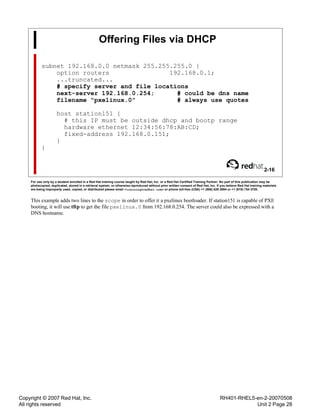
• (loglevel DEBUG)
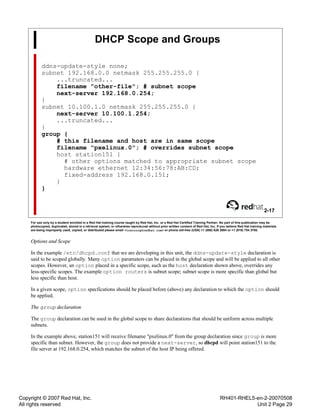
13-6
For use only by a student enrolled in a Red Hat training course taught by Red Hat, Inc. or a Red Hat Certified Training Partner. No part of this publication may be
photocopied, duplicated, stored in a retrieval system, or otherwise reproduced without prior written consent of Red Hat, Inc. If you believe Red Hat training materials
are being improperly used, copied, or distributed please email <training@redhat.com> or phone toll-free (USA) +1 (866) 626 2994 or +1 (919) 754 3700.
There are two parameters which control the logging behaivour of xend.
(logfile /var/log/xen/xend.log)
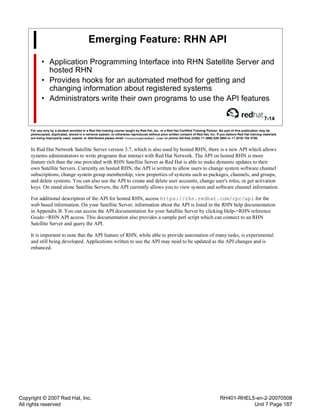
The second field identifies the absolute path to the log file.
(loglevel DEBUG)
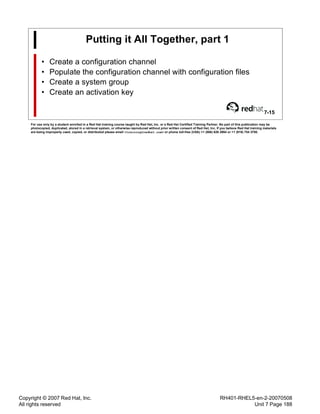
The second field indicates the lowest level of message to be logged. Possible values are: DEBUG, INFO, WARNING,
ERROR, CRITICAL. The default setting of DEBUG will yield the most information in the log. Setting this field to
CRITICAL will yield the least amount of information in the log.
Copyright © 2007 Red Hat, Inc.
All rights reserved
RH401-RHEL5-en-2-20070508
Unit 13 Page 303
Management Interfaces
• (xend-unix-server yes)
• (xend-http-server no)
• (xend-address 192.168.0.254)
• (xend-port 8000)
13-7
For use only by a student enrolled in a Red Hat training course taught by Red Hat, Inc. or a Red Hat Certified Training Partner. No part of this publication may be
photocopied, duplicated, stored in a retrieval system, or otherwise reproduced without prior written consent of Red Hat, Inc. If you believe Red Hat training materials
are being improperly used, copied, or distributed please email <training@redhat.com> or phone toll-free (USA) +1 (866) 626 2994 or +1 (919) 754 3700.
These parameters control the management interfaces of xend.
(xend-http-server no)
The second field may be set to either yes or no. This parameter must be set to yes in order to allow managemet tools
running on remote hosts to connect and control xend on this host. Care must be taken when activating this interface as
there are no access controls. Netfilter, or other network based secuity may be used to limit access.
(xend-unix-server yes)
The second field may be set to either yes or no. This parameter must be set to yes in order to allow managemet tools
running on this host to connect and control xend. For example, the xm command line tool will not work unless this
parameter is set to yes.
(xend-address 192.168.0.254)
The second field is set to the IP address on which the xen http server should listen for incoming connections. Use a
null string to specify any/all addresses on this host: (xend-address '')
(xend-port 8000)
The second field is set to the TCP port on which the xen http server should listen for incoming connections.
Copyright © 2007 Red Hat, Inc.
All rights reserved
RH401-RHEL5-en-2-20070508
Unit 13 Page 304
Migration Interface
• (xend-relocation-server no)
• (xend-relocation-address 192.168.0.254)
• (xend-relocation-port 8002)
• (xend-relocation-hosts-allow '^localhost$ ^.*.example.com$')
13-8
For use only by a student enrolled in a Red Hat training course taught by Red Hat, Inc. or a Red Hat Certified Training Partner. No part of this publication may be
photocopied, duplicated, stored in a retrieval system, or otherwise reproduced without prior written consent of Red Hat, Inc. If you believe Red Hat training materials
are being improperly used, copied, or distributed please email <training@redhat.com> or phone toll-free (USA) +1 (866) 626 2994 or +1 (919) 754 3700.
(xend-relocation-server no)
The second field may be set to either yes or no. This parameter must be set to yes in order to allow virtual machines to
be migrated to this host.
(xend-relocation-address 192.168.0.254)
The second field is set to the IP address on which the xen relocation server should listen for incoming connections.
Use a null string to specify any/all addresses on this host: (xend-relocation-address '')
(xend-relocation-port 8002)
The second field is set to the TCP port on which the xen relocation server should listen for incoming connections.
(xend-relocation-hosts-allow '^localhost$ ^.*.example.com$')
The second field is a space seperated list of regular expressions. A remote host attempting to connect will only be
accepted if either its FQDN or IP address match one of the regular expressions. Use a null string to specify any/all
remote hosts: (xend-relocation-hosts-allow '')
Copyright © 2007 Red Hat, Inc.
All rights reserved
RH401-RHEL5-en-2-20070508
Unit 13 Page 305
Dom0
• (dom0-min-mem 256)
• (dom0-cpus 0)
13-9
For use only by a student enrolled in a Red Hat training course taught by Red Hat, Inc. or a Red Hat Certified Training Partner. No part of this publication may be
photocopied, duplicated, stored in a retrieval system, or otherwise reproduced without prior written consent of Red Hat, Inc. If you believe Red Hat training materials
are being improperly used, copied, or distributed please email <training@redhat.com> or phone toll-free (USA) +1 (866) 626 2994 or +1 (919) 754 3700.
These two parameters set minimums for memory and cpu usage in Dom0.
(dom0-min-mem 256)
When memory is needed for a DomU virtual machine, Dom0 will free some of its memory to make it available. The
number in the second field is the minimum amount of memory that Dom0 will always keep for itself.
(dom0-cpus 0)
The second field indicates how many cpus Dom0 should use when running on an SMP machine. If set to 0, Domain-0
will make use of all available cpus.
Copyright © 2007 Red Hat, Inc.
All rights reserved
RH401-RHEL5-en-2-20070508
Unit 13 Page 306
Default vnc Console Access
• (vnc-listen '127.0.0.1')
• (vncpasswd 'hackme')
13-10
For use only by a student enrolled in a Red Hat training course taught by Red Hat, Inc. or a Red Hat Certified Training Partner. No part of this publication may be
photocopied, duplicated, stored in a retrieval system, or otherwise reproduced without prior written consent of Red Hat, Inc. If you believe Red Hat training materials
are being improperly used, copied, or distributed please email <training@redhat.com> or phone toll-free (USA) +1 (866) 626 2994 or +1 (919) 754 3700.
These two parameters are used to configure the vnc server that is used to provide access to DomU virtual machine
graphical consoles.
(vnc-listen '127.0.0.1')
The second field sets the IP address on which the VNC server will listen for incoming connections. To listen on
any/all IP addresses on this host, use a value of all zeros: (vnc-listen '0.0.0.0')
(vncpasswd 'hackme')
The second field sets the default password required for access to the VNC console for "Full" Virtualization DomUs. A
null values indicates no password: (vncpasswd '')
Copyright © 2007 Red Hat, Inc.
All rights reserved
RH401-RHEL5-en-2-20070508
Unit 13 Page 307
Network Configuration
• (network-script network-bridge)
• (vif-script vif-bridge)
13-11
For use only by a student enrolled in a Red Hat training course taught by Red Hat, Inc. or a Red Hat Certified Training Partner. No part of this publication may be
photocopied, duplicated, stored in a retrieval system, or otherwise reproduced without prior written consent of Red Hat, Inc. If you believe Red Hat training materials
are being improperly used, copied, or distributed please email <training@redhat.com> or phone toll-free (USA) +1 (866) 626 2994 or +1 (919) 754 3700.
The network environment for virtual machines is configured by two scripts.
(network-script network-bridge)
The second field specifies the script that will set up the initial network environment. This may include creation of
bridges, renaming interfaces, adjusting routes, or more. The specified script is run when xend is started.
(vif-script vif-bridge)
The second field specifies the script that will set up a DomU virtual machine connection to the network environment.
The script is run each time a DomU virtual machine is created. The script may connect the VM to a bridge, or add
routes, or perform any other operation needed to configure networking.
Copyright © 2007 Red Hat, Inc.
All rights reserved
RH401-RHEL5-en-2-20070508
Unit 13 Page 308
xendomains
• Dom0 init script
• Creates designated domains at startup
• Not needed to shutdown domains when Dom0 shutsdown
13-12
For use only by a student enrolled in a Red Hat training course taught by Red Hat, Inc. or a Red Hat Certified Training Partner. No part of this publication may be
photocopied, duplicated, stored in a retrieval system, or otherwise reproduced without prior written consent of Red Hat, Inc. If you believe Red Hat training materials
are being improperly used, copied, or distributed please email <training@redhat.com> or phone toll-free (USA) +1 (866) 626 2994 or +1 (919) 754 3700.
xendomains
The xendomains init script is used to automatically create selected Domains virtual machines when Domain-0 is
booted.
To select a domain for automatic start up create a sym link to its configuration file in the directory /etc/xen/auto.
cd /etc/xen/auto ; ln -s ../example
Simply remove the sym link to prevent a domain from being created when Dom0 is booted.
cd /etc/xen/auto ; rm example
Copyright © 2007 Red Hat, Inc.
All rights reserved
RH401-RHEL5-en-2-20070508
Unit 13 Page 309
End of Unit 13
• Questions and Answers
• Summary
• Hypervisor Configuration
• Related Utilities
13-13
For use only by a student enrolled in a Red Hat training course taught by Red Hat, Inc. or a Red Hat Certified Training Partner. No part of this publication may be
photocopied, duplicated, stored in a retrieval system, or otherwise reproduced without prior written consent of Red Hat, Inc. If you believe Red Hat training materials
are being improperly used, copied, or distributed please email <training@redhat.com> or phone toll-free (USA) +1 (866) 626 2994 or +1 (919) 754 3700.
Copyright © 2007 Red Hat, Inc.
All rights reserved
RH401-RHEL5-en-2-20070508
Unit 14 Page 310
Unit 14
Virtualization: Advanced Techniques
14-1
For use only by a student enrolled in a Red Hat training course taught by Red Hat, Inc. or a Red Hat Certified Training Partner. No part of this publication may be
photocopied, duplicated, stored in a retrieval system, or otherwise reproduced without prior written consent of Red Hat, Inc. If you believe Red Hat training materials
are being improperly used, copied, or distributed please email <training@redhat.com> or phone toll-free (USA) +1 (866) 626 2994 or +1 (919) 754 3700.
Copyright © 2007 Red Hat, Inc.
All rights reserved
RH401-RHEL5-en-2-20070508
Unit 14 Page 311
Objectives
Upon completion of this unit, you should be able to:
• Use Cloned Storage
• Create Custom Virtual Networks
• Configure Vlan Tagging
• Perform Live Migration
14-2
For use only by a student enrolled in a Red Hat training course taught by Red Hat, Inc. or a Red Hat Certified Training Partner. No part of this publication may be
photocopied, duplicated, stored in a retrieval system, or otherwise reproduced without prior written consent of Red Hat, Inc. If you believe Red Hat training materials
are being improperly used, copied, or distributed please email <training@redhat.com> or phone toll-free (USA) +1 (866) 626 2994 or +1 (919) 754 3700.
Copyright © 2007 Red Hat, Inc.
All rights reserved
RH401-RHEL5-en-2-20070508
Unit 14 Page 312
Advanced Techniques
• Red Hat Enterprise Linux
• LVM Read/Write Snapshots
• 802.1D Ethernet Bridging
• Shell Scripting
• Red Hat Virtualization
• Live Migration
14-3
For use only by a student enrolled in a Red Hat training course taught by Red Hat, Inc. or a Red Hat Certified Training Partner. No part of this publication may be
photocopied, duplicated, stored in a retrieval system, or otherwise reproduced without prior written consent of Red Hat, Inc. If you believe Red Hat training materials
are being improperly used, copied, or distributed please email <training@redhat.com> or phone toll-free (USA) +1 (866) 626 2994 or +1 (919) 754 3700.
Advanced Techniques
The great flexibility of Red Hat Enterprise Linux allows a wide variety of possbilities when it comes to working with
virtual machines. For example, the creative use of logical volume snapshots allows for the creation of "cloned" virtual
machines without the need to install the operating system. A little bit of shell scripting, combined with the 802.1D
compliant eathernet bridging in the linux kernel, opens up many possibilities for virtual network configurations.
Live Migration
One of the most exciting capabilties of Red Hat Virtualization is the ability to move a running virtual machine from
one physical computer to another. This happens quickly and, more importantly, without noticable interrupt of service.
Copyright © 2007 Red Hat, Inc.
All rights reserved
RH401-RHEL5-en-2-20070508
Unit 14 Page 313
Snapshot Storage
• LVM Read/Write Snapshots
• Clone of existing logical volume
• Created instantly
• Only difference consume space
• Virtualization Uses
• Rapid instantiation of virtual machines
• Stateless virtual machines
14-4
For use only by a student enrolled in a Red Hat training course taught by Red Hat, Inc. or a Red Hat Certified Training Partner. No part of this publication may be
photocopied, duplicated, stored in a retrieval system, or otherwise reproduced without prior written consent of Red Hat, Inc. If you believe Red Hat training materials
are being improperly used, copied, or distributed please email <training@redhat.com> or phone toll-free (USA) +1 (866) 626 2994 or +1 (919) 754 3700.
LVM Read/Write Snapshots
A write enabled snapshot of a logical volume may be thought of as a fork of the filesystem contained on the original
volume. Intially, the snapshot will appear to be identical to the original volume. At this point, the snapshot uses no
disk space. Only new or changed data, written to the snapshot, consumes space on the snapshot. Therefore, only
enough space to hold the new or changed data need be assigned to the snapshot.
[root@stationX]# lvcreate -L2048 -s -n snapshot1 /dev/VolGroup00/original
Logical volume "snapshot1" created
Virtualization Uses
When there is a need to quickly provision new systems with a standard baseline configuration, snapshots allow new
machines to come online nearly as quickly as they boot. No time is spent on installation.
In a development or QA environment the use of snapshots makes it simple to instantly "reset" the testing environment.
Snapshots can be destroyed and re-created almost instantly.
Copyright © 2007 Red Hat, Inc.
All rights reserved
RH401-RHEL5-en-2-20070508
Unit 14 Page 314
Implementing Snapshot Storage
• Create initial logical volume
• Baseline template
• Not used by active virtual machine
• Create a domain using initial logical volume
• Install baseline operating system
• Remove any machine specific data
• Shutdown original install domain
14-5
For use only by a student enrolled in a Red Hat training course taught by Red Hat, Inc. or a Red Hat Certified Training Partner. No part of this publication may be
photocopied, duplicated, stored in a retrieval system, or otherwise reproduced without prior written consent of Red Hat, Inc. If you believe Red Hat training materials
are being improperly used, copied, or distributed please email <training@redhat.com> or phone toll-free (USA) +1 (866) 626 2994 or +1 (919) 754 3700.
Initial Logical Volume
The original logical volume serves as a baseline template. It should not be actively used by any virtual machine.
Instead, only create a domain which uses this volume to make updates or changes to the baseline template.
An important part of creating the baseline template is the removal of any hardware specific data from the system. On a
typical Red Hat Enterprise Linux install, this is only the MAC address referenced in the network configuration files.
Instant New Machines
With the baseline template prepared, the creation of new domains is very rapid. Only three quick steps are needed to
bring up a new virtual machine, and they can be scripted.
1. Create a domian configuration file
2. Create a snapshot
3. Create the domain
As no operating system install is needed, the new virtual machine simply boots and is ready for use.
Copyright © 2007 Red Hat, Inc.
All rights reserved
RH401-RHEL5-en-2-20070508
Unit 14 Page 315
Advanced Network Options
• Advanced Configurations
• Private virtual networks
• Masqueraded virtual machines
• Security Considerations
• Physical network separation
• Logical network separation (vlans)
14-6
For use only by a student enrolled in a Red Hat training course taught by Red Hat, Inc. or a Red Hat Certified Training Partner. No part of this publication may be
photocopied, duplicated, stored in a retrieval system, or otherwise reproduced without prior written consent of Red Hat, Inc. If you believe Red Hat training materials
are being improperly used, copied, or distributed please email <training@redhat.com> or phone toll-free (USA) +1 (866) 626 2994 or +1 (919) 754 3700.
Private Virtual Networks
It is possible to create virtual machines which are networked to each other, but not at all to the physical world. With
this type of private network, services such as dhcp/pxe may be tested or developed without interacting with (or
damaging) actual physical networks. A single machine can serve as a complex testing environment.
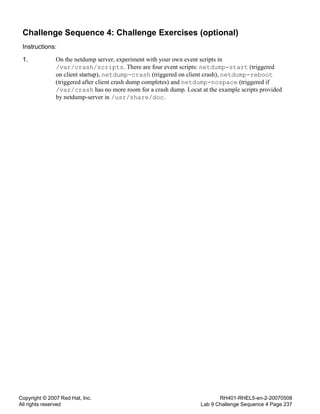
Masqueraded Virtual Machines
Virtual machines may need access to network resources on the physical network when it is not practical or desirable to
give them an actual presense on that network. It is possible to create a private virtual network with a gateway on Dom0
(or a designated DomU) that offers IP Masquerading.
Network Security
Virtual machines have the same network security concerns as physical machines. In the default configuration, all
domains share the same bridge and same physical network port. This leaves open the possibility for users of one
virtual machine to eavesdrop or interfere with network traffic from another virtual machine. There are two ways to
prevent this.
If the physical computer has multiple physical ethernet ports, domains may be divided among the physical ports.
Alternatively, given enough hardware, each domain may be assigned to a seperate physical port.
A more flexible option, if supported by the physical network switch fabric, is the use of vlan tagging. This way,
domains may share physical network ports, but are divided into different logical networks. The ethernet bridging code
in the Red Hat Enterprise Linux kernel supports 802.1Q vlan tagging.
Copyright © 2007 Red Hat, Inc.
All rights reserved
RH401-RHEL5-en-2-20070508
Unit 14 Page 316
Creating Private Virtual Networks
• brctl utility
• Edit xend-config.sxp
• Create custom network script
• (network-script network-custom)
• Configure virtual machines to use custom bridges
14-7
For use only by a student enrolled in a Red Hat training course taught by Red Hat, Inc. or a Red Hat Certified Training Partner. No part of this publication may be
photocopied, duplicated, stored in a retrieval system, or otherwise reproduced without prior written consent of Red Hat, Inc. If you believe Red Hat training materials
are being improperly used, copied, or distributed please email <training@redhat.com> or phone toll-free (USA) +1 (866) 626 2994 or +1 (919) 754 3700.
brctl
The brctl is used to set up, maintain, and inspect the ethernet bridge configuration in the linux kernel. This command
is called in a custom network script to create virtual private networks.
Custom Network Scripts
The Red Hat Virtualization environment may be customized by creating scripts to set up the desired network
configuration. Custom scripts are stored in the /etc/xen/scripts directory. The following is an example custom
network script.
#!/bin/bash
# network-custom
# custom network script to create a private virtual network
#
# first we must active the default network bridge, xenbr0
/etc/xen/scripts/network-bridge netdev=eth0 start
# next we create and activate a private bridge, private0
brctl addbr private0
ifconfig private0 up
To implement this script, edit /etc/xen/xend-config.sxp and change (network-script
network-bridge) to (network-script network-custom).
Lastly, configure virtual machines to use the private bridge, instead of the default.
vif = [ 'mac=00:16:3e:aa:aa:a0, bridge=private0', ]
Copyright © 2007 Red Hat, Inc.
All rights reserved
RH401-RHEL5-en-2-20070508
Unit 14 Page 317
Masquerading Virtual Machines
• Create dummy device
• Implement custom network script
• Implement iptables rules
14-8
For use only by a student enrolled in a Red Hat training course taught by Red Hat, Inc. or a Red Hat Certified Training Partner. No part of this publication may be
photocopied, duplicated, stored in a retrieval system, or otherwise reproduced without prior written consent of Red Hat, Inc. If you believe Red Hat training materials
are being improperly used, copied, or distributed please email <training@redhat.com> or phone toll-free (USA) +1 (866) 626 2994 or +1 (919) 754 3700.
Masquerading Virtual Machines
The masquerading of virtual machines takes advatage of a few features of the Red Hat Enterprise Linux kernel. There
is likely more than one way to accomplish such masquerading and this particular approach maintains the default
virtualization network configuration.
To create a dummy device, edit /etc/modeprobe.conf and add the following lines:
alias dummy0 dummy
options dummy numdummies=1
Next create a network configuration for dummy0, just as you would for eth0, using an RFC1918 private address.
Create a custom network script such as the following:
#!/bin/bash
# network-custom
# custom network script to create a private virtual network
#
# first we must active the default network bridge, xenbr0
/etc/xen/scripts/network-bridge netdev=eth0 start
# next we create and activate a private bridge, private0
brctl addbr masq0
ifconfig masq0 up
# last we connect dummy0 to the new bridge
brctl addif masq0 dummy0
Any virtual machine that is configured to use the bridge masq0 will need a static RFC1918 IP address. Configure these
virtual machines to use IP of dummy0 as the default gateway.
Lastly, add iptables rules in Dom0 to allow masquerading:
iptables -t nat -A POSTROUTING -i dummy0 -j MASQUERADE
Copyright © 2007 Red Hat, Inc.
All rights reserved
RH401-RHEL5-en-2-20070508
Unit 14 Page 318
Physical Network Separation
• Create bridge for each physical port
• Assign virtual machines to bridges
14-9
For use only by a student enrolled in a Red Hat training course taught by Red Hat, Inc. or a Red Hat Certified Training Partner. No part of this publication may be
photocopied, duplicated, stored in a retrieval system, or otherwise reproduced without prior written consent of Red Hat, Inc. If you believe Red Hat training materials
are being improperly used, copied, or distributed please email <training@redhat.com> or phone toll-free (USA) +1 (866) 626 2994 or +1 (919) 754 3700.
Physical Network Separation
Creating a bridge for each physical network work involves only a simple custom network script.
#!/bin/bash
# network-custom
# custom network script to create a private virtual network
#
# first define a list of physical ports
PORTS="eth0 eth1 eth2 eth3"
# active a network bridge for each port
for P in $PORTS ; do
/etc/xen/scripts/network-bridge netdev=$P start
done
This approach will create one bridge for each physical network port listed in the script. The bridges will be named
xenbrX where X is the number of the ethernet device alias.
Copyright © 2007 Red Hat, Inc.
All rights reserved
RH401-RHEL5-en-2-20070508
Unit 14 Page 319
Logical Network Separation
• 802.1Q swtich fabric required
• Bridge created for each vlan
• ifcfg-ethX files for vlan ports
14-10
For use only by a student enrolled in a Red Hat training course taught by Red Hat, Inc. or a Red Hat Certified Training Partner. No part of this publication may be
photocopied, duplicated, stored in a retrieval system, or otherwise reproduced without prior written consent of Red Hat, Inc. If you believe Red Hat training materials
are being improperly used, copied, or distributed please email <training@redhat.com> or phone toll-free (USA) +1 (866) 626 2994 or +1 (919) 754 3700.
802.1Q
802.1Q is an IEEE definition for vlan implementations and supported by a wide variety of managed network switches.
Network traffic is encapsulated when it enters the switch fabric and extracted when it leaves the switch fabric. Use of
vlans allows network traffic to travel accross shared network hardware while at the same time it is logically seperated.
A host connected to one vlan cannot see or interact with traffic on other vlans.
Using vlans allows virtual machines running on the same physical hardware, and using the same physical network
port, to be connected to entirely different logical networks. As usual, a custome network script is required.
#!/bin/bash
# network-custom
# custom network script to create a bridge per vlan
#
# first define a list of vlans
VLANS="2 10 11 12"
# active a network bridge for each port
for V in $VLANS ; do
brctl addbr br-vlan$V
ifconfig br-vlan$V up
ifup eth0.$V
done
Next we need to create a interface configuration file for each vlan. These are stored in
/etc/sysconfig/network-scripts and use the name ifcfg-ethX.Y whereis X is the interface alias
number and Y is the vlan number.
# sample vlan interface config
DEVICE=eth0.2
BOOTPROTO=none
ONBOOT=no
TYPE=Ethernet
VLAN=yes
BRIDGE=br-vlan2
Note that in this case we do not create the default virtual network bridge. It is possible to do so, but the use of vlans
suggests that we want a tightly controlled network.
Copyright © 2007 Red Hat, Inc.
All rights reserved
RH401-RHEL5-en-2-20070508
Unit 14 Page 320
Live Migration
• Requires
• Shared Storage
• Network Bandwidth
• Matching CPU Arch
• Security Concerns
14-11
For use only by a student enrolled in a Red Hat training course taught by Red Hat, Inc. or a Red Hat Certified Training Partner. No part of this publication may be
photocopied, duplicated, stored in a retrieval system, or otherwise reproduced without prior written consent of Red Hat, Inc. If you believe Red Hat training materials
are being improperly used, copied, or distributed please email <training@redhat.com> or phone toll-free (USA) +1 (866) 626 2994 or +1 (919) 754 3700.
Live Migration
In order to Live Migrate a domain, the destination machine must be configured to accept such connections. The
following options must be enabled in /etc/xen/xend-config.sxp on the destination machine:
(xend-relocation-server yes)
(xend-relocation-address '')
(xend-relocation-hosts-allow '')
Shared Storage
The same storage device used when the domain was created must be available on the destination machine. This
requires some form of shared storage. Possiblities include san devices, network block devices such as GNBD, and disk
images files which reside on an NFS server. Obviously I/O performance will vary depending on the type of shared
storage. Another option, depending on the application, is using NFS rooted diskless virtual machines, which eliminates
the needs for shared storage managed in Dom0.
Network Bandwidth
The time it takes for a migration to complete is dependent on the available bandwidth between the two physical
machines, as well as the amount of memory used by the domain. The conents of the domain's memory must be copied
to the destination machine, over the network. Also, it is possible to saturate the network link during a migration,
preventing other domains from using the network. The -r option is used to specify the maximum Mbs to be used
during a migration, should limiting be needed.
Once all the right pieces are in place, the migration command is simply (note that the -l indicates live, without it the
domain would be shutdown and recreated on the destination machine):
xm migrate domain destination-machine -l [-r]
Security Concerns
The memory contents of the domain being migrated are transmitted over the network raw and unencrypted. This
means that it is potentially possible for a third party to capture and use this information. Migrations should only
be performed over secure networks. If possible, a dedicated migration and management network may be used.
Communication during a migration is between processes running in Dom0, on both the original and destination
machines. The domain being migrated need not have any connection to the network on which the xend daemons of the
respective Dom0's are running.
Copyright © 2007 Red Hat, Inc.
All rights reserved
RH401-RHEL5-en-2-20070508
Unit 14 Page 321
End of Unit 14
• Questions and Answers
• Summary
• Cloned Storage
• Custom Virtual Networks
• Vlan Tagging
• Live Migration
14-12
For use only by a student enrolled in a Red Hat training course taught by Red Hat, Inc. or a Red Hat Certified Training Partner. No part of this publication may be
photocopied, duplicated, stored in a retrieval system, or otherwise reproduced without prior written consent of Red Hat, Inc. If you believe Red Hat training materials
are being improperly used, copied, or distributed please email <training@redhat.com> or phone toll-free (USA) +1 (866) 626 2994 or +1 (919) 754 3700.
Copyright © 2007 Red Hat, Inc.
All rights reserved
RH401-RHEL5-en-2-20070508
Lab 14 Page 322
Lab 14
Advanced Virtualization Techniques
Goal: To use advanced features of Red Hat Enterprise Linux in combination with
Red Hat Virtualization.
Copyright © 2007 Red Hat, Inc.
All rights reserved
RH401-RHEL5-en-2-20070508
Lab 14 Sequence 1 Page 323
Sequence 1: Snapshot Based Domains
Scenario: In this exercise, you will use an exiting logical volume as a baseline template
for snapshot based domains.
Deliverable: A new DomU, which uses a snapshot as its storage device.
Instructions:
1. If it is not running, create vm1 and login to its console. Remove any reference to a MAC
address in the network configuration files.
2. Shutdown vm1.
3. Create a snapshot of /dev/vol0/vm1 called /dev/vol0/snap with a size of 1GiB.
4. Create a new domain configuration file called /etc/xen/snap with no MAC address
(the Hypervisor will assign a MAC when it creates the domain), the name set to snap, and
using /dev/vol0/snap for storage.
5. Create the snap domain.
Copyright © 2007 Red Hat, Inc.
All rights reserved
RH401-RHEL5-en-2-20070508
Lab 14 Sequence 2 Page 324
Sequence 2: Live Migration
Scenario: In this exercise, you will convert the snapshot volume into a shared storage
device and live migrate the snap domain from one machine to another. The
machine that is currently running Red Hat Virtualization and the snap domain
will be refered to as stationX in this exercise. Your second machine will be
refered to as stationY.
Deliverable: Two machines running Red Hat Virtualization and configured for live
migration.
Instructions:
1. Install the packages for Red Hat Virtualization on stationY and reboot to the xen kernel.
2. Install the packages for GNBD on both of your machines.
3. On stationX, shutdown the snap domain.
4. On stationX, start the GNBD daemon.
5. On stationX, create a GNBD export of /dev/vol0/snap as gnbd1.
6. On stationX and stationY, load the GNBD module.
7. On stationX and stationY, import gnbd1.
8. On stationX, edit the domain configuration file for snap so that it uses
/dev/gnbd/gnbd1 for storage.
9. On stationX, create the snap domain.
10. On stationY, configure the Hypervisor to accept relocation connections.
11. On stationX, live migrate snap to stationY.
12. On stationY, once migration is complete, open the console of the snap domain.
13. What will need to be done in order to be able to migrate the snap domain back to stationX?
14. Why is there no need to copy the domain configuration file for snap to stationY?
Copyright © 2007 Red Hat, Inc.
All rights reserved
RH401-RHEL5-en-2-20070508
Lab 14 Sequence 1 Solutions Page 325
Sequence 1 Solutions
1. Use xm to create vm1 with its console open. Login and edit the file
/etc/sysconfig/network-scripts/ifcfg-eth0.
a. [root@stationX]# xm create -c vm1
b. Remove the MAC address line from ifcfg-eth0.
HWADDR=XX:XX:XX:XX:XX:XX
2. Use virsh to shutdown vm1.
a. [root@stationX]# virsh shutdown vm1
3. [root@stationX]# lvcreate -L 1024 -s -n snap /dev/vol0/vm1
4. The new file should look like this:
name = "snap"
memory = "256"
disk = [ 'phy:/dev/vol0/snap,xvda,w', ]
vif = [ 'bridge=xenbr0', ]
bootloader="/usr/bin/pygrub"
vcpus=1
on_reboot = 'restart'
on_crash = 'restart'
5. [root@stationX]# xm create -c snap
Copyright © 2007 Red Hat, Inc.
All rights reserved
RH401-RHEL5-en-2-20070508
Lab 14 Sequence 2 Solutions Page 326
Sequence 2 Solutions
1. Using yum, install the packages needed to set up the Xen virtualization environment:
kernel-xen, xen, and virt-manager.
a. yum -y install kernel-xen xen virt-manager
2. Using yum, install the packages needed to set up GNBD: gnbd, and kmod-gnbd-xen.
a. yum -y install gnbd kmod-gnbd-xen
3. Use virsh to shutdown vm1.
a. [root@stationX]# virsh shutdown vm1
4. [root@stationX]# gnbd_serv -n
5. [root@stationX]# gnbd_export -d /dev/vol0/snap -e gnbd1 -c
6. [root@stationX|Y]# modprobe gnbd
7. [root@stationX|Y]# gnbd_import -i localhost -n
8. The new file should now look like this:
name = "snap"
memory = "256"
disk = [ 'phy:/dev/gnbd/gnbd1,xvda,w', ]
vif = [ 'bridge=xenbr0', ]
bootloader="/usr/bin/pygrub"
vcpus=1
on_reboot = 'restart'
on_crash = 'restart'
9. [root@stationX]# xm create snap
10. On stationY, edit the file /etc/xen/xend-config.sxp.
a. Locate the line that reads:
#(xend-relocation-server no)
and change it to read:
(xend-relocation-server yes)
b. Locate the line that reads:
#(xend-relocation-address '')
and uncomment it.
Copyright © 2007 Red Hat, Inc.
All rights reserved
RH401-RHEL5-en-2-20070508
Lab 14 Sequence 2 Solutions Page 327
c. Locate the line that reads:
(xend-relocation-hosts-allow '^localhost$
^localhost.localdomain$')
and comment it out.
d. Locate the line that reads:
(xend-relocation-address '')
and remove the comment.
Restart the xend service:
service xend restart
11. [root@stationX]# xm mirgrate -l snap stationY
It make take a few minutes for the migration to complete. The snap domain should remain
active and available the entire time.
12. [root@stationX]# xm console snap
13. The Hypervisor on StationX will need to be configured to accept relocation connections.
14. The configuration file is only used during domain creation. As the snap domain is already
created, there is no need to copy the file to stationY. If the snap domain were shutdown
and you wanted to create it on stationY, then you would need to first copy over the
configuration file (or pass all of the configuration options at the command line).
Copyright © 2007 Red Hat, Inc.
All rights reserved
RH401-RHEL5-en-2-20070508
Appendix A Page 328
Appendix A
Installing Software
A-1
For use only by a student enrolled in a Red Hat training course taught by Red Hat, Inc. or a Red Hat Certified Training Partner. No part of this publication may be
photocopied, duplicated, stored in a retrieval system, or otherwise reproduced without prior written consent of Red Hat, Inc. If you believe Red Hat training materials
are being improperly used, copied, or distributed please email <training@redhat.com> or phone toll-free (USA) +1 (866) 626 2994 or +1 (919) 754 3700.
Copyright © 2007 Red Hat, Inc.
All rights reserved
RH401-RHEL5-en-2-20070508
Appendix A Page 329
Software Installation
A-2
For use only by a student enrolled in a Red Hat training course taught by Red Hat, Inc. or a Red Hat Certified Training Partner. No part of this publication may be
photocopied, duplicated, stored in a retrieval system, or otherwise reproduced without prior written consent of Red Hat, Inc. If you believe Red Hat training materials
are being improperly used, copied, or distributed please email <training@redhat.com> or phone toll-free (USA) +1 (866) 626 2994 or +1 (919) 754 3700.
In this course, you will be asked to configure software that may not be installed on the system. Below are a few
methods to locate and install required packages. You may use any one of theses methods as necessary.
Always verify that intended installations were successful, especially when using the wildcard character!
Using yum
1. Ensure the file /etc/yum.repos.d/server1.repo exists on your system. If does not, download the file
from server1:
[root@stationX]# cd /etc/yum.repos.d/
[root@stationX]# wget http://server1/pub/gls/server1.repo
It should contain the following content:
[Server]
name=Server
enable=1
gpgcheck=1
baseurl=http://192.168.0.254/pub/Server
2. After writing the file to disk, and returned to your prompt, enter the following command. You should see output
similar to that listed below.
# yum list redhat-release
This system is not registered with RHN.
RHN support will be disabled.
Setting up repositories
Server 100% |=========================| 0000 kB 00:00
Reading repository metadata in from local files
primary.xml.gz 100% |=========================| 0000 kB 00:00
######################################################### 0000/0000
Installed packages
redhat-release.i386 5.##Server-# installed
3. If your results are similar, you must now install the public GPG keys(note the asterisk):
# rpm --import /etc/pki/rpm-gpg/RPM-GPG-KEY-redhat*
4. You may now use the command listed below to install software:
# yum -y install packagename
Using NFS (may use the "*" wildcard in RPM name)
1. You may use the following commands to access and install software via NFS.
2. # mkdir /mnt/server1
Copyright © 2007 Red Hat, Inc.
All rights reserved
RH401-RHEL5-en-2-20070508
Appendix A Page 330
3. # mount -t nfs -o ro server1:/var/ftp/pub/ /mnt/server1
4. # rpm -Uvh /mnt/server1/Server/packagename
Using FTP (may use the "*" wildcard in RPM name)
1. You may use the following command to access and install software via FTP.
2. # rpm -Uvh ftp://server1/pub/Server/packagename
Using HTTP (may NOT use the "*" wildcard in RPM name)
1. You may use the following command to access and install software via HTTP.
2. # rpm -Uvh http://server1/pub/Server/packagename

Rh401 rhel5.2

  • 1.
    RH401 Red Hat EnterpriseDeployment, Virtualization, and Systems Management RH401-RHEL5-en-2-20070508
  • 3.
    Copyright © 2007Red Hat, Inc. All rights reserved RH401-RHEL5-en-2-20070508 Table of Contents Page i Table of Contents RH401 - Red Hat Enterprise Deployment, Virtualization, and Systems Management Introduction Copyright ix Notes on Internationalization x Welcome xi Participant Introductions xii Red Hat Enterprise Linux xiii Red Hat Enterprise Linux Variants xiv Red Hat Network xv Other Red Hat Supported Software xvi The Fedora Project xvii Classroom Network xviii Objectives xix Unit 1 - Essential System Management Objectives 2 System Management Tasks 3 Standardization 5 Centralization 6 Scalability 7 Provisioning 8 Automation 9 The "One-off" Trap 10 Red Hat Tools for System Management 11 End of Unit 1 12 Unit 2 - Provisioning with DHCP and PXE Objectives 14 Bare Metal Provisioning 15 Dynamic Host Configuration Protocol 16 Trivial File Transfer Protocol 17 Booting Anaconda over the Network 18 Accessing the Installer 19 PXE Boot 20 pxelinux.0 21 The pxelinux Configuration File 22 Common pxelinux Directives 23 PXE Boot Menu 24 DHCP Server 25 Essential dhcpd.conf Configuration 26
  • 4.
    Copyright © 2007Red Hat, Inc. All rights reserved RH401-RHEL5-en-2-20070508 Table of Contents Page ii Reserved IP Addresses 27 Offering Files via DHCP 28 DHCP Scope and Groups 29 The PXE Class 30 Kickstart and DHCP 31 Lab 2: Bare Metal Provisioning 32 Sequence 1: Set up the provisioning network 33 Sequence 2: Configure a TFTP Server to support PXE 34 Sequence 3: Configure DHCP to support PXE 35 Unit 3 - Installing a Red Hat Network Satellite Server Objectives 42 Features of the Satellite Server 43 Advantages of the Satellite Server 44 Components of the Satellite Server 45 Types of Satellite Server 46 Satellite Server Hardware Requirements 47 Understanding Software Channels 48 Installing Satellite Server: The Base Install 49 Installing Satellite Server: Filesystem Requirements 50 Installing the Satellite Software 51 Populating the Satellite Server: Options 52 Using Channel ISOs to Populate the Satellite Server 53 Understanding Channel Content ISOs 54 Populating the Satellite Server over the Network 55 Troubleshooting 56 End of Unit 3 57 Lab 3: Installing Red Hat Network Satellite Server 58 Sequence 1: Installing the RHN Satellite Server Software 59 Sequence 2: Populating the RHN Satellite Server with the RHEL4 AS Channel 62 Sequence 3: Populating the RHN Satellite Server with Additional Channels 63 Unit 4 - Building RPMs Objectives 65 RPM: Rolling Your Own 66 Building Open Source Software 67 Components 68 RPM Macros 69 Spec File: Preamble 70 Spec File: %prep 72 Spec File: %build 74 Spec File: %install 75 Spec File: %clean 77 Spec File: Scriptlets 78
  • 5.
    Copyright © 2007Red Hat, Inc. All rights reserved RH401-RHEL5-en-2-20070508 Table of Contents Page iii Spec File: %files 79 Spec File: %changelog 81 rpmbuild 82 Signing RPM Packages 83 Guidelines for Custom RPMs 84 End of Unit 4 85 Lab 4: Building Custom RPMs 86 Sequence 1: Practice building Open Source software and building RPMs 87 Sequence 2: Preparing a RPM working environment 91 Sequence 3: Creating a spec file preamble 92 Sequence 4: Easy steps first 93 Sequence 5: %build and %install 95 Sequence 6: %files 97 Sequence 7: Scriptlets 99 Sequence 8: Building the RPM 100 Optional Sequence 9: Applying Patches 102 Unit 5 - Using CVS to Manage Configuration Files Objectives 106 What is CVS? 107 How CVS Works 108 How CVS Works 109 CVS and System Administration 110 CVS Repository Limitations 111 Selecting a Repository 112 Using CVS 114 Starting a Working Directory 115 Committing Changed Files 116 Updating a Working Directory 117 Merging Conflicting Changes 119 Adding New Files 120 Removing Files 121 Renaming Files 122 Revision History 123 Viewing Repository History 124 Examining Old Revisions 125 Rolling Back to Old Revisions 126 Dealing with Binary Files 127 Dealing with Binary Files 128 The CVS Directories 129 Remote Repository Security 130 Creating an Empty Repository 131 Structuring a CVS Project 132 Starting a CVS Project 133 CVS File Permissions 134 CVSROOT 135
  • 6.
    Copyright © 2007Red Hat, Inc. All rights reserved RH401-RHEL5-en-2-20070508 Table of Contents Page iv Advanced Features 136 An Alternative: subversion 137 End of Unit 5 138 Lab 5: Using CVS to Manage Configuration Files 139 Sequence 1: Preparing the CVS Repository and Users 140 Sequence 2: Starting a New Project in CVS 142 Sequence 3: Getting and Working With Files 144 Sequence 4: Moving Files 146 Sequence 5: Dealing with Conflicts 148 Optional Sequence 6: Some Additional Exercises 151 Unit 6 - Managing the Red Hat Network Satellite Server Objectives 153 Preparing a Client to Use Satellite Server 154 Configuring the Client 155 Preparing to Script Client Configuration: Activation Keys 156 Scripting Client Configuration 157 Custom Channels 158 Preparing RPMs for Red Hat Network 159 Creating a Custom Channel 160 Populating a Custom Channel 161 Using a Custom Channel 162 Updating a Custom Channel 163 End of Unit 6 164 Lab 6: Managing the RHN Satellite Server 165 Sequence 1: Configure a Red Hat Network client to use the RHN Satellite Server 166 Sequence 2: Creating and Populating a Private Channel 168 Optional Sequence 3: Updating a Private Channel 172 Unit 7 - Red Hat Network Management and Provisioning Objectives 175 Types of RHN Service 176 RHN Update Service 177 RHN Management Service 178 RHN Provisioning Service 179 Elements of a Deployment System 180 Custom Channels 181 Software Channels 182 Configuration Channels 183 Configuring Clients to Use Configuration Channels 184 Macros and Configuration Channels 185 System Groups 186 Emerging Feature: RHN API 187 Putting it All Together, part 1 188
  • 7.
    Copyright © 2007Red Hat, Inc. All rights reserved RH401-RHEL5-en-2-20070508 Table of Contents Page v Putting it All Together, part 2 189 End of Unit 7 190 Lab 7: RHN Management and Provisioning 191 Sequence 1: Creating a Configuration Channel 192 Sequence 2: Populating a Configuration Channel 193 Sequence 3: Creating a Group 194 Sequence 4: Creating an Activation Key 195 Sequence 5: Associating the configuration channel with the activation key 196 Sequence 6: Sequence 6: Associating the configuration channel with a system group 197 Sequence 7: Sequence 7: Populating your satellite server with the proper rhn-tools channel 198 Sequence 8: Create a kickstart file 199 Sequence 9: Configuring the kickstart file 200 Sequence 10: Kickstarting your system 202 Sequence 11: Provisioning a system with configuration files 203 Sequence 12: Using rhncfg-manager 205 Sequence 13: Questions 207 Unit 8 - Red Hat Network Proxy Server Objectives 209 Prerequisites 210 Hosted RHN Architecture 211 RHN Proxy Server 212 RHN Proxy Server Components 213 Proxy Server Operations 214 Proxy Server Installation Overview 215 Proxy Server Installation Specifics 216 Client Configuration 217 End of Unit 8 218 Unit 9 - Network Kernel Crash Dumps and netdump Objectives 220 netdump 221 Kernel Crash Signatures 222 Traditional Crash Dumps 223 Network Crash Dumps 224 The netdump Protocol 225 Configuring netdump Servers 226 Configuring netdump Clients 227 netdump Issues 228 kexec and kdump 229 Installing kexec and kdump 230 Introduction to Kernel Debugging With kdump 231 End of Unit 9 232
  • 8.
    Copyright © 2007Red Hat, Inc. All rights reserved RH401-RHEL5-en-2-20070508 Table of Contents Page vi Lab 9: Kernel Crash Dumps 233 Sequence 1: Configuring the netdump server 234 Sequence 2: Configuring and testing the netdump client 235 Sequence 3: Configuring netconsole 236 Challenge Sequence 4: Challenge Exercises (optional) 237 Unit 10 - Red Hat Virtualization Overview Objectives 239 Virtualization 240 Red Hat Virtualization 241 Virtualization Modes 242 Paravirtualization Benefits 243 Virtualization Terminology 245 Hardware Considerations 246 Red Hat Virtualization Packages 247 Installation Considerations 248 Dom0 Options 249 End of Unit 10 250 Lab 10: Installing Red Hat Virtualization 251 Sequence 1: Installing the Red Hat Virtualization Environment 252 Sequence 2: Creating a DomU Virtual Machine 253 Unit 11 - Virtual Machine Management Objectives 257 Identifying Virtual Machines 258 Virtual Machine Management 259 xm 260 xm create 261 xm list 262 Basic xm commands 263 Monitoring Domains with xentop 264 virsh 265 On-The-Fly Resource Management 266 Accessing DomU Consoles 268 Virtual Machine Manager 269 End of Unit 11 270 Lab 11: Exploring Virtual Machine Management 271 Sequence 1: Creating a DomU 272 Sequence 2: Gathering Information about DomUs 273 Sequence 3: On-The-Fly Resource Management 274 Unit 12 - Installing and Configuring Virtual Machines Objectives 280 Installing Virtual Machines 281
  • 9.
    Copyright © 2007Red Hat, Inc. All rights reserved RH401-RHEL5-en-2-20070508 Table of Contents Page vii Virtual Machine Configuration 282 Virtual Machine Memory 283 Virtual Machine Storage 284 Virtual Machine Network Devices 286 Virtual Machine CPUs 287 Virtual Machine Consoles 288 Install Source 289 Install Utilities 290 Manual Install 292 End of Unit 12 293 Lab 12: Exploring Virtual Machine Installation and Configuration 294 Sequence 1: Manually Bootstrapping a Kickstarted DomU 295 Unit 13 - Hypervisor Details Objectives 298 Hypervisor 299 xend 300 xend-config.sxp 301 Logging 302 Management Interfaces 303 Migration Interface 304 Dom0 305 Default vnc Console Access 306 Network Configuration 307 xendomains 308 End of Unit 13 309 Unit 14 - Virtualization: Advanced Techniques Objectives 311 Advanced Techniques 312 Snapshot Storage 313 Implementing Snapshot Storage 314 Advanced Network Options 315 Creating Private Virtual Networks 316 Masquerading Virtual Machines 317 Physical Network Separation 318 Logical Network Separation 319 Live Migration 320 End of Unit 14 321 Lab 14: Advanced Virtualization Techniques 322 Sequence 1: Snapshot Based Domains 323 Sequence 2: Live Migration 324 Appendix A - Installing Software Software Installation 329
  • 10.
    Copyright © 2007Red Hat, Inc. All rights reserved RH401-RHEL5-en-2-20070508 Introduction Page viii Introduction Introduction 1 For use only by a student enrolled in a Red Hat training course taught by Red Hat, Inc. or a Red Hat Certified Training Partner. No part of this publication may be photocopied, duplicated, stored in a retrieval system, or otherwise reproduced without prior written consent of Red Hat, Inc. If you believe Red Hat training materials are being improperly used, copied, or distributed please email <training@redhat.com> or phone toll-free (USA) +1 (866) 626 2994 or +1 (919) 754 3700.
  • 11.
    Copyright © 2007Red Hat, Inc. All rights reserved RH401-RHEL5-en-2-20070508 Introduction Page ix Copyright • The contents of this course and all its modules and related materials, including handouts to audience members, are Copyright © 2007 Red Hat, Inc. • No part of this publication may be stored in a retrieval system, transmitted or reproduced in any way, including, but not limited to, photocopy, photograph, magnetic, electronic or other record, without the prior written permission of Red Hat, Inc. • This instructional program, including all material provided herein, is supplied without any guarantees from Red Hat, Inc. Red Hat, Inc. assumes no liability for damages or legal action arising from the use or misuse of contents or details contained herein. • If you believe Red Hat training materials are being used, copied, or otherwise improperly distributed please email training@redhat.com or phone toll-free (USA) +1 866 626 2994 or +1 919 754 3700. 2 For use only by a student enrolled in a Red Hat training course taught by Red Hat, Inc. or a Red Hat Certified Training Partner. No part of this publication may be photocopied, duplicated, stored in a retrieval system, or otherwise reproduced without prior written consent of Red Hat, Inc. If you believe Red Hat training materials are being improperly used, copied, or distributed please email <training@redhat.com> or phone toll-free (USA) +1 (866) 626 2994 or +1 (919) 754 3700.
  • 12.
    Copyright © 2007Red Hat, Inc. All rights reserved RH401-RHEL5-en-2-20070508 Introduction Page x Notes on Internationalization • Red Hat Enterprise Linux supports nineteen languages • Default language can be selected: • During installation • With system-config-language • System->Administration->Language • Alternate languages can be used on a per-command basis: $ LANG=en_US.UTF8 date • Language settings are stored in /etc/sysconfig/i18n 3 For use only by a student enrolled in a Red Hat training course taught by Red Hat, Inc. or a Red Hat Certified Training Partner. No part of this publication may be photocopied, duplicated, stored in a retrieval system, or otherwise reproduced without prior written consent of Red Hat, Inc. If you believe Red Hat training materials are being improperly used, copied, or distributed please email <training@redhat.com> or phone toll-free (USA) +1 (866) 626 2994 or +1 (919) 754 3700. Red Hat Enterprise Linux 5 supports nineteen languages: English, Bengali, Chinese (Simplified), Chinese (Traditional), French, German, Gujarati, Hindi, Italian, Japanese, Korean, Malayalam, Marathi, Oriya, Portuguese (Brazilian), Punjabi, Russian, Spanish and Tamil. Support for Assamese, Kannada, Sinhalese and Telugu are provided as technology previews. A system's language can be selected during installation, but the default is US English. To use other languages, you may need to install extra packages to provide the appropriate fonts, translations and so forth. These can be selected during system installation or with system-config-packages ( Applications->Add/Remove Software). The currently selected language is set with the LANG shell variable. Programs read this variable to determine what language to use for output: [student@stationX ~]$ echo $LANG ru_RU.UTF8 A system's default language can be changed with system-config-language ( System+Administration->Language), which affects the /etc/sysconfig/i18n file. Languages with non-ASCII characters may have problems displaying in some environments. Kanji characters, for example, may not display as expected on a virtual console. Individual commands can be made to use another language by setting LANG on the command-line: [student@stationX ~]$ LANG=en_US.UTF8 date Thu Feb 22 13:54:34 EST 2007 Subsequent commands will revert to using the system's default language for output. SCIM (Smart Common Input Method) can be used to input text in various languages under X if the appropriate language support packages are installed. Type Ctrl-Space to switch input methods.
  • 13.
    Copyright © 2007Red Hat, Inc. All rights reserved RH401-RHEL5-en-2-20070508 Introduction Page xi Welcome Please let us know if you have any special needs while at our training facility. 4 For use only by a student enrolled in a Red Hat training course taught by Red Hat, Inc. or a Red Hat Certified Training Partner. No part of this publication may be photocopied, duplicated, stored in a retrieval system, or otherwise reproduced without prior written consent of Red Hat, Inc. If you believe Red Hat training materials are being improperly used, copied, or distributed please email <training@redhat.com> or phone toll-free (USA) +1 (866) 626 2994 or +1 (919) 754 3700. Phone and network availability Please only make calls during breaks. Your instructor will show you which phone to use. Network access and analog phone lines may be available; your instructor will provide information about these facilities. Please turn pagers to silent and cell phones off during class. Restrooms Your instructor will notify you of the location of these facilities. Lunch and breaks Your instructor will notify you of the areas to which you have access for lunch and for breaks In case of Emergency Please let us know if anything comes up that will prevent you from attending. Access Each facility has its own opening and closing times. Your instructor will provide you with this information.
  • 14.
    Copyright © 2007Red Hat, Inc. All rights reserved RH401-RHEL5-en-2-20070508 Introduction Page xii Participant Introductions Please introduce yourself to the rest of the class! 5 For use only by a student enrolled in a Red Hat training course taught by Red Hat, Inc. or a Red Hat Certified Training Partner. No part of this publication may be photocopied, duplicated, stored in a retrieval system, or otherwise reproduced without prior written consent of Red Hat, Inc. If you believe Red Hat training materials are being improperly used, copied, or distributed please email <training@redhat.com> or phone toll-free (USA) +1 (866) 626 2994 or +1 (919) 754 3700.
  • 15.
    Copyright © 2007Red Hat, Inc. All rights reserved RH401-RHEL5-en-2-20070508 Introduction Page xiii Red Hat Enterprise Linux • Enterprise-targeted operating system • Focused on mature open source technology • 18-24 month release cycle • Certified with leading OEM and ISV products • Purchased with one year Red Hat Network subscription and support contract • Support available for seven years after release • Up to 24x7 coverage plans available 6 For use only by a student enrolled in a Red Hat training course taught by Red Hat, Inc. or a Red Hat Certified Training Partner. No part of this publication may be photocopied, duplicated, stored in a retrieval system, or otherwise reproduced without prior written consent of Red Hat, Inc. If you believe Red Hat training materials are being improperly used, copied, or distributed please email <training@redhat.com> or phone toll-free (USA) +1 (866) 626 2994 or +1 (919) 754 3700. The Red Hat Enterprise Linux product family is designed specifically for organizations planning to use Linux in production settings. All products in the Red Hat Enterprise Linux family are built on the same software foundation, and maintain the highest level of ABI/API compatibility across releases and errata. Extensive support services are available: a one year support contract and Update Module entitlement to Red Hat Network are included with purchase. Various Service Level Agreements are available that may provide up to 24x7 coverage with guaranteed one hour response time. Support will be available for up to seven years after a particular release. Red Hat Enterprise Linux is released on an eighteen to twenty-four month cycle. It is based on code developed by the open source community and adds performance enhancements, intensive testing, and certification on products produced by top independent software and hardware vendors such as Dell, IBM, Fujitsu, BEA, and Oracle. Red Hat Enterprise Linux provides a high degree of standardization through its support for five processor architectures five processor architectures (Intel x86-compatible, AMD AMD64/Intel 64, Intel Itanium 2, IBM POWER, and IBM mainframe on System z).
  • 16.
    Copyright © 2007Red Hat, Inc. All rights reserved RH401-RHEL5-en-2-20070508 Introduction Page xiv Red Hat Enterprise Linux Variants • Two Install Sets available • Server • Red Hat Enterprise Linux Server • Red Hat Enterprise Linux Advanced Platform • Desktop • Red Hat Enterprise Linux Desktop • Workstation Option • Multi-OS Option 7 For use only by a student enrolled in a Red Hat training course taught by Red Hat, Inc. or a Red Hat Certified Training Partner. No part of this publication may be photocopied, duplicated, stored in a retrieval system, or otherwise reproduced without prior written consent of Red Hat, Inc. If you believe Red Hat training materials are being improperly used, copied, or distributed please email <training@redhat.com> or phone toll-free (USA) +1 (866) 626 2994 or +1 (919) 754 3700. Currently, on the x86-compatible architecture, the product family includes: Red Hat Enterprise Linux Advanced Platform: the most cost- effective server solution, this product includes support for the largest x86-compatible servers, unlimited virtualized guest operating systems, storage virtualization, high-availability application and guest failover clusters, and the highest levels of technical support. Red Hat Enterprise Linux: the basic server solution, supporting servers with up to two CPU sockets and up to four virtualized guest operating systems. Red Hat Enterprise Linux Desktop: a general purpose client solution, offering desktop applications such as the OpenOffice.org office suite and Evolution mail client. Add-on options provide support for high-end development workstations and virtualization.
  • 17.
    Copyright © 2007Red Hat, Inc. All rights reserved RH401-RHEL5-en-2-20070508 Introduction Page xv Red Hat Network • A comprehensive software delivery, system management, and monitoring framework • Update Module: Provides software updates • Included with all Red Hat Enterprise Linux subscriptions • Management Module: Extended capabilities for large deployments • Provisioning Module: Bare-metal installation, configuration management, and multi-state configuration rollback capabilities • Monitoring Module provides infrastructure health monitoring of networks, systems, applications, etc. 8 For use only by a student enrolled in a Red Hat training course taught by Red Hat, Inc. or a Red Hat Certified Training Partner. No part of this publication may be photocopied, duplicated, stored in a retrieval system, or otherwise reproduced without prior written consent of Red Hat, Inc. If you believe Red Hat training materials are being improperly used, copied, or distributed please email <training@redhat.com> or phone toll-free (USA) +1 (866) 626 2994 or +1 (919) 754 3700. Red Hat Network is a complete systems management platform. It is a framework of modules for easy software updates, systems management, and monitoring, built on open standards. There are currently four modules in Red Hat Network; the Update Module, the Management Module, the Provisioning Module, and the Monitoring Module. The Update Module is included with all subscriptions to Red Hat Enterprise Linux. It allows for easy software updates to all your Red Hat Enterprise Linux systems. The Management Module is an enhanced version of the Update Module, which adds additional features tailored for large organizations. These enhancements include system grouping and set management, multiple organizational administrators, and package profile comparison among others. In addition, with RHN Proxy Server or Satellite Server, local package caching and management capabilities become available. The Provisioning Module provides mechanisms to provision and manage the configuration of Red Hat Enterprise Linux systems throughout their entire life cycle. It supports bare metal and existing state provisioning, storage and editing of kickstart files in RHN, configuration file management and deployment, multi-state rollback and snapshot-based recovery, and RPM-based application provisioning. If used with RHN Satellite Server, support is added for PXE bare-metal provisioning, an integrated network tree, and configuration management profiles.
  • 18.
    Copyright © 2007Red Hat, Inc. All rights reserved RH401-RHEL5-en-2-20070508 Introduction Page xvi Other Red Hat Supported Software • Global Filesystem • Directory Server • Certificate Server • Red Hat Application Stack • JBoss Middleware Application Suite 9 For use only by a student enrolled in a Red Hat training course taught by Red Hat, Inc. or a Red Hat Certified Training Partner. No part of this publication may be photocopied, duplicated, stored in a retrieval system, or otherwise reproduced without prior written consent of Red Hat, Inc. If you believe Red Hat training materials are being improperly used, copied, or distributed please email <training@redhat.com> or phone toll-free (USA) +1 (866) 626 2994 or +1 (919) 754 3700. Red Hat offers a number of additional open source application products and operating system enhancements which may be added to the standard Red Hat Enterprise Linux operating system. As with Red Hat Enterprise Linux, Red Hat provides a range of maintenance and support services for these add-on products. Installation media and software updates are provided through the same Red Hat Network interface used to manage Red Hat Enterprise Linux systems. Global Filesystem: an open source cluster file system appropriate for enterprise deployments, allowing servers to share a common pool of storage. Directory Server: an LDAP-based server that centralizes directory storage and data distribution, such as user and group data. Certificate Server: identity management software, using the Red Hat Directory Server as its back-end LDAP data repository. Red Hat Application Stack: the first fully integrated open source stack, supplying everything needed to run standards based web applications, including Red Hat Enterprise Linux, JBoss Application Server with Tomcat, JBoss Hibernate, and a choice of open source databases: MySQL or PostgreSQL, and Apache Web Server. JBoss Middleware Application Suite: a suite of applications that provide a complete middleware solution. For additional information, see the following web pages: • Global Filesystem: https://www.redhat.com/solutions/gfs/ • Directory Server: https://www.redhat.com/solutions/directoryserver/ • Red Hat Application Stack: https://www.redhat.com/solutions/rhappstack/ • JBoss Middleware Application Suite: https://www.redhat.com/jboss/
  • 19.
    Copyright © 2007Red Hat, Inc. All rights reserved RH401-RHEL5-en-2-20070508 Introduction Page xvii The Fedora Project • Red Hat sponsored open source project • Focused on latest open source technology • Rapid four to six month release cycle • Available as free download from the Internet • An open, community-supported proving ground for technologies which may be used in upcoming enterprise products • Red Hat does not provide formal support 10 For use only by a student enrolled in a Red Hat training course taught by Red Hat, Inc. or a Red Hat Certified Training Partner. No part of this publication may be photocopied, duplicated, stored in a retrieval system, or otherwise reproduced without prior written consent of Red Hat, Inc. If you believe Red Hat training materials are being improperly used, copied, or distributed please email <training@redhat.com> or phone toll-free (USA) +1 (866) 626 2994 or +1 (919) 754 3700. The Fedora Project is a community supported open source project sponsored by Red Hat intended to provide a rapidly evolving, technology-driven Linux Distribution with an open, highly scalable development and distribution model. It is designed to be an incubator and test bed for new technologies that may be used in later Red Hat enterprise products. The basic Fedora Core distribution will be available for free download from the Internet. The Fedora Project will produce releases on a short four to six month release cycle, to bring the latest innovations of open source technology to the community. This may make it attractive for power users and developers who want access to cutting-edge technology and can handle the risks of adopting rapidly changing new technology. Red Hat does not provide formal support for the Fedora Project. For more information, visit http://www.fedoraproject.org.
  • 20.
    Copyright © 2007Red Hat, Inc. All rights reserved RH401-RHEL5-en-2-20070508 Introduction Page xviii Classroom Network Names IP Addresses Our Network example.com 192.168.0.0/24 Our Server server1.example.com 192.168.0.254 Our Stations stationX.example.com192.168.0.X Hostile Network cracker.org 192.168.1.0/24 Hostile Server server1.cracker.org 192.168.1.254 Hostile Stations stationX.cracker.org 192.168.1.X Trusted Station trusted.cracker.org 192.168.1.21 11 For use only by a student enrolled in a Red Hat training course taught by Red Hat, Inc. or a Red Hat Certified Training Partner. No part of this publication may be photocopied, duplicated, stored in a retrieval system, or otherwise reproduced without prior written consent of Red Hat, Inc. If you believe Red Hat training materials are being improperly used, copied, or distributed please email <training@redhat.com> or phone toll-free (USA) +1 (866) 626 2994 or +1 (919) 754 3700. The server1 system provides a number of services to the classroom network, including: • A DHCP server • A web server. The web server distributes RPMs at http://server1.example.com/pub. • An FTP server. The FTP server distributes RPMs at ftp://server1.example.com/pub. • An NFS server. The NFS server distributes RPMs at nfs://server1.example.com/var/ftp/pub. • An NTP (network time protocol) server, which can be used to assist in keeping the clocks of classroom computers synchronized. • A sendmail server, which can be used to store e-mail inboxes. The sendmail server does not provide this service to the classroom by default; the instructor will configure it if it is needed in the classroom. • An NIS (network information systems) server, which can be used to distribute account information. The NIS server is turned off by default; the instructor will enable it if it is needed in the classroom.
  • 21.
    Copyright © 2007Red Hat, Inc. All rights reserved RH401-RHEL5-en-2-20070508 Introduction Page xix Objectives • Understand large-scale deployment issues • Deploy DHCP/PXE for bare metal provisioning • Install and Configure RHN Satellite Server • Build custom RPM software packages • Use CVS to manage configuration files • Understand RHN Proxy Server • Enable netdump for network kernel crash dumps • Understand Red Hat Virtualization • Customize the Red Hat Virtualization environment • Perform live migrarion of running virtual machines 12 For use only by a student enrolled in a Red Hat training course taught by Red Hat, Inc. or a Red Hat Certified Training Partner. No part of this publication may be photocopied, duplicated, stored in a retrieval system, or otherwise reproduced without prior written consent of Red Hat, Inc. If you believe Red Hat training materials are being improperly used, copied, or distributed please email <training@redhat.com> or phone toll-free (USA) +1 (866) 626 2994 or +1 (919) 754 3700.
  • 22.
    Copyright © 2007Red Hat, Inc. All rights reserved RH401-RHEL5-en-2-20070508 Introduction Page xx
  • 23.
    Copyright © 2007Red Hat, Inc. All rights reserved RH401-RHEL5-en-2-20070508 Unit 1 Page 1 Unit 1 Essential System Management 1-1 For use only by a student enrolled in a Red Hat training course taught by Red Hat, Inc. or a Red Hat Certified Training Partner. No part of this publication may be photocopied, duplicated, stored in a retrieval system, or otherwise reproduced without prior written consent of Red Hat, Inc. If you believe Red Hat training materials are being improperly used, copied, or distributed please email <training@redhat.com> or phone toll-free (USA) +1 (866) 626 2994 or +1 (919) 754 3700.
  • 24.
    Copyright © 2007Red Hat, Inc. All rights reserved RH401-RHEL5-en-2-20070508 Unit 1 Page 2 Objectives Upon completion of this unit, you should be able to: • Identify System Management Tasks • Ideas for Best Practices • Standardization • Centralization • Sacalibility • Provisioning • Automation • Avoiding the 'One-Off' trap • Identify Red Hat System Management Tools 1-2 For use only by a student enrolled in a Red Hat training course taught by Red Hat, Inc. or a Red Hat Certified Training Partner. No part of this publication may be photocopied, duplicated, stored in a retrieval system, or otherwise reproduced without prior written consent of Red Hat, Inc. If you believe Red Hat training materials are being improperly used, copied, or distributed please email <training@redhat.com> or phone toll-free (USA) +1 (866) 626 2994 or +1 (919) 754 3700.
  • 25.
    Copyright © 2007Red Hat, Inc. All rights reserved RH401-RHEL5-en-2-20070508 Unit 1 Page 3 System Management Tasks • System startup and shutdown • Maintenance of • Filesystem Integrity and Free space • Configuration Files • Software Installation • User Accounts • Security • System Monitoring • Deployment of New Systems • Decommissioning of Old Systems 1-3 For use only by a student enrolled in a Red Hat training course taught by Red Hat, Inc. or a Red Hat Certified Training Partner. No part of this publication may be photocopied, duplicated, stored in a retrieval system, or otherwise reproduced without prior written consent of Red Hat, Inc. If you believe Red Hat training materials are being improperly used, copied, or distributed please email <training@redhat.com> or phone toll-free (USA) +1 (866) 626 2994 or +1 (919) 754 3700. The roll of the System Administrator on a linux or unix like system involves a number of varied and complicated tasks. A defined and well thought out approach to these tasks is the key to running efficient and reliable systems. The following is a small list of some of the important duties of the System Administrator. Filesystem Integrity and Free Space: A breakdown in filesystem integrity means the potential loss of critical data. As such, the System Administrator must check filesystem integrity on a regular basis and repair any inconsistencies as soon as they are found. The availability of free space is also the concern of the System Administrator. Periodic checking, daily, hourly, or as required is essential in preventing a file system from filling completely and causing downtime. Configuration Files: Many configuration files will require modification over the lifetime of an installed system. The System Administrator must document all changes and maintain backup copies of previous revisions. Software Installs: The System Administrator is responsible for proper installation and operation of all system software. Additionally, the removal of software is also the responsibility of the System Administrator. User Accounts: The days when anyone with a little experience could be trusted with administrator level access are long gone. User accounts must be carefully managed and restricted to the minimum amount of access needed to fulfill job requirements. Security: It is incumbent upon the System Administrator to perform all tasks in the most secure manner possible. This means evaluating every action taken as to its possible impact on system security. Adherence to well thought out and documented procedures will go a long way in maintaining system security. System Monitoring: In the simplest terms the System Administrator is responsible for “knowing what is going on.” In practical terms this means keeping track of the state of each and every installed machine on an ongoing basis. Items to track include, but are not limited to: cpu load, memory usage, and reboots. Deployment of New Systems: The more hands on “expert” level work that is required to deploy a new system, the more chances there are for something to go wrong. The process of taking a system from bare-metal to ready to use should be as automated as possible to remove the possibility of human error, not to mention a lot of repetitive work!
  • 26.
    Copyright © 2007Red Hat, Inc. All rights reserved RH401-RHEL5-en-2-20070508 Unit 1 Page 4 Decommissioning of Old Systems: As old systems age beyond usefulness they must be removed and cleared of data. At all times it is important to be able to determine the status of any installed system.
  • 27.
    Copyright © 2007Red Hat, Inc. All rights reserved RH401-RHEL5-en-2-20070508 Unit 1 Page 5 Standardization • Develop Procedures • OS Installation and Upgrades • Softeware Installation and Upgrades • Creating Baseline 1-4 For use only by a student enrolled in a Red Hat training course taught by Red Hat, Inc. or a Red Hat Certified Training Partner. No part of this publication may be photocopied, duplicated, stored in a retrieval system, or otherwise reproduced without prior written consent of Red Hat, Inc. If you believe Red Hat training materials are being improperly used, copied, or distributed please email <training@redhat.com> or phone toll-free (USA) +1 (866) 626 2994 or +1 (919) 754 3700. Standardization: Standardization is a very important piece of the puzzle of successful system administration. Generally standardization is a prerequisite of automation, and automation is the ultimate goal. By performing tasks with the same, well thought out method each and every time you will reduce the possibility of human error and increase the amount you know about every installed system. Procedures: A software installation procedure might be a follows: 1. Install new software on lab machines to determine appropriate configuration 2. Create RPM packges for any 3rd party software that does not natively support RPM. 3. Test RPM packages on lab machines 4. Deploy tested RPM packages to production 5. Verify proper operation of affected systems 6. Rollback to previous configuration if necessary Baselines: In System Administration a system baseline describes the state of the machine when it is considered installed and ready for use. Whatever must be done to take the system from brand new to this state must be documented and preferably automated. The baseline must include: • OS package install list • Filesystem layout • 3rd party software • Configuration files • Anything else!
  • 28.
    Copyright © 2007Red Hat, Inc. All rights reserved RH401-RHEL5-en-2-20070508 Unit 1 Page 6 Centralization • Centrally Coordinate • Policies • Procedures • Baselines • Only One Place To “Look” 1-5 For use only by a student enrolled in a Red Hat training course taught by Red Hat, Inc. or a Red Hat Certified Training Partner. No part of this publication may be photocopied, duplicated, stored in a retrieval system, or otherwise reproduced without prior written consent of Red Hat, Inc. If you believe Red Hat training materials are being improperly used, copied, or distributed please email <training@redhat.com> or phone toll-free (USA) +1 (866) 626 2994 or +1 (919) 754 3700. Central Coordination: By centralizing policies, procedures, and baselines into one easily managed system you make all aspects of system administration more efficient. Having multiple places to search to find answers about your systems is tedious and should be avoided.
  • 29.
    Copyright © 2007Red Hat, Inc. All rights reserved RH401-RHEL5-en-2-20070508 Unit 1 Page 7 Scalability • Scalability for System Administrators is the ability to increase (or decrease) the size or capacity of their deployment with minimal impact to the amount of work required to maintain all systems. 1-6 For use only by a student enrolled in a Red Hat training course taught by Red Hat, Inc. or a Red Hat Certified Training Partner. No part of this publication may be photocopied, duplicated, stored in a retrieval system, or otherwise reproduced without prior written consent of Red Hat, Inc. If you believe Red Hat training materials are being improperly used, copied, or distributed please email <training@redhat.com> or phone toll-free (USA) +1 (866) 626 2994 or +1 (919) 754 3700. Scalability: In defining every project and procedure, scalability must always be an important consideration. A little extra work up front will pay off in multitudes of saved time and avoided errors. A Simple Example: OS Installation If you install each and every one of your systems by hand you will not only spend a lot of time doing it, you will be very prone to deviation in your install procedure. If instead you install all new machines using kickstart you will be able to install many more machines at the same time, as well as being sure that it is done correctly each and every time.
  • 30.
    Copyright © 2007Red Hat, Inc. All rights reserved RH401-RHEL5-en-2-20070508 Unit 1 Page 8 Provisioning • Provisioning describes the actual process of getting everything in place to make a system ready to use. • A provisioning system consists of several pieces of infrastructure, such as: • DHCP Server • Kickstart Files • Network Installation Server • RHN Satellite Server • PXE Capable Hardware 1-7 For use only by a student enrolled in a Red Hat training course taught by Red Hat, Inc. or a Red Hat Certified Training Partner. No part of this publication may be photocopied, duplicated, stored in a retrieval system, or otherwise reproduced without prior written consent of Red Hat, Inc. If you believe Red Hat training materials are being improperly used, copied, or distributed please email <training@redhat.com> or phone toll-free (USA) +1 (866) 626 2994 or +1 (919) 754 3700. Provisioning: You may think of provisioning as the action taken to turn a system from bare-metal to installed and configured to meet the defined baseline. This should be as close to a fully automated process as possible. Putting The Pieces Together: DHCP Server: Dispenses IP addresses, PXE images, and a host of other information including the addresses of network file servers. Network Installation Server: Stores and shares to the network all the files that make up the OS installation and possibly in-house or 3rd party software as well. RHN Satellite Server: Centrally managed server that deploys, maintains, and monitors Red Hat Enterprise Linux systems. PXE Capable Hardware: The client side of the PXE protocol. Most systems now include the ability to boot from network images. Older systems may require upgrading with PXE capable nics. Kickstart Files: The Kickstart file can be thought of as the complete set of instructions to install a new machine and bring it to a full state of readiness. This text file includes install settings, options, and scripts.
  • 31.
    Copyright © 2007Red Hat, Inc. All rights reserved RH401-RHEL5-en-2-20070508 Unit 1 Page 9 Automation • Automation is the key to efficient and accurate system deployment and management. • Useful Tools: • Bash, Perl, Ruby, and Sed • Many More 1-8 For use only by a student enrolled in a Red Hat training course taught by Red Hat, Inc. or a Red Hat Certified Training Partner. No part of this publication may be photocopied, duplicated, stored in a retrieval system, or otherwise reproduced without prior written consent of Red Hat, Inc. If you believe Red Hat training materials are being improperly used, copied, or distributed please email <training@redhat.com> or phone toll-free (USA) +1 (866) 626 2994 or +1 (919) 754 3700. Automation: Instead of repetitive work, automation generally requires more upfront work. Investing time in writing kickstart files will allow you to install many more systems simultaneously and more quickly than one could ever install by hand. Tools: Bash, Perl, and Ruby are all scripting languages that may be used in the %post section of a kickstart file. Sed is the streaming editor and is useful for making changes to existing files as well as editing the output from other programs. In the %post section of a kickstart file, all scripts run in a chrooted environment by default, allowing you to easily use any interpreter installed on the new system. With the wide variety of tools included in Red Hat Enterprise Linux, there is virtually no limit to what may be automatically performed for system installation or management.
  • 32.
    Copyright © 2007Red Hat, Inc. All rights reserved RH401-RHEL5-en-2-20070508 Unit 1 Page 10 The "One-off" Trap • Avoid Unique Installations • Use Package Management For All Software • Use Configuration File Management • Document Everything 1-9 For use only by a student enrolled in a Red Hat training course taught by Red Hat, Inc. or a Red Hat Certified Training Partner. No part of this publication may be photocopied, duplicated, stored in a retrieval system, or otherwise reproduced without prior written consent of Red Hat, Inc. If you believe Red Hat training materials are being improperly used, copied, or distributed please email <training@redhat.com> or phone toll-free (USA) +1 (866) 626 2994 or +1 (919) 754 3700. Avoid The "One-off" Trap: One-off systems require special care and extra work to maintain. Generally the longer they are kept running the worse of a headache they become. Unique Installations: Every uniquely installed system requires extra work to maintain. Avoid unique installations. Package Management: Ideally, package management should be pervasive. Every piece of software install outside of package management will require more work and at the same time be less visible as a potential problem. Configuration Files: The use of a revisioning system to maintain configuration files, combined with a centralized system to manage them allows for quick and efficient deployment as well as rollbacks, when needed. Documentation: Everything should be documented. This includes software versions, baseline definitions, configuration files, and procedures.
  • 33.
    Copyright © 2007Red Hat, Inc. All rights reserved RH401-RHEL5-en-2-20070508 Unit 1 Page 11 Red Hat Tools for System Management • RHN, Proxy and Satellite Servers • RPM Package Manager • Kickstart • CVS • DHCP and PXE • Red Hat Virtualization 1-10 For use only by a student enrolled in a Red Hat training course taught by Red Hat, Inc. or a Red Hat Certified Training Partner. No part of this publication may be photocopied, duplicated, stored in a retrieval system, or otherwise reproduced without prior written consent of Red Hat, Inc. If you believe Red Hat training materials are being improperly used, copied, or distributed please email <training@redhat.com> or phone toll-free (USA) +1 (866) 626 2994 or +1 (919) 754 3700. Red Hat Tools For System Management: The rest of this course is dedicated to the above tools, and more, for the deployment and management of systems. As the size of a given installation increases so too does the importance of the proper use of system management tools and techniques.
  • 34.
    Copyright © 2007Red Hat, Inc. All rights reserved RH401-RHEL5-en-2-20070508 Unit 1 Page 12 End of Unit 1 • Questions and Answers • Summary • System Management Tasks • Ideas for Best Practices • Standardization • Centralization • Sacalibility • Provisioning • Automation • Avoiding the 'One-Off' trap • Red Hat System Management Tools 1-11 For use only by a student enrolled in a Red Hat training course taught by Red Hat, Inc. or a Red Hat Certified Training Partner. No part of this publication may be photocopied, duplicated, stored in a retrieval system, or otherwise reproduced without prior written consent of Red Hat, Inc. If you believe Red Hat training materials are being improperly used, copied, or distributed please email <training@redhat.com> or phone toll-free (USA) +1 (866) 626 2994 or +1 (919) 754 3700.
  • 35.
    Copyright © 2007Red Hat, Inc. All rights reserved RH401-RHEL5-en-2-20070508 Unit 2 Page 13 Unit 2 Provisioning with DHCP and PXE 2-1 For use only by a student enrolled in a Red Hat training course taught by Red Hat, Inc. or a Red Hat Certified Training Partner. No part of this publication may be photocopied, duplicated, stored in a retrieval system, or otherwise reproduced without prior written consent of Red Hat, Inc. If you believe Red Hat training materials are being improperly used, copied, or distributed please email <training@redhat.com> or phone toll-free (USA) +1 (866) 626 2994 or +1 (919) 754 3700.
  • 36.
    Copyright © 2007Red Hat, Inc. All rights reserved RH401-RHEL5-en-2-20070508 Unit 2 Page 14 Objectives Upon completion of this unit, you should be able to: • Understand components of bare metal provisioning • Set up PXE and TFTP servers • Implement a bare metal install environment • Install and configure DHCP • Configure reserved IP addresses in DHCP • Understand DHCP scoping • Use DHCP for the PXE process 2-2 For use only by a student enrolled in a Red Hat training course taught by Red Hat, Inc. or a Red Hat Certified Training Partner. No part of this publication may be photocopied, duplicated, stored in a retrieval system, or otherwise reproduced without prior written consent of Red Hat, Inc. If you believe Red Hat training materials are being improperly used, copied, or distributed please email <training@redhat.com> or phone toll-free (USA) +1 (866) 626 2994 or +1 (919) 754 3700.
  • 37.
    Copyright © 2007Red Hat, Inc. All rights reserved RH401-RHEL5-en-2-20070508 Unit 2 Page 15 Bare Metal Provisioning • Goal • Out-of-box system configuration with minimal human intervention • Components • Bootloader - GRUB, isolinux, syslinux, or pxelinux.0 • Unique machine identifier - MAC or IP address • Usually provided by DHCP • Network-capable installer - Anaconda • Network Repositories • Yum provide RPMs via http, nfs, or ftp • Subversion can provide configuration files, incl. kickstart • RHN Satellite can provide both 2-3 For use only by a student enrolled in a Red Hat training course taught by Red Hat, Inc. or a Red Hat Certified Training Partner. No part of this publication may be photocopied, duplicated, stored in a retrieval system, or otherwise reproduced without prior written consent of Red Hat, Inc. If you believe Red Hat training materials are being improperly used, copied, or distributed please email <training@redhat.com> or phone toll-free (USA) +1 (866) 626 2994 or +1 (919) 754 3700. Unbox a new system, cable it, and push a button. From a broad perspective, the goal of bare metal provisioning is to non-interactively prepare a new computer for use. RHN Satellite can provide several critical pieces of this infrastructure, serving kickstart files, the installation files, and configurations. RHN Satellite can help provide cradle-to-grave management for your servers.
  • 38.
    Copyright © 2007Red Hat, Inc. All rights reserved RH401-RHEL5-en-2-20070508 Unit 2 Page 16 Dynamic Host Configuration Protocol • Port 67/UDP server • Port 68/UDP client • Client sends a DHCPDISCOVER along with it's previous IP address • Server responds with a DHCPOFFER • May offer the IP address that the client requested if available and authoritative • May offer additional options, such as filename and IP of next server • Client sends DHCPREQUEST • Server sends DHCPACK • Client uses offered address 2-4 For use only by a student enrolled in a Red Hat training course taught by Red Hat, Inc. or a Red Hat Certified Training Partner. No part of this publication may be photocopied, duplicated, stored in a retrieval system, or otherwise reproduced without prior written consent of Red Hat, Inc. If you believe Red Hat training materials are being improperly used, copied, or distributed please email <training@redhat.com> or phone toll-free (USA) +1 (866) 626 2994 or +1 (919) 754 3700. DHCP allows a server to offer provisioning information to clients in a managed, automated fashion. DHCP is a superset of BOOTP; dhcpd has been designed to answer requests from BOOTP clients. BOOTP clients will retain their configuration information indefinitely; there is no notion of a lease in BOOTP. The DHCP server sends and receives on port 67, and the client uses port 68. Both use UDP. When the client network is configured for a dynamic IP address, it sends a DHCPDISCOVER packet to the broadcast destination of 255.255.255.255. This will broadcast to the local physical subnet to find a DHCP server. Routers may be configured to forward that packet to a DHCP server on a different subnet. The client also sends it's previous IP address in this packet. If any DHCP servers are listening on the local subnet (or the router forwarded that request to another subnet), it may send the client a DHCPOFFER, based on it's configuration. These packets contain the DHCP server's IP address, the router, the IP address and the subnet that the client should use, and the lease time. The DHCP server may also offer other information, such as NTP servers, timezones, domains, etc. The client must send a DHCPREQUEST back to the server, requesting the IP address that the DHCP server offered. At first glance, this seems redundant. However, there may be multiple DHCP servers on the subnet, or the router may be forwarding the DHCPOFFER to multiple networks, thus the client must send a DHCPREQUEST that includes the client IP address, and the DHCP IP address to the broadcast address. Once the DHCP server gets the DHCPREQUEST, it sends a DHCPACK, acknowledging that the clients has exclusive rights to the client IP address until the lease time is up.
  • 39.
    Copyright © 2007Red Hat, Inc. All rights reserved RH401-RHEL5-en-2-20070508 Unit 2 Page 17 Trivial File Transfer Protocol • Features • Trivial get and put commands similar to ftp • Small feature set and minimal code • UDP-only; little or no security • tftp-server package provides tftpd • Runs from /etc/xinetd/tftp • chroots to /tftpboot by default • tftp package provides client • Useful for testing configuration tftp my-tftpd-server -c get /pxelinux.cfg/default 2-5 For use only by a student enrolled in a Red Hat training course taught by Red Hat, Inc. or a Red Hat Certified Training Partner. No part of this publication may be photocopied, duplicated, stored in a retrieval system, or otherwise reproduced without prior written consent of Red Hat, Inc. If you believe Red Hat training materials are being improperly used, copied, or distributed please email <training@redhat.com> or phone toll-free (USA) +1 (866) 626 2994 or +1 (919) 754 3700. Memory-constrained clients can use tftp to fetch files as directed by dhcp options. The limited feature set of tftp enables the client to fit in tiny devices with extreme memory constraints, such as the boot PROM on a network interface card. Thus tftp is the preferred mechanism for obtaining network boot files for bare metal provisioning. The minimal feature set extends to an utter lack of security, so you may need to implement physical security for your provisioning network. Some organizations simply implement a separate kickstart network for this purpose. The kickstart network can be physically isolated from other LAN segments to avoid placing insecure protocols on secure networks. This can also protect sensitive build-time configuration files and in-house software from prying eyes. tftpd chroots to /tftpboot at startup when using the default Red Hat Enterprise Linux configuration. All files and subdirectories must be placed within the chroot. For example, suppose a tftp client requests the file /pxelinux.0. The server will attempt to provide /tftpboot/pxelinux.0 based on the following, typical file tree: /tftpboot/ |-- boot.msg |-- pxelinux.0 |-- pxelinux.cfg | |-- C0A80013 | |-- C0A80014 | `-- default |-- rhel4u2 | |-- initrd.img | `-- vmlinuz `-- rhel5.0 |-- initrd.img `-- vmlinuz
  • 40.
    Copyright © 2007Red Hat, Inc. All rights reserved RH401-RHEL5-en-2-20070508 Unit 2 Page 18 Booting Anaconda over the Network • Must provide via tftp: • vmlinuz matching the version to be installed • initrd-*.img appropriate to hardware and kernel • Available from /media/cd-number-one/images/pxeboot • Must provide via http, nfs, or ftp: • RedHat/base/stage2.img installer 2-6 For use only by a student enrolled in a Red Hat training course taught by Red Hat, Inc. or a Red Hat Certified Training Partner. No part of this publication may be photocopied, duplicated, stored in a retrieval system, or otherwise reproduced without prior written consent of Red Hat, Inc. If you believe Red Hat training materials are being improperly used, copied, or distributed please email <training@redhat.com> or phone toll-free (USA) +1 (866) 626 2994 or +1 (919) 754 3700. As part of the bootstrap process, pxelinux uses tftp to download and run an initial RAM disk and kernel. The RAM disk and kernel are specific to the version of Red Hat Enterprise Linux that you wish to install, and are in fact the same versions that you will boot the installation with. As such, you can copy the kernel from the installation tree or from another machine running that version of Red Hat Enterprise Linux. For convenience, Red Hat provides copies of both files in the /images/pxeboot directory of the first installation disk. If you would otherwise need to provide a driver disk for the installation process, you can use mkinitrd on a running system of the same version and kernel, then place that initial RAM disk into your /tftpboot tree. Your completed /tftpboot tree may look similar to: /tftpboot/ |-- boot.msg |-- pxelinux.0 |-- pxelinux.cfg | `-- default |-- rhel4u2 | |-- initrd.img | `-- vmlinuz `-- rhel5.0 |-- initrd.img `-- vmlinuz The PXE process also runs Anaconda for installation or for rescue mode, so you need to make the binary available as part of your installation tree. The easiest way to do this is to include the /media/cd-number-one/RedHat/base directory available via nfs, http, or ftp. The boot process will look in that directory for stage2.img to run Anaconda. One way to provide this installation tree is to create a directory on your server, then recursively copy all files from each installation CD into the server directory. Red Hat Network Satellite provides this tree automatically.
  • 41.
    Copyright © 2007Red Hat, Inc. All rights reserved RH401-RHEL5-en-2-20070508 Unit 2 Page 19 Accessing the Installer • Graphical Installation • Default installation type • Useful Switches: lowres,resolution, skipddc • VNC based Installation • Activate with vnc and protect the session with vncpassword=password • Set network parameters with ip=IP Address and netmask=Network Mask • Text based Installation • Started with the text switch • Menu-based terminal interface • Serial Installation • Used automatically when no graphic card is detected • Enable with: serial=device 2-7 For use only by a student enrolled in a Red Hat training course taught by Red Hat, Inc. or a Red Hat Certified Training Partner. No part of this publication may be photocopied, duplicated, stored in a retrieval system, or otherwise reproduced without prior written consent of Red Hat, Inc. If you believe Red Hat training materials are being improperly used, copied, or distributed please email <training@redhat.com> or phone toll-free (USA) +1 (866) 626 2994 or +1 (919) 754 3700. The graphical interface makes installation easy and intuitive. The graphical interface can be started in lowres mode, which means it uses lower screen resolution settings for the installation. The resolution switch can be used to specify a resolution such as 1024x768. If monitor detection does not work properly it can be disabled by using the skipddc switch. The VNC interface is identical to the graphical interface. Once the second Stage of the installer is running you can access it with the vncviewer. Alternatively you can use the vncconnect switch, so that the installer connects to an listening vncviewer. The text based installer is useful when the installer has difficulty managing your display adapter. While this is uncommon, it can be particularly useful on laptops that have proprietary display adapters. The text based installation does not support all installer features.
  • 42.
    Copyright © 2007Red Hat, Inc. All rights reserved RH401-RHEL5-en-2-20070508 Unit 2 Page 20 PXE Boot • PXE is Pre-Boot Execution Environment • PXE provides a stage 1 bootloader • NIC and BIOS must both support PXE • The PXE boot process • NIC requests DHCP information • DHCP server provides bootloader name and IP of tftp server • NIC uses tftp to fetch bootloader into RAM • BIOS executes bootloader • Bootloader uses tftp to find and retrieve configuration file • Bootloader follows directives in file 2-8 For use only by a student enrolled in a Red Hat training course taught by Red Hat, Inc. or a Red Hat Certified Training Partner. No part of this publication may be photocopied, duplicated, stored in a retrieval system, or otherwise reproduced without prior written consent of Red Hat, Inc. If you believe Red Hat training materials are being improperly used, copied, or distributed please email <training@redhat.com> or phone toll-free (USA) +1 (866) 626 2994 or +1 (919) 754 3700. Preboot eXecution Environment (PXE) is an environment to bootstrap computers using a network card. The network card must support PXE (and most modern cards do), as well as the BIOS. The network interface card will broadcast a DHCPDISCOVER packet extended with PXE-specific options. The DHCP server may then reply with an extended DHCPOFFER passing the client information on the PXE server, as well as a client IP address. The client sends a DHCPREQUEST, and the server sends back a DHCPACK containing the path to a file to boot that the client can download via the Trivial FTP (TFTP) protocol. The client connects to the TFTP server (often times the same machine as the DHCP server), downloads the specified file to RAM and verifies the file using a checksum. Once verified, it is executed. This is useful for system maintenance. Ideally, machines are configured in the BIOS to boot from local hard drive first, and if that fails then to boot from the network. A network boot is set up to trigger an automatic Kickstart. So, as long as the machine has a valid boot loader on the hard drive, the installation is left alone. If the hard drive has no boot loader, it is a new machine and it gets Kickstarted. This means that once this is set up, you can start an automatic re-installation by destroying the hard drive boot loader and rebooting.
  • 43.
    Copyright © 2007Red Hat, Inc. All rights reserved RH401-RHEL5-en-2-20070508 Unit 2 Page 21 pxelinux.0 • Stage 1 network bootloader • Provided in the syslinux package • Independent of the OS to be installed • Searches tftpd for pxelinux.cfg/filename, where filename is: 1. MAC address using hex and dashes, prefaced with ARP type code 2. IP address expressed in hex • Strips one digit at a time from the right-hand side of hex IP until file is found • Use gethostip to translate decimal IP to hex 3. Last attempt is default 2-9 For use only by a student enrolled in a Red Hat training course taught by Red Hat, Inc. or a Red Hat Certified Training Partner. No part of this publication may be photocopied, duplicated, stored in a retrieval system, or otherwise reproduced without prior written consent of Red Hat, Inc. If you believe Red Hat training materials are being improperly used, copied, or distributed please email <training@redhat.com> or phone toll-free (USA) +1 (866) 626 2994 or +1 (919) 754 3700. To find pxelinux.0 on your system, run rpm -ql syslinux | grep pxe pxelinux.0 is simply a first stage bootloader that is network-aware. Once executed by the client system's BIOS, pxelinux.0 starts in the same directory from which it was downloaded - usually / - and begins a loop to read its config file from the pxelinux.cfg/ subdirectory. The loop ends on the first successful get operation. This procedure is documented in /usr/share/doc/syslinux-*/pxelinux.doc. Suppose that a particular client's Ethernet address (ARP type code 1) is 12:34:56:AA:BB:CC and that DHCP provided 192.168.0.254 to the client. The stage 1 bootloader would loop through the following filenames and use the first one retrieved: pxelinux.cfg/01-12-34-56-aa-bb-cc pxelinux.cfg/C0A800FE pxelinux.cfg/C0A800F pxelinux.cfg/C0A800 pxelinux.cfg/C0A80 pxelinux.cfg/C0A8 pxelinux.cfg/C0A pxelinux.cfg/C0 pxelinux.cfg/C pxelinux.cfg/default Notes on relative file paths • The tftp server stores files relative to the chroot, so the actual server-side location would be /tftpboot/pxelinux.cfg/*. • pxelinux retrieves file paths relative to the directory in which pxelinux.0 is stored on the tftpd.
  • 44.
    Copyright © 2007Red Hat, Inc. All rights reserved RH401-RHEL5-en-2-20070508 Unit 2 Page 22 The pxelinux Configuration File • Shares a common heritage with isolinux and syslinux • Contains boot instructions • Optionally displays a menu • Supports serial redirection • Ignores blank lines and uses # as a comment character • There is no line continuation character • See /usr/share/doc/syslinux-*/syslinux.doc 2-10 For use only by a student enrolled in a Red Hat training course taught by Red Hat, Inc. or a Red Hat Certified Training Partner. No part of this publication may be photocopied, duplicated, stored in a retrieval system, or otherwise reproduced without prior written consent of Red Hat, Inc. If you believe Red Hat training materials are being improperly used, copied, or distributed please email <training@redhat.com> or phone toll-free (USA) +1 (866) 626 2994 or +1 (919) 754 3700. Here is an example /pxelinux.cfg/default configuration: # pxelinux should download boot.msg and show to user display boot.msg # prompt user 60 seconds for a choice, then boot the default label prompt 1 timeout 600 default quit # safer to perform normal boot if no user response label quit localboot 0 # enter rhel5 rescue mode without answering questions label r5 kernel rhel5.0/vmlinuz append rescue ksdevice=link initrd=rhel5.0/initrd.img ks=http://192.168.0.X/r5.cfg label web5 kernel rhel5.0/vmlinuz # mod_dav_svn makes latest copy of my kickstart available via apache append ksdevice=eth0 initrd=rhel5.0/initrd.img ks=http://192.168.0.X/svn/ks/latest/web5.cfg label web4 kernel rhel4u2/vmlinuz # mod_dav_svn makes latest copy of my kickstart available via apache append ksdevice=eth0 initrd=rhel4u2/initrd.img ks=http://192.168.0.X/svn/ks/latest/web4.cfg
  • 45.
    Copyright © 2007Red Hat, Inc. All rights reserved RH401-RHEL5-en-2-20070508 Unit 2 Page 23 Common pxelinux Directives • DEFAULT some_label • TIMEOUT tenths-of-a-second • DISPLAY path/to/boot-menu-file • PROMPT 0|1 • LOCALBOOT 0 • LABEL some_label • KERNEL path/to/version-specific/vmlinuz • APPEND options for kernel and kickstart • Must provide tftp path for initrd 2-11 For use only by a student enrolled in a Red Hat training course taught by Red Hat, Inc. or a Red Hat Certified Training Partner. No part of this publication may be photocopied, duplicated, stored in a retrieval system, or otherwise reproduced without prior written consent of Red Hat, Inc. If you believe Red Hat training materials are being improperly used, copied, or distributed please email <training@redhat.com> or phone toll-free (USA) +1 (866) 626 2994 or +1 (919) 754 3700. The filename specified after DISPLAY should be a relative path that pxelinux can download via tftp and print to the console. This file is your PXE boot menu and provides an opportunity to explain the labels to your user. The DISPLAY option is ignored if the file cannot be downloaded. If you specify PROMPT 0 in the configuration file, then TIMEOUT is ignored, and pxelinux boots directly into the DEFAULT label specification. The KERNEL and APPEND directives work together to specify a path to the correct install-time kernel and options to be appended to that kernel. The available kernel options for Red Hat Enterprise Linux are documented in /usr/share/doc/anaconda-*/command-line.txt. For PXE configurations, you must use the /media/cdrom/images/pxeboot/{vmlinuz,initrd} files that correlate to the version of Linux you are attempting to install. For example, you must use the version 5.0 copies of the kernel and ramdisk when installing Red Hat Enterprise Linux version 5.0. LOCALBOOT 0 directs pxelinux to boot normally. In most cases this means the bootloader currently installed on the hard drive. This provides a mechanism to abandon the PXE bootloader. Note: PXE uses pathnames relative to the tftpd directory from which pxelinux.0 was downloaded.
  • 46.
    Copyright © 2007Red Hat, Inc. All rights reserved RH401-RHEL5-en-2-20070508 Unit 2 Page 24 PXE Boot Menu • Create using console text editor • Use control characters for special effects • Ctrl-L to clear screen • Ctrl-O followed by two-digit code to change colors • Use insert mode to enter Ctrl characters within vi • Press Ctrl-v, then press Ctrl-character • See /usr/share/doc/syslinux-*/syslinux.doc 2-12 For use only by a student enrolled in a Red Hat training course taught by Red Hat, Inc. or a Red Hat Certified Training Partner. No part of this publication may be photocopied, duplicated, stored in a retrieval system, or otherwise reproduced without prior written consent of Red Hat, Inc. If you believe Red Hat training materials are being improperly used, copied, or distributed please email <training@redhat.com> or phone toll-free (USA) +1 (866) 626 2994 or +1 (919) 754 3700. To have your boot menu clear the screen before display, enter a Ctrl-L at the top of the file. Change colors using Ctrl-O (as in OH, not zero) followed by a two-character color code in hex. The first character is the background color; the second is the foreground. Normal text should be coded as ^O07 for light grey. Bold white text can be coded as ^O0f. Other codes are listed in syslinux.doc: 0 = black 8 = dark grey 1 = dark blue 9 = bright blue 2 = dark green a = bright green 3 = dark cyan b = bright cyan 4 = dark red c = bright red 5 = dark purple d = bright purple 6 = brown e = yellow 7 = light grey f = white Here is a sample boot.msg file that could be used with the sample /pxelinux.cfg/default shown previously: ^L^O04 ____ _ _ _ _ ____ _ _ | _ ___ __| | | | | __ _| |_ | _ ___ ___| | _____| | | |_) / _ / _` | |_| |/ _` | __| | |_) / _ / __| |/ / __| | | _ < __/ (_| | _ | (_| | |_ | _ < (_) | (__| <__ _| |_| ____|__,_|_| |_|__,_|__| |_| ____/ ___|_|____(_) --------------------------------------------------------------^O07 Type ^Oc7quit^O07 and press Enter to abandon now. ^O0fquit^O07 - Boot normally per BIOS (default) ^O0fweb4^O07 - Install a RHEL 4 webserver ^O0fweb5^O07 - Install a RHEL 5 webserver ^O0fr5^O07 - Rescue RHEL 5 This console is currently in ^Qtext^Rgraphic^Tserial^W mode!
  • 47.
    Copyright © 2007Red Hat, Inc. All rights reserved RH401-RHEL5-en-2-20070508 Unit 2 Page 25 DHCP Server • The dhcp package provides dhcpd • Configure the server in /etc/dhcpd.conf • Sample configuration provided in /usr/share/doc/dhcp-*/dhcpd.conf.sample • There must be at least one subnet block, and it must correspond with statically-configured interfaces. • Red Hat Enterprise Linux 5: • Run service dhcpd configtest to check syntax 2-13 For use only by a student enrolled in a Red Hat training course taught by Red Hat, Inc. or a Red Hat Certified Training Partner. No part of this publication may be photocopied, duplicated, stored in a retrieval system, or otherwise reproduced without prior written consent of Red Hat, Inc. If you believe Red Hat training materials are being improperly used, copied, or distributed please email <training@redhat.com> or phone toll-free (USA) +1 (866) 626 2994 or +1 (919) 754 3700. To configure a dhcpd server, first use ip addr ls to verify that a BROADCAST address is specified in your network configuration; Initial DHCP requests in IPv4 are broadcast and not sent to a specific server. /etc/sysconfig/dhcpd can be used to configure dhcpd by setting the DHCPDARGS variable. The following would only run the dhcpd server on eth0: DHCPDARGS="eth0" Best Practice: Always run service dhcpd configtest after editing /etc/dhcpd.conf since configuration errors can prevent dhcpd from starting. The dhcp package provides an IPv4 DHCP server. The dhclient package provides the IPv4 DHCP client. The dhcpv6 package provides an IPv6 DHCP server, while the dhcpv6_client provides the IPv6 DHCP client. The DHCP server is an SELinux restricted service when enforcing the default targeted policy on a RHEL5 system. The server uses a number of SELinux contexts for its various files as indicated in /etc/selinux/targeted/contexts/files/file_contexts. The dhcp package in Red Hat Enterprise Linux 5 installs with an empty /etc/dhcpd.conf having the correct SELinux context and a sample configuration in /usr/share/doc/dhcp-*. To start with the sample configuration while preserving the SELinux context, run: cat /usr/share/doc/dhcp-*/dhcpd.conf.sample > /etc/dhcpd.conf Gotcha: dhcpd will not start if /var/lib/dhcpd/dhcpd.leases is missing, has the wrong ownership/permissions, or has the wrong SELinux context. See man 5 dhcpd.conf for detailed descriptions of options.
  • 48.
    Copyright © 2007Red Hat, Inc. All rights reserved RH401-RHEL5-en-2-20070508 Unit 2 Page 26 Essential dhcpd.conf Configuration ddns-update-style none; subnet 192.168.0.0 netmask 255.255.255.0 { option routers 192.168.0.254; option subnet-mask 255.255.255.0; option domain-name-servers 192.168.0.1; option time-offset -18000; # EST # dhcp clients range 192.168.0.1 192.168.0.100; default-lease-time 21600; # 6 hours max-lease-time 43200; # 12 hours # careful: bootp clients never release IPs range dynamic-bootp 192.168.0.101 192.168.0.150; } 2-14 For use only by a student enrolled in a Red Hat training course taught by Red Hat, Inc. or a Red Hat Certified Training Partner. No part of this publication may be photocopied, duplicated, stored in a retrieval system, or otherwise reproduced without prior written consent of Red Hat, Inc. If you believe Red Hat training materials are being improperly used, copied, or distributed please email <training@redhat.com> or phone toll-free (USA) +1 (866) 626 2994 or +1 (919) 754 3700. One subnet section must be configured for each configured interface on the dhcp server. Override this requirement in /etc/sysconfig/dhcpd with the DHCPDARGS variable, which can contain a space-separated list of interfaces to which dhcpd should bind. Placing DHCPDARGS=eth0 in /etc/sysconfig/dhcpd would only require one subnet declaration, and that declaration would apply to eth0. ddns-update-style is the dynamic DNS update style. It should always be specified and may be one of ad-hoc, interim, or none. Using interim, the DHCP server will send the client hostname to the DNS server. range vs. range dynamic-bootp The range line determines the range of IP addresses that the server will pass to DHCP clients only. The range dynamic-bootp line determines the range of IP addresses that the server will pass to both dhcp and bootp clients. The difference is that bootp clients do not relinquish their IPs. DHCP clients, on the other hand, recognize and use lease times in order to better manage the IP range. If a client does not ask for any particular lease length, the server will use the default-lease-time. The max-lease-time determines the maximum possible lease time. These values are in seconds. The following example would have a default lease time of six hours, and a maximum lease time of twelve hours: default-lease-time 21600; max-lease-time 43200; These time values determine the amount of time that the DHCP server will reserve the IP address for the client. In a QA lab, these lease time may be a few seconds--just enough time to run a few network tests on a certain machine. Having a small lease time would mean that the DHCP server could rotate through the IP address range fairly quickly. On the contrary, in an office environment, the lease times could be weeks or months, because the clients might rarely change.
  • 49.
    Copyright © 2007Red Hat, Inc. All rights reserved RH401-RHEL5-en-2-20070508 Unit 2 Page 27 Reserved IP Addresses ddns-update-style none; subnet 192.168.0.0 netmask 255.255.255.0 { option routers 192.168.0.254; ...truncated... range 192.168.0.1 192.168.0.100; host station151 { # this IP must be outside dhcp and bootp ranges hardware ethernet 12:34:56:78:AB:CD; fixed-address 192.168.0.151; } } 2-15 For use only by a student enrolled in a Red Hat training course taught by Red Hat, Inc. or a Red Hat Certified Training Partner. No part of this publication may be photocopied, duplicated, stored in a retrieval system, or otherwise reproduced without prior written consent of Red Hat, Inc. If you believe Red Hat training materials are being improperly used, copied, or distributed please email <training@redhat.com> or phone toll-free (USA) +1 (866) 626 2994 or +1 (919) 754 3700. The host declaration can bind a MAC address to an IP address--in essence giving it a static IP address. The entry after the host parameter (in this case station151) may be passed to the DNS server when using ddns-update-style interim. In the example host entry above, we assign a hostname and IP address to a certain MAC address. If a DHCP client having the MAC address 12:34:56:78:AB:CD attempts to get an IP address from this DHCP server, the DHCP server will offer it an IP address of 192.168.0.151. Options and Scope In the example /etc/dhcpd.conf that we are developing in this unit, the ddns-update-style declaration is said to be scoped globally. Many option paramaters can be placed in the global scope and will be applied to all other scopes. However, an option placed in a specific scope, such as the host declaration shown above, overrides any less-specific scopes. The example option routers is subnet scope; subnet scope is more specific than global but less specific than host. In a given scope, option specfications should be placed before (above) any declaration to which the option should be applied.
  • 50.
    Copyright © 2007Red Hat, Inc. All rights reserved RH401-RHEL5-en-2-20070508 Unit 2 Page 28 Offering Files via DHCP subnet 192.168.0.0 netmask 255.255.255.0 { option routers 192.168.0.1; ...truncated... # specify server and file locations next-server 192.168.0.254; # could be dns name filename "pxelinux.0" # always use quotes host station151 { # this IP must be outside dhcp and bootp range hardware ethernet 12:34:56:78:AB:CD; fixed-address 192.168.0.151; } } 2-16 For use only by a student enrolled in a Red Hat training course taught by Red Hat, Inc. or a Red Hat Certified Training Partner. No part of this publication may be photocopied, duplicated, stored in a retrieval system, or otherwise reproduced without prior written consent of Red Hat, Inc. If you believe Red Hat training materials are being improperly used, copied, or distributed please email <training@redhat.com> or phone toll-free (USA) +1 (866) 626 2994 or +1 (919) 754 3700. This example adds two lines to the scope in order to offer it a pxelinux bootloader. If station151 is capable of PXE booting, it will use tftp to get the file pxelinux.0 from 192.168.0.254. The server could also be expressed with a DNS hostname.
  • 51.
    Copyright © 2007Red Hat, Inc. All rights reserved RH401-RHEL5-en-2-20070508 Unit 2 Page 29 DHCP Scope and Groups ddns-update-style none; subnet 192.168.0.0 netmask 255.255.255.0 { ...truncated... filename "other-file"; # subnet scope next-server 192.168.0.254; } subnet 10.100.1.0 netmask 255.255.255.0 { next-server 10.100.1.254; ...truncated... } group { # this filename and host are in same scope filename "pxelinux.0"; # overrides subnet scope host station151 { # other options matched to appropriate subnet scope hardware ethernet 12:34:56:78:AB:CD; fixed-address 192.168.0.151; } } 2-17 For use only by a student enrolled in a Red Hat training course taught by Red Hat, Inc. or a Red Hat Certified Training Partner. No part of this publication may be photocopied, duplicated, stored in a retrieval system, or otherwise reproduced without prior written consent of Red Hat, Inc. If you believe Red Hat training materials are being improperly used, copied, or distributed please email <training@redhat.com> or phone toll-free (USA) +1 (866) 626 2994 or +1 (919) 754 3700. Options and Scope In the example /etc/dhcpd.conf that we are developing in this unit, the ddns-update-style declaration is said to be scoped globally. Many option paramaters can be placed in the global scope and will be applied to all other scopes. However, an option placed in a specific scope, such as the host declaration shown above, overrides any less-specific scopes. The example option routers is subnet scope; subnet scope is more specific than global but less specific than host. In a given scope, option specfications should be placed before (above) any declaration to which the option should be applied. The group declaration The group declaration can be used in the global scope to share declarations that should be uniform across multiple subnets. In the example above, station151 will receive filename "pxelinux.0" from the group declaration since group is more specific than subnet. However, the group does not provide a next-server, so dhcpd will point station151 to the file server at 192.168.0.254, which matches the subnet of the host IP being offered.
  • 52.
    Copyright © 2007Red Hat, Inc. All rights reserved RH401-RHEL5-en-2-20070508 Unit 2 Page 30 The PXE Class • Some PXE PROMS will not use traditional dhcpd settings • /usr/share/doc/syslinux-*/pxelinux.doc describes techniques • Possible solution in /etc/dhcpd.conf: option space PXE; class "PXE" { match if substring(option vendor-class-identifier, 0, 9) = "PXEClient"; option vendor-encapsulated-options 01:04:00:00:00:00:ff; option boot-size 0x1; filename "pxelinux.0"; option tftp-server-name "tftp.example.com"; option vendor-class-identifier "PXEClient"; vendor-option-space PXE; } 2-18 For use only by a student enrolled in a Red Hat training course taught by Red Hat, Inc. or a Red Hat Certified Training Partner. No part of this publication may be photocopied, duplicated, stored in a retrieval system, or otherwise reproduced without prior written consent of Red Hat, Inc. If you believe Red Hat training materials are being improperly used, copied, or distributed please email <training@redhat.com> or phone toll-free (USA) +1 (866) 626 2994 or +1 (919) 754 3700. The /etc/dhcpd.conf file can contain an additional section specifically for PXELINUX. The class declaration should be globally scoped.
  • 53.
    Copyright © 2007Red Hat, Inc. All rights reserved RH401-RHEL5-en-2-20070508 Unit 2 Page 31 Kickstart and DHCP ddns-update-style none; subnet 192.168.0.0 netmask 255.255.255.0 { option routers 192.168.0.254; option subnet-mask 255.255.255.0; option domain-name "example.com"; option domain-name-servers 192.168.0.254; default-lease-time 21600; max-lease-time 43200; range 192.168.0.100 192.168.0.200; filename "/kickstart/ks.cfg"; next-server server1.example.com; } option space PXE; class "PXE" { match if substring(option vendor-class-identifier, 0, 9) = "PXEClient"; option vendor-encapsulated-options 01:04:00:00:00:00:ff; option boot-size 0x1; filename "pxelinux.0"; option tftp-server-name "server1.example.com"; option vendor-class-identifier "PXEClient"; vendor-option-space PXE; } 2-19 For use only by a student enrolled in a Red Hat training course taught by Red Hat, Inc. or a Red Hat Certified Training Partner. No part of this publication may be photocopied, duplicated, stored in a retrieval system, or otherwise reproduced without prior written consent of Red Hat, Inc. If you believe Red Hat training materials are being improperly used, copied, or distributed please email <training@redhat.com> or phone toll-free (USA) +1 (866) 626 2994 or +1 (919) 754 3700. Here we add a filename and next-server directive to tell the DHCP client where the kickstart file is located. We also include the following lines that will boot the client for an installation. option space PXE; class "PXE" { match if substring(option vendor-class-identifier, 0, 9) = "PXEClient"; option vendor-encapsulated-options 01:04:00:00:00:00:ff; option boot-size 0x1; filename "pxelinux.0"; option tftp-server-name "server1.example.com"; option vendor-class-identifier "PXEClient"; vendor-option-space PXE; }
  • 54.
    Copyright © 2007Red Hat, Inc. All rights reserved RH401-RHEL5-en-2-20070508 Lab 2 Page 32 Lab 2 Bare Metal Provisioning Goal: Kickstart using PXE Estimated Duration: 60 minutes System Setup: You have two stations, X and Y. The lab assumes that stationX is connected to the classroom network on eth0, with eth1 being connected via a crossover cable or switch to eth0 of stationY. The classroom network may be referred to as the frontend network. The crossover or switched environment between stationX and stationY may be referred to as the backend, or provisioning, network. Lab Setup: The instructor should ensure that the classroom server provides a network installation tree for Red Hat Enterprise Linux 4 as well as forward and reverse DNS for the subnet 10.100.X.0/24, where X refers to the station numbers of the classroom machines. For simplicity, you will begin with a prepared kickstart file on server1. Situation: You have been asked to provide a bare metal provisioning environment for your backend network. You will prepare stationX as the provisioning server, and you will provision stationY as a Red Hat Enterprise Linux 4 server using the installation tree and a kickstart file from server1. Specifications for your provisioning, or backend, network: • stationX should appear as 10.100.X.254 on the backend and provide DHCP to 10.100.X.0/24 over eth1 only • stationY should use DHCP to obtain the reserved IP address 10.100.X.1 from stationX • stationX should provide tftpd to the 10.100.X.0/24 network • stationX should forward traffic to the frontent • server1 at 192.168.0.254 provides DNS for all 10.100.X.0/24 subnets • server1 provides a network installation tree for Red Hat Enterprise Linux 4
  • 55.
    Copyright © 2007Red Hat, Inc. All rights reserved RH401-RHEL5-en-2-20070508 Lab 2 Sequence 1 Page 33 Sequence 1: Set up the provisioning network Scenario: In this sequence, you will set up an appropriate networking configuration. Deliverable: A working backend network on stationX, with stationX acting as a router to the frontend. Lab Setup: A system running Red Hat Enterprise Linux 4 with two interfaces, one connected to the classroom network and the other connected to your private network. Instructions: 1. Configure 10.100.X.254 as a static IP on the backend interface. 2. You may not be able to fully test the interface until you power up your other machine. However, you can do a preliminary test by pinging the interface address. 3. Enable forwarding on stationX.
  • 56.
    Copyright © 2007Red Hat, Inc. All rights reserved RH401-RHEL5-en-2-20070508 Lab 2 Sequence 2 Page 34 Sequence 2: Configure a TFTP Server to support PXE Scenario: In this sequence you will configure the tftpd environment to support PXE. Deliverable: An operational TFTP server that can support PXE clients. System Setup: stationX should be dual-homed to 10.100.X.0/24 and 192.168.0.0/24. Instructions: 1. Ensure that tftpd is installed on stationX. 2. Start tftpd and ensure it starts at boot-time. 3. Create a PXE tree and populate it with the appropriate kernel and RAM disk for building a Red Hat Enterprise Linux 4 machine. The files should be available via NFS at server1:/var/ftp/pub/. 4. Create a simple /tftpboot/boot.msg file that gives the user a choice between normal boot and a Red Hat Enterprise Linux 4 installation. 5. Create a pxelinux configuration file for 10.100.X.1 that prompts the user for a boot choice, displays the file boot.msg, and defaults to booting the kickstart available at http://server1.example.com/workstation.cfg. However, this file should only be used by the machine with an IP address of 10.100.X.1, where X is your station number. 6. Create /tftpboot/pxelinux.cfg/default such that the machine boots normally if the user fails to respond to the PXE menu. 7. Use the tftp command to ensure that your files are accessible.
  • 57.
    Copyright © 2007Red Hat, Inc. All rights reserved RH401-RHEL5-en-2-20070508 Lab 2 Sequence 3 Page 35 Sequence 3: Configure DHCP to support PXE Scenario: You want to install a DHCP server that will give IP addresses, both generally, and based on MAC address, to your provisioning network. Deliverable: A DHCP server Lab Setup: A system running Red Hat Enterprise Linux 4 with two network interfaces, one connected to the classroom network and the other connected to your provisioning network. You should have a second system that is connected only to the provisioning network. Instructions: 1. Use /usr/share/doc/dhcp-*/dhcpd.conf.sample file as a starting point for the DHCP server. Change the subnet to the 10.100.X.0/255.255.255.0 subnet. Change the router to the IP address of your DHCP server. Change the DNS server to 192.168.0.254. Finally, change the range to 10.100.X.2 through 10.100.X.10. 2. Configure the DHCP service to only give out IP addresses on the ethernet card attached to the private subnet (this should be eth1 unless your instructor gives other instructions). 3. Open a second shell and follow /var/log/messages. 4. Start dhcpd and configure it to start at boot-time. 5. PXE-boot your second workstation. You may need to press F12 during the boot sequence to choose network boot. Observe /var/log/messages as well as the boot messages on your client machine (stationY). 6. Use the MAC address of your second machine as recorded in /var/log/messages on stationX to add a host IP reservation for 10.100.X.1 to /etc/dhcpd.conf. Restart dhcpd. 7. PXE-boot the client machine and verify that it gets the new address. It should also display the PXE boot menu that you created in a previous step. Choose the option to install Red Hat Enterprise Linux 4.
  • 58.
    Copyright © 2007Red Hat, Inc. All rights reserved RH401-RHEL5-en-2-20070508 Lab 2 Sequence 1 Solutions Page 36 Sequence 1 Solutions 1. Edit /etc/sysconfig/network-scripts/ifcfg-eth1 to configure 10.100.X.254 as a static IP on the backend interface: DEVICE=eth1 ONBOOT=yes BOOTPROTO=static IPADDR=10.100.X.254 NETMASK=255.255.255.0 If your file includes the HWADDR line, leave it in the file. 2. You may not be able to fully test the interface until you power up your other machine. However, you can do a preliminary test by pinging the interface address. ifup eth1 ping -c1 -s0 -W1 10.100.X.254 3. Edit /etc/sysctl.conf to enable forwarding at boot-time: net.ipv4.ip_forward = 1 Reload /etc/sysctl.conf into the kernel: sysctl -p
  • 59.
    Copyright © 2007Red Hat, Inc. All rights reserved RH401-RHEL5-en-2-20070508 Lab 2 Sequence 2 Solutions Page 37 Sequence 2 Solutions 1. Ensure that tftpd is installed on stationX. rpm -q tftp-server Install tftp-server from server1. Ask the instructor for help if necessary. 2. Start tftpd and ensure it starts at boot-time. chkconfig tftp on tftpd is managed by xinetd, so using chkconfig to enable tftpd also reloads the xineted configuration. 3. Create a directory and mount the export from server1: mkdir /mnt/server1 mount server1:/var/ftp/pub/4.2.0 /mnt/server1 Create the PXE tree. mkdir /tftpboot/{rhel4,pxelinux.cfg} cp /mnt/server1/images/pxeboot/* /tftpboot/rhel4/ Locate pxelinux.0 on stationX and copy it to the PXE tree. Recall that pxelinux is a version-independent bootloader. rpm -ql syslinux | grep pxe /usr/lib/syslinux/pxelinux.0 /usr/share/doc/syslinux-*/pxelinux.doc cp /usr/lib/syslinux/pxelinux.0 /tftpboot/ 4. Create the file /tftpboot/boot.msg. A simple solution is given here, but feel free to experiment with control characters to add color to your menu. RH401 PXE Menu Choose a boot option from the list below: quit - abandon PXE and boot normally 4 - install Red Hat Enterprise Linux 4 5. Create a pxelinux configuration file for 10.100.X.1 that prompts the user for a boot choice, displays the file boot.msg, and defaults to booting the kickstart available at http://server1.example.com/workstation.cfg. However, this file should only be used by the machine with an IP address of 10.100.X.1, where X is your station number. First, determine the correct filename. Use the gethostip command to provide the hexadecimal representation of the IP. For example, the following command would be used if you are at station1:
  • 60.
    Copyright © 2007Red Hat, Inc. All rights reserved RH401-RHEL5-en-2-20070508 Lab 2 Sequence 2 Solutions Page 38 gethostip 10.100.1.1 10.100.1.1 10.100.1.1 0A640101 Create the file /tftpboot/pxelinux.cfg/0A64NN01, where NN is the hexadecimal representation of your station number. default quit prompt 1 timeout 600 display boot.msg # safety net label quit localboot 0 # install using kickstart from server1 label 4 kernel rhel4/vmlinuz append initrd=rhel4/initrd.img ks=http://192.168.0.254/rhel4as.cfg ksdevice=link 6. Create /tftpboot/pxelinux.cfg/default such that the machine boots normally with no prompt or feedback from the user. Here is one solution: default normal prompt 0 label normal localboot 0 7. Use the tftp command to ensure that your files are accessible. Remember to replace the NN in 0A64NN01 with the hex representation of your station number. cd /tmp tftp localhost -c get /boot.msg tftp localhost -c get /pxelinux.cfg/default tftp localhost -c get /pxelinux.cfg/0A64NN01 cat boot.msg default 0A64NN01 ...output omitted...
  • 61.
    Copyright © 2007Red Hat, Inc. All rights reserved RH401-RHEL5-en-2-20070508 Lab 2 Sequence 3 Solutions Page 39 Sequence 3 Solutions 1. Use the /usr/share/doc/dhcp-*/dhcpd.conf.sample file as a starting point for the DHCP server. Change the subnet to the 192.168.2.0/255.255.255.0 subnet. Change the router to the IP address of your DHCP server. Change the DNS server to 192.168.0.254. Finally, change the range to 10.100.X.2 through 10.100.X.10. a. Copy /usr/share/doc/dhcp-*/dhcpd.conf.sample to /etc/dhcpd.conf. Make changes to that file, so that the file looks something like the following. The X should match the last octet in your IP address. ddns-update-style interim; ignore client-updates; subnet 10.100.X.0 netmask 255.255.255.0 { option routers 10.100.X.254; option subnet-mask 255.255.255.0; option domain-name-servers 192.168.0.254; # change to your timezone option time-offset -18000; # EST range 10.100.X.2 10.100.X.10 default-lease-time 600; # 10 minutes max-lease-time 3600; # 1 hour next-server 10.100.X.254; filename "pxelinux.0"; } 2. Configure the DHCP service to only give out IP addresses on the ethernet card attached to the private subnet (this should be eth1 unless your instructor gives other instructions). Start the dhcpd service and ensure that it starts at boot. a. Edit /etc/sysconfig/dhcpd to include this line: DHCPDARGS=eth1 b. chkconfig dhcpd on c. service dhcpd start 3. Open a second shell and follow /var/log/messages. tail -f /var/log/messages Leave this shell open so that you can observe log messages. Start dhcpd and configure it to start at boot-time.
  • 62.
    Copyright © 2007Red Hat, Inc. All rights reserved RH401-RHEL5-en-2-20070508 Lab 2 Sequence 3 Solutions Page 40 4. service dhcpd start chkconfig dhcpd on Observe the messages in your other shell. 5. PXE-boot your second workstation. You may need to press F12 during the boot sequence to choose network boot. Observe /var/log/messages as well as the boot messages on your client machine (stationY). Your client machine should receive the IP address 10.100.X.10 since dhcpd offers addresses beginning with the last address in its range. Your client machine should have obtained the default PXE configuration and therefore booted normally according to its BIOS settings. If your client machine has no other bootloader in the MBR or removable media, and PXE is configured in the list of boot options, this means your client may enter an endless PXE boot sequence! In any case, power off the client machine. 6. Use the MAC address of your second machine as recorded in /var/log/messages on stationX to add a host IP reservation for 10.100.X.1 to /etc/dhcpd.conf. Replace 12:34:56:78:AB:CD with the appropriate MAC address from /var/log/messages. Replace X with your station number. subnet 10.100.X.0 netmask 255.255.255.0 { ...options truncated... host stationY { hardware ethernet 12:34:56:78:AB:CD; fixed-address 10.100.X.1; } } For simplicity, place the host declaration near the bottom of your subnet scope, but before the closing brace of the subnet scope. Restart dhcpd. service dhcpd restart 7. PXE-boot the client machine and verify that it gets the new address. It should also display the PXE boot menu that you created in a previous step. Choose the option to install Red Hat Enterprise Linux 4.
  • 63.
    Copyright © 2007Red Hat, Inc. All rights reserved RH401-RHEL5-en-2-20070508 Unit 3 Page 41 Unit 3 Installing a Red Hat Network Satellite Server 3-1 For use only by a student enrolled in a Red Hat training course taught by Red Hat, Inc. or a Red Hat Certified Training Partner. No part of this publication may be photocopied, duplicated, stored in a retrieval system, or otherwise reproduced without prior written consent of Red Hat, Inc. If you believe Red Hat training materials are being improperly used, copied, or distributed please email <training@redhat.com> or phone toll-free (USA) +1 (866) 626 2994 or +1 (919) 754 3700.
  • 64.
    Copyright © 2007Red Hat, Inc. All rights reserved RH401-RHEL5-en-2-20070508 Unit 3 Page 42 Objectives Upon completion of this unit, you should be able to: • Understand the need for the Red Hat Network Satellite Server in the enterprise • Understand the interactions among RHN, the satellite server, and the proxy server • Know the minimum and recommended requirements for a satellite server • Be able to install a satellite server 3-2 For use only by a student enrolled in a Red Hat training course taught by Red Hat, Inc. or a Red Hat Certified Training Partner. No part of this publication may be photocopied, duplicated, stored in a retrieval system, or otherwise reproduced without prior written consent of Red Hat, Inc. If you believe Red Hat training materials are being improperly used, copied, or distributed please email <training@redhat.com> or phone toll-free (USA) +1 (866) 626 2994 or +1 (919) 754 3700.
  • 65.
    Copyright © 2007Red Hat, Inc. All rights reserved RH401-RHEL5-en-2-20070508 Unit 3 Page 43 Features of the Satellite Server • Provides RHN service for networks disconnected from the internet • Supports tiered RHN Proxy or Satellite Servers • Manages local software through custom channels • Bare metal provisioning and hands free installation make large and small rollouts simple 3-3 For use only by a student enrolled in a Red Hat training course taught by Red Hat, Inc. or a Red Hat Certified Training Partner. No part of this publication may be photocopied, duplicated, stored in a retrieval system, or otherwise reproduced without prior written consent of Red Hat, Inc. If you believe Red Hat training materials are being improperly used, copied, or distributed please email <training@redhat.com> or phone toll-free (USA) +1 (866) 626 2994 or +1 (919) 754 3700. The original Red Hat Network solution provided users with the ability to get immediate and easy access to the latest updated software, thus solving the critically important problem of errata concurrency. With the success of this product came the problem of data access speeds, particularly in enterprises containing a large number of systems: many systems were synchronizing with the Red Hat Network servers from a single location, often downloading the same data. The RHN Satellite Server was created to solve this problem. The RHN Satellite server provides an onsite server that feeds updates within an enterprise with minimal (or potentially no) access the the Red Hat Network servers over the internet. This permits updates to happen over LAN speeds, instead of WAN speeds. Furthermore, tiered with a number of RHN Proxy or additional Satellite Servers, a large enterprise can distribute updates efficiently across a geographically dispersed intranet. Other key features of the RHN Satellite Server include the ability to create custom channels so that you can add your own software into the system and the ability to do bare metal provisioning, installing across a large number of systems with relative ease.
  • 66.
    Copyright © 2007Red Hat, Inc. All rights reserved RH401-RHEL5-en-2-20070508 Unit 3 Page 44 Advantages of the Satellite Server • Security • Efficiency • Control • Customization • Scalability 3-4 For use only by a student enrolled in a Red Hat training course taught by Red Hat, Inc. or a Red Hat Certified Training Partner. No part of this publication may be photocopied, duplicated, stored in a retrieval system, or otherwise reproduced without prior written consent of Red Hat, Inc. If you believe Red Hat training materials are being improperly used, copied, or distributed please email <training@redhat.com> or phone toll-free (USA) +1 (866) 626 2994 or +1 (919) 754 3700. The RHN Satellite Server improves security by ensuring that software updates are rolled out in a timely manner. The disconnection from the internet assures that all transactions are performed within the intranet. Coupled with the RHN Proxy Server or with multiple RHN Satellite Servers, even highly geographically dispersed environments can get rapid access to updates. With the RHN Satellite Server, the local administrator (and not Red Hat) retains control of which systems can access the server with what permissions. The ability to load your own packages into the RHN Satellite Server and to create custom channels permits a high level of customization.
  • 67.
    Copyright © 2007Red Hat, Inc. All rights reserved RH401-RHEL5-en-2-20070508 Unit 3 Page 45 Components of the Satellite Server • RHN Satellite Server • Database • Web Interface • RPM Repository • Management Tools 3-5 For use only by a student enrolled in a Red Hat training course taught by Red Hat, Inc. or a Red Hat Certified Training Partner. No part of this publication may be photocopied, duplicated, stored in a retrieval system, or otherwise reproduced without prior written consent of Red Hat, Inc. If you believe Red Hat training materials are being improperly used, copied, or distributed please email <training@redhat.com> or phone toll-free (USA) +1 (866) 626 2994 or +1 (919) 754 3700. The RHN Satellite Server is a large and complex subsystem, consisting of: RHN Satellite Server: the underlying software. An Oracle Database: the RHN Satellite Server requires a database to manage the data. This database can be an existing Oracle database or it can be embedded in the RHN Satellite Server software. Web Interface: much of the management of the RHN Satellite Server happens through the web interface. This looks substantially similar to the Red Hat Network's web interface. RPM Repository: the part of the system taking the most disk space, this repository holds the software to be distributed by the RHN Satellite Server. Management Tools: a number of command line and web based management tools permitting the setup and maintenance of the server.
  • 68.
    Copyright © 2007Red Hat, Inc. All rights reserved RH401-RHEL5-en-2-20070508 Unit 3 Page 46 Types of Satellite Server • Standalone Satellite Server • Appropriate if you have another system running an Oracle database • You must not run the Satellite Server on the same system that runs the Oracle database • Satellite Server with an Embedded Database • Requires more horsepower 3-6 For use only by a student enrolled in a Red Hat training course taught by Red Hat, Inc. or a Red Hat Certified Training Partner. No part of this publication may be photocopied, duplicated, stored in a retrieval system, or otherwise reproduced without prior written consent of Red Hat, Inc. If you believe Red Hat training materials are being improperly used, copied, or distributed please email <training@redhat.com> or phone toll-free (USA) +1 (866) 626 2994 or +1 (919) 754 3700. The RHN Satellite Server requires a database. If you already have an Oracle database with sufficient diskspace and power, you can use it to hold the RHN Satellite Server database provided that you have a database administrator who can manage the setup of the service. It is important that you not run the RHN Satellite Server on the same system that runs the Oracle database. If you do not have an Oracle database, or if it does not have sufficient disk, RAM, or CPU resources, you can install the RHN Satellite Server with an embedded database. This database requires additional disk space. It has the advantage of having a single system acting as both satellite server and database server. Further, the database is already fully configured, requiring less effort on the part of the database administrator.
  • 69.
    Copyright © 2007Red Hat, Inc. All rights reserved RH401-RHEL5-en-2-20070508 Unit 3 Page 47 Satellite Server Hardware Requirements 3-7 For use only by a student enrolled in a Red Hat training course taught by Red Hat, Inc. or a Red Hat Certified Training Partner. No part of this publication may be photocopied, duplicated, stored in a retrieval system, or otherwise reproduced without prior written consent of Red Hat, Inc. If you believe Red Hat training materials are being improperly used, copied, or distributed please email <training@redhat.com> or phone toll-free (USA) +1 (866) 626 2994 or +1 (919) 754 3700. RHN Satellite Servers have relatively high hardware requirements, as it has to run an instance of the Oracle database (for the embedded version), as well as deliver a large amount of data to remote systems. Because the Oracle database runs multiple processes, multiple processors can significantly improve performance. The RHN Satellite Server uses a considerable amount of disk space and it is time consuming to repopulate a database should a disk fail. Therefore, it is strongly recommended that you use a RAID storage device to hold the underlying data.
  • 70.
    Copyright © 2007Red Hat, Inc. All rights reserved RH401-RHEL5-en-2-20070508 Unit 3 Page 48 Understanding Software Channels • Software Channels are collections of packages • Two types of Software Channels: • Base channels • Child Channels • View channels from the RHN Channels tab 3-8 For use only by a student enrolled in a Red Hat training course taught by Red Hat, Inc. or a Red Hat Certified Training Partner. No part of this publication may be photocopied, duplicated, stored in a retrieval system, or otherwise reproduced without prior written consent of Red Hat, Inc. If you believe Red Hat training materials are being improperly used, copied, or distributed please email <training@redhat.com> or phone toll-free (USA) +1 (866) 626 2994 or +1 (919) 754 3700. The Red Hat Network system is based on the idea of the channel. A software channel is a collection of packages. The two types of channels are base channels and child channels. A base channel, as the name implies, is a base collection of packages that all systems using a particular type of software typically will install (it is not always necessary to install all packages, but a full install would include all of these packages). A child channel provides additional software related to the base channel. For example, if you browse the Red Hat Network's Channels tab, you will see the Red Hat Enterprise Linux AS (v. 3 for x86) base channel, along with its associated child channels. It will look like this: Red Hat Enterprise Linux AS (v. 3 for x86) 1193 0 |-Red Hat Application Server 1.0 (AS for i386) 244 0 |-Red Hat Application Server Beta (AS for i386) 234 0 |-Red Hat Cluster Suite (for AS x86) 14 0 |-Red Hat Developer Suite (for AS x86) 2 0 |-Red Hat Developer Suite (for AS x86) Beta 2 0 |-Red Hat Developer Suite 2.0 (AS for i386) 0 0 |-Red Hat Enterprise Linux AS (v. 3 for x86) Beta 1125 0 |-Red Hat Enterprise Linux AS (v. 3 for x86) Extras 45 0 |-Red Hat Enterprise Linux AS (v. 3 for x86) Extras Beta 18 0 |-Red Hat Network Management Satellite (4.0 beta) for RHEL AS v3 0 0 |-Red Hat Network Tools for RHEL 3 AS (i386) 30 0 The first line shows the base channel. The subsidiary channels are child channels. The first column of numbers are the number of packages associated with that channel and the second column of numbers is the number of systems subscribed to that channel.
  • 71.
    Copyright © 2007Red Hat, Inc. All rights reserved RH401-RHEL5-en-2-20070508 Unit 3 Page 49 Installing Satellite Server: The Base Install • Install latest update of Red Hat Enterprise Linux AS 2.1, 3, or 4 • Properly allocate space to /opt, /var/satellite, and /rhnsat • Use UTC (and use ntpd, if possible) • Select the following package group: • Software Development 3-9 For use only by a student enrolled in a Red Hat training course taught by Red Hat, Inc. or a Red Hat Certified Training Partner. No part of this publication may be photocopied, duplicated, stored in a retrieval system, or otherwise reproduced without prior written consent of Red Hat, Inc. If you believe Red Hat training materials are being improperly used, copied, or distributed please email <training@redhat.com> or phone toll-free (USA) +1 (866) 626 2994 or +1 (919) 754 3700. The base install of the RHN Satellite Server is substantially similar to other Red Hat operating system installations. However, note the following: Disk space: see the next page for information on disk space allocations. Follow or exceed the guidelines, as the RHN Satellite Server will not install properly without a sufficient amount of disk space. Web Interface: much of the management of the RHN Satellite Server happens through the web interface. This looks substantially similar to the Red Hat Network's web interface. Time: The SSL parts of the server installation depend upon the proper synchronization of time on the computers that must communication with one another. Use UTC for the time and, if possible, run the Network Time Protocol daemon on all RHN Satellite and Proxy Servers and on their client systems. Software Packages: select Software Development. You may also select GNOME or KDE, but, unlike the Software Development package group, it is not required. GNOME or KDE would be useful if you wanted to administer the satellite server locally, through it's own local web browser.
  • 72.
    Copyright © 2007Red Hat, Inc. All rights reserved RH401-RHEL5-en-2-20070508 Unit 3 Page 50 Installing Satellite Server: Filesystem Requirements • RHN Satellite Server requires additional disk space in: /opt 1 GB minimum, 2 GB recommended /var/satellite 6 GB per channel (size per channel may vary) /rhnsat 38 GB recommended (for embedded database only) 3-10 For use only by a student enrolled in a Red Hat training course taught by Red Hat, Inc. or a Red Hat Certified Training Partner. No part of this publication may be photocopied, duplicated, stored in a retrieval system, or otherwise reproduced without prior written consent of Red Hat, Inc. If you believe Red Hat training materials are being improperly used, copied, or distributed please email <training@redhat.com> or phone toll-free (USA) +1 (866) 626 2994 or +1 (919) 754 3700. Do not skimp on the hard disk requirements! RHN Satellite Server will not run on systems without sufficient disk space. The software itself gets installed in /opt. The embedded database is installed in /rhnsat; and the channel content is stored in /var/satellite. Furthermore, when populating the database using Channel Content ISOs (the preferred method), you will need substantially more temporary disk space. For example, the Channel Content ISOs for Red Hat Enterprise Linux 3 AS currently take over 10 GB of disk space. To use these, you will need to mount each one and copy it over to a temporary location. This will take an additional 10 GB of disk space. Only then can the data be imported into the database. Therefore, for this one channel, you will need 20 GB of temporary space.
  • 73.
    Copyright © 2007Red Hat, Inc. All rights reserved RH401-RHEL5-en-2-20070508 Unit 3 Page 51 Installing the Satellite Software • Download the appropriate ISO • Either the embedded database version or the standalone version • Mount the ISO onto /mnt, change to that directory and run: • ./install.sh • Fill out the forms on the web based configuration application 3-11 For use only by a student enrolled in a Red Hat training course taught by Red Hat, Inc. or a Red Hat Certified Training Partner. No part of this publication may be photocopied, duplicated, stored in a retrieval system, or otherwise reproduced without prior written consent of Red Hat, Inc. If you believe Red Hat training materials are being improperly used, copied, or distributed please email <training@redhat.com> or phone toll-free (USA) +1 (866) 626 2994 or +1 (919) 754 3700. Installing the RHN Satellite Server software is a time consuming process, made faster by powerful dual processors and a large amount of RAM. To perform the install, download the latest ISO from the Red Hat Network. Note that two versions of the software are provided: the standalone version and the embedded version. Only one is needed. Download the appropriate ISO. This ISO, when mounted, contains an installation script called install.sh. Run this command to begin the installation. This will update the software and install many packages. After installing all relevant software RPMs and installing Oracle, it then instructs you to start a web based application that allows you to configure the RHN Satellite Server. This application presents the following screens: General Settings: Set the administrator's email address. Optionally, you can change the location that the data is stored (the default is /var/satellite), but it is unlikely that you will want to do this. RHN Entitlement Certificate: In this screen, you either upload your entitlement certificate (Red Hat should have emailed this to you) or you can cut and paste the contents into the screen. Database Connection Information: Here you can choose to skip database activation or choose not to initialize the database. Again, it is unlikely that you will want to do this. RHN Account Setup: If you have a Red Hat Network account, you can enter the account information. If not, you can create a new account. Again, most likely, you will already have a Red Hat Network account set up. SSL Certificate Information: All communication among computers operates through encrypted tunnels. This requires an SSL certificate. This screen will use your company information to generate a certificate. This is a long process, typically taking near an hour to complete, including the time to fill out the forms and for the computer to process the data.
  • 74.
    Copyright © 2007Red Hat, Inc. All rights reserved RH401-RHEL5-en-2-20070508 Unit 3 Page 52 Populating the Satellite Server: Options • Network • Slow! • Using Channel Content ISOs • Not as slow • Uses more temporary disk space • More administrator intervention required 3-12 For use only by a student enrolled in a Red Hat training course taught by Red Hat, Inc. or a Red Hat Certified Training Partner. No part of this publication may be photocopied, duplicated, stored in a retrieval system, or otherwise reproduced without prior written consent of Red Hat, Inc. If you believe Red Hat training materials are being improperly used, copied, or distributed please email <training@redhat.com> or phone toll-free (USA) +1 (866) 626 2994 or +1 (919) 754 3700. Once you have set up the RHN Satellite Server, you must populate the server with information for the various channels that you wish to distribute. Red Hat provides two methods to accomplish this: network and Channel Content ISOs. Neither method is fast, but the network method is considerably slower, often taking eight hours per channel to download. Using the network method, your server will download the RPMS and metadata over the internet. While relatively simple to implement, this is a fundamentally inefficient method. To populate the database using the Channel Content ISOs, you need to first download the ISOs from the Red Hat Network. Then, each ISO is mounted and the data copied to a temporary location. You can then load the data from this directory. This involves more steps and an additional 10 GB, or more, of disk space for the ISOs and the temporary directory. It requires more intervention on the part of the administrator. But it should complete in much less time than the network method. Also, if the ISOs are burnt to CD, they are readily retrieved in case of system failure or in the case that you need to populate a second RHN Satellite Server.
  • 75.
    Copyright © 2007Red Hat, Inc. All rights reserved RH401-RHEL5-en-2-20070508 Unit 3 Page 53 Using Channel ISOs to Populate the Satellite Server • Confirm that you have sufficient disk space • Download the Channel Content ISOs • Per channel: • Mount each ISO • Copy data to a channel-specific temporary directory • Run: • satellite-sync -c channelname --mount-point tempdir 3-13 For use only by a student enrolled in a Red Hat training course taught by Red Hat, Inc. or a Red Hat Certified Training Partner. No part of this publication may be photocopied, duplicated, stored in a retrieval system, or otherwise reproduced without prior written consent of Red Hat, Inc. If you believe Red Hat training materials are being improperly used, copied, or distributed please email <training@redhat.com> or phone toll-free (USA) +1 (866) 626 2994 or +1 (919) 754 3700. To populate the database using the Channel Content ISOs: • Confirm that you have sufficient disk space. You will need disk space for the ISOs and the data to be extracted from the ISOs, in addition to the disk space needed to store the data in the database. • Download the Channel Content ISOs from the Red Hat Network. • Log onto the Red Hat Network. • Select the Channels tab. • Within the base channel called “Red Hat Enterprise Linux AS (v. 2.1 for i386)”, or the version of Red Hat Enterprise Linux you are using, select the latest satellite subchannel. For example, you might select “Red Hat Network Management Satellite (3.7)”. • The ISOs listed are the Channel Content ISOs. Scroll down to find the Channel Content ISOs for the channel you wish to download. For example, scroll down to “Red Hat Enterprise Linux AS (v. 3 for x86)” to download the content ISOs for that channel. • For each channel, mount each ISO in turn, and copy the data to a temporary directory. • List the channels available from the Channel Content ISOs. For example, if you have copied the ISO data into a directory called /rhn-sat-import, then list the available channels by running: satellite-sync --list-channels --mount-point /rhn-sat-import • Run the satellite-sync command to upload the information from this directory into the database. For example, to load the rhel-i386-as-3 channel into the database that has been copied into /rhn-sat-import, run: satellite-sync -c rhel-i386-as-3 --mount-point /rhn-sat-import Note that installing a base channel does not automatically install the child channels or the related channels. These channels must be installed separately.
  • 76.
    Copyright © 2007Red Hat, Inc. All rights reserved RH401-RHEL5-en-2-20070508 Unit 3 Page 54 Understanding Channel Content ISOs • Channel Content ISOs contain the data needed to populate a satellite server • Not the same as installation ISOs • They contain content for the selected channel and may contain content for other related channels 3-14 For use only by a student enrolled in a Red Hat training course taught by Red Hat, Inc. or a Red Hat Certified Training Partner. No part of this publication may be photocopied, duplicated, stored in a retrieval system, or otherwise reproduced without prior written consent of Red Hat, Inc. If you believe Red Hat training materials are being improperly used, copied, or distributed please email <training@redhat.com> or phone toll-free (USA) +1 (866) 626 2994 or +1 (919) 754 3700. Channel Content ISOs contain the information, including RPMs and metadata, needed to populate a satellite server. They are not a package-for-package match to a channel however: they are a superset. That is, a particular Channel Content ISO may contain channel data for that base channel, for its child channels, and even for related, but different, base channels. For example, a listing of the channels included on the channel content ISOs distributed for the "Red Hat Enterprise Linux AS (v. 3 for x86)" channel might read as follows (from satellite-sync --list-channels): Retrieving / parsing channel data p = previously imported/synced channel . = channel not yet imported/synced p rhel-i386-as-3 1625 p rhel-i386-es-3 1643 p rhel-i386-ws-3 1611 p rhel-i386-as-3-cluster 16 . rhel-i386-as-3-devsuite 2 . rhel-i386-as-3-extras 33 . rhn-tools-rhel-3-as-i386 63 . rhel-i386-es-3-cluster 16 . rhel-i386-es-3-devsuite 2 . rhel-i386-es-3-extras 33 . rhn-tools-rhel-3-es-i386 63 . rhel-i386-ws-3-devsuite 2 . rhel-i386-ws-3-extras 33 . rhn-tools-rhel-3-ws-i386 63 In this example, the Channel Content ISOs include the ES and WS base channels, as well as the AS channel, and several child channels to these base channels. In this sample listing, an administrator installed AS, ES, and WS, as well as the clustering software for AS. These three base channels share most of their packages; the satellite software understands this and will only install particular packages once. Therefore, while it may take a considerable amount of time to install the first AS channel, the ES and WS channels will install quite quickly, as only a few RPMS and much metadata needs to be added.
  • 77.
    Copyright © 2007Red Hat, Inc. All rights reserved RH401-RHEL5-en-2-20070508 Unit 3 Page 55 Populating the Satellite Server over the Network • Ensure the satellite server can contact Red Hat's central RHN servers on the Internet • Run: • satellite-sync -c channelname 3-15 For use only by a student enrolled in a Red Hat training course taught by Red Hat, Inc. or a Red Hat Certified Training Partner. No part of this publication may be photocopied, duplicated, stored in a retrieval system, or otherwise reproduced without prior written consent of Red Hat, Inc. If you believe Red Hat training materials are being improperly used, copied, or distributed please email <training@redhat.com> or phone toll-free (USA) +1 (866) 626 2994 or +1 (919) 754 3700. Populating the database over the network takes less administrator time but more clock time overall. To perform a network synchronization, use the satellite-sync command, specifying the channel that you wish to download: satellite-sync -c rhel-i386-as-3 This one command will perform the task, but it will take several hours per channel.
  • 78.
    Copyright © 2007Red Hat, Inc. All rights reserved RH401-RHEL5-en-2-20070508 Unit 3 Page 56 Troubleshooting • Check disk space • Check log files • Are the all subsystems up and running? • Check web service, the database, taskomatic • Is the time on all servers synchronized? • Are the clients using the proper certificates? 3-16 For use only by a student enrolled in a Red Hat training course taught by Red Hat, Inc. or a Red Hat Certified Training Partner. No part of this publication may be photocopied, duplicated, stored in a retrieval system, or otherwise reproduced without prior written consent of Red Hat, Inc. If you believe Red Hat training materials are being improperly used, copied, or distributed please email <training@redhat.com> or phone toll-free (USA) +1 (866) 626 2994 or +1 (919) 754 3700. Troubleshooting tips: Disk Space! This is the number one culprit when having difficulties with the RHN Satellite Server. At install time, the system may complain of insufficient disk space, but if the Oracle embedded database has an insufficient amount of disk space, often the only symptom is that it refuses to start. Log Files: The RHN Satellite Server consists of multiple subsystems: the server itself; the Oracle database; the web interface; and many other less obvious but still important elements. Therefore, the entire system uses several log files and log directories, including: • /var/log/rhn/ for the RHN Satellite Server software itself; • /var/log/rhn_database.log for the embedded Oracle database; • /var/log/up2date for the Red Hat Update agent. Even standard log files contain logging information important to this product, including: • /var/log/messages for taskomatic • /var/log/httpd/ for the web server Subsystems: Confirm that all subsystems are running: service http status service rhn-database status service taskomatic status Time: Use the date -u command on all RHN Satellite and Proxy Servers to confirm that their time is closely coordinated. Certificate: Confirm that the /etc/sysconfig/rhn/{rhn_register,up2date} files on the clients are using the newly created RHN-ORG-TRUSTED-SSL-CERT certificate and not the original RHNS-CA-CERT certificate.
  • 79.
    Copyright © 2007Red Hat, Inc. All rights reserved RH401-RHEL5-en-2-20070508 Unit 3 Page 57 End of Unit 3 • Questions and Answers • Summary • Advantages of the RHN Satellite Server • base channels and child channels • Satellite server hardware requirements • satellite-sync • channel content ISOs • Troubleshooting a satellite server install and startup 3-17 For use only by a student enrolled in a Red Hat training course taught by Red Hat, Inc. or a Red Hat Certified Training Partner. No part of this publication may be photocopied, duplicated, stored in a retrieval system, or otherwise reproduced without prior written consent of Red Hat, Inc. If you believe Red Hat training materials are being improperly used, copied, or distributed please email <training@redhat.com> or phone toll-free (USA) +1 (866) 626 2994 or +1 (919) 754 3700.
  • 80.
    Copyright © 2007Red Hat, Inc. All rights reserved RH401-RHEL5-en-2-20070508 Lab 3 Page 58 Lab 3 Installing Red Hat Network Satellite Server Goal: To gain experience installing a RHN Satellite Server System Setup: One computer installed with Red Hat Enterprise Linux 4 AS
  • 81.
    Copyright © 2007Red Hat, Inc. All rights reserved RH401-RHEL5-en-2-20070508 Lab 3 Sequence 1 Page 59 Sequence 1: Installing the RHN Satellite Server Software System Setup: Install RHN Satellite Server on the same machine on which is running the DHCP/PXE service. Instructions: 1. Create a /var/satellite/software directory. This directory will hold files downloaded from server1.example.com. 2. Next, download the redhat-test.cert.4.0 satellite certificate and rhn-satellite-*.iso installation CD image from server1.example.com to the /var/satellite/software directory you just created. The files are available on server1.example.com by NFS, FTP, or HTTP: FTP directory: /pub/satellite HTTP directory: /pub/satellite NFS directory: /var/ftp/pub/satellite 3. Use mount -o ro,loop rhn-satellite-*.iso /mnt/cdrom to mount the ISO file on /mnt/cdrom. 4. Change to the /mnt/cdrom directory and run the ./install.sh shell script. This program will install the many packages that make up the RHN Satellite Server and their dependencies. 5. When the installation is complete, the install.sh shell script will close with instructions to open a local web page, http://stationX.example.com, where X is the computer's station number. Open your web browser and access the URL provided by the install.sh program. 6. On the first page, set the Administrator's email address to root@stationX.example.com, where X is the computer's station number.
  • 82.
    Copyright © 2007Red Hat, Inc. All rights reserved RH401-RHEL5-en-2-20070508 Lab 3 Sequence 1 Page 60 7. The next step of the application is to build the Red Hat Network database schema. This step can take a while, but the page will automatically update to indicate the progress of this step. 8. When the Database schema population is complete, continue the configuration by clicking the Configuration page link. 9. The page after the Database schema population page offers the ability to set the RHN Satellite Server to run in disconnected mode. Select the check box Disconnected Satellite so that your RHN Satellite server will run in disconnected mode. Also select RHN Monitoring which will be used in a later lab. Leave the remaining settings on this page intact and continue. 10. In the RHN Entitlement Certificate file field, enter /var/satellite/software/redhat-test.cert.4.0 (if your instructor directed you to use a different certificate file, use that filename instead). You could also copy the contents of a certificate file into the large text window on this page. Validate Certificate to move forward. 11. Next we will generate the satellite server's Open SSL certificate. The certificate is used to encrypt all of the https connections to the server. All fields indicated with a red * are required. The information in most of the fields will be presented to programs that make https connections. When you have filled in the required fields, Generate Cert to move further. 12. Generate the default bootstrap scripts by accepting the default settings and selecting the Generate Bootstrap Scripts to continue with the configuration. 13. At this point, the configuration is complete, click the Done button and then the create the RHN Satellite Administrator link on the resulting page to move on to an application to create the first RHN Satellite user account.
  • 83.
    Copyright © 2007Red Hat, Inc. All rights reserved RH401-RHEL5-en-2-20070508 Lab 3 Sequence 1 Page 61 14. Create a login account named satadmin with a password of redhat. Complete all the other required fields, denoted by red *, then select the Create Login button. 15. You are now logged in as the satadmin user account, and you have a configured Red Hat Network Satellite server.
  • 84.
    Copyright © 2007Red Hat, Inc. All rights reserved RH401-RHEL5-en-2-20070508 Lab 3 Sequence 2 Page 62 Sequence 2: Populating the RHN Satellite Server with the RHEL4 AS Channel Instructions: 1. Mount server1.example.com:/var/ftp/pub/satellite to /mnt. In addition to the RHN Satellite Server certificate and software, this directory has a subdirectory called rhn-sat-import. rhn-sat-import holds all of the content from the RHN Content ISOs for Red Hat Enterprise Linux 4. 2. To populate the database with RPMs and other information for a particular channel, you must first find out what channels are available. To do this, run the following command: satellite-sync --list-channels --mount /mnt/rhn-sat-import Peruse the listing; you should see a channel called rhel-i386-as-4. You will populate the database with this channel. 3. Once you have determined the channel to be loaded, you can load the data over the network from Red Hat's Red Hat Network servers (a very slow process) or you can load the data from Channel Content ISOs, ISO files that can be downloaded from the Red Hat Network. You then mount each channel ISO for a particular channel and copy the data into a directory. As this can be a very large amount of data requiring a lot of extra disk space, this process has already been completed for you. Although only one set of Channel Content ISOs was downloaded, you have several channels listed: the main channel that you requested, plus a number of subsidiary and related channels. 4. Import this channel data into the database: satellite-sync -c rhel-i386-as-4 --mount /mnt/rhn-sat-import This is a very long process. Depending on your hardware and the channel being imported, it may take a little as 45 minutes or as long as 4 hours to complete.
  • 85.
    Copyright © 2007Red Hat, Inc. All rights reserved RH401-RHEL5-en-2-20070508 Lab 3 Sequence 3 Page 63 Sequence 3: Populating the RHN Satellite Server with Additional Channels Scenario: Having populated the server with one base channel, you will now populate it with a child channel and other base channels. Instructions: 1. In the channel listing (the output of satellite-sync --list-channels --mount /mnt/rhn-sat-import run in the previous sequence), other channels were listed. We can now import these channels into the database. Try: satellite-sync -c rhel-i386-as-4-extras --mount /mnt/rhn-sat-import This small child channel (only twenty-one packages) should install quickly, perhaps in about one or two minutes. 2. In the channel listing, the ES version of Red Hat Enterprise Linux is about the same size as the AS version. Installing the original AS version took several hours. Now, install the ES version: satellite-sync -c rhel-i386-es-4 --mount /mnt/rhn-sat-import Note that this takes only five to ten minutes to complete. Since many packages are shared between the two versions, only the differences need to be imported. 3. Use a web browser to browse https://stationX.example.com, where X is your machine number. Log in as the administrative user, satadmin. Navigate around the web site, particularly looking at the Errata, Channels, Users, and Satellite Tools tabs. Your RHN Satellite Server is now installed and ready to be used by clients. In a future lab, you will configure clients to use this server.
  • 86.
    Copyright © 2007Red Hat, Inc. All rights reserved RH401-RHEL5-en-2-20070508 Unit 4 Page 64 Unit 4 Building RPMs 4-1 For use only by a student enrolled in a Red Hat training course taught by Red Hat, Inc. or a Red Hat Certified Training Partner. No part of this publication may be photocopied, duplicated, stored in a retrieval system, or otherwise reproduced without prior written consent of Red Hat, Inc. If you believe Red Hat training materials are being improperly used, copied, or distributed please email <training@redhat.com> or phone toll-free (USA) +1 (866) 626 2994 or +1 (919) 754 3700.
  • 87.
    Copyright © 2007Red Hat, Inc. All rights reserved RH401-RHEL5-en-2-20070508 Unit 4 Page 65 Objectives Upon completion of this unit, you should be able to: • Be familiar with open source software building techniques • Understand how RPM automates builds • Know the role and syntax of the spec file • Understand how to build your own RPMs from a variety of source formats 4-2 For use only by a student enrolled in a Red Hat training course taught by Red Hat, Inc. or a Red Hat Certified Training Partner. No part of this publication may be photocopied, duplicated, stored in a retrieval system, or otherwise reproduced without prior written consent of Red Hat, Inc. If you believe Red Hat training materials are being improperly used, copied, or distributed please email <training@redhat.com> or phone toll-free (USA) +1 (866) 626 2994 or +1 (919) 754 3700.
  • 88.
    Copyright © 2007Red Hat, Inc. All rights reserved RH401-RHEL5-en-2-20070508 Unit 4 Page 66 RPM: Rolling Your Own • Motivation • Distribute, install, and remove files easily • Compatible with RHN custom channels • Scenarios • Package third party or custom software • Package custom content • Recompile Red Hat-distributed software • Red Hat does not support custom RPMs! 4-3 For use only by a student enrolled in a Red Hat training course taught by Red Hat, Inc. or a Red Hat Certified Training Partner. No part of this publication may be photocopied, duplicated, stored in a retrieval system, or otherwise reproduced without prior written consent of Red Hat, Inc. If you believe Red Hat training materials are being improperly used, copied, or distributed please email <training@redhat.com> or phone toll-free (USA) +1 (866) 626 2994 or +1 (919) 754 3700. Creating your own RPMs The Red Hat Package Manager (RPM) allows administrators to distribute, install, remove, and upgrade software that has been packaged by Red Hat or by other software distributors. RPM, through the rpm-build package, is also used to automate the building of software packages from a collection of "pristine" sources and local modifications ("patches"). There are several scenarios in which administrators might decide to package their own custom RPMs. The administrator may have third-party or locally developed software packages to install and manage. An administrator might also choose to package collections of files for ease of distribution, installation, and removal. Additionally, an administrator might wish to choose different compilation options in software distributed by Red Hat, perhaps enabling debugging symbols or targeting a compilation for a particular CPU model. It is essential that system administrators and developers consider the technical support implications of using custom RPMs. Red Hat Global Support Services does not support custom-built RPMs, even if they were built from SRPMs that originally came from Red Hat.
  • 89.
    Copyright © 2007Red Hat, Inc. All rights reserved RH401-RHEL5-en-2-20070508 Unit 4 Page 67 Building Open Source Software • Obtain source code • Apply patches if necessary or desired • ./configure • make • make install 4-4 For use only by a student enrolled in a Red Hat training course taught by Red Hat, Inc. or a Red Hat Certified Training Partner. No part of this publication may be photocopied, duplicated, stored in a retrieval system, or otherwise reproduced without prior written consent of Red Hat, Inc. If you believe Red Hat training materials are being improperly used, copied, or distributed please email <training@redhat.com> or phone toll-free (USA) +1 (866) 626 2994 or +1 (919) 754 3700. Installation of software The installation of open source software from source code typically involves a standard sequence of steps, although variations occur. RPM was designed with these steps in mind, to simplify automating the process. First, the source code for the project has to be obtained, usually by downloading a tar archive from the project's home site, or from an open source repository such as www.freshmeat.net or www.sourceforge.org. Sometimes, modifications to the “pristine” source code are desired. They are often implemented by applying a “patch” to the source. When developers make modifications to source files, they do not need to distribute an entirely new source tree. Instead, a snapshot of the differences may be created by performing a recursive “diff” on the original tree and the modified tree, and recording the output into a file called a “patch”: diff -ur foo-1.3/ foo-1.3-altered/ > foo-1.3-alter.patch This patch file contains just the differences between the source trees. In order to apply the modifications, one must first obtain the original source and the patch file, and then apply the patch: cd foo-1.3 patch -p1 < ../foo-1.3-alter.patch Portable software may allow the same source code to be compiled on different operating systems. In order to account for differences between the operating systems, the next step is often to run a script called configure (generated by the autoconf utility), which generates recipes for compiling software on the local machine. The actual compilation is usually invoked using the make utility, and installed on the local machine using the Makefile's "install" target: ./configure make make install
  • 90.
    Copyright © 2007Red Hat, Inc. All rights reserved RH401-RHEL5-en-2-20070508 Unit 4 Page 68 Components • rpm-build package and /usr/src/redhat • Starting Points • Specification (“Spec”) file • Source code (usually gzipped tar archive) • Patches • Products • “Binary” RPMs (sometimes noarch) • Source RPMs (SRPMs) 4-5 For use only by a student enrolled in a Red Hat training course taught by Red Hat, Inc. or a Red Hat Certified Training Partner. No part of this publication may be photocopied, duplicated, stored in a retrieval system, or otherwise reproduced without prior written consent of Red Hat, Inc. If you believe Red Hat training materials are being improperly used, copied, or distributed please email <training@redhat.com> or phone toll-free (USA) +1 (866) 626 2994 or +1 (919) 754 3700. Building packages with RPM The RPM build process is driven by a spec file, which provides a complete recipe for converting a source archive and patches into a finished binary package file ready to be installed on another machine. The following pages will identify the major sections of the spec file, and relate them to the stages of building the open source project and the relevant directories where the action is taking place. As an example, we will build a package for a piece of (imaginary) software called "Fictional Open-source Offering", or "foo". Unless specified otherwise, RPM building takes place primarily within the /usr/src/redhat directory, using a directory structure designed for the task. The following directories are provided by the rpm-build package. The foo source, patches, and spec file are also in place to begin a build. /usr/src/redhat/ |-- BUILD |-- RPMS | |-- i386 | `-- ... |-- SOURCES | |-- foo-1.2.tar.gz | |-- foo-1.2-add_feature.patch | `-- foo-1.2-change_default.patch |-- SPECS | `-- foo.spec `-- SRPMS Any extracting, patching, and building will take place within the BUILD directory, while any resulting binary or source package files are found within RPMS or SRPMS, respectively.
  • 91.
    Copyright © 2007Red Hat, Inc. All rights reserved RH401-RHEL5-en-2-20070508 Unit 4 Page 69 RPM Macros • Spec files and rpmbuild can use macros as variables used in the packaging process • Useful defaults set in /usr/lib/rpm/macros • User can override in own ~/.rpmmacros • Can redefine macros at runtime • Users can set up a non-privileged directory for RPM building by setting %{_topdir} 4-6 For use only by a student enrolled in a Red Hat training course taught by Red Hat, Inc. or a Red Hat Certified Training Partner. No part of this publication may be photocopied, duplicated, stored in a retrieval system, or otherwise reproduced without prior written consent of Red Hat, Inc. If you believe Red Hat training materials are being improperly used, copied, or distributed please email <training@redhat.com> or phone toll-free (USA) +1 (866) 626 2994 or +1 (919) 754 3700. Using RPM macros Macros are variables or functions which may be used to customize the behavior of rpm or rpmbuild. Macros are commonly defined in spec files, using the syntax %define macro value. Macros may also be preset in configuration files. Many useful standard defaults for RPM are set in /usr/lib/rpm/macros. Local system-wide customizations should go into /etc/rpm/macros, and individual users can set up their own personal macros in ~/.rpmmacros. Furthermore, rpmbuild can override the current setting of a macro with the --define='macro value' option. The current setting of a macro can be displayed with rpm --eval %{macro}, and a dump of all current macros and settings is provided with rpm --showrc. You do not need to use macros at all. However, macros can make it easier to write and manage your RPM's spec file. It is a good idea not to build packages as root. By creating a ${HOME}/.rpmmacros file, and setting a value for %_topdir, a non-root user can replicate the /usr/src/redhat structure anywhere on the system where the user has write privileges, with the added benefit that he or she can also install SRPMs and have all the components install in the %_topdir directories. Macros such as %_rpmdir, %_specdir , and so on allow more granular control over the directories in which RPM building takes place. Macros may stand in for commonly used commands. The %configure macro runs the source's ./configure script with appropriate arguments for your architecture. The %makeinstall macro runs make install with appropriate options for software built using GNU Automake on your architecture. Macros are often used to refer to a directory location. For instance, %_tmppath is a writable directory used for temporary files generated in the packaging process, and is set to /var/tmp by default. Another macro, %_prefix, sets the directory used by the %configure macro for the --prefix option; it defaults to /usr. The %_prefix macro can also affect other macros which may be used for directory locations. One example is %_bindir, which is set to %{_prefix}/bin by default. Look in /usr/lib/rpm/macros for more examples.
  • 92.
    Copyright © 2007Red Hat, Inc. All rights reserved RH401-RHEL5-en-2-20070508 Unit 4 Page 70 Spec File: Preamble • Versioning: Name, Version, Release • Supplementary Information • Group, License, URL, Summary • Prerequisites • PreReq, Requires, BuildPreReq • Provides, Obsoletes, Conflicts • Inputs: Source[#], Patch[#] • BuildRoot, BuildArch 4-7 For use only by a student enrolled in a Red Hat training course taught by Red Hat, Inc. or a Red Hat Certified Training Partner. No part of this publication may be photocopied, duplicated, stored in a retrieval system, or otherwise reproduced without prior written consent of Red Hat, Inc. If you believe Red Hat training materials are being improperly used, copied, or distributed please email <training@redhat.com> or phone toll-free (USA) +1 (866) 626 2994 or +1 (919) 754 3700. Preamble for a sample file %define name foo %define version 1.2 Name: %{name} Version: %{version} Release: 3 License: GPL Group: Applications/Productivity URL: http://www.foo.org Source: ftp://www.foo.org/pub/people/elvis/%{name}-%{version}.tar.gz Patch0: foo-1.2-change_default.patch Patch1: foo-1.2-add_feature.patch PreReq: unzip Requires: pam BuildPreReq: gcc >= 2.96 BuildRoot: %{_tmppath}/%{name}-root Summary: A fictional open source package for the offering. %description The foo package provides an example for how RPM is used to build compiled software from sources and patches. It serves no real purpose. Note the lines above: • Name: package name • Version: version of pristine source
  • 93.
    Copyright © 2007Red Hat, Inc. All rights reserved RH401-RHEL5-en-2-20070508 Unit 4 Page 71 • Release: build revision number • License: license under which code can be used or modified • Group: functional grouping of package; see /usr/share/doc/rpm-version/GROUPS • URL: package source home page • Source, Patch0, and Patch1: sources and patches in SOURCES directory. The leading URL is informational only and is stripped. Patches must be applied by %patch directives in the %prep section. Numbers need not be consecutive. • PreReq:Prerequisites must be fulfilled before installation • Requires:Requirements must be fulfilled after installation • BuildPreReq:Build prerequisites must be fulfilled before building • BuildRoot:Fake install chroot for preparing files for packaging • Summary:One line package summary • %description:Longer package description Macros Note that spec files may make extensive use of macros, which may either be defined explicitly (as above), inherited from rpm configuration (as found in /usr/lib/rpm/macros, and others), or specified on the rpmbuild command line.
  • 94.
    Copyright © 2007Red Hat, Inc. All rights reserved RH401-RHEL5-en-2-20070508 Unit 4 Page 72 Spec File: %prep • %prep prepares sources • Unpacks pristine sources into BUILD • Applies any necessary patches • Useful macros • %setup • %patch 4-8 For use only by a student enrolled in a Red Hat training course taught by Red Hat, Inc. or a Red Hat Certified Training Partner. No part of this publication may be photocopied, duplicated, stored in a retrieval system, or otherwise reproduced without prior written consent of Red Hat, Inc. If you believe Red Hat training materials are being improperly used, copied, or distributed please email <training@redhat.com> or phone toll-free (USA) +1 (866) 626 2994 or +1 (919) 754 3700. Sample File (continued) %prep %setup -q extract pristine source to BUILD directory; -q (“quietly” ) reduces the output %patch0 -p1 apply Patch0, stripping one directory from context %patch1 -p1 -b .orig ditto for Patch1, but save original with .orig extension unzip foo_data.zip after unzipping source code, a second zip file needs unzipping Note the lines above: • %setup -q: extract pristine source to BUILD directory; -q (“quietly”) reduces the output • %patch0 -p1: apply Patch0, stripping one directory from context • %patch1 -p1 -b .orig: ditto for Patch1, but save original with .orig extension • unzip foo_data.zip: after unzipping source code, a second zip file needs unzipping The %prep section consists of a shell script which must extract the pristine source and apply all relevant patches, so that the resulting source is placed within the BUILD directory and ready to compile. While the shell script could be specified directly, two convenient macros are often used instead. The %setup macro untars the source into BUILD. It assumes that the tar file unpacks a top level directory %{name}-%{version}, and by default removes that directory from BUILD first. The %patch macro applies the relevant patch identified in the preamble, possibly stripping directories to establish the appropriate context, and making backups of the original files. Often these steps are accomplished using only macros. /usr/src/redhat/ |-- BUILD | `-- foo-1.2 | |-- Makefile | |-- foo.h
  • 95.
    Copyright © 2007Red Hat, Inc. All rights reserved RH401-RHEL5-en-2-20070508 Unit 4 Page 73 | |-- foo.c | `-- ... |-- RPMS | |-- i386 | `-- ... |-- SOURCES | |-- foo-1.2.tar.gz | |-- foo-1.2-add_feature.patch | `-- foo-1.2-change_default.patch |-- SPECS | `-- foo.spec `-- SRPMS
  • 96.
    Copyright © 2007Red Hat, Inc. All rights reserved RH401-RHEL5-en-2-20070508 Unit 4 Page 74 Spec File: %build • %build compiles and prepares the software • Runs as a shell script • %configure macro may be useful • Run rpm --eval %configure to see what it expands to • Can be passed options just like ./configure 4-9 For use only by a student enrolled in a Red Hat training course taught by Red Hat, Inc. or a Red Hat Certified Training Partner. No part of this publication may be photocopied, duplicated, stored in a retrieval system, or otherwise reproduced without prior written consent of Red Hat, Inc. If you believe Red Hat training materials are being improperly used, copied, or distributed please email <training@redhat.com> or phone toll-free (USA) +1 (866) 626 2994 or +1 (919) 754 3700. Sample File (continued) %build %configure --enable-shared CFLAGS=-O2 make • %configure --enable-shared: run ./configure with specified switches • CFLAGS=-O2 make: run make, setting environment variable The%build section specifies a shell script, run in the context of the extracted and patched source directory, which will compile the project. Typically, this involves running a script called ./configure from the local directory (often implemented by using the %configure macro), followed by running make.
  • 97.
    Copyright © 2007Red Hat, Inc. All rights reserved RH401-RHEL5-en-2-20070508 Unit 4 Page 75 Spec File: %install • %install prepares files for packaging • Files to be packaged are copied into the chroot tree specified by preamble BuildRoot • $RPM_BUILD_ROOT set to the BuildRoot • %makeinstall macro correctly installs a GNU Automake based package into the BuildRoot • One reason not to build as root; a mistake here may put the files on your build system instead of placing them in your BuildRoot! 4-10 For use only by a student enrolled in a Red Hat training course taught by Red Hat, Inc. or a Red Hat Certified Training Partner. No part of this publication may be photocopied, duplicated, stored in a retrieval system, or otherwise reproduced without prior written consent of Red Hat, Inc. If you believe Red Hat training materials are being improperly used, copied, or distributed please email <training@redhat.com> or phone toll-free (USA) +1 (866) 626 2994 or +1 (919) 754 3700. Sample File (continued) %install rm -rf $RPM_BUILD_ROOT $RPM_BUILD_ROOT is /var/tmp/%{name}-r oot make DESTDIR=$RPM_BUILD_ROOT install install files in context of $RPM_BUILD_ROOT install -m644 foo.8 ${RPM_BUILD_ROOT}/%{_mandir}/man8/foo.8 • rm -rf $RPM_BUILD_ROOT: $RPM_BUILD_ROOT is /var/tmp/%{name}-root • make DESTDIR=$RPM_BUILD_ROOT install: install files in context of $RPM_BUILD_ROOT The %install section must install all files that are to be packaged, in context, underneath a directory specified by the $RPM_BUILD_ROOT environment variable, or equivalently, the %{buildroot} macro. The directory, usually specified in the preamble, is usually in /var/tmp. Note that the locations of many standard directories are predefined through macros, such as %{_mandir}, %{_bindir} , %{_sysconfdir}, etc. One reason not to build RPMs as root is that a typo or accident in %install may cause your software's files to be installed on your build host rather than copying them into your BuildRoot for packaging! /var/tmp/foo-root/ |-- etc | |-- foo.conf | |-- logrotate.d | | `-- foo | |-- profile.d | | `-- foo.sh | `-- rc.d | `-- init.d | `-- food |-- usr | |-- bin
  • 98.
    Copyright © 2007Red Hat, Inc. All rights reserved RH401-RHEL5-en-2-20070508 Unit 4 Page 76 | | `-- foo | |-- sbin | | `-- food ...
  • 99.
    Copyright © 2007Red Hat, Inc. All rights reserved RH401-RHEL5-en-2-20070508 Unit 4 Page 77 Spec File: %clean • %clean removes temporary files after a build • Avoid leaving stale files around which may cause problems if we rebuild the package • Typically might delete $RPM_BUILD_ROOT and run make clean in this section 4-11 For use only by a student enrolled in a Red Hat training course taught by Red Hat, Inc. or a Red Hat Certified Training Partner. No part of this publication may be photocopied, duplicated, stored in a retrieval system, or otherwise reproduced without prior written consent of Red Hat, Inc. If you believe Red Hat training materials are being improperly used, copied, or distributed please email <training@redhat.com> or phone toll-free (USA) +1 (866) 626 2994 or +1 (919) 754 3700. Sample File (continued) %clean rm -rf $RPM_BUILD_ROOT make clean The %clean section is for post packaging clean up. It is intended to be used to get rid of object files, other compilation products, and the packaging BuildRoot after a package is produced. If these files are left on the system, later attempts to rebuild the package, possibly with different options, could fail due to old files from previous packaging attempts.
  • 100.
    Copyright © 2007Red Hat, Inc. All rights reserved RH401-RHEL5-en-2-20070508 Unit 4 Page 78 Spec File: Scriptlets • %pre, %post • Scripts run on package installation • Should not be interactive • %preun, %postun • Scripts run on package removal • rpm -q --scripts package displays scriptlets in package 4-12 For use only by a student enrolled in a Red Hat training course taught by Red Hat, Inc. or a Red Hat Certified Training Partner. No part of this publication may be photocopied, duplicated, stored in a retrieval system, or otherwise reproduced without prior written consent of Red Hat, Inc. If you believe Red Hat training materials are being improperly used, copied, or distributed please email <training@redhat.com> or phone toll-free (USA) +1 (866) 626 2994 or +1 (919) 754 3700. Sample File (continued) %pre groupadd -g 201 foo useradd -g foo -s /bin/false -d /var/foo -M foo %post /sbin/ldconfig chkconfig --add food %preun if [ $1 = 0 ] then service food stop > /dev/null 2>&1 chkconfig --del food fi %postun if [ $1 = 0 ] then userdel foo groupdel foo else /sbin/ldconfig service food condrestart > /dev/null 2>&1 fi Scriptlets allow target machines to be dynamically configured when a RPM package is installed or removed. Best practice dictates that installation or removal of a package should be non-interactive, and scriptlets should be designed accordingly. Network services should not be started automatically on installation. When a package is upgraded, if a service is already running it may be okay to restart it. When a package is uninstalled, a running service should be stopped, but you must first make sure that the uninstallation is not part of an upgrade. In a scriptlet, the $1 variable contains the number of versions of the package that are installed. If $1 contains a 1, this is the first installation of the package. If it contains a 2 or more, the package is probably being upgraded. If it contains a 0 while in the %postun scriptlet, the package is being removed entirely.
  • 101.
    Copyright © 2007Red Hat, Inc. All rights reserved RH401-RHEL5-en-2-20070508 Unit 4 Page 79 Spec File: %files • %files is an itemized list of files to package • If a directory, then package owns all files in it • Include an empty directory by marking %dir • %defattr(mode,user,group) • %attr(mode,user,group) filename • %config marks configuration files • %doc marks documentation files 4-13 For use only by a student enrolled in a Red Hat training course taught by Red Hat, Inc. or a Red Hat Certified Training Partner. No part of this publication may be photocopied, duplicated, stored in a retrieval system, or otherwise reproduced without prior written consent of Red Hat, Inc. If you believe Red Hat training materials are being improperly used, copied, or distributed please email <training@redhat.com> or phone toll-free (USA) +1 (866) 626 2994 or +1 (919) 754 3700. Sample File (continued) %files %defattr(-,root,root) %config /etc/foo.conf /usr/sbin/food /usr/bin/foo %doc README %doc /usr/share/man/man8/food.8 /usr/share/foo/ %dir /var/lock/foo/ ... • %defattr(-,root,root): file ownerships and mode are preserved by default • %config /etc/foo.conf: config files are handled specially when upgrading or removing • %doc README: doc files with relative path are moved to /usr/share/doc/%{name}-%{version} • %doc /usr/share/man/man8/food.8: doc files with absolute path are just marked as documentation • /usr/share/foo/: /usr/share/foo and all files in it are owned by the package • %dir /var/lock/foo/: /var/lock/foo is an empty directory owned by the package Every file to be packaged must be itemized in the %files section, although file globbing may be used, and directory references include all contained files by default (the %dir directive overrides this behavior). The %defattr and %attr directives are used to assign permissions and ownerships to packaged files. The %files section can also refer to a file that contains a (dynamically generated) file list by using a -f switch: %files -f /tmp/dynamic_filelist The %config directive marks a file as a configuration file. When a configuration file has been modified and an upgraded RPM is installed which has a different configuration file than the original package had, the modified configuration file is copied with a filename extension of .rpmorig and the new configuration file overwrites the
  • 102.
    Copyright © 2007Red Hat, Inc. All rights reserved RH401-RHEL5-en-2-20070508 Unit 4 Page 80 original. If it was marked %config(noreplace), then the modified configuration file is left alone and the new configuration file is written with a filename extension of .rpmnew. The directive %config(missingok) is used for files created in a %post section which need to get removed on uninstallation. Finally, %ghost is used to mark a virtual file which is not in the package and should not be deleted on removal of the package, but which must have certain permissions. It is commonly used for log files. The %doc directive marks a file as documentation. If a relative path to a file in BUILD is given, it is packaged in /usr/share/doc/%{name}-%{version}. If an absolute path is given, it is simply marked as documentation.
  • 103.
    Copyright © 2007Red Hat, Inc. All rights reserved RH401-RHEL5-en-2-20070508 Unit 4 Page 81 Spec File: %changelog • %changelog is a record of changes made to the package • Addition of new patches, configuration file changes, and so on • Not the change log from the pristine source! • Use date +”%a %b %d %Y” format • Display with rpm -q --changelog 4-14 For use only by a student enrolled in a Red Hat training course taught by Red Hat, Inc. or a Red Hat Certified Training Partner. No part of this publication may be photocopied, duplicated, stored in a retrieval system, or otherwise reproduced without prior written consent of Red Hat, Inc. If you believe Red Hat training materials are being improperly used, copied, or distributed please email <training@redhat.com> or phone toll-free (USA) +1 (866) 626 2994 or +1 (919) 754 3700. Sample File (continued) %changelog * Mon Aug 5 2002 Elvis Presley <elvis@redhat.com> 4.13b-24 - Prevent configure from going interactive (bug #70333). - Try to cope with UTF-8 a little bit (bug #70057). * Fri Jun 21 2002 Elvis Presley <elvis@redhat.com> 4.13b-23 - automated rebuild * Fri Jun 21 2002 Deborah Harry <blondie@redhat.com> 4.13b-22 - Fix koi8 tilde (bug #66393). The %changelog section provides itemized documentation of changes made to the RPM package. This is not the same as the change log that may have come with the pristine source code. This section documents changes made by the RPM packager to the package itself. This may include configuration file adjustments, inclusion of new patches to fix bugs, corrections to packaging or compilation errors, and so on. Each log entry has a standard format; the first line of each entry includes the date of the change in a standard format (date +”%a %b %d %Y”) the name and email address of the packager, and optionally the version and release the log entry applies to. By convention, the log entries are normally arranged newest to oldest.
  • 104.
    Copyright © 2007Red Hat, Inc. All rights reserved RH401-RHEL5-en-2-20070508 Unit 4 Page 82 rpmbuild • rpmbuild -b [...] specfile • rpmbuild -t [...] tar_archive • rpmbuild --rebuild SRPM • Common Options: • --buildroot directory • --clean, --rmsource, --rmspec • --target platform • --define macro expr 4-15 For use only by a student enrolled in a Red Hat training course taught by Red Hat, Inc. or a Red Hat Certified Training Partner. No part of this publication may be photocopied, duplicated, stored in a retrieval system, or otherwise reproduced without prior written consent of Red Hat, Inc. If you believe Red Hat training materials are being improperly used, copied, or distributed please email <training@redhat.com> or phone toll-free (USA) +1 (866) 626 2994 or +1 (919) 754 3700. Using rpmbuild RPM packages are built using the rpmbuild -b? command, where the following switches specify the following stages: • -p: up to "prep" phase only • -c: up to "build" phase only • -i: up to "install" phase only • -b: build binary package file • -s: build source package file • -a: build both binary and source package files. Often, a spec file will be bundled within the tar archive for a given distribution. As a convenience, rpmbuild can be called with the -t command line switch instead of -b. The specified tar archive will be extracted, and rpmbuild will recurse through the resulting files, using the first file that ends with the .spec extension as the spec file for the build. The archive does not need to be located in the SOURCES directory. As another convenience, a source RPM package file can be rebuilt into a binary package file using the --rebuild command line switch. Various command line switches can be added, causing rpmbuild to remove intermediary files used during the building process. Otherwise, they are left on the build host by default. Use these with caution while you are developing a RPM, particularly the --rmspec option. By default, rpmbuild will use strip to discard debugging symbols from object files which are produced, to reduce their size. A second binary package which can be installed to allow gdb to debug these files, %{name}-debuginfo, will be automatically created by rpmbuild. Alternatively, you may disable the stripping of object files and generation of debuginfo packages by setting the line %debug_packages %nil in your ~/.rpmmacros file.
  • 105.
    Copyright © 2007Red Hat, Inc. All rights reserved RH401-RHEL5-en-2-20070508 Unit 4 Page 83 Signing RPM Packages • Packages should be digitally signed to help establish the validity of the package • To create a signed package • Create GPG key and set up ~/.rpmmacros • rpm --resign package-file • Public key that matches the private signing key must be imported on systems that will install packager's RPMs 4-16 For use only by a student enrolled in a Red Hat training course taught by Red Hat, Inc. or a Red Hat Certified Training Partner. No part of this publication may be photocopied, duplicated, stored in a retrieval system, or otherwise reproduced without prior written consent of Red Hat, Inc. If you believe Red Hat training materials are being improperly used, copied, or distributed please email <training@redhat.com> or phone toll-free (USA) +1 (866) 626 2994 or +1 (919) 754 3700. GnuPG and signing RPM packages You should digitally sign any packages you produce. A digital signature can help establish to a system or system administrator that a package actually came from you, and is not a trojan horse from someone masquerading as you. Some automatic RPM distribution methods, such as Red Hat Network, require that all RPMs are signed and that the public half of the signing key pair is installed on each station installing the RPMs. To sign packages, first you need to use gpg --gen-key to create a GPG signing key pair. Part of the process of creating this key will require you to set a user name and e-mail address which will be associated with this key. You will need to set up some macros in your ~/.rpmmacros file: %_signature gpg %_gpg_name Elvis Presley <elvis@redhat.com> The argument to the %_signature macro is the type of digital signature being used. The argument to the %gpg_name macro is the email address identifying the key to use. You can sign a package at build time with rpmbuild --sign, or you can use rpm to replace any existing signature with a new signature by using rpm --resign package-file. (Since RPM version 4.1, a package may only have one signature at a time.) The public key is provided to end users in the form of a text file which can be imported into RPM's GPG key ring. You can have multiple public keys installed from different packagers at the same time. To extract your public key into a text file called MY-GPG-KEY, run a command like gpg --export --armor identifier > MY-GPG-KEY, where identifier is the key-ID or name associated with the key. All packages built by Red Hat are digitally signed. The standard public key is distributed as RPM-GPG-KEY on CD installation media and through Internet keyservers. To use it, run rpm --import RPM-GPG-KEY to import it into your key ring and run rpm -Kv package-file to test the signature on a package file before you install it. If the signature check fails, you should be very cautious about installing the package.
  • 106.
    Copyright © 2007Red Hat, Inc. All rights reserved RH401-RHEL5-en-2-20070508 Unit 4 Page 84 Guidelines for Custom RPMs • Use the standard filename format • Increment version or release on any change • All files installed must be listed in %files • Scriptlets should not be interactive or print messages to standard output or error • Use dependencies appropriately • Digitally sign your packages 4-17 For use only by a student enrolled in a Red Hat training course taught by Red Hat, Inc. or a Red Hat Certified Training Partner. No part of this publication may be photocopied, duplicated, stored in a retrieval system, or otherwise reproduced without prior written consent of Red Hat, Inc. If you believe Red Hat training materials are being improperly used, copied, or distributed please email <training@redhat.com> or phone toll-free (USA) +1 (866) 626 2994 or +1 (919) 754 3700. Guidelines for building RPMs When you build your own packages, there are some standard guidelines which should be followed to avoid problems. Use the standard filename format: packagename-version-release.architecture.rpm. Make sure the information in the filename matches the information in the spec file. Any time you change the file, even if you are just rebuilding or re-signing it, increment the version or release number appropriately. Any files installed by the RPM must be listed in the %files section of the spec file so that the package may be uninstalled and upgraded cleanly. If you have any installation or uninstallation scriptlets, they should not be interactive. Scriptlets should not print any output to standard output or standard error – however, scriptlets may send output to a file. (Users may be using a graphical tool that would not display the output anyway.) If you ignore this guideline, users will find it more difficult to automate installation of your package. Services should not be started in scriptlets automatically on installation, but restarting a running service on an upgrade of that service is fine. Do not abuse scriptlets: for example, do not have the RPM install a tar archive and have %post unpack it! Use dependencies appropriately. Make sure that all the software you need is installed. Use Requires unless you need the software as part of the package installation process; then use PreReq. A package should not put a file in a directory unless it or one of its dependencies owns the directory. You must be able to install the package without using --force or --nodeps. A package may not Obsolete itself. Do not Obsolete packages shipped by Red Hat in the distribution. It is usually a bad idea to Conflict with packages shipped by Red Hat in the distribution. Build on a machine running the version of the distribution on which you plan to install the package, if possible. Use standard groups from /usr/share/doc/rpm-*/GROUPS. Digitally sign all of your packages for security. Verify signatures before installation. Finally, learn RPM thoroughly. Some documentation is available in /usr/share/doc/rpm-* and at http://www.rpm.org. A good, recently published reference book is Red Hat RPM Guide by Eric Foster-Johnson, published by Red Hat Press.
  • 107.
    Copyright © 2007Red Hat, Inc. All rights reserved RH401-RHEL5-en-2-20070508 Unit 4 Page 85 End of Unit 4 • Questions and Answers • Summary • rpm-build package • /usr/src/redhat directory structure • Syntax of spec file • rpmbuild command 4-18 For use only by a student enrolled in a Red Hat training course taught by Red Hat, Inc. or a Red Hat Certified Training Partner. No part of this publication may be photocopied, duplicated, stored in a retrieval system, or otherwise reproduced without prior written consent of Red Hat, Inc. If you believe Red Hat training materials are being improperly used, copied, or distributed please email <training@redhat.com> or phone toll-free (USA) +1 (866) 626 2994 or +1 (919) 754 3700.
  • 108.
    Copyright © 2007Red Hat, Inc. All rights reserved RH401-RHEL5-en-2-20070508 Lab 4 Page 86 Lab 4 Building Custom RPMs
  • 109.
    Copyright © 2007Red Hat, Inc. All rights reserved RH401-RHEL5-en-2-20070508 Lab 4 Sequence 1 Page 87 Sequence 1: Practice building Open Source software and building RPMs Scenario: You have been instructed by your boss that your company must immediately adopt an open source “soft skills enhancement” application named hello. Your boss read about it in Manager's Monthly, and has decided it is essential for your IT infrastructure. Consequently, you first check whether an RPM is available within the your Red Hat distribution, but find that for whatever reason, Red Hat does not distribute hello. Undaunted, you decide that you must seek out the source code and build it yourself. System Setup: Red Hat Enterprise Linux with Software Development Component installled. Perform this lab on StationY, the machine not running RHN Satellite Server. Preliminary Steps • Create a group called cvsusers, with GID 60000 on both your systems. • Create two non-privileged accounts for users stan and oliver and set their passwords to password. Make sure both are secondary members of the cvsusers group. Create these same users on the other system, again, adding them to the same group. Instructions: 1. Login as stan or oliver and download the gzipped tar archive from: ftp://server1.example.com/pub/materials/hello-1.0.tar.gz 2. Un-tar the archive into the home directory of your non-privileged user account, then cd hello-1.0. 3. List the contents, and you will find a README. That is probably a good place to start. Once you have read it, you should know under what terms you may distribute the program, how to build it, and where it gets installed. 4. The README makes everything sound very simple, but as a system administrator, you have learned that few things are ever as simple as they seem at first glance. Therefore, you decide to read the Makefile. The make command, which reads the Makefile, is at the center of the build process of most open source software and is responsible for running the commands needed to compile source and install the binaries produced by the process. View
  • 110.
    Copyright © 2007Red Hat, Inc. All rights reserved RH401-RHEL5-en-2-20070508 Lab 4 Sequence 1 Page 88 the Makefile using less or your preferred text editor, bearing in mind the following general information about Makefiles: • Assignments have an equals sign, i.e., VERSION=1.0. Assignments set a variable value. • Targets appear at the left-hand margin, followed by a colon. Targets are arguments that can be passed to make, and will cause make to execute the commands in the target's stanza. • Prerequisites are listed after the colons that follow targets. Prerequisites are things that a particular target must have before you can build the target. Prerequisites within a Makefile may be targets somewhere else in the file. With these points in mind, consider the following questions: • What variables are set in the Makefile? When might they need to be changed? Why are they in there in the first place? • What are the available targets specified within the Makefile? • What are the prerequisites for the various targets? 5. Having inspected the Makefile and with a better sense of the available targets you decide to build hello, but you want to make sure that each step of the process works as it should. Therefore, you begin by building the necessary library file(s): make libhello List the directory and see what was produced (try using ls -ltr to see what was newly created; check the ls man page to see what this does if you cannot infer it). You should now have several new files, including a new library, libhello.so.1.0, a pair of symbolic links, and other objects. 6. Next, build the hello binary: make This step should also be successful, and you should now have a file named hello in addition to the others.
  • 111.
    Copyright © 2007Red Hat, Inc. All rights reserved RH401-RHEL5-en-2-20070508 Lab 4 Sequence 1 Page 89 7. Delighted at the effortless success you have met with so far, you decide to take the last step and install hello: make install Unless you su'ed to root, this command probably did not work. Use the su - command to become root, change to the hello-1.0 directory and try again. 8. Now that hello is installed, see if the command works: hello It doesn't work! The failure of the hello command arises in part from the binary's inability to locate the shared library on which it depends. The error output says as much. These kinds of problems can be remedied provisionally using LD_LIBRARY_PATH: LD_LIBRARY_PATH=$LD_LIBRARY_PATH:/usr/local/lib hello The problem of the library path can be solved easily. /etc/ld.so.conf specifies directories in addition to /lib and /usr/lib that should be checked for shared libraries. Add the entry: /usr/local/lib to /etc/ld.so.conf, then rerun the make install command. hello should now work. Obviously, you will need to inform end users of the need to set this environment variable, and of course they will probably neglect to do so, thus resulting in more calls for support. You also recall some recent experiences that you and your team had with software you had built from source and distributed in gzipped tar archives: • A patched version was built after the original one and was installed on some machines, but not others, and there was no reliable way to tell which systems had which versions. • A coworker built yet another version with a different set of features, but she was run over by a bus before she could tell anyone else what those features were or how they were built into the binaries. • The application needed to be removed from several systems, but there was no convenient mechanism for doing so.
  • 112.
    Copyright © 2007Red Hat, Inc. All rights reserved RH401-RHEL5-en-2-20070508 Lab 4 Sequence 1 Page 90 Consider how much easier everything would be if you were to use a RPM package. RPM provides an answer to all these problems. Using a RPM package would also simplify distribution of the software, particularly if your organization is using Red Hat Network Satellite or Proxy Server. With these facts in mind, building this software as a RPM package would be a sensible approach. Before you continue, run make uninstall to remove hello, change your /etc/ld.so.conf back to its original state (no /usr/local/lib entry), and then execute ldconfig.
  • 113.
    Copyright © 2007Red Hat, Inc. All rights reserved RH401-RHEL5-en-2-20070508 Lab 4 Sequence 2 Page 91 Sequence 2: Preparing a RPM working environment Scenario: RPMs can be built by root within the /usr/src/redhat directory hierarchy. However, it is a safer practice to build your RPMs as a non-privileged user. Log in as stan or oliver and create an environment for building RPMs as follows. Instructions: 1. Create and edit ${HOME}/.rpmmacros such that it contains the following line: %_topdir ${HOME}/redhat where ${HOME} is the actual absolute path to your home directory, not a literal ${HOME}. 2. Create the directory structure for RPM building in ${HOME}/redhat: mkdir -p ${HOME}/redhat/{SPECS,SOURCES,BUILD,RPMS,SRPMS} You should now have a working environment. One quick test of your environment is to try installing a source RPM using your non-privileged user account. If it succeeds, then you have set your %_topdir correctly.
  • 114.
    Copyright © 2007Red Hat, Inc. All rights reserved RH401-RHEL5-en-2-20070508 Lab 4 Sequence 3 Page 92 Sequence 3: Creating a spec file preamble Instructions: 1. The spec file of an RPM is the recipe for how it is built. The first task in creating a spec file is to write the preamble. This section will identify certain critical pieces of information about the package you are building. Create and edit a file named hello.spec within the SPECS directory of your RPM working environment. Your preamble should define the following: Name: name of the package (hello is a good choice) Version: as identified by the application author (1.0) Release: your release version of this package (1) Summary: a terse, one line description of hello Group: see /usr/share/doc/rpm-4*/GROUPS for a list (hello fits in Applications/Productivity) License: license or terms of distribution (Distributable) Source0: the first source file or archive (hello-1.0.tar.gz) BuildArch: architecture build targets (try i686) BuildRoot: the “fake install root” of the test install. /var/tmp/hello-root or %{_tmppath}/hello-root would be typical choices. The $RPM_BUILD_ROOT variable is set to this. A preamble would typically include a Requires directive, but you will not need one for hello.
  • 115.
    Copyright © 2007Red Hat, Inc. All rights reserved RH401-RHEL5-en-2-20070508 Lab 4 Sequence 4 Page 93 Sequence 4: Easy steps first System Setup: With the preamble complete, you are now ready to craft the remaining sections of the spec file, beginning with the easier elements. Before you continue, make sure to copy hello-1.0.tar.gz into SOURCES. Instructions: 1. Create a short %description of what hello provides. %description sections typically identify what the key applications in a package are and when one might need to install the package. 2. Create a %prep section that unpacks the sources. $PWD is the SOURCES directory of your RPM working environment. A typical %prep section can use the %setup macro to unpack the source; -q says to do it quietly, and -n specifies the name of the directory the source unpacks into. %prep %setup -q -n %{name}-%{version} 3. Create a %clean section. The goal with %clean is slightly different than the make clean of the Makefile. Here, if we run rpmbuild --clean, we wish to remove whatever was installed in the BuildRoot as well as any artifacts created during the build process. Consequently, an appropriate %clean might incorporate the following: %clean make clean rm -rf $RPM_BUILD_ROOT 4. Create a %changelog section and entry. You will probably add more to this section, but for now an entry indicating that this is the first RPM build of hello should suffice. Note that rpmbuild is particular about date formats, and will require that the date line of a %changelog entry similar to the one below: * Fri Oct 11 2004 Spammy Read <spammy@example.com> - First RPM build of hello
  • 116.
    Copyright © 2007Red Hat, Inc. All rights reserved RH401-RHEL5-en-2-20070508 Lab 4 Sequence 4 Page 94 5. Check whether these sections and your preamble are in order as follows: rpmbuild -bp --clean hello.spec This command will test the %prep and %clean sections. Both sections should end with exit 0: Executing(%prep): /bin/sh -e /var/tmp/rpm-tmp.34334 + umask 022 + cd /home/oliver/rpmbuild/BUILD [...many lines of output...] + exit 0 Executing(--clean): /bin/sh -e /var/tmp/rpm-tmp.56999 + umask 022 + cd /home/oliver/rpmbuild/BUILD + rm -rf hello-1.0 + exit 0
  • 117.
    Copyright © 2007Red Hat, Inc. All rights reserved RH401-RHEL5-en-2-20070508 Lab 4 Sequence 5 Page 95 Sequence 5: %build and %install Scenario: Now that you have something that resembles a working spec file, you are ready to implement the sections that will build the RPM. Instructions: 1. Create a %build section to compile hello. The build process in the Makefile went smoothly, so assembling this section should be straightforward. For complex programs, this is often not the case. While you could handle building the library and binary as separate steps, as you did previously, you might as well keep things simple and create %build as follows: %build make 2. Create an %install section to install the files you have built into your BuildRoot. Bear in mind that the %install section does not dictate the contents of the RPM! It simply installs files into a test directory hierarchy that will be used by the %files section to construct the actual RPM package. The %install section will be more complicated than the %build section. In this section, a choice has to be made. You can either install everything into /usr/local as the original package did, or you can modify the installation process to install everything into some other location like /usr. If you install everything into /usr/local, you know that packages from Red Hat will not conflict with the package. On the other hand, installing into /usr would mean that you would not have to deal with the library and man page issues you encountered earlier because your libraries and man page will get installed within the default LD_LIBRARY_PATH and MANPATH, respectively. The best choice in practice will rely on a number of factors that you must weigh based on your environment and requirements. In order to give you some experience in dealing with certain kinds of issues, we will proceed using /usr/local as the root of the installation. In addition, you will compress the man page before putting it in the BuildRoot. Create a %install like the following: %install mkdir -p $RPM_BUILD_ROOT/usr/local/{bin,lib,share} mkdir -p $RPM_BUILD_ROOT/usr/local/share/man/man1 install libhello.so.1.0 $RPM_BUILD_ROOT/usr/local/lib install hello $RPM_BUILD_ROOT/usr/local/bin gzip -9c hello.1 > hello.1.gz && install hello.1.gz $RPM_BUILD_ROOT/usr/local/share/man/man1
  • 119.
    Copyright © 2007Red Hat, Inc. All rights reserved RH401-RHEL5-en-2-20070508 Lab 4 Sequence 6 Page 97 Sequence 6: %files Scenario: The %files section is where you will specify the files that get installed when your RPM is installed. Instructions: 1. Determine the files to install. %files /usr/local/lib/libhello.so.1.0 /usr/local/bin/hello /usr/local/share/man/man1/hello.1.gz 2. The entries you have just created are intuitive and make perfect sense, but would also result in annoyance whenever your RPM is installed. RPM will try to install files using the ownership of the files when they were created. Because you have created the RPM as an account other than root, RPM will try to use that account when the package is installed on a different system. That probably is not what you want, so spell out the default ownership and permissions more clearly: %files %defattr(-,root,root) /usr/local/lib/libhello.so.1.0 /usr/local/bin/hello /usr/local/share/man/man1/hello.1.gz
  • 120.
    Copyright © 2007Red Hat, Inc. All rights reserved RH401-RHEL5-en-2-20070508 Lab 4 Sequence 6 Page 98 3. Remember the README? If you really read it instead of racing forward with this lab, you will recall that a condition of distribution is that the README be distributed with the binaries. Consequently, you should add the README. You should also mark the manual page and README as documentation: %files %defattr(-,root,root) /usr/local/lib/libhello.so.1.0 /usr/local/bin/hello %doc /usr/local/share/man/man1/hello.1.gz %doc README One side effect of this configuration bears mention: the README file has a relative path listed, so the %doc directive will have the RPM install the README from ${HOME}/redhat/BUILD as /usr/share/doc/hello-1.0. Since the manual page has an absolute path listed, %doc merely marks it as a documentation file.
  • 121.
    Copyright © 2007Red Hat, Inc. All rights reserved RH401-RHEL5-en-2-20070508 Lab 4 Sequence 7 Page 99 Sequence 7: Scriptlets Scenario: You are not done yet. Remember the problem you had with the library? It has not gone away, so you will need to do something to address it, and you have a number of options. One approach would be to append /usr/local/lib to the end of /etc/ld.so.conf in your RPM %post section. The benefit would be that this is simple to implement. One disadvantage is that uninstalling your package should mean removing that line. What if another application you subsequently install needs this path? You could break this other application if you remove the line. Another approach is to provide files that will append /usr/local/lib to users' LD_LIBRARY_PATH variable. Recalling that files in /etc/profile.d get sourced by /etc/profile, you could add /etc/profile.d/hello.sh and /etc/profile.d/hello.csh and have them append the LD_LIBRARY_PATH. Weighing the two options while looking at the clock, you decide to change the /etc/ld.so.conf file as the quicker approach for handling the libraries. Instructions: 1. Create a %post section that will add /usr/local/lib to /etc/ld.so.conf and will then run ldconfig: %post echo “/usr/local/lib” >> /etc/ld.so.conf ldconfig
  • 122.
    Copyright © 2007Red Hat, Inc. All rights reserved RH401-RHEL5-en-2-20070508 Lab 4 Sequence 8 Page 100 Sequence 8: Building the RPM Instructions: 1. Now it is time to see if everything works. Try to build both the binary and source RPMs, cleaning up after the build is finished, execute: rpmbuild -ba --clean hello.spec Did RPMS/i686/hello-1.0-1.i686.rpm get built? Did SRPMS/hello-1.0-1.src.rpm get built? Use queries on the uninstalled packages to confirm that all the files and scripts that should be included are present. Do not install the RPM yet, however. 2. Make a .gnupg directory in the user's home, this directory will hold some files needed to run gpg. Then create a GPG key, and sign your packages: mkdir ~/.gnupg gpg --gen-key Use the first kind of key. Set key size and expiration to whatever you want. Enter something reasonable for the Real Name and E-mail Address, and do not enter a Comment. Make sure you set a passphrase for your GPG key. Add the following macros to your .rpmmacros file: %_signature gpg %_gpg_name Real Name <e-mail@address> where Real Name is the real name and e-mail@address is the e-mail address you used when you generated the GPG key. Remember to enclose the e-mail@address in < >. Now sign your packages: rpm --resign hello-1.0-1.i686.rpm rpm --resign hello-1.0-1.src.rpm
  • 123.
    Copyright © 2007Red Hat, Inc. All rights reserved RH401-RHEL5-en-2-20070508 Lab 4 Sequence 8 Page 101 3. Export the GPG public key you just created as an ASCII file: gpg --export --armor key-ID > /tmp/FIRST-GPG-KEY where key-ID is the user name or eight digit hexadecimal number after the / in the public part of the new key. 4. As root, import your FIRST-GPG-KEY into RPM: rpm --import /tmp/FIRST-GPG-KEY 5. Check whether the signature of your packages matches (it should): rpm --checksig hello-1.0-1.i686.rpm rpm --checksig hello-1.0-1.src.rpm 6. As root, install the binary RPM and see if it works: rpm -ivh hello-1.0-1.i686.rpm hello Did it work? Try some rpm queries and see if they return the appropriate information. You will find that the man page still does not appear when you first try to view it. Try logging into a separate session through a virtual console, the man page should now be available as the MANPATH variable has been updated in the new console's environment.
  • 124.
    Copyright © 2007Red Hat, Inc. All rights reserved RH401-RHEL5-en-2-20070508 Lab 4 Optional Sequence 9 Page 102 Optional Sequence 9: Applying Patches Scenario: Your hello RPM has been in use for a number of months. Now, however, you have a new request regarding hello and your RPM. Management has requested that the message returned by hello be “more exciting.” In fact, a specific recommendation has been made that these goals can be accomplished by making the message: Hello, World!!!! instead of just: Hello, World! You are about to make the necessary edit to libhello.c that will implement this change when you recollect the contents of the README: you cannot just change the source code. You must make the original source code available, plus any changes or patches. Simply editing the code, then distributing a binary runs counter to the distribution policy of the source code. Experience had also shown you that undocumented changes to source often creates mismatches between applications and their documentation, and that troubleshooting can quickly become a mess. Consequently, you opt for a more appropriate approach. Instructions: 1. Install the source RPM you built previously. 2. Run the %prep stage of the build process: rpmbuild -bp hello.spec This is not really necessary for hello in its present format, as you have no patches that will be applied yet. However, sometimes there will be patches, and you will often want these applied before you begin creating your own. Consequently, you will want to build the patched source tree.
  • 125.
    Copyright © 2007Red Hat, Inc. All rights reserved RH401-RHEL5-en-2-20070508 Lab 4 Optional Sequence 9 Page 103 3. Make the code change that management insists upon: cd $HOME/redhat/BUILD cp -a hello-1.0/libhello.c hello-1.0/libhello.c.orig Modify the message in hello-1.0/libhello.c to include the right number of exclamation points. 4. From within the $HOME/redhat/BUILD directory, create a patch that captures the change: gendiff hello-1.0/ .orig > ../SOURCES/hello-1.0-excitement.patch Examine this file. It is a diff of your changes. 5. Edit your spec file. Add: Patch0: hello-1.0-excitement.patch to the preamble; this will add it to your SRPM, and will make it available for use in your %prep section (just after the %setup instruction). Add: %patch0 -p1 to the %prep section after the ssetup line; this will apply the patch. Add a %changelog entry documenting the change above the previous one. Increment the Release to 2. A complication now rears its head. Recall that you implemented a %post scriptlet that appended /usr/local/lib to /etc/ld.so.conf. This solved the problem of the moment, but you now realize that updating the RPM with the script in its present form will add a second entry to the file, and each subsequent installation or update will add additional duplicate lines. Consequently, you should modify your %post to make the change when it is needed, but not when a suitable line already exists in the file. Modify the echo line in %post:
  • 126.
    Copyright © 2007Red Hat, Inc. All rights reserved RH401-RHEL5-en-2-20070508 Lab 4 Optional Sequence 9 Page 104 grep -qs “/usr/local/lib” /etc/ld.so.conf || echo “/usr/local/lib” >> /etc/ld.so.conf You should mention this change in your %changelog, too. Build the source and binary RPMs as before, then update the version of hello on your system. Did it build successfully? Is the new feature present? Does the source RPM now contain the patch? 6. Build new RPM and SRPM packages. This time sign the packages as you create them. rpmbuild -ba --clean --sign hello.spec Did they build successfully? Is the new feature present? Does the SRPM contain the patch? If you have not completed the Unit 1 Lab, this is a good time to continue that work.
  • 127.
    Copyright © 2007Red Hat, Inc. All rights reserved RH401-RHEL5-en-2-20070508 Unit 5 Page 105 Unit 5 Using CVS to Manage Configuration Files 5-1 For use only by a student enrolled in a Red Hat training course taught by Red Hat, Inc. or a Red Hat Certified Training Partner. No part of this publication may be photocopied, duplicated, stored in a retrieval system, or otherwise reproduced without prior written consent of Red Hat, Inc. If you believe Red Hat training materials are being improperly used, copied, or distributed please email <training@redhat.com> or phone toll-free (USA) +1 (866) 626 2994 or +1 (919) 754 3700.
  • 128.
    Copyright © 2007Red Hat, Inc. All rights reserved RH401-RHEL5-en-2-20070508 Unit 5 Page 106 Objectives Upon completion of this unit, you should be able to: • Know what CVS is and how it can be useful for a system administrator • Become familiar with how to manage files using CVS version control • Be able to set up an empty repository • Be able to start a new project • Understand security issues involving CVS repository management 5-2 For use only by a student enrolled in a Red Hat training course taught by Red Hat, Inc. or a Red Hat Certified Training Partner. No part of this publication may be photocopied, duplicated, stored in a retrieval system, or otherwise reproduced without prior written consent of Red Hat, Inc. If you believe Red Hat training materials are being improperly used, copied, or distributed please email <training@redhat.com> or phone toll-free (USA) +1 (866) 626 2994 or +1 (919) 754 3700.
  • 129.
    Copyright © 2007Red Hat, Inc. All rights reserved RH401-RHEL5-en-2-20070508 Unit 5 Page 107 What is CVS? • A version control system which stores a complete history of changes made to files • Can restore old versions, view diffs between two versions, log information about changes • Multiple users can edit a file concurrently • Logs who made what changes when • CVS usually resolves conflicts automatically, but sometimes must ask users to merge changes 5-3 For use only by a student enrolled in a Red Hat training course taught by Red Hat, Inc. or a Red Hat Certified Training Partner. No part of this publication may be photocopied, duplicated, stored in a retrieval system, or otherwise reproduced without prior written consent of Red Hat, Inc. If you believe Red Hat training materials are being improperly used, copied, or distributed please email <training@redhat.com> or phone toll-free (USA) +1 (866) 626 2994 or +1 (919) 754 3700. CVS: the Concurrent Versions System CVS is a version control system that was originally developed for use in software development. A version control system allows you to keep a record of all changes made to your files. Using CVS to manage a file allows you to restore any version of that file that was ever committed to the CVS system, and to view a history of who committed what changes to the storage system when. You can even compare any two versions of a file stored in CVS. The “C” in CVS stands for “concurrent”. Historically, most version control systems only allow one user to edit a file at any time. This is to stop two users from making conflicting changes and corrupting the file. One problem with this mechanism is that this can slow down work. Coordination is also difficult with this old model, since if a user needs to edit a checked-out file, then they have to contact the user that has the file checked-out. CVS doesn't work this way. Instead, CVS assumes that users may want to work on the same file at the same time. Users work on their own copies of the files under control, and the CVS system helps them resolve conflicts when they commit the changed version to the storage system. CVS does not replace communication or good management. It can help you merge changes made by multiple users, but it isn't going to make sure the changes make sense together – that is your job! CVS does not check for syntax errors (although it can be configured to run syntax checkers). However, CVS can make coordination of changes and repair of mistakes much simpler.
  • 130.
    Copyright © 2007Red Hat, Inc. All rights reserved RH401-RHEL5-en-2-20070508 Unit 5 Page 108 How CVS Works • Files are stored in a central Repository • The Repository may be on a local disk, or may be configured to allow remote access • Only the differences between file revisions are stored to save space • Users check out files into a working directory, edit them, and commit the changed files back to the Repository • Each user has their own working directory 5-4 For use only by a student enrolled in a Red Hat training course taught by Red Hat, Inc. or a Red Hat Certified Training Partner. No part of this publication may be photocopied, duplicated, stored in a retrieval system, or otherwise reproduced without prior written consent of Red Hat, Inc. If you believe Red Hat training materials are being improperly used, copied, or distributed please email <training@redhat.com> or phone toll-free (USA) +1 (866) 626 2994 or +1 (919) 754 3700. The Repository All the files and directories under CVS control are stored in a central repository. This repository is a directory structure that contains a single history file for each file managed in CVS, and some administrative files. The history files are stored in RCS format, a standard format used by many version control systems. This format efficiently stores enough information to recreate any version of the file, and the log messages submitted for each revision, as well as which user submitted the changes and when. The repository may be stored in a local directory, or it may be accessed remotely through any of several mechanisms.
  • 131.
    Copyright © 2007Red Hat, Inc. All rights reserved RH401-RHEL5-en-2-20070508 Unit 5 Page 109 How CVS Works 5-5 For use only by a student enrolled in a Red Hat training course taught by Red Hat, Inc. or a Red Hat Certified Training Partner. No part of this publication may be photocopied, duplicated, stored in a retrieval system, or otherwise reproduced without prior written consent of Red Hat, Inc. If you believe Red Hat training materials are being improperly used, copied, or distributed please email <training@redhat.com> or phone toll-free (USA) +1 (866) 626 2994 or +1 (919) 754 3700. User “Working Directories” Users never edit the files in the repository directly. Instead, each user has a personal working directory, typically in their home directory. When a user wants to edit files stored in the CVS repository, they check out current copies of those files into their working directory. Copies of those files are put in the working directory, and they can be edited normally. Then, once the user is finished with the files, they commit the changed files back to the repository, at which point other users can check them out and edit them further. If a user has old, outdated copies of files from the repository, they can update them before they start work to get the latest versions of the files and minimize conflicts when they commit their changed copies. Once a user has files checked out of CVS, the user typically keeps modifying them in an update edit commit cycle.
  • 132.
    Copyright © 2007Red Hat, Inc. All rights reserved RH401-RHEL5-en-2-20070508 Unit 5 Page 110 CVS and System Administration • CVS can be used to help develop and maintain configuration files • Tracks old and intermediate versions • Logs dates and reasons for change, and who made the change • Rollback capabilities 5-6 For use only by a student enrolled in a Red Hat training course taught by Red Hat, Inc. or a Red Hat Certified Training Partner. No part of this publication may be photocopied, duplicated, stored in a retrieval system, or otherwise reproduced without prior written consent of Red Hat, Inc. If you believe Red Hat training materials are being improperly used, copied, or distributed please email <training@redhat.com> or phone toll-free (USA) +1 (866) 626 2994 or +1 (919) 754 3700. CVS and System Administration Concurrent version control of files is clearly potentially useful to a system administration team. CVS allows you to keep an audit trail, so that you know who changed a file, and when. Commit logs allow you to determine why a particular change was made, to help improve communication between team members. Version control lets you roll back to earlier versions of critical configuration or data files easily, if someone makes a mistake.
  • 133.
    Copyright © 2007Red Hat, Inc. All rights reserved RH401-RHEL5-en-2-20070508 Unit 5 Page 111 CVS Repository Limitations • File ownerships and permissions are not preserved when files are checked in • Need to make sure they're correct when the files are distributed to hosts • CVS can only store regular files • Special files like symbolic links and devices cannot be stored in the repository • Files containing binary (non-text) content require special handling 5-7 For use only by a student enrolled in a Red Hat training course taught by Red Hat, Inc. or a Red Hat Certified Training Partner. No part of this publication may be photocopied, duplicated, stored in a retrieval system, or otherwise reproduced without prior written consent of Red Hat, Inc. If you believe Red Hat training materials are being improperly used, copied, or distributed please email <training@redhat.com> or phone toll-free (USA) +1 (866) 626 2994 or +1 (919) 754 3700. Limitations of CVS CVS was originally designed for software development, not system administration. This means that it does not handle some things conveniently for system administration purposes. First, security is designed for a team of software developers working together on a common project and not keeping secrets from each other. It is hard to control access to parts of the repository, or particular files in the repository. Furthermore, file ownerships and permissions are not preserved by the repository. When a file is checked out into a working directory, the user checking out the file should end up being the owner and should have read-write access to the file. So when the files are distributed to hosts, file permissions will need to be checked and set correctly. CVS is also designed to deal only with regular files, in particular, text files. The repository cannot store symbolic or hard links, device files, named pipes, or other special files. (CVS is not “UNIX”-specific, and other operating systems may not support these special files.) Binary files (images, compiled programs, and so forth) can be stored in the repository, but they require special handling. They also take up quite a bit of space, since the repository must store a full copy of each binary file revision. Text file storage is more efficient because the RCS files can store just the differences between revisions rather than a full copy of each revision.
  • 134.
    Copyright © 2007Red Hat, Inc. All rights reserved RH401-RHEL5-en-2-20070508 Unit 5 Page 112 Selecting a Repository • $CVSROOT variable specifies the default location of the repository for cvs commands • export CVSROOT=/var/cvs • If accessing a remote repository which uses the :ext: method, $CVS_RSH specifies where ssh is installed on your system • export CVSROOT=:ext:cvsserv:/var/cvs • export CVS_RSH=/usr/bin/ssh 5-8 For use only by a student enrolled in a Red Hat training course taught by Red Hat, Inc. or a Red Hat Certified Training Partner. No part of this publication may be photocopied, duplicated, stored in a retrieval system, or otherwise reproduced without prior written consent of Red Hat, Inc. If you believe Red Hat training materials are being improperly used, copied, or distributed please email <training@redhat.com> or phone toll-free (USA) +1 (866) 626 2994 or +1 (919) 754 3700. Selecting a Repository In the next few slides, we will look at how to use CVS with files in an existing repository. To make it easier to use the cvs command, we need to indicate the location of our default CVS repository. This is done by setting the $CVSROOT environment variable. The repository could be a directory on the local computer, or it may need to be accessed remotely through one of several access methods. If the repository is on the local computer in /var/cvs, then set $CVSROOT to that directory either in one of your dot files or manually: export CVSROOT=/var/cvs or alternatively: export CVSROOT=:local:/var/cvs You can override $CVSROOT with a global -d option: cvs -d /var/cvs command. Note that the -d option must be between cvs and the command specified, or it will be taken as a option to command instead! Remote Repositories The repository might be on a different machine than your working directory. In this case you'll need to use one of CVS's remote access methods to contact the repository. Which of these methods are available depends on what the CVS administrator has configured. We will look at this in more detail later in the unit. The most common access method used for secure read-write access is :ext:, which uses an external rsh program for transport. $CVSROOT needs to specify the :ext: method, the host we want to contact, the location of the repository on that host, and possibly other information (like the user to connect as): export CVSROOT=:ext:user@cvs.example.com:/var/cvs Most people set the $CVS_RSH variable to use ssh as a secure alternative to rsh:
  • 135.
    Copyright © 2007Red Hat, Inc. All rights reserved RH401-RHEL5-en-2-20070508 Unit 5 Page 113 export CVS_RSH=/usr/bin/ssh Another advantage of ssh is that you can set up public key authentication so that you don't need to enter your password every time you access the CVS repository.
  • 136.
    Copyright © 2007Red Hat, Inc. All rights reserved RH401-RHEL5-en-2-20070508 Unit 5 Page 114 Using CVS • Most users just need to know five commands to use an existing repository effectively • cvs checkout module • cvs update • cvs add file • cvs remove file • cvs commit 5-9 For use only by a student enrolled in a Red Hat training course taught by Red Hat, Inc. or a Red Hat Certified Training Partner. No part of this publication may be photocopied, duplicated, stored in a retrieval system, or otherwise reproduced without prior written consent of Red Hat, Inc. If you believe Red Hat training materials are being improperly used, copied, or distributed please email <training@redhat.com> or phone toll-free (USA) +1 (866) 626 2994 or +1 (919) 754 3700. Using CVS To start using CVS with an existing repository, you only need to understand five basic commands: • checkout to get an initial copy of the files in the repository • update to update a checked-out set of files to the most recent revisions currently in the repository • add to indicate that a new file should be added to the repository • remove to indicate that an existing file should be removed from the repository • commit to put your changed versions of files into the repository Some other useful CVS commands to work with your repository: • export a variant of checkout, to copy the contents of a module without the CVS directories • status compare the files in the current directory to their matching counterparts in the CVS repository
  • 137.
    Copyright © 2007Red Hat, Inc. All rights reserved RH401-RHEL5-en-2-20070508 Unit 5 Page 115 Starting a Working Directory • To check out files to a new working directory: • Make sure $CVSROOT is set appropriately • Create the new directory and cd into it • cvs checkout module • You can abbreviate this: cvs co module • A module is a name for a set of files in the repository defined by the CVS administrator • The files can then be edited normally 5-10 For use only by a student enrolled in a Red Hat training course taught by Red Hat, Inc. or a Red Hat Certified Training Partner. No part of this publication may be photocopied, duplicated, stored in a retrieval system, or otherwise reproduced without prior written consent of Red Hat, Inc. If you believe Red Hat training materials are being improperly used, copied, or distributed please email <training@redhat.com> or phone toll-free (USA) +1 (866) 626 2994 or +1 (919) 754 3700. Starting a Working Directory The cvs checkout command is used to get initial copies of the files you want to edit from the repository into your working directory. Before you run the command, you need to make sure you have set $CVSROOT to the location of the repository, possibly also setting $CVS_RSH. You also will need to make an empty directory (that will become your working directory) and cd into it. Besides telling you the location of your repository, your CVS administrator should also tell you the name of the module you need to check out. A module is usually the relative path to a set of related files stored in the repository. A single CVS repository can actually store several different modules for different projects or purposes. Once you are in your new working directory, run the command cvs checkout module Where module is the module name you were given. You can save some typing by abbreviating this command as: cvs co module You should see output something like this: cvs server: Updating module U module/index.html cvs server: Updating module/images U module/images/banner.jpg U module/images/logo.jpg The cvs server lines let you know when subdirectories are being set up, and the lines that start with a U indicate particular files that have been updated from the repository into your working directory. Once files have been checked out, you can modify them just like any other file.
  • 138.
    Copyright © 2007Red Hat, Inc. All rights reserved RH401-RHEL5-en-2-20070508 Unit 5 Page 116 Committing Changed Files • To commit changed files to the repository: • cvs commit • You can abbreviate this: cvs ci • If you do not specify particular files, all files you changed in the current directory and its subdirectories will be committed • A text editor will open for your log message • Change logs record why something changed 5-11 For use only by a student enrolled in a Red Hat training course taught by Red Hat, Inc. or a Red Hat Certified Training Partner. No part of this publication may be photocopied, duplicated, stored in a retrieval system, or otherwise reproduced without prior written consent of Red Hat, Inc. If you believe Red Hat training materials are being improperly used, copied, or distributed please email <training@redhat.com> or phone toll-free (USA) +1 (866) 626 2994 or +1 (919) 754 3700. Committing Files After you have finished editing files in your working directory, the new revision needs to be put into the repository. This is done with the cvs commit command. If you do not specify any other arguments, cvs commit will recursively check the current directory and all subdirectories for changed files and commit them to the repository. Before the commit completes, a text editor will open and prompt you for a log message which will be associated with this revision. Log messages are important! This should be a brief description explaining what you changed and why, for future reference. Your default text editor will be used if you do not specify one (typically, this is vi), but you can pick a particular editor for use with CVS log messages by setting the environment variable $CVSEDITOR. If you have a one-line message, you can avoid the text editor entirely by using the -m option to specify the log message: cvs commit -m “Restricted access for hosts in cracker.org domain.” You should see output like the following: cvs commit: Examining . cvs commit: Examining etc Checking in etc/hosts.deny: /var/cvs/servers/etc/hosts.deny,v <-- hosts.deny new revision: 1.3; previous revision: 1.2 done Particular files can be committed, if you have a file that is finished and other files that are not ready to be committed yet: cvs commit filename You can also save some typing by abbreviating cvs commit as cvs ci. You can think of ci as an abbreviation for commit or for check in (as opposed to checkout).
  • 139.
    Copyright © 2007Red Hat, Inc. All rights reserved RH401-RHEL5-en-2-20070508 Unit 5 Page 117 Updating a Working Directory • To get the most recent revisions of files from the repository: • cd to the appropriate working directory • cvs update • You should update your working directory • Before you start work • When you think other users have recently committed changes to files you plan to edit 5-12 For use only by a student enrolled in a Red Hat training course taught by Red Hat, Inc. or a Red Hat Certified Training Partner. No part of this publication may be photocopied, duplicated, stored in a retrieval system, or otherwise reproduced without prior written consent of Red Hat, Inc. If you believe Red Hat training materials are being improperly used, copied, or distributed please email <training@redhat.com> or phone toll-free (USA) +1 (866) 626 2994 or +1 (919) 754 3700. Updating a Working Directory As you edit files in your working directory and commit the changes, so are your co-workers. If you checked out your current working directory some time ago, you may not have the latest revision of the files you are interested in editing. The cvs update command contacts the repository and updates your working directory with the latest revisions committed. It's a good idea to run cvs update at the start of the day (before you start work), and any time you think a co-worker may have revised a file you plan to edit since you last updated. Like checkout, update will output a line for each file updated, starting with a letter to indicate state of the file: • U: The file in your working directory has been updated from the repository. • P: The file in your working directory has been updated with a patch (effectively the same as U.) • A: There is a new file in your working directory not yet in the repository (until you run cvs commit.) • R: A file you deleted in your directory, to be removed from the repository when you commit. • ?: A file is in your working directory, but it does not correspond to anything in the repository, and it's not scheduled for addition to the repository. • M: You have edited a file but not committed it. This file could be in one of two states: • The repository version has not changed, so neither has your file. • The repository version did change, but the changes merged with your edits cleanly. In the second case, you should see some additional messages from CVS indicating this: RCS file: /var/cvs/servers/etc/hosts.deny,v retrieving version 1.13 retrieving version 1.14 Merging differences between 1.13 and 1.14 into hosts.deny M etc/hosts.deny You should look carefully at files that fall into the second category before you commit them.
  • 140.
    Copyright © 2007Red Hat, Inc. All rights reserved RH401-RHEL5-en-2-20070508 Unit 5 Page 118 • C: You have edited a file, but the copy in the repository has changed, and the changes conflict. The changes could not be fixed automatically, so you need to deal with them manually.
  • 141.
    Copyright © 2007Red Hat, Inc. All rights reserved RH401-RHEL5-en-2-20070508 Unit 5 Page 119 Merging Conflicting Changes • cvs commit will fail if you did not work from the newest version of the file in the repository • cvs update fixes conflicts by merging the new changes into your working copy • Occasionally need to manually merge changes • Resolve conflicts in your working copy enclosed in <<<<<<<, =======, and >>>>>>> • Once changes are resolved, commit again 5-13 For use only by a student enrolled in a Red Hat training course taught by Red Hat, Inc. or a Red Hat Certified Training Partner. No part of this publication may be photocopied, duplicated, stored in a retrieval system, or otherwise reproduced without prior written consent of Red Hat, Inc. If you believe Red Hat training materials are being improperly used, copied, or distributed please email <training@redhat.com> or phone toll-free (USA) +1 (866) 626 2994 or +1 (919) 754 3700. Resolving Changes If you run cvs commit and you have edited a file that has changed in the repository since you checked it out, the commit will fail. If this happens, you need to run cvs update first to merge the changes into your modified copy, then commit again. However, if the changes conflict (for instance, if your edits are on the same line as the changes in the repository copy), the update will need to be resolved manually: Merging differences between 1.14 and 1.15 into hosts.deny rcsmerge: warning: conflicts during merge cvs server: conflicts found in hosts.deny C etc/hosts.deny The file with conflicts is replaced with a modified file which contains all conflicts delimited by <<<<<<<, =======, and >>>>>>> markers: <<<<<<< hosts.deny ALL: .cracker.org ======= ALL: 192.168.1. >>>>>>> 1.15 To fix the conflict, you need to edit the file, removing the special markers and correcting the line: ALL: .cracker.org, 192.168.1. Now you can attempt to commit the file again. In this situation, the file originally in your working directory is moved to .#file.revision, where file is the original filename and revision is the revision number of the file you originally checked out of the repository to edit. You can use this as a reference if necessary. Remembering to update your working directory before beginning work can help avoid conflicts which require manual resolution.
  • 142.
    Copyright © 2007Red Hat, Inc. All rights reserved RH401-RHEL5-en-2-20070508 Unit 5 Page 120 Adding New Files • To add a new file to an existing repository: • cd into the correct part of the working directory • Create the file • cvs add file • cvs commit file • cvs add must be followed by a commit before the file will be added to the repository 5-14 For use only by a student enrolled in a Red Hat training course taught by Red Hat, Inc. or a Red Hat Certified Training Partner. No part of this publication may be photocopied, duplicated, stored in a retrieval system, or otherwise reproduced without prior written consent of Red Hat, Inc. If you believe Red Hat training materials are being improperly used, copied, or distributed please email <training@redhat.com> or phone toll-free (USA) +1 (866) 626 2994 or +1 (919) 754 3700. Adding Files Adding a new file to the repository is easy. Simply create the new file, run cvs add filename to schedule it for addition, and then run cvs commit normally. There are two important things to remember: first, cvs add doesn't actually add the file to the repository immediately; it just schedules it for addition on the next cvs commit. Second, cvs commit can take one or more filenames as arguments, and just commit those files. This is useful if you're working on other edits at the same time, and want to add the new file to the repository but not commit the other changes. The cvs add command can also be used to add a directory to the repository. This command is not supposed to be used to start a whole new project. If you have an entire directory tree of files to add, there is a different command, cvs import, which we will look at later in the unit.
  • 143.
    Copyright © 2007Red Hat, Inc. All rights reserved RH401-RHEL5-en-2-20070508 Unit 5 Page 121 Removing Files • To remove a file: • cd into the correct part of the working directory • rm file • cvs remove file • cvs commit file • CVS will record that the file no longer exists, but the repository still stores the old revisions and the change log of the file 5-15 For use only by a student enrolled in a Red Hat training course taught by Red Hat, Inc. or a Red Hat Certified Training Partner. No part of this publication may be photocopied, duplicated, stored in a retrieval system, or otherwise reproduced without prior written consent of Red Hat, Inc. If you believe Red Hat training materials are being improperly used, copied, or distributed please email <training@redhat.com> or phone toll-free (USA) +1 (866) 626 2994 or +1 (919) 754 3700. Removing Files Scheduling a file for removal from the repository is very similar to adding a file, except that you want to delete the file from your working directory and use the command cvs remove filename. However, the file is not entirely removed from the repository. CVS records that the file currently does not exist, but it still keeps a copy of the RCS file in case you want to view the historic change log for the file or roll back to a point in time when it existed. Removing directories is a bit weirder. To remove a directory, you must cvs remove all the files in it from the repository. If you then run cvs update -P, then empty directories are automatically removed from your working directory. (If you want to have an empty directory, one trick is to leave a zero-length dot file in it.) Empty directories are harder to remove because you might need to roll back a file which used to exist in that directory someday, so CVS needs to keep the directory around in some sense.
  • 144.
    Copyright © 2007Red Hat, Inc. All rights reserved RH401-RHEL5-en-2-20070508 Unit 5 Page 122 Renaming Files • To rename a file: • cd into the correct part of the working directory • mv old new • cvs remove old; cvs add new • cvs ci -m “Moved old to new” old new • The commit log entry is vital • Must use the old file name to access the history of the file before the rename 5-16 For use only by a student enrolled in a Red Hat training course taught by Red Hat, Inc. or a Red Hat Certified Training Partner. No part of this publication may be photocopied, duplicated, stored in a retrieval system, or otherwise reproduced without prior written consent of Red Hat, Inc. If you believe Red Hat training materials are being improperly used, copied, or distributed please email <training@redhat.com> or phone toll-free (USA) +1 (866) 626 2994 or +1 (919) 754 3700. Moving Files Moving a file from one name to another is not hard, but you want to do it carefully to make sure that you preserve a record of its history. Basically, you need to move the file from the old name to the new name, cvs remove the old name, and cvs add the new name. As a final step, cvs commit old new and record a log message that you have renamed old to new. This is critical! The revision history of the file at a particular point in time must be accessed using the name it had at that time. The only way to tell that new used to be called old or that old is now called new is from the log message you enter on commit. The normal way to move a directory is simply to move all the files within it, then run cvs update -P to remove the (now empty) old directory. Since this is fairly inconvenient, it is usually best to carefully plan your directory structure before you begin a new CVS project.
  • 145.
    Copyright © 2007Red Hat, Inc. All rights reserved RH401-RHEL5-en-2-20070508 Unit 5 Page 123 Revision History • Some additional commands are useful for examining old revisions or revision history • cvs history • cvs log • cvs diff • The cvs update command is used to roll back to an old revision of a file 5-17 For use only by a student enrolled in a Red Hat training course taught by Red Hat, Inc. or a Red Hat Certified Training Partner. No part of this publication may be photocopied, duplicated, stored in a retrieval system, or otherwise reproduced without prior written consent of Red Hat, Inc. If you believe Red Hat training materials are being improperly used, copied, or distributed please email <training@redhat.com> or phone toll-free (USA) +1 (866) 626 2994 or +1 (919) 754 3700.
  • 146.
    Copyright © 2007Red Hat, Inc. All rights reserved RH401-RHEL5-en-2-20070508 Unit 5 Page 124 Viewing Repository History • The repository keeps a record of events (check outs, commits, and so on) • To display check outs by all users: • cvs history -a • To display commits by all users: • cvs history -a -c • Times are displayed as UTC; add -z zone to specify a local timezone instead 5-18 For use only by a student enrolled in a Red Hat training course taught by Red Hat, Inc. or a Red Hat Certified Training Partner. No part of this publication may be photocopied, duplicated, stored in a retrieval system, or otherwise reproduced without prior written consent of Red Hat, Inc. If you believe Red Hat training materials are being improperly used, copied, or distributed please email <training@redhat.com> or phone toll-free (USA) +1 (866) 626 2994 or +1 (919) 754 3700. Repository History The repository usually keeps a record of important events which can be accessed with the cvs history command. By default it displays all checkouts by the user running the command, but it can report on operations performed by a particular user or any user, commits, updates, or a number of other advanced operations. Each history line starts with a single letter code indicating the type of event, followed by the time of the event, the user accessing the repository, and then information about the exact operation performed. Some common letter codes are: • O: Checkout • M: New file revision committed • A: New file addition committed • R: File removal committed To list all history events, use the -e option. To list all events for a particular user, use -u username. All the times reported by cvs history are in UTC by default. You can use the -z timezone option to specify a different timezone. It can take offsets from UTC (like -0500), which is the preferred format. Alternatively, you may be able to use one of the more common “unofficial” time zone abbreviations, like EST or CET: [paul@miskatonic]$ cvs history -a -c -z -0500 [...] M 2002-09-06 16:07 -0500 ash 1.17 hosts.deny servers/etc == <remote> The sample entry above indicates that revision 1.17 of the file servers/etc/hosts.deny in the repository was committed by user ash using a remote mechanism at 4:07 PM CDT on September 6, 2002.
  • 147.
    Copyright © 2007Red Hat, Inc. All rights reserved RH401-RHEL5-en-2-20070508 Unit 5 Page 125 Examining Old Revisions • To view log entries for each revision of a file: • cvs log file • The -d option can limit output by time period; time zone is UTC unless specified • To compare a current file to an old revision: • cvs diff -r oldrev file 5-19 For use only by a student enrolled in a Red Hat training course taught by Red Hat, Inc. or a Red Hat Certified Training Partner. No part of this publication may be photocopied, duplicated, stored in a retrieval system, or otherwise reproduced without prior written consent of Red Hat, Inc. If you believe Red Hat training materials are being improperly used, copied, or distributed please email <training@redhat.com> or phone toll-free (USA) +1 (866) 626 2994 or +1 (919) 754 3700. History for Individual Files Rather than being interested in the history of all operations on the repository, you may be interested in specific changes made to a particular file. There are a couple of commands that are useful for this purpose. cvs log file will output all the log messages recorded for each revision of file, when and who committed those revisions, and the “head” (current) revision number of the file in the repository. The -d option can be used to limit the output by a particular time period. Using the argument < date will display all records from date and earlier, > date means to display all records from date and later, and date1<date2 means to display all records between date1 and date2. This can be confusing, since -d assumes times are in the local time zone by default, while the log output records times in UTC: [paul@miskatonic]$ cvs log -d '<2002-09-06 16:30' hosts.deny [...] --------------------------- revision 1.17 date: 2002/09/06 21:07:22; author: ash; state: Exp; lines: +1 -0 Prohibited access from necronomicon.com --------------------------- [...] It looks like paul's command says he wants all log entries from 16:30 and earlier on the 6th, but the timestamp on the entry he got is 21:07! What is happening? The log entry time stamp is in UTC, and the time on paul's command line is assumed to be in the machine's local timezone. In this case, miskatonic is in the CDT (-0500) time zone; 16:30 CDT is the same as 21:30 UTC. Another useful command is cvs diff, which can be used to compare an old version in the repository with the copy of the file in your working directory: cvs diff -r 1.16 hosts.deny This command may take many different options to output various diff formats. The command is useful if the comments in the change log aren't sufficiently clear.
  • 148.
    Copyright © 2007Red Hat, Inc. All rights reserved RH401-RHEL5-en-2-20070508 Unit 5 Page 126 Rolling Back to Old Revisions • To revert your working copy of a file to the revision currently in the repository: • rm file • cvs update file • To roll back a file to an older revision: • rm file • cvs update -j HEAD -j oldrev file • cvs commit file 5-20 For use only by a student enrolled in a Red Hat training course taught by Red Hat, Inc. or a Red Hat Certified Training Partner. No part of this publication may be photocopied, duplicated, stored in a retrieval system, or otherwise reproduced without prior written consent of Red Hat, Inc. If you believe Red Hat training materials are being improperly used, copied, or distributed please email <training@redhat.com> or phone toll-free (USA) +1 (866) 626 2994 or +1 (919) 754 3700. Rolling Back and Reverting Files What if you want to undo all edits made on a file after a particular revision? You can do this with the cvs update command. You might start with deleting your working copy of the file, to make sure you don't accidentally merge some uncommitted change. Then you can run cvs update -j HEAD -j oldrevision file to roll back the file to revision oldrevision. The old revision should now be in your working directory; commit the file and you're done. HEAD is a special revision tag that indicates whatever version number the current file stored in the repository has. Alternatively, you could also remove the file and execute a cvs update -r oldrevision to update the file with an older version from the repository. Sometimes you might be editing your working copy of a file, and mess it up so badly that you just want to revert to the revision in the repository. Simply rm the file and update it specifically, and you will end up with an unmodified copy of the current repository version.
  • 149.
    Copyright © 2007Red Hat, Inc. All rights reserved RH401-RHEL5-en-2-20070508 Unit 5 Page 127 Dealing with Binary Files • CVS was designed to deal with text files • Binary files require special handling • Protection from keyword substitution and line-ending conversion • Binary files stored as copies, not diffs • Requires more repository space • It often makes more sense to manage binary programs through RPM 5-21 For use only by a student enrolled in a Red Hat training course taught by Red Hat, Inc. or a Red Hat Certified Training Partner. No part of this publication may be photocopied, duplicated, stored in a retrieval system, or otherwise reproduced without prior written consent of Red Hat, Inc. If you believe Red Hat training materials are being improperly used, copied, or distributed please email <training@redhat.com> or phone toll-free (USA) +1 (866) 626 2994 or +1 (919) 754 3700. Binary Files CVS was designed for software developers working with source code. It was assumed that binary files would not be stored in the repository; they would be compiled as needed. However, even in that application it quickly became apparent that being able to store binary files would be useful. Nevertheless, dealing with binary files in CVS can be tricky. CVS tries to merge differences between two versions of a file. This works fine for text files, but not arbitrary binary file formats. This means that we can not store just the differences between two versions of a binary file; we will have to store entire copies. This means that binary files take up much more space for each revision than text files do. Also CVS does things to text files that might corrupt a binary file. By default, CVS always makes sure that text files in the repository use line-feed as the end-of-line character. If your working directory is on a machine running an operating system with a different end-of-line character (for instance, carriage return followed by line feed), the file will be converted appropriately when it is put in the repository. This can be a problem if there happens to be a CR-LF sequence in a binary file you're committing. Keyword substitution can be another problem. CVS supports a number of special keywords (of the form $keyword$) that will be replaced with $keyword: data$ whenever you update a file. If one of these patterns happens to occur in a binary file, keyword substitution would corrupt the file. One example of a keyword is $Author: kupferer $, which would be modified to add as data the username of the last user to commit the file. More information on keywords can be found in the documentation for CVS. Typically, if you are managing executable programs, it probably makes more sense to create a custom RPM and distribute that through some more appropriate method (like a custom channel on a Red Hat Network Proxy or Satellite Server).
  • 150.
    Copyright © 2007Red Hat, Inc. All rights reserved RH401-RHEL5-en-2-20070508 Unit 5 Page 128 Dealing with Binary Files • Two approaches • Can edit CVSROOT/cvswrappers to define new files with certain extensions to be binary • *.jpg -k 'b' -m 'COPY' • For particular files, can use -kb on addition to the repository • cvs add -kb file.jpg 5-22 For use only by a student enrolled in a Red Hat training course taught by Red Hat, Inc. or a Red Hat Certified Training Partner. No part of this publication may be photocopied, duplicated, stored in a retrieval system, or otherwise reproduced without prior written consent of Red Hat, Inc. If you believe Red Hat training materials are being improperly used, copied, or distributed please email <training@redhat.com> or phone toll-free (USA) +1 (866) 626 2994 or +1 (919) 754 3700. Binary Files and CVS Sometimes, it still makes the most sense to store a binary file in CVS. For example, you might want to manage the content of a website in CVS; then you'd want to store the images in the repository as well. In this situation, there are two ways you can solve this problem. Probably the best method is to use the cvswrappers file. This method allows you to define filenames that match particular patterns as being binary files by default. In order to set this up, you need to start with: cvs checkout CVSROOT This will checkout a special module for repository configuration files. Then you need to find the CVSROOT/cvswrappers file and edit it to define which file extensions are for binary files by default. The basic format of this file is: pattern -k 'b' -m 'COPY' This says that filenames matching the initial pattern are binary files and should be stored as full copies, not diffs. In practice you might use something like: *.doc -k 'b' -m 'COPY' *.gz -k 'b' -m 'COPY' *.jpg -k 'b' -m 'COPY' *.mov -k 'b' -m 'COPY' and so on. Once you're done, you commit the changes normally. The second method is to use the -kb option whenever you add a binary file to the repository. However, it is easy to forget to do this, so the first method is usually more convenient.
  • 151.
    Copyright © 2007Red Hat, Inc. All rights reserved RH401-RHEL5-en-2-20070508 Unit 5 Page 129 The CVS Directories • In each subdirectory of your checked-out working directory is a CVS directory • It contains important support files for CVS: • CVS/Entries lists information about files managed by CVS in the directory • CVS/Root contains the repository location, and overrides $CVSROOT • These files should not be manually edited 5-23 For use only by a student enrolled in a Red Hat training course taught by Red Hat, Inc. or a Red Hat Certified Training Partner. No part of this publication may be photocopied, duplicated, stored in a retrieval system, or otherwise reproduced without prior written consent of Red Hat, Inc. If you believe Red Hat training materials are being improperly used, copied, or distributed please email <training@redhat.com> or phone toll-free (USA) +1 (866) 626 2994 or +1 (919) 754 3700. The CVS Directory If you look in each subdirectory of the working directory, you'll find a CVS directory. This directory contains important support files for CVS, so it can keep track of what you're doing: • CVS/Entries lists each of the CVS-managed files in the directory and some information about them. • CVS/Root contains the location of the repository for this directory; this will be used in place of $CVSROOT. • CVS/Repository lists the location of this particular directory in the repository. There are other files that may or may not be in this directory as well. No matter what's in here, normally these files should not be edited by hand! Let CVS manage them automatically.
  • 152.
    Copyright © 2007Red Hat, Inc. All rights reserved RH401-RHEL5-en-2-20070508 Unit 5 Page 130 Remote Repository Security • Safest to use :ext: method with ssh • Data and authentication is encrypted • The :pserver: method is NOT safe! • Password is stored as near-cleartext on clients • Data is sent unencrypted; okay for public code, not okay for system configuration files • Any user with CVSROOT read-write access has shell access on the CVS server 5-24 For use only by a student enrolled in a Red Hat training course taught by Red Hat, Inc. or a Red Hat Certified Training Partner. No part of this publication may be photocopied, duplicated, stored in a retrieval system, or otherwise reproduced without prior written consent of Red Hat, Inc. If you believe Red Hat training materials are being improperly used, copied, or distributed please email <training@redhat.com> or phone toll-free (USA) +1 (866) 626 2994 or +1 (919) 754 3700. Remote Access and Security CVS supports a number of different mechanisms for allowing remote access. The two most widely used are :ext: (usually in conjunction with ssh), and :pserver:. So far we have looked at the :ext: mechanism. This mechanism uses an rsh-like program as transport for network communication. In conjunction with ssh, we get secure authentication and data transmission. Another access method uses the CVS password server, pserver. The repository server listens on port 2401/tcp for connections, and generally authenticates the connection using usernames and passwords against a special password file in CVSROOT/passwd. The :pserver: method is not secure! First, communication is not encrypted and therefore files and authentication are both subject to network sniffing attacks. Second, the password gets stored on the client side in the working directory, in a trivial encoding that is effectively equivalent to cleartext. The :pserver: method is really only adequate for public read-only access to a CVS repository. It is not acceptable for use with sensitive files or read-write access. One last point: because of the way CVS has been written, once a user has read-write access to the CVSROOT module, they effectively have shell access on the repository server.
  • 153.
    Copyright © 2007Red Hat, Inc. All rights reserved RH401-RHEL5-en-2-20070508 Unit 5 Page 131 Creating an Empty Repository • To create an empty repository: • Set $CVSROOT to the new repository location • cvs init • For a CVS server which will be accessed by remote clients, make sure that sshd is on • Assumes :ext: mechanism; clients will need to export CVS_RSH=/usr/bin/ssh 5-25 For use only by a student enrolled in a Red Hat training course taught by Red Hat, Inc. or a Red Hat Certified Training Partner. No part of this publication may be photocopied, duplicated, stored in a retrieval system, or otherwise reproduced without prior written consent of Red Hat, Inc. If you believe Red Hat training materials are being improperly used, copied, or distributed please email <training@redhat.com> or phone toll-free (USA) +1 (866) 626 2994 or +1 (919) 754 3700. Starting a New Repository So far in this unit, we have looked at how to work with an existing repository. Now we will look at how you can set up a new repository from scratch and how to start a new CVS-managed project. The cvs init command is used to create a new repository. By default, it uses $CVSROOT just like any other CVS command. This will create a repository that only contains one module, CVSROOT, which is used for administrative files. It is safe to run cvs init on an existing repository. If you are setting up a repository that will allow secure :ext: remote access, you will need to make sure the sshd service is running. (You probably also want to make sure that rshd is not running so it can not be used by accident!)
  • 154.
    Copyright © 2007Red Hat, Inc. All rights reserved RH401-RHEL5-en-2-20070508 Unit 5 Page 132 Structuring a CVS Project • How you store files in CVS depends on how you plan to use CVS; very site-specific • If storing content for several web sites in the repository, each might have a separate directory • If storing common system configuration files shared by all hosts at a location, the files might be kept in a common directory • It is simpler to plan your directory structure in advance than to change it later 5-26 For use only by a student enrolled in a Red Hat training course taught by Red Hat, Inc. or a Red Hat Certified Training Partner. No part of this publication may be photocopied, duplicated, stored in a retrieval system, or otherwise reproduced without prior written consent of Red Hat, Inc. If you believe Red Hat training materials are being improperly used, copied, or distributed please email <training@redhat.com> or phone toll-free (USA) +1 (866) 626 2994 or +1 (919) 754 3700. Structure of a Project It is not easy to generalize about how to store files for a project in CVS. The way you structure your modules and your repository is very specific to your site and exactly what you are trying to manage. You should plan your structure as well as possible to begin with, because it can be very inconvenient to restructure a repository once it has been set up. One example: a consulting firm managing content for several web sites for their customers. In this case, each web site is probably in a separate directory of the repository (named for the particular site) and set up as a separate module. The designers responsible for a particular set of sites just check out the modules they need. Another example: system administrators managing configuration files for servers at several locations in a large enterprise. Servers at the same location may need the same files. Each location might get a common directory which will contain files shared by all servers at that site. (There might be subdirectories for customizations for particular hosts at that site.)
  • 155.
    Copyright © 2007Red Hat, Inc. All rights reserved RH401-RHEL5-en-2-20070508 Unit 5 Page 133 Starting a CVS Project • To put a new project into the repository: • Create your initial directory structure and content • cd into the top level of the directory structure • cvs import directory vendor start • directory is where these files will go in the repository • vendor and start are arbitrary version tags used by advanced features • cvs import will open a text editor for an initial log message 5-27 For use only by a student enrolled in a Red Hat training course taught by Red Hat, Inc. or a Red Hat Certified Training Partner. No part of this publication may be photocopied, duplicated, stored in a retrieval system, or otherwise reproduced without prior written consent of Red Hat, Inc. If you believe Red Hat training materials are being improperly used, copied, or distributed please email <training@redhat.com> or phone toll-free (USA) +1 (866) 626 2994 or +1 (919) 754 3700. Importing Files Once you have decided on structure and created your initial content, you need to import it into your empty repository. Change directory into the top level of your new directory tree and type: cvs import directory vendor start The directory is where the files will be stored relative to $CVSROOT. The strings vendor and start are special tags used by advanced features of CVS. Usually, vendor is an arbitrary string indicating the original source of the files; your organization. The start tag is an arbitrary string, usually something like start or init. (This is a version tag that can be used instead of the initial version number of a file.) Unlike cvs add, this command will recursively search through subdirectories. Like cvs commit, the cvs import command will open the default CVS text editor for an initial log message.
  • 156.
    Copyright © 2007Red Hat, Inc. All rights reserved RH401-RHEL5-en-2-20070508 Unit 5 Page 134 CVS File Permissions • Users that need write access to a module need to have write access to the directory in the repository • Users that need the ability to manage the repository and start new modules need write access to the CVSROOT module • Put users in appropriate groups, groups own the appropriate directories with write and SGID permissions set 5-28 For use only by a student enrolled in a Red Hat training course taught by Red Hat, Inc. or a Red Hat Certified Training Partner. No part of this publication may be photocopied, duplicated, stored in a retrieval system, or otherwise reproduced without prior written consent of Red Hat, Inc. If you believe Red Hat training materials are being improperly used, copied, or distributed please email <training@redhat.com> or phone toll-free (USA) +1 (866) 626 2994 or +1 (919) 754 3700. File Permissions and the Repository Once your new files have been imported into CVS, you will need to check your directory permissions carefully. Users that need read-write access to a module in the repository must have read-write access to the module's directories in the repository. The best way to handle this is to put all of the appropriate users into a group and make all the appropriate directories read-write and set-gid for that group. Administrative users that can start new projects need read-write access to the CVSROOT module. Anyone with that access effectively has shell access on the CVS server. There are two files in the $CVSROOT/CVSROOT directory that should be read-writable by everyone; history and val-tags. Red Hat Enterprise Linux 3 and later supports file system ACLs on ext3, which simplifies the problem of restricting or allowing access to different parts of the repository through multiple groups.
  • 157.
    Copyright © 2007Red Hat, Inc. All rights reserved RH401-RHEL5-en-2-20070508 Unit 5 Page 135 CVSROOT • The CVSROOT module always exists • cvs checkout CVSROOT • Contains adminstrative files for the repository • modules: Module definitions • cvswrappers: Names to store as binary files • loginfo: Programs run after a commit • Edit these files carefully! 5-29 For use only by a student enrolled in a Red Hat training course taught by Red Hat, Inc. or a Red Hat Certified Training Partner. No part of this publication may be photocopied, duplicated, stored in a retrieval system, or otherwise reproduced without prior written consent of Red Hat, Inc. If you believe Red Hat training materials are being improperly used, copied, or distributed please email <training@redhat.com> or phone toll-free (USA) +1 (866) 626 2994 or +1 (919) 754 3700. Administrative Files We have looked briefly at the CVSROOT module, which contains administrative files for the repository. In particular, we have looked at the cvswrappers file to define files stored as binary files by default. Before you first commit a new project containing binary files to CVS, you will probably want to set up that file. The loginfo file controls where log information is sent after cvs commit> Each line has the format: pattern program The name of the directory being committed will be matched against the regular expression pattern. The first line that matches will have its program executed. If no line matches, but there is a line where pattern is DEFAULT, then that line will have its program executed. The pattern ALL is a special case; every line with the pattern ALL will be executed, even if there is another match. program should be able to take the log information on standard input. For example: ^hq/config mail -s %{sVv} alan will send an e-mail to alan@example.com with the filename, old version, and new version as a subject whenever someone makes a change to the repository directory tree under hq/config. There are specialized programs for this purpose; one example is syncmail, available from sourceforge.net. Another file you might want to set up is modules. That file can be used to set up aliases for files or custom groups of files that get checked out together. You do not need to set up this file at all; normally you can just check directories out of the repository directly by specifying their relative path within $CVSROOT. A number of other useful administrative files exist. Edit these files carefully; a bad typo in one can break the repository!
  • 158.
    Copyright © 2007Red Hat, Inc. All rights reserved RH401-RHEL5-en-2-20070508 Unit 5 Page 136 Advanced Features • Many other useful CVS features exist • Symbolic labels called tags can be placed on the state of the repository at a point in time • You can split development into separately tracked branches (for production hosts and experimental hosts) and merge fixes from one branch into the other 5-30 For use only by a student enrolled in a Red Hat training course taught by Red Hat, Inc. or a Red Hat Certified Training Partner. No part of this publication may be photocopied, duplicated, stored in a retrieval system, or otherwise reproduced without prior written consent of Red Hat, Inc. If you believe Red Hat training materials are being improperly used, copied, or distributed please email <training@redhat.com> or phone toll-free (USA) +1 (866) 626 2994 or +1 (919) 754 3700.
  • 159.
    Copyright © 2007Red Hat, Inc. All rights reserved RH401-RHEL5-en-2-20070508 Unit 5 Page 137 An Alternative: subversion • Repository based like CVS • Tracks history of changes to files and directories • Repository access through a suite of command line utilities • Can track changes to text as well as binary files 5-31 For use only by a student enrolled in a Red Hat training course taught by Red Hat, Inc. or a Red Hat Certified Training Partner. No part of this publication may be photocopied, duplicated, stored in a retrieval system, or otherwise reproduced without prior written consent of Red Hat, Inc. If you believe Red Hat training materials are being improperly used, copied, or distributed please email <training@redhat.com> or phone toll-free (USA) +1 (866) 626 2994 or +1 (919) 754 3700. Subversion is a versioning utility like CVS, but unlike CVS it tracks both file and directory versions through a collection of metadata stored in the repository. The metadata in the repository for each file and directory allows subversion to have files renamed, or moved to a new directory without getting a brand new history associated with it's new location or name. Subversion also stores the changes made to files differently than CVS. Subversion uses an algorithm to calculate changes between versions of a file instead of diff, this algorithm can run on text and binary files. Since subversion can track changes to binary as well as text files, no special handling is required based on type of file, unlike CVS. Subversion consists of a suite of command line tools, but the repository is written with an Application Programming Interface that allows authors to additional programs as front-ends to subversion. The some programs that are distributed with the subversion package on Red Hat Enterprise Linux 4 are: svn, svnadmin, svnlook, svnserve: • svn - The subversion command line client command. Arguments to this command, such as checkout, add, list, cat, commit, cleanup, etc. allow the user to interact with the subversion repository. • svnadmin - The subversion administration command which, with arguments like dump, create, recover, load, etc., allows you to perform administrative functions on your repository. • svnlook - The subversion program to allow you to “peek” into the repository. svnlook is used to view properties of the repository and its files. The properties shown are determined by the argument used with svnlook. • svnserv - Is the daemon name of subversion's repository serving program. svnserv has options which allow it to run as a stand alone daemon or as an xinetd controlled program. The man pages for each of these tools instructs you to look at the full version of the subversion documentation. The man page also directs you to an external URL, but the html formatted documentation is also available on the RHEL 4 machine in the /usr/share/doc/subversion-version directory. The document gives full explinations for the subversion command line utilities, their arguments, and examples of using them as well as a list of third party programs that provide different user interfaces to the subversion repository.
  • 160.
    Copyright © 2007Red Hat, Inc. All rights reserved RH401-RHEL5-en-2-20070508 Unit 5 Page 138 End of Unit 5 • Questions and Answers • Summary • Introduction to CVS • CVS and system administration • Using CVS to manage files • Creating a new repository and starting projects • CVS security issues 5-32 For use only by a student enrolled in a Red Hat training course taught by Red Hat, Inc. or a Red Hat Certified Training Partner. No part of this publication may be photocopied, duplicated, stored in a retrieval system, or otherwise reproduced without prior written consent of Red Hat, Inc. If you believe Red Hat training materials are being improperly used, copied, or distributed please email <training@redhat.com> or phone toll-free (USA) +1 (866) 626 2994 or +1 (919) 754 3700.
  • 161.
    Copyright © 2007Red Hat, Inc. All rights reserved RH401-RHEL5-en-2-20070508 Lab 5 Page 139 Lab 5 Using CVS to Manage Configuration Files Goal: Gain experience in using CVS to manage files. Lab Setup: Two networked computers with a basic installation. In this lab, one of your two machines will be referred to as server, and will host the CVS repository. This machine must be the one installed with RHN Satellite or you will need to move your repository to that machine for later labs to work as expected. The other machine will be referred to as station, and is the remote workstation of one of your CVS users. Make sure the clocks on both machines are synchronized to the same time. Introduction: About server1.example.com In this lab and in subsequent labs, you may need to get sample files and RPM packages. These files can be downloaded from server1.example.com. Do not confuse server1.example.com with the machine which we are calling server in this lab. RPMs are stored in the following locations: NFS: server1.example.com:/var/ftp/pub/4.2.0/RedHat FTP: ftp://server1.example.com/pub/4.2.0/RedHat HTTP: http://server1.example.com/pub/4.2.0/RedHat
  • 162.
    Copyright © 2007Red Hat, Inc. All rights reserved RH401-RHEL5-en-2-20070508 Lab 5 Sequence 1 Page 140 Sequence 1: Preparing the CVS Repository and Users Scenario: You wish to deploy a CVS repository to maintain the configuration files you will install on your systems. Instructions: 1. Make sure that you have the cvs RPM installed on both station and server. 2. As root on server, set up the repository directory: mkdir /var/local/cvs 3. As root on server, initialize the repository: cvs -d /var/local/cvs init 4. Verify that the cvsusers and cvsadmin groups exist. If they do not, create them. 5. On both server and station, confirm that the stan and oliver accounts exist and set both their passwords to password. On server, both users must have cvsusers as one of their secondary groups. Add oliver to the cvsadmin group. 6. On server, we will access the repository directly. Edit the ~/.bashrc file in both stan and oliver's accounts on server to include the line: export CVSROOT=/var/local/cvs
  • 163.
    Copyright © 2007Red Hat, Inc. All rights reserved RH401-RHEL5-en-2-20070508 Lab 5 Sequence 1 Page 141 7. On station, we need to set up remote access to the repository on server. Edit the ~/.bashrc files on station for both stan and oliver to include the lines: export CVSROOT=:ext:server:/var/local/cvs export CVS_RSH=/usr/bin/ssh 8. On server, make sure sshd is running. chkconfig sshd on; service sshd restart 9. Set up public key authentication so that stan and oliver do not need to type their password every time they access the repository. In their accounts on station, generate SSH key pairs with ssh-keygen -t dsa. To simplify the lab, do not set a passphrase on their private keys. (In practice, you should set a passphrase and use ssh-agent and ssh-add to automate its use.) 10. Now copy these keys to stan and oliver's ~/.ssh/authorized_keys2 files on server (you may need to create the .ssh directory, setting permissions to 700 before performing these tasks). scp ~stan/.ssh/id_dsa.pub stan@server:.ssh/authorized_keys2 scp ~oliver/.ssh/id_dsa.pub oliver@server:.ssh/authorized_keys2 Confirm that the authorized_keys2 file has permissions of 600. If not, set the permissions to this value.
  • 164.
    Copyright © 2007Red Hat, Inc. All rights reserved RH401-RHEL5-en-2-20070508 Lab 5 Sequence 2 Page 142 Sequence 2: Starting a New Project in CVS Scenario: In this sequence we will set up a new project in the CVS repository for some DNS configuration files we plan to use on our new name server. Instructions: 1. As root on server, run the following commands to set up the module directory in the repository and make it writable by members of group cvsusers and implement sgid permission so that all files created within the module directory are group owned and writable by cvsusers: cd /var/local/cvs; mkdir dnsfiles chgrp -R cvsadmin /var/local/cvs chgrp -R cvsusers /var/local/cvs/dnsfiles chmod g+ws /var/local/cvs /var/local/cvs/dnsfiles 2. Now we need to get the existing DNS configuration templates into the repository. As oliver on station: [oliver]$ mkdir -p ~/source/{etc,var/named}; cd ~/source Use anonymous FTP to download all the files in /pub/namedfiles from server1.example.com into ~/source. Then, move the files into appropriate directories: [oliver]$ mv named.conf etc/ [oliver]$ mv *.zone var/named/
  • 165.
    Copyright © 2007Red Hat, Inc. All rights reserved RH401-RHEL5-en-2-20070508 Lab 5 Sequence 2 Page 143 3. Now oliver will import all of these files into CVS (from within /home/oliver/source): [oliver]$ cvs import dnsfiles training start Note that dnsfiles corresponds to the module directory above but training is simply an arbitrary value we have chosen for the “vendor” argument. The default text editor should open. Edit the file to contain a log entry, then save and quit: Original files imported. CVS: ---------------------------------------------------------------- ------ CVS: Enter Log. Lines beginning with `CVS:' are removed automatically CVS: CVS: ---------------------------------------------------------------- ------ You should see output like the following: N dnsfiles/var/named/127.0.0.zone N dnsfiles/var/named/192.168.0.X.zone N dnsfiles/var/named/domainX.example.com.zone N dnsfiles/etc/named.conf No conflicts created by this import. 4. Now that the files are safely in the repository, get rid of the original downloaded copies so we do not get confused later on: [oliver]$ cd; rm -rf ~/source
  • 166.
    Copyright © 2007Red Hat, Inc. All rights reserved RH401-RHEL5-en-2-20070508 Lab 5 Sequence 3 Page 144 Sequence 3: Getting and Working With Files Instructions: 1. On one of the machines, log in as oliver, and create a working directory: [oliver]$ mkdir ~/cvs-work 2. Change directory into ~/cvs-work and checkout the DNS files from the repository: [oliver]$ cd ~/cvs-work [oliver]$ cvs checkout dnsfiles You should see output like the following: cvs checkout: Updating dnsfiles U dnsfiles/var/named/127.0.0.zone U dnsfiles/var/named/192.168.0.X.zone U dnsfiles/var/named/domainX.example.com.zone U dnsfiles/etc/named.conf Look in ~/cvs-work/dnsfiles for the files you just checked out. 3. Change directory into ~/cvs-work/dnsfiles/etc. Open named.conf in a text editor like you normally would. Find the comments that read REPLACE X HERE WITH YOUR STATION NUMBER and change the occurrences of X in the zone declarations to the last octet of your RHEL4 AS station's IP address. 4. Commit oliver's changes. We will use the -m option to enter the log message: [oliver]$ cvs commit -m “Replaced X with station's IP.”
  • 167.
    Copyright © 2007Red Hat, Inc. All rights reserved RH401-RHEL5-en-2-20070508 Lab 5 Sequence 3 Page 145 5. In another window, log in to one of the machines as stan. Repeat steps 1 and 2 to create a working directory in stan's home directory, and have stan checkout a copy of dnsfiles. Examine named.conf. The changes made by oliver should appear in that file. 6. As stan, edit 192.168.0.X.zone to replace every X with the last byte of your RHEL4 AS station's IP address. Commit stan's changes. 7. As oliver, update your working directory: [oliver]$ cvs update You should get an updated revision of 192.168.0.X.zone with stan's changes applied.
  • 168.
    Copyright © 2007Red Hat, Inc. All rights reserved RH401-RHEL5-en-2-20070508 Lab 5 Sequence 4 Page 146 Sequence 4: Moving Files Instructions: 1. As stan, cd to dnsfiles/var/named. Use mv to rename 192.168.0.X.zone so that X is the last byte of your RHEL4 AS station's IP address (given as N below). [stan]$ mv 192.168.0.X.zone 192.168.0.N.zone 2. Remove the old filename from CVS. [stan]$ cvs remove 192.168.0.X.zone 3. Add the new filename to CVS. [stan]$ cvs add 192.168.0.N.zone 4. Commit your changes. Make sure that you log what filename you are changing from and what filename you are changing to! [stan]$ cvs commit -m “Moved 192.168.0.X.zone to 192.168.0.N.zone” How do moves affect logs? [ stan ] $ cvs log 192.168.0.N.zone [ stan ] $ cvs log 192.168.0.X.zone Note that log entries for the older name end with the move, and that entries for the new file begin with the move. The log message entered it the only thing associating the one with the other, so making such a log entry is an important practice. 5. Repeat steps 1 through 4 for the domainX.example.com.zone file.
  • 169.
    Copyright © 2007Red Hat, Inc. All rights reserved RH401-RHEL5-en-2-20070508 Lab 5 Sequence 4 Page 147 6. Have the other user update their working copy and see what happens. [oliver]$ cvs update
  • 170.
    Copyright © 2007Red Hat, Inc. All rights reserved RH401-RHEL5-en-2-20070508 Lab 5 Sequence 5 Page 148 Sequence 5: Dealing with Conflicts Instructions: 1. Have stan open domainN.example.com.zone in a text editor. Change only the Xs on the SOA line to the last byte of your RHEL4 AS station's IP address: @ IN SOA stationN.domainN.example.com. root.stationN.domainN.example.com. ( Save, exit, and commit the changes. 2. Without updating first, have oliver open domainN.example.com.zone in a text editor. Change only the Xs on the NS record line (the one that starts IN NS) to the last byte of station's IP address. Save, exit, and have oliver attempt to commit the changes. This should fail: [oliver]$ cvs commit cvs commit: Examining . cvs commit: Up-to-date check failed for `domainX.example.com.zone' cvs [commit aborted]: correct above errors first! 3. Have oliver update his working directory. The updated copy of domainN.example.com.zone that stan checked into the repository should automatically merge with oliver's changes: [oliver]$ cvs update cvs update: Updating . RCS file: /var/local/cvs/dnsfiles/var/named/domainN.example.com.zone,v retrieving revision 1.1 retrieving revision 1.2 Merging differences between 1.1 and 1.2 into domainN.example.com.zone M domainN.example.com.zone 4. Finally, have oliver attempt to commit his changes again. This time it should succeed.
  • 171.
    Copyright © 2007Red Hat, Inc. All rights reserved RH401-RHEL5-en-2-20070508 Lab 5 Sequence 5 Page 149 5. Have stan update his working directory before we go on to the next set of changes. 6. Now have stan open domainN.example.com.zone again, and change the Mail Exchanger record to the last byte of your RHEL4 AS station's IP address. Be careful that you do not change the X in MX. Commit. 7. Have oliver do the same thing, but also change the MX record priority to 15: domainN.example.com. IN MX 15 stationN.domainN.example.com. 8. Have oliver attempt to commit. This will fail again due to conflicts. Now have oliver update to try to automatically merge the conflicts like before. This time, the automatic merge will also fail, since the conflicting changes are on the same line: [oliver]$ cvs update cvs update: Updating . RCS file: /var/local/cvs/dnsfiles/var/named/domainN.example.com.zone,v retrieving revision 1.3 retrieving revision 1.4 Merging differences between 1.3 and 1.4 into domainN.example.com.zone rcsmerge: warning: conflicts during merge cvs update: conflicts found in domainN.example.com.zone C domainN.example.com.zone Have oliver attempt to commit again anyway, so you can see what that error message looks like.
  • 172.
    Copyright © 2007Red Hat, Inc. All rights reserved RH401-RHEL5-en-2-20070508 Lab 5 Sequence 5 Page 150 9. A manual merge is necessary. Have oliver open domainN.example.com.zone and look for the conflict: <<<<<<< domainN.example.com.zone domainN.example.com. IN MX 15 stationN.domainN.example.com. ======= domainN.example.com. IN MX 10 stationN.domainN.example.com. >>>>>>> 1.4 Edit the file to resolve the conflict, replacing the lines above with just: domainN.example.com. IN MX 15 stationN.domainN.example.com. Save the file and exit. Commit the change one more time. This time it should succeed. Verify this by having stan update his working directory. Does he have the same version of domainN.example.com.zone as oliver committed? 10. Lastly, as oliver, update the domainN.example.com.zone file's remaining records that contain X to be your RHEL4 AS station's number and commit the changes to the repository.
  • 173.
    Copyright © 2007Red Hat, Inc. All rights reserved RH401-RHEL5-en-2-20070508 Lab 5 Optional Sequence 6 Page 151 Optional Sequence 6: Some Additional Exercises Instructions: 1. Roll back domainN.example.com.zone to stan's last revision, and commit it to the repository. (For bonus points, then undo the roll back!) 2. Experiment with the cvs history command. Can you find out at what time domainX.example.com.zone was renamed through this mechanism? Can you get timestamps which use your local timezone? 3. Examine the log of changes to domainN.example.com.zone with cvs log. Did you remember to write useful log messages when you were committing changes to that file? 4. Make sure you have write access to the CVSROOT module, and check out those files. See if you can set up automatic e-mail notification of commits in CVSROOT/loginfo.
  • 174.
    Copyright © 2007Red Hat, Inc. All rights reserved RH401-RHEL5-en-2-20070508 Unit 6 Page 152 Unit 6 Managing the Red Hat Network Satellite Server 6-1 For use only by a student enrolled in a Red Hat training course taught by Red Hat, Inc. or a Red Hat Certified Training Partner. No part of this publication may be photocopied, duplicated, stored in a retrieval system, or otherwise reproduced without prior written consent of Red Hat, Inc. If you believe Red Hat training materials are being improperly used, copied, or distributed please email <training@redhat.com> or phone toll-free (USA) +1 (866) 626 2994 or +1 (919) 754 3700.
  • 175.
    Copyright © 2007Red Hat, Inc. All rights reserved RH401-RHEL5-en-2-20070508 Unit 6 Page 153 Objectives Upon completion of this unit, you should be able to: • List the types of users who use an RHN Satellite Server, along with their privileges • List the steps needed to configure a client system to use an RHN Satellite Server • Learn to create and populate a custom channel • Learn to update a custom channel 6-2 For use only by a student enrolled in a Red Hat training course taught by Red Hat, Inc. or a Red Hat Certified Training Partner. No part of this publication may be photocopied, duplicated, stored in a retrieval system, or otherwise reproduced without prior written consent of Red Hat, Inc. If you believe Red Hat training materials are being improperly used, copied, or distributed please email <training@redhat.com> or phone toll-free (USA) +1 (866) 626 2994 or +1 (919) 754 3700.
  • 176.
    Copyright © 2007Red Hat, Inc. All rights reserved RH401-RHEL5-en-2-20070508 Unit 6 Page 154 Preparing a Client to Use Satellite Server • Ensure that you are using the latest release of RHN related packages • rhn_register • rhn_register-gnome • up2date • up2date-gnome 6-3 For use only by a student enrolled in a Red Hat training course taught by Red Hat, Inc. or a Red Hat Certified Training Partner. No part of this publication may be photocopied, duplicated, stored in a retrieval system, or otherwise reproduced without prior written consent of Red Hat, Inc. If you believe Red Hat training materials are being improperly used, copied, or distributed please email <training@redhat.com> or phone toll-free (USA) +1 (866) 626 2994 or +1 (919) 754 3700. Before a client is registered with the Red Hat Network, it is important the the registration and updating software is brought up to date. In practice, the registration process will perform this function for you, but you may wish to do this by hand, particularly if you are scripting the install. To do this, have the latest versions of the following software available on the RHN Satellite Server's web site. Typically, this is placed under http://satellite/pub, but this is not required. Then, before registration, have the client systems download and update software. For example, a command similar this this one should be run for each package: rpm -Uhv ftp://server/pub/up2date-3.1.23.2-1.i386.rpm For all clients, you will need the packages up2date and up2date-gnome. For AS 2.1 clients, you will also need the rhn_register and rhn_register-gnome packages.
  • 177.
    Copyright © 2007Red Hat, Inc. All rights reserved RH401-RHEL5-en-2-20070508 Unit 6 Page 155 Configuring the Client • Download and install the SSL certificate package from the Satellite Server • In the server web site's /pub directory: • rhn-org-trusted-ssl-cert-1.0-1.noarch.rpm • Modify /etc/sysconfig/rhn/up2date • noSSLServerURL=http://server/XMLRPC • serverURL=https://server/XMLRPC • sslCACert=/usr/share/rhn/RHN-ORG-TRUSTED-SSL-CERT • Run: up2date --register 6-4 For use only by a student enrolled in a Red Hat training course taught by Red Hat, Inc. or a Red Hat Certified Training Partner. No part of this publication may be photocopied, duplicated, stored in a retrieval system, or otherwise reproduced without prior written consent of Red Hat, Inc. If you believe Red Hat training materials are being improperly used, copied, or distributed please email <training@redhat.com> or phone toll-free (USA) +1 (866) 626 2994 or +1 (919) 754 3700. All Red Hat Network communication needs to be encrypted using SSL. Furthermore, the SSL certificates must be considered trustworthy. When you created your satellite server, the installation software generated an SSL certificate and an RPM package that, once installed on the client, causes the client to trust the server's SSL certificate. This RPM is distributed through the satellite server's web service. It is located in the /pub directory and typically called: rhn-org-trusted-ssl-cert-1.0-1.noarch.rpm This must be installed on all client systems. Also, the clients must be configured to use the satellite server instead of the main Red Hat Network servers. To accomplish this, modify the /etc/sysconfig/rhn/up2date file, changing the following fields: noSSLServerURL=http://your.satellite.server/XMLRPC serverURL=https://your.satellite.server/XMLRPC sslCACert=/usr/share/rhn/RHN-ORG-TRUSTED-SSL-CERT Run the up2date --register command. This should display the information above.
  • 178.
    Copyright © 2007Red Hat, Inc. All rights reserved RH401-RHEL5-en-2-20070508 Unit 6 Page 156 Preparing to Script Client Configuration: Activation Keys • Generate an activation key from the RHN Satellite Server: • Select Systems -> Activation Keys from the left navigation bar • Follow the Create new key link • Provide the key with a description, usage limit, and subscribed channels and system groups • Click Create key 6-5 For use only by a student enrolled in a Red Hat training course taught by Red Hat, Inc. or a Red Hat Certified Training Partner. No part of this publication may be photocopied, duplicated, stored in a retrieval system, or otherwise reproduced without prior written consent of Red Hat, Inc. If you believe Red Hat training materials are being improperly used, copied, or distributed please email <training@redhat.com> or phone toll-free (USA) +1 (866) 626 2994 or +1 (919) 754 3700. You will certainly want to script the registration of client systems on the satellite server. To do this, you will need an activation key. Use the procedure above to generate an activation key. Each key has four attributes. The first is a description, what the key is for. The second is a usage limit, how many times the key may be used for activation. The third is the list of channels the host should be subscribed to when activated. Hosts may only be subscribed to appropriate channels; you can not subscribe a Red Hat Enterprise Linux AS 3 machine to the Red Hat Enterprise Linux AS 2.1 channel. The last attribute is the system group or groups to which you want to assign this host. The activation key will then be used to register a system with the Satellite Server, typically at installation time.
  • 179.
    Copyright © 2007Red Hat, Inc. All rights reserved RH401-RHEL5-en-2-20070508 Unit 6 Page 157 Scripting Client Configuration • bootstrap.sh • On server web site • Make client-side modifications • Can use with a registration key • rhnreg_ks • Uses activation key to register with the satellite server • rhnreg_ks --activation-key key • --serverURL https://server/XMLRPC 6-6 For use only by a student enrolled in a Red Hat training course taught by Red Hat, Inc. or a Red Hat Certified Training Partner. No part of this publication may be photocopied, duplicated, stored in a retrieval system, or otherwise reproduced without prior written consent of Red Hat, Inc. If you believe Red Hat training materials are being improperly used, copied, or distributed please email <training@redhat.com> or phone toll-free (USA) +1 (866) 626 2994 or +1 (919) 754 3700. As we have seen, satellite clients require a certain amount of configuration. When deploying large numbers of systems, you will not want to perform these tasks on a per machine basis. The bootstrap.sh command is used to configure systems to use the satellite server. By default, it contains a few useful commands, but you can expand it to do whatever you wish. It may then be used in a Kickstart %post section or manually run after installation to configure clients to use the Satellite server. The final piece of the puzzle is the rhnreg_ks command, which uses and activation key to register the client system to use the satellite server: rhnreg_ks --activation-key key --serverURL https://your.satellite.server/XMLRPC The command can be placed in the bootstrap.sh command or run separately in the %post section of the kickstart file. By running this command at installation time, the machine will be provisioned with RHN from the moment it first boots.
  • 180.
    Copyright © 2007Red Hat, Inc. All rights reserved RH401-RHEL5-en-2-20070508 Unit 6 Page 158 Custom Channels • With RHN Satellite Server, you can create your own channels • Self-administered • Never shared with Red Hat • Added security 6-7 For use only by a student enrolled in a Red Hat training course taught by Red Hat, Inc. or a Red Hat Certified Training Partner. No part of this publication may be photocopied, duplicated, stored in a retrieval system, or otherwise reproduced without prior written consent of Red Hat, Inc. If you believe Red Hat training materials are being improperly used, copied, or distributed please email <training@redhat.com> or phone toll-free (USA) +1 (866) 626 2994 or +1 (919) 754 3700. As we have seen, Red Hat sets certain base channels. Other child channels can be associated with these base channels. Using a satellite server, you can create your own channels, making them child channels to Red Hat's base channels. These custom channels are entirely self-administered. On one hand, Red Hat does not provide support for them; but on the other hand, as the channels reside on the satellite server, they are never shared with Red Hat. That is, you have complete control over the data in the channels, never needing to share your confidential data with anyone outside your group, including Red Hat.
  • 181.
    Copyright © 2007Red Hat, Inc. All rights reserved RH401-RHEL5-en-2-20070508 Unit 6 Page 159 Preparing RPMs for Red Hat Network • Generate a GPG key for root • Export the key to an ASCII armored file • Distribute, typically through the web • Modify /root/.rpmmacros: • %_signature gpg • %_gpg_name root <root@server> • As root, re-sign packages for upload to the channel 6-8 For use only by a student enrolled in a Red Hat training course taught by Red Hat, Inc. or a Red Hat Certified Training Partner. No part of this publication may be photocopied, duplicated, stored in a retrieval system, or otherwise reproduced without prior written consent of Red Hat, Inc. If you believe Red Hat training materials are being improperly used, copied, or distributed please email <training@redhat.com> or phone toll-free (USA) +1 (866) 626 2994 or +1 (919) 754 3700. To create a custom channel, you must take some preliminary steps: • Generate a GPG key for the root user on your system. To do this, run: mkdir ~/.gnupg gpg --gen-key • Export this key into an ASCII armored file: gpg --export --armor key-ID > /tmp/MYORG-GPG-KEY • Typically, you will distribute this through a web server: cp /tmp/MYORG-GPG-KEY /var/www/html/pub/ • Modify /root/.rpmmacros so that %_signature is set to gpg and %_gpg_name is set to the name that you created when you created your GPG key. For example: %_signature gpg %_gpg_name root <root@server1.example.com> • Resign packages that you will submit to your custom channel using this new gpg key.
  • 182.
    Copyright © 2007Red Hat, Inc. All rights reserved RH401-RHEL5-en-2-20070508 Unit 6 Page 160 Creating a Custom Channel • Log into RHN Satellite Server web site as channel or organization administrator • Select Channels -> Managing Software Channels from the left navigation bar • Follow the Create new channel link • Fill out the form, with special attention to: • Parent channel and channel label • GPG information 6-9 For use only by a student enrolled in a Red Hat training course taught by Red Hat, Inc. or a Red Hat Certified Training Partner. No part of this publication may be photocopied, duplicated, stored in a retrieval system, or otherwise reproduced without prior written consent of Red Hat, Inc. If you believe Red Hat training materials are being improperly used, copied, or distributed please email <training@redhat.com> or phone toll-free (USA) +1 (866) 626 2994 or +1 (919) 754 3700. From the satellite server's web site, you can create a custom channel. Either the channel administrator or the organization administrator can create this channel. When creating the channel, ensure that you associate this new channel with the proper base channel. Use a meaningful channel label and description so that the purpose of the channel is clear: neither overly general so as to be meaningless nor overly specific so as to limit usefulness.
  • 183.
    Copyright © 2007Red Hat, Inc. All rights reserved RH401-RHEL5-en-2-20070508 Unit 6 Page 161 Populating a Custom Channel • Per package, use the rhnpush command: • rhnpush -c 'label' --server localhost pkg.rpm • For source packages, use the --source option 6-10 For use only by a student enrolled in a Red Hat training course taught by Red Hat, Inc. or a Red Hat Certified Training Partner. No part of this publication may be photocopied, duplicated, stored in a retrieval system, or otherwise reproduced without prior written consent of Red Hat, Inc. If you believe Red Hat training materials are being improperly used, copied, or distributed please email <training@redhat.com> or phone toll-free (USA) +1 (866) 626 2994 or +1 (919) 754 3700. For each package that you wish to add to your channel, use the rhnpush command to submit the RPM to the channel. You may also want to upload the source RPM. Thus, the satellite server can act as a released source code repository. Note that this is not a replacement for the CVS repository, which holds all unreleased as well as released software.
  • 184.
    Copyright © 2007Red Hat, Inc. All rights reserved RH401-RHEL5-en-2-20070508 Unit 6 Page 162 Using a Custom Channel • Log into RHN Satellite Server web site as organization administrator • Select Systems->System Entitlements from the left navigation bar • Select host and follow the Alter Channel Subscriptions link to subscribe to the private channel • Use up2date to install software from this channel 6-11 For use only by a student enrolled in a Red Hat training course taught by Red Hat, Inc. or a Red Hat Certified Training Partner. No part of this publication may be photocopied, duplicated, stored in a retrieval system, or otherwise reproduced without prior written consent of Red Hat, Inc. If you believe Red Hat training materials are being improperly used, copied, or distributed please email <training@redhat.com> or phone toll-free (USA) +1 (866) 626 2994 or +1 (919) 754 3700. Once created and populated, the channel can then be associated with particular systems. Subscribe the systems to the channel. Use up2date to pull packages down to particular systems, or schedule a download of the software using the satellite server's web site.
  • 185.
    Copyright © 2007Red Hat, Inc. All rights reserved RH401-RHEL5-en-2-20070508 Unit 6 Page 163 Updating a Custom Channel • Use rhnpush to push updated package • Run up2date on the client to download the updated package • Optionally, publish an erratum announcement 6-12 For use only by a student enrolled in a Red Hat training course taught by Red Hat, Inc. or a Red Hat Certified Training Partner. No part of this publication may be photocopied, duplicated, stored in a retrieval system, or otherwise reproduced without prior written consent of Red Hat, Inc. If you believe Red Hat training materials are being improperly used, copied, or distributed please email <training@redhat.com> or phone toll-free (USA) +1 (866) 626 2994 or +1 (919) 754 3700. As with all RPMs, RPMs pushed up to a custom channel may eventually need to be updated. Create the updated RPM in the usual way, being sure to increment the version or release. Then, you can use rhnpush to push the new package up to the satellite server. The satellite server will recognize it as a more recent version of the package and will automatically distribute this package.
  • 186.
    Copyright © 2007Red Hat, Inc. All rights reserved RH401-RHEL5-en-2-20070508 Unit 6 Page 164 End of Unit 6 • Questions and Answers • Summary • 6-13 For use only by a student enrolled in a Red Hat training course taught by Red Hat, Inc. or a Red Hat Certified Training Partner. No part of this publication may be photocopied, duplicated, stored in a retrieval system, or otherwise reproduced without prior written consent of Red Hat, Inc. If you believe Red Hat training materials are being improperly used, copied, or distributed please email <training@redhat.com> or phone toll-free (USA) +1 (866) 626 2994 or +1 (919) 754 3700.
  • 187.
    Copyright © 2007Red Hat, Inc. All rights reserved RH401-RHEL5-en-2-20070508 Lab 6 Page 165 Lab 6 Managing the RHN Satellite Server Goal: To configure a client system to use your RHN Satellite Server, and to create and populate a private channel. System Setup: One system installed with Red Hat Enterprise Linux AS 4 and the RHN Satellite Server; this system is also the CVS server. A second system installed with Red Hat Enterprise Linux which will be used as a client of the RHN Satellite Server. The custom RPM you created in Lab 2.
  • 188.
    Copyright © 2007Red Hat, Inc. All rights reserved RH401-RHEL5-en-2-20070508 Lab 6 Sequence 1 Page 166 Sequence 1: Configure a Red Hat Network client to use the RHN Satellite Server Instructions: 1. The RHN Satellite Server installer will have created a RPM at the URL http://HOSTNAME/pub/rhn-org-trusted-ssl-cert-1.0-1.noarch.rpm that contains the /usr/share/rhn/RHN-ORG-TRUSTED-SSL-CERT file which will be used to authenticate the satellite server, thus enabling secure communication between your client and the satellite server. Download and install this RPM on the client system. 2. Edit /etc/sysconfig/rhn/up2date, changing the following three settings: noSSLServerURL=http://your-satellite-server/XMLRPC serverURL=https://your-satellite-server/XMLRPC sslCACert=/usr/share/rhn/RHN-ORG-TRUSTED-SSL-CERT 3. Register your client system with RHN by running the up2date command. While up2date is running, monitor your RHN Satellite Server's /var/log/httpd/access_log, perhaps by running a tail -f command in another window. up2date --configure 4. To register your system, use the existing administrative account created earlier, satadmin, along with the password you set. Remember to set the profile name, if none is provided, the client will produce an error message, and ask you for a client profile name. On the subsequent screens, no changes should be needed. 5. Open a web browser, point it at https://your-satellite-server and then log in with your administrative account. On the Systems tab, select the System Entitlements option and verify that your client is entitled to either a Management or Provisioning entitlement.
  • 189.
    Copyright © 2007Red Hat, Inc. All rights reserved RH401-RHEL5-en-2-20070508 Lab 6 Sequence 1 Page 167 6. On your client system, try installing a package that is not currently installed on your system by running the command up2date somepackage. You can get a list of available errata with up2date -l, and you may be able to get a list of available but not installed packages with up2date --show-available.
  • 190.
    Copyright © 2007Red Hat, Inc. All rights reserved RH401-RHEL5-en-2-20070508 Lab 6 Sequence 2 Page 168 Sequence 2: Creating and Populating a Private Channel Scenario: Now that your Red Hat Network Satellite Server is working, you can create a private RHN channel and populate it with packages to provide to your subscribed client systems. You will also need to make the GPG key used to sign the RPMs available on your Satellite Server so it may be installed on client stations. Unless otherwise instructed, all steps in this sequence should be run on the Satellite Server. Instructions: 1. Packages must be uploaded to your private channel as root and must be digitally signed by the uploader. Therefore you need to generate a GPG key for root and re-sign the packages with it. First, as root run mkdir ~/.gnupg to make sure that your /root/.gnupg directory is initialized, then the command: gpg --gen-key Select a type 1 DSA and ElGamal key (the default), 1024 bits long, which does not expire. For Real Name enter Enoch Root, for Email address enter root@your-satellite-server.example.com, and just hit Return for the Comment to leave it blank. When prompted, enter o to confirm these settings and generate your signing keys. Make sure you enter a passphrase for your private key; do not just hit Return. You should eventually see output that looks something like this: pub 1024D/4B5F6DB7 2003-09-09 Enoch Root <root@your-satellite-server.example.com> Key fingerprint = 71AD 5C51 0E79 95AD BE4A A07F 7819 5E92 4B5F 6DB7 sub 1024g/280C1BA8 2003-09-09 The field in italics above is the key ID; your key ID and key fingerprint will be different. Write down your key ID and fingerprint for later use.
  • 191.
    Copyright © 2007Red Hat, Inc. All rights reserved RH401-RHEL5-en-2-20070508 Lab 6 Sequence 2 Page 169 2. Export the GPG public key you just created to an ASCII file: gpg --export --armor key-ID > /tmp/MY-GPG-KEY key-ID should be the name or key ID associated with the key. As root, copy that key to your Satellite Server's Apache DocumentRoot's pub directory: cp /tmp/MY-GPG-KEY /var/www/html/pub/MY-GPG-KEY There is no particular reason why we use that name or location for the GPG key, but we want to make it available for local system administrators setting up systems which will use RPMs provided by this channel. 3. Using a web browser, log onto your satellite server. Go to the Users tab to create a new user named channeladmin. Modify the user account to be a channel administrator by checking the Channel Administrators checkbox. Log out of the web site and log in again as channeladmin. 4. Go to the Channels tab; note that the Manage Software Channels selection appears in the left-hand navigation bar. Follow that link, and then go to create new channel. Make your new channel a child channel of the version of Red Hat Enterprise Linux running on your client system. 5. For the name and label of the channel, use any text consisting only of alphanumeric ASCII characters, dashes, and periods. Something like rh401-customsoftware would be both descriptive and appropriate. 6. For your GPG key URL, use http://your-satellite-server/pub/MY-GPG-KEY as the URL. Enter the GPG key ID and GPG key Fingerprint that you wrote down in the first step into the appropriate fields. If you do not have the fingerprint information readily accessible, you can use gpg --fingerprint as root to re-display that information. Warning: if you cut and paste, note that the field allows only a certain number of characters and the gpg output has extra spaces between the fifth and sixth group of characters.
  • 192.
    Copyright © 2007Red Hat, Inc. All rights reserved RH401-RHEL5-en-2-20070508 Lab 6 Sequence 2 Page 170 7. Add a channel summary and channel description in the appropriate fields. 8. Click on Create Channel when you have finished filling out the form. Go to the Channels tab to observe the new channel. Go to Manage Software Channels on the left hand side navigation bar to observe that you, channeladmin, are this channel's administrator. 9. Next, on the Satellite server, set up /root/.rpmmacros so that root can sign RPMs with the key: %_signature gpg %_gpg_name Enoch Root <root@your-satellite-server.example.com> 10. Copy your hello RPM package to the Satellite server and re-sign it as root (to replace any existing signature with root's): rpm --resign hello-1.0-1.i686.rpm rpm --resign hello-1.0-1.src.rpm 11. Confirm that the rhnpush package is installed. If not, install it, using up2date rhnpush. 12. As root, upload your hello RPM to your custom child channel, using your channel label and channeladmin user account when prompted. If your channel label is rh401-customsoftware as suggested above: rhnpush -c 'rh401-customsoftware' --server localhost hello-1.0-1.i686.rpm Examine other available options with the command rhnpush --help and by reading the man page. Consider using --source to upload the source RPM to your private channel. What does the -s switch do? How might you use it?
  • 193.
    Copyright © 2007Red Hat, Inc. All rights reserved RH401-RHEL5-en-2-20070508 Lab 6 Sequence 2 Page 171 13. Now, go to the Channels tab. Follow the channel link for the channel you just populated. Select Packages. Note that the hello package is now part of this private channel. 14. Subscribe your client to the private channel: log in as the adminstrative user (satadmin, not channeladmin). Under the Systems tab, select System Entitlements. Click on the name of your client host. Look for and select Alter Channel Subscriptions on the page that loads next. Finally, select the checkbox for your private channel and click Change Subscriptions. 15. Using the URL listed by the RHN child channel (which you set in step 4), download the public key to your client system. Next, add it to your client system's up2date GPG keyring. rpm --import MY-GPG-KEY 16. Make sure that the hello RPM is not already installed on the client. (You can run rpm -e hello; up2date -p to make certain the RPM is not installed and the client's RHN software profile is up to date.) 17. Finally, install the package on the client system by executing up2date hello.
  • 194.
    Copyright © 2007Red Hat, Inc. All rights reserved RH401-RHEL5-en-2-20070508 Lab 6 Optional Sequence 3 Page 172 Optional Sequence 3: Updating a Private Channel Scenario: If you created the ever more exciting hello-1.0-2 package, you can update the RHN Satellite Server. Instructions: 1. As you did before, resign the hello-1.0-2 RPM and SRPM with root's gpg key on the satellite server. 2. As before, use rhnpush to push the updated RPM (and, if you did before, the SRPM). 3. Log in as channeladmin and browse the Channel tab, your private channel, and packages within your private channel. Note that the newer hello package is now being distributed. 4. Next, you can issue an errata notification. In the Satellite Server's web interface, select the tab Errata, then Manage Errata from the left navigation sidebar. Then click on create new erratum at the upper right part of the page. 5. In the form that appears, fill in the basic information for your erratum announcement: Synopsis: Updated hello package Topic: A more exciting version of hello is now available. Description: An insufficient level of excitement was reported by users of the hello package. The version number was also too low. Both problems have been addressed. Advisory: MYERR-2005:001 Advisory Type: Product Enhancement Advisory Product: Locally customized packages Solution: All users should upgrade to hello-1.0-2 or later. Select Create Errata at the bottom of the page.
  • 195.
    Copyright © 2007Red Hat, Inc. All rights reserved RH401-RHEL5-en-2-20070508 Lab 6 Optional Sequence 3 Page 173 6. A draft copy of your erratum should appear. At the top of the draft, select the Packages item. On the next screen, select Add Packages, then hello-1.0-2.i686. Click the Add Packages button, then click Confirm. The hello-1.0-2 package has been associated with this announcement. 7. Verify that everything looks correct. Select Manage Errata, then Unpublished from the sidebar. Select your erratum from the list. Once you are satisfied with the announcement, click Publish Errata at the top of the page and click Confirm on the next screen. 8. Select the Your RHN tab. You should see your erratum on this page! You can select the erratum again to send email notification to the administrators of affected systems. You can also determine which systems are affected by following the Affected Systems link in the erratum. 9. On the client system, use the up2date command to update your system. When this completes, run the hello command and experience the excitement.
  • 196.
    Copyright © 2007Red Hat, Inc. All rights reserved RH401-RHEL5-en-2-20070508 Unit 7 Page 174 Unit 7 Red Hat Network Management and Provisioning 7-1 For use only by a student enrolled in a Red Hat training course taught by Red Hat, Inc. or a Red Hat Certified Training Partner. No part of this publication may be photocopied, duplicated, stored in a retrieval system, or otherwise reproduced without prior written consent of Red Hat, Inc. If you believe Red Hat training materials are being improperly used, copied, or distributed please email <training@redhat.com> or phone toll-free (USA) +1 (866) 626 2994 or +1 (919) 754 3700.
  • 197.
    Copyright © 2007Red Hat, Inc. All rights reserved RH401-RHEL5-en-2-20070508 Unit 7 Page 175 Objectives Upon completion of this unit, you should be able to: • Know the differences among RHN's Update, Management, and Provisioning services • Be able to group systems for management purposes • Understand how to use RHN to kickstart a system • Understand how to provision a system with additional configuration files 7-2 For use only by a student enrolled in a Red Hat training course taught by Red Hat, Inc. or a Red Hat Certified Training Partner. No part of this publication may be photocopied, duplicated, stored in a retrieval system, or otherwise reproduced without prior written consent of Red Hat, Inc. If you believe Red Hat training materials are being improperly used, copied, or distributed please email <training@redhat.com> or phone toll-free (USA) +1 (866) 626 2994 or +1 (919) 754 3700.
  • 198.
    Copyright © 2007Red Hat, Inc. All rights reserved RH401-RHEL5-en-2-20070508 Unit 7 Page 176 Types of RHN Service • RHN Update service • RHN Management service • RHN Provisioning service 7-3 For use only by a student enrolled in a Red Hat training course taught by Red Hat, Inc. or a Red Hat Certified Training Partner. No part of this publication may be photocopied, duplicated, stored in a retrieval system, or otherwise reproduced without prior written consent of Red Hat, Inc. If you believe Red Hat training materials are being improperly used, copied, or distributed please email <training@redhat.com> or phone toll-free (USA) +1 (866) 626 2994 or +1 (919) 754 3700. For Red Hat Network clients, three types of RHN service is available: RHN Update, RHN Management, and RHN Provisioning services. Each service type provides client systems with a level of RHN service ranging from updating systems to full deployment and provisioning. A system must be entitled to use a particular type of service. Thus, the service type is called the entitlement for that system.
  • 199.
    Copyright © 2007Red Hat, Inc. All rights reserved RH401-RHEL5-en-2-20070508 Unit 7 Page 177 RHN Update Service • Register and manage multiple systems • Email errata notification • Web management interface • Auto Update support • Access to Easy ISOs 7-4 For use only by a student enrolled in a Red Hat training course taught by Red Hat, Inc. or a Red Hat Certified Training Partner. No part of this publication may be photocopied, duplicated, stored in a retrieval system, or otherwise reproduced without prior written consent of Red Hat, Inc. If you believe Red Hat training materials are being improperly used, copied, or distributed please email <training@redhat.com> or phone toll-free (USA) +1 (866) 626 2994 or +1 (919) 754 3700. The basic service available is RHN Update service. This gives entitled systems errata notification and updates for multiple systems. It automatically resolves dependencies when installing or updating software. You can use it to auto-update hosts running the rhnsd daemon. You can view the current software status on the Red Hat Network web site. RHN Update service also allows RHN users to ability to download ISO images of the installation CDs. These feature are provided as part of the standard Red Hat Enterprise Linux subscription.
  • 200.
    Copyright © 2007Red Hat, Inc. All rights reserved RH401-RHEL5-en-2-20070508 Unit 7 Page 178 RHN Management Service • RHN Update features • System grouping and the System Set Manager • Allows you to group systems and to manage them as groups • Multiple users with differentiated privileges • System searches and package profile comparison 7-5 For use only by a student enrolled in a Red Hat training course taught by Red Hat, Inc. or a Red Hat Certified Training Partner. No part of this publication may be photocopied, duplicated, stored in a retrieval system, or otherwise reproduced without prior written consent of Red Hat, Inc. If you believe Red Hat training materials are being improperly used, copied, or distributed please email <training@redhat.com> or phone toll-free (USA) +1 (866) 626 2994 or +1 (919) 754 3700. The RHN Management service provides the update services plus tools that permit administrators to manage multiple systems at once. This group management is based on system groups. Systems are organized into groups; the System Set Manager then allows the administrator to deploy updates or new software to the computers in those groups. Multiple administrators can manipulate these systems through the RHN web site. In a satellite server environment, a single user is declared to be the organization administrator, the RHN equivalent of a superuser, who has complete control of the RHN environment. Other administrators can be given differential privileges, either with different roles, such as Channel Administrator, the person who can manipulate channels, or as administrator over certain systems. Management service also provides the ability to search systems by a variety of characteristics, from packages installed, to location of the computer. It also provides the ability to compare package listings between two systems. The result of this grouping ability is to make deployment of software massively scalable. For example, if you have a large group of servers in a computing farm, you would typically organize them into a single group. Then, you can deploy a new software package to a large number of systems through the System Set Manager by selecting the system group and declaring which packages need to be installed on them. In other words, a few mouse clicks will install the software on a very large number of systems, thus saving massive amounts of administrator time.
  • 201.
    Copyright © 2007Red Hat, Inc. All rights reserved RH401-RHEL5-en-2-20070508 Unit 7 Page 179 RHN Provisioning Service • RHN Update and Management features • File level configuration • Ability to push out files as well as packages • Kickstart file creation and management • Snapshot rollbacks • Custom system information • Ability to identify characteristics of a system • Searchable by these characteristics 7-6 For use only by a student enrolled in a Red Hat training course taught by Red Hat, Inc. or a Red Hat Certified Training Partner. No part of this publication may be photocopied, duplicated, stored in a retrieval system, or otherwise reproduced without prior written consent of Red Hat, Inc. If you believe Red Hat training materials are being improperly used, copied, or distributed please email <training@redhat.com> or phone toll-free (USA) +1 (866) 626 2994 or +1 (919) 754 3700. The RHN Provisioning service extends management service by allowing file level distribution of configuration information. That is, it is no longer necessary to package every file; you can distribute files through RHN. The Provisioning service also allows you to create custom configuration files and to kickstart the files directly from the satellite server. The RHN Provisioning service tracks changes made to the system through RHN and so permits rollbacks to earlier states. Therefore, it acts as a configuration provider and manager for a system or for a collection of systems. Also, the searchable information available in management service is customizable in provisioning, allowing the administrator to identify systems in ways unique to the site.
  • 202.
    Copyright © 2007Red Hat, Inc. All rights reserved RH401-RHEL5-en-2-20070508 Unit 7 Page 180 Elements of a Deployment System • Custom software and configuration channels • Create configurations for types of systems • System groups • Groups of systems to which you will apply a common configuration • Automated installation • Kickstart files • Activation keys for RHN • Red Hat Installation Server 7-7 For use only by a student enrolled in a Red Hat training course taught by Red Hat, Inc. or a Red Hat Certified Training Partner. No part of this publication may be photocopied, duplicated, stored in a retrieval system, or otherwise reproduced without prior written consent of Red Hat, Inc. If you believe Red Hat training materials are being improperly used, copied, or distributed please email <training@redhat.com> or phone toll-free (USA) +1 (866) 626 2994 or +1 (919) 754 3700. The RHN Management and Provisioning services make it possible to create a system deployment mechanism. First, create custom channels: child channels to Red Hat's base channels that provide custom packages to be deployed. Then create groups of systems to receive the custom channels. Automate installation by the use of kickstart files, which can be created through RHN. Activation keys in the %post section of the kickstart will permit systems to be automatically registered with RHN. And then systems can be kickstarted off of an installation server or a satellite server, which can act as an installation server. In this way, the satellite server can manage configuration from a bare metal install through provisioning of configuration files, and management of those files over time.
  • 203.
    Copyright © 2007Red Hat, Inc. All rights reserved RH401-RHEL5-en-2-20070508 Unit 7 Page 181 Custom Channels • Channel Entitlements • Red Hat's Software Channels • Custom Channels • Software channel provides groups of packages • Configuration channel provides configuration files • Channel Administrators • Can manipulate channels 7-8 For use only by a student enrolled in a Red Hat training course taught by Red Hat, Inc. or a Red Hat Certified Training Partner. No part of this publication may be photocopied, duplicated, stored in a retrieval system, or otherwise reproduced without prior written consent of Red Hat, Inc. If you believe Red Hat training materials are being improperly used, copied, or distributed please email <training@redhat.com> or phone toll-free (USA) +1 (866) 626 2994 or +1 (919) 754 3700. Systems are entitled to use certain channels. Red Hat creates the base channels, such as Red Hat Enterprise Linux AS (v.3 for X86). You can then associate your own channels with these base channels. Custom channels come in two types: software channels which distribute RPMs; and configuration channels which distribute individual files. Channel administrators can configure the characteristics of a channel.
  • 204.
    Copyright © 2007Red Hat, Inc. All rights reserved RH401-RHEL5-en-2-20070508 Unit 7 Page 182 Software Channels • Standard RHN base channels are managed on a Satellite with satellite-sync • Custom software channels may be created through the web interface • Packages are then uploaded to channels • Use rhnpush with Satellite Server • Use rhn_package_manager if using Proxy Server without a Satellite Server 7-9 For use only by a student enrolled in a Red Hat training course taught by Red Hat, Inc. or a Red Hat Certified Training Partner. No part of this publication may be photocopied, duplicated, stored in a retrieval system, or otherwise reproduced without prior written consent of Red Hat, Inc. If you believe Red Hat training materials are being improperly used, copied, or distributed please email <training@redhat.com> or phone toll-free (USA) +1 (866) 626 2994 or +1 (919) 754 3700. As discussed in preceding units, standard base software channels are added to a Satellite Server through the satellite-sync command. Both RHN Proxy Server and RHN Satellite Server also support custom channels which can provide an efficient way to distribute RPMs that are not part of the standard distribution. These channels are initially defined through the web interface. Once a custom software channel has been enabled, channel administrators may upload packages to it in order to make them available to systems entitled to the channel. The rhnpush utility is used to upload packages to Satellite Server. If Proxy Server is being used without Satellite Server, packages are uploaded with rhn_package_manager instead. In this case the packages themselves are stored on the Proxy Server, but the headers for the packages are sent to the central RHN servers. This allows dependencies to be calculated and the packages to be managed through the web interface. If multiple Proxy Servers are being used with a Satellite Server, rhnpush should always be used instead to keep the channel consistent.
  • 205.
    Copyright © 2007Red Hat, Inc. All rights reserved RH401-RHEL5-en-2-20070508 Unit 7 Page 183 Configuration Channels • Used for file management • Can upload files or edit files directly in RHN • Version tracking and restoration • Macros • Types: • Global: to all systems • System: for particular systems 7-10 For use only by a student enrolled in a Red Hat training course taught by Red Hat, Inc. or a Red Hat Certified Training Partner. No part of this publication may be photocopied, duplicated, stored in a retrieval system, or otherwise reproduced without prior written consent of Red Hat, Inc. If you believe Red Hat training materials are being improperly used, copied, or distributed please email <training@redhat.com> or phone toll-free (USA) +1 (866) 626 2994 or +1 (919) 754 3700. Red Hat Network Provisioning Service provides the ability to create and manage configuration channels. Configuration channels are similar to software channels in that both provide files to be loaded on a system. However, whereas software channels provide RPM packages, configuration channels provide individual files. The ability to distribute individual files provides a number of advantages. First, it is not necessary to create RPM packages for every individual configuration file that you wish to maintain. However, more importantly, file versions can be tracked individually, instead of through a package. File rollback is made possible. Also, files provisioned through configuration channels can contain macros that can be substituted at provisioning time so that a single file can be used with a number of systems, even if each system has some custom information in the file. Configuration channels can be made available to all systems (global configuaration channels) or be available only to some systems (system configuration channels).
  • 206.
    Copyright © 2007Red Hat, Inc. All rights reserved RH401-RHEL5-en-2-20070508 Unit 7 Page 184 Configuring Clients to Use Configuration Channels • Create the configfiles directory • cd /etc/sysconfig/rhn • mkdir -p allowed-actions/configfiles • Determine level of access permitted • deploy, verify, diff, upload, mtime_upload, all • Create a file with that name in the configfiles directory • cd allowed-actions/configfiles • touch all 7-11 For use only by a student enrolled in a Red Hat training course taught by Red Hat, Inc. or a Red Hat Certified Training Partner. No part of this publication may be photocopied, duplicated, stored in a retrieval system, or otherwise reproduced without prior written consent of Red Hat, Inc. If you believe Red Hat training materials are being improperly used, copied, or distributed please email <training@redhat.com> or phone toll-free (USA) +1 (866) 626 2994 or +1 (919) 754 3700. To configure a client to use configuration channels, you first must create the following directory: /etc/sysconfig/rhn/allowed-actions/configfiles Within this directory, one or more files should be created that indicate the level of access permitted. Valid values are: • deploy: install configuration files from the central repository to the system. This always be explicitly set unless it is implicitly set through the all selection, discussed below. • verify: identify differences between the configuration file in the central repository and the configuration file installed on the system. • diff: display differences between the configuration file in the central repository and the configuration file installed on the system. • upload: send files from the system to the central repository. • mtime_upload: send files modified since a certain date from the system to the central repository. • all: full privileges. Once you determine which level of access you wish to permit, create a file with the appropriate tab in the configfiles directory. For example, to grant full privileges: touch /etc/sysconfig/rhn/allowed-actions/configfiles/all
  • 207.
    Copyright © 2007Red Hat, Inc. All rights reserved RH401-RHEL5-en-2-20070508 Unit 7 Page 185 Macros and Configuration Channels • Like variables, string substitution done at provisioning time • Standard macros • For items like hostname, IP address • Custom macros • Can create your own macros 7-12 For use only by a student enrolled in a Red Hat training course taught by Red Hat, Inc. or a Red Hat Certified Training Partner. No part of this publication may be photocopied, duplicated, stored in a retrieval system, or otherwise reproduced without prior written consent of Red Hat, Inc. If you believe Red Hat training materials are being improperly used, copied, or distributed please email <training@redhat.com> or phone toll-free (USA) +1 (866) 626 2994 or +1 (919) 754 3700. Configuration files often contain information specific to the individual system. Rather than maintaining separate files for every individual computer, you can use macros in the configuration files. These macros will be expanded at provisioning time. For example, perhaps you have a file that requires a hostname and IP address in it, typically in the form: hostname=station9.example.com ipaddress=192.168.0.9 Perhaps you will deploy many systems that will contain this file, each with different information. In the file on the provisioning system, change these lines to: hostname={@ rhn.system.hostname @} ipaddress={@ rhn.system.net_interface.ip_address(eth0) @} These lines will then be appropriately expanded when the file is provisioned to a particular system. The items here are part of a standard set of macros supported by the RHN Provisioning system. For a complete list of these, see Red Hat's Provisioning Reference Guide. It is also possible to create your own macros using the special macro rhn.system.custom_info. For example, perhaps a file will contain a line such as: officenumber=Room 825 You can substitute this with: officenumber={@ rhn.system.custom_info(officenum) @} You could even set a default value: officenumber={@ rhn.system.custom_info(officenum) = 'unknown' @} Valid information (or the default value, if no valid information exists) is substituted again at provisioning time. Custom information is stored on the Satellite Server on a per system basis.
  • 208.
    Copyright © 2007Red Hat, Inc. All rights reserved RH401-RHEL5-en-2-20070508 Unit 7 Page 186 System Groups • Lets you create collections of systems for management • Use the System Set Manager to apply to a group of systems: • new and updated packages • individual files • Users can be given RHN access to systems based on system groups 7-13 For use only by a student enrolled in a Red Hat training course taught by Red Hat, Inc. or a Red Hat Certified Training Partner. No part of this publication may be photocopied, duplicated, stored in a retrieval system, or otherwise reproduced without prior written consent of Red Hat, Inc. If you believe Red Hat training materials are being improperly used, copied, or distributed please email <training@redhat.com> or phone toll-free (USA) +1 (866) 626 2994 or +1 (919) 754 3700. The most important organizational unit for massive deployment is the system group. RHN can organize systems into groups, allowing for a variety of configuration changes to the group as a whole, including application of new and updated packages and individual files. RHN users can be given access to RHN for systems by group.
  • 209.
    Copyright © 2007Red Hat, Inc. All rights reserved RH401-RHEL5-en-2-20070508 Unit 7 Page 187 Emerging Feature: RHN API • Application Programming Interface into RHN Satellite Server and hosted RHN • Provides hooks for an automated method for getting and changing information about registered systems • Administrators write their own programs to use the API features 7-14 For use only by a student enrolled in a Red Hat training course taught by Red Hat, Inc. or a Red Hat Certified Training Partner. No part of this publication may be photocopied, duplicated, stored in a retrieval system, or otherwise reproduced without prior written consent of Red Hat, Inc. If you believe Red Hat training materials are being improperly used, copied, or distributed please email <training@redhat.com> or phone toll-free (USA) +1 (866) 626 2994 or +1 (919) 754 3700. In Red Hat Network Satellite Server version 3.7, which is also used by hosted RHN, there is a new API which allows systems administrators to write programs that interact with Red Hat Network. The API on hosted RHN is more feature rich than the one provided with RHN Satellite Server as Red Hat is able to make dynamic updates to their own Satellite Servers. Currently on hosted RHN, the API is written to allow users to change system software channel subscriptions, change system group membership, view properties of systems such as packages, channels, and groups, and delete systems. You can also use the API to create and delete user accounts, change user's roles, or get activation keys. On stand alone Satellite Servers, the API currently allows you to view system and software channel information. For additional description of the API for hosted RHN, access https://rhn.redhat.com/rpc/api for the web based information. On your Satellite Server, information about the API is listed in the RHN help documentation in Appendix B. You can access the API documentation for your Satellite Server by clicking Help->RHN reference Guide->RHN API access. This documentation also provides a sample perl script which can connect to an RHN Satellite Server and query the API. It is important to note that the API feature of RHN, while able to provide automation of many tasks, is experimental and still being developed. Applications written to use the API may need to be updated as the API changes and is enhanced.
  • 210.
    Copyright © 2007Red Hat, Inc. All rights reserved RH401-RHEL5-en-2-20070508 Unit 7 Page 188 Putting it All Together, part 1 • Create a configuration channel • Populate the configuration channel with configuration files • Create a system group • Create an activation key 7-15 For use only by a student enrolled in a Red Hat training course taught by Red Hat, Inc. or a Red Hat Certified Training Partner. No part of this publication may be photocopied, duplicated, stored in a retrieval system, or otherwise reproduced without prior written consent of Red Hat, Inc. If you believe Red Hat training materials are being improperly used, copied, or distributed please email <training@redhat.com> or phone toll-free (USA) +1 (866) 626 2994 or +1 (919) 754 3700.
  • 211.
    Copyright © 2007Red Hat, Inc. All rights reserved RH401-RHEL5-en-2-20070508 Unit 7 Page 189 Putting it All Together, part 2 • Associate the configuration channel with the system group • Associate the configuration channel with the activation key • Create and configure a kickstart file • Kickstart the target systems 7-16 For use only by a student enrolled in a Red Hat training course taught by Red Hat, Inc. or a Red Hat Certified Training Partner. No part of this publication may be photocopied, duplicated, stored in a retrieval system, or otherwise reproduced without prior written consent of Red Hat, Inc. If you believe Red Hat training materials are being improperly used, copied, or distributed please email <training@redhat.com> or phone toll-free (USA) +1 (866) 626 2994 or +1 (919) 754 3700.
  • 212.
    Copyright © 2007Red Hat, Inc. All rights reserved RH401-RHEL5-en-2-20070508 Unit 7 Page 190 End of Unit 7 • Questions and Answers • Summary • 7-17 For use only by a student enrolled in a Red Hat training course taught by Red Hat, Inc. or a Red Hat Certified Training Partner. No part of this publication may be photocopied, duplicated, stored in a retrieval system, or otherwise reproduced without prior written consent of Red Hat, Inc. If you believe Red Hat training materials are being improperly used, copied, or distributed please email <training@redhat.com> or phone toll-free (USA) +1 (866) 626 2994 or +1 (919) 754 3700.
  • 213.
    Copyright © 2007Red Hat, Inc. All rights reserved RH401-RHEL5-en-2-20070508 Lab 7 Page 191 Lab 7 RHN Management and Provisioning Goal: In this lab, you will provision a computer with the RHEL 4 AS operating system. This computer will be a DNS server, using the DNS files that you created in the CVS lab, and it will include the helpful hello RPM created in the RPM lab. System Setup: Remove the existing system profile from your RHN Satellite Server.
  • 214.
    Copyright © 2007Red Hat, Inc. All rights reserved RH401-RHEL5-en-2-20070508 Lab 7 Sequence 1 Page 192 Sequence 1: Creating a Configuration Channel Scenario: First, you must create the configuration channel. Instructions: 1. Log in as stan or oliver on a machine where you have a checked-out CVS working directory. Start a web browser. 2. From the web browser, log into your satellite server. Select the Channels tab and the Manage Config Channels selection on the left side navigation menu. 3. At this point, no configuration channels should exist. Select create new config channel. 4. Enter the following information: Name: DNS Server with Greeter Label: dns-server-with-greeter Description: [ Enter some useful description. ] 5. Select the Create Config Channel button.
  • 215.
    Copyright © 2007Red Hat, Inc. All rights reserved RH401-RHEL5-en-2-20070508 Lab 7 Sequence 2 Page 193 Sequence 2: Populating a Configuration Channel Scenario: Now, you must populate this configuration channel with the DNS files created in the earlier CVS lab. Instructions: 1. Select the Channels tab and the Manage Config Channels selection on the left side navigation menu. 2. Select the channel you just created by its name. 3. Select the Files & Dirs item. Note that no files are associated with this configuration channel. 4. Select Upload. Upload each of the four DNS files, placing named.conf in /var/named/chroot/etc and the remaining files in /var/named/chroot/var/named. All files should be owned by root with a group of root and permissions of 644. Enter the full pathname of the file as you expect it to be installed on the target system. u will have to do a bit of navigation between uploads to get back to the Upload screen, or use the browser's Back button to return to the file upload page to modify the data from the last file to be correct for the next file. 5. Confirm that the uploaded files are properly configured by going to Channels, Manage Config Channels, DNS server with greeter, Files. Select each file in turn and examine the data, paying particular attention to the permissions. If any information needs changing, edit that field.
  • 216.
    Copyright © 2007Red Hat, Inc. All rights reserved RH401-RHEL5-en-2-20070508 Lab 7 Sequence 3 Page 194 Sequence 3: Creating a Group Scenario: It is often useful to group systems together so that you can manipulate a group of systems together. For example, you can push an RPM out to an entire group of systems. Instructions: 1. Select the Systems tab and the System Groups selection on the left side navigation menu. 2. Select create new group. 3. Fill in the form as follows: Name: servers-group Description: This group is for edge servers. 4. Select the Create Group button.
  • 217.
    Copyright © 2007Red Hat, Inc. All rights reserved RH401-RHEL5-en-2-20070508 Lab 7 Sequence 4 Page 195 Sequence 4: Creating an Activation Key Scenario: When provisioning a system, you want it to automatically configure itself to use the RHN Satellite Server. To do this, you need to create an activation key. Instructions: 1. Select the Systems tab and the Activation Keys selection on the left side navigation menu. 2. Select create new key. 3. Fill in the form as follows (leaving other fields unchanged): Description: RHEL 4 AS Provisioning Base channel: Red Hat Enterprise Linux AS (v.4 for x86) Entitlement: Provisioning Select the Create Key button. This will display your new key. 4. Select the Systems tab and the Activation Keys selection on the left side navigation menu again. 5. Select the activation key in the Description field in the table. Select Child Channels. Select the channel that authorizes a user to access the hello RPM. Select the Update Key button.
  • 218.
    Copyright © 2007Red Hat, Inc. All rights reserved RH401-RHEL5-en-2-20070508 Lab 7 Sequence 5 Page 196 Sequence 5: Associating the configuration channel with the activation key Scenario: You now have a configuration channel and an activation key. You need to associate the channel with the key so that when the key is used, the system that is registered is automatically registered to the new configuration channel. Instructions: 1. You should be at the Edit Activation Key screen again. If not, navigate as follows: Systems tab->Activation Keys->activation key Description. 2. Select Configuration. Rank the DNS server with greeter configuration channel with the number 1. 3. Select the checkbox below the Deploy Configuration label. 4. Select the Update button.
  • 219.
    Copyright © 2007Red Hat, Inc. All rights reserved RH401-RHEL5-en-2-20070508 Lab 7 Sequence 6 Page 197 Sequence 6: Sequence 6: Associating the configuration channel with a system group Scenario: You now want to associate the activation key with a group. Instructions: 1. You should be at the RHEL 4 AS Provisioning screen still. If not, navigate as follows: Systems tab->Activation Keys->activation key Description. 2. Select Groups. From the selection box, select the group that you created earlier, servers-group. 3. Select the Update Key button. 4. Navigate around the selections under the RHEL 4 AS Provisioning title to see examine the characteristics of this key.
  • 220.
    Copyright © 2007Red Hat, Inc. All rights reserved RH401-RHEL5-en-2-20070508 Lab 7 Sequence 7 Page 198 Sequence 7: Sequence 7: Populating your satellite server with the proper rhn-tools channel Scenario: Clients will access data on the satellite server using the tools that are in the rhn-tools channel. You must populate your satellite server with this channel so that clients may download appropriate packages. Instructions: 1. Log into your satellite server as root. 2. If the Channel Content directory is not mounted, mount it: mount server1.example.com:/var/ftp/pub/satellite/rhn-sat-import /mnt/import 3. List available channels from the Channel Content directory: satellite-sync --list-channels --mount /mnt/import 4. Note that you have a series of channels which names begin >rhn-tools. You will need to populate your satellite server with the channel called: rhn-tools-rhel-4-as-i386 To do this, run: satellite-sync -c rhn-tools-rhel-4-as-i386 --mount /mnt/import 5. This should complete in about two minutes. Your satellite server should now have this channel available.
  • 221.
    Copyright © 2007Red Hat, Inc. All rights reserved RH401-RHEL5-en-2-20070508 Lab 7 Sequence 8 Page 199 Sequence 8: Create a kickstart file Scenario: Now that we have a kickstart distribution, we can create a kickstart profile. Instructions: 1. Select the Systems tab. Select the Kickstart entry on the left side navigation toolbar. Select create new kickstart. 2. Fill in the form as follows: Name: DNS Server Label: dns-server Distribution: Select the most recently updated RHEL 4 distribution appropriate for your system Active: [ leave this button checked ] 3. Select the Select Kickstart Options button. 4. Make any changes you consider appropriate. Changes to consider are: Timezone Hardware Clock uses UTC Root Password (required) 5. Select the Create Kickstart button.
  • 222.
    Copyright © 2007Red Hat, Inc. All rights reserved RH401-RHEL5-en-2-20070508 Lab 7 Sequence 9 Page 200 Sequence 9: Configuring the kickstart file Scenario: You just created a kickstart profile, but you must make sure that the proper packages are installed. Instructions: 1. You should be at the "Kickstart: DNS Server" page. If not, select the Systems tab. Select the Kickstart entry on the left side navigation toolbar. Select the name of the kickstart profile you just created. 2. Select Packages. 3. In the Packages field, individually add: @ Development Tools @ DNS Name Server @ GNOME @ Windows File Server @ Workstation Common @ X Window System r each package select the Add Packages button. 4. Select Post. 5. Add the following to the end of the Post text box: openvt -sw -- up2date -uf useradd oliver echo password | passwd --stdin oliver
  • 223.
    Copyright © 2007Red Hat, Inc. All rights reserved RH401-RHEL5-en-2-20070508 Lab 7 Sequence 9 Page 201 6. The command above opens a virtual terminal, runs the up2date command and then reverts back to the controlling terminal once the up2date command has been completed. This will automatically update the newly kickstarted system. We will also be using the oliver user in subsequent exercises, so we will create the account now. 7. In the Activation Keys: box, select the RHEL 4 AS Provisioning activation key you created. Leave the remaining check boxes as they are by default. 8. Select the Update Post button.
  • 224.
    Copyright © 2007Red Hat, Inc. All rights reserved RH401-RHEL5-en-2-20070508 Lab 7 Sequence 10 Page 202 Sequence 10: Kickstarting your system Scenario: Now, all the pieces are in place. You can kickstart a new RHEL 4 AS system. Instructions: 1. You should be at the "Kickstart: DNS Server" page. If not, select the Systems tab. Select the Kickstart entry on the left side navigation toolbar. Select the name of the kickstart profile you just created. 2. Select Details. Note the contents of the URL field, as you will need it when kickstarting your RHEL 4 AS system. 3. Update /tftpboot/pxelinux.cfg/* with a new label stanza for your kickstart. The ks= directive should be the URL you noted in the previous step. 4. Update /tftpboot/boot.msg with a new menu entry. 5. Boot your RHEL 4 AS system using either PXE or a boot.iso CD provided by the instructor. Note that this boot.iso must match the distribution listed just above the URL. Be sure to run the kickstart on the system running RHEL 4 AS; do not do this on your satellite server. 6. If you are unable to PXE boot, then enter the following at the boot: prompt: linux ks=<URL> ksdevice=eth0 7. For <URL>, enter the URL that you noted in step 2, above. Press Enter. The system should kickstart a new DNS server. This will take about 30 minutes.
  • 225.
    Copyright © 2007Red Hat, Inc. All rights reserved RH401-RHEL5-en-2-20070508 Lab 7 Sequence 11 Page 203 Sequence 11: Provisioning a system with configuration files Scenario: Having kickstarted a system with DNS software, we can now provision the system with our DNS configuration files. Instructions: 1. 1.Log onto the RHN web site using a web browser. Select the Systems tab. Select the name of the system that you just kickstarted. Note that the subscribed channels do not include Red Hat Network Tools for RHEL AS (v. 4 for x86). 2. Select Alter Channel Subscriptions. Select the Red Hat Network Tools for RHEL AS (v. 4 for x86) checkbox and select the Change Subscriptions button. 3. Select Red Hat Network Tools for RHEL AS (v. 4 for x86) channel name. Select Packages. You want the rhncfg-client packages installed. You could queue up an action in RHN, but we will do this by hand. 4. Log into the newly kickstarted RHEL 4 AS system as root. 5. Run the command: up2date rhncfg-client Note that a couple of additional packages were installed to satisfy dependencies. 6. Run: rhncfg-client get Note that this downloads the DNS configuration files.
  • 226.
    Copyright © 2007Red Hat, Inc. All rights reserved RH401-RHEL5-en-2-20070508 Lab 7 Sequence 11 Page 204 7. While useful at the moment, you would like to have these downloaded on a regular basis, perhaps through cron. You would also like to have the named service restarted whenever new files are fetched. Create a file called /etc/cron.hourly/updatenamed containing the following: #!/bin/bash # # updatenamed: update named configuration files # from the satellite server if $(rhncfg-client verify | grep -q modified) then rhncfg-client get service named reload fi
  • 227.
    Copyright © 2007Red Hat, Inc. All rights reserved RH401-RHEL5-en-2-20070508 Lab 7 Sequence 12 Page 205 Sequence 12: Using rhncfg-manager Scenario: It is possible to use a command-line tool to create configuration channels and upload files to RHN, rather than relying on the web interface. In this sequence, you will practice working with this tool, rhncfg-manager. Instructions: 1. On your client system, run up2date rhncfg-management to install the Provisioning administrative tools. 2. Log in as user oliver. Create a temporary working directory with mkdir ~/temp. Change directory to ~/temp. 3. Make sure $CVSROOT is set to your remote CVS repository and that $CVS_RSH is set to /usr/bin/ssh. 4. You need to "export" your dnsfiles module, so that you have a copy of the latest revision of the DNS configuration files but not the CVS subdirectories. Run the command: cvs export -r HEAD dcsfiles 5. Modify the /etc/sysconfig/rhn/rhncfg-manager.conf file to include configuration for the SSL certificate file and your RHN Satellite Server URL: server_url = https://stationX.example.com%(server_handler)s sslCACert = /usr/share/rhn/RHN-ORG-TRUSTED-SSL-CERT
  • 228.
    Copyright © 2007Red Hat, Inc. All rights reserved RH401-RHEL5-en-2-20070508 Lab 7 Sequence 12 Page 206 6. Now you need to create a new configuration channel with a label that matches the name of the CVS module directory. You will use the command-line tool instead of the web interface. Run the command: rhncfg-manager create-channel dnsfiles You will be prompted for the username and password of an account on your Satellite server with sufficient privileges to manage configuration channels, currently only satadmin has these privleges. 7. Now import the files exported from CVS directly into the new configuration channel: rhncfg-manager upload-channel dnsfiles 8. Log on to the RHN web site and examine the dnsfiles configuration channel. Since CVS did not preserve permissions or ownerships and you did not correct them before upload, examine each file in the channel and correct these settings now. You can also give the channel a more descriptive name at this time.
  • 229.
    Copyright © 2007Red Hat, Inc. All rights reserved RH401-RHEL5-en-2-20070508 Lab 7 Sequence 13 Page 207 Sequence 13: Questions Instructions: 1. How would you deploy this shell script through the RHN provisioning system? 2. What steps would have been involved in deploying the rhncfg-client package at install time? (Hint: do not forget that this package is part of a different channel than those originally assigned.) 3. How would you have ensured that the DNS configuration files were in place from the first boot up of the computer?
  • 230.
    Copyright © 2007Red Hat, Inc. All rights reserved RH401-RHEL5-en-2-20070508 Unit 8 Page 208 Unit 8 Red Hat Network Proxy Server 8-1 For use only by a student enrolled in a Red Hat training course taught by Red Hat, Inc. or a Red Hat Certified Training Partner. No part of this publication may be photocopied, duplicated, stored in a retrieval system, or otherwise reproduced without prior written consent of Red Hat, Inc. If you believe Red Hat training materials are being improperly used, copied, or distributed please email <training@redhat.com> or phone toll-free (USA) +1 (866) 626 2994 or +1 (919) 754 3700.
  • 231.
    Copyright © 2007Red Hat, Inc. All rights reserved RH401-RHEL5-en-2-20070508 Unit 8 Page 209 Objectives Upon completion of this unit, you should be able to: • Describe the components and requirements of Red Hat Network Proxy Server • Install and configure Red Hat Network Proxy Server • Configure a client to use a RHN Proxy Server • Upload and distribute your own packages with custom channels 8-2 For use only by a student enrolled in a Red Hat training course taught by Red Hat, Inc. or a Red Hat Certified Training Partner. No part of this publication may be photocopied, duplicated, stored in a retrieval system, or otherwise reproduced without prior written consent of Red Hat, Inc. If you believe Red Hat training materials are being improperly used, copied, or distributed please email <training@redhat.com> or phone toll-free (USA) +1 (866) 626 2994 or +1 (919) 754 3700.
  • 232.
    Copyright © 2007Red Hat, Inc. All rights reserved RH401-RHEL5-en-2-20070508 Unit 8 Page 210 Prerequisites • Background in the following areas is assumed: • Working with RPM packages • Registering systems with Red Hat Network and updating them with up2date • Apache web server • Squid web proxy server 8-3 For use only by a student enrolled in a Red Hat training course taught by Red Hat, Inc. or a Red Hat Certified Training Partner. No part of this publication may be photocopied, duplicated, stored in a retrieval system, or otherwise reproduced without prior written consent of Red Hat, Inc. If you believe Red Hat training materials are being improperly used, copied, or distributed please email <training@redhat.com> or phone toll-free (USA) +1 (866) 626 2994 or +1 (919) 754 3700.
  • 233.
    Copyright © 2007Red Hat, Inc. All rights reserved RH401-RHEL5-en-2-20070508 Unit 8 Page 211 Hosted RHN Architecture • Standard architecture used by Red Hat Network clients • Clients individually contact Red Hat Network • Can be bandwidth intensive • Client profile stored at RHN • Hardware and software info so RHN can provide correct packages 8-4 For use only by a student enrolled in a Red Hat training course taught by Red Hat, Inc. or a Red Hat Certified Training Partner. No part of this publication may be photocopied, duplicated, stored in a retrieval system, or otherwise reproduced without prior written consent of Red Hat, Inc. If you believe Red Hat training materials are being improperly used, copied, or distributed please email <training@redhat.com> or phone toll-free (USA) +1 (866) 626 2994 or +1 (919) 754 3700. Hosted RHN architecture The standard RHN architecture used by Update Module and Management Module clients is the hosted architecture. In this model, each client independently contacts the central RHN servers to check for updates and scheduled actions, and to download packages. The central RHN servers keep a profile of each registered client's basic hardware configuration and RPM package list so that errata notices (or optional automatic updates) that are appropriate for the RHN client can be sent as needed. A large organization may find this architecture suboptimal. All clients need to communicate through the firewall using HTTP and HTTPS. If a updated software package is released, each client must download the software separately, which can be bandwidth intensive.
  • 234.
    Copyright © 2007Red Hat, Inc. All rights reserved RH401-RHEL5-en-2-20070508 Unit 8 Page 212 RHN Proxy Server • Clients send RHN requests through the Proxy Server • Packages downloaded from RHN are cached locally to preserve network bandwidth • Can set up custom channels with local RPM packages • Client profile stored at RHN 8-5 For use only by a student enrolled in a Red Hat training course taught by Red Hat, Inc. or a Red Hat Certified Training Partner. No part of this publication may be photocopied, duplicated, stored in a retrieval system, or otherwise reproduced without prior written consent of Red Hat, Inc. If you believe Red Hat training materials are being improperly used, copied, or distributed please email <training@redhat.com> or phone toll-free (USA) +1 (866) 626 2994 or +1 (919) 754 3700. Proxy Server architecture Management Module entitled clients can use the add-on Red Hat Network Proxy Server product to deal with some of these scalability issues. With RHN Proxy Server, clients communicate with the central RHN servers through a Proxy Server located at your site. Proxy Server caches packages downloaded from RHN. Therefore, the package is only downloaded to the Proxy Server once, and subsequent client requests for that package will be served from your local Proxy Server's cache. This can greatly reduce bandwidth on a site's uplink and speed system updates. Client profiles and packages in standard RHN channels are still stored at the central RHN servers. However, with Proxy Server you can create custom channels which contain locally-built packages in use at your site. Your RHN clients can subscribe to that custom channel and use up2date or rhnsd to receive the packages. In addition, you can use the web interface at rhn.redhat.com to determine which of your machines are installed with packages from your custom channel.
  • 235.
    Copyright © 2007Red Hat, Inc. All rights reserved RH401-RHEL5-en-2-20070508 Unit 8 Page 213 RHN Proxy Server Components • Apache web server supports Proxy Server • RHN Proxy Broker is the core intermediary between clients and Red Hat Network • RHN Proxy SSL Redirect provides encrypted communication between Proxy Server and RHN • RHN Authentication Daemon caches and authentication tokens for each session • Squid is used to provide the web cache for packages 8-6 For use only by a student enrolled in a Red Hat training course taught by Red Hat, Inc. or a Red Hat Certified Training Partner. No part of this publication may be photocopied, duplicated, stored in a retrieval system, or otherwise reproduced without prior written consent of Red Hat, Inc. If you believe Red Hat training materials are being improperly used, copied, or distributed please email <training@redhat.com> or phone toll-free (USA) +1 (866) 626 2994 or +1 (919) 754 3700. Proxy Broker Server The Proxy Broker is the core of RHN Proxy Server. It is responsible for downloading and caching updated packages and for implementing RHN logic. Apache handles SSL encryption and decryption of messages passed between the Proxy Broker and clients. Proxy SSL Redirect Server Requests forwarded by the Proxy Broker to RHN are sent through the Proxy SSL Redirect Server. The SSL Redirect Server handles SSL encryption and decryption of messages passed between the Proxy Broker and RHN. Once a response from RHN has been received and decrypted, it may be cached by the Squid cache. The Proxy SSL Redirect Server ensures that communications from client to RHN are kept secure. Authentication Daemon The Authentication Daemon is a lightweight daemon responsible for token caching and verification. Once a RHN client has authenticated to RHN, the authentication token that is passed back to the client is also passed to the Authentication Daemon by the Proxy Broker for future reference.
  • 236.
    Copyright © 2007Red Hat, Inc. All rights reserved RH401-RHEL5-en-2-20070508 Unit 8 Page 214 Proxy Server Operations • RHN client sends authentication request to RHN through the Proxy Server • Apache decrypts, passes to Proxy Broker which forwards to RHN through SSL Redirect • If authentication succeeds, RHN passes a session token back through SSL Redirect to Proxy Broker • Proxy Broker gives session token to Authentication Daemon and sends it through Apache to the client • RHN transactions begin 8-7 For use only by a student enrolled in a Red Hat training course taught by Red Hat, Inc. or a Red Hat Certified Training Partner. No part of this publication may be photocopied, duplicated, stored in a retrieval system, or otherwise reproduced without prior written consent of Red Hat, Inc. If you believe Red Hat training materials are being improperly used, copied, or distributed please email <training@redhat.com> or phone toll-free (USA) +1 (866) 626 2994 or +1 (919) 754 3700. RHN Client sends RHN Login request An RHN client that has not been configured to use an RHN Proxy Server logs in directly to RHN when it is time to poll for updates or perform some other action. A client that has been configured to use an RHN Proxy Server sends the login request through the Proxy Broker. Proxy Broker sends login request through the Proxy SSL Redirect server The Proxy Broker must then send the login request to RHN via the Proxy SSL Redirect Server if secure, SSL encrypted communication is desired. A RHN server authenticates the client and returns a session token If a client's authentication request is successful, a session token is returned through the same path (in reverse) that the login request traversed. The Authentication Daemon caches the session token and returns it to the client The session token is returned to the client, but a copy is cached locally, too. Caching the session token speeds up subsequent authentication processes. RHN transactions begin Once the client has received the session token, RHN transactions can begin. Once all the requested and scheduled actions have completed, the session is concluded.
  • 237.
    Copyright © 2007Red Hat, Inc. All rights reserved RH401-RHEL5-en-2-20070508 Unit 8 Page 215 Proxy Server Installation Overview • Software distributed through RHN Satellite Server or Hosted RHN as a child software channel • Configuration utility through RHN web based interface 8-8 For use only by a student enrolled in a Red Hat training course taught by Red Hat, Inc. or a Red Hat Certified Training Partner. No part of this publication may be photocopied, duplicated, stored in a retrieval system, or otherwise reproduced without prior written consent of Red Hat, Inc. If you believe Red Hat training materials are being improperly used, copied, or distributed please email <training@redhat.com> or phone toll-free (USA) +1 (866) 626 2994 or +1 (919) 754 3700. RHN Proxy Server is no longer provided as an installable ISO. Instead, the software and configuration utility for RHN Proxy Server is distributed directly by hosted RHN as well as entitled RHN Satellite Servers. The target system for RHN Proxy Server must be subscribed to the Red Hat Network tools child channel of the server's base operating system software channel. Once the software has been installed from hosted RHN or an RHN Satellite Server, the RHN web based configuration utility is used to configure the RHN Proxy Server. The configuration step includes the installation of additional packages, the creation of a secure socket layer (SSL) certificate, as well as indicating the RHN Proxy's parent RHN server. See the Red Hat Network Documentation for full details on installing your RHN Proxy Server as well as recommendations on the base operating system install and private package/channel management. The RHN Proxy Documentation can be viewed either at Hosted RHN or your RHN Satellite Server by navigating to Help->Proxy Guide.
  • 238.
    Copyright © 2007Red Hat, Inc. All rights reserved RH401-RHEL5-en-2-20070508 Unit 8 Page 216 Proxy Server Installation Specifics • Install server with RHEL 3 or 4 AS • Subscribe the machine to the rhn-tools child channel of the base operating system • Install the rhncfg package • Use the RHN web based interface to install, activate, and configure the proxy software • Systems->your system->Details->Proxy 8-9 For use only by a student enrolled in a Red Hat training course taught by Red Hat, Inc. or a Red Hat Certified Training Partner. No part of this publication may be photocopied, duplicated, stored in a retrieval system, or otherwise reproduced without prior written consent of Red Hat, Inc. If you believe Red Hat training materials are being improperly used, copied, or distributed please email <training@redhat.com> or phone toll-free (USA) +1 (866) 626 2994 or +1 (919) 754 3700. Installing the base operating system: RHN Proxy Server will run on Red Hat Enterprise Linux 3, or 4 AS. When installing the machine make sure that there is plenty of space in /var as /var/spool/squid is where proxied content will be stored (at least 6 GB per distribution); /var/spool/rhn-proxy is where your custom channel software is placed; and there will be log messages in /var/log/rhn. Installing the RHN Proxy Server software: RHN Proxy Server software is now solely distributed through either hosted RHN or a properly entitled RHN Satellite Server. To install the software on your target machine, the machine must already be subscribed to RHN. By viewing the Systems->your system->Channels->Software sub-tab, you can ensure that the system is subscribed to the Red Hat Network Tools cild channel of the base operating system. You also want to have the rhncfg group installed on the target RHN Proxy Server. After subscribing to the Red Hat Network Tools software channel, you can browse the Systems->your system->Packages sub-tab and install the packages from the rhncfg group. You will also want to add the rhns-certs-tools package so the RHN Proxy Server can allow SSL connections from clients. Configuring the RHN Proxy Server software: Before filling out the web based configuration utility, some directory and file sructure needs to be created on the target RHN Proxy Server. Log onto the server as root and create the following directories and files: mkdir -m 0770 -p /etc/sysconfig/rhn/allowed-actions/configfiles/ touch /etc/sysconfig/rhn/allowed-actions/configfiles/all mkdir -m 0770 -p /etc/sysconfig/rhn/allowed-actions/scripts/ touch /etc/sysconfig/rhn/allowed-actions/scripts/run The last step is to finish the configuration through the RHN web based configuration utility. You can access the utility in RHN by navigating to Systems->your system->Details->Proxy->Activation. Through this utility you activate your new RHN Proxy server, create it's SSL certificate, and finally activate the RHN Proxy Server.
  • 239.
    Copyright © 2007Red Hat, Inc. All rights reserved RH401-RHEL5-en-2-20070508 Unit 8 Page 217 Client Configuration • Download and install rhn-org-trusted-ssl-cert package from Proxy Server • Modify /etc/sysconfig/rhn/up2date to point at the new Proxy Server and SSL CA certificate (RHN-ORG-TRUSTED-SSL-CERT) • On older (RHEL 2.1) systems, also edit /etc/sysconfig/rhn/rhn_register • You should be able to use up2date to register with RHN at this point 8-10 For use only by a student enrolled in a Red Hat training course taught by Red Hat, Inc. or a Red Hat Certified Training Partner. No part of this publication may be photocopied, duplicated, stored in a retrieval system, or otherwise reproduced without prior written consent of Red Hat, Inc. If you believe Red Hat training materials are being improperly used, copied, or distributed please email <training@redhat.com> or phone toll-free (USA) +1 (866) 626 2994 or +1 (919) 754 3700. Configuring clients to use Proxy Server Setting up a client station to use your Proxy Server instead of talking directly to RHN is fairly straightforward. Download the SSL certificate RPM package from http://your-proxy-server/pub/ and install it. Next, you need to edit the /etc/sysconfig/rhn/up2date file replacing the existing values for three of the settings: noSSLServerURL=http://your-proxy-server/XMLRPC serverURL=https://your-proxy-server/XMLRPC sslCACert=/usr/share/rhn/RHN-ORG-TRUSTED-SSL-CERT At this point you should be able to use up2date to get updated packages from RHN, but by processing the request through the RHN Proxy Server instead of talking directly to RHN. Using Proxy With RHN Satellite Server If you are using RHN Proxy Server with RHN Satellite Server you need to install the rhn-org-trusted-ssl-cert package from your Satellite Server. You may then point clients at either your Proxy or Satellite server.
  • 240.
    Copyright © 2007Red Hat, Inc. All rights reserved RH401-RHEL5-en-2-20070508 Unit 8 Page 218 End of Unit 8 • Questions and Answers • Summary • Components and operation of Proxy Server • Configuration of Proxy Server • Custom Channels 8-11 For use only by a student enrolled in a Red Hat training course taught by Red Hat, Inc. or a Red Hat Certified Training Partner. No part of this publication may be photocopied, duplicated, stored in a retrieval system, or otherwise reproduced without prior written consent of Red Hat, Inc. If you believe Red Hat training materials are being improperly used, copied, or distributed please email <training@redhat.com> or phone toll-free (USA) +1 (866) 626 2994 or +1 (919) 754 3700.
  • 241.
    Copyright © 2007Red Hat, Inc. All rights reserved RH401-RHEL5-en-2-20070508 Unit 9 Page 219 Unit 9 Network Kernel Crash Dumps and netdump 9-1 For use only by a student enrolled in a Red Hat training course taught by Red Hat, Inc. or a Red Hat Certified Training Partner. No part of this publication may be photocopied, duplicated, stored in a retrieval system, or otherwise reproduced without prior written consent of Red Hat, Inc. If you believe Red Hat training materials are being improperly used, copied, or distributed please email <training@redhat.com> or phone toll-free (USA) +1 (866) 626 2994 or +1 (919) 754 3700.
  • 242.
    Copyright © 2007Red Hat, Inc. All rights reserved RH401-RHEL5-en-2-20070508 Unit 9 Page 220 Objectives Upon completion of this unit, you should be able to: • Know about kernel crash signatures and the network kernel crash dump facility • Be able to set up a netdumpclient • Be able to set up a central netdumpserver • Be able to use kexec and kdump 9-2 For use only by a student enrolled in a Red Hat training course taught by Red Hat, Inc. or a Red Hat Certified Training Partner. No part of this publication may be photocopied, duplicated, stored in a retrieval system, or otherwise reproduced without prior written consent of Red Hat, Inc. If you believe Red Hat training materials are being improperly used, copied, or distributed please email <training@redhat.com> or phone toll-free (USA) +1 (866) 626 2994 or +1 (919) 754 3700.
  • 243.
    Copyright © 2007Red Hat, Inc. All rights reserved RH401-RHEL5-en-2-20070508 Unit 9 Page 221 netdump • netconsole allows a kernel crash signature to be sent to a remote syslog server • netdump allows a client to send a dump of all of physical memory to a remote netdump server after a kernel crash • Both facilities are supported on the client by related kernel code 9-3 For use only by a student enrolled in a Red Hat training course taught by Red Hat, Inc. or a Red Hat Certified Training Partner. No part of this publication may be photocopied, duplicated, stored in a retrieval system, or otherwise reproduced without prior written consent of Red Hat, Inc. If you believe Red Hat training materials are being improperly used, copied, or distributed please email <training@redhat.com> or phone toll-free (USA) +1 (866) 626 2994 or +1 (919) 754 3700. Red Hat Enterprise Linux introduced a new kernel facility called netdump. If a system crashes due to a kernel fault, netdump allows the system to transmit a crash dump to a central server over the network. This can be completed successfully even if interrupts are disabled or the normal network stack fails on the crashed system. The netdump facility consists of two components. The netconsole component allows Linux kernel crash signatures to be transmitted to a standard syslog server configured to accept messages from remote hosts. The netdump component communicates with a remote netdump-server process to transfer a Linux kernel crash signature and a dump of the contents of physical memory to the /var/crash directory on the remote system. Either component can be used independently of the other, and the syslog server need not be the same host as the netdump-server machine. On the client side, both components are supported by netdump code which is integrated into common network drivers included in the kernel.
  • 244.
    Copyright © 2007Red Hat, Inc. All rights reserved RH401-RHEL5-en-2-20070508 Unit 9 Page 222 Kernel Crash Signatures • Linux sends kernel a crash signature to the system console on a crash • Contains processor state, stack trace, and a limited instruction trace • Generally sufficient for debugging on first fault • However, these messages can be lost as modern hard-copy consoles are unusual • A full crash dump of memory state would help debug more subtle problems 9-4 For use only by a student enrolled in a Red Hat training course taught by Red Hat, Inc. or a Red Hat Certified Training Partner. No part of this publication may be photocopied, duplicated, stored in a retrieval system, or otherwise reproduced without prior written consent of Red Hat, Inc. If you believe Red Hat training materials are being improperly used, copied, or distributed please email <training@redhat.com> or phone toll-free (USA) +1 (866) 626 2994 or +1 (919) 754 3700. If the kernel were to experience a failure and crash, Linux historically has output an abbreviated crash signature to the system console. This signature includes information on the processor state, a stack trace, and a limited instruction trace. Kernel developers have found this abbreviated information sufficient in practice to debug most faults in the kernel, even on first fault. Successful first fault debugging means that the information provided by the crash signature was sufficient to diagnose and repair the bug without reproducing the problem. However, one problem with dumping the crash signature to the system console is that modern systems generally no longer have a printer providing hard-copy output of console messages. So these crash messages can easily be lost or incorrectly transcribed from the failed system. Even if kernel messages are being sent through normal syslog channels to a remote server, the system may not be able to send the crash message normally due to the kernel failure. In addition, some crashes may involve subtle problems which are difficult to debug from an abbreviated crash signature alone. In these cases, it may be useful to be able to save a crash dump of the memory state when the system failed for further analysis. In the past, Linux has not had a full crash dump mechanism.
  • 245.
    Copyright © 2007Red Hat, Inc. All rights reserved RH401-RHEL5-en-2-20070508 Unit 9 Page 223 Traditional Crash Dumps • UNIX systems typically crash dump to swap • OS vendors often had tight control of hardware • Not ideal for a number of reasons • Hardware issues on x86 • Many points of failure in dump-to-disk path • Need to copy data out of swap on recovery • May corrupt filesystem on dump due to data structures damaged by the crash 9-5 For use only by a student enrolled in a Red Hat training course taught by Red Hat, Inc. or a Red Hat Certified Training Partner. No part of this publication may be photocopied, duplicated, stored in a retrieval system, or otherwise reproduced without prior written consent of Red Hat, Inc. If you believe Red Hat training materials are being improperly used, copied, or distributed please email <training@redhat.com> or phone toll-free (USA) +1 (866) 626 2994 or +1 (919) 754 3700. Many proprietary UNIX systems support memory crash dumps. Traditionally, UNIX systems have dumped the memory image to swap space, and then provides a facility to analyze it or copy it elsewhere on disk on reboot before the swap space is reactivated. This approach worked because proprietary vendors typically had control of the hardware used with their operating system, which typically was constrained to a very small set of device drivers. This made it relatively easy for the vendors to implement and carefully audit special miniature non-interrupt driven device drivers used by the crash dump system to run in write-protected memory and dump data to swap space. For a number of reasons, this is generally not the best approach on a Linux system. The range of disk controller devices that is in use on Linux systems is very large, and many of these devices are not designed to operate in a non-interrupt driven mode. Also, the standard x86 BIOS is much more primitive than the firmware on proprietary UNIX hardware, which means features which might make dumping to swap safer are not available. The problem is that there are actually two main ways in which a dump-to-disk may fail. One failure mode is that the dump fails to write any data. The second failure mode is that the dump writes data, but due to kernel corruption induced by the crash, it writes to the wrong parts of the disk and corrupts filesystems and damages files. Another issue with dump-to-disk is that the failed system generally ends up copying the data to disk twice. First, it must dump memory to swap space on the crash. Second, it must copy the data from swap space to a filesystem on reboot, so that swap may be reactivated but the crash may still be analyzed. This can result in longer down time for the system. Dump-to-disk capability has been introduced with Red Hat Enterprise Linux version 4 but at present is only supported on a limited number of disk controllers.
  • 246.
    Copyright © 2007Red Hat, Inc. All rights reserved RH401-RHEL5-en-2-20070508 Unit 9 Page 224 Network Crash Dumps • Red Hat Enterprise Linux can crash dump to a central server across the network • Uses a small UDP implementation available even after a network stack crash • Easier to modify network drivers than disk drivers, fewer points of failure in the code path • Can analyze dump on server, manage dump space centrally, notify admins on crash • Crashed machine can quickly be rebooted 9-6 For use only by a student enrolled in a Red Hat training course taught by Red Hat, Inc. or a Red Hat Certified Training Partner. No part of this publication may be photocopied, duplicated, stored in a retrieval system, or otherwise reproduced without prior written consent of Red Hat, Inc. If you believe Red Hat training materials are being improperly used, copied, or distributed please email <training@redhat.com> or phone toll-free (USA) +1 (866) 626 2994 or +1 (919) 754 3700. Red Hat has developed a crash dump mechanism in the kernel, netdump, which dumps to a network server instead of local swap space. This mechanism is feasible because in general network devices are simpler than disk controllers, are easy to modify to enable a non-interrupt driven polled mode, and can be made to function even if the entire network stack crashes. The network crash dump system implements a small subset of the UDP protocol sufficient for its operation in a highly restricted code path that is unlikely to be disabled in a crash. The network crash dump has other advantages. Memory dumps can be stored on a central server that doubles as a crash dump analysis system. Space for storing crash dumps can be consolidated and managed centrally. As soon as the client completes the crash dump, it is rebooted and may resume normal operation without having to undergo a crash dump recovery from swap step first. If the crash dump malfunctions, it is unlikely to lead to data corruption on disk. The crash dump server can also run arbitrary scripts to notify administrators of client system crashes, completed crash dumps, and other events.
  • 247.
    Copyright © 2007Red Hat, Inc. All rights reserved RH401-RHEL5-en-2-20070508 Unit 9 Page 225 The netdump Protocol • On client startup: • scp • Client sends netdump start message to server • On client crash: • Client sends netdump crash message to server • Server gets crash signature and memory dump • Client sends netdump reboot message and is rebooted 9-7 For use only by a student enrolled in a Red Hat training course taught by Red Hat, Inc. or a Red Hat Certified Training Partner. No part of this publication may be photocopied, duplicated, stored in a retrieval system, or otherwise reproduced without prior written consent of Red Hat, Inc. If you believe Red Hat training materials are being improperly used, copied, or distributed please email <training@redhat.com> or phone toll-free (USA) +1 (866) 626 2994 or +1 (919) 754 3700. The basic procedure used by netdump is simple. The netdump client is activated at boot by a System V startup script as if it were a network service. A random 64-bit session cookie is generated by the client and securely copied to the server using scp with public key authentication. All further netdump messages must include this cookie as authentication in order to be accepted. The client then sends a message to the netdump-server (on port 6666/udp) indicating that it has started up. Later, if the client suffers a kernel fault, it sends a message to the server indicating that it has crashed. Generally, the server then gets the Linux crash signature and a physical memory dump from the client. (The system can be configured to only get the short crash signature.) Transfers at nearly wire-speed have been observed in testing; a 4 GB transfer over Fast Ethernet should take about five minutes. When the transfer completes, the client sends a netdump reboot message to the server and reboots.
  • 248.
    Copyright © 2007Red Hat, Inc. All rights reserved RH401-RHEL5-en-2-20070508 Unit 9 Page 226 Configuring netdump Servers • Fornetconsoleneed a remote syslog server • Fornetdump: • Verify enough space available in /var/crash • Enablesshd and netdump-server services • Set valid password for user netdump • Optionally, set up /var/crash/scripts event scripts 9-8 For use only by a student enrolled in a Red Hat training course taught by Red Hat, Inc. or a Red Hat Certified Training Partner. No part of this publication may be photocopied, duplicated, stored in a retrieval system, or otherwise reproduced without prior written consent of Red Hat, Inc. If you believe Red Hat training materials are being improperly used, copied, or distributed please email <training@redhat.com> or phone toll-free (USA) +1 (866) 626 2994 or +1 (919) 754 3700. If you merely want to allow your server to receive kernel crash signatures through netconsole, it just needs to be set up as a normal syslog server. (Add the -r option to SYSLOGD_OPTIONS in /etc/sysconfig/syslog and reload the syslog service.) For full crash dump support, the server must be installed with the netdump-server RPM. You must also verify that sufficient space exists in /var/crash to hold however many crash dumps you intend to keep online simultaneously. When a client crashes, a directory with a name of the form IP_address-$(date +%F-%R), will be created containing the data files. (For example, the directory might be named 192.168.0.254-2003-04-01-14:55.) The two data files are named vmcore (the memory dump) and log (the crash signature and output similar to some SysRq commands). The log file is a few kilobytes in size, but vmcore is the same size as physical memory on the crashed client system. You also need to enable the sshd and netdump-server services so that they start up at boot. The netdump user also needs to have a valid password set if you intend to use service netdump propagate to populate the /var/crash/.ssh/authorized_keys2 file on the server with client keys. This password is only used when netdump is initially configured on a client by the system administrator. Optionally, you may also set up event scripts in /var/crash/scripts. Four standard scripts may exist; netdump-start, which runs on client startup; netdump-crash, which runs immediately after a crash; netdump-reboot, which runs when a client completes a crash dump; and netdump-nospace, which runs when /var/crash is out of room for further crash dumps. Sample scripts are provided in documentation included in the netdump-server package.
  • 249.
    Copyright © 2007Red Hat, Inc. All rights reserved RH401-RHEL5-en-2-20070508 Unit 9 Page 227 Configuring netdump Clients • Configure /etc/sysconfig/netdump • SYSLOGADDR for netconsole • NETDUMPADDR for netdump • Copy public key to server netdump user • service netdump propagate • Start netdump service • Examine /var/log/messages to verify that network card is supported 9-9 For use only by a student enrolled in a Red Hat training course taught by Red Hat, Inc. or a Red Hat Certified Training Partner. No part of this publication may be photocopied, duplicated, stored in a retrieval system, or otherwise reproduced without prior written consent of Red Hat, Inc. If you believe Red Hat training materials are being improperly used, copied, or distributed please email <training@redhat.com> or phone toll-free (USA) +1 (866) 626 2994 or +1 (919) 754 3700. The main client-side configuration file for netdump is /etc/sysconfig/netdump. There are two main variables which may be set in this configuration file. One is SYSLOGADDR, which points to the IP address (not the host name) of a central syslog server which can receive crash signatures. The other is NETDUMPADDR, which points to the IP address (not the host name) of a machine running netdump-server. Either or both of these variables may be set, and they need not point to the same host. In order for netdump to scp the 64-bit session key to the server without prompting for a password, you will need to run service netdump propagate on the client. This will append the /etc/sysconfig/netdump_id_dsa.pub file to the /var/crash/.ssh/authorized_keys2 file for the netdump user on the server so that netdump account on the client can use ssh public key authentication. At this point, you can start the netdump service and configure it to activate on boot. Currently, only a selected number of common Ethernet drivers support netdump. In recent Red Hat Enterprise Linux kernels these include the 3c59x, e100, e1000, eepro100, tulip, tlan, and tg3 drivers at a minimum. If a driver does not yet support netdump, it is still safe to attempt to configure it, but the kernel will output an error to syslog (typically recorded in /var/log/messages) notifying the system administrator that netdump is not yet supported with that network driver.
  • 250.
    Copyright © 2007Red Hat, Inc. All rights reserved RH401-RHEL5-en-2-20070508 Unit 9 Page 228 netdump Issues • No encryption of crash data sent • 64-bit session cookie must be used to authenticate all netdump UDP messages • Ethernet hardware address of first hop on route to server stored on client • If this changes, must reload netdump service • Hardware watchdogs can interfere with netdump operation 9-10 For use only by a student enrolled in a Red Hat training course taught by Red Hat, Inc. or a Red Hat Certified Training Partner. No part of this publication may be photocopied, duplicated, stored in a retrieval system, or otherwise reproduced without prior written consent of Red Hat, Inc. If you believe Red Hat training materials are being improperly used, copied, or distributed please email <training@redhat.com> or phone toll-free (USA) +1 (866) 626 2994 or +1 (919) 754 3700. There are a few limitations of the netdump system that are worth remembering. Perhaps the most critical is that network crash dump data is currently sent in cleartext across the network. This may expose sensitive information stored in a system's memory to network sniffers. In principle, it would be possible for additional code to be added to netdump to encrypt this data, but this would make the code footprint larger and more likely to be damaged by the kernel crash. The 64-bit session cookie is intended to act as a safeguard against some simple forms of spoofing, as it is a random cookie generated at client startup which must be present in all commands. In addition, the Ethernet hardware address (MAC address) of the netdump server (or the first hop router if the server is not on the local subnet) is stored when the netdump module is loaded. This simplifies the network crash dump client code. However, if the hardware address changes for some reason while the client is up, the netdump service needs to be reloaded to update this information. Hardware watchdogs can interfere with the operation of netdump. If the hardware watchdog does not give the client enough time to complete a memory dump before rebooting the machine, the crash dump may be aborted. Hardware watchdogs generally do not conflict with netconsole alone. Alternatively, if netdump-crash exits with an error code of 1, then the netdump server will skip the transfer of vmcore and just get log, which is very fast. The $1 variable in the netdump-crash script contains the IP address of the crashed client. Since netdump automatically reboots the system once the crash dump is complete, it is not generally used in conjunction with watchdogs.
  • 251.
    Copyright © 2007Red Hat, Inc. All rights reserved RH401-RHEL5-en-2-20070508 Unit 9 Page 229 kexec and kdump • Kernel developers sometimes need to access memory dumps for post-mortem analysis after a crash occured. • kexec and kdump act as a replacement for the older Netdump mechanism. • Following a kernel crash, the system immediately reboots into the capture kernel. • The BIOS is not invoked, which speeds up the boot process. • Since the system was not really rebooted, the first kernel's memory is preserved and may be accessed. • The crash data can be dumped to disk using the kdump utility. 9-11 For use only by a student enrolled in a Red Hat training course taught by Red Hat, Inc. or a Red Hat Certified Training Partner. No part of this publication may be photocopied, duplicated, stored in a retrieval system, or otherwise reproduced without prior written consent of Red Hat, Inc. If you believe Red Hat training materials are being improperly used, copied, or distributed please email <training@redhat.com> or phone toll-free (USA) +1 (866) 626 2994 or +1 (919) 754 3700. netdump used to be the mechanism available to copy the kernel memory to a file on a remote system in order to analyze it later on. This mechanism suffered from being slow, as it was limited by the speed of the network, and made downtimes due to kernel failures even longer. Reliability was also an issue: the network transfer was not guaranteed to succeed, and could lead to a corrupted kernel dump. As a replacement, Red Hat Enterprise Linux 5 now ships with kexec and kdump. The system can be configured in such a way that if a crash happens, a small intermediate kernel will be executed in order to recover the system memory and dump it to a file. This kernel is called the capture kernel. Booting the capture kernel does not involve the BIOS, which makes the whole process fast and reliable. kdump is then used from the capture kernel context to copy hardware memory areas to disk. This is faster and more reliable than a network connection.
  • 252.
    Copyright © 2007Red Hat, Inc. All rights reserved RH401-RHEL5-en-2-20070508 Unit 9 Page 230 Installing kexec and kdump • The kexec-tools package should be installed. • system-config-kdump can be used to enable and configure kdump. • grub.conf should be available as it will be modified. • Testing kexec can be done with the kexec utility. 9-12 For use only by a student enrolled in a Red Hat training course taught by Red Hat, Inc. or a Red Hat Certified Training Partner. No part of this publication may be photocopied, duplicated, stored in a retrieval system, or otherwise reproduced without prior written consent of Red Hat, Inc. If you believe Red Hat training materials are being improperly used, copied, or distributed please email <training@redhat.com> or phone toll-free (USA) +1 (866) 626 2994 or +1 (919) 754 3700. The kexec-tools RPM package contains the tools and configuration files needed for kexec and kdump. This system is not enabled by default, unless it was configured at install time. To enable it manually, run system-config-kdump. This tool will automatically append an argument to the kernel line in your grub.conf configuration file. Testing the "fast boot" mechanism provided by kexec can be achieved by executing: #kver=`uname -r` #kexec -l /boot/vmlinuz-$kver --initrd=/boot/initrd-$kver.img --command-line="`cat /proc/cmdline`" #init 6 Watch carefully the end of the system shutdown; this will reboot the kernel but will skip the BIOS step.
  • 253.
    Copyright © 2007Red Hat, Inc. All rights reserved RH401-RHEL5-en-2-20070508 Unit 9 Page 231 Introduction to Kernel Debugging With kdump • Kernel debugging requires an extra kernel package, kernel-debuginfo, which contains the uncompressed kernel and the corresponding symbols. • The kdump service should be started: service kdump start • From that point, a crash will automatically trigger kdump, boot the capture kernel, store the crash dump under /var/crash/, and reboot to the original kernel. • The crash dump can then be analyzed with the crash utility. 9-13 For use only by a student enrolled in a Red Hat training course taught by Red Hat, Inc. or a Red Hat Certified Training Partner. No part of this publication may be photocopied, duplicated, stored in a retrieval system, or otherwise reproduced without prior written consent of Red Hat, Inc. If you believe Red Hat training materials are being improperly used, copied, or distributed please email <training@redhat.com> or phone toll-free (USA) +1 (866) 626 2994 or +1 (919) 754 3700. The kdump service handles all the details about what to do following a kernel crash. Make sure this service is currently started by invoking: #service kdump status and #service kdump start as needed. Following a kernel crash, kexec will automatically boot into a capture kernel, invoke kdump and store the kernel memory under the /var/crash/ directory. This is what kernel developers use in order to diagnose what went wrong and caused the crash. The capture kernel will automatically reboot after the transfer is completed and bring back the right kernel. The kernel crash dump can be analyzed with a tool such as crash, which is also shipped with Red Hat Enterprise Linux, or any debugger. This will require the kernel-debuginfo package to be installed on the system. This package may be downloaded from the Red Hat Network: look for the kernel package with the right version, a link to the debuginfo release should be provided. Alternatively, debuginfo files are made available under ftp.redhat.com.
  • 254.
    Copyright © 2007Red Hat, Inc. All rights reserved RH401-RHEL5-en-2-20070508 Unit 9 Page 232 End of Unit 9 • Questions and Answers • Summary • Kernel crash signatures • Traditional UNIX crash dumps • netdumpandnetconsole • kexec and kdump 9-14 For use only by a student enrolled in a Red Hat training course taught by Red Hat, Inc. or a Red Hat Certified Training Partner. No part of this publication may be photocopied, duplicated, stored in a retrieval system, or otherwise reproduced without prior written consent of Red Hat, Inc. If you believe Red Hat training materials are being improperly used, copied, or distributed please email <training@redhat.com> or phone toll-free (USA) +1 (866) 626 2994 or +1 (919) 754 3700.
  • 255.
    Copyright © 2007Red Hat, Inc. All rights reserved RH401-RHEL5-en-2-20070508 Lab 9 Page 233 Lab 9 Kernel Crash Dumps Goal: To set up a netdump server which can receive crash dumps and netconsole messages from a netdump client. Estimated Duration: 30 minutes System Setup: Two machines installed with Red Hat Enterprise Linux. The client must have a network card supported by netdump. The server must have enough disk space to store a crash dump. Situation: The purpose of this lab is to configure a netdump client and server.
  • 256.
    Copyright © 2007Red Hat, Inc. All rights reserved RH401-RHEL5-en-2-20070508 Lab 9 Sequence 1 Page 234 Sequence 1: Configuring the netdump server Instructions: 1. Set up your RHN Satellite system as a netdump server. Make sure that there is enough space in /var/crash to hold a complete memory dump from your test client. Make sure that the netdump-server RPM is installed on your server. 2. On the server, start netdump-server and configure it to restart on boot: # service netdump-server start # chkconfig netdump-server on 3. On the server, set a valid password for the netdump user. (This allows the service netdump propagate command to be used to set up the public key magic cookie generation when clients are installed. If you plan to use some other mechanism to append the client's /etc/sysconfig/netdump_id_dsa.pub to the file /var/crash/.ssh/authorized_keys on the server, it is unneccessary.)
  • 257.
    Copyright © 2007Red Hat, Inc. All rights reserved RH401-RHEL5-en-2-20070508 Lab 9 Sequence 2 Page 235 Sequence 2: Configuring and testing the netdump client Instructions: 1. Install the netdump package on your RHN Proxy, or client, system: 2. On the client, edit /etc/sysconfig/netdump to set NETDUMPADDR to the IP address of your netdump server. 3. When netdump starts up, the ssh service is used to copy a random 64-bit session cookie from the client to the server. On the client, run the command: # service netdump propagate This will set up public key authentication with the server. You will be prompted for the password for the netdumpuser on the server. (This step ensures that netdumpcan securely copy the cookie to the server on start up without prompting for a password first.) 4. On the client, start netdump and configure it to restart on boot: # service netdump start # chkconfig netdump on The client must have a network card with a driver which supports netdump in order for this lab to work. Supported drivers include (at least) 3c509x, eepro100, e100, tlan, and tulip. If the driver does not support netdump, it will be noted in /var/log/messages but should not break anything. 5. Now we will crash the client using the magic SysRq key. Change to a virtual console and press the following key combination: Alt-SysRq-c The client should crash, pause for a short delay to dump memory to your server, and then reboot. 6. Look in /var/crash on the server. There should be a new subdirectory named with the IP address of the client followed by a dash and the date of the crash in date '+%F-%R' format. Inside that directory there should be two files: log, which contains the kernel crash signature; and vmcore, which contains the memory dump.
  • 258.
    Copyright © 2007Red Hat, Inc. All rights reserved RH401-RHEL5-en-2-20070508 Lab 9 Sequence 3 Page 236 Sequence 3: Configuring netconsole Instructions: 1. Set up your server to receive netconsole messages. On the server, edit the SYSLOGD_OPTIONS line in /etc/sysconfig/syslog to allow reception of remote syslog messages. The line should read as follows: SYSLOGD_OPTIONS="-m 0 -r -x" 2. As root on the netconsole server, restart syslogd by running the command: # service syslog restart 3. On the netdump client, edit /etc/sysconfig/netdump to set SYSLOGADDR to point to the IP address of the netconsole server. 4. Restart netdump on the client: # service netdump restart 5. Use Alt-SysRq-c to crash the client again. On the server, look in /var/log/messages for the kernel crash signature from the client.
  • 259.
    Copyright © 2007Red Hat, Inc. All rights reserved RH401-RHEL5-en-2-20070508 Lab 9 Challenge Sequence 4 Page 237 Challenge Sequence 4: Challenge Exercises (optional) Instructions: 1. On the netdump server, experiment with your own event scripts in /var/crash/scripts. There are four event scripts: netdump-start (triggered on client startup), netdump-crash (triggered on client crash), netdump-reboot (triggered after client crash dump completes) and netdump-nospace (triggered if /var/crash has no more room for a crash dump. Locat at the example scripts provided by netdump-server in /usr/share/doc.
  • 260.
    Copyright © 2007Red Hat, Inc. All rights reserved RH401-RHEL5-en-2-20070508 Unit 10 Page 238 Unit 10 Red Hat Virtualization Overview 10-1 For use only by a student enrolled in a Red Hat training course taught by Red Hat, Inc. or a Red Hat Certified Training Partner. No part of this publication may be photocopied, duplicated, stored in a retrieval system, or otherwise reproduced without prior written consent of Red Hat, Inc. If you believe Red Hat training materials are being improperly used, copied, or distributed please email <training@redhat.com> or phone toll-free (USA) +1 (866) 626 2994 or +1 (919) 754 3700.
  • 261.
    Copyright © 2007Red Hat, Inc. All rights reserved RH401-RHEL5-en-2-20070508 Unit 10 Page 239 Objectives Upon completion of this unit, you should be able to: • Define Virtualization • Understand Virtualization Terminology • Understand Virtualization Types • Install Red Hat Virtualization 10-2 For use only by a student enrolled in a Red Hat training course taught by Red Hat, Inc. or a Red Hat Certified Training Partner. No part of this publication may be photocopied, duplicated, stored in a retrieval system, or otherwise reproduced without prior written consent of Red Hat, Inc. If you believe Red Hat training materials are being improperly used, copied, or distributed please email <training@redhat.com> or phone toll-free (USA) +1 (866) 626 2994 or +1 (919) 754 3700.
  • 262.
    Copyright © 2007Red Hat, Inc. All rights reserved RH401-RHEL5-en-2-20070508 Unit 10 Page 240 Virtualization • Dividing the resources of a single computer into multiple execution environments 10-3 For use only by a student enrolled in a Red Hat training course taught by Red Hat, Inc. or a Red Hat Certified Training Partner. No part of this publication may be photocopied, duplicated, stored in a retrieval system, or otherwise reproduced without prior written consent of Red Hat, Inc. If you believe Red Hat training materials are being improperly used, copied, or distributed please email <training@redhat.com> or phone toll-free (USA) +1 (866) 626 2994 or +1 (919) 754 3700. Virtualization may involve one or more of the following technologies: hardware and software partitioning, time-sharing, partial or complete machine simulation, emulation, and more. An operating system installed on a virtual machine may or may not include explicit support for virtualization. The goal of virtualization on x86 and x86_64 hardware is usually more effective use of resources. Projects may require a dedicated operating system installation, but not an entire dedicated computer. With virtualization, simultaneously running multiple operating systems on a single computer reduces hardware costs. Virtualization has many additional advantages as well. It can greatly simplify provisioning, while adding flexibility at the same time. Advanced uses of Red Hat Virtualization support features including moving a live running instance of an operating system from one physical computer to another. Such a live migration typically incurs no more than a 100ms delay.
  • 263.
    Copyright © 2007Red Hat, Inc. All rights reserved RH401-RHEL5-en-2-20070508 Unit 10 Page 241 Red Hat Virtualization • Based on Xen, a platform for virtualization • Key Concepts • Hypervisor runs on the bare hardware • Virtualized operating systems run on Hypervisor • No “Host” operating system, all run virtualized • One privileged virtual machine for resource management 10-4 For use only by a student enrolled in a Red Hat training course taught by Red Hat, Inc. or a Red Hat Certified Training Partner. No part of this publication may be photocopied, duplicated, stored in a retrieval system, or otherwise reproduced without prior written consent of Red Hat, Inc. If you believe Red Hat training materials are being improperly used, copied, or distributed please email <training@redhat.com> or phone toll-free (USA) +1 (866) 626 2994 or +1 (919) 754 3700. A Platform For Virtualization Xen is a virtualization technology designed to efficiently partition a single machine to enable simultaneous execution of multiple independent operating systems and applications in a stable environment. No “Host” OS The Hypervisor is the execution environment. Virtual Machines do not run as processes in a "host" OS. Instead, all virtual machines run in the environment provided by the Hypervisor. Resource Management The first virtual machine has special privileges and is dedicated to the management of the virtualization environment. This can be thought of as similar to the way that the root user has special privileges to manage resources and other users in a Red Hat Enterprise Linux system. Virtual Thinking Imagine you have gone to your favorite computer store and purchased all the parts to build your dream system. You assemble everything and install Red Hat Enterprise Linux. Now imaging that you turn off the machine and disassemble it. Further, except for the hard drive, you return all the parts to the store. Does the computer still exist? What if you go back to the store a few days later and purchase all of the parts again and rebuild the computer? Does it exist again? Assuming that you can always get the correct parts and assemble the computer instantly, does it need to exist when it is not running? Virtual machines exist only when they are in use. There is no such thing as a virtual machine that is powered off. There may be a hard drive image file and a configuration file, but there is no virtual machine until it is booted.
  • 264.
    Copyright © 2007Red Hat, Inc. All rights reserved RH401-RHEL5-en-2-20070508 Unit 10 Page 242 Virtualization Modes • Paravirtualization: For operating systems that support virtualization • "Full" Virtualization: For operating systems that include no support for virtualization 10-5 For use only by a student enrolled in a Red Hat training course taught by Red Hat, Inc. or a Red Hat Certified Training Partner. No part of this publication may be photocopied, duplicated, stored in a retrieval system, or otherwise reproduced without prior written consent of Red Hat, Inc. If you believe Red Hat training materials are being improperly used, copied, or distributed please email <training@redhat.com> or phone toll-free (USA) +1 (866) 626 2994 or +1 (919) 754 3700. Paravirtualization Paravirtualization is the native mode of Red Hat Virtualization. In order to take advantage of this mode, virtualized operating systems must include support for paravirtualization. A compatible operating system will include support for the Hypervisor at the kernel level (no changes are typically needed for the rest of the operating system software). To the kernel, it is as if the Hypervisor is simply a variety of CPU (one that is only slightly different than the physical CPU on which the Hypervisor is running). The main advantage of this approach is performance. Virtualized operating systems running in this mode typically incur no more than a 5% performance impact vs bare hardware. Another important advantage of paravirtualization is timing. Operating systems are "aware" that they are running in a virtual machine. As such, a virtual system will not suffer from timing issues even though it does not always have continuous access to the hardware. "Full" Virtualization: In this mode, a complete machine simulation is provided in order to run operating systems which do not include paravirtualization support. The extra operations needed to "trick" the operating system into believing that it is running on the bare hardware add overhead. As such, the performance impact of full virtualization is far greater than with paravirtualization. Moreover, operating systems which are not designed to run virtualized expect continuous interaction with hardware interrupts. A significant amount of CPU time is used to simulate hardware interrupts. This type of complete machine simulation requires special hardware support.
  • 265.
    Copyright © 2007Red Hat, Inc. All rights reserved RH401-RHEL5-en-2-20070508 Unit 10 Page 243 Paravirtualization Benefits • Fast • Efficient • Measurable • Scalable • Dynamic 10-6 For use only by a student enrolled in a Red Hat training course taught by Red Hat, Inc. or a Red Hat Certified Training Partner. No part of this publication may be photocopied, duplicated, stored in a retrieval system, or otherwise reproduced without prior written consent of Red Hat, Inc. If you believe Red Hat training materials are being improperly used, copied, or distributed please email <training@redhat.com> or phone toll-free (USA) +1 (866) 626 2994 or +1 (919) 754 3700. Fast Paravirtualized operating systems support the Hypervisor as if it were a variety of CPU. For simplicity, most of the features of the underlying hardware architecture are unchanged. Most of the calls a paravirtualized kernel will make to the Hypervisor are the same calls that would be made directly to the physical CPU. However, where needed, these calls have been completely rewritten to greatly enhance performance. As such, paravirtualized operating systems run at speeds very close to that of running directly on the bare hardware. Efficient Unlike an operating system running directly on bare hardware, a paravirtualized system need not continuously monitor all hardware interrupts. Additionally, a paravirtualized system does not have to keep time based on motherboard oscillators. Consider a simple at job scheduled on a system which is otherwise idle. On a normal system, the kernel must constantly monitor the hardware oscillator to keep track of time so that the job can be run at the scheduled time. An operating that does not support virtualization running in a Full Virtualization DomU will exhibit the same behavior. The simulating of all of that interrupt activity burns CPU cycles and also prevents the CPU from ever going into power-save mode. A paravirtualized system given the same at job will simply ask the Hypervisor to wake it up at the time specified by the job. The paravirtualized system will then go to sleep and not consume CPU recourses. Measurable When operating systems which do not support virtualization are running in virtualized environments it is nearly impossible to attain useful performance measurements. The problem is that there is no communication between the OS and the virtualization environment. Consider a system running three DomUs in Full Virtualization mode. If loaded, each OS will report that it is using 100% of the CPU time. With three loaded DomUs running concurrently, each can only be using a maximum of 33% of the available CPU time. Red Hat Virtualization includes several technologies that allow for accurate performance measuring and scaling of paravirtualized DomUs. Scalable An SMP operating system running on bare hardware expects to always have immediate communication between CPUs. The operating system running in a Full Virtualization DomU will face performance impacts as this immediate
  • 266.
    Copyright © 2007Red Hat, Inc. All rights reserved RH401-RHEL5-en-2-20070508 Unit 10 Page 244 communication is no longer always possible. The OS is not aware that it is competing with other DomUs for CPU cycles. With Paravirtualization, the DomU OS is aware of the Hypervisor and includes several kernel optimizations that help SMP scalability in a virtualized environment. Dynamic Paravirtualized operating systems support dynamic management of resources. For example, the amount of memory assigned to a running DomU may be resized on the fly.
  • 267.
    Copyright © 2007Red Hat, Inc. All rights reserved RH401-RHEL5-en-2-20070508 Unit 10 Page 245 Virtualization Terminology • Hypervisor • Domains • Dom0 • DomU 10-7 For use only by a student enrolled in a Red Hat training course taught by Red Hat, Inc. or a Red Hat Certified Training Partner. No part of this publication may be photocopied, duplicated, stored in a retrieval system, or otherwise reproduced without prior written consent of Red Hat, Inc. If you believe Red Hat training materials are being improperly used, copied, or distributed please email <training@redhat.com> or phone toll-free (USA) +1 (866) 626 2994 or +1 (919) 754 3700. Hypervisor The Hypervisor is the manager of the virtualization environment. It acts as a traffic cop for all virtualized operating systems, controlling and providing access to resources such as storage, CPU, and memory. Additionally, the Hypervisor controls migration, starting, stopping, and pausing of virtualized operating systems. Domain Domain is the term for a virtual machine in which a virtualized operating system runs. In Red Hat Virtualization, a domain does not exist until it is created, usually to start up, or install, a virtualized operating system. When the virtualized operating system is shut down, the domain is destroyed. It will be recreated next time the virtualized operating system is to be started. A domain may be thought of as a running instance of a virtual machine. Domain-0 When the Hypervisor loads, it creates a special management domain called Domain-0 or Dom0. This management domain has special privileges to manage the hardware devices. Dom0 is also the only domain from which an administrator may send commands to the Hypervisor. Domain-U Any running instance of a virtual machine, other than Dom0, is generically referred to as a Domain-U or DomU. Virtualized operating systems running in a DomU will see other DomUs as independent "physical" systems on the network, if allowed by the virtual network configuration.
  • 268.
    Copyright © 2007Red Hat, Inc. All rights reserved RH401-RHEL5-en-2-20070508 Unit 10 Page 246 Hardware Considerations • Minimum Requirements: • Processor with PAE support • 256 MiB RAM per domain • 6 GiB hard drive per domain • Additional Considerations: • CPU with VT/SVM for Full Virtualization • Shared Storage for Live Migration • Actual Storage needs will vary by application 10-8 For use only by a student enrolled in a Red Hat training course taught by Red Hat, Inc. or a Red Hat Certified Training Partner. No part of this publication may be photocopied, duplicated, stored in a retrieval system, or otherwise reproduced without prior written consent of Red Hat, Inc. If you believe Red Hat training materials are being improperly used, copied, or distributed please email <training@redhat.com> or phone toll-free (USA) +1 (866) 626 2994 or +1 (919) 754 3700. CPU Requirements Red Hat Virtualization requires CPUs that support PAE (Physical Address Extension) to run. Most Desktop and Server CPUs have supported this for years. One notable exception are older Pentium-M CPUs. Additionally, CPUs with either Intel's VT technology or AMD's SVM technology allow operating systems with no native virtualization support to run in "Full" Virtualization mode. Storage While not a minimum requirement to run Red Hat Virtualization, shared storage allows for more flexible configuration options and management scenarios. For example, Live Migration (the relocating of a running DomU from one physical host to another) generally requires some form of shared storage.
  • 269.
    Copyright © 2007Red Hat, Inc. All rights reserved RH401-RHEL5-en-2-20070508 Unit 10 Page 247 Red Hat Virtualization Packages • Required • kernel-xen • xen • xen-libs • Recommended • virt-manager • python-virtinst 10-9 For use only by a student enrolled in a Red Hat training course taught by Red Hat, Inc. or a Red Hat Certified Training Partner. No part of this publication may be photocopied, duplicated, stored in a retrieval system, or otherwise reproduced without prior written consent of Red Hat, Inc. If you believe Red Hat training materials are being improperly used, copied, or distributed please email <training@redhat.com> or phone toll-free (USA) +1 (866) 626 2994 or +1 (919) 754 3700. virt-manager This package provides the Virtual Machine Manager, a desktop application for managing virtual machines. It presents a summary view of running domains and their live performance and resource utilization statistics. A detailed view presents graphs showing performance and utilization over time. It supports the creation of new domains, and configuration and adjustment of a domain's resource allocation and virtual hardware. Finally an embedded VNC client viewer presents a full graphical console for DomUs. python-virtinst This package provides the "Virt Install" tool (virt-install at the command line). It is a command line tool which provides an easy way to provision operating systems into virtual machines. It also provides the backend used by the virt-manager application for its virtual machine creation wizard. This tool currently offers the most flexibility and options for virtual machine creation.
  • 270.
    Copyright © 2007Red Hat, Inc. All rights reserved RH401-RHEL5-en-2-20070508 Unit 10 Page 248 Installation Considerations • Optional Component of Red Hat Enterprise Linux 5 Server • Initial Install Becomes Domain-0 • Special Utilities • Performance Concerns 10-10 For use only by a student enrolled in a Red Hat training course taught by Red Hat, Inc. or a Red Hat Certified Training Partner. No part of this publication may be photocopied, duplicated, stored in a retrieval system, or otherwise reproduced without prior written consent of Red Hat, Inc. If you believe Red Hat training materials are being improperly used, copied, or distributed please email <training@redhat.com> or phone toll-free (USA) +1 (866) 626 2994 or +1 (919) 754 3700. Installing Red Hat Virtualization is as easy as installing Red Hat Enterprise Linux 5 Server. However, when you install a system which is going to run virtualization, it is important to keep in mind that you are actually installing the operating system that is going to run in Dom0, the management domain. Dom0 must include the utilities needed to create, manage, and destroy domains. These will be included if you select Virtualization support as part of your initial operating system install. The kernel package and management software may also be installed via yum or rpm after the initial operating system installation.
  • 271.
    Copyright © 2007Red Hat, Inc. All rights reserved RH401-RHEL5-en-2-20070508 Unit 10 Page 249 Dom0 Options • Thin Dom0 • Minimal OS and utilities • Recommended for production servers • Thick Dom0 • Full OS install • Suitable for workstations 10-11 For use only by a student enrolled in a Red Hat training course taught by Red Hat, Inc. or a Red Hat Certified Training Partner. No part of this publication may be photocopied, duplicated, stored in a retrieval system, or otherwise reproduced without prior written consent of Red Hat, Inc. If you believe Red Hat training materials are being improperly used, copied, or distributed please email <training@redhat.com> or phone toll-free (USA) +1 (866) 626 2994 or +1 (919) 754 3700. Thin Dom0 For a production server, the operating system in Dom0 should be installed with as minimal a package set as possible. The goal is always to create as simple, secure, and stable a Dom0 as possible. Dom0 must always be running to provide management facilities for the virtualization environment. It is therefore not advisable to run anything in Dom0 other than software specifically related to virtualization. Never run any services, such as http or ftp, in a production Dom0. Thick Dom0 Often, workstation or laptop users will want to take advantage of virtualization for testing or demo purposes. Such users may only boot the Hypervisor part of the time. A full operating system install makes sense for this type of use as it is unlikely that any virtual machines would be mission critical.
  • 272.
    Copyright © 2007Red Hat, Inc. All rights reserved RH401-RHEL5-en-2-20070508 Unit 10 Page 250 End of Unit 10 • Questions and Answers • Summary • Virtualization Terminology • Types of Virtualization • Hardware Considerations • Installing Red Hat Virtualization 10-12 For use only by a student enrolled in a Red Hat training course taught by Red Hat, Inc. or a Red Hat Certified Training Partner. No part of this publication may be photocopied, duplicated, stored in a retrieval system, or otherwise reproduced without prior written consent of Red Hat, Inc. If you believe Red Hat training materials are being improperly used, copied, or distributed please email <training@redhat.com> or phone toll-free (USA) +1 (866) 626 2994 or +1 (919) 754 3700.
  • 273.
    Copyright © 2007Red Hat, Inc. All rights reserved RH401-RHEL5-en-2-20070508 Lab 10 Page 251 Lab 10 Installing Red Hat Virtualization Goal: To install the packages needed for virtualization and the creation of a DomU virtual machine.
  • 274.
    Copyright © 2007Red Hat, Inc. All rights reserved RH401-RHEL5-en-2-20070508 Lab 10 Sequence 1 Page 252 Sequence 1: Installing the Red Hat Virtualization Environment Deliverable: A Red Hat Enterprise Linux system configured for virtualization and booted on the Hypervisor. Instructions: 1. Install the packages needed to set up the virtualization environment: kernel-xen, xen, and virt-manager. 2. Configure your system to boot the Hypervisor and virtualization enabled kernel by default. 3. Reboot the system to active virtualization.
  • 275.
    Copyright © 2007Red Hat, Inc. All rights reserved RH401-RHEL5-en-2-20070508 Lab 10 Sequence 2 Page 253 Sequence 2: Creating a DomU Virtual Machine Deliverable: A DomU virtual machine running Red Hat Enterprise Linux Instructions: 1. Using virt-manager create a new virtual machine using the following configuration information: • System Name: vm0 • Root Password: redhat • Install Media URL: ftp://server1/pub • VM Max Memory: 256 MB • VCPUS: 1 • Simple File with File Location: /var/lib/xen/images/vm0.img
  • 276.
    Copyright © 2007Red Hat, Inc. All rights reserved RH401-RHEL5-en-2-20070508 Lab 10 Sequence 1 Solutions Page 254 Sequence 1 Solutions 1. Using yum, install the packages needed to set up the Xen virtualization environment: kernel-xen, xen, and virt-manager. a. yum -y install kernel-xen xen virt-manager 2. Edit the grub.conf file to make the xen kernel boot by default. a. If the Xen kernel is the first kernel listed in /boot/grub/grub.conf, then edit that file to set default=0. 3. Reboot to the Hypervisor and virtualization enable kernel. Verify that the kernel name has "xen" in it using the uname command. a. [root@stationX]# reboot Note that several items may fail including kdump and Intel microcode. b. [root@stationX]# uname -r 2.6.18-8.el5xen
  • 277.
    Copyright © 2007Red Hat, Inc. All rights reserved RH401-RHEL5-en-2-20070508 Lab 10 Sequence 2 Solutions Page 255 Sequence 2 Solutions 1. Using virt-manager create a new virtual machine using the following configuration information: • System Name: vm0 • Root Password: redhat • Install Media URL: ftp://server1/pub • VM Max Memory: 256 MB • VCPUS: 1 • Simple File with File Location: /var/lib/xen/images/vm0.img To create the new virtual machine, do the following: a. Run the Virtual Machine Manager. [root@stationX]# virt-manager b. When the Open Connection dialog appears, select Local Xen host and click Connect. c. The Virtual Machine Manager window will open. Start the new virtual system wizard by selecting New Machine... from the File menu. Click Forward. d. For System Name enter vm0 and click Forward. e. Select Paravirtualized and click Forward. f. For Install Media URL enter ftp://server1/pub. Click Forward. g. Select Simple File, enter /var/lib/xen/images/vm0.img as the File Location, and set the File Size to 2000 MB. Click Forward. h. Set VM Max Memory and Vm Startup Memory to 256 MB and the number of VCPUs to 1. Click Forward. i. Review the summary screen and click Finish to boot and kickstart the new virtual machine. j. A new New Keyring Password dialog will open. Enter redhat as the password. Click OK. k. A window will open and the installer will run. When promped to enter an installation number select skip. Choose the default options, and only the defualt packages. When the installation finishes, select Reboot in the virtual machine's window. NOTE: The new virtual machine will actually be shutdown even though Reboot is selected.
  • 278.
    Copyright © 2007Red Hat, Inc. All rights reserved RH401-RHEL5-en-2-20070508 Unit 11 Page 256 Unit 11 Virtual Machine Management 11-1 For use only by a student enrolled in a Red Hat training course taught by Red Hat, Inc. or a Red Hat Certified Training Partner. No part of this publication may be photocopied, duplicated, stored in a retrieval system, or otherwise reproduced without prior written consent of Red Hat, Inc. If you believe Red Hat training materials are being improperly used, copied, or distributed please email <training@redhat.com> or phone toll-free (USA) +1 (866) 626 2994 or +1 (919) 754 3700.
  • 279.
    Copyright © 2007Red Hat, Inc. All rights reserved RH401-RHEL5-en-2-20070508 Unit 11 Page 257 Objectives Upon completion of this unit, you should be able to: • Manage virtual machines • Use xm utility • Use the xentop tool • Use the libvirt tools 11-2 For use only by a student enrolled in a Red Hat training course taught by Red Hat, Inc. or a Red Hat Certified Training Partner. No part of this publication may be photocopied, duplicated, stored in a retrieval system, or otherwise reproduced without prior written consent of Red Hat, Inc. If you believe Red Hat training materials are being improperly used, copied, or distributed please email <training@redhat.com> or phone toll-free (USA) +1 (866) 626 2994 or +1 (919) 754 3700.
  • 280.
    Copyright © 2007Red Hat, Inc. All rights reserved RH401-RHEL5-en-2-20070508 Unit 11 Page 258 Identifying Virtual Machines • Three ways to identify DomUs • domain name (domain-name) • domain id (domID) • UUID 11-3 For use only by a student enrolled in a Red Hat training course taught by Red Hat, Inc. or a Red Hat Certified Training Partner. No part of this publication may be photocopied, duplicated, stored in a retrieval system, or otherwise reproduced without prior written consent of Red Hat, Inc. If you believe Red Hat training materials are being improperly used, copied, or distributed please email <training@redhat.com> or phone toll-free (USA) +1 (866) 626 2994 or +1 (919) 754 3700. domain-name This is the name of the domain as indicated in the configuration file defined for this domain. This value is read from the configuration file each time the domain is created. It may be safely changed, if needed. Example domain-name: webserver domID A number assigned to a domain each time it is created. Similar to a process id, this number is assigned to the domain until it is destroyed. Example domID: 12 UUID A persistent, unique identifier that is defined in the domain's configuration file. Use of the UUID ensures that the domain is identified over time by system management tools. It is also visible to the domain. A new UUID is automatically assigned to a virtual machine when it is installed by tools such as virt-manager or virt-install. Example UUID: fee96d88-46d2-4c73-7a71-69530eee47cd
  • 281.
    Copyright © 2007Red Hat, Inc. All rights reserved RH401-RHEL5-en-2-20070508 Unit 11 Page 259 Virtual Machine Management • Domains are managed from Dom0 • Xen dedicated tools • xm • xentop • libvirt tools • virsh • virt-manager 11-4 For use only by a student enrolled in a Red Hat training course taught by Red Hat, Inc. or a Red Hat Certified Training Partner. No part of this publication may be photocopied, duplicated, stored in a retrieval system, or otherwise reproduced without prior written consent of Red Hat, Inc. If you believe Red Hat training materials are being improperly used, copied, or distributed please email <training@redhat.com> or phone toll-free (USA) +1 (866) 626 2994 or +1 (919) 754 3700. Virtual Machine Management The management of virtual machines is performed by running commands from within Dom0, or in some cases connecting to services in Dom0. The use of Dom0 in this manner is similar to the use of a console login on a switch or other type of computing appliance. Xen dedicated tools The Xen dedicated tools listed in the slide are based directly on tools from the Xen project. They currently allow the most functionality for managing virtual machines. They are dedicated in the sense that they apply only to xen-based virtualization technology. libvirt tools Along with the dedicated tools, Red Hat Virtualization includes tools based on a library called libvirt. These tools are abstracted from the low level virtualization technology. As such, they allow for the use of new and different virtualization technology as is becomes available, while maintaining a consistent user experience.
  • 282.
    Copyright © 2007Red Hat, Inc. All rights reserved RH401-RHEL5-en-2-20070508 Unit 11 Page 260 xm • Command Line Virtual Machine Management • Usage: • xm command [switches] [arguments] [variables] • xm help 11-5 For use only by a student enrolled in a Red Hat training course taught by Red Hat, Inc. or a Red Hat Certified Training Partner. No part of this publication may be photocopied, duplicated, stored in a retrieval system, or otherwise reproduced without prior written consent of Red Hat, Inc. If you believe Red Hat training materials are being improperly used, copied, or distributed please email <training@redhat.com> or phone toll-free (USA) +1 (866) 626 2994 or +1 (919) 754 3700. xm The primary Xen tool for managing virtual machines is the xm command line tool. The xm tool sends commands to the Hypervisor. It is important to note that most commands are executed by the Hypervisor asynchronously. After entering a command, the prompt will usually return immediately even though the command may not have yet completed. Some actions, such as starting up or shutting down a DomU virtual machine, may take 30 seconds or more to complete. It is always important to verify that a command has completed, never assume!
  • 283.
    Copyright © 2007Red Hat, Inc. All rights reserved RH401-RHEL5-en-2-20070508 Unit 11 Page 261 xm create • Instantiates a running instance of a virtual machine • Usage • xm [-c] create configfile [name=value]... 11-6 For use only by a student enrolled in a Red Hat training course taught by Red Hat, Inc. or a Red Hat Certified Training Partner. No part of this publication may be photocopied, duplicated, stored in a retrieval system, or otherwise reproduced without prior written consent of Red Hat, Inc. If you believe Red Hat training materials are being improperly used, copied, or distributed please email <training@redhat.com> or phone toll-free (USA) +1 (866) 626 2994 or +1 (919) 754 3700. xm create By default, a domain will be created with all the options as specified in the named configuration file. Adding the -c option will open a connection to the domain's virtual serial console. [root@stationX]# xm create webserver Using config file "/etc/xen/webserver". Going to boot Red Hat Enterprise Linux Server (2.6.18-8.el5xen) kernel: /boot/vmlinuz-2.6.18-8.el5xen initrd: /boot/initrd-2.6.18-8.el5xen.img Started domain webserver Any value in a domain's configuration file may be overridden by specifying it in the xm create command. [root@stationX]# xm create webserver memory="512"
  • 284.
    Copyright © 2007Red Hat, Inc. All rights reserved RH401-RHEL5-en-2-20070508 Unit 11 Page 262 xm list • Display information about domains [root@stationX]# xm list Name ID Mem(MiB) VCPUs State Time(s) Domain-0 0 940 1 r----- 30028.8 11-7 For use only by a student enrolled in a Red Hat training course taught by Red Hat, Inc. or a Red Hat Certified Training Partner. No part of this publication may be photocopied, duplicated, stored in a retrieval system, or otherwise reproduced without prior written consent of Red Hat, Inc. If you believe Red Hat training materials are being improperly used, copied, or distributed please email <training@redhat.com> or phone toll-free (USA) +1 (866) 626 2994 or +1 (919) 754 3700. xm list Prints information about one or more domains. If no domains are specified it prints out information about all domains. The following fields are displayed in the list output: name The name of the virtual machine. domid The number of the domain ID in which this virtual machine is running. memory Memory size in megabytes. vcpus The number of virtual CPUs used by each domain. state There are five state fields: r running – the domain is running b blocked – the domain is blocked, waiting on a resource p paused – the domain is suspended s shutdown – the domain is in the process of shutting down c crashed – the domain has crashed (you are unlikely to see this as a crashed domain ceases to run and would drop off the list entirely) cputime How much CPU time (in seconds) used by each domain.
  • 285.
    Copyright © 2007Red Hat, Inc. All rights reserved RH401-RHEL5-en-2-20070508 Unit 11 Page 263 Basic xm commands • pause/unpause • save/restore • shutdown/reboot • destroy 11-8 For use only by a student enrolled in a Red Hat training course taught by Red Hat, Inc. or a Red Hat Certified Training Partner. No part of this publication may be photocopied, duplicated, stored in a retrieval system, or otherwise reproduced without prior written consent of Red Hat, Inc. If you believe Red Hat training materials are being improperly used, copied, or distributed please email <training@redhat.com> or phone toll-free (USA) +1 (866) 626 2994 or +1 (919) 754 3700. xm pause/unpause [root@stationX]# xm pause|unpause domain Using the pause and unpause commands you may suspend a domain in memory and resume it, respectively. A paused domain still consumes memory and file descriptors but not CPU time. xm save/restore [root@stationX]# xm save domain statefile Saves a running domain to a state file so that it can be restored later. Once the save completes, the domain will no longer exist or consume resources. [root@stationX]# xm restore domain statefile Creates a domain from the named state file. This is similar to taking a computer out of hibernation. xm shutdown/reboot [root@stationX]# xm shutdown|reboot domain Use the shutdown command to gracefully shutdown a domain, as if you had typed “shutdown -h now” on the console of the domain. Similarly, the reboot will reboot a domain as if you had logged in and typed “shutdown -r now” on the console. xm destroy [root@stationX]# xm destroy domain The destroy command immediately kills a domain. It is the equivalent of pulling the virtual power cord out of a virtual machine.
  • 286.
    Copyright © 2007Red Hat, Inc. All rights reserved RH401-RHEL5-en-2-20070508 Unit 11 Page 264 Monitoring Domains with xentop • Similar to UNIX top command • Display resource usage by domain • Continuously updating 11-9 For use only by a student enrolled in a Red Hat training course taught by Red Hat, Inc. or a Red Hat Certified Training Partner. No part of this publication may be photocopied, duplicated, stored in a retrieval system, or otherwise reproduced without prior written consent of Red Hat, Inc. If you believe Red Hat training materials are being improperly used, copied, or distributed please email <training@redhat.com> or phone toll-free (USA) +1 (866) 626 2994 or +1 (919) 754 3700. xentop The xentop utility provides an interactive display of continuously updated status and performance information about the active domains. This is similar to the top utility and its display of information about processes. The following case-insensitive commands are available when xentop is running: D set delay between updates N toggle display of network information Q quit R toggle table header before each domain S cycle sort order V toggle display of VCPU information
  • 287.
    Copyright © 2007Red Hat, Inc. All rights reserved RH401-RHEL5-en-2-20070508 Unit 11 Page 265 virsh • Command Line Virtual Machine Management • Usage: • virsh [command] [domID|domain-name|UUID] [options] • Same basic commands as xm • Optional interactive shell mode 11-10 For use only by a student enrolled in a Red Hat training course taught by Red Hat, Inc. or a Red Hat Certified Training Partner. No part of this publication may be photocopied, duplicated, stored in a retrieval system, or otherwise reproduced without prior written consent of Red Hat, Inc. If you believe Red Hat training materials are being improperly used, copied, or distributed please email <training@redhat.com> or phone toll-free (USA) +1 (866) 626 2994 or +1 (919) 754 3700. virsh The virsh program is the main libvirt-based tool for managing domains. The program can be used to create, suspend, resume, save, and shutdown domains. It can also be used to list current domains and to get information about domains. Use of virsh is encouraged as it is intended to be the long term management tool for Red Hat Virtualization. Interactive terminal [root@stationX]# virsh Welcome to virsh, the virtualization interactive terminal. Type: 'help' for help with commands 'quit' to quit virsh # list Id Name State ---------------------------------- 0 Domain-0 running 1 webserver blocked virsh # dominfo webserver Id: 1 Name: webserver UUID: 70a309f0-909a-7cb0-5457-b439d04a00a9 OS Type: linux State: blocked CPU(s): 1 CPU time: 120.1s Max memory: 262144 kB Used memory: 261968 kB virsh # quit
  • 288.
    Copyright © 2007Red Hat, Inc. All rights reserved RH401-RHEL5-en-2-20070508 Unit 11 Page 266 On-The-Fly Resource Management • Memory • DomU memory may be raised or lowered on-the-fly • Max memory cannot exceed the amount set at the time the domain was created • CPU • Number of CPUs in DomU may be raised or lowered on-the-fly • Max numbers of CPUs cannot exceed the number set at the time the domain was created • DomUs may be "pinned" to physical CPUs 11-11 For use only by a student enrolled in a Red Hat training course taught by Red Hat, Inc. or a Red Hat Certified Training Partner. No part of this publication may be photocopied, duplicated, stored in a retrieval system, or otherwise reproduced without prior written consent of Red Hat, Inc. If you believe Red Hat training materials are being improperly used, copied, or distributed please email <training@redhat.com> or phone toll-free (USA) +1 (866) 626 2994 or +1 (919) 754 3700. Memory The amount of memory used by a DomU may be configured on-the-fly with either xm or virsh. Memory may be adjusted up or down but may not exceed the amount set at the time the domain was created. [root@stationX]# xm mem-set domain MB [root@stationX]# virsh setmem domain|domID|UUID KB Virtual CPU The number of virtual CPUs in a DomU may be configured on-the-fly with either xm or virsh. This number may be adjusted up or down but may not exceed the value set at the time the domain was created. [root@stationX]# xm vcpu-set domain number [root@stationX]# virsh setvcpus domain|domID|UUID number CPU Pinning Normally, each virtual CPU in a DomU may use cycles from all physical CPUs. The Hypervisor schedules CPU time as needed for each DomU. This also means that all domains (including Dom0) are competing for the same pool of CPU time. In some instances it may be necessary to change this behavior. Also known as setting CPU affinity, CPU pinning allows a DomU to be restricted so that it only uses one or more designated physical CPUs. Further, each virtual CPU in a DomU is independently pinned, offering flexibility. CPU pinning may be set with either xm or virsh. [root@stationX]# xm vcpu-pin domain VCPU CPU [root@stationX]# virsh vcpupin domain|domID|UUID VCPU CPU,... To lock the virtual CPU of DomU webserver to use only the second CPU (CPU number 1), use the following command:
  • 289.
    Copyright © 2007Red Hat, Inc. All rights reserved RH401-RHEL5-en-2-20070508 Unit 11 Page 267 [root@stationX]# virsh vcpupin webserver 0 1
  • 290.
    Copyright © 2007Red Hat, Inc. All rights reserved RH401-RHEL5-en-2-20070508 Unit 11 Page 268 Accessing DomU Consoles • DomU consoles may be accessed via commands in Dom0 • To access a virtual serial console • xm console domain • To access a graphical console • Virtual Machine Manager • vnc 11-12 For use only by a student enrolled in a Red Hat training course taught by Red Hat, Inc. or a Red Hat Certified Training Partner. No part of this publication may be photocopied, duplicated, stored in a retrieval system, or otherwise reproduced without prior written consent of Red Hat, Inc. If you believe Red Hat training materials are being improperly used, copied, or distributed please email <training@redhat.com> or phone toll-free (USA) +1 (866) 626 2994 or +1 (919) 754 3700. Virtual Serial Consoles Virtual serial consoles on DomUs may be accessed from Dom0 with the following command: [root@stationX]# xm console domain To escape from the console of a DomU type Ctrl-] as in a telnet session. Graphical Consoles To access a graphical console with Virtual Machine Manager highlight the domain you wish to access and click Open. In order to access a graphical console of a DomU with vnc, the domain must be configured to allow such connections.
  • 291.
    Copyright © 2007Red Hat, Inc. All rights reserved RH401-RHEL5-en-2-20070508 Unit 11 Page 269 Virtual Machine Manager • virt-manager • Graphical tool for creation and management of DomUs • Access DomU graphical consoles • Local or network operation 11-13 For use only by a student enrolled in a Red Hat training course taught by Red Hat, Inc. or a Red Hat Certified Training Partner. No part of this publication may be photocopied, duplicated, stored in a retrieval system, or otherwise reproduced without prior written consent of Red Hat, Inc. If you believe Red Hat training materials are being improperly used, copied, or distributed please email <training@redhat.com> or phone toll-free (USA) +1 (866) 626 2994 or +1 (919) 754 3700. Virtual Machine Manager The Virtual Machine Manager is a powerful and easy to use graphical tool for creating and managing DomUs. Additionally, the Virtual Machine Manager supports kickstart urls to automate the install of Red Hat Enterprise Linux for DomUs. Virtual Machine Manager is also used to monitor performance and resource use of DomUs. It is important to note that while Virtual Machine Manager provides an easy and straight forward way to install new virtual machines, advanced configurations may require use of command line tools.
  • 292.
    Copyright © 2007Red Hat, Inc. All rights reserved RH401-RHEL5-en-2-20070508 Unit 11 Page 270 End of Unit 11 • Questions and Answers • Summary • Identifying Virtual Machines • xm commands • libvirt • virsh 11-14 For use only by a student enrolled in a Red Hat training course taught by Red Hat, Inc. or a Red Hat Certified Training Partner. No part of this publication may be photocopied, duplicated, stored in a retrieval system, or otherwise reproduced without prior written consent of Red Hat, Inc. If you believe Red Hat training materials are being improperly used, copied, or distributed please email <training@redhat.com> or phone toll-free (USA) +1 (866) 626 2994 or +1 (919) 754 3700.
  • 293.
    Copyright © 2007Red Hat, Inc. All rights reserved RH401-RHEL5-en-2-20070508 Lab 11 Page 271 Lab 11 Exploring Virtual Machine Management Goal: To explore the management of virtual machines.
  • 294.
    Copyright © 2007Red Hat, Inc. All rights reserved RH401-RHEL5-en-2-20070508 Lab 11 Sequence 1 Page 272 Sequence 1: Creating a DomU Scenario: It is now time to boot up the newly created virtual system installed in the previous lab. Deliverable: The new virtual system is up and running. Instructions: 1. Use the xm command to boot up the virtual system installed in the previous lab.
  • 295.
    Copyright © 2007Red Hat, Inc. All rights reserved RH401-RHEL5-en-2-20070508 Lab 11 Sequence 2 Page 273 Sequence 2: Gathering Information about DomUs Scenario: Now that your DomU is up and running it is time to gather information that will aid in management. Deliverable: A list of specified information about your DomU, vm0. Fill in the answers to the questions listed below. Instructions: 1. What is the IP address of your DomU, vm0? 2. How much memory is being used by your DomU, vm0? 3. What is the current domID of your DomU, vm0? 4. What is the UUID of your DomU, vm0?
  • 296.
    Copyright © 2007Red Hat, Inc. All rights reserved RH401-RHEL5-en-2-20070508 Lab 11 Sequence 3 Page 274 Sequence 3: On-The-Fly Resource Management Scenario: Sometimes memory must be temporarily pulled from one virtual machine to allow its use somewhere else. In this exercise you will create a virtual machine with more memory and then adjust it down and back up. Deliverable: The DomU, vm0, has more memory than when it was initially installed. This memory is resized on the fly. Instructions: 1. Gracefully shutdown vm0. 2. Create vm0 with 512mb of memory. 3. How much memory is now available inside vm0? 4. Change the amount of memory used by vm0 to 256. 5. How much memory is now available inside vm0?
  • 297.
    Copyright © 2007Red Hat, Inc. All rights reserved RH401-RHEL5-en-2-20070508 Lab 11 Sequence 1 Solutions Page 275 Sequence 1 Solutions 1. Use the xm create command to boot up the virtual system installed in the previous lab. a. [root@stationX]# xm create vm0
  • 298.
    Copyright © 2007Red Hat, Inc. All rights reserved RH401-RHEL5-en-2-20070508 Lab 11 Sequence 2 Solutions Page 276 Sequence 2 Solutions 1. What is the IP address of your DomU, vm0? Once vm0 is up, login and find your IP address. a. [root@stationX]# xm console vm0 b. Login as root. c. [root@vm0]# ip a inet 192.168.0.Y 2. How much memory is being used by your DomU, vm0? There is more than one way to get this information about a DomU. One way is to use xm: a. [root@stationX]# xm list vm0 Name ID Mem(MiB) VCPUs State Time(s) vm0 2 255 1 -b---- 219.6 In this case, the answer reported is 255. 3. What is the current domID of your DomU, vm0? There is more than one way to get this information about a DomU. One way is to use xm as in the previous question: a. [root@stationX]# xm list vm0 Name ID Mem(MiB) VCPUs State Time(s) vm0 2 255 1 -b---- 219.6 Another way is to use virsh: a. [root@stationX]# virsh domid vm0 2 In either case, the answer reported is 2. 4. What is the UUID of your DomU, vm0? Use the virsh to list this information. It may be used interactively or non-interactively. In the example below it is used non-interactively. a. [root@stationX]# virsh dominfo vm0 Id: 2 Name: vm0 UUID: 1293808f-8919-10ff-5b2f-c38e29f377ea OS Type: linux State: blocked CPU(s): 1
  • 299.
    Copyright © 2007Red Hat, Inc. All rights reserved RH401-RHEL5-en-2-20070508 Lab 11 Sequence 2 Solutions Page 277 CPU time: 219.9s Max memory: 24288 kB Used memory: 261936 kB
  • 300.
    Copyright © 2007Red Hat, Inc. All rights reserved RH401-RHEL5-en-2-20070508 Lab 11 Sequence 3 Solutions Page 278 Sequence 3 Solutions 1. Gracefully shutdown vm0. [root@stationX]# xm shutdown vm0 2. Create vm0 with 512mb of memory. [root@stationX]# xm create vm0 memory=512 3. How much memory is now available inside vm0? Login to vm0 and run the following command: [root@vm0X]# cat /proc/meminfo | grep MemTotal MemTotal: 524288 kB 4. Change the amount of memory used by vm0 to 256. [root@stationX]# virsh setmem vm0 262144 5. How much memory is now available inside vm0? Login to vm0 and run the following command: [root@vm0X]# cat /proc/meminfo | grep MemTotal MemTotal: 262144 kB
  • 301.
    Copyright © 2007Red Hat, Inc. All rights reserved RH401-RHEL5-en-2-20070508 Unit 12 Page 279 Unit 12 Installing and Configuring Virtual Machines 12-1 For use only by a student enrolled in a Red Hat training course taught by Red Hat, Inc. or a Red Hat Certified Training Partner. No part of this publication may be photocopied, duplicated, stored in a retrieval system, or otherwise reproduced without prior written consent of Red Hat, Inc. If you believe Red Hat training materials are being improperly used, copied, or distributed please email <training@redhat.com> or phone toll-free (USA) +1 (866) 626 2994 or +1 (919) 754 3700.
  • 302.
    Copyright © 2007Red Hat, Inc. All rights reserved RH401-RHEL5-en-2-20070508 Unit 12 Page 280 Objectives Upon completion of this unit, you should be able to: • Install Virtual Machines • Configure Virtual Machines • Utilize Advanced Install Options 12-2 For use only by a student enrolled in a Red Hat training course taught by Red Hat, Inc. or a Red Hat Certified Training Partner. No part of this publication may be photocopied, duplicated, stored in a retrieval system, or otherwise reproduced without prior written consent of Red Hat, Inc. If you believe Red Hat training materials are being improperly used, copied, or distributed please email <training@redhat.com> or phone toll-free (USA) +1 (866) 626 2994 or +1 (919) 754 3700.
  • 303.
    Copyright © 2007Red Hat, Inc. All rights reserved RH401-RHEL5-en-2-20070508 Unit 12 Page 281 Installing Virtual Machines • Gather information prior to install • Name • Memory • Storage • Network • CPUs and VCPUs • Source • Many of these items can be changed after install 12-3 For use only by a student enrolled in a Red Hat training course taught by Red Hat, Inc. or a Red Hat Certified Training Partner. No part of this publication may be photocopied, duplicated, stored in a retrieval system, or otherwise reproduced without prior written consent of Red Hat, Inc. If you believe Red Hat training materials are being improperly used, copied, or distributed please email <training@redhat.com> or phone toll-free (USA) +1 (866) 626 2994 or +1 (919) 754 3700. Installing Virtual Machines In order to install an operating system on a virtual machine, the virtual machine must be created. This might seem obvious but it is important to remember that virtual machines are always assembled on-the-fly and do not exist unless they are running. The main difference between creating a DomU for install vs creating a DomU for opereration is the boot media. When installing, the DomU must be booted into an installer. For Full Virtualization this usually involves booting from a cdrom or cdrom image file. For Paravirtualization only an install kernel and initrd file are needed, similar to a PXE boot. Configuration Information One of the advatages of Red Hat Virtualization is the great flexibility of configuration options. It is important to consider how virtual machines will be managed and used when deciding on install options. The next several pages will cover options for memory, network, storage, CPUs/VCPUs and install sources.
  • 304.
    Copyright © 2007Red Hat, Inc. All rights reserved RH401-RHEL5-en-2-20070508 Unit 12 Page 282 Virtual Machine Configuration • Plain text configuration file • /etc/xen/domain • Created by utilities at install • Virtual Machine Manager • virt-install • May be created by hand (or script) for maximum flexibility 12-4 For use only by a student enrolled in a Red Hat training course taught by Red Hat, Inc. or a Red Hat Certified Training Partner. No part of this publication may be photocopied, duplicated, stored in a retrieval system, or otherwise reproduced without prior written consent of Red Hat, Inc. If you believe Red Hat training materials are being improperly used, copied, or distributed please email <training@redhat.com> or phone toll-free (USA) +1 (866) 626 2994 or +1 (919) 754 3700. Virtual Machine Configuration Files The configuration files for DomUs are located in the /etc/xen/ directory of Dom0. Each DomU typically has its own configuration file. It is also possible to create domains without a configuration file. This is accomplished by passing all options to xm at the command line or in a python script using libvirt. [root@stationX]# cat /etc/xen/example # example domain-u config file name = "server100" memory = "256" disk = [ 'file:/var/lib/xen/images/server100.img,hda,w' ] vif = [ 'mac=00:16:3e:66:06:aa' ] vfb = ["type=vnc,vncunused=1"] uuid = "1293808f-8919-10ff-5b2f-c38e29f377ea" bootloader="/usr/bin/pygrub" on_reboot = 'restart' on_crash = 'restart' For detailed information on the options available for DomU configuration files see The Red Hat Virtualization Guide or xmdomain.cfg(5).
  • 305.
    Copyright © 2007Red Hat, Inc. All rights reserved RH401-RHEL5-en-2-20070508 Unit 12 Page 283 Virtual Machine Memory • Suggested minimum: 256MiB • Absolute minimum depends on application • Maximum depends on hardware architecture 12-5 For use only by a student enrolled in a Red Hat training course taught by Red Hat, Inc. or a Red Hat Certified Training Partner. No part of this publication may be photocopied, duplicated, stored in a retrieval system, or otherwise reproduced without prior written consent of Red Hat, Inc. If you believe Red Hat training materials are being improperly used, copied, or distributed please email <training@redhat.com> or phone toll-free (USA) +1 (866) 626 2994 or +1 (919) 754 3700. Virtual Machine Memory Similar to a phsyical computer, the amount of memory needed by a virtual machine is highly dependent on the application that will run on the virtual machine. While 256MiB is the suggested minimum, it is possible to create a functioning virtual machine with less by restricting the packages which are installed. Although the amount of memory assigned to a running virtual machine mabye be adjusted up or down, it may never exceed the value used at the time domain creation. Thus it be useful to initially allocate more memory than is needed. Also, there is currently no support for over-commiting memory. If the amount of memory called for in the configuration file is not available at the time of doimain creation, the domain will not be created. Hardware Limits The maximum memory support for the total physical is limited by the hardware type. Currently the following is supported: 32bit (x86) systems: up to 16GiB physical memory 64bit (x86_64) systems: up to 32GiB physical memory Configuration File In the DomU configuration file, the memory amount is specified in MiBs. [root@stationX]# cat /etc/xen/example | grep memory memory = "256"
  • 306.
    Copyright © 2007Red Hat, Inc. All rights reserved RH401-RHEL5-en-2-20070508 Unit 12 Page 284 Virtual Machine Storage • Exported from Dom0 as virtual block device • Backend options • Block device • Image file 12-6 For use only by a student enrolled in a Red Hat training course taught by Red Hat, Inc. or a Red Hat Certified Training Partner. No part of this publication may be photocopied, duplicated, stored in a retrieval system, or otherwise reproduced without prior written consent of Red Hat, Inc. If you believe Red Hat training materials are being improperly used, copied, or distributed please email <training@redhat.com> or phone toll-free (USA) +1 (866) 626 2994 or +1 (919) 754 3700. Virtual Block Devices The drive that is used by a virtual machine is known as a virtual block device. To the virtual machine, this will appear as a device such as /dev/xvda and may be partitioned and used just like an drive on any computer. The actual devices used for storage are managed in Dom0 and exported to DomUs. These actual devices are known as backend devices. Any valid block device in Dom0 maybe be used as a backend to a virtual block device, as well as an image file. Block Devices Any device that is seen by the kernel in Dom0 may be export to a DomU as a virtual block device. This includes all of the following examples. A raw drive: /dev/sdc A raw partition: /dev/hda9 A logical volume: /dev/VolGroup00/vbd1 A software raid device: /dev/md0 Additional possbilities include san devices, iscsi targets, gnbd nodes, and any other valid block device. Image Files An image file may also be used as the backend of a virtual block device. Both standard and sparse files are supported. The directory /var/spool/xen/images is provided for storing image files. Both types of image file are created with dd. To create a 4GiB image file called hd.img: [root@stationX]# dd if=/dev/zero of=hd.img bs=1M count=4096 To create a 4GiB sparse image file called hd.img: [root@stationX]# dd if=/dev/zero of=hd.img bs=1M count=1 seek=4096 A sparse image file has the advantage that it takes up only the space used by the actual data written to it. A standard image file always takes up the space of its full size.
  • 307.
    Copyright © 2007Red Hat, Inc. All rights reserved RH401-RHEL5-en-2-20070508 Unit 12 Page 285 Configuration File [root@stationX]# cat /etc/xen/example | grep disk disk = ['phy:sdb7,xvda,w'] disk = ['file:/var/spool/xen/images/server100.img,xvdb,w'] The fields in the above examples are: type,device/file,vbd (name seen in DomU),writable (r = read only).
  • 308.
    Copyright © 2007Red Hat, Inc. All rights reserved RH401-RHEL5-en-2-20070508 Unit 12 Page 286 Virtual Machine Network Devices • Virtual Cross-Over Cables • Default Virtual Network • MAC addresses 12-7 For use only by a student enrolled in a Red Hat training course taught by Red Hat, Inc. or a Red Hat Certified Training Partner. No part of this publication may be photocopied, duplicated, stored in a retrieval system, or otherwise reproduced without prior written consent of Red Hat, Inc. If you believe Red Hat training materials are being improperly used, copied, or distributed please email <training@redhat.com> or phone toll-free (USA) +1 (866) 626 2994 or +1 (919) 754 3700. Virtual Cross-Over Cables Red Hat Virtualization uses connected pairs of network devices to allow for flexible configuration of network connections. It is as if each pair of devices is connected by a virtual cross-over cable. One end would be a device as seen in a DomU, such as eth0, and the other end would be visible in Dom0 as vif1.0. Network connections are configured in Dom0. Given the above example, connecting vif1.0 to a virtual bridge is the equivilant of cabling that DomU to said bridge. Default Network Devices A special network configuration is created when Dom0 boots and the virtualization services start. The following list decribes the default network. 1. eth0 in Dom0 is a virtual network device paired with vif0.0 2. peth0 is the physical network port of the hardware 3. xenbr0 is a virtual network bridge 4. peth0 is connected to xenbr0 5. vif0.0 is connected to xenbr0 6. New virtual machines installed with Virtual Machine Manager or virt-install are connected via their backend network device (such as vif1.0) to xenbr0 MAC addresses The MAC addresses used for virtual network devices may be specified in the domain configuration file, or randomly generated by the Hypervisor every time the domain is created. The MAC address header 00:16:3E is reserved for the Xen project and randomly generated addresses will use this header. Configuration File [root@stationX]# cat /etc/xen/example | grep vif vif = [ 'mac=00:16:3E:C0:FF:EE, bridge=xenbr0', ]
  • 309.
    Copyright © 2007Red Hat, Inc. All rights reserved RH401-RHEL5-en-2-20070508 Unit 12 Page 287 Virtual Machine CPUs • CPUs • VCPUs • Flexible Mapping 12-8 For use only by a student enrolled in a Red Hat training course taught by Red Hat, Inc. or a Red Hat Certified Training Partner. No part of this publication may be photocopied, duplicated, stored in a retrieval system, or otherwise reproduced without prior written consent of Red Hat, Inc. If you believe Red Hat training materials are being improperly used, copied, or distributed please email <training@redhat.com> or phone toll-free (USA) +1 (866) 626 2994 or +1 (919) 754 3700. CPUs CPUs are the actual physical CPUs in the computer. The Hypervisor controls and allocates the CPU time as used by the domains. This ensures that the amount of CPU time consumed by any given domain may be explicitly limited. By default, all domains have equal access to CPU time. VCPUs A VCPU is a virtual CPU as seen by an operating system running in a DomU. Each DomU may be configured to include 1 or more vcpus. The number of vcpus in a DomU need not correspond directly to the number of CPUs in a system, but the relationship must be considered when configuring DomUs. While it is possible to create a DomU that has more VCPUs than actual CPUs on the physical system, such a configuration is very likely to result in poor performance. Configuration File The DomU configuration file supports three options to configure CPU usage. cpu= The CPU on which to start the DomU where 0 equals the first physical CPU, 1 the second physical CPU, and so on. If not set or set to -1 any physical CPU may be assigned by the Hypervisor during creation of the DomU. cpus= The CPUs on which vcpus of the DomU will run. May be a range or a list such as 2,5 or 4-7. The default is for the Hypervisor to choose CPUs as needed. vcpus= The number of virtual CPUs to present to the operating system inside the DomU.
  • 310.
    Copyright © 2007Red Hat, Inc. All rights reserved RH401-RHEL5-en-2-20070508 Unit 12 Page 288 Virtual Machine Consoles • Virtual Serial Console • Graphical Console • vnc • sdl 12-9 For use only by a student enrolled in a Red Hat training course taught by Red Hat, Inc. or a Red Hat Certified Training Partner. No part of this publication may be photocopied, duplicated, stored in a retrieval system, or otherwise reproduced without prior written consent of Red Hat, Inc. If you believe Red Hat training materials are being improperly used, copied, or distributed please email <training@redhat.com> or phone toll-free (USA) +1 (866) 626 2994 or +1 (919) 754 3700. Virtual Serial Console All DomU virtual machines have serial consoles. This is true whether or not installation was performed via serial console. In order to provide a login on the virtual serial console, the following line must be in /etc/inittab on the DomU: co:2345:respawn:/sbin/agetty xvc0 9600 vt100-nav To see actualt console messages on the virtual serial console, add a console= arguement to the kernel line in /boot/grub/grub.conf on the DomU: kernel /boot/vmlinuz-2.6.18-8.el5xen ro root=LABEL=/ console=xvc0 rhgb quiet vnc Graphical Console vnc graphical consoles may be access with either Virtual Machine Manager or any vnc viewer. The following line in a DomU configuration file enables a graphical console: vfb = ["type=vnc,vncunused=1"] By default, the graphical console will listen for incoming vnc connections on localhost. Adding the listen= will make the DomU listen for incoming vnc connections on the specified IP address: vfb = ["type=vnc,vncunused=1,listen=192.168.50.1"] For only a virtual serial console, and no graphical console, remove the above line completely. sdl Graphical Console A second type of graphical console, SDL consoles are only suitable in Thick Dom0 configurations. An SDL console must be access from Virtual Machine Manager on the X server running in Dom0. The advantages of an SDL console are that performance is better than vnc and there are not mouse pointer abberations. vfb = ["type=sdl"]
  • 311.
    Copyright © 2007Red Hat, Inc. All rights reserved RH401-RHEL5-en-2-20070508 Unit 12 Page 289 Install Source • Paravirtualization • Special Phase 1 • Standard Phase 2 • Full Virtualization • Boot From CD-ROM • Boot From CD Image File 12-10 For use only by a student enrolled in a Red Hat training course taught by Red Hat, Inc. or a Red Hat Certified Training Partner. No part of this publication may be photocopied, duplicated, stored in a retrieval system, or otherwise reproduced without prior written consent of Red Hat, Inc. If you believe Red Hat training materials are being improperly used, copied, or distributed please email <training@redhat.com> or phone toll-free (USA) +1 (866) 626 2994 or +1 (919) 754 3700. Paravirtualization When installing Red Hat Enterprise Linux in a paravirtualized DomU, the two files that make up Phase 1 of the Red Hat installer must be present in Dom0. These files are the kernel and initial ramdisk image. They are found on CD 1 of the Red Hat Enterprise Linux install set, in the images/xen directory. Utilities such as Virtual Machine Manager or virt-install will fetch these files as needed from the install source. Similar to a standard install of Red Hat Enterprise Linux, the Phase 2 install source may be on a server such as HTTP, FTP, or NFS. Full Virtualization When installing a Full Virtualization DomU the installer may be booted from either a CD-ROM or an ISO image file.
  • 312.
    Copyright © 2007Red Hat, Inc. All rights reserved RH401-RHEL5-en-2-20070508 Unit 12 Page 290 Install Utilities • Virtual Machine Manager • Graphical Tool • Limited Install Options • virt-install • Command-Line Tool • More Install Options 12-11 For use only by a student enrolled in a Red Hat training course taught by Red Hat, Inc. or a Red Hat Certified Training Partner. No part of this publication may be photocopied, duplicated, stored in a retrieval system, or otherwise reproduced without prior written consent of Red Hat, Inc. If you believe Red Hat training materials are being improperly used, copied, or distributed please email <training@redhat.com> or phone toll-free (USA) +1 (866) 626 2994 or +1 (919) 754 3700. Virtual Machine Manager Graphical and easy to use, Virtual Machine Manager allows only the default network connection. However, this can be changed by editing the domain configuration file after installation. virt-install This command-line tool has both and interactive and non-interactive mode. Some options are only available when passed explicitly at the command-line. Any required option which is not passed at the command-line will be prompted. [root@stationX]# virt-install --help usage: virt-install [options] options: -h, --help show this help message and exit -n NAME, --name=NAME Name of the guest instance -r MEMORY, --ram=MEMORY Memory to allocate for guest instance in megabytes -u UUID, --uuid=UUID UUID for the guest; if none is given a random UUID will be generated --vcpus=VCPUS Number of vcpus to configure for your guest -f DISKFILE, --file=DISKFILE File to use as the disk image -s DISKSIZE, --file-size=DISKSIZE Size of the disk image (if it doesn't exist) in gigabytes --nonsparse Don't use sparse files for disks. Note that this will be significantly slower for guest creation -m MAC, --mac=MAC Fixed MAC address for the guest; if none or RANDOM is given a random address will be used -b BRIDGE, --bridge=BRIDGE Bridge to connect guest NIC to; if none given, will try to determine the default --vnc Use VNC for graphics support --vncport=VNCPORT Port to use for VNC --sdl Use SDL for graphics support
  • 313.
    Copyright © 2007Red Hat, Inc. All rights reserved RH401-RHEL5-en-2-20070508 Unit 12 Page 291 --nographics Don't set up a graphical console for the guest. --noautoconsole Don't automatically try to connect to the guest console -v, --hvm This guest should be a fully virtualized guest -c CDROM, --cdrom=CDROM File to use a virtual CD-ROM device for fully virtualized guests -p, --paravirt This guest should be a paravirtualized guest -l LOCATION, --location=LOCATION Installation source for paravirtualized guest (eg, nfs:host:/path, http://host/path, ftp://host/path) -x EXTRA, --extra-args=EXTRA Additional arguments to pass to the installer with paravirt guests -d, --debug Print debugging information
  • 314.
    Copyright © 2007Red Hat, Inc. All rights reserved RH401-RHEL5-en-2-20070508 Unit 12 Page 292 Manual Install • Domain Bootstrapping • Aquire Phase 1 Images • Prepare Storage • Write Configuration File (optional) • Create Domain With Install Options 12-12 For use only by a student enrolled in a Red Hat training course taught by Red Hat, Inc. or a Red Hat Certified Training Partner. No part of this publication may be photocopied, duplicated, stored in a retrieval system, or otherwise reproduced without prior written consent of Red Hat, Inc. If you believe Red Hat training materials are being improperly used, copied, or distributed please email <training@redhat.com> or phone toll-free (USA) +1 (866) 626 2994 or +1 (919) 754 3700. Domain Bootstrapping Domain Bootstrapping means manually initiating an installation of a DomU. This process involves several steps done by hand. Scripting this process is often part of a dynamic virtual machine deployment system. 1. The first step is to create a configuration file for the new DomU. Technically this step is optional, as all the information in the file may instead be passed at the command-line. [root@stationX]# cat /etc/xen/example name = "example" memory = "256" disk = [ 'phy:sda4/example,hda,w' ] vif = [ 'mac=00:16:3e:44:40:a7' ] on_reboot = 'restart' on_crash = 'restart' device_model = '/usr/lib/xen/bin/qemu-dm' bootloader="/usr/bin/pygrub" 2. The next step is to prepare the devices that will serve as the backend storage. The following command will create a 4G image: [root@stationX]# dd if=/dev/zero of=hd.img bs=1M count=1 seek=4096 3. Finally, to bootstrap the install use the xm create command and include any options that are required to boot the installer, such as the location of the kernel and ramdisk images. xm create -c -f /etc/xen/example on_reboot=destroy kernel=/path/to/images/xen/vmlinuz ramdisk=/path/to/images/xen/initrd.img extra="vnc askmethod" bootloader=""
  • 315.
    Copyright © 2007Red Hat, Inc. All rights reserved RH401-RHEL5-en-2-20070508 Unit 12 Page 293 End of Unit 12 • Questions and Answers • Summary • Installing Virtual Machines • Configuring Virtual Machines • Advanced Install Options 12-13 For use only by a student enrolled in a Red Hat training course taught by Red Hat, Inc. or a Red Hat Certified Training Partner. No part of this publication may be photocopied, duplicated, stored in a retrieval system, or otherwise reproduced without prior written consent of Red Hat, Inc. If you believe Red Hat training materials are being improperly used, copied, or distributed please email <training@redhat.com> or phone toll-free (USA) +1 (866) 626 2994 or +1 (919) 754 3700.
  • 316.
    Copyright © 2007Red Hat, Inc. All rights reserved RH401-RHEL5-en-2-20070508 Lab 12 Page 294 Lab 12 Exploring Virtual Machine Installation and Configuration Goal: To explore some of the options available for the installation and configuration of virtual machines.
  • 317.
    Copyright © 2007Red Hat, Inc. All rights reserved RH401-RHEL5-en-2-20070508 Lab 12 Sequence 1 Page 295 Sequence 1: Manually Bootstrapping a Kickstarted DomU Scenario: It is now time to set up a new virtual machine. To save time, a kickstart file has been prepared. To gain a better understanding of the behind the scenes process of installing a new virtual machine, you will perform each step manually rather than use the Virtual Machine Manager or virt-install utilities. Deliverable: A new DomU, kickstarted from vm1-nox.cfg, which uses a logical volume for its storage backend. Instructions: 1. Create a 4GiB logical volume called vm1. 2. Download the kernel and initial ramdisk image from server1. 3. Create a new domain configuration file. 4. Bootstrap the domain using the kickstart file ftp://server1/pub/gls/vm1-nox.cfg.
  • 318.
    Copyright © 2007Red Hat, Inc. All rights reserved RH401-RHEL5-en-2-20070508 Lab 12 Sequence 1 Solutions Page 296 Sequence 1 Solutions 1. Use lvcreate to create a new logical volume. a. [root@stationX]# lvcreate -L 4G -n vm1 vol0 2. Create a directory to hold the kernel and ramdisk image and use lftp to download them from server1. a. [root@stationX]# mkdir /var/lib/xen/images/bootstrap b. [root@stationX]# cd /var/lib/xen/images/bootstrap c. [root@stationX]# lftpget ftp://server1/pub/images/xen/vmlinuz d. [root@stationX]# lftpget ftp://server1/pub/images/xen/initrd.img 3. Using your favorite text editor, create a new domain configuration file in /etc/xen. NOTE: Change the XX in the mac address to your station number. If you have a single digit station numner, pad with a leading zero. a. [root@stationX]# cat /etc/xen/vm1 name = "vm1" memory = "256" disk = [ 'phy:/dev/vol0/vm1,xvda,w', ] vif = [ 'mac=00:16:3e:aa:bb:XX, bridge=xenbr0', ] bootloader="/usr/bin/pygrub" vcpus=1 on_reboot = 'restart' on_crash = 'restart' 4. Use xm to bootstrap the domain by passing all the needed options. a. [root@stationX]# xm create -c -f /etc/xen/vm1 on_reboot=destroy kernel=/var/lib/xen/images/bootstrap/vmlinuz ramdisk=/var/lib/xen/images/bootstrap/initrd.img extra="ks=ftp://server1/pub/gls/vm1-nox.cfg noipv6" bootloader=""
  • 319.
    Copyright © 2007Red Hat, Inc. All rights reserved RH401-RHEL5-en-2-20070508 Unit 13 Page 297 Unit 13 Hypervisor Details 13-1 For use only by a student enrolled in a Red Hat training course taught by Red Hat, Inc. or a Red Hat Certified Training Partner. No part of this publication may be photocopied, duplicated, stored in a retrieval system, or otherwise reproduced without prior written consent of Red Hat, Inc. If you believe Red Hat training materials are being improperly used, copied, or distributed please email <training@redhat.com> or phone toll-free (USA) +1 (866) 626 2994 or +1 (919) 754 3700.
  • 320.
    Copyright © 2007Red Hat, Inc. All rights reserved RH401-RHEL5-en-2-20070508 Unit 13 Page 298 Objectives Upon completion of this unit, you should be able to: • Understand The Hypervisor • Configure The Hypervisor • Identify Related Utilities 13-2 For use only by a student enrolled in a Red Hat training course taught by Red Hat, Inc. or a Red Hat Certified Training Partner. No part of this publication may be photocopied, duplicated, stored in a retrieval system, or otherwise reproduced without prior written consent of Red Hat, Inc. If you believe Red Hat training materials are being improperly used, copied, or distributed please email <training@redhat.com> or phone toll-free (USA) +1 (866) 626 2994 or +1 (919) 754 3700.
  • 321.
    Copyright © 2007Red Hat, Inc. All rights reserved RH401-RHEL5-en-2-20070508 Unit 13 Page 299 Hypervisor • Managed via Dom0 • Dom0 must be available • Access to Dom0 is like access to the server room 13-3 For use only by a student enrolled in a Red Hat training course taught by Red Hat, Inc. or a Red Hat Certified Training Partner. No part of this publication may be photocopied, duplicated, stored in a retrieval system, or otherwise reproduced without prior written consent of Red Hat, Inc. If you believe Red Hat training materials are being improperly used, copied, or distributed please email <training@redhat.com> or phone toll-free (USA) +1 (866) 626 2994 or +1 (919) 754 3700. Hypervisor Management The Hypervisor is managed by the OS installed in Dom0. While this OS is sometimes referred to as the "host" OS, it is important to keep in mind that Dom0 is not a "host" OS but in fact a priveledged virtual machine. Security and stability of Dom0 is critical as root in Dom0 has complete control over the Hypervisor as well as all other virtual machines. Access to Dom0 is like having access to the server room. Only adminitrators of the virtualization environment should ever have access to Dom0.
  • 322.
    Copyright © 2007Red Hat, Inc. All rights reserved RH401-RHEL5-en-2-20070508 Unit 13 Page 300 xend • Daemon runs in Dom0 • Interface to Hypervisor • Localhost only by default 13-4 For use only by a student enrolled in a Red Hat training course taught by Red Hat, Inc. or a Red Hat Certified Training Partner. No part of this publication may be photocopied, duplicated, stored in a retrieval system, or otherwise reproduced without prior written consent of Red Hat, Inc. If you believe Red Hat training materials are being improperly used, copied, or distributed please email <training@redhat.com> or phone toll-free (USA) +1 (866) 626 2994 or +1 (919) 754 3700. The xend deamon runs in Dom0 and perform several key functions. The daemon sets up the Hypervisor environment and also performs on-the-fly set up of resources for domains as they are created. The xend deamon also provides a control interface for operator interaction with virtual machines. Further, the xend daemon provies a control interface for interaction with remote xend daemons during such operations as virtual machine migration.
  • 323.
    Copyright © 2007Red Hat, Inc. All rights reserved RH401-RHEL5-en-2-20070508 Unit 13 Page 301 xend-config.sxp • Configuration file for xend • Logging • Management interfaces • Backend network configuration 13-5 For use only by a student enrolled in a Red Hat training course taught by Red Hat, Inc. or a Red Hat Certified Training Partner. No part of this publication may be photocopied, duplicated, stored in a retrieval system, or otherwise reproduced without prior written consent of Red Hat, Inc. If you believe Red Hat training materials are being improperly used, copied, or distributed please email <training@redhat.com> or phone toll-free (USA) +1 (866) 626 2994 or +1 (919) 754 3700. xend configuration The configuration file for xend is /etc/xen/xend-config.sxp. There are informative comments throughout the file and further documentation is avialble in the Red Hat Enterprise Linux 5 Virtualization Manual. Parameters in the file are specified in S-expression format. Comments are in shell style. S-Expressions S-expression format, also known as SEXP, is a application independent data format defined in a 1997 Internet-Draft: S-expressions are data structures for representing complex data. They are either byte-strings ("octet-strings") or lists of simpler S-expressions. Here is a sample S-expression: (snicker "abc" (#03# |YWJj|)) It is a list of length three: -- the octet-string "snicker" -- the octet-string "abc" -- a sub-list containing two elements: - the hexadecimal constant #03# - the base-64 constant |YWJj| (which is the same as "abc")
  • 324.
    Copyright © 2007Red Hat, Inc. All rights reserved RH401-RHEL5-en-2-20070508 Unit 13 Page 302 Logging • Logging options • (logfile /var/log/xen/xend.log) • (loglevel DEBUG) 13-6 For use only by a student enrolled in a Red Hat training course taught by Red Hat, Inc. or a Red Hat Certified Training Partner. No part of this publication may be photocopied, duplicated, stored in a retrieval system, or otherwise reproduced without prior written consent of Red Hat, Inc. If you believe Red Hat training materials are being improperly used, copied, or distributed please email <training@redhat.com> or phone toll-free (USA) +1 (866) 626 2994 or +1 (919) 754 3700. There are two parameters which control the logging behaivour of xend. (logfile /var/log/xen/xend.log) The second field identifies the absolute path to the log file. (loglevel DEBUG) The second field indicates the lowest level of message to be logged. Possible values are: DEBUG, INFO, WARNING, ERROR, CRITICAL. The default setting of DEBUG will yield the most information in the log. Setting this field to CRITICAL will yield the least amount of information in the log.
  • 325.
    Copyright © 2007Red Hat, Inc. All rights reserved RH401-RHEL5-en-2-20070508 Unit 13 Page 303 Management Interfaces • (xend-unix-server yes) • (xend-http-server no) • (xend-address 192.168.0.254) • (xend-port 8000) 13-7 For use only by a student enrolled in a Red Hat training course taught by Red Hat, Inc. or a Red Hat Certified Training Partner. No part of this publication may be photocopied, duplicated, stored in a retrieval system, or otherwise reproduced without prior written consent of Red Hat, Inc. If you believe Red Hat training materials are being improperly used, copied, or distributed please email <training@redhat.com> or phone toll-free (USA) +1 (866) 626 2994 or +1 (919) 754 3700. These parameters control the management interfaces of xend. (xend-http-server no) The second field may be set to either yes or no. This parameter must be set to yes in order to allow managemet tools running on remote hosts to connect and control xend on this host. Care must be taken when activating this interface as there are no access controls. Netfilter, or other network based secuity may be used to limit access. (xend-unix-server yes) The second field may be set to either yes or no. This parameter must be set to yes in order to allow managemet tools running on this host to connect and control xend. For example, the xm command line tool will not work unless this parameter is set to yes. (xend-address 192.168.0.254) The second field is set to the IP address on which the xen http server should listen for incoming connections. Use a null string to specify any/all addresses on this host: (xend-address '') (xend-port 8000) The second field is set to the TCP port on which the xen http server should listen for incoming connections.
  • 326.
    Copyright © 2007Red Hat, Inc. All rights reserved RH401-RHEL5-en-2-20070508 Unit 13 Page 304 Migration Interface • (xend-relocation-server no) • (xend-relocation-address 192.168.0.254) • (xend-relocation-port 8002) • (xend-relocation-hosts-allow '^localhost$ ^.*.example.com$') 13-8 For use only by a student enrolled in a Red Hat training course taught by Red Hat, Inc. or a Red Hat Certified Training Partner. No part of this publication may be photocopied, duplicated, stored in a retrieval system, or otherwise reproduced without prior written consent of Red Hat, Inc. If you believe Red Hat training materials are being improperly used, copied, or distributed please email <training@redhat.com> or phone toll-free (USA) +1 (866) 626 2994 or +1 (919) 754 3700. (xend-relocation-server no) The second field may be set to either yes or no. This parameter must be set to yes in order to allow virtual machines to be migrated to this host. (xend-relocation-address 192.168.0.254) The second field is set to the IP address on which the xen relocation server should listen for incoming connections. Use a null string to specify any/all addresses on this host: (xend-relocation-address '') (xend-relocation-port 8002) The second field is set to the TCP port on which the xen relocation server should listen for incoming connections. (xend-relocation-hosts-allow '^localhost$ ^.*.example.com$') The second field is a space seperated list of regular expressions. A remote host attempting to connect will only be accepted if either its FQDN or IP address match one of the regular expressions. Use a null string to specify any/all remote hosts: (xend-relocation-hosts-allow '')
  • 327.
    Copyright © 2007Red Hat, Inc. All rights reserved RH401-RHEL5-en-2-20070508 Unit 13 Page 305 Dom0 • (dom0-min-mem 256) • (dom0-cpus 0) 13-9 For use only by a student enrolled in a Red Hat training course taught by Red Hat, Inc. or a Red Hat Certified Training Partner. No part of this publication may be photocopied, duplicated, stored in a retrieval system, or otherwise reproduced without prior written consent of Red Hat, Inc. If you believe Red Hat training materials are being improperly used, copied, or distributed please email <training@redhat.com> or phone toll-free (USA) +1 (866) 626 2994 or +1 (919) 754 3700. These two parameters set minimums for memory and cpu usage in Dom0. (dom0-min-mem 256) When memory is needed for a DomU virtual machine, Dom0 will free some of its memory to make it available. The number in the second field is the minimum amount of memory that Dom0 will always keep for itself. (dom0-cpus 0) The second field indicates how many cpus Dom0 should use when running on an SMP machine. If set to 0, Domain-0 will make use of all available cpus.
  • 328.
    Copyright © 2007Red Hat, Inc. All rights reserved RH401-RHEL5-en-2-20070508 Unit 13 Page 306 Default vnc Console Access • (vnc-listen '127.0.0.1') • (vncpasswd 'hackme') 13-10 For use only by a student enrolled in a Red Hat training course taught by Red Hat, Inc. or a Red Hat Certified Training Partner. No part of this publication may be photocopied, duplicated, stored in a retrieval system, or otherwise reproduced without prior written consent of Red Hat, Inc. If you believe Red Hat training materials are being improperly used, copied, or distributed please email <training@redhat.com> or phone toll-free (USA) +1 (866) 626 2994 or +1 (919) 754 3700. These two parameters are used to configure the vnc server that is used to provide access to DomU virtual machine graphical consoles. (vnc-listen '127.0.0.1') The second field sets the IP address on which the VNC server will listen for incoming connections. To listen on any/all IP addresses on this host, use a value of all zeros: (vnc-listen '0.0.0.0') (vncpasswd 'hackme') The second field sets the default password required for access to the VNC console for "Full" Virtualization DomUs. A null values indicates no password: (vncpasswd '')
  • 329.
    Copyright © 2007Red Hat, Inc. All rights reserved RH401-RHEL5-en-2-20070508 Unit 13 Page 307 Network Configuration • (network-script network-bridge) • (vif-script vif-bridge) 13-11 For use only by a student enrolled in a Red Hat training course taught by Red Hat, Inc. or a Red Hat Certified Training Partner. No part of this publication may be photocopied, duplicated, stored in a retrieval system, or otherwise reproduced without prior written consent of Red Hat, Inc. If you believe Red Hat training materials are being improperly used, copied, or distributed please email <training@redhat.com> or phone toll-free (USA) +1 (866) 626 2994 or +1 (919) 754 3700. The network environment for virtual machines is configured by two scripts. (network-script network-bridge) The second field specifies the script that will set up the initial network environment. This may include creation of bridges, renaming interfaces, adjusting routes, or more. The specified script is run when xend is started. (vif-script vif-bridge) The second field specifies the script that will set up a DomU virtual machine connection to the network environment. The script is run each time a DomU virtual machine is created. The script may connect the VM to a bridge, or add routes, or perform any other operation needed to configure networking.
  • 330.
    Copyright © 2007Red Hat, Inc. All rights reserved RH401-RHEL5-en-2-20070508 Unit 13 Page 308 xendomains • Dom0 init script • Creates designated domains at startup • Not needed to shutdown domains when Dom0 shutsdown 13-12 For use only by a student enrolled in a Red Hat training course taught by Red Hat, Inc. or a Red Hat Certified Training Partner. No part of this publication may be photocopied, duplicated, stored in a retrieval system, or otherwise reproduced without prior written consent of Red Hat, Inc. If you believe Red Hat training materials are being improperly used, copied, or distributed please email <training@redhat.com> or phone toll-free (USA) +1 (866) 626 2994 or +1 (919) 754 3700. xendomains The xendomains init script is used to automatically create selected Domains virtual machines when Domain-0 is booted. To select a domain for automatic start up create a sym link to its configuration file in the directory /etc/xen/auto. cd /etc/xen/auto ; ln -s ../example Simply remove the sym link to prevent a domain from being created when Dom0 is booted. cd /etc/xen/auto ; rm example
  • 331.
    Copyright © 2007Red Hat, Inc. All rights reserved RH401-RHEL5-en-2-20070508 Unit 13 Page 309 End of Unit 13 • Questions and Answers • Summary • Hypervisor Configuration • Related Utilities 13-13 For use only by a student enrolled in a Red Hat training course taught by Red Hat, Inc. or a Red Hat Certified Training Partner. No part of this publication may be photocopied, duplicated, stored in a retrieval system, or otherwise reproduced without prior written consent of Red Hat, Inc. If you believe Red Hat training materials are being improperly used, copied, or distributed please email <training@redhat.com> or phone toll-free (USA) +1 (866) 626 2994 or +1 (919) 754 3700.
  • 332.
    Copyright © 2007Red Hat, Inc. All rights reserved RH401-RHEL5-en-2-20070508 Unit 14 Page 310 Unit 14 Virtualization: Advanced Techniques 14-1 For use only by a student enrolled in a Red Hat training course taught by Red Hat, Inc. or a Red Hat Certified Training Partner. No part of this publication may be photocopied, duplicated, stored in a retrieval system, or otherwise reproduced without prior written consent of Red Hat, Inc. If you believe Red Hat training materials are being improperly used, copied, or distributed please email <training@redhat.com> or phone toll-free (USA) +1 (866) 626 2994 or +1 (919) 754 3700.
  • 333.
    Copyright © 2007Red Hat, Inc. All rights reserved RH401-RHEL5-en-2-20070508 Unit 14 Page 311 Objectives Upon completion of this unit, you should be able to: • Use Cloned Storage • Create Custom Virtual Networks • Configure Vlan Tagging • Perform Live Migration 14-2 For use only by a student enrolled in a Red Hat training course taught by Red Hat, Inc. or a Red Hat Certified Training Partner. No part of this publication may be photocopied, duplicated, stored in a retrieval system, or otherwise reproduced without prior written consent of Red Hat, Inc. If you believe Red Hat training materials are being improperly used, copied, or distributed please email <training@redhat.com> or phone toll-free (USA) +1 (866) 626 2994 or +1 (919) 754 3700.
  • 334.
    Copyright © 2007Red Hat, Inc. All rights reserved RH401-RHEL5-en-2-20070508 Unit 14 Page 312 Advanced Techniques • Red Hat Enterprise Linux • LVM Read/Write Snapshots • 802.1D Ethernet Bridging • Shell Scripting • Red Hat Virtualization • Live Migration 14-3 For use only by a student enrolled in a Red Hat training course taught by Red Hat, Inc. or a Red Hat Certified Training Partner. No part of this publication may be photocopied, duplicated, stored in a retrieval system, or otherwise reproduced without prior written consent of Red Hat, Inc. If you believe Red Hat training materials are being improperly used, copied, or distributed please email <training@redhat.com> or phone toll-free (USA) +1 (866) 626 2994 or +1 (919) 754 3700. Advanced Techniques The great flexibility of Red Hat Enterprise Linux allows a wide variety of possbilities when it comes to working with virtual machines. For example, the creative use of logical volume snapshots allows for the creation of "cloned" virtual machines without the need to install the operating system. A little bit of shell scripting, combined with the 802.1D compliant eathernet bridging in the linux kernel, opens up many possibilities for virtual network configurations. Live Migration One of the most exciting capabilties of Red Hat Virtualization is the ability to move a running virtual machine from one physical computer to another. This happens quickly and, more importantly, without noticable interrupt of service.
  • 335.
    Copyright © 2007Red Hat, Inc. All rights reserved RH401-RHEL5-en-2-20070508 Unit 14 Page 313 Snapshot Storage • LVM Read/Write Snapshots • Clone of existing logical volume • Created instantly • Only difference consume space • Virtualization Uses • Rapid instantiation of virtual machines • Stateless virtual machines 14-4 For use only by a student enrolled in a Red Hat training course taught by Red Hat, Inc. or a Red Hat Certified Training Partner. No part of this publication may be photocopied, duplicated, stored in a retrieval system, or otherwise reproduced without prior written consent of Red Hat, Inc. If you believe Red Hat training materials are being improperly used, copied, or distributed please email <training@redhat.com> or phone toll-free (USA) +1 (866) 626 2994 or +1 (919) 754 3700. LVM Read/Write Snapshots A write enabled snapshot of a logical volume may be thought of as a fork of the filesystem contained on the original volume. Intially, the snapshot will appear to be identical to the original volume. At this point, the snapshot uses no disk space. Only new or changed data, written to the snapshot, consumes space on the snapshot. Therefore, only enough space to hold the new or changed data need be assigned to the snapshot. [root@stationX]# lvcreate -L2048 -s -n snapshot1 /dev/VolGroup00/original Logical volume "snapshot1" created Virtualization Uses When there is a need to quickly provision new systems with a standard baseline configuration, snapshots allow new machines to come online nearly as quickly as they boot. No time is spent on installation. In a development or QA environment the use of snapshots makes it simple to instantly "reset" the testing environment. Snapshots can be destroyed and re-created almost instantly.
  • 336.
    Copyright © 2007Red Hat, Inc. All rights reserved RH401-RHEL5-en-2-20070508 Unit 14 Page 314 Implementing Snapshot Storage • Create initial logical volume • Baseline template • Not used by active virtual machine • Create a domain using initial logical volume • Install baseline operating system • Remove any machine specific data • Shutdown original install domain 14-5 For use only by a student enrolled in a Red Hat training course taught by Red Hat, Inc. or a Red Hat Certified Training Partner. No part of this publication may be photocopied, duplicated, stored in a retrieval system, or otherwise reproduced without prior written consent of Red Hat, Inc. If you believe Red Hat training materials are being improperly used, copied, or distributed please email <training@redhat.com> or phone toll-free (USA) +1 (866) 626 2994 or +1 (919) 754 3700. Initial Logical Volume The original logical volume serves as a baseline template. It should not be actively used by any virtual machine. Instead, only create a domain which uses this volume to make updates or changes to the baseline template. An important part of creating the baseline template is the removal of any hardware specific data from the system. On a typical Red Hat Enterprise Linux install, this is only the MAC address referenced in the network configuration files. Instant New Machines With the baseline template prepared, the creation of new domains is very rapid. Only three quick steps are needed to bring up a new virtual machine, and they can be scripted. 1. Create a domian configuration file 2. Create a snapshot 3. Create the domain As no operating system install is needed, the new virtual machine simply boots and is ready for use.
  • 337.
    Copyright © 2007Red Hat, Inc. All rights reserved RH401-RHEL5-en-2-20070508 Unit 14 Page 315 Advanced Network Options • Advanced Configurations • Private virtual networks • Masqueraded virtual machines • Security Considerations • Physical network separation • Logical network separation (vlans) 14-6 For use only by a student enrolled in a Red Hat training course taught by Red Hat, Inc. or a Red Hat Certified Training Partner. No part of this publication may be photocopied, duplicated, stored in a retrieval system, or otherwise reproduced without prior written consent of Red Hat, Inc. If you believe Red Hat training materials are being improperly used, copied, or distributed please email <training@redhat.com> or phone toll-free (USA) +1 (866) 626 2994 or +1 (919) 754 3700. Private Virtual Networks It is possible to create virtual machines which are networked to each other, but not at all to the physical world. With this type of private network, services such as dhcp/pxe may be tested or developed without interacting with (or damaging) actual physical networks. A single machine can serve as a complex testing environment. Masqueraded Virtual Machines Virtual machines may need access to network resources on the physical network when it is not practical or desirable to give them an actual presense on that network. It is possible to create a private virtual network with a gateway on Dom0 (or a designated DomU) that offers IP Masquerading. Network Security Virtual machines have the same network security concerns as physical machines. In the default configuration, all domains share the same bridge and same physical network port. This leaves open the possibility for users of one virtual machine to eavesdrop or interfere with network traffic from another virtual machine. There are two ways to prevent this. If the physical computer has multiple physical ethernet ports, domains may be divided among the physical ports. Alternatively, given enough hardware, each domain may be assigned to a seperate physical port. A more flexible option, if supported by the physical network switch fabric, is the use of vlan tagging. This way, domains may share physical network ports, but are divided into different logical networks. The ethernet bridging code in the Red Hat Enterprise Linux kernel supports 802.1Q vlan tagging.
  • 338.
    Copyright © 2007Red Hat, Inc. All rights reserved RH401-RHEL5-en-2-20070508 Unit 14 Page 316 Creating Private Virtual Networks • brctl utility • Edit xend-config.sxp • Create custom network script • (network-script network-custom) • Configure virtual machines to use custom bridges 14-7 For use only by a student enrolled in a Red Hat training course taught by Red Hat, Inc. or a Red Hat Certified Training Partner. No part of this publication may be photocopied, duplicated, stored in a retrieval system, or otherwise reproduced without prior written consent of Red Hat, Inc. If you believe Red Hat training materials are being improperly used, copied, or distributed please email <training@redhat.com> or phone toll-free (USA) +1 (866) 626 2994 or +1 (919) 754 3700. brctl The brctl is used to set up, maintain, and inspect the ethernet bridge configuration in the linux kernel. This command is called in a custom network script to create virtual private networks. Custom Network Scripts The Red Hat Virtualization environment may be customized by creating scripts to set up the desired network configuration. Custom scripts are stored in the /etc/xen/scripts directory. The following is an example custom network script. #!/bin/bash # network-custom # custom network script to create a private virtual network # # first we must active the default network bridge, xenbr0 /etc/xen/scripts/network-bridge netdev=eth0 start # next we create and activate a private bridge, private0 brctl addbr private0 ifconfig private0 up To implement this script, edit /etc/xen/xend-config.sxp and change (network-script network-bridge) to (network-script network-custom). Lastly, configure virtual machines to use the private bridge, instead of the default. vif = [ 'mac=00:16:3e:aa:aa:a0, bridge=private0', ]
  • 339.
    Copyright © 2007Red Hat, Inc. All rights reserved RH401-RHEL5-en-2-20070508 Unit 14 Page 317 Masquerading Virtual Machines • Create dummy device • Implement custom network script • Implement iptables rules 14-8 For use only by a student enrolled in a Red Hat training course taught by Red Hat, Inc. or a Red Hat Certified Training Partner. No part of this publication may be photocopied, duplicated, stored in a retrieval system, or otherwise reproduced without prior written consent of Red Hat, Inc. If you believe Red Hat training materials are being improperly used, copied, or distributed please email <training@redhat.com> or phone toll-free (USA) +1 (866) 626 2994 or +1 (919) 754 3700. Masquerading Virtual Machines The masquerading of virtual machines takes advatage of a few features of the Red Hat Enterprise Linux kernel. There is likely more than one way to accomplish such masquerading and this particular approach maintains the default virtualization network configuration. To create a dummy device, edit /etc/modeprobe.conf and add the following lines: alias dummy0 dummy options dummy numdummies=1 Next create a network configuration for dummy0, just as you would for eth0, using an RFC1918 private address. Create a custom network script such as the following: #!/bin/bash # network-custom # custom network script to create a private virtual network # # first we must active the default network bridge, xenbr0 /etc/xen/scripts/network-bridge netdev=eth0 start # next we create and activate a private bridge, private0 brctl addbr masq0 ifconfig masq0 up # last we connect dummy0 to the new bridge brctl addif masq0 dummy0 Any virtual machine that is configured to use the bridge masq0 will need a static RFC1918 IP address. Configure these virtual machines to use IP of dummy0 as the default gateway. Lastly, add iptables rules in Dom0 to allow masquerading: iptables -t nat -A POSTROUTING -i dummy0 -j MASQUERADE
  • 340.
    Copyright © 2007Red Hat, Inc. All rights reserved RH401-RHEL5-en-2-20070508 Unit 14 Page 318 Physical Network Separation • Create bridge for each physical port • Assign virtual machines to bridges 14-9 For use only by a student enrolled in a Red Hat training course taught by Red Hat, Inc. or a Red Hat Certified Training Partner. No part of this publication may be photocopied, duplicated, stored in a retrieval system, or otherwise reproduced without prior written consent of Red Hat, Inc. If you believe Red Hat training materials are being improperly used, copied, or distributed please email <training@redhat.com> or phone toll-free (USA) +1 (866) 626 2994 or +1 (919) 754 3700. Physical Network Separation Creating a bridge for each physical network work involves only a simple custom network script. #!/bin/bash # network-custom # custom network script to create a private virtual network # # first define a list of physical ports PORTS="eth0 eth1 eth2 eth3" # active a network bridge for each port for P in $PORTS ; do /etc/xen/scripts/network-bridge netdev=$P start done This approach will create one bridge for each physical network port listed in the script. The bridges will be named xenbrX where X is the number of the ethernet device alias.
  • 341.
    Copyright © 2007Red Hat, Inc. All rights reserved RH401-RHEL5-en-2-20070508 Unit 14 Page 319 Logical Network Separation • 802.1Q swtich fabric required • Bridge created for each vlan • ifcfg-ethX files for vlan ports 14-10 For use only by a student enrolled in a Red Hat training course taught by Red Hat, Inc. or a Red Hat Certified Training Partner. No part of this publication may be photocopied, duplicated, stored in a retrieval system, or otherwise reproduced without prior written consent of Red Hat, Inc. If you believe Red Hat training materials are being improperly used, copied, or distributed please email <training@redhat.com> or phone toll-free (USA) +1 (866) 626 2994 or +1 (919) 754 3700. 802.1Q 802.1Q is an IEEE definition for vlan implementations and supported by a wide variety of managed network switches. Network traffic is encapsulated when it enters the switch fabric and extracted when it leaves the switch fabric. Use of vlans allows network traffic to travel accross shared network hardware while at the same time it is logically seperated. A host connected to one vlan cannot see or interact with traffic on other vlans. Using vlans allows virtual machines running on the same physical hardware, and using the same physical network port, to be connected to entirely different logical networks. As usual, a custome network script is required. #!/bin/bash # network-custom # custom network script to create a bridge per vlan # # first define a list of vlans VLANS="2 10 11 12" # active a network bridge for each port for V in $VLANS ; do brctl addbr br-vlan$V ifconfig br-vlan$V up ifup eth0.$V done Next we need to create a interface configuration file for each vlan. These are stored in /etc/sysconfig/network-scripts and use the name ifcfg-ethX.Y whereis X is the interface alias number and Y is the vlan number. # sample vlan interface config DEVICE=eth0.2 BOOTPROTO=none ONBOOT=no TYPE=Ethernet VLAN=yes BRIDGE=br-vlan2 Note that in this case we do not create the default virtual network bridge. It is possible to do so, but the use of vlans suggests that we want a tightly controlled network.
  • 342.
    Copyright © 2007Red Hat, Inc. All rights reserved RH401-RHEL5-en-2-20070508 Unit 14 Page 320 Live Migration • Requires • Shared Storage • Network Bandwidth • Matching CPU Arch • Security Concerns 14-11 For use only by a student enrolled in a Red Hat training course taught by Red Hat, Inc. or a Red Hat Certified Training Partner. No part of this publication may be photocopied, duplicated, stored in a retrieval system, or otherwise reproduced without prior written consent of Red Hat, Inc. If you believe Red Hat training materials are being improperly used, copied, or distributed please email <training@redhat.com> or phone toll-free (USA) +1 (866) 626 2994 or +1 (919) 754 3700. Live Migration In order to Live Migrate a domain, the destination machine must be configured to accept such connections. The following options must be enabled in /etc/xen/xend-config.sxp on the destination machine: (xend-relocation-server yes) (xend-relocation-address '') (xend-relocation-hosts-allow '') Shared Storage The same storage device used when the domain was created must be available on the destination machine. This requires some form of shared storage. Possiblities include san devices, network block devices such as GNBD, and disk images files which reside on an NFS server. Obviously I/O performance will vary depending on the type of shared storage. Another option, depending on the application, is using NFS rooted diskless virtual machines, which eliminates the needs for shared storage managed in Dom0. Network Bandwidth The time it takes for a migration to complete is dependent on the available bandwidth between the two physical machines, as well as the amount of memory used by the domain. The conents of the domain's memory must be copied to the destination machine, over the network. Also, it is possible to saturate the network link during a migration, preventing other domains from using the network. The -r option is used to specify the maximum Mbs to be used during a migration, should limiting be needed. Once all the right pieces are in place, the migration command is simply (note that the -l indicates live, without it the domain would be shutdown and recreated on the destination machine): xm migrate domain destination-machine -l [-r] Security Concerns The memory contents of the domain being migrated are transmitted over the network raw and unencrypted. This means that it is potentially possible for a third party to capture and use this information. Migrations should only be performed over secure networks. If possible, a dedicated migration and management network may be used. Communication during a migration is between processes running in Dom0, on both the original and destination machines. The domain being migrated need not have any connection to the network on which the xend daemons of the respective Dom0's are running.
  • 343.
    Copyright © 2007Red Hat, Inc. All rights reserved RH401-RHEL5-en-2-20070508 Unit 14 Page 321 End of Unit 14 • Questions and Answers • Summary • Cloned Storage • Custom Virtual Networks • Vlan Tagging • Live Migration 14-12 For use only by a student enrolled in a Red Hat training course taught by Red Hat, Inc. or a Red Hat Certified Training Partner. No part of this publication may be photocopied, duplicated, stored in a retrieval system, or otherwise reproduced without prior written consent of Red Hat, Inc. If you believe Red Hat training materials are being improperly used, copied, or distributed please email <training@redhat.com> or phone toll-free (USA) +1 (866) 626 2994 or +1 (919) 754 3700.
  • 344.
    Copyright © 2007Red Hat, Inc. All rights reserved RH401-RHEL5-en-2-20070508 Lab 14 Page 322 Lab 14 Advanced Virtualization Techniques Goal: To use advanced features of Red Hat Enterprise Linux in combination with Red Hat Virtualization.
  • 345.
    Copyright © 2007Red Hat, Inc. All rights reserved RH401-RHEL5-en-2-20070508 Lab 14 Sequence 1 Page 323 Sequence 1: Snapshot Based Domains Scenario: In this exercise, you will use an exiting logical volume as a baseline template for snapshot based domains. Deliverable: A new DomU, which uses a snapshot as its storage device. Instructions: 1. If it is not running, create vm1 and login to its console. Remove any reference to a MAC address in the network configuration files. 2. Shutdown vm1. 3. Create a snapshot of /dev/vol0/vm1 called /dev/vol0/snap with a size of 1GiB. 4. Create a new domain configuration file called /etc/xen/snap with no MAC address (the Hypervisor will assign a MAC when it creates the domain), the name set to snap, and using /dev/vol0/snap for storage. 5. Create the snap domain.
  • 346.
    Copyright © 2007Red Hat, Inc. All rights reserved RH401-RHEL5-en-2-20070508 Lab 14 Sequence 2 Page 324 Sequence 2: Live Migration Scenario: In this exercise, you will convert the snapshot volume into a shared storage device and live migrate the snap domain from one machine to another. The machine that is currently running Red Hat Virtualization and the snap domain will be refered to as stationX in this exercise. Your second machine will be refered to as stationY. Deliverable: Two machines running Red Hat Virtualization and configured for live migration. Instructions: 1. Install the packages for Red Hat Virtualization on stationY and reboot to the xen kernel. 2. Install the packages for GNBD on both of your machines. 3. On stationX, shutdown the snap domain. 4. On stationX, start the GNBD daemon. 5. On stationX, create a GNBD export of /dev/vol0/snap as gnbd1. 6. On stationX and stationY, load the GNBD module. 7. On stationX and stationY, import gnbd1. 8. On stationX, edit the domain configuration file for snap so that it uses /dev/gnbd/gnbd1 for storage. 9. On stationX, create the snap domain. 10. On stationY, configure the Hypervisor to accept relocation connections. 11. On stationX, live migrate snap to stationY. 12. On stationY, once migration is complete, open the console of the snap domain. 13. What will need to be done in order to be able to migrate the snap domain back to stationX? 14. Why is there no need to copy the domain configuration file for snap to stationY?
  • 347.
    Copyright © 2007Red Hat, Inc. All rights reserved RH401-RHEL5-en-2-20070508 Lab 14 Sequence 1 Solutions Page 325 Sequence 1 Solutions 1. Use xm to create vm1 with its console open. Login and edit the file /etc/sysconfig/network-scripts/ifcfg-eth0. a. [root@stationX]# xm create -c vm1 b. Remove the MAC address line from ifcfg-eth0. HWADDR=XX:XX:XX:XX:XX:XX 2. Use virsh to shutdown vm1. a. [root@stationX]# virsh shutdown vm1 3. [root@stationX]# lvcreate -L 1024 -s -n snap /dev/vol0/vm1 4. The new file should look like this: name = "snap" memory = "256" disk = [ 'phy:/dev/vol0/snap,xvda,w', ] vif = [ 'bridge=xenbr0', ] bootloader="/usr/bin/pygrub" vcpus=1 on_reboot = 'restart' on_crash = 'restart' 5. [root@stationX]# xm create -c snap
  • 348.
    Copyright © 2007Red Hat, Inc. All rights reserved RH401-RHEL5-en-2-20070508 Lab 14 Sequence 2 Solutions Page 326 Sequence 2 Solutions 1. Using yum, install the packages needed to set up the Xen virtualization environment: kernel-xen, xen, and virt-manager. a. yum -y install kernel-xen xen virt-manager 2. Using yum, install the packages needed to set up GNBD: gnbd, and kmod-gnbd-xen. a. yum -y install gnbd kmod-gnbd-xen 3. Use virsh to shutdown vm1. a. [root@stationX]# virsh shutdown vm1 4. [root@stationX]# gnbd_serv -n 5. [root@stationX]# gnbd_export -d /dev/vol0/snap -e gnbd1 -c 6. [root@stationX|Y]# modprobe gnbd 7. [root@stationX|Y]# gnbd_import -i localhost -n 8. The new file should now look like this: name = "snap" memory = "256" disk = [ 'phy:/dev/gnbd/gnbd1,xvda,w', ] vif = [ 'bridge=xenbr0', ] bootloader="/usr/bin/pygrub" vcpus=1 on_reboot = 'restart' on_crash = 'restart' 9. [root@stationX]# xm create snap 10. On stationY, edit the file /etc/xen/xend-config.sxp. a. Locate the line that reads: #(xend-relocation-server no) and change it to read: (xend-relocation-server yes) b. Locate the line that reads: #(xend-relocation-address '') and uncomment it.
  • 349.
    Copyright © 2007Red Hat, Inc. All rights reserved RH401-RHEL5-en-2-20070508 Lab 14 Sequence 2 Solutions Page 327 c. Locate the line that reads: (xend-relocation-hosts-allow '^localhost$ ^localhost.localdomain$') and comment it out. d. Locate the line that reads: (xend-relocation-address '') and remove the comment. Restart the xend service: service xend restart 11. [root@stationX]# xm mirgrate -l snap stationY It make take a few minutes for the migration to complete. The snap domain should remain active and available the entire time. 12. [root@stationX]# xm console snap 13. The Hypervisor on StationX will need to be configured to accept relocation connections. 14. The configuration file is only used during domain creation. As the snap domain is already created, there is no need to copy the file to stationY. If the snap domain were shutdown and you wanted to create it on stationY, then you would need to first copy over the configuration file (or pass all of the configuration options at the command line).
  • 350.
    Copyright © 2007Red Hat, Inc. All rights reserved RH401-RHEL5-en-2-20070508 Appendix A Page 328 Appendix A Installing Software A-1 For use only by a student enrolled in a Red Hat training course taught by Red Hat, Inc. or a Red Hat Certified Training Partner. No part of this publication may be photocopied, duplicated, stored in a retrieval system, or otherwise reproduced without prior written consent of Red Hat, Inc. If you believe Red Hat training materials are being improperly used, copied, or distributed please email <training@redhat.com> or phone toll-free (USA) +1 (866) 626 2994 or +1 (919) 754 3700.
  • 351.
    Copyright © 2007Red Hat, Inc. All rights reserved RH401-RHEL5-en-2-20070508 Appendix A Page 329 Software Installation A-2 For use only by a student enrolled in a Red Hat training course taught by Red Hat, Inc. or a Red Hat Certified Training Partner. No part of this publication may be photocopied, duplicated, stored in a retrieval system, or otherwise reproduced without prior written consent of Red Hat, Inc. If you believe Red Hat training materials are being improperly used, copied, or distributed please email <training@redhat.com> or phone toll-free (USA) +1 (866) 626 2994 or +1 (919) 754 3700. In this course, you will be asked to configure software that may not be installed on the system. Below are a few methods to locate and install required packages. You may use any one of theses methods as necessary. Always verify that intended installations were successful, especially when using the wildcard character! Using yum 1. Ensure the file /etc/yum.repos.d/server1.repo exists on your system. If does not, download the file from server1: [root@stationX]# cd /etc/yum.repos.d/ [root@stationX]# wget http://server1/pub/gls/server1.repo It should contain the following content: [Server] name=Server enable=1 gpgcheck=1 baseurl=http://192.168.0.254/pub/Server 2. After writing the file to disk, and returned to your prompt, enter the following command. You should see output similar to that listed below. # yum list redhat-release This system is not registered with RHN. RHN support will be disabled. Setting up repositories Server 100% |=========================| 0000 kB 00:00 Reading repository metadata in from local files primary.xml.gz 100% |=========================| 0000 kB 00:00 ######################################################### 0000/0000 Installed packages redhat-release.i386 5.##Server-# installed 3. If your results are similar, you must now install the public GPG keys(note the asterisk): # rpm --import /etc/pki/rpm-gpg/RPM-GPG-KEY-redhat* 4. You may now use the command listed below to install software: # yum -y install packagename Using NFS (may use the "*" wildcard in RPM name) 1. You may use the following commands to access and install software via NFS. 2. # mkdir /mnt/server1
  • 352.
    Copyright © 2007Red Hat, Inc. All rights reserved RH401-RHEL5-en-2-20070508 Appendix A Page 330 3. # mount -t nfs -o ro server1:/var/ftp/pub/ /mnt/server1 4. # rpm -Uvh /mnt/server1/Server/packagename Using FTP (may use the "*" wildcard in RPM name) 1. You may use the following command to access and install software via FTP. 2. # rpm -Uvh ftp://server1/pub/Server/packagename Using HTTP (may NOT use the "*" wildcard in RPM name) 1. You may use the following command to access and install software via HTTP. 2. # rpm -Uvh http://server1/pub/Server/packagename