Student Workbook (ROLE)
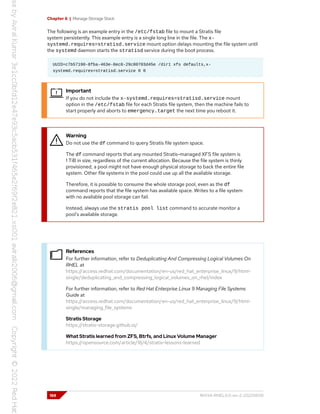
Red Hat Enterprise Linux 9.0 RH134
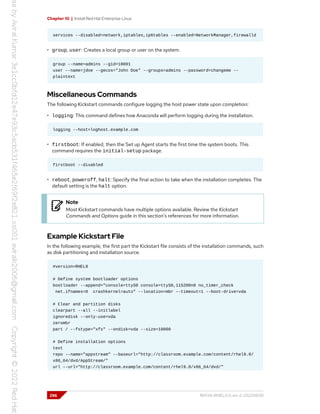
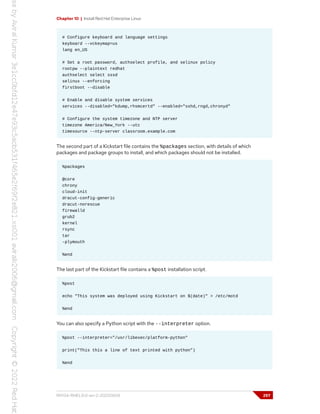
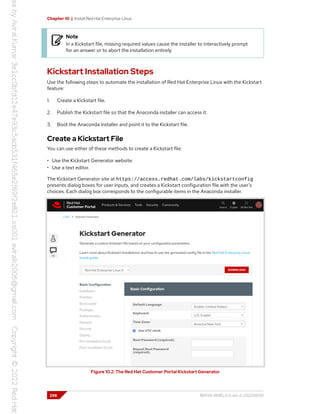
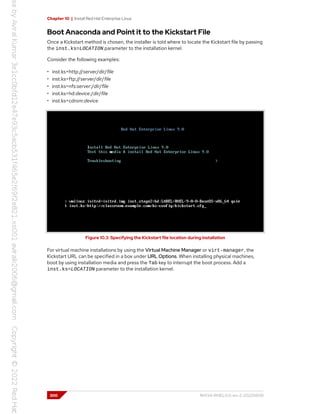
Red Hat System Administration II
Edition 2
RH134-RHEL9.0-en-2-20220609 Copyright ©2022 Red Hat, Inc.
Red Hat System
Administration II
Red Hat Enterprise Linux 9.0 RH134
Red Hat System Administration II
Edition 2 20220609
Publication date 20220609
Authors: Ashish Lingayat, Bernardo Gargallo, Ed Parenti, Jacob Pelchat,
Mike Kelly, Morgan Weetman, Patrick Gomez
Course Architect: Philip Sweany
DevOps Engineer: Artur Glogowski
Editor: Julian Cable
Copyright © 2022 Red Hat, Inc.
The contents of this course and all its modules and related materials, including handouts to audience members, are
Copyright © 2022 Red Hat, Inc.
No part of this publication may be stored in a retrieval system, transmitted or reproduced in any way, including, but
not limited to, photocopy, photograph, magnetic, electronic or other record, without the prior written permission of
Red Hat, Inc.
This instructional program, including all material provided herein, is supplied without any guarantees from Red Hat,
Inc. Red Hat, Inc. assumes no liability for damages or legal action arising from the use or misuse of contents or details
contained herein.
If you believe Red Hat training materials are being used, copied, or otherwise improperly distributed, please send
email to training@redhat.com or phone toll-free (USA) +1 (866) 626-2994 or +1 (919) 754-3700.
Red Hat, Red Hat Enterprise Linux, the Red Hat logo, JBoss, OpenShift, Fedora, Hibernate, Ansible, CloudForms,
RHCA, RHCE, RHCSA, Ceph, and Gluster are trademarks or registered trademarks of Red Hat, Inc. or its subsidiaries
in the United States and other countries.
Linux® is the registered trademark of Linus Torvalds in the United States and other countries.
Java® is a registered trademark of Oracle American, Inc. and/or its affiliates.
XFS® is a registered trademark of Hewlett Packard Enterprise Development LP or its subsidiaries in the United
States and/or other countries.
MySQL® is a registered trademark of MySQL AB in the United States, the European Union and other countries.
Node.js® is a trademark of Joyent. Red Hat is not formally related to or endorsed by the official Joyent Node.js open
source or commercial project.
The OpenStack word mark and the Square O Design, together or apart, are trademarks or registered trademarks
of OpenStack Foundation, in the United States and other countries and are used with the OpenStack Foundation's
permission. Red Hat, Inc. is not affiliated with, endorsed by, or sponsored by the OpenStack Foundation or the
OpenStack community.
All other trademarks are the property of their respective owners.
Contributors: Adarsh Krishnan, David Sacco, Hemant Chauhan, Roberto Velazquez, Sajith
Eyamkuzhy, Samik Sanyal, Yuvaraj Balaraju
Document Conventions xi
.............................................................................................................................. xi
Introduction xiii
Red Hat System Administration II ............................................................................... xiii
Orientation to the Classroom Environment ................................................................. xiv
Performing Lab Exercises ....................................................................................... xviii
1. Improve Command-line Productivity 1
Write Simple Bash Scripts .......................................................................................... 2
Guided Exercise: Write Simple Bash Scripts .................................................................. 6
Loops and Conditional Constructs in Scripts ................................................................ 9
Guided Exercise: Loops and Conditional Constructs in Scripts ........................................ 15
Match Text in Command Output with Regular Expressions ............................................. 17
Guided Exercise: Match Text in Command Output with Regular Expressions .................... 25
Lab: Improve Command-line Productivity .................................................................. 28
Summary ............................................................................................................... 34
2. Schedule Future Tasks 35
Schedule a Deferred User Job ................................................................................. 36
Guided Exercise: Schedule a Deferred User Job ......................................................... 38
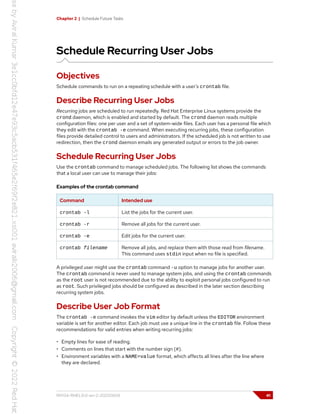
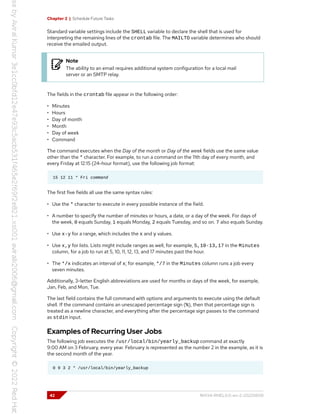
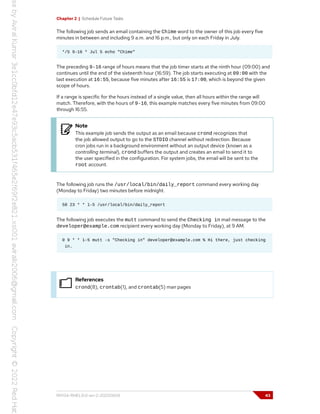
Schedule Recurring User Jobs .................................................................................. 41
Guided Exercise: Schedule Recurring User Jobs ......................................................... 44
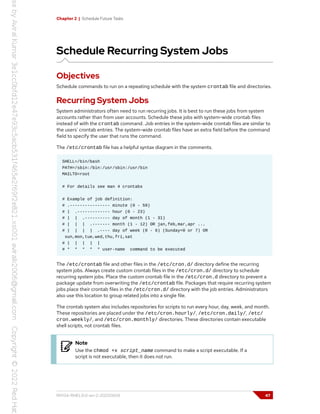
Schedule Recurring System Jobs .............................................................................. 47
Guided Exercise: Schedule Recurring System Jobs ..................................................... 50
Manage Temporary Files .......................................................................................... 53
Guided Exercise: Manage Temporary Files ................................................................. 56
Quiz: Schedule Future Tasks ..................................................................................... 59
Summary ............................................................................................................... 63
3. Tune System Performance 65
Adjust Tuning Profiles .............................................................................................. 66
Guided Exercise: Adjust Tuning Profiles ..................................................................... 73
Influence Process Scheduling ................................................................................... 78
Guided Exercise: Influence Process Scheduling ........................................................... 83
Lab: Tune System Performance ................................................................................ 87
Summary ............................................................................................................... 93
4. Manage SELinux Security 95
Change the SELinux Enforcement Mode ................................................................... 96
Guided Exercise: Change the SELinux Enforcement Mode ........................................... 101
Control SELinux File Contexts ................................................................................. 104
Guided Exercise: Control SELinux File Contexts ......................................................... 109
Adjust SELinux Policy with Booleans .......................................................................... 112
Guided Exercise: Adjust SELinux Policy with Booleans ................................................. 114
Investigate and Resolve SELinux Issues ...................................................................... 117
Guided Exercise: Investigate and Resolve SELinux Issues ............................................. 121
Lab: Manage SELinux Security ................................................................................. 125
Summary ............................................................................................................... 131
5. Manage Basic Storage 133
Add Partitions, File Systems, and Persistent Mounts ................................................... 134
Guided Exercise: Add Partitions, File Systems, and Persistent Mounts ........................... 143
Manage Swap Space .............................................................................................. 147
Guided Exercise: Manage Swap Space ....................................................................... 151
Lab: Manage Basic Storage ..................................................................................... 155
Summary .............................................................................................................. 163
RH134-RHEL9.0-en-2-20220609 vii
6. Manage Storage Stack 165
Create and Extend Logical Volumes ......................................................................... 166
Guided Exercise: Create and Extend Logical Volumes ................................................. 177
Manage Layered Storage ........................................................................................ 183
Guided Exercise: Manage Layered Storage ............................................................... 189
Lab: Manage Storage Stack .................................................................................... 194
Summary ............................................................................................................. 200
7. Access Network-Attached Storage 201
Manage Network-Attached Storage with NFS ........................................................... 202
Guided Exercise: Manage Network-Attached Storage with NFS ................................... 205
Automount Network-Attached Storage ................................................................... 208
Guided Exercise: Automount Network-Attached Storage ............................................ 212
Lab: Access Network-Attached Storage .................................................................... 218
Summary ............................................................................................................. 225
8. Control the Boot Process 227
Select the Boot Target ........................................................................................... 228
Guided Exercise: Select the Boot Target .................................................................. 234
Reset the Root Password ....................................................................................... 237
Guided Exercise: Reset the Root Password ................................................................ 241
Repair File System Issues at Boot ............................................................................ 243
Guided Exercise: Repair File System Issues at Boot .................................................... 246
Lab: Control the Boot Process ................................................................................ 249
Summary ............................................................................................................. 255
9. Manage Network Security 257
Manage Server Firewalls ........................................................................................ 258
Guided Exercise: Manage Server Firewalls ................................................................ 266
Control SELinux Port Labeling ................................................................................ 269
Guided Exercise: Control SELinux Port Labeling ........................................................ 272
Lab: Manage Network Security ............................................................................... 276
Summary ............................................................................................................. 284
10. Install Red Hat Enterprise Linux 285
Install Red Hat Enterprise Linux ............................................................................... 286
Guided Exercise: Install Red Hat Enterprise Linux ...................................................... 290
Automate Installation with Kickstart ......................................................................... 293
Guided Exercise: Automate Installation with Kickstart ................................................. 302
Install and Configure Virtual Machines ...................................................................... 305
Quiz: Install and Configure Virtual Machines .............................................................. 310
Lab: Install Red Hat Enterprise Linux ......................................................................... 312
Summary .............................................................................................................. 318
11. Run Containers 319
Container Concepts .............................................................................................. 320
Quiz: Container Concepts ...................................................................................... 327
Deploy Containers ................................................................................................ 329
Guided Exercise: Deploy Containers ........................................................................ 339
Manage Container Storage and Network Resources .................................................. 345
Guided Exercise: Manage Container Storage and Network Resources ........................... 355
Manage Containers as System Services .................................................................... 361
Guided Exercise: Manage Containers as System Services ........................................... 367
Lab: Run Containers .............................................................................................. 373
Summary ............................................................................................................. 380
12. Comprehensive Review 381
Comprehensive Review .......................................................................................... 382
viii RH134-RHEL9.0-en-2-20220609
Lab: Fix Boot Issues and Maintain Servers ................................................................ 385
Lab: Configure and Manage File Systems and Storage ................................................ 391
Lab: Configure and Manage Server Security ............................................................. 397
Lab: Run Containers .............................................................................................. 407
RH134-RHEL9.0-en-2-20220609 ix
x RH134-RHEL9.0-en-2-20220609
Document Conventions
This section describes various conventions and practices used throughout all
Red Hat Training courses.
Admonitions
Red Hat Training courses use the following admonitions:
References
These describe where to find external documentation relevant to a
subject.
Note
These are tips, shortcuts, or alternative approaches to the task at hand.
Ignoring a note should have no negative consequences, but you might
miss out on something that makes your life easier.
Important
These provide details of information that is easily missed: configuration
changes that only apply to the current session, or services that need
restarting before an update will apply. Ignoring these admonitions will
not cause data loss, but may cause irritation and frustration.
Warning
These should not be ignored. Ignoring these admonitions will most likely
cause data loss.
Inclusive Language
Red Hat Training is currently reviewing its use of language in various areas
to help remove any potentially offensive terms. This is an ongoing process
and requires alignment with the products and services covered in Red Hat
Training courses. Red Hat appreciates your patience during this process.
RH134-RHEL9.0-en-2-20220609 xi
xii RH134-RHEL9.0-en-2-20220609
Introduction
Red Hat System Administration II
This course is specifically designed for students who have completed the
Red Hat System Administration I (RH124) course. The Red Hat System
Administration II (RH134) course focuses on the key tasks that are needed
to become a full-time Linux administrator and to validate those skills via the
Red Hat Certified System Administrator exam. This course goes deeper into
Enterprise Linux administration, including file systems, partitioning, logical
volumes, SELinux, firewalls, and troubleshooting.
Course
Objectives
• Expand on skills that were gained during the
Red Hat System Administration I (RH124)
course.
• Build skills that an RHCSA-certified Red Hat
Enterprise Linux system administrator needs.
Audience • This course is singularly designed for students
who have completed Red Hat System
Administration I (RH124). Given the organization
of topics, it is not appropriate for students to
use RH134 as a curriculum entry point. Students
who have not taken a previous Red Hat course
are encouraged to take either Red Hat System
Administration I (RH124) if they are new to
Linux, or the RHCSA Rapid Track (RH199)
course if they are experienced with Enterprise
Linux administration.
Prerequisites • To have taken the Red Hat System
Administration I (RH124) course, or equivalent
knowledge.
RH134-RHEL9.0-en-2-20220609 xiii
Introduction
Orientation to the Classroom
Environment
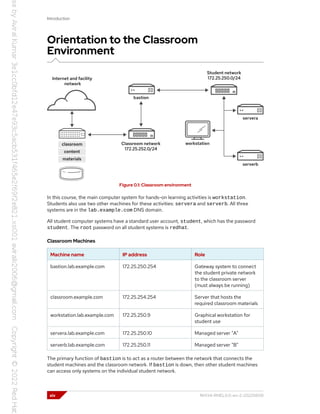
Figure 0.1: Classroom environment
In this course, the main computer system for hands-on learning activities is workstation.
Students also use two other machines for these activities: servera and serverb. All three
systems are in the lab.example.com DNS domain.
All student computer systems have a standard user account, student, which has the password
student. The root password on all student systems is redhat.
Classroom Machines
Machine name IP address Role
bastion.lab.example.com 172.25.250.254 Gateway system to connect
the student private network
to the classroom server
(must always be running)
classroom.example.com 172.25.254.254 Server that hosts the
required classroom materials
workstation.lab.example.com 172.25.250.9 Graphical workstation for
student use
servera.lab.example.com 172.25.250.10 Managed server "A"
serverb.lab.example.com 172.25.250.11 Managed server "B"
The primary function of bastion is to act as a router between the network that connects the
student machines and the classroom network. If bastion is down, then other student machines
can access only systems on the individual student network.
xiv RH134-RHEL9.0-en-2-20220609
Introduction
Several systems in the classroom provide supporting services. Two servers,
content.example.com and materials.example.com, are sources for software and lab
materials in hands-on activities. Information about how to use these servers is provided in the
instructions for those activities. The workstation virtual machine provides these activities. Both
classroom and bastion must always be running for proper use of the lab environment.
Note
When logging on to servera or serverb, you might see a message about
activating cockpit. You can ignore the message.
[student@workstation ~]$ ssh student@serverb
Warning: Permanently added 'serverb,172.25.250.11' (ECDSA) to the list of
known hosts.
Activate the web console with: systemctl enable --now cockpit.socket
[student@serverb ~]$
Controlling Your Systems
You are assigned remote computers in a Red Hat Online Learning (ROLE) classroom. Self-
paced courses are accessed through a web application that is hosted at rol.redhat.com [http://
rol.redhat.com]. Log in to this site with your Red Hat Customer Portal user credentials.
Controlling the Virtual Machines
The virtual machines in your classroom environment are controlled through web page interface
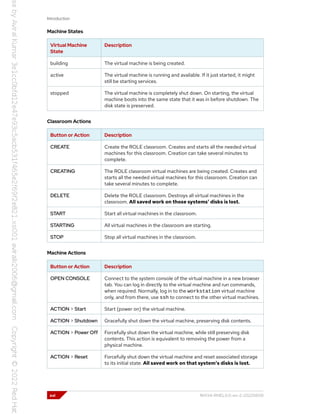
controls. The state of each classroom virtual machine is displayed on the Lab Environment tab.
Figure 0.2: An example course Lab Environment management page
RH134-RHEL9.0-en-2-20220609 xv
Introduction
Machine States
Virtual Machine
State
Description
building The virtual machine is being created.
active The virtual machine is running and available. If it just started, it might
still be starting services.
stopped The virtual machine is completely shut down. On starting, the virtual
machine boots into the same state that it was in before shutdown. The
disk state is preserved.
Classroom Actions
Button or Action Description
CREATE Create the ROLE classroom. Creates and starts all the needed virtual
machines for this classroom. Creation can take several minutes to
complete.
CREATING The ROLE classroom virtual machines are being created. Creates and
starts all the needed virtual machines for this classroom. Creation can
take several minutes to complete.
DELETE Delete the ROLE classroom. Destroys all virtual machines in the
classroom. All saved work on those systems' disks is lost.
START Start all virtual machines in the classroom.
STARTING All virtual machines in the classroom are starting.
STOP Stop all virtual machines in the classroom.
Machine Actions
Button or Action Description
OPEN CONSOLE Connect to the system console of the virtual machine in a new browser
tab. You can log in directly to the virtual machine and run commands,
when required. Normally, log in to the workstation virtual machine
only, and from there, use ssh to connect to the other virtual machines.
ACTION > Start Start (power on) the virtual machine.
ACTION > Shutdown Gracefully shut down the virtual machine, preserving disk contents.
ACTION > Power Off Forcefully shut down the virtual machine, while still preserving disk
contents. This action is equivalent to removing the power from a
physical machine.
ACTION > Reset Forcefully shut down the virtual machine and reset associated storage
to its initial state. All saved work on that system's disks is lost.
xvi RH134-RHEL9.0-en-2-20220609
Introduction
At the start of an exercise, if instructed to reset a single virtual machine node, then click ACTION >
Reset for only that specific virtual machine.
At the start of an exercise, if instructed to reset all virtual machines, then click ACTION > Reset on
every virtual machine in the list.
If you want to return the classroom environment to its original state at the start of the course,
then click DELETE to remove the entire classroom environment. After the lab is deleted, then click
CREATE to provision a new set of classroom systems.
Warning
The DELETE operation cannot be undone. All completed work in the classroom
environment is lost.
The Auto-stop and Auto-destroy Timers
The Red Hat Online Learning enrollment entitles you to a set allotment of computer time. To help
to conserve your allotted time, the ROLE classroom uses timers, which shut down or delete the
classroom environment when the appropriate timer expires.
To adjust the timers, locate the two + buttons at the bottom of the course management page.
Click the auto-stop + button to add another hour to the auto-stop timer. Click the auto-destroy +
button to add another day to the auto-destroy timer. Auto-stop has a maximum of 11 hours,
and auto-destroy has a maximum of 14 days. Be careful to keep the timers set while you are
working, so that your environment is not unexpectedly shut down. Be careful not to set the timers
unnecessarily high, which could waste your subscription time allotment.
RH134-RHEL9.0-en-2-20220609 xvii
Introduction
Performing Lab Exercises
You might see the following lab activity types in this course:
• A guided exercise is a hands-on practice exercise that follows a presentation section. It walks
you through a procedure to perform, step by step.
• A quiz is typically used when checking knowledge-based learning, or when a hands-on activity is
impractical for some other reason.
• An end-of-chapter lab is a gradable hands-on activity to help you to check your learning. You
work through a set of high-level steps, based on the guided exercises in that chapter, but the
steps do not walk you through every command. A solution is provided with a step-by-step walk-
through.
• A comprehensive review lab is used at the end of the course. It is also a gradable hands-on
activity, and might cover content from the entire course. You work through a specification of
what to accomplish in the activity, without receiving the specific steps to do so. Again, a solution
is provided with a step-by-step walk-through that meets the specification.
To prepare your lab environment at the start of each hands-on activity, run the lab start
command with a specified activity name from the activity's instructions. Likewise, at the end of
each hands-on activity, run the lab finish command with that same activity name to clean up
after the activity. Each hands-on activity has a unique name within a course.
The syntax for running an exercise script is as follows:
[student@workstation ~]$ lab action exercise
The action is a choice of start, grade, or finish. All exercises support start and finish.
Only end-of-chapter labs and comprehensive review labs support grade.
start
The start action verifies the required resources to begin an exercise. It might include
configuring settings, creating resources, checking prerequisite services, and verifying
necessary outcomes from previous exercises. You can take an exercise at any time, even
without taking preceding exercises.
grade
For gradable activities, the grade action directs the lab command to evaluate your work, and
shows a list of grading criteria with a PASS or FAIL status for each. To achieve a PASS status
for all criteria, fix the failures and rerun the grade action.
finish
The finish action cleans up resources that were configured during the exercise. You can
take an exercise as many times as you want.
The lab command supports tab completion. For example, to list all exercises that you can start,
enter lab start and then press the Tab key twice.
xviii RH134-RHEL9.0-en-2-20220609
Chapter 1
Improve Command-line
Productivity
Goal Run commands more efficiently by using advanced
features of the Bash shell, shell scripts, and various
Red Hat Enterprise Linux utilities.
Objectives • Run commands more efficiently by using
advanced features of the Bash shell, shell
scripts, and various Red Hat Enterprise Linux
utilities.
• Run repetitive tasks with for loops, evaluate
exit codes from commands and scripts, run
tests with operators, and create conditional
structures with if statements.
• Create regular expressions to match data, apply
regular expressions to text files with the grep
command, and use grep to search files and
data from piped commands.
Sections • Write Simple Bash Scripts (and Guided
Exercise)
• Loops and Conditional Constructs in Scripts
(and Guided Exercise)
• Match Text in Command Output with Regular
Expressions (and Guided Exercise)
Lab Improve Command-line Productivity
RH134-RHEL9.0-en-2-20220609 1
Chapter 1 | Improve Command-line Productivity
Write Simple Bash Scripts
Objectives
Run commands more efficiently by using advanced features of the Bash shell, shell scripts, and
various Red Hat Enterprise Linux utilities.
Create and Execute Bash Shell Scripts
You can accomplish many simple, common system administration tasks by using command-line
tools. Tasks with greater complexity often require chaining together multiple commands that
pass results between them. By using the Bash shell environment and scripting features, you can
combine Linux commands into shell scripts to solve repetitive real-world problems.
A Bash shell script is an executable file that contains a list of commands, and possibly with
programming logic to control decision-making in the overall task. When well-written, a shell script
is a powerful command-line tool on its own, and you can use it with other scripts.
Shell scripting proficiency is essential for system administrators in any operational environment.
You can use shell scripts to improve the efficiency and accuracy of routine task completion.
Although you can use any text editor, advanced editors such as vim or emacs understand Bash
shell syntax and can provide color-coded highlighting. This highlighting helps to identify common
scripting errors such as improper syntax, unmatched quotes, parentheses, brackets, and braces,
and other structural mistakes.
Specify the Command Interpreter
The first line of a script begins with the #! notation, which is commonly referred to as she-bang
or hash-bang, from the names of those two characters, sharp or hash and bang. This notation
is an interpreter directive that indicates the command interpreter and optional command options
that are needed to process the remaining lines of the file. For normal Bash syntax script files, the
first line is this directive:
#!/usr/bin/bash
Execute a Bash Shell Script
A shell script file must have execute permissions to run it as an ordinary command. Use the chmod
command to modify the file permissions. Use the chown command, if needed, to grant execute
permission only for specific users or groups.
If the script is stored in a directory that is listed in the shell's PATH environmental variable, then
you can run the shell script by using only its file name, similar to running compiled commands.
Because PATH parsing runs the first matching file name that is found, always avoid using existing
command names to name your script files. If a script is not in a PATH directory, run the script using
its absolute path name, which can be determined by querying the file with the which command.
Alternatively, run a script in your current working directory using the . directory prefix, such as
./scriptname.
2 RH134-RHEL9.0-en-2-20220609
Chapter 1 | Improve Command-line Productivity
[user@host ~]$ which hello
~/bin/hello
[user@host ~]$ echo $PATH
/home/user/.local/bin:/home/user/bin:/sbin:/bin:/usr/sbin:/usr/bin:/usr/local/
sbin:/usr/local/bin
Quote Special Characters
A number of characters and words have special meaning to the Bash shell. When you need to use
these characters for their literal values, rather than for their special meanings, you will escape
them in the script. Use the backslash character (), single quotes (''), or double quotes ("") to
remove (or escape) the special meaning of these characters.
The backslash character removes the special meaning of the single character that immediately
follows the backslash. For example, to use the echo command to display the # not a comment
literal string, the # hash character must not be interpreted as a comment.
The following example shows the backslash character () modifying the hash character so it is not
interpreted as a comment.
[user@host ~]$ echo # not a comment
[user@host ~]$ echo # not a comment
# not a comment
To escape more than one character in a text string, either use the backslash character multiple
times or enclose the whole string in single quotes ('') to interpret literally. Single quotes preserve
the literal meaning of all characters that they enclose. Observe the backslash character and single
quotes in these examples:
[user@host ~]$ echo # not a comment #
[user@host ~]$ echo # not a comment #
# not a comment
[user@host ~]$ echo # not a comment #
# not a comment #
[user@host ~]$ echo '# not a comment #'
# not a comment #
Use double quotation marks to suppress globbing (file name pattern matching) and shell
expansion, but still allow command and variable substitution. Variable substitution is
conceptually identical to command substitution, but might use optional brace syntax. Observe the
following examples of various quotation mark forms.
Use single quotation marks to interpret all enclosed text literally. Besides suppressing globbing
and shell expansion, single quotations also direct the shell to suppress command and variable
substitution. The question mark (?) is included inside the quotations, because it is a metacharacter
that also needs escaping from expansion.
[user@host ~]$ var=$(hostname -s); echo $var
host
[user@host ~]$ echo "***** hostname is ${var} *****"
***** hostname is host *****
RH134-RHEL9.0-en-2-20220609 3
Chapter 1 | Improve Command-line Productivity
[user@host ~]$ echo Your username variable is $USER.
Your username variable is $USER.
[user@host ~]$ echo "Will variable $var evaluate to $(hostname -s)?"
Will variable host evaluate to host?
[user@host ~]$ echo 'Will variable $var evaluate to $(hostname -s)?'
Will variable $var evaluate to $(hostname -s)?
[user@host ~]$ echo ""Hello, world""
"Hello, world"
[user@host ~]$ echo '"Hello, world"'
"Hello, world"
Provide Output from a Shell Script
The echo command displays arbitrary text by passing the text as an argument to the command.
By default, the text is sent to standard output (STDOUT), but you can send text elsewhere by
using output redirection. In the following simple Bash script, the echo command displays the
"Hello, world" message to STDOUT, which defaults to the screen device.
[user@host ~]$ cat ~/bin/hello
#!/usr/bin/bash
echo "Hello, world"
[user@host ~]$ hello
Hello, world
Note
This user can run hello at the prompt because the ~/bin (/home/user/bin)
directory is in the user's PATH variable and the hello script has executable
permission. The PATH parser will find the script first, if no other executable file
called hello is found in any earlier PATH directory. Your home directory's bin
subdirectory is intended to store your personal scripts so that scripts can be invoked
easily.
The echo command is widely used in shell scripts to display informational or error messages.
Messages are a helpful indicator of a script's progress, and can be directed to standard output,
standard error, or be redirected to a log file for archiving. When displaying error messages, good
programming practice is to redirect error messages to STDERR to segregate them from normal
program output.
[user@host ~]$ cat ~/bin/hello
#!/usr/bin/bash
echo "Hello, world"
echo "ERROR: Houston, we have a problem." >&2
[user@host ~]$ hello 2> hello.log
Hello, world
[user@host ~]$ cat hello.log
ERROR: Houston, we have a problem.
4 RH134-RHEL9.0-en-2-20220609
Chapter 1 | Improve Command-line Productivity
The echo command is also helpful to debug a problematic shell script. Adding echo statements in
a script, to display variable values and other runtime information, can help to clarify how a script is
behaving.
References
bash(1), echo(1), and echo(1p) man pages.
RH134-RHEL9.0-en-2-20220609 5
Chapter 1 | Improve Command-line Productivity
Guided Exercise
Write Simple Bash Scripts
In this exercise, you write a simple Bash script with a sequence of commands and run it from
the command line.
Outcomes
• Write and execute a simple Bash script.
• Redirect the output of a simple Bash script to a file.
Before You Begin
As the student user on the workstation machine, use the lab command to prepare your
system for this exercise.
This command prepares your environment and ensures that all required resources are
available.
[student@workstation ~]$ lab start console-write
Instructions
1. Log in to the servera machine as the student user.
[student@workstation ~]$ ssh student@servera
...output omitted...
[student@servera ~]$
2. Create and execute a simple Bash script.
2.1. Use the vim command to create the firstscript.sh file under your home
directory.
[student@servera ~]$ vim firstscript.sh
2.2. Insert the following text, and save the file. The number of hash signs (#) is arbitrary.
#!/usr/bin/bash
echo "This is my first bash script" > ~/output.txt
echo "" >> ~/output.txt
echo "#####################################################" >> ~/output.txt
2.3. Use the sh command to execute the script.
[student@servera ~]$ sh firstscript.sh
2.4. Review the output file that the script generated.
6 RH134-RHEL9.0-en-2-20220609
Chapter 1 | Improve Command-line Productivity
[student@servera ~]$ cat output.txt
This is my first bash script
#####################################################
3. Add more commands to the firstscript.sh script, execute it, and review the output.
3.1. Use the Vim text editor to edit the firstscript.sh script.
[student@servera ~]$ vim firstscript.sh
The following output shows the expected content of the firstscript.sh file:
#!/usr/bin/bash
#
echo "This is my first bash script" > ~/output.txt
echo "" >> ~/output.txt
echo "#####################################################" >> ~/output.txt
echo "LIST BLOCK DEVICES" >> ~/output.txt
echo "" >> ~/output.txt
lsblk >> ~/output.txt
echo "" >> ~/output.txt
echo "#####################################################" >> ~/output.txt
echo "FILESYSTEM FREE SPACE STATUS" >> ~/output.txt
echo "" >> ~/output.txt
df -h >> ~/output.txt
echo "#####################################################" >> ~/output.txt
3.2. Make the firstscript.sh file executable by using the chmod command.
[student@servera ~]$ chmod a+x firstscript.sh
3.3. Execute the firstscript.sh script.
[student@servera ~]$ ./firstscript.sh
3.4. Review the output file that the script generated.
[student@servera ~]$ cat output.txt
This is my first bash script
#####################################################
LIST BLOCK DEVICES
NAME MAJ:MIN RM SIZE RO TYPE MOUNTPOINTS
sr0 11:0 1 558K 0 rom
vda 252:0 0 10G 0 disk
├─vda1 252:1 0 1M 0 part
├─vda2 252:2 0 200M 0 part /boot/efi
├─vda3 252:3 0 500M 0 part /boot
└─vda4 252:4 0 9.3G 0 part /
RH134-RHEL9.0-en-2-20220609 7
Chapter 1 | Improve Command-line Productivity
vdb 252:16 0 5G 0 disk
vdc 252:32 0 5G 0 disk
vdd 252:48 0 5G 0 disk
#####################################################
FILESYSTEM FREE SPACE STATUS
Filesystem Size Used Avail Use% Mounted on
devtmpfs 844M 0 844M 0% /dev
tmpfs 888M 0 888M 0% /dev/shm
tmpfs 355M 9.4M 346M 3% /run
/dev/vda4 9.4G 1.7G 7.7G 18% /
/dev/vda3 495M 161M 335M 33% /boot
/dev/vda2 200M 7.6M 193M 4% /boot/efi
tmpfs 178M 0 178M 0% /run/user/1000
#####################################################
4. Remove the exercise files and return to the workstation machine.
4.1. Delete the firstscript.sh and output.txt files.
[student@servera ~]$ rm firstscript.sh output.txt
4.2. Return to the workstation machine as the student user.
[student@servera ~]$ exit
logout
Connection to servera closed.
[student@workstation ~]$
Finish
On the workstation machine, change to the student user home directory and use the lab
command to complete this exercise. This step is important to ensure that resources from previous
exercises do not impact upcoming exercises.
[student@workstation ~]$ lab finish console-write
This concludes the section.
8 RH134-RHEL9.0-en-2-20220609
Chapter 1 | Improve Command-line Productivity
Loops and Conditional Constructs in
Scripts
Objectives
Run repetitive tasks with for loops, evaluate exit codes from commands and scripts, run tests with
operators, and create conditional structures with if statements.
Use Loops to Iterate Commands
System administrators often encounter repetitive tasks in their daily activities. A repetitive task
example is running a command multiple times on a target, such as checking a process every
minute for 10 minutes to know whether it has completed. Another example is running a command
once each for multiple targets, such as backing up numerous databases on a system. The for loop
is a Bash looping construct to use for task iterations.
Process Items from the Command Line
In Bash, the for loop construct uses the following syntax:
for VARIABLE in LIST; do
COMMAND VARIABLE
done
The loop processes the strings that you provide in LIST and exits after processing the last string in
the list. The for loop temporarily stores each list string as the value of VARIABLE, then executes
the block of commands that use the variable. The variable name is arbitrary. Typically, you
reference the variable value with commands in the command block.
Provide the list of strings for the for loop from a list that the user enters directly, or that is
generated from shell expansion, such as variable, brace, or file name expansion, or command
substitution.
These examples demonstrate different ways to provide strings to for loops:
[user@host ~]$ for HOST in host1 host2 host3; do echo $HOST; done
host1
host2
host3
[user@host ~]$ for HOST in host{1,2,3}; do echo $HOST; done
host1
host2
host3
[user@host ~]$ for HOST in host{1..3}; do echo $HOST; done
host1
host2
host3
[user@host ~]$ for FILE in file{a..c}; do ls $FILE; done
filea
fileb
filec
RH134-RHEL9.0-en-2-20220609 9
Chapter 1 | Improve Command-line Productivity
[user@host ~]$ for PACKAGE in $(rpm -qa | grep kernel); 
do echo "$PACKAGE was installed on 
$(date -d @$(rpm -q --qf "%{INSTALLTIME}n" $PACKAGE))"; done
kernel-tools-libs-5.14.0-70.2.1.el9_0.x86_64 was installed on Thu Mar 24 10:52:40
PM EDT 2022
kernel-tools-5.14.0-70.2.1.el9_0.x86_64 was installed on Thu Mar 24 10:52:40 PM
EDT 2022
kernel-core-5.14.0-70.2.1.el9_0.x86_64 was installed on Thu Mar 24 10:52:46 PM EDT
2022
kernel-modules-5.14.0-70.2.1.el9_0.x86_64 was installed on Thu Mar 24 10:52:47 PM
EDT 2022
kernel-5.14.0-70.2.1.el9_0.x86_64 was installed on Thu Mar 24 10:53:04 PM EDT 2022
[user@host ~]$ for EVEN in $(seq 2 2 10); do echo "$EVEN"; done
2
4
6
8
10
Bash Script Exit Codes
After a script interprets and processes all of its content, the script process exits and passes control
back to the parent process that called it. However, a script can be exited before it finishes, such as
when the script encounters an error condition. Use the exit command to immediately leave the
script, and skip processing the remainder of the script.
Use the exit command with an optional integer argument between 0 and 255, which represents
an exit code. An exit code is returned to a parent process to indicate the status at exit. An exit
code value of 0 represents a successful script completion with no errors. All other nonzero values
indicate an error exit code. The script programmer defines these codes. Use unique values to
represent the different error conditions that are encountered. Retrieve the exit code of the last
completed command from the built-in $? variable, as in the following examples:
[user@host bin]$ cat hello
#!/usr/bin/bash
echo "Hello, world"
exit 0
[user@host bin]$ ./hello
Hello, world
[user@host bin]$ echo $?
0
When a script's exit command is used without an exit code argument, then the script returns the
exit code of the last command that was run within the script.
Test Logic for Strings and Directories, and to Compare
Values
To ensure that unexpected conditions do not easily disrupt scripts, it is recommended to verify
command input such as command-line arguments, user input, command substitutions, variable
expansions, and file name expansions. You can check integrity in your scripts by using the Bash
test command.
All commands produce an exit code on completion.
10 RH134-RHEL9.0-en-2-20220609
Chapter 1 | Improve Command-line Productivity
To see the exit status, view the $? variable immediately following the execution of the test
command. An exit status of 0 indicates a successful exit with nothing to report, and nonzero values
indicate some condition or failure. Perform tests by using various operators to determine whether
a number is greater than (gt), greater than or equal to (ge), less than (lt), less than or equal to
(le), or equal (eq) to another number.
Use operators to test whether a string of text is the same (= or ==) or not the same (!=) as
another string of text, or whether the string has zero length (z) or has a non-zero length (n). You
can also test if a regular file (-f) or directory (-d) exists and some special attributes, such as if the
file is a symbolic link (-L) or if the user has read permissions (-r).
Note
Shell scripting uses many types of operators, beyond those operators discussed
here. The test(1) man page lists the conditional expression operators with
descriptions. The bash(1) man page also explains operator use and evaluation,
but can be complex to read. Red Hat recommends that students learn shell scripting
through quality books and courses that are dedicated to shell programming.
The following examples demonstrate the test command with Bash numeric comparison
operators:
[user@host ~]$ test 1 -gt 0 ; echo $?
0
[user@host ~]$ test 0 -gt 1 ; echo $?
1
Perform tests by using the Bash test command syntax, [ <TESTEXPRESSION> ] or the
newer extended test command syntax, [[ <TESTEXPRESSION> ]], which provides features
such as file name globbing and regex pattern matching. In most cases you should use the
[[ <TESTEXPRESSION> ]] syntax.
The following examples demonstrate the Bash test command syntax and numeric comparison
operators:
[user@host ~]$ [[ 1 -eq 1 ]]; echo $?
0
[user@host ~]$ [[ 1 -ne 1 ]]; echo $?
1
[user@host ~]$ [[ 8 -gt 2 ]]; echo $?
0
[user@host ~]$ [[ 2 -ge 2 ]]; echo $?
0
[user@host ~]$ [[ 2 -lt 2 ]]; echo $?
1
[user@host ~]$ [[ 1 -lt 2 ]]; echo $?
0
The following examples demonstrate the Bash string comparison operators:
RH134-RHEL9.0-en-2-20220609 11
Chapter 1 | Improve Command-line Productivity
[user@host ~]$ [[ abc = abc ]]; echo $?
0
[user@host ~]$ [[ abc == def ]]; echo $?
1
[user@host ~]$ [[ abc != def ]]; echo $?
0
The following examples demonstrate the use of Bash string unary (one argument) operators:
[user@host ~]$ STRING=''; [[ -z "$STRING" ]]; echo $?
0
[user@host ~]$ STRING='abc'; [[ -n "$STRING" ]]; echo $?
0
Note
The space characters inside the brackets are mandatory, because they separate the
words and elements within the test expression. The shell's command parsing routine
divides the command elements into words and operators by recognizing spaces
and other metacharacters, according to built-in parsing rules. For full treatment
of this advanced concept, see the getopt(3) man page. The left square bracket
character ([) is itself a built-in alias for the test command. Shell words, whether
they are commands, subcommands, options, arguments, or other token elements,
are always delimited by spaces.
Conditional Structures
Simple shell scripts represent a collection of commands that are executed from beginning to end.
Programmers incorporate decision-making into shell scripts using conditional structures. A script
can execute specific routines when stated conditions are met.
Use the If/Then Construct
The simplest of the conditional structures is the if/then construct, with the following syntax:
if <CONDITION>; then
<STATEMENT>
...
<STATEMENT>
fi
With this construct, if the script meets the given condition, then it executes the code in the
statement block. It does not take action if the given condition is not met. Common test conditions
in the if/then statements include the previously discussed numeric, string, and file tests. The fi
statement at the end closes the if/then construct. The following code section demonstrates the
use of an if/then construct to start the psacct service if it is not active:
[user@host ~]$ systemctl is-active psacct > /dev/null 2>&1
[user@host ~]$ if [[ $? -ne 0 ]]; then sudo systemctl start psacct; fi
12 RH134-RHEL9.0-en-2-20220609
Chapter 1 | Improve Command-line Productivity
Use the If/Then/Else Construct
You can further expand the if/then construct so that it takes different sets of actions depending
on whether a condition is met. Use the if/then/else construct to accomplish this behavior, as
in this example:
if <CONDITION>; then
<STATEMENT>
...
<STATEMENT>
else
<STATEMENT>
...
<STATEMENT>
fi
The following code section demonstrates an if/then/else statement to start the psacct
service if it is not active, and to stop it if it is active:
[user@host ~]$ systemctl is-active psacct > /dev/null 2>&1
[user@host ~]$ if [[ $? -ne 0 ]]; then 
sudo systemctl start psacct; 
else 
sudo systemctl stop psacct; 
fi
Use the If/Then/Elif/Then/Else Construct
Expand an if/then/else construct to test more than one condition and execute a different set
of actions when it meets a specific condition. The next example shows the construct for an added
condition:
if <CONDITION>; then
<STATEMENT>
...
<STATEMENT>
elif <CONDITION>; then
<STATEMENT>
...
<STATEMENT>
else
<STATEMENT>
...
<STATEMENT>
fi
In this conditional structure, Bash tests the conditions as they are ordered in the script. When a
condition is true, Bash executes the actions that are associated with the condition and then skips
the remainder of the conditional structure. If none of the conditions are true, then Bash executes
the actions in the else clause.
The following example demonstrates the use of an if/then/elif/then/else statement to
run the mysql client if the mariadb service is active, or run the psql client if the postgresql
RH134-RHEL9.0-en-2-20220609 13
Chapter 1 | Improve Command-line Productivity
service is active, or run the sqlite3 client if both the mariadb and the postgresql service are
inactive:
[user@host ~]$ systemctl is-active mariadb > /dev/null 2>&1
[user@host ~]$ MARIADB_ACTIVE=$?
[user@host ~]$ sudo systemctl is-active postgresql > /dev/null 2>&1
[user@host ~]$ POSTGRESQL_ACTIVE=$?
[user@host ~]$ if [[ "$MARIADB_ACTIVE" -eq 0 ]]; then 
mysql; 
elif [[ "$POSTGRESQL_ACTIVE" -eq 0 ]]; then 
psql; 
else 
sqlite3; 
fi
References
bash(1) man page
14 RH134-RHEL9.0-en-2-20220609
Chapter 1 | Improve Command-line Productivity
Guided Exercise
Loops and Conditional Constructs in
Scripts
In this exercise, you use loops to efficiently print the hostname from multiple servers.
Outcomes
• Create a for loop to iterate through a list of items from the command line and in a shell
script.
Before You Begin
As the student user on the workstation machine, use the lab command to prepare your
system for this exercise.
This command prepares your environment and ensures that all required resources are
available.
[student@workstation ~]$ lab start console-commands
Instructions
1. Use the ssh and hostname commands to print the hostname of the servera and
serverb machines to standard output.
[student@workstation ~]$ ssh student@servera hostname
servera.lab.example.com
[student@workstation ~]$ ssh student@serverb hostname
serverb.lab.example.com
2. Create a for loop to execute the hostname command on the servera and serverb
machines.
[student@workstation ~]$ for HOST in servera serverb
do
ssh student@${HOST} hostname
done
servera.lab.example.com
serverb.lab.example.com
3. Create a shell script in the /home/student/bin directory to execute the same for loop.
Ensure that the script is included in the PATH environment variable.
3.1. Create the /home/student/bin directory to contain the shell script, if it does not
already exist.
RH134-RHEL9.0-en-2-20220609 15
Chapter 1 | Improve Command-line Productivity
[student@workstation ~]$ mkdir ~/bin
3.2. Verify that the bin subdirectory of your home directory is in your PATH environment
variable.
[student@workstation ~]$ echo $PATH
/home/student/.local/bin:/home/student/bin:/sbin:/bin:/usr/sbin:/usr/bin:/usr/
local/sbin:/usr/local/bin:/home/student/.venv/labs/bin
3.3. Create a shell script called printhostname.sh in the /home/student/bin
directory to perform the for loop. Use the cat command to verify the content of the
printhostname.sh file.
[student@workstation ~]$ vim ~/bin/printhostname.sh
[student@workstation ~]$ cat ~/bin/printhostname.sh
#!/usr/bin/bash
#Execute for loop to print server hostname.
for HOST in servera serverb
do
ssh student@${HOST} hostname
done
exit 0
3.4. Give the created script executable permission.
[student@workstation ~]$ chmod +x ~/bin/printhostname.sh
3.5. Run the script from your home directory.
[student@workstation ~]$ printhostname.sh
servera.lab.example.com
serverb.lab.example.com
3.6. Verify that the exit code of your script is 0.
[student@workstation ~]$ echo $?
0
Finish
On the workstation machine, change to the student user home directory and use the lab
command to complete this exercise. This step is important to ensure that resources from previous
exercises do not impact upcoming exercises.
[student@workstation ~]$ lab finish console-commands
This concludes the section.
16 RH134-RHEL9.0-en-2-20220609
Chapter 1 | Improve Command-line Productivity
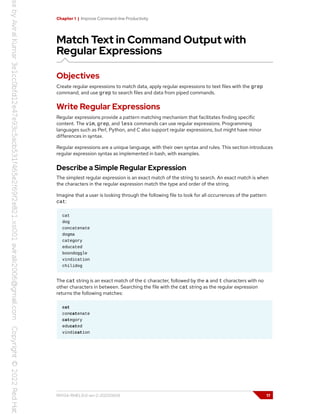
Match Text in Command Output with
Regular Expressions
Objectives
Create regular expressions to match data, apply regular expressions to text files with the grep
command, and use grep to search files and data from piped commands.
Write Regular Expressions
Regular expressions provide a pattern matching mechanism that facilitates finding specific
content. The vim, grep, and less commands can use regular expressions. Programming
languages such as Perl, Python, and C also support regular expressions, but might have minor
differences in syntax.
Regular expressions are a unique language, with their own syntax and rules. This section introduces
regular expression syntax as implemented in bash, with examples.
Describe a Simple Regular Expression
The simplest regular expression is an exact match of the string to search. An exact match is when
the characters in the regular expression match the type and order of the string.
Imagine that a user is looking through the following file to look for all occurrences of the pattern
cat:
cat
dog
concatenate
dogma
category
educated
boondoggle
vindication
chilidog
The cat string is an exact match of the c character, followed by the a and t characters with no
other characters in between. Searching the file with the cat string as the regular expression
returns the following matches:
cat
concatenate
category
educated
vindication
RH134-RHEL9.0-en-2-20220609 17
Chapter 1 | Improve Command-line Productivity
Match the Start and End of a Line
The regular expression would match the search string anywhere on the line on which it occurred:
the beginning, middle, or end of the word or line. Use a line anchor metacharacter to control where
on a line to look for a match.
To match only at the beginning of a line, use the caret character (^). To match only at the end of a
line, use the dollar sign ($).
Using the same file as for the previous example, the ^cat regular expression would match two
lines.
cat
category
The cat$ regular expression would not find only one match, where the cat characters are at the
end of a line.
cat
Locate lines in the file that end with dog by using an end-of-line anchor to create the dog$ regular
expression, which will match two lines:
dog
chilidog
To locate a line that contains only the search expression exactly, use both the beginning and end-
of-line anchors. For example, to locate the word cat when it is both at the beginning and the end
of a line simultaneously, use ^cat$.
cat
Wildcard and Multiplier Usage in Regular Expressions
Regular expressions use a dot character (.) as a wildcard to match any single character on a single
line. The c.t regular expression searches for a string that contains a c followed by any single
character followed by a t. Example matches might include cat, concatenate, vindication,
cut, and c$t.
With an unrestricted wildcard, you cannot predict the character that matches the wildcard. To
match specific characters, replace the unrestricted wildcard with appropriate characters.
Using bracket characters, such as in the c[aou]t regular expression, matches patterns that start
with a c, followed by an a, o, or u, followed by a t. Possible matching expressions can be have the
cat, cot, and cut strings.
Multipliers are a mechanism often used with wildcards. Multipliers apply to the previous character
or wildcard in the regular expression. One of the most commonly used multipliers is the asterisk
(*) character. When used in a regular expression, the asterisk multiplier matches zero or more
occurrences of the multiplied expression. You can use the asterisk with expressions, in addition to
characters.
For example, the the c[aou]*t regular expression could match coat or coot. A regular
expression of c.*t matches cat, coat, culvert, and even ct (matching zero characters
18 RH134-RHEL9.0-en-2-20220609
Chapter 1 | Improve Command-line Productivity
between the c and the t). Any string that starts with a c, is followed by zero or more characters,
and ends with a t will be a match.
Another type of multiplier indicates a more precise number of characters desired in the pattern. An
example of an explicit multiplier is the 'c.{2}t' regular expression, which matches any word
that begins with a c, followed by exactly any two characters, and ends with a t. The 'c.{2}t'
expression would match two words in the following example:
cat
coat
convert
cart
covert
cypher
Note
This course introduced two metacharacter text parsing mechanisms: shell pattern
matching (also known as file globbing or file name expansion), and regular
expressions. Because both systems use similar metacharacters, such as the asterisk
character (*), but have differences in metacharacter interpretation and rules, the
two mechanisms can be confusing until each is sufficiently practiced.
Pattern matching is a command-line parsing technique designed for easily
specifying multiple file names, and is primarily supported only for representing file-
name patterns on the command line. Regular expressions are designed to represent
any form or pattern in text strings, no matter how complex. Regular expressions
are internally supported by numerous text processing commands, such as the
grep, sed, awk, python, and perl commands, and many applications, with some
command-dependent variations in interpretation rules.
Regular Expressions in Bash
Option Description
. The period (.) matches any single character.
? The preceding item is optional and is matched at most once.
* The preceding item is matched zero or more times.
+ The preceding item is matched one or more times.
{n} The preceding item is matched exactly n times.
{n,} The preceding item is matched n or more times.
{,m} The preceding item is matched at most m times.
{n,m} The preceding item is matched at least n times, but not more than m times.
[:alnum:] Alphanumeric characters: [:alpha:] and [:digit:]; in the 'C' locale
and ASCII character encoding, this expression is the same as [0-9A-Za-
z].
RH134-RHEL9.0-en-2-20220609 19
Chapter 1 | Improve Command-line Productivity
Option Description
[:alpha:] Alphabetic characters: [:lower:] and [:upper:]; in the 'C' locale and
ASCII character encoding, this expression is the same as [A-Za-z].
[:blank:] Blank characters: space and tab.
[:cntrl:] Control characters. In ASCII, these characters have octal codes 000
through 037, and 177 (DEL).
[:digit:] Digits: 0 1 2 3 4 5 6 7 8 9.
[:graph:] Graphical characters: [:alnum:] and [:punct:].
[:lower:] Lowercase letters; in the 'C' locale and ASCII character encoding: a b c d e f
g h i j k l m n o p q r s t u v w x y z.
[:print:] Printable characters: [:alnum:], [:punct:], and space.
[:punct:] Punctuation characters; in the 'C' locale and ASCII character encoding: ! " #
$ % & ' ( ) * + , - . / : ; < = > ? @ [  ] ^ _ ' { | } ~.
[:space:] Space characters: in the 'C' locale, this is tab, newline, vertical tab, form
feed, carriage return, and space.
[:upper:] Uppercase letters: in the 'C' locale and ASCII character encoding: A B C D E
F G H I J K L M N O P Q R S T U V W X Y Z.
[:xdigit:] Hexadecimal digits: 0 1 2 3 4 5 6 7 8 9 A B C D E F a b c d e f.
b Match the empty string at the edge of a word.
B Match the empty string provided that it is not at the edge of a word.
< Match the empty string at the beginning of a word.
> Match the empty string at the end of a word.
w Match word constituent. Synonym for [_[:alnum:]].
W Match non-word constituent. Synonym for [^_[:alnum:]].
s Match white space. Synonym for '[[:space:]`].
S Match non-white space. Synonym for [^[:space:]].
Match Regular Expressions in the Command Line
The grep command uses regular expressions to isolate matching data. You can use the grep
command to match data in a single file or in multiple files. When you use grep to match data in
multiple files, it prints the file name followed by a colon character and then the lines that match
the regular expression.
Isolating Data with the grep Command
The grep command specifies a regular expression and a file to parse for matches.
20 RH134-RHEL9.0-en-2-20220609
Chapter 1 | Improve Command-line Productivity
[user@host ~]$ grep '^computer' /usr/share/dict/words
computer
computerese
computerise
computerite
computerizable
computerization
computerize
computerized
computerizes
computerizing
computerlike
computernik
computers
Note
It is recommended practice to use single quotation marks to encapsulate the
regular expression to protect any shell metacharacters (such as the $, *, and {}
characters). Encapsulating the regular expression ensures that the characters are
interpreted by the intended command and not by the shell.
The grep command can process output from other commands by using a pipe operator character
(|). The following example shows the grep command parsing lines from the output of another
command.
[root@host ~]# ps aux | grep chrony
chrony 662 0.0 0.1 29440 2468 ? S 10:56 0:00 /usr/sbin/chronyd
The grep Command Options
The grep command has many useful options for controlling how it parses lines.
Table of Common grep Options
Option Function
-i Use the provided regular expression but do not enforce case sensitivity
(run case-insensitive).
-v Display only lines that do not contain matches to the regular
expression.
-r Search for data that matches the regular expression recursively in a
group of files or directories.
-A NUMBER Display NUMBER of lines after the regular expression match.
-B NUMBER Display NUMBER of lines before the regular expression match.
-e If multiple -e options are used, then multiple regular expressions can
be supplied and are used with a logical OR.
RH134-RHEL9.0-en-2-20220609 21
Chapter 1 | Improve Command-line Productivity
View the man pages to find other options for the grep command.
Examples of the grep Command
The following examples use various configuration files and log files.
Regular expressions are case-sensitive by default. Use the grep command -i option to run a
case-insensitive search. The following example shows an excerpt of the /etc/httpd/conf/
httpd.conf configuration file.
[user@host ~]$ cat /etc/httpd/conf/httpd.conf
...output omitted...
ServerRoot "/etc/httpd"
#
# Listen: Allows you to bind Apache to specific IP addresses and/or
# ports, instead of the default. See also the <VirtualHost>
# directive.
#
# Change this to Listen on a specific IP address, but note that if
# httpd.service is enabled to run at boot time, the address may not be
# available when the service starts. See the httpd.service(8) man
# page for more information.
#
#Listen 12.34.56.78:80
Listen 80
...output omitted...
The following example searches for the serverroot regular expression in the /etc/httpd/
conf/httpd.conf configuration file.
[user@host ~]$ grep -i serverroot /etc/httpd/conf/httpd.conf
# with "/", the value of ServerRoot is prepended -- so 'log/access_log'
# with ServerRoot set to '/www' will be interpreted by the
# ServerRoot: The top of the directory tree under which the server's
# ServerRoot at a non-local disk, be sure to specify a local disk on the
# same ServerRoot for multiple httpd daemons, you will need to change at
ServerRoot "/etc/httpd"
Use the grep command -v option to reverse search the regular expression. This option displays
only the lines that do not match the regular expression.
In the following example, all lines, regardless of case, that do not contain the server regular
expression are returned.
[user@host ~]$ grep -v -i server /etc/hosts
127.0.0.1 localhost.localdomain localhost
172.25.254.254 classroom.example.com classroom
172.25.254.254 content.example.com content
172.25.254.254 materials.example.com materials
### rht-vm-hosts file listing the entries to be appended to /etc/hosts
172.25.250.9 workstation.lab.example.com workstation
22 RH134-RHEL9.0-en-2-20220609
Chapter 1 | Improve Command-line Productivity
172.25.250.254 bastion.lab.example.com bastion
172.25.250.220 utility.lab.example.com utility
172.25.250.220 registry.lab.example.com registry
To look at a file without being distracted by comment lines, use the grep command -v option. In
the following example, the regular expression matches all lines that begin with a hash character (#)
or the semicolon (;) character. Either of these two characters at the beginning of a line indicates a
comment that is omitted from the output.
[user@host ~]$ grep -v '^[#;]' /etc/ethertypes
IPv4 0800 ip ip4 # Internet IP (IPv4)
X25 0805
ARP 0806 ether-arp #
FR_ARP 0808 # Frame Relay ARP [RFC1701]
The grep command -e option allows you to search for more than one regular expression at a time.
The following example, which uses a combination of the less and grep commands, locates all
occurrences of pam_unix, user root, and Accepted publickey in the /var/log/secure
log file.
[root@host ~]# cat /var/log/secure | grep -e 'pam_unix' 
-e 'user root' -e 'Accepted publickey' | less
Mar 4 03:31:41 localhost passwd[6639]: pam_unix(passwd:chauthtok): password
changed for root
Mar 4 03:32:34 localhost sshd[15556]: Accepted publickey for devops from
10.30.0.167 port 56472 ssh2: RSA SHA256:M8ikhcEDm2tQ95Z0o7ZvufqEixCFCt
+wowZLNzNlBT0
Mar 4 03:32:34 localhost systemd[15560]: pam_unix(systemd-user:session): session
opened for user devops(uid=1001) by (uid=0)
To search for text in a file that is you have open with the vim or less commands, first enter the
slash character (/) and then type the pattern to find. Press Enter to start the search. Press N to
find the next match.
[root@host ~]# vim /var/log/boot.log
...output omitted...
[^[[0;32m OK ^[[0m] Finished ^[[0;1;39mdracut pre-pivot and cleanup hook^[[0m.^M
Starting ^[[0;1;39mCleaning Up and Shutting Down Daemons^[[0m...^M
[^[[0;32m OK ^[[0m] Stopped target ^[[0;1;39mRemote Encrypted Volumes^[[0m.^M
[^[[0;32m OK ^[[0m] Stopped target ^[[0;1;39mTimer Units^[[0m.^M
[^[[0;32m OK ^[[0m] Closed ^[[0;1;39mD-Bus System Message Bus Socket^[[0m.^M
/Daemons
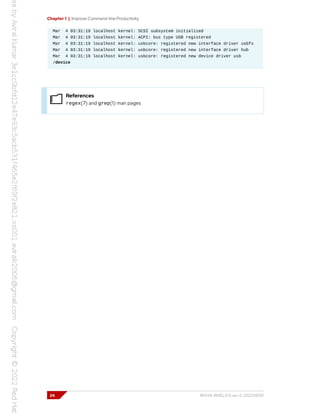
[root@host ~]# less /var/log/messages
...output omitted...
Mar 4 03:31:19 localhost kernel: pci 0000:00:02.0: vgaarb: setting as boot VGA
device
Mar 4 03:31:19 localhost kernel: pci 0000:00:02.0: vgaarb: VGA device added:
decodes=io+mem,owns=io+mem,locks=none
Mar 4 03:31:19 localhost kernel: pci 0000:00:02.0: vgaarb: bridge control
possible
Mar 4 03:31:19 localhost kernel: vgaarb: loaded
RH134-RHEL9.0-en-2-20220609 23
Chapter 1 | Improve Command-line Productivity
Mar 4 03:31:19 localhost kernel: SCSI subsystem initialized
Mar 4 03:31:19 localhost kernel: ACPI: bus type USB registered
Mar 4 03:31:19 localhost kernel: usbcore: registered new interface driver usbfs
Mar 4 03:31:19 localhost kernel: usbcore: registered new interface driver hub
Mar 4 03:31:19 localhost kernel: usbcore: registered new device driver usb
/device
References
regex(7) and grep(1) man pages
24 RH134-RHEL9.0-en-2-20220609
Chapter 1 | Improve Command-line Productivity
Guided Exercise
Match Text in Command Output with
Regular Expressions
In this lab, you search for text in the system logs and the output of commands to find
information more efficiently.
Outcomes
• Efficiently search for text in log files and configuration files.
Before You Begin
As the student user on the workstation machine, use the lab command to prepare your
system for this exercise.
This command ensures that all required resources are available.
[student@workstation ~]$ lab start console-regex
Instructions
1. Log in to the servera machine as the student user and switch to the root user.
[student@workstation ~]$ ssh student@servera
...output omitted...
[student@servera ~]$ sudo -i
[sudo] password for student: student
[root@servera ~]#
2. Use the grep command to find the GID and UID for the postfix and postdrop groups
and users. To do so, use the rpm -q --scripts command which queries the information
for a specific package and shows the scripts that are used as part of the installation
process.
[student@servera ~]$ rpm -q --scripts postfix | grep -e 'user' -e 'group'
# Add user and groups if necessary
/usr/sbin/groupadd -g 90 -r postdrop 2>/dev/null
/usr/sbin/groupadd -g 89 -r postfix 2>/dev/null
/usr/sbin/groupadd -g 12 -r mail 2>/dev/null
/usr/sbin/useradd -d /var/spool/postfix -s /sbin/nologin -g postfix -G mail -M -r
-u 89 postfix 2>/dev/null
setgid_group=postdrop 
3. Modify the previous regular expression to display the first two messages in the /var/log/
maillog file. In this search, you do not need to use the caret character (^), because you
are not searching for the first character in a line.
RH134-RHEL9.0-en-2-20220609 25
Chapter 1 | Improve Command-line Productivity
[root@servera ~]# grep 'postfix' /var/log/maillog | head -n 2
Apr 1 15:27:16 servera postfix/postfix-script[3121]: starting the Postfix mail
system
Apr 1 15:27:16 servera postfix/master[3123]: daemon started -- version 3.5.9,
configuration /etc/postfix
4. Find the name of the queue directory for the Postfix server. Search the /etc/
postfix/main.cf configuration file for all information about queues. Use the grep
command -i option to ignore case distinctions.
[root@servera ~]# grep -i 'queue' /etc/postfix/main.cf
# testing. When soft_bounce is enabled, mail will remain queued that
# The queue_directory specifies the location of the Postfix queue.
queue_directory = /var/spool/postfix
# QUEUE AND PROCESS OWNERSHIP
# The mail_owner parameter specifies the owner of the Postfix queue
# is the Sendmail-compatible mail queue listing command.
# setgid_group: The group for mail submission and queue management
5. Confirm that the postfix service writes messages to the /var/log/messages file. Use
the less command and then the slash character (/) to search the file. Press n to move to
the next entry that matches the search. Press q to quit the less command.
[root@servera ~]# less /var/log/messages
...output omitted...
Apr 1 15:27:15 servera systemd[1]: Starting Postfix Mail Transport Agent...
...output omitted...
Apr 1 15:27:16 servera systemd[1]: Started Postfix Mail Transport Agent.
...output omitted...
/Postfix
6. Use the ps aux command to confirm that the postfix server is currently running. Use
the grep command to limit the output to the necessary lines.
[root@servera ~]# ps aux | grep postfix
root 3123 0.0 0.2 38172 4384 ? Ss 15:27 0:00 /usr/
libexec/postfix/master -w
postfix 3124 0.0 0.4 45208 8236 ? S 15:27 0:00 pickup -l -t
unix -u
postfix 3125 0.0 0.4 45252 8400 ? S 15:27 0:00 qmgr -l -t unix
-u
root 3228 0.0 0.1 221668 2288 pts/0 S+ 15:55 0:00 grep --
color=auto postfix
26 RH134-RHEL9.0-en-2-20220609
Chapter 1 | Improve Command-line Productivity
7. Confirm that the qmgr, cleanup, and pickup queues are correctly configured. Use the
grep command -e option to match multiple entries in the same file. The /etc/postfix/
master.cf file is the configuration file.
[root@servera ~]# grep -e qmgr -e pickup -e cleanup /etc/postfix/master.cf
pickup unix n - n 60 1 pickup
cleanup unix n - n - 0 cleanup
qmgr unix n - n 300 1 qmgr
#qmgr unix n - n 300 1 oqmgr
8. Return to the workstation machine as the student user.
[root@servera ~]# exit
logout
[student@servera ~]$ exit
logout
Connection to servera closed.
[student@workstation ~]$
Finish
On the workstation machine, change to the student user home directory and use the lab
command to complete this exercise. This step is important to ensure that resources from previous
exercises do not impact upcoming exercises.
[student@workstation ~]$ lab finish console-regex
This concludes the section.
RH134-RHEL9.0-en-2-20220609 27
Chapter 1 | Improve Command-line Productivity
Lab
Improve Command-line Productivity
In this lab, you create a Bash script that can filter and get relevant information from different
hosts.
Outcomes
• Create a Bash script and redirect its output to a file.
• Use loops to simplify your code.
• Filter the relevant content by using grep and regular expressions.
Before You Begin
As the student user on the workstation machine, use the lab command to prepare your
system for this exercise.
This command prepares your environment and ensures that all required resources are
available.
[student@workstation ~]$ lab start console-review
Instructions
1. Create the /home/student/bin/bash-lab script file on the workstation machine. The
initial content in the script will be the shebang interpreter directive.
2. Edit your newly created script file to comply with the following requested information from
the servera and serverb hosts. The systems use SSH keys for authentication, and
therefore you do not require a password.
Command or file Content requested
hostname -f Get all the output.
echo "#####" Get all the output.
lscpu Get only the lines that start with the string
CPU.
echo "#####" Get all the output.
/etc/selinux/config Ignore empty lines. Ignore lines starting with
#.
echo "#####" Get all the output.
/var/log/secure Get all "Failed password" entries.
echo "#####" Get all the output.
28 RH134-RHEL9.0-en-2-20220609
Chapter 1 | Improve Command-line Productivity
Save the required information to the output-servera and output-serverb files in the
/home/student directory on workstation.
Note
You can use the sudo command without requiring a password on the servera and
serverb hosts. Remember to use a loop to simplify your script. You can also use
multiple grep commands that are concatenated with the use of the pipe character
(|).
3. Execute the /home/student/bin/bash-lab script, and review the output content on
workstation.
Evaluation
As the student user on the workstation machine, use the lab command to grade your work.
Correct any reported failures and rerun the command until successful.
[student@workstation ~]$ lab grade console-review
Finish
On the workstation machine, change to the student user home directory and use the lab
command to complete this exercise. This step is important to ensure that resources from previous
exercises do not impact upcoming exercises.
[student@workstation ~]$ lab finish console-review
This concludes the section.
RH134-RHEL9.0-en-2-20220609 29
Chapter 1 | Improve Command-line Productivity
Solution
Improve Command-line Productivity
In this lab, you create a Bash script that can filter and get relevant information from different
hosts.
Outcomes
• Create a Bash script and redirect its output to a file.
• Use loops to simplify your code.
• Filter the relevant content by using grep and regular expressions.
Before You Begin
As the student user on the workstation machine, use the lab command to prepare your
system for this exercise.
This command prepares your environment and ensures that all required resources are
available.
[student@workstation ~]$ lab start console-review
Instructions
1. Create the /home/student/bin/bash-lab script file on the workstation machine. The
initial content in the script will be the shebang interpreter directive.
1.1. On the workstation machine, create the /home/student/bin/ directory if
needed.
[student@workstation ~]$ mkdir -p /home/student/bin
1.2. Use the vim command to create and edit the /home/student/bin/bash-lab script
file.
[student@workstation ~]$ vim ~/bin/bash-lab
1.3. Insert the following text and save the file.
#!/usr/bin/bash
1.4. Make your script file executable.
[student@workstation ~]$ chmod a+x ~/bin/bash-lab
2. Edit your newly created script file to comply with the following requested information from
the servera and serverb hosts. The systems use SSH keys for authentication, and
therefore you do not require a password.
30 RH134-RHEL9.0-en-2-20220609
Chapter 1 | Improve Command-line Productivity
Command or file Content requested
hostname -f Get all the output.
echo "#####" Get all the output.
lscpu Get only the lines that start with the string
CPU.
echo "#####" Get all the output.
/etc/selinux/config Ignore empty lines. Ignore lines starting with
#.
echo "#####" Get all the output.
/var/log/secure Get all "Failed password" entries.
echo "#####" Get all the output.
Save the required information to the output-servera and output-serverb files in the
/home/student directory on workstation.
Note
You can use the sudo command without requiring a password on the servera and
serverb hosts. Remember to use a loop to simplify your script. You can also use
multiple grep commands that are concatenated with the use of the pipe character
(|).
2.1. Use the vim command to open and edit the /home/student/bin/bash-lab script
file.
[student@workstation ~]$ vim ~/bin/bash-lab
2.2. Append the following bold lines to the /home/student/bin/bash-lab script file.
Note
The following output is an example of how you can achieve the requested script. In
Bash scripting, you can take different approaches and obtain the same result.
RH134-RHEL9.0-en-2-20220609 31
Chapter 1 | Improve Command-line Productivity
#!/usr/bin/bash
#
USR='student'
OUT='/home/student/output'
#
for SRV in servera serverb
do
ssh ${USR}@${SRV} "hostname -f" > ${OUT}-${SRV}
echo "#####" >> ${OUT}-${SRV}
ssh ${USR}@${SRV} "lscpu | grep '^CPU'" >> ${OUT}-${SRV}
echo "#####" >> ${OUT}-${SRV}
ssh ${USR}@${SRV} "grep -v '^$' /etc/selinux/config|grep -v '^#'" >> ${OUT}-${SRV}
echo "#####" >> ${OUT}-${SRV}
ssh ${USR}@${SRV} "sudo grep 'Failed password' /var/log/secure" >> ${OUT}-${SRV}
echo "#####" >> ${OUT}-${SRV}
done
3. Execute the /home/student/bin/bash-lab script, and review the output content on
workstation.
3.1. On workstation, execute the /home/student/bin/bash-lab script.
[student@workstation ~]$ bash-lab
3.2. Review the content of the /home/student/output-servera and /home/
student/output-serverb files.
[student@workstation ~]$ cat /home/student/output-servera
servera.lab.example.com
#####
CPU op-mode(s): 32-bit, 64-bit
CPU(s): 2
CPU family: 6
#####
SELINUX=enforcing
SELINUXTYPE=targeted
#####
Apr 1 05:42:07 servera sshd[1275]: Failed password for invalid user operator1
from 172.25.250.9 port 42460 ssh2
Apr 1 05:42:09 servera sshd[1277]: Failed password for invalid user sysadmin1
from 172.25.250.9 port 42462 ssh2
Apr 1 05:42:11 servera sshd[1279]: Failed password for invalid user manager1 from
172.25.250.9 port 42464 ssh2
#####
[student@workstation ~]$ cat /home/student/output-serverb
serverb.lab.example.com
#####
CPU op-mode(s): 32-bit, 64-bit
CPU(s): 2
CPU family: 6
#####
SELINUX=enforcing
32 RH134-RHEL9.0-en-2-20220609
Chapter 1 | Improve Command-line Productivity
SELINUXTYPE=targeted
#####
Apr 1 05:42:14 serverb sshd[1252]: Failed password for invalid user operator1
from 172.25.250.9 port 53494 ssh2
Apr 1 05:42:17 serverb sshd[1257]: Failed password for invalid user sysadmin1
from 172.25.250.9 port 53496 ssh2
Apr 1 05:42:19 serverb sshd[1259]: Failed password for invalid user manager1 from
172.25.250.9 port 53498 ssh2
#####
Evaluation
As the student user on the workstation machine, use the lab command to grade your work.
Correct any reported failures and rerun the command until successful.
[student@workstation ~]$ lab grade console-review
Finish
On the workstation machine, change to the student user home directory and use the lab
command to complete this exercise. This step is important to ensure that resources from previous
exercises do not impact upcoming exercises.
[student@workstation ~]$ lab finish console-review
This concludes the section.
RH134-RHEL9.0-en-2-20220609 33
Chapter 1 | Improve Command-line Productivity
Summary
• Create and execute simple Bash scripts to accomplish simple administration tasks.
• Use loops to iterate through a list of items from the command line and in a shell script.
• Use conditional structures to incorporate decision-making into shell scripts.
• Search for text in log and configuration files by using regular expressions and the grep
command.
34 RH134-RHEL9.0-en-2-20220609
Chapter 2
Schedule Future Tasks
Goal Schedule tasks to execute at a specific time and
date.
Objectives • Set up a command to run once at a future time.
• Schedule commands to run on a repeating
schedule with a user's crontab file.
• Schedule commands to run on a repeating
schedule with the system crontab file and
directories.
• Enable and disable systemd timers, and
configure a timer that manages temporary files.
Sections • Schedule a Deferred User Job (and Guided
Exercise)
• Schedule Recurring User Jobs (and Guided
Exercise)
• Schedule Recurring System Jobs (and Guided
Exercise)
• Manage Temporary Files (and Guided Exercise)
• Schedule Future Tasks (Quiz)
RH134-RHEL9.0-en-2-20220609 35
Chapter 2 | Schedule Future Tasks
Schedule a Deferred User Job
Objectives
Set up a command to run once at a future time.
Describe Deferred User Tasks
Sometimes you might need to run one or more commands at a specific future time. An example
is a user scheduling a long-running maintenance task to occur in the middle of the night. Another
example is a system administrator who is working on a firewall configuration and queues a safety
job to reset the firewall settings to a former working state in ten minute's time, unless they
deactivate the job before it runs, because the new firewall configuration worked.
These scheduled commands are called tasks or jobs, and the deferred term indicates that these
tasks run in the future.
One available solution for Red Hat Enterprise Linux users to schedule deferred tasks is the at
command, which is installed and enabled by default. The at package provides the atd system
daemon, and the at and atq commands to interact with the daemon.
Any user can queue jobs for the atd daemon by using the at command. The atd daemon
provides 26 queues, identified from a to z, with jobs in alphabetically later queues getting lower
system priority (using higher nice values, discussed in a later chapter).
Schedule Deferred User Tasks
Use the at TIMESPEC command to start entering a new job to schedule. The at command
then reads from STDIN (your keyboard) to obtain the commands to run. When manually entering
commands, complete the input by pressing Ctrl+D while on an empty line. You can use input
redirection from a script file for entering more complex commands. For example, use the at now
+5min < myscript command to schedule the commands in myscript to start in 5 minutes,
without needing to type the commands manually in a terminal window.
The at command TIMESPEC argument accepts natural time specifications to describe when a
job should run. For example, specify a time as 02:00pm, 15:59, midnight, or even teatime,
followed by an optional date or number of days in the future.
The TIMESPEC argument expects time and date specifications in that order. If you provide the
date and not the time, then the time defaults to the current time. If you provide the time and not
the date, then the date is consider matched and the jobs runs when the time next matches.
The following example shows a job schedule without providing the date. The at command
schedules the job for today or tomorrow depending on whether the time has passed or not.
[user@host ~]$ date
Wed May 18 21:01:18 CDT 2022
[user@host ~]$ at 21:03 < myscript
job 3 at Wed May 18 21:03:00 2022
[user@host ~]$ at 21:00 < myscript
job 4 at Thu May 19 21:00:00 2022
36 RH134-RHEL9.0-en-2-20220609
Chapter 2 | Schedule Future Tasks
The man pages for the at command and other documentation sources use lowercase to write
the natural time specifications, but you can use lowercase, sentence case, or uppercase. Here are
examples of time specifications you can use:
• now +5min
• teatime tomorrow (teatime is 16:00)
• noon +4 days
• 5pm august 3 2021
For other valid time specifications, refer to the local timespec document listed in the references.
Inspect and Manage Deferred User Jobs
For an overview of the pending jobs for the current user, use the atq or the at -l command.
[user@host ~]$ atq
28 Mon May 16 05:13:00 2022 a user
29 Tue May 17 16:00:00 2022 h user
30 Wed May 18 12:00:00 2022 a user
In the preceding output, every line represents a different scheduled future job. The following
description applies to the first line of the output:
• 28 is the unique job number.
• Mon May 16 05:13:00 2022 is the execution date and time for the scheduled job.
• a indicates that the job is scheduled with the default queue a.
• user is the owner of the job (and the user that the job runs as).
Important
Unprivileged users can view and manage only their own jobs. The root user can
view and manage all jobs.
Use the at -c JOBNUMBER command to inspect the commands that run when the atd
daemon executes a job. This command shows the job's environment, which is set from the user's
environment when they created the job, and the command syntax to be run.
Remove Jobs from Schedule
The atrm JOBNUMBER command removes a scheduled job. Remove the scheduled job when you
no longer need it, for example, when a remote firewall configuration succeeded, and you do not
need to reset it.
References
at(1) and atd(8) man pages
/usr/share/doc/at/timespec
RH134-RHEL9.0-en-2-20220609 37
Chapter 2 | Schedule Future Tasks
Guided Exercise
Schedule a Deferred User Job
In this exercise, you use the at command to schedule several commands to run at specified
future times.
Outcomes
• Schedule a job to run at a specified future time.
• Inspect the commands that a scheduled job runs.
• Delete the scheduled jobs.
Before You Begin
As the student user on the workstation machine, use the lab command to prepare your
system for this exercise.
This command prepares your environment and ensures that all required resources are
available.
[student@workstation ~]$ lab start scheduling-at
Instructions
1. From workstation, open an SSH session to servera as the student user.
[student@workstation ~]$ ssh student@servera
...output omitted...
[student@servera ~]$
2. Schedule a job to run three minutes from now. Save the output of the date command to
the /home/student/myjob.txt file.
2.1. Pass the date >> /home/student/myjob.txt string as the input to the at
command, so that the job runs three minutes from now.
[student@servera ~]$ echo "date >> /home/student/myjob.txt" | at now +3min
warning: commands will be executed using /bin/sh
job 1 at Mon Apr 4 05:00:00 2022
2.2. List the scheduled jobs.
[student@servera ~]$ atq
1 Mon Apr 4 05:00:00 2022 a student
2.3. Monitor the deferred jobs queue in real time. After it executes, the atd daemon
removes the job from the queue.
38 RH134-RHEL9.0-en-2-20220609
Chapter 2 | Schedule Future Tasks
The command updates the output of the atq command every two seconds, by
default. After the atd daemon removes the deferred job from the queue, press
Ctrl+c to exit the watch command and return to the shell prompt.
[student@servera ~]$ watch atq
Every 2.0s: atq servera.lab.example.com: Mon Apr 4 04:58:43 2022
1 Mon Apr 4 05:00:00 2022 a student
2.4. Verify that the contents of the /home/student/myjob.txt file match the output
of the date command.
The output matches the output of the date command, which confirms that the
scheduled job executed successfully.
[student@servera ~]$ cat myjob.txt
Mon Apr 4 05:00:00 AM EDT 2022
3. Interactively schedule a job in the g queue that runs at teatime (16:00). The job should
print the It's teatime message to the /home/student/tea.txt file. Append the new
messages to the /home/student/tea.txt file.
[student@servera ~]$ at -q g teatime
warning: commands will be executed using /bin/sh
at> echo "It's teatime" >> /home/student/tea.txt
at> Ctrl+d
job 2 at Mon Apr 4 16:00:00 2022
4. Interactively schedule another job with the b queue that runs at 16:05. The job should print
The cookies are good message to the /home/student/cookies.txt file. Append
the new messages to the /home/student/cookies.txt file.
[student@servera ~]$ at -q b 16:05
warning: commands will be executed using /bin/sh
at> echo "The cookies are good" >> /home/student/cookies.txt
at> Ctrl+d
job 3 at Mon Apr 4 16:05:00 2022
5. Inspect the commands in the pending jobs.
5.1. View the job numbers of the pending jobs.
Note the job numbers in the output, which might vary on your system. Use the job
numbers from your system.
[student@servera ~]$ atq
2 Mon Apr 4 16:00:00 2022 g student
3 Mon Apr 4 16:05:00 2022 b student
5.2. View the commands in the pending job number 2.
The job executes an echo command that appends the It's teatime message to
the /home/student/tea.txt file.
RH134-RHEL9.0-en-2-20220609 39
Chapter 2 | Schedule Future Tasks
[student@servera ~]$ at -c 2
...output omitted...
echo "It's teatime" >> /home/student/tea.txt
marcinDELIMITER274c4275
5.3. View the commands in the pending job number 3.
The job executes an echo command that appends the message The cookies are
good to the /home/student/cookies.txt file.
[student@servera ~]$ at -c 3
...output omitted...
echo "The cookies are good" >> /home/student/cookies.txt
marcinDELIMITER73e30b75
6. View the job number of a job that runs at teatime (16:00), and remove it by using the
atrm command.
[student@servera ~]$ atq
2 Mon Apr 4 16:00:00 2022 g student
3 Mon Apr 4 16:05:00 2022 b student
[student@servera ~]$ atrm 2
7. Verify that the scheduled job to run at teatime (16:00) no longer exists.
7.1. View the list of pending jobs and confirm that the scheduled job to run at teatime
(16:00) no longer exists.
[student@servera ~]$ atq
3 Mon Apr 4 16:05:00 2022 b student
7.2. Return to the workstation machine as the student user.
[student@servera ~]$ exit
logout
Connection to servera closed.
[student@workstation ~]$
Finish
On the workstation machine, change to the student user home directory and use the lab
command to complete this exercise. This step is important to ensure that resources from previous
exercises do not impact upcoming exercises.
[student@workstation ~]$ lab finish scheduling-at
This concludes the section.
40 RH134-RHEL9.0-en-2-20220609
Chapter 2 | Schedule Future Tasks
Schedule Recurring User Jobs
Objectives
Schedule commands to run on a repeating schedule with a user's crontab file.
Describe Recurring User Jobs
Recurring jobs are scheduled to run repeatedly. Red Hat Enterprise Linux systems provide the
crond daemon, which is enabled and started by default. The crond daemon reads multiple
configuration files: one per user and a set of system-wide files. Each user has a personal file which
they edit with the crontab -e command. When executing recurring jobs, these configuration
files provide detailed control to users and administrators. If the scheduled job is not written to use
redirection, then the crond daemon emails any generated output or errors to the job owner.
Schedule Recurring User Jobs
Use the crontab command to manage scheduled jobs. The following list shows the commands
that a local user can use to manage their jobs:
Examples of the crontab command
Command Intended use
crontab -l List the jobs for the current user.
crontab -r Remove all jobs for the current user.
crontab -e Edit jobs for the current user.
crontab filename Remove all jobs, and replace them with those read from filename.
This command uses stdin input when no file is specified.
A privileged user might use the crontab command -u option to manage jobs for another user.
The crontab command is never used to manage system jobs, and using the crontab commands
as the root user is not recommended due to the ability to exploit personal jobs configured to run
as root. Such privileged jobs should be configured as described in the later section describing
recurring system jobs.
Describe User Job Format
The crontab -e command invokes the vim editor by default unless the EDITOR environment
variable is set for another editor. Each job must use a unique line in the crontab file. Follow these
recommendations for valid entries when writing recurring jobs:
• Empty lines for ease of reading.
• Comments on lines that start with the number sign (#).
• Environment variables with a NAME=value format, which affects all lines after the line where
they are declared.
RH134-RHEL9.0-en-2-20220609 41
Chapter 2 | Schedule Future Tasks
Standard variable settings include the SHELL variable to declare the shell that is used for
interpreting the remaining lines of the crontab file. The MAILTO variable determines who should
receive the emailed output.
Note
The ability to an email requires additional system configuration for a local mail
server or an SMTP relay.
The fields in the crontab file appear in the following order:
• Minutes
• Hours
• Day of month
• Month
• Day of week
• Command
The command executes when the Day of the month or Day of the week fields use the same value
other than the * character. For example, to run a command on the 11th day of every month, and
every Friday at 12:15 (24-hour format), use the following job format:
15 12 11 * Fri command
The first five fields all use the same syntax rules:
• Use the * character to execute in every possible instance of the field.
• A number to specify the number of minutes or hours, a date, or a day of the week. For days of
the week, 0 equals Sunday, 1 equals Monday, 2 equals Tuesday, and so on. 7 also equals Sunday.
• Use x-y for a range, which includes the x and y values.
• Use x,y for lists. Lists might include ranges as well, for example, 5,10-13,17 in the Minutes
column, for a job to run at 5, 10, 11, 12, 13, and 17 minutes past the hour.
• The */x indicates an interval of x; for example, */7 in the Minutes column runs a job every
seven minutes.
Additionally, 3-letter English abbreviations are used for months or days of the week, for example,
Jan, Feb, and Mon, Tue.
The last field contains the full command with options and arguments to execute using the default
shell. If the command contains an unescaped percentage sign (%), then that percentage sign is
treated as a newline character, and everything after the percentage sign passes to the command
as stdin input.
Examples of Recurring User Jobs
The following job executes the /usr/local/bin/yearly_backup command at exactly
9:00 AM on 3 February, every year. February is represented as the number 2 in the example, as it is
the second month of the year.
0 9 3 2 * /usr/local/bin/yearly_backup
42 RH134-RHEL9.0-en-2-20220609
Chapter 2 | Schedule Future Tasks
The following job sends an email containing the Chime word to the owner of this job every five
minutes in between and including 9 a.m. and 16 p.m., but only on each Friday in July.
*/5 9-16 * Jul 5 echo "Chime"
The preceding 9-16 range of hours means that the job timer starts at the ninth hour (09:00) and
continues until the end of the sixteenth hour (16:59). The job starts executing at 09:00 with the
last execution at 16:55, because five minutes after 16:55 is 17:00, which is beyond the given
scope of hours.
If a range is specific for the hours instead of a single value, then all hours within the range will
match. Therefore, with the hours of 9-16, this example matches every five minutes from 09:00
through 16:55.
Note
This example job sends the output as an email because crond recognizes that
the job allowed output to go to the STDIO channel without redirection. Because
cron jobs run in a background environment without an output device (known as a
controlling terminal), crond buffers the output and creates an email to send it to
the user specified in the configuration. For system jobs, the email will be sent to the
root account.
The following job runs the /usr/local/bin/daily_report command every working day
(Monday to Friday) two minutes before midnight.
58 23 * * 1-5 /usr/local/bin/daily_report
The following job executes the mutt command to send the Checking in mail message to the
developer@example.com recipient every working day (Monday to Friday), at 9 AM.
0 9 * * 1-5 mutt -s "Checking in" developer@example.com % Hi there, just checking
in.
References
crond(8), crontab(1), and crontab(5) man pages
RH134-RHEL9.0-en-2-20220609 43
Chapter 2 | Schedule Future Tasks
Guided Exercise
Schedule Recurring User Jobs
In this exercise, you schedule commands to run on a repeating schedule as a non-privileged
user, with the crontab command.
Outcomes
• Schedule recurring jobs to run as a non-privileged user.
• Inspect the commands that a scheduled recurring job runs.
• Remove scheduled recurring jobs.
Before You Begin
As the student user on the workstation machine, use the lab command to prepare your
system for this exercise.
This command prepares your environment and ensures that all required resources are
available.
[student@workstation ~]$ lab start scheduling-cron
Instructions
1. Log in to the servera machine as the student user .
[student@workstation ~]$ ssh student@servera
...output omitted...
[student@servera ~]$
2. Schedule a recurring job as the student user that appends the current date and time to
the /home/student/my_first_cron_job.txt file every two minutes. The job must
run only from Monday to Friday, not on Saturday or Sunday.
Important
If you are working on this exercise outside the specified days in the preceding
instruction, then adjust your system time and date accordingly so that the job runs
while you are working.
2.1. Open the crontab file with the default text editor.
[student@servera ~]$ crontab -e
2.2. Insert the following line:
*/2 * * * Mon-Fri /usr/bin/date >> /home/student/my_first_cron_job.txt
44 RH134-RHEL9.0-en-2-20220609
Chapter 2 | Schedule Future Tasks
2.3. Press Esc and type :wq to save the changes and exit the editor. When the editor
exits, you should see the following output:
...output omitted...
crontab: installing new crontab
[student@servera ~]$
3. Use the crontab -l command to list the scheduled recurring jobs. Inspect the command
that you scheduled to run as a recurring job in the preceding step.
Verify that the job runs the /usr/bin/date command and appends its output to the
/home/student/my_first_cron_job.txt file.
[student@servera ~]$ crontab -l
*/2 * * * Mon-Fri /usr/bin/date >> /home/student/my_first_cron_job.txt
4. Have your shell prompt sleep until the /home/student/my_first_cron_job.txt file is
created as a result of the successful execution of the recurring job that you scheduled. Wait
for your shell prompt to return.
The while command uses ! test -f to continue to run a loop and sleeps for one second
until the my_first_cron_job.txt file is created in the /home/student directory.
[student@servera ~]$ while ! test -f my_first_cron_job.txt; do sleep 1s; done
5. Verify that the contents of the /home/student/my_first_cron_job.txt file match
the output of the date command.
[student@servera ~]$ cat my_first_cron_job.txt
Mon Apr 4 03:04:01 AM EDT 2022
6. Remove all the scheduled recurring jobs for the student user.
6.1. Remove all the scheduled recurring jobs for the student user.
[student@servera ~]$ crontab -r
6.2. Verify that no recurring jobs exist for the student user.
[student@servera ~]$ crontab -l
no crontab for student
6.3. Return to the workstation machine as the student user.
[student@servera ~]$ exit
logout
Connection to servera closed.
[student@workstation ~]$
RH134-RHEL9.0-en-2-20220609 45
Chapter 2 | Schedule Future Tasks
Finish
On the workstation machine, change to the student user home directory and use the lab
command to complete this exercise. This step is important to ensure that resources from previous
exercises do not impact upcoming exercises.
[student@workstation ~]$ lab finish scheduling-cron
This concludes the section.
46 RH134-RHEL9.0-en-2-20220609
Chapter 2 | Schedule Future Tasks
Schedule Recurring System Jobs
Objectives
Schedule commands to run on a repeating schedule with the system crontab file and directories.
Recurring System Jobs
System administrators often need to run recurring jobs. It is best to run these jobs from system
accounts rather than from user accounts. Schedule these jobs with system-wide crontab files
instead of with the crontab command. Job entries in the system-wide crontab files are similar to
the users' crontab entries. The system-wide crontab files have an extra field before the command
field to specify the user that runs the command.
The /etc/crontab file has a helpful syntax diagram in the comments.
SHELL=/bin/bash
PATH=/sbin:/bin:/usr/sbin:/usr/bin
MAILTO=root
# For details see man 4 crontabs
# Example of job definition:
# .---------------- minute (0 - 59)
# | .------------- hour (0 - 23)
# | | .---------- day of month (1 - 31)
# | | | .------- month (1 - 12) OR jan,feb,mar,apr ...
# | | | | .---- day of week (0 - 6) (Sunday=0 or 7) OR
sun,mon,tue,wed,thu,fri,sat
# | | | | |
# * * * * * user-name command to be executed
The /etc/crontab file and other files in the /etc/cron.d/ directory define the recurring
system jobs. Always create custom crontab files in the /etc/cron.d/ directory to schedule
recurring system jobs. Place the custom crontab file in the /etc/cron.d directory to prevent a
package update from overwriting the /etc/crontab file. Packages that require recurring system
jobs place their crontab files in the /etc/cron.d/ directory with the job entries. Administrators
also use this location to group related jobs into a single file.
The crontab system also includes repositories for scripts to run every hour, day, week, and month.
These repositories are placed under the /etc/cron.hourly/, /etc/cron.daily/, /etc/
cron.weekly/, and /etc/cron.monthly/ directories. These directories contain executable
shell scripts, not crontab files.
Note
Use the chmod +x script_name command to make a script executable. If a
script is not executable, then it does not run.
RH134-RHEL9.0-en-2-20220609 47
Chapter 2 | Schedule Future Tasks
Run Periodic Commands with Anacron
The run-parts command also runs the daily, weekly, and monthly jobs from the /etc/
anacrontab configuration file.
The /etc/anacrontab file ensures that scheduled jobs always run and are not skipped
accidentally because the system was turned off or hibernated. For example, when a system job
that runs daily was not executed at a specified time because the system was rebooting, then the
job is completed when the system becomes ready. A delay might occur before the job starts, if
specified in the Delay in minutes parameter in the /etc/anacrontab file.
Files in the /var/spool/anacron/ directory determine the daily, weekly, and monthly jobs.
When the crond daemon starts a job from the /etc/anacrontab file, it updates the timestamps
of those files. With this timestamp, you can determine the last time that the job executed. The
syntax of the /etc/anacrontab file is different from the regular crontab configuration files.
The /etc/anacrontab file contains four fields per line, as follows.
Period in days
Defines the interval in days for the job to run on a recurring schedule. This field accepts an
integer or a macro value. For example, the macro @daily is equivalent to the 1 integer, which
executes the job daily. Similarly, the macro @weekly is equivalent to the 7 integer, which
executes the job weekly.
Delay in minutes
Defines the time that the crond daemon must wait before it starts the job.
Job identifier
This field identifies the unique name of the job in the log messages.
Command
The command to be executed.
The /etc/anacrontab file also contains environment variable declarations with the
NAME=value syntax. The START_HOURS_RANGE variable specifies the time interval for the jobs
to run. Jobs do not start outside this range. When a job does not run within this time interval on a
particular day, then the job must wait until the next day for execution.
Systemd Timer
The systemd timer unit activates another unit of a different type (such as a service) whose unit
name matches the timer unit name. The timer unit allows timer-based activation of other units.
The systemd timer unit logs timer events in system journals for easier debugging.
Sample Timer Unit
The sysstat package provides the systemd timer unit, called the sysstat-collect.timer
service, to collect system statistics every 10 minutes. The following output shows the contents of
the /usr/lib/systemd/system/sysstat-collect.timer configuration file.
...output omitted...
[Unit]
Description=Run system activity accounting tool every 10 minutes
[Timer]
OnCalendar=*:00/10
48 RH134-RHEL9.0-en-2-20220609
Chapter 2 | Schedule Future Tasks
[Install]
WantedBy=sysstat.service
The OnCalendar=*:00/10 option signifies that this timer unit activates the corresponding
sysstat-collect.service unit every 10 minutes. You might specify more complex time
intervals.
For example, a 2022-04-* 12:35,37,39:16 value against the OnCalendar option causes
the timer unit to activate the corresponding service unit at the 12:35:16, 12:37:16, and
12:39:16 times, every day during April 2022. You might also specify relative timers with the
OnUnitActiveSec option. For example, with the OnUnitActiveSec=15min option, the timer
unit triggers the corresponding unit to start 15 minutes after the last time that the timer unit
activated its corresponding unit.
Important
Do not modify any units in the configuration files under the
/usr/lib/systemd/system directory, because the systemd unit overrides
the configuration changes in that file. Create a copy of the configuration file
in the /etc/systemd/system directory and then modify the copied file to
prevent any update to the provider package from overriding the changes. If
two files exist with the same name in the /usr/lib/systemd/system and
/etc/systemd/system directories, then the systemd timer unit parses the file in
the /etc/systemd/system directory.
After you change the timer unit configuration file, use the systemctl daemon-reload
command to ensure that the systemd timer unit loads the changes.
[root@host ~]# systemctl daemon-reload
After reloading the systemd daemon configuration, use the systemctl command to activate the
timer unit.
[root@host ~]# systemctl enable --now <unitname>.timer
References
crontab(5), anacron(8), anacrontab(5), systemd.time(7),
systemd.timer(5), and crond(8) man pages
RH134-RHEL9.0-en-2-20220609 49
Chapter 2 | Schedule Future Tasks
Guided Exercise
Schedule Recurring System Jobs
In this exercise, you schedule commands to run on various schedules by adding configuration
files to the system crontab directories.
Outcomes
• Schedule a recurring system job to count the number of active users.
• Update the systemd timer unit that gathers system activity data.
Before You Begin
As the student user on the workstation machine, use the lab command to prepare your
system for this exercise.
This command prepares your environment and ensures that all required resources are
available.
[student@workstation ~]$ lab start scheduling-system
Instructions
1. Log in to the servera machine as the student user and switch to the root user.
[student@workstation ~]$ ssh student@servera
...output omitted...
[student@servera ~]$ sudo -i
[sudo] password for student: student
[root@servera ~]#
2. Schedule a recurring system job that generates a log message that indicates the number of
active users in the system. This job must run daily and use the w -h | wc -l command to
retrieve the number of active users in the system. Use the logger command to generate
the log message of currently active users.
2.1. Create the /etc/cron.daily/usercount script file with the following content:
#!/bin/bash
USERCOUNT=$(w -h | wc -l)
logger "There are currently ${USERCOUNT} active users"
2.2. Make the script file executable.
[root@servera ~]# chmod +x /etc/cron.daily/usercount
50 RH134-RHEL9.0-en-2-20220609
Chapter 2 | Schedule Future Tasks
3. Install the sysstat package. The timer unit must trigger the service unit every ten minutes
to collect system activity data with the /usr/lib64/sa/sa1 shell script. Change the
timer unit configuration file to collect the system activity data every two minutes.
3.1. Install the sysstat package.
[root@servera ~]# dnf install sysstat
...output omitted...
Is this ok [y/N]: y
...output omitted...
Complete!
3.2. Copy the /usr/lib/systemd/system/sysstat-collect.timer file to the
/etc/systemd/system/sysstat-collect.timer file.
[root@servera ~]# cp /usr/lib/systemd/system/sysstat-collect.timer 
/etc/systemd/system/sysstat-collect.timer
3.3. Edit the /etc/systemd/system/sysstat-collect.timer file for the timer
unit to run every two minutes. Replace any occurrence of the 10 minutes string
with 2 minutes throughout the unit configuration file, including the occurrences
in the commented lines. Use the vim /etc/systemd/system/sysstat-
collect.timer command to edit the configuration file.
From these changes, the sysstat-collect.timer unit triggers the sysstat-
collect.service unit every two minutes and collects the system activity data in a
binary file in the /var/log/sa directory.
...output omitted...
# Activates activity collector every 2 minutes
[Unit]
Description=Run system activity accounting tool every 2 minutes
[Timer]
OnCalendar=*:00/2
[Install]
WantedBy=sysstat.service
3.4. Make the systemd daemon aware of the changes.
[root@servera ~]# systemctl daemon-reload
3.5. Activate the sysstat-collect.timer unit.
[root@servera ~]# systemctl enable --now sysstat-collect.timer
...output omitted...
3.6. Wait until the binary file is created in the /var/log/sa directory.
The while command, ls /var/log/sa | wc -l returns 0 when the file does not
exist, or returns 1 when the file exists. The while command pauses for one second
when the file is not present. The while loop exits when the file is present.
RH134-RHEL9.0-en-2-20220609 51
Chapter 2 | Schedule Future Tasks
[root@servera ~]# while [ $(ls /var/log/sa | wc -l) -eq 0 ]; 
do sleep 1s; done
3.7. Verify that the binary file in the /var/log/sa directory was modified within two
minutes.
[root@servera ~]# ls -l /var/log/sa
total 4
-rw-r--r--. 1 root root 2540 Apr 5 04:08 sa05
[root@servera ~]# date
Tue Apr 5 04:08:29 AM EDT 2022
3.8. Return to the workstation machine as the student user.
[root@servera ~]# exit
logout
[student@servera ~]$ exit
logout
Connection to servera closed.
[student@workstation ~]$
Finish
On the workstation machine, change to the student user home directory and use the lab
command to complete this exercise. This step is important to ensure that resources from previous
exercises do not impact upcoming exercises.
[student@workstation ~]$ lab finish scheduling-system
This concludes the section.
52 RH134-RHEL9.0-en-2-20220609
Chapter 2 | Schedule Future Tasks
Manage Temporary Files
Objectives
Enable and disable systemd timers, and configure a timer that manages temporary files.
Manage Temporary Files
Most critical applications and services use temporary files and directories. Some applications and
users use the /tmp directory to hold transient working data, while other applications use task-
specific locations such as daemon- and user-specific volatile directories under /run, which exist
only in memory. When the system reboots or loses power, memory-based file systems are self-
cleaning.
Commonly, daemons and scripts operate properly only when their expected temporary files and
directories exist. Additionally, purging temporary files located on persistent storage is necessary to
prevent disk space issues or stale working data.
Red Hat Enterprise Linux includes the systemd-tmpfiles tool, which provides a structured and
configurable method to manage temporary directories and files.
At system boot, one of the first systemd service units launched is the systemd-tmpfiles-
setup service. This service runs the systemd-tmpfiles command --create --remove
options, which reads instructions from the /usr/lib/tmpfiles.d/*.conf, /run/
tmpfiles.d/*.conf, and /etc/tmpfiles.d/*.conf configuration files. These configuration
files list files and directories that the systemd-tmpfiles-setup service is instructed to create,
delete, or secure with permissions.
Clean Temporary Files with a Systemd Timer
To prevent long-running systems from filling up their disks with stale data, a systemd timer unit
called systemd-tmpfiles-clean.timer at a regular interval triggers systemd-tmpfiles-
clean.service, which executes the systemd-tmpfiles --clean command.
A systemd timer unit configuration has a [Timer] section for indicating how to start the service
with the same name as the timer.
Use the following systemctl command to view the contents of the systemd-tmpfiles-
clean.timer unit configuration file.
[user@host ~]$ systemctl cat systemd-tmpfiles-clean.timer
# /usr/lib/systemd/system/systemd-tmpfiles-clean.timer
# SPDX-License-Identifier: LGPL-2.1-or-later
#
# This file is part of systemd.
#
# systemd is free software; you can redistribute it and/or modify it
# under the terms of the GNU Lesser General Public License as published by
# the Free Software Foundation; either version 2.1 of the License, or
# (at your option) any later version.
RH134-RHEL9.0-en-2-20220609 53
Chapter 2 | Schedule Future Tasks
[Unit]
Description=Daily Cleanup of Temporary Directories
Documentation=man:tmpfiles.d(5) man:systemd-tmpfiles(8)
ConditionPathExists=!/etc/initrd-release
[Timer]
OnBootSec=15min
OnUnitActiveSec=1d
In the preceding configuration, the OnBootSec=15min parameter indicates that the systemd-
tmpfiles-clean.service unit gets triggered 15 minutes after the system boots up.
The OnUnitActiveSec=1d parameter indicates that any further trigger to the systemd-
tmpfiles-clean.service unit happens 24 hours after the service unit was last activated.
Change the parameters in the systemd-tmpfiles-clean.timer timer unit configuration file
to meet your requirements. For example, a 30min value for the OnUnitActiveSec parameter
triggers the systemd-tmpfiles-clean.service service unit 30 minutes after the service
unit is last activated. As a result, systemd-tmpfiles-clean.service gets triggered every 30
minutes after the changes are recognized.
After changing the timer unit configuration file, use the systemctl daemon-reload command
to ensure that systemd loads the new configuration.
[root@host ~]# systemctl daemon-reload
After reloading the systemd manager configuration, use the following systemctl command to
activate the systemd-tmpfiles-clean.timer unit.
[root@host ~]# systemctl enable --now systemd-tmpfiles-clean.timer
Clean Temporary Files Manually
The systemd-tmpfiles --clean command parses the same configuration files as the
systemd-tmpfiles --create command, but instead of creating files and directories, it purges
all files that were not accessed, changed, or modified more recently than the maximum age as
defined in the configuration file.
Find detailed information about the format of the configuration files for the systemd-tmpfiles
service in the tmpfiles.d(5) man page. The basic syntax consists of the following columns:
Type, Path, Mode, UID, GID, Age, and Argument. Type refers to the action that the systemd-
tmpfiles service should take; for example, d to create a directory if it does not exist, or Z to
recursively restore SELinux contexts, file permissions, and ownership.
The following are examples of purge configuration with explanations:
d /run/systemd/seats 0755 root root -
When you create files and directories, create the /run/systemd/seats directory if it does not
exist, with the root user and the root group as owners, and with permissions of rwxr-xr-x. If
this directory does exist, then take no action. The systemd-tmpfiles service does not purge
this directory automatically.
54 RH134-RHEL9.0-en-2-20220609
Chapter 2 | Schedule Future Tasks
D /home/student 0700 student student 1d
Create the /home/student directory if it does not exist. If it does exist, then empty it of all
contents. When the system runs the systemd-tmpfiles --clean command, it removes all files
in the directory that you did not access, change, or modify for more than one day.
L /run/fstablink - root root - /etc/fstab
Create the /run/fstablink symbolic link, to point to the /etc/fstab folder. Never
automatically purge this line.
Configuration File Precedence
The systemd-tmpfiles-clean service configuration files can exist in three places:
• /etc/tmpfiles.d/*.conf
• /run/tmpfiles.d/*.conf
• /usr/lib/tmpfiles.d/*.conf
Use the files in the /etc/tmpfiles.d/ directory to configure custom temporary locations, and
to override vendor-provided defaults. The files in the /run/tmpfiles.d/ directory are volatile
files, which normally daemons use to manage their own runtime temporary files. Relevant RPM
packages provide the files in the /usr/lib/tmpfiles.d/ directory; therefore do not edit these
files.
If a file in the /run/tmpfiles.d/ directory has the same file name as a file in the
/usr/lib/tmpfiles.d/ directory, then the service uses the file in the /run/tmpfiles.d/
directory. If a file in the /etc/tmpfiles.d/ directory has the same file name as a file in either
the /run/tmpfiles.d/ or the /usr/lib/tmpfiles.d/ directories, then the service uses the
file in the /etc/tmpfiles.d/ directory.
Given these precedence rules, you can easily override vendor-provided settings by copying
the relevant file to the /etc/tmpfiles.d/ directory and then editing it. By using these
configuration locations properly, you can manage administrator-configured settings from a central
configuration management system, and package updates will not overwrite your configured
settings.
Note
When testing new or modified configurations, it is useful to apply only the
commands from a single configuration file at a time. Specify the name of the single
configuration file on the systemd-tmpfiles command line.
References
systemd-tmpfiles(8), tmpfiles.d(5), stat(1), stat(2), and
systemd.timer(5) man pages
RH134-RHEL9.0-en-2-20220609 55
Chapter 2 | Schedule Future Tasks
Guided Exercise
Manage Temporary Files
In this exercise, you configure systemd-tmpfiles to change how quickly it removes
temporary files from /tmp, and also to periodically purge files from another directory.
Outcomes
• Configure systemd-tmpfiles to remove unused temporary files from /tmp.
• Configure systemd-tmpfiles to periodically purge files from another directory.
Before You Begin
As the student user on the workstation machine, use the lab command to prepare your
system for this exercise.
This command prepares your environment and ensures that all required resources are
available.
[student@workstation ~]$ lab start scheduling-tempfiles
Instructions
1. Log in to the servera system as the student user and switch to the root user.
[student@workstation ~]$ ssh student@servera
...output omitted...
[student@servera ~]$ sudo -i
[sudo] password for student: student
[root@servera ~]#
2. Configure the systemd-tmpfiles service to clean the /tmp directory of any unused files
from the last five days. Ensure that a package update does not overwrite the configuration
files.
2.1. Copy the /usr/lib/tmpfiles.d/tmp.conf file to the /etc/tmpfiles.d
directory.
[root@servera ~]# cp /usr/lib/tmpfiles.d/tmp.conf 
/etc/tmpfiles.d/tmp.conf
2.2. Search for the configuration line in the /etc/tmpfiles.d/tmp.conf file that
applies to the /tmp directory. Replace the existing age of the temporary files in that
configuration line with the new age of 5 days. Remove from the file all the other
lines, including the commented lines. You can use the vim /etc/tmpfiles.d/
tmp.conf command to edit the configuration file.
In the configuration, the q type is identical to the d type and instructs the systemd-
tmpfiles service to create the /tmp directory if it does not exist. The directory's
56 RH134-RHEL9.0-en-2-20220609
Chapter 2 | Schedule Future Tasks
octal permissions must be set to 1777. Both the owning user and group of the /tmp
directory must be root. The /tmp directory must not contain the unused temporary
files from the last five days.
The /etc/tmpfiles.d/tmp.conf file should appear as follows:
q /tmp 1777 root root 5d
2.3. Verify the /etc/tmpfiles.d/tmp.conf file configuration.
Because the command does not return any errors, it confirms that the configuration
settings are correct.
[root@servera ~]# systemd-tmpfiles --clean /etc/tmpfiles.d/tmp.conf
3. Add a new configuration that ensures that the /run/momentary directory exists with user
and group ownership set to root. The octal permissions for the directory must be 0700.
The configuration must purge any file in this directory that remains unused in the last 30
seconds.
3.1. Create the /etc/tmpfiles.d/momentary.conf file with the following content.
With the configuration, the systemd-tmpfiles service ensures that the /run/
momentary directory exists and that its octal permissions are set to 0700. The
ownership of the /run/momentary directory must be the root user and group. The
service purges any file in this directory if it remains unused for 30 seconds.
[root@servera ~]# vim /etc/tmpfiles.d/momentary.conf
d /run/momentary 0700 root root 30s
3.2. Verify the /etc/tmpfiles.d/momentary.conf file configuration. The command
creates the /run/momentary directory if it does not exist.
Because the command does not return any errors, it confirms that the configuration
settings are correct.
[root@servera ~]# systemd-tmpfiles --create 
/etc/tmpfiles.d/momentary.conf
3.3. Verify that the systemd-tmpfiles command creates the /run/momentary
directory with the appropriate permissions, owner, and group owner.
The octal permission for the /run/momentary directory is set to 0700, and the user
and group ownership are set to root.
[root@servera ~]# ls -ld /run/momentary
drwx------. 2 root root 40 Apr 4 06:35 /run/momentary
4. Verify that the systemd-tmpfiles --clean command removes any file under the
/run/momentary directory that is unused in the last 30 seconds, based on the systemd-
tmpfiles configuration for the directory.
4.1. Create the /run/momentary/test file.
RH134-RHEL9.0-en-2-20220609 57
Chapter 2 | Schedule Future Tasks
[root@servera ~]# touch /run/momentary/test
4.2. Configure your shell prompt to not to return for 30 seconds.
[root@servera ~]# sleep 30
4.3. After your shell prompt returns, clean stale files from the /run/momentary
directory, based on the referenced rule in the /etc/tmpfiles.d/
momentary.conf configuration file.
The command removes the /run/momentary/test file, because it remains
unused for 30 seconds. This behavior is based on the referenced rule in the /etc/
tmpfiles.d/momentary.conf configuration file.
[root@servera ~]# systemd-tmpfiles --clean 
/etc/tmpfiles.d/momentary.conf
4.4. Verify that the /run/momentary/test file does not exist.
[root@servera ~]# ls -l /run/momentary/test
ls: cannot access '/run/momentary/test': No such file or directory
4.5. Return to the workstation machine as the student user.
[root@servera ~]# exit
logout
[student@servera ~]$ exit
logout
Connection to servera closed.
[student@workstation ~]$
Finish
On the workstation machine, change to the student user home directory and use the lab
command to complete this exercise. This step is important to ensure that resources from previous
exercises do not impact upcoming exercises.
[student@workstation ~]$ lab finish scheduling-tempfiles
This concludes the section.
58 RH134-RHEL9.0-en-2-20220609
Chapter 2 | Schedule Future Tasks
Quiz
Schedule Future Tasks
Choose the correct answers to the following questions.
1. Which command displays all the user jobs that you scheduled to run as deferred jobs?
a. atq
b. atrm
c. at -c
d. at --display
2. Which command removes the deferred user job with the job number 5?
a. at -c 5
b. atrm 5
c. at 5
d. at --delete 5
3. Which command displays all the scheduled recurring user jobs for the currently
logged-in user?
a. crontab -r
b. crontab -l
c. crontab -u
d. crontab -V
4. Which job format executes /usr/local/bin/daily_backup hourly from 9 AM to
6 PM on all days from Monday through Friday?
a. 00 * * * Mon-Fri /usr/local/bin/daily_backup
b. * */9 * * Mon-Fri /usr/local/bin/daily_backup
c. 00 */18 * * * /usr/local/bin/daily_backup
d. 00 09-18 * * Mon-Fri /usr/local/bin/daily_backup
5. Which directory contains the shell scripts to run daily?
a. /etc/cron.d
b. /etc/cron.hourly
c. /etc/cron.daily
d. /etc/cron.weekly
RH134-RHEL9.0-en-2-20220609 59
Chapter 2 | Schedule Future Tasks
6. Which configuration file defines the settings for the system jobs that run daily,
weekly, and monthly?
a. /etc/crontab
b. /etc/anacrontab
c. /etc/inittab
d. /etc/sysconfig/crond
7. Which systemd unit regularly triggers the cleanup of temporary files?
a. systemd-tmpfiles-clean.timer
b. systemd-tmpfiles-clean.service
c. dnf-makecache.timer
d. unbound-anchor.timer
60 RH134-RHEL9.0-en-2-20220609
Chapter 2 | Schedule Future Tasks
Solution
Schedule Future Tasks
Choose the correct answers to the following questions.
1. Which command displays all the user jobs that you scheduled to run as deferred jobs?
a. atq
b. atrm
c. at -c
d. at --display
2. Which command removes the deferred user job with the job number 5?
a. at -c 5
b. atrm 5
c. at 5
d. at --delete 5
3. Which command displays all the scheduled recurring user jobs for the currently
logged-in user?
a. crontab -r
b. crontab -l
c. crontab -u
d. crontab -V
4. Which job format executes /usr/local/bin/daily_backup hourly from 9 AM to
6 PM on all days from Monday through Friday?
a. 00 * * * Mon-Fri /usr/local/bin/daily_backup
b. * */9 * * Mon-Fri /usr/local/bin/daily_backup
c. 00 */18 * * * /usr/local/bin/daily_backup
d. 00 09-18 * * Mon-Fri /usr/local/bin/daily_backup
5. Which directory contains the shell scripts to run daily?
a. /etc/cron.d
b. /etc/cron.hourly
c. /etc/cron.daily
d. /etc/cron.weekly
RH134-RHEL9.0-en-2-20220609 61
Chapter 2 | Schedule Future Tasks
6. Which configuration file defines the settings for the system jobs that run daily,
weekly, and monthly?
a. /etc/crontab
b. /etc/anacrontab
c. /etc/inittab
d. /etc/sysconfig/crond
7. Which systemd unit regularly triggers the cleanup of temporary files?
a. systemd-tmpfiles-clean.timer
b. systemd-tmpfiles-clean.service
c. dnf-makecache.timer
d. unbound-anchor.timer
62 RH134-RHEL9.0-en-2-20220609
Chapter 2 | Schedule Future Tasks
Summary
• Deferred jobs or tasks are scheduled to run once in the future.
• Recurring user jobs execute the user's tasks on a repeating schedule.
• Recurring system jobs accomplish, on a repeating schedule, administrative tasks that have
system-wide impact.
• The systemd timer units can execute both the deferred and recurring jobs.
RH134-RHEL9.0-en-2-20220609 63
64 RH134-RHEL9.0-en-2-20220609
Chapter 3
Tune System Performance
Goal Improve system performance by setting tuning
parameters and adjusting the scheduling priority of
processes.
Objectives • Optimize system performance by selecting
a tuning profile that the tuned daemon
manages.
• Prioritize or deprioritize specific processes, with
the nice and renice commands.
Sections • Adjust Tuning Profiles (and Guided Exercise)
• Influence Process Scheduling (and Guided
Exercise)
Lab Tune System Performance
RH134-RHEL9.0-en-2-20220609 65
Chapter 3 | Tune System Performance
Adjust Tuning Profiles
Objectives
Optimize system performance by selecting a tuning profile that the tuned daemon manages.
Tune Systems
System administrators optimize the performance of a system by adjusting device settings based
on various use case workloads. The tuned daemon applies tuning adjustments both statically and
dynamically by using tuning profiles that reflect particular workload requirements.
Configure Static Tuning
The tuned daemon applies system settings when the service starts or on selecting a new tuning
profile. Static tuning configures predefined kernel parameters in profiles that the tuned daemon
applies at runtime. With static tuning, the tuned daemon sets kernel parameters for overall
performance expectations, without adjusting these parameters as activity levels change.
Configure Dynamic Tuning
With dynamic tuning, the tuned daemon monitors system activity and adjusts settings according
to runtime behavior changes. Dynamic tuning continuously adjusts tuning to fit the current
workload, starting with the initial declared settings in your selected tuning profile.
For example, storage devices experience high use during startup and log in, but have minimal
activity when user workloads consist of using web browsers and email clients. Similarly, CPU
and network devices experience activity increases during peak usage throughout a workday.
The tuned daemon monitors the activity of these components and adjusts parameter settings
to maximize performance during high-activity times and reduce settings during low activity.
Predefined tuning profiles provide performance parameters that the tuned daemon uses.
To monitor and adjust parameter settings, the tuned daemon uses modules called monitor and
tuning plug-ins, respectively.
Monitor plug-ins analyze the system and obtain information from it, so the tuning plug-ins use
this information for dynamic tuning. At this moment, the tuned daemon ships with three different
monitor plug-ins:
• disk: Monitors the disk load based on the number of IO operations for every disk device.
• net: Monitors the network load based on the number of transferred packets per network card.
• load: Monitors the CPU load for every CPU.
Tuning plug-ins tune the individual subsystems. They use the data obtained by the monitor
plug-ins and the performance parameters provided by the predefined tuning profiles. Among
others, the tuned daemon ships with the following tuning plug-ins:
• disk: Sets different disk parameters, for example, the disk scheduler, the spin-down timeout, or
the advanced power management.
• net: Configures the interface speed and the Wake-on-LAN (WoL) functionality.
• cpu: Sets different CPU parameters, for example, the CPU governor or the latency.
66 RH134-RHEL9.0-en-2-20220609
Chapter 3 | Tune System Performance
By default, dynamic tuning is disabled. You can enable it by setting the dynamic_tuning
variable to 1 in the /etc/tuned/tuned-main.conf configuration file. If you enable dynamic
tuning, then the tuned daemon monitors periodically the system and adjust the tuning settings
to runtime behavior changes. You can set the time in seconds between updates by using the
update_interval variable in the /etc/tuned/tuned-main.conf configuration file.
[root@host ~]$ cat /etc/tuned/tuned-main.conf
...output omitted...
# Dynamicaly tune devices, if disabled only static tuning will be used.
dynamic_tuning = 1
...output omitted...
# Update interval for dynamic tunings (in seconds).
# It must be multiply of the sleep_interval.
update_interval = 10
...output omitted...
The tuned Utility
A minimal Red Hat Enterprise Linux installation includes the tuned package by default. You can
install and enable the package manually by using the following commands:
[root@host ~]$ dnf install tuned
...output omitted...
[root@host ~]$ systemctl enable --now tuned
Created symlink /etc/systemd/system/multi-user.target.wants/tuned.service → /usr/
lib/systemd/system/tuned.service.
The tuned application provides profiles in the following categories:
• Power-saving profiles
• Performance-boosting profiles
The performance-boosting profiles include profiles that focus on the following aspects:
• Low latency for storage and network
• High throughput for storage and network
• Virtual machine performance
• Virtualization host performance
The next table shows a list of the tuning profiles distributed with Red Hat Enterprise Linux 9.
Tuning Profiles Distributed with Red Hat Enterprise Linux 9
Tuned Profile Purpose
balanced Ideal for systems that require a compromise between power
saving and performance.
powersave Tunes the system for maximum power saving.
throughput-performance Tunes the system for maximum throughput.
accelerator-
performance
Tunes the same as throughput-performance, and also
reduces the latency to less than 100 μs.
RH134-RHEL9.0-en-2-20220609 67
Chapter 3 | Tune System Performance
Tuned Profile Purpose
latency-performance Ideal for server systems that require low latency at the
expense of power consumption.
network-throughput Derived from the throughput-performance profile.
Additional network tuning parameters are applied for
maximum network throughput.
network-latency Derived from the latency-performance profile. Enables
additional network tuning parameters to provide low network
latency.
desktop Derived from the balanced profile. Provides faster response
of interactive applications.
hpc-compute Derived from the latency-performance profile. Ideal for
high-performance computing.
virtual-guest Tunes the system for maximum performance if it runs on a
virtual machine.
virtual-host Tunes the system for maximum performance if it acts as a
host for virtual machines.
intel-sst Optimized for systems with Intel Speed Select Technology
configurations. Use it as an overlay on other profiles.
optimize-serial-
console
Increases responsiveness of the serial console. Use it as an
overlay on other profiles.
The tuned application stores the tuning profiles under the /usr/lib/tuned and /etc/tuned
directories. Every profile has a separate directory, and inside the directory the tuned.conf main
configuration file and, optionally, other files.
[root@host ~]# cd /usr/lib/tuned
[root@host tuned]# ls
accelerator-performance hpc-compute network-throughput throughput-
performance
balanced intel-sst optimize-serial-console virtual-
guest
desktop latency-performance powersave virtual-
host
functions network-latency recommend.d
[root@host tuned]$ ls virtual-guest
tuned.conf
A typical tuned.conf configuration file looks as follows:
[root@host tuned]# cat virtual-guest/tuned.conf
#
# tuned configuration
#
68 RH134-RHEL9.0-en-2-20220609
Chapter 3 | Tune System Performance
[main]
summary=Optimize for running inside a virtual guest
include=throughput-performance
[sysctl]
# If a workload mostly uses anonymous memory and it hits this limit, the entire
# working set is buffered for I/O, and any more write buffering would require
# swapping, so it's time to throttle writes until I/O can catch up. Workloads
# that mostly use file mappings may be able to use even higher values.
#
# The generator of dirty data starts writeback at this percentage (system default
# is 20%)
vm.dirty_ratio = 30
# Filesystem I/O is usually much more efficient than swapping, so try to keep
# swapping low. It's usually safe to go even lower than this on systems with
# server-grade storage.
vm.swappiness = 30
The [main] section in the file might include a summary of the tuning profile. This section also
accepts the include parameter, that you can use to make the profile inherit all the settings from
the referenced profile.
This is very useful when creating new tuning profiles, because you can use one of the provided
profiles as a basis and then add or modify the parameters that you want to configure. To create
or modify tuning profiles, copy the tuning profile files from the /usr/lib/tuned directory to
the /etc/tuned directory and then modify them. In case there are profile directories with the
same name under the /usr/lib/tuned and /etc/tuned directories, the latter always take
precedence. Thus, never directly modify files in the /usr/lib/tuned system directory.
The rest of the sections in the tuned.conf file use the tuning plug-ins to modify parameters in
the system. In the previous example, the [sysctl] section modifies the vm.dirty_ratio and
vm.swappiness kernel parameters through the sysctl plug-in.
Manage Profiles from the Command Line
Use the tuned-adm command to change the settings of the tuned daemon. The tuned-adm
command queries current settings, lists available profiles, recommends a tuning profile for the
system, changes profiles directly, or turns off tuning.
You can identify the currently active tuning profile with the tuned-adm active command.
[root@host ~]# tuned-adm active
Current active profile: virtual-guest
The tuned-adm list command lists all available tuning profiles, including both built-in profiles
and the custom-created tuning profiles.
[root@host ~]# tuned-adm list
Available profiles:
- accelerator-performance - Throughput performance based tuning with ...
- balanced - General non-specialized tuned profile
- desktop - Optimize for the desktop use-case
- hpc-compute - Optimize for HPC compute workloads
RH134-RHEL9.0-en-2-20220609 69
Chapter 3 | Tune System Performance
- intel-sst - Configure for Intel Speed Select Base Frequency
- latency-performance - Optimize for deterministic performance at ...
- network-latency - Optimize for deterministic performance at ...
...output omitted...
Current active profile: virtual-guest
Use the tuned-adm profile profilename command to switch to a different active profile
that better matches the system's current tuning requirements.
[root@host ~]$ tuned-adm profile throughput-performance
[root@host ~]$ tuned-adm active
Current active profile: throughput-performance
The tuned-adm recommend command can recommend a tuning profile for the system. The
system uses this mechanism to determine the default profile after its installation.
[root@host ~]$ tuned-adm recommend
virtual-guest
Note
The tuned-adm recommend command bases its recommendation on various
system characteristics, including whether the system is a virtual machine and other
predefined selected categories during system installation.
To revert the setting changes that the current profile applied, either switch to another profile
or deactivate the tuned daemon. Turn off the tuned application tuning activity by using the
tuned-adm off command.
[root@host ~]$ tuned-adm off
[root@host ~]$ tuned-adm active
No current active profile.
Manage Profiles with the Web Console
To manage system performance profiles with the web console, you need to log in and escalate
privileges. Privilege escalation mode permits the user to execute commands, with administrative
privileges, that modify system performance profiles. Because changing tuning profiles modifies
some system parameters, you need to do it with administrative privileges.
You can switch to the administrative access mode in the web console by clicking the Limited
access or Turn on administrative access buttons. Then, enter your password when prompted.
After you escalate privileges, the Limited access button changes to Administrative access. As a
security reminder, remember to always toggle back to limited access mode once you perform on
your system the task that requires administrative privileges.
As a privileged user, click the Overview menu option in the left navigation bar. The Performance
profile field displays the current active profile.
70 RH134-RHEL9.0-en-2-20220609
Chapter 3 | Tune System Performance
Figure 3.1: Active performance profile
To select a different profile, click the active profile link. In the Change performance profile user
interface, scroll through the profile list to select one that best suits the system purpose and click
the Change profile button.
Figure 3.2: Select a preferred performance profile
To verify changes, return to the main Overview page and confirm that it displays the active profile
in the Performance profile field.
RH134-RHEL9.0-en-2-20220609 71
Chapter 3 | Tune System Performance
References
tuned(8), tuned.conf(5), tuned-main.conf(5), and tuned-adm(1) man pages
For more information, refer to the Monitoring and Managing System Status and
Performance guide at
https://access.redhat.com/documentation/en-us/red_hat_enterprise_linux/9/html-
single/monitoring_and_managing_system_status_and_performance/index
72 RH134-RHEL9.0-en-2-20220609
Chapter 3 | Tune System Performance
Guided Exercise
Adjust Tuning Profiles
In this exercise, you tune server performance by activating the tuned service and applying a
tuning profile.
Outcomes
• Configure a system to use a tuning profile.
Before You Begin
As the student user on the workstation machine, use the lab command to prepare your
system for this exercise.
This command prepares your environment and ensures that all required resources are
available.
[student@workstation ~]$ lab start tuning-profiles
Instructions
1. Log in to servera as the student user.
[student@workstation ~]$ ssh student@servera
...output omitted...
[student@servera ~]$
2. Verify that the tuned package is installed, enabled, and started.
2.1. Verify that the tuned package is installed.
[student@servera ~]$ dnf list tuned
...output omitted...
Installed Packages
tuned.noarch 2.18.0-1.el9 @System
2.2. Verify that the service is enabled.
[student@servera ~]$ systemctl is-enabled tuned
enabled
2.3. Verify that the service is currently running.
[student@servera ~] systemctl is-active tuned
active
RH134-RHEL9.0-en-2-20220609 73
Chapter 3 | Tune System Performance
3. List the available tuning profiles and identify the active profile.
[student@servera ~]$ sudo tuned-adm list
[sudo] password for student: student
Available profiles:
- accelerator-performance - Throughput performance based tuning with disabled
higher latency STOP states
- balanced - General non-specialized tuned profile
- desktop - Optimize for the desktop use-case
- hpc-compute - Optimize for HPC compute workloads
- intel-sst - Configure for Intel Speed Select Base Frequency
- latency-performance - Optimize for deterministic performance at the cost
of increased power consumption
- network-latency - Optimize for deterministic performance at the cost
of increased power consumption, focused on low latency network performance
- network-throughput - Optimize for streaming network throughput,
generally only necessary on older CPUs or 40G+ networks
- optimize-serial-console - Optimize for serial console use.
- powersave - Optimize for low power consumption
- throughput-performance - Broadly applicable tuning that provides excellent
performance across a variety of common server workloads
- virtual-guest - Optimize for running inside a virtual guest
- virtual-host - Optimize for running KVM guests
Current active profile: virtual-guest
4. Review the tuned.conf configuration file for the current active profile, virtual-guest.
You can find it in the /usr/lib/tuned/virtual-guest directory. The virtual-
guest tuning profile is based on the throughput-performance profile, but it sets
different values for the vm.dirty_ratio and vm.swappiness parameters. Verify that
the virtual-guest tuning profile applies these values on your system.
4.1. Review the virtual-guest configuration file in the /usr/lib/tuned/virtual-
guest directory. Check the values for the vm.dirty_ratio and vm.swappiness
parameters.
[student@servera ~]$ cat /usr/lib/tuned/virtual-guest/tuned.conf
#
# tuned configuration
#
[main]
summary=Optimize for running inside a virtual guest
include=throughput-performance
[sysctl]
# If a workload mostly uses anonymous memory and it hits this limit, the entire
# working set is buffered for I/O, and any more write buffering would require
# swapping, so it's time to throttle writes until I/O can catch up. Workloads
# that mostly use file mappings may be able to use even higher values.
#
# The generator of dirty data starts writeback at this percentage (system default
# is 20%)
vm.dirty_ratio = 30
74 RH134-RHEL9.0-en-2-20220609
Chapter 3 | Tune System Performance
# Filesystem I/O is usually much more efficient than swapping, so try to keep
# swapping low. It's usually safe to go even lower than this on systems with
# server-grade storage.
vm.swappiness = 30
4.2. Verify that the tuning profile applies these values on your system.
[student@servera ~]$ sysctl vm.dirty_ratio
vm.dirty_ratio = 30
[student@servera ~]$ sysctl vm.swappiness
vm.swappiness = 30
5. Review the tuned.conf configuration file for the virtual-guest parent's tuning profile,
throughput-performance. You can find it in the /usr/lib/tuned/throughput-
performance directory. Notice that the throughput-performance tuning profile sets a
different value for the vm.dirty_ratio and vm.swappiness parameters, although the
virtual-guest profile overwrites them. Verify that the virtual-guest tuning profile
applies the value for the vm.dirty_background_ratio parameter, which inherits from
the throughput-performance profile.
5.1. Review the throughput-performance configuration file in the /usr/lib/
tuned/throughput-performance directory. Check the values for the
vm.dirty_ratio, vm.swappiness, and vm.dirty_background_ratio
parameters.
[student@servera ~]$ cat /usr/lib/tuned/throughput-performance/tuned.conf
#
# tuned configuration
#
[main]
summary=Broadly applicable tuning that provides excellent performance across a
variety of common server workloads
...output omitted...
[sysctl]
# If a workload mostly uses anonymous memory and it hits this limit, the entire
# working set is buffered for I/O, and any more write buffering would require
# swapping, so it's time to throttle writes until I/O can catch up. Workloads
# that mostly use file mappings may be able to use even higher values.
#
# The generator of dirty data starts writeback at this percentage (system default
# is 20%)
vm.dirty_ratio = 40
# Start background writeback (via writeback threads) at this percentage (system
# default is 10%)
vm.dirty_background_ratio = 10
# PID allocation wrap value. When the kernel's next PID value
# reaches this value, it wraps back to a minimum PID value.
# PIDs of value pid_max or larger are not allocated.
#
RH134-RHEL9.0-en-2-20220609 75
Chapter 3 | Tune System Performance
# A suggested value for pid_max is 1024 * <# of cpu cores/threads in system>
# e.g., a box with 32 cpus, the default of 32768 is reasonable, for 64 cpus,
# 65536, for 4096 cpus, 4194304 (which is the upper limit possible).
#kernel.pid_max = 65536
# The swappiness parameter controls the tendency of the kernel to move
# processes out of physical memory and onto the swap disk.
# 0 tells the kernel to avoid swapping processes out of physical memory
# for as long as possible
# 100 tells the kernel to aggressively swap processes out of physical memory
# and move them to swap cache
vm.swappiness=10
...output omitted...
5.2. Verify that the virtual-guest tuning profile applies the inherited
vm.dirty_background_ratio parameter.
[student@servera ~]$ sysctl vm.dirty_background_ratio
vm.dirty_background_ratio = 10
6. Change the current active tuning profile to throughput-performance, and then confirm
the results. Verify that the vm.dirty_ratio and vm.swappiness parameters change to
the values in the throughput-performance configuration file.
6.1. Change the current active tuning profile.
[student@servera ~]$ sudo tuned-adm profile throughput-performance
6.2. Confirm that throughput-performance is the active tuning profile.
[student@servera ~]$ sudo tuned-adm active
Current active profile: throughput-performance
6.3. Verify the values for the vm.dirty_ratio and vm.swappiness parameters.
[student@servera ~]$ sysctl vm.dirty_ratio
vm.dirty_ratio = 40
[student@servera ~]$ sysctl vm.swappiness
vm.swappiness = 10
7. Return to the workstation machine as the student user.
[student@servera ~]$ exit
logout
Connection to servera closed.
[student@workstation ~]$
76 RH134-RHEL9.0-en-2-20220609
Chapter 3 | Tune System Performance
Finish
On the workstation machine, change to the student user home directory and use the lab
command to complete this exercise. This step is important to ensure that resources from previous
exercises do not impact upcoming exercises.
[student@workstation ~]$ lab finish tuning-profiles
This concludes the section.
RH134-RHEL9.0-en-2-20220609 77
Chapter 3 | Tune System Performance
Influence Process Scheduling
Objectives
Prioritize or deprioritize specific processes, with the nice and renice commands.
Linux Process Scheduling
Modern computer systems use multi-core, multi-thread CPUs that can execute many instruction
threads simultaneously. The largest high-performing supercomputers can have hundreds or
thousands of CPUs with hundreds of processing cores and thread structures per CPU, and can
process millions of instruction threads in parallel. Although a single user running many applications
can saturate the typical desktop system or personal workstation with CPU activity, a properly
sized and configured workstation is designed to match the user's intended workload. However, the
typical enterprise or Internet server handles many hundreds or thousands of users and application
requests each second, which can easily result in CPU saturation. All systems under CPU load will
experience scenarios that require handling more process threads than the system has the CPU
processing units needed to immediately schedule the threads.
Linux and other operating systems use a technique called time-slicing or multitasking for process
management. The operating system process scheduler rapidly switches between process threads
on each available CPU core. This behavior gives the impression that a significant number of
processes are running at the same time.
Process Priorities
Each process has a varying measure of importance, known historically as a process priority.
Linux implements scheduling policies that define the rules by which processes are organized
and prioritized to obtain CPU processing time. Linux has different scheduling policies designed
for handling interactive application requests, non-interactive batch application processing, and
real-time application requirements. Real-time scheduling policies still use process priorities and
queues, but current, non-real-time (normal) scheduling policies use the Completely Fair Scheduler
(CFS), which instead organizes processes that are awaiting CPU time into a binary search tree.
This process priority introduction describes the default scheduling policy called SCHED_NORMAL or
SCHED_OTHER.
Processes running under the SCHED_NORMAL policy are assigned a static real-time priority of
0, to ensure that all system real-time processes have a higher priority than normal processes.
However, this static priority value is not included when organizing normal process threads for
CPU scheduling. Instead, the CFS scheduling algorithm arranges normal process threads into a
time-weighted binary tree, with the first item having the least amount of previously spent CPU
time to the last item that has the most cumulative CPU time.
Nice Value
The order of the binary tree is additionally influenced by a user-modifiable, per-process nice
value, which ranges from -20 (increased priority) to 19 (decreased priority), with a default of 0.
Processes inherit their starting nice value from their parent process.
A higher nice value indicates a decrease in the process priority from the default, which can be
remembered as making the process nicer to other processes. A lower nice value indicates an
78 RH134-RHEL9.0-en-2-20220609
Chapter 3 | Tune System Performance
increase in the process priority from the default, which can be remembered as making the process
less nice to other processes.
Modifying the nice value on a process will either raise or lower the process thread's position in the
binary tree. Increasing the nice value will lower the thread's position, and decreasing the value will
raise the thread's position.
Important
Generally, priorities only indirectly determine the amount of CPU time a process
thread receives. On a non-saturated system with available CPU capacity, every
process is scheduled for immediate CPU time, for as much as each process wants.
Relative process importance, as managed in the binary tree, determines only which
threads are selected and placed on CPUs first.
On a CPU-saturated system, where there are more waiting threads than CPU
processing units, higher priority (lower nice) process threads are placed first, until
all CPU units are busy, while the lowest priority (higher nice) threads initially must
wait in the binary tree. However, the Completely Fair Scheduler is designed to
balance process importance, nice values, and previous cumulative CPU time, and
dynamically adjusts the binary tree such that all processes obtain fair CPU time.
Permission to Modify Nice Values
Privileged users can decrease the nice value of a process, to make a process less nice, which will
cause a process to be repetitively placed higher in the binary tree, and therefore be scheduled
more often. On a saturated system, the overall CPU time available to other processes is reduced.
Unprivileged users can only increase the nice value on their own processes, which will make their
own processes nicer, and therefore lower their placement in the binary tree. Unprivileged users
cannot decrease their process' nice values to raise their importance, nor can they adjust the nice
values for another user's process.
Viewing Nice Values
Nice values map to a priority value, and both values are available for viewing in process listing
commands. A nice value of -20 maps to a 0 priority in the top command. A nice value of 19 maps
to a 39 priority in the top command.
Figure 3.3: Priorities and nice values as reported by the top command
In Figure 3.3, the nice values are aligned with the priority values that are used by the top
command. The top command displays the process priority in the PR column, and the nice value in
the NI column. The top priority numbering scheme, which displays real-time process priorities as
negative numbers, is a legacy of internal priority algorithms.
RH134-RHEL9.0-en-2-20220609 79
Chapter 3 | Tune System Performance
The following output is the summary and a partial process listing in the top command:
Tasks: 192 total, 1 running, 191 sleeping, 0 stopped, 0 zombie
%Cpu(s): 0.0 us, 1.6 sy, 0.0 ni, 96.9 id, 0.0 wa, 0.0 hi, 1.6 si, 0.0 st
MiB Mem : 5668.6 total, 4655.6 free, 470.1 used, 542.9 buff/cache
MiB Swap: 0.0 total, 0.0 free, 0.0 used. 4942.6 avail Mem
PID USER PR NI VIRT RES SHR S %CPU %MEM TIME+ COMMAND
1 root 20 0 172180 16232 10328 S 0.0 0.3 0:01.49 systemd
2 root 20 0 0 0 0 S 0.0 0.0 0:00.01 kthreadd
3 root 0 -20 0 0 0 I 0.0 0.0 0:00.00 rcu_gp
4 root 0 -20 0 0 0 I 0.0 0.0 0:00.00 rcu_par_gp
The ps command displays process nice values, when using the default formatting options.
The following ps command lists all processes with their process ID, process name, nice value, and
scheduling class, sorted in descending order by nice value. In the CLS scheduling class column,
TS stands for time sharing, which is another name for the normal scheduling policies, including
SCHED_NORMAL. Other CLS values, such as FF for first in first out and RR for round robin, indicate
real-time processes. Real-time processes are not assigned nice values, as indicated by the dash
(-) in the NI column. Advanced scheduling policies are taught in the Red Hat Performance Tuning:
Linux in Physical, Virtual, and Cloud (RH442) course.
[user@host ~]$ ps axo pid,comm,nice,cls --sort=-nice
PID COMMAND NI CLS
33 khugepaged 19 TS
32 ksmd 5 TS
814 rtkit-daemon 1 TS
1 systemd 0 TS
2 kthreadd 0 TS
5 kworker/0:0-cgr 0 TS
7 kworker/0:1-rcu 0 TS
8 kworker/u4:0-ev 0 TS
15 migration/0 - FF
...output omitted...
Start Processes with User-set Nice Values
When a process is created, it inherits its parent's nice value. When a process starts from the
command line, it inherits its nice value from the shell process. Typically, new processes run with the
default nice value of 0.
The following example starts a process from the shell, and displays the process's nice value. Note
the use of the PID option in the ps command to specify the requested output.
Note
The example command is used here purely for demonstrating nice values, and was
chosen for its low resource consumption.
80 RH134-RHEL9.0-en-2-20220609
Chapter 3 | Tune System Performance
[user@host ~]$ sleep 60 &
[1] 2667
[user@host ~]$ ps -o pid,comm,nice 2667
PID COMMAND NI
2667 sleep 0
All users can use the nice command to start commands with a default or higher nice value.
Without options, the nice command starts a process with a default nice value of 10. Setting a
higher value by default ensures that the new process is a lower priority than your current working
shell, and less likely to affect your current interactive session.
The following example starts the same command as a background job with the default nice value
and displays the process's nice value:
[user@host ~]$ nice sleep 60 &
[1] 2736
[user@host ~]$ ps -o pid,comm,nice 2736
PID COMMAND NI
2736 sleep 10
Use the nice command -n option to apply a user-defined nice value to the starting process. The
default is to add 10 to the process's current nice value. The following example starts a background
job with a user-defined nice value of 15 and displays the result:
[user@host ~]$ nice -n 15 sleep 60 &
[1] 2673
[user@host ~]$ ps -o pid,comm,nice 2740
PID COMMAND NI
2740 sleep 15
Important
Unprivileged users may only increase the nice value from its current value, to a
maximum of 19. If the value is increased, then unprivileged users cannot reduce the
value to revert to the previous nice value. However, a privileged user may reduce the
nice value from any current value, to a minimum of -20.
Change the Nice Value of an Existing Process
You can change the nice value of an existing process with the renice command. This example
uses the process ID from the previous example to change from the current nice value of 15 to a
new nice value of 19.
[user@host ~]$ renice -n 19 2740
2740 (process ID) old priority 15, new priority 19
You can also use the top command to change the nice value on an existing process. From the top
interactive interface, press the r option to access the renice command. Enter the process ID,
and then the new nice value.
RH134-RHEL9.0-en-2-20220609 81
Chapter 3 | Tune System Performance
References
nice(1), renice(1), top(1), and sched_setscheduler(2) man pages
82 RH134-RHEL9.0-en-2-20220609
Chapter 3 | Tune System Performance
Guided Exercise
Influence Process Scheduling
In this exercise, you adjust the scheduling priority of processes with the nice and renice
commands and observe the effects on process execution.
Outcomes
• Adjust scheduling priorities for processes.
Before You Begin
As the student user on the workstation machine, use the lab command to prepare your
system for this exercise.
This command ensures that all required resources are available.
[student@workstation ~]$ lab start tuning-procscheduling
Important
This exercise uses commands that perform an endless checksum on a device
file while intentionally using significant CPU resources. Verify that you have
terminated all exercise processes before leaving this exercise.
Instructions
1. Use the ssh command to log in to the servera machine as the student user.
[student@workstation ~]$ ssh student@servera
...output omitted...
[student@servera ~]$
2. Determine the number of CPU cores on the servera machine and then start two instances
of the sha1sum /dev/zero & command for each core.
2.1. Use the grep command to parse the number of existing virtual processors (CPU
cores) from the /proc/cpuinfo file.
[student@servera ~]$ grep -c '^processor' /proc/cpuinfo
2
2.2. Use a looping command to start multiple instances of the sha1sum /dev/zero &
command. Start two instances for each virtual processor that was indicated in the
previous step. In this example, a for loop creates four instances. The PID values in
your output might vary from the example.
RH134-RHEL9.0-en-2-20220609 83
Chapter 3 | Tune System Performance
[student@servera ~]$ for i in {1..4}; do sha1sum /dev/zero & done
[1] 1132
[2] 1133
[3] 1134
[4] 1135
3. Verify that the background jobs are running for each of the sha1sum processes.
[student@servera ~]$ jobs
[1] Running sha1sum /dev/zero &
[2] Running sha1sum /dev/zero &
[3]- Running sha1sum /dev/zero &
[4]+ Running sha1sum /dev/zero &
4. Use the ps and pgrep commands to display the percentage of CPU usage for each
sha1sum process.
[student@servera ~]$ ps u $(pgrep sha1sum)
USER PID %CPU %MEM VSZ RSS TTY STAT START TIME COMMAND
student 1132 49.6 0.1 225336 2288 pts/0 R 11:40 2:40 sha1sum /dev/zero
student 1133 49.6 0.1 225336 2296 pts/0 R 11:40 2:40 sha1sum /dev/zero
student 1134 49.6 0.1 225336 2264 pts/0 R 11:40 2:40 sha1sum /dev/zero
student 1135 49.6 0.1 225336 2280 pts/0 R 11:40 2:40 sha1sum /dev/zero
5. Terminate all sha1sum processes, and then verify that no jobs are running.
5.1. Use the pkill command to terminate all running processes with the name pattern
sha1sum.
[student@servera ~]$ pkill sha1sum
[2] Terminated sha1sum /dev/zero
[4]+ Terminated sha1sum /dev/zero
[1]- Terminated sha1sum /dev/zero
[3]+ Terminated sha1sum /dev/zero
5.2. Verify that no jobs are running.
[student@servera ~]$ jobs
[student@servera ~]$
6. Start multiple instances of the sha1sum /dev/zero & command, and then start one
additional instance of the sha1sum /dev/zero & command with a nice level of 10. Start
at least as many instances as the number of system virtual processors. In this example,
three regular instances are started, plus another with a higher nice level.
6.1. Use looping to start three instances of the sha1sum /dev/zero & command.
84 RH134-RHEL9.0-en-2-20220609
Chapter 3 | Tune System Performance
[student@servera ~]$ for i in {1..3}; do sha1sum /dev/zero & done
[1] 1207
[2] 1208
[3] 1209
6.2. Use the nice command to start the fourth instance with a nice level of 10.
[student@servera ~]$ nice -n 10 sha1sum /dev/zero &
[4] 1210
7. Use the ps and pgrep commands to display the PID, percentage of CPU usage, nice value,
and executable name for each process. The instance with the nice value of 10 should display
a lower percentage of CPU usage than the other instances.
[student@servera ~]$ ps -o pid,pcpu,nice,comm $(pgrep sha1sum)
PID %CPU NI COMMAND
1207 64.2 0 sha1sum
1208 65.0 0 sha1sum
1209 63.9 0 sha1sum
1210 8.2 10 sha1sum
8. Use the sudo renice command to lower the nice level of a process from the previous
step. Use the PID value of the process instance with the nice level of 10 to lower its nice
level to 5.
[student@servera ~]$ sudo renice -n 5 1210
[sudo] password for student: student
1210 (process ID) old priority 10, new priority 5
9. Repeat the ps and pgrep commands to display the CPU percentage and nice level.
[student@servera ~]$ ps -o pid,pcpu,nice,comm $(pgrep sha1sum)
PID %CPU NI COMMAND
1207 62.9 0 sha1sum
1208 63.2 0 sha1sum
1209 63.2 0 sha1sum
1210 10.9 5 sha1sum
10. Use the pkill command to terminate all running processes with the sha1sum name
pattern.
[student@servera ~]$ pkill sha1sum
...output omitted...
11. Return to the workstation machine as the student user.
RH134-RHEL9.0-en-2-20220609 85
Chapter 3 | Tune System Performance
[student@servera ~]$ exit
logout
Connection to servera closed.
[student@workstation ~]$
Finish
On the workstation machine, change to the student user home directory and use the lab
command to complete this exercise. This step is important to ensure that resources from previous
exercises do not impact upcoming exercises.
[student@workstation ~]$ lab finish tuning-procscheduling
This concludes the section.
86 RH134-RHEL9.0-en-2-20220609
Chapter 3 | Tune System Performance
Lab
Tune System Performance
In this lab, you apply a specific tuning profile and adjust the scheduling priority of an existing
process with high CPU usage.
Outcomes
• Activate a specific tuning profile for a computer system.
• Adjust the CPU scheduling priority of a process.
Before You Begin
As the student user on the workstation machine, use the lab command to prepare your
system for this exercise.
This command prepares your environment and ensures that all required resources are
available.
[student@workstation ~]$ lab start tuning-review
Important
This lab uses commands that perform an endless checksum on a device
file while intentionally using significant CPU resources. Verify that you have
terminated all lab processes before leaving this lab.
Instructions
1. Change the current tuning profile for the serverb machine to the balanced profile, a
general non-specialized tuned profile. List the information for the balanced tuning profile
when it is the current tuning profile.
2. Two processes on serverb are consuming a high percentage of CPU usage. Adjust each
process's nice level to 10 to allow more CPU time for other processes.
Evaluation
As the student user on the workstation machine, use the lab command to grade your work.
Correct any reported failures and rerun the command until successful.
[student@workstation ~]$ lab grade tuning-review
Finish
On the workstation machine, change to the student user home directory and use the lab
command to complete this exercise. This step is important to ensure that resources from previous
exercises do not impact upcoming exercises.
RH134-RHEL9.0-en-2-20220609 87
Chapter 3 | Tune System Performance
[student@workstation ~]$ lab finish tuning-review
This concludes the section.
88 RH134-RHEL9.0-en-2-20220609
Chapter 3 | Tune System Performance
Solution
Tune System Performance
In this lab, you apply a specific tuning profile and adjust the scheduling priority of an existing
process with high CPU usage.
Outcomes
• Activate a specific tuning profile for a computer system.
• Adjust the CPU scheduling priority of a process.
Before You Begin
As the student user on the workstation machine, use the lab command to prepare your
system for this exercise.
This command prepares your environment and ensures that all required resources are
available.
[student@workstation ~]$ lab start tuning-review
Important
This lab uses commands that perform an endless checksum on a device
file while intentionally using significant CPU resources. Verify that you have
terminated all lab processes before leaving this lab.
Instructions
1. Change the current tuning profile for the serverb machine to the balanced profile, a
general non-specialized tuned profile. List the information for the balanced tuning profile
when it is the current tuning profile.
1.1. Log in to the serverb machine as the student user.
[student@workstation ~]$ ssh student@serverb
...output omitted...
[student@serverb ~]$
1.2. Verify that the tuned package is installed.
[student@serverb ~]$ dnf list tuned
...output omitted...
Installed Packages
tuned.noarch 2.18.0-1.el9 @System
1.3. Verify the tuned service state.
RH134-RHEL9.0-en-2-20220609 89
Chapter 3 | Tune System Performance
[student@serverb ~]$ systemctl is-active tuned
active
1.4. List all available tuning profiles and their descriptions. Note that the current active
profile is virtual-guest.
[student@serverb ~]$ sudo tuned-adm list
[sudo] password for student: student
Available profiles:
- accelerator-performance - Throughput performance based tuning with disabled
higher latency STOP states
- balanced - General non-specialized tuned profile
- desktop - Optimize for the desktop use-case
- hpc-compute - Optimize for HPC compute workloads
- intel-sst - Configure for Intel Speed Select Base Frequency
- latency-performance - Optimize for deterministic performance at the cost
of increased power consumption
- network-latency - Optimize for deterministic performance at the cost
of increased power consumption, focused on low
latency network performance
- network-throughput - Optimize for streaming network throughput, generally
only necessary on older CPUs or 40G+ networks
- optimize-serial-console - Optimize for serial console use.
- powersave - Optimize for low power consumption
- throughput-performance - Broadly applicable tuning that provides excellent
performance across a variety of common server
workloads
- virtual-guest - Optimize for running inside a virtual guest
- virtual-host - Optimize for running KVM guests
Current active profile: virtual-guest
1.5. Change the current active tuning profile to the balanced profile.
[student@serverb ~]$ sudo tuned-adm profile balanced
1.6. List summary information of the current active tuned profile. Verify that the active
profile is the balanced profile.
[student@serverb ~]$ sudo tuned-adm profile_info
Profile name:
balanced
Profile summary:
General non-specialized tuned profile
...output omitted...
2. Two processes on serverb are consuming a high percentage of CPU usage. Adjust each
process's nice level to 10 to allow more CPU time for other processes.
2.1. Determine the top two CPU consumers on the serverb machine. The ps command
lists the top CPU consumers at the bottom of the output. CPU percentage values
might vary on your machine.
90 RH134-RHEL9.0-en-2-20220609
Chapter 3 | Tune System Performance
[student@serverb ~]$ ps aux --sort=pcpu
USER PID %CPU %MEM VSZ RSS TTY STAT START TIME COMMAND
...output omitted...
root 1079 98.5 0.1 225340 2300 ? RN 06:25 4:29 sha1sum /dev/zero
root 1095 99.0 0.1 225340 2232 ? R< 06:25 4:30 md5sum /dev/zero
2.2. Identify the current nice level for each of the top two CPU consumers.
[student@serverb ~]$ ps -o pid,pcpu,nice,comm 
$(pgrep sha1sum;pgrep md5sum)
PID %CPU NI COMMAND
1079 98.8 2 sha1sum
1095 99.1 -2 md5sum
2.3. Adjust the nice level for each process to 10. Use the correct PID values for your
processes from the previous command output.
[student@serverb ~]$ sudo renice -n 10 1079 1095
[sudo] password for student: student
1079 (process ID) old priority 2, new priority 10
1095 (process ID) old priority -2, new priority 10
2.4. Verify that the current nice level for each process is 10.
[student@serverb ~]$ ps -o pid,pcpu,nice,comm 
$(pgrep sha1sum;pgrep md5sum)
PID %CPU NI COMMAND
1079 98.9 10 sha1sum
1095 99.2 10 md5sum
2.5. Return to the workstation machine as the student user.
[student@serverb ~]$ exit
logout
Connection to serverb closed.
[student@workstation ~]$
Evaluation
As the student user on the workstation machine, use the lab command to grade your work.
Correct any reported failures and rerun the command until successful.
[student@workstation ~]$ lab grade tuning-review
Finish
On the workstation machine, change to the student user home directory and use the lab
command to complete this exercise. This step is important to ensure that resources from previous
exercises do not impact upcoming exercises.
RH134-RHEL9.0-en-2-20220609 91
Chapter 3 | Tune System Performance
[student@workstation ~]$ lab finish tuning-review
This concludes the section.
92 RH134-RHEL9.0-en-2-20220609
Chapter 3 | Tune System Performance
Summary
• The tuned service automatically modifies device settings to meet specific system needs based
on a predefined selected tuning profile.
• To revert all changes of the selected profile to the system settings, either switch to another
profile or deactivate the tuned service.
• The system assigns a relative priority to a process to determine its CPU access. This priority is
called the nice value of a process.
• The nice command assigns a priority to a process when it starts.
• The renice command modifies the priority of a running process.
RH134-RHEL9.0-en-2-20220609 93
94 RH134-RHEL9.0-en-2-20220609
Chapter 4
Manage SELinux Security
Goal Protect and manage server security by using
SELinux.
Objectives • Explain how SELinux protects resources,
change the current SELinux mode of a system,
and set the default SELinux mode of a system.
• Manage the SELinux policy rules that
determine the default context for files and
directories with the semanage fcontext
command and apply the context defined by the
SELinux policy to files and directories with the
restorecon command.
• Activate and deactivate SELinux policy rules
with the setsebool command, manage the
persistent value of SELinux Booleans with
the semanage boolean -l command, and
consult man pages that end with _selinux
to find useful information about SELinux
Booleans.
• Use SELinux log analysis tools and
display useful information during SELinux
troubleshooting with the sealert command.
Sections • Change the SELinux Enforcement Mode (and
Guided Exercise)
• Control SELinux File Contexts (and Guided
Exercise)
• Adjust SELinux Policy with Booleans (and
Guided Exercise)
• Investigate and Resolve SELinux Issues (and
Guided Exercise)
Lab Manage SELinux Security
RH134-RHEL9.0-en-2-20220609 95
Chapter 4 | Manage SELinux Security
Change the SELinux Enforcement Mode
Objectives
Explain how SELinux protects resources, change the current SELinux mode of a system, and set
the default SELinux mode of a system.
Describe SELinux Architecture
Security Enhanced Linux (SELinux) is a critical security feature of Linux. Access to files, ports,
and other resources is controlled at a granular level. Processes are permitted to access only the
resources that their SELinux policy or Boolean settings specify.
File permissions control file access for a specific user or group. However, file permissions do not
prevent an authorized user with file access from using a file for an unintended purpose.
For example, with write access to a file, other editors or programs can still open and modify a
structured data file that is designed for only a specific program to write to, which could result in
corruption or a data security issue. File permissions do not stop such undesired access because
they do not control how a file is used but only who is allowed to read, write, or run a file.
SELinux consists of application-specific policies that the application's developers define to
declare precisely what actions and accesses are allowed for each binary executable, configuration
file, and data file that the application uses. This policy is known as a targeted policy, because one
policy defines an application's activities. Policies declare the predefined labels that are configured
on individual programs, files, and network ports.
SELinux Usage
SELinux enforces a set of access rules that explicitly define allowed actions between processes
and resources. Any action that is not defined in an access rule is not allowed. Because only defined
actions are allowed, applications with a poor security design are still protected from malicious use.
Applications or services with a targeted policy run in a confined domain, whereas an application
without a policy runs unconfined but without any SELinux protection. Individual targeted policies
can be disabled to assist with application and security policy development and debugging.
SELinux has the following operational modes:
• Enforcing : SELinux enforces the loaded policies. This mode is the default in Red Hat
Enterprise Linux.
• Permissive : SELinux loads the policies and is active, but instead of enforcing access control
rules, it logs access violations. This mode is helpful for testing and troubleshooting applications
and rules.
• Disabled : SELinux is turned off. SELinux violations are not denied or logged. Disabling SELinux
is strongly discouraged.
96 RH134-RHEL9.0-en-2-20220609
Chapter 4 | Manage SELinux Security
Important
Starting in Red Hat Enterprise Linux 9, SELinux can be fully disabled only by using
the selinux=0 kernel parameter at boot. RHEL no longer supports setting the
SELINUX=disabled option in the /etc/selinux/config file.
Starting in RHEL 9, disabling SELinux in the /etc/selinux/config file results
in SELinux starting and performing active enforcement, but without loading any
policies. Because policy rules define allowed actions, if no policies are loaded then
all actions are denied. This behavior is intentional, and is designed to block malicious
attempts to circumvent SELinux protection.
Basic SELinux Concepts
The primary goal of SELinux is to protect user data from improper use by compromised
applications or system services. Most Linux administrators are familiar with the standard user,
group, and world file permission security model, which is known as Discretionary Access Control
(DAC) because administrators set file permissions as they need. SELinux provides an additional
layer of object-based security, which is defined in granular rules, which are known as Mandatory
Access Control (MAC) because MAC policies apply to all users and cannot be bypassed for specific
users by discretionary configuration settings.
For example, a web server's open firewall port allows remote anonymous access to a web client.
However, a malicious user that accesses that port might try to compromise a system through an
existing vulnerability. If an example vulnerability compromises the permissions for the apache
user and group, then a malicious user might directly access the /var/www/html document root
content, or the system's /tmp and /var/tmp directories, or other accessible files and directories.
SELinux policies are security rules that define how specific processes access relevant files,
directories, and ports. Every resource entity, such as a file, process, directory, or port, has a label
called an SELinux context. The context label matches a defined SELinux policy rule to allow a
process to access the labeled resource. By default, an SELinux policy does not allow any access
unless an explicit rule grants access. When no allow rule is defined, all access is disallowed.
SELinux labels have user, role, type, and security level fields. Targeted policy, which is
enabled in RHEL by default, defines rules by using the type context. Type context names typically
end with _t.
Figure 4.1: SELinux file context
Policy Access Rule Concepts
For example, a web server process is labeled with the httpd_t type context. Web server files
and directories in the /var/www/html/ directory and other locations are labeled with the
httpd_sys_content_t type context. Temporary files in the /tmp and /var/tmp directories
have the tmp_t type contexts as a label. The web server's ports have the http_port_t type
context as a label.
An Apache web server process runs with the httpd_t type context. A policy rule
permits the Apache server to access files and directories that are labeled with the
httpd_sys_content_t type context. By default, files in the /var/www/html directory have
RH134-RHEL9.0-en-2-20220609 97
Chapter 4 | Manage SELinux Security
the httpd_sys_content_t type context. A web server policy has by default no allow rules for
using files that are labeled tmp_t, such as in the /tmp and /var/tmp directories, thus disallowing
access. With SELinux enabled, a malicious user who uses a compromised Apache process would
still not have access to the /tmp directory files.
A MariaDB server process runs with the mysqld_t type context. By default, files in the
/data/mysql directory have the mysqld_db_t type context. A MariaDB server can access the
mysqld_db_t labeled files, but has no rules to allow access to files for other services, such as
httpd_sys_content_t labeled files.
Figure 4.2: SELinux decision-making flow
Many commands that list resources use the -Z option to manage SELinux contexts. For example,
the ps, ls, cp, and mkdir commands all use the -Z option.
[root@host ~]# ps axZ
LABEL PID TTY STAT TIME COMMAND
system_u:system_r:kernel_t:s0 2 ? S 0:00 [kthreadd]
system_u:system_r:kernel_t:s0 3 ? I< 0:00 [rcu_gp]
system_u:system_r:kernel_t:s0 4 ? I< 0:00 [rcu_par_gp]
...output omitted...
[root@host ~]# systemctl start httpd
[root@host ~]# ps -ZC httpd
LABEL PID TTY TIME CMD
system_u:system_r:httpd_t:s0 1550 ? 00:00:00 httpd
system_u:system_r:httpd_t:s0 1551 ? 00:00:00 httpd
system_u:system_r:httpd_t:s0 1552 ? 00:00:00 httpd
system_u:system_r:httpd_t:s0 1553 ? 00:00:00 httpd
system_u:system_r:httpd_t:s0 1554 ? 00:00:00 httpd
98 RH134-RHEL9.0-en-2-20220609
Chapter 4 | Manage SELinux Security
[root@host ~]# ls -Z /var/www
system_u:object_r:httpd_sys_script_exec_t:s0 cgi-bin
system_u:object_r:httpd_sys_content_t:s0 html
Change the SELinux Mode
Use the getenforce command to view the current SELinux mode. Use the setenforce
command to change the SELinux mode.
[root@host ~]# getenforce
Enforcing
[root@host ~]# setenforce
usage: setenforce [ Enforcing | Permissive | 1 | 0 ]
[root@host ~]# setenforce 0
[root@host ~]# getenforce
Permissive
[root@host ~]# setenforce Enforcing
[root@host ~]# getenforce
Enforcing
Alternatively, set the SELinux mode at boot time with a kernel parameter. Pass the enforcing=0
kernel parameter to boot the system into permissive mode, or pass enforcing=1 to boot
into enforcing mode. Disable SELinux by passing the selinux=0 kernel parameter, or pass
selinux=1 to enable SELinux.
Red Hat recommends to reboot the server when you change the SELinux mode from
Permissive to Enforcing. This reboot ensures that the services started in permissive mode are
confined in the next boot.
Set the Default SELinux Mode
To configure SELinux persistently, use the /etc/selinux/config file. In the following default
example, the configuration sets SELinux to enforcing mode. The comments list other valid
values, such as the permissive and disabled modes.
# This file controls the state of SELinux on the system.
# SELINUX= can take one of these three values:
# enforcing - SELinux security policy is enforced.
# permissive - SELinux prints warnings instead of enforcing.
# disabled - No SELinux policy is loaded.
...output omitted...
#
# NOTE: In earlier Fedora kernel builds, SELINUX=disabled would also
# fully disable SELinux during boot. If you need a system with SELinux
# fully disabled instead of SELinux running with no policy loaded, you
# need to pass selinux=0 to the kernel command line. You can use grubby
# to persistently set the bootloader to boot with selinux=0:
#
# grubby --update-kernel ALL --args selinux=0
#
# To revert back to SELinux enabled:
#
# grubby --update-kernel ALL --remove-args selinux
#
RH134-RHEL9.0-en-2-20220609 99
Chapter 4 | Manage SELinux Security
SELINUX=enforcing
# SELINUXTYPE= can take one of these three values:
# targeted - Targeted processes are protected,
# minimum - Modification of targeted policy. Only selected processes are
protected.
# mls - Multi Level Security protection.
SELINUXTYPE=targeted
The system reads this file at boot time and starts SELinux accordingly. The selinux=0|1 and
enforcing=0|1 kernel arguments override this configuration.
References
getenforce(8), setenforce(8), and selinux_config(5) man pages
100 RH134-RHEL9.0-en-2-20220609
Chapter 4 | Manage SELinux Security
Guided Exercise
Change the SELinux Enforcement Mode
In this lab, you manage SELinux modes, both temporarily and persistently.
Outcomes
• View and set the current SELinux mode.
Before You Begin
As the student user on the workstation machine, use the lab command to prepare your
system for this exercise.
This command prepares your environment and ensures that all required resources are
available.
[student@workstation ~]$ lab start selinux-opsmode
Instructions
1. On the workstation machine, use the ssh command to log in to the servera machine
as the student user and then switch to the root user.
[student@workstation ~]$ ssh student@servera
...output omitted...
[student@servera ~]$ sudo -i
[sudo] password for student: student
[root@servera ~]#
2. Change the default SELinux mode to permissive.
2.1. Use the getenforce command to verify the current SELinux mode on the servera
machine.
[root@servera ~]# getenforce
Enforcing
2.2. Use the vim /etc/selinux/config command to edit the configuration file.
Change the SELINUX parameter from enforcing to permissive mode.
[root@servera ~]# vim /etc/selinux/config
2.3. Use the grep command to confirm that the SELINUX parameter displays the
permissive mode.
RH134-RHEL9.0-en-2-20220609 101
Chapter 4 | Manage SELinux Security
[root@servera ~]# grep '^SELINUX' /etc/selinux/config
SELINUX=permissive
SELINUXTYPE=targeted
2.4. Use the getenforce command to confirm that the SELINUX parameter displays the
enforcing mode.
[root@servera ~]# getenforce
Enforcing
2.5. Use the setenforce command to change the SELINUX mode to permissive
mode and verify the change.
[root@servera ~]# setenforce 0
[root@servera ~]# getenforce
Permissive
3. Change the default SELinux mode back to the enforcing mode in the configuration file.
3.1. Use the vim /etc/selinux/config command to edit the configuration file.
Change the SELINUX parameter from permissive to enforcing mode.
[root@servera ~]# vim /etc/selinux/config
3.2. Use the grep command to confirm that the SELINUX parameter sets the
enforcing mode on booting.
[root@servera ~]# grep '^SELINUX' /etc/selinux/config
SELINUX=enforcing
SELINUXTYPE=targeted
4. Set the SELinux mode to enforcing in the command line. Reboot the servera machine
and verify the SELinux mode.
4.1. Use the setenforce command to set the current SELinux mode to the enforcing
mode. Use the getenforce command to confirm that SELinux is set to the
enforcing mode.
[root@servera ~]# setenforce 1
[root@servera ~]# getenforce
Enforcing
4.2. Reboot the servera machine to implement the persistent configuration.
[root@servera ~]# systemctl reboot
Connection to servera closed by remote host.
Connection to servera closed.
[student@workstation ~]$
4.3. Log in to servera machine and verify the SELinux mode.
102 RH134-RHEL9.0-en-2-20220609
Chapter 4 | Manage SELinux Security
[student@workstation ~]$ ssh student@servera
...output omitted...
[student@servera ~]$ sudo -i
[sudo] password for student: student
[root@servera ~]# getenforce
Enforcing
5. Return to the workstation machine as the student user.
[root@servera ~]# exit
logout
[student@servera ~]$ exit
logout
Connection to servera closed.
[student@workstation ~]$
Finish
On the workstation machine, change to the student user home directory and use the lab
command to complete this exercise. This step is important to ensure that resources from previous
exercises do not impact upcoming exercises.
[student@workstation ~]$ lab finish selinux-opsmode
This concludes the section.
RH134-RHEL9.0-en-2-20220609 103
Chapter 4 | Manage SELinux Security
Control SELinux File Contexts
Objectives
Manage the SELinux policy rules that determine the default context for files and directories with
the semanage fcontext command and apply the context defined by the SELinux policy to files
and directories with the restorecon command.
Initial SELinux Context
All resources, such as processes, files, and ports, are labeled with an SELinux context. SELinux
maintains a file-based database of file labeling policies in the /etc/selinux/targeted/
contexts/files/ directory. New files obtain a default label when their file name matches an
existing labeling policy.
When a new file's name does not match an existing labeling policy, the file inherits the same
label as the parent directory. With labeling inheritance, all files are always labeled when created,
regardless of whether an explicit policy exists for a file.
When files are created in default locations that have an existing labeling policy, or when a policy
exists for a custom location, then new files are labeled with a correct SELinux context. However,
if a file is created in an unexpected location without an existing labeling policy, then the inherited
label might not be correct for the new file's intended purpose.
Furthermore, copying a file to a new location can cause that file's SELinux context to change,
with the new context determined by the new location's labeling policy, or from parent directory
inheritance if no policy exists. A file's SELinux context can be preserved during a copy to retain the
context label that was determined for the file's original location. For example, the cp -p command
preserves all file attributes where possible, and the cp -c command preserves only SELinux
contexts, during a copy.
Note
Copying a file always creates a new file inode, and that inode's attributes, including
the SELinux context, must be initially set, as previously discussed.
However, moving a file does not typically create a new inode if the move occurs
within the same file system, but instead moves the existing inode's file name to a
new location. Because the existing inode's attributes do not need to be initialized,
a file that is moved with mv preserves its SELinux context unless you set a new
context on the file with the -Z option.
After you copy or move a file, verify that it has the appropriate SELinux context and
set it correctly if necessary.
The following example demonstrates how this process works.
Create two files in the /tmp directory. Both files receive the user_tmp_t context type.
Move the first file, and copy the second file, to the /var/www/html directory.
104 RH134-RHEL9.0-en-2-20220609
Chapter 4 | Manage SELinux Security
• The moved file retains the file context that was labeled from the original /tmp directory.
• The copied file has a new inode and inherits the SELinux context from the destination /var/
www/html directory.
The ls -Z command displays the SELinux context of a file. Observe the label of the files that are
created in the /tmp directory.
[root@host ~]# touch /tmp/file1 /tmp/file2
[root@host ~]# ls -Z /tmp/file*
unconfined_u:object_r:user_tmp_t:s0 /tmp/file1
unconfined_u:object_r:user_tmp_t:s0 /tmp/file2
The ls -Zd command displays the SELinux context of the specified directory. Note the label on
the /var/www/html directory and the files inside it.
[root@host ~]# ls -Zd /var/www/html/
system_u:object_r:httpd_sys_content_t:s0 /var/www/html/
[root@host ~]# ls -Z /var/www/html/index.html
unconfined_u:object_r:httpd_sys_content_t:s0 /var/www/html/index.html
Move one file from the /tmp directory to the /var/www/html directory. Copy the other file to
the same directory. Note the resulting label on each file.
[root@host ~]# mv /tmp/file1 /var/www/html/
[root@host ~]# cp /tmp/file2 /var/www/html/
[root@host ~]# ls -Z /var/www/html/file*
unconfined_u:object_r:user_tmp_t:s0 /var/www/html/file1
unconfined_u:object_r:httpd_sys_content_t:s0 /var/www/html/file2
The moved file retained its original label and the copied file inherited the destination directory
label. Although not important to this discussion, unconfined_u is the SELinux user, object_r
is the SELinux role, and s0 is the (lowest possible) sensitivity level. Advanced SELinux
configurations and features use these values.
Change the SELinux Context
You change the SELinux context on files with the semanage fcontext, restorecon, and
chcon commands.
The recommended method to set the context for a file is to create a file context policy by using
the semanage fcontext command, and then apply the specified context in the policy to the file
by using the restorecon command. This method ensures that you can easily relabel the file to
its correct context with the restorecon command whenever necessary. The advantage of this
method is that you do not need to remember what the context is supposed to be, and you can
easily correct the context on a set of files.
The chcon command sets SELinux context directly on files, but without referencing the system's
SELinux policy. Although chcon is useful for testing and debugging, setting contexts manually
with this method is temporary. File contexts that are set manually survive a reboot, but might be
replaced if you run restorecon to relabel the contents of the file system.
RH134-RHEL9.0-en-2-20220609 105
Chapter 4 | Manage SELinux Security
Important
When an SELinux system relabel occurs, all files on a system are labeled with their
policy defaults. When you use restorecon on a file, any context that you set
manually on the file is replaced if it does not match the rules in the SELinux policy.
The following example creates a directory with a default_t SELinux context, which it inherited
from the / parent directory.
[root@host ~]# mkdir /virtual
[root@host ~]# ls -Zd /virtual
unconfined_u:object_r:default_t:s0 /virtual
The chcon command sets the file context of the /virtual directory to the
httpd_sys_content_t type.
[root@host ~]# chcon -t httpd_sys_content_t /virtual
[root@host ~]# ls -Zd /virtual
unconfined_u:object_r:httpd_sys_content_t:s0 /virtual
Running the restorecon command resets the context to the default value of default_t. Note
the Relabeled message.
[root@host ~]# restorecon -v /virtual
Relabeled /virtual from unconfined_u:object_r:httpd_sys_content_t:s0 to
unconfined_u:object_r:default_t:s0
[root@host ~]# ls -Zd /virtual
unconfined_u:object_r:default_t:s0 /virtual
Define SELinux Default File Context Policies
The semanage fcontext command displays and modifies the policies that determine the
default file contexts. You can list all the file context policy rules by running the semanage
fcontext -l command. These rules use extended regular expression syntax to specify the path
and file names.
When viewing policies, the most common extended regular expression is (/.*)?, which is usually
appended to a directory name. This notation is humorously called the pirate, because it looks like a
face with an eye patch and a hooked hand next to it.
This syntax is described as "a set of characters beginning with a slash and followed by any number
of characters, where the set can either exist or not exist". Stated more simply, this syntax matches
the directory itself, even when empty, but also matches almost any file name that is created within
that directory.
For example, the following rule specifies that the /var/www/cgi-bin directory, and
any files in it or in its subdirectories (and their subdirectories, and so on), should have the
system_u:object_r:httpd_sys_script_exec_t:s0 SELinux context, unless a more
specific rule overrides this one.
/var/www/cgi-bin(/.*)? all files system_u:object_r:httpd_sys_script_exec_t:s0
106 RH134-RHEL9.0-en-2-20220609
Chapter 4 | Manage SELinux Security
Basic File Context Operations
The following table is a reference for the semanage fcontext command options to add,
remove, or list SELinux file context policies.
semanage fcontext commands
option description
-a, --add Add a record of the specified object type
-d, --delete Delete a record of the specified object type
-l, --list List records of the specified object type
To manage SELinux contexts, install the policycoreutils and policycoreutils-python-
utils packages, which contain the restorecon and semanage commands.
To reset all files in a directory to the default policy context, first use the semanage fcontext
-l command to locate and verify that the correct policy exists with the intended file context.
Then, use the restorecon command on the wildcarded directory name to reset all the files
recursively. In the following example, view the file contexts before and after using the semanage
and restorecon commands.
First, check the SELinux context for the files:
[root@host ~]# ls -Z /var/www/html/file*
unconfined_u:object_r:user_tmp_t:s0 /var/www/html/file1
unconfined_u:object_r:httpd_sys_content_t:s0 /var/www/html/file2
Then, use the semanage fcontext -l command to list the default SELinux file contexts:
[root@host ~]# semanage fcontext -l
...output omitted...
/var/www(/.*)? all files system_u:object_r:httpd_sys_content_t:s0
...output omitted...
The semanage command output indicates that all the files and subdirectories in the /var/
www/ directory will have the httpd_sys_content_t context by default. Running restorecon
command on the wildcarded folder restores the default context on all files and subdirectories.
[root@host ~]# restorecon -Rv /var/www/
Relabeled /var/www/html/file1 from unconfined_u:object_r:user_tmp_t:s0 to
unconfined_u:object_r:httpd_sys_content_t:s0
[root@host ~]# ls -Z /var/www/html/file*
unconfined_u:object_r:httpd_sys_content_t:s0 /var/www/html/file1
unconfined_u:object_r:httpd_sys_content_t:s0 /var/www/html/file2
The following example uses the semanage command to add a context policy for a new directory.
First, create the /virtual directory with an index.html file inside it. View the SELinux context
for the file and the directory.
RH134-RHEL9.0-en-2-20220609 107
Chapter 4 | Manage SELinux Security
[root@host ~]# mkdir /virtual
[root@host ~]# touch /virtual/index.html
[root@host ~]# ls -Zd /virtual/
unconfined_u:object_r:default_t:s0 /virtual
[root@host ~]# ls -Z /virtual/
unconfined_u:object_r:default_t:s0 index.html
Next, use the semanage fcontext command to add an SELinux file context policy for the
directory.
[root@host ~]# semanage fcontext -a -t httpd_sys_content_t '/virtual(/.*)?'
Use the restorecon command on the wildcarded directory to set the default context on the
directory and all files within it.
[root@host ~]# restorecon -RFvv /virtual
Relabeled /virtual from unconfined_u:object_r:default_t:s0 to
system_u:object_r:httpd_sys_content_t:s0
Relabeled /virtual/index.html from unconfined_u:object_r:default_t:s0 to
system_u:object_r:httpd_sys_content_t:s0
[root@host ~]# ls -Zd /virtual/
drwxr-xr-x. root root system_u:object_r:httpd_sys_content_t:s0 /virtual/
[root@host ~]# ls -Z /virtual/
-rw-r--r--. root root system_u:object_r:httpd_sys_content_t:s0 index.html
Use the semanage fcontext -l -C command to view any local customizations to the default
policy.
[root@host ~]# semanage fcontext -l -C
SELinux fcontext type Context
/virtual(/.*)? all files system_u:object_r:httpd_sys_content_t:s0
References
chcon(1), restorecon(8), semanage(8), and semanage-fcontext(8) man
pages
108 RH134-RHEL9.0-en-2-20220609
Chapter 4 | Manage SELinux Security
Guided Exercise
Control SELinux File Contexts
In this lab, you persistently change the SELinux context of a directory and its contents.
Outcomes
• Configure the Apache HTTP server to publish web content from a non-standard
document root.
Before You Begin
As the student user on the workstation machine, use the lab command to prepare your
system for this exercise.
This command prepares your environment and ensures that all required resources are
available.
[student@workstation ~]$ lab start selinux-filecontexts
Instructions
1. Log in to servera as the student user and switch to the root user.
[student@workstation ~]$ ssh student@servera
...output omitted...
[student@servera ~]$
[student@servera ~]$ sudo -i
[sudo] password for student: student
[root@servera ~]#
2. Configure Apache to use a document directory in a non-standard location.
2.1. Create the /custom directory.
[root@servera ~]# mkdir /custom
2.2. Create the index.html file in the /custom directory. The index.html file should
contain the This is SERVERA. text.
[root@servera ~]# echo 'This is SERVERA.' > /custom/index.html
2.3. Configure Apache to use the new directory location. Edit the Apache
/etc/httpd/conf/httpd.conf configuration file and replace the two
occurrences of the /var/www/html directory with the /custom directory. You can
use the vim /etc/httpd/conf/httpd.conf command to do so. The following
example shows the expected content of the /etc/httpd/conf/httpd.conf file.
RH134-RHEL9.0-en-2-20220609 109
Chapter 4 | Manage SELinux Security
[root@servera ~]# cat /etc/httpd/conf/httpd.conf
...output omitted...
DocumentRoot "/custom"
...output omitted...
<Directory "/custom">
...output omitted...
3. Start and enable the Apache web service and confirm that the service is running.
3.1. Start and enable the Apache web service by using the systemctl command.
[root@servera ~]# systemctl enable --now httpd
Created symlink /etc/systemd/system/multi-user.target.wants/httpd.service → /usr/
lib/systemd/system/httpd.service.
3.2. Verify that the service is running.
[root@servera ~]# systemctl status httpd
● httpd.service - The Apache HTTP Server
Loaded: loaded (/usr/lib/systemd/system/httpd.service; enabled; vendor
preset: disabled)
Active: active (running) since Wed 2022-04-06 05:21:19 EDT; 22s ago
Docs: man:httpd.service(8)
Main PID: 1676 (httpd)
...output omitted...
Apr 06 05:21:19 servera.lab.example.com systemd[1]: Starting The Apache HTTP
Server...
Apr 06 05:21:19 servera.lab.example.com systemd[1]: Started The Apache HTTP
Server.
Apr 06 05:21:19 servera.lab.example.com httpd[1676]: Server configured, listening
on: port 80
4. Open a web browser on workstation and try to view the http://servera/
index.html web page. You get an error message that you do not have permission to
access the file.
5. To permit access to the index.html file on servera, you must configure the
SELinux context. Define an SELinux file context rule that sets the context type to
httpd_sys_content_t for the /custom directory and all the files under it.
[root@servera ~]# semanage fcontext -a 
-t httpd_sys_content_t '/custom(/.*)?'
6. Correct the file contexts in the /custom directory.
[root@servera ~]# restorecon -Rv /custom
Relabeled /custom from unconfined_u:object_r:default_t:s0 to
unconfined_u:object_r:httpd_sys_content_t:s0
Relabeled /custom/index.html from unconfined_u:object_r:default_t:s0 to
unconfined_u:object_r:httpd_sys_content_t:s0
110 RH134-RHEL9.0-en-2-20220609
Chapter 4 | Manage SELinux Security
7. Try to view http://servera/index.html again in the web browser on the
workstation machine. You should see the This is SERVERA. message.
8. Return to the workstation machine as the student user.
[root@servera ~]# exit
logout
[student@servera ~]$ exit
logout
Connection to servera closed.
[student@workstation ~]$
Finish
On the workstation machine, change to the student user home directory and use the lab
command to complete this exercise. This step is important to ensure that resources from previous
exercises do not impact upcoming exercises.
[student@workstation ~]$ lab finish selinux-filecontexts
This concludes the section.
RH134-RHEL9.0-en-2-20220609 111
Chapter 4 | Manage SELinux Security
Adjust SELinux Policy with Booleans
Objectives
Activate and deactivate SELinux policy rules with the setsebool command, manage the
persistent value of SELinux Booleans with the semanage boolean -l command, and consult
man pages that end with _selinux to find useful information about SELinux Booleans.
SELinux Booleans
An application or service developer writes an SELinux targeted policy to define the allowed
behavior of the targeted application. A developer can include optional application behavior
in the SELinux policy that can be enabled when the behavior is allowed on a specific system.
SELinux Booleans enable or disable the SELinux policy's optional behavior. With Booleans, you can
selectively tune the behavior of an application.
These optional behaviors are application-specific, and must be discovered and selected for
each targeted application. Service-specific Booleans are documented in that service's SELinux
man page. For example, the web server httpd service has its httpd(8) man page, and an
httpd_selinux(8) man page to document its SELinux policy, including the supported process
types, file contexts, and the available Boolean-enabled behaviors. The SELinux man pages are
provided in the selinux-policy-doc package.
Use the getsebool command to list available Booleans for the targeted policies on this system,
and the current Boolean status. Use the setsebool command to enable or disable the running
state of these behaviors. The setsebool -P command option makes the setting persistent by
writing to the policy file. Only privileged users can set SELinux Booleans.
[root@host ~]# getsebool -a
abrt_anon_write --> off
abrt_handle_event --> off
abrt_upload_watch_anon_write --> on
...output omitted...
Example httpd Policy Boolean
The httpd service policy includes the httpd_enable_homedirs Boolean, which enables the
sharing of home directories with httpd. Typically, a user's local home directory is accessible to
the user only when logged in to the local system. Alternatively, home directories are shared and
accessed by using a remote file sharing protocol, such as NFS. In both scenarios, home directories
are not shared by using https, by default, and are not available to the user through a browser.
[root@host ~]# getsebool httpd_enable_homedirs
httpd_enable_homedirs --> off
You can enable sharing and allow users to access their home directories with a browser. When
enabled, the httpd service shares home directories that are labeled with the user_home_dir_t
file context. Users can then access and manage their home directory files from a browser.
112 RH134-RHEL9.0-en-2-20220609
Chapter 4 | Manage SELinux Security
Manage the Policy Boolean
Setting SELinux Booleans with the setsebool command without the -P option is temporary,
and settings will return to the persistent values after rebooting. View additional information with
the semanage boolean -l command, which lists the Booleans from the policy files, including
whether a Boolean is persistent, the default and current values, and a short description.
[root@host ~]# semanage boolean -l | grep httpd_enable_homedirs
httpd_enable_homedirs (off , off) Allow httpd to enable homedirs
[root@host ~]# setsebool httpd_enable_homedirs on
[root@host ~]# semanage boolean -l | grep httpd_enable_homedirs
httpd_enable_homedirs (on , off) Allow httpd to enable homedirs
[root@host ~]# getsebool httpd_enable_homedirs
httpd_enable_homedirs --> on
To list only Booleans with a current setting that is different from the default setting at boot, use
the semanage boolean -l -C command. This example has the same result as the previous
example, without requiring the grep filtering.
[root@host ~]# semanage boolean -l -C
SELinux boolean State Default Description
httpd_enable_homedirs (on , off) Allow httpd to enable homedirs
The previous example temporarily set the current value for the httpd_enable_homedirs
Boolean to on, until the system reboots. To change the default setting, use the setsebool -P
command to make the setting persistent. The following example sets a persistent value, and then
views the Boolean's information from the policy file.
[root@host ~]# setsebool -P httpd_enable_homedirs on
[root@host ~]# semanage boolean -l | grep httpd_enable_homedirs
httpd_enable_homedirs (on , on) Allow httpd to enable homedirs
Use the semanage boolean -l -C command again. The Boolean is displayed despite
the appearance that the current and default settings are the same. However, the -C option
matches when the current setting is different from the default setting from the last boot. For this
httpd_enable_homedirs example, the original default boot setting was off.
[root@host ~]# semanage boolean -l -C
SELinux boolean State Default Description
httpd_enable_homedirs (on , on) Allow httpd to enable homedirs
References
booleans(8), getsebool(8), setsebool(8), semanage(8), and semanage-
boolean(8) man pages
RH134-RHEL9.0-en-2-20220609 113
Chapter 4 | Manage SELinux Security
Guided Exercise
Adjust SELinux Policy with Booleans
In this exercise, you configure Apache to publish web content from users' home directories.
Outcomes
• Configure Apache web service to publish web content from the user's home directory.
Before You Begin
As the student user on the workstation machine, use the lab command to prepare your
system for this exercise.
This command prepares your environment and ensures that all required resources are
available.
[student@workstation ~]$ lab start selinux-booleans
Instructions
1. On the workstation machine, use the ssh command to log in to the servera machine
as the student user and then switch to the root user.
[student@workstation ~]$ ssh student@servera
...output omitted...
[student@servera ~]$ sudo -i
[sudo] password for student: student
[root@servera ~]#
2. Edit the /etc/httpd/conf.d/userdir.conf configuration file to enable the Apache
feature so that users can publish web content from their home directory. Comment out the
line in the IfModule section that sets the UserDir variable to the disabled value, and
uncomment the line that sets the UserDir variable to the public_html value.
[root@servera ~]# vim /etc/httpd/conf.d/userdir.conf
<IfModule mod_userdir.c>
...output omitted...
# UserDir disabled
...output omitted...
UserDir public_html
...output omitted...
</IfModule>
3. Start and enable the Apache web service.
114 RH134-RHEL9.0-en-2-20220609
Chapter 4 | Manage SELinux Security
[root@servera ~]# systemctl enable --now httpd
4. Open another terminal window, and use the ssh command to log in to the servera
machine as the student user. Create the index.html web content file in the
~/public_html directory.
4.1. In another terminal window, use the ssh command to log in to the servera machine
as the student user.
[student@workstation ~]$ ssh student@servera
...output omitted...
[student@servera ~]$
4.2. Use the mkdir command to create the ~/public_html directory.
[student@servera ~]$ mkdir ~/public_html
4.3. Create the index.html file with the following content:
[student@servera ~]$ echo 'This is student content on SERVERA.' > 
~/public_html/index.html
4.4. For the Apache web service to serve the contents of the
/home/student/public_html directory, it must be allowed to share files
and subdirectories in the /home/student directory. When you created the
/home/student/public_html directory, it was automatically configured with
permissions that allow anyone with home directory permission to access its contents.
Change the /home/student directory permissions to allow the Apache web service
to access the public_html subdirectory.
[student@servera ~]$ chmod 711 ~
[student@servera ~]$ ls -ld ~
drwx--x--x. 16 student student 4096 Nov 3 09:28 /home/student
5. Open a web browser on the workstation machine and enter the
http://servera/~student/index.html address. An error message states that you
do not have permission to access the file.
6. Switch to the other terminal and use the getsebool command to see if any Booleans
restrict access to home directories for the httpd service.
[root@servera ~]# getsebool -a | grep home
...output omitted...
httpd_enable_homedirs --> off
...output omitted...
7. Use the setsebool command to enable persistent access to the home directory for the
httpd service.
RH134-RHEL9.0-en-2-20220609 115
Chapter 4 | Manage SELinux Security
[root@servera ~]# setsebool -P httpd_enable_homedirs on
8. Verify that you can now see the This is student content on SERVERA. message in
the web browser after entering the http://servera/~student/index.html address.
9. Return to the workstation machine as the student user.
[root@servera ~]# exit
logout
[student@servera ~]$ exit
logout
Connection to servera closed.
[student@workstation ~]$
Finish
On the workstation machine, change to the student user home directory and use the lab
command to complete this exercise. This step is important to ensure that resources from previous
exercises do not impact upcoming exercises.
[student@workstation ~]$ lab finish selinux-booleans
This concludes the section.
116 RH134-RHEL9.0-en-2-20220609
Chapter 4 | Manage SELinux Security
Investigate and Resolve SELinux Issues
Objectives
Use SELinux log analysis tools and display useful information during SELinux troubleshooting with
the sealert command.
Troubleshoot SELinux Issues
When applications unexpectedly fail to work due to SELinux access denials, methods and tools
are available to resolve these issues. It is helpful to start by understanding some fundamental
concepts and behaviors when SELinux is enabled.
• SELinux consists of targeted policies that explicitly define allowable actions.
• A policy entry defines a labeled process and a labeled resource that will interact.
• The policy states the process type, and file or port context, by using labels.
• The policy entry defines one process type, one resource label, and the explicit action to allow.
• An action can be a system call, a kernel function, or another specific programming routine.
• If no entry is created for a specific process-resource-action relationship, then the action is
denied.
• When an action is denied, the attempt is logged with useful context information.
Red Hat Enterprise Linux provides a stable targeted SELinux policy for almost every service in
the distribution. Therefore, it is unusual to have SELinux access problems with common RHEL
services when they are configured correctly. SELinux access problems occur when services are
implemented incorrectly, or when new applications have incomplete policies. Consider these
troubleshooting concepts before making broad SELinux configuration changes.
• Most access denials indicate that SELinux is working properly by blocking improper actions.
• Evaluating denied actions requires some familiarity with normal, expected service actions.
• The most common SELinux issue is an incorrect context on new, copied, or moved files.
• File contexts are easily fixed when an existing policy references their location.
• Optional Boolean policy features are documented in the _selinux man pages.
• Implementing Boolean features generally requires setting additional non-SELinux configuration.
• SELinux policies do not replace or circumvent file permissions or access control list restrictions.
When a common application or service fails, and the service is known to have a working SELinux
policy, first check the service's _selinux man page to verify the correct context type label. View
the affected process and file attributes to verify that the correct labels are set.
Monitor SELinux Violations
The SELinux troubleshoot service, from the setroubleshoot-server package, provides
tools to diagnose SELinux issues. When SELinux denies an action, an Access Vector Cache
(AVC) message is logged to the /var/log/audit/audit.log security log file. The SELinux
troubleshoot service monitors for AVC events and sends an event summary to the /var/log/
messages file.
The AVC summary includes an event unique identifier (UUID). Use the sealert -l UUID
command to view comprehensive report details for the specific event. Use the sealert
-a /var/log/audit/audit.log command to view all existing events.
RH134-RHEL9.0-en-2-20220609 117
Chapter 4 | Manage SELinux Security
Consider the following example sequence of commands on a standard Apache web server. You
create /root/mypage and move it to the default Apache content folder (/var/www/html).
Then, after starting the Apache service, you try to retrieve the file content.
[root@host ~]# touch /root/mypage
[root@host ~]# mv /root/mypage /var/www/html
[root@host ~]# systemctl start httpd
[root@host ~]# curl http://localhost/mypage
<!DOCTYPE HTML PUBLIC "-//IETF//DTD HTML 2.0//EN">
<html><head>
<title>403 Forbidden</title>
</head><body>
<h1>Forbidden</h1>
<p>You don't have permission to access this resource.</p>
</body></html>
The web server does not display the content and returns a permission denied error. An AVC
event is logged to the /var/log/audit/audit.log and /var/log/messages files. Note the
suggested sealert command and UUID in the /var/log/messages event message.
[root@host ~]# tail /var/log/audit/audit.log
...output omitted...
type=AVC msg=audit(1649249057.067:212): avc: denied { getattr }
for pid=2332 comm="httpd" path="/var/www/html/mypage"
dev="vda4" ino=9322502 scontext=system_u:system_r:httpd_t:s0
tcontext=unconfined_u:object_r:admin_home_t:s0 tclass=file permissive=0
...output omitted
[root@host ~]# tail /var/log/messages
...output omitted...
Apr 6 08:44:19 host setroubleshoot[2547]: SELinux is preventing /usr/sbin/httpd
from getattr access on the file /var/www/html/mypage. For complete SELinux
messages run: sealert -l 95f41f98-6b56-45bc-95da-ce67ec9a9ab7
...output omitted...
The sealert output describes the event including the affected process, the accessed file, and
the attempted and denied action. The output includes advice for correcting the file's label, if
appropriate. Additional advice describes how to generate a new policy to allow the denied action.
Use the given advice only when it is appropriate for your scenario.
Important
The sealert output includes a confidence rating, which indicates the level of
confidence that the given advice will mitigate the denial. However, that advice might
not be appropriate for your scenario.
For example, if the AVC denial is because the denied file is in the wrong location,
then advice that states either to adjust the file's context label, or to create a new
policy for this location and action, is technically accurate, but not the correct
solution for your scenario. If the root cause is a wrong location or file name, then
moving or renaming the file and then restoring a correct file context is the correct
solution instead.
118 RH134-RHEL9.0-en-2-20220609
Chapter 4 | Manage SELinux Security
[root@host ~]# sealert -l 95f41f98-6b56-45bc-95da-ce67ec9a9ab7
SELinux is preventing /usr/sbin/httpd from getattr access on the file /var/www/
html/mypage.
***** Plugin restorecon (99.5 confidence) suggests ************************
If you want to fix the label.
/var/www/html/mypage default label should be httpd_sys_content_t.
Then you can run restorecon. The access attempt may have been stopped due to
insufficient permissions to access a parent directory in which case try to change
the following command accordingly.
Do
# /sbin/restorecon -v /var/www/html/mypage
***** Plugin catchall (1.49 confidence) suggests **************************
If you believe that httpd should be allowed getattr access on the mypage file by
default.
Then you should report this as a bug.
You can generate a local policy module to allow this access.
Do
allow this access for now by executing:
# ausearch -c 'httpd' --raw | audit2allow -M my-httpd
# semodule -X 300 -i my-httpd.pp
Additional Information:
Source Context system_u:system_r:httpd_t:s0
Target Context unconfined_u:object_r:admin_home_t:s0
Target Objects /var/www/html/mypage [ file ]
Source httpd
Source Path /usr/sbin/httpd
...output omitted...
Raw Audit Messages
type=AVC msg=audit(1649249057.67:212): avc: denied { getattr }
for pid=2332 comm="httpd" path="/var/www/html/mypage"
dev="vda4" ino=9322502 scontext=system_u:system_r:httpd_t:s0
tcontext=unconfined_u:object_r:admin_home_t:s0 tclass=file permissive=0
type=SYSCALL msg=audit(1649249057.67:212): arch=x86_64 syscall=newfstatat
success=no exit=EACCES a0=ffffff9c a1=7fe9c00048f8 a2=7fe9ccfc8830 a3=100
items=0 ppid=2329 pid=2332 auid=4294967295 uid=48 gid=48 euid=48 suid=48 fsuid=48
egid=48 sgid=48 fsgid=48 tty=(none) ses=4294967295 comm=httpd exe=/usr/sbin/httpd
subj=system_u:system_r:httpd_t:s0 key=(null)
Hash: httpd,httpd_t,admin_home_t,file,getattr
In this example, the accessed file is in the correct location, but does not have the correct SELinux
file context. The Raw Audit Messages section displays information from the /var/log/
audit.log event entry. Use the restorecon /var/www/html/mypage command to set the
correct context label. To correct multiple files recursively, use the restorecon -R command on
the parent directory.
RH134-RHEL9.0-en-2-20220609 119
Chapter 4 | Manage SELinux Security
Use the ausearch command to search for AVC events in the /var/log/audit.log log file. Use
the -m option to specify the AVC message type and the -ts option to provide a time hint, such as
recent.
[root@host ~]# ausearch -m AVC -ts recent
----
time->Tue Apr 6 13:13:07 2019
type=PROCTITLE msg=audit(1554808387.778:4002):
proctitle=2F7573722F7362696E2F6874747064002D44464F524547524F554E44
type=SYSCALL msg=audit(1554808387.778:4002): arch=c000003e syscall=49
success=no exit=-13 a0=3 a1=55620b8c9280 a2=10 a3=7ffed967661c items=0
ppid=1 pid=9340 auid=4294967295 uid=0 gid=0 euid=0 suid=0 fsuid=0 egid=0
sgid=0 fsgid=0 tty=(none) ses=4294967295 comm="httpd" exe="/usr/sbin/httpd"
subj=system_u:system_r:httpd_t:s0 key=(null)
type=AVC msg=audit(1554808387.778:4002): avc: denied { name_bind }
for pid=9340 comm="httpd" src=82 scontext=system_u:system_r:httpd_t:s0
tcontext=system_u:object_r:reserved_port_t:s0 tclass=tcp_socket permissive=0
Troubleshoot SELinux Issues with the Web Console
The RHEL web console includes tools for troubleshooting SELinux issues. Select SELinux from
the menu on the left. The SELinux policy window displays the current enforcing state. The SELinux
access control errors section lists current SELinux issues.
Figure 4.3: SELinux policy and errors in the web console
Click the > character to display event details. Click solution details to display all event details and
advice. You can click Apply the solution to apply the suggested advice.
After correcting the issue, the SELinux access control errors section should remove that event
from view. If the No SELinux alerts message appears, then you have corrected all current
SELinux issues.
References
sealert(8) man page
120 RH134-RHEL9.0-en-2-20220609
Chapter 4 | Manage SELinux Security
Guided Exercise
Investigate and Resolve SELinux Issues
In this lab, you learn how to troubleshoot SELinux security denials.
Outcomes
• Gain experience with SELinux troubleshooting tools.
Before You Begin
As the student user on the workstation machine, use the lab command to prepare your
system for this exercise.
This command prepares your environment and ensures that all required resources are
available.
[student@workstation ~]$ lab start selinux-issues
Instructions
1. From a web browser on the workstation machine, open the http://servera/
index.html web page. An error message states that you do not have permission to
access the file.
2. Use the ssh command to log in to servera as the student user. Use the sudo -i
command to switch to the root user.
[student@workstation ~]$ ssh student@servera
...output omitted...
[student@servera ~]$ sudo -i
[sudo] password for student: student
[root@servera ~]#
3. Use the less command to view the contents of the /var/log/messages file. You use
the / character and search for the sealert text. Press the n key until you reach the last
occurrence, because previous exercises might also have generated SELinux messages.
Copy the suggested sealert command so that you can use it in the next step. Use the q
key to quit the less command.
[root@servera ~]# less /var/log/messages
...output omitted...
Apr 7 04:52:18 servera setroubleshoot[20715]: SELinux is preventing /usr/sbin/
httpd from getattr access on the file /custom/index.html. For complete SELinux
messages run: sealert -l 9a96294a-239b-4568-8f1e-9f35b5fb472b
...output omitted...
RH134-RHEL9.0-en-2-20220609 121
Chapter 4 | Manage SELinux Security
4. Run the suggested sealert command. Note the source context, the target objects, the
policy, and the enforcing mode. Find the correct SELinux context label for the file that the
httpd service tries to serve.
4.1. Run the sealert command.
The output explains that the /custom/index.html file has an incorrect context
label.
[root@servera ~]# sealert -l 9a96294a-239b-4568-8f1e-9f35b5fb472b
SELinux is preventing /usr/sbin/httpd from getattr access on the file /custom/
index.html.
***** Plugin catchall_labels (83.8 confidence) suggests *******************
If you want to allow httpd to have getattr access on the index.html file
Then you need to change the label on /custom/index.html
Do
# semanage fcontext -a -t FILE_TYPE '/custom/index.html'
where FILE_TYPE is one of the following: NetworkManager_exec_t,
NetworkManager_log_t, NetworkManager_tmp_t, abrt_dump_oops_exec_t,
abrt_etc_t, abrt_exec_t, abrt_handle_event_exec_t, abrt_helper_exec_t,
abrt_retrace_coredump_exec_t, abrt_retrace_spool_t, abrt_retrace_worker_exec_t,
abrt_tmp_t, abrt_upload_watch_tmp_t, abrt_var_cache_t, abrt_var_log_t,
abrt_var_run_t, accountsd_exec_t, acct_data_t, acct_exec_t, admin_crontab_tmp_t,
admin_passwd_exec_t, afs_logfile_t, aide_exec_t, aide_log_t, alsa_exec_t,
alsa_tmp_t, amanda_exec_t, amanda_log_t, amanda_recover_exec_t, amanda_tmp_t,
amtu_exec_t, anacron_exec_t, anon_inodefs_t
...output omitted...
Additional Information:
Source Context system_u:system_r:httpd_t:s0
Target Context unconfined_u:object_r:default_t:s0
Target Objects /custom/index.html [ file ]
Source httpd
Source Path /usr/sbin/httpd
Port <Unknown>
Host servera.lab.example.com
Source RPM Packages httpd-2.4.51-7.el9_0.x86_64
Target RPM Packages
SELinux Policy RPM selinux-policy-targeted-34.1.27-1.el9.noarch
Local Policy RPM selinux-policy-targeted-34.1.27-1.el9.noarch
Selinux Enabled True
Policy Type targeted
Enforcing Mode Enforcing
Host Name servera.lab.example.com
Platform Linux servera.lab.example.com
5.14.0-70.2.1.el9_0.x86_64 #1 SMP PREEMPT Wed Mar
16 18:15:38 EDT 2022 x86_64 x86_64
Alert Count 4
First Seen 2022-04-07 04:51:38 EDT
Last Seen 2022-04-07 04:52:13 EDT
Local ID 9a96294a-239b-4568-8f1e-9f35b5fb472b
Raw Audit Messages
122 RH134-RHEL9.0-en-2-20220609
Chapter 4 | Manage SELinux Security
type=AVC msg=audit(1649321533.406:1024): avc: denied { getattr } for
pid=20464 comm="httpd" path="/custom/index.html" dev="vda4" ino=25571802
scontext=system_u:system_r:httpd_t:s0 tcontext=unconfined_u:object_r:default_t:s0
tclass=file permissive=0
...output omitted...
4.2. Check the SELinux context for the directory from where the httpd service serves
the content by default, /var/www/html. The httpd_sys_content_t SELinux
context is appropriate for the /custom/index.html file.
[root@servera ~]# ls -ldZ /var/www/html
drwxr-xr-x. 2 root root system_u:object_r:httpd_sys_content_t:s0 6 Mar 21 11:47 /
var/www/html
5. The Raw Audit Messages section of the sealert command contains information
from the /var/log/audit/audit.log file. Use the ausearch command to search the
/var/log/audit/audit.log file. The -m option searches on the message type. The
-ts option searches based on time. The following entry identifies the relevant process and
file that cause the alert. The process is the httpd Apache web server, the file is /custom/
index.html, and the context is system_r:httpd_t.
[root@servera ~]# ausearch -m AVC -ts today
...output omitted...
----
time->Thu Apr 7 04:52:13 2022
type=PROCTITLE msg=audit(1649321533.406:1024):
proctitle=2F7573722F7362696E2F6874747064002D44464F524547524F554E44
type=SYSCALL msg=audit(1649321533.406:1024): arch=c000003e syscall=262 success=no
exit=-13 a0=ffffff9c a1=7fefc403d850 a2=7fefc89bc830 a3=100 items=0 ppid=20461
pid=20464 auid=4294967295 uid=48 gid=48 euid=48 suid=48 fsuid=48 egid=48
sgid=48 fsgid=48 tty=(none) ses=4294967295 comm="httpd" exe="/usr/sbin/httpd"
subj=system_u:system_r:httpd_t:s0 key=(null)
type=AVC msg=audit(1649321533.406:1024): avc: denied
{ getattr } for pid=20464 comm="httpd" path="/custom/index.html"
dev="vda4" ino=25571802 scontext=system_u:system_r:httpd_t:s0
tcontext=unconfined_u:object_r:default_t:s0 tclass=file permissive=0
6. Resolve the issue by applying the httpd_sys_content_t context.
[root@servera ~]# semanage fcontext -a 
-t httpd_sys_content_t '/custom(/.*)?'
[root@servera ~]# restorecon -Rv /custom
Relabeled /custom from unconfined_u:object_r:default_t:s0 to
unconfined_u:object_r:httpd_sys_content_t:s0
Relabeled /custom/index.html from unconfined_u:object_r:default_t:s0 to
unconfined_u:object_r:httpd_sys_content_t:s0
7. Again, attempt to view http://servera/index.html. The This is SERVERA.
message is displayed.
8. Return to the workstation machine as the student user.
RH134-RHEL9.0-en-2-20220609 123
Chapter 4 | Manage SELinux Security
[root@servera ~]# exit
logout
[student@servera ~]$ exit
logout
Connection to servera closed.
[student@workstation ~]$
Finish
On the workstation machine, change to the student user home directory and use the lab
command to complete this exercise. This step is important to ensure that resources from previous
exercises do not impact upcoming exercises.
[student@workstation ~]$ lab finish selinux-issues
This concludes the section.
124 RH134-RHEL9.0-en-2-20220609
Chapter 4 | Manage SELinux Security
Lab
Manage SELinux Security
In this lab, you identify issues in system log files and adjust the SELinux configuration.
Outcomes
• Identify issues in system log files.
• Adjust the SELinux configuration.
Before You Begin
As the student user on the workstation machine, use the lab command to prepare your
system for this exercise.
This command prepares your environment and ensures that all required resources are
available.
[student@workstation ~]$ lab start selinux-review
Instructions
1. Log in to the serverb machine as the student user and switch to the root user.
2. From a web browser on the workstation machine, view the http://serverb/lab.html
web page. You see the error message: You do not have permission to access
this resource.
3. Research and identify the SELinux issue that prevents the Apache service from serving web
content.
4. Display the SELinux context of the new HTTP document directory and the original HTTP
document directory. Resolve the SELinux issue that prevents the Apache server from serving
web content.
5. Verify that the Apache server can now serve web content.
6. Return to the workstation machine as the student user.
Evaluation
As the student user on the workstation machine, use the lab command to grade your work.
Correct any reported failures and rerun the command until successful.
[student@workstation ~]$ lab grade selinux-review
Finish
On the workstation machine, change to the student user home directory and use the lab
command to complete this exercise. This step is important to ensure that resources from previous
exercises do not impact upcoming exercises.
RH134-RHEL9.0-en-2-20220609 125
Chapter 4 | Manage SELinux Security
[student@workstation ~]$ lab finish selinux-review
This concludes the section.
126 RH134-RHEL9.0-en-2-20220609
Chapter 4 | Manage SELinux Security
Solution
Manage SELinux Security
In this lab, you identify issues in system log files and adjust the SELinux configuration.
Outcomes
• Identify issues in system log files.
• Adjust the SELinux configuration.
Before You Begin
As the student user on the workstation machine, use the lab command to prepare your
system for this exercise.
This command prepares your environment and ensures that all required resources are
available.
[student@workstation ~]$ lab start selinux-review
Instructions
1. Log in to the serverb machine as the student user and switch to the root user.
[student@workstation ~]$ ssh student@serverb
...output omitted...
[student@serverb ~]$ sudo -i
[sudo] password for student: student
[root@serverb ~]#
2. From a web browser on the workstation machine, view the http://serverb/lab.html
web page. You see the error message: You do not have permission to access
this resource.
3. Research and identify the SELinux issue that prevents the Apache service from serving web
content.
3.1. View the contents of the /var/log/messages file. Use the / key and search for the
sealert string. Use the q key to quit the less command.
RH134-RHEL9.0-en-2-20220609 127
Chapter 4 | Manage SELinux Security
[root@serverb ~]# less /var/log/messages
...output omitted...
Apr 7 06:16:15 serverb setroubleshoot[26509]: failed to retrieve rpm info for /
lab-content/la
b.html
Apr 7 06:16:17 serverb setroubleshoot[26509]: SELinux is preventing /usr/sbin/
httpd from getattr access on the file /lab-content/lab.html. For complete SELinux
messages run: sealert -l 35c9e452-2552-4ca3-8217-493b72ba6d0b
Apr 7 06:16:17 serverb setroubleshoot[26509]: SELinux is preventing /usr/sbin/
httpd from getattr access on the file /lab-content/lab.html
...output omitted...
3.2. Run the suggested sealert command. Note the source context, the target objects,
the policy, and the enforcing mode.
[root@serverb ~]# sealert -l 35c9e452-2552-4ca3-8217-493b72ba6d0b
SELinux is preventing /usr/sbin/httpd from getattr access on the file /lab-
content/lab.html.
***** Plugin catchall_labels (83.8 confidence) suggests *******************
If you want to allow httpd to have getattr access on the lab.html file
Then you need to change the label on /lab-content/lab.html
Do
# semanage fcontext -a -t FILE_TYPE '/lab-content/lab.html'
where FILE_TYPE is one of the following:
...output omitted...
Additional Information:
Source Context system_u:system_r:httpd_t:s0
Target Context unconfined_u:object_r:default_t:s0
Target Objects /lab-content/lab.html [ file ]
Source httpd
Source Path /usr/sbin/httpd
Port <Unknown>
Host serverb.lab.example.com
Source RPM Packages httpd-2.4.51-7.el9_0.x86_64
Target RPM Packages
SELinux Policy RPM selinux-policy-targeted-34.1.27-1.el9.noarch
Local Policy RPM selinux-policy-targeted-34.1.27-1.el9.noarch
Selinux Enabled True
Policy Type targeted
Enforcing Mode Enforcing
Host Name serverb.lab.example.com
Platform Linux serverb.lab.example.com
5.14.0-70.2.1.el9_0.x86_64 #1 SMP PREEMPT Wed Mar
16 18:15:38 EDT 2022 x86_64 x86_64
Alert Count 8
First Seen 2022-04-07 06:14:45 EDT
Last Seen 2022-04-07 06:16:12 EDT
Local ID 35c9e452-2552-4ca3-8217-493b72ba6d0b
Raw Audit Messages
128 RH134-RHEL9.0-en-2-20220609
Chapter 4 | Manage SELinux Security
type=AVC msg=audit(1649326572.86:407): avc: denied { getattr } for
pid=10731 comm="httpd" path="/lab-content/lab.html" dev="vda4" ino=18192752
scontext=system_u:system_r:httpd_t:s0 tcontext=unconfined_u:object_r:default_t:s0
tclass=file permissive=0
type=SYSCALL msg=audit(1649326572.86:407): arch=x86_64 syscall=newfstatat
success=no exit=EACCES a0=ffffff9c a1=7f7c8c0457c0 a2=7f7c887f7830 a3=100 items=0
ppid=10641 pid=10731 auid=4294967295 uid=48 gid=48 euid=48 suid=48 fsuid=48
egid=48 sgid=48 fsgid=48 tty=(none) ses=4294967295 comm=httpd exe=/usr/sbin/httpd
subj=system_u:system_r:httpd_t:s0 key=(null)
Hash: httpd,httpd_t,default_t,file,getattr
3.3. The Raw Audit Messages section of the sealert command contains information
from the /var/log/audit/audit.log file. Search the /var/log/audit/
audit.log file. The -m option searches on the message type. The ts option searches
based on time. The following entry identifies the relevant process and file that cause
the alert. The process is the httpd Apache web server, the file is /lab-content/
lab.html, and the context is system_r:httpd_t.
[root@serverb ~]# ausearch -m AVC -ts recent
...output omitted...
----
time->Thu Apr 7 06:16:12 2022
type=PROCTITLE msg=audit(1649326572.086:407):
proctitle=2F7573722F7362696E2F6874747064002D44464F524547524F554E44
type=SYSCALL msg=audit(1649326572.086:407): arch=c000003e syscall=262 success=no
exit=-13 a0=ffffff9c a1=7f7c8c0457c0 a2=7f7c887f7830 a3=100 items=0 ppid=10641
pid=10731 auid=4294967295 uid=48 gid=48 euid=48 suid=48 fsuid=48 egid=48
sgid=48 fsgid=48 tty=(none) ses=4294967295 comm="httpd" exe="/usr/sbin/httpd"
subj=system_u:system_r:httpd_t:s0 key=(null)
type=AVC msg=audit(1649326572.086:407): avc: denied { getattr } for
pid=10731 comm="httpd" path="/lab-content/lab.html" dev="vda4" ino=18192752
scontext=system_u:system_r:httpd_t:s0 tcontext=unconfined_u:object_r:default_t:s0
tclass=file permissive=0
4. Display the SELinux context of the new HTTP document directory and the original HTTP
document directory. Resolve the SELinux issue that prevents the Apache server from serving
web content.
4.1. Compare the SELinux context for the /lab-content and /var/www/html
directories.
[root@serverb ~]# ls -dZ /lab-content /var/www/html
unconfined_u:object_r:default_t:s0 /lab-content
system_u:object_r:httpd_sys_content_t:s0 /var/www/html
4.2. Create a file context rule that sets the default type to httpd_sys_content_ for the
/lab-content directory and all the files under it.
[root@serverb ~]# semanage fcontext -a 
-t httpd_sys_content_t '/lab-content(/.*)?'
RH134-RHEL9.0-en-2-20220609 129
Chapter 4 | Manage SELinux Security
4.3. Correct the SELinux context for the files in the /lab-content directory.
[root@serverb ~]# restorecon -R /lab-content/
5. Verify that the Apache server can now serve web content.
5.1. Use your web browser to refresh the http://serverb/lab.html link. If the content
is displayed, then your issue is resolved.
This is the html file for the SELinux final lab on SERVERB.
6. Return to the workstation machine as the student user.
[root@serverb ~]# exit
logout
[student@serverb ~]$ exit
logout
Connection to serverb closed.
[student@workstation ~]$
Evaluation
As the student user on the workstation machine, use the lab command to grade your work.
Correct any reported failures and rerun the command until successful.
[student@workstation ~]$ lab grade selinux-review
Finish
On the workstation machine, change to the student user home directory and use the lab
command to complete this exercise. This step is important to ensure that resources from previous
exercises do not impact upcoming exercises.
[student@workstation ~]$ lab finish selinux-review
This concludes the section.
130 RH134-RHEL9.0-en-2-20220609
Chapter 4 | Manage SELinux Security
Summary
• Use the getenforce and setenforce commands to manage the SELinux mode of a system.
• The semanage command manages SELinux policy rules. The restorecon command applies
the context that the policy defines.
• Booleans are switches that change the behavior of the SELinux policy. You can enable or disable
them to tune the policy.
• The sealert command displays useful information to help with SELinux troubleshooting.
RH134-RHEL9.0-en-2-20220609 131
132 RH134-RHEL9.0-en-2-20220609
Chapter 5
Manage Basic Storage
Goal Create and manage storage devices, partitions, file
systems, and swap spaces from the command line.
Objectives • Create storage partitions, format them with file
systems, and mount them for use.
• Create and manage swap spaces to
supplement physical memory.
Sections • Add Partitions, File Systems, and Persistent
Mounts (and Guided Exercise)
• Manage Swap Space (and Guided Exercise)
Lab Manage Basic Storage
RH134-RHEL9.0-en-2-20220609 133
Chapter 5 | Manage Basic Storage
Add Partitions, File Systems, and
Persistent Mounts
Objectives
Create storage partitions, format them with file systems, and mount them for use.
Partition Disks
Disk partitioning divides a hard drive into multiple logical storage partitions. You can use partitions
to divide storage based on different requirements, and this division provides numerous benefits:
• Limit available space to applications or users.
• Separate operating system and program files from user files.
• Create a separate area for memory swapping.
• Limit disk space use to improve the performance of diagnostic tools and backup imaging.
MBR Partition Scheme
The Master Boot Record (MBR) partitioning scheme is the standard on systems that run BIOS
firmware. This scheme supports a maximum of four primary partitions. On Linux systems, with
extended and logical partitions, you can create up to 15 partitions. With a 32-bit partition size,
disks that are partitioned with MBR can have a size of up to 2 TiB.
Figure 5.1: MBR partitioning of the /dev/vdb storage device
The 2 TiB disk and partition size limit is now a common and restrictive limitation. Consequently, the
legacy MBR scheme is superseded by the GUID Partition Table (GPT) partitioning scheme.
GPT Partition Scheme
For systems that run Unified Extensible Firmware Interface (UEFI) firmware, GPT is the standard
for disk partitioning and addresses the limitations of the MBR scheme. A GPT provides a maximum
of 128 partitions. The GPT scheme allocates 64 bits for logical block addresses, to support
partitions and disks of up to eight zebibytes (ZiB) or eight billion tebibytes (TiB).
Figure 5.2: GPT partitioning of the /dev/vdb storage device
GPT partitioning offers additional features and benefits over MBR. A GPT uses a globally unique
identifier (GUID) to identify each disk and partition. A GPT makes the partition table redundant,
134 RH134-RHEL9.0-en-2-20220609
Chapter 5 | Manage Basic Storage
with the primary GPT at the head of the disk, and a backup secondary GPT at the end of the disk.
A GPT uses a checksum to detect errors in the GPT header and partition table.
Manage Partitions
An administrator can use a partition editor program to change a disk's partitions, such as creating
and deleting partitions, and changing partition types.
Note
Which partition editor should you use? Although IT professionals have strong
opinions about feature distinctions, each listed editor here performs common disk
preparation tasks successfully.
• fdisk is a historical favorite and has supported GPT partitions for years.
• gdisk and other fdisk variants were initially created to support GPT.
• parted and the libparted library have been the RHEL standard for years.
• The Anaconda installer continues to use the libparted library.
• gnome-disk is the default GNOME graphical tool, replacing gparted upstream.
• Almost all CLI editors are good for scripting, and parted was designed for it.
Administrators can use the parted partition editor for both the MBR and the GPT partitioning
scheme. The parted command takes the whole disk device name as the first argument, followed
by subcommands. The following example uses the print subcommand to display the partition
table on the /dev/vda disk.
[root@host ~]# parted /dev/vda print
Model: Virtio Block Device (virtblk)
Disk /dev/vda: 53.7GB
Sector size (logical/physical): 512B/512B
Partition Table: msdos
Disk Flags:
Number Start End Size Type File system Flags
1 1049kB 10.7GB 10.7GB primary xfs boot
2 10.7GB 53.7GB 42.9GB primary xfs
Use the parted command without a subcommand to open an interactive partitioning session.
[root@host ~]# parted /dev/vda
GNU Parted 3.4
Using /dev/vda
Welcome to GNU Parted! Type 'help' to view a list of commands.
(parted) print
Model: Virtio Block Device (virtblk)
Disk /dev/vda: 53.7GB
Sector size (logical/physical): 512B/512B
Partition Table: msdos
Disk Flags:
Number Start End Size Type File system Flags
1 1049kB 10.7GB 10.7GB primary xfs boot
2 10.7GB 53.7GB 42.9GB primary xfs
RH134-RHEL9.0-en-2-20220609 135
Chapter 5 | Manage Basic Storage
(parted) quit
[root@host ~]#
By default, the parted command displays sizes in powers of 10 (KB, MB, GB). You can change the
unit size with the unit parameter, which accepts the following values:
• s for sector
• B for byte
• MiB , GiB , or TiB (powers of 2)
• MB , GB , or TB (powers of 10)
[root@host ~]# parted /dev/vda unit s print
Model: Virtio Block Device (virtblk)
Disk /dev/vda: 104857600s
Sector size (logical/physical): 512B/512B
Partition Table: msdos
Disk Flags:
Number Start End Size Type File system Flags
1 2048s 20971486s 20969439s primary xfs boot
2 20971520s 104857535s 83886016s primary xfs
As shown in the previous example, you can also specify multiple subcommands (here, unit and
print) on the same line.
Write the Partition Table on a New Disk
To partition a new drive, first write a disk label. The disk label indicates which partitioning scheme
to use. Use parted to write an MBR disk label or a GPT disk label.
[root@host ~]# parted /dev/vdb mklabel msdos
[root@host ~]# parted /dev/vdb mklabel gpt
Warning
The mklabel subcommand wipes the existing partition table. Use the mklabel
subcommand when the intent is to reuse the disk without regard to the existing
data. If a new label moves the partition boundaries, then all data in existing file
systems becomes inaccessible.
Create MBR Partitions
The following instructions create an MBR disk partition. Specify the disk device to create the
partition on.
Run the parted command and specify the disk device name as an argument, to start in interactive
mode. The session displays (parted) as a subcommand prompt.
136 RH134-RHEL9.0-en-2-20220609
Chapter 5 | Manage Basic Storage
[root@host ~]# parted /dev/vdb
GNU Parted 3.4
Using /dev/vdb
Welcome to GNU Parted! Type 'help' to view a list of commands.
(parted)
Use the mkpart subcommand to create a primary or extended partition.
(parted) mkpart
Partition type? primary/extended? primary
Note
If you need more than four partitions on an MBR-partitioned disk, then create three
primary partitions and one extended partition. The extended partition serves as a
container within which you can create multiple logical partitions.
Indicate the file-system type that you want to create on the partition, such as xfs or ext4. This
value does not create the file system, but it is only a useful partition type label.
File system type? [ext2]? xfs
To list the supported file-system types, use the following command:
[root@host ~]# parted /dev/vdb help mkpart
...output omitted...
mkpart PART-TYPE [FS-TYPE] START END make a partition
PART-TYPE is one of: primary, logical, extended
FS-TYPE is one of: udf, btrfs, nilfs2, ext4, ext3, ext2, f2fs, fat32, fat16,
hfsx, hfs+, hfs, jfs, swsusp, linux-swap(v1), linux-swap(v0), ntfs,
reiserfs, hp-ufs, sun-ufs, xfs, apfs2, apfs1, asfs, amufs5, amufs4, amufs3,
amufs2, amufs1, amufs0, amufs, affs7, affs6, affs5, affs4, affs3, affs2,
affs1, affs0, linux-swap, linux-swap(new), linux-swap(old)
'mkpart' makes a partition without creating a new file system on the
partition. FS-TYPE may be specified to set an appropriate partition
ID.
Specify the disk sector to start the new partition on.
Start? 2048s
The s suffix provides the value in sectors, or uses the MiB, GiB, TiB, MB, GB, or TB suffixes. The
parted command defaults to the MB suffix. The parted command rounds provided values to
satisfy disk constraints.
When the parted command starts, it retrieves the disk topology from the device, such as the
disk physical block size. The parted command ensures that the start position that you provide
correctly aligns the partition with the disk structure, to optimize performance. If the start position
RH134-RHEL9.0-en-2-20220609 137
Chapter 5 | Manage Basic Storage
results in a misaligned partition, then the parted command displays a warning. With most disks, a
start sector that is a multiple of 2048 is safe.
Specify the disk sector where the new partition should end, and exit parted. You can specify the
end as a size or as an ending location.
End? 1000MB
(parted) quit
Information: You may need to update /etc/fstab.
[root@host ~]#
When you provide the end position, the parted command updates the partition table on the disk
with the new partition details.
Run the udevadm settle command. This command waits for the system to detect the new
partition and to create the associated device file under the /dev directory. The prompt returns
when the task is done.
[root@host ~]# udevadm settle
As an alternative to interactive mode, you can create a partition in a single command:
[root@host ~]# parted /dev/vdb mkpart primary xfs 2048s 1000MB
Create GPT Partitions
The GPT scheme also uses the parted command to create partitions. Specify the disk device to
create the partition on.
As the root user, execute the parted command and specify the disk device name as an
argument.
[root@host ~]# parted /dev/vdb
GNU Parted 3.4
Using /dev/vdb
Welcome to GNU Parted! Type 'help' to view a list of commands.
(parted)
Use the mkpart subcommand to begin creating the partition. With the GPT scheme, each
partition is given a name.
(parted) mkpart
Partition name? []? userdata
Indicate the file-system type that you want to create on the partition, such as xfs or ext4. This
value does not create the file system, but is a useful partition type label.
File system type? [ext2]? xfs
Specify the disk sector that the new partition starts on.
138 RH134-RHEL9.0-en-2-20220609
Chapter 5 | Manage Basic Storage
Start? 2048s
Specify the disk sector where the new partition should end, and exit parted. When you provide
the end position, the parted command updates the GPT on the disk with the new partition
details.
End? 1000MB
(parted) quit
Information: You may need to update /etc/fstab.
[root@host ~]#
Run the udevadm settle command. This command waits for the system to detect the new
partition and to create the associated device file under the /dev directory. The prompt returns
when the task is done.
[root@host ~]# udevadm settle
As an alternative to interactive mode, you can create a partition in a single command:
[root@host ~]# parted /dev/vdb mkpart userdata xfs 2048s 1000MB
Delete Partitions
The following instructions apply for both the MBR and GPT partitioning schemes. Specify the disk
that contains the partition to remove.
Run the parted command with the disk device as the only argument.
[root@host ~]# parted /dev/vdb
GNU Parted 3.4
Using /dev/vdb
Welcome to GNU Parted! Type 'help' to view a list of commands.
(parted)
Identify the partition number of the partition to delete.
(parted) print
Model: Virtio Block Device (virtblk)
Disk /dev/vdb: 5369MB
Sector size (logical/physical): 512B/512B
Partition Table: gpt
Disk Flags:
Number Start End Size File system Name Flags
1 1049kB 1000MB 999MB xfs usersdata
Delete the partition, and exit parted. The rm subcommand immediately deletes the partition
from the partition table on the disk.
RH134-RHEL9.0-en-2-20220609 139
Chapter 5 | Manage Basic Storage
(parted) rm 1
(parted) quit
Information: You may need to update /etc/fstab.
[root@host ~]#
As an alternative to interactive mode, you can delete a partition in a single command:
[root@host ~]# parted /dev/vdb rm 1
Create File Systems
After a block device is created, the next step is to add a file system to it. Red Hat Enterprise Linux
supports multiple file-system types, and XFS is the recommended default.
As the root user, use the mkfs.xfs command to apply an XFS file system to a block device. For
an ext4 file system, use the mkfs.ext4 command.
[root@host ~]# mkfs.xfs /dev/vdb1
meta-data=/dev/vdb1 isize=512 agcount=4, agsize=60992 blks
= sectsz=512 attr=2, projid32bit=1
= crc=1 finobt=1, sparse=1, rmapbt=0
= reflink=1 bigtime=1 inobtcount=1
data = bsize=4096 blocks=243968, imaxpct=25
= sunit=0 swidth=0 blks
naming =version 2 bsize=4096 ascii-ci=0, ftype=1
log =internal log bsize=4096 blocks=1566, version=2
= sectsz=512 sunit=0 blks, lazy-count=1
realtime =none extsz=4096 blocks=0, rtextents=0
Mount File Systems
After you add the file system, the last step is to mount the file system to a directory in the
directory structure. When you mount a file system onto the directory hierarchy, user-space utilities
can access or write files on the device.
Manually Mount File Systems
Use the mount command to manually attach a device to a mount point directory location. The
mount command requires a device and mount point, and can include file-system mount options.
File-system options customize the behavior of the file system.
[root@host ~]# mount /dev/vdb1 /mnt
You also use the mount command to view currently mounted file systems, the mount points, and
their options.
[root@host ~]# mount | grep vdb1
/dev/vdb1 on /mnt type xfs (rw,relatime,seclabel,attr2,inode64,noquota)
140 RH134-RHEL9.0-en-2-20220609
Chapter 5 | Manage Basic Storage
Persistently Mount File Systems
Manually mounting a file system is a good way to verify that a formatted device is accessible and
working as expected. However, when the server reboots, the system does not automatically mount
the file system again.
To configure the system to automatically mount the file system during system boot, add an entry
to the /etc/fstab file. This configuration file lists the file systems to mount at system boot.
The /etc/fstab file is a white-space-delimited file with six fields per line.
[root@host ~]# cat /etc/fstab
#
# /etc/fstab
# Created by anaconda on Thu Apr 5 12:05:19 2022
#
# Accessible filesystems, by reference, are maintained under '/dev/disk/'.
# See man pages fstab(5), findfs(8), mount(8) and/or blkid(8) for more info.
#
# After editing this file, run 'systemctl daemon-reload' to update systemd
# units generated from this file.
#
UUID=a8063676-44dd-409a-b584-68be2c9f5570 / xfs defaults 0 0
UUID=7a20315d-ed8b-4e75-a5b6-24ff9e1f9838 /dbdata xfs defaults 0 0
The first field specifies the device. This example uses a UUID to specify the device. File systems
create and store the UUID in the partition super block at creation time. Alternatively, you could use
the device file, such as /dev/vdb1.
The second field is the directory mount point, from which the block device is accessible in the
directory structure. The mount point must exist; if not, create it with the mkdir command.
The third field contains the file-system type, such as xfs or ext4.
The fourth field is the comma-separated list of options to apply to the device. defaults is a set
of commonly used options. The mount(8) man page documents the other available options.
The fifth field is used by the dump command to back up the device. Other backup applications do
not usually use this field.
The last field, the fsck order field, determines whether the fsck command should be run at
system boot to verify that the file systems are clean. The value in this field indicates the order in
which fsck should run. For XFS file systems, set this field to 0, because XFS does not use fsck to
check its file-system status. For ext4 file systems, set it to 1 for the root file system, and 2 for the
other ext4 file systems. By using this notation, the fsck utility processes the root file system first
and then checks file systems on separate disks concurrently, and file systems on the same disk in
sequence.
RH134-RHEL9.0-en-2-20220609 141
Chapter 5 | Manage Basic Storage
Note
An incorrect entry in /etc/fstab might render the machine non-bootable. Verify
that an entry is valid by manually unmounting the new file system and then by using
mount /mountpoint to read the /etc/fstab file, and remount the file system
with that entry's mount options. If the mount command returns an error, then
correct it before rebooting the machine.
Alternatively, use the findmnt --verify command to parse the /etc/fstab file
for partition usability.
When you add or remove an entry in the /etc/fstab file, run the systemctl daemon-reload
command, or reboot the server, to ensure that the systemd daemon loads and uses the new
configuration.
[root@host ~]# systemctl daemon-reload
Red Hat recommends the use of UUIDs to persistently mount file systems, because block device
names can change in certain scenarios, such as if a cloud provider changes the underlying storage
layer of a virtual machine, or if disks are detected in a different order on a system boot. The block
device file name might change, but the UUID remains constant in the file-system's super block.
Use the lsblk --fs command to scan the block devices that are connected to a machine and
retrieve the file-system UUIDs.
[root@host ~]# lsblk --fs
NAME FSTYPE FSVER LABEL UUID FSAVAIL FSUSE% MOUNTPOINTS
vda
├─vda1
├─vda2 xfs boot 49dd...75fdf 312M 37% /boot
└─vda3 xfs root 8a90...ce0da 4.8G 48% /
References
info parted (GNU Parted User Manual)
parted(8), mkfs(8), mount(8), lsblk(8), and fstab(5) man pages
For more information, refer to the Configuring and Managing File Systems guide at
https://access.redhat.com/documentation/en-us/red_hat_enterprise_linux/9/html-
single/managing_file_systems/index
142 RH134-RHEL9.0-en-2-20220609
Chapter 5 | Manage Basic Storage
Guided Exercise
Add Partitions, File Systems, and
Persistent Mounts
In this exercise, you create a partition on a new storage device, format it with an XFS file
system, configure it to mount at boot, and mount it for use.
Outcomes
• Use the parted, mkfs.xfs, and other commands to create a partition on a new disk,
format it, and persistently mount it.
Before You Begin
As the student user on the workstation machine, use the lab command to prepare your
system for this exercise.
This command prepares your environment and ensures that all required resources are
available.
[student@workstation ~]$ lab start storage-partitions
Instructions
1. Log in to servera as the student user and switch to the root user.
student@workstation ~]$ ssh student@servera
...output omitted...
[student@servera ~]$ sudo -i
[sudo] password for student: student
[root@servera ~]#
2. Create an msdos disk label on the /dev/vdb device.
[root@servera ~]# parted /dev/vdb mklabel msdos
Information: You may need to update /etc/fstab.
3. Add a 1 GB primary partition. For proper alignment, start the partition at the sector 2048.
Set the partition file-system type to XFS.
3.1. Use parted interactive mode to create the partition.
[root@servera ~]# parted /dev/vdb
GNU Parted 3.4
Using /dev/vdb
Welcome to GNU Parted! Type 'help' to view a list of commands.
(parted) mkpart
RH134-RHEL9.0-en-2-20220609 143
Chapter 5 | Manage Basic Storage
Partition type? primary/extended? primary
File system type? [ext2]? xfs
Start? 2048s
End? 1001MB
(parted) quit
Information: You may need to update /etc/fstab.
Because the partition starts at the sector 2048, the previous command sets the end
position to 1001 MB to get a partition size of 1000 MB (1 GB).
Alternatively, you can perform the same operation with the following non-interactive
command: parted /dev/vdb mkpart primary xfs 2048s 1001 MB
3.2. Verify your work by listing the partitions on the /dev/vdb device.
[root@servera ~]# parted /dev/vdb print
Model: Virtio Block Device (virtblk)
Disk /dev/vdb: 5369MB
Sector size (logical/physical): 512B/512B
Partition Table: msdos
Disk Flags:
Number Start End Size Type File system Flags
1 1049kB 1001MB 1000MB primary
3.3. Run the udevadm settle command. This command waits for the system to register
the new partition and returns when it is done.
[root@servera ~]# udevadm settle
4. Format the new partition with the XFS file system.
[root@servera ~]# mkfs.xfs /dev/vdb1
meta-data=/dev/vdb1 isize=512 agcount=4, agsize=61056 blks
= sectsz=512 attr=2, projid32bit=1
= crc=1 finobt=1, sparse=1, rmapbt=0
= reflink=1 bigtime=1 inobtcount=1
data = bsize=4096 blocks=244224, imaxpct=25
= sunit=0 swidth=0 blks
naming =version 2 bsize=4096 ascii-ci=0, ftype=1
log =internal log bsize=4096 blocks=1566, version=2
= sectsz=512 sunit=0 blks, lazy-count=1
realtime =none extsz=4096 blocks=0, rtextents=0
5. Configure the new file system to mount onto the /archive directory persistently.
5.1. Create the /archive directory.
[root@servera ~]# mkdir /archive
5.2. Discover the UUID of the /dev/vdb1 device. The UUID in the output is probably
different on your system.
144 RH134-RHEL9.0-en-2-20220609
Chapter 5 | Manage Basic Storage
[root@servera ~]# lsblk --fs /dev/vdb
NAME FSTYPE FSVER LABEL UUID FSAVAIL FSUSE%
MOUNTPOINTS
vdb
└─vdb1 xfs 881e856c-37b1-41e3-b009-ad526e46d987
5.3. Add an entry to the /etc/fstab file. Replace the UUID with the one that you
discovered from the previous step.
...output omitted...
UUID=881e856c-37b1-41e3-b009-ad526e46d987 /archive xfs defaults 0 0
5.4. Update the systemd daemon for the system to register the new /etc/fstab file
configuration.
[root@servera ~]# systemctl daemon-reload
5.5. Mount the new file system with the new entry in the /etc/fstab file.
[root@servera ~]# mount /archive
5.6. Verify that the new file system is mounted onto the /archive directory.
[root@servera ~]# mount | grep /archive
/dev/vdb1 on /archive type xfs
(rw,relatime,seclabel,attr2,inode64,logbufs=8,logbsize=32k,noquota)
6. Reboot servera. After the server rebooted, log in and verify that the /dev/vdb1 device is
mounted on the /archive directory. When done, log out from servera.
6.1. Reboot servera.
[root@servera ~]# systemctl reboot
Connection to servera closed by remote host.
Connection to servera closed.
[student@workstation ~]$
6.2. Wait for servera to reboot and log in as the student user.
[student@workstation ~]$ ssh student@servera
...output omitted...
[student@servera ~]$
6.3. Verify that the /dev/vdb1 device is mounted on the /archive directory.
[student@servera ~]$ mount | grep /archive
/dev/vdb1 on /archive type xfs
(rw,relatime,seclabel,attr2,inode64,logbufs=8,logbsize=32k,noquota)
RH134-RHEL9.0-en-2-20220609 145
Chapter 5 | Manage Basic Storage
6.4. Return to the workstation machine as the student user.
[student@servera ~]$ exit
logout
Connection to servera closed.
[student@workstation ~]$
Finish
On the workstation machine, change to the student user home directory and use the lab
command to complete this exercise. This step is important to ensure that resources from previous
exercises do not impact upcoming exercises.
[student@workstation ~]$ lab finish storage-partitions
This concludes the section.
146 RH134-RHEL9.0-en-2-20220609
Chapter 5 | Manage Basic Storage
Manage Swap Space
Objectives
Create and manage swap spaces to supplement physical memory.
Swap Space Concepts
A swap space is an area of a disk under the control of the Linux kernel memory management
subsystem. The kernel uses swap space to supplement the system RAM by holding inactive pages
in memory. A system's virtual memory encompasses the combined system RAM and swap space.
When the memory usage on a system exceeds a defined limit, the kernel searches through RAM
to look for idle memory pages that are assigned to processes. The kernel writes the idle pages to
the swap area and reassigns the RAM pages to other processes. If a program requires access to a
page on disk, then the kernel locates another idle page of memory, writes it to disk, and recalls the
needed page from the swap area.
Because swap areas reside on disk, swap is slow when compared with RAM. Although swap space
augments system RAM, do not consider swap space as a sustainable solution for insufficient RAM
for your workload.
Swap Space Calculation
Administrators should size the swap space based on the memory workload on the system.
Application vendors sometimes provide recommendations for calculating swap space. The
following table provides guidance based on the total physical memory.
RAM and Swap Space Recommendations
RAM Swap space Swap space if allowing for
hibernation
2 GB or less Twice the RAM Three times the RAM
Between 2 GB and 8 GB Same as RAM Twice the RAM
Between 8 GB and 64 GB At least 4 GB 1.5 times the RAM
More than 64 GB At least 4 GB Hibernation is not
recommended
The laptop and desktop hibernation function uses the swap space to save the RAM contents
before powering off the system. When you turn the system back on, the kernel restores the RAM
contents from the swap space and does not need a complete boot. For those systems, the swap
space must be greater than the amount of RAM.
The Knowledgebase article in References at the end of this section gives more guidance about
sizing the swap space.
RH134-RHEL9.0-en-2-20220609 147
Chapter 5 | Manage Basic Storage
Create Swap Space
To create a swap space, you need to perform the following steps:
• Create a partition with a file-system type of linux-swap.
• Place a swap signature on the device.
Create a Swap Partition
Use the parted command to create a partition of the appropriate size and set its file-system
type to linux-swap. In the past, tools determined from the partition file-system type whether
to activate the device; however, that requirement is no longer the case. Even though utilities no
longer use the partition file-system type, administrators can quickly determine the partition's
purpose from that type.
The following example creates a 256 MB partition.
[root@host ~]# parted /dev/vdb
GNU Parted 3.4
Using /dev/vdb
Welcome to GNU Parted! Type 'help' to view a list of commands.
(parted) print
Model: Virtio Block Device (virtblk)
Disk /dev/vdb: 5369MB
Sector size (logical/physical): 512B/512B
Partition Table: gpt
Disk Flags:
Number Start End Size File system Name Flags
1 1049kB 1001MB 1000MB data
(parted) mkpart
Partition name? []? swap1
File system type? [ext2]? linux-swap
Start? 1001MB
End? 1257MB
(parted) print
Model: Virtio Block Device (virtblk)
Disk /dev/vdb: 5369MB
Sector size (logical/physical): 512B/512B
Partition Table: gpt
Disk Flags:
Number Start End Size File system Name Flags
1 1049kB 1001MB 1000MB data
2 1001MB 1257MB 256MB linux-swap(v1) swap1
(parted) quit
Information: You may need to update /etc/fstab.
[root@host ~]#
After creating the partition, run the udevadm settle command. This command waits for the
system to detect the new partition and to create the associated device file in the /dev directory.
The command returns only when it is finished.
148 RH134-RHEL9.0-en-2-20220609
Chapter 5 | Manage Basic Storage
[root@host ~]# udevadm settle
Format Swap Space
The mkswap command applies a swap signature to the device. Unlike other formatting utilities, the
mkswap command writes a single block of data at the beginning of the device, leaving the rest of
the device unformatted so that the kernel can use it for storing memory pages.
[root@host ~]# mkswap /dev/vdb2
Setting up swapspace version 1, size = 244 MiB (255848448 bytes)
no label, UUID=39e2667a-9458-42fe-9665-c5c854605881
Activate Swap Space
You can use the swapon command to activate a formatted swap space.
Use swapon with the device as a parameter, or use swapon -a to activate all the listed swap
spaces in the /etc/fstab file. Use the swapon --show and free commands to inspect the
available swap spaces.
[root@host ~]# free
total used free shared buff/cache available
Mem: 1873036 134688 1536436 16748 201912 1576044
Swap: 0 0 0
[root@host ~]# swapon /dev/vdb2
[root@host ~]# free
total used free shared buff/cache available
Mem: 1873036 135044 1536040 16748 201952 1575680
Swap: 249852 0 249852
You can deactivate a swap space with the swapoff command. If pages are written to the swap
space, then the swapoff command tries to move those pages to other active swap spaces or
back into memory. If the swapoff command cannot write data to other places, then it fails with an
error, and the swap space stays active.
Activate Swap Space Persistently
Create an entry in the /etc/fstab file to ensure an active swap space at system boot. The
following example shows a typical line in the /etc/fstab file based on the previously created
swap space.
UUID=39e2667a-9458-42fe-9665-c5c854605881 swap swap defaults 0 0
The example uses the UUID as the first field. When you format the device, the mkswap command
displays that UUID. If you lost the output of mkswap, then use the lsblk --fs command. As an
alternative, you can use the device name in the first field.
The second field is typically reserved for the mount point. However, for swap devices, which
are not accessible through the directory structure, this field takes the swap placeholder value.
The fstab(5) man page uses a none placeholder value; however, a swap value gives more
informative error messages if something goes wrong.
RH134-RHEL9.0-en-2-20220609 149
Chapter 5 | Manage Basic Storage
The third field is the file-system type. The file-system type for swap space is swap.
The fourth field is for options. The example uses the defaults option. The defaults option
includes the auto mount option, which activates the swap space automatically at system boot.
The final two fields are the dump flag and fsck order. Swap spaces do not require backing up or
file-system checking, and so these fields should be set to zero.
When you add or remove an entry in the /etc/fstab file, run the systemctl daemon-reload
command, or reboot the server, for systemd to register the new configuration.
[root@host ~]# systemctl daemon-reload
Set Swap Space Priority
By default, the system uses swap spaces in series, meaning that the kernel uses the first activated
swap space until it is full, and then it starts using the second swap space. You can instead define a
priority for each swap space to force a particular order.
To set the priority, use the pri option in the /etc/fstab file. The kernel uses the swap space
with the highest priority first. The default priority is -2.
The following example shows three defined swap spaces in the /etc/fstab file. The kernel uses
the last entry first, because its priority is set to 10. When that space is full, it uses the second entry,
because its priority is set to 4. Finally, it uses the first entry, which has a default priority of -2.
UUID=af30cbb0-3866-466a-825a-58889a49ef33 swap swap defaults 0 0
UUID=39e2667a-9458-42fe-9665-c5c854605881 swap swap pri=4 0 0
UUID=fbd7fa60-b781-44a8-961b-37ac3ef572bf swap swap pri=10 0 0
Use the swapon --show command to display the swap space priorities.
When swap spaces have the same priority, the kernel writes to them in a round-robin fashion.
References
mkswap(8), swapon(8), swapoff(8), mount(8), and parted(8) man pages
Knowledgebase: What Is the Recommended Swap Size for Red Hat Platforms?
https://access.redhat.com/solutions/15244
150 RH134-RHEL9.0-en-2-20220609
Chapter 5 | Manage Basic Storage
Guided Exercise
Manage Swap Space
In this exercise, you create and format a partition for use as swap space, format it as swap,
and activate it persistently.
Outcomes
• Create a partition and a swap space on a disk by using the GPT partitioning scheme.
Before You Begin
As the student user on the workstation machine, use the lab command to prepare your
system for this exercise.
This command prepares your environment and ensures that all required resources are
available.
[student@workstation ~]$ lab start storage-swap
Instructions
1. Log in to servera as the student user and switch to the root user.
[student@workstation ~]$ ssh student@servera
...output omitted...
[student@servera ~]$ sudo -i
[sudo] password for student: student
[root@servera ~]#
2. Inspect the /dev/vdb disk. The disk already has a partition table and uses the GPT
partitioning scheme. Also, it has an existing 1 GB partition.
[root@servera ~]# parted /dev/vdb print
Model: Virtio Block Device (virtblk)
Disk /dev/vdb: 5369MB
Sector size (logical/physical): 512B/512B
Partition Table: gpt
Disk Flags:
Number Start End Size File system Name Flags
1 1049kB 1001MB 1000MB data
3. Add a new partition of 500 MB for use as swap space. Set the partition type to
linux-swap.
3.1. Create the myswap partition. Because the disk uses the GPT partitioning scheme,
you must give a name to the partition. Notice that the start position, 1001 MB,
is the end of the existing first partition. The parted command ensures that the
RH134-RHEL9.0-en-2-20220609 151
Chapter 5 | Manage Basic Storage
new partition immediately follows the previous one, without any gap. Because the
partition starts at the 1001 MB position, the command sets the end position to
1501 MB to get a partition size of 500 MB.
[root@servera ~]# parted /dev/vdb mkpart myswap linux-swap 
1001MB 1501MB
Information: You may need to update /etc/fstab.
3.2. Verify your work by listing the partitions on the /dev/vdb disk. The size of the
new partition is not exactly 500 MB. The difference in size is because the parted
command must align the partition with the disk layout.
[root@servera ~]# parted /dev/vdb print
Model: Virtio Block Device (virtblk)
Disk /dev/vdb: 5369MB
Sector size (logical/physical): 512B/512B
Partition Table: gpt
Disk Flags:
Number Start End Size File system Name Flags
1 1049kB 1001MB 1000MB data
2 1001MB 1501MB 499MB myswap swap
3.3. Run the udevadm settle command. This command waits for the system to register
the new partition and returns when it is done.
[root@servera ~]# udevadm settle
4. Initialize the new partition as swap space.
[root@servera ~]# mkswap /dev/vdb2
Setting up swapspace version 1, size = 476 MiB (499118080 bytes)
no label, UUID=cb7f71ca-ee82-430e-ad4b-7dda12632328
5. Enable the new swap space.
5.1. Verify that creating and initializing the swap space does not yet enable it for use.
[root@servera ~]# swapon --show
5.2. Enable the new swap space.
[root@servera ~]# swapon /dev/vdb2
5.3. Verify that the new swap space is now available.
[root@servera ~]# swapon --show
NAME TYPE SIZE USED PRIO
/dev/vdb2 partition 476M 0B -2
5.4. Disable the swap space.
152 RH134-RHEL9.0-en-2-20220609
Chapter 5 | Manage Basic Storage
[root@servera ~]# swapoff /dev/vdb2
5.5. Confirm that the swap space is disabled.
[root@servera ~]# swapon --show
6. Enable the new swap space at system boot.
6.1. Use the lsblk command with the --fs option to discover the UUID of the
/dev/vdb2 device. The UUID in the output will be different on your system.
[root@servera ~]# lsblk --fs /dev/vdb2
NAME FSTYPE FSVER LABEL UUID FSAVAIL FSUSE%
MOUNTPOINTS
vdb2 swap 1 762735cb-a52a-4345-9ed0-e3a68aa8bb97
6.2. Add an entry to the /etc/fstab file. In the following command, replace the UUID
with the one that you discovered from the previous step.
...output omitted...
UUID=762735cb-a52a-4345-9ed0-e3a68aa8bb97 swap swap defaults 0 0
6.3. Update the systemd daemon for the system to register the new /etc/fstab file
configuration.
[root@servera ~]# systemctl daemon-reload
6.4. Enable the swap space by using the entry in the /etc/fstab file.
[root@servera ~]# swapon -a
6.5. Verify that the new swap space is enabled.
[root@servera ~]# swapon --show
NAME TYPE SIZE USED PRIO
/dev/vdb2 partition 476M 0B -2
7. Reboot the servera machine. After the server reboots, log in and verify that the swap
space is enabled. When done, log out from servera.
7.1. Reboot the servera machine.
[root@servera ~]# systemctl reboot
Connection to servera closed by remote host.
Connection to servera closed.
[student@workstation ~]$
7.2. Wait for servera to reboot and log in as the student user.
RH134-RHEL9.0-en-2-20220609 153
Chapter 5 | Manage Basic Storage
[student@workstation ~]$ ssh student@servera
...output omitted...
[student@servera ~]$
7.3. Verify that the swap space is enabled.
[student@servera ~]# swapon --show
NAME TYPE SIZE USED PRIO
/dev/vdb2 partition 476M 0B -2
7.4. Return to the workstation machine as the student user.
[student@servera ~]$ exit
logout
Connection to servera closed.
[student@workstation ~]$
Finish
On the workstation machine, change to the student user home directory and use the lab
command to complete this exercise. This step is important to ensure that resources from previous
exercises do not impact upcoming exercises.
[student@workstation ~]$ lab finish storage-swap
This concludes the section.
154 RH134-RHEL9.0-en-2-20220609
Chapter 5 | Manage Basic Storage
Lab
Manage Basic Storage
In this lab, you create several partitions on a new disk, formatting some with file systems and
mounting them, and activating others as swap spaces.
Outcomes
• Display and create partitions with the parted command.
• Create file systems on partitions and persistently mount them.
• Create swap spaces and activate them at boot.
Before You Begin
As the student user on the workstation machine, use the lab command to prepare your
system for this exercise.
This command prepares your environment and ensures that all required resources are
available.
[student@workstation ~]$ lab start storage-review
Instructions
1. The serverb machine has several unused disks. On the first unused disk, create a 2 GB GPT
backup partition. Because it is difficult to set an exact size, a size between 1.8 GB and 2.2 GB
is acceptable. Configure the backup partition to host an XFS file system.
2. Format the 2 GB backup partition with an XFS file system and persistently mount it to the
/backup directory.
3. On the same disk, create two 512 MB GPT partitions called swap1 and swap2. A size
between 460 MB and 564 MB is acceptable. Configure the file-system types of the
partitions to host swap spaces.
4. Initialize the two 512 MiB partitions as swap spaces and configure them to activate at boot.
Set the swap space on the swap2 partition to be preferred over the other.
5. To verify your work, reboot the serverb machine. Confirm that the system automatically
mounts the first partition onto the /backup directory. Also, confirm that the system
activates the two swap spaces.
Evaluation
As the student user on the workstation machine, use the lab command to grade your work.
Correct any reported failures and rerun the command until successful.
[student@workstation ~]$ lab grade storage-review
RH134-RHEL9.0-en-2-20220609 155
Chapter 5 | Manage Basic Storage
Finish
On the workstation machine, change to the student user home directory and use the lab
command to complete this exercise. This step is important to ensure that resources from previous
exercises do not impact upcoming exercises.
[student@workstation ~]$ lab finish storage-review
This concludes the section.
156 RH134-RHEL9.0-en-2-20220609
Chapter 5 | Manage Basic Storage
Solution
Manage Basic Storage
In this lab, you create several partitions on a new disk, formatting some with file systems and
mounting them, and activating others as swap spaces.
Outcomes
• Display and create partitions with the parted command.
• Create file systems on partitions and persistently mount them.
• Create swap spaces and activate them at boot.
Before You Begin
As the student user on the workstation machine, use the lab command to prepare your
system for this exercise.
This command prepares your environment and ensures that all required resources are
available.
[student@workstation ~]$ lab start storage-review
Instructions
1. The serverb machine has several unused disks. On the first unused disk, create a 2 GB GPT
backup partition. Because it is difficult to set an exact size, a size between 1.8 GB and 2.2 GB
is acceptable. Configure the backup partition to host an XFS file system.
1.1. Log in to serverb as the student user and switch to the root user.
[student@workstation ~]$ ssh student@serverb
...output omitted...
[student@serverb ~]$ sudo -i
[sudo] password for student: student
[root@serverb ~]#
1.2. Identify the unused disks. The first unused disk, /dev/vdb, does not have any
partitions.
[root@serverb ~]# lsblk
NAME MAJ:MIN RM SIZE RO TYPE MOUNTPOINTS
vda 252:0 0 10G 0 disk
├─vda1 252:1 0 1M 0 part
├─vda2 252:2 0 200M 0 part /boot/efi
├─vda3 252:3 0 500M 0 part /boot
└─vda4 252:4 0 9.3G 0 part /
vdb 252:16 0 5G 0 disk
vdc 252:32 0 5G 0 disk
vdd 252:48 0 5G 0 disk
RH134-RHEL9.0-en-2-20220609 157
Chapter 5 | Manage Basic Storage
1.3. Confirm that the /dev/vdb disk has no label.
[root@serverb ~]# parted /dev/vdb print
Error: /dev/vdb: unrecognised disk label
Model: Virtio Block Device (virtblk)
Disk /dev/vdb: 5369MB
Sector size (logical/physical): 512B/512B
Partition Table: unknown
Disk Flags:
1.4. Define the GPT partitioning scheme.
[root@serverb ~]# parted /dev/vdb mklabel gpt
Information: You may need to update /etc/fstab.
1.5. Create the 2 GB backup partition with an xfs file-system type. Start the partition at
sector 2048.
[root@serverb ~]# parted /dev/vdb mkpart backup xfs 2048s 2GB
Information: You may need to update /etc/fstab.
1.6. Confirm the creation of the backup partition.
[root@serverb ~]# parted /dev/vdb print
Model: Virtio Block Device (virtblk)
Disk /dev/vdb: 5369MB
Sector size (logical/physical): 512B/512B
Partition Table: gpt
Disk Flags:
Number Start End Size File system Name Flags
1 1049kB 2000MB 1999MB backup
1.7. Run the udevadm settle command. This command waits for the system to detect
the new partition and to create the /dev/vdb1 device file.
[root@serverb ~]# udevadm settle
2. Format the 2 GB backup partition with an XFS file system and persistently mount it to the
/backup directory.
2.1. Format the /dev/vbd1 partition.
[root@serverb ~]# mkfs.xfs /dev/vdb1
meta-data=/dev/vdb1 isize=512 agcount=4, agsize=121984 blks
= sectsz=512 attr=2, projid32bit=1
= crc=1 finobt=1, sparse=1, rmapbt=0
= reflink=1 bigtime=1 inobtcount=1
data = bsize=4096 blocks=487936, imaxpct=25
= sunit=0 swidth=0 blks
naming =version 2 bsize=4096 ascii-ci=0, ftype=1
158 RH134-RHEL9.0-en-2-20220609
Chapter 5 | Manage Basic Storage
log =internal log bsize=4096 blocks=2560, version=2
= sectsz=512 sunit=0 blks, lazy-count=1
realtime =none extsz=4096 blocks=0, rtextents=0
2.2. Create the /backup mount point.
[root@serverb ~]# mkdir /backup
2.3. Before adding the new file system to the /etc/fstab file, retrieve its UUID. The UUID
on your system might be different.
[root@serverb ~]# lsblk --fs /dev/vdb1
NAME FSTYPE FSVER LABEL UUID FSAVAIL FSUSE%
MOUNTPOINTS
vdb1 xfs f74ed805-b1fc-401a-a5ee-140f97c6757d
2.4. Edit the /etc/fstab file and define the new file system.
[root@serverb ~]# vim /etc/fstab
...output omitted...
UUID=f74ed805-b1fc-401a-a5ee-140f97c6757d /backup xfs defaults 0 0
2.5. Force the systemd daemon to reread the /etc/fstab file.
[root@serverb ~]# systemctl daemon-reload
2.6. Manually mount the /backup directory to verify your work. Confirm that the mount is
successful.
[root@serverb ~]# mount /backup
[root@serverb ~]# mount | grep /backup
/dev/vdb1 on /backup type xfs
(rw,relatime,seclabel,attr2,inode64,logbufs=8,logbsize=32k,noquota)
3. On the same disk, create two 512 MB GPT partitions called swap1 and swap2. A size
between 460 MB and 564 MB is acceptable. Configure the file-system types of the
partitions to host swap spaces.
3.1. Retrieve the end position of the first partition by displaying the current partition table
on the /dev/vdb disk. In the next step, you use that value as the start of the swap1
partition.
[root@serverb ~]# parted /dev/vdb print
Model: Virtio Block Device (virtblk)
Disk /dev/vdb: 5369MB
Sector size (logical/physical): 512B/512B
Partition Table: gpt
Disk Flags:
Number Start End Size File system Name Flags
1 1049kB 2000MB 1999MB xfs backup
RH134-RHEL9.0-en-2-20220609 159
Chapter 5 | Manage Basic Storage
3.2. Create the first 512 MB swap1 partition. Set its type to linux-swap. Use the end
position of the first partition as the starting point. The end position is 2000 MB +
512 MB = 2512 MB
[root@serverb ~]# parted /dev/vdb mkpart swap1 linux-swap 2000M 2512M
Information: You may need to update /etc/fstab.
3.3. Create the second 512 MB swap2 partition. Set its type to linux-swap. Use the end
position of the previous partition as the starting point: 2512M. The end position is
2512 MB + 512 MB = 3024 MB
[root@serverb ~]# parted /dev/vdb mkpart swap2 linux-swap 2512M 3024M
Information: You may need to update /etc/fstab.
3.4. Display the partition table to verify your work.
[root@serverb ~]# parted /dev/vdb print
Model: Virtio Block Device (virtblk)
Disk /dev/vdb: 5369MB
Sector size (logical/physical): 512B/512B
Partition Table: gpt
Disk Flags:
Number Start End Size File system Name Flags
1 1049kB 2000MB 1999MB xfs backup
2 2000MB 2512MB 513MB swap1 swap
3 2512MB 3024MB 512MB swap2 swap
3.5. Run the udevadm settle command. The command waits for the system to register
the new partitions and to create the device files.
[root@serverb ~]# udevadm settle
4. Initialize the two 512 MiB partitions as swap spaces and configure them to activate at boot.
Set the swap space on the swap2 partition to be preferred over the other.
4.1. Use the mkswap command to initialize the swap partitions. Note the UUIDs of the two
swap spaces, because you will use that information in the next step. If you clear the
mkswap output, then use the lsblk --fs command to retrieve the UUIDs.
[root@serverb ~]# mkswap /dev/vdb2
Setting up swapspace version 1, size = 489 MiB (512749568 bytes)
no label, UUID=87976166-4697-47b7-86d1-73a02f0fc803
[root@serverb ~]# mkswap /dev/vdb3
Setting up swapspace version 1, size = 488 MiB (511700992 bytes)
no label, UUID=4d9b847b-98e0-4d4e-9ef7-dfaaf736b942
4.2. Edit the /etc/fstab file and define the new swap spaces. To set the swap space on
the swap2 partition to be preferred over the swap1 partition, give the swap2 partition
a higher priority with the pri option.
160 RH134-RHEL9.0-en-2-20220609
Chapter 5 | Manage Basic Storage
[root@serverb ~]# vim /etc/fstab
...output omitted...
UUID=a3665c6b-4bfb-49b6-a528-74e268b058dd /backup xfs defaults 0 0
UUID=87976166-4697-47b7-86d1-73a02f0fc803 swap swap pri=10 0 0
UUID=4d9b847b-98e0-4d4e-9ef7-dfaaf736b942 swap swap pri=20 0 0
4.3. Force the systemd daemon to reread the /etc/fstab file.
[root@serverb ~]# systemctl daemon-reload
4.4. Activate the new swap spaces. Verify the correct activation of the swap spaces.
[root@serverb ~]# swapon -a
[root@serverb ~]# swapon --show
NAME TYPE SIZE USED PRIO
/dev/vdb2 partition 489M 0B 10
/dev/vdb3 partition 488M 0B 20
5. To verify your work, reboot the serverb machine. Confirm that the system automatically
mounts the first partition onto the /backup directory. Also, confirm that the system
activates the two swap spaces.
5.1. Reboot serverb.
[root@serverb ~]# systemctl reboot
Connection to serverb closed by remote host.
Connection to serverb closed.
[student@workstation ~]$
5.2. Wait for serverb to boot and then log in as the student user.
[student@workstation ~]$ ssh student@serverb
...output omitted...
[student@serverb ~]$
5.3. Verify that the system automatically mounts the /dev/vdb1 partition onto the
/backup directory.
[student@serverb ~]$ mount | grep /backup
/dev/vdb1 on /backup type xfs (rw,relatime,seclabel,attr2,inode64,noquota)
5.4. Verify that the system activates both swap spaces.
[student@serverb ~]$ swapon --show
NAME TYPE SIZE USED PRIO
/dev/vdb2 partition 489M 0B 10
/dev/vdb3 partition 488M 0B 20
5.5. Return to the workstation machine as the student user.
RH134-RHEL9.0-en-2-20220609 161
Chapter 5 | Manage Basic Storage
[student@serverb ~]$ exit
logout
Connection to serverb closed.
[student@workstation ~]$
Evaluation
As the student user on the workstation machine, use the lab command to grade your work.
Correct any reported failures and rerun the command until successful.
[student@workstation ~]$ lab grade storage-review
Finish
On the workstation machine, change to the student user home directory and use the lab
command to complete this exercise. This step is important to ensure that resources from previous
exercises do not impact upcoming exercises.
[student@workstation ~]$ lab finish storage-review
This concludes the section.
162 RH134-RHEL9.0-en-2-20220609
Chapter 5 | Manage Basic Storage
Summary
• The parted command adds, modifies, and removes partitions on disks with the MBR or the
GPT partitioning scheme.
• The mkfs.xfs command creates XFS file systems on disk partitions.
• The /etc/fstab file contains devices that must be persistently mounted.
• The mkswap command initializes swap spaces.
RH134-RHEL9.0-en-2-20220609 163
164 RH134-RHEL9.0-en-2-20220609
Chapter 6
Manage Storage Stack
Goal Create and manage logical volumes that contain
file systems or swap spaces from the command
line.
Objectives • Describe logical volume manager components
and concepts, and implement LVM storage and
display LVM component information.
• Analyze the multiple storage components that
make up the layers of the storage stack.
Sections • Create and Extend Logical Volumes (and
Guided Exercise)
• Manage Layered Storage (and Guided
Exercise)
Lab Manage Storage Stack
RH134-RHEL9.0-en-2-20220609 165
Chapter 6 | Manage Storage Stack
Create and Extend Logical Volumes
Objectives
Describe logical volume manager components and concepts, and implement LVM storage and
display LVM component information.
Logical Volume Manager Overview
Use the Logical Volume Manager (LVM) system to create logical storage volumes as a layer
on the physical storage. This storage system provides greater flexibility than using physical
storage directly. LVM hides the hardware storage configuration from the software and enables
you to resize volumes without stopping applications or unmounting file systems. LVM provides
comprehensive command-line tools to manage storage.
Physical devices
Logical volumes use physical devices for storing data. These devices might be disk partitions,
whole disks, RAID arrays, or SAN disks. You must initialize the device as LVM physical volume.
An LVM physical volume must use the entire physical device.
Physical Volumes (PVs)
LVM uses the underlying physical device as the LVM physical volume. LVM tools segment
the physical volumes into Physical Extents (PEs) to form small chunks of data that act as the
smallest storage block on a PV.
Volume Groups (VGs)
Volume groups are storage pools made from one or more PVs. It is the functional equivalent
of a whole disk compared to physical storage. A PV must only be allocated to a single VG.
LVM sets the PE size automatically, although it is possible to specify it. A VG might consist of
unused space and several logical volumes.
Logical Volumes (LVs)
Logical volumes are created from free physical extents in a VG and provided as the storage
device for applications, users, and operating systems. LVs are a collection of Logical Extents
(LEs), which map to physical extents. By default, each LE gets mapped to one PE. Setting
specific LV options changes this mapping; for example, mirroring causes each LE to map to
two PEs.
Logical Volume Manager Workflow
Creating LVM storage requires building structures in a logical workflow.
• Determine the physical devices used for creating physical volumes, and initialize these devices
as LVM physical volumes.
• Create a volume group from multiple physical volumes.
• Create the logical volumes from the available space in the volume group.
• Format the logical volume with a file system and mount it, or activate it as swap space, or pass
the raw volume to a database or storage server for advanced structures.
166 RH134-RHEL9.0-en-2-20220609
Chapter 6 | Manage Storage Stack
Figure 6.1: Logical Volume Manager workflow
Note
The examples here use a /dev/vdb device name and its storage partitions. The
device names on your classroom system may be different. Use the lsblk, blkid,
or cat /proc/partitions commands to identify your system's devices.
Build LVM Storage
Creating a logical volume involves creating physical device partitions, physical volumes, and
volume groups. After creating an LV, format the volume and mount it to access it as storage.
Prepare Physical Devices
Partitioning is optional when already present. Use the parted command to create a new partition
on the physical device. Set the physical device to the Linux LVM partition type. Use the
udevadm settle command to register the new partition with the kernel.
[root@host ~]# parted /dev/vdb mklabel gpt mkpart primary 1MiB 769MiB
...output omitted...
[root@host ~]# parted /dev/vdb mkpart primary 770MiB 1026MiB
[root@host ~]# parted /dev/vdb set 1 lvm on
[root@host ~]# parted /dev/vdb set 2 lvm on
[root@host ~]# udevadm settle
Create Physical Volumes
Use the pvcreate command to label the physical partition as an LVM physical volume. Label
multiple devices simultaneously by using space-delimited device names as arguments to the
pvcreate command. This example labels the /dev/vdb1 and /dev/vdb2 devices as PVs that
are ready for creating volume groups.
RH134-RHEL9.0-en-2-20220609 167
Chapter 6 | Manage Storage Stack
[root@host ~]# pvcreate /dev/vdb1 /dev/vdb2
Physical volume "/dev/vdb1" successfully created.
Physical volume "/dev/vdb2" successfully created.
Creating devices file /etc/lvm/devices/system.devices
Create a Volume Group
The vgcreate command builds one or more physical volumes into a volume group. The first
argument is a volume group name, followed by one or more physical volumes to allocate to this
VG. This example creates the vg01 VG using the /dev/vdb1 and /dev/vdb2 PVs.
[root@host ~]# vgcreate vg01 /dev/vdb1 /dev/vdb2
Volume group "vg01" successfully created
Create a Logical Volume
The lvcreate command creates a new logical volume from the available PEs in a volume group.
Use the lvcreate command to set the LV name and size and the VG name that will contain this
logical volume. This example creates lv01 LV with 700 MiB in size in the vg01 VG.
[root@host ~]# lvcreate -n lv01 -L 300M vg01
Logical volume "lv01" created.
This command might fail if the volume group does not have sufficient free physical extents. The LV
size rounds up to the next value of PE size when the size does not exactly match.
The lvcreate command -L option requires sizes in bytes, mebibytes (binary megabytes,
1048576 bytes), and gibibytes (binary gigabytes), or similar. The lower case -l requires sizes
specified as a number of physical extents. The following commands are two choices for creating
the same LV with the same size:
• lvcreate -n lv01 -L 128M vg01 : create an LV of size 128 MiB, rounded to the next PE.
• lvcreate -n lv01 -l 32 vg01 : create an LV of size 32 PEs at 4 MiB each is 128 MiB.
Create a Logical Volume with Deduplication and Compression
RHEL 9 uses an LVM VDO implementation for managing VDO volumes. The previous
python-based VDO management tools are still available but are no longer needed.
The Virtual Data Optimizer (VDO) provides in-line block-level deduplication, compression, and
thin provisioning for storage. Configure a VDO volume to use up to 256 TB of physical storage.
Manage VDO as a type of LVM logical volume (LVs), similar to LVM thinly provisioned volumes. An
LVM VDO is composed of two logical volumes:
VDO pool LV
This LV stores, deduplicates, and compresses data and sets the size of the VDO volume
backed by the physical device. VDO is deduplicated and compresses each VDO LV separately
because each VDO pool LV can hold only one VDO LV.
VDO LV
A virtual device is provisioned on top of the VDO pool LV and sets the logical size of the VDO
volume storing the data before deduplication and compression occur.
168 RH134-RHEL9.0-en-2-20220609
Chapter 6 | Manage Storage Stack
LVM VDO presents the deduplicated storage as a regular logical volume (LV). The VDO volume
can be formatted with a standard file systems, shared as a block device, or used to build other
storage layers, the same as any normal logical volume.
To be able to use VDO deduplication and compression, install the vdo and kmod-kvdo packages.
[root@host ~]# dnf install vdo kmod-kvdo
Verify that the selected LVM volume group has sufficient free storage capacity. Use the
lvcreate command with the --type vdo parameter to create a VDO LV.
[root@host ~]# lvcreate --type vdo --name vdo-lv01 --size 5G vg01
Logical blocks defaulted to 523108 blocks.
The VDO volume can address 2 GB in 1 data slab.
It can grow to address at most 16 TB of physical storage in 8192 slabs.
If a larger maximum size might be needed, use bigger slabs.
Logical volume "vdo-lv01" created.
Create a File System on the Logical Volume
Specify the logical volume by using either the /dev/vgname/lvname traditional name, or the
/dev/mapper/_vgname-lvname_ kernel device mapper name.
Use the mkfs command to create a file system on the new logical volume.
[root@host ~]# mkfs -t xfs /dev/vg01/lv01
...output omitted...
Create a mount point using the mkdir command.
[root@host ~]# mkdir /mnt/data
To make the file system available persistently, add an entry to the /etc/fstab file.
/dev/vg01/lv01 /mnt/data xfs defaults 0 0
Mount the LV by using the mount command.
[root@host ~]# mount /mnt/data/
Note
You can mount a logical volume by name or by UUID because LVM parses the PVs
looking for the UUID. This behavior successful even when the VG was created using
a name, because the PV will always contain a UUID.
RH134-RHEL9.0-en-2-20220609 169
Chapter 6 | Manage Storage Stack
Display LVM Component Status
LVM provides various utilities to display the status information of PV, VG, and LV. Use the
pvdisplay, vgdisplay, and lvdisplay commands to show the status information of the LVM
components.
The associated pvs, vgs, and lvs commands are commonly used and show a subset of the status
information, with one line for each entity.
Display Physical Volume Information
The pvdisplay command displays information about the PVs. Use the command without
arguments to list information of all PVs present on the system. Providing the name of the PV as
the argument to the command shows the information specific to the PV.
[root@host ~]# pvdisplay /dev/vdb1
--- Physical volume ---
PV Name /dev/vdb1
VG Name vg01
PV Size 731.98 MiB / not usable 3.98 MiB
Allocatable yes
PE Size 4.00 MiB
Total PE 182
Free PE 107
Allocated PE 75
PV UUID zP0gD9-NxTV-Qtoi-yfQD-TGpL-0Yj0-wExh2N
PV Name shows the device name.
VG Name shows the volume group where the PV is allocated.
PV Size shows the physical size of the PV, including unusable space.
PE Size shows the physical extent size.
Free PE shows the PE size available in the VG to create new LVs or extend existing LVs.
Display Volume Group Information
The vgdisplay command shows the information about volume groups. To list information about
all VGs, use the command without arguments. Provide the name of the VG as an argument to list
information specific to the VG.
[root@host ~]# vgdisplay vg01
--- Volume group ---
VG Name vg01
System ID
Format lvm2
Metadata Areas 2
Metadata Sequence No 2
VG Access read/write
VG Status resizable
MAX LV 0
Cur LV 1
Open LV 1
170 RH134-RHEL9.0-en-2-20220609
Chapter 6 | Manage Storage Stack
Max PV 0
Cur PV 2
Act PV 2
VG Size 1012.00 MiB
PE Size 4.00 MiB
Total PE 253
Alloc PE / Size 75 / 300.00 MiB
Free PE / Size 178 / 712.00 MiB
VG UUID jK5M1M-Yvlk-kxU2-bxmS-dNjQ-Bs3L-DRlJNc
VG Name shows the name of the volume group.
VG Size displays the total size of the storage pool available for LV allocation.
Total PE shows the total size of PE units.
Free PE / Size shows the available space in the VG to create new LVs or extend existing
LVs.
Display Logical Volume Information
The lvdisplay command displays information about logical volumes. Use the command without
arguments to list information of all LVs. Providing the name of the LV as an argument displays the
information specific to the LV.
[root@host ~]# lvdisplay /dev/vg01/lv01
--- Logical volume ---
LV Path /dev/vg01/lv01
LV Name lv01
VG Name vg01
LV UUID FVmNel-u25R-dt3p-C5L6-VP2w-QRNP-scqrbq
LV Write Access read/write
LV Creation host, time servera.lab.example.com, 2022-04-07 10:45:34 -0400
LV Status available
# open 1
LV Size 300.00 MiB
Current LE 75
Segments 1
Allocation inherit
Read ahead sectors auto
- currently set to 8192
Block device 253:0
LV Path shows the device name of the LV.
VG Name shows the VG used for creating this LV.
LV Size shows the total size of the LV. Use the file-system tools to determine the free and
used space for the LV.
Current LE shows the number of logical extents used by this LV.
RH134-RHEL9.0-en-2-20220609 171
Chapter 6 | Manage Storage Stack
Extend and Reduce LVM Storage
After creating a logical volume, you can extend the volume to expand the file system. You may
require extending PV or VG to increase the storage capacity of the LV.
Extend a Volume Group Size
You might need to add more disk space to extend a VG. You can add additional physical volumes
to a VG to extend its available size.
Prepare the physical device and create the physical volume when not present.
[root@host ~]# parted /dev/vdb mkpart primary 1072MiB 1648MiB
...output omitted...
[root@host ~]# parted /dev/vdb set 3 lvm on
...output omitted...
[root@host ~]# udevadm settle
[root@host ~]# pvcreate /dev/vdb3
Physical volume "/dev/vdb3" successfully created.
The vgextend command adds the new PV to the VG. Provide the VG and PV names as
arguments to the vgextend command.
[root@host ~]# vgextend vg01 /dev/vdb3
Volume group "vg01" successfully extended
This command extends the vg01 VG by the /dev/vdb3 PV size.
Extend a Logical Volume Size
A benefit of using logical volumes is increasing their size without experiencing any downtime. Add
free physical extents to the LV in the VG to extend its capacity to expand the LV's file system. Use
the vgdisplay command to confirm that the volume group has sufficient free space for the LV
extension.
Use the lvextend command to extend the LV.
[root@host ~]# lvextend -L +500M /dev/vg01/lv01
Size of logical volume vg01/lv01 changed from 300.00 MiB (75 extents) to 800.00
MiB (200 extents).
Logical volume vg01/lv01 successfully resized.
This command increases the size of the lv01 logical volume by 500 MiB. The (+) plus sign in front
of the size means you want to add this value to the existing size; otherwise, without the plus sign,
the value defines the final size of the LV.
The lvextend command uses different methods to specify the size. The lvextend command -l
option expects the number of PE as the argument. The lvextend command -L option expects
sizes in bytes, mebibytes, gibibytes, and similar.
172 RH134-RHEL9.0-en-2-20220609
Chapter 6 | Manage Storage Stack
Extend an XFS File System to the Logical Volume Size
The xfs_growfs command helps expand the file system to occupy the extended LV. The target
file system must be mounted before you use the xfs_growfs command. You can continue to use
the file system while resizing.
[root@host ~]# xfs_growfs /mnt/data/
...output omitted...
data blocks changed from 76800 to 204800
Important
Always run the xfs_growfs command after executing the lvextend command.
Use the lvextend command -r option to run the two steps consecutively. After
extending the LV, it resizes the file system by using the fsadm command. This
option supports several other file systems.
Extend an EXT4 File System to the Logical Volume Size
The steps for extending LV using the ext4 file system are the same for LV using the XFS file
system, except for the step to resize the file system.
The resize2fs command expands the file system to occupy the new extended LV. You can
continue to use the file system while resizing.
[root@host ~]# resize2fs /dev/vg01/lv01
resize2fs 1.46.5 (30-Dec-2021)
Resizing the filesystem on /dev/vg01/lv01 to 256000 (4k) blocks.
The filesystem on /dev/vg01/lv01 is now 256000 (4k) blocks long.
The primary difference between xfs_growfs and resize2fs is the argument passed to identify
the file system. The xfs_growfs command takes the mount point as an argument, and the
resize2fs command takes the LV name as an argument. The xfs_growfs command only
supports an online resize whereas the resize2fs command supports both online and offline
resizing. You can resize an ext4 file system up or down, but you can only resize an XFS file system
up.
Extend Swap Space Logical Volumes
You can extend the LVs used as swap space; however, the process differs from expanding the
ext4 or XFS file system. Logical volumes used as swap space must be offline to extend them.
Use the swapoff command to deactivate the swap space on the LV.
[root@host ~]# swapoff -v /dev/vg01/swap
swapoff /dev/vg01/swap
Use the lvextend command to extend the LV.
RH134-RHEL9.0-en-2-20220609 173
Chapter 6 | Manage Storage Stack
[root@host ~]# lvextend -L +300M /dev/vg01/swap
Size of logical volume vg01/swap changed from 500.00 MiB (125 extents) to 800.00
MiB (200 extents).
Logical volume vg01/swap successfully resized.
Use the mkswap command to format the LV as swap space.
[root@host ~]# mkswap /dev/vg01/swap
mkswap: /dev/vg01/swap: warning: wiping old swap signature.
Setting up swapspace version 1, size = 800 MiB (838856704 bytes)
no label, UUID=25b4d602-6180-4b1c-974e-7f40634ad660
Use the swapon command to activate the swap space on the LV.
[root@host ~]# swapon /dev/vg01/swap
Reduce Volume Group Storage
Reducing a VG involves removing unused PV from the VG. The pvmove command moves data
from extents on one PV to extents on another PV with enough free extents in the same VG. You
may continue to use the LV from the same VG while reducing. Use the pvmove command -A
option to automatically backup the metadata of the VG after a change. This option uses the
vgcfgbackup command to backup metadata automatically.
[root@host ~]# pvmove /dev/vdb3
Warning
Before using the pvmove command, back up the data stored on all LVs in the VG. An
unexpected power loss during the operation might leave the VG in an inconsistent
state which might cause a loss of data on LVs.
Use the vgreduce command to remove a PV from a VG.
[root@host ~]# vgreduce vg01 /dev/vdb3
Removed "/dev/vdb3" from volume group "vg01"
Important
The GFS2 and XFS file systems do not support shrinking, so you cannot reduce the
size of an LV.
Remove LVM Storage
Use the lvremove, vgremove, and pvremove commands to remove an LVM component that is
no longer required.
174 RH134-RHEL9.0-en-2-20220609
Chapter 6 | Manage Storage Stack
Prepare the File System
Move all data that must be kept to another file system. Use the umount command to unmount the
file system and then remove any /etc/fstab entries associated with this file system.
[root@host ~]# umount /mnt/data
Warning
Removing a logical volume destroys any data stored on the logical volume. Back up
or move your data before you remove the logical volume.
Remove the Logical Volume
Use the lvremove DEVICE-NAME command to remove a logical volume that is no longer
needed. Unmount the LV file system before running this command. The command prompts for
confirmation before removing the LV.
[root@host ~]# lvremove /dev/vg01/lv01
Do you really want to remove active logical volume vg01/lv01? [y/n]: y
Logical volume "lv01" successfully removed.
The LV's physical extents are freed and made available for assignment to existing or new LVs in the
volume group.
Remove the Volume Group
Use the vgremove VG-NAME command to remove a volume group that is no longer needed.
[root@host ~]# vgremove vg01
Volume group "vg01" successfully removed
The VG's physical volumes are freed and made available for assignment to existing or new VGs on
the system.
Remove the Physical Volumes
Use the pvremove command to remove physical volumes that are no longer needed. Use a
space-delimited list of PV devices to remove more than one at a time. This command deletes the
PV metadata from the partition (or disk). The partition is now free for reallocation or reformatting.
[root@host ~]# pvremove /dev/vdb1 /dev/vdb2
Labels on physical volume "/dev/vdb1" successfully wiped.
Labels on physical volume "/dev/vdb2" successfully wiped.
RH134-RHEL9.0-en-2-20220609 175
Chapter 6 | Manage Storage Stack
References
fdisk(8), gdisk(8), parted(8), partprobe(8), lvm(8), pvcreate(8),
vgcreate(8), lvcreate(8), mkfs(8), pvdisplay(8), vgdisplay(8),
lvdisplay(8), vgextend(8), lvextend(8), xfs_growfs(8), resize2fs(8)
swapoff(8), mkswap(8), swapon(8), pvmove(8), vgcfgbackup(8),
vgreduce(8), lvremove(8), vgremove(8), pvremove(8) man pages
For further information, refer to Configuring and Managing Logical Volumes at
https://access.redhat.com/documentation/en-us/red_hat_enterprise_linux/9/html-
single/configuring_and_managing_logical_volumes/index
176 RH134-RHEL9.0-en-2-20220609
Chapter 6 | Manage Storage Stack
Guided Exercise
Create and Extend Logical Volumes
In this lab, you create and extend a physical volume, volume group, logical volume, and an
XFS file system. You also persistently mount the logical volume file system.
Outcomes
• Create physical volumes, volume groups, and logical volumes with LVM tools.
• Create new file systems on logical volumes and persistently mount them.
• Extend the volume group to include an additional physical volume.
• Resize the logical volume while the file system is still mounted and in use.
Before You Begin
As the student user on the workstation machine, use the lab command to prepare your
system for this exercise.
This command prepares your environment and ensures that all required resources are
available.
[student@workstation ~]$ lab start lvm-manage
Instructions
1. Log in to the servera machine as the student user and switch to the root user.
[student@workstation ~]$ ssh student@servera
...output omitted...
[student@servera ~]$ sudo -i
[sudo] password for student: student
[root@servera ~]#
2. Create the physical device partition on the /dev/vdb storage device.
2.1. Create two partitions of 256 MiB each in size and set to the Linux LVM type. Use
first and second as the names for these partitions.
[root@servera ~]# parted /dev/vdb mklabel gpt
[root@servera ~]# parted /dev/vdb mkpart first 1MiB 258MiB
[root@servera ~]# parted /dev/vdb set 1 lvm on
[root@servera ~]# parted /dev/vdb mkpart second 258MiB 514MiB
[root@servera ~]# parted /dev/vdb set 2 lvm on
2.2. Register the new partitions with the kernel.
[root@servera ~]# udevadm settle
RH134-RHEL9.0-en-2-20220609 177
Chapter 6 | Manage Storage Stack
2.3. List the partitions on the /dev/vdb storage device. In the Number column, the
values 1 and 2 correspond to the /dev/vdb1 and /dev/vdb2 device partitions. The
Flags column indicates the partition type.
[root@servera ~]# parted /dev/vdb print
Model: Virtio Block Device (virtblk)
Disk /dev/vdb: 5369MB
Sector size (logical/physical): 512B/512B
Partition Table: gpt
Disk Flags:
Number Start End Size File system Name Flags
1 1049kB 271MB 269MB first lvm
2 271MB 539MB 268MB second lvm
3. Label the two new partitions as physical volumes.
[root@servera ~]# pvcreate /dev/vdb1 /dev/vdb2
Physical volume "/dev/vdb1" successfully created.
Physical volume "/dev/vdb2" successfully created.
Creating devices file /etc/lvm/devices/system.devices
4. Create the servera_group volume group by using the two new PVs.
[root@servera ~]# vgcreate servera_group /dev/vdb1 /dev/vdb2
Volume group "servera_group" successfully created
5. Create the servera_volume logical volume with a size of 400 MiB. This command creates
the /dev/servera_group/servera_volume LV without a file system.
[root@servera ~]# lvcreate -n servera_volume -L 400M servera_group
Logical volume "servera_volume" created.
6. Format the newly created LV and mount it persistently.
6.1. Format the servera_volume LV with the XFS file system.
[root@servera ~]# mkfs -t xfs /dev/servera_group/servera_volume
...output omitted...
6.2. Create the /data directory as a mount point.
[root@servera ~]# mkdir /data
6.3. To persistently mount the newly created file system, add the following content in the
/etc/fstab file.
/dev/servera_group/servera_volume /data xfs defaults 0 0
6.4. Mount the servera_volume LV.
178 RH134-RHEL9.0-en-2-20220609
Chapter 6 | Manage Storage Stack
[root@servera ~]# mount /data
7. Verify that the mounted file system is accessible and display the status information of the
LVM.
7.1. Verify that you can copy files to the /data directory.
[root@servera ~]# cp -a /etc/*.conf /data
[root@servera ~]# ls /data | wc -l
32
7.2. View the PV status information. The output shows that the PV uses the
servera_group VG. The PV has a size of 256 MiB and the physical extent size of
4 MiB.
There are 63 PEs, with 27 PEs available for allocation and 36 PEs currently allocated
to LVs. When calculating the size in MiBs:
• Total 252 MiB (63 PEs x 4 MiB).
• Free 108 MiB (27 PEs x 4 MiB).
• Allocated 144 MiB (36 PEs x 4 MiB).
[root@servera ~]# pvdisplay /dev/vdb2
--- Physical volume ---
PV Name /dev/vdb2
VG Name servera_group
PV Size 256.00 MiB / not usable 4.00 MiB
Allocatable yes
PE Size 4.00 MiB
Total PE 63
Free PE 27
Allocated PE 36
PV UUID FKKFYJ-wJiR-1jt2-sfy3-yjPy-TylN-LG92jj
7.3. View the VG status information of the servera_group VG. The output shows the
VG size of 508 MiB with PE size of 4 MiB. The available size from the VG is 108 MiB.
[root@servera ~]# vgdisplay servera_group
--- Volume group ---
VG Name servera_group
System ID
Format lvm2
Metadata Areas 2
Metadata Sequence No 2
VG Access read/write
VG Status resizable
MAX LV 0
Cur LV 1
Open LV 1
Max PV 0
Cur PV 2
Act PV 2
RH134-RHEL9.0-en-2-20220609 179
Chapter 6 | Manage Storage Stack
VG Size 508.00 MiB
PE Size 4.00 MiB
Total PE 127
Alloc PE / Size 100 / 400.00 MiB
Free PE / Size 27 / 108.00 MiB
VG UUID g0ahyT-90J5-iGic-nnb5-G6T9-tLdK-dX8c9M
7.4. View the status information for the servera_volume LV. The output shows the VG
name used for creating the LV. It also shows the LV size of 400 MiB and LE size of
100.
[root@servera ~]# lvdisplay /dev/servera_group/servera_volume
--- Logical volume ---
LV Path /dev/servera_group/servera_volume
LV Name servera_volume
VG Name servera_group
LV UUID 93MfUt-esgT-B5HM-r1p5-DVZH-n5cn-J5e2tw
LV Write Access read/write
LV Creation host, time servera.lab.example.com, 2022-04-11 03:25:12 -0400
LV Status available
# open 1
LV Size 400.00 MiB
Current LE 100
Segments 2
Allocation inherit
Read ahead sectors auto
- currently set to 8192
Block device 253:0
7.5. View the free disk space in human-readable units. The output shows the total size of
395 MiB with the available size of 372 MiB.
[root@servera ~]# df -h /data
Filesystem Size Used Avail Use% Mounted on
/dev/mapper/servera_group-servera_volume 395M 24M 372M 6% /data
8. Create the physical resource on the /dev/vdb storage device.
8.1. Create an additional partition of 512 MiB and set it to type Linux LVM. Use third as
the name for this partition.
[root@servera ~]# parted /dev/vdb mkpart third 514MiB 1026MiB
[root@servera ~]# parted /dev/vdb set 3 lvm on
8.2. Register the new partition with the kernel.
[root@servera ~]# udevadm settle
8.3. Add the new partition as a PV.
180 RH134-RHEL9.0-en-2-20220609
Chapter 6 | Manage Storage Stack
[root@servera ~]# pvcreate /dev/vdb3
Physical volume "/dev/vdb3" successfully created.
9. Using the newly created disk space, extend the file system on the servera_volume to be
a total size of 700 MiB.
9.1. Extend the servera_group VG using the new /dev/vdb3 PV.
[root@servera ~]# vgextend servera_group /dev/vdb3
Volume group "servera_group" successfully extended
9.2. Extend the existing servera_volume LV to 700 MiB.
[root@servera ~]# lvextend -L 700M /dev/servera_group/servera_volume
Size of logical volume servera_group/servera_volume changed from 400.00 MiB (100
extents) to 700.00 MiB (175 extents).
Logical volume servera_group/servera_volume successfully resized.
9.3. Extend the XFS file system using the free space on the LV.
[root@servera ~]# xfs_growfs /data
...output omitted...
data blocks changed from 102400 to 179200
10. Verify that the LV size has been extended and the contents are still present in the volume.
10.1. Verify the size of the extended LV by using the lvdisplay command.
[root@servera ~]# lvdisplay /dev/servera_group/servera_volume
--- Logical volume ---
LV Path /dev/servera_group/servera_volume
LV Name servera_volume
VG Name servera_group
LV UUID mLQhsD-hyL0-KC2B-2nug-o2Nc-0znS-Q428fK
LV Write Access read/write
LV Creation host, time servera.lab.example.com, 2022-04-12 06:04:12 -0400
LV Status available
# open 1
LV Size 700.00 MiB
Current LE 175
Segments 3
Allocation inherit
Read ahead sectors auto
- currently set to 8192
Block device 253:0
10.2. Verify the new file-system size. Verify that the previously copied files are still present.
RH134-RHEL9.0-en-2-20220609 181
Chapter 6 | Manage Storage Stack
[root@servera ~]# df -h /data
Filesystem Size Used Avail Use% Mounted on
/dev/mapper/servera_group-servera_volume 695M 26M 670M 4% /data
[root@servera ~]# ls /data | wc -l
32
11. Return to the workstation machine as the student user.
[root@servera ~]# exit
logout
[student@servera ~]$ exit
logout
Connection to servera closed.
Finish
On the workstation machine, change to the student user home directory and use the lab
command to complete this exercise. This step is important to ensure that resources from previous
exercises do not impact upcoming exercises.
[student@workstation ~]$ lab finish lvm-manage
This concludes the section.
182 RH134-RHEL9.0-en-2-20220609
Chapter 6 | Manage Storage Stack
Manage Layered Storage
Objectives
Analyze the multiple storage components that make up the layers of the storage stack.
Storage Stack
Storage in RHEL is comprised of multiple layers of drivers, managers, and utilities that are mature,
stable, and full of modern features. Managing storage requires familiarity with stack components,
and recognizing that storage configuration affects the boot process, application performance, and
the ability to provide needed storage features for specific application use cases.
Figure 6.2: Storage Stack
Previous sections in Red Hat System Administration courses have presented XFS file systems,
network storage sharing, partitioning, and the Logical Volume Manager. This section overviews the
bottom-to-top RHEL storage stack and introduces each layer.
This section also covers Stratis, the daemon that unifies, configures and monitors the underlying
RHEL storage stack components, and provides automated local storage management from either
the CLI or from the RHEL web console.
Block Device
Block devices are at the bottom of the storage stack and present a stable, consistent device
protocol that allows virtually any block device to be transparently included in a RHEL storage
configuration. Most block devices today are accessed through the RHEL SCSI device driver,
and appear as a SCSI device, including legacy ATA hard drives, solid-state devices, and common
enterprise host bus adapters (HBAs). RHEL also supports iSCSI, Fibre Channel over Ethernet
(FCoE), virtual machine driver (virtio), serial-attached storage (SAS), Non-Volatile Memory
Express (NVMe) and others.
An iSCSI target can be a dedicated physical device in a network or an iSCSI software-configured
logical device on a networked storage server. The target is the portal endpoint in a SCSI protocol
bus communication, to access the storage as Logical Unit Numbers (LUNs).
Fibre Channel over Ethernet (FCoE) protocol transmits Fibre Channel frames over Ethernet
networks. Typically, data centers have dedicated LAN and Storage Area Network (SAN) cabling,
each uniquely configured for their traffic. With FCoE, both traffic types can be combined into
RH134-RHEL9.0-en-2-20220609 183
Chapter 6 | Manage Storage Stack
a larger, converged, Ethernet network architecture. FCoE benefits include lower hardware and
energy costs.
Multipath
A path is a connection between a server and the underlying storage. Device Mapper multipath
(dm-multipath) is a RHEL native multipath tool for configuring redundant I/O paths into a
single, path-aggregated logical device. A logical device created by using the device mapper (dm)
appears as a unique block device under /dev/mapper/ for each LUN attached to the system.
Storage multipath redundancy can also be implemented by using network bonding when the
storage, such as iSCSI and FCoE, uses network cabling.
Partitions
A block device can be further divided into partitions. Partitions may consume the entire block
device size or divide the block device for creating multiple partitions. These partitions can be used
to create a file system, LVM devices, or can be used directly for database structures or other raw
storage.
RAID
A Redundant Array of Inexpensive Disks (RAID) is a storage virtualization technology that creates
large logical volumes from multiple physical or virtual block device components. Different forms
of RAID volumes offer data redundancy, performance improvement, or both, by implementing
mirroring or striping layouts.
LVM supports RAID levels 0, 1, 4, 5, 6, and 10. RAID logical volumes created and managed by LVM
leverage the Multiple Devices (mdadm) kernel drivers. When not using LVM, Device Mapper RAID
(dm-raid) provides a device mapper interface to the mdadm kernel drivers.
Logical Volume Manager
LVM physical volumes, volume groups and logical volumes were discussed in a previous section.
LVM can take almost any form of physical or virtual block devices, and build storage as new logical
storage volumes, effectively hiding the physical storage configuration from applications and other
storage clients.
You can stack LVM volumes and implement advanced features such as encryption and
compression for each part of the stack. There are mandated rules and recommended practices to
follow for practical layering for specific scenarios, but this introduction focuses only on introducing
the components. Use-case-specific recommendations are found in the Configuring and Managing
Logical Volumes user guide.
LVM supports LUKS encryption where a lower block device or partition is encrypted and presented
as a secure volume to create a file system on top. The practical advantage for LUKS over file
system-based or file-based encryption is that a LUKS-encrypted device does not allow public
visibility or access to the file-system structure, such that a physical device remains secure even
when removed from a computer.
LVM now incorporates VDO deduplication and compression as a configurable feature of regular
logical volumes. LUKS encryption and VDO can be used together with logical volumes, with the
LVM LUKS encryption enabled underneath the LVM VDO volume.
184 RH134-RHEL9.0-en-2-20220609
Chapter 6 | Manage Storage Stack
File System or Other Use
The top layer of the stack is typically a file system, but can be used as raw space for databases
or custom application data requirements. RHEL supports multiple file-system types, but
recommends XFS for most modern use cases. XFS is required when the utility implementing LVM
is Red Hat Ceph Storage or the Stratis storage tool.
Database server applications consume storage in different ways, depending on their architecture
and size. Some smaller database store their structures in regular files that are contained in a file
system Because of the additional overhead or restrictions of file system access, this architecture
has scaling limits. Larger databases that want to bypass file system caching, and use their own
caching mechanisms, prefer to create their database structures on raw storage. Logical volumes
are suitable for use for database and other raw storage use cases.
Red Hat Ceph Storage also prefers to create its own storage management metadata structures
on raw devices to be used to create Ceph Object Storage Devices (OSDs). In the latest Red Hat
Ceph Storage versions, Ceph uses LVM to initialize disk devices for use as OSDs. More information
is available in the Cloud Storage with Red Hat Ceph Storage (CL260) course.
Stratis Storage Management
Stratis is a local storage management tool developed by Red Hat and the upstream Fedora
community. Stratis makes it easier to perform an initial storage configuration, change a storage
configuration, and use advanced storage features.
Important
Stratis is currently available as a Technology Preview, but is expected to be
supported in a later RHEL 9 version. For information on Red Hat scope of support
for Technology Preview features, see the Technology Features Support Scope
[https://access.redhat.com/support/offerings/techpreview] document.
Red Hat encourages customers to provide feedback when deploying Stratis.
Stratis runs as a service that manages pools of physical storage devices and transparently creates
and manages volumes for the newly created file systems.
Stratis builds file systems from shared pools of disk devices by using a concept known as thin
provisioning. Instead of immediately allocating physical storage space to the file system when you
create it, Stratis dynamically allocates that space from the pool as the file system stores more
data. Therefore, the file system might appear to be 1 TiB in size, but might only have 100 GiB of
real storage actually allocated to it from the pool.
You can create multiple pools from different storage devices. From each pool, you can create one
or more file systems. Currently, you can create up to 224
file systems per pool.
Stratis builds the components that make up a Stratis-managed file system from standard Linux
components. Internally, Stratis uses the Device Mapper infrastructure that LVM also uses. Stratis
formats the managed file systems with XFS.
Figure 6.3 illustrates how Stratis assembles the elements of its storage management solution.
Stratis assigns block storage devices such as hard disks or SSDs to pools, each contributing some
physical storage to the pool. Then, it creates file systems from the pools, and maps physical
storage to each file system as needed.
RH134-RHEL9.0-en-2-20220609 185
Chapter 6 | Manage Storage Stack
Figure 6.3: Stratis Architecture
Stratis Administration Methods
To manage file systems with the Stratis storage management solution, install the stratis-
cli and stratisd packages. The stratis-cli package provides the stratis command,
which sends reconfiguration requests to the stratisd system daemon. The stratisd package
provides the stratisd service, which handles reconfiguration requests and manages and
monitors Stratis's block devices, pools, and file systems.
Stratis administration is included in the RHEL web console.
Warning
Reconfigure file systems created by Stratis only with Stratis tools and commands.
Stratis uses stored metadata to recognize managed pools, volumes, and file
systems. Manually configuring Stratis file systems with non-Stratis commands can
result in overwriting that metadata and prevent Stratis from recognizing the file
system volumes it had previously created.
Install and Enable Stratis
To use Stratis, ensure that your system has the required software and that the stratisd
service is running. Install the stratis-cli and stratisd packages, and start and enable the
stratisd service.
[root@host ~]# dnf install stratis-cli stratisd
...output omitted...
Is this ok [y/N]: y
...output omitted...
Complete!
[root@host ~]# systemctl enable --now stratisd
Create Stratis Pools
Create pools of one or more block devices by using the stratis pool create command. Then,
Use the stratis pool list command to view the list of available pools.
186 RH134-RHEL9.0-en-2-20220609
Chapter 6 | Manage Storage Stack
[root@host ~]# stratis pool create pool1 /dev/vdb
[root@host ~]# stratis pool list
Name Total Physical Properties UUID
pool1 5 GiB / 37.63 MiB / 4.96 GiB ~Ca,~Cr 11f6f3c5-5...
Warning
The stratis pool list command displays the actual storage space that is in
use and the pool space that is still available. Currently, if a pool becomes full, then
further data written to the pool's file systems is quietly discarded.
Use the stratis pool add-data command to add additional block devices to a pool. Then,
use the stratis blockdev list command to verify the block devices of a pool.
[root@host ~]# stratis pool add-data pool1 /dev/vdc
[root@host ~]# stratis blockdev list pool1
Pool Name Device Node Physical Size Tier
pool1 /dev/vdb 5 GiB Data
pool1 /dev/vdc 5 GiB Data
Manage Stratis File Systems
Use the stratis filesystem create command to create a file system from a pool. The
links to the Stratis file systems are in the /dev/stratis/pool1 directory. Use the stratis
filesystem list command to view the list of available file systems.
[root@host ~]# stratis filesystem create pool1 fs1
[root@host ~]# stratis filesystem list
Pool Name Name Used Created Device UUID
pool1 fs1 546 MiB Apr 08 2022 04:05 /dev/stratis/pool1/fs1
c7b5719...
Create a Stratis file system snapshot by using the stratis filesystem snapshot command.
Snapshots are independent of the source file systems. Stratis dynamically allocates the snapshot
storage space and uses an initial 560 MB to store the file system's journal.
[root@host ~]# stratis filesystem snapshot pool1 fs1 snapshot1
Persistently Mount Stratis File Systems
You can persistently mount Stratis file systems by editing the /etc/fstab file and specifying
the details of the file system. Use the lsblk command to display the UUID of the file system that
you should use in the /etc/fstab file to identify the file system. You can also use the stratis
filesystem list command to obtain the UUID of the file system.
[root@host ~]# lsblk --output=UUID /dev/stratis/pool1/fs1
UUID
c7b57190-8fba-463e-8ec8-29c80703d45e
RH134-RHEL9.0-en-2-20220609 187
Chapter 6 | Manage Storage Stack
The following is an example entry in the /etc/fstab file to mount a Stratis file
system persistently. This example entry is a single long line in the file. The x-
systemd.requires=stratisd.service mount option delays mounting the file system until
the systemd daemon starts the stratisd service during the boot process.
UUID=c7b57190-8fba-463e-8ec8-29c80703d45e /dir1 xfs defaults,x-
systemd.requires=stratisd.service 0 0
Important
If you do not include the x-systemd.requires=stratisd.service mount
option in the /etc/fstab file for each Stratis file system, then the machine fails to
start properly and aborts to emergency.target the next time you reboot it.
Warning
Do not use the df command to query Stratis file system space.
The df command reports that any mounted Stratis-managed XFS file system is
1 TiB in size, regardless of the current allocation. Because the file system is thinly
provisioned, a pool might not have enough physical storage to back the entire file
system. Other file systems in the pool could use up all the available storage.
Therefore, it is possible to consume the whole storage pool, even as the df
command reports that the file system has available space. Writes to a file system
with no available pool storage can fail.
Instead, always use the stratis pool list command to accurate monitor a
pool's available storage.
References
For further information, refer to Deduplicating And Compressing Logical Volumes On
RHEL at
https://access.redhat.com/documentation/en-us/red_hat_enterprise_linux/9/html-
single/deduplicating_and_compressing_logical_volumes_on_rhel/index
For further information, refer to Red Hat Enterprise Linux 9 Managing File Systems
Guide at
https://access.redhat.com/documentation/en-us/red_hat_enterprise_linux/9/html-
single/managing_file_systems
Stratis Storage
https://stratis-storage.github.io/
What Stratis learned from ZFS, Btrfs, and Linux Volume Manager
https://opensource.com/article/18/4/stratis-lessons-learned
188 RH134-RHEL9.0-en-2-20220609
Chapter 6 | Manage Storage Stack
Guided Exercise
Manage Layered Storage
In this exercise, you use Stratis to create file systems from pools of storage provided by
physical storage devices.
Outcomes
• Create a thin-provisioned file system by using Stratis storage management solution.
• Verify that the Stratis volumes grow dynamically to support real-time data growth.
• Access data from the snapshot of a thin-provisioned file system.
Before You Begin
As the student user on the workstation machine, use the lab command to prepare your
system for this exercise.
This command prepares your environment and ensures that all required resources are
available.
[student@workstation ~]$ lab start lvm-stratis
Instructions
1. Log in to the servera machine as the student user and switch to the root user.
[student@workstation ~]$ ssh student@servera
...output omitted...
[student@servera ~]$ sudo -i
[sudo] password for student: student
[root@servera ~]#
2. Install the stratisd and stratis-cli packages.
[root@servera ~]# dnf install stratisd stratis-cli
...output omitted...
Is this ok [y/N]: y
...output omitted...
Complete!
3. Activate the stratisd service.
[root@servera ~]# systemctl enable --now stratisd
4. Ensure that the stratispool1 Stratis pool exists on the /dev/vdb block device.
4.1. Create the stratispool1 Stratis pool.
RH134-RHEL9.0-en-2-20220609 189
Chapter 6 | Manage Storage Stack
[root@servera ~]# stratis pool create stratispool1 /dev/vdb
4.2. Verify the availability of the stratispool1 pool. Note the size of the pool.
[root@servera ~]# stratis pool list
Name Total Physical Properties UUID
stratispool1 5 GiB / 37.63 MiB / 4.96 GiB ~Ca,~Cr 3557c389-7...
5. Expand the capacity of the stratispool1 pool by adding the /dev/vdc block device.
5.1. Add the /dev/vdc block device to the stratispool1 pool.
[root@servera ~]# stratis pool add-data stratispool1 /dev/vdc
5.2. Verify the size of the stratispool1 pool. The stratispool1 pool size increases
when you add the block device.
[root@servera ~]# stratis pool list
Name Total Physical Properties UUID
stratispool1 10 GiB / 41.63 MiB / 9.96 GiB ~Ca,~Cr 3557c389-7...
5.3. Verify the block devices that are currently members of the stratispool1 pool.
[root@servera ~]# stratis blockdev list stratispool1
Pool Name Device Node Physical Size Tier
stratispool1 /dev/vdb 5 GiB Data
stratispool1 /dev/vdc 5 GiB Data
6. Add a thin-provisioned file system called stratis-filesystem1 in the stratispool1
pool. Mount the file system on the /stratisvol directory. Create a file on the stratis-
filesystem1 file system called file1 containing the text Hello World!. Modify the
/etc/fstab file to persistently mount the file system on the /stratisvol directory.
Reboot your system and verify that the file system is persistently mounted across reboots.
6.1. Create the thin-provisioned file system stratis-filesystem1 on the
stratispool1 pool. It might take up to a minute for the command to complete.
[root@servera ~]# stratis filesystem create stratispool1 stratis-filesystem1
6.2. Verify the availability of the stratis-filesystem1 file system. Note the current
usage of the stratis-filesystem1 file system. The usage of the file system will
increase on-demand in the later steps.
[root@servera ~]# stratis filesystem list
Pool Name Name Used Created Device
UUID
stratispool1 stratis-filesystem1 546 MiB Apr 08 2022 07:12 /dev/stratis/
stratispool1/stratis-filesystem1 48e8...
6.3. Create the /stratisvol directory.
190 RH134-RHEL9.0-en-2-20220609
Chapter 6 | Manage Storage Stack
[root@servera ~]# mkdir /stratisvol
6.4. Mount the stratis-filesystem1 file system on the /stratisvol directory.
[root@servera ~]# mount /dev/stratis/stratispool1/stratis-filesystem1 
/stratisvol
6.5. Verify that the stratis-filesystem1 volume is mounted on the /stratisvol
directory.
[root@servera ~]# mount
...output omitted...
/dev/mapper/stratis-1-3557...fbd3-thin-fs-48e8...9ebe on /stratisvol type xfs
(rw,relatime,seclabel,attr2,inode64,logbufs=8,logbsize=32k,sunit=2048,swidth=2048,
noquota)
6.6. Create the /stratisvol/file1 text file.
[root@servera ~]# echo "Hello World!" > /stratisvol/file1
6.7. Obtain the UUID of the file system. Note that the UUID would be different in your
system.
[root@servera ~]# lsblk --output=UUID 
/dev/stratis/stratispool1/stratis-filesystem1
UUID
d18cb4fc-753c-473a-9ead-d6661533b475
6.8. Modify the /etc/fstab file to persistently mount the file system on the
/stratisvol directory. To do so, use the vim /etc/fstab command and add the
following line. Replace the UUID by the correct one for your system.
UUID=d18c... /stratisvol xfs defaults,x-systemd.requires=stratisd.service 0 0
6.9. Reboot your system and verify that the file system is persistently mounted across
reboots.
[root@servera ~]# systemctl reboot
...output omitted...
[student@workstation ~]$ ssh student@servera
...output omitted...
[student@servera ~]$ sudo -i
[sudo] password for student: student
[root@servera ~]# mount
...output omitted...
/dev/mapper/stratis-1-3557...fbd3-thin-fs-d18c...b475 on /stratisvol type xfs
(rw,relatime,seclabel,attr2,inode64,logbufs=8,logbsize=32k,sunit=2048,swidth=2048,
noquota,x-systemd.requires=stratisd.service)
RH134-RHEL9.0-en-2-20220609 191
Chapter 6 | Manage Storage Stack
7. Verify that the stratis-filesystem1 thin-provisioned file system dynamically grows as
the data on the file system grows.
7.1. View the current usage of the stratis-filesystem1 file system.
[root@servera ~]# stratis filesystem list
Pool Name Name Used Created Device
UUID
stratispool1 stratis-filesystem1 546 MiB Apr 08 2022 07:12 /dev/stratis/
stratispool1/stratis-filesystem1 48e8...
7.2. Create a 2 GiB file on the stratis-filesystem1 file system. It might take up to a
minute for the command to complete.
[root@servera ~]# dd if=/dev/urandom of=/stratisvol/file2 bs=1M count=2048
7.3. Verify the space used in the stratis-filesystem1 file system.
The output shows that the used space in the stratis-filesystem1 file system
has increased. The used-space increase confirms that the thin-provisioned file
system dynamically expands as needed.
[root@servera ~]# stratis filesystem list
Pool Name Name Used Created Device
UUID
stratispool1 stratis-filesystem1 2.60 GiB Apr 08 2022 07:12 /dev/stratis/
stratispool1/stratis-filesystem1 48e8...
8. Create a snapshot of the stratis-filesystem1 file system called stratis-
filesystem1-snap. The snapshot provides you with access to any file that you delete
from the stratis-filesystem1 file system.
8.1. Create a snapshot of the stratis-filesystem1 file system. It might take up to a
minute for the command to complete.
[root@servera ~]# stratis filesystem snapshot stratispool1 
stratis-filesystem1 stratis-filesystem1-snap
8.2. Verify the availability of the snapshot.
[root@servera ~]# stratis filesystem list
Pool Name Name Used Created Device
UUID
stratispool1 stratis-filesystem1-snap 2.73 GiB Apr 08 2022 07:22 /dev/
stratis/stratispool1/stratis-filesystem1-snap 5774...
stratispool1 stratis-filesystem1 2.73 GiB Apr 08 2022 07:12 /dev/
stratis/stratispool1/stratis-filesystem1 48e8...
8.3. Remove the /stratisvol/file1 file.
[root@servera ~]# rm /stratisvol/file1
rm: remove regular file '/stratisvol/file1'? y
192 RH134-RHEL9.0-en-2-20220609
Chapter 6 | Manage Storage Stack
8.4. Create the /stratisvol-snap directory.
[root@servera ~]# mkdir /stratisvol-snap
8.5. Mount the stratis-filesystem1-snap snapshot on the /stratisvol-snap
directory.
[root@servera ~]# mount /dev/stratis/stratispool1/stratis-filesystem1-snap 
/stratisvol-snap
8.6. Verify that you can still access the file you deleted from the stratis-filesystem1
file system in the snapshot.
[root@servera ~]# cat /stratisvol-snap/file1
Hello World!
9. Unmount the /stratisvol and /stratisvol-snap volumes.
[root@servera ~]# umount /stratisvol-snap
[root@servera ~]# umount /stratisvol
10. Remove the stratis-filesystem1 thin-provisioned file system and the stratis-
filesystem1-snap snapshot from the system.
10.1. Destroy the stratis-filesystem1-snap snapshot.
[root@servera ~]# stratis filesystem destroy stratispool1 stratis-filesystem1-snap
10.2. Destroy the stratis-filesystem1 file system.
[root@servera ~]# stratis filesystem destroy stratispool1 stratis-filesystem1
10.3. Return to the workstation system as the student user.
[root@servera ~]# exit
logout
[student@servera ~]$ exit
logout
Connection to servera closed.
[student@workstation ~]$
Finish
On the workstation machine, change to the student user home directory and use the lab
command to complete this exercise. This step is important to ensure that resources from previous
exercises do not impact upcoming exercises.
[student@workstation ~]$ lab finish lvm-stratis
This concludes the section.
RH134-RHEL9.0-en-2-20220609 193
Chapter 6 | Manage Storage Stack
Lab
Manage Storage Stack
In this lab, you resize an existing logical volume, add LVM resources as necessary, and then
add a new logical volume with a persistently mounted XFS file system on it.
Outcomes
• Resize the serverb_01_lv logical volume to 768 MiB.
• Create the new serverb_02_lv logical volume with 128 MiB with an XFS file system.
• Persistently mount the volume on the /storage/data2 directory.
Before You Begin
As the student user on the workstation machine, use the lab command to prepare your
system for this exercise.
This command prepares your environment and ensures that all required resources are
available.
[student@workstation ~]$ lab start lvm-review
Instructions
On the serverb machine, the serverb_01_lv logical volume mounted on the /storage/
data1 directory is running out of disk space and needs to be extended to 768 MiB. You must
ensure that the serverb_01_lv LV remains persistently mounted on the /storage/data1
directory.
The serverb_01_lv LV is present on the serverb_01_vg volume group. Unfortunately, it
has insufficient space to extend the existing logical volume. A 512 MiB partition exists on the
/dev/vdb disk. Create a new partition using the successive 512 MiB size on the /dev/vdb disk.
Create the serverb_02_lv LV with 128 MiB. Create the XFS file system on the newly created
volume. Mount the newly created logical volume on the /storage/data2 directory
1. Create a 512 MiB partition on the /dev/vdb disk. Initialize this partition as a physical volume,
and extend the serverb_01_vg volume group to use this partition.
2. Extend the serverb_01_lv logical volume to 768 MiB.
3. In the existing volume group, create the new serverb_02_lv logical volume with 128 MiB.
Add an XFS file system and mount it persistently on the /storage/data2 directory.
4. Verify that the newly created LV is mounted with the desired size.
Evaluation
As the student user on the workstation machine, use the lab command to grade your work.
Correct any reported failures and rerun the command until successful.
[student@workstation ~]$ lab grade lvm-review
194 RH134-RHEL9.0-en-2-20220609
Chapter 6 | Manage Storage Stack
Finish
On the workstation machine, change to the student user home directory and use the lab
command to complete this exercise. This step is important to ensure that resources from previous
exercises do not impact upcoming exercises.
[student@workstation ~]$ lab finish lvm-review
This concludes the section.
RH134-RHEL9.0-en-2-20220609 195
Chapter 6 | Manage Storage Stack
Solution
Manage Storage Stack
In this lab, you resize an existing logical volume, add LVM resources as necessary, and then
add a new logical volume with a persistently mounted XFS file system on it.
Outcomes
• Resize the serverb_01_lv logical volume to 768 MiB.
• Create the new serverb_02_lv logical volume with 128 MiB with an XFS file system.
• Persistently mount the volume on the /storage/data2 directory.
Before You Begin
As the student user on the workstation machine, use the lab command to prepare your
system for this exercise.
This command prepares your environment and ensures that all required resources are
available.
[student@workstation ~]$ lab start lvm-review
Instructions
On the serverb machine, the serverb_01_lv logical volume mounted on the /storage/
data1 directory is running out of disk space and needs to be extended to 768 MiB. You must
ensure that the serverb_01_lv LV remains persistently mounted on the /storage/data1
directory.
The serverb_01_lv LV is present on the serverb_01_vg volume group. Unfortunately, it
has insufficient space to extend the existing logical volume. A 512 MiB partition exists on the
/dev/vdb disk. Create a new partition using the successive 512 MiB size on the /dev/vdb disk.
Create the serverb_02_lv LV with 128 MiB. Create the XFS file system on the newly created
volume. Mount the newly created logical volume on the /storage/data2 directory
1. Create a 512 MiB partition on the /dev/vdb disk. Initialize this partition as a physical volume,
and extend the serverb_01_vg volume group to use this partition.
1.1. Log in to the serverb machine as the student user and switch to the root user.
[student@workstation ~]$ ssh student@serverb
...output omitted...
[student@serverb ~]$ sudo -i
[sudo] password for student: student
[root@serverb ~]#
1.2. Create the 512 MiB partition and set the lvm partition type.
196 RH134-RHEL9.0-en-2-20220609
Chapter 6 | Manage Storage Stack
[root@serverb ~]# parted /dev/vdb mkpart primary 514MiB 1026MiB
[root@serverb ~]# parted /dev/vdb set 2 lvm on
1.3. Register the new partition with the kernel.
[root@serverb ~]# udevadm settle
1.4. Initialize the partition as a PV.
[root@serverb ~]# pvcreate /dev/vdb2
Physical volume "/dev/vdb2" successfully created.
1.5. Extend the serverb_01_vg VG using the new /dev/vdb2 PV.
[root@serverb ~]# vgextend serverb_01_vg /dev/vdb2
Volume group "serverb_01_vg" successfully extended
2. Extend the serverb_01_lv logical volume to 768 MiB.
2.1. Extend the serverb_01_lv LV to 768 MiB.
Alternatively, you can also use the lvcreate command -L +512M option to resize the
LV.
[root@serverb ~]# lvextend -L 768M /dev/serverb_01_vg/serverb_01_lv
Size of logical volume serverb_01_vg/serverb_01_lv changed from 256.00 MiB (64
extents) to 768.00 MiB (192 extents).
Logical volume serverb_01_vg/serverb_01_lv successfully resized.
2.2. Extend the XFS file system consuming the remaining space on the LV.
[root@serverb ~]# xfs_growfs /storage/data1
meta-data=/dev/mapper/serverb_01_vg-serverb_01_lv isize=512 agcount=4,
agsize=16384 blks
...output omitted...
data blocks changed from 65536 to 196608
Note
The xfs_growfs command introduces an additional step to extend the file system.
An alternative would be using the lvextend command -r option.
3. In the existing volume group, create the new serverb_02_lv logical volume with 128 MiB.
Add an XFS file system and mount it persistently on the /storage/data2 directory.
3.1. Create the serverb_02_lv LV with 128 MiB from the serverb_01_vg VG.
[root@serverb ~]# lvcreate -n serverb_02_lv -L 128M serverb_01_vg
Logical volume "serverb_02_lv" created.
RH134-RHEL9.0-en-2-20220609 197
Chapter 6 | Manage Storage Stack
3.2. Create the xfs file system on the serverb_02_lv LV.
[root@serverb ~]# mkfs -t xfs /dev/serverb_01_vg/serverb_02_lv
...output omitted...
3.3. Create the /storage/data2 directory as the mount point.
[root@serverb ~]# mkdir /storage/data2
3.4. Add the following line to the end of the /etc/fstab file:
/dev/serverb_01_vg/serverb_02_lv /storage/data2 xfs defaults 0 0
3.5. Update the systemd daemon with the new /etc/fstab configuration file.
[root@serverb ~]# systemctl daemon-reload
3.6. Mount the serverb_02_lv LV.
[root@serverb ~]# mount /storage/data2
4. Verify that the newly created LV is mounted with the desired size.
4.1. Use the df command to verify the serverb_01_lv LV size.
[root@serverb ~]# df -h /storage/data1
Filesystem Size Used Avail Use% Mounted on
/dev/mapper/serverb_01_vg-serverb_01_lv 763M 19M 744M 3% /storage/data1
4.2. Verify the serverb_02_lv LV size.
[root@serverb ~]# df -h /storage/data2
Filesystem Size Used Avail Use% Mounted on
/dev/mapper/serverb_01_vg-serverb_02_lv 123M 7.6M 116M 7% /storage/data2
4.3. Verify the serverb_01_lv LV details.
[root@serverb ~]# lvdisplay /dev/serverb_01_vg/serverb_01_lv
--- Logical volume ---
LV Path /dev/serverb_01_vg/serverb_01_lv
LV Name serverb_01_lv
VG Name serverb_01_vg
LV UUID 1pY3DZ-fs1F-mptC-fL32-e8tG-PFBT-bs7LSJ
LV Write Access read/write
LV Creation host, time serverb.lab.example.com, 2022-05-05 14:40:51 -0400
LV Status available
# open 1
LV Size 768.00 MiB
Current LE 192
Segments 2
198 RH134-RHEL9.0-en-2-20220609
Chapter 6 | Manage Storage Stack
Allocation inherit
Read ahead sectors auto
- currently set to 8192
Block device 253:0
4.4. Verify the serverb_02_lv LV details.
[root@serverb ~]# lvdisplay /dev/serverb_01_vg/serverb_02_lv
--- Logical volume ---
LV Path /dev/serverb_01_vg/serverb_02_lv
LV Name serverb_02_lv
VG Name serverb_01_vg
LV UUID 0aJIb6-Ti2b-jLCk-imB6-rkLx-mUoX-acjkz9
LV Write Access read/write
LV Creation host, time serverb.lab.example.com, 2022-05-05 14:45:46 -0400
LV Status available
# open 1
LV Size 128.00 MiB
Current LE 32
Segments 1
Allocation inherit
Read ahead sectors auto
- currently set to 8192
Block device 253:1
Evaluation
As the student user on the workstation machine, use the lab command to grade your work.
Correct any reported failures and rerun the command until successful.
[student@workstation ~]$ lab grade lvm-review
Finish
On the workstation machine, change to the student user home directory and use the lab
command to complete this exercise. This step is important to ensure that resources from previous
exercises do not impact upcoming exercises.
[student@workstation ~]$ lab finish lvm-review
This concludes the section.
RH134-RHEL9.0-en-2-20220609 199
Chapter 6 | Manage Storage Stack
Summary
• You can use LVM to create flexible storage by allocating space on multiple storage devices.
• Physical volumes, volume groups, and logical volumes are managed by the pvcreate,
vgreduce, and lvextend commands.
• Logical volumes can be formatted with a file system or swap space, and they can be mounted
persistently.
• Additional storage can be added to volume groups and logical volumes can be extended
dynamically.
• Understand the layers and components of the storage stack to manage storage efficiently.
• Virtual Data Optimizer (VDO) uses LVM for compression and deduplication of data.
• You can use Stratis to perform an initial storage configuration or enable advanced storage
features.
200 RH134-RHEL9.0-en-2-20220609
Chapter 7
Access Network-Attached
Storage
Goal Access network-attached storage with the NFS
protocol.
Objectives • Identify NFS export information, create a
directory to use as a mount point, mount an
NFS export with the mount command or by
configuring the /etc/fstab file, and unmount
an NFS export with the umount command.
• Describe the benefits of using the
automounter, and automount NFS exports by
using direct and indirect maps.
Sections • Manage Network-Attached Storage with NFS
(and Guided Exercise)
• Automount Network-Attached Storage (and
Guided Exercise)
Lab Access Network-Attached Storage
RH134-RHEL9.0-en-2-20220609 201
Chapter 7 | Access Network-Attached Storage
Manage Network-Attached Storage with
NFS
Objectives
Identify NFS export information, create a directory to use as a mount point, mount an NFS export
with the mount command or by configuring the /etc/fstab file, and unmount an NFS export
with the umount command.
Accessing Exported NFS Directories
The Network File System (NFS) is an internet standard protocol that Linux, UNIX, and similar
operating systems use as their native network file system. NFS is an open standard that supports
native Linux permissions and file-system attributes.
By default, Red Hat Enterprise Linux 9 uses NFS version 4.2. RHEL fully supports both NFSv3 and
NFSv4 protocols. NFSv3 could use either a TCP or a UDP transport protocol, but NFSv4 allows
only TCP connections.
NFS servers export directories. NFS clients mount exported directories to an existing local mount
point directory. NFS clients can mount exported directories in multiple ways:
• Manually by using the mount command.
• Persistently at boot by configuring entries in the /etc/fstab file.
• On demand by configuring an automounter method.
The automounter methods, which include the autofs service and the systemd.automount
facility, are discussed in the Automount Network-Attached Storage section. You
must install the nfs-utils package to obtain the client tools for manually mounting, or for
automounting, to obtain exported NFS directories.
[root@host ~]# dnf install nfs-utils
RHEL also supports mounting shared directories from Microsoft Windows systems by using the
same methods as for the NFS protocol, by using either the Server Message Block (SMB) or the
Common Internet File System (CIFS) protocols. Mounting options are protocol-specific and
depend on your Windows Server or Samba Server configuration.
Query a Server's Exported NFS Directories
The NFS protocol changed significantly between NFSv3 and NFSv4. The method to query a
server to view the available exports is different for each protocol version.
NFSv3 used the RPC protocol, which requires a file server that supports NFSv3 connections to run
the rpcbind service. An NFSv3 client connects to the rpcbind service at port 111 on the server
to request NFS service. The server responds with the current port for the NFS service. Use the
showmount command to query the available exports on an RPC-based NFSv3 server.
202 RH134-RHEL9.0-en-2-20220609
Chapter 7 | Access Network-Attached Storage
[root@host ~]# showmount --exports server
Export list for server
/shares/test1
/shares/test2
The NFSv4 protocol eliminated the use of the legacy RPC protocol for NFS transactions. Use of
the showmount command on a server that supports only NFSv4 times out without receiving a
response, because the rpcbind service is not running on the server. However, querying an NFSv4
server is simpler than querying an NFSv3 server.
NFSv4 introduced an export tree that contains all of the paths for the server's exported
directories. To view all of the exported directories, mount the root (/) of the server's export tree.
Mounting the export tree's root provides browseable paths for all exported directories, as children
of the tree's root directory, but does not mount ("bind") any of the exported directories.
[root@host ~]# mkdir /mountpoint
[root@host ~]# mount server:/ /mountpoint
[root@host ~]# ls /mountpoint
To mount an NFSv4 export while browsing the mounted export tree, change directory into an
exported directory path. Alternatively, use the mount command with an exported directory's
full path name to mount a single exported directory. Exported directories that use Kerberos
security do not allow mounting or accessing a directory while browsing an export tree, even though
you can view the export's path name. Mounting Kerberos-protected shares requires additional
server configuration and using Kerberos user credentials, which are discussed in the Red Hat
Security: Identity Management and Active Directory Integration (RH362)
training course.
Manually Mount Exported NFS Directories
After identifying the NFS export to mount, create a local mount point if it does not yet exist. The
mnt directory is available for use as a temporary mount point, but recommended practice is not
to use mnt for long-term or persistent mounting.
[root@host ~]# mkdir /mountpoint
As with local volume file systems, mount the NFS export to access its contents. NFS shares can be
mounted temporarily or permanently, only by a privileged user.
[root@host ~]# mount -t nfs -o rw,sync server:/export /mountpoint
The -t nfs option specifies the NFS file-system type. However, when the mount command
detects the server:/export syntax, the command defaults to the NFS type. The -o sync option
specifies that all transactions to the exported file system are performed synchronously, which is
strongly recommended for all production network mounts where transactions must be completed
or else return as failed.
Using a manual mount command is not persistent. When the system reboots, that NFS export will
not still be mounted. Manual mounts are useful for providing temporary access to an exported
directory, or for test mounting an NFS export before persistently mounting it.
RH134-RHEL9.0-en-2-20220609 203
Chapter 7 | Access Network-Attached Storage
Persistently Mount Exported NFS Directories
To persistently mount an NFS export, edit the /etc/fstab file and add the mount entry with
similar syntax to manual mounting.
[root@host ~]# vim /etc/fstab
...
server:/export /mountpoint nfs rw,soft 0 0
Then, you can mount the NFS export by using only the mount point. The mount command obtains
the NFS server and mount options from the matching entry in the /etc/fstab file.
[root@host ~]# mount /mountpoint
Unmount Exported NFS Directories
As a privileged user, unmount an NFS export with the umount command. Unmounting a share
does not remove its entry in the /etc/fstab file, if that file exists. Entries in the /etc/fstab file
are persistent and are remounted during boot.
[root@host ~]# umount /mountpoint
A mounted directory can sometimes fail to unmount, and returns an error that the device is
busy. The device is busy because either an application is keeping a file open within the file system,
or some user's shell has a working directory in the mounted file-system's root directory or below it.
To resolve the error, check your own active shell windows, and use the cd command to leave the
mounted file system. If subsequent attempts to unmount the file system still fail, then use the
lsof (list open files) command to query the mount point. The lsof command returns a list of
open file names and the process which is keeping the file open.
[root@host ~]# lsof /mountpoint
COMMAND PID USER FD TYPE DEVICE SIZE/OFF NODE NAME
program 5534 user txt REG 252.4 910704 128 /home/user/program
With this information, gracefully close any processes that are using files on this file system, and
retry the unmount. In critical scenarios only, when an application cannot be closed gracefully, kill
the process to close the file. Alternatively, use the umount -f option to force the unmount, which
can cause loss of unwritten data for all open files.
References
mount(8), umount(8), showmount(8), fstab(5), mount.nfs(8), nfsconf(8),
and rpcbind(8) man pages
204 RH134-RHEL9.0-en-2-20220609
Chapter 7 | Access Network-Attached Storage
Guided Exercise
Manage Network-Attached Storage with
NFS
Performance Checklist
In this exercise, you modify the /etc/fstab file to persistently mount an NFS export at
boot time.
Outcomes
• Test an NFS server with the mount command.
• Configure NFS exports in the /etc/fstab configuration file to save changes even after a
system reboots.
Before You Begin
As the student user on the workstation machine, use the lab command to prepare your
system for this exercise.
This command prepares your environment and ensures that all required resources are
available.
[student@workstation ~]$ lab start netstorage-nfs
Instructions
A shipping company uses a central NFS server, serverb, to host various exported documents
and directories. Users on servera, who are all members of the admin group, need access to the
persistently mounted NFS export.
Environment Characteristics:
• The serverb machine exports the /shares/public directory, which contains some text files.
• Members of the admin group (admin1, sysmanager1) have read and write access to the
/shares/public exported directory.
• The mount point on servera must be the /public directory.
• All user passwords are set to redhat.
• The nfs-utils package is already installed.
1. Log in to servera as the student user and switch to the root user.
1.1. Log in to servera as the student user and switch to the root user.
[student@workstation ~]$ ssh student@servera
...output omitted...
[student@servera ~]$ sudo -i
[sudo] password for student: student
[root@servera ~]#
RH134-RHEL9.0-en-2-20220609 205
Chapter 7 | Access Network-Attached Storage
2. Test the NFS server on serverb with servera as the NFS client.
2.1. Create the /public mount point on the servera machine.
[root@servera ~]# mkdir /public
2.2. On servera, verify that the /share/public NFS export from serverb
successfully mounts to the /public directory.
[root@servera ~]# mount -t nfs 
serverb.lab.example.com:/shares/public /public
2.3. List the contents of the mounted NFS export.
[root@servera ~]# ls -l /public
total 16
-rw-r--r--. 1 root admin 42 Apr 8 22:36 Delivered.txt
-rw-r--r--. 1 root admin 46 Apr 8 22:36 NOTES.txt
-rw-r--r--. 1 root admin 20 Apr 8 22:36 README.txt
-rw-r--r--. 1 root admin 27 Apr 8 22:36 Trackings.txt
2.4. Explore the mount command options for the mounted NFS export.
[root@servera ~]# mount | grep public
serverb.lab.example.com:/shares/public on /public type nfs4
(rw,relatime,vers=4.2,rsize=262144,wsize=262144,namlen=255,sync
,proto=tcp,timeo=600,retrans=2,sec=sys,clientaddr=172.25.250.10,
local_lock=none,addr=172.25.250.11)
2.5. Unmount the NFS export.
[root@servera ~]# umount /public
3. Configure servera so that the /share/public export is persistently mounted.
3.1. Edit the /etc/fstab file.
[root@servera ~]# vim /etc/fstab
Add the following line to the end of the file:
serverb.lab.example.com:/shares/public /public nfs rw,sync 0 0
3.2. Mount the exported directory.
[root@servera ~]# mount /public
3.3. List the contents of the exported directory.
206 RH134-RHEL9.0-en-2-20220609
Chapter 7 | Access Network-Attached Storage
[root@servera ~]# ls -l /public
total 16
-rw-r--r--. 1 root admin 42 Apr 8 22:36 Delivered.txt
-rw-r--r--. 1 root admin 46 Apr 8 22:36 NOTES.txt
-rw-r--r--. 1 root admin 20 Apr 8 22:36 README.txt
-rw-r--r--. 1 root admin 27 Apr 8 22:36 Trackings.txt
3.4. Reboot the servera machine.
[root@servera ~]# systemctl reboot
4. After servera has finished rebooting, log in to servera as the admin1 user and test the
persistently mounted NFS export.
4.1. Log in to servera as the admin1 user.
[student@workstation ~]$ ssh admin1@servera
[admin1@servera ~]$
4.2. Test the NFS export that is mounted on the /public directory.
[admin1@servera ~]$ ls -l /public
total 16
-rw-r--r--. 1 root admin 42 Apr 8 22:36 Delivered.txt
-rw-r--r--. 1 root admin 46 Apr 8 22:36 NOTES.txt
-rw-r--r--. 1 root admin 20 Apr 8 22:36 README.txt
-rw-r--r--. 1 root admin 27 Apr 8 22:36 Trackings.txt
[admin1@servera ~]$ cat /public/NOTES.txt
###In this file you can log all your notes###
[admin1@servera ~]$ echo "This is a test" > /public/Test.txt
[admin1@servera ~]$ cat /public/Test.txt
This is a test
4.3. Return to the workstation machine as the student user.
[admin1@servera ~]$ exit
logout
Connection to servera closed.
Finish
On the workstation machine, change to the student user home directory and use the lab
command to complete this exercise. This step is important to ensure that resources from previous
exercises do not impact upcoming exercises.
[student@workstation ~]$ lab finish netstorage-nfs
This concludes the section.
RH134-RHEL9.0-en-2-20220609 207
Chapter 7 | Access Network-Attached Storage
Automount Network-Attached Storage
Objectives
Describe the benefits of using the automounter, and automount NFS exports by using direct and
indirect maps.
Mount NFS Exports with the Automounter
The automounter is a service (autofs) that automatically mounts file systems and NFS exports
on demand, and automatically unmounts file systems and NFS exports when the mounted
resources are no longer in current use.
The automounter function was created to solve the problem that unprivileged users do not
have sufficient permissions to use the mount command. Without use of the mount command,
normal users cannot access removable media such as CDs, DVDs, and removable disk drives.
Furthermore, if a local or remote file system is not mounted at boot time by using the /etc/
fstab configuration, then a normal user is unable to mount and access those unmounted file
systems.
The automounter configuration files are populated with file system mount information, in a similar
way to /etc/fstab entries. Although /etc/fstab file systems mount during system boot and
remain mounted until system shutdown or other intervention, automounter file systems do not
necessarily mount during system boot. Instead, automounter-controlled file systems mount on
demand, when a user or application attempts to enter the file system mount point to access files.
Automounter Benefits
Resource use for automounter file systems is equivalent to file systems that are mounted at
boot, because a file system uses resources only when a program is reading and writing open files.
Mounted but idle file systems and unmounted file systems use the same amount of resources:
almost none.
The automounter advantage is that by unmounting the file system each time it is no longer in use,
the file system is protected from unexpected corruption while it is open. When the file system is
directed to mount again, the autofs service uses the most current mount configuration, unlike an
/etc/fstab mount, which might still use a configuration that was mounted months ago during
the last system boot. Additionally, if your NFS server configuration includes redundant servers and
paths, then the automounter can select the fastest connection each time that a new file system is
requested.
The Automounter autofs Service Method
The autofs service supports the same local and remote file systems as in the /etc/fstab file,
including NFS and SMB file sharing protocols, and supports the same protocol-specific mount
options, including security parameters. File systems that are mounted through the automounter
are available by default to all users, but can be restricted through access permission options.
Because the automounter is a client-side configuration that uses the standard mount and umount
commands to manage file systems, automounted file systems in use exhibit identical behavior
to file systems that are mounted by using /etc/fstab. The difference is that an automounter
208 RH134-RHEL9.0-en-2-20220609
Chapter 7 | Access Network-Attached Storage
file system remains unmounted until the mount point is accessed, which causes the file system to
mount immediately, and to remain mounted while the file system is in use. When all files on the file
system are closed, and all users and processes leave the mount point directory, the automounter
unmounts the file system after a minimal time out.
Direct and Indirect Map Use Cases
The automounter supports both direct and indirect mount-point mapping, to handle the two types
of demand mounting. A direct mount is when a file system mounts to an unchanging, known mount
point location. Almost all the file system mounts that you configured, before learning about the
automounter, are examples of direct mounts. A direct mount point exists as a permanent directory,
the same as other normal directories.
An indirect mount is when the mount point location is not known until the mount demand occurs.
An example of an indirect mount is the configuration for remote-mounted home directories,
where a user's home directory includes their username in the directory path. The user's remote file
system is mounted to their home directory, only after the automounter learns which user specified
to mount their home directory, and determines the mount point location to use. Although indirect
mount points appear to exist, the autofs service creates them when the mount demand occurs,
and deletes them again when the demand has ended and the file system is unmounted.
Configure the Automounter Service
The process to configure an automount has many steps.
First, you must install the autofs and nfs-utils packages.
[user@host ~]$ sudo dnf install autofs nfs-utils
These packages contain all requirements to use the automounter for NFS exports.
Create a Master Map
Next, add a master map file to /etc/auto.master.d. This file identifies the base directory for
mount points and identifies the mapping file to create the automounts.
[user@host ~]$ sudo vim /etc/auto.master.d/demo.autofs
The name of the master map file is mostly arbitrary (although typically meaningful), and it must
have an extension of .autofs for the subsystem to recognize it. You can place multiple entries in
a single master map file; alternatively, you can create multiple master map files, each with its own
logically grouped entries.
Add the master map entry for indirectly mapped mounts, in this case:
/shares /etc/auto.demo
This entry uses the /shares directory as the base for indirect automounts. The /etc/
auto.demo file contains the mount details. Use an absolute file name. The auto.demo file must
be created before starting the autofs service.
RH134-RHEL9.0-en-2-20220609 209
Chapter 7 | Access Network-Attached Storage
Create an Indirect Map
Now, create the mapping files. Each mapping file identifies the mount point, mount options, and
source location to mount for a set of automounts.
[user@host ~]$ sudo vim /etc/auto.demo
The mapping file-naming convention is /etc/auto.name, where name reflects the content of
the map.
work -rw,sync serverb:/shares/work
The format of an entry is mount point, mount options, and source location. This example shows a
basic indirect mapping entry. Direct maps and indirect maps that use wildcards are covered later in
this section.
Known as the key in the man pages, the mount point is created and removed automatically by the
autofs service. In this case, the fully qualified mount point is /shares/work (see the master
map file). The /shares and /shares/work directories are created and removed as needed by
the autofs service.
In this example, the local mount point mirrors the server's directory structure. However, this
mirroring is not required; the local mount point can have an arbitrary name. The autofs service
does not enforce a specific naming structure on the client.
Mount options start with a dash character (-) and are comma-separated with no white space.
The file system mount options for manual mounting are also available when automounting. In this
example, the automounter mounts the export with read/write access (rw option), and the server is
synchronized immediately during write operations (sync option).
Useful automounter-specific options include -fstype= and -strict. Use fstype to specify
the file-system type, for example nfs4 or xfs, and use strict to treat errors when mounting file
systems as fatal.
The source location for NFS exports follows the host:/pathname pattern, in this example
serverb:/shares/work. For this automount to succeed, the NFS server, serverb, must
export the directory with read/write access, and the user that requests access must have standard
Linux file permissions on the directory. If serverb exports the directory with read/only access,
then the client gets read/only access even if it requested read/write access.
Wildcards in an Indirect Map
When an NFS server exports multiple subdirectories within a directory, then the automounter can
be configured to access any of those subdirectories with a single mapping entry.
Continuing the previous example, if serverb:/shares exports two or more subdirectories, and
they are accessible with the same mount options, then the content for the /etc/auto.demo file
might appear as follows:
* -rw,sync serverb:/shares/&
The mount point (or key) is an asterisk character (*), and the subdirectory on the source location is
an ampersand character (&). Everything else in the entry is the same.
210 RH134-RHEL9.0-en-2-20220609
Chapter 7 | Access Network-Attached Storage
When a user attempts to access /shares/work, the * key (which is work in this example)
replaces the ampersand in the source location and serverb:/exports/work is mounted.
As with the indirect example, the autofs service creates and removes the work directory
automatically.
Create a Direct Map
A direct map is used to map an NFS export to an absolute path mount point. Only one direct map
file is necessary, and can contain any number of direct maps.
To use directly mapped mount points, the master map file might appear as follows:
/- /etc/auto.direct
All direct map entries use /- as the base directory. In this case, the mapping file that contains the
mount details is /etc/auto.direct.
The content for the /etc/auto.direct file might appear as follows:
/mnt/docs -rw,sync serverb:/shares/docs
The mount point (or key) is always an absolute path. The rest of the mapping file uses the same
structure.
In this example, the /mnt directory exists, and it is not managed by the autofs service. The
autofs service creates and removed the full /mnt/docs directory automatically.
Start the Automounter Service
Lastly, use the systemctl command to start and enable the autofs service.
[user@host ~]$ sudo systemctl enable --now autofs
Created symlink /etc/systemd/system/multi-user.target.wants/autofs.service → /usr/
lib/systemd/system/autofs.service.
The Alternative systemd.automount Method
The systemd daemon can automatically create unit files for entries in /etc/fstab that include
the x-systemd.automount option. Use the systemctl daemon-reload command after
modifying an entry's mount options, to generate a new unit file, and then use the systemctl
start unit.automount command to enable that automount configuration.
The naming of the unit is based on its mount location. For example, if the mount point is
/remote/finance, then the unit file is named remote-finance.automount. The systemd
daemon mounts the file system when the /remote/finance directory is initially accessed.
This method can be simpler than installing and configuring the autofs service. However, a
systemd.automount unit can support only absolute path mount points, similar to autofs direct
maps.
References
autofs(5), automount(8), auto.master(5), mount.nfs(8), and
systemd.automount(5) man pages
RH134-RHEL9.0-en-2-20220609 211
Chapter 7 | Access Network-Attached Storage
Guided Exercise
Automount Network-Attached Storage
Performance Checklist
In this exercise, you create direct-mapped and indirect-mapped automount-managed mount
points that mount NFS file systems.
Outcomes
• Install required packages for the automounter.
• Configure direct and indirect automounter maps, with resources from a preconfigured
NFSv4 server.
• Describe the difference between direct and indirect automounter maps.
Before You Begin
As the student user on the workstation machine, use the lab command to prepare your
system for this exercise.
This start script determines whether servera and serverb are reachable on the network.
The script alerts you if they are not available. The start script configures serverb as an
NFSv4 server, sets up permissions, and exports directories. The script also creates users and
groups that are needed on both servera and serverb.
[student@workstation ~]$ lab start netstorage-autofs
Instructions
An internet service provider uses a central server, serverb, to host shared directories with
important documents that must be available on demand. When users log in to servera, they
need access to the automounted shared directories.
Environment Characteristics:
• The serverb machine exports the /shares/indirect directory, which in turn contains the
west, central, and east subdirectories.
• The serverb machine also exports the /shares/direct/external directory.
• The operators group consists of the operator1 and operator2 users. They have read
and write access to the /shares/indirect/west, /shares/indirect/central, and
/shares/indirect/east exported directories.
• The contractors group consists of the contractor1 and contractor2 users. They have
read and write access to the /shares/direct/external exported directory.
• The expected mount points for servera are /external and /internal.
• The /shares/direct/external exported directory is automounted on servera with a
direct map on /external.
• The /shares/indirect/west exported directory is automounted on servera with an
indirect map on /internal/west.
• The /shares/indirect/central exported directory is automounted on servera with an
indirect map on /internal/central.
212 RH134-RHEL9.0-en-2-20220609
Chapter 7 | Access Network-Attached Storage
• The /shares/indirect/east exported directory is automounted on servera with an
indirect map on /internal/east.
• All user passwords are set to redhat.
• The nfs-utils package is already installed.
1. Log in to servera and install the required packages.
1.1. Log in to servera as the student user and switch to the root user.
[student@workstation ~]$ ssh student@servera
...output omitted...
[student@servera ~]$ sudo -i
[sudo] password for student: student
[root@servera ~]#
1.2. Install the autofs package.
[root@servera ~]# dnf install autofs
...output omitted...
Is this ok [y/N]: y
...output omitted...
Complete!
2. Configure an automounter direct map on servera with exports from serverb. Create
the direct map with files that are named /etc/auto.master.d/direct.autofs for the
master map and /etc/auto.direct for the mapping file. Use the /external directory
as the main mount point on servera.
2.1. Test the NFS server and export before you configure the automounter.
[root@servera ~]# mount -t nfs 
serverb.lab.example.com:/shares/direct/external /mnt
[root@servera ~]# ls -l /mnt
total 4
-rw-r--r--. 1 root contractors 22 Apr 7 23:15 README.txt
[root@servera ~]# umount /mnt
2.2. Create a master map file named /etc/auto.master.d/direct.autofs, insert
the following content, and save the changes.
/- /etc/auto.direct
2.3. Create a direct map file named /etc/auto.direct, insert the following content,
and save the changes.
/external -rw,sync,fstype=nfs4 serverb.lab.example.com:/shares/direct/external
3. Configure an automounter indirect map on servera with exports from serverb. Create
the indirect map with files that are named /etc/auto.master.d/indirect.autofs
for the master map and /etc/auto.indirect for the mapping file. Use the /internal
directory as the main mount point on servera.
RH134-RHEL9.0-en-2-20220609 213
Chapter 7 | Access Network-Attached Storage
3.1. Test the NFS server and export before you configure the automounter.
[root@servera ~]# mount -t nfs 
serverb.lab.example.com:/shares/indirect /mnt
[root@servera ~]# ls -l /mnt
total 0
drwxrws---. 2 root operators 24 Apr 7 23:34 central
drwxrws---. 2 root operators 24 Apr 7 23:34 east
drwxrws---. 2 root operators 24 Apr 7 23:34 west
[root@servera ~]# umount /mnt
3.2. Create a master map file named /etc/auto.master.d/indirect.autofs, insert
the following content, and save the changes.
/internal /etc/auto.indirect
3.3. Create an indirect map file named /etc/auto.indirect, insert the following
content, and save the changes.
* -rw,sync,fstype=nfs4 serverb.lab.example.com:/shares/indirect/&
4. Start the autofs service on servera and enable it to start automatically at boot time.
Reboot servera to determine whether the autofs service starts automatically.
4.1. Start and enable the autofs service on servera.
[root@servera ~]# systemctl enable --now autofs
Created symlink /etc/systemd/system/multi-user.target.wants/autofs.service → /usr/
lib/systemd/system/autofs.service.
4.2. Reboot the servera machine.
[root@servera ~]# systemctl reboot
5. Test the direct automounter map as the contractor1 user. When done, exit from the
contractor1 user session on servera.
5.1. After the servera machine is finished booting, log in to servera as the student
user.
[student@workstation ~]$ ssh student@servera
...output omitted...
[student@servera ~]$
5.2. Switch to the contractor1 user.
[student@servera ~]$ su - contractor1
Password: redhat
5.3. List the /external mount point.
214 RH134-RHEL9.0-en-2-20220609
Chapter 7 | Access Network-Attached Storage
[contractor1@servera ~]$ ls -l /external
total 4
-rw-r--r--. 1 root contractors 22 Apr 7 23:34 README.txt
5.4. Review the content and test the access to the /external mount point.
[contractor1@servera ~]$ cat /external/README.txt
###External Folder###
[contractor1@servera ~]$ echo testing-direct > /external/testing.txt
[contractor1@servera ~]$ cat /external/testing.txt
testing-direct
5.5. Exit from the contractor1 user session.
[contractor1@servera ~]$ exit
logout
[student@servera ~]$
6. Test the indirect automounter map as the operator1 user. When done, log out from
servera.
6.1. Switch to the operator1 user.
[student@servera ~]$ su - operator1
Password: redhat
6.2. List the /internal mount point.
[operator1@servera ~]$ ls -l /internal
total 0
Note
With an automounter indirect map, you must access each exported subdirectory
for them to mount. With an automounter direct map, after you access the mapped
mount point, you can immediately view and access the subdirectories and content in
the exported directory.
6.3. Test the /internal/west automounter exported directory access.
[operator1@servera ~]$ ls -l /internal/west/
total 4
-rw-r--r--. 1 root operators 18 Apr 7 23:34 README.txt
[operator1@servera ~]$ cat /internal/west/README.txt
###West Folder###
[operator1@servera ~]$ echo testing-1 > /internal/west/testing-1.txt
[operator1@servera ~]$ cat /internal/west/testing-1.txt
testing-1
RH134-RHEL9.0-en-2-20220609 215
Chapter 7 | Access Network-Attached Storage
[operator1@servera ~]$ ls -l /internal
total 0
drwxrws---. 2 root operators 24 Apr 7 23:34 west
6.4. Test the /internal/central automounter exported directory access.
[operator1@servera ~]$ ls -l /internal/central
total 4
-rw-r--r--. 1 root operators 21 Apr 7 23:34 README.txt
[operator1@servera ~]$ cat /internal/central/README.txt
###Central Folder###
[operator1@servera ~]$ echo testing-2 > /internal/central/testing-2.txt
[operator1@servera ~]$ cat /internal/central/testing-2.txt
testing-2
[operator1@servera ~]$ ls -l /internal
total 0
drwxrws---. 2 root operators 24 Apr 7 23:34 central
drwxrws---. 2 root operators 24 Apr 7 23:34 west
6.5. Test the /internal/east automounter exported directory access.
[operator1@servera ~]$ ls -l /internal/east
total 4
-rw-r--r--. 1 root operators 18 Apr 7 23:34 README.txt
[operator1@servera ~]$ cat /internal/east/README.txt
###East Folder###
[operator1@servera ~]$ echo testing-3 > /internal/east/testing-3.txt
[operator1@servera ~]$ cat /internal/east/testing-3.txt
testing-3
[operator1@servera ~]$ ls -l /internal
total 0
drwxrws---. 2 root operators 24 Apr 7 23:34 central
drwxrws---. 2 root operators 24 Apr 7 23:34 east
drwxrws---. 2 root operators 24 Apr 7 23:34 west
6.6. Test the /external automounter exported directory access.
[operator1@servera ~]$ ls -l /external
ls: cannot open directory '/external': Permission denied
6.7. Return to the workstation machine as the student user.
[operator1@servera ~]$ exit
logout
[student@servera ~]$ exit
logout
Connection to servera closed.
216 RH134-RHEL9.0-en-2-20220609
Chapter 7 | Access Network-Attached Storage
Finish
On the workstation machine, change to the student user home directory and use the lab
command to complete this exercise. This step is important to ensure that resources from previous
exercises do not impact upcoming exercises.
[student@workstation ~]$ lab finish netstorage-autofs
This concludes the section.
RH134-RHEL9.0-en-2-20220609 217
Chapter 7 | Access Network-Attached Storage
Lab
Access Network-Attached Storage
Performance Checklist
In this lab, you configure the automounter with an indirect map, using exports from an NFSv4
server.
Outcomes
• Install required packages to set up the automounter.
• Configure an automounter indirect map, with resources from a preconfigured NFSv4
server.
Before You Begin
As the student user on the workstation machine, use the lab command to prepare your
system for this exercise.
This start script determines whether the servera and serverb systems are reachable on
the network. The start script configures serverb as an NFSv4 server, sets up permissions,
and exports directories. The script also creates users and groups that are needed on both
servera and serverb systems.
[student@workstation ~]$ lab start netstorage-review
Instructions
An IT support company uses a central server, serverb, to host some exported directories
on /shares for their groups and users. Users must be able to log in and have their exported
directories mounted on demand and ready to use, under the /remote directory on servera.
Environment Characteristics:
• The serverb machine is sharing the /shares directory, which in turn contains the
management, production, and operation subdirectories.
• The managers group consists of the manager1 and manager2 users. They have read and write
access to the /shares/management exported directory.
• The production group consists of the dbuser1 and sysadmin1 users. They have read and
write access to the /shares/production exported directory.
• The operators group consists of the contractor1 and consultant1 users. They have read
and write access to the /shares/operation exported directory.
• The main mount point for servera is the /remote directory.
• Use the /etc/auto.master.d/shares.autofs file as the master map file and the /etc/
auto.shares file as the indirect map file.
• The /shares/management exported directory is automounted on /remote/management on
servera.
218 RH134-RHEL9.0-en-2-20220609
Chapter 7 | Access Network-Attached Storage
• The /shares/production exported directory is automounted on /remote/production on
servera.
• The /shares/operation exported directory is automounted on /remote/operation on
servera.
• All user passwords are set to redhat.
1. Log in to servera and install the required packages.
2. Configure an automounter indirect map on servera with exports from serverb. Create
an indirect map with files that are named /etc/auto.master.d/shares.autofs for
the master map and /etc/auto.shares for the mapping file. Use the /remote directory
as the main mount point on servera. Reboot servera to determine whether the autofs
service starts automatically.
3. Test the autofs configuration with the various users. When done, log out from servera.
Evaluation
On the workstation machine, use the lab command to confirm success of this exercise.
[student@workstation ~]$ lab grade netstorage-review
Finish
On the workstation machine, change to the student user home directory and use the lab
command to complete this exercise. This step is important to ensure that resources from previous
exercises do not impact upcoming exercises.
[student@workstation ~]$ lab finish netstorage-review
This concludes the section.
RH134-RHEL9.0-en-2-20220609 219
Chapter 7 | Access Network-Attached Storage
Solution
Access Network-Attached Storage
Performance Checklist
In this lab, you configure the automounter with an indirect map, using exports from an NFSv4
server.
Outcomes
• Install required packages to set up the automounter.
• Configure an automounter indirect map, with resources from a preconfigured NFSv4
server.
Before You Begin
As the student user on the workstation machine, use the lab command to prepare your
system for this exercise.
This start script determines whether the servera and serverb systems are reachable on
the network. The start script configures serverb as an NFSv4 server, sets up permissions,
and exports directories. The script also creates users and groups that are needed on both
servera and serverb systems.
[student@workstation ~]$ lab start netstorage-review
Instructions
An IT support company uses a central server, serverb, to host some exported directories
on /shares for their groups and users. Users must be able to log in and have their exported
directories mounted on demand and ready to use, under the /remote directory on servera.
Environment Characteristics:
• The serverb machine is sharing the /shares directory, which in turn contains the
management, production, and operation subdirectories.
• The managers group consists of the manager1 and manager2 users. They have read and write
access to the /shares/management exported directory.
• The production group consists of the dbuser1 and sysadmin1 users. They have read and
write access to the /shares/production exported directory.
• The operators group consists of the contractor1 and consultant1 users. They have read
and write access to the /shares/operation exported directory.
• The main mount point for servera is the /remote directory.
• Use the /etc/auto.master.d/shares.autofs file as the master map file and the /etc/
auto.shares file as the indirect map file.
• The /shares/management exported directory is automounted on /remote/management on
servera.
220 RH134-RHEL9.0-en-2-20220609
Chapter 7 | Access Network-Attached Storage
• The /shares/production exported directory is automounted on /remote/production on
servera.
• The /shares/operation exported directory is automounted on /remote/operation on
servera.
• All user passwords are set to redhat.
1. Log in to servera and install the required packages.
1.1. Log in to servera as the student user and switch to the root user.
[student@workstation ~]$ ssh student@servera
...output omitted...
[student@servera ~]$
[student@servera ~]$ sudo -i
[sudo] password for student: student
[root@servera ~]#
1.2. Install the autofs package.
[root@servera ~]# dnf install autofs
...output omitted...
Is this ok [y/N]: y
...output omitted...
Complete!
2. Configure an automounter indirect map on servera with exports from serverb. Create
an indirect map with files that are named /etc/auto.master.d/shares.autofs for
the master map and /etc/auto.shares for the mapping file. Use the /remote directory
as the main mount point on servera. Reboot servera to determine whether the autofs
service starts automatically.
2.1. Test the NFS server before you configure the automounter.
[root@servera ~]# mount -t nfs serverb.lab.example.com:/shares /mnt
[root@servera ~]# ls -l /mnt
total 0
drwxrwx---. 2 root managers 25 Apr 4 01:13 management
drwxrwx---. 2 root operators 25 Apr 4 01:13 operation
drwxrwx---. 2 root production 25 Apr 4 01:13 production
[root@servera ~]# umount /mnt
2.2. Create a master map file named /etc/auto.master.d/shares.autofs, insert the
following content, and save the changes.
/remote /etc/auto.shares
2.3. Create an indirect map file named /etc/auto.shares, insert the following content,
and save the changes.
* -rw,sync,fstype=nfs4 serverb.lab.example.com:/shares/&
RH134-RHEL9.0-en-2-20220609 221
Chapter 7 | Access Network-Attached Storage
2.4. Start and enable the autofs service on servera.
[root@servera ~]# systemctl enable --now autofs
Created symlink /etc/systemd/system/multi-user.target.wants/autofs.service → /usr/
lib/systemd/system/autofs.service.
2.5. Reboot the servera machine.
[root@servera ~]# systemctl reboot
3. Test the autofs configuration with the various users. When done, log out from servera.
3.1. After the servera machine is finished booting, log in to servera as the student
user.
[student@workstation ~]$ ssh student@servera
...output omitted...
[student@servera ~]$
3.2. Switch to the manager1 user and test access.
[student@servera ~]$ su - manager1
Password: redhat
[manager1@servera ~]$ ls -l /remote/management/
total 4
-rw-r--r--. 1 root managers 46 Apr 4 01:13 Welcome.txt
[manager1@servera ~]$ cat /remote/management/Welcome.txt
###Welcome to Management Folder on SERVERB###
[manager1@servera ~]$ echo TEST1 > /remote/management/Test.txt
[manager1@servera ~]$ cat /remote/management/Test.txt
TEST1
[manager1@servera ~]$ ls -l /remote/operation/
ls: cannot open directory '/remote/operation/': Permission denied
[manager1@servera ~]$ ls -l /remote/production/
ls: cannot open directory '/remote/production/': Permission denied
[manager1@servera ~]$ exit
logout
[student@servera ~]$
3.3. Switch to the dbuser1 user and test access.
[student@servera ~]$ su - dbuser1
Password: redhat
[dbuser1@servera ~]$ ls -l /remote/production/
total 4
-rw-r--r--. 1 root production 46 Apr 4 01:13 Welcome.txt
[dbuser1@servera ~]$ cat /remote/production/Welcome.txt
###Welcome to Production Folder on SERVERB###
[dbuser1@servera ~]$ echo TEST2 > /remote/production/Test.txt
[dbuser1@servera ~]$ cat /remote/production/Test.txt
TEST2
[dbuser1@servera ~]$ ls -l /remote/operation/
222 RH134-RHEL9.0-en-2-20220609
Chapter 7 | Access Network-Attached Storage
ls: cannot open directory '/remote/operation/': Permission denied
[dbuser1@servera ~]$ ls -l /remote/management/
ls: cannot open directory '/remote/management/': Permission denied
[dbuser1@servera ~]$ exit
logout
[student@servera ~]$
3.4. Switch to the contractor1 user and test access.
[student@servera ~]$ su - contractor1
Password: redhat
[contractor1@servera ~]$ ls -l /remote/operation/
total 4
-rw-r--r--. 1 root operators 45 Apr 4 01:13 Welcome.txt
[contractor1@servera ~]$ cat /remote/operation/Welcome.txt
###Welcome to Operation Folder on SERVERB###
[contractor1@servera ~]$ echo TEST3 > /remote/operation/Test.txt
[contractor1@servera ~]$ cat /remote/operation/Test.txt
TEST3
[contractor1@servera ~]$ ls -l /remote/management/
ls: cannot open directory '/remote/management/': Permission denied
[contractor1@servera ~]$ ls -l /remote/production/
ls: cannot open directory '/remote/production/': Permission denied
[contractor1@servera ~]$ exit
logout
[student@servera ~]$
3.5. Explore the mount options for the NFS automounted export.
[student@servera ~]$ mount | grep nfs
rpc_pipefs on /var/lib/nfs/rpc_pipefs type rpc_pipefs (rw,relatime)
serverb.lab.example.com:/shares/management on /remote/management type nfs4
(rw,relatime,vers=4.2,rsize=262144,wsize=262144,namlen=255,
sync,proto=tcp,timeo=600,retrans=2,sec=sys,clientaddr=172.25.250.10,
local_lock=none,addr=172.25.250.11)
serverb.lab.example.com:/shares/operation on /remote/operation type nfs4
(rw,relatime,vers=4.2,rsize=262144,wsize=262144,namlen=255,
sync,proto=tcp,timeo=600,retrans=2,sec=sys,clientaddr=172.25.250.10,
local_lock=none,addr=172.25.250.11)
serverb.lab.example.com:/shares/production on /remote/production type nfs4
(rw,relatime,vers=4.2,rsize=262144,wsize=262144,namlen=255,
sync,proto=tcp,timeo=600,retrans=2,sec=sys,clientaddr=172.25.250.10,
local_lock=none,addr=172.25.250.11)
3.6. Return to the workstation machine as the student user.
[student@servera ~]$ exit
logout
[student@workstation ~]$
Evaluation
On the workstation machine, use the lab command to confirm success of this exercise.
RH134-RHEL9.0-en-2-20220609 223
Chapter 7 | Access Network-Attached Storage
[student@workstation ~]$ lab grade netstorage-review
Finish
On the workstation machine, change to the student user home directory and use the lab
command to complete this exercise. This step is important to ensure that resources from previous
exercises do not impact upcoming exercises.
[student@workstation ~]$ lab finish netstorage-review
This concludes the section.
224 RH134-RHEL9.0-en-2-20220609
Chapter 7 | Access Network-Attached Storage
Summary
• Mount and unmount an NFS share from the command line.
• Configure an NFS share to mount automatically at startup.
• Configure the automounter with direct and indirect maps, and describe their differences.
RH134-RHEL9.0-en-2-20220609 225
226 RH134-RHEL9.0-en-2-20220609
Chapter 8
Control the Boot Process
Goal Manage the boot process to control offered
services and to troubleshoot and repair problems.
Objectives • Describe the Red Hat Enterprise Linux boot
process, set the default target when booting,
and boot a system to a non-default target.
• Log in to a system and change the root
password when the current root password is
lost.
• Manually repair file-system configuration or
corruption issues that stop the boot process.
Sections • Select the Boot Target (and Guided Exercise)
• Reset the Root Password (and Guided
Exercise)
• Repair File System Issues at Boot (and Guided
Exercise)
Lab Control the Boot Process
RH134-RHEL9.0-en-2-20220609 227
Chapter 8 | Control the Boot Process
Select the Boot Target
Objectives
Describe the Red Hat Enterprise Linux boot process, set the default target when booting, and
boot a system to a non-default target.
Describe the Red Hat Enterprise Linux 9 Boot Process
Modern computer systems are complex combinations of hardware and software. Starting from an
undefined, powered-down state to a running system with a login prompt requires many pieces of
hardware and software to work together. The following list gives a high-level overview of the tasks
involved for a physical x86_64 system booting Red Hat Enterprise Linux 9. The list for x86_64
virtual machines is roughly the same, but the hypervisor handles some hardware-specific steps in
software.
• The machine is powered on. The system firmware, either modern UEFI or older BIOS, runs a
Power On Self Test (POST) and starts to initialize the hardware.
Configured using the system BIOS or UEFI configuration screens that you typically reach by
pressing a specific key combination, such as F2, early during the boot process.
• The system firmware searches for a bootable device, either configured in the UEFI boot
firmware or by searching for a Master Boot Record (MBR) on all disks, in the order configured in
the BIOS or UEFI.
Configured using the system BIOS or UEFI configuration screens, which you typically reach by
pressing a specific key combination, such as F2, early during the boot process.
• The system firmware reads a boot loader from disk and then passes control of the system to
the boot loader. On a Red Hat Enterprise Linux 9 system, the boot loader is the GRand Unified
Bootloader version 2 (GRUB2).
Configured using the grub2-install command, which installs GRUB2 as the boot loader on
the disk for BIOS systems. Do not use the grub2-install command directly to install the
UEFI boot loader. RHEL 9 provides a prebuilt /boot/efi/EFI/redhat/grubx64.efi file,
which contains the required authentication signatures for a Secure Boot system. Executing
grub2-install directly on a UEFI system generates a new grubx64.efi file without those
required signatures. You can restore the correct grubx64.efi file from the grub2-efi
package.
• GRUB2 loads its configuration from the /boot/grub2/grub.cfg file for BIOS and from the
/boot/efi/EFI/redhat/grub.cfg file for UEFI, and displays a menu where you can select
which kernel to boot.
Configured using the /etc/grub.d/ directory, and the /etc/default/grub file, the
grub2-mkconfig command generates the /boot/grub2/grub.cfg or /boot/efi/EFI/
redhat/grub.cfg files for BIOS or UEFI, respectively.
• After you select a kernel, or the timeout expires, the boot loader loads the kernel and initramfs
from disk and places them in memory. An initramfs is an archive containing the kernel
modules for all the hardware required at boot, initialization scripts, and more. On Red Hat
Enterprise Linux 9, the initramfs contains an entire usable system by itself.
228 RH134-RHEL9.0-en-2-20220609
Chapter 8 | Control the Boot Process
Configured using the /etc/dracut.conf.d/ directory, the dracut command, and the
lsinitrd command to inspect the initramfs file.
• The boot loader hands control over to the kernel, passing in any options specified on the kernel
command line in the boot loader, and the location of the initramfs in memory.
Configured using the /etc/grub.d/ directory, the /etc/default/grub file, and the
grub2-mkconfig command to generate the /boot/grub2/grub.cfg file.
• The kernel initializes all hardware for which it can find a driver in the initramfs, then executes
/sbin/init from the initramfs as PID 1. On Red Hat Enterprise Linux 9, /sbin/init is a
link to systemd.
Configured using the kernel init= command-line parameter.
• The systemd instance from the initramfs executes all units for the initrd.target target.
This includes mounting the root file system on disk on to the /sysroot directory.
Configured using the /etc/fstab file.
• The kernel switches (pivots) the root file system from initramfs to the root file system in the
/sysroot directory. systemd then re-executes itself by using the copy of systemd installed
on the disk.
• systemd looks for a default target, either passed in from the kernel command line or configured
on the system, then starts (and stops) units to comply with the configuration for that target,
solving dependencies between units automatically. In essence, a systemd target is a set of
units that the system should activate to reach the desired state. These targets typically start a
text-based login or a graphical login screen.
Configured using the /etc/systemd/system/default.target file and the /etc/
systemd/system/ directory.
Figure 8.1: Boot process for BIOS-based and UEFI-based systems
RH134-RHEL9.0-en-2-20220609 229
Chapter 8 | Control the Boot Process
Reboot and Shut Down
To power off or reboot a running system from the command line, you can use the systemctl
command.
The systemctl poweroff command stops all running services, unmounts all file systems (or
remounts them read-only when they cannot be unmounted), and then powers down the system.
The systemctl reboot command stops all running services, unmounts all file systems, and then
reboots the system.
You can also use the shorter version of these commands, poweroff and reboot, which are
symbolic links to their systemctl equivalents.
Note
The systemctl halt and the halt commands are also available to stop the
system, but unlike the poweroff command, these commands do not power off the
system; they bring a system down to a point where it is safe to power it off manually.
Select a Systemd Target
A systemd target is a set of systemd units that the system should start to reach a desired state.
The following table lists the most important targets.
Commonly Used Targets
Target Purpose
graphical.target System supports multiple users, graphical- and text-based
logins.
multi-user.target System supports multiple users, text-based logins only.
rescue.target sulogin prompt, basic system initialization completed.
emergency.target sulogin prompt, initramfs pivot complete, and system
root mounted on / read only.
A target can be a part of another target. For example, the graphical.target includes
multi-user.target, which in turn depends on basic.target and others. You can view these
dependencies with the following command.
[user@host ~]$ systemctl list-dependencies graphical.target | grep target
graphical.target
* └─multi-user.target
* ├─basic.target
* │ ├─paths.target
* │ ├─slices.target
* │ ├─sockets.target
* │ ├─sysinit.target
* │ │ ├─cryptsetup.target
230 RH134-RHEL9.0-en-2-20220609
Chapter 8 | Control the Boot Process
* | | ├─integritysetup.target
* │ │ ├─local-fs.target
...output omitted...
To list the available targets, use the following command.
[user@host ~]$ systemctl list-units --type=target --all
UNIT LOAD ACTIVE SUB DESCRIPTION
---------------------------------------------------------------------------
basic.target loaded active active Basic System
...output omitted...
cloud-config.target loaded active active Cloud-config availability
cloud-init.target loaded active active Cloud-init target
cryptsetup-pre.target loaded inactive dead Local Encrypted Volumes
(Pre)
cryptsetup.target loaded active active Local Encrypted Volumes
...output omitted...
Select a Target at Runtime
On a running system, administrators can switch to a different target by using the systemctl
isolate command.
[root@host ~]# systemctl isolate multi-user.target
Isolating a target stops all services not required by that target (and its dependencies), and starts
any required services not yet started.
Not all targets can be isolated. You can only isolate targets that have AllowIsolate=yes set in
their unit files. For example, you can isolate the graphical target, but not the cryptsetup target.
[user@host ~]$ systemctl cat graphical.target
# /usr/lib/systemd/system/graphical.target
...output omitted...
[Unit]
Description=Graphical Interface
Documentation=man:systemd.special(7)
Requires=multi-user.target
Wants=display-manager.service
Conflicts=rescue.service rescue.target
After=multi-user.target rescue.service rescue.target display-manager.service
AllowIsolate=yes
[user@host ~]$ systemctl cat cryptsetup.target
# /usr/lib/systemd/system/cryptsetup.target
...output omitted...
[Unit]
Description=Local Encrypted Volumes
Documentation=man:systemd.special(7)
Set a Default Target
When the system starts, systemd activates the default.target target. Normally the default
target in /etc/systemd/system/ is a symbolic link to either the graphical.target or the
RH134-RHEL9.0-en-2-20220609 231
Chapter 8 | Control the Boot Process
multi-user.target targets. Instead of editing this symbolic link by hand, the systemctl
command provides two subcommands to manage this link: get-default and set-default.
[root@host ~]# systemctl get-default
multi-user.target
[root@host ~]# systemctl set-default graphical.target
Removed /etc/systemd/system/default.target.
Created symlink /etc/systemd/system/default.target -> /usr/lib/systemd/system/
graphical.target.
[root@host ~]# systemctl get-default
graphical.target
Select a Different Target at Boot Time
To select a different target at boot time, append the systemd.unit=target.target option to
the kernel command line from the boot loader.
For example, to boot the system into a rescue shell where you can change the system
configuration with almost no services running, append the following option to the kernel command
line from the boot loader.
systemd.unit=rescue.target
This configuration change only affects a single boot, making it a useful tool to troubleshoot the
boot process.
To use this method to select a different target, use the following procedure:
1. Boot or reboot the system.
2. Interrupt the boot loader menu countdown by pressing any key (except Enter which would
initiate a normal boot).
3. Move the cursor to the kernel entry that you want to start.
4. Press e to edit the current entry.
5. Move the cursor to the line that starts with linux. This is the kernel command line.
6. Append systemd.unit=target.target. For example,
systemd.unit=emergency.target.
7. Press Ctrl+x to boot with these changes.
232 RH134-RHEL9.0-en-2-20220609
Chapter 8 | Control the Boot Process
References
info grub2 (GNU GRUB manual)
bootup(7), dracut.bootup(7), lsinitrd(1), systemd.target(5),
systemd.special(7), sulogin(8), and systemctl(1) man pages
For more information, refer to the Managing services with systemd chapter in the
Configuring basic system settings guide at
https://access.redhat.com/documentation/en-us/red_hat_enterprise_linux/9/html-
single/configuring_basic_system_settings/index#managing-services-with-systemd
RH134-RHEL9.0-en-2-20220609 233
Chapter 8 | Control the Boot Process
Guided Exercise
Select the Boot Target
In this exercise, you determine the default target into which a system boots, and boot that
system into other targets.
Outcomes
• Update the system default target and use a temporary target from the boot loader.
Before You Begin
As the student user on the workstation machine, use the lab command to prepare your
system for this exercise.
This command ensures that all required resources are available.
[student@workstation ~]$ lab start boot-selecting
Instructions
1. On the workstation machine, open a terminal and confirm that the default target is
graphical.target.
[student@workstation ~]$ systemctl get-default
graphical.target
2. On the workstation machine, switch to the multi-user target manually without
rebooting. Use the sudo command and if prompted, use student as the password.
[student@workstation ~]$ sudo systemctl isolate multi-user.target
[sudo] password for student: student
3. Access a text-based console. Use the Ctrl+Alt+F1 key sequence by using the relevant
button or menu entry. Log in as the root user by using redhat as the password.
Note
Reminder: If you are using the terminal through a web page, then you can click the
Show Keyboard icon in the menu on the right side of the screen under your web
browser's URL bar.
workstation login: root
Password: redhat
[root@workstation ~]#
234 RH134-RHEL9.0-en-2-20220609
Chapter 8 | Control the Boot Process
4. Configure the workstation machine to automatically boot into the multi-user target,
and then reboot the workstation machine to verify. When done, change the default
systemd target back to the graphical target.
4.1. Set the default target.
[root@workstation ~]# systemctl set-default multi-user.target
Removed /etc/systemd/system/default.target.
Created symlink /etc/systemd/system/default.target -> /usr/lib/systemd/system/
multi-user.target.
4.2. Reboot the workstation machine. After reboot, the system presents a text-based
console and not a graphical login screen.
[root@workstation ~]# systemctl reboot
4.3. Log in as the root user.
workstation login: root
Password: redhat
Last login: Thu Mar 28 14:50:53 on tty1
[root@workstation ~]#
4.4. Set the default systemd target back to the graphical target.
[root@workstation ~]# systemctl set-default graphical.target
Removed /etc/systemd/system/default.target.
Created symlink /etc/systemd/system/default.target -> /usr/lib/systemd/system/
graphical.target.
4.5. This concludes the first part of the exercise where you practice setting the default
systemd target.
5. In this second part of the exercise, you will practice by using rescue mode to recover the
system.
Access the boot loader by rebooting workstation again. From within the boot loader
menu, boot into the rescue target.
5.1. Initiate the reboot.
[root@workstation ~]# systemctl reboot
5.2. When the boot loader menu appears, press any key to interrupt the countdown
(except Enter, which would initiate a normal boot).
5.3. Use the cursor keys to highlight the default boot loader entry.
5.4. Press e to edit the current entry.
5.5. Using the cursor keys, navigate to the line that starts with linux.
5.6. Press End to move the cursor to the end of the line.
RH134-RHEL9.0-en-2-20220609 235
Chapter 8 | Control the Boot Process
5.7. Append systemd.unit=rescue.target to the end of the line.
5.8. Press Ctrl+x to boot by using the modified configuration.
5.9. Log in to rescue mode. You might need to hit enter to get a clean prompt.
Give root password for maintenance
(or press Control-D to continue): redhat
[root@workstation ~]#
6. Confirm that in rescue mode, the root file system is in read/write mode.
[root@workstation ~]# mount
...output omitted...
/dev/vda4 on / type xfs
(rw,relatime,seclabel,attr2,inode64,logbufs=8,logbsize=32k,noquota)
...output omitted...
7. Press Ctrl+d to continue with the boot process.
The system presents a graphical login. Log in as the student user.
Finish
On the workstation machine, change to the student user home directory and use the lab
command to complete this exercise. This step is important to ensure that resources from previous
exercises do not impact upcoming exercises.
[student@workstation ~]$ lab finish boot-selecting
This concludes the section.
236 RH134-RHEL9.0-en-2-20220609
Chapter 8 | Control the Boot Process
Reset the Root Password
Objectives
Log in to a system and change the root password when the current root password is lost.
Reset the Root Password from the Boot Loader
One task that every system administrator should be able to accomplish is resetting a lost root
password. This task is trivial if the administrator is still logged in, either as an unprivileged user but
with full sudo access, or as root. This task becomes slightly more involved when the administrator
is not logged in.
Several methods exist to set a new root password. A system administrator could, for example,
boot the system by using a Live CD, mount the root file system from there, and edit /etc/
shadow. In this section, we explore a method that does not require the use of external media.
Note
On Red Hat Enterprise Linux 6 and earlier, administrators can boot the system into
runlevel 1 to get a root prompt. The closest analogs to runlevel 1 on a Red Hat
Enterprise Linux 8 or later machine, are the rescue and emergency targets, both of
which require the root password to log in.
If your system was deployed from a Red Hat cloud image, then you will not have
a rescue kernel in your boot menu, however your default kernel will have similar
behavior that alllows you to enter maintenance mode without the root password.
On Red Hat Enterprise Linux 9, it is possible to have the scripts that run from the initramfs
pause at certain points, provide a root shell, and then continue when that shell exits. This is
mostly meant for debugging, but you can also use this method to reset a lost root password.
Starting from Red Hat Enterprise Linux 9, if you install your system from a DVD, then the default
kernel asks for the root password when you try to enter maintenance mode. Thus, for the
purpose of resetting a lost root password, you need to use the rescue kernel. However, if you
deploy your system from a Red Hat cloud image, then you do not have a rescue kernel in your boot
menu, but your default kernel has the similar behavior that allows you to enter maintenance mode
without the root password.
To access that root shell, follow these steps:
1. Reboot the system.
2. Interrupt the boot-loader countdown by pressing any key, except Enter.
3. Move the cursor to the rescue kernel entry to boot (the one with the word rescue in its name).
4. Press e to edit the selected entry.
5. Move the cursor to the kernel command line (the line that starts with linux).
RH134-RHEL9.0-en-2-20220609 237
Chapter 8 | Control the Boot Process
6. Append rd.break. With that option, the system breaks just before the system hands control
from the initramfs to the actual system.
7. Press Ctrl+x to boot with the changes.
8. Press Enter to perform maintenance when prompted.
At this point, the system presents a root shell, with the actual root file system on the disk
mounted read-only on /sysroot. Because troubleshooting often requires modification to the
root file system, you must remount the root file system as read/write. The following step shows
how the remount,rw option to the mount command remounts the file system with the new
option (rw) set.
Note
Prebuilt images may place multiple console= arguments to the kernel to support
a wide array of implementation scenarios. Those console= arguments indicate the
devices to use for console output. The caveat with rd.break is that even though
the system sends the kernel messages to all the consoles, the prompt ultimately
uses whichever console is given last. If you do not get your prompt, then you might
want to temporarily reorder the console= arguments when you edit the kernel
command line from the boot loader.
Important
The system has not yet enabled SELinux, therefore any file you create does not
have SELinux context. Some tools, such as the passwd command, first create
a temporary file, then replace it with the file that is intended for edit, effectively
creating a new file without SELinux context. For this reason, when you use the
passwd command with rd.break, the /etc/shadow file does not receive SELinux
context.
To reset the root password from this point, use the following procedure:
1. Remount /sysroot as read/write.
sh-5.1# mount -o remount,rw /sysroot
2. Switch into a chroot jail, where /sysroot is treated as the root of the file-system tree.
sh-5.1# chroot /sysroot
3. Set a new root password.
sh-5.1# passwd root
4. Make sure that all unlabeled files, including /etc/shadow at this point, get relabeled during
boot.
sh-5.1# touch /.autorelabel
238 RH134-RHEL9.0-en-2-20220609
Chapter 8 | Control the Boot Process
5. Type exit twice. The first command exits the chroot jail, and the second command exits the
initramfs debug shell.
At this point, the system continues booting, performs a full SELinux relabel, and then reboots
again.
Inspect Logs
Looking at the logs of previously failed boots can be useful. If the system journals are persistent
across reboots, you can use the journalctl tool to inspect those logs.
Remember that by default, the system journals are kept in the /run/log/journal directory,
which means the journals are cleared when the system reboots. To store journals in the
/var/log/journal directory, which persists across reboots, set the Storage parameter to
persistent in /etc/systemd/journald.conf.
[root@host ~]# vim /etc/systemd/journald.conf
...output omitted...
[Journal]
Storage=persistent
...output omitted...
[root@host ~]# systemctl restart systemd-journald.service
To inspect the logs of a previous boot, use the journalctl command -b option. Without any
arguments, the journalctl command -b option only displays messages since the last boot. With
a negative number as an argument, it displays the logs of previous boots.
[root@host ~]# journalctl -b -1 -p err
This command shows all messages rated as an error or worse from the previous boot.
Repair Systemd Boot Issues
To troubleshoot service startup issues at boot time, Red Hat Enterprise Linux 8 and later have the
following tools available.
Enable the Early Debug Shell
By enabling the debug-shell service with systemctl enable debug-shell.service, the
system spawns a root shell on TTY9 (Ctrl+Alt+F9) early during the boot sequence. This shell is
automatically logged in as root, so that administrators can debug the system while the operating
system is still booting.
Warning
Do not forget to disable the debug-shell.service service when you are done
debugging, because it leaves an unauthenticated root shell open to anyone with
local console access.
Alternatively, to activate the debug shell during the boot using the GRUB2 menu, follow these
steps:
1. Reboot the system.
RH134-RHEL9.0-en-2-20220609 239
Chapter 8 | Control the Boot Process
2. Interrupt the boot-loader countdown by pressing any key, except Enter.
3. Move the cursor to the kernel entry to boot.
4. Press e to edit the selected entry.
5. Move the cursor to the kernel command line (the line that starts with linux).
6. Append systemd.debug-shell. With this parameter, the system boots into the debug
shell.
7. Press Ctrl+x to boot with the changes.
Use the Emergency and Rescue Targets
By appending either systemd.unit=rescue.target or
systemd.unit=emergency.target to the kernel command line from the boot loader, the
system spawns into a rescue or emergency shell instead of starting normally. Both of these shells
require the root password.
The emergency target keeps the root file system mounted read-only, while the rescue target waits
for sysinit.target to complete, so that more of the system is initialized, such as the logging
service or the file systems. The root user at this point can not make changes to /etc/fstab until
the drive is remounted in a read write state with the mount -o remount,rw / command.
Administrators can use these shells to fix any issues that prevent the system from booting
normally; for example, a dependency loop between services, or an incorrect entry in /etc/fstab.
Exiting from these shells continues with the regular boot process.
Identify Stuck Jobs
During startup, systemd spawns a number of jobs. If some of these jobs cannot complete,
they block other jobs from running. To inspect the current job list, administrators can use the
systemctl list-jobs command. Any jobs listed as running must complete before the jobs
listed as waiting can continue.
References
dracut.cmdline(7), systemd-journald(8), journald.conf(5),
journalctl(1), and systemctl(1) man pages
240 RH134-RHEL9.0-en-2-20220609
Chapter 8 | Control the Boot Process
Guided Exercise
Reset the Root Password
In this exercise, you reset the root password on a system.
Outcomes
• Reset the lost root user password.
Before You Begin
As the student user on the workstation machine, use the lab command to prepare your
system for this exercise.
This command runs a start script that determines if the servera machine is reachable on
the network. It also resets the root password to a random string and sets a higher time-out
for the GRUB2 menu.
[student@workstation ~]$ lab start boot-resetting
Instructions
1. Reboot servera, and interrupt the countdown in the boot-loader menu.
1.1. Locate the icon for the servera console, as appropriate for your classroom
environment, then open the console.
Send a Ctrl+Alt+Del to your system by using the relevant button or menu entry.
1.2. When the boot-loader menu appears, press any key to interrupt the countdown,
except Enter.
2. Edit the rescue kernel boot-loader entry, in memory, to abort the boot process just after
the kernel mounts all the file systems, but before it hands over control to systemd.
2.1. Use the cursor keys to highlight the rescue kernel entry (the one with the word rescue
in its name).
2.2. Press e to edit the current entry.
2.3. Use the cursor keys to navigate to the line that starts with linux.
2.4. Press End to move the cursor to the end of the line.
2.5. Append rd.break to the end of the line.
2.6. Press Ctrl+x to boot using the modified configuration.
3. Press Enter to perform maintenance. At the sh-5.1# prompt, remount the /sysroot file
system read/write, then use the chroot command to enter a chroot jail at /sysroot.
RH134-RHEL9.0-en-2-20220609 241
Chapter 8 | Control the Boot Process
sh-5.1# mount -o remount,rw /sysroot
...output omitted...
sh-5.1# chroot /sysroot
4. Change the root password back to redhat.
sh-5.1# passwd root
Changing password for user root.
New password: redhat
BAD PASSWORD: The password is shorter than 8 characters
Retype new password: redhat
passwd: all authentication tokens updated successfully.
5. Configure the system to automatically perform a full SELinux relabel after boot. This is
necessary because the passwd command recreates the /etc/shadow file without an
SELinux context.
sh-5.1# touch /.autorelabel
6. Type exit twice to continue booting your system as usual. The system runs an SELinux
relabel operation, then reboots automatically. When the system is up, verify your work by
logging in as root at the console.
Finish
On the workstation machine, change to the student user home directory and use the lab
command to complete this exercise. This step is important to ensure that resources from previous
exercises do not impact upcoming exercises.
[student@workstation ~]$ lab finish boot-resetting
This concludes the section.
242 RH134-RHEL9.0-en-2-20220609
Chapter 8 | Control the Boot Process
Repair File System Issues at Boot
Objectives
Manually repair file-system configuration or corruption issues that stop the boot process.
File-system Issues
During the boot process, the systemd service mounts the persistent file-systems defined in the
/etc/fstab file.
Errors in the /etc/fstab file or corrupt file systems can block a system from completing the
boot process. In some failure scenarios, the system breaks out of the boot process and opens an
emergency shell that requires the root user password.
The following list describes some common file system mounting issues when parsing /etc/fstab
during the boot process:
Corrupt file system
The systemd service attempts to repair the file system. If the problem can not be
automatically repaired, then the system opens an emergency shell.
Nonexistent device or UUID
The systemd service times out waiting for the device to become available. If the device does
not respond, then the system opens an emergency shell.
Nonexistent or incorrect mount point
The system opens an emergency shell.
Repair File-system Issues
To gain access to a system that cannot complete booting because of file-system issues, the
systemd architecture provides an emergency boot target, which opens an emergency shell that
requires the root password for access.
The next example demonstrates the boot process output when the system finds a file-system
issue and switches to the emergency target:
...output omitted...
[* ] A start job is running for /dev/vda2 (27s / 1min 30s)
[ TIME ] Timed out waiting for device /dev/vda2.
[DEPEND] Dependency failed for /mnt/mountfolder
[DEPEND] Dependency failed for Local File Systems.
[DEPEND] Dependency failed for Mark need to relabel after reboot.
...output omitted...
[ OK ] Started Emergency Shell.
[ OK ] Reached target Emergency Mode.
...output omitted...
Give root password for maintenance
(or press Control-D to continue):
RH134-RHEL9.0-en-2-20220609 243
Chapter 8 | Control the Boot Process
The systemd daemon failed to mount the /dev/vda2 device and timed out. Because the device
is not available, the system opens an emergency shell for maintenance access.
To repair file-system issues when your system opens an emergency shell, first locate the errant
file system, determine and repair the fault, then reload the 'systemd configuration to retry the
automatic mounting.
Use the mount command to determine which file systems are currently mounted by the systemd
daemon.
[root@host ~]# mount
...output omitted...
/dev/vda1 on / type xfs (ro,relatime,seclabel,attr2,inode64,noquota)
...output omitted...
If the root file system is mounted with the ro (read-only) option, then you are unable to edit the
/etc/fstab file. Temporarily remount the root file system with the rw (read-write) option, if
necessary, before opening the /etc/fstab file. The remount option allows an in-use file system
to modify its mount parameters without actually unmounting the file system.
[root@host ~]# mount -o remount,rw /
Attempt to mount all the file systems listed in the /etc/fstab file by using the mount --all
option. This option mounts processes on every entry file-system entry, but skips those that are
already mounted. The command displays any errors that occur when mounting a file system.
[root@host ~]# mount --all
mount: /mnt/mountfolder: mount point does not exist.
In this scenario, the /mnt/mountfolder mount directory does not exist, create the /mnt/
mountfolder directory before reattempting the mount. Other error messages can occur,
including typos in the entries, or incorrect device names or UUIDs.
When you have corrected all of the issues in the /etc/fstab file, inform the the systemd
daemon to register the new /etc/fstab file by using the systemctl daemon-reload
command, then reattempt mounting all of the entries.
[root@host ~]# systemctl daemon-reload
[root@host ~]# mount --all
Note
The systemd service processes the /etc/fstab file by transforming each entry
into a .mount type systemd unit configuration and then starting the unit as a
service. The daemon-reload requests systemd to rebuild and reload all unit
configurations.
If the mount --all attempt succeeds without further errors, then the final test is to verify that
file-system mounting is successfully during a system boot. Reboot the system and wait for the
boot to complete normally.
244 RH134-RHEL9.0-en-2-20220609
Chapter 8 | Control the Boot Process
[root@host ~]# systemctl reboot
To perform quick tests in the /etc/fstab file, use the nofail mount entry option. Using the
nofail option in an /etc/fstab entry allows the system to boot even if that file-system mount
is unsuccessful. This option should not be used with production file systems that must always
mount. With the nofail option, an application could start with its file-system data missing, with
possibly severe consequences.
References
systemd-fsck(8), systemd-fstab-generator(8), and systemd.mount(5)
man pages
RH134-RHEL9.0-en-2-20220609 245
Chapter 8 | Control the Boot Process
Guided Exercise
Repair File System Issues at Boot
In this exercise, you recover a system from a misconfiguration in the /etc/fstab file where
the boot process fails.
Outcomes
• Diagnose /etc/fstab file issues and use emergency mode to recover the system.
Before You Begin
As the student user on the workstation machine, use the lab command to prepare your
system for this exercise.
This command prepares your environment and ensures that all required resources are
available.
[student@workstation ~]$ lab start boot-repairing
Instructions
1. Access the servera machine console and notice that the boot process is stuck early on.
1.1. Locate the icon for the servera console, as appropriate for your classroom
environment. Open the console.
Notice that a start job does not seem to complete. Take a minute to speculate about
a possible cause for this behavior.
1.2. Reboot the servera machine, sending a Ctrl+Alt+Del to your system by using
the relevant button or menu entry. With this particular boot problem, this key
sequence might not immediately abort the running job, and you might have to wait for
it to time out before the system reboots.
If you wait for the task to time out without sending a Ctrl+Alt+Del, then the
system eventually spawns an emergency shell by itself.
1.3. When the boot-loader menu appears, press any key to interrupt the countdown,
except the Enter key.
2. Looking at the error from the previous boot, it appears that at least parts of the system are
still functioning. Use redhat as the root user password to attempt an emergency boot.
2.1. Use the cursor keys to highlight the default boot loader entry.
2.2. Press the e key to edit the current entry.
2.3. Use the cursor keys to navigate to the line that starts with the linux word.
2.4. Press End to move the cursor to the end of the line.
2.5. Append the systemd.unit=emergency.target string to the end of the line.
246 RH134-RHEL9.0-en-2-20220609
Chapter 8 | Control the Boot Process
2.6. Press Ctrl+x to boot by using the modified configuration.
3. Log in to emergency mode.
Give root password for maintenance
(or press Control-D to continue): redhat
[root@servera ~]#
4. Determine which file systems the systemd daemon currently mounts. Notice the systemd
daemon mounts the root file system in read-only mode.
[root@servera ~]# mount
...output omitted...
/dev/vda4 on / type xfs
(ro,relatime,seclabel,attr2,inode64,logbufs=8,logbsize=32k,noquota)
...output omitted...
5. Remount the root file system in read/write mode.
[root@servera ~]# mount -o remount,rw /
6. Attempt to mount all the other file systems. The --all (-a) option mounts all the file
systems listed in the /etc/fstab file that are not yet mounted.
[root@servera ~]# mount -a
mount: /RemoveMe: mount point does not exist.
7. Edit the /etc/fstab file to fix the issue.
7.1. Remove or comment out the incorrect line by using the vim /etc/fstab command.
[root@servera ~]# cat /etc/fstab
...output omitted...
# /dev/sdz1 /RemoveMe xfs defaults 0 0
7.2. Reload the systemd daemon for the system to register the new /etc/fstab file
configuration.
[root@servera ~]# systemctl daemon-reload
8. Verify that the /etc/fstab file is now correct by attempting to mount all entries.
[root@servera ~]# mount -a
9. Reboot the system and wait for the boot to complete. The system should now boot
normally.
[root@servera ~]# systemctl reboot
RH134-RHEL9.0-en-2-20220609 247
Chapter 8 | Control the Boot Process
Finish
On the workstation machine, change to the student user home directory and use the lab
command to complete this exercise. This step is important to ensure that resources from previous
exercises do not impact upcoming exercises.
[student@workstation ~]$ lab finish boot-repairing
This concludes the section.
248 RH134-RHEL9.0-en-2-20220609
Chapter 8 | Control the Boot Process
Lab
Control the Boot Process
In this lab, you reset the root password on a system, recover from a misconfiguration, and
set the default boot target.
Outcomes
• Reset a lost password for the root user.
• Diagnose and fix boot issues.
• Set the default systemd target.
Before You Begin
As the student user on the workstation machine, use the lab command to prepare your
system for this exercise.
This command prepares your environment and ensures that all required resources are
available.
[student@workstation ~]$ lab start boot-review
Instructions
1. On the serverb machine, reset the password to redhat for the root user.
Locate the icon for the serverb machine console as appropriate for your classroom
environment, then open the console.
2. In the boot-loader menu, select the default kernel boot-loader entry. The system fails to boot
because a start job does not complete successfully. Fix the issue from the console of the
serverb machine.
3. Change the default systemd target on the serverb machine for the system to
automatically start a graphical interface when it boots.
No graphical interface is installed on the serverb machine. Only set the default target for
this exercise and do not install the packages.
Evaluation
As the student user on the workstation machine, use the lab command to grade your work.
Correct any reported failures and rerun the command until successful.
[student@workstation ~]$ lab grade boot-review
Finish
On the workstation machine, change to the student user home directory and use the lab
command to complete this exercise. This step is important to ensure that resources from previous
exercises do not impact upcoming exercises.
RH134-RHEL9.0-en-2-20220609 249
Chapter 8 | Control the Boot Process
[student@workstation ~]$ lab finish boot-review
This concludes the section.
250 RH134-RHEL9.0-en-2-20220609
Chapter 8 | Control the Boot Process
Solution
Control the Boot Process
In this lab, you reset the root password on a system, recover from a misconfiguration, and
set the default boot target.
Outcomes
• Reset a lost password for the root user.
• Diagnose and fix boot issues.
• Set the default systemd target.
Before You Begin
As the student user on the workstation machine, use the lab command to prepare your
system for this exercise.
This command prepares your environment and ensures that all required resources are
available.
[student@workstation ~]$ lab start boot-review
Instructions
1. On the serverb machine, reset the password to redhat for the root user.
Locate the icon for the serverb machine console as appropriate for your classroom
environment, then open the console.
1.1. Send a Ctrl+Alt+Del to your system by using the relevant button or menu entry.
1.2. When the boot-loader menu appears, press any key to interrupt the countdown, except
the Enter key.
1.3. Use the cursor keys to highlight the rescue kernel boot-loader entry (the one with the
word rescue in its name).
1.4. Press e to edit the current entry.
1.5. Use the cursor keys to navigate the line that starts with the linux text.
1.6. Press Ctrl+e to move the cursor to the end of the line.
1.7. Append the rd.break text to the end of the line.
1.8. Press Ctrl+x to boot using the modified configuration.
1.9. Press Enter to enter the maintenance mode.
1.10. At the sh-5.1 prompt, remount the /sysroot file system as writable, and then use
the chroot command for the /sysroot directory.
RH134-RHEL9.0-en-2-20220609 251
Chapter 8 | Control the Boot Process
sh-5.1# mount -o remount,rw /sysroot
...output omitted...
sh-5.1# chroot /sysroot
1.11. Set redhat as the password for the root user.
sh-5.1# passwd root
Changing password for user root.
New password: redhat
BAD PASSWORD: The password is shorter than 8 characters
Retype new password: redhat
passwd: all authentication tokens updated successfully.
1.12. Configure the system to perform a full SELinux relabel after boot automatically.
sh-5.1# touch /.autorelabel
1.13. Exit the chroot environment and the sh-5.1 prompt. After the file system is
relabeled, the system prompts to enter maintenance mode, but if you wait, it completes
the reboot and shows the boot-loader menu.
2. In the boot-loader menu, select the default kernel boot-loader entry. The system fails to boot
because a start job does not complete successfully. Fix the issue from the console of the
serverb machine.
2.1. Boot the system into emergency mode. Reboot the serverb machine by sending a
Ctrl+Alt+Del to your system by using the relevant button or menu entry.
2.2. When the boot-loader menu appears, press any key to interrupt the countdown, except
Enter.
2.3. Use the cursor keys to highlight the default boot-loader entry.
2.4. Press e to edit the current entry.
2.5. Use the cursor keys to navigate the line that starts with linux text.
2.6. Press Ctrl+e to move the cursor to the end of the line.
2.7. Append the systemd.unit=emergency.target text to the end of the line.
2.8. Press Ctrl+x to boot using the modified configuration.
2.9. Log in to emergency mode.
Give root password for maintenance
(or press Control-D to continue): redhat
[root@serverb ~]#
2.10. Remount the / file system as writable.
[root@serverb ~]# mount -o remount,rw /
...output omitted...
252 RH134-RHEL9.0-en-2-20220609
Chapter 8 | Control the Boot Process
2.11. Mount all file systems.
[root@serverb ~]# mount -a
mount: /olddata: can't find UUID=4d5c85a5-8921-4a06-8aff-80567e9689bc.
2.12. Edit the /etc/fstab file to remove or comment out the incorrect line mounting the
/olddata mount point.
[root@serverb ~]# vim /etc/fstab
...output omitted...
#UUID=4d5c85a5-8921-4a06-8aff-80567e9689bc /olddata xfs defaults 0 0
2.13. Update the systemd daemon for the system to register the changes in the /etc/
fstab file configuration.
[root@serverb ~]# systemctl daemon-reload
2.14. Verify that the /etc/fstab file configuration is correct by attempting to mount all
entries.
[root@serverb ~]# mount -a
2.15. Reboot the system and wait for the boot to complete. The system should now boot
normally.
[root@serverb ~]# systemctl reboot
3. Change the default systemd target on the serverb machine for the system to
automatically start a graphical interface when it boots.
No graphical interface is installed on the serverb machine. Only set the default target for
this exercise and do not install the packages.
3.1. Log in to the servera machine as the student user and switch to the root user.
[student@workstation ~]$ ssh student@serverb
...output omitted...
[student@serverb ~]$ sudo -i
[sudo] password for student: student
[root@serverb ~]#
3.2. Set the graphical.target as the default target.
[root@serverb ~]# systemctl set-default graphical.target
Removed /etc/systemd/system/default.target.
Created symlink /etc/systemd/system/default.target → /usr/lib/systemd/system/
graphical.target.
3.3. Verify that the correct default is set.
RH134-RHEL9.0-en-2-20220609 253
Chapter 8 | Control the Boot Process
[root@serverb ~]# systemctl get-default
graphical.target
3.4. Return to the workstation machine as the student user.
[root@serverb ~]# exit
logout
[student@serverb ~]$ exit
logout
Connection to serverb closed.
Evaluation
As the student user on the workstation machine, use the lab command to grade your work.
Correct any reported failures and rerun the command until successful.
[student@workstation ~]$ lab grade boot-review
Finish
On the workstation machine, change to the student user home directory and use the lab
command to complete this exercise. This step is important to ensure that resources from previous
exercises do not impact upcoming exercises.
[student@workstation ~]$ lab finish boot-review
This concludes the section.
254 RH134-RHEL9.0-en-2-20220609
Chapter 8 | Control the Boot Process
Summary
• The systemctl reboot and systemctl poweroff commands reboot and power down a
system, respectively.
• The systemctl isolate target-name.target command switches to a new target at
runtime.
• The systemctl get-default and systemctl set-default commands can be used to
query and set the default target.
• You can use the rd.break option on the kernel command line to interrupt the boot process
before control is handed over from the initramfs. The root file system is mounted read-only
under /sysroot.
• The emergency target can be used to diagnose and fix file-system issues.
RH134-RHEL9.0-en-2-20220609 255
256 RH134-RHEL9.0-en-2-20220609
Chapter 9
Manage Network Security
Goal Control network connections to services with the
system firewall and SELinux rules.
Objectives • Accept or reject network connections to system
services with firewalld rules.
• Verify that network ports have the correct
SELinux type for services to bind to them.
Sections • Manage Server Firewalls (and Guided Exercise)
• Control SELinux Port Labeling (and Guided
Exercise)
Lab Manage Network Security
RH134-RHEL9.0-en-2-20220609 257
Chapter 9 | Manage Network Security
Manage Server Firewalls
Objectives
Accept or reject network connections to system services with firewalld rules.
Firewall Architecture Concepts
The Linux kernel provides the netfilter framework for network traffic operations such as
packet filtering, network address translation, and port translation. The netfilter framework
includes hooks for kernel modules to interact with network packets as they traverse a system's
network stack. Fundamentally, netfilter hooks are kernel routines that intercept events (for
example, a packet entering an interface) and run other related routines (for example, firewall
rules).
The nftables Framework
The nftables packet classification framework builds upon the netfilter framework to apply
firewall rules to network traffic. In Red Hat Enterprise Linux 9, nftables is the system firewall
core, and it replaces the deprecated iptables framework.
The nftables framework provides numerous advantages over iptables, including improved
usability and more efficient rule sets. For example, the iptables framework required a rule
for each protocol, but nftables rules can apply to both IPv4 and IPv6 traffic simultaneously.
The iptables framework required using different tools, such as iptables, ip6tables,
arptables, and ebtables, for each protocol, but the nftables framework uses the single nft
user-space utility to manage all protocols through a single interface.
Note
Convert legacy iptables configuration files into their nftables equivalents by
using the iptables-translate and ip6tables-translate utilities.
The firewalld Service
The firewalld service is a dynamic firewall manager, and is the recommended front end to
the nftables framework. The Red Hat Enterprise Linux 9 distribution includes the firewalld
package.
The firewalld service simplifies firewall management by classifying network traffic into zones.
A network packet's assigned zone depends on criteria such as the source IP address of the packet
or the incoming network interface. Each zone has its own list of ports and services that are either
open or closed.
258 RH134-RHEL9.0-en-2-20220609
Chapter 9 | Manage Network Security
Note
For laptops or other machines that regularly change networks, the
NetworkManager service can automatically set the firewall zone for a connection.
This is useful when switching between home, work, and public wireless networks.
A user might want their system's sshd service to be reachable when connected
to their home or corporate networks, but not when connected to a public wireless
network in the local coffee shop.
The firewalld service checks the source address for every packet coming into the system.
If that source address is assigned to a specific zone, then the rules for that zone apply. If the
source address is not assigned to a zone, then firewalld associates the packet with the zone
for the incoming network interface and the rules for that zone apply. If the network interface is not
associated with a zone, then firewalld sends the packet to the default zone.
The default zone is not a separate zone but rather a designation assigned to an existing zone.
Initially, the firewalld service designates the public zone as default, and maps the lo
loopback interface to the trusted zone.
Most zones allow traffic through the firewall, which matches a list of particular ports and protocols,
such as 631/udp, or a predefined service configuration, such as ssh. Normally, if the traffic does
not match a permitted port and protocol or service, then it is rejected. The trusted zone, which
permits all traffic by default, is an exception.
Predefined Zones
The firewalld service uses predefined zones, which you can customize. By default, all zones
permit any incoming traffic which is part of an existing session initiated by the system, and also all
outgoing traffic. The following table details the initial zone configuration.
Default Configuration of Firewalld Zones
Zone name Default configuration
trusted Allow all incoming traffic.
home Reject incoming traffic unless related to outgoing traffic or matching
the ssh, mdns, ipp-client, samba-client, or dhcpv6-client
predefined services.
internal Reject incoming traffic unless related to outgoing traffic or matching
the ssh, mdns, ipp-client, samba-client, or dhcpv6-client
predefined services (same as the home zone to start with).
work Reject incoming traffic unless related to outgoing traffic or matching
the ssh, ipp-client, or dhcpv6-client predefined services.
public Reject incoming traffic unless related to outgoing traffic or matching
the ssh or dhcpv6-client predefined services. The default zone for
newly added network interfaces.
RH134-RHEL9.0-en-2-20220609 259
Chapter 9 | Manage Network Security
Zone name Default configuration
external Reject incoming traffic unless related to outgoing traffic or matching
the ssh predefined service. Outgoing IPv4 traffic forwarded through
this zone is masqueraded to look like it originated from the IPv4
address of the outgoing network interface.
dmz Reject incoming traffic unless related to outgoing traffic or matching
the ssh predefined service.
block Reject all incoming traffic unless related to outgoing traffic.
drop Drop all incoming traffic unless related to outgoing traffic (do not even
respond with ICMP errors).
For a list of available predefined zones and their intended use, see the firewalld.zones(5) man
page.
Predefined Services
The firewalld service includes a number of predefined configurations for common services, to
simplify setting firewall rules. For example, instead of researching the relevant ports for an NFS
server, use the predefined nfs configuration create rules for the correct ports and protocols. The
following table lists the predefined service configurations that the firewalld service uses in its
default configuration.
Selected Predefined Firewalld Services
Service name Configuration
ssh Local SSH server. Traffic to 22/tcp.
dhcpv6-client Local DHCPv6 client. Traffic to 546/udp on the fe80::/64 IPv6
network.
ipp-client Local IPP printing. Traffic to 631/udp.
samba-client Local Windows file and print sharing client. Traffic to 137/udp and 138/
udp.
mdns Multicast DNS (mDNS) local-link name resolution. Traffic to 5353/udp
to the 224.0.0.251 (IPv4) or ff02::fb (IPv6) multicast addresses.
The firewalld package includes many predefined service configurations. You can list the
services with the firewall-cmd --get-services command.
[root@host ~]# firewall-cmd --get-services
RH-Satellite-6 RH-Satellite-6-capsule amanda-client amanda-k5-client amqp amqps
apcupsd audit bacula bacula-client bb bgp bitcoin bitcoin-rpc bitcoin-testnet
bitcoin-testnet-rpc bittorrent-lsd ceph ceph-mon cfengine cockpit collectd
...output omitted...
260 RH134-RHEL9.0-en-2-20220609
Chapter 9 | Manage Network Security
If the predefined service configurations are not appropriate for your scenario, then you can
manually specify the required ports and protocols. You can use the web console graphical
interface to review predefined services and manually define additional ports and protocols.
Configure the firewalld Daemon
Among others, two common ways that system administrators use to interact with the firewalld
service are:
• The web console graphical interface
• The firewall-cmd command-line tool
Configure Firewall Services Using the Web Console
To manage firewall services with the web console, you need to log in and escalate privileges. You
can escalate privileges by clicking the Limited access or Turn on administrative access buttons.
Then, enter your password when prompted. The administrative mode elevates privileges based on
your user's sudo configuration. As a security reminder, remember to toggle back to limited access
mode once you perform on your system the task that requires administrative privileges.
Click the Networking option in the left navigation menu to display the Firewall section in the main
networking page. Click the Edit rules and zones button zones to navigate to the Firewall page.
Figure 9.1: The web console networking page
The Firewall page displays active zones and their allowed services. Click the arrow (>) button to
the left of a service name to view its details. To add a service to a zone, click the Add services
button in the upper right corner of the applicable zone.
Figure 9.2: The web console firewall page
RH134-RHEL9.0-en-2-20220609 261
Chapter 9 | Manage Network Security
The Add Services page displays the available predefined services.
Figure 9.3: The web console add services menu
To select a service, scroll through the list or enter a selection in the Filter services text box. In the
following example, the http string filters the options to web related services. Select the check box
to the left of the service to allow it through the firewall. Click the Add services button to complete
the process.
Figure 9.4: The web console add services menu options
The interface returns to the Firewall page, where you can review the updated allowed services list.
262 RH134-RHEL9.0-en-2-20220609
Chapter 9 | Manage Network Security
Figure 9.5: The web console firewall overview
Configure the Firewall from the Command Line
The firewall-cmd command interfaces with the firewalld daemon. It is installed as part of
the firewalld package and is available for administrators who prefer to work on the command
line, for working on systems without a graphical environment, or for scripting a firewall set up.
The following table lists frequently used firewall-cmd commands, along with an explanation.
Note that unless otherwise specified, almost all commands work on the runtime configuration,
unless the --permanent option is specified. If the --permanent option is specified, then you
must activate the setting by also running the firewall-cmd --reload command, which reads
the current permanent configuration and applies it as the new runtime configuration. Many of the
commands listed take the --zone=ZONE option to determine which zone they affect. Where a
netmask is required, use CIDR notation, such as 192.168.1/24.
firewall-cmd commands Explanation
--get-default-zone Query the current default zone.
--set-default-zone=ZONE Set the default zone. This changes both the
runtime and the permanent configuration.
--get-zones List all available zones.
--get-active-zones List all zones currently in use (have an
interface or source tied to them), along with
their interface and source information.
--add-source=CIDR [--zone=ZONE] Route all traffic coming from the IP address or
network/netmask to the specified zone. If no
--zone= option is provided, then the default
zone is used.
--remove-source=CIDR [--zone=ZONE] Remove the rule routing all traffic from the
zone coming from the IP address or network.
If no --zone= option is provided, then the
default zone is used.
--add-interface=INTERFACE [--
zone=ZONE]
Route all traffic coming from INTERFACE to
the specified zone. If no --zone= option is
provided, then the default zone is used.
RH134-RHEL9.0-en-2-20220609 263
Chapter 9 | Manage Network Security
firewall-cmd commands Explanation
--change-interface=INTERFACE [--
zone=ZONE]
Associate the interface with ZONE instead
of its current zone. If no --zone= option is
provided, then the default zone is used.
--list-all [--zone=ZONE] List all configured interfaces, sources,
services, and ports for ZONE. If no --zone=
option is provided, then the default zone is
used.
--list-all-zones Retrieve all information for all zones
(interfaces, sources, ports, services).
--add-service=SERVICE [--
zone=ZONE]
Allow traffic to SERVICE. If no --zone=
option is provided, then the default zone is
used.
--add-port=PORT/PROTOCOL [--
zone=ZONE]
Allow traffic to the PORT/PROTOCOL port(s).
If no --zone= option is provided, then the
default zone is used.
--remove-service=SERVICE [--
zone=ZONE]
Remove SERVICE from the allowed list for the
zone. If no --zone= option is provided, then
the default zone is used.
--remove-port=PORT/PROTOCOL [--
zone=ZONE]
Remove the PORT/PROTOCOL port(s) from
the allowed list for the zone. If no --zone=
option is provided, then the default zone is
used.
--reload Drop the runtime configuration and apply the
persistent configuration.
The following example sets the default zone to dmz, assigns all traffic coming from the
192.168.0.0/24 network to the internal zone, and opens the network ports for the mysql
service on the internal zone.
[root@host ~]# firewall-cmd --set-default-zone=dmz
[root@host ~]# firewall-cmd --permanent --zone=internal 
--add-source=192.168.0.0/24
[root@host ~]# firewall-cmd --permanent --zone=internal --add-service=mysql
[root@host ~]# firewall-cmd --reload
Note
For situations where the basic syntax is not enough, you can add rich-rules to write
complex rules. If even the rich-rules syntax is not enough, then you can also use
Direct Configuration rules (raw nft syntax mixed in with firewalld rules). These
advanced configurations are beyond the scope of this chapter.
264 RH134-RHEL9.0-en-2-20220609
Chapter 9 | Manage Network Security
References
firewall-cmd(1), firewalld(1), firewalld.zone(5), firewalld.zones(5),
and nft(8) man pages
RH134-RHEL9.0-en-2-20220609 265
Chapter 9 | Manage Network Security
Guided Exercise
Manage Server Firewalls
In this exercise, you control access to system services by adjusting system firewall rules with
firewalld.
Outcomes
• Configure firewall rules to control access to services.
Before You Begin
As the student user on the workstation machine, use the lab command to prepare your
system for this exercise.
This command prepares your environment and ensures that all required resources are
available.
[student@workstation ~]$ lab start netsecurity-firewalls
Instructions
1. Log in to the servera machine as the student user and switch to the root user.
[student@workstation ~]$ ssh student@servera
...output omitted...
[student@servera ~]$ sudo -i
[sudo] password for student: student
[root@servera ~]#
2. Install the httpd and mod_ssl packages. These packages provide the Apache web server
and the necessary extensions for the web server to serve content over SSL.
[root@servera ~]# dnf install httpd mod_ssl
...output omitted...
Is this ok [y/N]: y
...output omitted...
Complete!
3. Create the /var/www/html/index.html file. Add one line of text that reads: I am
servera.
[root@servera ~]# echo 'I am servera.' > /var/www/html/index.html
4. Start and enable the httpd service.
266 RH134-RHEL9.0-en-2-20220609
Chapter 9 | Manage Network Security
[root@servera ~]# systemctl enable --now httpd
Created symlink /etc/systemd/system/multi-user.target.wants/httpd.service → /usr/
lib/systemd/system/httpd.service.
5. Return to the workstation machine as the student user.
[root@servera ~]# exit
logout
[student@servera ~]$ exit
logout
Connection to servera closed.
[student@workstation ~]$
6. From workstation, attempt to access the web server on servera by using both the
clear-text port 80/TCP and the SSL encapsulated port 443/TCP. Both attempts should
fail.
6.1. The curl command should fail.
[student@workstation ~]$ curl http://servera.lab.example.com
curl: (7) Failed to connect to servera.lab.example.com port 80: No route to host
6.2. The curl command with the -k option for insecure connections should also fail.
[student@workstation ~]$ curl -k https://servera.lab.example.com
curl: (7) Failed to connect to servera.lab.example.com port 443: No route to host
7. Verify that the firewalld service on servera is enabled and running.
[student@workstation ~]$ ssh student@servera 'systemctl status firewalld'
● firewalld.service - firewalld - dynamic firewall daemon
Loaded: loaded (/usr/lib/systemd/system/firewalld.service; enabled; vendor
preset: enabled)
Active: active (running) since Wed 2022-04-13 11:22:50 EDT; 7min ago
Docs: man:firewalld(1)
Main PID: 768 (firewalld)
Tasks: 2 (limit: 10798)
Memory: 39.9M
CPU: 584ms
CGroup: /system.slice/firewalld.service
└─768 /usr/bin/python3 -s /usr/sbin/firewalld --nofork --nopid
Apr 13 11:22:49 servera.lab.example.com systemd[1]: Starting firewalld - dynamic
firewall daemon...
Apr 13 11:22:50 servera.lab.example.com systemd[1]: Started firewalld - dynamic
firewall daemon.
8. From workstation, open Firefox and log in to the web console running on servera to
add the https service to the public firewall zone.
RH134-RHEL9.0-en-2-20220609 267
Chapter 9 | Manage Network Security
8.1. Open Firefox and browse to https://servera.lab.example.com:9090 to
access the web console. Click Advanced and Accept the Risk and Continue to accept
the self-signed certificate.
8.2. Log in as the student user and provide student as the password.
8.3. Click Turn on administrative access and enter the student password again.
8.4. Click Networking in the left navigation bar.
8.5. Click Edit rules and zones in Firewall section of the Networking page.
8.6. Click Add services located in the upper right corner of the public zone section.
8.7. In the Add services interface, scroll down or use Filter services to locate and select
the check box next to the https service.
8.8. Click Add services to apply the change.
9. Return to a terminal on workstation and verify your work by attempting to access the
servera web server.
9.1. The curl command to the standard port 80 should fail.
[student@workstation ~]$ curl http://servera.lab.example.com
curl: (7) Failed to connect to servera.lab.example.com port 80: No route to host
9.2. The curl command with the -k option to the port 443 should succeed.
[student@workstation ~]$ curl -k https://servera.lab.example.com
I am servera.
Finish
On the workstation machine, change to the student user home directory and use the lab
command to complete this exercise. This step is important to ensure that resources from previous
exercises do not impact upcoming exercises.
[student@workstation ~]$ lab finish netsecurity-firewalls
This concludes the section.
268 RH134-RHEL9.0-en-2-20220609
Chapter 9 | Manage Network Security
Control SELinux Port Labeling
Objectives
Verify that network ports have the correct SELinux type for services to bind to them.
SELinux Port Labeling
In addition to file context and process type labeling, SELinux labels network ports with an SELinux
context. SELinux controls network access by labeling the network ports and including rules in a
service's targeted policy. For example, the SSH targeted policy includes the 22/TCP port with a
ssh_port_t port context label. In the HTTP policy, the default 80/TCP and 443/TCP ports use
an http_port_t port context label.
When a targeted process attempts to open a port for listening, the SELinux verifies that the
targeted policy includes entries, which allow that process type to bind with that port context type.
SElinux can then block a rogue service from taking over ports used by other legitimate network
services.
Manage SELinux Port Labeling
If a service attempts to listen on a nonstandard port, SELinux blocks the attempt, unless you add
include the port in the service's targeted policy by labeling the port with the correct port context.
Typically, the targeted policy has already labeled all expected ports with the correct type. For
example, because port 8008/TCP is often used for web applications, that port is already labeled
with http_port_t, the default port type for use by a web server. Individual ports can be labeled
with only one port context.
List Port Labels
Use the grep command to filter the port number.
[root@host ~]# grep gopher /etc/services
gopher 70/tcp # Internet Gopher
gopher 70/udp
Use the semanage command to list the current port label assignments.
[root@host ~]# semanage port -l
...output omitted...
http_cache_port_t tcp 8080, 8118, 8123, 10001-10010
http_cache_port_t udp 3130
http_port_t tcp 80, 81, 443, 488, 8008, 8009, 8443, 9000
...output omitted...
Use the grep command to filter the SELinux port label using the service name.
RH134-RHEL9.0-en-2-20220609 269
Chapter 9 | Manage Network Security
[root@host ~]# semanage port -l | grep ftp
ftp_data_port_t tcp 20
ftp_port_t tcp 21, 989, 990
ftp_port_t udp 989, 990
tftp_port_t udp 69
A port label can appear in the list multiple times for each supported networking protocol.
Use the grep command to filter the SELinux port label using the port number.
[root@host ~]# semanage port -l | grep -w 70
gopher_port_t tcp 70
gopher_port_t udp 70
Manage Port Bindings
Use the semanage command to assign new port labels, remove port labels, and modify existing
ones.
Important
Virtually all of the services included in the RHEL distribution provide an SELinux
policy module, which includes that service's default port contexts. You cannot
change default port labels using the semanage command. Instead, you must modify
and reload the targeted service's policy module. Writing and generating policy
modules is not discussed in this course.
You can label a new port with an existing port context label (type). The semanage port
command's -a option adds a new port label, the -t option denotes the type, and the -p option
denotes the protocol.
[root@host ~]# semanage port -a -t port_label -p tcp|udp PORTNUMBER
For example, to allow the gopher service to listen on port 71/TCP:
[root@host~]# semanage port -a -t gopher_port_t -p tcp 71
To view local changes to the default policy, use the semanage port command's -C option.
[root@host~]# semanage port -l -C
SELinux Port Type Proto Port Number
gopher_port_t tcp 71
The targeted policies include many port types.
Service-specific SELinux man pages are named by using the service name plus _selinux. These
man pages include service-specific information on SELinux types, Booleans, and port types, but
are not installed by default. To view a list of all of the available SELinux man pages, install the
package and then run a man -k keyword search for _selinux
270 RH134-RHEL9.0-en-2-20220609
Chapter 9 | Manage Network Security
[root@host ~]# dnf -y install selinux-policy-doc
[root@host ~]# man -k _selinux
Use the semanage command for deleting a port label, with the -d option. For example, to remove
the binding of port 71/TCP to the gopher_port_t type:
[root@host ~]# semanage port -d -t gopher_port_t -p tcp 71
To change a port binding, when requirements change, use the -m option. This is more efficient
than deleting the old binding and adding the new one.
For example, to modify port 71/TCP from gopher_port_t to http_port_t, use the following
command:
[root@server ~]# semanage port -m -t http_port_t -p tcp 71
View the modification by using the semanage command.
[root@server ~]# semanage port -l -C
SELinux Port Type Proto Port Number
http_port_t tcp 71
[root@server ~]# semanage port -l | grep http
http_cache_port_t tcp 8080, 8118, 8123, 10001-10010
http_cache_port_t udp 3130
http_port_t tcp 71, 80, 81, 443, 488, 8008, 8009, 8443,
9000
pegasus_http_port_t tcp 5988
pegasus_https_port_t tcp 5989
References
semanage(8), semanage-port(8), and *_selinux(8) man pages
RH134-RHEL9.0-en-2-20220609 271
Chapter 9 | Manage Network Security
Guided Exercise
Control SELinux Port Labeling
In this lab, you configure your system to allow HTTP access on a nonstandard port.
Outcomes
• Configure a web server running on servera to successfully serve content using a
nonstandard port.
Before You Begin
As the student user on the workstation machine, use the lab command to prepare your
system for this exercise.
This command determines whether the servera machine is reachable on the network,
installs the httpd service, and configures the firewall on servera to allow http connections.
[student@workstation ~]$ lab start netsecurity-ports
Instructions
Your organization is deploying a new custom web application. The web application is running on a
nonstandard port; in this case, 82/TCP.
One of your junior administrators has already configured the application on your servera host.
However, the web server content is not accessible.
1. Log in to servera as the student user and switch to the root user.
[student@workstation ~]$ ssh student@servera
...output omitted...
[student@servera ~]$
[student@servera ~]$ sudo -i
[sudo] password for student: student
[root@servera ~]#
2. Attempt to fix the web content problem by restarting the httpd service.
2.1. Restart the httpd.service. This command is expected to fail.
[root@servera ~]# systemctl restart httpd.service
Job for httpd.service failed because the control process exited with error code.
See "systemctl status httpd.service" and "journalctl -xe" for details.
2.2. View the status of the httpd service. Note the permission denied error.
272 RH134-RHEL9.0-en-2-20220609
Chapter 9 | Manage Network Security
[root@servera ~]# systemctl status -l httpd.service
● httpd.service - The Apache HTTP Server
Loaded: loaded (/usr/lib/systemd/system/httpd.service; enabled; vendor preset:
disabled)
Active: failed (Result: exit-code) since Mon 2019-04-08 14:23:29 CEST; 3min 33s
ago
Docs: man:httpd.service(8)
Process: 28078 ExecStart=/usr/sbin/httpd $OPTIONS -DFOREGROUND (code=exited,
status=1/FAILURE)
Main PID: 28078 (code=exited, status=1/FAILURE)
Status: "Reading configuration..."
Apr 08 14:23:29 servera.lab.example.com systemd[1]: Starting The Apache HTTP
Server...
Apr 08 14:23:29 servera.lab.example.com httpd[28078]: (13)Permission denied:
AH00072: make_sock: could not bind to address [::]:82
Apr 08 14:23:29 servera.lab.example.com httpd[28078]: (13)Permission denied:
AH00072: make_sock: could not bind to address 0.0.0.0:82
Apr 08 14:23:29 servera.lab.example.com httpd[28078]: no listening sockets
available, shutting down
Apr 08 14:23:29 servera.lab.example.com httpd[28078]: AH00015: Unable to open logs
Apr 08 14:23:29 servera.lab.example.com systemd[1]: httpd.service: Main process
exited, code=exited, status=1/FAILURE
Apr 08 14:23:29 servera.lab.example.com systemd[1]: httpd.service: Failed with
result 'exit-code'.
Apr 08 14:23:29 servera.lab.example.com systemd[1]: Failed to start The Apache
HTTP Server.
2.3. Check if SELinux is blocking httpd from binding to port 82/TCP.
[root@servera ~]# sealert -a /var/log/audit/audit.log
100% done
found 1 alerts in /var/log/audit/audit.log
--------------------------------------------------------------------------------
SELinux is preventing /usr/sbin/httpd from name_bind access on the tcp_socket port
82.
***** Plugin bind_ports (99.5 confidence) suggests ************************
If you want to allow /usr/sbin/httpd to bind to network port 82
Then you need to modify the port type.
Do
# semanage port -a -t PORT_TYPE -p tcp 82 where PORT_TYPE is one of the following:
http_cache_port_t, http_port_t, jboss_management_port_t, jboss_messaging_port_t,
ntop_port_t, puppet_port_t.
...output omitted...
Raw Audit Messages
type=AVC msg=audit(1554726569.188:852): avc: denied { name_bind } for
pid=28393 comm="httpd" src=82 scontext=system_u:system_r:httpd_t:s0
tcontext=system_u:object_r:reserved_port_t:s0 tclass=tcp_socket permissive=0
...output omitted...
RH134-RHEL9.0-en-2-20220609 273
Chapter 9 | Manage Network Security
3. Configure SELinux to allow httpd to bind to port 82/TCP, then restart the
httpd.service service.
3.1. Find an appropriate port type for port 82/TCP.
The http_port_t type includes the default HTTP ports, 80/TCP and 443/TCP.
This is the correct port type for the web server.
[root@servera ~]# semanage port -l | grep http
http_cache_port_t tcp 8080, 8118, 8123, 10001-10010
http_cache_port_t udp 3130
http_port_t tcp 80, 81, 443, 488, 8008, 8009, 8443, 9000
pegasus_http_port_t tcp 5988
pegasus_https_port_t tcp 5989
3.2. Assign port 82/TCP the http_port_t type.
[root@servera ~]# semanage port -a -t http_port_t -p tcp 82
3.3. Restart the httpd.service service. This command should succeed.
[root@servera ~]# systemctl restart httpd.service
4. Verify that you can now access the web server running on port 82/TCP.
[root@servera ~]# curl http://servera.lab.example.com:82
Hello
5. In a different terminal window, check whether you can access the new web service from
workstation.
[student@workstation ~]$ curl http://servera.lab.example.com:82
curl: (7) Failed to connect to servera.example.com:82; No route to host
That error means you still can not connect to the web service from workstation.
6. On servera, open port 82/TCP on the firewall.
6.1. Open port 82/TCP in the permanent configuration, for the default zone on the
firewall, on servera.
[root@servera ~]# firewall-cmd --permanent --add-port=82/tcp
success
6.2. Activate your firewall changes on servera.
[root@servera ~]# firewall-cmd --reload
success
7. Access the web service from workstation.
274 RH134-RHEL9.0-en-2-20220609
Chapter 9 | Manage Network Security
[student@workstation ~]$ curl http://servera.lab.example.com:82
Hello
8. Return to the workstation system as the student user.
[root@servera ~]# exit
logout
[student@servera ~]$ exit
logout
Connection to servera closed.
[student@workstation ~]$
Finish
On the workstation machine, change to the student user home directory and use the lab
command to complete this exercise. This step is important to ensure that resources from previous
exercises do not impact upcoming exercises.
[student@workstation ~]$ lab finish netsecurity-ports
This concludes the section.
RH134-RHEL9.0-en-2-20220609 275
Chapter 9 | Manage Network Security
Lab
Manage Network Security
In this lab, you configure firewall and SELinux settings to allow access to multiple web servers
running on the same host.
Outcomes
• Configure firewall and SELinux settings on a web server host.
Before You Begin
As the student user on the workstation machine, use the lab command to prepare your
system for this exercise.
This command prepares your environment and ensures that all required resources are
available.
[student@workstation ~]$ lab start netsecurity-review
Instructions
Your company has decided to run a new web app. This application listens on ports 80/TCP and
1001/TCP. You should also make available port 22/TCP for ssh access. All changes you make
should persist across a reboot.
Important
Red Hat Online Learning environment needs port 5900/TCP to remain available to
use the graphical interface. This port is also known under the vnc-server service.
If you accidentally lock yourself out from the serverb machine, then you can either
attempt to recover by using the ssh command to your serverb machine from
your workstation machine, or reset your serverb machine. If you elect to reset
your serverb machine, then you should run the setup scripts for this lab again.
The configuration on your machines already includes a custom zone called ROL that
opens these ports.
1. From the workstation machine, test access to the default web server at
http://serverb.lab.example.com and to the virtual host at http://
serverb.lab.example.com:1001.
2. Log in to the serverb machine to determine what is preventing access to the web servers.
3. Configure SELinux to allow the httpd service to listen on port 1001/TCP.
4. From workstation, test again access to the default web server at
http://serverb.lab.example.com and to the virtual host at http://
serverb.lab.example.com:1001.
5. Log in to the serverb machine to determine whether the correct ports are assigned to the
firewall.
276 RH134-RHEL9.0-en-2-20220609
Chapter 9 | Manage Network Security
6. Add port 1001/TCP to the permanent configuration for the public network zone. Confirm
your configuration.
7. From workstation, confirm that the default web server at serverb.lab.example.com
returns SERVER B and the virtual host at serverb.lab.example.com:1001 returns
VHOST 1.
Evaluation
As the student user on the workstation machine, use the lab command to grade your work.
Correct any reported failures and rerun the command until successful.
[student@workstation ~]$ lab grade netsecurity-review
Finish
On the workstation machine, change to the student user home directory and use the lab
command to complete this exercise. This step is important to ensure that resources from previous
exercises do not impact upcoming exercises.
[student@workstation ~]$ lab finish netsecurity-review
This concludes the section.
RH134-RHEL9.0-en-2-20220609 277
Chapter 9 | Manage Network Security
Solution
Manage Network Security
In this lab, you configure firewall and SELinux settings to allow access to multiple web servers
running on the same host.
Outcomes
• Configure firewall and SELinux settings on a web server host.
Before You Begin
As the student user on the workstation machine, use the lab command to prepare your
system for this exercise.
This command prepares your environment and ensures that all required resources are
available.
[student@workstation ~]$ lab start netsecurity-review
Instructions
Your company has decided to run a new web app. This application listens on ports 80/TCP and
1001/TCP. You should also make available port 22/TCP for ssh access. All changes you make
should persist across a reboot.
Important
Red Hat Online Learning environment needs port 5900/TCP to remain available to
use the graphical interface. This port is also known under the vnc-server service.
If you accidentally lock yourself out from the serverb machine, then you can either
attempt to recover by using the ssh command to your serverb machine from
your workstation machine, or reset your serverb machine. If you elect to reset
your serverb machine, then you should run the setup scripts for this lab again.
The configuration on your machines already includes a custom zone called ROL that
opens these ports.
1. From the workstation machine, test access to the default web server at
http://serverb.lab.example.com and to the virtual host at http://
serverb.lab.example.com:1001.
1.1. Test access to the http://serverb.lab.example.com web server. The test
currently fails. Ultimately, the web server should return SERVER B.
[student@workstation ~]$ curl http://serverb.lab.example.com
curl: (7) Failed to connect to serverb.lab.example.com port 80: Connection refused
1.2. Test access to the http://serverb.lab.example.com:1001 virtual host. The test
currently fails. Ultimately, the virtual host should return VHOST 1.
278 RH134-RHEL9.0-en-2-20220609
Chapter 9 | Manage Network Security
[student@workstation ~]$ curl http://serverb.lab.example.com:1001
curl: (7) Failed to connect to serverb.lab.example.com port 1001: No route to host
2. Log in to the serverb machine to determine what is preventing access to the web servers.
2.1. Log in to the serverb machine as student user.
[student@workstation ~]$ ssh student@serverb
...output omitted...
[student@serverb ~]$
2.2. Determine whether the httpd service is active.
[student@serverb ~]$ systemctl is-active httpd
inactive
2.3. Enable and start the httpd service. The httpd service fails to start.
[student@serverb ~]$ sudo systemctl enable --now httpd
[sudo] password for student: student
Created symlink /etc/systemd/system/multi-user.target.wants/httpd.service → /usr/
lib/systemd/system/httpd.service.
Job for httpd.service failed because the control process exited with error code.
See "systemctl status httpd.service" and "journalctl -xeu httpd.service" for
details.
2.4. Investigate the reasons why the httpd service fails to start.
[student@serverb ~]$ systemctl status httpd.service
× httpd.service - The Apache HTTP Server
Loaded: loaded (/usr/lib/systemd/system/httpd.service; enabled; vendor
preset: disabled)
Active: failed (Result: exit-code) since Wed 2022-04-13 06:55:01 EDT; 2min
52s ago
Docs: man:httpd.service(8)
Process: 1640 ExecStart=/usr/sbin/httpd $OPTIONS -DFOREGROUND (code=exited,
status=1/FAILURE)
Main PID: 1640 (code=exited, status=1/FAILURE)
Status: "Reading configuration..."
CPU: 31ms
Apr 13 06:55:01 serverb.lab.example.com systemd[1]: Starting The Apache HTTP
Server...
Apr 13 06:55:01 serverb.lab.example.com httpd[1640]: (13)Permission denied:
AH00072: make_sock: could not bind to address [::]:1001
Apr 13 06:55:01 serverb.lab.example.com httpd[1640]: (13)Permission denied:
AH00072: make_sock: could not bind to address 0.0.0.0:1001
Apr 13 06:55:01 serverb.lab.example.com httpd[1640]: no listening sockets
available, shutting down
Apr 13 06:55:01 serverb.lab.example.com httpd[1640]: AH00015: Unable to open logs
RH134-RHEL9.0-en-2-20220609 279
Chapter 9 | Manage Network Security
Apr 13 06:55:01 serverb.lab.example.com systemd[1]: httpd.service: Main process
exited, code=exited, status=1/FAILURE
Apr 13 06:55:01 serverb.lab.example.com systemd[1]: httpd.service: Failed with
result 'exit-code'.
Apr 13 06:55:01 serverb.lab.example.com systemd[1]: Failed to start The Apache
HTTP Server.
2.5. Check whether SELinux is blocking the httpd service from binding to port 1001/TCP.
[student@serverb ~]$ sudo sealert -a /var/log/audit/audit.log
100% done
found 1 alerts in /var/log/audit/audit.log
--------------------------------------------------------------------------------
SELinux is preventing /usr/sbin/httpd from name_bind access on the tcp_socket port
1001.
***** Plugin bind_ports (99.5 confidence) suggests ************************
If you want to allow /usr/sbin/httpd to bind to network port 1001
Then you need to modify the port type.
Do
# semanage port -a -t PORT_TYPE -p tcp 1001
where PORT_TYPE is one of the following: http_cache_port_t, http_port_t,
jboss_management_port_t, jboss_messaging_port_t, ntop_port_t, puppet_port_t.
***** Plugin catchall (1.49 confidence) suggests **************************
...output omitted...
3. Configure SELinux to allow the httpd service to listen on port 1001/TCP.
3.1. Use the semanage command to find the correct port type.
[student@serverb ~]$ sudo semanage port -l | grep 'http'
http_cache_port_t tcp 8080, 8118, 8123, 10001-10010
http_cache_port_t udp 3130
http_port_t tcp 80, 81, 443, 488, 8008, 8009, 8443, 9000
pegasus_http_port_t tcp 5988
pegasus_https_port_t tcp 5989
3.2. Bind port 1001/TCP to the http_port_t type.
[student@serverb ~]$ sudo semanage port -a -t http_port_t -p tcp 1001
3.3. Confirm that port 1001/TCP is bound to the http_port_t port type.
[student@serverb ~]$ sudo semanage port -l | grep '^http_port_t'
http_port_t tcp 1001, 80, 81, 443, 488, 8008, 8009, 8443, 9000
3.4. Enable and start the httpd service.
[student@serverb ~]$ sudo systemctl enable --now httpd
280 RH134-RHEL9.0-en-2-20220609
Chapter 9 | Manage Network Security
3.5. Verify the running state of the httpd service.
[student@serverb ~]$ systemctl is-active httpd
active
[student@serverb ~]$ systemctl is-enabled httpd
enabled
3.6. Return to the workstation machine as the student user.
[student@serverb ~]$ exit
logout
Connection to serverb closed.
[student@workstation ~]$
4. From workstation, test again access to the default web server at
http://serverb.lab.example.com and to the virtual host at http://
serverb.lab.example.com:1001.
4.1. Test access to the http://serverb.lab.example.com web server. The web server
should return SERVER B.
[student@workstation ~]$ curl http://serverb.lab.example.com
SERVER B
4.2. Test access to the http://serverb.lab.example.com:1001 virtual host. The test
continues to fail.
[student@workstation ~]$ curl http://serverb.lab.example.com:1001
curl: (7) Failed to connect to serverb.lab.example.com port 1001: No route to host
5. Log in to the serverb machine to determine whether the correct ports are assigned to the
firewall.
5.1. Log in to the serverb machine as the student user.
[student@workstation ~]$ ssh student@serverb
...output omitted...
[student@serverb ~]$
5.2. Verify that the default firewall zone is set to the public zone.
[student@serverb ~]$ firewall-cmd --get-default-zone
public
5.3. If the previous step does not return public as the default zone, then correct it with the
following command:
[student@serverb ~]$ sudo firewall-cmd --set-default-zone public
5.4. Determine the open ports listed in the public network zone.
RH134-RHEL9.0-en-2-20220609 281
Chapter 9 | Manage Network Security
[student@serverb ~]$ sudo firewall-cmd --permanent --zone=public --list-all
[sudo] password for student: student
public
target: default
icmp-block-inversion: no
interfaces:
sources:
services: cockpit dhcpv6-client http ssh
ports:
protocols:
forward: yes
masquerade: no
forward-ports:
source-ports:
icmp-blocks:
rich rules:
6. Add port 1001/TCP to the permanent configuration for the public network zone. Confirm
your configuration.
6.1. Add port 1001/TCP to the public network zone.
[student@serverb ~]$ sudo firewall-cmd --permanent --zone=public 
--add-port=1001/tcp
success
6.2. Reload the firewall configuration.
[student@serverb ~]$ sudo firewall-cmd --reload
success
6.3. Verify your configuration.
[student@serverb ~]$ sudo firewall-cmd --permanent --zone=public --list-all
public
target: default
icmp-block-inversion: no
interfaces:
sources:
services: cockpit dhcpv6-client http ssh
ports: 1001/tcp
protocols:
forward: yes
masquerade: no
forward-ports:
source-ports:
icmp-blocks:
rich rules:
6.4. Return to the workstation machine as the student user.
282 RH134-RHEL9.0-en-2-20220609
Chapter 9 | Manage Network Security
[student@serverb ~]$ exit
logout
Connection to serverb closed.
[student@workstation ~]$
7. From workstation, confirm that the default web server at serverb.lab.example.com
returns SERVER B and the virtual host at serverb.lab.example.com:1001 returns
VHOST 1.
7.1. Test access to the http://serverb.lab.example.com web server.
[student@workstation ~]$ curl http://serverb.lab.example.com
SERVER B
7.2. Test access to the http://serverb.lab.example.com:1001 virtual host.
[student@workstation ~]$ curl http://serverb.lab.example.com:1001
VHOST 1
Evaluation
As the student user on the workstation machine, use the lab command to grade your work.
Correct any reported failures and rerun the command until successful.
[student@workstation ~]$ lab grade netsecurity-review
Finish
On the workstation machine, change to the student user home directory and use the lab
command to complete this exercise. This step is important to ensure that resources from previous
exercises do not impact upcoming exercises.
[student@workstation ~]$ lab finish netsecurity-review
This concludes the section.
RH134-RHEL9.0-en-2-20220609 283
Chapter 9 | Manage Network Security
Summary
• The netfilter framework allows kernel modules to inspect every packet traversing the
system, including all incoming, outgoing or forwarded network packets.
• The firewalld service simplifies management by classifying all network traffic into zones.
Each zone has its own list of ports and services. The public zone is set as the default zone.
• The firewalld service ships with a number of predefined services. You can list them by using
the firewall-cmd --get-services command.
• SELinux policy tightly controls network traffic by labeling the network ports. For example, port
22/TCP has the label ssh_port_t associated with it. When a process wants to listen on a port,
SELinux checks to see whether the label associated with it is allowed to bind that port label.
• Use the semanage command to add, delete, and modify labels.
284 RH134-RHEL9.0-en-2-20220609
Chapter 10
Install Red Hat Enterprise Linux
Goal Install Red Hat Enterprise Linux on servers and
virtual machines.
Objectives • Install Red Hat Enterprise Linux on a server.
• Explain Kickstart concepts and architecture,
create a Kickstart file with the Kickstart
Generator website, modify an existing Kickstart
file with a text editor and check its syntax with
ksvalidator, publish a Kickstart file to the
installer, and install Kickstart on the network.
• Install a virtual machine on your Red Hat
Enterprise Linux server with the web console.
Sections • Install Red Hat Enterprise Linux (and Guided
Exercise)
• Automate Installation with Kickstart (and
Guided Exercise)
• Install and Configure Virtual Machines (and
Quiz)
Lab Install Red Hat Enterprise Linux
RH134-RHEL9.0-en-2-20220609 285
Chapter 10 | Install Red Hat Enterprise Linux
Install Red Hat Enterprise Linux
Objectives
Install Red Hat Enterprise Linux on a server.
Understand Installation Media
Red Hat provides different forms of installation media that you may download from the Customer
Portal website by using your active subscription.
• A binary image file in ISO 9660 format containing Anaconda, the Red Hat Enterprise Linux
installation program, and the BaseOS and AppStream package repositories. These repositories
contain the packages needed to complete the installation without additional repositories.
• A smaller "boot ISO" image file containing Anaconda requires a configured network to access
package repositories made available using HTTP, FTP, or NFS.
• A QCOW2 image contains a prebuilt system disk ready to deploy as a virtual machine in cloud
or enterprise virtual environments. QCOW2 is the standard image format used by Red Hat with
KVM-based virtualization.
• Source code (human-readable programming language instructions) for Red Hat Enterprise
Linux. There is no documentation for the source DVDs. This image helps compile or develop
your software based on the Red Hat version.
Red Hat Enterprise Linux supports the following architectures:
• AMD, Intel, and ARM 64-bit architectures.
• IBM Power Systems (Little Endian, LC servers, and AC servers).
• IBM Z 64-bit.
After downloading, create bootable installation media based on the instructions provided in the
reference section.
Build Images using Image Builder
The Red Hat Image Builder tool helps create customized images of Red Hat Enterprise Linux.
Image Builder allows administrators to build custom system images for deployment on cloud
platforms or virtual environments for specialized use cases.
Use the composer-cli command or Red Hat web console interface to access Image Builder.
Install Red Hat Enterprise Linux Manually
Using the binary DVD or boot ISO, administrators install a new RHEL system on a bare-metal
server or a virtual machine. The Anaconda program supports two installation methods: manual and
automated.
• The manual installation interacts with the user to query how Anaconda installs and configures
the system.
• The automated installation uses a Kickstart file that tells Anaconda how to install the system.
286 RH134-RHEL9.0-en-2-20220609
Chapter 10 | Install Red Hat Enterprise Linux
Install RHEL using the Graphical Interface
Anaconda starts as a graphical application when you boot the system from the binary DVD or the
boot ISO.
At the WELCOME TO RED HAT ENTERPRISE LINUX 9 screen, select the language to use during
the installation and click the Continue button. This button also sets the default language of the
system after installation. Individual users may choose a preferred language after installation.
Anaconda presents the INSTALLATION SUMMARY window, the central interface to customize
parameters before beginning the installation.
Figure 10.1: Installation summary window
From this window, configure the installation parameters by selecting the icons in any order. Select
an item to view or edit. In any item, click Done to return to this central screen.
Anaconda marks mandatory items with a triangle warning symbol and message. The orange status
bar at the bottom of the screen reminds you to complete the required information before the
installation begins.
Complete the following items as needed:
• Keyboard: Add additional keyboard layouts.
• Language Support: Select additional languages to install.
• Time & Date: Select the system's location city by clicking on the interactive map or selecting it
from the lists. Specify the local time zone even when using Network Time Protocol (NTP).
• Connect to Red Hat: Register the system with your Red Hat account and select the system
purpose. The system purpose feature allows the registration process to automatically attach the
RH134-RHEL9.0-en-2-20220609 287
Chapter 10 | Install Red Hat Enterprise Linux
most appropriate subscription to the system. You must first connect to the network by using the
Network & Host Name icon to register the system.
• Installation Source: Provide the source package location Anaconda requires for installation. The
installation source field already refers to the DVD when using the binary DVD.
• Software Selection: Select the base environment to install and add any additional add-ons. The
Minimal Install environment installs only the essential packages to run Red Hat Enterprise Linux.
• Installation Destination: Select and partition the disks onto which Red Hat Enterprise Linux
will install. To complete this task, the administrator must understand partitioning schemes and
file-system selection criteria. The default radio button for automatic partitioning allocates the
selected storage devices by using all available space.
• KDUMP: The kernel crash dump feature, kdump, collects information about the state of the
system memory when the kernel crashes. Red Hat engineers analyze a kdump file to identify the
cause of a crash. Use this Anaconda item to enable or disable kdump.
• Network & Host Name: Detected network connections list on the left. Select a connection
to display its details. By default, Anaconda now activates the network automatically. Click the
Configure button to configure the selected network connection.
• Security Profile: By activating a security profile, Anaconda applies restrictions and
recommendations defined by the selected profile during installation.
• Root Password: The installation program prompts to set a root password. The final stage of the
installation process will not continue until you define a root password.
• User Creation: Create an optional non-root account. Creating a local, general use account is a
recommended practice. You might also create accounts after the installation is complete.
Note
When setting the root user password, Red Hat Enterprise Linux 9 now enables an
option to lock the root user access to the system. It also enables password-based
SSH access to the root user.
After completing the installation configuration, and resolving all warnings, click the Begin
Installation button. Clicking the Quit button aborts the installation without applying any changes
to the system.
Click the Reboot button when the installation finishes. Anaconda displays the Initial Setup screen
when installing a graphical desktop. Accept the license information and optionally register the
system with the subscription manager. You might skip system registration and perform it later.
Troubleshoot the Installation
During a Red Hat Enterprise Linux 9 installation, Anaconda provides two virtual consoles. The
first has five windows supplied by the tmux software terminal multiplexer. You can access that
console by using Ctrl+Alt+F1. The second virtual console, which displays by default, shows the
Anaconda graphical interface. You can access it by using Ctrl+Alt+F6.
The tmux terminal provides a shell prompt in the second window in the first virtual console.
You can use it to enter commands to inspect and troubleshoot the system while the installation
continues. The other windows provide diagnostic messages, logs, and additional information.
The following table lists the keystroke combinations to access the virtual consoles and the tmux
terminal windows. In the tmux terminal, the keyboard short cuts are performed in two actions:
press and release Ctrl+B, and then press the number key of the window you want to access. In
the tmux terminal, you can also use Alt+Tab to rotate the current focus between the windows.
288 RH134-RHEL9.0-en-2-20220609
Chapter 10 | Install Red Hat Enterprise Linux
Key sequence contents
Ctrl+Alt+F1 Access the tmux terminal multiplexer.
Ctrl+B 1 In the tmux terminal, access the main information page for the installation
process.
Ctrl+B 2 In the tmux terminal, provide a root shell. Anaconda stores the installation
log files in the /tmp directory.
Ctrl+B 3 In the tmux terminal, display the contents of the /tmp/anaconda.log
file.
Ctrl+B 4 In the tmux terminal, display the contents of the /tmp/storage.log file.
Ctrl+B 5 In the tmux terminal, display the contents of the /tmp/program.log file.
Ctrl+Alt+F6 Access the Anaconda graphical interface.
Note
For compatibility with earlier Red Hat Enterprise Linux versions, the virtual consoles
from Ctrl+Alt+F2 through Ctrl+Alt+F5 also present root shells during
installation.
References
For further information, refer to Understanding the various RHEL .iso file at
https://access.redhat.com/solutions/104063
For further information, refer to Creating a Bootable Installation Medium for RHEL at
https://access.redhat.com/documentation/en-us/red_hat_enterprise_linux/9/
html-single/performing_a_standard_rhel_installation/index#assembly_creating-a-
bootable-installation-medium_installing-RHEL
For further information, refer to Composing A Customized RHEL System Image at
https://access.redhat.com/documentation/en-us/red_hat_enterprise_linux/9/
html-single/composing_a_customized_rhel_system_image/index#composer-
description_composing-a-customized-rhel-system-image
For further information, refer to Performing A Standard RHEL Installation at
https://access.redhat.com/documentation/en-us/red_hat_enterprise_linux/9/html-
single/performing_a_standard_rhel_installation/index
RH134-RHEL9.0-en-2-20220609 289
Chapter 10 | Install Red Hat Enterprise Linux
Guided Exercise
Install Red Hat Enterprise Linux
In this exercise, you reinstall one of your servers with a minimal installation of Red Hat
Enterprise Linux.
Outcomes
• Manually install Red Hat Enterprise Linux 9.
Before You Begin
As the student user on the workstation machine, use the lab command to prepare your
system for this exercise.
This command prepares your environment and ensures that all required resources are
available.
[student@workstation ~]$ lab start installing-install
Instructions
1. Access the servera console and reboot the system into the installation media.
1.1. Locate the servera console icon in your classroom environment. Open the console.
1.2. To reboot, send a Ctrl+Alt+Del to your system using the relevant keyboard, virtual,
or menu entry.
1.3. When the boot loader menu appears, select the Install Red Hat Enterprise Linux 9
menu entry.
2. Keep the default selected language and click the Continue button.
3. Use automatic disk partitioning on the /dev/vda disk.
3.1. Click the Installation Destination button.
3.2. Click the vda disk and then click the Done button to use the default automatic
partitioning option.
3.3. In the Installation Options window, click the Reclaim space button. The /dev/vda
disk already has partitions and file systems from the previous installation. This
selection allows you to wipe the disk for the new installation. In the Reclaim Disk
Space window, click the Delete all button, and then click the Reclaim space button.
4. Set the servera.lab.example.com hostname for the system and verify the network
interface configuration.
4.1. Click the Network & Host Name button.
290 RH134-RHEL9.0-en-2-20220609
Chapter 10 | Install Red Hat Enterprise Linux
4.2. In the Host Name field, enter the servera.lab.example.com hostname, and then
click the Apply button.
4.3. Click the Configure button and then click the IPv4 Settings tab.
4.4. Confirm that the network parameters use the 172.25.250.10 IP address, 24 as the
netmask, and the 172.25.250.254 as the gateway and name server. Click the Save
button.
4.5. Confirm that the network interface is enabled by toggling the ON/OFF switch.
4.6. Click the Done button.
5. Set the Installation Source field to http://content.example.com/rhel9.0/
x86_64/dvd.
5.1. Click the Installation Source button.
5.2. Select the On the network option.
5.3. In the http:// field, type the content.example.com/rhel9.0/x86_64/dvd
address.
5.4. Click Done.
6. Select the software required to run a minimal installation.
6.1. Click the Software Selection button.
6.2. Select Minimal Install from the Base Environment list.
6.3. Click the Done button.
7. Set the redhat as the password for the root user.
7.1. Click the Root Password button.
7.2. Enter redhat in the Root Password field.
7.3. Enter redhat in the Confirm field.
7.4. Click the Done button twice because the password fails the dictionary check.
8. Add the student user by using student as the password.
8.1. Click the User Creation button.
8.2. Enter student in the Full Name field. The User name automatically fills student as
the username.
8.3. Check Make this user administrator to make the student user use the sudo
command to run commands as the root user.
8.4. Enter student in the Password field.
8.5. Enter student in the Confirm password field.
8.6. Click the Done button twice because the password fails the dictionary check.
RH134-RHEL9.0-en-2-20220609 291
Chapter 10 | Install Red Hat Enterprise Linux
9. Click the Begin Installation button.
10. Click the Reboot button when the installation is complete.
11. When the system displays the login prompt, log in as the student user.
12. After you validate the installation, reset the servera machine from the web page of the
classroom environment.
Finish
On the workstation machine, change to the student user home directory and use the lab
command to complete this exercise. This step is important to ensure that resources from previous
exercises do not impact upcoming exercises.
[student@workstation ~]$ lab finish installing-install
This concludes the section.
292 RH134-RHEL9.0-en-2-20220609
Chapter 10 | Install Red Hat Enterprise Linux
Automate Installation with Kickstart
Objectives
Explain Kickstart concepts and architecture, create a Kickstart file with the Kickstart
Generator website, modify an existing Kickstart file with a text editor and check its syntax with
ksvalidator, publish a Kickstart file to the installer, and install Kickstart on the network.
Introduction to Kickstart
The Kickstart feature of Red Hat Enterprise Linux automates system installations. You can use
Kickstart text files to configure disk partitioning, network interfaces, package selection, and
customize the install. The Anaconda installer uses Kickstart files to perform a complete installation
without user interaction. The Kickstart feature is similar and uses an unattended Set up answer file
for Microsoft Windows.
Kickstart files begin with a list of commands that define how to install the target machine. The
installer ignores comment lines denoted by the number sign (#) character. Additional sections
begin with a directive, denoted by the percentage sign (%) character, and end on a line with the
&end directive.
The %packages section specifies what software to include upon installation. Specify individual
packages by name, without versions. The ampersand (@) character denotes package groups
(either by group or ID), and the @^ characters denote environment groups (groups of package
groups). Lastly, use the @module:stream/profile syntax to denote module streams.
Groups have mandatory, default, and optional components. Normally, Kickstart installs mandatory
and default components. To exclude a package or package group from the installation, precede
it with a hyphen (-) character. Excluded packages or package groups might still install if they are
mandatory dependencies of other requested packages.
A Kickstart configuration file typically includes one or more %pre and %post sections, which
contain scripts that further configure the system. The %pre scripts execute before any disk
partitioning is done. Typically, you use %pre scripts to initialize a storage or network device that
the remainder of the installation requires. The %post scripts execute once the initial installation
is complete. Scripts within the %pre and %post sections can use any interpreter available on the
system, including Bash or Python. Wherever possible, you should avoid the use of a %pre section,
because any errors that occur within it might be difficult to diagnose.
Lastly, you can specify as many sections as you need, in any order. For example, you can have two
%post sections and they will be interpreted in order of appearance.
Note
The RHEL Image Builder is an alternative installation method to Kickstart files.
Rather than a text file providing installation instructions, Image Builder creates an
image containing all of the required changes a system needs. The RHEL Image
Builder can create images for public clouds such as Amazon Web Services and
Microsoft Azure, or private clouds such as OpenStack or VMware. See this section's
references for more information on the RHEL Image Builder.
RH134-RHEL9.0-en-2-20220609 293
Chapter 10 | Install Red Hat Enterprise Linux
Installation Commands
The following Kickstart commands configure the installation source and method:
• url: Specifies the URL pointing to the installation media.
url --url="http://classroom.example.com/content/rhel9.0/x86_64/dvd/"
• repo: Specifies where to find additional packages for installation. This option must point to a
valid DNF repository.
repo --name="appstream" --baseurl=http://classroom.example.com/content/rhel9.0/
x86_64/dvd/AppStream/
• text: Forces a text mode install.
• vnc: Enables the VNC viewer so you can access the graphical installation remotely over VNC.
vnc --password=redhat
Device and Partition Commands
The following Kickstart commands configure devices and partitioning schemes:
• clearpart: Removes partitions from the system prior to creation of new partitions.
clearpart --all --drives=vda,vdb
• part: Specifies the size, format, and name of a partition. Required unless the autopart or
mount commands are present.
part /home --fstype=ext4 --label=homes --size=4096 --maxsize=8192 --grow
• autopart: Automatically creates a root partition, a swap partition, and an appropriate boot
partition for the architecture. On large enough drives (50 GB+), this also creates a /home
partition.
• ignoredisk: Prevents Anaconda from modifying disks, and is useful alongside the autopart
command.
ignoredisk --drives=sdc
• bootloader: Defines where to install the bootloader. Required.
bootloader --location=mbr --boot-drive=sda
• volgroup, logvol: Creates LVM volume groups and logical volumes.
part pv.01 --size=8192
volgroup myvg pv.01
logvol / --vgname=myvg --fstype=xfs --size=2048 --name=rootvol --grow
logvol /var --vgname=myvg --fstype=xfs --size=4096 --name=varvol
294 RH134-RHEL9.0-en-2-20220609
Chapter 10 | Install Red Hat Enterprise Linux
• zerombr: Initialize disks whose formatting is unrecognized.
Network Commands
The following Kickstart commands configure networking related features:
• network: Configures network information for the target system. Activates network devices in
the installer environment.
network --device=eth0 --bootproto=dhcp
• firewall: Defines the firewall configuration for the target system.
firewall --enabled --service=ssh,http
Location and Security Commands
The following Kickstart commands configure security, language, and region settings:
• lang: Sets the language to use during installation and the default language of the installed
system. Required.
lang en_US
• keyboard: Sets the system keyboard type. Required.
keyboard --vckeymap=us
• timezone: Defines the timezone and whether the hardware clock uses UTC. Required.
timezone --utc Europe/Amsterdam
• timesource: Enables or disables NTP. If you enable NTP, then you must specify NTP servers or
pools.
timesource --ntp-server classroom.example.com
• authselect: Sets up authentication options. Options recognized by authselect are valid for
this command. See authselect(8).
• rootpw: Defines the initial root password. Required.
rootpw --plaintext redhat
or
rootpw --iscrypted $6$KUnFfrTzO8jv.PiH$YlBbOtXBkWzoMuRfb0.SpbQ....XDR1UuchoMG1
• selinux: Sets the SELinux mode for the installed system.
selinux --enforcing
• services: Modifies the default set of services to run under the default systemd target.
RH134-RHEL9.0-en-2-20220609 295
Chapter 10 | Install Red Hat Enterprise Linux
services --disabled=network,iptables,ip6tables --enabled=NetworkManager,firewalld
• group, user: Creates a local group or user on the system.
group --name=admins --gid=10001
user --name=jdoe --gecos="John Doe" --groups=admins --password=changeme --
plaintext
Miscellaneous Commands
The following Kickstart commands configure logging the host power state upon completion:
• logging: This command defines how Anaconda will perform logging during the installation.
logging --host=loghost.example.com
• firstboot: If enabled, then the Set up Agent starts the first time the system boots. This
command requires the initial-setup package.
firstboot --disabled
• reboot, poweroff, halt: Specify the final action to take when the installation completes. The
default setting is the halt option.
Note
Most Kickstart commands have multiple options available. Review the Kickstart
Commands and Options guide in this section's references for more information.
Example Kickstart File
In the following example, the first part the Kickstart file consists of the installation commands, such
as disk partitioning and installation source.
#version=RHEL9
# Define system bootloader options
bootloader --append="console=ttyS0 console=ttyS0,115200n8 no_timer_check
net.ifnames=0 crashkernel=auto" --location=mbr --timeout=1 --boot-drive=vda
# Clear and partition disks
clearpart --all --initlabel
ignoredisk --only-use=vda
zerombr
part / --fstype="xfs" --ondisk=vda --size=10000
# Define installation options
text
repo --name="appstream" --baseurl="http://classroom.example.com/content/rhel9.0/
x86_64/dvd/AppStream/"
url --url="http://classroom.example.com/content/rhel9.0/x86_64/dvd/"
296 RH134-RHEL9.0-en-2-20220609
Chapter 10 | Install Red Hat Enterprise Linux
# Configure keyboard and language settings
keyboard --vckeymap=us
lang en_US
# Set a root password, authselect profile, and selinux policy
rootpw --plaintext redhat
authselect select sssd
selinux --enforcing
firstboot --disable
# Enable and disable system services
services --disabled="kdump,rhsmcertd" --enabled="sshd,rngd,chronyd"
# Configure the system timezone and NTP server
timezone America/New_York --utc
timesource --ntp-server classroom.example.com
The second part of a Kickstart file contains the %packages section, with details of which
packages and package groups to install, and which packages should not be installed.
%packages
@core
chrony
cloud-init
dracut-config-generic
dracut-norescue
firewalld
grub2
kernel
rsync
tar
-plymouth
%end
The last part of the Kickstart file contains a %post installation script.
%post
echo "This system was deployed using Kickstart on $(date)" > /etc/motd
%end
You can also specify a Python script with the --interpreter option.
%post --interpreter="/usr/libexec/platform-python"
print("This this a line of text printed with python")
%end
RH134-RHEL9.0-en-2-20220609 297
Chapter 10 | Install Red Hat Enterprise Linux
Note
In a Kickstart file, missing required values cause the installer to interactively prompt
for an answer or to abort the installation entirely.
Kickstart Installation Steps
Use the following steps to automate the installation of Red Hat Enterprise Linux with the Kickstart
feature:
1. Create a Kickstart file.
2. Publish the Kickstart file so that the Anaconda installer can access it.
3. Boot the Anaconda installer and point it to the Kickstart file.
Create a Kickstart File
You can use either of these methods to create a Kickstart file:
• Use the Kickstart Generator website.
• Use a text editor.
The Kickstart Generator site at https://access.redhat.com/labs/kickstartconfig
presents dialog boxes for user inputs, and creates a Kickstart configuration file with the user's
choices. Each dialog box corresponds to the configurable items in the Anaconda installer.
Figure 10.2: The Red Hat Customer Portal Kickstart Generator
298 RH134-RHEL9.0-en-2-20220609
Chapter 10 | Install Red Hat Enterprise Linux
Creating a Kickstart file from scratch is complex, so you should start by trying to edit an existing
file. Every installation creates a /root/anaconda-ks.cfg file containing the Kickstart directives
used in the installation. This file is a good starting point to create a new Kickstart file.
The ksvalidator utility checks for syntax errors in a Kickstart file. It ensures that keywords
and options are properly used, but it does not validate URL paths, individual packages, groups,
nor any part of %post or %pre scripts. For instance, if the firewall --disabled directive is
misspelled, then the ksvalidator command could produce one of the following errors:
[user@host ~]$ ksvalidator /tmp/anaconda-ks.cfg
The following problem occurred on line 10 of the kickstart file:
Unknown command: frewall
[user@host ~]$ ksvalidator /tmp/anaconda-ks.cfg
The following problem occurred on line 10 of the kickstart file:
no such option: --dsabled
The ksverdiff utility displays syntax differences between different OS versions. For example,
the following command displays the Kickstart syntax changes between RHEL 8 and RHEL 9:
[user@host ~]$ ksverdiff -f RHEL8 -t RHEL9
The following commands were removed in RHEL9:
device deviceprobe dmraid install multipath
The following commands were deprecated in RHEL9:
autostep btrfs method
The following commands were added in RHEL9:
timesource
...output omitted...
The pykickstart package provides the ksvalidator and ksverdiff utilities.
Publish the Kickstart File to Anaconda
Make the Kickstart file available to the installer by placing it in one of these locations:
• A network server available at install time using FTP, HTTP, or NFS.
• An available USB disk or CD-ROM.
• A local hard disk on the system.
The installer must access the Kickstart file to begin an automated installation. Usually the
file is made available via an FTP, web, or NFS server. Network servers facilitate Kickstart file
maintenance because changes can be made once, and then immediately used for future
installations.
Providing Kickstart files on USB or CD-ROM is also convenient. The Kickstart file can be
embedded on the boot media used to start the installation. However, when the Kickstart file is
changed, you must generate new installation media.
Providing the Kickstart file on a local disk allows you to quickly rebuild a system.
RH134-RHEL9.0-en-2-20220609 299
Chapter 10 | Install Red Hat Enterprise Linux
Boot Anaconda and Point it to the Kickstart File
Once a Kickstart method is chosen, the installer is told where to locate the Kickstart file by passing
the inst.ks=LOCATION parameter to the installation kernel.
Consider the following examples:
• inst.ks=http://server/dir/file
• inst.ks=ftp://server/dir/file
• inst.ks=nfs:server:/dir/file
• inst.ks=hd:device:/dir/file
• inst.ks=cdrom:device
Figure 10.3: Specifying the Kickstart file location during installation
For virtual machine installations by using the Virtual Machine Manager or virt-manager, the
Kickstart URL can be specified in a box under URL Options. When installing physical machines,
boot by using installation media and press the Tab key to interrupt the boot process. Add a
inst.ks=LOCATION parameter to the installation kernel.
300 RH134-RHEL9.0-en-2-20220609
Chapter 10 | Install Red Hat Enterprise Linux
References
Kickstart installation basics chapter in Performing an advanced RHEL installation at
https://access.redhat.com/documentation/en-us/red_hat_enterprise_linux/9/
html-single/performing_an_advanced_rhel_installation/
index#performing_an_automated_installation_using_kickstart
Kickstart commands and options reference in Performing an advanced RHEL
installation at
https://access.redhat.com/documentation/en-us/red_hat_enterprise_linux/9/html-
single/performing_an_advanced_rhel_installation/index#kickstart-commands-and-
options-reference_installing-rhel-as-an-experienced-user
Boot options chapter in Performing an advanced RHEL installation at
https://access.redhat.com/documentation/en-us/red_hat_enterprise_linux/9/
html-single/performing_an_advanced_rhel_installation/kickstart-installation-
basics_installing-rhel-as-an-experienced-user#kickstart-and-advanced-boot-
options_installing-rhel-as-an-experienced-user
Composing a customized RHEL system image at
https://access.redhat.com/documentation/en-us/red_hat_enterprise_linux/9/html-
single/composing_a_customized_rhel_system_image/index
RH134-RHEL9.0-en-2-20220609 301
Chapter 10 | Install Red Hat Enterprise Linux
Guided Exercise
Automate Installation with Kickstart
In this lab, you create a kickstart file and validate the syntax.
Outcomes
• Create a kickstart file.
• Validate the kickstart file's syntax.
Before You Begin
As the student user on the workstation machine, use the lab command to prepare your
system for this exercise.
This command prepares your environment and ensures that all required resources are
available.
[student@workstation ~]$ lab start installing-kickstart
Instructions
1. Log in to servera as the student user.
[student@workstation ~]$ ssh student@servera
...output omitted...
[student@servera ~]$
2. Create the /home/student/kickstart.cfg file by copying the contents of the /root/
anaconda-ks.cfg file using privileged access.
[student@servera ~]$ sudo cat /root/anaconda-ks.cfg > ~/kickstart.cfg
[sudo] password for student: student
3. Make the following changes to the /home/student/kickstart.cfg file.
3.1. Comment out the reboot command:
#reboot
3.2. Modify the repo commands to specify the classroom server's BaseOS and
AppStream repositories:
repo --name="BaseOS" --baseurl="http://classroom.example.com/content/rhel9.0/
x86_64/dvd/BaseOS/"
repo --name="Appstream" --baseurl="http://classroom.example.com/content/rhel9.0/
x86_64/dvd/AppStream/"
302 RH134-RHEL9.0-en-2-20220609
Chapter 10 | Install Red Hat Enterprise Linux
3.3. Modify the url command to specify the classroom server's HTTP installation
source:
url --url="http://classroom.example.com/content/rhel9.0/x86_64/dvd/"
3.4. Comment out the network command:
#network --bootproto=dhcp --device=link --activate
3.5. Modify the rootpw command to set the root user's password to redhat.
rootpw --plaintext redhat
3.6. Modify the authselect command to set the sssd service as the identity and
authentication source.
authselect select sssd
3.7. Modify the services command to look like the following:
services --disabled="kdump,rhsmcertd" --enabled="sshd,rngd,chronyd"
3.8. Comment out the part commands and add the autopart command:
# Disk partitioning information
ignoredisk --only-use=vda
#part biosboot --fstype="biosboot" --size=1
#part /boot/efi --fstype="efi" --size=100 --fsoptions="..."
#part / --fstype="xfs
autopart
3.9. Delete all of the content between the %post section and its %end directive. Add the
echo "Kickstarted on $(date)" >> /etc/issue line.
%post --erroronfail
echo "Kickstarted on $(date)" >> /etc/issue
%end
3.10. Modify the %packages section to only include the following content:
%packages
@core
chrony
dracut-config-generic
dracut-norescue
firewalld
grub2
kernel
rsync
tar
RH134-RHEL9.0-en-2-20220609 303
Chapter 10 | Install Red Hat Enterprise Linux
httpd
-plymouth
%end
3.11. Save and exit the file.
4. Validate the Kickstart file for syntax errors. If there are no errors, then the command has no
output.
[student@servera ~]$ ksvalidator kickstart.cfg
5. Copy the kickstart.cfg file to the /var/www/html/ks-config directory.
[student@servera ~]$ sudo cp ~/kickstart.cfg /var/www/html/ks-config
[sudo] password for student: student
6. Return to the workstation machine as the student user.
[student@servera ~]$ exit
logout
Connection to servera closed.
[student@workstation ~]$
Finish
On the workstation machine, change to the student user home directory and use the lab
command to complete this exercise. This step is important to ensure that resources from previous
exercises do not impact upcoming exercises.
[student@workstation ~]$ lab finish installing-kickstart
This concludes the section.
304 RH134-RHEL9.0-en-2-20220609
Chapter 10 | Install Red Hat Enterprise Linux
Install and Configure Virtual Machines
Objectives
Install a virtual machine on your Red Hat Enterprise Linux server with the web console.
Introducing KVM Virtualization
Virtualization is a feature that allows a single physical machine to be divided into multiple virtual
machines (VM), each of which can run an independent operating system.
Red Hat Enterprise Linux supports KVM (Kernel-based Virtual Machine), a full virtualization
solution built into the standard Linux kernel. KVM can run multiple Windows and Linux guest
operating systems.
Figure 10.4: KVM virtualization
In Red Hat Enterprise Linux, you can manage KVM from the command line with the virsh
command, or graphically with the web console's Virtual Machines tool.
KVM virtual machine technology is available across all Red Hat products, from standalone physical
instances of Red Hat Enterprise Linux to the Red Hat OpenStack Platform:
• Physical hardware systems run Red Hat Enterprise Linux to provide KVM virtualization. Red Hat
Enterprise Linux is typically a thick host, a system that supports VMs while also providing other
local and network services, applications, and management functions.
• Red Hat Virtualization (RHV) provides a centralized web interface that administrators can use to
manage an entire virtual infrastructure. It includes advanced features such as KVM migration,
redundancy, and high availability. A Red Hat Virtualization Hypervisor is a tuned version of
Red Hat Enterprise Linux dedicated to the singular purpose of provisioning and supporting VMs.
• Red Hat OpenStack Platform (RHOSP) provides the foundation to create, deploy, and scale a
public or a private cloud.
• Red Hat OpenShift Virtualization includes RHV components to allow deployment of containers
on bare metal.
On systems with SELinux enabled, sVirt isolates guests and the hypervisor. Each virtual machine
process is labeled and automatically allocated a unique level, with the associated virtual disk files
given matching labels.
RH134-RHEL9.0-en-2-20220609 305
Chapter 10 | Install Red Hat Enterprise Linux
Virtual Machine Types
There are two main virtual machine types available to install the guest operating system on. The
older of the two uses the i440FX chip set, and provides ISA and PCI bridges, an IDE controller, and
VGA and Ethernet adapters. The Q35 machine type is the newer of the two, and should be used in
most cases. It supports newer virtual hardware interfaces such as PCIe and SATA, and includes an
SM Bus controller.
In Red Hat Enterprise Linux 8 and later versions, UEFI and Secure Boot support for virtual
machines is provided by Open Virtual Machine Firmware (OVMF), in the edk2-ovmf package.
Supported Guest Operating Systems
The list of Red Hat supported guest operating systems varies depending on the product in use.
The RHV, RHOSP, and OpenShift Virtualization products all include Server Virtualization Validation
Program (SVVP) certified drivers, allowing for a greater number of supported Windows guest
operating systems. A RHEL system running KVM only has SVVP support for specific subscriptions.
There are no general rules to determine whether a guest operating system is supported, review
one of the following documents:
• RHEL with KVM: Certified guest operating systems for Red Hat Enterprise Linux with KVM
[https://access.redhat.com/articles/973133]
• RHV, RHOSP, and OpenShift Virtualization: Certified Guest Operating Systems in Red
Hat OpenStack Platform, Red Hat Virtualization and OpenShift Virtualization [https://
access.redhat.com/articles/973163]
Configure a Red Hat Enterprise Linux Physical System
as a Virtualization Host
Administrators can configure a Red Hat Enterprise Linux system as a virtualization host,
appropriate for development, testing, training, or when needing to work in multiple operating
systems at the same time.
Install the Virtualization Tools
Install the Virtualization Host DNF package group to prepare a system to become a
virtualization host.
[root@host ~]# dnf group list | grep -i virt
Virtualization Host
[root@host ~]# dnf group info "Virtualization Host"
...output omitted...
Environment Group: Virtualization Host
Description: Minimal virtualization host.
Mandatory Groups:
Base
Core
Standard
Virtualization Hypervisor
Virtualization Tools
Optional Groups:
Debugging Tools
Network File System Client
Remote Management for Linux
306 RH134-RHEL9.0-en-2-20220609
Chapter 10 | Install Red Hat Enterprise Linux
Virtualization Platform
[root@host ~]# dnf group install "Virtualization Host"
...output omitted...
Verify the System Requirements for Virtualization
KVM requires either an Intel processor with the Intel VT-x and Intel 64 extensions for x86-
based systems, or an AMD processor with the AMD-V and the AMD64 extensions. To verify your
hardware and check the system requirements, use the virt-host-validate command.
[root@host ~]# virt-host-validate
QEMU: Checking for hardware virtualization : PASS
QEMU: Checking if device /dev/kvm exists : PASS
QEMU: Checking if device /dev/kvm is accessible : PASS
QEMU: Checking if device /dev/vhost-net exists : PASS
QEMU: Checking if device /dev/net/tun exists : PASS
QEMU: Checking for cgroup 'cpu' controller support : PASS
QEMU: Checking for cgroup 'cpuacct' controller support : PASS
QEMU: Checking for cgroup 'cpuset' controller support : PASS
QEMU: Checking for cgroup 'memory' controller support : PASS
QEMU: Checking for cgroup 'devices' controller support : PASS
QEMU: Checking for cgroup 'blkio' controller support : PASS
QEMU: Checking for device assignment IOMMU support : PASS
QEMU: Checking for secure guest support : PASS
The system must pass all the validation items to operate as a KVM host.
Install a Virtual Machine from the Command Line
Install the virt-install package, then use the virt-install command to deploy a virtual
machine from the command line. There are many installation sources supported such as ISO, NFS,
HTTP, and FTP. The following example uses the virt-install command's --cdrom option to
install the guest from an ISO image.
[root@host ~]# virt-install --name demo --memory 4096 --vcpus 2 --disk size=40 
--os-type linux --cdrom /root/rhel.iso
...output omitted...
Manage Virtual Machines with the Web Console
The libvirt-client package provides the virsh command, that is used to manage virtual
machines from the command line. However, you can create and manage virtual machines
graphically using the web console Virtual Machines plug-in.
Install the cockpit-machines package to add the Virtual Machines menu to web console.
[root@host ~]# dnf install cockpit-machines
If the web console is not already running, start and enable it.
[root@host ~]# systemctl enable --now cockpit.socket
RH134-RHEL9.0-en-2-20220609 307
Chapter 10 | Install Red Hat Enterprise Linux
In a web browser running on the local machine, navigate to https://localhost/9090 and log
in to the web console. Switch to administrative mode and enter your password, if necessary.
Figure 10.5: Managing virtual machines in the web console
To create a new virtual machine with the web console, access the Virtual Machines menu. From
there, click Create VM and enter the VM configuration in the Create New Virtual Machine window.
If this is the first time you are using the web console after installing the Virtual Machines plug in,
then you must reboot your system to properly start the libvirt virtualization.
Figure 10.6: Creating a virtual machine in the web console
• Name sets a domain name for the virtual machine configuration. This name is unrelated to the
host name you give the virtual machine during installation.
• Installation type is the method for accessing the installation media. Choices include the local file
system, or an HTTPS, FTP, or NFS URL, or PXE.
• Installation source provides the path to the installation source.
• Operating system defines the virtual machine's operating system. The virtualization layer
presents hardware emulation compatible with the operating system chosen.
308 RH134-RHEL9.0-en-2-20220609
Chapter 10 | Install Red Hat Enterprise Linux
• Storage defines whether to create a new storage volume or use an existing one..
• Size is the disk size when creating a new volume. Associate additional disks with the VM after
installation.
• Memory is the amount of RAM to make available to the new VM.
• Immediately start VM indicates whether the VM should immediately start after you click Create.
Click Create to create the VM and Install to start the operating system installation. The web
console displays the VM console from which you can install the system.
References
For more information, refer to the Configuring and managing virtualization guide at
https://access.redhat.com/documentation/en-us/red_hat_enterprise_linux/9/html-
single/configuring_and_managing_virtualization/index
What is virtualization?
https://www.redhat.com/en/topics/virtualization/what-is-virtualization
Certified guest operating systems for Red Hat Enterprise Linux with KVM
https://access.redhat.com/articles/973133
Certified Guest Operating Systems in Red Hat OpenStack Platform, Red Hat
Virtualization and OpenShift Virtualization
https://access.redhat.com/articles/973163
RH134-RHEL9.0-en-2-20220609 309
Chapter 10 | Install Red Hat Enterprise Linux
Quiz
Install and Configure Virtual Machines
Choose the correct answers to the following questions:
1. Which package enables you to select the OVMF firmware for a virtual machine?
a. open-firmware
b. edk2-ovmf
c. core-ovmf
d. ovmf
e. virt-open-firmware
2. Which two components are required to configure your system as a virtualization host
and manage virtual machines with the web console? (Choose two.)
a. The Virtualization Host package group
b. The openstack package group
c. The cockpit-machines package
d. The Virtualization Platform package group
e. The kvm DNF module
f. The cockpit-virtualization package
3. Which command verifies that your system supports virtualization?
a. grep kvm /proc/cpuinfo
b. virsh validate
c. virt-host-validate
d. rhv-validate
e. cockpit-validate
4. Which two tools can you use to start and stop your virtual machines on a Red Hat
Enterprise Linux system? (Choose two.)
a. vmctl
b. libvirtd
c. virsh
d. neutron
e. the web console
310 RH134-RHEL9.0-en-2-20220609
Chapter 10 | Install Red Hat Enterprise Linux
Solution
Install and Configure Virtual Machines
Choose the correct answers to the following questions:
1. Which package enables you to select the OVMF firmware for a virtual machine?
a. open-firmware
b. edk2-ovmf
c. core-ovmf
d. ovmf
e. virt-open-firmware
2. Which two components are required to configure your system as a virtualization host
and manage virtual machines with the web console? (Choose two.)
a. The Virtualization Host package group
b. The openstack package group
c. The cockpit-machines package
d. The Virtualization Platform package group
e. The kvm DNF module
f. The cockpit-virtualization package
3. Which command verifies that your system supports virtualization?
a. grep kvm /proc/cpuinfo
b. virsh validate
c. virt-host-validate
d. rhv-validate
e. cockpit-validate
4. Which two tools can you use to start and stop your virtual machines on a Red Hat
Enterprise Linux system? (Choose two.)
a. vmctl
b. libvirtd
c. virsh
d. neutron
e. the web console
RH134-RHEL9.0-en-2-20220609 311
Chapter 10 | Install Red Hat Enterprise Linux
Lab
Install Red Hat Enterprise Linux
In this lab, you create a kickstart file and make it available to the installer.
Outcomes
• Create a kickstart file.
• Make the kickstart file available to the installer.
Before You Begin
As the student user on the workstation machine, use the lab command to prepare your
system for this exercise.
This command prepares your environment and ensures that all required resources are
available.
[student@workstation ~]$ lab start installing-review
Instructions
Prepare a kickstart file on the serverb machine as specified and make it available at the
http://serverb.lab.example.com/ks-config/kickstart.cfg address.
1. On the serverb machine, copy the /root/anaconda-ks.cfg kickstart file to the /home/
student/kickstart.cfg kickstart file for making it editable for the student user.
2. Make changes to the /home/student/kickstart.cfg kickstart file.
• Comment out the reboot command.
• Modify the repo command for the BaseOS and AppStream repositories. Modify the repo
command for the BaseOS repository to use the http://classroom.example.com/
content/rhel9.0/x86_64/dvd/BaseOS/ address. Modify the repo command for
the AppStream repository to use the http://classroom.example.com/content/
rhel9.0/x86_64/dvd/AppStream/ address.
• Change the url command to use http://classroom.example.com/content/
rhel9.0/x86_64/dvd/ as the installation source.
• Comment out the network command.
• Change the rootpw command to set redhat as the root user password.
• Modify the authselect command to set the sssd service as the identity and
authentication source.
• Modify the services command to disable the kdump and rhsmcertd services and
enable the sshd, rngd, and chronyd services.
• Delete the part commands and add the autopart command.
312 RH134-RHEL9.0-en-2-20220609
Chapter 10 | Install Red Hat Enterprise Linux
• Simplify the %post section so that it only runs a script to append the text Kickstarted
on DATE at the end of the /etc/issue file. Use the date command to insert the date
with no additional options.
• Simplify the %package section as follows: include the @core, chrony, dracut-config-
generic, dracut-norescue, firewalld, grub2, kernel, rsync, tar, and httpd
packages. Ensure that the plymouth package does not install.
3. Validate the syntax of the kickstart.cfg kickstart file.
4. Make the /home/student/kickstart.cfg file available at the
http://serverb.lab.example.com/ks-config/kickstart.cfg address.
Evaluation
As the student user on the workstation machine, use the lab command to grade your work.
Correct any reported failures and rerun the command until successful.
[student@workstation ~]$ lab grade installing-review
Finish
On the workstation machine, change to the student user home directory and use the lab
command to complete this exercise. This step is important to ensure that resources from previous
exercises do not impact upcoming exercises.
[student@workstation ~]$ lab finish installing-review
This concludes the section.
RH134-RHEL9.0-en-2-20220609 313
Chapter 10 | Install Red Hat Enterprise Linux
Solution
Install Red Hat Enterprise Linux
In this lab, you create a kickstart file and make it available to the installer.
Outcomes
• Create a kickstart file.
• Make the kickstart file available to the installer.
Before You Begin
As the student user on the workstation machine, use the lab command to prepare your
system for this exercise.
This command prepares your environment and ensures that all required resources are
available.
[student@workstation ~]$ lab start installing-review
Instructions
Prepare a kickstart file on the serverb machine as specified and make it available at the
http://serverb.lab.example.com/ks-config/kickstart.cfg address.
1. On the serverb machine, copy the /root/anaconda-ks.cfg kickstart file to the /home/
student/kickstart.cfg kickstart file for making it editable for the student user.
1.1. Log in to the servera machine as the student user.
[student@workstation ~]$ ssh student@serverb
...output omitted...
[student@serverb ~]$
1.2. On the serverb machine, copy the /root/anaconda-ks.cfg file to the /home/
student/kickstart.cfg file.
[student@serverb ~]$ sudo cat /root/anaconda-ks.cfg > ~/kickstart.cfg
[sudo] password for student: student
2. Make changes to the /home/student/kickstart.cfg kickstart file.
• Comment out the reboot command.
• Modify the repo command for the BaseOS and AppStream repositories. Modify the repo
command for the BaseOS repository to use the http://classroom.example.com/
content/rhel9.0/x86_64/dvd/BaseOS/ address. Modify the repo command for
the AppStream repository to use the http://classroom.example.com/content/
rhel9.0/x86_64/dvd/AppStream/ address.
314 RH134-RHEL9.0-en-2-20220609
Chapter 10 | Install Red Hat Enterprise Linux
• Change the url command to use http://classroom.example.com/content/
rhel9.0/x86_64/dvd/ as the installation source.
• Comment out the network command.
• Change the rootpw command to set redhat as the root user password.
• Modify the authselect command to set the sssd service as the identity and
authentication source.
• Modify the services command to disable the kdump and rhsmcertd services and
enable the sshd, rngd, and chronyd services.
• Delete the part commands and add the autopart command.
• Simplify the %post section so that it only runs a script to append the text Kickstarted
on DATE at the end of the /etc/issue file. Use the date command to insert the date
with no additional options.
• Simplify the %package section as follows: include the @core, chrony, dracut-config-
generic, dracut-norescue, firewalld, grub2, kernel, rsync, tar, and httpd
packages. Ensure that the plymouth package does not install.
2.1. Comment out the reboot directive.
#reboot
2.2. Modify the repo command for the BaseOS and AppStream repositories.
Modify the repo command for the BaseOS repository to use the http://
classroom.example.com/content/rhel9.0/x86_64/dvd/BaseOS/ address.
Modify the repo command for the AppStream repository to use the http://
classroom.example.com/content/rhel9.0/x86_64/dvd/AppStream/
address.
repo --name="BaseOS" --baseurl="http://classroom.example.com/content/rhel9.0/
x86_64/dvd/BaseOS/"
repo --name="Appstream" --baseurl="http://classroom.example.com/content/rhel9.0/
x86_64/dvd/AppStream/"
2.3. Change the url command to specify the HTTP installation source media provided by
the classroom machine.
url --url="http://classroom.example.com/content/rhel9.0/x86_64/dvd/"
2.4. Comment out the network command.
#network --bootproto=dhcp --device=link --activate
2.5. Modify the rootpw command to set redhat as the password for the root user.
rootpw --plaintext redhat
RH134-RHEL9.0-en-2-20220609 315
Chapter 10 | Install Red Hat Enterprise Linux
2.6. Modify the authselect command to set the sssd service as the identity and
authentication source.
authselect select sssd
2.7. Simplify the services command to look exactly like the following.
services --disabled="kdump,rhsmcertd" --enabled="sshd,rngd,chronyd"
2.8. Comment out the part commands and add the autopart command:
# Disk partitioning information
ignoredisk --only-use=vda
#part biosboot --fstype="biosboot" --size=1
#part /boot/efi --fstype="efi" --size=100 --
fsoptions="defaults,uid=0,gid=0,umask=077,shortname=winnt"
#part / --fstype="xfs" --size=10137 --label=root
autopart
2.9. Delete all content between the %post and %end sections. Add the echo
"Kickstarted on $(date)" >> /etc/issue line.
%post --erroronfail
echo "Kickstarted on $(date)" >> /etc/issue
%end
2.10. Simplify the package specification to look exactly like the following.
%packages
@core
chrony
dracut-config-generic
dracut-norescue
firewalld
grub2
kernel
rsync
tar
httpd
-plymouth
%end
3. Validate the syntax of the kickstart.cfg kickstart file.
3.1. Validate the Kickstart file for syntax errors.
[student@serverb ~]$ ksvalidator kickstart.cfg
4. Make the /home/student/kickstart.cfg file available at the
http://serverb.lab.example.com/ks-config/kickstart.cfg address.
4.1. Copy the kickstart.cfg file to the /var/www/html/ks-config/ directory.
316 RH134-RHEL9.0-en-2-20220609
Chapter 10 | Install Red Hat Enterprise Linux
[student@serverb ~]$ sudo cp kickstart.cfg /var/www/html/ks-config/
[sudo] password for student: student
4.2. Return to the workstation machine as the student user.
[student@serverb ~]$ exit
logout
Connection to serverb closed.
[student@workstation ~]$
Evaluation
As the student user on the workstation machine, use the lab command to grade your work.
Correct any reported failures and rerun the command until successful.
[student@workstation ~]$ lab grade installing-review
Finish
On the workstation machine, change to the student user home directory and use the lab
command to complete this exercise. This step is important to ensure that resources from previous
exercises do not impact upcoming exercises.
[student@workstation ~]$ lab finish installing-review
This concludes the section.
RH134-RHEL9.0-en-2-20220609 317
Chapter 10 | Install Red Hat Enterprise Linux
Summary
• The RHEL 9 binary DVD includes Anaconda and all repositories required for installation.
• The RHEL 9 boot ISO includes the Anaconda installer, and can access repositories over the
network during installation.
• The Kickstart system can perform unattended installations.
• Kickstart files can be created by using the Kickstart Generator website or by copying and editing
/root/anaconda-ks.cfg.
• The Virtualization Host DNF package group provides the packages for a RHEL system to
become a virtualization host.
• The cockpit-machines package adds the Virtual Machines menu to Cockpit.
318 RH134-RHEL9.0-en-2-20220609
Chapter 11
Run Containers
Goal Obtain, run, and manage simple lightweight
services as containers on a single Red Hat
Enterprise Linux server.
Objectives • Explain container concepts and the core
technologies for building, storing, and running
containers.
• Discuss container management tools for using
registries to store and retrieve images, and for
deploying, querying, and accessing containers.
• Provide persistent storage for container data
by sharing storage from the container host, and
configure a container network.
• Configure a container as a systemd service,
and configure a container service to start at
boot time.
Sections • Container Concepts (and Quiz)
• Deploy Containers (and Guided Exercise)
• Manage Container Storage and Network
Resources (and Guided Exercise)
• Manage Containers as System Services (and
Guided Exercise)
Lab Run Containers
RH134-RHEL9.0-en-2-20220609 319
Chapter 11 | Run Containers
Container Concepts
Objectives
Explain container concepts and the core technologies for building, storing, and running containers.
Container Technology
Software applications typically depend on system libraries, configuration files, or services
that their runtime environment provides. Traditionally, the runtime environment for a software
application is installed in an operating system that runs on a physical host or virtual machine.
Administrators then install application dependencies on top of the operating system.
In Red Hat Enterprise Linux, packaging systems such as RPM help administrators to manage
application dependencies. When you install the httpd package, the RPM system ensures that the
correct libraries and other dependencies for that package are also installed.
The major drawback to traditionally deployed software applications is that these dependencies are
entangled with the runtime environment. An application might require older or newer versions of
supporting software than the software that is provided with the operating system. Similarly, two
applications on the same system might require different and incompatible versions of the same
software.
One way to resolve these conflicts is to package and deploy the application as a container.
A container is a set of one or more processes that are isolated from the rest of the system.
Software containers provide a way to package applications and to simplify their deployment and
management.
Think of a physical shipping container. A shipping container is a standard way to package and ship
goods. It is labeled, loaded, unloaded, and transported from one location to another as a single
box. The container's contents are isolated from the contents of other containers so that they do
not affect each other. These underlying principles also apply to software containers.
Red Hat Enterprise Linux supports containers by using the following core technologies:
• Control Groups (cgroups) for resource management.
• Namespaces for process isolation.
• SELinux and Seccomp (Secure Computing mode) to enforce security boundaries.
Note
For a more in-depth discussion of container architecture and security, refer to the
"Ten layers of container security" [https://www.redhat.com/en/resources/container-
security-openshift-cloud-devops-whitepaper] white paper.
Differences Between Containers and Virtual Machines
Containers provide many of the same benefits as virtual machines, such as security, storage, and
network isolation.
320 RH134-RHEL9.0-en-2-20220609
Chapter 11 | Run Containers
Both technologies isolate their application libraries and runtime resources from the host operating
system or hypervisor and vice versa.
Figure 11.1: Comparison between virtualization and containerization
Containers and virtual machines interact differently with hardware and the underlying operating
system.
A virtual machine has the following characteristics:
• Enables multiple operating systems to run simultaneously on a single hardware platform.
• Uses a hypervisor to divide hardware into multiple virtual hardware systems.
• Requires a complete operating system environment to support the application.
A container has the following characteristics:
• Runs directly on the host operating system, and it shares resources with all containers on the
system.
• Shares the host's kernel, but it isolates the application processes from the rest of the system.
• Requires far fewer hardware resources than virtual machines, so containers are also quicker to
start.
• Includes all dependencies such as system and programming dependencies, and configuration
settings.
Note
Some applications might not be suitable to run as a container. For example,
applications that access low-level hardware information might need more direct
hardware access than containers generally provide.
Rootless and Rootful Containers
On the container host, you can run containers as the root user or as a regular, unprivileged user.
Containers that a privileged user runs are called rootful containers. Containers that non-privileged
users run are called rootless containers.
A rootless container is not allowed to use system resources that are usually reserved for privileged
users, such as access to restricted directories, or to publish network services on restricted ports
(those ports below 1024). This feature prevents a possible attacker from gaining root privileges on
the container host.
You can run containers directly as root if necessary, but this scenario weakens the security of the
system if a bug allows an attacker to compromise the container.
RH134-RHEL9.0-en-2-20220609 321
Chapter 11 | Run Containers
Design a Container-based Architecture
Containers are an efficient way to reuse hosted applications and to make them portable.
Containers can be easily moved from one environment to another, such as from development to
production. You can save multiple versions of a container and quickly access each one as needed.
Containers are typically temporary, or ephemeral. You can permanently save in persistent storage
the data that a running container generates, but the containers themselves usually run when
needed, and then stop and are removed. A new container process is started the next time that
particular container is needed.
You could install a complex software application with multiple services in a single container. For
example, a web server might need to use a database and a messaging system. However, using one
container for multiple services is hard to manage.
A better design runs in separate containers each component, the web server, the database, and
the messaging system. This way, updates and maintenance to individual application components
do not affect other components or the application stack.
Container Management Tools
Red Hat Enterprise Linux provides a set of container tools that you can use to run containers in a
single server.
• podman manages containers and container images.
• skopeo inspects, copies, deletes, and signs images.
• buildah creates container images.
These tools are compatible with the Open Container Initiative (OCI). With these tools, you
can manage any Linux containers that are created by OCI-compatible container engines, such
as Podman or Docker. These tools are specifically designed to run containers under Red Hat
Enterprise Linux on a single-node container host.
In this chapter, you use the podman and skopeo utilities to run and manage containers and
existing container images.
Note
Using buildah to construct your own container images is beyond the scope of
this course, but is covered in the Red Hat Training course Red Hat OpenShift I:
Containers & Kubernetes (DO180).
Container Images and Registries
To run containers, you must use a container image. A container image is a static file that contains
codified steps, and it serves as a blueprint to create containers. The container images package an
application with all its dependencies, such as its system libraries, programming language runtimes
and libraries, and other configuration settings.
Container images are built according to specifications, such as the Open Container Initiative (OCI)
image format specification. These specifications define the format for container images, as well
as the metadata about the container host operating systems and hardware architectures that the
image supports.
322 RH134-RHEL9.0-en-2-20220609
Chapter 11 | Run Containers
A container registry is a repository for storing and retrieving container images. A developer pushes
or uploads container images to a container registry. You can pull or download container images
from a registry to a local system to run containers.
You might use a public registry that contains third-party images, or you might use a private
registry that your organization controls. The source of your container images matters. As with any
other software package, you must know whether you can trust the code in the container image.
Policies vary between registries about whether and how they provide, evaluate, and test container
images that are submitted to them.
Red Hat distributes certified container images through two main container registries that you can
access with your Red Hat login credentials.
• registry.redhat.io for containers that are based on official Red Hat products.
• registry.connect.redhat.com for containers that are based on third-party products.
The Red Hat Container Catalog (https://access.redhat.com/containers) provides a web-based
interface to search these registries for certified content.
Note
Red Hat provides the Universal Base Image (UBI) image as an initial layer to build
containers. The UBI image is a minimized container image that can be a first layer
for an application build.
You need a Red Hat Developer account to download an image from the Red Hat registries. You
can use the podman login command to authenticate to the registries. If you do not provide a
registry URL to the podman login command, then it authenticates to the default configured
registry.
[user@host ~]$ podman login registry.lab.example.com
Username: RH134
Password: EXAMPLEPASSWORD
Login Succeeded!
You can also use the podman login command --username and --password-stdin options,
to specify the user and password to log in to the registry. The --password-stdin option reads
the password from stdin. Red Hat does not recommend to use the --password option to provide
the password directly, as this option stores the password in the log files.
[user@host ~]# echo $PASSWORDVAR | podman login --username RH134 
--password-stdin registry.access.redhat.com
To verify that you are logged in to a registry, use the podman login command --get-login
option.
[user01@rhel-vm ~]$ podman login registry.access.redhat.com --get-login
RH134
[user01@rhel-vm ~]$ podman login quay.io --get-login
Error: not logged into quay.io
RH134-RHEL9.0-en-2-20220609 323
Chapter 11 | Run Containers
In the preceding output, the podman utility is authenticated to the
registry.access.redhat.com registry with the RH134 user credentials, but the podman
utility is not authenticated to the quay.io registry.
Configure Container Registries
The default configuration file for container registries is the /etc/containers/
registries.conf file.
[user@host ~]$ cat /etc/containers/registries.conf
...output omitted...
[registries.search]
registries = ['registry.redhat.io', 'quay.io', 'docker.io']
# If you need to access insecure registries, add the registry's fully-qualified
name.
# An insecure registry is one that does not have a valid SSL certificate or only
does HTTP.
[registries.insecure]
registries = []
...output omitted...
Because Red Hat recommends to use a non-privileged user to manage containers, you can
create a registries.conf file for container registries in the $HOME/.config/containers
directory. The configuration file in this directory overrides the settings in the /etc/containers/
registries.conf file.
The list of registries to look for containers is configured in the [registries.search] section of
this file. If you specify the fully qualified name of a container image from the command line, then
the container utility does not search in this section.
Insecure registries are listed in the [registries.insecure] section of the registries.conf
file. If a registry is listed as insecure, then connections to that registry are not protected with
TLS encryption. If a registry is both searchable and insecure, then it can be listed in both
[registries.search] and [registries.insecure].
Note
This classroom runs a private insecure registry based on Red Hat Quay to provide
container images. This registry meets the classroom need; however, you would not
expect to work with insecure registries in real-world scenarios. For more information
about this software, see https://access.redhat.com/products/red-hat-quay.
Container Files to Build Container Images
A container file is a text file with the instructions to build a container image. A container file usually
has a context that defines the path or URL where its files and directories are located. The resulting
container image consists of read-only layers, where each layer represents an instruction from the
container file.
The following output is an example of a container file that uses the UBI image from the
registry.access.redhat.com registry, installs the python3 package, and prints the hello
string to the console.
324 RH134-RHEL9.0-en-2-20220609
Chapter 11 | Run Containers
[user@host ~]$ cat Containerfile
FROM registry.access.redhat.com/ubi8/ubi:latest
RUN dnf install -y python3
CMD ["/bin/bash", "-c", "echo hello"]
Note
Creating a container file and its usage instructions are out of scope for this course.
For more information about container files, refer to the DO180 course.
Container Management at Scale
New applications increasingly use containers to implement functional components. Those
containers provide services that other parts of the application consume. In an organization,
managing a growing number of containers might quickly become an overwhelming task.
Deploying containers at scale in production requires an environment that can adapt to the
following challenges:
• The platform must ensure the availability of containers that provide essential services.
• The environment must respond to application usage spikes by increasing or decreasing the
number of running containers and load balancing the traffic.
• The platform must detect the failure of a container or a host and react accordingly.
• Developers might need an automated workflow to deliver new application versions transparently
and securely.
Kubernetes is an orchestration service that deploys, manages, and scales container-based
applications across a cluster of container hosts. Kubernetes redirects traffic to your containers
with a load balancer, so that you can scale the number of containers that provide a service.
Kubernetes also supports user-defined health checks to monitor your containers and to restart
them if they fail.
Red Hat provides a distribution of Kubernetes called Red Hat OpenShift. Red Hat OpenShift is a
set of modular components and services that are built on top of the Kubernetes infrastructure. It
provides additional features, such as remote web-based management, multitenancy, monitoring
and auditing, advanced security features, application lifecycle management, and self-service
instances for developers.
Red Hat OpenShift is beyond the scope of this course, but you can learn more about it at
https://www.openshift.com.
Note
In the enterprise, individual containers are not generally run from the command line.
Instead, it is preferable to run containers in production with a Kubernetes-based
platform, such as Red Hat OpenShift.
However, you might need to use commands to manage containers and images
manually or at a small scale. This chapter focuses on this use case to improve your
grasp of the core concepts behind containers, how they work, and how they can be
useful.
RH134-RHEL9.0-en-2-20220609 325
Chapter 11 | Run Containers
References
cgroups(7), namespaces(7), seccomp(2) man pages.
Open Container Initiative (OCI) Image Specification
https://github.com/opencontainers/image-spec/blob/master/spec.md
For more information, refer to the Starting with containers chapter in the Red Hat
Enterprise Linux 9 Building, Running, and Managing Containers Guide at
https://access.redhat.com/documentation/en-us/red_hat_enterprise_linux/9/html-
single/building_running_and_managing_containers/index
326 RH134-RHEL9.0-en-2-20220609
Chapter 11 | Run Containers
Quiz
Container Concepts
Choose the correct answers to the following questions:
1. Which Red Hat Enterprise Linux tool runs containers?
a. buildah
b. container
c. podman
d. skopeo
2. Which two statements describe container technology? (Choose two.)
a. Containers package complete operating systems, with the addition of library
dependencies.
b. Containers run processes that are isolated from the rest of the system.
c. Each container includes its own kernel version and libraries.
d. Containers provide a standard way to package applications to ease deployment and
management.
3. Which two statements are true about container images? (Choose two.)
a. Container images package an application with all of its needed runtime dependencies.
b. Container images that work with Docker cannot work with Podman.
c. Container images can run only on a container host with the same installed software
version in the image.
d. Container images serve as blueprints for creating containers.
4. Which three core technologies are used to implement containers in Red Hat
Enterprise Linux? (Choose three.)
a. Hypervisor code for hosting VMs.
b. Control Groups (cgroups) for resource management.
c. Namespaces for process isolation.
d. Full operating system for compatibility with the container's host.
e. SELinux and Seccomp for security.
5. Which sentence is true about container files?
a. A container file is an executable file that runs a container.
b. A container file is an executable file that builds a container image.
c. A container file is a compressed file that contains libraries and configuration for a
container.
d. A container file is a text file with the instructions to build a container.
e. A container file is a text file with the instructions to build a container image.
RH134-RHEL9.0-en-2-20220609 327
Chapter 11 | Run Containers
Solution
Container Concepts
Choose the correct answers to the following questions:
1. Which Red Hat Enterprise Linux tool runs containers?
a. buildah
b. container
c. podman
d. skopeo
2. Which two statements describe container technology? (Choose two.)
a. Containers package complete operating systems, with the addition of library
dependencies.
b. Containers run processes that are isolated from the rest of the system.
c. Each container includes its own kernel version and libraries.
d. Containers provide a standard way to package applications to ease deployment and
management.
3. Which two statements are true about container images? (Choose two.)
a. Container images package an application with all of its needed runtime dependencies.
b. Container images that work with Docker cannot work with Podman.
c. Container images can run only on a container host with the same installed software
version in the image.
d. Container images serve as blueprints for creating containers.
4. Which three core technologies are used to implement containers in Red Hat
Enterprise Linux? (Choose three.)
a. Hypervisor code for hosting VMs.
b. Control Groups (cgroups) for resource management.
c. Namespaces for process isolation.
d. Full operating system for compatibility with the container's host.
e. SELinux and Seccomp for security.
5. Which sentence is true about container files?
a. A container file is an executable file that runs a container.
b. A container file is an executable file that builds a container image.
c. A container file is a compressed file that contains libraries and configuration for a
container.
d. A container file is a text file with the instructions to build a container.
e. A container file is a text file with the instructions to build a container image.
328 RH134-RHEL9.0-en-2-20220609
Chapter 11 | Run Containers
Deploy Containers
Objectives
Discuss container management tools for using registries to store and retrieve images, and for
deploying, querying, and accessing containers.
The Podman Utility
Podman is a fully featured container engine from the container-tools meta-package to
manage Open Container Initiative (OCI) containers and images. The podman utility does not use
a daemon to function, and so developers do not need a privileged user account on the system to
start or stop containers. Podman provides multiple subcommands to interact with containers and
images. The following list shows subcommands that are used in this section:
Podman Commands
Command Description
podman-build Build a container image with a container file.
podman-run Run a command in a new container.
podman-images List images in local storage.
podman-ps Print information about containers.
podman-inspect Display configuration of a container, image, volume, network, or pod.
podman-pull Download an image from a registry.
podman-cp Copy files or folders between a container and the local file system.
podman-exec Execute a command in a running container.
podman-rm Remove one or more containers.
podman-rmi Remove one or more locally stored images.
podman-search Search a registry for an image.
To cover the topics in this lecture, imagine the following scenario.
As a system administrator, you are tasked to run a container that is based on the RHEL 8 UBI
container image called python38 with the python-38 package. You are also tasked to create a
container image from a container file and run a container called python36 from that container
image. The container image that is created with the container file must have the python36:1.0
tag. Identify the differences between the two containers. Also ensure that the installed python
packages in the containers do not conflict with the installed Python version in your local machine.
RH134-RHEL9.0-en-2-20220609 329
Chapter 11 | Run Containers
Install Container Utilities
The container-tools meta-package contains required utilities to interact with containers
and container images. To download, run, and compare containers on your system, you install
the container-tools meta-package with the dnf install command. Use the dnf info
command to view the version and contents of the container-tools package.
[root@host ~]# dnf install container-tools
...output omitted...
[user@host ~]$ dnf info container-tools
...output omitted...
Summary : A meta-package witch container tools such as podman, buildah,
: skopeo, etc.
License : MIT
Description : Latest versions of podman, buildah, skopeo, runc, conmon, CRIU,
: Udica, etc as well as dependencies such as container-selinux
: built and tested together, and updated.
...output omitted...
The container-tools meta-package provides the needed podman and skopeo utilities to
achieve the assigned tasks.
Download a Container Image from a Registry
First, you ensure that the podman utility is configured to search and download containers from the
registry.redhat.io registry. The podman info command displays configuration information
of the podman utility, including the configured registries.
[user@host ~]$ podman info
...output omitted...
insecure registries:
registries: []
registries:
registries:
- registry.redhat.io
- quay.io
- docker.io
...output omitted...
The podman search command searches for a matching image in the list of configured registries.
By default, Podman searches in all unqualified-search registries. Depending on the Docker
distribution API that is implemented with the registry, some registries might not support the
search feature.
Use the podman search command to display a list of images on the configured registries that
contain the python-38 package.
330 RH134-RHEL9.0-en-2-20220609
Chapter 11 | Run Containers
[user@host ~]$ podman search python-38
NAME DESCRIPTION
registry.access.redhat.com/ubi7/python-38 Python 3.8 platform for building and
running applications
registry.access.redhat.com/ubi8/python-38 Platform for building and running
Python 3.8 applications
...output omitted...
The registry.access.redhat.com/ubi8/python-38 image seems to match the criteria for
the required container.
You can use the skopeo inspect command to examine different container image formats
from a local directory or a remote registry without downloading the image. This command output
displays a list of the available version tags, exposed ports of the containerized application, and
metadata of the container image. You use the skopeo inspect command to verify that the
image contains the required python-38 package.
[user@host ~]$ skopeo inspect docker://registry.access.redhat.com/ubi8/python-38
{
"Name": "registry.access.redhat.com/ubi8/python-38",
"Digest":
"sha256:c6e522cba2cf2b3ae4a875d5210fb94aa1e7ba71b6cebd902a4f4df73cb090b8",
"RepoTags": [
...output omitted...
"1-68",
"1-77-source",
"latest"
...output omitted...
"name": "ubi8/python-38",
"release": "86.1648121386",
"summary": "Platform for building and running Python 3.8 applications",
...output omitted...
The registry.access.redhat.com/ubi8/python-38 image contains the required package
and it is based on the required image. You use the podman pull command to download the
selected image to the local machine. You can use the fully qualified name of the image from the
preceding output to avoid ambiguity on container versions or registries.
[user@host ~]$ podman pull registry.access.redhat.com/ubi8/python-38
Trying to pull registry.access.redhat.com/ubi8/python-38:latest...
Getting image source signatures
Checking if image destination supports signatures
Copying blob c530010fb61c done
...output omitted...
Then, you use the podman images command to display the local images.
[user@host ~]$ podman images
REPOSITORY TAG IMAGE ID CREATED SIZE
registry.access.redhat.com/ubi8/python-38 latest a33d92f90990 1 hour ago 901 MB
RH134-RHEL9.0-en-2-20220609 331
Chapter 11 | Run Containers
Create a Container Image from a Container File
You are provided with the following container file to create the container image in the python36-
app directory:
[user@host python36-app]$ cat Containerfile
FROM registry.access.redhat.com/ubi8/ubi:latest
RUN dnf install -y python36
CMD ["/bin/bash", "-c", "sleep infinity"]
The previous container file uses the registry.access.redhat.com/ubi8/ubi:latest
image as the base image. The container file then installs the python36 package and runs the
sleep infinity bash command to prevent the container from exiting.
Normally, a container runs a process, and then exits after that process is complete. The sleep
infinity command prevents the container from exiting, because the process never completes.
You can then test, develop, and debug inside the container.
After examining the container file, you use the podman build command to build the image.
The podman build command builds a container image by using instructions from one or more
container files. You must be in the directory with the container file to build the image with the
podman build command. You can use the podman build command -t option to provide the
name and python36:1.0 tag for the new image.
[user@host python36-app]$ podman build -t python36:1.0 .
STEP 1/3: FROM registry.access.redhat.com/ubi8/ubi:latest
STEP 2/3: RUN dnf install -y python36
...output omitted...
STEP 3/3: CMD ["/bin/bash", "-c", "sleep infinity"]
COMMIT python36:1.0
--> 35ab820880f
Successfully tagged localhost/python36:1.0
35ab820880f1708fa310f835407ffc94cb4b4fe2506b882c162a421827b156fc
The last line of the preceding output shows the container image ID. Most Podman commands
use the first 12 characters of the container image ID to refer to the container image. You can use
this short ID or the name of a container or a container image as arguments for most Podman
commands.
Note
If a version number is not specified in the tag, then the image is created with the
:latest tag. If an image name is not specified, then the image and tag fields show
the <none> string.
You use the podman images command to verify that the image is created with the defined name
and tag.
[user@host ~]$ podman images
REPOSITORY TAG IMAGE ID CREATED SIZE
localhost/python36 1.0 35ab820880f1 3 minute ago 266 MB
registry.access.redhat.com/ubi8/python-38 latest a33d92f90990 1 hour ago 901 MB
332 RH134-RHEL9.0-en-2-20220609
Chapter 11 | Run Containers
You then use the podman inspect command to view the low-level information of the container
image and verify that its content matches the requirements for the container.
[user@host ~]$ podman inspect localhost/python36:1.0
...output omitted...
"Cmd": [
"/bin/bash",
"-c",
"sleep infinity"
],
...output omitted...
{
"created": "2022-04-18T19:47:52.708227513Z",
"created_by": "/bin/sh -c dnf install -y python36",
"comment": "FROM registry.access.redhat.com/ubi8/ubi:latest"
},
...output omitted...
The output of the podman inspect command shows the registry.access.redhat.com/
ubi8/ubi:latest base image, the dnf command to install the python36 package, and the
sleep infinity bash command that is executed at runtime to prevent the container from
exiting.
Note
The podman inspect command output varies from the python-38 image to
the python36 image, because you created the /python36 image by adding a
layer with changes to the existing registry.access.redhat.com/ubi8/
ubi:latest base image, whereas the python-38 image is itself a base image.
Run Containers
Now that you have the required container images, you can use them to run containers. A container
can be in one of the following states:
Created
A container that is created but is not started.
Running
A container that is running with its processes.
Stopped
A container with its processes stopped.
Paused
A container with its processes paused. Not supported for rootless containers.
Deleted
A container with its processes in a dead state.
The podman ps command lists the running containers on the system. Use the podman ps -a
command to view all containers (created, stopped, paused, or running) in the machine.
You use the podman create command to create the container to run later. To create the
container, you use the ID of the localhost/python36 container image. You also use the --
RH134-RHEL9.0-en-2-20220609 333
Chapter 11 | Run Containers
name option to set a name to identify the container. The output of the command is the long ID of
the container.
[user@host ~]$ podman create --name python36 dd6ca291f097
c54c7ee281581c198cb96b07d78a0f94be083ae94dacbae69c05bd8cd354bbec
Note
If you do not set a name for the container with the podman create or podman
run command with the --name option, then the podman utility assigns a random
name to the container.
You then use the podman ps and podman ps -a commands to verify that the container is
created but is not started. You can see information about the python36 container, such as
the short ID, name, and the status of the container, the command that the container runs when
started, and the image to create the container.
[user@host ~]$ podman create --name python36 dd6ca291f097
c54c7ee281581c198cb96b07d78a0f94be083ae94dacbae69c05bd8cd354bbec
[user@host ~]$ podman ps
CONTAINER ID IMAGE COMMAND CREATED STATUS PORTS NAMES
[user@host ~]$ podman ps -a
CONTAINER ID IMAGE COMMAND CREATED STATUS
PORTS NAMES
c54c7ee28158 localhost/python36:1.0 /bin/bash -c slee... 5 seconds ago Created
python36
Now that you verified that the container is created correctly, you decide to start the container,
so you run the podman start command. You can use the name or the container ID to start the
container. The output of this command is the name of the container.
[user@host ~]$ podman start python36
python36
[user@host ~]$ podman ps
CONTAINER ID IMAGE COMMAND CREATED STATUS
PORTS NAMES
c54c7ee28158 localhost/python36:1.0 /bin/bash -c slee... 6 minutes ago Up 3
seconds ago python36
Run a Container from a Remote Repository
You can use the podman run command to create and run the container in one step. The podman
run command runs a process inside a container, and this process starts the new container.
You use the podman run command -d option to run a container in detached mode, which runs
the container in the background instead of in the foreground of the session. In the example of the
python36 container, you do not need to provide a command for the container to run, because the
sleep infinity command was already provided in the container file that created the image for
that container.
334 RH134-RHEL9.0-en-2-20220609
Chapter 11 | Run Containers
To create the python38 container, you decide to use the podman run command and to refer
to the registry.access.redhat.com/ubi8/python-38 image. You also decide to use the
sleep infinity command to prevent the container from exiting.
[user@host ~]$ podman run -d --name python38 
registry.access.redhat.com/ubi8/python-38 
sleep infinity
a60f71a1dc1b997f5ef244aaed232e5de71dd1e8a2565428ccfebde73a2f9462
[user@host ~]$ podman ps
CONTAINER ID IMAGE COMMAND
CREATED STATUS PORTS NAMES
c54c7ee28158 localhost/python36:1.0 /bin/bash -c
slee... 37 minutes ago Up 30 minutes ago python36
a60f71a1dc1b registry.access.redhat.com/ubi8/python-38:latest sleep infinity
32 seconds ago Up 33 seconds ago python38
Important
If you run a container by using the fully qualified image name, but the image is not
yet stored locally, then the podman run command first pulls the image from the
registry and then runs.
Environment Isolation in Containers
Containers isolate the environment of an application. Each container has its own file system,
networking, and processes. You can notice the isolation feature when you look at the output of the
ps command and compare it between the host machine and a running container.
You first run the ps -ax command on the local machine and the command returns an expected
result with many processes.
[root@host ~]# ps -ax
PID TTY STAT TIME COMMAND
1 ? Ss 0:01 /usr/lib/systemd/systemd --switched-root --system --
deseriali
2 ? S 0:00 [kthreadd]
3 ? I< 0:00 [rcu_gp]
4 ? I< 0:00 [rcu_par_gp]
...output omitted...
The podman exec command executes a command inside a running container. The command
takes the name or ID of the container as the first argument and the following arguments as
commands to run inside the container. You use the podman exec command to view the running
processes in the python36 container. The output from the ps aux command looks different,
because it is running different processes from the local machine.
[student@host ~]$ podman exec python38 ps -ax
PID TTY STAT TIME COMMAND
1 ? Ss 0:00 /usr/bin/coreutils --coreutils-prog-shebang=sleep /
usr/bin/sleep infinity
7 ? R 0:00 ps -ax
RH134-RHEL9.0-en-2-20220609 335
Chapter 11 | Run Containers
You can use the sh -c command to encapsulate the command to execute in the container. In the
following example, the ps -ax > /tmp/process-data.log command is interpreted as the
command to be executed in the container. If you do not encapsulate the command, then Podman
might interpret the greater-than character (>) as part of the podman command instead of as an
argument to the podman exec option.
[student@host ~]$ podman exec python38 sh -c 'ps -ax > /tmp/process-data.log'
PID TTY STAT TIME COMMAND
1 ? Ss 0:00 /usr/bin/coreutils --coreutils-prog-shebang=sleep /
usr/bin/sleep infinity
7 ? R 0:00 ps -ax
You decide to compare the installed python version on the host system with the installed python
version on the containers.
[user@host ~]$ python3 --version
Python 3.9.10
[user@host ~]$ podman exec python36 python3 --version
Python 3.6.8
[user@host ~]$ podman exec python38 python3 --version
Python 3.8.8
File-system Isolation in Containers
Developers can use the file-system isolation feature to write and test applications for different
versions of programming languages without the need to use multiple physical or virtual machines.
You create a simple bash script that displays hello world on the terminal in the /tmp directory.
[user@host ~]$ echo "echo 'hello world'" > /tmp/hello.sh
The /tmp/hello.sh file exists on the host machine, and does not exist on the file system inside
the containers. If you try to use the podman exec to execute the script, then it gives an error,
because the /tmp/hello.sh script does not exist in the container.
[user@host ~]$ stat /tmp/hello.sh
File: /tmp/hello.sh
Size: 19 Blocks: 8 IO Block: 4096 regular file
Device: fc04h/64516d Inode: 17655599 Links: 1
Access: (0644/-rw-r--r--) Uid: ( 1000/ user) Gid: ( 1000/ user)
Context: unconfined_u:object_r:user_tmp_t:s0
Access: 2022-04-19 21:47:40.101601412 -0400
Modify: 2022-04-19 21:47:36.497558132 -0400
Change: 2022-04-19 21:47:36.497558132 -0400
Birth: 2022-04-19 21:45:24.785976758 -0400
[user@host ~]$ podman exec python38 stat /tmp/hello.sh
stat: cannot statx '/tmp/hello.sh': No such file or directory
The podman cp command copies files and folders between host and container file systems. You
can copy the /tmp/hello.sh file to the python38 container with the podman cp command.
336 RH134-RHEL9.0-en-2-20220609
Chapter 11 | Run Containers
[user@host ~]$ podman cp /tmp/hello.sh python38:/tmp/hello.sh
[user@host ~]$ podman exec python38 stat /tmp/hello.sh
File: /tmp/hello.sh
Size: 19 Blocks: 8 IO Block: 4096 regular file
Device: 3bh/59d Inode: 12280058 Links: 1
Access: (0644/-rw-r--r--) Uid: ( 1001/ default) Gid: ( 0/ root)
Access: 2022-04-20 01:47:36.000000000 +0000
Modify: 2022-04-20 01:47:36.000000000 +0000
Change: 2022-04-20 02:02:04.732982187 +0000
Birth: 2022-04-20 02:02:04.732982187 +0000
After the script is copied to the container file system, it can be executed from within the container.
[user@host ~]$ podman exec python38 bash /tmp/hello.sh
hello world
Remove Containers and Images
You can remove containers and images by using the podman rm and podman rmi commands,
respectively. Before you remove a container image, any existing running containers from that
image must be removed.
You decide to remove the python38 container and its related image. If you attempt to remove
the registry.access.redhat.com/ubi8/python-38 image while the python38 container
exists, then it gives an error.
[user@host ~]$ podman rmi registry.access.redhat.com/ubi8/python-38
Error: Image used by
a60f71a1dc1b997f5ef244aaed232e5de71dd1e8a2565428ccfebde73a2f9462: image is in use
by a container
You must stop the container before you can remove it. To stop a container, use the podman stop
command.
[user@host ~]$ podman stop python38
After you stop the container, use the podman rm command to remove the container.
[user@host ~]$ podman rm python38
a60f71a1dc1b997f5ef244aaed232e5de71dd1e8a2565428ccfebde73a2f9462
When the container no longer exists, the registry.access.redhat.com/ubi8/python-38
can be removed with the podman rmi command.
[user@host ~]$ podman rmi registry.access.redhat.com/ubi8/python-38
Untagged: registry.access.redhat.com/ubi8/python-38:latest
Deleted: a33d92f90990c9b1bad9aa98fe017e48f30c711b49527dcc797135352ea57d12
RH134-RHEL9.0-en-2-20220609 337
Chapter 11 | Run Containers
References
podman(1), podman-build(1), podman-cp(1), podman-exec(1), podman-
images(1), podman-inspect(1), podman-ps(1), podman-pull(1), podman-rm(1),
podman-rmi(1), podman-run(1), podman-search(1), and podman-stop(1) man
pages.
For more information, refer to the Starting with containers chapter in the Building,
running, and managing Linux containers on Red Hat Enterprise Linux 9 Guide at
https://access.redhat.com/documentation/en-us/red_hat_enterprise_linux/9/
html-single/building_running_and_managing_containers/index#starting-with-
containers_building-running-and-managing-containers
338 RH134-RHEL9.0-en-2-20220609
Chapter 11 | Run Containers
Guided Exercise
Deploy Containers
In this exercise, you use container management tools to build an image, run a container, and
query the running container environment.
Outcomes
• Configure a container image registry and create a container from an existing image.
• Create a container by using a container file.
• Copy a script from a host machine into containers and run the script.
• Delete containers and images.
Before You Begin
As the student user on the workstation machine, use the lab command to prepare your
system for this exercise.
This command prepares your environment and ensures that all required resources are
available.
[student@workstation ~]$ lab start containers-deploy
Instructions
1. Log in to the servera machine as the student user.
[student@workstation ~]$ ssh student@servera
...output omitted...
[student@servera ~]$
2. Install the container-tools meta-package.
[student@servera ~]$ sudo dnf install container-tools
[sudo] password for student: student
...output omitted...
Is this ok [y/N]: y
...output omitted...
Complete!
3. Configure the registry.lab.example.com classroom registry in your home directory.
Log in to the container registry with admin as the user and redhat321 as the password.
3.1. Create the /home/student/.config/containers directory.
[student@servera ~]$ mkdir -p /home/student/.config/containers
RH134-RHEL9.0-en-2-20220609 339
Chapter 11 | Run Containers
3.2. Create the /home/student/.config/containers/registries.conf file with
the following contents:
unqualified-search-registries = ['registry.lab.example.com']
[[registry]]
location = "registry.lab.example.com"
insecure = true
blocked = false
3.3. Verify that the classroom registry is added.
[student@servera ~]$ podman info
...output omitted...
registries:
registry.lab.example.com:
Blocked: false
Insecure: true
Location: registry.lab.example.com
MirrorByDigestOnly: false
Mirrors: null
Prefix: registry.lab.example.com
search:
- registry.lab.example.com
...output omitted...
3.4. Log in to the classroom registry.
[student@servera ~]$ podman login registry.lab.example.com
Username: admin
Password: redhat321
Login Succeeded!
4. Run the python38 container in detached mode from an image with the python 3.8
package and based on the ubi8 image. The image is hosted on a remote registry.
4.1. Search for a python-38 container in the registry.lab.example.com registry.
[student@servera ~]$ podman search registry.lab.example.com/
NAME DESCRIPTION
...output omitted...
registry.lab.example.com/ubi8/python-38
registry.lab.example.com/ubi8/httpd-24
registry.lab.example.com/rhel8/php-74
4.2. Inspect the image.
340 RH134-RHEL9.0-en-2-20220609
Chapter 11 | Run Containers
[student@servera ~]$ skopeo inspect 
docker://registry.lab.example.com/ubi8/python-38
...output omitted...
"description": "Python 3.8 available as container is a base platform for
building and running various Python 3.8 applications and frameworks.
...output omitted...
4.3. Pull the python-38 container image.
[student@servera ~]$ podman pull registry.lab.example.com/ubi8/python-38
Trying to pull registry.lab.example.com/ubi8/python-38:latest...
...output omitted...
671cc3cb42984e338733ebb5a9a68e69e267cb7f9cb802283d3bc066f6321617
4.4. Verify that the container is downloaded to the local image repository.
[student@servera ~]$ podman images
REPOSITORY TAG IMAGE ID CREATED
SIZE
registry.lab.example.com/ubi8/python-38 latest 671cc3cb4298 5 days ago
901 MB
4.5. Start the python38 container.
[student@servera ~]$ podman run -d --name python38 
registry.lab.example.com/ubi8/python-38 sleep infinity
004756b52d3d3326545f5075594cffa858afd474b903288723a3aa299e72b1af
4.6. Verify that the container was created.
[student@servera ~]$ podman ps
CONTAINER ID IMAGE COMMAND
CREATED STATUS PORTS NAMES
004756b52d3d registry.lab.example.com/ubi8/python-38:latest sleep infinity
About a minute ago Up About a minute ago python38
5. Build a container image called python36:1.0 from a container file, and use the image to
create a container called python36.
5.1. Change into the /home/student/python36 directory and examine the container
file called Containerfile.
[student@servera ~]$ cd /home/student/python36
[student@servera python36]$ cat Containerfile
FROM registry.lab.example.com/ubi8/ubi:latest
RUN dnf install -y python36
CMD ["/bin/bash", "-c", "sleep infinity"]
5.2. Create the container image from the container file.
RH134-RHEL9.0-en-2-20220609 341
Chapter 11 | Run Containers
[student@servera python36]$ podman build -t python36:1.0 .
STEP 1/3: FROM registry.lab.example.com/ubi8/ubi:latest
...output omitted...
STEP 2/3: RUN dnf install -y python36
...output omitted...
STEP 3/3: CMD ["/bin/bash", "-c", "sleep infinity"]
...output omitted...
Successfully tagged localhost/python36:1.0
80e68c195925beafe3b2ad7a54fe1e5673993db847276bc62d5f9d109e9eb499
5.3. Verify that the container image exists in the local image repository.
[student@servera ~]$ podman images
REPOSITORY TAG IMAGE ID CREATED
SIZE
localhost/python36 1.0 80e68c195925 3 minutes ago
266 MB
registry.lab.example.com/ubi8/python-38 latest 671cc3cb4298 5 days ago
901 MB
registry.lab.example.com/ubi8/ubi latest fca12da1dc30 4 months ago
235 MB
5.4. Inspect the python36 container.
[student@servera ~]$ podman inspect localhost/python36:1.0
...output omitted...
"created": "2022-04-26T20:58:13.448031264Z",
"created_by": "/bin/sh -c dnf install -y python36",
"comment": "FROM registry.lab.example.com/ubi8/ubi:latest"
},
{
"created": "2022-04-26T20:58:14.057396235Z",
"created_by": "/bin/sh -c #(nop) CMD ["/bin/bash", "-c",
"sleep infinity"]",
...output omitted...
5.5. Create the python36 container.
[student@servera ~]$ podman create --name python36 localhost/python36:1.0
3db4eabe9043224a7bdf195ab5fd810bf95db98dc29193392cef7b94489e1aae
5.6. Start the python36 container.
[student@servera ~]$ podman start python36
python36
5.7. Verify that the container is running.
342 RH134-RHEL9.0-en-2-20220609
Chapter 11 | Run Containers
[student@servera ~]$ podman ps
CONTAINER ID IMAGE COMMAND
CREATED STATUS PORTS NAMES
004756b52d3d registry.lab.example.com/ubi8/python-38:latest sleep infinity
33 minutes ago Up 33 minutes ago python38
3db4eabe9043 localhost/python36:1.0 /bin/bash -c
slee... About a minute ago Up 42 seconds ago python36
6. Copy the /home/student/script.py script into the /tmp directory of the running
containers and run the script on each container.
6.1. Copy the /home/student/script.py python script into the /tmp directory in
both containers.
[student@servera ~]$ podman cp /home/student/script.py python36:/tmp/script.py
[student@servera ~]$ podman cp /home/student/script.py python38:/tmp/script.py
6.2. Run the Python script in both containers, and then run the Python script on the host.
[student@servera ~]$ podman exec -it python36 python3 /tmp/script.py
This script was not run on the correct version of Python
Expected version of Python is 3.8
Current version of python is 3.6
[student@servera ~]$ podman exec -it python38 python3 /tmp/script.py
This script was correctly run on Python 3.8
[student@servera ~]$ python3 /home/student/script.py
This script was not run on the correct version of Python
Expected version of Python is 3.8
Current version of python is 3.9
7. Delete containers and images.
7.1. Stop both containers.
[student@servera ~]$ podman stop python36 python38
...output omitted...
python38
python36
7.2. Remove both containers.
[student@servera ~]$ podman rm python36 python38
3db4eabe9043224a7bdf195ab5fd810bf95db98dc29193392cef7b94489e1aae
004756b52d3d3326545f5075594cffa858afd474b903288723a3aa299e72b1af
7.3. Remove both container images.
RH134-RHEL9.0-en-2-20220609 343
Chapter 11 | Run Containers
[student@servera ~]$ podman rmi localhost/python36:1.0 
registry.lab.example.com/ubi8/python-38:latest 
registry.lab.example.com/ubi8/ubi
Untagged: localhost/python36:1.0
Untagged: registry.lab.example.com/ubi8/python-38:latest
Deleted: 80e68c195925beafe3b2ad7a54fe1e5673993db847276bc62d5f9d109e9eb499
Deleted: 219e43f6ff96fd11ea64f67cd6411c354dacbc5cbe296ff1fdbf5b717f01d89a
Deleted: 671cc3cb42984e338733ebb5a9a68e69e267cb7f9cb802283d3bc066f6321617
Finish
On the workstation machine, change to the student user home directory and use the lab
command to complete this exercise. This step is important to ensure that resources from previous
exercises do not impact upcoming exercises.
[student@workstation ~]$ lab finish containers-deploy
This concludes the section.
344 RH134-RHEL9.0-en-2-20220609
Chapter 11 | Run Containers
Manage Container Storage and Network
Resources
Objectives
Provide persistent storage for container data by sharing storage from the container host, and
configure a container network.
Manage Container Resources
You can use containers to run a simple process and exit. You can also configure a container to run
a service continuously, such as a database server. In this scenario, you might consider adding more
resources to the container, such as persistent storage or DNS resolution for other containers.
You can use different strategies to configure persistent storage for containers. In an enterprise
container platform, such as Red Hat OpenShift, you can use sophisticated storage solutions to
provide storage to your containers without knowing the underlying infrastructure.
For small deployments where you use only a single container host, and without a need to scale,
you can create persistent storage from the container host by creating a directory to mount on the
running container.
When a container, such as a web server or database server, serves content for clients outside the
container host, you must set up a communication channel for those clients to access the content
of the container. You can configure port mapping to enable communication to a container. With
port mapping, the requests that are destined for a port on the container host are forwarded to a
port inside the container.
To cover the topics in this lecture, imagine the following scenario.
As a system administrator, you are tasked to create the db01 containerized database, based
on MariaDB, to use the local machine to allow port 3306 traffic with the appropriate firewall
configuration. The db01 container must use persistent storage with the appropriate SELinux
context. Add the appropriate network configuration so that the client01 container can
communicate with the db01 container with DNS.
Environment Variables for Containers
Some container images allow passing environment variables to customize the container at
creation time. You can use environment variables to set parameters to the container to tailor for
your environment without the need to create your own custom image. Usually, you would not
modify the container image, because it would add layers to the image, which might be harder to
maintain.
You use the podman run -d registry.lab.example.com/rhel8/mariadb-105
command to run a containerized database, but you notice that the container fails to start.
RH134-RHEL9.0-en-2-20220609 345
Chapter 11 | Run Containers
[user@host ~]$ podman run -d registry.lab.example.com/rhel8/mariadb-105 
--name db01
20751a03897f14764fb0e7c58c74564258595026124179de4456d26c49c435ad
[user@host ~]$ podman ps -a
CONTAINER ID IMAGE COMMAND
CREATED STATUS PORTS NAMES
20751a03897f registry.lab.example.com/rhel8/mariadb-105:latest run-mysqld
29 seconds ago Exited (1) 29 seconds ago db01
You use the podman container logs command to investigate the reason of the container
status.
[user@host ~]$ podman container logs db01
...output omitted...
You must either specify the following environment variables:
MYSQL_USER (regex: '^[a-zA-Z0-9_]+$')
MYSQL_PASSWORD (regex: '^[a-zA-Z0-9_~!@#$%^&*()-=<>,.?;:|]+$')
MYSQL_DATABASE (regex: '^[a-zA-Z0-9_]+$')
Or the following environment variable:
MYSQL_ROOT_PASSWORD (regex: '^[a-zA-Z0-9_~!@#$%^&*()-=<>,.?;:|]+$')
Or both.
...output omitted...
From the preceding output, you determine that the container did not continue to run because
the required environment variables were not passed to the container. So you inspect the
mariadb-105 container image to find more information about the environment variables to
customize the container.
[user@host ~]$ skopeo inspect docker://registry.lab.example.com/rhel8/mariadb-105
...output omitted...
"name": "rhel8/mariadb-105",
"release": "40.1647451927",
"summary": "MariaDB 10.5 SQL database server",
"url": "https://access.redhat.com/containers/#/registry.access.redhat.com/
rhel8/mariadb-105/
images/1-40.1647451927",
"usage": "podman run -d -e MYSQL_USER=user -e MYSQL_PASSWORD=pass -e
MYSQL_DATABASE=db -p 3306:3306 rhel8/mariadb-105",
"vcs-ref": "c04193b96a119e176ada62d779bd44a0e0edf7a6",
"vcs-type": "git",
"vendor": "Red Hat, Inc.",
...output omitted...
The usage label from the output provides an example of how to run the image. The url label
points to a web page in the Red Hat Container Catalog that documents environment variables and
other information about how to use the container image.
The documentation for this image shows that the container uses the 3306 port for the database
service. The documentation also shows that the following environment variables are available to
configure the database service:
346 RH134-RHEL9.0-en-2-20220609
Chapter 11 | Run Containers
Environment Variables for the mariadb Image
Variable Description
MYSQL_USER Username for the MySQL account to be created
MYSQL_PASSWORD Password for the user account
MYSQL_DATABASE Database name
MYSQL_ROOT_PASSWORD Password for the root user (optional)
After examining the available environment variables for the image, you use the podman run
command -e option to pass environment variables to the container, and use the podman ps
command to verify that it is running.
[user@host ~]$ podman run -d --name db01 
-e MYSQL_USER=student 
-e MYSQL_PASSWORD=student 
-e MYSQL_DATABASE=dev_data 
-e MYSQL_ROOT_PASSWORD=redhat 
registry.lab.example.com/rhel8/mariadb-105
[user@host ~]$ podman ps
CONTAINER ID IMAGE COMMAND
CREATED STATUS PORTS NAMES
4b8f01be7fd6 registry.lab.example.com/rhel8/mariadb-105:latest run-mysqld 6
seconds ago Up 6 seconds ago db01
Container Persistent Storage
By default, the storage that a container uses is ephemeral. The ephemeral nature of container
storage means that its contents are lost after you remove the container. You must consider file-
system level permissions when you mount a persistent volume in a container.
In the MariaDB image, the mysql user must own the /var/lib/mysql directory, the same as
if MariaDB was running on the host machine. The directory that you intend to mount into the
container must have mysql as the user and group owner (or the UID/GID of the mysql user, if
MariaDB is not installed on the host machine). If you run a container as the root user, then the
UIDs and GIDs on your host machine match the UIDs and GIDs inside the container.
The UID and GID matching configuration does not occur the same way in a rootless container. In a
rootless container, the user has root access from within the container, because Podman launches a
container inside the user namespace.
You can use the podman unshare command to run a command inside the user namespace. To
obtain the UID mapping for your user namespace, use the podman unshare cat command.
[user@host ~]$ podman unshare cat /proc/self/uid_map
0 1000 1
1 100000 65536
[user@host ~]$ podman unshare cat /proc/self/gid_map
0 1000 1
1 100000 65536
RH134-RHEL9.0-en-2-20220609 347
Chapter 11 | Run Containers
The preceding output shows that in the container, the root user (UID and GID of 0) maps to your
user (UID and GID of 1000) on the host machine. In the container, the UID and GID of 1 maps to
the UID and GID of 100000 on the host machine. Every UID and GID after 1 increments by 1. For
example, the UID and GID of 30 inside a container maps to the UID and GID of 100029 on the
host machine.
You use the podman exec command to view the mysql user UID and GID inside the container
that is running with ephemeral storage.
[user@host ~]$ podman exec -it db01 grep mysql /etc/passwd
mysql:x:27:27:MySQL Server:/var/lib/mysql:/sbin/nologin
You decide to mount the /home/user/db_data directory into the db01 container to provide
persistent storage on the /var/lib/mysql directory of the container. You then create the
/home/user/db_data directory and use the podman unshare command to set the user
namespace UID and GID of 27 as the owner of the directory.
[user@host ~]$ mkdir /home/user/db_data
[user@host ~]$ podman unshare chown 27:27 /home/user/db_data
The UID and GUI of 27 in the container maps to the UID and GID of 100026 on the host machine.
You can verify the mapping by viewing the ownership of the /home/user/db_data directory
with the ls command.
[student@workstation ~]$ ls -l /home/user/
total 0
drwxrwxr-x. 3 100026 100026 18 May 5 14:37 db_data
...output omitted...
Now that the correct file-system level permissions are set, you use the podman run command -v
option to mount the directory.
[user@host ~]$ podman run -d --name db01 
-e MYSQL_USER=student 
-e MYSQL_PASSWORD=student 
-e MYSQL_DATABASE=dev_data 
-e MYSQL_ROOT_PASSWORD=redhat 
-v /home/user/db_data:/var/lib/mysql 
registry.lab.example.com/rhel8/mariadb-105
You notice that the db01 container is not running.
[user@host ~]$ podman ps -a
CONTAINER ID IMAGE COMMAND
CREATED STATUS PORTS NAMES
dfdc20cf9a7e registry.lab.example.com/rhel8/mariadb-105:latest run-mysqld
29 seconds ago Exited (1) 29 seconds ago db01
The podman container logs command shows a permission error for the /var/lib/mysql/
data directory.
348 RH134-RHEL9.0-en-2-20220609
Chapter 11 | Run Containers
[user@host ~]$ podman container logs db01
...output omitted...
---> 16:41:25 Initializing database ...
---> 16:41:25 Running mysql_install_db ...
mkdir: cannot create directory '/var/lib/mysql/data': Permission denied
Fatal error Can't create database directory '/var/lib/mysql/data'
This error happens because of the incorrect SELinux context that is set on the /home/user/
db_data directory on the host machine.
SELinux Contexts for Container Storage
You must set the container_file_t SELinux context type before you can mount the directory
as persistent storage to a container. If the directory does not have the container_file_t
SELinux context, then the container cannot access the directory. You can append the Z option to
the argument of the podman run command -v option to automatically set the SELinux context
on the directory.
So you use the podman run -v /home/user/dbfiles:/var/lib/mysql:Z command to
set the SELinux context for the /home/user/dbfiles directory when you mount it as persistent
storage for the /var/lib/mysql directory.
[user@host ~]$ podman run -d --name db01 
-e MYSQL_USER=student 
-e MYSQL_PASSWORD=student 
-e MYSQL_DATABASE=dev_data 
-e MYSQL_ROOT_PASSWORD=redhat 
-v /home/user/db_data:/var/lib/mysql:Z 
registry.lab.example.com/rhel8/mariadb-105
You then verify that the correct SELinux context is set on the /home/user/dbfiles directory
with the ls command -Z option.
[user@host ~]$ ls -Z /home/user/
system_u:object_r:container_file_t:s0:c81,c1009 dbfiles
...output omitted...
Assign a Port Mapping to Containers
To provide network access to containers, clients must connect to ports on the container host that
pass the network traffic through to ports in the container. When you map a network port on the
container host to a port in the container, network traffic that is sent to the host network port is
received by the container.
For example, you can map the 13306 port on the container host to the 3306 port on the container
for communication with the MariaDB container. Therefore, traffic that is sent to the container host
port 13306 would be received by MariaDB that is running in the container.
You use the podman run command -p option to set a port mapping from the 13306 port from
the container host to the 3306 port on the db01 container.
RH134-RHEL9.0-en-2-20220609 349
Chapter 11 | Run Containers
[user@host ~]$ podman run -d --name db01 
-e MYSQL_USER=student 
-e MYSQL_PASSWORD=student 
-e MYSQL_DATABASE=dev_data 
-e MYSQL_ROOT_PASSWORD=redhat 
-v /home/user/db_data:/var/lib/mysql:Z 
-p 13306:3306 
registry.lab.example.com/rhel8/mariadb-105
Use the podman port command -a option to show all container port mappings in use. You can
also use the podman port db01 command to show the mapped ports for the db01 container.
[user@host ~]$ podman port -a
1c22fd905120 3306/tcp -> 0.0.0.0:13306
[user@host ~]$ podman port db01
3306/tcp -> 0.0.0.0:13306
You use the firewall-cmd command to allow port 13306 traffic into the container host machine
so that it can be redirected to the container.
[root@host ~]# firewall-cmd --add-port=13306/tcp --permanent
[root@host ~]# firewall-cmd --reload
Important
A rootless container cannot open a privileged port (ports below 1024) on the
container. That is, the podman run -p 80:8080 command does not normally
work for a running rootless container. To map a port on the container host below
1024 to a container port, you must run Podman as root or make other adjustments
to the system.
You can map a port above 1024 on the container host to a privileged port on the
container, even if you are running a rootless container. The 8080:80 mapping works
if the container provides service listening on port 80.
DNS Configuration in a Container
Podman v4.0 supports two network back ends for containers, Netavark and CNI. Starting with
RHEL 9, systems use Netavark by default. To verify which network back end is used, run the
following podman info command.
[user@host ~]$ podman info --format {{.Host.NetworkBackend}}
netavark
350 RH134-RHEL9.0-en-2-20220609
Chapter 11 | Run Containers
Note
The container-tools meta-package includes the netavark and aardvark-
dns packages. If Podman was installed as a stand-alone package, or if the
container-tools meta-package was installed later, then the result of the
previous command might be cni. To change the network back end, set the
following configuration in the /usr/share/containers/containers.conf file:
[network]
...output omitted...
network_backend = "netavark"
Existing containers on the host that use the default Podman network cannot resolve each other's
hostnames, because DNS is not enabled on the default network.
Use the podman network create command to create a DNS-enabled network. You use the
podman network create command to create the network called db_net, and specify the
subnet as 10.87.0.0/16 and the gateway as 10.87.0.1.
[user@host ~]$ podman network create --gateway 10.87.0.1 
--subnet 10.87.0.0/16 db_net
db_net
If you do not specify the --gateway or --subnet options, then they are created with the default
values.
The podman network inspect command displays information about a specific network. You
use the podman network inspect command to verify that the gateway and subnet were
correctly set and that the new db_net network is DNS-enabled.
[user@host ~]$ podman network inspect db_net
[
{
"name": "db_net",
...output omitted...
"subnets": [
{
"subnet": "10.87.0.0/16",
"gateway": "10.87.0.1"
}
],
...output omitted...
"dns_enabled": true,
...output omitted...
You can add the DNS-enabled db_net network to a new container with the podman run
command --network option. You use the podman run command --network option to create
the db01 and client01 containers that are connected to the db_net network.
[user@host ~]$ podman run -d --name db01 
-e MYSQL_USER=student 
-e MYSQL_PASSWORD=student 
RH134-RHEL9.0-en-2-20220609 351
Chapter 11 | Run Containers
-e MYSQL_DATABASE=dev_data 
-e MYSQL_ROOT_PASSWORD=redhat 
-v /home/user/db_data:/var/lib/mysql:Z 
-p 13306:3306 
--network db_net 
registry.lab.example.com/rhel8/mariadb-105
[user@host ~]$ podman run -d --name client01 
--network db_net 
registry.lab.example.com/ubi8/ubi:latest 
sleep infinity
Because containers are designed to have only the minimum required packages, the containers
might not have the required utilities to test communication such as the ping and ip commands.
You can install these utilities in the container by using the podman exec command.
[user@host ~]$ podman exec -it db01 dnf install -y iputils iproute
...output omitted...
[user@host ~]$ podman exec -it client01 dnf install -y iputils iproute
...output omitted...
The containers can now ping each other by container name. You test the DNS resolution with the
podman exec command. The names resolve to IPs within the subnet that was manually set for
the db_net network.
[user@host ~]$ podman exec -it db01 ping -c3 client01
PING client01.dns.podman (10.87.0.4) 56(84) bytes of data.
64 bytes from 10.87.0.4 (10.87.0.4): icmp_seq=1 ttl=64 time=0.049 ms
...output omitted...
--- client01.dns.podman ping statistics ---
3 packets transmitted, 3 received, 0% packet loss, time 2007ms
rtt min/avg/max/mdev = 0.049/0.060/0.072/0.013 ms
[user@host ~]$ podman exec -it client01 ping -c3 db01
PING db01.dns.podman (10.87.0.3) 56(84) bytes of data.
64 bytes from 10.87.0.3 (10.87.0.3): icmp_seq=1 ttl=64 time=0.021 ms
...output omitted...
--- db01.dns.podman ping statistics ---
3 packets transmitted, 3 received, 0% packet loss, time 2047ms
rtt min/avg/max/mdev = 0.021/0.040/0.050/0.013 ms
You verify that the IP addresses in each container match the DNS resolution with the podman
exec command.
[user@host ~]$ podman exec -it db01 ip a | grep 10.8
inet 10.87.0.3/16 brd 10.87.255.255 scope global eth0
inet 10.87.0.4/16 brd 10.87.255.255 scope global eth0
[user@host ~]$ podman exec -it client01 ip a | grep 10.8
inet 10.87.0.3/16 brd 10.87.255.255 scope global eth0
inet 10.87.0.4/16 brd 10.87.255.255 scope global eth0
352 RH134-RHEL9.0-en-2-20220609
Chapter 11 | Run Containers
Multiple Networks to a Single Container
Multiple networks can be connected to a container at the same time to help to separate different
types of traffic.
You use the podman network create command to create the backend network.
[user@host ~]$ podman network create backend
You then use the podman network ls command to view all the Podman networks.
[user@host ~]$ podman network ls
NETWORK ID NAME DRIVER
a7fea510a6d1 backend bridge
fe680efc5276 db01 bridge
2f259bab93aa podman bridge
The subnet and gateway were not specified with the podman network create command
--gateway and --subnet options.
You use the podman network inspect command to obtain the IP information of the backend
network.
[user@host ~]$ podman network inspect backend
[
{
"name": "backend",
...output omitted...
"subnets": [
{
"subnet": "10.89.1.0/24",
"gateway": "10.89.1.1"
...output omitted...
You can use the podman network connect command to connect additional networks to a
container when it is running. You use the podman network connect command to connect the
backend network to the db01 and client01 containers.
[user@host ~]$ podman network connect backend db01
[user@host ~]$ podman network connect backend client01
Important
If a network is not specified with the podman run command, then the container
connects to the default network. The default network uses the slirp4netns
network mode, and the networks that you create with the podman network
create command use the bridge network mode. If you try to connect a bridge
network to a container by using the slirp4netns network mode, then the
command fails:
Error: "slirp4netns" is not supported: invalid network mode
RH134-RHEL9.0-en-2-20220609 353
Chapter 11 | Run Containers
You use the podman inspect command to verify that both networks are connected to each
container and to display the IP information.
[user@host ~]$ podman inspect db01
...output omitted...
"backend": {
"EndpointID": "",
"Gateway": "10.89.1.1",
"IPAddress": "10.89.1.4",
...output omitted...
},
"db_net": {
"EndpointID": "",
"Gateway": "10.87.0.1",
"IPAddress": "10.87.0.3",
...output omitted...
[user@host ~]$ podman inspect client01
...output omitted...
"backend": {
"EndpointID": "",
"Gateway": "10.89.1.1",
"IPAddress": "10.89.1.5",
...output omitted...
},
"db_net": {
"EndpointID": "",
"Gateway": "10.87.0.1",
"IPAddress": "10.87.0.4",
...output omitted...
The client01 container can now communicate with the db01 container on both networks.
You use the podman exec command to ping both networks on the db01 container from the
client01 container.
[user@host ~]$ podman exec -it client01 ping -c3 10.89.1.4 | grep 'packet loss'
3 packets transmitted, 3 received, 0% packet loss, time 2052ms
[user@host ~]$ podman exec -it client01 ping -c3 10.87.0.3 | grep 'packet loss'
3 packets transmitted, 3 received, 0% packet loss, time 2054ms
References
podman(1), podman-exec(1), podman-info(1), podman-network(1), podman-
network-create(1), podman-network-inspect(1), podman-network-ls(1),
podman-port(1), podman-run(1), and podman-unshare(1) man pages
For more information, refer to the Working with containers chapter in the Building,
running, and managing Linux containers on Red Hat Enterprise Linux 9 Guide at
https://access.redhat.com/documentation/en-us/red_hat_enterprise_linux/9/
html-single/building_running_and_managing_containers/assembly_working-with-
containers_building-running-and-managing-containers
354 RH134-RHEL9.0-en-2-20220609
Chapter 11 | Run Containers
Guided Exercise
Manage Container Storage and Network
Resources
In this exercise, you pass environment variables to a container during creation, mount
persistent storage to a container, create and connect multiple container networks, and
expose container ports from the host machine.
Outcomes
• Create container networks and connect them to containers.
• Troubleshoot failed containers.
• Pass environment variables to containers during creation.
• Create and mount persistent storage to containers.
• Map host ports to ports inside containers.
Before You Begin
As the student user on the workstation machine, use the lab command to prepare your
system for this exercise.
This command prepares your environment and ensures that all required resources are
available.
[student@workstation ~]$ lab start containers-resources
Instructions
1. Log in to the servera machine as the student user.
[student@workstation ~]$ ssh student@servera
...output omitted...
[student@servera ~]$
2. Create the frontend container network. Create the db_client and db_01 containers
and connect them to the frontend network.
2.1. Use the podman network create command --subnet and --gateway
options to create the frontend network with the 10.89.1.0/24 subnet and the
10.89.1.1 gateway.
[student@servera ~]$ podman network create --subnet 10.89.1.0/24 
--gateway 10.89.1.1 frontend
frontend
2.2. Log in to the registry.lab.example.com registry.
RH134-RHEL9.0-en-2-20220609 355
Chapter 11 | Run Containers
[student@servera ~]$ podman login registry.lab.example.com
Username: admin
Password: redhat321
Login Succeeded!
2.3. Create the db_client container that is connected to the frontend network. Mount
the /etc/yum.repos.d DNF repositories directory inside the container at /etc/
yum.repos.d to allow package installation.
[student@servera ~]$ podman run -d --name db_client 
--network frontend 
-v /etc/yum.repos.d:/etc/yum.repos.d 
registry.lab.example.com/ubi9-beta/ubi 
sleep infinity
e20dfed7e392abe4b7bea3c25e9cb17ef95d16af9cedd50d68f997a663ba6c15
2.4. Create the db_01 container that is connected to the frontend network.
[student@servera ~]$ podman run -d --name db_01 --network frontend 
registry.lab.example.com/rhel8/mariadb-105
3e767ae6eea4578152a216beb5ae98c8ef03a2d66098debe2736b8b458bab405
2.5. View all containers.
[student@servera ~]$ podman ps -a
CONTAINER ID IMAGE COMMAND
CREATED STATUS PORTS NAMES
e20dfed7e392 registry.lab.example.com/ubi8/ubi:latest sleep infinity
56 seconds ago Up 56 seconds ago db_client
3e767ae6eea4 registry.lab.example.com/rhel8/mariadb-105:latest run-mysqld 1
second ago Exited (1) 1 second ago db_01
3. Troubleshoot the db_01 container and determine why it is not running. Re-create the
db_01 container by using the required environment variables.
3.1. View the container logs and determine why the container exited.
[student@servera ~]$ podman container logs db_01
...output omitted...
You must either specify the following environment variables:
MYSQL_USER (regex: '^[a-zA-Z0-9_]+$')
MYSQL_PASSWORD (regex: '^[a-zA-Z0-9_~!@#$%^&*()-=<>,.?;:|]+$')
MYSQL_DATABASE (regex: '^[a-zA-Z0-9_]+$')
Or the following environment variable:
MYSQL_ROOT_PASSWORD (regex: '^[a-zA-Z0-9_~!@#$%^&*()-=<>,.?;:|]+$')
Or both.
...output omitted...
3.2. Remove the db_01 container and create it again with environment variables. Provide
the required environment variables.
356 RH134-RHEL9.0-en-2-20220609
Chapter 11 | Run Containers
[student@servera ~]$ podman rm db_01
3e767ae6eea4578152a216beb5ae98c8ef03a2d66098debe2736b8b458bab405
[student@servera ~]$ podman run -d --name db_01 
--network frontend 
-e MYSQL_USER=dev1 
-e MYSQL_PASSWORD=devpass 
-e MYSQL_DATABASE=devdb 
-e MYSQL_ROOT_PASSWORD=redhat 
registry.lab.example.com/rhel8/mariadb-105
948c4cd767b561432056e77adb261ab4024c1b66a22af17861aba0f16c66273b
3.3. View the current running containers.
[student@servera ~]$ podman ps
CONTAINER ID IMAGE COMMAND
CREATED STATUS PORTS NAMES
e20dfed7e392 registry.lab.example.com/ubi8/ubi:latest sleep infinity
56 seconds ago Up 56 seconds ago db_client
948c4cd767b5 registry.lab.example.com/rhel8/mariadb-105:latest run-mysqld
11 seconds ago Up 12 seconds ago db_01
4. Create persistent storage for the containerized MariaDB service, and map the local
machine 13306 port to the 3306 port in the container. Allow traffic to the 13306 port on the
servera machine.
4.1. Create the /home/student/database directory on the servera machine.
[student@servera ~]$ mkdir /home/student/databases
4.2. Obtain the mysql UID and GID from the db_01 container, and then remove the db01
container.
[student@servera ~]$ podman exec -it db_01 grep mysql /etc/passwd
mysql:x:27:27:MySQL Server:/var/lib/mysql:/sbin/nologin
[student@servera ~]$ podman stop db_01
db_01
[student@servera ~]$ podman rm db_01
948c4cd767b561432056e77adb261ab4024c1b66a22af17861aba0f16c66273b
4.3. Run the chown command inside the container namespace, and set the user and
group owner to 27 on the /home/student/database directory.
[student@servera ~]$ podman unshare chown 27:27 /home/student/databases/
[student@servera ~]$ ls -l /home/student/
total 0
drwxr-xr-x. 2 100026 100026 6 May 9 17:40 databases
4.4. Create the db_01 container, and mount the /home/student/databases directory
from the servera machine to the /var/lib/mysql directory inside the db_01
container. Use the Z option to apply the required SELinux context.
RH134-RHEL9.0-en-2-20220609 357
Chapter 11 | Run Containers
[student@servera ~]$ podman run -d --name db_01 
--network frontend 
-e MYSQL_USER=dev1 
-e MYSQL_PASSWORD=devpass 
-e MYSQL_DATABASE=devdb 
-e MYSQL_ROOT_PASSWORD=redhat 
-v /home/student/databases:/var/lib/mysql:Z 
-p 13306:3306 
registry.lab.example.com/rhel8/mariadb-105
4.5. Install the mariadb package in the db_client container.
[student@servera ~]$ podman exec -it db_client dnf install -y mariadb
...output omitted...
Complete!
4.6. Create the crucial_data table in the dev_db database in the db_01 container
from the db_client container.
[student@servera ~]$ podman exec -it db_client mysql -u dev1 -p -h db_01
Enter password: devpass
...output omitted...
MariaDB [(none)]> USE devdb;
Database changed
MariaDB [devdb]> CREATE TABLE crucial_data(column1 int);
Query OK, 0 rows affected (0.036 sec)
MariaDB [devdb]> SHOW TABLES;
+-----------------+
| Tables_in_devdb |
+-----------------+
| crucial_data |
+-----------------+
1 row in set (0.001 sec)
MariaDB [devdb]> quit
Bye
4.7. Allow port 13306 traffic in the firewall on the servera machine.
[student@servera ~]$ sudo firewall-cmd --add-port=13306/tcp --permanent
[sudo] password for student: student
success
[student@servera ~]$ sudo firewall-cmd --reload
success
4.8. Open a second terminal on the Workstation machine and use the MariaDB client
to connect to the servera machine on port 13306 to show tables inside the db_01
container that are stored in the persistent storage.
358 RH134-RHEL9.0-en-2-20220609
Chapter 11 | Run Containers
[student@workstation ~]$ mysql -u dev1 -p -h servera --port 13306 
devdb -e 'SHOW TABLES';
Enter password: devpass
+-----------------+
| Tables_in_devdb |
+-----------------+
| crucial_data |
+-----------------+
5. Create a second container network called backend, and connect the backend network
to the db_client and db_01 containers. Test network connectivity and DNS resolution
between the containers.
5.1. Create the backend network with the 10.90.0.0/24 subnet and the 10.90.0.1
gateway.
[student@servera ~]$ podman network create --subnet 10.90.0.0/24 
--gateway 10.90.0.1 backend
backend
5.2. Connect the backend container network to the db_client and db_01 containers.
[student@servera ~]$ podman network connect backend db_client
[student@servera ~]$ podman network connect backend db_01
5.3. Obtain the IP addresses of the db_01 container.
[student@servera ~]$ podman inspect db_01
...output omitted...
"Networks": {
"backend": {
"EndpointID": "",
"Gateway": "10.90.0.1",
"IPAddress": "10.90.0.3",
...output omitted...
"frontend": {
"EndpointID": "",
"Gateway": "10.89.1.1",
"IPAddress": "10.89.1.6",
...output omitted...
5.4. Install the iputils package in the db_client container.
[student@servera ~]$ podman exec -it db_client dnf install -y iputils
...output omitted...
Complete!
5.5. Ping the db_01 container name from the db_client container.
RH134-RHEL9.0-en-2-20220609 359
Chapter 11 | Run Containers
[student@servera ~]$ podman exec -it db_client ping -c4 db_01
PING db_01.dns.podman (10.90.0.3) 56(84) bytes of data.
...output omitted...
--- db_01.dns.podman ping statistics ---
4 packets transmitted, 4 received, 0% packet loss, time 3048ms
rtt min/avg/max/mdev = 0.043/0.049/0.054/0.004 ms
5.6. Exit the servera machine.
[student@servera ~]$ exit
logout
Connection to servera closed.
[student@workstation ~]$
Finish
On the workstation machine, change to the student user home directory and use the lab
command to complete this exercise. This step is important to ensure that resources from previous
exercises do not impact upcoming exercises.
[student@workstation ~]$ lab finish containers-resources
This concludes the section.
360 RH134-RHEL9.0-en-2-20220609
Chapter 11 | Run Containers
Manage Containers as System Services
Objectives
Configure a container as a systemd service, and configure a container service to start at boot
time.
Manage Small Container Environments with systemd
Units
You can run a container to complete a system task or to obtain the output of a series of
commands. You also might want to run containers that run a service indefinitely, such as web
servers or databases. In a traditional environment, a privileged user typically configures these
services to run at system boot, and manages them with the systemctl command.
As a regular user, you can create a systemd unit to configure your rootless containers. You can
use this configuration to manage your container as a regular system service with the systemctl
command.
Managing containers based on systemd units is mainly useful for basic and small deployments
that do not need to scale. For more sophisticated scaling and orchestration of many container-
based applications and services, you can use an enterprise orchestration platform that is based on
Kubernetes, such as Red Hat OpenShift Container Platform.
To discuss the topics in this lecture, imagine the following scenario.
As a system administrator, you are tasked to configure the webserver1 container that is based on
the http24 container image to start at system boot. You must also mount the /app-artifacts
directory for the web server content and map the 8080 port from the local machine to the
container. Configure the container to start and stop with systemctl commands.
Requirements for systemd User Services
As a regular user, you can enable a service with the systemctl command. The service starts
when you open a session (graphical interface, text console, or SSH) and it stops when you close
the last session. This behavior differs from a system service, which starts when the system boots
and stops when the system shuts down.
By default, when you create a user account with the useradd command, the system uses the
next available ID from the regular user ID range. The system also reserves a range of IDs for
the user's containers in the /etc/subuid file. If you create a user account with the useradd
command --system option, then the system does not reserve a range for the user containers. As
a consequence, you cannot start rootless containers with system accounts.
You decide to create a dedicated user account to manage containers. You use the useradd
command to create the appdev-adm user, and use redhat as the password.
RH134-RHEL9.0-en-2-20220609 361
Chapter 11 | Run Containers
[user@host ~]$ sudo useradd appdev-adm
myapp.service
[user@host ~]$ sudo passwd appdev-adm
Changing password for user appdev-adm.
New password: redhat
BAD PASSWORD: The password is shorter than 8 characters
Retype new password: redhat
passwd: all authentication tokens updated successfully.
You then use the su command to switch to the appdev-adm user, and you start using the podman
command.
[user@host ~]$ su appdev-adm
Password: redhat
[appdev-adm@host ~]$ podman info
ERRO[0000] XDG_RUNTIME_DIR directory "/run/user/1000" is not owned by the current
user
[appdev-adm@host ~]$
Podman is a stateless utility and requires a full login session. Podman must be used within an SSH
session and cannot be used in a sudo or an su shell. So you exit the su shell and log in to the
machine via SSH.
[appdev-adm@host ~]$ exit
[user@host ~]$ exit
[user@example ~]$ ssh appdev-adm@host
[appdev-adm@host ~]$
You then configure the container registry and authenticate with your credentials. You run the http
container with the following command.
[appdev-adm@host ~]$ podman run -d --name webserver1 -p 8080:8080 -v 
~/app-artifacts:/var/www:Z registry.access.redhat.com/ubi8/httpd-24
af84e1ec33ea2f0d9787c56fbe7a62a4b9ce8ac03911be9e97f95575b306c297
[appdev-adm@host ~]$ podman ps -a
CONTAINER ID IMAGE COMMAND
CREATED STATUS PORTS NAMES
af84e1ec33ea registry.access.redhat.com/ubi8/httpd-24:latest /usr/bin/run-
http... 16 seconds ago Exited (1) 15 seconds ago 0.0.0.0:8080->8080/tcp
webserver1
You notice that the webserver1 container did not start, so you run the podman container
logs command to view the logs of the container.
362 RH134-RHEL9.0-en-2-20220609
Chapter 11 | Run Containers
[appdev-adm@host ~]$ podman container logs webserver1
=> sourcing 10-set-mpm.sh ...
=> sourcing 20-copy-config.sh ...
=> sourcing 40-ssl-certs.sh ...
---> Generating SSL key pair for httpd...
AH00526: Syntax error on line 122 of /etc/httpd/conf/httpd.conf:
DocumentRoot '/var/www/html' is not a directory, or is not readable
[appdev-adm@servera ~]$
The logs of the webserver1 container show that the /var/www/html file is not readable. This
error occurs because the container mount directory cannot find the html subdirectory. You delete
the existing container, update the command, and run it as follows:
[appdev-adm@host ~]$ podman run -d --name webserver1 -p 8080:8080 -v 
~/app-artifacts:/var/www/html:Z registry.access.redhat.com/ubi8/httpd-24
cde4a3d8c9563fd50cc39de8a4873dcf15a7e881ba4548d5646760eae7a35d81
[appdev-adm@host ~]$ podman ps
CONTAINER ID IMAGE COMMAND
CREATED STATUS PORTS NAMES
cde4a3d8c956 registry.access.redhat.com/ubi8/httpd-24:latest /usr/bin/run-
http... 4 seconds ago Up 5 seconds ago 0.0.0.0:8080->8080/tcp webserver1
Create systemd User Files for Containers
You can manually define systemd services in the ~/.config/systemd/user/ directory. The
file syntax for user services is the same as for the system services files. For more details, review
the systemd.unit(5) and systemd.service(5) man pages.
Use the podman generate systemd command to generate systemd service files for an
existing container. The podman generate systemd command uses a container as a model to
create the configuration file.
The podman generate systemd command --new option instructs the podman utility to
configure the systemd service to create the container when the service starts, and to delete the
container when the service stops.
Important
Without the --new option, the podman utility configures the service unit file to start
and stop the existing container without deleting it.
You use the podman generate systemd command with the --name option to display the
systemd service file that is modeled for the webserver1 container.
[appdev-adm@host ~]$ podman generate systemd --name webserver1
...output omitted...
ExecStart=/usr/bin/podman start webserver1
ExecStop=/usr/bin/podman stop -t 10 webserver1
ExecStopPost=/usr/bin/podman stop -t 10 webserver1
...output omitted...
RH134-RHEL9.0-en-2-20220609 363
Chapter 11 | Run Containers
On start, the systemd daemon executes the podman start command to start the existing
container.
On stop, the systemd daemon executes the podman stop command to stop the container.
Notice that the systemd daemon does not delete the container on this action.
You then use the previous command with the addition of the --new option to compare the
systemd configuration.
[appdev-adm@host ~]$ podman generate systemd --name webserver1 --new
...output omitted...
ExecStartPre=/bin/rm -f %t/%n.ctr-id
ExecStart=/usr/bin/podman run --cidfile=%t/%n.ctr-id --cgroups=no-conmon --rm --
sdnotify=conmon --replace -d --name webserver1 -p 8080:8080 -v /home/appdev-adm/
app-artifacts:/var/www/html:Z registry.access.redhat.com/ubi8/httpd-24
ExecStop=/usr/bin/podman stop --ignore --cidfile=%t/%n.ctr-id
ExecStopPost=/usr/bin/podman rm -f --ignore --cidfile=%t/%n.ctr-id
...output omitted...
On start, the systemd daemon executes the podman run command to create and then
start a new container. This action uses the podman run command --rm option, which
removes the container on stop.
On stop, systemd executes the podman stop command to stop the container.
After systemd has stopped the container, systemd removes it using the podman rm -f
command.
You verify the output of the podman generate systemd command and run the previous
command with the --files option to create the systemd user file in the current directory.
Because the webserver1 container uses persistent storage, you choose to use the podman
generate systemd command with the --new option. You then create the ~/.config/
systemd/user/ directory and move the file to this location.
[appdev-adm@host ~]$ podman generate systemd --name webserver1 --new --files
/home/appdev-adm/container-webserver1.service
[appdev-adm@host ~]$ mkdir -p ~/.config/systemd/user/
[appdev-adm@host ~]$ mv container-webserver1.service ~/.config/systemd/user/
Manage systemd User Files for Containers
Now that you created the systemd user file, you can use the systemctl command --user
option to manage the webserver1 container.
First, you reload the systemd daemon to make the systemctl command aware of the new user
file. You use the systemctl --user start command to start the webserver1 container. Use
the name of the generated systemd user file for the container.
[appdev-adm@host ~]$ systemctl --user start container-webserver1.service
[appdev-adm@host ~]$ systemctl --user status container-webserver1.service
● container-webserver1.service - Podman container-webserver1.service
Loaded: loaded (/home/appdev-adm/.config/systemd/user/container-
webserver1.service; disabled; vendor preset: disabled)
Active: active (running) since Thu 2022-04-28 21:22:26 EDT; 18s ago
364 RH134-RHEL9.0-en-2-20220609
Chapter 11 | Run Containers
Docs: man:podman-generate-systemd(1)
Process: 31560 ExecStartPre=/bin/rm -f /run/user/1003/container-
webserver1.service.ctr-id (code=exited, status=0/SUCCESS)
Main PID: 31600 (conmon)
...output omitted...
[appdev-adm@host ~]$ podman ps
CONTAINER ID IMAGE COMMAND
CREATED STATUS PORTS NAMES
18eb00f42324 registry.access.redhat.com/ubi8/httpd-24:latest /usr/bin/run-
http... 28 seconds ago Up 29 seconds ago 0.0.0.0:8080->8080/tcp webserver1
Created symlink /home/appdev-adm/.config/systemd/user/default.target.wants/
container-webserver1.service → /home/appdev-adm/.config/systemd/user/container-
webserver1.service.
Important
When you configure a container with the systemd daemon, the daemon monitors
the container status and restarts the container if it fails. Do not use the podman
command to start or stop these containers. Doing so might interfere with the
systemd daemon monitoring.
The following table summarizes the different directories and commands that are used between
systemd system and user services.
Comparing System and User Services
System services /etc/systemd/system/unit.service
Storing custom
unit files
User services ~/.config/systemd/user/unit.service
System services
# systemctl daemon-reload
Reloading unit
files
User services
$ systemctl --user daemon-reload
System services
# systemctl start UNIT
# systemctl stop UNIT
Starting and
stopping a
service
User services
$ systemctl --user start UNIT
$ systemctl --user stop UNIT
System services
# systemctl enable UNIT
Starting a
service when
the machine
starts User services
$ loginctl enable-linger
$ systemctl --user enable UNIT
RH134-RHEL9.0-en-2-20220609 365
Chapter 11 | Run Containers
Configure Containers to Start at System Boot
Now that the systemd configuration for the container is complete, you exit the SSH session.
Some time after, you are notified that the container stops after you exited the session.
You can change this default behavior and force your enabled services to start with the server and
stop during the shutdown by running the loginctl enable-linger command.
You use the loginctl command to configure the systemd user service to persist after the last
user session of the configured service closes. You then verify the successful configuration with the
loginctl show-user command.
[user@host ~]$ loginctl show-user appdev-adm
...output omitted...
Linger=no
[user@host ~]$ loginctl enable-linger
[user@host ~]$ loginctl show-user appdev-adm
...output omitted...
Linger=yes
To revert the operation, use the loginctl disable-linger command.
Manage Containers as Root with systemd
You can also configure containers to run as root and manage them with systemd service files.
One advantage of this approach is that you can configure the service files to work exactly like
common systemd unit files, rather than as a particular user.
The procedure to set the service file as root is similar to the previously outlined procedure for
rootless containers, with the following exceptions:
• Do not create a dedicated user for container management.
• The service file must be in the /etc/systemd/system directory instead of in the
~/.config/systemd/user directory.
• You manage the containers with the systemctl command without the --user option.
• Do not run the loginctl enable-linger command as the root user.
For a demonstration, see the YouTube video from the Red Hat Videos channel that is listed in the
References at the end of this section.
References
loginctl(1), systemd.unit(5), systemd.service(5), subuid(5), and
podman-generate-systemd(1) man pages
Managing Containers in Podman with Systemd Unit Files
https://www.youtube.com/watch?v=AGkM2jGT61Y
For more information, refer to the Running Containers as Systemd Services with
Podman chapter in the Red Hat Enterprise Linux 9 Building, Running, and Managing
Containers Guide at
https://access.redhat.com/documentation/en-us/red_hat_enterprise_linux/9/html-
single/building_running_and_managing_containers/index
366 RH134-RHEL9.0-en-2-20220609
Chapter 11 | Run Containers
Guided Exercise
Manage Containers as System Services
In this exercise, you configure a container to manage it as a systemd service, and use
systemctl commands to manage that container so that it automatically starts when the
host machine starts.
Outcomes
• Create systemd service files to manage a container.
• Configure a container so you can manage it with systemctl commands.
• Configure a user account for systemd user services to start a container when the host
machine starts.
Before You Begin
As the student user on the workstation machine, use the lab command to prepare your
system for this exercise.
This command prepares your environment and ensures that all required resources are
available.
[student@workstation ~]$ lab start containers-services
Instructions
1. Log in to the servera machine as the student user.
[student@workstation ~]$ ssh student@servera
...output omitted...
[student@servera ~]$
2. Create a user account called contsvc and use redhat as the password. Use this user
account to run containers as systemd services.
2.1. Create the contsvc user. Set redhat as the password for the contsvc user.
[student@servera ~]$ sudo useradd contsvc
[sudo] password for student: student
[student@servera ~]$ sudo passwd contsvc
Changing password for user contsvc.
New password: redhat
BAD PASSWORD: The password is shorter than 8 characters
Retype new password: redhat
passwd: all authentication tokens updated successfully.
2.2. To manage the systemd user services with the contsvc account, you must log in
directly as the contsvc user. You cannot use the su and sudo commands to create a
session with the contsvc user.
RH134-RHEL9.0-en-2-20220609 367
Chapter 11 | Run Containers
Return to the workstation machine as the student user, and then log in as the
contsvc user.
[student@servera ~]$ exit
logout
Connection to servera closed.
[student@workstation ~]$ ssh contsvc@servera
...output omitted...
[contsvc@servera ~]$
3. Configure access to the registry.lab.example.com classroom registry in your home
directory. Use the /tmp/containers-services/registries.conf file as a template.
3.1. Create the ~/.config/containers/ directory.
[contsvc@servera ~]$ mkdir -p ~/.config/containers/
3.2. The lab script prepares the registries.conf file in the /tmp/containers-
services/ directory. Copy that file to the ~/.config/containers/ directory.
[contsvc@servera ~]$ cp /tmp/containers-services/registries.conf 
~/.config/containers/
3.3. Verify that you can access the registry.lab.example.com registry. If everything
works as expected, then the command should list some images.
[contsvc@servera ~]$ podman search ubi
NAME DESCRIPTION
registry.lab.example.com/ubi7/ubi
registry.lab.example.com/ubi8/ubi
registry.lab.example.com/ubi9-beta/ubi
4. Use the /home/contsvc/webcontent/html/ directory as persistent storage for the
web server container. Create the index.html test page with the Hello World line inside
the directory.
4.1. Create the ~/webcontent/html/ directory.
[contsvc@servera ~]$ mkdir -p ~/webcontent/html/
4.2. Create the index.html file and add the Hello World line.
[contsvc@servera ~]$ echo "Hello World" > ~/webcontent/html/index.html
4.3. Confirm that the permission for others is set to r-- in the index.html file. The
container uses a non-privileged user that must be able to read the index.html file.
368 RH134-RHEL9.0-en-2-20220609
Chapter 11 | Run Containers
[contsvc@servera ~]$ ls -ld webcontent/html/
drwxr-xr-x. 2 contsvc contsvc 24 Aug 28 04:56 webcontent/html/
[contsvc@servera ~]$ ls -l webcontent/html/index.html
-rw-r--r--. 1 contsvc contsvc 12 Aug 28 04:56 webcontent/html/index.html
5. Use the registry.lab.example.com/rhel8/httpd-24:1-105 image to run a
container called webapp in detached mode. Redirect the 8080 port on the local host to the
container 8080 port. Mount the ~/webcontent directory from the host to the /var/www
directory in the container.
5.1. Log in to the registry.lab.example.com registry as the admin user with
redhat321 as the password.
[contsvc@servera ~]$ podman login registry.lab.example.com
Username: admin
Password: redhat321
Login Succeeded!
5.2. Use the registry.lab.example.com/rhel8/httpd-24:1-163 image to run
a container called webapp in detached mode. Use the -p option to map the 8080
port on servera to the 8080 port in the container. Use the -v option to mount the
~/webcontent directory on servera to the /var/www directory in the container.
[contsvc@servera ~]$ podman run -d --name webapp -p 8080:8080 -v 
~/webcontent:/var/www:Z registry.access.redhat.com/ubi8/httpd-24:1-163
750a681bd37cb6825907e9be4347eec2c4cd79550439110fc6d41092194d0e06
...output omitted...
5.3. Verify that the web service is working on port 8080.
[contsvc@servera ~]$ curl http://localhost:8080
Hello World
6. Create a systemd service file to manage the webapp container with systemctl
commands. Configure the systemd service so that when you start the service, the
systemd daemon creates a container. After you finish the configuration, stop and then
delete the webapp container. Remember that the systemd daemon expects that the
container does not exist initially.
6.1. Create and change to the ~/.config/systemd/user/ directory.
[contsvc@servera ~]$ mkdir -p ~/.config/systemd/user/
[contsvc@servera ~]$ cd ~/.config/systemd/user
6.2. Create the unit file for the webapp container. Use the --new option so that systemd
creates a container when starting the service and deletes the container when
stopping the service.
[contsvc@servera user]$ podman generate systemd --name webapp --files --new
/home/contsvc/.config/systemd/user/container-webapp.service
RH134-RHEL9.0-en-2-20220609 369
Chapter 11 | Run Containers
6.3. Stop and then delete the webapp container.
[contsvc@servera user]$ podman stop webapp
webapp
[contsvc@servera user]$ podman rm webapp
750a681bd37cb6825907e9be4347eec2c4cd79550439110fc6d41092194d0e06
[contsvc@servera user]$ podman ps -a
CONTAINER ID IMAGE COMMAND CREATED STATUS PORTS NAMES
7. Reload the systemd daemon configuration, and then enable and start your new
container-webapp user service. Verify the systemd service configuration, stop and
start the service, and display the web server response and the container status.
7.1. Reload the configuration to recognize the new unit file.
[contsvc@servera user]$ systemctl --user daemon-reload
7.2. Enable and start the container-webapp service.
[contsvc@servera user]$ systemctl --user enable --now container-webapp
Created symlink /home/contsvc/.config/systemd/user/multi-user.target.wants/
container-webapp.service → /home/contsvc/.config/systemd/user/container-
webapp.service.
Created symlink /home/contsvc/.config/systemd/user/default.target.wants/container-
webapp.service → /home/contsvc/.config/systemd/user/container-webapp.service.
7.3. Verify that the web server responds to requests.
[contsvc@servera user]$ curl http://localhost:8080
Hello World
7.4. Verify that the container is running.
[contsvc@servera user]$ podman ps
CONTAINER ID IMAGE COMMAND
CREATED STATUS PORTS NAMES
3e996db98071 registry.access.redhat.com/ubi8/httpd-24:1-163 /usr/bin/run-http...
3 minutes ago Up 3 minutes ago 0.0.0.0:8080->8080/tcp webapp
Notice the container ID. Use this information to confirm that systemd creates a
container when you restart the service.
7.5. Stop the container-webapp service, and confirm that the container no longer
exists. When you stop the service, systemd stops and then deletes the container.
[contsvc@servera user]$ systemctl --user stop container-webapp
[contsvc@servera user]$ podman ps --all
CONTAINER ID IMAGE COMMAND CREATED STATUS PORTS NAMES
7.6. Start the container-webapp service, and then confirm that the container is
running.
370 RH134-RHEL9.0-en-2-20220609
Chapter 11 | Run Containers
The container ID is different, because the systemd daemon creates a container with
the start instruction and deletes the container with the stop instruction.
[contsvc@servera user]$ systemctl --user start container-webapp
[contsvc@servera user]$ podman ps
CONTAINER ID IMAGE COMMAND
CREATED STATUS PORTS NAMES
4584b4df514c registry.access.redhat.com/ubi8/httpd-24:1-163 /usr/bin/run-http...
6 seconds ago Up 7 seconds ago 0.0.0.0:8080->8080/tcp webapp
8. Ensure that the services for the contsvc user start at system boot. When done, restart the
servera machine.
8.1. Run the loginctl enable-linger command.
[contsvc@servera user]$ loginctl enable-linger
8.2. Confirm that the Linger option is set for the contsvc user.
[contsvc@servera user]$ loginctl show-user contsvc
...output omitted...
Linger=yes
8.3. Switch to the root user, and then use the systemctl reboot command to restart
servera.
[contsvc@servera user]$ su -
Password: redhat
Last login: Fri Aug 28 07:43:40 EDT 2020 on pts/0
[root@servera ~]# systemctl reboot
Connection to servera closed by remote host.
Connection to servera closed.
[student@workstation ~]$
9. When the servera machine is up again, log in to servera as the contsvc user. Verify
that systemd started the webapp container and that the web content is available.
9.1. Log in to servera as the contsvc user.
[student@workstation ~]$ ssh contsvc@servera
...output omitted...
9.2. Verify that the container is running.
[contsvc@servera ~]$ podman ps
CONTAINER ID IMAGE COMMAND
CREATED STATUS PORTS NAMES
6c325bf49f84 registry.access.redhat.com/ubi8/httpd-24:1-163 /usr/bin/run-http...
2 minutes ago Up 2 minutes ago 0.0.0.0:8080->8080/tcp webapp
9.3. Access the web content.
RH134-RHEL9.0-en-2-20220609 371
Chapter 11 | Run Containers
[contsvc@servera ~]$ curl http://localhost:8080
Hello World
9.4. Return to the workstation machine as the student user.
[contsvc@servera ~]$ exit
logout
Connection to servera closed.
[student@workstation ~]$
Finish
On the workstation machine, run the lab finish containers-services script to
complete this exercise.
[student@workstation ~]$ lab finish containers-services
This concludes the section.
372 RH134-RHEL9.0-en-2-20220609
Chapter 11 | Run Containers
Lab
Run Containers
In this lab, you configure a container on your server that provides a MariaDB database
service, stores its database on persistent storage, and starts automatically with the server.
Outcomes
• Create detached containers.
• Configure port redirection and persistent storage.
• Configure systemd for containers to start when the host machine starts.
Before You Begin
As the student user on the workstation machine, use the lab command to prepare your
system for this exercise.
This command prepares your environment and ensures that all required resources are
available.
[student@workstation ~]$ lab start containers-review
Instructions
1. On serverb, install the container tools package.
2. The container image registry at registry.lab.example.com stores the rhel8/
mariadb-103 image with several tags. Use the podsvc user to list the available tags and
note the tag with the lowest version number. Use the admin user and redhat321 password
to authenticate to the registry. Use the /tmp/registries.conf file as a template for the
registry configuration.
3. As the podsvc user, create the /home/podsvc/db_data directory. Configure the directory
so that containers have read/write access.
4. Create the inventorydb detached container. Use the rhel8/mariadb-103 image from
the registry.lab.example.com registry, and specify the tag with the lowest version
number on that image, which you found in a preceding step. Map port 3306 in the container
to port 13306 on the host. Mount the /home/podsvc/db_data directory on the host as
/var/lib/mysql/data in the container. Declare the following variable values for the
container:
Variable Value
MYSQL_USER operator1
MYSQL_PASSWORD redhat
MYSQL_DATABASE inventory
MYSQL_ROOT_PASSWORD redhat
RH134-RHEL9.0-en-2-20220609 373
Chapter 11 | Run Containers
You can copy and paste these parameters from the /home/podsvc/containers-
review/variables file on serverb. Execute the /home/podsvc/containers-
review/testdb.sh script to confirm that the MariaDB database is running.
5. Configure the systemd daemon so that the inventorydb container starts automatically
when the system boots.
Evaluation
As the student user on the workstation machine, use the lab command to grade your work.
Correct any reported failures and rerun the command until successful.
[student@workstation ~]$ lab grade containers-review
Finish
On the workstation machine, change to the student user home directory and use the lab
command to complete this exercise. This step is important to ensure that resources from previous
exercises do not impact upcoming exercises.
[student@workstation ~]$ lab finish containers-review
This concludes the section.
374 RH134-RHEL9.0-en-2-20220609
Chapter 11 | Run Containers
Solution
Run Containers
In this lab, you configure a container on your server that provides a MariaDB database
service, stores its database on persistent storage, and starts automatically with the server.
Outcomes
• Create detached containers.
• Configure port redirection and persistent storage.
• Configure systemd for containers to start when the host machine starts.
Before You Begin
As the student user on the workstation machine, use the lab command to prepare your
system for this exercise.
This command prepares your environment and ensures that all required resources are
available.
[student@workstation ~]$ lab start containers-review
Instructions
1. On serverb, install the container tools package.
1.1. Log in to serverb as the student user.
[student@workstation ~]$ ssh student@serverb
...output omitted...
[student@serverb ~]$
1.2. Install the container-tools package.
[student@serverb ~]$ sudo dnf install container-tools
[sudo] password for student: student
...output omitted...
Is this ok [y/N]: y
...output omitted...
Complete!
2. The container image registry at registry.lab.example.com stores the rhel8/
mariadb-103 image with several tags. Use the podsvc user to list the available tags and
note the tag with the lowest version number. Use the admin user and redhat321 password
to authenticate to the registry. Use the /tmp/registries.conf file as a template for the
registry configuration.
2.1. Return to the workstation machine as the student user.
RH134-RHEL9.0-en-2-20220609 375
Chapter 11 | Run Containers
[student@serverb ~]$ exit
logout
Connection to serverb closed.
[student@workstation ~]$
2.2. Log in to serverb as the podsvc user.
[student@workstation ~]$ ssh podsvc@serverb
...output omitted...
[podsvc@serverb ~]$
2.3. Configure access to the registry.lab.example.com classroom registry in your
home directory. Use the /tmp/registries.conf file as a template.
[podsvc@serverb ~]$ mkdir -p ~/.config/containers/
[podsvc@serverb ~]$ cp /tmp/registries.conf 
~/.config/containers/
2.4. Log in to the container registry with the podman login command.
[podsvc@serverb ~]$ podman login registry.lab.example.com
Username: admin
Password: redhat321
Login Succeeded!
2.5. View information about the registry.lab.example.com/rhel8/mariadb-103
image.
[podsvc@serverb ~]$ skopeo inspect 
docker://registry.lab.example.com/rhel8/mariadb-103
{
"Name": "registry.lab.example.com/rhel8/mariadb-103",
"Digest": "sha256:a95b...4816",
"RepoTags": [
"1-86",
"1-102",
"latest"
],
...output omitted...
The lowest version tag is the 1-86 version.
3. As the podsvc user, create the /home/podsvc/db_data directory. Configure the directory
so that containers have read/write access.
3.1. Create the /home/podsvc/db_data directory.
[podsvc@serverb ~]$ mkdir /home/podsvc/db_data
3.2. Set the access mode of the directory to 777 so that everyone has read/write access.
376 RH134-RHEL9.0-en-2-20220609
Chapter 11 | Run Containers
[podsvc@serverb ~]$ chmod 777 /home/podsvc/db_data
4. Create the inventorydb detached container. Use the rhel8/mariadb-103 image from
the registry.lab.example.com registry, and specify the tag with the lowest version
number on that image, which you found in a preceding step. Map port 3306 in the container
to port 13306 on the host. Mount the /home/podsvc/db_data directory on the host as
/var/lib/mysql/data in the container. Declare the following variable values for the
container:
Variable Value
MYSQL_USER operator1
MYSQL_PASSWORD redhat
MYSQL_DATABASE inventory
MYSQL_ROOT_PASSWORD redhat
You can copy and paste these parameters from the /home/podsvc/containers-
review/variables file on serverb. Execute the /home/podsvc/containers-
review/testdb.sh script to confirm that the MariaDB database is running.
4.1. Create the container.
[podsvc@serverb ~]$ podman run -d --name inventorydb -p 13306:3306 
-e MYSQL_USER=operator1 
-e MYSQL_PASSWORD=redhat 
-e MYSQL_DATABASE=inventory 
-e MYSQL_ROOT_PASSWORD=redhat 
-v /home/podsvc/db_data:/var/lib/mysql/data:Z 
registry.lab.example.com/rhel8/mariadb-103:1-86
...output omitted...
4.2. Confirm that the database is running.
[podsvc@serverb ~]$ ~/containers-review/testdb.sh
Testing the access to the database...
SUCCESS
5. Configure the systemd daemon so that the inventorydb container starts automatically
when the system boots.
5.1. If you used sudo or su to log in as the podsvc user, then exit serverb and use the
ssh command to directly log in to serverb as the podsvc user. Remember, the
systemd daemon requires the user to open a direct session from the console or
through SSH. Omit this step if you already logged in to the serverb machine as the
podsvc user by using SSH.
[student@workstation ~]$ ssh podsvc@serverb
...output omitted...
[podsvc@serverb ~]$
RH134-RHEL9.0-en-2-20220609 377
Chapter 11 | Run Containers
5.2. Create the ~/.config/systemd/user/ directory.
[podsvc@serverb ~]$ mkdir -p ~/.config/systemd/user/
5.3. Create the systemd unit file from the running container.
[podsvc@serverb ~]$ cd ~/.config/systemd/user/
[podsvc@serverb user]$ podman generate systemd --name inventorydb --files --new
/home/podsvc/.config/systemd/user/container-inventorydb.service
5.4. Stop and then delete the inventorydb container.
[podsvc@serverb user]$ podman stop inventorydb
inventorydb
[podsvc@serverb user]$ podman rm inventorydb
0d28f0e0a4118ff019691e34afe09b4d28ee526079b58d19f03b324bd04fd545
5.5. Instruct the systemd daemon to reload its configuration, and then enable and start the
container-inventorydb service.
[podsvc@serverb user]$ systemctl --user daemon-reload
[podsvc@serverb user]$ systemctl --user enable --now container-inventorydb.service
Created symlink /home/podsvc/.config/systemd/user/multi-user.target.wants/
container-inventorydb.service → /home/podsvc/.config/systemd/user/container-
inventorydb.service.
Created symlink /home/podsvc/.config/systemd/user/default.target.wants/
container-inventorydb.service → /home/podsvc/.config/systemd/user/container-
inventorydb.service.
5.6. Confirm that the container is running.
[podsvc@serverb user]$ ~/containers-review/testdb.sh
Testing the access to the database...
SUCCESS
[podsvc@serverb user]$ podman ps
CONTAINER ID IMAGE COMMAND CREATED
STATUS PORTS NAMES
3ab24e7f000d registry.lab.example.com/rhel8/mariadb-103:1-86 run-mysqld 47
seconds ago Up 46 seconds ago 0.0.0.0:13306->3306/tcp inventorydb
5.7. Run the loginctl enable-linger command for the user services to start
automatically when the server starts.
[podsvc@serverb ~]$ loginctl enable-linger
5.8. Return to the workstation machine as the student user.
378 RH134-RHEL9.0-en-2-20220609
Chapter 11 | Run Containers
[podsvc@serverb ~]$ exit
logout
Connection to serverb closed.
[student@workstation ~]$
Evaluation
As the student user on the workstation machine, use the lab command to grade your work.
Correct any reported failures and rerun the command until successful.
[student@workstation ~]$ lab grade containers-review
Finish
On the workstation machine, change to the student user home directory and use the lab
command to complete this exercise. This step is important to ensure that resources from previous
exercises do not impact upcoming exercises.
[student@workstation ~]$ lab finish containers-review
This concludes the section.
RH134-RHEL9.0-en-2-20220609 379
Chapter 11 | Run Containers
Summary
• Containers provide a lightweight way to distribute and run an application with its dependencies
so that it does not conflict with installed software on the host.
• Containers run from container images that you can download from a container registry or create
yourself.
• You can use container files with instructions to build a customized container image.
• Podman, which Red Hat Enterprise Linux provides, directly runs and manages containers and
container images on a single host.
• Containers can be run as root, or as non-privileged rootless containers for increased security.
• You can map network ports on the container host to pass traffic to services that run in its
containers.
• You can use environment variables to configure the software in containers at build time.
• Container storage is temporary, but you can attach persistent storage to a container by using
the contents of a directory on the container host, for example.
• You can configure a systemd unit file to automatically run containers when the system starts.
380 RH134-RHEL9.0-en-2-20220609
Chapter 12
Comprehensive Review
Goal Review tasks from Red Hat System Administration
II
Objectives • Review tasks from Red Hat System
Administration II
Sections • Comprehensive Review
Labs • Fix Boot Issues and Maintain Servers
• Configure and Manage File Systems and
Storage
• Configure and Manage Server Security
• Run Containers
RH134-RHEL9.0-en-2-20220609 381
Chapter 12 | Comprehensive Review
Comprehensive Review
Objectives
Demonstrate knowledge and skills learned in Red Hat System Administration II.
Reviewing Red Hat System Administration II
Before beginning the comprehensive review for this course, you should be comfortable with the
topics covered in each chapter.
You can refer to earlier sections in the textbook for extra study.
Chapter 1, Improve Command-line Productivity
Run commands more efficiently by using advanced features of the Bash shell, shell scripts, and
various Red Hat Enterprise Linux utilities.
• Run commands more efficiently by using advanced features of the Bash shell, shell scripts, and
various Red Hat Enterprise Linux utilities.
• Run repetitive tasks with for loops, evaluate exit codes from commands and scripts, run tests
with operators, and create conditional structures with if statements.
• Create regular expressions to match data, apply regular expressions to text files with the grep
command, and use grep to search files and data from piped commands.
Chapter 2, Schedule Future Tasks
Schedule tasks to execute at a specific time and date.
• Set up a command to run once at a future time.
• Schedule commands to run on a repeating schedule with a user's crontab file.
• Schedule commands to run on a repeating schedule with the system crontab file and
directories.
• Enable and disable systemd timers, and configure a timer that manages temporary files.
Chapter 3, Tune System Performance
Improve system performance by setting tuning parameters and adjusting the scheduling priority of
processes.
• Optimize system performance by selecting a tuning profile that the tuned daemon manages.
• Prioritize or deprioritize specific processes, with the nice and renice commands.
Chapter 4, Manage SELinux Security
Protect and manage server security by using SELinux.
382 RH134-RHEL9.0-en-2-20220609
Chapter 12 | Comprehensive Review
• Explain how SELinux protects resources, change the current SELinux mode of a system, and set
the default SELinux mode of a system.
• Manage the SELinux policy rules that determine the default context for files and directories with
the semanage fcontext command and apply the context defined by the SELinux policy to
files and directories with the restorecon command.
• Activate and deactivate SELinux policy rules with the setsebool command, manage the
persistent value of SELinux Booleans with the semanage boolean -l command, and consult
man pages that end with _selinux to find useful information about SELinux Booleans.
• Use SELinux log analysis tools and display useful information during SELinux troubleshooting
with the sealert command.
Chapter 5, Manage Basic Storage
Create and manage storage devices, partitions, file systems, and swap spaces from the command
line.
• Create storage partitions, format them with file systems, and mount them for use.
• Create and manage swap spaces to supplement physical memory.
Chapter 6, Manage Storage Stack
Create and manage logical volumes that contain file systems or swap spaces from the command
line.
• Describe logical volume manager components and concepts, and implement LVM storage and
display LVM component information.
• Analyze the multiple storage components that make up the layers of the storage stack.
Chapter 7, Access Network-Attached Storage
Access network-attached storage with the NFS protocol.
• Identify NFS export information, create a directory to use as a mount point, mount an NFS
export with the mount command or by configuring the /etc/fstab file, and unmount an NFS
export with the umount command.
• Describe the benefits of using the automounter, and automount NFS exports by using direct
and indirect maps.
Chapter 8, Control the Boot Process
Manage the boot process to control offered services and to troubleshoot and repair problems.
• Describe the Red Hat Enterprise Linux boot process, set the default target when booting, and
boot a system to a non-default target.
• Log in to a system and change the root password when the current root password is lost.
• Manually repair file-system configuration or corruption issues that stop the boot process.
Chapter 9, Manage Network Security
Control network connections to services with the system firewall and SELinux rules.
RH134-RHEL9.0-en-2-20220609 383
Chapter 12 | Comprehensive Review
• Accept or reject network connections to system services with firewalld rules.
• Verify that network ports have the correct SELinux type for services to bind to them.
Chapter 10, Install Red Hat Enterprise Linux
Install Red Hat Enterprise Linux on servers and virtual machines.
• Install Red Hat Enterprise Linux on a server.
• Explain Kickstart concepts and architecture, create a Kickstart file with the Kickstart
Generator website, modify an existing Kickstart file with a text editor and check its syntax with
ksvalidator, publish a Kickstart file to the installer, and install Kickstart on the network.
• Install a virtual machine on your Red Hat Enterprise Linux server with the web console.
Chapter 11, Run Containers
Obtain, run, and manage simple lightweight services as containers on a single Red Hat Enterprise
Linux server.
• Explain container concepts and the core technologies for building, storing, and running
containers.
• Discuss container management tools for using registries to store and retrieve images, and for
deploying, querying, and accessing containers.
• Provide persistent storage for container data by sharing storage from the container host, and
configure a container network.
• Configure a container as a systemd service, and configure a container service to start at boot
time.
384 RH134-RHEL9.0-en-2-20220609
Chapter 12 | Comprehensive Review
Lab
Fix Boot Issues and Maintain Servers
Note
If you plan to take the RHCSA exam, then use the following approach to
maximize the benefit of this Comprehensive Review: attempt each lab
without viewing the solution buttons or referring to the course content. Use
the grading scripts to gauge your progress as you complete each lab.
In this review, you troubleshoot and repair boot problems and update the system default
target. You also schedule tasks to run on a repeating schedule as a normal user.
Outcomes
• Diagnose issues and recover the system from emergency mode.
• Change the default target from graphical.target to multi-user.target.
• Schedule recurring jobs to run as a normal user.
Before You Begin
If you did not reset your workstation and server machines at the end of the last chapter,
then save any work that you want to keep from earlier exercises on those machines, and
reset them now.
As the student user on the workstation machine, use the lab command to prepare your
system for this exercise.
This command prepares your environment and ensures that all required resources are
available.
[student@workstation ~]$ lab start rhcsa-compreview1
Specifications
• On workstation, run the /tmp/rhcsa-break1 script. This script causes an issue with the
boot process on serverb and then reboots the machine. Troubleshoot the cause and repair the
boot issue. When prompted, use redhat as the password of the root user.
• On workstation, run the /tmp/rhcsa-break2 script. This script causes the default target
to switch from the multi-user target to the graphical target on the serverb machine
and then reboots the machine. On serverb, reset the default target to use the multi-user
target. The default target settings must persist after reboot without manual intervention. As the
student user, use the sudo command for performing privileged commands. Use student as
the password, when required.
• On serverb, schedule a recurring job as the student user that executes the /home/
student/backup-home.sh script hourly between 7 PM and 9 PM every day except on
Saturday and Sunday. Download the backup script from http://materials.example.com/
labs/backup-home.sh. The backup-home.sh script backs up the /home/student
RH134-RHEL9.0-en-2-20220609 385
Chapter 12 | Comprehensive Review
directory from serverb to servera in the /home/student/serverb-backup directory. Use
the backup-home.sh script to schedule the recurring job as the student user.
• Reboot the serverb machine and wait for the boot to complete before grading.
Evaluation
As the student user on the workstation machine, use the lab command to grade your work.
Correct any reported failures and rerun the command until successful.
[student@workstation ~]$ lab grade rhcsa-compreview1
Finish
On the workstation machine, change to the student user home directory and use the lab
command to complete this exercise. This step is important to ensure that resources from previous
exercises do not impact upcoming exercises.
[student@workstation ~]$ lab finish rhcsa-compreview1
This concludes the section.
386 RH134-RHEL9.0-en-2-20220609
Chapter 12 | Comprehensive Review
Solution
Fix Boot Issues and Maintain Servers
Note
If you plan to take the RHCSA exam, then use the following approach to
maximize the benefit of this Comprehensive Review: attempt each lab
without viewing the solution buttons or referring to the course content. Use
the grading scripts to gauge your progress as you complete each lab.
In this review, you troubleshoot and repair boot problems and update the system default
target. You also schedule tasks to run on a repeating schedule as a normal user.
Outcomes
• Diagnose issues and recover the system from emergency mode.
• Change the default target from graphical.target to multi-user.target.
• Schedule recurring jobs to run as a normal user.
Before You Begin
If you did not reset your workstation and server machines at the end of the last chapter,
then save any work that you want to keep from earlier exercises on those machines, and
reset them now.
As the student user on the workstation machine, use the lab command to prepare your
system for this exercise.
This command prepares your environment and ensures that all required resources are
available.
[student@workstation ~]$ lab start rhcsa-compreview1
1. On workstation, run the /tmp/rhcsa-break1 script.
[student@workstation ~]$ sh /tmp/rhcsa-break1
2. After the serverb machine boots, access the console and notice that the boot process
stopped early. Take a moment to speculate about a possible cause for this behavior.
2.1. Locate the icon for the serverb console, as appropriate for your classroom
environment. Open the console and inspect the error. It might take a few seconds for
the error to appear.
2.2. Press Ctrl+Alt+Del to reboot the serverb machine. When the boot-loader menu
appears, press any key except Enter to interrupt the countdown.
2.3. Edit the default boot-loader entry, in memory, to log in to the emergency mode. Press
e to edit the current entry.
RH134-RHEL9.0-en-2-20220609 387
Chapter 12 | Comprehensive Review
2.4. Use the cursor keys to navigate to the line that starts with linux. Append
systemd.unit=emergency.target.
2.5. Press Ctrl+x to boot with the modified configuration.
2.6. Log in to emergency mode. Use redhat as the root user's password.
Give root password for maintenance
(or press Control-D to continue): redhat
[root@serverb ~]#
3. Remount the / file system with read and write capabilities. Use the mount -a command to
attempt to mount all the other file systems.
3.1. Remount the / file system with read and write capabilities to edit the file system.
[root@serverb ~]# mount -o remount,rw /
3.2. Attempt to mount all the other file systems. Notice that one of the file systems does
not mount.
[root@serverb ~]# mount -a
...output omitted...
mount: /FakeMount: can't find UUID=fake.
3.3. Edit the /etc/fstab file to fix the issue. Remove or comment out the incorrect line.
[root@serverb ~]# vim /etc/fstab
...output omitted...
#UUID=fake /FakeMount xfs defaults 0 0
3.4. Update the systemd daemon for the system to register the new /etc/fstab file
configuration.
[root@serverb ~]# systemctl daemon-reload
[ 206.828912] systemd[1]: Reloading.
3.5. Verify that /etc/fstab file is now correct by attempting to mount all entries.
[root@serverb ~]# mount -a
3.6. Reboot serverb and wait for the boot to complete. The system should now boot
without errors.
[root@serverb ~]# systemctl reboot
4. On workstation, run the /tmp/rhcsa-break2 script. Wait for the serverb machine to
reboot before proceeding.
[student@workstation ~]$ sh /tmp/rhcsa-break2
388 RH134-RHEL9.0-en-2-20220609
Chapter 12 | Comprehensive Review
5. On serverb, set the multi-user target as the current and default target.
5.1. Log in to serverb as the student user.
[student@workstation ~]$ ssh student@serverb
...output omitted...
[student@serverb ~]$
5.2. Determine the default target.
[student@serverb ~]$ systemctl get-default
graphical.target
5.3. Switch to the multi-user target.
[student@serverb ~]$ sudo systemctl isolate multi-user.target
[sudo] password for student: student
5.4. Set the multi-user target as the default target.
[student@serverb ~]$ sudo systemctl set-default multi-user.target
Removed /etc/systemd/system/default.target.
Created symlink /etc/systemd/system/default.target -> /usr/lib/systemd/system/
multi-user.target.
5.5. Reboot serverb and verify that the multi-user target is set as the default target.
[student@serverb ~]$ sudo systemctl reboot
Connection to serverb closed by remote host.
Connection to serverb closed.
[student@workstation ~]$
5.6. After the system reboots, open an SSH session to serverb as the student user.
Verify that the multi-user target is set as the default target.
[student@workstation ~]$ ssh student@serverb
...output omitted...
[student@serverb ~]$ systemctl get-default
multi-user.target
6. On serverb, schedule a recurring job as the student user that executes the /home/
student/backup-home.sh script hourly between 7 PM and 9 PM on all days except
Saturday and Sunday. Use the backup-home.sh script to schedule the recurring job.
Download the backup script from http://materials.example.com/labs/backup-
home.sh.
6.1. On serverb, download the backup script from http://materials.example.com/
labs/backup-home.sh. Use chmod to make the backup script executable.
RH134-RHEL9.0-en-2-20220609 389
Chapter 12 | Comprehensive Review
[student@serverb ~]$ wget http://materials.example.com/labs/backup-home.sh
...output omitted...
[student@serverb ~]$ chmod +x backup-home.sh
6.2. Open the crontab file with the default text editor.
[student@serverb ~]$ crontab -e
6.3. Edit the file to add the following line:
0 19-21 * * Mon-Fri /home/student/backup-home.sh
Save the changes and exit the editor.
6.4. Use the crontab -l command to list the scheduled recurring jobs.
[student@serverb ~]$ crontab -l
0 19-21 * * Mon-Fri /home/student/backup-home.sh
7. Reboot serverb and wait for the boot to complete before grading.
[student@serverb ~]$ sudo systemctl reboot
[sudo] password for student: student
Connection to serverb closed by remote host.
Connection to serverb closed.
[student@workstation ~]$
Evaluation
As the student user on the workstation machine, use the lab command to grade your work.
Correct any reported failures and rerun the command until successful.
[student@workstation ~]$ lab grade rhcsa-compreview1
Finish
On the workstation machine, change to the student user home directory and use the lab
command to complete this exercise. This step is important to ensure that resources from previous
exercises do not impact upcoming exercises.
[student@workstation ~]$ lab finish rhcsa-compreview1
This concludes the section.
390 RH134-RHEL9.0-en-2-20220609
Chapter 12 | Comprehensive Review
Lab
Configure and Manage File Systems and
Storage
Note
If you plan to take the RHCSA exam, then use the following approach to
maximize the benefit of this Comprehensive Review: attempt each lab
without viewing the solution buttons or referring to the course content. Use
the grading scripts to gauge your progress as you complete each lab.
In this review, you create a logical volume, mount a network file system, and create a swap
partition that is automatically activated at boot. You also configure directories to store
temporary files.
Outcomes
• Create a logical volume.
• Mount a network file system.
• Create a swap partition that is automatically activated at boot.
• Configure a directory to store temporary files.
Before You Begin
If you did not reset your workstation and server machines at the end of the last chapter,
then save any work that you want to keep from earlier exercises on those machines, and
reset them now.
As the student user on the workstation machine, use the lab command to prepare your
system for this exercise.
This command prepares your environment and ensures that all required resources are
available.
[student@workstation ~]$ lab start rhcsa-compreview2
Specifications
• On serverb, configure a new 1 GiB vol_home logical volume in a new 2 GiB extra_storage
volume group. Use the unpartitioned /dev/vdb disk to create the partition.
• Format the vol_home logical volume with the XFS file-system type, and persistently mount it
on the /user-homes directory.
• On serverb, persistently mount the /share network file system that servera exports on the
/local-share directory. The servera machine exports the servera.lab.example.com:/
share path.
RH134-RHEL9.0-en-2-20220609 391
Chapter 12 | Comprehensive Review
• On serverb, create a new 512 MiB swap partition on the /dev/vdc disk. Persistently mount
the swap partition.
• Create the production user group. Create the production1, production2, production3,
and production4 users with the production group as their supplementary group.
• On serverb, configure the /run/volatile directory to store temporary files. If the files in
this directory are not accessed for more than 30 seconds, then the system automatically deletes
them. Set 0700 as the octal permissions for the directory. Use the /etc/tmpfiles.d/
volatile.conf file to configure the time-based deletion of the files in the /run/volatile
directory.
Evaluation
As the student user on the workstation machine, use the lab command to grade your work.
Correct any reported failures and rerun the command until successful.
[student@workstation ~]$ lab grade rhcsa-compreview2
Finish
On the workstation machine, change to the student user home directory and use the lab
command to complete this exercise. This step is important to ensure that resources from previous
exercises do not impact upcoming exercises.
[student@workstation ~]$ lab finish rhcsa-compreview2
This concludes the section.
392 RH134-RHEL9.0-en-2-20220609
Chapter 12 | Comprehensive Review
Solution
Configure and Manage File Systems and
Storage
Note
If you plan to take the RHCSA exam, then use the following approach to
maximize the benefit of this Comprehensive Review: attempt each lab
without viewing the solution buttons or referring to the course content. Use
the grading scripts to gauge your progress as you complete each lab.
In this review, you create a logical volume, mount a network file system, and create a swap
partition that is automatically activated at boot. You also configure directories to store
temporary files.
Outcomes
• Create a logical volume.
• Mount a network file system.
• Create a swap partition that is automatically activated at boot.
• Configure a directory to store temporary files.
Before You Begin
If you did not reset your workstation and server machines at the end of the last chapter,
then save any work that you want to keep from earlier exercises on those machines, and
reset them now.
As the student user on the workstation machine, use the lab command to prepare your
system for this exercise.
This command prepares your environment and ensures that all required resources are
available.
[student@workstation ~]$ lab start rhcsa-compreview2
1. On serverb, configure a new 1 GiB vol_home logical volume in a new 2 GiB
extra_storage volume group. Use the unpartitioned /dev/vdb disk to create the
partition.
1.1. Log in to serverb as the student user and switch to the root user.
[student@workstation ~]$ ssh student@serverb
...output omitted...
[student@serverb ~]$ sudo -i
[sudo] password for student: student
[root@serverb ~]#
RH134-RHEL9.0-en-2-20220609 393
Chapter 12 | Comprehensive Review
1.2. Create a 2 GiB partition on the /dev/vdb disk.
[root@serverb ~]# parted /dev/vdb mklabel msdos
...output omitted...
[root@serverb ~]# parted /dev/vdb mkpart primary 1GiB 3GiB
...output omitted...
[root@serverb ~]# parted /dev/vdb set 1 lvm on
...output omitted...
1.3. Declare the /dev/vdb1 block device as a physical volume.
[root@serverb ~]# pvcreate /dev/vdb1
...output omitted...
1.4. Create the extra_storage volume group with the /dev/vdb1 partition.
[root@serverb ~]# vgcreate extra_storage /dev/vdb1
...output omitted...
1.5. Create the 1 GiB vol_home logical volume.
[root@serverb ~]# lvcreate -L 1GiB -n vol_home extra_storage
...output omitted...
2. Format the vol_home logical volume with the XFS file-system type, and persistently mount
it on the /user-homes directory.
2.1. Create the /user-homes directory.
[root@serverb ~]# mkdir /user-homes
2.2. Format the /dev/extra_storage/vol_home partition with the XFS file-system
type.
[root@serverb ~]# mkfs -t xfs /dev/extra_storage/vol_home
...output omitted...
2.3. Persistently mount the /dev/extra_storage/vol_home partition on the /user-
homes directory. Use the partition's UUID for the /etc/fstab file entry.
[root@serverb ~]# lsblk -o UUID /dev/extra_storage/vol_home
UUID
988cf149-0667-4733-abca-f80c6ec50ab6
[root@serverb ~]# echo "UUID=988c...0ab6 /user-homes xfs defaults 0 0" 
>> /etc/fstab
[root@serverb ~]# mount /user-homes
3. On serverb, persistently mount the /share network file system that servera
exports on the /local-share directory. The servera machine exports the
servera.lab.example.com:/share path.
394 RH134-RHEL9.0-en-2-20220609
Chapter 12 | Comprehensive Review
3.1. Create the /local-share directory.
[root@serverb ~]# mkdir /local-share
3.2. Append the appropriate entry to the /etc/fstab file to persistently mount the
servera.lab.example.com:/share network file system.
[root@serverb ~]# echo "servera.lab.example.com:/share /local-share 
nfs rw,sync 0 0" >> /etc/fstab
3.3. Mount the network file system on the /local-share directory.
[root@serverb ~]# mount /local-share
4. On serverb, create a 512 MiB swap partition on the /dev/vdc disk. Activate and
persistently mount the swap partition.
4.1. Create a 512 MiB partition on the /dev/vdc disk.
[root@serverb ~]# parted /dev/vdc mklabel msdos
...output omitted...
[root@serverb ~]# parted /dev/vdc mkpart primary linux-swap 1MiB 513MiB
...output omitted...
4.2. Create the swap space on the /dev/vdc1 partition.
[root@serverb ~]# mkswap /dev/vdc1
...output omitted...
4.3. Create an entry in the /etc/fstab file to persistently mount the swap space. Use the
partition's UUID to create the /etc/fstab file entry. Activate the swap space.
[root@serverb ~]# lsblk -o UUID /dev/vdc1
UUID
cc18ccb6-bd29-48a5-8554-546bf3471b69
[root@serverb ~]# echo "UUID=cc18...1b69 swap swap defaults 0 0" >> /etc/fstab
[root@serverb ~]# swapon -a
5. Create the production user group. Then, create the production1, production2,
production3, and production4 users with the production group as their
supplementary group.
[root@serverb ~]# groupadd production
[root@serverb ~]# for i in 1 2 3 4; do useradd -G production production$i; done
6. On serverb, configure the /run/volatile directory to store temporary files. If
the files in this directory are not accessed for more than 30 seconds, then the system
automatically deletes them. Set 0700 as the octal permissions for the directory. Use the
/etc/tmpfiles.d/volatile.conf file to configure the time-based deletion of the files
in the /run/volatile directory.
RH134-RHEL9.0-en-2-20220609 395
Chapter 12 | Comprehensive Review
6.1. Create the /etc/tmpfiles.d/volatile.conf file with the following content:
d /run/volatile 0700 root root 30s
6.2. Use the systemd-tmpfiles --create command to create the /run/volatile
directory if it does not exist.
[root@serverb ~]# systemd-tmpfiles --create /etc/tmpfiles.d/volatile.conf
6.3. Return to the workstation machine as the student user.
[student@serverb ~]$ exit
logout
Connection to serverb closed.
Evaluation
As the student user on the workstation machine, use the lab command to grade your work.
Correct any reported failures and rerun the command until successful.
[student@workstation ~]$ lab grade rhcsa-compreview2
Finish
On the workstation machine, change to the student user home directory and use the lab
command to complete this exercise. This step is important to ensure that resources from previous
exercises do not impact upcoming exercises.
[student@workstation ~]$ lab finish rhcsa-compreview2
This concludes the section.
396 RH134-RHEL9.0-en-2-20220609
Chapter 12 | Comprehensive Review
Lab
Configure and Manage Server Security
Note
If you plan to take the RHCSA exam, then use the following approach to
maximize the benefit of this Comprehensive Review: attempt each lab
without viewing the solution buttons or referring to the course content. Use
the grading scripts to gauge your progress as you complete each lab.
In this review, you configure SSH key-based authentication, change firewall settings, adjust
the SELinux mode and an SELinux Boolean, and troubleshoot SELinux issues.
Outcomes
• Configure SSH key-based authentication.
• Configure firewall settings.
• Adjust the SELinux mode and SELinux Booleans.
• Troubleshoot SELinux issues.
Before You Begin
If you did not reset your workstation and server machines at the end of the last chapter,
then save any work that you want to keep from earlier exercises on those machines, and
reset them now.
As the student user on the workstation machine, use the lab command to prepare your
system for this exercise.
This command prepares your environment and ensures that all required resources are
available.
[student@workstation ~]$ lab start rhcsa-compreview3
Specifications
• On serverb, generate an SSH key pair for the student user. Do not protect the private key
with a passphrase.
• Configure the student user on servera to accept login authentication with the SSH key pair
that you generated on the serverb machine. The student user on serverb must be able to
log in to servera via SSH without entering a password.
• On servera, check the /user-homes/production5 directory permissions. Then, configure
SELinux to run in the permissive mode by default.
• On serverb, verify that the /localhome directory does not exist. Then, configure the
production5 user's home directory to mount the /user-homes/production5 network
file system. The servera.lab.example.com machine exports the file system as the
servera.lab.example.com:/user-homes/production5 NFS share. Use the
RH134-RHEL9.0-en-2-20220609 397
Chapter 12 | Comprehensive Review
autofs service to mount the network share. Verify that the autofs service creates the
/localhome/production5 directory with the same permissions as on servera.
• On serverb, adjust the appropriate SELinux Boolean so that the production5 user may use
the NFS-mounted home directory after authenticating with an SSH key. If required, use redhat
as the password of the production5 user.
• On serverb, adjust the firewall settings to reject all connection requests from the servera
machine. Use the servera IPv4 address (172.25.250.10) to configure the firewall rule.
• On serverb, investigate and fix the issue with the failing Apache web service, which listens
on port 30080/TCP for connections. Adjust the firewall settings appropriately so that the port
30080/TCP is open for incoming connections.
Evaluation
As the student user on the workstation machine, use the lab command to grade your work.
Correct any reported failures and rerun the command until successful.
[student@workstation ~]$ lab grade rhcsa-compreview3
Finish
On the workstation machine, change to the student user home directory and use the lab
command to complete this exercise. This step is important to ensure that resources from previous
exercises do not impact upcoming exercises.
[student@workstation ~]$ lab finish rhcsa-compreview3
This concludes the section.
398 RH134-RHEL9.0-en-2-20220609
Chapter 12 | Comprehensive Review
Solution
Configure and Manage Server Security
Note
If you plan to take the RHCSA exam, then use the following approach to
maximize the benefit of this Comprehensive Review: attempt each lab
without viewing the solution buttons or referring to the course content. Use
the grading scripts to gauge your progress as you complete each lab.
In this review, you configure SSH key-based authentication, change firewall settings, adjust
the SELinux mode and an SELinux Boolean, and troubleshoot SELinux issues.
Outcomes
• Configure SSH key-based authentication.
• Configure firewall settings.
• Adjust the SELinux mode and SELinux Booleans.
• Troubleshoot SELinux issues.
Before You Begin
If you did not reset your workstation and server machines at the end of the last chapter,
then save any work that you want to keep from earlier exercises on those machines, and
reset them now.
As the student user on the workstation machine, use the lab command to prepare your
system for this exercise.
This command prepares your environment and ensures that all required resources are
available.
[student@workstation ~]$ lab start rhcsa-compreview3
1. On serverb, generate an SSH key pair for the student user. Do not protect the private key
with a passphrase.
1.1. Log in to serverb as the student user.
[student@workstation ~]$ ssh student@serverb
...output omitted...
1.2. Use the ssh-keygen command to generate an SSH key pair. Do not protect the
private key with a passphrase.
[student@serverb ~]$ ssh-keygen
Generating public/private rsa key pair.
Enter file in which to save the key (/home/student/.ssh/id_rsa): Enter
RH134-RHEL9.0-en-2-20220609 399
Chapter 12 | Comprehensive Review
Created directory '/home/student/.ssh'.
Enter passphrase (empty for no passphrase): Enter
Enter same passphrase again: Enter
Your identification has been saved in /home/student/.ssh/id_rsa.
Your public key has been saved in /home/student/.ssh/id_rsa.pub.
The key fingerprint is:
SHA256:+ijpGqjEQSGBR8ORNchiRTHw/URQksVdHjsHqVBXeYI student@serverb.lab.example.com
The key's randomart image is:
+---[RSA 3072]----+
|+BBX+o*+o..=+.. |
|+.O.oooo .oE+o . |
|.+ . . .. .+ .o |
|. o . o |
| . .S |
|... . |
|.o. .. |
|o .o o |
|. .o... . |
+----[SHA256]-----+
2. Configure the student user on servera to accept login authentication with the SSH key
pair that you generated on the serverb machine. The student user on serverb must be
able to log in to servera via SSH without entering a password.
2.1. Send the public key of the newly generated SSH key pair to the student user on the
servera machine.
[student@serverb ~]$ ssh-copy-id student@servera
/usr/bin/ssh-copy-id: INFO: Source of key(s) to be installed: "/home/student/.ssh/
id_rsa.pub"
The authenticity of host 'servera (172.25.250.10)' can't be established.
ED25519 key fingerprint is SHA256:shYfoFG0Nnv42pv7j+HG+FISmCAm4Bh5jfjwwSMJbrw.
This key is not known by any other names
Are you sure you want to continue connecting (yes/no/[fingerprint])? yes
/usr/bin/ssh-copy-id: INFO: attempting to log in with the new key(s), to filter
out any that are already installed
/usr/bin/ssh-copy-id: INFO: 1 key(s) remain to be installed -- if you are prompted
now it is to install the new keys
student@servera's password: student
Number of key(s) added: 1
Now try logging in to the machine, with: "ssh 'student@servera'"
and check to make sure that only the key(s) you wanted were added.
2.2. Verify that the student user can log in to servera from serverb without entering a
password. Do not close the connection.
[student@serverb ~]$ ssh student@servera
...output omitted...
[student@servera ~]$
3. On servera, check the /user-homes/production5 directory permissions. Then,
configure SELinux to run in the permissive mode by default.
400 RH134-RHEL9.0-en-2-20220609
Chapter 12 | Comprehensive Review
3.1. Check the /user-homes/production5 directory permissions.
[student@servera ~]$ ls -ld /user-homes/production5
drwx------. 2 production5 production5 62 May 6 05:27 /user-homes/production5
3.2. Edit the /etc/sysconfig/selinux file to set the SELINUX parameter to the
permissive value.
[student@servera ~]$ sudo vi /etc/sysconfig/selinux
...output omitted...
#SELINUX=enforcing
SELINUX=permissive
...output omitted...
3.3. Reboot the system.
[student@servera ~]$ sudo systemctl reboot
Connection to servera closed by remote host.
Connection to servera closed.
[student@serverb ~]$
4. On serverb, verify that the /localhome directory does not exist. Then, configure the
production5 user's home directory to mount the /user-homes/production5 network
file system. The servera.lab.example.com machine exports the file system as the
servera.lab.example.com:/user-homes/production5 NFS share. Use the
autofs service to mount the network share. Verify that the autofs service creates the
/localhome/production5 directory with the same permissions as on servera.
4.1. Verify that the /localhome directory does not exist.
[student@serverb ~]$ ls -ld /localhome
ls: cannot access '/localhome': No such file or directory
4.2. On serverb, switch to the root user.
[student@serverb ~]$ sudo -i
[sudo] password for student: student
[root@serverb ~]#
4.3. Install the autofs package.
[root@serverb ~]# dnf install autofs
...output omitted...
Is this ok [y/N]: y
...output omitted...
Installed:
autofs-1:5.1.7-27.el9.x86_64 libsss_autofs-2.6.2-2.el9.x86_64
Complete!
4.4. Create the /etc/auto.master.d/production5.autofs map file with the
following content:
RH134-RHEL9.0-en-2-20220609 401
Chapter 12 | Comprehensive Review
/- /etc/auto.production5
4.5. Determine the production5 user's home directory.
[root@serverb ~]# getent passwd production5
production5:x:5001:5001::/localhome/production5:/bin/bash
4.6. Create the /etc/auto.production5 file with the following content:
/localhome/production5 -rw servera.lab.example.com:/user-homes/production5
4.7. Restart the autofs service.
[root@serverb ~]# systemctl restart autofs
4.8. Verify that the autofs service creates the /localhome/production5 directory with
the same permissions as on servera.
[root@serverb ~]# ls -ld /localhome/production5
drwx------. 2 production5 production5 62 May 6 05:52 /localhome/production5
5. On serverb, adjust the appropriate SELinux Boolean so that the production5 user may
use the NFS-mounted home directory after authenticating with an SSH key. If required, use
redhat as the password of the production5 user.
5.1. Open a new terminal window and verify from servera that the production5 user is
not able to log in to serverb with SSH key-based authentication. An SELinux Boolean
is preventing the user from logging in. From workstation, open a new terminal and
log in to servera as the student user.
[student@workstation ~]$ ssh student@servera
...output omitted...
[student@servera ~]$
5.2. Switch to the production5 user. When prompted, use redhat as the password of the
production5 user.
[student@servera ~]$ su - production5
Password: redhat
[production5@servera ~]$
5.3. Generate an SSH key pair.
[production5@servera ~]$ ssh-keygen
Generating public/private rsa key pair.
Enter file in which to save the key (/home/production5/.ssh/id_rsa): Enter
Created directory '/home/production5/.ssh'.
Enter passphrase (empty for no passphrase): Enter
Enter same passphrase again: Enter
Your identification has been saved in /home/production5/.ssh/id_rsa.
402 RH134-RHEL9.0-en-2-20220609
Chapter 12 | Comprehensive Review
Your public key has been saved in /home/production5/.ssh/id_rsa.pub.
The key fingerprint is:
SHA256:AbUcIBXneyiGIhr4wS1xzs3WqDvbTP+eZuSRn9HQ/cw
production5@servera.lab.example.com
The key's randomart image is:
+---[RSA 3072]----+
| ..=++ |
| . = o |
| . . = . . |
|.. * + o + . . .|
|+ = = B S .. o o.|
|.+ + + . .+ . . E|
|. . . . o o o |
| .= . +.o |
| ooo .=+ |
+----[SHA256]-----+
5.4. Transfer the public key of the SSH key pair to the production5 user on the serverb
machine. When prompted, use redhat as the password of the production5 user.
[production5@servera ~]$ ssh-copy-id production5@serverb
/usr/bin/ssh-copy-id: INFO: Source of key(s) to be installed: "/home/
production5/.ssh/id_rsa.pub"
The authenticity of host 'serverb (172.25.250.11)' can't be established.
ECDSA key fingerprint is SHA256:ciCkaRWF4g6eR9nSdPxQ7KL8czpViXal6BousK544TY.
Are you sure you want to continue connecting (yes/no)? yes
/usr/bin/ssh-copy-id: INFO: attempting to log in with the new key(s), to filter
out any that are already installed
/usr/bin/ssh-copy-id: INFO: 1 key(s) remain to be installed -- if you are prompted
now it is to install the new keys
production5@serverb's password: redhat
Number of key(s) added: 1
Now try logging in to the machine, with: "ssh 'production5@serverb'"
and check to make sure that only the key(s) you wanted were added.
5.5. Use SSH public key-based authentication instead of password-based authentication to
log in to serverb as the production5 user. This command should fail.
[production5@servera ~]$ ssh -o pubkeyauthentication=yes 
-o passwordauthentication=no production5@serverb
production5@serverb: Permission denied (publickey,gssapi-keyex,gssapi-with-
mic,password).
5.6. On the terminal that is connected to serverb as the root user, set the
use_nfs_home_dirs SELinux Boolean to true.
[root@serverb ~]# setsebool -P use_nfs_home_dirs true
5.7. Return to the terminal that is connected to servera as the production5 user, and
use SSH public key-based authentication instead of password-based authentication to
log in to serverb as the production5 user. This command should succeed.
RH134-RHEL9.0-en-2-20220609 403
Chapter 12 | Comprehensive Review
[production5@servera ~]$ ssh -o pubkeyauthentication=yes 
-o passwordauthentication=no production5@serverb
...output omitted...
[production5@serverb ~]$
5.8. Exit and close the terminal that is connected to serverb as the production5 user.
Keep open the terminal that is connected to serverb as the root user.
6. On serverb, adjust the firewall settings to reject all connection requests that originate from
the servera machine. Use the servera IPv4 address (172.25.250.10) to configure the
firewall rule.
6.1. Add the IPv4 address of servera to the block zone.
[root@serverb ~]# firewall-cmd --add-source=172.25.250.10/32 
--zone=block --permanent
success
6.2. Reload the changes in the firewall settings.
[root@serverb ~]# firewall-cmd --reload
success
7. On serverb, investigate and fix the issue with the failing Apache web service, which listens
on port 30080/TCP for connections. Adjust the firewall settings appropriately so that the
port 30080/TCP is open for incoming connections.
7.1. Restart the httpd service. This command fails to restart the service.
[root@serverb ~]# systemctl restart httpd.service
Job for httpd.service failed because the control process exited with error code.
See "systemctl status httpd.service" and "journalctl -xeu httpd.service" for
details.
7.2. Investigate why the httpd service is failing. Notice the permission error that indicates
that the httpd daemon failed to bind to port 30080/TCP on startup. SELinux policies
can prevent an application from binding to a non-standard port. Press q to quit the
command.
[root@serverb ~]# systemctl status httpd.service
× httpd.service - The Apache HTTP Server
Loaded: loaded (/usr/lib/systemd/system/httpd.service; disabled; vendor
preset: disabled)
Active: failed (Result: exit-code) since Mon 2022-05-02 13:20:46 EDT; 29s ago
Docs: man:httpd.service(8)
Process: 2322 ExecStart=/usr/sbin/httpd $OPTIONS -DFOREGROUND (code=exited,
status=1/FAILURE)
Main PID: 2322 (code=exited, status=1/FAILURE)
Status: "Reading configuration..."
CPU: 30ms
404 RH134-RHEL9.0-en-2-20220609
Chapter 12 | Comprehensive Review
May 02 13:20:46 serverb.lab.example.com systemd[1]: Starting The Apache HTTP
Server...
May 02 13:20:46 serverb.lab.example.com httpd[2322]: (13)Permission denied:
AH00072: make_sock: could not bind to address [::]:30080
May 02 13:20:46 serverb.lab.example.com httpd[2322]: (13)Permission denied:
AH00072: make_sock: could not bind to address 0.0.0.0:30080
May 02 13:20:46 serverb.lab.example.com httpd[2322]: no listening sockets
available, shutting down
...output omitted...
7.3. Determine whether an SELinux policy is preventing the httpd service from binding to
port 30080/TCP. The log messages reveal that the port 30080/TCP does not have
the appropriate http_port_t SELinux context, which causes SELinux to prevent the
httpd service from binding to the port. The log message also produces the syntax of
the semanage port command, so that you can easily fix the issue.
[root@serverb ~]# sealert -a /var/log/audit/audit.log
...output omitted...
SELinux is preventing /usr/sbin/httpd from name_bind access on the tcp_socket port
30080.
***** Plugin bind_ports (92.2 confidence) suggests ************************
If you want to allow /usr/sbin/httpd to bind to network port 30080
Then you need to modify the port type.
Do
# semanage port -a -t PORT_TYPE -p tcp 30080
where PORT_TYPE is one of the following: http_cache_port_t, http_port_t,
jboss_management_port_t, jboss_messaging_port_t, ntop_port_t, puppet_port_t.
...output omitted...
7.4. Set the appropriate SELinux context on the port 30080/TCP for the httpd service to
bind to it.
[root@serverb ~]# semanage port -a -t http_port_t -p tcp 30080
7.5. Restart the httpd service. This command should successfully restart the service.
[root@serverb ~]# systemctl restart httpd
7.6. Add the port 30080/TCP to the default public zone.
[root@serverb ~]# firewall-cmd --add-port=30080/tcp --permanent
success
[root@serverb ~]# firewall-cmd --reload
success
7.7. Return to the workstation machine as the student user.
RH134-RHEL9.0-en-2-20220609 405
Chapter 12 | Comprehensive Review
[root@serverb ~]# exit
logout
[student@serverb ~]$ exit
logout
Connection to serverb closed.
Evaluation
As the student user on the workstation machine, use the lab command to grade your work.
Correct any reported failures and rerun the command until successful.
[student@workstation ~]$ lab grade rhcsa-compreview3
Finish
On the workstation machine, change to the student user home directory and use the lab
command to complete this exercise. This step is important to ensure that resources from previous
exercises do not impact upcoming exercises.
[student@workstation ~]$ lab finish rhcsa-compreview3
This concludes the section.
406 RH134-RHEL9.0-en-2-20220609
Chapter 12 | Comprehensive Review
Lab
Run Containers
Note
If you plan to take the RHCSA exam, then use the following approach to
maximize the benefit of this Comprehensive Review: attempt each lab
without viewing the solution buttons or referring to the course content. Use
the grading scripts to gauge your progress as you complete each lab.
Outcomes
• Create rootless detached containers.
• Configure port mapping and persistent storage.
• Configure systemd for a container to manage it with systemctl commands.
Before You Begin
If you did not reset your workstation and server machines at the end of the last chapter,
then save any work that you want to keep from earlier exercises on those machines, and
reset them now.
As the student user on the workstation machine, use the lab command to prepare your
system for this exercise.
This command prepares your environment and ensures that all required resources are
available.
[student@workstation ~]$ lab start rhcsa-compreview4
Specifications
• On serverb, configure the podmgr user with redhat as the password and set up the
appropriate tools for the podmgr user to manage the containers for this comprehensive review.
Configure the registry.lab.example.com as the remote registry. Use admin as the
user and redhat321 as the password to authenticate. You can use the /tmp/review4/
registry.conf file to configure the registry.
• The /tmp/review4/container-dev directory contains two directories with development
files for the containers in this comprehensive review. Copy the two directories under the
/tmp/review4/container-dev directory to the podmgr home directory. Configure the
/home/podmgr/storage/database subdirectory so that you can use it as persistent storage
for a container.
• Create the production DNS-enabled container network. Use the 10.81.0.0/16 subnet and
10.81.0.1 as the gateway. Use this container network for the containers that you create in this
comprehensive review.
• Create the db-app01 detached container based on the registry.lab.example.com/
rhel8/mariadb-103 container image with the lowest tag number in the production
RH134-RHEL9.0-en-2-20220609 407
Chapter 12 | Comprehensive Review
network. Use the /home/podmgr/storage/database directory as persistent storage for
the /var/lib/mysql/data directory of the db-app01 container. Map the 13306 port on the
local machine to the 3306 port in the container. Use the values of the following table to set the
environment variables to create the containerized database.
Variable Value
MYSQL_USER developer
MYSQL_PASSWORD redhat
MYSQL_DATABASE inventory
MYSQL_ROOT_PASSWORD redhat
• Create a systemd service file to manage the db-app01 container. Configure the systemd
service so that when you start the service, the systemd daemon keeps the original container.
Start and enable the container as a systemd service. Configure the db-app01 container to
start at system boot.
• Copy the /home/podmgr/db-dev/inventory.sql script into the /tmp directory of the db-
app01 container and execute it inside the container. If you executed the script locally, then you
would use the mysql -u root inventory < /tmp/inventory.sql command.
• Use the container file in the /home/podmgr/http-dev directory to create the http-app01
detached container in the production network. The container image name must be http-
client with the 9.0 tag. Map the 8080 port on the local machine to the 8080 port in the
container.
• Use the curl command to query the content of the http-app01 container. Verify that the
output of the command shows the container name of the client and that the status of the
database is up.
Evaluation
As the student user on the workstation machine, use the lab command to grade your work.
Correct any reported failures and rerun the command until successful.
[student@workstation ~]$ lab grade rhcsa-compreview4
Finish
On the workstation machine, change to the student user home directory and use the lab
command to complete this exercise. This step is important to ensure that resources from previous
exercises do not impact upcoming exercises.
[student@workstation ~]$ lab finish rhcsa-compreview4
This concludes the section.
408 RH134-RHEL9.0-en-2-20220609
Chapter 12 | Comprehensive Review
Solution
Run Containers
Note
If you plan to take the RHCSA exam, then use the following approach to
maximize the benefit of this Comprehensive Review: attempt each lab
without viewing the solution buttons or referring to the course content. Use
the grading scripts to gauge your progress as you complete each lab.
Outcomes
• Create rootless detached containers.
• Configure port mapping and persistent storage.
• Configure systemd for a container to manage it with systemctl commands.
Before You Begin
If you did not reset your workstation and server machines at the end of the last chapter,
then save any work that you want to keep from earlier exercises on those machines, and
reset them now.
As the student user on the workstation machine, use the lab command to prepare your
system for this exercise.
This command prepares your environment and ensures that all required resources are
available.
[student@workstation ~]$ lab start rhcsa-compreview4
1. On serverb, configure the podmgr user with redhat as the password and set up the
appropriate tools for the podmgr user to manage the containers for this comprehensive
review. Configure the registry.lab.example.com as the remote registry. Use admin as
the user and redhat321 as the password to authenticate. You can use the /tmp/review4/
registry.conf file to configure the registry.
1.1. Log in to serverb as the student user.
[student@workstation ~]$ ssh student@serverb
...output omitted...
[student@serverb ~]$
1.2. Install the container-tools meta-package.
RH134-RHEL9.0-en-2-20220609 409
Chapter 12 | Comprehensive Review
[student@serverb ~]$ sudo dnf install container-tools
[sudo] password for student: student
...output omitted...
Is this ok [y/N]: y
...output omitted...
Complete!
1.3. Create the podmgr user and set redhat as the password for the user.
[student@serverb ~]$ sudo useradd podmgr
[student@serverb ~]$ sudo passwd podmgr
Changing password for user podmgr.
New password: redhat
BAD PASSWORD: The password is shorter than 8 characters
Retype new password: redhat
passwd: all authentication tokens updated successfully.
1.4. Exit the student user session. Log in to the serverb machine as the podmgr user. If
prompted, use redhat as the password.
[student@serverb ~]$ exit
logout
Connection to serverb closed.
[student@workstation ~]$ ssh podmgr@serverb
...output omitted...
[podmgr@serverb ~]$
1.5. Create the ~/.config/containers directory.
[podmgr@serverb ~]$ mkdir -p ~/.config/containers
1.6. Copy the /tmp/review4/registries.conf file to the container configuration
directory in the home directory.
[podmgr@serverb ~]$ cp /tmp/review4/registries.conf ~/.config/containers/
1.7. Log in to the registry to verify the configuration.
[podmgr@serverb ~]$ podman login registry.lab.example.com
Username: admin
Password: redhat321
Login Succeeded!
2. The /tmp/review4/container-dev directory contains two directories with development
files for the containers in this comprehensive review. Copy the two directories under the
/tmp/review4/container-dev directory to the podmgr home directory. Configure the
/home/podmgr/storage/database subdirectory so that you can use it as persistent
storage for a container.
2.1. Copy the content of the /tmp/review4/container-dev directory to the podmgr
home directory.
410 RH134-RHEL9.0-en-2-20220609
Chapter 12 | Comprehensive Review
[podmgr@serverb ~]$ cp -r /tmp/review4/container-dev/* .
[podmgr@serverb ~]$ ls -l
total 0
drwxr-xr-x. 2 podmgr podmgr 27 May 10 21:52 db-dev
drwxr-xr-x. 2 podmgr podmgr 44 May 10 21:52 http-dev
2.2. Create the /home/podmgr/storage/database directory in the podmgr home
directory. Set the appropriate permissions on the directory for the container to mount
it as persistent storage.
[podmgr@serverb ~]$ mkdir -p storage/database
[podmgr@serverb ~]$ chmod 0777 storage/database
[podmgr@serverb ~]$ ls -l storage/
total 0
drwxrwxrwx. 2 podmgr podmgr 6 May 10 21:55 database
3. Create the production DNS-enabled container network. Use the 10.81.0.0/16 subnet
and 10.81.0.1 as the gateway. Use this container network for the containers that you
create in this comprehensive review.
3.1. Create the production DNS-enabled container network. Use the 10.81.0.0/16
subnet and 10.81.0.1 as the gateway.
[podmgr@serverb ~]$ podman network create --gateway 10.81.0.1 
--subnet 10.81.0.0/16 production
production
3.2. Verify that the DNS feature is enabled in the production network.
[podmgr@serverb ~]$ podman network inspect production
[
{
"name": "production",
...output omitted...
"subnets": [
{
"subnet": "10.81.0.0/16",
"gateway": "10.81.0.1"
}
],
...output omitted...
"dns_enabled": true,
...output omitted...
4. Create the db-app01 detached container based on the registry.lab.example.com/
rhel8/mariadb-103 container image with the lowest tag number in the production
network. Use the /home/podmgr/storage/database directory as persistent storage for
the /var/lib/mysql/data directory of the db-app01 container. Map the 13306 port on
the local machine to the 3306 port in the container. Use the values of the following table to
set the environment variables to create the containerized database.
RH134-RHEL9.0-en-2-20220609 411
Chapter 12 | Comprehensive Review
Variable Value
MYSQL_USER developer
MYSQL_PASSWORD redhat
MYSQL_DATABASE inventory
MYSQL_ROOT_PASSWORD redhat
4.1. Search for the oldest version tag number of the registry.lab.example.com/
rhel8/mariadb container image.
[podmgr@serverb ~]$ skopeo inspect 
docker://registry.lab.example.com/rhel8/mariadb-103
{
"Name": "registry.lab.example.com/rhel8/mariadb-103",
"Digest":
"sha256:a95b678e52bb9f4305cb696e45c91a38c19a7c2c5c360ba6c681b10717394816",
"RepoTags": [
"1-86",
"1-102",
"latest"
...output omitted...
4.2. Use the oldest version tag number from the output of the previous step to create the
detached db-app01 container in the production network. Use the /home/podmgr/
storage/database directory as persistent storage for the container. Map the 13306
port to the 3306 container port. Use the data that is provided in the table to set the
environment variables for the container.
[podmgr@serverb ~]$ podman run -d --name db-app01 
-e MYSQL_USER=developer 
-e MYSQL_PASSWORD=redhat 
-e MYSQL_DATABASE=inventory 
-e MYSQL_ROOT_PASSWORD=redhat 
--network production -p 13306:3306 
-v /home/podmgr/storage/database:/var/lib/mysql/data:Z 
registry.lab.example.com/rhel8/mariadb-103:1-86
...output omitted...
ba398d080e00ba1d52b1cf4f5959c477681cce343c11cc7fc39e4ce5f1cf2384
[podmgr@serverb ~]$ podman ps -a
CONTAINER ID IMAGE COMMAND CREATED
STATUS PORTS NAMES
ba398d080e00 registry.lab.example.com/rhel8/mariadb-103:1-86 run-mysqld 20
seconds ago Up 20 seconds ago 0.0.0.0:13306->3306/tcp db-app01
5. Create a systemd service file to manage the db-app01 container. Configure the systemd
service so that when you start the service, the systemd daemon keeps the original container.
Start and enable the container as a systemd service. Configure the db-app01 container to
start at system boot.
5.1. Create the ~/.config/systemd/user/ directory for the container unit file.
412 RH134-RHEL9.0-en-2-20220609
Chapter 12 | Comprehensive Review
[podmgr@serverb ~]$ mkdir -p ~/.config/systemd/user/
5.2. Create the systemd unit file for the db-app01 container, and move the unit file to the
~/.config/systemd/user/ directory.
[podmgr@serverb ~]$ podman generate systemd --name db-app01 --files
/home/podmgr/container-db-app01.service
[podmgr@serverb ~]$ mv container-db-app01.service ~/.config/systemd/user/
5.3. Stop the db-app01 container.
[podmgr@serverb ~]$ podman stop db-app01
db-app01
[podmgr@serverb ~]$ podman ps -a
CONTAINER ID IMAGE COMMAND CREATED
STATUS PORTS NAMES
ba398d080e00 registry.lab.example.com/rhel8/mariadb-103:1-86 run-mysqld About
an hour ago Exited (0) 3 seconds ago 0.0.0.0:13306->3306/tcp db-app01
5.4. Reload the user systemd service to use the new service unit.
[podmgr@serverb ~]$ systemctl --user daemon-reload
5.5. Start and enable the systemd unit for the db-app01 container.
[podmgr@serverb ~]$ systemctl --user enable --now container-db-app01
Created symlink /home/podmgr/.config/systemd/user/default.target.wants/container-
db-app01.service → /home/podmgr/.config/systemd/user/container-db-app01.service.
[podmgr@serverb ~]$ systemctl --user status container-db-app01
● container-db-app01.service - Podman container-db-app01.service
Loaded: loaded (/home/podmgr/.config/systemd/user/container-db-app01.service;
disabled; vendor preset: disabled)
Active: active (running) since Tue 2022-05-10 22:16:23 EDT; 7s ago
...output omitted...
[podmgr@serverb ~]$ podman ps -a
CONTAINER ID IMAGE COMMAND CREATED
STATUS PORTS NAMES
ba398d080e00 registry.lab.example.com/rhel8/mariadb-103:1-86 run-mysqld 59
seconds ago Up About a minute ago 0.0.0.0:13306->3306/tcp db-app01
5.6. Use the loginctl command to configure the db-app01 container to start at system
boot.
[podmgr@serverb ~]$ loginctl enable-linger
6. Copy the /home/podmgr/db-dev/inventory.sql script into the /tmp directory of
the db-app01 container, and execute it inside the container. If you executed the script
locally, then you would use the mysql -u root inventory < /tmp/inventory.sql
command.
RH134-RHEL9.0-en-2-20220609 413
Chapter 12 | Comprehensive Review
6.1. Copy the /home/podmgr/db-dev/inventory.sql script into the /tmp directory of
the db-app01 container.
[podmgr@serverb ~]$ podman cp /home/podmgr/db-dev/inventory.sql 
db-app01:/tmp/inventory.sql
6.2. Execute the inventory.sql script in the db-app01 container.
[podmgr@serverb ~]$ podman exec -it db-app01 sh -c 'mysql -u root inventory
< /tmp/inventory.sql'
7. Use the container file in the /home/podmgr/http-dev directory to create the http-
app01 detached container in the production network. The container image name must be
http-client with the 9.0 tag. Map the 8080 port on the local machine to the 8080 port
in the container.
7.1. Create the http-client:9.0 image with the container file in the /home/podmgr/
http-dev directory.
[podmgr@serverb ~]$ podman build -t http-client:9.0 http-dev/
STEP 1/7: FROM registry.lab.example.com/rhel8/php-74:1-63
...output omitted...
7.2. Create the http-app01 detached container in the production network. Map the
8080 port from the local machine to the 8080 port in the container.
[podmgr@serverb ~]$ podman run -d --name http-app01 
--network production -p 8080:8080 localhost/http-client:9.0
[podmgr@serverb ~]$ podman ps -a
CONTAINER ID IMAGE COMMAND CREATED
STATUS PORTS NAMES
ba398d080e00 registry.lab.example.com/rhel8/mariadb-103:1-86 run-mysqld 20
minutes ago Up 20 seconds ago 0.0.0.0:13306->3306/tcp db-app01
ee424df19621 localhost/http-client:9.0 /bin/sh -c 4
seconds ago Up 4 seconds ago 0.0.0.0:8080->8080/tcp http-app01
8. Query the content of the http-app01 container. Verify that it shows the container name of
the client and that the status of the database is up.
8.1. Verify that the http-app01 container responds to http requests.
[podmgr@serverb ~]$ curl 127.0.0.1:8080
This is the server http-app01 and the database is up
9. Return to the workstation machine as the student user.
[podmgr@serverb ~]$ exit
logout
Connection to serverb closed.
[student@workstation ~]$
414 RH134-RHEL9.0-en-2-20220609
Chapter 12 | Comprehensive Review
Evaluation
As the student user on the workstation machine, use the lab command to grade your work.
Correct any reported failures and rerun the command until successful.
[student@workstation ~]$ lab grade rhcsa-compreview4
Finish
On the workstation machine, change to the student user home directory and use the lab
command to complete this exercise. This step is important to ensure that resources from previous
exercises do not impact upcoming exercises.
[student@workstation ~]$ lab finish rhcsa-compreview4
This concludes the section.
RH134-RHEL9.0-en-2-20220609 415
416 RH134-RHEL9.0-en-2-20220609

Red Hat Enterprise Linux Administration 9.0 RH134 pdf

  • 1.
    Student Workbook (ROLE) RedHat Enterprise Linux 9.0 RH134 Red Hat System Administration II Edition 2 RH134-RHEL9.0-en-2-20220609 Copyright ©2022 Red Hat, Inc.
  • 3.
  • 5.
  • 6.
    Red Hat EnterpriseLinux 9.0 RH134 Red Hat System Administration II Edition 2 20220609 Publication date 20220609 Authors: Ashish Lingayat, Bernardo Gargallo, Ed Parenti, Jacob Pelchat, Mike Kelly, Morgan Weetman, Patrick Gomez Course Architect: Philip Sweany DevOps Engineer: Artur Glogowski Editor: Julian Cable Copyright © 2022 Red Hat, Inc. The contents of this course and all its modules and related materials, including handouts to audience members, are Copyright © 2022 Red Hat, Inc. No part of this publication may be stored in a retrieval system, transmitted or reproduced in any way, including, but not limited to, photocopy, photograph, magnetic, electronic or other record, without the prior written permission of Red Hat, Inc. This instructional program, including all material provided herein, is supplied without any guarantees from Red Hat, Inc. Red Hat, Inc. assumes no liability for damages or legal action arising from the use or misuse of contents or details contained herein. If you believe Red Hat training materials are being used, copied, or otherwise improperly distributed, please send email to training@redhat.com or phone toll-free (USA) +1 (866) 626-2994 or +1 (919) 754-3700. Red Hat, Red Hat Enterprise Linux, the Red Hat logo, JBoss, OpenShift, Fedora, Hibernate, Ansible, CloudForms, RHCA, RHCE, RHCSA, Ceph, and Gluster are trademarks or registered trademarks of Red Hat, Inc. or its subsidiaries in the United States and other countries. Linux® is the registered trademark of Linus Torvalds in the United States and other countries. Java® is a registered trademark of Oracle American, Inc. and/or its affiliates. XFS® is a registered trademark of Hewlett Packard Enterprise Development LP or its subsidiaries in the United States and/or other countries. MySQL® is a registered trademark of MySQL AB in the United States, the European Union and other countries. Node.js® is a trademark of Joyent. Red Hat is not formally related to or endorsed by the official Joyent Node.js open source or commercial project. The OpenStack word mark and the Square O Design, together or apart, are trademarks or registered trademarks of OpenStack Foundation, in the United States and other countries and are used with the OpenStack Foundation's permission. Red Hat, Inc. is not affiliated with, endorsed by, or sponsored by the OpenStack Foundation or the OpenStack community. All other trademarks are the property of their respective owners. Contributors: Adarsh Krishnan, David Sacco, Hemant Chauhan, Roberto Velazquez, Sajith Eyamkuzhy, Samik Sanyal, Yuvaraj Balaraju
  • 7.
    Document Conventions xi ..............................................................................................................................xi Introduction xiii Red Hat System Administration II ............................................................................... xiii Orientation to the Classroom Environment ................................................................. xiv Performing Lab Exercises ....................................................................................... xviii 1. Improve Command-line Productivity 1 Write Simple Bash Scripts .......................................................................................... 2 Guided Exercise: Write Simple Bash Scripts .................................................................. 6 Loops and Conditional Constructs in Scripts ................................................................ 9 Guided Exercise: Loops and Conditional Constructs in Scripts ........................................ 15 Match Text in Command Output with Regular Expressions ............................................. 17 Guided Exercise: Match Text in Command Output with Regular Expressions .................... 25 Lab: Improve Command-line Productivity .................................................................. 28 Summary ............................................................................................................... 34 2. Schedule Future Tasks 35 Schedule a Deferred User Job ................................................................................. 36 Guided Exercise: Schedule a Deferred User Job ......................................................... 38 Schedule Recurring User Jobs .................................................................................. 41 Guided Exercise: Schedule Recurring User Jobs ......................................................... 44 Schedule Recurring System Jobs .............................................................................. 47 Guided Exercise: Schedule Recurring System Jobs ..................................................... 50 Manage Temporary Files .......................................................................................... 53 Guided Exercise: Manage Temporary Files ................................................................. 56 Quiz: Schedule Future Tasks ..................................................................................... 59 Summary ............................................................................................................... 63 3. Tune System Performance 65 Adjust Tuning Profiles .............................................................................................. 66 Guided Exercise: Adjust Tuning Profiles ..................................................................... 73 Influence Process Scheduling ................................................................................... 78 Guided Exercise: Influence Process Scheduling ........................................................... 83 Lab: Tune System Performance ................................................................................ 87 Summary ............................................................................................................... 93 4. Manage SELinux Security 95 Change the SELinux Enforcement Mode ................................................................... 96 Guided Exercise: Change the SELinux Enforcement Mode ........................................... 101 Control SELinux File Contexts ................................................................................. 104 Guided Exercise: Control SELinux File Contexts ......................................................... 109 Adjust SELinux Policy with Booleans .......................................................................... 112 Guided Exercise: Adjust SELinux Policy with Booleans ................................................. 114 Investigate and Resolve SELinux Issues ...................................................................... 117 Guided Exercise: Investigate and Resolve SELinux Issues ............................................. 121 Lab: Manage SELinux Security ................................................................................. 125 Summary ............................................................................................................... 131 5. Manage Basic Storage 133 Add Partitions, File Systems, and Persistent Mounts ................................................... 134 Guided Exercise: Add Partitions, File Systems, and Persistent Mounts ........................... 143 Manage Swap Space .............................................................................................. 147 Guided Exercise: Manage Swap Space ....................................................................... 151 Lab: Manage Basic Storage ..................................................................................... 155 Summary .............................................................................................................. 163 RH134-RHEL9.0-en-2-20220609 vii
  • 8.
    6. Manage StorageStack 165 Create and Extend Logical Volumes ......................................................................... 166 Guided Exercise: Create and Extend Logical Volumes ................................................. 177 Manage Layered Storage ........................................................................................ 183 Guided Exercise: Manage Layered Storage ............................................................... 189 Lab: Manage Storage Stack .................................................................................... 194 Summary ............................................................................................................. 200 7. Access Network-Attached Storage 201 Manage Network-Attached Storage with NFS ........................................................... 202 Guided Exercise: Manage Network-Attached Storage with NFS ................................... 205 Automount Network-Attached Storage ................................................................... 208 Guided Exercise: Automount Network-Attached Storage ............................................ 212 Lab: Access Network-Attached Storage .................................................................... 218 Summary ............................................................................................................. 225 8. Control the Boot Process 227 Select the Boot Target ........................................................................................... 228 Guided Exercise: Select the Boot Target .................................................................. 234 Reset the Root Password ....................................................................................... 237 Guided Exercise: Reset the Root Password ................................................................ 241 Repair File System Issues at Boot ............................................................................ 243 Guided Exercise: Repair File System Issues at Boot .................................................... 246 Lab: Control the Boot Process ................................................................................ 249 Summary ............................................................................................................. 255 9. Manage Network Security 257 Manage Server Firewalls ........................................................................................ 258 Guided Exercise: Manage Server Firewalls ................................................................ 266 Control SELinux Port Labeling ................................................................................ 269 Guided Exercise: Control SELinux Port Labeling ........................................................ 272 Lab: Manage Network Security ............................................................................... 276 Summary ............................................................................................................. 284 10. Install Red Hat Enterprise Linux 285 Install Red Hat Enterprise Linux ............................................................................... 286 Guided Exercise: Install Red Hat Enterprise Linux ...................................................... 290 Automate Installation with Kickstart ......................................................................... 293 Guided Exercise: Automate Installation with Kickstart ................................................. 302 Install and Configure Virtual Machines ...................................................................... 305 Quiz: Install and Configure Virtual Machines .............................................................. 310 Lab: Install Red Hat Enterprise Linux ......................................................................... 312 Summary .............................................................................................................. 318 11. Run Containers 319 Container Concepts .............................................................................................. 320 Quiz: Container Concepts ...................................................................................... 327 Deploy Containers ................................................................................................ 329 Guided Exercise: Deploy Containers ........................................................................ 339 Manage Container Storage and Network Resources .................................................. 345 Guided Exercise: Manage Container Storage and Network Resources ........................... 355 Manage Containers as System Services .................................................................... 361 Guided Exercise: Manage Containers as System Services ........................................... 367 Lab: Run Containers .............................................................................................. 373 Summary ............................................................................................................. 380 12. Comprehensive Review 381 Comprehensive Review .......................................................................................... 382 viii RH134-RHEL9.0-en-2-20220609
  • 9.
    Lab: Fix BootIssues and Maintain Servers ................................................................ 385 Lab: Configure and Manage File Systems and Storage ................................................ 391 Lab: Configure and Manage Server Security ............................................................. 397 Lab: Run Containers .............................................................................................. 407 RH134-RHEL9.0-en-2-20220609 ix
  • 10.
  • 11.
    Document Conventions This sectiondescribes various conventions and practices used throughout all Red Hat Training courses. Admonitions Red Hat Training courses use the following admonitions: References These describe where to find external documentation relevant to a subject. Note These are tips, shortcuts, or alternative approaches to the task at hand. Ignoring a note should have no negative consequences, but you might miss out on something that makes your life easier. Important These provide details of information that is easily missed: configuration changes that only apply to the current session, or services that need restarting before an update will apply. Ignoring these admonitions will not cause data loss, but may cause irritation and frustration. Warning These should not be ignored. Ignoring these admonitions will most likely cause data loss. Inclusive Language Red Hat Training is currently reviewing its use of language in various areas to help remove any potentially offensive terms. This is an ongoing process and requires alignment with the products and services covered in Red Hat Training courses. Red Hat appreciates your patience during this process. RH134-RHEL9.0-en-2-20220609 xi
  • 12.
  • 13.
    Introduction Red Hat SystemAdministration II This course is specifically designed for students who have completed the Red Hat System Administration I (RH124) course. The Red Hat System Administration II (RH134) course focuses on the key tasks that are needed to become a full-time Linux administrator and to validate those skills via the Red Hat Certified System Administrator exam. This course goes deeper into Enterprise Linux administration, including file systems, partitioning, logical volumes, SELinux, firewalls, and troubleshooting. Course Objectives • Expand on skills that were gained during the Red Hat System Administration I (RH124) course. • Build skills that an RHCSA-certified Red Hat Enterprise Linux system administrator needs. Audience • This course is singularly designed for students who have completed Red Hat System Administration I (RH124). Given the organization of topics, it is not appropriate for students to use RH134 as a curriculum entry point. Students who have not taken a previous Red Hat course are encouraged to take either Red Hat System Administration I (RH124) if they are new to Linux, or the RHCSA Rapid Track (RH199) course if they are experienced with Enterprise Linux administration. Prerequisites • To have taken the Red Hat System Administration I (RH124) course, or equivalent knowledge. RH134-RHEL9.0-en-2-20220609 xiii
  • 14.
    Introduction Orientation to theClassroom Environment Figure 0.1: Classroom environment In this course, the main computer system for hands-on learning activities is workstation. Students also use two other machines for these activities: servera and serverb. All three systems are in the lab.example.com DNS domain. All student computer systems have a standard user account, student, which has the password student. The root password on all student systems is redhat. Classroom Machines Machine name IP address Role bastion.lab.example.com 172.25.250.254 Gateway system to connect the student private network to the classroom server (must always be running) classroom.example.com 172.25.254.254 Server that hosts the required classroom materials workstation.lab.example.com 172.25.250.9 Graphical workstation for student use servera.lab.example.com 172.25.250.10 Managed server "A" serverb.lab.example.com 172.25.250.11 Managed server "B" The primary function of bastion is to act as a router between the network that connects the student machines and the classroom network. If bastion is down, then other student machines can access only systems on the individual student network. xiv RH134-RHEL9.0-en-2-20220609
  • 15.
    Introduction Several systems inthe classroom provide supporting services. Two servers, content.example.com and materials.example.com, are sources for software and lab materials in hands-on activities. Information about how to use these servers is provided in the instructions for those activities. The workstation virtual machine provides these activities. Both classroom and bastion must always be running for proper use of the lab environment. Note When logging on to servera or serverb, you might see a message about activating cockpit. You can ignore the message. [student@workstation ~]$ ssh student@serverb Warning: Permanently added 'serverb,172.25.250.11' (ECDSA) to the list of known hosts. Activate the web console with: systemctl enable --now cockpit.socket [student@serverb ~]$ Controlling Your Systems You are assigned remote computers in a Red Hat Online Learning (ROLE) classroom. Self- paced courses are accessed through a web application that is hosted at rol.redhat.com [http:// rol.redhat.com]. Log in to this site with your Red Hat Customer Portal user credentials. Controlling the Virtual Machines The virtual machines in your classroom environment are controlled through web page interface controls. The state of each classroom virtual machine is displayed on the Lab Environment tab. Figure 0.2: An example course Lab Environment management page RH134-RHEL9.0-en-2-20220609 xv
  • 16.
    Introduction Machine States Virtual Machine State Description buildingThe virtual machine is being created. active The virtual machine is running and available. If it just started, it might still be starting services. stopped The virtual machine is completely shut down. On starting, the virtual machine boots into the same state that it was in before shutdown. The disk state is preserved. Classroom Actions Button or Action Description CREATE Create the ROLE classroom. Creates and starts all the needed virtual machines for this classroom. Creation can take several minutes to complete. CREATING The ROLE classroom virtual machines are being created. Creates and starts all the needed virtual machines for this classroom. Creation can take several minutes to complete. DELETE Delete the ROLE classroom. Destroys all virtual machines in the classroom. All saved work on those systems' disks is lost. START Start all virtual machines in the classroom. STARTING All virtual machines in the classroom are starting. STOP Stop all virtual machines in the classroom. Machine Actions Button or Action Description OPEN CONSOLE Connect to the system console of the virtual machine in a new browser tab. You can log in directly to the virtual machine and run commands, when required. Normally, log in to the workstation virtual machine only, and from there, use ssh to connect to the other virtual machines. ACTION > Start Start (power on) the virtual machine. ACTION > Shutdown Gracefully shut down the virtual machine, preserving disk contents. ACTION > Power Off Forcefully shut down the virtual machine, while still preserving disk contents. This action is equivalent to removing the power from a physical machine. ACTION > Reset Forcefully shut down the virtual machine and reset associated storage to its initial state. All saved work on that system's disks is lost. xvi RH134-RHEL9.0-en-2-20220609
  • 17.
    Introduction At the startof an exercise, if instructed to reset a single virtual machine node, then click ACTION > Reset for only that specific virtual machine. At the start of an exercise, if instructed to reset all virtual machines, then click ACTION > Reset on every virtual machine in the list. If you want to return the classroom environment to its original state at the start of the course, then click DELETE to remove the entire classroom environment. After the lab is deleted, then click CREATE to provision a new set of classroom systems. Warning The DELETE operation cannot be undone. All completed work in the classroom environment is lost. The Auto-stop and Auto-destroy Timers The Red Hat Online Learning enrollment entitles you to a set allotment of computer time. To help to conserve your allotted time, the ROLE classroom uses timers, which shut down or delete the classroom environment when the appropriate timer expires. To adjust the timers, locate the two + buttons at the bottom of the course management page. Click the auto-stop + button to add another hour to the auto-stop timer. Click the auto-destroy + button to add another day to the auto-destroy timer. Auto-stop has a maximum of 11 hours, and auto-destroy has a maximum of 14 days. Be careful to keep the timers set while you are working, so that your environment is not unexpectedly shut down. Be careful not to set the timers unnecessarily high, which could waste your subscription time allotment. RH134-RHEL9.0-en-2-20220609 xvii
  • 18.
    Introduction Performing Lab Exercises Youmight see the following lab activity types in this course: • A guided exercise is a hands-on practice exercise that follows a presentation section. It walks you through a procedure to perform, step by step. • A quiz is typically used when checking knowledge-based learning, or when a hands-on activity is impractical for some other reason. • An end-of-chapter lab is a gradable hands-on activity to help you to check your learning. You work through a set of high-level steps, based on the guided exercises in that chapter, but the steps do not walk you through every command. A solution is provided with a step-by-step walk- through. • A comprehensive review lab is used at the end of the course. It is also a gradable hands-on activity, and might cover content from the entire course. You work through a specification of what to accomplish in the activity, without receiving the specific steps to do so. Again, a solution is provided with a step-by-step walk-through that meets the specification. To prepare your lab environment at the start of each hands-on activity, run the lab start command with a specified activity name from the activity's instructions. Likewise, at the end of each hands-on activity, run the lab finish command with that same activity name to clean up after the activity. Each hands-on activity has a unique name within a course. The syntax for running an exercise script is as follows: [student@workstation ~]$ lab action exercise The action is a choice of start, grade, or finish. All exercises support start and finish. Only end-of-chapter labs and comprehensive review labs support grade. start The start action verifies the required resources to begin an exercise. It might include configuring settings, creating resources, checking prerequisite services, and verifying necessary outcomes from previous exercises. You can take an exercise at any time, even without taking preceding exercises. grade For gradable activities, the grade action directs the lab command to evaluate your work, and shows a list of grading criteria with a PASS or FAIL status for each. To achieve a PASS status for all criteria, fix the failures and rerun the grade action. finish The finish action cleans up resources that were configured during the exercise. You can take an exercise as many times as you want. The lab command supports tab completion. For example, to list all exercises that you can start, enter lab start and then press the Tab key twice. xviii RH134-RHEL9.0-en-2-20220609
  • 19.
    Chapter 1 Improve Command-line Productivity GoalRun commands more efficiently by using advanced features of the Bash shell, shell scripts, and various Red Hat Enterprise Linux utilities. Objectives • Run commands more efficiently by using advanced features of the Bash shell, shell scripts, and various Red Hat Enterprise Linux utilities. • Run repetitive tasks with for loops, evaluate exit codes from commands and scripts, run tests with operators, and create conditional structures with if statements. • Create regular expressions to match data, apply regular expressions to text files with the grep command, and use grep to search files and data from piped commands. Sections • Write Simple Bash Scripts (and Guided Exercise) • Loops and Conditional Constructs in Scripts (and Guided Exercise) • Match Text in Command Output with Regular Expressions (and Guided Exercise) Lab Improve Command-line Productivity RH134-RHEL9.0-en-2-20220609 1
  • 20.
    Chapter 1 |Improve Command-line Productivity Write Simple Bash Scripts Objectives Run commands more efficiently by using advanced features of the Bash shell, shell scripts, and various Red Hat Enterprise Linux utilities. Create and Execute Bash Shell Scripts You can accomplish many simple, common system administration tasks by using command-line tools. Tasks with greater complexity often require chaining together multiple commands that pass results between them. By using the Bash shell environment and scripting features, you can combine Linux commands into shell scripts to solve repetitive real-world problems. A Bash shell script is an executable file that contains a list of commands, and possibly with programming logic to control decision-making in the overall task. When well-written, a shell script is a powerful command-line tool on its own, and you can use it with other scripts. Shell scripting proficiency is essential for system administrators in any operational environment. You can use shell scripts to improve the efficiency and accuracy of routine task completion. Although you can use any text editor, advanced editors such as vim or emacs understand Bash shell syntax and can provide color-coded highlighting. This highlighting helps to identify common scripting errors such as improper syntax, unmatched quotes, parentheses, brackets, and braces, and other structural mistakes. Specify the Command Interpreter The first line of a script begins with the #! notation, which is commonly referred to as she-bang or hash-bang, from the names of those two characters, sharp or hash and bang. This notation is an interpreter directive that indicates the command interpreter and optional command options that are needed to process the remaining lines of the file. For normal Bash syntax script files, the first line is this directive: #!/usr/bin/bash Execute a Bash Shell Script A shell script file must have execute permissions to run it as an ordinary command. Use the chmod command to modify the file permissions. Use the chown command, if needed, to grant execute permission only for specific users or groups. If the script is stored in a directory that is listed in the shell's PATH environmental variable, then you can run the shell script by using only its file name, similar to running compiled commands. Because PATH parsing runs the first matching file name that is found, always avoid using existing command names to name your script files. If a script is not in a PATH directory, run the script using its absolute path name, which can be determined by querying the file with the which command. Alternatively, run a script in your current working directory using the . directory prefix, such as ./scriptname. 2 RH134-RHEL9.0-en-2-20220609
  • 21.
    Chapter 1 |Improve Command-line Productivity [user@host ~]$ which hello ~/bin/hello [user@host ~]$ echo $PATH /home/user/.local/bin:/home/user/bin:/sbin:/bin:/usr/sbin:/usr/bin:/usr/local/ sbin:/usr/local/bin Quote Special Characters A number of characters and words have special meaning to the Bash shell. When you need to use these characters for their literal values, rather than for their special meanings, you will escape them in the script. Use the backslash character (), single quotes (''), or double quotes ("") to remove (or escape) the special meaning of these characters. The backslash character removes the special meaning of the single character that immediately follows the backslash. For example, to use the echo command to display the # not a comment literal string, the # hash character must not be interpreted as a comment. The following example shows the backslash character () modifying the hash character so it is not interpreted as a comment. [user@host ~]$ echo # not a comment [user@host ~]$ echo # not a comment # not a comment To escape more than one character in a text string, either use the backslash character multiple times or enclose the whole string in single quotes ('') to interpret literally. Single quotes preserve the literal meaning of all characters that they enclose. Observe the backslash character and single quotes in these examples: [user@host ~]$ echo # not a comment # [user@host ~]$ echo # not a comment # # not a comment [user@host ~]$ echo # not a comment # # not a comment # [user@host ~]$ echo '# not a comment #' # not a comment # Use double quotation marks to suppress globbing (file name pattern matching) and shell expansion, but still allow command and variable substitution. Variable substitution is conceptually identical to command substitution, but might use optional brace syntax. Observe the following examples of various quotation mark forms. Use single quotation marks to interpret all enclosed text literally. Besides suppressing globbing and shell expansion, single quotations also direct the shell to suppress command and variable substitution. The question mark (?) is included inside the quotations, because it is a metacharacter that also needs escaping from expansion. [user@host ~]$ var=$(hostname -s); echo $var host [user@host ~]$ echo "***** hostname is ${var} *****" ***** hostname is host ***** RH134-RHEL9.0-en-2-20220609 3
  • 22.
    Chapter 1 |Improve Command-line Productivity [user@host ~]$ echo Your username variable is $USER. Your username variable is $USER. [user@host ~]$ echo "Will variable $var evaluate to $(hostname -s)?" Will variable host evaluate to host? [user@host ~]$ echo 'Will variable $var evaluate to $(hostname -s)?' Will variable $var evaluate to $(hostname -s)? [user@host ~]$ echo ""Hello, world"" "Hello, world" [user@host ~]$ echo '"Hello, world"' "Hello, world" Provide Output from a Shell Script The echo command displays arbitrary text by passing the text as an argument to the command. By default, the text is sent to standard output (STDOUT), but you can send text elsewhere by using output redirection. In the following simple Bash script, the echo command displays the "Hello, world" message to STDOUT, which defaults to the screen device. [user@host ~]$ cat ~/bin/hello #!/usr/bin/bash echo "Hello, world" [user@host ~]$ hello Hello, world Note This user can run hello at the prompt because the ~/bin (/home/user/bin) directory is in the user's PATH variable and the hello script has executable permission. The PATH parser will find the script first, if no other executable file called hello is found in any earlier PATH directory. Your home directory's bin subdirectory is intended to store your personal scripts so that scripts can be invoked easily. The echo command is widely used in shell scripts to display informational or error messages. Messages are a helpful indicator of a script's progress, and can be directed to standard output, standard error, or be redirected to a log file for archiving. When displaying error messages, good programming practice is to redirect error messages to STDERR to segregate them from normal program output. [user@host ~]$ cat ~/bin/hello #!/usr/bin/bash echo "Hello, world" echo "ERROR: Houston, we have a problem." >&2 [user@host ~]$ hello 2> hello.log Hello, world [user@host ~]$ cat hello.log ERROR: Houston, we have a problem. 4 RH134-RHEL9.0-en-2-20220609
  • 23.
    Chapter 1 |Improve Command-line Productivity The echo command is also helpful to debug a problematic shell script. Adding echo statements in a script, to display variable values and other runtime information, can help to clarify how a script is behaving. References bash(1), echo(1), and echo(1p) man pages. RH134-RHEL9.0-en-2-20220609 5
  • 24.
    Chapter 1 |Improve Command-line Productivity Guided Exercise Write Simple Bash Scripts In this exercise, you write a simple Bash script with a sequence of commands and run it from the command line. Outcomes • Write and execute a simple Bash script. • Redirect the output of a simple Bash script to a file. Before You Begin As the student user on the workstation machine, use the lab command to prepare your system for this exercise. This command prepares your environment and ensures that all required resources are available. [student@workstation ~]$ lab start console-write Instructions 1. Log in to the servera machine as the student user. [student@workstation ~]$ ssh student@servera ...output omitted... [student@servera ~]$ 2. Create and execute a simple Bash script. 2.1. Use the vim command to create the firstscript.sh file under your home directory. [student@servera ~]$ vim firstscript.sh 2.2. Insert the following text, and save the file. The number of hash signs (#) is arbitrary. #!/usr/bin/bash echo "This is my first bash script" > ~/output.txt echo "" >> ~/output.txt echo "#####################################################" >> ~/output.txt 2.3. Use the sh command to execute the script. [student@servera ~]$ sh firstscript.sh 2.4. Review the output file that the script generated. 6 RH134-RHEL9.0-en-2-20220609
  • 25.
    Chapter 1 |Improve Command-line Productivity [student@servera ~]$ cat output.txt This is my first bash script ##################################################### 3. Add more commands to the firstscript.sh script, execute it, and review the output. 3.1. Use the Vim text editor to edit the firstscript.sh script. [student@servera ~]$ vim firstscript.sh The following output shows the expected content of the firstscript.sh file: #!/usr/bin/bash # echo "This is my first bash script" > ~/output.txt echo "" >> ~/output.txt echo "#####################################################" >> ~/output.txt echo "LIST BLOCK DEVICES" >> ~/output.txt echo "" >> ~/output.txt lsblk >> ~/output.txt echo "" >> ~/output.txt echo "#####################################################" >> ~/output.txt echo "FILESYSTEM FREE SPACE STATUS" >> ~/output.txt echo "" >> ~/output.txt df -h >> ~/output.txt echo "#####################################################" >> ~/output.txt 3.2. Make the firstscript.sh file executable by using the chmod command. [student@servera ~]$ chmod a+x firstscript.sh 3.3. Execute the firstscript.sh script. [student@servera ~]$ ./firstscript.sh 3.4. Review the output file that the script generated. [student@servera ~]$ cat output.txt This is my first bash script ##################################################### LIST BLOCK DEVICES NAME MAJ:MIN RM SIZE RO TYPE MOUNTPOINTS sr0 11:0 1 558K 0 rom vda 252:0 0 10G 0 disk ├─vda1 252:1 0 1M 0 part ├─vda2 252:2 0 200M 0 part /boot/efi ├─vda3 252:3 0 500M 0 part /boot └─vda4 252:4 0 9.3G 0 part / RH134-RHEL9.0-en-2-20220609 7
  • 26.
    Chapter 1 |Improve Command-line Productivity vdb 252:16 0 5G 0 disk vdc 252:32 0 5G 0 disk vdd 252:48 0 5G 0 disk ##################################################### FILESYSTEM FREE SPACE STATUS Filesystem Size Used Avail Use% Mounted on devtmpfs 844M 0 844M 0% /dev tmpfs 888M 0 888M 0% /dev/shm tmpfs 355M 9.4M 346M 3% /run /dev/vda4 9.4G 1.7G 7.7G 18% / /dev/vda3 495M 161M 335M 33% /boot /dev/vda2 200M 7.6M 193M 4% /boot/efi tmpfs 178M 0 178M 0% /run/user/1000 ##################################################### 4. Remove the exercise files and return to the workstation machine. 4.1. Delete the firstscript.sh and output.txt files. [student@servera ~]$ rm firstscript.sh output.txt 4.2. Return to the workstation machine as the student user. [student@servera ~]$ exit logout Connection to servera closed. [student@workstation ~]$ Finish On the workstation machine, change to the student user home directory and use the lab command to complete this exercise. This step is important to ensure that resources from previous exercises do not impact upcoming exercises. [student@workstation ~]$ lab finish console-write This concludes the section. 8 RH134-RHEL9.0-en-2-20220609
  • 27.
    Chapter 1 |Improve Command-line Productivity Loops and Conditional Constructs in Scripts Objectives Run repetitive tasks with for loops, evaluate exit codes from commands and scripts, run tests with operators, and create conditional structures with if statements. Use Loops to Iterate Commands System administrators often encounter repetitive tasks in their daily activities. A repetitive task example is running a command multiple times on a target, such as checking a process every minute for 10 minutes to know whether it has completed. Another example is running a command once each for multiple targets, such as backing up numerous databases on a system. The for loop is a Bash looping construct to use for task iterations. Process Items from the Command Line In Bash, the for loop construct uses the following syntax: for VARIABLE in LIST; do COMMAND VARIABLE done The loop processes the strings that you provide in LIST and exits after processing the last string in the list. The for loop temporarily stores each list string as the value of VARIABLE, then executes the block of commands that use the variable. The variable name is arbitrary. Typically, you reference the variable value with commands in the command block. Provide the list of strings for the for loop from a list that the user enters directly, or that is generated from shell expansion, such as variable, brace, or file name expansion, or command substitution. These examples demonstrate different ways to provide strings to for loops: [user@host ~]$ for HOST in host1 host2 host3; do echo $HOST; done host1 host2 host3 [user@host ~]$ for HOST in host{1,2,3}; do echo $HOST; done host1 host2 host3 [user@host ~]$ for HOST in host{1..3}; do echo $HOST; done host1 host2 host3 [user@host ~]$ for FILE in file{a..c}; do ls $FILE; done filea fileb filec RH134-RHEL9.0-en-2-20220609 9
  • 28.
    Chapter 1 |Improve Command-line Productivity [user@host ~]$ for PACKAGE in $(rpm -qa | grep kernel); do echo "$PACKAGE was installed on $(date -d @$(rpm -q --qf "%{INSTALLTIME}n" $PACKAGE))"; done kernel-tools-libs-5.14.0-70.2.1.el9_0.x86_64 was installed on Thu Mar 24 10:52:40 PM EDT 2022 kernel-tools-5.14.0-70.2.1.el9_0.x86_64 was installed on Thu Mar 24 10:52:40 PM EDT 2022 kernel-core-5.14.0-70.2.1.el9_0.x86_64 was installed on Thu Mar 24 10:52:46 PM EDT 2022 kernel-modules-5.14.0-70.2.1.el9_0.x86_64 was installed on Thu Mar 24 10:52:47 PM EDT 2022 kernel-5.14.0-70.2.1.el9_0.x86_64 was installed on Thu Mar 24 10:53:04 PM EDT 2022 [user@host ~]$ for EVEN in $(seq 2 2 10); do echo "$EVEN"; done 2 4 6 8 10 Bash Script Exit Codes After a script interprets and processes all of its content, the script process exits and passes control back to the parent process that called it. However, a script can be exited before it finishes, such as when the script encounters an error condition. Use the exit command to immediately leave the script, and skip processing the remainder of the script. Use the exit command with an optional integer argument between 0 and 255, which represents an exit code. An exit code is returned to a parent process to indicate the status at exit. An exit code value of 0 represents a successful script completion with no errors. All other nonzero values indicate an error exit code. The script programmer defines these codes. Use unique values to represent the different error conditions that are encountered. Retrieve the exit code of the last completed command from the built-in $? variable, as in the following examples: [user@host bin]$ cat hello #!/usr/bin/bash echo "Hello, world" exit 0 [user@host bin]$ ./hello Hello, world [user@host bin]$ echo $? 0 When a script's exit command is used without an exit code argument, then the script returns the exit code of the last command that was run within the script. Test Logic for Strings and Directories, and to Compare Values To ensure that unexpected conditions do not easily disrupt scripts, it is recommended to verify command input such as command-line arguments, user input, command substitutions, variable expansions, and file name expansions. You can check integrity in your scripts by using the Bash test command. All commands produce an exit code on completion. 10 RH134-RHEL9.0-en-2-20220609
  • 29.
    Chapter 1 |Improve Command-line Productivity To see the exit status, view the $? variable immediately following the execution of the test command. An exit status of 0 indicates a successful exit with nothing to report, and nonzero values indicate some condition or failure. Perform tests by using various operators to determine whether a number is greater than (gt), greater than or equal to (ge), less than (lt), less than or equal to (le), or equal (eq) to another number. Use operators to test whether a string of text is the same (= or ==) or not the same (!=) as another string of text, or whether the string has zero length (z) or has a non-zero length (n). You can also test if a regular file (-f) or directory (-d) exists and some special attributes, such as if the file is a symbolic link (-L) or if the user has read permissions (-r). Note Shell scripting uses many types of operators, beyond those operators discussed here. The test(1) man page lists the conditional expression operators with descriptions. The bash(1) man page also explains operator use and evaluation, but can be complex to read. Red Hat recommends that students learn shell scripting through quality books and courses that are dedicated to shell programming. The following examples demonstrate the test command with Bash numeric comparison operators: [user@host ~]$ test 1 -gt 0 ; echo $? 0 [user@host ~]$ test 0 -gt 1 ; echo $? 1 Perform tests by using the Bash test command syntax, [ <TESTEXPRESSION> ] or the newer extended test command syntax, [[ <TESTEXPRESSION> ]], which provides features such as file name globbing and regex pattern matching. In most cases you should use the [[ <TESTEXPRESSION> ]] syntax. The following examples demonstrate the Bash test command syntax and numeric comparison operators: [user@host ~]$ [[ 1 -eq 1 ]]; echo $? 0 [user@host ~]$ [[ 1 -ne 1 ]]; echo $? 1 [user@host ~]$ [[ 8 -gt 2 ]]; echo $? 0 [user@host ~]$ [[ 2 -ge 2 ]]; echo $? 0 [user@host ~]$ [[ 2 -lt 2 ]]; echo $? 1 [user@host ~]$ [[ 1 -lt 2 ]]; echo $? 0 The following examples demonstrate the Bash string comparison operators: RH134-RHEL9.0-en-2-20220609 11
  • 30.
    Chapter 1 |Improve Command-line Productivity [user@host ~]$ [[ abc = abc ]]; echo $? 0 [user@host ~]$ [[ abc == def ]]; echo $? 1 [user@host ~]$ [[ abc != def ]]; echo $? 0 The following examples demonstrate the use of Bash string unary (one argument) operators: [user@host ~]$ STRING=''; [[ -z "$STRING" ]]; echo $? 0 [user@host ~]$ STRING='abc'; [[ -n "$STRING" ]]; echo $? 0 Note The space characters inside the brackets are mandatory, because they separate the words and elements within the test expression. The shell's command parsing routine divides the command elements into words and operators by recognizing spaces and other metacharacters, according to built-in parsing rules. For full treatment of this advanced concept, see the getopt(3) man page. The left square bracket character ([) is itself a built-in alias for the test command. Shell words, whether they are commands, subcommands, options, arguments, or other token elements, are always delimited by spaces. Conditional Structures Simple shell scripts represent a collection of commands that are executed from beginning to end. Programmers incorporate decision-making into shell scripts using conditional structures. A script can execute specific routines when stated conditions are met. Use the If/Then Construct The simplest of the conditional structures is the if/then construct, with the following syntax: if <CONDITION>; then <STATEMENT> ... <STATEMENT> fi With this construct, if the script meets the given condition, then it executes the code in the statement block. It does not take action if the given condition is not met. Common test conditions in the if/then statements include the previously discussed numeric, string, and file tests. The fi statement at the end closes the if/then construct. The following code section demonstrates the use of an if/then construct to start the psacct service if it is not active: [user@host ~]$ systemctl is-active psacct > /dev/null 2>&1 [user@host ~]$ if [[ $? -ne 0 ]]; then sudo systemctl start psacct; fi 12 RH134-RHEL9.0-en-2-20220609
  • 31.
    Chapter 1 |Improve Command-line Productivity Use the If/Then/Else Construct You can further expand the if/then construct so that it takes different sets of actions depending on whether a condition is met. Use the if/then/else construct to accomplish this behavior, as in this example: if <CONDITION>; then <STATEMENT> ... <STATEMENT> else <STATEMENT> ... <STATEMENT> fi The following code section demonstrates an if/then/else statement to start the psacct service if it is not active, and to stop it if it is active: [user@host ~]$ systemctl is-active psacct > /dev/null 2>&1 [user@host ~]$ if [[ $? -ne 0 ]]; then sudo systemctl start psacct; else sudo systemctl stop psacct; fi Use the If/Then/Elif/Then/Else Construct Expand an if/then/else construct to test more than one condition and execute a different set of actions when it meets a specific condition. The next example shows the construct for an added condition: if <CONDITION>; then <STATEMENT> ... <STATEMENT> elif <CONDITION>; then <STATEMENT> ... <STATEMENT> else <STATEMENT> ... <STATEMENT> fi In this conditional structure, Bash tests the conditions as they are ordered in the script. When a condition is true, Bash executes the actions that are associated with the condition and then skips the remainder of the conditional structure. If none of the conditions are true, then Bash executes the actions in the else clause. The following example demonstrates the use of an if/then/elif/then/else statement to run the mysql client if the mariadb service is active, or run the psql client if the postgresql RH134-RHEL9.0-en-2-20220609 13
  • 32.
    Chapter 1 |Improve Command-line Productivity service is active, or run the sqlite3 client if both the mariadb and the postgresql service are inactive: [user@host ~]$ systemctl is-active mariadb > /dev/null 2>&1 [user@host ~]$ MARIADB_ACTIVE=$? [user@host ~]$ sudo systemctl is-active postgresql > /dev/null 2>&1 [user@host ~]$ POSTGRESQL_ACTIVE=$? [user@host ~]$ if [[ "$MARIADB_ACTIVE" -eq 0 ]]; then mysql; elif [[ "$POSTGRESQL_ACTIVE" -eq 0 ]]; then psql; else sqlite3; fi References bash(1) man page 14 RH134-RHEL9.0-en-2-20220609
  • 33.
    Chapter 1 |Improve Command-line Productivity Guided Exercise Loops and Conditional Constructs in Scripts In this exercise, you use loops to efficiently print the hostname from multiple servers. Outcomes • Create a for loop to iterate through a list of items from the command line and in a shell script. Before You Begin As the student user on the workstation machine, use the lab command to prepare your system for this exercise. This command prepares your environment and ensures that all required resources are available. [student@workstation ~]$ lab start console-commands Instructions 1. Use the ssh and hostname commands to print the hostname of the servera and serverb machines to standard output. [student@workstation ~]$ ssh student@servera hostname servera.lab.example.com [student@workstation ~]$ ssh student@serverb hostname serverb.lab.example.com 2. Create a for loop to execute the hostname command on the servera and serverb machines. [student@workstation ~]$ for HOST in servera serverb do ssh student@${HOST} hostname done servera.lab.example.com serverb.lab.example.com 3. Create a shell script in the /home/student/bin directory to execute the same for loop. Ensure that the script is included in the PATH environment variable. 3.1. Create the /home/student/bin directory to contain the shell script, if it does not already exist. RH134-RHEL9.0-en-2-20220609 15
  • 34.
    Chapter 1 |Improve Command-line Productivity [student@workstation ~]$ mkdir ~/bin 3.2. Verify that the bin subdirectory of your home directory is in your PATH environment variable. [student@workstation ~]$ echo $PATH /home/student/.local/bin:/home/student/bin:/sbin:/bin:/usr/sbin:/usr/bin:/usr/ local/sbin:/usr/local/bin:/home/student/.venv/labs/bin 3.3. Create a shell script called printhostname.sh in the /home/student/bin directory to perform the for loop. Use the cat command to verify the content of the printhostname.sh file. [student@workstation ~]$ vim ~/bin/printhostname.sh [student@workstation ~]$ cat ~/bin/printhostname.sh #!/usr/bin/bash #Execute for loop to print server hostname. for HOST in servera serverb do ssh student@${HOST} hostname done exit 0 3.4. Give the created script executable permission. [student@workstation ~]$ chmod +x ~/bin/printhostname.sh 3.5. Run the script from your home directory. [student@workstation ~]$ printhostname.sh servera.lab.example.com serverb.lab.example.com 3.6. Verify that the exit code of your script is 0. [student@workstation ~]$ echo $? 0 Finish On the workstation machine, change to the student user home directory and use the lab command to complete this exercise. This step is important to ensure that resources from previous exercises do not impact upcoming exercises. [student@workstation ~]$ lab finish console-commands This concludes the section. 16 RH134-RHEL9.0-en-2-20220609
  • 35.
    Chapter 1 |Improve Command-line Productivity Match Text in Command Output with Regular Expressions Objectives Create regular expressions to match data, apply regular expressions to text files with the grep command, and use grep to search files and data from piped commands. Write Regular Expressions Regular expressions provide a pattern matching mechanism that facilitates finding specific content. The vim, grep, and less commands can use regular expressions. Programming languages such as Perl, Python, and C also support regular expressions, but might have minor differences in syntax. Regular expressions are a unique language, with their own syntax and rules. This section introduces regular expression syntax as implemented in bash, with examples. Describe a Simple Regular Expression The simplest regular expression is an exact match of the string to search. An exact match is when the characters in the regular expression match the type and order of the string. Imagine that a user is looking through the following file to look for all occurrences of the pattern cat: cat dog concatenate dogma category educated boondoggle vindication chilidog The cat string is an exact match of the c character, followed by the a and t characters with no other characters in between. Searching the file with the cat string as the regular expression returns the following matches: cat concatenate category educated vindication RH134-RHEL9.0-en-2-20220609 17
  • 36.
    Chapter 1 |Improve Command-line Productivity Match the Start and End of a Line The regular expression would match the search string anywhere on the line on which it occurred: the beginning, middle, or end of the word or line. Use a line anchor metacharacter to control where on a line to look for a match. To match only at the beginning of a line, use the caret character (^). To match only at the end of a line, use the dollar sign ($). Using the same file as for the previous example, the ^cat regular expression would match two lines. cat category The cat$ regular expression would not find only one match, where the cat characters are at the end of a line. cat Locate lines in the file that end with dog by using an end-of-line anchor to create the dog$ regular expression, which will match two lines: dog chilidog To locate a line that contains only the search expression exactly, use both the beginning and end- of-line anchors. For example, to locate the word cat when it is both at the beginning and the end of a line simultaneously, use ^cat$. cat Wildcard and Multiplier Usage in Regular Expressions Regular expressions use a dot character (.) as a wildcard to match any single character on a single line. The c.t regular expression searches for a string that contains a c followed by any single character followed by a t. Example matches might include cat, concatenate, vindication, cut, and c$t. With an unrestricted wildcard, you cannot predict the character that matches the wildcard. To match specific characters, replace the unrestricted wildcard with appropriate characters. Using bracket characters, such as in the c[aou]t regular expression, matches patterns that start with a c, followed by an a, o, or u, followed by a t. Possible matching expressions can be have the cat, cot, and cut strings. Multipliers are a mechanism often used with wildcards. Multipliers apply to the previous character or wildcard in the regular expression. One of the most commonly used multipliers is the asterisk (*) character. When used in a regular expression, the asterisk multiplier matches zero or more occurrences of the multiplied expression. You can use the asterisk with expressions, in addition to characters. For example, the the c[aou]*t regular expression could match coat or coot. A regular expression of c.*t matches cat, coat, culvert, and even ct (matching zero characters 18 RH134-RHEL9.0-en-2-20220609
  • 37.
    Chapter 1 |Improve Command-line Productivity between the c and the t). Any string that starts with a c, is followed by zero or more characters, and ends with a t will be a match. Another type of multiplier indicates a more precise number of characters desired in the pattern. An example of an explicit multiplier is the 'c.{2}t' regular expression, which matches any word that begins with a c, followed by exactly any two characters, and ends with a t. The 'c.{2}t' expression would match two words in the following example: cat coat convert cart covert cypher Note This course introduced two metacharacter text parsing mechanisms: shell pattern matching (also known as file globbing or file name expansion), and regular expressions. Because both systems use similar metacharacters, such as the asterisk character (*), but have differences in metacharacter interpretation and rules, the two mechanisms can be confusing until each is sufficiently practiced. Pattern matching is a command-line parsing technique designed for easily specifying multiple file names, and is primarily supported only for representing file- name patterns on the command line. Regular expressions are designed to represent any form or pattern in text strings, no matter how complex. Regular expressions are internally supported by numerous text processing commands, such as the grep, sed, awk, python, and perl commands, and many applications, with some command-dependent variations in interpretation rules. Regular Expressions in Bash Option Description . The period (.) matches any single character. ? The preceding item is optional and is matched at most once. * The preceding item is matched zero or more times. + The preceding item is matched one or more times. {n} The preceding item is matched exactly n times. {n,} The preceding item is matched n or more times. {,m} The preceding item is matched at most m times. {n,m} The preceding item is matched at least n times, but not more than m times. [:alnum:] Alphanumeric characters: [:alpha:] and [:digit:]; in the 'C' locale and ASCII character encoding, this expression is the same as [0-9A-Za- z]. RH134-RHEL9.0-en-2-20220609 19
  • 38.
    Chapter 1 |Improve Command-line Productivity Option Description [:alpha:] Alphabetic characters: [:lower:] and [:upper:]; in the 'C' locale and ASCII character encoding, this expression is the same as [A-Za-z]. [:blank:] Blank characters: space and tab. [:cntrl:] Control characters. In ASCII, these characters have octal codes 000 through 037, and 177 (DEL). [:digit:] Digits: 0 1 2 3 4 5 6 7 8 9. [:graph:] Graphical characters: [:alnum:] and [:punct:]. [:lower:] Lowercase letters; in the 'C' locale and ASCII character encoding: a b c d e f g h i j k l m n o p q r s t u v w x y z. [:print:] Printable characters: [:alnum:], [:punct:], and space. [:punct:] Punctuation characters; in the 'C' locale and ASCII character encoding: ! " # $ % & ' ( ) * + , - . / : ; < = > ? @ [ ] ^ _ ' { | } ~. [:space:] Space characters: in the 'C' locale, this is tab, newline, vertical tab, form feed, carriage return, and space. [:upper:] Uppercase letters: in the 'C' locale and ASCII character encoding: A B C D E F G H I J K L M N O P Q R S T U V W X Y Z. [:xdigit:] Hexadecimal digits: 0 1 2 3 4 5 6 7 8 9 A B C D E F a b c d e f. b Match the empty string at the edge of a word. B Match the empty string provided that it is not at the edge of a word. < Match the empty string at the beginning of a word. > Match the empty string at the end of a word. w Match word constituent. Synonym for [_[:alnum:]]. W Match non-word constituent. Synonym for [^_[:alnum:]]. s Match white space. Synonym for '[[:space:]`]. S Match non-white space. Synonym for [^[:space:]]. Match Regular Expressions in the Command Line The grep command uses regular expressions to isolate matching data. You can use the grep command to match data in a single file or in multiple files. When you use grep to match data in multiple files, it prints the file name followed by a colon character and then the lines that match the regular expression. Isolating Data with the grep Command The grep command specifies a regular expression and a file to parse for matches. 20 RH134-RHEL9.0-en-2-20220609
  • 39.
    Chapter 1 |Improve Command-line Productivity [user@host ~]$ grep '^computer' /usr/share/dict/words computer computerese computerise computerite computerizable computerization computerize computerized computerizes computerizing computerlike computernik computers Note It is recommended practice to use single quotation marks to encapsulate the regular expression to protect any shell metacharacters (such as the $, *, and {} characters). Encapsulating the regular expression ensures that the characters are interpreted by the intended command and not by the shell. The grep command can process output from other commands by using a pipe operator character (|). The following example shows the grep command parsing lines from the output of another command. [root@host ~]# ps aux | grep chrony chrony 662 0.0 0.1 29440 2468 ? S 10:56 0:00 /usr/sbin/chronyd The grep Command Options The grep command has many useful options for controlling how it parses lines. Table of Common grep Options Option Function -i Use the provided regular expression but do not enforce case sensitivity (run case-insensitive). -v Display only lines that do not contain matches to the regular expression. -r Search for data that matches the regular expression recursively in a group of files or directories. -A NUMBER Display NUMBER of lines after the regular expression match. -B NUMBER Display NUMBER of lines before the regular expression match. -e If multiple -e options are used, then multiple regular expressions can be supplied and are used with a logical OR. RH134-RHEL9.0-en-2-20220609 21
  • 40.
    Chapter 1 |Improve Command-line Productivity View the man pages to find other options for the grep command. Examples of the grep Command The following examples use various configuration files and log files. Regular expressions are case-sensitive by default. Use the grep command -i option to run a case-insensitive search. The following example shows an excerpt of the /etc/httpd/conf/ httpd.conf configuration file. [user@host ~]$ cat /etc/httpd/conf/httpd.conf ...output omitted... ServerRoot "/etc/httpd" # # Listen: Allows you to bind Apache to specific IP addresses and/or # ports, instead of the default. See also the <VirtualHost> # directive. # # Change this to Listen on a specific IP address, but note that if # httpd.service is enabled to run at boot time, the address may not be # available when the service starts. See the httpd.service(8) man # page for more information. # #Listen 12.34.56.78:80 Listen 80 ...output omitted... The following example searches for the serverroot regular expression in the /etc/httpd/ conf/httpd.conf configuration file. [user@host ~]$ grep -i serverroot /etc/httpd/conf/httpd.conf # with "/", the value of ServerRoot is prepended -- so 'log/access_log' # with ServerRoot set to '/www' will be interpreted by the # ServerRoot: The top of the directory tree under which the server's # ServerRoot at a non-local disk, be sure to specify a local disk on the # same ServerRoot for multiple httpd daemons, you will need to change at ServerRoot "/etc/httpd" Use the grep command -v option to reverse search the regular expression. This option displays only the lines that do not match the regular expression. In the following example, all lines, regardless of case, that do not contain the server regular expression are returned. [user@host ~]$ grep -v -i server /etc/hosts 127.0.0.1 localhost.localdomain localhost 172.25.254.254 classroom.example.com classroom 172.25.254.254 content.example.com content 172.25.254.254 materials.example.com materials ### rht-vm-hosts file listing the entries to be appended to /etc/hosts 172.25.250.9 workstation.lab.example.com workstation 22 RH134-RHEL9.0-en-2-20220609
  • 41.
    Chapter 1 |Improve Command-line Productivity 172.25.250.254 bastion.lab.example.com bastion 172.25.250.220 utility.lab.example.com utility 172.25.250.220 registry.lab.example.com registry To look at a file without being distracted by comment lines, use the grep command -v option. In the following example, the regular expression matches all lines that begin with a hash character (#) or the semicolon (;) character. Either of these two characters at the beginning of a line indicates a comment that is omitted from the output. [user@host ~]$ grep -v '^[#;]' /etc/ethertypes IPv4 0800 ip ip4 # Internet IP (IPv4) X25 0805 ARP 0806 ether-arp # FR_ARP 0808 # Frame Relay ARP [RFC1701] The grep command -e option allows you to search for more than one regular expression at a time. The following example, which uses a combination of the less and grep commands, locates all occurrences of pam_unix, user root, and Accepted publickey in the /var/log/secure log file. [root@host ~]# cat /var/log/secure | grep -e 'pam_unix' -e 'user root' -e 'Accepted publickey' | less Mar 4 03:31:41 localhost passwd[6639]: pam_unix(passwd:chauthtok): password changed for root Mar 4 03:32:34 localhost sshd[15556]: Accepted publickey for devops from 10.30.0.167 port 56472 ssh2: RSA SHA256:M8ikhcEDm2tQ95Z0o7ZvufqEixCFCt +wowZLNzNlBT0 Mar 4 03:32:34 localhost systemd[15560]: pam_unix(systemd-user:session): session opened for user devops(uid=1001) by (uid=0) To search for text in a file that is you have open with the vim or less commands, first enter the slash character (/) and then type the pattern to find. Press Enter to start the search. Press N to find the next match. [root@host ~]# vim /var/log/boot.log ...output omitted... [^[[0;32m OK ^[[0m] Finished ^[[0;1;39mdracut pre-pivot and cleanup hook^[[0m.^M Starting ^[[0;1;39mCleaning Up and Shutting Down Daemons^[[0m...^M [^[[0;32m OK ^[[0m] Stopped target ^[[0;1;39mRemote Encrypted Volumes^[[0m.^M [^[[0;32m OK ^[[0m] Stopped target ^[[0;1;39mTimer Units^[[0m.^M [^[[0;32m OK ^[[0m] Closed ^[[0;1;39mD-Bus System Message Bus Socket^[[0m.^M /Daemons [root@host ~]# less /var/log/messages ...output omitted... Mar 4 03:31:19 localhost kernel: pci 0000:00:02.0: vgaarb: setting as boot VGA device Mar 4 03:31:19 localhost kernel: pci 0000:00:02.0: vgaarb: VGA device added: decodes=io+mem,owns=io+mem,locks=none Mar 4 03:31:19 localhost kernel: pci 0000:00:02.0: vgaarb: bridge control possible Mar 4 03:31:19 localhost kernel: vgaarb: loaded RH134-RHEL9.0-en-2-20220609 23
  • 42.
    Chapter 1 |Improve Command-line Productivity Mar 4 03:31:19 localhost kernel: SCSI subsystem initialized Mar 4 03:31:19 localhost kernel: ACPI: bus type USB registered Mar 4 03:31:19 localhost kernel: usbcore: registered new interface driver usbfs Mar 4 03:31:19 localhost kernel: usbcore: registered new interface driver hub Mar 4 03:31:19 localhost kernel: usbcore: registered new device driver usb /device References regex(7) and grep(1) man pages 24 RH134-RHEL9.0-en-2-20220609
  • 43.
    Chapter 1 |Improve Command-line Productivity Guided Exercise Match Text in Command Output with Regular Expressions In this lab, you search for text in the system logs and the output of commands to find information more efficiently. Outcomes • Efficiently search for text in log files and configuration files. Before You Begin As the student user on the workstation machine, use the lab command to prepare your system for this exercise. This command ensures that all required resources are available. [student@workstation ~]$ lab start console-regex Instructions 1. Log in to the servera machine as the student user and switch to the root user. [student@workstation ~]$ ssh student@servera ...output omitted... [student@servera ~]$ sudo -i [sudo] password for student: student [root@servera ~]# 2. Use the grep command to find the GID and UID for the postfix and postdrop groups and users. To do so, use the rpm -q --scripts command which queries the information for a specific package and shows the scripts that are used as part of the installation process. [student@servera ~]$ rpm -q --scripts postfix | grep -e 'user' -e 'group' # Add user and groups if necessary /usr/sbin/groupadd -g 90 -r postdrop 2>/dev/null /usr/sbin/groupadd -g 89 -r postfix 2>/dev/null /usr/sbin/groupadd -g 12 -r mail 2>/dev/null /usr/sbin/useradd -d /var/spool/postfix -s /sbin/nologin -g postfix -G mail -M -r -u 89 postfix 2>/dev/null setgid_group=postdrop 3. Modify the previous regular expression to display the first two messages in the /var/log/ maillog file. In this search, you do not need to use the caret character (^), because you are not searching for the first character in a line. RH134-RHEL9.0-en-2-20220609 25
  • 44.
    Chapter 1 |Improve Command-line Productivity [root@servera ~]# grep 'postfix' /var/log/maillog | head -n 2 Apr 1 15:27:16 servera postfix/postfix-script[3121]: starting the Postfix mail system Apr 1 15:27:16 servera postfix/master[3123]: daemon started -- version 3.5.9, configuration /etc/postfix 4. Find the name of the queue directory for the Postfix server. Search the /etc/ postfix/main.cf configuration file for all information about queues. Use the grep command -i option to ignore case distinctions. [root@servera ~]# grep -i 'queue' /etc/postfix/main.cf # testing. When soft_bounce is enabled, mail will remain queued that # The queue_directory specifies the location of the Postfix queue. queue_directory = /var/spool/postfix # QUEUE AND PROCESS OWNERSHIP # The mail_owner parameter specifies the owner of the Postfix queue # is the Sendmail-compatible mail queue listing command. # setgid_group: The group for mail submission and queue management 5. Confirm that the postfix service writes messages to the /var/log/messages file. Use the less command and then the slash character (/) to search the file. Press n to move to the next entry that matches the search. Press q to quit the less command. [root@servera ~]# less /var/log/messages ...output omitted... Apr 1 15:27:15 servera systemd[1]: Starting Postfix Mail Transport Agent... ...output omitted... Apr 1 15:27:16 servera systemd[1]: Started Postfix Mail Transport Agent. ...output omitted... /Postfix 6. Use the ps aux command to confirm that the postfix server is currently running. Use the grep command to limit the output to the necessary lines. [root@servera ~]# ps aux | grep postfix root 3123 0.0 0.2 38172 4384 ? Ss 15:27 0:00 /usr/ libexec/postfix/master -w postfix 3124 0.0 0.4 45208 8236 ? S 15:27 0:00 pickup -l -t unix -u postfix 3125 0.0 0.4 45252 8400 ? S 15:27 0:00 qmgr -l -t unix -u root 3228 0.0 0.1 221668 2288 pts/0 S+ 15:55 0:00 grep -- color=auto postfix 26 RH134-RHEL9.0-en-2-20220609
  • 45.
    Chapter 1 |Improve Command-line Productivity 7. Confirm that the qmgr, cleanup, and pickup queues are correctly configured. Use the grep command -e option to match multiple entries in the same file. The /etc/postfix/ master.cf file is the configuration file. [root@servera ~]# grep -e qmgr -e pickup -e cleanup /etc/postfix/master.cf pickup unix n - n 60 1 pickup cleanup unix n - n - 0 cleanup qmgr unix n - n 300 1 qmgr #qmgr unix n - n 300 1 oqmgr 8. Return to the workstation machine as the student user. [root@servera ~]# exit logout [student@servera ~]$ exit logout Connection to servera closed. [student@workstation ~]$ Finish On the workstation machine, change to the student user home directory and use the lab command to complete this exercise. This step is important to ensure that resources from previous exercises do not impact upcoming exercises. [student@workstation ~]$ lab finish console-regex This concludes the section. RH134-RHEL9.0-en-2-20220609 27
  • 46.
    Chapter 1 |Improve Command-line Productivity Lab Improve Command-line Productivity In this lab, you create a Bash script that can filter and get relevant information from different hosts. Outcomes • Create a Bash script and redirect its output to a file. • Use loops to simplify your code. • Filter the relevant content by using grep and regular expressions. Before You Begin As the student user on the workstation machine, use the lab command to prepare your system for this exercise. This command prepares your environment and ensures that all required resources are available. [student@workstation ~]$ lab start console-review Instructions 1. Create the /home/student/bin/bash-lab script file on the workstation machine. The initial content in the script will be the shebang interpreter directive. 2. Edit your newly created script file to comply with the following requested information from the servera and serverb hosts. The systems use SSH keys for authentication, and therefore you do not require a password. Command or file Content requested hostname -f Get all the output. echo "#####" Get all the output. lscpu Get only the lines that start with the string CPU. echo "#####" Get all the output. /etc/selinux/config Ignore empty lines. Ignore lines starting with #. echo "#####" Get all the output. /var/log/secure Get all "Failed password" entries. echo "#####" Get all the output. 28 RH134-RHEL9.0-en-2-20220609
  • 47.
    Chapter 1 |Improve Command-line Productivity Save the required information to the output-servera and output-serverb files in the /home/student directory on workstation. Note You can use the sudo command without requiring a password on the servera and serverb hosts. Remember to use a loop to simplify your script. You can also use multiple grep commands that are concatenated with the use of the pipe character (|). 3. Execute the /home/student/bin/bash-lab script, and review the output content on workstation. Evaluation As the student user on the workstation machine, use the lab command to grade your work. Correct any reported failures and rerun the command until successful. [student@workstation ~]$ lab grade console-review Finish On the workstation machine, change to the student user home directory and use the lab command to complete this exercise. This step is important to ensure that resources from previous exercises do not impact upcoming exercises. [student@workstation ~]$ lab finish console-review This concludes the section. RH134-RHEL9.0-en-2-20220609 29
  • 48.
    Chapter 1 |Improve Command-line Productivity Solution Improve Command-line Productivity In this lab, you create a Bash script that can filter and get relevant information from different hosts. Outcomes • Create a Bash script and redirect its output to a file. • Use loops to simplify your code. • Filter the relevant content by using grep and regular expressions. Before You Begin As the student user on the workstation machine, use the lab command to prepare your system for this exercise. This command prepares your environment and ensures that all required resources are available. [student@workstation ~]$ lab start console-review Instructions 1. Create the /home/student/bin/bash-lab script file on the workstation machine. The initial content in the script will be the shebang interpreter directive. 1.1. On the workstation machine, create the /home/student/bin/ directory if needed. [student@workstation ~]$ mkdir -p /home/student/bin 1.2. Use the vim command to create and edit the /home/student/bin/bash-lab script file. [student@workstation ~]$ vim ~/bin/bash-lab 1.3. Insert the following text and save the file. #!/usr/bin/bash 1.4. Make your script file executable. [student@workstation ~]$ chmod a+x ~/bin/bash-lab 2. Edit your newly created script file to comply with the following requested information from the servera and serverb hosts. The systems use SSH keys for authentication, and therefore you do not require a password. 30 RH134-RHEL9.0-en-2-20220609
  • 49.
    Chapter 1 |Improve Command-line Productivity Command or file Content requested hostname -f Get all the output. echo "#####" Get all the output. lscpu Get only the lines that start with the string CPU. echo "#####" Get all the output. /etc/selinux/config Ignore empty lines. Ignore lines starting with #. echo "#####" Get all the output. /var/log/secure Get all "Failed password" entries. echo "#####" Get all the output. Save the required information to the output-servera and output-serverb files in the /home/student directory on workstation. Note You can use the sudo command without requiring a password on the servera and serverb hosts. Remember to use a loop to simplify your script. You can also use multiple grep commands that are concatenated with the use of the pipe character (|). 2.1. Use the vim command to open and edit the /home/student/bin/bash-lab script file. [student@workstation ~]$ vim ~/bin/bash-lab 2.2. Append the following bold lines to the /home/student/bin/bash-lab script file. Note The following output is an example of how you can achieve the requested script. In Bash scripting, you can take different approaches and obtain the same result. RH134-RHEL9.0-en-2-20220609 31
  • 50.
    Chapter 1 |Improve Command-line Productivity #!/usr/bin/bash # USR='student' OUT='/home/student/output' # for SRV in servera serverb do ssh ${USR}@${SRV} "hostname -f" > ${OUT}-${SRV} echo "#####" >> ${OUT}-${SRV} ssh ${USR}@${SRV} "lscpu | grep '^CPU'" >> ${OUT}-${SRV} echo "#####" >> ${OUT}-${SRV} ssh ${USR}@${SRV} "grep -v '^$' /etc/selinux/config|grep -v '^#'" >> ${OUT}-${SRV} echo "#####" >> ${OUT}-${SRV} ssh ${USR}@${SRV} "sudo grep 'Failed password' /var/log/secure" >> ${OUT}-${SRV} echo "#####" >> ${OUT}-${SRV} done 3. Execute the /home/student/bin/bash-lab script, and review the output content on workstation. 3.1. On workstation, execute the /home/student/bin/bash-lab script. [student@workstation ~]$ bash-lab 3.2. Review the content of the /home/student/output-servera and /home/ student/output-serverb files. [student@workstation ~]$ cat /home/student/output-servera servera.lab.example.com ##### CPU op-mode(s): 32-bit, 64-bit CPU(s): 2 CPU family: 6 ##### SELINUX=enforcing SELINUXTYPE=targeted ##### Apr 1 05:42:07 servera sshd[1275]: Failed password for invalid user operator1 from 172.25.250.9 port 42460 ssh2 Apr 1 05:42:09 servera sshd[1277]: Failed password for invalid user sysadmin1 from 172.25.250.9 port 42462 ssh2 Apr 1 05:42:11 servera sshd[1279]: Failed password for invalid user manager1 from 172.25.250.9 port 42464 ssh2 ##### [student@workstation ~]$ cat /home/student/output-serverb serverb.lab.example.com ##### CPU op-mode(s): 32-bit, 64-bit CPU(s): 2 CPU family: 6 ##### SELINUX=enforcing 32 RH134-RHEL9.0-en-2-20220609
  • 51.
    Chapter 1 |Improve Command-line Productivity SELINUXTYPE=targeted ##### Apr 1 05:42:14 serverb sshd[1252]: Failed password for invalid user operator1 from 172.25.250.9 port 53494 ssh2 Apr 1 05:42:17 serverb sshd[1257]: Failed password for invalid user sysadmin1 from 172.25.250.9 port 53496 ssh2 Apr 1 05:42:19 serverb sshd[1259]: Failed password for invalid user manager1 from 172.25.250.9 port 53498 ssh2 ##### Evaluation As the student user on the workstation machine, use the lab command to grade your work. Correct any reported failures and rerun the command until successful. [student@workstation ~]$ lab grade console-review Finish On the workstation machine, change to the student user home directory and use the lab command to complete this exercise. This step is important to ensure that resources from previous exercises do not impact upcoming exercises. [student@workstation ~]$ lab finish console-review This concludes the section. RH134-RHEL9.0-en-2-20220609 33
  • 52.
    Chapter 1 |Improve Command-line Productivity Summary • Create and execute simple Bash scripts to accomplish simple administration tasks. • Use loops to iterate through a list of items from the command line and in a shell script. • Use conditional structures to incorporate decision-making into shell scripts. • Search for text in log and configuration files by using regular expressions and the grep command. 34 RH134-RHEL9.0-en-2-20220609
  • 53.
    Chapter 2 Schedule FutureTasks Goal Schedule tasks to execute at a specific time and date. Objectives • Set up a command to run once at a future time. • Schedule commands to run on a repeating schedule with a user's crontab file. • Schedule commands to run on a repeating schedule with the system crontab file and directories. • Enable and disable systemd timers, and configure a timer that manages temporary files. Sections • Schedule a Deferred User Job (and Guided Exercise) • Schedule Recurring User Jobs (and Guided Exercise) • Schedule Recurring System Jobs (and Guided Exercise) • Manage Temporary Files (and Guided Exercise) • Schedule Future Tasks (Quiz) RH134-RHEL9.0-en-2-20220609 35
  • 54.
    Chapter 2 |Schedule Future Tasks Schedule a Deferred User Job Objectives Set up a command to run once at a future time. Describe Deferred User Tasks Sometimes you might need to run one or more commands at a specific future time. An example is a user scheduling a long-running maintenance task to occur in the middle of the night. Another example is a system administrator who is working on a firewall configuration and queues a safety job to reset the firewall settings to a former working state in ten minute's time, unless they deactivate the job before it runs, because the new firewall configuration worked. These scheduled commands are called tasks or jobs, and the deferred term indicates that these tasks run in the future. One available solution for Red Hat Enterprise Linux users to schedule deferred tasks is the at command, which is installed and enabled by default. The at package provides the atd system daemon, and the at and atq commands to interact with the daemon. Any user can queue jobs for the atd daemon by using the at command. The atd daemon provides 26 queues, identified from a to z, with jobs in alphabetically later queues getting lower system priority (using higher nice values, discussed in a later chapter). Schedule Deferred User Tasks Use the at TIMESPEC command to start entering a new job to schedule. The at command then reads from STDIN (your keyboard) to obtain the commands to run. When manually entering commands, complete the input by pressing Ctrl+D while on an empty line. You can use input redirection from a script file for entering more complex commands. For example, use the at now +5min < myscript command to schedule the commands in myscript to start in 5 minutes, without needing to type the commands manually in a terminal window. The at command TIMESPEC argument accepts natural time specifications to describe when a job should run. For example, specify a time as 02:00pm, 15:59, midnight, or even teatime, followed by an optional date or number of days in the future. The TIMESPEC argument expects time and date specifications in that order. If you provide the date and not the time, then the time defaults to the current time. If you provide the time and not the date, then the date is consider matched and the jobs runs when the time next matches. The following example shows a job schedule without providing the date. The at command schedules the job for today or tomorrow depending on whether the time has passed or not. [user@host ~]$ date Wed May 18 21:01:18 CDT 2022 [user@host ~]$ at 21:03 < myscript job 3 at Wed May 18 21:03:00 2022 [user@host ~]$ at 21:00 < myscript job 4 at Thu May 19 21:00:00 2022 36 RH134-RHEL9.0-en-2-20220609
  • 55.
    Chapter 2 |Schedule Future Tasks The man pages for the at command and other documentation sources use lowercase to write the natural time specifications, but you can use lowercase, sentence case, or uppercase. Here are examples of time specifications you can use: • now +5min • teatime tomorrow (teatime is 16:00) • noon +4 days • 5pm august 3 2021 For other valid time specifications, refer to the local timespec document listed in the references. Inspect and Manage Deferred User Jobs For an overview of the pending jobs for the current user, use the atq or the at -l command. [user@host ~]$ atq 28 Mon May 16 05:13:00 2022 a user 29 Tue May 17 16:00:00 2022 h user 30 Wed May 18 12:00:00 2022 a user In the preceding output, every line represents a different scheduled future job. The following description applies to the first line of the output: • 28 is the unique job number. • Mon May 16 05:13:00 2022 is the execution date and time for the scheduled job. • a indicates that the job is scheduled with the default queue a. • user is the owner of the job (and the user that the job runs as). Important Unprivileged users can view and manage only their own jobs. The root user can view and manage all jobs. Use the at -c JOBNUMBER command to inspect the commands that run when the atd daemon executes a job. This command shows the job's environment, which is set from the user's environment when they created the job, and the command syntax to be run. Remove Jobs from Schedule The atrm JOBNUMBER command removes a scheduled job. Remove the scheduled job when you no longer need it, for example, when a remote firewall configuration succeeded, and you do not need to reset it. References at(1) and atd(8) man pages /usr/share/doc/at/timespec RH134-RHEL9.0-en-2-20220609 37
  • 56.
    Chapter 2 |Schedule Future Tasks Guided Exercise Schedule a Deferred User Job In this exercise, you use the at command to schedule several commands to run at specified future times. Outcomes • Schedule a job to run at a specified future time. • Inspect the commands that a scheduled job runs. • Delete the scheduled jobs. Before You Begin As the student user on the workstation machine, use the lab command to prepare your system for this exercise. This command prepares your environment and ensures that all required resources are available. [student@workstation ~]$ lab start scheduling-at Instructions 1. From workstation, open an SSH session to servera as the student user. [student@workstation ~]$ ssh student@servera ...output omitted... [student@servera ~]$ 2. Schedule a job to run three minutes from now. Save the output of the date command to the /home/student/myjob.txt file. 2.1. Pass the date >> /home/student/myjob.txt string as the input to the at command, so that the job runs three minutes from now. [student@servera ~]$ echo "date >> /home/student/myjob.txt" | at now +3min warning: commands will be executed using /bin/sh job 1 at Mon Apr 4 05:00:00 2022 2.2. List the scheduled jobs. [student@servera ~]$ atq 1 Mon Apr 4 05:00:00 2022 a student 2.3. Monitor the deferred jobs queue in real time. After it executes, the atd daemon removes the job from the queue. 38 RH134-RHEL9.0-en-2-20220609
  • 57.
    Chapter 2 |Schedule Future Tasks The command updates the output of the atq command every two seconds, by default. After the atd daemon removes the deferred job from the queue, press Ctrl+c to exit the watch command and return to the shell prompt. [student@servera ~]$ watch atq Every 2.0s: atq servera.lab.example.com: Mon Apr 4 04:58:43 2022 1 Mon Apr 4 05:00:00 2022 a student 2.4. Verify that the contents of the /home/student/myjob.txt file match the output of the date command. The output matches the output of the date command, which confirms that the scheduled job executed successfully. [student@servera ~]$ cat myjob.txt Mon Apr 4 05:00:00 AM EDT 2022 3. Interactively schedule a job in the g queue that runs at teatime (16:00). The job should print the It's teatime message to the /home/student/tea.txt file. Append the new messages to the /home/student/tea.txt file. [student@servera ~]$ at -q g teatime warning: commands will be executed using /bin/sh at> echo "It's teatime" >> /home/student/tea.txt at> Ctrl+d job 2 at Mon Apr 4 16:00:00 2022 4. Interactively schedule another job with the b queue that runs at 16:05. The job should print The cookies are good message to the /home/student/cookies.txt file. Append the new messages to the /home/student/cookies.txt file. [student@servera ~]$ at -q b 16:05 warning: commands will be executed using /bin/sh at> echo "The cookies are good" >> /home/student/cookies.txt at> Ctrl+d job 3 at Mon Apr 4 16:05:00 2022 5. Inspect the commands in the pending jobs. 5.1. View the job numbers of the pending jobs. Note the job numbers in the output, which might vary on your system. Use the job numbers from your system. [student@servera ~]$ atq 2 Mon Apr 4 16:00:00 2022 g student 3 Mon Apr 4 16:05:00 2022 b student 5.2. View the commands in the pending job number 2. The job executes an echo command that appends the It's teatime message to the /home/student/tea.txt file. RH134-RHEL9.0-en-2-20220609 39
  • 58.
    Chapter 2 |Schedule Future Tasks [student@servera ~]$ at -c 2 ...output omitted... echo "It's teatime" >> /home/student/tea.txt marcinDELIMITER274c4275 5.3. View the commands in the pending job number 3. The job executes an echo command that appends the message The cookies are good to the /home/student/cookies.txt file. [student@servera ~]$ at -c 3 ...output omitted... echo "The cookies are good" >> /home/student/cookies.txt marcinDELIMITER73e30b75 6. View the job number of a job that runs at teatime (16:00), and remove it by using the atrm command. [student@servera ~]$ atq 2 Mon Apr 4 16:00:00 2022 g student 3 Mon Apr 4 16:05:00 2022 b student [student@servera ~]$ atrm 2 7. Verify that the scheduled job to run at teatime (16:00) no longer exists. 7.1. View the list of pending jobs and confirm that the scheduled job to run at teatime (16:00) no longer exists. [student@servera ~]$ atq 3 Mon Apr 4 16:05:00 2022 b student 7.2. Return to the workstation machine as the student user. [student@servera ~]$ exit logout Connection to servera closed. [student@workstation ~]$ Finish On the workstation machine, change to the student user home directory and use the lab command to complete this exercise. This step is important to ensure that resources from previous exercises do not impact upcoming exercises. [student@workstation ~]$ lab finish scheduling-at This concludes the section. 40 RH134-RHEL9.0-en-2-20220609
  • 59.
    Chapter 2 |Schedule Future Tasks Schedule Recurring User Jobs Objectives Schedule commands to run on a repeating schedule with a user's crontab file. Describe Recurring User Jobs Recurring jobs are scheduled to run repeatedly. Red Hat Enterprise Linux systems provide the crond daemon, which is enabled and started by default. The crond daemon reads multiple configuration files: one per user and a set of system-wide files. Each user has a personal file which they edit with the crontab -e command. When executing recurring jobs, these configuration files provide detailed control to users and administrators. If the scheduled job is not written to use redirection, then the crond daemon emails any generated output or errors to the job owner. Schedule Recurring User Jobs Use the crontab command to manage scheduled jobs. The following list shows the commands that a local user can use to manage their jobs: Examples of the crontab command Command Intended use crontab -l List the jobs for the current user. crontab -r Remove all jobs for the current user. crontab -e Edit jobs for the current user. crontab filename Remove all jobs, and replace them with those read from filename. This command uses stdin input when no file is specified. A privileged user might use the crontab command -u option to manage jobs for another user. The crontab command is never used to manage system jobs, and using the crontab commands as the root user is not recommended due to the ability to exploit personal jobs configured to run as root. Such privileged jobs should be configured as described in the later section describing recurring system jobs. Describe User Job Format The crontab -e command invokes the vim editor by default unless the EDITOR environment variable is set for another editor. Each job must use a unique line in the crontab file. Follow these recommendations for valid entries when writing recurring jobs: • Empty lines for ease of reading. • Comments on lines that start with the number sign (#). • Environment variables with a NAME=value format, which affects all lines after the line where they are declared. RH134-RHEL9.0-en-2-20220609 41
  • 60.
    Chapter 2 |Schedule Future Tasks Standard variable settings include the SHELL variable to declare the shell that is used for interpreting the remaining lines of the crontab file. The MAILTO variable determines who should receive the emailed output. Note The ability to an email requires additional system configuration for a local mail server or an SMTP relay. The fields in the crontab file appear in the following order: • Minutes • Hours • Day of month • Month • Day of week • Command The command executes when the Day of the month or Day of the week fields use the same value other than the * character. For example, to run a command on the 11th day of every month, and every Friday at 12:15 (24-hour format), use the following job format: 15 12 11 * Fri command The first five fields all use the same syntax rules: • Use the * character to execute in every possible instance of the field. • A number to specify the number of minutes or hours, a date, or a day of the week. For days of the week, 0 equals Sunday, 1 equals Monday, 2 equals Tuesday, and so on. 7 also equals Sunday. • Use x-y for a range, which includes the x and y values. • Use x,y for lists. Lists might include ranges as well, for example, 5,10-13,17 in the Minutes column, for a job to run at 5, 10, 11, 12, 13, and 17 minutes past the hour. • The */x indicates an interval of x; for example, */7 in the Minutes column runs a job every seven minutes. Additionally, 3-letter English abbreviations are used for months or days of the week, for example, Jan, Feb, and Mon, Tue. The last field contains the full command with options and arguments to execute using the default shell. If the command contains an unescaped percentage sign (%), then that percentage sign is treated as a newline character, and everything after the percentage sign passes to the command as stdin input. Examples of Recurring User Jobs The following job executes the /usr/local/bin/yearly_backup command at exactly 9:00 AM on 3 February, every year. February is represented as the number 2 in the example, as it is the second month of the year. 0 9 3 2 * /usr/local/bin/yearly_backup 42 RH134-RHEL9.0-en-2-20220609
  • 61.
    Chapter 2 |Schedule Future Tasks The following job sends an email containing the Chime word to the owner of this job every five minutes in between and including 9 a.m. and 16 p.m., but only on each Friday in July. */5 9-16 * Jul 5 echo "Chime" The preceding 9-16 range of hours means that the job timer starts at the ninth hour (09:00) and continues until the end of the sixteenth hour (16:59). The job starts executing at 09:00 with the last execution at 16:55, because five minutes after 16:55 is 17:00, which is beyond the given scope of hours. If a range is specific for the hours instead of a single value, then all hours within the range will match. Therefore, with the hours of 9-16, this example matches every five minutes from 09:00 through 16:55. Note This example job sends the output as an email because crond recognizes that the job allowed output to go to the STDIO channel without redirection. Because cron jobs run in a background environment without an output device (known as a controlling terminal), crond buffers the output and creates an email to send it to the user specified in the configuration. For system jobs, the email will be sent to the root account. The following job runs the /usr/local/bin/daily_report command every working day (Monday to Friday) two minutes before midnight. 58 23 * * 1-5 /usr/local/bin/daily_report The following job executes the mutt command to send the Checking in mail message to the developer@example.com recipient every working day (Monday to Friday), at 9 AM. 0 9 * * 1-5 mutt -s "Checking in" developer@example.com % Hi there, just checking in. References crond(8), crontab(1), and crontab(5) man pages RH134-RHEL9.0-en-2-20220609 43
  • 62.
    Chapter 2 |Schedule Future Tasks Guided Exercise Schedule Recurring User Jobs In this exercise, you schedule commands to run on a repeating schedule as a non-privileged user, with the crontab command. Outcomes • Schedule recurring jobs to run as a non-privileged user. • Inspect the commands that a scheduled recurring job runs. • Remove scheduled recurring jobs. Before You Begin As the student user on the workstation machine, use the lab command to prepare your system for this exercise. This command prepares your environment and ensures that all required resources are available. [student@workstation ~]$ lab start scheduling-cron Instructions 1. Log in to the servera machine as the student user . [student@workstation ~]$ ssh student@servera ...output omitted... [student@servera ~]$ 2. Schedule a recurring job as the student user that appends the current date and time to the /home/student/my_first_cron_job.txt file every two minutes. The job must run only from Monday to Friday, not on Saturday or Sunday. Important If you are working on this exercise outside the specified days in the preceding instruction, then adjust your system time and date accordingly so that the job runs while you are working. 2.1. Open the crontab file with the default text editor. [student@servera ~]$ crontab -e 2.2. Insert the following line: */2 * * * Mon-Fri /usr/bin/date >> /home/student/my_first_cron_job.txt 44 RH134-RHEL9.0-en-2-20220609
  • 63.
    Chapter 2 |Schedule Future Tasks 2.3. Press Esc and type :wq to save the changes and exit the editor. When the editor exits, you should see the following output: ...output omitted... crontab: installing new crontab [student@servera ~]$ 3. Use the crontab -l command to list the scheduled recurring jobs. Inspect the command that you scheduled to run as a recurring job in the preceding step. Verify that the job runs the /usr/bin/date command and appends its output to the /home/student/my_first_cron_job.txt file. [student@servera ~]$ crontab -l */2 * * * Mon-Fri /usr/bin/date >> /home/student/my_first_cron_job.txt 4. Have your shell prompt sleep until the /home/student/my_first_cron_job.txt file is created as a result of the successful execution of the recurring job that you scheduled. Wait for your shell prompt to return. The while command uses ! test -f to continue to run a loop and sleeps for one second until the my_first_cron_job.txt file is created in the /home/student directory. [student@servera ~]$ while ! test -f my_first_cron_job.txt; do sleep 1s; done 5. Verify that the contents of the /home/student/my_first_cron_job.txt file match the output of the date command. [student@servera ~]$ cat my_first_cron_job.txt Mon Apr 4 03:04:01 AM EDT 2022 6. Remove all the scheduled recurring jobs for the student user. 6.1. Remove all the scheduled recurring jobs for the student user. [student@servera ~]$ crontab -r 6.2. Verify that no recurring jobs exist for the student user. [student@servera ~]$ crontab -l no crontab for student 6.3. Return to the workstation machine as the student user. [student@servera ~]$ exit logout Connection to servera closed. [student@workstation ~]$ RH134-RHEL9.0-en-2-20220609 45
  • 64.
    Chapter 2 |Schedule Future Tasks Finish On the workstation machine, change to the student user home directory and use the lab command to complete this exercise. This step is important to ensure that resources from previous exercises do not impact upcoming exercises. [student@workstation ~]$ lab finish scheduling-cron This concludes the section. 46 RH134-RHEL9.0-en-2-20220609
  • 65.
    Chapter 2 |Schedule Future Tasks Schedule Recurring System Jobs Objectives Schedule commands to run on a repeating schedule with the system crontab file and directories. Recurring System Jobs System administrators often need to run recurring jobs. It is best to run these jobs from system accounts rather than from user accounts. Schedule these jobs with system-wide crontab files instead of with the crontab command. Job entries in the system-wide crontab files are similar to the users' crontab entries. The system-wide crontab files have an extra field before the command field to specify the user that runs the command. The /etc/crontab file has a helpful syntax diagram in the comments. SHELL=/bin/bash PATH=/sbin:/bin:/usr/sbin:/usr/bin MAILTO=root # For details see man 4 crontabs # Example of job definition: # .---------------- minute (0 - 59) # | .------------- hour (0 - 23) # | | .---------- day of month (1 - 31) # | | | .------- month (1 - 12) OR jan,feb,mar,apr ... # | | | | .---- day of week (0 - 6) (Sunday=0 or 7) OR sun,mon,tue,wed,thu,fri,sat # | | | | | # * * * * * user-name command to be executed The /etc/crontab file and other files in the /etc/cron.d/ directory define the recurring system jobs. Always create custom crontab files in the /etc/cron.d/ directory to schedule recurring system jobs. Place the custom crontab file in the /etc/cron.d directory to prevent a package update from overwriting the /etc/crontab file. Packages that require recurring system jobs place their crontab files in the /etc/cron.d/ directory with the job entries. Administrators also use this location to group related jobs into a single file. The crontab system also includes repositories for scripts to run every hour, day, week, and month. These repositories are placed under the /etc/cron.hourly/, /etc/cron.daily/, /etc/ cron.weekly/, and /etc/cron.monthly/ directories. These directories contain executable shell scripts, not crontab files. Note Use the chmod +x script_name command to make a script executable. If a script is not executable, then it does not run. RH134-RHEL9.0-en-2-20220609 47
  • 66.
    Chapter 2 |Schedule Future Tasks Run Periodic Commands with Anacron The run-parts command also runs the daily, weekly, and monthly jobs from the /etc/ anacrontab configuration file. The /etc/anacrontab file ensures that scheduled jobs always run and are not skipped accidentally because the system was turned off or hibernated. For example, when a system job that runs daily was not executed at a specified time because the system was rebooting, then the job is completed when the system becomes ready. A delay might occur before the job starts, if specified in the Delay in minutes parameter in the /etc/anacrontab file. Files in the /var/spool/anacron/ directory determine the daily, weekly, and monthly jobs. When the crond daemon starts a job from the /etc/anacrontab file, it updates the timestamps of those files. With this timestamp, you can determine the last time that the job executed. The syntax of the /etc/anacrontab file is different from the regular crontab configuration files. The /etc/anacrontab file contains four fields per line, as follows. Period in days Defines the interval in days for the job to run on a recurring schedule. This field accepts an integer or a macro value. For example, the macro @daily is equivalent to the 1 integer, which executes the job daily. Similarly, the macro @weekly is equivalent to the 7 integer, which executes the job weekly. Delay in minutes Defines the time that the crond daemon must wait before it starts the job. Job identifier This field identifies the unique name of the job in the log messages. Command The command to be executed. The /etc/anacrontab file also contains environment variable declarations with the NAME=value syntax. The START_HOURS_RANGE variable specifies the time interval for the jobs to run. Jobs do not start outside this range. When a job does not run within this time interval on a particular day, then the job must wait until the next day for execution. Systemd Timer The systemd timer unit activates another unit of a different type (such as a service) whose unit name matches the timer unit name. The timer unit allows timer-based activation of other units. The systemd timer unit logs timer events in system journals for easier debugging. Sample Timer Unit The sysstat package provides the systemd timer unit, called the sysstat-collect.timer service, to collect system statistics every 10 minutes. The following output shows the contents of the /usr/lib/systemd/system/sysstat-collect.timer configuration file. ...output omitted... [Unit] Description=Run system activity accounting tool every 10 minutes [Timer] OnCalendar=*:00/10 48 RH134-RHEL9.0-en-2-20220609
  • 67.
    Chapter 2 |Schedule Future Tasks [Install] WantedBy=sysstat.service The OnCalendar=*:00/10 option signifies that this timer unit activates the corresponding sysstat-collect.service unit every 10 minutes. You might specify more complex time intervals. For example, a 2022-04-* 12:35,37,39:16 value against the OnCalendar option causes the timer unit to activate the corresponding service unit at the 12:35:16, 12:37:16, and 12:39:16 times, every day during April 2022. You might also specify relative timers with the OnUnitActiveSec option. For example, with the OnUnitActiveSec=15min option, the timer unit triggers the corresponding unit to start 15 minutes after the last time that the timer unit activated its corresponding unit. Important Do not modify any units in the configuration files under the /usr/lib/systemd/system directory, because the systemd unit overrides the configuration changes in that file. Create a copy of the configuration file in the /etc/systemd/system directory and then modify the copied file to prevent any update to the provider package from overriding the changes. If two files exist with the same name in the /usr/lib/systemd/system and /etc/systemd/system directories, then the systemd timer unit parses the file in the /etc/systemd/system directory. After you change the timer unit configuration file, use the systemctl daemon-reload command to ensure that the systemd timer unit loads the changes. [root@host ~]# systemctl daemon-reload After reloading the systemd daemon configuration, use the systemctl command to activate the timer unit. [root@host ~]# systemctl enable --now <unitname>.timer References crontab(5), anacron(8), anacrontab(5), systemd.time(7), systemd.timer(5), and crond(8) man pages RH134-RHEL9.0-en-2-20220609 49
  • 68.
    Chapter 2 |Schedule Future Tasks Guided Exercise Schedule Recurring System Jobs In this exercise, you schedule commands to run on various schedules by adding configuration files to the system crontab directories. Outcomes • Schedule a recurring system job to count the number of active users. • Update the systemd timer unit that gathers system activity data. Before You Begin As the student user on the workstation machine, use the lab command to prepare your system for this exercise. This command prepares your environment and ensures that all required resources are available. [student@workstation ~]$ lab start scheduling-system Instructions 1. Log in to the servera machine as the student user and switch to the root user. [student@workstation ~]$ ssh student@servera ...output omitted... [student@servera ~]$ sudo -i [sudo] password for student: student [root@servera ~]# 2. Schedule a recurring system job that generates a log message that indicates the number of active users in the system. This job must run daily and use the w -h | wc -l command to retrieve the number of active users in the system. Use the logger command to generate the log message of currently active users. 2.1. Create the /etc/cron.daily/usercount script file with the following content: #!/bin/bash USERCOUNT=$(w -h | wc -l) logger "There are currently ${USERCOUNT} active users" 2.2. Make the script file executable. [root@servera ~]# chmod +x /etc/cron.daily/usercount 50 RH134-RHEL9.0-en-2-20220609
  • 69.
    Chapter 2 |Schedule Future Tasks 3. Install the sysstat package. The timer unit must trigger the service unit every ten minutes to collect system activity data with the /usr/lib64/sa/sa1 shell script. Change the timer unit configuration file to collect the system activity data every two minutes. 3.1. Install the sysstat package. [root@servera ~]# dnf install sysstat ...output omitted... Is this ok [y/N]: y ...output omitted... Complete! 3.2. Copy the /usr/lib/systemd/system/sysstat-collect.timer file to the /etc/systemd/system/sysstat-collect.timer file. [root@servera ~]# cp /usr/lib/systemd/system/sysstat-collect.timer /etc/systemd/system/sysstat-collect.timer 3.3. Edit the /etc/systemd/system/sysstat-collect.timer file for the timer unit to run every two minutes. Replace any occurrence of the 10 minutes string with 2 minutes throughout the unit configuration file, including the occurrences in the commented lines. Use the vim /etc/systemd/system/sysstat- collect.timer command to edit the configuration file. From these changes, the sysstat-collect.timer unit triggers the sysstat- collect.service unit every two minutes and collects the system activity data in a binary file in the /var/log/sa directory. ...output omitted... # Activates activity collector every 2 minutes [Unit] Description=Run system activity accounting tool every 2 minutes [Timer] OnCalendar=*:00/2 [Install] WantedBy=sysstat.service 3.4. Make the systemd daemon aware of the changes. [root@servera ~]# systemctl daemon-reload 3.5. Activate the sysstat-collect.timer unit. [root@servera ~]# systemctl enable --now sysstat-collect.timer ...output omitted... 3.6. Wait until the binary file is created in the /var/log/sa directory. The while command, ls /var/log/sa | wc -l returns 0 when the file does not exist, or returns 1 when the file exists. The while command pauses for one second when the file is not present. The while loop exits when the file is present. RH134-RHEL9.0-en-2-20220609 51
  • 70.
    Chapter 2 |Schedule Future Tasks [root@servera ~]# while [ $(ls /var/log/sa | wc -l) -eq 0 ]; do sleep 1s; done 3.7. Verify that the binary file in the /var/log/sa directory was modified within two minutes. [root@servera ~]# ls -l /var/log/sa total 4 -rw-r--r--. 1 root root 2540 Apr 5 04:08 sa05 [root@servera ~]# date Tue Apr 5 04:08:29 AM EDT 2022 3.8. Return to the workstation machine as the student user. [root@servera ~]# exit logout [student@servera ~]$ exit logout Connection to servera closed. [student@workstation ~]$ Finish On the workstation machine, change to the student user home directory and use the lab command to complete this exercise. This step is important to ensure that resources from previous exercises do not impact upcoming exercises. [student@workstation ~]$ lab finish scheduling-system This concludes the section. 52 RH134-RHEL9.0-en-2-20220609
  • 71.
    Chapter 2 |Schedule Future Tasks Manage Temporary Files Objectives Enable and disable systemd timers, and configure a timer that manages temporary files. Manage Temporary Files Most critical applications and services use temporary files and directories. Some applications and users use the /tmp directory to hold transient working data, while other applications use task- specific locations such as daemon- and user-specific volatile directories under /run, which exist only in memory. When the system reboots or loses power, memory-based file systems are self- cleaning. Commonly, daemons and scripts operate properly only when their expected temporary files and directories exist. Additionally, purging temporary files located on persistent storage is necessary to prevent disk space issues or stale working data. Red Hat Enterprise Linux includes the systemd-tmpfiles tool, which provides a structured and configurable method to manage temporary directories and files. At system boot, one of the first systemd service units launched is the systemd-tmpfiles- setup service. This service runs the systemd-tmpfiles command --create --remove options, which reads instructions from the /usr/lib/tmpfiles.d/*.conf, /run/ tmpfiles.d/*.conf, and /etc/tmpfiles.d/*.conf configuration files. These configuration files list files and directories that the systemd-tmpfiles-setup service is instructed to create, delete, or secure with permissions. Clean Temporary Files with a Systemd Timer To prevent long-running systems from filling up their disks with stale data, a systemd timer unit called systemd-tmpfiles-clean.timer at a regular interval triggers systemd-tmpfiles- clean.service, which executes the systemd-tmpfiles --clean command. A systemd timer unit configuration has a [Timer] section for indicating how to start the service with the same name as the timer. Use the following systemctl command to view the contents of the systemd-tmpfiles- clean.timer unit configuration file. [user@host ~]$ systemctl cat systemd-tmpfiles-clean.timer # /usr/lib/systemd/system/systemd-tmpfiles-clean.timer # SPDX-License-Identifier: LGPL-2.1-or-later # # This file is part of systemd. # # systemd is free software; you can redistribute it and/or modify it # under the terms of the GNU Lesser General Public License as published by # the Free Software Foundation; either version 2.1 of the License, or # (at your option) any later version. RH134-RHEL9.0-en-2-20220609 53
  • 72.
    Chapter 2 |Schedule Future Tasks [Unit] Description=Daily Cleanup of Temporary Directories Documentation=man:tmpfiles.d(5) man:systemd-tmpfiles(8) ConditionPathExists=!/etc/initrd-release [Timer] OnBootSec=15min OnUnitActiveSec=1d In the preceding configuration, the OnBootSec=15min parameter indicates that the systemd- tmpfiles-clean.service unit gets triggered 15 minutes after the system boots up. The OnUnitActiveSec=1d parameter indicates that any further trigger to the systemd- tmpfiles-clean.service unit happens 24 hours after the service unit was last activated. Change the parameters in the systemd-tmpfiles-clean.timer timer unit configuration file to meet your requirements. For example, a 30min value for the OnUnitActiveSec parameter triggers the systemd-tmpfiles-clean.service service unit 30 minutes after the service unit is last activated. As a result, systemd-tmpfiles-clean.service gets triggered every 30 minutes after the changes are recognized. After changing the timer unit configuration file, use the systemctl daemon-reload command to ensure that systemd loads the new configuration. [root@host ~]# systemctl daemon-reload After reloading the systemd manager configuration, use the following systemctl command to activate the systemd-tmpfiles-clean.timer unit. [root@host ~]# systemctl enable --now systemd-tmpfiles-clean.timer Clean Temporary Files Manually The systemd-tmpfiles --clean command parses the same configuration files as the systemd-tmpfiles --create command, but instead of creating files and directories, it purges all files that were not accessed, changed, or modified more recently than the maximum age as defined in the configuration file. Find detailed information about the format of the configuration files for the systemd-tmpfiles service in the tmpfiles.d(5) man page. The basic syntax consists of the following columns: Type, Path, Mode, UID, GID, Age, and Argument. Type refers to the action that the systemd- tmpfiles service should take; for example, d to create a directory if it does not exist, or Z to recursively restore SELinux contexts, file permissions, and ownership. The following are examples of purge configuration with explanations: d /run/systemd/seats 0755 root root - When you create files and directories, create the /run/systemd/seats directory if it does not exist, with the root user and the root group as owners, and with permissions of rwxr-xr-x. If this directory does exist, then take no action. The systemd-tmpfiles service does not purge this directory automatically. 54 RH134-RHEL9.0-en-2-20220609
  • 73.
    Chapter 2 |Schedule Future Tasks D /home/student 0700 student student 1d Create the /home/student directory if it does not exist. If it does exist, then empty it of all contents. When the system runs the systemd-tmpfiles --clean command, it removes all files in the directory that you did not access, change, or modify for more than one day. L /run/fstablink - root root - /etc/fstab Create the /run/fstablink symbolic link, to point to the /etc/fstab folder. Never automatically purge this line. Configuration File Precedence The systemd-tmpfiles-clean service configuration files can exist in three places: • /etc/tmpfiles.d/*.conf • /run/tmpfiles.d/*.conf • /usr/lib/tmpfiles.d/*.conf Use the files in the /etc/tmpfiles.d/ directory to configure custom temporary locations, and to override vendor-provided defaults. The files in the /run/tmpfiles.d/ directory are volatile files, which normally daemons use to manage their own runtime temporary files. Relevant RPM packages provide the files in the /usr/lib/tmpfiles.d/ directory; therefore do not edit these files. If a file in the /run/tmpfiles.d/ directory has the same file name as a file in the /usr/lib/tmpfiles.d/ directory, then the service uses the file in the /run/tmpfiles.d/ directory. If a file in the /etc/tmpfiles.d/ directory has the same file name as a file in either the /run/tmpfiles.d/ or the /usr/lib/tmpfiles.d/ directories, then the service uses the file in the /etc/tmpfiles.d/ directory. Given these precedence rules, you can easily override vendor-provided settings by copying the relevant file to the /etc/tmpfiles.d/ directory and then editing it. By using these configuration locations properly, you can manage administrator-configured settings from a central configuration management system, and package updates will not overwrite your configured settings. Note When testing new or modified configurations, it is useful to apply only the commands from a single configuration file at a time. Specify the name of the single configuration file on the systemd-tmpfiles command line. References systemd-tmpfiles(8), tmpfiles.d(5), stat(1), stat(2), and systemd.timer(5) man pages RH134-RHEL9.0-en-2-20220609 55
  • 74.
    Chapter 2 |Schedule Future Tasks Guided Exercise Manage Temporary Files In this exercise, you configure systemd-tmpfiles to change how quickly it removes temporary files from /tmp, and also to periodically purge files from another directory. Outcomes • Configure systemd-tmpfiles to remove unused temporary files from /tmp. • Configure systemd-tmpfiles to periodically purge files from another directory. Before You Begin As the student user on the workstation machine, use the lab command to prepare your system for this exercise. This command prepares your environment and ensures that all required resources are available. [student@workstation ~]$ lab start scheduling-tempfiles Instructions 1. Log in to the servera system as the student user and switch to the root user. [student@workstation ~]$ ssh student@servera ...output omitted... [student@servera ~]$ sudo -i [sudo] password for student: student [root@servera ~]# 2. Configure the systemd-tmpfiles service to clean the /tmp directory of any unused files from the last five days. Ensure that a package update does not overwrite the configuration files. 2.1. Copy the /usr/lib/tmpfiles.d/tmp.conf file to the /etc/tmpfiles.d directory. [root@servera ~]# cp /usr/lib/tmpfiles.d/tmp.conf /etc/tmpfiles.d/tmp.conf 2.2. Search for the configuration line in the /etc/tmpfiles.d/tmp.conf file that applies to the /tmp directory. Replace the existing age of the temporary files in that configuration line with the new age of 5 days. Remove from the file all the other lines, including the commented lines. You can use the vim /etc/tmpfiles.d/ tmp.conf command to edit the configuration file. In the configuration, the q type is identical to the d type and instructs the systemd- tmpfiles service to create the /tmp directory if it does not exist. The directory's 56 RH134-RHEL9.0-en-2-20220609
  • 75.
    Chapter 2 |Schedule Future Tasks octal permissions must be set to 1777. Both the owning user and group of the /tmp directory must be root. The /tmp directory must not contain the unused temporary files from the last five days. The /etc/tmpfiles.d/tmp.conf file should appear as follows: q /tmp 1777 root root 5d 2.3. Verify the /etc/tmpfiles.d/tmp.conf file configuration. Because the command does not return any errors, it confirms that the configuration settings are correct. [root@servera ~]# systemd-tmpfiles --clean /etc/tmpfiles.d/tmp.conf 3. Add a new configuration that ensures that the /run/momentary directory exists with user and group ownership set to root. The octal permissions for the directory must be 0700. The configuration must purge any file in this directory that remains unused in the last 30 seconds. 3.1. Create the /etc/tmpfiles.d/momentary.conf file with the following content. With the configuration, the systemd-tmpfiles service ensures that the /run/ momentary directory exists and that its octal permissions are set to 0700. The ownership of the /run/momentary directory must be the root user and group. The service purges any file in this directory if it remains unused for 30 seconds. [root@servera ~]# vim /etc/tmpfiles.d/momentary.conf d /run/momentary 0700 root root 30s 3.2. Verify the /etc/tmpfiles.d/momentary.conf file configuration. The command creates the /run/momentary directory if it does not exist. Because the command does not return any errors, it confirms that the configuration settings are correct. [root@servera ~]# systemd-tmpfiles --create /etc/tmpfiles.d/momentary.conf 3.3. Verify that the systemd-tmpfiles command creates the /run/momentary directory with the appropriate permissions, owner, and group owner. The octal permission for the /run/momentary directory is set to 0700, and the user and group ownership are set to root. [root@servera ~]# ls -ld /run/momentary drwx------. 2 root root 40 Apr 4 06:35 /run/momentary 4. Verify that the systemd-tmpfiles --clean command removes any file under the /run/momentary directory that is unused in the last 30 seconds, based on the systemd- tmpfiles configuration for the directory. 4.1. Create the /run/momentary/test file. RH134-RHEL9.0-en-2-20220609 57
  • 76.
    Chapter 2 |Schedule Future Tasks [root@servera ~]# touch /run/momentary/test 4.2. Configure your shell prompt to not to return for 30 seconds. [root@servera ~]# sleep 30 4.3. After your shell prompt returns, clean stale files from the /run/momentary directory, based on the referenced rule in the /etc/tmpfiles.d/ momentary.conf configuration file. The command removes the /run/momentary/test file, because it remains unused for 30 seconds. This behavior is based on the referenced rule in the /etc/ tmpfiles.d/momentary.conf configuration file. [root@servera ~]# systemd-tmpfiles --clean /etc/tmpfiles.d/momentary.conf 4.4. Verify that the /run/momentary/test file does not exist. [root@servera ~]# ls -l /run/momentary/test ls: cannot access '/run/momentary/test': No such file or directory 4.5. Return to the workstation machine as the student user. [root@servera ~]# exit logout [student@servera ~]$ exit logout Connection to servera closed. [student@workstation ~]$ Finish On the workstation machine, change to the student user home directory and use the lab command to complete this exercise. This step is important to ensure that resources from previous exercises do not impact upcoming exercises. [student@workstation ~]$ lab finish scheduling-tempfiles This concludes the section. 58 RH134-RHEL9.0-en-2-20220609
  • 77.
    Chapter 2 |Schedule Future Tasks Quiz Schedule Future Tasks Choose the correct answers to the following questions. 1. Which command displays all the user jobs that you scheduled to run as deferred jobs? a. atq b. atrm c. at -c d. at --display 2. Which command removes the deferred user job with the job number 5? a. at -c 5 b. atrm 5 c. at 5 d. at --delete 5 3. Which command displays all the scheduled recurring user jobs for the currently logged-in user? a. crontab -r b. crontab -l c. crontab -u d. crontab -V 4. Which job format executes /usr/local/bin/daily_backup hourly from 9 AM to 6 PM on all days from Monday through Friday? a. 00 * * * Mon-Fri /usr/local/bin/daily_backup b. * */9 * * Mon-Fri /usr/local/bin/daily_backup c. 00 */18 * * * /usr/local/bin/daily_backup d. 00 09-18 * * Mon-Fri /usr/local/bin/daily_backup 5. Which directory contains the shell scripts to run daily? a. /etc/cron.d b. /etc/cron.hourly c. /etc/cron.daily d. /etc/cron.weekly RH134-RHEL9.0-en-2-20220609 59
  • 78.
    Chapter 2 |Schedule Future Tasks 6. Which configuration file defines the settings for the system jobs that run daily, weekly, and monthly? a. /etc/crontab b. /etc/anacrontab c. /etc/inittab d. /etc/sysconfig/crond 7. Which systemd unit regularly triggers the cleanup of temporary files? a. systemd-tmpfiles-clean.timer b. systemd-tmpfiles-clean.service c. dnf-makecache.timer d. unbound-anchor.timer 60 RH134-RHEL9.0-en-2-20220609
  • 79.
    Chapter 2 |Schedule Future Tasks Solution Schedule Future Tasks Choose the correct answers to the following questions. 1. Which command displays all the user jobs that you scheduled to run as deferred jobs? a. atq b. atrm c. at -c d. at --display 2. Which command removes the deferred user job with the job number 5? a. at -c 5 b. atrm 5 c. at 5 d. at --delete 5 3. Which command displays all the scheduled recurring user jobs for the currently logged-in user? a. crontab -r b. crontab -l c. crontab -u d. crontab -V 4. Which job format executes /usr/local/bin/daily_backup hourly from 9 AM to 6 PM on all days from Monday through Friday? a. 00 * * * Mon-Fri /usr/local/bin/daily_backup b. * */9 * * Mon-Fri /usr/local/bin/daily_backup c. 00 */18 * * * /usr/local/bin/daily_backup d. 00 09-18 * * Mon-Fri /usr/local/bin/daily_backup 5. Which directory contains the shell scripts to run daily? a. /etc/cron.d b. /etc/cron.hourly c. /etc/cron.daily d. /etc/cron.weekly RH134-RHEL9.0-en-2-20220609 61
  • 80.
    Chapter 2 |Schedule Future Tasks 6. Which configuration file defines the settings for the system jobs that run daily, weekly, and monthly? a. /etc/crontab b. /etc/anacrontab c. /etc/inittab d. /etc/sysconfig/crond 7. Which systemd unit regularly triggers the cleanup of temporary files? a. systemd-tmpfiles-clean.timer b. systemd-tmpfiles-clean.service c. dnf-makecache.timer d. unbound-anchor.timer 62 RH134-RHEL9.0-en-2-20220609
  • 81.
    Chapter 2 |Schedule Future Tasks Summary • Deferred jobs or tasks are scheduled to run once in the future. • Recurring user jobs execute the user's tasks on a repeating schedule. • Recurring system jobs accomplish, on a repeating schedule, administrative tasks that have system-wide impact. • The systemd timer units can execute both the deferred and recurring jobs. RH134-RHEL9.0-en-2-20220609 63
  • 82.
  • 83.
    Chapter 3 Tune SystemPerformance Goal Improve system performance by setting tuning parameters and adjusting the scheduling priority of processes. Objectives • Optimize system performance by selecting a tuning profile that the tuned daemon manages. • Prioritize or deprioritize specific processes, with the nice and renice commands. Sections • Adjust Tuning Profiles (and Guided Exercise) • Influence Process Scheduling (and Guided Exercise) Lab Tune System Performance RH134-RHEL9.0-en-2-20220609 65
  • 84.
    Chapter 3 |Tune System Performance Adjust Tuning Profiles Objectives Optimize system performance by selecting a tuning profile that the tuned daemon manages. Tune Systems System administrators optimize the performance of a system by adjusting device settings based on various use case workloads. The tuned daemon applies tuning adjustments both statically and dynamically by using tuning profiles that reflect particular workload requirements. Configure Static Tuning The tuned daemon applies system settings when the service starts or on selecting a new tuning profile. Static tuning configures predefined kernel parameters in profiles that the tuned daemon applies at runtime. With static tuning, the tuned daemon sets kernel parameters for overall performance expectations, without adjusting these parameters as activity levels change. Configure Dynamic Tuning With dynamic tuning, the tuned daemon monitors system activity and adjusts settings according to runtime behavior changes. Dynamic tuning continuously adjusts tuning to fit the current workload, starting with the initial declared settings in your selected tuning profile. For example, storage devices experience high use during startup and log in, but have minimal activity when user workloads consist of using web browsers and email clients. Similarly, CPU and network devices experience activity increases during peak usage throughout a workday. The tuned daemon monitors the activity of these components and adjusts parameter settings to maximize performance during high-activity times and reduce settings during low activity. Predefined tuning profiles provide performance parameters that the tuned daemon uses. To monitor and adjust parameter settings, the tuned daemon uses modules called monitor and tuning plug-ins, respectively. Monitor plug-ins analyze the system and obtain information from it, so the tuning plug-ins use this information for dynamic tuning. At this moment, the tuned daemon ships with three different monitor plug-ins: • disk: Monitors the disk load based on the number of IO operations for every disk device. • net: Monitors the network load based on the number of transferred packets per network card. • load: Monitors the CPU load for every CPU. Tuning plug-ins tune the individual subsystems. They use the data obtained by the monitor plug-ins and the performance parameters provided by the predefined tuning profiles. Among others, the tuned daemon ships with the following tuning plug-ins: • disk: Sets different disk parameters, for example, the disk scheduler, the spin-down timeout, or the advanced power management. • net: Configures the interface speed and the Wake-on-LAN (WoL) functionality. • cpu: Sets different CPU parameters, for example, the CPU governor or the latency. 66 RH134-RHEL9.0-en-2-20220609
  • 85.
    Chapter 3 |Tune System Performance By default, dynamic tuning is disabled. You can enable it by setting the dynamic_tuning variable to 1 in the /etc/tuned/tuned-main.conf configuration file. If you enable dynamic tuning, then the tuned daemon monitors periodically the system and adjust the tuning settings to runtime behavior changes. You can set the time in seconds between updates by using the update_interval variable in the /etc/tuned/tuned-main.conf configuration file. [root@host ~]$ cat /etc/tuned/tuned-main.conf ...output omitted... # Dynamicaly tune devices, if disabled only static tuning will be used. dynamic_tuning = 1 ...output omitted... # Update interval for dynamic tunings (in seconds). # It must be multiply of the sleep_interval. update_interval = 10 ...output omitted... The tuned Utility A minimal Red Hat Enterprise Linux installation includes the tuned package by default. You can install and enable the package manually by using the following commands: [root@host ~]$ dnf install tuned ...output omitted... [root@host ~]$ systemctl enable --now tuned Created symlink /etc/systemd/system/multi-user.target.wants/tuned.service → /usr/ lib/systemd/system/tuned.service. The tuned application provides profiles in the following categories: • Power-saving profiles • Performance-boosting profiles The performance-boosting profiles include profiles that focus on the following aspects: • Low latency for storage and network • High throughput for storage and network • Virtual machine performance • Virtualization host performance The next table shows a list of the tuning profiles distributed with Red Hat Enterprise Linux 9. Tuning Profiles Distributed with Red Hat Enterprise Linux 9 Tuned Profile Purpose balanced Ideal for systems that require a compromise between power saving and performance. powersave Tunes the system for maximum power saving. throughput-performance Tunes the system for maximum throughput. accelerator- performance Tunes the same as throughput-performance, and also reduces the latency to less than 100 μs. RH134-RHEL9.0-en-2-20220609 67
  • 86.
    Chapter 3 |Tune System Performance Tuned Profile Purpose latency-performance Ideal for server systems that require low latency at the expense of power consumption. network-throughput Derived from the throughput-performance profile. Additional network tuning parameters are applied for maximum network throughput. network-latency Derived from the latency-performance profile. Enables additional network tuning parameters to provide low network latency. desktop Derived from the balanced profile. Provides faster response of interactive applications. hpc-compute Derived from the latency-performance profile. Ideal for high-performance computing. virtual-guest Tunes the system for maximum performance if it runs on a virtual machine. virtual-host Tunes the system for maximum performance if it acts as a host for virtual machines. intel-sst Optimized for systems with Intel Speed Select Technology configurations. Use it as an overlay on other profiles. optimize-serial- console Increases responsiveness of the serial console. Use it as an overlay on other profiles. The tuned application stores the tuning profiles under the /usr/lib/tuned and /etc/tuned directories. Every profile has a separate directory, and inside the directory the tuned.conf main configuration file and, optionally, other files. [root@host ~]# cd /usr/lib/tuned [root@host tuned]# ls accelerator-performance hpc-compute network-throughput throughput- performance balanced intel-sst optimize-serial-console virtual- guest desktop latency-performance powersave virtual- host functions network-latency recommend.d [root@host tuned]$ ls virtual-guest tuned.conf A typical tuned.conf configuration file looks as follows: [root@host tuned]# cat virtual-guest/tuned.conf # # tuned configuration # 68 RH134-RHEL9.0-en-2-20220609
  • 87.
    Chapter 3 |Tune System Performance [main] summary=Optimize for running inside a virtual guest include=throughput-performance [sysctl] # If a workload mostly uses anonymous memory and it hits this limit, the entire # working set is buffered for I/O, and any more write buffering would require # swapping, so it's time to throttle writes until I/O can catch up. Workloads # that mostly use file mappings may be able to use even higher values. # # The generator of dirty data starts writeback at this percentage (system default # is 20%) vm.dirty_ratio = 30 # Filesystem I/O is usually much more efficient than swapping, so try to keep # swapping low. It's usually safe to go even lower than this on systems with # server-grade storage. vm.swappiness = 30 The [main] section in the file might include a summary of the tuning profile. This section also accepts the include parameter, that you can use to make the profile inherit all the settings from the referenced profile. This is very useful when creating new tuning profiles, because you can use one of the provided profiles as a basis and then add or modify the parameters that you want to configure. To create or modify tuning profiles, copy the tuning profile files from the /usr/lib/tuned directory to the /etc/tuned directory and then modify them. In case there are profile directories with the same name under the /usr/lib/tuned and /etc/tuned directories, the latter always take precedence. Thus, never directly modify files in the /usr/lib/tuned system directory. The rest of the sections in the tuned.conf file use the tuning plug-ins to modify parameters in the system. In the previous example, the [sysctl] section modifies the vm.dirty_ratio and vm.swappiness kernel parameters through the sysctl plug-in. Manage Profiles from the Command Line Use the tuned-adm command to change the settings of the tuned daemon. The tuned-adm command queries current settings, lists available profiles, recommends a tuning profile for the system, changes profiles directly, or turns off tuning. You can identify the currently active tuning profile with the tuned-adm active command. [root@host ~]# tuned-adm active Current active profile: virtual-guest The tuned-adm list command lists all available tuning profiles, including both built-in profiles and the custom-created tuning profiles. [root@host ~]# tuned-adm list Available profiles: - accelerator-performance - Throughput performance based tuning with ... - balanced - General non-specialized tuned profile - desktop - Optimize for the desktop use-case - hpc-compute - Optimize for HPC compute workloads RH134-RHEL9.0-en-2-20220609 69
  • 88.
    Chapter 3 |Tune System Performance - intel-sst - Configure for Intel Speed Select Base Frequency - latency-performance - Optimize for deterministic performance at ... - network-latency - Optimize for deterministic performance at ... ...output omitted... Current active profile: virtual-guest Use the tuned-adm profile profilename command to switch to a different active profile that better matches the system's current tuning requirements. [root@host ~]$ tuned-adm profile throughput-performance [root@host ~]$ tuned-adm active Current active profile: throughput-performance The tuned-adm recommend command can recommend a tuning profile for the system. The system uses this mechanism to determine the default profile after its installation. [root@host ~]$ tuned-adm recommend virtual-guest Note The tuned-adm recommend command bases its recommendation on various system characteristics, including whether the system is a virtual machine and other predefined selected categories during system installation. To revert the setting changes that the current profile applied, either switch to another profile or deactivate the tuned daemon. Turn off the tuned application tuning activity by using the tuned-adm off command. [root@host ~]$ tuned-adm off [root@host ~]$ tuned-adm active No current active profile. Manage Profiles with the Web Console To manage system performance profiles with the web console, you need to log in and escalate privileges. Privilege escalation mode permits the user to execute commands, with administrative privileges, that modify system performance profiles. Because changing tuning profiles modifies some system parameters, you need to do it with administrative privileges. You can switch to the administrative access mode in the web console by clicking the Limited access or Turn on administrative access buttons. Then, enter your password when prompted. After you escalate privileges, the Limited access button changes to Administrative access. As a security reminder, remember to always toggle back to limited access mode once you perform on your system the task that requires administrative privileges. As a privileged user, click the Overview menu option in the left navigation bar. The Performance profile field displays the current active profile. 70 RH134-RHEL9.0-en-2-20220609
  • 89.
    Chapter 3 |Tune System Performance Figure 3.1: Active performance profile To select a different profile, click the active profile link. In the Change performance profile user interface, scroll through the profile list to select one that best suits the system purpose and click the Change profile button. Figure 3.2: Select a preferred performance profile To verify changes, return to the main Overview page and confirm that it displays the active profile in the Performance profile field. RH134-RHEL9.0-en-2-20220609 71
  • 90.
    Chapter 3 |Tune System Performance References tuned(8), tuned.conf(5), tuned-main.conf(5), and tuned-adm(1) man pages For more information, refer to the Monitoring and Managing System Status and Performance guide at https://access.redhat.com/documentation/en-us/red_hat_enterprise_linux/9/html- single/monitoring_and_managing_system_status_and_performance/index 72 RH134-RHEL9.0-en-2-20220609
  • 91.
    Chapter 3 |Tune System Performance Guided Exercise Adjust Tuning Profiles In this exercise, you tune server performance by activating the tuned service and applying a tuning profile. Outcomes • Configure a system to use a tuning profile. Before You Begin As the student user on the workstation machine, use the lab command to prepare your system for this exercise. This command prepares your environment and ensures that all required resources are available. [student@workstation ~]$ lab start tuning-profiles Instructions 1. Log in to servera as the student user. [student@workstation ~]$ ssh student@servera ...output omitted... [student@servera ~]$ 2. Verify that the tuned package is installed, enabled, and started. 2.1. Verify that the tuned package is installed. [student@servera ~]$ dnf list tuned ...output omitted... Installed Packages tuned.noarch 2.18.0-1.el9 @System 2.2. Verify that the service is enabled. [student@servera ~]$ systemctl is-enabled tuned enabled 2.3. Verify that the service is currently running. [student@servera ~] systemctl is-active tuned active RH134-RHEL9.0-en-2-20220609 73
  • 92.
    Chapter 3 |Tune System Performance 3. List the available tuning profiles and identify the active profile. [student@servera ~]$ sudo tuned-adm list [sudo] password for student: student Available profiles: - accelerator-performance - Throughput performance based tuning with disabled higher latency STOP states - balanced - General non-specialized tuned profile - desktop - Optimize for the desktop use-case - hpc-compute - Optimize for HPC compute workloads - intel-sst - Configure for Intel Speed Select Base Frequency - latency-performance - Optimize for deterministic performance at the cost of increased power consumption - network-latency - Optimize for deterministic performance at the cost of increased power consumption, focused on low latency network performance - network-throughput - Optimize for streaming network throughput, generally only necessary on older CPUs or 40G+ networks - optimize-serial-console - Optimize for serial console use. - powersave - Optimize for low power consumption - throughput-performance - Broadly applicable tuning that provides excellent performance across a variety of common server workloads - virtual-guest - Optimize for running inside a virtual guest - virtual-host - Optimize for running KVM guests Current active profile: virtual-guest 4. Review the tuned.conf configuration file for the current active profile, virtual-guest. You can find it in the /usr/lib/tuned/virtual-guest directory. The virtual- guest tuning profile is based on the throughput-performance profile, but it sets different values for the vm.dirty_ratio and vm.swappiness parameters. Verify that the virtual-guest tuning profile applies these values on your system. 4.1. Review the virtual-guest configuration file in the /usr/lib/tuned/virtual- guest directory. Check the values for the vm.dirty_ratio and vm.swappiness parameters. [student@servera ~]$ cat /usr/lib/tuned/virtual-guest/tuned.conf # # tuned configuration # [main] summary=Optimize for running inside a virtual guest include=throughput-performance [sysctl] # If a workload mostly uses anonymous memory and it hits this limit, the entire # working set is buffered for I/O, and any more write buffering would require # swapping, so it's time to throttle writes until I/O can catch up. Workloads # that mostly use file mappings may be able to use even higher values. # # The generator of dirty data starts writeback at this percentage (system default # is 20%) vm.dirty_ratio = 30 74 RH134-RHEL9.0-en-2-20220609
  • 93.
    Chapter 3 |Tune System Performance # Filesystem I/O is usually much more efficient than swapping, so try to keep # swapping low. It's usually safe to go even lower than this on systems with # server-grade storage. vm.swappiness = 30 4.2. Verify that the tuning profile applies these values on your system. [student@servera ~]$ sysctl vm.dirty_ratio vm.dirty_ratio = 30 [student@servera ~]$ sysctl vm.swappiness vm.swappiness = 30 5. Review the tuned.conf configuration file for the virtual-guest parent's tuning profile, throughput-performance. You can find it in the /usr/lib/tuned/throughput- performance directory. Notice that the throughput-performance tuning profile sets a different value for the vm.dirty_ratio and vm.swappiness parameters, although the virtual-guest profile overwrites them. Verify that the virtual-guest tuning profile applies the value for the vm.dirty_background_ratio parameter, which inherits from the throughput-performance profile. 5.1. Review the throughput-performance configuration file in the /usr/lib/ tuned/throughput-performance directory. Check the values for the vm.dirty_ratio, vm.swappiness, and vm.dirty_background_ratio parameters. [student@servera ~]$ cat /usr/lib/tuned/throughput-performance/tuned.conf # # tuned configuration # [main] summary=Broadly applicable tuning that provides excellent performance across a variety of common server workloads ...output omitted... [sysctl] # If a workload mostly uses anonymous memory and it hits this limit, the entire # working set is buffered for I/O, and any more write buffering would require # swapping, so it's time to throttle writes until I/O can catch up. Workloads # that mostly use file mappings may be able to use even higher values. # # The generator of dirty data starts writeback at this percentage (system default # is 20%) vm.dirty_ratio = 40 # Start background writeback (via writeback threads) at this percentage (system # default is 10%) vm.dirty_background_ratio = 10 # PID allocation wrap value. When the kernel's next PID value # reaches this value, it wraps back to a minimum PID value. # PIDs of value pid_max or larger are not allocated. # RH134-RHEL9.0-en-2-20220609 75
  • 94.
    Chapter 3 |Tune System Performance # A suggested value for pid_max is 1024 * <# of cpu cores/threads in system> # e.g., a box with 32 cpus, the default of 32768 is reasonable, for 64 cpus, # 65536, for 4096 cpus, 4194304 (which is the upper limit possible). #kernel.pid_max = 65536 # The swappiness parameter controls the tendency of the kernel to move # processes out of physical memory and onto the swap disk. # 0 tells the kernel to avoid swapping processes out of physical memory # for as long as possible # 100 tells the kernel to aggressively swap processes out of physical memory # and move them to swap cache vm.swappiness=10 ...output omitted... 5.2. Verify that the virtual-guest tuning profile applies the inherited vm.dirty_background_ratio parameter. [student@servera ~]$ sysctl vm.dirty_background_ratio vm.dirty_background_ratio = 10 6. Change the current active tuning profile to throughput-performance, and then confirm the results. Verify that the vm.dirty_ratio and vm.swappiness parameters change to the values in the throughput-performance configuration file. 6.1. Change the current active tuning profile. [student@servera ~]$ sudo tuned-adm profile throughput-performance 6.2. Confirm that throughput-performance is the active tuning profile. [student@servera ~]$ sudo tuned-adm active Current active profile: throughput-performance 6.3. Verify the values for the vm.dirty_ratio and vm.swappiness parameters. [student@servera ~]$ sysctl vm.dirty_ratio vm.dirty_ratio = 40 [student@servera ~]$ sysctl vm.swappiness vm.swappiness = 10 7. Return to the workstation machine as the student user. [student@servera ~]$ exit logout Connection to servera closed. [student@workstation ~]$ 76 RH134-RHEL9.0-en-2-20220609
  • 95.
    Chapter 3 |Tune System Performance Finish On the workstation machine, change to the student user home directory and use the lab command to complete this exercise. This step is important to ensure that resources from previous exercises do not impact upcoming exercises. [student@workstation ~]$ lab finish tuning-profiles This concludes the section. RH134-RHEL9.0-en-2-20220609 77
  • 96.
    Chapter 3 |Tune System Performance Influence Process Scheduling Objectives Prioritize or deprioritize specific processes, with the nice and renice commands. Linux Process Scheduling Modern computer systems use multi-core, multi-thread CPUs that can execute many instruction threads simultaneously. The largest high-performing supercomputers can have hundreds or thousands of CPUs with hundreds of processing cores and thread structures per CPU, and can process millions of instruction threads in parallel. Although a single user running many applications can saturate the typical desktop system or personal workstation with CPU activity, a properly sized and configured workstation is designed to match the user's intended workload. However, the typical enterprise or Internet server handles many hundreds or thousands of users and application requests each second, which can easily result in CPU saturation. All systems under CPU load will experience scenarios that require handling more process threads than the system has the CPU processing units needed to immediately schedule the threads. Linux and other operating systems use a technique called time-slicing or multitasking for process management. The operating system process scheduler rapidly switches between process threads on each available CPU core. This behavior gives the impression that a significant number of processes are running at the same time. Process Priorities Each process has a varying measure of importance, known historically as a process priority. Linux implements scheduling policies that define the rules by which processes are organized and prioritized to obtain CPU processing time. Linux has different scheduling policies designed for handling interactive application requests, non-interactive batch application processing, and real-time application requirements. Real-time scheduling policies still use process priorities and queues, but current, non-real-time (normal) scheduling policies use the Completely Fair Scheduler (CFS), which instead organizes processes that are awaiting CPU time into a binary search tree. This process priority introduction describes the default scheduling policy called SCHED_NORMAL or SCHED_OTHER. Processes running under the SCHED_NORMAL policy are assigned a static real-time priority of 0, to ensure that all system real-time processes have a higher priority than normal processes. However, this static priority value is not included when organizing normal process threads for CPU scheduling. Instead, the CFS scheduling algorithm arranges normal process threads into a time-weighted binary tree, with the first item having the least amount of previously spent CPU time to the last item that has the most cumulative CPU time. Nice Value The order of the binary tree is additionally influenced by a user-modifiable, per-process nice value, which ranges from -20 (increased priority) to 19 (decreased priority), with a default of 0. Processes inherit their starting nice value from their parent process. A higher nice value indicates a decrease in the process priority from the default, which can be remembered as making the process nicer to other processes. A lower nice value indicates an 78 RH134-RHEL9.0-en-2-20220609
  • 97.
    Chapter 3 |Tune System Performance increase in the process priority from the default, which can be remembered as making the process less nice to other processes. Modifying the nice value on a process will either raise or lower the process thread's position in the binary tree. Increasing the nice value will lower the thread's position, and decreasing the value will raise the thread's position. Important Generally, priorities only indirectly determine the amount of CPU time a process thread receives. On a non-saturated system with available CPU capacity, every process is scheduled for immediate CPU time, for as much as each process wants. Relative process importance, as managed in the binary tree, determines only which threads are selected and placed on CPUs first. On a CPU-saturated system, where there are more waiting threads than CPU processing units, higher priority (lower nice) process threads are placed first, until all CPU units are busy, while the lowest priority (higher nice) threads initially must wait in the binary tree. However, the Completely Fair Scheduler is designed to balance process importance, nice values, and previous cumulative CPU time, and dynamically adjusts the binary tree such that all processes obtain fair CPU time. Permission to Modify Nice Values Privileged users can decrease the nice value of a process, to make a process less nice, which will cause a process to be repetitively placed higher in the binary tree, and therefore be scheduled more often. On a saturated system, the overall CPU time available to other processes is reduced. Unprivileged users can only increase the nice value on their own processes, which will make their own processes nicer, and therefore lower their placement in the binary tree. Unprivileged users cannot decrease their process' nice values to raise their importance, nor can they adjust the nice values for another user's process. Viewing Nice Values Nice values map to a priority value, and both values are available for viewing in process listing commands. A nice value of -20 maps to a 0 priority in the top command. A nice value of 19 maps to a 39 priority in the top command. Figure 3.3: Priorities and nice values as reported by the top command In Figure 3.3, the nice values are aligned with the priority values that are used by the top command. The top command displays the process priority in the PR column, and the nice value in the NI column. The top priority numbering scheme, which displays real-time process priorities as negative numbers, is a legacy of internal priority algorithms. RH134-RHEL9.0-en-2-20220609 79
  • 98.
    Chapter 3 |Tune System Performance The following output is the summary and a partial process listing in the top command: Tasks: 192 total, 1 running, 191 sleeping, 0 stopped, 0 zombie %Cpu(s): 0.0 us, 1.6 sy, 0.0 ni, 96.9 id, 0.0 wa, 0.0 hi, 1.6 si, 0.0 st MiB Mem : 5668.6 total, 4655.6 free, 470.1 used, 542.9 buff/cache MiB Swap: 0.0 total, 0.0 free, 0.0 used. 4942.6 avail Mem PID USER PR NI VIRT RES SHR S %CPU %MEM TIME+ COMMAND 1 root 20 0 172180 16232 10328 S 0.0 0.3 0:01.49 systemd 2 root 20 0 0 0 0 S 0.0 0.0 0:00.01 kthreadd 3 root 0 -20 0 0 0 I 0.0 0.0 0:00.00 rcu_gp 4 root 0 -20 0 0 0 I 0.0 0.0 0:00.00 rcu_par_gp The ps command displays process nice values, when using the default formatting options. The following ps command lists all processes with their process ID, process name, nice value, and scheduling class, sorted in descending order by nice value. In the CLS scheduling class column, TS stands for time sharing, which is another name for the normal scheduling policies, including SCHED_NORMAL. Other CLS values, such as FF for first in first out and RR for round robin, indicate real-time processes. Real-time processes are not assigned nice values, as indicated by the dash (-) in the NI column. Advanced scheduling policies are taught in the Red Hat Performance Tuning: Linux in Physical, Virtual, and Cloud (RH442) course. [user@host ~]$ ps axo pid,comm,nice,cls --sort=-nice PID COMMAND NI CLS 33 khugepaged 19 TS 32 ksmd 5 TS 814 rtkit-daemon 1 TS 1 systemd 0 TS 2 kthreadd 0 TS 5 kworker/0:0-cgr 0 TS 7 kworker/0:1-rcu 0 TS 8 kworker/u4:0-ev 0 TS 15 migration/0 - FF ...output omitted... Start Processes with User-set Nice Values When a process is created, it inherits its parent's nice value. When a process starts from the command line, it inherits its nice value from the shell process. Typically, new processes run with the default nice value of 0. The following example starts a process from the shell, and displays the process's nice value. Note the use of the PID option in the ps command to specify the requested output. Note The example command is used here purely for demonstrating nice values, and was chosen for its low resource consumption. 80 RH134-RHEL9.0-en-2-20220609
  • 99.
    Chapter 3 |Tune System Performance [user@host ~]$ sleep 60 & [1] 2667 [user@host ~]$ ps -o pid,comm,nice 2667 PID COMMAND NI 2667 sleep 0 All users can use the nice command to start commands with a default or higher nice value. Without options, the nice command starts a process with a default nice value of 10. Setting a higher value by default ensures that the new process is a lower priority than your current working shell, and less likely to affect your current interactive session. The following example starts the same command as a background job with the default nice value and displays the process's nice value: [user@host ~]$ nice sleep 60 & [1] 2736 [user@host ~]$ ps -o pid,comm,nice 2736 PID COMMAND NI 2736 sleep 10 Use the nice command -n option to apply a user-defined nice value to the starting process. The default is to add 10 to the process's current nice value. The following example starts a background job with a user-defined nice value of 15 and displays the result: [user@host ~]$ nice -n 15 sleep 60 & [1] 2673 [user@host ~]$ ps -o pid,comm,nice 2740 PID COMMAND NI 2740 sleep 15 Important Unprivileged users may only increase the nice value from its current value, to a maximum of 19. If the value is increased, then unprivileged users cannot reduce the value to revert to the previous nice value. However, a privileged user may reduce the nice value from any current value, to a minimum of -20. Change the Nice Value of an Existing Process You can change the nice value of an existing process with the renice command. This example uses the process ID from the previous example to change from the current nice value of 15 to a new nice value of 19. [user@host ~]$ renice -n 19 2740 2740 (process ID) old priority 15, new priority 19 You can also use the top command to change the nice value on an existing process. From the top interactive interface, press the r option to access the renice command. Enter the process ID, and then the new nice value. RH134-RHEL9.0-en-2-20220609 81
  • 100.
    Chapter 3 |Tune System Performance References nice(1), renice(1), top(1), and sched_setscheduler(2) man pages 82 RH134-RHEL9.0-en-2-20220609
  • 101.
    Chapter 3 |Tune System Performance Guided Exercise Influence Process Scheduling In this exercise, you adjust the scheduling priority of processes with the nice and renice commands and observe the effects on process execution. Outcomes • Adjust scheduling priorities for processes. Before You Begin As the student user on the workstation machine, use the lab command to prepare your system for this exercise. This command ensures that all required resources are available. [student@workstation ~]$ lab start tuning-procscheduling Important This exercise uses commands that perform an endless checksum on a device file while intentionally using significant CPU resources. Verify that you have terminated all exercise processes before leaving this exercise. Instructions 1. Use the ssh command to log in to the servera machine as the student user. [student@workstation ~]$ ssh student@servera ...output omitted... [student@servera ~]$ 2. Determine the number of CPU cores on the servera machine and then start two instances of the sha1sum /dev/zero & command for each core. 2.1. Use the grep command to parse the number of existing virtual processors (CPU cores) from the /proc/cpuinfo file. [student@servera ~]$ grep -c '^processor' /proc/cpuinfo 2 2.2. Use a looping command to start multiple instances of the sha1sum /dev/zero & command. Start two instances for each virtual processor that was indicated in the previous step. In this example, a for loop creates four instances. The PID values in your output might vary from the example. RH134-RHEL9.0-en-2-20220609 83
  • 102.
    Chapter 3 |Tune System Performance [student@servera ~]$ for i in {1..4}; do sha1sum /dev/zero & done [1] 1132 [2] 1133 [3] 1134 [4] 1135 3. Verify that the background jobs are running for each of the sha1sum processes. [student@servera ~]$ jobs [1] Running sha1sum /dev/zero & [2] Running sha1sum /dev/zero & [3]- Running sha1sum /dev/zero & [4]+ Running sha1sum /dev/zero & 4. Use the ps and pgrep commands to display the percentage of CPU usage for each sha1sum process. [student@servera ~]$ ps u $(pgrep sha1sum) USER PID %CPU %MEM VSZ RSS TTY STAT START TIME COMMAND student 1132 49.6 0.1 225336 2288 pts/0 R 11:40 2:40 sha1sum /dev/zero student 1133 49.6 0.1 225336 2296 pts/0 R 11:40 2:40 sha1sum /dev/zero student 1134 49.6 0.1 225336 2264 pts/0 R 11:40 2:40 sha1sum /dev/zero student 1135 49.6 0.1 225336 2280 pts/0 R 11:40 2:40 sha1sum /dev/zero 5. Terminate all sha1sum processes, and then verify that no jobs are running. 5.1. Use the pkill command to terminate all running processes with the name pattern sha1sum. [student@servera ~]$ pkill sha1sum [2] Terminated sha1sum /dev/zero [4]+ Terminated sha1sum /dev/zero [1]- Terminated sha1sum /dev/zero [3]+ Terminated sha1sum /dev/zero 5.2. Verify that no jobs are running. [student@servera ~]$ jobs [student@servera ~]$ 6. Start multiple instances of the sha1sum /dev/zero & command, and then start one additional instance of the sha1sum /dev/zero & command with a nice level of 10. Start at least as many instances as the number of system virtual processors. In this example, three regular instances are started, plus another with a higher nice level. 6.1. Use looping to start three instances of the sha1sum /dev/zero & command. 84 RH134-RHEL9.0-en-2-20220609
  • 103.
    Chapter 3 |Tune System Performance [student@servera ~]$ for i in {1..3}; do sha1sum /dev/zero & done [1] 1207 [2] 1208 [3] 1209 6.2. Use the nice command to start the fourth instance with a nice level of 10. [student@servera ~]$ nice -n 10 sha1sum /dev/zero & [4] 1210 7. Use the ps and pgrep commands to display the PID, percentage of CPU usage, nice value, and executable name for each process. The instance with the nice value of 10 should display a lower percentage of CPU usage than the other instances. [student@servera ~]$ ps -o pid,pcpu,nice,comm $(pgrep sha1sum) PID %CPU NI COMMAND 1207 64.2 0 sha1sum 1208 65.0 0 sha1sum 1209 63.9 0 sha1sum 1210 8.2 10 sha1sum 8. Use the sudo renice command to lower the nice level of a process from the previous step. Use the PID value of the process instance with the nice level of 10 to lower its nice level to 5. [student@servera ~]$ sudo renice -n 5 1210 [sudo] password for student: student 1210 (process ID) old priority 10, new priority 5 9. Repeat the ps and pgrep commands to display the CPU percentage and nice level. [student@servera ~]$ ps -o pid,pcpu,nice,comm $(pgrep sha1sum) PID %CPU NI COMMAND 1207 62.9 0 sha1sum 1208 63.2 0 sha1sum 1209 63.2 0 sha1sum 1210 10.9 5 sha1sum 10. Use the pkill command to terminate all running processes with the sha1sum name pattern. [student@servera ~]$ pkill sha1sum ...output omitted... 11. Return to the workstation machine as the student user. RH134-RHEL9.0-en-2-20220609 85
  • 104.
    Chapter 3 |Tune System Performance [student@servera ~]$ exit logout Connection to servera closed. [student@workstation ~]$ Finish On the workstation machine, change to the student user home directory and use the lab command to complete this exercise. This step is important to ensure that resources from previous exercises do not impact upcoming exercises. [student@workstation ~]$ lab finish tuning-procscheduling This concludes the section. 86 RH134-RHEL9.0-en-2-20220609
  • 105.
    Chapter 3 |Tune System Performance Lab Tune System Performance In this lab, you apply a specific tuning profile and adjust the scheduling priority of an existing process with high CPU usage. Outcomes • Activate a specific tuning profile for a computer system. • Adjust the CPU scheduling priority of a process. Before You Begin As the student user on the workstation machine, use the lab command to prepare your system for this exercise. This command prepares your environment and ensures that all required resources are available. [student@workstation ~]$ lab start tuning-review Important This lab uses commands that perform an endless checksum on a device file while intentionally using significant CPU resources. Verify that you have terminated all lab processes before leaving this lab. Instructions 1. Change the current tuning profile for the serverb machine to the balanced profile, a general non-specialized tuned profile. List the information for the balanced tuning profile when it is the current tuning profile. 2. Two processes on serverb are consuming a high percentage of CPU usage. Adjust each process's nice level to 10 to allow more CPU time for other processes. Evaluation As the student user on the workstation machine, use the lab command to grade your work. Correct any reported failures and rerun the command until successful. [student@workstation ~]$ lab grade tuning-review Finish On the workstation machine, change to the student user home directory and use the lab command to complete this exercise. This step is important to ensure that resources from previous exercises do not impact upcoming exercises. RH134-RHEL9.0-en-2-20220609 87
  • 106.
    Chapter 3 |Tune System Performance [student@workstation ~]$ lab finish tuning-review This concludes the section. 88 RH134-RHEL9.0-en-2-20220609
  • 107.
    Chapter 3 |Tune System Performance Solution Tune System Performance In this lab, you apply a specific tuning profile and adjust the scheduling priority of an existing process with high CPU usage. Outcomes • Activate a specific tuning profile for a computer system. • Adjust the CPU scheduling priority of a process. Before You Begin As the student user on the workstation machine, use the lab command to prepare your system for this exercise. This command prepares your environment and ensures that all required resources are available. [student@workstation ~]$ lab start tuning-review Important This lab uses commands that perform an endless checksum on a device file while intentionally using significant CPU resources. Verify that you have terminated all lab processes before leaving this lab. Instructions 1. Change the current tuning profile for the serverb machine to the balanced profile, a general non-specialized tuned profile. List the information for the balanced tuning profile when it is the current tuning profile. 1.1. Log in to the serverb machine as the student user. [student@workstation ~]$ ssh student@serverb ...output omitted... [student@serverb ~]$ 1.2. Verify that the tuned package is installed. [student@serverb ~]$ dnf list tuned ...output omitted... Installed Packages tuned.noarch 2.18.0-1.el9 @System 1.3. Verify the tuned service state. RH134-RHEL9.0-en-2-20220609 89
  • 108.
    Chapter 3 |Tune System Performance [student@serverb ~]$ systemctl is-active tuned active 1.4. List all available tuning profiles and their descriptions. Note that the current active profile is virtual-guest. [student@serverb ~]$ sudo tuned-adm list [sudo] password for student: student Available profiles: - accelerator-performance - Throughput performance based tuning with disabled higher latency STOP states - balanced - General non-specialized tuned profile - desktop - Optimize for the desktop use-case - hpc-compute - Optimize for HPC compute workloads - intel-sst - Configure for Intel Speed Select Base Frequency - latency-performance - Optimize for deterministic performance at the cost of increased power consumption - network-latency - Optimize for deterministic performance at the cost of increased power consumption, focused on low latency network performance - network-throughput - Optimize for streaming network throughput, generally only necessary on older CPUs or 40G+ networks - optimize-serial-console - Optimize for serial console use. - powersave - Optimize for low power consumption - throughput-performance - Broadly applicable tuning that provides excellent performance across a variety of common server workloads - virtual-guest - Optimize for running inside a virtual guest - virtual-host - Optimize for running KVM guests Current active profile: virtual-guest 1.5. Change the current active tuning profile to the balanced profile. [student@serverb ~]$ sudo tuned-adm profile balanced 1.6. List summary information of the current active tuned profile. Verify that the active profile is the balanced profile. [student@serverb ~]$ sudo tuned-adm profile_info Profile name: balanced Profile summary: General non-specialized tuned profile ...output omitted... 2. Two processes on serverb are consuming a high percentage of CPU usage. Adjust each process's nice level to 10 to allow more CPU time for other processes. 2.1. Determine the top two CPU consumers on the serverb machine. The ps command lists the top CPU consumers at the bottom of the output. CPU percentage values might vary on your machine. 90 RH134-RHEL9.0-en-2-20220609
  • 109.
    Chapter 3 |Tune System Performance [student@serverb ~]$ ps aux --sort=pcpu USER PID %CPU %MEM VSZ RSS TTY STAT START TIME COMMAND ...output omitted... root 1079 98.5 0.1 225340 2300 ? RN 06:25 4:29 sha1sum /dev/zero root 1095 99.0 0.1 225340 2232 ? R< 06:25 4:30 md5sum /dev/zero 2.2. Identify the current nice level for each of the top two CPU consumers. [student@serverb ~]$ ps -o pid,pcpu,nice,comm $(pgrep sha1sum;pgrep md5sum) PID %CPU NI COMMAND 1079 98.8 2 sha1sum 1095 99.1 -2 md5sum 2.3. Adjust the nice level for each process to 10. Use the correct PID values for your processes from the previous command output. [student@serverb ~]$ sudo renice -n 10 1079 1095 [sudo] password for student: student 1079 (process ID) old priority 2, new priority 10 1095 (process ID) old priority -2, new priority 10 2.4. Verify that the current nice level for each process is 10. [student@serverb ~]$ ps -o pid,pcpu,nice,comm $(pgrep sha1sum;pgrep md5sum) PID %CPU NI COMMAND 1079 98.9 10 sha1sum 1095 99.2 10 md5sum 2.5. Return to the workstation machine as the student user. [student@serverb ~]$ exit logout Connection to serverb closed. [student@workstation ~]$ Evaluation As the student user on the workstation machine, use the lab command to grade your work. Correct any reported failures and rerun the command until successful. [student@workstation ~]$ lab grade tuning-review Finish On the workstation machine, change to the student user home directory and use the lab command to complete this exercise. This step is important to ensure that resources from previous exercises do not impact upcoming exercises. RH134-RHEL9.0-en-2-20220609 91
  • 110.
    Chapter 3 |Tune System Performance [student@workstation ~]$ lab finish tuning-review This concludes the section. 92 RH134-RHEL9.0-en-2-20220609
  • 111.
    Chapter 3 |Tune System Performance Summary • The tuned service automatically modifies device settings to meet specific system needs based on a predefined selected tuning profile. • To revert all changes of the selected profile to the system settings, either switch to another profile or deactivate the tuned service. • The system assigns a relative priority to a process to determine its CPU access. This priority is called the nice value of a process. • The nice command assigns a priority to a process when it starts. • The renice command modifies the priority of a running process. RH134-RHEL9.0-en-2-20220609 93
  • 112.
  • 113.
    Chapter 4 Manage SELinuxSecurity Goal Protect and manage server security by using SELinux. Objectives • Explain how SELinux protects resources, change the current SELinux mode of a system, and set the default SELinux mode of a system. • Manage the SELinux policy rules that determine the default context for files and directories with the semanage fcontext command and apply the context defined by the SELinux policy to files and directories with the restorecon command. • Activate and deactivate SELinux policy rules with the setsebool command, manage the persistent value of SELinux Booleans with the semanage boolean -l command, and consult man pages that end with _selinux to find useful information about SELinux Booleans. • Use SELinux log analysis tools and display useful information during SELinux troubleshooting with the sealert command. Sections • Change the SELinux Enforcement Mode (and Guided Exercise) • Control SELinux File Contexts (and Guided Exercise) • Adjust SELinux Policy with Booleans (and Guided Exercise) • Investigate and Resolve SELinux Issues (and Guided Exercise) Lab Manage SELinux Security RH134-RHEL9.0-en-2-20220609 95
  • 114.
    Chapter 4 |Manage SELinux Security Change the SELinux Enforcement Mode Objectives Explain how SELinux protects resources, change the current SELinux mode of a system, and set the default SELinux mode of a system. Describe SELinux Architecture Security Enhanced Linux (SELinux) is a critical security feature of Linux. Access to files, ports, and other resources is controlled at a granular level. Processes are permitted to access only the resources that their SELinux policy or Boolean settings specify. File permissions control file access for a specific user or group. However, file permissions do not prevent an authorized user with file access from using a file for an unintended purpose. For example, with write access to a file, other editors or programs can still open and modify a structured data file that is designed for only a specific program to write to, which could result in corruption or a data security issue. File permissions do not stop such undesired access because they do not control how a file is used but only who is allowed to read, write, or run a file. SELinux consists of application-specific policies that the application's developers define to declare precisely what actions and accesses are allowed for each binary executable, configuration file, and data file that the application uses. This policy is known as a targeted policy, because one policy defines an application's activities. Policies declare the predefined labels that are configured on individual programs, files, and network ports. SELinux Usage SELinux enforces a set of access rules that explicitly define allowed actions between processes and resources. Any action that is not defined in an access rule is not allowed. Because only defined actions are allowed, applications with a poor security design are still protected from malicious use. Applications or services with a targeted policy run in a confined domain, whereas an application without a policy runs unconfined but without any SELinux protection. Individual targeted policies can be disabled to assist with application and security policy development and debugging. SELinux has the following operational modes: • Enforcing : SELinux enforces the loaded policies. This mode is the default in Red Hat Enterprise Linux. • Permissive : SELinux loads the policies and is active, but instead of enforcing access control rules, it logs access violations. This mode is helpful for testing and troubleshooting applications and rules. • Disabled : SELinux is turned off. SELinux violations are not denied or logged. Disabling SELinux is strongly discouraged. 96 RH134-RHEL9.0-en-2-20220609
  • 115.
    Chapter 4 |Manage SELinux Security Important Starting in Red Hat Enterprise Linux 9, SELinux can be fully disabled only by using the selinux=0 kernel parameter at boot. RHEL no longer supports setting the SELINUX=disabled option in the /etc/selinux/config file. Starting in RHEL 9, disabling SELinux in the /etc/selinux/config file results in SELinux starting and performing active enforcement, but without loading any policies. Because policy rules define allowed actions, if no policies are loaded then all actions are denied. This behavior is intentional, and is designed to block malicious attempts to circumvent SELinux protection. Basic SELinux Concepts The primary goal of SELinux is to protect user data from improper use by compromised applications or system services. Most Linux administrators are familiar with the standard user, group, and world file permission security model, which is known as Discretionary Access Control (DAC) because administrators set file permissions as they need. SELinux provides an additional layer of object-based security, which is defined in granular rules, which are known as Mandatory Access Control (MAC) because MAC policies apply to all users and cannot be bypassed for specific users by discretionary configuration settings. For example, a web server's open firewall port allows remote anonymous access to a web client. However, a malicious user that accesses that port might try to compromise a system through an existing vulnerability. If an example vulnerability compromises the permissions for the apache user and group, then a malicious user might directly access the /var/www/html document root content, or the system's /tmp and /var/tmp directories, or other accessible files and directories. SELinux policies are security rules that define how specific processes access relevant files, directories, and ports. Every resource entity, such as a file, process, directory, or port, has a label called an SELinux context. The context label matches a defined SELinux policy rule to allow a process to access the labeled resource. By default, an SELinux policy does not allow any access unless an explicit rule grants access. When no allow rule is defined, all access is disallowed. SELinux labels have user, role, type, and security level fields. Targeted policy, which is enabled in RHEL by default, defines rules by using the type context. Type context names typically end with _t. Figure 4.1: SELinux file context Policy Access Rule Concepts For example, a web server process is labeled with the httpd_t type context. Web server files and directories in the /var/www/html/ directory and other locations are labeled with the httpd_sys_content_t type context. Temporary files in the /tmp and /var/tmp directories have the tmp_t type contexts as a label. The web server's ports have the http_port_t type context as a label. An Apache web server process runs with the httpd_t type context. A policy rule permits the Apache server to access files and directories that are labeled with the httpd_sys_content_t type context. By default, files in the /var/www/html directory have RH134-RHEL9.0-en-2-20220609 97
  • 116.
    Chapter 4 |Manage SELinux Security the httpd_sys_content_t type context. A web server policy has by default no allow rules for using files that are labeled tmp_t, such as in the /tmp and /var/tmp directories, thus disallowing access. With SELinux enabled, a malicious user who uses a compromised Apache process would still not have access to the /tmp directory files. A MariaDB server process runs with the mysqld_t type context. By default, files in the /data/mysql directory have the mysqld_db_t type context. A MariaDB server can access the mysqld_db_t labeled files, but has no rules to allow access to files for other services, such as httpd_sys_content_t labeled files. Figure 4.2: SELinux decision-making flow Many commands that list resources use the -Z option to manage SELinux contexts. For example, the ps, ls, cp, and mkdir commands all use the -Z option. [root@host ~]# ps axZ LABEL PID TTY STAT TIME COMMAND system_u:system_r:kernel_t:s0 2 ? S 0:00 [kthreadd] system_u:system_r:kernel_t:s0 3 ? I< 0:00 [rcu_gp] system_u:system_r:kernel_t:s0 4 ? I< 0:00 [rcu_par_gp] ...output omitted... [root@host ~]# systemctl start httpd [root@host ~]# ps -ZC httpd LABEL PID TTY TIME CMD system_u:system_r:httpd_t:s0 1550 ? 00:00:00 httpd system_u:system_r:httpd_t:s0 1551 ? 00:00:00 httpd system_u:system_r:httpd_t:s0 1552 ? 00:00:00 httpd system_u:system_r:httpd_t:s0 1553 ? 00:00:00 httpd system_u:system_r:httpd_t:s0 1554 ? 00:00:00 httpd 98 RH134-RHEL9.0-en-2-20220609
  • 117.
    Chapter 4 |Manage SELinux Security [root@host ~]# ls -Z /var/www system_u:object_r:httpd_sys_script_exec_t:s0 cgi-bin system_u:object_r:httpd_sys_content_t:s0 html Change the SELinux Mode Use the getenforce command to view the current SELinux mode. Use the setenforce command to change the SELinux mode. [root@host ~]# getenforce Enforcing [root@host ~]# setenforce usage: setenforce [ Enforcing | Permissive | 1 | 0 ] [root@host ~]# setenforce 0 [root@host ~]# getenforce Permissive [root@host ~]# setenforce Enforcing [root@host ~]# getenforce Enforcing Alternatively, set the SELinux mode at boot time with a kernel parameter. Pass the enforcing=0 kernel parameter to boot the system into permissive mode, or pass enforcing=1 to boot into enforcing mode. Disable SELinux by passing the selinux=0 kernel parameter, or pass selinux=1 to enable SELinux. Red Hat recommends to reboot the server when you change the SELinux mode from Permissive to Enforcing. This reboot ensures that the services started in permissive mode are confined in the next boot. Set the Default SELinux Mode To configure SELinux persistently, use the /etc/selinux/config file. In the following default example, the configuration sets SELinux to enforcing mode. The comments list other valid values, such as the permissive and disabled modes. # This file controls the state of SELinux on the system. # SELINUX= can take one of these three values: # enforcing - SELinux security policy is enforced. # permissive - SELinux prints warnings instead of enforcing. # disabled - No SELinux policy is loaded. ...output omitted... # # NOTE: In earlier Fedora kernel builds, SELINUX=disabled would also # fully disable SELinux during boot. If you need a system with SELinux # fully disabled instead of SELinux running with no policy loaded, you # need to pass selinux=0 to the kernel command line. You can use grubby # to persistently set the bootloader to boot with selinux=0: # # grubby --update-kernel ALL --args selinux=0 # # To revert back to SELinux enabled: # # grubby --update-kernel ALL --remove-args selinux # RH134-RHEL9.0-en-2-20220609 99
  • 118.
    Chapter 4 |Manage SELinux Security SELINUX=enforcing # SELINUXTYPE= can take one of these three values: # targeted - Targeted processes are protected, # minimum - Modification of targeted policy. Only selected processes are protected. # mls - Multi Level Security protection. SELINUXTYPE=targeted The system reads this file at boot time and starts SELinux accordingly. The selinux=0|1 and enforcing=0|1 kernel arguments override this configuration. References getenforce(8), setenforce(8), and selinux_config(5) man pages 100 RH134-RHEL9.0-en-2-20220609
  • 119.
    Chapter 4 |Manage SELinux Security Guided Exercise Change the SELinux Enforcement Mode In this lab, you manage SELinux modes, both temporarily and persistently. Outcomes • View and set the current SELinux mode. Before You Begin As the student user on the workstation machine, use the lab command to prepare your system for this exercise. This command prepares your environment and ensures that all required resources are available. [student@workstation ~]$ lab start selinux-opsmode Instructions 1. On the workstation machine, use the ssh command to log in to the servera machine as the student user and then switch to the root user. [student@workstation ~]$ ssh student@servera ...output omitted... [student@servera ~]$ sudo -i [sudo] password for student: student [root@servera ~]# 2. Change the default SELinux mode to permissive. 2.1. Use the getenforce command to verify the current SELinux mode on the servera machine. [root@servera ~]# getenforce Enforcing 2.2. Use the vim /etc/selinux/config command to edit the configuration file. Change the SELINUX parameter from enforcing to permissive mode. [root@servera ~]# vim /etc/selinux/config 2.3. Use the grep command to confirm that the SELINUX parameter displays the permissive mode. RH134-RHEL9.0-en-2-20220609 101
  • 120.
    Chapter 4 |Manage SELinux Security [root@servera ~]# grep '^SELINUX' /etc/selinux/config SELINUX=permissive SELINUXTYPE=targeted 2.4. Use the getenforce command to confirm that the SELINUX parameter displays the enforcing mode. [root@servera ~]# getenforce Enforcing 2.5. Use the setenforce command to change the SELINUX mode to permissive mode and verify the change. [root@servera ~]# setenforce 0 [root@servera ~]# getenforce Permissive 3. Change the default SELinux mode back to the enforcing mode in the configuration file. 3.1. Use the vim /etc/selinux/config command to edit the configuration file. Change the SELINUX parameter from permissive to enforcing mode. [root@servera ~]# vim /etc/selinux/config 3.2. Use the grep command to confirm that the SELINUX parameter sets the enforcing mode on booting. [root@servera ~]# grep '^SELINUX' /etc/selinux/config SELINUX=enforcing SELINUXTYPE=targeted 4. Set the SELinux mode to enforcing in the command line. Reboot the servera machine and verify the SELinux mode. 4.1. Use the setenforce command to set the current SELinux mode to the enforcing mode. Use the getenforce command to confirm that SELinux is set to the enforcing mode. [root@servera ~]# setenforce 1 [root@servera ~]# getenforce Enforcing 4.2. Reboot the servera machine to implement the persistent configuration. [root@servera ~]# systemctl reboot Connection to servera closed by remote host. Connection to servera closed. [student@workstation ~]$ 4.3. Log in to servera machine and verify the SELinux mode. 102 RH134-RHEL9.0-en-2-20220609
  • 121.
    Chapter 4 |Manage SELinux Security [student@workstation ~]$ ssh student@servera ...output omitted... [student@servera ~]$ sudo -i [sudo] password for student: student [root@servera ~]# getenforce Enforcing 5. Return to the workstation machine as the student user. [root@servera ~]# exit logout [student@servera ~]$ exit logout Connection to servera closed. [student@workstation ~]$ Finish On the workstation machine, change to the student user home directory and use the lab command to complete this exercise. This step is important to ensure that resources from previous exercises do not impact upcoming exercises. [student@workstation ~]$ lab finish selinux-opsmode This concludes the section. RH134-RHEL9.0-en-2-20220609 103
  • 122.
    Chapter 4 |Manage SELinux Security Control SELinux File Contexts Objectives Manage the SELinux policy rules that determine the default context for files and directories with the semanage fcontext command and apply the context defined by the SELinux policy to files and directories with the restorecon command. Initial SELinux Context All resources, such as processes, files, and ports, are labeled with an SELinux context. SELinux maintains a file-based database of file labeling policies in the /etc/selinux/targeted/ contexts/files/ directory. New files obtain a default label when their file name matches an existing labeling policy. When a new file's name does not match an existing labeling policy, the file inherits the same label as the parent directory. With labeling inheritance, all files are always labeled when created, regardless of whether an explicit policy exists for a file. When files are created in default locations that have an existing labeling policy, or when a policy exists for a custom location, then new files are labeled with a correct SELinux context. However, if a file is created in an unexpected location without an existing labeling policy, then the inherited label might not be correct for the new file's intended purpose. Furthermore, copying a file to a new location can cause that file's SELinux context to change, with the new context determined by the new location's labeling policy, or from parent directory inheritance if no policy exists. A file's SELinux context can be preserved during a copy to retain the context label that was determined for the file's original location. For example, the cp -p command preserves all file attributes where possible, and the cp -c command preserves only SELinux contexts, during a copy. Note Copying a file always creates a new file inode, and that inode's attributes, including the SELinux context, must be initially set, as previously discussed. However, moving a file does not typically create a new inode if the move occurs within the same file system, but instead moves the existing inode's file name to a new location. Because the existing inode's attributes do not need to be initialized, a file that is moved with mv preserves its SELinux context unless you set a new context on the file with the -Z option. After you copy or move a file, verify that it has the appropriate SELinux context and set it correctly if necessary. The following example demonstrates how this process works. Create two files in the /tmp directory. Both files receive the user_tmp_t context type. Move the first file, and copy the second file, to the /var/www/html directory. 104 RH134-RHEL9.0-en-2-20220609
  • 123.
    Chapter 4 |Manage SELinux Security • The moved file retains the file context that was labeled from the original /tmp directory. • The copied file has a new inode and inherits the SELinux context from the destination /var/ www/html directory. The ls -Z command displays the SELinux context of a file. Observe the label of the files that are created in the /tmp directory. [root@host ~]# touch /tmp/file1 /tmp/file2 [root@host ~]# ls -Z /tmp/file* unconfined_u:object_r:user_tmp_t:s0 /tmp/file1 unconfined_u:object_r:user_tmp_t:s0 /tmp/file2 The ls -Zd command displays the SELinux context of the specified directory. Note the label on the /var/www/html directory and the files inside it. [root@host ~]# ls -Zd /var/www/html/ system_u:object_r:httpd_sys_content_t:s0 /var/www/html/ [root@host ~]# ls -Z /var/www/html/index.html unconfined_u:object_r:httpd_sys_content_t:s0 /var/www/html/index.html Move one file from the /tmp directory to the /var/www/html directory. Copy the other file to the same directory. Note the resulting label on each file. [root@host ~]# mv /tmp/file1 /var/www/html/ [root@host ~]# cp /tmp/file2 /var/www/html/ [root@host ~]# ls -Z /var/www/html/file* unconfined_u:object_r:user_tmp_t:s0 /var/www/html/file1 unconfined_u:object_r:httpd_sys_content_t:s0 /var/www/html/file2 The moved file retained its original label and the copied file inherited the destination directory label. Although not important to this discussion, unconfined_u is the SELinux user, object_r is the SELinux role, and s0 is the (lowest possible) sensitivity level. Advanced SELinux configurations and features use these values. Change the SELinux Context You change the SELinux context on files with the semanage fcontext, restorecon, and chcon commands. The recommended method to set the context for a file is to create a file context policy by using the semanage fcontext command, and then apply the specified context in the policy to the file by using the restorecon command. This method ensures that you can easily relabel the file to its correct context with the restorecon command whenever necessary. The advantage of this method is that you do not need to remember what the context is supposed to be, and you can easily correct the context on a set of files. The chcon command sets SELinux context directly on files, but without referencing the system's SELinux policy. Although chcon is useful for testing and debugging, setting contexts manually with this method is temporary. File contexts that are set manually survive a reboot, but might be replaced if you run restorecon to relabel the contents of the file system. RH134-RHEL9.0-en-2-20220609 105
  • 124.
    Chapter 4 |Manage SELinux Security Important When an SELinux system relabel occurs, all files on a system are labeled with their policy defaults. When you use restorecon on a file, any context that you set manually on the file is replaced if it does not match the rules in the SELinux policy. The following example creates a directory with a default_t SELinux context, which it inherited from the / parent directory. [root@host ~]# mkdir /virtual [root@host ~]# ls -Zd /virtual unconfined_u:object_r:default_t:s0 /virtual The chcon command sets the file context of the /virtual directory to the httpd_sys_content_t type. [root@host ~]# chcon -t httpd_sys_content_t /virtual [root@host ~]# ls -Zd /virtual unconfined_u:object_r:httpd_sys_content_t:s0 /virtual Running the restorecon command resets the context to the default value of default_t. Note the Relabeled message. [root@host ~]# restorecon -v /virtual Relabeled /virtual from unconfined_u:object_r:httpd_sys_content_t:s0 to unconfined_u:object_r:default_t:s0 [root@host ~]# ls -Zd /virtual unconfined_u:object_r:default_t:s0 /virtual Define SELinux Default File Context Policies The semanage fcontext command displays and modifies the policies that determine the default file contexts. You can list all the file context policy rules by running the semanage fcontext -l command. These rules use extended regular expression syntax to specify the path and file names. When viewing policies, the most common extended regular expression is (/.*)?, which is usually appended to a directory name. This notation is humorously called the pirate, because it looks like a face with an eye patch and a hooked hand next to it. This syntax is described as "a set of characters beginning with a slash and followed by any number of characters, where the set can either exist or not exist". Stated more simply, this syntax matches the directory itself, even when empty, but also matches almost any file name that is created within that directory. For example, the following rule specifies that the /var/www/cgi-bin directory, and any files in it or in its subdirectories (and their subdirectories, and so on), should have the system_u:object_r:httpd_sys_script_exec_t:s0 SELinux context, unless a more specific rule overrides this one. /var/www/cgi-bin(/.*)? all files system_u:object_r:httpd_sys_script_exec_t:s0 106 RH134-RHEL9.0-en-2-20220609
  • 125.
    Chapter 4 |Manage SELinux Security Basic File Context Operations The following table is a reference for the semanage fcontext command options to add, remove, or list SELinux file context policies. semanage fcontext commands option description -a, --add Add a record of the specified object type -d, --delete Delete a record of the specified object type -l, --list List records of the specified object type To manage SELinux contexts, install the policycoreutils and policycoreutils-python- utils packages, which contain the restorecon and semanage commands. To reset all files in a directory to the default policy context, first use the semanage fcontext -l command to locate and verify that the correct policy exists with the intended file context. Then, use the restorecon command on the wildcarded directory name to reset all the files recursively. In the following example, view the file contexts before and after using the semanage and restorecon commands. First, check the SELinux context for the files: [root@host ~]# ls -Z /var/www/html/file* unconfined_u:object_r:user_tmp_t:s0 /var/www/html/file1 unconfined_u:object_r:httpd_sys_content_t:s0 /var/www/html/file2 Then, use the semanage fcontext -l command to list the default SELinux file contexts: [root@host ~]# semanage fcontext -l ...output omitted... /var/www(/.*)? all files system_u:object_r:httpd_sys_content_t:s0 ...output omitted... The semanage command output indicates that all the files and subdirectories in the /var/ www/ directory will have the httpd_sys_content_t context by default. Running restorecon command on the wildcarded folder restores the default context on all files and subdirectories. [root@host ~]# restorecon -Rv /var/www/ Relabeled /var/www/html/file1 from unconfined_u:object_r:user_tmp_t:s0 to unconfined_u:object_r:httpd_sys_content_t:s0 [root@host ~]# ls -Z /var/www/html/file* unconfined_u:object_r:httpd_sys_content_t:s0 /var/www/html/file1 unconfined_u:object_r:httpd_sys_content_t:s0 /var/www/html/file2 The following example uses the semanage command to add a context policy for a new directory. First, create the /virtual directory with an index.html file inside it. View the SELinux context for the file and the directory. RH134-RHEL9.0-en-2-20220609 107
  • 126.
    Chapter 4 |Manage SELinux Security [root@host ~]# mkdir /virtual [root@host ~]# touch /virtual/index.html [root@host ~]# ls -Zd /virtual/ unconfined_u:object_r:default_t:s0 /virtual [root@host ~]# ls -Z /virtual/ unconfined_u:object_r:default_t:s0 index.html Next, use the semanage fcontext command to add an SELinux file context policy for the directory. [root@host ~]# semanage fcontext -a -t httpd_sys_content_t '/virtual(/.*)?' Use the restorecon command on the wildcarded directory to set the default context on the directory and all files within it. [root@host ~]# restorecon -RFvv /virtual Relabeled /virtual from unconfined_u:object_r:default_t:s0 to system_u:object_r:httpd_sys_content_t:s0 Relabeled /virtual/index.html from unconfined_u:object_r:default_t:s0 to system_u:object_r:httpd_sys_content_t:s0 [root@host ~]# ls -Zd /virtual/ drwxr-xr-x. root root system_u:object_r:httpd_sys_content_t:s0 /virtual/ [root@host ~]# ls -Z /virtual/ -rw-r--r--. root root system_u:object_r:httpd_sys_content_t:s0 index.html Use the semanage fcontext -l -C command to view any local customizations to the default policy. [root@host ~]# semanage fcontext -l -C SELinux fcontext type Context /virtual(/.*)? all files system_u:object_r:httpd_sys_content_t:s0 References chcon(1), restorecon(8), semanage(8), and semanage-fcontext(8) man pages 108 RH134-RHEL9.0-en-2-20220609
  • 127.
    Chapter 4 |Manage SELinux Security Guided Exercise Control SELinux File Contexts In this lab, you persistently change the SELinux context of a directory and its contents. Outcomes • Configure the Apache HTTP server to publish web content from a non-standard document root. Before You Begin As the student user on the workstation machine, use the lab command to prepare your system for this exercise. This command prepares your environment and ensures that all required resources are available. [student@workstation ~]$ lab start selinux-filecontexts Instructions 1. Log in to servera as the student user and switch to the root user. [student@workstation ~]$ ssh student@servera ...output omitted... [student@servera ~]$ [student@servera ~]$ sudo -i [sudo] password for student: student [root@servera ~]# 2. Configure Apache to use a document directory in a non-standard location. 2.1. Create the /custom directory. [root@servera ~]# mkdir /custom 2.2. Create the index.html file in the /custom directory. The index.html file should contain the This is SERVERA. text. [root@servera ~]# echo 'This is SERVERA.' > /custom/index.html 2.3. Configure Apache to use the new directory location. Edit the Apache /etc/httpd/conf/httpd.conf configuration file and replace the two occurrences of the /var/www/html directory with the /custom directory. You can use the vim /etc/httpd/conf/httpd.conf command to do so. The following example shows the expected content of the /etc/httpd/conf/httpd.conf file. RH134-RHEL9.0-en-2-20220609 109
  • 128.
    Chapter 4 |Manage SELinux Security [root@servera ~]# cat /etc/httpd/conf/httpd.conf ...output omitted... DocumentRoot "/custom" ...output omitted... <Directory "/custom"> ...output omitted... 3. Start and enable the Apache web service and confirm that the service is running. 3.1. Start and enable the Apache web service by using the systemctl command. [root@servera ~]# systemctl enable --now httpd Created symlink /etc/systemd/system/multi-user.target.wants/httpd.service → /usr/ lib/systemd/system/httpd.service. 3.2. Verify that the service is running. [root@servera ~]# systemctl status httpd ● httpd.service - The Apache HTTP Server Loaded: loaded (/usr/lib/systemd/system/httpd.service; enabled; vendor preset: disabled) Active: active (running) since Wed 2022-04-06 05:21:19 EDT; 22s ago Docs: man:httpd.service(8) Main PID: 1676 (httpd) ...output omitted... Apr 06 05:21:19 servera.lab.example.com systemd[1]: Starting The Apache HTTP Server... Apr 06 05:21:19 servera.lab.example.com systemd[1]: Started The Apache HTTP Server. Apr 06 05:21:19 servera.lab.example.com httpd[1676]: Server configured, listening on: port 80 4. Open a web browser on workstation and try to view the http://servera/ index.html web page. You get an error message that you do not have permission to access the file. 5. To permit access to the index.html file on servera, you must configure the SELinux context. Define an SELinux file context rule that sets the context type to httpd_sys_content_t for the /custom directory and all the files under it. [root@servera ~]# semanage fcontext -a -t httpd_sys_content_t '/custom(/.*)?' 6. Correct the file contexts in the /custom directory. [root@servera ~]# restorecon -Rv /custom Relabeled /custom from unconfined_u:object_r:default_t:s0 to unconfined_u:object_r:httpd_sys_content_t:s0 Relabeled /custom/index.html from unconfined_u:object_r:default_t:s0 to unconfined_u:object_r:httpd_sys_content_t:s0 110 RH134-RHEL9.0-en-2-20220609
  • 129.
    Chapter 4 |Manage SELinux Security 7. Try to view http://servera/index.html again in the web browser on the workstation machine. You should see the This is SERVERA. message. 8. Return to the workstation machine as the student user. [root@servera ~]# exit logout [student@servera ~]$ exit logout Connection to servera closed. [student@workstation ~]$ Finish On the workstation machine, change to the student user home directory and use the lab command to complete this exercise. This step is important to ensure that resources from previous exercises do not impact upcoming exercises. [student@workstation ~]$ lab finish selinux-filecontexts This concludes the section. RH134-RHEL9.0-en-2-20220609 111
  • 130.
    Chapter 4 |Manage SELinux Security Adjust SELinux Policy with Booleans Objectives Activate and deactivate SELinux policy rules with the setsebool command, manage the persistent value of SELinux Booleans with the semanage boolean -l command, and consult man pages that end with _selinux to find useful information about SELinux Booleans. SELinux Booleans An application or service developer writes an SELinux targeted policy to define the allowed behavior of the targeted application. A developer can include optional application behavior in the SELinux policy that can be enabled when the behavior is allowed on a specific system. SELinux Booleans enable or disable the SELinux policy's optional behavior. With Booleans, you can selectively tune the behavior of an application. These optional behaviors are application-specific, and must be discovered and selected for each targeted application. Service-specific Booleans are documented in that service's SELinux man page. For example, the web server httpd service has its httpd(8) man page, and an httpd_selinux(8) man page to document its SELinux policy, including the supported process types, file contexts, and the available Boolean-enabled behaviors. The SELinux man pages are provided in the selinux-policy-doc package. Use the getsebool command to list available Booleans for the targeted policies on this system, and the current Boolean status. Use the setsebool command to enable or disable the running state of these behaviors. The setsebool -P command option makes the setting persistent by writing to the policy file. Only privileged users can set SELinux Booleans. [root@host ~]# getsebool -a abrt_anon_write --> off abrt_handle_event --> off abrt_upload_watch_anon_write --> on ...output omitted... Example httpd Policy Boolean The httpd service policy includes the httpd_enable_homedirs Boolean, which enables the sharing of home directories with httpd. Typically, a user's local home directory is accessible to the user only when logged in to the local system. Alternatively, home directories are shared and accessed by using a remote file sharing protocol, such as NFS. In both scenarios, home directories are not shared by using https, by default, and are not available to the user through a browser. [root@host ~]# getsebool httpd_enable_homedirs httpd_enable_homedirs --> off You can enable sharing and allow users to access their home directories with a browser. When enabled, the httpd service shares home directories that are labeled with the user_home_dir_t file context. Users can then access and manage their home directory files from a browser. 112 RH134-RHEL9.0-en-2-20220609
  • 131.
    Chapter 4 |Manage SELinux Security Manage the Policy Boolean Setting SELinux Booleans with the setsebool command without the -P option is temporary, and settings will return to the persistent values after rebooting. View additional information with the semanage boolean -l command, which lists the Booleans from the policy files, including whether a Boolean is persistent, the default and current values, and a short description. [root@host ~]# semanage boolean -l | grep httpd_enable_homedirs httpd_enable_homedirs (off , off) Allow httpd to enable homedirs [root@host ~]# setsebool httpd_enable_homedirs on [root@host ~]# semanage boolean -l | grep httpd_enable_homedirs httpd_enable_homedirs (on , off) Allow httpd to enable homedirs [root@host ~]# getsebool httpd_enable_homedirs httpd_enable_homedirs --> on To list only Booleans with a current setting that is different from the default setting at boot, use the semanage boolean -l -C command. This example has the same result as the previous example, without requiring the grep filtering. [root@host ~]# semanage boolean -l -C SELinux boolean State Default Description httpd_enable_homedirs (on , off) Allow httpd to enable homedirs The previous example temporarily set the current value for the httpd_enable_homedirs Boolean to on, until the system reboots. To change the default setting, use the setsebool -P command to make the setting persistent. The following example sets a persistent value, and then views the Boolean's information from the policy file. [root@host ~]# setsebool -P httpd_enable_homedirs on [root@host ~]# semanage boolean -l | grep httpd_enable_homedirs httpd_enable_homedirs (on , on) Allow httpd to enable homedirs Use the semanage boolean -l -C command again. The Boolean is displayed despite the appearance that the current and default settings are the same. However, the -C option matches when the current setting is different from the default setting from the last boot. For this httpd_enable_homedirs example, the original default boot setting was off. [root@host ~]# semanage boolean -l -C SELinux boolean State Default Description httpd_enable_homedirs (on , on) Allow httpd to enable homedirs References booleans(8), getsebool(8), setsebool(8), semanage(8), and semanage- boolean(8) man pages RH134-RHEL9.0-en-2-20220609 113
  • 132.
    Chapter 4 |Manage SELinux Security Guided Exercise Adjust SELinux Policy with Booleans In this exercise, you configure Apache to publish web content from users' home directories. Outcomes • Configure Apache web service to publish web content from the user's home directory. Before You Begin As the student user on the workstation machine, use the lab command to prepare your system for this exercise. This command prepares your environment and ensures that all required resources are available. [student@workstation ~]$ lab start selinux-booleans Instructions 1. On the workstation machine, use the ssh command to log in to the servera machine as the student user and then switch to the root user. [student@workstation ~]$ ssh student@servera ...output omitted... [student@servera ~]$ sudo -i [sudo] password for student: student [root@servera ~]# 2. Edit the /etc/httpd/conf.d/userdir.conf configuration file to enable the Apache feature so that users can publish web content from their home directory. Comment out the line in the IfModule section that sets the UserDir variable to the disabled value, and uncomment the line that sets the UserDir variable to the public_html value. [root@servera ~]# vim /etc/httpd/conf.d/userdir.conf <IfModule mod_userdir.c> ...output omitted... # UserDir disabled ...output omitted... UserDir public_html ...output omitted... </IfModule> 3. Start and enable the Apache web service. 114 RH134-RHEL9.0-en-2-20220609
  • 133.
    Chapter 4 |Manage SELinux Security [root@servera ~]# systemctl enable --now httpd 4. Open another terminal window, and use the ssh command to log in to the servera machine as the student user. Create the index.html web content file in the ~/public_html directory. 4.1. In another terminal window, use the ssh command to log in to the servera machine as the student user. [student@workstation ~]$ ssh student@servera ...output omitted... [student@servera ~]$ 4.2. Use the mkdir command to create the ~/public_html directory. [student@servera ~]$ mkdir ~/public_html 4.3. Create the index.html file with the following content: [student@servera ~]$ echo 'This is student content on SERVERA.' > ~/public_html/index.html 4.4. For the Apache web service to serve the contents of the /home/student/public_html directory, it must be allowed to share files and subdirectories in the /home/student directory. When you created the /home/student/public_html directory, it was automatically configured with permissions that allow anyone with home directory permission to access its contents. Change the /home/student directory permissions to allow the Apache web service to access the public_html subdirectory. [student@servera ~]$ chmod 711 ~ [student@servera ~]$ ls -ld ~ drwx--x--x. 16 student student 4096 Nov 3 09:28 /home/student 5. Open a web browser on the workstation machine and enter the http://servera/~student/index.html address. An error message states that you do not have permission to access the file. 6. Switch to the other terminal and use the getsebool command to see if any Booleans restrict access to home directories for the httpd service. [root@servera ~]# getsebool -a | grep home ...output omitted... httpd_enable_homedirs --> off ...output omitted... 7. Use the setsebool command to enable persistent access to the home directory for the httpd service. RH134-RHEL9.0-en-2-20220609 115
  • 134.
    Chapter 4 |Manage SELinux Security [root@servera ~]# setsebool -P httpd_enable_homedirs on 8. Verify that you can now see the This is student content on SERVERA. message in the web browser after entering the http://servera/~student/index.html address. 9. Return to the workstation machine as the student user. [root@servera ~]# exit logout [student@servera ~]$ exit logout Connection to servera closed. [student@workstation ~]$ Finish On the workstation machine, change to the student user home directory and use the lab command to complete this exercise. This step is important to ensure that resources from previous exercises do not impact upcoming exercises. [student@workstation ~]$ lab finish selinux-booleans This concludes the section. 116 RH134-RHEL9.0-en-2-20220609
  • 135.
    Chapter 4 |Manage SELinux Security Investigate and Resolve SELinux Issues Objectives Use SELinux log analysis tools and display useful information during SELinux troubleshooting with the sealert command. Troubleshoot SELinux Issues When applications unexpectedly fail to work due to SELinux access denials, methods and tools are available to resolve these issues. It is helpful to start by understanding some fundamental concepts and behaviors when SELinux is enabled. • SELinux consists of targeted policies that explicitly define allowable actions. • A policy entry defines a labeled process and a labeled resource that will interact. • The policy states the process type, and file or port context, by using labels. • The policy entry defines one process type, one resource label, and the explicit action to allow. • An action can be a system call, a kernel function, or another specific programming routine. • If no entry is created for a specific process-resource-action relationship, then the action is denied. • When an action is denied, the attempt is logged with useful context information. Red Hat Enterprise Linux provides a stable targeted SELinux policy for almost every service in the distribution. Therefore, it is unusual to have SELinux access problems with common RHEL services when they are configured correctly. SELinux access problems occur when services are implemented incorrectly, or when new applications have incomplete policies. Consider these troubleshooting concepts before making broad SELinux configuration changes. • Most access denials indicate that SELinux is working properly by blocking improper actions. • Evaluating denied actions requires some familiarity with normal, expected service actions. • The most common SELinux issue is an incorrect context on new, copied, or moved files. • File contexts are easily fixed when an existing policy references their location. • Optional Boolean policy features are documented in the _selinux man pages. • Implementing Boolean features generally requires setting additional non-SELinux configuration. • SELinux policies do not replace or circumvent file permissions or access control list restrictions. When a common application or service fails, and the service is known to have a working SELinux policy, first check the service's _selinux man page to verify the correct context type label. View the affected process and file attributes to verify that the correct labels are set. Monitor SELinux Violations The SELinux troubleshoot service, from the setroubleshoot-server package, provides tools to diagnose SELinux issues. When SELinux denies an action, an Access Vector Cache (AVC) message is logged to the /var/log/audit/audit.log security log file. The SELinux troubleshoot service monitors for AVC events and sends an event summary to the /var/log/ messages file. The AVC summary includes an event unique identifier (UUID). Use the sealert -l UUID command to view comprehensive report details for the specific event. Use the sealert -a /var/log/audit/audit.log command to view all existing events. RH134-RHEL9.0-en-2-20220609 117
  • 136.
    Chapter 4 |Manage SELinux Security Consider the following example sequence of commands on a standard Apache web server. You create /root/mypage and move it to the default Apache content folder (/var/www/html). Then, after starting the Apache service, you try to retrieve the file content. [root@host ~]# touch /root/mypage [root@host ~]# mv /root/mypage /var/www/html [root@host ~]# systemctl start httpd [root@host ~]# curl http://localhost/mypage <!DOCTYPE HTML PUBLIC "-//IETF//DTD HTML 2.0//EN"> <html><head> <title>403 Forbidden</title> </head><body> <h1>Forbidden</h1> <p>You don't have permission to access this resource.</p> </body></html> The web server does not display the content and returns a permission denied error. An AVC event is logged to the /var/log/audit/audit.log and /var/log/messages files. Note the suggested sealert command and UUID in the /var/log/messages event message. [root@host ~]# tail /var/log/audit/audit.log ...output omitted... type=AVC msg=audit(1649249057.067:212): avc: denied { getattr } for pid=2332 comm="httpd" path="/var/www/html/mypage" dev="vda4" ino=9322502 scontext=system_u:system_r:httpd_t:s0 tcontext=unconfined_u:object_r:admin_home_t:s0 tclass=file permissive=0 ...output omitted [root@host ~]# tail /var/log/messages ...output omitted... Apr 6 08:44:19 host setroubleshoot[2547]: SELinux is preventing /usr/sbin/httpd from getattr access on the file /var/www/html/mypage. For complete SELinux messages run: sealert -l 95f41f98-6b56-45bc-95da-ce67ec9a9ab7 ...output omitted... The sealert output describes the event including the affected process, the accessed file, and the attempted and denied action. The output includes advice for correcting the file's label, if appropriate. Additional advice describes how to generate a new policy to allow the denied action. Use the given advice only when it is appropriate for your scenario. Important The sealert output includes a confidence rating, which indicates the level of confidence that the given advice will mitigate the denial. However, that advice might not be appropriate for your scenario. For example, if the AVC denial is because the denied file is in the wrong location, then advice that states either to adjust the file's context label, or to create a new policy for this location and action, is technically accurate, but not the correct solution for your scenario. If the root cause is a wrong location or file name, then moving or renaming the file and then restoring a correct file context is the correct solution instead. 118 RH134-RHEL9.0-en-2-20220609
  • 137.
    Chapter 4 |Manage SELinux Security [root@host ~]# sealert -l 95f41f98-6b56-45bc-95da-ce67ec9a9ab7 SELinux is preventing /usr/sbin/httpd from getattr access on the file /var/www/ html/mypage. ***** Plugin restorecon (99.5 confidence) suggests ************************ If you want to fix the label. /var/www/html/mypage default label should be httpd_sys_content_t. Then you can run restorecon. The access attempt may have been stopped due to insufficient permissions to access a parent directory in which case try to change the following command accordingly. Do # /sbin/restorecon -v /var/www/html/mypage ***** Plugin catchall (1.49 confidence) suggests ************************** If you believe that httpd should be allowed getattr access on the mypage file by default. Then you should report this as a bug. You can generate a local policy module to allow this access. Do allow this access for now by executing: # ausearch -c 'httpd' --raw | audit2allow -M my-httpd # semodule -X 300 -i my-httpd.pp Additional Information: Source Context system_u:system_r:httpd_t:s0 Target Context unconfined_u:object_r:admin_home_t:s0 Target Objects /var/www/html/mypage [ file ] Source httpd Source Path /usr/sbin/httpd ...output omitted... Raw Audit Messages type=AVC msg=audit(1649249057.67:212): avc: denied { getattr } for pid=2332 comm="httpd" path="/var/www/html/mypage" dev="vda4" ino=9322502 scontext=system_u:system_r:httpd_t:s0 tcontext=unconfined_u:object_r:admin_home_t:s0 tclass=file permissive=0 type=SYSCALL msg=audit(1649249057.67:212): arch=x86_64 syscall=newfstatat success=no exit=EACCES a0=ffffff9c a1=7fe9c00048f8 a2=7fe9ccfc8830 a3=100 items=0 ppid=2329 pid=2332 auid=4294967295 uid=48 gid=48 euid=48 suid=48 fsuid=48 egid=48 sgid=48 fsgid=48 tty=(none) ses=4294967295 comm=httpd exe=/usr/sbin/httpd subj=system_u:system_r:httpd_t:s0 key=(null) Hash: httpd,httpd_t,admin_home_t,file,getattr In this example, the accessed file is in the correct location, but does not have the correct SELinux file context. The Raw Audit Messages section displays information from the /var/log/ audit.log event entry. Use the restorecon /var/www/html/mypage command to set the correct context label. To correct multiple files recursively, use the restorecon -R command on the parent directory. RH134-RHEL9.0-en-2-20220609 119
  • 138.
    Chapter 4 |Manage SELinux Security Use the ausearch command to search for AVC events in the /var/log/audit.log log file. Use the -m option to specify the AVC message type and the -ts option to provide a time hint, such as recent. [root@host ~]# ausearch -m AVC -ts recent ---- time->Tue Apr 6 13:13:07 2019 type=PROCTITLE msg=audit(1554808387.778:4002): proctitle=2F7573722F7362696E2F6874747064002D44464F524547524F554E44 type=SYSCALL msg=audit(1554808387.778:4002): arch=c000003e syscall=49 success=no exit=-13 a0=3 a1=55620b8c9280 a2=10 a3=7ffed967661c items=0 ppid=1 pid=9340 auid=4294967295 uid=0 gid=0 euid=0 suid=0 fsuid=0 egid=0 sgid=0 fsgid=0 tty=(none) ses=4294967295 comm="httpd" exe="/usr/sbin/httpd" subj=system_u:system_r:httpd_t:s0 key=(null) type=AVC msg=audit(1554808387.778:4002): avc: denied { name_bind } for pid=9340 comm="httpd" src=82 scontext=system_u:system_r:httpd_t:s0 tcontext=system_u:object_r:reserved_port_t:s0 tclass=tcp_socket permissive=0 Troubleshoot SELinux Issues with the Web Console The RHEL web console includes tools for troubleshooting SELinux issues. Select SELinux from the menu on the left. The SELinux policy window displays the current enforcing state. The SELinux access control errors section lists current SELinux issues. Figure 4.3: SELinux policy and errors in the web console Click the > character to display event details. Click solution details to display all event details and advice. You can click Apply the solution to apply the suggested advice. After correcting the issue, the SELinux access control errors section should remove that event from view. If the No SELinux alerts message appears, then you have corrected all current SELinux issues. References sealert(8) man page 120 RH134-RHEL9.0-en-2-20220609
  • 139.
    Chapter 4 |Manage SELinux Security Guided Exercise Investigate and Resolve SELinux Issues In this lab, you learn how to troubleshoot SELinux security denials. Outcomes • Gain experience with SELinux troubleshooting tools. Before You Begin As the student user on the workstation machine, use the lab command to prepare your system for this exercise. This command prepares your environment and ensures that all required resources are available. [student@workstation ~]$ lab start selinux-issues Instructions 1. From a web browser on the workstation machine, open the http://servera/ index.html web page. An error message states that you do not have permission to access the file. 2. Use the ssh command to log in to servera as the student user. Use the sudo -i command to switch to the root user. [student@workstation ~]$ ssh student@servera ...output omitted... [student@servera ~]$ sudo -i [sudo] password for student: student [root@servera ~]# 3. Use the less command to view the contents of the /var/log/messages file. You use the / character and search for the sealert text. Press the n key until you reach the last occurrence, because previous exercises might also have generated SELinux messages. Copy the suggested sealert command so that you can use it in the next step. Use the q key to quit the less command. [root@servera ~]# less /var/log/messages ...output omitted... Apr 7 04:52:18 servera setroubleshoot[20715]: SELinux is preventing /usr/sbin/ httpd from getattr access on the file /custom/index.html. For complete SELinux messages run: sealert -l 9a96294a-239b-4568-8f1e-9f35b5fb472b ...output omitted... RH134-RHEL9.0-en-2-20220609 121
  • 140.
    Chapter 4 |Manage SELinux Security 4. Run the suggested sealert command. Note the source context, the target objects, the policy, and the enforcing mode. Find the correct SELinux context label for the file that the httpd service tries to serve. 4.1. Run the sealert command. The output explains that the /custom/index.html file has an incorrect context label. [root@servera ~]# sealert -l 9a96294a-239b-4568-8f1e-9f35b5fb472b SELinux is preventing /usr/sbin/httpd from getattr access on the file /custom/ index.html. ***** Plugin catchall_labels (83.8 confidence) suggests ******************* If you want to allow httpd to have getattr access on the index.html file Then you need to change the label on /custom/index.html Do # semanage fcontext -a -t FILE_TYPE '/custom/index.html' where FILE_TYPE is one of the following: NetworkManager_exec_t, NetworkManager_log_t, NetworkManager_tmp_t, abrt_dump_oops_exec_t, abrt_etc_t, abrt_exec_t, abrt_handle_event_exec_t, abrt_helper_exec_t, abrt_retrace_coredump_exec_t, abrt_retrace_spool_t, abrt_retrace_worker_exec_t, abrt_tmp_t, abrt_upload_watch_tmp_t, abrt_var_cache_t, abrt_var_log_t, abrt_var_run_t, accountsd_exec_t, acct_data_t, acct_exec_t, admin_crontab_tmp_t, admin_passwd_exec_t, afs_logfile_t, aide_exec_t, aide_log_t, alsa_exec_t, alsa_tmp_t, amanda_exec_t, amanda_log_t, amanda_recover_exec_t, amanda_tmp_t, amtu_exec_t, anacron_exec_t, anon_inodefs_t ...output omitted... Additional Information: Source Context system_u:system_r:httpd_t:s0 Target Context unconfined_u:object_r:default_t:s0 Target Objects /custom/index.html [ file ] Source httpd Source Path /usr/sbin/httpd Port <Unknown> Host servera.lab.example.com Source RPM Packages httpd-2.4.51-7.el9_0.x86_64 Target RPM Packages SELinux Policy RPM selinux-policy-targeted-34.1.27-1.el9.noarch Local Policy RPM selinux-policy-targeted-34.1.27-1.el9.noarch Selinux Enabled True Policy Type targeted Enforcing Mode Enforcing Host Name servera.lab.example.com Platform Linux servera.lab.example.com 5.14.0-70.2.1.el9_0.x86_64 #1 SMP PREEMPT Wed Mar 16 18:15:38 EDT 2022 x86_64 x86_64 Alert Count 4 First Seen 2022-04-07 04:51:38 EDT Last Seen 2022-04-07 04:52:13 EDT Local ID 9a96294a-239b-4568-8f1e-9f35b5fb472b Raw Audit Messages 122 RH134-RHEL9.0-en-2-20220609
  • 141.
    Chapter 4 |Manage SELinux Security type=AVC msg=audit(1649321533.406:1024): avc: denied { getattr } for pid=20464 comm="httpd" path="/custom/index.html" dev="vda4" ino=25571802 scontext=system_u:system_r:httpd_t:s0 tcontext=unconfined_u:object_r:default_t:s0 tclass=file permissive=0 ...output omitted... 4.2. Check the SELinux context for the directory from where the httpd service serves the content by default, /var/www/html. The httpd_sys_content_t SELinux context is appropriate for the /custom/index.html file. [root@servera ~]# ls -ldZ /var/www/html drwxr-xr-x. 2 root root system_u:object_r:httpd_sys_content_t:s0 6 Mar 21 11:47 / var/www/html 5. The Raw Audit Messages section of the sealert command contains information from the /var/log/audit/audit.log file. Use the ausearch command to search the /var/log/audit/audit.log file. The -m option searches on the message type. The -ts option searches based on time. The following entry identifies the relevant process and file that cause the alert. The process is the httpd Apache web server, the file is /custom/ index.html, and the context is system_r:httpd_t. [root@servera ~]# ausearch -m AVC -ts today ...output omitted... ---- time->Thu Apr 7 04:52:13 2022 type=PROCTITLE msg=audit(1649321533.406:1024): proctitle=2F7573722F7362696E2F6874747064002D44464F524547524F554E44 type=SYSCALL msg=audit(1649321533.406:1024): arch=c000003e syscall=262 success=no exit=-13 a0=ffffff9c a1=7fefc403d850 a2=7fefc89bc830 a3=100 items=0 ppid=20461 pid=20464 auid=4294967295 uid=48 gid=48 euid=48 suid=48 fsuid=48 egid=48 sgid=48 fsgid=48 tty=(none) ses=4294967295 comm="httpd" exe="/usr/sbin/httpd" subj=system_u:system_r:httpd_t:s0 key=(null) type=AVC msg=audit(1649321533.406:1024): avc: denied { getattr } for pid=20464 comm="httpd" path="/custom/index.html" dev="vda4" ino=25571802 scontext=system_u:system_r:httpd_t:s0 tcontext=unconfined_u:object_r:default_t:s0 tclass=file permissive=0 6. Resolve the issue by applying the httpd_sys_content_t context. [root@servera ~]# semanage fcontext -a -t httpd_sys_content_t '/custom(/.*)?' [root@servera ~]# restorecon -Rv /custom Relabeled /custom from unconfined_u:object_r:default_t:s0 to unconfined_u:object_r:httpd_sys_content_t:s0 Relabeled /custom/index.html from unconfined_u:object_r:default_t:s0 to unconfined_u:object_r:httpd_sys_content_t:s0 7. Again, attempt to view http://servera/index.html. The This is SERVERA. message is displayed. 8. Return to the workstation machine as the student user. RH134-RHEL9.0-en-2-20220609 123
  • 142.
    Chapter 4 |Manage SELinux Security [root@servera ~]# exit logout [student@servera ~]$ exit logout Connection to servera closed. [student@workstation ~]$ Finish On the workstation machine, change to the student user home directory and use the lab command to complete this exercise. This step is important to ensure that resources from previous exercises do not impact upcoming exercises. [student@workstation ~]$ lab finish selinux-issues This concludes the section. 124 RH134-RHEL9.0-en-2-20220609
  • 143.
    Chapter 4 |Manage SELinux Security Lab Manage SELinux Security In this lab, you identify issues in system log files and adjust the SELinux configuration. Outcomes • Identify issues in system log files. • Adjust the SELinux configuration. Before You Begin As the student user on the workstation machine, use the lab command to prepare your system for this exercise. This command prepares your environment and ensures that all required resources are available. [student@workstation ~]$ lab start selinux-review Instructions 1. Log in to the serverb machine as the student user and switch to the root user. 2. From a web browser on the workstation machine, view the http://serverb/lab.html web page. You see the error message: You do not have permission to access this resource. 3. Research and identify the SELinux issue that prevents the Apache service from serving web content. 4. Display the SELinux context of the new HTTP document directory and the original HTTP document directory. Resolve the SELinux issue that prevents the Apache server from serving web content. 5. Verify that the Apache server can now serve web content. 6. Return to the workstation machine as the student user. Evaluation As the student user on the workstation machine, use the lab command to grade your work. Correct any reported failures and rerun the command until successful. [student@workstation ~]$ lab grade selinux-review Finish On the workstation machine, change to the student user home directory and use the lab command to complete this exercise. This step is important to ensure that resources from previous exercises do not impact upcoming exercises. RH134-RHEL9.0-en-2-20220609 125
  • 144.
    Chapter 4 |Manage SELinux Security [student@workstation ~]$ lab finish selinux-review This concludes the section. 126 RH134-RHEL9.0-en-2-20220609
  • 145.
    Chapter 4 |Manage SELinux Security Solution Manage SELinux Security In this lab, you identify issues in system log files and adjust the SELinux configuration. Outcomes • Identify issues in system log files. • Adjust the SELinux configuration. Before You Begin As the student user on the workstation machine, use the lab command to prepare your system for this exercise. This command prepares your environment and ensures that all required resources are available. [student@workstation ~]$ lab start selinux-review Instructions 1. Log in to the serverb machine as the student user and switch to the root user. [student@workstation ~]$ ssh student@serverb ...output omitted... [student@serverb ~]$ sudo -i [sudo] password for student: student [root@serverb ~]# 2. From a web browser on the workstation machine, view the http://serverb/lab.html web page. You see the error message: You do not have permission to access this resource. 3. Research and identify the SELinux issue that prevents the Apache service from serving web content. 3.1. View the contents of the /var/log/messages file. Use the / key and search for the sealert string. Use the q key to quit the less command. RH134-RHEL9.0-en-2-20220609 127
  • 146.
    Chapter 4 |Manage SELinux Security [root@serverb ~]# less /var/log/messages ...output omitted... Apr 7 06:16:15 serverb setroubleshoot[26509]: failed to retrieve rpm info for / lab-content/la b.html Apr 7 06:16:17 serverb setroubleshoot[26509]: SELinux is preventing /usr/sbin/ httpd from getattr access on the file /lab-content/lab.html. For complete SELinux messages run: sealert -l 35c9e452-2552-4ca3-8217-493b72ba6d0b Apr 7 06:16:17 serverb setroubleshoot[26509]: SELinux is preventing /usr/sbin/ httpd from getattr access on the file /lab-content/lab.html ...output omitted... 3.2. Run the suggested sealert command. Note the source context, the target objects, the policy, and the enforcing mode. [root@serverb ~]# sealert -l 35c9e452-2552-4ca3-8217-493b72ba6d0b SELinux is preventing /usr/sbin/httpd from getattr access on the file /lab- content/lab.html. ***** Plugin catchall_labels (83.8 confidence) suggests ******************* If you want to allow httpd to have getattr access on the lab.html file Then you need to change the label on /lab-content/lab.html Do # semanage fcontext -a -t FILE_TYPE '/lab-content/lab.html' where FILE_TYPE is one of the following: ...output omitted... Additional Information: Source Context system_u:system_r:httpd_t:s0 Target Context unconfined_u:object_r:default_t:s0 Target Objects /lab-content/lab.html [ file ] Source httpd Source Path /usr/sbin/httpd Port <Unknown> Host serverb.lab.example.com Source RPM Packages httpd-2.4.51-7.el9_0.x86_64 Target RPM Packages SELinux Policy RPM selinux-policy-targeted-34.1.27-1.el9.noarch Local Policy RPM selinux-policy-targeted-34.1.27-1.el9.noarch Selinux Enabled True Policy Type targeted Enforcing Mode Enforcing Host Name serverb.lab.example.com Platform Linux serverb.lab.example.com 5.14.0-70.2.1.el9_0.x86_64 #1 SMP PREEMPT Wed Mar 16 18:15:38 EDT 2022 x86_64 x86_64 Alert Count 8 First Seen 2022-04-07 06:14:45 EDT Last Seen 2022-04-07 06:16:12 EDT Local ID 35c9e452-2552-4ca3-8217-493b72ba6d0b Raw Audit Messages 128 RH134-RHEL9.0-en-2-20220609
  • 147.
    Chapter 4 |Manage SELinux Security type=AVC msg=audit(1649326572.86:407): avc: denied { getattr } for pid=10731 comm="httpd" path="/lab-content/lab.html" dev="vda4" ino=18192752 scontext=system_u:system_r:httpd_t:s0 tcontext=unconfined_u:object_r:default_t:s0 tclass=file permissive=0 type=SYSCALL msg=audit(1649326572.86:407): arch=x86_64 syscall=newfstatat success=no exit=EACCES a0=ffffff9c a1=7f7c8c0457c0 a2=7f7c887f7830 a3=100 items=0 ppid=10641 pid=10731 auid=4294967295 uid=48 gid=48 euid=48 suid=48 fsuid=48 egid=48 sgid=48 fsgid=48 tty=(none) ses=4294967295 comm=httpd exe=/usr/sbin/httpd subj=system_u:system_r:httpd_t:s0 key=(null) Hash: httpd,httpd_t,default_t,file,getattr 3.3. The Raw Audit Messages section of the sealert command contains information from the /var/log/audit/audit.log file. Search the /var/log/audit/ audit.log file. The -m option searches on the message type. The ts option searches based on time. The following entry identifies the relevant process and file that cause the alert. The process is the httpd Apache web server, the file is /lab-content/ lab.html, and the context is system_r:httpd_t. [root@serverb ~]# ausearch -m AVC -ts recent ...output omitted... ---- time->Thu Apr 7 06:16:12 2022 type=PROCTITLE msg=audit(1649326572.086:407): proctitle=2F7573722F7362696E2F6874747064002D44464F524547524F554E44 type=SYSCALL msg=audit(1649326572.086:407): arch=c000003e syscall=262 success=no exit=-13 a0=ffffff9c a1=7f7c8c0457c0 a2=7f7c887f7830 a3=100 items=0 ppid=10641 pid=10731 auid=4294967295 uid=48 gid=48 euid=48 suid=48 fsuid=48 egid=48 sgid=48 fsgid=48 tty=(none) ses=4294967295 comm="httpd" exe="/usr/sbin/httpd" subj=system_u:system_r:httpd_t:s0 key=(null) type=AVC msg=audit(1649326572.086:407): avc: denied { getattr } for pid=10731 comm="httpd" path="/lab-content/lab.html" dev="vda4" ino=18192752 scontext=system_u:system_r:httpd_t:s0 tcontext=unconfined_u:object_r:default_t:s0 tclass=file permissive=0 4. Display the SELinux context of the new HTTP document directory and the original HTTP document directory. Resolve the SELinux issue that prevents the Apache server from serving web content. 4.1. Compare the SELinux context for the /lab-content and /var/www/html directories. [root@serverb ~]# ls -dZ /lab-content /var/www/html unconfined_u:object_r:default_t:s0 /lab-content system_u:object_r:httpd_sys_content_t:s0 /var/www/html 4.2. Create a file context rule that sets the default type to httpd_sys_content_ for the /lab-content directory and all the files under it. [root@serverb ~]# semanage fcontext -a -t httpd_sys_content_t '/lab-content(/.*)?' RH134-RHEL9.0-en-2-20220609 129
  • 148.
    Chapter 4 |Manage SELinux Security 4.3. Correct the SELinux context for the files in the /lab-content directory. [root@serverb ~]# restorecon -R /lab-content/ 5. Verify that the Apache server can now serve web content. 5.1. Use your web browser to refresh the http://serverb/lab.html link. If the content is displayed, then your issue is resolved. This is the html file for the SELinux final lab on SERVERB. 6. Return to the workstation machine as the student user. [root@serverb ~]# exit logout [student@serverb ~]$ exit logout Connection to serverb closed. [student@workstation ~]$ Evaluation As the student user on the workstation machine, use the lab command to grade your work. Correct any reported failures and rerun the command until successful. [student@workstation ~]$ lab grade selinux-review Finish On the workstation machine, change to the student user home directory and use the lab command to complete this exercise. This step is important to ensure that resources from previous exercises do not impact upcoming exercises. [student@workstation ~]$ lab finish selinux-review This concludes the section. 130 RH134-RHEL9.0-en-2-20220609
  • 149.
    Chapter 4 |Manage SELinux Security Summary • Use the getenforce and setenforce commands to manage the SELinux mode of a system. • The semanage command manages SELinux policy rules. The restorecon command applies the context that the policy defines. • Booleans are switches that change the behavior of the SELinux policy. You can enable or disable them to tune the policy. • The sealert command displays useful information to help with SELinux troubleshooting. RH134-RHEL9.0-en-2-20220609 131
  • 150.
  • 151.
    Chapter 5 Manage BasicStorage Goal Create and manage storage devices, partitions, file systems, and swap spaces from the command line. Objectives • Create storage partitions, format them with file systems, and mount them for use. • Create and manage swap spaces to supplement physical memory. Sections • Add Partitions, File Systems, and Persistent Mounts (and Guided Exercise) • Manage Swap Space (and Guided Exercise) Lab Manage Basic Storage RH134-RHEL9.0-en-2-20220609 133
  • 152.
    Chapter 5 |Manage Basic Storage Add Partitions, File Systems, and Persistent Mounts Objectives Create storage partitions, format them with file systems, and mount them for use. Partition Disks Disk partitioning divides a hard drive into multiple logical storage partitions. You can use partitions to divide storage based on different requirements, and this division provides numerous benefits: • Limit available space to applications or users. • Separate operating system and program files from user files. • Create a separate area for memory swapping. • Limit disk space use to improve the performance of diagnostic tools and backup imaging. MBR Partition Scheme The Master Boot Record (MBR) partitioning scheme is the standard on systems that run BIOS firmware. This scheme supports a maximum of four primary partitions. On Linux systems, with extended and logical partitions, you can create up to 15 partitions. With a 32-bit partition size, disks that are partitioned with MBR can have a size of up to 2 TiB. Figure 5.1: MBR partitioning of the /dev/vdb storage device The 2 TiB disk and partition size limit is now a common and restrictive limitation. Consequently, the legacy MBR scheme is superseded by the GUID Partition Table (GPT) partitioning scheme. GPT Partition Scheme For systems that run Unified Extensible Firmware Interface (UEFI) firmware, GPT is the standard for disk partitioning and addresses the limitations of the MBR scheme. A GPT provides a maximum of 128 partitions. The GPT scheme allocates 64 bits for logical block addresses, to support partitions and disks of up to eight zebibytes (ZiB) or eight billion tebibytes (TiB). Figure 5.2: GPT partitioning of the /dev/vdb storage device GPT partitioning offers additional features and benefits over MBR. A GPT uses a globally unique identifier (GUID) to identify each disk and partition. A GPT makes the partition table redundant, 134 RH134-RHEL9.0-en-2-20220609
  • 153.
    Chapter 5 |Manage Basic Storage with the primary GPT at the head of the disk, and a backup secondary GPT at the end of the disk. A GPT uses a checksum to detect errors in the GPT header and partition table. Manage Partitions An administrator can use a partition editor program to change a disk's partitions, such as creating and deleting partitions, and changing partition types. Note Which partition editor should you use? Although IT professionals have strong opinions about feature distinctions, each listed editor here performs common disk preparation tasks successfully. • fdisk is a historical favorite and has supported GPT partitions for years. • gdisk and other fdisk variants were initially created to support GPT. • parted and the libparted library have been the RHEL standard for years. • The Anaconda installer continues to use the libparted library. • gnome-disk is the default GNOME graphical tool, replacing gparted upstream. • Almost all CLI editors are good for scripting, and parted was designed for it. Administrators can use the parted partition editor for both the MBR and the GPT partitioning scheme. The parted command takes the whole disk device name as the first argument, followed by subcommands. The following example uses the print subcommand to display the partition table on the /dev/vda disk. [root@host ~]# parted /dev/vda print Model: Virtio Block Device (virtblk) Disk /dev/vda: 53.7GB Sector size (logical/physical): 512B/512B Partition Table: msdos Disk Flags: Number Start End Size Type File system Flags 1 1049kB 10.7GB 10.7GB primary xfs boot 2 10.7GB 53.7GB 42.9GB primary xfs Use the parted command without a subcommand to open an interactive partitioning session. [root@host ~]# parted /dev/vda GNU Parted 3.4 Using /dev/vda Welcome to GNU Parted! Type 'help' to view a list of commands. (parted) print Model: Virtio Block Device (virtblk) Disk /dev/vda: 53.7GB Sector size (logical/physical): 512B/512B Partition Table: msdos Disk Flags: Number Start End Size Type File system Flags 1 1049kB 10.7GB 10.7GB primary xfs boot 2 10.7GB 53.7GB 42.9GB primary xfs RH134-RHEL9.0-en-2-20220609 135
  • 154.
    Chapter 5 |Manage Basic Storage (parted) quit [root@host ~]# By default, the parted command displays sizes in powers of 10 (KB, MB, GB). You can change the unit size with the unit parameter, which accepts the following values: • s for sector • B for byte • MiB , GiB , or TiB (powers of 2) • MB , GB , or TB (powers of 10) [root@host ~]# parted /dev/vda unit s print Model: Virtio Block Device (virtblk) Disk /dev/vda: 104857600s Sector size (logical/physical): 512B/512B Partition Table: msdos Disk Flags: Number Start End Size Type File system Flags 1 2048s 20971486s 20969439s primary xfs boot 2 20971520s 104857535s 83886016s primary xfs As shown in the previous example, you can also specify multiple subcommands (here, unit and print) on the same line. Write the Partition Table on a New Disk To partition a new drive, first write a disk label. The disk label indicates which partitioning scheme to use. Use parted to write an MBR disk label or a GPT disk label. [root@host ~]# parted /dev/vdb mklabel msdos [root@host ~]# parted /dev/vdb mklabel gpt Warning The mklabel subcommand wipes the existing partition table. Use the mklabel subcommand when the intent is to reuse the disk without regard to the existing data. If a new label moves the partition boundaries, then all data in existing file systems becomes inaccessible. Create MBR Partitions The following instructions create an MBR disk partition. Specify the disk device to create the partition on. Run the parted command and specify the disk device name as an argument, to start in interactive mode. The session displays (parted) as a subcommand prompt. 136 RH134-RHEL9.0-en-2-20220609
  • 155.
    Chapter 5 |Manage Basic Storage [root@host ~]# parted /dev/vdb GNU Parted 3.4 Using /dev/vdb Welcome to GNU Parted! Type 'help' to view a list of commands. (parted) Use the mkpart subcommand to create a primary or extended partition. (parted) mkpart Partition type? primary/extended? primary Note If you need more than four partitions on an MBR-partitioned disk, then create three primary partitions and one extended partition. The extended partition serves as a container within which you can create multiple logical partitions. Indicate the file-system type that you want to create on the partition, such as xfs or ext4. This value does not create the file system, but it is only a useful partition type label. File system type? [ext2]? xfs To list the supported file-system types, use the following command: [root@host ~]# parted /dev/vdb help mkpart ...output omitted... mkpart PART-TYPE [FS-TYPE] START END make a partition PART-TYPE is one of: primary, logical, extended FS-TYPE is one of: udf, btrfs, nilfs2, ext4, ext3, ext2, f2fs, fat32, fat16, hfsx, hfs+, hfs, jfs, swsusp, linux-swap(v1), linux-swap(v0), ntfs, reiserfs, hp-ufs, sun-ufs, xfs, apfs2, apfs1, asfs, amufs5, amufs4, amufs3, amufs2, amufs1, amufs0, amufs, affs7, affs6, affs5, affs4, affs3, affs2, affs1, affs0, linux-swap, linux-swap(new), linux-swap(old) 'mkpart' makes a partition without creating a new file system on the partition. FS-TYPE may be specified to set an appropriate partition ID. Specify the disk sector to start the new partition on. Start? 2048s The s suffix provides the value in sectors, or uses the MiB, GiB, TiB, MB, GB, or TB suffixes. The parted command defaults to the MB suffix. The parted command rounds provided values to satisfy disk constraints. When the parted command starts, it retrieves the disk topology from the device, such as the disk physical block size. The parted command ensures that the start position that you provide correctly aligns the partition with the disk structure, to optimize performance. If the start position RH134-RHEL9.0-en-2-20220609 137
  • 156.
    Chapter 5 |Manage Basic Storage results in a misaligned partition, then the parted command displays a warning. With most disks, a start sector that is a multiple of 2048 is safe. Specify the disk sector where the new partition should end, and exit parted. You can specify the end as a size or as an ending location. End? 1000MB (parted) quit Information: You may need to update /etc/fstab. [root@host ~]# When you provide the end position, the parted command updates the partition table on the disk with the new partition details. Run the udevadm settle command. This command waits for the system to detect the new partition and to create the associated device file under the /dev directory. The prompt returns when the task is done. [root@host ~]# udevadm settle As an alternative to interactive mode, you can create a partition in a single command: [root@host ~]# parted /dev/vdb mkpart primary xfs 2048s 1000MB Create GPT Partitions The GPT scheme also uses the parted command to create partitions. Specify the disk device to create the partition on. As the root user, execute the parted command and specify the disk device name as an argument. [root@host ~]# parted /dev/vdb GNU Parted 3.4 Using /dev/vdb Welcome to GNU Parted! Type 'help' to view a list of commands. (parted) Use the mkpart subcommand to begin creating the partition. With the GPT scheme, each partition is given a name. (parted) mkpart Partition name? []? userdata Indicate the file-system type that you want to create on the partition, such as xfs or ext4. This value does not create the file system, but is a useful partition type label. File system type? [ext2]? xfs Specify the disk sector that the new partition starts on. 138 RH134-RHEL9.0-en-2-20220609
  • 157.
    Chapter 5 |Manage Basic Storage Start? 2048s Specify the disk sector where the new partition should end, and exit parted. When you provide the end position, the parted command updates the GPT on the disk with the new partition details. End? 1000MB (parted) quit Information: You may need to update /etc/fstab. [root@host ~]# Run the udevadm settle command. This command waits for the system to detect the new partition and to create the associated device file under the /dev directory. The prompt returns when the task is done. [root@host ~]# udevadm settle As an alternative to interactive mode, you can create a partition in a single command: [root@host ~]# parted /dev/vdb mkpart userdata xfs 2048s 1000MB Delete Partitions The following instructions apply for both the MBR and GPT partitioning schemes. Specify the disk that contains the partition to remove. Run the parted command with the disk device as the only argument. [root@host ~]# parted /dev/vdb GNU Parted 3.4 Using /dev/vdb Welcome to GNU Parted! Type 'help' to view a list of commands. (parted) Identify the partition number of the partition to delete. (parted) print Model: Virtio Block Device (virtblk) Disk /dev/vdb: 5369MB Sector size (logical/physical): 512B/512B Partition Table: gpt Disk Flags: Number Start End Size File system Name Flags 1 1049kB 1000MB 999MB xfs usersdata Delete the partition, and exit parted. The rm subcommand immediately deletes the partition from the partition table on the disk. RH134-RHEL9.0-en-2-20220609 139
  • 158.
    Chapter 5 |Manage Basic Storage (parted) rm 1 (parted) quit Information: You may need to update /etc/fstab. [root@host ~]# As an alternative to interactive mode, you can delete a partition in a single command: [root@host ~]# parted /dev/vdb rm 1 Create File Systems After a block device is created, the next step is to add a file system to it. Red Hat Enterprise Linux supports multiple file-system types, and XFS is the recommended default. As the root user, use the mkfs.xfs command to apply an XFS file system to a block device. For an ext4 file system, use the mkfs.ext4 command. [root@host ~]# mkfs.xfs /dev/vdb1 meta-data=/dev/vdb1 isize=512 agcount=4, agsize=60992 blks = sectsz=512 attr=2, projid32bit=1 = crc=1 finobt=1, sparse=1, rmapbt=0 = reflink=1 bigtime=1 inobtcount=1 data = bsize=4096 blocks=243968, imaxpct=25 = sunit=0 swidth=0 blks naming =version 2 bsize=4096 ascii-ci=0, ftype=1 log =internal log bsize=4096 blocks=1566, version=2 = sectsz=512 sunit=0 blks, lazy-count=1 realtime =none extsz=4096 blocks=0, rtextents=0 Mount File Systems After you add the file system, the last step is to mount the file system to a directory in the directory structure. When you mount a file system onto the directory hierarchy, user-space utilities can access or write files on the device. Manually Mount File Systems Use the mount command to manually attach a device to a mount point directory location. The mount command requires a device and mount point, and can include file-system mount options. File-system options customize the behavior of the file system. [root@host ~]# mount /dev/vdb1 /mnt You also use the mount command to view currently mounted file systems, the mount points, and their options. [root@host ~]# mount | grep vdb1 /dev/vdb1 on /mnt type xfs (rw,relatime,seclabel,attr2,inode64,noquota) 140 RH134-RHEL9.0-en-2-20220609
  • 159.
    Chapter 5 |Manage Basic Storage Persistently Mount File Systems Manually mounting a file system is a good way to verify that a formatted device is accessible and working as expected. However, when the server reboots, the system does not automatically mount the file system again. To configure the system to automatically mount the file system during system boot, add an entry to the /etc/fstab file. This configuration file lists the file systems to mount at system boot. The /etc/fstab file is a white-space-delimited file with six fields per line. [root@host ~]# cat /etc/fstab # # /etc/fstab # Created by anaconda on Thu Apr 5 12:05:19 2022 # # Accessible filesystems, by reference, are maintained under '/dev/disk/'. # See man pages fstab(5), findfs(8), mount(8) and/or blkid(8) for more info. # # After editing this file, run 'systemctl daemon-reload' to update systemd # units generated from this file. # UUID=a8063676-44dd-409a-b584-68be2c9f5570 / xfs defaults 0 0 UUID=7a20315d-ed8b-4e75-a5b6-24ff9e1f9838 /dbdata xfs defaults 0 0 The first field specifies the device. This example uses a UUID to specify the device. File systems create and store the UUID in the partition super block at creation time. Alternatively, you could use the device file, such as /dev/vdb1. The second field is the directory mount point, from which the block device is accessible in the directory structure. The mount point must exist; if not, create it with the mkdir command. The third field contains the file-system type, such as xfs or ext4. The fourth field is the comma-separated list of options to apply to the device. defaults is a set of commonly used options. The mount(8) man page documents the other available options. The fifth field is used by the dump command to back up the device. Other backup applications do not usually use this field. The last field, the fsck order field, determines whether the fsck command should be run at system boot to verify that the file systems are clean. The value in this field indicates the order in which fsck should run. For XFS file systems, set this field to 0, because XFS does not use fsck to check its file-system status. For ext4 file systems, set it to 1 for the root file system, and 2 for the other ext4 file systems. By using this notation, the fsck utility processes the root file system first and then checks file systems on separate disks concurrently, and file systems on the same disk in sequence. RH134-RHEL9.0-en-2-20220609 141
  • 160.
    Chapter 5 |Manage Basic Storage Note An incorrect entry in /etc/fstab might render the machine non-bootable. Verify that an entry is valid by manually unmounting the new file system and then by using mount /mountpoint to read the /etc/fstab file, and remount the file system with that entry's mount options. If the mount command returns an error, then correct it before rebooting the machine. Alternatively, use the findmnt --verify command to parse the /etc/fstab file for partition usability. When you add or remove an entry in the /etc/fstab file, run the systemctl daemon-reload command, or reboot the server, to ensure that the systemd daemon loads and uses the new configuration. [root@host ~]# systemctl daemon-reload Red Hat recommends the use of UUIDs to persistently mount file systems, because block device names can change in certain scenarios, such as if a cloud provider changes the underlying storage layer of a virtual machine, or if disks are detected in a different order on a system boot. The block device file name might change, but the UUID remains constant in the file-system's super block. Use the lsblk --fs command to scan the block devices that are connected to a machine and retrieve the file-system UUIDs. [root@host ~]# lsblk --fs NAME FSTYPE FSVER LABEL UUID FSAVAIL FSUSE% MOUNTPOINTS vda ├─vda1 ├─vda2 xfs boot 49dd...75fdf 312M 37% /boot └─vda3 xfs root 8a90...ce0da 4.8G 48% / References info parted (GNU Parted User Manual) parted(8), mkfs(8), mount(8), lsblk(8), and fstab(5) man pages For more information, refer to the Configuring and Managing File Systems guide at https://access.redhat.com/documentation/en-us/red_hat_enterprise_linux/9/html- single/managing_file_systems/index 142 RH134-RHEL9.0-en-2-20220609
  • 161.
    Chapter 5 |Manage Basic Storage Guided Exercise Add Partitions, File Systems, and Persistent Mounts In this exercise, you create a partition on a new storage device, format it with an XFS file system, configure it to mount at boot, and mount it for use. Outcomes • Use the parted, mkfs.xfs, and other commands to create a partition on a new disk, format it, and persistently mount it. Before You Begin As the student user on the workstation machine, use the lab command to prepare your system for this exercise. This command prepares your environment and ensures that all required resources are available. [student@workstation ~]$ lab start storage-partitions Instructions 1. Log in to servera as the student user and switch to the root user. student@workstation ~]$ ssh student@servera ...output omitted... [student@servera ~]$ sudo -i [sudo] password for student: student [root@servera ~]# 2. Create an msdos disk label on the /dev/vdb device. [root@servera ~]# parted /dev/vdb mklabel msdos Information: You may need to update /etc/fstab. 3. Add a 1 GB primary partition. For proper alignment, start the partition at the sector 2048. Set the partition file-system type to XFS. 3.1. Use parted interactive mode to create the partition. [root@servera ~]# parted /dev/vdb GNU Parted 3.4 Using /dev/vdb Welcome to GNU Parted! Type 'help' to view a list of commands. (parted) mkpart RH134-RHEL9.0-en-2-20220609 143
  • 162.
    Chapter 5 |Manage Basic Storage Partition type? primary/extended? primary File system type? [ext2]? xfs Start? 2048s End? 1001MB (parted) quit Information: You may need to update /etc/fstab. Because the partition starts at the sector 2048, the previous command sets the end position to 1001 MB to get a partition size of 1000 MB (1 GB). Alternatively, you can perform the same operation with the following non-interactive command: parted /dev/vdb mkpart primary xfs 2048s 1001 MB 3.2. Verify your work by listing the partitions on the /dev/vdb device. [root@servera ~]# parted /dev/vdb print Model: Virtio Block Device (virtblk) Disk /dev/vdb: 5369MB Sector size (logical/physical): 512B/512B Partition Table: msdos Disk Flags: Number Start End Size Type File system Flags 1 1049kB 1001MB 1000MB primary 3.3. Run the udevadm settle command. This command waits for the system to register the new partition and returns when it is done. [root@servera ~]# udevadm settle 4. Format the new partition with the XFS file system. [root@servera ~]# mkfs.xfs /dev/vdb1 meta-data=/dev/vdb1 isize=512 agcount=4, agsize=61056 blks = sectsz=512 attr=2, projid32bit=1 = crc=1 finobt=1, sparse=1, rmapbt=0 = reflink=1 bigtime=1 inobtcount=1 data = bsize=4096 blocks=244224, imaxpct=25 = sunit=0 swidth=0 blks naming =version 2 bsize=4096 ascii-ci=0, ftype=1 log =internal log bsize=4096 blocks=1566, version=2 = sectsz=512 sunit=0 blks, lazy-count=1 realtime =none extsz=4096 blocks=0, rtextents=0 5. Configure the new file system to mount onto the /archive directory persistently. 5.1. Create the /archive directory. [root@servera ~]# mkdir /archive 5.2. Discover the UUID of the /dev/vdb1 device. The UUID in the output is probably different on your system. 144 RH134-RHEL9.0-en-2-20220609
  • 163.
    Chapter 5 |Manage Basic Storage [root@servera ~]# lsblk --fs /dev/vdb NAME FSTYPE FSVER LABEL UUID FSAVAIL FSUSE% MOUNTPOINTS vdb └─vdb1 xfs 881e856c-37b1-41e3-b009-ad526e46d987 5.3. Add an entry to the /etc/fstab file. Replace the UUID with the one that you discovered from the previous step. ...output omitted... UUID=881e856c-37b1-41e3-b009-ad526e46d987 /archive xfs defaults 0 0 5.4. Update the systemd daemon for the system to register the new /etc/fstab file configuration. [root@servera ~]# systemctl daemon-reload 5.5. Mount the new file system with the new entry in the /etc/fstab file. [root@servera ~]# mount /archive 5.6. Verify that the new file system is mounted onto the /archive directory. [root@servera ~]# mount | grep /archive /dev/vdb1 on /archive type xfs (rw,relatime,seclabel,attr2,inode64,logbufs=8,logbsize=32k,noquota) 6. Reboot servera. After the server rebooted, log in and verify that the /dev/vdb1 device is mounted on the /archive directory. When done, log out from servera. 6.1. Reboot servera. [root@servera ~]# systemctl reboot Connection to servera closed by remote host. Connection to servera closed. [student@workstation ~]$ 6.2. Wait for servera to reboot and log in as the student user. [student@workstation ~]$ ssh student@servera ...output omitted... [student@servera ~]$ 6.3. Verify that the /dev/vdb1 device is mounted on the /archive directory. [student@servera ~]$ mount | grep /archive /dev/vdb1 on /archive type xfs (rw,relatime,seclabel,attr2,inode64,logbufs=8,logbsize=32k,noquota) RH134-RHEL9.0-en-2-20220609 145
  • 164.
    Chapter 5 |Manage Basic Storage 6.4. Return to the workstation machine as the student user. [student@servera ~]$ exit logout Connection to servera closed. [student@workstation ~]$ Finish On the workstation machine, change to the student user home directory and use the lab command to complete this exercise. This step is important to ensure that resources from previous exercises do not impact upcoming exercises. [student@workstation ~]$ lab finish storage-partitions This concludes the section. 146 RH134-RHEL9.0-en-2-20220609
  • 165.
    Chapter 5 |Manage Basic Storage Manage Swap Space Objectives Create and manage swap spaces to supplement physical memory. Swap Space Concepts A swap space is an area of a disk under the control of the Linux kernel memory management subsystem. The kernel uses swap space to supplement the system RAM by holding inactive pages in memory. A system's virtual memory encompasses the combined system RAM and swap space. When the memory usage on a system exceeds a defined limit, the kernel searches through RAM to look for idle memory pages that are assigned to processes. The kernel writes the idle pages to the swap area and reassigns the RAM pages to other processes. If a program requires access to a page on disk, then the kernel locates another idle page of memory, writes it to disk, and recalls the needed page from the swap area. Because swap areas reside on disk, swap is slow when compared with RAM. Although swap space augments system RAM, do not consider swap space as a sustainable solution for insufficient RAM for your workload. Swap Space Calculation Administrators should size the swap space based on the memory workload on the system. Application vendors sometimes provide recommendations for calculating swap space. The following table provides guidance based on the total physical memory. RAM and Swap Space Recommendations RAM Swap space Swap space if allowing for hibernation 2 GB or less Twice the RAM Three times the RAM Between 2 GB and 8 GB Same as RAM Twice the RAM Between 8 GB and 64 GB At least 4 GB 1.5 times the RAM More than 64 GB At least 4 GB Hibernation is not recommended The laptop and desktop hibernation function uses the swap space to save the RAM contents before powering off the system. When you turn the system back on, the kernel restores the RAM contents from the swap space and does not need a complete boot. For those systems, the swap space must be greater than the amount of RAM. The Knowledgebase article in References at the end of this section gives more guidance about sizing the swap space. RH134-RHEL9.0-en-2-20220609 147
  • 166.
    Chapter 5 |Manage Basic Storage Create Swap Space To create a swap space, you need to perform the following steps: • Create a partition with a file-system type of linux-swap. • Place a swap signature on the device. Create a Swap Partition Use the parted command to create a partition of the appropriate size and set its file-system type to linux-swap. In the past, tools determined from the partition file-system type whether to activate the device; however, that requirement is no longer the case. Even though utilities no longer use the partition file-system type, administrators can quickly determine the partition's purpose from that type. The following example creates a 256 MB partition. [root@host ~]# parted /dev/vdb GNU Parted 3.4 Using /dev/vdb Welcome to GNU Parted! Type 'help' to view a list of commands. (parted) print Model: Virtio Block Device (virtblk) Disk /dev/vdb: 5369MB Sector size (logical/physical): 512B/512B Partition Table: gpt Disk Flags: Number Start End Size File system Name Flags 1 1049kB 1001MB 1000MB data (parted) mkpart Partition name? []? swap1 File system type? [ext2]? linux-swap Start? 1001MB End? 1257MB (parted) print Model: Virtio Block Device (virtblk) Disk /dev/vdb: 5369MB Sector size (logical/physical): 512B/512B Partition Table: gpt Disk Flags: Number Start End Size File system Name Flags 1 1049kB 1001MB 1000MB data 2 1001MB 1257MB 256MB linux-swap(v1) swap1 (parted) quit Information: You may need to update /etc/fstab. [root@host ~]# After creating the partition, run the udevadm settle command. This command waits for the system to detect the new partition and to create the associated device file in the /dev directory. The command returns only when it is finished. 148 RH134-RHEL9.0-en-2-20220609
  • 167.
    Chapter 5 |Manage Basic Storage [root@host ~]# udevadm settle Format Swap Space The mkswap command applies a swap signature to the device. Unlike other formatting utilities, the mkswap command writes a single block of data at the beginning of the device, leaving the rest of the device unformatted so that the kernel can use it for storing memory pages. [root@host ~]# mkswap /dev/vdb2 Setting up swapspace version 1, size = 244 MiB (255848448 bytes) no label, UUID=39e2667a-9458-42fe-9665-c5c854605881 Activate Swap Space You can use the swapon command to activate a formatted swap space. Use swapon with the device as a parameter, or use swapon -a to activate all the listed swap spaces in the /etc/fstab file. Use the swapon --show and free commands to inspect the available swap spaces. [root@host ~]# free total used free shared buff/cache available Mem: 1873036 134688 1536436 16748 201912 1576044 Swap: 0 0 0 [root@host ~]# swapon /dev/vdb2 [root@host ~]# free total used free shared buff/cache available Mem: 1873036 135044 1536040 16748 201952 1575680 Swap: 249852 0 249852 You can deactivate a swap space with the swapoff command. If pages are written to the swap space, then the swapoff command tries to move those pages to other active swap spaces or back into memory. If the swapoff command cannot write data to other places, then it fails with an error, and the swap space stays active. Activate Swap Space Persistently Create an entry in the /etc/fstab file to ensure an active swap space at system boot. The following example shows a typical line in the /etc/fstab file based on the previously created swap space. UUID=39e2667a-9458-42fe-9665-c5c854605881 swap swap defaults 0 0 The example uses the UUID as the first field. When you format the device, the mkswap command displays that UUID. If you lost the output of mkswap, then use the lsblk --fs command. As an alternative, you can use the device name in the first field. The second field is typically reserved for the mount point. However, for swap devices, which are not accessible through the directory structure, this field takes the swap placeholder value. The fstab(5) man page uses a none placeholder value; however, a swap value gives more informative error messages if something goes wrong. RH134-RHEL9.0-en-2-20220609 149
  • 168.
    Chapter 5 |Manage Basic Storage The third field is the file-system type. The file-system type for swap space is swap. The fourth field is for options. The example uses the defaults option. The defaults option includes the auto mount option, which activates the swap space automatically at system boot. The final two fields are the dump flag and fsck order. Swap spaces do not require backing up or file-system checking, and so these fields should be set to zero. When you add or remove an entry in the /etc/fstab file, run the systemctl daemon-reload command, or reboot the server, for systemd to register the new configuration. [root@host ~]# systemctl daemon-reload Set Swap Space Priority By default, the system uses swap spaces in series, meaning that the kernel uses the first activated swap space until it is full, and then it starts using the second swap space. You can instead define a priority for each swap space to force a particular order. To set the priority, use the pri option in the /etc/fstab file. The kernel uses the swap space with the highest priority first. The default priority is -2. The following example shows three defined swap spaces in the /etc/fstab file. The kernel uses the last entry first, because its priority is set to 10. When that space is full, it uses the second entry, because its priority is set to 4. Finally, it uses the first entry, which has a default priority of -2. UUID=af30cbb0-3866-466a-825a-58889a49ef33 swap swap defaults 0 0 UUID=39e2667a-9458-42fe-9665-c5c854605881 swap swap pri=4 0 0 UUID=fbd7fa60-b781-44a8-961b-37ac3ef572bf swap swap pri=10 0 0 Use the swapon --show command to display the swap space priorities. When swap spaces have the same priority, the kernel writes to them in a round-robin fashion. References mkswap(8), swapon(8), swapoff(8), mount(8), and parted(8) man pages Knowledgebase: What Is the Recommended Swap Size for Red Hat Platforms? https://access.redhat.com/solutions/15244 150 RH134-RHEL9.0-en-2-20220609
  • 169.
    Chapter 5 |Manage Basic Storage Guided Exercise Manage Swap Space In this exercise, you create and format a partition for use as swap space, format it as swap, and activate it persistently. Outcomes • Create a partition and a swap space on a disk by using the GPT partitioning scheme. Before You Begin As the student user on the workstation machine, use the lab command to prepare your system for this exercise. This command prepares your environment and ensures that all required resources are available. [student@workstation ~]$ lab start storage-swap Instructions 1. Log in to servera as the student user and switch to the root user. [student@workstation ~]$ ssh student@servera ...output omitted... [student@servera ~]$ sudo -i [sudo] password for student: student [root@servera ~]# 2. Inspect the /dev/vdb disk. The disk already has a partition table and uses the GPT partitioning scheme. Also, it has an existing 1 GB partition. [root@servera ~]# parted /dev/vdb print Model: Virtio Block Device (virtblk) Disk /dev/vdb: 5369MB Sector size (logical/physical): 512B/512B Partition Table: gpt Disk Flags: Number Start End Size File system Name Flags 1 1049kB 1001MB 1000MB data 3. Add a new partition of 500 MB for use as swap space. Set the partition type to linux-swap. 3.1. Create the myswap partition. Because the disk uses the GPT partitioning scheme, you must give a name to the partition. Notice that the start position, 1001 MB, is the end of the existing first partition. The parted command ensures that the RH134-RHEL9.0-en-2-20220609 151
  • 170.
    Chapter 5 |Manage Basic Storage new partition immediately follows the previous one, without any gap. Because the partition starts at the 1001 MB position, the command sets the end position to 1501 MB to get a partition size of 500 MB. [root@servera ~]# parted /dev/vdb mkpart myswap linux-swap 1001MB 1501MB Information: You may need to update /etc/fstab. 3.2. Verify your work by listing the partitions on the /dev/vdb disk. The size of the new partition is not exactly 500 MB. The difference in size is because the parted command must align the partition with the disk layout. [root@servera ~]# parted /dev/vdb print Model: Virtio Block Device (virtblk) Disk /dev/vdb: 5369MB Sector size (logical/physical): 512B/512B Partition Table: gpt Disk Flags: Number Start End Size File system Name Flags 1 1049kB 1001MB 1000MB data 2 1001MB 1501MB 499MB myswap swap 3.3. Run the udevadm settle command. This command waits for the system to register the new partition and returns when it is done. [root@servera ~]# udevadm settle 4. Initialize the new partition as swap space. [root@servera ~]# mkswap /dev/vdb2 Setting up swapspace version 1, size = 476 MiB (499118080 bytes) no label, UUID=cb7f71ca-ee82-430e-ad4b-7dda12632328 5. Enable the new swap space. 5.1. Verify that creating and initializing the swap space does not yet enable it for use. [root@servera ~]# swapon --show 5.2. Enable the new swap space. [root@servera ~]# swapon /dev/vdb2 5.3. Verify that the new swap space is now available. [root@servera ~]# swapon --show NAME TYPE SIZE USED PRIO /dev/vdb2 partition 476M 0B -2 5.4. Disable the swap space. 152 RH134-RHEL9.0-en-2-20220609
  • 171.
    Chapter 5 |Manage Basic Storage [root@servera ~]# swapoff /dev/vdb2 5.5. Confirm that the swap space is disabled. [root@servera ~]# swapon --show 6. Enable the new swap space at system boot. 6.1. Use the lsblk command with the --fs option to discover the UUID of the /dev/vdb2 device. The UUID in the output will be different on your system. [root@servera ~]# lsblk --fs /dev/vdb2 NAME FSTYPE FSVER LABEL UUID FSAVAIL FSUSE% MOUNTPOINTS vdb2 swap 1 762735cb-a52a-4345-9ed0-e3a68aa8bb97 6.2. Add an entry to the /etc/fstab file. In the following command, replace the UUID with the one that you discovered from the previous step. ...output omitted... UUID=762735cb-a52a-4345-9ed0-e3a68aa8bb97 swap swap defaults 0 0 6.3. Update the systemd daemon for the system to register the new /etc/fstab file configuration. [root@servera ~]# systemctl daemon-reload 6.4. Enable the swap space by using the entry in the /etc/fstab file. [root@servera ~]# swapon -a 6.5. Verify that the new swap space is enabled. [root@servera ~]# swapon --show NAME TYPE SIZE USED PRIO /dev/vdb2 partition 476M 0B -2 7. Reboot the servera machine. After the server reboots, log in and verify that the swap space is enabled. When done, log out from servera. 7.1. Reboot the servera machine. [root@servera ~]# systemctl reboot Connection to servera closed by remote host. Connection to servera closed. [student@workstation ~]$ 7.2. Wait for servera to reboot and log in as the student user. RH134-RHEL9.0-en-2-20220609 153
  • 172.
    Chapter 5 |Manage Basic Storage [student@workstation ~]$ ssh student@servera ...output omitted... [student@servera ~]$ 7.3. Verify that the swap space is enabled. [student@servera ~]# swapon --show NAME TYPE SIZE USED PRIO /dev/vdb2 partition 476M 0B -2 7.4. Return to the workstation machine as the student user. [student@servera ~]$ exit logout Connection to servera closed. [student@workstation ~]$ Finish On the workstation machine, change to the student user home directory and use the lab command to complete this exercise. This step is important to ensure that resources from previous exercises do not impact upcoming exercises. [student@workstation ~]$ lab finish storage-swap This concludes the section. 154 RH134-RHEL9.0-en-2-20220609
  • 173.
    Chapter 5 |Manage Basic Storage Lab Manage Basic Storage In this lab, you create several partitions on a new disk, formatting some with file systems and mounting them, and activating others as swap spaces. Outcomes • Display and create partitions with the parted command. • Create file systems on partitions and persistently mount them. • Create swap spaces and activate them at boot. Before You Begin As the student user on the workstation machine, use the lab command to prepare your system for this exercise. This command prepares your environment and ensures that all required resources are available. [student@workstation ~]$ lab start storage-review Instructions 1. The serverb machine has several unused disks. On the first unused disk, create a 2 GB GPT backup partition. Because it is difficult to set an exact size, a size between 1.8 GB and 2.2 GB is acceptable. Configure the backup partition to host an XFS file system. 2. Format the 2 GB backup partition with an XFS file system and persistently mount it to the /backup directory. 3. On the same disk, create two 512 MB GPT partitions called swap1 and swap2. A size between 460 MB and 564 MB is acceptable. Configure the file-system types of the partitions to host swap spaces. 4. Initialize the two 512 MiB partitions as swap spaces and configure them to activate at boot. Set the swap space on the swap2 partition to be preferred over the other. 5. To verify your work, reboot the serverb machine. Confirm that the system automatically mounts the first partition onto the /backup directory. Also, confirm that the system activates the two swap spaces. Evaluation As the student user on the workstation machine, use the lab command to grade your work. Correct any reported failures and rerun the command until successful. [student@workstation ~]$ lab grade storage-review RH134-RHEL9.0-en-2-20220609 155
  • 174.
    Chapter 5 |Manage Basic Storage Finish On the workstation machine, change to the student user home directory and use the lab command to complete this exercise. This step is important to ensure that resources from previous exercises do not impact upcoming exercises. [student@workstation ~]$ lab finish storage-review This concludes the section. 156 RH134-RHEL9.0-en-2-20220609
  • 175.
    Chapter 5 |Manage Basic Storage Solution Manage Basic Storage In this lab, you create several partitions on a new disk, formatting some with file systems and mounting them, and activating others as swap spaces. Outcomes • Display and create partitions with the parted command. • Create file systems on partitions and persistently mount them. • Create swap spaces and activate them at boot. Before You Begin As the student user on the workstation machine, use the lab command to prepare your system for this exercise. This command prepares your environment and ensures that all required resources are available. [student@workstation ~]$ lab start storage-review Instructions 1. The serverb machine has several unused disks. On the first unused disk, create a 2 GB GPT backup partition. Because it is difficult to set an exact size, a size between 1.8 GB and 2.2 GB is acceptable. Configure the backup partition to host an XFS file system. 1.1. Log in to serverb as the student user and switch to the root user. [student@workstation ~]$ ssh student@serverb ...output omitted... [student@serverb ~]$ sudo -i [sudo] password for student: student [root@serverb ~]# 1.2. Identify the unused disks. The first unused disk, /dev/vdb, does not have any partitions. [root@serverb ~]# lsblk NAME MAJ:MIN RM SIZE RO TYPE MOUNTPOINTS vda 252:0 0 10G 0 disk ├─vda1 252:1 0 1M 0 part ├─vda2 252:2 0 200M 0 part /boot/efi ├─vda3 252:3 0 500M 0 part /boot └─vda4 252:4 0 9.3G 0 part / vdb 252:16 0 5G 0 disk vdc 252:32 0 5G 0 disk vdd 252:48 0 5G 0 disk RH134-RHEL9.0-en-2-20220609 157
  • 176.
    Chapter 5 |Manage Basic Storage 1.3. Confirm that the /dev/vdb disk has no label. [root@serverb ~]# parted /dev/vdb print Error: /dev/vdb: unrecognised disk label Model: Virtio Block Device (virtblk) Disk /dev/vdb: 5369MB Sector size (logical/physical): 512B/512B Partition Table: unknown Disk Flags: 1.4. Define the GPT partitioning scheme. [root@serverb ~]# parted /dev/vdb mklabel gpt Information: You may need to update /etc/fstab. 1.5. Create the 2 GB backup partition with an xfs file-system type. Start the partition at sector 2048. [root@serverb ~]# parted /dev/vdb mkpart backup xfs 2048s 2GB Information: You may need to update /etc/fstab. 1.6. Confirm the creation of the backup partition. [root@serverb ~]# parted /dev/vdb print Model: Virtio Block Device (virtblk) Disk /dev/vdb: 5369MB Sector size (logical/physical): 512B/512B Partition Table: gpt Disk Flags: Number Start End Size File system Name Flags 1 1049kB 2000MB 1999MB backup 1.7. Run the udevadm settle command. This command waits for the system to detect the new partition and to create the /dev/vdb1 device file. [root@serverb ~]# udevadm settle 2. Format the 2 GB backup partition with an XFS file system and persistently mount it to the /backup directory. 2.1. Format the /dev/vbd1 partition. [root@serverb ~]# mkfs.xfs /dev/vdb1 meta-data=/dev/vdb1 isize=512 agcount=4, agsize=121984 blks = sectsz=512 attr=2, projid32bit=1 = crc=1 finobt=1, sparse=1, rmapbt=0 = reflink=1 bigtime=1 inobtcount=1 data = bsize=4096 blocks=487936, imaxpct=25 = sunit=0 swidth=0 blks naming =version 2 bsize=4096 ascii-ci=0, ftype=1 158 RH134-RHEL9.0-en-2-20220609
  • 177.
    Chapter 5 |Manage Basic Storage log =internal log bsize=4096 blocks=2560, version=2 = sectsz=512 sunit=0 blks, lazy-count=1 realtime =none extsz=4096 blocks=0, rtextents=0 2.2. Create the /backup mount point. [root@serverb ~]# mkdir /backup 2.3. Before adding the new file system to the /etc/fstab file, retrieve its UUID. The UUID on your system might be different. [root@serverb ~]# lsblk --fs /dev/vdb1 NAME FSTYPE FSVER LABEL UUID FSAVAIL FSUSE% MOUNTPOINTS vdb1 xfs f74ed805-b1fc-401a-a5ee-140f97c6757d 2.4. Edit the /etc/fstab file and define the new file system. [root@serverb ~]# vim /etc/fstab ...output omitted... UUID=f74ed805-b1fc-401a-a5ee-140f97c6757d /backup xfs defaults 0 0 2.5. Force the systemd daemon to reread the /etc/fstab file. [root@serverb ~]# systemctl daemon-reload 2.6. Manually mount the /backup directory to verify your work. Confirm that the mount is successful. [root@serverb ~]# mount /backup [root@serverb ~]# mount | grep /backup /dev/vdb1 on /backup type xfs (rw,relatime,seclabel,attr2,inode64,logbufs=8,logbsize=32k,noquota) 3. On the same disk, create two 512 MB GPT partitions called swap1 and swap2. A size between 460 MB and 564 MB is acceptable. Configure the file-system types of the partitions to host swap spaces. 3.1. Retrieve the end position of the first partition by displaying the current partition table on the /dev/vdb disk. In the next step, you use that value as the start of the swap1 partition. [root@serverb ~]# parted /dev/vdb print Model: Virtio Block Device (virtblk) Disk /dev/vdb: 5369MB Sector size (logical/physical): 512B/512B Partition Table: gpt Disk Flags: Number Start End Size File system Name Flags 1 1049kB 2000MB 1999MB xfs backup RH134-RHEL9.0-en-2-20220609 159
  • 178.
    Chapter 5 |Manage Basic Storage 3.2. Create the first 512 MB swap1 partition. Set its type to linux-swap. Use the end position of the first partition as the starting point. The end position is 2000 MB + 512 MB = 2512 MB [root@serverb ~]# parted /dev/vdb mkpart swap1 linux-swap 2000M 2512M Information: You may need to update /etc/fstab. 3.3. Create the second 512 MB swap2 partition. Set its type to linux-swap. Use the end position of the previous partition as the starting point: 2512M. The end position is 2512 MB + 512 MB = 3024 MB [root@serverb ~]# parted /dev/vdb mkpart swap2 linux-swap 2512M 3024M Information: You may need to update /etc/fstab. 3.4. Display the partition table to verify your work. [root@serverb ~]# parted /dev/vdb print Model: Virtio Block Device (virtblk) Disk /dev/vdb: 5369MB Sector size (logical/physical): 512B/512B Partition Table: gpt Disk Flags: Number Start End Size File system Name Flags 1 1049kB 2000MB 1999MB xfs backup 2 2000MB 2512MB 513MB swap1 swap 3 2512MB 3024MB 512MB swap2 swap 3.5. Run the udevadm settle command. The command waits for the system to register the new partitions and to create the device files. [root@serverb ~]# udevadm settle 4. Initialize the two 512 MiB partitions as swap spaces and configure them to activate at boot. Set the swap space on the swap2 partition to be preferred over the other. 4.1. Use the mkswap command to initialize the swap partitions. Note the UUIDs of the two swap spaces, because you will use that information in the next step. If you clear the mkswap output, then use the lsblk --fs command to retrieve the UUIDs. [root@serverb ~]# mkswap /dev/vdb2 Setting up swapspace version 1, size = 489 MiB (512749568 bytes) no label, UUID=87976166-4697-47b7-86d1-73a02f0fc803 [root@serverb ~]# mkswap /dev/vdb3 Setting up swapspace version 1, size = 488 MiB (511700992 bytes) no label, UUID=4d9b847b-98e0-4d4e-9ef7-dfaaf736b942 4.2. Edit the /etc/fstab file and define the new swap spaces. To set the swap space on the swap2 partition to be preferred over the swap1 partition, give the swap2 partition a higher priority with the pri option. 160 RH134-RHEL9.0-en-2-20220609
  • 179.
    Chapter 5 |Manage Basic Storage [root@serverb ~]# vim /etc/fstab ...output omitted... UUID=a3665c6b-4bfb-49b6-a528-74e268b058dd /backup xfs defaults 0 0 UUID=87976166-4697-47b7-86d1-73a02f0fc803 swap swap pri=10 0 0 UUID=4d9b847b-98e0-4d4e-9ef7-dfaaf736b942 swap swap pri=20 0 0 4.3. Force the systemd daemon to reread the /etc/fstab file. [root@serverb ~]# systemctl daemon-reload 4.4. Activate the new swap spaces. Verify the correct activation of the swap spaces. [root@serverb ~]# swapon -a [root@serverb ~]# swapon --show NAME TYPE SIZE USED PRIO /dev/vdb2 partition 489M 0B 10 /dev/vdb3 partition 488M 0B 20 5. To verify your work, reboot the serverb machine. Confirm that the system automatically mounts the first partition onto the /backup directory. Also, confirm that the system activates the two swap spaces. 5.1. Reboot serverb. [root@serverb ~]# systemctl reboot Connection to serverb closed by remote host. Connection to serverb closed. [student@workstation ~]$ 5.2. Wait for serverb to boot and then log in as the student user. [student@workstation ~]$ ssh student@serverb ...output omitted... [student@serverb ~]$ 5.3. Verify that the system automatically mounts the /dev/vdb1 partition onto the /backup directory. [student@serverb ~]$ mount | grep /backup /dev/vdb1 on /backup type xfs (rw,relatime,seclabel,attr2,inode64,noquota) 5.4. Verify that the system activates both swap spaces. [student@serverb ~]$ swapon --show NAME TYPE SIZE USED PRIO /dev/vdb2 partition 489M 0B 10 /dev/vdb3 partition 488M 0B 20 5.5. Return to the workstation machine as the student user. RH134-RHEL9.0-en-2-20220609 161
  • 180.
    Chapter 5 |Manage Basic Storage [student@serverb ~]$ exit logout Connection to serverb closed. [student@workstation ~]$ Evaluation As the student user on the workstation machine, use the lab command to grade your work. Correct any reported failures and rerun the command until successful. [student@workstation ~]$ lab grade storage-review Finish On the workstation machine, change to the student user home directory and use the lab command to complete this exercise. This step is important to ensure that resources from previous exercises do not impact upcoming exercises. [student@workstation ~]$ lab finish storage-review This concludes the section. 162 RH134-RHEL9.0-en-2-20220609
  • 181.
    Chapter 5 |Manage Basic Storage Summary • The parted command adds, modifies, and removes partitions on disks with the MBR or the GPT partitioning scheme. • The mkfs.xfs command creates XFS file systems on disk partitions. • The /etc/fstab file contains devices that must be persistently mounted. • The mkswap command initializes swap spaces. RH134-RHEL9.0-en-2-20220609 163
  • 182.
  • 183.
    Chapter 6 Manage StorageStack Goal Create and manage logical volumes that contain file systems or swap spaces from the command line. Objectives • Describe logical volume manager components and concepts, and implement LVM storage and display LVM component information. • Analyze the multiple storage components that make up the layers of the storage stack. Sections • Create and Extend Logical Volumes (and Guided Exercise) • Manage Layered Storage (and Guided Exercise) Lab Manage Storage Stack RH134-RHEL9.0-en-2-20220609 165
  • 184.
    Chapter 6 |Manage Storage Stack Create and Extend Logical Volumes Objectives Describe logical volume manager components and concepts, and implement LVM storage and display LVM component information. Logical Volume Manager Overview Use the Logical Volume Manager (LVM) system to create logical storage volumes as a layer on the physical storage. This storage system provides greater flexibility than using physical storage directly. LVM hides the hardware storage configuration from the software and enables you to resize volumes without stopping applications or unmounting file systems. LVM provides comprehensive command-line tools to manage storage. Physical devices Logical volumes use physical devices for storing data. These devices might be disk partitions, whole disks, RAID arrays, or SAN disks. You must initialize the device as LVM physical volume. An LVM physical volume must use the entire physical device. Physical Volumes (PVs) LVM uses the underlying physical device as the LVM physical volume. LVM tools segment the physical volumes into Physical Extents (PEs) to form small chunks of data that act as the smallest storage block on a PV. Volume Groups (VGs) Volume groups are storage pools made from one or more PVs. It is the functional equivalent of a whole disk compared to physical storage. A PV must only be allocated to a single VG. LVM sets the PE size automatically, although it is possible to specify it. A VG might consist of unused space and several logical volumes. Logical Volumes (LVs) Logical volumes are created from free physical extents in a VG and provided as the storage device for applications, users, and operating systems. LVs are a collection of Logical Extents (LEs), which map to physical extents. By default, each LE gets mapped to one PE. Setting specific LV options changes this mapping; for example, mirroring causes each LE to map to two PEs. Logical Volume Manager Workflow Creating LVM storage requires building structures in a logical workflow. • Determine the physical devices used for creating physical volumes, and initialize these devices as LVM physical volumes. • Create a volume group from multiple physical volumes. • Create the logical volumes from the available space in the volume group. • Format the logical volume with a file system and mount it, or activate it as swap space, or pass the raw volume to a database or storage server for advanced structures. 166 RH134-RHEL9.0-en-2-20220609
  • 185.
    Chapter 6 |Manage Storage Stack Figure 6.1: Logical Volume Manager workflow Note The examples here use a /dev/vdb device name and its storage partitions. The device names on your classroom system may be different. Use the lsblk, blkid, or cat /proc/partitions commands to identify your system's devices. Build LVM Storage Creating a logical volume involves creating physical device partitions, physical volumes, and volume groups. After creating an LV, format the volume and mount it to access it as storage. Prepare Physical Devices Partitioning is optional when already present. Use the parted command to create a new partition on the physical device. Set the physical device to the Linux LVM partition type. Use the udevadm settle command to register the new partition with the kernel. [root@host ~]# parted /dev/vdb mklabel gpt mkpart primary 1MiB 769MiB ...output omitted... [root@host ~]# parted /dev/vdb mkpart primary 770MiB 1026MiB [root@host ~]# parted /dev/vdb set 1 lvm on [root@host ~]# parted /dev/vdb set 2 lvm on [root@host ~]# udevadm settle Create Physical Volumes Use the pvcreate command to label the physical partition as an LVM physical volume. Label multiple devices simultaneously by using space-delimited device names as arguments to the pvcreate command. This example labels the /dev/vdb1 and /dev/vdb2 devices as PVs that are ready for creating volume groups. RH134-RHEL9.0-en-2-20220609 167
  • 186.
    Chapter 6 |Manage Storage Stack [root@host ~]# pvcreate /dev/vdb1 /dev/vdb2 Physical volume "/dev/vdb1" successfully created. Physical volume "/dev/vdb2" successfully created. Creating devices file /etc/lvm/devices/system.devices Create a Volume Group The vgcreate command builds one or more physical volumes into a volume group. The first argument is a volume group name, followed by one or more physical volumes to allocate to this VG. This example creates the vg01 VG using the /dev/vdb1 and /dev/vdb2 PVs. [root@host ~]# vgcreate vg01 /dev/vdb1 /dev/vdb2 Volume group "vg01" successfully created Create a Logical Volume The lvcreate command creates a new logical volume from the available PEs in a volume group. Use the lvcreate command to set the LV name and size and the VG name that will contain this logical volume. This example creates lv01 LV with 700 MiB in size in the vg01 VG. [root@host ~]# lvcreate -n lv01 -L 300M vg01 Logical volume "lv01" created. This command might fail if the volume group does not have sufficient free physical extents. The LV size rounds up to the next value of PE size when the size does not exactly match. The lvcreate command -L option requires sizes in bytes, mebibytes (binary megabytes, 1048576 bytes), and gibibytes (binary gigabytes), or similar. The lower case -l requires sizes specified as a number of physical extents. The following commands are two choices for creating the same LV with the same size: • lvcreate -n lv01 -L 128M vg01 : create an LV of size 128 MiB, rounded to the next PE. • lvcreate -n lv01 -l 32 vg01 : create an LV of size 32 PEs at 4 MiB each is 128 MiB. Create a Logical Volume with Deduplication and Compression RHEL 9 uses an LVM VDO implementation for managing VDO volumes. The previous python-based VDO management tools are still available but are no longer needed. The Virtual Data Optimizer (VDO) provides in-line block-level deduplication, compression, and thin provisioning for storage. Configure a VDO volume to use up to 256 TB of physical storage. Manage VDO as a type of LVM logical volume (LVs), similar to LVM thinly provisioned volumes. An LVM VDO is composed of two logical volumes: VDO pool LV This LV stores, deduplicates, and compresses data and sets the size of the VDO volume backed by the physical device. VDO is deduplicated and compresses each VDO LV separately because each VDO pool LV can hold only one VDO LV. VDO LV A virtual device is provisioned on top of the VDO pool LV and sets the logical size of the VDO volume storing the data before deduplication and compression occur. 168 RH134-RHEL9.0-en-2-20220609
  • 187.
    Chapter 6 |Manage Storage Stack LVM VDO presents the deduplicated storage as a regular logical volume (LV). The VDO volume can be formatted with a standard file systems, shared as a block device, or used to build other storage layers, the same as any normal logical volume. To be able to use VDO deduplication and compression, install the vdo and kmod-kvdo packages. [root@host ~]# dnf install vdo kmod-kvdo Verify that the selected LVM volume group has sufficient free storage capacity. Use the lvcreate command with the --type vdo parameter to create a VDO LV. [root@host ~]# lvcreate --type vdo --name vdo-lv01 --size 5G vg01 Logical blocks defaulted to 523108 blocks. The VDO volume can address 2 GB in 1 data slab. It can grow to address at most 16 TB of physical storage in 8192 slabs. If a larger maximum size might be needed, use bigger slabs. Logical volume "vdo-lv01" created. Create a File System on the Logical Volume Specify the logical volume by using either the /dev/vgname/lvname traditional name, or the /dev/mapper/_vgname-lvname_ kernel device mapper name. Use the mkfs command to create a file system on the new logical volume. [root@host ~]# mkfs -t xfs /dev/vg01/lv01 ...output omitted... Create a mount point using the mkdir command. [root@host ~]# mkdir /mnt/data To make the file system available persistently, add an entry to the /etc/fstab file. /dev/vg01/lv01 /mnt/data xfs defaults 0 0 Mount the LV by using the mount command. [root@host ~]# mount /mnt/data/ Note You can mount a logical volume by name or by UUID because LVM parses the PVs looking for the UUID. This behavior successful even when the VG was created using a name, because the PV will always contain a UUID. RH134-RHEL9.0-en-2-20220609 169
  • 188.
    Chapter 6 |Manage Storage Stack Display LVM Component Status LVM provides various utilities to display the status information of PV, VG, and LV. Use the pvdisplay, vgdisplay, and lvdisplay commands to show the status information of the LVM components. The associated pvs, vgs, and lvs commands are commonly used and show a subset of the status information, with one line for each entity. Display Physical Volume Information The pvdisplay command displays information about the PVs. Use the command without arguments to list information of all PVs present on the system. Providing the name of the PV as the argument to the command shows the information specific to the PV. [root@host ~]# pvdisplay /dev/vdb1 --- Physical volume --- PV Name /dev/vdb1 VG Name vg01 PV Size 731.98 MiB / not usable 3.98 MiB Allocatable yes PE Size 4.00 MiB Total PE 182 Free PE 107 Allocated PE 75 PV UUID zP0gD9-NxTV-Qtoi-yfQD-TGpL-0Yj0-wExh2N PV Name shows the device name. VG Name shows the volume group where the PV is allocated. PV Size shows the physical size of the PV, including unusable space. PE Size shows the physical extent size. Free PE shows the PE size available in the VG to create new LVs or extend existing LVs. Display Volume Group Information The vgdisplay command shows the information about volume groups. To list information about all VGs, use the command without arguments. Provide the name of the VG as an argument to list information specific to the VG. [root@host ~]# vgdisplay vg01 --- Volume group --- VG Name vg01 System ID Format lvm2 Metadata Areas 2 Metadata Sequence No 2 VG Access read/write VG Status resizable MAX LV 0 Cur LV 1 Open LV 1 170 RH134-RHEL9.0-en-2-20220609
  • 189.
    Chapter 6 |Manage Storage Stack Max PV 0 Cur PV 2 Act PV 2 VG Size 1012.00 MiB PE Size 4.00 MiB Total PE 253 Alloc PE / Size 75 / 300.00 MiB Free PE / Size 178 / 712.00 MiB VG UUID jK5M1M-Yvlk-kxU2-bxmS-dNjQ-Bs3L-DRlJNc VG Name shows the name of the volume group. VG Size displays the total size of the storage pool available for LV allocation. Total PE shows the total size of PE units. Free PE / Size shows the available space in the VG to create new LVs or extend existing LVs. Display Logical Volume Information The lvdisplay command displays information about logical volumes. Use the command without arguments to list information of all LVs. Providing the name of the LV as an argument displays the information specific to the LV. [root@host ~]# lvdisplay /dev/vg01/lv01 --- Logical volume --- LV Path /dev/vg01/lv01 LV Name lv01 VG Name vg01 LV UUID FVmNel-u25R-dt3p-C5L6-VP2w-QRNP-scqrbq LV Write Access read/write LV Creation host, time servera.lab.example.com, 2022-04-07 10:45:34 -0400 LV Status available # open 1 LV Size 300.00 MiB Current LE 75 Segments 1 Allocation inherit Read ahead sectors auto - currently set to 8192 Block device 253:0 LV Path shows the device name of the LV. VG Name shows the VG used for creating this LV. LV Size shows the total size of the LV. Use the file-system tools to determine the free and used space for the LV. Current LE shows the number of logical extents used by this LV. RH134-RHEL9.0-en-2-20220609 171
  • 190.
    Chapter 6 |Manage Storage Stack Extend and Reduce LVM Storage After creating a logical volume, you can extend the volume to expand the file system. You may require extending PV or VG to increase the storage capacity of the LV. Extend a Volume Group Size You might need to add more disk space to extend a VG. You can add additional physical volumes to a VG to extend its available size. Prepare the physical device and create the physical volume when not present. [root@host ~]# parted /dev/vdb mkpart primary 1072MiB 1648MiB ...output omitted... [root@host ~]# parted /dev/vdb set 3 lvm on ...output omitted... [root@host ~]# udevadm settle [root@host ~]# pvcreate /dev/vdb3 Physical volume "/dev/vdb3" successfully created. The vgextend command adds the new PV to the VG. Provide the VG and PV names as arguments to the vgextend command. [root@host ~]# vgextend vg01 /dev/vdb3 Volume group "vg01" successfully extended This command extends the vg01 VG by the /dev/vdb3 PV size. Extend a Logical Volume Size A benefit of using logical volumes is increasing their size without experiencing any downtime. Add free physical extents to the LV in the VG to extend its capacity to expand the LV's file system. Use the vgdisplay command to confirm that the volume group has sufficient free space for the LV extension. Use the lvextend command to extend the LV. [root@host ~]# lvextend -L +500M /dev/vg01/lv01 Size of logical volume vg01/lv01 changed from 300.00 MiB (75 extents) to 800.00 MiB (200 extents). Logical volume vg01/lv01 successfully resized. This command increases the size of the lv01 logical volume by 500 MiB. The (+) plus sign in front of the size means you want to add this value to the existing size; otherwise, without the plus sign, the value defines the final size of the LV. The lvextend command uses different methods to specify the size. The lvextend command -l option expects the number of PE as the argument. The lvextend command -L option expects sizes in bytes, mebibytes, gibibytes, and similar. 172 RH134-RHEL9.0-en-2-20220609
  • 191.
    Chapter 6 |Manage Storage Stack Extend an XFS File System to the Logical Volume Size The xfs_growfs command helps expand the file system to occupy the extended LV. The target file system must be mounted before you use the xfs_growfs command. You can continue to use the file system while resizing. [root@host ~]# xfs_growfs /mnt/data/ ...output omitted... data blocks changed from 76800 to 204800 Important Always run the xfs_growfs command after executing the lvextend command. Use the lvextend command -r option to run the two steps consecutively. After extending the LV, it resizes the file system by using the fsadm command. This option supports several other file systems. Extend an EXT4 File System to the Logical Volume Size The steps for extending LV using the ext4 file system are the same for LV using the XFS file system, except for the step to resize the file system. The resize2fs command expands the file system to occupy the new extended LV. You can continue to use the file system while resizing. [root@host ~]# resize2fs /dev/vg01/lv01 resize2fs 1.46.5 (30-Dec-2021) Resizing the filesystem on /dev/vg01/lv01 to 256000 (4k) blocks. The filesystem on /dev/vg01/lv01 is now 256000 (4k) blocks long. The primary difference between xfs_growfs and resize2fs is the argument passed to identify the file system. The xfs_growfs command takes the mount point as an argument, and the resize2fs command takes the LV name as an argument. The xfs_growfs command only supports an online resize whereas the resize2fs command supports both online and offline resizing. You can resize an ext4 file system up or down, but you can only resize an XFS file system up. Extend Swap Space Logical Volumes You can extend the LVs used as swap space; however, the process differs from expanding the ext4 or XFS file system. Logical volumes used as swap space must be offline to extend them. Use the swapoff command to deactivate the swap space on the LV. [root@host ~]# swapoff -v /dev/vg01/swap swapoff /dev/vg01/swap Use the lvextend command to extend the LV. RH134-RHEL9.0-en-2-20220609 173
  • 192.
    Chapter 6 |Manage Storage Stack [root@host ~]# lvextend -L +300M /dev/vg01/swap Size of logical volume vg01/swap changed from 500.00 MiB (125 extents) to 800.00 MiB (200 extents). Logical volume vg01/swap successfully resized. Use the mkswap command to format the LV as swap space. [root@host ~]# mkswap /dev/vg01/swap mkswap: /dev/vg01/swap: warning: wiping old swap signature. Setting up swapspace version 1, size = 800 MiB (838856704 bytes) no label, UUID=25b4d602-6180-4b1c-974e-7f40634ad660 Use the swapon command to activate the swap space on the LV. [root@host ~]# swapon /dev/vg01/swap Reduce Volume Group Storage Reducing a VG involves removing unused PV from the VG. The pvmove command moves data from extents on one PV to extents on another PV with enough free extents in the same VG. You may continue to use the LV from the same VG while reducing. Use the pvmove command -A option to automatically backup the metadata of the VG after a change. This option uses the vgcfgbackup command to backup metadata automatically. [root@host ~]# pvmove /dev/vdb3 Warning Before using the pvmove command, back up the data stored on all LVs in the VG. An unexpected power loss during the operation might leave the VG in an inconsistent state which might cause a loss of data on LVs. Use the vgreduce command to remove a PV from a VG. [root@host ~]# vgreduce vg01 /dev/vdb3 Removed "/dev/vdb3" from volume group "vg01" Important The GFS2 and XFS file systems do not support shrinking, so you cannot reduce the size of an LV. Remove LVM Storage Use the lvremove, vgremove, and pvremove commands to remove an LVM component that is no longer required. 174 RH134-RHEL9.0-en-2-20220609
  • 193.
    Chapter 6 |Manage Storage Stack Prepare the File System Move all data that must be kept to another file system. Use the umount command to unmount the file system and then remove any /etc/fstab entries associated with this file system. [root@host ~]# umount /mnt/data Warning Removing a logical volume destroys any data stored on the logical volume. Back up or move your data before you remove the logical volume. Remove the Logical Volume Use the lvremove DEVICE-NAME command to remove a logical volume that is no longer needed. Unmount the LV file system before running this command. The command prompts for confirmation before removing the LV. [root@host ~]# lvremove /dev/vg01/lv01 Do you really want to remove active logical volume vg01/lv01? [y/n]: y Logical volume "lv01" successfully removed. The LV's physical extents are freed and made available for assignment to existing or new LVs in the volume group. Remove the Volume Group Use the vgremove VG-NAME command to remove a volume group that is no longer needed. [root@host ~]# vgremove vg01 Volume group "vg01" successfully removed The VG's physical volumes are freed and made available for assignment to existing or new VGs on the system. Remove the Physical Volumes Use the pvremove command to remove physical volumes that are no longer needed. Use a space-delimited list of PV devices to remove more than one at a time. This command deletes the PV metadata from the partition (or disk). The partition is now free for reallocation or reformatting. [root@host ~]# pvremove /dev/vdb1 /dev/vdb2 Labels on physical volume "/dev/vdb1" successfully wiped. Labels on physical volume "/dev/vdb2" successfully wiped. RH134-RHEL9.0-en-2-20220609 175
  • 194.
    Chapter 6 |Manage Storage Stack References fdisk(8), gdisk(8), parted(8), partprobe(8), lvm(8), pvcreate(8), vgcreate(8), lvcreate(8), mkfs(8), pvdisplay(8), vgdisplay(8), lvdisplay(8), vgextend(8), lvextend(8), xfs_growfs(8), resize2fs(8) swapoff(8), mkswap(8), swapon(8), pvmove(8), vgcfgbackup(8), vgreduce(8), lvremove(8), vgremove(8), pvremove(8) man pages For further information, refer to Configuring and Managing Logical Volumes at https://access.redhat.com/documentation/en-us/red_hat_enterprise_linux/9/html- single/configuring_and_managing_logical_volumes/index 176 RH134-RHEL9.0-en-2-20220609
  • 195.
    Chapter 6 |Manage Storage Stack Guided Exercise Create and Extend Logical Volumes In this lab, you create and extend a physical volume, volume group, logical volume, and an XFS file system. You also persistently mount the logical volume file system. Outcomes • Create physical volumes, volume groups, and logical volumes with LVM tools. • Create new file systems on logical volumes and persistently mount them. • Extend the volume group to include an additional physical volume. • Resize the logical volume while the file system is still mounted and in use. Before You Begin As the student user on the workstation machine, use the lab command to prepare your system for this exercise. This command prepares your environment and ensures that all required resources are available. [student@workstation ~]$ lab start lvm-manage Instructions 1. Log in to the servera machine as the student user and switch to the root user. [student@workstation ~]$ ssh student@servera ...output omitted... [student@servera ~]$ sudo -i [sudo] password for student: student [root@servera ~]# 2. Create the physical device partition on the /dev/vdb storage device. 2.1. Create two partitions of 256 MiB each in size and set to the Linux LVM type. Use first and second as the names for these partitions. [root@servera ~]# parted /dev/vdb mklabel gpt [root@servera ~]# parted /dev/vdb mkpart first 1MiB 258MiB [root@servera ~]# parted /dev/vdb set 1 lvm on [root@servera ~]# parted /dev/vdb mkpart second 258MiB 514MiB [root@servera ~]# parted /dev/vdb set 2 lvm on 2.2. Register the new partitions with the kernel. [root@servera ~]# udevadm settle RH134-RHEL9.0-en-2-20220609 177
  • 196.
    Chapter 6 |Manage Storage Stack 2.3. List the partitions on the /dev/vdb storage device. In the Number column, the values 1 and 2 correspond to the /dev/vdb1 and /dev/vdb2 device partitions. The Flags column indicates the partition type. [root@servera ~]# parted /dev/vdb print Model: Virtio Block Device (virtblk) Disk /dev/vdb: 5369MB Sector size (logical/physical): 512B/512B Partition Table: gpt Disk Flags: Number Start End Size File system Name Flags 1 1049kB 271MB 269MB first lvm 2 271MB 539MB 268MB second lvm 3. Label the two new partitions as physical volumes. [root@servera ~]# pvcreate /dev/vdb1 /dev/vdb2 Physical volume "/dev/vdb1" successfully created. Physical volume "/dev/vdb2" successfully created. Creating devices file /etc/lvm/devices/system.devices 4. Create the servera_group volume group by using the two new PVs. [root@servera ~]# vgcreate servera_group /dev/vdb1 /dev/vdb2 Volume group "servera_group" successfully created 5. Create the servera_volume logical volume with a size of 400 MiB. This command creates the /dev/servera_group/servera_volume LV without a file system. [root@servera ~]# lvcreate -n servera_volume -L 400M servera_group Logical volume "servera_volume" created. 6. Format the newly created LV and mount it persistently. 6.1. Format the servera_volume LV with the XFS file system. [root@servera ~]# mkfs -t xfs /dev/servera_group/servera_volume ...output omitted... 6.2. Create the /data directory as a mount point. [root@servera ~]# mkdir /data 6.3. To persistently mount the newly created file system, add the following content in the /etc/fstab file. /dev/servera_group/servera_volume /data xfs defaults 0 0 6.4. Mount the servera_volume LV. 178 RH134-RHEL9.0-en-2-20220609
  • 197.
    Chapter 6 |Manage Storage Stack [root@servera ~]# mount /data 7. Verify that the mounted file system is accessible and display the status information of the LVM. 7.1. Verify that you can copy files to the /data directory. [root@servera ~]# cp -a /etc/*.conf /data [root@servera ~]# ls /data | wc -l 32 7.2. View the PV status information. The output shows that the PV uses the servera_group VG. The PV has a size of 256 MiB and the physical extent size of 4 MiB. There are 63 PEs, with 27 PEs available for allocation and 36 PEs currently allocated to LVs. When calculating the size in MiBs: • Total 252 MiB (63 PEs x 4 MiB). • Free 108 MiB (27 PEs x 4 MiB). • Allocated 144 MiB (36 PEs x 4 MiB). [root@servera ~]# pvdisplay /dev/vdb2 --- Physical volume --- PV Name /dev/vdb2 VG Name servera_group PV Size 256.00 MiB / not usable 4.00 MiB Allocatable yes PE Size 4.00 MiB Total PE 63 Free PE 27 Allocated PE 36 PV UUID FKKFYJ-wJiR-1jt2-sfy3-yjPy-TylN-LG92jj 7.3. View the VG status information of the servera_group VG. The output shows the VG size of 508 MiB with PE size of 4 MiB. The available size from the VG is 108 MiB. [root@servera ~]# vgdisplay servera_group --- Volume group --- VG Name servera_group System ID Format lvm2 Metadata Areas 2 Metadata Sequence No 2 VG Access read/write VG Status resizable MAX LV 0 Cur LV 1 Open LV 1 Max PV 0 Cur PV 2 Act PV 2 RH134-RHEL9.0-en-2-20220609 179
  • 198.
    Chapter 6 |Manage Storage Stack VG Size 508.00 MiB PE Size 4.00 MiB Total PE 127 Alloc PE / Size 100 / 400.00 MiB Free PE / Size 27 / 108.00 MiB VG UUID g0ahyT-90J5-iGic-nnb5-G6T9-tLdK-dX8c9M 7.4. View the status information for the servera_volume LV. The output shows the VG name used for creating the LV. It also shows the LV size of 400 MiB and LE size of 100. [root@servera ~]# lvdisplay /dev/servera_group/servera_volume --- Logical volume --- LV Path /dev/servera_group/servera_volume LV Name servera_volume VG Name servera_group LV UUID 93MfUt-esgT-B5HM-r1p5-DVZH-n5cn-J5e2tw LV Write Access read/write LV Creation host, time servera.lab.example.com, 2022-04-11 03:25:12 -0400 LV Status available # open 1 LV Size 400.00 MiB Current LE 100 Segments 2 Allocation inherit Read ahead sectors auto - currently set to 8192 Block device 253:0 7.5. View the free disk space in human-readable units. The output shows the total size of 395 MiB with the available size of 372 MiB. [root@servera ~]# df -h /data Filesystem Size Used Avail Use% Mounted on /dev/mapper/servera_group-servera_volume 395M 24M 372M 6% /data 8. Create the physical resource on the /dev/vdb storage device. 8.1. Create an additional partition of 512 MiB and set it to type Linux LVM. Use third as the name for this partition. [root@servera ~]# parted /dev/vdb mkpart third 514MiB 1026MiB [root@servera ~]# parted /dev/vdb set 3 lvm on 8.2. Register the new partition with the kernel. [root@servera ~]# udevadm settle 8.3. Add the new partition as a PV. 180 RH134-RHEL9.0-en-2-20220609
  • 199.
    Chapter 6 |Manage Storage Stack [root@servera ~]# pvcreate /dev/vdb3 Physical volume "/dev/vdb3" successfully created. 9. Using the newly created disk space, extend the file system on the servera_volume to be a total size of 700 MiB. 9.1. Extend the servera_group VG using the new /dev/vdb3 PV. [root@servera ~]# vgextend servera_group /dev/vdb3 Volume group "servera_group" successfully extended 9.2. Extend the existing servera_volume LV to 700 MiB. [root@servera ~]# lvextend -L 700M /dev/servera_group/servera_volume Size of logical volume servera_group/servera_volume changed from 400.00 MiB (100 extents) to 700.00 MiB (175 extents). Logical volume servera_group/servera_volume successfully resized. 9.3. Extend the XFS file system using the free space on the LV. [root@servera ~]# xfs_growfs /data ...output omitted... data blocks changed from 102400 to 179200 10. Verify that the LV size has been extended and the contents are still present in the volume. 10.1. Verify the size of the extended LV by using the lvdisplay command. [root@servera ~]# lvdisplay /dev/servera_group/servera_volume --- Logical volume --- LV Path /dev/servera_group/servera_volume LV Name servera_volume VG Name servera_group LV UUID mLQhsD-hyL0-KC2B-2nug-o2Nc-0znS-Q428fK LV Write Access read/write LV Creation host, time servera.lab.example.com, 2022-04-12 06:04:12 -0400 LV Status available # open 1 LV Size 700.00 MiB Current LE 175 Segments 3 Allocation inherit Read ahead sectors auto - currently set to 8192 Block device 253:0 10.2. Verify the new file-system size. Verify that the previously copied files are still present. RH134-RHEL9.0-en-2-20220609 181
  • 200.
    Chapter 6 |Manage Storage Stack [root@servera ~]# df -h /data Filesystem Size Used Avail Use% Mounted on /dev/mapper/servera_group-servera_volume 695M 26M 670M 4% /data [root@servera ~]# ls /data | wc -l 32 11. Return to the workstation machine as the student user. [root@servera ~]# exit logout [student@servera ~]$ exit logout Connection to servera closed. Finish On the workstation machine, change to the student user home directory and use the lab command to complete this exercise. This step is important to ensure that resources from previous exercises do not impact upcoming exercises. [student@workstation ~]$ lab finish lvm-manage This concludes the section. 182 RH134-RHEL9.0-en-2-20220609
  • 201.
    Chapter 6 |Manage Storage Stack Manage Layered Storage Objectives Analyze the multiple storage components that make up the layers of the storage stack. Storage Stack Storage in RHEL is comprised of multiple layers of drivers, managers, and utilities that are mature, stable, and full of modern features. Managing storage requires familiarity with stack components, and recognizing that storage configuration affects the boot process, application performance, and the ability to provide needed storage features for specific application use cases. Figure 6.2: Storage Stack Previous sections in Red Hat System Administration courses have presented XFS file systems, network storage sharing, partitioning, and the Logical Volume Manager. This section overviews the bottom-to-top RHEL storage stack and introduces each layer. This section also covers Stratis, the daemon that unifies, configures and monitors the underlying RHEL storage stack components, and provides automated local storage management from either the CLI or from the RHEL web console. Block Device Block devices are at the bottom of the storage stack and present a stable, consistent device protocol that allows virtually any block device to be transparently included in a RHEL storage configuration. Most block devices today are accessed through the RHEL SCSI device driver, and appear as a SCSI device, including legacy ATA hard drives, solid-state devices, and common enterprise host bus adapters (HBAs). RHEL also supports iSCSI, Fibre Channel over Ethernet (FCoE), virtual machine driver (virtio), serial-attached storage (SAS), Non-Volatile Memory Express (NVMe) and others. An iSCSI target can be a dedicated physical device in a network or an iSCSI software-configured logical device on a networked storage server. The target is the portal endpoint in a SCSI protocol bus communication, to access the storage as Logical Unit Numbers (LUNs). Fibre Channel over Ethernet (FCoE) protocol transmits Fibre Channel frames over Ethernet networks. Typically, data centers have dedicated LAN and Storage Area Network (SAN) cabling, each uniquely configured for their traffic. With FCoE, both traffic types can be combined into RH134-RHEL9.0-en-2-20220609 183
  • 202.
    Chapter 6 |Manage Storage Stack a larger, converged, Ethernet network architecture. FCoE benefits include lower hardware and energy costs. Multipath A path is a connection between a server and the underlying storage. Device Mapper multipath (dm-multipath) is a RHEL native multipath tool for configuring redundant I/O paths into a single, path-aggregated logical device. A logical device created by using the device mapper (dm) appears as a unique block device under /dev/mapper/ for each LUN attached to the system. Storage multipath redundancy can also be implemented by using network bonding when the storage, such as iSCSI and FCoE, uses network cabling. Partitions A block device can be further divided into partitions. Partitions may consume the entire block device size or divide the block device for creating multiple partitions. These partitions can be used to create a file system, LVM devices, or can be used directly for database structures or other raw storage. RAID A Redundant Array of Inexpensive Disks (RAID) is a storage virtualization technology that creates large logical volumes from multiple physical or virtual block device components. Different forms of RAID volumes offer data redundancy, performance improvement, or both, by implementing mirroring or striping layouts. LVM supports RAID levels 0, 1, 4, 5, 6, and 10. RAID logical volumes created and managed by LVM leverage the Multiple Devices (mdadm) kernel drivers. When not using LVM, Device Mapper RAID (dm-raid) provides a device mapper interface to the mdadm kernel drivers. Logical Volume Manager LVM physical volumes, volume groups and logical volumes were discussed in a previous section. LVM can take almost any form of physical or virtual block devices, and build storage as new logical storage volumes, effectively hiding the physical storage configuration from applications and other storage clients. You can stack LVM volumes and implement advanced features such as encryption and compression for each part of the stack. There are mandated rules and recommended practices to follow for practical layering for specific scenarios, but this introduction focuses only on introducing the components. Use-case-specific recommendations are found in the Configuring and Managing Logical Volumes user guide. LVM supports LUKS encryption where a lower block device or partition is encrypted and presented as a secure volume to create a file system on top. The practical advantage for LUKS over file system-based or file-based encryption is that a LUKS-encrypted device does not allow public visibility or access to the file-system structure, such that a physical device remains secure even when removed from a computer. LVM now incorporates VDO deduplication and compression as a configurable feature of regular logical volumes. LUKS encryption and VDO can be used together with logical volumes, with the LVM LUKS encryption enabled underneath the LVM VDO volume. 184 RH134-RHEL9.0-en-2-20220609
  • 203.
    Chapter 6 |Manage Storage Stack File System or Other Use The top layer of the stack is typically a file system, but can be used as raw space for databases or custom application data requirements. RHEL supports multiple file-system types, but recommends XFS for most modern use cases. XFS is required when the utility implementing LVM is Red Hat Ceph Storage or the Stratis storage tool. Database server applications consume storage in different ways, depending on their architecture and size. Some smaller database store their structures in regular files that are contained in a file system Because of the additional overhead or restrictions of file system access, this architecture has scaling limits. Larger databases that want to bypass file system caching, and use their own caching mechanisms, prefer to create their database structures on raw storage. Logical volumes are suitable for use for database and other raw storage use cases. Red Hat Ceph Storage also prefers to create its own storage management metadata structures on raw devices to be used to create Ceph Object Storage Devices (OSDs). In the latest Red Hat Ceph Storage versions, Ceph uses LVM to initialize disk devices for use as OSDs. More information is available in the Cloud Storage with Red Hat Ceph Storage (CL260) course. Stratis Storage Management Stratis is a local storage management tool developed by Red Hat and the upstream Fedora community. Stratis makes it easier to perform an initial storage configuration, change a storage configuration, and use advanced storage features. Important Stratis is currently available as a Technology Preview, but is expected to be supported in a later RHEL 9 version. For information on Red Hat scope of support for Technology Preview features, see the Technology Features Support Scope [https://access.redhat.com/support/offerings/techpreview] document. Red Hat encourages customers to provide feedback when deploying Stratis. Stratis runs as a service that manages pools of physical storage devices and transparently creates and manages volumes for the newly created file systems. Stratis builds file systems from shared pools of disk devices by using a concept known as thin provisioning. Instead of immediately allocating physical storage space to the file system when you create it, Stratis dynamically allocates that space from the pool as the file system stores more data. Therefore, the file system might appear to be 1 TiB in size, but might only have 100 GiB of real storage actually allocated to it from the pool. You can create multiple pools from different storage devices. From each pool, you can create one or more file systems. Currently, you can create up to 224 file systems per pool. Stratis builds the components that make up a Stratis-managed file system from standard Linux components. Internally, Stratis uses the Device Mapper infrastructure that LVM also uses. Stratis formats the managed file systems with XFS. Figure 6.3 illustrates how Stratis assembles the elements of its storage management solution. Stratis assigns block storage devices such as hard disks or SSDs to pools, each contributing some physical storage to the pool. Then, it creates file systems from the pools, and maps physical storage to each file system as needed. RH134-RHEL9.0-en-2-20220609 185
  • 204.
    Chapter 6 |Manage Storage Stack Figure 6.3: Stratis Architecture Stratis Administration Methods To manage file systems with the Stratis storage management solution, install the stratis- cli and stratisd packages. The stratis-cli package provides the stratis command, which sends reconfiguration requests to the stratisd system daemon. The stratisd package provides the stratisd service, which handles reconfiguration requests and manages and monitors Stratis's block devices, pools, and file systems. Stratis administration is included in the RHEL web console. Warning Reconfigure file systems created by Stratis only with Stratis tools and commands. Stratis uses stored metadata to recognize managed pools, volumes, and file systems. Manually configuring Stratis file systems with non-Stratis commands can result in overwriting that metadata and prevent Stratis from recognizing the file system volumes it had previously created. Install and Enable Stratis To use Stratis, ensure that your system has the required software and that the stratisd service is running. Install the stratis-cli and stratisd packages, and start and enable the stratisd service. [root@host ~]# dnf install stratis-cli stratisd ...output omitted... Is this ok [y/N]: y ...output omitted... Complete! [root@host ~]# systemctl enable --now stratisd Create Stratis Pools Create pools of one or more block devices by using the stratis pool create command. Then, Use the stratis pool list command to view the list of available pools. 186 RH134-RHEL9.0-en-2-20220609
  • 205.
    Chapter 6 |Manage Storage Stack [root@host ~]# stratis pool create pool1 /dev/vdb [root@host ~]# stratis pool list Name Total Physical Properties UUID pool1 5 GiB / 37.63 MiB / 4.96 GiB ~Ca,~Cr 11f6f3c5-5... Warning The stratis pool list command displays the actual storage space that is in use and the pool space that is still available. Currently, if a pool becomes full, then further data written to the pool's file systems is quietly discarded. Use the stratis pool add-data command to add additional block devices to a pool. Then, use the stratis blockdev list command to verify the block devices of a pool. [root@host ~]# stratis pool add-data pool1 /dev/vdc [root@host ~]# stratis blockdev list pool1 Pool Name Device Node Physical Size Tier pool1 /dev/vdb 5 GiB Data pool1 /dev/vdc 5 GiB Data Manage Stratis File Systems Use the stratis filesystem create command to create a file system from a pool. The links to the Stratis file systems are in the /dev/stratis/pool1 directory. Use the stratis filesystem list command to view the list of available file systems. [root@host ~]# stratis filesystem create pool1 fs1 [root@host ~]# stratis filesystem list Pool Name Name Used Created Device UUID pool1 fs1 546 MiB Apr 08 2022 04:05 /dev/stratis/pool1/fs1 c7b5719... Create a Stratis file system snapshot by using the stratis filesystem snapshot command. Snapshots are independent of the source file systems. Stratis dynamically allocates the snapshot storage space and uses an initial 560 MB to store the file system's journal. [root@host ~]# stratis filesystem snapshot pool1 fs1 snapshot1 Persistently Mount Stratis File Systems You can persistently mount Stratis file systems by editing the /etc/fstab file and specifying the details of the file system. Use the lsblk command to display the UUID of the file system that you should use in the /etc/fstab file to identify the file system. You can also use the stratis filesystem list command to obtain the UUID of the file system. [root@host ~]# lsblk --output=UUID /dev/stratis/pool1/fs1 UUID c7b57190-8fba-463e-8ec8-29c80703d45e RH134-RHEL9.0-en-2-20220609 187
  • 206.
    Chapter 6 |Manage Storage Stack The following is an example entry in the /etc/fstab file to mount a Stratis file system persistently. This example entry is a single long line in the file. The x- systemd.requires=stratisd.service mount option delays mounting the file system until the systemd daemon starts the stratisd service during the boot process. UUID=c7b57190-8fba-463e-8ec8-29c80703d45e /dir1 xfs defaults,x- systemd.requires=stratisd.service 0 0 Important If you do not include the x-systemd.requires=stratisd.service mount option in the /etc/fstab file for each Stratis file system, then the machine fails to start properly and aborts to emergency.target the next time you reboot it. Warning Do not use the df command to query Stratis file system space. The df command reports that any mounted Stratis-managed XFS file system is 1 TiB in size, regardless of the current allocation. Because the file system is thinly provisioned, a pool might not have enough physical storage to back the entire file system. Other file systems in the pool could use up all the available storage. Therefore, it is possible to consume the whole storage pool, even as the df command reports that the file system has available space. Writes to a file system with no available pool storage can fail. Instead, always use the stratis pool list command to accurate monitor a pool's available storage. References For further information, refer to Deduplicating And Compressing Logical Volumes On RHEL at https://access.redhat.com/documentation/en-us/red_hat_enterprise_linux/9/html- single/deduplicating_and_compressing_logical_volumes_on_rhel/index For further information, refer to Red Hat Enterprise Linux 9 Managing File Systems Guide at https://access.redhat.com/documentation/en-us/red_hat_enterprise_linux/9/html- single/managing_file_systems Stratis Storage https://stratis-storage.github.io/ What Stratis learned from ZFS, Btrfs, and Linux Volume Manager https://opensource.com/article/18/4/stratis-lessons-learned 188 RH134-RHEL9.0-en-2-20220609
  • 207.
    Chapter 6 |Manage Storage Stack Guided Exercise Manage Layered Storage In this exercise, you use Stratis to create file systems from pools of storage provided by physical storage devices. Outcomes • Create a thin-provisioned file system by using Stratis storage management solution. • Verify that the Stratis volumes grow dynamically to support real-time data growth. • Access data from the snapshot of a thin-provisioned file system. Before You Begin As the student user on the workstation machine, use the lab command to prepare your system for this exercise. This command prepares your environment and ensures that all required resources are available. [student@workstation ~]$ lab start lvm-stratis Instructions 1. Log in to the servera machine as the student user and switch to the root user. [student@workstation ~]$ ssh student@servera ...output omitted... [student@servera ~]$ sudo -i [sudo] password for student: student [root@servera ~]# 2. Install the stratisd and stratis-cli packages. [root@servera ~]# dnf install stratisd stratis-cli ...output omitted... Is this ok [y/N]: y ...output omitted... Complete! 3. Activate the stratisd service. [root@servera ~]# systemctl enable --now stratisd 4. Ensure that the stratispool1 Stratis pool exists on the /dev/vdb block device. 4.1. Create the stratispool1 Stratis pool. RH134-RHEL9.0-en-2-20220609 189
  • 208.
    Chapter 6 |Manage Storage Stack [root@servera ~]# stratis pool create stratispool1 /dev/vdb 4.2. Verify the availability of the stratispool1 pool. Note the size of the pool. [root@servera ~]# stratis pool list Name Total Physical Properties UUID stratispool1 5 GiB / 37.63 MiB / 4.96 GiB ~Ca,~Cr 3557c389-7... 5. Expand the capacity of the stratispool1 pool by adding the /dev/vdc block device. 5.1. Add the /dev/vdc block device to the stratispool1 pool. [root@servera ~]# stratis pool add-data stratispool1 /dev/vdc 5.2. Verify the size of the stratispool1 pool. The stratispool1 pool size increases when you add the block device. [root@servera ~]# stratis pool list Name Total Physical Properties UUID stratispool1 10 GiB / 41.63 MiB / 9.96 GiB ~Ca,~Cr 3557c389-7... 5.3. Verify the block devices that are currently members of the stratispool1 pool. [root@servera ~]# stratis blockdev list stratispool1 Pool Name Device Node Physical Size Tier stratispool1 /dev/vdb 5 GiB Data stratispool1 /dev/vdc 5 GiB Data 6. Add a thin-provisioned file system called stratis-filesystem1 in the stratispool1 pool. Mount the file system on the /stratisvol directory. Create a file on the stratis- filesystem1 file system called file1 containing the text Hello World!. Modify the /etc/fstab file to persistently mount the file system on the /stratisvol directory. Reboot your system and verify that the file system is persistently mounted across reboots. 6.1. Create the thin-provisioned file system stratis-filesystem1 on the stratispool1 pool. It might take up to a minute for the command to complete. [root@servera ~]# stratis filesystem create stratispool1 stratis-filesystem1 6.2. Verify the availability of the stratis-filesystem1 file system. Note the current usage of the stratis-filesystem1 file system. The usage of the file system will increase on-demand in the later steps. [root@servera ~]# stratis filesystem list Pool Name Name Used Created Device UUID stratispool1 stratis-filesystem1 546 MiB Apr 08 2022 07:12 /dev/stratis/ stratispool1/stratis-filesystem1 48e8... 6.3. Create the /stratisvol directory. 190 RH134-RHEL9.0-en-2-20220609
  • 209.
    Chapter 6 |Manage Storage Stack [root@servera ~]# mkdir /stratisvol 6.4. Mount the stratis-filesystem1 file system on the /stratisvol directory. [root@servera ~]# mount /dev/stratis/stratispool1/stratis-filesystem1 /stratisvol 6.5. Verify that the stratis-filesystem1 volume is mounted on the /stratisvol directory. [root@servera ~]# mount ...output omitted... /dev/mapper/stratis-1-3557...fbd3-thin-fs-48e8...9ebe on /stratisvol type xfs (rw,relatime,seclabel,attr2,inode64,logbufs=8,logbsize=32k,sunit=2048,swidth=2048, noquota) 6.6. Create the /stratisvol/file1 text file. [root@servera ~]# echo "Hello World!" > /stratisvol/file1 6.7. Obtain the UUID of the file system. Note that the UUID would be different in your system. [root@servera ~]# lsblk --output=UUID /dev/stratis/stratispool1/stratis-filesystem1 UUID d18cb4fc-753c-473a-9ead-d6661533b475 6.8. Modify the /etc/fstab file to persistently mount the file system on the /stratisvol directory. To do so, use the vim /etc/fstab command and add the following line. Replace the UUID by the correct one for your system. UUID=d18c... /stratisvol xfs defaults,x-systemd.requires=stratisd.service 0 0 6.9. Reboot your system and verify that the file system is persistently mounted across reboots. [root@servera ~]# systemctl reboot ...output omitted... [student@workstation ~]$ ssh student@servera ...output omitted... [student@servera ~]$ sudo -i [sudo] password for student: student [root@servera ~]# mount ...output omitted... /dev/mapper/stratis-1-3557...fbd3-thin-fs-d18c...b475 on /stratisvol type xfs (rw,relatime,seclabel,attr2,inode64,logbufs=8,logbsize=32k,sunit=2048,swidth=2048, noquota,x-systemd.requires=stratisd.service) RH134-RHEL9.0-en-2-20220609 191
  • 210.
    Chapter 6 |Manage Storage Stack 7. Verify that the stratis-filesystem1 thin-provisioned file system dynamically grows as the data on the file system grows. 7.1. View the current usage of the stratis-filesystem1 file system. [root@servera ~]# stratis filesystem list Pool Name Name Used Created Device UUID stratispool1 stratis-filesystem1 546 MiB Apr 08 2022 07:12 /dev/stratis/ stratispool1/stratis-filesystem1 48e8... 7.2. Create a 2 GiB file on the stratis-filesystem1 file system. It might take up to a minute for the command to complete. [root@servera ~]# dd if=/dev/urandom of=/stratisvol/file2 bs=1M count=2048 7.3. Verify the space used in the stratis-filesystem1 file system. The output shows that the used space in the stratis-filesystem1 file system has increased. The used-space increase confirms that the thin-provisioned file system dynamically expands as needed. [root@servera ~]# stratis filesystem list Pool Name Name Used Created Device UUID stratispool1 stratis-filesystem1 2.60 GiB Apr 08 2022 07:12 /dev/stratis/ stratispool1/stratis-filesystem1 48e8... 8. Create a snapshot of the stratis-filesystem1 file system called stratis- filesystem1-snap. The snapshot provides you with access to any file that you delete from the stratis-filesystem1 file system. 8.1. Create a snapshot of the stratis-filesystem1 file system. It might take up to a minute for the command to complete. [root@servera ~]# stratis filesystem snapshot stratispool1 stratis-filesystem1 stratis-filesystem1-snap 8.2. Verify the availability of the snapshot. [root@servera ~]# stratis filesystem list Pool Name Name Used Created Device UUID stratispool1 stratis-filesystem1-snap 2.73 GiB Apr 08 2022 07:22 /dev/ stratis/stratispool1/stratis-filesystem1-snap 5774... stratispool1 stratis-filesystem1 2.73 GiB Apr 08 2022 07:12 /dev/ stratis/stratispool1/stratis-filesystem1 48e8... 8.3. Remove the /stratisvol/file1 file. [root@servera ~]# rm /stratisvol/file1 rm: remove regular file '/stratisvol/file1'? y 192 RH134-RHEL9.0-en-2-20220609
  • 211.
    Chapter 6 |Manage Storage Stack 8.4. Create the /stratisvol-snap directory. [root@servera ~]# mkdir /stratisvol-snap 8.5. Mount the stratis-filesystem1-snap snapshot on the /stratisvol-snap directory. [root@servera ~]# mount /dev/stratis/stratispool1/stratis-filesystem1-snap /stratisvol-snap 8.6. Verify that you can still access the file you deleted from the stratis-filesystem1 file system in the snapshot. [root@servera ~]# cat /stratisvol-snap/file1 Hello World! 9. Unmount the /stratisvol and /stratisvol-snap volumes. [root@servera ~]# umount /stratisvol-snap [root@servera ~]# umount /stratisvol 10. Remove the stratis-filesystem1 thin-provisioned file system and the stratis- filesystem1-snap snapshot from the system. 10.1. Destroy the stratis-filesystem1-snap snapshot. [root@servera ~]# stratis filesystem destroy stratispool1 stratis-filesystem1-snap 10.2. Destroy the stratis-filesystem1 file system. [root@servera ~]# stratis filesystem destroy stratispool1 stratis-filesystem1 10.3. Return to the workstation system as the student user. [root@servera ~]# exit logout [student@servera ~]$ exit logout Connection to servera closed. [student@workstation ~]$ Finish On the workstation machine, change to the student user home directory and use the lab command to complete this exercise. This step is important to ensure that resources from previous exercises do not impact upcoming exercises. [student@workstation ~]$ lab finish lvm-stratis This concludes the section. RH134-RHEL9.0-en-2-20220609 193
  • 212.
    Chapter 6 |Manage Storage Stack Lab Manage Storage Stack In this lab, you resize an existing logical volume, add LVM resources as necessary, and then add a new logical volume with a persistently mounted XFS file system on it. Outcomes • Resize the serverb_01_lv logical volume to 768 MiB. • Create the new serverb_02_lv logical volume with 128 MiB with an XFS file system. • Persistently mount the volume on the /storage/data2 directory. Before You Begin As the student user on the workstation machine, use the lab command to prepare your system for this exercise. This command prepares your environment and ensures that all required resources are available. [student@workstation ~]$ lab start lvm-review Instructions On the serverb machine, the serverb_01_lv logical volume mounted on the /storage/ data1 directory is running out of disk space and needs to be extended to 768 MiB. You must ensure that the serverb_01_lv LV remains persistently mounted on the /storage/data1 directory. The serverb_01_lv LV is present on the serverb_01_vg volume group. Unfortunately, it has insufficient space to extend the existing logical volume. A 512 MiB partition exists on the /dev/vdb disk. Create a new partition using the successive 512 MiB size on the /dev/vdb disk. Create the serverb_02_lv LV with 128 MiB. Create the XFS file system on the newly created volume. Mount the newly created logical volume on the /storage/data2 directory 1. Create a 512 MiB partition on the /dev/vdb disk. Initialize this partition as a physical volume, and extend the serverb_01_vg volume group to use this partition. 2. Extend the serverb_01_lv logical volume to 768 MiB. 3. In the existing volume group, create the new serverb_02_lv logical volume with 128 MiB. Add an XFS file system and mount it persistently on the /storage/data2 directory. 4. Verify that the newly created LV is mounted with the desired size. Evaluation As the student user on the workstation machine, use the lab command to grade your work. Correct any reported failures and rerun the command until successful. [student@workstation ~]$ lab grade lvm-review 194 RH134-RHEL9.0-en-2-20220609
  • 213.
    Chapter 6 |Manage Storage Stack Finish On the workstation machine, change to the student user home directory and use the lab command to complete this exercise. This step is important to ensure that resources from previous exercises do not impact upcoming exercises. [student@workstation ~]$ lab finish lvm-review This concludes the section. RH134-RHEL9.0-en-2-20220609 195
  • 214.
    Chapter 6 |Manage Storage Stack Solution Manage Storage Stack In this lab, you resize an existing logical volume, add LVM resources as necessary, and then add a new logical volume with a persistently mounted XFS file system on it. Outcomes • Resize the serverb_01_lv logical volume to 768 MiB. • Create the new serverb_02_lv logical volume with 128 MiB with an XFS file system. • Persistently mount the volume on the /storage/data2 directory. Before You Begin As the student user on the workstation machine, use the lab command to prepare your system for this exercise. This command prepares your environment and ensures that all required resources are available. [student@workstation ~]$ lab start lvm-review Instructions On the serverb machine, the serverb_01_lv logical volume mounted on the /storage/ data1 directory is running out of disk space and needs to be extended to 768 MiB. You must ensure that the serverb_01_lv LV remains persistently mounted on the /storage/data1 directory. The serverb_01_lv LV is present on the serverb_01_vg volume group. Unfortunately, it has insufficient space to extend the existing logical volume. A 512 MiB partition exists on the /dev/vdb disk. Create a new partition using the successive 512 MiB size on the /dev/vdb disk. Create the serverb_02_lv LV with 128 MiB. Create the XFS file system on the newly created volume. Mount the newly created logical volume on the /storage/data2 directory 1. Create a 512 MiB partition on the /dev/vdb disk. Initialize this partition as a physical volume, and extend the serverb_01_vg volume group to use this partition. 1.1. Log in to the serverb machine as the student user and switch to the root user. [student@workstation ~]$ ssh student@serverb ...output omitted... [student@serverb ~]$ sudo -i [sudo] password for student: student [root@serverb ~]# 1.2. Create the 512 MiB partition and set the lvm partition type. 196 RH134-RHEL9.0-en-2-20220609
  • 215.
    Chapter 6 |Manage Storage Stack [root@serverb ~]# parted /dev/vdb mkpart primary 514MiB 1026MiB [root@serverb ~]# parted /dev/vdb set 2 lvm on 1.3. Register the new partition with the kernel. [root@serverb ~]# udevadm settle 1.4. Initialize the partition as a PV. [root@serverb ~]# pvcreate /dev/vdb2 Physical volume "/dev/vdb2" successfully created. 1.5. Extend the serverb_01_vg VG using the new /dev/vdb2 PV. [root@serverb ~]# vgextend serverb_01_vg /dev/vdb2 Volume group "serverb_01_vg" successfully extended 2. Extend the serverb_01_lv logical volume to 768 MiB. 2.1. Extend the serverb_01_lv LV to 768 MiB. Alternatively, you can also use the lvcreate command -L +512M option to resize the LV. [root@serverb ~]# lvextend -L 768M /dev/serverb_01_vg/serverb_01_lv Size of logical volume serverb_01_vg/serverb_01_lv changed from 256.00 MiB (64 extents) to 768.00 MiB (192 extents). Logical volume serverb_01_vg/serverb_01_lv successfully resized. 2.2. Extend the XFS file system consuming the remaining space on the LV. [root@serverb ~]# xfs_growfs /storage/data1 meta-data=/dev/mapper/serverb_01_vg-serverb_01_lv isize=512 agcount=4, agsize=16384 blks ...output omitted... data blocks changed from 65536 to 196608 Note The xfs_growfs command introduces an additional step to extend the file system. An alternative would be using the lvextend command -r option. 3. In the existing volume group, create the new serverb_02_lv logical volume with 128 MiB. Add an XFS file system and mount it persistently on the /storage/data2 directory. 3.1. Create the serverb_02_lv LV with 128 MiB from the serverb_01_vg VG. [root@serverb ~]# lvcreate -n serverb_02_lv -L 128M serverb_01_vg Logical volume "serverb_02_lv" created. RH134-RHEL9.0-en-2-20220609 197
  • 216.
    Chapter 6 |Manage Storage Stack 3.2. Create the xfs file system on the serverb_02_lv LV. [root@serverb ~]# mkfs -t xfs /dev/serverb_01_vg/serverb_02_lv ...output omitted... 3.3. Create the /storage/data2 directory as the mount point. [root@serverb ~]# mkdir /storage/data2 3.4. Add the following line to the end of the /etc/fstab file: /dev/serverb_01_vg/serverb_02_lv /storage/data2 xfs defaults 0 0 3.5. Update the systemd daemon with the new /etc/fstab configuration file. [root@serverb ~]# systemctl daemon-reload 3.6. Mount the serverb_02_lv LV. [root@serverb ~]# mount /storage/data2 4. Verify that the newly created LV is mounted with the desired size. 4.1. Use the df command to verify the serverb_01_lv LV size. [root@serverb ~]# df -h /storage/data1 Filesystem Size Used Avail Use% Mounted on /dev/mapper/serverb_01_vg-serverb_01_lv 763M 19M 744M 3% /storage/data1 4.2. Verify the serverb_02_lv LV size. [root@serverb ~]# df -h /storage/data2 Filesystem Size Used Avail Use% Mounted on /dev/mapper/serverb_01_vg-serverb_02_lv 123M 7.6M 116M 7% /storage/data2 4.3. Verify the serverb_01_lv LV details. [root@serverb ~]# lvdisplay /dev/serverb_01_vg/serverb_01_lv --- Logical volume --- LV Path /dev/serverb_01_vg/serverb_01_lv LV Name serverb_01_lv VG Name serverb_01_vg LV UUID 1pY3DZ-fs1F-mptC-fL32-e8tG-PFBT-bs7LSJ LV Write Access read/write LV Creation host, time serverb.lab.example.com, 2022-05-05 14:40:51 -0400 LV Status available # open 1 LV Size 768.00 MiB Current LE 192 Segments 2 198 RH134-RHEL9.0-en-2-20220609
  • 217.
    Chapter 6 |Manage Storage Stack Allocation inherit Read ahead sectors auto - currently set to 8192 Block device 253:0 4.4. Verify the serverb_02_lv LV details. [root@serverb ~]# lvdisplay /dev/serverb_01_vg/serverb_02_lv --- Logical volume --- LV Path /dev/serverb_01_vg/serverb_02_lv LV Name serverb_02_lv VG Name serverb_01_vg LV UUID 0aJIb6-Ti2b-jLCk-imB6-rkLx-mUoX-acjkz9 LV Write Access read/write LV Creation host, time serverb.lab.example.com, 2022-05-05 14:45:46 -0400 LV Status available # open 1 LV Size 128.00 MiB Current LE 32 Segments 1 Allocation inherit Read ahead sectors auto - currently set to 8192 Block device 253:1 Evaluation As the student user on the workstation machine, use the lab command to grade your work. Correct any reported failures and rerun the command until successful. [student@workstation ~]$ lab grade lvm-review Finish On the workstation machine, change to the student user home directory and use the lab command to complete this exercise. This step is important to ensure that resources from previous exercises do not impact upcoming exercises. [student@workstation ~]$ lab finish lvm-review This concludes the section. RH134-RHEL9.0-en-2-20220609 199
  • 218.
    Chapter 6 |Manage Storage Stack Summary • You can use LVM to create flexible storage by allocating space on multiple storage devices. • Physical volumes, volume groups, and logical volumes are managed by the pvcreate, vgreduce, and lvextend commands. • Logical volumes can be formatted with a file system or swap space, and they can be mounted persistently. • Additional storage can be added to volume groups and logical volumes can be extended dynamically. • Understand the layers and components of the storage stack to manage storage efficiently. • Virtual Data Optimizer (VDO) uses LVM for compression and deduplication of data. • You can use Stratis to perform an initial storage configuration or enable advanced storage features. 200 RH134-RHEL9.0-en-2-20220609
  • 219.
    Chapter 7 Access Network-Attached Storage GoalAccess network-attached storage with the NFS protocol. Objectives • Identify NFS export information, create a directory to use as a mount point, mount an NFS export with the mount command or by configuring the /etc/fstab file, and unmount an NFS export with the umount command. • Describe the benefits of using the automounter, and automount NFS exports by using direct and indirect maps. Sections • Manage Network-Attached Storage with NFS (and Guided Exercise) • Automount Network-Attached Storage (and Guided Exercise) Lab Access Network-Attached Storage RH134-RHEL9.0-en-2-20220609 201
  • 220.
    Chapter 7 |Access Network-Attached Storage Manage Network-Attached Storage with NFS Objectives Identify NFS export information, create a directory to use as a mount point, mount an NFS export with the mount command or by configuring the /etc/fstab file, and unmount an NFS export with the umount command. Accessing Exported NFS Directories The Network File System (NFS) is an internet standard protocol that Linux, UNIX, and similar operating systems use as their native network file system. NFS is an open standard that supports native Linux permissions and file-system attributes. By default, Red Hat Enterprise Linux 9 uses NFS version 4.2. RHEL fully supports both NFSv3 and NFSv4 protocols. NFSv3 could use either a TCP or a UDP transport protocol, but NFSv4 allows only TCP connections. NFS servers export directories. NFS clients mount exported directories to an existing local mount point directory. NFS clients can mount exported directories in multiple ways: • Manually by using the mount command. • Persistently at boot by configuring entries in the /etc/fstab file. • On demand by configuring an automounter method. The automounter methods, which include the autofs service and the systemd.automount facility, are discussed in the Automount Network-Attached Storage section. You must install the nfs-utils package to obtain the client tools for manually mounting, or for automounting, to obtain exported NFS directories. [root@host ~]# dnf install nfs-utils RHEL also supports mounting shared directories from Microsoft Windows systems by using the same methods as for the NFS protocol, by using either the Server Message Block (SMB) or the Common Internet File System (CIFS) protocols. Mounting options are protocol-specific and depend on your Windows Server or Samba Server configuration. Query a Server's Exported NFS Directories The NFS protocol changed significantly between NFSv3 and NFSv4. The method to query a server to view the available exports is different for each protocol version. NFSv3 used the RPC protocol, which requires a file server that supports NFSv3 connections to run the rpcbind service. An NFSv3 client connects to the rpcbind service at port 111 on the server to request NFS service. The server responds with the current port for the NFS service. Use the showmount command to query the available exports on an RPC-based NFSv3 server. 202 RH134-RHEL9.0-en-2-20220609
  • 221.
    Chapter 7 |Access Network-Attached Storage [root@host ~]# showmount --exports server Export list for server /shares/test1 /shares/test2 The NFSv4 protocol eliminated the use of the legacy RPC protocol for NFS transactions. Use of the showmount command on a server that supports only NFSv4 times out without receiving a response, because the rpcbind service is not running on the server. However, querying an NFSv4 server is simpler than querying an NFSv3 server. NFSv4 introduced an export tree that contains all of the paths for the server's exported directories. To view all of the exported directories, mount the root (/) of the server's export tree. Mounting the export tree's root provides browseable paths for all exported directories, as children of the tree's root directory, but does not mount ("bind") any of the exported directories. [root@host ~]# mkdir /mountpoint [root@host ~]# mount server:/ /mountpoint [root@host ~]# ls /mountpoint To mount an NFSv4 export while browsing the mounted export tree, change directory into an exported directory path. Alternatively, use the mount command with an exported directory's full path name to mount a single exported directory. Exported directories that use Kerberos security do not allow mounting or accessing a directory while browsing an export tree, even though you can view the export's path name. Mounting Kerberos-protected shares requires additional server configuration and using Kerberos user credentials, which are discussed in the Red Hat Security: Identity Management and Active Directory Integration (RH362) training course. Manually Mount Exported NFS Directories After identifying the NFS export to mount, create a local mount point if it does not yet exist. The mnt directory is available for use as a temporary mount point, but recommended practice is not to use mnt for long-term or persistent mounting. [root@host ~]# mkdir /mountpoint As with local volume file systems, mount the NFS export to access its contents. NFS shares can be mounted temporarily or permanently, only by a privileged user. [root@host ~]# mount -t nfs -o rw,sync server:/export /mountpoint The -t nfs option specifies the NFS file-system type. However, when the mount command detects the server:/export syntax, the command defaults to the NFS type. The -o sync option specifies that all transactions to the exported file system are performed synchronously, which is strongly recommended for all production network mounts where transactions must be completed or else return as failed. Using a manual mount command is not persistent. When the system reboots, that NFS export will not still be mounted. Manual mounts are useful for providing temporary access to an exported directory, or for test mounting an NFS export before persistently mounting it. RH134-RHEL9.0-en-2-20220609 203
  • 222.
    Chapter 7 |Access Network-Attached Storage Persistently Mount Exported NFS Directories To persistently mount an NFS export, edit the /etc/fstab file and add the mount entry with similar syntax to manual mounting. [root@host ~]# vim /etc/fstab ... server:/export /mountpoint nfs rw,soft 0 0 Then, you can mount the NFS export by using only the mount point. The mount command obtains the NFS server and mount options from the matching entry in the /etc/fstab file. [root@host ~]# mount /mountpoint Unmount Exported NFS Directories As a privileged user, unmount an NFS export with the umount command. Unmounting a share does not remove its entry in the /etc/fstab file, if that file exists. Entries in the /etc/fstab file are persistent and are remounted during boot. [root@host ~]# umount /mountpoint A mounted directory can sometimes fail to unmount, and returns an error that the device is busy. The device is busy because either an application is keeping a file open within the file system, or some user's shell has a working directory in the mounted file-system's root directory or below it. To resolve the error, check your own active shell windows, and use the cd command to leave the mounted file system. If subsequent attempts to unmount the file system still fail, then use the lsof (list open files) command to query the mount point. The lsof command returns a list of open file names and the process which is keeping the file open. [root@host ~]# lsof /mountpoint COMMAND PID USER FD TYPE DEVICE SIZE/OFF NODE NAME program 5534 user txt REG 252.4 910704 128 /home/user/program With this information, gracefully close any processes that are using files on this file system, and retry the unmount. In critical scenarios only, when an application cannot be closed gracefully, kill the process to close the file. Alternatively, use the umount -f option to force the unmount, which can cause loss of unwritten data for all open files. References mount(8), umount(8), showmount(8), fstab(5), mount.nfs(8), nfsconf(8), and rpcbind(8) man pages 204 RH134-RHEL9.0-en-2-20220609
  • 223.
    Chapter 7 |Access Network-Attached Storage Guided Exercise Manage Network-Attached Storage with NFS Performance Checklist In this exercise, you modify the /etc/fstab file to persistently mount an NFS export at boot time. Outcomes • Test an NFS server with the mount command. • Configure NFS exports in the /etc/fstab configuration file to save changes even after a system reboots. Before You Begin As the student user on the workstation machine, use the lab command to prepare your system for this exercise. This command prepares your environment and ensures that all required resources are available. [student@workstation ~]$ lab start netstorage-nfs Instructions A shipping company uses a central NFS server, serverb, to host various exported documents and directories. Users on servera, who are all members of the admin group, need access to the persistently mounted NFS export. Environment Characteristics: • The serverb machine exports the /shares/public directory, which contains some text files. • Members of the admin group (admin1, sysmanager1) have read and write access to the /shares/public exported directory. • The mount point on servera must be the /public directory. • All user passwords are set to redhat. • The nfs-utils package is already installed. 1. Log in to servera as the student user and switch to the root user. 1.1. Log in to servera as the student user and switch to the root user. [student@workstation ~]$ ssh student@servera ...output omitted... [student@servera ~]$ sudo -i [sudo] password for student: student [root@servera ~]# RH134-RHEL9.0-en-2-20220609 205
  • 224.
    Chapter 7 |Access Network-Attached Storage 2. Test the NFS server on serverb with servera as the NFS client. 2.1. Create the /public mount point on the servera machine. [root@servera ~]# mkdir /public 2.2. On servera, verify that the /share/public NFS export from serverb successfully mounts to the /public directory. [root@servera ~]# mount -t nfs serverb.lab.example.com:/shares/public /public 2.3. List the contents of the mounted NFS export. [root@servera ~]# ls -l /public total 16 -rw-r--r--. 1 root admin 42 Apr 8 22:36 Delivered.txt -rw-r--r--. 1 root admin 46 Apr 8 22:36 NOTES.txt -rw-r--r--. 1 root admin 20 Apr 8 22:36 README.txt -rw-r--r--. 1 root admin 27 Apr 8 22:36 Trackings.txt 2.4. Explore the mount command options for the mounted NFS export. [root@servera ~]# mount | grep public serverb.lab.example.com:/shares/public on /public type nfs4 (rw,relatime,vers=4.2,rsize=262144,wsize=262144,namlen=255,sync ,proto=tcp,timeo=600,retrans=2,sec=sys,clientaddr=172.25.250.10, local_lock=none,addr=172.25.250.11) 2.5. Unmount the NFS export. [root@servera ~]# umount /public 3. Configure servera so that the /share/public export is persistently mounted. 3.1. Edit the /etc/fstab file. [root@servera ~]# vim /etc/fstab Add the following line to the end of the file: serverb.lab.example.com:/shares/public /public nfs rw,sync 0 0 3.2. Mount the exported directory. [root@servera ~]# mount /public 3.3. List the contents of the exported directory. 206 RH134-RHEL9.0-en-2-20220609
  • 225.
    Chapter 7 |Access Network-Attached Storage [root@servera ~]# ls -l /public total 16 -rw-r--r--. 1 root admin 42 Apr 8 22:36 Delivered.txt -rw-r--r--. 1 root admin 46 Apr 8 22:36 NOTES.txt -rw-r--r--. 1 root admin 20 Apr 8 22:36 README.txt -rw-r--r--. 1 root admin 27 Apr 8 22:36 Trackings.txt 3.4. Reboot the servera machine. [root@servera ~]# systemctl reboot 4. After servera has finished rebooting, log in to servera as the admin1 user and test the persistently mounted NFS export. 4.1. Log in to servera as the admin1 user. [student@workstation ~]$ ssh admin1@servera [admin1@servera ~]$ 4.2. Test the NFS export that is mounted on the /public directory. [admin1@servera ~]$ ls -l /public total 16 -rw-r--r--. 1 root admin 42 Apr 8 22:36 Delivered.txt -rw-r--r--. 1 root admin 46 Apr 8 22:36 NOTES.txt -rw-r--r--. 1 root admin 20 Apr 8 22:36 README.txt -rw-r--r--. 1 root admin 27 Apr 8 22:36 Trackings.txt [admin1@servera ~]$ cat /public/NOTES.txt ###In this file you can log all your notes### [admin1@servera ~]$ echo "This is a test" > /public/Test.txt [admin1@servera ~]$ cat /public/Test.txt This is a test 4.3. Return to the workstation machine as the student user. [admin1@servera ~]$ exit logout Connection to servera closed. Finish On the workstation machine, change to the student user home directory and use the lab command to complete this exercise. This step is important to ensure that resources from previous exercises do not impact upcoming exercises. [student@workstation ~]$ lab finish netstorage-nfs This concludes the section. RH134-RHEL9.0-en-2-20220609 207
  • 226.
    Chapter 7 |Access Network-Attached Storage Automount Network-Attached Storage Objectives Describe the benefits of using the automounter, and automount NFS exports by using direct and indirect maps. Mount NFS Exports with the Automounter The automounter is a service (autofs) that automatically mounts file systems and NFS exports on demand, and automatically unmounts file systems and NFS exports when the mounted resources are no longer in current use. The automounter function was created to solve the problem that unprivileged users do not have sufficient permissions to use the mount command. Without use of the mount command, normal users cannot access removable media such as CDs, DVDs, and removable disk drives. Furthermore, if a local or remote file system is not mounted at boot time by using the /etc/ fstab configuration, then a normal user is unable to mount and access those unmounted file systems. The automounter configuration files are populated with file system mount information, in a similar way to /etc/fstab entries. Although /etc/fstab file systems mount during system boot and remain mounted until system shutdown or other intervention, automounter file systems do not necessarily mount during system boot. Instead, automounter-controlled file systems mount on demand, when a user or application attempts to enter the file system mount point to access files. Automounter Benefits Resource use for automounter file systems is equivalent to file systems that are mounted at boot, because a file system uses resources only when a program is reading and writing open files. Mounted but idle file systems and unmounted file systems use the same amount of resources: almost none. The automounter advantage is that by unmounting the file system each time it is no longer in use, the file system is protected from unexpected corruption while it is open. When the file system is directed to mount again, the autofs service uses the most current mount configuration, unlike an /etc/fstab mount, which might still use a configuration that was mounted months ago during the last system boot. Additionally, if your NFS server configuration includes redundant servers and paths, then the automounter can select the fastest connection each time that a new file system is requested. The Automounter autofs Service Method The autofs service supports the same local and remote file systems as in the /etc/fstab file, including NFS and SMB file sharing protocols, and supports the same protocol-specific mount options, including security parameters. File systems that are mounted through the automounter are available by default to all users, but can be restricted through access permission options. Because the automounter is a client-side configuration that uses the standard mount and umount commands to manage file systems, automounted file systems in use exhibit identical behavior to file systems that are mounted by using /etc/fstab. The difference is that an automounter 208 RH134-RHEL9.0-en-2-20220609
  • 227.
    Chapter 7 |Access Network-Attached Storage file system remains unmounted until the mount point is accessed, which causes the file system to mount immediately, and to remain mounted while the file system is in use. When all files on the file system are closed, and all users and processes leave the mount point directory, the automounter unmounts the file system after a minimal time out. Direct and Indirect Map Use Cases The automounter supports both direct and indirect mount-point mapping, to handle the two types of demand mounting. A direct mount is when a file system mounts to an unchanging, known mount point location. Almost all the file system mounts that you configured, before learning about the automounter, are examples of direct mounts. A direct mount point exists as a permanent directory, the same as other normal directories. An indirect mount is when the mount point location is not known until the mount demand occurs. An example of an indirect mount is the configuration for remote-mounted home directories, where a user's home directory includes their username in the directory path. The user's remote file system is mounted to their home directory, only after the automounter learns which user specified to mount their home directory, and determines the mount point location to use. Although indirect mount points appear to exist, the autofs service creates them when the mount demand occurs, and deletes them again when the demand has ended and the file system is unmounted. Configure the Automounter Service The process to configure an automount has many steps. First, you must install the autofs and nfs-utils packages. [user@host ~]$ sudo dnf install autofs nfs-utils These packages contain all requirements to use the automounter for NFS exports. Create a Master Map Next, add a master map file to /etc/auto.master.d. This file identifies the base directory for mount points and identifies the mapping file to create the automounts. [user@host ~]$ sudo vim /etc/auto.master.d/demo.autofs The name of the master map file is mostly arbitrary (although typically meaningful), and it must have an extension of .autofs for the subsystem to recognize it. You can place multiple entries in a single master map file; alternatively, you can create multiple master map files, each with its own logically grouped entries. Add the master map entry for indirectly mapped mounts, in this case: /shares /etc/auto.demo This entry uses the /shares directory as the base for indirect automounts. The /etc/ auto.demo file contains the mount details. Use an absolute file name. The auto.demo file must be created before starting the autofs service. RH134-RHEL9.0-en-2-20220609 209
  • 228.
    Chapter 7 |Access Network-Attached Storage Create an Indirect Map Now, create the mapping files. Each mapping file identifies the mount point, mount options, and source location to mount for a set of automounts. [user@host ~]$ sudo vim /etc/auto.demo The mapping file-naming convention is /etc/auto.name, where name reflects the content of the map. work -rw,sync serverb:/shares/work The format of an entry is mount point, mount options, and source location. This example shows a basic indirect mapping entry. Direct maps and indirect maps that use wildcards are covered later in this section. Known as the key in the man pages, the mount point is created and removed automatically by the autofs service. In this case, the fully qualified mount point is /shares/work (see the master map file). The /shares and /shares/work directories are created and removed as needed by the autofs service. In this example, the local mount point mirrors the server's directory structure. However, this mirroring is not required; the local mount point can have an arbitrary name. The autofs service does not enforce a specific naming structure on the client. Mount options start with a dash character (-) and are comma-separated with no white space. The file system mount options for manual mounting are also available when automounting. In this example, the automounter mounts the export with read/write access (rw option), and the server is synchronized immediately during write operations (sync option). Useful automounter-specific options include -fstype= and -strict. Use fstype to specify the file-system type, for example nfs4 or xfs, and use strict to treat errors when mounting file systems as fatal. The source location for NFS exports follows the host:/pathname pattern, in this example serverb:/shares/work. For this automount to succeed, the NFS server, serverb, must export the directory with read/write access, and the user that requests access must have standard Linux file permissions on the directory. If serverb exports the directory with read/only access, then the client gets read/only access even if it requested read/write access. Wildcards in an Indirect Map When an NFS server exports multiple subdirectories within a directory, then the automounter can be configured to access any of those subdirectories with a single mapping entry. Continuing the previous example, if serverb:/shares exports two or more subdirectories, and they are accessible with the same mount options, then the content for the /etc/auto.demo file might appear as follows: * -rw,sync serverb:/shares/& The mount point (or key) is an asterisk character (*), and the subdirectory on the source location is an ampersand character (&). Everything else in the entry is the same. 210 RH134-RHEL9.0-en-2-20220609
  • 229.
    Chapter 7 |Access Network-Attached Storage When a user attempts to access /shares/work, the * key (which is work in this example) replaces the ampersand in the source location and serverb:/exports/work is mounted. As with the indirect example, the autofs service creates and removes the work directory automatically. Create a Direct Map A direct map is used to map an NFS export to an absolute path mount point. Only one direct map file is necessary, and can contain any number of direct maps. To use directly mapped mount points, the master map file might appear as follows: /- /etc/auto.direct All direct map entries use /- as the base directory. In this case, the mapping file that contains the mount details is /etc/auto.direct. The content for the /etc/auto.direct file might appear as follows: /mnt/docs -rw,sync serverb:/shares/docs The mount point (or key) is always an absolute path. The rest of the mapping file uses the same structure. In this example, the /mnt directory exists, and it is not managed by the autofs service. The autofs service creates and removed the full /mnt/docs directory automatically. Start the Automounter Service Lastly, use the systemctl command to start and enable the autofs service. [user@host ~]$ sudo systemctl enable --now autofs Created symlink /etc/systemd/system/multi-user.target.wants/autofs.service → /usr/ lib/systemd/system/autofs.service. The Alternative systemd.automount Method The systemd daemon can automatically create unit files for entries in /etc/fstab that include the x-systemd.automount option. Use the systemctl daemon-reload command after modifying an entry's mount options, to generate a new unit file, and then use the systemctl start unit.automount command to enable that automount configuration. The naming of the unit is based on its mount location. For example, if the mount point is /remote/finance, then the unit file is named remote-finance.automount. The systemd daemon mounts the file system when the /remote/finance directory is initially accessed. This method can be simpler than installing and configuring the autofs service. However, a systemd.automount unit can support only absolute path mount points, similar to autofs direct maps. References autofs(5), automount(8), auto.master(5), mount.nfs(8), and systemd.automount(5) man pages RH134-RHEL9.0-en-2-20220609 211
  • 230.
    Chapter 7 |Access Network-Attached Storage Guided Exercise Automount Network-Attached Storage Performance Checklist In this exercise, you create direct-mapped and indirect-mapped automount-managed mount points that mount NFS file systems. Outcomes • Install required packages for the automounter. • Configure direct and indirect automounter maps, with resources from a preconfigured NFSv4 server. • Describe the difference between direct and indirect automounter maps. Before You Begin As the student user on the workstation machine, use the lab command to prepare your system for this exercise. This start script determines whether servera and serverb are reachable on the network. The script alerts you if they are not available. The start script configures serverb as an NFSv4 server, sets up permissions, and exports directories. The script also creates users and groups that are needed on both servera and serverb. [student@workstation ~]$ lab start netstorage-autofs Instructions An internet service provider uses a central server, serverb, to host shared directories with important documents that must be available on demand. When users log in to servera, they need access to the automounted shared directories. Environment Characteristics: • The serverb machine exports the /shares/indirect directory, which in turn contains the west, central, and east subdirectories. • The serverb machine also exports the /shares/direct/external directory. • The operators group consists of the operator1 and operator2 users. They have read and write access to the /shares/indirect/west, /shares/indirect/central, and /shares/indirect/east exported directories. • The contractors group consists of the contractor1 and contractor2 users. They have read and write access to the /shares/direct/external exported directory. • The expected mount points for servera are /external and /internal. • The /shares/direct/external exported directory is automounted on servera with a direct map on /external. • The /shares/indirect/west exported directory is automounted on servera with an indirect map on /internal/west. • The /shares/indirect/central exported directory is automounted on servera with an indirect map on /internal/central. 212 RH134-RHEL9.0-en-2-20220609
  • 231.
    Chapter 7 |Access Network-Attached Storage • The /shares/indirect/east exported directory is automounted on servera with an indirect map on /internal/east. • All user passwords are set to redhat. • The nfs-utils package is already installed. 1. Log in to servera and install the required packages. 1.1. Log in to servera as the student user and switch to the root user. [student@workstation ~]$ ssh student@servera ...output omitted... [student@servera ~]$ sudo -i [sudo] password for student: student [root@servera ~]# 1.2. Install the autofs package. [root@servera ~]# dnf install autofs ...output omitted... Is this ok [y/N]: y ...output omitted... Complete! 2. Configure an automounter direct map on servera with exports from serverb. Create the direct map with files that are named /etc/auto.master.d/direct.autofs for the master map and /etc/auto.direct for the mapping file. Use the /external directory as the main mount point on servera. 2.1. Test the NFS server and export before you configure the automounter. [root@servera ~]# mount -t nfs serverb.lab.example.com:/shares/direct/external /mnt [root@servera ~]# ls -l /mnt total 4 -rw-r--r--. 1 root contractors 22 Apr 7 23:15 README.txt [root@servera ~]# umount /mnt 2.2. Create a master map file named /etc/auto.master.d/direct.autofs, insert the following content, and save the changes. /- /etc/auto.direct 2.3. Create a direct map file named /etc/auto.direct, insert the following content, and save the changes. /external -rw,sync,fstype=nfs4 serverb.lab.example.com:/shares/direct/external 3. Configure an automounter indirect map on servera with exports from serverb. Create the indirect map with files that are named /etc/auto.master.d/indirect.autofs for the master map and /etc/auto.indirect for the mapping file. Use the /internal directory as the main mount point on servera. RH134-RHEL9.0-en-2-20220609 213
  • 232.
    Chapter 7 |Access Network-Attached Storage 3.1. Test the NFS server and export before you configure the automounter. [root@servera ~]# mount -t nfs serverb.lab.example.com:/shares/indirect /mnt [root@servera ~]# ls -l /mnt total 0 drwxrws---. 2 root operators 24 Apr 7 23:34 central drwxrws---. 2 root operators 24 Apr 7 23:34 east drwxrws---. 2 root operators 24 Apr 7 23:34 west [root@servera ~]# umount /mnt 3.2. Create a master map file named /etc/auto.master.d/indirect.autofs, insert the following content, and save the changes. /internal /etc/auto.indirect 3.3. Create an indirect map file named /etc/auto.indirect, insert the following content, and save the changes. * -rw,sync,fstype=nfs4 serverb.lab.example.com:/shares/indirect/& 4. Start the autofs service on servera and enable it to start automatically at boot time. Reboot servera to determine whether the autofs service starts automatically. 4.1. Start and enable the autofs service on servera. [root@servera ~]# systemctl enable --now autofs Created symlink /etc/systemd/system/multi-user.target.wants/autofs.service → /usr/ lib/systemd/system/autofs.service. 4.2. Reboot the servera machine. [root@servera ~]# systemctl reboot 5. Test the direct automounter map as the contractor1 user. When done, exit from the contractor1 user session on servera. 5.1. After the servera machine is finished booting, log in to servera as the student user. [student@workstation ~]$ ssh student@servera ...output omitted... [student@servera ~]$ 5.2. Switch to the contractor1 user. [student@servera ~]$ su - contractor1 Password: redhat 5.3. List the /external mount point. 214 RH134-RHEL9.0-en-2-20220609
  • 233.
    Chapter 7 |Access Network-Attached Storage [contractor1@servera ~]$ ls -l /external total 4 -rw-r--r--. 1 root contractors 22 Apr 7 23:34 README.txt 5.4. Review the content and test the access to the /external mount point. [contractor1@servera ~]$ cat /external/README.txt ###External Folder### [contractor1@servera ~]$ echo testing-direct > /external/testing.txt [contractor1@servera ~]$ cat /external/testing.txt testing-direct 5.5. Exit from the contractor1 user session. [contractor1@servera ~]$ exit logout [student@servera ~]$ 6. Test the indirect automounter map as the operator1 user. When done, log out from servera. 6.1. Switch to the operator1 user. [student@servera ~]$ su - operator1 Password: redhat 6.2. List the /internal mount point. [operator1@servera ~]$ ls -l /internal total 0 Note With an automounter indirect map, you must access each exported subdirectory for them to mount. With an automounter direct map, after you access the mapped mount point, you can immediately view and access the subdirectories and content in the exported directory. 6.3. Test the /internal/west automounter exported directory access. [operator1@servera ~]$ ls -l /internal/west/ total 4 -rw-r--r--. 1 root operators 18 Apr 7 23:34 README.txt [operator1@servera ~]$ cat /internal/west/README.txt ###West Folder### [operator1@servera ~]$ echo testing-1 > /internal/west/testing-1.txt [operator1@servera ~]$ cat /internal/west/testing-1.txt testing-1 RH134-RHEL9.0-en-2-20220609 215
  • 234.
    Chapter 7 |Access Network-Attached Storage [operator1@servera ~]$ ls -l /internal total 0 drwxrws---. 2 root operators 24 Apr 7 23:34 west 6.4. Test the /internal/central automounter exported directory access. [operator1@servera ~]$ ls -l /internal/central total 4 -rw-r--r--. 1 root operators 21 Apr 7 23:34 README.txt [operator1@servera ~]$ cat /internal/central/README.txt ###Central Folder### [operator1@servera ~]$ echo testing-2 > /internal/central/testing-2.txt [operator1@servera ~]$ cat /internal/central/testing-2.txt testing-2 [operator1@servera ~]$ ls -l /internal total 0 drwxrws---. 2 root operators 24 Apr 7 23:34 central drwxrws---. 2 root operators 24 Apr 7 23:34 west 6.5. Test the /internal/east automounter exported directory access. [operator1@servera ~]$ ls -l /internal/east total 4 -rw-r--r--. 1 root operators 18 Apr 7 23:34 README.txt [operator1@servera ~]$ cat /internal/east/README.txt ###East Folder### [operator1@servera ~]$ echo testing-3 > /internal/east/testing-3.txt [operator1@servera ~]$ cat /internal/east/testing-3.txt testing-3 [operator1@servera ~]$ ls -l /internal total 0 drwxrws---. 2 root operators 24 Apr 7 23:34 central drwxrws---. 2 root operators 24 Apr 7 23:34 east drwxrws---. 2 root operators 24 Apr 7 23:34 west 6.6. Test the /external automounter exported directory access. [operator1@servera ~]$ ls -l /external ls: cannot open directory '/external': Permission denied 6.7. Return to the workstation machine as the student user. [operator1@servera ~]$ exit logout [student@servera ~]$ exit logout Connection to servera closed. 216 RH134-RHEL9.0-en-2-20220609
  • 235.
    Chapter 7 |Access Network-Attached Storage Finish On the workstation machine, change to the student user home directory and use the lab command to complete this exercise. This step is important to ensure that resources from previous exercises do not impact upcoming exercises. [student@workstation ~]$ lab finish netstorage-autofs This concludes the section. RH134-RHEL9.0-en-2-20220609 217
  • 236.
    Chapter 7 |Access Network-Attached Storage Lab Access Network-Attached Storage Performance Checklist In this lab, you configure the automounter with an indirect map, using exports from an NFSv4 server. Outcomes • Install required packages to set up the automounter. • Configure an automounter indirect map, with resources from a preconfigured NFSv4 server. Before You Begin As the student user on the workstation machine, use the lab command to prepare your system for this exercise. This start script determines whether the servera and serverb systems are reachable on the network. The start script configures serverb as an NFSv4 server, sets up permissions, and exports directories. The script also creates users and groups that are needed on both servera and serverb systems. [student@workstation ~]$ lab start netstorage-review Instructions An IT support company uses a central server, serverb, to host some exported directories on /shares for their groups and users. Users must be able to log in and have their exported directories mounted on demand and ready to use, under the /remote directory on servera. Environment Characteristics: • The serverb machine is sharing the /shares directory, which in turn contains the management, production, and operation subdirectories. • The managers group consists of the manager1 and manager2 users. They have read and write access to the /shares/management exported directory. • The production group consists of the dbuser1 and sysadmin1 users. They have read and write access to the /shares/production exported directory. • The operators group consists of the contractor1 and consultant1 users. They have read and write access to the /shares/operation exported directory. • The main mount point for servera is the /remote directory. • Use the /etc/auto.master.d/shares.autofs file as the master map file and the /etc/ auto.shares file as the indirect map file. • The /shares/management exported directory is automounted on /remote/management on servera. 218 RH134-RHEL9.0-en-2-20220609
  • 237.
    Chapter 7 |Access Network-Attached Storage • The /shares/production exported directory is automounted on /remote/production on servera. • The /shares/operation exported directory is automounted on /remote/operation on servera. • All user passwords are set to redhat. 1. Log in to servera and install the required packages. 2. Configure an automounter indirect map on servera with exports from serverb. Create an indirect map with files that are named /etc/auto.master.d/shares.autofs for the master map and /etc/auto.shares for the mapping file. Use the /remote directory as the main mount point on servera. Reboot servera to determine whether the autofs service starts automatically. 3. Test the autofs configuration with the various users. When done, log out from servera. Evaluation On the workstation machine, use the lab command to confirm success of this exercise. [student@workstation ~]$ lab grade netstorage-review Finish On the workstation machine, change to the student user home directory and use the lab command to complete this exercise. This step is important to ensure that resources from previous exercises do not impact upcoming exercises. [student@workstation ~]$ lab finish netstorage-review This concludes the section. RH134-RHEL9.0-en-2-20220609 219
  • 238.
    Chapter 7 |Access Network-Attached Storage Solution Access Network-Attached Storage Performance Checklist In this lab, you configure the automounter with an indirect map, using exports from an NFSv4 server. Outcomes • Install required packages to set up the automounter. • Configure an automounter indirect map, with resources from a preconfigured NFSv4 server. Before You Begin As the student user on the workstation machine, use the lab command to prepare your system for this exercise. This start script determines whether the servera and serverb systems are reachable on the network. The start script configures serverb as an NFSv4 server, sets up permissions, and exports directories. The script also creates users and groups that are needed on both servera and serverb systems. [student@workstation ~]$ lab start netstorage-review Instructions An IT support company uses a central server, serverb, to host some exported directories on /shares for their groups and users. Users must be able to log in and have their exported directories mounted on demand and ready to use, under the /remote directory on servera. Environment Characteristics: • The serverb machine is sharing the /shares directory, which in turn contains the management, production, and operation subdirectories. • The managers group consists of the manager1 and manager2 users. They have read and write access to the /shares/management exported directory. • The production group consists of the dbuser1 and sysadmin1 users. They have read and write access to the /shares/production exported directory. • The operators group consists of the contractor1 and consultant1 users. They have read and write access to the /shares/operation exported directory. • The main mount point for servera is the /remote directory. • Use the /etc/auto.master.d/shares.autofs file as the master map file and the /etc/ auto.shares file as the indirect map file. • The /shares/management exported directory is automounted on /remote/management on servera. 220 RH134-RHEL9.0-en-2-20220609
  • 239.
    Chapter 7 |Access Network-Attached Storage • The /shares/production exported directory is automounted on /remote/production on servera. • The /shares/operation exported directory is automounted on /remote/operation on servera. • All user passwords are set to redhat. 1. Log in to servera and install the required packages. 1.1. Log in to servera as the student user and switch to the root user. [student@workstation ~]$ ssh student@servera ...output omitted... [student@servera ~]$ [student@servera ~]$ sudo -i [sudo] password for student: student [root@servera ~]# 1.2. Install the autofs package. [root@servera ~]# dnf install autofs ...output omitted... Is this ok [y/N]: y ...output omitted... Complete! 2. Configure an automounter indirect map on servera with exports from serverb. Create an indirect map with files that are named /etc/auto.master.d/shares.autofs for the master map and /etc/auto.shares for the mapping file. Use the /remote directory as the main mount point on servera. Reboot servera to determine whether the autofs service starts automatically. 2.1. Test the NFS server before you configure the automounter. [root@servera ~]# mount -t nfs serverb.lab.example.com:/shares /mnt [root@servera ~]# ls -l /mnt total 0 drwxrwx---. 2 root managers 25 Apr 4 01:13 management drwxrwx---. 2 root operators 25 Apr 4 01:13 operation drwxrwx---. 2 root production 25 Apr 4 01:13 production [root@servera ~]# umount /mnt 2.2. Create a master map file named /etc/auto.master.d/shares.autofs, insert the following content, and save the changes. /remote /etc/auto.shares 2.3. Create an indirect map file named /etc/auto.shares, insert the following content, and save the changes. * -rw,sync,fstype=nfs4 serverb.lab.example.com:/shares/& RH134-RHEL9.0-en-2-20220609 221
  • 240.
    Chapter 7 |Access Network-Attached Storage 2.4. Start and enable the autofs service on servera. [root@servera ~]# systemctl enable --now autofs Created symlink /etc/systemd/system/multi-user.target.wants/autofs.service → /usr/ lib/systemd/system/autofs.service. 2.5. Reboot the servera machine. [root@servera ~]# systemctl reboot 3. Test the autofs configuration with the various users. When done, log out from servera. 3.1. After the servera machine is finished booting, log in to servera as the student user. [student@workstation ~]$ ssh student@servera ...output omitted... [student@servera ~]$ 3.2. Switch to the manager1 user and test access. [student@servera ~]$ su - manager1 Password: redhat [manager1@servera ~]$ ls -l /remote/management/ total 4 -rw-r--r--. 1 root managers 46 Apr 4 01:13 Welcome.txt [manager1@servera ~]$ cat /remote/management/Welcome.txt ###Welcome to Management Folder on SERVERB### [manager1@servera ~]$ echo TEST1 > /remote/management/Test.txt [manager1@servera ~]$ cat /remote/management/Test.txt TEST1 [manager1@servera ~]$ ls -l /remote/operation/ ls: cannot open directory '/remote/operation/': Permission denied [manager1@servera ~]$ ls -l /remote/production/ ls: cannot open directory '/remote/production/': Permission denied [manager1@servera ~]$ exit logout [student@servera ~]$ 3.3. Switch to the dbuser1 user and test access. [student@servera ~]$ su - dbuser1 Password: redhat [dbuser1@servera ~]$ ls -l /remote/production/ total 4 -rw-r--r--. 1 root production 46 Apr 4 01:13 Welcome.txt [dbuser1@servera ~]$ cat /remote/production/Welcome.txt ###Welcome to Production Folder on SERVERB### [dbuser1@servera ~]$ echo TEST2 > /remote/production/Test.txt [dbuser1@servera ~]$ cat /remote/production/Test.txt TEST2 [dbuser1@servera ~]$ ls -l /remote/operation/ 222 RH134-RHEL9.0-en-2-20220609
  • 241.
    Chapter 7 |Access Network-Attached Storage ls: cannot open directory '/remote/operation/': Permission denied [dbuser1@servera ~]$ ls -l /remote/management/ ls: cannot open directory '/remote/management/': Permission denied [dbuser1@servera ~]$ exit logout [student@servera ~]$ 3.4. Switch to the contractor1 user and test access. [student@servera ~]$ su - contractor1 Password: redhat [contractor1@servera ~]$ ls -l /remote/operation/ total 4 -rw-r--r--. 1 root operators 45 Apr 4 01:13 Welcome.txt [contractor1@servera ~]$ cat /remote/operation/Welcome.txt ###Welcome to Operation Folder on SERVERB### [contractor1@servera ~]$ echo TEST3 > /remote/operation/Test.txt [contractor1@servera ~]$ cat /remote/operation/Test.txt TEST3 [contractor1@servera ~]$ ls -l /remote/management/ ls: cannot open directory '/remote/management/': Permission denied [contractor1@servera ~]$ ls -l /remote/production/ ls: cannot open directory '/remote/production/': Permission denied [contractor1@servera ~]$ exit logout [student@servera ~]$ 3.5. Explore the mount options for the NFS automounted export. [student@servera ~]$ mount | grep nfs rpc_pipefs on /var/lib/nfs/rpc_pipefs type rpc_pipefs (rw,relatime) serverb.lab.example.com:/shares/management on /remote/management type nfs4 (rw,relatime,vers=4.2,rsize=262144,wsize=262144,namlen=255, sync,proto=tcp,timeo=600,retrans=2,sec=sys,clientaddr=172.25.250.10, local_lock=none,addr=172.25.250.11) serverb.lab.example.com:/shares/operation on /remote/operation type nfs4 (rw,relatime,vers=4.2,rsize=262144,wsize=262144,namlen=255, sync,proto=tcp,timeo=600,retrans=2,sec=sys,clientaddr=172.25.250.10, local_lock=none,addr=172.25.250.11) serverb.lab.example.com:/shares/production on /remote/production type nfs4 (rw,relatime,vers=4.2,rsize=262144,wsize=262144,namlen=255, sync,proto=tcp,timeo=600,retrans=2,sec=sys,clientaddr=172.25.250.10, local_lock=none,addr=172.25.250.11) 3.6. Return to the workstation machine as the student user. [student@servera ~]$ exit logout [student@workstation ~]$ Evaluation On the workstation machine, use the lab command to confirm success of this exercise. RH134-RHEL9.0-en-2-20220609 223
  • 242.
    Chapter 7 |Access Network-Attached Storage [student@workstation ~]$ lab grade netstorage-review Finish On the workstation machine, change to the student user home directory and use the lab command to complete this exercise. This step is important to ensure that resources from previous exercises do not impact upcoming exercises. [student@workstation ~]$ lab finish netstorage-review This concludes the section. 224 RH134-RHEL9.0-en-2-20220609
  • 243.
    Chapter 7 |Access Network-Attached Storage Summary • Mount and unmount an NFS share from the command line. • Configure an NFS share to mount automatically at startup. • Configure the automounter with direct and indirect maps, and describe their differences. RH134-RHEL9.0-en-2-20220609 225
  • 244.
  • 245.
    Chapter 8 Control theBoot Process Goal Manage the boot process to control offered services and to troubleshoot and repair problems. Objectives • Describe the Red Hat Enterprise Linux boot process, set the default target when booting, and boot a system to a non-default target. • Log in to a system and change the root password when the current root password is lost. • Manually repair file-system configuration or corruption issues that stop the boot process. Sections • Select the Boot Target (and Guided Exercise) • Reset the Root Password (and Guided Exercise) • Repair File System Issues at Boot (and Guided Exercise) Lab Control the Boot Process RH134-RHEL9.0-en-2-20220609 227
  • 246.
    Chapter 8 |Control the Boot Process Select the Boot Target Objectives Describe the Red Hat Enterprise Linux boot process, set the default target when booting, and boot a system to a non-default target. Describe the Red Hat Enterprise Linux 9 Boot Process Modern computer systems are complex combinations of hardware and software. Starting from an undefined, powered-down state to a running system with a login prompt requires many pieces of hardware and software to work together. The following list gives a high-level overview of the tasks involved for a physical x86_64 system booting Red Hat Enterprise Linux 9. The list for x86_64 virtual machines is roughly the same, but the hypervisor handles some hardware-specific steps in software. • The machine is powered on. The system firmware, either modern UEFI or older BIOS, runs a Power On Self Test (POST) and starts to initialize the hardware. Configured using the system BIOS or UEFI configuration screens that you typically reach by pressing a specific key combination, such as F2, early during the boot process. • The system firmware searches for a bootable device, either configured in the UEFI boot firmware or by searching for a Master Boot Record (MBR) on all disks, in the order configured in the BIOS or UEFI. Configured using the system BIOS or UEFI configuration screens, which you typically reach by pressing a specific key combination, such as F2, early during the boot process. • The system firmware reads a boot loader from disk and then passes control of the system to the boot loader. On a Red Hat Enterprise Linux 9 system, the boot loader is the GRand Unified Bootloader version 2 (GRUB2). Configured using the grub2-install command, which installs GRUB2 as the boot loader on the disk for BIOS systems. Do not use the grub2-install command directly to install the UEFI boot loader. RHEL 9 provides a prebuilt /boot/efi/EFI/redhat/grubx64.efi file, which contains the required authentication signatures for a Secure Boot system. Executing grub2-install directly on a UEFI system generates a new grubx64.efi file without those required signatures. You can restore the correct grubx64.efi file from the grub2-efi package. • GRUB2 loads its configuration from the /boot/grub2/grub.cfg file for BIOS and from the /boot/efi/EFI/redhat/grub.cfg file for UEFI, and displays a menu where you can select which kernel to boot. Configured using the /etc/grub.d/ directory, and the /etc/default/grub file, the grub2-mkconfig command generates the /boot/grub2/grub.cfg or /boot/efi/EFI/ redhat/grub.cfg files for BIOS or UEFI, respectively. • After you select a kernel, or the timeout expires, the boot loader loads the kernel and initramfs from disk and places them in memory. An initramfs is an archive containing the kernel modules for all the hardware required at boot, initialization scripts, and more. On Red Hat Enterprise Linux 9, the initramfs contains an entire usable system by itself. 228 RH134-RHEL9.0-en-2-20220609
  • 247.
    Chapter 8 |Control the Boot Process Configured using the /etc/dracut.conf.d/ directory, the dracut command, and the lsinitrd command to inspect the initramfs file. • The boot loader hands control over to the kernel, passing in any options specified on the kernel command line in the boot loader, and the location of the initramfs in memory. Configured using the /etc/grub.d/ directory, the /etc/default/grub file, and the grub2-mkconfig command to generate the /boot/grub2/grub.cfg file. • The kernel initializes all hardware for which it can find a driver in the initramfs, then executes /sbin/init from the initramfs as PID 1. On Red Hat Enterprise Linux 9, /sbin/init is a link to systemd. Configured using the kernel init= command-line parameter. • The systemd instance from the initramfs executes all units for the initrd.target target. This includes mounting the root file system on disk on to the /sysroot directory. Configured using the /etc/fstab file. • The kernel switches (pivots) the root file system from initramfs to the root file system in the /sysroot directory. systemd then re-executes itself by using the copy of systemd installed on the disk. • systemd looks for a default target, either passed in from the kernel command line or configured on the system, then starts (and stops) units to comply with the configuration for that target, solving dependencies between units automatically. In essence, a systemd target is a set of units that the system should activate to reach the desired state. These targets typically start a text-based login or a graphical login screen. Configured using the /etc/systemd/system/default.target file and the /etc/ systemd/system/ directory. Figure 8.1: Boot process for BIOS-based and UEFI-based systems RH134-RHEL9.0-en-2-20220609 229
  • 248.
    Chapter 8 |Control the Boot Process Reboot and Shut Down To power off or reboot a running system from the command line, you can use the systemctl command. The systemctl poweroff command stops all running services, unmounts all file systems (or remounts them read-only when they cannot be unmounted), and then powers down the system. The systemctl reboot command stops all running services, unmounts all file systems, and then reboots the system. You can also use the shorter version of these commands, poweroff and reboot, which are symbolic links to their systemctl equivalents. Note The systemctl halt and the halt commands are also available to stop the system, but unlike the poweroff command, these commands do not power off the system; they bring a system down to a point where it is safe to power it off manually. Select a Systemd Target A systemd target is a set of systemd units that the system should start to reach a desired state. The following table lists the most important targets. Commonly Used Targets Target Purpose graphical.target System supports multiple users, graphical- and text-based logins. multi-user.target System supports multiple users, text-based logins only. rescue.target sulogin prompt, basic system initialization completed. emergency.target sulogin prompt, initramfs pivot complete, and system root mounted on / read only. A target can be a part of another target. For example, the graphical.target includes multi-user.target, which in turn depends on basic.target and others. You can view these dependencies with the following command. [user@host ~]$ systemctl list-dependencies graphical.target | grep target graphical.target * └─multi-user.target * ├─basic.target * │ ├─paths.target * │ ├─slices.target * │ ├─sockets.target * │ ├─sysinit.target * │ │ ├─cryptsetup.target 230 RH134-RHEL9.0-en-2-20220609
  • 249.
    Chapter 8 |Control the Boot Process * | | ├─integritysetup.target * │ │ ├─local-fs.target ...output omitted... To list the available targets, use the following command. [user@host ~]$ systemctl list-units --type=target --all UNIT LOAD ACTIVE SUB DESCRIPTION --------------------------------------------------------------------------- basic.target loaded active active Basic System ...output omitted... cloud-config.target loaded active active Cloud-config availability cloud-init.target loaded active active Cloud-init target cryptsetup-pre.target loaded inactive dead Local Encrypted Volumes (Pre) cryptsetup.target loaded active active Local Encrypted Volumes ...output omitted... Select a Target at Runtime On a running system, administrators can switch to a different target by using the systemctl isolate command. [root@host ~]# systemctl isolate multi-user.target Isolating a target stops all services not required by that target (and its dependencies), and starts any required services not yet started. Not all targets can be isolated. You can only isolate targets that have AllowIsolate=yes set in their unit files. For example, you can isolate the graphical target, but not the cryptsetup target. [user@host ~]$ systemctl cat graphical.target # /usr/lib/systemd/system/graphical.target ...output omitted... [Unit] Description=Graphical Interface Documentation=man:systemd.special(7) Requires=multi-user.target Wants=display-manager.service Conflicts=rescue.service rescue.target After=multi-user.target rescue.service rescue.target display-manager.service AllowIsolate=yes [user@host ~]$ systemctl cat cryptsetup.target # /usr/lib/systemd/system/cryptsetup.target ...output omitted... [Unit] Description=Local Encrypted Volumes Documentation=man:systemd.special(7) Set a Default Target When the system starts, systemd activates the default.target target. Normally the default target in /etc/systemd/system/ is a symbolic link to either the graphical.target or the RH134-RHEL9.0-en-2-20220609 231
  • 250.
    Chapter 8 |Control the Boot Process multi-user.target targets. Instead of editing this symbolic link by hand, the systemctl command provides two subcommands to manage this link: get-default and set-default. [root@host ~]# systemctl get-default multi-user.target [root@host ~]# systemctl set-default graphical.target Removed /etc/systemd/system/default.target. Created symlink /etc/systemd/system/default.target -> /usr/lib/systemd/system/ graphical.target. [root@host ~]# systemctl get-default graphical.target Select a Different Target at Boot Time To select a different target at boot time, append the systemd.unit=target.target option to the kernel command line from the boot loader. For example, to boot the system into a rescue shell where you can change the system configuration with almost no services running, append the following option to the kernel command line from the boot loader. systemd.unit=rescue.target This configuration change only affects a single boot, making it a useful tool to troubleshoot the boot process. To use this method to select a different target, use the following procedure: 1. Boot or reboot the system. 2. Interrupt the boot loader menu countdown by pressing any key (except Enter which would initiate a normal boot). 3. Move the cursor to the kernel entry that you want to start. 4. Press e to edit the current entry. 5. Move the cursor to the line that starts with linux. This is the kernel command line. 6. Append systemd.unit=target.target. For example, systemd.unit=emergency.target. 7. Press Ctrl+x to boot with these changes. 232 RH134-RHEL9.0-en-2-20220609
  • 251.
    Chapter 8 |Control the Boot Process References info grub2 (GNU GRUB manual) bootup(7), dracut.bootup(7), lsinitrd(1), systemd.target(5), systemd.special(7), sulogin(8), and systemctl(1) man pages For more information, refer to the Managing services with systemd chapter in the Configuring basic system settings guide at https://access.redhat.com/documentation/en-us/red_hat_enterprise_linux/9/html- single/configuring_basic_system_settings/index#managing-services-with-systemd RH134-RHEL9.0-en-2-20220609 233
  • 252.
    Chapter 8 |Control the Boot Process Guided Exercise Select the Boot Target In this exercise, you determine the default target into which a system boots, and boot that system into other targets. Outcomes • Update the system default target and use a temporary target from the boot loader. Before You Begin As the student user on the workstation machine, use the lab command to prepare your system for this exercise. This command ensures that all required resources are available. [student@workstation ~]$ lab start boot-selecting Instructions 1. On the workstation machine, open a terminal and confirm that the default target is graphical.target. [student@workstation ~]$ systemctl get-default graphical.target 2. On the workstation machine, switch to the multi-user target manually without rebooting. Use the sudo command and if prompted, use student as the password. [student@workstation ~]$ sudo systemctl isolate multi-user.target [sudo] password for student: student 3. Access a text-based console. Use the Ctrl+Alt+F1 key sequence by using the relevant button or menu entry. Log in as the root user by using redhat as the password. Note Reminder: If you are using the terminal through a web page, then you can click the Show Keyboard icon in the menu on the right side of the screen under your web browser's URL bar. workstation login: root Password: redhat [root@workstation ~]# 234 RH134-RHEL9.0-en-2-20220609
  • 253.
    Chapter 8 |Control the Boot Process 4. Configure the workstation machine to automatically boot into the multi-user target, and then reboot the workstation machine to verify. When done, change the default systemd target back to the graphical target. 4.1. Set the default target. [root@workstation ~]# systemctl set-default multi-user.target Removed /etc/systemd/system/default.target. Created symlink /etc/systemd/system/default.target -> /usr/lib/systemd/system/ multi-user.target. 4.2. Reboot the workstation machine. After reboot, the system presents a text-based console and not a graphical login screen. [root@workstation ~]# systemctl reboot 4.3. Log in as the root user. workstation login: root Password: redhat Last login: Thu Mar 28 14:50:53 on tty1 [root@workstation ~]# 4.4. Set the default systemd target back to the graphical target. [root@workstation ~]# systemctl set-default graphical.target Removed /etc/systemd/system/default.target. Created symlink /etc/systemd/system/default.target -> /usr/lib/systemd/system/ graphical.target. 4.5. This concludes the first part of the exercise where you practice setting the default systemd target. 5. In this second part of the exercise, you will practice by using rescue mode to recover the system. Access the boot loader by rebooting workstation again. From within the boot loader menu, boot into the rescue target. 5.1. Initiate the reboot. [root@workstation ~]# systemctl reboot 5.2. When the boot loader menu appears, press any key to interrupt the countdown (except Enter, which would initiate a normal boot). 5.3. Use the cursor keys to highlight the default boot loader entry. 5.4. Press e to edit the current entry. 5.5. Using the cursor keys, navigate to the line that starts with linux. 5.6. Press End to move the cursor to the end of the line. RH134-RHEL9.0-en-2-20220609 235
  • 254.
    Chapter 8 |Control the Boot Process 5.7. Append systemd.unit=rescue.target to the end of the line. 5.8. Press Ctrl+x to boot by using the modified configuration. 5.9. Log in to rescue mode. You might need to hit enter to get a clean prompt. Give root password for maintenance (or press Control-D to continue): redhat [root@workstation ~]# 6. Confirm that in rescue mode, the root file system is in read/write mode. [root@workstation ~]# mount ...output omitted... /dev/vda4 on / type xfs (rw,relatime,seclabel,attr2,inode64,logbufs=8,logbsize=32k,noquota) ...output omitted... 7. Press Ctrl+d to continue with the boot process. The system presents a graphical login. Log in as the student user. Finish On the workstation machine, change to the student user home directory and use the lab command to complete this exercise. This step is important to ensure that resources from previous exercises do not impact upcoming exercises. [student@workstation ~]$ lab finish boot-selecting This concludes the section. 236 RH134-RHEL9.0-en-2-20220609
  • 255.
    Chapter 8 |Control the Boot Process Reset the Root Password Objectives Log in to a system and change the root password when the current root password is lost. Reset the Root Password from the Boot Loader One task that every system administrator should be able to accomplish is resetting a lost root password. This task is trivial if the administrator is still logged in, either as an unprivileged user but with full sudo access, or as root. This task becomes slightly more involved when the administrator is not logged in. Several methods exist to set a new root password. A system administrator could, for example, boot the system by using a Live CD, mount the root file system from there, and edit /etc/ shadow. In this section, we explore a method that does not require the use of external media. Note On Red Hat Enterprise Linux 6 and earlier, administrators can boot the system into runlevel 1 to get a root prompt. The closest analogs to runlevel 1 on a Red Hat Enterprise Linux 8 or later machine, are the rescue and emergency targets, both of which require the root password to log in. If your system was deployed from a Red Hat cloud image, then you will not have a rescue kernel in your boot menu, however your default kernel will have similar behavior that alllows you to enter maintenance mode without the root password. On Red Hat Enterprise Linux 9, it is possible to have the scripts that run from the initramfs pause at certain points, provide a root shell, and then continue when that shell exits. This is mostly meant for debugging, but you can also use this method to reset a lost root password. Starting from Red Hat Enterprise Linux 9, if you install your system from a DVD, then the default kernel asks for the root password when you try to enter maintenance mode. Thus, for the purpose of resetting a lost root password, you need to use the rescue kernel. However, if you deploy your system from a Red Hat cloud image, then you do not have a rescue kernel in your boot menu, but your default kernel has the similar behavior that allows you to enter maintenance mode without the root password. To access that root shell, follow these steps: 1. Reboot the system. 2. Interrupt the boot-loader countdown by pressing any key, except Enter. 3. Move the cursor to the rescue kernel entry to boot (the one with the word rescue in its name). 4. Press e to edit the selected entry. 5. Move the cursor to the kernel command line (the line that starts with linux). RH134-RHEL9.0-en-2-20220609 237
  • 256.
    Chapter 8 |Control the Boot Process 6. Append rd.break. With that option, the system breaks just before the system hands control from the initramfs to the actual system. 7. Press Ctrl+x to boot with the changes. 8. Press Enter to perform maintenance when prompted. At this point, the system presents a root shell, with the actual root file system on the disk mounted read-only on /sysroot. Because troubleshooting often requires modification to the root file system, you must remount the root file system as read/write. The following step shows how the remount,rw option to the mount command remounts the file system with the new option (rw) set. Note Prebuilt images may place multiple console= arguments to the kernel to support a wide array of implementation scenarios. Those console= arguments indicate the devices to use for console output. The caveat with rd.break is that even though the system sends the kernel messages to all the consoles, the prompt ultimately uses whichever console is given last. If you do not get your prompt, then you might want to temporarily reorder the console= arguments when you edit the kernel command line from the boot loader. Important The system has not yet enabled SELinux, therefore any file you create does not have SELinux context. Some tools, such as the passwd command, first create a temporary file, then replace it with the file that is intended for edit, effectively creating a new file without SELinux context. For this reason, when you use the passwd command with rd.break, the /etc/shadow file does not receive SELinux context. To reset the root password from this point, use the following procedure: 1. Remount /sysroot as read/write. sh-5.1# mount -o remount,rw /sysroot 2. Switch into a chroot jail, where /sysroot is treated as the root of the file-system tree. sh-5.1# chroot /sysroot 3. Set a new root password. sh-5.1# passwd root 4. Make sure that all unlabeled files, including /etc/shadow at this point, get relabeled during boot. sh-5.1# touch /.autorelabel 238 RH134-RHEL9.0-en-2-20220609
  • 257.
    Chapter 8 |Control the Boot Process 5. Type exit twice. The first command exits the chroot jail, and the second command exits the initramfs debug shell. At this point, the system continues booting, performs a full SELinux relabel, and then reboots again. Inspect Logs Looking at the logs of previously failed boots can be useful. If the system journals are persistent across reboots, you can use the journalctl tool to inspect those logs. Remember that by default, the system journals are kept in the /run/log/journal directory, which means the journals are cleared when the system reboots. To store journals in the /var/log/journal directory, which persists across reboots, set the Storage parameter to persistent in /etc/systemd/journald.conf. [root@host ~]# vim /etc/systemd/journald.conf ...output omitted... [Journal] Storage=persistent ...output omitted... [root@host ~]# systemctl restart systemd-journald.service To inspect the logs of a previous boot, use the journalctl command -b option. Without any arguments, the journalctl command -b option only displays messages since the last boot. With a negative number as an argument, it displays the logs of previous boots. [root@host ~]# journalctl -b -1 -p err This command shows all messages rated as an error or worse from the previous boot. Repair Systemd Boot Issues To troubleshoot service startup issues at boot time, Red Hat Enterprise Linux 8 and later have the following tools available. Enable the Early Debug Shell By enabling the debug-shell service with systemctl enable debug-shell.service, the system spawns a root shell on TTY9 (Ctrl+Alt+F9) early during the boot sequence. This shell is automatically logged in as root, so that administrators can debug the system while the operating system is still booting. Warning Do not forget to disable the debug-shell.service service when you are done debugging, because it leaves an unauthenticated root shell open to anyone with local console access. Alternatively, to activate the debug shell during the boot using the GRUB2 menu, follow these steps: 1. Reboot the system. RH134-RHEL9.0-en-2-20220609 239
  • 258.
    Chapter 8 |Control the Boot Process 2. Interrupt the boot-loader countdown by pressing any key, except Enter. 3. Move the cursor to the kernel entry to boot. 4. Press e to edit the selected entry. 5. Move the cursor to the kernel command line (the line that starts with linux). 6. Append systemd.debug-shell. With this parameter, the system boots into the debug shell. 7. Press Ctrl+x to boot with the changes. Use the Emergency and Rescue Targets By appending either systemd.unit=rescue.target or systemd.unit=emergency.target to the kernel command line from the boot loader, the system spawns into a rescue or emergency shell instead of starting normally. Both of these shells require the root password. The emergency target keeps the root file system mounted read-only, while the rescue target waits for sysinit.target to complete, so that more of the system is initialized, such as the logging service or the file systems. The root user at this point can not make changes to /etc/fstab until the drive is remounted in a read write state with the mount -o remount,rw / command. Administrators can use these shells to fix any issues that prevent the system from booting normally; for example, a dependency loop between services, or an incorrect entry in /etc/fstab. Exiting from these shells continues with the regular boot process. Identify Stuck Jobs During startup, systemd spawns a number of jobs. If some of these jobs cannot complete, they block other jobs from running. To inspect the current job list, administrators can use the systemctl list-jobs command. Any jobs listed as running must complete before the jobs listed as waiting can continue. References dracut.cmdline(7), systemd-journald(8), journald.conf(5), journalctl(1), and systemctl(1) man pages 240 RH134-RHEL9.0-en-2-20220609
  • 259.
    Chapter 8 |Control the Boot Process Guided Exercise Reset the Root Password In this exercise, you reset the root password on a system. Outcomes • Reset the lost root user password. Before You Begin As the student user on the workstation machine, use the lab command to prepare your system for this exercise. This command runs a start script that determines if the servera machine is reachable on the network. It also resets the root password to a random string and sets a higher time-out for the GRUB2 menu. [student@workstation ~]$ lab start boot-resetting Instructions 1. Reboot servera, and interrupt the countdown in the boot-loader menu. 1.1. Locate the icon for the servera console, as appropriate for your classroom environment, then open the console. Send a Ctrl+Alt+Del to your system by using the relevant button or menu entry. 1.2. When the boot-loader menu appears, press any key to interrupt the countdown, except Enter. 2. Edit the rescue kernel boot-loader entry, in memory, to abort the boot process just after the kernel mounts all the file systems, but before it hands over control to systemd. 2.1. Use the cursor keys to highlight the rescue kernel entry (the one with the word rescue in its name). 2.2. Press e to edit the current entry. 2.3. Use the cursor keys to navigate to the line that starts with linux. 2.4. Press End to move the cursor to the end of the line. 2.5. Append rd.break to the end of the line. 2.6. Press Ctrl+x to boot using the modified configuration. 3. Press Enter to perform maintenance. At the sh-5.1# prompt, remount the /sysroot file system read/write, then use the chroot command to enter a chroot jail at /sysroot. RH134-RHEL9.0-en-2-20220609 241
  • 260.
    Chapter 8 |Control the Boot Process sh-5.1# mount -o remount,rw /sysroot ...output omitted... sh-5.1# chroot /sysroot 4. Change the root password back to redhat. sh-5.1# passwd root Changing password for user root. New password: redhat BAD PASSWORD: The password is shorter than 8 characters Retype new password: redhat passwd: all authentication tokens updated successfully. 5. Configure the system to automatically perform a full SELinux relabel after boot. This is necessary because the passwd command recreates the /etc/shadow file without an SELinux context. sh-5.1# touch /.autorelabel 6. Type exit twice to continue booting your system as usual. The system runs an SELinux relabel operation, then reboots automatically. When the system is up, verify your work by logging in as root at the console. Finish On the workstation machine, change to the student user home directory and use the lab command to complete this exercise. This step is important to ensure that resources from previous exercises do not impact upcoming exercises. [student@workstation ~]$ lab finish boot-resetting This concludes the section. 242 RH134-RHEL9.0-en-2-20220609
  • 261.
    Chapter 8 |Control the Boot Process Repair File System Issues at Boot Objectives Manually repair file-system configuration or corruption issues that stop the boot process. File-system Issues During the boot process, the systemd service mounts the persistent file-systems defined in the /etc/fstab file. Errors in the /etc/fstab file or corrupt file systems can block a system from completing the boot process. In some failure scenarios, the system breaks out of the boot process and opens an emergency shell that requires the root user password. The following list describes some common file system mounting issues when parsing /etc/fstab during the boot process: Corrupt file system The systemd service attempts to repair the file system. If the problem can not be automatically repaired, then the system opens an emergency shell. Nonexistent device or UUID The systemd service times out waiting for the device to become available. If the device does not respond, then the system opens an emergency shell. Nonexistent or incorrect mount point The system opens an emergency shell. Repair File-system Issues To gain access to a system that cannot complete booting because of file-system issues, the systemd architecture provides an emergency boot target, which opens an emergency shell that requires the root password for access. The next example demonstrates the boot process output when the system finds a file-system issue and switches to the emergency target: ...output omitted... [* ] A start job is running for /dev/vda2 (27s / 1min 30s) [ TIME ] Timed out waiting for device /dev/vda2. [DEPEND] Dependency failed for /mnt/mountfolder [DEPEND] Dependency failed for Local File Systems. [DEPEND] Dependency failed for Mark need to relabel after reboot. ...output omitted... [ OK ] Started Emergency Shell. [ OK ] Reached target Emergency Mode. ...output omitted... Give root password for maintenance (or press Control-D to continue): RH134-RHEL9.0-en-2-20220609 243
  • 262.
    Chapter 8 |Control the Boot Process The systemd daemon failed to mount the /dev/vda2 device and timed out. Because the device is not available, the system opens an emergency shell for maintenance access. To repair file-system issues when your system opens an emergency shell, first locate the errant file system, determine and repair the fault, then reload the 'systemd configuration to retry the automatic mounting. Use the mount command to determine which file systems are currently mounted by the systemd daemon. [root@host ~]# mount ...output omitted... /dev/vda1 on / type xfs (ro,relatime,seclabel,attr2,inode64,noquota) ...output omitted... If the root file system is mounted with the ro (read-only) option, then you are unable to edit the /etc/fstab file. Temporarily remount the root file system with the rw (read-write) option, if necessary, before opening the /etc/fstab file. The remount option allows an in-use file system to modify its mount parameters without actually unmounting the file system. [root@host ~]# mount -o remount,rw / Attempt to mount all the file systems listed in the /etc/fstab file by using the mount --all option. This option mounts processes on every entry file-system entry, but skips those that are already mounted. The command displays any errors that occur when mounting a file system. [root@host ~]# mount --all mount: /mnt/mountfolder: mount point does not exist. In this scenario, the /mnt/mountfolder mount directory does not exist, create the /mnt/ mountfolder directory before reattempting the mount. Other error messages can occur, including typos in the entries, or incorrect device names or UUIDs. When you have corrected all of the issues in the /etc/fstab file, inform the the systemd daemon to register the new /etc/fstab file by using the systemctl daemon-reload command, then reattempt mounting all of the entries. [root@host ~]# systemctl daemon-reload [root@host ~]# mount --all Note The systemd service processes the /etc/fstab file by transforming each entry into a .mount type systemd unit configuration and then starting the unit as a service. The daemon-reload requests systemd to rebuild and reload all unit configurations. If the mount --all attempt succeeds without further errors, then the final test is to verify that file-system mounting is successfully during a system boot. Reboot the system and wait for the boot to complete normally. 244 RH134-RHEL9.0-en-2-20220609
  • 263.
    Chapter 8 |Control the Boot Process [root@host ~]# systemctl reboot To perform quick tests in the /etc/fstab file, use the nofail mount entry option. Using the nofail option in an /etc/fstab entry allows the system to boot even if that file-system mount is unsuccessful. This option should not be used with production file systems that must always mount. With the nofail option, an application could start with its file-system data missing, with possibly severe consequences. References systemd-fsck(8), systemd-fstab-generator(8), and systemd.mount(5) man pages RH134-RHEL9.0-en-2-20220609 245
  • 264.
    Chapter 8 |Control the Boot Process Guided Exercise Repair File System Issues at Boot In this exercise, you recover a system from a misconfiguration in the /etc/fstab file where the boot process fails. Outcomes • Diagnose /etc/fstab file issues and use emergency mode to recover the system. Before You Begin As the student user on the workstation machine, use the lab command to prepare your system for this exercise. This command prepares your environment and ensures that all required resources are available. [student@workstation ~]$ lab start boot-repairing Instructions 1. Access the servera machine console and notice that the boot process is stuck early on. 1.1. Locate the icon for the servera console, as appropriate for your classroom environment. Open the console. Notice that a start job does not seem to complete. Take a minute to speculate about a possible cause for this behavior. 1.2. Reboot the servera machine, sending a Ctrl+Alt+Del to your system by using the relevant button or menu entry. With this particular boot problem, this key sequence might not immediately abort the running job, and you might have to wait for it to time out before the system reboots. If you wait for the task to time out without sending a Ctrl+Alt+Del, then the system eventually spawns an emergency shell by itself. 1.3. When the boot-loader menu appears, press any key to interrupt the countdown, except the Enter key. 2. Looking at the error from the previous boot, it appears that at least parts of the system are still functioning. Use redhat as the root user password to attempt an emergency boot. 2.1. Use the cursor keys to highlight the default boot loader entry. 2.2. Press the e key to edit the current entry. 2.3. Use the cursor keys to navigate to the line that starts with the linux word. 2.4. Press End to move the cursor to the end of the line. 2.5. Append the systemd.unit=emergency.target string to the end of the line. 246 RH134-RHEL9.0-en-2-20220609
  • 265.
    Chapter 8 |Control the Boot Process 2.6. Press Ctrl+x to boot by using the modified configuration. 3. Log in to emergency mode. Give root password for maintenance (or press Control-D to continue): redhat [root@servera ~]# 4. Determine which file systems the systemd daemon currently mounts. Notice the systemd daemon mounts the root file system in read-only mode. [root@servera ~]# mount ...output omitted... /dev/vda4 on / type xfs (ro,relatime,seclabel,attr2,inode64,logbufs=8,logbsize=32k,noquota) ...output omitted... 5. Remount the root file system in read/write mode. [root@servera ~]# mount -o remount,rw / 6. Attempt to mount all the other file systems. The --all (-a) option mounts all the file systems listed in the /etc/fstab file that are not yet mounted. [root@servera ~]# mount -a mount: /RemoveMe: mount point does not exist. 7. Edit the /etc/fstab file to fix the issue. 7.1. Remove or comment out the incorrect line by using the vim /etc/fstab command. [root@servera ~]# cat /etc/fstab ...output omitted... # /dev/sdz1 /RemoveMe xfs defaults 0 0 7.2. Reload the systemd daemon for the system to register the new /etc/fstab file configuration. [root@servera ~]# systemctl daemon-reload 8. Verify that the /etc/fstab file is now correct by attempting to mount all entries. [root@servera ~]# mount -a 9. Reboot the system and wait for the boot to complete. The system should now boot normally. [root@servera ~]# systemctl reboot RH134-RHEL9.0-en-2-20220609 247
  • 266.
    Chapter 8 |Control the Boot Process Finish On the workstation machine, change to the student user home directory and use the lab command to complete this exercise. This step is important to ensure that resources from previous exercises do not impact upcoming exercises. [student@workstation ~]$ lab finish boot-repairing This concludes the section. 248 RH134-RHEL9.0-en-2-20220609
  • 267.
    Chapter 8 |Control the Boot Process Lab Control the Boot Process In this lab, you reset the root password on a system, recover from a misconfiguration, and set the default boot target. Outcomes • Reset a lost password for the root user. • Diagnose and fix boot issues. • Set the default systemd target. Before You Begin As the student user on the workstation machine, use the lab command to prepare your system for this exercise. This command prepares your environment and ensures that all required resources are available. [student@workstation ~]$ lab start boot-review Instructions 1. On the serverb machine, reset the password to redhat for the root user. Locate the icon for the serverb machine console as appropriate for your classroom environment, then open the console. 2. In the boot-loader menu, select the default kernel boot-loader entry. The system fails to boot because a start job does not complete successfully. Fix the issue from the console of the serverb machine. 3. Change the default systemd target on the serverb machine for the system to automatically start a graphical interface when it boots. No graphical interface is installed on the serverb machine. Only set the default target for this exercise and do not install the packages. Evaluation As the student user on the workstation machine, use the lab command to grade your work. Correct any reported failures and rerun the command until successful. [student@workstation ~]$ lab grade boot-review Finish On the workstation machine, change to the student user home directory and use the lab command to complete this exercise. This step is important to ensure that resources from previous exercises do not impact upcoming exercises. RH134-RHEL9.0-en-2-20220609 249
  • 268.
    Chapter 8 |Control the Boot Process [student@workstation ~]$ lab finish boot-review This concludes the section. 250 RH134-RHEL9.0-en-2-20220609
  • 269.
    Chapter 8 |Control the Boot Process Solution Control the Boot Process In this lab, you reset the root password on a system, recover from a misconfiguration, and set the default boot target. Outcomes • Reset a lost password for the root user. • Diagnose and fix boot issues. • Set the default systemd target. Before You Begin As the student user on the workstation machine, use the lab command to prepare your system for this exercise. This command prepares your environment and ensures that all required resources are available. [student@workstation ~]$ lab start boot-review Instructions 1. On the serverb machine, reset the password to redhat for the root user. Locate the icon for the serverb machine console as appropriate for your classroom environment, then open the console. 1.1. Send a Ctrl+Alt+Del to your system by using the relevant button or menu entry. 1.2. When the boot-loader menu appears, press any key to interrupt the countdown, except the Enter key. 1.3. Use the cursor keys to highlight the rescue kernel boot-loader entry (the one with the word rescue in its name). 1.4. Press e to edit the current entry. 1.5. Use the cursor keys to navigate the line that starts with the linux text. 1.6. Press Ctrl+e to move the cursor to the end of the line. 1.7. Append the rd.break text to the end of the line. 1.8. Press Ctrl+x to boot using the modified configuration. 1.9. Press Enter to enter the maintenance mode. 1.10. At the sh-5.1 prompt, remount the /sysroot file system as writable, and then use the chroot command for the /sysroot directory. RH134-RHEL9.0-en-2-20220609 251
  • 270.
    Chapter 8 |Control the Boot Process sh-5.1# mount -o remount,rw /sysroot ...output omitted... sh-5.1# chroot /sysroot 1.11. Set redhat as the password for the root user. sh-5.1# passwd root Changing password for user root. New password: redhat BAD PASSWORD: The password is shorter than 8 characters Retype new password: redhat passwd: all authentication tokens updated successfully. 1.12. Configure the system to perform a full SELinux relabel after boot automatically. sh-5.1# touch /.autorelabel 1.13. Exit the chroot environment and the sh-5.1 prompt. After the file system is relabeled, the system prompts to enter maintenance mode, but if you wait, it completes the reboot and shows the boot-loader menu. 2. In the boot-loader menu, select the default kernel boot-loader entry. The system fails to boot because a start job does not complete successfully. Fix the issue from the console of the serverb machine. 2.1. Boot the system into emergency mode. Reboot the serverb machine by sending a Ctrl+Alt+Del to your system by using the relevant button or menu entry. 2.2. When the boot-loader menu appears, press any key to interrupt the countdown, except Enter. 2.3. Use the cursor keys to highlight the default boot-loader entry. 2.4. Press e to edit the current entry. 2.5. Use the cursor keys to navigate the line that starts with linux text. 2.6. Press Ctrl+e to move the cursor to the end of the line. 2.7. Append the systemd.unit=emergency.target text to the end of the line. 2.8. Press Ctrl+x to boot using the modified configuration. 2.9. Log in to emergency mode. Give root password for maintenance (or press Control-D to continue): redhat [root@serverb ~]# 2.10. Remount the / file system as writable. [root@serverb ~]# mount -o remount,rw / ...output omitted... 252 RH134-RHEL9.0-en-2-20220609
  • 271.
    Chapter 8 |Control the Boot Process 2.11. Mount all file systems. [root@serverb ~]# mount -a mount: /olddata: can't find UUID=4d5c85a5-8921-4a06-8aff-80567e9689bc. 2.12. Edit the /etc/fstab file to remove or comment out the incorrect line mounting the /olddata mount point. [root@serverb ~]# vim /etc/fstab ...output omitted... #UUID=4d5c85a5-8921-4a06-8aff-80567e9689bc /olddata xfs defaults 0 0 2.13. Update the systemd daemon for the system to register the changes in the /etc/ fstab file configuration. [root@serverb ~]# systemctl daemon-reload 2.14. Verify that the /etc/fstab file configuration is correct by attempting to mount all entries. [root@serverb ~]# mount -a 2.15. Reboot the system and wait for the boot to complete. The system should now boot normally. [root@serverb ~]# systemctl reboot 3. Change the default systemd target on the serverb machine for the system to automatically start a graphical interface when it boots. No graphical interface is installed on the serverb machine. Only set the default target for this exercise and do not install the packages. 3.1. Log in to the servera machine as the student user and switch to the root user. [student@workstation ~]$ ssh student@serverb ...output omitted... [student@serverb ~]$ sudo -i [sudo] password for student: student [root@serverb ~]# 3.2. Set the graphical.target as the default target. [root@serverb ~]# systemctl set-default graphical.target Removed /etc/systemd/system/default.target. Created symlink /etc/systemd/system/default.target → /usr/lib/systemd/system/ graphical.target. 3.3. Verify that the correct default is set. RH134-RHEL9.0-en-2-20220609 253
  • 272.
    Chapter 8 |Control the Boot Process [root@serverb ~]# systemctl get-default graphical.target 3.4. Return to the workstation machine as the student user. [root@serverb ~]# exit logout [student@serverb ~]$ exit logout Connection to serverb closed. Evaluation As the student user on the workstation machine, use the lab command to grade your work. Correct any reported failures and rerun the command until successful. [student@workstation ~]$ lab grade boot-review Finish On the workstation machine, change to the student user home directory and use the lab command to complete this exercise. This step is important to ensure that resources from previous exercises do not impact upcoming exercises. [student@workstation ~]$ lab finish boot-review This concludes the section. 254 RH134-RHEL9.0-en-2-20220609
  • 273.
    Chapter 8 |Control the Boot Process Summary • The systemctl reboot and systemctl poweroff commands reboot and power down a system, respectively. • The systemctl isolate target-name.target command switches to a new target at runtime. • The systemctl get-default and systemctl set-default commands can be used to query and set the default target. • You can use the rd.break option on the kernel command line to interrupt the boot process before control is handed over from the initramfs. The root file system is mounted read-only under /sysroot. • The emergency target can be used to diagnose and fix file-system issues. RH134-RHEL9.0-en-2-20220609 255
  • 274.
  • 275.
    Chapter 9 Manage NetworkSecurity Goal Control network connections to services with the system firewall and SELinux rules. Objectives • Accept or reject network connections to system services with firewalld rules. • Verify that network ports have the correct SELinux type for services to bind to them. Sections • Manage Server Firewalls (and Guided Exercise) • Control SELinux Port Labeling (and Guided Exercise) Lab Manage Network Security RH134-RHEL9.0-en-2-20220609 257
  • 276.
    Chapter 9 |Manage Network Security Manage Server Firewalls Objectives Accept or reject network connections to system services with firewalld rules. Firewall Architecture Concepts The Linux kernel provides the netfilter framework for network traffic operations such as packet filtering, network address translation, and port translation. The netfilter framework includes hooks for kernel modules to interact with network packets as they traverse a system's network stack. Fundamentally, netfilter hooks are kernel routines that intercept events (for example, a packet entering an interface) and run other related routines (for example, firewall rules). The nftables Framework The nftables packet classification framework builds upon the netfilter framework to apply firewall rules to network traffic. In Red Hat Enterprise Linux 9, nftables is the system firewall core, and it replaces the deprecated iptables framework. The nftables framework provides numerous advantages over iptables, including improved usability and more efficient rule sets. For example, the iptables framework required a rule for each protocol, but nftables rules can apply to both IPv4 and IPv6 traffic simultaneously. The iptables framework required using different tools, such as iptables, ip6tables, arptables, and ebtables, for each protocol, but the nftables framework uses the single nft user-space utility to manage all protocols through a single interface. Note Convert legacy iptables configuration files into their nftables equivalents by using the iptables-translate and ip6tables-translate utilities. The firewalld Service The firewalld service is a dynamic firewall manager, and is the recommended front end to the nftables framework. The Red Hat Enterprise Linux 9 distribution includes the firewalld package. The firewalld service simplifies firewall management by classifying network traffic into zones. A network packet's assigned zone depends on criteria such as the source IP address of the packet or the incoming network interface. Each zone has its own list of ports and services that are either open or closed. 258 RH134-RHEL9.0-en-2-20220609
  • 277.
    Chapter 9 |Manage Network Security Note For laptops or other machines that regularly change networks, the NetworkManager service can automatically set the firewall zone for a connection. This is useful when switching between home, work, and public wireless networks. A user might want their system's sshd service to be reachable when connected to their home or corporate networks, but not when connected to a public wireless network in the local coffee shop. The firewalld service checks the source address for every packet coming into the system. If that source address is assigned to a specific zone, then the rules for that zone apply. If the source address is not assigned to a zone, then firewalld associates the packet with the zone for the incoming network interface and the rules for that zone apply. If the network interface is not associated with a zone, then firewalld sends the packet to the default zone. The default zone is not a separate zone but rather a designation assigned to an existing zone. Initially, the firewalld service designates the public zone as default, and maps the lo loopback interface to the trusted zone. Most zones allow traffic through the firewall, which matches a list of particular ports and protocols, such as 631/udp, or a predefined service configuration, such as ssh. Normally, if the traffic does not match a permitted port and protocol or service, then it is rejected. The trusted zone, which permits all traffic by default, is an exception. Predefined Zones The firewalld service uses predefined zones, which you can customize. By default, all zones permit any incoming traffic which is part of an existing session initiated by the system, and also all outgoing traffic. The following table details the initial zone configuration. Default Configuration of Firewalld Zones Zone name Default configuration trusted Allow all incoming traffic. home Reject incoming traffic unless related to outgoing traffic or matching the ssh, mdns, ipp-client, samba-client, or dhcpv6-client predefined services. internal Reject incoming traffic unless related to outgoing traffic or matching the ssh, mdns, ipp-client, samba-client, or dhcpv6-client predefined services (same as the home zone to start with). work Reject incoming traffic unless related to outgoing traffic or matching the ssh, ipp-client, or dhcpv6-client predefined services. public Reject incoming traffic unless related to outgoing traffic or matching the ssh or dhcpv6-client predefined services. The default zone for newly added network interfaces. RH134-RHEL9.0-en-2-20220609 259
  • 278.
    Chapter 9 |Manage Network Security Zone name Default configuration external Reject incoming traffic unless related to outgoing traffic or matching the ssh predefined service. Outgoing IPv4 traffic forwarded through this zone is masqueraded to look like it originated from the IPv4 address of the outgoing network interface. dmz Reject incoming traffic unless related to outgoing traffic or matching the ssh predefined service. block Reject all incoming traffic unless related to outgoing traffic. drop Drop all incoming traffic unless related to outgoing traffic (do not even respond with ICMP errors). For a list of available predefined zones and their intended use, see the firewalld.zones(5) man page. Predefined Services The firewalld service includes a number of predefined configurations for common services, to simplify setting firewall rules. For example, instead of researching the relevant ports for an NFS server, use the predefined nfs configuration create rules for the correct ports and protocols. The following table lists the predefined service configurations that the firewalld service uses in its default configuration. Selected Predefined Firewalld Services Service name Configuration ssh Local SSH server. Traffic to 22/tcp. dhcpv6-client Local DHCPv6 client. Traffic to 546/udp on the fe80::/64 IPv6 network. ipp-client Local IPP printing. Traffic to 631/udp. samba-client Local Windows file and print sharing client. Traffic to 137/udp and 138/ udp. mdns Multicast DNS (mDNS) local-link name resolution. Traffic to 5353/udp to the 224.0.0.251 (IPv4) or ff02::fb (IPv6) multicast addresses. The firewalld package includes many predefined service configurations. You can list the services with the firewall-cmd --get-services command. [root@host ~]# firewall-cmd --get-services RH-Satellite-6 RH-Satellite-6-capsule amanda-client amanda-k5-client amqp amqps apcupsd audit bacula bacula-client bb bgp bitcoin bitcoin-rpc bitcoin-testnet bitcoin-testnet-rpc bittorrent-lsd ceph ceph-mon cfengine cockpit collectd ...output omitted... 260 RH134-RHEL9.0-en-2-20220609
  • 279.
    Chapter 9 |Manage Network Security If the predefined service configurations are not appropriate for your scenario, then you can manually specify the required ports and protocols. You can use the web console graphical interface to review predefined services and manually define additional ports and protocols. Configure the firewalld Daemon Among others, two common ways that system administrators use to interact with the firewalld service are: • The web console graphical interface • The firewall-cmd command-line tool Configure Firewall Services Using the Web Console To manage firewall services with the web console, you need to log in and escalate privileges. You can escalate privileges by clicking the Limited access or Turn on administrative access buttons. Then, enter your password when prompted. The administrative mode elevates privileges based on your user's sudo configuration. As a security reminder, remember to toggle back to limited access mode once you perform on your system the task that requires administrative privileges. Click the Networking option in the left navigation menu to display the Firewall section in the main networking page. Click the Edit rules and zones button zones to navigate to the Firewall page. Figure 9.1: The web console networking page The Firewall page displays active zones and their allowed services. Click the arrow (>) button to the left of a service name to view its details. To add a service to a zone, click the Add services button in the upper right corner of the applicable zone. Figure 9.2: The web console firewall page RH134-RHEL9.0-en-2-20220609 261
  • 280.
    Chapter 9 |Manage Network Security The Add Services page displays the available predefined services. Figure 9.3: The web console add services menu To select a service, scroll through the list or enter a selection in the Filter services text box. In the following example, the http string filters the options to web related services. Select the check box to the left of the service to allow it through the firewall. Click the Add services button to complete the process. Figure 9.4: The web console add services menu options The interface returns to the Firewall page, where you can review the updated allowed services list. 262 RH134-RHEL9.0-en-2-20220609
  • 281.
    Chapter 9 |Manage Network Security Figure 9.5: The web console firewall overview Configure the Firewall from the Command Line The firewall-cmd command interfaces with the firewalld daemon. It is installed as part of the firewalld package and is available for administrators who prefer to work on the command line, for working on systems without a graphical environment, or for scripting a firewall set up. The following table lists frequently used firewall-cmd commands, along with an explanation. Note that unless otherwise specified, almost all commands work on the runtime configuration, unless the --permanent option is specified. If the --permanent option is specified, then you must activate the setting by also running the firewall-cmd --reload command, which reads the current permanent configuration and applies it as the new runtime configuration. Many of the commands listed take the --zone=ZONE option to determine which zone they affect. Where a netmask is required, use CIDR notation, such as 192.168.1/24. firewall-cmd commands Explanation --get-default-zone Query the current default zone. --set-default-zone=ZONE Set the default zone. This changes both the runtime and the permanent configuration. --get-zones List all available zones. --get-active-zones List all zones currently in use (have an interface or source tied to them), along with their interface and source information. --add-source=CIDR [--zone=ZONE] Route all traffic coming from the IP address or network/netmask to the specified zone. If no --zone= option is provided, then the default zone is used. --remove-source=CIDR [--zone=ZONE] Remove the rule routing all traffic from the zone coming from the IP address or network. If no --zone= option is provided, then the default zone is used. --add-interface=INTERFACE [-- zone=ZONE] Route all traffic coming from INTERFACE to the specified zone. If no --zone= option is provided, then the default zone is used. RH134-RHEL9.0-en-2-20220609 263
  • 282.
    Chapter 9 |Manage Network Security firewall-cmd commands Explanation --change-interface=INTERFACE [-- zone=ZONE] Associate the interface with ZONE instead of its current zone. If no --zone= option is provided, then the default zone is used. --list-all [--zone=ZONE] List all configured interfaces, sources, services, and ports for ZONE. If no --zone= option is provided, then the default zone is used. --list-all-zones Retrieve all information for all zones (interfaces, sources, ports, services). --add-service=SERVICE [-- zone=ZONE] Allow traffic to SERVICE. If no --zone= option is provided, then the default zone is used. --add-port=PORT/PROTOCOL [-- zone=ZONE] Allow traffic to the PORT/PROTOCOL port(s). If no --zone= option is provided, then the default zone is used. --remove-service=SERVICE [-- zone=ZONE] Remove SERVICE from the allowed list for the zone. If no --zone= option is provided, then the default zone is used. --remove-port=PORT/PROTOCOL [-- zone=ZONE] Remove the PORT/PROTOCOL port(s) from the allowed list for the zone. If no --zone= option is provided, then the default zone is used. --reload Drop the runtime configuration and apply the persistent configuration. The following example sets the default zone to dmz, assigns all traffic coming from the 192.168.0.0/24 network to the internal zone, and opens the network ports for the mysql service on the internal zone. [root@host ~]# firewall-cmd --set-default-zone=dmz [root@host ~]# firewall-cmd --permanent --zone=internal --add-source=192.168.0.0/24 [root@host ~]# firewall-cmd --permanent --zone=internal --add-service=mysql [root@host ~]# firewall-cmd --reload Note For situations where the basic syntax is not enough, you can add rich-rules to write complex rules. If even the rich-rules syntax is not enough, then you can also use Direct Configuration rules (raw nft syntax mixed in with firewalld rules). These advanced configurations are beyond the scope of this chapter. 264 RH134-RHEL9.0-en-2-20220609
  • 283.
    Chapter 9 |Manage Network Security References firewall-cmd(1), firewalld(1), firewalld.zone(5), firewalld.zones(5), and nft(8) man pages RH134-RHEL9.0-en-2-20220609 265
  • 284.
    Chapter 9 |Manage Network Security Guided Exercise Manage Server Firewalls In this exercise, you control access to system services by adjusting system firewall rules with firewalld. Outcomes • Configure firewall rules to control access to services. Before You Begin As the student user on the workstation machine, use the lab command to prepare your system for this exercise. This command prepares your environment and ensures that all required resources are available. [student@workstation ~]$ lab start netsecurity-firewalls Instructions 1. Log in to the servera machine as the student user and switch to the root user. [student@workstation ~]$ ssh student@servera ...output omitted... [student@servera ~]$ sudo -i [sudo] password for student: student [root@servera ~]# 2. Install the httpd and mod_ssl packages. These packages provide the Apache web server and the necessary extensions for the web server to serve content over SSL. [root@servera ~]# dnf install httpd mod_ssl ...output omitted... Is this ok [y/N]: y ...output omitted... Complete! 3. Create the /var/www/html/index.html file. Add one line of text that reads: I am servera. [root@servera ~]# echo 'I am servera.' > /var/www/html/index.html 4. Start and enable the httpd service. 266 RH134-RHEL9.0-en-2-20220609
  • 285.
    Chapter 9 |Manage Network Security [root@servera ~]# systemctl enable --now httpd Created symlink /etc/systemd/system/multi-user.target.wants/httpd.service → /usr/ lib/systemd/system/httpd.service. 5. Return to the workstation machine as the student user. [root@servera ~]# exit logout [student@servera ~]$ exit logout Connection to servera closed. [student@workstation ~]$ 6. From workstation, attempt to access the web server on servera by using both the clear-text port 80/TCP and the SSL encapsulated port 443/TCP. Both attempts should fail. 6.1. The curl command should fail. [student@workstation ~]$ curl http://servera.lab.example.com curl: (7) Failed to connect to servera.lab.example.com port 80: No route to host 6.2. The curl command with the -k option for insecure connections should also fail. [student@workstation ~]$ curl -k https://servera.lab.example.com curl: (7) Failed to connect to servera.lab.example.com port 443: No route to host 7. Verify that the firewalld service on servera is enabled and running. [student@workstation ~]$ ssh student@servera 'systemctl status firewalld' ● firewalld.service - firewalld - dynamic firewall daemon Loaded: loaded (/usr/lib/systemd/system/firewalld.service; enabled; vendor preset: enabled) Active: active (running) since Wed 2022-04-13 11:22:50 EDT; 7min ago Docs: man:firewalld(1) Main PID: 768 (firewalld) Tasks: 2 (limit: 10798) Memory: 39.9M CPU: 584ms CGroup: /system.slice/firewalld.service └─768 /usr/bin/python3 -s /usr/sbin/firewalld --nofork --nopid Apr 13 11:22:49 servera.lab.example.com systemd[1]: Starting firewalld - dynamic firewall daemon... Apr 13 11:22:50 servera.lab.example.com systemd[1]: Started firewalld - dynamic firewall daemon. 8. From workstation, open Firefox and log in to the web console running on servera to add the https service to the public firewall zone. RH134-RHEL9.0-en-2-20220609 267
  • 286.
    Chapter 9 |Manage Network Security 8.1. Open Firefox and browse to https://servera.lab.example.com:9090 to access the web console. Click Advanced and Accept the Risk and Continue to accept the self-signed certificate. 8.2. Log in as the student user and provide student as the password. 8.3. Click Turn on administrative access and enter the student password again. 8.4. Click Networking in the left navigation bar. 8.5. Click Edit rules and zones in Firewall section of the Networking page. 8.6. Click Add services located in the upper right corner of the public zone section. 8.7. In the Add services interface, scroll down or use Filter services to locate and select the check box next to the https service. 8.8. Click Add services to apply the change. 9. Return to a terminal on workstation and verify your work by attempting to access the servera web server. 9.1. The curl command to the standard port 80 should fail. [student@workstation ~]$ curl http://servera.lab.example.com curl: (7) Failed to connect to servera.lab.example.com port 80: No route to host 9.2. The curl command with the -k option to the port 443 should succeed. [student@workstation ~]$ curl -k https://servera.lab.example.com I am servera. Finish On the workstation machine, change to the student user home directory and use the lab command to complete this exercise. This step is important to ensure that resources from previous exercises do not impact upcoming exercises. [student@workstation ~]$ lab finish netsecurity-firewalls This concludes the section. 268 RH134-RHEL9.0-en-2-20220609
  • 287.
    Chapter 9 |Manage Network Security Control SELinux Port Labeling Objectives Verify that network ports have the correct SELinux type for services to bind to them. SELinux Port Labeling In addition to file context and process type labeling, SELinux labels network ports with an SELinux context. SELinux controls network access by labeling the network ports and including rules in a service's targeted policy. For example, the SSH targeted policy includes the 22/TCP port with a ssh_port_t port context label. In the HTTP policy, the default 80/TCP and 443/TCP ports use an http_port_t port context label. When a targeted process attempts to open a port for listening, the SELinux verifies that the targeted policy includes entries, which allow that process type to bind with that port context type. SElinux can then block a rogue service from taking over ports used by other legitimate network services. Manage SELinux Port Labeling If a service attempts to listen on a nonstandard port, SELinux blocks the attempt, unless you add include the port in the service's targeted policy by labeling the port with the correct port context. Typically, the targeted policy has already labeled all expected ports with the correct type. For example, because port 8008/TCP is often used for web applications, that port is already labeled with http_port_t, the default port type for use by a web server. Individual ports can be labeled with only one port context. List Port Labels Use the grep command to filter the port number. [root@host ~]# grep gopher /etc/services gopher 70/tcp # Internet Gopher gopher 70/udp Use the semanage command to list the current port label assignments. [root@host ~]# semanage port -l ...output omitted... http_cache_port_t tcp 8080, 8118, 8123, 10001-10010 http_cache_port_t udp 3130 http_port_t tcp 80, 81, 443, 488, 8008, 8009, 8443, 9000 ...output omitted... Use the grep command to filter the SELinux port label using the service name. RH134-RHEL9.0-en-2-20220609 269
  • 288.
    Chapter 9 |Manage Network Security [root@host ~]# semanage port -l | grep ftp ftp_data_port_t tcp 20 ftp_port_t tcp 21, 989, 990 ftp_port_t udp 989, 990 tftp_port_t udp 69 A port label can appear in the list multiple times for each supported networking protocol. Use the grep command to filter the SELinux port label using the port number. [root@host ~]# semanage port -l | grep -w 70 gopher_port_t tcp 70 gopher_port_t udp 70 Manage Port Bindings Use the semanage command to assign new port labels, remove port labels, and modify existing ones. Important Virtually all of the services included in the RHEL distribution provide an SELinux policy module, which includes that service's default port contexts. You cannot change default port labels using the semanage command. Instead, you must modify and reload the targeted service's policy module. Writing and generating policy modules is not discussed in this course. You can label a new port with an existing port context label (type). The semanage port command's -a option adds a new port label, the -t option denotes the type, and the -p option denotes the protocol. [root@host ~]# semanage port -a -t port_label -p tcp|udp PORTNUMBER For example, to allow the gopher service to listen on port 71/TCP: [root@host~]# semanage port -a -t gopher_port_t -p tcp 71 To view local changes to the default policy, use the semanage port command's -C option. [root@host~]# semanage port -l -C SELinux Port Type Proto Port Number gopher_port_t tcp 71 The targeted policies include many port types. Service-specific SELinux man pages are named by using the service name plus _selinux. These man pages include service-specific information on SELinux types, Booleans, and port types, but are not installed by default. To view a list of all of the available SELinux man pages, install the package and then run a man -k keyword search for _selinux 270 RH134-RHEL9.0-en-2-20220609
  • 289.
    Chapter 9 |Manage Network Security [root@host ~]# dnf -y install selinux-policy-doc [root@host ~]# man -k _selinux Use the semanage command for deleting a port label, with the -d option. For example, to remove the binding of port 71/TCP to the gopher_port_t type: [root@host ~]# semanage port -d -t gopher_port_t -p tcp 71 To change a port binding, when requirements change, use the -m option. This is more efficient than deleting the old binding and adding the new one. For example, to modify port 71/TCP from gopher_port_t to http_port_t, use the following command: [root@server ~]# semanage port -m -t http_port_t -p tcp 71 View the modification by using the semanage command. [root@server ~]# semanage port -l -C SELinux Port Type Proto Port Number http_port_t tcp 71 [root@server ~]# semanage port -l | grep http http_cache_port_t tcp 8080, 8118, 8123, 10001-10010 http_cache_port_t udp 3130 http_port_t tcp 71, 80, 81, 443, 488, 8008, 8009, 8443, 9000 pegasus_http_port_t tcp 5988 pegasus_https_port_t tcp 5989 References semanage(8), semanage-port(8), and *_selinux(8) man pages RH134-RHEL9.0-en-2-20220609 271
  • 290.
    Chapter 9 |Manage Network Security Guided Exercise Control SELinux Port Labeling In this lab, you configure your system to allow HTTP access on a nonstandard port. Outcomes • Configure a web server running on servera to successfully serve content using a nonstandard port. Before You Begin As the student user on the workstation machine, use the lab command to prepare your system for this exercise. This command determines whether the servera machine is reachable on the network, installs the httpd service, and configures the firewall on servera to allow http connections. [student@workstation ~]$ lab start netsecurity-ports Instructions Your organization is deploying a new custom web application. The web application is running on a nonstandard port; in this case, 82/TCP. One of your junior administrators has already configured the application on your servera host. However, the web server content is not accessible. 1. Log in to servera as the student user and switch to the root user. [student@workstation ~]$ ssh student@servera ...output omitted... [student@servera ~]$ [student@servera ~]$ sudo -i [sudo] password for student: student [root@servera ~]# 2. Attempt to fix the web content problem by restarting the httpd service. 2.1. Restart the httpd.service. This command is expected to fail. [root@servera ~]# systemctl restart httpd.service Job for httpd.service failed because the control process exited with error code. See "systemctl status httpd.service" and "journalctl -xe" for details. 2.2. View the status of the httpd service. Note the permission denied error. 272 RH134-RHEL9.0-en-2-20220609
  • 291.
    Chapter 9 |Manage Network Security [root@servera ~]# systemctl status -l httpd.service ● httpd.service - The Apache HTTP Server Loaded: loaded (/usr/lib/systemd/system/httpd.service; enabled; vendor preset: disabled) Active: failed (Result: exit-code) since Mon 2019-04-08 14:23:29 CEST; 3min 33s ago Docs: man:httpd.service(8) Process: 28078 ExecStart=/usr/sbin/httpd $OPTIONS -DFOREGROUND (code=exited, status=1/FAILURE) Main PID: 28078 (code=exited, status=1/FAILURE) Status: "Reading configuration..." Apr 08 14:23:29 servera.lab.example.com systemd[1]: Starting The Apache HTTP Server... Apr 08 14:23:29 servera.lab.example.com httpd[28078]: (13)Permission denied: AH00072: make_sock: could not bind to address [::]:82 Apr 08 14:23:29 servera.lab.example.com httpd[28078]: (13)Permission denied: AH00072: make_sock: could not bind to address 0.0.0.0:82 Apr 08 14:23:29 servera.lab.example.com httpd[28078]: no listening sockets available, shutting down Apr 08 14:23:29 servera.lab.example.com httpd[28078]: AH00015: Unable to open logs Apr 08 14:23:29 servera.lab.example.com systemd[1]: httpd.service: Main process exited, code=exited, status=1/FAILURE Apr 08 14:23:29 servera.lab.example.com systemd[1]: httpd.service: Failed with result 'exit-code'. Apr 08 14:23:29 servera.lab.example.com systemd[1]: Failed to start The Apache HTTP Server. 2.3. Check if SELinux is blocking httpd from binding to port 82/TCP. [root@servera ~]# sealert -a /var/log/audit/audit.log 100% done found 1 alerts in /var/log/audit/audit.log -------------------------------------------------------------------------------- SELinux is preventing /usr/sbin/httpd from name_bind access on the tcp_socket port 82. ***** Plugin bind_ports (99.5 confidence) suggests ************************ If you want to allow /usr/sbin/httpd to bind to network port 82 Then you need to modify the port type. Do # semanage port -a -t PORT_TYPE -p tcp 82 where PORT_TYPE is one of the following: http_cache_port_t, http_port_t, jboss_management_port_t, jboss_messaging_port_t, ntop_port_t, puppet_port_t. ...output omitted... Raw Audit Messages type=AVC msg=audit(1554726569.188:852): avc: denied { name_bind } for pid=28393 comm="httpd" src=82 scontext=system_u:system_r:httpd_t:s0 tcontext=system_u:object_r:reserved_port_t:s0 tclass=tcp_socket permissive=0 ...output omitted... RH134-RHEL9.0-en-2-20220609 273
  • 292.
    Chapter 9 |Manage Network Security 3. Configure SELinux to allow httpd to bind to port 82/TCP, then restart the httpd.service service. 3.1. Find an appropriate port type for port 82/TCP. The http_port_t type includes the default HTTP ports, 80/TCP and 443/TCP. This is the correct port type for the web server. [root@servera ~]# semanage port -l | grep http http_cache_port_t tcp 8080, 8118, 8123, 10001-10010 http_cache_port_t udp 3130 http_port_t tcp 80, 81, 443, 488, 8008, 8009, 8443, 9000 pegasus_http_port_t tcp 5988 pegasus_https_port_t tcp 5989 3.2. Assign port 82/TCP the http_port_t type. [root@servera ~]# semanage port -a -t http_port_t -p tcp 82 3.3. Restart the httpd.service service. This command should succeed. [root@servera ~]# systemctl restart httpd.service 4. Verify that you can now access the web server running on port 82/TCP. [root@servera ~]# curl http://servera.lab.example.com:82 Hello 5. In a different terminal window, check whether you can access the new web service from workstation. [student@workstation ~]$ curl http://servera.lab.example.com:82 curl: (7) Failed to connect to servera.example.com:82; No route to host That error means you still can not connect to the web service from workstation. 6. On servera, open port 82/TCP on the firewall. 6.1. Open port 82/TCP in the permanent configuration, for the default zone on the firewall, on servera. [root@servera ~]# firewall-cmd --permanent --add-port=82/tcp success 6.2. Activate your firewall changes on servera. [root@servera ~]# firewall-cmd --reload success 7. Access the web service from workstation. 274 RH134-RHEL9.0-en-2-20220609
  • 293.
    Chapter 9 |Manage Network Security [student@workstation ~]$ curl http://servera.lab.example.com:82 Hello 8. Return to the workstation system as the student user. [root@servera ~]# exit logout [student@servera ~]$ exit logout Connection to servera closed. [student@workstation ~]$ Finish On the workstation machine, change to the student user home directory and use the lab command to complete this exercise. This step is important to ensure that resources from previous exercises do not impact upcoming exercises. [student@workstation ~]$ lab finish netsecurity-ports This concludes the section. RH134-RHEL9.0-en-2-20220609 275
  • 294.
    Chapter 9 |Manage Network Security Lab Manage Network Security In this lab, you configure firewall and SELinux settings to allow access to multiple web servers running on the same host. Outcomes • Configure firewall and SELinux settings on a web server host. Before You Begin As the student user on the workstation machine, use the lab command to prepare your system for this exercise. This command prepares your environment and ensures that all required resources are available. [student@workstation ~]$ lab start netsecurity-review Instructions Your company has decided to run a new web app. This application listens on ports 80/TCP and 1001/TCP. You should also make available port 22/TCP for ssh access. All changes you make should persist across a reboot. Important Red Hat Online Learning environment needs port 5900/TCP to remain available to use the graphical interface. This port is also known under the vnc-server service. If you accidentally lock yourself out from the serverb machine, then you can either attempt to recover by using the ssh command to your serverb machine from your workstation machine, or reset your serverb machine. If you elect to reset your serverb machine, then you should run the setup scripts for this lab again. The configuration on your machines already includes a custom zone called ROL that opens these ports. 1. From the workstation machine, test access to the default web server at http://serverb.lab.example.com and to the virtual host at http:// serverb.lab.example.com:1001. 2. Log in to the serverb machine to determine what is preventing access to the web servers. 3. Configure SELinux to allow the httpd service to listen on port 1001/TCP. 4. From workstation, test again access to the default web server at http://serverb.lab.example.com and to the virtual host at http:// serverb.lab.example.com:1001. 5. Log in to the serverb machine to determine whether the correct ports are assigned to the firewall. 276 RH134-RHEL9.0-en-2-20220609
  • 295.
    Chapter 9 |Manage Network Security 6. Add port 1001/TCP to the permanent configuration for the public network zone. Confirm your configuration. 7. From workstation, confirm that the default web server at serverb.lab.example.com returns SERVER B and the virtual host at serverb.lab.example.com:1001 returns VHOST 1. Evaluation As the student user on the workstation machine, use the lab command to grade your work. Correct any reported failures and rerun the command until successful. [student@workstation ~]$ lab grade netsecurity-review Finish On the workstation machine, change to the student user home directory and use the lab command to complete this exercise. This step is important to ensure that resources from previous exercises do not impact upcoming exercises. [student@workstation ~]$ lab finish netsecurity-review This concludes the section. RH134-RHEL9.0-en-2-20220609 277
  • 296.
    Chapter 9 |Manage Network Security Solution Manage Network Security In this lab, you configure firewall and SELinux settings to allow access to multiple web servers running on the same host. Outcomes • Configure firewall and SELinux settings on a web server host. Before You Begin As the student user on the workstation machine, use the lab command to prepare your system for this exercise. This command prepares your environment and ensures that all required resources are available. [student@workstation ~]$ lab start netsecurity-review Instructions Your company has decided to run a new web app. This application listens on ports 80/TCP and 1001/TCP. You should also make available port 22/TCP for ssh access. All changes you make should persist across a reboot. Important Red Hat Online Learning environment needs port 5900/TCP to remain available to use the graphical interface. This port is also known under the vnc-server service. If you accidentally lock yourself out from the serverb machine, then you can either attempt to recover by using the ssh command to your serverb machine from your workstation machine, or reset your serverb machine. If you elect to reset your serverb machine, then you should run the setup scripts for this lab again. The configuration on your machines already includes a custom zone called ROL that opens these ports. 1. From the workstation machine, test access to the default web server at http://serverb.lab.example.com and to the virtual host at http:// serverb.lab.example.com:1001. 1.1. Test access to the http://serverb.lab.example.com web server. The test currently fails. Ultimately, the web server should return SERVER B. [student@workstation ~]$ curl http://serverb.lab.example.com curl: (7) Failed to connect to serverb.lab.example.com port 80: Connection refused 1.2. Test access to the http://serverb.lab.example.com:1001 virtual host. The test currently fails. Ultimately, the virtual host should return VHOST 1. 278 RH134-RHEL9.0-en-2-20220609
  • 297.
    Chapter 9 |Manage Network Security [student@workstation ~]$ curl http://serverb.lab.example.com:1001 curl: (7) Failed to connect to serverb.lab.example.com port 1001: No route to host 2. Log in to the serverb machine to determine what is preventing access to the web servers. 2.1. Log in to the serverb machine as student user. [student@workstation ~]$ ssh student@serverb ...output omitted... [student@serverb ~]$ 2.2. Determine whether the httpd service is active. [student@serverb ~]$ systemctl is-active httpd inactive 2.3. Enable and start the httpd service. The httpd service fails to start. [student@serverb ~]$ sudo systemctl enable --now httpd [sudo] password for student: student Created symlink /etc/systemd/system/multi-user.target.wants/httpd.service → /usr/ lib/systemd/system/httpd.service. Job for httpd.service failed because the control process exited with error code. See "systemctl status httpd.service" and "journalctl -xeu httpd.service" for details. 2.4. Investigate the reasons why the httpd service fails to start. [student@serverb ~]$ systemctl status httpd.service × httpd.service - The Apache HTTP Server Loaded: loaded (/usr/lib/systemd/system/httpd.service; enabled; vendor preset: disabled) Active: failed (Result: exit-code) since Wed 2022-04-13 06:55:01 EDT; 2min 52s ago Docs: man:httpd.service(8) Process: 1640 ExecStart=/usr/sbin/httpd $OPTIONS -DFOREGROUND (code=exited, status=1/FAILURE) Main PID: 1640 (code=exited, status=1/FAILURE) Status: "Reading configuration..." CPU: 31ms Apr 13 06:55:01 serverb.lab.example.com systemd[1]: Starting The Apache HTTP Server... Apr 13 06:55:01 serverb.lab.example.com httpd[1640]: (13)Permission denied: AH00072: make_sock: could not bind to address [::]:1001 Apr 13 06:55:01 serverb.lab.example.com httpd[1640]: (13)Permission denied: AH00072: make_sock: could not bind to address 0.0.0.0:1001 Apr 13 06:55:01 serverb.lab.example.com httpd[1640]: no listening sockets available, shutting down Apr 13 06:55:01 serverb.lab.example.com httpd[1640]: AH00015: Unable to open logs RH134-RHEL9.0-en-2-20220609 279
  • 298.
    Chapter 9 |Manage Network Security Apr 13 06:55:01 serverb.lab.example.com systemd[1]: httpd.service: Main process exited, code=exited, status=1/FAILURE Apr 13 06:55:01 serverb.lab.example.com systemd[1]: httpd.service: Failed with result 'exit-code'. Apr 13 06:55:01 serverb.lab.example.com systemd[1]: Failed to start The Apache HTTP Server. 2.5. Check whether SELinux is blocking the httpd service from binding to port 1001/TCP. [student@serverb ~]$ sudo sealert -a /var/log/audit/audit.log 100% done found 1 alerts in /var/log/audit/audit.log -------------------------------------------------------------------------------- SELinux is preventing /usr/sbin/httpd from name_bind access on the tcp_socket port 1001. ***** Plugin bind_ports (99.5 confidence) suggests ************************ If you want to allow /usr/sbin/httpd to bind to network port 1001 Then you need to modify the port type. Do # semanage port -a -t PORT_TYPE -p tcp 1001 where PORT_TYPE is one of the following: http_cache_port_t, http_port_t, jboss_management_port_t, jboss_messaging_port_t, ntop_port_t, puppet_port_t. ***** Plugin catchall (1.49 confidence) suggests ************************** ...output omitted... 3. Configure SELinux to allow the httpd service to listen on port 1001/TCP. 3.1. Use the semanage command to find the correct port type. [student@serverb ~]$ sudo semanage port -l | grep 'http' http_cache_port_t tcp 8080, 8118, 8123, 10001-10010 http_cache_port_t udp 3130 http_port_t tcp 80, 81, 443, 488, 8008, 8009, 8443, 9000 pegasus_http_port_t tcp 5988 pegasus_https_port_t tcp 5989 3.2. Bind port 1001/TCP to the http_port_t type. [student@serverb ~]$ sudo semanage port -a -t http_port_t -p tcp 1001 3.3. Confirm that port 1001/TCP is bound to the http_port_t port type. [student@serverb ~]$ sudo semanage port -l | grep '^http_port_t' http_port_t tcp 1001, 80, 81, 443, 488, 8008, 8009, 8443, 9000 3.4. Enable and start the httpd service. [student@serverb ~]$ sudo systemctl enable --now httpd 280 RH134-RHEL9.0-en-2-20220609
  • 299.
    Chapter 9 |Manage Network Security 3.5. Verify the running state of the httpd service. [student@serverb ~]$ systemctl is-active httpd active [student@serverb ~]$ systemctl is-enabled httpd enabled 3.6. Return to the workstation machine as the student user. [student@serverb ~]$ exit logout Connection to serverb closed. [student@workstation ~]$ 4. From workstation, test again access to the default web server at http://serverb.lab.example.com and to the virtual host at http:// serverb.lab.example.com:1001. 4.1. Test access to the http://serverb.lab.example.com web server. The web server should return SERVER B. [student@workstation ~]$ curl http://serverb.lab.example.com SERVER B 4.2. Test access to the http://serverb.lab.example.com:1001 virtual host. The test continues to fail. [student@workstation ~]$ curl http://serverb.lab.example.com:1001 curl: (7) Failed to connect to serverb.lab.example.com port 1001: No route to host 5. Log in to the serverb machine to determine whether the correct ports are assigned to the firewall. 5.1. Log in to the serverb machine as the student user. [student@workstation ~]$ ssh student@serverb ...output omitted... [student@serverb ~]$ 5.2. Verify that the default firewall zone is set to the public zone. [student@serverb ~]$ firewall-cmd --get-default-zone public 5.3. If the previous step does not return public as the default zone, then correct it with the following command: [student@serverb ~]$ sudo firewall-cmd --set-default-zone public 5.4. Determine the open ports listed in the public network zone. RH134-RHEL9.0-en-2-20220609 281
  • 300.
    Chapter 9 |Manage Network Security [student@serverb ~]$ sudo firewall-cmd --permanent --zone=public --list-all [sudo] password for student: student public target: default icmp-block-inversion: no interfaces: sources: services: cockpit dhcpv6-client http ssh ports: protocols: forward: yes masquerade: no forward-ports: source-ports: icmp-blocks: rich rules: 6. Add port 1001/TCP to the permanent configuration for the public network zone. Confirm your configuration. 6.1. Add port 1001/TCP to the public network zone. [student@serverb ~]$ sudo firewall-cmd --permanent --zone=public --add-port=1001/tcp success 6.2. Reload the firewall configuration. [student@serverb ~]$ sudo firewall-cmd --reload success 6.3. Verify your configuration. [student@serverb ~]$ sudo firewall-cmd --permanent --zone=public --list-all public target: default icmp-block-inversion: no interfaces: sources: services: cockpit dhcpv6-client http ssh ports: 1001/tcp protocols: forward: yes masquerade: no forward-ports: source-ports: icmp-blocks: rich rules: 6.4. Return to the workstation machine as the student user. 282 RH134-RHEL9.0-en-2-20220609
  • 301.
    Chapter 9 |Manage Network Security [student@serverb ~]$ exit logout Connection to serverb closed. [student@workstation ~]$ 7. From workstation, confirm that the default web server at serverb.lab.example.com returns SERVER B and the virtual host at serverb.lab.example.com:1001 returns VHOST 1. 7.1. Test access to the http://serverb.lab.example.com web server. [student@workstation ~]$ curl http://serverb.lab.example.com SERVER B 7.2. Test access to the http://serverb.lab.example.com:1001 virtual host. [student@workstation ~]$ curl http://serverb.lab.example.com:1001 VHOST 1 Evaluation As the student user on the workstation machine, use the lab command to grade your work. Correct any reported failures and rerun the command until successful. [student@workstation ~]$ lab grade netsecurity-review Finish On the workstation machine, change to the student user home directory and use the lab command to complete this exercise. This step is important to ensure that resources from previous exercises do not impact upcoming exercises. [student@workstation ~]$ lab finish netsecurity-review This concludes the section. RH134-RHEL9.0-en-2-20220609 283
  • 302.
    Chapter 9 |Manage Network Security Summary • The netfilter framework allows kernel modules to inspect every packet traversing the system, including all incoming, outgoing or forwarded network packets. • The firewalld service simplifies management by classifying all network traffic into zones. Each zone has its own list of ports and services. The public zone is set as the default zone. • The firewalld service ships with a number of predefined services. You can list them by using the firewall-cmd --get-services command. • SELinux policy tightly controls network traffic by labeling the network ports. For example, port 22/TCP has the label ssh_port_t associated with it. When a process wants to listen on a port, SELinux checks to see whether the label associated with it is allowed to bind that port label. • Use the semanage command to add, delete, and modify labels. 284 RH134-RHEL9.0-en-2-20220609
  • 303.
    Chapter 10 Install RedHat Enterprise Linux Goal Install Red Hat Enterprise Linux on servers and virtual machines. Objectives • Install Red Hat Enterprise Linux on a server. • Explain Kickstart concepts and architecture, create a Kickstart file with the Kickstart Generator website, modify an existing Kickstart file with a text editor and check its syntax with ksvalidator, publish a Kickstart file to the installer, and install Kickstart on the network. • Install a virtual machine on your Red Hat Enterprise Linux server with the web console. Sections • Install Red Hat Enterprise Linux (and Guided Exercise) • Automate Installation with Kickstart (and Guided Exercise) • Install and Configure Virtual Machines (and Quiz) Lab Install Red Hat Enterprise Linux RH134-RHEL9.0-en-2-20220609 285
  • 304.
    Chapter 10 |Install Red Hat Enterprise Linux Install Red Hat Enterprise Linux Objectives Install Red Hat Enterprise Linux on a server. Understand Installation Media Red Hat provides different forms of installation media that you may download from the Customer Portal website by using your active subscription. • A binary image file in ISO 9660 format containing Anaconda, the Red Hat Enterprise Linux installation program, and the BaseOS and AppStream package repositories. These repositories contain the packages needed to complete the installation without additional repositories. • A smaller "boot ISO" image file containing Anaconda requires a configured network to access package repositories made available using HTTP, FTP, or NFS. • A QCOW2 image contains a prebuilt system disk ready to deploy as a virtual machine in cloud or enterprise virtual environments. QCOW2 is the standard image format used by Red Hat with KVM-based virtualization. • Source code (human-readable programming language instructions) for Red Hat Enterprise Linux. There is no documentation for the source DVDs. This image helps compile or develop your software based on the Red Hat version. Red Hat Enterprise Linux supports the following architectures: • AMD, Intel, and ARM 64-bit architectures. • IBM Power Systems (Little Endian, LC servers, and AC servers). • IBM Z 64-bit. After downloading, create bootable installation media based on the instructions provided in the reference section. Build Images using Image Builder The Red Hat Image Builder tool helps create customized images of Red Hat Enterprise Linux. Image Builder allows administrators to build custom system images for deployment on cloud platforms or virtual environments for specialized use cases. Use the composer-cli command or Red Hat web console interface to access Image Builder. Install Red Hat Enterprise Linux Manually Using the binary DVD or boot ISO, administrators install a new RHEL system on a bare-metal server or a virtual machine. The Anaconda program supports two installation methods: manual and automated. • The manual installation interacts with the user to query how Anaconda installs and configures the system. • The automated installation uses a Kickstart file that tells Anaconda how to install the system. 286 RH134-RHEL9.0-en-2-20220609
  • 305.
    Chapter 10 |Install Red Hat Enterprise Linux Install RHEL using the Graphical Interface Anaconda starts as a graphical application when you boot the system from the binary DVD or the boot ISO. At the WELCOME TO RED HAT ENTERPRISE LINUX 9 screen, select the language to use during the installation and click the Continue button. This button also sets the default language of the system after installation. Individual users may choose a preferred language after installation. Anaconda presents the INSTALLATION SUMMARY window, the central interface to customize parameters before beginning the installation. Figure 10.1: Installation summary window From this window, configure the installation parameters by selecting the icons in any order. Select an item to view or edit. In any item, click Done to return to this central screen. Anaconda marks mandatory items with a triangle warning symbol and message. The orange status bar at the bottom of the screen reminds you to complete the required information before the installation begins. Complete the following items as needed: • Keyboard: Add additional keyboard layouts. • Language Support: Select additional languages to install. • Time & Date: Select the system's location city by clicking on the interactive map or selecting it from the lists. Specify the local time zone even when using Network Time Protocol (NTP). • Connect to Red Hat: Register the system with your Red Hat account and select the system purpose. The system purpose feature allows the registration process to automatically attach the RH134-RHEL9.0-en-2-20220609 287
  • 306.
    Chapter 10 |Install Red Hat Enterprise Linux most appropriate subscription to the system. You must first connect to the network by using the Network & Host Name icon to register the system. • Installation Source: Provide the source package location Anaconda requires for installation. The installation source field already refers to the DVD when using the binary DVD. • Software Selection: Select the base environment to install and add any additional add-ons. The Minimal Install environment installs only the essential packages to run Red Hat Enterprise Linux. • Installation Destination: Select and partition the disks onto which Red Hat Enterprise Linux will install. To complete this task, the administrator must understand partitioning schemes and file-system selection criteria. The default radio button for automatic partitioning allocates the selected storage devices by using all available space. • KDUMP: The kernel crash dump feature, kdump, collects information about the state of the system memory when the kernel crashes. Red Hat engineers analyze a kdump file to identify the cause of a crash. Use this Anaconda item to enable or disable kdump. • Network & Host Name: Detected network connections list on the left. Select a connection to display its details. By default, Anaconda now activates the network automatically. Click the Configure button to configure the selected network connection. • Security Profile: By activating a security profile, Anaconda applies restrictions and recommendations defined by the selected profile during installation. • Root Password: The installation program prompts to set a root password. The final stage of the installation process will not continue until you define a root password. • User Creation: Create an optional non-root account. Creating a local, general use account is a recommended practice. You might also create accounts after the installation is complete. Note When setting the root user password, Red Hat Enterprise Linux 9 now enables an option to lock the root user access to the system. It also enables password-based SSH access to the root user. After completing the installation configuration, and resolving all warnings, click the Begin Installation button. Clicking the Quit button aborts the installation without applying any changes to the system. Click the Reboot button when the installation finishes. Anaconda displays the Initial Setup screen when installing a graphical desktop. Accept the license information and optionally register the system with the subscription manager. You might skip system registration and perform it later. Troubleshoot the Installation During a Red Hat Enterprise Linux 9 installation, Anaconda provides two virtual consoles. The first has five windows supplied by the tmux software terminal multiplexer. You can access that console by using Ctrl+Alt+F1. The second virtual console, which displays by default, shows the Anaconda graphical interface. You can access it by using Ctrl+Alt+F6. The tmux terminal provides a shell prompt in the second window in the first virtual console. You can use it to enter commands to inspect and troubleshoot the system while the installation continues. The other windows provide diagnostic messages, logs, and additional information. The following table lists the keystroke combinations to access the virtual consoles and the tmux terminal windows. In the tmux terminal, the keyboard short cuts are performed in two actions: press and release Ctrl+B, and then press the number key of the window you want to access. In the tmux terminal, you can also use Alt+Tab to rotate the current focus between the windows. 288 RH134-RHEL9.0-en-2-20220609
  • 307.
    Chapter 10 |Install Red Hat Enterprise Linux Key sequence contents Ctrl+Alt+F1 Access the tmux terminal multiplexer. Ctrl+B 1 In the tmux terminal, access the main information page for the installation process. Ctrl+B 2 In the tmux terminal, provide a root shell. Anaconda stores the installation log files in the /tmp directory. Ctrl+B 3 In the tmux terminal, display the contents of the /tmp/anaconda.log file. Ctrl+B 4 In the tmux terminal, display the contents of the /tmp/storage.log file. Ctrl+B 5 In the tmux terminal, display the contents of the /tmp/program.log file. Ctrl+Alt+F6 Access the Anaconda graphical interface. Note For compatibility with earlier Red Hat Enterprise Linux versions, the virtual consoles from Ctrl+Alt+F2 through Ctrl+Alt+F5 also present root shells during installation. References For further information, refer to Understanding the various RHEL .iso file at https://access.redhat.com/solutions/104063 For further information, refer to Creating a Bootable Installation Medium for RHEL at https://access.redhat.com/documentation/en-us/red_hat_enterprise_linux/9/ html-single/performing_a_standard_rhel_installation/index#assembly_creating-a- bootable-installation-medium_installing-RHEL For further information, refer to Composing A Customized RHEL System Image at https://access.redhat.com/documentation/en-us/red_hat_enterprise_linux/9/ html-single/composing_a_customized_rhel_system_image/index#composer- description_composing-a-customized-rhel-system-image For further information, refer to Performing A Standard RHEL Installation at https://access.redhat.com/documentation/en-us/red_hat_enterprise_linux/9/html- single/performing_a_standard_rhel_installation/index RH134-RHEL9.0-en-2-20220609 289
  • 308.
    Chapter 10 |Install Red Hat Enterprise Linux Guided Exercise Install Red Hat Enterprise Linux In this exercise, you reinstall one of your servers with a minimal installation of Red Hat Enterprise Linux. Outcomes • Manually install Red Hat Enterprise Linux 9. Before You Begin As the student user on the workstation machine, use the lab command to prepare your system for this exercise. This command prepares your environment and ensures that all required resources are available. [student@workstation ~]$ lab start installing-install Instructions 1. Access the servera console and reboot the system into the installation media. 1.1. Locate the servera console icon in your classroom environment. Open the console. 1.2. To reboot, send a Ctrl+Alt+Del to your system using the relevant keyboard, virtual, or menu entry. 1.3. When the boot loader menu appears, select the Install Red Hat Enterprise Linux 9 menu entry. 2. Keep the default selected language and click the Continue button. 3. Use automatic disk partitioning on the /dev/vda disk. 3.1. Click the Installation Destination button. 3.2. Click the vda disk and then click the Done button to use the default automatic partitioning option. 3.3. In the Installation Options window, click the Reclaim space button. The /dev/vda disk already has partitions and file systems from the previous installation. This selection allows you to wipe the disk for the new installation. In the Reclaim Disk Space window, click the Delete all button, and then click the Reclaim space button. 4. Set the servera.lab.example.com hostname for the system and verify the network interface configuration. 4.1. Click the Network & Host Name button. 290 RH134-RHEL9.0-en-2-20220609
  • 309.
    Chapter 10 |Install Red Hat Enterprise Linux 4.2. In the Host Name field, enter the servera.lab.example.com hostname, and then click the Apply button. 4.3. Click the Configure button and then click the IPv4 Settings tab. 4.4. Confirm that the network parameters use the 172.25.250.10 IP address, 24 as the netmask, and the 172.25.250.254 as the gateway and name server. Click the Save button. 4.5. Confirm that the network interface is enabled by toggling the ON/OFF switch. 4.6. Click the Done button. 5. Set the Installation Source field to http://content.example.com/rhel9.0/ x86_64/dvd. 5.1. Click the Installation Source button. 5.2. Select the On the network option. 5.3. In the http:// field, type the content.example.com/rhel9.0/x86_64/dvd address. 5.4. Click Done. 6. Select the software required to run a minimal installation. 6.1. Click the Software Selection button. 6.2. Select Minimal Install from the Base Environment list. 6.3. Click the Done button. 7. Set the redhat as the password for the root user. 7.1. Click the Root Password button. 7.2. Enter redhat in the Root Password field. 7.3. Enter redhat in the Confirm field. 7.4. Click the Done button twice because the password fails the dictionary check. 8. Add the student user by using student as the password. 8.1. Click the User Creation button. 8.2. Enter student in the Full Name field. The User name automatically fills student as the username. 8.3. Check Make this user administrator to make the student user use the sudo command to run commands as the root user. 8.4. Enter student in the Password field. 8.5. Enter student in the Confirm password field. 8.6. Click the Done button twice because the password fails the dictionary check. RH134-RHEL9.0-en-2-20220609 291
  • 310.
    Chapter 10 |Install Red Hat Enterprise Linux 9. Click the Begin Installation button. 10. Click the Reboot button when the installation is complete. 11. When the system displays the login prompt, log in as the student user. 12. After you validate the installation, reset the servera machine from the web page of the classroom environment. Finish On the workstation machine, change to the student user home directory and use the lab command to complete this exercise. This step is important to ensure that resources from previous exercises do not impact upcoming exercises. [student@workstation ~]$ lab finish installing-install This concludes the section. 292 RH134-RHEL9.0-en-2-20220609
  • 311.
    Chapter 10 |Install Red Hat Enterprise Linux Automate Installation with Kickstart Objectives Explain Kickstart concepts and architecture, create a Kickstart file with the Kickstart Generator website, modify an existing Kickstart file with a text editor and check its syntax with ksvalidator, publish a Kickstart file to the installer, and install Kickstart on the network. Introduction to Kickstart The Kickstart feature of Red Hat Enterprise Linux automates system installations. You can use Kickstart text files to configure disk partitioning, network interfaces, package selection, and customize the install. The Anaconda installer uses Kickstart files to perform a complete installation without user interaction. The Kickstart feature is similar and uses an unattended Set up answer file for Microsoft Windows. Kickstart files begin with a list of commands that define how to install the target machine. The installer ignores comment lines denoted by the number sign (#) character. Additional sections begin with a directive, denoted by the percentage sign (%) character, and end on a line with the &end directive. The %packages section specifies what software to include upon installation. Specify individual packages by name, without versions. The ampersand (@) character denotes package groups (either by group or ID), and the @^ characters denote environment groups (groups of package groups). Lastly, use the @module:stream/profile syntax to denote module streams. Groups have mandatory, default, and optional components. Normally, Kickstart installs mandatory and default components. To exclude a package or package group from the installation, precede it with a hyphen (-) character. Excluded packages or package groups might still install if they are mandatory dependencies of other requested packages. A Kickstart configuration file typically includes one or more %pre and %post sections, which contain scripts that further configure the system. The %pre scripts execute before any disk partitioning is done. Typically, you use %pre scripts to initialize a storage or network device that the remainder of the installation requires. The %post scripts execute once the initial installation is complete. Scripts within the %pre and %post sections can use any interpreter available on the system, including Bash or Python. Wherever possible, you should avoid the use of a %pre section, because any errors that occur within it might be difficult to diagnose. Lastly, you can specify as many sections as you need, in any order. For example, you can have two %post sections and they will be interpreted in order of appearance. Note The RHEL Image Builder is an alternative installation method to Kickstart files. Rather than a text file providing installation instructions, Image Builder creates an image containing all of the required changes a system needs. The RHEL Image Builder can create images for public clouds such as Amazon Web Services and Microsoft Azure, or private clouds such as OpenStack or VMware. See this section's references for more information on the RHEL Image Builder. RH134-RHEL9.0-en-2-20220609 293
  • 312.
    Chapter 10 |Install Red Hat Enterprise Linux Installation Commands The following Kickstart commands configure the installation source and method: • url: Specifies the URL pointing to the installation media. url --url="http://classroom.example.com/content/rhel9.0/x86_64/dvd/" • repo: Specifies where to find additional packages for installation. This option must point to a valid DNF repository. repo --name="appstream" --baseurl=http://classroom.example.com/content/rhel9.0/ x86_64/dvd/AppStream/ • text: Forces a text mode install. • vnc: Enables the VNC viewer so you can access the graphical installation remotely over VNC. vnc --password=redhat Device and Partition Commands The following Kickstart commands configure devices and partitioning schemes: • clearpart: Removes partitions from the system prior to creation of new partitions. clearpart --all --drives=vda,vdb • part: Specifies the size, format, and name of a partition. Required unless the autopart or mount commands are present. part /home --fstype=ext4 --label=homes --size=4096 --maxsize=8192 --grow • autopart: Automatically creates a root partition, a swap partition, and an appropriate boot partition for the architecture. On large enough drives (50 GB+), this also creates a /home partition. • ignoredisk: Prevents Anaconda from modifying disks, and is useful alongside the autopart command. ignoredisk --drives=sdc • bootloader: Defines where to install the bootloader. Required. bootloader --location=mbr --boot-drive=sda • volgroup, logvol: Creates LVM volume groups and logical volumes. part pv.01 --size=8192 volgroup myvg pv.01 logvol / --vgname=myvg --fstype=xfs --size=2048 --name=rootvol --grow logvol /var --vgname=myvg --fstype=xfs --size=4096 --name=varvol 294 RH134-RHEL9.0-en-2-20220609
  • 313.
    Chapter 10 |Install Red Hat Enterprise Linux • zerombr: Initialize disks whose formatting is unrecognized. Network Commands The following Kickstart commands configure networking related features: • network: Configures network information for the target system. Activates network devices in the installer environment. network --device=eth0 --bootproto=dhcp • firewall: Defines the firewall configuration for the target system. firewall --enabled --service=ssh,http Location and Security Commands The following Kickstart commands configure security, language, and region settings: • lang: Sets the language to use during installation and the default language of the installed system. Required. lang en_US • keyboard: Sets the system keyboard type. Required. keyboard --vckeymap=us • timezone: Defines the timezone and whether the hardware clock uses UTC. Required. timezone --utc Europe/Amsterdam • timesource: Enables or disables NTP. If you enable NTP, then you must specify NTP servers or pools. timesource --ntp-server classroom.example.com • authselect: Sets up authentication options. Options recognized by authselect are valid for this command. See authselect(8). • rootpw: Defines the initial root password. Required. rootpw --plaintext redhat or rootpw --iscrypted $6$KUnFfrTzO8jv.PiH$YlBbOtXBkWzoMuRfb0.SpbQ....XDR1UuchoMG1 • selinux: Sets the SELinux mode for the installed system. selinux --enforcing • services: Modifies the default set of services to run under the default systemd target. RH134-RHEL9.0-en-2-20220609 295
  • 314.
    Chapter 10 |Install Red Hat Enterprise Linux services --disabled=network,iptables,ip6tables --enabled=NetworkManager,firewalld • group, user: Creates a local group or user on the system. group --name=admins --gid=10001 user --name=jdoe --gecos="John Doe" --groups=admins --password=changeme -- plaintext Miscellaneous Commands The following Kickstart commands configure logging the host power state upon completion: • logging: This command defines how Anaconda will perform logging during the installation. logging --host=loghost.example.com • firstboot: If enabled, then the Set up Agent starts the first time the system boots. This command requires the initial-setup package. firstboot --disabled • reboot, poweroff, halt: Specify the final action to take when the installation completes. The default setting is the halt option. Note Most Kickstart commands have multiple options available. Review the Kickstart Commands and Options guide in this section's references for more information. Example Kickstart File In the following example, the first part the Kickstart file consists of the installation commands, such as disk partitioning and installation source. #version=RHEL9 # Define system bootloader options bootloader --append="console=ttyS0 console=ttyS0,115200n8 no_timer_check net.ifnames=0 crashkernel=auto" --location=mbr --timeout=1 --boot-drive=vda # Clear and partition disks clearpart --all --initlabel ignoredisk --only-use=vda zerombr part / --fstype="xfs" --ondisk=vda --size=10000 # Define installation options text repo --name="appstream" --baseurl="http://classroom.example.com/content/rhel9.0/ x86_64/dvd/AppStream/" url --url="http://classroom.example.com/content/rhel9.0/x86_64/dvd/" 296 RH134-RHEL9.0-en-2-20220609
  • 315.
    Chapter 10 |Install Red Hat Enterprise Linux # Configure keyboard and language settings keyboard --vckeymap=us lang en_US # Set a root password, authselect profile, and selinux policy rootpw --plaintext redhat authselect select sssd selinux --enforcing firstboot --disable # Enable and disable system services services --disabled="kdump,rhsmcertd" --enabled="sshd,rngd,chronyd" # Configure the system timezone and NTP server timezone America/New_York --utc timesource --ntp-server classroom.example.com The second part of a Kickstart file contains the %packages section, with details of which packages and package groups to install, and which packages should not be installed. %packages @core chrony cloud-init dracut-config-generic dracut-norescue firewalld grub2 kernel rsync tar -plymouth %end The last part of the Kickstart file contains a %post installation script. %post echo "This system was deployed using Kickstart on $(date)" > /etc/motd %end You can also specify a Python script with the --interpreter option. %post --interpreter="/usr/libexec/platform-python" print("This this a line of text printed with python") %end RH134-RHEL9.0-en-2-20220609 297
  • 316.
    Chapter 10 |Install Red Hat Enterprise Linux Note In a Kickstart file, missing required values cause the installer to interactively prompt for an answer or to abort the installation entirely. Kickstart Installation Steps Use the following steps to automate the installation of Red Hat Enterprise Linux with the Kickstart feature: 1. Create a Kickstart file. 2. Publish the Kickstart file so that the Anaconda installer can access it. 3. Boot the Anaconda installer and point it to the Kickstart file. Create a Kickstart File You can use either of these methods to create a Kickstart file: • Use the Kickstart Generator website. • Use a text editor. The Kickstart Generator site at https://access.redhat.com/labs/kickstartconfig presents dialog boxes for user inputs, and creates a Kickstart configuration file with the user's choices. Each dialog box corresponds to the configurable items in the Anaconda installer. Figure 10.2: The Red Hat Customer Portal Kickstart Generator 298 RH134-RHEL9.0-en-2-20220609
  • 317.
    Chapter 10 |Install Red Hat Enterprise Linux Creating a Kickstart file from scratch is complex, so you should start by trying to edit an existing file. Every installation creates a /root/anaconda-ks.cfg file containing the Kickstart directives used in the installation. This file is a good starting point to create a new Kickstart file. The ksvalidator utility checks for syntax errors in a Kickstart file. It ensures that keywords and options are properly used, but it does not validate URL paths, individual packages, groups, nor any part of %post or %pre scripts. For instance, if the firewall --disabled directive is misspelled, then the ksvalidator command could produce one of the following errors: [user@host ~]$ ksvalidator /tmp/anaconda-ks.cfg The following problem occurred on line 10 of the kickstart file: Unknown command: frewall [user@host ~]$ ksvalidator /tmp/anaconda-ks.cfg The following problem occurred on line 10 of the kickstart file: no such option: --dsabled The ksverdiff utility displays syntax differences between different OS versions. For example, the following command displays the Kickstart syntax changes between RHEL 8 and RHEL 9: [user@host ~]$ ksverdiff -f RHEL8 -t RHEL9 The following commands were removed in RHEL9: device deviceprobe dmraid install multipath The following commands were deprecated in RHEL9: autostep btrfs method The following commands were added in RHEL9: timesource ...output omitted... The pykickstart package provides the ksvalidator and ksverdiff utilities. Publish the Kickstart File to Anaconda Make the Kickstart file available to the installer by placing it in one of these locations: • A network server available at install time using FTP, HTTP, or NFS. • An available USB disk or CD-ROM. • A local hard disk on the system. The installer must access the Kickstart file to begin an automated installation. Usually the file is made available via an FTP, web, or NFS server. Network servers facilitate Kickstart file maintenance because changes can be made once, and then immediately used for future installations. Providing Kickstart files on USB or CD-ROM is also convenient. The Kickstart file can be embedded on the boot media used to start the installation. However, when the Kickstart file is changed, you must generate new installation media. Providing the Kickstart file on a local disk allows you to quickly rebuild a system. RH134-RHEL9.0-en-2-20220609 299
  • 318.
    Chapter 10 |Install Red Hat Enterprise Linux Boot Anaconda and Point it to the Kickstart File Once a Kickstart method is chosen, the installer is told where to locate the Kickstart file by passing the inst.ks=LOCATION parameter to the installation kernel. Consider the following examples: • inst.ks=http://server/dir/file • inst.ks=ftp://server/dir/file • inst.ks=nfs:server:/dir/file • inst.ks=hd:device:/dir/file • inst.ks=cdrom:device Figure 10.3: Specifying the Kickstart file location during installation For virtual machine installations by using the Virtual Machine Manager or virt-manager, the Kickstart URL can be specified in a box under URL Options. When installing physical machines, boot by using installation media and press the Tab key to interrupt the boot process. Add a inst.ks=LOCATION parameter to the installation kernel. 300 RH134-RHEL9.0-en-2-20220609
  • 319.
    Chapter 10 |Install Red Hat Enterprise Linux References Kickstart installation basics chapter in Performing an advanced RHEL installation at https://access.redhat.com/documentation/en-us/red_hat_enterprise_linux/9/ html-single/performing_an_advanced_rhel_installation/ index#performing_an_automated_installation_using_kickstart Kickstart commands and options reference in Performing an advanced RHEL installation at https://access.redhat.com/documentation/en-us/red_hat_enterprise_linux/9/html- single/performing_an_advanced_rhel_installation/index#kickstart-commands-and- options-reference_installing-rhel-as-an-experienced-user Boot options chapter in Performing an advanced RHEL installation at https://access.redhat.com/documentation/en-us/red_hat_enterprise_linux/9/ html-single/performing_an_advanced_rhel_installation/kickstart-installation- basics_installing-rhel-as-an-experienced-user#kickstart-and-advanced-boot- options_installing-rhel-as-an-experienced-user Composing a customized RHEL system image at https://access.redhat.com/documentation/en-us/red_hat_enterprise_linux/9/html- single/composing_a_customized_rhel_system_image/index RH134-RHEL9.0-en-2-20220609 301
  • 320.
    Chapter 10 |Install Red Hat Enterprise Linux Guided Exercise Automate Installation with Kickstart In this lab, you create a kickstart file and validate the syntax. Outcomes • Create a kickstart file. • Validate the kickstart file's syntax. Before You Begin As the student user on the workstation machine, use the lab command to prepare your system for this exercise. This command prepares your environment and ensures that all required resources are available. [student@workstation ~]$ lab start installing-kickstart Instructions 1. Log in to servera as the student user. [student@workstation ~]$ ssh student@servera ...output omitted... [student@servera ~]$ 2. Create the /home/student/kickstart.cfg file by copying the contents of the /root/ anaconda-ks.cfg file using privileged access. [student@servera ~]$ sudo cat /root/anaconda-ks.cfg > ~/kickstart.cfg [sudo] password for student: student 3. Make the following changes to the /home/student/kickstart.cfg file. 3.1. Comment out the reboot command: #reboot 3.2. Modify the repo commands to specify the classroom server's BaseOS and AppStream repositories: repo --name="BaseOS" --baseurl="http://classroom.example.com/content/rhel9.0/ x86_64/dvd/BaseOS/" repo --name="Appstream" --baseurl="http://classroom.example.com/content/rhel9.0/ x86_64/dvd/AppStream/" 302 RH134-RHEL9.0-en-2-20220609
  • 321.
    Chapter 10 |Install Red Hat Enterprise Linux 3.3. Modify the url command to specify the classroom server's HTTP installation source: url --url="http://classroom.example.com/content/rhel9.0/x86_64/dvd/" 3.4. Comment out the network command: #network --bootproto=dhcp --device=link --activate 3.5. Modify the rootpw command to set the root user's password to redhat. rootpw --plaintext redhat 3.6. Modify the authselect command to set the sssd service as the identity and authentication source. authselect select sssd 3.7. Modify the services command to look like the following: services --disabled="kdump,rhsmcertd" --enabled="sshd,rngd,chronyd" 3.8. Comment out the part commands and add the autopart command: # Disk partitioning information ignoredisk --only-use=vda #part biosboot --fstype="biosboot" --size=1 #part /boot/efi --fstype="efi" --size=100 --fsoptions="..." #part / --fstype="xfs autopart 3.9. Delete all of the content between the %post section and its %end directive. Add the echo "Kickstarted on $(date)" >> /etc/issue line. %post --erroronfail echo "Kickstarted on $(date)" >> /etc/issue %end 3.10. Modify the %packages section to only include the following content: %packages @core chrony dracut-config-generic dracut-norescue firewalld grub2 kernel rsync tar RH134-RHEL9.0-en-2-20220609 303
  • 322.
    Chapter 10 |Install Red Hat Enterprise Linux httpd -plymouth %end 3.11. Save and exit the file. 4. Validate the Kickstart file for syntax errors. If there are no errors, then the command has no output. [student@servera ~]$ ksvalidator kickstart.cfg 5. Copy the kickstart.cfg file to the /var/www/html/ks-config directory. [student@servera ~]$ sudo cp ~/kickstart.cfg /var/www/html/ks-config [sudo] password for student: student 6. Return to the workstation machine as the student user. [student@servera ~]$ exit logout Connection to servera closed. [student@workstation ~]$ Finish On the workstation machine, change to the student user home directory and use the lab command to complete this exercise. This step is important to ensure that resources from previous exercises do not impact upcoming exercises. [student@workstation ~]$ lab finish installing-kickstart This concludes the section. 304 RH134-RHEL9.0-en-2-20220609
  • 323.
    Chapter 10 |Install Red Hat Enterprise Linux Install and Configure Virtual Machines Objectives Install a virtual machine on your Red Hat Enterprise Linux server with the web console. Introducing KVM Virtualization Virtualization is a feature that allows a single physical machine to be divided into multiple virtual machines (VM), each of which can run an independent operating system. Red Hat Enterprise Linux supports KVM (Kernel-based Virtual Machine), a full virtualization solution built into the standard Linux kernel. KVM can run multiple Windows and Linux guest operating systems. Figure 10.4: KVM virtualization In Red Hat Enterprise Linux, you can manage KVM from the command line with the virsh command, or graphically with the web console's Virtual Machines tool. KVM virtual machine technology is available across all Red Hat products, from standalone physical instances of Red Hat Enterprise Linux to the Red Hat OpenStack Platform: • Physical hardware systems run Red Hat Enterprise Linux to provide KVM virtualization. Red Hat Enterprise Linux is typically a thick host, a system that supports VMs while also providing other local and network services, applications, and management functions. • Red Hat Virtualization (RHV) provides a centralized web interface that administrators can use to manage an entire virtual infrastructure. It includes advanced features such as KVM migration, redundancy, and high availability. A Red Hat Virtualization Hypervisor is a tuned version of Red Hat Enterprise Linux dedicated to the singular purpose of provisioning and supporting VMs. • Red Hat OpenStack Platform (RHOSP) provides the foundation to create, deploy, and scale a public or a private cloud. • Red Hat OpenShift Virtualization includes RHV components to allow deployment of containers on bare metal. On systems with SELinux enabled, sVirt isolates guests and the hypervisor. Each virtual machine process is labeled and automatically allocated a unique level, with the associated virtual disk files given matching labels. RH134-RHEL9.0-en-2-20220609 305
  • 324.
    Chapter 10 |Install Red Hat Enterprise Linux Virtual Machine Types There are two main virtual machine types available to install the guest operating system on. The older of the two uses the i440FX chip set, and provides ISA and PCI bridges, an IDE controller, and VGA and Ethernet adapters. The Q35 machine type is the newer of the two, and should be used in most cases. It supports newer virtual hardware interfaces such as PCIe and SATA, and includes an SM Bus controller. In Red Hat Enterprise Linux 8 and later versions, UEFI and Secure Boot support for virtual machines is provided by Open Virtual Machine Firmware (OVMF), in the edk2-ovmf package. Supported Guest Operating Systems The list of Red Hat supported guest operating systems varies depending on the product in use. The RHV, RHOSP, and OpenShift Virtualization products all include Server Virtualization Validation Program (SVVP) certified drivers, allowing for a greater number of supported Windows guest operating systems. A RHEL system running KVM only has SVVP support for specific subscriptions. There are no general rules to determine whether a guest operating system is supported, review one of the following documents: • RHEL with KVM: Certified guest operating systems for Red Hat Enterprise Linux with KVM [https://access.redhat.com/articles/973133] • RHV, RHOSP, and OpenShift Virtualization: Certified Guest Operating Systems in Red Hat OpenStack Platform, Red Hat Virtualization and OpenShift Virtualization [https:// access.redhat.com/articles/973163] Configure a Red Hat Enterprise Linux Physical System as a Virtualization Host Administrators can configure a Red Hat Enterprise Linux system as a virtualization host, appropriate for development, testing, training, or when needing to work in multiple operating systems at the same time. Install the Virtualization Tools Install the Virtualization Host DNF package group to prepare a system to become a virtualization host. [root@host ~]# dnf group list | grep -i virt Virtualization Host [root@host ~]# dnf group info "Virtualization Host" ...output omitted... Environment Group: Virtualization Host Description: Minimal virtualization host. Mandatory Groups: Base Core Standard Virtualization Hypervisor Virtualization Tools Optional Groups: Debugging Tools Network File System Client Remote Management for Linux 306 RH134-RHEL9.0-en-2-20220609
  • 325.
    Chapter 10 |Install Red Hat Enterprise Linux Virtualization Platform [root@host ~]# dnf group install "Virtualization Host" ...output omitted... Verify the System Requirements for Virtualization KVM requires either an Intel processor with the Intel VT-x and Intel 64 extensions for x86- based systems, or an AMD processor with the AMD-V and the AMD64 extensions. To verify your hardware and check the system requirements, use the virt-host-validate command. [root@host ~]# virt-host-validate QEMU: Checking for hardware virtualization : PASS QEMU: Checking if device /dev/kvm exists : PASS QEMU: Checking if device /dev/kvm is accessible : PASS QEMU: Checking if device /dev/vhost-net exists : PASS QEMU: Checking if device /dev/net/tun exists : PASS QEMU: Checking for cgroup 'cpu' controller support : PASS QEMU: Checking for cgroup 'cpuacct' controller support : PASS QEMU: Checking for cgroup 'cpuset' controller support : PASS QEMU: Checking for cgroup 'memory' controller support : PASS QEMU: Checking for cgroup 'devices' controller support : PASS QEMU: Checking for cgroup 'blkio' controller support : PASS QEMU: Checking for device assignment IOMMU support : PASS QEMU: Checking for secure guest support : PASS The system must pass all the validation items to operate as a KVM host. Install a Virtual Machine from the Command Line Install the virt-install package, then use the virt-install command to deploy a virtual machine from the command line. There are many installation sources supported such as ISO, NFS, HTTP, and FTP. The following example uses the virt-install command's --cdrom option to install the guest from an ISO image. [root@host ~]# virt-install --name demo --memory 4096 --vcpus 2 --disk size=40 --os-type linux --cdrom /root/rhel.iso ...output omitted... Manage Virtual Machines with the Web Console The libvirt-client package provides the virsh command, that is used to manage virtual machines from the command line. However, you can create and manage virtual machines graphically using the web console Virtual Machines plug-in. Install the cockpit-machines package to add the Virtual Machines menu to web console. [root@host ~]# dnf install cockpit-machines If the web console is not already running, start and enable it. [root@host ~]# systemctl enable --now cockpit.socket RH134-RHEL9.0-en-2-20220609 307
  • 326.
    Chapter 10 |Install Red Hat Enterprise Linux In a web browser running on the local machine, navigate to https://localhost/9090 and log in to the web console. Switch to administrative mode and enter your password, if necessary. Figure 10.5: Managing virtual machines in the web console To create a new virtual machine with the web console, access the Virtual Machines menu. From there, click Create VM and enter the VM configuration in the Create New Virtual Machine window. If this is the first time you are using the web console after installing the Virtual Machines plug in, then you must reboot your system to properly start the libvirt virtualization. Figure 10.6: Creating a virtual machine in the web console • Name sets a domain name for the virtual machine configuration. This name is unrelated to the host name you give the virtual machine during installation. • Installation type is the method for accessing the installation media. Choices include the local file system, or an HTTPS, FTP, or NFS URL, or PXE. • Installation source provides the path to the installation source. • Operating system defines the virtual machine's operating system. The virtualization layer presents hardware emulation compatible with the operating system chosen. 308 RH134-RHEL9.0-en-2-20220609
  • 327.
    Chapter 10 |Install Red Hat Enterprise Linux • Storage defines whether to create a new storage volume or use an existing one.. • Size is the disk size when creating a new volume. Associate additional disks with the VM after installation. • Memory is the amount of RAM to make available to the new VM. • Immediately start VM indicates whether the VM should immediately start after you click Create. Click Create to create the VM and Install to start the operating system installation. The web console displays the VM console from which you can install the system. References For more information, refer to the Configuring and managing virtualization guide at https://access.redhat.com/documentation/en-us/red_hat_enterprise_linux/9/html- single/configuring_and_managing_virtualization/index What is virtualization? https://www.redhat.com/en/topics/virtualization/what-is-virtualization Certified guest operating systems for Red Hat Enterprise Linux with KVM https://access.redhat.com/articles/973133 Certified Guest Operating Systems in Red Hat OpenStack Platform, Red Hat Virtualization and OpenShift Virtualization https://access.redhat.com/articles/973163 RH134-RHEL9.0-en-2-20220609 309
  • 328.
    Chapter 10 |Install Red Hat Enterprise Linux Quiz Install and Configure Virtual Machines Choose the correct answers to the following questions: 1. Which package enables you to select the OVMF firmware for a virtual machine? a. open-firmware b. edk2-ovmf c. core-ovmf d. ovmf e. virt-open-firmware 2. Which two components are required to configure your system as a virtualization host and manage virtual machines with the web console? (Choose two.) a. The Virtualization Host package group b. The openstack package group c. The cockpit-machines package d. The Virtualization Platform package group e. The kvm DNF module f. The cockpit-virtualization package 3. Which command verifies that your system supports virtualization? a. grep kvm /proc/cpuinfo b. virsh validate c. virt-host-validate d. rhv-validate e. cockpit-validate 4. Which two tools can you use to start and stop your virtual machines on a Red Hat Enterprise Linux system? (Choose two.) a. vmctl b. libvirtd c. virsh d. neutron e. the web console 310 RH134-RHEL9.0-en-2-20220609
  • 329.
    Chapter 10 |Install Red Hat Enterprise Linux Solution Install and Configure Virtual Machines Choose the correct answers to the following questions: 1. Which package enables you to select the OVMF firmware for a virtual machine? a. open-firmware b. edk2-ovmf c. core-ovmf d. ovmf e. virt-open-firmware 2. Which two components are required to configure your system as a virtualization host and manage virtual machines with the web console? (Choose two.) a. The Virtualization Host package group b. The openstack package group c. The cockpit-machines package d. The Virtualization Platform package group e. The kvm DNF module f. The cockpit-virtualization package 3. Which command verifies that your system supports virtualization? a. grep kvm /proc/cpuinfo b. virsh validate c. virt-host-validate d. rhv-validate e. cockpit-validate 4. Which two tools can you use to start and stop your virtual machines on a Red Hat Enterprise Linux system? (Choose two.) a. vmctl b. libvirtd c. virsh d. neutron e. the web console RH134-RHEL9.0-en-2-20220609 311
  • 330.
    Chapter 10 |Install Red Hat Enterprise Linux Lab Install Red Hat Enterprise Linux In this lab, you create a kickstart file and make it available to the installer. Outcomes • Create a kickstart file. • Make the kickstart file available to the installer. Before You Begin As the student user on the workstation machine, use the lab command to prepare your system for this exercise. This command prepares your environment and ensures that all required resources are available. [student@workstation ~]$ lab start installing-review Instructions Prepare a kickstart file on the serverb machine as specified and make it available at the http://serverb.lab.example.com/ks-config/kickstart.cfg address. 1. On the serverb machine, copy the /root/anaconda-ks.cfg kickstart file to the /home/ student/kickstart.cfg kickstart file for making it editable for the student user. 2. Make changes to the /home/student/kickstart.cfg kickstart file. • Comment out the reboot command. • Modify the repo command for the BaseOS and AppStream repositories. Modify the repo command for the BaseOS repository to use the http://classroom.example.com/ content/rhel9.0/x86_64/dvd/BaseOS/ address. Modify the repo command for the AppStream repository to use the http://classroom.example.com/content/ rhel9.0/x86_64/dvd/AppStream/ address. • Change the url command to use http://classroom.example.com/content/ rhel9.0/x86_64/dvd/ as the installation source. • Comment out the network command. • Change the rootpw command to set redhat as the root user password. • Modify the authselect command to set the sssd service as the identity and authentication source. • Modify the services command to disable the kdump and rhsmcertd services and enable the sshd, rngd, and chronyd services. • Delete the part commands and add the autopart command. 312 RH134-RHEL9.0-en-2-20220609
  • 331.
    Chapter 10 |Install Red Hat Enterprise Linux • Simplify the %post section so that it only runs a script to append the text Kickstarted on DATE at the end of the /etc/issue file. Use the date command to insert the date with no additional options. • Simplify the %package section as follows: include the @core, chrony, dracut-config- generic, dracut-norescue, firewalld, grub2, kernel, rsync, tar, and httpd packages. Ensure that the plymouth package does not install. 3. Validate the syntax of the kickstart.cfg kickstart file. 4. Make the /home/student/kickstart.cfg file available at the http://serverb.lab.example.com/ks-config/kickstart.cfg address. Evaluation As the student user on the workstation machine, use the lab command to grade your work. Correct any reported failures and rerun the command until successful. [student@workstation ~]$ lab grade installing-review Finish On the workstation machine, change to the student user home directory and use the lab command to complete this exercise. This step is important to ensure that resources from previous exercises do not impact upcoming exercises. [student@workstation ~]$ lab finish installing-review This concludes the section. RH134-RHEL9.0-en-2-20220609 313
  • 332.
    Chapter 10 |Install Red Hat Enterprise Linux Solution Install Red Hat Enterprise Linux In this lab, you create a kickstart file and make it available to the installer. Outcomes • Create a kickstart file. • Make the kickstart file available to the installer. Before You Begin As the student user on the workstation machine, use the lab command to prepare your system for this exercise. This command prepares your environment and ensures that all required resources are available. [student@workstation ~]$ lab start installing-review Instructions Prepare a kickstart file on the serverb machine as specified and make it available at the http://serverb.lab.example.com/ks-config/kickstart.cfg address. 1. On the serverb machine, copy the /root/anaconda-ks.cfg kickstart file to the /home/ student/kickstart.cfg kickstart file for making it editable for the student user. 1.1. Log in to the servera machine as the student user. [student@workstation ~]$ ssh student@serverb ...output omitted... [student@serverb ~]$ 1.2. On the serverb machine, copy the /root/anaconda-ks.cfg file to the /home/ student/kickstart.cfg file. [student@serverb ~]$ sudo cat /root/anaconda-ks.cfg > ~/kickstart.cfg [sudo] password for student: student 2. Make changes to the /home/student/kickstart.cfg kickstart file. • Comment out the reboot command. • Modify the repo command for the BaseOS and AppStream repositories. Modify the repo command for the BaseOS repository to use the http://classroom.example.com/ content/rhel9.0/x86_64/dvd/BaseOS/ address. Modify the repo command for the AppStream repository to use the http://classroom.example.com/content/ rhel9.0/x86_64/dvd/AppStream/ address. 314 RH134-RHEL9.0-en-2-20220609
  • 333.
    Chapter 10 |Install Red Hat Enterprise Linux • Change the url command to use http://classroom.example.com/content/ rhel9.0/x86_64/dvd/ as the installation source. • Comment out the network command. • Change the rootpw command to set redhat as the root user password. • Modify the authselect command to set the sssd service as the identity and authentication source. • Modify the services command to disable the kdump and rhsmcertd services and enable the sshd, rngd, and chronyd services. • Delete the part commands and add the autopart command. • Simplify the %post section so that it only runs a script to append the text Kickstarted on DATE at the end of the /etc/issue file. Use the date command to insert the date with no additional options. • Simplify the %package section as follows: include the @core, chrony, dracut-config- generic, dracut-norescue, firewalld, grub2, kernel, rsync, tar, and httpd packages. Ensure that the plymouth package does not install. 2.1. Comment out the reboot directive. #reboot 2.2. Modify the repo command for the BaseOS and AppStream repositories. Modify the repo command for the BaseOS repository to use the http:// classroom.example.com/content/rhel9.0/x86_64/dvd/BaseOS/ address. Modify the repo command for the AppStream repository to use the http:// classroom.example.com/content/rhel9.0/x86_64/dvd/AppStream/ address. repo --name="BaseOS" --baseurl="http://classroom.example.com/content/rhel9.0/ x86_64/dvd/BaseOS/" repo --name="Appstream" --baseurl="http://classroom.example.com/content/rhel9.0/ x86_64/dvd/AppStream/" 2.3. Change the url command to specify the HTTP installation source media provided by the classroom machine. url --url="http://classroom.example.com/content/rhel9.0/x86_64/dvd/" 2.4. Comment out the network command. #network --bootproto=dhcp --device=link --activate 2.5. Modify the rootpw command to set redhat as the password for the root user. rootpw --plaintext redhat RH134-RHEL9.0-en-2-20220609 315
  • 334.
    Chapter 10 |Install Red Hat Enterprise Linux 2.6. Modify the authselect command to set the sssd service as the identity and authentication source. authselect select sssd 2.7. Simplify the services command to look exactly like the following. services --disabled="kdump,rhsmcertd" --enabled="sshd,rngd,chronyd" 2.8. Comment out the part commands and add the autopart command: # Disk partitioning information ignoredisk --only-use=vda #part biosboot --fstype="biosboot" --size=1 #part /boot/efi --fstype="efi" --size=100 -- fsoptions="defaults,uid=0,gid=0,umask=077,shortname=winnt" #part / --fstype="xfs" --size=10137 --label=root autopart 2.9. Delete all content between the %post and %end sections. Add the echo "Kickstarted on $(date)" >> /etc/issue line. %post --erroronfail echo "Kickstarted on $(date)" >> /etc/issue %end 2.10. Simplify the package specification to look exactly like the following. %packages @core chrony dracut-config-generic dracut-norescue firewalld grub2 kernel rsync tar httpd -plymouth %end 3. Validate the syntax of the kickstart.cfg kickstart file. 3.1. Validate the Kickstart file for syntax errors. [student@serverb ~]$ ksvalidator kickstart.cfg 4. Make the /home/student/kickstart.cfg file available at the http://serverb.lab.example.com/ks-config/kickstart.cfg address. 4.1. Copy the kickstart.cfg file to the /var/www/html/ks-config/ directory. 316 RH134-RHEL9.0-en-2-20220609
  • 335.
    Chapter 10 |Install Red Hat Enterprise Linux [student@serverb ~]$ sudo cp kickstart.cfg /var/www/html/ks-config/ [sudo] password for student: student 4.2. Return to the workstation machine as the student user. [student@serverb ~]$ exit logout Connection to serverb closed. [student@workstation ~]$ Evaluation As the student user on the workstation machine, use the lab command to grade your work. Correct any reported failures and rerun the command until successful. [student@workstation ~]$ lab grade installing-review Finish On the workstation machine, change to the student user home directory and use the lab command to complete this exercise. This step is important to ensure that resources from previous exercises do not impact upcoming exercises. [student@workstation ~]$ lab finish installing-review This concludes the section. RH134-RHEL9.0-en-2-20220609 317
  • 336.
    Chapter 10 |Install Red Hat Enterprise Linux Summary • The RHEL 9 binary DVD includes Anaconda and all repositories required for installation. • The RHEL 9 boot ISO includes the Anaconda installer, and can access repositories over the network during installation. • The Kickstart system can perform unattended installations. • Kickstart files can be created by using the Kickstart Generator website or by copying and editing /root/anaconda-ks.cfg. • The Virtualization Host DNF package group provides the packages for a RHEL system to become a virtualization host. • The cockpit-machines package adds the Virtual Machines menu to Cockpit. 318 RH134-RHEL9.0-en-2-20220609
  • 337.
    Chapter 11 Run Containers GoalObtain, run, and manage simple lightweight services as containers on a single Red Hat Enterprise Linux server. Objectives • Explain container concepts and the core technologies for building, storing, and running containers. • Discuss container management tools for using registries to store and retrieve images, and for deploying, querying, and accessing containers. • Provide persistent storage for container data by sharing storage from the container host, and configure a container network. • Configure a container as a systemd service, and configure a container service to start at boot time. Sections • Container Concepts (and Quiz) • Deploy Containers (and Guided Exercise) • Manage Container Storage and Network Resources (and Guided Exercise) • Manage Containers as System Services (and Guided Exercise) Lab Run Containers RH134-RHEL9.0-en-2-20220609 319
  • 338.
    Chapter 11 |Run Containers Container Concepts Objectives Explain container concepts and the core technologies for building, storing, and running containers. Container Technology Software applications typically depend on system libraries, configuration files, or services that their runtime environment provides. Traditionally, the runtime environment for a software application is installed in an operating system that runs on a physical host or virtual machine. Administrators then install application dependencies on top of the operating system. In Red Hat Enterprise Linux, packaging systems such as RPM help administrators to manage application dependencies. When you install the httpd package, the RPM system ensures that the correct libraries and other dependencies for that package are also installed. The major drawback to traditionally deployed software applications is that these dependencies are entangled with the runtime environment. An application might require older or newer versions of supporting software than the software that is provided with the operating system. Similarly, two applications on the same system might require different and incompatible versions of the same software. One way to resolve these conflicts is to package and deploy the application as a container. A container is a set of one or more processes that are isolated from the rest of the system. Software containers provide a way to package applications and to simplify their deployment and management. Think of a physical shipping container. A shipping container is a standard way to package and ship goods. It is labeled, loaded, unloaded, and transported from one location to another as a single box. The container's contents are isolated from the contents of other containers so that they do not affect each other. These underlying principles also apply to software containers. Red Hat Enterprise Linux supports containers by using the following core technologies: • Control Groups (cgroups) for resource management. • Namespaces for process isolation. • SELinux and Seccomp (Secure Computing mode) to enforce security boundaries. Note For a more in-depth discussion of container architecture and security, refer to the "Ten layers of container security" [https://www.redhat.com/en/resources/container- security-openshift-cloud-devops-whitepaper] white paper. Differences Between Containers and Virtual Machines Containers provide many of the same benefits as virtual machines, such as security, storage, and network isolation. 320 RH134-RHEL9.0-en-2-20220609
  • 339.
    Chapter 11 |Run Containers Both technologies isolate their application libraries and runtime resources from the host operating system or hypervisor and vice versa. Figure 11.1: Comparison between virtualization and containerization Containers and virtual machines interact differently with hardware and the underlying operating system. A virtual machine has the following characteristics: • Enables multiple operating systems to run simultaneously on a single hardware platform. • Uses a hypervisor to divide hardware into multiple virtual hardware systems. • Requires a complete operating system environment to support the application. A container has the following characteristics: • Runs directly on the host operating system, and it shares resources with all containers on the system. • Shares the host's kernel, but it isolates the application processes from the rest of the system. • Requires far fewer hardware resources than virtual machines, so containers are also quicker to start. • Includes all dependencies such as system and programming dependencies, and configuration settings. Note Some applications might not be suitable to run as a container. For example, applications that access low-level hardware information might need more direct hardware access than containers generally provide. Rootless and Rootful Containers On the container host, you can run containers as the root user or as a regular, unprivileged user. Containers that a privileged user runs are called rootful containers. Containers that non-privileged users run are called rootless containers. A rootless container is not allowed to use system resources that are usually reserved for privileged users, such as access to restricted directories, or to publish network services on restricted ports (those ports below 1024). This feature prevents a possible attacker from gaining root privileges on the container host. You can run containers directly as root if necessary, but this scenario weakens the security of the system if a bug allows an attacker to compromise the container. RH134-RHEL9.0-en-2-20220609 321
  • 340.
    Chapter 11 |Run Containers Design a Container-based Architecture Containers are an efficient way to reuse hosted applications and to make them portable. Containers can be easily moved from one environment to another, such as from development to production. You can save multiple versions of a container and quickly access each one as needed. Containers are typically temporary, or ephemeral. You can permanently save in persistent storage the data that a running container generates, but the containers themselves usually run when needed, and then stop and are removed. A new container process is started the next time that particular container is needed. You could install a complex software application with multiple services in a single container. For example, a web server might need to use a database and a messaging system. However, using one container for multiple services is hard to manage. A better design runs in separate containers each component, the web server, the database, and the messaging system. This way, updates and maintenance to individual application components do not affect other components or the application stack. Container Management Tools Red Hat Enterprise Linux provides a set of container tools that you can use to run containers in a single server. • podman manages containers and container images. • skopeo inspects, copies, deletes, and signs images. • buildah creates container images. These tools are compatible with the Open Container Initiative (OCI). With these tools, you can manage any Linux containers that are created by OCI-compatible container engines, such as Podman or Docker. These tools are specifically designed to run containers under Red Hat Enterprise Linux on a single-node container host. In this chapter, you use the podman and skopeo utilities to run and manage containers and existing container images. Note Using buildah to construct your own container images is beyond the scope of this course, but is covered in the Red Hat Training course Red Hat OpenShift I: Containers & Kubernetes (DO180). Container Images and Registries To run containers, you must use a container image. A container image is a static file that contains codified steps, and it serves as a blueprint to create containers. The container images package an application with all its dependencies, such as its system libraries, programming language runtimes and libraries, and other configuration settings. Container images are built according to specifications, such as the Open Container Initiative (OCI) image format specification. These specifications define the format for container images, as well as the metadata about the container host operating systems and hardware architectures that the image supports. 322 RH134-RHEL9.0-en-2-20220609
  • 341.
    Chapter 11 |Run Containers A container registry is a repository for storing and retrieving container images. A developer pushes or uploads container images to a container registry. You can pull or download container images from a registry to a local system to run containers. You might use a public registry that contains third-party images, or you might use a private registry that your organization controls. The source of your container images matters. As with any other software package, you must know whether you can trust the code in the container image. Policies vary between registries about whether and how they provide, evaluate, and test container images that are submitted to them. Red Hat distributes certified container images through two main container registries that you can access with your Red Hat login credentials. • registry.redhat.io for containers that are based on official Red Hat products. • registry.connect.redhat.com for containers that are based on third-party products. The Red Hat Container Catalog (https://access.redhat.com/containers) provides a web-based interface to search these registries for certified content. Note Red Hat provides the Universal Base Image (UBI) image as an initial layer to build containers. The UBI image is a minimized container image that can be a first layer for an application build. You need a Red Hat Developer account to download an image from the Red Hat registries. You can use the podman login command to authenticate to the registries. If you do not provide a registry URL to the podman login command, then it authenticates to the default configured registry. [user@host ~]$ podman login registry.lab.example.com Username: RH134 Password: EXAMPLEPASSWORD Login Succeeded! You can also use the podman login command --username and --password-stdin options, to specify the user and password to log in to the registry. The --password-stdin option reads the password from stdin. Red Hat does not recommend to use the --password option to provide the password directly, as this option stores the password in the log files. [user@host ~]# echo $PASSWORDVAR | podman login --username RH134 --password-stdin registry.access.redhat.com To verify that you are logged in to a registry, use the podman login command --get-login option. [user01@rhel-vm ~]$ podman login registry.access.redhat.com --get-login RH134 [user01@rhel-vm ~]$ podman login quay.io --get-login Error: not logged into quay.io RH134-RHEL9.0-en-2-20220609 323
  • 342.
    Chapter 11 |Run Containers In the preceding output, the podman utility is authenticated to the registry.access.redhat.com registry with the RH134 user credentials, but the podman utility is not authenticated to the quay.io registry. Configure Container Registries The default configuration file for container registries is the /etc/containers/ registries.conf file. [user@host ~]$ cat /etc/containers/registries.conf ...output omitted... [registries.search] registries = ['registry.redhat.io', 'quay.io', 'docker.io'] # If you need to access insecure registries, add the registry's fully-qualified name. # An insecure registry is one that does not have a valid SSL certificate or only does HTTP. [registries.insecure] registries = [] ...output omitted... Because Red Hat recommends to use a non-privileged user to manage containers, you can create a registries.conf file for container registries in the $HOME/.config/containers directory. The configuration file in this directory overrides the settings in the /etc/containers/ registries.conf file. The list of registries to look for containers is configured in the [registries.search] section of this file. If you specify the fully qualified name of a container image from the command line, then the container utility does not search in this section. Insecure registries are listed in the [registries.insecure] section of the registries.conf file. If a registry is listed as insecure, then connections to that registry are not protected with TLS encryption. If a registry is both searchable and insecure, then it can be listed in both [registries.search] and [registries.insecure]. Note This classroom runs a private insecure registry based on Red Hat Quay to provide container images. This registry meets the classroom need; however, you would not expect to work with insecure registries in real-world scenarios. For more information about this software, see https://access.redhat.com/products/red-hat-quay. Container Files to Build Container Images A container file is a text file with the instructions to build a container image. A container file usually has a context that defines the path or URL where its files and directories are located. The resulting container image consists of read-only layers, where each layer represents an instruction from the container file. The following output is an example of a container file that uses the UBI image from the registry.access.redhat.com registry, installs the python3 package, and prints the hello string to the console. 324 RH134-RHEL9.0-en-2-20220609
  • 343.
    Chapter 11 |Run Containers [user@host ~]$ cat Containerfile FROM registry.access.redhat.com/ubi8/ubi:latest RUN dnf install -y python3 CMD ["/bin/bash", "-c", "echo hello"] Note Creating a container file and its usage instructions are out of scope for this course. For more information about container files, refer to the DO180 course. Container Management at Scale New applications increasingly use containers to implement functional components. Those containers provide services that other parts of the application consume. In an organization, managing a growing number of containers might quickly become an overwhelming task. Deploying containers at scale in production requires an environment that can adapt to the following challenges: • The platform must ensure the availability of containers that provide essential services. • The environment must respond to application usage spikes by increasing or decreasing the number of running containers and load balancing the traffic. • The platform must detect the failure of a container or a host and react accordingly. • Developers might need an automated workflow to deliver new application versions transparently and securely. Kubernetes is an orchestration service that deploys, manages, and scales container-based applications across a cluster of container hosts. Kubernetes redirects traffic to your containers with a load balancer, so that you can scale the number of containers that provide a service. Kubernetes also supports user-defined health checks to monitor your containers and to restart them if they fail. Red Hat provides a distribution of Kubernetes called Red Hat OpenShift. Red Hat OpenShift is a set of modular components and services that are built on top of the Kubernetes infrastructure. It provides additional features, such as remote web-based management, multitenancy, monitoring and auditing, advanced security features, application lifecycle management, and self-service instances for developers. Red Hat OpenShift is beyond the scope of this course, but you can learn more about it at https://www.openshift.com. Note In the enterprise, individual containers are not generally run from the command line. Instead, it is preferable to run containers in production with a Kubernetes-based platform, such as Red Hat OpenShift. However, you might need to use commands to manage containers and images manually or at a small scale. This chapter focuses on this use case to improve your grasp of the core concepts behind containers, how they work, and how they can be useful. RH134-RHEL9.0-en-2-20220609 325
  • 344.
    Chapter 11 |Run Containers References cgroups(7), namespaces(7), seccomp(2) man pages. Open Container Initiative (OCI) Image Specification https://github.com/opencontainers/image-spec/blob/master/spec.md For more information, refer to the Starting with containers chapter in the Red Hat Enterprise Linux 9 Building, Running, and Managing Containers Guide at https://access.redhat.com/documentation/en-us/red_hat_enterprise_linux/9/html- single/building_running_and_managing_containers/index 326 RH134-RHEL9.0-en-2-20220609
  • 345.
    Chapter 11 |Run Containers Quiz Container Concepts Choose the correct answers to the following questions: 1. Which Red Hat Enterprise Linux tool runs containers? a. buildah b. container c. podman d. skopeo 2. Which two statements describe container technology? (Choose two.) a. Containers package complete operating systems, with the addition of library dependencies. b. Containers run processes that are isolated from the rest of the system. c. Each container includes its own kernel version and libraries. d. Containers provide a standard way to package applications to ease deployment and management. 3. Which two statements are true about container images? (Choose two.) a. Container images package an application with all of its needed runtime dependencies. b. Container images that work with Docker cannot work with Podman. c. Container images can run only on a container host with the same installed software version in the image. d. Container images serve as blueprints for creating containers. 4. Which three core technologies are used to implement containers in Red Hat Enterprise Linux? (Choose three.) a. Hypervisor code for hosting VMs. b. Control Groups (cgroups) for resource management. c. Namespaces for process isolation. d. Full operating system for compatibility with the container's host. e. SELinux and Seccomp for security. 5. Which sentence is true about container files? a. A container file is an executable file that runs a container. b. A container file is an executable file that builds a container image. c. A container file is a compressed file that contains libraries and configuration for a container. d. A container file is a text file with the instructions to build a container. e. A container file is a text file with the instructions to build a container image. RH134-RHEL9.0-en-2-20220609 327
  • 346.
    Chapter 11 |Run Containers Solution Container Concepts Choose the correct answers to the following questions: 1. Which Red Hat Enterprise Linux tool runs containers? a. buildah b. container c. podman d. skopeo 2. Which two statements describe container technology? (Choose two.) a. Containers package complete operating systems, with the addition of library dependencies. b. Containers run processes that are isolated from the rest of the system. c. Each container includes its own kernel version and libraries. d. Containers provide a standard way to package applications to ease deployment and management. 3. Which two statements are true about container images? (Choose two.) a. Container images package an application with all of its needed runtime dependencies. b. Container images that work with Docker cannot work with Podman. c. Container images can run only on a container host with the same installed software version in the image. d. Container images serve as blueprints for creating containers. 4. Which three core technologies are used to implement containers in Red Hat Enterprise Linux? (Choose three.) a. Hypervisor code for hosting VMs. b. Control Groups (cgroups) for resource management. c. Namespaces for process isolation. d. Full operating system for compatibility with the container's host. e. SELinux and Seccomp for security. 5. Which sentence is true about container files? a. A container file is an executable file that runs a container. b. A container file is an executable file that builds a container image. c. A container file is a compressed file that contains libraries and configuration for a container. d. A container file is a text file with the instructions to build a container. e. A container file is a text file with the instructions to build a container image. 328 RH134-RHEL9.0-en-2-20220609
  • 347.
    Chapter 11 |Run Containers Deploy Containers Objectives Discuss container management tools for using registries to store and retrieve images, and for deploying, querying, and accessing containers. The Podman Utility Podman is a fully featured container engine from the container-tools meta-package to manage Open Container Initiative (OCI) containers and images. The podman utility does not use a daemon to function, and so developers do not need a privileged user account on the system to start or stop containers. Podman provides multiple subcommands to interact with containers and images. The following list shows subcommands that are used in this section: Podman Commands Command Description podman-build Build a container image with a container file. podman-run Run a command in a new container. podman-images List images in local storage. podman-ps Print information about containers. podman-inspect Display configuration of a container, image, volume, network, or pod. podman-pull Download an image from a registry. podman-cp Copy files or folders between a container and the local file system. podman-exec Execute a command in a running container. podman-rm Remove one or more containers. podman-rmi Remove one or more locally stored images. podman-search Search a registry for an image. To cover the topics in this lecture, imagine the following scenario. As a system administrator, you are tasked to run a container that is based on the RHEL 8 UBI container image called python38 with the python-38 package. You are also tasked to create a container image from a container file and run a container called python36 from that container image. The container image that is created with the container file must have the python36:1.0 tag. Identify the differences between the two containers. Also ensure that the installed python packages in the containers do not conflict with the installed Python version in your local machine. RH134-RHEL9.0-en-2-20220609 329
  • 348.
    Chapter 11 |Run Containers Install Container Utilities The container-tools meta-package contains required utilities to interact with containers and container images. To download, run, and compare containers on your system, you install the container-tools meta-package with the dnf install command. Use the dnf info command to view the version and contents of the container-tools package. [root@host ~]# dnf install container-tools ...output omitted... [user@host ~]$ dnf info container-tools ...output omitted... Summary : A meta-package witch container tools such as podman, buildah, : skopeo, etc. License : MIT Description : Latest versions of podman, buildah, skopeo, runc, conmon, CRIU, : Udica, etc as well as dependencies such as container-selinux : built and tested together, and updated. ...output omitted... The container-tools meta-package provides the needed podman and skopeo utilities to achieve the assigned tasks. Download a Container Image from a Registry First, you ensure that the podman utility is configured to search and download containers from the registry.redhat.io registry. The podman info command displays configuration information of the podman utility, including the configured registries. [user@host ~]$ podman info ...output omitted... insecure registries: registries: [] registries: registries: - registry.redhat.io - quay.io - docker.io ...output omitted... The podman search command searches for a matching image in the list of configured registries. By default, Podman searches in all unqualified-search registries. Depending on the Docker distribution API that is implemented with the registry, some registries might not support the search feature. Use the podman search command to display a list of images on the configured registries that contain the python-38 package. 330 RH134-RHEL9.0-en-2-20220609
  • 349.
    Chapter 11 |Run Containers [user@host ~]$ podman search python-38 NAME DESCRIPTION registry.access.redhat.com/ubi7/python-38 Python 3.8 platform for building and running applications registry.access.redhat.com/ubi8/python-38 Platform for building and running Python 3.8 applications ...output omitted... The registry.access.redhat.com/ubi8/python-38 image seems to match the criteria for the required container. You can use the skopeo inspect command to examine different container image formats from a local directory or a remote registry without downloading the image. This command output displays a list of the available version tags, exposed ports of the containerized application, and metadata of the container image. You use the skopeo inspect command to verify that the image contains the required python-38 package. [user@host ~]$ skopeo inspect docker://registry.access.redhat.com/ubi8/python-38 { "Name": "registry.access.redhat.com/ubi8/python-38", "Digest": "sha256:c6e522cba2cf2b3ae4a875d5210fb94aa1e7ba71b6cebd902a4f4df73cb090b8", "RepoTags": [ ...output omitted... "1-68", "1-77-source", "latest" ...output omitted... "name": "ubi8/python-38", "release": "86.1648121386", "summary": "Platform for building and running Python 3.8 applications", ...output omitted... The registry.access.redhat.com/ubi8/python-38 image contains the required package and it is based on the required image. You use the podman pull command to download the selected image to the local machine. You can use the fully qualified name of the image from the preceding output to avoid ambiguity on container versions or registries. [user@host ~]$ podman pull registry.access.redhat.com/ubi8/python-38 Trying to pull registry.access.redhat.com/ubi8/python-38:latest... Getting image source signatures Checking if image destination supports signatures Copying blob c530010fb61c done ...output omitted... Then, you use the podman images command to display the local images. [user@host ~]$ podman images REPOSITORY TAG IMAGE ID CREATED SIZE registry.access.redhat.com/ubi8/python-38 latest a33d92f90990 1 hour ago 901 MB RH134-RHEL9.0-en-2-20220609 331
  • 350.
    Chapter 11 |Run Containers Create a Container Image from a Container File You are provided with the following container file to create the container image in the python36- app directory: [user@host python36-app]$ cat Containerfile FROM registry.access.redhat.com/ubi8/ubi:latest RUN dnf install -y python36 CMD ["/bin/bash", "-c", "sleep infinity"] The previous container file uses the registry.access.redhat.com/ubi8/ubi:latest image as the base image. The container file then installs the python36 package and runs the sleep infinity bash command to prevent the container from exiting. Normally, a container runs a process, and then exits after that process is complete. The sleep infinity command prevents the container from exiting, because the process never completes. You can then test, develop, and debug inside the container. After examining the container file, you use the podman build command to build the image. The podman build command builds a container image by using instructions from one or more container files. You must be in the directory with the container file to build the image with the podman build command. You can use the podman build command -t option to provide the name and python36:1.0 tag for the new image. [user@host python36-app]$ podman build -t python36:1.0 . STEP 1/3: FROM registry.access.redhat.com/ubi8/ubi:latest STEP 2/3: RUN dnf install -y python36 ...output omitted... STEP 3/3: CMD ["/bin/bash", "-c", "sleep infinity"] COMMIT python36:1.0 --> 35ab820880f Successfully tagged localhost/python36:1.0 35ab820880f1708fa310f835407ffc94cb4b4fe2506b882c162a421827b156fc The last line of the preceding output shows the container image ID. Most Podman commands use the first 12 characters of the container image ID to refer to the container image. You can use this short ID or the name of a container or a container image as arguments for most Podman commands. Note If a version number is not specified in the tag, then the image is created with the :latest tag. If an image name is not specified, then the image and tag fields show the <none> string. You use the podman images command to verify that the image is created with the defined name and tag. [user@host ~]$ podman images REPOSITORY TAG IMAGE ID CREATED SIZE localhost/python36 1.0 35ab820880f1 3 minute ago 266 MB registry.access.redhat.com/ubi8/python-38 latest a33d92f90990 1 hour ago 901 MB 332 RH134-RHEL9.0-en-2-20220609
  • 351.
    Chapter 11 |Run Containers You then use the podman inspect command to view the low-level information of the container image and verify that its content matches the requirements for the container. [user@host ~]$ podman inspect localhost/python36:1.0 ...output omitted... "Cmd": [ "/bin/bash", "-c", "sleep infinity" ], ...output omitted... { "created": "2022-04-18T19:47:52.708227513Z", "created_by": "/bin/sh -c dnf install -y python36", "comment": "FROM registry.access.redhat.com/ubi8/ubi:latest" }, ...output omitted... The output of the podman inspect command shows the registry.access.redhat.com/ ubi8/ubi:latest base image, the dnf command to install the python36 package, and the sleep infinity bash command that is executed at runtime to prevent the container from exiting. Note The podman inspect command output varies from the python-38 image to the python36 image, because you created the /python36 image by adding a layer with changes to the existing registry.access.redhat.com/ubi8/ ubi:latest base image, whereas the python-38 image is itself a base image. Run Containers Now that you have the required container images, you can use them to run containers. A container can be in one of the following states: Created A container that is created but is not started. Running A container that is running with its processes. Stopped A container with its processes stopped. Paused A container with its processes paused. Not supported for rootless containers. Deleted A container with its processes in a dead state. The podman ps command lists the running containers on the system. Use the podman ps -a command to view all containers (created, stopped, paused, or running) in the machine. You use the podman create command to create the container to run later. To create the container, you use the ID of the localhost/python36 container image. You also use the -- RH134-RHEL9.0-en-2-20220609 333
  • 352.
    Chapter 11 |Run Containers name option to set a name to identify the container. The output of the command is the long ID of the container. [user@host ~]$ podman create --name python36 dd6ca291f097 c54c7ee281581c198cb96b07d78a0f94be083ae94dacbae69c05bd8cd354bbec Note If you do not set a name for the container with the podman create or podman run command with the --name option, then the podman utility assigns a random name to the container. You then use the podman ps and podman ps -a commands to verify that the container is created but is not started. You can see information about the python36 container, such as the short ID, name, and the status of the container, the command that the container runs when started, and the image to create the container. [user@host ~]$ podman create --name python36 dd6ca291f097 c54c7ee281581c198cb96b07d78a0f94be083ae94dacbae69c05bd8cd354bbec [user@host ~]$ podman ps CONTAINER ID IMAGE COMMAND CREATED STATUS PORTS NAMES [user@host ~]$ podman ps -a CONTAINER ID IMAGE COMMAND CREATED STATUS PORTS NAMES c54c7ee28158 localhost/python36:1.0 /bin/bash -c slee... 5 seconds ago Created python36 Now that you verified that the container is created correctly, you decide to start the container, so you run the podman start command. You can use the name or the container ID to start the container. The output of this command is the name of the container. [user@host ~]$ podman start python36 python36 [user@host ~]$ podman ps CONTAINER ID IMAGE COMMAND CREATED STATUS PORTS NAMES c54c7ee28158 localhost/python36:1.0 /bin/bash -c slee... 6 minutes ago Up 3 seconds ago python36 Run a Container from a Remote Repository You can use the podman run command to create and run the container in one step. The podman run command runs a process inside a container, and this process starts the new container. You use the podman run command -d option to run a container in detached mode, which runs the container in the background instead of in the foreground of the session. In the example of the python36 container, you do not need to provide a command for the container to run, because the sleep infinity command was already provided in the container file that created the image for that container. 334 RH134-RHEL9.0-en-2-20220609
  • 353.
    Chapter 11 |Run Containers To create the python38 container, you decide to use the podman run command and to refer to the registry.access.redhat.com/ubi8/python-38 image. You also decide to use the sleep infinity command to prevent the container from exiting. [user@host ~]$ podman run -d --name python38 registry.access.redhat.com/ubi8/python-38 sleep infinity a60f71a1dc1b997f5ef244aaed232e5de71dd1e8a2565428ccfebde73a2f9462 [user@host ~]$ podman ps CONTAINER ID IMAGE COMMAND CREATED STATUS PORTS NAMES c54c7ee28158 localhost/python36:1.0 /bin/bash -c slee... 37 minutes ago Up 30 minutes ago python36 a60f71a1dc1b registry.access.redhat.com/ubi8/python-38:latest sleep infinity 32 seconds ago Up 33 seconds ago python38 Important If you run a container by using the fully qualified image name, but the image is not yet stored locally, then the podman run command first pulls the image from the registry and then runs. Environment Isolation in Containers Containers isolate the environment of an application. Each container has its own file system, networking, and processes. You can notice the isolation feature when you look at the output of the ps command and compare it between the host machine and a running container. You first run the ps -ax command on the local machine and the command returns an expected result with many processes. [root@host ~]# ps -ax PID TTY STAT TIME COMMAND 1 ? Ss 0:01 /usr/lib/systemd/systemd --switched-root --system -- deseriali 2 ? S 0:00 [kthreadd] 3 ? I< 0:00 [rcu_gp] 4 ? I< 0:00 [rcu_par_gp] ...output omitted... The podman exec command executes a command inside a running container. The command takes the name or ID of the container as the first argument and the following arguments as commands to run inside the container. You use the podman exec command to view the running processes in the python36 container. The output from the ps aux command looks different, because it is running different processes from the local machine. [student@host ~]$ podman exec python38 ps -ax PID TTY STAT TIME COMMAND 1 ? Ss 0:00 /usr/bin/coreutils --coreutils-prog-shebang=sleep / usr/bin/sleep infinity 7 ? R 0:00 ps -ax RH134-RHEL9.0-en-2-20220609 335
  • 354.
    Chapter 11 |Run Containers You can use the sh -c command to encapsulate the command to execute in the container. In the following example, the ps -ax > /tmp/process-data.log command is interpreted as the command to be executed in the container. If you do not encapsulate the command, then Podman might interpret the greater-than character (>) as part of the podman command instead of as an argument to the podman exec option. [student@host ~]$ podman exec python38 sh -c 'ps -ax > /tmp/process-data.log' PID TTY STAT TIME COMMAND 1 ? Ss 0:00 /usr/bin/coreutils --coreutils-prog-shebang=sleep / usr/bin/sleep infinity 7 ? R 0:00 ps -ax You decide to compare the installed python version on the host system with the installed python version on the containers. [user@host ~]$ python3 --version Python 3.9.10 [user@host ~]$ podman exec python36 python3 --version Python 3.6.8 [user@host ~]$ podman exec python38 python3 --version Python 3.8.8 File-system Isolation in Containers Developers can use the file-system isolation feature to write and test applications for different versions of programming languages without the need to use multiple physical or virtual machines. You create a simple bash script that displays hello world on the terminal in the /tmp directory. [user@host ~]$ echo "echo 'hello world'" > /tmp/hello.sh The /tmp/hello.sh file exists on the host machine, and does not exist on the file system inside the containers. If you try to use the podman exec to execute the script, then it gives an error, because the /tmp/hello.sh script does not exist in the container. [user@host ~]$ stat /tmp/hello.sh File: /tmp/hello.sh Size: 19 Blocks: 8 IO Block: 4096 regular file Device: fc04h/64516d Inode: 17655599 Links: 1 Access: (0644/-rw-r--r--) Uid: ( 1000/ user) Gid: ( 1000/ user) Context: unconfined_u:object_r:user_tmp_t:s0 Access: 2022-04-19 21:47:40.101601412 -0400 Modify: 2022-04-19 21:47:36.497558132 -0400 Change: 2022-04-19 21:47:36.497558132 -0400 Birth: 2022-04-19 21:45:24.785976758 -0400 [user@host ~]$ podman exec python38 stat /tmp/hello.sh stat: cannot statx '/tmp/hello.sh': No such file or directory The podman cp command copies files and folders between host and container file systems. You can copy the /tmp/hello.sh file to the python38 container with the podman cp command. 336 RH134-RHEL9.0-en-2-20220609
  • 355.
    Chapter 11 |Run Containers [user@host ~]$ podman cp /tmp/hello.sh python38:/tmp/hello.sh [user@host ~]$ podman exec python38 stat /tmp/hello.sh File: /tmp/hello.sh Size: 19 Blocks: 8 IO Block: 4096 regular file Device: 3bh/59d Inode: 12280058 Links: 1 Access: (0644/-rw-r--r--) Uid: ( 1001/ default) Gid: ( 0/ root) Access: 2022-04-20 01:47:36.000000000 +0000 Modify: 2022-04-20 01:47:36.000000000 +0000 Change: 2022-04-20 02:02:04.732982187 +0000 Birth: 2022-04-20 02:02:04.732982187 +0000 After the script is copied to the container file system, it can be executed from within the container. [user@host ~]$ podman exec python38 bash /tmp/hello.sh hello world Remove Containers and Images You can remove containers and images by using the podman rm and podman rmi commands, respectively. Before you remove a container image, any existing running containers from that image must be removed. You decide to remove the python38 container and its related image. If you attempt to remove the registry.access.redhat.com/ubi8/python-38 image while the python38 container exists, then it gives an error. [user@host ~]$ podman rmi registry.access.redhat.com/ubi8/python-38 Error: Image used by a60f71a1dc1b997f5ef244aaed232e5de71dd1e8a2565428ccfebde73a2f9462: image is in use by a container You must stop the container before you can remove it. To stop a container, use the podman stop command. [user@host ~]$ podman stop python38 After you stop the container, use the podman rm command to remove the container. [user@host ~]$ podman rm python38 a60f71a1dc1b997f5ef244aaed232e5de71dd1e8a2565428ccfebde73a2f9462 When the container no longer exists, the registry.access.redhat.com/ubi8/python-38 can be removed with the podman rmi command. [user@host ~]$ podman rmi registry.access.redhat.com/ubi8/python-38 Untagged: registry.access.redhat.com/ubi8/python-38:latest Deleted: a33d92f90990c9b1bad9aa98fe017e48f30c711b49527dcc797135352ea57d12 RH134-RHEL9.0-en-2-20220609 337
  • 356.
    Chapter 11 |Run Containers References podman(1), podman-build(1), podman-cp(1), podman-exec(1), podman- images(1), podman-inspect(1), podman-ps(1), podman-pull(1), podman-rm(1), podman-rmi(1), podman-run(1), podman-search(1), and podman-stop(1) man pages. For more information, refer to the Starting with containers chapter in the Building, running, and managing Linux containers on Red Hat Enterprise Linux 9 Guide at https://access.redhat.com/documentation/en-us/red_hat_enterprise_linux/9/ html-single/building_running_and_managing_containers/index#starting-with- containers_building-running-and-managing-containers 338 RH134-RHEL9.0-en-2-20220609
  • 357.
    Chapter 11 |Run Containers Guided Exercise Deploy Containers In this exercise, you use container management tools to build an image, run a container, and query the running container environment. Outcomes • Configure a container image registry and create a container from an existing image. • Create a container by using a container file. • Copy a script from a host machine into containers and run the script. • Delete containers and images. Before You Begin As the student user on the workstation machine, use the lab command to prepare your system for this exercise. This command prepares your environment and ensures that all required resources are available. [student@workstation ~]$ lab start containers-deploy Instructions 1. Log in to the servera machine as the student user. [student@workstation ~]$ ssh student@servera ...output omitted... [student@servera ~]$ 2. Install the container-tools meta-package. [student@servera ~]$ sudo dnf install container-tools [sudo] password for student: student ...output omitted... Is this ok [y/N]: y ...output omitted... Complete! 3. Configure the registry.lab.example.com classroom registry in your home directory. Log in to the container registry with admin as the user and redhat321 as the password. 3.1. Create the /home/student/.config/containers directory. [student@servera ~]$ mkdir -p /home/student/.config/containers RH134-RHEL9.0-en-2-20220609 339
  • 358.
    Chapter 11 |Run Containers 3.2. Create the /home/student/.config/containers/registries.conf file with the following contents: unqualified-search-registries = ['registry.lab.example.com'] [[registry]] location = "registry.lab.example.com" insecure = true blocked = false 3.3. Verify that the classroom registry is added. [student@servera ~]$ podman info ...output omitted... registries: registry.lab.example.com: Blocked: false Insecure: true Location: registry.lab.example.com MirrorByDigestOnly: false Mirrors: null Prefix: registry.lab.example.com search: - registry.lab.example.com ...output omitted... 3.4. Log in to the classroom registry. [student@servera ~]$ podman login registry.lab.example.com Username: admin Password: redhat321 Login Succeeded! 4. Run the python38 container in detached mode from an image with the python 3.8 package and based on the ubi8 image. The image is hosted on a remote registry. 4.1. Search for a python-38 container in the registry.lab.example.com registry. [student@servera ~]$ podman search registry.lab.example.com/ NAME DESCRIPTION ...output omitted... registry.lab.example.com/ubi8/python-38 registry.lab.example.com/ubi8/httpd-24 registry.lab.example.com/rhel8/php-74 4.2. Inspect the image. 340 RH134-RHEL9.0-en-2-20220609
  • 359.
    Chapter 11 |Run Containers [student@servera ~]$ skopeo inspect docker://registry.lab.example.com/ubi8/python-38 ...output omitted... "description": "Python 3.8 available as container is a base platform for building and running various Python 3.8 applications and frameworks. ...output omitted... 4.3. Pull the python-38 container image. [student@servera ~]$ podman pull registry.lab.example.com/ubi8/python-38 Trying to pull registry.lab.example.com/ubi8/python-38:latest... ...output omitted... 671cc3cb42984e338733ebb5a9a68e69e267cb7f9cb802283d3bc066f6321617 4.4. Verify that the container is downloaded to the local image repository. [student@servera ~]$ podman images REPOSITORY TAG IMAGE ID CREATED SIZE registry.lab.example.com/ubi8/python-38 latest 671cc3cb4298 5 days ago 901 MB 4.5. Start the python38 container. [student@servera ~]$ podman run -d --name python38 registry.lab.example.com/ubi8/python-38 sleep infinity 004756b52d3d3326545f5075594cffa858afd474b903288723a3aa299e72b1af 4.6. Verify that the container was created. [student@servera ~]$ podman ps CONTAINER ID IMAGE COMMAND CREATED STATUS PORTS NAMES 004756b52d3d registry.lab.example.com/ubi8/python-38:latest sleep infinity About a minute ago Up About a minute ago python38 5. Build a container image called python36:1.0 from a container file, and use the image to create a container called python36. 5.1. Change into the /home/student/python36 directory and examine the container file called Containerfile. [student@servera ~]$ cd /home/student/python36 [student@servera python36]$ cat Containerfile FROM registry.lab.example.com/ubi8/ubi:latest RUN dnf install -y python36 CMD ["/bin/bash", "-c", "sleep infinity"] 5.2. Create the container image from the container file. RH134-RHEL9.0-en-2-20220609 341
  • 360.
    Chapter 11 |Run Containers [student@servera python36]$ podman build -t python36:1.0 . STEP 1/3: FROM registry.lab.example.com/ubi8/ubi:latest ...output omitted... STEP 2/3: RUN dnf install -y python36 ...output omitted... STEP 3/3: CMD ["/bin/bash", "-c", "sleep infinity"] ...output omitted... Successfully tagged localhost/python36:1.0 80e68c195925beafe3b2ad7a54fe1e5673993db847276bc62d5f9d109e9eb499 5.3. Verify that the container image exists in the local image repository. [student@servera ~]$ podman images REPOSITORY TAG IMAGE ID CREATED SIZE localhost/python36 1.0 80e68c195925 3 minutes ago 266 MB registry.lab.example.com/ubi8/python-38 latest 671cc3cb4298 5 days ago 901 MB registry.lab.example.com/ubi8/ubi latest fca12da1dc30 4 months ago 235 MB 5.4. Inspect the python36 container. [student@servera ~]$ podman inspect localhost/python36:1.0 ...output omitted... "created": "2022-04-26T20:58:13.448031264Z", "created_by": "/bin/sh -c dnf install -y python36", "comment": "FROM registry.lab.example.com/ubi8/ubi:latest" }, { "created": "2022-04-26T20:58:14.057396235Z", "created_by": "/bin/sh -c #(nop) CMD ["/bin/bash", "-c", "sleep infinity"]", ...output omitted... 5.5. Create the python36 container. [student@servera ~]$ podman create --name python36 localhost/python36:1.0 3db4eabe9043224a7bdf195ab5fd810bf95db98dc29193392cef7b94489e1aae 5.6. Start the python36 container. [student@servera ~]$ podman start python36 python36 5.7. Verify that the container is running. 342 RH134-RHEL9.0-en-2-20220609
  • 361.
    Chapter 11 |Run Containers [student@servera ~]$ podman ps CONTAINER ID IMAGE COMMAND CREATED STATUS PORTS NAMES 004756b52d3d registry.lab.example.com/ubi8/python-38:latest sleep infinity 33 minutes ago Up 33 minutes ago python38 3db4eabe9043 localhost/python36:1.0 /bin/bash -c slee... About a minute ago Up 42 seconds ago python36 6. Copy the /home/student/script.py script into the /tmp directory of the running containers and run the script on each container. 6.1. Copy the /home/student/script.py python script into the /tmp directory in both containers. [student@servera ~]$ podman cp /home/student/script.py python36:/tmp/script.py [student@servera ~]$ podman cp /home/student/script.py python38:/tmp/script.py 6.2. Run the Python script in both containers, and then run the Python script on the host. [student@servera ~]$ podman exec -it python36 python3 /tmp/script.py This script was not run on the correct version of Python Expected version of Python is 3.8 Current version of python is 3.6 [student@servera ~]$ podman exec -it python38 python3 /tmp/script.py This script was correctly run on Python 3.8 [student@servera ~]$ python3 /home/student/script.py This script was not run on the correct version of Python Expected version of Python is 3.8 Current version of python is 3.9 7. Delete containers and images. 7.1. Stop both containers. [student@servera ~]$ podman stop python36 python38 ...output omitted... python38 python36 7.2. Remove both containers. [student@servera ~]$ podman rm python36 python38 3db4eabe9043224a7bdf195ab5fd810bf95db98dc29193392cef7b94489e1aae 004756b52d3d3326545f5075594cffa858afd474b903288723a3aa299e72b1af 7.3. Remove both container images. RH134-RHEL9.0-en-2-20220609 343
  • 362.
    Chapter 11 |Run Containers [student@servera ~]$ podman rmi localhost/python36:1.0 registry.lab.example.com/ubi8/python-38:latest registry.lab.example.com/ubi8/ubi Untagged: localhost/python36:1.0 Untagged: registry.lab.example.com/ubi8/python-38:latest Deleted: 80e68c195925beafe3b2ad7a54fe1e5673993db847276bc62d5f9d109e9eb499 Deleted: 219e43f6ff96fd11ea64f67cd6411c354dacbc5cbe296ff1fdbf5b717f01d89a Deleted: 671cc3cb42984e338733ebb5a9a68e69e267cb7f9cb802283d3bc066f6321617 Finish On the workstation machine, change to the student user home directory and use the lab command to complete this exercise. This step is important to ensure that resources from previous exercises do not impact upcoming exercises. [student@workstation ~]$ lab finish containers-deploy This concludes the section. 344 RH134-RHEL9.0-en-2-20220609
  • 363.
    Chapter 11 |Run Containers Manage Container Storage and Network Resources Objectives Provide persistent storage for container data by sharing storage from the container host, and configure a container network. Manage Container Resources You can use containers to run a simple process and exit. You can also configure a container to run a service continuously, such as a database server. In this scenario, you might consider adding more resources to the container, such as persistent storage or DNS resolution for other containers. You can use different strategies to configure persistent storage for containers. In an enterprise container platform, such as Red Hat OpenShift, you can use sophisticated storage solutions to provide storage to your containers without knowing the underlying infrastructure. For small deployments where you use only a single container host, and without a need to scale, you can create persistent storage from the container host by creating a directory to mount on the running container. When a container, such as a web server or database server, serves content for clients outside the container host, you must set up a communication channel for those clients to access the content of the container. You can configure port mapping to enable communication to a container. With port mapping, the requests that are destined for a port on the container host are forwarded to a port inside the container. To cover the topics in this lecture, imagine the following scenario. As a system administrator, you are tasked to create the db01 containerized database, based on MariaDB, to use the local machine to allow port 3306 traffic with the appropriate firewall configuration. The db01 container must use persistent storage with the appropriate SELinux context. Add the appropriate network configuration so that the client01 container can communicate with the db01 container with DNS. Environment Variables for Containers Some container images allow passing environment variables to customize the container at creation time. You can use environment variables to set parameters to the container to tailor for your environment without the need to create your own custom image. Usually, you would not modify the container image, because it would add layers to the image, which might be harder to maintain. You use the podman run -d registry.lab.example.com/rhel8/mariadb-105 command to run a containerized database, but you notice that the container fails to start. RH134-RHEL9.0-en-2-20220609 345
  • 364.
    Chapter 11 |Run Containers [user@host ~]$ podman run -d registry.lab.example.com/rhel8/mariadb-105 --name db01 20751a03897f14764fb0e7c58c74564258595026124179de4456d26c49c435ad [user@host ~]$ podman ps -a CONTAINER ID IMAGE COMMAND CREATED STATUS PORTS NAMES 20751a03897f registry.lab.example.com/rhel8/mariadb-105:latest run-mysqld 29 seconds ago Exited (1) 29 seconds ago db01 You use the podman container logs command to investigate the reason of the container status. [user@host ~]$ podman container logs db01 ...output omitted... You must either specify the following environment variables: MYSQL_USER (regex: '^[a-zA-Z0-9_]+$') MYSQL_PASSWORD (regex: '^[a-zA-Z0-9_~!@#$%^&*()-=<>,.?;:|]+$') MYSQL_DATABASE (regex: '^[a-zA-Z0-9_]+$') Or the following environment variable: MYSQL_ROOT_PASSWORD (regex: '^[a-zA-Z0-9_~!@#$%^&*()-=<>,.?;:|]+$') Or both. ...output omitted... From the preceding output, you determine that the container did not continue to run because the required environment variables were not passed to the container. So you inspect the mariadb-105 container image to find more information about the environment variables to customize the container. [user@host ~]$ skopeo inspect docker://registry.lab.example.com/rhel8/mariadb-105 ...output omitted... "name": "rhel8/mariadb-105", "release": "40.1647451927", "summary": "MariaDB 10.5 SQL database server", "url": "https://access.redhat.com/containers/#/registry.access.redhat.com/ rhel8/mariadb-105/ images/1-40.1647451927", "usage": "podman run -d -e MYSQL_USER=user -e MYSQL_PASSWORD=pass -e MYSQL_DATABASE=db -p 3306:3306 rhel8/mariadb-105", "vcs-ref": "c04193b96a119e176ada62d779bd44a0e0edf7a6", "vcs-type": "git", "vendor": "Red Hat, Inc.", ...output omitted... The usage label from the output provides an example of how to run the image. The url label points to a web page in the Red Hat Container Catalog that documents environment variables and other information about how to use the container image. The documentation for this image shows that the container uses the 3306 port for the database service. The documentation also shows that the following environment variables are available to configure the database service: 346 RH134-RHEL9.0-en-2-20220609
  • 365.
    Chapter 11 |Run Containers Environment Variables for the mariadb Image Variable Description MYSQL_USER Username for the MySQL account to be created MYSQL_PASSWORD Password for the user account MYSQL_DATABASE Database name MYSQL_ROOT_PASSWORD Password for the root user (optional) After examining the available environment variables for the image, you use the podman run command -e option to pass environment variables to the container, and use the podman ps command to verify that it is running. [user@host ~]$ podman run -d --name db01 -e MYSQL_USER=student -e MYSQL_PASSWORD=student -e MYSQL_DATABASE=dev_data -e MYSQL_ROOT_PASSWORD=redhat registry.lab.example.com/rhel8/mariadb-105 [user@host ~]$ podman ps CONTAINER ID IMAGE COMMAND CREATED STATUS PORTS NAMES 4b8f01be7fd6 registry.lab.example.com/rhel8/mariadb-105:latest run-mysqld 6 seconds ago Up 6 seconds ago db01 Container Persistent Storage By default, the storage that a container uses is ephemeral. The ephemeral nature of container storage means that its contents are lost after you remove the container. You must consider file- system level permissions when you mount a persistent volume in a container. In the MariaDB image, the mysql user must own the /var/lib/mysql directory, the same as if MariaDB was running on the host machine. The directory that you intend to mount into the container must have mysql as the user and group owner (or the UID/GID of the mysql user, if MariaDB is not installed on the host machine). If you run a container as the root user, then the UIDs and GIDs on your host machine match the UIDs and GIDs inside the container. The UID and GID matching configuration does not occur the same way in a rootless container. In a rootless container, the user has root access from within the container, because Podman launches a container inside the user namespace. You can use the podman unshare command to run a command inside the user namespace. To obtain the UID mapping for your user namespace, use the podman unshare cat command. [user@host ~]$ podman unshare cat /proc/self/uid_map 0 1000 1 1 100000 65536 [user@host ~]$ podman unshare cat /proc/self/gid_map 0 1000 1 1 100000 65536 RH134-RHEL9.0-en-2-20220609 347
  • 366.
    Chapter 11 |Run Containers The preceding output shows that in the container, the root user (UID and GID of 0) maps to your user (UID and GID of 1000) on the host machine. In the container, the UID and GID of 1 maps to the UID and GID of 100000 on the host machine. Every UID and GID after 1 increments by 1. For example, the UID and GID of 30 inside a container maps to the UID and GID of 100029 on the host machine. You use the podman exec command to view the mysql user UID and GID inside the container that is running with ephemeral storage. [user@host ~]$ podman exec -it db01 grep mysql /etc/passwd mysql:x:27:27:MySQL Server:/var/lib/mysql:/sbin/nologin You decide to mount the /home/user/db_data directory into the db01 container to provide persistent storage on the /var/lib/mysql directory of the container. You then create the /home/user/db_data directory and use the podman unshare command to set the user namespace UID and GID of 27 as the owner of the directory. [user@host ~]$ mkdir /home/user/db_data [user@host ~]$ podman unshare chown 27:27 /home/user/db_data The UID and GUI of 27 in the container maps to the UID and GID of 100026 on the host machine. You can verify the mapping by viewing the ownership of the /home/user/db_data directory with the ls command. [student@workstation ~]$ ls -l /home/user/ total 0 drwxrwxr-x. 3 100026 100026 18 May 5 14:37 db_data ...output omitted... Now that the correct file-system level permissions are set, you use the podman run command -v option to mount the directory. [user@host ~]$ podman run -d --name db01 -e MYSQL_USER=student -e MYSQL_PASSWORD=student -e MYSQL_DATABASE=dev_data -e MYSQL_ROOT_PASSWORD=redhat -v /home/user/db_data:/var/lib/mysql registry.lab.example.com/rhel8/mariadb-105 You notice that the db01 container is not running. [user@host ~]$ podman ps -a CONTAINER ID IMAGE COMMAND CREATED STATUS PORTS NAMES dfdc20cf9a7e registry.lab.example.com/rhel8/mariadb-105:latest run-mysqld 29 seconds ago Exited (1) 29 seconds ago db01 The podman container logs command shows a permission error for the /var/lib/mysql/ data directory. 348 RH134-RHEL9.0-en-2-20220609
  • 367.
    Chapter 11 |Run Containers [user@host ~]$ podman container logs db01 ...output omitted... ---> 16:41:25 Initializing database ... ---> 16:41:25 Running mysql_install_db ... mkdir: cannot create directory '/var/lib/mysql/data': Permission denied Fatal error Can't create database directory '/var/lib/mysql/data' This error happens because of the incorrect SELinux context that is set on the /home/user/ db_data directory on the host machine. SELinux Contexts for Container Storage You must set the container_file_t SELinux context type before you can mount the directory as persistent storage to a container. If the directory does not have the container_file_t SELinux context, then the container cannot access the directory. You can append the Z option to the argument of the podman run command -v option to automatically set the SELinux context on the directory. So you use the podman run -v /home/user/dbfiles:/var/lib/mysql:Z command to set the SELinux context for the /home/user/dbfiles directory when you mount it as persistent storage for the /var/lib/mysql directory. [user@host ~]$ podman run -d --name db01 -e MYSQL_USER=student -e MYSQL_PASSWORD=student -e MYSQL_DATABASE=dev_data -e MYSQL_ROOT_PASSWORD=redhat -v /home/user/db_data:/var/lib/mysql:Z registry.lab.example.com/rhel8/mariadb-105 You then verify that the correct SELinux context is set on the /home/user/dbfiles directory with the ls command -Z option. [user@host ~]$ ls -Z /home/user/ system_u:object_r:container_file_t:s0:c81,c1009 dbfiles ...output omitted... Assign a Port Mapping to Containers To provide network access to containers, clients must connect to ports on the container host that pass the network traffic through to ports in the container. When you map a network port on the container host to a port in the container, network traffic that is sent to the host network port is received by the container. For example, you can map the 13306 port on the container host to the 3306 port on the container for communication with the MariaDB container. Therefore, traffic that is sent to the container host port 13306 would be received by MariaDB that is running in the container. You use the podman run command -p option to set a port mapping from the 13306 port from the container host to the 3306 port on the db01 container. RH134-RHEL9.0-en-2-20220609 349
  • 368.
    Chapter 11 |Run Containers [user@host ~]$ podman run -d --name db01 -e MYSQL_USER=student -e MYSQL_PASSWORD=student -e MYSQL_DATABASE=dev_data -e MYSQL_ROOT_PASSWORD=redhat -v /home/user/db_data:/var/lib/mysql:Z -p 13306:3306 registry.lab.example.com/rhel8/mariadb-105 Use the podman port command -a option to show all container port mappings in use. You can also use the podman port db01 command to show the mapped ports for the db01 container. [user@host ~]$ podman port -a 1c22fd905120 3306/tcp -> 0.0.0.0:13306 [user@host ~]$ podman port db01 3306/tcp -> 0.0.0.0:13306 You use the firewall-cmd command to allow port 13306 traffic into the container host machine so that it can be redirected to the container. [root@host ~]# firewall-cmd --add-port=13306/tcp --permanent [root@host ~]# firewall-cmd --reload Important A rootless container cannot open a privileged port (ports below 1024) on the container. That is, the podman run -p 80:8080 command does not normally work for a running rootless container. To map a port on the container host below 1024 to a container port, you must run Podman as root or make other adjustments to the system. You can map a port above 1024 on the container host to a privileged port on the container, even if you are running a rootless container. The 8080:80 mapping works if the container provides service listening on port 80. DNS Configuration in a Container Podman v4.0 supports two network back ends for containers, Netavark and CNI. Starting with RHEL 9, systems use Netavark by default. To verify which network back end is used, run the following podman info command. [user@host ~]$ podman info --format {{.Host.NetworkBackend}} netavark 350 RH134-RHEL9.0-en-2-20220609
  • 369.
    Chapter 11 |Run Containers Note The container-tools meta-package includes the netavark and aardvark- dns packages. If Podman was installed as a stand-alone package, or if the container-tools meta-package was installed later, then the result of the previous command might be cni. To change the network back end, set the following configuration in the /usr/share/containers/containers.conf file: [network] ...output omitted... network_backend = "netavark" Existing containers on the host that use the default Podman network cannot resolve each other's hostnames, because DNS is not enabled on the default network. Use the podman network create command to create a DNS-enabled network. You use the podman network create command to create the network called db_net, and specify the subnet as 10.87.0.0/16 and the gateway as 10.87.0.1. [user@host ~]$ podman network create --gateway 10.87.0.1 --subnet 10.87.0.0/16 db_net db_net If you do not specify the --gateway or --subnet options, then they are created with the default values. The podman network inspect command displays information about a specific network. You use the podman network inspect command to verify that the gateway and subnet were correctly set and that the new db_net network is DNS-enabled. [user@host ~]$ podman network inspect db_net [ { "name": "db_net", ...output omitted... "subnets": [ { "subnet": "10.87.0.0/16", "gateway": "10.87.0.1" } ], ...output omitted... "dns_enabled": true, ...output omitted... You can add the DNS-enabled db_net network to a new container with the podman run command --network option. You use the podman run command --network option to create the db01 and client01 containers that are connected to the db_net network. [user@host ~]$ podman run -d --name db01 -e MYSQL_USER=student -e MYSQL_PASSWORD=student RH134-RHEL9.0-en-2-20220609 351
  • 370.
    Chapter 11 |Run Containers -e MYSQL_DATABASE=dev_data -e MYSQL_ROOT_PASSWORD=redhat -v /home/user/db_data:/var/lib/mysql:Z -p 13306:3306 --network db_net registry.lab.example.com/rhel8/mariadb-105 [user@host ~]$ podman run -d --name client01 --network db_net registry.lab.example.com/ubi8/ubi:latest sleep infinity Because containers are designed to have only the minimum required packages, the containers might not have the required utilities to test communication such as the ping and ip commands. You can install these utilities in the container by using the podman exec command. [user@host ~]$ podman exec -it db01 dnf install -y iputils iproute ...output omitted... [user@host ~]$ podman exec -it client01 dnf install -y iputils iproute ...output omitted... The containers can now ping each other by container name. You test the DNS resolution with the podman exec command. The names resolve to IPs within the subnet that was manually set for the db_net network. [user@host ~]$ podman exec -it db01 ping -c3 client01 PING client01.dns.podman (10.87.0.4) 56(84) bytes of data. 64 bytes from 10.87.0.4 (10.87.0.4): icmp_seq=1 ttl=64 time=0.049 ms ...output omitted... --- client01.dns.podman ping statistics --- 3 packets transmitted, 3 received, 0% packet loss, time 2007ms rtt min/avg/max/mdev = 0.049/0.060/0.072/0.013 ms [user@host ~]$ podman exec -it client01 ping -c3 db01 PING db01.dns.podman (10.87.0.3) 56(84) bytes of data. 64 bytes from 10.87.0.3 (10.87.0.3): icmp_seq=1 ttl=64 time=0.021 ms ...output omitted... --- db01.dns.podman ping statistics --- 3 packets transmitted, 3 received, 0% packet loss, time 2047ms rtt min/avg/max/mdev = 0.021/0.040/0.050/0.013 ms You verify that the IP addresses in each container match the DNS resolution with the podman exec command. [user@host ~]$ podman exec -it db01 ip a | grep 10.8 inet 10.87.0.3/16 brd 10.87.255.255 scope global eth0 inet 10.87.0.4/16 brd 10.87.255.255 scope global eth0 [user@host ~]$ podman exec -it client01 ip a | grep 10.8 inet 10.87.0.3/16 brd 10.87.255.255 scope global eth0 inet 10.87.0.4/16 brd 10.87.255.255 scope global eth0 352 RH134-RHEL9.0-en-2-20220609
  • 371.
    Chapter 11 |Run Containers Multiple Networks to a Single Container Multiple networks can be connected to a container at the same time to help to separate different types of traffic. You use the podman network create command to create the backend network. [user@host ~]$ podman network create backend You then use the podman network ls command to view all the Podman networks. [user@host ~]$ podman network ls NETWORK ID NAME DRIVER a7fea510a6d1 backend bridge fe680efc5276 db01 bridge 2f259bab93aa podman bridge The subnet and gateway were not specified with the podman network create command --gateway and --subnet options. You use the podman network inspect command to obtain the IP information of the backend network. [user@host ~]$ podman network inspect backend [ { "name": "backend", ...output omitted... "subnets": [ { "subnet": "10.89.1.0/24", "gateway": "10.89.1.1" ...output omitted... You can use the podman network connect command to connect additional networks to a container when it is running. You use the podman network connect command to connect the backend network to the db01 and client01 containers. [user@host ~]$ podman network connect backend db01 [user@host ~]$ podman network connect backend client01 Important If a network is not specified with the podman run command, then the container connects to the default network. The default network uses the slirp4netns network mode, and the networks that you create with the podman network create command use the bridge network mode. If you try to connect a bridge network to a container by using the slirp4netns network mode, then the command fails: Error: "slirp4netns" is not supported: invalid network mode RH134-RHEL9.0-en-2-20220609 353
  • 372.
    Chapter 11 |Run Containers You use the podman inspect command to verify that both networks are connected to each container and to display the IP information. [user@host ~]$ podman inspect db01 ...output omitted... "backend": { "EndpointID": "", "Gateway": "10.89.1.1", "IPAddress": "10.89.1.4", ...output omitted... }, "db_net": { "EndpointID": "", "Gateway": "10.87.0.1", "IPAddress": "10.87.0.3", ...output omitted... [user@host ~]$ podman inspect client01 ...output omitted... "backend": { "EndpointID": "", "Gateway": "10.89.1.1", "IPAddress": "10.89.1.5", ...output omitted... }, "db_net": { "EndpointID": "", "Gateway": "10.87.0.1", "IPAddress": "10.87.0.4", ...output omitted... The client01 container can now communicate with the db01 container on both networks. You use the podman exec command to ping both networks on the db01 container from the client01 container. [user@host ~]$ podman exec -it client01 ping -c3 10.89.1.4 | grep 'packet loss' 3 packets transmitted, 3 received, 0% packet loss, time 2052ms [user@host ~]$ podman exec -it client01 ping -c3 10.87.0.3 | grep 'packet loss' 3 packets transmitted, 3 received, 0% packet loss, time 2054ms References podman(1), podman-exec(1), podman-info(1), podman-network(1), podman- network-create(1), podman-network-inspect(1), podman-network-ls(1), podman-port(1), podman-run(1), and podman-unshare(1) man pages For more information, refer to the Working with containers chapter in the Building, running, and managing Linux containers on Red Hat Enterprise Linux 9 Guide at https://access.redhat.com/documentation/en-us/red_hat_enterprise_linux/9/ html-single/building_running_and_managing_containers/assembly_working-with- containers_building-running-and-managing-containers 354 RH134-RHEL9.0-en-2-20220609
  • 373.
    Chapter 11 |Run Containers Guided Exercise Manage Container Storage and Network Resources In this exercise, you pass environment variables to a container during creation, mount persistent storage to a container, create and connect multiple container networks, and expose container ports from the host machine. Outcomes • Create container networks and connect them to containers. • Troubleshoot failed containers. • Pass environment variables to containers during creation. • Create and mount persistent storage to containers. • Map host ports to ports inside containers. Before You Begin As the student user on the workstation machine, use the lab command to prepare your system for this exercise. This command prepares your environment and ensures that all required resources are available. [student@workstation ~]$ lab start containers-resources Instructions 1. Log in to the servera machine as the student user. [student@workstation ~]$ ssh student@servera ...output omitted... [student@servera ~]$ 2. Create the frontend container network. Create the db_client and db_01 containers and connect them to the frontend network. 2.1. Use the podman network create command --subnet and --gateway options to create the frontend network with the 10.89.1.0/24 subnet and the 10.89.1.1 gateway. [student@servera ~]$ podman network create --subnet 10.89.1.0/24 --gateway 10.89.1.1 frontend frontend 2.2. Log in to the registry.lab.example.com registry. RH134-RHEL9.0-en-2-20220609 355
  • 374.
    Chapter 11 |Run Containers [student@servera ~]$ podman login registry.lab.example.com Username: admin Password: redhat321 Login Succeeded! 2.3. Create the db_client container that is connected to the frontend network. Mount the /etc/yum.repos.d DNF repositories directory inside the container at /etc/ yum.repos.d to allow package installation. [student@servera ~]$ podman run -d --name db_client --network frontend -v /etc/yum.repos.d:/etc/yum.repos.d registry.lab.example.com/ubi9-beta/ubi sleep infinity e20dfed7e392abe4b7bea3c25e9cb17ef95d16af9cedd50d68f997a663ba6c15 2.4. Create the db_01 container that is connected to the frontend network. [student@servera ~]$ podman run -d --name db_01 --network frontend registry.lab.example.com/rhel8/mariadb-105 3e767ae6eea4578152a216beb5ae98c8ef03a2d66098debe2736b8b458bab405 2.5. View all containers. [student@servera ~]$ podman ps -a CONTAINER ID IMAGE COMMAND CREATED STATUS PORTS NAMES e20dfed7e392 registry.lab.example.com/ubi8/ubi:latest sleep infinity 56 seconds ago Up 56 seconds ago db_client 3e767ae6eea4 registry.lab.example.com/rhel8/mariadb-105:latest run-mysqld 1 second ago Exited (1) 1 second ago db_01 3. Troubleshoot the db_01 container and determine why it is not running. Re-create the db_01 container by using the required environment variables. 3.1. View the container logs and determine why the container exited. [student@servera ~]$ podman container logs db_01 ...output omitted... You must either specify the following environment variables: MYSQL_USER (regex: '^[a-zA-Z0-9_]+$') MYSQL_PASSWORD (regex: '^[a-zA-Z0-9_~!@#$%^&*()-=<>,.?;:|]+$') MYSQL_DATABASE (regex: '^[a-zA-Z0-9_]+$') Or the following environment variable: MYSQL_ROOT_PASSWORD (regex: '^[a-zA-Z0-9_~!@#$%^&*()-=<>,.?;:|]+$') Or both. ...output omitted... 3.2. Remove the db_01 container and create it again with environment variables. Provide the required environment variables. 356 RH134-RHEL9.0-en-2-20220609
  • 375.
    Chapter 11 |Run Containers [student@servera ~]$ podman rm db_01 3e767ae6eea4578152a216beb5ae98c8ef03a2d66098debe2736b8b458bab405 [student@servera ~]$ podman run -d --name db_01 --network frontend -e MYSQL_USER=dev1 -e MYSQL_PASSWORD=devpass -e MYSQL_DATABASE=devdb -e MYSQL_ROOT_PASSWORD=redhat registry.lab.example.com/rhel8/mariadb-105 948c4cd767b561432056e77adb261ab4024c1b66a22af17861aba0f16c66273b 3.3. View the current running containers. [student@servera ~]$ podman ps CONTAINER ID IMAGE COMMAND CREATED STATUS PORTS NAMES e20dfed7e392 registry.lab.example.com/ubi8/ubi:latest sleep infinity 56 seconds ago Up 56 seconds ago db_client 948c4cd767b5 registry.lab.example.com/rhel8/mariadb-105:latest run-mysqld 11 seconds ago Up 12 seconds ago db_01 4. Create persistent storage for the containerized MariaDB service, and map the local machine 13306 port to the 3306 port in the container. Allow traffic to the 13306 port on the servera machine. 4.1. Create the /home/student/database directory on the servera machine. [student@servera ~]$ mkdir /home/student/databases 4.2. Obtain the mysql UID and GID from the db_01 container, and then remove the db01 container. [student@servera ~]$ podman exec -it db_01 grep mysql /etc/passwd mysql:x:27:27:MySQL Server:/var/lib/mysql:/sbin/nologin [student@servera ~]$ podman stop db_01 db_01 [student@servera ~]$ podman rm db_01 948c4cd767b561432056e77adb261ab4024c1b66a22af17861aba0f16c66273b 4.3. Run the chown command inside the container namespace, and set the user and group owner to 27 on the /home/student/database directory. [student@servera ~]$ podman unshare chown 27:27 /home/student/databases/ [student@servera ~]$ ls -l /home/student/ total 0 drwxr-xr-x. 2 100026 100026 6 May 9 17:40 databases 4.4. Create the db_01 container, and mount the /home/student/databases directory from the servera machine to the /var/lib/mysql directory inside the db_01 container. Use the Z option to apply the required SELinux context. RH134-RHEL9.0-en-2-20220609 357
  • 376.
    Chapter 11 |Run Containers [student@servera ~]$ podman run -d --name db_01 --network frontend -e MYSQL_USER=dev1 -e MYSQL_PASSWORD=devpass -e MYSQL_DATABASE=devdb -e MYSQL_ROOT_PASSWORD=redhat -v /home/student/databases:/var/lib/mysql:Z -p 13306:3306 registry.lab.example.com/rhel8/mariadb-105 4.5. Install the mariadb package in the db_client container. [student@servera ~]$ podman exec -it db_client dnf install -y mariadb ...output omitted... Complete! 4.6. Create the crucial_data table in the dev_db database in the db_01 container from the db_client container. [student@servera ~]$ podman exec -it db_client mysql -u dev1 -p -h db_01 Enter password: devpass ...output omitted... MariaDB [(none)]> USE devdb; Database changed MariaDB [devdb]> CREATE TABLE crucial_data(column1 int); Query OK, 0 rows affected (0.036 sec) MariaDB [devdb]> SHOW TABLES; +-----------------+ | Tables_in_devdb | +-----------------+ | crucial_data | +-----------------+ 1 row in set (0.001 sec) MariaDB [devdb]> quit Bye 4.7. Allow port 13306 traffic in the firewall on the servera machine. [student@servera ~]$ sudo firewall-cmd --add-port=13306/tcp --permanent [sudo] password for student: student success [student@servera ~]$ sudo firewall-cmd --reload success 4.8. Open a second terminal on the Workstation machine and use the MariaDB client to connect to the servera machine on port 13306 to show tables inside the db_01 container that are stored in the persistent storage. 358 RH134-RHEL9.0-en-2-20220609
  • 377.
    Chapter 11 |Run Containers [student@workstation ~]$ mysql -u dev1 -p -h servera --port 13306 devdb -e 'SHOW TABLES'; Enter password: devpass +-----------------+ | Tables_in_devdb | +-----------------+ | crucial_data | +-----------------+ 5. Create a second container network called backend, and connect the backend network to the db_client and db_01 containers. Test network connectivity and DNS resolution between the containers. 5.1. Create the backend network with the 10.90.0.0/24 subnet and the 10.90.0.1 gateway. [student@servera ~]$ podman network create --subnet 10.90.0.0/24 --gateway 10.90.0.1 backend backend 5.2. Connect the backend container network to the db_client and db_01 containers. [student@servera ~]$ podman network connect backend db_client [student@servera ~]$ podman network connect backend db_01 5.3. Obtain the IP addresses of the db_01 container. [student@servera ~]$ podman inspect db_01 ...output omitted... "Networks": { "backend": { "EndpointID": "", "Gateway": "10.90.0.1", "IPAddress": "10.90.0.3", ...output omitted... "frontend": { "EndpointID": "", "Gateway": "10.89.1.1", "IPAddress": "10.89.1.6", ...output omitted... 5.4. Install the iputils package in the db_client container. [student@servera ~]$ podman exec -it db_client dnf install -y iputils ...output omitted... Complete! 5.5. Ping the db_01 container name from the db_client container. RH134-RHEL9.0-en-2-20220609 359
  • 378.
    Chapter 11 |Run Containers [student@servera ~]$ podman exec -it db_client ping -c4 db_01 PING db_01.dns.podman (10.90.0.3) 56(84) bytes of data. ...output omitted... --- db_01.dns.podman ping statistics --- 4 packets transmitted, 4 received, 0% packet loss, time 3048ms rtt min/avg/max/mdev = 0.043/0.049/0.054/0.004 ms 5.6. Exit the servera machine. [student@servera ~]$ exit logout Connection to servera closed. [student@workstation ~]$ Finish On the workstation machine, change to the student user home directory and use the lab command to complete this exercise. This step is important to ensure that resources from previous exercises do not impact upcoming exercises. [student@workstation ~]$ lab finish containers-resources This concludes the section. 360 RH134-RHEL9.0-en-2-20220609
  • 379.
    Chapter 11 |Run Containers Manage Containers as System Services Objectives Configure a container as a systemd service, and configure a container service to start at boot time. Manage Small Container Environments with systemd Units You can run a container to complete a system task or to obtain the output of a series of commands. You also might want to run containers that run a service indefinitely, such as web servers or databases. In a traditional environment, a privileged user typically configures these services to run at system boot, and manages them with the systemctl command. As a regular user, you can create a systemd unit to configure your rootless containers. You can use this configuration to manage your container as a regular system service with the systemctl command. Managing containers based on systemd units is mainly useful for basic and small deployments that do not need to scale. For more sophisticated scaling and orchestration of many container- based applications and services, you can use an enterprise orchestration platform that is based on Kubernetes, such as Red Hat OpenShift Container Platform. To discuss the topics in this lecture, imagine the following scenario. As a system administrator, you are tasked to configure the webserver1 container that is based on the http24 container image to start at system boot. You must also mount the /app-artifacts directory for the web server content and map the 8080 port from the local machine to the container. Configure the container to start and stop with systemctl commands. Requirements for systemd User Services As a regular user, you can enable a service with the systemctl command. The service starts when you open a session (graphical interface, text console, or SSH) and it stops when you close the last session. This behavior differs from a system service, which starts when the system boots and stops when the system shuts down. By default, when you create a user account with the useradd command, the system uses the next available ID from the regular user ID range. The system also reserves a range of IDs for the user's containers in the /etc/subuid file. If you create a user account with the useradd command --system option, then the system does not reserve a range for the user containers. As a consequence, you cannot start rootless containers with system accounts. You decide to create a dedicated user account to manage containers. You use the useradd command to create the appdev-adm user, and use redhat as the password. RH134-RHEL9.0-en-2-20220609 361
  • 380.
    Chapter 11 |Run Containers [user@host ~]$ sudo useradd appdev-adm myapp.service [user@host ~]$ sudo passwd appdev-adm Changing password for user appdev-adm. New password: redhat BAD PASSWORD: The password is shorter than 8 characters Retype new password: redhat passwd: all authentication tokens updated successfully. You then use the su command to switch to the appdev-adm user, and you start using the podman command. [user@host ~]$ su appdev-adm Password: redhat [appdev-adm@host ~]$ podman info ERRO[0000] XDG_RUNTIME_DIR directory "/run/user/1000" is not owned by the current user [appdev-adm@host ~]$ Podman is a stateless utility and requires a full login session. Podman must be used within an SSH session and cannot be used in a sudo or an su shell. So you exit the su shell and log in to the machine via SSH. [appdev-adm@host ~]$ exit [user@host ~]$ exit [user@example ~]$ ssh appdev-adm@host [appdev-adm@host ~]$ You then configure the container registry and authenticate with your credentials. You run the http container with the following command. [appdev-adm@host ~]$ podman run -d --name webserver1 -p 8080:8080 -v ~/app-artifacts:/var/www:Z registry.access.redhat.com/ubi8/httpd-24 af84e1ec33ea2f0d9787c56fbe7a62a4b9ce8ac03911be9e97f95575b306c297 [appdev-adm@host ~]$ podman ps -a CONTAINER ID IMAGE COMMAND CREATED STATUS PORTS NAMES af84e1ec33ea registry.access.redhat.com/ubi8/httpd-24:latest /usr/bin/run- http... 16 seconds ago Exited (1) 15 seconds ago 0.0.0.0:8080->8080/tcp webserver1 You notice that the webserver1 container did not start, so you run the podman container logs command to view the logs of the container. 362 RH134-RHEL9.0-en-2-20220609
  • 381.
    Chapter 11 |Run Containers [appdev-adm@host ~]$ podman container logs webserver1 => sourcing 10-set-mpm.sh ... => sourcing 20-copy-config.sh ... => sourcing 40-ssl-certs.sh ... ---> Generating SSL key pair for httpd... AH00526: Syntax error on line 122 of /etc/httpd/conf/httpd.conf: DocumentRoot '/var/www/html' is not a directory, or is not readable [appdev-adm@servera ~]$ The logs of the webserver1 container show that the /var/www/html file is not readable. This error occurs because the container mount directory cannot find the html subdirectory. You delete the existing container, update the command, and run it as follows: [appdev-adm@host ~]$ podman run -d --name webserver1 -p 8080:8080 -v ~/app-artifacts:/var/www/html:Z registry.access.redhat.com/ubi8/httpd-24 cde4a3d8c9563fd50cc39de8a4873dcf15a7e881ba4548d5646760eae7a35d81 [appdev-adm@host ~]$ podman ps CONTAINER ID IMAGE COMMAND CREATED STATUS PORTS NAMES cde4a3d8c956 registry.access.redhat.com/ubi8/httpd-24:latest /usr/bin/run- http... 4 seconds ago Up 5 seconds ago 0.0.0.0:8080->8080/tcp webserver1 Create systemd User Files for Containers You can manually define systemd services in the ~/.config/systemd/user/ directory. The file syntax for user services is the same as for the system services files. For more details, review the systemd.unit(5) and systemd.service(5) man pages. Use the podman generate systemd command to generate systemd service files for an existing container. The podman generate systemd command uses a container as a model to create the configuration file. The podman generate systemd command --new option instructs the podman utility to configure the systemd service to create the container when the service starts, and to delete the container when the service stops. Important Without the --new option, the podman utility configures the service unit file to start and stop the existing container without deleting it. You use the podman generate systemd command with the --name option to display the systemd service file that is modeled for the webserver1 container. [appdev-adm@host ~]$ podman generate systemd --name webserver1 ...output omitted... ExecStart=/usr/bin/podman start webserver1 ExecStop=/usr/bin/podman stop -t 10 webserver1 ExecStopPost=/usr/bin/podman stop -t 10 webserver1 ...output omitted... RH134-RHEL9.0-en-2-20220609 363
  • 382.
    Chapter 11 |Run Containers On start, the systemd daemon executes the podman start command to start the existing container. On stop, the systemd daemon executes the podman stop command to stop the container. Notice that the systemd daemon does not delete the container on this action. You then use the previous command with the addition of the --new option to compare the systemd configuration. [appdev-adm@host ~]$ podman generate systemd --name webserver1 --new ...output omitted... ExecStartPre=/bin/rm -f %t/%n.ctr-id ExecStart=/usr/bin/podman run --cidfile=%t/%n.ctr-id --cgroups=no-conmon --rm -- sdnotify=conmon --replace -d --name webserver1 -p 8080:8080 -v /home/appdev-adm/ app-artifacts:/var/www/html:Z registry.access.redhat.com/ubi8/httpd-24 ExecStop=/usr/bin/podman stop --ignore --cidfile=%t/%n.ctr-id ExecStopPost=/usr/bin/podman rm -f --ignore --cidfile=%t/%n.ctr-id ...output omitted... On start, the systemd daemon executes the podman run command to create and then start a new container. This action uses the podman run command --rm option, which removes the container on stop. On stop, systemd executes the podman stop command to stop the container. After systemd has stopped the container, systemd removes it using the podman rm -f command. You verify the output of the podman generate systemd command and run the previous command with the --files option to create the systemd user file in the current directory. Because the webserver1 container uses persistent storage, you choose to use the podman generate systemd command with the --new option. You then create the ~/.config/ systemd/user/ directory and move the file to this location. [appdev-adm@host ~]$ podman generate systemd --name webserver1 --new --files /home/appdev-adm/container-webserver1.service [appdev-adm@host ~]$ mkdir -p ~/.config/systemd/user/ [appdev-adm@host ~]$ mv container-webserver1.service ~/.config/systemd/user/ Manage systemd User Files for Containers Now that you created the systemd user file, you can use the systemctl command --user option to manage the webserver1 container. First, you reload the systemd daemon to make the systemctl command aware of the new user file. You use the systemctl --user start command to start the webserver1 container. Use the name of the generated systemd user file for the container. [appdev-adm@host ~]$ systemctl --user start container-webserver1.service [appdev-adm@host ~]$ systemctl --user status container-webserver1.service ● container-webserver1.service - Podman container-webserver1.service Loaded: loaded (/home/appdev-adm/.config/systemd/user/container- webserver1.service; disabled; vendor preset: disabled) Active: active (running) since Thu 2022-04-28 21:22:26 EDT; 18s ago 364 RH134-RHEL9.0-en-2-20220609
  • 383.
    Chapter 11 |Run Containers Docs: man:podman-generate-systemd(1) Process: 31560 ExecStartPre=/bin/rm -f /run/user/1003/container- webserver1.service.ctr-id (code=exited, status=0/SUCCESS) Main PID: 31600 (conmon) ...output omitted... [appdev-adm@host ~]$ podman ps CONTAINER ID IMAGE COMMAND CREATED STATUS PORTS NAMES 18eb00f42324 registry.access.redhat.com/ubi8/httpd-24:latest /usr/bin/run- http... 28 seconds ago Up 29 seconds ago 0.0.0.0:8080->8080/tcp webserver1 Created symlink /home/appdev-adm/.config/systemd/user/default.target.wants/ container-webserver1.service → /home/appdev-adm/.config/systemd/user/container- webserver1.service. Important When you configure a container with the systemd daemon, the daemon monitors the container status and restarts the container if it fails. Do not use the podman command to start or stop these containers. Doing so might interfere with the systemd daemon monitoring. The following table summarizes the different directories and commands that are used between systemd system and user services. Comparing System and User Services System services /etc/systemd/system/unit.service Storing custom unit files User services ~/.config/systemd/user/unit.service System services # systemctl daemon-reload Reloading unit files User services $ systemctl --user daemon-reload System services # systemctl start UNIT # systemctl stop UNIT Starting and stopping a service User services $ systemctl --user start UNIT $ systemctl --user stop UNIT System services # systemctl enable UNIT Starting a service when the machine starts User services $ loginctl enable-linger $ systemctl --user enable UNIT RH134-RHEL9.0-en-2-20220609 365
  • 384.
    Chapter 11 |Run Containers Configure Containers to Start at System Boot Now that the systemd configuration for the container is complete, you exit the SSH session. Some time after, you are notified that the container stops after you exited the session. You can change this default behavior and force your enabled services to start with the server and stop during the shutdown by running the loginctl enable-linger command. You use the loginctl command to configure the systemd user service to persist after the last user session of the configured service closes. You then verify the successful configuration with the loginctl show-user command. [user@host ~]$ loginctl show-user appdev-adm ...output omitted... Linger=no [user@host ~]$ loginctl enable-linger [user@host ~]$ loginctl show-user appdev-adm ...output omitted... Linger=yes To revert the operation, use the loginctl disable-linger command. Manage Containers as Root with systemd You can also configure containers to run as root and manage them with systemd service files. One advantage of this approach is that you can configure the service files to work exactly like common systemd unit files, rather than as a particular user. The procedure to set the service file as root is similar to the previously outlined procedure for rootless containers, with the following exceptions: • Do not create a dedicated user for container management. • The service file must be in the /etc/systemd/system directory instead of in the ~/.config/systemd/user directory. • You manage the containers with the systemctl command without the --user option. • Do not run the loginctl enable-linger command as the root user. For a demonstration, see the YouTube video from the Red Hat Videos channel that is listed in the References at the end of this section. References loginctl(1), systemd.unit(5), systemd.service(5), subuid(5), and podman-generate-systemd(1) man pages Managing Containers in Podman with Systemd Unit Files https://www.youtube.com/watch?v=AGkM2jGT61Y For more information, refer to the Running Containers as Systemd Services with Podman chapter in the Red Hat Enterprise Linux 9 Building, Running, and Managing Containers Guide at https://access.redhat.com/documentation/en-us/red_hat_enterprise_linux/9/html- single/building_running_and_managing_containers/index 366 RH134-RHEL9.0-en-2-20220609
  • 385.
    Chapter 11 |Run Containers Guided Exercise Manage Containers as System Services In this exercise, you configure a container to manage it as a systemd service, and use systemctl commands to manage that container so that it automatically starts when the host machine starts. Outcomes • Create systemd service files to manage a container. • Configure a container so you can manage it with systemctl commands. • Configure a user account for systemd user services to start a container when the host machine starts. Before You Begin As the student user on the workstation machine, use the lab command to prepare your system for this exercise. This command prepares your environment and ensures that all required resources are available. [student@workstation ~]$ lab start containers-services Instructions 1. Log in to the servera machine as the student user. [student@workstation ~]$ ssh student@servera ...output omitted... [student@servera ~]$ 2. Create a user account called contsvc and use redhat as the password. Use this user account to run containers as systemd services. 2.1. Create the contsvc user. Set redhat as the password for the contsvc user. [student@servera ~]$ sudo useradd contsvc [sudo] password for student: student [student@servera ~]$ sudo passwd contsvc Changing password for user contsvc. New password: redhat BAD PASSWORD: The password is shorter than 8 characters Retype new password: redhat passwd: all authentication tokens updated successfully. 2.2. To manage the systemd user services with the contsvc account, you must log in directly as the contsvc user. You cannot use the su and sudo commands to create a session with the contsvc user. RH134-RHEL9.0-en-2-20220609 367
  • 386.
    Chapter 11 |Run Containers Return to the workstation machine as the student user, and then log in as the contsvc user. [student@servera ~]$ exit logout Connection to servera closed. [student@workstation ~]$ ssh contsvc@servera ...output omitted... [contsvc@servera ~]$ 3. Configure access to the registry.lab.example.com classroom registry in your home directory. Use the /tmp/containers-services/registries.conf file as a template. 3.1. Create the ~/.config/containers/ directory. [contsvc@servera ~]$ mkdir -p ~/.config/containers/ 3.2. The lab script prepares the registries.conf file in the /tmp/containers- services/ directory. Copy that file to the ~/.config/containers/ directory. [contsvc@servera ~]$ cp /tmp/containers-services/registries.conf ~/.config/containers/ 3.3. Verify that you can access the registry.lab.example.com registry. If everything works as expected, then the command should list some images. [contsvc@servera ~]$ podman search ubi NAME DESCRIPTION registry.lab.example.com/ubi7/ubi registry.lab.example.com/ubi8/ubi registry.lab.example.com/ubi9-beta/ubi 4. Use the /home/contsvc/webcontent/html/ directory as persistent storage for the web server container. Create the index.html test page with the Hello World line inside the directory. 4.1. Create the ~/webcontent/html/ directory. [contsvc@servera ~]$ mkdir -p ~/webcontent/html/ 4.2. Create the index.html file and add the Hello World line. [contsvc@servera ~]$ echo "Hello World" > ~/webcontent/html/index.html 4.3. Confirm that the permission for others is set to r-- in the index.html file. The container uses a non-privileged user that must be able to read the index.html file. 368 RH134-RHEL9.0-en-2-20220609
  • 387.
    Chapter 11 |Run Containers [contsvc@servera ~]$ ls -ld webcontent/html/ drwxr-xr-x. 2 contsvc contsvc 24 Aug 28 04:56 webcontent/html/ [contsvc@servera ~]$ ls -l webcontent/html/index.html -rw-r--r--. 1 contsvc contsvc 12 Aug 28 04:56 webcontent/html/index.html 5. Use the registry.lab.example.com/rhel8/httpd-24:1-105 image to run a container called webapp in detached mode. Redirect the 8080 port on the local host to the container 8080 port. Mount the ~/webcontent directory from the host to the /var/www directory in the container. 5.1. Log in to the registry.lab.example.com registry as the admin user with redhat321 as the password. [contsvc@servera ~]$ podman login registry.lab.example.com Username: admin Password: redhat321 Login Succeeded! 5.2. Use the registry.lab.example.com/rhel8/httpd-24:1-163 image to run a container called webapp in detached mode. Use the -p option to map the 8080 port on servera to the 8080 port in the container. Use the -v option to mount the ~/webcontent directory on servera to the /var/www directory in the container. [contsvc@servera ~]$ podman run -d --name webapp -p 8080:8080 -v ~/webcontent:/var/www:Z registry.access.redhat.com/ubi8/httpd-24:1-163 750a681bd37cb6825907e9be4347eec2c4cd79550439110fc6d41092194d0e06 ...output omitted... 5.3. Verify that the web service is working on port 8080. [contsvc@servera ~]$ curl http://localhost:8080 Hello World 6. Create a systemd service file to manage the webapp container with systemctl commands. Configure the systemd service so that when you start the service, the systemd daemon creates a container. After you finish the configuration, stop and then delete the webapp container. Remember that the systemd daemon expects that the container does not exist initially. 6.1. Create and change to the ~/.config/systemd/user/ directory. [contsvc@servera ~]$ mkdir -p ~/.config/systemd/user/ [contsvc@servera ~]$ cd ~/.config/systemd/user 6.2. Create the unit file for the webapp container. Use the --new option so that systemd creates a container when starting the service and deletes the container when stopping the service. [contsvc@servera user]$ podman generate systemd --name webapp --files --new /home/contsvc/.config/systemd/user/container-webapp.service RH134-RHEL9.0-en-2-20220609 369
  • 388.
    Chapter 11 |Run Containers 6.3. Stop and then delete the webapp container. [contsvc@servera user]$ podman stop webapp webapp [contsvc@servera user]$ podman rm webapp 750a681bd37cb6825907e9be4347eec2c4cd79550439110fc6d41092194d0e06 [contsvc@servera user]$ podman ps -a CONTAINER ID IMAGE COMMAND CREATED STATUS PORTS NAMES 7. Reload the systemd daemon configuration, and then enable and start your new container-webapp user service. Verify the systemd service configuration, stop and start the service, and display the web server response and the container status. 7.1. Reload the configuration to recognize the new unit file. [contsvc@servera user]$ systemctl --user daemon-reload 7.2. Enable and start the container-webapp service. [contsvc@servera user]$ systemctl --user enable --now container-webapp Created symlink /home/contsvc/.config/systemd/user/multi-user.target.wants/ container-webapp.service → /home/contsvc/.config/systemd/user/container- webapp.service. Created symlink /home/contsvc/.config/systemd/user/default.target.wants/container- webapp.service → /home/contsvc/.config/systemd/user/container-webapp.service. 7.3. Verify that the web server responds to requests. [contsvc@servera user]$ curl http://localhost:8080 Hello World 7.4. Verify that the container is running. [contsvc@servera user]$ podman ps CONTAINER ID IMAGE COMMAND CREATED STATUS PORTS NAMES 3e996db98071 registry.access.redhat.com/ubi8/httpd-24:1-163 /usr/bin/run-http... 3 minutes ago Up 3 minutes ago 0.0.0.0:8080->8080/tcp webapp Notice the container ID. Use this information to confirm that systemd creates a container when you restart the service. 7.5. Stop the container-webapp service, and confirm that the container no longer exists. When you stop the service, systemd stops and then deletes the container. [contsvc@servera user]$ systemctl --user stop container-webapp [contsvc@servera user]$ podman ps --all CONTAINER ID IMAGE COMMAND CREATED STATUS PORTS NAMES 7.6. Start the container-webapp service, and then confirm that the container is running. 370 RH134-RHEL9.0-en-2-20220609
  • 389.
    Chapter 11 |Run Containers The container ID is different, because the systemd daemon creates a container with the start instruction and deletes the container with the stop instruction. [contsvc@servera user]$ systemctl --user start container-webapp [contsvc@servera user]$ podman ps CONTAINER ID IMAGE COMMAND CREATED STATUS PORTS NAMES 4584b4df514c registry.access.redhat.com/ubi8/httpd-24:1-163 /usr/bin/run-http... 6 seconds ago Up 7 seconds ago 0.0.0.0:8080->8080/tcp webapp 8. Ensure that the services for the contsvc user start at system boot. When done, restart the servera machine. 8.1. Run the loginctl enable-linger command. [contsvc@servera user]$ loginctl enable-linger 8.2. Confirm that the Linger option is set for the contsvc user. [contsvc@servera user]$ loginctl show-user contsvc ...output omitted... Linger=yes 8.3. Switch to the root user, and then use the systemctl reboot command to restart servera. [contsvc@servera user]$ su - Password: redhat Last login: Fri Aug 28 07:43:40 EDT 2020 on pts/0 [root@servera ~]# systemctl reboot Connection to servera closed by remote host. Connection to servera closed. [student@workstation ~]$ 9. When the servera machine is up again, log in to servera as the contsvc user. Verify that systemd started the webapp container and that the web content is available. 9.1. Log in to servera as the contsvc user. [student@workstation ~]$ ssh contsvc@servera ...output omitted... 9.2. Verify that the container is running. [contsvc@servera ~]$ podman ps CONTAINER ID IMAGE COMMAND CREATED STATUS PORTS NAMES 6c325bf49f84 registry.access.redhat.com/ubi8/httpd-24:1-163 /usr/bin/run-http... 2 minutes ago Up 2 minutes ago 0.0.0.0:8080->8080/tcp webapp 9.3. Access the web content. RH134-RHEL9.0-en-2-20220609 371
  • 390.
    Chapter 11 |Run Containers [contsvc@servera ~]$ curl http://localhost:8080 Hello World 9.4. Return to the workstation machine as the student user. [contsvc@servera ~]$ exit logout Connection to servera closed. [student@workstation ~]$ Finish On the workstation machine, run the lab finish containers-services script to complete this exercise. [student@workstation ~]$ lab finish containers-services This concludes the section. 372 RH134-RHEL9.0-en-2-20220609
  • 391.
    Chapter 11 |Run Containers Lab Run Containers In this lab, you configure a container on your server that provides a MariaDB database service, stores its database on persistent storage, and starts automatically with the server. Outcomes • Create detached containers. • Configure port redirection and persistent storage. • Configure systemd for containers to start when the host machine starts. Before You Begin As the student user on the workstation machine, use the lab command to prepare your system for this exercise. This command prepares your environment and ensures that all required resources are available. [student@workstation ~]$ lab start containers-review Instructions 1. On serverb, install the container tools package. 2. The container image registry at registry.lab.example.com stores the rhel8/ mariadb-103 image with several tags. Use the podsvc user to list the available tags and note the tag with the lowest version number. Use the admin user and redhat321 password to authenticate to the registry. Use the /tmp/registries.conf file as a template for the registry configuration. 3. As the podsvc user, create the /home/podsvc/db_data directory. Configure the directory so that containers have read/write access. 4. Create the inventorydb detached container. Use the rhel8/mariadb-103 image from the registry.lab.example.com registry, and specify the tag with the lowest version number on that image, which you found in a preceding step. Map port 3306 in the container to port 13306 on the host. Mount the /home/podsvc/db_data directory on the host as /var/lib/mysql/data in the container. Declare the following variable values for the container: Variable Value MYSQL_USER operator1 MYSQL_PASSWORD redhat MYSQL_DATABASE inventory MYSQL_ROOT_PASSWORD redhat RH134-RHEL9.0-en-2-20220609 373
  • 392.
    Chapter 11 |Run Containers You can copy and paste these parameters from the /home/podsvc/containers- review/variables file on serverb. Execute the /home/podsvc/containers- review/testdb.sh script to confirm that the MariaDB database is running. 5. Configure the systemd daemon so that the inventorydb container starts automatically when the system boots. Evaluation As the student user on the workstation machine, use the lab command to grade your work. Correct any reported failures and rerun the command until successful. [student@workstation ~]$ lab grade containers-review Finish On the workstation machine, change to the student user home directory and use the lab command to complete this exercise. This step is important to ensure that resources from previous exercises do not impact upcoming exercises. [student@workstation ~]$ lab finish containers-review This concludes the section. 374 RH134-RHEL9.0-en-2-20220609
  • 393.
    Chapter 11 |Run Containers Solution Run Containers In this lab, you configure a container on your server that provides a MariaDB database service, stores its database on persistent storage, and starts automatically with the server. Outcomes • Create detached containers. • Configure port redirection and persistent storage. • Configure systemd for containers to start when the host machine starts. Before You Begin As the student user on the workstation machine, use the lab command to prepare your system for this exercise. This command prepares your environment and ensures that all required resources are available. [student@workstation ~]$ lab start containers-review Instructions 1. On serverb, install the container tools package. 1.1. Log in to serverb as the student user. [student@workstation ~]$ ssh student@serverb ...output omitted... [student@serverb ~]$ 1.2. Install the container-tools package. [student@serverb ~]$ sudo dnf install container-tools [sudo] password for student: student ...output omitted... Is this ok [y/N]: y ...output omitted... Complete! 2. The container image registry at registry.lab.example.com stores the rhel8/ mariadb-103 image with several tags. Use the podsvc user to list the available tags and note the tag with the lowest version number. Use the admin user and redhat321 password to authenticate to the registry. Use the /tmp/registries.conf file as a template for the registry configuration. 2.1. Return to the workstation machine as the student user. RH134-RHEL9.0-en-2-20220609 375
  • 394.
    Chapter 11 |Run Containers [student@serverb ~]$ exit logout Connection to serverb closed. [student@workstation ~]$ 2.2. Log in to serverb as the podsvc user. [student@workstation ~]$ ssh podsvc@serverb ...output omitted... [podsvc@serverb ~]$ 2.3. Configure access to the registry.lab.example.com classroom registry in your home directory. Use the /tmp/registries.conf file as a template. [podsvc@serverb ~]$ mkdir -p ~/.config/containers/ [podsvc@serverb ~]$ cp /tmp/registries.conf ~/.config/containers/ 2.4. Log in to the container registry with the podman login command. [podsvc@serverb ~]$ podman login registry.lab.example.com Username: admin Password: redhat321 Login Succeeded! 2.5. View information about the registry.lab.example.com/rhel8/mariadb-103 image. [podsvc@serverb ~]$ skopeo inspect docker://registry.lab.example.com/rhel8/mariadb-103 { "Name": "registry.lab.example.com/rhel8/mariadb-103", "Digest": "sha256:a95b...4816", "RepoTags": [ "1-86", "1-102", "latest" ], ...output omitted... The lowest version tag is the 1-86 version. 3. As the podsvc user, create the /home/podsvc/db_data directory. Configure the directory so that containers have read/write access. 3.1. Create the /home/podsvc/db_data directory. [podsvc@serverb ~]$ mkdir /home/podsvc/db_data 3.2. Set the access mode of the directory to 777 so that everyone has read/write access. 376 RH134-RHEL9.0-en-2-20220609
  • 395.
    Chapter 11 |Run Containers [podsvc@serverb ~]$ chmod 777 /home/podsvc/db_data 4. Create the inventorydb detached container. Use the rhel8/mariadb-103 image from the registry.lab.example.com registry, and specify the tag with the lowest version number on that image, which you found in a preceding step. Map port 3306 in the container to port 13306 on the host. Mount the /home/podsvc/db_data directory on the host as /var/lib/mysql/data in the container. Declare the following variable values for the container: Variable Value MYSQL_USER operator1 MYSQL_PASSWORD redhat MYSQL_DATABASE inventory MYSQL_ROOT_PASSWORD redhat You can copy and paste these parameters from the /home/podsvc/containers- review/variables file on serverb. Execute the /home/podsvc/containers- review/testdb.sh script to confirm that the MariaDB database is running. 4.1. Create the container. [podsvc@serverb ~]$ podman run -d --name inventorydb -p 13306:3306 -e MYSQL_USER=operator1 -e MYSQL_PASSWORD=redhat -e MYSQL_DATABASE=inventory -e MYSQL_ROOT_PASSWORD=redhat -v /home/podsvc/db_data:/var/lib/mysql/data:Z registry.lab.example.com/rhel8/mariadb-103:1-86 ...output omitted... 4.2. Confirm that the database is running. [podsvc@serverb ~]$ ~/containers-review/testdb.sh Testing the access to the database... SUCCESS 5. Configure the systemd daemon so that the inventorydb container starts automatically when the system boots. 5.1. If you used sudo or su to log in as the podsvc user, then exit serverb and use the ssh command to directly log in to serverb as the podsvc user. Remember, the systemd daemon requires the user to open a direct session from the console or through SSH. Omit this step if you already logged in to the serverb machine as the podsvc user by using SSH. [student@workstation ~]$ ssh podsvc@serverb ...output omitted... [podsvc@serverb ~]$ RH134-RHEL9.0-en-2-20220609 377
  • 396.
    Chapter 11 |Run Containers 5.2. Create the ~/.config/systemd/user/ directory. [podsvc@serverb ~]$ mkdir -p ~/.config/systemd/user/ 5.3. Create the systemd unit file from the running container. [podsvc@serverb ~]$ cd ~/.config/systemd/user/ [podsvc@serverb user]$ podman generate systemd --name inventorydb --files --new /home/podsvc/.config/systemd/user/container-inventorydb.service 5.4. Stop and then delete the inventorydb container. [podsvc@serverb user]$ podman stop inventorydb inventorydb [podsvc@serverb user]$ podman rm inventorydb 0d28f0e0a4118ff019691e34afe09b4d28ee526079b58d19f03b324bd04fd545 5.5. Instruct the systemd daemon to reload its configuration, and then enable and start the container-inventorydb service. [podsvc@serverb user]$ systemctl --user daemon-reload [podsvc@serverb user]$ systemctl --user enable --now container-inventorydb.service Created symlink /home/podsvc/.config/systemd/user/multi-user.target.wants/ container-inventorydb.service → /home/podsvc/.config/systemd/user/container- inventorydb.service. Created symlink /home/podsvc/.config/systemd/user/default.target.wants/ container-inventorydb.service → /home/podsvc/.config/systemd/user/container- inventorydb.service. 5.6. Confirm that the container is running. [podsvc@serverb user]$ ~/containers-review/testdb.sh Testing the access to the database... SUCCESS [podsvc@serverb user]$ podman ps CONTAINER ID IMAGE COMMAND CREATED STATUS PORTS NAMES 3ab24e7f000d registry.lab.example.com/rhel8/mariadb-103:1-86 run-mysqld 47 seconds ago Up 46 seconds ago 0.0.0.0:13306->3306/tcp inventorydb 5.7. Run the loginctl enable-linger command for the user services to start automatically when the server starts. [podsvc@serverb ~]$ loginctl enable-linger 5.8. Return to the workstation machine as the student user. 378 RH134-RHEL9.0-en-2-20220609
  • 397.
    Chapter 11 |Run Containers [podsvc@serverb ~]$ exit logout Connection to serverb closed. [student@workstation ~]$ Evaluation As the student user on the workstation machine, use the lab command to grade your work. Correct any reported failures and rerun the command until successful. [student@workstation ~]$ lab grade containers-review Finish On the workstation machine, change to the student user home directory and use the lab command to complete this exercise. This step is important to ensure that resources from previous exercises do not impact upcoming exercises. [student@workstation ~]$ lab finish containers-review This concludes the section. RH134-RHEL9.0-en-2-20220609 379
  • 398.
    Chapter 11 |Run Containers Summary • Containers provide a lightweight way to distribute and run an application with its dependencies so that it does not conflict with installed software on the host. • Containers run from container images that you can download from a container registry or create yourself. • You can use container files with instructions to build a customized container image. • Podman, which Red Hat Enterprise Linux provides, directly runs and manages containers and container images on a single host. • Containers can be run as root, or as non-privileged rootless containers for increased security. • You can map network ports on the container host to pass traffic to services that run in its containers. • You can use environment variables to configure the software in containers at build time. • Container storage is temporary, but you can attach persistent storage to a container by using the contents of a directory on the container host, for example. • You can configure a systemd unit file to automatically run containers when the system starts. 380 RH134-RHEL9.0-en-2-20220609
  • 399.
    Chapter 12 Comprehensive Review GoalReview tasks from Red Hat System Administration II Objectives • Review tasks from Red Hat System Administration II Sections • Comprehensive Review Labs • Fix Boot Issues and Maintain Servers • Configure and Manage File Systems and Storage • Configure and Manage Server Security • Run Containers RH134-RHEL9.0-en-2-20220609 381
  • 400.
    Chapter 12 |Comprehensive Review Comprehensive Review Objectives Demonstrate knowledge and skills learned in Red Hat System Administration II. Reviewing Red Hat System Administration II Before beginning the comprehensive review for this course, you should be comfortable with the topics covered in each chapter. You can refer to earlier sections in the textbook for extra study. Chapter 1, Improve Command-line Productivity Run commands more efficiently by using advanced features of the Bash shell, shell scripts, and various Red Hat Enterprise Linux utilities. • Run commands more efficiently by using advanced features of the Bash shell, shell scripts, and various Red Hat Enterprise Linux utilities. • Run repetitive tasks with for loops, evaluate exit codes from commands and scripts, run tests with operators, and create conditional structures with if statements. • Create regular expressions to match data, apply regular expressions to text files with the grep command, and use grep to search files and data from piped commands. Chapter 2, Schedule Future Tasks Schedule tasks to execute at a specific time and date. • Set up a command to run once at a future time. • Schedule commands to run on a repeating schedule with a user's crontab file. • Schedule commands to run on a repeating schedule with the system crontab file and directories. • Enable and disable systemd timers, and configure a timer that manages temporary files. Chapter 3, Tune System Performance Improve system performance by setting tuning parameters and adjusting the scheduling priority of processes. • Optimize system performance by selecting a tuning profile that the tuned daemon manages. • Prioritize or deprioritize specific processes, with the nice and renice commands. Chapter 4, Manage SELinux Security Protect and manage server security by using SELinux. 382 RH134-RHEL9.0-en-2-20220609
  • 401.
    Chapter 12 |Comprehensive Review • Explain how SELinux protects resources, change the current SELinux mode of a system, and set the default SELinux mode of a system. • Manage the SELinux policy rules that determine the default context for files and directories with the semanage fcontext command and apply the context defined by the SELinux policy to files and directories with the restorecon command. • Activate and deactivate SELinux policy rules with the setsebool command, manage the persistent value of SELinux Booleans with the semanage boolean -l command, and consult man pages that end with _selinux to find useful information about SELinux Booleans. • Use SELinux log analysis tools and display useful information during SELinux troubleshooting with the sealert command. Chapter 5, Manage Basic Storage Create and manage storage devices, partitions, file systems, and swap spaces from the command line. • Create storage partitions, format them with file systems, and mount them for use. • Create and manage swap spaces to supplement physical memory. Chapter 6, Manage Storage Stack Create and manage logical volumes that contain file systems or swap spaces from the command line. • Describe logical volume manager components and concepts, and implement LVM storage and display LVM component information. • Analyze the multiple storage components that make up the layers of the storage stack. Chapter 7, Access Network-Attached Storage Access network-attached storage with the NFS protocol. • Identify NFS export information, create a directory to use as a mount point, mount an NFS export with the mount command or by configuring the /etc/fstab file, and unmount an NFS export with the umount command. • Describe the benefits of using the automounter, and automount NFS exports by using direct and indirect maps. Chapter 8, Control the Boot Process Manage the boot process to control offered services and to troubleshoot and repair problems. • Describe the Red Hat Enterprise Linux boot process, set the default target when booting, and boot a system to a non-default target. • Log in to a system and change the root password when the current root password is lost. • Manually repair file-system configuration or corruption issues that stop the boot process. Chapter 9, Manage Network Security Control network connections to services with the system firewall and SELinux rules. RH134-RHEL9.0-en-2-20220609 383
  • 402.
    Chapter 12 |Comprehensive Review • Accept or reject network connections to system services with firewalld rules. • Verify that network ports have the correct SELinux type for services to bind to them. Chapter 10, Install Red Hat Enterprise Linux Install Red Hat Enterprise Linux on servers and virtual machines. • Install Red Hat Enterprise Linux on a server. • Explain Kickstart concepts and architecture, create a Kickstart file with the Kickstart Generator website, modify an existing Kickstart file with a text editor and check its syntax with ksvalidator, publish a Kickstart file to the installer, and install Kickstart on the network. • Install a virtual machine on your Red Hat Enterprise Linux server with the web console. Chapter 11, Run Containers Obtain, run, and manage simple lightweight services as containers on a single Red Hat Enterprise Linux server. • Explain container concepts and the core technologies for building, storing, and running containers. • Discuss container management tools for using registries to store and retrieve images, and for deploying, querying, and accessing containers. • Provide persistent storage for container data by sharing storage from the container host, and configure a container network. • Configure a container as a systemd service, and configure a container service to start at boot time. 384 RH134-RHEL9.0-en-2-20220609
  • 403.
    Chapter 12 |Comprehensive Review Lab Fix Boot Issues and Maintain Servers Note If you plan to take the RHCSA exam, then use the following approach to maximize the benefit of this Comprehensive Review: attempt each lab without viewing the solution buttons or referring to the course content. Use the grading scripts to gauge your progress as you complete each lab. In this review, you troubleshoot and repair boot problems and update the system default target. You also schedule tasks to run on a repeating schedule as a normal user. Outcomes • Diagnose issues and recover the system from emergency mode. • Change the default target from graphical.target to multi-user.target. • Schedule recurring jobs to run as a normal user. Before You Begin If you did not reset your workstation and server machines at the end of the last chapter, then save any work that you want to keep from earlier exercises on those machines, and reset them now. As the student user on the workstation machine, use the lab command to prepare your system for this exercise. This command prepares your environment and ensures that all required resources are available. [student@workstation ~]$ lab start rhcsa-compreview1 Specifications • On workstation, run the /tmp/rhcsa-break1 script. This script causes an issue with the boot process on serverb and then reboots the machine. Troubleshoot the cause and repair the boot issue. When prompted, use redhat as the password of the root user. • On workstation, run the /tmp/rhcsa-break2 script. This script causes the default target to switch from the multi-user target to the graphical target on the serverb machine and then reboots the machine. On serverb, reset the default target to use the multi-user target. The default target settings must persist after reboot without manual intervention. As the student user, use the sudo command for performing privileged commands. Use student as the password, when required. • On serverb, schedule a recurring job as the student user that executes the /home/ student/backup-home.sh script hourly between 7 PM and 9 PM every day except on Saturday and Sunday. Download the backup script from http://materials.example.com/ labs/backup-home.sh. The backup-home.sh script backs up the /home/student RH134-RHEL9.0-en-2-20220609 385
  • 404.
    Chapter 12 |Comprehensive Review directory from serverb to servera in the /home/student/serverb-backup directory. Use the backup-home.sh script to schedule the recurring job as the student user. • Reboot the serverb machine and wait for the boot to complete before grading. Evaluation As the student user on the workstation machine, use the lab command to grade your work. Correct any reported failures and rerun the command until successful. [student@workstation ~]$ lab grade rhcsa-compreview1 Finish On the workstation machine, change to the student user home directory and use the lab command to complete this exercise. This step is important to ensure that resources from previous exercises do not impact upcoming exercises. [student@workstation ~]$ lab finish rhcsa-compreview1 This concludes the section. 386 RH134-RHEL9.0-en-2-20220609
  • 405.
    Chapter 12 |Comprehensive Review Solution Fix Boot Issues and Maintain Servers Note If you plan to take the RHCSA exam, then use the following approach to maximize the benefit of this Comprehensive Review: attempt each lab without viewing the solution buttons or referring to the course content. Use the grading scripts to gauge your progress as you complete each lab. In this review, you troubleshoot and repair boot problems and update the system default target. You also schedule tasks to run on a repeating schedule as a normal user. Outcomes • Diagnose issues and recover the system from emergency mode. • Change the default target from graphical.target to multi-user.target. • Schedule recurring jobs to run as a normal user. Before You Begin If you did not reset your workstation and server machines at the end of the last chapter, then save any work that you want to keep from earlier exercises on those machines, and reset them now. As the student user on the workstation machine, use the lab command to prepare your system for this exercise. This command prepares your environment and ensures that all required resources are available. [student@workstation ~]$ lab start rhcsa-compreview1 1. On workstation, run the /tmp/rhcsa-break1 script. [student@workstation ~]$ sh /tmp/rhcsa-break1 2. After the serverb machine boots, access the console and notice that the boot process stopped early. Take a moment to speculate about a possible cause for this behavior. 2.1. Locate the icon for the serverb console, as appropriate for your classroom environment. Open the console and inspect the error. It might take a few seconds for the error to appear. 2.2. Press Ctrl+Alt+Del to reboot the serverb machine. When the boot-loader menu appears, press any key except Enter to interrupt the countdown. 2.3. Edit the default boot-loader entry, in memory, to log in to the emergency mode. Press e to edit the current entry. RH134-RHEL9.0-en-2-20220609 387
  • 406.
    Chapter 12 |Comprehensive Review 2.4. Use the cursor keys to navigate to the line that starts with linux. Append systemd.unit=emergency.target. 2.5. Press Ctrl+x to boot with the modified configuration. 2.6. Log in to emergency mode. Use redhat as the root user's password. Give root password for maintenance (or press Control-D to continue): redhat [root@serverb ~]# 3. Remount the / file system with read and write capabilities. Use the mount -a command to attempt to mount all the other file systems. 3.1. Remount the / file system with read and write capabilities to edit the file system. [root@serverb ~]# mount -o remount,rw / 3.2. Attempt to mount all the other file systems. Notice that one of the file systems does not mount. [root@serverb ~]# mount -a ...output omitted... mount: /FakeMount: can't find UUID=fake. 3.3. Edit the /etc/fstab file to fix the issue. Remove or comment out the incorrect line. [root@serverb ~]# vim /etc/fstab ...output omitted... #UUID=fake /FakeMount xfs defaults 0 0 3.4. Update the systemd daemon for the system to register the new /etc/fstab file configuration. [root@serverb ~]# systemctl daemon-reload [ 206.828912] systemd[1]: Reloading. 3.5. Verify that /etc/fstab file is now correct by attempting to mount all entries. [root@serverb ~]# mount -a 3.6. Reboot serverb and wait for the boot to complete. The system should now boot without errors. [root@serverb ~]# systemctl reboot 4. On workstation, run the /tmp/rhcsa-break2 script. Wait for the serverb machine to reboot before proceeding. [student@workstation ~]$ sh /tmp/rhcsa-break2 388 RH134-RHEL9.0-en-2-20220609
  • 407.
    Chapter 12 |Comprehensive Review 5. On serverb, set the multi-user target as the current and default target. 5.1. Log in to serverb as the student user. [student@workstation ~]$ ssh student@serverb ...output omitted... [student@serverb ~]$ 5.2. Determine the default target. [student@serverb ~]$ systemctl get-default graphical.target 5.3. Switch to the multi-user target. [student@serverb ~]$ sudo systemctl isolate multi-user.target [sudo] password for student: student 5.4. Set the multi-user target as the default target. [student@serverb ~]$ sudo systemctl set-default multi-user.target Removed /etc/systemd/system/default.target. Created symlink /etc/systemd/system/default.target -> /usr/lib/systemd/system/ multi-user.target. 5.5. Reboot serverb and verify that the multi-user target is set as the default target. [student@serverb ~]$ sudo systemctl reboot Connection to serverb closed by remote host. Connection to serverb closed. [student@workstation ~]$ 5.6. After the system reboots, open an SSH session to serverb as the student user. Verify that the multi-user target is set as the default target. [student@workstation ~]$ ssh student@serverb ...output omitted... [student@serverb ~]$ systemctl get-default multi-user.target 6. On serverb, schedule a recurring job as the student user that executes the /home/ student/backup-home.sh script hourly between 7 PM and 9 PM on all days except Saturday and Sunday. Use the backup-home.sh script to schedule the recurring job. Download the backup script from http://materials.example.com/labs/backup- home.sh. 6.1. On serverb, download the backup script from http://materials.example.com/ labs/backup-home.sh. Use chmod to make the backup script executable. RH134-RHEL9.0-en-2-20220609 389
  • 408.
    Chapter 12 |Comprehensive Review [student@serverb ~]$ wget http://materials.example.com/labs/backup-home.sh ...output omitted... [student@serverb ~]$ chmod +x backup-home.sh 6.2. Open the crontab file with the default text editor. [student@serverb ~]$ crontab -e 6.3. Edit the file to add the following line: 0 19-21 * * Mon-Fri /home/student/backup-home.sh Save the changes and exit the editor. 6.4. Use the crontab -l command to list the scheduled recurring jobs. [student@serverb ~]$ crontab -l 0 19-21 * * Mon-Fri /home/student/backup-home.sh 7. Reboot serverb and wait for the boot to complete before grading. [student@serverb ~]$ sudo systemctl reboot [sudo] password for student: student Connection to serverb closed by remote host. Connection to serverb closed. [student@workstation ~]$ Evaluation As the student user on the workstation machine, use the lab command to grade your work. Correct any reported failures and rerun the command until successful. [student@workstation ~]$ lab grade rhcsa-compreview1 Finish On the workstation machine, change to the student user home directory and use the lab command to complete this exercise. This step is important to ensure that resources from previous exercises do not impact upcoming exercises. [student@workstation ~]$ lab finish rhcsa-compreview1 This concludes the section. 390 RH134-RHEL9.0-en-2-20220609
  • 409.
    Chapter 12 |Comprehensive Review Lab Configure and Manage File Systems and Storage Note If you plan to take the RHCSA exam, then use the following approach to maximize the benefit of this Comprehensive Review: attempt each lab without viewing the solution buttons or referring to the course content. Use the grading scripts to gauge your progress as you complete each lab. In this review, you create a logical volume, mount a network file system, and create a swap partition that is automatically activated at boot. You also configure directories to store temporary files. Outcomes • Create a logical volume. • Mount a network file system. • Create a swap partition that is automatically activated at boot. • Configure a directory to store temporary files. Before You Begin If you did not reset your workstation and server machines at the end of the last chapter, then save any work that you want to keep from earlier exercises on those machines, and reset them now. As the student user on the workstation machine, use the lab command to prepare your system for this exercise. This command prepares your environment and ensures that all required resources are available. [student@workstation ~]$ lab start rhcsa-compreview2 Specifications • On serverb, configure a new 1 GiB vol_home logical volume in a new 2 GiB extra_storage volume group. Use the unpartitioned /dev/vdb disk to create the partition. • Format the vol_home logical volume with the XFS file-system type, and persistently mount it on the /user-homes directory. • On serverb, persistently mount the /share network file system that servera exports on the /local-share directory. The servera machine exports the servera.lab.example.com:/ share path. RH134-RHEL9.0-en-2-20220609 391
  • 410.
    Chapter 12 |Comprehensive Review • On serverb, create a new 512 MiB swap partition on the /dev/vdc disk. Persistently mount the swap partition. • Create the production user group. Create the production1, production2, production3, and production4 users with the production group as their supplementary group. • On serverb, configure the /run/volatile directory to store temporary files. If the files in this directory are not accessed for more than 30 seconds, then the system automatically deletes them. Set 0700 as the octal permissions for the directory. Use the /etc/tmpfiles.d/ volatile.conf file to configure the time-based deletion of the files in the /run/volatile directory. Evaluation As the student user on the workstation machine, use the lab command to grade your work. Correct any reported failures and rerun the command until successful. [student@workstation ~]$ lab grade rhcsa-compreview2 Finish On the workstation machine, change to the student user home directory and use the lab command to complete this exercise. This step is important to ensure that resources from previous exercises do not impact upcoming exercises. [student@workstation ~]$ lab finish rhcsa-compreview2 This concludes the section. 392 RH134-RHEL9.0-en-2-20220609
  • 411.
    Chapter 12 |Comprehensive Review Solution Configure and Manage File Systems and Storage Note If you plan to take the RHCSA exam, then use the following approach to maximize the benefit of this Comprehensive Review: attempt each lab without viewing the solution buttons or referring to the course content. Use the grading scripts to gauge your progress as you complete each lab. In this review, you create a logical volume, mount a network file system, and create a swap partition that is automatically activated at boot. You also configure directories to store temporary files. Outcomes • Create a logical volume. • Mount a network file system. • Create a swap partition that is automatically activated at boot. • Configure a directory to store temporary files. Before You Begin If you did not reset your workstation and server machines at the end of the last chapter, then save any work that you want to keep from earlier exercises on those machines, and reset them now. As the student user on the workstation machine, use the lab command to prepare your system for this exercise. This command prepares your environment and ensures that all required resources are available. [student@workstation ~]$ lab start rhcsa-compreview2 1. On serverb, configure a new 1 GiB vol_home logical volume in a new 2 GiB extra_storage volume group. Use the unpartitioned /dev/vdb disk to create the partition. 1.1. Log in to serverb as the student user and switch to the root user. [student@workstation ~]$ ssh student@serverb ...output omitted... [student@serverb ~]$ sudo -i [sudo] password for student: student [root@serverb ~]# RH134-RHEL9.0-en-2-20220609 393
  • 412.
    Chapter 12 |Comprehensive Review 1.2. Create a 2 GiB partition on the /dev/vdb disk. [root@serverb ~]# parted /dev/vdb mklabel msdos ...output omitted... [root@serverb ~]# parted /dev/vdb mkpart primary 1GiB 3GiB ...output omitted... [root@serverb ~]# parted /dev/vdb set 1 lvm on ...output omitted... 1.3. Declare the /dev/vdb1 block device as a physical volume. [root@serverb ~]# pvcreate /dev/vdb1 ...output omitted... 1.4. Create the extra_storage volume group with the /dev/vdb1 partition. [root@serverb ~]# vgcreate extra_storage /dev/vdb1 ...output omitted... 1.5. Create the 1 GiB vol_home logical volume. [root@serverb ~]# lvcreate -L 1GiB -n vol_home extra_storage ...output omitted... 2. Format the vol_home logical volume with the XFS file-system type, and persistently mount it on the /user-homes directory. 2.1. Create the /user-homes directory. [root@serverb ~]# mkdir /user-homes 2.2. Format the /dev/extra_storage/vol_home partition with the XFS file-system type. [root@serverb ~]# mkfs -t xfs /dev/extra_storage/vol_home ...output omitted... 2.3. Persistently mount the /dev/extra_storage/vol_home partition on the /user- homes directory. Use the partition's UUID for the /etc/fstab file entry. [root@serverb ~]# lsblk -o UUID /dev/extra_storage/vol_home UUID 988cf149-0667-4733-abca-f80c6ec50ab6 [root@serverb ~]# echo "UUID=988c...0ab6 /user-homes xfs defaults 0 0" >> /etc/fstab [root@serverb ~]# mount /user-homes 3. On serverb, persistently mount the /share network file system that servera exports on the /local-share directory. The servera machine exports the servera.lab.example.com:/share path. 394 RH134-RHEL9.0-en-2-20220609
  • 413.
    Chapter 12 |Comprehensive Review 3.1. Create the /local-share directory. [root@serverb ~]# mkdir /local-share 3.2. Append the appropriate entry to the /etc/fstab file to persistently mount the servera.lab.example.com:/share network file system. [root@serverb ~]# echo "servera.lab.example.com:/share /local-share nfs rw,sync 0 0" >> /etc/fstab 3.3. Mount the network file system on the /local-share directory. [root@serverb ~]# mount /local-share 4. On serverb, create a 512 MiB swap partition on the /dev/vdc disk. Activate and persistently mount the swap partition. 4.1. Create a 512 MiB partition on the /dev/vdc disk. [root@serverb ~]# parted /dev/vdc mklabel msdos ...output omitted... [root@serverb ~]# parted /dev/vdc mkpart primary linux-swap 1MiB 513MiB ...output omitted... 4.2. Create the swap space on the /dev/vdc1 partition. [root@serverb ~]# mkswap /dev/vdc1 ...output omitted... 4.3. Create an entry in the /etc/fstab file to persistently mount the swap space. Use the partition's UUID to create the /etc/fstab file entry. Activate the swap space. [root@serverb ~]# lsblk -o UUID /dev/vdc1 UUID cc18ccb6-bd29-48a5-8554-546bf3471b69 [root@serverb ~]# echo "UUID=cc18...1b69 swap swap defaults 0 0" >> /etc/fstab [root@serverb ~]# swapon -a 5. Create the production user group. Then, create the production1, production2, production3, and production4 users with the production group as their supplementary group. [root@serverb ~]# groupadd production [root@serverb ~]# for i in 1 2 3 4; do useradd -G production production$i; done 6. On serverb, configure the /run/volatile directory to store temporary files. If the files in this directory are not accessed for more than 30 seconds, then the system automatically deletes them. Set 0700 as the octal permissions for the directory. Use the /etc/tmpfiles.d/volatile.conf file to configure the time-based deletion of the files in the /run/volatile directory. RH134-RHEL9.0-en-2-20220609 395
  • 414.
    Chapter 12 |Comprehensive Review 6.1. Create the /etc/tmpfiles.d/volatile.conf file with the following content: d /run/volatile 0700 root root 30s 6.2. Use the systemd-tmpfiles --create command to create the /run/volatile directory if it does not exist. [root@serverb ~]# systemd-tmpfiles --create /etc/tmpfiles.d/volatile.conf 6.3. Return to the workstation machine as the student user. [student@serverb ~]$ exit logout Connection to serverb closed. Evaluation As the student user on the workstation machine, use the lab command to grade your work. Correct any reported failures and rerun the command until successful. [student@workstation ~]$ lab grade rhcsa-compreview2 Finish On the workstation machine, change to the student user home directory and use the lab command to complete this exercise. This step is important to ensure that resources from previous exercises do not impact upcoming exercises. [student@workstation ~]$ lab finish rhcsa-compreview2 This concludes the section. 396 RH134-RHEL9.0-en-2-20220609
  • 415.
    Chapter 12 |Comprehensive Review Lab Configure and Manage Server Security Note If you plan to take the RHCSA exam, then use the following approach to maximize the benefit of this Comprehensive Review: attempt each lab without viewing the solution buttons or referring to the course content. Use the grading scripts to gauge your progress as you complete each lab. In this review, you configure SSH key-based authentication, change firewall settings, adjust the SELinux mode and an SELinux Boolean, and troubleshoot SELinux issues. Outcomes • Configure SSH key-based authentication. • Configure firewall settings. • Adjust the SELinux mode and SELinux Booleans. • Troubleshoot SELinux issues. Before You Begin If you did not reset your workstation and server machines at the end of the last chapter, then save any work that you want to keep from earlier exercises on those machines, and reset them now. As the student user on the workstation machine, use the lab command to prepare your system for this exercise. This command prepares your environment and ensures that all required resources are available. [student@workstation ~]$ lab start rhcsa-compreview3 Specifications • On serverb, generate an SSH key pair for the student user. Do not protect the private key with a passphrase. • Configure the student user on servera to accept login authentication with the SSH key pair that you generated on the serverb machine. The student user on serverb must be able to log in to servera via SSH without entering a password. • On servera, check the /user-homes/production5 directory permissions. Then, configure SELinux to run in the permissive mode by default. • On serverb, verify that the /localhome directory does not exist. Then, configure the production5 user's home directory to mount the /user-homes/production5 network file system. The servera.lab.example.com machine exports the file system as the servera.lab.example.com:/user-homes/production5 NFS share. Use the RH134-RHEL9.0-en-2-20220609 397
  • 416.
    Chapter 12 |Comprehensive Review autofs service to mount the network share. Verify that the autofs service creates the /localhome/production5 directory with the same permissions as on servera. • On serverb, adjust the appropriate SELinux Boolean so that the production5 user may use the NFS-mounted home directory after authenticating with an SSH key. If required, use redhat as the password of the production5 user. • On serverb, adjust the firewall settings to reject all connection requests from the servera machine. Use the servera IPv4 address (172.25.250.10) to configure the firewall rule. • On serverb, investigate and fix the issue with the failing Apache web service, which listens on port 30080/TCP for connections. Adjust the firewall settings appropriately so that the port 30080/TCP is open for incoming connections. Evaluation As the student user on the workstation machine, use the lab command to grade your work. Correct any reported failures and rerun the command until successful. [student@workstation ~]$ lab grade rhcsa-compreview3 Finish On the workstation machine, change to the student user home directory and use the lab command to complete this exercise. This step is important to ensure that resources from previous exercises do not impact upcoming exercises. [student@workstation ~]$ lab finish rhcsa-compreview3 This concludes the section. 398 RH134-RHEL9.0-en-2-20220609
  • 417.
    Chapter 12 |Comprehensive Review Solution Configure and Manage Server Security Note If you plan to take the RHCSA exam, then use the following approach to maximize the benefit of this Comprehensive Review: attempt each lab without viewing the solution buttons or referring to the course content. Use the grading scripts to gauge your progress as you complete each lab. In this review, you configure SSH key-based authentication, change firewall settings, adjust the SELinux mode and an SELinux Boolean, and troubleshoot SELinux issues. Outcomes • Configure SSH key-based authentication. • Configure firewall settings. • Adjust the SELinux mode and SELinux Booleans. • Troubleshoot SELinux issues. Before You Begin If you did not reset your workstation and server machines at the end of the last chapter, then save any work that you want to keep from earlier exercises on those machines, and reset them now. As the student user on the workstation machine, use the lab command to prepare your system for this exercise. This command prepares your environment and ensures that all required resources are available. [student@workstation ~]$ lab start rhcsa-compreview3 1. On serverb, generate an SSH key pair for the student user. Do not protect the private key with a passphrase. 1.1. Log in to serverb as the student user. [student@workstation ~]$ ssh student@serverb ...output omitted... 1.2. Use the ssh-keygen command to generate an SSH key pair. Do not protect the private key with a passphrase. [student@serverb ~]$ ssh-keygen Generating public/private rsa key pair. Enter file in which to save the key (/home/student/.ssh/id_rsa): Enter RH134-RHEL9.0-en-2-20220609 399
  • 418.
    Chapter 12 |Comprehensive Review Created directory '/home/student/.ssh'. Enter passphrase (empty for no passphrase): Enter Enter same passphrase again: Enter Your identification has been saved in /home/student/.ssh/id_rsa. Your public key has been saved in /home/student/.ssh/id_rsa.pub. The key fingerprint is: SHA256:+ijpGqjEQSGBR8ORNchiRTHw/URQksVdHjsHqVBXeYI student@serverb.lab.example.com The key's randomart image is: +---[RSA 3072]----+ |+BBX+o*+o..=+.. | |+.O.oooo .oE+o . | |.+ . . .. .+ .o | |. o . o | | . .S | |... . | |.o. .. | |o .o o | |. .o... . | +----[SHA256]-----+ 2. Configure the student user on servera to accept login authentication with the SSH key pair that you generated on the serverb machine. The student user on serverb must be able to log in to servera via SSH without entering a password. 2.1. Send the public key of the newly generated SSH key pair to the student user on the servera machine. [student@serverb ~]$ ssh-copy-id student@servera /usr/bin/ssh-copy-id: INFO: Source of key(s) to be installed: "/home/student/.ssh/ id_rsa.pub" The authenticity of host 'servera (172.25.250.10)' can't be established. ED25519 key fingerprint is SHA256:shYfoFG0Nnv42pv7j+HG+FISmCAm4Bh5jfjwwSMJbrw. This key is not known by any other names Are you sure you want to continue connecting (yes/no/[fingerprint])? yes /usr/bin/ssh-copy-id: INFO: attempting to log in with the new key(s), to filter out any that are already installed /usr/bin/ssh-copy-id: INFO: 1 key(s) remain to be installed -- if you are prompted now it is to install the new keys student@servera's password: student Number of key(s) added: 1 Now try logging in to the machine, with: "ssh 'student@servera'" and check to make sure that only the key(s) you wanted were added. 2.2. Verify that the student user can log in to servera from serverb without entering a password. Do not close the connection. [student@serverb ~]$ ssh student@servera ...output omitted... [student@servera ~]$ 3. On servera, check the /user-homes/production5 directory permissions. Then, configure SELinux to run in the permissive mode by default. 400 RH134-RHEL9.0-en-2-20220609
  • 419.
    Chapter 12 |Comprehensive Review 3.1. Check the /user-homes/production5 directory permissions. [student@servera ~]$ ls -ld /user-homes/production5 drwx------. 2 production5 production5 62 May 6 05:27 /user-homes/production5 3.2. Edit the /etc/sysconfig/selinux file to set the SELINUX parameter to the permissive value. [student@servera ~]$ sudo vi /etc/sysconfig/selinux ...output omitted... #SELINUX=enforcing SELINUX=permissive ...output omitted... 3.3. Reboot the system. [student@servera ~]$ sudo systemctl reboot Connection to servera closed by remote host. Connection to servera closed. [student@serverb ~]$ 4. On serverb, verify that the /localhome directory does not exist. Then, configure the production5 user's home directory to mount the /user-homes/production5 network file system. The servera.lab.example.com machine exports the file system as the servera.lab.example.com:/user-homes/production5 NFS share. Use the autofs service to mount the network share. Verify that the autofs service creates the /localhome/production5 directory with the same permissions as on servera. 4.1. Verify that the /localhome directory does not exist. [student@serverb ~]$ ls -ld /localhome ls: cannot access '/localhome': No such file or directory 4.2. On serverb, switch to the root user. [student@serverb ~]$ sudo -i [sudo] password for student: student [root@serverb ~]# 4.3. Install the autofs package. [root@serverb ~]# dnf install autofs ...output omitted... Is this ok [y/N]: y ...output omitted... Installed: autofs-1:5.1.7-27.el9.x86_64 libsss_autofs-2.6.2-2.el9.x86_64 Complete! 4.4. Create the /etc/auto.master.d/production5.autofs map file with the following content: RH134-RHEL9.0-en-2-20220609 401
  • 420.
    Chapter 12 |Comprehensive Review /- /etc/auto.production5 4.5. Determine the production5 user's home directory. [root@serverb ~]# getent passwd production5 production5:x:5001:5001::/localhome/production5:/bin/bash 4.6. Create the /etc/auto.production5 file with the following content: /localhome/production5 -rw servera.lab.example.com:/user-homes/production5 4.7. Restart the autofs service. [root@serverb ~]# systemctl restart autofs 4.8. Verify that the autofs service creates the /localhome/production5 directory with the same permissions as on servera. [root@serverb ~]# ls -ld /localhome/production5 drwx------. 2 production5 production5 62 May 6 05:52 /localhome/production5 5. On serverb, adjust the appropriate SELinux Boolean so that the production5 user may use the NFS-mounted home directory after authenticating with an SSH key. If required, use redhat as the password of the production5 user. 5.1. Open a new terminal window and verify from servera that the production5 user is not able to log in to serverb with SSH key-based authentication. An SELinux Boolean is preventing the user from logging in. From workstation, open a new terminal and log in to servera as the student user. [student@workstation ~]$ ssh student@servera ...output omitted... [student@servera ~]$ 5.2. Switch to the production5 user. When prompted, use redhat as the password of the production5 user. [student@servera ~]$ su - production5 Password: redhat [production5@servera ~]$ 5.3. Generate an SSH key pair. [production5@servera ~]$ ssh-keygen Generating public/private rsa key pair. Enter file in which to save the key (/home/production5/.ssh/id_rsa): Enter Created directory '/home/production5/.ssh'. Enter passphrase (empty for no passphrase): Enter Enter same passphrase again: Enter Your identification has been saved in /home/production5/.ssh/id_rsa. 402 RH134-RHEL9.0-en-2-20220609
  • 421.
    Chapter 12 |Comprehensive Review Your public key has been saved in /home/production5/.ssh/id_rsa.pub. The key fingerprint is: SHA256:AbUcIBXneyiGIhr4wS1xzs3WqDvbTP+eZuSRn9HQ/cw production5@servera.lab.example.com The key's randomart image is: +---[RSA 3072]----+ | ..=++ | | . = o | | . . = . . | |.. * + o + . . .| |+ = = B S .. o o.| |.+ + + . .+ . . E| |. . . . o o o | | .= . +.o | | ooo .=+ | +----[SHA256]-----+ 5.4. Transfer the public key of the SSH key pair to the production5 user on the serverb machine. When prompted, use redhat as the password of the production5 user. [production5@servera ~]$ ssh-copy-id production5@serverb /usr/bin/ssh-copy-id: INFO: Source of key(s) to be installed: "/home/ production5/.ssh/id_rsa.pub" The authenticity of host 'serverb (172.25.250.11)' can't be established. ECDSA key fingerprint is SHA256:ciCkaRWF4g6eR9nSdPxQ7KL8czpViXal6BousK544TY. Are you sure you want to continue connecting (yes/no)? yes /usr/bin/ssh-copy-id: INFO: attempting to log in with the new key(s), to filter out any that are already installed /usr/bin/ssh-copy-id: INFO: 1 key(s) remain to be installed -- if you are prompted now it is to install the new keys production5@serverb's password: redhat Number of key(s) added: 1 Now try logging in to the machine, with: "ssh 'production5@serverb'" and check to make sure that only the key(s) you wanted were added. 5.5. Use SSH public key-based authentication instead of password-based authentication to log in to serverb as the production5 user. This command should fail. [production5@servera ~]$ ssh -o pubkeyauthentication=yes -o passwordauthentication=no production5@serverb production5@serverb: Permission denied (publickey,gssapi-keyex,gssapi-with- mic,password). 5.6. On the terminal that is connected to serverb as the root user, set the use_nfs_home_dirs SELinux Boolean to true. [root@serverb ~]# setsebool -P use_nfs_home_dirs true 5.7. Return to the terminal that is connected to servera as the production5 user, and use SSH public key-based authentication instead of password-based authentication to log in to serverb as the production5 user. This command should succeed. RH134-RHEL9.0-en-2-20220609 403
  • 422.
    Chapter 12 |Comprehensive Review [production5@servera ~]$ ssh -o pubkeyauthentication=yes -o passwordauthentication=no production5@serverb ...output omitted... [production5@serverb ~]$ 5.8. Exit and close the terminal that is connected to serverb as the production5 user. Keep open the terminal that is connected to serverb as the root user. 6. On serverb, adjust the firewall settings to reject all connection requests that originate from the servera machine. Use the servera IPv4 address (172.25.250.10) to configure the firewall rule. 6.1. Add the IPv4 address of servera to the block zone. [root@serverb ~]# firewall-cmd --add-source=172.25.250.10/32 --zone=block --permanent success 6.2. Reload the changes in the firewall settings. [root@serverb ~]# firewall-cmd --reload success 7. On serverb, investigate and fix the issue with the failing Apache web service, which listens on port 30080/TCP for connections. Adjust the firewall settings appropriately so that the port 30080/TCP is open for incoming connections. 7.1. Restart the httpd service. This command fails to restart the service. [root@serverb ~]# systemctl restart httpd.service Job for httpd.service failed because the control process exited with error code. See "systemctl status httpd.service" and "journalctl -xeu httpd.service" for details. 7.2. Investigate why the httpd service is failing. Notice the permission error that indicates that the httpd daemon failed to bind to port 30080/TCP on startup. SELinux policies can prevent an application from binding to a non-standard port. Press q to quit the command. [root@serverb ~]# systemctl status httpd.service × httpd.service - The Apache HTTP Server Loaded: loaded (/usr/lib/systemd/system/httpd.service; disabled; vendor preset: disabled) Active: failed (Result: exit-code) since Mon 2022-05-02 13:20:46 EDT; 29s ago Docs: man:httpd.service(8) Process: 2322 ExecStart=/usr/sbin/httpd $OPTIONS -DFOREGROUND (code=exited, status=1/FAILURE) Main PID: 2322 (code=exited, status=1/FAILURE) Status: "Reading configuration..." CPU: 30ms 404 RH134-RHEL9.0-en-2-20220609
  • 423.
    Chapter 12 |Comprehensive Review May 02 13:20:46 serverb.lab.example.com systemd[1]: Starting The Apache HTTP Server... May 02 13:20:46 serverb.lab.example.com httpd[2322]: (13)Permission denied: AH00072: make_sock: could not bind to address [::]:30080 May 02 13:20:46 serverb.lab.example.com httpd[2322]: (13)Permission denied: AH00072: make_sock: could not bind to address 0.0.0.0:30080 May 02 13:20:46 serverb.lab.example.com httpd[2322]: no listening sockets available, shutting down ...output omitted... 7.3. Determine whether an SELinux policy is preventing the httpd service from binding to port 30080/TCP. The log messages reveal that the port 30080/TCP does not have the appropriate http_port_t SELinux context, which causes SELinux to prevent the httpd service from binding to the port. The log message also produces the syntax of the semanage port command, so that you can easily fix the issue. [root@serverb ~]# sealert -a /var/log/audit/audit.log ...output omitted... SELinux is preventing /usr/sbin/httpd from name_bind access on the tcp_socket port 30080. ***** Plugin bind_ports (92.2 confidence) suggests ************************ If you want to allow /usr/sbin/httpd to bind to network port 30080 Then you need to modify the port type. Do # semanage port -a -t PORT_TYPE -p tcp 30080 where PORT_TYPE is one of the following: http_cache_port_t, http_port_t, jboss_management_port_t, jboss_messaging_port_t, ntop_port_t, puppet_port_t. ...output omitted... 7.4. Set the appropriate SELinux context on the port 30080/TCP for the httpd service to bind to it. [root@serverb ~]# semanage port -a -t http_port_t -p tcp 30080 7.5. Restart the httpd service. This command should successfully restart the service. [root@serverb ~]# systemctl restart httpd 7.6. Add the port 30080/TCP to the default public zone. [root@serverb ~]# firewall-cmd --add-port=30080/tcp --permanent success [root@serverb ~]# firewall-cmd --reload success 7.7. Return to the workstation machine as the student user. RH134-RHEL9.0-en-2-20220609 405
  • 424.
    Chapter 12 |Comprehensive Review [root@serverb ~]# exit logout [student@serverb ~]$ exit logout Connection to serverb closed. Evaluation As the student user on the workstation machine, use the lab command to grade your work. Correct any reported failures and rerun the command until successful. [student@workstation ~]$ lab grade rhcsa-compreview3 Finish On the workstation machine, change to the student user home directory and use the lab command to complete this exercise. This step is important to ensure that resources from previous exercises do not impact upcoming exercises. [student@workstation ~]$ lab finish rhcsa-compreview3 This concludes the section. 406 RH134-RHEL9.0-en-2-20220609
  • 425.
    Chapter 12 |Comprehensive Review Lab Run Containers Note If you plan to take the RHCSA exam, then use the following approach to maximize the benefit of this Comprehensive Review: attempt each lab without viewing the solution buttons or referring to the course content. Use the grading scripts to gauge your progress as you complete each lab. Outcomes • Create rootless detached containers. • Configure port mapping and persistent storage. • Configure systemd for a container to manage it with systemctl commands. Before You Begin If you did not reset your workstation and server machines at the end of the last chapter, then save any work that you want to keep from earlier exercises on those machines, and reset them now. As the student user on the workstation machine, use the lab command to prepare your system for this exercise. This command prepares your environment and ensures that all required resources are available. [student@workstation ~]$ lab start rhcsa-compreview4 Specifications • On serverb, configure the podmgr user with redhat as the password and set up the appropriate tools for the podmgr user to manage the containers for this comprehensive review. Configure the registry.lab.example.com as the remote registry. Use admin as the user and redhat321 as the password to authenticate. You can use the /tmp/review4/ registry.conf file to configure the registry. • The /tmp/review4/container-dev directory contains two directories with development files for the containers in this comprehensive review. Copy the two directories under the /tmp/review4/container-dev directory to the podmgr home directory. Configure the /home/podmgr/storage/database subdirectory so that you can use it as persistent storage for a container. • Create the production DNS-enabled container network. Use the 10.81.0.0/16 subnet and 10.81.0.1 as the gateway. Use this container network for the containers that you create in this comprehensive review. • Create the db-app01 detached container based on the registry.lab.example.com/ rhel8/mariadb-103 container image with the lowest tag number in the production RH134-RHEL9.0-en-2-20220609 407
  • 426.
    Chapter 12 |Comprehensive Review network. Use the /home/podmgr/storage/database directory as persistent storage for the /var/lib/mysql/data directory of the db-app01 container. Map the 13306 port on the local machine to the 3306 port in the container. Use the values of the following table to set the environment variables to create the containerized database. Variable Value MYSQL_USER developer MYSQL_PASSWORD redhat MYSQL_DATABASE inventory MYSQL_ROOT_PASSWORD redhat • Create a systemd service file to manage the db-app01 container. Configure the systemd service so that when you start the service, the systemd daemon keeps the original container. Start and enable the container as a systemd service. Configure the db-app01 container to start at system boot. • Copy the /home/podmgr/db-dev/inventory.sql script into the /tmp directory of the db- app01 container and execute it inside the container. If you executed the script locally, then you would use the mysql -u root inventory < /tmp/inventory.sql command. • Use the container file in the /home/podmgr/http-dev directory to create the http-app01 detached container in the production network. The container image name must be http- client with the 9.0 tag. Map the 8080 port on the local machine to the 8080 port in the container. • Use the curl command to query the content of the http-app01 container. Verify that the output of the command shows the container name of the client and that the status of the database is up. Evaluation As the student user on the workstation machine, use the lab command to grade your work. Correct any reported failures and rerun the command until successful. [student@workstation ~]$ lab grade rhcsa-compreview4 Finish On the workstation machine, change to the student user home directory and use the lab command to complete this exercise. This step is important to ensure that resources from previous exercises do not impact upcoming exercises. [student@workstation ~]$ lab finish rhcsa-compreview4 This concludes the section. 408 RH134-RHEL9.0-en-2-20220609
  • 427.
    Chapter 12 |Comprehensive Review Solution Run Containers Note If you plan to take the RHCSA exam, then use the following approach to maximize the benefit of this Comprehensive Review: attempt each lab without viewing the solution buttons or referring to the course content. Use the grading scripts to gauge your progress as you complete each lab. Outcomes • Create rootless detached containers. • Configure port mapping and persistent storage. • Configure systemd for a container to manage it with systemctl commands. Before You Begin If you did not reset your workstation and server machines at the end of the last chapter, then save any work that you want to keep from earlier exercises on those machines, and reset them now. As the student user on the workstation machine, use the lab command to prepare your system for this exercise. This command prepares your environment and ensures that all required resources are available. [student@workstation ~]$ lab start rhcsa-compreview4 1. On serverb, configure the podmgr user with redhat as the password and set up the appropriate tools for the podmgr user to manage the containers for this comprehensive review. Configure the registry.lab.example.com as the remote registry. Use admin as the user and redhat321 as the password to authenticate. You can use the /tmp/review4/ registry.conf file to configure the registry. 1.1. Log in to serverb as the student user. [student@workstation ~]$ ssh student@serverb ...output omitted... [student@serverb ~]$ 1.2. Install the container-tools meta-package. RH134-RHEL9.0-en-2-20220609 409
  • 428.
    Chapter 12 |Comprehensive Review [student@serverb ~]$ sudo dnf install container-tools [sudo] password for student: student ...output omitted... Is this ok [y/N]: y ...output omitted... Complete! 1.3. Create the podmgr user and set redhat as the password for the user. [student@serverb ~]$ sudo useradd podmgr [student@serverb ~]$ sudo passwd podmgr Changing password for user podmgr. New password: redhat BAD PASSWORD: The password is shorter than 8 characters Retype new password: redhat passwd: all authentication tokens updated successfully. 1.4. Exit the student user session. Log in to the serverb machine as the podmgr user. If prompted, use redhat as the password. [student@serverb ~]$ exit logout Connection to serverb closed. [student@workstation ~]$ ssh podmgr@serverb ...output omitted... [podmgr@serverb ~]$ 1.5. Create the ~/.config/containers directory. [podmgr@serverb ~]$ mkdir -p ~/.config/containers 1.6. Copy the /tmp/review4/registries.conf file to the container configuration directory in the home directory. [podmgr@serverb ~]$ cp /tmp/review4/registries.conf ~/.config/containers/ 1.7. Log in to the registry to verify the configuration. [podmgr@serverb ~]$ podman login registry.lab.example.com Username: admin Password: redhat321 Login Succeeded! 2. The /tmp/review4/container-dev directory contains two directories with development files for the containers in this comprehensive review. Copy the two directories under the /tmp/review4/container-dev directory to the podmgr home directory. Configure the /home/podmgr/storage/database subdirectory so that you can use it as persistent storage for a container. 2.1. Copy the content of the /tmp/review4/container-dev directory to the podmgr home directory. 410 RH134-RHEL9.0-en-2-20220609
  • 429.
    Chapter 12 |Comprehensive Review [podmgr@serverb ~]$ cp -r /tmp/review4/container-dev/* . [podmgr@serverb ~]$ ls -l total 0 drwxr-xr-x. 2 podmgr podmgr 27 May 10 21:52 db-dev drwxr-xr-x. 2 podmgr podmgr 44 May 10 21:52 http-dev 2.2. Create the /home/podmgr/storage/database directory in the podmgr home directory. Set the appropriate permissions on the directory for the container to mount it as persistent storage. [podmgr@serverb ~]$ mkdir -p storage/database [podmgr@serverb ~]$ chmod 0777 storage/database [podmgr@serverb ~]$ ls -l storage/ total 0 drwxrwxrwx. 2 podmgr podmgr 6 May 10 21:55 database 3. Create the production DNS-enabled container network. Use the 10.81.0.0/16 subnet and 10.81.0.1 as the gateway. Use this container network for the containers that you create in this comprehensive review. 3.1. Create the production DNS-enabled container network. Use the 10.81.0.0/16 subnet and 10.81.0.1 as the gateway. [podmgr@serverb ~]$ podman network create --gateway 10.81.0.1 --subnet 10.81.0.0/16 production production 3.2. Verify that the DNS feature is enabled in the production network. [podmgr@serverb ~]$ podman network inspect production [ { "name": "production", ...output omitted... "subnets": [ { "subnet": "10.81.0.0/16", "gateway": "10.81.0.1" } ], ...output omitted... "dns_enabled": true, ...output omitted... 4. Create the db-app01 detached container based on the registry.lab.example.com/ rhel8/mariadb-103 container image with the lowest tag number in the production network. Use the /home/podmgr/storage/database directory as persistent storage for the /var/lib/mysql/data directory of the db-app01 container. Map the 13306 port on the local machine to the 3306 port in the container. Use the values of the following table to set the environment variables to create the containerized database. RH134-RHEL9.0-en-2-20220609 411
  • 430.
    Chapter 12 |Comprehensive Review Variable Value MYSQL_USER developer MYSQL_PASSWORD redhat MYSQL_DATABASE inventory MYSQL_ROOT_PASSWORD redhat 4.1. Search for the oldest version tag number of the registry.lab.example.com/ rhel8/mariadb container image. [podmgr@serverb ~]$ skopeo inspect docker://registry.lab.example.com/rhel8/mariadb-103 { "Name": "registry.lab.example.com/rhel8/mariadb-103", "Digest": "sha256:a95b678e52bb9f4305cb696e45c91a38c19a7c2c5c360ba6c681b10717394816", "RepoTags": [ "1-86", "1-102", "latest" ...output omitted... 4.2. Use the oldest version tag number from the output of the previous step to create the detached db-app01 container in the production network. Use the /home/podmgr/ storage/database directory as persistent storage for the container. Map the 13306 port to the 3306 container port. Use the data that is provided in the table to set the environment variables for the container. [podmgr@serverb ~]$ podman run -d --name db-app01 -e MYSQL_USER=developer -e MYSQL_PASSWORD=redhat -e MYSQL_DATABASE=inventory -e MYSQL_ROOT_PASSWORD=redhat --network production -p 13306:3306 -v /home/podmgr/storage/database:/var/lib/mysql/data:Z registry.lab.example.com/rhel8/mariadb-103:1-86 ...output omitted... ba398d080e00ba1d52b1cf4f5959c477681cce343c11cc7fc39e4ce5f1cf2384 [podmgr@serverb ~]$ podman ps -a CONTAINER ID IMAGE COMMAND CREATED STATUS PORTS NAMES ba398d080e00 registry.lab.example.com/rhel8/mariadb-103:1-86 run-mysqld 20 seconds ago Up 20 seconds ago 0.0.0.0:13306->3306/tcp db-app01 5. Create a systemd service file to manage the db-app01 container. Configure the systemd service so that when you start the service, the systemd daemon keeps the original container. Start and enable the container as a systemd service. Configure the db-app01 container to start at system boot. 5.1. Create the ~/.config/systemd/user/ directory for the container unit file. 412 RH134-RHEL9.0-en-2-20220609
  • 431.
    Chapter 12 |Comprehensive Review [podmgr@serverb ~]$ mkdir -p ~/.config/systemd/user/ 5.2. Create the systemd unit file for the db-app01 container, and move the unit file to the ~/.config/systemd/user/ directory. [podmgr@serverb ~]$ podman generate systemd --name db-app01 --files /home/podmgr/container-db-app01.service [podmgr@serverb ~]$ mv container-db-app01.service ~/.config/systemd/user/ 5.3. Stop the db-app01 container. [podmgr@serverb ~]$ podman stop db-app01 db-app01 [podmgr@serverb ~]$ podman ps -a CONTAINER ID IMAGE COMMAND CREATED STATUS PORTS NAMES ba398d080e00 registry.lab.example.com/rhel8/mariadb-103:1-86 run-mysqld About an hour ago Exited (0) 3 seconds ago 0.0.0.0:13306->3306/tcp db-app01 5.4. Reload the user systemd service to use the new service unit. [podmgr@serverb ~]$ systemctl --user daemon-reload 5.5. Start and enable the systemd unit for the db-app01 container. [podmgr@serverb ~]$ systemctl --user enable --now container-db-app01 Created symlink /home/podmgr/.config/systemd/user/default.target.wants/container- db-app01.service → /home/podmgr/.config/systemd/user/container-db-app01.service. [podmgr@serverb ~]$ systemctl --user status container-db-app01 ● container-db-app01.service - Podman container-db-app01.service Loaded: loaded (/home/podmgr/.config/systemd/user/container-db-app01.service; disabled; vendor preset: disabled) Active: active (running) since Tue 2022-05-10 22:16:23 EDT; 7s ago ...output omitted... [podmgr@serverb ~]$ podman ps -a CONTAINER ID IMAGE COMMAND CREATED STATUS PORTS NAMES ba398d080e00 registry.lab.example.com/rhel8/mariadb-103:1-86 run-mysqld 59 seconds ago Up About a minute ago 0.0.0.0:13306->3306/tcp db-app01 5.6. Use the loginctl command to configure the db-app01 container to start at system boot. [podmgr@serverb ~]$ loginctl enable-linger 6. Copy the /home/podmgr/db-dev/inventory.sql script into the /tmp directory of the db-app01 container, and execute it inside the container. If you executed the script locally, then you would use the mysql -u root inventory < /tmp/inventory.sql command. RH134-RHEL9.0-en-2-20220609 413
  • 432.
    Chapter 12 |Comprehensive Review 6.1. Copy the /home/podmgr/db-dev/inventory.sql script into the /tmp directory of the db-app01 container. [podmgr@serverb ~]$ podman cp /home/podmgr/db-dev/inventory.sql db-app01:/tmp/inventory.sql 6.2. Execute the inventory.sql script in the db-app01 container. [podmgr@serverb ~]$ podman exec -it db-app01 sh -c 'mysql -u root inventory < /tmp/inventory.sql' 7. Use the container file in the /home/podmgr/http-dev directory to create the http- app01 detached container in the production network. The container image name must be http-client with the 9.0 tag. Map the 8080 port on the local machine to the 8080 port in the container. 7.1. Create the http-client:9.0 image with the container file in the /home/podmgr/ http-dev directory. [podmgr@serverb ~]$ podman build -t http-client:9.0 http-dev/ STEP 1/7: FROM registry.lab.example.com/rhel8/php-74:1-63 ...output omitted... 7.2. Create the http-app01 detached container in the production network. Map the 8080 port from the local machine to the 8080 port in the container. [podmgr@serverb ~]$ podman run -d --name http-app01 --network production -p 8080:8080 localhost/http-client:9.0 [podmgr@serverb ~]$ podman ps -a CONTAINER ID IMAGE COMMAND CREATED STATUS PORTS NAMES ba398d080e00 registry.lab.example.com/rhel8/mariadb-103:1-86 run-mysqld 20 minutes ago Up 20 seconds ago 0.0.0.0:13306->3306/tcp db-app01 ee424df19621 localhost/http-client:9.0 /bin/sh -c 4 seconds ago Up 4 seconds ago 0.0.0.0:8080->8080/tcp http-app01 8. Query the content of the http-app01 container. Verify that it shows the container name of the client and that the status of the database is up. 8.1. Verify that the http-app01 container responds to http requests. [podmgr@serverb ~]$ curl 127.0.0.1:8080 This is the server http-app01 and the database is up 9. Return to the workstation machine as the student user. [podmgr@serverb ~]$ exit logout Connection to serverb closed. [student@workstation ~]$ 414 RH134-RHEL9.0-en-2-20220609
  • 433.
    Chapter 12 |Comprehensive Review Evaluation As the student user on the workstation machine, use the lab command to grade your work. Correct any reported failures and rerun the command until successful. [student@workstation ~]$ lab grade rhcsa-compreview4 Finish On the workstation machine, change to the student user home directory and use the lab command to complete this exercise. This step is important to ensure that resources from previous exercises do not impact upcoming exercises. [student@workstation ~]$ lab finish rhcsa-compreview4 This concludes the section. RH134-RHEL9.0-en-2-20220609 415
  • 434.