Julie Hannaford Director, Information  Resources & Services OISE, University of Toronto [email_address]   Image credit to:  http://www.flickr.com/photos/hermida/1603854270   http://homespace.oise.utoronto.ca/~hannafo3/RCATSocialBookmarking.pptx
In a nutshell, RSS is “automated web surfing” – Dave Winer  ( http://www.scripting.com/2005/09/11.html ); The content comes to you, instead of you going to it! Subscribing to an RSS feed means that you can easily track changes and additions; it’s a great way to stay current with blogs or other RSS-enabled content For a little RSS history, check here:  http://en.wikipedia.org/wiki/RSS_(file_format) http://en.wikipedia.org/wiki/Web_feed
http://www.youtube.com/watch?v=0klgLsSxGsU
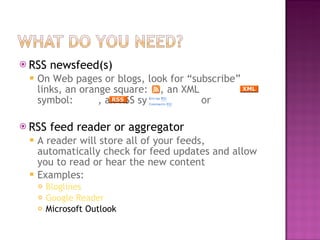
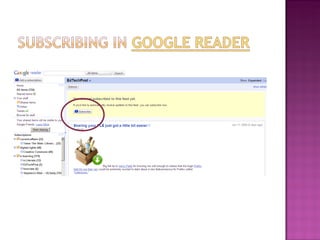
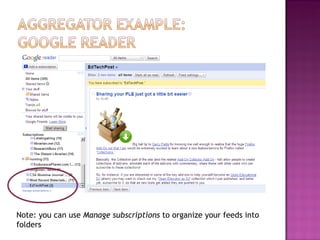
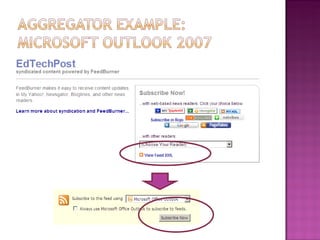
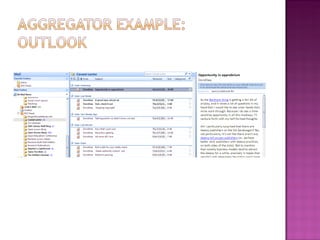
RSS newsfeed(s)  On Web pages or blogs, look for “subscribe” links, an orange square:  , an XML symbol:  , an RSS symbol:  or  RSS feed reader or aggregator A reader will store all of your feeds, automatically check for feed updates and allow you to read or hear the new content Examples: Bloglines Google Reader Microsoft Outlook
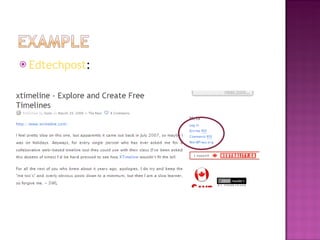
Edtechpost :
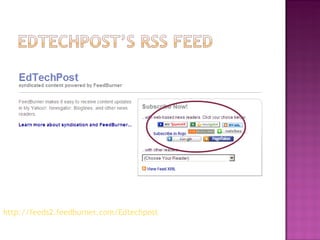
http://feeds2.feedburner.com/Edtechpost
 
Note: you can use  Manage subscriptions  to organize your feeds into folders
 
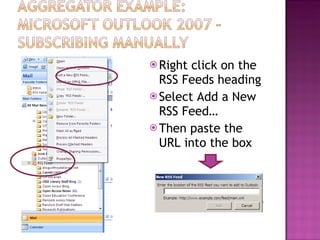
Right click on the RSS Feeds heading Select Add a New RSS Feed… Then paste the URL into the box
 
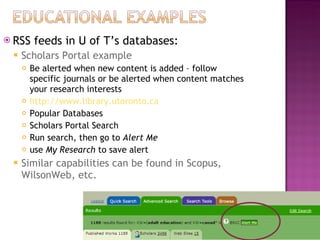
RSS feeds in U of T’s databases: Scholars Portal example Be alerted when new content is added – follow specific journals or be alerted when content matches your research interests http://www.library.utoronto.ca Popular Databases Scholars Portal Search Run search, then go to  Alert Me use  My Research  to save alert Similar capabilities can be found in Scopus, WilsonWeb, etc.
Tagging (adding keywords) websites, videos and photos, in a way that is meaningful to  you Sharing those sites and tags with others http://www.youtube.com/watch?v=x66lV7GOcNU
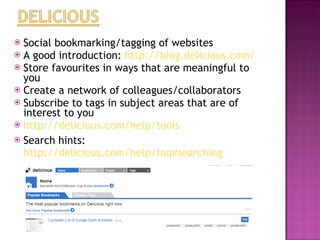
Social bookmarking/tagging of websites A good introduction:  http://blog.delicious.com/   Store favourites in ways that are meaningful to you  Create a network of colleagues/collaborators Subscribe to tags in subject areas that are of interest to you  http://delicious.com/help/tools   Search hints:  http://delicious.com/help/faq#searching
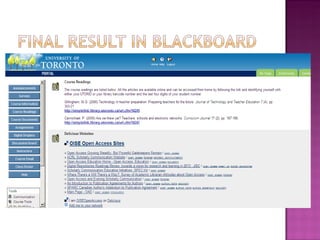
Individual/institutional tagging Researching and storing of sites:  http://delicious.com/OISEOpenAccess   Build a learning community Class chooses one tag and contributes to delicious using that tag Class members recommend sites to one another Build a class archive:  http://del.icio.us/chem130 Use for group work ‘ notes’ field in delicious allow for commentary/quality notes about sites, sharing of sites during collaborative research Use code to add list of sites or tags to Blackboard course Course readings
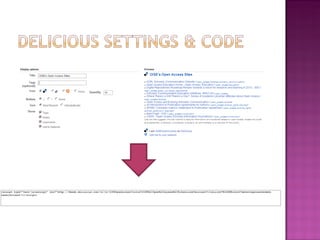
Go to: Settings – Blogging to get code so that you can display your Delicious websites or tags in Blackboard (or any other website) Link Rolls allows you display your bookmarks Tag rolls allows you to display your tags Adjust the settings to match your preferences Choose a title Choose the number of sites/tags to display Decide whether to use bullets or not Decide how to sort your content As you make these choices, code is  automatically generated for you
 
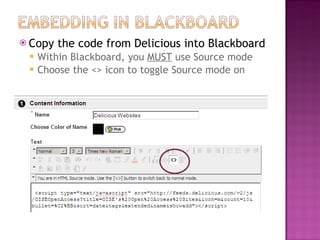
Copy the code from Delicious into Blackboard Within Blackboard, you  MUST  use Source mode Choose the <> icon to toggle Source mode on
 
Site that allows you to upload, share and tag images Find useful images Flickr works with:  fd’s flickr toys  Display images in new ways Use Flickr code so that your photos are displayed on your blog or website http://www.flickr.com/badge.gne   Follow the selections to generate the code
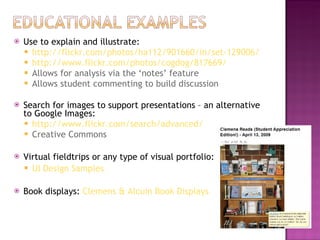
Use to explain and illustrate: http://flickr.com/photos/ha112/901660/in/set-129006/ http://www.flickr.com/photos/cogdog/817669/ Allows for analysis via the ‘notes’ feature Allows student commenting to build discussion Search for images to support presentations – an alternative to Google Images: http://www.flickr.com/search/advanced/   Creative Commons  Virtual fieldtrips or any type of visual portfolio: UI Design Samples Book displays:  Clemens & Alcuin Book Displays
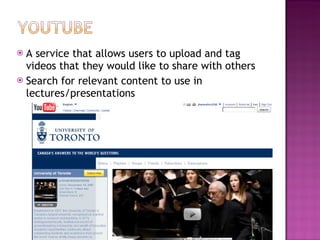
A service that allows users to upload and tag videos that they would like to share with others Search for relevant content to use in lectures/presentations
Record events/lectures, allow students to comment, provide analysis http://www.youtube.com/user/universitytoronto  http://youtube.com/ucberkeley   http://www.youtube.com/watch?v=KkMDCCdjyW8&feature=related   Tutorials : Formatting a Research Paper in APA Style:  http://www.youtube.com/watch?v=reFXrhdvnmw Information Literacy: Identify Your Sources:  http://www.youtube.com/watch?v=k-2hziLTSyU
Social Software: You Are an Access Point by Daniel Chudnov:  http://simplelink.library.utoronto.ca/url.cfm/39284   Using Del.icio.us in Education by Gabriela Grosseck:  http://www.scribd.com/doc/212002/Using-delicious-In-Education   Using Flickr in the Classroom by David Jakes:   http://www.jakesonline.org/flickrinclassroom.pdf Web2.0 & Libraries: Best Practices for Social Software by Michael Stephens:   http://main.library.utoronto.ca/webcat/goto_catalogue_url.cfm?where=ckey&what=4182726

Rcat Social Bookmarking

  • 1.
    Julie Hannaford Director,Information Resources & Services OISE, University of Toronto [email_address] Image credit to: http://www.flickr.com/photos/hermida/1603854270 http://homespace.oise.utoronto.ca/~hannafo3/RCATSocialBookmarking.pptx
  • 2.
    In a nutshell,RSS is “automated web surfing” – Dave Winer ( http://www.scripting.com/2005/09/11.html ); The content comes to you, instead of you going to it! Subscribing to an RSS feed means that you can easily track changes and additions; it’s a great way to stay current with blogs or other RSS-enabled content For a little RSS history, check here: http://en.wikipedia.org/wiki/RSS_(file_format) http://en.wikipedia.org/wiki/Web_feed
  • 3.
  • 4.
    RSS newsfeed(s) On Web pages or blogs, look for “subscribe” links, an orange square: , an XML symbol: , an RSS symbol: or RSS feed reader or aggregator A reader will store all of your feeds, automatically check for feed updates and allow you to read or hear the new content Examples: Bloglines Google Reader Microsoft Outlook
  • 5.
  • 6.
  • 7.
  • 8.
    Note: you canuse Manage subscriptions to organize your feeds into folders
  • 9.
  • 10.
    Right click onthe RSS Feeds heading Select Add a New RSS Feed… Then paste the URL into the box
  • 11.
  • 12.
    RSS feeds inU of T’s databases: Scholars Portal example Be alerted when new content is added – follow specific journals or be alerted when content matches your research interests http://www.library.utoronto.ca Popular Databases Scholars Portal Search Run search, then go to Alert Me use My Research to save alert Similar capabilities can be found in Scopus, WilsonWeb, etc.
  • 13.
    Tagging (adding keywords)websites, videos and photos, in a way that is meaningful to you Sharing those sites and tags with others http://www.youtube.com/watch?v=x66lV7GOcNU
  • 14.
    Social bookmarking/tagging ofwebsites A good introduction: http://blog.delicious.com/ Store favourites in ways that are meaningful to you Create a network of colleagues/collaborators Subscribe to tags in subject areas that are of interest to you http://delicious.com/help/tools Search hints: http://delicious.com/help/faq#searching
  • 15.
    Individual/institutional tagging Researchingand storing of sites: http://delicious.com/OISEOpenAccess Build a learning community Class chooses one tag and contributes to delicious using that tag Class members recommend sites to one another Build a class archive: http://del.icio.us/chem130 Use for group work ‘ notes’ field in delicious allow for commentary/quality notes about sites, sharing of sites during collaborative research Use code to add list of sites or tags to Blackboard course Course readings
  • 16.
    Go to: Settings– Blogging to get code so that you can display your Delicious websites or tags in Blackboard (or any other website) Link Rolls allows you display your bookmarks Tag rolls allows you to display your tags Adjust the settings to match your preferences Choose a title Choose the number of sites/tags to display Decide whether to use bullets or not Decide how to sort your content As you make these choices, code is automatically generated for you
  • 17.
  • 18.
    Copy the codefrom Delicious into Blackboard Within Blackboard, you MUST use Source mode Choose the <> icon to toggle Source mode on
  • 19.
  • 20.
    Site that allowsyou to upload, share and tag images Find useful images Flickr works with: fd’s flickr toys Display images in new ways Use Flickr code so that your photos are displayed on your blog or website http://www.flickr.com/badge.gne Follow the selections to generate the code
  • 21.
    Use to explainand illustrate: http://flickr.com/photos/ha112/901660/in/set-129006/ http://www.flickr.com/photos/cogdog/817669/ Allows for analysis via the ‘notes’ feature Allows student commenting to build discussion Search for images to support presentations – an alternative to Google Images: http://www.flickr.com/search/advanced/ Creative Commons Virtual fieldtrips or any type of visual portfolio: UI Design Samples Book displays: Clemens & Alcuin Book Displays
  • 22.
    A service thatallows users to upload and tag videos that they would like to share with others Search for relevant content to use in lectures/presentations
  • 23.
    Record events/lectures, allowstudents to comment, provide analysis http://www.youtube.com/user/universitytoronto http://youtube.com/ucberkeley http://www.youtube.com/watch?v=KkMDCCdjyW8&feature=related Tutorials : Formatting a Research Paper in APA Style: http://www.youtube.com/watch?v=reFXrhdvnmw Information Literacy: Identify Your Sources: http://www.youtube.com/watch?v=k-2hziLTSyU
  • 24.
    Social Software: YouAre an Access Point by Daniel Chudnov: http://simplelink.library.utoronto.ca/url.cfm/39284 Using Del.icio.us in Education by Gabriela Grosseck: http://www.scribd.com/doc/212002/Using-delicious-In-Education Using Flickr in the Classroom by David Jakes: http://www.jakesonline.org/flickrinclassroom.pdf Web2.0 & Libraries: Best Practices for Social Software by Michael Stephens: http://main.library.utoronto.ca/webcat/goto_catalogue_url.cfm?where=ckey&what=4182726