Using Rational Publishing Engine to publish documents from Rational System Architect Dan Ani  Reporting Arena Team Leader www.reportingarena.com
About the author Reporting Arena is part of Global E-Business Solution Group, an IBM Business Partner that became IBM Software Services Business Partner for Rational Tools in 2010. Reporting Arena is formed by a large part of the team that developed IBM Rational Publishing Engine, team that also developed and maintained Telelogic DocExpress.   The team has been active in the document generation world for the past 8 years gathering invaluable expertise in the real-world document generation needs.
Services At Reporting Arena, we specialize in providing enterprise-grade services for publishing needs, by setting up a correct documentation process and adopt it to your organization specific needs. Template Design and Optimization With many years of first-hand experience in the document generation world, including the development of Rational Publishing Engine, and long exposure to many data source repositories and real-world documentation needs  we are in a good position to handle complex scenarios including the creation of cross-products documents. Custom Solutions Rational Publishing Engine is a great solution for document generation needs but there are tasks that require additional capabilities that might not be immediately available in RPE. We provide custom solutions that enable Rational Publishing Engine to fully meet your requirements.   Migration from other document generation technologies Rational Publishing Engine supersedes IBM Rational SoDA and IBM Telelogic DocExpress. Reusing the SoDA and DocExpress templates will not only prevent from wasting the resources spend to create these assets but will also reduce the time needed to create and validate matching RPE assets.
Introduction This tutorial will show how to publish documents from  Rational System Architect  (SA). Specifically, we’ll walk though the steps needed to obtain the SA schema and to view the SA data that we can obtain. Also we’ll create a template in Rational Publishing Engine Document Studio, starting from the schema file we got from SA. Using this schema we’ll design a template from scratch, to obtain the desired output.
Prerequisites Rational Publishing Engine 1.1.1.1 or later Rational System Architect 11.3.1.2 or later Microsoft Word 2003/2007 (to visualize the output document) Basic knowledge of Rational Publishing Engine Basic knowledge of Rational System Architect
Use Case 1/3 Output Document Description The goal of this tutorial is to produce an output document having the following structure: Heading containing the  Identifier  and  Name  of each  Method Below the Heading, display the  Name  of the  Class  to which a certain  Method  belongs to Below the  Class Name , list the  Name  of each of the  Class Attributes  Such structure should repeat for each  Method Since the  main focus on this tutorial is to point out the main steps needed in working with Rational System Architect, other secondary template constructs such as styling will be kept to a minimum.
Use Case 2/3 To obtain the desired structure in the output document, the following steps must be taken: 1. Obtain the System Architect .xsd schema The Data Source Schema will be generated using the  System Architect Report Server  Manager. 2. Browse the System Architect data Browse the System Architect data to determine if the data source requires authentication, and to familiarize with the data structure. 3.Add a REST Data Source Schema Add a REST Data Source Schema to extract information about SA Methods resources using the previously generated .xsd schema file. 4. Add Template Elements Create template elements to display the attributes of the SA resources of type Method. 5. Configure the Data Source in Launcher Configure Document Specification to extract the desired data.
Use Case 3/3 6. Add a second Data Source Schema Add a second REST Data Source Schema that will be used to extract data for the SA resources of type Class using the previously generated .xsd schema file.  7. Add a Dynamic Data Source element Create and use a Dynamic Data Source element to instruct RPE to navigate to a Class resource for each Method and to retrieve the Class details. 8. Use the  Classes  Data Source Create template elements to display the attributes of the SA resources of type Class. 9. Publish the final document Publish the template to obtain the final document.
Desired Output Document Identifier  –  Method Name To be styled as  Heading 1 Class Name Attributes of the class List of attributes names Methods Methods Document will contain details for multiple  Method  elements
Checkpoint Obtaining the SA .xsd schema Browsing the SA data Designing the RPE template Adding a REST Data Source Schema Adding Template Elements Configuring the Data Source in Launcher Intermediary output Adding another Data Source Schema Adding a Dynamic Data Source element Using the  Classes  Data Source Schema Annotation in Document Studio Publishing the final document
Obtaining the SA schema (1/2) The first requirement for this tutorial is to run System Architect. Note that on Windows Vista and later, SA needs admin privileges, otherwise the system may block attempts to start the REST server. Once the SA has started, open an encyclopedia and go to the  Reports  >  Report Server Manager…  menu entry. In the dialog that appears, click on the  Start Service  button.
Obtaining the SA schema (2/2) The  Service  mentioned in the  System Architect Report Server  Manager dialog refers to the SA REST server To obtain the .xsd schema files (Encyclopedia meta model): Start the server Select the correct  Server name Select the desired encyclopedia Fill the  Encyclopedia meta model  field with a valid entry Click on the  Generate  button to create a .xsd file in the specified location
Checkpoint Obtaining the SA .xsd schema Browsing the SA data Designing the RPE template Adding a REST Data Source Schema Adding Template Elements Configuring the Data Source in Launcher Intermediary output Adding another Data Source Schema Adding a Dynamic Data Source element Using the  Classes  Data Source Schema Annotation in Document Studio Publishing the final document
Browsing the SA data (1/2) A best practice when publishing reports from REST data sources is to first navigate it in a browser Allows users to determine if the data source requires authentication, it familiarizes them with the data structure and the entry point needed for later configuration Simple way of navigating through the SA REST data: put this address in a browser:  http://localhost:8889/SARest/SQL Doesn’t end with a trailing slash (/), this would make the resource unavailable If prompted for authentication, use the system/domain authentication, or the credentials used to access the SA database
Browsing the SA data (2/2) Opening the address shown for the PERSEUS\SYSARCH server reveals the list of encyclopedias available Drilling down the hierarchy of resources can expose various levels of details For example, a list of  Method  resources is available at the address:  http://localhost:8889/SARest/SQL/PERSEUS+SYSARCH/Samples/1/Definitions/Method
Checkpoint Obtaining the SA .xsd schema Browsing the SA data Designing the RPE template Adding a REST Data Source Schema Adding Template Elements Configuring the Data Source in Launcher Intermediary output Adding another Data Source Schema Adding a Dynamic Data Source element Using the  Classes  Data Source Schema Annotation in Document Studio Publishing the final document
Designing the RPE template Adding a REST Data Source Schema (1/2) We can start designing the RPE template, considering that we now have: The  Samples.xsd  schema file Knowledge of how data is structured in the response from the SA REST server Create new template in Document Studio Add a Data Source Schema called  Methods , from the  Samples.xsd  schema file: Start the  Add Data Source Schema  wizard from the  Data  >  Add Data Source Schema…  menu. Ensure the schema type is set to  REST .
Designing the RPE template  Adding a REST Data Source Schema (2/2) Once the  Add data source  wizard is complete, a new Data Source Schema is shown in the template On the lower left side you can browse for the desired artifact: Encyclopedia -> Definitions -> Method
Designing the RPE template Adding Template Elements We’ll create a  Paragraph  for each method and display the identifier and the name, each in a  Text  element From the  Methods  data source schema: drag and drop the  Encyclopedia/Definitions/Method  query on the  Paragraph  element drag and drop the  Identity  and  Name  attributes into separate  Text  template elements Set  Heading Style 1  for the  Paragraph  element In this raw form, the template is valid and can be used to publish a document listing the method identifier and name. For publishing such document, it needs to be associated to a document specification, and it needs to be configured.
Designing the RPE template Configuring the Data Source in Launcher Saving the template will ensure it is appended to a new document specification, which can be explored by switching to the  Launcher  perspective All that should be done now is to configure the REST data source in the RPE Launcher, using the URL:  http://localhost:8889/SARest/SQL/PERSEUS+SYSARCH/Samples/1/Definitions/Method
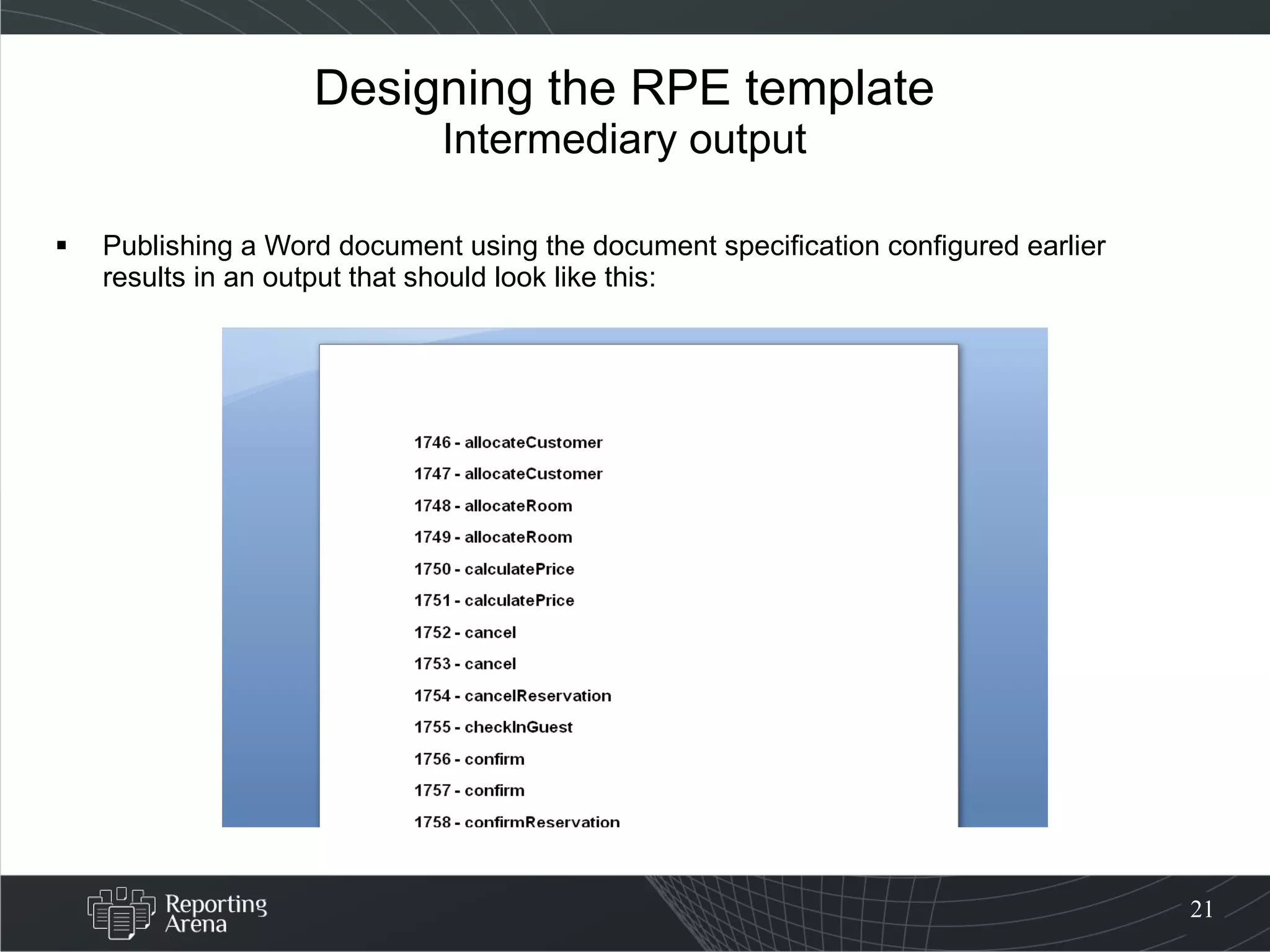
Designing the RPE template Intermediary output Publishing a Word document using the document specification configured earlier results in an output that should look like this:
Designing the RPE template Adding another Data Source Schema We’ll need another Data Source Schema in the template, to use it with a  Data Source Configuration  element (dynamic data source) Add the same  Samples.xsd  schema file to the template again: Create another Data Source Schema called  Classes Use the exact same schema file Ensure the type is  Generic XML After finishing the  Add Data Source  wizard, the template will contain two Data Source Schemas: Methods Classes
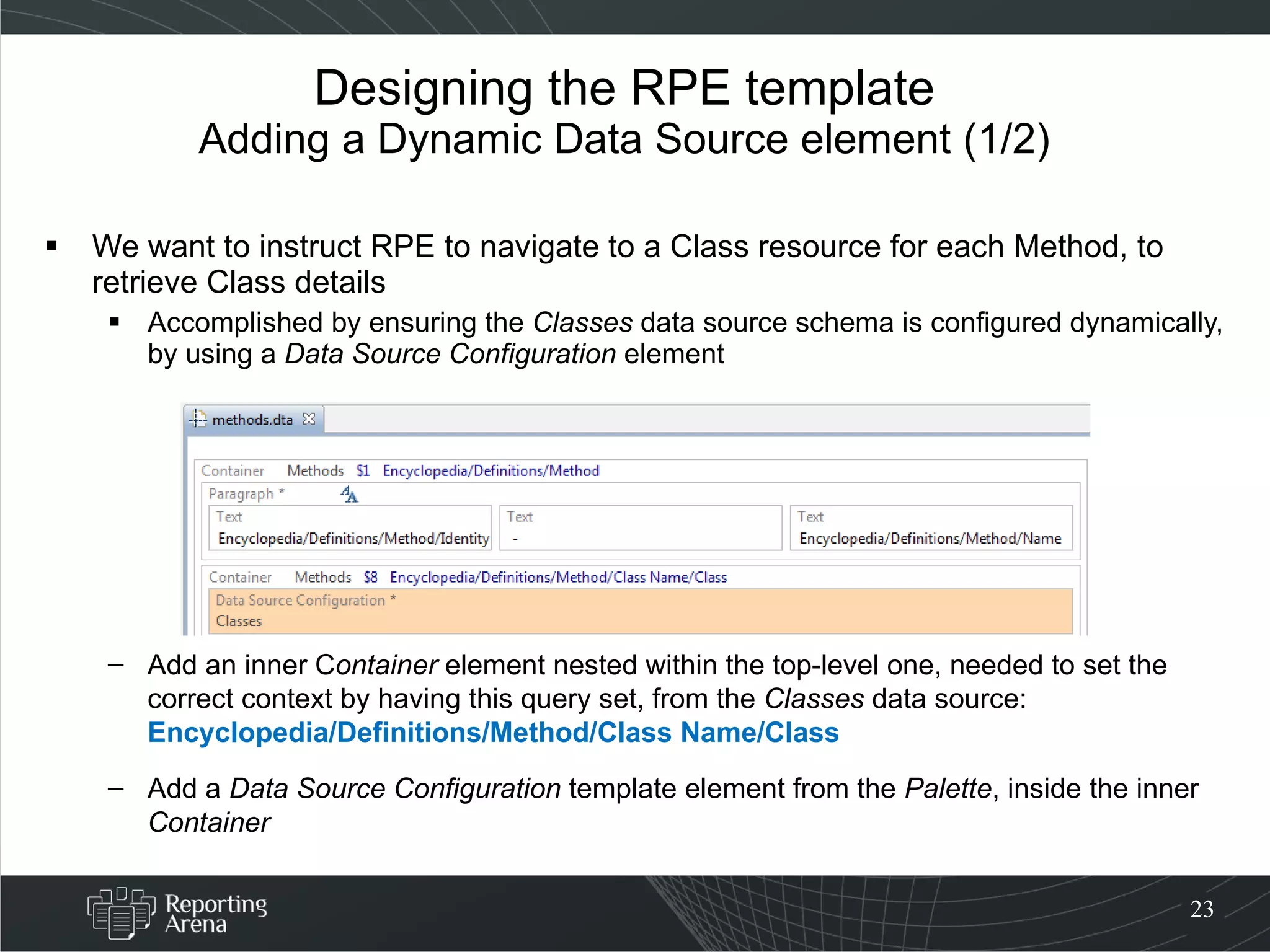
Designing the RPE template Adding a Dynamic Data Source element (1/2) We want to instruct RPE to navigate to a Class resource for each Method, to retrieve Class details Accomplished by ensuring the  Classes  data source schema is configured dynamically, by using a  Data Source Configuration  element Add an inner C ontainer  element nested within the top-level one, needed to set the correct context by having this query set, from the  Classes  data source:  Encyclopedia/Definitions/Method/Class Name/Class Add a  Data Source Configuration  template element from the  Palette , inside the inner  Container
Designing the RPE template Adding a Dynamic Data Source element (2/2) Properties to set for the  Data Source Configuration  element: target data source :  Classes URI :  Encyclopedia/Definitions/Method/prp_Class-spa-Name/Class/href This property is set as a Data Expression, using the context of the query set for the inner  Container  element we have just created.
Designing the RPE template  Using the  Classes  Data Source Add a  Paragraph  (CLASS NAME), containing   two  Text  elements: In the first  Text  element set the static content “ Class Name:  ” In the second  Text  element set the Data Expression:  Encyclopedia/Definitions/Method/prp_Class-spa-Name/Class/Name Add a  Paragraph  (ATTRIBUTES) below, containing: A  Text  element, having the static content: “ Class Attributes:  ” A  List  element with one  List-detail: Set the following query for the List-detail element:  Encyclopedia/Definitions/Class/prp_Attributes/Class-spa-Attribute The  List-detail  element should contain an inner  Text  element (NAME AS TEXT) for displaying the name of the attribute:  Encyclopedia/Definitions/Class/prp_Attributes/Class-spa-Attribute/Name
Checkpoint Obtaining the SA .xsd schema Browsing the SA data Designing the RPE template Adding a REST Data Source Schema Adding Template Elements Configuring the Data Source in Launcher Intermediary output Adding another Data Source Schema Adding a Dynamic Data Source element Using the  Classes  Data Source Schema Annotation in Document Studio Publishing the final document
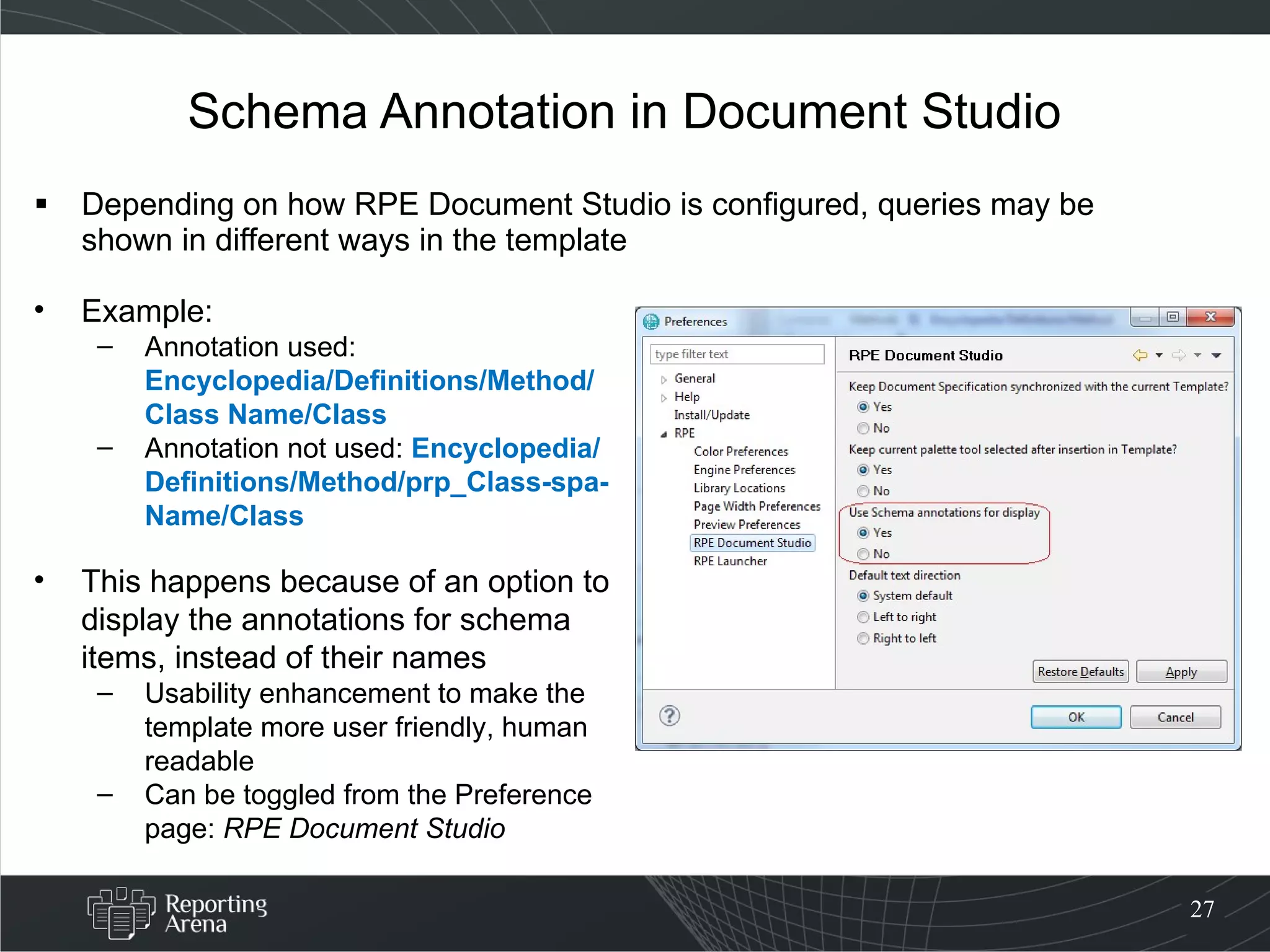
Schema Annotation in Document Studio Depending on how RPE Document Studio is configured, queries may be shown in different ways in the template Example: Annotation used:  Encyclopedia/Definitions/Method/Class Name/Class Annotation not used:  Encyclopedia/Definitions/Method/prp_Class-spa-Name/Class This happens because of an option to display the annotations for schema items, instead of their names Usability enhancement to make the template more user friendly, human readable Can be toggled from the Preference page:  RPE Document Studio
Checkpoint Obtaining the SA .xsd schema Browsing the SA data Designing the RPE template Adding a REST Data Source Schema Adding Template Elements Configuring the Data Source in Launcher Intermediary output Adding another Data Source Schema Adding a Dynamic Data Source element Using the  Classes  Data Source Schema Annotation in Document Studio Publishing the final document
Publishing the final document Since the template is already referenced from a document specification and it has been configured earlier, we can now publish this template.
More Information RPE Online Help http://publib.boulder.ibm.com/infocenter/rsdp/v1r0m0/index.jsp?topic=/com.ibm.help.download.tpe.doc/topics/publishingengine_version1_1.html RPE Developer Works Forum http:// www.ibm.com/developerworks/forums/forum.jspa?forumID =1512 RPE Community Wiki http:// www.ibm.com/developerworks/wikis/display/rpe/Home Rational System Architect http://www-947.ibm.com/support/entry/portal/ Overview/Software/Rational/ Rational_DOORS
Media Channels Reporting Arena on YouTube http://www.youtube.com/ReportingArena Reporting Arena on Twitter http://www.twitter.com/ReportingArena Reporting Arena on Facebook http://www.facebook.com/Reporting-Arena Reporting Arena on LinkedIn http:// www.ibm.com/developerworks/wikis/display/rpe/Home

Rational Publishing Engine and Rational System Architect

  • 1.
    Using Rational PublishingEngine to publish documents from Rational System Architect Dan Ani Reporting Arena Team Leader www.reportingarena.com
  • 2.
    About the authorReporting Arena is part of Global E-Business Solution Group, an IBM Business Partner that became IBM Software Services Business Partner for Rational Tools in 2010. Reporting Arena is formed by a large part of the team that developed IBM Rational Publishing Engine, team that also developed and maintained Telelogic DocExpress. The team has been active in the document generation world for the past 8 years gathering invaluable expertise in the real-world document generation needs.
  • 3.
    Services At ReportingArena, we specialize in providing enterprise-grade services for publishing needs, by setting up a correct documentation process and adopt it to your organization specific needs. Template Design and Optimization With many years of first-hand experience in the document generation world, including the development of Rational Publishing Engine, and long exposure to many data source repositories and real-world documentation needs we are in a good position to handle complex scenarios including the creation of cross-products documents. Custom Solutions Rational Publishing Engine is a great solution for document generation needs but there are tasks that require additional capabilities that might not be immediately available in RPE. We provide custom solutions that enable Rational Publishing Engine to fully meet your requirements. Migration from other document generation technologies Rational Publishing Engine supersedes IBM Rational SoDA and IBM Telelogic DocExpress. Reusing the SoDA and DocExpress templates will not only prevent from wasting the resources spend to create these assets but will also reduce the time needed to create and validate matching RPE assets.
  • 4.
    Introduction This tutorialwill show how to publish documents from Rational System Architect (SA). Specifically, we’ll walk though the steps needed to obtain the SA schema and to view the SA data that we can obtain. Also we’ll create a template in Rational Publishing Engine Document Studio, starting from the schema file we got from SA. Using this schema we’ll design a template from scratch, to obtain the desired output.
  • 5.
    Prerequisites Rational PublishingEngine 1.1.1.1 or later Rational System Architect 11.3.1.2 or later Microsoft Word 2003/2007 (to visualize the output document) Basic knowledge of Rational Publishing Engine Basic knowledge of Rational System Architect
  • 6.
    Use Case 1/3Output Document Description The goal of this tutorial is to produce an output document having the following structure: Heading containing the Identifier and Name of each Method Below the Heading, display the Name of the Class to which a certain Method belongs to Below the Class Name , list the Name of each of the Class Attributes Such structure should repeat for each Method Since the main focus on this tutorial is to point out the main steps needed in working with Rational System Architect, other secondary template constructs such as styling will be kept to a minimum.
  • 7.
    Use Case 2/3To obtain the desired structure in the output document, the following steps must be taken: 1. Obtain the System Architect .xsd schema The Data Source Schema will be generated using the System Architect Report Server Manager. 2. Browse the System Architect data Browse the System Architect data to determine if the data source requires authentication, and to familiarize with the data structure. 3.Add a REST Data Source Schema Add a REST Data Source Schema to extract information about SA Methods resources using the previously generated .xsd schema file. 4. Add Template Elements Create template elements to display the attributes of the SA resources of type Method. 5. Configure the Data Source in Launcher Configure Document Specification to extract the desired data.
  • 8.
    Use Case 3/36. Add a second Data Source Schema Add a second REST Data Source Schema that will be used to extract data for the SA resources of type Class using the previously generated .xsd schema file. 7. Add a Dynamic Data Source element Create and use a Dynamic Data Source element to instruct RPE to navigate to a Class resource for each Method and to retrieve the Class details. 8. Use the Classes Data Source Create template elements to display the attributes of the SA resources of type Class. 9. Publish the final document Publish the template to obtain the final document.
  • 9.
    Desired Output DocumentIdentifier – Method Name To be styled as Heading 1 Class Name Attributes of the class List of attributes names Methods Methods Document will contain details for multiple Method elements
  • 10.
    Checkpoint Obtaining theSA .xsd schema Browsing the SA data Designing the RPE template Adding a REST Data Source Schema Adding Template Elements Configuring the Data Source in Launcher Intermediary output Adding another Data Source Schema Adding a Dynamic Data Source element Using the Classes Data Source Schema Annotation in Document Studio Publishing the final document
  • 11.
    Obtaining the SAschema (1/2) The first requirement for this tutorial is to run System Architect. Note that on Windows Vista and later, SA needs admin privileges, otherwise the system may block attempts to start the REST server. Once the SA has started, open an encyclopedia and go to the Reports > Report Server Manager… menu entry. In the dialog that appears, click on the Start Service button.
  • 12.
    Obtaining the SAschema (2/2) The Service mentioned in the System Architect Report Server Manager dialog refers to the SA REST server To obtain the .xsd schema files (Encyclopedia meta model): Start the server Select the correct Server name Select the desired encyclopedia Fill the Encyclopedia meta model field with a valid entry Click on the Generate button to create a .xsd file in the specified location
  • 13.
    Checkpoint Obtaining theSA .xsd schema Browsing the SA data Designing the RPE template Adding a REST Data Source Schema Adding Template Elements Configuring the Data Source in Launcher Intermediary output Adding another Data Source Schema Adding a Dynamic Data Source element Using the Classes Data Source Schema Annotation in Document Studio Publishing the final document
  • 14.
    Browsing the SAdata (1/2) A best practice when publishing reports from REST data sources is to first navigate it in a browser Allows users to determine if the data source requires authentication, it familiarizes them with the data structure and the entry point needed for later configuration Simple way of navigating through the SA REST data: put this address in a browser:  http://localhost:8889/SARest/SQL Doesn’t end with a trailing slash (/), this would make the resource unavailable If prompted for authentication, use the system/domain authentication, or the credentials used to access the SA database
  • 15.
    Browsing the SAdata (2/2) Opening the address shown for the PERSEUS\SYSARCH server reveals the list of encyclopedias available Drilling down the hierarchy of resources can expose various levels of details For example, a list of Method resources is available at the address: http://localhost:8889/SARest/SQL/PERSEUS+SYSARCH/Samples/1/Definitions/Method
  • 16.
    Checkpoint Obtaining theSA .xsd schema Browsing the SA data Designing the RPE template Adding a REST Data Source Schema Adding Template Elements Configuring the Data Source in Launcher Intermediary output Adding another Data Source Schema Adding a Dynamic Data Source element Using the Classes Data Source Schema Annotation in Document Studio Publishing the final document
  • 17.
    Designing the RPEtemplate Adding a REST Data Source Schema (1/2) We can start designing the RPE template, considering that we now have: The Samples.xsd schema file Knowledge of how data is structured in the response from the SA REST server Create new template in Document Studio Add a Data Source Schema called Methods , from the Samples.xsd schema file: Start the Add Data Source Schema wizard from the Data > Add Data Source Schema… menu. Ensure the schema type is set to REST .
  • 18.
    Designing the RPEtemplate Adding a REST Data Source Schema (2/2) Once the Add data source wizard is complete, a new Data Source Schema is shown in the template On the lower left side you can browse for the desired artifact: Encyclopedia -> Definitions -> Method
  • 19.
    Designing the RPEtemplate Adding Template Elements We’ll create a Paragraph for each method and display the identifier and the name, each in a Text element From the Methods data source schema: drag and drop the Encyclopedia/Definitions/Method query on the Paragraph element drag and drop the Identity and Name attributes into separate Text template elements Set Heading Style 1 for the Paragraph element In this raw form, the template is valid and can be used to publish a document listing the method identifier and name. For publishing such document, it needs to be associated to a document specification, and it needs to be configured.
  • 20.
    Designing the RPEtemplate Configuring the Data Source in Launcher Saving the template will ensure it is appended to a new document specification, which can be explored by switching to the Launcher perspective All that should be done now is to configure the REST data source in the RPE Launcher, using the URL: http://localhost:8889/SARest/SQL/PERSEUS+SYSARCH/Samples/1/Definitions/Method
  • 21.
    Designing the RPEtemplate Intermediary output Publishing a Word document using the document specification configured earlier results in an output that should look like this:
  • 22.
    Designing the RPEtemplate Adding another Data Source Schema We’ll need another Data Source Schema in the template, to use it with a Data Source Configuration element (dynamic data source) Add the same Samples.xsd schema file to the template again: Create another Data Source Schema called Classes Use the exact same schema file Ensure the type is Generic XML After finishing the Add Data Source wizard, the template will contain two Data Source Schemas: Methods Classes
  • 23.
    Designing the RPEtemplate Adding a Dynamic Data Source element (1/2) We want to instruct RPE to navigate to a Class resource for each Method, to retrieve Class details Accomplished by ensuring the Classes data source schema is configured dynamically, by using a Data Source Configuration element Add an inner C ontainer element nested within the top-level one, needed to set the correct context by having this query set, from the Classes data source: Encyclopedia/Definitions/Method/Class Name/Class Add a Data Source Configuration template element from the Palette , inside the inner Container
  • 24.
    Designing the RPEtemplate Adding a Dynamic Data Source element (2/2) Properties to set for the Data Source Configuration element: target data source : Classes URI : Encyclopedia/Definitions/Method/prp_Class-spa-Name/Class/href This property is set as a Data Expression, using the context of the query set for the inner Container element we have just created.
  • 25.
    Designing the RPEtemplate Using the Classes Data Source Add a Paragraph (CLASS NAME), containing two Text elements: In the first Text element set the static content “ Class Name: ” In the second Text element set the Data Expression: Encyclopedia/Definitions/Method/prp_Class-spa-Name/Class/Name Add a Paragraph (ATTRIBUTES) below, containing: A Text element, having the static content: “ Class Attributes: ” A List element with one List-detail: Set the following query for the List-detail element: Encyclopedia/Definitions/Class/prp_Attributes/Class-spa-Attribute The List-detail element should contain an inner Text element (NAME AS TEXT) for displaying the name of the attribute: Encyclopedia/Definitions/Class/prp_Attributes/Class-spa-Attribute/Name
  • 26.
    Checkpoint Obtaining theSA .xsd schema Browsing the SA data Designing the RPE template Adding a REST Data Source Schema Adding Template Elements Configuring the Data Source in Launcher Intermediary output Adding another Data Source Schema Adding a Dynamic Data Source element Using the Classes Data Source Schema Annotation in Document Studio Publishing the final document
  • 27.
    Schema Annotation inDocument Studio Depending on how RPE Document Studio is configured, queries may be shown in different ways in the template Example: Annotation used: Encyclopedia/Definitions/Method/Class Name/Class Annotation not used: Encyclopedia/Definitions/Method/prp_Class-spa-Name/Class This happens because of an option to display the annotations for schema items, instead of their names Usability enhancement to make the template more user friendly, human readable Can be toggled from the Preference page: RPE Document Studio
  • 28.
    Checkpoint Obtaining theSA .xsd schema Browsing the SA data Designing the RPE template Adding a REST Data Source Schema Adding Template Elements Configuring the Data Source in Launcher Intermediary output Adding another Data Source Schema Adding a Dynamic Data Source element Using the Classes Data Source Schema Annotation in Document Studio Publishing the final document
  • 29.
    Publishing the finaldocument Since the template is already referenced from a document specification and it has been configured earlier, we can now publish this template.
  • 30.
    More Information RPEOnline Help http://publib.boulder.ibm.com/infocenter/rsdp/v1r0m0/index.jsp?topic=/com.ibm.help.download.tpe.doc/topics/publishingengine_version1_1.html RPE Developer Works Forum http:// www.ibm.com/developerworks/forums/forum.jspa?forumID =1512 RPE Community Wiki http:// www.ibm.com/developerworks/wikis/display/rpe/Home Rational System Architect http://www-947.ibm.com/support/entry/portal/ Overview/Software/Rational/ Rational_DOORS
  • 31.
    Media Channels ReportingArena on YouTube http://www.youtube.com/ReportingArena Reporting Arena on Twitter http://www.twitter.com/ReportingArena Reporting Arena on Facebook http://www.facebook.com/Reporting-Arena Reporting Arena on LinkedIn http:// www.ibm.com/developerworks/wikis/display/rpe/Home