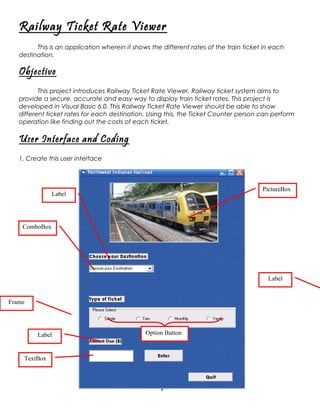
Railway Ticket Rate Viewer
This is an application wherein it shows the different rates of the train ticket in each
destination.

Objective
This project introduces Railway Ticket Rate Viewer. Railway ticket system aims to
provide a secure, accurate and easy way to display train ticket rates. This project is
developed in Visual Basic 6.0. This Railway Ticket Rate Viewer should be able to show
different ticket rates for each destination. Using this, the Ticket Counter person can perform
operation like finding out the costs of each ticket.

User Interface and Coding
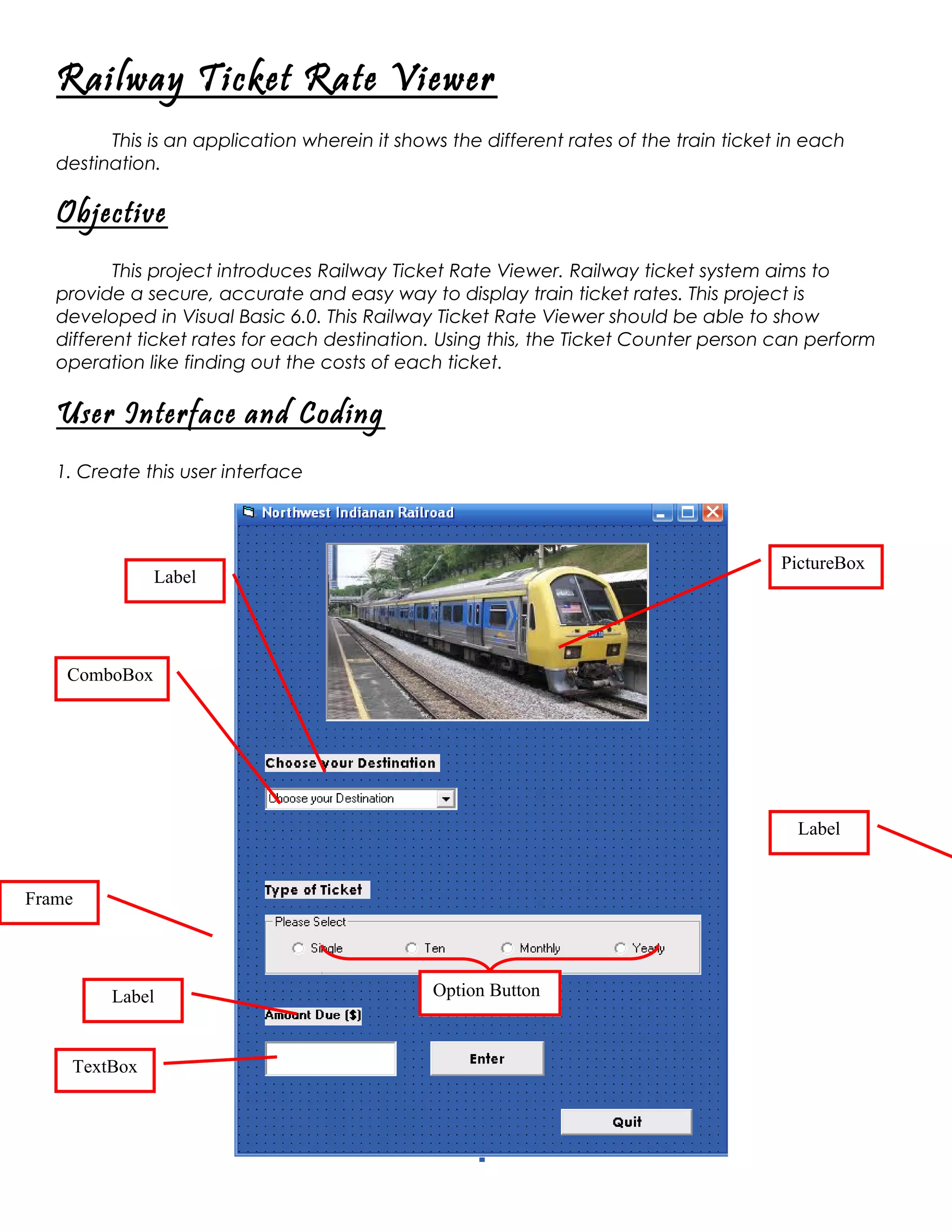
1. Create this user interface

PictureBox

Label

ComboBox

Label

Frame

Label

TextBox

Option Button
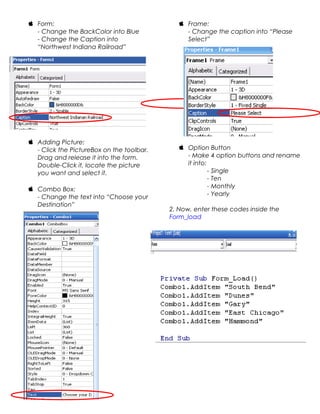
 Form:
- Change the BackColor into Blue
- Change the Caption into
“Northwest Indiana Railroad”

 Adding Picture:
- Click the PictureBox on the toolbar.
Drag and release it into the form.
Double-Click it, locate the picture
you want and select it.
 Combo Box:
- Change the text into “Choose your
Destination”

 Frame:
- Change the caption into “Please
Select”

 Option Button
- Make 4 option buttons and rename
it into:
- Single
- Ten
- Monthly
- Yearly
2. Now, enter these codes inside the
Form_load
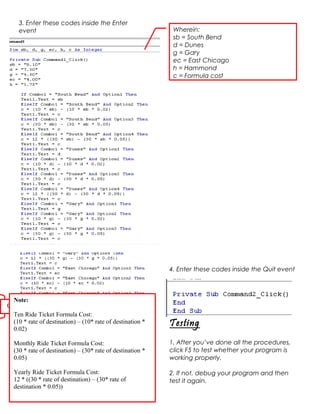
3. Enter these codes inside the Enter
event

Wherein:
sb = South Bend
d = Dunes
g = Gary
ec = East Chicago
h = Hammond
c = Formula cost

4. Enter these codes inside the Quit event

Note:
Constants
Ten Ride Ticket Formula Cost:
(10 * rate of destination) – (10* rate of destination *
0.02)

Testing

Monthly Ride Ticket Formula Cost:
(30 * rate of destination) – (30* rate of destination *
0.05)

1. After you’ve done all the procedures,
click F5 to test whether your program is
working properly.

Yearly Ride Ticket Formula Cost:
12 * ((30 * rate of destination) – (30* rate of
destination * 0.05))

2. If not, debug your program and then
test it again.
Saving as an .EXE file
1. Create a new folder in the Desktop
wherein you can save your program.
2. To save the program as an .EXE file
(executable) from the menu bar, click File
then choose MakeProject1.exe
3. Name your executable file as "Railway
Ticket Rate Viewer" then save it to the new
folder you created a while ago.

Railway ticket Simple Program

  • 1.
    Railway Ticket RateViewer This is an application wherein it shows the different rates of the train ticket in each destination. Objective This project introduces Railway Ticket Rate Viewer. Railway ticket system aims to provide a secure, accurate and easy way to display train ticket rates. This project is developed in Visual Basic 6.0. This Railway Ticket Rate Viewer should be able to show different ticket rates for each destination. Using this, the Ticket Counter person can perform operation like finding out the costs of each ticket. User Interface and Coding 1. Create this user interface PictureBox Label ComboBox Label Frame Label TextBox Option Button
  • 2.
     Form: - Changethe BackColor into Blue - Change the Caption into “Northwest Indiana Railroad”  Adding Picture: - Click the PictureBox on the toolbar. Drag and release it into the form. Double-Click it, locate the picture you want and select it.  Combo Box: - Change the text into “Choose your Destination”  Frame: - Change the caption into “Please Select”  Option Button - Make 4 option buttons and rename it into: - Single - Ten - Monthly - Yearly 2. Now, enter these codes inside the Form_load
  • 3.
    3. Enter thesecodes inside the Enter event Wherein: sb = South Bend d = Dunes g = Gary ec = East Chicago h = Hammond c = Formula cost 4. Enter these codes inside the Quit event Note: Constants Ten Ride Ticket Formula Cost: (10 * rate of destination) – (10* rate of destination * 0.02) Testing Monthly Ride Ticket Formula Cost: (30 * rate of destination) – (30* rate of destination * 0.05) 1. After you’ve done all the procedures, click F5 to test whether your program is working properly. Yearly Ride Ticket Formula Cost: 12 * ((30 * rate of destination) – (30* rate of destination * 0.05)) 2. If not, debug your program and then test it again.
  • 4.
    Saving as an.EXE file 1. Create a new folder in the Desktop wherein you can save your program. 2. To save the program as an .EXE file (executable) from the menu bar, click File then choose MakeProject1.exe 3. Name your executable file as "Railway Ticket Rate Viewer" then save it to the new folder you created a while ago.