Proportion keeps images looking
true to life
This image has 2 layers
1 layer mask
and 2 fx on the top layer
Image Size
• Image size is measured in pixel dimensions
• Image size is measured in document size
• Image size has a resolution that is measured in pixels per inch
• As the designer it is your job to make sure that your images
are proportionally correct
• An image that is proportionally incorrect will appear distorted
• An image that is low resolution will contain artifacting
• Artifacting is a degraded image that is distorted and out of
focus or even pixilated
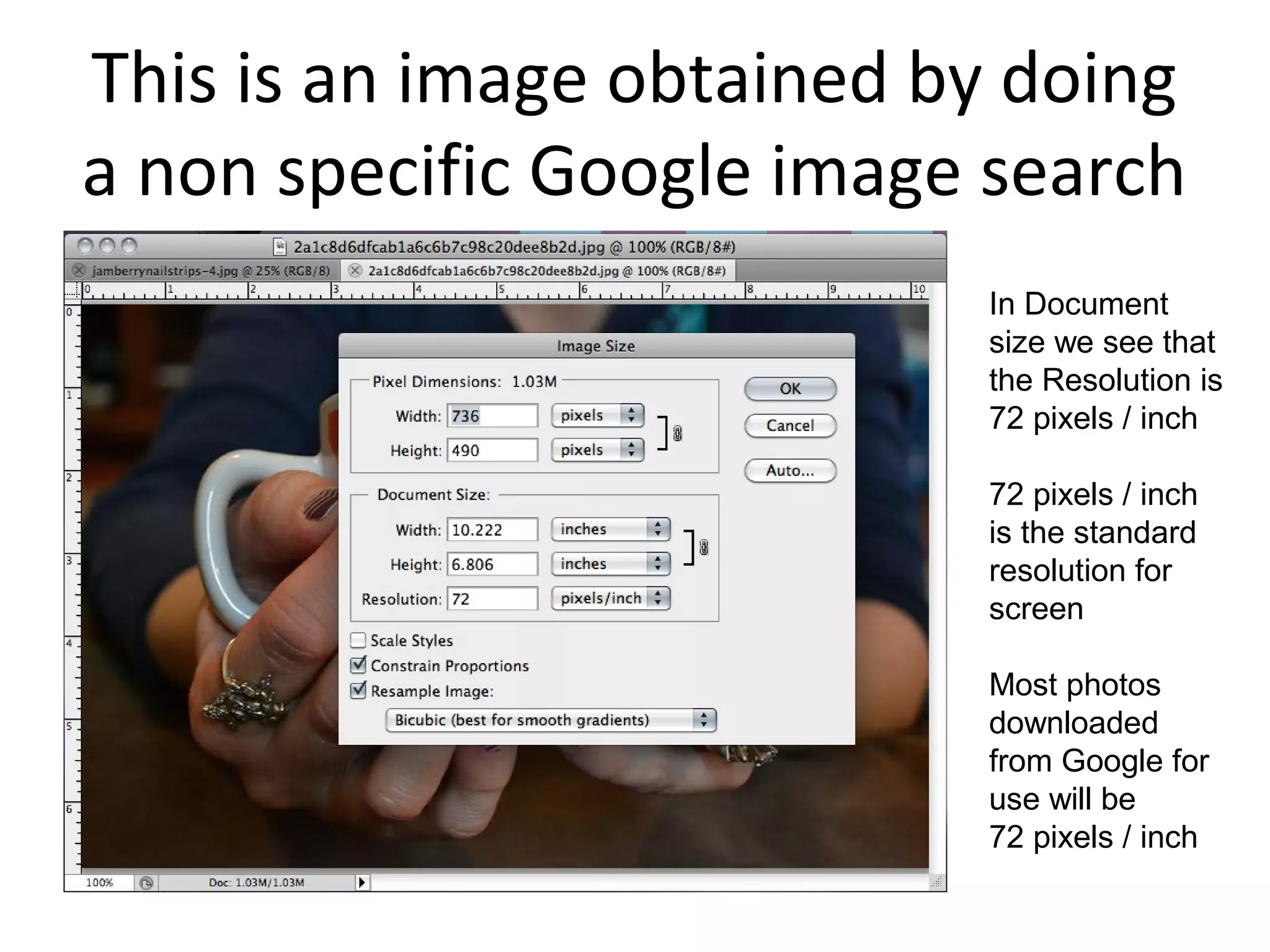
This is an image obtained by doing
a non specific Google image search
In Document
size we see that
the Resolution is
72 pixels / inch
72 pixels / inch
is the standard
resolution for
screen
Most photos
downloaded
from Google for
use will be
72 pixels / inch
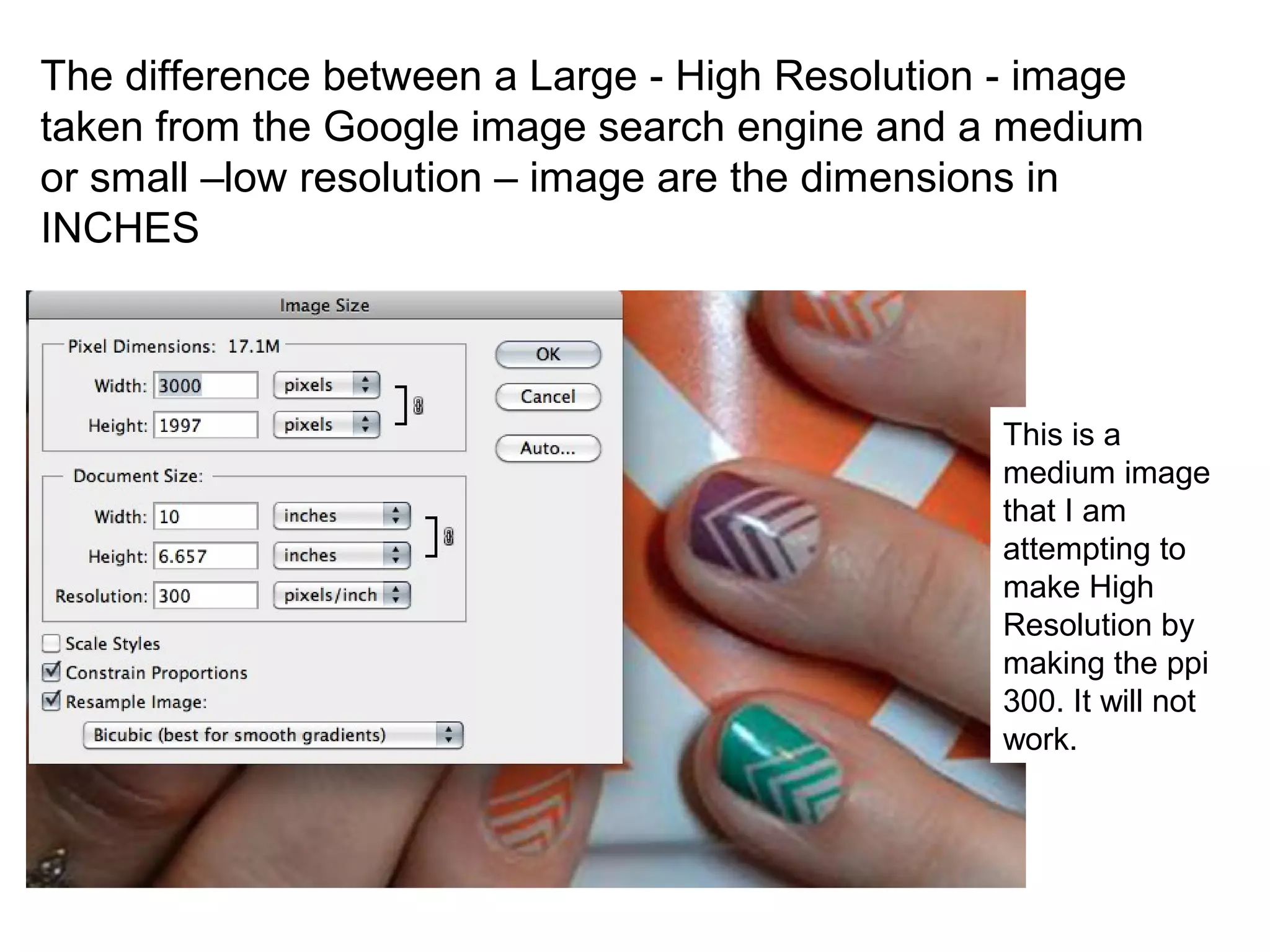
The difference between a Large - High Resolution - image
taken from the Google image search engine and a medium
or small –low resolution – image are the dimensions in
INCHES
This is a
medium image
that I am
attempting to
make High
Resolution by
making the ppi
300. It will not
work.
It is clear that the quality of this image was not maintained as I prepared
it for my Print project. It is fuzzy, distorted and obviously shows that I
really have no idea what I am doing. I’m fired.
•This image was downloaded from the Google search engine using the
search tool  Size  Large
• Size  Large will usually filter the search to images that are literally bigger
As you can see,
This image is:
W = 27.681
H = 27.681
This image is huge
and square
The Resolution is
still 72 pixels / inch
The common
resolution for
images intended
for screen display
I have to edit this
image so it will
work for Print
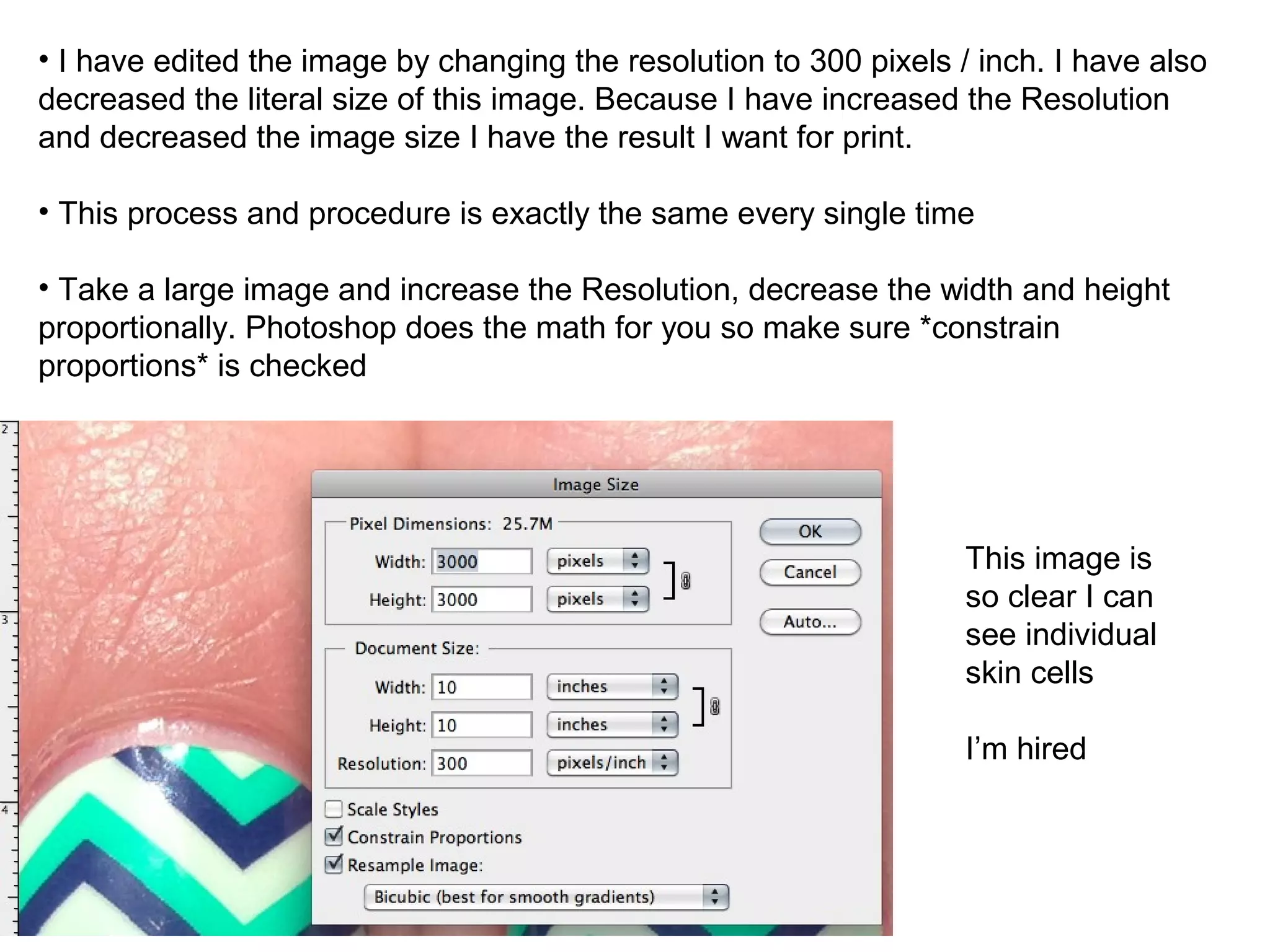
• I have edited the image by changing the resolution to 300 pixels / inch. I have also
decreased the literal size of this image. Because I have increased the Resolution
and decreased the image size I have the result I want for print.
• This process and procedure is exactly the same every single time
• Take a large image and increase the Resolution, decrease the width and height
proportionally. Photoshop does the math for you so make sure *constrain
proportions* is checked
This image is
so clear I can
see individual
skin cells
I’m hired
This here is a
common mistake
What’s going on
here?
Hired or Fired?
This image was a joke around the water cooler this
morning. Why? Why is everyone in the office
laughing at this noob mistake?
This is not your project is it?
The project file is the container document
for edited images to be moved into.
The project file is labeled with
yourname_project
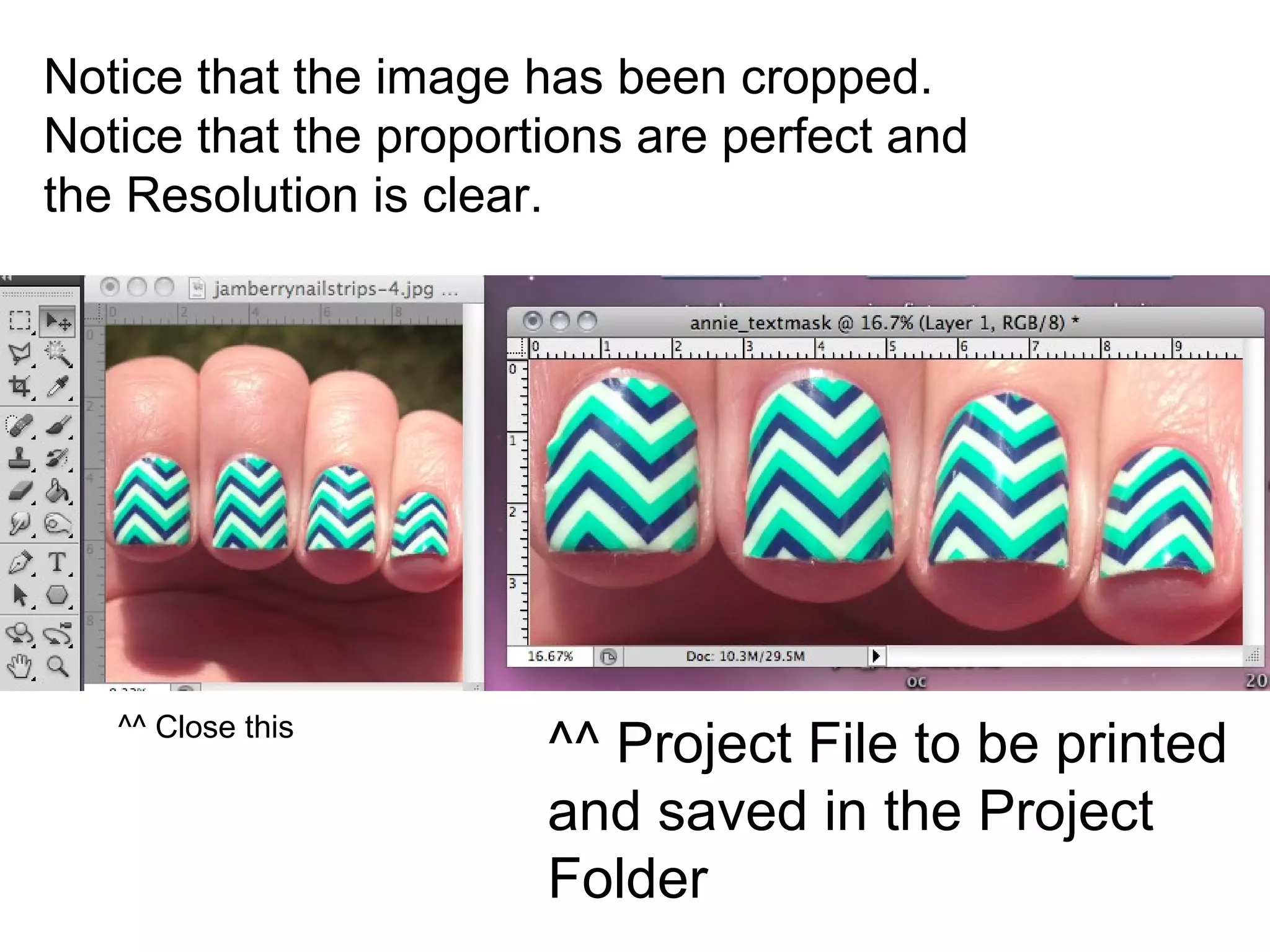
^^ This is the project file that will be
printed and submitted for grading
^^ This is an edited file that will be closed
after being *dragged and dropped* into the
project file
All other files are to be edited and placed into the project file using
the standard *drag and drop* technique
Notice that the image has been cropped.
Notice that the proportions are perfect and
the Resolution is clear.
^^ Project File to be printed
and saved in the Project
Folder
^^ Close this
I hope this presentation clarifies things for you.
Mrs. Wright

Proportion

  • 1.
    Proportion keeps imageslooking true to life This image has 2 layers 1 layer mask and 2 fx on the top layer
  • 2.
    Image Size • Imagesize is measured in pixel dimensions • Image size is measured in document size • Image size has a resolution that is measured in pixels per inch • As the designer it is your job to make sure that your images are proportionally correct • An image that is proportionally incorrect will appear distorted • An image that is low resolution will contain artifacting • Artifacting is a degraded image that is distorted and out of focus or even pixilated
  • 3.
    This is animage obtained by doing a non specific Google image search In Document size we see that the Resolution is 72 pixels / inch 72 pixels / inch is the standard resolution for screen Most photos downloaded from Google for use will be 72 pixels / inch
  • 4.
    The difference betweena Large - High Resolution - image taken from the Google image search engine and a medium or small –low resolution – image are the dimensions in INCHES This is a medium image that I am attempting to make High Resolution by making the ppi 300. It will not work.
  • 5.
    It is clearthat the quality of this image was not maintained as I prepared it for my Print project. It is fuzzy, distorted and obviously shows that I really have no idea what I am doing. I’m fired.
  • 6.
    •This image wasdownloaded from the Google search engine using the search tool  Size  Large • Size  Large will usually filter the search to images that are literally bigger As you can see, This image is: W = 27.681 H = 27.681 This image is huge and square The Resolution is still 72 pixels / inch The common resolution for images intended for screen display I have to edit this image so it will work for Print
  • 7.
    • I haveedited the image by changing the resolution to 300 pixels / inch. I have also decreased the literal size of this image. Because I have increased the Resolution and decreased the image size I have the result I want for print. • This process and procedure is exactly the same every single time • Take a large image and increase the Resolution, decrease the width and height proportionally. Photoshop does the math for you so make sure *constrain proportions* is checked This image is so clear I can see individual skin cells I’m hired
  • 8.
    This here isa common mistake What’s going on here? Hired or Fired?
  • 9.
    This image wasa joke around the water cooler this morning. Why? Why is everyone in the office laughing at this noob mistake? This is not your project is it?
  • 10.
    The project fileis the container document for edited images to be moved into. The project file is labeled with yourname_project ^^ This is the project file that will be printed and submitted for grading ^^ This is an edited file that will be closed after being *dragged and dropped* into the project file All other files are to be edited and placed into the project file using the standard *drag and drop* technique
  • 11.
    Notice that theimage has been cropped. Notice that the proportions are perfect and the Resolution is clear. ^^ Project File to be printed and saved in the Project Folder ^^ Close this
  • 12.
    I hope thispresentation clarifies things for you. Mrs. Wright