
Presented
     by
Randy Ferrese
609 576 4244
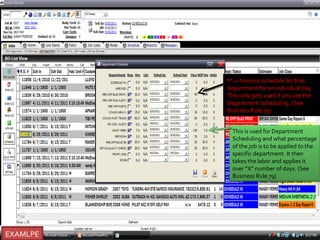
Max hours to schedule for that departmen
                                      an individual day. This only gets used if yo
                                      use the Department Scheduling. (See Bus
                                      Rule 79)

                                       This is used for Department Scheduling a
                                       what percentage of the job is to be applie
                                       the specific department. It then takes the
                                       labor and applies it over “X” number of da
                                       (See Business Rule 79)

Note paint prep is set at 70% refinish hrs of refinish labor
Note Refinish is set at 30% refinish hrs of refinish labor
Click on schedule tab
Select RO schedule
Max hours to schedule for that
          department for an individual day.
          This only gets used if you use the
          Department Scheduling. (See
          Business Rule 79)


            This is used for Department
            Scheduling and what percentage
            of the job is to be applied to the
            specific department. It then
            takes the labor and applies it
            over “X” number of days. (See
            Business Rule 79)


EXAMLPE
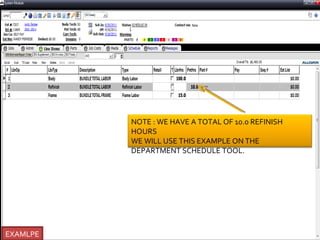
NOTE : WE HAVE A TOTAL OF 10.0 REFINISH
          HOURS
          WE WILL USE THIS EXAMPLE ON THE
          DEPARTMENT SCHEDULE TOOL.


EXAMLPE
NOTE : WE HAVE A TOTAL OF 10.0 REFINISH
                        HOURS
                        WE WILL USE THIS EXAMPLE ON THE
                        DEPARTMENT SCHEDULE TOOL.


PAINT PREP DEPARTMENT
                                      Note paint prep is set at 70%
    REFINISH DEPT                     refinish hrs of refinish labor
                                      Note Refinish is set at 30%
                                      refinish hrs of refinish labor


                                   CLICK ON PRINT ICON
                                       FOR REPORT
EXAMLPE
REPORT
CLICK ON OVER ALL SCHEDULE
Note you now see all depts.
CLICK FROM DROP DOWN WHAT
         DEPARTMENT
    YOU WOULD LIKE TO SEE
CLICK FROM DROP DOWN WHAT DEPARTMENT
          YOU WOULD LIKE TO SEE
  GREEN ICON RUNS REPORT ON THAT DEPT
           YOU MAY THEN PRINT
View cycle time on the fly for any Ro or job


                                               RIGHT CLICK ON JOB
YOU MAY NOW GET A CYCLE REPORT TIME REPORT BY DEPTON THIS JOB OR RO#

Production tools

  • 1.
    Presented by Randy Ferrese 609 576 4244
  • 2.
    Max hours toschedule for that departmen an individual day. This only gets used if yo use the Department Scheduling. (See Bus Rule 79) This is used for Department Scheduling a what percentage of the job is to be applie the specific department. It then takes the labor and applies it over “X” number of da (See Business Rule 79) Note paint prep is set at 70% refinish hrs of refinish labor Note Refinish is set at 30% refinish hrs of refinish labor
  • 3.
    Click on scheduletab Select RO schedule
  • 4.
    Max hours toschedule for that department for an individual day. This only gets used if you use the Department Scheduling. (See Business Rule 79) This is used for Department Scheduling and what percentage of the job is to be applied to the specific department. It then takes the labor and applies it over “X” number of days. (See Business Rule 79) EXAMLPE
  • 5.
    NOTE : WEHAVE A TOTAL OF 10.0 REFINISH HOURS WE WILL USE THIS EXAMPLE ON THE DEPARTMENT SCHEDULE TOOL. EXAMLPE
  • 6.
    NOTE : WEHAVE A TOTAL OF 10.0 REFINISH HOURS WE WILL USE THIS EXAMPLE ON THE DEPARTMENT SCHEDULE TOOL. PAINT PREP DEPARTMENT Note paint prep is set at 70% REFINISH DEPT refinish hrs of refinish labor Note Refinish is set at 30% refinish hrs of refinish labor CLICK ON PRINT ICON FOR REPORT EXAMLPE
  • 7.
  • 8.
    CLICK ON OVERALL SCHEDULE
  • 9.
    Note you nowsee all depts. CLICK FROM DROP DOWN WHAT DEPARTMENT YOU WOULD LIKE TO SEE
  • 10.
    CLICK FROM DROPDOWN WHAT DEPARTMENT YOU WOULD LIKE TO SEE GREEN ICON RUNS REPORT ON THAT DEPT YOU MAY THEN PRINT
  • 11.
    View cycle timeon the fly for any Ro or job RIGHT CLICK ON JOB
  • 12.
    YOU MAY NOWGET A CYCLE REPORT TIME REPORT BY DEPTON THIS JOB OR RO#