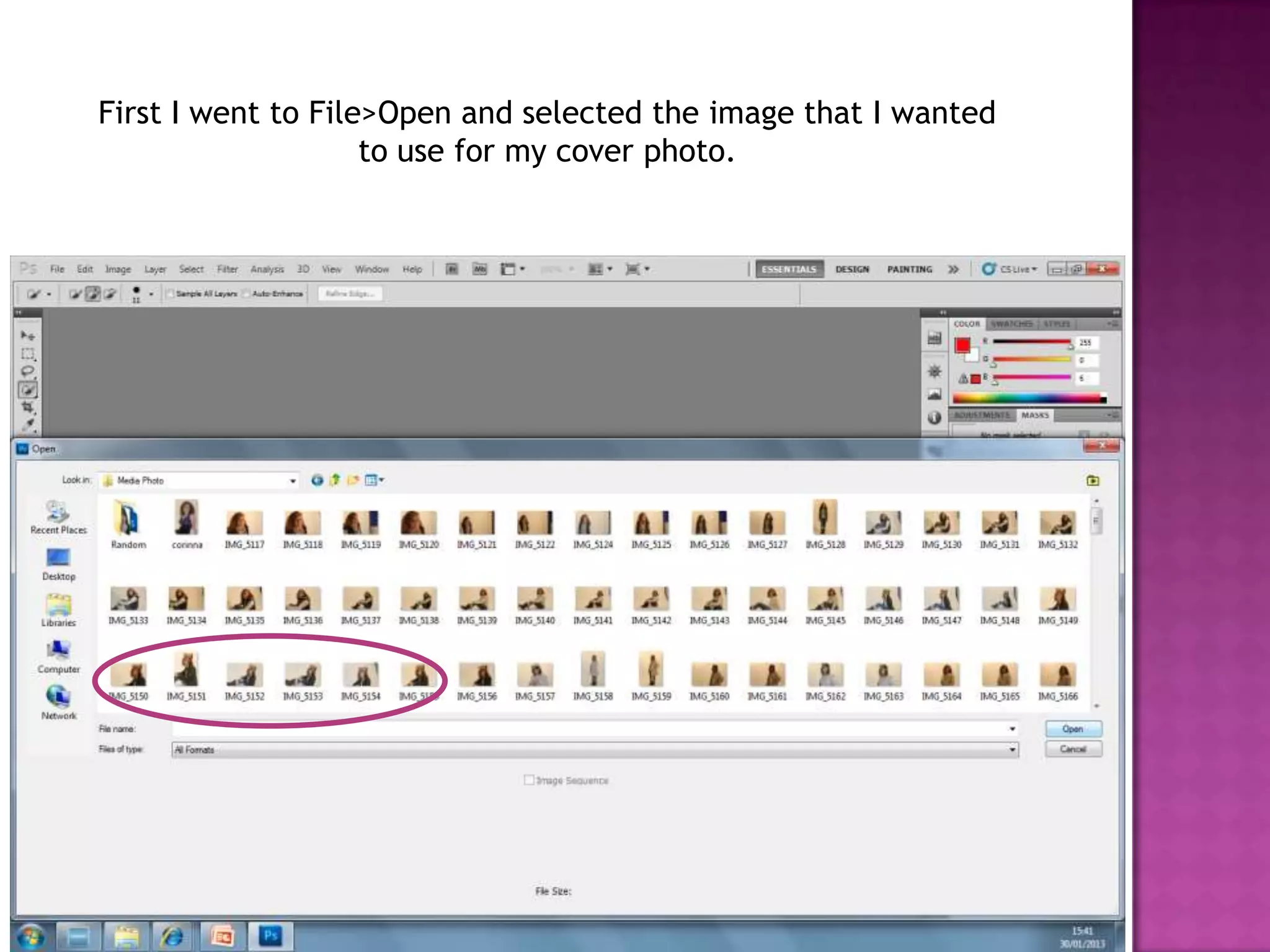
First I went to File>Open and selected the image that I wanted
                    to use for my cover photo.
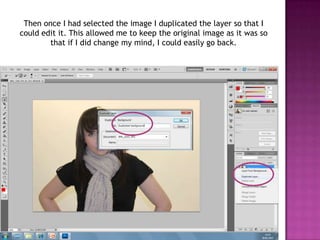
Then once I had selected the image I duplicated the layer so that I
could edit it. This allowed me to keep the original image as it was so
        that if I did change my mind, I could easily go back.
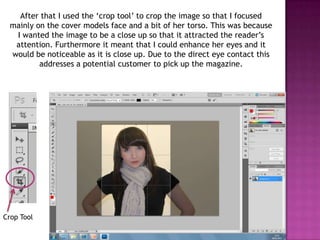
After that I used the ‘crop tool’ to crop the image so that I focused
  mainly on the cover models face and a bit of her torso. This was because
   I wanted the image to be a close up so that it attracted the reader’s
   attention. Furthermore it meant that I could enhance her eyes and it
  would be noticeable as it is close up. Due to the direct eye contact this
          addresses a potential customer to pick up the magazine.


Crop Tool
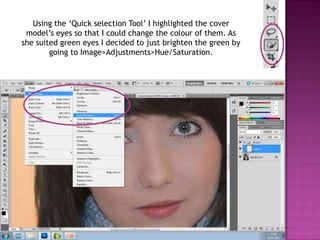
Using the ‘Quick selection Tool’ I highlighted the cover
 model’s eyes so that I could change the colour of them. As
she suited green eyes I decided to just brighten the green by
        going to Image>Adjustments>Hue/Saturation.
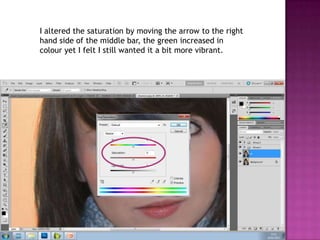
I altered the saturation by moving the arrow to the right
hand side of the middle bar, the green increased in
colour yet I felt I still wanted it a bit more vibrant.
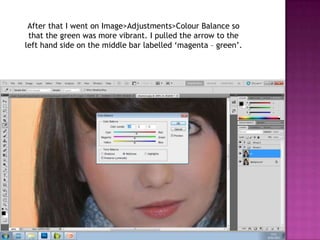
After that I went on Image>Adjustments>Colour Balance so
 that the green was more vibrant. I pulled the arrow to the
left hand side on the middle bar labelled ‘magenta – green’.
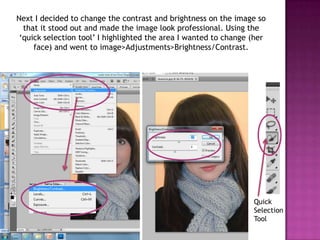
Next I decided to change the contrast and brightness on the image so
  that it stood out and made the image look professional. Using the
 ‘quick selection tool’ I highlighted the area I wanted to change (her
     face) and went to image>Adjustments>Brightness/Contrast.


                                                                  Quick
                                                                  Selection
                                                                  Tool
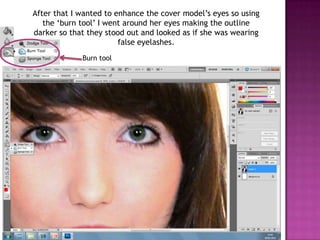
After that I wanted to enhance the cover model’s eyes so using
   the ‘burn tool’ I went around her eyes making the outline
darker so that they stood out and looked as if she was wearing
                        false eyelashes.
             Burn tool
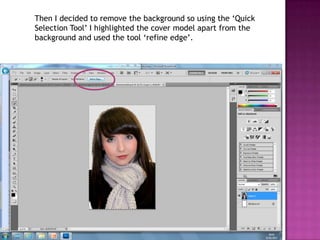
Then I decided to remove the background so using the ‘Quick
Selection Tool’ I highlighted the cover model apart from the
background and used the tool ‘refine edge’.
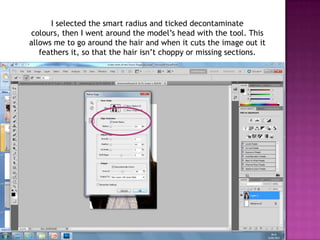
I selected the smart radius and ticked decontaminate
colours, then I went around the model’s head with the tool. This
allows me to go around the hair and when it cuts the image out it
   feathers it, so that the hair isn’t choppy or missing sections.
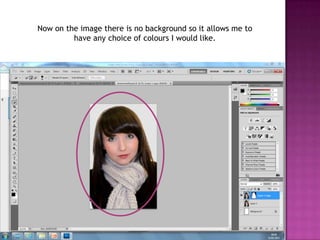
Now on the image there is no background so it allows me to
         have any choice of colours I would like.
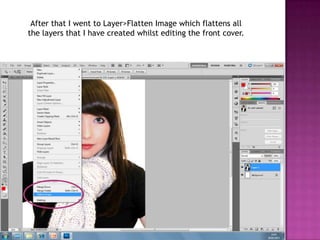
After that I went to Layer>Flatten Image which flattens all
the layers that I have created whilst editing the front cover.
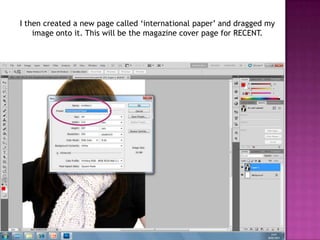
I then created a new page called ‘international paper’ and dragged my
    image onto it. This will be the magazine cover page for RECENT.
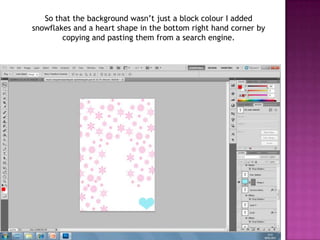
So that the background wasn’t just a block colour I added
snowflakes and a heart shape in the bottom right hand corner by
        copying and pasting them from a search engine.
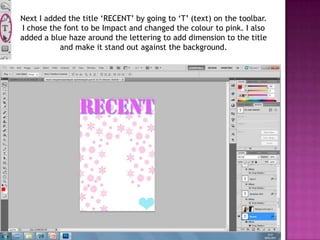
Next I added the title ‘RECENT’ by going to ‘T’ (text) on the toolbar.
 I chose the font to be Impact and changed the colour to pink. I also
added a blue haze around the lettering to add dimension to the title
            and make it stand out against the background.
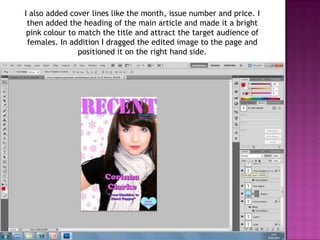
I also added cover lines like the month, issue number and price. I
 then added the heading of the main article and made it a bright
 pink colour to match the title and attract the target audience of
 females. In addition I dragged the edited image to the page and
                positioned it on the right hand side.
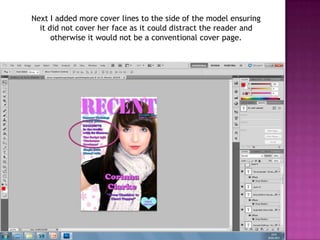
Next I added more cover lines to the side of the model ensuring
  it did not cover her face as it could distract the reader and
      otherwise it would not be a conventional cover page.
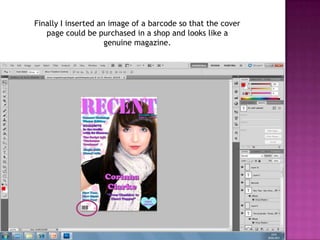
Finally I inserted an image of a barcode so that the cover
   page could be purchased in a shop and looks like a
                     genuine magazine.
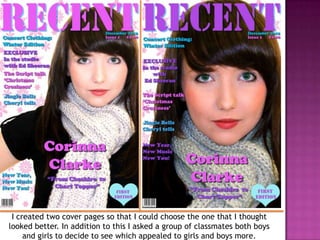
I created two cover pages so that I could choose the one that I thought
looked better. In addition to this I asked a group of classmates both boys
     and girls to decide to see which appealed to girls and boys more.

Print screens now

  • 1.
    First I wentto File>Open and selected the image that I wanted to use for my cover photo.
  • 2.
    Then once Ihad selected the image I duplicated the layer so that I could edit it. This allowed me to keep the original image as it was so that if I did change my mind, I could easily go back.
  • 3.
    After that Iused the ‘crop tool’ to crop the image so that I focused mainly on the cover models face and a bit of her torso. This was because I wanted the image to be a close up so that it attracted the reader’s attention. Furthermore it meant that I could enhance her eyes and it would be noticeable as it is close up. Due to the direct eye contact this addresses a potential customer to pick up the magazine. Crop Tool
  • 4.
    Using the ‘Quickselection Tool’ I highlighted the cover model’s eyes so that I could change the colour of them. As she suited green eyes I decided to just brighten the green by going to Image>Adjustments>Hue/Saturation.
  • 5.
    I altered thesaturation by moving the arrow to the right hand side of the middle bar, the green increased in colour yet I felt I still wanted it a bit more vibrant.
  • 6.
    After that Iwent on Image>Adjustments>Colour Balance so that the green was more vibrant. I pulled the arrow to the left hand side on the middle bar labelled ‘magenta – green’.
  • 7.
    Next I decidedto change the contrast and brightness on the image so that it stood out and made the image look professional. Using the ‘quick selection tool’ I highlighted the area I wanted to change (her face) and went to image>Adjustments>Brightness/Contrast. Quick Selection Tool
  • 8.
    After that Iwanted to enhance the cover model’s eyes so using the ‘burn tool’ I went around her eyes making the outline darker so that they stood out and looked as if she was wearing false eyelashes. Burn tool
  • 9.
    Then I decidedto remove the background so using the ‘Quick Selection Tool’ I highlighted the cover model apart from the background and used the tool ‘refine edge’.
  • 10.
    I selected thesmart radius and ticked decontaminate colours, then I went around the model’s head with the tool. This allows me to go around the hair and when it cuts the image out it feathers it, so that the hair isn’t choppy or missing sections.
  • 11.
    Now on theimage there is no background so it allows me to have any choice of colours I would like.
  • 12.
    After that Iwent to Layer>Flatten Image which flattens all the layers that I have created whilst editing the front cover.
  • 13.
    I then createda new page called ‘international paper’ and dragged my image onto it. This will be the magazine cover page for RECENT.
  • 14.
    So that thebackground wasn’t just a block colour I added snowflakes and a heart shape in the bottom right hand corner by copying and pasting them from a search engine.
  • 15.
    Next I addedthe title ‘RECENT’ by going to ‘T’ (text) on the toolbar. I chose the font to be Impact and changed the colour to pink. I also added a blue haze around the lettering to add dimension to the title and make it stand out against the background.
  • 16.
    I also addedcover lines like the month, issue number and price. I then added the heading of the main article and made it a bright pink colour to match the title and attract the target audience of females. In addition I dragged the edited image to the page and positioned it on the right hand side.
  • 17.
    Next I addedmore cover lines to the side of the model ensuring it did not cover her face as it could distract the reader and otherwise it would not be a conventional cover page.
  • 18.
    Finally I insertedan image of a barcode so that the cover page could be purchased in a shop and looks like a genuine magazine.
  • 19.
    I created twocover pages so that I could choose the one that I thought looked better. In addition to this I asked a group of classmates both boys and girls to decide to see which appealed to girls and boys more.