WIDESCREEN
PRESENTATION
Tips and tools for creating and presenting wide format
slides
resentationWidescreen P
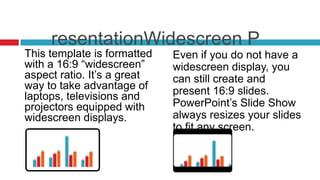
This template is formatted   Even if you do not have a
with a 16:9 “widescreen”     widescreen display, you
aspect ratio. It’s a great   can still create and
way to take advantage of     present 16:9 slides.
laptops, televisions and
projectors equipped with     PowerPoint’s Slide Show
widescreen displays.         always resizes your slides
                             to fit any screen.
Widescreen Advantages

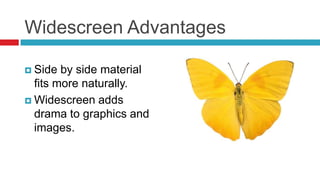
 Side  by side material
  fits more naturally.
 Widescreen adds
  drama to graphics and
  images.
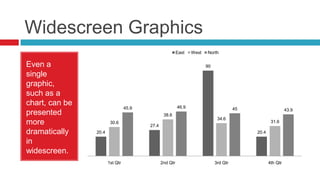
Widescreen Graphics
                                                         East   West   North

Even a                                                                 90
single
graphic,
such as a
chart, can be                                            46.9
                                 45.9                                                 45                    43.9
presented                                       38.6
                                                                             34.6
more                    30.6
                                        27.4
                                                                                                   31.6

dramatically    20.4                                                                       20.4

in
widescreen.
                       1st Qtr                 2nd Qtr                      3rd Qtr               4th Qtr
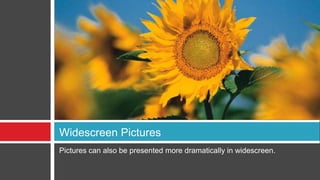
Widescreen Pictures
Pictures can also be presented more dramatically in widescreen.
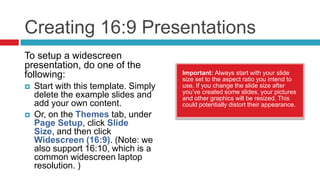
Creating 16:9 Presentations
To setup a widescreen
presentation, do one of the
following:                             Important: Always start with your slide
                                       size set to the aspect ratio you intend to
   Start with this template. Simply   use. If you change the slide size after
                                       you’ve created some slides, your pictures
    delete the example slides and      and other graphics will be resized. This
    add your own content.              could potentially distort their appearance.
   Or, on the Themes tab, under
    Page Setup, click Slide
    Size, and then click
    Widescreen (16:9). (Note: we
    also support 16:10, which is a
    common widescreen laptop
    resolution. )
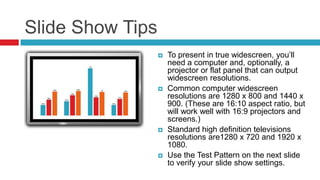
Slide Show Tips
                     To present in true widescreen, you’ll
                      need a computer and, optionally, a
                      projector or flat panel that can output
                      widescreen resolutions.
                     Common computer widescreen
                      resolutions are 1280 x 800 and 1440 x
                      900. (These are 16:10 aspect ratio, but
                      will work well with 16:9 projectors and
                      screens.)
                     Standard high definition televisions
                      resolutions are1280 x 720 and 1920 x
                      1080.
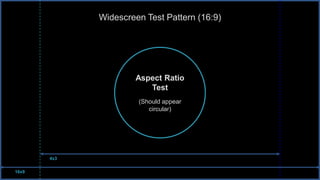
                     Use the Test Pattern on the next slide
                      to verify your slide show settings.
Widescreen Test Pattern (16:9)


                      Aspect Ratio
                         Test
                      (Should appear
                         circular)


       4x3


16x9

Presentation1

  • 1.
    WIDESCREEN PRESENTATION Tips and toolsfor creating and presenting wide format slides
  • 2.
    resentationWidescreen P This templateis formatted Even if you do not have a with a 16:9 “widescreen” widescreen display, you aspect ratio. It’s a great can still create and way to take advantage of present 16:9 slides. laptops, televisions and projectors equipped with PowerPoint’s Slide Show widescreen displays. always resizes your slides to fit any screen.
  • 3.
    Widescreen Advantages  Side by side material fits more naturally.  Widescreen adds drama to graphics and images.
  • 4.
    Widescreen Graphics East West North Even a 90 single graphic, such as a chart, can be 46.9 45.9 45 43.9 presented 38.6 34.6 more 30.6 27.4 31.6 dramatically 20.4 20.4 in widescreen. 1st Qtr 2nd Qtr 3rd Qtr 4th Qtr
  • 5.
    Widescreen Pictures Pictures canalso be presented more dramatically in widescreen.
  • 6.
    Creating 16:9 Presentations Tosetup a widescreen presentation, do one of the following: Important: Always start with your slide size set to the aspect ratio you intend to  Start with this template. Simply use. If you change the slide size after you’ve created some slides, your pictures delete the example slides and and other graphics will be resized. This add your own content. could potentially distort their appearance.  Or, on the Themes tab, under Page Setup, click Slide Size, and then click Widescreen (16:9). (Note: we also support 16:10, which is a common widescreen laptop resolution. )
  • 7.
    Slide Show Tips  To present in true widescreen, you’ll need a computer and, optionally, a projector or flat panel that can output widescreen resolutions.  Common computer widescreen resolutions are 1280 x 800 and 1440 x 900. (These are 16:10 aspect ratio, but will work well with 16:9 projectors and screens.)  Standard high definition televisions resolutions are1280 x 720 and 1920 x 1080.  Use the Test Pattern on the next slide to verify your slide show settings.
  • 8.
    Widescreen Test Pattern(16:9) Aspect Ratio Test (Should appear circular) 4x3 16x9