GOVERNMENT POLYTECHNIC HIMATNAGAR
Department : Information Technology
TOPIC : screen lock
NAME : Suthar anuj manojbhai
ENROLLMENT NO : 22624316161
 You access the settings for your Windows 11 lock screen
under Settings > Personalization > Lock screen. Click the
drop-down box for Personalize your lock screen and
choose Windows spotlight, Picture, or Slideshow.
 If you opt for a picture, you can select one of the
built-in images or choose your own. If you go the
slideshow route, remove any folders you don’t
want and then add a folder with images you want
to appear in the show.
 Turn on the switch for Get fun facts, tips, and
more from Windows and Cortana if you want to
see tips and tricks from Microsoft on the lock
screen.
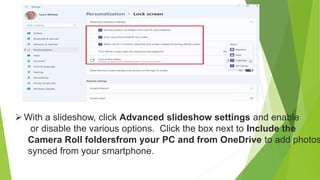
 With a slideshow, click Advanced slideshow settings and enable
or disable the various options. Click the box next to Include the
Camera Roll foldersfrom your PC and from OneDrive to add photos
synced from your smartphone.
 You can avoid images that won’t look good on the screen if you turn
on the switch for Only use pictures that fit my screen.
 Display the lock screen when your PC is inactive by flipping the
switch for When my PC is inactive, show lock screen instead of
turning off the screen. Click the drop-down box for Turn off screen
after slideshow has played for to determine if the slideshow should
stop at a certain point. This can be set to 30 minutes, 1 hour, or 3
hours.
 Click the drop-down box for Lock screen status and select the app
for which you want to see details, choosing among 3D Viewer,
Weather, Mail, Calendar, and more.
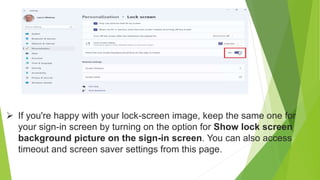
 If you're happy with your lock-screen image, keep the same one for
your sign-in screen by turning on the option for Show lock screen
background picture on the sign-in screen. You can also access
timeout and screen saver settings from this page.
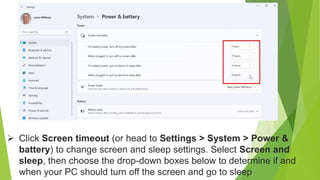
 Click Screen timeout (or head to Settings > System > Power &
battery) to change screen and sleep settings. Select Screen and
sleep, then choose the drop-down boxes below to determine if and
when your PC should turn off the screen and go to sleep
PPT :- screen lock

PPT :- screen lock

  • 1.
    GOVERNMENT POLYTECHNIC HIMATNAGAR Department: Information Technology TOPIC : screen lock NAME : Suthar anuj manojbhai ENROLLMENT NO : 22624316161
  • 2.
     You accessthe settings for your Windows 11 lock screen under Settings > Personalization > Lock screen. Click the drop-down box for Personalize your lock screen and choose Windows spotlight, Picture, or Slideshow.
  • 3.
     If youopt for a picture, you can select one of the built-in images or choose your own. If you go the slideshow route, remove any folders you don’t want and then add a folder with images you want to appear in the show.  Turn on the switch for Get fun facts, tips, and more from Windows and Cortana if you want to see tips and tricks from Microsoft on the lock screen.
  • 4.
     With aslideshow, click Advanced slideshow settings and enable or disable the various options. Click the box next to Include the Camera Roll foldersfrom your PC and from OneDrive to add photos synced from your smartphone.
  • 5.
     You canavoid images that won’t look good on the screen if you turn on the switch for Only use pictures that fit my screen.  Display the lock screen when your PC is inactive by flipping the switch for When my PC is inactive, show lock screen instead of turning off the screen. Click the drop-down box for Turn off screen after slideshow has played for to determine if the slideshow should stop at a certain point. This can be set to 30 minutes, 1 hour, or 3 hours.  Click the drop-down box for Lock screen status and select the app for which you want to see details, choosing among 3D Viewer, Weather, Mail, Calendar, and more.
  • 6.
     If you'rehappy with your lock-screen image, keep the same one for your sign-in screen by turning on the option for Show lock screen background picture on the sign-in screen. You can also access timeout and screen saver settings from this page.
  • 7.
     Click Screentimeout (or head to Settings > System > Power & battery) to change screen and sleep settings. Select Screen and sleep, then choose the drop-down boxes below to determine if and when your PC should turn off the screen and go to sleep