HOW TO START THE CAD
DRAWING
PREPARED BY: ARVIND KOLAKI, L/CE
JAIN POLYTECHNIC BELAGAVI
15CE37P- BASIC CAD
CONTENT
• Step by step procedure to draw the given object
STEP BY STEP PROCEDURE
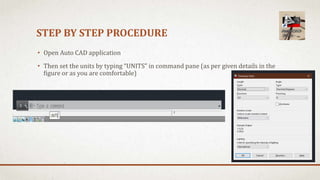
• Open Auto CAD application
• Then set the units by typing “UNITS” in command pane (as per given details in the
figure or as you are comfortable)
STEP BY STEP PROCEDURE
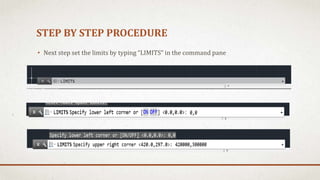
• Next step set the limits by typing “LIMITS” in the command pane
STEP BY STEP PROCEDURE
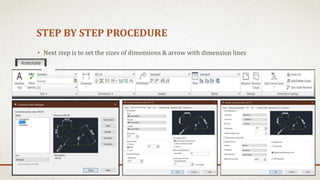
• Next step is to set the sizes of dimensions & arrow with dimension lines
STEP BY STEP PROCEDURE
1. By using line command, offset, trim, extend commands draw the fully panelled door as per the
dimensions.
2. By using Hatch command hatch the components of fully panelled door.
3. Add the measurements, dimensions and
4. By using D-text, add text to the drawing and complete it with details.

PPT on drawing the objects using CADD tool

  • 1.
    HOW TO STARTTHE CAD DRAWING PREPARED BY: ARVIND KOLAKI, L/CE JAIN POLYTECHNIC BELAGAVI 15CE37P- BASIC CAD
  • 2.
    CONTENT • Step bystep procedure to draw the given object
  • 3.
    STEP BY STEPPROCEDURE • Open Auto CAD application • Then set the units by typing “UNITS” in command pane (as per given details in the figure or as you are comfortable)
  • 4.
    STEP BY STEPPROCEDURE • Next step set the limits by typing “LIMITS” in the command pane
  • 5.
    STEP BY STEPPROCEDURE • Next step is to set the sizes of dimensions & arrow with dimension lines
  • 6.
    STEP BY STEPPROCEDURE 1. By using line command, offset, trim, extend commands draw the fully panelled door as per the dimensions. 2. By using Hatch command hatch the components of fully panelled door. 3. Add the measurements, dimensions and 4. By using D-text, add text to the drawing and complete it with details.