1
Information Security
Awareness Training:
“Good Computing Practices” for
Confidential Electronic Information
Information Security Training
for all Workforce Members who use computers.
UCSD Health Sciences
Privacy / Security Office
Issued: 3/15/2005
2
This presentation focuses on two types of
confidential electronic information:
 ePHI = Electronic Protected Health Information
 Medical record number, account number or SSN
 Patient demographic data, e.g., address, date of birth,
date of death, sex, e-mail / web address
 Dates of service, e.g., date of admission, discharge
 Medical records, reports, test results, appointment dates
 PII = Personally Identified Information
 Individual’s name + SSN number + Driver’s License #
and financial credit card account numbers
3
Definition of “ePHI”
 ePHI or electronic Protected Health Information is patient
health information which is computer based, e.g., created,
received, stored or maintained, processed and/or transmitted in
electronic media.
 Electronic media includes computers, laptops, disks,
memory stick, PDAs, servers, networks, dial-modems, E-Mail,
web-sites, etc.
 Federal Laws: HIPAA Privacy & Security Laws mandate
protection and safeguards for access, use and disclosure of
PHI and/or ePHI with sanctions for violations.
4
Definition of “PII”
 “Personal information” – Unencrypted computerized
information that includes an individual’s name in
combination with any one or more of the following: Social
Security Number, Driver’s license number, or California ID
card #, credit / debit in combination with their access /
security code or password
 State Law: SB-1386 California, Privacy of Personal
Information to Prevent Identity Theft. SB-1386 requires
mandatory notice to the subject of an unauthorized,
unencrypted electronic disclosure of “personal
information”.
5
What are the Information Security
Standards for Protection of ePHI?
 “Information Security” means to ensure the confidentiality,
integrity, and availability of information through safeguards.
 “Confidentiality” – that information will not be disclosed to
unauthorized individuals or processes [164.304]
 “Integrity” – the condition of data or information that has not been
altered or destroyed in an unauthorized manner. Data from one
system is consistently and accurately transferred to other systems.
 “Availability” – the property that data or information is accessible
and useable upon demand by an authorized person.
6
What are the Federal Security Rule -
General Requirements? [45 CFR #164.306-a]
 Ensure the “CIA” (confidentiality, integrity and availability) of all
electronic protected health information (ePHI) that the covered
entity creates, receives, maintains, or transmits.
 Protect against reasonably anticipated threats or hazards to
the security or integrity of ePHI, e.g., hackers, virus, data back-
ups
 Protect against unauthorized disclosures
 Train workforce members (“awareness of good computing
practices”)
Compliance required by April 20, 2005
7
Who is a “Covered Entity”?
 HIPAA's regulations directly cover three basic groups of
individual or corporate entities: health care providers,
health plans, and health care clearinghouses.
 Health Care Provider means a provider of medical or
health services, and entities who furnishes, bills, or is paid
for health care in the normal course of business
 Health Plan means any individual or group that provides
or pays for the cost of medical care, including employee
benefit plans
 Healthcare Clearinghouse means an entity that either
processes or facilitates the processing of health
information, e.g., billing service, repricing company
 Any organization that routinely handles PHI or ePHI in any capacity is in
all probability a covered entity. The behavior of anyone in the covered
entity's workforce (including volunteers) is subject to the Federal
Privacy & Security Laws.
8
Good Security Standards follow the “90 / 10” Rule:
 10% of security safeguards are technical
 90% of security safeguards rely on the computer user
(“YOU”) to adhere to good computing practices
 Example: The lock on the door is the 10%. You
remembering to lock, check to see if it is closed, ensuring
others do not prop the door open, keeping controls of keys
is the 90%. 10% security is worthless without YOU!
Why do I need to learn about Security –
“Isn’t this just an I.T. Problem?”
9
What are the Consequences for
Security Violations?
 Risk to integrity of confidential information, e.g., data corruption,
destruction, unavailability of patient information in an emergency
 Risk to security of personal information, e.g., identity theft
 Loss of valuable business information
 Loss of confidentiality, integrity & availability of data (and time) due to
poor or untested disaster data recovery plan
 Embarrassment, bad publicity, media coverage, news reports
 Loss of patients’ trust, employee trust and public trust
 Costly reporting requirements for SB-1386 issues
 Internal disciplinary action(s), termination of employment
 Penalties, prosecution and potential for sanctions / lawsuits
10
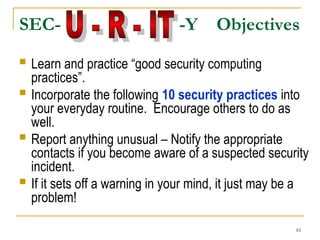
 Learn and practice “good security computing
practices”.
 Incorporate the following 10 security practices into
your everyday routine. Encourage others to do as
well.
 Report anything unusual – Notify the appropriate
contacts if you become aware of a suspected security
incident.
 If it sets off a warning in your mind, it just may be a
problem!
SEC- -Y Objectives
11
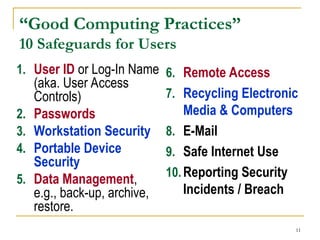
“Good Computing Practices”
10 Safeguards for Users
1. User ID or Log-In Name
(aka. User Access
Controls)
2. Passwords
3. Workstation Security
4. Portable Device
Security
5. Data Management,
e.g., back-up, archive,
restore.
6. Remote Access
7. Recycling Electronic
Media & Computers
8. E-Mail
9. Safe Internet Use
10.Reporting Security
Incidents / Breach
12
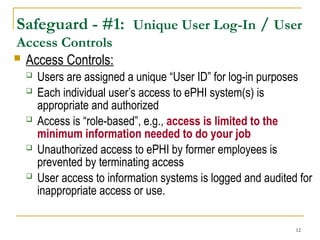
Safeguard - #1: Unique User Log-In / User
Access Controls
 Access Controls:
 Users are assigned a unique “User ID” for log-in purposes
 Each individual user’s access to ePHI system(s) is
appropriate and authorized
 Access is “role-based”, e.g., access is limited to the
minimum information needed to do your job
 Unauthorized access to ePHI by former employees is
prevented by terminating access
 User access to information systems is logged and audited for
inappropriate access or use.
13
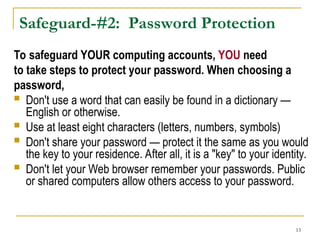
Safeguard-#2: Password Protection
To safeguard YOUR computing accounts, YOU need
to take steps to protect your password. When choosing a
password,
 Don't use a word that can easily be found in a dictionary —
English or otherwise.
 Use at least eight characters (letters, numbers, symbols)
 Don't share your password — protect it the same as you would
the key to your residence. After all, it is a "key" to your identity.
 Don't let your Web browser remember your passwords. Public
or shared computers allow others access to your password.
14
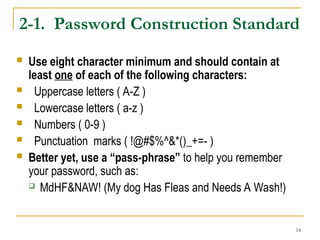
2-1. Password Construction Standard
 Use eight character minimum and should contain at
least one of each of the following characters:
 Uppercase letters ( A-Z )
 Lowercase letters ( a-z )
 Numbers ( 0-9 )
 Punctuation marks ( !@#$%^&*()_+=- )
 Better yet, use a “pass-phrase” to help you remember
your password, such as:
 MdHF&NAW! (My dog Has Fleas and Needs A Wash!)
15
Safeguard-#3: Workstation Security
– Physical Security
 “Workstations” include any electronic computing
device, for example, a laptop or desktop computer, or
any other device that performs similar functions, and
electronic media stored in its immediate environment.
 Physical Security measures include:
 Disaster Controls
 Physical Access Controls
 Device & Media Controls (also see Safeguard #4)
16
3-1. Workstations: Disaster Controls
 Disaster Controls: Protect workstations from natural
and environmental hazards, such as heat, liquids,
water leaks and flooding, disruption of power,
conditions exceeding equipment limits.
 Use electrical surge protectors
 Install fasteners to protect equipment against
earthquake damage
 Move servers away from overhead sprinklers
17
3-2. Workstations: Physical Access Controls
 Log-off before leaving a workstation unattended.
 This will prevent other individuals from accessing EPHI under
your User-ID and limit access by unauthorized users.
 Lock-up! – Offices, windows, workstations, sensitive
papers and PDAs, laptops, mobile devices / media.
 Lock your workstation (Cntrl+Alt+Del and Lock) – Windows
XP, Windows 2000
 Encryption tools should be implemented when physical
security cannot be provided
 Maintain key control
 Do not leave sensitive information on remote printers or
copier.
18
3-3. Workstations: Device Controls
 Unauthorized physical access to an unattended device can result
in harmful or fraudulent modification of data, fraudulent email use,
or any number of other potentially dangerous situations. These
tools are especially important in patient care areas to restrict
access to authorized users only.
 Auto Log-Off: Where possible and appropriate, devices must be
configured to “lock” or “auto log-off” and require a user to re-
authenticate if left unattended for more than 15 minutes.
 Automatic Screen Savers: Set to 5 minutes with password
protection.
 Note: Log-off and screen-saver times may differ at your campus.
Check with your department’s Information Security administrator.
19
Safeguard-#4: Security for Portable
Devices & Laptops with ePHI
 Implement the workstation physical security measures listed
in Safeguard #3, including this Check List:
 Use an Internet Firewall
 Use up-to-date Anti-virus software
 Install computer software updates, e.g., Microsoft patches
 Encrypt and password protect portable devices
 Lock-it up!, e.g., Lock office or file cabinet, lock up laptops
 Automatic log-off from programs
 Use password protected screen savers
 Back-up critical data and software programs
20
4-1: Security for USB Memory Sticks &
Storage Devices
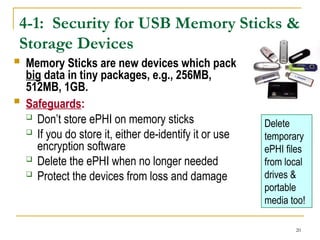
 Memory Sticks are new devices which pack
big data in tiny packages, e.g., 256MB,
512MB, 1GB.
 Safeguards:
 Don’t store ePHI on memory sticks
 If you do store it, either de-identify it or use
encryption software
 Delete the ePHI when no longer needed
 Protect the devices from loss and damage
Delete
temporary
ePHI files
from local
drives &
portable
media too!
21
4-2. Security for PDAs
Personal Digital Assistants
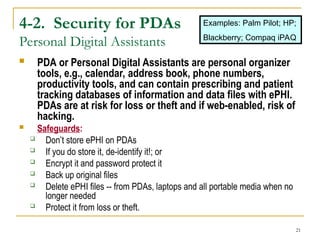
 PDA or Personal Digital Assistants are personal organizer
tools, e.g., calendar, address book, phone numbers,
productivity tools, and can contain prescribing and patient
tracking databases of information and data files with ePHI.
PDAs are at risk for loss or theft and if web-enabled, risk of
hacking.
 Safeguards:
 Don’t store ePHI on PDAs
 If you do store it, de-identify it!; or
 Encrypt it and password protect it
 Back up original files
 Delete ePHI files -- from PDAs, laptops and all portable media when no
longer needed
 Protect it from loss or theft.
Examples: Palm Pilot; HP;
Blackberry; Compaq iPAQ
22
4-3. Security for Wireless Devices
 Wireless devices open up more avenues for ePHI to be
improperly accessed. To minimize the risk, use the
following precautions:
 Do not enable the wireless port that exposes the device,
unless it has been secured.
 Use a Virtual Private Network (VPN), if making a wireless
connection
 Adhere to user / device authentication before transmitting
ePHI wirelessly
 Encrypt data during transmission, and maintain an audit trail.
 Refer questions to your Information Security Office
23
Safeguard-#5: Data Management &
Security
Topics in this section cover:
 Data backup and storage
 Transferring and downloading data
 Data disposal
24
5-1a: Data Backup & Storage
 System back-ups are created to assure integrity and reliability.
You can get information about back-up procedures from the
Information Administrator for your department. If YOU store
original data on local drives or laptops, YOU are personally
responsible for the data backup and secure storage of data:
 Backup original data files with ePHI and other essential data
and software programs frequently based on data criticality,
e.g., daily, weekly, monthly.
 Store back-up disks at a geographically separate and secure
location
 Prepare for disasters by testing the ability to restore data
from back-up tapes / disks
 Consider encrypting back-up disks for further protection of
confidential information
25
5-1b. Data Storage - Portable Devices
Also refer to Portable Media Safeguards #4
 Permanent copies of ePHI should not be stored for
archival purposes on portable equipment, such as laptop
computers, PDAs and memory sticks.
 If necessary, temporary copies could be used on portable
computers, only when:
 The storage is limited to the duration of the necessary use;
and
 If protective measures, such as encryption, are used to
safeguard the confidentiality, integrity and availability of the
data in the event of theft or loss.
26
5-2. Transferring & Downloading Data
 Users must ensure that appropriate security
measures are implemented before any ePHI data or
images are transferred to the destination system.
 Security measures on the destination system must
be comparable to the security measures on the
originating system or source.
 Encryption is an important tool for protection of
ePHI in transit across unsecured networks and
communication systems
 Refer to: UC Policy IS-3, pages 21-22
27
5-3. Data Disposal
Clean Devices before Recycling
 Destroy ePHI data which is no longer needed:
 “Clean” hard-drives, CDs, zip disks, or back-up
tapes before recycling or re-using electronic media
 Have an IT professional overwrite, degauss or
destroy your digital media before discarding – via
magnets or special software tools; and/or
 Know where to take these items for appropriate
safe disposal
 Contact: UCSDHC Information Security, 3-HELP or
619-543-7474.
28
Safeguard-#6: Secure Remote Access
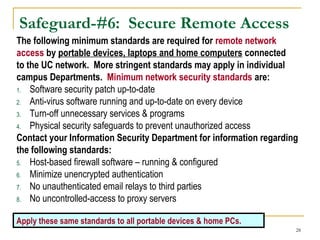
The following minimum standards are required for remote network
access by portable devices, laptops and home computers connected
to the UC network. More stringent standards may apply in individual
campus Departments. Minimum network security standards are:
1. Software security patch up-to-date
2. Anti-virus software running and up-to-date on every device
3. Turn-off unnecessary services & programs
4. Physical security safeguards to prevent unauthorized access
Contact your Information Security Department for information regarding
the following standards:
5. Host-based firewall software – running & configured
6. Minimize unencrypted authentication
7. No unauthenticated email relays to third parties
8. No uncontrolled-access to proxy servers
Apply these same standards to all portable devices & home PCs.
29
6-1. Virtual Private Network (VPN)
for secure remote access to Network with ePHI
 Rather than receiving ePHI as an E-Mail attachment; or
logging in via an unsecure home account, consider
using a VPN connection to obtain remote access to
ePHI.
 Benefit: A VPN will allow the user to create a secured
encrypted link between the user’s computer and the UC
network to view information.
 Contact your department’s Information System
administrator or the UCSDMC I.S. Help Desk (3-HELP)
or (619) 543-7474 to determine if this is an option for you.
Adhere to the security features of the VPN software.
30
Safeguard-#7: E-Mail Security
E-Mail is like a “postcard”. Email may potentially be viewed in transit by
many individuals, since it may pass through several switches enroute to its
final destination or never arrive at all! Although the risks to a single piece of
E-mail are small given the volume of email traffic, e-mails containing ePHI
need a higher level of security and careful addressing!
1. Use secure, encrypted E-Mail software, if available
2. If secure E-Mail is not available, before sending the message: Verify that the
intended recipient addresses are typed correctly, use the Blink directory look-up
feature, include the confidential footer in all outbound messages with ePHI. If
you send an attachment with ePHI: password protect the file or encrypt it or
do not send the attachment via e-mail!
3. Security at the Subject Line: Avoid using individual names, medical record
numbers or account numbers in unencrypted e-mails
4. Do not forward E-Mails with ePHI from secure addresses to non-secure
accounts, e.g., HotMail, AOL. Instead, check your UCSD e-mail messages
remotely via WebOutlook. Contact your department Information System
Administrator to find out how to do this.
31
7-1. E-Mail between Patients &
Providers
 Use e-mail encryption programs, if available
 This feature will be available when the EPIC electronic medical
record is fully implemented.
 If e-mail encryption is not available, obtain consent from
patients for use of e-mail which outlines the risks of the
e-mail messages
 Form # D819, “Consent for Use of E-Mail” may be sent to the patient
for signature and filed in the medical record. To order D-Forms,
contact the Hillcrest Medical Center Copy Center at (619) 543-5696
 Review UCSDHC policy (# CEP 18.1) regarding use of e-
mail between clinicians and patients.
32
7-2. Should You Open the E-mail
Attachment?
 If it's suspicious, delete and don't open it!
 What is suspicious?
 Not work-related
 Attachments not expected or from someone you do not
know
 Attachments with a suspicious file extension (*.exe, *.vbs,
*.bin, *.com, or *.pif)
 Web link
 Unusual topic lines; “Your car?”; “Oh!” ; “Nice Pic!”; “Family
Update!”; “Very Funny!”
33
7-3. E-Mail Security – Risk Areas
1. Spamming. Unsolicited bulk e-mail, including commercial
solicitations, advertisements, chain letters, pyramid schemes, and
fraudulent offers.
 Do not reply to spam messages. Do not spread spam. Remember,
sending chain letters is against UC policy.
 Do not forward chain letters. It’s the same as spamming!
 Do not open or reply to suspicious e-mails. Delete the message.
2. Phishing Scams. E-Mail pretending to be from trusted names,
such as Citibank or Paypal or Amazon, but directing recipients to
rogue sites. A reputable company will never ask you to send your
password through e-mail.
3. Spyware. Spyware is adware which can slow computer processing
down; hijack web browsers; spy on key strokes and cripple computers
34
7-4. Instant Messaging (IM) - Risks
 Instant messaging (IM) and Instant Relay Chat (IRC) or
chat rooms create ways to communicate or chat in “real-
time” over the Internet.
 Exercise caution when using Instant Messaging on UC
Computers:
 Maintain up-to-date virus protection and firewalls, since IM
may leave networks vulnerable to viruses, spam and open
to attackers / hackers.
 Do not reveal personal details while in a Chat Room
 Be aware that this area of the Internet is not private and
subject to scrutiny
 Refer to UCSD Campus policy / procedures for guidance
35
Safeguard-#8: Internet Use
 UC encourages the use of Internet services to advance the University's
mission of education, research, patient care, and public service.
 UC's Electronic Communications Policy governs use of its computing
resources, web-sites, and networks.
 Appropriate use of UC's electronic resources must be in accordance
with the University principles of academic freedom and privacy.
 Protection of UC's electronic resources requires that everyone use
responsible practices when accessing online resources.
 Be suspicious of accessing sites offering questionable content.
These sites often result in spam or the release of viruses.
 Be careful about providing personal, sensitive or confidential
information to an Internet site or to web-based surveys that are
not from trusted sources.
 http://www.ucop.edu/ucophome/policies/ec/brochure.pdf
Remember: The Internet is not private! Access to any site on the
Internet could be traced to your name and location.
36
8-1. Internet Use: Privacy Cautions
 Personal information posted to web-pages may not be
protected from unauthorized use.
 Even unlinked web pages can be found by search engines
 Some web sites try to place small files (“cookies”) on your
computer that might help others track the web pages you
access
 Web sites on UC servers should tell users how to contact the
owner or webmaster
 Campus & UCSD Healthcare policies determine access rights
for 3rd parties or outside organizations. In some cases, a
HIPAA Business Associate Agreement may be also required.
37
Safeguard-#9: Report Security Incidents
 You are responsible to:
 Report and respond to security incidents and
security breaches.
 Know what to do in the event of a security breach or
incident related to ePHI and/or Personal
Information.
 Report security incidents & breaches to:
 UCSD Healthcare: 619-543-7474
 UCSD Campus: security@ucsd.edu
38
9-1. Security Incidents and ePHI
(HIPAA Security Rule)
 Security Incident defined:
 "The attempted or successful or improper instance
of unauthorized access to, or use of information, or
mis-use of information, disclosure, modification, or
destruction of information or interference with
system operations in an information system.“ [45
CFR 164.304]
39
9-2. Security Breach and Personal Information
(SB-1386, Protection of Personal Information Law)
 “Security breach” per UC Information Security policy (IS-
3) is when a California resident’s unencrypted personal
information is reasonably believed to have been acquired by
an unauthorized person. PII means:
 Name + SSN + Drivers License +
 Financial Account /Credit Card Information
 Good faith acquisition of personal information by a University
employee or agent for University purposes does not
constitute a security breach, provided the personal
information is not used or subject to further unauthorized
disclosure.
40
Safeguard-#10: Your Responsibility to
Adhere to UC-Information Security Policies
 Users of electronic information resources are
responsible for familiarizing themselves with and
complying with all University policies, procedures
and standards relating to information security.
 Users are responsible for appropriate handling of
electronic information resources (e.g., ePHI data)
 Reference: UC Policy #IS-3, UCSD Campus Information
Security Policy and UCSD Healthcare “Computer
Security & Use Agreement”.
41
10-1. Safeguards: Your Responsibility
 Protect your computer systems from
unauthorized use and damage by using:
 Common sense
 Simple rules
 Technology
 Remember – By protecting yourself, you're also
doing your part to protect UC and our patient and
employee confidential data and information
systems.
42
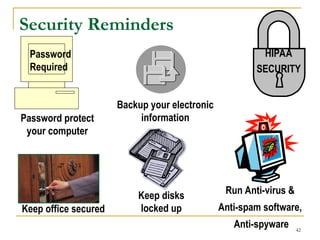
Security Reminders
Password
Required
Password protect
your computer
Backup your electronic
information
Run Anti-virus &
Anti-spam software,
Anti-spyware
Keep disks
locked up
Keep office secured
HIPAA
SECURITY
43
10-2. Sanctions for Violators
 Workforce members who violate UC policies regarding
privacy / security of confidential, restricted and/or protected
health information or ePHI are subject to further corrective
and disciplinary actions according to existing policies.
 Actions taken could include:
 Termination of employment
 Possible further legal action
 Violation of local, State and Federal laws may carry additional
consequences of prosecution under the law, costs of
litigation, payment of damages, (or both); or all.
 Knowing, malicious intent  Penalties, fines, jail!
44
Campus Resources for Reporting
Security Incidents
 Notify one of these UCSD security contacts:
 UCSD Healthcare: 619-543-HELP (external: 619-543-7474)
 School of Medicine & School of Pharmacy:
858-534-4089, somit@ucsd.edu
 Campus: ACT Help Desk, 858-534-1853
security@ucsd.edu
 UCSD Hot Line: 1-877-319-0265 (Toll-Free, 24 hrs/day)
 Callers may remain anonymous if they wish.
 UC-OP Hot Line: 1-800-403-4744
45
Information Security Self-Test
Questions & Case Scenarios
The following questions are intended as a self-test
to help reinforce the learning objectives.
46
Case #1: Shared Access Code
 Q: Your supervisor (a physician) is very busy and asks you to
log into the clinical information system using her user-ID and
password to retrieve some patient reports. What should you
do?
 A. It’s your boss, so it’s okay to do this.
 B. Ignore the request and hope she forgets.
 C. Decline the request and refer to the UC information security
policies.
 Answer: C. User IDs and passwords must not be shared. If
accessing the information is part of your job duties, ask your
supervisor to request a user access code for you from the
Information Systems data steward. If pressured further, call the
Information Security Officer.
47
Case #2: Shared Workstations
 A co-worker is called away for a short errand and leaves the clinic PC
logged onto the confidential information system. You need to look
up information using the same computer. What should you do?
<Select all that apply>
 A. Log your co-worker off and re-log in under your own User-ID and
password.
 B. To save time, just continue working under your co-worker’s User-ID.
 C. Wait for the co-worker to return before disconnecting him/her; or take a
long break until the co-worker returns.
 D. Find a different computer to use.
 Answer: A or D. Never log in under someone else’s user name. Remind
the co-worker to log-off when leaving!
48
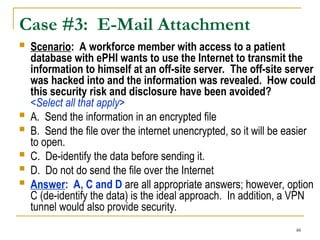
Case #3: E-Mail Attachment
 Scenario: A workforce member with access to a patient
database with ePHI wants to use the Internet to transmit the
information to himself at an off-site server. The off-site server
was hacked into and the information was revealed. How could
this security risk and disclosure have been avoided?
<Select all that apply>
 A. Send the information in an encrypted file
 B. Send the file over the internet unencrypted, so it will be easier
to open.
 C. De-identify the data before sending it.
 D. Do not do send the file over the Internet
 Answer: A, C and D are all appropriate answers; however, option
C (de-identify the data) is the ideal approach. In addition, a VPN
tunnel would also provide security.
49
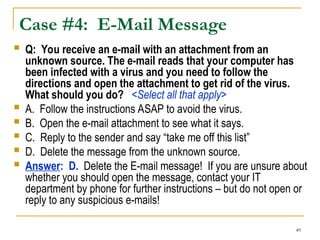
Case #4: E-Mail Message
 Q: You receive an e-mail with an attachment from an
unknown source. The e-mail reads that your computer has
been infected with a virus and you need to follow the
directions and open the attachment to get rid of the virus.
What should you do? <Select all that apply>
 A. Follow the instructions ASAP to avoid the virus.
 B. Open the e-mail attachment to see what it says.
 C. Reply to the sender and say “take me off this list”
 D. Delete the message from the unknown source.
 Answer: D. Delete the E-mail message! If you are unsure about
whether you should open the message, contact your IT
department by phone for further instructions – but do not open or
reply to any suspicious e-mails!
50
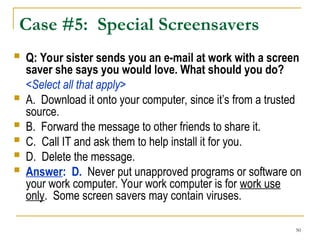
Case #5: Special Screensavers
 Q: Your sister sends you an e-mail at work with a screen
saver she says you would love. What should you do?
<Select all that apply>
 A. Download it onto your computer, since it’s from a trusted
source.
 B. Forward the message to other friends to share it.
 C. Call IT and ask them to help install it for you.
 D. Delete the message.
 Answer: D. Never put unapproved programs or software on
your work computer. Your work computer is for work use
only. Some screen savers may contain viruses.
51
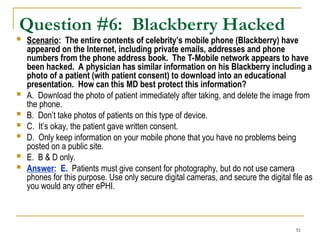
Question #6: Blackberry Hacked
 Scenario: The entire contents of celebrity’s mobile phone (Blackberry) have
appeared on the Internet, including private emails, addresses and phone
numbers from the phone address book. The T-Mobile network appears to have
been hacked. A physician has similar information on his Blackberry including a
photo of a patient (with patient consent) to download into an educational
presentation. How can this MD best protect this information?
 A. Download the photo of patient immediately after taking, and delete the image from
the phone.
 B. Don’t take photos of patients on this type of device.
 C. It’s okay, the patient gave written consent.
 D. Only keep information on your mobile phone that you have no problems being
posted on a public site.
 E. B & D only.
 Answer: E. Patients must give consent for photography, but do not use camera
phones for this purpose. Use only secure digital cameras, and secure the digital file as
you would any other ePHI.
52
Question #7: PC Safeguards
 Which workstation security safeguards are YOU
responsible for using and/or protecting?:
 <There may be more than 1 correct answer>
 A. User ID
 B. Password
 C. Log-off programs
 D. Lock-up office or work area (doors, windows, laptop)
 E. All of the above
 Answer: E, All of the above
53
Question #8. E-Mail Oops!
 True Story from Florida (Feb 2005): An E-Mail attachment with an
unencrypted list of HIV patients (names, MRN#s, SSN #s,
diagnoses) was sent in error to 10 individuals outside the
organization. What actions should be taken? <Select all answers
that apply>
 A. The user notified Computer Services immediately.
 B. Computer Services staff knew what to do and acted on the notice immediately.
Add’l training provided to the user to prevent re-occurrence.
 C. Computer Security Official notified the 10 recipients and requested that the file
be deleted. Incident & corrective actions were documented.
 Answer: All of the above. The user made a mistake when attaching a file to an
e-mail, but knew what to do and did it immediately. Computer Services staff also
acted immediately to reduce the risk of further re-disclosure. In addition, if this
breach had occurred in California, SB-1386 reporting to the subjects is required
because name + SSN were disclosed without authorization to unauthorized
individuals.
54
Question #9: Personal Information
 A data analyst has been working on an analysis of insurance coverage for
HR’s Benefit Office. At the end of the day, she saved the excel file on a CD,
since her network drive was full. The data included employee SSN#s, dates
of service, diagnosis codes, etc. She left the CD on her desk without
encrypting the file. The next morning the CD was missing. What should
she do?
 <Select all answers that apply.>
 A. Report a potential security incident to the Security Officer.
 B. Report it to the SB-1386 Coordinator, since SSNs were on the file.
 C. In future, she should only store data on a CD if the file is encrypted.
 D. Lock the CD or floppy disk in her desk and lock the office
 E. A, C and D.
 Answer: E. The incident should be reported as a security incident; however, SB-
1386 reporting is not required since patient names were not on the file. Data
stored to non-network devices should be encrypted, and removal media
physically secured.
55
UCSD Information Security Policies
 UCSD
 Network Security Policy (PPM 135-3)
 E-Mail Procedures & Practices (PPM 135-5)
 Web Policy Procedures & practices (PPM 135-6)
 Security for Electronic Information at UCSD (PPM 135-7)
 ACS Acceptable Use Policy; Wireless Policies; Network-Based
Firewalls Statement; Computer Media Decommissioning
Procedures
 “Computer Security and Use Statement” and the “Rules of Conduct
for UC Employees Involved with Information Regarding Individuals”
 UC OP Business & Finance Bulletin (BFB) IS-3; IS-10; Electronic
Communications Policy
56
Want to Learn More?
References & Resources
 CMS HIPAA Security Law web-site
 http://www.hhs.gov/ocr/hipaa
 California Office of HIPAA Implementation (CalOHI) web-site
 http://www.ohi.ca.gov/state/calohi/ohiHome.jsp
 UC Information Security Policy (# IS-3)
 http://www.ucop.edu/ucophome/policies/bfb/bfbis.html
 UCSD Campus - Information Security Policies
 UCSD Network Security: http://security.ucsd.edu
 UCSD Blink for “Information Security” FAQs
http://blink.ucsd.edu/Blink/External/Topics/Policy/0,1162,186
1,00.html
57
HIPAA Security Rule Sections
45 CFR…Compliance Required 4/20/2005
 #164.308 – Administrative Safeguards
 Risk Assessment & Risk Management Plan; workforce
training; BAAs; evaluation
 #164.310 – Physical Safeguards
 Facility access; workstation use/security; device / media
controls
 #164.312 - Technical Safeguards
 Access, audit, authentication controls, transmission
security
 #164.314 – Organization Requirements
 #164.316 – Policies & Documentation Requirements
58
Acknowledgment of Training
Topic: Security Awareness Training
 Instructions: Print this page, fill-in your name and provide it to your
supervisor for “proof of training” completion. Supervisor: Retain this
certificate with personnel training records.
CERTIFICATE
Security Awareness Training Module completed by:
 Name: ______________________
 Date of Training: ____________
 Signature: _____________________

PowerPoint-2b.-HIPAA-Security-Awareness-Training.ppt

  • 1.
    1 Information Security Awareness Training: “GoodComputing Practices” for Confidential Electronic Information Information Security Training for all Workforce Members who use computers. UCSD Health Sciences Privacy / Security Office Issued: 3/15/2005
  • 2.
    2 This presentation focuseson two types of confidential electronic information:  ePHI = Electronic Protected Health Information  Medical record number, account number or SSN  Patient demographic data, e.g., address, date of birth, date of death, sex, e-mail / web address  Dates of service, e.g., date of admission, discharge  Medical records, reports, test results, appointment dates  PII = Personally Identified Information  Individual’s name + SSN number + Driver’s License # and financial credit card account numbers
  • 3.
    3 Definition of “ePHI” ePHI or electronic Protected Health Information is patient health information which is computer based, e.g., created, received, stored or maintained, processed and/or transmitted in electronic media.  Electronic media includes computers, laptops, disks, memory stick, PDAs, servers, networks, dial-modems, E-Mail, web-sites, etc.  Federal Laws: HIPAA Privacy & Security Laws mandate protection and safeguards for access, use and disclosure of PHI and/or ePHI with sanctions for violations.
  • 4.
    4 Definition of “PII” “Personal information” – Unencrypted computerized information that includes an individual’s name in combination with any one or more of the following: Social Security Number, Driver’s license number, or California ID card #, credit / debit in combination with their access / security code or password  State Law: SB-1386 California, Privacy of Personal Information to Prevent Identity Theft. SB-1386 requires mandatory notice to the subject of an unauthorized, unencrypted electronic disclosure of “personal information”.
  • 5.
    5 What are theInformation Security Standards for Protection of ePHI?  “Information Security” means to ensure the confidentiality, integrity, and availability of information through safeguards.  “Confidentiality” – that information will not be disclosed to unauthorized individuals or processes [164.304]  “Integrity” – the condition of data or information that has not been altered or destroyed in an unauthorized manner. Data from one system is consistently and accurately transferred to other systems.  “Availability” – the property that data or information is accessible and useable upon demand by an authorized person.
  • 6.
    6 What are theFederal Security Rule - General Requirements? [45 CFR #164.306-a]  Ensure the “CIA” (confidentiality, integrity and availability) of all electronic protected health information (ePHI) that the covered entity creates, receives, maintains, or transmits.  Protect against reasonably anticipated threats or hazards to the security or integrity of ePHI, e.g., hackers, virus, data back- ups  Protect against unauthorized disclosures  Train workforce members (“awareness of good computing practices”) Compliance required by April 20, 2005
  • 7.
    7 Who is a“Covered Entity”?  HIPAA's regulations directly cover three basic groups of individual or corporate entities: health care providers, health plans, and health care clearinghouses.  Health Care Provider means a provider of medical or health services, and entities who furnishes, bills, or is paid for health care in the normal course of business  Health Plan means any individual or group that provides or pays for the cost of medical care, including employee benefit plans  Healthcare Clearinghouse means an entity that either processes or facilitates the processing of health information, e.g., billing service, repricing company  Any organization that routinely handles PHI or ePHI in any capacity is in all probability a covered entity. The behavior of anyone in the covered entity's workforce (including volunteers) is subject to the Federal Privacy & Security Laws.
  • 8.
    8 Good Security Standardsfollow the “90 / 10” Rule:  10% of security safeguards are technical  90% of security safeguards rely on the computer user (“YOU”) to adhere to good computing practices  Example: The lock on the door is the 10%. You remembering to lock, check to see if it is closed, ensuring others do not prop the door open, keeping controls of keys is the 90%. 10% security is worthless without YOU! Why do I need to learn about Security – “Isn’t this just an I.T. Problem?”
  • 9.
    9 What are theConsequences for Security Violations?  Risk to integrity of confidential information, e.g., data corruption, destruction, unavailability of patient information in an emergency  Risk to security of personal information, e.g., identity theft  Loss of valuable business information  Loss of confidentiality, integrity & availability of data (and time) due to poor or untested disaster data recovery plan  Embarrassment, bad publicity, media coverage, news reports  Loss of patients’ trust, employee trust and public trust  Costly reporting requirements for SB-1386 issues  Internal disciplinary action(s), termination of employment  Penalties, prosecution and potential for sanctions / lawsuits
  • 10.
    10  Learn andpractice “good security computing practices”.  Incorporate the following 10 security practices into your everyday routine. Encourage others to do as well.  Report anything unusual – Notify the appropriate contacts if you become aware of a suspected security incident.  If it sets off a warning in your mind, it just may be a problem! SEC- -Y Objectives
  • 11.
    11 “Good Computing Practices” 10Safeguards for Users 1. User ID or Log-In Name (aka. User Access Controls) 2. Passwords 3. Workstation Security 4. Portable Device Security 5. Data Management, e.g., back-up, archive, restore. 6. Remote Access 7. Recycling Electronic Media & Computers 8. E-Mail 9. Safe Internet Use 10.Reporting Security Incidents / Breach
  • 12.
    12 Safeguard - #1:Unique User Log-In / User Access Controls  Access Controls:  Users are assigned a unique “User ID” for log-in purposes  Each individual user’s access to ePHI system(s) is appropriate and authorized  Access is “role-based”, e.g., access is limited to the minimum information needed to do your job  Unauthorized access to ePHI by former employees is prevented by terminating access  User access to information systems is logged and audited for inappropriate access or use.
  • 13.
    13 Safeguard-#2: Password Protection Tosafeguard YOUR computing accounts, YOU need to take steps to protect your password. When choosing a password,  Don't use a word that can easily be found in a dictionary — English or otherwise.  Use at least eight characters (letters, numbers, symbols)  Don't share your password — protect it the same as you would the key to your residence. After all, it is a "key" to your identity.  Don't let your Web browser remember your passwords. Public or shared computers allow others access to your password.
  • 14.
    14 2-1. Password ConstructionStandard  Use eight character minimum and should contain at least one of each of the following characters:  Uppercase letters ( A-Z )  Lowercase letters ( a-z )  Numbers ( 0-9 )  Punctuation marks ( !@#$%^&*()_+=- )  Better yet, use a “pass-phrase” to help you remember your password, such as:  MdHF&NAW! (My dog Has Fleas and Needs A Wash!)
  • 15.
    15 Safeguard-#3: Workstation Security –Physical Security  “Workstations” include any electronic computing device, for example, a laptop or desktop computer, or any other device that performs similar functions, and electronic media stored in its immediate environment.  Physical Security measures include:  Disaster Controls  Physical Access Controls  Device & Media Controls (also see Safeguard #4)
  • 16.
    16 3-1. Workstations: DisasterControls  Disaster Controls: Protect workstations from natural and environmental hazards, such as heat, liquids, water leaks and flooding, disruption of power, conditions exceeding equipment limits.  Use electrical surge protectors  Install fasteners to protect equipment against earthquake damage  Move servers away from overhead sprinklers
  • 17.
    17 3-2. Workstations: PhysicalAccess Controls  Log-off before leaving a workstation unattended.  This will prevent other individuals from accessing EPHI under your User-ID and limit access by unauthorized users.  Lock-up! – Offices, windows, workstations, sensitive papers and PDAs, laptops, mobile devices / media.  Lock your workstation (Cntrl+Alt+Del and Lock) – Windows XP, Windows 2000  Encryption tools should be implemented when physical security cannot be provided  Maintain key control  Do not leave sensitive information on remote printers or copier.
  • 18.
    18 3-3. Workstations: DeviceControls  Unauthorized physical access to an unattended device can result in harmful or fraudulent modification of data, fraudulent email use, or any number of other potentially dangerous situations. These tools are especially important in patient care areas to restrict access to authorized users only.  Auto Log-Off: Where possible and appropriate, devices must be configured to “lock” or “auto log-off” and require a user to re- authenticate if left unattended for more than 15 minutes.  Automatic Screen Savers: Set to 5 minutes with password protection.  Note: Log-off and screen-saver times may differ at your campus. Check with your department’s Information Security administrator.
  • 19.
    19 Safeguard-#4: Security forPortable Devices & Laptops with ePHI  Implement the workstation physical security measures listed in Safeguard #3, including this Check List:  Use an Internet Firewall  Use up-to-date Anti-virus software  Install computer software updates, e.g., Microsoft patches  Encrypt and password protect portable devices  Lock-it up!, e.g., Lock office or file cabinet, lock up laptops  Automatic log-off from programs  Use password protected screen savers  Back-up critical data and software programs
  • 20.
    20 4-1: Security forUSB Memory Sticks & Storage Devices  Memory Sticks are new devices which pack big data in tiny packages, e.g., 256MB, 512MB, 1GB.  Safeguards:  Don’t store ePHI on memory sticks  If you do store it, either de-identify it or use encryption software  Delete the ePHI when no longer needed  Protect the devices from loss and damage Delete temporary ePHI files from local drives & portable media too!
  • 21.
    21 4-2. Security forPDAs Personal Digital Assistants  PDA or Personal Digital Assistants are personal organizer tools, e.g., calendar, address book, phone numbers, productivity tools, and can contain prescribing and patient tracking databases of information and data files with ePHI. PDAs are at risk for loss or theft and if web-enabled, risk of hacking.  Safeguards:  Don’t store ePHI on PDAs  If you do store it, de-identify it!; or  Encrypt it and password protect it  Back up original files  Delete ePHI files -- from PDAs, laptops and all portable media when no longer needed  Protect it from loss or theft. Examples: Palm Pilot; HP; Blackberry; Compaq iPAQ
  • 22.
    22 4-3. Security forWireless Devices  Wireless devices open up more avenues for ePHI to be improperly accessed. To minimize the risk, use the following precautions:  Do not enable the wireless port that exposes the device, unless it has been secured.  Use a Virtual Private Network (VPN), if making a wireless connection  Adhere to user / device authentication before transmitting ePHI wirelessly  Encrypt data during transmission, and maintain an audit trail.  Refer questions to your Information Security Office
  • 23.
    23 Safeguard-#5: Data Management& Security Topics in this section cover:  Data backup and storage  Transferring and downloading data  Data disposal
  • 24.
    24 5-1a: Data Backup& Storage  System back-ups are created to assure integrity and reliability. You can get information about back-up procedures from the Information Administrator for your department. If YOU store original data on local drives or laptops, YOU are personally responsible for the data backup and secure storage of data:  Backup original data files with ePHI and other essential data and software programs frequently based on data criticality, e.g., daily, weekly, monthly.  Store back-up disks at a geographically separate and secure location  Prepare for disasters by testing the ability to restore data from back-up tapes / disks  Consider encrypting back-up disks for further protection of confidential information
  • 25.
    25 5-1b. Data Storage- Portable Devices Also refer to Portable Media Safeguards #4  Permanent copies of ePHI should not be stored for archival purposes on portable equipment, such as laptop computers, PDAs and memory sticks.  If necessary, temporary copies could be used on portable computers, only when:  The storage is limited to the duration of the necessary use; and  If protective measures, such as encryption, are used to safeguard the confidentiality, integrity and availability of the data in the event of theft or loss.
  • 26.
    26 5-2. Transferring &Downloading Data  Users must ensure that appropriate security measures are implemented before any ePHI data or images are transferred to the destination system.  Security measures on the destination system must be comparable to the security measures on the originating system or source.  Encryption is an important tool for protection of ePHI in transit across unsecured networks and communication systems  Refer to: UC Policy IS-3, pages 21-22
  • 27.
    27 5-3. Data Disposal CleanDevices before Recycling  Destroy ePHI data which is no longer needed:  “Clean” hard-drives, CDs, zip disks, or back-up tapes before recycling or re-using electronic media  Have an IT professional overwrite, degauss or destroy your digital media before discarding – via magnets or special software tools; and/or  Know where to take these items for appropriate safe disposal  Contact: UCSDHC Information Security, 3-HELP or 619-543-7474.
  • 28.
    28 Safeguard-#6: Secure RemoteAccess The following minimum standards are required for remote network access by portable devices, laptops and home computers connected to the UC network. More stringent standards may apply in individual campus Departments. Minimum network security standards are: 1. Software security patch up-to-date 2. Anti-virus software running and up-to-date on every device 3. Turn-off unnecessary services & programs 4. Physical security safeguards to prevent unauthorized access Contact your Information Security Department for information regarding the following standards: 5. Host-based firewall software – running & configured 6. Minimize unencrypted authentication 7. No unauthenticated email relays to third parties 8. No uncontrolled-access to proxy servers Apply these same standards to all portable devices & home PCs.
  • 29.
    29 6-1. Virtual PrivateNetwork (VPN) for secure remote access to Network with ePHI  Rather than receiving ePHI as an E-Mail attachment; or logging in via an unsecure home account, consider using a VPN connection to obtain remote access to ePHI.  Benefit: A VPN will allow the user to create a secured encrypted link between the user’s computer and the UC network to view information.  Contact your department’s Information System administrator or the UCSDMC I.S. Help Desk (3-HELP) or (619) 543-7474 to determine if this is an option for you. Adhere to the security features of the VPN software.
  • 30.
    30 Safeguard-#7: E-Mail Security E-Mailis like a “postcard”. Email may potentially be viewed in transit by many individuals, since it may pass through several switches enroute to its final destination or never arrive at all! Although the risks to a single piece of E-mail are small given the volume of email traffic, e-mails containing ePHI need a higher level of security and careful addressing! 1. Use secure, encrypted E-Mail software, if available 2. If secure E-Mail is not available, before sending the message: Verify that the intended recipient addresses are typed correctly, use the Blink directory look-up feature, include the confidential footer in all outbound messages with ePHI. If you send an attachment with ePHI: password protect the file or encrypt it or do not send the attachment via e-mail! 3. Security at the Subject Line: Avoid using individual names, medical record numbers or account numbers in unencrypted e-mails 4. Do not forward E-Mails with ePHI from secure addresses to non-secure accounts, e.g., HotMail, AOL. Instead, check your UCSD e-mail messages remotely via WebOutlook. Contact your department Information System Administrator to find out how to do this.
  • 31.
    31 7-1. E-Mail betweenPatients & Providers  Use e-mail encryption programs, if available  This feature will be available when the EPIC electronic medical record is fully implemented.  If e-mail encryption is not available, obtain consent from patients for use of e-mail which outlines the risks of the e-mail messages  Form # D819, “Consent for Use of E-Mail” may be sent to the patient for signature and filed in the medical record. To order D-Forms, contact the Hillcrest Medical Center Copy Center at (619) 543-5696  Review UCSDHC policy (# CEP 18.1) regarding use of e- mail between clinicians and patients.
  • 32.
    32 7-2. Should YouOpen the E-mail Attachment?  If it's suspicious, delete and don't open it!  What is suspicious?  Not work-related  Attachments not expected or from someone you do not know  Attachments with a suspicious file extension (*.exe, *.vbs, *.bin, *.com, or *.pif)  Web link  Unusual topic lines; “Your car?”; “Oh!” ; “Nice Pic!”; “Family Update!”; “Very Funny!”
  • 33.
    33 7-3. E-Mail Security– Risk Areas 1. Spamming. Unsolicited bulk e-mail, including commercial solicitations, advertisements, chain letters, pyramid schemes, and fraudulent offers.  Do not reply to spam messages. Do not spread spam. Remember, sending chain letters is against UC policy.  Do not forward chain letters. It’s the same as spamming!  Do not open or reply to suspicious e-mails. Delete the message. 2. Phishing Scams. E-Mail pretending to be from trusted names, such as Citibank or Paypal or Amazon, but directing recipients to rogue sites. A reputable company will never ask you to send your password through e-mail. 3. Spyware. Spyware is adware which can slow computer processing down; hijack web browsers; spy on key strokes and cripple computers
  • 34.
    34 7-4. Instant Messaging(IM) - Risks  Instant messaging (IM) and Instant Relay Chat (IRC) or chat rooms create ways to communicate or chat in “real- time” over the Internet.  Exercise caution when using Instant Messaging on UC Computers:  Maintain up-to-date virus protection and firewalls, since IM may leave networks vulnerable to viruses, spam and open to attackers / hackers.  Do not reveal personal details while in a Chat Room  Be aware that this area of the Internet is not private and subject to scrutiny  Refer to UCSD Campus policy / procedures for guidance
  • 35.
    35 Safeguard-#8: Internet Use UC encourages the use of Internet services to advance the University's mission of education, research, patient care, and public service.  UC's Electronic Communications Policy governs use of its computing resources, web-sites, and networks.  Appropriate use of UC's electronic resources must be in accordance with the University principles of academic freedom and privacy.  Protection of UC's electronic resources requires that everyone use responsible practices when accessing online resources.  Be suspicious of accessing sites offering questionable content. These sites often result in spam or the release of viruses.  Be careful about providing personal, sensitive or confidential information to an Internet site or to web-based surveys that are not from trusted sources.  http://www.ucop.edu/ucophome/policies/ec/brochure.pdf Remember: The Internet is not private! Access to any site on the Internet could be traced to your name and location.
  • 36.
    36 8-1. Internet Use:Privacy Cautions  Personal information posted to web-pages may not be protected from unauthorized use.  Even unlinked web pages can be found by search engines  Some web sites try to place small files (“cookies”) on your computer that might help others track the web pages you access  Web sites on UC servers should tell users how to contact the owner or webmaster  Campus & UCSD Healthcare policies determine access rights for 3rd parties or outside organizations. In some cases, a HIPAA Business Associate Agreement may be also required.
  • 37.
    37 Safeguard-#9: Report SecurityIncidents  You are responsible to:  Report and respond to security incidents and security breaches.  Know what to do in the event of a security breach or incident related to ePHI and/or Personal Information.  Report security incidents & breaches to:  UCSD Healthcare: 619-543-7474  UCSD Campus: security@ucsd.edu
  • 38.
    38 9-1. Security Incidentsand ePHI (HIPAA Security Rule)  Security Incident defined:  "The attempted or successful or improper instance of unauthorized access to, or use of information, or mis-use of information, disclosure, modification, or destruction of information or interference with system operations in an information system.“ [45 CFR 164.304]
  • 39.
    39 9-2. Security Breachand Personal Information (SB-1386, Protection of Personal Information Law)  “Security breach” per UC Information Security policy (IS- 3) is when a California resident’s unencrypted personal information is reasonably believed to have been acquired by an unauthorized person. PII means:  Name + SSN + Drivers License +  Financial Account /Credit Card Information  Good faith acquisition of personal information by a University employee or agent for University purposes does not constitute a security breach, provided the personal information is not used or subject to further unauthorized disclosure.
  • 40.
    40 Safeguard-#10: Your Responsibilityto Adhere to UC-Information Security Policies  Users of electronic information resources are responsible for familiarizing themselves with and complying with all University policies, procedures and standards relating to information security.  Users are responsible for appropriate handling of electronic information resources (e.g., ePHI data)  Reference: UC Policy #IS-3, UCSD Campus Information Security Policy and UCSD Healthcare “Computer Security & Use Agreement”.
  • 41.
    41 10-1. Safeguards: YourResponsibility  Protect your computer systems from unauthorized use and damage by using:  Common sense  Simple rules  Technology  Remember – By protecting yourself, you're also doing your part to protect UC and our patient and employee confidential data and information systems.
  • 42.
    42 Security Reminders Password Required Password protect yourcomputer Backup your electronic information Run Anti-virus & Anti-spam software, Anti-spyware Keep disks locked up Keep office secured HIPAA SECURITY
  • 43.
    43 10-2. Sanctions forViolators  Workforce members who violate UC policies regarding privacy / security of confidential, restricted and/or protected health information or ePHI are subject to further corrective and disciplinary actions according to existing policies.  Actions taken could include:  Termination of employment  Possible further legal action  Violation of local, State and Federal laws may carry additional consequences of prosecution under the law, costs of litigation, payment of damages, (or both); or all.  Knowing, malicious intent  Penalties, fines, jail!
  • 44.
    44 Campus Resources forReporting Security Incidents  Notify one of these UCSD security contacts:  UCSD Healthcare: 619-543-HELP (external: 619-543-7474)  School of Medicine & School of Pharmacy: 858-534-4089, somit@ucsd.edu  Campus: ACT Help Desk, 858-534-1853 security@ucsd.edu  UCSD Hot Line: 1-877-319-0265 (Toll-Free, 24 hrs/day)  Callers may remain anonymous if they wish.  UC-OP Hot Line: 1-800-403-4744
  • 45.
    45 Information Security Self-Test Questions& Case Scenarios The following questions are intended as a self-test to help reinforce the learning objectives.
  • 46.
    46 Case #1: SharedAccess Code  Q: Your supervisor (a physician) is very busy and asks you to log into the clinical information system using her user-ID and password to retrieve some patient reports. What should you do?  A. It’s your boss, so it’s okay to do this.  B. Ignore the request and hope she forgets.  C. Decline the request and refer to the UC information security policies.  Answer: C. User IDs and passwords must not be shared. If accessing the information is part of your job duties, ask your supervisor to request a user access code for you from the Information Systems data steward. If pressured further, call the Information Security Officer.
  • 47.
    47 Case #2: SharedWorkstations  A co-worker is called away for a short errand and leaves the clinic PC logged onto the confidential information system. You need to look up information using the same computer. What should you do? <Select all that apply>  A. Log your co-worker off and re-log in under your own User-ID and password.  B. To save time, just continue working under your co-worker’s User-ID.  C. Wait for the co-worker to return before disconnecting him/her; or take a long break until the co-worker returns.  D. Find a different computer to use.  Answer: A or D. Never log in under someone else’s user name. Remind the co-worker to log-off when leaving!
  • 48.
    48 Case #3: E-MailAttachment  Scenario: A workforce member with access to a patient database with ePHI wants to use the Internet to transmit the information to himself at an off-site server. The off-site server was hacked into and the information was revealed. How could this security risk and disclosure have been avoided? <Select all that apply>  A. Send the information in an encrypted file  B. Send the file over the internet unencrypted, so it will be easier to open.  C. De-identify the data before sending it.  D. Do not do send the file over the Internet  Answer: A, C and D are all appropriate answers; however, option C (de-identify the data) is the ideal approach. In addition, a VPN tunnel would also provide security.
  • 49.
    49 Case #4: E-MailMessage  Q: You receive an e-mail with an attachment from an unknown source. The e-mail reads that your computer has been infected with a virus and you need to follow the directions and open the attachment to get rid of the virus. What should you do? <Select all that apply>  A. Follow the instructions ASAP to avoid the virus.  B. Open the e-mail attachment to see what it says.  C. Reply to the sender and say “take me off this list”  D. Delete the message from the unknown source.  Answer: D. Delete the E-mail message! If you are unsure about whether you should open the message, contact your IT department by phone for further instructions – but do not open or reply to any suspicious e-mails!
  • 50.
    50 Case #5: SpecialScreensavers  Q: Your sister sends you an e-mail at work with a screen saver she says you would love. What should you do? <Select all that apply>  A. Download it onto your computer, since it’s from a trusted source.  B. Forward the message to other friends to share it.  C. Call IT and ask them to help install it for you.  D. Delete the message.  Answer: D. Never put unapproved programs or software on your work computer. Your work computer is for work use only. Some screen savers may contain viruses.
  • 51.
    51 Question #6: BlackberryHacked  Scenario: The entire contents of celebrity’s mobile phone (Blackberry) have appeared on the Internet, including private emails, addresses and phone numbers from the phone address book. The T-Mobile network appears to have been hacked. A physician has similar information on his Blackberry including a photo of a patient (with patient consent) to download into an educational presentation. How can this MD best protect this information?  A. Download the photo of patient immediately after taking, and delete the image from the phone.  B. Don’t take photos of patients on this type of device.  C. It’s okay, the patient gave written consent.  D. Only keep information on your mobile phone that you have no problems being posted on a public site.  E. B & D only.  Answer: E. Patients must give consent for photography, but do not use camera phones for this purpose. Use only secure digital cameras, and secure the digital file as you would any other ePHI.
  • 52.
    52 Question #7: PCSafeguards  Which workstation security safeguards are YOU responsible for using and/or protecting?:  <There may be more than 1 correct answer>  A. User ID  B. Password  C. Log-off programs  D. Lock-up office or work area (doors, windows, laptop)  E. All of the above  Answer: E, All of the above
  • 53.
    53 Question #8. E-MailOops!  True Story from Florida (Feb 2005): An E-Mail attachment with an unencrypted list of HIV patients (names, MRN#s, SSN #s, diagnoses) was sent in error to 10 individuals outside the organization. What actions should be taken? <Select all answers that apply>  A. The user notified Computer Services immediately.  B. Computer Services staff knew what to do and acted on the notice immediately. Add’l training provided to the user to prevent re-occurrence.  C. Computer Security Official notified the 10 recipients and requested that the file be deleted. Incident & corrective actions were documented.  Answer: All of the above. The user made a mistake when attaching a file to an e-mail, but knew what to do and did it immediately. Computer Services staff also acted immediately to reduce the risk of further re-disclosure. In addition, if this breach had occurred in California, SB-1386 reporting to the subjects is required because name + SSN were disclosed without authorization to unauthorized individuals.
  • 54.
    54 Question #9: PersonalInformation  A data analyst has been working on an analysis of insurance coverage for HR’s Benefit Office. At the end of the day, she saved the excel file on a CD, since her network drive was full. The data included employee SSN#s, dates of service, diagnosis codes, etc. She left the CD on her desk without encrypting the file. The next morning the CD was missing. What should she do?  <Select all answers that apply.>  A. Report a potential security incident to the Security Officer.  B. Report it to the SB-1386 Coordinator, since SSNs were on the file.  C. In future, she should only store data on a CD if the file is encrypted.  D. Lock the CD or floppy disk in her desk and lock the office  E. A, C and D.  Answer: E. The incident should be reported as a security incident; however, SB- 1386 reporting is not required since patient names were not on the file. Data stored to non-network devices should be encrypted, and removal media physically secured.
  • 55.
    55 UCSD Information SecurityPolicies  UCSD  Network Security Policy (PPM 135-3)  E-Mail Procedures & Practices (PPM 135-5)  Web Policy Procedures & practices (PPM 135-6)  Security for Electronic Information at UCSD (PPM 135-7)  ACS Acceptable Use Policy; Wireless Policies; Network-Based Firewalls Statement; Computer Media Decommissioning Procedures  “Computer Security and Use Statement” and the “Rules of Conduct for UC Employees Involved with Information Regarding Individuals”  UC OP Business & Finance Bulletin (BFB) IS-3; IS-10; Electronic Communications Policy
  • 56.
    56 Want to LearnMore? References & Resources  CMS HIPAA Security Law web-site  http://www.hhs.gov/ocr/hipaa  California Office of HIPAA Implementation (CalOHI) web-site  http://www.ohi.ca.gov/state/calohi/ohiHome.jsp  UC Information Security Policy (# IS-3)  http://www.ucop.edu/ucophome/policies/bfb/bfbis.html  UCSD Campus - Information Security Policies  UCSD Network Security: http://security.ucsd.edu  UCSD Blink for “Information Security” FAQs http://blink.ucsd.edu/Blink/External/Topics/Policy/0,1162,186 1,00.html
  • 57.
    57 HIPAA Security RuleSections 45 CFR…Compliance Required 4/20/2005  #164.308 – Administrative Safeguards  Risk Assessment & Risk Management Plan; workforce training; BAAs; evaluation  #164.310 – Physical Safeguards  Facility access; workstation use/security; device / media controls  #164.312 - Technical Safeguards  Access, audit, authentication controls, transmission security  #164.314 – Organization Requirements  #164.316 – Policies & Documentation Requirements
  • 58.
    58 Acknowledgment of Training Topic:Security Awareness Training  Instructions: Print this page, fill-in your name and provide it to your supervisor for “proof of training” completion. Supervisor: Retain this certificate with personnel training records. CERTIFICATE Security Awareness Training Module completed by:  Name: ______________________  Date of Training: ____________  Signature: _____________________

Editor's Notes

  • #7 Covered Entities are groups of individuals or corporate entities, e.g., health plans, health care providers, and health care clearinghouses. “Health Care Provider” means a provider of medical or health services, and any other person or organization who furnishes, bills, or is paid for health care in the normal course of business; and “Health Plan” means any individual or group plan that provides, or pays the cost of, medical care -- including public and private health insurance issuers, HMOs or other managed care organizations, employee benefit plans, the Medicare and Medicaid programs, military/veterans plans, and any other "policy, plan or program" for which a principal purpose is to provide or pay for health care services; “Health Care Clearinghouse” means a public or private entity, including a billing service, repricing company, community health information system, and “value-added” networks and switches, that either processes or facilitates the processing of health information. In short, an organization that routinely handles protected health information (PHI) in any capacity is in all probability a covered entity. (See 45 CFR 160.103 for the few statutory exemptions.) In turn, the behavior of anyone in the covered entity's workforce is covered. Organizations performing functions involving PHI on behalf of covered entities would be reached under the business associate contracts that HIPAA requires for such relationships. Behavior of individuals in the business associates' workforces would be covered in turn.
  • #20 These safeguards applies to all portable devices which contain ePHI or PII. Apply same safeguards to zip disks, floppy disks, CDs, and local drives on computers!
  • #34 SPIM = Unsolicited spam for instant messaging Students Develop Encryption For Instant Messaging "... To enhance the privacy and security of instant messaging, fellow UC Berkeley graduate student Nikita Borisov and recent graduate Ian Goldberg developed software that allows users to encrypt messages and verify the identity of chat partners while leaving no evidence that the conversation ever occurred. Off-the-Record, a plug-in available for free download from the pair's Web site, improves on existing security measures by providing authentication.“ 2/23/2005
  • #36 If a HIPAA Business Associate Agreement (BAA) is needed, notify the Purchasing Department for Healthcare or Campus. Who is a UC Business Associate? Business Associates are third-party vendors or contractors who use or disclose PHI (or ePHI) on behalf of the UC covered health care providers and health plans for TPO and other activities. UC must identify all Business Associate relationships and implement HIPAA Business Associate Agreements. Examples: External billing agencies, third party administrators, outside counsel, accreditation agencies The UC Business Associate Agreement provides assurances that Business Associates will protect PHI. If an individual or entity requests PHI and claims to be a Business Associate, verify with UCSDHC Privacy Officer or Procurement / Purchasing Manager. Document and retain all signed BAA agreements.
  • #46 Change to shared access sys
  • #55 State Laws SB-1386 – Identity theft prevention SB-xxxx - Websites & Surveys by 3rd Parties <?> Confidentiality of Medical Information Act (COMIA) [56 – 56.16] California Information Practices Act (1977) California Public Records Act (1976) Federal Laws HIPAA Privacy & Security Laws Research electronic information: FDA 21 CFR Part 11 <?> Gramm-Leach-Bliley Act (GLB) – financial records Family Educational Rights & Privacy Act (FERPA 1974) – education records Occupational Safety and Health Act (OSHA) – employee health records CMS web-site: http://www.cms.hhs.gov/hipaa/hipaa2 Office for Civil Rights (OCR) – Privacy Rule guidance, FAQs http://www.hhs.gov/ocr/hipaa